Berlin Group KR200US Under cabinet radio User Manual
Berlin Brands Group Inc. Under cabinet radio
User Manual

www.auna-multimedia.com
Under Cabinet Radio
Under Cabinet Radio
US-10028155 US-10032011

ICH BIN
EIN BERLINER*
* John F. Kennedy on June 26, 1963 in his speech in Berlin, on the occasion of the 15th anniversary
of the Berlin Airlift.
3
EN
ICH BIN
EIN BERLINER*
Technical Data 4
Warning 5
Warranty 7
Safety Instructions 8
Operating Elements 10
Installation 13
Initial Operation 13
Settings 15
Internet Radio 20
Media Player 22
Spotify Connect 24
DLNA Streaming 24
FM Radio 27
AUX Input 28
Alarm and Sleep Function 29
Egg Timer 30
Troubleshooting 30
CONTENTS
Dear customer,
Congratulations you on your purchase. Please carefully read the following
instructions carefully for the connection and use of this product. It is
important to carefully follow these instructions to prevent serious personal
injury or damage to the product. We assume no liability for damage caused
by disregarding the instructions in this manual or otherwise for improper
use of this product. In this case, you assume all risk and responsibility.
4
EN
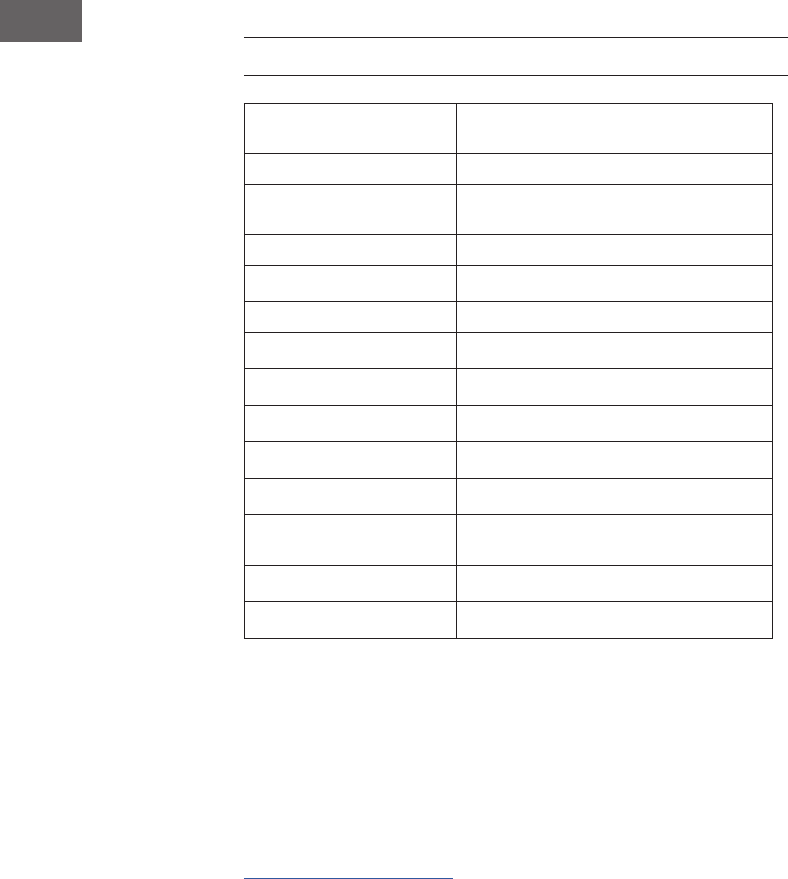
TECHNICAL DATA
Item number US-10028155
US-10032011
Description Internet Radio / WiFi Audio Player
with stereo speakers
Display 2.4", 320 x 240, TFT
Supported network IEEE 802.11b/g/n;
Supported encryption WEP, WPA, WPA2 (PSK), WPS
Streaming UPnP, DLNA
Supported le types MP3, WMA, WAV, AAC, FLAC
FM 87.0 – 108.0 MHz, with RDS
AC/DC Adaptor 7.5V / 1200mA; inpput: 110V ~60Hz
Standby power consumption <1W
Connections 1/8" AUX-IN
Stereo 1/8" Line-Out
Dimensions 9.3" x 2.8" x 5.4"
Weight ~ 2.1 lb.
Made in China
Berlin Brands Group Inc.
101 Montgomery Street,
Suite 2050 in San Francisco, CA 94104
www.berlin-brands-group.com
5
EN
WARNING
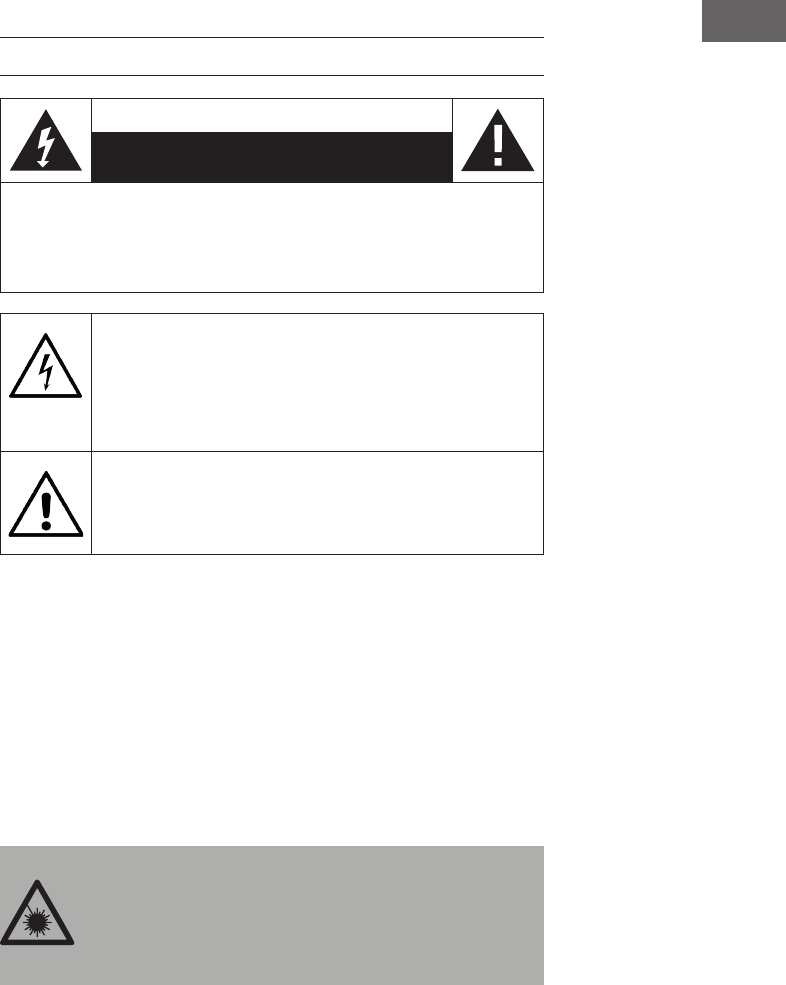
CAUTION
RISK OF ELECTRIC SHOCK
DO NOT OPEN
CAUTION: TO REDUCE THE RISK OF ELECTRIC SHOCK, DO NOT REMOVE ANY
COVER. NO USER-SERVICABLE PARTS INSIDE. REFER SERVICING TO QUALIFIED
SERVICE PERSONNEL ONLY.
WARNING: TO REDUCE THE RISK OF FIRE OR ELECTRICAL SHOCK, DO NOT
EXPOSE THIS PRODUCT TO WATER, RAIN OR MOISTURE.
Triangle with lightening plus explanation as follows:
DANGEROUS VOLTAGE The lightening ash with arrowhead symbol
within the equilateral triangle is intended to alert the user to the
presence of uninsulated dangerous voltage within the product‘s
enclosure that may be of suicient magnitude to constitute a risk of
electric shock to persons.
Triangle with exclamation point plus explanation as follows:
ATTENTION: The exclamation point within the equilateral triangle is
intended to alert the user to the presence of important operating and
maintenance (servicing) instructions in the literature accompanying
with this product.
California Proposition 65 Warning: The product may contain chemicals
known to the State of California to cause cancer and birth defects or other
reproductive harm. (California law requires this warning to be given to
customers in the State of California.)
Ventilation Warning: Do not block any ventilation openings by situating
the product on a bed, sofa or similar surface that may block the ventilation
openings; or place in built-in installation. The product should be situated so
that its location or position does not interfere with its proper ventilation
DANGER
Invisible laser radiation can cause serious personal injury
when open and if the interlock fails or is defeated! Avoid
direct exposure to beam. Use of controls or adjustments other
than those specied herein may result in hazardous radiation
exposure and serious personal injury.

6
EN
This device has been tested and found to comply
with Part 15 of FCC rules. Operation is subject to
the following two conditions: (1) the device may
not cause harmful interference and (2) the device
must accept any interference received, including
interference that may cause undesired operation.
These FFC rules are designed to provide reasonable
protection against harmful interference in a
residential installation.
PRODUCT COMPLIES WITH DHHS RULES 21 CFR
Chapter I, SUBCHAPTER J
FCC Warning: This equipment may generate or use radio frequency energy.
Changes or modications to this equipment may cause harmful interference
unless the modications are expressly approved in the instruction
manual. The user could lose the authority to operate this equipment if an
unauthorizied change or modication is made.
7
EN
WARRANTY
Berlin Brands Group (the “Company”) warrants to the original retail
purchaser of this Product that should this Product or any part thereof, under
normal use and conditions, be proven defective in material or workmanship
within twelve (12) months from the date of original purchase, such defect(s)
will be repaired or replaced with reconditioned Product (at the sole
discretion of the Company) without charge for parts and repair labor. To
obtain repair or replacement within the terms of this Warranty, the Product
is to be delivered with proof of warranty coverage (e.g. dated bill of sale),
specication of defect(s), transportation prepaid, to the Company at the
address provided herein
This warranty, as set forth above, may be extended for an additional six
(6) months for a total warranty period of up to eighteen (18) months by
registering the Product with the Company. In order to register the Product,
the original retail purchaser must complete and return the registration
documents provided along with the Product to the Company or register
online at www.auna-multimedia.com/warranty within ninety (90) days of
the days of the original purchase.
This Warranty does not apply to any product or part thereof which, in the
opinion of the Company, has suered or been damaged through alteration,
improper installation, mishandling, misuse, neglect, accident, or by removal
or defacement of the factory serial number/bar code label(s). THE EXTENT
OF THE COMPANY’S LIABILITY UNDER THIS WARRANTY IS LIMITED TO
THE REPAIR OR REPLACEMENT PROVIDED ABOVE AND, IN NO EVENT,
SHALL THE COMPANY’S LIABILITY EXCEED THE PURCHASE PRICE PAID BY
PURCHASER FOR THE PRODUCT.
THIS WARRANTY IS IN LIEU OF ALL OTHER EXPRESS WARRANTIES
OR LIABILITIES. ANY IMPLIED WARRANTIES, INCLUDING ANY IMPLIED
WARRANTY OF MERCHANTABILITY, SHALL BE LIMITED TO THE DURATION
OF THIS WRITTEN WARRANTY. ANY ACTION FOR BREACH OF ANY
WARRANTY HEREUNDER INCLUDING ANY IMPLIED WARRANTY OF
MERCHANTABILITY MUST BE BROUGHT WITHIN A PERIOD OF 18 MONTHS
FROM DATE OF ORIGINAL PURCHASE. IN NO CASE SHALL THE COMPANY
BE LIABLE FOR ANY CONSEQUENTIAL OR INCIDENTAL DAMAGES FOR
BREACH OF THIS OR ANY OTHER WARRANTY. No person or representative
is authorized to assume for the Company any liability other than expressed
herein in connection with the sale of this product.
Some states do not allow limitations on how long an implied warranty lasts
or the exclusion or limitation of incidental or consequential damage so the
above limitations or exclusions may not apply to you. This Warranty gives
you specic legal rights and you may also have other rights which vary from
state to state.

8
EN
SAFETY INSTRUCTIONS
FAILURE TO CAREFULLY FOLLOW THESE INSTRUCTIONS MAY LEAD TO
SERIOUS PERSONAL INJURY AND DAMAGE TO YOUR PRODUCT.
General Instructions
• DANGER. NOT FOR USE BY CHILDREN UNDER THE AGE OF 18.
• For home and personal use only. Any other usage shall be construed as
a misuse as set forth herein.
• For indoor use only. Outside usage shall be construed as a misuse as set
forth herein.
• Read, keep and follow the instructions carefully.
• Heed all warnings.
• Electrical equipment should never be kept or stored in rain or damp
environments. Storage of the Product under the aforementioned
conditions shall be construed as neglect as set forth herein
• Unplug the product during lightning storms or when unused for long
period of time. Any actions to the contrary shall be construed as a
neglect as set forth herein.
• When servicing only use identical replacement parts, as specied by
the manufacturer. Usage of any other parts shall be construed as an
alteration as set forth herein.
• Do not expose to direct sunlight and do not install near any heat
sources such as radiators, heat registers, stoves, or other apparatus that
produces heat. Conducting any of the foregoing shall be construed as a
misuse as set forth herein.
• Before rst use clean the Product. Failure to clean Product prior to its
initial usage shall be construed as neglect as set forth herein.
• DO NOT PLUG IN THE PRODUCT UNLESS IT IS TURNED OFF
COMPLETEY.
• DO NOT STORE FOOD OR LIQUIDS IN THE PRODUCT.
• Do NOT expose to dripping or splashing water. Do NOT place objects
on top of the product. Conducting any of the foregoing shall be
construed as a misuse as set forth herein.

9
EN
Special safety instructions
• Do not expose this device to rain.
• Do not place any objects lled with liquids, such as vases, on this device.
• Only use the recommended accessories.
• Do not attempt to repair this device yourself.
• Contact qualied service personnel for maintenance.
• Do not drop metal objects into this device.
• Do not place heavy objects on this device.
• Clean only with a dry cloth.
• Do not block the ventilation openings.
• Do not install the equipment near sources of heat such as heaters,
stoves, ovens, or other hot appliances (such as ampliers, etc.)
Setup
• Caution – Do not place sources of open ames, e.g., burning candles,
on the device.
• Place the device on a dry, level, water-resistant and heat-resistant
surface.
• Choose a location where children cannot reach the device.
• The socket must be easily accessible in order to be able to quickly
disconnect the device from the circuit in an emergency.
• Do not install or position this device in a bookcase, cupboard, or other
small space. Ensure good ventilation of the device.
• Do not place the device on ampliers or other equipment that may
become hot. This heat could damage the device.
• Do not expose this device to excessive vibration.
Transport
• Please keep the original packaging. To ensure adequate protection
when transporting the device, pack the device in its original packaging.
Cleaning
• Do not use volatile uids, such as insect sprays. The surface can be
damaged by excessive pressure during wiping. Rubber or plastic parts
should not be left in contact with the device for an extended period of
time. Use a dry cloth.
10
EN
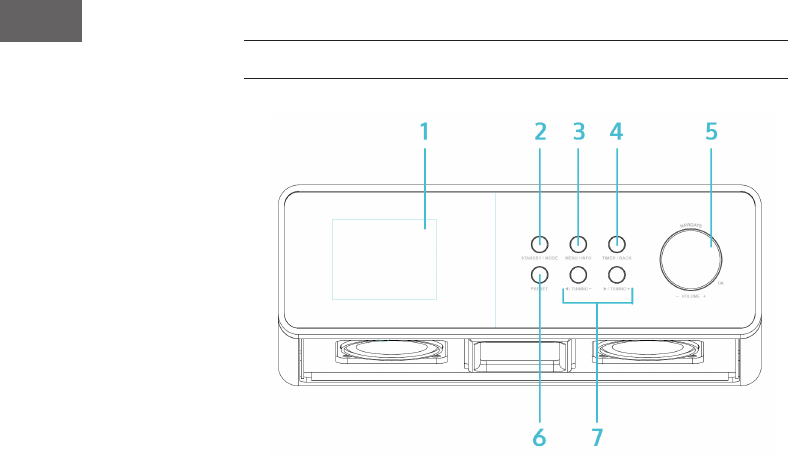
OPERATING ELEMENTS
1 Display
2 STANDBY / MODE
3 MENU / INFO
4 TIMER / BACK
5 NAVIGATE / OK / VOL+/-
6 PRESET
7 /
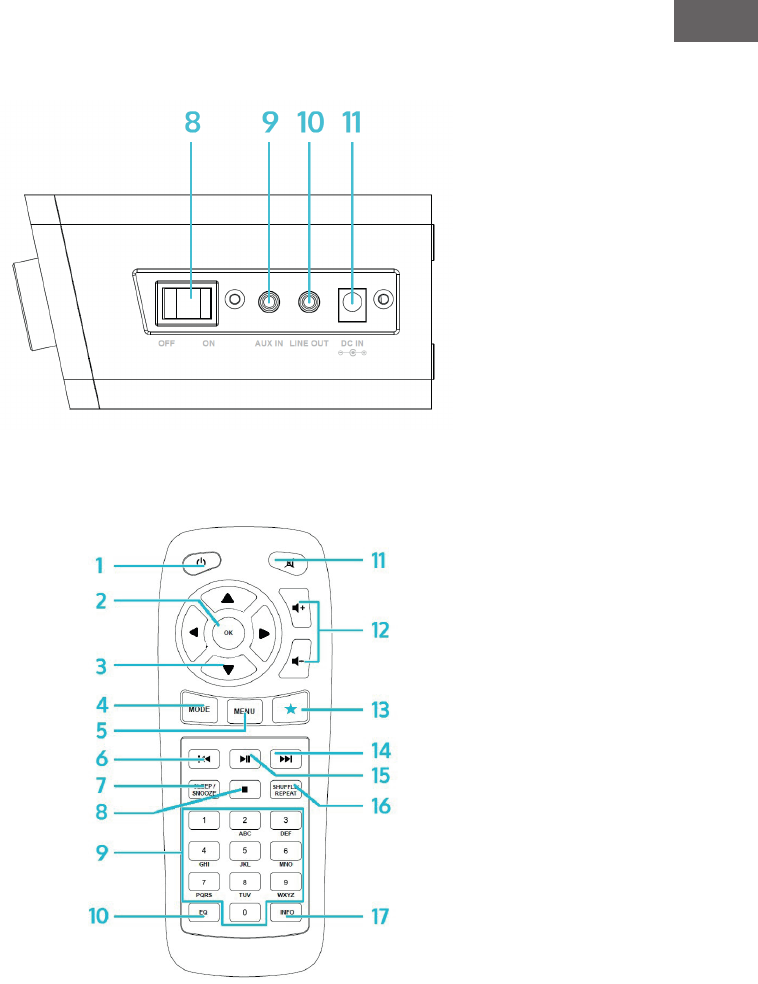
8 On / o
9 AUX IN
10 LINE OUT
11 Power supply connection
11
EN
Side
Remote Control
12
EN
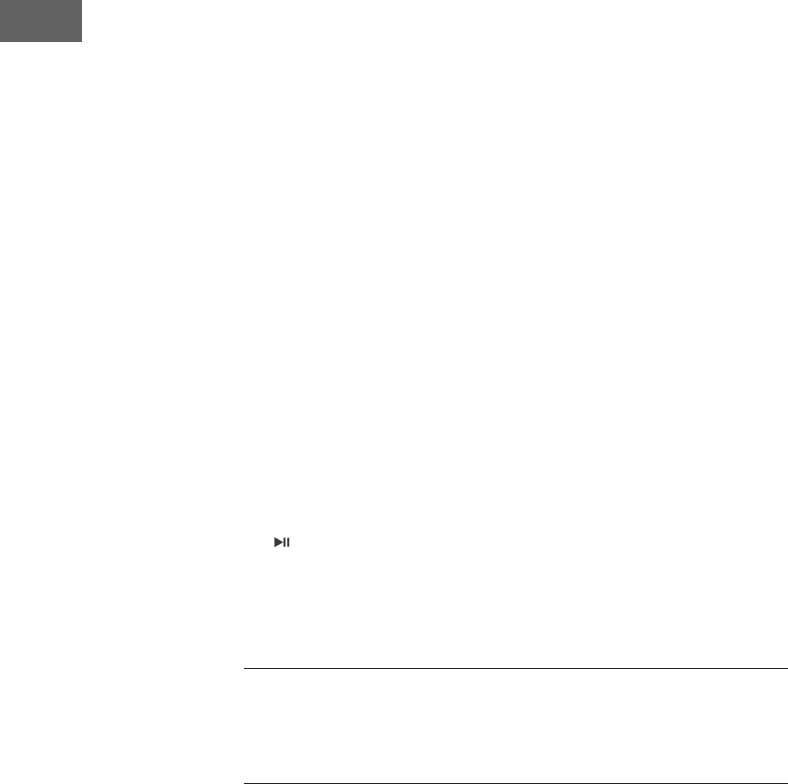
1 On/Standby
2 OK
3 Arrow keys for navigating through menus or lists
4 MODE
Choose between FM, DAB, internet radio, AUX, BT, network media
player
5 MENU
6
7 SLEEP/SNOOZE
8
9 Num pad
10 EQ
11 Mute
12 VOL+/VOL- (change the volume)
13 FAV
Go to favourites / stored presets
14
15
16 SHUFFLE/REPEAT
17 INFO
Notes on remote control
Press the tab on the battery compartment with your thumb and twist it out. Insert
a CR2025 battery (3V), making sure that you insert the battery with the plus side
facing up. Caution: incorrect battery types may burst when used, which can lead to
the emission of harmful substances.
13
EN
INSTALLATION
INITIAL OPERATION
The following products are included with delivery:
• Main device
• Power adapter
• Remote control
• Audio cable with 2 x 3.5 mm jack plug
• User manual
Connect the power adapter to the power plug connection on the back of the
device with an electrical outlet. Turn on the device on the back.
Prepare the network
WLAN: Ensure that the wireless network is set up and that you have the
WEP, WPA, or WPA2 password to access it. You can also use the WPS (WIFI
Protection Setup) to connect. Make sure that the network device status light
indicates an existing connection.
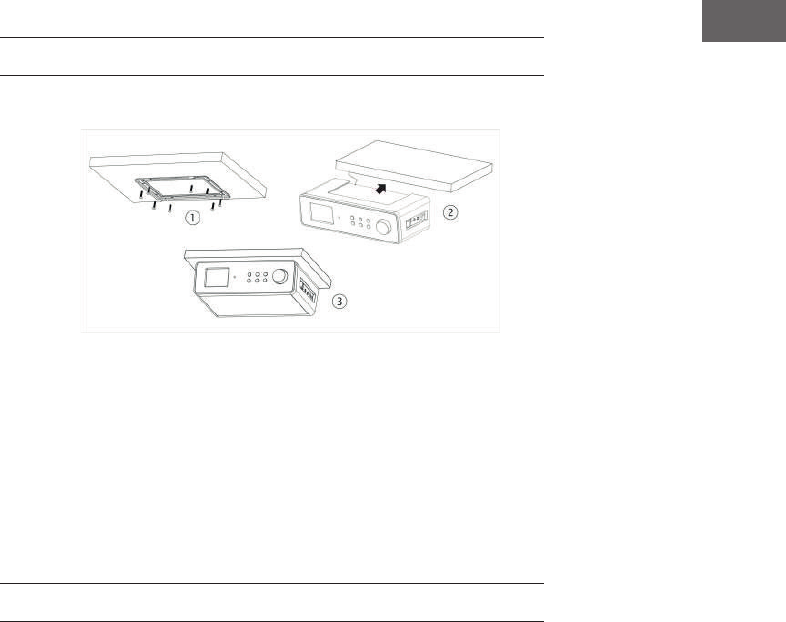
The KR-200 is perfect for installation on the underside of a (kitchen)
hanging cabinet. To do this, unscrew the supplied metal frame as shown
here on the underside of the cabinet, and slide the radio device over the
frame.
Make sure that you choose a cabinet with a bottom strong enough to
support the weight on the screws.
14
EN
Setup Assistant
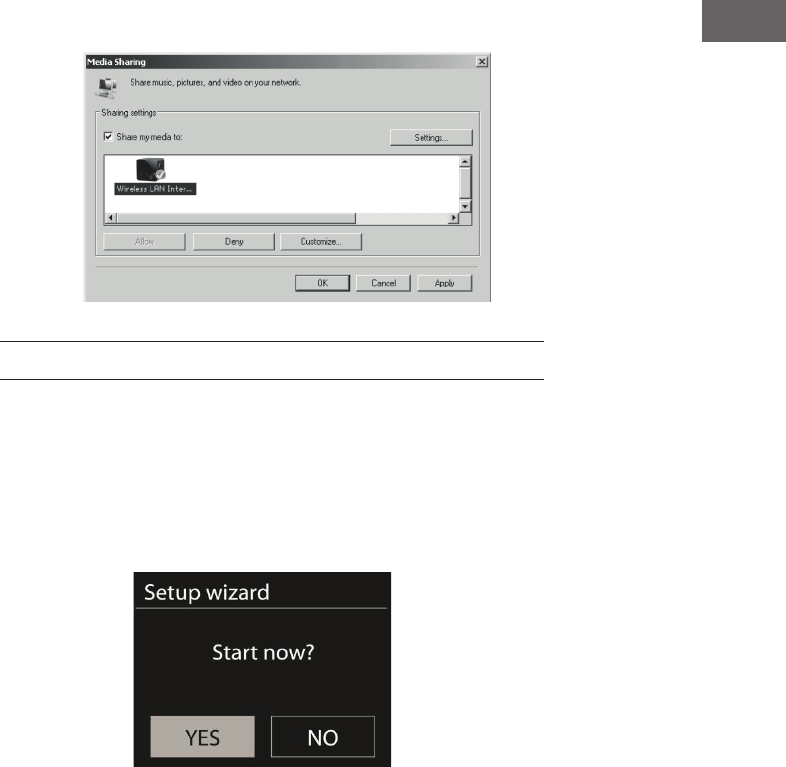
With the rst use, the system will ask if you want to use the Setup Wizard.
Select YES to start setup. For details about the wizard, see ‘Setup Wizard’.
Select NO if the system asks whether you want to start the wizard the next
time the device is turned on.
The internet radio will automatically connect to the set network after
switching on. If you want to change the network, select the System Settings
to set the new network.
Press Standby or on the remote control to enter the standby mode. The
time, date and active wake-up time will be shown on the display.
Turn the volume wheel or press / on the remote control to adjust the
volume. With the button, you can mute the sound.
Play back music from PC
• Connect the PC to the network.
• Make sure that the internet radio is turned on and connected to the
same network.
• Open the UPnP platform Windows Media Player (11 or later).
Alternatively, other programs such as Windows Media Connection can
be used.
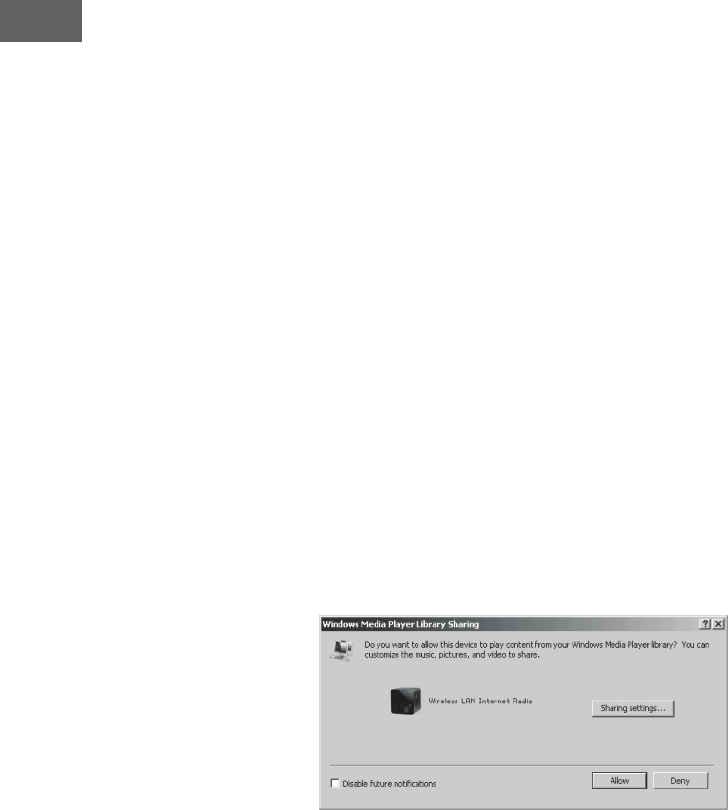
Allow media to be transferred to Wireless LAN Internet Radio.
15
EN
• Add the desired audio les and folders to the media library.
SETTINGS
In the main menu, you have access to the following modes: internet, radio,
media player, DAB, FM, AUX, sleep function, alarm and settings. Call up
these settings rst in order to set up the device to your liking.
System Settings
Setup Wizard
Time/Date
Choose between either a 12-hour or a 24-hour display.
Auto update
The time can be set manually or automatically via DAB, FM or the network.
The Auto Update works with data transmitted via DAB, FM or the internet.
The clock will be updated only when you use the appropriate mode. It is
therefore recommended to select a mode that you will use regularly.

16
EN
Time zone, daylight savings time
Set your time zone. If your region uses daylight savings time and it is active,
you can also set this here.
Manual setting
If you decide not to set it automatically, you may enter the time and date
manually. We display this in the following format: dd-mm-yyyy and hh:mm.
The selected value will be displayed ashing. Adjust each value using the
navigation dial or the </> buttons on the remote control. Once a value is
entered, press Select to continue with the next value.
Network
WLAN region: Select the appropriate region to get the best possible
connection.
Scan for network: The WLAN internet radio is compatible with all
current network protocols and encryption. It searches for available
networks and lists them for you.
The network type is also displayed ([WPS] before the network name).
Select the desired network.
For wireless networks, you will be asked to enter the network password.
Standard encrypted network: Use the navigation wheel or the
directional buttons on the remote control to move the cursor and enter
the password. Press Select to conrm. The password will be displayed at
the top of the screen.
On the right, you can see the following 3 functions: delete, OK, and
cancel.
17
EN
WPS encrypted networks
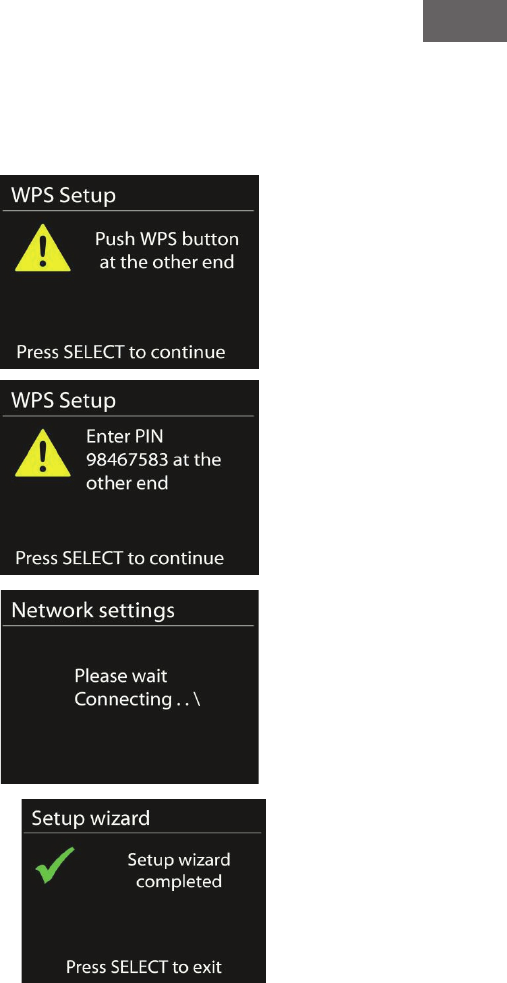
WPS encrypted networks are marked as such in the list. Use one of the
following methods to connect.
• Enter the WPS key as explained in the previous section.
Press WPS button (Push Option)
You will be prompted to press the
Connect button on the router. A
search will be made for a network
ready for connection and the
connection will be established
Enter PIN
The device will generate an 8-digit
code that must be entered into the
router or access point.
Complete settings
The device will attempt to connect
to the network
If the connection fails, return to the
previous screen. Please try again.
Press Select to exit the wizard.
18
EN
Equalizer
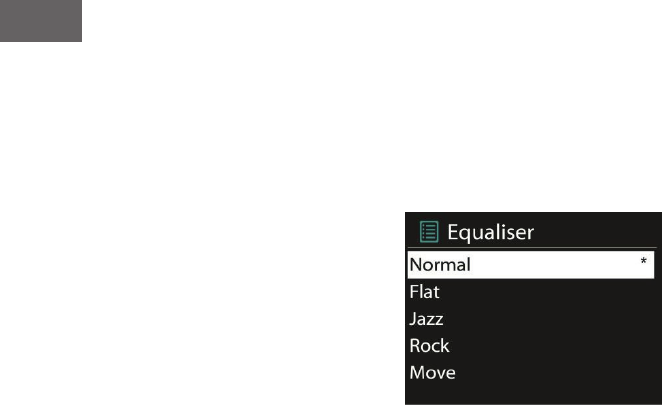
Various equalizer modes are available: Normal, Flat, Jazz, Rock, Movie,
Classic, Pop and News. A user-dened EQ is also available, which allows
you to adjust bass and treble.
Press EQ on the remote control to enter the menu or select the settings
from the menu -> System Settings
Network
Network assistant: Enter to search and connect to networks.
PBC WLAN settings: Settings of the PBC connection (Push Button
Connection)
View settings: View information about the currently connected network:
Active Connection, MAC Address, WLAN Region, DHCP, SSID, IP Address,
Subnet Mask, Gateway Address, Primary and Secondary DNS.
WLAN region: Select the appropriate region to get the best possible
connection.
Manual adjustment: Select between wireless networks and enable /
disable Dynamic Host Conguration Protocol (DHCP).
Network prole: The device remembers the last 4 networks it has been
connected to and automatically tries to connect to one of them, if one of
them has been found. Here you can see the list of stored networks. You
may remove unwanted networks by selecting them, pressing Select, and
conrming deletion.
Maintain network connection: If you choose to maintain the
connection, the device will not disconnect from the network, even in
standby mode. This allows the device to stay ready to stream DLNA
transmissions in any mode.
19
EN
Time/Date
Manually or automatically enter the time, time format, time zone and
daylight savings time.
Language
The standard language is English.
Default settings
Here you can reset all settings to the default settings. Remember that all
settings will be lost. However, the software version will be retained, as
will the registration on the internet radio portal. If you do not log in with
another user account, your radio favorites will also be retained.
Software update
Occasionally, software updates may be available that can correct errors
or provide new features. If updates are available, they may be checked
for manually or automatically (default). If new software is found, you will
be asked if you wish to continue with the update. If you agree, the update
will be loaded and installed. After an update, all individual settings will be
retained.
Note: Before you start an update, make sure that the device is connected to
a stable power supply. A loss of power during an update could permanently
damage the device.
Info
See the rmware version and the radio ID.
Background lighting
You can adjust the background lighting to the surroundings. You can also
set the length of inactivity, after which the display will automatically be
dimmed.
20
EN
INTERNET RADIO
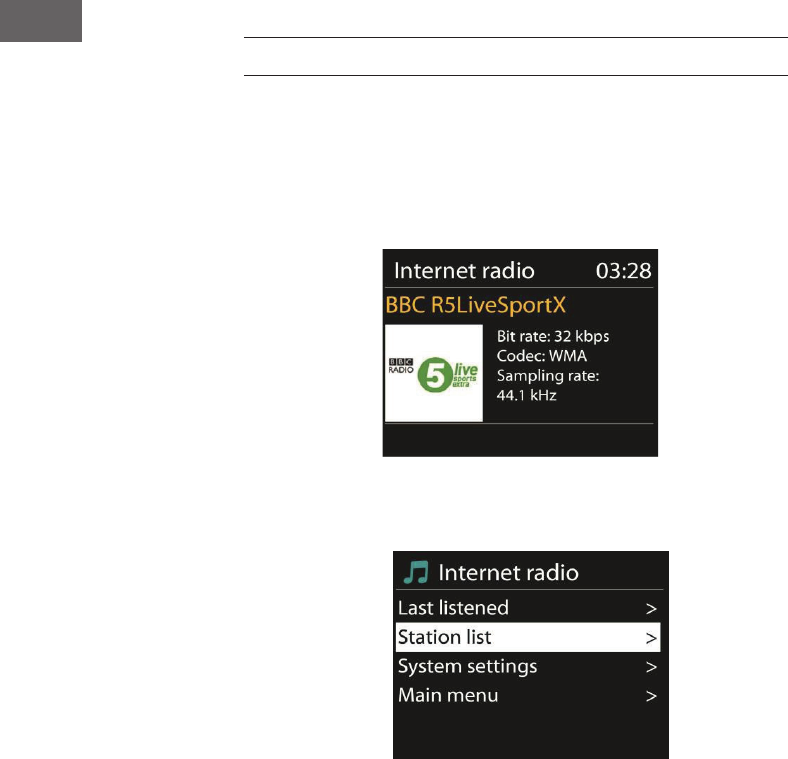
The internet radio can receive thousands of radio stations and podcasts via
a broadband internet connection. If you select ‘Internet Radio,’ the device
will contact the Frontier Silicon Internet portal to obtain a list of available
stations.
The portal also oers several lists of favorite senders that you can
personalize
If you are already listening to an Internet radio station, you can press
‘Return’ or ‘Play’ on the remote control to quickly return to the last
visited branch of the menu tree, rather than Menu to go tothe rst
menu of Internet radio mode.
Last heard
When internet radio mode is started, the last station will be selected.
To select another station that you have previously listened to, go to this
menu item and select the station.
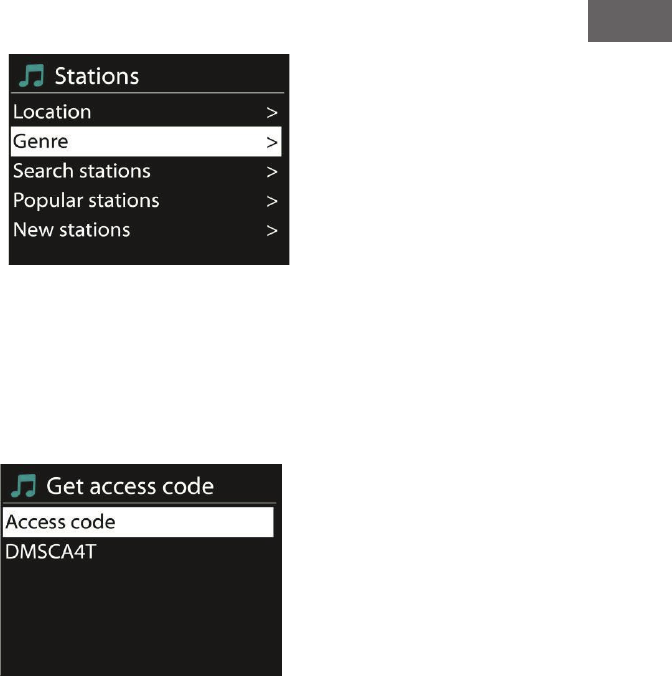
Station list
Browse the channel list according to dierent categories like genre, place,
popular and new. You can also search for a station using a keyword
21
EN
Favorites
Favorites are stored in the radio portal and will be available on all
internet radios registered with the same user account. Before favorites
can be used, you must register the device on the internet portal.
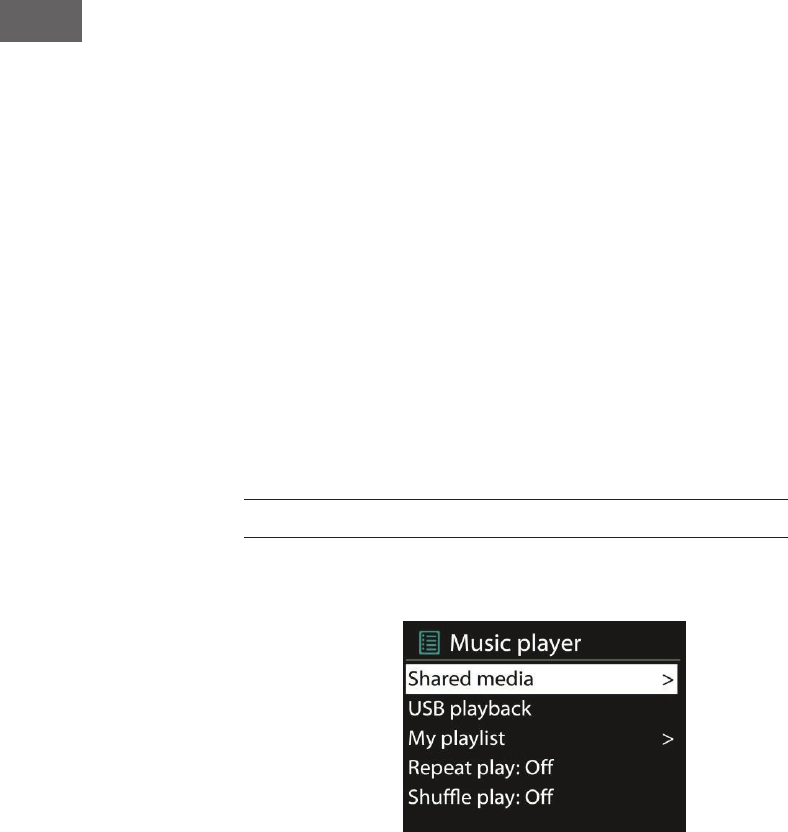
To register your device, go to Station List> Help> Get Access Code. You
will need this code when registering
Go to the website www.wiradio-frontier.com. If this is your rst visit to the
site, register for a new user account with the following information:
• Access code
• Your email address
• Password
• Radio model
If you already have a user account and want to add the radio, log in with
your account and click on Settings (My Preferences) and Add Radio (Add
Another WIFI Radio).
22
EN
My stations
You can add your own channels in addition to the stations already listed.
You may do this via the internet portal.
Presets
These stations are stored in the radio and are not available on other radios.
Press and hold Preset to add a station to the memory. The display will show
you the memory screen after a short time. Select one of the 10 available
storage slots.
Press Preset to access preset stations. When a stored station is played, P1–
P10 will appear on the display.
The buttons P1–P10 on the remote control can be used to access the stored
stations.
Playback information
While a station is being played, its name and description will be displayed.
Press INFO again to see more information, such as genre, location, play
buer, etc.
MEDIA PLAYER
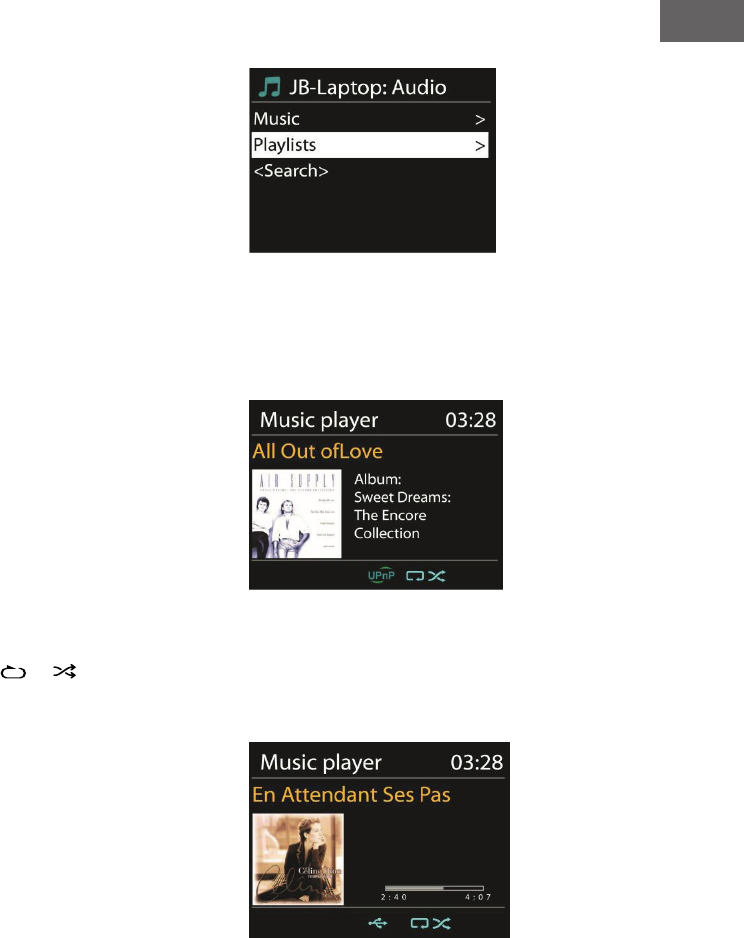
From a computer on the network, you can play les in the formats MP3,
WAV, WMA, AAC and FLAC.
When you are playing a le, press Return or < on the remote control to go
to the previous section of the menu tree. Press or to play the previous
or next track. Press Play / Pause to play or pause.
23
EN
Shared media
If you have set up media sharing,
you should see an entry consisting
of the computer name and the name
of the media. If you have more than
one computer sharing media, the
alternatives will be listed. Select the
media you want to play.
From this point, the lists are created
from the shared media server. The rst
menu displays a list of media types. For
example, music, video, pictures, and
playlists. The internet radio can only
play music and playlists.
There is also a search function, which
nds titles in a similar manner to the
internet radio, using categories such as
genre, artist or album.
When you have found a track, press
Select to play it.
Repeat/random function
You can set the device to play tracks
repeatedly or in random order. To do so,
press or on the remote control.
Playback information
During playback, the display will show
title and artist (UPnP) or the le name.
There will also be a timeline showing
the played and total playing time. A
symbol is displayed at the bottom of the
screen when UPnP is played. Press Info
repeatedly for more information.
24
EN
SPOTIFY CONNECT
With Spotify Connect, you can stream your Spotify content directly to
your stereo or TV, using the Spotify app on your smartphone or tablet as a
remote control.
You will need a Spotify Premium account. Visit www.spotify.com to open
an account. You can also open a free trial account (‘Free Trial’) to try it out.
How it works:
• Connect your KR200 to the (WIFI) network which you can access with
the PC / smartphone / tablet that you use Spotify with.
• Open Spotify or the Spotify app, and play any song.
• Tap the song icon or album cover in the lower-left corner and select
‘CONNECT’
• Select the KR200 from the list
For more information on Spotify and connection setup, please visit www.
spotify.com/connect
Licenses: The license terms of Spotify and the Spotify software can be
found at http://www.spotify.com/connect/third-party-licenses.
DLNA STREAMING
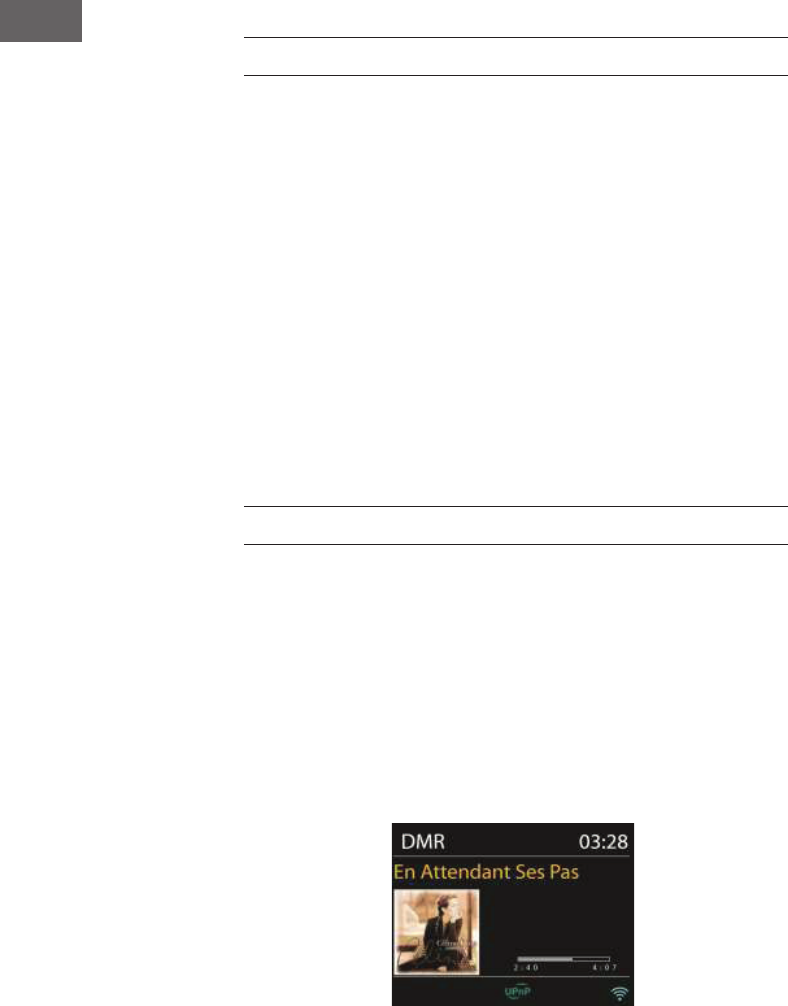
You can also stream music via DLNA to the KR-200 – from a PC, Android
smartphone or tablet or iOS devices.
• Connect the PC to the network.
• Make sure that the internet radio is turned on, and connected to the
same network.
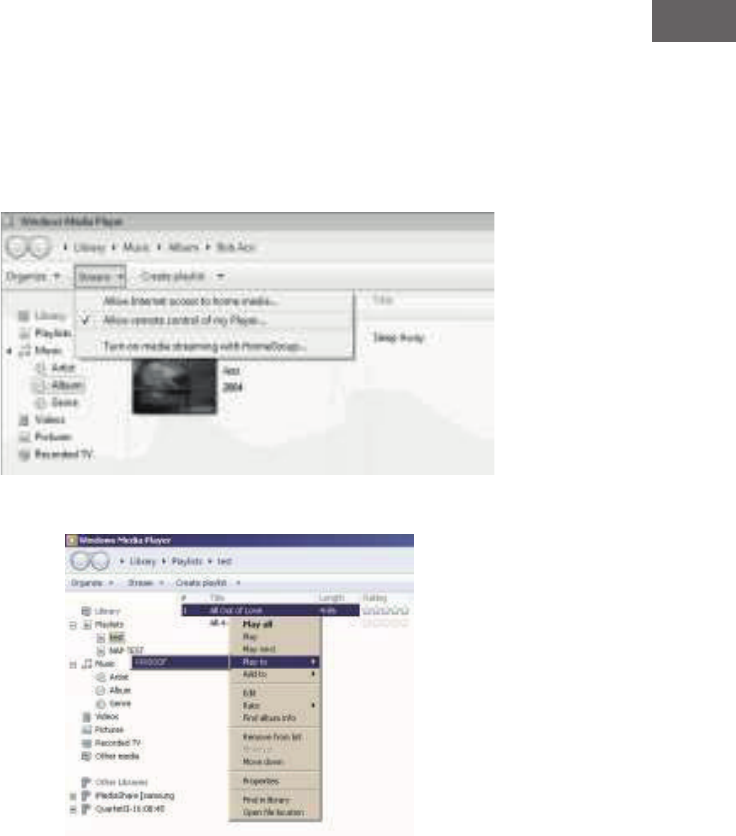
• Open the UPnP platform Windows Media Player (11 or later).
Alternatively, other programs such as Windows Media Connection may
be used.
• Allow media to be transferred to ‘Wireless LAN Internet Radio’.
• Add the desired audio les and folders to the media library.
25
EN
A) Streaming from a computer
• Share your media with the KR-200:
• System Settings -> Network and Internet -> Network and Sharing
Center -> Media Streaming. Release the data for the KR-200.
• Open Windows Media Player and enable remote access for the KR-200.
26
EN
B) Streaming from a smartphone / tablet
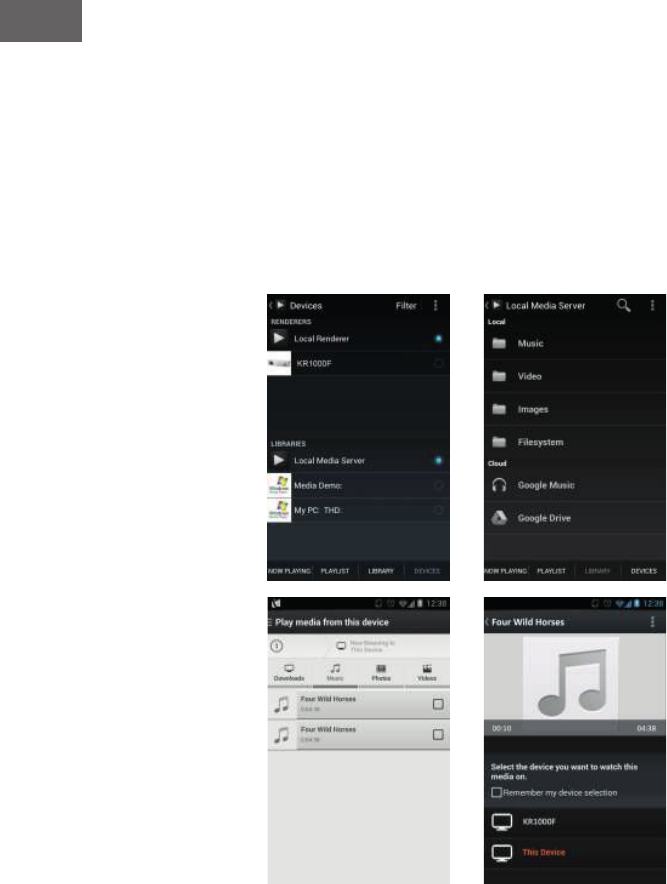
• Locate and install any free or commercial app from Google Play or the
Apple App Store if you are using an Android or iOS device.
• In the two apps shown here – ‘BubbleUPnP’ and ‘Twonky Beam’ –
search for the KR-200 as the player, and select the desired server. Then,
control playback in the app.
BubbleUPnP
TwonkyBeam
27
EN
FM RADIO
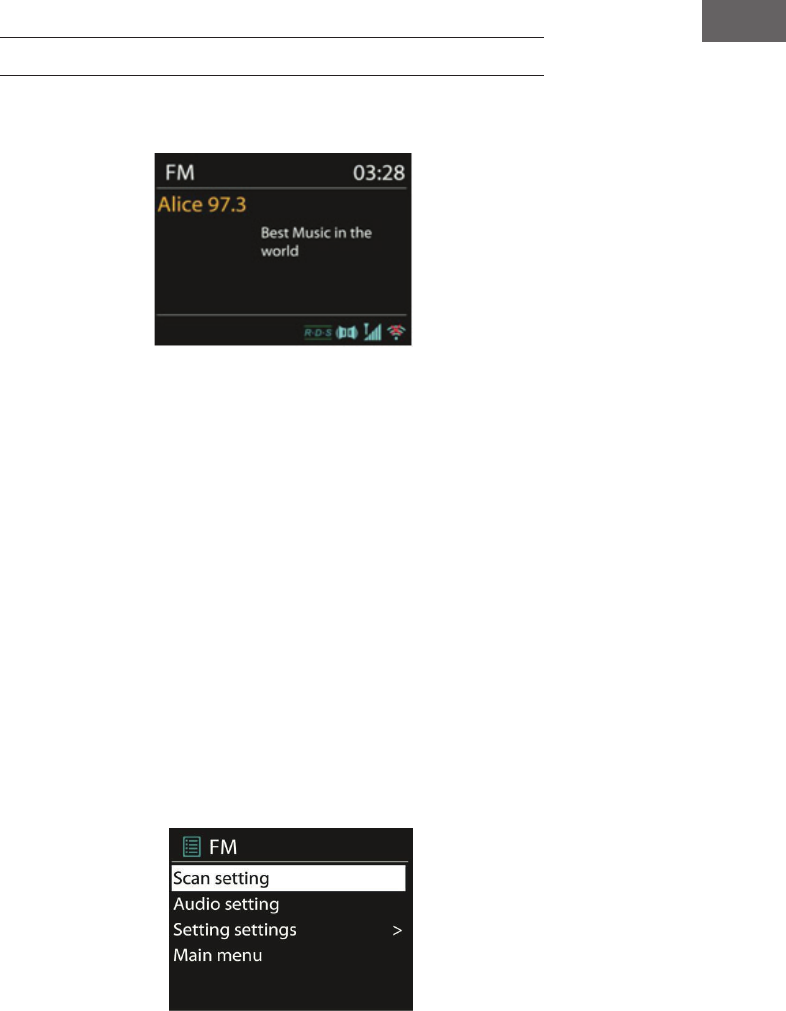
The FM radio mode receives analogue radio signals, and the display shows
the RDS information (Radio Data System) from the station.
Press Select to nd a station. The frequency display will appear as soon as
the device starts scanning the FM frequency band. Alternatively, you can
search the frequencies by holding down < or >, or you can quickly change
from station to station by briey pressing the keys or turning the navigation
wheel.
Presets
Press and hold Preset to add a station to the memory. The display will show
you the memory screen after a short time. Select one of the 10 available
locations, and conrm by pressing the NAVIGATE / VOL+/- / OK button.
Press Preset to access preset stations. When a stored station is played,
P1–P10 will appear on the display. The buttons P1–P10 on the remote
control can be used to access the stored stations.
Playback information
While a station is being played, the display will show its frequency and, if
available, RDS information, e.g., the name of the program or the name of
the title. If no RDS information is available, the display will show only the
frequency. Stereo transmissions are indicated at the top of the screen. Press
Info repeatedly for more information.
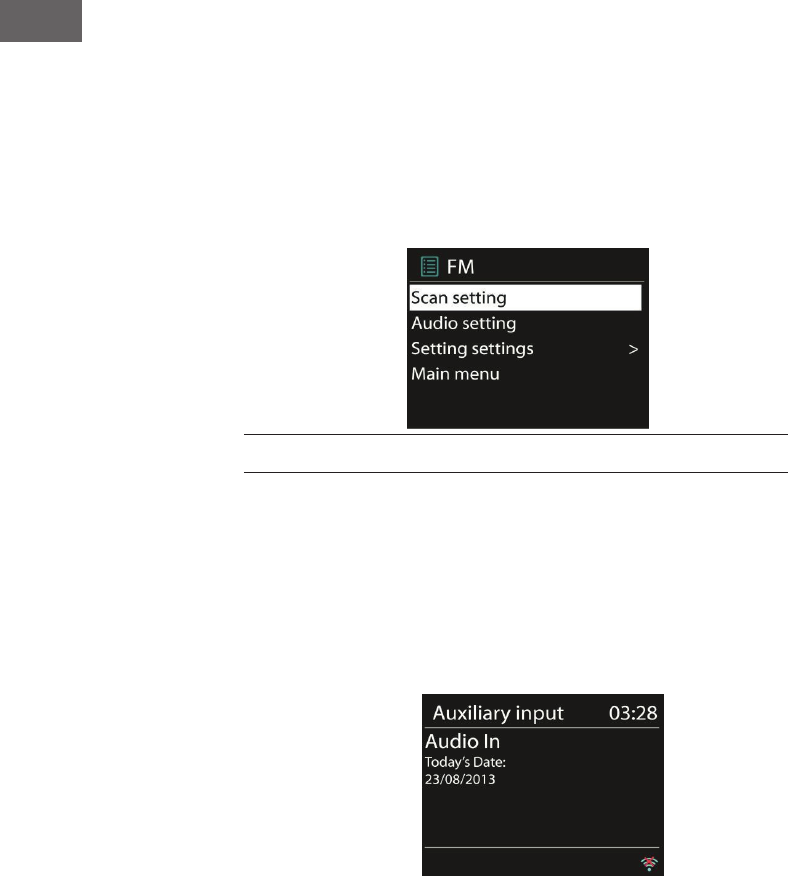
Settings
28
EN
Search settings: By default, the search registers each found station. This
can lead to the storage of many stations that do not have a good signal.
You can enable the option to register only strong stations (Strong Stations
Only) here.
Audio settings: All stations are transmitted in stereo. This can result in poor
sound when the signal is weak. Here, you can enable the option to play
weak stations in mono (Weak Reception / Listen to Mono).
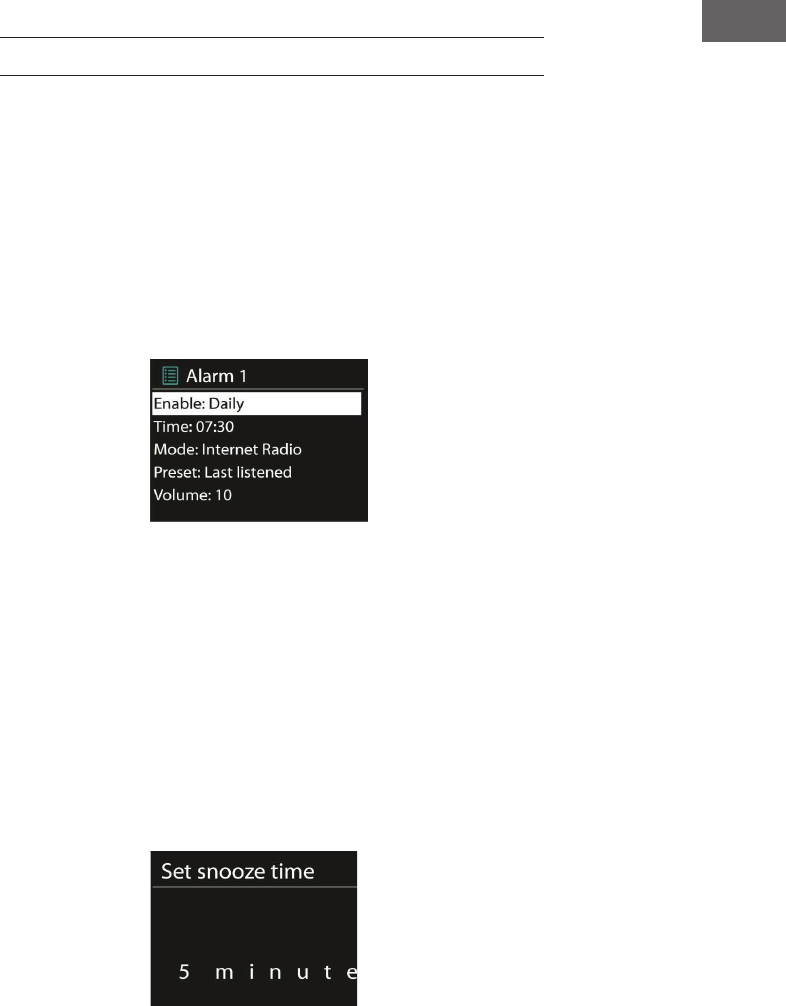
AUX INPUT
In AUX mode, you can play music from an external source such as an MP3
player via the internet radio. To do this, perform the following steps.
• Turn the volume down on the internet radio and the external device.
• Connect the external audio source to the AUX input.
• Either press Mode until the display shows AUX IN, or select AUX from
the main menu.
• Adjust the volume of the internet radio and, if necessary, the external
device.
29
EN
ALARM AND SLEEP FUNCTION
To activate the sleep timer, you can select Sleep in the main menu or press
Sleep on the remote control. The following options are available: O, 15, 30,
45 and 60 minutes.
Once you have set a time for the timer, the system will return to the main
menu. Press Menu to return to the playback screen.
Alarm
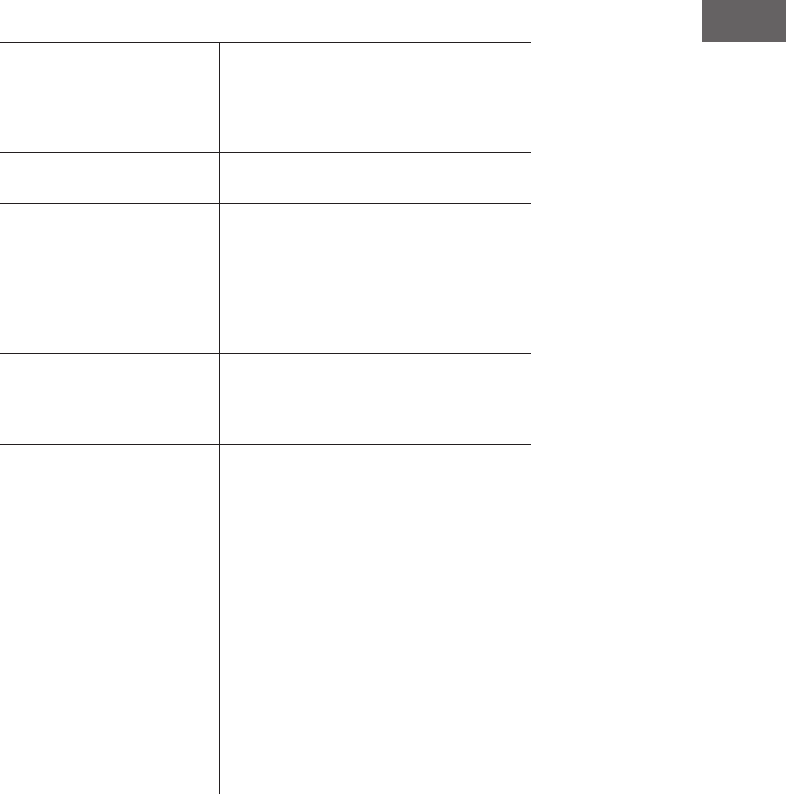
There are 2 versatile wake-up calls with snooze function. Each alarm can be
set in various ways. From the main menu, select Alarm to set an alarm.
Select Alarm 1 or 2 and congure it according to the following
properties:
• Active: on / o
• Frequency: daily, once, on weekdays, on weekends
• Time
• Mode: buzzer, internet radio, DAB, FM
• Preset: last heard 1–10
• Volume: 0–20
Scroll down and select Save to activate the new settings. The screen will
indicate active alarms with a symbol at the bottom left.
To quickly interrupt the alarm, press snooze. You can change the snooze
duration by pressing Select. The device will return to standby mode and
display the snooze function icon on the screen.

30
EN
EGG TIMER
Select the egg timer from the main menu or press TIMER / BACK until the
egg timer appears. To set it, rst press OK, and use the arrow buttons or the
dial to set the hour number. Conrm with OK, and continue by setting the
minutes. Repeat the procedure for setting the number of seconds.
After the set time has elapsed, the reminder tone will sound—even if you
have switched the device o (standby) in the meantime.
Press any key to stop the alarm.
To display the countdown on the display, press and hold TIMER / BACK on
the device or INFO on the remote control.
Press TIMER / BACK or INFO to turn o the egg timer.
TROUBLESHOOTING
Error Remedy
The device does not switch on. Check it the power adaptor is properly
connected.
No sound - - The device may be muted.
- Turn the volume up.
- Remove all audio cables that are plugged in
Wireless connection cannot be
established.
Check the LAN cable or the wireless LAN
function.
- Try to assign an IP address to the device.
- Enable the DHCP function on the browser.
- A rewall may be enabled on the network. If
this is so, set it so that access is possible.
- Restart the router
- Check the availability of the network on the
router.
- Reduce the distance to the router.
- Make sure the password is correct.
31
EN
No stations are found. - Check the network
- Try it later. It is possible that stations are
currently unavailable.
- The link of a manually-added station is no
longer current.
Noise with FM reception. - Check/move the antenna
- Move the radio
Alarm does not work. -- Switch on the alarm clock
- Check the sound level
- The alarm source is a station, but there is no
network connection.
- Change the alarm source or restore the
connection.
NetRemote does not show or
connect to KR-200
- Reopen the App. -
If you have several streaming
from several devices at the same time, it
may cause crash, reboot KR-200 and/or your
device.
All other undetermined
cases.
- KR-200 may process large amount of data
after a period of operation,
no matter in which mode, it will cause the
system freeze or malfunction.
Reboot KR-200 if necessary.
- The normal function of the product may be
disturbed by strong Electro-
Magnetic Interference. If so, simply reset the
product to resume normal
operation by following the instruction
manual. In case the function could not
resume, please use the product in other
location.
- The device may malfunction when used
in areas with strong radio interference. The
device will work properly again once there is
no more interference.

32
EN
FCC Part 15.19 Warning Statement
THIS DEVICE COMPLIES WITH PART 15 OF THE FCC RULES. OPERATION
IS SUBJECT TO THE FOLLOWING TWO CONDITIONS: (1) THIS DEVICE
MAY
NOT CAUSE HARMFUL INTERFERENCE, AND (2) THIS DEVICE MUST
ACCEPT ANY INTERFERENCE RECEIVED, INCLUDING INTERFERENCE
THAT
MAY CAUSE UNDESIRED OPERATION.
FCC Part 15.21 Warning Statement
NOTE: THE GRANTEE IS NOT RESPONSIBLE FOR ANY CHANGES OR
MODIFICATIONS NOT EXPRESSLY APPROVED BY THE PARTY
RESPONSIBLE FOR COMPLIANCE. SUCH MODIFICATIONS COULD VOID
THE USER’S AUTHORITY TO OPERATE THE EQUIPMENT.
FCC Part 15.105 Warning Statement
Note: This equipment has been tested and found to comply with the limits for a Class B
digital device, pursuant to part 15 of the FCC Rules. These limits are designed to
provide reasonable protection against harmful interference in a residential installation.
This equipment generates, uses and can radiate radio frequency energy and, if not
installed and used in accordance with the instructions, may cause harmful interference
to radio communications. However, there is no guarantee that interference will not
occur in a particular installation. If this equipment does cause harmful interference to
radio or television reception, which can be determined by turning the equipment off
and on, the user is encouraged to try to correct the interference by one or more of the
following measures:
—Reorient or relocate the receiving antenna.
—Increase the separation between the equipment and receiver.
—Connect the equipment into an outlet on a circuit different from that to which the
receiver is connected.
—Consult the dealer or an experienced radio/TV technician for help.
RF warning statement:
The device has been evaluated to meet general RF exposure requirement.
To maintain compliance with FCC's RF exposure guidelines, this equipment should be
installed and operated with a minimum distance of 20cm between the radiator and your
body.