Betrue Technology BTS23 Kitchen Bluetooth Speaker User Manual Shower Bluetooth Speaker

Shenzhen BETRUE Technology Co., Ltd. Kitchen Bluetooth Speaker Shower Bluetooth Speaker

user_manual

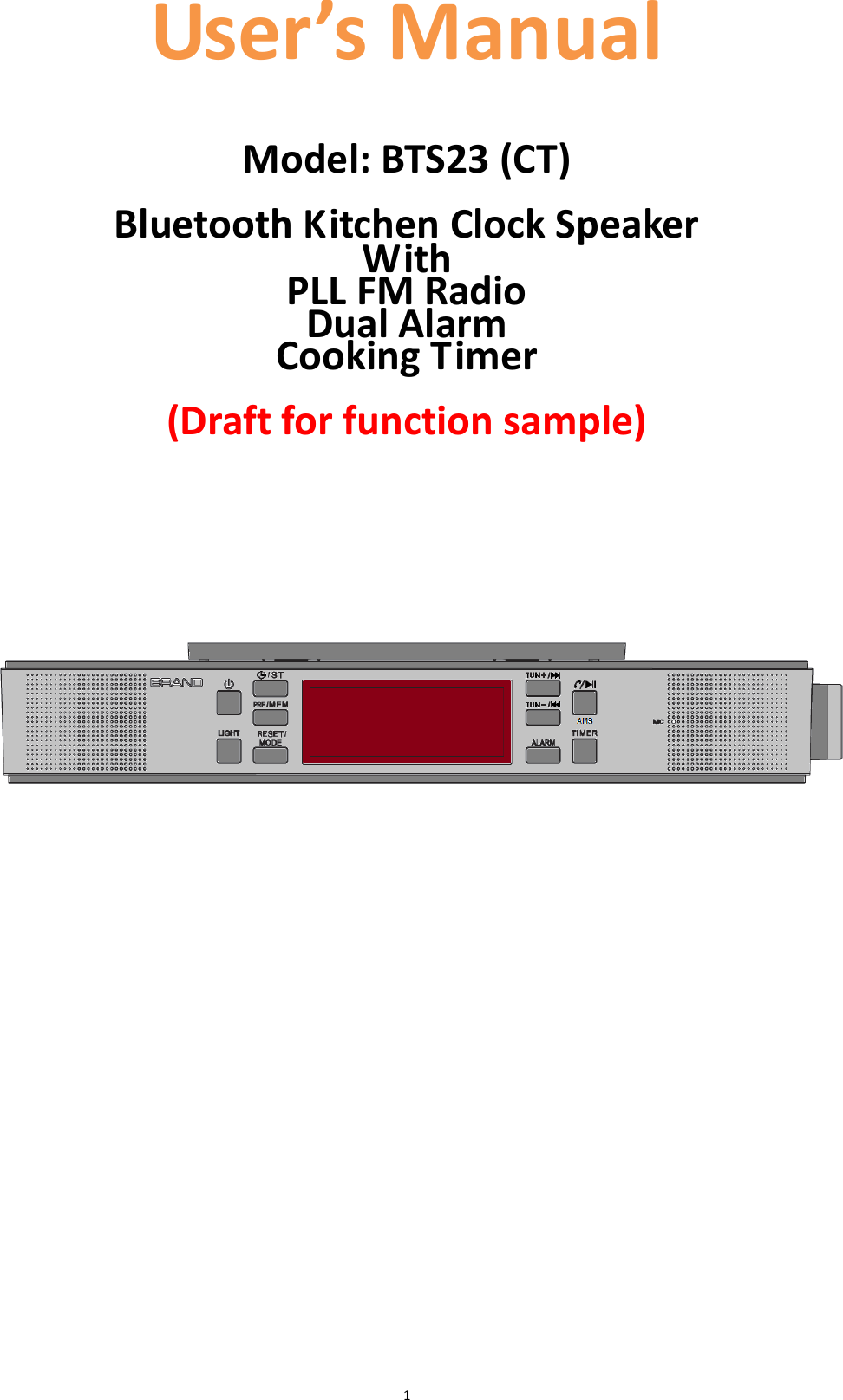
 1 User’s Manual   Model: BTS23 (CT)  Bluetooth Kitchen Clock Speaker With   PLL FM Radio Dual Alarm Cooking Timer  (Draft for function sample)
 2 1. Cautions Don’ts  Do  not  place  naked  flames,  such  as  lighted  candles  on  or  near  the product.  Do not place objects filled with liquids, such as vases on or near the product.  Do not use or store this product in a place where it is subject to direct sunlight, heat, excessive dust or vibration.  Do not keep or store this product in wet conditions for long period.  Do not clean this product with water or other liquids.  Do not block or cover the slots and holes in the product.  Do not push foreign objects into the slots or holes in the product.  Do  not  attempt  to  open  this  product  yourself.  There  are  no  user serviceable parts inside.  Do not allow children access to plastic bags. Safety Instructions Before using this product, read and follow all warnings and instructions.  This product is not intended for use by young children. Young children should be properly supervised.  This  product  is  intended  for  household  use  only  and  not  for commercial or industrial use.  Do not expose to dripping or splashing.  No naked flame sources, such as lighted candles, should be placed on the product.  Ventilation  should  not  be  impeded  by  covering  ventilation  openings with items such as newspapers, table cloths, curtains and the like.  Make sure the unit is adjusted to a stable position. Damage caused by using this product in an unstable position or by failure to follow any other  warning  or  precaution  contained  within  this  user  manual  will not be covered by warranty.  Use only the AC-DC Power Adapter / Power Supply listed in this User Manual.  We, suggest retaining the package in case for future transport of the product.  Warnings     Never remove the casing of this apparatus.  Never  place  this  apparatus  on  the  other  electrical equipment.
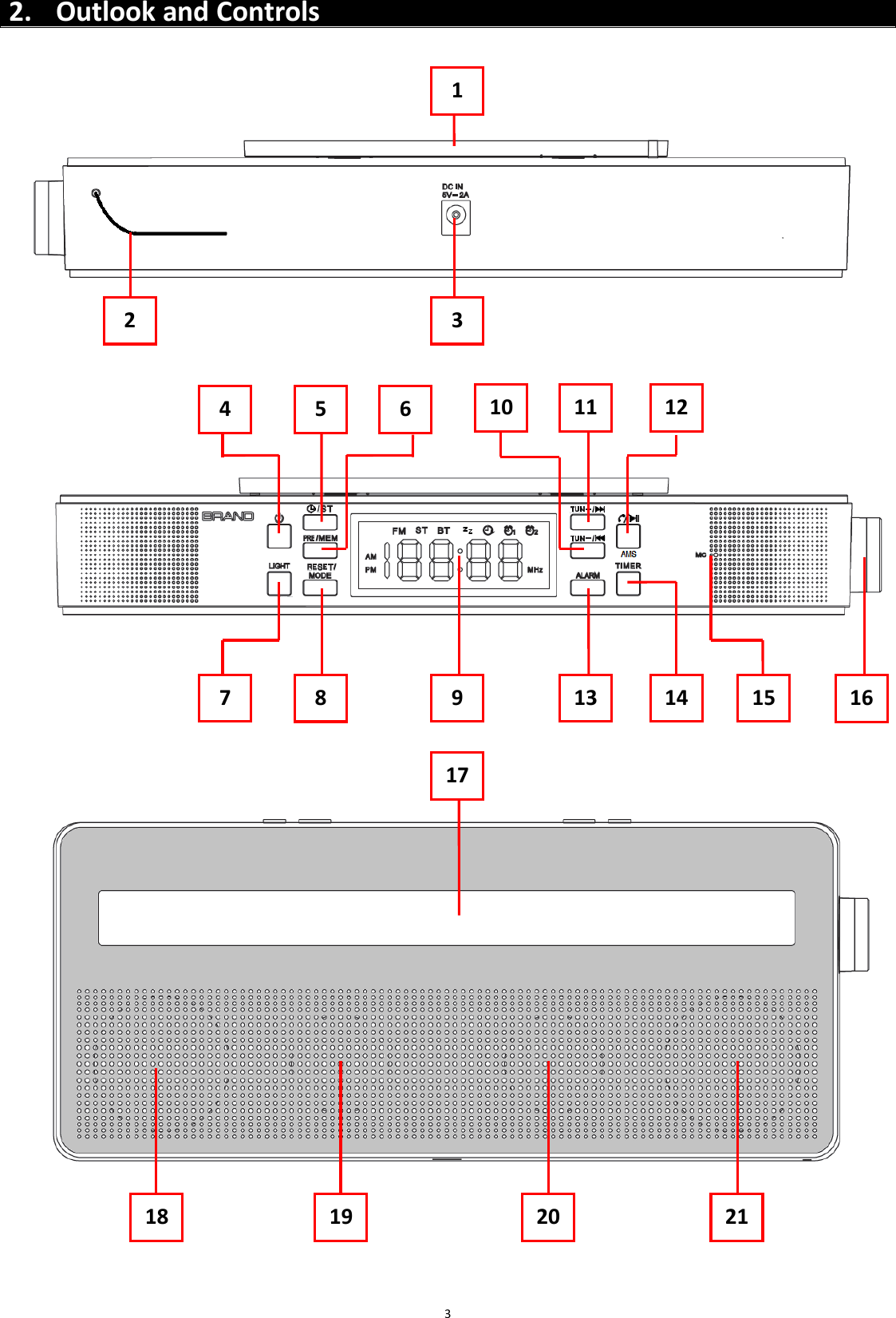
 3 2. Outlook and Controls                                           2 3 4 5 1 8 7 6 9 13 14 15 10 11 12 18 19 20 21 16 17
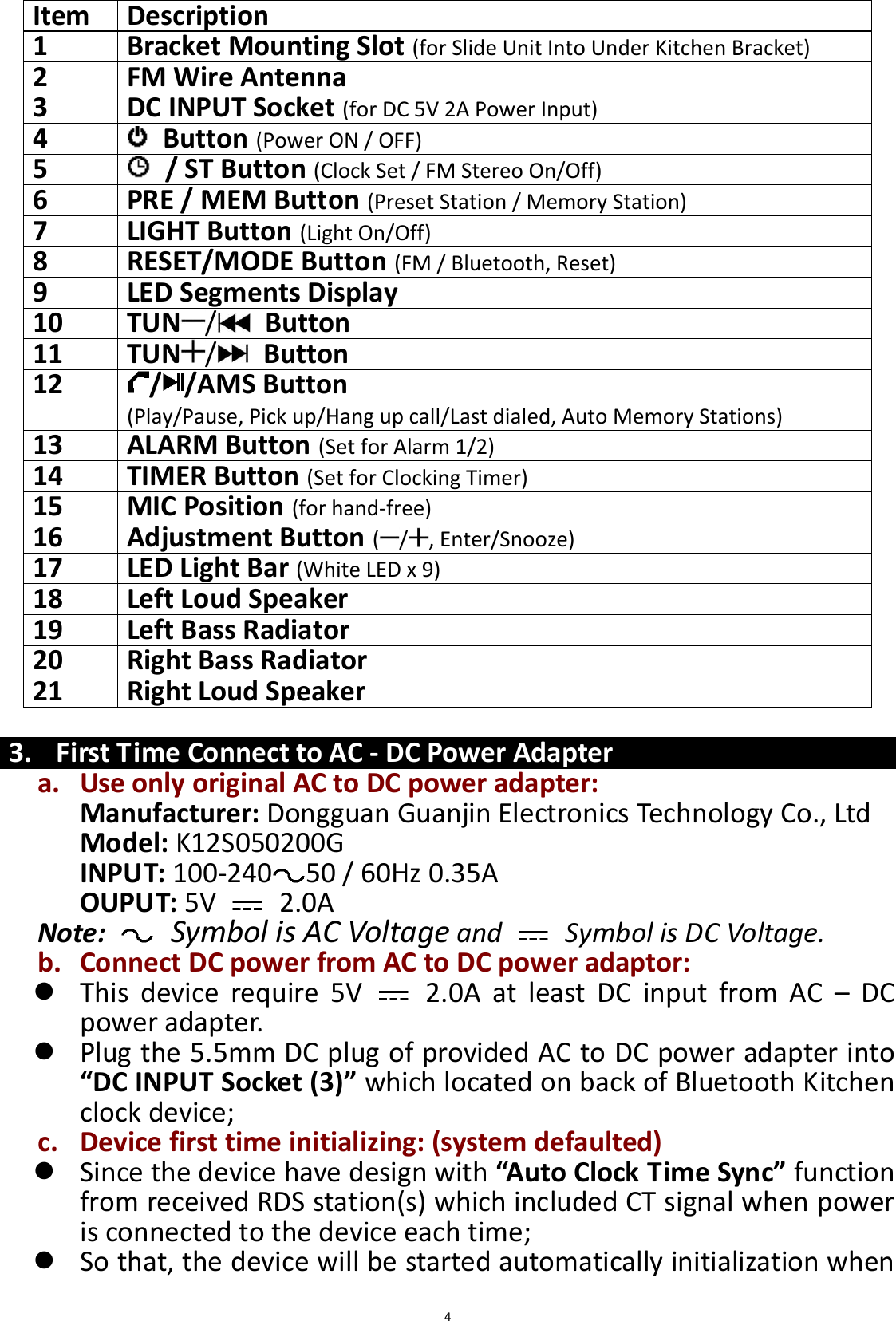
 4 Item   Description   1 Bracket Mounting Slot (for Slide Unit Into Under Kitchen Bracket)   2   FM Wire Antenna   3   DC INPUT Socket (for DC 5V 2A Power Input)   4     Button (Power ON / OFF)   5     / ST Button (Clock Set / FM Stereo On/Off)   6   PRE / MEM Button (Preset Station / Memory Station)   7   LIGHT Button (Light On/Off) 8   RESET/MODE Button (FM / Bluetooth, Reset)   9   LED Segments Display   10   TUN /   Button 11   TUN /   Button   12   / /AMS Button   (Play/Pause, Pick up/Hang up call/Last dialed, Auto Memory Stations)   13   ALARM Button (Set for Alarm 1/2)   14   TIMER Button (Set for Clocking Timer)   15   MIC Position (for hand-free)   16   Adjustment Button ( / , Enter/Snooze) 17   LED Light Bar (White LED x 9)  18   Left Loud Speaker   19   Left Bass Radiator   20   Right Bass Radiator   21   Right Loud Speaker    3. First Time Connect to AC - DC Power Adapter a. Use only original AC to DC power adapter: Manufacturer: Dongguan Guanjin Electronics Technology Co., Ltd Model: K12S050200G INPUT: 100-240 50 / 60Hz 0.35A OUPUT: 5V    2.0A Note:   Symbol is AC Voltage and    Symbol is DC Voltage. b. Connect DC power from AC to DC power adaptor:  This  device  require  5V    2.0A  at  least  DC  input  from  AC  –  DC power adapter.  Plug the 5.5mm DC plug of provided AC to DC power adapter into “DC INPUT Socket (3)” which located on back of Bluetooth Kitchen clock device;   c. Device first time initializing: (system defaulted)  Since the device have design with “Auto Clock Time Sync” function   from received RDS station(s) which included CT signal when power is connected to the device each time;  So that, the device will be started automatically initialization when
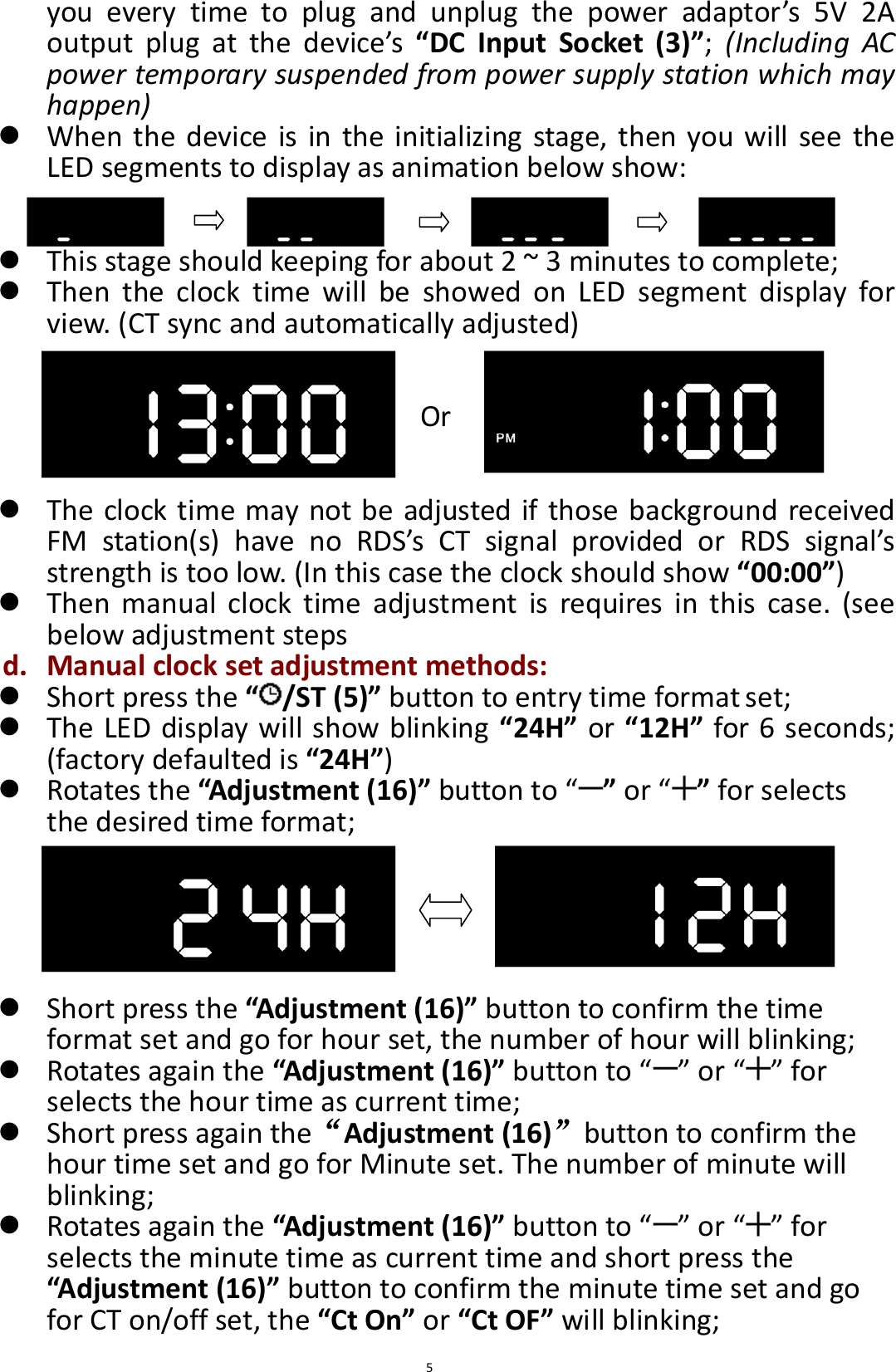
 5 you  every  time  to  plug  and  unplug  the  power  adaptor’s  5V  2A output  plug  at  the  device’s  “DC  Input  Socket  (3)”;  (Including  AC power temporary suspended from power supply station which may happen)  When the device is in the initializing stage, then you will see  the LED segments to display as animation below show:    This stage should keeping for about 2 ~ 3 minutes to complete;  Then  the  clock  time  will  be  showed  on  LED  segment  display  for view. (CT sync and automatically adjusted)   Or    The clock time may not be adjusted if those background received FM  station(s)  have  no  RDS’s  CT  signal  provided  or  RDS  signal’s strength is too low. (In this case the clock should show “00:00”)  Then  manual  clock  time  adjustment  is  requires  in  this  case.  (see below adjustment steps d. Manual clock set adjustment methods:  Short press the “ /ST (5)” button to entry time format set;  The LED display will show blinking “24H” or “12H” for 6 seconds; (factory defaulted is “24H”)  Rotates the “Adjustment (16)” button to “ ” or “ ” for selects the desired time format;       Short press the “Adjustment (16)” button to confirm the time format set and go for hour set, the number of hour will blinking;  Rotates again the “Adjustment (16)” button to “ ” or “ ” for selects the hour time as current time;  Short press again the“Adjustment (16)”button to confirm the hour time set and go for Minute set. The number of minute will blinking;  Rotates again the “Adjustment (16)” button to “ ” or “ ” for selects the minute time as current time and short press the “Adjustment (16)” button to confirm the minute time set and go for CT on/off set, the “Ct On” or “Ct OF” will blinking;
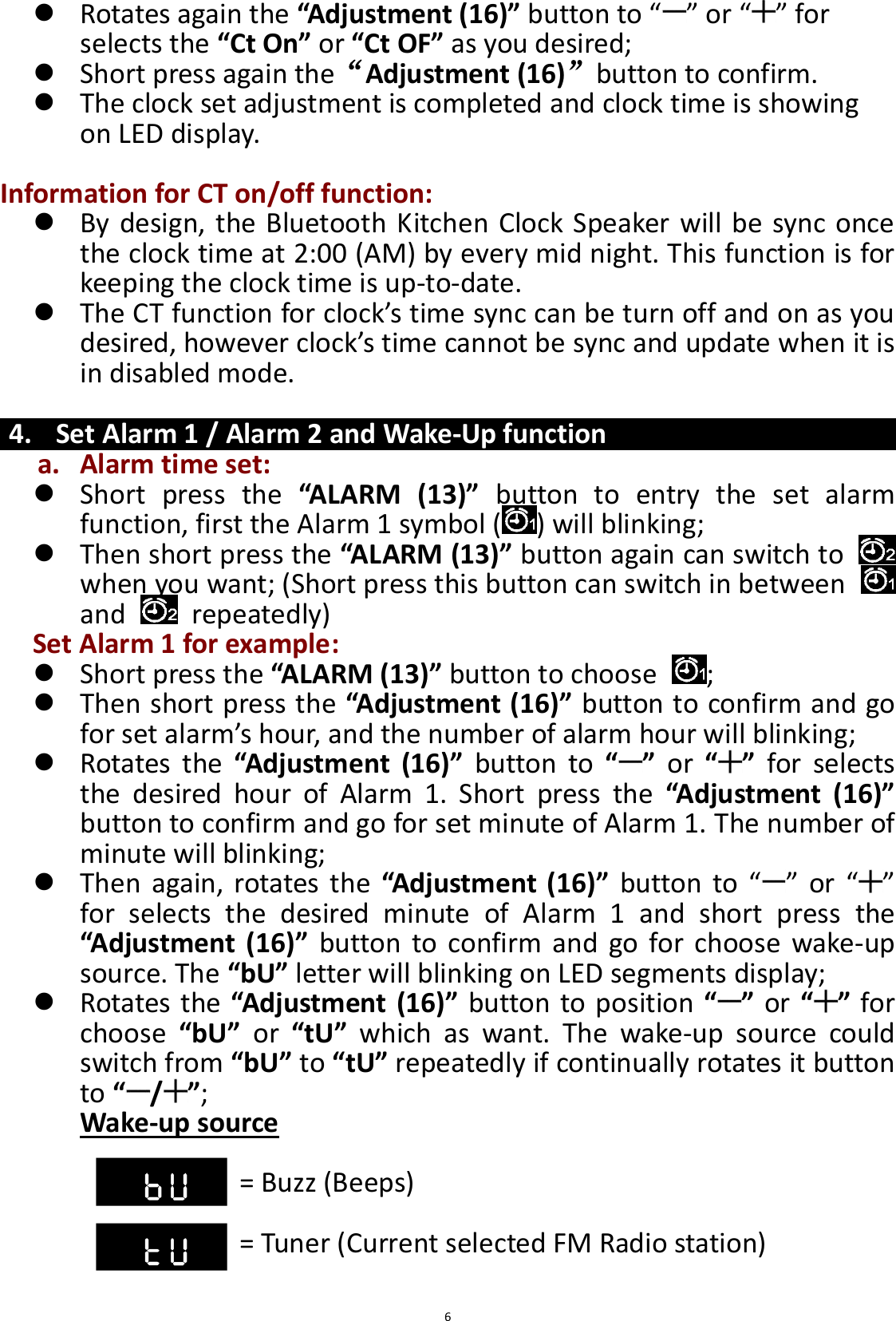
 6  Rotates again the “Adjustment (16)” button to “ ” or “ ” for selects the “Ct On” or “Ct OF” as you desired;  Short press again the“Adjustment (16)”button to confirm.  The clock set adjustment is completed and clock time is showing on LED display.  Information for CT on/off function:  By design, the Bluetooth Kitchen Clock Speaker will be sync once the clock time at 2:00 (AM) by every mid night. This function is for keeping the clock time is up-to-date.  The CT function for clock’s time sync can be turn off and on as you desired, however clock’s time cannot be sync and update when it is in disabled mode.  4. Set Alarm 1 / Alarm 2 and Wake-Up function a. Alarm time set:  Short  press  the “ALARM  (13)”  button  to  entry  the  set  alarm function, first the Alarm 1 symbol ( ) will blinking;    Then short press the “ALARM (13)” button again can switch to   when you want; (Short press this button can switch in between   and    repeatedly) Set Alarm 1 for example:  Short press the “ALARM (13)” button to choose  ;  Then short press the “Adjustment (16)” button to confirm and go for set alarm’s hour, and the number of alarm hour will blinking;  Rotates  the “Adjustment  (16)”  button  to  “ ”  or  “ ”  for  selects the  desired  hour  of  Alarm  1.  Short  press  the  “Adjustment  (16)” button to confirm and go for set minute of Alarm 1. The number of minute will blinking;  Then  again,  rotates  the  “Adjustment (16)” button  to “ ” or  “ ” for  selects  the  desired  minute  of  Alarm  1  and  short  press  the “Adjustment  (16)” button  to confirm  and  go for choose  wake-up source. The “bU” letter will blinking on LED segments display;  Rotates the “Adjustment (16)” button to position “ ” or “ ” for choose  “bU”  or  “tU”  which  as  want.  The  wake-up  source  could switch from “bU” to “tU” repeatedly if continually rotates it button to “/”;   Wake-up source  = Buzz (Beeps)              = Tuner (Current selected FM Radio station)
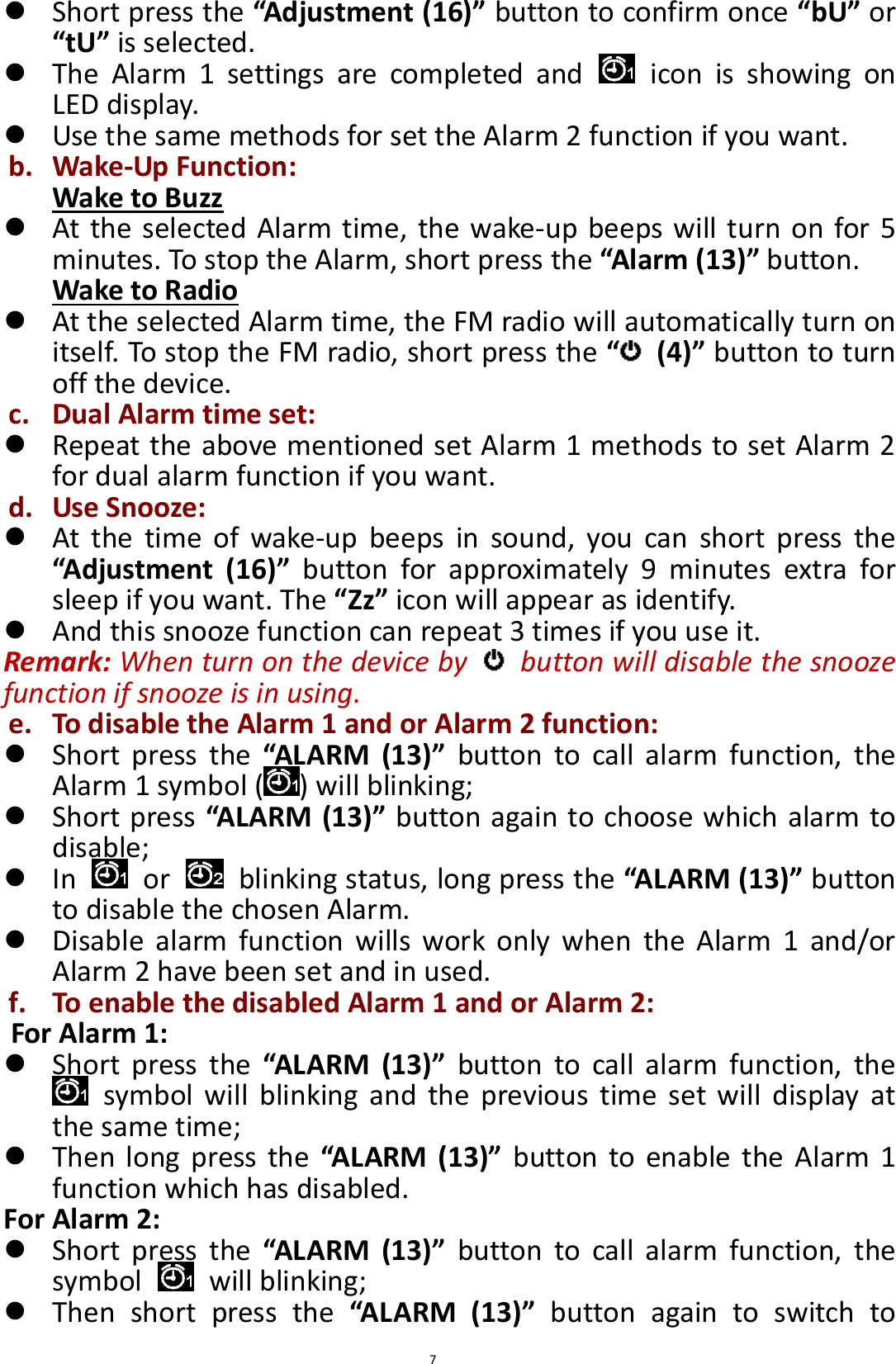
 7  Short press the “Adjustment (16)” button to confirm once “bU” or “tU” is selected.  The  Alarm  1  settings  are  completed  and    icon  is  showing  on LED display.  Use the same methods for set the Alarm 2 function if you want. b. Wake-Up Function: Wake to Buzz  At the selected Alarm time, the wake-up beeps will turn on for 5 minutes. To stop the Alarm, short press the “Alarm (13)” button. Wake to Radio  At the selected Alarm time, the FM radio will automatically turn on itself. To stop the FM radio, short press the “ (4)” button to turn off the device. c. Dual Alarm time set:  Repeat the above mentioned set Alarm 1 methods to set Alarm 2 for dual alarm function if you want. d. Use Snooze:  At  the  time  of  wake-up  beeps  in  sound,  you  can  short  press  the “Adjustment  (16)”  button  for  approximately  9  minutes  extra  for sleep if you want. The “Zz” icon will appear as identify.  And this snooze function can repeat 3 times if you use it. Remark: When turn on the device by    button will disable the snooze function if snooze is in using. e. To disable the Alarm 1 and or Alarm 2 function:  Short  press  the “ALARM  (13)”  button  to  call  alarm  function,  the Alarm 1 symbol ( ) will blinking;    Short press “ALARM (13)” button again to choose which alarm to disable;  In    or    blinking status, long press the “ALARM (13)” button to disable the chosen Alarm.  Disable  alarm  function  wills  work  only  when  the  Alarm  1  and/or Alarm 2 have been set and in used. f. To enable the disabled Alarm 1 and or Alarm 2: For Alarm 1:  Short  press  the “ALARM  (13)”  button  to  call  alarm  function,  the   symbol will  blinking  and  the  previous  time  set  will  display  at the same time;    Then long  press the  “ALARM (13)”  button to enable  the Alarm 1 function which has disabled. For Alarm 2:  Short  press  the “ALARM  (13)”  button  to  call  alarm  function,  the symbol    will blinking;    Then  short  press  the  “ALARM  (13)”  button  again  to  switch  to
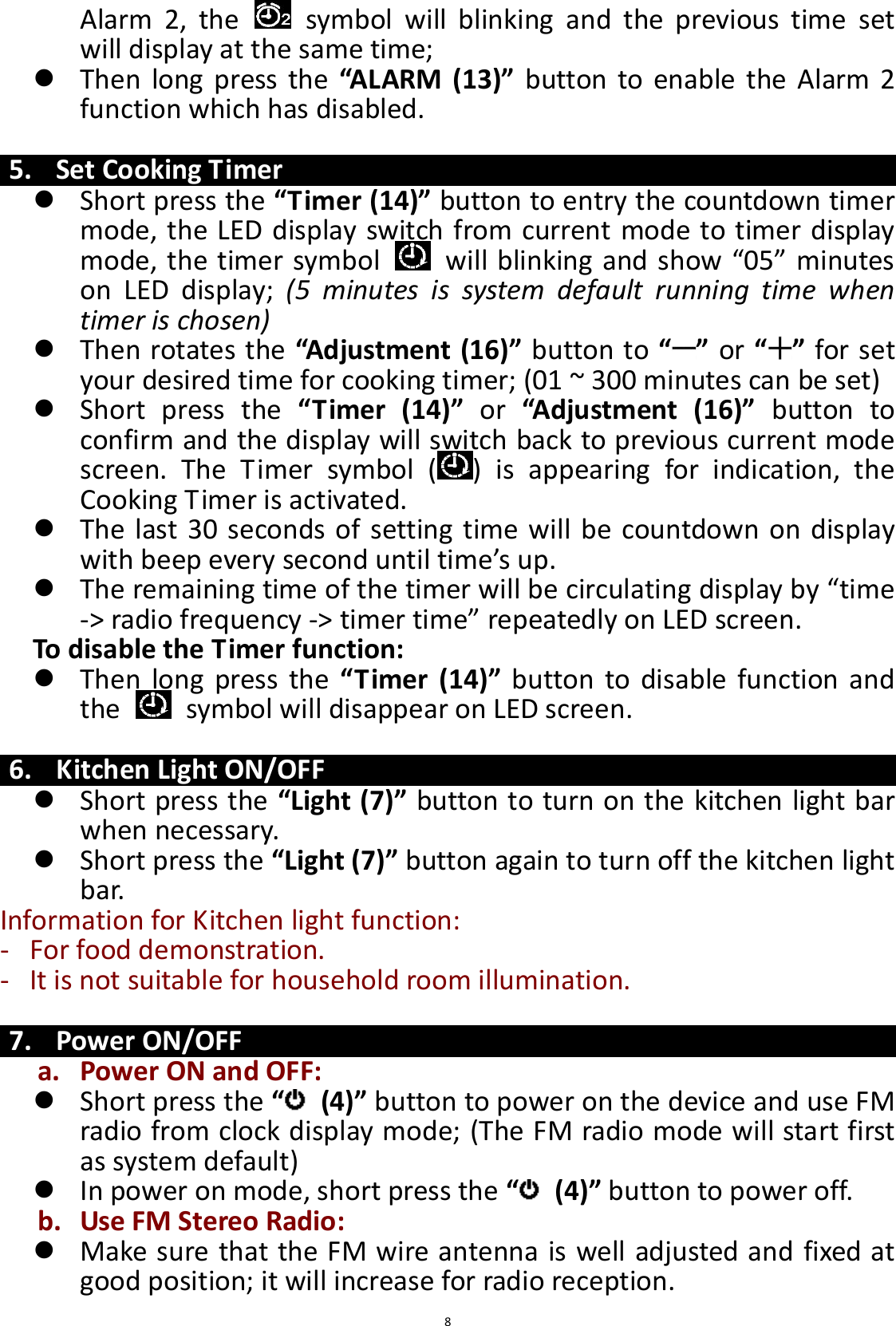
 8 Alarm  2,  the    symbol  will  blinking  and  the  previous  time  set will display at the same time;    Then  long  press the  “ALARM  (13)” button  to enable  the  Alarm 2 function which has disabled.  5. Set Cooking Timer  Short press the “Timer (14)” button to entry the countdown timer mode, the LED display switch from current mode to timer display mode, the timer symbol    will blinking and show “05” minutes on  LED  display;  (5  minutes  is  system  default  running  time  when timer is chosen)    Then rotates the “Adjustment (16)” button to “ ” or “ ” for set your desired time for cooking timer; (01 ~ 300 minutes can be set)  Short  press  the  “Timer  (14)”  or  “Adjustment  (16)”  button  to confirm and the display will switch back to previous current mode screen.  The  Timer  symbol  ( )  is  appearing  for  indication,  the Cooking Timer is activated.  The last 30 seconds of setting time will  be countdown on display with beep every second until time’s up.  The remaining time of the timer will be circulating display by “time -> radio frequency -> timer time” repeatedly on LED screen.   To disable the Timer function:  Then  long press  the  “Timer  (14)”  button  to disable  function and the    symbol will disappear on LED screen.  6. Kitchen Light ON/OFF  Short press the “Light (7)” button to turn on the kitchen light bar when necessary.  Short press the “Light (7)” button again to turn off the kitchen light bar. Information for Kitchen light function: - For food demonstration. - It is not suitable for household room illumination.  7. Power ON/OFF a. Power ON and OFF:  Short press the “ (4)” button to power on the device and use FM radio from clock display mode; (The FM radio mode will start first as system default)  In power on mode, short press the “ (4)” button to power off.     b. Use FM Stereo Radio:  Make sure that the FM wire antenna is well adjusted and fixed at good position; it will increase for radio reception.
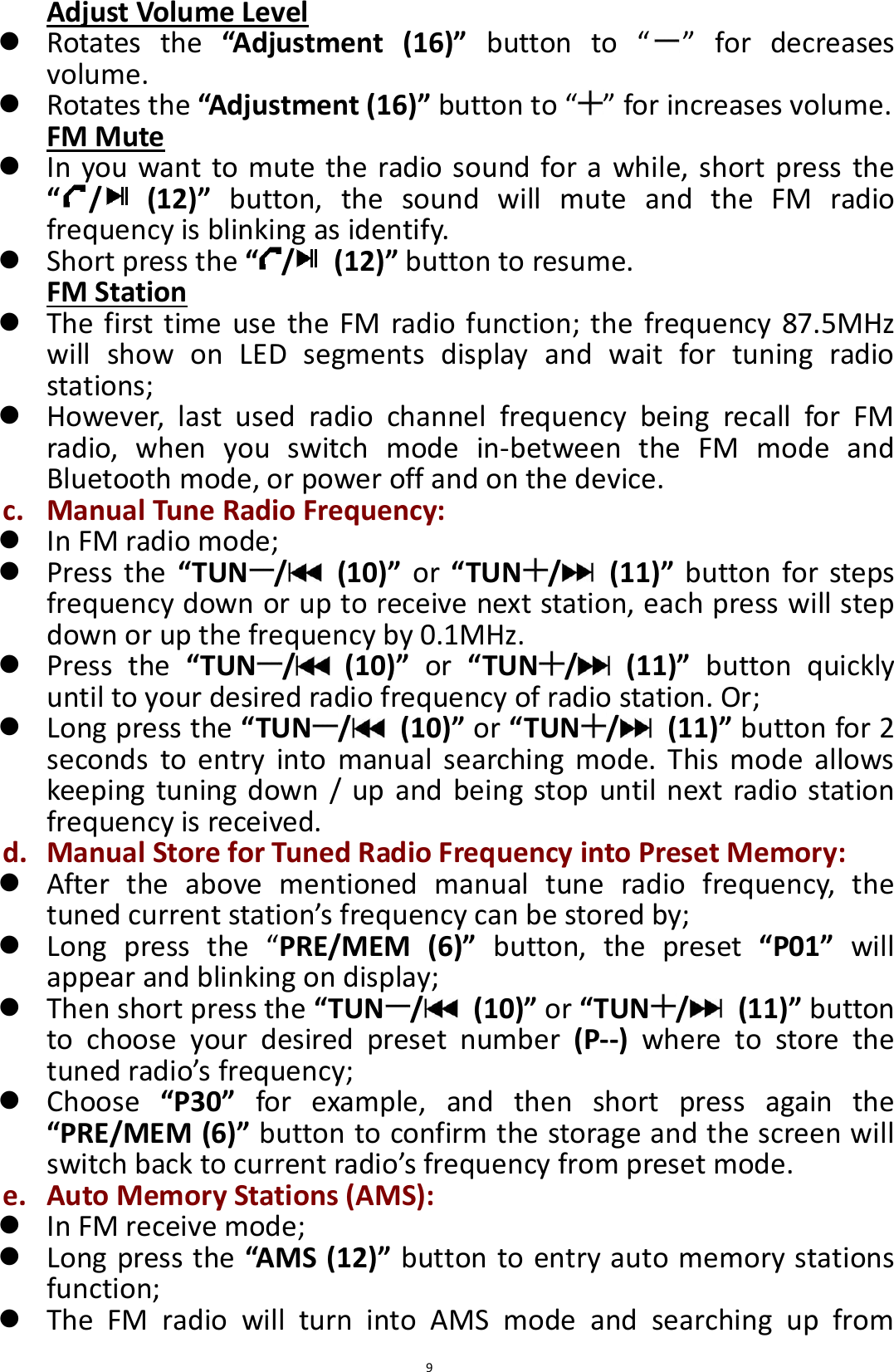
 9 Adjust Volume Level  Rotates  the  “Adjustment  (16)” button  to  “ ”  for  decreases volume.  Rotates the “Adjustment (16)” button to “ ” for increases volume. FM Mute  In you want to mute the radio sound for a while, short press the “/   (12)”  button,  the  sound  will  mute  and  the  FM  radio frequency is blinking as identify.  Short press the “/   (12)” button to resume. FM Station  The first time use  the  FM  radio function; the  frequency 87.5MHz will  show  on  LED  segments  display  and  wait  for  tuning  radio stations;  However,  last  used  radio  channel  frequency  being  recall  for  FM radio,  when  you  switch  mode  in-between  the  FM  mode  and Bluetooth mode, or power off and on the device. c. Manual Tune Radio Frequency:  In FM radio mode;    Press  the  “TUN /   (10)”  or  “TUN /   (11)”  button  for  steps frequency down or up to receive next station, each press will step down or up the frequency by 0.1MHz.    Press  the  “TUN /   (10)”  or “TUN /   (11)”  button  quickly until to your desired radio frequency of radio station. Or;    Long press the “TUN /   (10)” or “TUN /   (11)” button for 2 seconds  to  entry  into  manual  searching  mode.  This  mode  allows keeping  tuning down / up  and being  stop until next radio station frequency is received. d. Manual Store for Tuned Radio Frequency into Preset Memory:  After  the  above  mentioned  manual  tune  radio  frequency,  the tuned current station’s frequency can be stored by;    Long  press  the  “PRE/MEM  (6)”  button,  the  preset  “P01”  will appear and blinking on display;    Then short press the “TUN /   (10)” or “TUN /   (11)” button to  choose  your  desired  preset  number  (P--)  where  to  store  the tuned radio’s frequency;    Choose  “P30”  for  example,  and  then  short  press  again  the “PRE/MEM (6)” button to confirm the storage and the screen will switch back to current radio’s frequency from preset mode. e. Auto Memory Stations (AMS):  In FM receive mode;  Long press the “AMS (12)” button to entry auto memory stations function;  The  FM  radio  will  turn  into  AMS  mode  and  searching  up  from
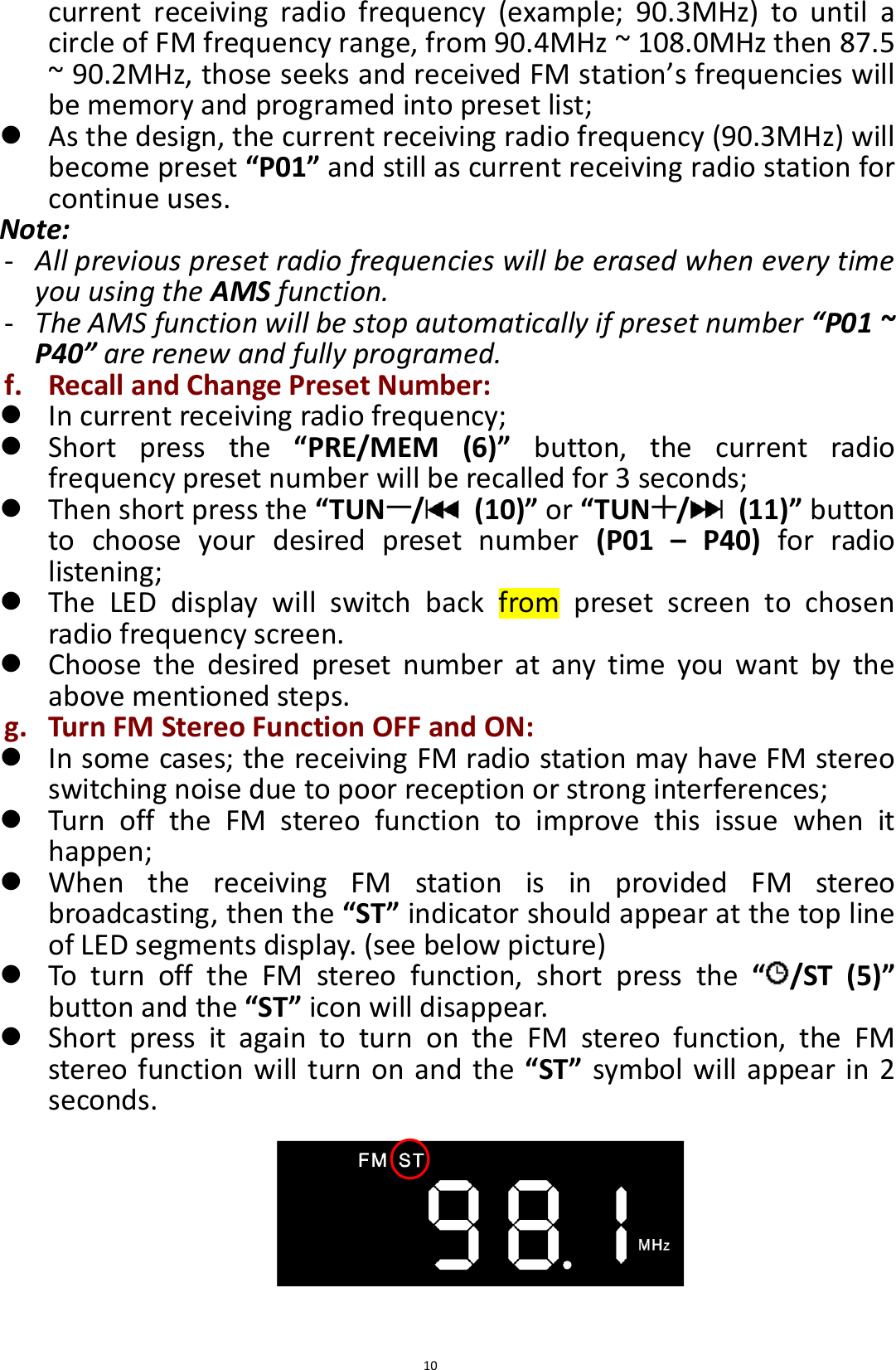
 10 current  receiving  radio  frequency  (example;  90.3MHz)  to  until  a circle of FM frequency range, from 90.4MHz ~ 108.0MHz then 87.5 ~ 90.2MHz, those seeks and received FM station’s frequencies will be memory and programed into preset list;  As the design, the current receiving radio frequency (90.3MHz) will become preset “P01” and still as current receiving radio station for continue uses. Note: - All previous preset radio frequencies will be erased when every time you using the AMS function.   - The AMS function will be stop automatically if preset number “P01 ~ P40” are renew and fully programed. f. Recall and Change Preset Number:  In current receiving radio frequency;  Short  press  the  “PRE/MEM  (6)”  button,  the  current  radio frequency preset number will be recalled for 3 seconds;  Then short press the “TUN /   (10)” or “TUN /   (11)” button to  choose  your  desired  preset  number  (P01  –  P40)  for  radio listening;  The  LED  display  will  switch  back  from  preset  screen  to  chosen radio frequency screen.  Choose  the  desired  preset  number  at  any  time  you  want  by  the above mentioned steps. g. Turn FM Stereo Function OFF and ON:  In some cases; the receiving FM radio station may have FM stereo switching noise due to poor reception or strong interferences;  Turn  off  the  FM  stereo  function  to  improve  this  issue  when  it happen;  When  the  receiving  FM  station  is  in  provided  FM  stereo broadcasting, then the “ST” indicator should appear at the top line of LED segments display. (see below picture)  To  turn  off  the  FM  stereo  function,  short  press  the  “ /ST  (5)” button and the “ST” icon will disappear.  Short  press  it  again  to  turn  on  the  FM  stereo  function,  the  FM stereo function will turn on and the  “ST” symbol will appear in 2 seconds.
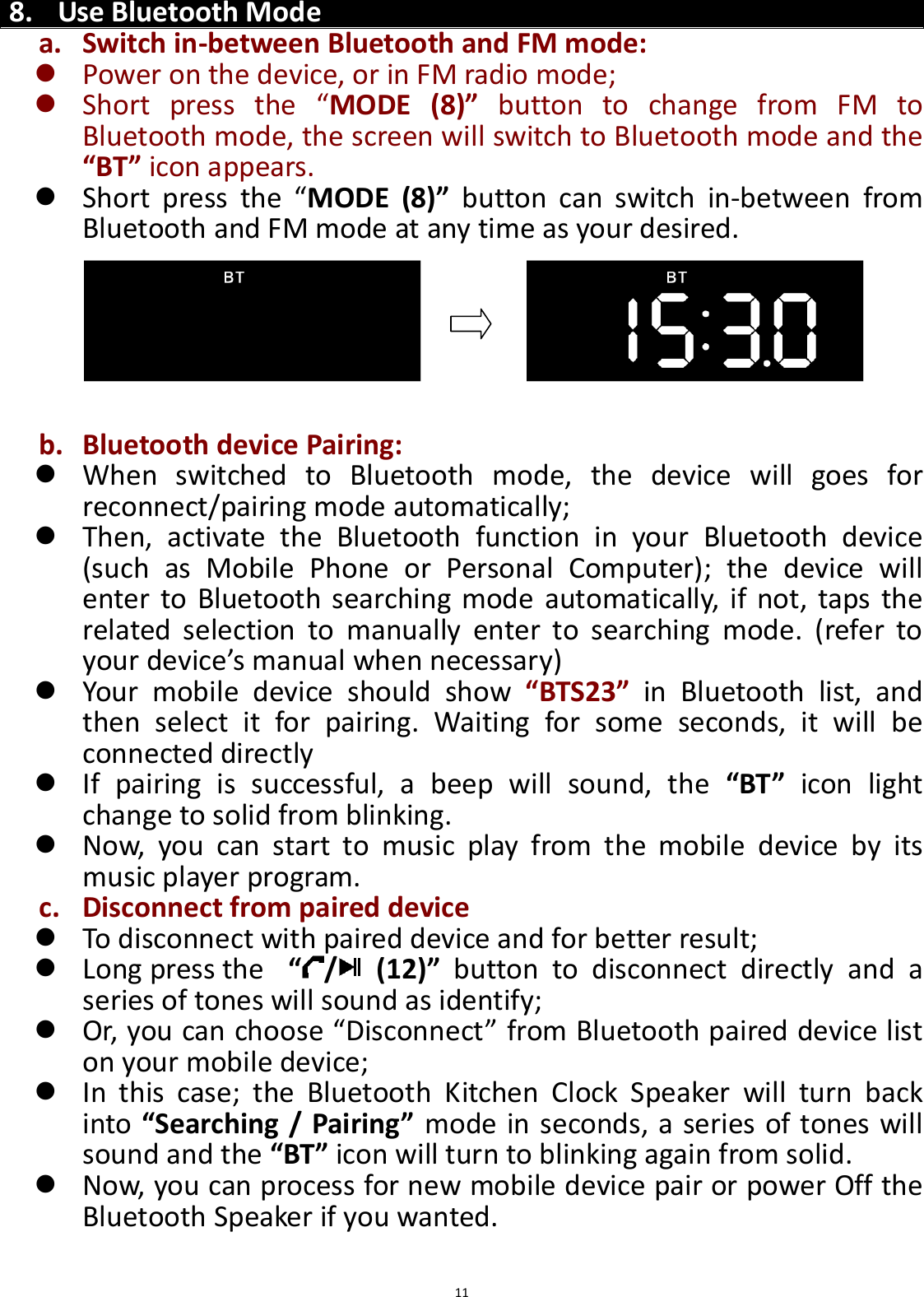
 11   8. Use Bluetooth Mode a. Switch in-between Bluetooth and FM mode:  Power on the device, or in FM radio mode;  Short  press  the  “MODE  (8)”  button  to  change  from  FM  to Bluetooth mode, the screen will switch to Bluetooth mode and the “BT” icon appears.  Short  press  the  “MODE  (8)”  button  can  switch  in-between  from Bluetooth and FM mode at any time as your desired.       b. Bluetooth device Pairing:  When  switched  to  Bluetooth  mode,  the  device  will  goes  for reconnect/pairing mode automatically;  Then,  activate  the  Bluetooth  function  in  your  Bluetooth  device (such  as  Mobile  Phone  or  Personal  Computer);  the  device  will enter  to Bluetooth searching  mode automatically, if not, taps the related  selection  to  manually  enter  to  searching  mode.  (refer  to your device’s manual when necessary)    Your  mobile  device  should  show  “BTS23”  in  Bluetooth  list,  and then  select  it  for  pairing.  Waiting  for  some  seconds,  it  will  be connected directly     If  pairing  is  successful,  a  beep  will  sound,  the  “BT”  icon  light change to solid from blinking.    Now,  you  can  start  to  music  play  from  the  mobile  device  by  its music player program.   c. Disconnect from paired device  To disconnect with paired device and for better result;    Long press the   “/   (12)”  button  to  disconnect  directly  and  a series of tones will sound as identify;  Or, you can choose “Disconnect” from Bluetooth paired device list on your mobile device;    In  this  case;  the  Bluetooth  Kitchen  Clock  Speaker  will  turn  back into “Searching / Pairing” mode in seconds, a series of tones will sound and the “BT” icon will turn to blinking again from solid.    Now, you can process for new mobile device pair or power Off the Bluetooth Speaker if you wanted.
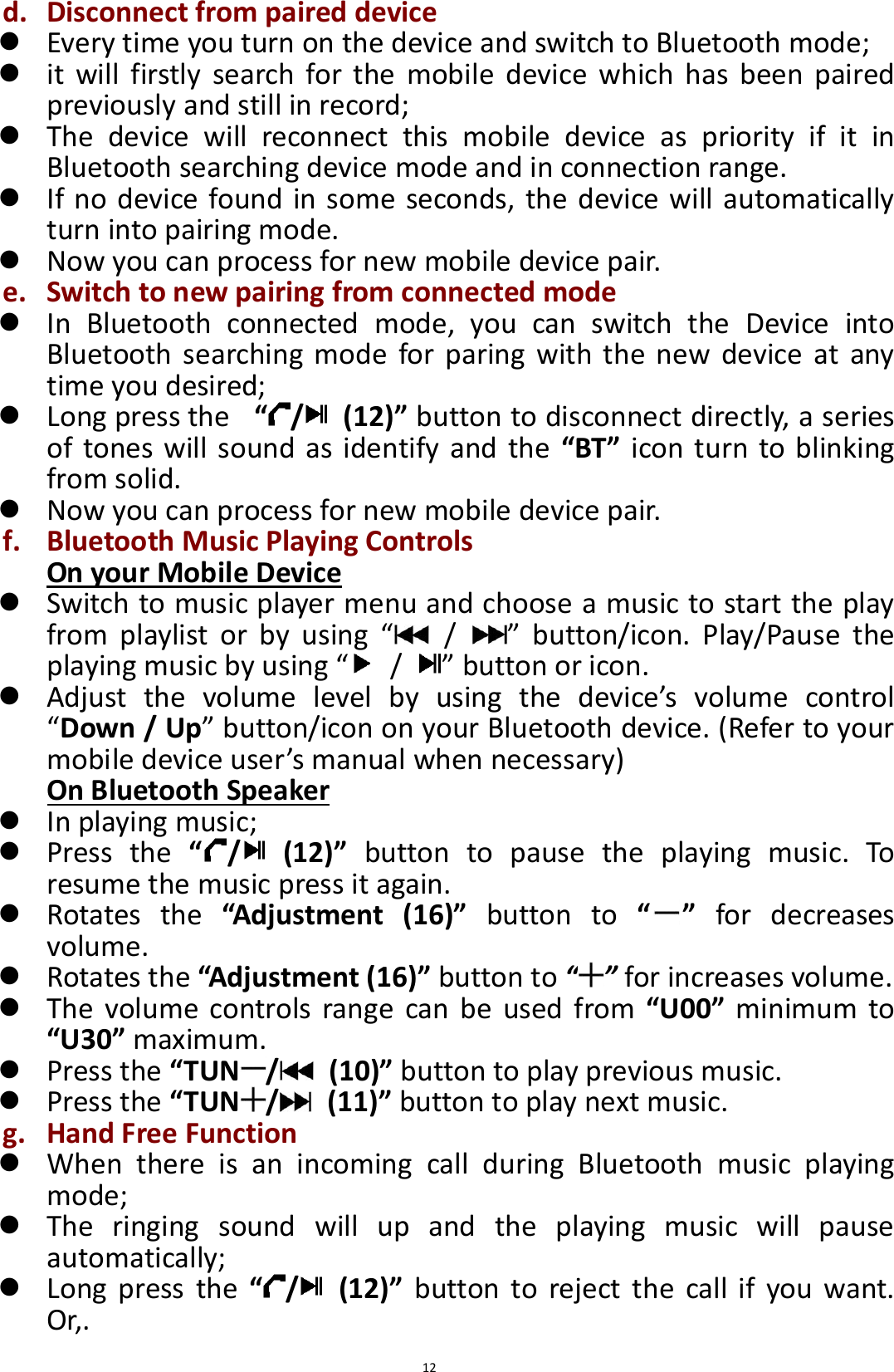
 12 d. Disconnect from paired device  Every time you turn on the device and switch to Bluetooth mode;  it  will  firstly  search  for the  mobile  device  which  has  been  paired previously and still in record;  The  device  will  reconnect  this  mobile  device  as  priority  if  it  in Bluetooth searching device mode and in connection range.  If no device found in some seconds, the device will automatically turn into pairing mode.  Now you can process for new mobile device pair. e. Switch to new pairing from connected mode  In  Bluetooth  connected  mode,  you  can  switch  the  Device  into Bluetooth  searching  mode for paring  with  the new  device  at  any time you desired;    Long press the   “/   (12)” button to disconnect directly, a series of tones will sound as identify and the  “BT” icon turn to blinking from solid.  Now you can process for new mobile device pair.   f. Bluetooth Music Playing Controls On your Mobile Device  Switch to music player menu and choose a music to start the play from  playlist  or  by  using  “  /  ”  button/icon.  Play/Pause  the playing music by using “  /  ” button or icon.  Adjust  the  volume  level  by  using  the  device’s  volume  control “Down / Up” button/icon on your Bluetooth device. (Refer to your mobile device user’s manual when necessary) On Bluetooth Speaker  In playing music;  Press  the  “/   (12)”  button  to  pause  the  playing  music.  To resume the music press it again.  Rotates  the  “Adjustment  (16)”  button  to  “ ”  for  decreases volume.    Rotates the “Adjustment (16)” button to “ ” for increases volume.  The  volume  controls  range  can be  used from  “U00”  minimum  to “U30” maximum.  Press the “TUN /   (10)” button to play previous music.  Press the “TUN /   (11)” button to play next music. g. Hand Free Function  When  there  is  an  incoming  call  during  Bluetooth  music  playing mode;  The  ringing  sound  will  up  and  the  playing  music  will  pause automatically;  Long  press  the  “/   (12)”  button  to  reject  the  call  if  you  want. Or,.
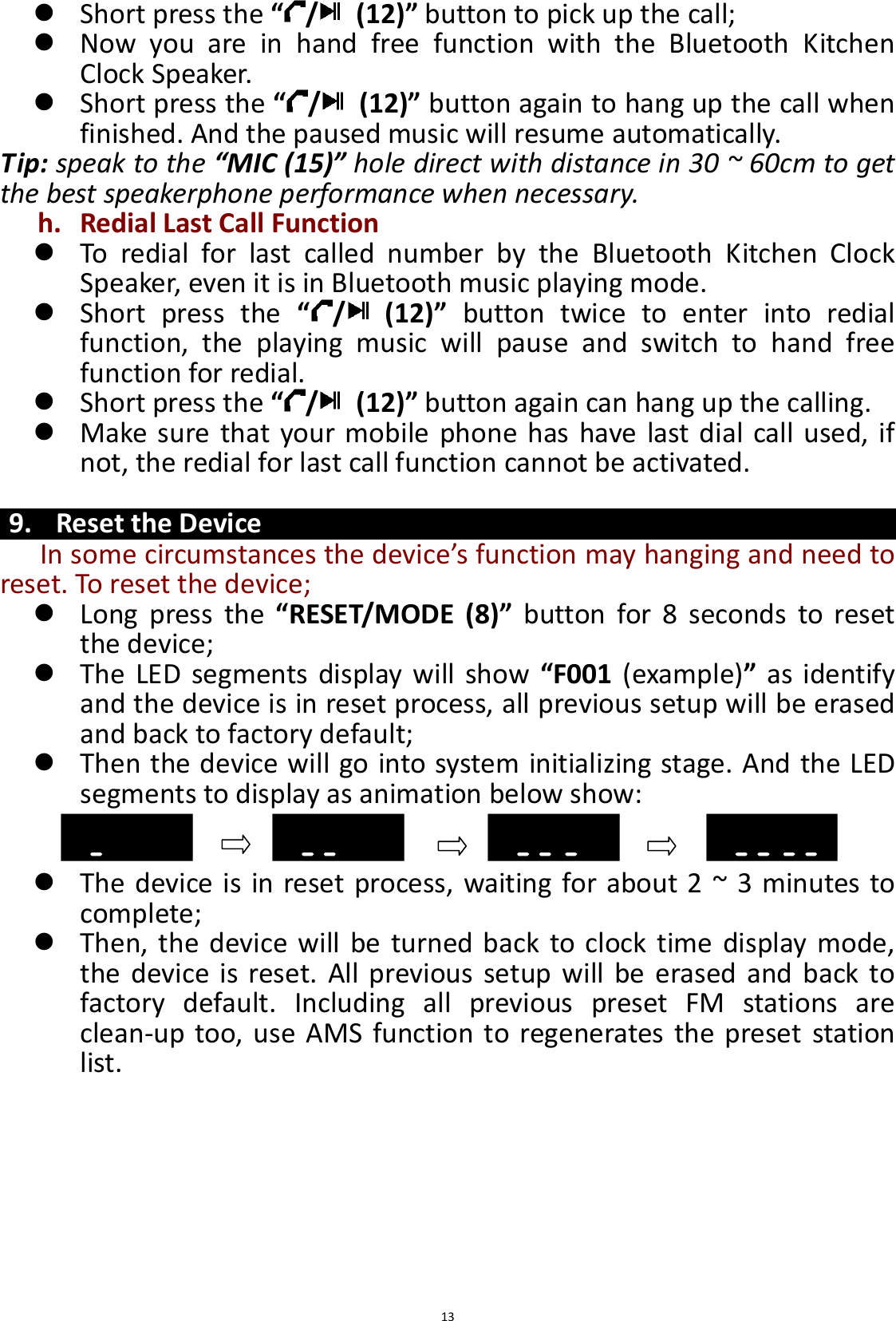
 13  Short press the “/   (12)” button to pick up the call;  Now  you  are  in  hand  free  function  with  the  Bluetooth  Kitchen Clock Speaker.  Short press the “/   (12)” button again to hang up the call when finished. And the paused music will resume automatically. Tip: speak to the “MIC (15)” hole direct with distance in 30 ~ 60cm to get the best speakerphone performance when necessary. h. Redial Last Call Function  To  redial  for  last  called  number  by  the  Bluetooth  Kitchen  Clock Speaker, even it is in Bluetooth music playing mode.  Short  press  the  “/   (12)”  button  twice  to  enter  into  redial function,  the  playing  music  will  pause  and  switch  to  hand  free function for redial.  Short press the “/   (12)” button again can hang up the calling.  Make sure that your mobile phone  has have last dial call  used, if not, the redial for last call function cannot be activated.  9. Reset the Device In some circumstances the device’s function may hanging and need to reset. To reset the device;    Long  press  the “RESET/MODE  (8)”  button  for  8  seconds  to  reset the device;  The LED  segments display  will show  “F001 (example)” as identify and the device is in reset process, all previous setup will be erased and back to factory default;  Then the device will go into system initializing stage. And the LED segments to display as animation below show:    The device is in reset process, waiting for about 2 ~ 3 minutes to complete;  Then, the device will be  turned back to clock time display  mode, the device  is  reset. All previous  setup will  be erased and  back to factory  default.  Including  all  previous  preset  FM  stations  are clean-up too, use AMS function to regenerates the preset station list.
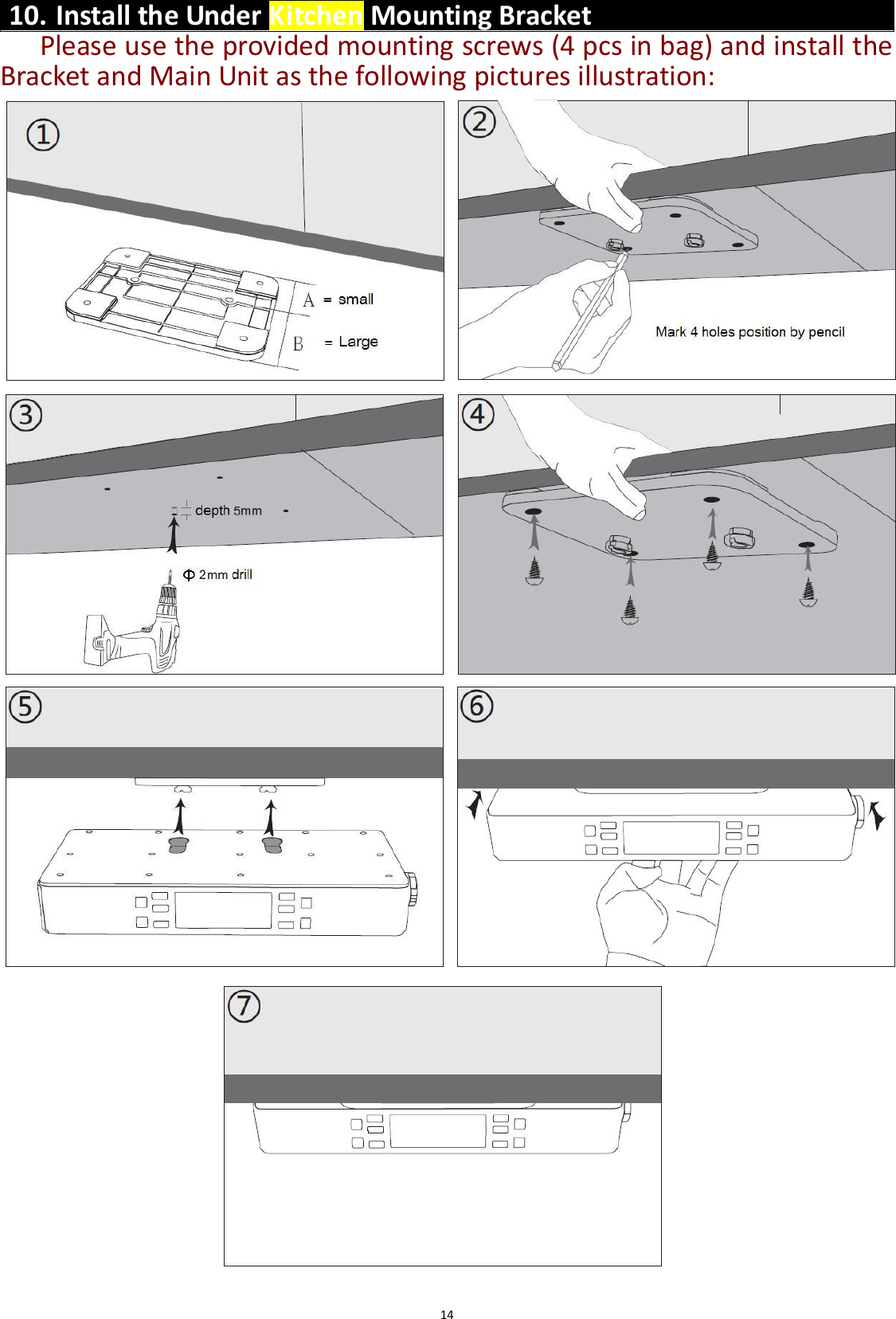
 14 10. Install the Under Kitchen Mounting Bracket   Please use the provided mounting screws (4 pcs in bag) and install the Bracket and Main Unit as the following pictures illustration:
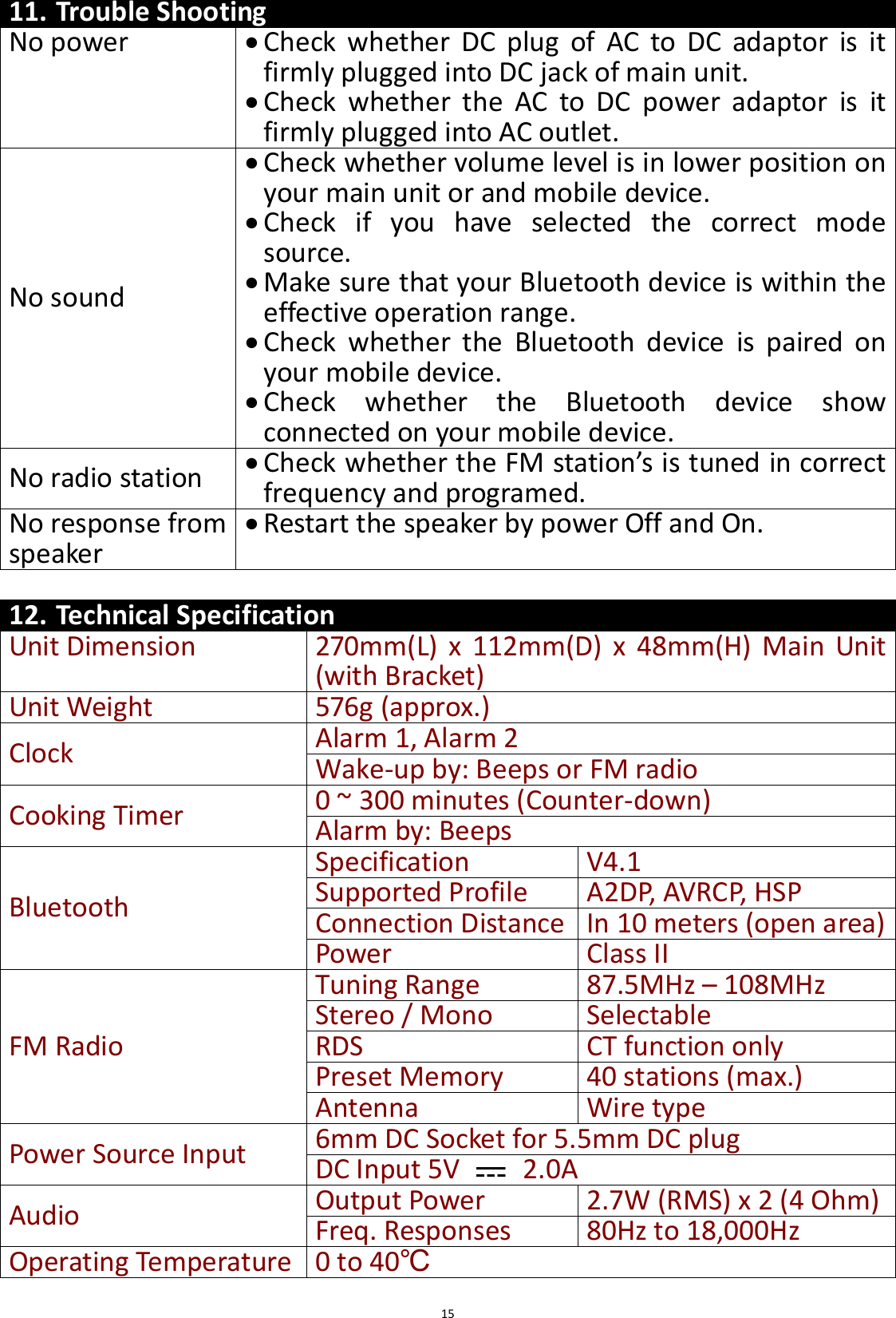
 15 11. Trouble Shooting No power  Check  whether  DC  plug  of  AC  to  DC  adaptor  is  it firmly plugged into DC jack of main unit.  Check  whether  the  AC  to  DC  power  adaptor  is  it firmly plugged into AC outlet. No sound  Check whether volume level is in lower position on your main unit or and mobile device.  Check  if  you  have  selected  the  correct  mode source.    Make sure that your Bluetooth device is within the effective operation range.  Check  whether  the  Bluetooth  device  is  paired  on your mobile device.  Check  whether  the  Bluetooth  device  show connected on your mobile device. No radio station  Check whether the FM station’s is tuned in correct frequency and programed. No response from speaker  Restart the speaker by power Off and On.  12. Technical Specification Unit Dimension 270mm(L)  x  112mm(D)  x  48mm(H)  Main  Unit (with Bracket)   Unit Weight 576g (approx.) Clock Alarm 1, Alarm 2   Wake-up by: Beeps or FM radio Cooking Timer 0 ~ 300 minutes (Counter-down) Alarm by: Beeps Bluetooth Specification V4.1 Supported Profile A2DP, AVRCP, HSP Connection Distance In 10 meters (open area) Power Class II FM Radio Tuning Range 87.5MHz – 108MHz Stereo / Mono Selectable RDS CT function only Preset Memory 40 stations (max.) Antenna Wire type Power Source Input 6mm DC Socket for 5.5mm DC plug   DC Input 5V    2.0A Audio Output Power 2.7W (RMS) x 2 (4 Ohm) Freq. Responses   80Hz to 18,000Hz Operating Temperature 0 to 40℃
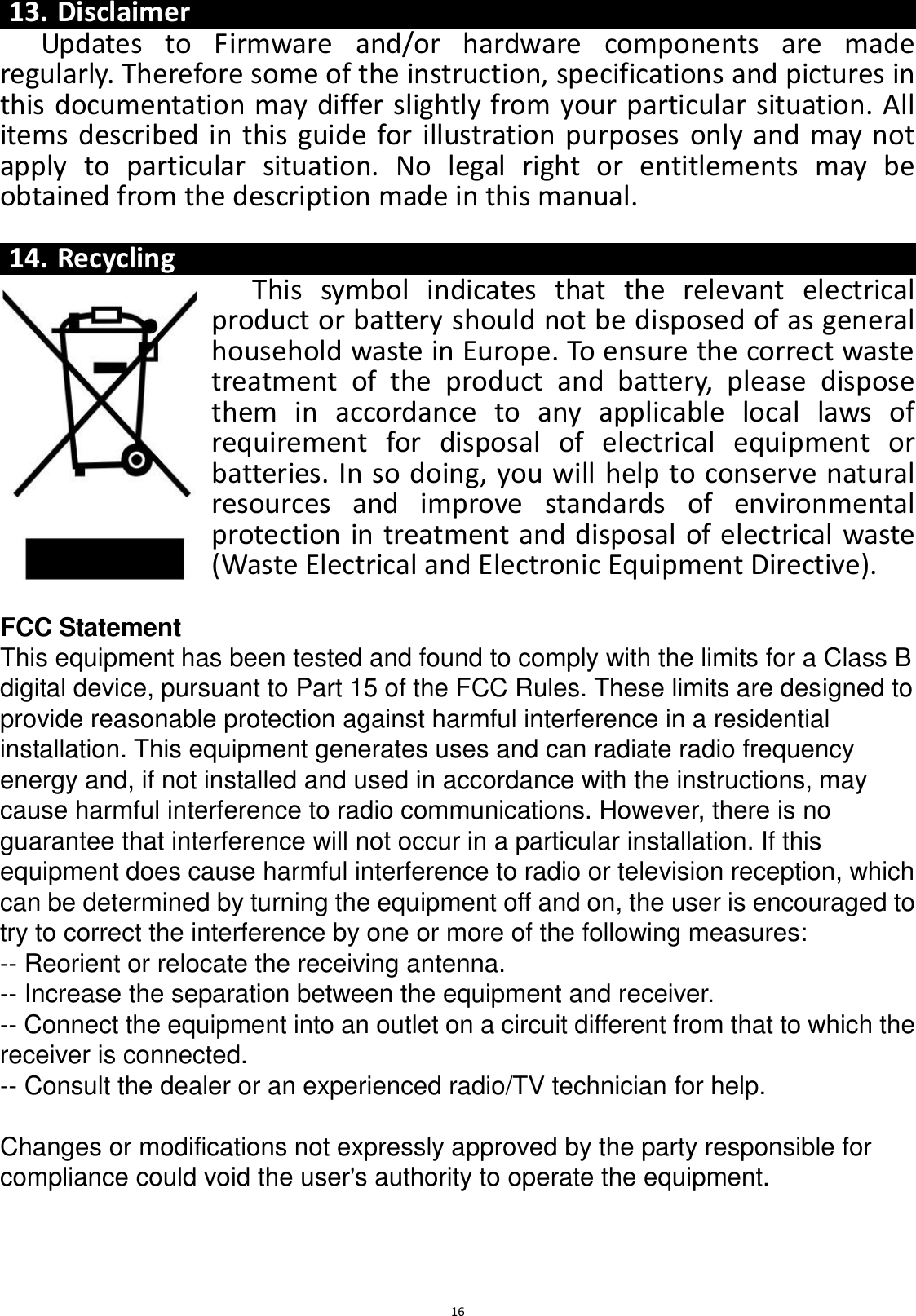
 16  13. Disclaimer Updates  to  Firmware  and/or  hardware  components  are  made regularly. Therefore some of the instruction, specifications and pictures in this documentation may differ slightly from your particular situation. All items described in this guide for illustration purposes only and may not apply  to  particular  situation.  No  legal  right  or  entitlements  may  be obtained from the description made in this manual.  14. Recycling This  symbol  indicates  that  the  relevant  electrical product or battery should not be disposed of as general household waste in Europe. To ensure the correct waste treatment  of  the  product  and  battery,  please  dispose them  in  accordance  to  any  applicable  local  laws  of requirement  for  disposal  of  electrical  equipment  or batteries. In so doing, you will help to conserve natural resources  and  improve  standards  of  environmental protection in treatment and disposal of electrical waste (Waste Electrical and Electronic Equipment Directive).  FCC Statement This equipment has been tested and found to comply with the limits for a Class B digital device, pursuant to Part 15 of the FCC Rules. These limits are designed to provide reasonable protection against harmful interference in a residential installation. This equipment generates uses and can radiate radio frequency energy and, if not installed and used in accordance with the instructions, may cause harmful interference to radio communications. However, there is no guarantee that interference will not occur in a particular installation. If this equipment does cause harmful interference to radio or television reception, which can be determined by turning the equipment off and on, the user is encouraged to try to correct the interference by one or more of the following measures: -- Reorient or relocate the receiving antenna.    -- Increase the separation between the equipment and receiver.     -- Connect the equipment into an outlet on a circuit different from that to which the receiver is connected.    -- Consult the dealer or an experienced radio/TV technician for help.  Changes or modifications not expressly approved by the party responsible for compliance could void the user's authority to operate the equipment.

Navigation menu