Biostar Hi Fi A85W 3D Owners Manual AA85C A2T_130520
2014-07-31
: Biostar Biostar-Hi-Fi-A85W-3D-Owners-Manual biostar-hi-fi-a85w-3d-owners-manual biostar pdf
Open the PDF directly: View PDF  .
.
Page Count: 57

Hi-Fi A85W 3D Setup Manual
FCC Information and Copyright
This equipment has been tested and found to comply with the limits of a Class
B digital device, pursuant to Part 15 of the FCC Rules. These limits are designed
to provide reasonable protection against harmful interference in a residential
installation. This equipment generates, uses, and can radiate radio frequency
energy and, if not installed and used in accordance with the instructions, may
cause harmful interference to radio communications. There is no guarantee
that interference will not occur in a particular installation.
The vendor makes no representations or warranties with respect to the
contents here and specially disclaims any implied warranties of merchantability
or fitness for any purpose. Further the vendor reserves the right to revise this
publication and to make changes to the contents here without obligation to
notify any party beforehand.
Duplication of this publication, in part or in whole, is not allowed without first
obtaining the vendor’s approval in writing.
The content of this user’s manual is subject to be changed without notice and
we will not be responsible for any mistakes found in this user’s manual. All the
brand and product names are trademarks of their respective companies.
Dichiarazione di conformità
sintetica
Ai sensi dell’art. 2 comma 3 del D.M.
275 del 30/10/2002
Si dichiara che questo prodotto è
conforme alle normative vigenti e
soddisfa i requisiti essenziali richiesti
dalle direttive
2004/108/CE, 2006/95/CE e
1999/05/CE
quando ad esso applicabili
Short Declaration of conformity
We declare this product is complying
with the laws in force and meeting all
the essential requirements as specified
by the directives
2004/108/CE, 2006/95/CE and
1999/05/CE
whenever these laws may be applied

Table of Contents
Chapter 1: Introduction .........................................................................1
1.1 Before You Start......................................................................... 1
1.2 Package Checklist ..................................................................... 1
1.3 Motherboard Features............................................................... 2
1.4 Rear Panel Connectors ............................................................. 3
1.5 Motherboard Layout .................................................................. 4
Chapter 2: Hardware Installation ..........................................................5
2.1 Installing Central Processing Unit (CPU) .................................. 5
2.2 Fan Headers.............................................................................. 7
2.3 Installing System Memory ......................................................... 8
2.4 Connectors and Slots .............................................................. 10
Chapter 3: Headers & Jumpers Setup................................................12
3.1 How to Setup Jumpers ............................................................ 12
3.2 Detail Settings ......................................................................... 13
Chapter 4: AMD DUAL Graphics Technology....................................17
4.1 AMD Dual Graphics Technology Introduction.......................... 17
4.2 AMD Dual Graphics Requirement ........................................... 17
4.3 AMD Dual Graphics Setup ...................................................... 18
Chapter 5: Software & UEFI BIOS.......................................................19
5.1 Software................................................................................... 19
5.2 UEFI BIOS Setup .................................................................... 27
5.3 BIOS Update ........................................................................... 27
Chapter 6: Useful Help.........................................................................31
6.1 Driver Installation Note ............................................................ 31
6.2 AMI BIOS Beep Code.............................................................. 32
6.3 AMI BIOS Post Code............................................................... 32
6.4 Troubleshooting ....................................................................... 34
6.5 RAID Definitions ...................................................................... 36
Appendix: SPEC In Other Languages ................................................38
Arabic ......................................................................................................... 38
French ........................................................................................................ 40
German....................................................................................................... 42
Italian .......................................................................................................... 44
Japanese .................................................................................................... 46
Polish.......................................................................................................... 48
Portuguese ................................................................................................. 50
Russian....................................................................................................... 52
Spanish....................................................................................................... 54
Hi-Fi A85W 3D
1
CHAPTER 1: INTRODUCTION
1.1 BEFORE YOU START
Thank you for choosing our product. Before you start installing the
motherboard, please make sure you follow the instructions below:
Prepare a dry and stable working environment with
sufficient lighting.
Always disconnect the computer from power outlet
before operation.
Before you take the motherboard out from anti-static
bag, ground yourself properly by touching any safely
grounded appliance, or use grounded wrist strap to
remove the static charge.
Avoid touching the components on motherboard or the
rear side of the board unless necessary. Hold the board
on the edge, do not try to bend or flex the board.
Do not leave any unfastened small parts inside the
case after installation. Loose parts will cause short
circuits which may damage the equipment.
Keep the computer from dangerous area, such as heat
source, humid air and water.
The operating temperatures of the computer should be
0 to 45 degrees Celsius.
To avoid injury, be careful of:
Sharp pins on headers and connectors
Rough edges and sharp corners on the chassis
Damage to wires that could cause a short circuit
1.2 PACKAGE CHECKLIST
Serial ATA Cable x4
Rear I/O Panel for ATX Case x1
User’s Manual x1
Fully Setup Driver DVD x1
Note: The package contents may be different due to the sales region or models in which it was
sold. For more information about the standard package in your region, please contact your dealer
or sales representative.

Motherboard Manual
2
1.3 MOTHERBOARD FEATURES
Specifications
CPU Support
Socket FM2 for AMD A-series/ E2-series processor
Maximum CPU TDP (Thermal Design Power): 100Watt
* Please refer to www.biostar.com.tw for CPU support list.
Chipset AMD A85 FCH
Memory
Supports Dual Channel DDR3 800/ 1066/ 1333/ 1600/ 1866/ 2133/ 2400(OC)
4 x DDR3 DIMM Memory Slot, Max. Supports up to 64 GB Memory
Each DIMM supports non-ECC 512MB/ 1/ 2/ 4/ 8/ 16 GB DDR3 module
* Please refer to www.biostar.com.tw for Memory support list.
Storage
AMD A85 FCH
8x SATA 6Gb/s Connector
Supports RAID 0,1,10,5 & AHCI
LAN Realtek RTL 8111G
10/ 100/ 1000 Mb/s auto negotiation, Half / Full duplex capability
Audio Codec ALC892, 7.1 Channels, High Definition Audio, Biostar Hi-Fi 3D
USB 4x USB 3.0 port (2 on rear I/Os and 2 via internal headers)
8x USB 2.0 port (4 on rear I/Os and 4 via internal headers)
Expansion Slots
2x PCI Slot
2x PCIe 2.0 x1 Slot
2x PCIe 2.0 x16 Slot (x16, x4)
Rear I/Os
1x PS/2 Keyboard/ Mouse
1x HDMI Port
1x VGA Port
1x DVI Port
1x LAN port
4x USB 2.0 Port
2x USB 3.0 Port
6x Audio Jack
Internal I/Os
8x SATA 6.0Gb/s Connector
2x USB 2.0 Header (each header supports 2 USB 2.0 ports)
1x USB 3.0 Header (each header supports 2 USB 3.0 ports)
1x 4-Pin Power Connector
1x 24-Pin Power Connector
1x CPU Fan Connector
2x System Fan Connector
1x Front Panel Header
1x Front Audio Header
1x Clear CMOS Header
1x Consumer IR Header
1x Serial Port Header
1x S/PDIF out Connector

Hi-Fi A85W 3D
3
Specifications
Form Factor ATX Form Factor, 305mm x 235 mm
OS Support Windows XP / Vista / 7/ 8
Biostar reserves the right to add or remove support for any OS with or without notice.
1.4 REAR PANEL CONNECTORS
Note 1: HDMI / DVI-D / VGA Output require an AMD family processor with integrated graphics.
Note 2: The mainboard supports three independent display outputs.
Note 3: Since the audio chip supports High Definition Audio Specification, the function of each
audio jack can be defined by software. The input / output function of each audio jack listed
above represents the default setting. However, when connecting external microphone to
the audio port, please use the Line In (Blue) and Mic In (Pink) audio jack.
Note 4: Maximum resolution:
Outputs Maximum resolution Bit Depth
1920 x 1080 @60Hz 24, 30, 36 bpp
HDMI 1920 x 1200 @60Hz 24 bpp
1920 x 1200 @60Hz 30 bpp
DVI-D 2560 x 1600 @60Hz 24 bpp
VGA 1920 x 1600 @60Hz --
Motherboard Manual
4
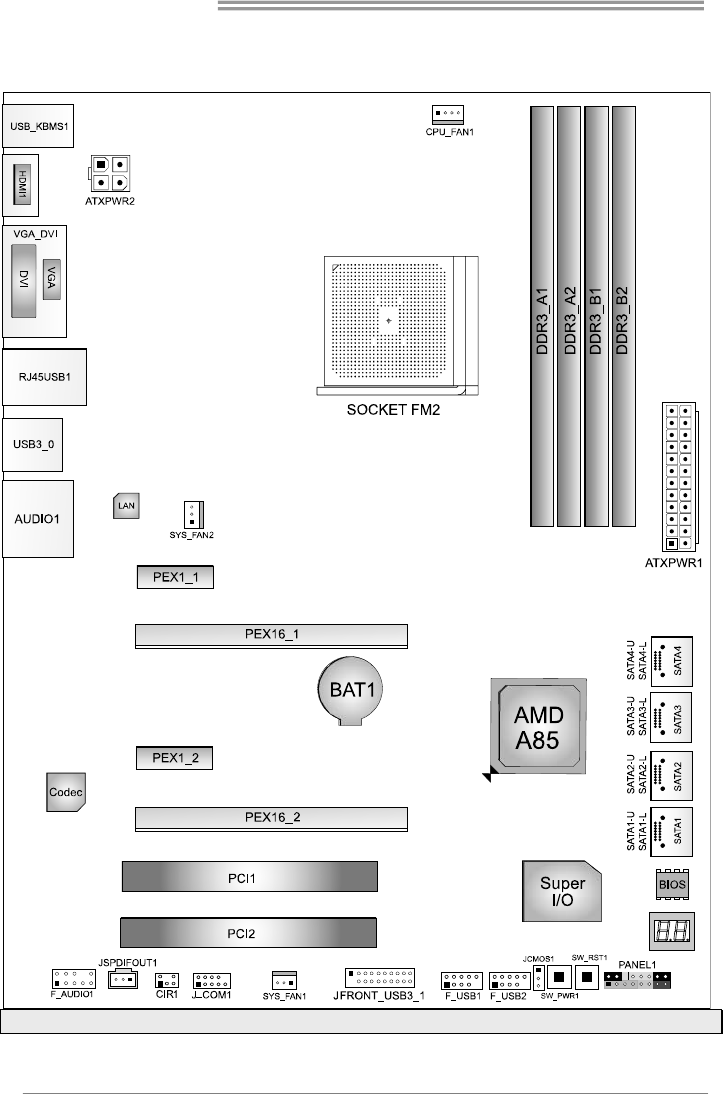
1.5 MOTHERBOARD LAYOUT
Note: ■ represents the 1st pin.
Hi-Fi A85W 3D
5
CHAPTER 2: HARDWARE INSTALLATION
2.1 INSTALLING CENTRAL PROCESSING UNIT (CPU)
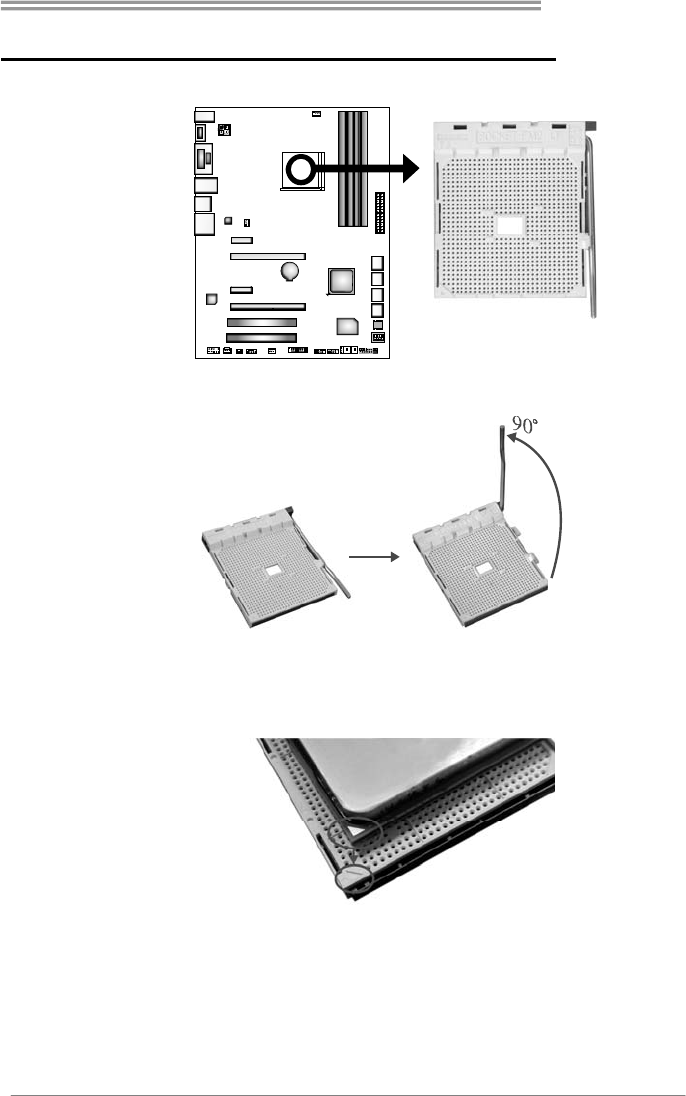
Step 1: Pull the socket locking out from the socket and then raise the
lever up to a 90-degree angel.
Step 2: Look for the white triangle on socket, and the gold triangle on
CPU should point towards this white triangle. The CPU will fit only
in the correct orientation.
Motherboard Manual
6
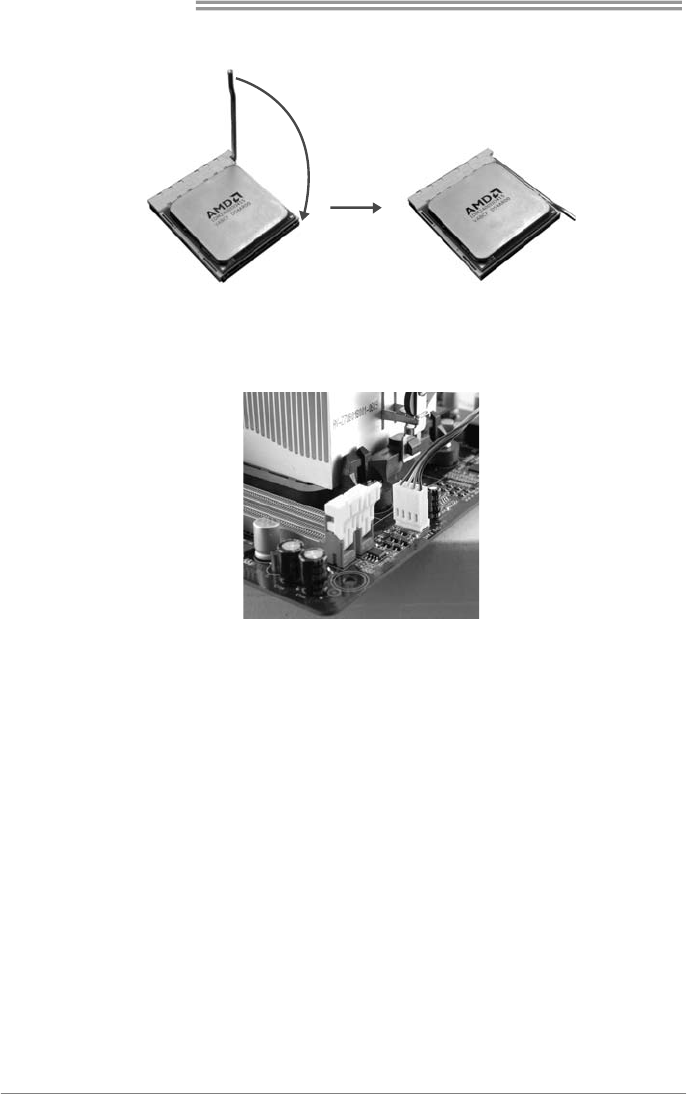
Step 3: Hold the CPU down firmly, and then close the lever to locked the
position
Step 4: Put the CPU Fan on the CPU and buckle it. Connect the CPU
FAN power cable to the CPU_FAN1. This completes the
installation.
Hi-Fi A85W 3D
7
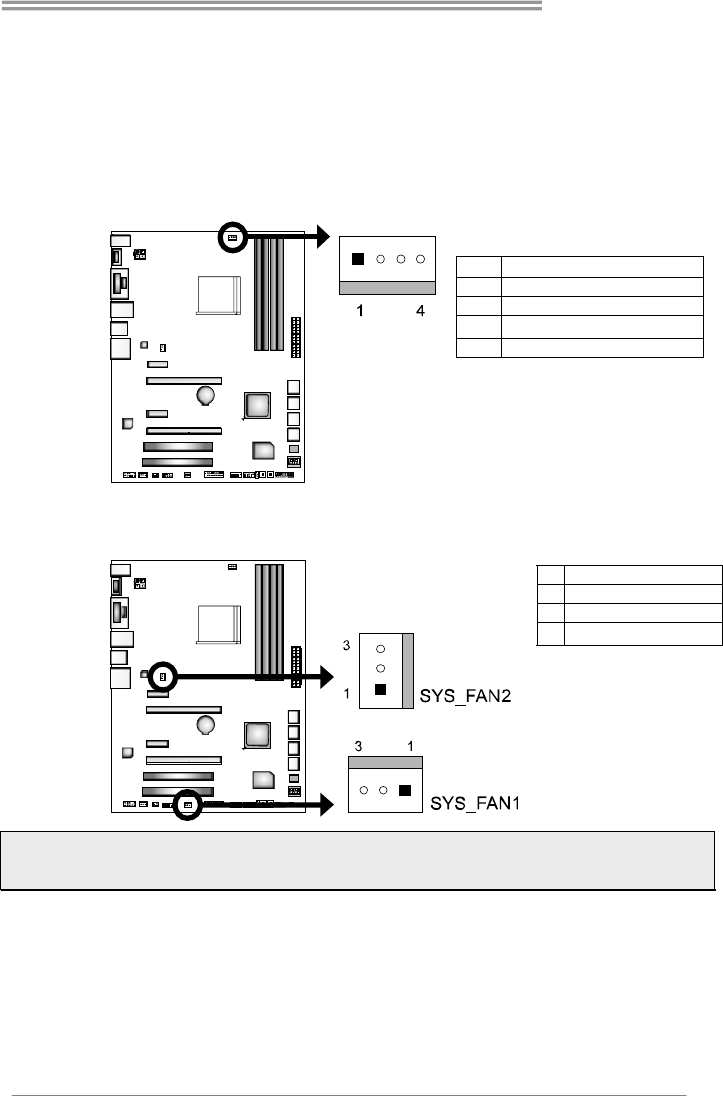
2.2 FAN HEADERS
These fan headers support cooling-fans built in the computer. The fan
cable and connector may be different according to the fan manufacturer.
Connect the fan cable to the connector while matching the black wire to
pin#1.
CPU_FAN1: CPU Fan Header
Pin Assignment
1 Ground
2 +12V
3 FAN RPM rate sense
4 Smart Fan Control (By Fan)
SYS_FAN1/2: System Fan Header
Pin Assignment
1 Ground
2 +12V
3FAN RPM rate sense
Note: CPU_FAN1, SYS_FAN1/2 support 4-pin and 3-pin head connectors. When connecting with
wires onto connectors, please note that the red wire is the positive and should be connected to
pin#2, and the black wire is Ground and should be connected to pin#1(GND).
Motherboard Manual
8
2.3 INSTALLING SYSTEM MEMORY
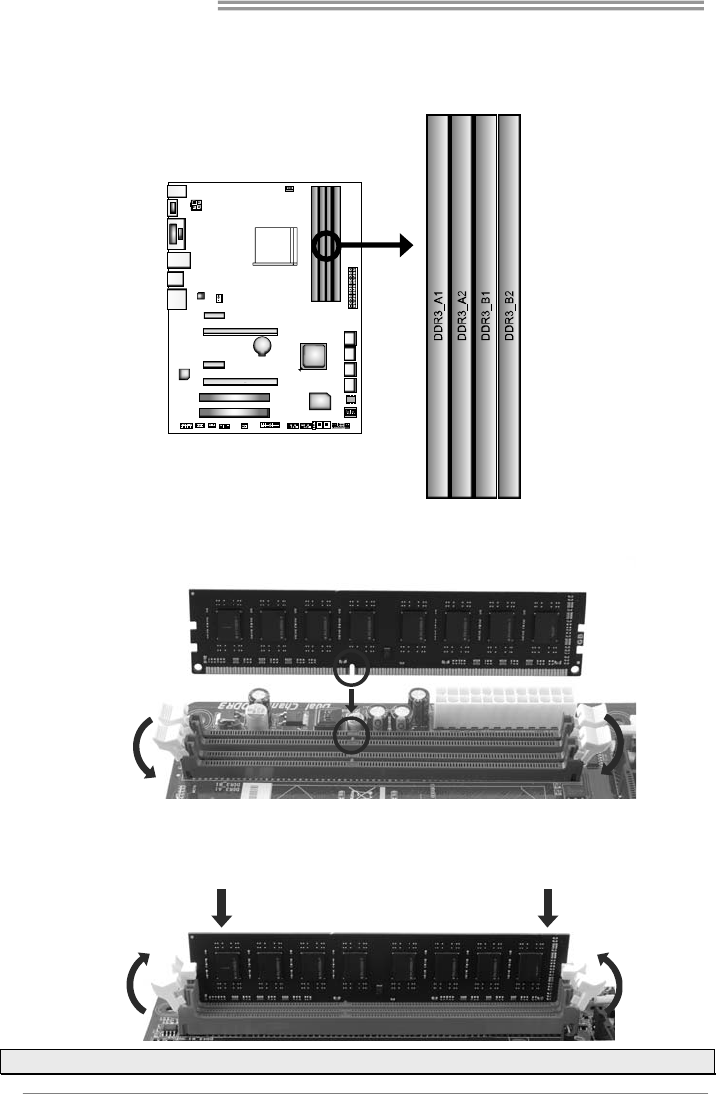
A. DDR3 Modules
Step 1: Unlock a DIMM slot by pressing the retaining clips outward. Align a DIMM
on the slot such that the notch on the DIMM matches the break on the slot.
Step 2: Insert the DIMM vertically and firmly into the slot until the retaining chip snap
back in place and the DIMM is properly seated.
Note: If the DIMM does not go in smoothly, do not force it. Pull it all the way out and try again.
Hi-Fi A85W 3D
9
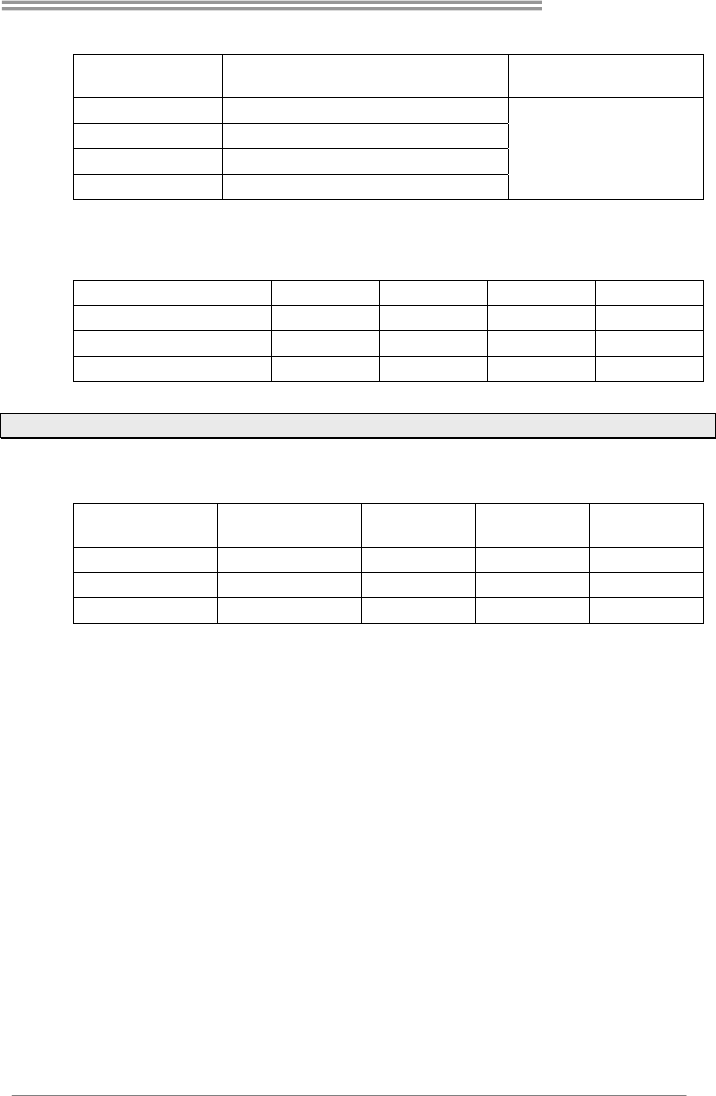
B. Memory Capacity
DIMM Socket
Location DDR3 Module Total Memory Size
DDR3_A1 512MB/1GB/2GB/4GB/8GB/16GB
DDR3_A2 512MB/1GB/2GB/4GB/8GB/16GB
DDR3_B1 512MB/1GB/2GB/4GB/8GB/16GB
DDR3_B2 512MB/1GB/2GB/4GB/8GB/16GB
Max is 64GB.
C. Dual Channel Memory Installation
Please refer to the following requirements to activate Dual Channel function:
Install memory module of the same density in pairs, shown in the table.
Dual Channel Status DDR3_A1 DDR3_A2 DDR3_B1 DDR3_B2
Enabled O X O X
Enabled X O X O
Enabled O O O O
(O means memory installed, X means memory not installed.)
Note: The DRAM bus width of the memory module must be the same (x8 or x16)
D. DDR Speed Support
Please refer to the following table for DDR speed reference: (x = 1 or 2)
# of DIMM
per Channel
# of Ranks
per DIMM 1.50V 1.35V 1.25V
1 of 2 UDIMMs xR, 0 DDR3-2133 DDR3-1600 DDR3-1333
2 of 2 UDIMMs 1R, 1R DDR3-1866 DDR3-1600 DDR3-1333
2 of 2 UDIMMs 2R, xR DDR3-1866 DDR3-1600 DDR3-1066
Motherboard Manual
10
2.4 CONNECTORS AND SLOTS
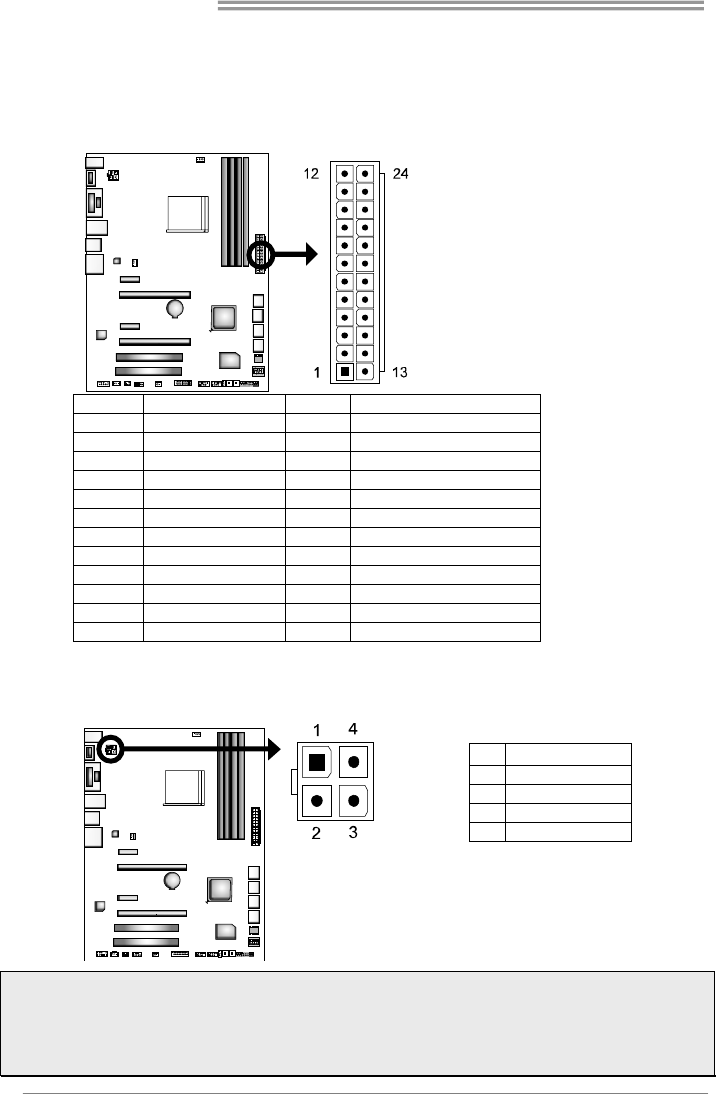
ATXPWR1: ATX Power Source Connector
This connector allows user to connect 24-pin power connector on the ATX
power supply.
Pin Assignment Pin Assignment
13 +3.3V 1 +3.3V
14 -12V 2 +3.3V
15 Ground 3 Ground
16 PS_ON 4 +5V
17 Ground 5 Ground
18 Ground 6 +5V
19 Ground 7 Ground
20 NC 8 PW_OK
21 +5V 9 Standby Voltage+5V
22 +5V 10 +12V
23 +5V 11 +12V
24 Ground 12 +3.3V
ATXPWR2: ATX Power Source Connector
This connector will provide +12V to CPU power circuit.
Pin Assignment
1 +12V
2 +12V
3 Ground
4 Ground
Note1: Before you power on the system, please make sure that both ATXPWR1 and ATXPWR2
connectors have been plugged-in.
Note2: Insufficient power supplied to the system may result in instability or the peripherals not
functioning properly. Use of a PSU with a higher power output is recommended when configuring a
system with more power-consuming devices.
Hi-Fi A85W 3D
11
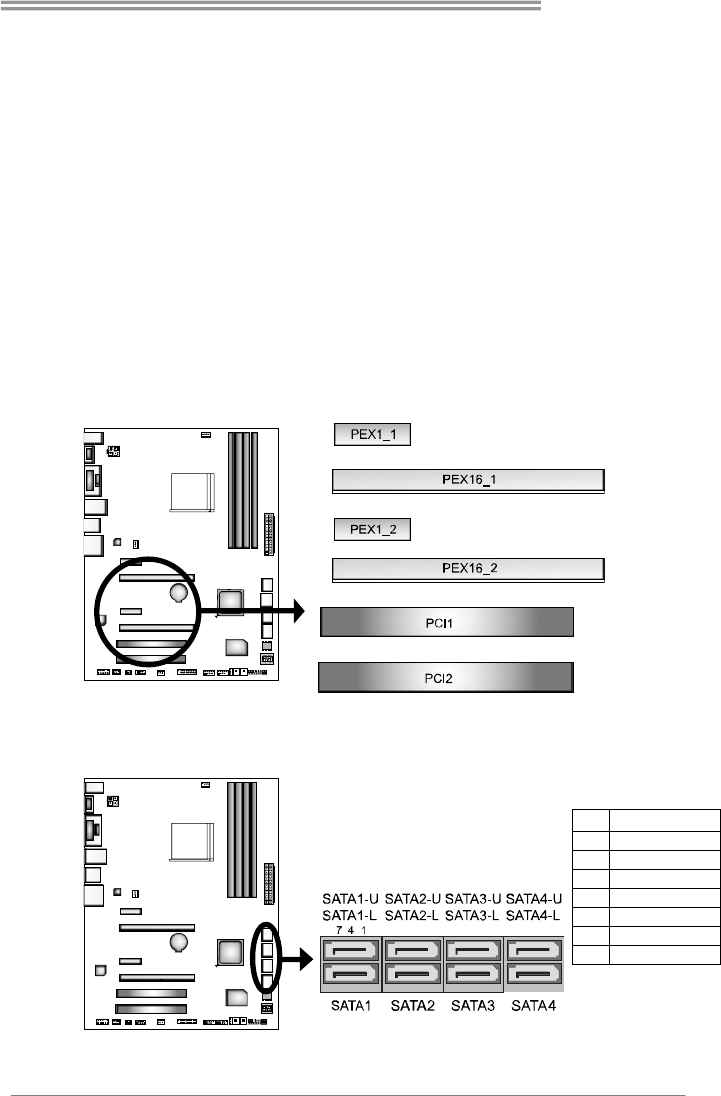
PEX1_1/1_2: PCI-Express Gen2 x1 Slot
- PCI-Express 2.0 compliant.
- Data transfer bandwidth up to 500MB/s per direction; 1GB/s in total
PEX16_1: PCI-Express Gen2 x16 Slot
- PCI-Express 2.0 compliant.
- Maximum theoretical realized bandwidth of 8GB/s simultaneously per
direction, for an aggregate of 16GB/s totally.
PEX16_2: PCI-Express Gen2 x4 Slot
- PCI-Express 2.0 compliant.
- Data transfer bandwidth up to 2GB/s per direction; 4GB/s in total.
PCI1/2: Peripheral Component Interconnect Slot
This motherboard is equipped with 2 standard PCI slots. PCI stands for
Peripheral Component Interconnect, and it is a bus standard for expansion
cards.
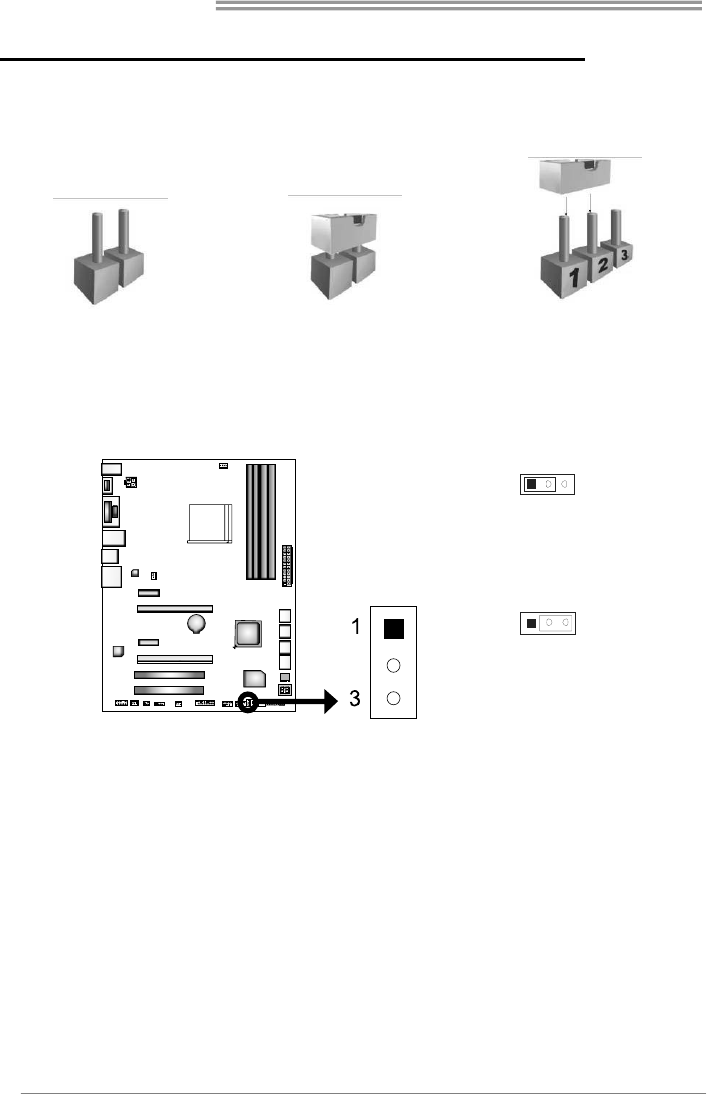
SATA1~SATA4: Serial ATA Connectors
These connectors connect to SATA hard disk drives via SATA cables.
Pin Assignment
1 Ground
2 TX+
3 TX-
4 Ground
5 RX-
6 RX+
7 Ground
Motherboard Manual
12
CHAPTER 3: HEADERS & JUMPERS SETUP
3.1 HOW TO SETUP JUMPERS
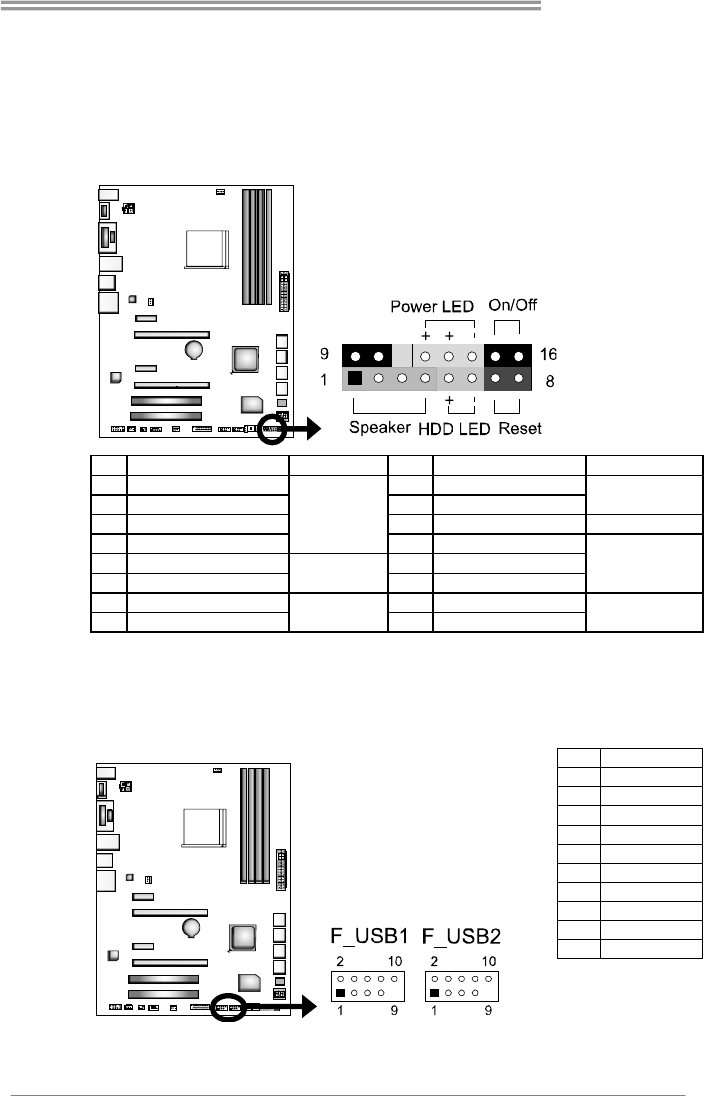
The illustration shows how to set up jumpers. When the jumper cap is placed on
pins, the jumper is “close”, if not, that means the jumper is “open”.
Pin opened Pin closed Pin1-2 closed
JCMOS1: Clear CMOS Jumper
Placing the jumper on pin2-3, it allows user to restore the BIOS safe setting and
the CMOS data. Please carefully follow the procedures to avoid damaging the
motherboard.
31
Pin 1-2 Close:
Normal Operation (default).
31
Pin 2-3 Close:
Clear CMOS data.
※ Clear CMOS Procedures:
1. Remove AC power line.
2. Set the jumper to “Pin 2-3 close”.
3. Wait for five seconds.
4. Set the jumper to “Pin 1-2 close”.
5. Power on the AC.
6. Load Optimal Defaults and save settings in CMOS.
Hi-Fi A85W 3D
13
3.2 DETAIL SETTINGS
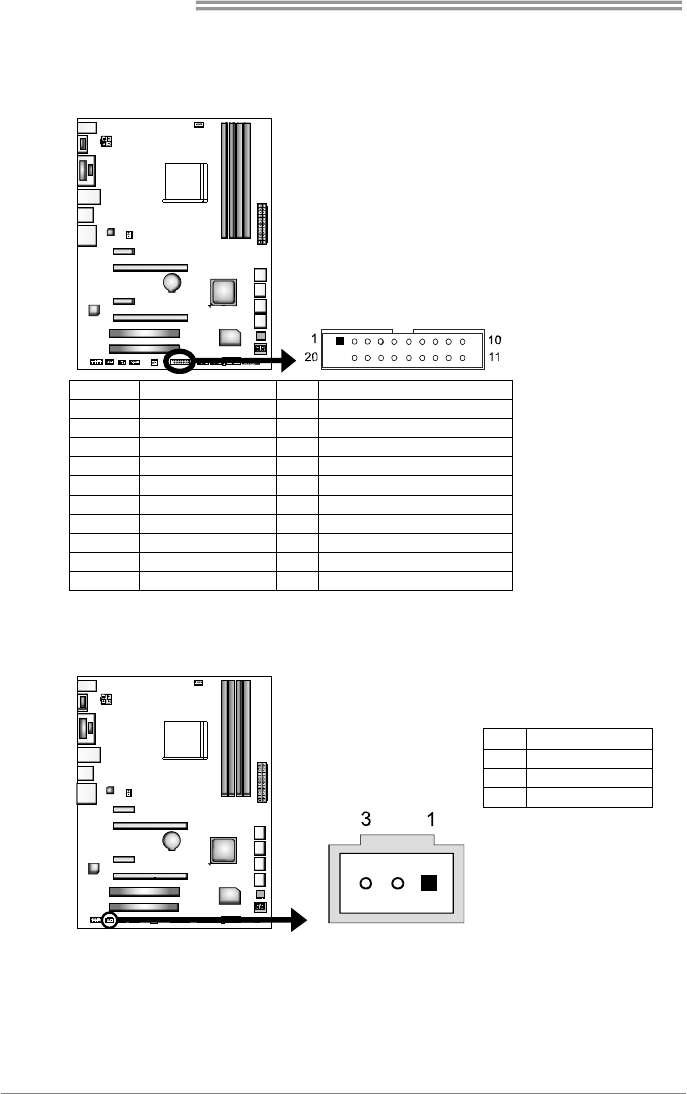
PANEL1: Front Panel Header
This 16-pin connector includes Power-on, Reset, HDD LED, Power LED, and
speaker connection. It allows user to connect the PC case’s front panel switch
functions.
Pin Assignment Function Pin Assignment Function
1 +5V 9 N/A
2 N/A 10 N/A N/A
3 N/A 11 N/A N/A
4 Speaker
Speaker
Connector
12 Power LED (+)
5 HDD LED (+) 13 Power LED (+)
6 HDD LED (-)
Hard drive
LED 14 Power LED (-)
Power LED
7 Ground 15 Power button
8 Reset control Reset button 16 Ground Power-on button
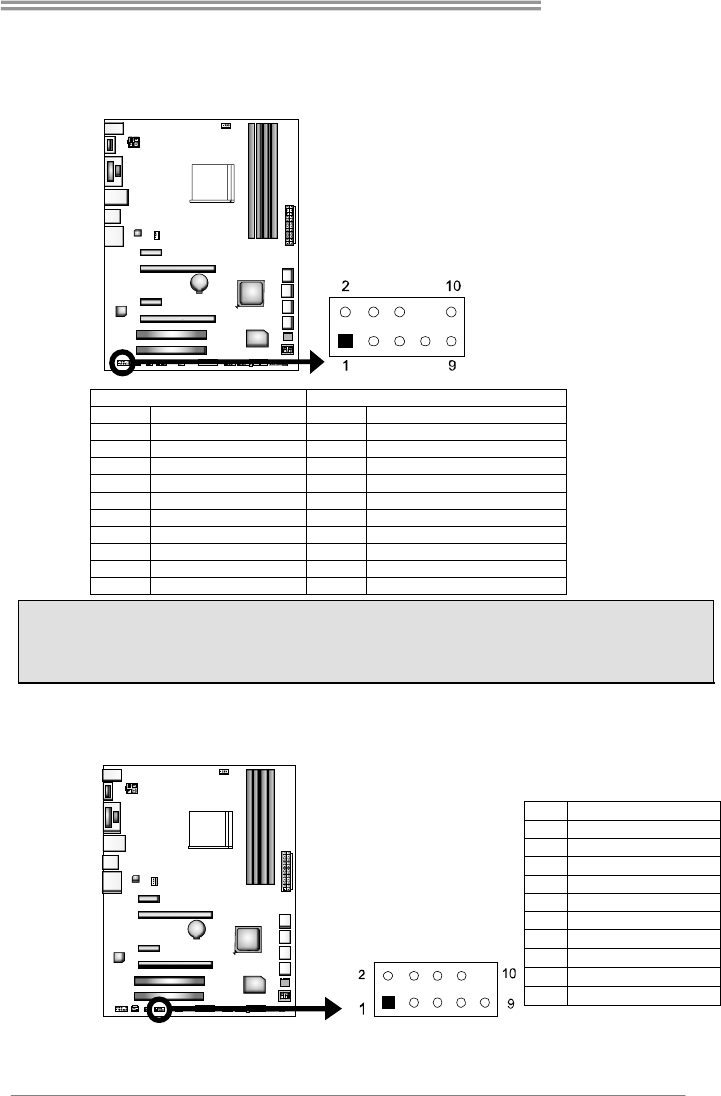
F_USB1/F_USB2: Headers for USB 2.0 Ports at Front Panel
This header allows user to connect additional USB cable on the PC front panel,
and also can be connected with a wide range of simultaneously accessible
external Plug and Play peripherals.
Pin Assignment
1 +5V (fused)
2 +5V (fused)
3 USB-
4 USB-
5 USB+
6 USB+
7 Ground
8 Ground
9 NC
10 Key
Motherboard Manual
14
JFRONT_USB3_1: Header for USB 3.0 Ports at Front Panel
This header allows user to connect additional USB cable on the PC front panel,
and also can be connected with a wide range of simultaneously accessible
external Plug and Play peripherals.
Pin Assignment Pin Assignment
1 VBUS0 11 D2+
2 SSRX1- 12 D2-
3 SSRX1+ 13 Ground
4 Ground 14 SSTX2+
5 SSTX1- 15 SSTX2-
6 SSTX1+ 16 Ground
7 Ground 17 SSRX2+
8 D1- 18 SSRX2-
9 D1+ 19 VBUS1
10 ID 20 Key
JSPDIFOUT1: Digital Audio-out Connectors
The JSPDIFOUT1 is for connecting the PCI bracket SPDIF output.
Pin Assignment
1 +5V
2 SPDIF_OUT
3 Ground
Hi-Fi A85W 3D
15
F_AUDIO1: Front Panel Audio Header
This header allows user to connect the front audio output cable with the PC front
panel. This header supports HD and AC’97 audio front panel connector.
HD Audio AC’97
Pin Assignment Pin Assignment
1 Mic Left in 1 Mic In
2 Ground 2 Ground
3 Mic Right in 3 Mic Power
4 GPIO 4 Audio Power
5 Right line in 5 RT Line Out
6 Jack Sense 6 RT Line Out
7 Front Sense 7 Reserved
8 Key 8 Key
9 Left line in 9 LFT Line Out
10 Jack Sense 10 LFT Line Out
Note1: It is recommended that you connect a high-definition front panel audio module to this
connector to avail of the motherboard's high definition audio capability.
Note2: Please try to disable the "Front Panel Jack Detection" if you want to use an AC'97 front
audio output cable. The function can be found via O.S. Audio Utility.
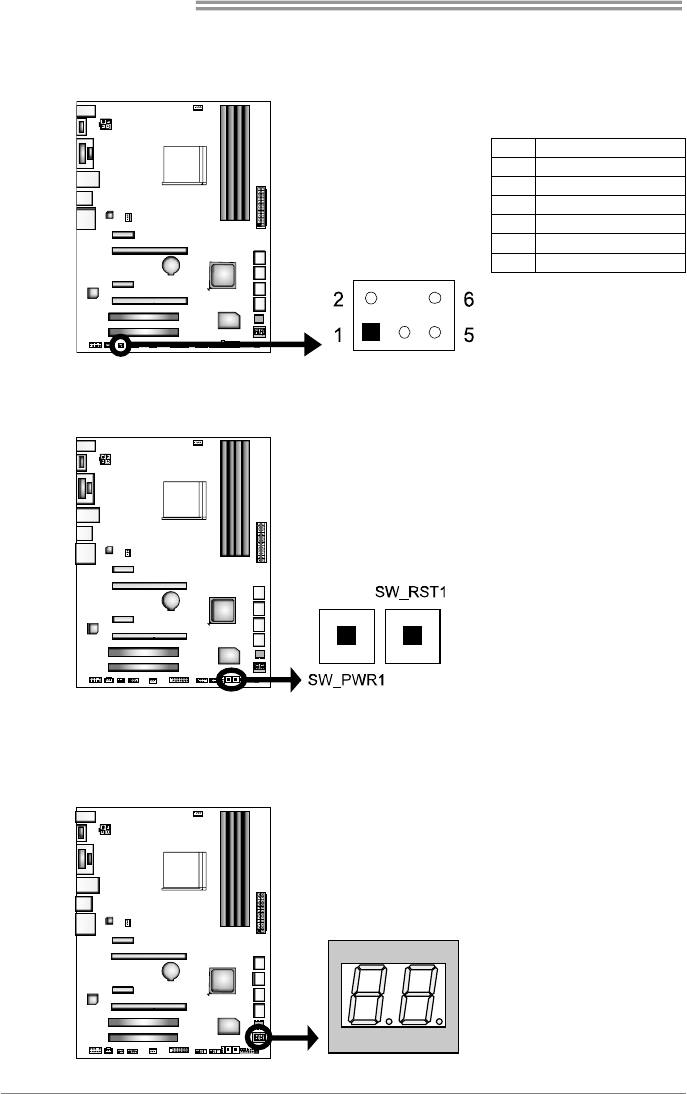
J_COM1: Serial Port Header
The motherboard has a serial port Header for connecting RS-232 Port.
Pi Assignment
1 Carrier detect
2 Received data
3 Transmitted data
4 Data terminal read
y
5Si
g
nal
g
round
6 Data set read
y
7 Request to send
8 Clear to send
9 Ring indicator
10 NC
Motherboard Manual
16
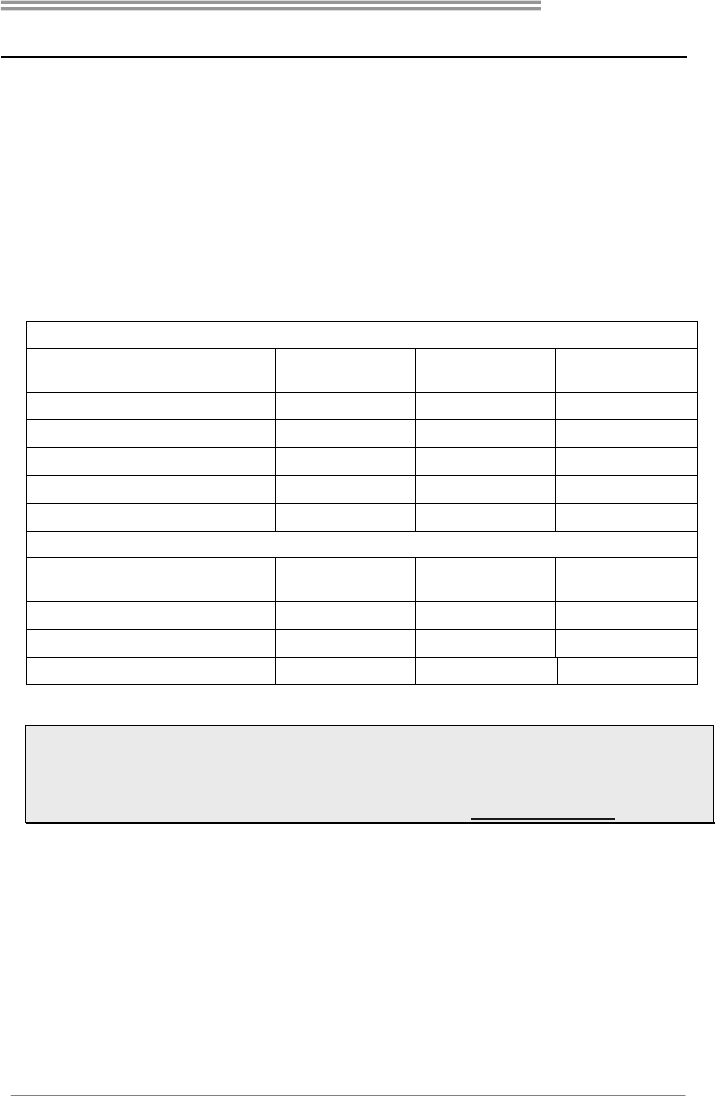
CIR1: Consumer IR Header
This header is for infrared remote control and communication.
Pin Assignment
1 IrDA serial input
2 Ground
3 Ground
4 Key
5 IrDA serial output
6 IR Power
On-Board Buttons
There are 2 on-board buttons.
SW_PWR1:
This is an on-board
Power Switch button.
SW_RST1:
This is an on-board
Reset button.
BIOS POST Code/CPU Temperature Indicator
This indicator will show POST code while booting. After the booting sequence,
it will show current CPU temperature. Please refer to Chapter 6.3 for all the
BIOS POST codes.
Hi-Fi A85W 3D
17
CHAPTER 4: AMD DUAL GRAPHICS TECHNOLOGY
4.1 AMD DUAL GRAPHICS TECHNOLOGY INTRODUCTION
When user adds a AMD PCIe display adapter, it can be integrated with IGD to
show better performance. To make the two video devices work simultaneously
and normally, please refer to the following setting.
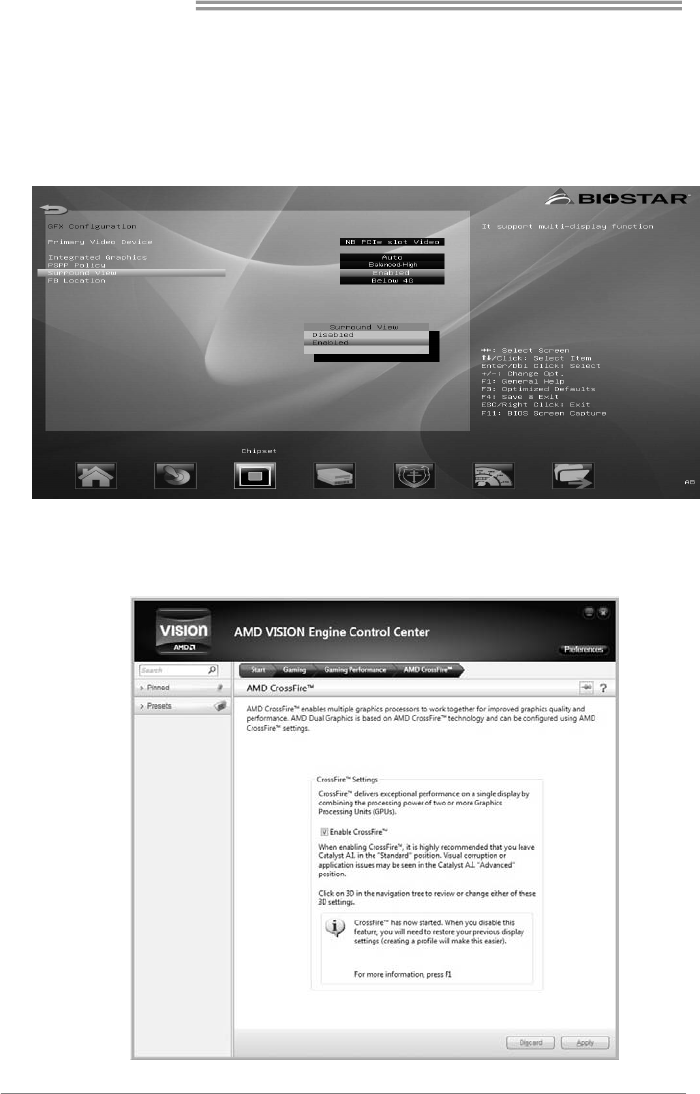
4.2 AMD DUAL GRAPHICS REQUIREMENT
Operating System: Windows Vista / Windows 7 / Windows 8
Supported Dual Graphics Combinations:
Richland APUs
AMD Radeon™ Graphics Card A10-Series
HD 8670D
A8-Series
HD8570D
A6-Series
HD 8470D
“Oland” XT, HD 8870 ● ● ●(Note2)
“Oland” Pro, HD 8850 ● ● ●
“Turks” XT, HD 6670 ● ● ●
“Turks” Pro, HD 6570 ● ● ●
“Caicos” Pro, HD 6450 ● ● ●
Trinity APUs
AMD Radeon™ Graphics Card A10-Series
HD 7660D
A8-Series
HD7560D
A6-Series
HD 7540D
“Turks” XT, HD 6670 ● ● --
“Turks” Pro, HD 6570 ● ● ●
“Caicos” Pro, HD 6450 -- -- ●
● Recommended graphics cards for AMD dual-graphics
Note 1: A4-Series CPUs do not support Dual Graphics.
Note 2: Only available for DDR3 graphics memory
Note 3: The information described above in this manual is for your reference only and the
actual information and settings on board may be different from this manual. For further AMD
Dual Graphics information, please visit the following website: http://www.amd.com
Motherboard Manual
18
4.3 AMD DUAL GRAPHICS SETUP
Step 1: Insert Dual Graphics-Ready graphics card into PEX16_1 slot.
Step 2: Set the BIOS setting as follows:
[Chipset]→[North Bridge]→[Surround View]→[Enabled]
Step 3: Install Driver DVD Chipset Driver, and reboot the system. Activate AMD
VISION Engine Control Center to make sure CrossFire has been
enabled.
Hi-Fi A85W 3D
19
CHAPTER 5: SOFTWARE & UEFI BIOS
5.1 SOFTWARE
Installing Software
1. Insert the Setup DVD to the optical drive. The driver installation program would
appear if the Auto-run function has been enabled.
2. Select Software Installation, and then click on the respective software title.
3. Follow the on-screen instructions to complete the installation.
Launching Software
After the installation process is completed, you will see the software icon showing on
the desktop. Double-click the icon to launch it.
Note1: All the information and content about following software are subject to be changed without
notice. For better performance, the software is being continuously updated.
Note2: The information and pictures described below are for your reference only. The actual
information and settings on board may be slightly different from this manual.
TOverclocker
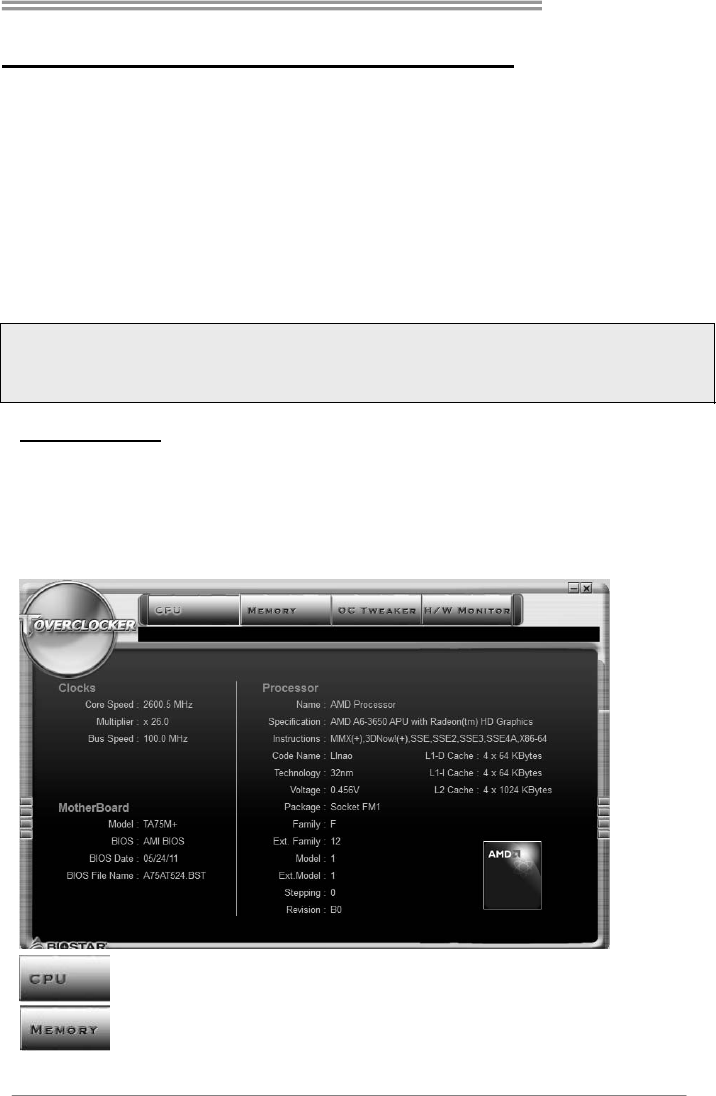
TOverclocker presents a simple Windows-based system performance enhancement
and manageability utility. It features several powerful and easy to use tools such as
Overclocking for enhancing system performance, also for special enhancement on
CPU and Memory. Smart-Fan management and PC health are for monitoring system
status. This utility also allows you to make overclocking profiles saving unlimitedly, and
pre-set OC modes are for easy OC. (The screenshots below are for reference only)
The CPU tab provides information on the CPU and motherboard.
The Memory tab provides information on the memory module(s).
You can select memory module on a specific slot to see its information.
Motherboard Manual
20
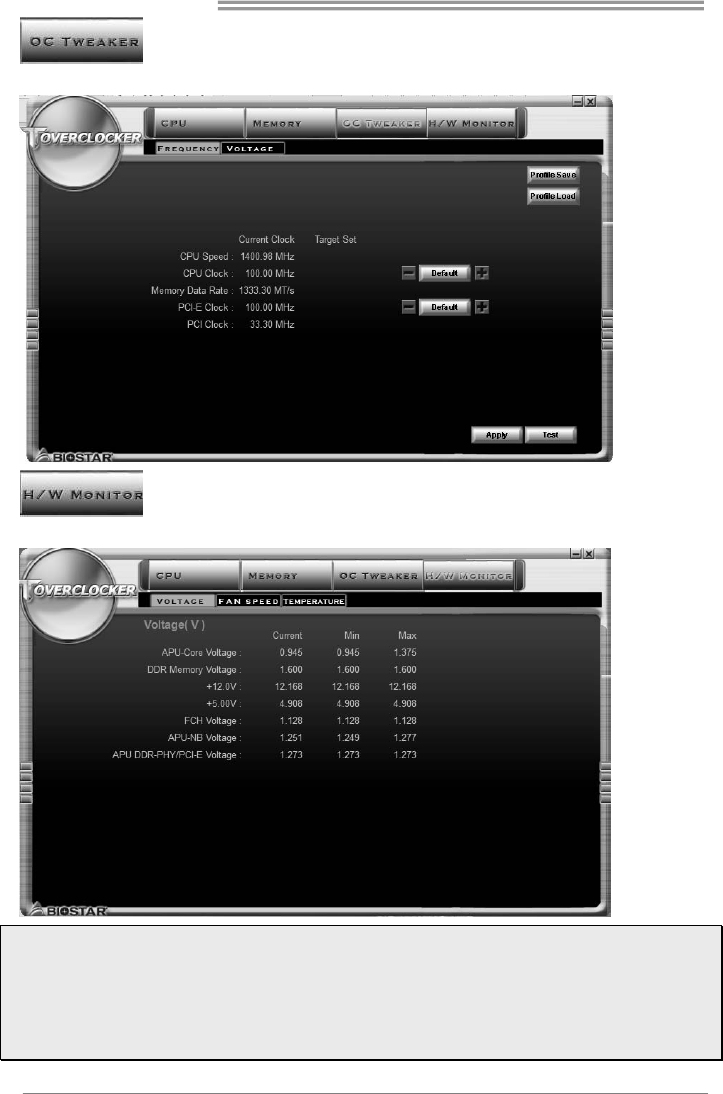
The OC Tweaker tab allows you to save or load the OC setting profiles,
change system frequency and voltage settings.
The HW Monitor tab allows you to monitor hardware voltage, fan
speed, and temperature. You can also set CPU Smart Fan function in this tab.
Note1: Not all types of CPU perform above overclock setting ideally; the difference will be based on
the selected CPU model.
Note2: Overclock is an optional process, but not a “must-do” process; it is not recommended for
inexperienced users. Therefore, we will not be responsible for any hardware damage which may be
caused by overclocking. We also would not guarantee any overclocking performance.
Note3: Press TOVERCLOCKER logo, it will display information about manufacturer and software
version. You can update latest version by clicking the “Live Update” button.
Hi-Fi A85W 3D
21
Green Power II Utility
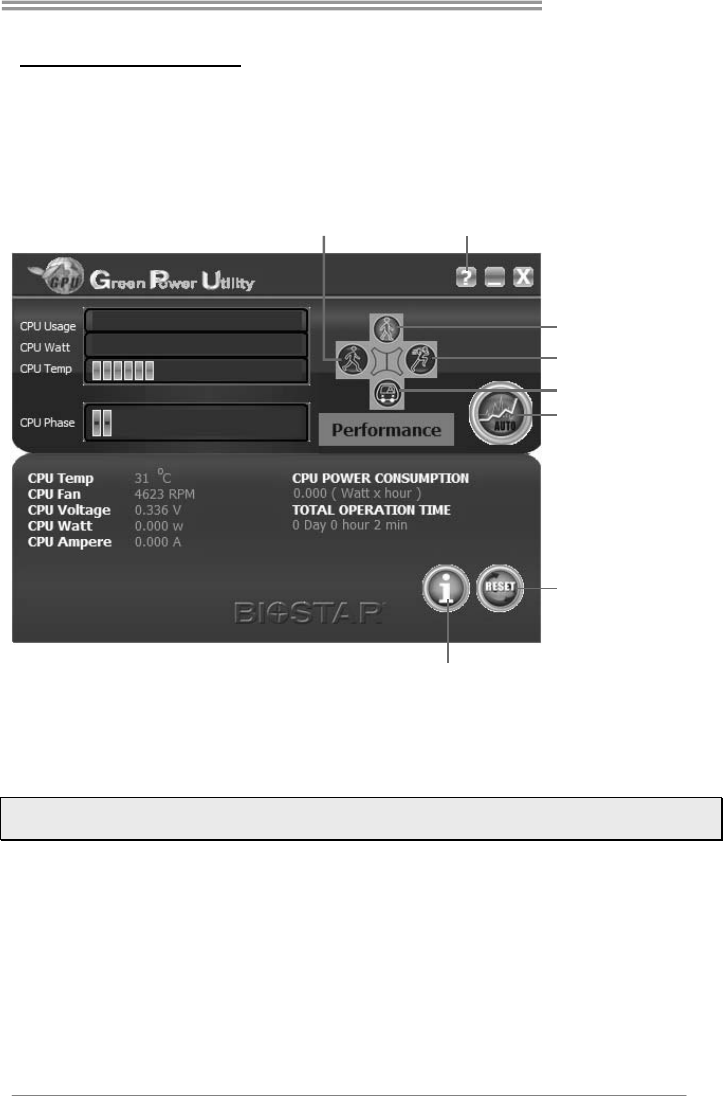
BIOSTAR G.P.U II (Green Power Utility) is a new function. The utility enhances energy
efficiency by disabling extra phases while CPU is on light loading; it features 4+1 power
phases, current power saving, and total power saving. This tool integrates a friendly
GUI to monitor your CPU Usage, CPU Watt, and CPU Temperature. Moreover, it
optimizes power saving and best power efficiency on your system. (The illustration
below is for reference only)
Display manufacturer &
software version information
Display CPU
information
Reset Time &
Consumption
Auto Phase Mode
Maxi-Energy Mode
Typical Mode
Medium Mode
Performance
Mode
G.P.U Mode Setting:
This utility provides five modes, upon your requirements, to improve system
performance or to save power consumption.
Note: Even if the modes saving more power consumption are chosen, the system still can keep
excellent performance.
z Auto Phase Mode: System switches the mode automatically according to
current system loading condition.
z Performance Mode: This is the mode saving power consumption most. Least
energy will be used in the system.
z Typical Mode: Compared with that in Performance Mode, energy
consumption in this mode is a little bit more.
z Medium Mode: The standard system power saving mode.
z Maxi-Energy Mode: The best system performance mode.
Motherboard Manual
22
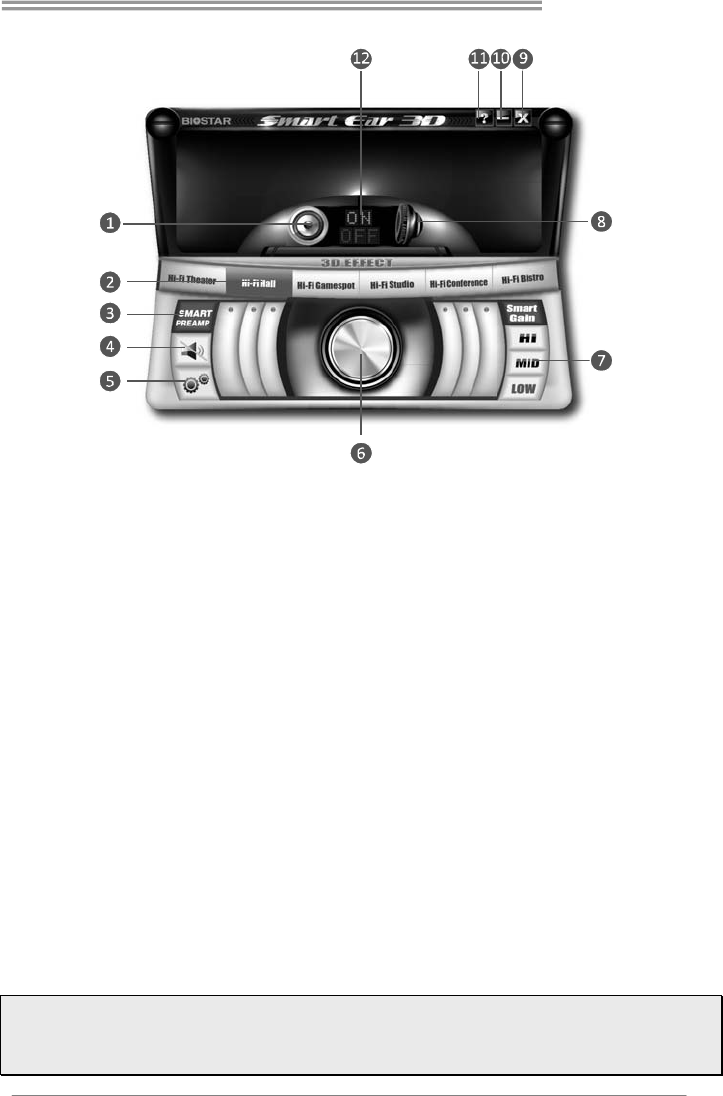
Smart EAR 3D
Hi-Fi 3D Audio Requirements:
1. A chassis with front audio output jacks
2. An earphone or a headphone
3. Speakers
4. Windows 7 or Windows 8 operation system
Installation Guide:
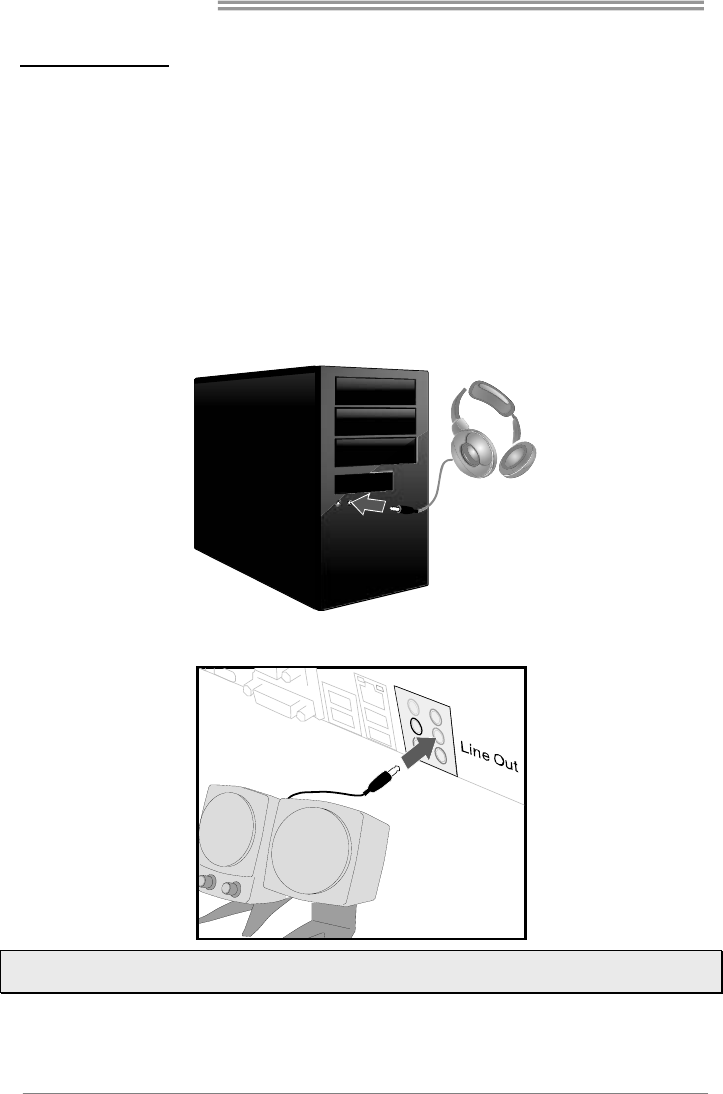
1. Make sure the front audio cable of the chassis connected to the front audio
header of the motherboard properly.
2. Install the Smart Ear 3D Utility from the driver DVD.
3. Connect the earphone or headphone to the front audio jack of the chassis for
Smart Gain and 3D Sound Field functions.
4. Connect the speakers to line out port (green color) of rear panel for Smart
PREAMP function.
Note: If you want to use an AC'97 front audio output cable, please disable the "Front Panel Jack
Detection" setting. This setting can be found via O.S. Audio Utility.
Hi-Fi A85W 3D
23
Smart EAR 3D Utility:
1. Rear Panel Audio Output Indicator: It displays a blue light when the audio
output is from rear panel “Line Out” ports.
2. 3D Sound Field Button: There are six sound environment options for achieving
realistic listening experience. It displays a blue light when the 3D Sound Field is
enabled.
3. Smart PREAMP Button: Click this switch to turn on or off the Smart PREAMP
function.
4. Mute Button: To disable system sound
5. Control Button: It allows you to set utility preference.
6. Volume Control Knob: The volume can be finely adjusted by turning the knob
either clockwise or anti-clockwise to increase or decrease system volume
accordingly.
7. Headphone Hi/Mid/Low Gain Switch: It allows you to select headphone gain
settings or you can let the software auto adjust headphone gain setting
appropriate for your headphones. The Smart Gain function will be enabled when
the 3D Sound Field Button is turned on.
8. Front Panel Audio Output Indicator: It displays a blue light when the audio
output is from front panel port.
9. Exit Button: Exit the application
10. Minimize Button: Minimize the application window to the taskbar
11. Information Button: Get information of the application
12. Smart PREAMP or Smart Gain ON/OFF Indicator: When the Rear Panel
Audio Output Indicator is lit, it shows Smart PREAMP on/off status. When the
Front Panel Audio Output Indicator is lit, it shows Smart Gain on/off status.
Note1: The 3D Sound Field function is only for front panel audio output.
Note2: The Smart PREAMP function is only for rear panel audio output.
Note3: When both rear and front panels are connected with audio devices, the default audio output
is from front panel.
Motherboard Manual
24
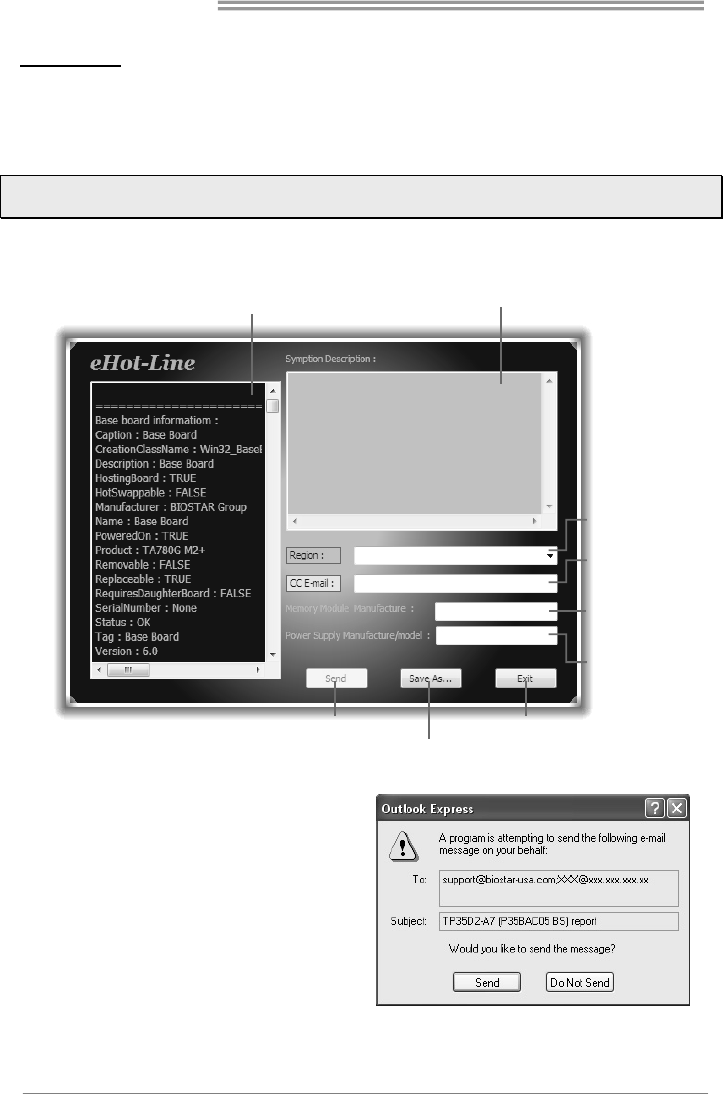
eHot-Line
eHot-Line is a convenient utility that helps you to contact with our Tech-Support system.
This utility will collect the system information which is useful for analyzing the problem
you may have encountered, and then send these information to our tech-support
department to help you fix the problem.
Note: Before you use this utility, please set Outlook Express as your default e-mail client
application program.
This block will show
the information which
would b e col lected i n
the mail.
Provide the e-mail
address that you would
like to send the copy to.
Provide the name of
the power supply
manufacturer and the
model no.
Send the mail out.
Save these information to a .txt file
Exit this dialog.
Select your area or
the area close to you.
*
Provide the name of
the memory module
manufacturer.
*
Describe condition
of your system.
*
*
represents important
in forma ti on that you
must provide. Without
this information, you may
not be able to send out
the mail.
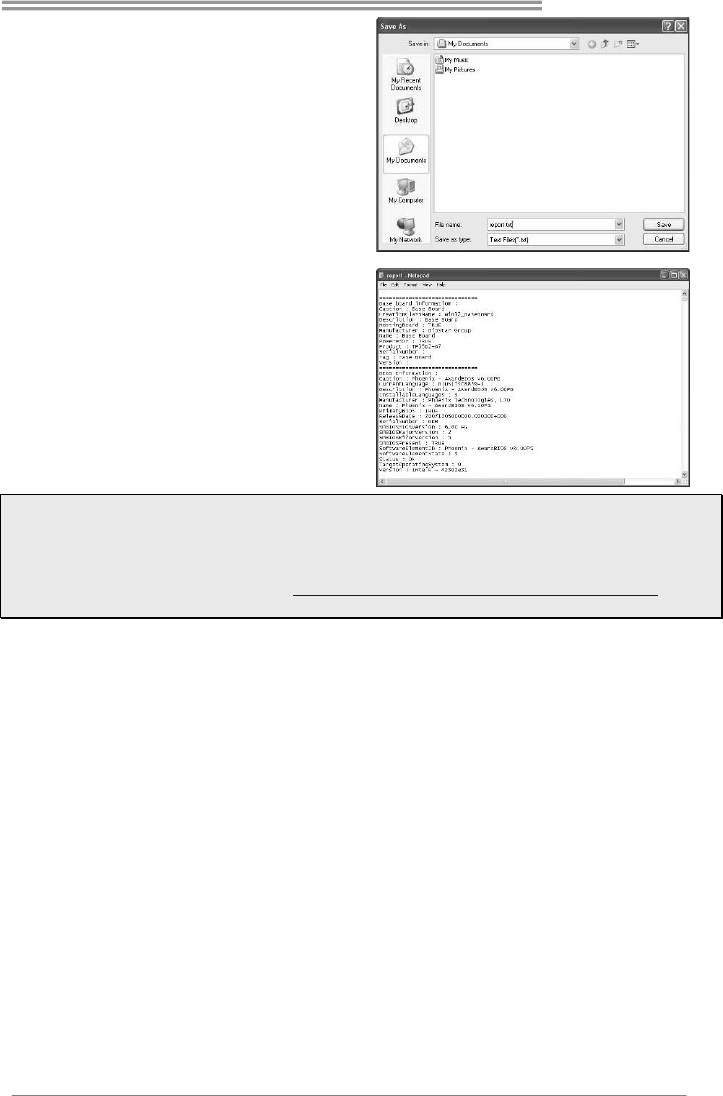
After filling up this information, click
“Send” to send the mail out. A
warning dialog would appear asking
for your confirmation; click “Send” to
confirm or “Do Not Send” to cancel.
If you want to save this information to
a .txt file, click “Save As…” and then
you will see a saving dialog appears
asking you to enter file name.
Hi-Fi A85W 3D
25
Enter the file name and then click
“Save”. Your system information will be
saved to a .txt file.
Open the saved .txt file, you will see
your system information including
motherboard/BIOS/CPU/video/
device/OS information. This
information is also concluded in the
sent mail.
Note1: We will not share customer’s data with any other third parties, so please feel free to provide
your system information while using eHot-Line service.
Note2: If you are not using Outlook Express as your default e-mail client application, you may need
to save the system information to a .txt file and send the file to our tech support with other e-mail
application. Go to the following website http://www.biostar.com.tw/app/en/about/contact.php for
getting our contact information.
Motherboard Manual
26
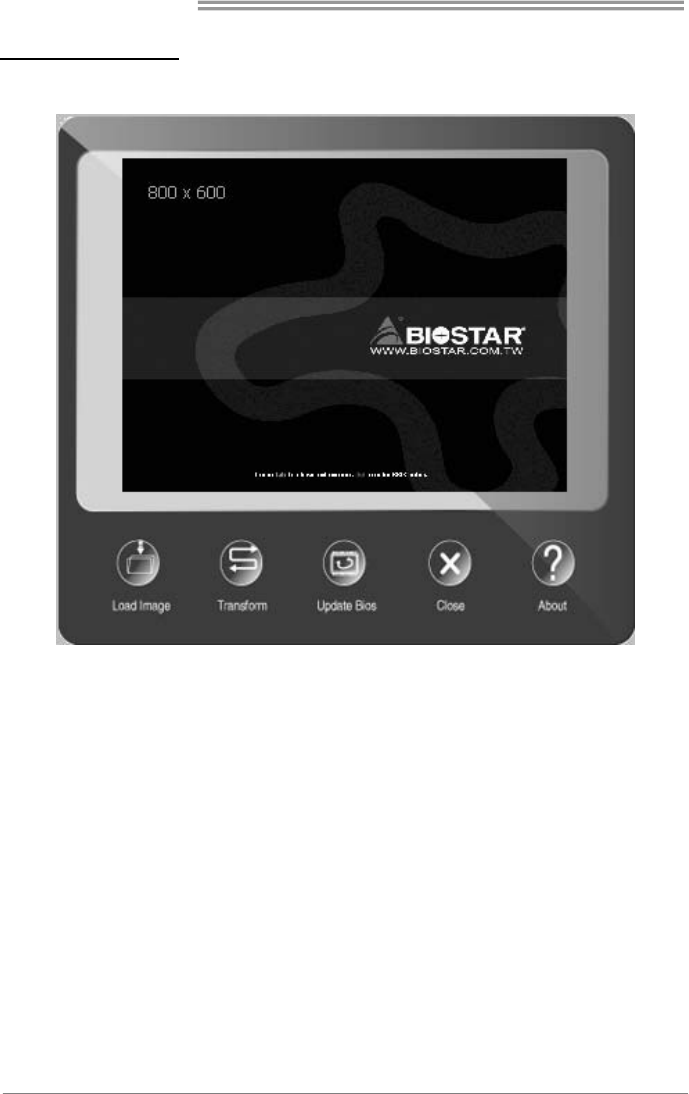
BIOScreen Utility
This utility allows you to personalize your boot logo easily. You can choose BMP as
your boot logo so as to customize your computer.
Please follow the step-by-step instructions below to update boot logo:
z Load Image:Choose the picture as the boot logo.
z Transform:Transform the picture for BIOS and preview the result.
z Update Bios:Write the picture to BIOS Memory to complete the update.
Hi-Fi A85W 3D
27
5.2 UEFI BIOS SETUP
z The BIOS Setup program can be used to view and change the BIOS
settings for the computer. The BIOS Setup program is accessed by pressing
the <DEL> key after the Power-On Self-Test (POST) memory test begins
and before the operating system boot begins.
z For further information of setting up the UEFI BIOS, please refer to the UEFI
BIOS Manual in the Setup DVD.
5.3 BIOS UPDATE
The BIOS can be updated using either of the following utilities:
z BIOSTAR BIOS Flasher: Using this utility, the BIOS can be updated from a
file on a hard disk, a USB drive (a flash drive or a USB hard drive), or a
CD-ROM.
z BIOSTAR BIOS Update Utility: It enables automated updating while in the
Windows environment. Using this utility, the BIOS can be updated from a file
on a hard disk, a USB drive (a flash drive or a USB hard drive), or a
CD-ROM, or from the file location on the Web.
BIOSTAR BIOS Flasher
BIOSTAR BIOS Flasher is a BIOS flashing utility providing you an easy and simple
way to update your BIOS via USB pen drive.
Note1: This utility only allows storage device with FAT32/16 format and single partition.
Note2: Shutting down or resetting the system while updating the BIOS will lead to system boot
failure.
Updating BIOS with BIOSTAR BIOS Flasher
1. Go to the website to download the latest BIOS file for the motherboard.
2. Then, copy and save the BIOS file into a USB flash (pen) drive.
3. Insert the USB pen drive that contains the BIOS file to the USB port.
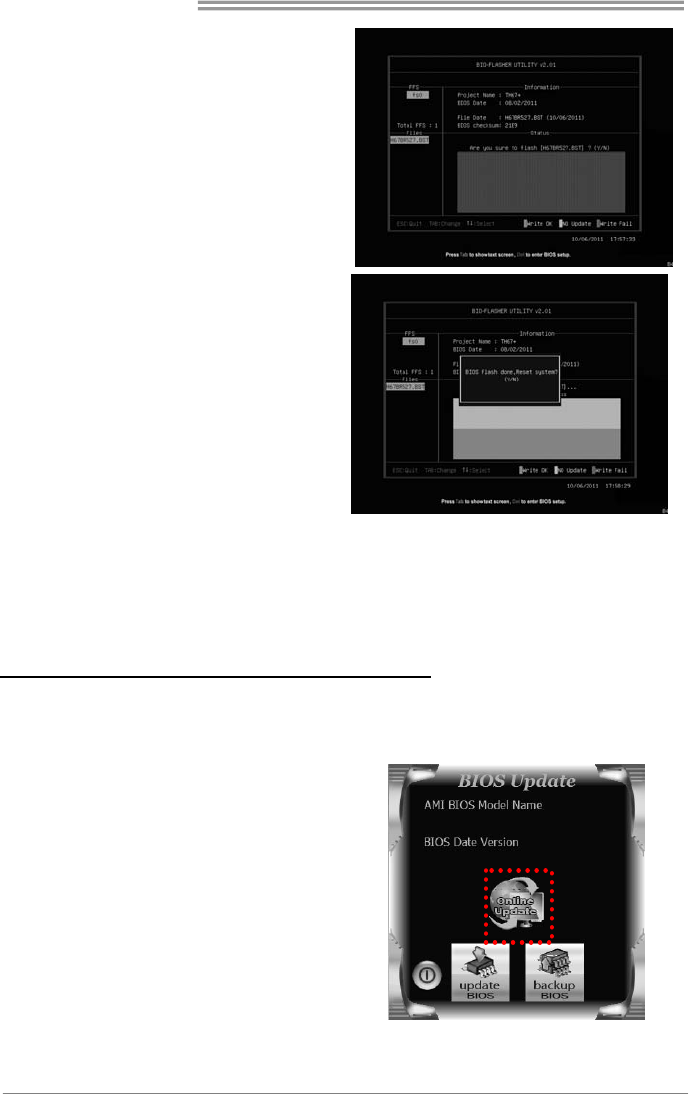
4. Power on or reset the computer and then press <F12> during the POST process.
5. After entering the POST screen,
the BIOS-FLASHER utility pops
out. Choose [fs0] to search for the
BIOS file.
Motherboard Manual
28
6. Select the proper BIOS file, and a
message asking if you are sure to
flash the BIOS file. Click Yes to
start updating BIOS.
7. A dialog pops out after BIOS flash
is completed, asking you to restart
the system. Press the [Y] key to
restart system.
8. While the system boots up and the full screen logo shows up, press <DEL> key to
enter BIOS setup.
After entering the BIOS setup, please go to the Save & Exit, using the Restore
Defaults function to load Optimized Defaults, and select Save Changes and
Reset to restart the computer. Then, the BIOS Update is completed.
BIOS Update Utility (through the Internet)
1. Installing BIOS Update Utility from the DVD Driver.
2. Please make sure the system is connected to the internet before using this
function.
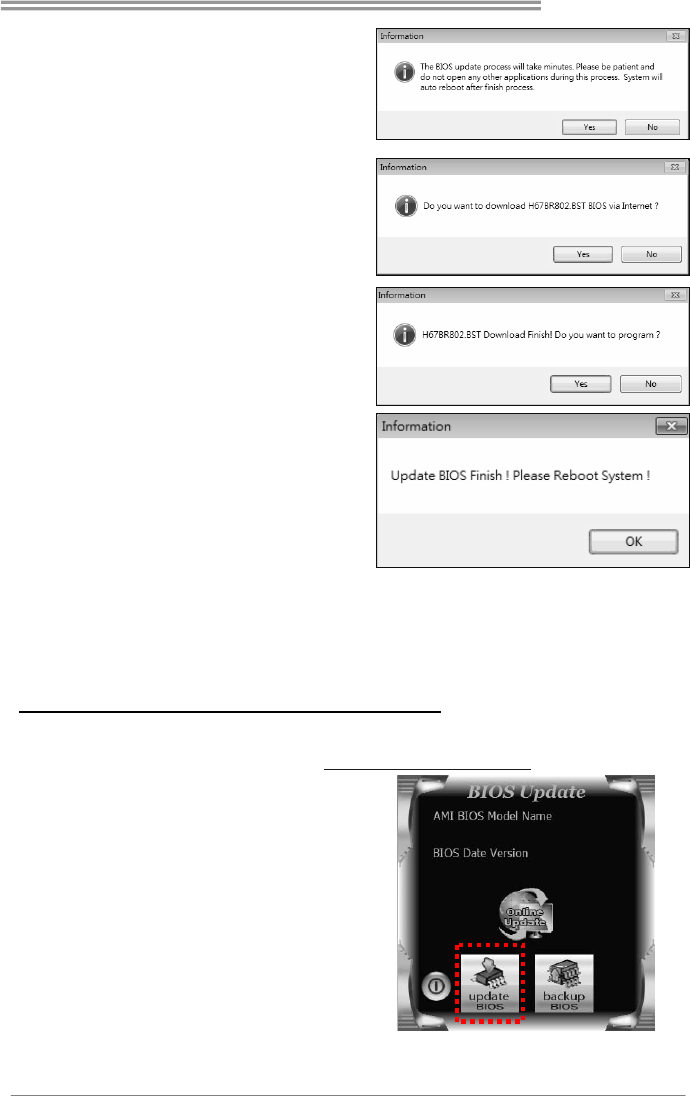
3. Launch BIOS Update Utility and
click the Online Update button on
the main screen.
Hi-Fi A85W 3D
29
4. An open dialog will show up to
request your agreement to start the
BIOS update. Click Yes to start the
online update procedure.
5. If there is a new BIOS version, the
utility will ask you to download it.
Click Yes to proceed.
6. After the download is completed,
you will be asked to program
(update) the BIOS or not. Click Yes
to proceed.
7. After the updating process is
finished, you will be asked you to
reboot the system. Click OK to
reboot.
8. While the system boots up and the full screen logo shows up, press <DEL> key
to enter BIOS setup.
After entering the BIOS setup, please go to the Save & Exit, using the Restore
Defaults function to load Optimized Defaults, and select Save Changes and
Reset to restart the computer. Then, the BIOS Update is completed.
BIOS Update Utility (through a BIOS file)
1. Installing BIOS Update Utility from the DVD Driver.
2. Download the proper BIOS from http://www.biostar.com.tw/
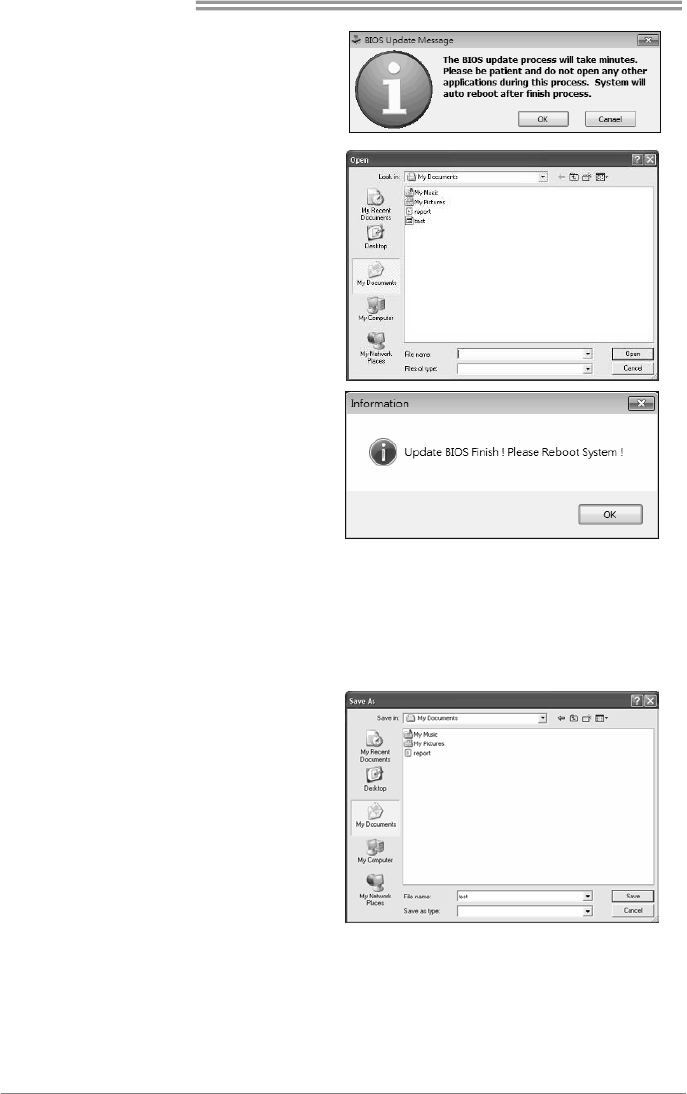
3. Launch BIOS Update Utility and
click the Update BIOS button on
the main screen.
Motherboard Manual
30
4. A warning message will show up
to request your agreement to start
the BIOS update. Click OK to start
the update procedure.
5. Choose the location for your BIOS
file in the system. Please select
the proper BIOS file, and then
click on Open. It will take several
minutes, please be patient.
6. After the BIOS Update process is
finished, click on OK to reboot the
system.
7. While the system boots up and the full screen logo shows up, press <DEL> key
to enter BIOS setup.
After entering the BIOS setup, please go to the Save & Exit, using the Restore
Defaults function to load Optimized Defaults, and select Save Changes and
Reset to restart the computer. Then, the BIOS Update is completed.
Backup BIOS
Click the Backup BIOS button on
the main screen for the backup of
BIOS, and select a proper location
for your backup BIOS file in the
system, and click Save.
Hi-Fi A85W 3D
31
CHAPTER 6: USEFUL HELP
6.1 DRIVER INSTALLATION NOTE
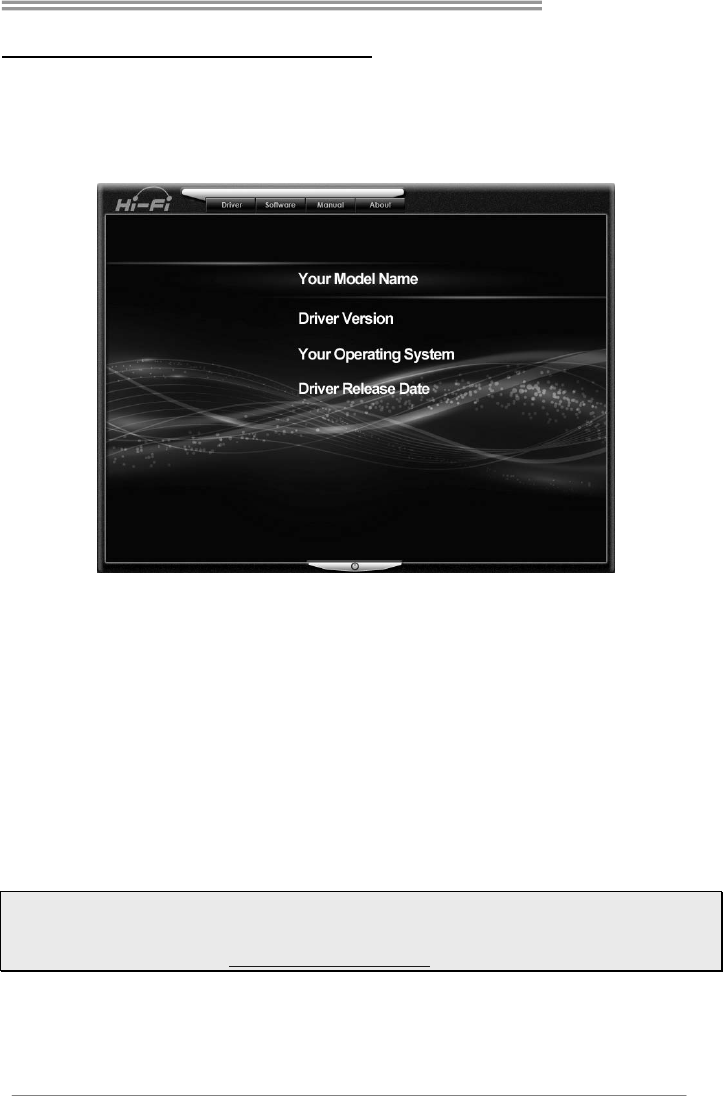
After you installed your operating system, please insert the Fully Setup Driver
DVD into your optical drive and install the driver for better system performance.
You will see the following window after you insert the DVD
The setup guide will auto detect your motherboard and operating system.
A. Driver Installation
To install the driver, please click on the Driver icon. The setup guide will list the
compatible driver for your motherboard and operating system. Click on each
device driver to launch the installation program.
B. Software Installation
To install the software, please click on the Software icon. The setup guide will list
the software available for your system, click on each software title to launch the
installation program.
C. Manual
Aside from the paperback manual, we also provide manual in the Driver DVD.
Click on the Manual icon to browse for available manual.
Note1: If this window didn’t show up after you insert the Driver DVD, please use file browser to
locate and execute the file SETUP.EXE under your optical drive.
Note2: You will need Acrobat Reader to open the manual file. Please download the latest version of
Acrobat Reader software from http://get.adobe.com/reader/
Motherboard Manual
32
6.2 AMI BIOS BEEP CODE
Boot Block Beep Codes
Number of Beeps Description
Continuing Memory sizing error or Memory module not found
POST BIOS Beep Codes
Number of Beeps Description
1 Success booting.
8 Display memory error (system video adapter)
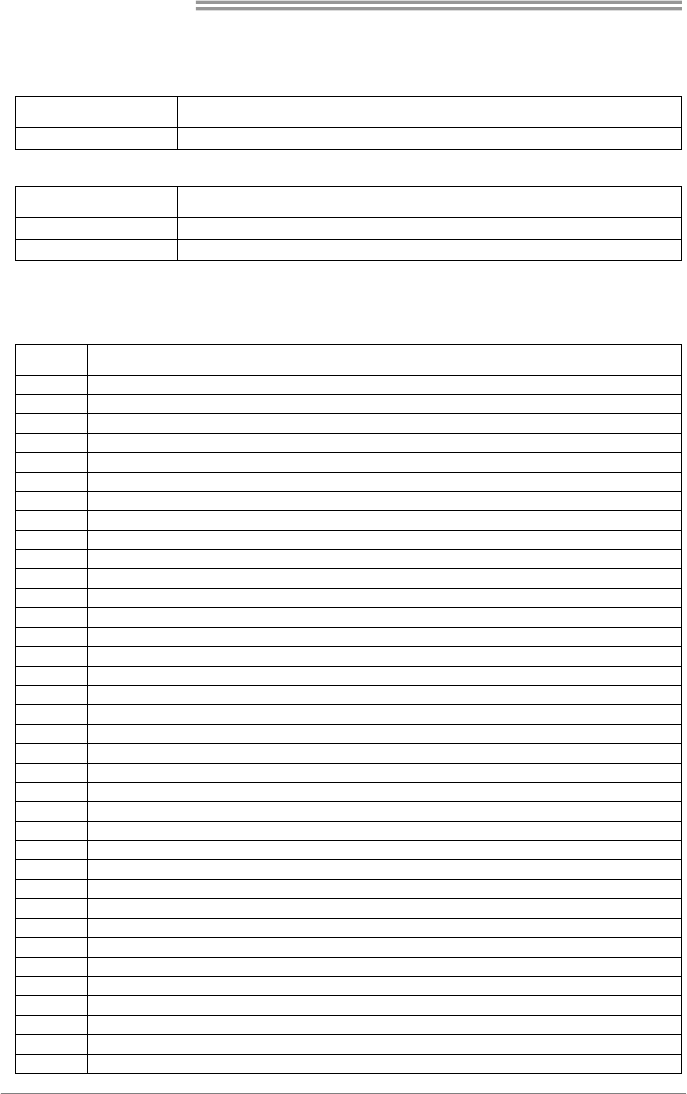
6.3 AMI BIOS POST CODE
Code Description
10 PEI Core is started
11 Pre-memory CPU initialization is started
15 Pre-memory North Bridge initialization is started
19 Pre-memory South Bridge initialization is started
2B Memory initialization. Serial Presence Detect (SPD) data reading
2C Memory initialization. Memory presence detection
2D Memory initialization. Programming memory timing information
2E Memory initialization. Configuring memory
2F Memory initialization (other).
31 Memory Installed
32 CPU post-memory initialization is started
33 CPU post-memory initialization. Cache initialization
34 CPU post-memory initialization. Application Processor(s) (AP) initialization
35 CPU post-memory initialization. Boot Strap Processor (BSP) selection
36 CPU post-memory initialization. System Management Mode (SMM) initialization
37 Post-Memory North Bridge initialization is started
3B Post-Memory North Bridge initialization (North Bridge module specific)
4F DXE IPL is started
60 DXE Core is started
F0 Recovery condition triggered by firmware (Auto recovery)
F1 Recovery condition triggered by user (Forced recovery)
F2 Recovery process started
F3 Recovery firmware image is found
F4 Recovery firmware image is loaded
E0 S3 Resume is stared (S3 Resume PPI is called by the DXE IPL)
E1 S3 Boot Script execution
E2 Video repost
E3 OS S3 wake vector call
60 DXE Core is started
61 NVRAM initialization
62 Installation of the South Bridge Runtime Services
63 CPU DXE initialization is started
68 PCI host bridge initialization
69 North Bridge DXE initialization is started
6A North Bridge DXE SMM initialization is started
70 South Bridge DXE initialization is started

Hi-Fi A85W 3D
33
Code Description
71 South Bridge DXE SMM initialization is started
72 South Bridge devices initialization
78 South Bridge DXE Initialization (South Bridge module specific)
79 ACPI module initialization
90 Boot Device Selection (BDS) phase is started
91 Driver connecting is started
92 PCI Bus initialization is started
93 PCI Bus Hot Plug Controller Initialization
94 PCI Bus Enumeration
95 PCI Bus Request Resources
96 PCI Bus Assign Resources
97 Console Output devices connect
98 Console input devices connect
99 Super IO Initialization
9A USB initialization is started
9B USB Reset
9C USB Detect
9D USB Enable
A0 IDE initialization is started
A1 IDE Reset
A2 IDE Detect
A3 IDE Enable
A4 SCSI initialization is started
A5 SCSI Reset
A6 SCSI Detect
A7 SCSI Enable
A8 Setup Verifying Password
A9 Start of Setup
AB Setup Input Wait
AD Ready To Boot event
AE Legacy Boot event
AF Exit Boot Services event
B0 Runtime Set Virtual Address MAP Begin
B1 Runtime Set Virtual Address MAP End
B2 Legacy Option ROM Initialization
B3 System Reset
B4 USB hot plug
B5 PCI bus hot plug
B6 Clean-up of NVRAM
B7 Configuration Reset (reset of NVRAM settings)

Motherboard Manual
34
6.4 TROUBLESHOOTING
Probable Solution
1. There is no power in the system.
Power LED does not shine; the
fan of the power supply does not
work
2. Indicator light on keyboard does
not shine.
1. Make sure power cable is
securely plugged in.
2. Replace cable.
3. Contact technical support.
System is inoperative. Keyboard lights
are on, power indicator lights are lit,
and hard drives are running.
Using even pressure on both ends of
the DIMM, press down firmly until the
module snaps into place.
System does not boot from a hard disk
drive, but can be booted from optical
drive.
1. Check cable running from disk to
disk controller board. Make sure
both ends are securely plugged
in; check the drive type in the
standard CMOS setup.
2. Backing up the hard drive is
extremely important. All hard
disks are capable of breaking
down at any time.
System only boots from an optical
drive. Hard disks can be read,
applications can be used, but system
fails to boot from a hard disk.
1. Back up data and applications
files.
2. Reformat the hard drive.
Re-install applications and data
using backup disks.
Screen message shows “Invalid
Configuration” or “CMOS Failure.”
Review system’s equipment. Make sure
correct information is in setup.
System cannot boot after user installs a
second hard drive.
1. Set master/slave jumpers
correctly.
2. Run SETUP program and select
correct drive types. Call the drive
manufacturers for compatibility
with other drives.

Hi-Fi A85W 3D
35
CPU Overheated
If the system shutdown automatically after power on system for seconds, that
means the CPU protection function has been activated.
When the CPU is over heated, the motherboard will shutdown automatically to
avoid a damage of the CPU, and the system may not power on again.
In this case, please double check:
1. The CPU cooler surface is placed evenly with the CPU surface.
2. CPU fan is rotated normally.
3. CPU fan speed is fulfilling with the CPU speed.
After confirmed, please follow steps below to relief the CPU protection
function.
1. Remove the power cord from power supply for seconds.
2. Wait for seconds.
3. Plug in the power cord and boot up the system.
Or you can:
1. Clear the CMOS data.
(See “Close CMOS Header: JCMOS1” section)
2. Wait for seconds.
3. Power on the system again.
Motherboard Manual
36
6.5 RAID DEFINITIONS
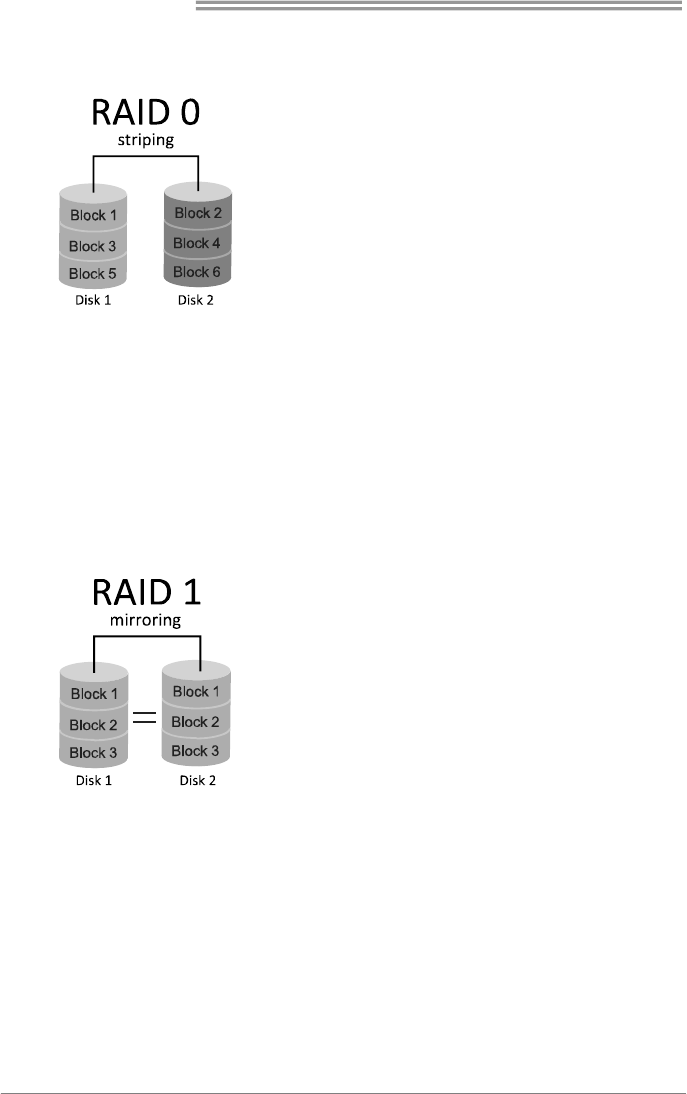
RAID 0:
In a RAID 0 system data are split up in blocks that get
written across all the drives in the array. By using multiple
disks (at least 2) at the same time, this offers superior I/O
performance. This performance can be enhanced further
by using multiple controllers, ideally one controller per
disk.
Features and Benefits
Drives: Minimum 2, and maximum is up to 6 or 8. Depending on the platform.
Uses: Intended for non-critical data requiring high data throughput, or any
environment that does not require fault tolerance.
Benefits: provides increased data throughput, especially for large files. No capacity
loss penalty for parity.
Drawbacks: Does not deliver any fault tolerance. If any drive in the array fails, all data
is lost.
Fault Tolerance: No.
Total Capacity: (Minimal. HDD Capacity) x (Connected HDDs Amount)
RAID 1:
Data are stored twice by writing them to both the data
disk (or set of data disks) and a mirror disk (or set of
disks). If a disk fails, the controller uses either the data
drive or the mirror drive for data recovery and continues
operation. You need at least 2 disks for a RAID 1 array.
Features and Benefits
Drives: Minimum 2, and maximum is 2.
Uses: RAID 1 is ideal for small databases or any other application that requires fault
tolerance and minimal capacity.
Benefits: Provides 100% data redundancy. Should one drive fail, the controller
switches to the other drive.
Drawbacks: Requires 2 drives for the storage space of one drive. Performance is
impaired during drive rebuilds.
Fault Tolerance: Yes.
Hi-Fi A85W 3D
37
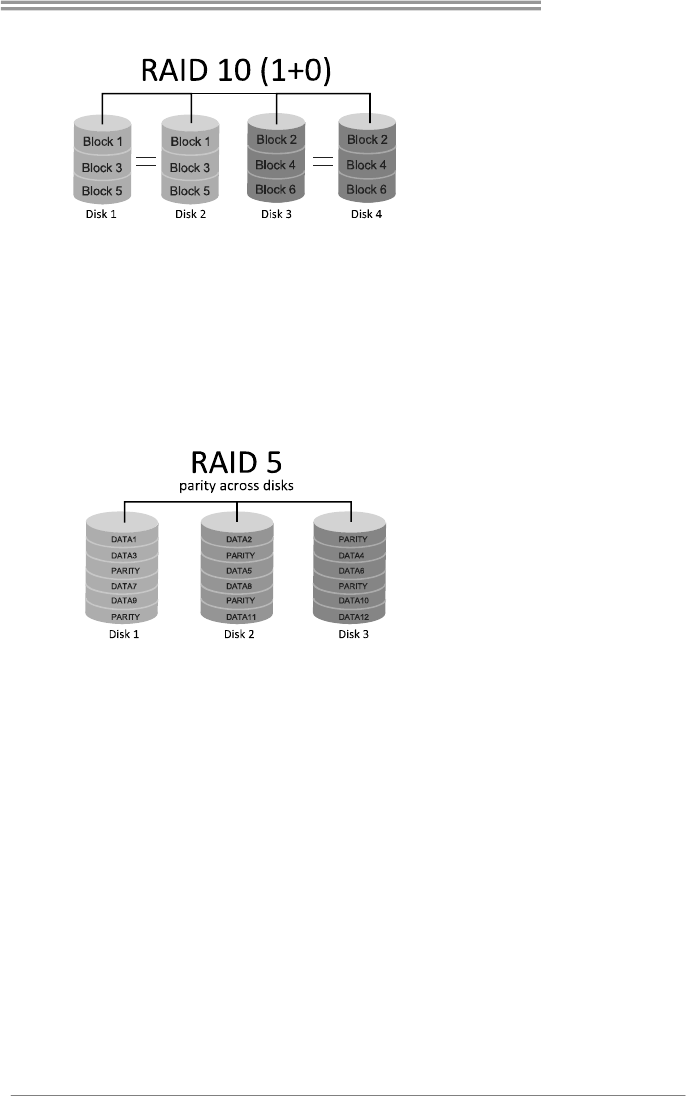
RAID 10:
RAID 10 combines the advantages (and
disadvantages) of RAID 0 and RAID 1 in
one single system. It provides security
by mirroring all data on a secondary set
of disks (disk 3 and 4 in the drawing
below) while using striping across each
set of disks to speed up data transfers.
Features and Benefits
Drives: Minimum 4, and maximum is 6 or 8, depending on the platform.
Benefits: Optimizes for both fault tolerance and performance, allowing for automatic
redundancy. May be simultaneously used with other RAID levels in an array, and
allows for spare disks.
Drawbacks: Requires twice the available disk space for data redundancy, the same
as RAID level 1.
Fault Tolerance: Yes.
RAID 5:
A RAID 5 array can withstand a single
disk failure without losing data or access
to data. Although RAID 5 can be
achieved in software, a hardware
controller is recommended. Often extra
cache memory is used on these
controllers to improve the write
performance.
Features and Benefits
Drives: Minimum 3.
Uses: RAID 5 is recommended for transaction processing and general purpose
service.
Benefits: An ideal combination of good performance, good fault tolerance, and high
capacity and storage efficiency.
Drawbacks: Individual block data transfer rate same as a single disk. Write
performance can be CPU intensive.
Fault Tolerance: Ye s .
Motherboard Manual
38
APPENDIX: SPEC IN OTHER LANGUAGES
ARABIC
تﺎﻔﺻاﻮﻤﻟا
ةﺪﺣو ةﺪﻋﺎﻗﺔﻳﺰآﺮﻤﻟا ﺔﺠﻟﺎﻌﻤﻟا
ﺬﺧﺄﻤﻟاFM 2 ىد مإ ﻪﻳا ﺞﻟﺎﻌﻤﻟ AMD ﻞﺴﻠﺴﺗ A / ﻞﺴﻠﺴﺗE 2
ﺞﻟﺎﻌﻤﻟا ﻢﻴﻤﺼﺗ ﻲﻓ ﺔﻳراﺮﺤﻟا ﺔﻗﺎﻄﻠﻟ ﻰﺼﻗﻷا ﺪﺤﻟا )TDP – thermal design power :( 100طاو .
*ﻊﻗﻮﻤﻟا ﻰﻟإ عﻮﺟﺮﻟا ﻰﺟﺮﻳwww.biostar.com.tw ﺞﻟﺎﻌﻤﻟا ﻢﻋد ﺔﻤﺋﺎﻘﻟ CPU.
ﺢﺋاﺮﺸﻟا ﺔﻋﻮﻤﺠﻣ ﻪﻳا ىد مإAMD A85 FCH
ةﺮآاﺬﻟا
يد ﺔﺟودﺰﻣ ةﺎﻨﻗ ﻢﻋﺪﺗ .يد .را .DDR3 800 / 1066 / 1333 / 1600 / 1866 /2133(oc)2400/
4x يد .يد .را .DDR3 ﺔﺟودﺰﻤﻟا ةﺮآاﺬﻟا تﺎﺤﺘﻓDIMM ﻰﺼﻗأ ﺪﺤآ ﻞﻤﺤﺘﺗ ،64ةﺮآاذ ﺖﻳﺎﺑﺎﺠﻴﺟ
ﺔﺟودﺰﻣ ﺔﺤﺘﻓ ﻞآ DIMM نود ﻞﻤﺤﺘﺗ ECC 512 ﺖﻳﺎﺑ ﺎﺠﻴﻣ /1/2/4/8/16يد ﺖﻳﺎﺑﺎﺠﻴﺟ .يد . راDDR3
*ﻊﻗﻮﻤﻟا ﻰﻟإ عﻮﺟﺮﻟا ﻰﺟﺮﻳwww.biostar.com.tw ةﺮآاﺬﻟا ﻢﻋد ﺔﻤﺋﺎﻘﻟ.
ﻦﻳﺰﺨﺘﻟا
ىد مإ ﻪﻳاAMD A85 FCH:
ﺔﻠﺻو8x ﺎﺗﺎﺳ SATA 6 ﺖﻳﺎﺑ ﺎﺠﻴﺟ /ﺔﻴﻧﺎﺜﻟا
ﺪﻳار ﻞﻤﺤﺘﺗRAID 0 / 1 / 5 / 10
ﺔﻴﻠﺤﻣ ﺔﻜﺒﺷLAN
ل تر ﻚﻴﺘﻟﺎﻴﻳرRTL 8111 G REALTEK
10 / 100 / 1000 ﺖﻳﺎﺑﺎﺠﻴﻣ / ﻒﺼﻨﻟا ، ﻲﺋﺎﻘﻠﺗ ﺪﻳﺪﺤﺗ ، ﺔﻴﻧﺎﺜﻟا /ﺔﺟودﺰﻤﻟا ىﻮﺼﻘﻟا ةرﺪﻘﻟا
ﻲﺗﻮﺼﻟا ﺰﻴﻣﺮﺘﻟا
ALC892
7.1ﺔﻗﺪﻟا ﺔﻴﻟﺎﻋ تاﻮﻨﻗ , Biostar Hi-Fi 3D
مﺎﻋ ﻞﺴﻠﺴﺘﻣ ﻞﻗﺎﻧUSB
ﺬﻓﺎﻨﻣ 4 x مﺎﻋ ﻞﺴﻠﺴﺘﻣ ﻞﻗﺎﻧ USB 3.0 ) 2 و ﺔﻴﻔﻠﺨﻟا جرﺎﺨﻤﻟاو ﻞﺧاﺪﻤﻟا ﻲﻓ2 ﻼﺧ ﻦﻣ ﻲﻠﺧاﺪﻟا عزﻮﻤﻟا ل(
ﺬﻓﺎﻨﻣ 8 x مﺎﻋ ﻞﺴﻠﺴﺘﻣ ﻞﻗﺎﻧ USB 2.0 ) 4 و ﺔﻴﻔﻠﺨﻟا جرﺎﺨﻤﻟاو ﻞﺧاﺪﻤﻟا ﻲﻓ4 ﻲﻠﺧاﺪﻟا عزﻮﻤﻟا لﻼﺧ ﻦﻣ(
ﻊﺳﻮﺘﻟا تﺎﺤﺘﻓ
2 x ﺔﻴﻓﺎﺿﻹا تﺎﻘﺤﻠﻤﻟا ﺬﻔﻨﻣ ﺔﺤﺘﻓ PCI
2 x ﺔﻴﻓﺎﺿﻹا تﺎﻘﺤﻠﻤﻟا ﺬﻔﻨﻣ ﺔﺤﺘﻓ PCIe 2.0 x 1
2 xﺎﺿﻹا تﺎﻘﺤﻠﻤﻟا ﺬﻔﻨﻣ ﺔﺤﺘﻓ ﺔﻴﻓPCIe 2.0x 16 (x16, x4)
ﺔﻴﻔﻠﺨﻟا جرﺎﺨﻤﻟاو ﻞﺧاﺪﻤﻟا
1 x PS/2ﺮﺗﻮﻴﺒﻤﻜﻠﻟ ﺢﻴﺗﺎﻔﻤﻟا ﺔﺣﻮﻟ /ةرﺎﻔﻟا
دﺪﻋ ﻞﻴﺻﻮﺗ ﺔﺤﺘﻓ1 x HDMI حﻮﺿﻮﻟا ﻲﻟﺎﻌﻟا دﺪﻌﺘﻣ ﻂﻴﺳو
دﺪﻋ ﻞﻴﺻﻮﺗ ﺔﺤﺘﻓ1 x ﻲﺋﺮﻤﻟا ضﺮﻌﻟا ﺔﻣﻮﻈﻨﻣVGA
دﺪﻋ ﻞﻴﺻﻮﺗ ﺔﺤﺘﻓ1 x ﺔﻴﻤﻗر ﺔﻴﺋﺮﻣ ﺔﻬﺟاو DVI
ﺤﺘﻓ دﺪﻋ ﻞﻴﺻﻮﺘﻟ ﺔ1 x ﺔﻴﻠﺤﻤﻟا ﺔﻜﺒﺸﻟاLAN
دﺪﻋ ﻞﻴﺻﻮﺗ ﺔﺤﺘﻓ4 x مﺎﻋ ﻞﺴﻠﺴﺘﻣ ﻞﻗﺎﻧUSB 2.0
دﺪﻋ ﻞﻴﺻﻮﺗ ﺔﺤﺘﻓ2 x مﺎﻋ ﻞﺴﻠﺴﺘﻣ ﻞﻗﺎﻧUSB 3.0
دﺪﻋ ﻞﻴﺻﻮﺗ ﺔﺤﺘﻓ6 xتﻮﺼﻠﻟ كﺎﺟ
Hi-Fi A85W 3D
39
تﺎﻔﺻاﻮﻤﻟا
ﺔﻴﻠﺧاﺪﻟا جرﺎﺨﻤﻟاو ﻞﺧاﺪﻤﻟا
ﺔﻠﺻو8 x SATA 6 ﺖﻳﺎﺑﺎﺠﻴﺟ /ﺔﻴﻧﺎﺜﻟا
عزﻮﻣ2x مﺎﻋ ﻞﺴﻠﺴﺘﻣ ﻞﻗﺎﻧ USB 2.0 ) مﺎﻋ ﻞﺴﻠﺴﺘﻣ ﻞﻗﺎﻧ ﻦﻴﺘﺤﺘﻓ ﻞﻤﺤﺘﻳ عزﻮﻣ ﻞآUSB 2.0(
عزﻮﻣ1x مﺎﻋ ﻞﺴﻠﺴﺘﻣ ﻞﻗﺎﻧUSB 3.0 ) مﺎﻋ ﻞﺴﻠﺴﺘﻣ ﻞﻗﺎﻧ ﻦﻴﺘﺤﺘﻓ ﻞﻤﺤﺘﻳ عزﻮﻣ ﻞآUSB 3.0(
ﺔﻗﺎﻄﻠﻟ ﺔﻠﺻو 1 x 4 ﺲﻴﺑﺎﺑد
ﺔﻗﺎﻄﻠﻟ ﺔﻠﺻو1x 24 سﻮﺑد
ﺔﻠﺻو1 x ةﺪﺣو ﺪﻳﺮﺒﺗ ﺔﺣوﺮﻣﺔﻳﺰآﺮﻤﻟا ﺔﺠﻟﺎﻌﻤﻟا
ﺔﻠﺻو2x ﺔﻣﻮﻈﻨﻤﻟا ﺪﻳﺮﺒﺗ حواﺮﻣ
عزﻮﻣ1 x ﺔﻴﻣﺎﻣﻷا ﺔﺣﻮﻠﻟا
عزﻮﻣ1x ﻲﻣﺎﻣﻷا تﻮﺼﻟا
عزﻮﻣ1x ﺮﺷﺎﺒﻣ سﻮﻤﻴﺳ
عزﻮﻣ1 x ﻚﻠﻬﺘﺴﻣIR
عزﻮﻣ1x ﺔﻴﻠﺴﻠﺴﺗ ﺔﺤﺘﻓ
ﺔﻠﺻو1x ﺔﻴﺟرﺎﺧS/PDIF ﺔﻴﻤﻗﺮﻟا ﺔﻬﺟاﻮﻟا ﺲﺒﻴﻠﻴﻓ ﻲﻧﻮﺳ
ﻞﻜﺸﻟا ﻞﻣﺎﻋ ﻟا دﺪﻣ ﻞﻜﺷ ﻞﻣﺎﻋ ﺔﻣﺪﻘﺘﻤﻟا ﺎﻴﺟﻮﻟﻮﻨﻜﺘATX ، 305 ﻢﻣx 235 ﻢﻣ
ﺔﻣﻮﻋﺪﻤﻟا ﻞﻴﻐﺸﺘﻟا ﺔﻤﻈﻧأ
ﻲﺑ ﺲآإ زوﺪﻨﻳوwindows xp / ﺎﺘﺴﻴﻓ زوﺪﻨﻳو / زوﺪﻨﻳو7 / زوﺪﻨﻳو8
رﺎﺘﺳﻮﻴﺑBIOSTARرﺎﻈﻧأ نوﺪﺑ وأ ﻊﻣ ﻞﻴﻐﺸﺗ مﺎﻈﻧ يﻷ ﻢﻋﺪﻟا ﺔﻟزأ وأ ﺔﻓﺎﺿإ ﻖﺤﺑ ﻆﻔﺘﺤﺗ .

Motherboard Manual
40
FRENCH
Spécifications
Support Unité
Centrale
Interface de connexion FM2 pour série A AMD/processeur série E2
Enveloppe thermique Unité Centrale maximum : 100Watt
* Veuillez vous reporter à www.biostar.com.tw pour la liste des supports modèles d'Unité
Centrale.
Jeu de puces AMD A85 FCH
Mémoire
Supporte mémoire DDR3 double canal 800/ 1066/ 1333/ 1600/ 1866/ 2133/ 2400(OC)
Banc de mémoire 4 x DDR3 DIMM, Supporte max. jusqu’à une mémoire de 64 GB
Chaque module DIMM supporte module DDR3 non-ECC 512MB/ 1/ 2/ 4/ 8/ 16 GB
* Veuillez vous reporter à www.biostar.com.tw pour la liste des soutien de la mémoire.
Stockage
AMD A85 FCH
Connecteur 8 x SATA 6Gb/s
Supporte système RAID 0,1,10,5 & AHCI
Réseau local
Realtek RTL 8111G
10/ 100/ 1000 Mb/s auto négociation, capacité bidirectionnelle à l'alternat /
bidirectionnelle simultanée
Codec audio ALC892
Canaux 7.1, écoute audio de haute définition, Biostar Hi-Fi 3D
USB Port 4x USB 3.0 (2 sur les I/O arrières et 2 en interne)
Port 8x USB 2.0 (4 sur les I/O arrières et 4 en interne)
Connecteur
d’extension
2x Fente PCI
2x PCIe 2.0 x1 Fente
2x PCIe 2.0 x16 Fente (x16, x4)
I/O arrirèes
1x PS/2 Clavier/ Souris
1x Port HDMI
1x Port VGA
1x Port DVI
1x port LAN
4x Port USB 2.0
2x Port USB 3.0
6x entrées audio
Hi-Fi A85W 3D
41
Spécifications
I/O en interne
8x Connecteur SATA 6.0Gb/s
2x embases USB 2.0
(chaque embase supporte 2 Ports USB 2.0)
1x embase USB 3.0
(chaque embase supporte 2 Ports USB 3.0)
1x 4-Broche de carte
1x 24-Broche de carte
1x Connecteur ventilateur unité centrale
2x Connecteur ventilateur système
1x Fiche panneau avant
1x Fiche audio avant
1x Fiche mémoire CMOS vide
1x Fiche Registre d’état Consommateur
1x Embase port série
1x Connecteur sortie S/PDIF
Facteur
d'encombrement Facteur d'encombrement ATX, 305mm x 235 mm
Support SE
Windows XP / Vista / 7/ 8
Biostar se réserve le droit d’ajouter ou d'enlever le support pour toute SE avec ou sans
préavis.
Motherboard Manual
42
GERMAN
Spezifikationen
CPU-Unterstützung
Anschluss-FM2 für AMD A-Serie/ E2-Serie-Prozessor
Maximale CPU TDP (Thermal Design Power): 100 Watt
* Bitte konsultieren Sie www.biostar.com.tw für CPU-Unterstützungsliste
Chipset AMD A85 FCH
Festplattenspeicher
Unterstützt zweikanaliges DDR3 800/ 1066/ 1333/ 1600/ 1866/ 2133/ 2400(OC)
4 x DDR3 DIMM-SpeicherSlot, Max. Uterstützung bis zu 64 GB-Speicher
Jedes DIMM unterstützt nicht-ECC 512MB/ 1/ 2/ 4/ 8/ 16 GB DDR3-Module
* Bitte konsultieren Sie www.biostar.com.tw für für Speicherunterstützung Liste.
Arbeitsspeicher
AMD A85 FCH:
8x SATA 6Gb-Verbindung
Unterstützt RAID 0,1,10,5 & AHCI
LAN Realtek RTL 8111G
10/ 100/ 1000 Mb Auto-Negotiation, Halb- / Voll-Duplex-fähig
Audio-Codec ALC892
7.1 Kanäle, HD-Audio, Biostar Hi-Fi 3D
USB 4x USB 3.0-Port (2 hintere I/Os und 2 via interne Header)
8x USB 2.0-Port (4 hintere I/Os und 4 via interne Header)
Erweiterungsanschl
üsse
2x PCI-Slot
2x PCIe 2.0 x1-Slot
2x PCIe 2.0 x16-Slot (x16, x4)
Hintere I/Os
1x PS/2-Keyboard/ Maus
1x HDMI-Port
1x VGA-Port
1x DVI-Port
1x LAN-Port
4x USB 2.0-Port
2x USB 3.0-Port
6x Audio Jack
Hi-Fi A85W 3D
43
Spezifikationen
Interne I/Os
8x SATA 6.0Gb/s-Verbinung
2x USB 2.0-Header
(jeder Header unterstützt 2 USB 2.0-Ports)
1x USB 3.0-Header
(jeder Header unterstützt 2 USB 3.0-Ports)
1x 4-Pin-Stromverbindung
1x 24-Pin-Stromverbindung
1x CPU-Ventilatorverbindung
2x System-Ventilatorverbindung
1x Header für Frontpanel
1x Header für Frontaudio
1x Header für klares CMOS
1x Consumer IR-Header
1x Serieller Port-Header
1x S/PDI-Auswurfsverbindung
Formfaktor ATX Formfaktor, 305mm x 235 mm
OS-Unterstützung Windows XP / Vista / 7/ 8
Biostar reserves the right to add or remove support for any OS with or without notice.

Motherboard Manual
44
ITALIAN
Specificazioni
Supporto
processore
Slot FM2 per processore AMD serie-A / serie – E2
Alimentazione di Proiezione Termico (TDP – Thermal Design Power): 100Watt
* Si prega di consultare www.biostar.com.tw per la lista di supporto del processore.
Tipo scheda AMD A85 FCH
Memoria
Supporta DDR3 800/ 1066/ 1333/ 1600/ 1866/ 2133/ 2400(OC) Doppio Canale
4 x DDR3 DIMM Slot di Memoria Supporta fino a 64 GB Memoria
Ogni DIMM supporta non-ECC 512MB/ 1/ 2/ 4/ 8/ 16 GB DDR3 moduli
* Si prega di consultare www.biostar.com.tw per la lista di supporto del memoria.
Memorizzazione
AMD A85 FCH:
Connettore 8x SATA 6Gb/s
Supporta RAID 0,1,10,5 & AHCI
Catena Realtek RTL 8111G
10/ 100/ 1000 Mb auto negoziazione, capacita di duplex Meta / Completo
Codec Audio ALC892
Canali Audio di Alta Definizione 7.1, Biostar Hi-Fi 3D
USB Slot 4x USB 3.0 (2 nei ingressi/ uscite posteriore e 2 da distributori interni)
Slot 8x USB 2.0 (4 nei ingressi/ uscite posteriore e 4 da distributori interni)
Slot di espansione
Slot 2x PCI
Slot 2x PCIe 2.0 x1
Slot 2x PCIe 2.0 x16 (x16, x4)
Ingressi/ Uscite
Posteriore
Tastiera/ Mouse 1x PS/2
Slot 1x HDMI
Slot 1x VGA
Slot 1x DVI
Slot 1x LAN
Slot 4x USB 2.0
Slot 2x USB 3.0
Jack audio 6x
Hi-Fi A85W 3D
45
Specificazioni
Ingressi/ Uscite
Interni
Connettore 8x SATA 6.0Gb/s
Distributore 2x USB 2.0(ogni distributore supporta 2 slot USB 2.0)
Distributore 1x USB 3.0(ogni distributore supporta 2 slot USB 3.0)
Connettore con 4 pin x1
Connettore con 24 pin x1
Connettore Ventilatore processore x1
Connettore Ventilatore Sistema x2
Distributore Pannello Frontale x1
Distributore Audio Frontale x1
Distributore CMOS Diretto x1
Distributore Consumabile IR x1
Distributore Slot Serie x1
Connettore esterno S/PDIF x1
Fattore di Forma Fattore di Forma ATX, 305mm x 235 mm
Supporto SO
Windows XP / Vista / 7/ 8
Biostar si riserva il diritto di aggiungere o ritirare il supporto per qualsiasi SO con o senza
preavviso.
Motherboard Manual
46
JAPANESE
仕様
CPU サポート
AMD A-シリーズ/ E2-シリーズ プロセッサの Socket FM2
最大 CPU TDP (Thermal Design Power 最大放熱量):100 W
*CPU サポート リストについては、www.biostar.com.twを参照してください。
チップセット AMD A85 FCH
メモリ
デュアルチャンネル DDR3 800/ 1066/ 1333/ 1600/ 1866/ 2133/ 2400(OC) をサポート
4 x DDR3 DIMM メモリ スロット、 最大 64 GB メモリまでサポート
各 DIMM は、 非-ECC 512MB/ 1/ 2/ 4/ 8/ 16 GB DDR3 モジュールをサポートしています
*サポートされているメモリのリストについては、www.biostar.com.twを参照してください。
保存スペース
AMD A85 FCH:
8x SATA 6Gb/s コネクタ
RAID 0,1,10,5 & AHCI のサポート
LAN Realtek RTL 8111G
10/ 100/ 1000 Mb/s オートネゴーシエーション、半/全 二重通信
オーディオ コーデッ
ク
ALC892
7.1 チャンネル, ハイ デフィニション オーディオ, Biostar Hi-Fi 3D
USB 4x USB 3.0 ポート (後部 I/O に2つ 及び 内蔵 ヘッダー経由に2つ)
8x USB 2.0 ポート (後部 I/O に4つ 及び 内蔵ヘッダー経由に4つ)
拡張スロット
2x PCI スロット
2x PCIe 2.0 x1 スロット
2x PCIe 2.0 x16 スロット(x16, x4)
後部 I/O
1x PS/2 キーボード/マウス
1x HDMI ポート
1x VGA ポート
1x DVI ポート
1x LAN ポート
4x USB 2.0 ポート
2x USB 3.0 ポート
6x オーディオ ジャック
Hi-Fi A85W 3D
47
仕様
内蔵 I/O
8x SATA 6.0Gb/s コネクタ
2x USB 2.0 ヘッダー (各ヘッダーは、2つの USB 2.0 ポートをサポートしています)
1x USB 3.0 ヘッダー (各ヘッダーは、2つの USB 3.0 ポートをサポートしています)
1x 4-Pin パワー コネクタ
1x 24-Pin パワー コネクタ
1x CPU ファン コネクタ
2x システム ファン コネクタ
1x フロント パネル ヘッダー
1x フロント オーディオ ヘッダー
1x クリア CMOS ヘッダー
1x コンシューマー IR ヘッダー
1x シリアル ポート ヘッダー
1x S/PDIF アウト コネクタ
フォーム ファクタ ATX フォーム ファクタ、305mm x 235 mm
サポート OS Windows XP / Vista / 7/ 8
Biostar には、通知なしでサポート OS を変更する権限があります。
Motherboard Manual
48
POLISH
Specyfikacje techniczne
Obsługa procesora
Gniazdo procesora (Socket) FM2 dla procesorów AMD seria-A / seria – E2
Moc Wydzielanego Ciepła (TDP - Thermal Design Power): 100Watt
* Proszę sprawdzić listę obsługiwanych procesorów na stronie internetowej
www.biostar.com.tw
Rodzaj płyty AMD A85 FCH
Pamięć
Obsługa pamięci DDR3 800/ 1066/ 1333/ 1600/ 1866/ 2133/ 2400(OC) Dwukanałowa
4 x DDR3 DIMM Pamięć Gniazda procesora (Slot), Maksymalna wielkość pamięci 64 GB
Każdy DIMM obsługuje jeden moduł non-ECC 512MB/ 1/ 2/ 4/ 8/ 16 GB DDR3
* Proszę sprawdzić listę obsługiwanych pamięć na stronie internetowej
www.biostar.com.tw
Przechowywanie
AMD A85 FCH:
Złącze 8x SATA 6Gb/s
Obsługa RAID 0,1,10,5 & AHCI
LAN Układ RTL 8111G
10/ 100/ 1000 Mb auto negocjacja, pojemność dupleks Połowe / Pełny
Codec Audio ALC892
Kanały Audio wysokiej Definicji 7.1, Biostar Hi-Fi 3D
USB 4 x złącza USB 3.0 (2 przez tylne porty wejścia/ wyjścia oraz 2 przez wewnętrzne porty)
8 x złącza USB 2.0 (4 przez tylne porty wejścia/ wyjścia oraz 4 przez wewnętrzne porty)
Złącza rozszerzeń
złącza 2x PCI (Slot)
złącze 2x PCIe 2.0 x1 (Slot)
złącza 2x PCIe 2.0 x16 (Slot) (x16, x4)
Tylne porty wejścia/
wyjścia
Klawiatura/ Myszka 1x PS/2
Port 1x HDMI (gniazdo)
Port 1x VGA
Port 1x DVI
Port 1x LAN
Porty 4x USB 2.0
Porty 2x USB 3.0
Porty audio 6x
Hi-Fi A85W 3D
49
Specyfikacje techniczne
Wewnętrzne porty
wejścia/ wyjścia
Złącza 8x SATA 6.0Gb/s
Złącza 2x USB 2.0 (każde złącze obsługuje dodatkowe 2 porty USB 2.0)
Złącze 1x USB 3.0 (każde złącze obsługuje dodatkowe 2 porty USB 3.0)
Złącza 4 pionowe x 1
Złącza 24 pionowe x 1
Złącze wentylatora CPU x 1
Złącze wentylatora obudowy x 2
Złącze przedniego panelu x1
Złącze audio przedniego panelu x1
Złącze bezpośrednie CMOS x1
Złącze konsument IR x1
Port szeregowy x1
Port zewnętrzny S/PDIF x1
Obudowa Obudowa ATX, 305mm x 235 mm
Obsługa OS
Windows XP / Vista / 7/ 8
Biostar zastrzega sobie prawo do dodania lub wycofania obsługi dla OS, z
wypowiedzeniem lub bez wypowiedzenia.
Motherboard Manual
50
PORTUGUESE
Especificações
Suporte
Processador
Porta FM2 para processador AMD série-A / série – E2
Alimentação de Design Térmico (TDP – Thermal Design Power): 100Watt
* Por favor consulte www.biostar.com.tw para obter uma lista de suporte do
processador.
Tipo Placa Mãe AMD A85 FCH
Memória
Suporta DDR3 800/ 1066/ 1333/ 1600/ 1866/ 2133/ 2400(OC) Canal Duplo
2 x DDR3 DIMM Slot de memória Suporta até 32 GB Memória
Cada DIMM suporta non-ECC 512MB/ 1/ 2/ 4/ 8/ 16 GB DDR3 módulo
* Por favor consulte www.biostar.com.tw para obter uma lista de suporte do memória.
Armazenamento
AMD A85 FCH:
Conector 8x SATA 6Gb/s
Suporta RAID 0,1,10,5 & AHCI
LAN Realtek RTL 8111G
10/ 100/ 1000 Mb auto negociação, capacidade duplex Metade / Cheio
Codec de Audio ALC892
Canais de Áudio de Alta Definição 7.1, Biostar Hi-Fi 3D
USB Porta 4x USB 3.0 (2 nas entradas/saídas traseiras e 2 pelos Dispositivos internos)
Porta 8x USB 2.0 (4 nas entradas/saídas traseiras e 4 pelos Dispositivos internos)
Slots de expansão
Porta 2x PCI
Porta 2x PCIe 2.0 x1
Porta 2x PCIe 2.0 x16 (x16, x4)
Entradas/Saídas no
painel traseiro
Teclado/ Mouse 1x PS/2
Porta 1x HDMI
Porta 1x VGA
Porta 1x DVI
Porta 1x LAN
Porta 4x USB 2.0
Porta 2x USB 3.0
Soquete audio 6x
Hi-Fi A85W 3D
51
Especificações
Conectores na
placa
Conector 8x SATA 6.0Gb/s
Dispositivo 2x USB 2.0 (cada Dispositivo suporta 2 portas USB 2.0)
Dispositivo 1x USB 3.0 (cada Dispositivo suporta 2 portas USB 3.0)
Conector de 4 pinos x1
Conector de 24 pinos x1
Conector de Ventoinha processador x1
Conector de Ventoinha Sistema x1
Dispositivo Painel Frontal x1
Dispositivo de Audio Frontal x1
Dispositivo CMOS Direct x1
Dispositivo Consumível IR x1
Dispositivo Porta Impressora x1
Dispositivo Porta Série x1
Conector Externo S/PDIF x1
Fator de Fôrma Fator de Fôrma ATX, 305mm x 235 mm
Suporte OS
Windows XP / Vista / 7/ 8
Biostar reserva seu direito de adicionar ou retirar o suporte para qualquer OS com ou sem
notificação.
Motherboard Manual
52
RUSSIAN
Спецификации
Поддержка
центрального
процессора
Сокет FM2 для процессоров AMD серии A/ серии E2
Максимальный термопакет центрального процессора (TDP): 100 ватт
* Перечень поддержки центрального процессора смотрите на www.biostar.com.tw.
Набор микросхем AMD A85 FCH
Память
Поддерживает двухканальный DDR3 800/ 1066/ 1333/ 1600/ 1866/ 2133/ 2400(OC)
4 гнезда платы памяти DDR3 DIMM, максимальная память до 64 Гб
Каждый модуль DIMM поддерживает модуль не-ECC 512 Мб/ 1/ 2/ 4/ 8/ 16 Гб DDR3
* Перечень поддержки памяти смотрите на www.biostar.com.tw.
Накопитель
AMD A85 FCH:
Соединитель 8x SATA 6 Гб/с
Поддерживает RAID 0,1,10,5 & AHCI
Локальная сеть
Realtek RTL 8111G
Автосогласование 10/ 100/ 1000 Мб/с, работает в полно/полудуплексном режиме
Аудиокодек
ALC892
Каналы 7.1, высококачественное аудио, Biostar Hi-Fi 3D
USB
4 порта USB 3.0 (2 сзади ввода-вывода и 2 через внутренние контакты)
8 порта USB 2.0 (4 сзади ввода-вывода и 4 через внутренние контакты)
Гнезда расшир.
2x гнезда PCI
2x PCIe 2.0 x1 гнездо
2x PCIe 2.0 x16 гнездо (x16, x4)
Задняя плата
ввода-вывода
1 клавиатура/ мышь PS/2
1 порт HDMI
1 порт VGA
1 порт DVI
1 порт локальной сети
4 порта USB 2.0
2 порта USB 3.0
6 гнезд для подключения наушников
Hi-Fi A85W 3D
53
Спецификации
Внутр. Плата
ввода-вывода
Соединитель 8x SATA 6 Гб/с
2 контакта USB 2.0 (каждый контакт поддерживает 2 порта USB 2.0)
1 контакт USB 3.0 (каждый контакт поддерживает 2 порта USB 3.0)
1 4-выводный разъем питания
1 24-выводный разъем питания
1 разъем вентилятора ЦП
2 разъема вентилятора системы
1 контакт передней панели
1 контакт передней аудиопанели
1 контакт микросхемы Clear CMOS
1 инфракрасный пользовательский контакт
1 контакт последовательного порта
1 соединитель S/PDIF-Out
Конструктив Форм-фактор ATX, 305мм x 235 мм
Поддержка ОС
Windows XP / Vista / 7/ 8
Biostar оставляет за собой право добавлять или удалять поддержку любой ОС, с
уведомлением или без.

Motherboard Manual
54
SPANISH
Especificaciones
Compatibilidad con
el procesador
Ranura FM2 para procesador AMD serie - A / serie – E2
Alimentación de Proyección Térmica (TDP – Thermal Design Power): 100Watt
*Por favor consultar con www.biostar.com.tw para la lista de compatibilidad con el
procesador.
Tipo de Placa AMD A85 FCH
Memoria
Soporta DDR3 800/ 1066/ 1333/ 1600/ 1866/ 2133/ 2400(OC) Doble Canal
4x DDR3 DIMM Ranura de memoria Soporta hasta 64 GB Memoria
Cada DIMM soporta un modulo non-ECC 512MB/ 1/ 2/ 4/ 8/ 16 GB DDR3
*Por favor consultar con www.biostar.com.tw para la lista de compatibilidad con el
memoria.
Almacenamiento
de información
AMD A85 FCH:
Conector 8x SATA 6Gb/s
Soporta RAID 0,1,10,5 & AHCI
LAN Realtek RTL 8111G
10/ 100/ 1000 Mb/s auto negociación, capacidad dúplex Mitad/Completo
Códec Audio ALC892
Canales Audio de Alta Definición 7.1, Biostar Hi-Fi 3D
USB
Ranura 4x USB 3.0 (2 en las entrada/salidas posteriores y 2 por los distribuidores
internos)
Ranura 8x USB 2.0 (4 en las entrada/salidas posteriores y 4 por los distribuidores
internos)
Ranuras de
Extinción
Ranura 2x PCI
Ranura 2x PCIe 2.0 x1
Ranura 2x PCIe 2.0 x16 (x16, x4)
Panel trasero de
E/S
Teclado/ Ratón 1x PS/2
Ranura 1x HDMI
Ranura 1x VGA
Ranura 1x DVI
Ranura 1x LAN
Ranura 4x USB 2.0
Ranura 2x USB 3.0
Socket audio 6x
Hi-Fi A85W 3D
55
Especificaciones
Conectores en
placa
Conector 8x SATA 6Gb’s
Distribuidor 2x USB 2.0 (cada distribuidor soporta 2 ranuras USB 2.0)
Distribuidor 1x USB 3.0 (cada distribuidor soporta 2 ranuras USB 3.0)
Conector con 4 patillas x1
Conector con 24 patillas x1
Conector Ventilador procesador x1
Conector Ventilador Sistema x2
Distribuidor Panel Frontal x1
Distribuidor Audio Frontal x1
Distribuidor CMOS Directo x1
Distribuidor Consumible IR x1
Distribuidor Ranura Serie x1
Conector Externo S/PDIF x1
Factor de Forma Factor de Forma ATX, 305mm x 235 mm
Soporte OS
Windows XP / Vista / 7/ 8
Biostar reserva su derecho de añadir o retirar el soporte para cada OS con o sin
notificación.
2013/05/20
