Biostar Tpower X79 Owners Manual IX79A AXT_111202
2014-07-31
: Biostar Biostar-Tpower-X79-Owners-Manual biostar-tpower-x79-owners-manual biostar pdf
Open the PDF directly: View PDF  .
.
Page Count: 69
TPOWER X79 Setup Manual
FCC Information and Copyright
This equipment has been tested and found to comply with the limits of a Class
B digital device, pursuant to Part 15 of the FCC Rules. These limits are designed
to provide reasonable protection against harmful interference in a residential
installation. This equipment generates, uses, and can radiate radio frequency
energy and, if not installed and used in accordance with the instructions, may
cause harmful interference to radio communications. There is no guarantee
that interference will not occur in a particular installation.
The vendor makes no representations or warranties with respect to the
contents here and specially disclaims any implied warranties of merchantability
or fitness for any purpose. Further the vendor reserves the right to revise this
publication and to make changes to the contents here without obligation to
notify any party beforehand.
Duplication of this publication, in part or in whole, is not allowed without first
obtaining the vendor’s approval in writing.
The content of this user’s manual is subject to be changed without notice and
we will not be responsible for any mistakes found in this user’s manual. All the
brand and product names are trademarks of their respective companies.

Table of Contents
Chapter 1: Introduction................................................................ 1
1.1 Before You Start.............................................................................................1
1.2 Package Checklist.........................................................................................1
1.3 Motherboard Features...................................................................................2
1.4 Rear Panel Connectors...................................................................................4
1.5 Motherboard Layout .....................................................................................5
Chapter 2: Hardware Installation .................................................. 6
2.1 Installing Central Processing Unit (CPU) .......................................................6
2.2 FAN Headers..................................................................................................8
2.3 Installing System Memory..............................................................................9
2.4 Connectors AND Slots...................................................................................11
Chapter 3: Headers & Jumpers Setup........................................... 14
3.1 How to Setup Jumpers..................................................................................14
3.2 Detailed Settings..........................................................................................14
Chapter 4: RAID / AHCI Functions............................................... 22
4.1 Operating System........................................................................................22
4.2 Raid Arrays..................................................................................................23
4.3 How RAID Works .........................................................................................24
4.4 Smart Storage Caching ................................................................................28
Chapter 5: T-Power BIOS & Software........................................... 29
5.1 T-Power BIOS...............................................................................................29
5.2 T-Power Software ........................................................................................32
5.3 Extra Information........................................................................................39
5.4 AMI BIOS Beep Code....................................................................................40
5.5 AMI BIOS Post Code.....................................................................................41
5.6 Troubleshooting...........................................................................................43
Chapter 6: BIOS Update.............................................................. 44
6.1 BIOS Update Utility .....................................................................................44
6.2 Online Update Utility ..................................................................................46
6.3 BIOSTAR BIOS Flasher..................................................................................48
Appendix: SPEC In Other Languages............................................ 50
German ....................................................................................................................50
French .....................................................................................................................52
Italian .....................................................................................................................54
Spanish .....................................................................................................................56
Portuguese ...............................................................................................................58
Polish .....................................................................................................................60
Russian .....................................................................................................................62
Arabic .....................................................................................................................64
Japanese...................................................................................................................66
TPOWER X79
1
CHAPTER 1: INTRODUCTION
1.1 BEFORE YOU START
Thank you for choosing our product. Before you start installing the
motherboard, please make sure you follow the instructions below:
Prepare a dry and stable working environment with
sufficient lighting.
Always disconnect the computer from power outlet
before operation.
Before you take the motherboard out from anti-static
bag, ground yourself properly by touching any safely
grounded appliance, or use grounded wrist strap to
remove the static charge.
Avoid touching the components on motherboard or the
rear side of the board unless necessary. Hold the board
on the edge, do not try to bend or flex the board.
Do not leave any unfastened small parts inside the
case after installation. Loose parts will cause short
circuits which may damage the equipment.
Keep the computer from dangerous area, such as heat
source, humid air and water.
1.2 PACKAGE CHECKLIST
Serial ATA Cable X 6
Rear I/O Panel for ATX Case X 1
User’s Manual X 1
Fully Setup Driver CD X 1
SLI Bridge X 1
CrossFireX Bridge X 1
Note: The package contents may be different due to area or your motherboard
version.

Motherboard Manual
2
1.3 MOTHERBOARD FEATURES
SPEC
CPU
SOCKET 2011
Intel Sandybridge-E series / Core i7
Extreme / Core i7 processor
Supports Execute Disable Bit / Enhanced Intel
SpeedStep® / Intel Architecture-64 / Extended
Memory 64 Technology / Virtualization Technology /
Hyp er Thread ing
Chipset Intel X79
Super I/O
IT8728
Provides the most commonly used legacy
Super I/O functionality.
Low Pin Count Interface
Environment Control in it iatives,
Hardware Monitor Controller
Fan Speed Contro ller
ITE's "S mart Guardian " function
Main
Memory
DIMM Slots x 4
Each DIMM supports 1GB / 2GB / 4GB /
8GB DDR3
Max Memory Capacity 32GB
Quad Channel Mod e DDR3 memory modu le
Supports DDR3 2400(OC)/2133(OC)/1866(OC)/1600/
1333 /1066/800
Registered DIMM and ECC DIMM is not supported
SATA
SATA2 x 3 (by Intel X79)
SATA3 x 2 (by Intel X79)
SATA3 x 2 (by ASM1061)
* Data transfer rates up to 3 Gb/s.
Support RAID 0 / 1 / 5 / 10 and Intel SRT
* Data transfer rates up to 6 Gb/s.
Support RAID 0 / 1 / 5 / 10 and Intel SRT
* Data transfer rates up to 6 Gb/s.
Support AHCI
eSATA eSATA x 1 (by Intel X79) Data transfer rates up to 3 Gb/s.
Support RAID 0 / 1 / 5 / 10 and Intel SRT
LAN Realtek RTL 8111E 10 / 100 Mb/s / 1Gb/s auto negotiation
Half / Full duplex capability
Sound
Codec ALC898 7.1 channels audio out
High Definition Audio
Slots
PCI slot x1
PCI Express Gen3 x16 slot (x16) x2
PCI Express Gen3 x16 slot (x8) x1
PCI Express Gen2 x1 slot x2
Supports PCI expansion cards
Supports PCI-E Gen3 x16 expans ion cards, Nvidia SLI
and AMD CrossFireX
Supports PCI-E Gen3 x16 expans ion cards, Nvidia SLI
and AMD CrossFireX
Supports PCI-E Gen2 x1 expansion cards

TPOWER X79
3
SPEC
On Board
Connector
SATA3 Connector x4
SATA2 Connector x3
Front Panel Connector x1
Front Audio Connector x1
S/PDIF out Connector x1
CPU Fan Header x1
System Fan Header x2
Clear CMOS Header x1
USB3.0 Connector x1
USB2.0 Connector x2
Power Connector (24pin) x1
Power Connector (8pin) x2
Serial Port Connector x1
Consumer IR Connector x1
Each connector supports 1 SATA device
Each connector supports 1 SATA device
Supports front panel facilities
Supports front panel audio function
Supports digital audio out function
CPU Fan power supply (with Smart Fan function)
System Fan Power supply
Restore CMOS data to factory default
Each connector supports 2 front panel USB3.0 ports
Each connector supports 2 front panel USB2.0 ports
Connects to Power supply
Connects to Power supply
Connects to RS-232 Port
Supports infrared function
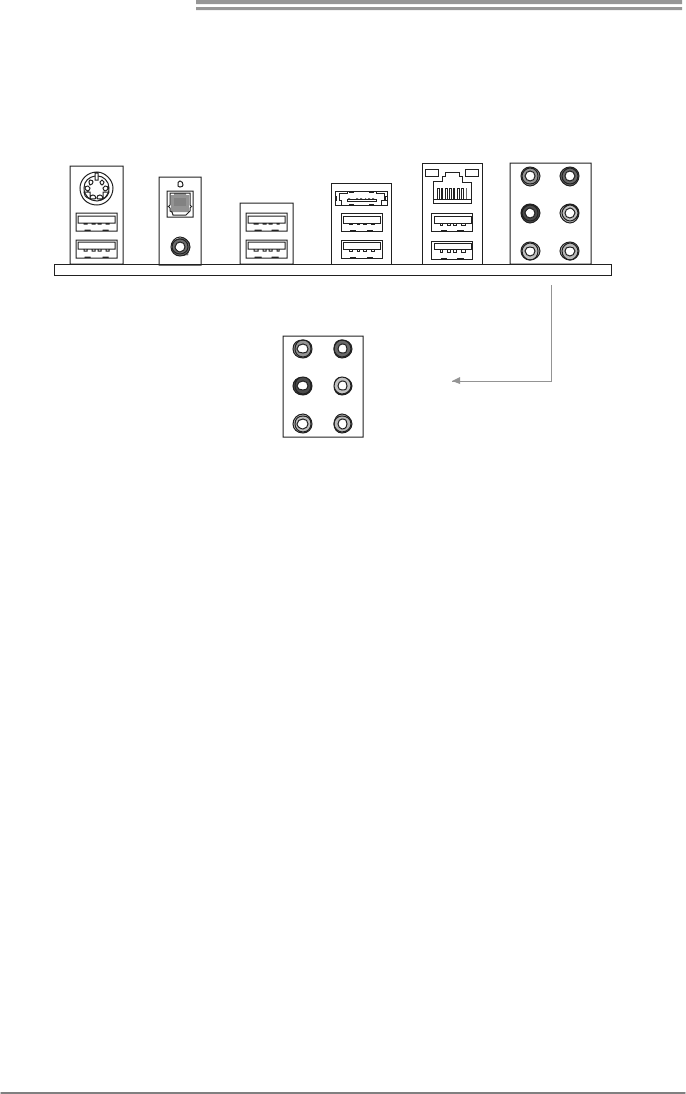
Back Panel
I/O
PS/2 Keyboard x1
LAN Port x1
USB2.0 Port x2
USB3.0 Port x6
Audio Jack x6
eSATA Port x1
Optical +coaxial S/PDIF Out x1
Connects to PS/2 Keyboard
Connect to RJ-45 ethernet cable
Connect to USB devices
Connect to USB devices
Provide Audio-In/Out and microphone connection
Connect to SATA devices
Provides digital audio out function
Board Size 244 (W) x 305 (L) mm ATX
OS Support
Windows XP / Vista / 7 Biostar Reserves the right to add or remove support for
any OS with or without notice
Motherboard Manual
4
1.4 REAR PANEL CONNECTORS
Line In
Line Out
Mic In
Center
Rear
Side
PS/
2
Keyboard
USB2.0X2
LAN
eSATA
USB3.0X2
S/PDIF Out
RCA
USB3.0X2 USB3.0X2
TPOWER X79
5
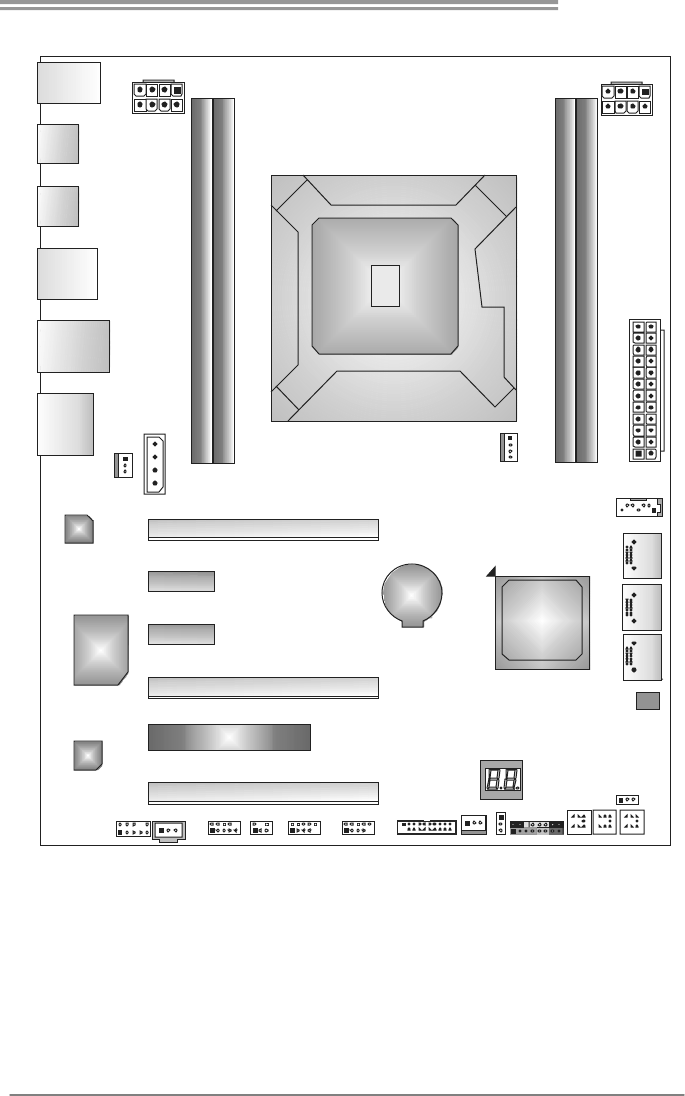
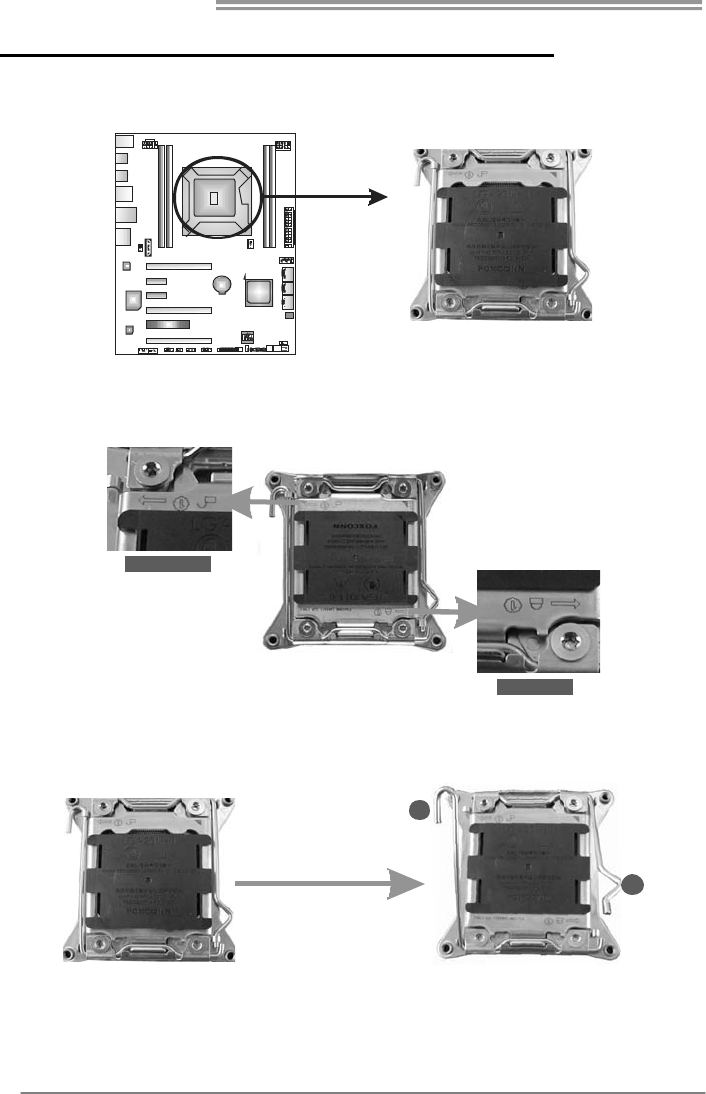
1.5 MOTHERBOARD LAYOUT
Socket 2011
CPU1
BAT1
Intel
X79
USB_KBMS1
RJ45USB1
AUDIO2
SPDIF1
USB3_0
DUALUSB_
ESATA1
CODEC
Super
I/O
BIOS
ATXP WR2
LA N
SYS_FAN2
J1
DDR3_A1
DDR3_B1
DDR3_D 1
DDR3_C 1
PEX16_1
PEX16_2
PCI1
PEX1_1
PEX16_3
PEX1_2
ATXP WR3
ATXPWR1
F_AUDIOF1
JSPDIF_OUT1
J_COM1 CIR1 F_USB2F_USB1 SYS_FAN1
JCMOS1
PANEL1
RSTSW1 PWRSW1
ME_RECOVERY1
SATA2SAT A3SATA4
SATA1
JFRONT_USB3_1
CL_CMOS_
BTN 1
CPU_FAN1
Note: represents the 1■st pin.
Motherboard Manual
6
CHAPTER 2: HARDWARE INSTALLATION
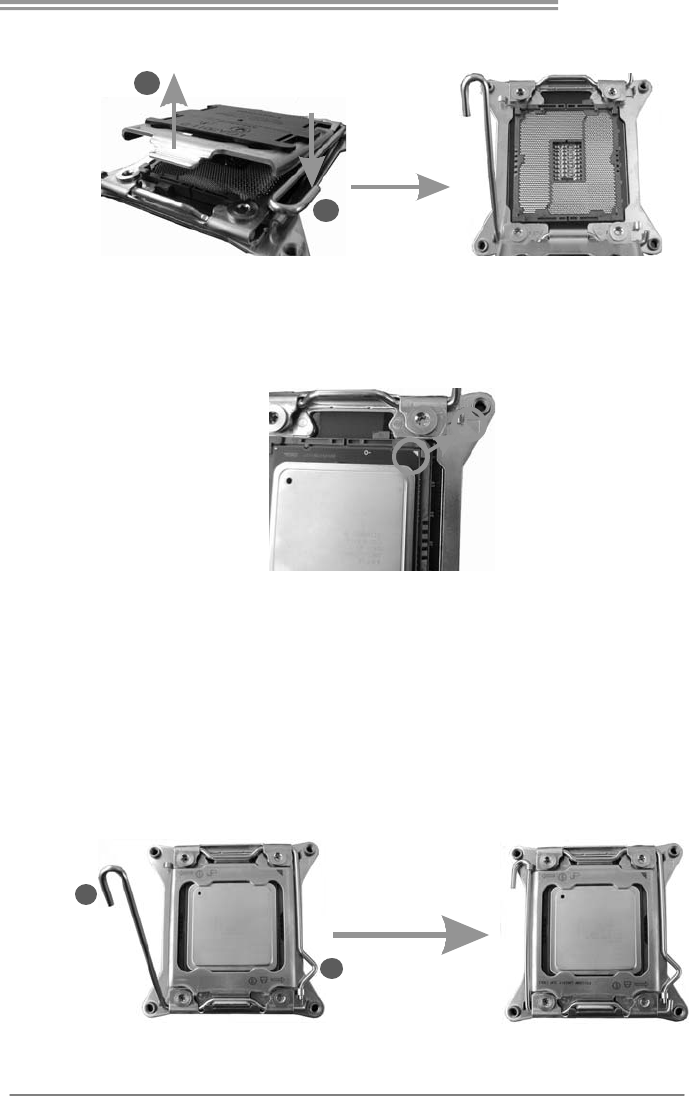
2.1 INSTALLING CENTRAL PROCESSING UNIT (CPU)
Step 1: Locate and identify the locking lever, UNLOCK 1 LIFT and LOCK
1 LIFT.
UNLOCK 1 LIFT
LOCK 1 LIFT
Step 2: First, pull the locking lever UNLOCK 1 LIFT out from the socket;
next, pull the LOCK 1 LIFT out from the socket.
1
2
TPOWER X79
7
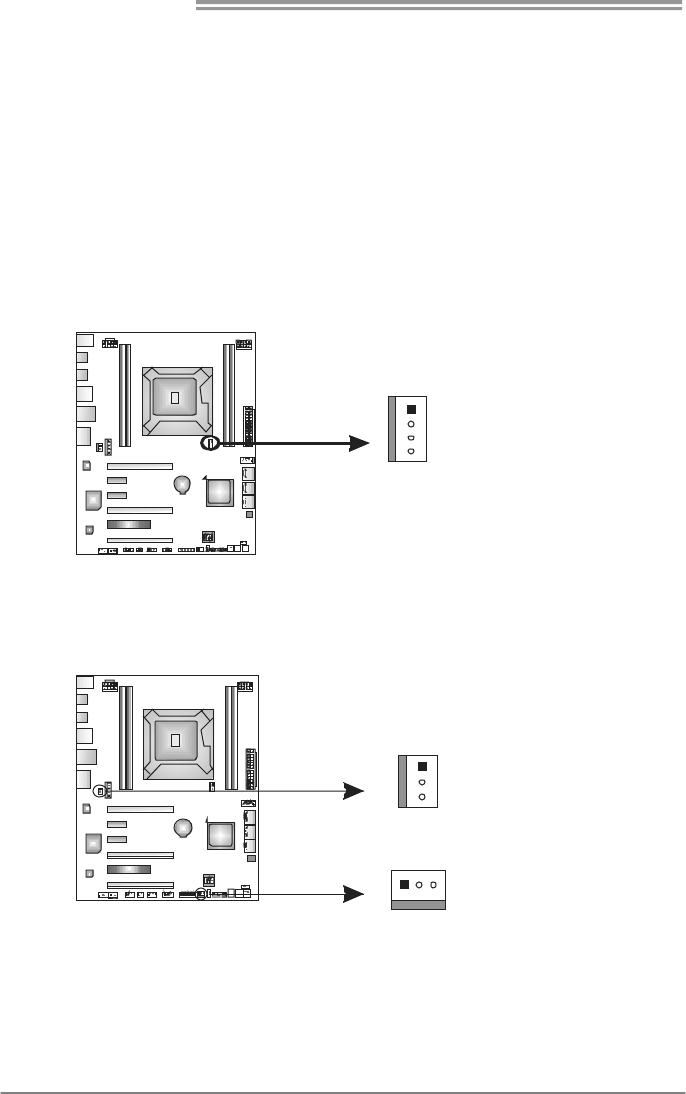
Step 3: Pushing down the hook of left locking lever to lift the load plate,
and then remove the Protection Cap.
2
1
Step 4: Locate the triangular cut edge on the socket, and hold the CPU
firmly, orientating the golden dot on the CPU forwards to this
socket triangular cut edge. The CPU will fit only in the correct
orientation.
Special Notice:
After the CPU installation, please make good preservation of the
Protection Cap for future use. When the CPU is removed, cover the
Protection Cap on the empty socket to ensure pin legs won’t be
damaged.
Step 5: Reversely, lower the locking lever LOCK 1 LIFT to locked position,
next the UNLOCK 1 LIFT to locked position, and then complete
the installation.
2
1
Motherboard Manual
8
Step 6 Put the CPU Fan and heatsink assembly on the CPU and buckle it
on the retention frame. Connect the CPU FAN power cable into
the CPU_FAN1 to complete the installation.
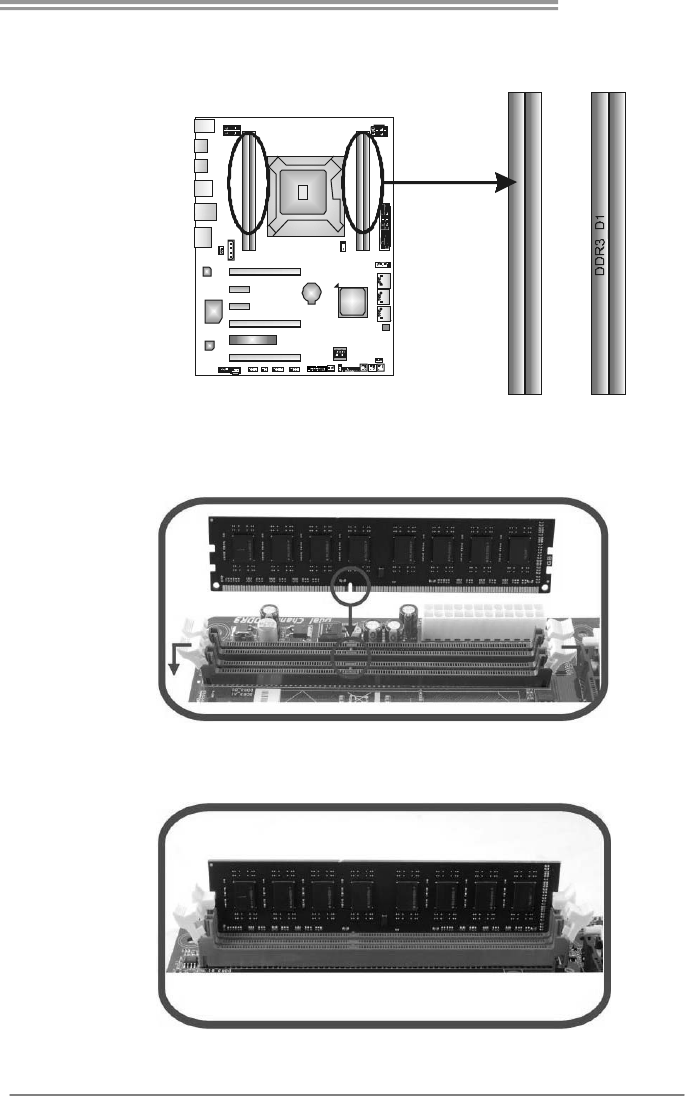
2.2 FAN HEADERS
These fan headers support cooling-fans built in the computer. The fan
cable and connector may be different according to the fan manufacturer.
Connect the fan cable to the connector while matching the black wire to
pin#1.
CPU_FAN1: CPU Fan Header
Pin
Assignment
1 Ground
2 +12V
3 FAN RPM rate
sense
1
4
4 Smart Fan
Control
SYS_FAN1: NorthBridge Fan Header
SYS_FAN2: System Fan Header
Pin
Assignment
1 Ground
2 +12V
1
3
SYS_FAN2
SYS_FAN1
31
3 FAN RPM rate
sense
Note:
The SYSFAN1/SYSFAN2 support 3-pin head connectors, and the CPU_FAN1, 4-pin
head connector. When connecting with wires onto connectors, please note that the red
wire is the positive and should be connected to pin#2, and the black wire is Ground and
should be connected to GND.
TPOWER X79
9
2.3 INSTALLING SYSTEM MEMORY
A. Memory Modules
DDR3_A1
DDR3_B1
DDR3_C1
1. Unlock a DIMM slot by pressing the retaining clips outward. Align a
DIMM on the slot such that the notch on the DIMM matches the
break on the Slot.
2. Insert the DIMM vertically and firmly into the slot until the retaining
chip snap back in place and the DIMM is properly seated.
Motherboard Manual
10
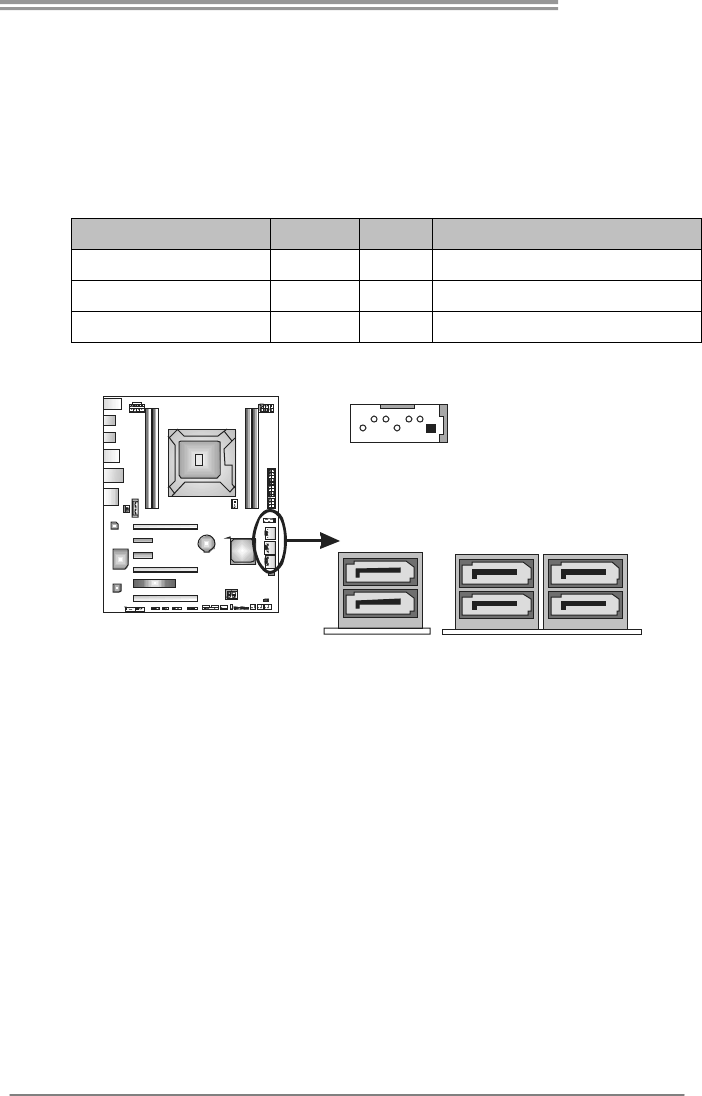
B. Memory Capacity
DIMM Socket
Location DDR3 Module Total Mem ory
Size
DDR3_A1 512MB/1GB/2GB/4GB/8GB
DDR3_B1 512MB/1GB/2GB/4GB/8GB
DDR3_C1 512MB/1GB/2GB/4GB/8GB
DDR3_D1 512MB/1GB/2GB/4GB/8GB
Max is 32GB.
TPOWER X79
11
2.4 CONNECTORS AND SLOTS
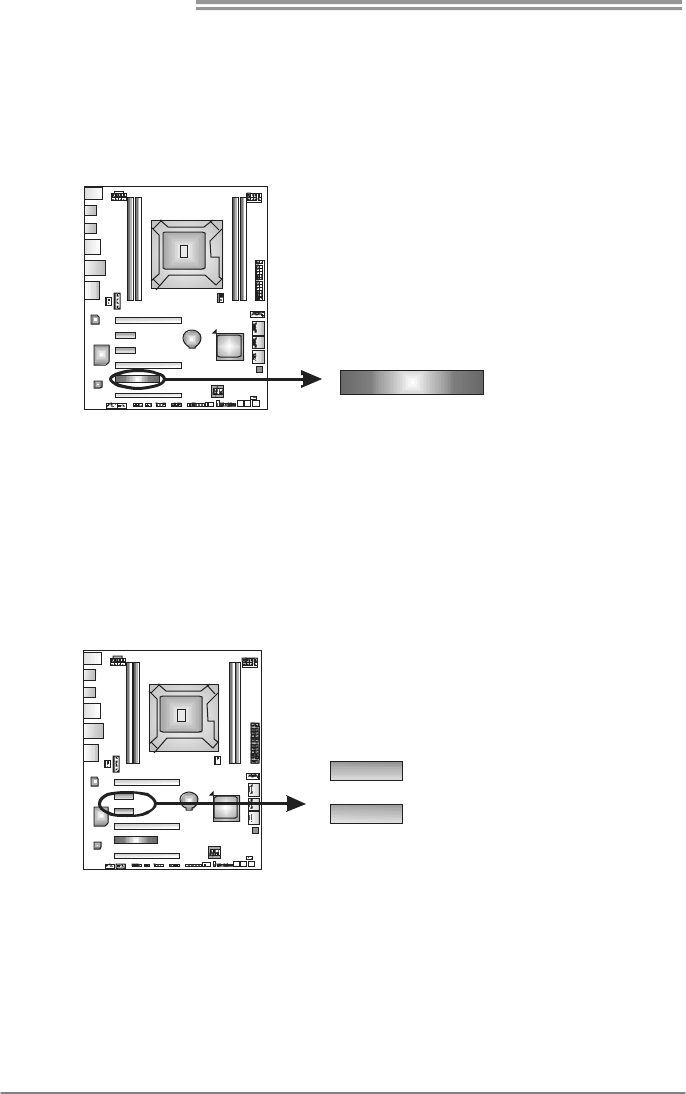
SATA1~SATA4: Serial ATA Connectors
This motherboard provides several SATA controllers for connecting to SATA
devices with respective spec and transfer rates as bellows:
CONNECTOR BY CHIP SPEED Support
SATA1/SATA2-U/SATA2-L Intel X79 3 Gb/s. RAID 0 / 1 / 5 / 10 and Intel SRT
SATA3-U/SATA3-L Intel X79 6 Gb/s. RAID 0 / 1 / 5 / 10 and Intel SRT
SATA4-U/SATA4-L ASM1061 6 Gb/s. AHCI
SATA1
SATA3- SATA2-
3- 2-
UU
SATA L SATA L
(By Intel X79)
SATA4-
4-
U
SATA L
(By ASM1061)
Motherboard Manual
12
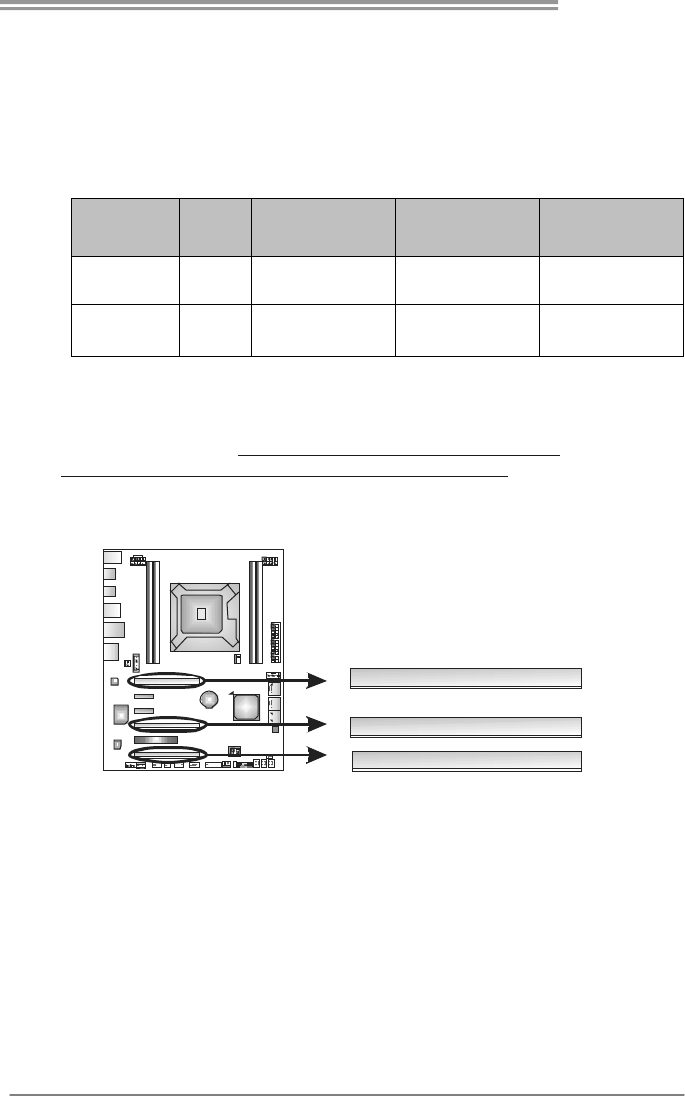
PCI1: Peripheral Component Interconnect Slot
This motherboard is equipped with 1 standard PCI slots. PCI stands for
Peripheral Component Interconnect, and it is a bus standard for expansion
cards. This PCI slot is designated as 32 bits.
PCI1
PEX1_1: PCI-Express Gen2 x2 Slots
- PCI-Express 2.0 compliant.
- Data transfer bandwidth up to 500MB/s per direction; 1GB/s in total.
PEX1_1
PEX1_2
TPOWER X79
13
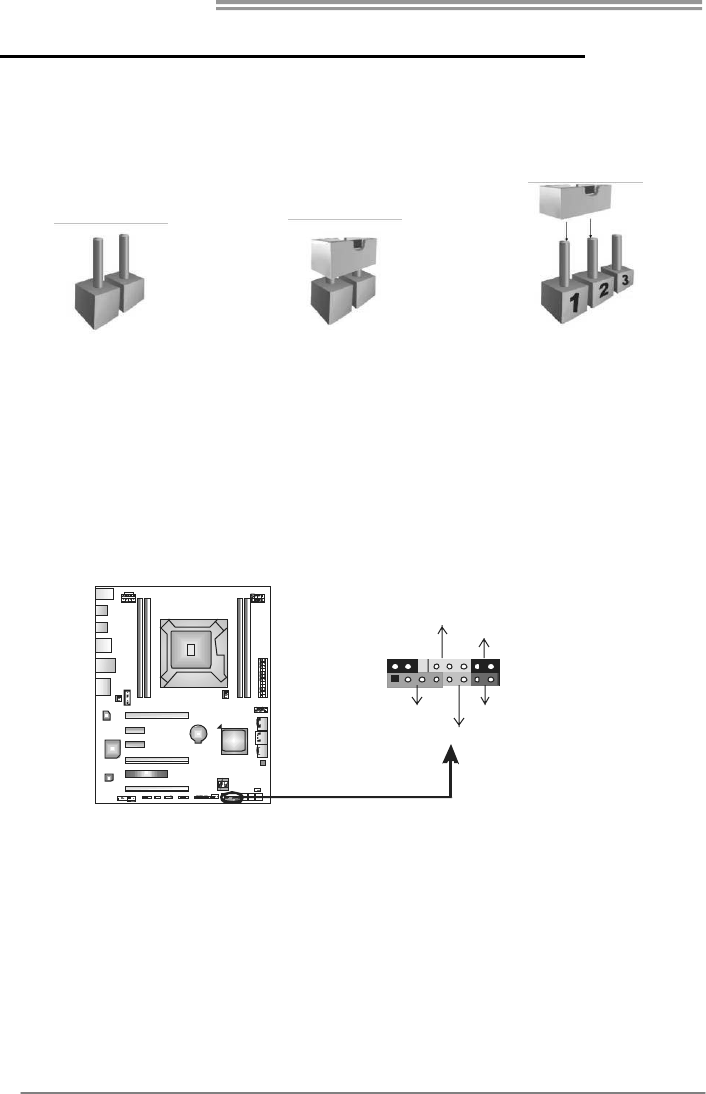
PEX16_1 & PEX16_2: PCI-Express Gen3 x16 (x16) (Nvidia SLI and
AMD CrossFireX) Slots
PEX16_3: PCI-Express Gen3 x16 (x8) (Nvidia SLI and AMD
CrossFireX) Slot
Slot Speed
PCIe
Architecture
Bandwidth
Per Direction
Bandwidth
Total
PEX16_1 /
PEX16_2 X 16 PCI-Express 3.0 16GB 32GB
PEX16_3 X 8 PCI-Express 3.0 8GB 16GB
Note:
For more details about Nvidia SLI and AMD CrossFireX, please access the
website, respectively: http://www.nvidia.com/page/support.html, and
http://support.amd.com/us/Pages/AMDSupportHub.aspx .
PEX16_1
PEX16_2
PEX16_3
Motherboard Manual
14
CHAPTER 3: HEADERS & JUMPERS SETUP
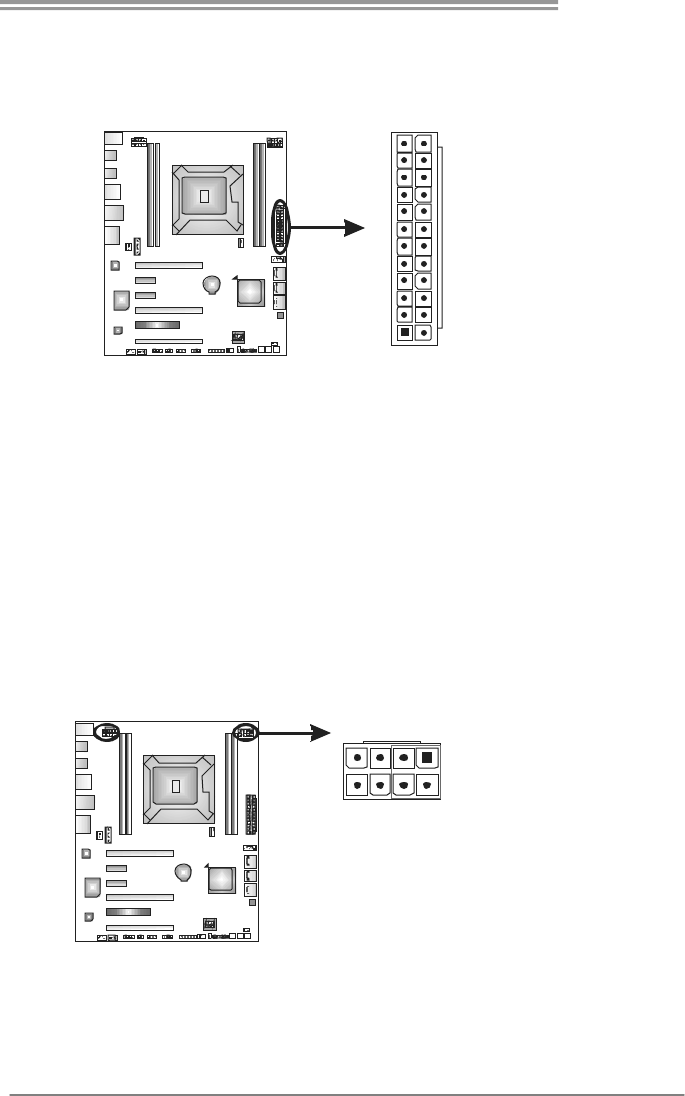
3.1 HOW TO SETUP JUMPERS
The illustration shows how to set up jumpers. When the jumper cap is
placed on pins, the jumper is “close”, if not, that means the jumper is
“open”.
Pin opened Pin closed Pin1-2 closed
3.2 DETAILED SETTINGS
JPANEL1: Front Panel Header
This 16-pin connector includes Power-on, Reset, HDD LED, Power LED, and
speaker connection. It allows user to connect the PC case’s front panel switch
functions.
1
9
8
16
PWR_LED
On/Off
RST
HLED
SPK
++
+
-
-
Pin Assignment Function Pin Assignment Function
1 +5V 9 N/A
2 N/A 10 N/A N/A
3 N/A 1 1 N/A N/A
4 Speaker
Speaker
Connector
12 Power LED (+)
5 HDD LED (+) 13 Power LED (+)
6 HDD LED (-)
Hard drive
LED 14 Power LED (-)
Power LED
7 Ground 15 Power button
8 Reset control Reset button 16 Ground Power-on button
TPOWER X79
15
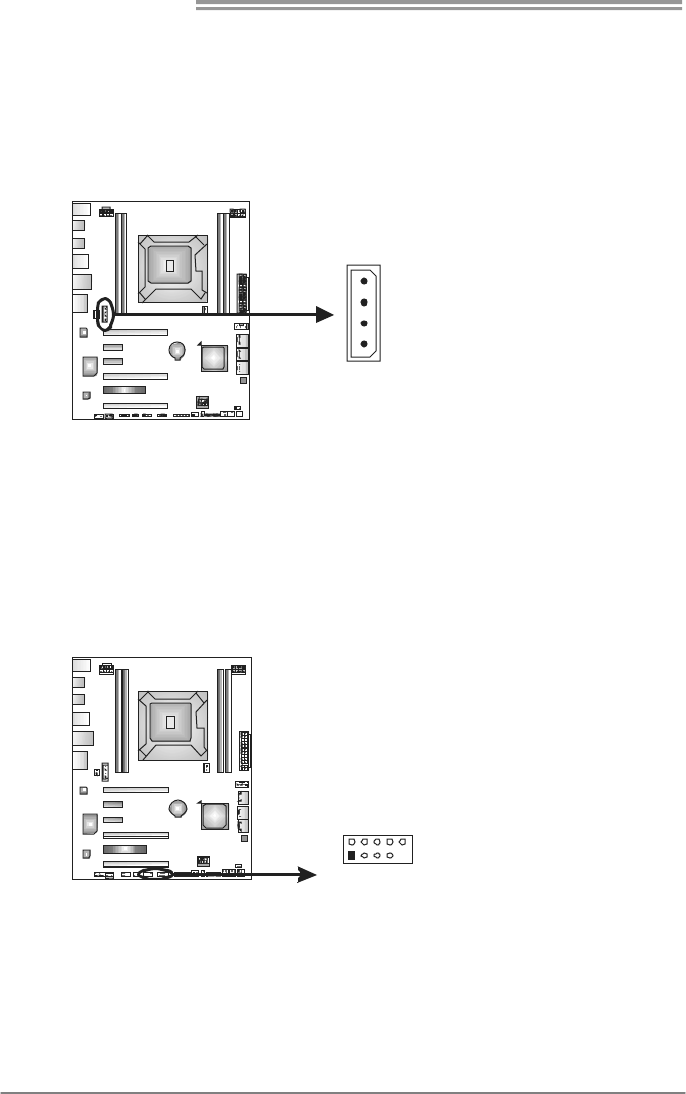
ATXPWR1 (12V1): ATX Power Source Connector
This connector allows user to connect 24-pin power connector on the ATX
power supply. (Note: +12V Current Limit > 12A)
1
12
13
24
Pin Assignment Pin Assignment
13 +3.3V 1 +3.3V
14 -12V 2 +3.3V
15 Ground 3 Ground
16 PS_ON 4 +5V
17 Ground 5 Ground
18 Ground 6 +5V
19 Ground 7 Ground
20 NC 8 PW_OK
21 +5V 9 Standby Voltage+5V
22 +5V 10 +12V
23 +5V 11 +12V
24 Ground 12 +3.3V
ATXPWR2~3 (12V2): ATX Power Source Connectors
These connectors provide +12V to CPU power circuit. (Note: +12V Current
Limit > 17A ~ 21A)
Pin
Assignment
1 +12V
2 +12V
3 +12V
4 +12V
5 Ground
6 Ground
7 Ground
1
4
58
8 Ground
Note:
Plug in either ATXPWR2 or ATXPWR3 connector to power on the system. It is
recommended that both ATXPWR2 and ATXPWR3 connectors should be plugged in
when overclocking.
If the CPU power plug is 4-pin, please plug it into Pin 1-2-5-6 of ATXPWR2/3.
Motherboard Manual
16
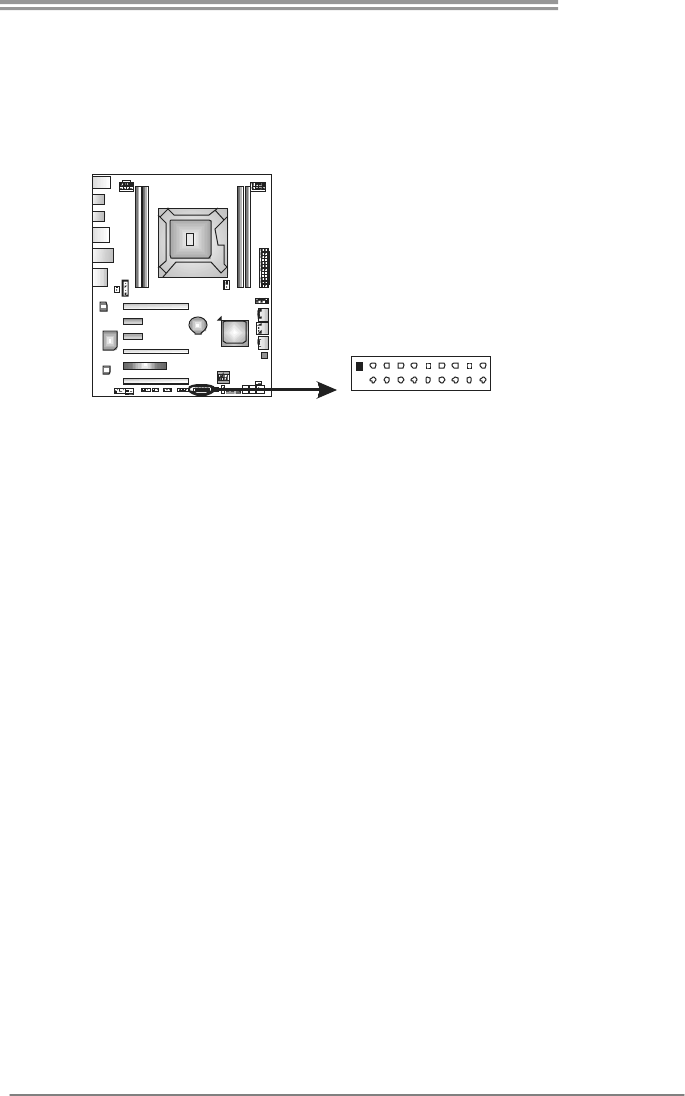
J1: Auxiliary Power for Graphics
This connector is an auxiliary power connection for graphics cards. Exclusive
power for the graphics card provides better graphics performance.
Pin
Assignment
1 +12V
2 Ground
3 Ground
4 VCC
1
4
F_USB1/F_USB2: Headers for USB 2.0 Ports at Front Panel
Theses headers allow user to connect additional USB cable on the PC front
panel. They also can be connected with internal USB devices, like USB card
reader.
Pin
Assignment
1 +5V (fused)
2 +5V (fused)
3 USB-
4 USB-
5 USB+
6 USB+
7 Ground
8 Ground
9 Key
1
2
9
10
F_ USB2USB 1 F_
10 NC
TPOWER X79
17
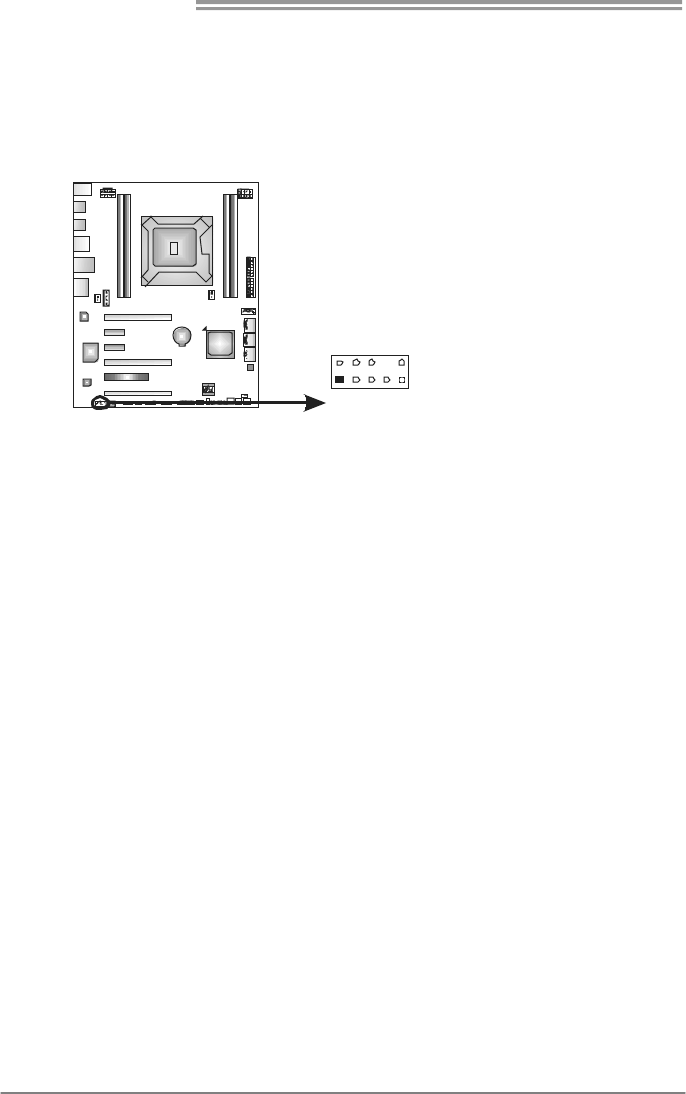
JFRONT_USB3_1: Header for USB 3.0 Ports at Front Panel
This header allows user to connect additional USB cable on the PC front panel,
and also can be connected with internal USB devices, like USB card reader.
1
20 11
10
Pin Assignment Pin Assignment
1 VBUS0 11 D2+
2 SSRX1- 12 D2-
3 SSRX1+ 13 Ground
4 Ground 14 SSTX2+
5 SSTX1- 15 SSTX2-
6 SSTX1+ 16 Ground
7 Ground 17 SSRX2+
8 D1- 18 SSRX2-
9 D1+ 19 VBUS1
10 ID 20 Key
Motherboard Manual
18
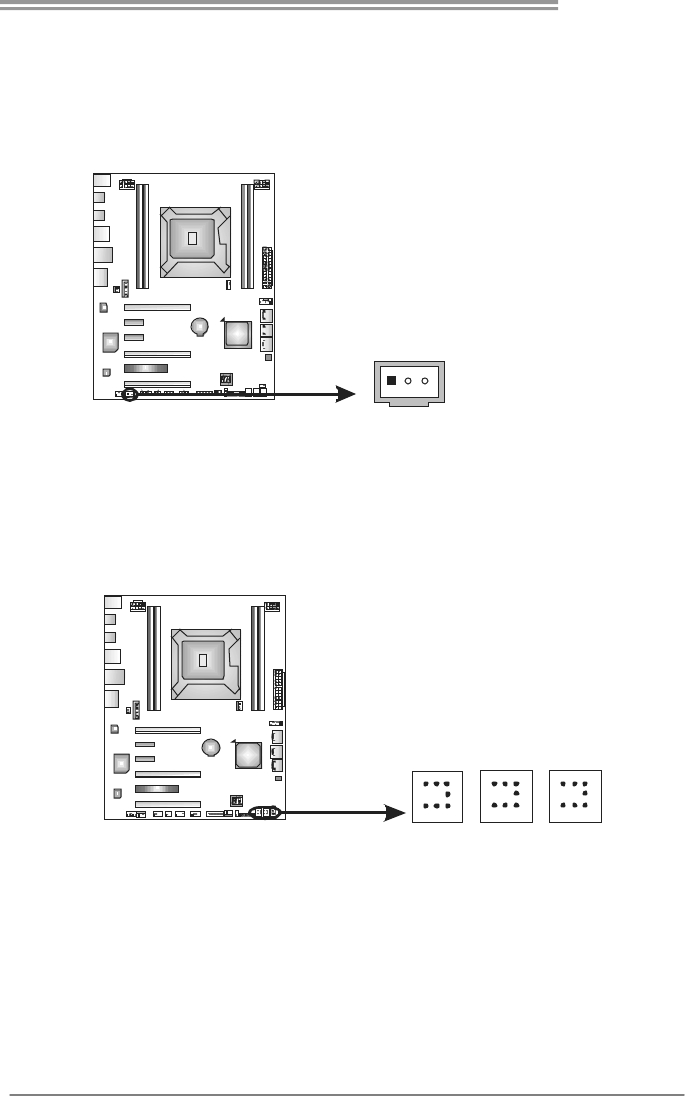
F_AUDIOF1: Front Panel Audio Header
This header allows user to connect the front audio output cable with the PC front
panel. This header supports HD and AC’97 audio front panel connector.
1
2
9
10
HD Audio AC’97
Pin Assignment Pin Assignment
1 Mic Left in 1 Mic In
2 Ground 2 Ground
3 Mic Right in 3 Mic Power
4 GPIO 4 Audio Power
5 Right line in 5 RT Line Out
6 Jack Sense 6 RT Line Out
7 Front Sense 7 Reserved
8 Key 8 Key
9 Left line in 9 LFT Line Out
10 Jack Sense 10 LFT Line Out
Note: It is recommended that you connect a high-definition front panel audio module to
this connector to avail of the motherboard's high definition audio capability.
TPOWER X79
19
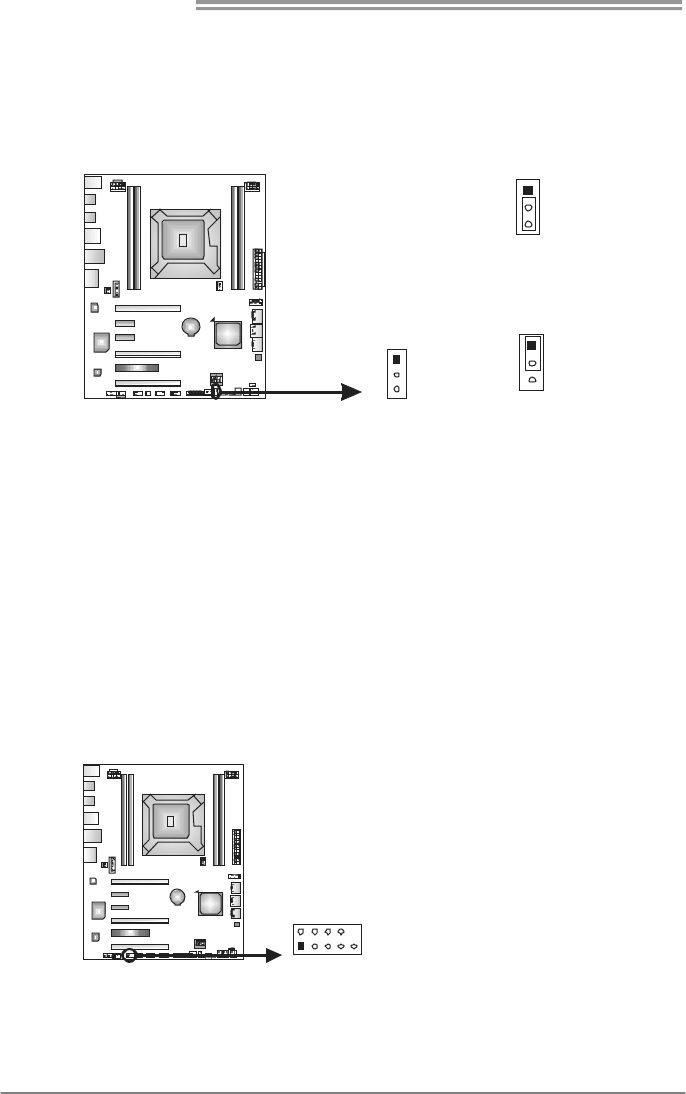
JSPDIFOUT1: Digital Audio-out Connectors
The JSPDIFOUT1 is for connecting the PCI bracket SPDIF output.
Pin
Assignment
1 +5V
2 SPDIF_OUT
13
JSPDIFOUT1
3 Ground
On-Board Buttons
There are 3 on-board buttons.
RSTSW1
PWRSW1
CL_CMOS_BTN1
PWRSW1:
This is an on-board Power Switch button.
RSTSW1:
This is an on-board Reset button.
CL_CMOS_BTN1: Clear CMOS Header
You can use this jumper to reset the BIOS to default.
Motherboard Manual
20
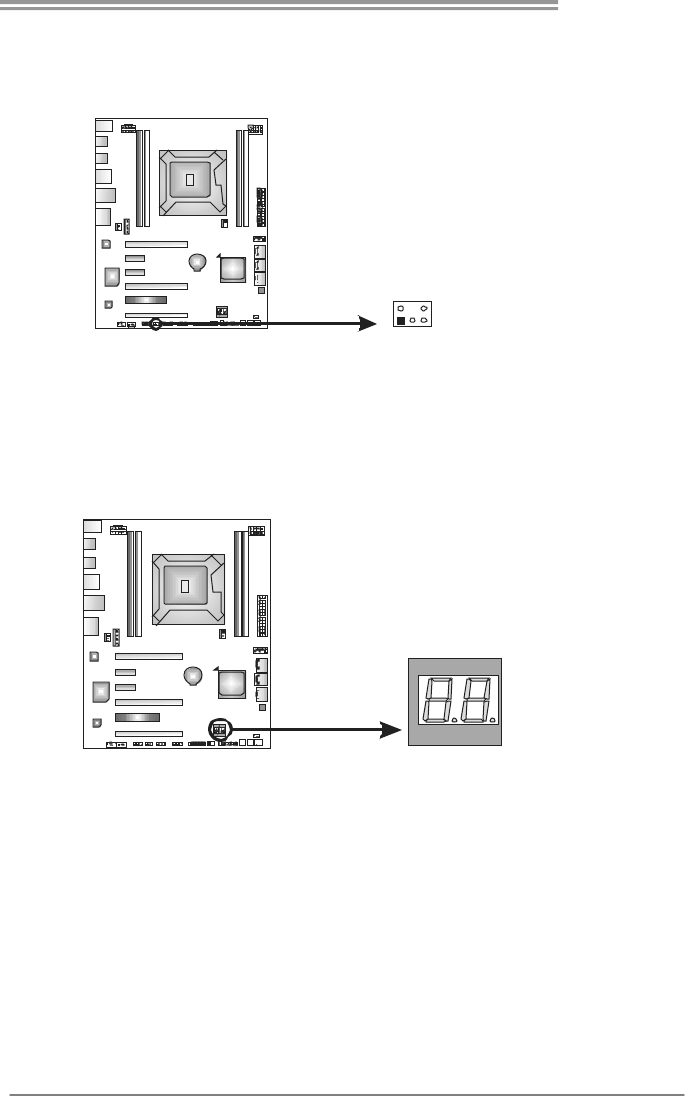
JCMOS1: Clear CMOS Header
Placing the jumper on pin2-3 allows user to restore the BIOS safe setting and
the CMOS data. Please carefully follow the procedures to avoid damaging the
motherboard.
3
1
Pin 1-2 Close:
Normal Operation (default).
1
3
3
1
Pin 2-3 Close:
Clear CMOS data.
※ Clear CMOS Procedures:
1. Remove AC power line.
2. Set the jumper to “Pin 2-3 close”.
3. Wait for five seconds.
4. Set the jumper to “Pin 1-2 close”.
5. Power on the AC.
6. Reset your desired password or clear the CMOS data.
J_COM1: Serial Port Connector
The motherboard has a Serial Port Connector for connecting RS-232 Port.
Pin
Assignment
1 Carrier detect
2 Received data
3 Transmitted data
4 Data terminal ready
5 Signal ground
6 Data set ready
7 Request to send
8 Clear to send
9 Ring indicator
19
210
10 NC
TPOWER X79
21
CIR1: Consumer IR Connector
This header is for infrared remote control and communication.
Pin Assignment
1 IrDA serial input
2 Ground
3 Ground
4 Key
5 IrDA serial output
6 IR Power
1
2
5
6
BIOS POST Code/CPU Temperature Indicator
This indicator will show POST code while booting; after the booting sequence, it
will show current CPU temperature. Please refer to Chapter 5.5 for all the
BIOS POST codes.
Motherboard Manual
22
CHAPTER 4: RAID / AHCI FUNCTIONS
4.1 OPERATING SYSTEM
CHIP
SATA
Controller
Configuration
OS
Intel X79 RSTe
SATA1/SATA2-U/
SATA2-L/SATA3-U/
SATA3-L/eSATA
AHCI Windows XP SP2 (64bit)
Windows Vista SP2 (32 and 64 bit)
Windows 7 (32 and 64 bit)
Intel X79 RSTe
SATA1/SATA2-U/
SATA2-L/SATA3-U/
SATA3-L/
eSATA
RAID Windows XP SP2 (64bit)
Windows 7 (32 and 64 bit)
ASM1061
SATA4-U/SATA4-L
AHCI Windows XP SP2 (32 and 64 bit)
Windows Vista SP2 (32 and 64 bit)
Windows 7 (32 and 64 bit)
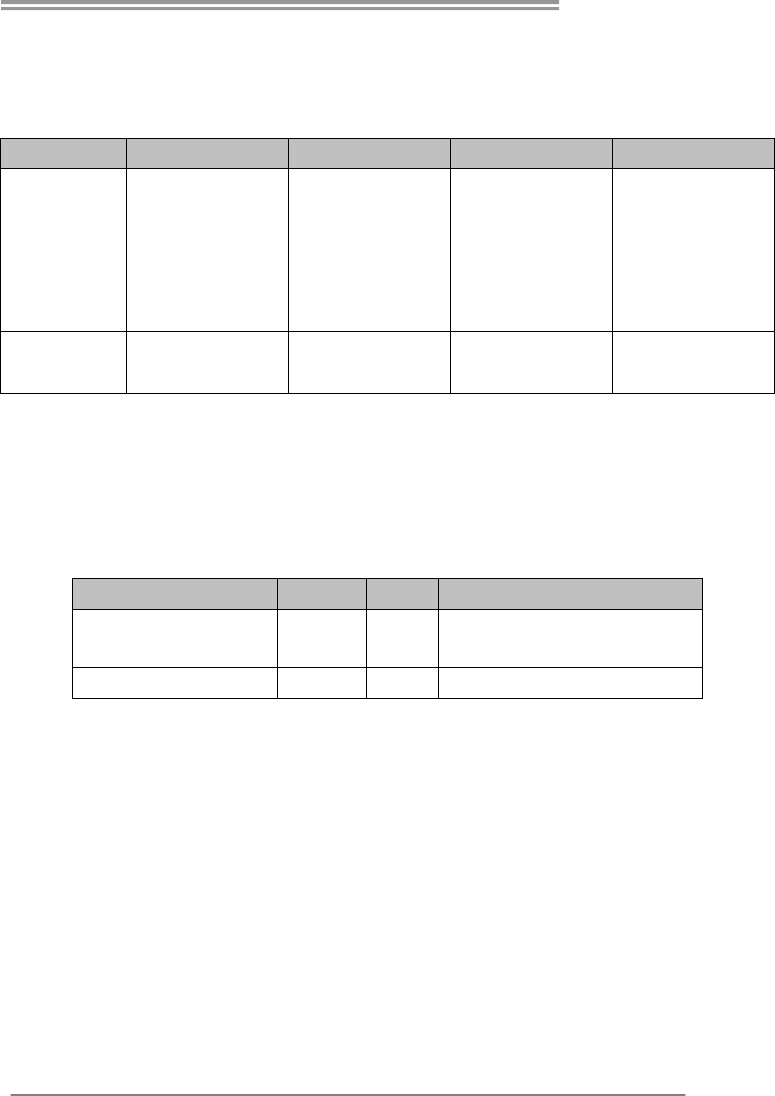
The 'F6 Method'+ to enable RAID / AHCI Driver when installing Windows XP
1. Before you start Windows installation, copy the proper files for the Windows
version to any USB storage ( Windows XP 64 only could use a USB floppy drive)
Windows XP 32 Windows XP 64
SATA1/SATA2-U/
SATA2-L/SATA3-U/
SATA3-L/
eSATA AHCI/RAID
Driver Path
No Support x:\Driver\Chipset\Intel\SATA\
X79\F6flpy64\Driver\
SATA4-U/SATA4-L
AHCI Driver Path
x:\Driver\\SATA\
Asmedia_F6\Xp\
Driver\
x:\Driver\\SATA\Asmedia_F6\
Xp\Driver\
2. When the operating system installation starts, follow Windows indication by
pressing F6 to load the driver.
TPOWER X79
23
Enable RAID / AHCI Driver when installing Windows 7/Vista
1. Before you start Windows installation, copy the proper files for the Windows
version to any USB storage.
Windows 7 32 Windows 7 64 Windows Vista 32 Windows Vista 64
SATA1/
SATA2-U/
SATA2-L/
SATA3-U/
SATA3-L/
eSATA
AHCI/RAID
Driver Path
x:\Driver\Chipset\
Intel\SATA\X79\F6fl
py32\Driver\
x:\Driver\Chipset\
Intel\SATA\X79\F6fl
py64\Driver\
x:\Driver\Chipset\
Intel\SATA\X79\F6fl
py32\Driver\
x:\Driver\Chipset\
Intel\SATA\X79\F6fl
py64\Driver\
SATA4-U/
SATA4-L AHCI
Driver Path
x:\Driver\\SATA\
Asmedia_F6\Win7\
Driver\x86\
x:\Driver\\SATA\
Asmedia_F6\Win7\
Driver\x64
x:\Driver\SATA\
Asmedia_F6\Vista\
Driver\x86\
x:\Driver\SATA\
Asmedia_F6\Vista\
Driver\x64\
2. Follow Window 7 / Vista indication to load the driver in the installation process.
4.2 RAID ARRAYS
CONNECTOR BY CHIP SPEED Support
SATA1/SATA2-U/SATA2-L/
eSATA
Intel X79 3 Gb/s. RAID 0 / 1 / 5 / 10 and Intel SRT
SATA3-U/SATA3-L Intel X79 6 Gb/s. RAID 0 / 1 / 5 / 10 and Intel SRT
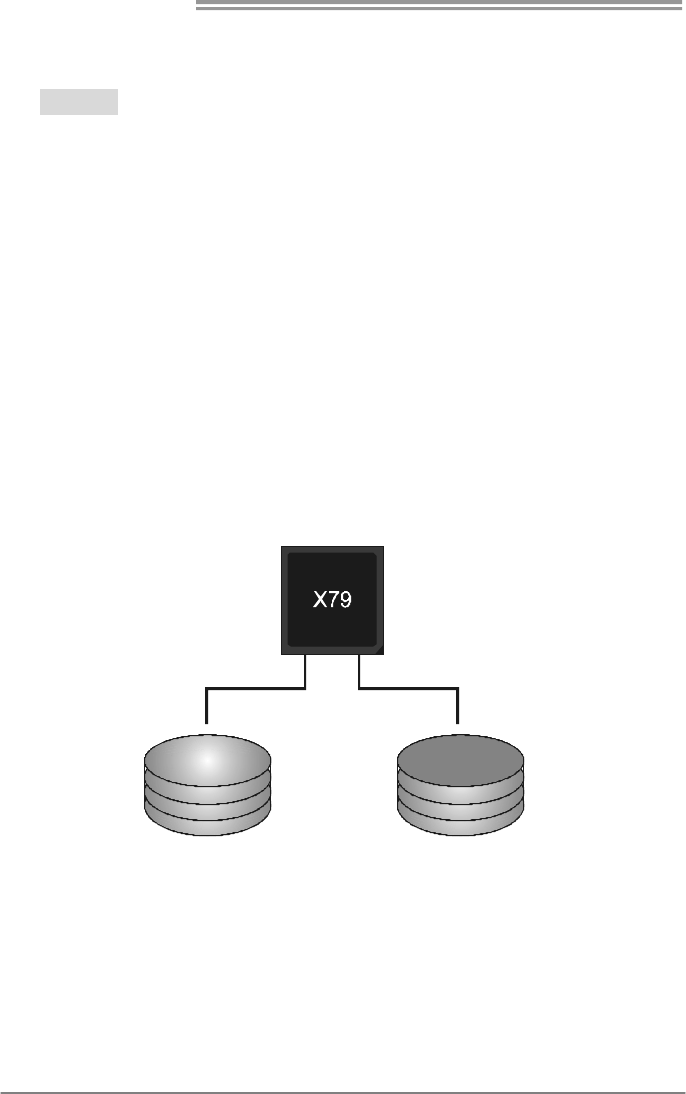
RAID supports the following types of RAID arrays:
RAID 0: RAID 0 defines a disk striping scheme that improves disk read and write
times for many applications.
RAID 1: RAID 1 defines techniques for mirroring data.
RAID 10: RAID 10 combines the techniques used in RAID 0 and RAID 1.
RAID 5: RAID 5 provides fault tolerance and better utilization of disk capacity.
Motherboard Manual
24
4.3 HOW RAID WORKS
RAID 0:
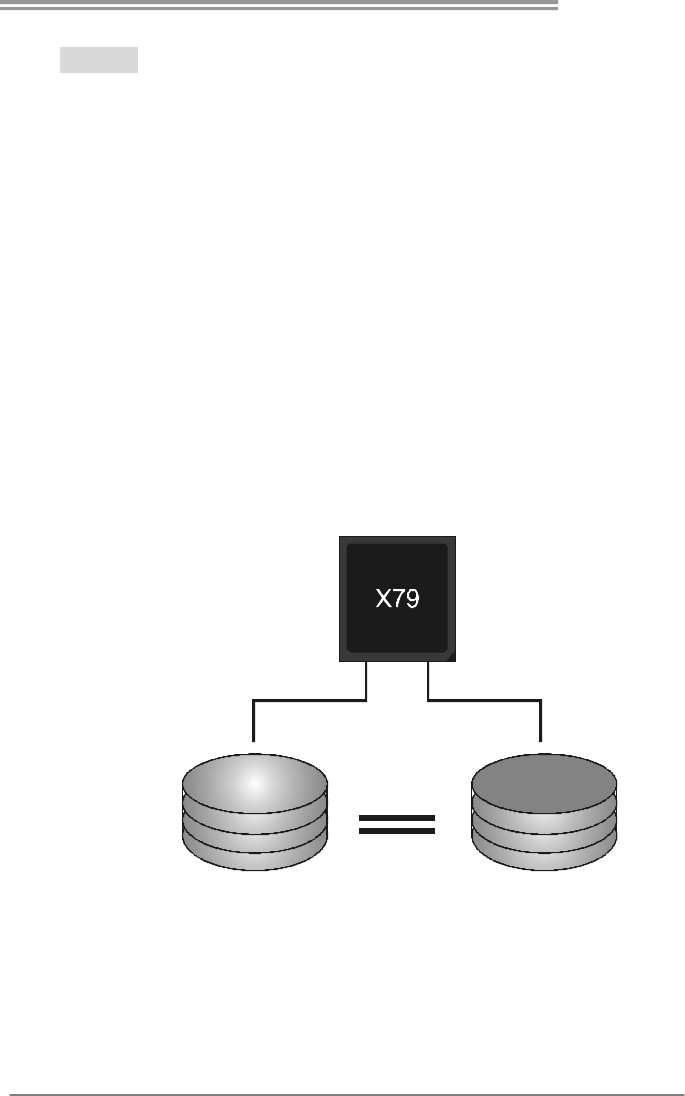
The controller “stripes” data across multiple drives in a RAID 0 array system. It
breaks up a large file into smaller blocks and performs disk reads and writes
across multiple drives in parallel. The size of each block is determined by the
stripe size parameter, which you set during the creation of the RAID set based on
the system environment. This technique reduces overall disk access time and
offers high bandwidth.
Features and Benefits
Drives: Minimum 2, and maximum is up to 6 or 8. Depending on the
platform.
Uses: Intended for non-critical data requiring high data throughput, or any
environment that does not require fault tolerance.
Benefits: provides increased data throughput, especially for large files. No
capacity loss penalty for parity.
Drawbacks: Does not deliver any fault tolerance. If any drive in the array
fails, all data is lost.
Fault Tolerance: No.
Block 1
Block 3
Block 5
Block 2
Block 4
Block 6
TPOWER X79
25
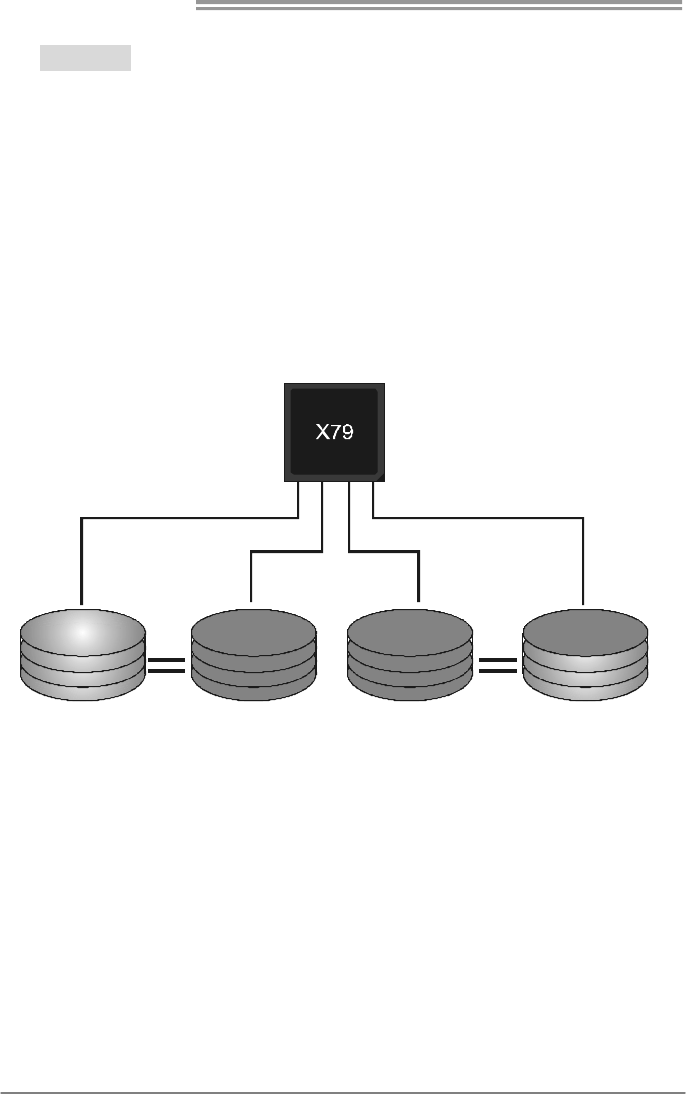
RAID 1:
Every read and write is actually carried out in parallel across 2 disk drives in a
RAID 1 array system. The mirrored (backup) copy of the data can reside on the
same disk or on a second redundant drive in the array. RAID 1 provides a
hot-standby copy of data if the active volume or drive is corrupted or becomes
unavailable because of a hardware failure.
RAID techniques can be applied for high-availability solutions, or as a form of
automatic backup that eliminates tedious manual backups to more expensive and
less reliable media.
Features and Benefits
Drives: Minimum 2, and maximum is 2.
Uses: RAID 1 is ideal for small databases or any other application that
requires fault tolerance and minimal capacity.
Benefits: Provides 100% data redundancy. Should one drive fail, the
controller switches to the other drive.
Drawbacks: Requires 2 drives for the storage space of one drive.
Performance is impaired during drive rebuilds.
Fault Tolerance: Yes.
Block 1
Block 2
Block 3
Block 1
Block 2
Block 3
Motherboard Manual
26
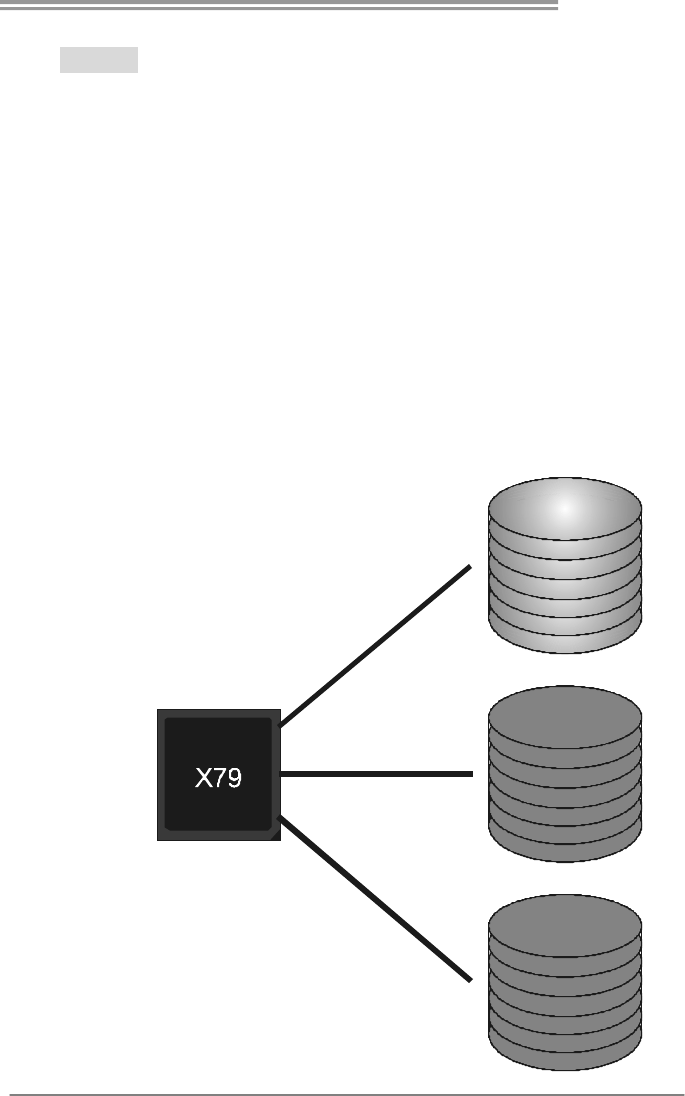
RAID 10:
RAID 1 drives can be stripped using RAID 0 techniques. Resulting in a RAID 10
solution for improved resiliency, performance and rebuild performance.
Features and Benefits
Drives: Minimum 4, and maximum is 6 or 8, depending on the platform.
Benefits: Optimizes for both fault tolerance and performance, allowing for
automatic redundancy. May be simultaneously used with other RAID levels
in an array, and allows for spare disks.
Drawbacks: Requires twice the available disk space for data redundancy,
the same as RAID level 1.
Fault Tolerance: Yes.
Block 1
Block 3
Block 5
Block 2
Block 4
Block 6
Block 1
Block 3
Block 5
Block 2
Block 4
Block 6
TPOWER X79
27
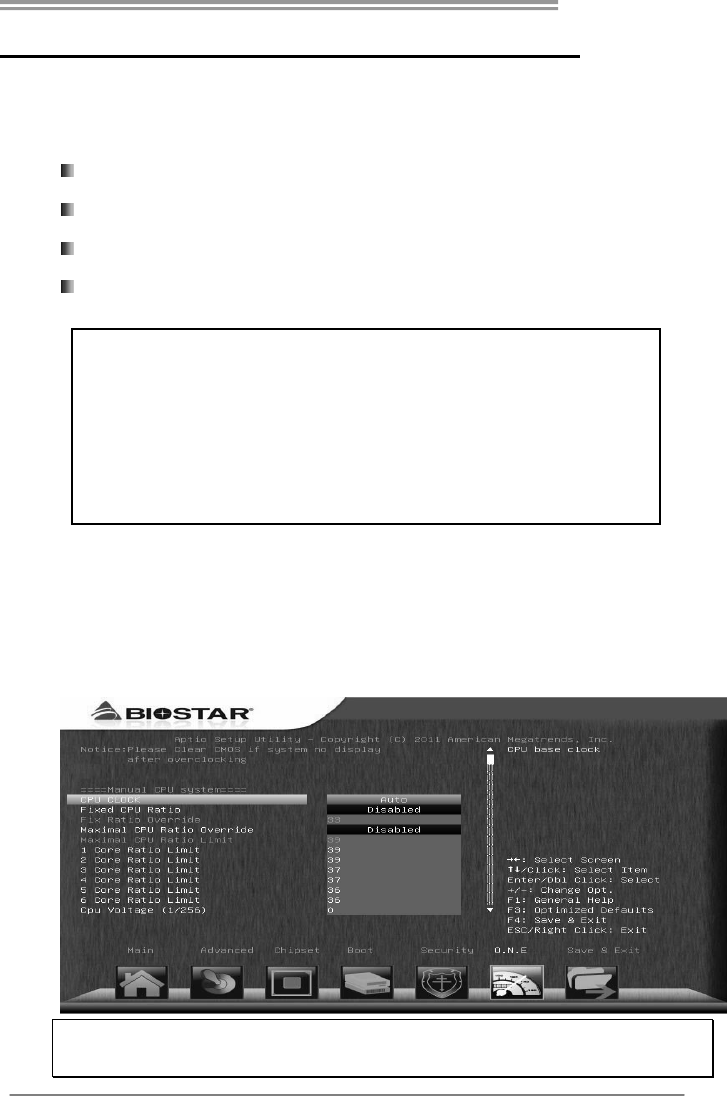
RAID 5:
RAID 5 stripes both data and parity information across three or more drives. It
writes data and parity blocks across all the drives in the array. Fault tolerance is
maintained by ensuring that the parity information for any given block of data is
placed on a different drive from those used to store the data itself.
Features and Benefits
Drives: Mini mu m 3.
Uses: RAID 5 is recommended for transaction processing and general
purpose service.
Benefits: An ideal combination of good performance, good fault tolerance,
and high capacity and storage efficiency.
Drawbacks: Individual block data transfer rate same as a single disk. Write
performance can be CPU intensive.
Fault Tolerance: Yes.
Disk 1
DATA 3
PA R IT Y
DATA 7
DATA 1
DATA 9
PA R IT Y
Disk 2
PA R IT Y
DATA 5
DATA 8
DATA 2
PA R IT Y
DATA 11
Disk 3
DATA 4
DATA 6
PA R IT Y
PA R IT Y
DATA 10
DATA 12

Motherboard Manual
28
4.4 SMART STORAGE CACHING
With Intel(R) Rapid Storage Technology, the performance of RAID with an Intel SSD
drive can be improved better.
Installing Smart Sotrage Caching
1. Install RAID drives (RAID 0, 1, 5) and an Intel SSD.
2. Activate RAID mode from BIOS, and install operating system.
3. Insert the Setup CD to the optical drive, and Install all drivers (including Intel(R)
Rapid Storage Technology Driver). After all processes finish, reboot the system.
4. Intel(R) RST service icon will show in notification area. Double click it to open the
main windows.
5. Select “Accelerate” page, and make sure the status of accelerated device has
been enabled accelerated.
TPOWER X79
29
CHAPTER 5: T-POWER BIOS & SOFTWARE
5.1 T-POWER BIOS
T-Power BIOS Features
Overclocking Navigator Engine (O.N.E.)
Self Recovery System (S.R.S)
Smart Fan Function
BIO-Flasher: Update UEFI BIOS file from USB Flash Drive
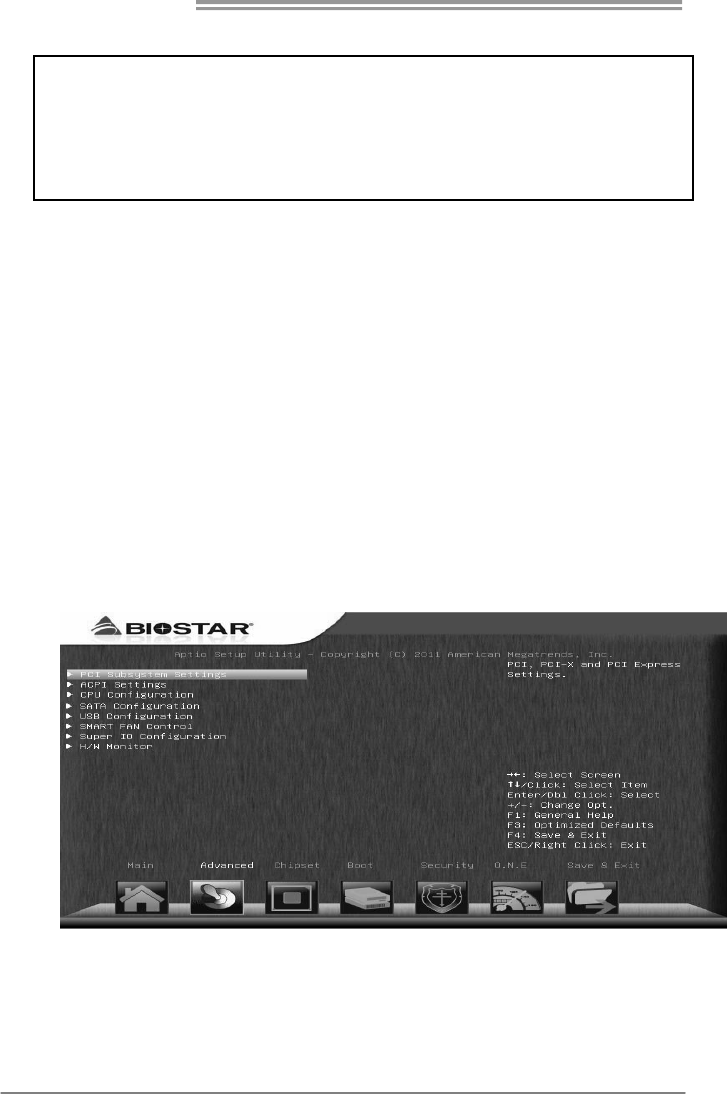
A. Overclocking Navigator Engine (O.N.E.)
O.N.E provides several systems allowing users to customize personal
overclock settings, such as Manual Voltage System, Manual Memory
System, Manual MCT System, and Manual G.P.U System, etc.
Notice:
Not all types of Intel CPU perform above overclock setting ideally; the difference will be based on the
selected CPU model.
!! WARNING !!
For better system performance, the UEFI BIOS firmware is being
continuously updated. The UEFI BIOS information described below
in this manual is for your reference only and the actual UEFI BIOS
information and settings on board may be different from this
manual. For further information of setting up the UEFI BIOS,
p
lease refer to the UEFI BIOS Manual in the Setu
p
CD.
Motherboard Manual
30
B. Self Recovery System (S.R.S.)
This function can’t be seen under UEFI BIOS setup, and is always on whenever
the system starts up.
However, it can prevent system hang-up due to inappropriate overclock
actions.
When the system hangs up, S.R.S. will automatically log in the default UEFI
BIOS setting, and all overclock settings will be re-configured.
C. Smart Fan Function
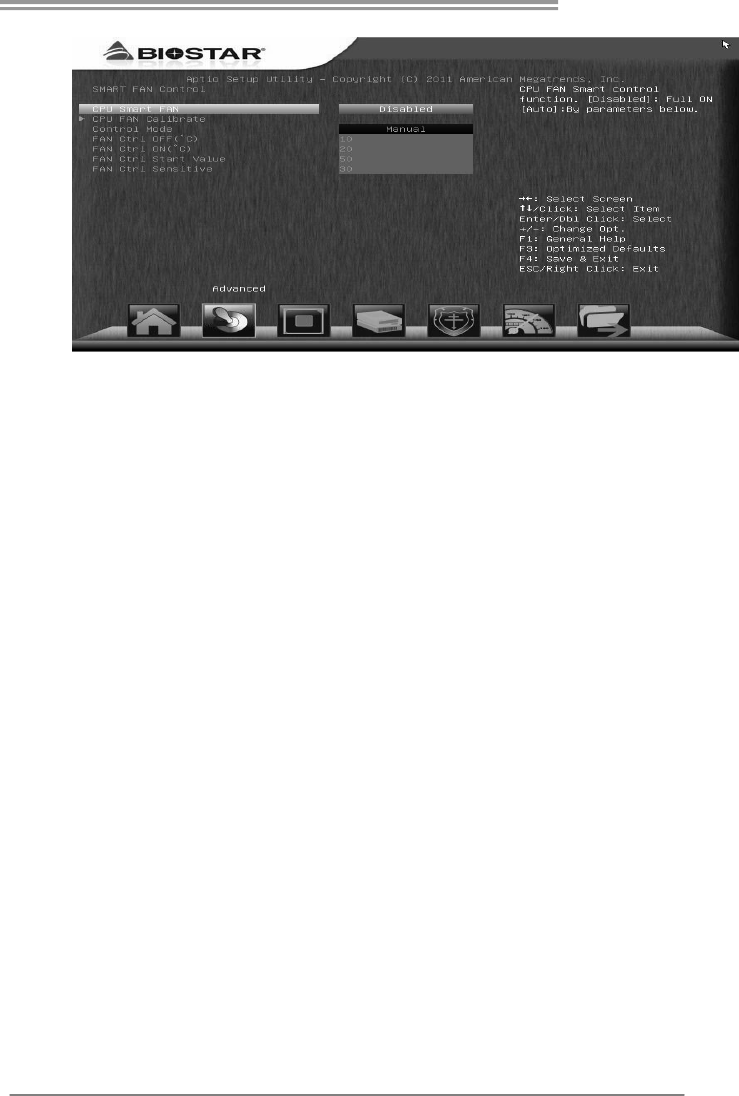
Smart Fan Function is under “Smart Fan Control” in “Advanced Menu”.
This is a brilliant feature to control CPU/System Temperature vs. Fan speed.
When enabling Smart Fan function, Fan speed is controlled automatically by
CPU/System temperature.
This function will protect CPU/System from overheat problem and maintain the
system temperature at a safe level.
↓
NOTE
Overclock is an optional process, but not a “must-do” process; it is not
recommended for inexperienced users. Therefore, we will not be responsible
for any hardware damage which may be caused by overclocking. We also
would no t
g
uarantee an
y
overclockin
g
p
erformance.
TPOWER X79
31
CPU Smart FAN
This item allows you to control the CPU Smart Fan function.
CPU FAN Calibrate
Press [ENTER] to calibrate CPU FAN.
Control Mode
This item provides several operation modes of the fan.
Fan Ctrl OFF(℃)
When CPU temperature is lower than this value, the CPU fan will keep
lowest RPM. The range is from 0~127, with an interval of 1.
Fan Ctrl On(℃)
When CPU temperature is higher than this value, the CPU fan controller
will turn on. The range is from 0~127, with an interval of 1.
Fan Ctrl Start Value
This item sets CPU FAN Start Speed Value. The range is from 0~127, with
an interval of 1.
Fan Ctrl Sensitive
The bigger the numeral is, the higher the FAN speed is. The range is from
0~127, with an interval of 1.
Motherboard Manual
32
5.2 T-POWER SOFTWARE
Installing T-Power Software
1. Insert the Setup CD to the optical drive. The drivers installation program
would appear if the Auto-run function has been enabled.
2. Select Software Installation, and then click on the respective software
title.
3. Follow the on-screen instructions to complete the installation.
Launching T-Power Software
After the installation process is completed, you will see the software icon
showing on the desktop. Double-click the icon to launch it.
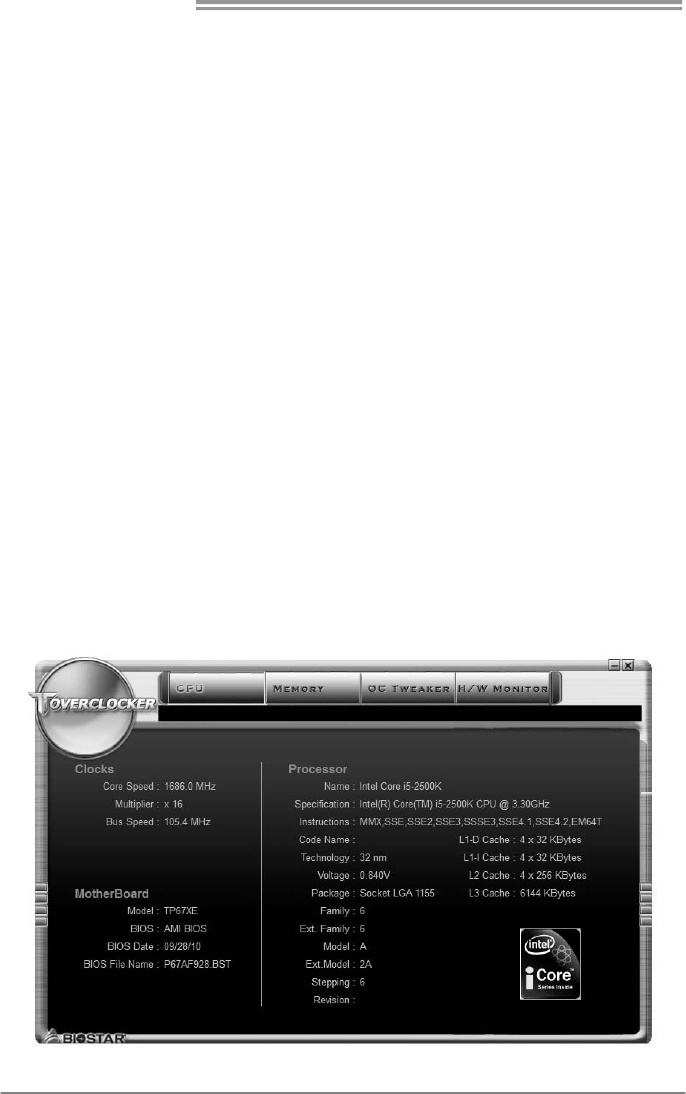
TOverclocker
TOverclocker presents a simple Windows-based system performance
enhancement and manageability utility. It features several powerful and easy
to use tools such as Overclocking for enhancing system performance, also for
special enhancement on CPU and Memory. Smart-Fan management and PC
health are for monitoring system status.This utility also allows you to make
overclocking profiles saving unlimitedly, and pre-set OC modes are for easy
OC. (The illustration below is for reference only)
TPOWER X79
33
The CPU tab provides information on the CPU and motherboard.
The Memory tab provides information on the memory module(s).
You can select memory module on a specific slot to see its information.
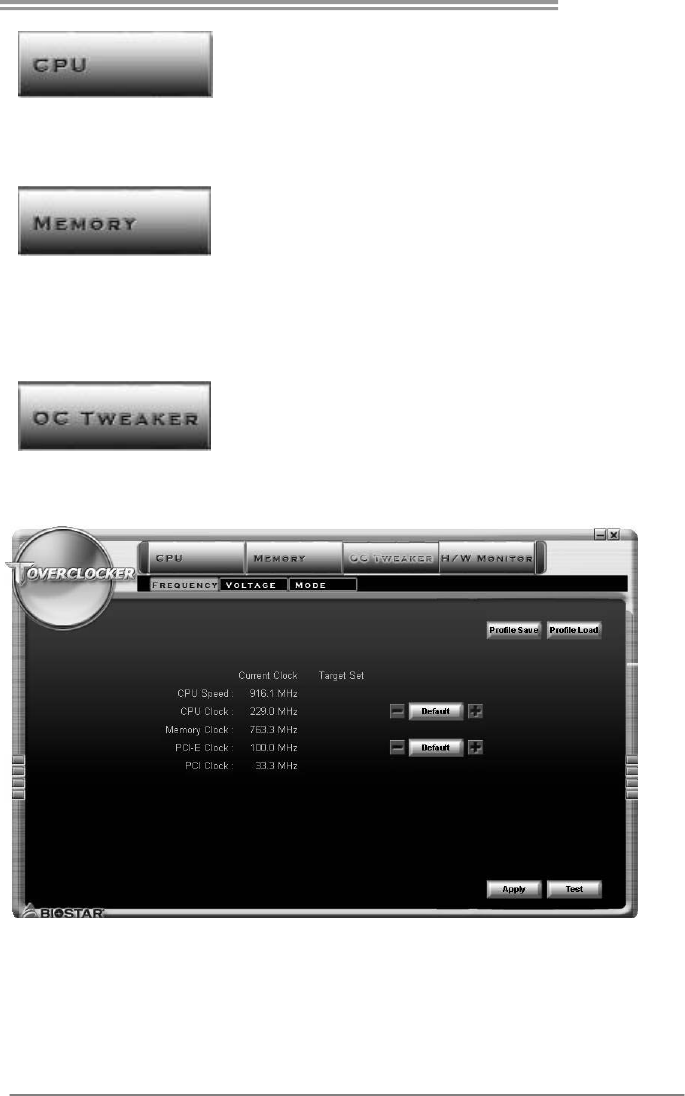
The OC Tweaker tab allows you to change system clock settings and voltages
settings. It also provides six pre-set modes for you:
Motherboard Manual
34
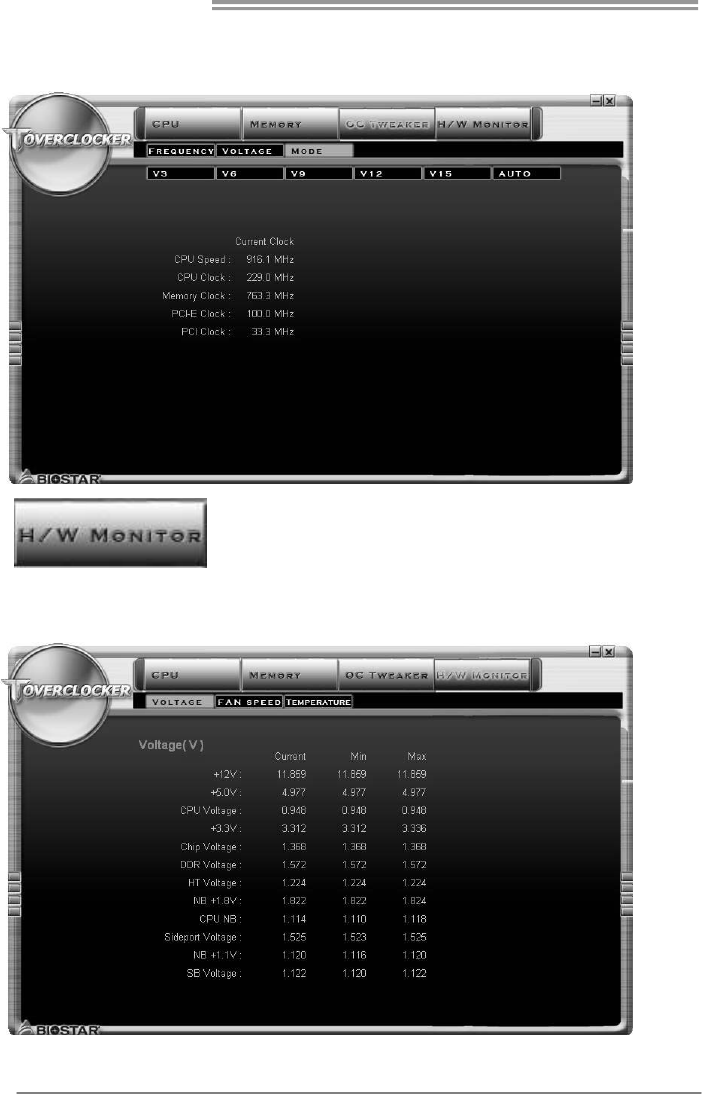
Six Pre-set Modes: V3, V6, V9, V12, V15, AUTO for different overclocking
experience.
The HW Monitor tab allows you to monitor hardware voltage, fan speed, and
temperature. Besides, you also can set related values for CPU Smart Fan.
TPOWER X79
35
Pressing TOVERCLOCKER logo
will display information about
manufacturer and software version.
You can upd ate currnet version by
clicking the button “Live Update.”
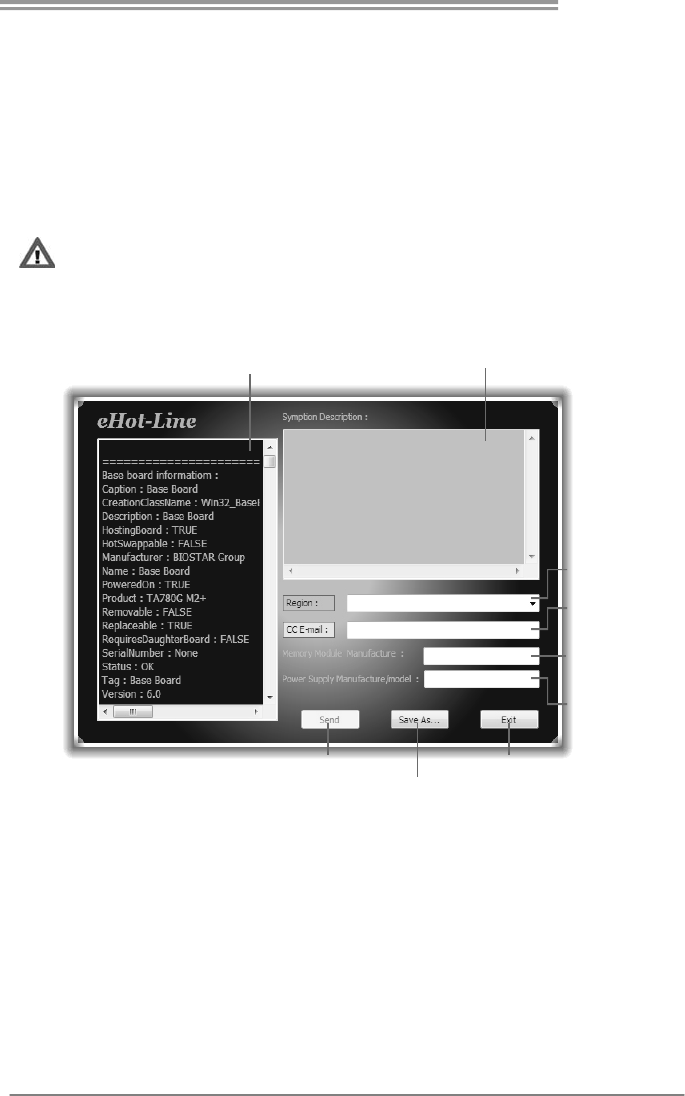
Green Power II Utility
BIOSTAR G.P.U II (Green Power Utility) is a new function. The utility enhances
energy efficiency by disabling extra phases while CPU is on light loading; it
features 4+1 power phases, current power saving, and toal power saving. This
tool integrates a friendly GUI to monitor your CPU Usage, CPU Watt, and CPU
Temperature. Moreover, it optimizes power saving and best power efficiency
on your system. (The illustration below is for reference only)
Displa
y
manufacturer &
software version information
Display CPU
information
Reset Time &
C onsu m ption
Auto Phase Mode
Maxi-Energy Mode
Typical Mode
Medium Mode
Performance
Mode

Motherboard Manual
36
G.P.U Mode Setting
This utility provides five modes, upon your requirements, to improve
system performance or to save power consumption.
Note: Even if the modes saving more power consumption are chosen, the
system still can keep excellent performance.
Auto Phase Mode
System switches the mode automatically according to current system
loading condition.
Performance Mode
This is the mode saving power consumption most. Least energy will
be used in the system.
Typical Mode
Compared with that in Performance Mode, energy consumption in this
mode is a little bit more.
Medium Mode
This is the standard system power saving mode.
Maxi-Energy Mode
This is the best system performance mode.
TPOWER X79
37
eHot-Line (Optional)
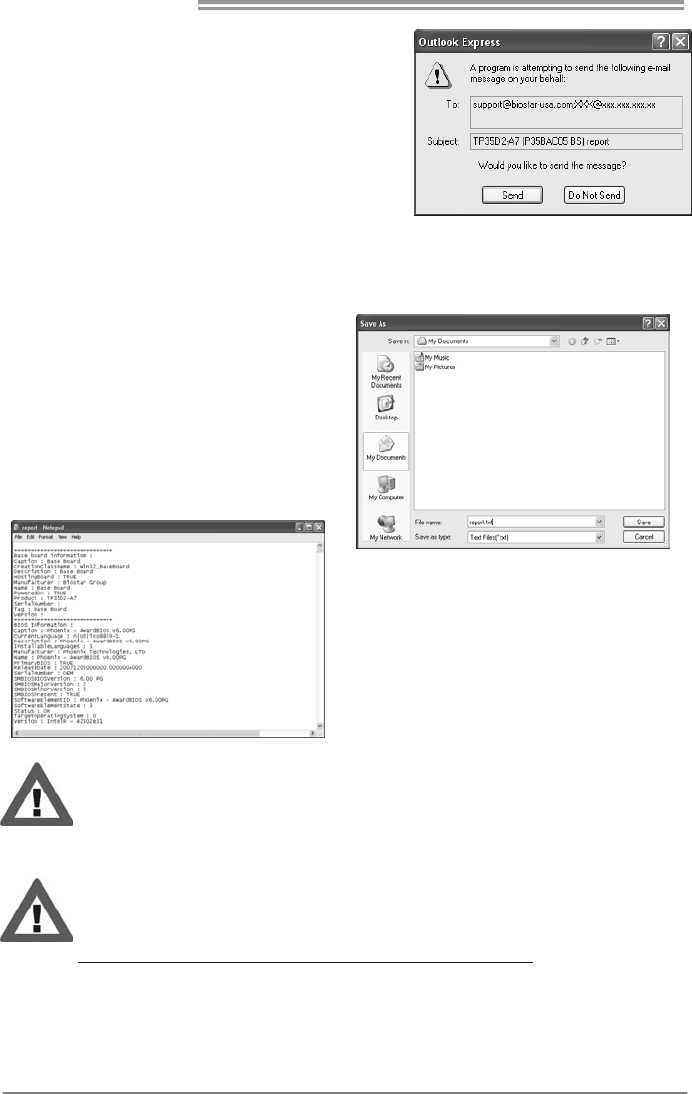
eHot-Line is a convenient utility that helps you to contact with our
Tech-Support system. This utility will collect the system information which is
useful for analyzing the problem you may have encountered, and then send
these information to our tech-support department to help you fix the problem.
Before you use this utility, please set Outlook Express as your default e-mail client application program.
This block will show
the information which
would be collected in
the mail.
Provide the e-mail
address that you would
like to send the copy to.
Provide the name of
the powe r suppl y
manufacturer and the
model no.
Sen d t he mail out.
Save these in forma tion to a .txt fil
e
Exit this dialog.
Select your area or
the area close to you.
*
Pr ov id e t he na me of
the memory module
manufacturer.
*
Describe condition
of your system.
*
*
rep r es ent s impor t ant
information that you
must provide. Without
this information, you may
not be able to send out
the mail.
Motherboard Manual
38
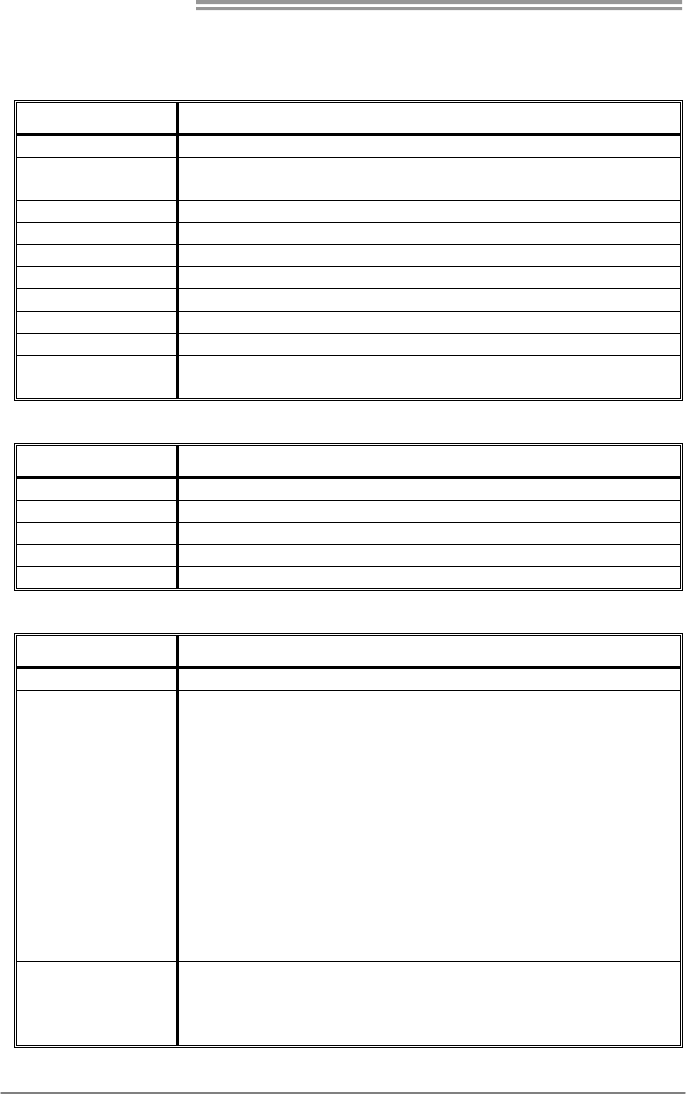
After filling up this information, click “Send”
to send the mail out. A warning dialog would
appear asking for your confirmation; click
“Send” to confirm or “Do Not Send” to cancel.
If you want to save this information to a .txt file, click “Save As…” and then you
will see a saving dialog appears asking you to enter file name.
Enter the file name and then click
“Save”. Your system information
will be saved to a .txt file.
Open the saved .txt file, you will
see your system information
including
motherboard/BIOS/CPU/video/
device/OS information. This
information is also concluded in
the sent mail.
We will not share customer’s data with any other third parties,
so please feel free to provide your system information while using
eHot-Line service.
If you are not using Outlook Express as your default e-mail client
application, you may need to save the system information to a .txt file
and send the file to our tech support with other e-mail application.
Go to the following web
http://www.biostar.com.tw/app/en/about/contact.php for getting our
contact information.

TPOWER X79
39
BIOS Update Utility
BIOS Update Utility is a convenient utility which allows you to update your
motherboard BIOS under Windows system. Please refer to the detailed
instructions in the section 6.1 BIOS Update Utility of Chapter 6.
5.3 EXTRA INFORMATION
CPU Overheated
If the system shutdown automatically after power on system for
seconds, that means the CPU protection function has been activated.
When the CPU is over heated, the motherboard will shutdow n
automatically to avoid a damage of the CPU, and the system may not
power on again.
In this case, please double check:
1. The CPU cooler surface is placed evenly with the CPU surface.
2. CPU fan is rotated normally.
3. CPU fan speed is fulfilling with the CPU speed.
After confirmed, please follow steps below to relief the CPU protection
function.
1. Remove the power cord from power supply for seconds.
2. Wait for seconds.
3. Plug in the power cord and boot up the system.
Or you can:
1. Clear the CMOS data.
(See “Close CMOS Header: JCMOS1” section)
2. Wait for seconds.
3. Power on the system again.
Motherboard Manual
40
5.4 AMI BIOS BEEP CODE
Boot Block Beep Codes
Number of Beeps Description
1 No media present. (Insert diskette in floppy drive A:)
2 “AMIBOOT.ROM” file not found in root directory of diskette in
A:
3 Insert next diskette if multiple diskettes are used for recovery
4 Flash Programming successful
5 File read error
7 No Flash EPROM detected
10 Flash Erase error
11 Flash Program error
12 “AMIBOOT.ROM” file size error
13 BIOS ROM image mismatch (file layout does not match
image present in flash device)
POST BIOS Beep Codes
Number of Beeps Description
1 Memory refresh timer error
3 Base memory read/write test error
6 Keyboard controller BAT command failed
7 General exception error (processor exception interrupt error)
8 Display memory error (system video adapter)
Troubleshooting POST BIOS Beep Codes
Number of Beeps Troubleshooting Action
1, 3 Reseat the memory, or replace with known good modules.
6, 7
Fatal error indicating a serious problem with the system.
Consult your system manufacturer. Before declaring the
motherboard beyond all hope, eliminate the possibility of
interference by a malfunctioning add-in card. Remove all
expansion cards except the video adapter.
z If beep codes are generated when all other expansion
cards are absent, consult your system manufacturer’s
technical support.
z If beep codes are not generated when all other expansion
cards are absent, one of the add-in cards is causing the
malfunction. Insert the cards back into the system one at a
time until the problem happens again. This will reveal the
malfunctioning card.
8
If the system video adapter is an add-in card, replace or
reseat the
video adapter. If the video adapter is an integrated part of the
system board, the board may be faulty.

TPOWER X79
41
5.5 AMI BIOS POST CODE
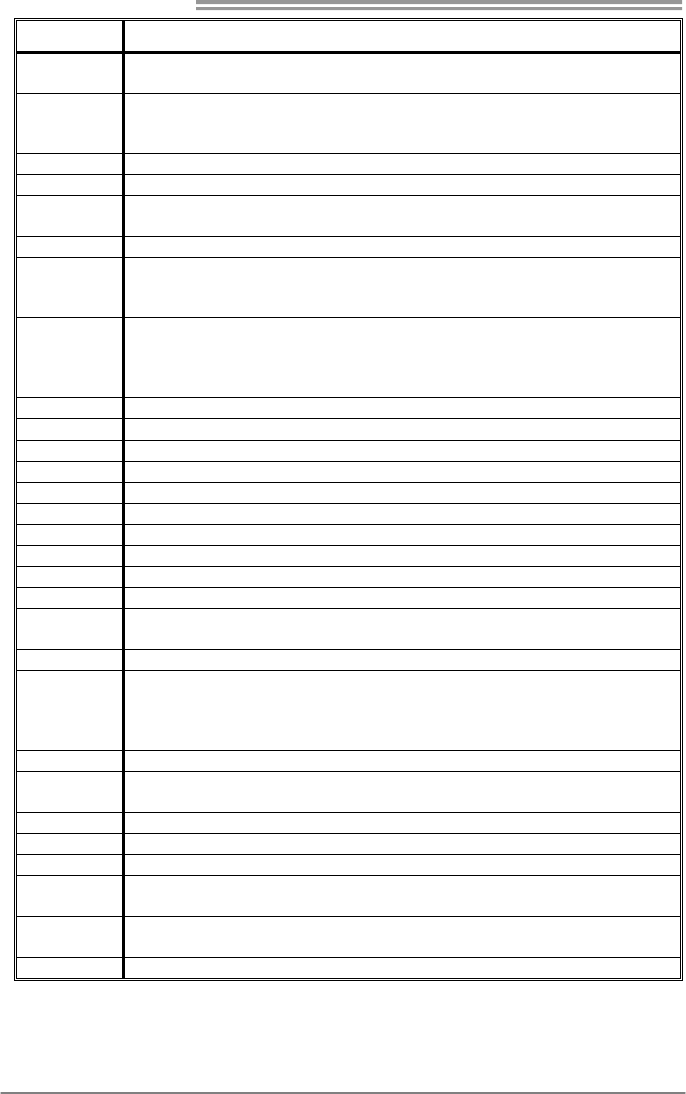
Checkpoint Description
03
Disable NMI, Parity, video for EGA, and DMA controllers. Initialize BIOS,
POST, Runtime data area. Also initiali ze B IOS modules on POST e ntry and
GPNV area. Initialized CMOS as mentioned in the Kernel Variable
"wCMOSFlags."
04
Check CMOS diagnostic byte to determine if battery power is OK and
CMOS checksum is OK. Verify CMOS checksum manually by reading
storage area. If the CMOS checksum is bad, update CMOS with power-on
default values and clear passwords. Initialize status register A.
Initializes data variables that are based on CMOS setup questions.
Initializes both the 8259 compatible PICs in the system
05 Initializes the interrupt controlling hardware (generally PIC) and interrupt
vector table.
06
Do R/W test to C H-2 count reg. Initiali ze CH-0 as system timer. Install the
POSTINT1Ch handler. E nable IRQ-0 in P IC for system timer interrupt.
Traps INT1Ch vector to "POSTINT1ChHandlerBlock."
07 Fixes CPU POST interface calling pointer.
08
Initializes the CPU. The BAT test is bei ng done o n KBC. Program the
keyboard controller command byte is being done after Auto detection of
KB/MS using AMI KB-5.
C0 Early CPU Init Start -- Disable Cache – Init Local APIC.
C1 Set up boot strap processor Information.
C2 Set up boot strap processor for POST.
C5 Enumerate and set up application processors.
C6 Re-enable cache for boot strap processor.
C7 Early CPU Init Exit.
0A Initializes the 8042 compatible Key Board Controller.
0B Detects the presence of PS/2 mouse.
0C Detects the presence of Keyboard in KBC port.
0E
Testing and initialization of different Input Devices. Also, update the Kernel
Variables.
Traps the INT09 h vector, so that the POST INT09h handler ge ts control for
IRQ1. Uncompress all available language, BIOS logo, and Silent logo
modules.
13 Early POST initialization of chipset registers.
20 Relocate System Management Interrupt vector for all CPU in the system.
24 Uncompress and i nitialize a ny platform specific B IOS modules. GPNV is
initialized at this checkpoint.
2A Initializes different devices through DIM.
See DIM Code Checkpoints section of document for more information.
2C Initializes different devices. Detects and initializes the video adapter
installed in the system that have optional ROMs.
2E Initializes all the output devices.
31
Allocate memory for ADM module and uncompress it. Give control to ADM
module for initialization. Initialize language and font modules for ADM.
Activate ADM module.
33 Initializes the silent boot module. Set the window for displaying text
information.
Motherboard Manual
42
Checkpoint Description
37 Displaying sign-on message, CPU information, setup key message, and any
OEM specific information.
38
Initializes different devices through DIM. See DIM Code Checkpoints section
of document for more information. USB controllers are initialized at this
point.
39 Initializes DMAC-1 & DMAC-2.
3A Initialize RTC date/time.
3B Test for total memory installed in the system. Also, Check for DEL or ESC
keys to limit memory test. Display total memory in the system.
3C Mid POST initialization of chipset registers.
40
Detect different devices (Parallel ports, serial ports, and coprocessor in
CPU, etc.) successfully installed in the system and update the BDA,
EBDA…etc.
52
Updates CMOS memory size from memory found in memory test. Allocates
memory for Extended BIOS Data Area from base memory. Programming the
memory hole or any kind of implementation that needs an adjustment in
system RAM size if needed.
60 Initializes NUM-LOCK status and programs the KBD typematic rate.
75 Initialize Int-13 and prepare for IPL detection.
78 Initializes IPL devices controlled by BIOS and option ROMs.
7C Generate and write contents o f ESCD in NVRam.
84 Log errors encountered during POST.
85 Display errors to the user and gets the user response for error.
87 Execute BIOS setup if needed / requested. Check boot password if installed.
8C Late POST initialization of chipset registers.
8D Build ACPI tables (if ACPI is supported).
8E Program the peripheral parameters. Enable/Disable NMI as selected.
90 Initialization of system management interrupt by invoking all handlers.
Please note this checkpoint comes right after checkpoint 20h.
A1 Clean-up work needed before booting to OS.
A2
Takes care of runtime image preparation for different BIOS modules. Fill the
free area in F000h segment with 0FFh. Initializes the Microsoft IRQ Routin
g
Table. Prepares the runtime language module. Disables the system
configuration display if needed.
A4 Initialize runtime language module. Display boot option popup menu.
A7 Displays the system configuration screen if enabled. Initialize the CPU’s
before boot, which includes the programming of the MTRR’s.
A9 Wait for user input at config display if needed.
AA Uninstall POST INT1Ch vector and INT09h vector.
AB Prepare BBS for Int 19 boot. Init MP tables.
AC End of POST initialization of chipset registers. De-initializes the ADM
module.
B1 Save system context for ACPI. Prepare CPU for OS boot including final
MTRR values.
00 Passes control to OS Loader (typically INT19h).

TPOWER X79
43
5.6 TROUBLESHOOTING
Probable Solution
1. There is no power in the system.
Power LED does not shine; the
fan of the power supply does not
work
2. Indicator light on keyboard does
not shine.
1. Make sure power cable is
securely plugged in.
2. Replace cable.
3. Contact technical support.
System is inoperative. Keyboard lights
are on, power indicator lights are lit,
and hard drives are running.
Using even pressure on both ends of
the DIMM, press down firmly until the
module snaps into place.
System does not boot from a hard disk
drive, but can be booted from optical
drive.
1. Check cable running from disk to
disk controller board. Make sure
both ends are securely plugged
in; check the drive type in the
standard CMOS setup.
2. Backing up the hard drive is
extremely important. All hard
disks are capable of breaking
down at any time.
System only boots from an optical
drive. Hard disks can be read,
applications can be used, but system
fails to boot from a hard disk.
1. Back up data and applications
files.
2. Reformat the hard drive.
Re-install applications and data
using backup disks.
Screen message shows “Invalid
Configuration” or “CMOS Failure.”
Review system’s equipment. Make sure
correct information is in setup.
System cannot boot after user installs a
second hard drive.
1. Set master/slave jumpers
correctly.
2. Run SETUP program and select
correct drive types. Call the drive
manufacturers for compatibility
with other drives.
Motherboard Manual
44
CHAPTER 6: BIOS UPDATE
There are three ways to update the BIOS: BIOS Update Utility, BIOS Online
Update Utility and BIOSTAR BIOS Flasher.
6.1 BIOS UPDATE UTILITY
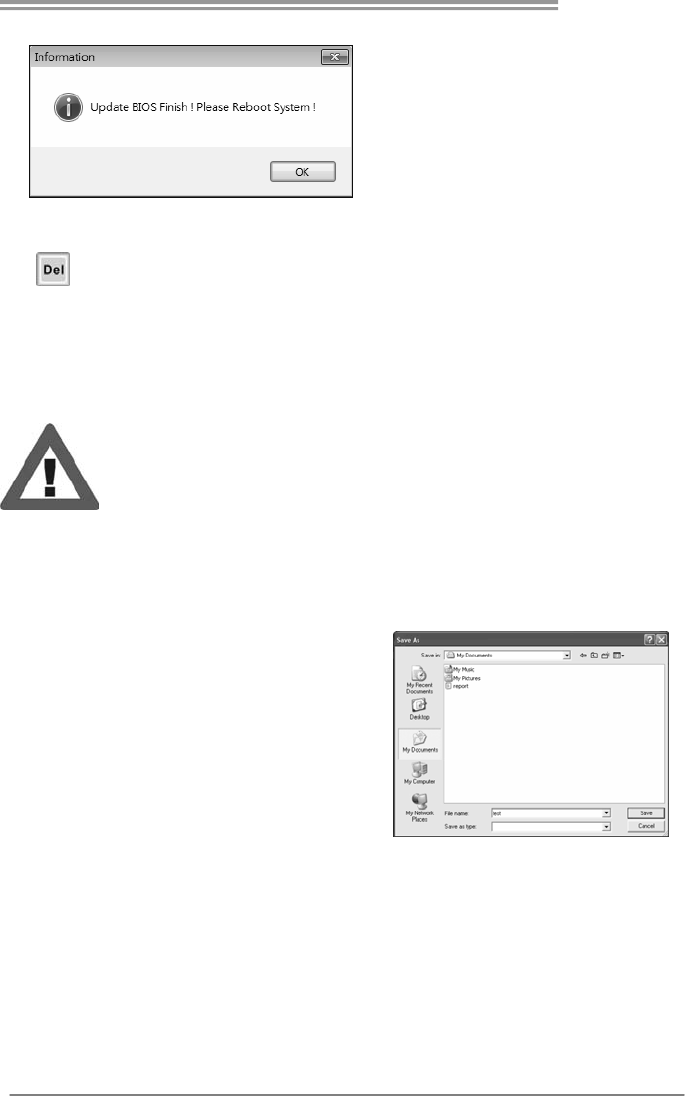
1. Installing BIOS Update Utility from the CD Driver.
2. Download the proper BIOS from www.biostar.com.tw .
3. Open BIOS Update Utility and click
the Update BIOS button on the main
screen.
4. A warning message will show up to
request your agreement to start the
BIOS update. Click Yes to start the
update procedure.
5. Choose the location for your BIOS
file in the system. Please select the
proper BIOS file, and then click on
Open. It will take several minutes,
please be patient.
TPOWER X79
45
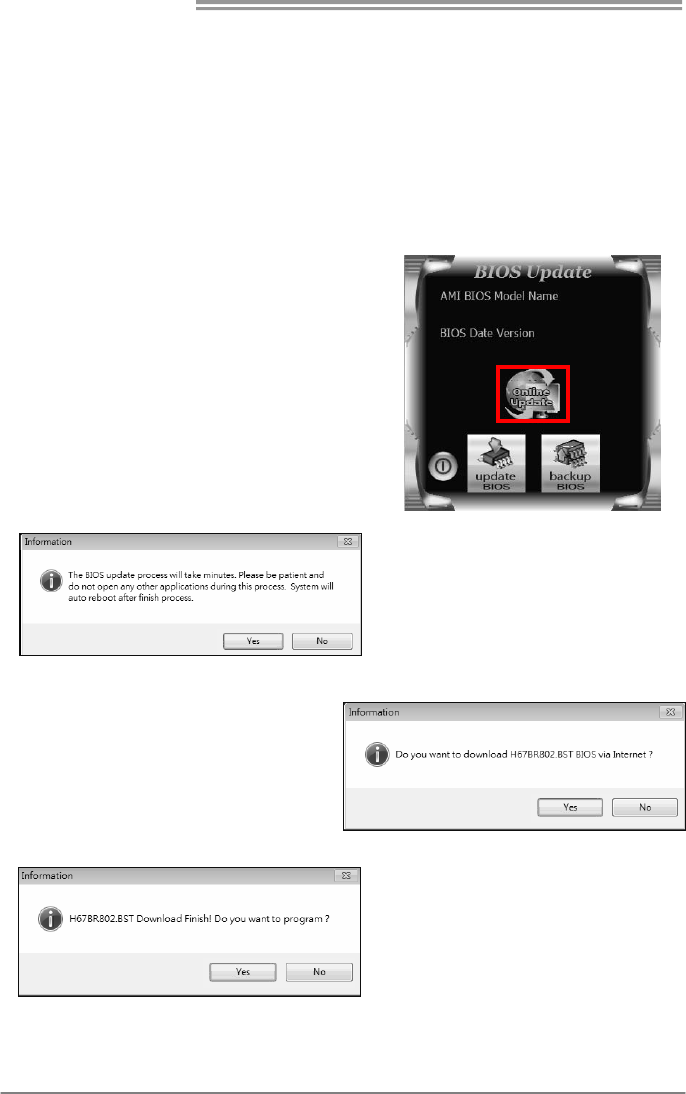
6. After the BIOS Update process is
finished, click on OK to reboot the
system.
7. While the system boots up and the full screen logo shows up, please press the
<Delete> key to enter BIOS setup.
After entering the BIOS setup, please go to the Save & Exit, using the Restore
Defaults function to load Optimized Defaults, and select Save Changes and
Reset to restart the computer. Then, the BIOS Update is completed.
All the information and content above about the software are subject to be changed
without notice. For better performance, the software is being continuously updated.
The information and pictures described above are for your reference only. The actual
information and settings on board may be slightly different from this manual.
<Backup BIOS>
Click the Backup BIOS button on the
main screen for the backup of BIOS,
and select a proper location for your
backup BIOS file in the system, and
click Save.
Motherboard Manual
46
6.2 ONLINE UPDATE UTILITY
1. Installing BIOS Update Utility from the CD Driver.
2. Please make sure the system is connected to the internet before using
this function.
3. Open BIOS Update Utility and click the
Online Update button on the main screen.
4. An open dialog will show up to
request your agreement to start the
BIOS update. Click Yes to start the
online update procedure.
5. If there is a new BIOS version, the
utility will ask you to download it. Click
Yes to proceed.
6. After the download is completed,
you will be asked to program
(update) the BIOS or not. Click Yes
to proceed.
TPOWER X79
47
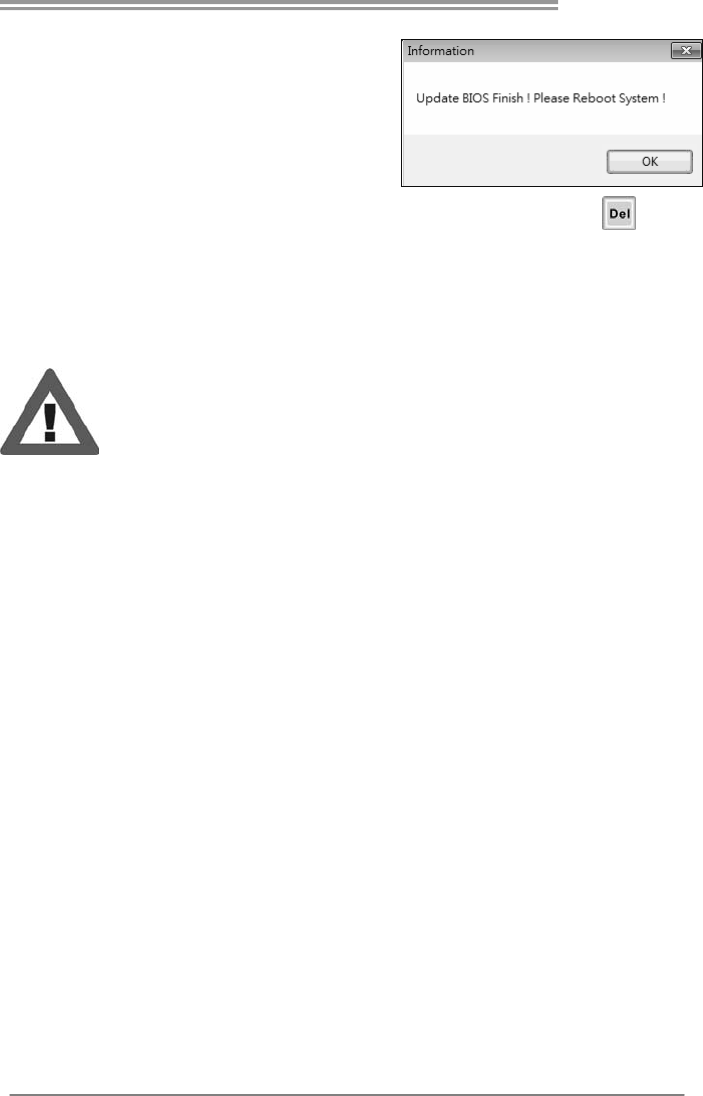
7. After the updating process is finished,
you will be asked you to reboot the
system. Click OK to reboot.
8. While the system boots up and the full screen logo shows up, press
<Delete> key to enter BIOS setup.
After entering the BIOS setup, please go to the Save & Exit, using the Restore
Defaults function to load Optimized Defaults, and select Save Changes and Reset
to restart the computer. Then, the BIOS Update is completed.
All the information and content above about the T-Series software are subject to be
changed without notice. For better performance, the software is being continuously
updated. The information and pictures described above are for your reference only.
The actual information and settings on board may be slightly different from this manual.
Motherboard Manual
48
6.3 BIOSTAR BIOS FLASHER
BIOSTAR BIOS Flasher is a BIOS flashing utility providing you an easy and
simple way to update your BIOS via USB pen drive.
The BIOSTAR BIOS Flasher is built in the BIOS ROM. To enter the utility,
press <F12> during the Power-On Self Tests (POST) procedure while
booting up.
Updating BIOS with BIOSTAR BIOS Flasher
1. Go to the website to download the latest BIOS file for the motherboard.
2. Then, copy and save the BIOS file into a USB flash (pen) drive.
3. Insert the USB pen drive that contains the BIOS file to the USB port.
4. Power on or reset the computer and then press <F12> during the POST
process.
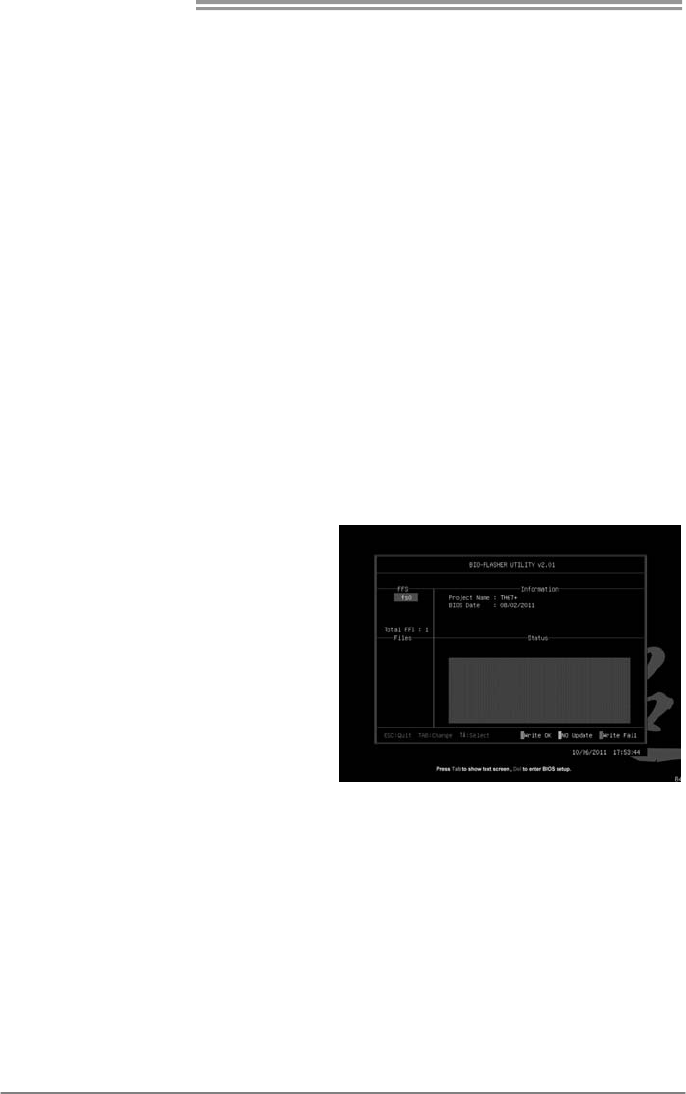
5. After entering the POST
screen, the BIOS-FLASHER
utility pops out. Choose [fs0]
to search for the BIOS file.
TPOWER X79
49
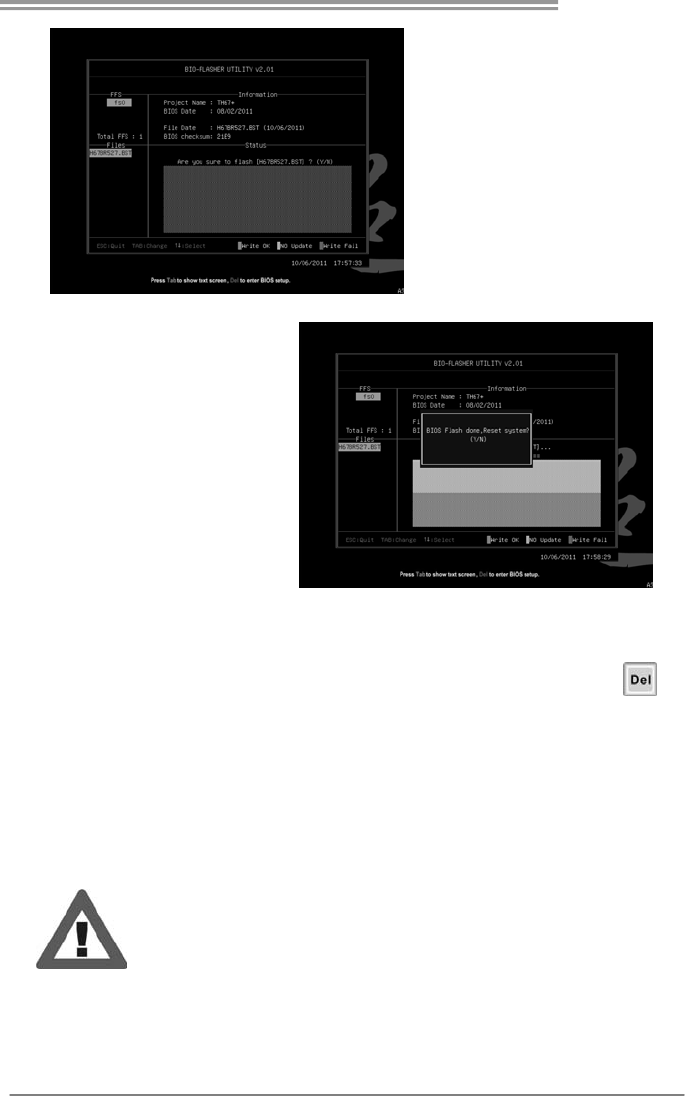
6. Select the proper BIOS
file, and a message asking if
you are sure to flash the
BIOS file. Click Yes to start
updating BIOS.
7. A dialog pops out after
BIOS flash is completed,
asking you to restart the
system. Press the [Y] key to
restart system.
8. While the system boots up and the full screen logo shows up, press
<Delete> key to enter BIOS setup.
After entering the BIOS setup, please go to the Save & Exit, using the
Restore Defaults function to load Optimized Defaults, and select Save
Changes and Reset to restart the computer. Then, the BIOS Update is
completed.
z This utility only allows storage device with FAT32/16 format and single
partition.
z Shutting down or resetting the system while updating the BIOS will lead to
system boot failure.

Motherboard Manual
50
APPENDIX: SPEC IN OTHER LANGUAGES
GERMAN
Spezifikationen
CPU
SOCKET 2011
Intel Sandybridge-E series /
Core i7 Extreme / Core i7 Prozessoren
Unterstützt Execute Disable Bit / Enhanced Intel
SpeedStep® / Intel Architecture-64 / Extended
Memory 64 Technology / Virtualization Technology /
Hyp er Thread ing
Chipsatz Intel X79
Super E/A
IT8728
Bietet die häufig verwend eten alten Super
E/A-Funktionen.
Low Pin Count-Schnittstelle
Umgebungskontrolle,
Hardware-Überwachung
Lüfterdrehzahl-Controller/-Überwachung
"Smart Guardian"-Funktion von ITE
Arbeitsspeich
er
DDR3 DIMM-Steckplätze x 4
Jeder DIMM unterstützt 1GB / 2GB / 4GB /
8GB DDR3.
Max. 32GB Arbeitsspeicher
Quad Kanal DDR3 Speichermodul
Unterstützt DDR3
2400(OC)/2133(OC)/1866(OC)/1600/ 1333
/1066/800
registrierte DIMMs. ECC DIMMs werden nicht
unterstützt.
SATA
SATA2 x 3 (by Intel X79)
SATA3 x 2 (by Intel X79)
SATA3 x 2 (by ASM1061)
* Datentransferrate bis zu 3Gb/s
Unterstützt RAID 0 / 1 / 5 / 10 & Intel SRT
* Datentransferrate bis zu 6Gb/s
Unterstützt RAID 0 / 1 / 5 / 10 & Intel SRT
* Datentransferrate bis zu 6Gb/s
Unterstützt ACHI
eSATA eSATA x 1 (by Intel X79) Datentransferrate bis zu 3Gb/s
Unterstützt RAID 0 / 1 / 5 / 10 & Intel SRT
LAN Realtek RTL 8111E 10 / 100 / 1000 Mb/s Auto-Negotiation
Halb-/ Vollduplex-Funktion
HD
Audio-Unters
tützung
ALC898 Unterstützt High-Definition Audio
7.1-Kanal-Audioausgabe
Steckplätze
PCI-Steckplatz x1
PCI Express Gen3 x16 Steckplatz
(x16) x2
PCI Express Gen3 x16 Steckplatz
(x8) x1
PCI Express Gen2 x1 Steckplatz
x2

TPOWER X79
51
Spezifikationen
Onboard-Ans
chluss
SATA3-Anschluss x4
SATA2-Anschluss x3
Fronttafelanschluss x1
Front-Audioanschluss x1
S/PDIF Ausgangsanschluss x1
CPU-Lüfter-Sockel x1
System-Lüfter-Sockel x2
"CMOS löschen"-Sockel x1
USB3.0-Anschluss x1
USB2.0-Anschluss x2
Stromanschluss (24-polig) x1
Stromansch lus s (8-polig ) x2
Serieller Anschluss x1
Verbraucher-IR Anschluss x1
Jeder Anschluss unterstützt 1 SATA-Laufwerk
Jeder Anschluss unterstützt 1 SATA-Laufwerk
Unterstützt die Fronttafelfunktionen
Unterstützt die Fronttafel-Audioanschlussfunktion
Unterstützt die digitale Audioausgabefunktion
CPU-Lüfterstromversorgungsanschluss (mit Smart
Fan-Fun ktion )
System-Lüfter-Stromversorgungsanschluss
Jeder Anschluss unterstützt 2
Fronttafel-USB3.0-Anschlüs se
Jeder Anschluss unterstützt 2
Fronttafel-USB2.0-Anschlüs se
Rückseiten-E
/A
PS/2-Tastatur x1
LAN-Anschluss x1
USB2.0-Anschluss x2
USB3.0-Anschluss x6
Audioanschluss x6
eSATA Anschluss x1
Optisches +coaxial S/PDIF heraus x1
Platinengröße
244 mm (B) X 305 mm (L) ATX
OS-Unterstüt
zung Windows XP / Vista / 7
Biostar behält sich das Recht vor, ohne Ankündigung
die Unterstützung für ein Betriebssystem
hinzuzufügen oder zu entfernen.

Motherboard Manual
52
FRENCH
SPEC
UC
SOCKET 2011
Processeurs Intel Sandybridge-E series /
Core i7 Extreme / Core i7
Prend en charge les technologies d'exécution d e bit de
désact ivation / Intel SpeedStep® opt imisée/
d'archit ecture Intel 64 / de mémo ire étendue 64 / de
virtualisation / Hyper Threading
Chipset Intel X79
Super E/S
IT8728
Fournit la fonctionnalité de Super E/S
patrimoniales la plus utilisée.
Interface à faib le co mpte de b roches
Initiatives de contrôle environnementales,
Moniteur d e mat ériel
Contrôleur /moniteur de vitesse de ventilateur
Fonction "Gardien intelligent" de l'ITE
Mémoire
principale
Fentes DDR3 DIMM x 4
Chaque DIMM prend en charge des DDR3
de 1Go / 2Go / 4Go / 8Go
Capacité mémo ire max imale de 35Go
Module d e mémo ire DDR3 à mode à quad vo ie
Prend en charge la DDR3
2400(OC)/2133(OC)/1866(OC)/1600/ 1333
/1066/800
Les DIMM à registres et DIMM avec code correcteurs
d'erreurs ne sont pas prises en charge
SATA
SATA2 x 3 (by Intel X79)
SATA3 x 2 (by Intel X79)
SATA3 x 2 (by ASM1061)
* Taux de transfert jusqu'à 3 Go/s.
Prise en charge RAID 0 / 1 / 5 / 10 & Intel SRT
* Taux de transfert jusqu'à 6 Go/s.
Prise en charge RAID 0 / 1 / 5 / 10 & Intel SRT
* Taux de transfert jusqu'à 6 Go/s.
Prise en charge AHCI
eSATA eSATA x 1 (by Intel X79)
Taux de transfert jusqu'à 3 Go/s.
Prise en charge Port-Miltiplier/ RAID 0 / 1 / 5 / 10 &
Inte l SRT
LAN Realtek RTL 8111E 10 / 100 / 1000 Mb/s négociation automatique
Half / Full duplex capability
Prise en
charge
audio HD
ALC898 Prise en charge de l'audio haut e définition
Sortie audio à 7.1 vo ies
Fentes
Fente PCI x1
Fente PCI Express Gen3 x16
(x16) x2
Fente PCI Express Gen3 x16
(x8) x1
Fente PCI Express Gen2 x1
x2

TPOWER X79
53
SPEC
Connecteur
embarqué
Connecteur SATA3 x4
Connecteur SATA2 x3
Connecteur du panneau avant x1
Connecteur Audio du panneau avant x1
Connecteur de sortie S/PDIF x1
Embase de ventilateur UC x1
Embase de ventilateur système x2
Embase d'effacement CMOS x1
Connecteur USB3.0 x1
Connecteur USB2.0 x2
Connecteur d'aliment ation x1
(24 broches)
Connecteur d'aliment ation x2
(8 broches)
Connecteur de Port série x1
Connecteur de IR du consommateur
x1
Chaque connecteur prend en charge 1 périphérique
SATA
Chaque connecteur prend en charge 1 périphérique
SATA
Prend en charge les équipements du panneau avant
Prend en charge la fonction audio du panneau avant
Prend en charge la fonction de sortie audio numérique
Alimentation électrique du ventilateur UC (avec
fonction de ventilateur intelligent)
Alimentation électrique du ventilateur système
Chaque connecteur prend en charge 2 ports USB3.0 de
panneau avant
Chaque connecteur prend en charge 2 ports USB2.0 de
panneau avant
E/S du
panneau
arrière
Clavier PS/2 x1
Port LAN x1
Port USB2.0 x2
Port USB3.0 x6
Fiche audio x6
Port eSATA x1
+coaxial optique sortie S/PDIF x1
Dimensions
de la carte 244 mm (l) X 305 mm (H) ATX
Support SE Windows XP / Vista / 7 Biostar se réserve le droit d'ajouter ou de supprimer le
support de SE avec ou sans préavis.

Motherboard Manual
54
ITALIAN
SPECIFICA
CPU
SOCKET 2011
Processore Intel Sandybridge-E series /
Core i7 Extreme / Core i7
Supporto di Execute Disable Bit / Enhanced
Intel SpeedStep® / Architettura Intel 64 /
Tecnologia Extended Memory 64 / Tecnologia
Virtualization / Hyper Threading
Chipset Intel X79
Super I/O
IT8728
Fornisce le funzionalità legacy Super I/O
usate più comunemente.
Interfaccia LPC (Low Pin Count)
Funzioni di controllo dell’ambiente:
Monitoraggio hardware
Controller / Monitoraggio velocità ventolina
Funzione "Smart Guardian" di ITE
Memoria
principale
Alloggi DIMM DDR3 x 4
Ciascun DIMM supporta DDR3 1GB /
2GB / 4GB / 8GB
Capacità massima della memoria 32GB
Modulo di memoria DDR3 a canale quad
Supporto di DDR3 2400(OC)/ 2133(OC)/
1866(OC)/1600/ 1333 /1066/800
DIMM registrati e DIMM ECC non sono
supportati
SATA
SATA2 x 3 (by Intel X79)
SATA3 x 2 (by Intel X79)
SATA3 x 2 (by ASM1061)
* Velocità di trasferimento dei dati fino a
3Gb/s, Supporto RAID 0 / 1 / 5 / 10 & Intel SRT
* Velocità di trasferimento dei dati fino a
6Gb/s, Supporto RAID 0 / 1 / 5 / 10 & Intel SRT
* Velocità di trasferimento dei dati fino a 6
Gb/s, Supporto AHCI
eSATA eSATA x 1 (by Intel X79)
Velocità di trasferimento dei dati fino a 3 Gb/s.
Supporto Port-Miltiplier RAID 0 / 1 / 5 / 10 &
Intel SRT
LAN Realtek RTL 8111E Negoziazione automatica 10 / 100 / 1000 Mb/s
Capacità Half / Full Duplex
Supporto
audio HD ALC898 Supporto audio High-Definition (HD)
Uscita audio 7.1 canali
Alloggi
Alloggio PC I x1
Alloggio PCI Express Gen3 x16
(x16) x2
Alloggio PCI Express Gen3 x16
(x8) x1
Alloggio PCI Express Gen2 x1
x2

TPOWER X79
55
SPECIFICA
Connettori
su scheda
Connettore SATA3 x4
Connettore SATA2 x3
Connettore pannello frontale x1
Connettore audio frontale x1
Connettore output SPDIF x1
Collettore ventolina C PU x1
Collettore ventolina sistema x2
Collettore cancellaz ione CMOS x1
Connettore USB3.0 x1
Connettore USB2.0 x2
Connettore alimentazione x1
(24 pin)
Connettore alimentazione x2
(8 pin)
Connettore Porta seriale x1
Connettore IR del consumatore x1
Ciascun connettore supporta 1 unità SATA
Ciascun connettore supporta 1 unità SATA
Supporta i servizi del pannello frontale
Supporta la funzione audio pannello frontale
Supporta la funzione d’output audio digitale
Alimentazione ventolina CPU (con funzione
Smart Fan)
Alimentazione ventolina di sistema
Ciascun connettore supporta 2 porte USB3.0
pannello frontale
Ciascun connettore supporta 2 porte USB2.0
pannello frontale
I/O
pannello
posteriore
Tas t ier a PS/2 x 1
Porta LAN x1
Porta USB2.0 x2
Porta USB3.0 x6
Connettore audio x6
Porta eSATA x1
+coaxial ottico S/PDIF fuori x1
Dimension
i scheda
244 mm (larghezza) x 305 mm
(altezza) ATX
Sistemi
operativi
supportati
Windows XP / Vista / 7
Biostar si riserva il diritto di aggiungere o
rimuovere il supporto di qualsiasi sistema
operativo senza preavviso.

Motherboard Manual
56
SPANISH
Especificación
CPU
SOCKET 2011
Procesador Intel Sandybridge-E series /
Core i7 Extreme / Core i7
Admite Bit de deshabilitación de ejecución / Intel
SpeedStep® Mejorado / Int el Architecture-64 /
Tecnología Extended Memory 64 / Tecnología de
virtualización / Hyper Threading
Conjunto de
chips Intel X79
Súper E/S
IT8728
Le ofrece las funcionalidades heredadas de
uso más común Súper E/S.
Interfaz de cuenta Low Pin
In ic iat ivas de control d e entorno,
Monitor hardware
Controlador/monitor de velocidad de ventilador
Función "Guardia inteligente" de ITE
Memoria
principal
Ranuras DIMM DDR3 x 4
Cada DIMM admite DDR de 1GB / 2GB /
4GB / 8GB
Capacidad máxima de memoria de 32GB
Módulo de memoria DDR3 de canal Quad
Admite DDR3 de 2400(OC)/2133(OC)/1866(OC)/
1600/ 1333 /1066/800
No admite DIMM registrados o DIMM compatibles con
ECC
SATA
SATA2 x 3 (by Intel X79)
SATA3 x 2 (by Intel X79)
SATA3 x 2 (by ASM1061)
*Tasas de transferencia de hasta 3 Gb/s.
Admite RAID 0 / 1 / 5 / 10 & Intel SRT
*Tasas de transferencia de hasta 6 Gb/s.
Admite RAID 0 / 1 / 5 / 10 & Intel SRT
*Tasas de transferencia de hasta 6 Gb/s.
Admite AHCI
eSATA eSATA x 1 (by Intel X79) Tasas de transferencia de hasta 3 Gb/s.
Admite Port-Multiplier/RAID 0 / 1 / 5 / 10 & Intel SRT
Red Local Realtek RTL 8111E Negociación de 10 / 100 / 1000 Mb/s
Funciones Half / Full dúplex
Soporte de
sonido HD ALC898 Soporte de sonido de Alta Definición
Salida de sonido de 7.1 canales
Ranuras
Ranura PCI X1
Ranura PCI Express Gen3 x16
(x16) X2
Ranura PCI Express Gen3 x16
(x8) X1
Ranura PCI Express Gen2 x1
X2
Conectores
en placa
Conector SATA3 X4
Conector SATA2 X3
Cada conector soporta 1 dispositivos SATA
Cada conector soporta 1 dispositivos SATA

TPOWER X79
57
Especificación
Conector de panel frontal X1
Conector de sonido frontal X1
Conector de salida S/PDIF X1
Cabecera de ventilador de CPU X1
Cabecera de ventilador de sistema X2
Cabecera de borrado de CMOS X1
Conector USB3.0 X1
Conector USB2.0 X2
Conector de alimentación X1
(24 patillas)
Conector de alimentación X2
(8 patillas)
Conector Puerto serie X1
Conector de IR del consumidor X1
Soporta instalaciones en el p anel frontal
Soporta funciones de sonido en el panel frontal
Soporta función de salida de sonido digital
Fuente de alimentación de ventilador de CPU (con
función Smart Fan)
Fuente de alimentación de ventilador de sistema
Cada conector soporta 2 puertos USB3.0 frontales
Cada conector soporta 2 puertos USB2.0 frontales
Panel
trasero de
E/S
Tec l ado PS /2 X1
Puerto de red local X1
Puerto USB2.0 X2
Puerto USB3.0 X6
Conector de sonido X6
Puerto eSATA X1
+coaxial óptico salida S/PDIF x1
Ta maño d e
la placa 244 mm. (A) X 305 Mm. (H) ATX
Soporte de
sistema
operativo
Windows XP / Vista / 7 Biostar se reserva el derecho de añadir o retirar el
soporte de cualquier SO con o sin aviso previo.

Motherboard Manual
58
PORTUGUESE
ESPECIFICAÇÕE
CPU
SOCKET 2011
Processador Intel Sandybridge-E series /
Core i7 Extreme / Core i7
Suporta as tecnologias Execute Disable Bit / Enhanced
Intel SpeedStep® / Int el Arquitecture -64 / Extended
Memory 64 / Virtualization / Hyper Threading
Chipset Intel X79
Especificaçã
o Super I/O
IT8728
Proporciona as funcionalidades mais
utilizadas em termos da especificação
Super I/O.
Interface LPC (Low Pin Count).
In ic iat ivas par a contro lo do amb iente
Monitorização do hardware
Controlador/Monitor da velocidade da ventoinha
Função "S mart Guardian" d a ITE
Memória
principal
Ranhuras DIMM DDR3 x 4
Cada módulo DIMM suporta uma
memória DDR3 de 1GB / 2GB / 4GB / 8GB
Capacidad e máx ima de memória:32 GB
Módulo de memória DDR3 de canal quad-se
Suporta módulos DDR3
2400(OC)/2133(OC)/1866(OC)/1600/ 1333
/1066/800
Os módulos DIMM registados e os DIMM ECC não são
suportados
SATA
SATA2 x 3 (by Intel X79)
SATA3 x 2 (by Intel X79)
SATA3 x 2 (by ASM1061)
*Velocidades de transmissão de dados até 3 Gb/s.
Suporta as funções RAID 0 / 1 / 5 / 10 & Intel SRT
*Velocidades de transmissão de dados até 6 Gb/s.
Suporta as funções RAID 0 / 1 / 5 / 10 & Intel SRT
*Velocidades de transmissão de dados até 6 Gb/s.
Suporta as funções AHCI
eSATA eSATA x 1 (by Intel X79)
Velocidades de transmissão de dados até 3 Gb/s.
Suporta as funções Port-Multiplier/RAID 0 / 1 / 5 / 10 &
Inte l SRT
LAN Realtek RTL 8111E Auto negociação de 10 / 100 / 1000 Mb/s
Capacidade semi/full-duplex
Suporte
para áudio
de alta
definição
ALC898 Suporta a especificação High-Definition Audio
Saída de áudio de 7.1 canais
Ranhuras
Ranhura PCI x1
Ranhura PCI Express Gen3 x16(x16) x2
Ranhura PCI Express Gen3 x16(x8) x1
Ranhura PCI Express Gen2 x1 x2

TPOWER X79
59
ESPECIFICAÇÕE
Conectores
na placa
Conector SATA3 x4
Conector SATA2 x3
Conector do painel frontal x1
Conector de áudio frontal x1
Conector de saída S/PDIF x1
Conector da ventoinha da CPU x1
Conector da ventoinha do sistema x2
Conector para limpeza do CMOS x1
Conector USB3.0 x1
Conector USB2.0 x2
Conector de alimentação x1
(24 pinos)
Conector de alimentação x2
(8 p inos)
Conector da Porta série x1
Conector de IR do consumidor x1
Cada conector suporta 1 dispositivo SATA
Cada conector suporta 1 dispositivo SATA
Para suporte de várias funções no painel frontal
Suporta a função de áudio no painel frontal
Suporta a saída de áud io digital
Aliment ação da vento inha da CPU (co m a função S mart
Fan )
Alimentação da ventoinha do sistema
Cada conector suporta 2 portas USB3.0 no painel
frontal
Cada conector suporta 2 portas USB2.0 no painel
frontal
Entradas/S
aídas no
painel
traseiro
Tec l ado PS /2 x1
Porta LAN x1
Porta USB2.0 x2
Porta USB3.0 x6
Tomada de áudio x6
Porta eSATA x1
+coaxial ótico saída S/PDIF x1
Tamanho
da placa 244 mm (L) X 305 mm (A) ATX
Sistemas
operativos
suportados
Windows XP / Vista / 7
A Biostar reserva-se o direito de adicionar ou remover
suporte para qualquer sistema operativo com ou sem
av iso prévio.

Motherboard Manual
60
POLISH
SPEC
Procesor
SOCKET 2011
Procesor Intel Sandybridge-E series /
Core i7 Extreme / Core i7
Obsługa Execute Disable Bit / Enhanced Intel
SpeedStep® / Intel Architecture-64 / Extended
Memory 64 Technology / Virtualization Technology /
Hyp er Thread ing
Chipset Intel X79
Pamięć
główna
Gniazda DDR3 DIMM x 4
Każde gniazdo DIMM obsługuje moduły
1GB / 2GB / 4GB / 8GB
Maks. wielkość pamięci 32GB
Modu ł pamięci DDR3 z trybem quad ilość kanału
Obsługa DDR3 2400(OC)/2133(OC)/1866(OC)/1600/
1333 /1066/800
Brak obsługi Registered D IMM oraz ECC DIMM
Super I/O
IT8728
Zapewnia najbardziej powszechne funkcje
Super I/O.
Interfejs Low Pin Count
Funkcje kontroli warunków pracy,
Monitor H/W
Kontroler/Monitor prędkości wentylatora
Funkcja ITE "Smart Guard ian"
SATA
SATA2 x 3 (by Intel X79)
SATA3 x 2 (by Intel X79)
SATA3 x 2 (by ASM1061)
* Transfer danych do 3 Gb/s.
Obsługa RAID 0 / 1 / 5 / 10 & Intel SRT
* Transfer danych do 6 Gb/s.
Obsługa RAID 0 / 1 / 5 / 10 & Intel SRT
* Transfer danych do 6 Gb/s.
Obsługa AHCI
eSATA eSATA x 1 (by Intel X79) Transfer danych do 3 Gb/s.
Obsługa Port-Multiplier/RAID 0 / 1 / 5 / 10 & Intel SRT
LAN Realtek RTL 8111E
10 / 100 / 1000 Mb/s z automatyczną negocjacją
szybkości
Działanie w trybie połowicznego / pełnego dupleksu
Obsługa
audio HD ALC898 Obsługa High-Def inition Aud io
7.1 kanałowe wyjście audio
Gniazda
Gniazdo PCI x1
Gniazdo PCI Express Gen3 x16
(x16) x2
Gniazdo PCI Express Gen3 x16
(x8) x1
Gniazdo PCI Express Gen2 x1
x2
Złącza
wbudowane
Złącze SATA3. x4
Złącze SATA2 x3
Złącze panela przedniego x1
Każde złącze obs ługuje 1 urządzenie SATA
Każde złącze obs ługuje 1 urządzenie SATA
Obsługa elementów panela przedniego

TPOWER X79
61
SPEC
Przedn ie złącze aud io x1
Złącze wyjścia S/PDIF x1
Złącze głó wkowe wentylatora
procesora x1
Złącze głó wkowe wentylatora
systemowego x2
Złącze główkowe kasowania CMOS x1
Złącze USB3.0 x1
Złącze USB2.0 x2
Złącze zasilania (24 pinowe) x1
Złącze zas ilania (8 pino we) x2
Złącze Port szeregowy x1
Złącze Konsument IR x1
Obsługa funkcji audio na panelu przednim
Obsługa funkcji cyfrowego wyjścia audio
Zasilanie wentylatora procesora (z funkcją Smart Fan)
Zasilanie wentylatora systemowego
Każde złącze obs ługuje 2 porty USB3.0 na panelu
przednim
Każde złącze obs ługuje 2 porty USB2.0 na panelu
przednim
Back Panel
I/O
Klawiatura PS/2 x1
Port LAN x1
Port USB2.0 x2
Port USB3.0 x6
Gniazdo audio x6
Port eSATA x1
Optyczny +coaxial wyjścia S/PDIF x1
Wymiary
płyty 244 mm (S) X 305 mm (W) ATX
Obsluga
systemu
operacyjne
go
Windows XP / Vista / 7
Biostar zastrzega sobie prawo dodawania lub
odwoływania obsług i dowo ln ego systemu
operacyjnego bez powiado mienia.

Motherboard Manual
62
RUSSIAN
СПЕЦ
CPU
(центральн
ый
процессор)
SOCKET 2011
Процессор Intel Sandybridge-E series /
Core i7 Extreme / Core i7
Поддержка технологий Execute Disable B it /
Enhanced Intel Sp eedStep® / Intel Architecture-64
/ Extended Memory 64 Technology / технологии
виртуализация / Hyper Threading
Набор
микросхем Intel X79
Основная
память
Слоты DDR3 DIMM x 4
Каждый модуль DIMM поддерживает 1ГБ /
2ГБ / 4 ГБ / 8 ГБ DDR3
Максимальная ёмкость памяти 32ГБ
Модуль памяти с четырехъядерных-канал
режимом DDR3
Поддержка DDR3 2400(OC)/2133(OC)/1866(OC)/
1600/ 1333 /1066/800
Не поддерживает зарегистрированные модули
DIMM and ECC DIMM
Super I/O
IT8728
Обеспечивает наиболее используемые
действующие функциональные
возможности Super I/O.
Интерфейс с низким количеством выводов
Инициативы по охране окружающей среды,
Аппаратный монитор
Регулятор скорости вентилятора/ монитор
Функция ITE "Smart Guardian"
(Интеллектуальная защита)
SATA SATA2 x 3 (by Intel X79)
SATA3 x 2 (by Intel X79)
SATA3 x 2 (by ASM1061)
* скорость передачи данных до 3 гигабит/с.
Поддержка RAID 0 / 1 / 5 / 10 & Intel SRT
* скорость передачи данных до 6 гигабит/с.
Поддержка RAID 0 / 1 / 5 / 10 & Intel SRT
* скорость передачи данных до 6 гигабит/с.
Поддержка AHCI
eSATA
eSATA x 1 (by Intel X79)
скорость передачи данных до 3 гигабит/с.
Поддержка Port-Multiplier/RAID 0 / 1 / 5 / 10 & Intel
SRT
Локальная
сеть Realtek RTL 8111E
Автоматическое согласование 10 / 100 / 1000
Мб/с
Частичная / полная дуплексная способность
Звуковая
поддержка
жесткого
диска
ALC898 Звуковая поддержка High-Def in ition
7.1канальный звуковой выход

TPOWER X79
63
СПЕЦ
Слоты
Слот PCI x1
Слот PCI Express Gen3 x16 (x16) x2
Слот PCI Express Gen3 x16 (x8) x1
Слот PCI Express Gen2 x1 x2
Встроенны
й разъём
Разъём SATA3 x4
Разъём SATA2 x3
Разъём на лицевой панели x1
Входной звуковой разъём x1
Разъём вывода для S/PDIF x1
Контактирующее приспособление
вентилятора центрального процессора x1
Контактирующее приспособление
вентилятора системы x2
Открытое контактирующее
приспособление CMOS x1
USB3.0-разъём x1
USB2.0-разъём x2
Разъем питания (24 вывод) x1
Разъем питания (8 вывод) x2
Разъём Последовательный порт x1
Разъём едока ИКЫЙ x1
Каждый разъём поддерживает 1 устройство SATA
Каждый разъём поддерживает 1 устройство SATA
Поддержка устройств на лицевой панели
Поддержка звуко вых функций на лицевой
панели
Поддержка вывода цифровой звуковой функц ии
Источник питания для вентилятора центрального
процессора (с функц ией интеллектуального
вентилятора)
Источник питания для вентилятора системы
Каждый разъём поддерживает 2 USB-порта на
лицевой панели
Каждый разъём поддерживает 2 USB-порта на
лицевой панели
Задняя
панель
средств
ввода-выв
ода
Клавиатура PS/2 x1
Порт LAN x1
USB2.0-порт x2
USB3.0-порт x6
Гнездо для подключения наушников x6
eSATA порт x1
Оптически +co axial вывода для S/PDIF x1
Размер
панели 244 мм (Ш) X 305 мм (В) ATX
Поддержка
OS Windows XP / Vista / 7
Biostar сохраняет за собой право добавлять или
удалять средства обеспечения для OS с или без
предварительного уведомления.

Motherboard Manual
64
ARABIC
تﺎﻔﺻاﻮﻤﻟا
ﺗ ﻢﻋﺪﺗ تﺎﻴﻨﻘ Execute Disable B it / Enhanced Intel
SpeedStep® / Intel Architecture-64 / Extended
Memory 64 Technology / Virtualization
Techno logy / Hyp er Thread ing
SOCKET 2011
تﺎﺠﻟﺎﻌﻣIntel Sandybridge-E series /
Core i7 Extreme / Core i7 ﺑ ددﺮﺘ ی ﻰﻟإ ﻞﺼ
ةﺪﺣو ﻌﻤﻟاﺔﺠﻟﺎ
ﺔیﺰآﺮﻤﻟا
Intel X79
ﺔﻋﻮﻤﺠﻣ ﺢﺋاﺮﺸﻟا
ةﺮآاذDDR3 ةﺎﻨﻗ ﺔﻴﻋﺎﺑر
ﻢﻋﺪﺗ ةﺮآاﺬﻟا ﻦﻣ عﻮﻥ DDR3 تﺎﻌﺳ
2400(OC)/2133(OC)/1866(OC)/1600/ 1333
/1066/800 ﺎﺠﻴﻣ ﺖیﺎﺑ
ﻻ ﻢﻋﺪﺗ ﻖﺋﺎﻗر ةﺮآاﺬﻟا DIMM ﻚﻠﺗو ﻲﺘﻟا ﻻ ﻖﻓاﻮﺘﺗ ﻊﻣ ECC
ﺔﺤﺘﻓDDR3 DIMM دﺪﻋ4
ﻢﻋﺪﺗ ﻞآ ﺔﺤﺘﻓ DIMM ﻢﻋﺪﺗ ةﺮآاذ ﻦﻣ عﻮﻥ DDR3 ﺔﻌﺳ
1ﺐﻏ/2ﺐﻏ/4ﺐﻏ/8ﺐﻏ
ﺔﻌﺳ ةﺮآاذ ىﻮﺼﻗ 32ﺎﺠﻴﺝ ﺖیﺎﺑ
ةﺮآاﺬﻟا ﺔﻴﺴﻴﺋﺮﻟا
ﻞﺋﺎﺳو ﻢﻜﺤﺘﻟا ﻲﻓ ﺔﺌﻴﺒﻟا:
ﺐﻗاﺮﻣ ﺔﻓﺮﻌﻤﻟ ﺔﻟﺎﺣ ةﺰﻬﺝﻷا
ﺐﻗاﺮﻣ ﻲﻓ ﺔﻋﺮﺳ ﺔﺣوﺮﻤﻟا
ﺔﻔﻴﻇو"Smart Gu ard ian" ﻦﻣ ITE
IT8728
ﺮﻓﻮﺗ ﺔﻔﻴﻇو Super I/O ﺮﺜآﻷا ًﺎ ﻣ ا ﺪ ﺨ ﺘ ﺳ ا.
ﺗﻢﻋﺪ ﺔﻴﻨﻘﺗ Low Pin Count Interface
Super I/O
ﻞﻘﻥ تﺎﻥﺎﻴﺒﻟا تﺎﻋﺮﺴﺑ ﻞﺼﺗ ﻰﻟإ 3 ﺖﺑﺎﺠﻴﺝ/ﺔﻴﻥﺎﺙ.
ﺔﻴﻨﻘﺗ ﻢﻋﺪﺗRAID 0 / 1 / 5 / 10 & Intel SRT
ﻞﻘﻥ تﺎﻥﺎﻴﺒﻟا تﺎﻋﺮﺴﺑ ﻞﺼﺗ ﻰﻟإ 6 ﺖﺑﺎﺠﻴﺝ/ﺔﻴﻥﺎﺙ.
ﺔﻴﻨﻘﺗ ﻢﻋﺪﺗRAID 0 / 1 / 5 / 10 & Intel SRT
ﻞﻘﻥ تﺎﻥﺎﻴﺒﻟا تﺎﻋﺮﺴﺑ ﻞﺼﺗ ﻰﻟإ 6 ﺖﺑﺎﺠﻴﺝ/ﺔﻴﻥﺎﺙ.
ﺔﻴﻨﻘﺗ ﻢﻋﺪﺗAHCI
SATA2 x 3 (Intel X79)
SATA3 x 2 (Intel X79)
SATA3 x 2 (ASM1061)
SATA
ﻞﻘﻥ تﺎﻥﺎﻴﺒﻟا تﺎﻋﺮﺴﺑ ﻞﺼﺗ ﻰﻟإ 3 ﺖﺑﺎﺠﻴﺝ/ﺔﻴﻥﺎﺙ.
ﺔﻴﻨﻘﺗ ﻢﻋﺪﺗRAID 0 / 1 / 5 / 10 & Intel SRT eSATA x 1 (Intel X79) eSATA
ضوﺎﻔﺗ ﻲﺋﺎﻘﻠﺗ 10/100 ﺎﺠﻴﻣ ﺖیﺎﺑ /ﺔﻴﻥﺎﺙ و1ﺎﺠﻴﺝ ﺖﺑ/ﺔﻴﻥﺎﺙ
ﺔﻴﻥﺎﻜﻣإ ﻞﻘﻨﻟا ﺰﻤﻟاجود ﻞﻣﺎﻜﻟا/ﻲﻔﺼﻨﻟا Realtek RTL 8111E ﺔﻜﺒﺵ ﺔﻴﻠﺥاد
ﻢﻋﺪﺗ ﺔﻴﻨﻘﺗ تﻮﺼﻟا ﻲﻟﺎﻋ ﻒیﺮﻌﺘﻟا ﻦﻣ
7.1 تاﻮﻨﻗ جﺮﺨﻟ تﻮﺼﻟا ALC898 ﻢﻋد تﻮﺼﻟا ﻲﻟﺎﻋ
ﻒیﺮﻌﺘﻟا
ﺔﺤﺘﻓPCI دﺪﻋ1
(x16) ﺔﺤﺘﻓGen3 x1 6 PCI Express دﺪﻋ2
(x8) ﺔﺤﺘﻓGen3 x16 PCI Express دﺪﻋ1
ﺔﺤﺘﻓGen2 x1 PCI Express دﺪﻋ2
اتﺎﺤﺘﻔﻟ

TPOWER X79
65
تﺎﻔﺻاﻮﻤﻟا
ﻢﻋﺪی ﻞآ ﺬﻔﻨﻣ ﺪﺣاو ﻦﻣ ةﺰﻬﺝأ SATA
ﻢﻋﺪی ﻞآ ﺬﻔﻨﻣ ﺪﺣاو ﻦﻣ ةﺰﻬﺝأ SATA
ﻢﻋﺪی تاﺰﻴﻬﺠﺗ ﺔﺣﻮﻠﻟا ﺔﻴﻣﺎﻣﻷا
ﻢﻋﺪی ﺔﻔ ﻴﻇو تﻮﺼﻟا ﺔﺣﻮﻠﻟﺎﺑ ﺔﻴﻣﺎﻣﻷا
ﻢﻋﺪی ﺔﻔ ﻴﻇو جﺮﺥ تﻮﺼﻟا ﻲﻤﻗﺮﻟا
ﻞﻴﺹﻮﺘﻟ ﺔﻗﺎﻄﻟا ﺔﺣوﺮﻤﻟ ةﺪﺣو ﺔﺠﻟﺎﻌﻤﻟا ﻊﻣ ﺔﻔﻴﻇو Smart Fan
ﻞﻴﺹﻮﺘﻟ ﺔﻗﺎﻄﻟا ﺔﺣوﺮﻤﻟ مﺎﻈﻨﻟا
ﺬﻔﻨﻣSATA3 دﺪﻋ4
ﺬﻔﻨﻣSATA2 دﺪﻋ3
ﺔﻴﻣﺎﻣﻷا ﺔﺣﻮﻠﻟا ﺬﻔﻨﻣ دﺪﻋ1
ﻲﻣﺎﻣﻷا تﻮﺼﻟا ﺬﻔﻨﻣ دﺪﻋ1
جﺮﺥ ﺬﻔﻨﻣS/PDIF دﺪﻋ1
ﺔیﺰآﺮﻤﻟا ﺔﺠﻟﺎﻌﻤﻟا ةﺪﺣو ﺔﺣوﺮﻣ ﺔﻠﺹو دﺪﻋ1
مﺎﻈﻨﻟا ﺔﺣوﺮﻣ ﺔﻠﺹو دﺪﻋ2
ﺢﺴﻣ ﺔﻠﺹوCMOS دﺪﻋ1
ﻢﻋﺪی ﻞآ ﺬﻔﻨﻣ ﻲﺘﺤﺘﻓ USB ﺔﺣﻮﻠﻟﺎﺑ ﺔﻴﻣﺎﻣﻷا
ﻢﻋﺪی ﻞآ ﺬﻔﻨﻣ ﻲﺘﺤﺘﻓ USB ﺔﺡﻮﻠﻟﺎﺑ ﺔﻴﻣﺎﻣﻷا
ﺬﻔﻨﻣ3.0 US B دﺪﻋ1
ﺬﻔﻨﻣ2.0 US B دﺪﻋ2
ﺔﻗﺎﻄﻟا ﻞﻴﺹﻮﺗ ﺬﻔﻨﻣ)24سﻮﺑد( دﺪﻋ1
ﺔﻗﺎﻄﻟا ﻞﻴﺹﻮﺗ ﺬﻔﻨﻣ)8سﻮﺑد( دﺪﻋ2
ﻲﻠﺴﻠﺴﺗ ﺬﻔﻨﻣ دﺪﻋ1
ﺬﻔﻨﻣ ﺔﻜﻠﻬﺘﺴﻣ ﺖﺤﺗ ﺮﻤﺣﻷا دﺪﻋ1
ﺬﻓﺎﻨﻤﻟا ﻰﻠﻋ ﺢﻄﺳ
ﺔﺣﻮﻠﻟا
ﺢﻴﺗﺎﻔﻣ ﺔﺣﻮﻟPS/2 دﺪﻋ1
ﺔﻴﻠﺤﻣ لﺎﺼﺗا ﺔﻜﺒﺵ ﺬﻔﻨﻣ دﺪﻋ1
ﻣ ﺬﻓﺎﻨ2.0USB دﺪﻋ2
ﺬﻓﺎﻨﻣ3.0US B دﺪﻋ6
تﻮﺹ ﺲﺒﻘﻣ دﺪﻋ6
ﺬﻔﻨﻣeSATA دﺪﻋ1
ﺔّیﺮﺼﺑ+ ﺪﺤّﺘﻣ رﻮﺤﻣ جﺮﺥ ﺬﻔﻨﻣ S/PDIF دﺪﻋ1
ﺬﻓﺎﻥ ﻞﺥد/جﺮﺥ
ﺔﺣﻮﻠﻟا ﺔﻴﻔﻠﺨﻟا
ATX 244 ﻢﻣ)ضﺮﻋ (X 305 ﻢﻣ)عﺎﻔﺗرا( ﻢﺠﺣ ﺔﺣﻮﻠﻟا
ﻆﻔﺘﺤﺗ Biostar ﺎﻬﻘﺤﺑ ﻲﻓ ﺔﻓﺎﺿإ وأ ﺔﻟازإ ﻢﻋﺪﻟا يﻷ مﺎﻈﻥ ﻞﻴﻐﺸﺗ رﺎﻄﺥﺈﺑ
وأ ﺑنوﺪ رﺎﻄﺥإ. Windows XP / Vista / 7
ﻢﻋد ﺔﻤﻈﻥأ ﻞﻴﻐﺸﺘﻟا

Motherboard Manual
66
JAPANESE
仕様
CPU
SOCKET 2011
Intel Sandybridge-E series /
Core i7 Extreme / Core i7 processor
Execute Disable Bit / Enhanced Intel Sp eedStep® /
Intel Architecture-64 / Extended Memory 64
Technology / Virtualization Technology / Hyper
Threadingをサポートします
チップセット Intel X79
メインメモリ
DDR3 DIMMスロット x 4
各DIMMは 1GB / 2GB / 4GB / 8GB DDR3
をサポート
最大メモリ容量32GB
クワッド チャンネルモードDDR3メモリモジュール
DDR3 2400(OC)/2133(OC)/1866(OC)/1600/ 1333
/1066/800 をサポート
登録済みDIMMとECC DIMMはサポートされません
Super I/O
IT8728
もっとも一般に使用されるレガシーSuper I/O
機能を採用しています。
低ピンカウントインターフェイス
環境コントロールイニシアチブ、
H/Wモニター
ファン速度コントローラ/ モニター
ITEの「スマートガーディアン」機能
SATA
SATA2 x 3 (Intel X79)
SATA3 x 2 (Intel X79)
SATA3 x 2 (ASM1061)
* 最高3 Gb/秒のデータ転送速度
RAID 0 / 1 / 5 / 10 & Intel SRT のサポート
* 最高6 Gb/秒のデータ転送速度
RAID 0 / 1 / 5 / 10 & Intel SRT のサポート
* 最高6 Gb/秒のデータ転送速度
AHCIのサポート
eSATA eSATA x 1 (Intel X79) 最高3 Gb/秒のデータ転送速度
RAID 0 / 1 / 5 / 10 & Intel SRT のサポート
LAN Realtek RTL 8111E 10 / 100 / 1000 Mb/秒のオートネゴシエーション
半/全二重機能
HDオーディ
オのサポート ALC898 ハイデフィニションオーディオのサポート
7.1 チャンネルオーディオアウト
スロット
PCIスロット x1
PCI Express Gen3 x16スロット
(x16) x2
PCI Express Gen3 x16スロット
(x8) x1
PCI Express Gen2 x1スロット
x2
オンボードコ
ネクタ
SATA3コネクタ x4
SATA2コネクタ x3
フロントパネルコネクタ x1
各コネクタは1つのSATAデバイスをサポートします
各コネクタは1つのSATAデバイスをサポートします
フロントパネル機能をサポートします

TPOWER X79
67
仕様
フロントオーディオコネクタ x1
S/PDIFアウトコネクタ x1
CPUファンヘッダ x1
システムファンヘッダ x2
CMOSクリアヘッダ x1
USB3.0コネクタ x1
USB2.0コネクタ x2
電源コネクタ(24ピン) x1
電源コネクタ(8ピン) x2
シリアルポートコネクタ x1
消費者IR コネクタ x1
フロントパネルオーディオ機能をサポートします
デジタルオーディオアウト機能をサポートします
CPUファン電源装置(スマートファン機能を搭載)
システムファン電源装置
各コネクタは2つのフロントパネルUSB3.0ポートをサポート
します
各コネクタは2つのフロントパネルUSB2.0ポートをサポート
します
背面パネル
I/O
PS/2キーボード x1
LANポート x1
USB2.0ポート x2
USB3.0ポート x6
オーディオジャック x6
eSATAポート x1
光学+coaxial S/PDIFアウト x1
ボードサイズ 244 mm (幅) X 305 mm (高さ) ATX
OSサポート Windows XP / Vista / 7 Biostarは事前のサポートなしにOSサポートを追加または削
除する権利を留保します。
2011/12/02
