Blaupunkt Coburg Rcr 168 Users Manual Cob/Portof/Colo Gb.
COLORADO RCR 168 to the manual d4490494-d491-4922-8602-c6f8a097762f
2015-02-04
: Blaupunkt Blaupunkt-Coburg-Rcr-168-Users-Manual-363205 blaupunkt-coburg-rcr-168-users-manual-363205 blaupunkt pdf
Open the PDF directly: View PDF  .
.
Page Count: 21
1
DEUTSCH
ITALIANO
NEDERLANDS
PORTUGUÊS
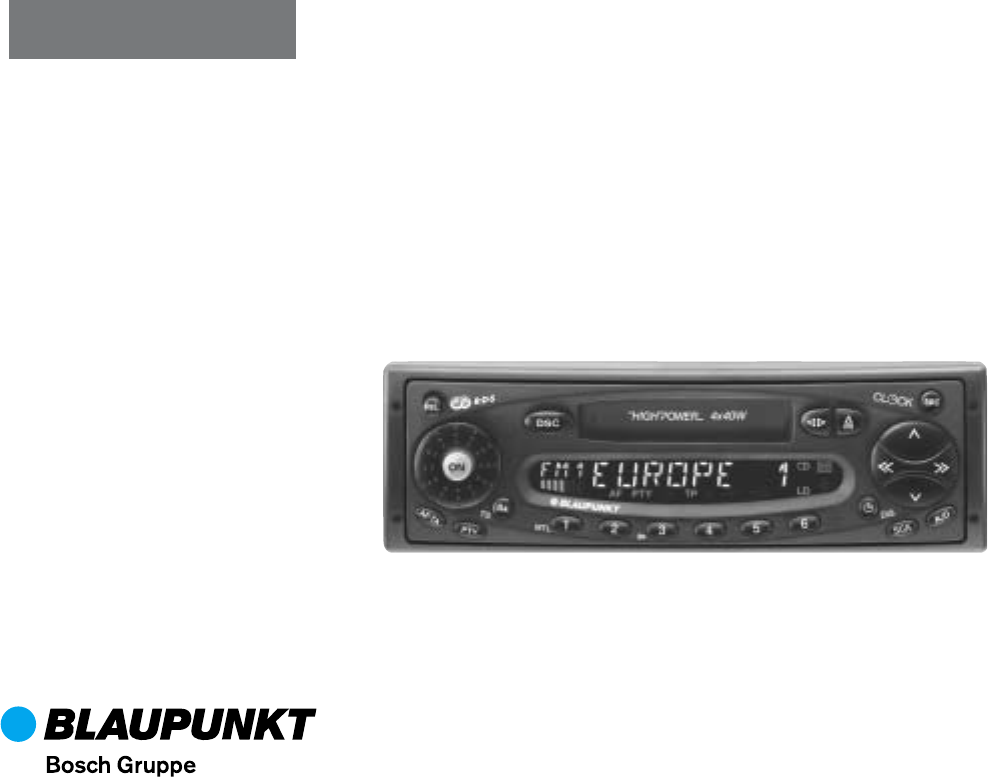
Coburg RCR 168
Colorado RCR 168
Portofino RCR 168
Radio / Cassette
Operating instructions
Cob/Portof/Colo h 30.05.2002, 10:18 Uhr1
2
2
3
9
10
6
8
1213
14
1
15
2
345 9 10
11
7
16
17
A készülék a 70 MHz.-es sávban mæködœ
URH adók vételére nem alkalmas. Az OIRT
sáv vételét (Kossuth, Petœfi, Bartók) le-
hetœvé tevœ keverœ, külön tartozékként
megvásárolható, az egy éves jótállási idœn
belül. A vásárlás lehetœségét a jótállást
vállaló biztositja.
Cob/Portof/Colo h 30.05.2002, 10:18 Uhr2
21
ENGLISH DEUTSCH
FRANÇAIS
ITALIANO
NEDERLANDS
SVENSKA
ESPAÑOL
PORTUGUÊS
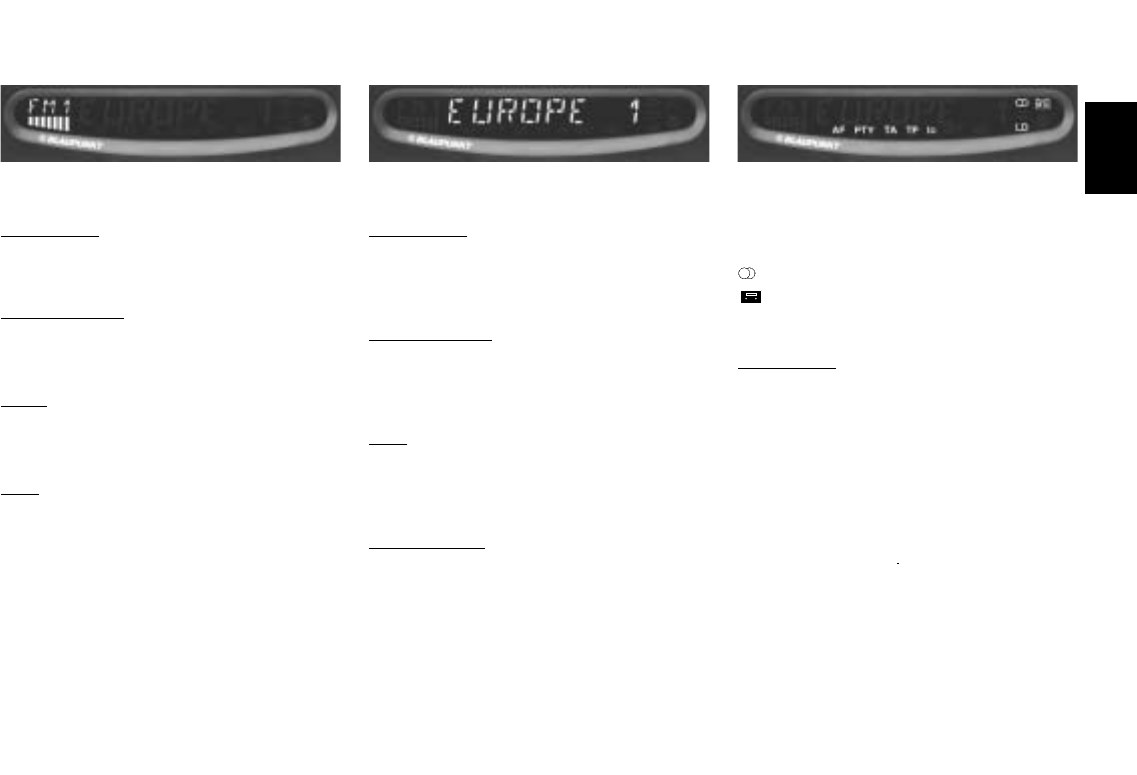
Display
The display consists of three fields and varies according to the operating mode and function.
Display field 1:
Radio mode
Memory banks and wavebands
Brief indication of preset station (e.g. P1)
Cassette mode
CAS - cassette inserted
MTL - tape type
Audio
Numeric and graphic representation of vo-
lume and audio settings
DSC
Permanent display for DSC programming.
Graphic representation of the adjusted vo-
lume level.
Display field 3:
Active functions
- Stereo
- Cassette inserted
LD - Loudness
Radio mode
AF - Alternative Frequency for RDS
PTY - RDS programme type
TA - Priority for traffic information
TP - Traffic programme station
lo - Seek tuning sensitivity
Display field 2:
Radio mode
Radio frequency or station name
PTY programme type
Clock display
Cassette mode
TAPE1/TAPE2 - side of tape playing
Active functions (e.g. CPS)
Clock display
DSC
Serves as display and input field during
DSC programming
Clock display
Miscellaneous
Indicates new source (e.g. when changing
from radio to cassette) and active functions
(e.g. BASS, SCAN)
Cob/Portof/Colo gb® 30.05.2002, 10:16 Uhr21

22
Contents
Display ......................................... 21
Quick reference ........................... 23
Remote control operation .................... 26
Important notes ........................... 26
What you need to know ....................... 26
Traffic safety ........................................ 26
Installation............................................ 26
Telephone mute ................................... 26
Warning note .................................. 27
Accessories ......................................... 27
Release panel .............................. 27
Theft protection.................................... 27
Detaching the release panel................ 27
Attaching the release panel ................. 27
Fixing the release panel ...................... 28
Selecting the operating mode.... 28
Radio operation with RDS .......... 28
AF - Alternative frequency ................... 28
REG - regional programme ................. 28
Selecting a waveband ......................... 29
Station tuning ....................................... 29
Automatic seek tuning / ............. 29
Scrolling through the broadcast
networks (FM only) .............................. 29
Switching between the memory
banks (FM)........................................... 29
Storing stations .................................... 29
Automatically storing the strongest
stations with Travelstore...................... 30
Recalling stored stations ..................... 30
Scanning stored stations with
Preset Scan ......................................... 30
Scanning stations with Radio Scan ..... 30
Changing the scan time ....................... 30
Selecting the automatic tuning
sensitivity ............................................. 30
PTY - Programme Type....................... 31
Programme types ............................. 31
Switching PTY ON/OFF ................... 31
Checking the programme type of
the station ......................................... 31
Displaying the selected programme
type ................................................... 31
Selecting a programme type ............ 31
Storing programme types................. 32
Scanning stations with PTY SCAN .. 32
PTY priority....................................... 32
Traffic programme station
reception with RDS-EON ............ 33
Traffic announcement priority on/off ... 33
Warning beep ...................................... 33
Switching the warning beep off ........ 34
Automatic seek tuning start
(Cassette mode) .................................. 34
Adjusting the volume for traffic an-
nouncements and the warning beep ... 34
Cassette deck operation ............ 34
Cassette playback ............................... 34
Reversing the tape .............................. 34
Skipping cassette titles ........................ 34
Scan ..................................................... 34
Fast winding......................................... 34
Tape type selection ............................. 35
Cassette eject ...................................... 35
Traffic information during cassette
playback ............................................... 35
Clock ............................................ 35
Setting the clock .................................. 35
Setting the TIMER ............................... 35
Naming an external audio
source .......................................... 36
DSC programming ...................... 36
Overview of the DSC factory settings . 37
Specifications.............................. 38
Amplifier ............................................... 38
Tuner.................................................... 38
Cassette ............................................... 38
Cob/Portof/Colo gb® 30.05.2002, 10:16 Uhr22
23
ENGLISH DEUTSCH
FRANÇAIS
ITALIANO
NEDERLANDS
SVENSKA
ESPAÑOL
PORTUGUÊS
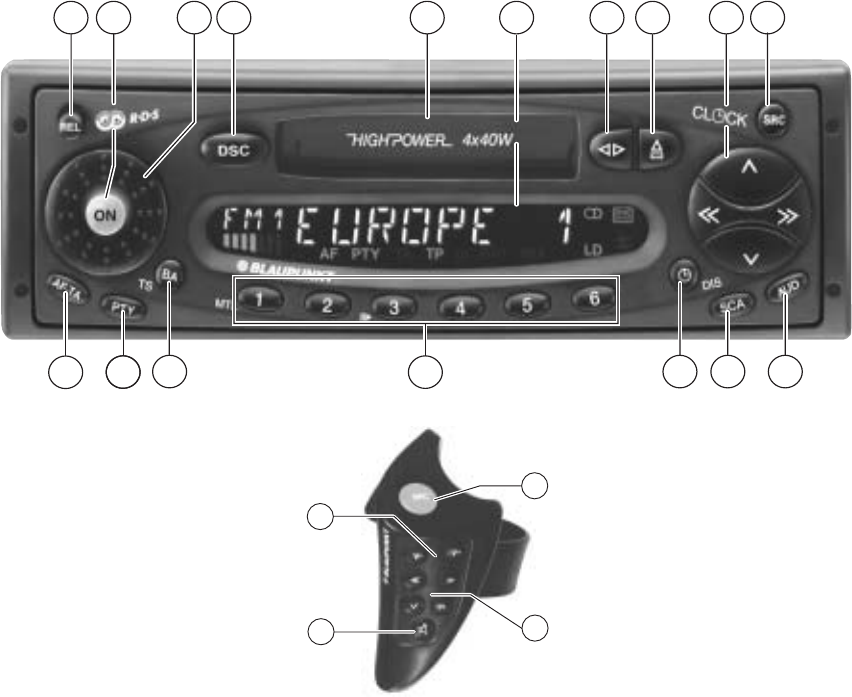
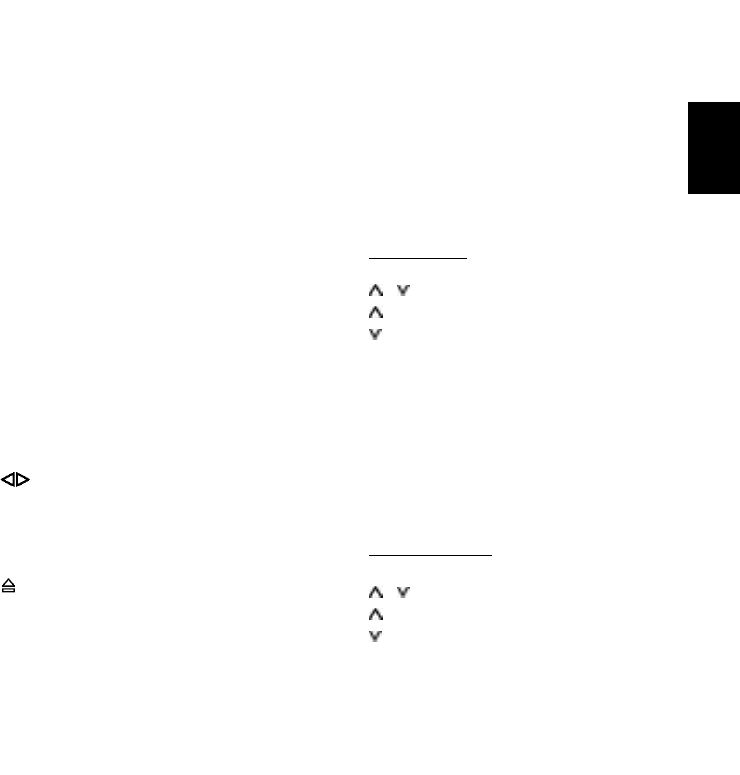
9Rocker switch
Radio mode
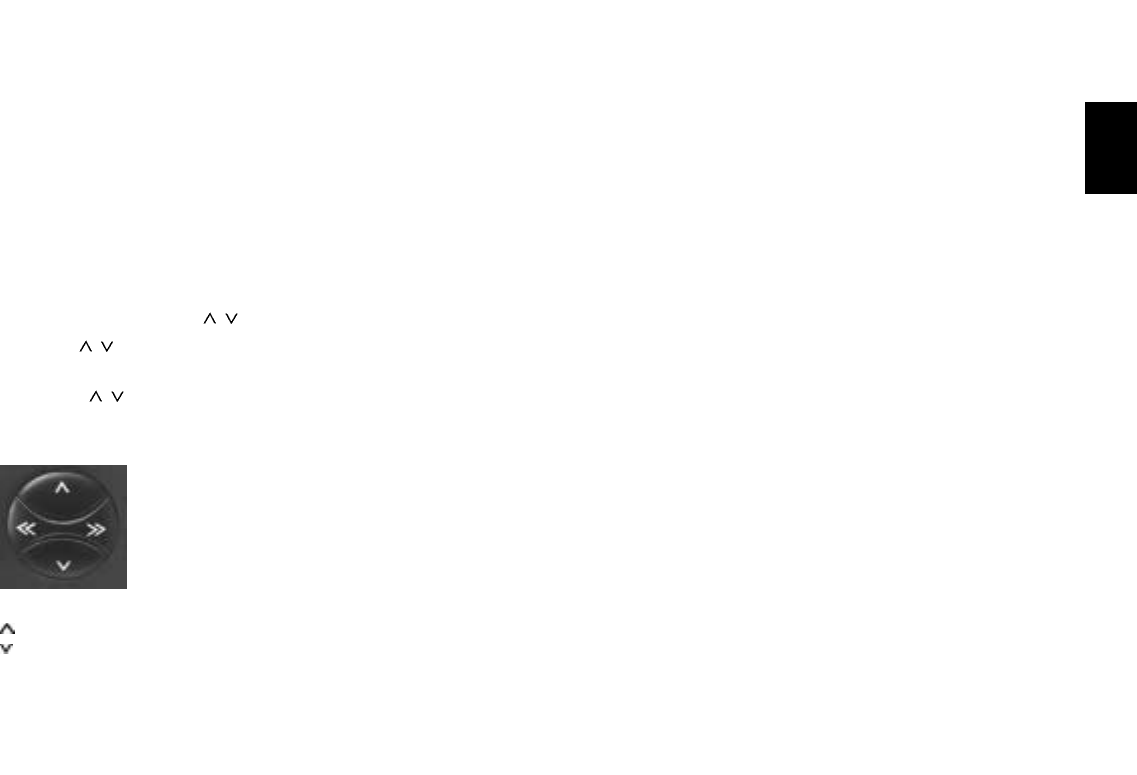
/ Seek tuning
Up
Down
<< / >> Up/down in short intervals
(for FM only if "AF" is off)
For FM only:
<< / >> Scrolls through the broad
cast networks, if AF is on.
Example: NDR 1, 2, 4,
Cassette mode
/ CPS function
Up
Down
Press repeatedly to skip over the cor-
responding number of songs. Press
the button indicating the opposite di-
rection or << >> to stop the function.
3 Volume knob
Turn the knob to adjust the volume.
4 DSC Direct Software Control
This feature allows you to adjust the
basic programmable settings.
For further information, refer to the
section on DSC programming.
5Cassette slot
Insert the tape into the slot with the
open side showing to the right. The
tape will be played in direction
"TAPE 1".
6Display
The display indicates all settings, ope-
rating modes and functions.
7
This button switches tape playback
between Tape 1 and Tape 2 (different
sides of the tape).
88
88
8 Eject
Press this button to eject the
cassette.
Quick reference
1REL
To release the detachable panel (theft
protection).
Press this knob and remove the re-
lease panel.
2ON - Power on/off
Press this button to turn the unit on. It
will play at the preset volume.
If you press this button briefly while
listening to the radio, the volume will
mute instantly
(MUTE).
Cancel this function by pressing the
ON button again. You can adjust the
mute volume (refer
to the section on DSC programming).
Press the button for about 2 seconds
to turn the unit off.
Switching on/off with the ignition:
If the unit has been connected as des-
cribed in the instructions, it can also
be turned on and
off with the vehicle ignition.
Press the ON button to keep on ope-
rating the unit when the ignition is
switched off.
To prevent the battery from running
down, the system will turn off automa-
tically after one hour of playback.
Cob/Portof/Colo gb® 30.05.2002, 10:16 Uhr23

24
>> Fast forward
<< Fast rewind
Press the button indicating the opposi-
te direction or / to stop tape win-
ding.
Additional rocker switch functions:
For additional settings use
AUD ;
DSC-MODE 4
PTY @
Important: The corresponding
function must be active.
: SRC (Source)
Press button briefly to select the ope-
rating mode (tuner, cassette or AUX
IN). The active mode will appear in
the display.
;AUD
Treble and bass adjustment
You can store different settings for the
FM, MW, LW, cassette mode and
AUX IN.
Setting the tone:
•Select the operating mode.
Press AUD once and use the rocker
switch to set the tone.
Treble +
Treble -
<< Bass -
>> Bass
For Fader and balance adjustment:
press AUD twice.
Fader front
Fader rear
<< Balance left
>> Balance right
The selected values will appear in the
display. The last setting is stored au-
tomatically.
Switching AUD off: Press the button
again briefly.
If you do not make any adjustments to
the tone within 8 seconds, the AUD
mode will quit automatically.
Extra function: LD
Loudness boosts the bass frequency
at low volume.
Loudness on/off: Press AUD for ap-
prox. 1 second.
"LD" will appear when this setting is
active.
Refer to the section on DSC pro-
gramming to adjust Loudness to diffe-
rent levels.
< SCA Scan
Scans radio stations or song titles/
tracks.
You can set the scan time in DSC pro-
gramming.
Radio mode
Press SCA briefly.
All of the FM stations within reception
range will be scanned. "SCAN" will
appear in the display, alternating with
the radio station currently being scan-
ned (flashing).
Preset Scan
Press SCA for approx. 2 seconds until
you hear a beep. "PS Scan" will ap-
pear in the display, followed by the
station symbol (flashing).
The stations stored on the station pre-
set buttons and within reception range
will be scanned.
To stop Scan / Preset Scan:
Press SCA again.
PTY Scan
PTY Scan cannot be started unless
PTY is switched on ("PTY" will light up
in the display.)
The radio stations for the program
type selected will be scanned.
"PTY SCAN" will appear in the dis-
Cob/Portof/Colo gb® 30.05.2002, 10:16 Uhr24
25
ENGLISH DEUTSCH
FRANÇAIS
ITALIANO
NEDERLANDS
SVENSKA
ESPAÑOL
PORTUGUÊS
play, alternating with radio station
currently being scanned (flashing).
To stop Scan / PTY Scan:
Press SCA again.
Cassette mode
Press SCA briefly.
All of the titles on the cassette will be
scanned.
To stop Scan:
Press SCA again
= DIS - Clock display
Radio mode
Press this button briefly and the time
will appear in the display for a short
while.
Cassette mode
Press this button to switch the display
between the time and the cassette
track (TAPE 1/TAPE 2).
>Preset buttons 1 to 6
Radio mode
You can store six stations in each FM
memory bank (1, 2, and "T").
On MW and LW you can also store six
stations each
(Coburg RCR 168 wit-
hout MW, LW)
.
Store station - Hold down a preset
button in radio mode until you hear a
beep.
Recall station - Select a waveband
and the memory bank on FM as well;
press the
corresponding preset button briefly.
Cassette mode
1/MTL -
Selects between chrome or iron oxide
tape types.
Press 1/MTL.
3/ - Pause
Interrupts tape playback. "PAUSE" will
appear in the display.
Press this button once again to resu-
me playback.
? BA/TS
Switches between the wavebands/
memory banks FM1, FM2, FMT (Tra-
velstore), MW and LW
(Coburg RCR
168 without MW, LW)
.
Extra function: Travelstore
To store the six most powerful radio
stations in the Travelstore bank:
Press BA/TS until a beep sounds and
"T-STORE" appears.
@ PTY (Programme Type)
You can select among various pro-
gramme types. Using the rocker
switch <<>> it is possible to recall all
PTY programme types, if PTY is acti-
vated ("PTY" lights up in the display).
A AF·TA
Alternative Frequency in RDS mode:
If "AF" appears in the display, the ra-
dio will automatically search for the
best radio frequency offering the
same programme.
AF on/off:
Press AF·TA until a beep is emitted.
TA (Traffic Announcement = priority
for traffic programmes)
TA on/off:
Press AF·TA briefly: "TA" will appear
in the display, priority for traffic pro-
grammes activated.
“TP” (Traffic Programme) will be dis-
played when the radio is tuned into a
station which broadcasts traffic infor-
mation.
Cob/Portof/Colo gb® 30.05.2002, 10:16 Uhr25
26
Remote control operation
General
SRC Press briefly: change the audio
source
Press briefly: muting
V+ Higher volume
V- Lower volume
Radio mode
Seek tuning upwards
Seek tuning downwards
>> Next FM preset upwards
<< Press briefly: select the wave-
band
Hold down: Travelstore
Cassette mode
Select track (CPS) upwards
Select track (CPS) downwards
>> Fast forward
<< Fast rewind
Hold down: reversing the tape
Important notes
What you need to know
Before using your new car audio system,
please read through the following informa-
tion carefully.
Traffic safety
As the driver of a motor vehicle, it is your
responsibility to pay attention to the traffic
situation at all times. Never use your car
audio system in a way that could distract
you.
Please keep in mind that you travel a di-
stance of 14 m per second at a speed of
only 50 km/h.
Should the traffic situation become parti-
cularly demanding, we advise you not to
use the audio system.
Always make sure that you are still able to
hear any warning signals coming from out-
side the vehicle, such as police or fire en-
gine sirens, so that you can react accor-
dingly.
Consequently, you should always select a
moderate volume for playing your car au-
dio system while you are driving.
Installation
If you would like to install your new car ste-
reo yourself or add other audio compon-
ents to existing ones, then please read the
enclosed instructions on installation and
connection carefully.
In order to ensure that the unit operates
properly the positive power supply line must
be connected via the ignition and the per-
manent +12 V lead.
Do not ground the loudspeaker outputs!
Telephone mute
If you have installed a car telephone in your
vehicle, it is possible to automatically mute
the radio and cassette playback when you
use the telephone (telephone mute).
"PHONE" will then appear in the display.
Traffic announcements continue to have
priority if you have activated TA. You can
interrupt traffic messages by pressing
AF·TA.
Cob/Portof/Colo gb® 30.05.2002, 10:16 Uhr26
27
ENGLISH DEUTSCH
FRANÇAIS
ITALIANO
NEDERLANDS
SVENSKA
ESPAÑOL
PORTUGUÊS
Warning note
Danger of damage to the automatic power
antenna in a car wash.
Before you drive into a car wash
•switch the radio off by pressing the ON
button.
The power antenna will retract, if it doesn’t,
press ON again.
Do not drive into the car wash unless the
power antenna has retracted!
Accessories
Use only Blaupunkt-approved accessories
and spare parts.
Remote control unit (not included with the
unit, sold seperately)
The RC 08 infrared remote control unit al-
lows you to conveniently operate the most
important functions from the steering wheel.
If the unit was still in operation, it will turn
off now. All current settings will remain
stored. If a cassette is inserted, it will remain
in the unit.
The unit will turn on again automatically
when you re-attach the release panel.
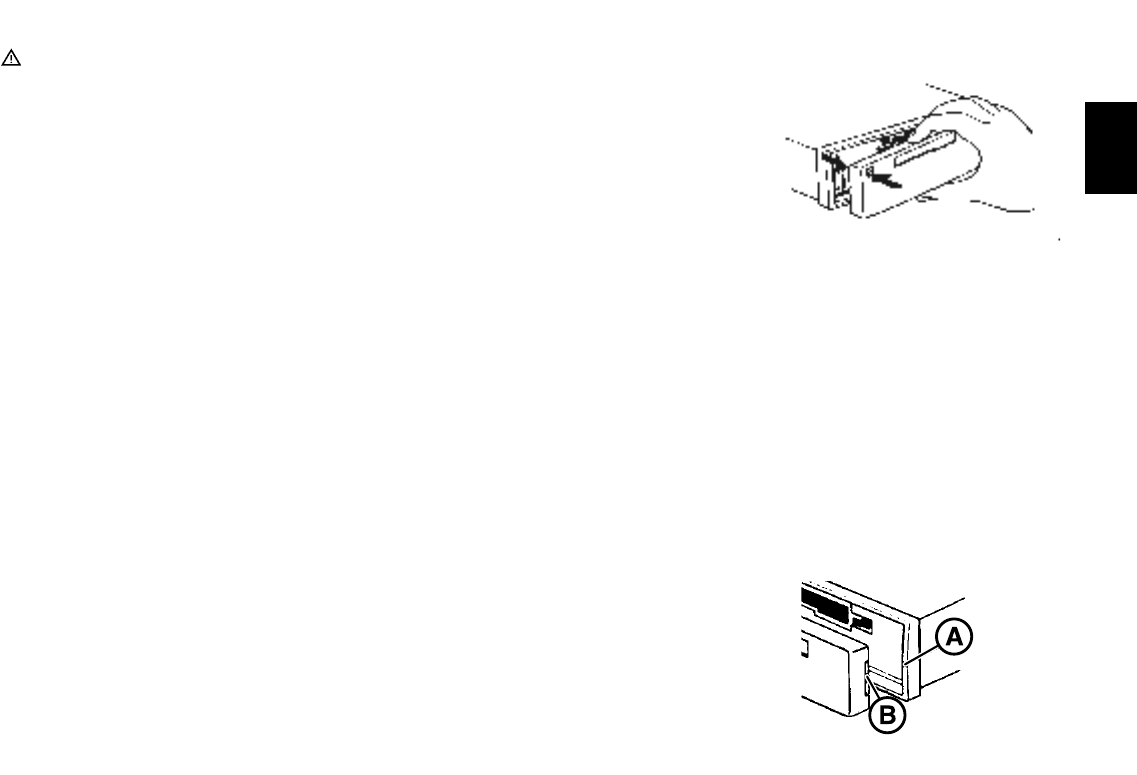
Attaching the release panel
Slide the panel (B) from the left along the
guide of the chassis (A). Gently push the
left side of the panel against the front of
the chassis until it snaps into place.
Release panel
Theft protection
This unit is equipped with a detachable con-
trol panel. A car radio without a control pa-
nel is worthless to thieves.
Protect your car audio system and detach
the control panel when you leave your ve-
hicle. Thanks to the release panel’s well-
planned design, it is very easy to attach and
detach.
Note:
Do not pull the release panel straight out
from the chassis, but rather slide it to the
left to detach it as illustrated below. Be sure
not to drop the panel.
Do not expose the release panel to direct
sunlight or other heat sources.
Do not expose it to moisture.
Detaching the release panel
Press the REL button to release the con-
trol panel. Then remove the panel and in-
sert it into the carrying case provided.
Cob/Portof/Colo gb® 30.05.2002, 10:16 Uhr27
28
Fixing the release panel
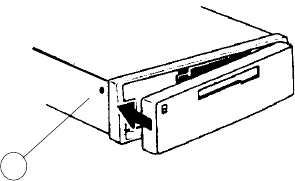
If you wish to fix the release panel to the
chassis permanently, screw down the
enclosed bolt into the hole (C) on the left
hand side of the chassis, see Fig.
Selecting the operating
mode
Use the SRC (source) button to select bet-
ween radio and cassette mode.
To select the operating mode:
•Press SRC.
If "SEARCH" appears in the display when
the radio is switched on or one of the stored
frequencies recalled, the unit is already
automatically searching for an alternative
frequency.
"SEARCH" will disappear from the display
when the alternative frequency has been
found or after the frequency band has run
through completely.
If the reception quality of the programme
selected deteriorates beyond a certain
point:
•Tune into another station.
REG - regional programme
Certain radio programmes are split up at
times into regional programmes offering
local information. The 1st programme
broadcast by NDR, for example, offers pro-
grammes with different contents in the nor-
thern German states of Schleswig-Holstein,
Hamburg and Lower Saxony at certain
times of the day.
If you are listening to a particular regional
programme and wish to continue doing so,
select "REG ON" in the DSC mode.
If you leave the service area of the regio-
nal programme you are tuned into, or if you
would like to take full advantage of RDS
service, switch to "REG OFF" in the DSC
mode.
C
Radio operation with RDS (Radio Data System)
The Radio Data System enhances your
enjoyment when you listen to FM radio sta-
tions.
More and more radio stations now broad-
cast RDS information along with their re-
gular programming.
As soon as a programme has been identi-
fied, the station name including a regional
identifier, if applicable, will appear in the
display, for example, NDR1 NDS (regional
programme in Lower Saxony, Germany).
When RDS is activated, the preset buttons
become programme buttons. You now
know exactly which programme you have
tuned into, making it easy to find the desi-
red station quickly.
But RDS also offers you further advantages:
AF - Alternative frequency
The AF (Alternative Frequency) function
makes sure that the radio always tunes into
the strongest frequency for the currently sel-
ected programme automatically. If this
function is activated, "AF" will appear in the
display.
To switch AF on/off,
•press the AF·TA button for a longer
time.
While searching for the strongest recepti-
on signal, the radio may switch to mute
briefly.
Cob/Portof/Colo gb® 30.05.2002, 10:16 Uhr28
29
ENGLISH DEUTSCH
FRANÇAIS
ITALIANO
NEDERLANDS
SVENSKA
ESPAÑOL
PORTUGUÊS
Selecting a waveband
The following wavebands are available:
UKW (FM) 87,5 – 108 MHz,
MW (AM) 531 – 1602 kHz und
LW 153 – 279 kHz
(Coburg RCR 168 without MW, LW)
.
•Press the BA/TS button to select the
desired waveband.
Station tuning
Automatic seek tuning /
•Press /, the car radio will automati-
cally search for the next station.
If you hold / pressed up or down on the
rocker switch, seek tuning will speed up in
the corresponding direction.
Automatic seek tuning
Up
Down
<< / >> Up/down in short intervals (on FM
only if "AF" is switched off)
Manual tuning with <<>>
You can also tune into a station manually.
Important:
AF and PTY must be switched off (i.e. the
symbols do not light up in the display).
If necessary, deactivate these functions:
•Press AF·TA or PTY.
Manual tuning:
•Press << >>; the frequency will change
in short intervals in the corresponding
direction.
If you hold << >> pressed to the left or the
right on the rocker switch, the frequency
scan will speed up.
Scrolling through the broadcast
networks (FM only)
You can use the <<>> buttons to tune into
stations in your reception area.
If it is possible to receive several program-
mes in the same broadcast network, you
can scroll through them in the forwards di-
rection by pressing >>, or backwards using
the << button, e.g. NDR 1, 2, 3, 4.
For this to work properly you must have al-
ready tuned into the stations at least once
and "AF" must be active (lights up in the
display).
To do this, you can start the Travelstore
seek operation:
•Press BA/TS for 2 seconds; the system
will start to run through the frequency
band.
If "AF" is not lit up,
•Press AF·TA until a beep is emitted.
It is now possible to select stations
using <<>>.
Switching between the memory
banks (FM)
You can switch between the memory banks
1, 2 and T in order to store stations and
recall them later.
The currently selected memory bank will
appear in the display.
•Press the BA/TS button as many times
as necessary until the desired memory
bank lights up in the display.
Storing stations
On FM, you can store six stations on the
preset buttons 1, 2, 3, 4, 5, 6 for each of
the memory banks (1, 2, T).
On MW/LW, you can also store six stations
each
(Coburg RCR 168 without MW, LW)
.
•Select the appropriate waveband by
pressing BA/TS.
Cob/Portof/Colo gb® 30.05.2002, 10:16 Uhr29

30
Recalling stored stations
You can recall any stored station at the
touch of a button.
•Select the waveband by pressing BA/
TS. For FM, also choose the correspon-
ding memory bank by pressing the BA/
TS button as many times as necessary
until the desired bank appears in the dis-
play.
•Press the corresponding preset button
briefly to recall the station.
Scanning stored stations with
Preset Scan
You can scan all of the stored stations on
any of the wavebands.
To start Preset Scan:
•Press SCA for approx. 2 seconds.
All of the stations stored on the waveband
will be scanned one after the other. "PS-
SCAN" will appear in the display, alterna-
ting with the station name or frequency. The
abbreviation for the station currently play-
ing (e.g. P1) will flash in display field 1.
Continue listening to a scanned station/
end Preset Scan:
•Press SCA briefly.
Scanning stations with
Radio Scan
You can scan through all of the stations in
your reception area.
To start the Scan function:
•Press SCA briefly.
The scanned frequency or the station name
will start flashing in the display.
During the scanning process "SCAN" will
appear in the display.
To select a scanned station/switch off
the Scan function:
•Press SCA briefly.
Changing the scan time
The scan time can be selected from bet-
ween 5 to a maximum of 20 seconds.
If you would like to alter the scan time, plea-
se refer to the section on "DSC pro-
gramming - SCANTIME".
Selecting the automatic tuning
sensitivity
You can alter the automatic tuning sensiti-
vity.
If "lo" is displayed, the radio will only pick
up strong, local stations (low sensitivity).
•Tune into a station with the rocker switch
(either automatically / or manually
<</>>).
•Press the desired preset button until the
radio resumes play after the muting
(takes approx. 2 seconds) or until you
hear a beep.
Now the station has been stored.
The display will indicate which preset but-
ton is currently activated.
Automatically storing the stron-
gest stations with Travelstore
You can automatically store the six FM sta-
tions with the most powerful signals in your
current reception area sorted according to
their signal strength. This function is parti-
cularly convenient on longer trips.
•Press the BA/TS button for 2 seconds.
"T-STORE" will appear in the display.
The six strongest FM stations will be auto-
matically stored on the memory bank "T"
(Travelstore). When this process has been
completed, the radio will play the strongest
station.
If desired, stations can also be stored ma-
nually in the Travelstore bank (see "Storing
stations").
Cob/Portof/Colo gb® 30.05.2002, 10:16 Uhr30

31
ENGLISH DEUTSCH
FRANÇAIS
ITALIANO
NEDERLANDS
SVENSKA
ESPAÑOL
PORTUGUÊS
If "lo" does not light up, the radio will also
pick up weaker, more distant stations.
If you would like to alter the sensitivity level
please refer to the section on "DSC pro-
gramming - SENS".
PTY - Programme Type
PTY is an RDS service offered by an incre-
asing number of broadcasting stations. This
feature allows you to select FM stations
according to their programme type. After
you have chosen the PTY of your prefe-
rence, the corresponding stations can be
selected either by seek tuning or using the
scan function.
Programme types
Switch PTY on.
Use <<>> to have the last selected pro-
gramme type displayed and to choose a
new one.
You can select any one of the stored types
with the preset buttons 1-6.
The following list indicates some of the pro-
gramme types which are currently availa-
ble.
WEATHER
FINANCE
TRAVEL
HOBBIES
JAZZ
COUNTRY
NEWS
INFO
SPORT
CULTURE
SCIENCE
VARIED
POP MUSIC
ROCK MUSIC
CLASSICS
Switching PTY ON/OFF
•Press PTY.
When the function is active, the program-
me type selected last will briefly appear in
the display. "PTY" will appear permanent-
ly.
Checking the programme type of the
station
•Press PTY for approx. 2 seconds.
After the beep tone the display will show
the programme type offered by the station
currently playing.
If "NONE" appears in the display, the cur-
rent station has no PTY code.
Displaying the selected programme
type
•Press << or >>.
The programme type selected last will be
displayed briefly.
Selecting a programme type
a) Using the preset buttons
When PTY is switched on, you can use
the preset buttons 1-6 to select the pro-
gramme types stored at the factory.
•Press one of the presets 1-6.
The selected programme type will be dis-
played for 2 seconds.
If you would like to listen to a station with
this PTY,
•press / to start the seek tuning
function.
If the radio is unable to find a station offe-
ring the selected programme type, the dis-
play will show "NO PTY" and a beep tone
will be emitted. The radio will select the sta-
tion which was tuned into before seek tu-
ning was activated.
You can assign different programme types
to each preset position.
Cob/Portof/Colo gb® 30.05.2002, 10:16 Uhr31

32
Please refer to the next section on "Storing
programme types".
b) Using the <<>> buttons on the rocker
switch
When PTY is switched on, you can
select a programme type using
buttons <<>>.
•Press << or >>; the programme type
selected last will be displayed for 3 se-
conds.
•During this period press >> (forwards)
or << (backwards) to select the desired
type.
•Press << or >> as many times as requi-
red.
If you would like to listen to a station with
the selected PTY,
•press / to start the seek tuning
function.
If the radio is unable to find a station offe-
ring the selected programme type, the dis-
play will show "NO PTY" and a beep tone
will be emitted. The radio will select the sta-
tion which was tuned into before seek tu-
ning was activated.
Storing programme types
Each of the preset buttons 1-6 has been
assigned one programme type at the fac-
tory.
If desired, you can also replace these with
other available programme types.
To do so, make sure that "PTY" lights up in
the display.
•If necessary, press the PTY button to
switch on the function.
•Select a programme type using buttons
<<>> and
•hold down the desired preset button (1-
6) until you hear a beep.
Now the selected programme type can be
recalled by pressing this preset as long as
"PTY" lights up in the display.
Scanning stations with PTY SCAN
Important: "PTY" must appear in the dis-
play.
•Press SCA.
All of the stations in your current reception
area offering the selected programme type
will be scanned.
To switch off PTY-SCAN:
•Press SCA again.
PTY priority
Situation:
PTY is switched on and lights up in the dis-
play.
No station offering the selected program-
me type can be found currently in your re-
ception range (with seek tuning or scan).
The set will switch back to the station pre-
viously tuned into.
As soon as it is possible to receive a pro-
gramme in the broadcast network with the
PTY selected, the radio will switch over to
the corresponding station for the duration
of the programme.
Example:
-Station playing: NDR3.
-"PTY" lights up in the display.
-Programme type "POP" selected.
-Seek tuning is started.
-No station with "PTY-POP" can be
found.
-The display shows "NO PTY" and
-automatically switches back to NDR3.
-NDR2 airs a "PTY-POP" programme.
-The radio will switch to the linked stati-
on NDR2 for the duration of the "POP"
programme.
Cob/Portof/Colo gb® 30.05.2002, 10:16 Uhr32

33
ENGLISH DEUTSCH
FRANÇAIS
ITALIANO
NEDERLANDS
SVENSKA
ESPAÑOL
PORTUGUÊS
During cassette operation, the set will also
switch to the radio programme if the selec-
ted PTY becomes available within the
broadcast network.
Note:
As already mentioned, these functions are
only supported by a limited number of RDS
stations at the present time.
Traffic programme station reception with RDS-EON
Traffic announcement priority
on/off
If the priority for traffic announcement pro-
grammes is activated, "TA" will light up in
the display.
To switch the priority on or off:
•Press the AF·TA button.
If you press AF·TA while a message is
being broadcast, this message will be in-
terrupted.
The unit will then switch back to the pre-
vious mode. The priority for other traffic
messages remains active.
Please note that several buttons have no
function while a traffic announcement is
broadcast.
Warning beep
If you leave the reception area of the traffic
programme station currently tuned into, you
will hear a warning beep after approx. 30
seconds.
This warning will also be emitted if you
press a preset button for a station which
does not send the traffic programme signal
(TP).
The abbreviation "EON" stands for Enhan-
ced Other Networks, which means that in-
formation is exchanged within a radio net-
work.
Many FM radio stations provide their ser-
vice area with traffic messages at regular
intervals.
Along with their programmes, all traffic pro-
gramme stations transmit a special carrier
signal, which is decoded by your car radio.
If this signal is identified, "TP" will appear
in the display (Traffic Programme).
In addition to these, there are also stations
which do not actually transmit traffic infor-
mation themselves, but by using RDS-EON
it is possible for them to forward the traffic
messages broadcast by another traffic pro-
gramme station in the same radio network.
If you want to have the priority for traffic
announcements activated while listening to
one of these stations (e.g. NDR3), "TA"
must appear on the display panel.
If a traffic announcement is broadcast, the
radio will automatically switch to the linked
traffic programme station (in this case,
NDR2) for the duration of the message and
return to the original programme (NDR3)
afterwards.
Cob/Portof/Colo gb® 30.05.2002, 10:16 Uhr33

34
Cassette deck operation
Cassette playback
Insert the tape into the slot with the open
side showing to the right. "CASSETTE" will
appear in the display. The tape will play in
the direction "TAPE 1".
If a tape is already inside, press SRC to
select "CASSETTE" mode. The tape will
play in the direction last selected.
Reversing the tape
Press to change the tape direction du-
ring cassette playback from TAPE1 to
TAPE2 or vice versa:
At the end of the tape, the unit will automa-
tically switch to the opposite side.
Skipping cassette titles
CPS stands for Cassette Program Search
and allows you to skip over songs on the
tape.
The titles must, however, be separately by
at least 3 seconds of blank tape.
During tape playback press either or
on the rocker switch to activate the CPS
mode. "CPS FF" or "CPS FR" will appear
in the display. Press the button / repea-
tedly to skip the corresponding number of
titles in either direction.
Switching the warning beep off
a) Tune into another station offering traffic
information:
•Press the rocker switch or
•press a preset button which has a traffic
programme station allocated to it.
Alternatively:
b) Switch off the priority for traffic an-
nouncements:
•Press TA.
"TA" will disappear from the display.
Automatic seek tuning start
(Cassette mode)
If you leave the reception area for the traf-
fic programme station you have tuned into
while you are listening to a cassette, the
system will automatically start searching for
a new traffic programme.
If no such station is found within approx.
30 seconds, a warning beep will sound eve-
ry 30 seconds. To switch the warning beep
off, press TA button.
Adjusting the volume for traffic
announcements and the
warning beep
Although this volume was preset at the fac-
tory, you can use the DSC function to alter
the setting (see "DSC programming - TA
VOL").
The number of titles to be skipped will ap-
pear in the display and count down until the
title selected has been reached.
Press or << >> to stop the function.
Scan
To scan all of the songs on a tape, press
SCA. "SCAN" will appear in the display.
All of the titles on the tape in the tape deck
will be scanned briefly one after the other.
Press SCA again to switch the SCAN
function off. The title currently playing will
continue to play.
Fast winding
Use the rocker switch to fast forward or
rewind the tape during cassette operation:
>> forward
<< rewind.
"FORWARD" or "REWIND" will light up in
the display.
Press the button indicating the opposite di-
rection or / to stop the function.
If you have activated "Radio Monitor ON",
the unit will play the radio station last sel-
ected while the tape is winding. You can
alter the Radio Monitor setting in DSC
mode.
Cob/Portof/Colo gb® 30.05.2002, 10:16 Uhr34
35
ENGLISH DEUTSCH
FRANÇAIS
ITALIANO
NEDERLANDS
SVENSKA
ESPAÑOL
PORTUGUÊS
Clock
This unit is equipped with an internal clock.
Display priority:
To alter the display priority, press until
you hear a beep. Press this button repea-
tedly until the desired display appears (does
not apply for radio mode).
Radio mode
Press this button to display the clock briefly.
Cassette mode
Press this button to switch between the
track played and the clock.
Setting the clock
Set the clock in the DSC mode.
•Press DSC briefly.
•Press / to select the function
"CLOCKSET".
•Press << >> to activate the hours or the
minutes. The option you can set will
flash.
•Press / to alter the flashing display.
•When you have completed the setting,
press DSC briefly to store it.
Setting the TIMER
Using this unit it is possible to conveniently
switch on a radio station you have selec-
ted at any time before. The radio station
can be selected regardless of the currently
active operating mode.
Proceed as follows:
•Select the radio station of your choice.
•Press DSC.
•Press / to select TIMER.
•If you want to turn off the Timer, press
the << button and "OFF" will appear in
display field 2.
•If you want to set the timer press the >>
button. The timer time previously set will
be shown first. Press >> button again to
enter edit mode. The minutes will flash.
•Press / to set the minutes.
•Press << to activate the hour.
•Press / to set the hour.
•Press DSC to store your entry. You have
now set the TIMER.
Tape type selection
If you are playing METAL or CrO2 casset-
tes, press MTL. "MTL" will then light up in
display field 1.
Cassette eject
Press to eject the cassette.
Traffic information during cas-
sette playback
The Traffic Announcement function (priori-
ty for traffic programmes) makes it possi-
ble to listen to traffic information during cas-
sette playback. If a traffic message is broad-
cast, cassette playback will be interrupted
and you will hear the message.
This function is active, if "TA" lights up in
the display.
Press AF·TA briefly to activate TA.
Cob/Portof/Colo gb® 30.05.2002, 10:16 Uhr35
36
LOUDNESS Loudness boosts the bass
frequencies at low volume.
LOUD 1 - Low boost
LOUD 6 - Max. boost
BAS CENT Bass Center Frequency Ad-
justment.
Adjusts the mid-range fre-
quency to the specific
equipment in the vehicle
(50 or 100 Hz)
TA VOL The traffic announcement
and warning beep volume
can be set between 0 to 63.
The message will then
come through at this volu-
me, if the standard volume
is lower.If the standard vo-
lume is set higher than the
TA VOL level, then the traf-
fic report will be played at
the standard volume.
REG OFF To listen to a regional radio
programme outside of its
RDS transmission range,
switch on "REG ON".
For full RDS service, switch
to "REG OFF".
Naming an external audio
source
AUX NAME makes it possible to enter a
name of up to 8 characters for an external
audio source (AUX ON, see DSC Menu).
For this, press SRC to select the AUX mode
(only possible if AUX ON is set in the DSC
menu).
•Press SRC as often as required until
AUX appears in the display.
Enter the AUX NAME in the DSC menu.
•Press DSC briefly.
•Press / to select the AUX NAME
function
•Press << >> to enter into editing mode.
The adjustable position will flash.
•Press / to select a character you
want to enter. Select a dash “_” to leave
a blank space.
•Press << >> to select the next position.
•When you have entered the name com-
pletely, press DSC briefly to store the
name.
•Press DSC again to quit the DSC menu.
DSC programming
The car radio has been equipped with DSC
(Direct Software Control) to allow you to cu-
stomise certain programmable, basic set-
tings to suit your personal needs and pre-
ferences and then store them.
The basic settings for this audio equipment
were made at the factory.
In the following you can find an overview of
these settings, so that you can always re-
set to them if desired.
If you wish to alter any of the programming,
•press DSC.
MENU / will light up in the display.
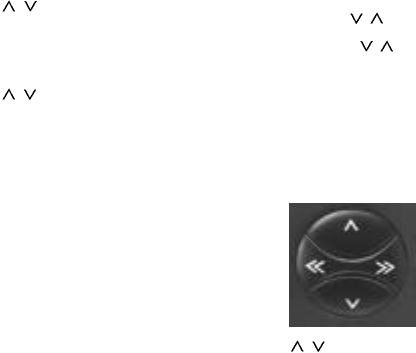
Use the / buttons on the rocker switch
to select the functions you wish to change.
The display will show you the setting you
have selected. Press << >> on the rocker
switch to change the values. Confirm the
setting you have selected by pressing the
DSC button.
/Select function
<< >> Adjust/recall value
Cob/Portof/Colo gb® 30.05.2002, 10:16 Uhr36

37
ENGLISH DEUTSCH
FRANÇAIS
ITALIANO
NEDERLANDS
SVENSKA
ESPAÑOL
PORTUGUÊS
SENS LO Adjusts seek tuning
sensitivity."LO" stands for
local reception."DX" stands
for distant reception.
Select "LO 3" if you want to
receive strong stations in
the local area, select "DX
1" if you want to tune into
weaker stations which are
further away.
CLOCK 24 Switches between 12-h and
24-h clock display.
CLOCKSET Sets the clock manually.
Press << >> to select
hours/minutes. Press /
to adjust the flashing value.
TIMER Switches on a selected ra-
dio station at a selected
time.
ON VOL Sets the turn-on volume.
Press << >> to adjust the
turn-on volume as desired.
MUTE Changes the mute volume.
BEEP Changes the volume of the
acknowledgement tone
(beep) between 0 and 9.
(0 = off)
RM ON Radio Monitor
If the Radio Monitor
function is active during fast
winding of the tape, the unit
will switch to the radio and
play the station listened to
last.
SCANTIME Use this function to set the
scan time for the radio or
cassette player from 5 to 20
seconds.
BL SKIP Switches the Blank Skip
function off and on; there
must be at least 10 secon-
ds of blank tape between
songs.
AUX Select AUX ON if you wish
to connect a Discman or
Walkman.
AUX NAME Allows you to name an ex-
ternal audio source (e.g. a
discman).
DISPLAY Switches the display on or
off while the car radio is tur-
ned off.
Overview of the DSC factory
settings
LOUDNESS 3
BAS CENT 50 Hz
TA VOL 40
REG OFF
SENS DX1
CLOCK CLOCK 24
CLOCKSET
TIMER OFF
ON VOL 20
MUTE 10
BEEP 3
RM ON
SCANTIME 10 seconds
BL SKIP ON
AUX OFF
DISP OFF
Cob/Portof/Colo gb® 30.05.2002, 10:16 Uhr37
38
Specifications
Amplifier
Output power: 4 x 25 W RMS power
acc. to DIN 45324 at
14.4 V
4 x 40 W max. power
Tuner
Wavebands:
FM : 87.5 - 108 MHz
MW : 531 - 1602 kHz
LW : 153 - 279 kHz
(Coburg RCR 168 without MW, LW)
.
FM frequency response: 35 - 16000 Hz
Cassette
Frequency response: 30 - 18000 Hz
Subject to modification!
Cob/Portof/Colo gb® 30.05.2002, 10:16 Uhr38

Blaupunkt-Werke GmbH
Bosch Gruppe
3/98 Mg/MS K7/VKD 8 622 401 762(H)
Cob/Portof/Colo h 30.05.2002, 10:19 Uhr22
