BlueExpert Technology BES005 Bluetooth Stereo Headphone User Manual

BlueExpert Technology Corp. Bluetooth Stereo Headphone

User Manual

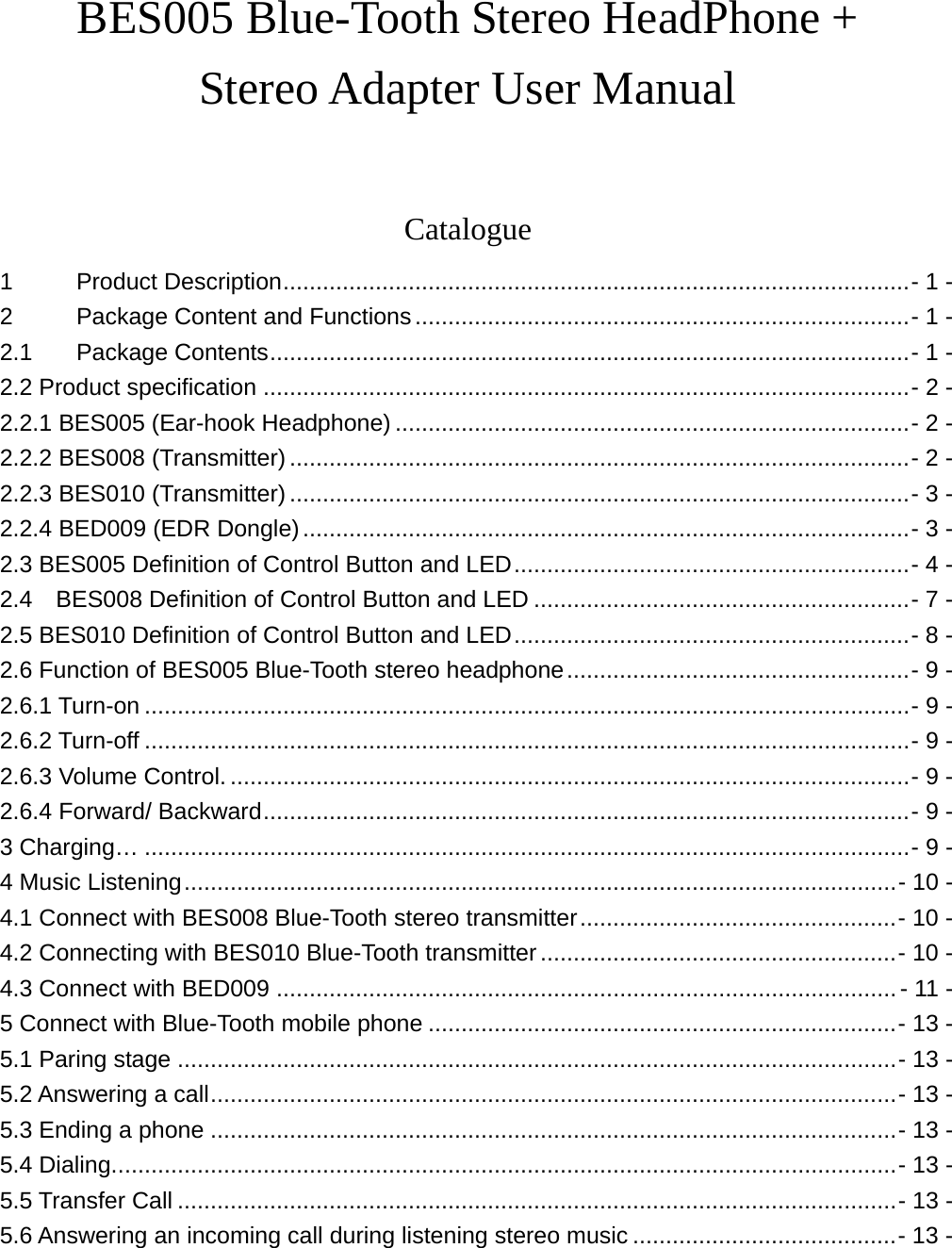
BES005 Blue-Tooth Stereo HeadPhone +   Stereo Adapter User Manual  Catalogue 1 Product Description...............................................................................................- 1 - 2 Package Content and Functions...........................................................................- 1 - 2.1 Package Contents.................................................................................................- 1 - 2.2 Product specification ..................................................................................................- 2 - 2.2.1 BES005 (Ear-hook Headphone) ..............................................................................- 2 - 2.2.2 BES008 (Transmitter) ..............................................................................................- 2 - 2.2.3 BES010 (Transmitter) ..............................................................................................- 3 - 2.2.4 BED009 (EDR Dongle)............................................................................................- 3 - 2.3 BES005 Definition of Control Button and LED............................................................- 4 - 2.4    BES008 Definition of Control Button and LED .........................................................- 7 - 2.5 BES010 Definition of Control Button and LED............................................................- 8 - 2.6 Function of BES005 Blue-Tooth stereo headphone....................................................- 9 - 2.6.1 Turn-on ....................................................................................................................- 9 - 2.6.2 Turn-off ....................................................................................................................- 9 - 2.6.3 Volume Control........................................................................................................- 9 - 2.6.4 Forward/ Backward..................................................................................................- 9 - 3 Charging… ....................................................................................................................- 9 - 4 Music Listening............................................................................................................- 10 - 4.1 Connect with BES008 Blue-Tooth stereo transmitter................................................- 10 - 4.2 Connecting with BES010 Blue-Tooth transmitter......................................................- 10 - 4.3 Connect with BED009 ..............................................................................................- 11 - 5 Connect with Blue-Tooth mobile phone .......................................................................- 13 - 5.1 Paring stage .............................................................................................................- 13 - 5.2 Answering a call........................................................................................................- 13 - 5.3 Ending a phone ........................................................................................................- 13 - 5.4 Dialing.......................................................................................................................- 13 - 5.5 Transfer Call .............................................................................................................- 13 - 5.6 Answering an incoming call during listening stereo music ........................................- 13 -
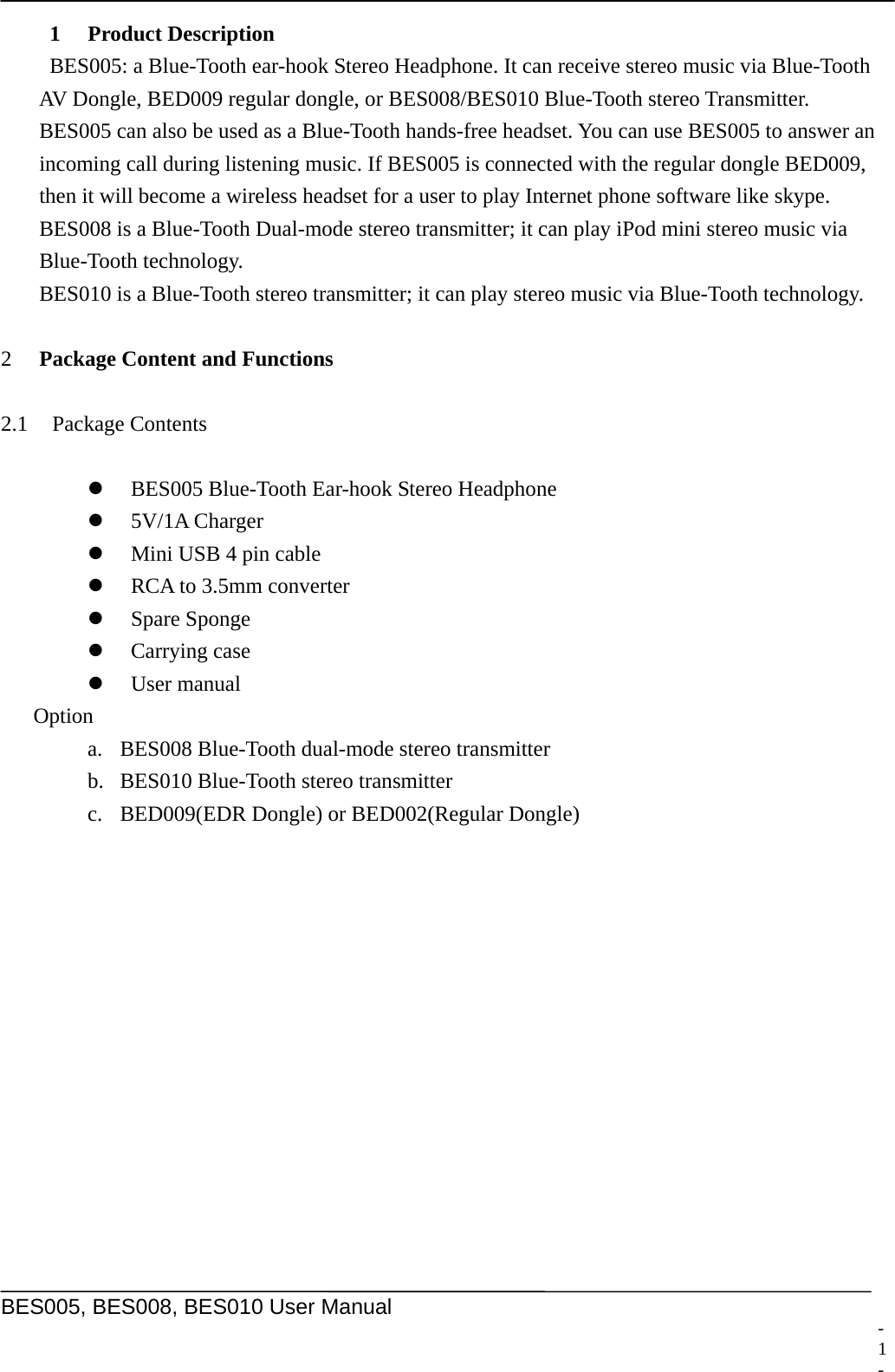
    BES005, BES008, BES010 User Manual  1 Product Description BES005: a Blue-Tooth ear-hook Stereo Headphone. It can receive stereo music via Blue-Tooth AV Dongle, BED009 regular dongle, or BES008/BES010 Blue-Tooth stereo Transmitter. BES005 can also be used as a Blue-Tooth hands-free headset. You can use BES005 to answer an incoming call during listening music. If BES005 is connected with the regular dongle BED009, then it will become a wireless headset for a user to play Internet phone software like skype. BES008 is a Blue-Tooth Dual-mode stereo transmitter; it can play iPod mini stereo music via Blue-Tooth technology. BES010 is a Blue-Tooth stereo transmitter; it can play stereo music via Blue-Tooth technology.  2 Package Content and Functions    2.1 Package Contents  z BES005 Blue-Tooth Ear-hook Stereo Headphone z 5V/1A Charger z Mini USB 4 pin cable z RCA to 3.5mm converter z Spare Sponge z Carrying case z User manual Option a. BES008 Blue-Tooth dual-mode stereo transmitter b. BES010 Blue-Tooth stereo transmitter c. BED009(EDR Dongle) or BED002(Regular Dongle)  - 1 -
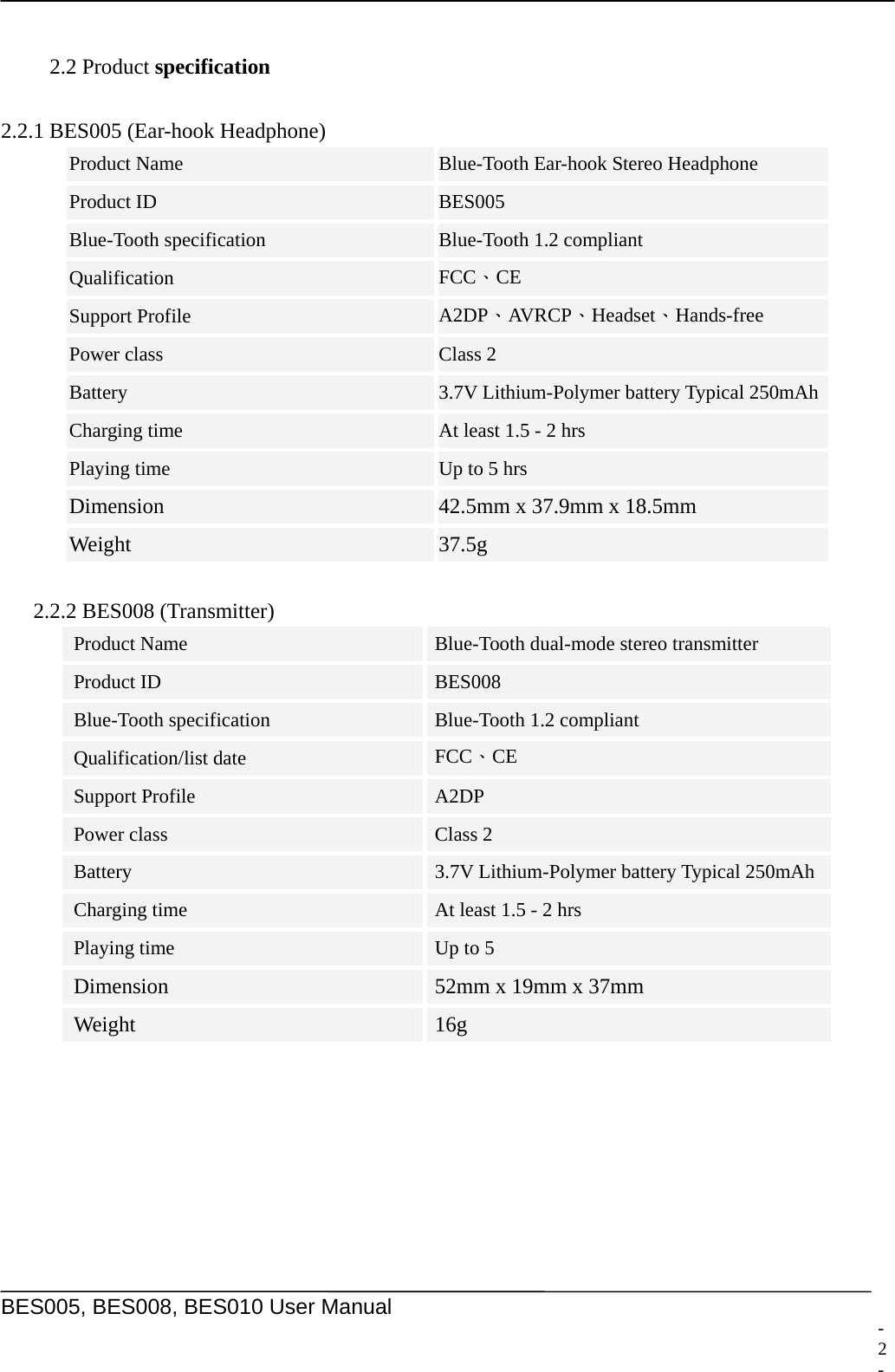
    BES005, BES008, BES010 User Manual   2.2 Product specification  2.2.1 BES005 (Ear-hook Headphone)   Product Name  Blue-Tooth Ear-hook Stereo Headphone Product ID  BES005 Blue-Tooth specification  Blue-Tooth 1.2 compliant Qualification  FCC、CE Support Profile  A2DP、AVRCP、Headset、Hands-free Power class  Class 2 Battery  3.7V Lithium-Polymer battery Typical 250mAhCharging time  At least 1.5 - 2 hrs Playing time  Up to 5 hrs Dimension  42.5mm x 37.9mm x 18.5mm Weight  37.5g     2.2.2 BES008 (Transmitter) Product Name  Blue-Tooth dual-mode stereo transmitter   Product ID  BES008 Blue-Tooth specification  Blue-Tooth 1.2 compliant Qualification/list date  FCC、CE Support Profile  A2DP Power class  Class 2 Battery  3.7V Lithium-Polymer battery Typical 250mAh Charging time  At least 1.5 - 2 hrs Playing time  Up to 5 Dimension  52mm x 19mm x 37mm Weight  16g  - 2 -
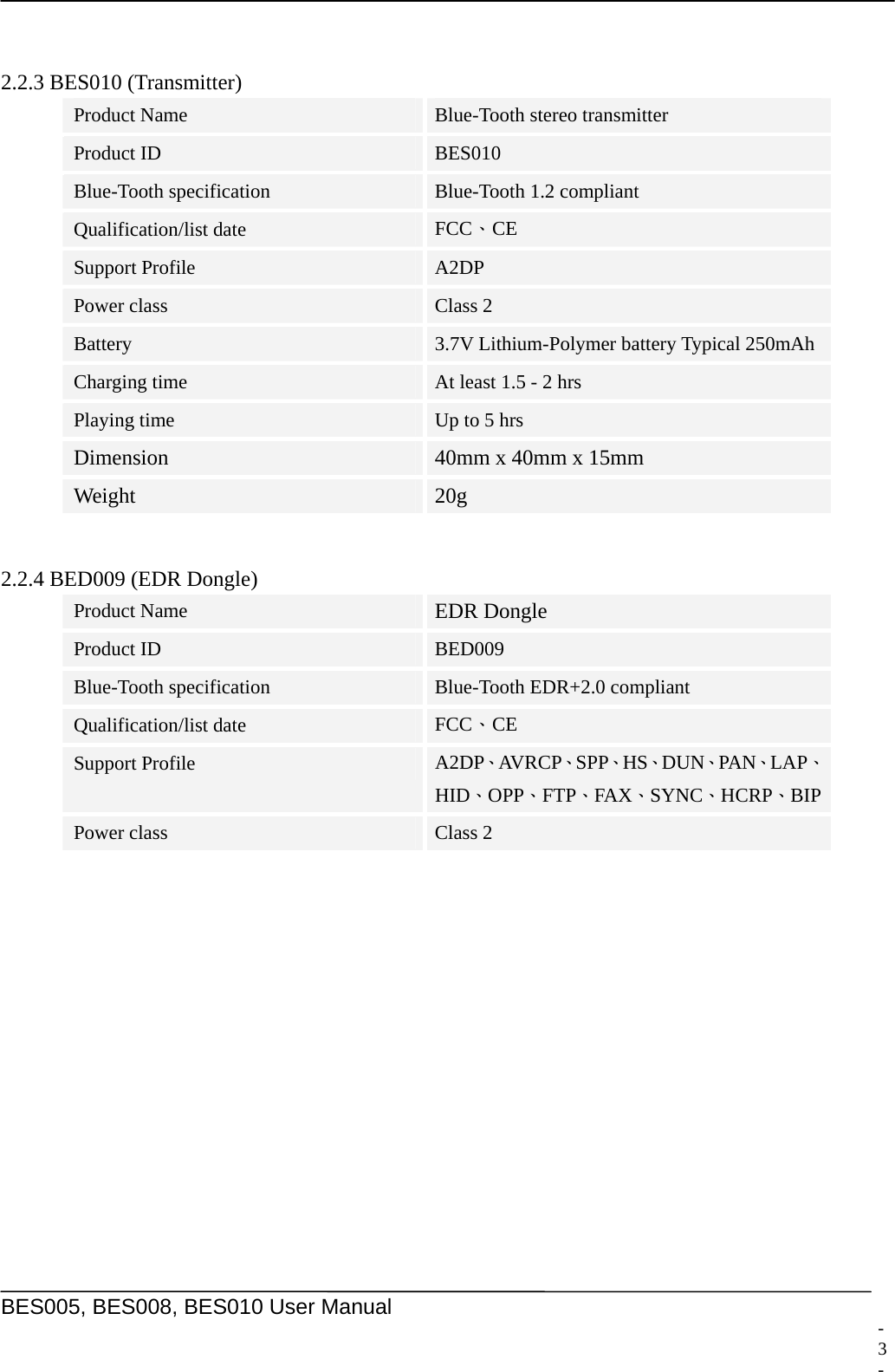
    BES005, BES008, BES010 User Manual   2.2.3 BES010 (Transmitter) Product Name  Blue-Tooth stereo transmitter Product ID  BES010 Blue-Tooth specification  Blue-Tooth 1.2 compliant Qualification/list date  FCC、CE Support Profile  A2DP Power class  Class 2 Battery  3.7V Lithium-Polymer battery Typical 250mAh Charging time  At least 1.5 - 2 hrs Playing time  Up to 5 hrs Dimension  40mm x 40mm x 15mm Weight  20g  2.2.4 BED009 (EDR Dongle) Product Name  EDR Dongle Product ID  BED009 Blue-Tooth specification  Blue-Tooth EDR+2.0 compliant Qualification/list date  FCC、CE Support Profile  A2DP、AV RCP、SPP、HS、DUN、PAN、LAP、HID、OPP、FTP、FAX、SYNC、HCRP、BIPPower class  Class 2   - 3 -
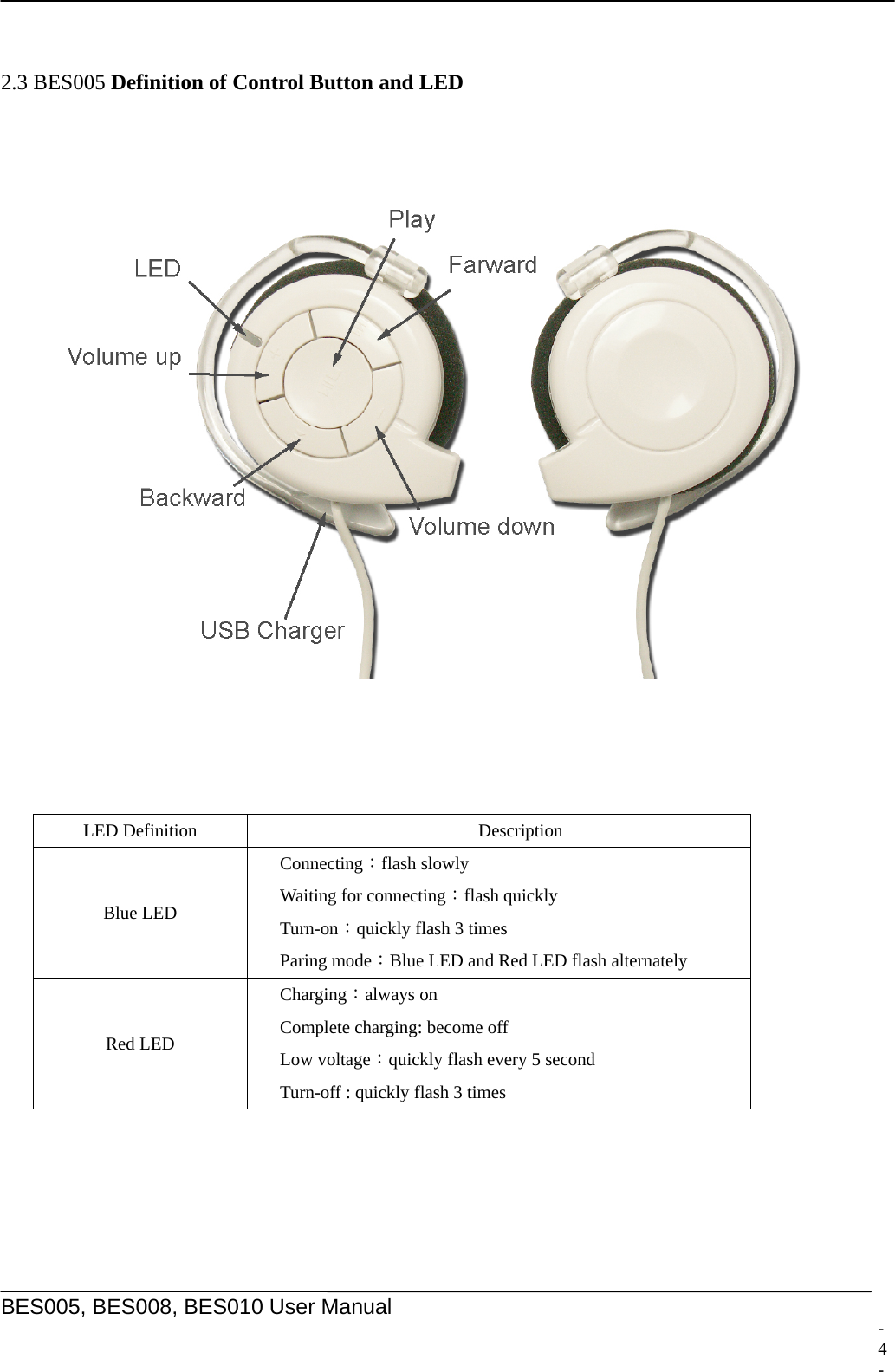
    BES005, BES008, BES010 User Manual   2.3 BES005 Definition of Control Button and LED        LED Definition  Description Blue LED Connecting:flash slowly Waiting for connecting:flash quickly Turn-on:quickly flash 3 times   Paring mode:Blue LED and Red LED flash alternately Red LED Charging:always on Complete charging: become off Low voltage:quickly flash every 5 second Turn-off : quickly flash 3 times  - 4 -
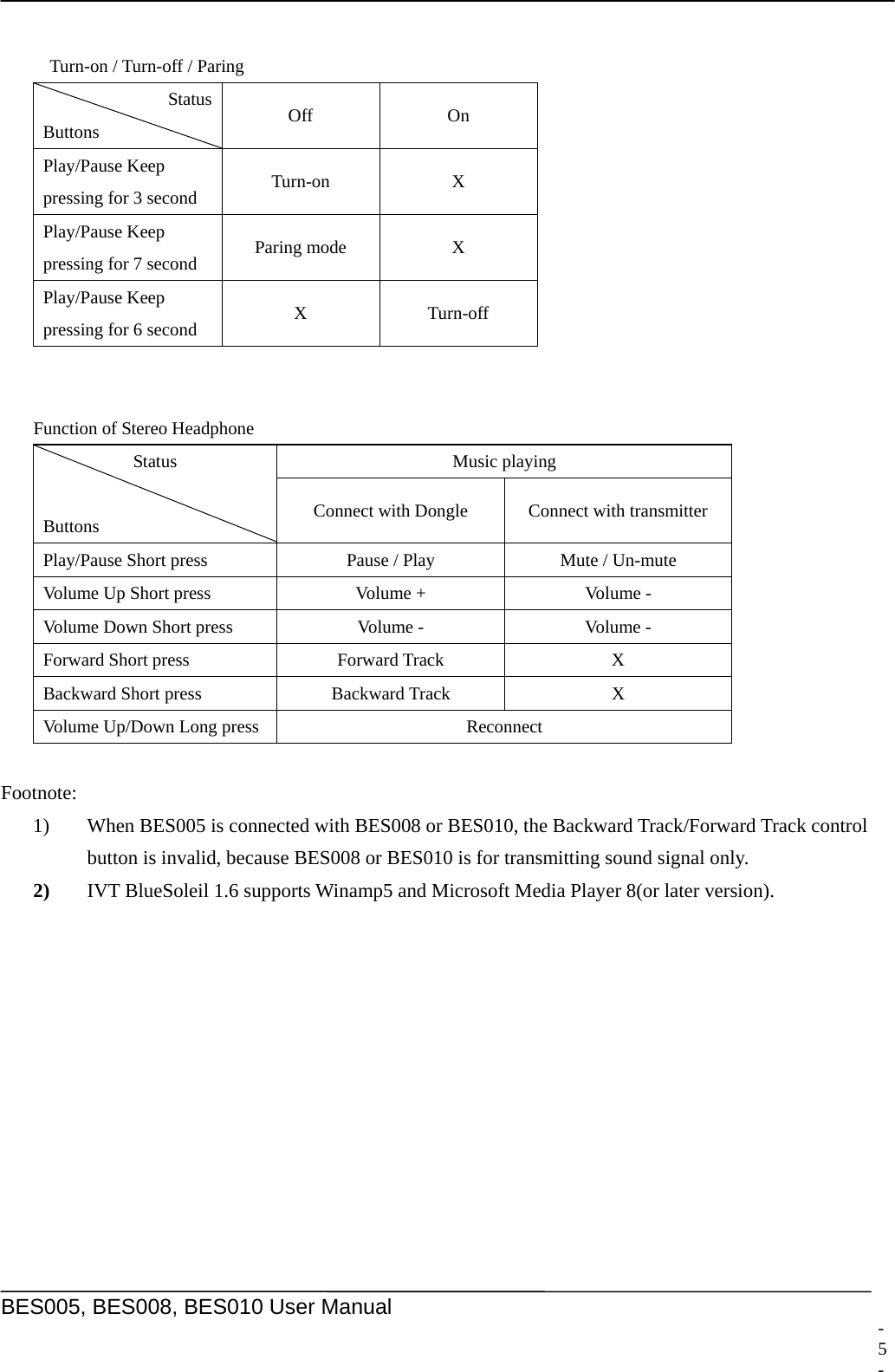
    BES005, BES008, BES010 User Manual   Turn-on / Turn-off / Paring   Status Buttons  Off   On Play/Pause Keep   pressing for 3 second  Turn-on X Play/Pause Keep   pressing for 7 second  Paring mode  X Play/Pause Keep   pressing for 6 second  X Turn-off  Function of Stereo Headphone Music playing   Status  Buttons  Connect with Dongle  Connect with transmitter Play/Pause Short press    Pause / Play  Mute / Un-mute   Volume Up Short press    Volume +  Volume - Volume Down Short press    Volume -  Volume - Forward Short press  Forward Track  X Backward Short press  Backward Track  X Volume Up/Down Long press  Reconnect  Footnote: 1)  When BES005 is connected with BES008 or BES010, the Backward Track/Forward Track control button is invalid, because BES008 or BES010 is for transmitting sound signal only. 2) IVT BlueSoleil 1.6 supports Winamp5 and Microsoft Media Player 8(or later version).- 5 -
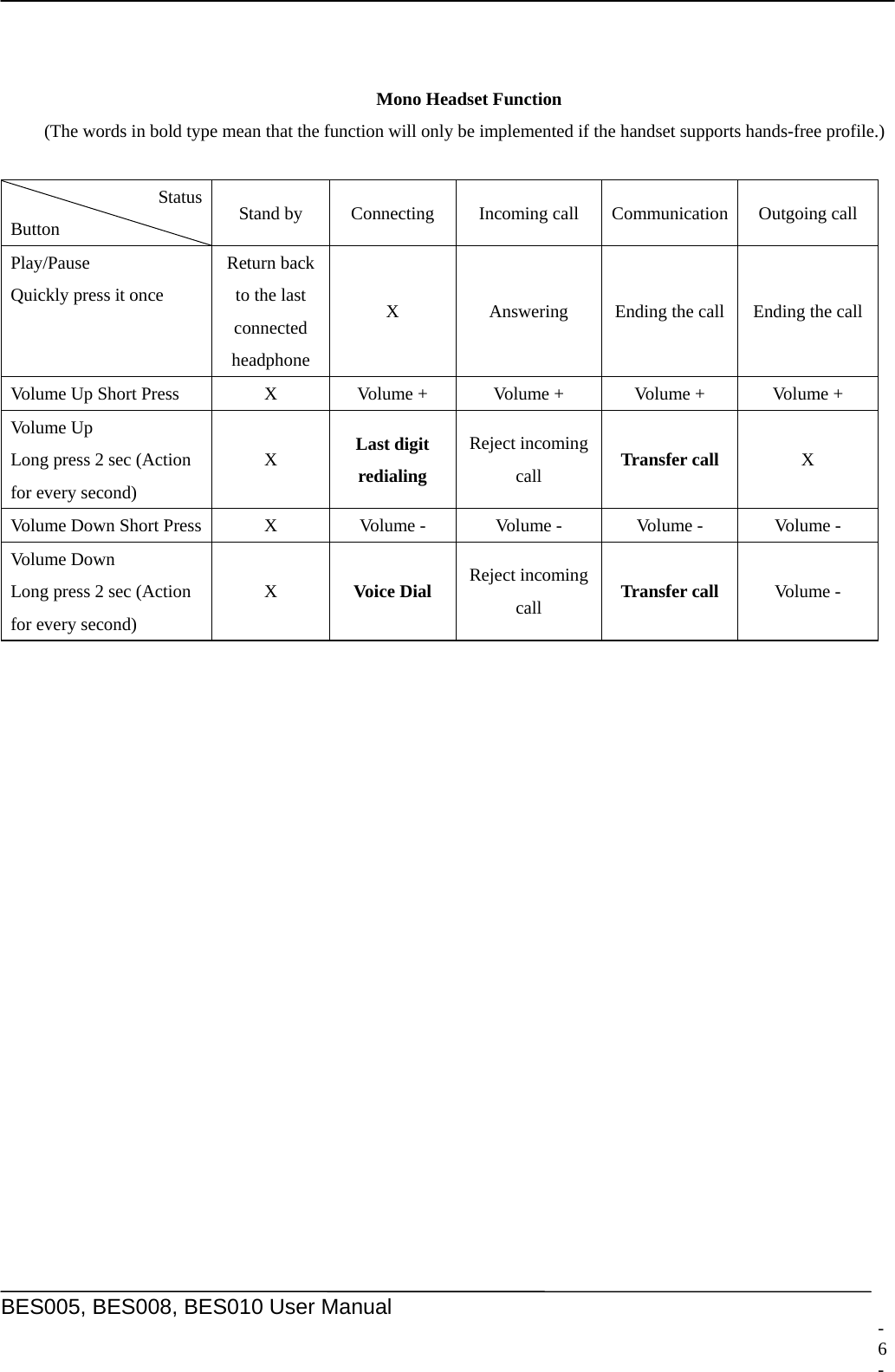
    BES005, BES008, BES010 User Manual    Mono Headset Function (The words in bold type mean that the function will only be implemented if the handset supports hands-free profile.)  Status Button  Stand by  Connecting  Incoming call  Communication  Outgoing call Play/Pause Quickly press it once Return back to the last connected headphone X  Answering  Ending the call  Ending the callVolume Up Short Press  X  Volume +  Volume +  Volume +  Volume + Vol ume  Up   Long press 2 sec (Action for every second) X  Last digit redialing Reject incoming call  Transfer call  X Volume Down Short Press  X  Volume -  Volume -  Volume -  Volume - Vol ume  Down   Long press 2 sec (Action for every second) X  Voice Dial  Reject incoming call  Transfer call Volume -  - 6 -
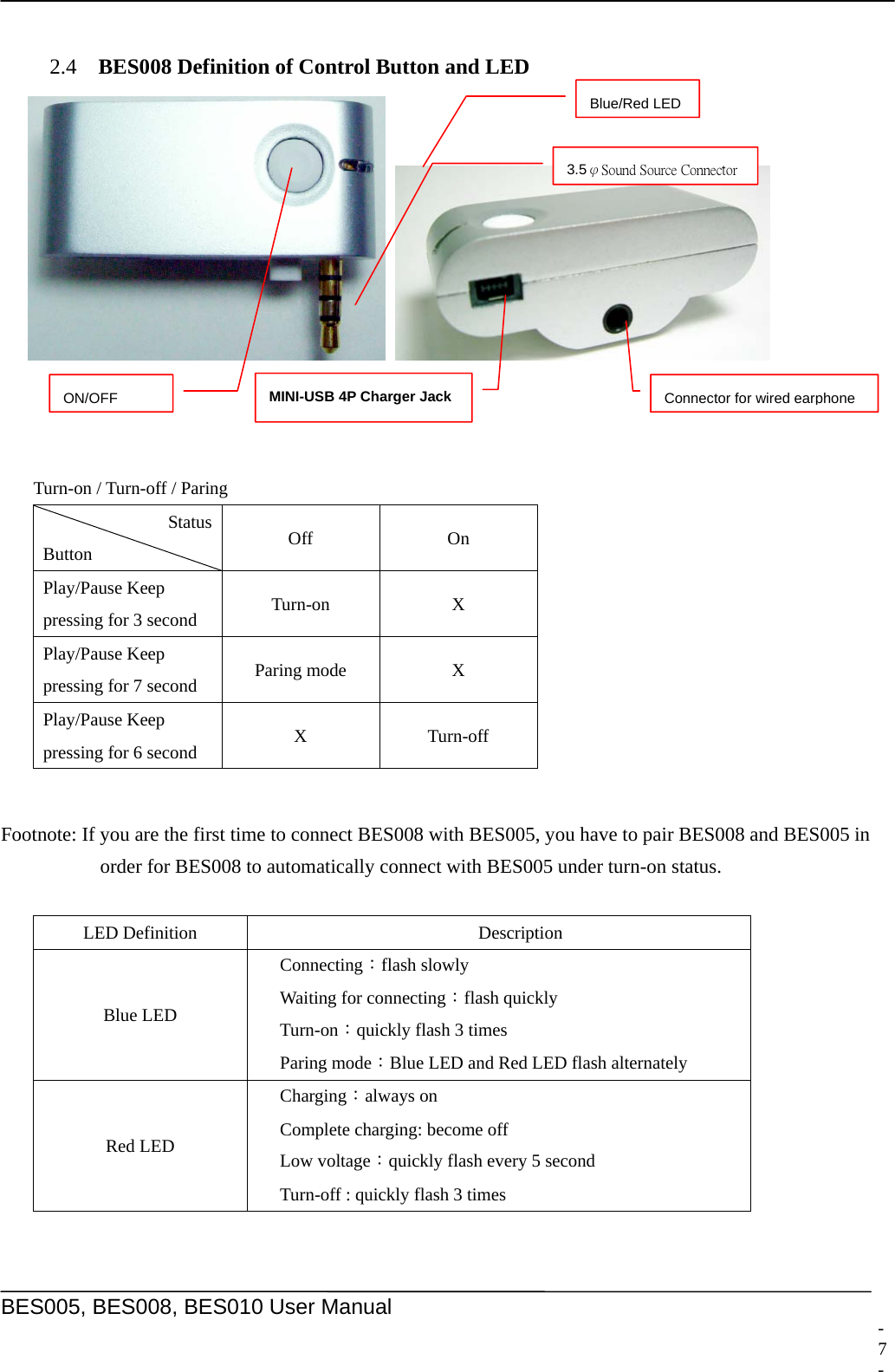
    BES005, BES008, BES010 User Manual   2.4  BES008 Definition of Control Button and LED    Connector for wired earphone3.5φSound Source Connector MINI-USB 4P Charger Jack ON/OFF Blue/Red LED   Turn-on / Turn-off / Paring Status Button  Off On Play/Pause Keep   pressing for 3 second  Turn-on X Play/Pause Keep   pressing for 7 second  Paring mode  X Play/Pause Keep   pressing for 6 second  X Turn-off  Footnote: If you are the first time to connect BES008 with BES005, you have to pair BES008 and BES005 in order for BES008 to automatically connect with BES005 under turn-on status.  LED Definition  Description Blue LED Connecting:flash slowly Waiting for connecting:flash quickly Turn-on:quickly flash 3 times   Paring mode:Blue LED and Red LED flash alternately Red LED Charging:always on Complete charging: become off Low voltage:quickly flash every 5 second Turn-off : quickly flash 3 times  - 7 -
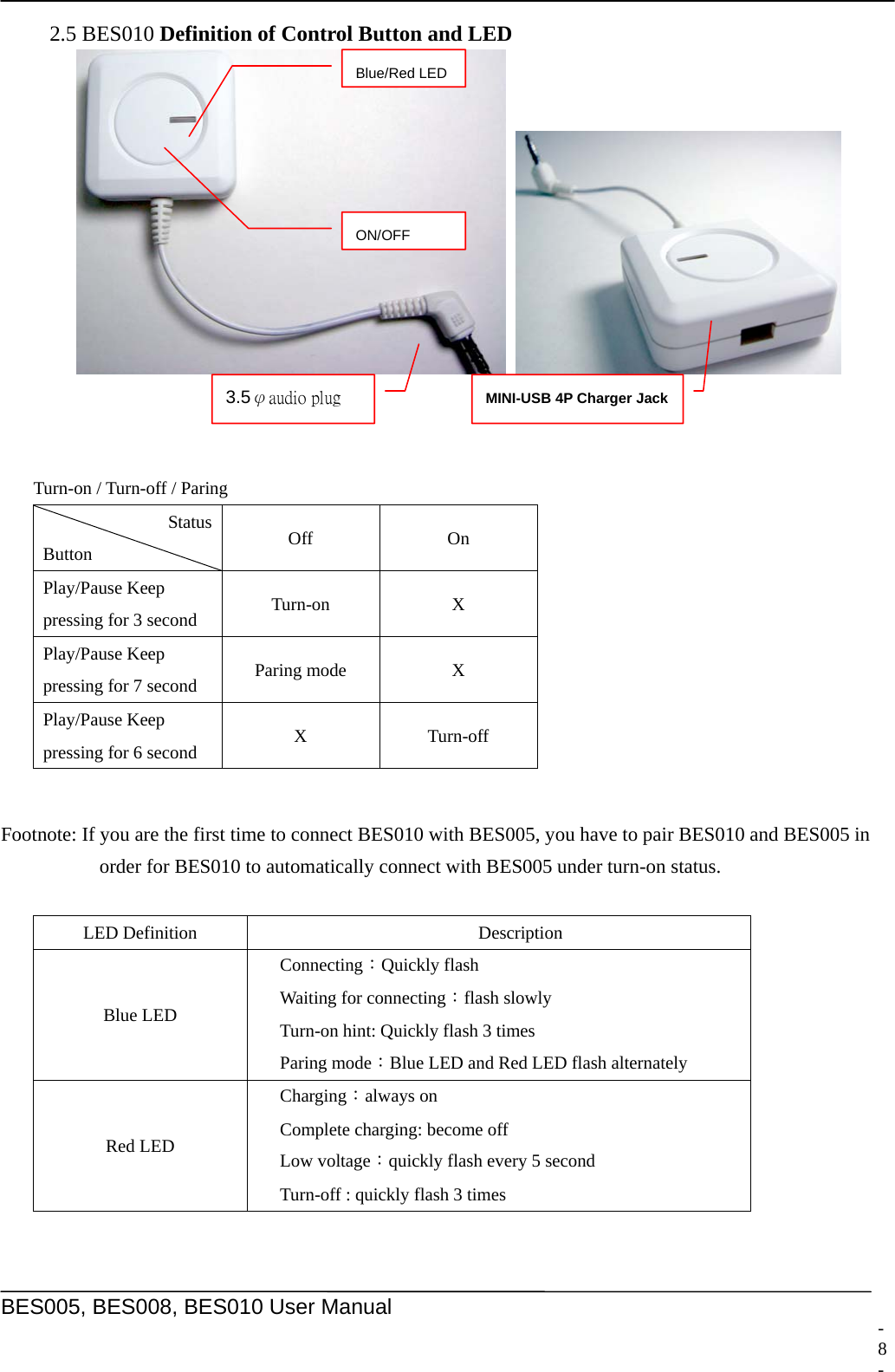
    BES005, BES008, BES010 User Manual  2.5 BES010 Definition of Control Button and LED      Turn-on / Turn-off / Paring Status Button  Off On Play/Pause Keep   pressing for 3 second  Turn-on X Play/Pause Keep   pressing for 7 second  Paring mode  X Play/Pause Keep   pressing for 6 second  X Turn-off  Footnote: If you are the first time to connect BES010 with BES005, you have to pair BES010 and BES005 in order for BES010 to automatically connect with BES005 under turn-on status.  LED Definition  Description Blue LED Connecting:Quickly flash Waiting for connecting:flash slowly Turn-on hint: Quickly flash 3 times Paring mode:Blue LED and Red LED flash alternately Red LED Charging:always on Complete charging: become off Low voltage:quickly flash every 5 second Turn-off : quickly flash 3 times 3.5φaudio plug   MINI-USB 4P Charger JackON/OFF Blue/Red LED- 8 -
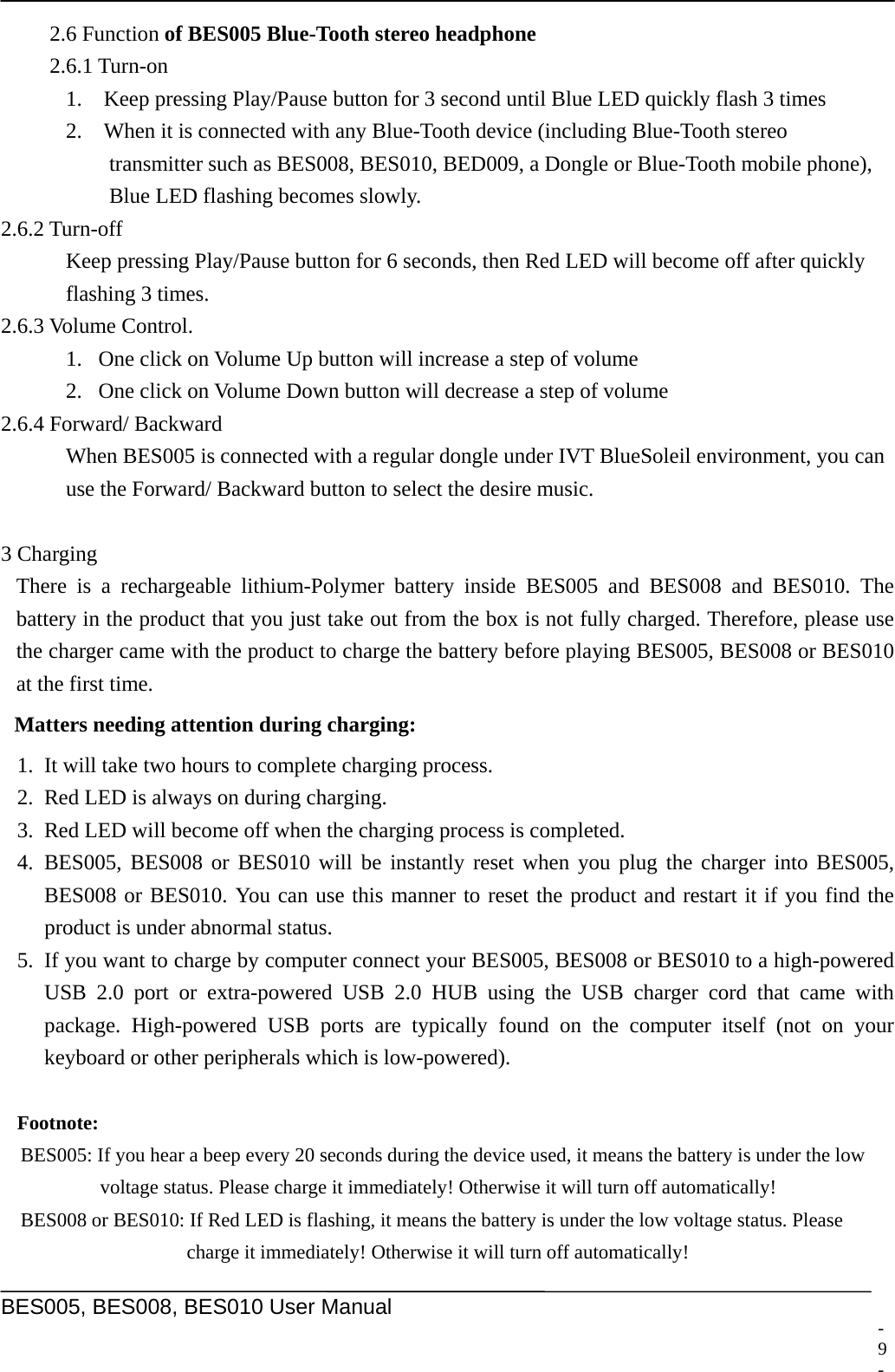
    BES005, BES008, BES010 User Manual  2.6 Function of BES005 Blue-Tooth stereo headphone 2.6.1 Turn-on 1.    Keep pressing Play/Pause button for 3 second until Blue LED quickly flash 3 times 2.    When it is connected with any Blue-Tooth device (including Blue-Tooth stereo   transmitter such as BES008, BES010, BED009, a Dongle or Blue-Tooth mobile phone),   Blue LED flashing becomes slowly. 2.6.2 Turn-off Keep pressing Play/Pause button for 6 seconds, then Red LED will become off after quickly   flashing 3 times. 2.6.3 Volume Control. 1. One click on Volume Up button will increase a step of volume 2. One click on Volume Down button will decrease a step of volume 2.6.4 Forward/ Backward   When BES005 is connected with a regular dongle under IVT BlueSoleil environment, you can   use the Forward/ Backward button to select the desire music.    3 Charging There is a rechargeable lithium-Polymer battery inside BES005 and BES008 and BES010. The battery in the product that you just take out from the box is not fully charged. Therefore, please use the charger came with the product to charge the battery before playing BES005, BES008 or BES010 at the first time. Matters needing attention during charging: 1. It will take two hours to complete charging process. 2. Red LED is always on during charging. 3. Red LED will become off when the charging process is completed. 4. BES005, BES008 or BES010 will be instantly reset when you plug the charger into BES005, BES008 or BES010. You can use this manner to reset the product and restart it if you find the product is under abnormal status. 5. If you want to charge by computer connect your BES005, BES008 or BES010 to a high-powered USB 2.0 port or extra-powered USB 2.0 HUB using the USB charger cord that came with package. High-powered USB ports are typically found on the computer itself (not on your keyboard or other peripherals which is low-powered).  Footnote:  BES005: If you hear a beep every 20 seconds during the device used, it means the battery is under the low   voltage status. Please charge it immediately! Otherwise it will turn off automatically!   BES008 or BES010: If Red LED is flashing, it means the battery is under the low voltage status. Please   charge it immediately! Otherwise it will turn off automatically! - 9 -
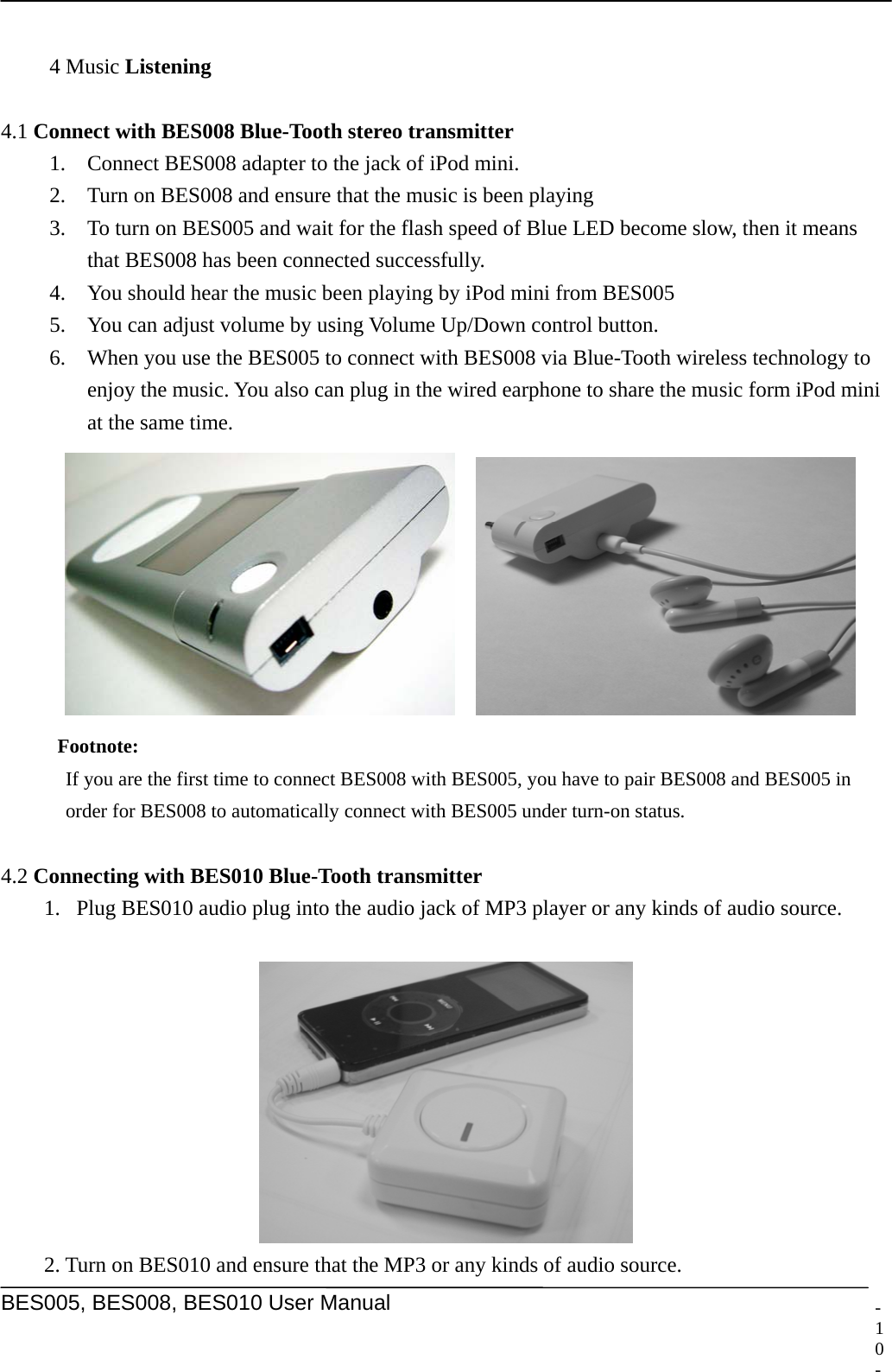
    BES005, BES008, BES010 User Manual  -   4 Music Listening  4.1 Connect with BES008 Blue-Tooth stereo transmitter 1. Connect BES008 adapter to the jack of iPod mini. 2. Turn on BES008 and ensure that the music is been playing 3. To turn on BES005 and wait for the flash speed of Blue LED become slow, then it means that BES008 has been connected successfully. 4. You should hear the music been playing by iPod mini from BES005 5. You can adjust volume by using Volume Up/Down control button. 6. When you use the BES005 to connect with BES008 via Blue-Tooth wireless technology to enjoy the music. You also can plug in the wired earphone to share the music form iPod mini at the same time.     Footnote:  If you are the first time to connect BES008 with BES005, you have to pair BES008 and BES005 in order for BES008 to automatically connect with BES005 under turn-on status.  4.2 Connecting with BES010 Blue-Tooth transmitter 1. Plug BES010 audio plug into the audio jack of MP3 player or any kinds of audio source.     2. Turn on BES010 and ensure that the MP3 or any kinds of audio source. 10 -
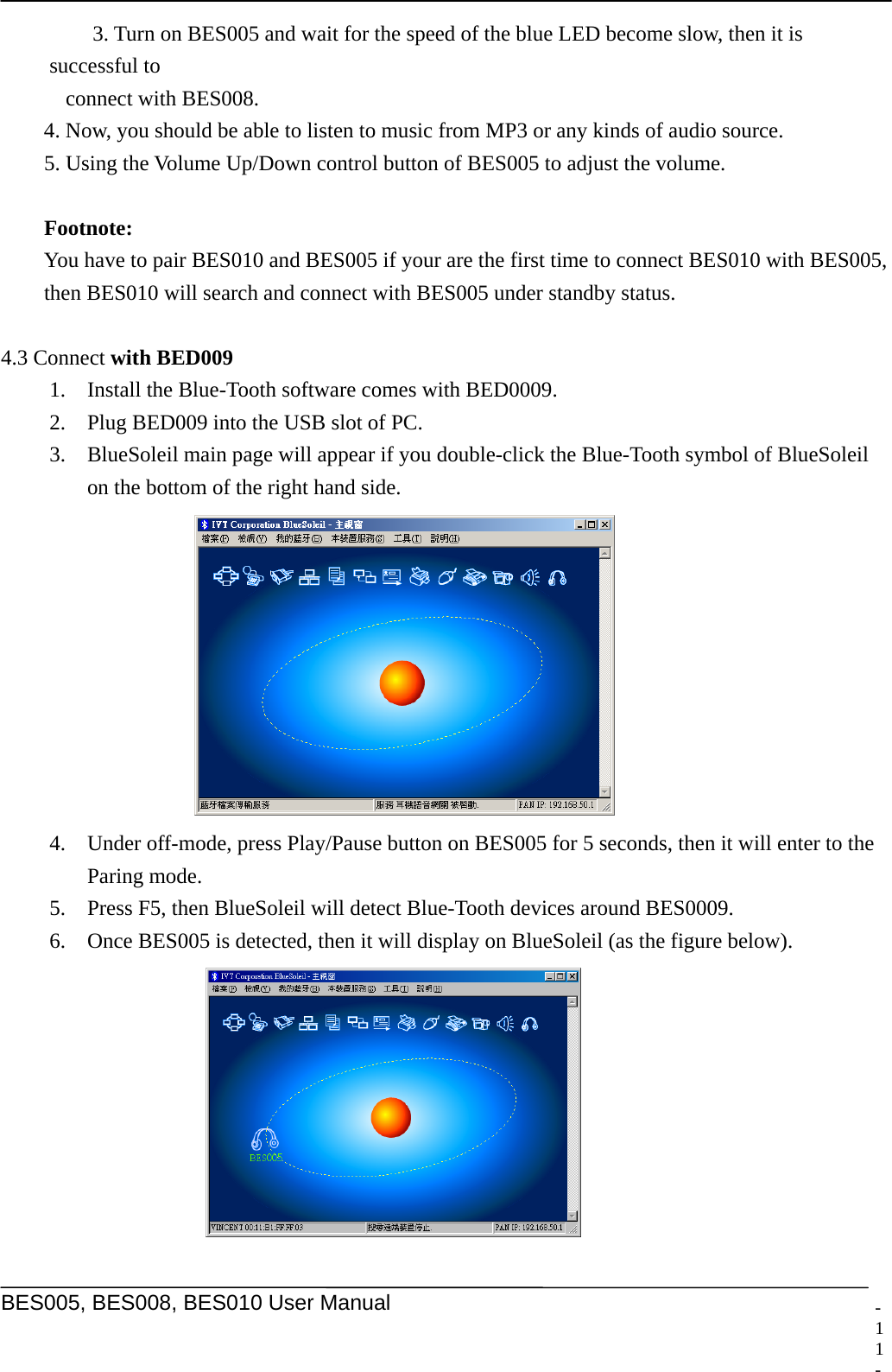
    BES005, BES008, BES010 User Manual  -    3. Turn on BES005 and wait for the speed of the blue LED become slow, then it is successful to   connect with BES008.   4. Now, you should be able to listen to music from MP3 or any kinds of audio source.   5. Using the Volume Up/Down control button of BES005 to adjust the volume.   Footnote:    You have to pair BES010 and BES005 if your are the first time to connect BES010 with BES005,   then BES010 will search and connect with BES005 under standby status.    4.3 Connect with BED009 1. Install the Blue-Tooth software comes with BED0009.   2. Plug BED009 into the USB slot of PC. 3. BlueSoleil main page will appear if you double-click the Blue-Tooth symbol of BlueSoleil   on the bottom of the right hand side.  4. Under off-mode, press Play/Pause button on BES005 for 5 seconds, then it will enter to the Paring mode. 5. Press F5, then BlueSoleil will detect Blue-Tooth devices around BES0009. 6. Once BES005 is detected, then it will display on BlueSoleil (as the figure below).   11 -
    BES005, BES008, BES010 User Manual  -  7. Double-click BES005 to implement paring, then BlueSoleil will display the Blue-Tooth service provided by BES005 after the paring code ”0000” inputted. (as figure A and B)   Figure A    Figure B  8. Make a connection between BED0009 and BES005 by clicking “Blue-Tooth AV service” on the top of the right corner (Speaker sign as the figure below)    9. Next, run the multi-media playback software from the computer (like Winamp), then enjoy the music stream with wireless technology!!! 10. You may control the volume by using the Volume Up/Down control button from BES005 or select the desire music by using the Backward/ Forward button. 12 -
    BES005, BES008, BES010 User Manual  -   5 Connect with Blue-Tooth mobile phone  5.1 Paring stage 1. First, activate the Blue-Tooth function of the mobile phone. 2. Select Hands-Free mode and search. 3. Once BES005 is detected, please input “0000” when your Blue-Tooth mobile phone ask you for entering pin code.   5.2 Answering a call 1. You will hear the phone ringing when there is a call coming。. 2. Press Play/Pause button to answer the incoming call or press Play/Pause button for 2 seconds to reject it. 5.3 Ending a phone   End up the call by just pressing Play/Pause button once.   5.4 Dialing 1. Using the mobile phone for dialing: Normally use your Blue-Tooth mobile phone to dial, then use BES005 as a hands-free device 2. Using the voice dial function of BES005: If BES005 is under standby status, then you can use the voice dial by pressVolume Down button for 2 seconds.   3. Using last number redial function of BES005: If BES005 is under standby status, the last number redial will be performed by Volume Up button for 2 seconds. 5.5 Transfer Call   Pressing any Volume button for 2 seconds will switch the communication to mobile phone. Pressing any Volume button for 2 seconds again, the communication will be switched back to the headphone.   5.6 Answering an incoming call during listening stereo music 1. Connect your Blue-Tooth mobile phone with BES005 before connecting with BES008, BES010 or BED009. 2. When there is an incoming call during listening stereo music, BES005 will automatically mute the music and send out the ring tone. You are able to answer the phone by just pressing Play/Pause button. BES005 will automatically play stereo music again after ending up the call.    Footnote:   If you want to enjoy the function of Last number redial, Voice dial and Transfer call, your mobile phone must support Hands-Free profile.   13 -
Federal Communications Commission (FCC) Statement  15.21 You are cautioned that changes or modifications not expressly approved by the part responsible for compliance could void the user’s authority to operate the equipment.  15.105(b) This equipment has been tested and found to comply with the limits for a Class B digital device, pursuant to part 15 of the FCC rules. These limits are designed to provide reasonable protection against harmful interference in a residential installation. This equipment generates, uses and can radiate radio frequency energy and, if not installed and used in accordance with the instructions, may cause harmful interference to radio communications. However, there is no guarantee that interference will not occur in a particular installation. If this equipment does cause harmful interference to radio or television reception, which can be determined by turning the equipment off and on, the user is encouraged to try to correct the interference by one or more of the following measures:  -Reorient or relocate the receiving antenna. -Increase the separation between the equipment and receiver. -Connect the equipment into an outlet on a circuit different from that to which the receiver is connected. -Consult the dealer or an experienced radio/TV technician for help.  Operation is subject to the following two conditions: 1) this device may not cause interference and 2) this device must accept any interference, including interference that may cause undesired operation of the device.  FCC RF Radiation Exposure Statement: This equipment complies with FCC radiation exposure limits set forth for an uncontrolled environment. End users must follow the specific operating instructions for satisfying RF exposure compliance. This transmitter must not be co-located or operating in conjunction with any other antenna or transmitter.

Navigation menu