Bluetree Wireless Data BT2000 GSM/GPRS Wireless Modem User Manual Product Manual
Bluetree Wireless Data Inc. GSM/GPRS Wireless Modem Product Manual
Contents
- 1. BT2000 Users Manual
- 2. BT2010 Users Manual
BT2000 Users Manual
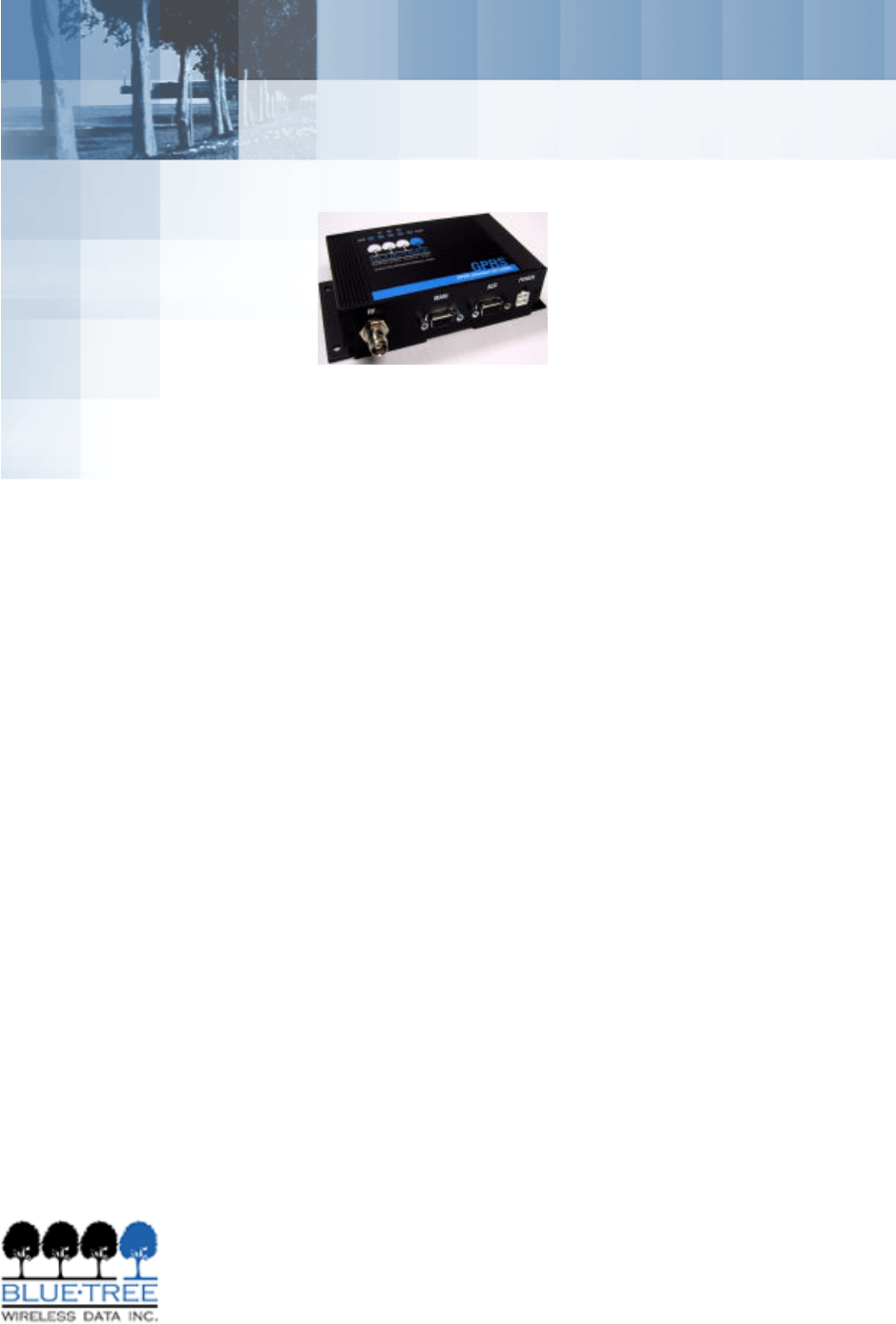
BT-2000
GPRS Standard Modem
Product Manual

V1.5 BlueTree Wireless BT-2000 Product Manual 3
BlueTree Wireless
BT-2000 GPRS Standard Modem
Product Manual
July 2004
GPRSUG-02000
4BlueTree Wireless BT-2000 Product Manual V1.5

V1.5 BlueTree Wireless BT-2000 Product Manual 5
BlueTree Wireless Data, Inc.
2405 46th Avenue
Lachine, QC, Canada H8T 3C9
Tel: +1 (514) 422-9110
Toll Free: 1-877 422-9110
www.bluetreewireless.com
Copyright © 2004 by BlueTree Wireless Data, Inc.
All Rights Reserved
Printed in Canada
BlueTree™, the BlueTree logo, and BlueVue™ are trademarks of
BlueTree Wireless Data, Inc.
All other trademarks are the property of their respective owners.

6BlueTree Wireless BT-2000 Product Manual V1.5
Patents
Portions of this product are covered by some or all of the following
patents:
For BT-2000 or BT-2010 with RIM 1902G module:
US 6,278,442 6,271,605 6,219,694
6,075,470 6,073,318 D445,428
D416,256
Declaration of Conformity
FCC Compliance
Statement (USA) FCC ID: QWV-BTGPRS (for GPRS modems with RIM 1902G module)
FCC ID: QWV-BT2000 (for GPRS modems with Wavecom Q2426
module)
The device complies with Part 15 of the FCC rules. Operation is subject
to the following two conditions:
1. This device may not cause harmful interference.
2. This device must accept any interference received, including
interference that may cause undesired operation.
This equipment generates, uses and can radiate radio frequency energy
and, if not installed and used in accordance with the manufacturer's
instructions, may cause interference harmful to radio communications.
However, there is no guarantee that interference will not occur in a
particular installation. If this equipment does cause harmful
interference to radio or television reception, which can be determined
by turning the equipment off and on, the user is encouraged to try to
correct the interference by one or more of the following measures:
•Reorient or relocate the receiving antenna.
•Increase the separation between the equipment and receiver.
•Connect the equipment into an outlet on a circuit different from
that to which the receiver is connected.
•Consult the dealer or an experienced radio/TV technician for help.
Caution: Unauthorized modifications or changes not
expressly approved by BlueTree Wireless Data, Inc. could
void compliance with regulatory rules, and thereby your
authority to use this equipment.
V1.5 BlueTree Wireless BT-2000 Product Manual 7
Liability Notice
While every effort has been made to achieve technical accuracy,
information in this document is subject to change without notice and
does not represent a commitment on the part of BlueTree Wireless
Data, Inc., or any of its subsidies, affiliates, agents, licensors, or
resellers. There are no warranties, express or implied, with respect to
the content of this document.
Safety
Do not operate the BlueTree Wireless Data BT-2000 modem in areas
near medical equipment, where blasting is in progress, where explosive
atmospheres may be present, or near any equipment that may be
susceptible to any form of radio interference.
Warning: “Antenna must not exceed 5.15 dBi. This
device must be used in mobile configurations. The
antenna(s) used for this transmitter must be
installed to provide a separation distance of at least
30 cm or 12 inches from all persons and must not
be co-located or operating in conjunction with any
other antenna or transmitter. Users and Installers
must be provided with antenna installation
instruction and transmitter operating conditions for
satisfying RF exposure compliance”
8BlueTree Wireless BT-2000 Product Manual V1.5
:
V1.5 BlueTree Wireless BT-2000 Product Manual 9
Contents
Introduction
Welcome.................................................................................. 11
Product Description.................................................................... 11
What you will need .................................................................... 12
Chapter 1: Installing the Modem
Unpacking the Modem................................................................ 15
Installing the SIM Card............................................................... 15
Installing the Modem ................................................................. 16
Installing the Antenna................................................................ 17
Installing the Power Cable .......................................................... 18
Connecting the Data Cable.......................................................... 20
Installing the BlueVue software ................................................... 20
Chapter 2: Activating the Modem
Using BlueVue........................................................................... 25
Using Microsoft DUN (Dial-Up Networking).................................... 25
Using AT Commands.................................................................. 27
Chapter 3: Connecting to the Wireless Network
Using BlueVue........................................................................... 31
Using Microsoft DUN (Dial Up Networking) .................................... 32
Chapter 4: Troubleshooting
Modem Help ............................................................................. 33
.............................................................................................. 34
BlueVue Help ............................................................................ 34
Appendix A: Warranty and Customer Support
Warranty.................................................................................. 37
Customer Support ..................................................................... 37
Appendix B: Reference Information
Modem Reference...................................................................... 39
BlueVue Configuration Options .................................................... 40
BlueVue Basics.......................................................................... 42
Microsoft DUN (Dial-Up Networking) ............................................ 53
AT Commands .......................................................................... 54
:
10 BlueTree Wireless BT-2000 Product Manual V1.5
Appendix C: Modem Specifications
Physical Dimensions................................................................... 61
Product Specifications ................................................................ 63
Power Consumption ................................................................... 63
Certification.............................................................................. 64
Introduction
V1.5 BlueTree WirelessBT-2000 Product Manual 11
Introduction
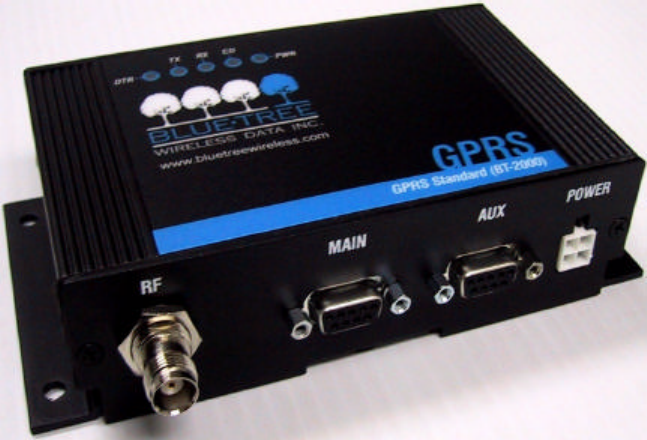
Welcome Thank you for choosing the BT-2000 , BlueTree’s GPRS wireless data
modem.
Product Description
Modem The rugged BT-2000 modem gives today's mobile organization the
reliable, instant access to information that is critical for its teams.
The unit is a fully integrated GSM modem, which adds wireless GPRS
functionality to remote and mobile applications. Its design makes it
ideal for in harsh environment installations.
The modem is based on RIM’s 1902G or Wavecom’s Q2426 radio
module, and intended for use with a host platform such as a computer
or remote terminal data unit.
The modem provides:
•Compatibility with GSM and GPRS wireless services
•Support for 850 and 1900 MHz frequency bands
•Short Message Service functionality – for both mobile originate as
well as terminate messaging
Software The modem package also includes BlueVue, the BlueTree software that
makes configuring and operating your modem simple and quick. With
BlueVue, modem operators can:
•Configure basic operating parameters
•Establish packet data connections
•Monitor status information
Introduction
12 BlueTree Wireless BT-2000 Product Manual V1.5
What you will need Before you install the modem you will need the following:
Cellular antenna To comply to FCC and Industry Canada regulations, cellular antennas
must meet the following specifications:
•Rated gain of 3dB (5.15dBi)
•Minimal cable loss of 0.5dB
•Dual-band 800 & 1900 MHz
•Nominal 50 ohm impedance
•Male TNC connector
•Coil style cellular whip
•Mount designed for a horizontal metal surface of vehicle
Please contact BlueTree for a list of compatible cellular antennas.
GSM SIM card Available from your local wireless network service provider.
Serial cables You will need one serial cable of suitable length to extend from the
modem to the computer, to a maximum length of 25 feet. If you are
connecting the modem to a PC you will also need a DB9 female
connector.
Tools and hardware •Small Phillips screwdriver
•Four screws suitable for the material you will mount the modem to.
Available COM ports USB serial adapters
BlueTree has tested USB-Serial adapter solutions from FTDI (http://
www.ftdichip.com) that have worked properly with our modems. Single
USB-Serial adapters and USB-Dual Serial adapters have been tested
and work properly.
More product information can be found at FTDI distributors websites
(http://www.ftdichip.com/FTDisti.htm).
Warning: Antenna must not exceed 5.15 dBi. This
device must be used in mobile configurations. The
antenna(s) used for this transmitter must be
installed to provide a separation distance of at least
30cm or 12 inches from all persons and must not be
co-located or operated in conjunction with any other
antenna or transmitter. Users and installers must be
provided with antenna installation instruction and
transmitter operating conditions for satisfying RF
exposure compliance.
Warning: Only approved antennas may be
connected to the modem. Unauthorized antennas,
modifications, or attachments could impair data
quality, damage the modem, or result in the
violation of FCC regulations.
Introduction
V1.5 BlueTree WirelessBT-2000 Product Manual 13
Checking for port conflicts
If you are connecting the modem to a PC, confirm that the computer
does not have any software loaded that could interfere with the COM
port that will be designated for the modem.
For example, HotSync - software used for communicating with the
PalmPilot can occupy the COM port even if the PC does not have
PalmPilot connected to that COM port.
Check any software that loads when your computer starts up, any
software that appears as an icon on your Windows task bar, and disable
or close any applications that normally use a COM port.
Is another modem installed on the PC? Older internal modems can
cause COM port conflicts. PC Card (PCMCIA) modems in laptops can
switch the COM port number of your built-in COM port.
Introduction
14 BlueTree Wireless BT-2000 Product Manual V1.5
Chapter 1: Installing the Modem
V1.5 BlueTree Wireless BT-2000 Product Manual 15
Chapter 1: Installing the Modem
Installing the modem is a seven-step process:
1. Unpack the modem
2. Install the SIM card
3. Install the modem
4. Install the antenna
5. Install the power cable
6. Connect the data cable
7. Install the BlueVue software (optional)
Unpacking the
Modem When the modem arrives, check that the package contains the
following items:
•BT-2000 modem
•15-foot power cable with 2A inline fuse
•Quick Start Guide
•BlueTree installation CD (includes the Product Manual along with
BlueVue software)
•BlueVue software is available from our web site at http://
www.bluetreewireless.com
If any items from this list are missing, please call our service
department toll-free at 1-877-422-9110.
Installing the SIM
Card Note: Before inserting the SIM card be sure the power cable is disconnected
from the modem. The SIM card will not be detected if inserted with power
applied to the modem.
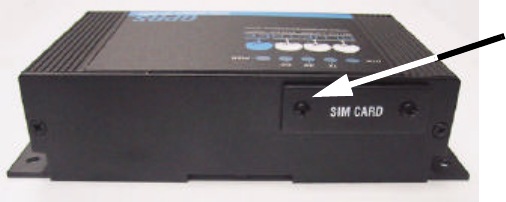
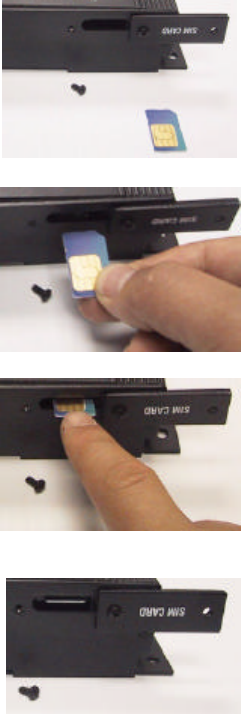
To install the SIM card:
1. Remove one of the screws on the SIM CARD cover plate, located at
the back of the modem casing.
.
Remove this
screw
Chapter 1: Installing the Modem
16 BlueTree Wireless BT-2000 Product Manual V1.5
Installing the
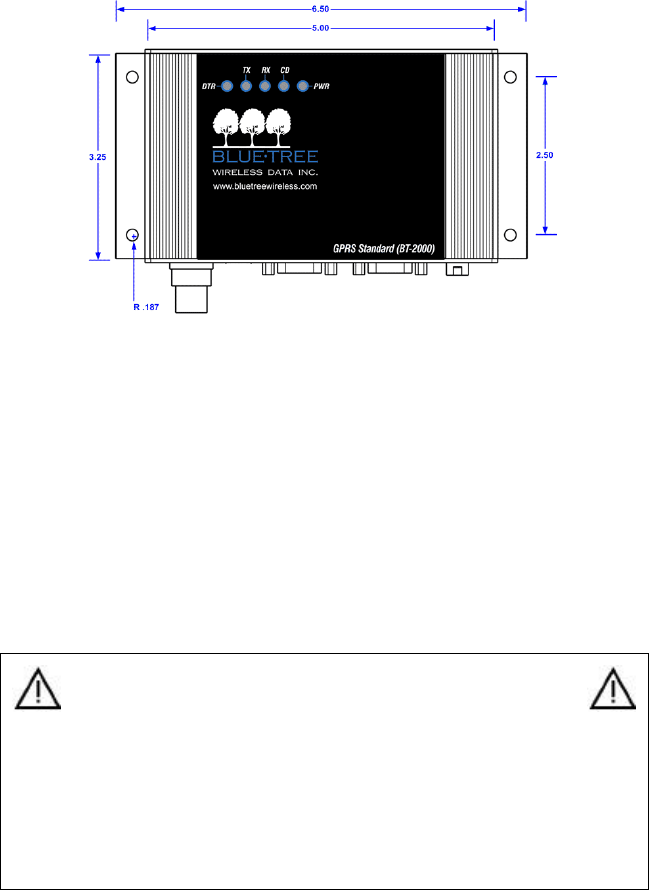
Modem There are 2 ways to mount the modem:
a) Use the 4 mounting holes (3/16") on the sides of the modem
b) Use the din rail (1.4") on the bottom of the modem
2. Loosen the remaining screw,
then flip the plate over so you can
access the SIM slot.
3. Slide the SIM card (gold on
top) into the slot until you feel it
snap into place.
4. Flip the SIM CARD cover plate
back to its original position,
replace the screw in the open
hole, then tighten both screws.
The SIM card is now installed.
Chapter 1: Installing the Modem
V1.5 BlueTree Wireless BT-2000 Product Manual 17
As shown below, the modem includes four mounting holes.
Installing the
Antenna •Cellular band antennas should be mounted more than 30 cm (12
inches) from other antennas.
•Do not install the antenna in a closed metallic enclosure (such as a
cabinet or the trunk of a car).
•For safety reasons, mount the antenna at least 30 cm (12 inches)
away from the body of a person.
•The length of the antenna cable may affect the signal strength.
Choose the appropriate cable type and length.
To install the cellular band antenna:
1. Thread the antenna cable through the vehicle so the cable can
reach the front plate of the modem.
2. Connect the cable to the TNC connector finger tight. Do not use
tools.
Warning: Antenna must not exceed 5.15 dBi. This
device must be used in mobile configurations. The
antenna(s) used for this transmitter must be
installed to provide a separation distance of at least
30 cm or 12 inches from all persons and must not
be co-located or operated in conjunction with any
other antenna or transmitter. Users and installers
must be provided with antenna installation
instruction and transmitter operating conditions for
satisfying RF exposure compliance.
Chapter 1: Installing the Modem
18 BlueTree Wireless BT-2000 Product Manual V1.5
Installing the
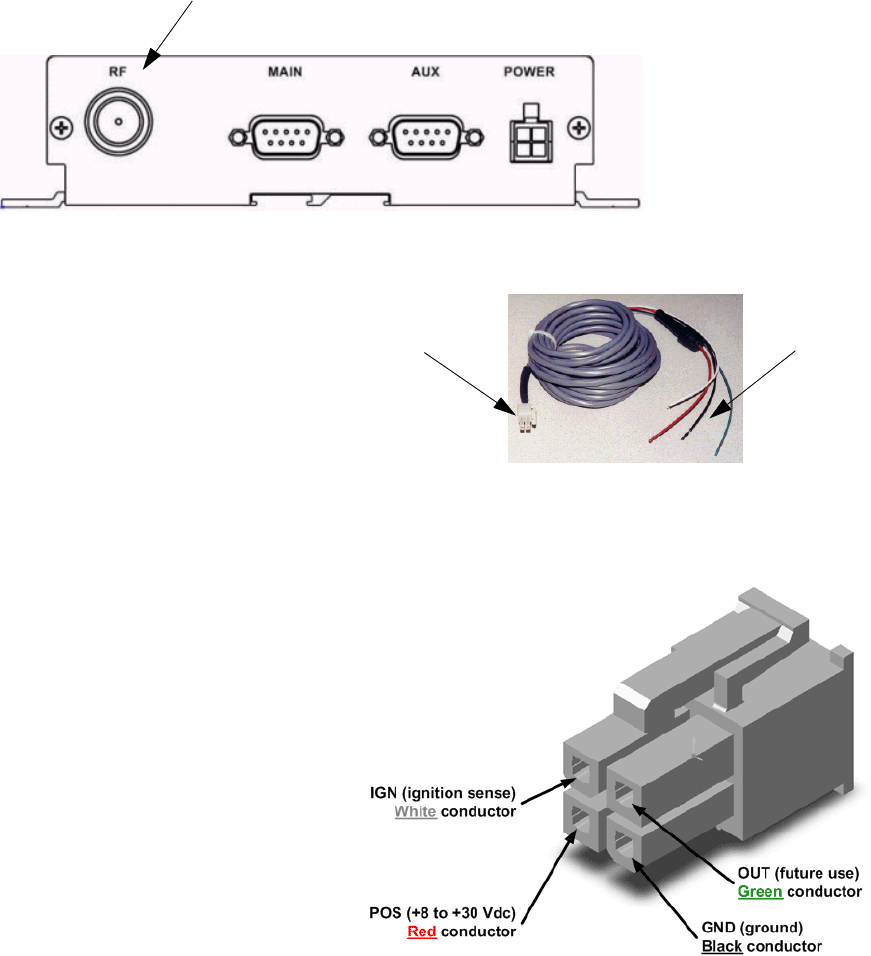
Power Cable The modem includes a 15-foot power cable with 2A inline fuse.
Power cable connector As shown below, the power cable connects to the modem through a
Molex type connector (MiniFit 4-pin).
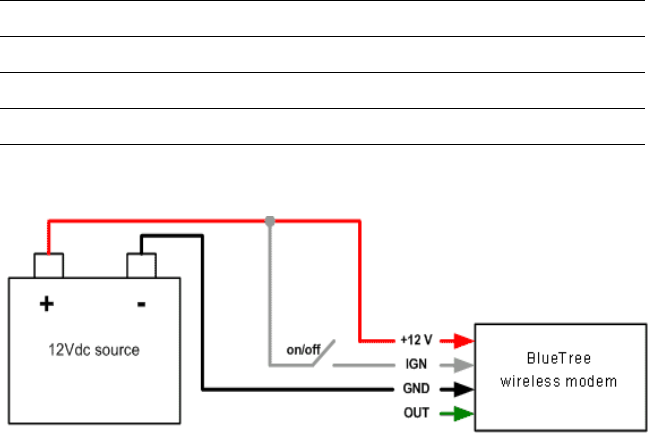
The ignition sense line (white wire) acts as an ON/OFF power switch.
The modem will turn on when the ignition sense line is set between 8
and 30 volts DC. The modem will turn off if the ignition sense line is
less than 7 volts DC.
Connect the
cable here.
Connects to
modem. Connects to
12 volt DC
power supply.
Chapter 1: Installing the Modem
V1.5 BlueTree Wireless BT-2000 Product Manual 19
Pin designations for the connector are shown below.
Powering up the modem
Note: Make sure that the antenna is connected to the modem before applying
power.
To connect the power cable:
•Connect the red wire directly to the baterry’s positive (+) terminal
or to a source of 8-to-30Vdc.
•Connect the black wire directly to the battery’s negative (-)
terminal or to ground (GND).
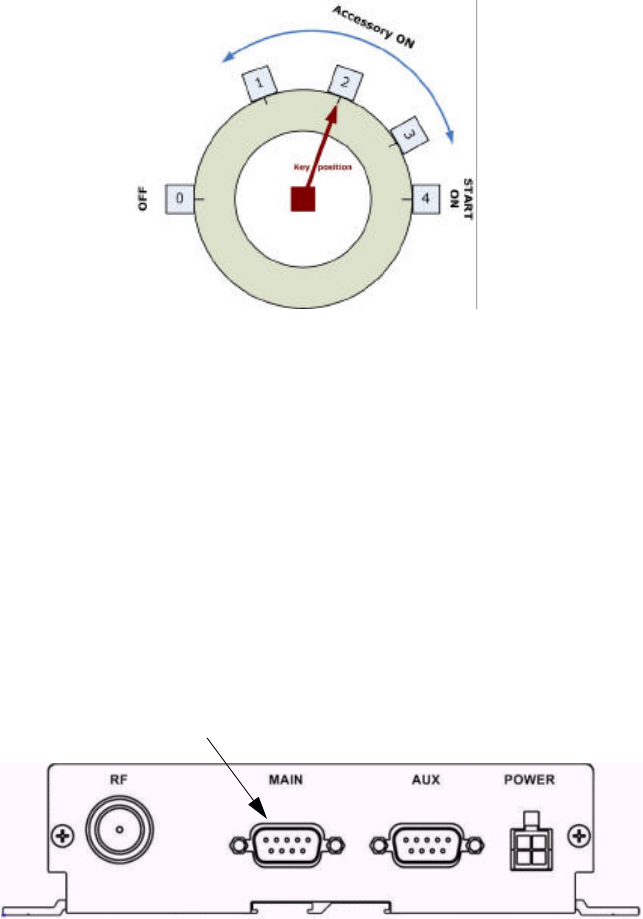
•The white wire must be connected to either:
a) a switch for manually turning on and off the modem,
b) the vehicle’s “Accessory for position 2”, for turning ON the
modem without turning on the engine,
c) the vehicle’s “Accessory for position 3”, for turning ON the
modem only when the engine is turned on.
Pin Annotation Color Description
1GND Black Ground
2POS Red Power supply input to 30 Vdc
3IGN White Ignition input
4OUT Green Digital output (not connected)
The Ignition Sense Line
should not be connected
directly to the battery.
Chapter 1: Installing the Modem
20 BlueTree Wireless BT-2000 Product Manual V1.5
To test the power connection:
1. Check the modem’s LED indicators.
•If the PWR or Power indicator is turned on or if it flashes, the
modem is powered.
•If the PWR or Power indicator is not turned on, review the
installation procedures or see “Modem Help” on page33.
2. Open Windows HyperTerminal and run the AT commands shown in
“Configuring the HyperTerminal session” on page23.
Connecting the
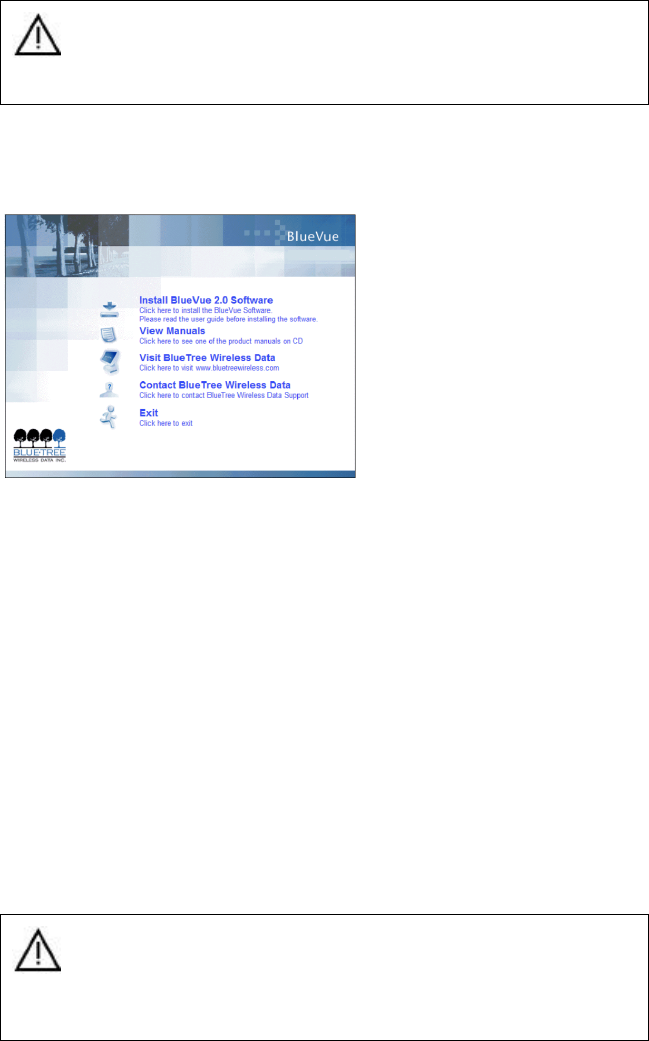
Data Cable To connect the MAIN data cable:
1. Attach one end of a serial cable to the modem at the connector
labeled MAIN.
2. Attach the other end of the serial cable to an available COM port.
Installing the
BlueVue software BlueVue is BlueTree’s modem management software that makes
configuring and operating your modem simple and quick. Your modem
includes a BlueVue installation CD-ROM.Visit BlueTree’s web site at
http://www.bluetreewireless.com for the latest release of software.
Installing BlueVue Users must have full local administrator access rights with their
Windows logon account to install BlueVue. Regular “User” accounts will
be able to use BlueVue and make connections. “Guest” accounts will
not be able to make connections.
Connect the
cable here.
Chapter 1: Installing the Modem
V1.5 BlueTree Wireless BT-2000 Product Manual 21
A command line option is available to system administrators or IT
personnel so that they can quickly install BlueVue on multiple
computers using, for example, a batch operation. Please refer to the
“BlueVue User Guide” for more information.
USB Serial Adapter
If you are using a USB to Serial adapter for a COM serial port, ensure
that the adapter cable is plugged into the USB port before installing and
using BlueVue. The USB to Serial adapter must be inserted into your PC
before starting Windows.
To install BlueVue:
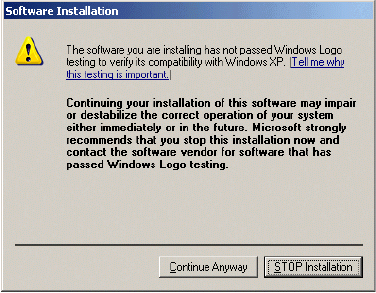
1. Install the BlueVue installation CD in your PC.
The main BlueVue installation screen appears as shown below.
2. From the main BlueVue setup screen click Install BlueVue 2.x
Software to start the installation wizard.
3. On the Welcome screen click Next.
4. gprsOn the License Agreement screen select I accept the terms
in the license agreement, and then click Next.
5. On the Select Your Configuration screen, in the Please select your
model number list, select your modem. If you don’t know the model
number of the modem, you can find it on the product label located on
the bottom of the modem.
6. Select the wireless service provider that you have an account with
from the list box, and then click Next.
7. On the COM Port Selection screen, in the Select Primary (Data)
COM Port list, select an available COM port that will be used for
transferring data. Your selection must correspond to the serial port
connected to the modem labeled MAIN.
Caution: The USB-Serial adapter cable must be inserted
into your PC in order to successfully complete the
installation. If the USB-Serial adapter cable is not installed,
BlueVue software will not operate correctly.
Caution: If you are using a USB-to-Serial adapter instead
of an integrated serial port, make sure the adapter is
inserted into the USB socket before continuing. If the USB-
to-Serial adapter is not plugged in, the installation wizard
will not detect all available COM ports.
Chapter 1: Installing the Modem
22 BlueTree Wireless BT-2000 Product Manual V1.5
8. Click Next.
9. On the Ready to Install the Program screen click Install.
10. On the Software Installation warning screen, click Continue
Anyway. BlueTree has done extensive testing of the software to
ensure its reliability and as part of the submission for Windows
certification.
11. On the Hardware Installation warning screen, click Continue
Anyway. Again, BlueTree has done extensive testing of the software to
ensure its reliability and as part of the submission for Windows
certification.
12. On the BlueTree Installation Wizard Complete screen select
Launch the program if you want the installation wizard to start the
application, and then click Finish.
BlueVue 2.x is now installed on your PC and operates as an element of
the Windows operating system. You will notice:
•On the Windows task bar a BlueTree icon appears.
•A new item appears in the Control Panel: BlueTree Wireless Data.
Chapter 1: Installing the Modem
V1.5 BlueTree Wireless BT-2000 Product Manual 23
This page intentionally left blank.
Chapter 1: Installing the Modem
24 BlueTree Wireless BT-2000 Product Manual V1.5
Chapter 2: Activating the Modem
V1.5 BlueTree Wireless BT-2000 Product Manual 25
Chapter 2: Activating the Modem
TheBT-2000 connects to the wireless network the same way a cell
phone does. Each modem is an account on the wireless network. The
network service provider assigns the modem a user name and
password, an access point name, and in some cases a static IP address
and others.
This chapter shows you how to activate the modem:
•Using BlueTree’s BlueVue software,
•Using AT commands.
It also shows you how to setup a:
•Windows Dial-Up Networking session,
•HyperTerminal session to check that the modem is operating
correctly.
Using BlueVue
Activating the modem
To access your service provider’s GPRS wireless data network, you
need a User Profile. User Profiles contain configuration settings such as
APN (Access Point Name), userid and others.
BlueVue provides User Profiles for various GPRS service providers. User
Profiles are automatically configured and available when you select the
specific GPRS service provider during the installation of BlueVue.
No further activation is required once you start BlueVue.
Using Microsoft
DUN (Dial-Up
Networking)
NOTE: The following section is only required if you do not intend to use
BlueVue to manage your data connections.
You can create a DUN script to establish data connections. Using DUN is
a two-part process. First you add the modem to the system, then you
create the DUN profile.
Adding the modem To add a modem in Windows 2000 or XP
1. Click Start > Settings > Control Panel > Phone and Modem Options.
2. On the Phone and Modem Options box, click the Modems tab and
then:
a) Click Add.
b) Check the box labelled “Don’t detect my modem;...” and
then click Next.
c) Select the Standard 33600 bps Modem and click Next.
d) Select the COM port that the modem is attached to then click
Next.
Chapter 2: Activating the Modem
26 BlueTree Wireless BT-2000 Product Manual V1.5
e) Click Finish to complete the addition of the modem in
Windows.
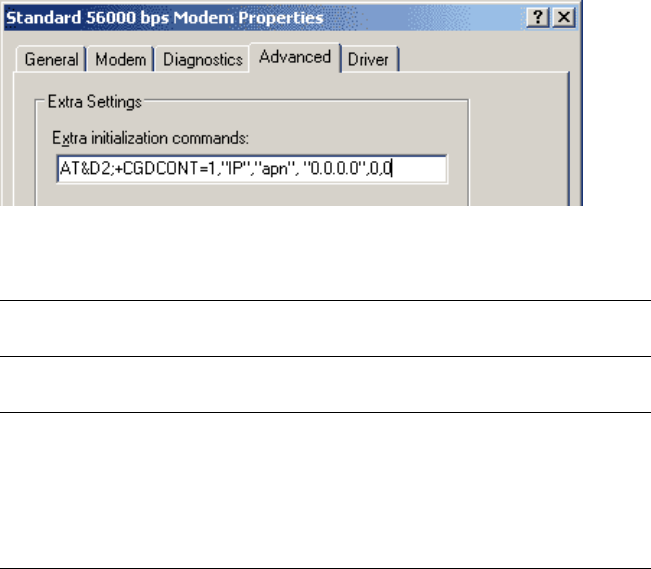
3. Select the Standard 33600 bps Modem and click Properties.
a) Click the Advanced tab.
b) In the Extra Initialization Commands field, type
AT&D2;+CGDCONT=1,”IP”,”apn”,”0.0.0.0”,0,0
The important elements of the string are as follows:
c) Click the Modem tab and confirm that the Maximum Port
Speed is set to 115,200.
d) Click OK.
The modem profile is now configured.
Creating the DUN profile To create a Windows XP DUN connection:
1. Click Start > Settings > Control Panel > Network Connects > New
Connection Wizard.
2. On the New Connection Wizard welcome box click Next.
3. On the Network Connection Type box select Connect to the
Internet, and then click Next.
4. On the Getting Ready box select Set up my connection
manually, and then click Next.
5. On the Internet Connection box select Connect to a dialup
modem, and then click Next.
6. On the Select a Device box select the 33600bps modem and then
click Next.
7. On the Connection Name box, type in a name for the connection
(for example: GPRS) and then click Next.
String element Function
AT&D2 Sets the modem to switch from data modem to command mode
when DTR is dropped.
“apn” Placeholder for the exact Access Point Name supplied to you by the
service provider.
”0.0.0.0”0,0 ”0.0.0.0” is the IP address and 0.0. is the DNS address. The values
are left at 0 to enable the service provider to assign the modem a
dynamic IP address (in quotes) and then the PDP Data compression
option and PDP Header compression option for your session. If your
service provider assigns the modem a static IP address and DNS
address, replace the 0 values with those supplied by the service
provider.

Chapter 2: Activating the Modem
V1.5 BlueTree Wireless BT-2000 Product Manual 27
8. On the Phone Number to Dial box type the phone number, as
supplied by your wireless service provider For example, type *99#.
9. On the Internet Account Information box, type the username and
password in the corresponding fields and then click Next.
The DUN connection is now set up and ready to connect to the wireless
network.
Using AT
Commands You can enter AT commands to activate the modem and verify its
registration status with the wireless network. AT commands are
entered into the modem using the Microsoft HyperTerminal application.
Configuring the
HyperTerminal session To configure HyperTerminal:
1. Click Start > Programs > Accessories > Communications >
HyperTerminal.
2. Enter a name for this connection. For example: BlueTree.
3. In the Connect to window in the Connect using field, select the
COM port that your modem is attached to.
4. Click OK.
5. Select 115200bps, 8, None, 1, Hardware. Click OK.
6. Save the session for future use. From the menu bar, select File and
“Save As”. Enter a name and click OK.
7. Run AT commands as shown below.
Note: GPRS modems do not need activation by AT commands. They are
activated with a SIM card. The AT commands below are used for the purposes of
determining if the modem is registered with the GPRS data network.
Command Function
ATRIMRADIO=1
OK
Turns ON the transmitter module
NOTE: Only for modems with RIM 1902G
modules.
AT+IPR=<baud rate>
OK
Sets the serial DCE speed (baud rate of
modem).
Valid baud rate values:
0 (auto-baud), 300, 600, 1200, 2400,
4800, 9600, 19200, 38400, 57600,
115200

Chapter 2: Activating the Modem
28 BlueTree Wireless BT-2000 Product Manual V1.5
AT+ICF=<format>[,<parity>]
OK
Sets the serial DTE-DCE character
framing.
<format>
0: auto-detect
1: 8 Data 0 Parity 2 Stop
2: 8 Data 1 Parity 1 Stop
3: 8 Data 0 Parity 1 Stop
4: 7 Data 0 Parity 2 Stop
5: 7 Data 1 Parity 1 Stop
6: 7 Data 0 Parity 1 Stop
<parity>
0: Odd
1: Even
2: Mark
3: Space
4: None
AT+CPIN?
+CPIN: READY
Checks the SIM card
AT+CREG?
+CREG: 0,1
OK
Checks that the modem is registered on
the network. A response of +CREG: 1,1
indicates that the modem is registered
with the network.
AT+FCLASS=0
OK
Puts in data mode
AT+CGDCONT=1,"IP","apn","0.0.0.0",0,0
OK
Establishes the PDP context. Note that
there are no spaces in the string.
AT+CGQREQ=1,0,0,0,0,0
OK
Requested quality of service profile
AT+CGQMIN=1,0,0,0,0,0
OK
Minimum quality of service profile
AT+WGPRS=0,0
OK
Sets modems for automatic attachment.
For Wavecom 2426 modules only.
AT+CGACT=1,1
OK
Activates PDP context
AT+CGATT?
+CGATT: 1
OK
Verifies that the modem is GPRS
attached. If the +CGATT: value is not 1,
type AT+CGATT=1 and wait for the
connection to be established.
Command Function

Chapter 2: Activating the Modem
V1.5 BlueTree Wireless BT-2000 Product Manual 29
AT+CSQ?
+CSQ: <rssi>,<fer>
OK
Checks the signal strength.
The RSSI value range is from 0 (lowest)
to 31 (highest).
A value of 10 or higher indicates a usable
signal. If the value is lower than 10, move
the antenna or the modem to a location
where you know the signal quality is
strong.
An RSSI value of 99 indicates no signal.
AT+RCIQ?
OK
Checks cell parameter information. If the
device is not registered with the network
when a query is made, the user is notified
that the radio modem has not yet been
registered with the network.
RIM 1902G module only.
Command Function
Chapter 2: Activating the Modem
30 BlueTree Wireless BT-2000 Product Manual V1.5
Chapter 3: Connecting to the Wireless Network
V1.5 BlueTree Wireless BT-2000 Product Manual 31
Chapter 3: Connecting to the Wireless Network
Connecting to the wireless network is simple, whether you use BlueVue
or Dial-Up Networking.
Using BlueVue
Starting BlueVue You can start BlueVue one of two ways:
•Double-click the BlueTree icon on the Windows task bar
•Click Start > Programs > BlueTree > BlueVue GPRS
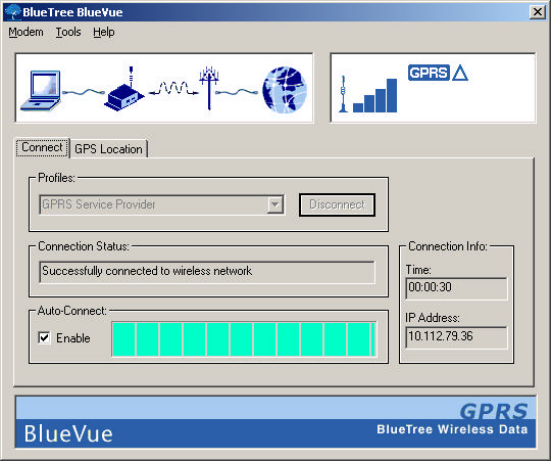
BlueVue’s main window appears.
Connecting to the
network To connect to the wireless network:
Manually
1. From the Profiles list select a connection profile.
In a few moments, the modem status field will display the globe
symbol. The lower-right area displays the connection statistics for your
wireless session. You are now connected to the wireless network.
Auto-Connect and Auto-Reconnect
If the Auto-Connect Enable box is checked, then BlueVue will
automatically establish a data connection when Windows starts and
before you log on.
BlueVue will automatically attempt to re-connect a data link if a
previous data session was broken due to loss of signal.
1. Click the Enable box in the Auto-Connect section to enable the
feature.
Chapter 3: Connecting to the Wireless Network
32 BlueTree Wireless BT-2000 Product Manual V1.5
For more information on the BlueVue interface, refer to the BlueVue
User Guide.
Using Microsoft
DUN (Dial Up
Networking)
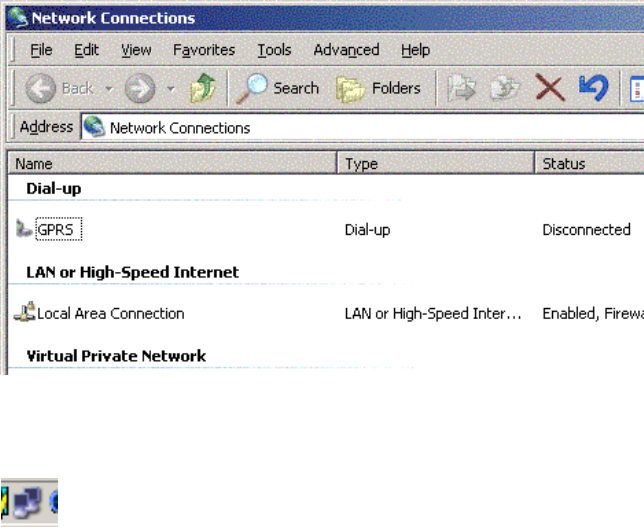
A DUN connection is started from the Network Connections directory on
your system. You can open the directory and start your DUN session
one of two ways: from the Start menu, or from the My Network Places
icon on your desktop.
From the Start menu To connect to the wireless network:
1. Click Start > Settings > Control Panel > Network Connections
2. In the Network Connections directory, under Dial-Up, double-click
the icon of the GPRS connection (or the name you chose earlier).
You are now connected to the wireless network. You will see the
connection icon on the Windows task bar.
From the My Network
Places icon To connect to the wireless network:
1. On your desktop, right-click the My Network Places icon and click
Properties.
2. In the Network Connections directory, under Dial-Up, double-click
the icon of the GPRS connection.
You are now connected to the wireless network.

Chapter 4: Troubleshooting
V1.5 BlueTree Wireless BT-2000 Product Manual 33
Chapter 4: Troubleshooting
This chapter helps you manage commonly reported issues when dealing
with your BlueTree Wireless Data Modem and BlueVue software.
Modem Help
Issue Possible cause Suggestion
Low or no network signal strength.
PWR LED is flasing. The modem does
not communciate with the network.
CD LED is OFF.
Cellular antenna is not properly
connected to the modem.
Check that the antenna cable is
connected properly to the TNC
connector labeled RF on the modem.
No service. Check to see if you are within your
service provider’s coverage area.
Use BlueVue to read the signal strength.
If no signal, then move to an area known
to have a signal.
Check your authentication credentials.
Check your password.
Check if the SIM card is properly
inserted into the modem.
PWR LED is OFF No power to the modem. Check to see if the fuse is not blown.
Is the power connector plugged securely
to the modem?
Check the 12 volts supply. Is it
reversed?
Is the ignition sense cable connected:
White to +12 volts.
Are you using the power cable supplied
by BlueTree?
Modem is defective. Contact BlueTree
technical support.
DTR LED is OFF. No software application is using the
COM port.
Check if your application or BlueVue is
running and using the modem’s COM
port.
Serial cable attached to incorrect port. Move your serial cable to the correct
COM port on your computer.
DTR LED is ON but no response from
modem.
TX LED is flashing.
RX LED if OFF.
Serial port data speed is incorrect. Use HyperTerminal or your application
to change the baud rate of the COM
port.
Echo response is OFF or result code is
OFF.
Using HyperTerminal, enter ATE1Q0V1.

Chapter 4: Troubleshooting
34 BlueTree Wireless BT-2000 Product Manual V1.5
BlueVue Help
Issue Possible cause Suggestion
The Network Status Display shows a
blank screen.
Modem is powered off. Check modem's power cable.
Modem's serial cable is disconnected
from PC.
Check that the serial cable is connected
to the proper COM port on your
computer and the other end connected
to MAIN.
Service is stopped. Go to BlueTree Modem Properties and
select Service Control. Then click the
Start button.
The Network Status Display doesn't
show the name of a service provider.
No service is available. Check with your service provider.
You are outside the network coverage
area.
Check your service provider's coverage
map to verify if you have service in your
immediate area.
Your antenna is not installed correctly. Verify that your antenna cable is
connected to the modem.
Your signal is lost (you are in a tunnel or
behind a building preventing the modem
from receiving a signal)
Change your location.
Your account has not been activated by
your service provider.
Check with your service provider.
Another application cannot access the
COM port used by the modem.
BlueVue service is running and is
currently using the COM port.
Open BlueVue and select the Tools
menu. Click on Pause to pause the
Agent and release the COM port.
Cannot establish a data connection. Your user profile has incorrect entries. Go to the Connection Manager and open
the profile. Ensure that you have the
correct entries as supplied by your
service provider.
You are outside the network coverage
area.
Change your location to regain a
received signal.
Your account is not activated. Contact your service provider.
Your signal is lost (you are in a tunnel or
behind a building preventing the modem
from receiving a signal).
Change your location to regain a
received signal
BlueVue service is stopped Go to BlueTree Modem Properties page,
select the Service Control tab and click
the Start button.
BlueVue Agent is paused. Resume BlueVue Agent.
Information in the BlueVue screen takes
time to be refreshed.
This is normal behavior. Information from the modem takes a few
moments to collect and process.
Modem not detected using my USB-
Serial Adapter.
Service is stopped because the USB-
Serial Adapter cable was inserted after
Windows and BlueVue were started.
Restart Windows or go to the BlueTree
Modem Properties page and select
Service Control. Click the Start button.

Chapter 4: Troubleshooting
V1.5 BlueTree Wireless BT-2000 Product Manual 35
Cannot close or exit BlueVue while
disconnecting a data session.
This is normal behavior. It takes a few moments for BlueVue to
complete the disconnection process.
Incorrect COM port selected during
installation.
Re-install BlueVue.
Open Control Panel, delete and then
add BlueTree GPRS modem on the
correct COM port.
Agent (service) will not start. BlueTreeStandard CDMA Modem is not
installed in Windows.
Re-install BlueVue or go to “Start >
Settings > Control Panel > Phone and
Modem Options “ and add BlueTree
GPRS Standard Modem.
Another modem is installed using the
same COM port as BlueTree CDMA
Standard Modem
Go to “Start > Settings > Control Panel >
Phone and Modem Options” and remove
the modem configured with the same
COM as BlueTree’s.
Open “Start > Settings > Control Panel >
Administrative Tools > Event Viewer”. In
the Application section, check for any
error events generated by BlueVue. If
one exists, then read the information in
the report. This will inform you of the
possible problem.
Multiple BlueTree dial-up profiles
displayed in Network Connections.
A latency with Windows causes multiple
profiles to be displayed.
Press the “F5” key to refresh the screen
and remove the redundent connection
profiles.
BlueVue displays: “The remote computer
did not respond”
Incorrect dial-in number was entered. Change the connection profile and re-
enter the dial-in number. e.g. *99#
BlueVue displays: “Access was denied.
The username and/or password is
invalid.”
Connection profile contains incorrect
network access credentials.
Change the connecion profile and enter
new userid and password.
Issue Possible cause Suggestion
Chapter 4: Troubleshooting
36 BlueTree Wireless BT-2000 Product Manual V1.5

Appendix A: Warranty and Customer Support
V1.5 BlueTree Wireless BT-2000 Product Manual 37
Appendix A: Warranty and Customer Support
Warranty Bluetree Wireless Data Inc. warrants the BT-2000 cellular modem
against all defects in materials and workmanship for a period of one (1)
year from the date of purchase.
The sole responsibility of Bluetree Wireless Data Inc. under this
warranty is limited to either repair or, at the option of Bluetree Wireless
Data Inc., replacement of the cellular modem. There are no expressed
or implied warranties, including those of fitness for a particular purpose
or merchantability, which extend beyond the face hereof.
Bluetree Wireless Data Inc. is not liable for any incidental or
consequential damages arising from the use, misuse, or installation of
the BT-2000 cellular modem.
This warranty does not apply if the serial number label has been
removed, or if the cellular modem has been subjected to physical
abuse, improper installation, or modification.
The unit is automatically registered for warranty at the date it is
purchased and/or shipped.
Customer Support
Help desk Toll-free 1-877-422-9110 ext. 496
Phone (514) 422-9110 x496
Hours 09:00 - 17:00 Eastern Time
Email support@bluetreewireless.com
Sales desk Phone (514) 422-9110
Hours 09:00 - 17:00 Eastern Time
Email info@bluetreewireless.com
Mail BlueTree Wireless Data, Inc.
2405 46th Avenue
Lachine, QC, Canada H8T 3C9
Fax (514) 422-3338
Web www.bluetreewireless.com
Appendix A: Warranty and Customer Support
38 BlueTree Wireless BT-2000 Product Manual V1.5
This page intentionally left blank.
Appendix B: Reference Information
V1.5 BlueTree Wireless BT-2000 Product Manual 39
Appendix B: Reference Information
Modem Reference The BT-2000 is a rugged modem for the GPRS wireless data network.
Features •Compatible with GSM and GPRS wireless services
•Supports 850 and 1900 MHz frequency bands
•SMS capable – for both mobile originate and terminate messaging
•Data transfer with a host platform through an RS-232 serial
interface
•Modem control protocol: AT commands
LED indicators
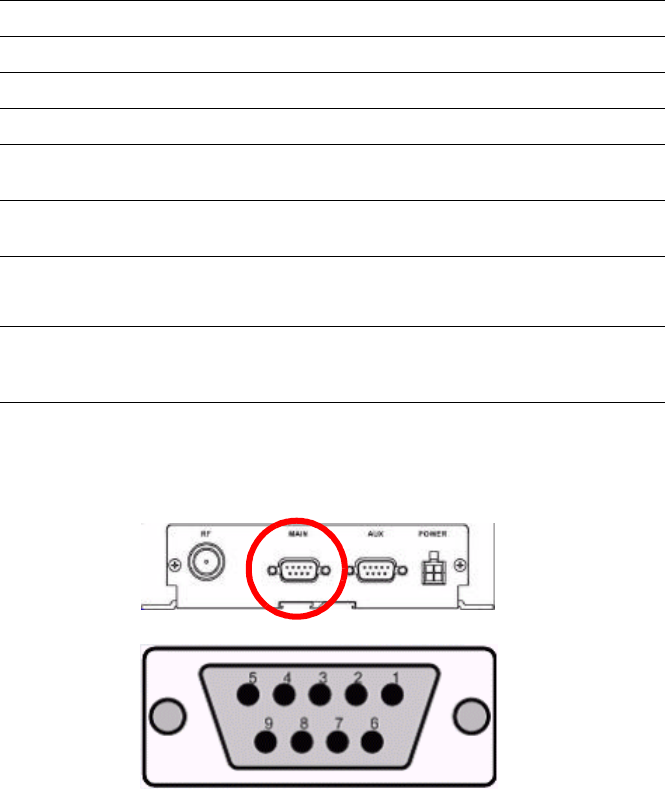
Data connection The serial cable data connection on the modem is configured as shown
in the illustration below.
LED Condition Corresponding State
DTR ON Data Terminal Ready detected. (PC ready to exchange data.)
TX ON Transmitting data.
RX ON Receiving data.
CD ON Data Carrier detected
PWR ON Modem is ON.
(RIM module).
PWR ON Modem is ON, but not registered with network.
(Wavecom module).
PWR Slow FLASH
200 mS ON
2 Sec OFF
Modem is ON and registered with network.
(Wavecom module).
PWR Quick FLASH
200 mS ON
600 mS OFF
Modem is ON, registered with network and data call is in
progress over GSM.
(Wavecom module).
Appendix B: Reference Information
40 BlueTree Wireless BT-2000 Product Manual V1.5
Data connection serial port pin-outs
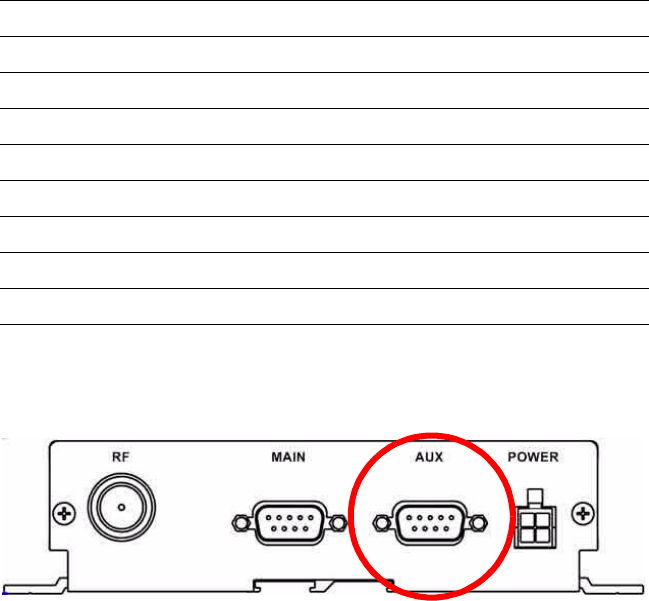
Diagnostic port The modem supports a DCE diagnostic port labeled AUX. This port is for
BlueTree internal test purposes only.
BlueVue
Configuration
Options
Modem Settings Use Modem Settings to configure the modem to connect to the
computer and the wireless network.
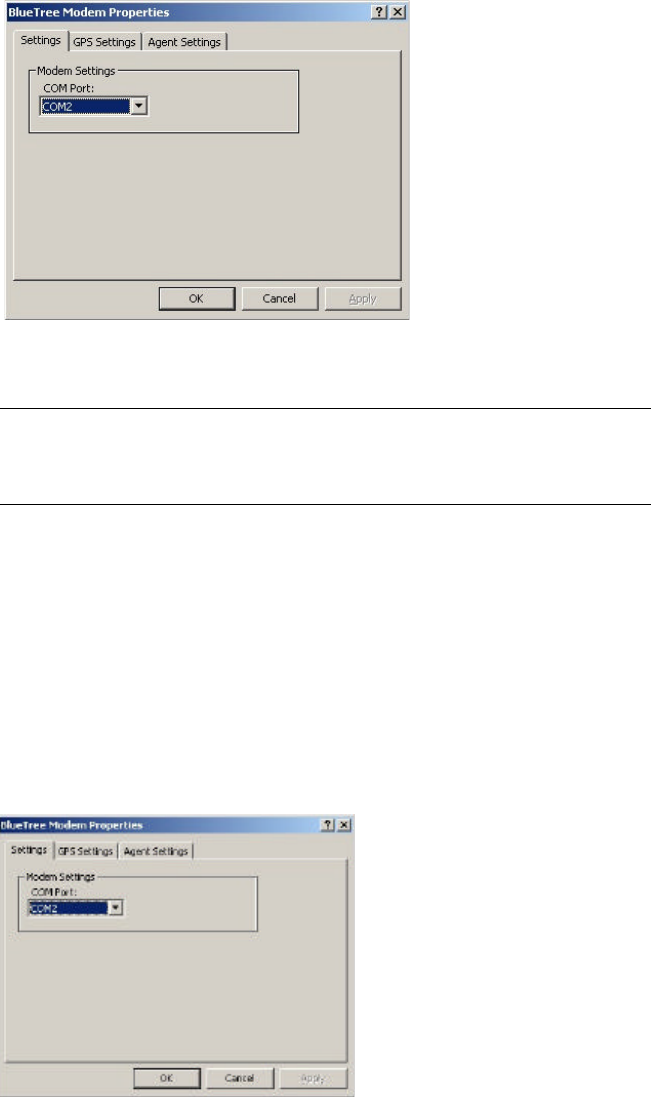
To configure the modem settings
•Right-click the BlueTree icon in the Windows system tray, and then
click Settings.
Pin number Name Description Direction
1DCD Data Carrier Detect Modem PC
2RXD Receive Data Modem to PC
3TXD Transmit Data PC to Modem
4DTR Data Terminal Ready PC to Modem
5GND Ground Common
6DSR Data Set Ready Modem to PC
7RTS Request To Send PC to Modem
8CTS Clear To Send Modem to PC
9RI Ring Indicator Modem to PC
Appendix B: Reference Information
V1.5 BlueTree Wireless BT-2000 Product Manual 41
After you successfully installed BlueVue software, you can configure
several settings by either selecting the menu option Tools > Settings or
by opening the Windows Control Panel. Both methods will allow you
change your modem settings by accessing the BlueVue Control Panel
applet.
To configure BlueVue and your modem:
1. Click Start > Settings > Control Panel.
2. Double-click BlueTree Wireless Data.
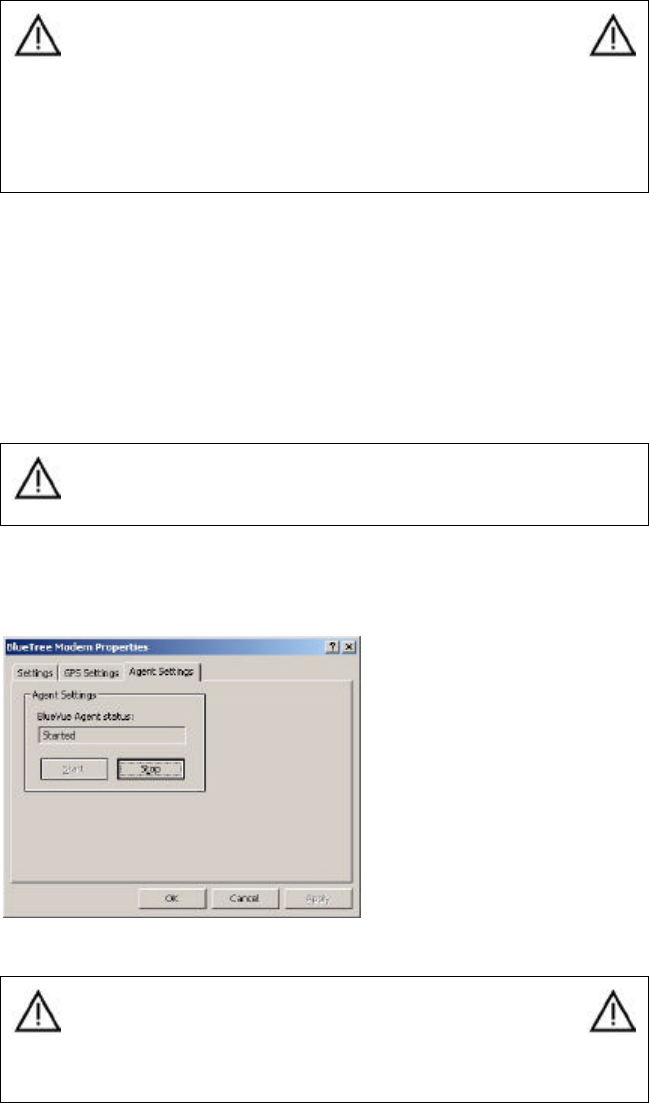
3. On the BlueTree Modem Properties box click the Settings tab. You
can now modify the modem settings.
Field Description
COM Port You can manually select the COM port assigned to the modem.
Note that the COM port is assigned during software installation.
You don’t have to manually change the COM port unless you
move the serial cable.
During the software
installation process the
modem has been
installed and attached to
a COM port. You do not
need to change the COM
port settings unless you
manually install the
modem on another serial
port.
Appendix B: Reference Information
42 BlueTree Wireless BT-2000 Product Manual V1.5
Service Control BlueVue is composed of two components: a graphical application or
Client and a service or Agent that runs continuously in the background.
While you have the BlueTree Modem Properties page open, you will
notice a tab labeled Service Control.
You can stop and start the service manually, but this should only be
done by the system administrator.
Starting and stopping the service takes a few moments to complete.
The BlueVue screen will be updated after a brief period.
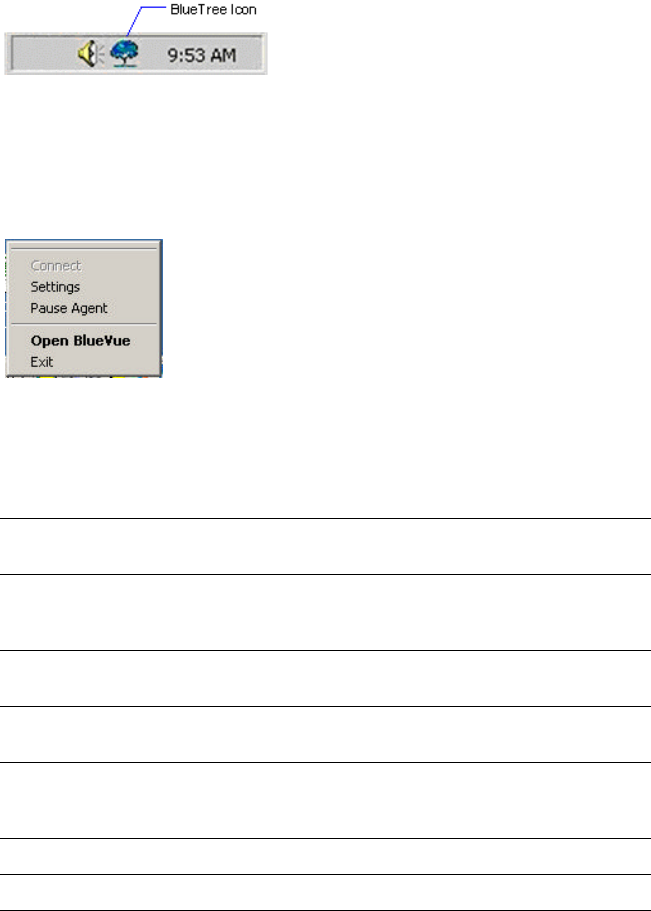
To stop or start the service:
1. Click the Service Control tab to access the following screen:
2. Click on Start or Stop to control the service.
BlueVue Basics This section helps you navigate around the BlueVue application and its
various components.
System tray icon Once installed, BlueVue runs in the background as a continuous service
or process called BlueVue Agent and in the foreground as the BlueVue
Warning: The default baud rate value for the serial
communication port is 115200 bps (bits per
second). The number of data bits, parity and
number of stop bits are permanently set to 8N1
respectively. Modifying the baud rate, number of
data bits, parity and stop bit parameters for the
serial communication port will prevent the modem
from operating correctly.
Caution: The following information is intended for system
administrators. Under normal operating conditions, you do
not need to access the Service Control tab.
Warning: Stopping the service will cause BlueVue
to stop operating. BlueVue will indicate that the
modem is no longer detected and network status
information is unavailable.Stopping the service will
take a few moments to complete.
Appendix B: Reference Information
V1.5 BlueTree Wireless BT-2000 Product Manual 43
Client or graphical user interface. You will know that BlueVue is
available by the BlueTree icon located in the Windows System Tray.
System tray menu To access BlueVue's features without having to open the main screen,
single right or left click the icon to bring up the following menu options:
System tray menu elements
You can also launch BlueVue from the Start button by clicking Start >
Programs > BlueTree > BlueVue GPRS.
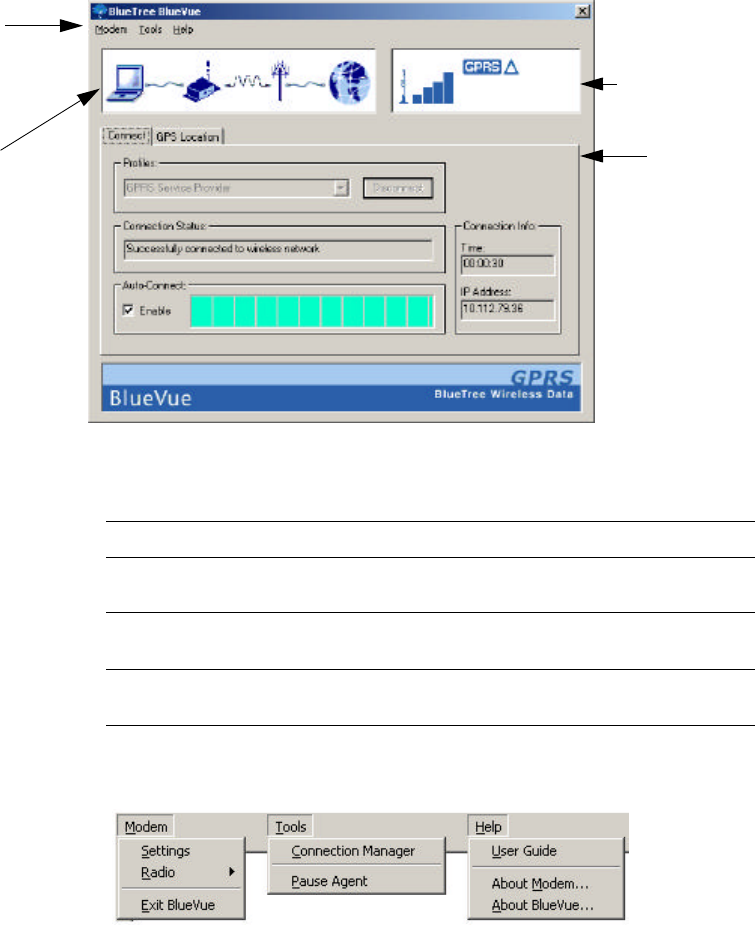
BlueVue main screen The main BlueVue screen comprises several functional areas as shown
below.
Each of these functional areas are described in detail below.
Place the mouse pointer over the
icon. The tool-tip caption will display
BlueTree Wireless BlueVue.
Double left click the icon to open or
display the main BlueVue window.
Element Description
(the top portion) Contains the names of the previously entered User Profiles. Simply
click on the desired User Profile to select a new data connection.
Connect Establishes a GPRS data connection with the default User Profile.
Once connected, the label will change to Disconnect to allow you to
close the current GPRS data connection.
Radio Off Allows you to disable the radio transmitter. Once disabled, the label
will change to Radio On to allow you to enable the radio transmitter.
Settings Opens the BlueTree Modem Properties page so that you re-
configure the modem and software.
Pause Agent Allows you to pause the BlueVue Agent in order to disconnect it
from the attached COM port. Once paused, the label will change to
Resume Agent to allow you to continue using BlueVue.
Open BlueVue Opens the application.
Exit Closes the BlueVue application.
Appendix B: Reference Information
44 BlueTree Wireless BT-2000 Product Manual V1.5
Menu bar
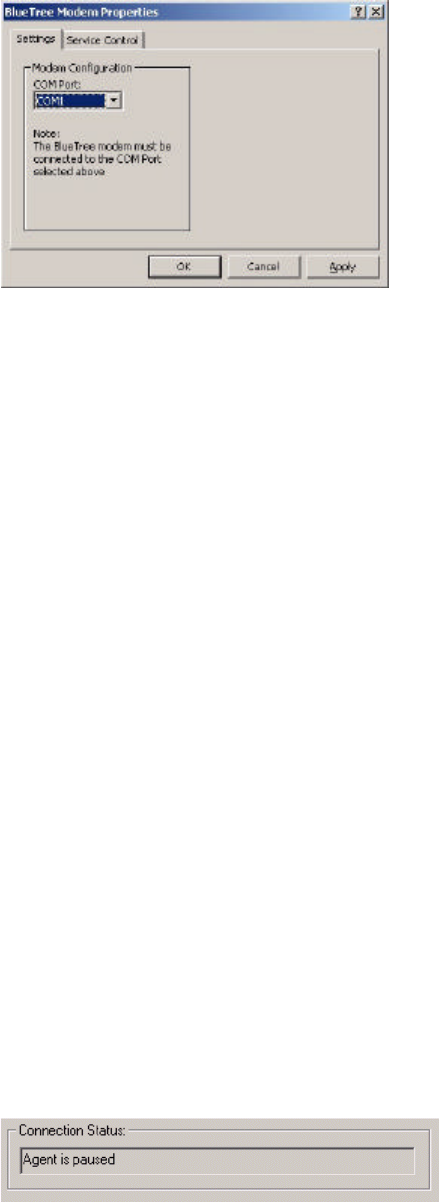
Modem menu
The Modem menu includes the following submenu items:
•Settings
•Radio
•Exit BlueVue
Settings.
Menu bar
Modem status Feature
Pallet
Network status
Section Description
Menu Bar Collection of pull-down menus to access various features.
Network Status Display Current state of modem's registration with the wireless
network.
Feature Pallet Main area containing primary functions that can be selected
using tabs.
Modem Status Display Current status of modem's data connection with computer
and data network.
Appendix B: Reference Information
V1.5 BlueTree Wireless BT-2000 Product Manual 45
You can modify any or all of your modem's settings by selecting the
Modem > Settings menu option. This opens the BlueTree Modem
Properties box.
Radio. If you are mobile and approach a location where you are
required to stop transmitting for safety reasons, you can turn the radio
transmitter off by selecting Modem > Radio > Off.
•Turning the radio transmitter off:
•Disconnects the existing data connection
•Prevents you from establishing a new data connection
•Displays Transmitter is disabled in the Connection Status field
Note: Remember to turn the radio back on when it is safe to do so; otherwise
you will not be able to establish a data connection.
Exit BlueVue. You can stop the BlueVue Client application by selecting
Modem > Exit BlueVue.
Exiting BlueVue only closes the Client - the Agent will continue to run in
the background.
Tools menu
The Tools menu includes the following submenu items:
•Connection Manager
•Pause Agent
•Activation Wizard
Connection Manager. For complete details, see “Feature Pallet” on
page52.
Pause/Resume Agent (Releasing COM Port). The BlueVue Agent
can be paused in order to disconnect it from the attached COM port.
This allows you to run a terminal application such as HyperTerminal in
order to access the modem directly. Once paused, the menu option will
change to Resume so you can continue using BlueVue.
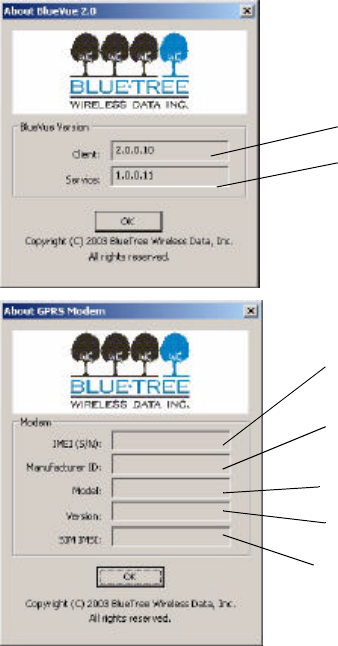
When you pause the
agent, the Connection
Status field reads:
Agent is paused.
Appendix B: Reference Information
46 BlueTree Wireless BT-2000 Product Manual V1.5
Pausing the agent prevents you from establishing new connections and
obtaining new status information.
Once paused, the menu option will change to Resume so that you can
continue using BlueVue.
Note: Pausing the Agent takes a few moments to complete. You cannot resume
the agent until it has paused completely.
Pausing the BlueVue Agent is not necessary unless you need to execute
another application that requires direct access to the modem's COM
port such as a Fax application, another serial device, etc.
Activation Wizard. This will launch the Activation Wizard.
Appendix B: Reference Information
V1.5 BlueTree Wireless BT-2000 Product Manual 47
Help menu
This menu option maintains a collection of utilities that provide
additional information about the product. The Help menu includes
submenu items: User Guide, About Modem, and About BlueVue.
User Guide. The BlueVue User Guide can be accessed directly from
BlueVue by selecting the Help > User Guide menu option. The user
guide is maintained in PDF file format.
Product Information. You can obtain BlueVue and modem version
information such as model number, revision number, product ID's and
others by selecting Help > About BlueVue or Help > About Modem.
This information is useful when contacting your wireless service
provider or technical support for assistance with the modem.
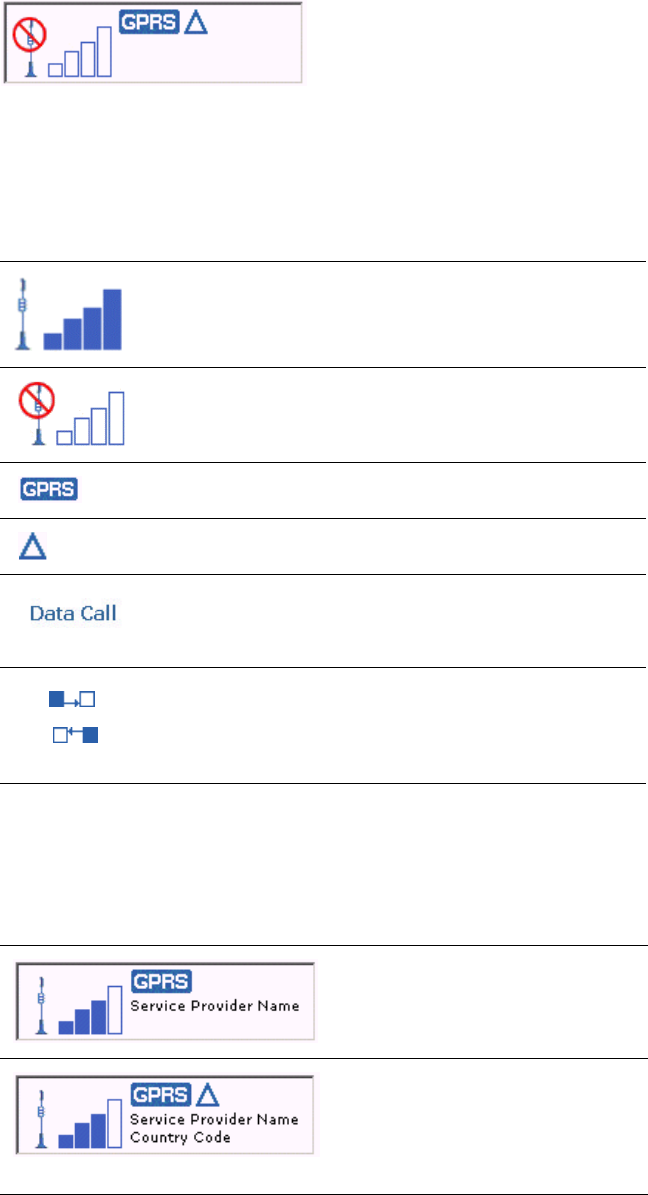
BlueVue reads information from the modem (when the modem is in AT
command mode) and displays it in the About BlueVue 2.x box as shown
below. (This information is not available during a data call.)
Network status display The Network Status Display area presents a set of symbols that
represent various conditions of the modem's connection with the
wireless network.
BlueVue Client version.
BlueVue Service version.
IMEI - International Mobile
Equipment Identifier.
Manufacturer ID -
manufacturer of RF module.
Model of RF module.
Software version of RF module.
International Mobile Subscriber
Identity of Subscriber Interface
Module.
Appendix B: Reference Information
48 BlueTree Wireless BT-2000 Product Manual V1.5
Symbol descriptions
Reading the full display
Symbol Description
Received signal strength indicator. 4 bars represent excellent
signal reception. No visible bars indicate a very poor signal.
No service.This symbol indicates that you are no longer in an area
covered by your GSM/GPRS service provider. This occurs when
the modem no longer receives a signal.
GPRS or General Packet Radio Service indicates that packet
data service is available.
Roaming. If you are roaming outside of your service provider's
home coverage area, then this symbol appears.
A data connection has been established.
Data traffic activity indicators.
During a data call, either one of these symbols will appear.
When data is exchanged between your computer and the wireless
network, these symbols will alternate on the screen.
If there is no data, then only one of these symbols will be displayed.
Display Modem connection condition
If you are within in your service
provider's “home” coverage area, the
name of your service provider is
displayed.
If you are roaming, then the next line will
display the country code and ID of the
service provider you are using. There
will be conditions when status
information will not be available in the
Network Status Display.
Network Status information
is available when the modem
is powered on and connected
to your computer.
Appendix B: Reference Information
V1.5 BlueTree Wireless BT-2000 Product Manual 49
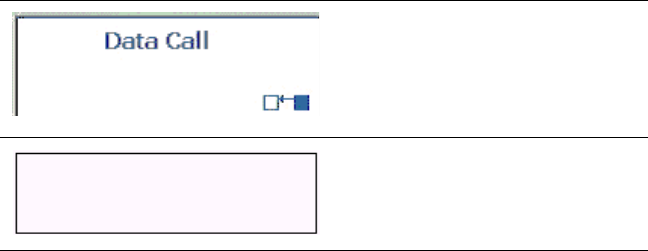
When a data connection is established,
Network Status symbols are relaced with
Data Call.
The symbols located at lower right
indicate data traffic.
A blank screen indicates that network
status information is not available. This
will occur when the modem is not
powered or connected to your computer.
Display Modem connection condition
Appendix B: Reference Information
50 BlueTree Wireless BT-2000 Product Manual V1.5
Modem status display The current state of the modem's data connection between your
computer and the wireless network is always available in the Modem
Status Display located at the bottom of the main BlueVue window.
The status indicates the state of the modem's end-to-end data
connection between your computer, the wireless data network and the
remote system.
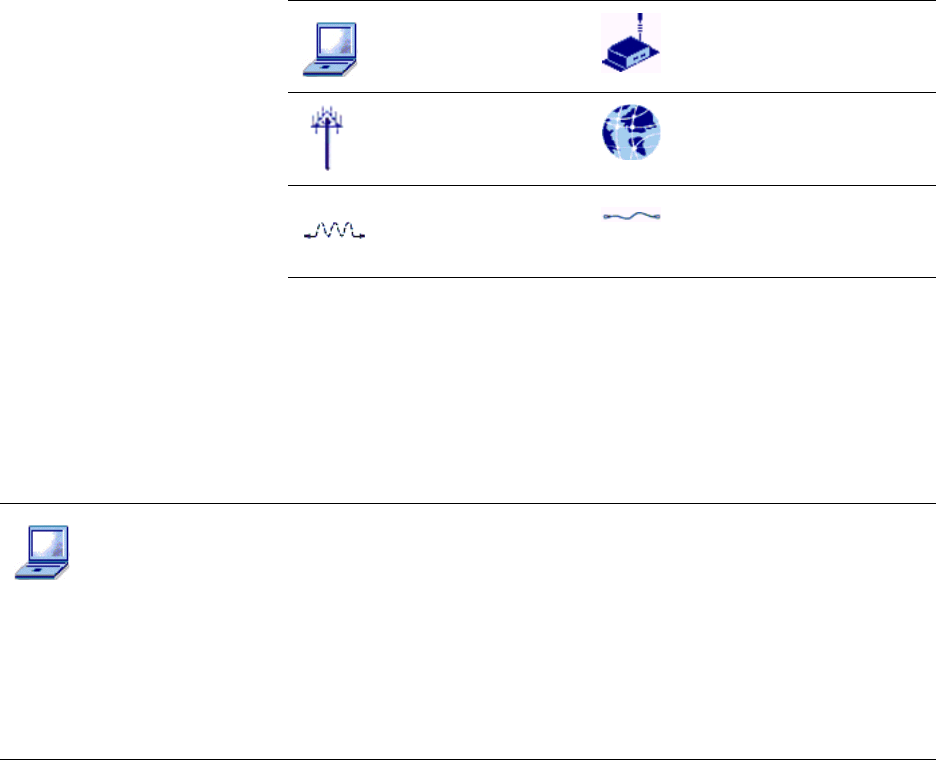
Modem connection
states
Symbol Description Symbol Description
Your laptop or personal
computer.
Your BlueTree Wireless Data
modem.Powered and connected
to your computer.
Wireless network or
service provider is
available.
Remote connection: Internet,
server, ISP, etc.
Wireless link between
the modem and cellular
network.
Wired data connection.
Display Modem connection condition
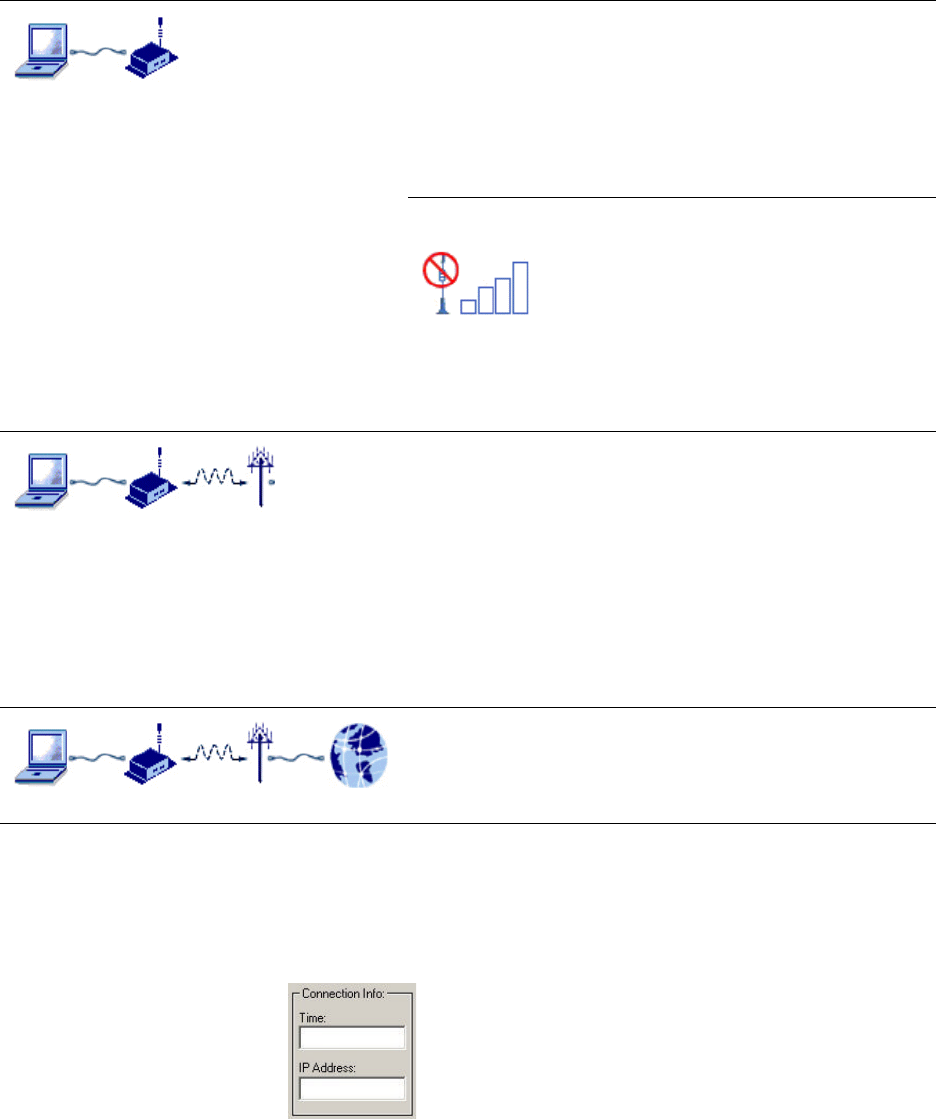
Modem Not Detected
BlueVue is not communicating with the modem.
The Network Status Display will display an empty screen. This indicates
that status information will not be available until the modem is powered
and reconnected to your computer.
The Connection Status field in the Connect tab will show Modem Not
Detected.
You will not be able to establish a data connection until the modem is
properly connected to your computer.
Appendix B: Reference Information
V1.5 BlueTree Wireless BT-2000 Product Manual 51
Connection Information Whenever you establish a data connection, current statistical
information is available in the Connection Info area of the Connection
Manager window.
The information in these fields is cleared or reset to 0 whenever data
connections are released.
No Wireless Service
BlueVue has detected the modem and is receiving its status. However,
the modem is not registered with the wireless network.
This may be caused by not receiving a carrier signal (out of service
coverage area) or not being registered with the wireless service
provider (your SIM card is not inserted).
Relocate the modem into an area where service is available.
The signal strength indicator in the Network Status Display will show
indicating no service.
The Connection Status field in the Connect tab will show No Wireless
Service.
You will also see this condition if your account with your wireless
service provider is not properly activated.
Modem Is Ready To Connect
When your BlueTree modem is powered and connected to your
computer, activated, registered with the network and you are within the
wireless service provider's coverage area, the Modem Status Display
will show:
In this scenario, no data session is established. The modem is in
command mode; it is ready to accept commands from BlueVue.
The Connection Status field in the Connect tab will show Ready To
Connect.
You may now proceed to establish a data connection.
Data Connection Established
When the modem has successfully established a data connection using
GPRS packet data service, the Modem Status Display will show:
The “globe” symbol represents a data network such as the Internet.
Display Modem connection condition

Appendix B: Reference Information
52 BlueTree Wireless BT-2000 Product Manual V1.5
Feature Pallet This chapter describes BlueVue's primary features that are used on a
regular basis. They are available to you through the use of “tabbed”
screens located in the middle of the BlueVue window.
Data Connections
Data sessions are established using the Connection tab. This is the
default tab function presented to you whenever you start BlueVue.
Click on the Connect tab to bring up the following dialog box:
Making a Manual Data Connection
To manually establish a data connection, first select a User Profile from
the drop-down list box (if a default profile has not already been
selected or if you want to use another profile).
The default profile that you selected during configuration will always be
displayed in the list box.
•To establish a data connection, click Connect.
•Clicking the Connect button will invoke the modem to establish a
GPRS packet data connection.
•The label on the Connect button will change to Disconnect after
the modem has established a data connection.
•Click the Disconnect button to end the data connection.
Note: If GPRSservice is unavailable (your modem does not receive a signal or
service is unavailable in your coverage area), then the Connect button will be
disabled and you will not be able to establish a data connection.
Automatic data connections (Auto-Connect)
The Auto-Connect feature is used to maintain a persistent data session
with the wireless network.
Once enabled, BlueVue will automatically establish a data connection
when you start and log onto Windows (and your modem is attached
and powered on). BlueVue will also automatically attempt to re-connect
if an existing data session is dropped.
•Click the Auto-Connect checkbox to enable the feature.
Auto-Connect checks for a set of conditions before attempting to
connect. These conditions include:
•Default User Profile is set,
•Minimal signal strength,
•GPRS service is available,
•Modem is registered with GPRS service.
Field Description
Time: Duration of the connection session in hours, minutes and seconds.
IP Address: Current Internet Protocol address assigned to the modem/
computer.
Appendix B: Reference Information
V1.5 BlueTree Wireless BT-2000 Product Manual 53
You can check the state of the Auto-Connect feauture but its progress
indicator.
Connection status
The Connection Status field will display the following data connection
states:
Microsoft DUN
(Dial-Up
Networking)
Visit www.microsoft.com for detailed information on Dial-Up
Networking.
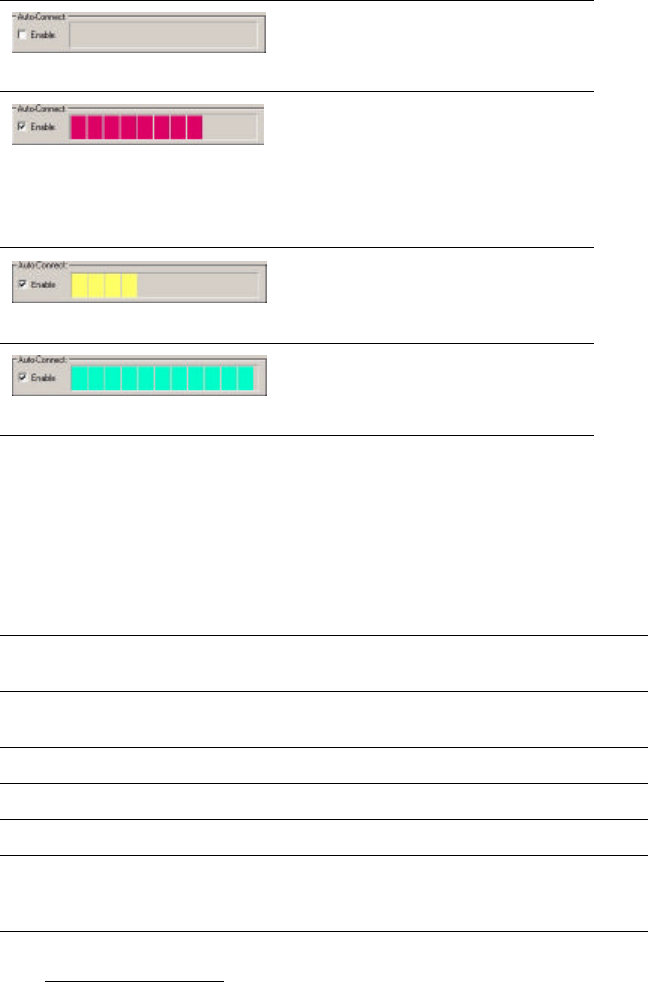
Progress Indicator Description
Gray indicates that the Auto-Connect
feature is disabled.
A red progress bar (moving from left to
right) indicates that the Auto-Connect
feature is working but is unable to
establish a connection due to
conditions such as insufficient received
signal or GPRS service is not
available.
A yellow progress bar (moving from left
to right) indicates that the conditions to
connect have been fulfilled - BlueVue
is attempting to establish a connection.
Green indicates that all of the
conditions have been met - a data
connection has been established.
Status Indicator Description
Ready To Connect Modem is ready for you to establish a data connection with
the network.
Modem Not Detected Modem is either not powered or not connected to your
computer.
No Wireless Service No wireless service is available.
Transmitter is disabled The radio transmitter has been manually turned off.
Agent is paused BlueVue Agent is paused.
<supplementary info> Additional Windows data networking information will be
displayed during the progress of establishing the data
connection.

Appendix B: Reference Information
54 BlueTree Wireless BT-2000 Product Manual V1.5
AT Commands The list of AT commands below can be used with the modem. For
syntax, input variables and expected results for the custom RIM
commands, please see “Key RIM AT commands” on page39.
Command Description
AAnswer a call
DMobile-initiated call to dialable number
ESet echo mode
HDisconnect existing connection
IDisplay product identification information
OSwitch from command mode to data mode
QSet result code presentation mode
SO Set number of rings before auto answering the incoming call
S3 Set termination character for a command prompt
S4 Set response formatting character
S5 Set editing character for a command prompt
S6 Set pause before blind dialing
S7 Set number of seconds to wait for connection to complete
S8 Set number of seconds to wait when there is a comma dial modifier
S10 Set disconnection delay after indicating the absence of data carrier
S12 Set the escape code guard time
S13 Set the disconnection delay after a call has been terminated
VSet result code format mode
XSet CONNECT result code format and call monitoring
ZSet all current parameters to a user defined profile
&C Set circuit Data Carrier Detect DCD function mode
&D Set circuit Data Terminal Ready DTR function mode
&F Set all current parameters to manufacturer defaults
&V Display current configuration
&W Store current parameter to user defined profile
+GCAP Request complete terminal adapter capabilities list
+GMI Request Manufacturer ID
+GMM Request TA Model ID
+GMR Request TA Revision ID
+GSN Request TS Serial Number ID
+ICF Set TE-TA Control Character Framing

Appendix B: Reference Information
V1.5 BlueTree Wireless BT-2000 Product Manual 55
+IFC Set TE-TA Local Data Flow Control
+IPR Set Fixed Local Rate
+CBST Select Bearer Service Type
+CGMI Request Manufacturer ID
+CGMM Request Model Identification
+CGMR Request Revision ID
+CGSN Request Product Serial Number ID
+CIMI Request International Mobile Subscriber ID
+COPS Operator Selection
+CREG Network Registration
+CSQ Signal Quality Report
+CMGD Delete SMS Message
+CMGF Select SMS Message Format
+CMGL List SMS Messages from Preferred Store
+CMGR Read SMS Message
+CMGS Send SMS Message
+CMGW Write SMS Message to Memory
+CMSS Send SMS Message From Storage
+CMGC Send SMS Command
+CNMI New SMS Message Indication
+CPMS Preferred SMS Message Storage
+CRES Restore SMS Settings
+CSAS Save SMS Settings
+CSCA SMS Service Centre Address
+CSCB Select Cell Broadcast SMS Messages
+CSDH Show SMS Text Mode Parameters
+CSMP Set SMS Text Modem Parameters
+CSMS Select Message Service
+CGDCONT Define the PDP Context
+CGQREQ Quality of Service Profile
+CGQMIN Quality of Service Profile (Minimum accept.)
+CGACT PDP Context Activate or Deactivate
+CGATT GPRS Attach or Detach
+CPADDR Show the PDP Address
Command Description

Appendix B: Reference Information
56 BlueTree Wireless BT-2000 Product Manual V1.5
Key RIM AT commands
ATRIMRADIO
Description: Turn the radio on or off using the software.
Execute command
ATRIMDEVICE
Description Perform a hard reset of the modem.
Execute command
+CGCLASS GPRS Mobile Station Class
+CGREG Network Registration Status
+CGSMS Select Service for MO SMS Messages
+FCLASS Select Mode: Data or Fax
Command Description
ATRIMRADIO Turn the radio on or off using the software
ATRIMDEVICE Perform a hard reset of the modem
+ICCID Return ICCID (integrated circuit card identification) from the SIM Card
+RCIQ Query cell parameter information
+RSCI RIM Select Coverage Indicator. Indicates which network is providing
coverage.
Syntax ATRIMRADIO? or ATRIMRADIO=1
Response TA turns on or off the radio.
OK
ERROR
Parameters =1 Turns the radio on.
=0 Turns the radio off.
?Queries the status of the radio (ON-1, OFF=0).
=? Lists all possible settings.

Appendix B: Reference Information
V1.5 BlueTree Wireless BT-2000 Product Manual 57
AT+ICCID
Description Return integrated circuit card identification (ICCID) from
the SIM card.
Execute command
AT+RCIQ
Description Query cell parameter information. If the device is not
registered with the network when a query is made, the user is notified
that the radio modem has not yet been registered with the network.
Execute command
Syntax ATMRIMDEVICE=? or ATRIMDEVICE=0
Response Response The reset line is pulled low, which performs a hard reset of
the modem processor and the flash memory. The registers are
reloaded from their defaults.
OK
ERROR
Parameters =0 Resets the radio modem.
?Returns RIMDEVICE: (0) OK.
Syntax AT+ICCID or AT+ICCID?
Response TA reads ICCID and returns the value
OK
ERROR
Parameters Returns the ICCID from the SIM card.
?Returns the ICCID from the SIM card.
Syntax AT+RCIQ=? or AT+RCIQ?
Response TA returns the cell parameter based on the input.
OK
ERROR

Appendix B: Reference Information
58 BlueTree Wireless BT-2000 Product Manual V1.5
Serving cell information
Dedicated channel information
AT+RSCI
Description RIM select coverage indicator. Indicates which network is
providing coverage.
Test command
Read command
Cell parameters Returned parameters
Base Transceiver Station Identity Code (BSIC) t
Traffic Channel (TCH) u
Received Signal Strength Indicator (RSSI) v dBm
Location Area Code (LAC) w
Cell ID x
Cell parameters Returned parameters
Traffic Channel (TCH) y
Channel Mode z
Parameter Description
=? Lists possible settings (0 to 6).
? Queries all cell parameters in one command.
=0 Queries serving cell BSIC (parameter t from above).
=1 Queries serving cell TCH number (u).
=2 Queries serving cell RSSI in dBM (v).
=3 Queries serving cell LAC (w).
=4 Queries serving cell Cell ID (x).
=5 Queries dedicated channel TCH number (y).
=6 Queries dedicated channel mode (z)\.
Syntax AT+RSCI=?
Response +RSCI: (list of supported <network>s) OK
Parameters Refer to set command.

Appendix B: Reference Information
V1.5 BlueTree Wireless BT-2000 Product Manual 59
Set command
Syntax AT+RSCI?
Response +RSCI: <network> OK
Parameters Refer to set command.
Syntax AT+RSCI=[<network>]
Response TA sets the coverage indicator to turn on when attached to the
specified network.
OK
ERROR
Parameters =0 Sets coverage indicator to turn on when in GSM
coverage (default).
=1 Sets coverage indicator to turn on when in GPRS
coverage.
?Queries current setting returning .GPRS. (if set to 1) or
.GSM. (if set to 0).
=? Lists possible settings for command.
Returns error.
Appendix B: Reference Information
60 BlueTree Wireless BT-2000 Product Manual V1.5
Appendix C: Modem Specifications
V1.5 BlueTree Wireless BT-2000 Product Manual 61
Appendix C: Modem Specifications
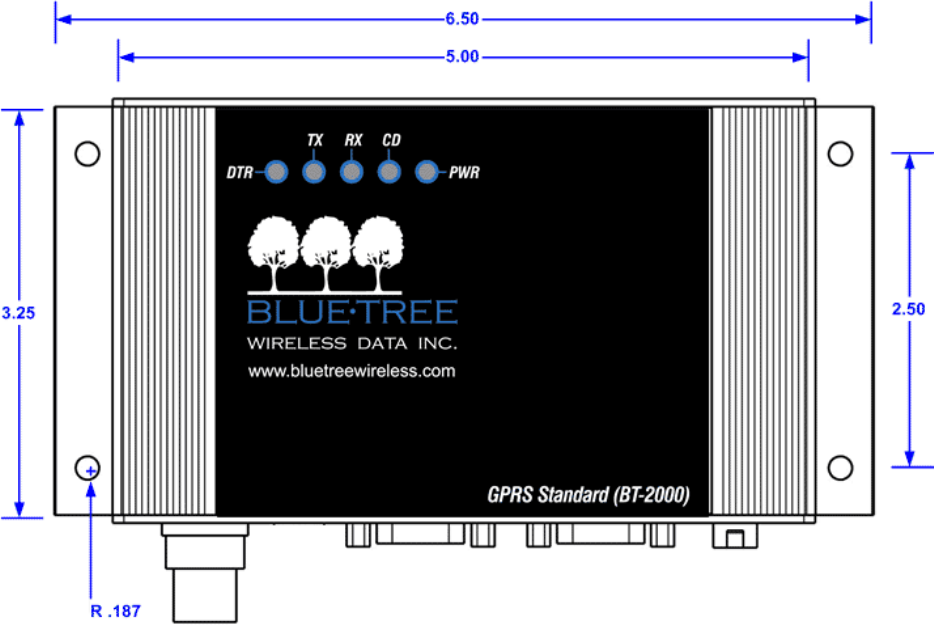
Physical
Dimensions
Top view
Appendix C: Modem Specifications
62 BlueTree Wireless BT-2000 Product Manual V1.5
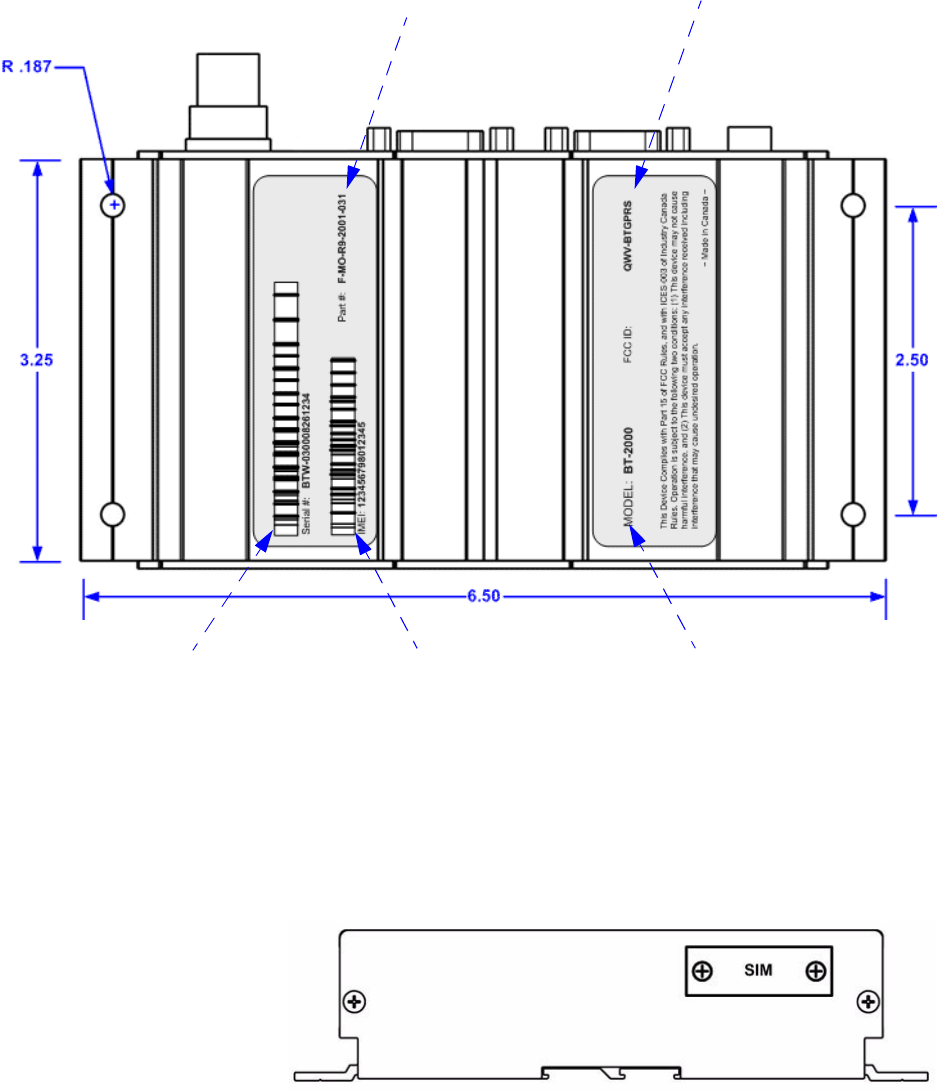
Bottom view
Front view
Part number under
which the modem was
ordered.
Hardware unique identifier.
Used for tracking purposes.
FCC and Industry
Canada identifiers
RF module unique identifier.
Represents the IMEI number in
decimal and barcoded
(International Mobile Equipment
Identification).
Model number of the modem.
Appendix C: Modem Specifications
V1.5 BlueTree Wireless BT-2000 Product Manual 63
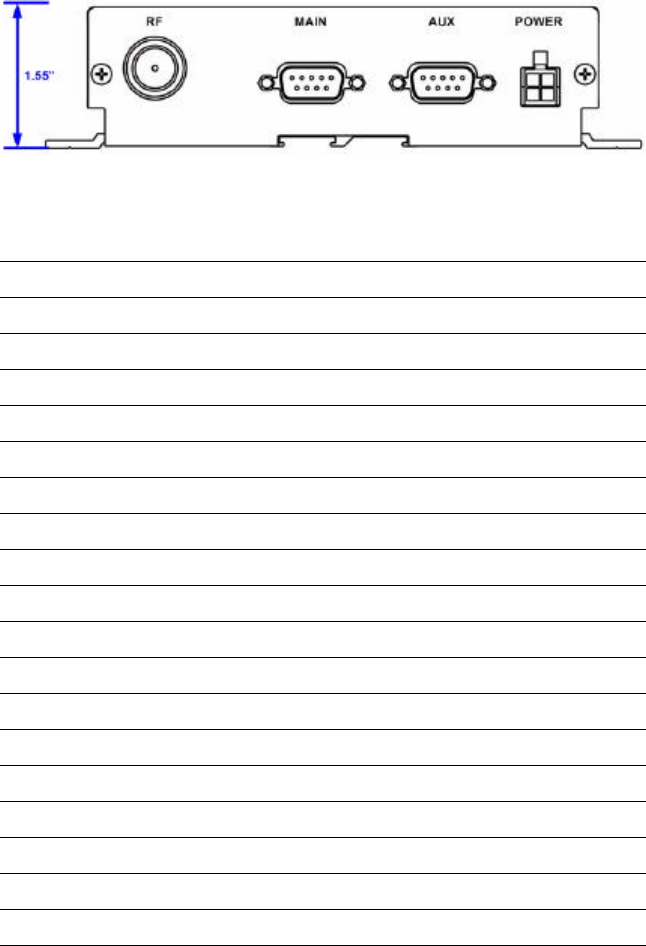
Back view
Product
Specifications
Power Consumption Current measured at 12VDC
Category Specification
Wireless Interface GSM
GPRS
Frequency Bands 850/1900 MHz
Host Interface RS-232 Serial
Interface Connector DB-9 (female)
Programming / Setup AT Commands
Enclosure Extruded aluminum
W:3.25" H:1.55" L:5.5” + 1.0"
Antenna Connection TNC 50 ohm male
Serial Port Data Rates 1200 to 115200 bps
Multislot Class 8
Effective Peak Rate 40 to 86 Kbps
Power Input 8 - 30VDC
12 VDC nominal
Current @12VDC Peak (Tx): 150 mA
Standby: 40 mA
Ignition off: 0.4 mA
Effective Radiated Power 0.394 W - 1900 MHz
0.676 W - 850 MHz

Appendix C: Modem Specifications
64 BlueTree Wireless BT-2000 Product Manual V1.5
Certification
Mode State
Active Mode Transmitting data
140 mA with peaks of 290 mA
Need to re-establish RF link ~3 secs.
40 mA
Standby Mode 40 mA with peaks of 60 mA
Power Down Mode (Ignition
off)
All interface circuits are inactive (UARTs, etc.)
0.4 mA
Category Specification
FCC Part 15 Class B
850/1900 MHz
FCC ID QWV-BTGPRS (RIM 1902G module)
QWV-BT2000 (Wavecom Q2426 module)
Operating Temperature -40° C to +85° C
MIL-STD-810F, method 501.4, procedure II
MIL-STD-810F, method 502.4, procedure II
SAE J1455 - 1994, Section 4.1.3.1
Storage Temperature -40° C to +85° C
MIL-STD-810F, method 501.4, procedure I
MIL-STD-810F, method 502.4, procedure I
SAE J1455 - 1994, Section 4.1.3.2
Humidity Range 95% non-condensing
MIL-STD-810F, method 507.4
MIL-STD-202G, method 103, Test cond. A,
(SAE sect. 4.2)
Health Canada Safety Code 6
Limit 6.3cm with 5.15 dBi antenna
Vibration Cyclic and random
MIL-STD-810F method 514.5, procedure I,
Random Vibrations, Operating Mode
MIL-STD-202G method 214A, Test cond. I
Shock Sawtooth peak of 40g
MIL-STD-810F, method 516.5, procedure I,
Operating mode

Appendix C: Modem Specifications
V1.5 BlueTree Wireless BT-2000 Product Manual 65
MIL-STD-810F, method 516.5, procedure V, Crash
Hazard
MIL-STD-202G method 213B
Category Specification
Appendix C: Modem Specifications
66 BlueTree Wireless BT-2000 Product Manual V1.5