Bluetree Wireless Data BTGPRS BT-GPRS-S User Manual BT GPRS S Installation Guide 021303 RevC

Bluetree Wireless Data Inc. BT-GPRS-S BT GPRS S Installation Guide 021303 RevC

users manual

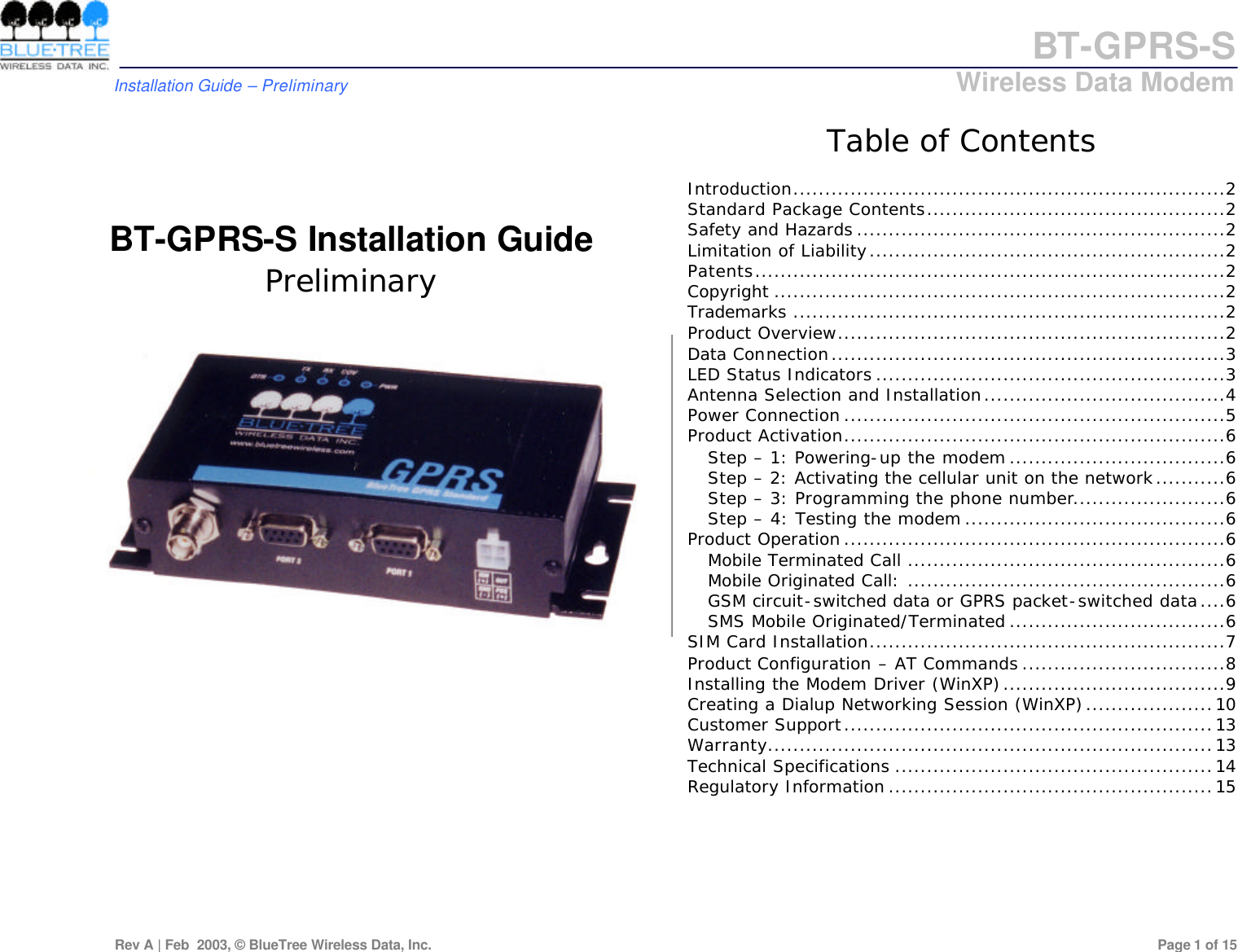
BT-GPRS-S         Installation Guide – Preliminary                            Wireless Data Modem  Rev A | Feb  2003, © BlueTree Wireless Data, Inc.         Page 1 of 15     BT-GPRS-S Installation Guide Preliminary   Table of Contents Introduction....................................................................2 Standard Package Contents...............................................2 Safety and Hazards ..........................................................2 Limitation of Liability........................................................2 Patents..........................................................................2 Copyright .......................................................................2 Trademarks ....................................................................2 Product Overview.............................................................2 Data Connection..............................................................3 LED Status Indicators .......................................................3 Antenna Selection and Installation......................................4 Power Connection ............................................................5 Product Activation............................................................6 Step – 1: Powering-up the modem ..................................6 Step – 2: Activating the cellular unit on the network...........6 Step – 3: Programming the phone number........................6 Step – 4: Testing the modem .........................................6 Product Operation ............................................................6 Mobile Terminated Call ..................................................6 Mobile Originated Call: ..................................................6 GSM circuit-switched data or GPRS packet-switched data....6 SMS Mobile Originated/Terminated ..................................6 SIM Card Installation........................................................7 Product Configuration – AT Commands ................................8 Installing the Modem Driver (WinXP)...................................9 Creating a Dialup Networking Session (WinXP)....................10 Customer Support..........................................................13 Warranty......................................................................13 Technical Specifications ..................................................14 Regulatory Information ...................................................15
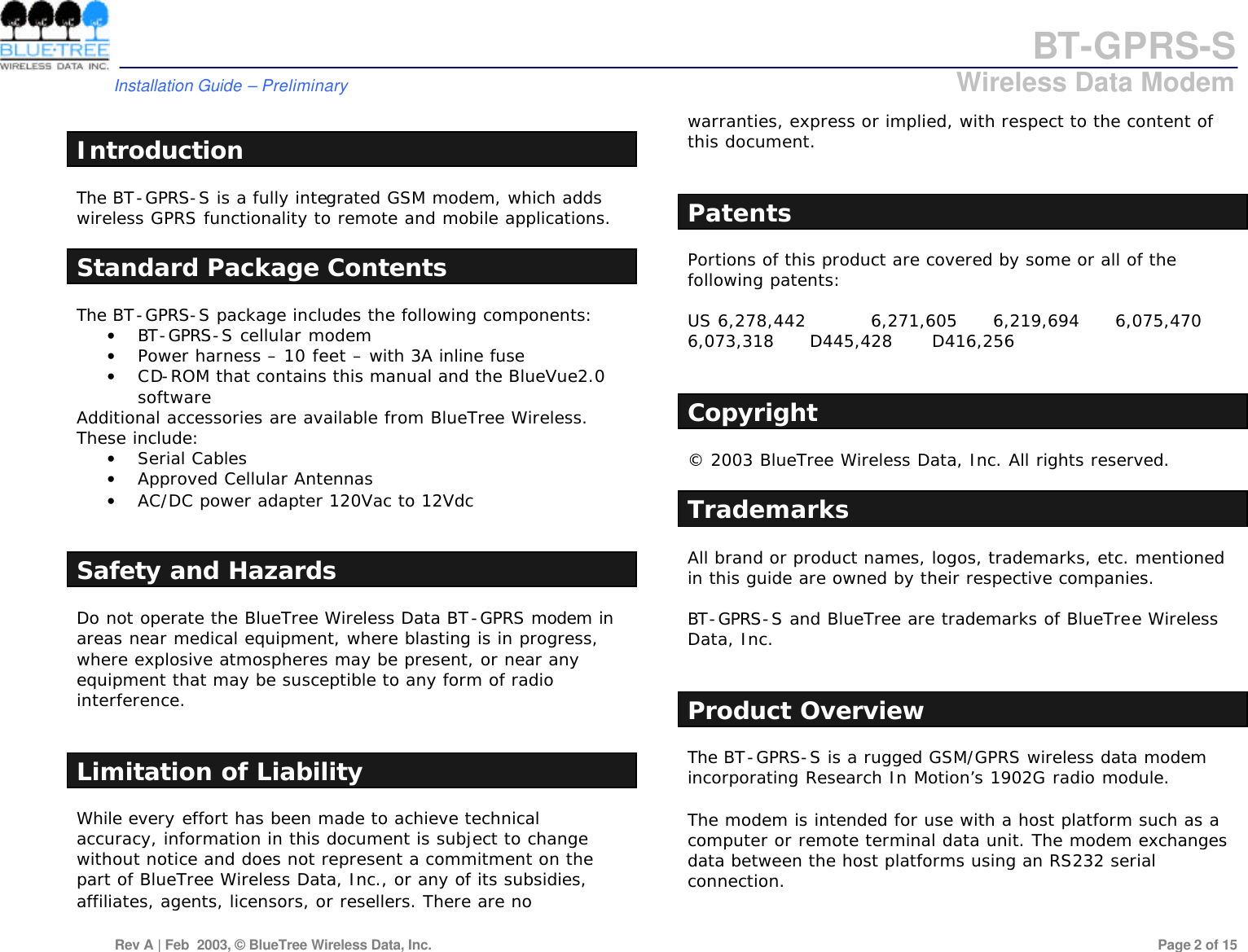
BT-GPRS-S         Installation Guide – Preliminary                            Wireless Data Modem  Rev A | Feb  2003, © BlueTree Wireless Data, Inc.         Page 2 of 15   Introduction The BT-GPRS-S is a fully integrated GSM modem, which adds wireless GPRS functionality to remote and mobile applications.  Standard Package Contents The BT-GPRS-S package includes the following components:  • BT-GPRS-S cellular modem • Power harness – 10 feet – with 3A inline fuse • CD-ROM that contains this manual and the BlueVue2.0 software  Additional accessories are available from BlueTree Wireless. These include:  • Serial Cables • Approved Cellular Antennas • AC/DC power adapter 120Vac to 12Vdc   Safety and Hazards Do not operate the BlueTree Wireless Data BT-GPRS modem in areas near medical equipment, where blasting is in progress, where explosive atmospheres may be present, or near any equipment that may be susceptible to any form of radio interference.    Limitation of Liability While every effort has been made to achieve technical accuracy, information in this document is subject to change without notice and does not represent a commitment on the part of BlueTree Wireless Data, Inc., or any of its subsidies, affiliates, agents, licensors, or resellers. There are no warranties, express or implied, with respect to the content of this document.   Patents Portions of this product are covered by some or all of the following patents:  US 6,278,442   6,271,605 6,219,694 6,075,470 6,073,318 D445,428 D416,256   Copyright © 2003 BlueTree Wireless Data, Inc. All rights reserved.  Trademarks All brand or product names, logos, trademarks, etc. mentioned in this guide are owned by their respective companies.  BT-GPRS-S and BlueTree are trademarks of BlueTree Wireless Data, Inc.   Product Overview The BT-GPRS-S is a rugged GSM/GPRS wireless data modem incorporating Research In Motion’s 1902G radio module.  The modem is intended for use with a host platform such as a computer or remote terminal data unit. The modem exchanges data between the host platforms using an RS232 serial connection.
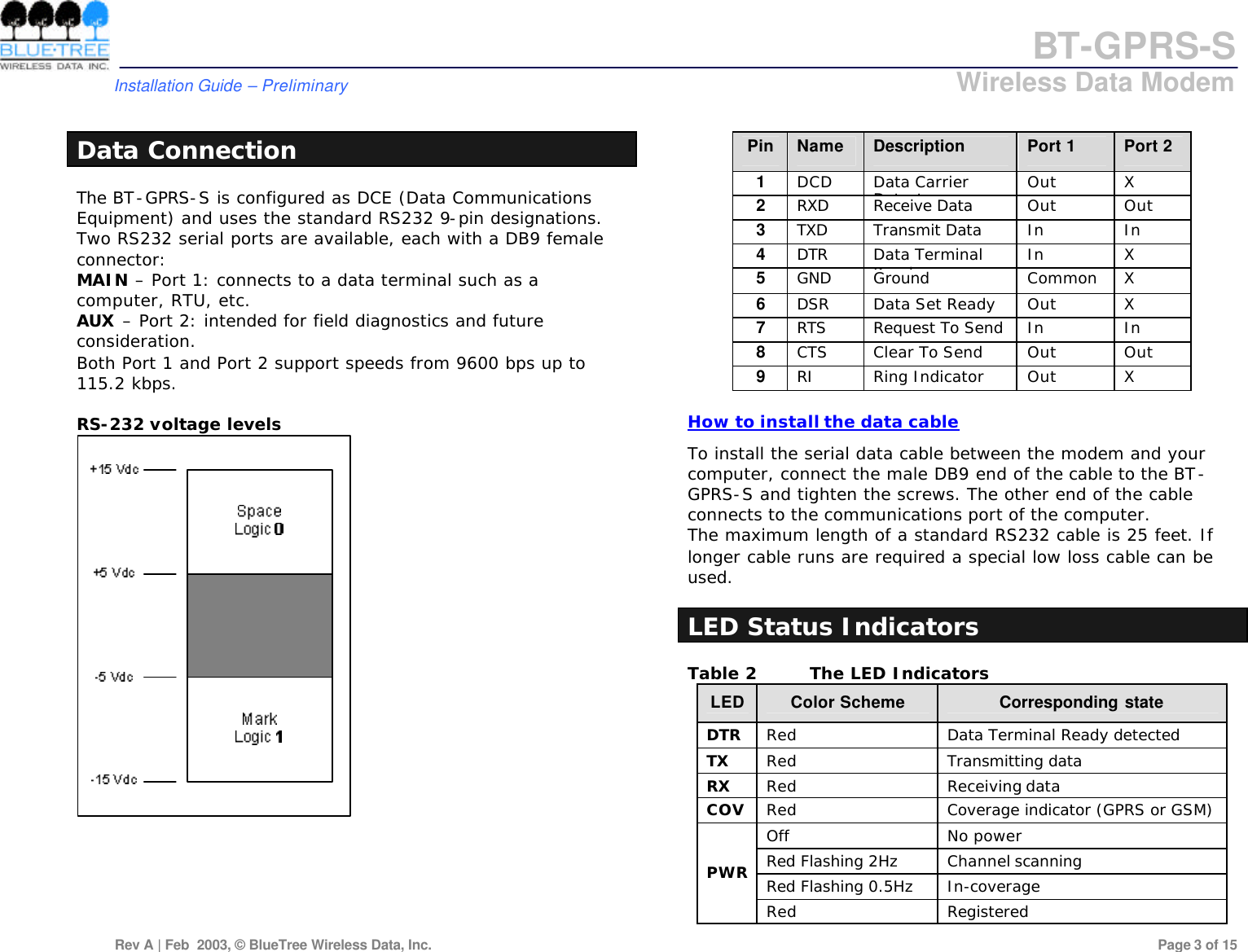
BT-GPRS-S         Installation Guide – Preliminary                            Wireless Data Modem  Rev A | Feb  2003, © BlueTree Wireless Data, Inc.         Page 3 of 15   Data Connection The BT-GPRS-S is configured as DCE (Data Communications Equipment) and uses the standard RS232 9-pin designations.  Two RS232 serial ports are available, each with a DB9 female connector: MAIN – Port 1: connects to a data terminal such as a computer, RTU, etc. AUX – Port 2: intended for field diagnostics and future consideration. Both Port 1 and Port 2 support speeds from 9600 bps up to 115.2 kbps.  RS-232 voltage levels       Table 1 RS-232 Serial Port Pin Designation Pin Name Description Port 1 Port 2 1 DCD Data Carrier Detect Out X 2 RXD Receive Data Out Out 3 TXD Transmit Data In In 4 DTR Data Terminal Ready In X 5 GND Ground Common X 6 DSR Data Set Ready Out X 7 RTS Request To Send In In 8 CTS Clear To Send Out Out 9 RI Ring Indicator Out X  How to install the data cable To install the serial data cable between the modem and your computer, connect the male DB9 end of the cable to the BT-GPRS-S and tighten the screws. The other end of the cable connects to the communications port of the computer. The maximum length of a standard RS232 cable is 25 feet. If longer cable runs are required a special low loss cable can be used.  LED Status Indicators Table 2 The LED Indicators LED Color Scheme Corresponding state DTR Red Data Terminal Ready detected TX Red Transmitting data RX Red Receiving data COV Red Coverage indicator (GPRS or GSM) Off No power Red Flashing 2Hz Channel scanning Red Flashing 0.5Hz In-coverage PWR Red Registered
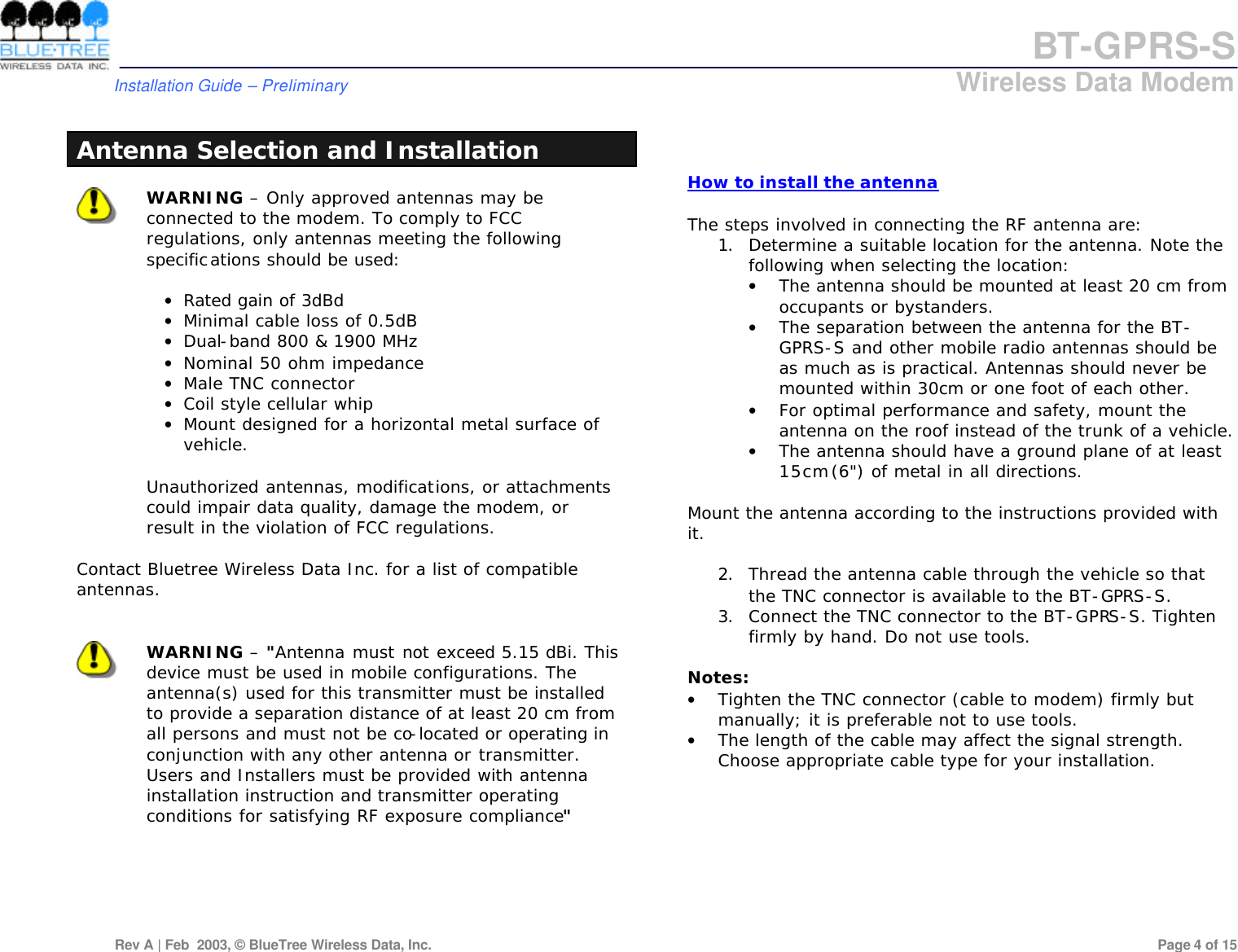
BT-GPRS-S         Installation Guide – Preliminary                            Wireless Data Modem  Rev A | Feb  2003, © BlueTree Wireless Data, Inc.         Page 4 of 15   Antenna Selection and Installation   WARNING – Only approved antennas may be connected to the modem. To comply to FCC regulations, only antennas meeting the following specifications should be used:  • Rated gain of 3dBd • Minimal cable loss of 0.5dB • Dual-band 800 & 1900 MHz • Nominal 50 ohm impedance • Male TNC connector • Coil style cellular whip • Mount designed for a horizontal metal surface of vehicle.  Unauthorized antennas, modifications, or attachments could impair data quality, damage the modem, or result in the violation of FCC regulations.  Contact Bluetree Wireless Data Inc. for a list of compatible antennas.    WARNING – "Antenna must not exceed 5.15 dBi. This device must be used in mobile configurations. The antenna(s) used for this transmitter must be installed to provide a separation distance of at least 20 cm from all persons and must not be co-located or operating in conjunction with any other antenna or transmitter. Users and Installers must be provided with antenna installation instruction and transmitter operating conditions for satisfying RF exposure compliance"         How to install the antenna  The steps involved in connecting the RF antenna are:  1. Determine a suitable location for the antenna. Note the following when selecting the location:  • The antenna should be mounted at least 20 cm from occupants or bystanders.  • The separation between the antenna for the BT-GPRS-S and other mobile radio antennas should be as much as is practical. Antennas should never be mounted within 30cm or one foot of each other.  • For optimal performance and safety, mount the antenna on the roof instead of the trunk of a vehicle.  • The antenna should have a ground plane of at least 15cm (6") of metal in all directions.   Mount the antenna according to the instructions provided with it.   2. Thread the antenna cable through the vehicle so that the TNC connector is available to the BT-GPRS-S.  3. Connect the TNC connector to the BT-GPRS-S. Tighten firmly by hand. Do not use tools.   Notes: • Tighten the TNC connector (cable to modem) firmly but manually; it is preferable not to use tools. • The length of the cable may affect the signal strength. Choose appropriate cable type for your installation.
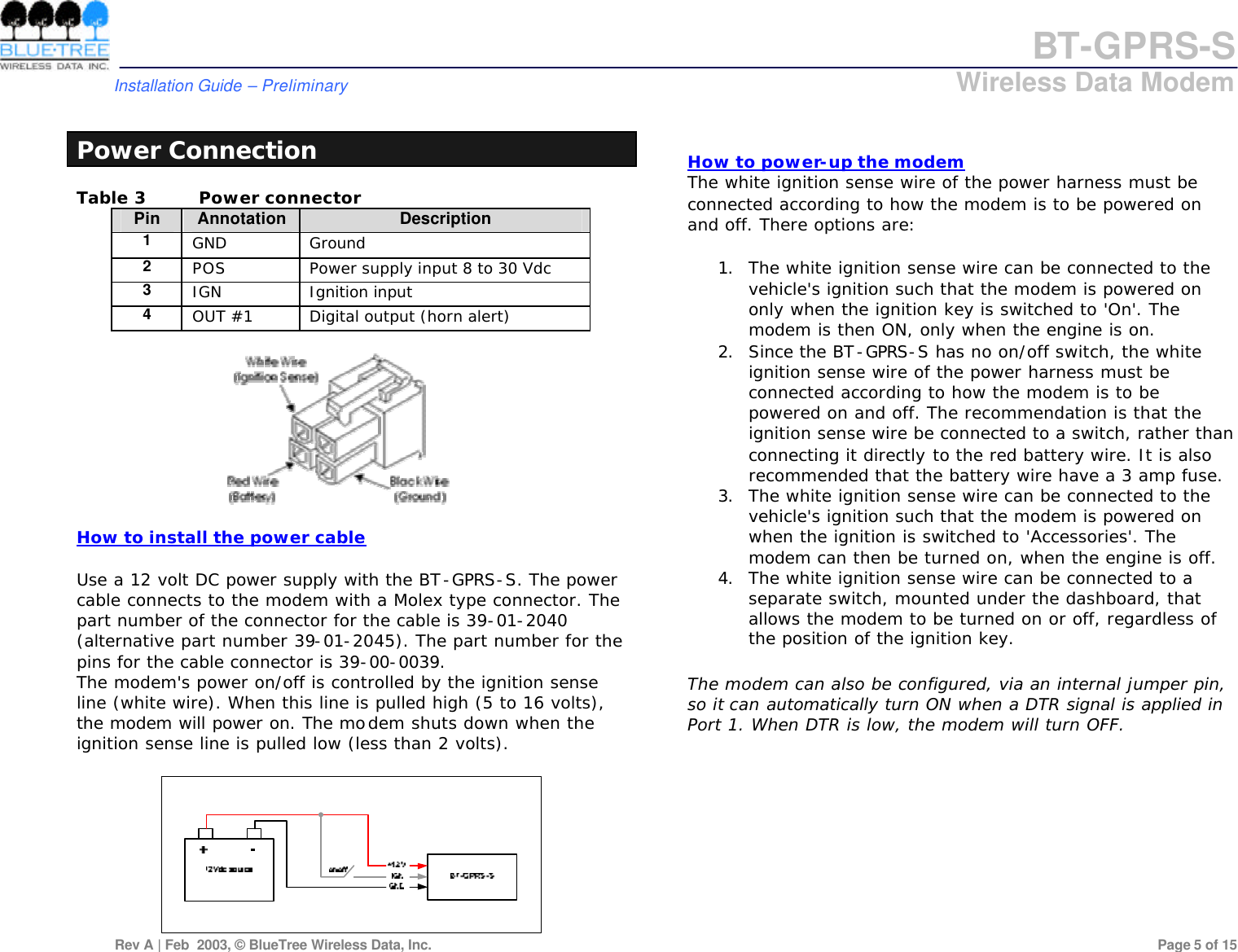
BT-GPRS-S         Installation Guide – Preliminary                            Wireless Data Modem  Rev A | Feb  2003, © BlueTree Wireless Data, Inc.         Page 5 of 15   Power Connection Table 3 Power connector Pin Annotation Description 1 GND Ground 2 POS Power supply input 8 to 30 Vdc 3 IGN Ignition input 4 OUT #1 Digital output (horn alert)    How to install the power cable  Use a 12 volt DC power supply with the BT-GPRS-S. The power cable connects to the modem with a Molex type connector. The part number of the connector for the cable is 39-01-2040 (alternative part number 39-01-2045). The part number for the pins for the cable connector is 39-00-0039. The modem's power on/off is controlled by the ignition sense line (white wire). When this line is pulled high (5 to 16 volts), the modem will power on. The modem shuts down when the ignition sense line is pulled low (less than 2 volts).      How to power-up the modem  The white ignition sense wire of the power harness must be connected according to how the modem is to be powered on and off. There options are:  1. The white ignition sense wire can be connected to the vehicle's ignition such that the modem is powered on only when the ignition key is switched to 'On'. The modem is then ON, only when the engine is on.  2. Since the BT-GPRS-S has no on/off switch, the white ignition sense wire of the power harness must be connected according to how the modem is to be powered on and off. The recommendation is that the ignition sense wire be connected to a switch, rather than connecting it directly to the red battery wire. It is also recommended that the battery wire have a 3 amp fuse.  3. The white ignition sense wire can be connected to the vehicle's ignition such that the modem is powered on when the ignition is switched to 'Accessories'. The modem can then be turned on, when the engine is off.  4. The white ignition sense wire can be connected to a separate switch, mounted under the dashboard, that allows the modem to be turned on or off, regardless of the position of the ignition key.  The modem can also be configured, via an internal jumper pin, so it can automatically turn ON when a DTR signal is applied in Port 1. When DTR is low, the modem will turn OFF.
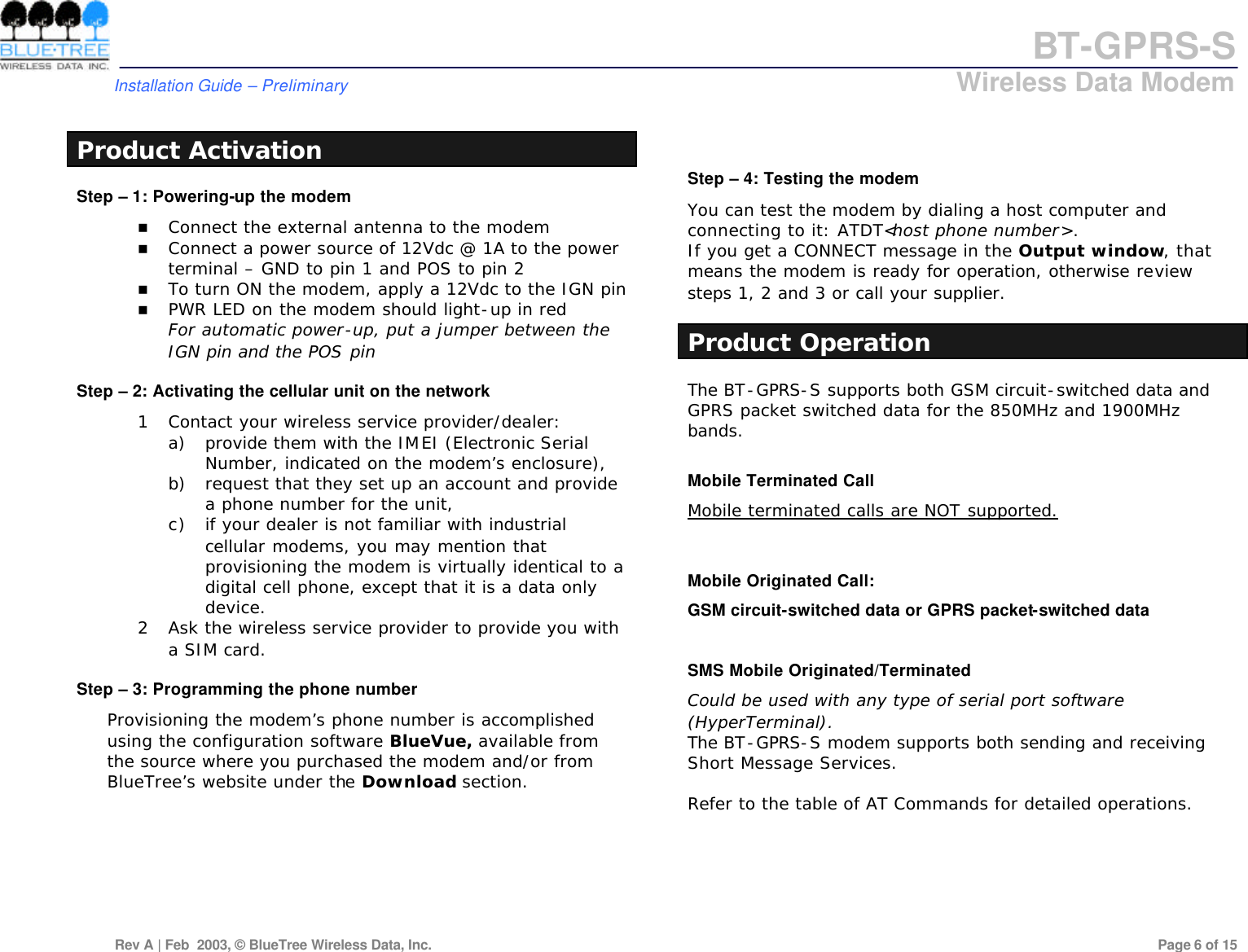
BT-GPRS-S         Installation Guide – Preliminary                            Wireless Data Modem  Rev A | Feb  2003, © BlueTree Wireless Data, Inc.         Page 6 of 15   Product Activation Step – 1: Powering-up the modem n Connect the external antenna to the modem n Connect a power source of 12Vdc @ 1A to the power terminal – GND to pin 1 and POS to pin 2 n To turn ON the modem, apply a 12Vdc to the IGN pin n PWR LED on the modem should light-up in red For automatic power-up, put a jumper between the IGN pin and the POS pin  Step – 2: Activating the cellular unit on the network 1 Contact your wireless service provider/dealer:  a) provide them with the IMEI (Electronic Serial Number, indicated on the modem’s enclosure),  b) request that they set up an account and provide a phone number for the unit,  c) if your dealer is not familiar with industrial cellular modems, you may mention that provisioning the modem is virtually identical to a digital cell phone, except that it is a data only device. 2 Ask the wireless service provider to provide you with a SIM card.  Step – 3: Programming the phone number Provisioning the modem’s phone number is accomplished using the configuration software BlueVue, available from the source where you purchased the modem and/or from BlueTree’s website under the Download section.    Step – 4: Testing the modem You can test the modem by dialing a host computer and connecting to it: ATDT<host phone number>. If you get a CONNECT message in the Output window, that means the modem is ready for operation, otherwise review steps 1, 2 and 3 or call your supplier.  Product Operation The BT-GPRS-S supports both GSM circuit-switched data and GPRS packet switched data for the 850MHz and 1900MHz bands.  Mobile Terminated Call Mobile terminated calls are NOT supported.   Mobile Originated Call: GSM circuit-switched data or GPRS packet-switched data  SMS Mobile Originated/Terminated Could be used with any type of serial port software (HyperTerminal). The BT-GPRS-S modem supports both sending and receiving Short Message Services.  Refer to the table of AT Commands for detailed operations.
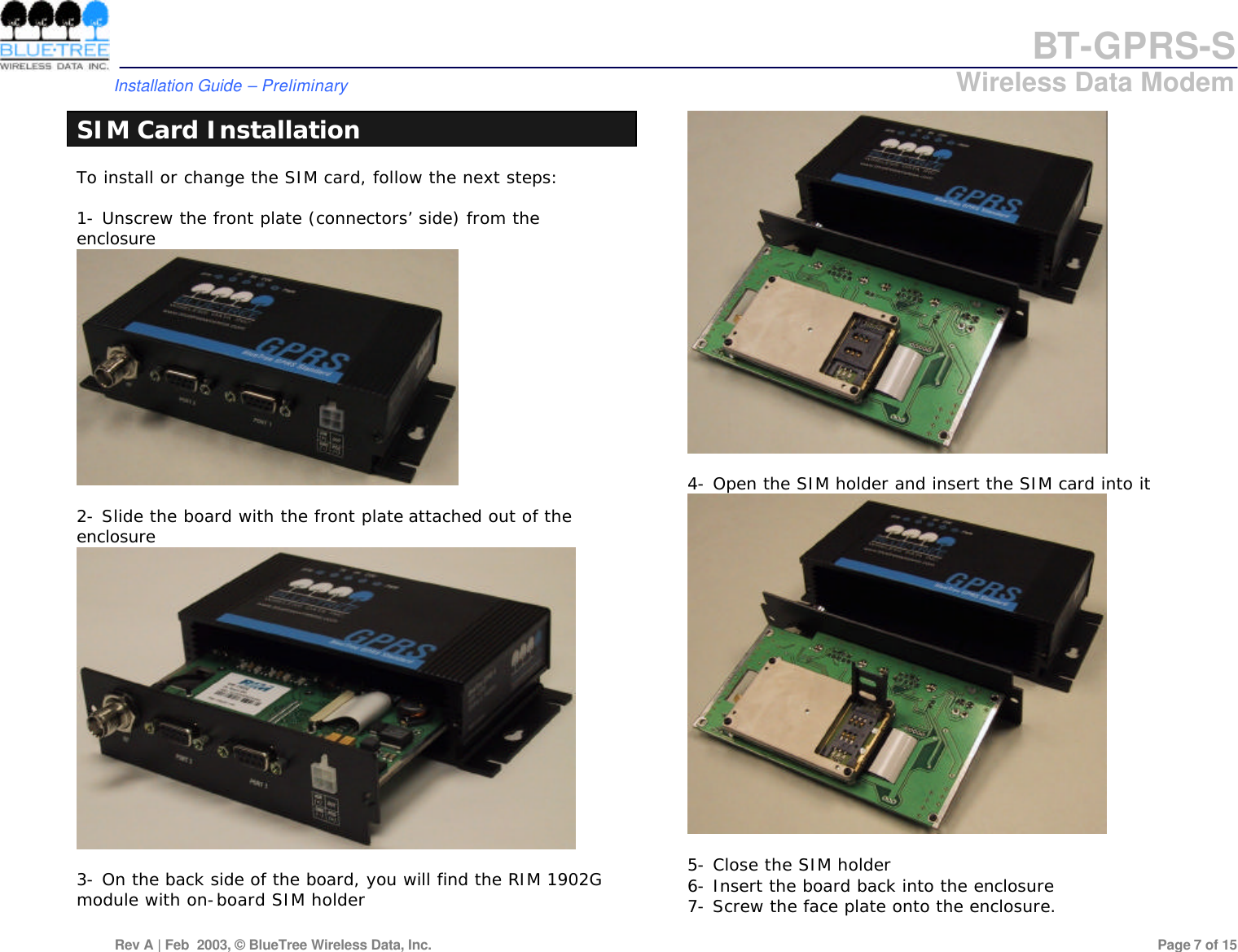
BT-GPRS-S         Installation Guide – Preliminary                            Wireless Data Modem  Rev A | Feb  2003, © BlueTree Wireless Data, Inc.         Page 7 of 15  SIM Card Installation To install or change the SIM card, follow the next steps:  1- Unscrew the front plate (connectors’ side) from the enclosure   2- Slide the board with the front plate attached out of the enclosure   3- On the back side of the board, you will find the RIM 1902G module with on-board SIM holder   4- Open the SIM holder and insert the SIM card into it   5- Close the SIM holder 6- Insert the board back into the enclosure 7- Screw the face plate onto the enclosure.
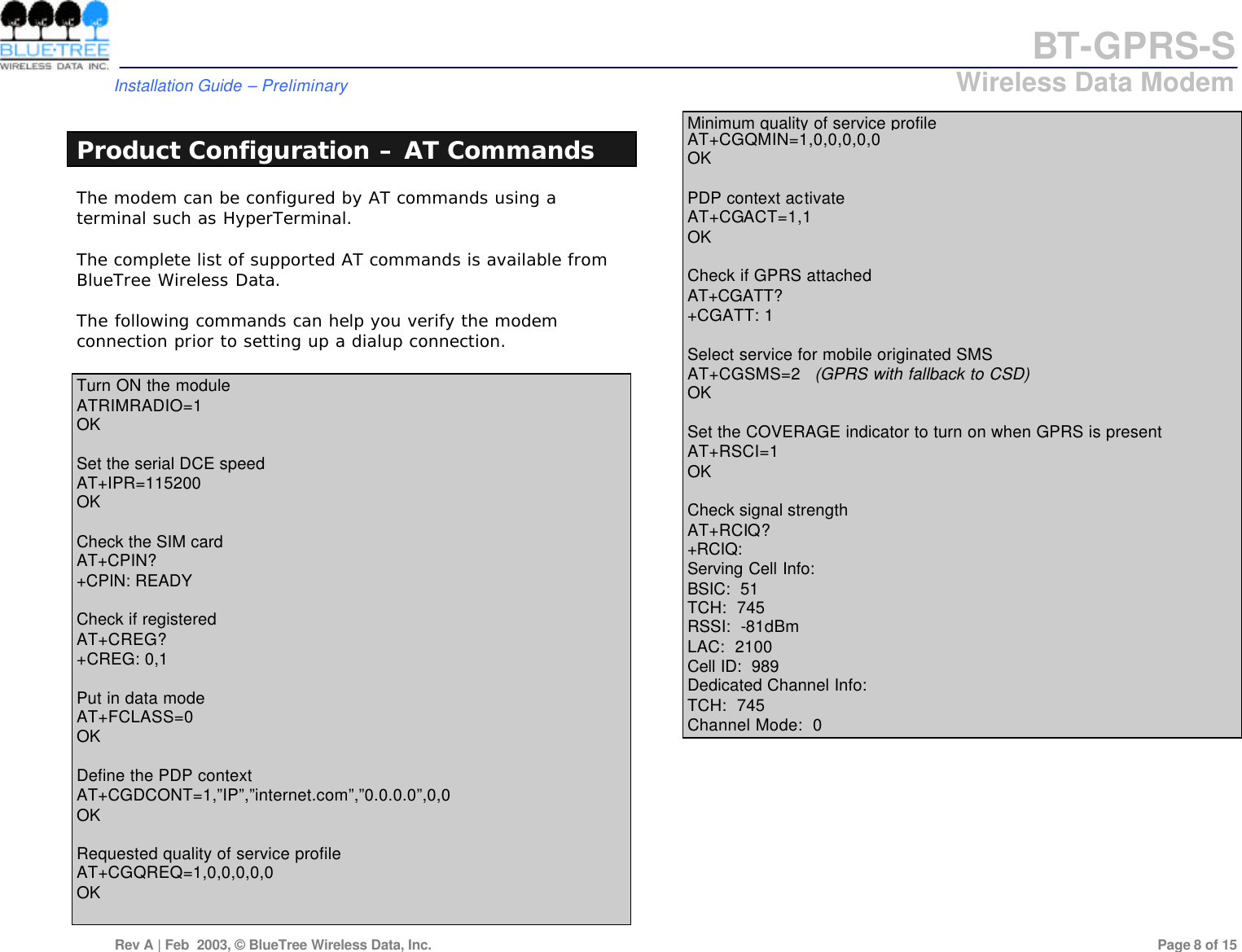
BT-GPRS-S         Installation Guide – Preliminary                            Wireless Data Modem  Rev A | Feb  2003, © BlueTree Wireless Data, Inc.         Page 8 of 15   Product Configuration – AT Commands The modem can be configured by AT commands using a terminal such as HyperTerminal.  The complete list of supported AT commands is available from BlueTree Wireless Data.  The following commands can help you verify the modem connection prior to setting up a dialup connection.  Turn ON the module ATRIMRADIO=1 OK  Set the serial DCE speed  AT+IPR=115200 OK  Check the SIM card  AT+CPIN? +CPIN: READY  Check if registered AT+CREG? +CREG: 0,1  Put in data mode AT+FCLASS=0 OK  Define the PDP context AT+CGDCONT=1,”IP”,”internet.com”,”0.0.0.0”,0,0 OK  Requested quality of service profile AT+CGQREQ=1,0,0,0,0,0 OK  Minimum quality of service profile AT+CGQMIN=1,0,0,0,0,0 OK  PDP context activate AT+CGACT=1,1 OK  Check if GPRS attached AT+CGATT? +CGATT: 1  Select service for mobile originated SMS  AT+CGSMS=2   (GPRS with fallback to CSD) OK  Set the COVERAGE indicator to turn on when GPRS is present AT+RSCI=1 OK  Check signal strength  AT+RCIQ? +RCIQ: Serving Cell Info: BSIC:  51 TCH:  745 RSSI:  -81dBm LAC:  2100 Cell ID:  989 Dedicated Channel Info: TCH:  745 Channel Mode:  0
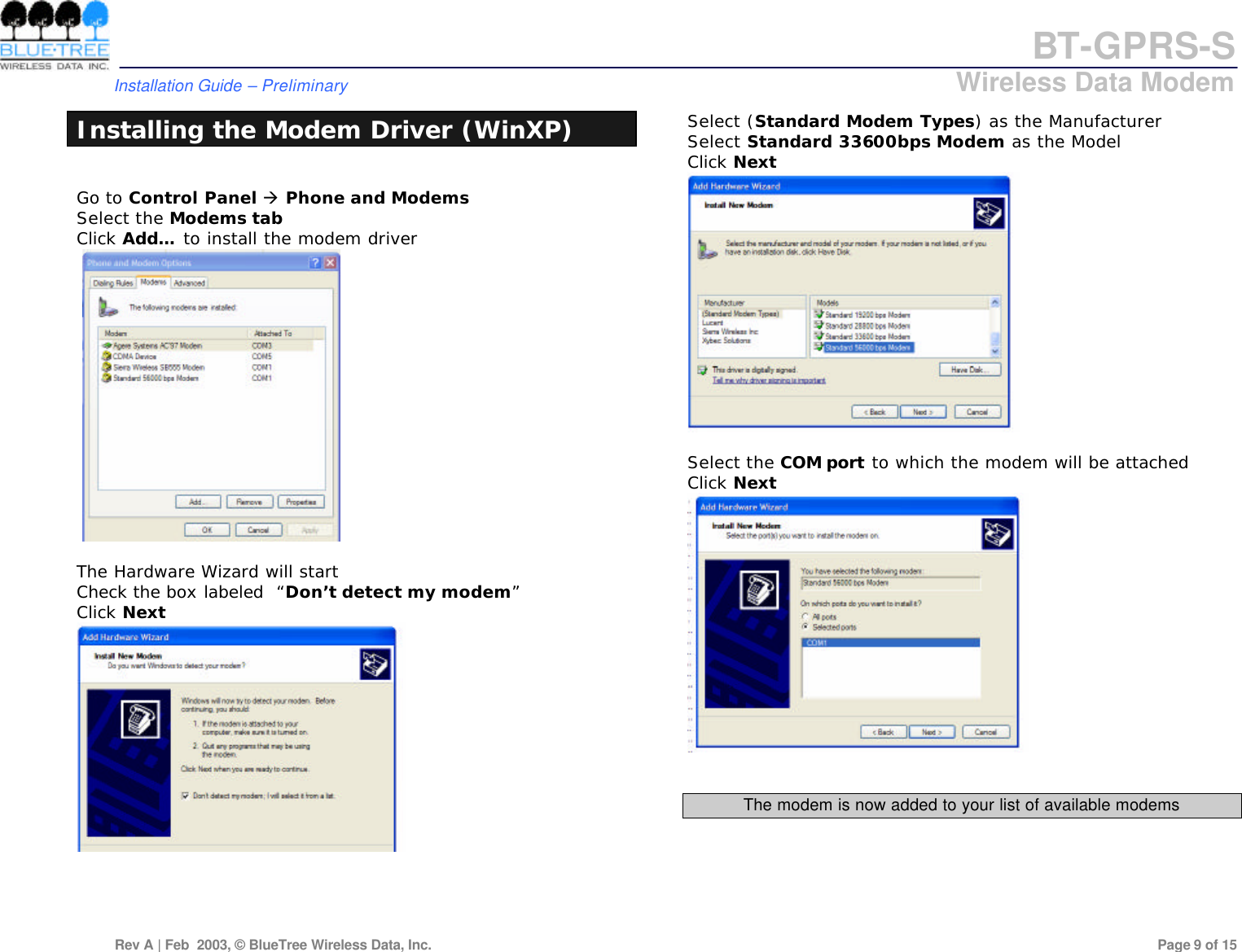
BT-GPRS-S         Installation Guide – Preliminary                            Wireless Data Modem  Rev A | Feb  2003, © BlueTree Wireless Data, Inc.         Page 9 of 15  Installing the Modem Driver (WinXP)  Go to Control Panel à Phone and Modems Select the Modems tab Click Add… to install the modem driver     The Hardware Wizard will start Check the box labeled  “Don’t detect my modem”  Click Next      Select (Standard Modem Types) as the Manufacturer Select Standard 33600bps Modem as the Model Click Next   Select the COM port to which the modem will be attached Click Next    The modem is now added to your list of available modems
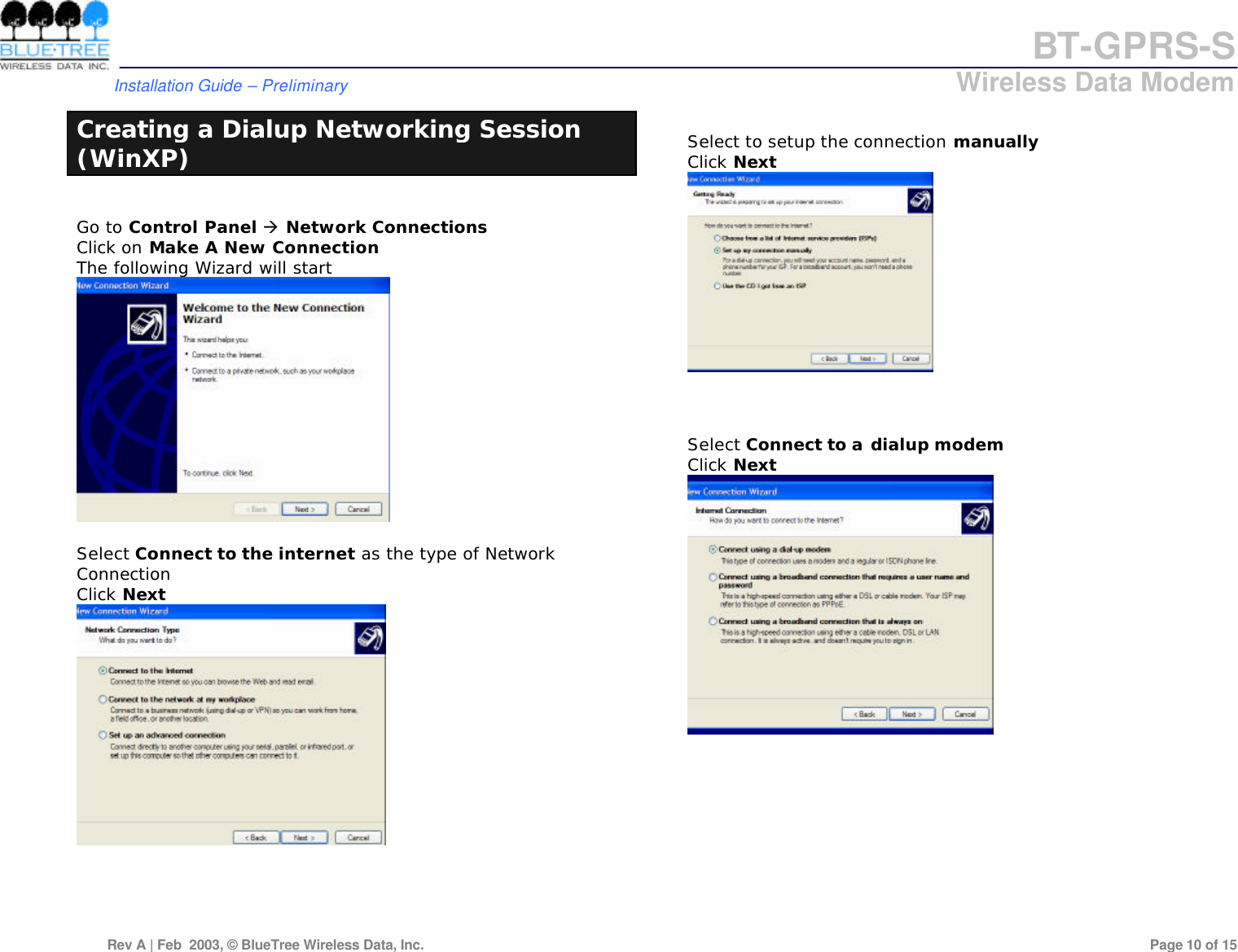
BT-GPRS-S         Installation Guide – Preliminary                            Wireless Data Modem  Rev A | Feb  2003, © BlueTree Wireless Data, Inc.         Page 10 of 15  Creating a Dialup Networking Session (WinXP)  Go to Control Panel à Network Connections Click on Make A New Connection The following Wizard will start   Select Connect to the internet as the type of Network Connection Click Next       Select to setup the connection manually Click Next     Select Connect to a dialup modem Click Next
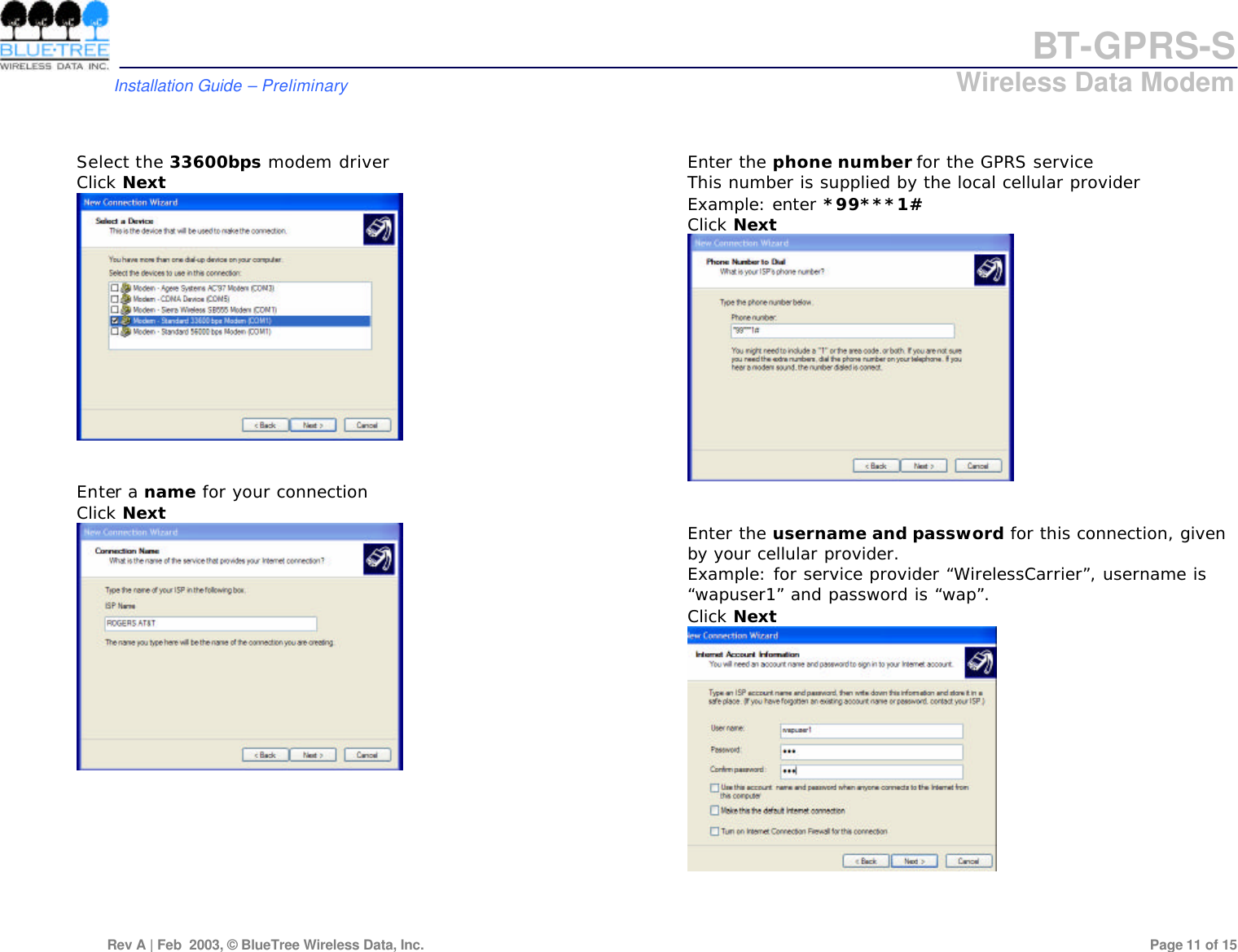
BT-GPRS-S         Installation Guide – Preliminary                            Wireless Data Modem  Rev A | Feb  2003, © BlueTree Wireless Data, Inc.         Page 11 of 15    Select the 33600bps modem driver Click Next    Enter a name for your connection Click Next            Enter the phone number for the GPRS service This number is supplied by the local cellular provider Example: enter *99***1# Click Next    Enter the username and password for this connection, given by your cellular provider. Example: for service provider “WirelessCarrier”, username is “wapuser1” and password is “wap”. Click Next
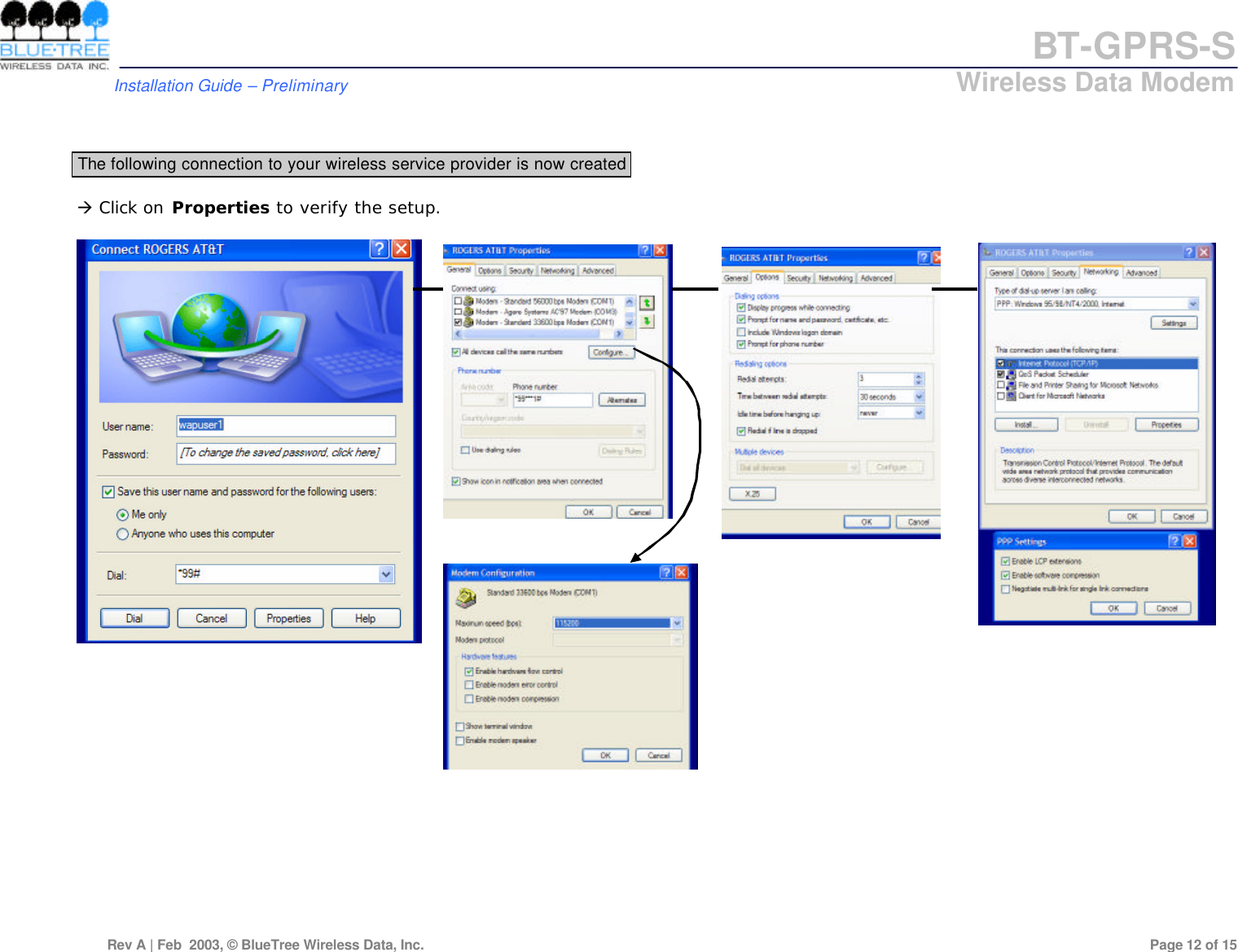
BT-GPRS-S         Installation Guide – Preliminary                            Wireless Data Modem  Rev A | Feb  2003, © BlueTree Wireless Data, Inc.         Page 12 of 15    The following connection to your wireless service provider is now created  à Click on Properties to verify the setup.
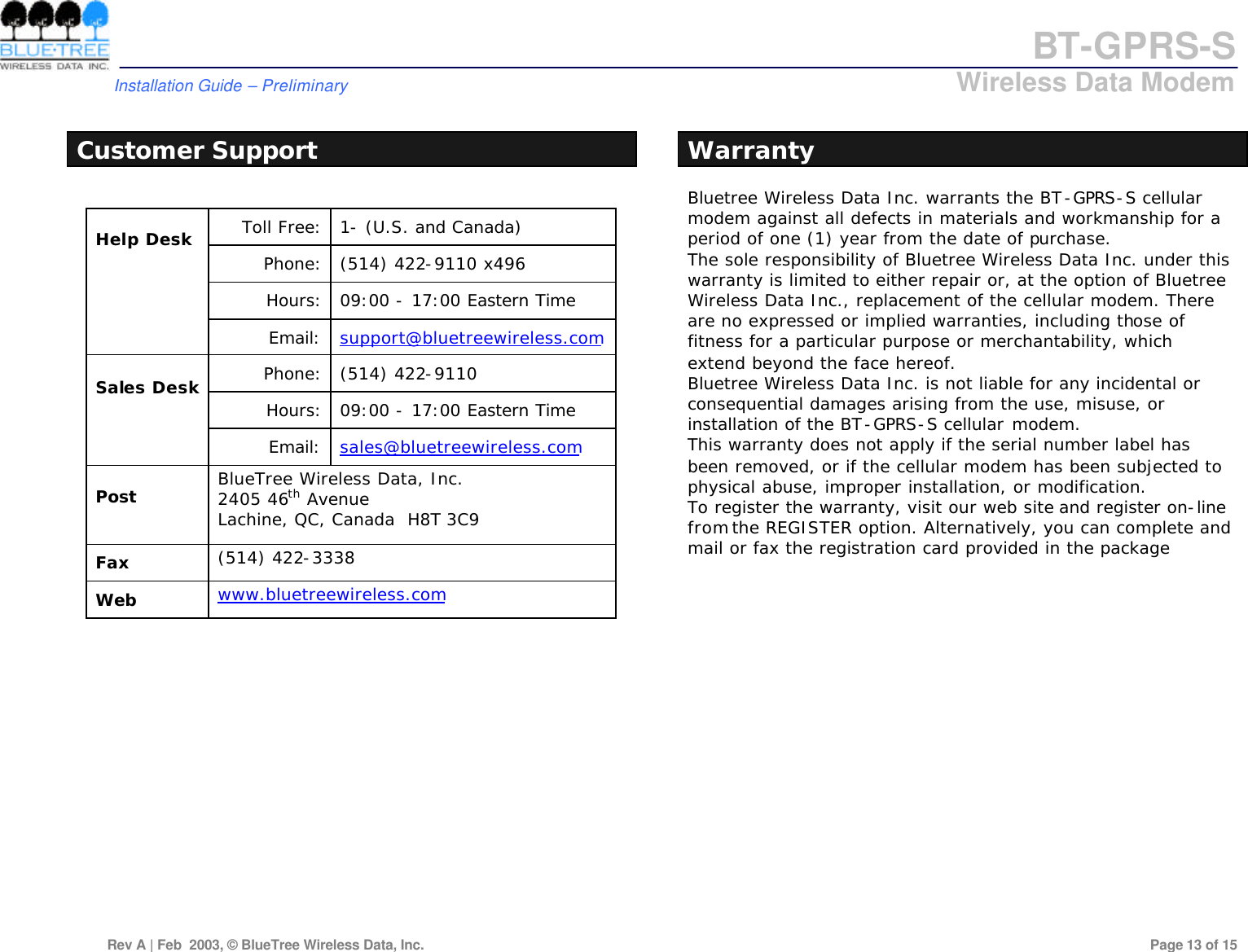
BT-GPRS-S         Installation Guide – Preliminary                            Wireless Data Modem  Rev A | Feb  2003, © BlueTree Wireless Data, Inc.         Page 13 of 15   Customer Support  Toll Free: 1- (U.S. and Canada) Phone: (514) 422-9110 x496 Hours: 09:00 - 17:00 Eastern Time  Help Desk  Email: support@bluetreewireless.com Phone: (514) 422-9110 Hours: 09:00 - 17:00 Eastern Time  Sales Desk  Email: sales@bluetreewireless.com  Post   BlueTree Wireless Data, Inc. 2405 46th Avenue Lachine, QC, Canada  H8T 3C9  Fax   (514) 422-3338  Web   www.bluetreewireless.com  Warranty Bluetree Wireless Data Inc. warrants the BT-GPRS-S cellular modem against all defects in materials and workmanship for a period of one (1) year from the date of purchase.  The sole responsibility of Bluetree Wireless Data Inc. under this warranty is limited to either repair or, at the option of Bluetree Wireless Data Inc., replacement of the cellular modem. There are no expressed or implied warranties, including those of fitness for a particular purpose or merchantability, which extend beyond the face hereof.  Bluetree Wireless Data Inc. is not liable for any incidental or consequential damages arising from the use, misuse, or installation of the BT-GPRS-S cellular modem.  This warranty does not apply if the serial number label has been removed, or if the cellular modem has been subjected to physical abuse, improper installation, or modification.  To register the warranty, visit our web site and register on-line from the REGISTER option. Alternatively, you can complete and mail or fax the registration card provided in the package
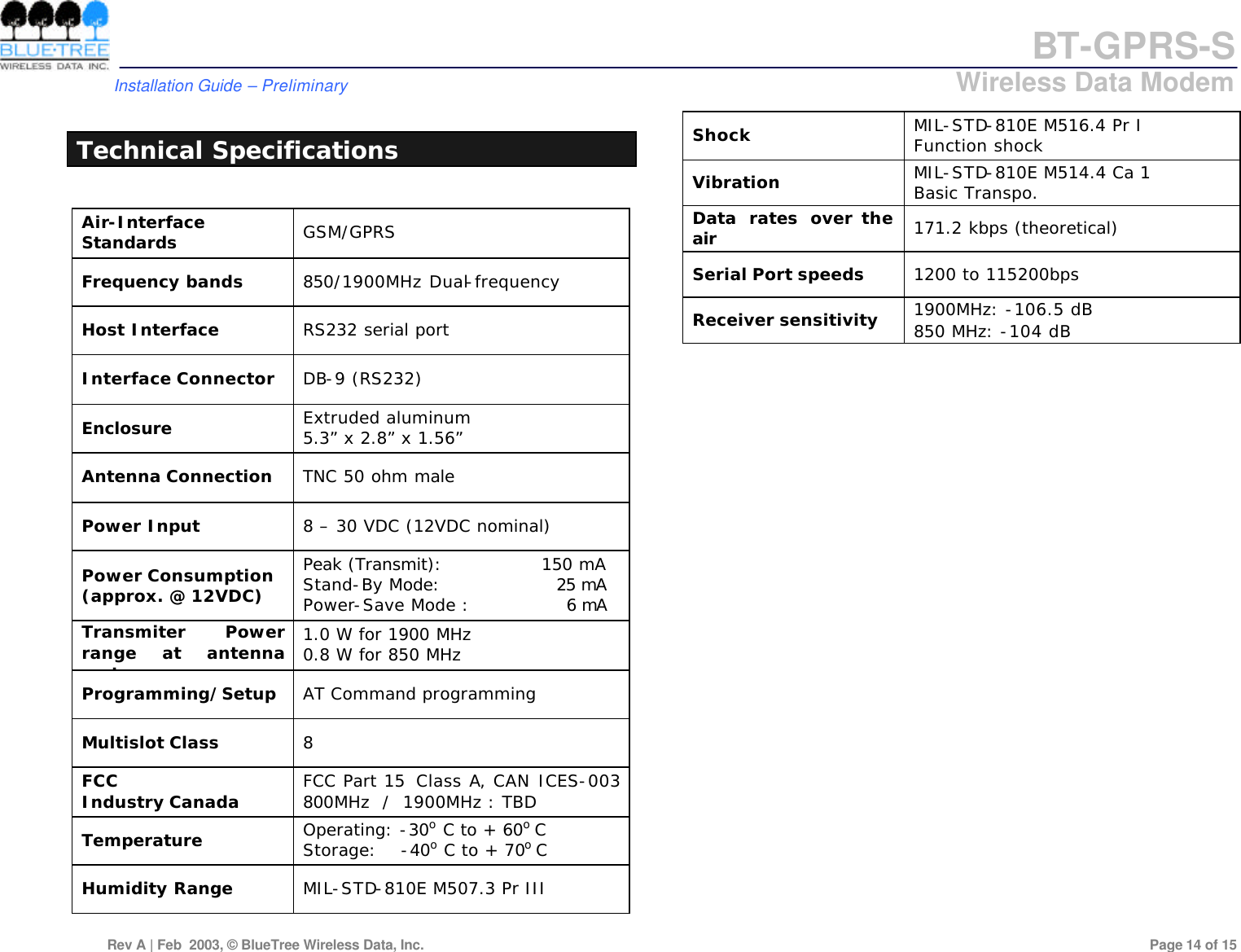
BT-GPRS-S         Installation Guide – Preliminary                            Wireless Data Modem  Rev A | Feb  2003, © BlueTree Wireless Data, Inc.         Page 14 of 15   Technical Specifications  Air-Interface Standards GSM/GPRS Frequency bands 850/1900MHz Dual-frequency Host Interface RS232 serial port Interface Connector DB-9 (RS232) Enclosure Extruded aluminum 5.3” x 2.8” x 1.56”   Antenna Connection TNC 50 ohm male Power Input 8 – 30 VDC (12VDC nominal) Power Consumption (approx. @ 12VDC) Peak (Transmit):                150 mA Stand-By Mode:                   25 mA Power-Save Mode :                6 mA Transmiter Power range at antenna port 1.0 W for 1900 MHz 0.8 W for 850 MHz Programming/Setup AT Command programming  Multislot Class 8 FCC  Industry Canada FCC Part 15  Class A, CAN ICES-003 800MHz  /  1900MHz : TBD Temperature Operating: -30o C to + 60o C Storage:    -40o C to + 70o C Humidity Range MIL-STD-810E M507.3 Pr III  Shock MIL-STD-810E M516.4 Pr I   Function shock Vibration MIL-STD-810E M514.4 Ca 1  Basic Transpo. Data rates over the air 171.2 kbps (theoretical) Serial Port speeds 1200 to 115200bps Receiver sensitivity 1900MHz: -106.5 dB 850 MHz: -104 dB
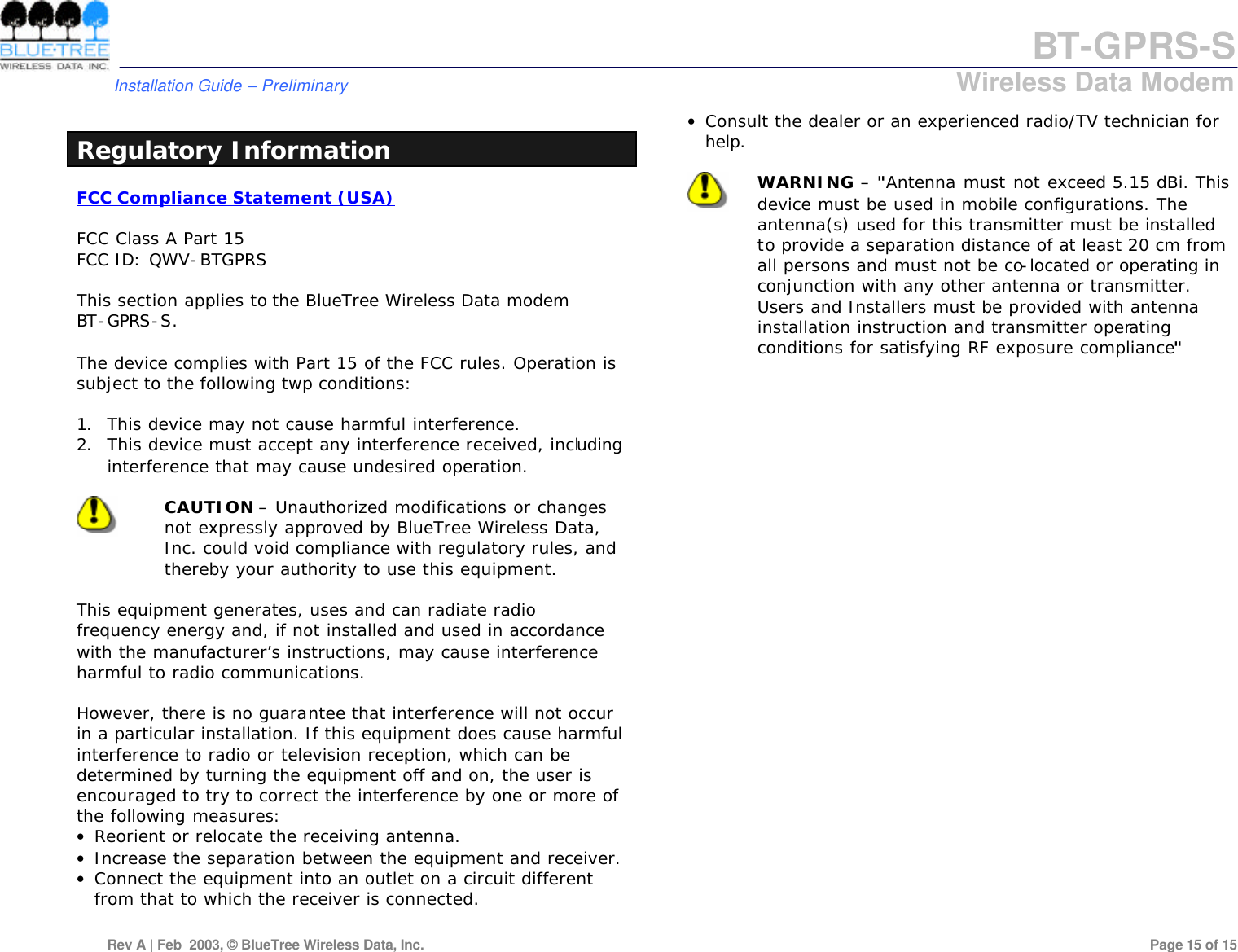
BT-GPRS-S         Installation Guide – Preliminary                            Wireless Data Modem  Rev A | Feb  2003, © BlueTree Wireless Data, Inc.         Page 15 of 15   Regulatory Information FCC Compliance Statement (USA)  FCC Class A Part 15 FCC ID: QWV-BTGPRS  This section applies to the BlueTree Wireless Data modem  BT-GPRS-S.  The device complies with Part 15 of the FCC rules. Operation is subject to the following twp conditions:  1. This device may not cause harmful interference. 2. This device must accept any interference received, including interference that may cause undesired operation.   CAUTION – Unauthorized modifications or changes not expressly approved by BlueTree Wireless Data, Inc. could void compliance with regulatory rules, and thereby your authority to use this equipment.  This equipment generates, uses and can radiate radio frequency energy and, if not installed and used in accordance with the manufacturer’s instructions, may cause interference harmful to radio communications.  However, there is no guarantee that interference will not occur in a particular installation. If this equipment does cause harmful interference to radio or television reception, which can be determined by turning the equipment off and on, the user is encouraged to try to correct the interference by one or more of the following measures: • Reorient or relocate the receiving antenna. • Increase the separation between the equipment and receiver. • Connect the equipment into an outlet on a circuit different from that to which the receiver is connected. • Consult the dealer or an experienced radio/TV technician for help.   WARNING – "Antenna must not exceed 5.15 dBi. This device must be used in mobile configurations. The antenna(s) used for this transmitter must be installed to provide a separation distance of at least 20 cm from all persons and must not be co-located or operating in conjunction with any other antenna or transmitter. Users and Installers must be provided with antenna installation instruction and transmitter operating conditions for satisfying RF exposure compliance"

Navigation menu