Bosch Access PE Log Viewer En Us APE 3.5 Operation Manual 28130426507
User Manual: Bosch en-us Access Professional Edition 3.5
Open the PDF directly: View PDF  .
.
Page Count: 30
Access Professional Edition
Log Viewer
en Operation Manual

Table of contents
1Overview 4
2General 5
2.1 Introduction 5
2.2 User Login 8
2.3 Layout of the Log Viewer 11
2.4 Icon buttons 12
3Logbook 14
3.1 Message list 14
3.2 Filtering messages 16
3.3 Activating alarm mode 20
3.4 Reports: Page view 21
3.5 Video playback 25
4UL 294 Requirements 28
Access Professional
Edition Table of Contents | en 3
Bosch Access Systems GmbH 2017-04 | APE-UL | Log Viewer

Overview
The Access Professional Edition System (hereunder referred to
as Access PE) provides a self-contained access control for small
and medium sized companies. It consists of several modules:
– LAC Service: a process which is in constant communication
with the LACs (Local Access Controllers – hereafter
referred to as Controllers). AMCs (Access Modular
Controllers) are used as Controllers.
– Configurator
– Personnel Management
– Logviewer
– Alarm Management
– Video Verification
The modules can be divided into server and client modules.
The LAC service needs to remain in constant contact with the
controllers because firstly it constantly receives messages from
them regarding movements, presence and absence of
cardholders, secondly because it transmits data modifications,
e.g. assignment of new cards, to the controllers, but mainly
because it carries out meta-level checks (access sequence
checks, anti-passback checks, random screening).
The Configurator should also run on the server; however it can
be installed on client workstations and operated from there.
The modules Personnel Management and Logviewer belong to
the Client component and can be run on the Server in addition,
or on a different PC with a network connection to the server.
The following Controllers can be used.
– AMC2 4W (with four Wiegand reader interfaces) - can be
extended with an AMC2 4W-EXT
– AMC2 4R4 (with four RS485 reader interfaces)
1
4en | Overview Access Professional
Edition
2017-04 | APE-UL | Log Viewer Bosch Access Systems GmbH

General
Introduction
Access PE is an Access Control System which has been
designed to offer the highest standards of security and flexibility
to small and medium sized installations.
Access PE owes its stability and upgradeability to a 3-layer
design: The first layer is the administration level with its
controlling services. All administrative tasks are carried out
here, e.g. the registration of new cards and the assignment of
access rights.
The second layer is formed by the Local Access Controllers
(LACs) which govern each group of doors or entrances. Even
when the system is offline a LAC is able independently to make
access b control decisions. LACs are responsible for controlling
the entrances, governing door opening times or requesting PIN-
codes at critical access points.
The third layer consists of card readers.
The communication between client, server, and cardholders is
AES encrypted.
Access PE multi-user version allows multiple workstations to
control the system. Customizable user rights levels regulate
access and guarantee security. In this way it is possible, for
example, to maintain card data from one workstation whilst
using another to verify whether an employee is present in the
building.
Access PE offers exceptionally flexible configuration of access
rights, time models and entrance parameters. The following list
gives an overview of the most important features:
2
2.1
Access Professional
Edition General | en 5
Bosch Access Systems GmbH 2017-04 | APE-UL | Log Viewer

Quick & Easy card Assignment
Cards (up to three) can be assigned to persons either manually
or using a dialog reader connected to a PC via a serial
connection. All assigned cards are active. When upgrading cards
the old card is automatically overwritten and becomes invalid,
thus preventing old cards from gaining access even if those
responsible forgot or were unable to cancel them.
Access Rights (including Group Privileges)
Each person can inherit group privileges as well as having
individual rights assigned to him. Privileges can be restricted by
area and time to an accuracy of one minute. Group privileges
can be used to grant and limit access rights for any or all
cardholders simultaneously. Group privileges can be made
dependent on time models which restrict their access to certain
times of day.
Access tracking
By defining Areas it is possible to track and enforce a correct
sequence of accesses. Even without monitoring, this
configuration makes it possible to display a cardholder's
location.
Anti-Passback
When a card has been read it can be blocked for a defined
period from entering at the same access point. Hence it is
possible to prevent "passback", where a user hands his card
back across a barrier to provide access for an unauthorized
person.
Automatic Cancelation of cards upon Expiration
Visitors and temporary staff frequently require access for a
limited period only.
cards can be registered for a specific time period, so that they
automatically lose their validity when that period expires.
6en | General Access Professional
Edition
2017-04 | APE-UL | Log Viewer Bosch Access Systems GmbH

Time Models and Day Models
A cardholder can be assigned to specific time models which
regulate the hours in which that person has access. Time
models can be defined flexibly using day models which
determine how specific weekdays, weekends, holidays and
special days deviate from normal working days.
Identification via PIN-Code
Instead of a card a person can use a special PIN-Code to enter.
Verification via PIN-Code
Particularly sensitive areas can be programmed to require
additional PIN-Codes. This protection can in turn be made
dependent on time models, so that, for instance, a PIN-Code is
only required for access during holiday times or outside of
defined working hours.
Flexible Door Management
Flexible parameterization of individual door models allows an
optimum balance between security and comfort. The "shunt" or
alarm suppression period can be individually specified to
regulate for how long a door may remain open. In cooperation
with an alarm system the access point can then optionally be
locked.
Periodic Door Release
In order to facilitate access, door alarms can be shunted to
release doors for specific periods. Door release periods can be
defined manually or automatically via a time model.
Time and Attendance
Access points can be parameterized to record ingress and
egress for time & attendance purposes.
Card Design
The graphical add-in module Card Personalization (CP) is fully
integrated into the Access Control system to allow the operator
to create cards without switching applications.
Access Professional
Edition General | en 7
Bosch Access Systems GmbH 2017-04 | APE-UL | Log Viewer
Assignment of Photos
If the add-in module Card Personalization (CP) is not activated
photographic identification can nevertheless be imported and
associated with cardholders.
Offline locking system
Areas which are not covered, for whatever reason, by the high-
availability online access control system can nevertheless be
locked offline.
Administration of video devices
Entrances can be equipped additionally with cameras to identify
and track the movements of persons using them.
User Login
The following applications are available. The the respective User
manuals for details:
Personnel Management
Configurator
Logviewer
Map and Alarm Management
Video Verification
2.2
8en | General Access Professional
Edition
2017-04 | APE-UL | Log Viewer Bosch Access Systems GmbH
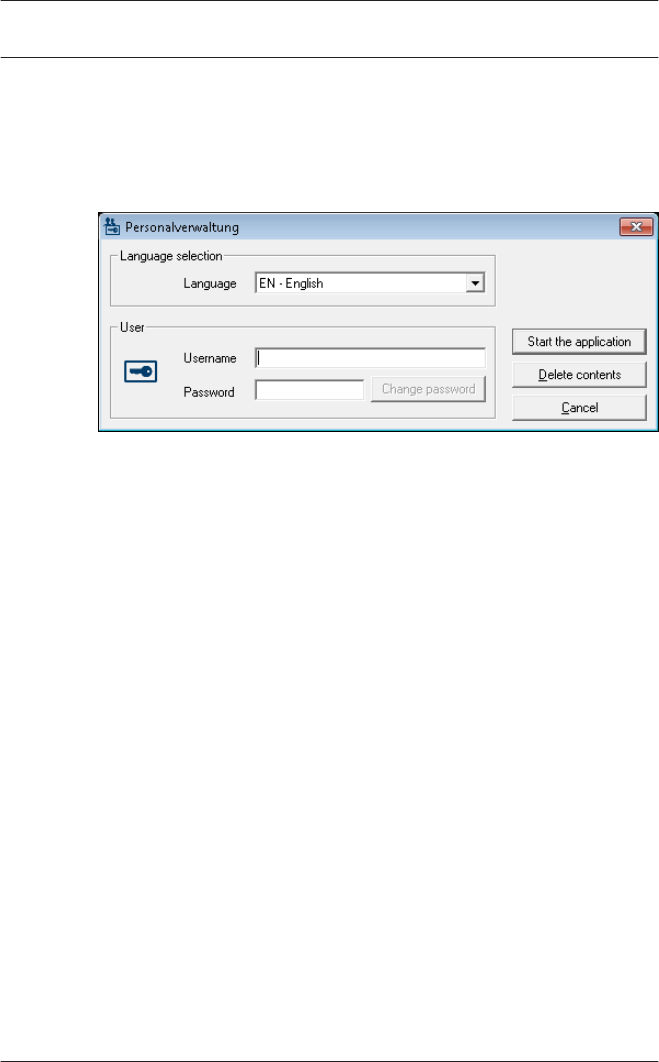
The system's applications are protected from unauthorized use.
The default passwords on first usage are:
– Username: bosch
– Password: bosch
The upper drop-down list can be used to select the desired
interaction language. The default is that language which was
used to install the application. If there is a change of user
without restarting the application then the previous language is
retained. For this reason it is possible for a dialog box to appear
in an undesired language. In order to avoid this, please log in to
Access PE again.
Access PE applications can be run in the following languages:
– English
– German
– French
– Japanese
– Russian
– Polish
– Chinese (PRC)
– Dutch
– Spanish
– Portuguese (Brazil)
Access Professional
Edition General | en 9
Bosch Access Systems GmbH 2017-04 | APE-UL | Log Viewer
Notice!
All facilities such as device names, labels, models and user-
rights schemes are displayed in the language in which they
were entered.Similarly buttons and labels controlled by the
operating system may appear in the language of the operating
system.
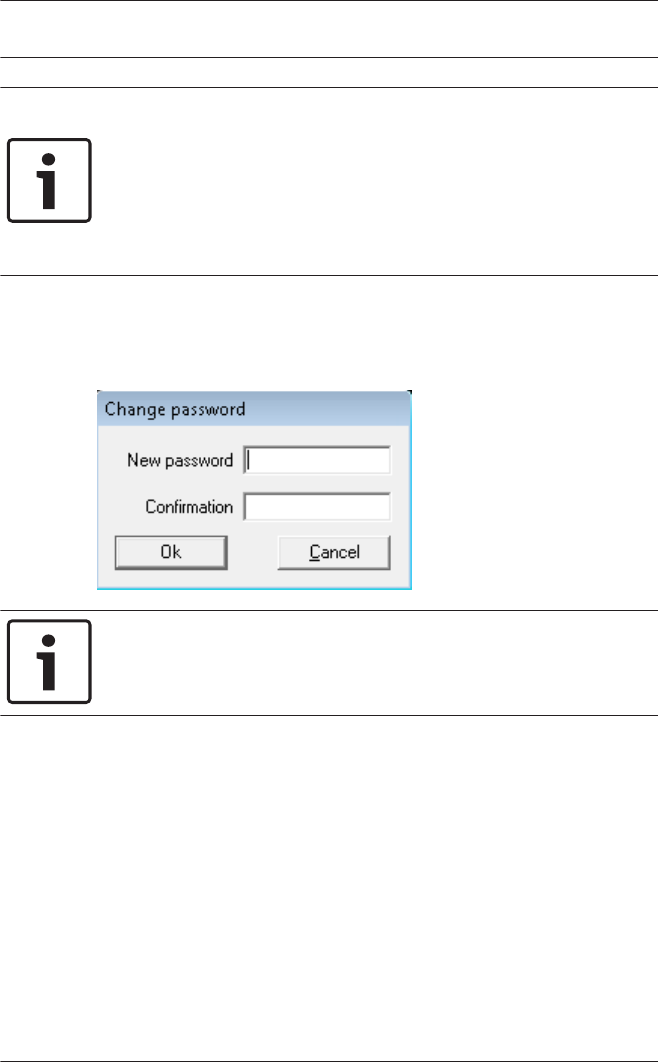
If a valid username/password pair are entered then the button :
Change Password appears. This can be used to start a new
dialog to change the password.
Notice!
Do not forget to change the password!
The button Start the application checks the user's privileges
and, based on these, starts the application. If the system is
unable to authenticate the login then the following error
message appears: Wrong username or password!
10 en | General Access Professional
Edition
2017-04 | APE-UL | Log Viewer Bosch Access Systems GmbH
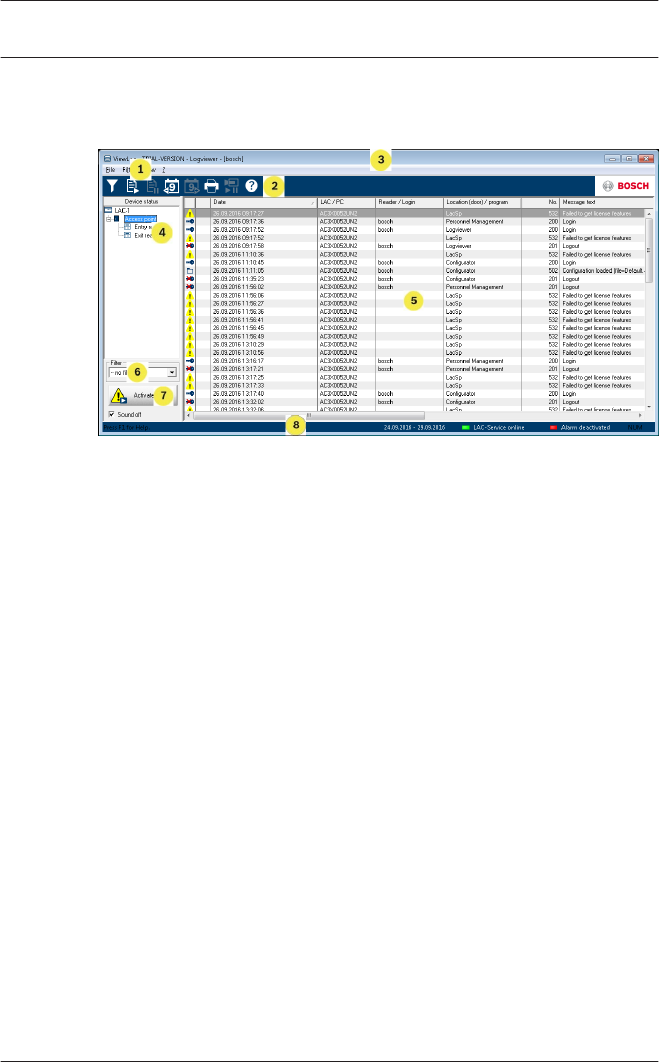
Layout of the Log Viewer
1 = Menu bar - Contains all dialog functions arranged in
menus.
2 = Tool bar - Contains the most important dialog
functions as icon buttons
3 = Title bar - Conforms to Windows standard and
contains buttons to minimize and close the main
dialog window. The name of the current user is
displayed in square brackets.
4 = Device status - List of the configured devices and
entrances along with their connection status.
5 = Message list - List of messages arrived hitherto. The
display can be modified by specific filter settings.
6 = Filter selection - Predefined and customized filters
can be selected from the combo-box.
2.3
Access Professional
Edition General | en 11
Bosch Access Systems GmbH 2017-04 | APE-UL | Log Viewer
7 = Alarm activation - Triggers the activation/
deactivation of alarms for messages. An incoming
message can be accompanied by an acoustic signal.
8 = Status bar - Dates of the log files opened. Status of
the LAC Service. Alarm settings.
Icon buttons
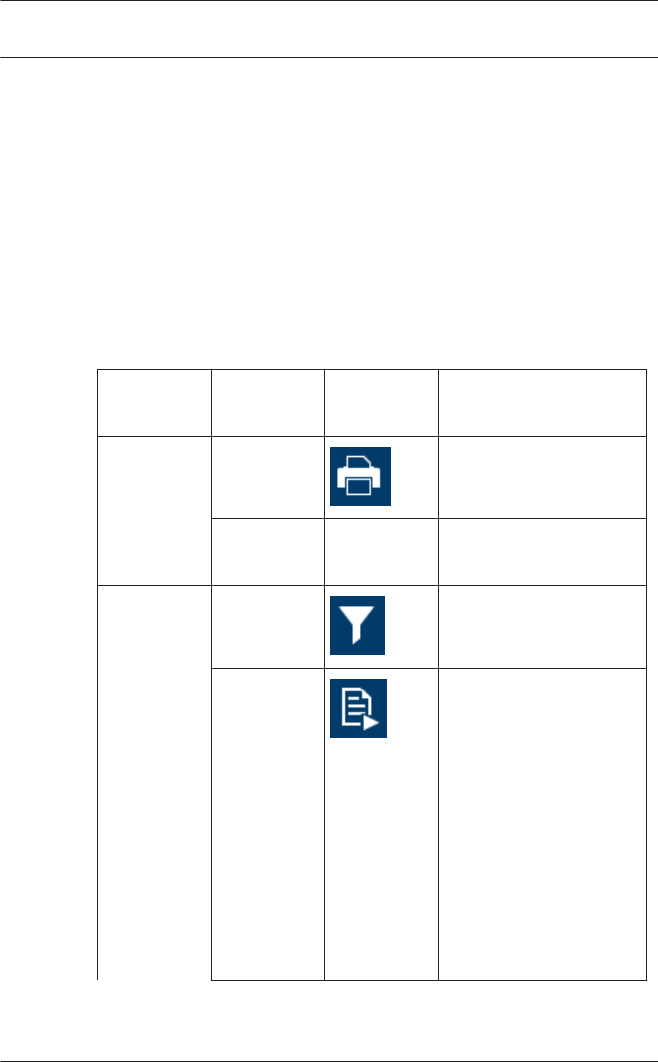
The following functions are available for log evaluation via
menus and icon buttons.
Menu Function Icon
button
Description
File Print... Print the log messages
displayed
Exit Closes the LogViewer
application.
Filter Filter
definition
Opens the message
filtering dialog.
Continuous
mode on
Starts continuous
message display. This
icon is only active
when the function is
not already running
and the message filter
is set to the current
day.
Continuous message
display is the default
setting.
2.4
12 en | General Access Professional
Edition
2017-04 | APE-UL | Log Viewer Bosch Access Systems GmbH
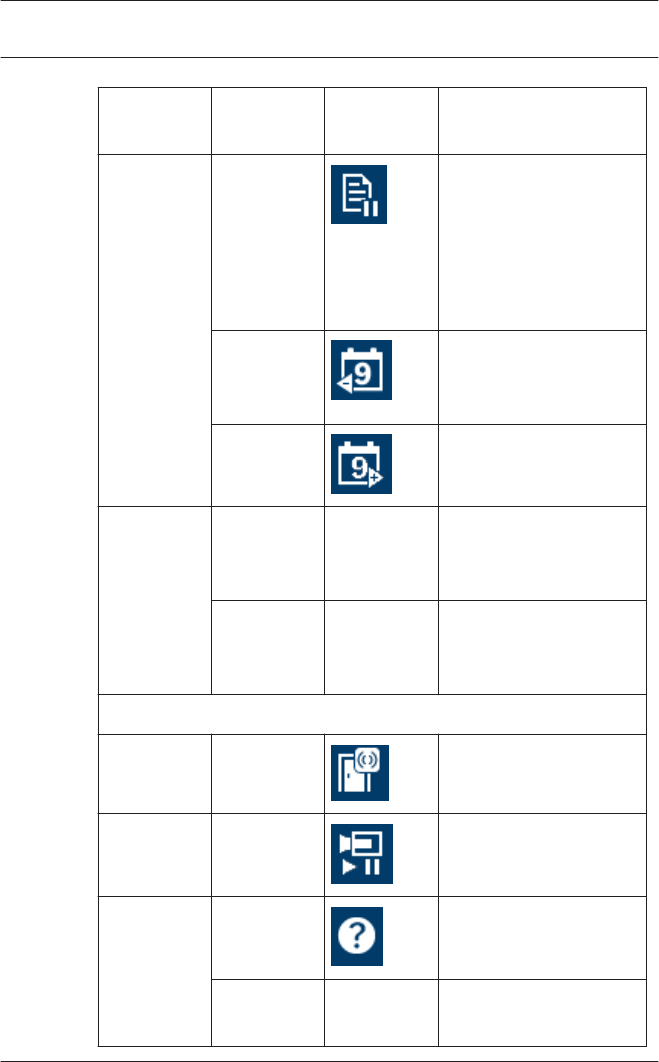
Menu Function Icon
button
Description
Continuous
mode off
Pauses the continuous
message display. This
icon is only active
when continuous
message display is
running.
Events
previous
day
Switch to previous
day's messages.
Events next
day
Switch to next day's
messages.
View Symbol bar Hides/Displays the
tool bar.
Default = on.
Status bar Hides/Displays the
status bar.
Default = on.
without a menuitem
? (Help) Help topics Opens this help file.
About
LogViewer
Opens Help About
Access PE LogViewer.
Access Professional
Edition General | en 13
Bosch Access Systems GmbH 2017-04 | APE-UL | Log Viewer
Logbook
All processes (including, for example, login and logout data for
users at a workstation) in the Access PE access control system
are forwarded using corresponding messages and stored in the
event logs. You can separate security-related messages (alarm
messages) from purely information-related items by classifying
them; this makes it easier for you to implement any further
measures that may be necessary.
For a clear presentation with the option to filter important
messages and alert dialog users, you can install and start the
Logviewer dialog on any workstation, provided that the user
rights of the person who is logged in allow this.
Message list
The main function of LogViewer is the display of log messages
both current and historical.
By default the display is continuously updated with incoming
messages. The relevant icon buttons appear with the following
statuses: .
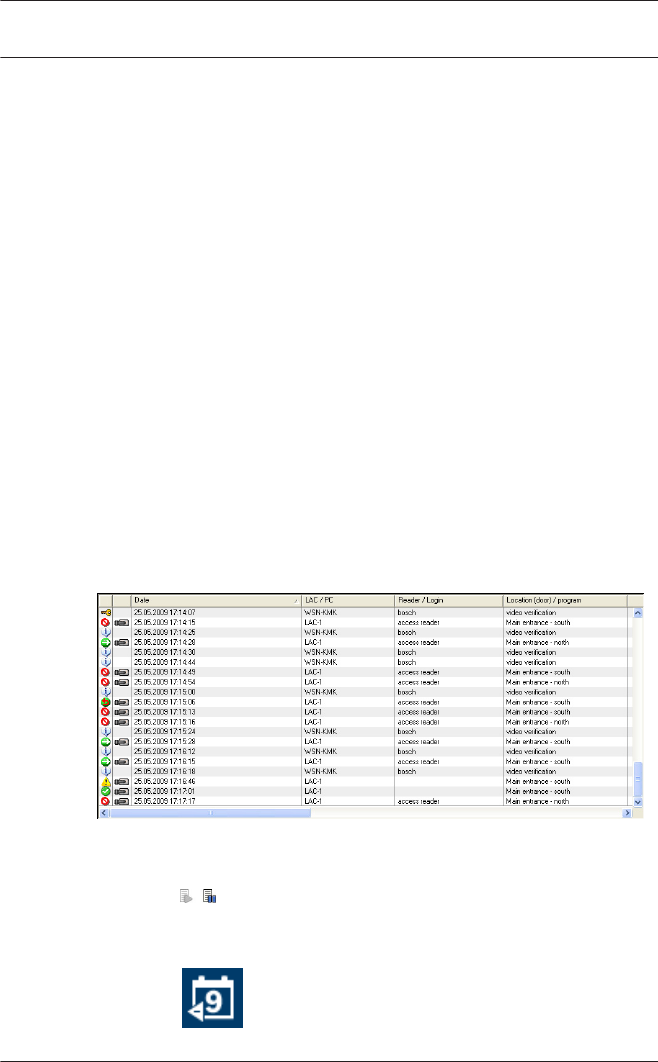
Upon startup of LogViewer the current day's messages are
displayed. The messages from previous days can be displayed
using the button. A log file with the filename format
3
3.1
14 en | Logbook Access Professional
Edition
2017-04 | APE-UL | Log Viewer Bosch Access Systems GmbH
Msg<yyyymmdd>.log is created every day in the following
directory C:\BOSCH\Access Professional Edition\Data
\MsgLog. All such files can be displayed in LogViewer.
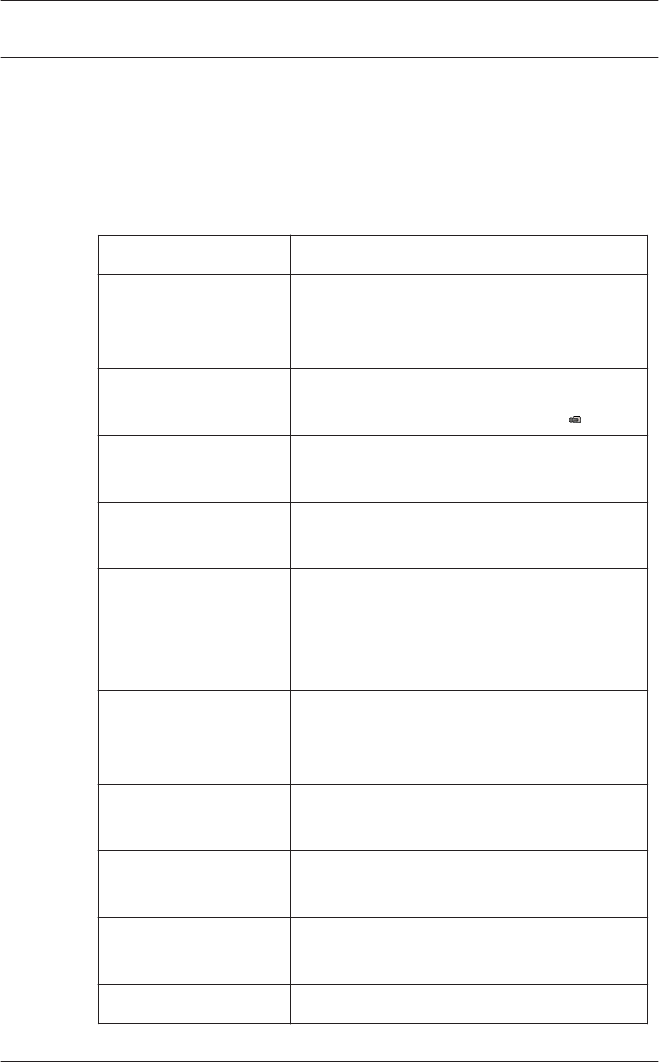
The message list contains columns with the following
information:
Column Description
(no title) Symbolic representation of the
message category as defined in
Configurator.
(no title) Identification of the messages for
which a video recording exists:
Date Date and time when the message was
created.
LAC / PC Source of the message: name of the
controller or workstation.
Reader / Login Source of the message if the controller
has only forwarded the message. If
source is a workstation then the name
of the workstation user.
Location (Door) /
Program
Name of the entrance, signal or other
installation. If a workstation then the
name of the application.
No. Message number as per the list of
event log texts in the Configurator.
Message Message text as defined in
Configurator.
Card-No. card number (in as far as it was
readable and known to the system).
Last name Surname of the cardholder.
Access Professional
Edition Logbook | en 15
Bosch Access Systems GmbH 2017-04 | APE-UL | Log Viewer
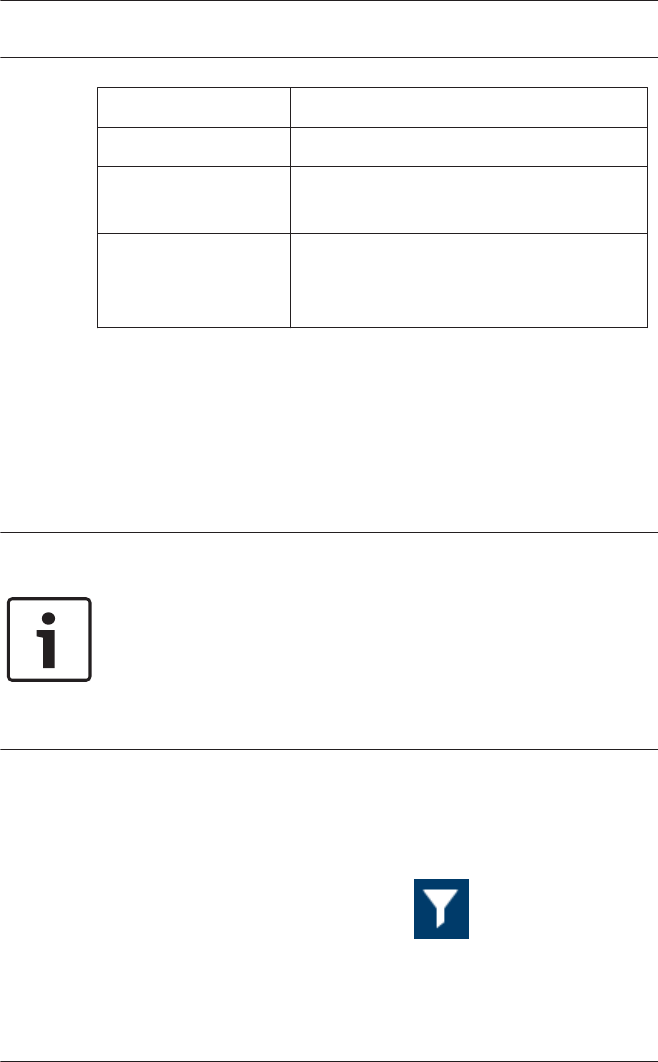
Column Description
First name First name of the cardholder.
Company / Dept. Company / Department of the
cardholder.
Local date If the AMC is located in a different time
zone, then the local creation time for
the message is shown here.
The message list can be customized as desired. For example,
the order of columns can be changed by dragging and dropping
the column headers. Thus you can give prominence to those
columns you consider most important.
In order to find the messages that interest you more effectively,
the list view allows you to sort (toggling ascending or
descending order) by double clicking on any column header.
Notice!
Depending on the user's assigned rights the messages
displayed will be more or less limited. For users who are only
entitled to view own messages, all messages pertaining to other
persons will be filtered out. For users who are not entitled to
view any personnel data the last four columns of the contents
will appear blank.
Filtering messages
To restrict the display to messages matching specific criteria
click Filter > Filter Definition or the icon button in the
tool bar. A dialog for choosing filter criteria will be opened.
3.2
16 en | Logbook Access Professional
Edition
2017-04 | APE-UL | Log Viewer Bosch Access Systems GmbH
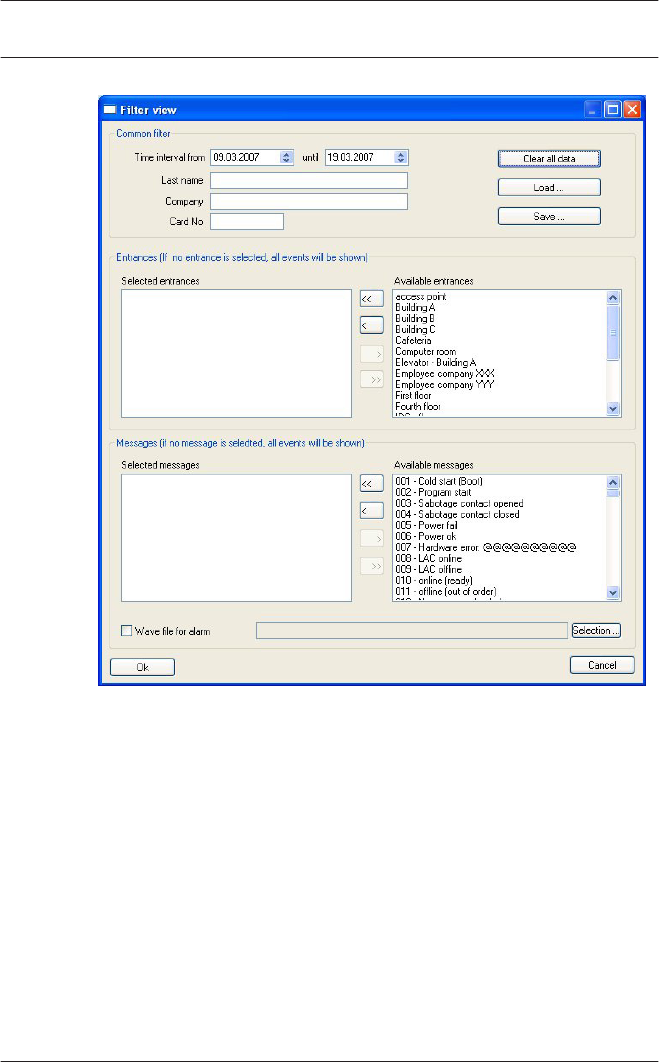
You can filter messages according to the following criteria:
Access Professional
Edition Logbook | en 17
Bosch Access Systems GmbH 2017-04 | APE-UL | Log Viewer

Filter criterion Description Notes
Time period
from ... to...
By entering dates
here it is possible to
restrict the display to
a certain time period.
The current date can
be entered as latest
date.
By entering other
dates displays of
events from past
dates you can change
or expand upon the
data already
displayed.
Because all log
files will be read it
is unwise to
specify a very long
period for the
display. Depending
on the size of the
log files we
recommend a
maximum of one
month in total.
Name The display can be
limited to persons
whose names match
the filter criteria.
The filters Name,
Company/Dept.
and card must be
used singly and
can not be used in
combination.
Company/Dept. The display can be
limited to persons
from specified
companies or
departments.
card The display can be
limited to persons
whose card numbers
lie within a specified
range. E.g. all card
numbers beginning
with 6.
18 en | Logbook Access Professional
Edition
2017-04 | APE-UL | Log Viewer Bosch Access Systems GmbH
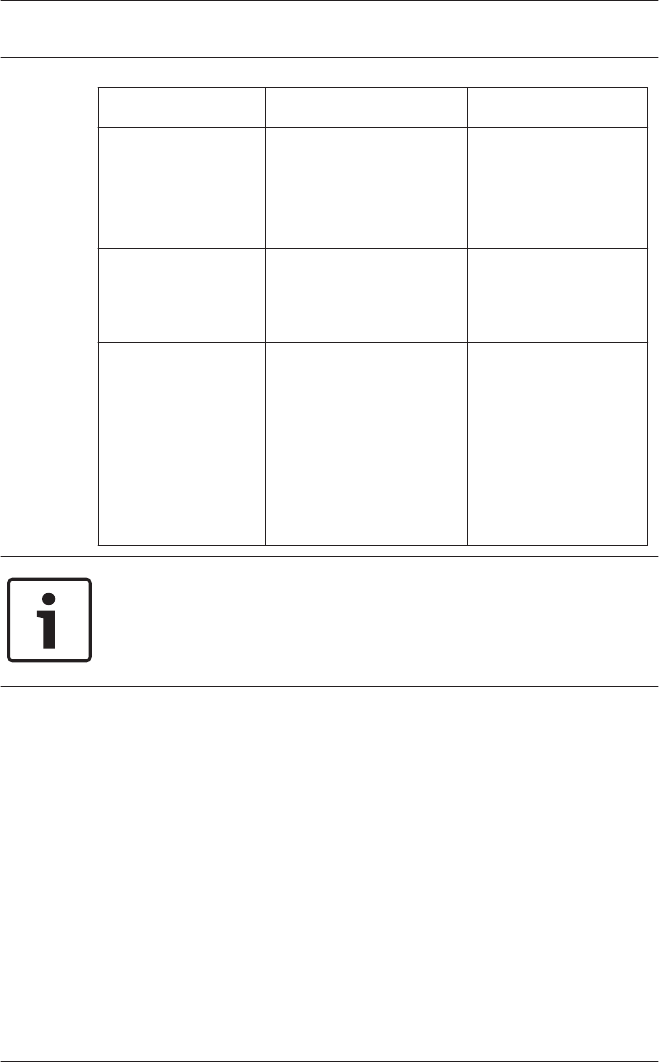
Filter criterion Description Notes
Entrances Limits the display to
those messages
concerning specified
entrances.
Messages Limits the display to
certain message
types.
Alarm siren
with .wav file
Alarm Messages can
be emphasized by
playing an acoustic
signal. Any system
audio files can be
selected to
accompany an alarm.
Notice!
A filter is only active as long as the application is running.
Default settings (i.e. current day, no filtering) are restored as
soon as LogViewer is restarted.
Saving and reloading filters
To avoid having to redefine filters at every restart of the program
LogViewer allows each user to store and reload preferred filter
settings.
After defining you personal filter settings you can store them by
clicking Save... at the bottom of the dialog box. By default
named filter settings (<filename>.flt) are stored in C:\BOSCH
\Access Professional Edition\Data\Cfg
Access Professional
Edition Logbook | en 19
Bosch Access Systems GmbH 2017-04 | APE-UL | Log Viewer
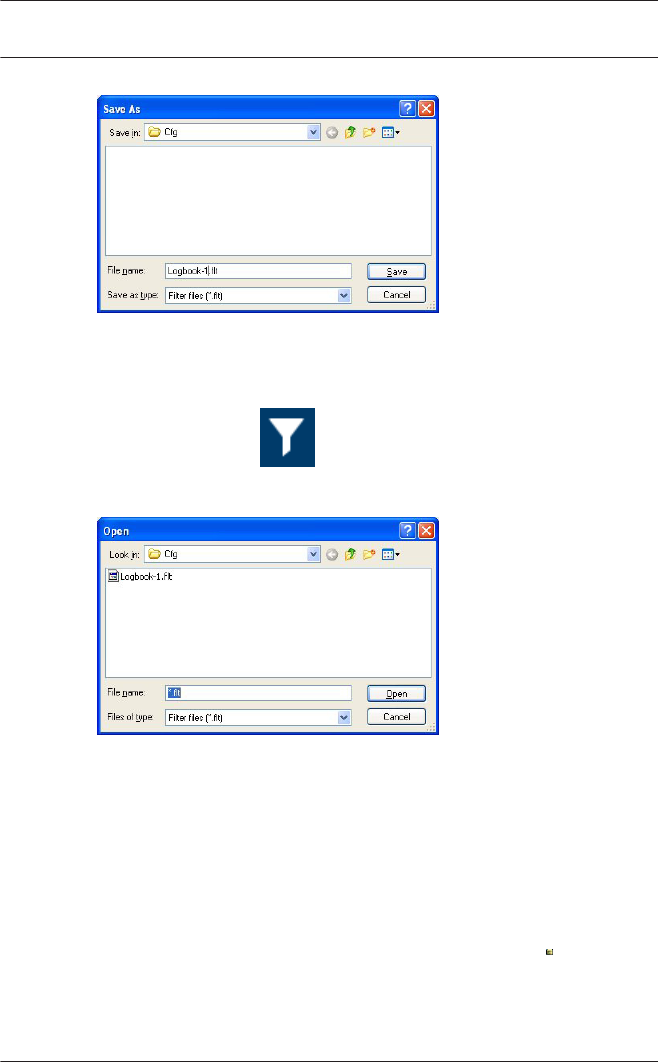
Saved filter settings can be reloaded and activated by picking
them from the Filter combo-box in the bottom left corner.
To check and/or edit a previously defined filter, first load and
open it by clicking and then Load... on the Filter view
dialog.
The loaded filter settings can now be verified, modified and
finally applied to the running application by clicking OK.
Activating alarm mode
By clicking Activate alarm , or by selecting a saved filter with
alarm activation, the LogViewer window is closed and goes into
standby mode. It appears in the Systray as the icon . Upon
mouse-over the following text is displayed Access PE: Wait for
alarm. By double clicking the icon the dialog window can be
brought back into the foreground at any time.
3.3
20 en | Logbook Access Professional
Edition
2017-04 | APE-UL | Log Viewer Bosch Access Systems GmbH
Notice!
As long as Alarm mode is active the application can not be
closed by the x button in the title bar, nor by File > Exit.
Instead LogViewer returns to standby mode.
If a message is received then the main window is brought back
to the foreground.
As long as the Sound Off box has not been checked the
incoming alarm will also be accompanied by an acoustic signal.
Reports: Page view
It I possible to set filters to limit the report contents to a subset.
If no filter is set then all data are reported. The Search button
triggers the collection of data and their display in a preview
window.
Notice!
When changing filter criteria it is advisable to make use of the
Clear form button to avoid unintentional filtering and hence
misleading reports.
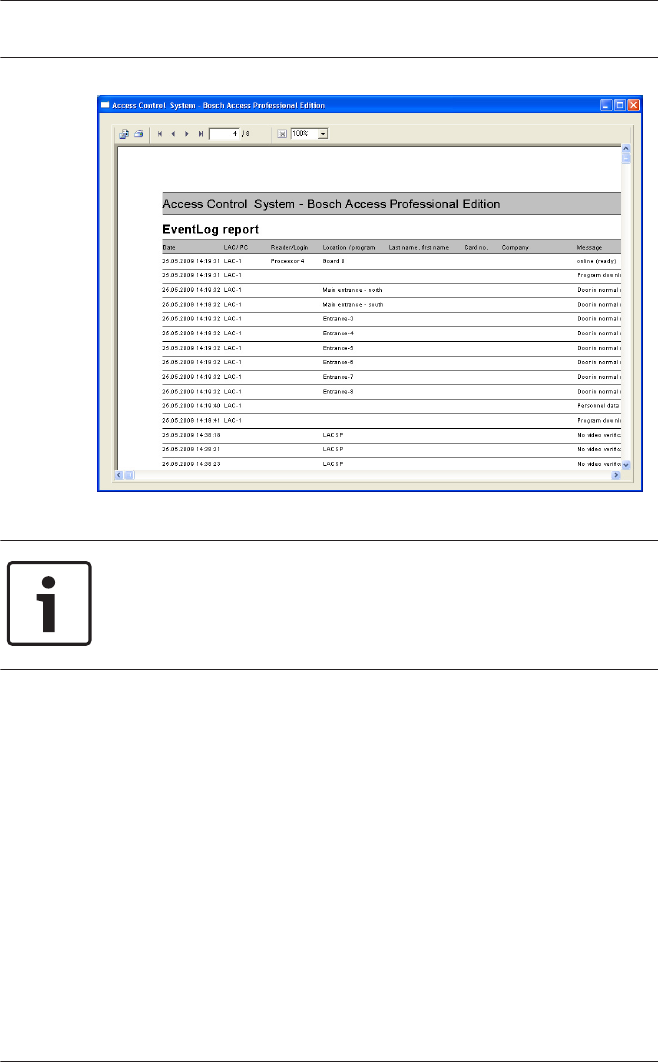
Open log files can be saved or printed. The menu item File >
Print or the button opens a preview.
3.4
Access Professional
Edition Logbook | en 21
Bosch Access Systems GmbH 2017-04 | APE-UL | Log Viewer
Notice!
All opened log files will be printed.
Close all files which should not printed or reduce the selection
to the important messages.
The reports page view offers a number of tools for modifying
and manipulating the display:
22 en | Logbook Access Professional
Edition
2017-04 | APE-UL | Log Viewer Bosch Access Systems GmbH
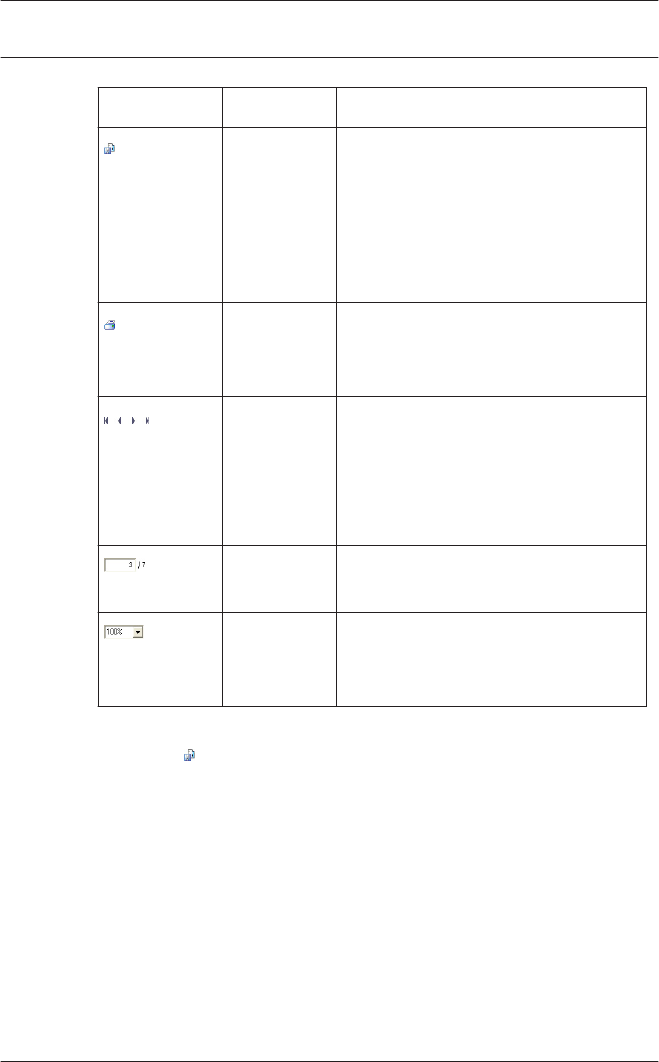
Button Meaning Description
Export The list can be exported to a file
for further processing. The
following formats are available:
Acrobat Portable Document
Format (PDF)
Comma Separated Values (CSV)
Print Prints the report via a print dialog
which allows the setting of a
default printer.
Select page The arrow buttons turn to the
first, previous, next or last pages
of the report. The control also
shows the current and the total
number of pages in the report.
No. of
pages
Prompts the current page and the
number of all pages.
Zoom The standard scale of the view
(100%) can be changed as
desired.
Exporting lists
Press the button to open a dialog for defining the export
criteria.
Access Professional
Edition Logbook | en 23
Bosch Access Systems GmbH 2017-04 | APE-UL | Log Viewer
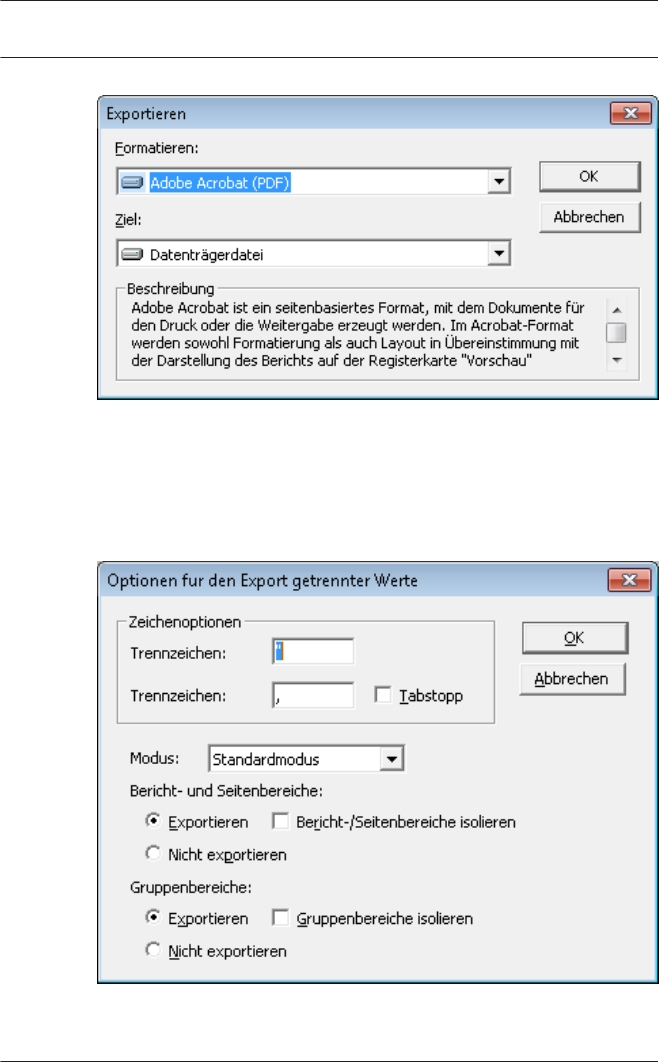
The Format selection list field offers the output formats .pdf
(for forwarding and archiving specific search results) and .csv
(for further processing data).
When exporting data to a csv file, it can be processed to some
extent on the way.
24 en | Logbook Access Professional
Edition
2017-04 | APE-UL | Log Viewer Bosch Access Systems GmbH
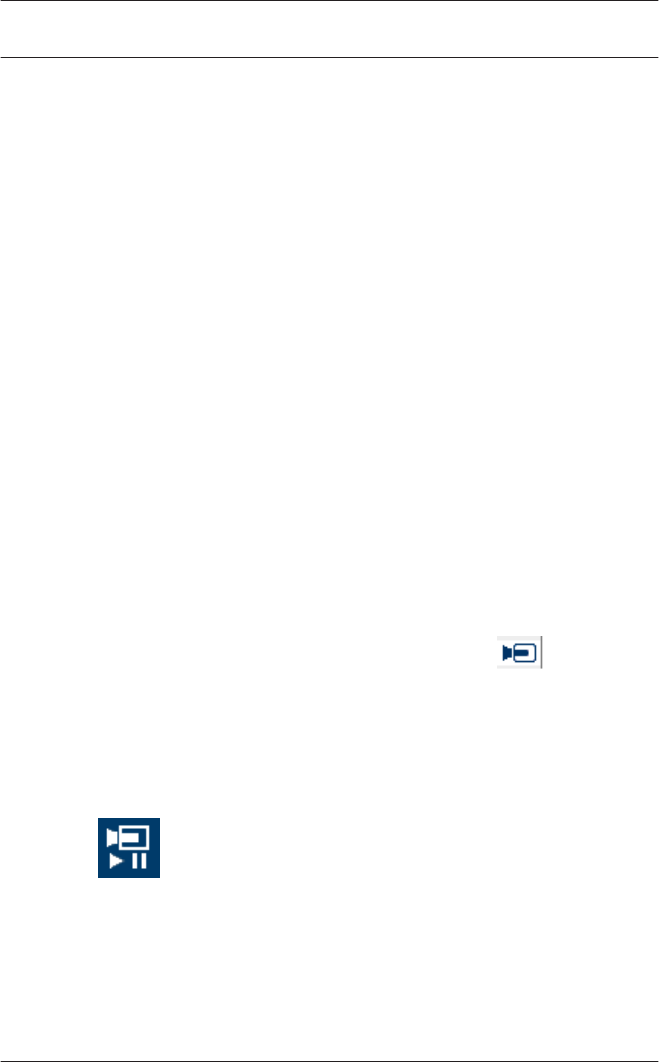
As well as entering the Delimiter and the export Mode, you can
also exclude or isolate Report and Page sections (column
headers and page details) and Group sections (selected data)
from the export.
You can select one of the following options as the Destination.
–Application — opens the file with the appropriate
application. This application must also be installed on the
computer. pdf files are opened with Adobe Acrobat Reader
and csv files are opened with MS Excel.
–Disk file (default) — opens an Explorer dialog for selecting
the directory you require. A name for saving the file is
suggested.
–Exchange folder — the file can be sent directly to an MS
Outlook recipient.
–Lotus Domino Mail — the file can be sent directly to a Lotus
Mail recipient.
Video playback
If a surveillance camera has been configured for an entrance, all
messages for this entrance are marked with a in the log
book dialog. Depending on the video device configuration, this
means that video sequences from the selected surveillance
camera are available, and can be played back, starting at the
time the message was issued.
When you select a message with camera identification, the
button in the toolbar is activated. Press this button to
open the Video playback dialog.
3.5
Access Professional
Edition Logbook | en 25
Bosch Access Systems GmbH 2017-04 | APE-UL | Log Viewer
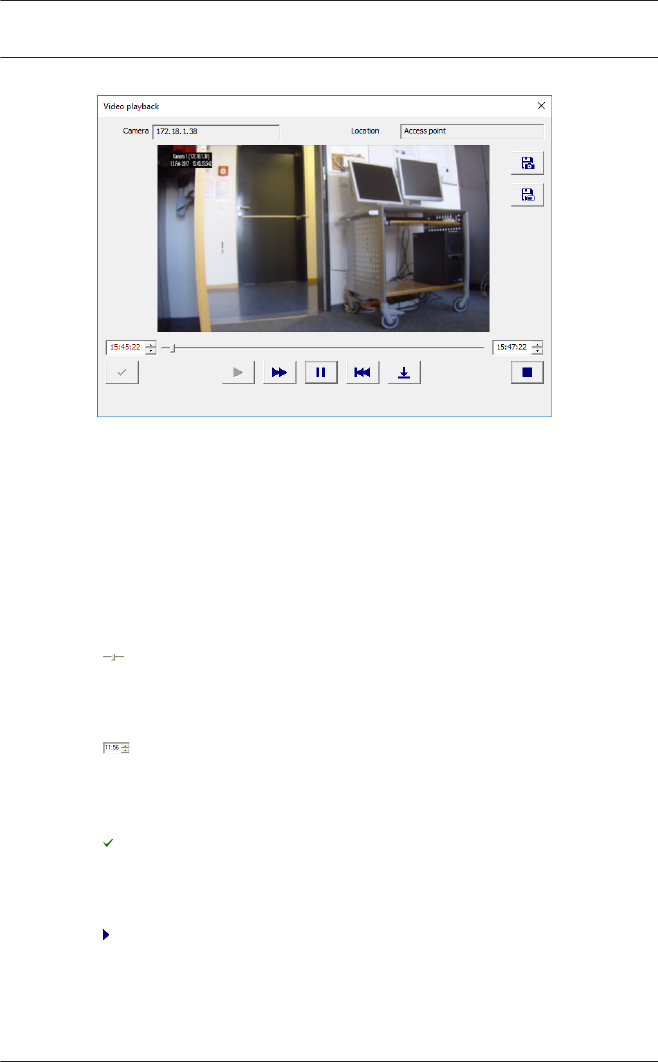
Video playback
When you open the Video playback dialog, the playback starts,
by default, 20 seconds before the alarm was issued and ends
after 120 seconds.
You can configure the starting point and duration of sequences
that are set when an alarm is issued.
Notes on operating the dialog:
Progress display showing how far through
the set time period the recording currently
is.
Adjustable fields for the beginning and end
of the time period for the video sequence
to be shown.
The beginning and end times you set are
only activated when you confirm them by
pressing this button.
Restarts the video sequence after you have
interrupted it with the pause button, or
reduces the playback speed if you had fast
mode activated.
26 en | Logbook Access Professional
Edition
2017-04 | APE-UL | Log Viewer Bosch Access Systems GmbH
Fast mode — fast-forwards the video
sequence.
Pause — interrupts the display — produces a
still image.
Jumps to the start of the sequence and
restarts the playback.
Jumps to the issue time of the alarm for
which the video recording was opened.
Note: This is only possible if the time of the
alarm is within the set interval.
Closes the Video playback dialog.
Access Professional
Edition Logbook | en 27
Bosch Access Systems GmbH 2017-04 | APE-UL | Log Viewer

UL 294 Requirements
Features not evaluated by UL:
– The Video Verification System
– Map Viewer and Alarm Management with Map and Video
Verification
– Video Player
– Badge Designer
– The Delta 1200 Series
– Rosslare ARD-1200EM Series
– LAC Type
– LACi Controllers AMC-4R4 BG900
– L-Bus types
– Security System IDS - Arming/Disarming
– Elevator Use
– Texts
– Logbook
– Personnel Management
– Reports
– Burglar Alarm Use
Features evaluated by UL:
– 26-bit Wiegand format readers
– AMC2 Controllers:
– APC-AMC2-4WCF
– API-AMC2-4WE
– API-AMC2-8IOE
– API-AMC2-16IOE
– APE-SW as supplementary monitoring equipment
4
28 en | UL 294 Requirements Access Professional
Edition
2017-04 | APE-UL | Log Viewer Bosch Access Systems GmbH

Bosch Access Systems GmbH
Charlottenburger Allee 50
52068 Aachen
Germany
www.boschsecurity.com
© Bosch Access Systems GmbH, 2017
