Bosch Viewer_operators_manual_fi Fi BVMS Viewer 8.0 Operation Manual 35117393035
User Manual: Bosch fi-fi Bosch VMS Viewer 8.0
Open the PDF directly: View PDF  .
.
Page Count: 74
- Table of contents
- 1 Using the Help
- 2 Introduction
- 3 System overview
- 4 Concepts
- 5 Getting started
- 6 Displaying camera images
- 6.1 Selecting a time zone
- 6.2 Displaying a camera in an Image pane
- 6.3 Displaying a panoramic camera
- 6.4 Switching the viewing mode of panoramic camera
- 6.5 Displaying a dual thermal/optical camera
- 6.6 Arranging and resizing Image panes
- 6.7 Starting a pre-configured camera sequence
- 6.8 Starting an automatic camera sequence
- 6.9 Using one channel audio mode
- 6.10 Using multichannel audio mode
- 6.11 Saving a single image
- 6.12 Printing a single image
- 6.13 Switching to full-screen mode
- 6.14 Displaying or hiding the Image pane bars
- 6.15 Enabling video content analysis (VCA)
- 6.16 Showing video content analysis (VCA) rules
- 6.17 Starting instant playback
- 6.18 Connecting to an unmanaged site
- 7 Using maps and the PTZ cameras
- 8 Using favorites and bookmarks
- 9 Managing recorded videos
- 9.1 Selecting a time zone
- 9.2 Playing recorded videos
- 9.3 Using the Timeline
- 9.4 Changing the playback speed
- 9.5 Restricting video
- 9.6 Protecting video
- 9.7 Deleting video data
- 9.8 Exporting video data
- 9.9 Exporting into a single file
- 9.10 Loading exported video
- 9.11 Performing a Forensic Search (only VRM recordings)
- 9.12 Enabling video content analysis (VCA)
- 9.13 Finding motion
- 9.14 Connecting to an unmanaged site
- 10 User interface
- 10.1 Live Mode
- 10.2 Playback Mode
- 10.3 Used icons
- 10.4 Menu commands
- 10.5 Options dialog box
- 10.6 Logical Tree window
- 10.7 Favorites Tree window
- 10.8 Bookmarks window
- 10.9 Add Bookmark dialog box
- 10.10 Search box
- 10.11 Exports window
- 10.12 PTZ Control window
- 10.13 Image window
- 10.14 Image pane
- 10.15 Timeline window
- 10.16 Motion Search dialog box
- 10.17 Delete Video dialog box
- 10.18 Forensic Search dialog box
- 10.19 Restrict Video dialog box
- 10.20 Unrestrict Video dialog box
- 10.21 Protect Video dialog box
- 10.22 Unprotect Video dialog box
- 10.23 Delete Video dialog box
- 10.24 Export Video dialog box
- 10.25 Export Bookmark dialog box
- 10.26 Export Multiple Bookmarks dialog box
- 10.27 Export dialog box
- 10.28 Motion Search Results window
- 10.29 Video Search Results window
- 11 Keyboard shortcuts
- Glossary
- Index
Bosch Video Management System
en User Manual

Bosch Video Management System Table of contents | en 3
Bosch Sicherheitssysteme GmbH User Manual 2017.10 | V 1 | Bosch VMS Viewer Operator
Client
Table of contents
1Using the Help 6
1.1 Finding information 6
1.2 Printing the Help 7
2Introduction 8
3System overview 9
3.1 Hardware requirements 9
3.2 Software requirements 9
3.3 License requirements 9
4Concepts 10
4.1 Bosch VMS Viewer 10
4.2 Unmanaged site 11
4.3 Viewing modes of a panoramic camera 11
4.3.1 360° panoramic camera - floor- or ceiling mounted 11
4.3.2 180° panoramic camera - floor- or ceiling mounted 13
4.3.3 360° panoramic camera - wall mounted 14
4.3.4 180° panoramic camera - wall mounted 15
4.3.5 Cropped view on a panoramic camera 16
4.4 SSH Tunneling 17
5Getting started 18
5.1 Starting Bosch VMS Viewer Operator Client 18
6Displaying camera images 19
6.1 Selecting a time zone 19
6.2 Displaying a camera in an Image pane 20
6.3 Displaying a panoramic camera 20
6.4 Switching the viewing mode of panoramic camera 21
6.5 Displaying a dual thermal/optical camera 21
6.6 Arranging and resizing Image panes 22
6.7 Starting a pre-configured camera sequence 22
6.8 Starting an automatic camera sequence 23
6.9 Using one channel audio mode 24
6.10 Using multichannel audio mode 24
6.11 Saving a single image 24
6.12 Printing a single image 25
6.13 Switching to full-screen mode 25
6.14 Displaying or hiding the Image pane bars 25
6.15 Enabling video content analysis (VCA) 26
6.16 Showing video content analysis (VCA) rules 26
6.17 Starting instant playback 26
6.18 Connecting to an unmanaged site 26
7Using maps and the PTZ cameras 28
7.1 Controlling PTZ cameras 28
7.2 Using in-window control of a camera 28
8Using favorites and bookmarks 30
8.1 Adding items to the Favorites Tree 30
8.2 Creating/editing views 31
8.3 Adding a bookmark 32
8.4 Editing a bookmark 32
8.5 Loading a bookmark 33

4en | Table of contents Bosch Video Management System
2017.10 | V 1 | Bosch VMS Viewer Operator
Client
User Manual Bosch Sicherheitssysteme GmbH
8.6 Exporting bookmarks 33
9Managing recorded videos 34
9.1 Selecting a time zone 34
9.2 Playing recorded videos 35
9.3 Using the Timeline 35
9.4 Changing the playback speed 35
9.5 Restricting video 36
9.6 Protecting video 36
9.7 Deleting video data 37
9.8 Exporting video data 38
9.9 Exporting into a single file 38
9.10 Loading exported video 39
9.11 Performing a Forensic Search (only VRM recordings) 39
9.12 Enabling video content analysis (VCA) 39
9.13 Finding motion 40
9.14 Connecting to an unmanaged site 40
10 User interface 42
10.1 Live Mode 42
10.2 Playback Mode 43
10.3 Used icons 44
10.4 Menu commands 47
10.5 Options dialog box 49
10.5.1 Control tab 49
10.5.2 Display tab 49
10.6 Logical Tree window 50
10.7 Favorites Tree window 50
10.8 Bookmarks window 51
10.9 Add Bookmark dialog box 51
10.10 Search box 52
10.11 Exports window 52
10.12 PTZ Control window 52
10.13 Image window 53
10.14 Image pane 54
10.15 Timeline window 54
10.16 Motion Search dialog box 55
10.17 Delete Video dialog box 55
10.18 Forensic Search dialog box 55
10.19 Restrict Video dialog box 56
10.20 Unrestrict Video dialog box 57
10.21 Protect Video dialog box 58
10.22 Unprotect Video dialog box 58
10.23 Delete Video dialog box 59
10.24 Export Video dialog box 59
10.25 Export Bookmark dialog box 61
10.26 Export Multiple Bookmarks dialog box 63
10.27 Export dialog box 64
10.28 Motion Search Results window 64
10.29 Video Search Results window 65
11 Keyboard shortcuts 66

6en | Using the Help Bosch Video Management System
2017.10 | V 1 | Bosch VMS Viewer Operator
Client
User Manual Bosch Sicherheitssysteme GmbH
1 Using the Help
Notice!
This document describes some functions that are not available for Bosch VMS Viewer.
To find out more about how to do something in BoschVMS, access the online Help using any
of the following methods.
To use the Contents, Index, or Search:
4On the Help menu, click Help. Use the buttons and links to navigate.
To get help on a window or dialog:
4On the toolbar, click .
OR
4Press F1 for help on any program window or dialog.
1.1 Finding information
You can find information in the Help in several ways.
To find information in the Online Help:
1. On the Help menu, click Help.
2. If the left-hand pane is not visible, click the Show button.
3. In the Help window, do the following:
Click: To:
Contents Display the table of contents for the Online Help. Click each book to
display pages that link to topics, and click each page to display the
corresponding topic in the right-hand pane.
Index Search for specific words or phrases or select from a list of index
keywords. Double-click the keyword to display the corresponding topic
in the right-hand pane.
Search Locate words or phrases within the content of your topics. Type the
word or phrase in the text field, press ENTER, and select the topic you
want from the list of topics.
Texts of the user interface are marked bold.
4The arrow invites you to click on the underlined text or to click an item in the application.
Related Topics
4Click to display a topic with information on the application window you currently use.
This topic provides information on the application window controls.
Caution!
Medium risk (without safety alert symbol): Indicates a potentially hazardous situation.
If not avoided, this may result in property damage or risk of damage to the unit.
Cautionary messages should be heeded to help you avoid data loss or damaging the system.
Notice!
This symbol indicates information or a company policy that relates directly or indirectly to the
safety of personnel or protection of property.

Bosch Video Management System Using the Help | en 7
Bosch Sicherheitssysteme GmbH User Manual 2017.10 | V 1 | Bosch VMS Viewer Operator
Client
1.2 Printing the Help
While using the Online Help, you can print topics and information right from the browser
window.
To print a Help topic:
1. Right-click in the right pane and select Print.
The Print dialog box opens.
2. Click Print. The topic is printed to the specified printer.
8en | Introduction Bosch Video Management System
2017.10 | V 1 | Bosch VMS Viewer Operator
Client
User Manual Bosch Sicherheitssysteme GmbH
2 Introduction
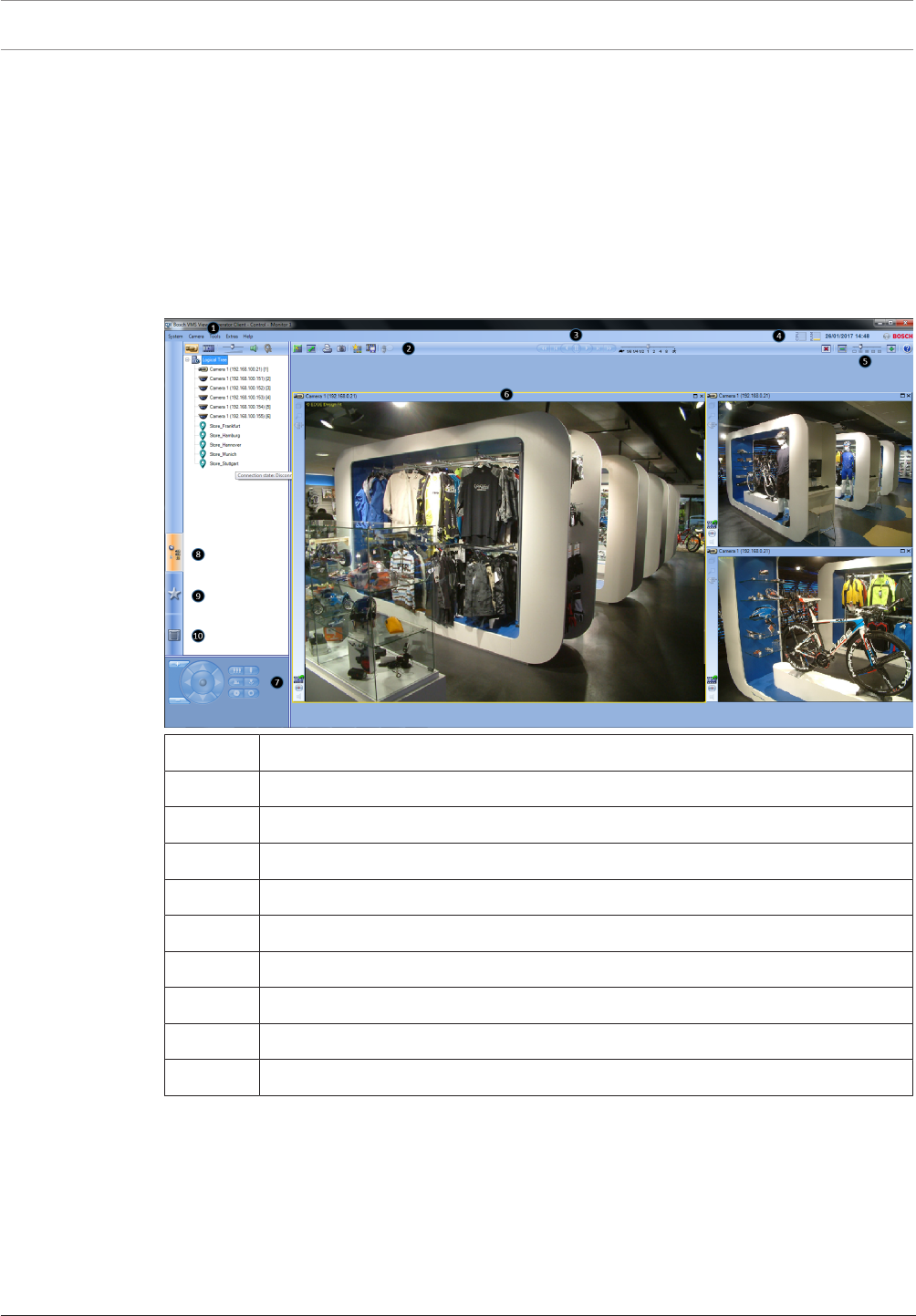
The Bosch VMS Viewer is an IP video security application for live viewing and playback video
of Bosch network attached cameras and recorders. The software package consists of an
OperatorClient for live viewing and playback of video and a ConfigurationClient. The Bosch
VMS Viewer supports the current Bosch IP video product portfolio as well as legacy Bosch
video devices.
Click the link to access the Open Source Software licenses used by Bosch VMS Viewer:
http://www.boschsecurity.com/oss.
1 Menu bar
2 Toolbar
3 Instant playback control
4 Performance meter
5 Controls for Image panes
6 Image window
7 PTZ Control window
8 Logical Tree window
9 Favorites Tree window
10 Bookmarks window
Bosch Video Management System System overview | en 9
Bosch Sicherheitssysteme GmbH User Manual 2017.10 | V 1 | Bosch VMS Viewer Operator
Client
3 System overview
Notice!
This document describes some functions that are not available for Bosch VMS Viewer.
Refer to the Release Notes of the current BoschVMS version for supported versions of
firmware and hardware and other important information.
See data sheets on Bosch workstations and servers for information on computers where
BoschVMS can be installed.
The BoschVMS software modules can optionally be installed on one PC.
3.1 Hardware requirements
See the data sheet for BoschVMS. Data sheets for platform PCs are also available.
3.2 Software requirements
Viewer cannot be installed where any other BoschVMS component is installed.
3.3 License requirements
See the data sheet for BoschVMS for the available licenses.
10 en | Concepts Bosch Video Management System
2017.10 | V 1 | Bosch VMS Viewer Operator
Client
User Manual Bosch Sicherheitssysteme GmbH
4 Concepts
This chapter provides background information on selected issues.
Notice!
This document describes some functions that are not available for Bosch VMS Viewer.
4.1 Bosch VMS Viewer
Bosch VMS Viewer is a free of charge variant of BoschVMS.
The Bosch VMS Viewer system is an all in one BoschVMS solution for small to medium
installations and gives the user of Bosch VMS Viewer OperatorClient access to live and
recorded video data. Compared to a BoschVMS system, Bosch VMS Viewer system supports
only a subset of the BoschVMS features and devices. The software is designed for the basic
video surveillance operations, like live viewing, playback video, search in recorded video and
export of video data.
Bosch VMS Viewer consists of a BoschVMS OperatorClient and BoschVMS
ConfigurationClient. Both applications show a reduced feature set compared to the two
applications in BoschVMS.
Bosch VMS Viewer ConfigurationClient is used to add devices to the system, to define the
order of the device and to setup users and user preferences.
Device Configuration
Following device are supported:
– BRS / Dibos
– Digital Video Recorders
– Monitor / decoders (only digital monitor walls)
– VRM devices
– Live only and local storage cameras
– unmanaged sites
Bosch VMS Viewer does not overwrite the configuration of the devices, the devices are added
with existing configuration to Bosch VMS Viewer. If supported by devices, the configuration of
the device can be changed with Bosch VMS Viewer.
Structure of Logical Tree
Cameras, inputs and relays can be structured in the Maps and Structure page of Bosch VMS
Viewer. Devices can be grouped in folders and the order of devices can be configured.
User groups
In the user group settings, users can be configured, that are allowed to access Bosch VMS
Viewer. Depending on the user group settings, users have different rights in Bosch VMS
Viewer OperatorClient.
Supported features
Bosch VMS Viewer OperatorClient supports the following features:
Live viewing:
– PTZ cameras
– Favorites
– Sequences
– Instant replay
– Save and print images
– Select stream

Bosch Video Management System Concepts | en 11
Bosch Sicherheitssysteme GmbH User Manual 2017.10 | V 1 | Bosch VMS Viewer Operator
Client
– Bookmarks
Playback video:
– Smart Motion search
– Forensic Search
– Save and print images
– Export of video data
– Bookmarks
4.2 Unmanaged site
OperatorClient
The user of OperatorClient of system A can connect to another systemB. SystemB is called
unmanaged site, indicated by . The user can for example perform the following tasks on
the video network devices of systemB:
– Display live and playback.
– Export video.
– Delete video.
– Protect and unprotect video.
– Create and print a snapshot.
The user of OperatorClient can switch the time zone if an unmanaged site is configured to be
located in another time zone.
You can configure the time zone of an unmanaged site. This is useful when a user of
OperatorClient wants to access an unmanaged site using a computer with OperatorClient
located in another time zone than this unmanaged site.
Limitations
– Bookmarks can be saved and used, but are not persistent after the OperatorClient has
been restarted.
4.3 Viewing modes of a panoramic camera
This chapter illustrates the viewing modes of a panoramic camera which are available in
BoschVMS.
The following viewing modes are available:
– Circle view
– Panorama view
– Cropped view
Panorama and cropped view modes are created by the dewarping process in BoschVMS. Edge
dewarping is not used.
The administrator must configure the mounting position of a panoramic camera in
ConfigurationClient.
You can resize the Image pane of a camera as required. The Image pane ratio is not restricted
to the 4:3 or 16:9 aspect ratio.
See also
– Displaying a panoramic camera, page 20
– Switching the viewing mode of panoramic camera, page 21
– Arranging and resizing Image panes, page 22
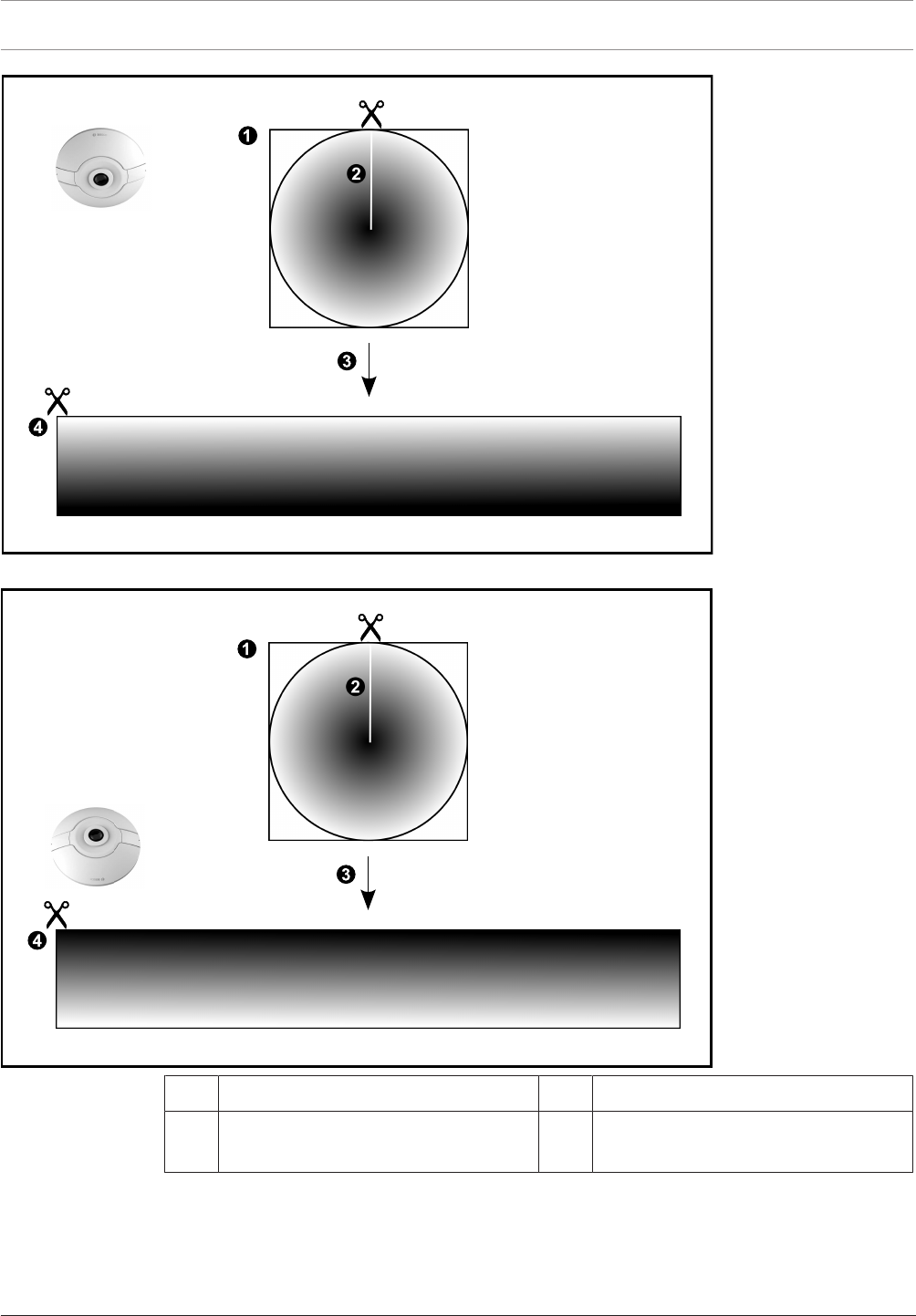
4.3.1 360° panoramic camera - floor- or ceiling mounted
The following figure illustrates the dewarping of a 360° camera which is floor- or ceiling
mounted.
12 en | Concepts Bosch Video Management System
2017.10 | V 1 | Bosch VMS Viewer Operator
Client
User Manual Bosch Sicherheitssysteme GmbH
1 Full circle image 3 Dewarping
2 Snipping line (operator can change its
position when not zoomed in)
4 Panorama view
Bosch Video Management System Concepts | en 13
Bosch Sicherheitssysteme GmbH User Manual 2017.10 | V 1 | Bosch VMS Viewer Operator
Client
4.3.2 180° panoramic camera - floor- or ceiling mounted
The following figure illustrates the dewarping of a 180° camera which is floor- or ceiling
mounted.
1 Full circle image 3 Dewarping
2 Snipping line (operator can change its
position when not zoomed in)
4 Panorama view
14 en | Concepts Bosch Video Management System
2017.10 | V 1 | Bosch VMS Viewer Operator
Client
User Manual Bosch Sicherheitssysteme GmbH
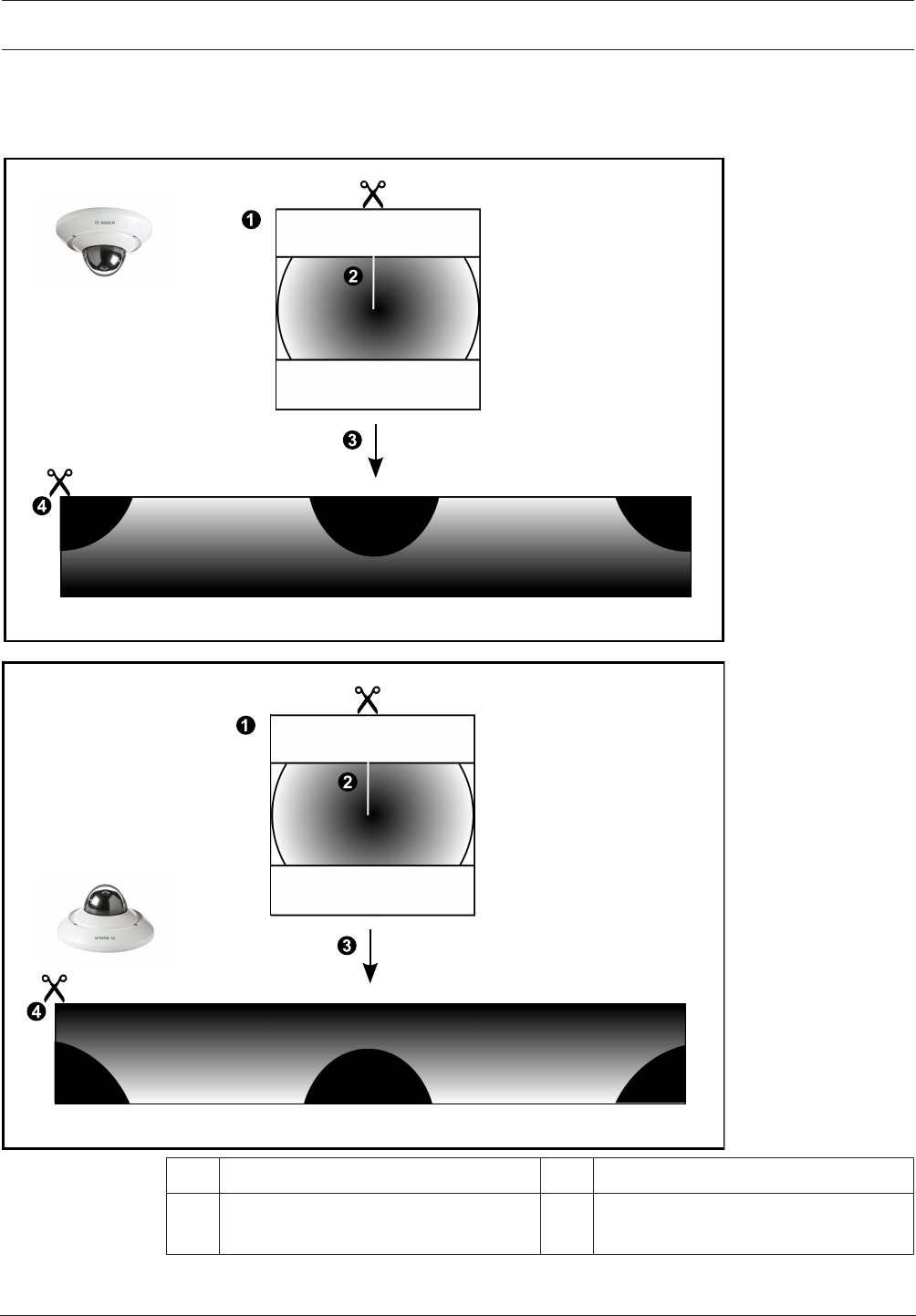
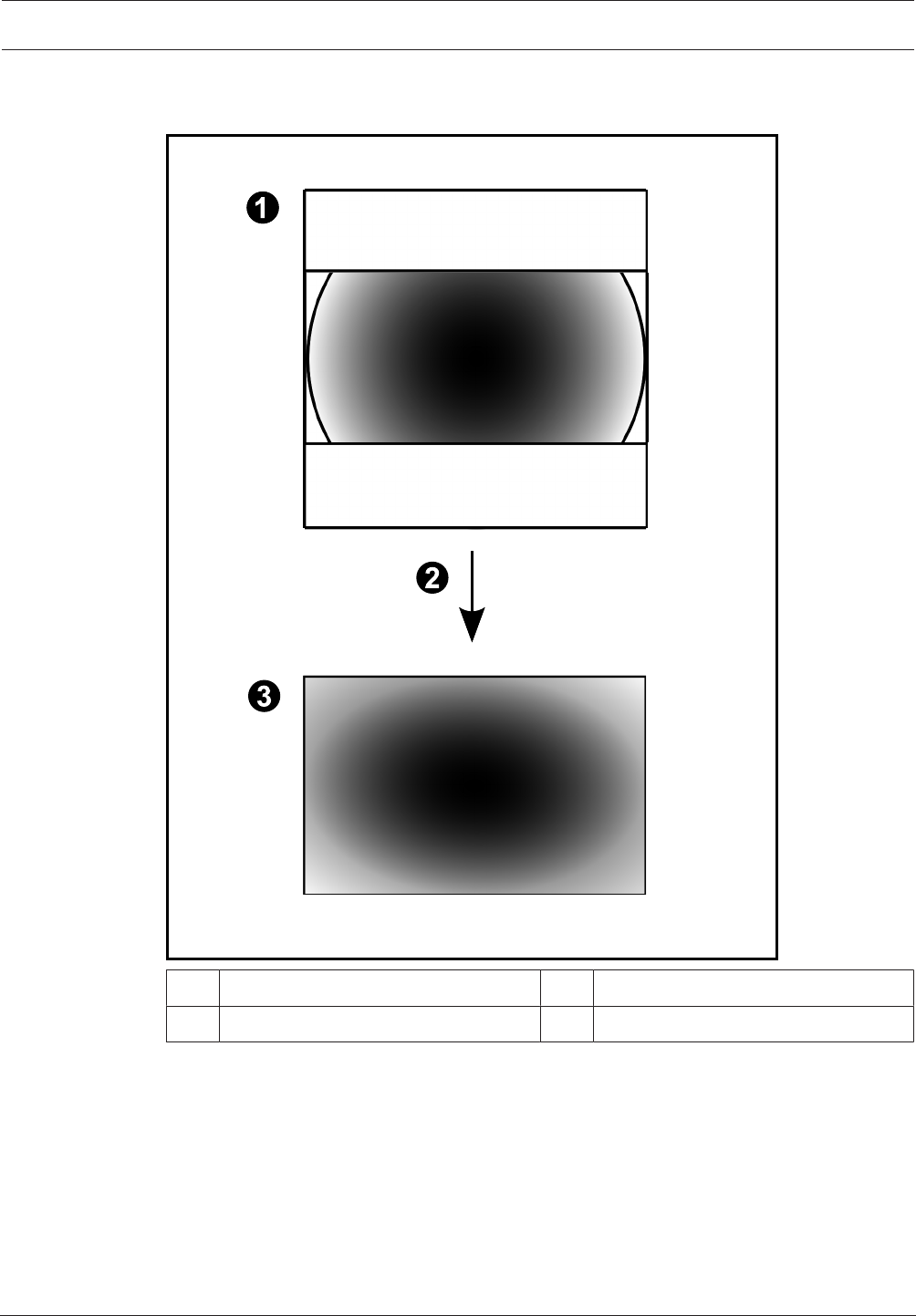
4.3.3 360° panoramic camera - wall mounted
The following figure illustrates the dewarping of a 360° camera which is wall mounted.
1 Full circle image 3 Panorama view
2 Dewarping
Bosch Video Management System Concepts | en 15
Bosch Sicherheitssysteme GmbH User Manual 2017.10 | V 1 | Bosch VMS Viewer Operator
Client
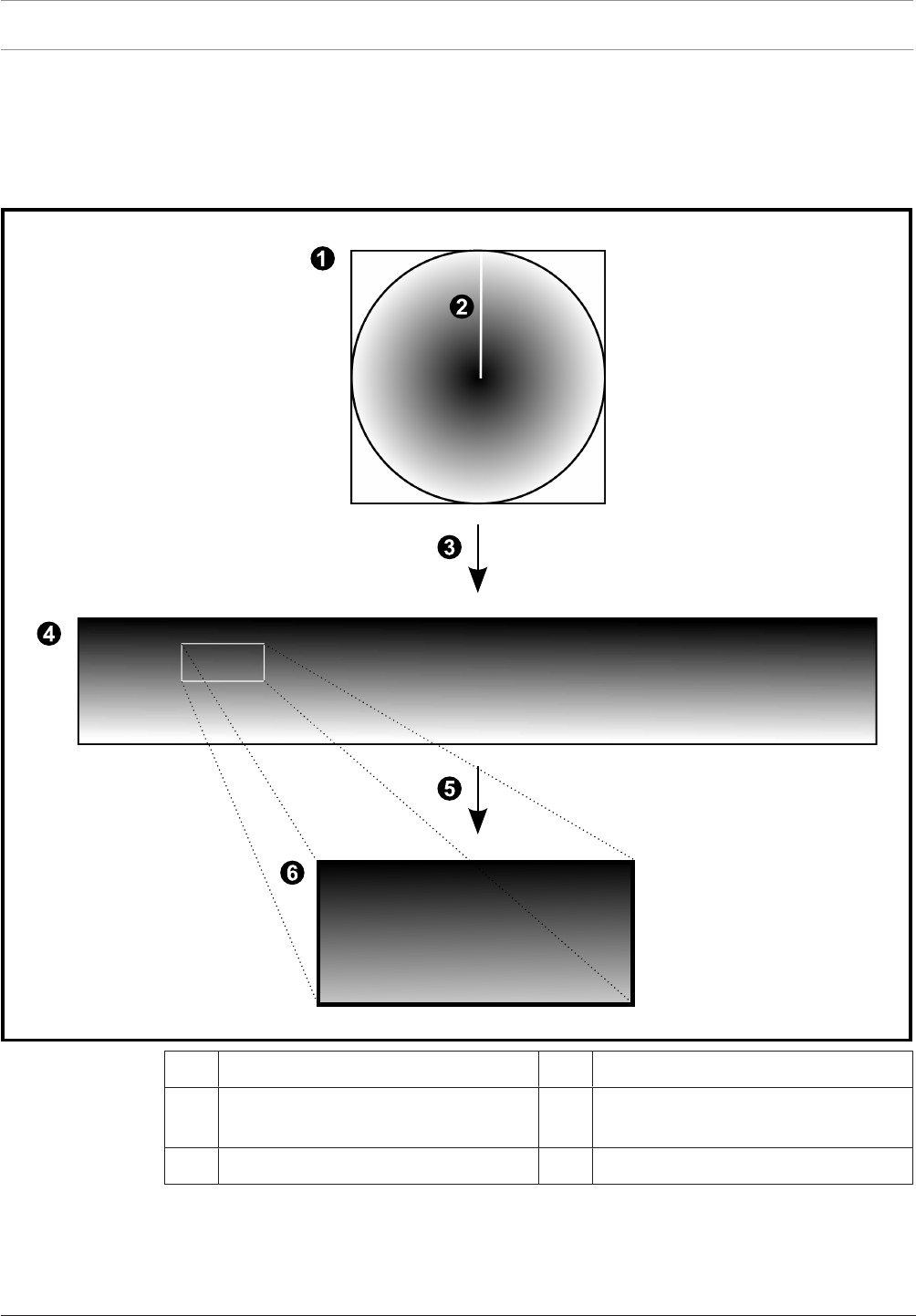
4.3.4 180° panoramic camera - wall mounted
The following figure illustrates the dewarping of a 180° camera which is wall mounted.
1 Full circle image 3 Panorama view
2 Dewarping
16 en | Concepts Bosch Video Management System
2017.10 | V 1 | Bosch VMS Viewer Operator
Client
User Manual Bosch Sicherheitssysteme GmbH
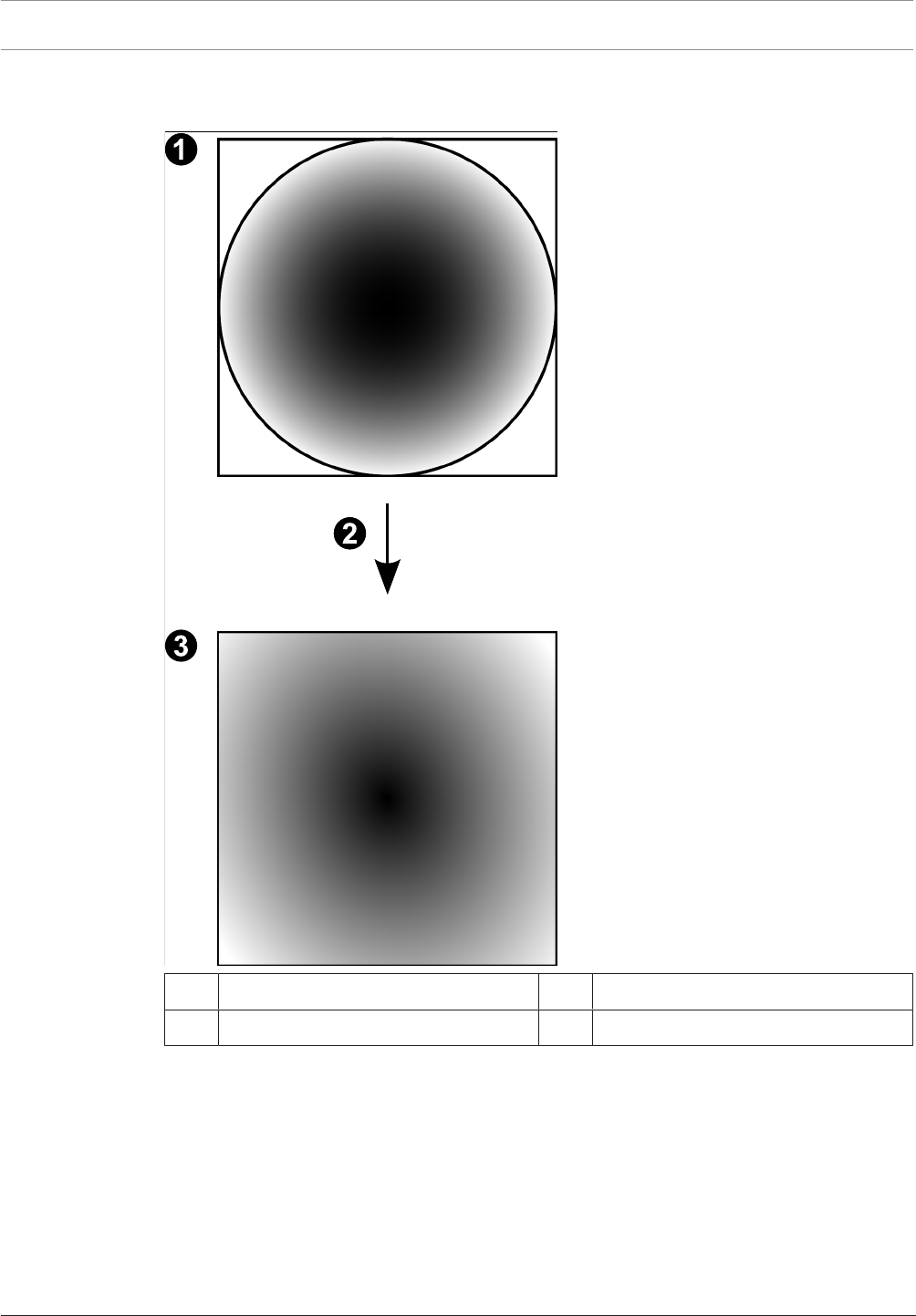
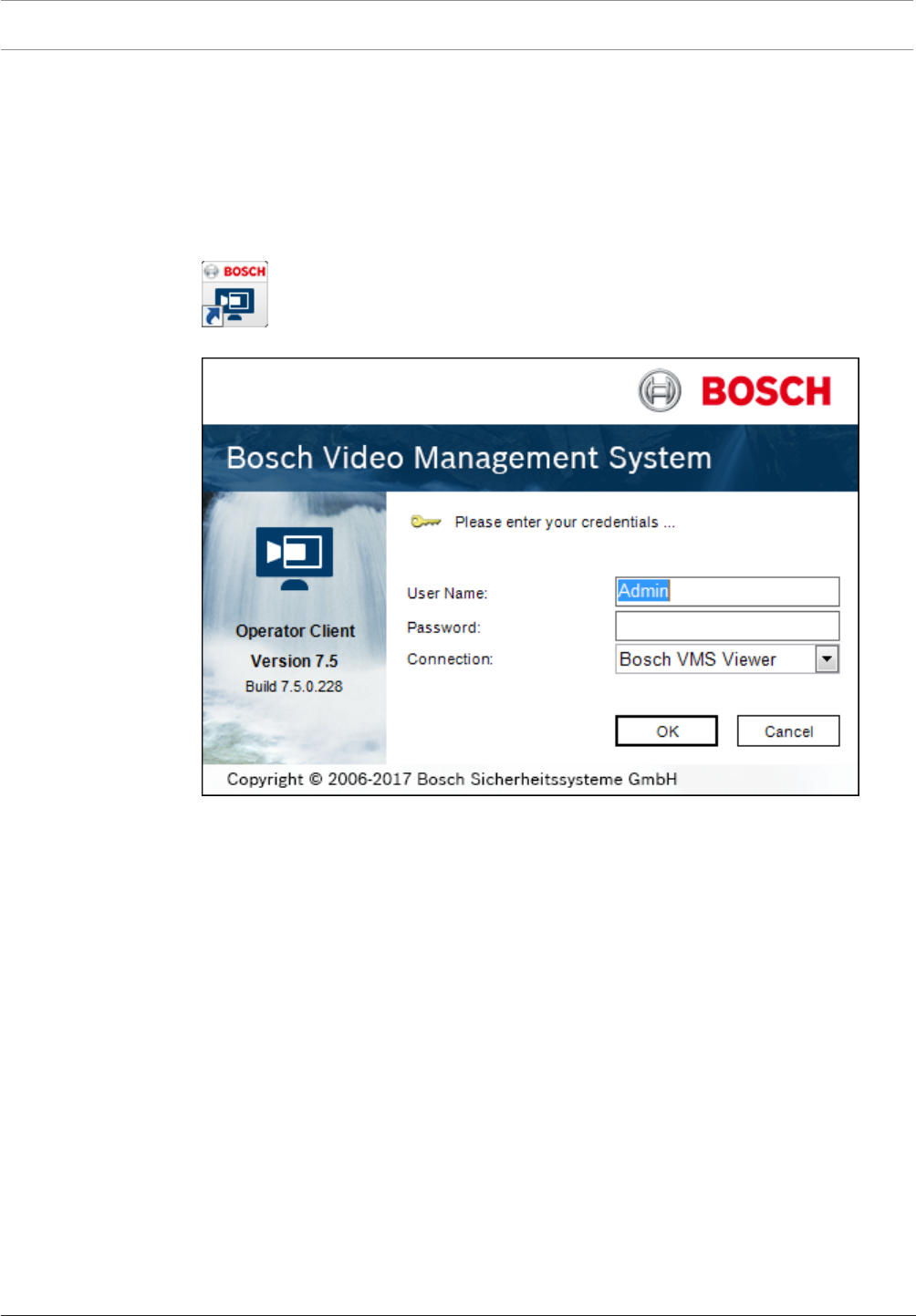
4.3.5 Cropped view on a panoramic camera
The following example figure illustrates the cropping of a 360° camera which is floor- or ceiling
mounted.
The rectilinear section used for cropping is fixed. You can change the section in the cropped
Image pane using the available PTZ controls.
1 Full circle image 4 Panorama view
2 Snipping line (operator can change its
position when not zoomed in)
5 Cropping
3 Dewarping 6 Cropped Image pane

Bosch Video Management System Concepts | en 17
Bosch Sicherheitssysteme GmbH User Manual 2017.10 | V 1 | Bosch VMS Viewer Operator
Client
4.4 SSH Tunneling
BoschVMS provides remote connectivity utilizing Secure Shell (SSH) tunneling.
SSH tunneling constructs an encrypted tunnel established by an SSH protocol/socket
connection. This encrypted tunnel can provide transport to both encrypted and un-encrypted
traffic. The Bosch SSH implementation also utilizes Omni-Path protocol, which is a high
performance low latency communications protocol developed by Intel.
Technical aspects and restrictions
– SSH tunneling utilizes port 5322. This port cannot be modified.
– The SSH Service must be installed on the same server as the BoschVMS Management
Server.
– User accounts must have a configured password. User accounts without a password
cannot log on utilizing a SSH connection.
– ConfigurationClient cannot connect remotely via SSH. ConfigurationClient connection
must be done via port mapping.
– OperatorClient checks connection with SSH service every 15 seconds. If the connection
is interrupted, OperatorClient retests the connection every minute.
Port mapping
4Configure one port forwarding for the BoschVMS Management Server to utilize port 5322
for both internal and external connections.
This is the only port mapping entry that you need to make for the entire system.
BoschVMS port mapping is not required.
Encrypted communication
After the connection is established via a SSH tunnel, all communications between the
BoschVMS Management Server and a remote client are encrypted.
18 en | Getting started Bosch Video Management System
2017.10 | V 1 | Bosch VMS Viewer Operator
Client
User Manual Bosch Sicherheitssysteme GmbH
5 Getting started
This chapter provides information on how to get started with Bosch VMS Viewer.
5.1 Starting Bosch VMS Viewer Operator Client
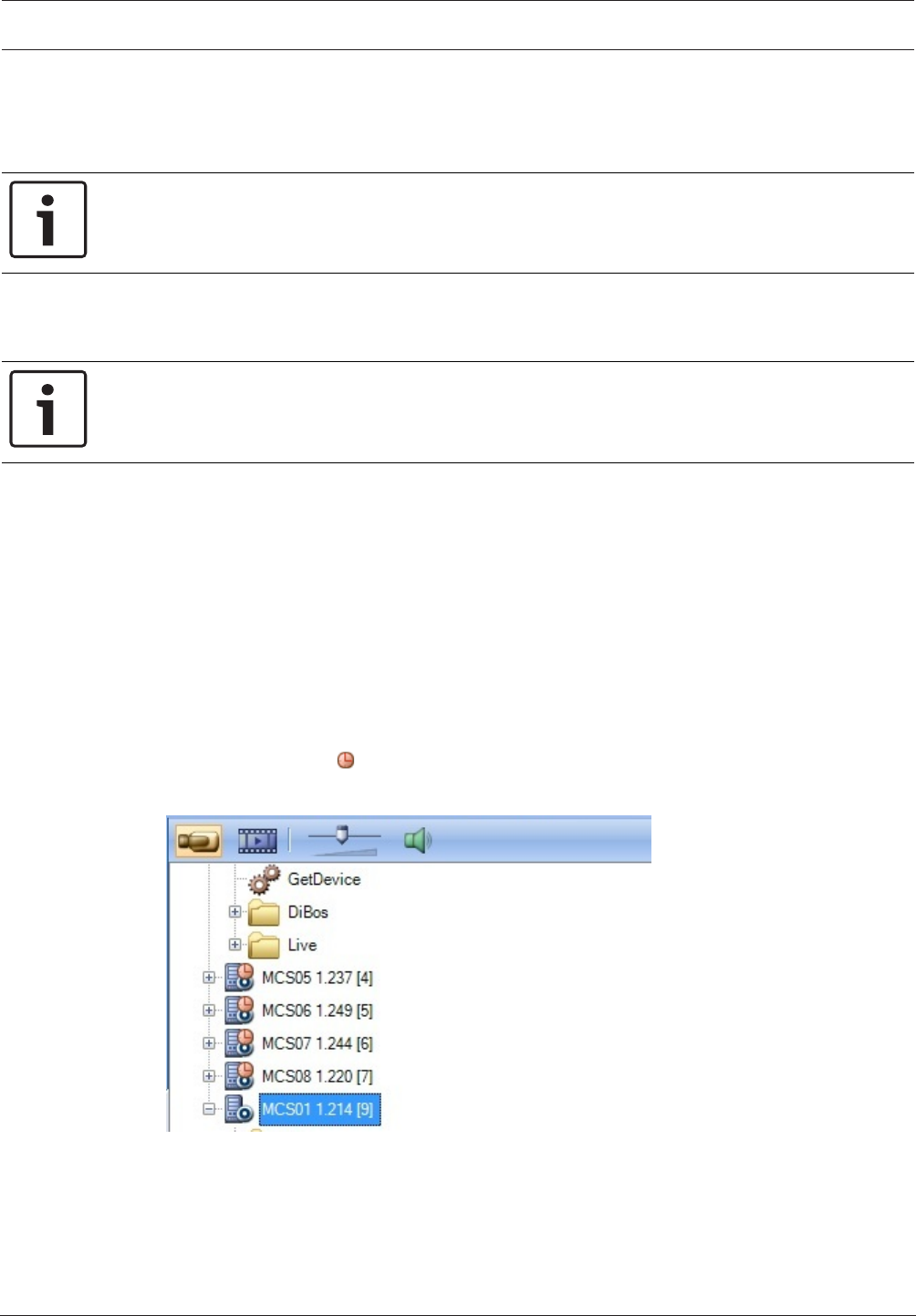
To start the Bosch VMS Viewer OperatorClient:
1. From the Start menu, select Programs > Bosch VMS Viewer > OperatorClient or double
click the OperatorClient icon.
The Login window of the BoschVMS OperatorClient is displayed:
2. Fill in the following fields:
–User Name: type your user name.
When you start the application for the first time, enter Admin as user name, no
password is required.
–Password: type your password.
–Connection: select Bosch VMS Viewer to log on to Bosch VMS Viewer.
Note: In the Connection: list, by default the local Bosch VMS Viewer is selected.
Select <New...> to add the IP address of a BoschVMS Management Server and log
on directly to a BoschVMS Management Server.
Note: If you use a SSH connection, select <New...> and enter the address in the
following format: ssh://IP or servername:5322.
To use a SSH connection user accounts must have a configured password (see SSH
Tunneling, page 17)
Bosch Video Management System Displaying camera images | en 19
Bosch Sicherheitssysteme GmbH User Manual 2017.10 | V 1 | Bosch VMS Viewer Operator
Client
6 Displaying camera images
This chapter provides information on how to display camera images.
Some of the features described in this chapter can be deactivated for your user group.
Notice!
This document describes some functions that are not available for Bosch VMS Viewer.
6.1 Selecting a time zone
Main window
Notice!
Ensure that the time on all computers of your system is set correctly according to each time
zone where the computers are located.
Management Server or unmanaged site and all connected devices including encoders,
decoders, VRM Server computers, DiBos and DVR devices must be in the same time zone.
OperatorClient computers (including ClientSDK and CameoSDK) and ConfigurationClient
computers can be in other time zones than the Management Server or unmanaged site.
If your OperatorClient is located in another time zone than one or more connected
Management Server or unmanaged site, you can select one of the following time displays:
– Your local time
– UTC
– Time zone of the Management Server or unmanaged site you are connected to
The Image panes displaying a camera (live and playback) always show the time of the
corresponding Management Server or unmanaged site.
In the Logical Tree, is displayed on the device icon of each server or unmanaged site that
do not share the time zone that is currently selected in the OperatorClient:
You can select the time zone of a server or unmanaged site for displaying this time zone in
OperatorClient.
To select the time zone:
1. In the Logical Tree, right-click a server icon to select the time zone of this server.
2. In the time zone selector list, select the desired entry.
–Operator Client Time: OperatorClient
20 en | Displaying camera images Bosch Video Management System
2017.10 | V 1 | Bosch VMS Viewer Operator
Client
User Manual Bosch Sicherheitssysteme GmbH
–UTC
–UTC-x: time zone of each available Management Server
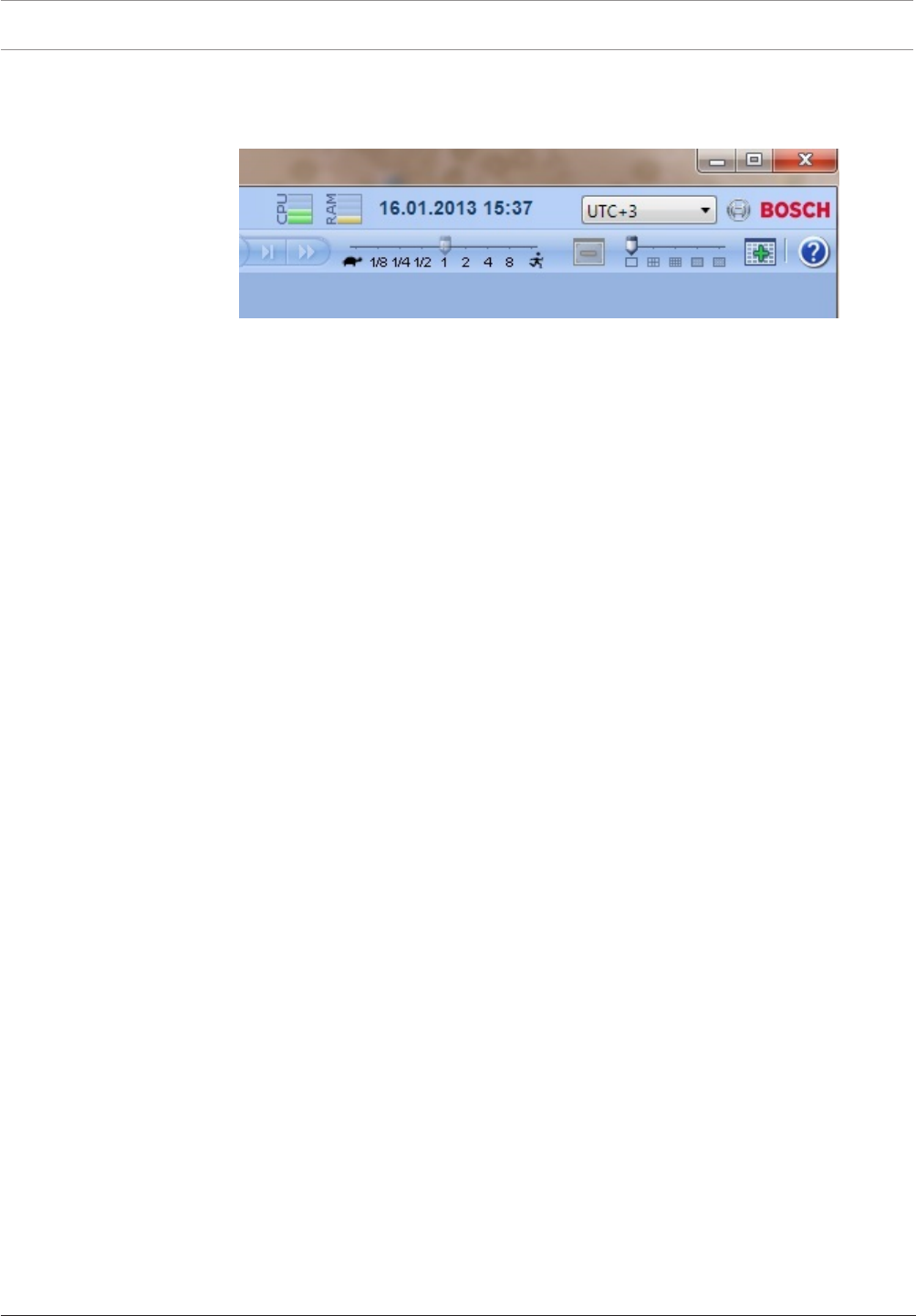
The time based on the selected time zone is displayed in the menu bar:
See also
– Logical Tree window, page 50
6.2 Displaying a camera in an Image pane
Main window
To assign a camera image to an Image pane:
4Drag a camera from the Logical Tree window to an Image pane.
The selected camera image is displayed in the Image pane.
Or:
1. Select an Image pane.
2. In the Logical Tree window, double-click a camera.
The selected camera image is displayed in the Image pane.
3. Repeat the above steps for every camera you want to display.
You can also drag maps and documents to Image panes.
Or:
4In the Logical Tree, right-click a camera and click in next free Image pane.
The camera is displayed.
To move a camera within the Image window:
4Drag the camera into another Image pane.
To zoom digitally:
4Rotate the wheel button forward or backward to zoom in or zoom out.
See also
– Logical Tree window, page 50
– Image window, page 53
– Image pane, page 54
6.3 Displaying a panoramic camera
Main window
You can display panoramic cameras. The original full image circle of a panoramic camera is
automatically dewarped when displayed in an Image pane.
You can display panoramic cameras and use ePTZ in Live Mode and Playback Mode
You can select a point of interest of the panorama image for display in another Image pane.
This Image pane displays the cropped image. Cropping and using ePTZ in a cropped image is
possible in Live and Playback Mode.
The Image window allows a flexible resizing of the Image pane that displays a panoramic
camera or any other camera.
Bosch Video Management System Displaying camera images | en 21
Bosch Sicherheitssysteme GmbH User Manual 2017.10 | V 1 | Bosch VMS Viewer Operator
Client
To display a panoramic camera:
1. Drag a camera with the icon to an Image pane.
The camera image is displayed in panorama view.
2. Use the available control elements in the Image pane for navigating in the image.
To display a cropped image:
1. Display a panoramic camera in panorama view.
2. Press and hold the CTRL-key.
The mouse pointer changes accordingly.
3. Click and hold a point of interest.
4. Drag the selected point to another Image pane and drop it. Release the CTRL-key.
A section of the panorama view around the selected point is displayed.
You can create another cropped image from this cropped image with the same procedure.
We recommend displaying maximum 10 cropped Image panes simultaneously.
5. Use the available control elements in the Image pane for navigating in the image.
See also
– Switching the viewing mode of panoramic camera, page 21
– Arranging and resizing Image panes, page 22
– Viewing modes of a panoramic camera, page 11
6.4 Switching the viewing mode of panoramic camera
Main window
or
Main window > > Select an Image pane with panoramic camera >
You can switch the viewing mode for a panoramic camera displayed in an Image pane.
The following modes are available:
– Circle view
– Panorama view (initial view)
– Cropped view
A panoramic camera must be configured in the Logical Tree for this user.
To switch:
4In the title bar of an Image pane displaying a panoramic camera, click the Switch
panoramic mode icon and select the desired entry.
When the Image pane for this camera is closed and opened again, the Panorama view mode is
displayed.
See also
– Displaying a panoramic camera, page 20
– Viewing modes of a panoramic camera, page 11
– Image pane, page 54
6.5 Displaying a dual thermal/optical camera
In OperatorClient you can display the thermal and optical mode of a dual camera either
separately or simultaneously.

22 en | Displaying camera images Bosch Video Management System
2017.10 | V 1 | Bosch VMS Viewer Operator
Client
User Manual Bosch Sicherheitssysteme GmbH
To display the desired viewing mode of the camera:
4Drag the camera to an Image pane
or
Select an Image pane and in the Logical Tree window, double-click the desired camera.
The selected camera image is displayed in the Image pane.
The viewing mode is displayed in the title bar of the Image pane:
– Optical
– Thermal
To switch the viewing mode of the camera:
4In the title bar of the Image pane displaying the camera, select the desired viewing mode.
To display the thermal and optical mode of the camera simultaneously:
1. Select the Image pane displaying the camera.
2. Press the CTRL-key and drag and drop the camera image to another Image pane.
The second viewing mode of the camera is displayed in the new Image pane.
6.6 Arranging and resizing Image panes
Main window
To arrange Image panes:
1. Move the slider for the Image pane pattern.
2. Drag an item from the Logical Tree window to an Image pane. Repeat this until all
required cameras are displayed.
If an object is already displayed in a target Image pane, this object is replaced.
3. Drag a camera from one Image pane to another, if required.
To resize an Image pane:
1. Point to a border or corner of an Image pane. The pointer appears as a double-headed
arrow.
You can resize diagonally, vertically or horizontally.
The resulting size of the Image pane is limited to the grid of the select Image pane
pattern.
The Image pane ratio is not restricted to the 4:3 or 16:9 aspect ratio.
2. Drag to resize the Image pane.
See also
– Image window, page 53
6.7 Starting a pre-configured camera sequence
Main window
With a camera sequence, a group of cameras are displayed one after the other. The pre-
configured camera sequences are configured in the ConfigurationClient and appear in the
Logical Tree.
A sequence is configured to use more than one Image pane in OperatorClient or on the
monitor wall. If there are not enough Image panes or monitor panes to display the whole
sequence, only those panes are displayed which fit into the Image window. The remaining
panes are not displayed and an appropriate message is displayed.
Under the following conditions, a sequence is not being displayed:
– Video loss
– Connection to the camera lost
– No permission to display the camera
Bosch Video Management System Displaying camera images | en 23
Bosch Sicherheitssysteme GmbH User Manual 2017.10 | V 1 | Bosch VMS Viewer Operator
Client
– Camera not configured
In addition, for sequences displayed on an analog monitor via a decoder, DiBos cameras
cannot be displayed.
Notice!
When the configuration is changed and activated, a camera sequence (pre-configured or
automatic) usually is continued after restart of the Operator Client.
But in the following cases the sequence is not continued:
A monitor where the sequence is configured to be displayed has been removed.
The mode of a monitor (single/quad view) where the sequence is configured to be displayed
has been changed.
The logical number of a monitor where the sequence is configured to be displayed is
changed.
To start and control a camera sequence:
1. Drag the required sequence from the Logical Tree window to an Image pane or to a
monitor wall.
The sequence is displayed indicated by the symbol when running in an Image pane.
2. When running in an Image pane: Click a playback control icon of the Image window
toolbar to control the sequence.
See also
– Image pane, page 54
6.8 Starting an automatic camera sequence
Main window
With a camera sequence, a group of cameras are displayed one after the other.
You configure the dwell time for these sequences in the Options dialog box (Extras menu,
Options... command).
Under the following conditions, a sequence is not being displayed:
– Video loss
– Connection to the camera lost
– No permission to display the camera
– Camera not configured
In addition, for sequences displayed on an analog monitor via a decoder, DiBos cameras
cannot be displayed.
Notice!
When the configuration is changed and activated, a camera sequence (pre-configured or
automatic) usually is continued after restart of the Operator Client.
But in the following cases the sequence is not continued:
A monitor where the sequence is configured to be displayed has been removed.
The mode of a monitor (single/quad view) where the sequence is configured to be displayed
has been changed.
The logical number of a monitor where the sequence is configured to be displayed is
changed.
To start a camera sequence:
1. Select an Image pane where you want the sequence to be played.

24 en | Displaying camera images Bosch Video Management System
2017.10 | V 1 | Bosch VMS Viewer Operator
Client
User Manual Bosch Sicherheitssysteme GmbH
2. Right-click a folder in the Logical Tree or Favorites Tree window and click Show as
sequence in selected Image pane.
The cameras of the selected folder are displayed one after the other in the selected
Image pane. indicates that the sequence is running.
To pause a camera sequence:
4In the Image window toolbar, click .
The sequence stops playing, as indicated by .
To jump to the previous / next step of a camera sequence:
4In the Image window toolbar, click or .
The sequence jumps to the previous or next step.
See also
– Options dialog box, page 49
6.9 Using one channel audio mode
Main window
You use one channel audio mode when you want to hear only one audio source assigned to a
camera. You cannot activate audio for another camera.
To activate / de-activate multichannel audio mode:
1. On the Extras menu, click Options....
2. Select the Playback audio of the selected Image pane check box.
See also
– Options dialog box, page 49
6.10 Using multichannel audio mode
Main window
You use multichannel audio mode when you want to hear different audio sources at the same
time. You can activate different audio sources assigned to a camera in the Image pane of each
camera.
To activate / de-activate multichannel audio mode:
1. On the Extras menu, click Options....
2. Select the Multichannel audio playback check box.
See also
– Options dialog box, page 49
6.11 Saving a single image
Main window
To save a single image:
1. Select an Image pane.
2. Click .
A dialog box for saving the image file is displayed.
3. Select the desired directory, enter a file name, and select the desired file type. JPG and
BMP are available.
Bosch Video Management System Displaying camera images | en 25
Bosch Sicherheitssysteme GmbH User Manual 2017.10 | V 1 | Bosch VMS Viewer Operator
Client
4. Click OK.
The image is saved. The file contains additional information about the camera.
If you logged on to an Enterprise Management Server, the camera name is displayed with
the name of this camera’s Management Server as a prefix.
See also
– Image pane, page 54
6.12 Printing a single image
Main window
To print a single image:
1. Select an Image pane.
2. Click .
A dialog box for selecting the printer is displayed.
3. Click OK.
The image is printed. The printout contains additional information about the camera.
If you logged on to an Enterprise Management Server, the camera name is displayed with
the name of this camera’s Management Server as a prefix.
See also
– Image pane, page 54
6.13 Switching to full-screen mode
Main window
Full-screen mode hides many control elements, for example the menu commands or the Alarm
List if no alarm monitor was switched to full-screen mode. For accessing these control
elements, leave the full-screen-mode.
To display the entire Image window in full-screen mode:
4On the Image window toolbar, click .
The Image window is displayed in full-screen mode.
To leave the full-screen mode:
4Click .
To maximize a selected Image pane:
4Right-click an Image pane and click Maximize.
The selected Image pane is displayed using the entire Image window.
See also
– Image window, page 53
6.14 Displaying or hiding the Image pane bars
Main window
To display / hide the toolbars:
4Click to display the toolbars.
Click to hide the toolbars.
26 en | Displaying camera images Bosch Video Management System
2017.10 | V 1 | Bosch VMS Viewer Operator
Client
User Manual Bosch Sicherheitssysteme GmbH
See also
– Image window, page 53
6.15 Enabling video content analysis (VCA)
Main window
To enable:
4Right-click an Image pane with a camera assigned and click Enable Content Analysis.
The VCA overlays are displayed. This setting is retained after the next restart or re-logon
of OperatorClient or after closing the camera and displaying it again in an Image pane.
To disable:
4Right-click an Image pane with a camera assigned and click Disable Content Analysis.
The VCA overlays disappear.
6.16 Showing video content analysis (VCA) rules
Main window
To show VCA rules:
4Right-click an Image pane with a camera assigned and click Show Content Analysis rules.
The VCA rules are displayed.
This setting is not persistent after the next restart or re-logon of OperatorClient or after
closing the camera and displaying it again in an Image pane.
To hide VCA rules:
4Right-click an Image pane with a camera assigned and click Hide Content Analysis rules.
The VCA rules disappear.
6.17 Starting instant playback
Main window >
You can view the recordings of a camera in an Image pane in the Live Mode.
If configured you can change the recording source.
The current setting of the digital zoom and the image section are used for instant playback.
The start time (number of seconds in the past or rewind time) for instant playback is
configured in the Options dialog box (Extras menu, Options... command).
To start instant playback:
1. Select the required Image pane.
2. Click .
The recording is played.
3. Switch to the desired recording source if available.
Note: After switching the recording source the rewind time can deviate from the
configured value.
4To return to live image, click .
Note: More than one Image pane with instant playback is possible, even multiple instant
playbacks of the same camera.
See also
– Image pane, page 54
6.18 Connecting to an unmanaged site
Main window
Bosch Video Management System Displaying camera images | en 27
Bosch Sicherheitssysteme GmbH User Manual 2017.10 | V 1 | Bosch VMS Viewer Operator
Client
You can connect to an unmanaged site. All available devices of all video network devices of
this site are then displayed in the Logical Tree. As soon as you log off or exit OperatorClient,
this connection is terminated.
To connect:
1. Right-click .
2. Click Connect to Site.
As long as the device is connecting, is displayed.
After the connection is successfully established, is displayed.
All available devices of this site are displayed in the Logical Tree.
If not all devices belonging to this site can be connected, is displayed. You can later
try to connect the remaining devices that were not connected now.
Tip: You can also double-click to connect.
To connect remaining devices:
1. Right-click .
2. Click Retry Connection.
To disconnect a single site:
1. Right-click or .
2. Click Disconnect from Site.
The icon changes:
All Image panes with devices belonging to this site are automatically closed.
To disconnect all sites:
4Click .
All sites are disconnected. Partially connected sites are not disconnected.
All Image panes with devices belonging to this site are automatically closed.
See also
– Unmanaged site, page 11
28 en | Using maps and the PTZ cameras Bosch Video Management System
2017.10 | V 1 | Bosch VMS Viewer Operator
Client
User Manual Bosch Sicherheitssysteme GmbH
7 Using maps and the PTZ cameras
Notice!
This document describes some functions that are not available for Bosch VMS Viewer.
This chapter provides information on how to use the Map window and the PTZ Control
window.
You can view a map in the required ratio and zooming factor. Hence, you see all your devices
and their places at a glance.
You can activate that the map of the camera in the selected Image pane is automatically
getting the focus. This map is displayed in the Map window of the Control monitor.
Some of the features described in this chapter can be deactivated for your user group, your
Enterprise User Group or your Enterprise Account.
7.1 Controlling PTZ cameras
Main window > tab
You can zoom and control the cameras in the PTZ Control window or in the Image pane.
The digital zoom function is not available for dome and pan/tilt cameras.
Notice!
When controlling a MIC 500 PTZ camera, focus near and focus far are permuted. You can
switch the behavior directly on the device.
Controlling/zooming cameras in the PTZ Control window:
1. Select the required Image pane.
2. Click the various control elements in the PTZ Control window to control the camera.
To move to a preposition of a PTZ camera on a map:
1. Display a map containing a PTZ camera hot spot in an Image pane.
2. Right-click a PTZ camera located on a map, point to PTZ positions, and then click the
desired preposition command.
The camera moves the focus to the selected preposition.
To lock the control of a PTZ camera on a map:
1. Display a map containing a PTZ camera hot spot in an Image pane.
2. Right-click a PTZ camera located on a map and click Lock.
The PTZ control of this camera is locked for other users.
3. To unlock: Right-click the locked PTZ camera and click Unlock.
See also
– PTZ Control window, page 52
7.2 Using in-window control of a camera
Main window
After you have assigned a PTZ camera to an Image pane, you can use the camera control
functions directly in this Image pane.

Bosch Video Management System Using maps and the PTZ cameras | en 29
Bosch Sicherheitssysteme GmbH User Manual 2017.10 | V 1 | Bosch VMS Viewer Operator
Client
To use control functions:
1. Move the cursor on the Image pane which displays a PTZ camera.
The cursor changes depending on the location in the Image pane.
2. Move the cursor to the left side of the Image pane.
The cursor changes to an arrow.
Click to swivel to the left direction in a small step. Keep the mouse button pressed to
swivel continuously. Drag to the outside direction to accelerate.
3. Move the cursor to another direction and perform a corresponding tilt or swiveling task.
4. Move the cursor to the center of the Image pane.
The cursor changes to a magnifying class.
In the upper area, use the zooming in function.
In the lower area, use the zooming out function.
See also
– Image pane, page 54
30 en | Using favorites and bookmarks Bosch Video Management System
2017.10 | V 1 | Bosch VMS Viewer Operator
Client
User Manual Bosch Sicherheitssysteme GmbH
8 Using favorites and bookmarks
This chapter provides information on how to use the Favorites Tree and the Bookmark Tree.
Favorites Tree
You can add every item of the Logical Tree to a view in the Favorites Tree to create your own
subset of the Logical Tree. At any time you can display the view or add or delete devices in a
view.
When saving a view in the Favorites Tree, you save the following settings:
– The assignment of cameras or other objects to Image panes
– The Image pane pattern
– The current setting of the digital zoom
– The image section
– The selected stream (only available for Live Mode)
Bookmark Tree
You can save a time period of live view or a recording in a bookmark. A bookmark saves a start
and an end time, the cameras assigned to Image window at this time, and the entire Image
pane pattern. A time period of 0seconds is possible. Bookmarks are saved in the pane.
Deleting a bookmark does not affect the corresponding recordings. You cannot add or remove
cameras from a bookmark. To change a bookmark, load it, make your changes and save it.
If a recording is deleted, the corresponding bookmark is not synchronized. If loaded, a black
Image pane is displayed.
If you have logged on to an Enterprise Management Server, the camera name is displayed with
the name of this camera’s Management Server as a prefix.
Note: Do not add more than 4 cameras in one bookmark to avoid performance issues when
loading the bookmark.
Notice!
This document describes some functions that are not available for Bosch VMS Viewer.
See also
– Favorites Tree window, page 50
8.1 Adding items to the Favorites Tree
Main window > > tab
or
Main window > > tab
You can add each item of the Logical Tree to the Favorites Tree. This allows you to define your
own subset of the Logical Tree.
To add an item:
4Right-click an item and click Add To Favorites.
Bosch Video Management System Using favorites and bookmarks | en 31
Bosch Sicherheitssysteme GmbH User Manual 2017.10 | V 1 | Bosch VMS Viewer Operator
Client
See also
– Logical Tree window, page 50
– Favorites Tree window, page 50
8.2 Creating/editing views
Main window > > tab
or
Main window > > tab
After having assigned cameras, maps, and HTML files to Image panes, you can save this
assignment and the Image pane pattern in a view in the Favorites Tree.
To create a new view:
1. Arrange the cameras in the Image window in Live Mode and in Playback Mode.
2. If desired, use the digital zoom and select an image section.
When displaying a view, the live image of the camera is displayed in Live Mode and the
recorded video of the camera is displayed in Playback Mode.
3. In the Image window toolbar, click .
A new view is added. Enter a name for the new view.
Limitation for unmanaged sites: You can create a view of cameras from maximum 20
unmanaged sites.
To display a view:
4Double-click the view or right-click the view and click Load Cameo View.
The assignment saved in this view is displayed in the Image window.
Displaying a view for unmanaged sites
When you load a cameo view for cameras from unmanaged sites, the assignment saved in this
view is displayed in the Image window and the unmanaged sites are connected automatically.
If the connection takes more than 3 seconds the Connecting dialog box is displayed showing
the connection progress.
4To cancel the connection process, click Cancel.
No further unmanaged sites are connected and no further camera images are loaded.
The unmanaged sites which have already been connected remain connected and the
camera images which have already been loaded remain open.
If there are connection problems, the unmanaged sites which could not be connected are
displayed in the Connecting dialog box.
4After the connection process has finished, click OK.
If the number of already connected unmanaged sites and unmanaged sites assigned to the
Favorite view exceeds the maximum number of 20 connected sites, a warning message is
displayed.
32 en | Using favorites and bookmarks Bosch Video Management System
2017.10 | V 1 | Bosch VMS Viewer Operator
Client
User Manual Bosch Sicherheitssysteme GmbH
4Click No to cancel.
Or
Click OK to continue.
If you continue, the unmanaged sites which are already connected but are not assigned to
the Favorite view are disconnected and only unmanaged sites which are assigned to the
Favorite view are connected.
To edit a view:
1. Double-click the view which you want to edit.
2. Make the required changes, for example assign cameras to Image panes.
3. Right-click the required view and click Update Cameo View.
To rename a view:
1. Right-click the required view and click Rename.
2. Enter the name of the view and press ENTER.
To delete a view:
4Right-click the view and click Remove.
The view is removed from the Favorites Tree.
See also
– Favorites Tree window, page 50
8.3 Adding a bookmark
Main window > > Assign desired cameras to Image panes
or
Main window > > Assign desired cameras to Image panes
To add a bookmark:
1. Using the Hairline, select the time period on the Timeline.
2. In the toolbar, click .
The Add Bookmark dialog box is displayed.
If you logged on to an Enterprise Management Server, the camera name is displayed with
the name of this camera’s Management Server as a prefix.
3. The selected time period is copied to the appropriate fields.
4. Make changes if required.
5. Click OK.
PThe bookmark is saved in the Bookmark Tree.
See also
– Add Bookmark dialog box, page 51
8.4 Editing a bookmark
Main window > > tab
Bosch Video Management System Using favorites and bookmarks | en 33
Bosch Sicherheitssysteme GmbH User Manual 2017.10 | V 1 | Bosch VMS Viewer Operator
Client
or
Main window > > tab
To edit a bookmark:
1. Right-click a bookmark and click Edit Bookmark.
The Edit Bookmark dialog box is displayed.
2. Make changes if required.
3. Click OK.
PThe bookmark is saved in the Bookmark Tree.
See also
– Add Bookmark dialog box, page 51
8.5 Loading a bookmark
Main window > > tab
or
Main window > > tab
To display a bookmark:
4Drag a bookmark to the Image window. The entire Image window layout saved in the
bookmark is displayed in the Timeline. The Hairline is positioned at the start time of the
bookmark.
PThe previous Image window is overwritten.
See also
– Bookmarks window, page 51
8.6 Exporting bookmarks
See also
– Export Bookmark dialog box, page 61
– Export Multiple Bookmarks dialog box, page 63
– Timeline window, page 54
34 en | Managing recorded videos Bosch Video Management System
2017.10 | V 1 | Bosch VMS Viewer Operator
Client
User Manual Bosch Sicherheitssysteme GmbH
9 Managing recorded videos
This chapter provides information on how to manage recordings.
Some of the features described in this chapter can be deactivated for your user group.
Notice!
This document describes some functions that are not available for Bosch VMS Viewer.
9.1 Selecting a time zone
Main window
Notice!
Ensure that the time on all computers of your system is set correctly according to each time
zone where the computers are located.
Management Server or unmanaged site and all connected devices including encoders,
decoders, VRM Server computers, DiBos and DVR devices must be in the same time zone.
OperatorClient computers (including ClientSDK and CameoSDK) and ConfigurationClient
computers can be in other time zones than the Management Server or unmanaged site.
If your OperatorClient is located in another time zone than one or more connected
Management Server or unmanaged site, you can select one of the following time displays:
– Your local time
– UTC
– Time zone of the Management Server or unmanaged site you are connected to
The Image panes displaying a camera (live and playback) always show the time of the
corresponding Management Server or unmanaged site.
In the Logical Tree, is displayed on the device icon of each server or unmanaged site that
do not share the time zone that is currently selected in the OperatorClient:
You can select the time zone of a server or unmanaged site for displaying this time zone in
OperatorClient.
To select the time zone:
1. In the Logical Tree, right-click a server icon to select the time zone of this server.
2. In the time zone selector list, select the desired entry.
–Operator Client Time: OperatorClient
Bosch Video Management System Managing recorded videos | en 35
Bosch Sicherheitssysteme GmbH User Manual 2017.10 | V 1 | Bosch VMS Viewer Operator
Client
–UTC
–UTC-x: time zone of each available Management Server
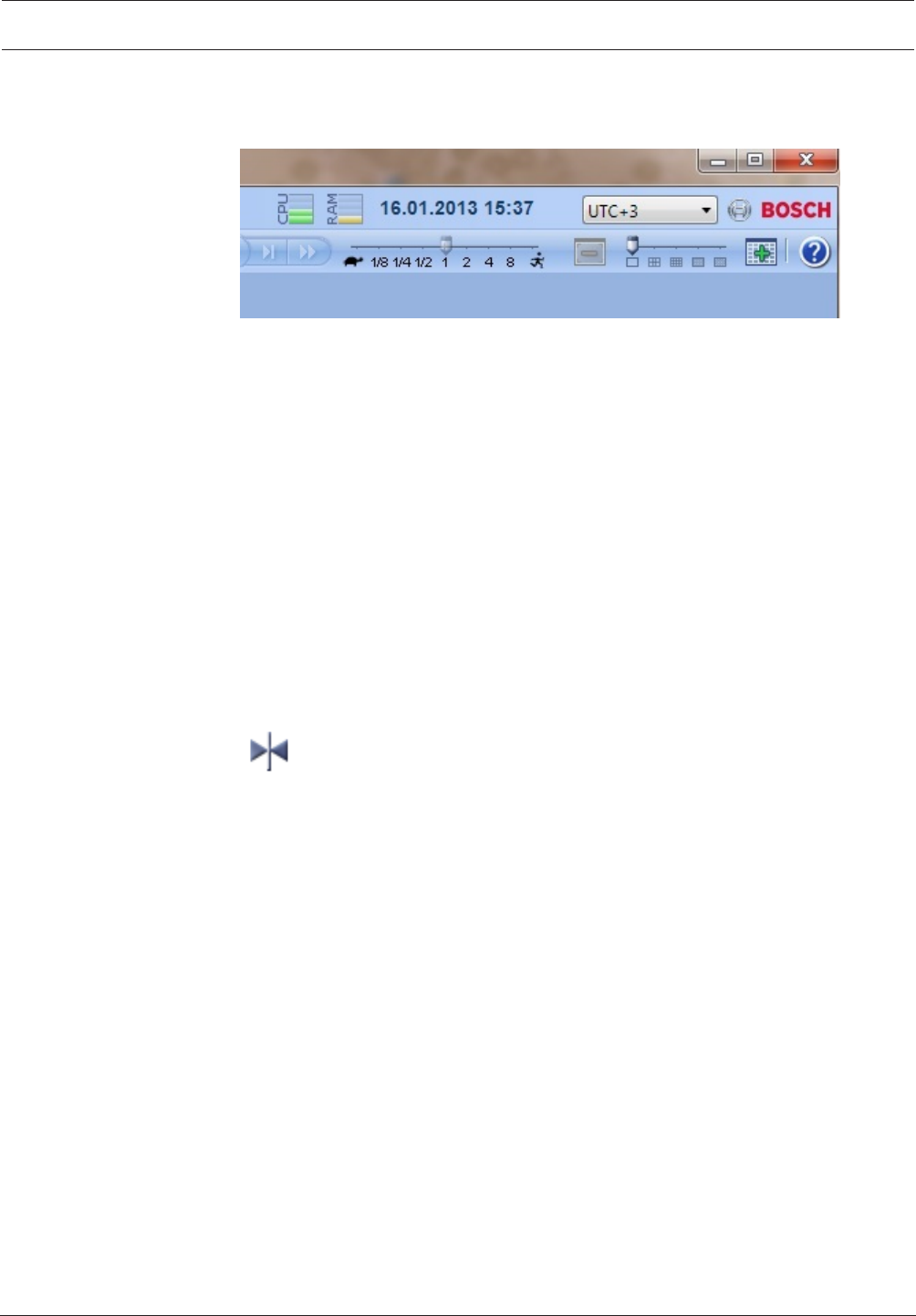
The time based on the selected time zone is displayed in the menu bar:
See also
– Logical Tree window, page 50
9.2 Playing recorded videos
See also
– Timeline window, page 54
– Using the Timeline, page 35
9.3 Using the Timeline
You can access a specific time in the Timeline via the Hairline.
To navigate in the Timeline:
4Click somewhere in the Timeline.
The images of the selected point in time are displayed in the Image window.
Or:
1. In the date and time field, enter the required values.
2. Click .
The Hairline jumps to this time. The images of the entered point in time are displayed in
the Image window. Use a Timeline control for the required playing option.
You can select a time period in the Timeline using the Hairline. You can use this selection for
further tasks such as for exporting video data.
4Drag the bottom handles of the Hairline to select a time period or to change this
selection.
Drag the upper handles to move the hairline or selection.
See also
– Timeline window, page 54
– Playing recorded videos, page 35
9.4 Changing the playback speed
To change the playback speed for playing a video forward or reverse:
4Move the slider to the left to decrease the playback speed, and to the right to increase
the playback speed.
Note: If you set the playback speed to 4x or higher, not all frames will be displayed.
See also
– Timeline window, page 54
36 en | Managing recorded videos Bosch Video Management System
2017.10 | V 1 | Bosch VMS Viewer Operator
Client
User Manual Bosch Sicherheitssysteme GmbH
9.5 Restricting video
Main window > > Timeline menu
You can restrict the recordings of cameras connected to the following DIVAR AN devices:
– DIVAR AN 3000
– DIVAR AN 5000
When restricted, an unauthorized user cannot display the recordings of these cameras.
The DIVAR AN devices can be connected to BoschVMS either locally under or as an
unmanaged site under .
For restricting you need the corresponding permission.
Notice!
Unrestricting / unprotecting a selected time period can possibly unrestrict / unprotect the
entire contiguous restricted / protected time period of this camera, even outside the
selected time period.
To restrict:
1. Using the Hairline, select the time period of one or more DIVAR AN cameras on the
Timeline.
2. Right-click this time period and click Restrict Video....
The Restrict Video dialog box is displayed.
3. Click Restrict.
A message box is displayed showing detailed information on the time period that is
effectively restricted. Usually this time period is larger than the selected time period.
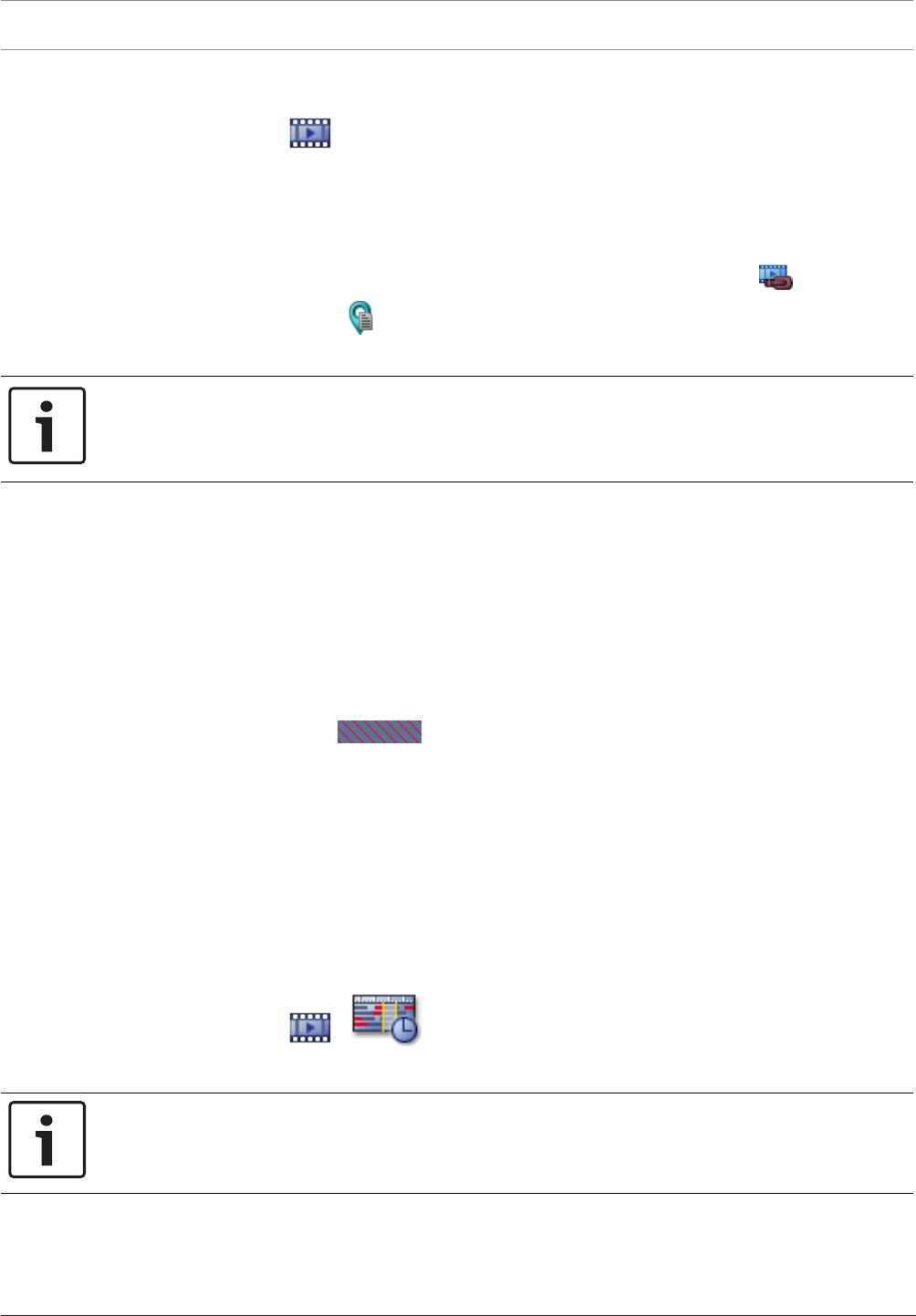
The video data is restricted. In the Timeline, restricted video is indicated with red
diagonal stripes:
Note:
To remove the restriction, select the restricted period in the Timeline, right-click, and then
click Unrestrict Video....
See also
– Restrict Video dialog box, page 56
– Unrestrict Video dialog box, page 57
9.6 Protecting video
Main window > > tab
You can protect the images of the displayed cameras against being overwritten or deleted.
Notice!
You cannot protect the data of a local storage device.
1. Using the Hairline, select the time period on the Timeline.
Bosch Video Management System Managing recorded videos | en 37
Bosch Sicherheitssysteme GmbH User Manual 2017.10 | V 1 | Bosch VMS Viewer Operator
Client
2. Right-click this time period and click Protect Video....
The Protect Video dialog box is displayed.
The selected time period is copied to the Start: and End: fields.
If required, change the values.
3. Click Protect.
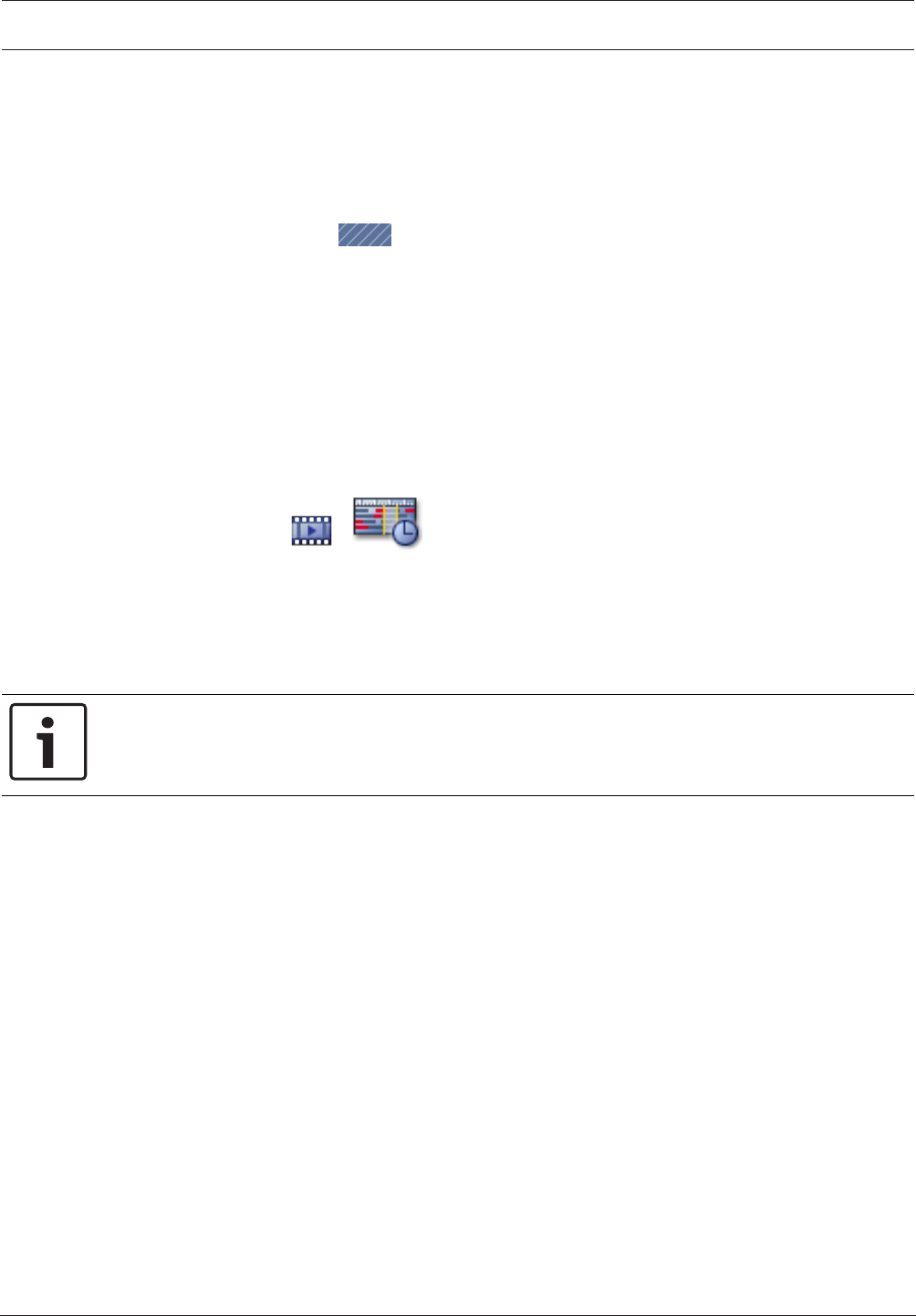
The video data is protected. In the Timeline, procted video is indicated with white
diagonal stripes:
Note:
To remove the protection, select the protected period in the Timeline, right-click and click
Unprotect Video....
See also
– Protect Video dialog box, page 58
– Timeline window, page 54
9.7 Deleting video data
Main window > > tab
Note: You cannot restore deleted video data.
You can delete video data from the beginning of the recording to the position of the hairline.
The video data of all cameras available in the Timeline are deleted.
VRM recordings: Protected recordings are not deleted.
NVR recordings: When protected recordings are available, the deleting is not started.
Notice!
You cannot delete the data of a local storage device.
To delete video:
1. Move the Hairline to the desired position on the Timeline.
On the Timeline menu, click Delete Video....
The Delete Video dialog box is displayed.
2. Make the appropriate settings.
For detailed information on the various fields, see the Online Help for the appropriate
application window.
4Click Delete.
Confirm the warning message.
When deleting is finished, click Done.
See also
– Delete Video dialog box, page 55
– Timeline window, page 54
– Delete Video dialog box, page 59
38 en | Managing recorded videos Bosch Video Management System
2017.10 | V 1 | Bosch VMS Viewer Operator
Client
User Manual Bosch Sicherheitssysteme GmbH
9.8 Exporting video data
Notice!
You cannot export the data of a local storage device.
To export a time period (only available in Playback Mode):
1. Click the tab.
2. Using the Hairline, select the time period on the Timeline.
3. Click .
The Export Video dialog box is displayed.
The selected time period is copied to the Start: and End: fields.
4. Make the appropriate settings.
If you want to encrypt the exported files, type in a password and confirm this password.
5. Click Export.
The size of the recordings to be exported is estimated. Overlappings of recordings are
subtracted. If free space is not enough, an error message is displayed.
The authenticity of the export is automatically verified.
The files are exported to the selected data medium.
6. If available, click Verification Details to display the Authenticity Verification Result
dialog box.
See also
– Export Bookmark dialog box, page 61
– Export Multiple Bookmarks dialog box, page 63
– Export Video dialog box, page 59
– Timeline window, page 54
– Video Search Results window, page 65
9.9 Exporting into a single file
You can export video recordings into a single ZIP file.
To export:
1. Enter the desired start and end times.
2. Click to select Export as single ZIP file.
3. Make the appropriate settings.
If you want to encrypt the exported files, type in a password and confirm this password.
4. Click Export.
The size of the recordings to be exported is estimated. If free space is not enough, an
error message is displayed.
The authenticity of the export is automatically verified.
The recordings are exported and the export is added to a single ZIP file.
5. If available, click Verification Details to display the Authenticity Verification Result
dialog box.
Bosch Video Management System Managing recorded videos | en 39
Bosch Sicherheitssysteme GmbH User Manual 2017.10 | V 1 | Bosch VMS Viewer Operator
Client
Notice!
You cannot load a ZIP export file in OperatorClient.
See also
– Export Video dialog box, page 59
9.10 Loading exported video
Notice!
You cannot load a ZIP export file in OperatorClient.
See also
– Exports window, page 52
– Timeline window, page 54
9.11 Performing a Forensic Search (only VRM recordings)
Main window > > tab > Select an Image pane
You can check the video in the selected Image pane for motion. Forensic Search allows you to
search for specific properties.
Forensic search is only available for VRM recordings.
1. Select the Image pane where you want to find motion.
2. Using the Hairline, select the time period on the Timeline and select the corresponding
Image pane.
3. Click .
The Forensic Search dialog box is displayed.
The selected time period is copied to the Start: and End: fields.
If required, change the values. Click .
4. In the Algorithm: list, select an Intelligent Video Analytics entry.
5. In the Surveillance Tasks field, configure your Forensic Search.
See the user documentation of the Intelligent Video Analytics version that you are using.
6. Click Search to start the Forensic Search.
The window with the matching entries is displayed.
7. For playing the corresponding video, double-click the entry. The corresponding video is
displayed.
See also
– Forensic Search dialog box, page 55
– Timeline window, page 54
9.12 Enabling video content analysis (VCA)
Main window
40 en | Managing recorded videos Bosch Video Management System
2017.10 | V 1 | Bosch VMS Viewer Operator
Client
User Manual Bosch Sicherheitssysteme GmbH
To enable:
4Right-click an Image pane with a camera assigned and click Enable Content Analysis.
The VCA overlays are displayed. This setting is retained after the next restart or re-logon
of OperatorClient or after closing the camera and displaying it again in an Image pane.
To disable:
4Right-click an Image pane with a camera assigned and click Disable Content Analysis.
The VCA overlays disappear.
9.13 Finding motion
Main window > > tab > Select an Image pane
See also
– Motion Search dialog box, page 55
– Motion Search Results window, page 64
– Timeline window, page 54
9.14 Connecting to an unmanaged site
Main window
You can connect to an unmanaged site. All available devices of all video network devices of
this site are then displayed in the Logical Tree. As soon as you log off or exit OperatorClient,
this connection is terminated.
To connect:
1. Right-click .
2. Click Connect to Site.
As long as the device is connecting, is displayed.
After the connection is successfully established, is displayed.
All available devices of this site are displayed in the Logical Tree.
If not all devices belonging to this site can be connected, is displayed. You can later
try to connect the remaining devices that were not connected now.
Tip: You can also double-click to connect.
To connect remaining devices:
1. Right-click .
2. Click Retry Connection.
To disconnect a single site:
1. Right-click or .
2. Click Disconnect from Site.
The icon changes:
All Image panes with devices belonging to this site are automatically closed.

Bosch Video Management System Managing recorded videos | en 41
Bosch Sicherheitssysteme GmbH User Manual 2017.10 | V 1 | Bosch VMS Viewer Operator
Client
To disconnect all sites:
4Click .
All sites are disconnected. Partially connected sites are not disconnected.
All Image panes with devices belonging to this site are automatically closed.
See also
– Unmanaged site, page 11
42 en | User interface Bosch Video Management System
2017.10 | V 1 | Bosch VMS Viewer Operator
Client
User Manual Bosch Sicherheitssysteme GmbH
10 User interface
Notice!
This document describes some functions that are not available for Bosch VMS Viewer.
See also
– Live Mode, page 42
– Playback Mode, page 43
10.1 Live Mode
Main window >
You automatically access Live Mode every time you log on.
Allows you to move, resize, or hide all control elements as required.
You can right-click to display the context menu.
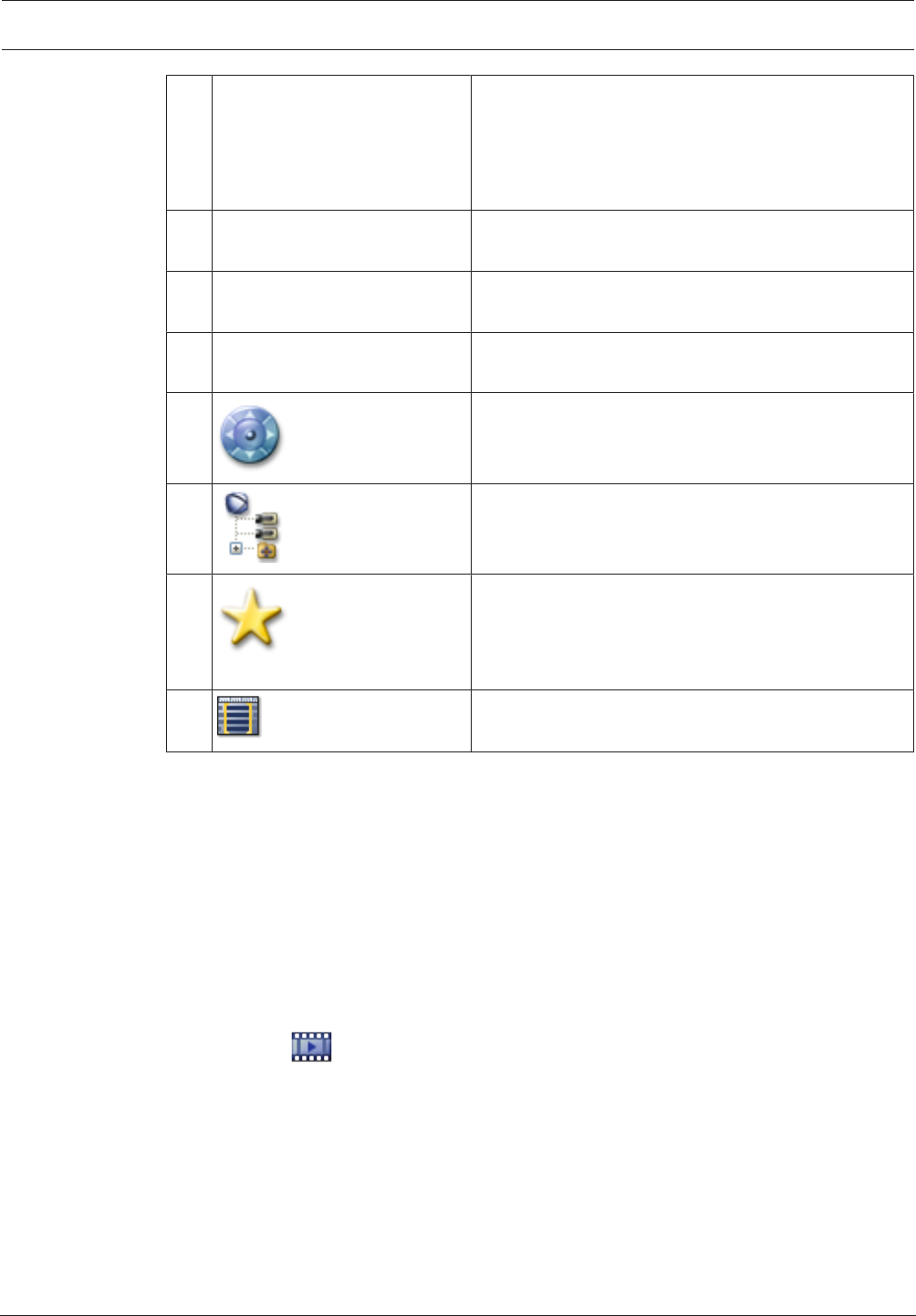
1Menu bar Allows you to select a menu command.
2Toolbar Displays the available buttons. Point to an icon to
display a tooltip.
3Playback controls Allows you to control instant playback or a camera
sequence or alarm sequence.
4Performance meter Displays the CPU usage and the memory usage.
Bosch Video Management System User interface | en 43
Bosch Sicherheitssysteme GmbH User Manual 2017.10 | V 1 | Bosch VMS Viewer Operator
Client
5Time zone selector Select an entry for the time zone to be displayed in
most time related fields.
Only available if at least one Management Server or
unmanaged site in the Logical Tree is located in
another time zone as your OperatorClient.
6Controls for Image panes Allows you to select the required number of Image
panes and to close all Image panes.
7Image window Displays the Image panes. Allows you to arrange the
Image panes.
8Image pane Displays a camera, a map, an image, a document
(HTML file).
10
PTZ Control window
Allows you to control a PTZ camera.
11
Logical Tree window
Displays the devices your user group has access to.
Allows you to select a device for assigning it to an
Image pane.
Favorites Tree
window
Allows you to organize the devices of the Logical Tree
as required.
Bookmarks window
Allows to manage bookmarks.
See also
– Menu commands, page 47
– Logical Tree window, page 50
– Favorites Tree window, page 50
– PTZ Control window, page 52
– Image window, page 53
– Image pane, page 54
10.2 Playback Mode
Main window >
See also
– Menu commands, page 47
– Logical Tree window, page 50
– Favorites Tree window, page 50
– Exports window, page 52
– PTZ Control window, page 52
– Image window, page 53
– Image pane, page 54
44 en | User interface Bosch Video Management System
2017.10 | V 1 | Bosch VMS Viewer Operator
Client
User Manual Bosch Sicherheitssysteme GmbH
– Timeline window, page 54
– Motion Search Results window, page 64
– Video Search Results window, page 65
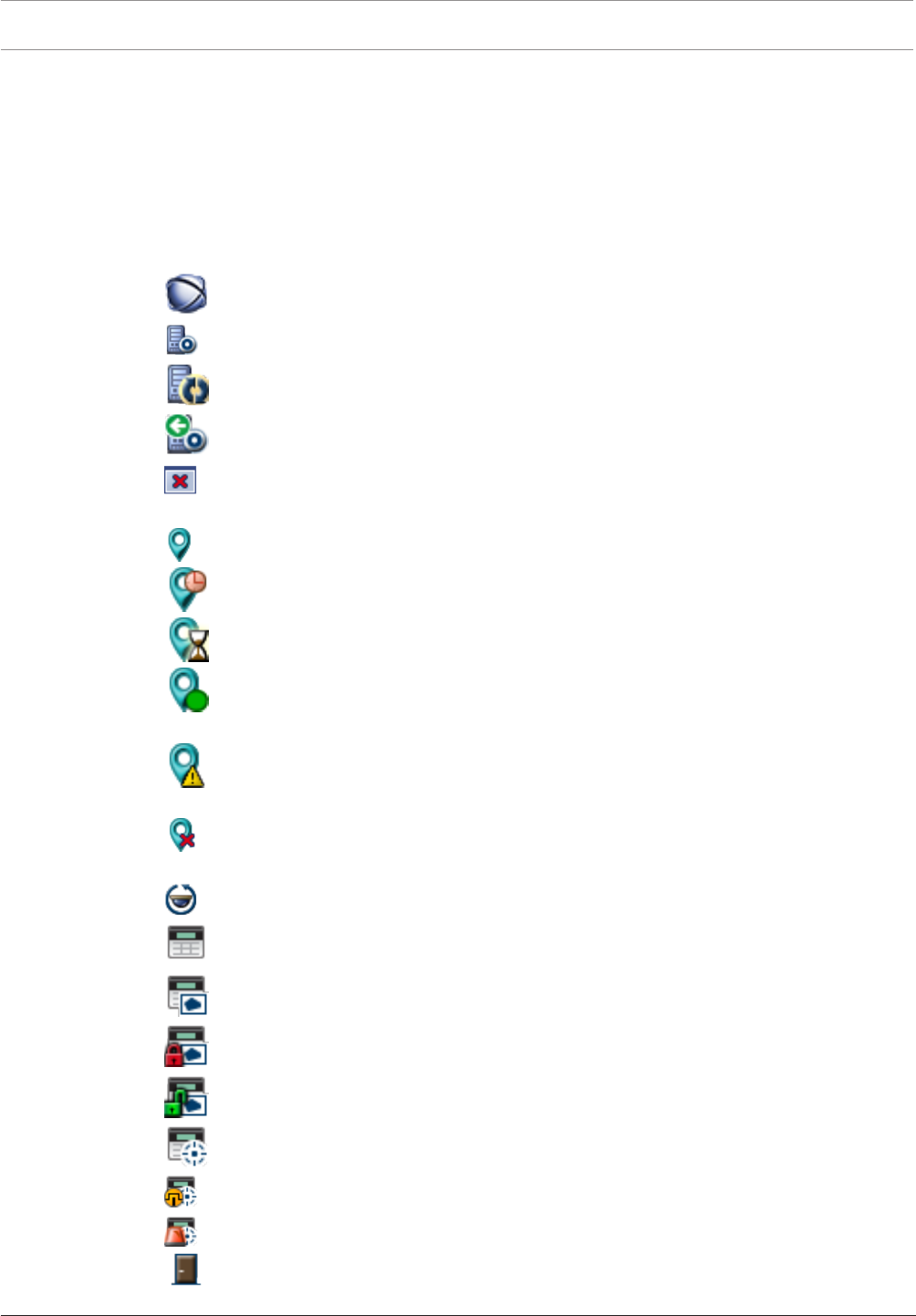
10.3 Used icons
The following table lists the icons used in OperatorClient. For the icons used in the Timeline
see chapter Timeline window, page 54.
Some of the following icons are not available in BoschVMS Archive Player.
: Root node of the Logical Tree (user assigned name of the Logical Tree).
: Operator Client is connected to a Management Server.
: New configuration available. Log off and log on again to accept.
: Management Server has a previous version.
: Click to close all open Image panes. This icon has the same function as the shortcut for
closing all Image panes.
: Indicates an unmanaged site which is not connected.
: Indicates an unmanaged site in another time zone than the OperatorClient computer.
: Indicates an unmanaged site to which a connection is being established.
: Indicates an unmanaged site which is completely connected. This means that all
devices of this site are connected.
: Indicates an unmanaged site which is partially connected. This means that not all
devices of this site are connected.
: Click to disconnect all connected unmanaged sites. Partially connected sites are not
disconnected.
: Indicates a panoramic camera.
: Intrusion panel.
: Area configured in an intrusion panel.
: Area is armed.
: Area is disarmed.
: Point configured in an intrusion panel and in the state unbypassed.
: Point is in the state bypassed.
: Point is in alarm state.
: Door configured in an intrusion panel.
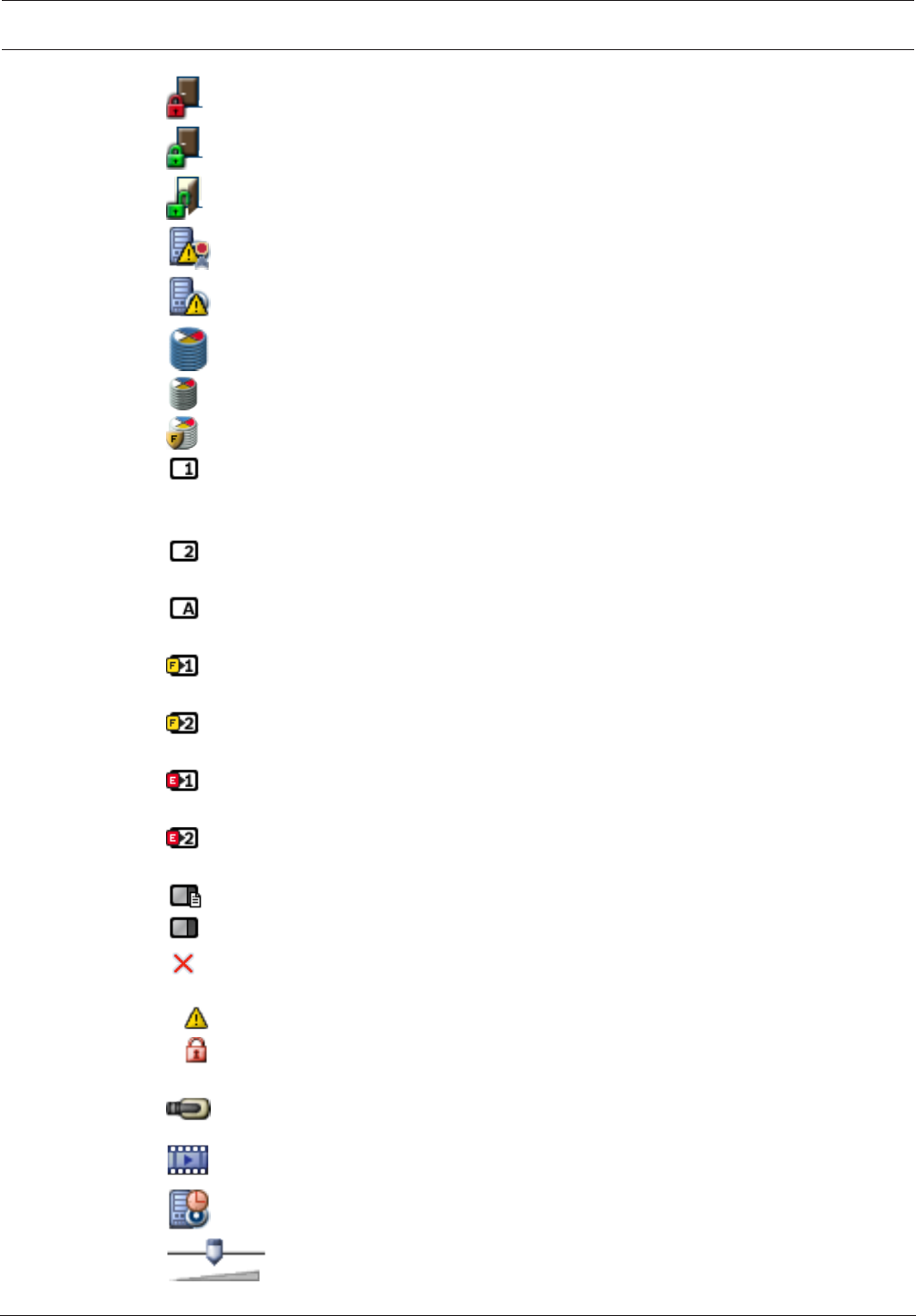
Bosch Video Management System User interface | en 45
Bosch Sicherheitssysteme GmbH User Manual 2017.10 | V 1 | Bosch VMS Viewer Operator
Client
: Door is secured.
: Door is locked.
: Door is unlocked.
: License not available
: Not connected
: Primary VRM
: Secondary VRM
: Secondary Failover VRM
: Indicates the source of the displayed recording: Primary VRM recording. On the Image
pane toolbar, click to change the recording source (only available, if Secondary VRM or ANR is
configured).
: Indicates the source of the displayed recording: Secondary VRM recording. On the Image
pane toolbar, click to change the recording source.
: Indicates that ANR provides playback. On the Image pane toolbar, click to change the
recording source.
: Indicates that the Primary Failover VRM provides playback. On the Image pane toolbar,
click to change the recording source (only available, if Secondary VRM or ANR is configured).
: Indicates that the Secondary Failover VRM provides playback. On the Image pane
toolbar, click to change the recording source.
: Indicates that the Encoder provides playback. On the Image pane toolbar, click to
change the recording source (only available, if Secondary VRM or ANR is configured).
: Indicates that the Encoder provides playback. On the Image pane toolbar, click to
change the recording source.
: Text data available
: Text data not available
: Unavailable. For a Management Server: No configuration available
: Disconnected
: Not authorized
: Live Mode
: Playback Mode
: Management Server is located in another time zone.
: Slider to adjust audio volume of all Image panes.
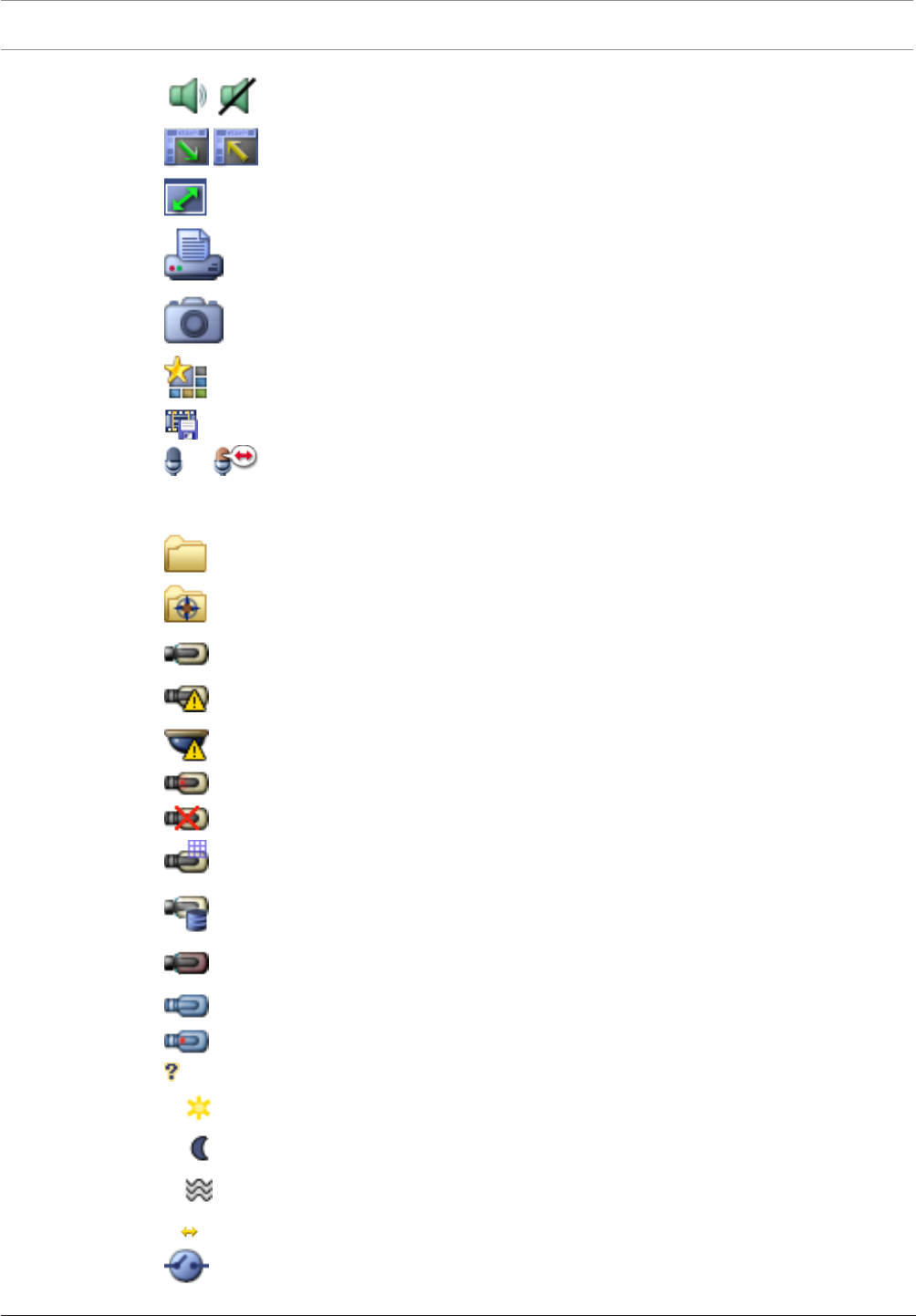
46 en | User interface Bosch Video Management System
2017.10 | V 1 | Bosch VMS Viewer Operator
Client
User Manual Bosch Sicherheitssysteme GmbH
/ : Audio on / off
: Click to display / hide the toolbar of each Image pane.
: Click to display the Image pane in full-screen mode.
: Click to print an image of the selected Image pane.
: Click to save an image file of the selected Image pane.
: Click to add a Favorites View.
: Click to add a bookmark.
: Click and hold to speak on the loudspeakers of an encoder with audio
configured. The button is active when an encoder with audio function is selected in an Image
pane.
: Folder containing various items
: Folder containing various items and having assigned a map
: Camera
: Connection lost
: Recording camera
: Video loss
: Matrix camera
: Camera with local storage
: DVR camera
: DiBos camera
: Recording DiBos camera
: State unknown
: Too bright
: Too dark
: Too noisy
: Reference check failed (for example because the camera was moved)
: Relay
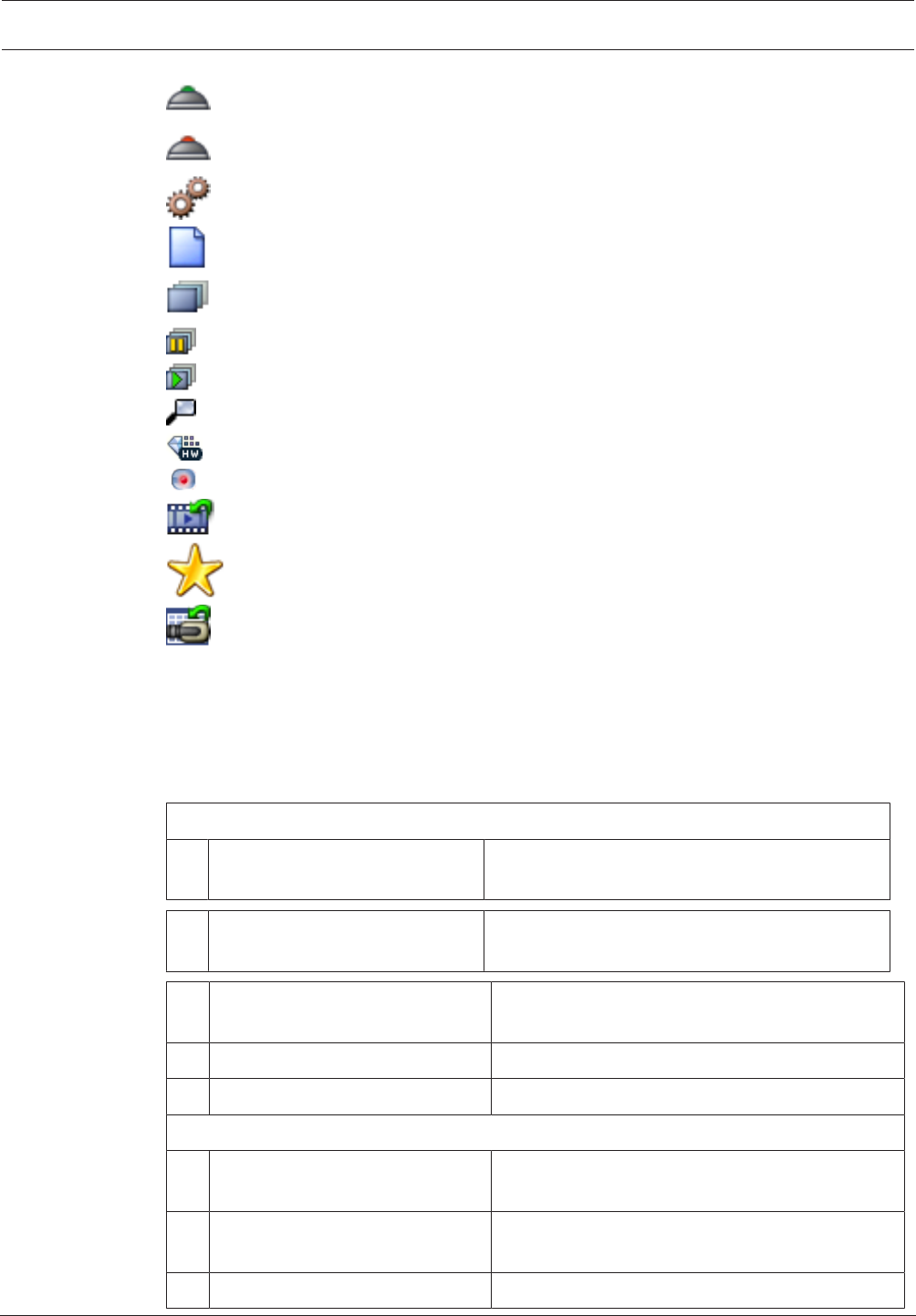
Bosch Video Management System User interface | en 47
Bosch Sicherheitssysteme GmbH User Manual 2017.10 | V 1 | Bosch VMS Viewer Operator
Client
: Inputs
: Command Script
: Document
: Camera sequence
: Camera sequence is interrupted.
: Camera sequence is playing.
: Digital zoom
: Transcoding enabled
: Manual alarm recording
: Instant playback
: Root node of the Favorites tree
: Click to display Live or Playback Mode again when the Alarm Image window is
displayed.
See also
– Timeline window, page 54
10.4 Menu commands
System menu commands
Playback Mode / Live Mode Switches to Playback or Live Mode depending on
the current state.
Change Password... Displays a dialog box for entering a new
password.
Logoff Exits the program and displays the dialog box for
logging on.
Exit Exits the program.
Camera menu commands
Save Image... Displays a dialog box for saving an image of the
selected camera.
Print Image... Displays a dialog box for printing an image of the
selected camera.
Audio On / Audio Off Turns audio of the selected camera on or off.

48 en | User interface Bosch Video Management System
2017.10 | V 1 | Bosch VMS Viewer Operator
Client
User Manual Bosch Sicherheitssysteme GmbH
Record Camera Starts recording of the selected camera. The Alarm
recording Mode quality level is used.
Instant Playback Starts playback of the selected camera for the
configured rewind time. (Not in Playback Mode)
Reference Image... Displays the Reference Image dialog box for the
currently selected Image pane. (Not in Playback
Mode)
Close Closes the selected Image pane.
Tools menu commands
Toggle Image Pane Bars Hides or displays the Image pane bars.
Show Less Image Panes Decreases the number of displayed Image panes.
Show More Image Panes Increases the number of displayed Image panes.
Timeline menu commands (Playback Mode only)
First Recording Moves the hairline to the oldest recording.
Last Recording Moves the hairline to the latest recording.
Play Plays forward starting from the current position of
the hairline.
Pause Stops playback at the current position. Click Play
to resume.
Reverse Play Plays backward from the current position of the
hairline.
Protect Video... Displays the Protect Video dialog box.
Unprotect Video... Displays the Unprotect Video dialog box.
Restrict Video... Displays the Restrict Video dialog box.
Unrestrict Video... Displays the Unrestrict Video dialog box.
Delete Video... Displays the Delete Video dialog box.
Export Video... Displays the Export Video dialog box.
Load Exported Video... Displays a dialog box for selecting an export file.
The exported file is then displayed in the Exports
Tree.
Extras menu commands
Add Favorite Saves the current Image pane pattern as a View in
the Favorites Tree.
Add Bookmark Displays the Add Bookmark dialog box.
Bosch Video Management System User interface | en 49
Bosch Sicherheitssysteme GmbH User Manual 2017.10 | V 1 | Bosch VMS Viewer Operator
Client
Mute System Turns off audio of the available Image panes and
the alarm sound.
Options... Displays the Options dialog box.
Default Settings Restores the settings for monitor layout, user
interface and options to the factory default
settings.
Last Settings Restores the settings for monitor layout, user
interface and options to the last loaded settings.
Help menu commands
Display Help Displays the BoschVMS Online Help.
About... Displays a dialog box containing information on
the installed system, for example the version
number.
10.5 Options dialog box
Main window > Extras menu > Options... command
Allows you to configure parameters for using OperatorClient.
10.5.1 Control tab
Control tab
Dwell time for automatic sequences [s]
Enter the required number of seconds a camera is to be displayed in an Image pane. This time
is also valid for alarm sequences.
PTZ Control Speed
Move the slider to adjust the control speed for PTZ cameras.
Rewind time of instant playback [s]
Enter the amount of seconds for the rewind time of instant playback.
10.5.2 Display tab
Display tab
Image pane aspect ratio
For each connected monitor select the required aspect ratio for the Image panes in
OperatorClient. Use 16:9 for HD cameras. This setting overrides the setting that was made in
ConfigurationClient for the initial startup of OperatorClient.
Display Logical Number
Select to display the logical number of a camera in the Logical Tree.
IP address visible in print and save
Select to make the IP addresses of devices in the Logical Tree available in printed or saved
images.
Text Data Position
Select the desired option for the location of the text data pane when clicking on .
Prefer hardware acceleration
After logon to OperatorClient hardware acceleration is enabled by default.
50 en | User interface Bosch Video Management System
2017.10 | V 1 | Bosch VMS Viewer Operator
Client
User Manual Bosch Sicherheitssysteme GmbH
To disable hardware acceleration, clear the check box.
This setting is retained after the next restart or re-logon of OperatorClient.
Show diagnostic information in cameos (enable until logoff)
Select to show decoding method in the Image pane.
The decoding method is displayed in the title bar of all open Image panes.
This setting is not persistent after the next restart or re-logon of OperatorClient.
10.6 Logical Tree window
Main window > > tab
or
Main window > > tab
Displays the hierarchical structure of all the devices your user group has access to.
If you logged on to an Enterprise Management Server, the server name is displayed as a prefix
to the camera name.
Only an administrator can create or change the Logical Tree in the ConfigurationClient.
Allows you to drag an item to the following elements of the user interface:
– Camera, map, document to an Image pane
– Each item to the Favorites Tree window
– Map to Map window
– Camera to the Monitors window
See also
– Arranging and resizing Image panes, page 22
– Displaying a camera in an Image pane, page 20
– Adding items to the Favorites Tree, page 30
– Starting a pre-configured camera sequence, page 22
10.7 Favorites Tree window
Main window > > tab
or
Main window > > tab
You can add every item of the Logical Tree to a view in the Favorites Tree to create your own
subset of the Logical Tree. At any time you can display the view or add or delete devices in a
view.
When saving a view in the Favorites Tree, you save the following settings:
– The assignment of cameras or other objects to Image panes
– The Image pane pattern
– The current setting of the digital zoom
– The image section
– The selected stream (only available for Live Mode)
Bosch Video Management System User interface | en 51
Bosch Sicherheitssysteme GmbH User Manual 2017.10 | V 1 | Bosch VMS Viewer Operator
Client
See also
– Adding items to the Favorites Tree, page 30
– Creating/editing views, page 31
– Starting an automatic camera sequence, page 23
10.8 Bookmarks window
Main window > > tab
or
Main window > > tab
You can save a time period of live view or a recording in a bookmark. A bookmark saves a start
and an end time, the cameras assigned to Image window at this time, and the entire Image
pane pattern. A time period of 0seconds is possible. Bookmarks are saved in the pane.
Deleting a bookmark does not affect the corresponding recordings. You cannot add or remove
cameras from a bookmark. To change a bookmark, load it, make your changes and save it.
If a recording is deleted, the corresponding bookmark is not synchronized. If loaded, a black
Image pane is displayed.
If you have logged on to an Enterprise Management Server, the camera name is displayed with
the name of this camera’s Management Server as a prefix.
Note: Do not add more than 4 cameras in one bookmark to avoid performance issues when
loading the bookmark.
See also
– Editing a bookmark, page 32
– Loading a bookmark, page 33
10.9 Add Bookmark dialog box
Main window > > Assign desired cameras to the Image window >
or
Main window > > Assign desired cameras to the Image window >
You can save a time period of live view or a recording in a bookmark. A bookmark saves a start
and an end time, the cameras assigned to Image window at this time, and the entire Image
pane pattern. A time period of 0seconds is possible. Bookmarks are saved in the pane.
Deleting a bookmark does not affect the corresponding recordings. You cannot add or remove
cameras from a bookmark. To change a bookmark, load it, make your changes and save it.
If a recording is deleted, the corresponding bookmark is not synchronized. If loaded, a black
Image pane is displayed.
If you have logged on to an Enterprise Management Server, the camera name is displayed with
the name of this camera’s Management Server as a prefix.
Note: Do not add more than 4 cameras in one bookmark to avoid performance issues when
loading the bookmark.
Start Time
In the lists, select date and time.
52 en | User interface Bosch Video Management System
2017.10 | V 1 | Bosch VMS Viewer Operator
Client
User Manual Bosch Sicherheitssysteme GmbH
End Time
In the lists, select date and time.
Sources
Displays the cameras that belong to this bookmark.
See also
– Adding a bookmark, page 32
10.10 Search box
You can use the search box to search for an item in the Logical Tree, in the Favorites Tree and
in the Bookmarks.
1. Main window > > or or tab > Right-click the desired root
node or the desired item > Click Tree Search Or:
In the Logical Tree window, the Favorites Tree window or the Bookmarks window press
Ctrl+F.
The search box is displayed .
2. Type a search string representing the display name of an item.
The search is triggered immediately during typing and the first item that matches the
search string is marked.
If the search string is not found, the background color of the search box changes.
3. Click or to mark the previous or the next matching item.
The search proceeds through all items in the tree that match the search string and not
only through the items in the selected tree node.
4. Click to close the search box.
10.11 Exports window
You can import exported video data, display it in an Image pane, search for particular data in
it, and unload it again.
See also
– Exporting video data, page 38
– Loading exported video, page 39
10.12 PTZ Control window
Main window > > PTZ Control tab
The window becomes active when a PTZ camera or a swiveling/tilting camera is
displayed in the selected Image pane.
Allows you to control a camera with the corresponding functions displayed in the selected
Image pane.
Bosch Video Management System User interface | en 53
Bosch Sicherheitssysteme GmbH User Manual 2017.10 | V 1 | Bosch VMS Viewer Operator
Client
Click to zoom in or out digitally. These controls are active even
when a non-PTZ camera is selected.
Click an arrow or drag the joystick in the center to swivel the
camera in all directions.
Click to zoom in the picture angle (zoom angle) / zooming out the picture
angle (wide angle).
Click to set the focus near / focus far.
Click to close the iris / open the iris.
Prepositions:
Select an entry to move the PTZ control to the predefined position.
Click to save the current position of the PTZ camera to the selected preposition entry.
AUX Commands:
Select an entry to execute this command.
10.13 Image window
Main window
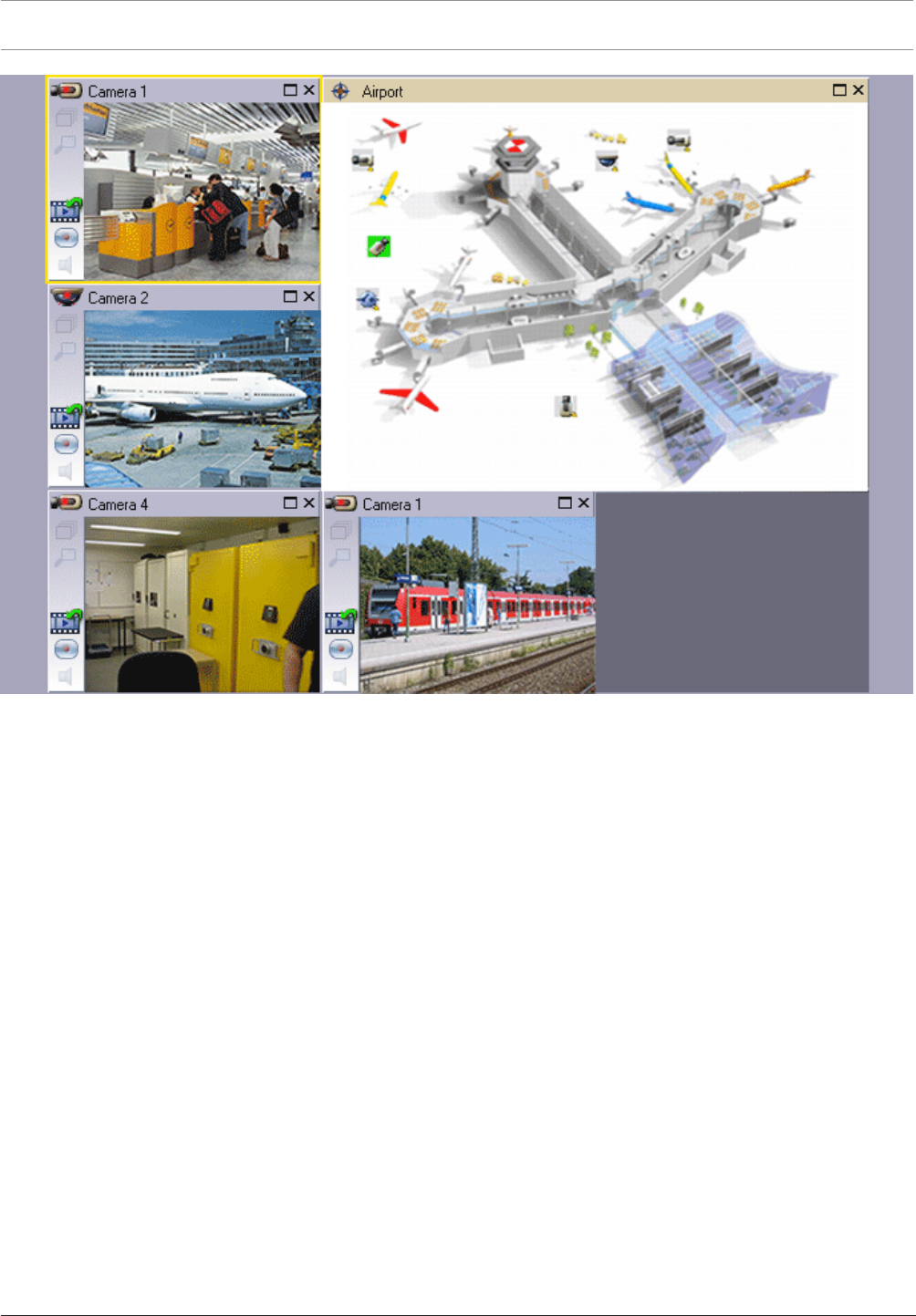
54 en | User interface Bosch Video Management System
2017.10 | V 1 | Bosch VMS Viewer Operator
Client
User Manual Bosch Sicherheitssysteme GmbH
Displays a variable number of Image panes. Minimum is 1 Image pane. You can display one
camera in several Image panes simultaneously.
See also
– Arranging and resizing Image panes, page 22
10.14 Image pane
Main window
BoschVMS Archive Player offers only a restricted feature set.
See also
– Used icons, page 44
10.15 Timeline window
Allows you to control the playback of recorded videos. You can display several cameras
simultaneously.
Audio playback is only possible when you play the video in normal speed.
If you are authorized to display recorded videos, you can also listen to the accompanying
audio recording.
If you select another time zone, the Timeline is changed accordingly.
Allows you to navigate through recorded videos. The playback of all displayed Image panes is
synchronized.
Many features enable the precise finding of scenes you are searching for.
The Timeline for VRM recordings in OperatorClient and BoschVMS Archive Player displays the
following information indicated by a color or hatching:
Bosch Video Management System User interface | en 55
Bosch Sicherheitssysteme GmbH User Manual 2017.10 | V 1 | Bosch VMS Viewer Operator
Client
VRM recording Color
Continuous recording Dark gray-blue
Results of motion search White
No recording Light gray
Protected video White diagonal stripes
Restricted video Red diagonal stripes
See also
– Changing the playback speed, page 35
– Using the Timeline, page 35
– Finding motion, page 40
– Exporting video data, page 38
– Protecting video, page 36
– Restricting video, page 36
– Deleting video data, page 37
– Exporting video data, page 38
– Loading exported video, page 39
10.16 Motion Search dialog box
Allows you to set up a search filter for motion in designated areas of a camera image. You
select the zones where you want to detect motion. You can search for motion only in the
selected Image pane.
See also
– Finding motion, page 40
10.17 Delete Video dialog box
Main window > > Timeline tab > Move the Hairline to the desired position > On
the Timeline menu, click Delete Video...
Allows you to delete video data from the beginning of the recording to the position of the
hairline.
Notice!
You cannot delete the data of a local storage device.
See also
– Deleting video data, page 37
10.18 Forensic Search dialog box
Main window > > Timeline tab > Select time period with Hairline > Click
Forensic search is only available for VRM recordings.
56 en | User interface Bosch Video Management System
2017.10 | V 1 | Bosch VMS Viewer Operator
Client
User Manual Bosch Sicherheitssysteme GmbH
Allows you to find video data with selecting a Forensic Search type, for example Intelligent
Video Analytics. You configure the Forensic Search in the Surveillance Tasks field. You can
search for motion only in the selected Image pane.
Algorithm:
Select the required analysis algorithm. By default, only MOTION+ is available – this offers a
motion detector and essential recognition of tampering. The current alarm status is displayed
for information purposes.
Notice!
Additional analysis algorithms with comprehensive functions such as Intelligent Video
Analytics are available.
If you select one of these algorithms, you can set the corresponding parameters directly.
Presets:
Select an entry to load Forensic Search settings that you have saved earlier.
Click to save the settings for the Forensic Search. You can enter a descriptive name.
Start:
The current position of the Hairline is displayed.
Enter the point in time when the search starts.
If you uncheck, all recordings until the specified end date are searched.
End:
The current position of the Hairline is displayed.
Enter the point in time when the search ends.
If you uncheck, all recordings beginning with the specified start date are searched.
Click to update the selection in the Timeline with the data of the Start: and End: fields.
Only the selected video is managed.
Surveillance Tasks
Configure your Forensic Search. See the user documentation of the Intelligent Video Analytics
version that you are using.
Search
Click to start the Forensic Search.
See also
– Performing a Forensic Search (only VRM recordings), page 39
10.19 Restrict Video dialog box
Main window > > Timeline menu > Restrict Video... command > Restrict Video dialog
box
You can restrict the recordings of cameras connected to the following DIVAR AN devices:
– DIVAR AN 3000
– DIVAR AN 5000
When restricted, an unauthorized user cannot display the recordings of these cameras.
The DIVAR AN devices can be connected to BoschVMS either locally under or as an
unmanaged site under .
For restricting you need the corresponding permission.
Bosch Video Management System User interface | en 57
Bosch Sicherheitssysteme GmbH User Manual 2017.10 | V 1 | Bosch VMS Viewer Operator
Client
Start:
The current selection of the Hairline is displayed.
If you uncheck, all recordings until the specified end date are restricted.
End:
The current selection of the Hairline is displayed.
If you uncheck, all recordings beginning with the specified start date are restricted.
Notice!
Unrestricting / unprotecting a selected time period can possibly unrestrict / unprotect the
entire contiguous restricted / protected time period of this camera, even outside the
selected time period.
Restrict
Click to restrict the selected time period.
See also
– Restricting video, page 36
10.20 Unrestrict Video dialog box
Main window > > Timeline menu > Unrestrict Video... command > Unrestrict Video
dialog box
You can unrestrict the recordings of cameras connected to the following DIVAR AN devices:
– DIVAR AN 3000
– DIVAR AN 5000
The DIVAR AN devices can be connected to BoschVMS either locally under or as an
unmanaged site under .
For unrestricting you need the corresponding permission.
Start:
The current selection of the Hairline is displayed.
If you uncheck, all recordings until the specified end date are unrestricted.
End:
The current selection of the Hairline is displayed.
If you uncheck, all recordings beginning with the specified start date are unrestricted.
Notice!
Unrestricting / unprotecting a selected time period can possibly unrestrict / unprotect the
entire contiguous restricted / protected time period of this camera, even outside the
selected time period.
Unrestrict
Click to unrestrict the selected time period.
See also
– Restricting video, page 36
58 en | User interface Bosch Video Management System
2017.10 | V 1 | Bosch VMS Viewer Operator
Client
User Manual Bosch Sicherheitssysteme GmbH
10.21 Protect Video dialog box
Main window > > Timeline menu > Protect Video... command > Protect Video dialog
box
Allows you to protect the selected video data.
Notice!
You cannot protect the data of a local storage device.
Start:
The current selection of the Hairline is displayed.
Enter the point in time when the protection starts.
If you uncheck, all recordings until the specified end date are protected.
End:
The current selection of the Hairline is displayed.
Enter the point in time when the protection ends.
If you uncheck, all recordings beginning with the specified start date are protected.
Notice!
Unrestricting / unprotecting a selected time period can possibly unrestrict / unprotect the
entire contiguous restricted / protected time period of this camera, even outside the
selected time period.
Protect
Click to protect the selected time period.
See also
– Protecting video, page 36
10.22 Unprotect Video dialog box
Main window > > Timeline menu > Unprotect Video... command > Unprotect Video
dialog box
Allows you to protect the selected video data.
Start:
The current selection of the Hairline is displayed.
Enter the point in time when the protection starts.
If you uncheck, all recordings until the specified end date are unprotected.
End:
The current selection of the Hairline is displayed.
Enter the point in time when the protection ends.
If you uncheck, all recordings beginning with the specified start date are unprotected.
Notice!
Unrestricting / unprotecting a selected time period can possibly unrestrict / unprotect the
entire contiguous restricted / protected time period of this camera, even outside the
selected time period.
Bosch Video Management System User interface | en 59
Bosch Sicherheitssysteme GmbH User Manual 2017.10 | V 1 | Bosch VMS Viewer Operator
Client
Unprotect
Click to unprotect the selected time period.
See also
– Protecting video, page 36
10.23 Delete Video dialog box
Main window > > Timeline menu > Delete Video... command > Delete Video dialog box
Allows you to delete video data.
Notice!
You cannot delete the data of a local storage device.
Start:
The current selection of the Hairline is displayed.
Enter the point in time when the deletion starts.
If you uncheck, all recordings until the specified end date are deleted.
End:
The current selection of the Hairline is displayed.
Enter the point in time when the deletion ends.
If you uncheck, all recordings beginning with the specified start date are deleted.
Delete
Click to delete the selected time period.
See also
– Deleting video data, page 37
10.24 Export Video dialog box
When the verification of authenticity is enabled in ConfigurationClient, each export is
automatically checked.
Notice!
You cannot export the data of a local storage device.
Export of a panoramic camera
When you export the recordings of a panoramic camera you always export the full image
circle. If you export multiple cropped Image panes of the same panoramic camera, the full
image circle of this camera is exported only once. This also applies for the export of non-
panoramic cameras.
Unencrypted export
You can export video and audio data to a local drive, a CD/DVD drive, a Blu-Ray disk, a
network drive, or a USB drive.
Note: If you use a USB drive, use a fast USB device to avoid failures.
The data is exported in native (BoschVMS Archive Player), ASF or in MOV format.
When you export a video in native format, you can add BoschVMS Archive Player as a viewer.
Data in MOV format can be played with standard software such as QuickTime from Apple.

60 en | User interface Bosch Video Management System
2017.10 | V 1 | Bosch VMS Viewer Operator
Client
User Manual Bosch Sicherheitssysteme GmbH
You export the video and audio data of the selected cameras.
Only in an Enterprise System: You can select a remote Management Server to perform the
export there. You can only export the recordings of the cameras that are managed by the
selected Management Server.
Only one export at a time can run on a workstation.
Note: You need a permission for each camera that you want to export.
If exporting video data on a hard drive was not successful for multiple cameras, the
completely exported video data of cameras is retained. The data of an uncomplete export
process of a camera is deleted.
If the user cancels the export, the already exported video data of this export process is
deleted.
The video export without providing a password creates an unencrypted file with the
extension .info and the unencrypted video data files in subfolders. The operator must select
the .info file when loading this unencrypted export.
Encrypted export
When a password is provided for a video export, a file with the extension .encr and the
encrypted video data files in subfolders are created.
For loading the encrypted export, the operator must select the encrypted .encr file and type
in the correct password.
The .encr file and the encrypted video data files are indicated by a specific file icon.
If a file in the subfolders of an encrypted export is deleted or tampered, you cannot import
this encrypted export.
If exporting video data on a hard drive was not successful or the user cancels the export, the
already exported video data of this export process is deleted.
Export on multiple discs
Encrypted export and export into a single ZIP file are not possible on multiple CDs/DVDs/Blu-
Ray discs. If the export fits on a single CD/DVD/Blu-Ray disc, encrypted export on a CD/DVD/
Blu-Ray disc is possible.
Recordings that were selected for export and that are to be exported to CD/DVD/Blu-Ray
discs, are first written to the local hard drive and then written to one or more writeable discs.
Unencrypted export on multiple discs is only supported for native format. Exporting with ASF
or MOV format only works when it fits on one disc.
The first inserted disc determines the media type of all following discs.
If recordings were exported to multiple CD/DVD/Blu-Ray discs, and you must view all exported
cameras in all exported time periods, copy the content of all discs to your hard drive. You can
ignore all occurring overwrite warnings.
You can view the recordings exported to a single disc out of a group of discs that were created
during an export.
If exporting video data on a CD/DVD/Blu-Ray disc was not successful or the user cancels the
export, the already exported video data of this export process is retained.
Name:
Type the name for the exported file.
Start:
Select the check box to set a start time for exporting. In the lists, select date and time.
End:
Select the check box to set an end time for exporting. In the lists, select date and time.
Encrypt Export
Click to select encryption for this export.

Bosch Video Management System User interface | en 61
Bosch Sicherheitssysteme GmbH User Manual 2017.10 | V 1 | Bosch VMS Viewer Operator
Client
Password:
Type in a password for your encrypted export. Confirm this password in the Confirm
password: field.
Export as single ZIP file
Select to store the exported files in a single ZIP file. You use the ZIP file format to store all
exported files in a single file, compression of the data is not available.
On a FAT32 partition, the maximum file size of the ZIP file is 4GB.
Remote Export
Click to enable remote export. You can select a Management Server of your Enterprise
System. On this Management Server the export is performed.
Ensure that the desired storage media is available.
Finalize Disk
Click to select that the data medium is finalized after the successful burning process. After
finalizing no further data can be burned on the data medium.
Comment:
Enter a comment for the export.
Cancel
Click to save the dialog settings until you start OperatorClient the next time.
See also
– Exporting video data, page 38
– Exporting into a single file, page 38
10.25 Export Bookmark dialog box
Main window > > Right-click a bookmark > Export Bookmark command > Export
Bookmark dialog box
Allows you to export video data of a bookmark in BoschVMS Archive Player, ASF or MOV
format. You can change the time period for the export. For each camera, a subfolder is created
in the target folder.
Export of a panoramic camera
When you export the recordings of a panoramic camera you always export the full image
circle. If you export multiple cropped Image panes of the same panoramic camera, the full
image circle of this camera is exported only once. This also applies for the export of non-
panoramic cameras.
Unencrypted export
You can export video and audio data to a local drive, a CD/DVD drive, a Blu-Ray disk, a
network drive, or a USB drive.
Note: If you use a USB drive, use a fast USB device to avoid failures.
The data is exported in native (BoschVMS Archive Player), ASF or in MOV format.
When you export a video in native format, you can add BoschVMS Archive Player as a viewer.
Data in MOV format can be played with standard software such as QuickTime from Apple.
You export the video and audio data of the selected cameras.
Only in an Enterprise System: You can select a remote Management Server to perform the
export there. You can only export the recordings of the cameras that are managed by the
selected Management Server.
Only one export at a time can run on a workstation.
Note: You need a permission for each camera that you want to export.

62 en | User interface Bosch Video Management System
2017.10 | V 1 | Bosch VMS Viewer Operator
Client
User Manual Bosch Sicherheitssysteme GmbH
If exporting video data on a hard drive was not successful for multiple cameras, the
completely exported video data of cameras is retained. The data of an uncomplete export
process of a camera is deleted.
If the user cancels the export, the already exported video data of this export process is
deleted.
The video export without providing a password creates an unencrypted file with the
extension .info and the unencrypted video data files in subfolders. The operator must select
the .info file when loading this unencrypted export.
Export on multiple discs
Encrypted export and export into a single ZIP file are not possible on multiple CDs/DVDs/Blu-
Ray discs. If the export fits on a single CD/DVD/Blu-Ray disc, encrypted export on a CD/DVD/
Blu-Ray disc is possible.
Recordings that were selected for export and that are to be exported to CD/DVD/Blu-Ray
discs, are first written to the local hard drive and then written to one or more writeable discs.
Unencrypted export on multiple discs is only supported for native format. Exporting with ASF
or MOV format only works when it fits on one disc.
The first inserted disc determines the media type of all following discs.
If recordings were exported to multiple CD/DVD/Blu-Ray discs, and you must view all exported
cameras in all exported time periods, copy the content of all discs to your hard drive. You can
ignore all occurring overwrite warnings.
You can view the recordings exported to a single disc out of a group of discs that were created
during an export.
If exporting video data on a CD/DVD/Blu-Ray disc was not successful or the user cancels the
export, the already exported video data of this export process is retained.
Name:
Type the name for the exported file.
Start:
Select the check box to set a start time for exporting. In the lists, select date and time.
End:
Select the check box to set an end time for exporting. In the lists, select date and time.
Encrypt Export
Click to select encryption for this export.
Password:
Type in a password for your encrypted export. Confirm this password in the Confirm
password: field.
Remote Export
Click to enable remote export. You can select a Management Server of your Enterprise
System. On this Management Server the export is performed.
Ensure that the desired storage media is available.
Finalize Disk
Click to select that the data medium is finalized after the successful burning process. After
finalizing no further data can be burned on the data medium.
Comment:
Enter a comment for the export.
See also
– Exporting bookmarks, page 33

Bosch Video Management System User interface | en 63
Bosch Sicherheitssysteme GmbH User Manual 2017.10 | V 1 | Bosch VMS Viewer Operator
Client
10.26 Export Multiple Bookmarks dialog box
Main window > tab > Right-click a bookmark > Export Multiple Bookmarks command >
Export Video dialog box
Allows you to export video data of multiple bookmarks in BoschVMS Archive Player, ASF or
MOV format. This way you can export different time periods of the same or different cameras
in one process. For each camera, a subfolder is created in the target folder.
Export of a panoramic camera
When you export the recordings of a panoramic camera you always export the full image
circle. If you export multiple cropped Image panes of the same panoramic camera, the full
image circle of this camera is exported only once. This also applies for the export of non-
panoramic cameras.
Unencrypted export
You can export video and audio data to a local drive, a CD/DVD drive, a Blu-Ray disk, a
network drive, or a USB drive.
Note: If you use a USB drive, use a fast USB device to avoid failures.
The data is exported in native (BoschVMS Archive Player), ASF or in MOV format.
When you export a video in native format, you can add BoschVMS Archive Player as a viewer.
Data in MOV format can be played with standard software such as QuickTime from Apple.
You export the video and audio data of the selected cameras.
Only in an Enterprise System: You can select a remote Management Server to perform the
export there. You can only export the recordings of the cameras that are managed by the
selected Management Server.
Only one export at a time can run on a workstation.
Note: You need a permission for each camera that you want to export.
If exporting video data on a hard drive was not successful for multiple cameras, the
completely exported video data of cameras is retained. The data of an uncomplete export
process of a camera is deleted.
If the user cancels the export, the already exported video data of this export process is
deleted.
The video export without providing a password creates an unencrypted file with the
extension .info and the unencrypted video data files in subfolders. The operator must select
the .info file when loading this unencrypted export.
Export on multiple discs
Encrypted export and export into a single ZIP file are not possible on multiple CDs/DVDs/Blu-
Ray discs. If the export fits on a single CD/DVD/Blu-Ray disc, encrypted export on a CD/DVD/
Blu-Ray disc is possible.
Recordings that were selected for export and that are to be exported to CD/DVD/Blu-Ray
discs, are first written to the local hard drive and then written to one or more writeable discs.
Unencrypted export on multiple discs is only supported for native format. Exporting with ASF
or MOV format only works when it fits on one disc.
The first inserted disc determines the media type of all following discs.
If recordings were exported to multiple CD/DVD/Blu-Ray discs, and you must view all exported
cameras in all exported time periods, copy the content of all discs to your hard drive. You can
ignore all occurring overwrite warnings.
You can view the recordings exported to a single disc out of a group of discs that were created
during an export.

64 en | User interface Bosch Video Management System
2017.10 | V 1 | Bosch VMS Viewer Operator
Client
User Manual Bosch Sicherheitssysteme GmbH
If exporting video data on a CD/DVD/Blu-Ray disc was not successful or the user cancels the
export, the already exported video data of this export process is retained.
Name:
Type the name for the exported file.
Include Viewer
Click to select that a setup for BoschVMS Archive Player is stored in the location selected
under Target.
Encrypt Export
Click to select encryption for this export.
Password:
Type in a password for your encrypted export. Confirm this password in the Confirm
password: field.
HDD
Click to select a folder on a hard disk partition for exporting.
CD/DVD/Blu-Ray
In the list, select a writer device for exporting.
Enable Finalize Disk, if you do not want to burn further data on the data medium.
Bookmarks
In the list, select the bookmarks that you want to export.
Finalize Disk
Click to select that the data medium is finalized after the successful burning process. After
finalizing no further data can be burned on the data medium.
Comment:
Enter a comment for the export.
See also
– Exporting bookmarks, page 33
10.27 Export dialog box
Allows you to view information on the performed export and to display the results of the
authenticity verification that is automatically performed on every export.
Verification Details
Click to display the Authenticity Verification Result dialog box.
This button is only available if authentication issues were found.
See also
– Exporting video data, page 38
– Exporting into a single file, page 38
10.28 Motion Search Results window
Displays entries for video data containing motion for the camera displayed in the selected
Image pane. You can select an entry for playback, protection, authenticity checking, archiving,
or export.
Displays the recordings that match the search criteria.
See also
– Performing a Forensic Search (only VRM recordings), page 39
Bosch Video Management System User interface | en 65
Bosch Sicherheitssysteme GmbH User Manual 2017.10 | V 1 | Bosch VMS Viewer Operator
Client
– Exporting video data, page 38
– Finding motion, page 40
10.29 Video Search Results window
Main window > > tab
Displays entries for video data matching different search criteria. You can select an entry for
playback, protection, authenticity checking, archiving, or export.
Allows you to play the recordings that match the search criteria.

66 en | Keyboard shortcuts Bosch Video Management System
2017.10 | V 1 | Bosch VMS Viewer Operator
Client
User Manual Bosch Sicherheitssysteme GmbH
11 Keyboard shortcuts
This section lists the available keyboard shortcuts for a US keyboard layout.
+ indicates that each key must be pressed simultaneously (for example, Control+z means to
press the Control key and the z key simultaneously).
On your Setup CD you find an Acrobat file for printing. The name of this file is
keyboard_layout_en.pdf.
11.1 General controls
To Press
Display Online Help F1
Rename (for example in favorites) F2
11.2 Playback controls
To Press
Play / Pause Space
Previous frame ,
Next frame .
Set direction to forward Enter
Set direction to backward Backspace
Jump to oldest recording Home
Jump to latest recording End
Increase playback speed Page Up
Decrease playback speed Page Down
11.3 Image window controls
The following keyboard shortcuts only work when the Image window has the focus.
To Press
Move selected Image pane Cursor keys
Close Image pane Delete,
Close all Image panes Control + Delete
Show less Image panes F7
Show more Image panes F8
Show / hide Image pane bars F9

Bosch Video Management System Glossary | en 67
Bosch Sicherheitssysteme GmbH User Manual 2017.10 | V 1 | Bosch VMS Viewer Operator
Client
Glossary
ANR
Automated Network Replenishment. Integrated
process that copies missing video data from a
video transceiver to the network video recorder
after a network failure. The copied video data
exactly fills the gap that occurred after the
network failure. Hence the transceiver needs any
kind of local storage. The recording capacity on
this local storage is calculated with the following
formula: (network bandwidth x estimated network
downtime + safety margin) x (1 + 1/backup
speed). The resulting recording capacity is
required because the continuous recording must
continue during the copy process.
area
A group of detection devices connected to the
security system.
ASF
Advanced Systems Format; Microsoft Windows
media audio and video format.
authenticity
State of a recorded video that indicates its
originality. That means, the recorded video is not
manipulated.
bookmark
Used for storing a time period of live or recorded
video. This allows for tagging particular scenes for
later investigation. Additionally you can share your
investigation results with other users by exporting
a bookmark.
bypass
Selectively remove points from the security
system. A point may be bypassed in order to arm
the perimeter with a window open.
camera sequence
A list of cameras that are displayed one after the
other. Each camera is displayed for a specific time
(dwell time). There are two types of sequences:
predefined and automatic. Predefined sequences
are defined by the administrator. Icons for these
sequences are located in the Logical Tree.
Automatic sequences are created when you drag a
multiple selection or a folder from the Logical
Tree to an Image pane or a decoder. All cameras
in this folder or selection sequences in the Image
pane. You can create your own sequences by
creating a folder in your Favorites Tree.
dewarping
The use of software to convert a circular image
from a fisheye lens with radial distortion to a
rectilinear image for normal viewing (dewarping is
the correction of distortion).
dwell time
Preset amount of time a camera is displayed in an
Image window until the next camera is displayed
during a camera sequence.
Edge dewarping
Dewarping performed in the camera itself.
Encoder
Changes an analog stream to a digital stream, e.g.,
to integrate analog cameras in a digital system like
Bosch Video Management System. Some encoders
can have a local storage like a flash card, a USB
hard disk, or they can store their video data on
iSCSI devices. IP cameras have an encoder built
in.
Enterprise Account
Enterprise Account is an authorization that
enables a user of Operator Client to connect to
the devices of a Management Server being part of
an Enterprise System. In an Enterprise Account,
all permissions for the devices of this
Management Server are configured. Operator
Client can simultaneously connect to all
Management Server computers that are part of
this Enterprise System. This access is either
controlled by the membership to an Enterprise
User Group, and is controlled by the device
permissions configured in the Enterprise Account
for this Management Server.
Enterprise User Group
Enterprise User Group is a user group that is
configured on an Enterprise Management Server.
Enterprise User Group defines the users that are
authorized to access multiple Management Server
computers simultaneously. Defines the operating
permissions available for these users.

68 en | Glossary Bosch Video Management System
2017.10 | V 1 | Bosch VMS Viewer Operator
Client
User Manual Bosch Sicherheitssysteme GmbH
Failover VRM
Software in the Bosch VMS environment. Takes
over the task of the assigned Primary VRM or
Secondary VRM in case of failure.
Hot spot
Mouse sensitive icon on a map. Hot spots are
configured in Configuration Client. Hot spots can
be for example cameras, relays, inputs. The
operator uses it for localizing and selecting a
device in a building. If configured, hot spots can
display a blinking background color when a
specific state event occurs.
Image pane
Used for displaying live and recorded video of a
single camera, a map, or an HTML file.
Image pane pattern
Arrangement of Image panes.
Image window
Container for Image panes, structured by an
Image window pattern.
Instant playback
Plays the recorded image of the selected camera
in an Image pane on the live screen. The start time
(number of seconds in the past, or rewind time)
can be configured.
Intelligent Video Analytics
Algorithm that detects specific properties and the
behavior of objects in a scene monitored by a
video camera and from this generates alarm
events that, in turn, can be processed in a CCTV
system. Recording with Intelligent Video Analytics
settings activated is a precondition to be able to
selectively and quickly search through video
material later. Intelligent Video Analytics makes it
possible to capture and evaluate directional
movement of objects in such a way that false
alarms are prevented to a large extent. Intelligent
Video Analytics adapts automatically to changing
environmental conditions and is therefore largely
non-sensitive to perturbing influences such as rain
and tree movement. Especially when used for
forensic search, Intelligent Video Analytics allows
for filtering moving objects by their color
specifications. With the aid of Intelligent Video
Analytics algorithm extensive video material can
be searched selectively for objects with specific
color properties.
Logical number
Logical numbers are unique IDs assigned to each
device in the system for ease of reference. Logical
numbers are only unique within a particular device
type. Typical use of logical numbers are Command
Scripts.
Logical Tree
Tree with a customized structure of all the
devices. The Logical Tree is used in the Operator
Client to select cameras and other devices. In the
Configuration Client, the "Full Logical Tree" is
configured (on the Maps and Structure page) and
tailored for each user group (on the User Groups
page).
Management Server
Bosch VMS server managing devices.
MOV
File extension of the default video format used by
QuickTime Player from Apple.
Panoramic camera
Camera with a 360° or 180° view angle.
Playback Mode
Feature of Operator Client. Used to playback and
search through archived videos.
point
A detection device connected to the security
system. Points show on the keypad individually
and with custom text. The text might describe a
single door, motion sensor, smoke detector, or an
protected space such as UPSTAIRS or GARAGE.
PTZ camera
Camera with pan, tilt, and zoom function.
Rewind time
Number of seconds in the past when an Image
pane is switched to instant playback.
Secondary VRM
Software in the Bosch VMS environment. Ensures
that the recording performed by one or multiple
Primary VRMs is additionally and simultaneously
performed to another iSCSI target. The recording
settings can deviate from the settings of the
Primary VRM.

Bosch Video Management System Glossary | en 69
Bosch Sicherheitssysteme GmbH User Manual 2017.10 | V 1 | Bosch VMS Viewer Operator
Client
Timeline
Part of the Bosch Video Management System user
interface. Displays lines as graphical
representations of the recordings of the selected
cameras. The Timeline allows you to navigate
through recorded videos.
unmanaged site
Item of the Device Tree in Bosch VMS that can
contain video network devices like Digital Video
Recorders. These devices are not managed by the
Management Server of your system. The user of
Operator Client can connect to the devices of an
unmanaged site on demand.
User group
User groups are used to define common user
attributes, such as permissions, privileges and
PTZ priority. By becoming a member of a group, a
user automatically inherits all the attributes of the
group.
UTC
Universal Time Coordinated
view
Collection of cameras assigned to Image panes
that you can recall for instant live viewing. Image
panes with maps or HTML files can be part of a
view. Sequences cannot be part of a view.
VRM
Video Recording Manager. Software package in
Bosch Video Management System which manages
storing video (MPEG-4 SH++, H.264 and H.265)
with audio data and metadata on iSCSI devices in
the network. VRM maintains a database containing
the recording source information and a list of
associated iSCSI drives. VRM is realized as a
service running on a computer in the Bosch Video
Management System network. VRM does not store
video data itself but distributes storage capacities
on iSCSI devices to the encoders, while handling
load balancing between multiple iSCSI devices.
VRM streams playback from iSCSI to Operator
Clients.

70 en | Glossary Bosch Video Management System
2017.10 | V 1 | Bosch VMS Viewer Operator
Client
User Manual Bosch Sicherheitssysteme GmbH

Bosch Video Management System Index | en 71
Bosch Sicherheitssysteme GmbH User Manual 2017.10 | V 1 | Bosch VMS Viewer Operator
Client
Index
A
accessing the Help 6
add bookmark 32
area 44
audio 24
authenticity 54
automatic sequence 23
B
bookmark 30
add 32
display 33
edit 30, 32, 51
load 33
save 32
Bosch Video Management System
Online Help 6
Bosch VMS Archive Player 59, 61, 63
C
cameo 20, 22, 25, 54
cameo space 53
camera round 22, 23
camera sequence 22, 23
automatic 23
pre-configured 22
color 54
D
data sheet 9
delete video 54
digital zoom 31
displaying
screens 19
dome camera 28
E
edit bookmark 32
entire screen 25
export
split 60, 62, 63
video 54, 59, 61, 63
F
Favorite 31
finding
information in the Help 6
Forensic Search 39
full-screen mode 25
G
general settings 49
H
Hairline 54
HD camera 49
help 6, 7
HTML files 53
I
icons 44
Image pane 20, 22, 25, 54
in-window PTZ 28
image section 31
Images window 53
instant playback 26
instant replay 26
intrusion panel 44
in-window PTZ 28
L
Live Mode 42
live video 42, 53
M
Management Server 9
map 53
motion search 39
multichannel 24
N
NVR 9
O
online application Help 6
options 49
P
panoramic camera
viewing modes 11, 21
playback 43
Playback Mode 43
playback video 53
point in time 54
pre-configured sequence 22
printing the Help 7
protect video 54
PTZ camera 28
PTZ control 52
R
Release Notes 9
remote export 59, 61, 63
resize 22
restrict video 36, 56

72 en | Index Bosch Video Management System
2017.10 | V 1 | Bosch VMS Viewer Operator
Client
User Manual Bosch Sicherheitssysteme GmbH
S
save bookmark 32
search for motion 39, 54
sequence 22, 23
shortcuts 66
smart motion search 54
sound 42
specific event 54
split export 60, 62, 63
switch
panoramic viewing mode 21
system requirements 9
T
time zone 11, 43, 54
Timeline 43, 54
toolbar 25
U
unrestrict video 57
used icons 44
V
VCA
disable 26, 40
enable 26, 40
video
export 59, 61, 63
View 31
view camera 20
viewing
screens 19
viewing modes of panoramic camera 11, 21
Z
ZIP export 38

Bosch Sicherheitssysteme GmbH
Robert-Bosch-Ring 5
85630 Grasbrunn
Germany
www.boschsecurity.com
© Bosch Sicherheitssysteme GmbH, 2017
