Brain Boxes BL-521 RS232 Bluetooth Converter User Manual BL 521 r7 QSG
Brain Boxes RS232 Bluetooth Converter BL 521 r7 QSG
Contents
- 1. Users Manual Part I
- 2. RF Exposure Declaration
Users Manual Part I
Print Date: 29.04.2003
Brainboxes Limited, Unit 3C, Wavertree Boulevard South, Wavertree Technology Park, Liverpool, L7 9PF, UK
Tel: +44 (0)151 220 2500 Fax: +44 (0)151 252 0446 Web: www.brainboxes.com Email: sales@brainboxes.com
Quick Start Guide
BL-521 RS232 Bluetooth Converter
Version: 2.3

BL-521 r7 QSG.doc © Copyright Brainboxes Limited 2003 Page 2 of 2
Table of Contents
1. Introduction ...................................................................................................................................................3
2. Changing Settings..........................................................................................................................................3
2.1. Options at a glance..................................................................................................................................3
2.2. Accessing the configuration menus. ..........................................................................................................3
2.3. Changing specific settings........................................................................................................................5
2.3.1. Main Menu ........................................................................................................................................5
2.3.2. Setting the Communications Parameters.............................................................................................5
2.3.3. Changing Baud rate. ..........................................................................................................................6
2.3.4. Changing parity. ................................................................................................................................6
2.3.5. Changing data bits.............................................................................................................................7
2.3.6. Changing number of stop bits.............................................................................................................7
2.3.7. Applying configuration settings. ..........................................................................................................7
2.3.8. Handshaking .....................................................................................................................................7
2.3.9. Pin Number.......................................................................................................................................7
3. Connecting via Bluetooth................................................................................................................................7
3.1. Configuring the communications parameters..............................................................................................7
4.2 Physically connecting your device to BL-521 via the RS232 connector.....................................................8
3.2. Connecting to BL-521 from another Brainboxes Bluetooth product..............................................................8
3.2.1. Discover the device............................................................................................................................9
3.2.2. Secure the relationship ......................................................................................................................9
3.2.3. Connect to the profile.......................................................................................................................10
3.2.4. Connect your application to the COM port .........................................................................................11
BL-521 r7 QSG.doc © Copyright Brainboxes Limited 2003 Page 3 of 3
1. Introduction
Brainboxes BL-521 RS232 Bluetooth Adapter is a fully embedded, stand-alone Bluetooth solution, which will
Bluetooth enable any device with an RS232 port. BL-521 does not require any host Bluetooth software.
BL-521, when used in combination with another Bluetooth product, (e.g. Brainboxes USB adapter connected to a
PC) replaces a cable freeing the device from the limits imposed by the cable specification. The connection uses
Bluetooth security and encryption to ensure that sensitive data is secure.
It is user configurable to baud rates between 244 and 1,382,400 baud, with no, odd, or even parity, and with 1 or 2
stop bits. Its default factory settings are: 115,200 baud, no parity, 8 data bits and 1 stop bit.
This quick start guide shows you how to get started with the BL-521 in the shortest possible time. For
documentation on the full set of configuration features please refer to the full product manual.
2. Changing Settings
2.1. Options at a glance
- View/Set local COM port settings (baud rate, parity, stop bits) *
- View/Set Discoverability, Security mode, encryption and PIN number
- View/Set Pairing options (including pairing to another BL-521)
- View/Set Client/Server configuration (Client connects to Server – important if “pairing” 2 BL-521’s)
- View/Set Local Device Name and Device Class
- View current settings
- Disable/enable configuration menu
- Permanently update “default” settings
2.2. Accessing the configuration menus.
Note: If the BL-521 is connected to another Bluetooth device the configuration menu is not be available.
First, connect BL-521 to an available serial port on your computer. In this example, we use COM1. You will need
the DTE gender changer from the supplied cable for this to work when connected to a PC.
Ensure the power adapter is connected and switched on (the LED’s on the BL-521 should come on).
The example given below uses HyperTerminal, a terminal application that ships with Windows. If you are using a
different operating system, you will need a similar “terminal” or “tty” type application (e.g. minicom), which talks
directly to a serial port.
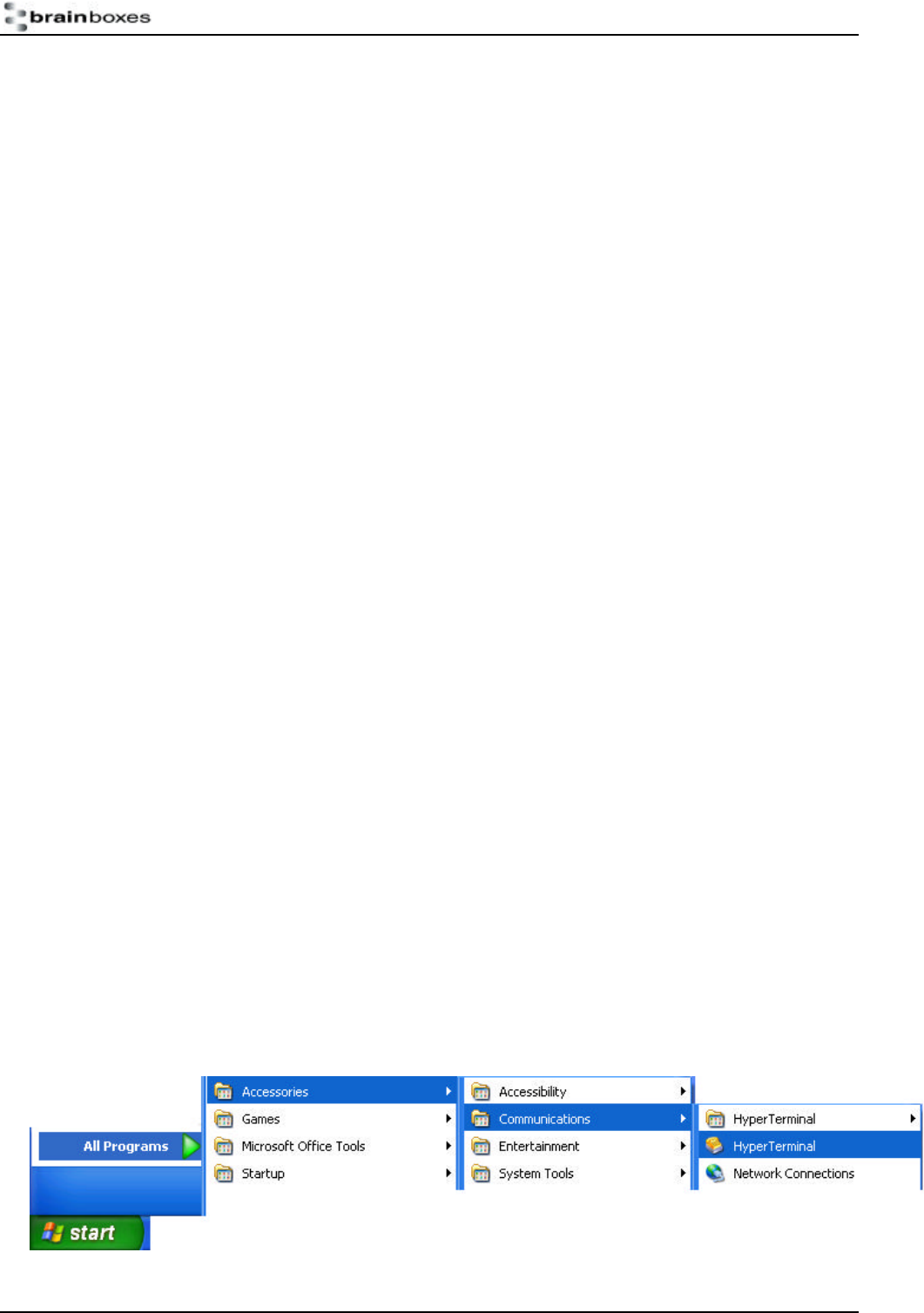
In Windows open HyperTerminal by clicking “Start\All Programs\Accessories\Communications\HyperTerminal”.
Some versions of Windows have a slightly different sequence of clicks, or do not install HyperTerminal by default.
Please refer to your operating system instructions for more details.
Sending a single “Carriage Return” character to the BL-521 accesses the initial main menu.
BL-521 r7 QSG.doc © Copyright Brainboxes Limited 2003 Page 4 of 4
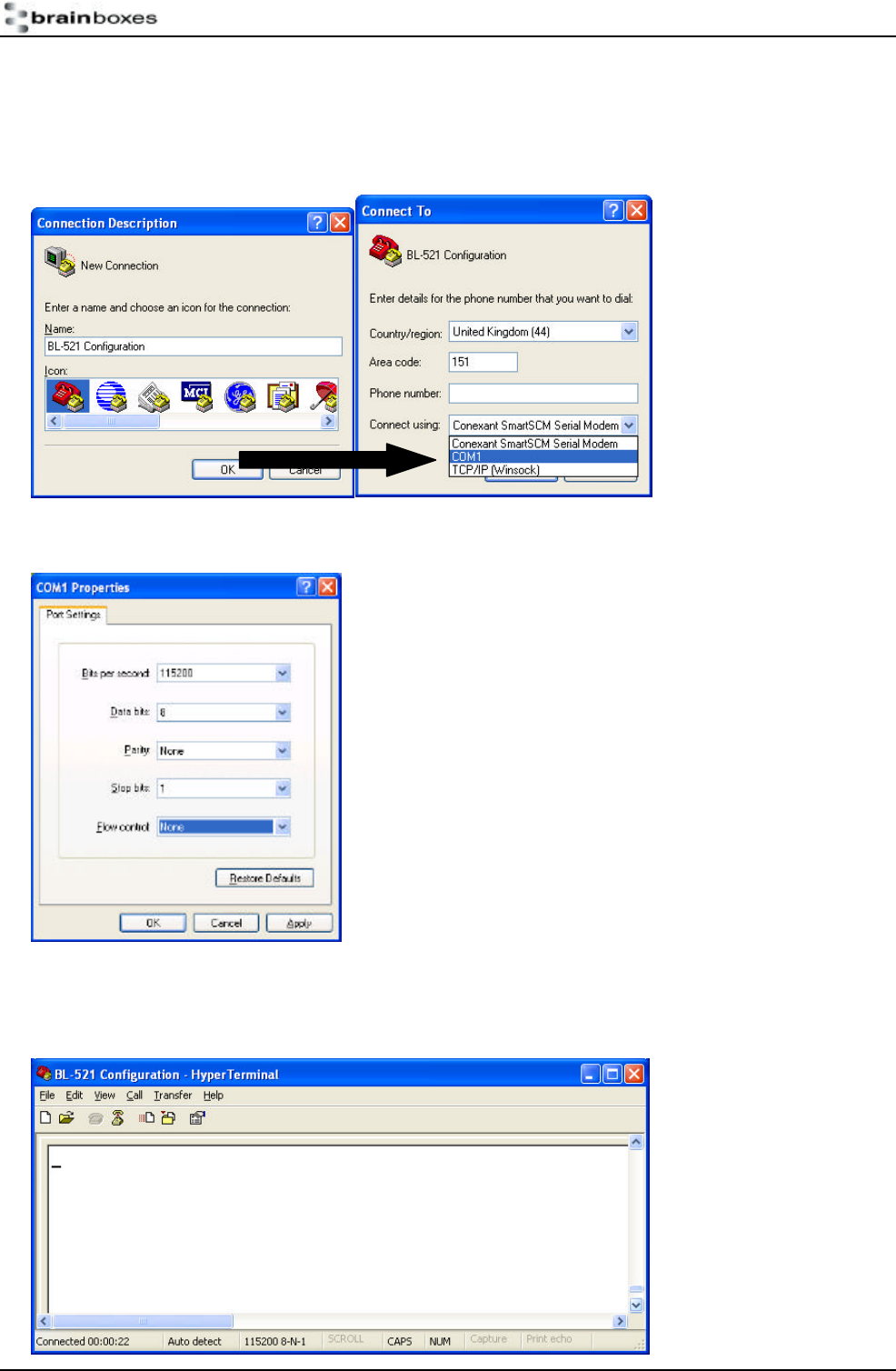
If you are running HyperTerminal for the first time you will be prompted for information about your location. This
section must be filled in, but will not affect the connection.
In the next screen give a name to your connection (e.g. BL-521 Configuration), then click OK and select the Port
that the BL-521 is plugged into. All other fields will then be greyed out.
Click OK
Select the communications parameters that your device is configured to. In this example we have used the
factory defaults. If you have previously changed these values, make sure the settings here match those
configured on the device.
Click OK
BL-521 r7 QSG.doc © Copyright Brainboxes Limited 2003 Page 5 of 5
HyperTerminal should now be running.
Now hit the “Enter” key once. This will activate the main menu as shown in 2.3.1 below. You will now be able to
now interact with the menus as described in the following sections.
2.3. Changing specific settings.
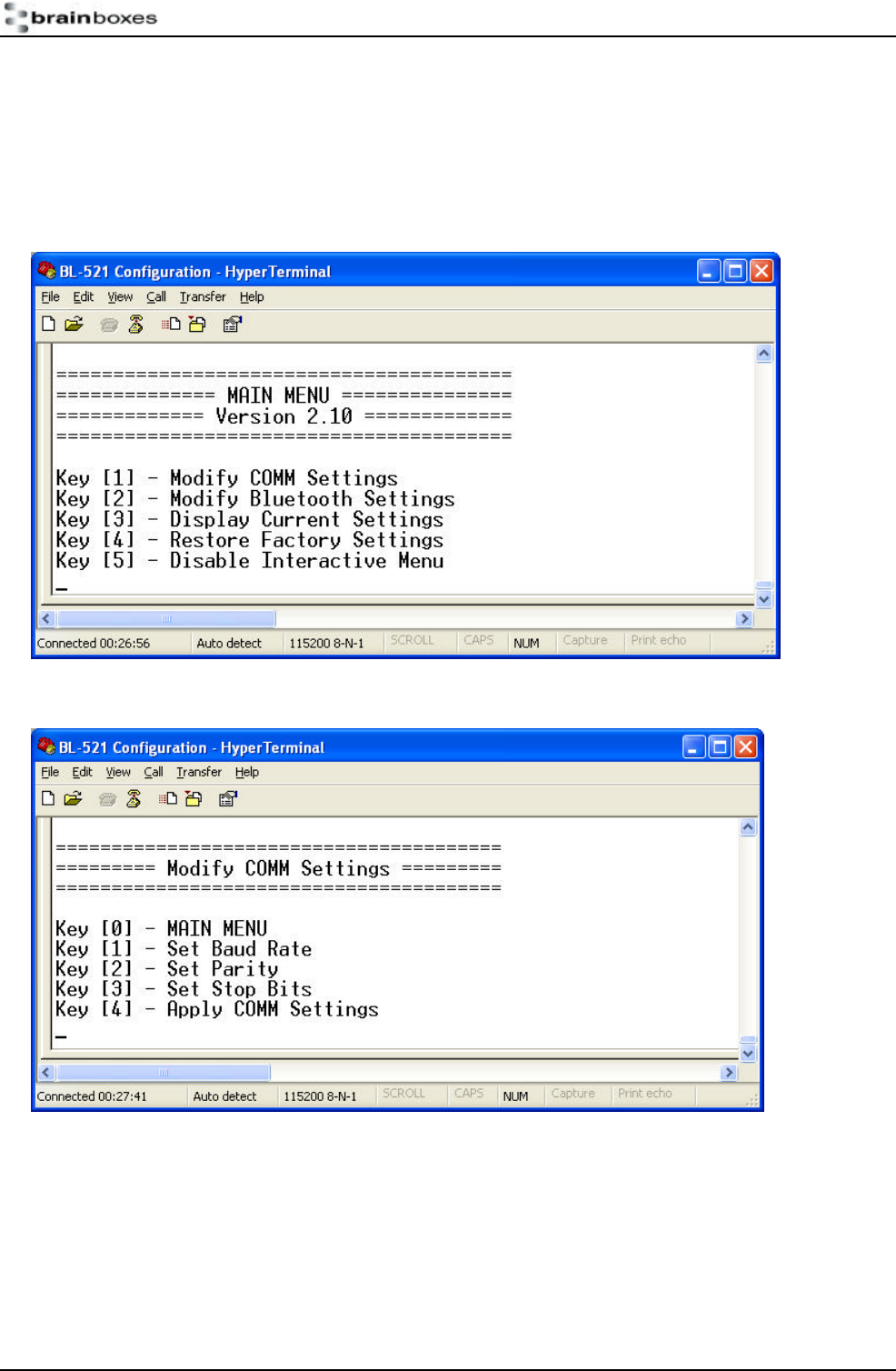
All Settings on the BL-521 are modified through the configuration menu. The main menu is shown below.
2.3.1. Main Menu
2.3.2. Setting the Communications Parameters
This covers options 1 from the main menu, and displays a Communications submenu as shown below.
The factory set communications parameters for your BL-521 are as follows…
Baud Rate: 115,200
Data Bits: 8
Parity: None
Stop Bits: 1
Handshaking: None
BL-521 r7 QSG.doc © Copyright Brainboxes Limited 2003 Page 6 of 6
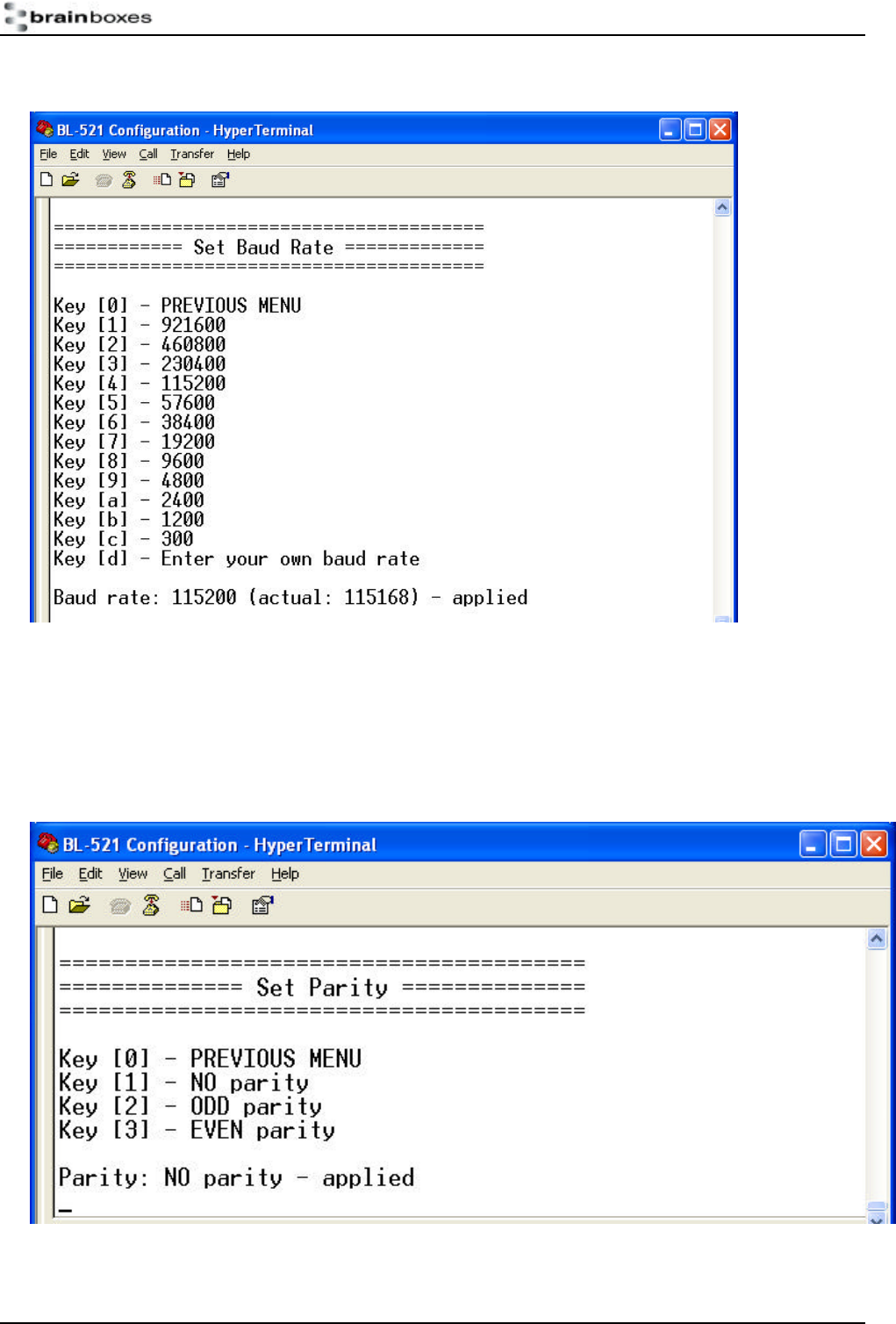
2.3.3. Changing Baud rate.
After selecting option 1 from the “modify COMM menu”, the following baud rate menu is displayed.
Selecting 0 immediately returns you to the previous menu; selecting any other option will store the appropriate
configuration selection.
If you power down your BL-521 at this point, the configuration changes will be discarded.
Note: Configuration changes made in this menu will ONLY be applied when you select option 4 (Apply COMM
settings) on the previous menu.
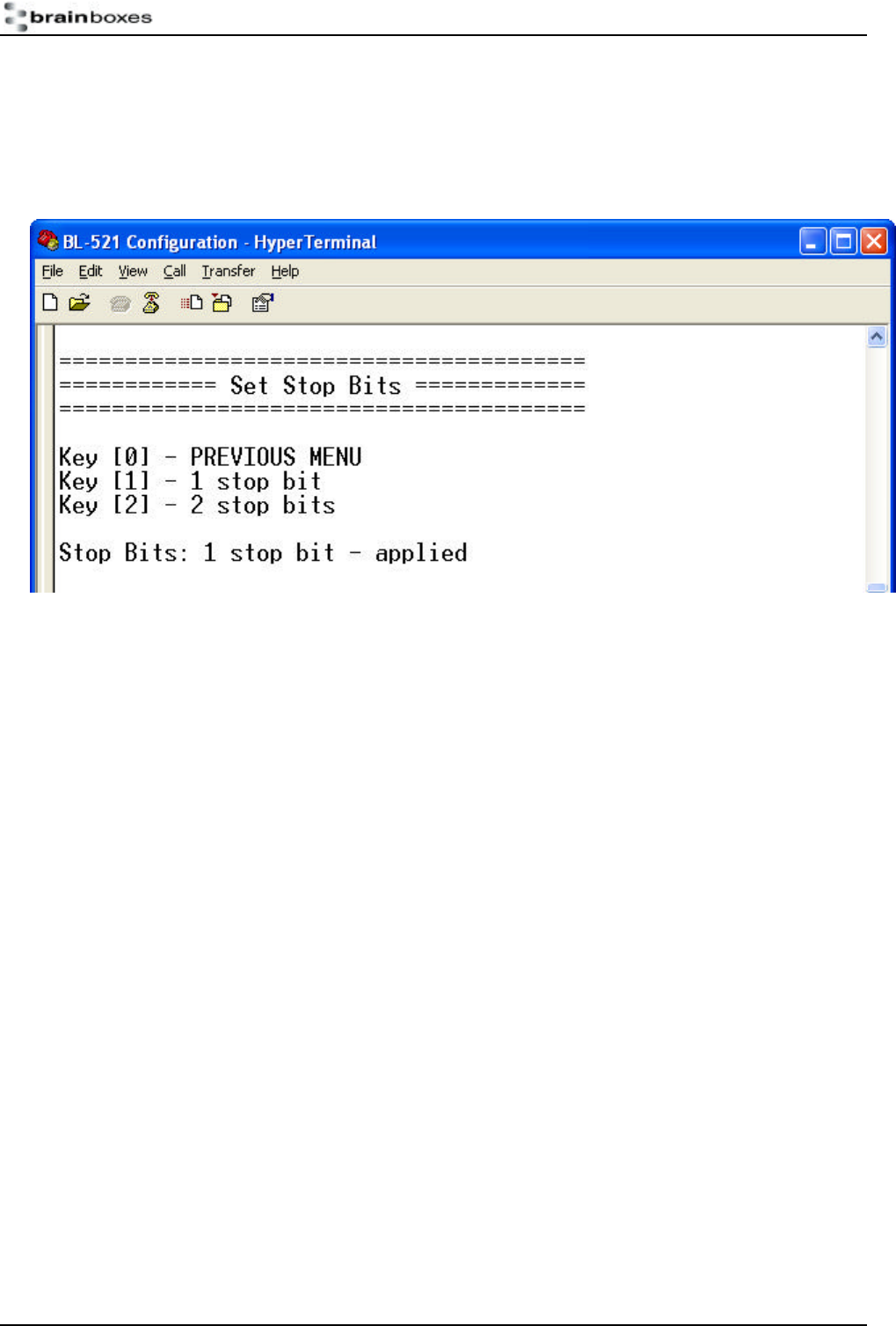
2.3.4. Changing parity.
After selecting option 2 from the main menu, the following menu is displayed.
Selecting 0 immediately returns you to the previous menu; selecting any other option will store the appropriate
configuration selection.
If you power down your BL-521 at this point, the configuration changes will be discarded.
BL-521 r7 QSG.doc © Copyright Brainboxes Limited 2003 Page 7 of 7
Configuration changes made in this menu will ONLY be applied when option 4 from the previous menu is
selected.
2.3.5. Changing data bits.
Unfortunately this setting cannot be changed. Only the 8 data bit format is supported.
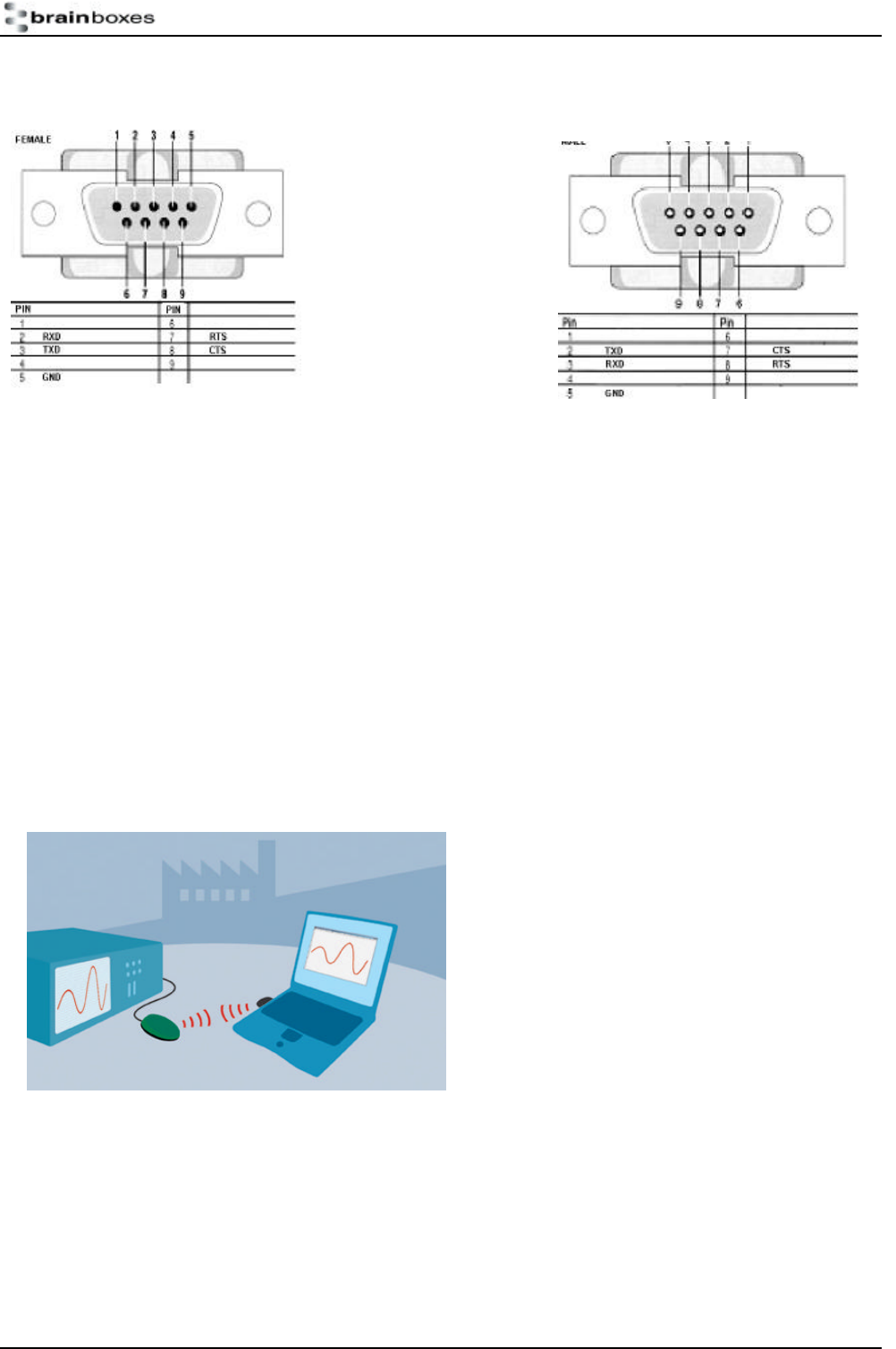
2.3.6. Changing number of stop bits.
After selecting option 4 from the main menu, the following menu is displayed.
Selecting 0 immediately returns you to the previous menu without storing any changes; selecting any other option
will store the appropriate configuration selection.
If you power down your BL-521 at this point, the configuration changes will be discarded.
Configuration changes made in this menu will ONLY be applied when you select option 4 (Apply COMM settings)
from the previous menu.
2.3.7. Applying configuration settings.
Selecting option 4 from the “Modify COMM menu” causes the currently selected serial port configuration options
to be applied. This should be with immediate effect. If you wish to further interact with the BL-521, you will need
to reconfigure your terminal applications settings to reflect those at which the BL-521 is now operating. Most
Bluetooth options are applied immediately.
2.3.8. Handshaking
The version of product in this box supports RTS/CTS handshaking.
2.3.9. Pin Number
The Factory set PIN number is 1234. This can be changed from the Bluetooth configuration menu. The Factory
set security state of BL-521 is Mode3 or High. This means the device must be bonded (paired) before any
Bluetooth data can be transferred.
3. Connecting via Bluetooth
Connecting to your BL-521 will vary depending on your application, but will usually consist of 3 Steps.
1 – Configuring the communications parameters.
2 – Physically connecting BL-521 to your device.
3 – Connecting to BL-521 from a remote device via Bluetooth and transferring data.
3.1. Configuring the communications parameters.
You must match your device communication parameters and those in BL-521 as described above.
BL-521 r7 QSG.doc © Copyright Brainboxes Limited 2003 Page 8 of 8
4.2 Physically connecting your device to BL-521 via the RS232 connector
The female connector is designed so that it can be plugged directly into a PC’s standard COM port.
The Female to Male “Gender Changer” allows maximum cabling flexibility where existing cabling is already
attached.
If you are connecting it directly to a different device you may need an additional cable, such as a “cross-over” or
“null-modem” cable. Please refer to your device’s documentation for further details.
3.2. Connecting to BL-521 using a Brainboxes Bluetooth product.
There are many different scenarios whereby a connection can be made to a BL-521 and consequently its attached
device. The application scenarios will also depend on what sort of device you have attached to the BL-521. One
worked example is shown here for illustrative purposes, but the principle will be the same regardless of the device
you are connecting to excepting perhaps the cabling arrangements your device might require.
In this example we have connected a Tektronix TDS220
Oscilloscope to a BL-521 and plugged in the power
adapter included. No additional cables or gender changers
were used in this application. In order to communicate to
the scope/BL-521 we have connected a Brainboxes USB
adapter (Order code BL-554) to a laptop with Brainboxes
Bluetooth software suite installed. If you are connecting to
BL-521 with a different manufacturers Bluetooth product,
please refer to the manufacturers instructions for that
product.
Broadly, this process requires the following steps that are detailed below.
1 - Discover the device
2 - Secure the relationship
3 - Connect to the profile
4 - Connect your application to the COM port.
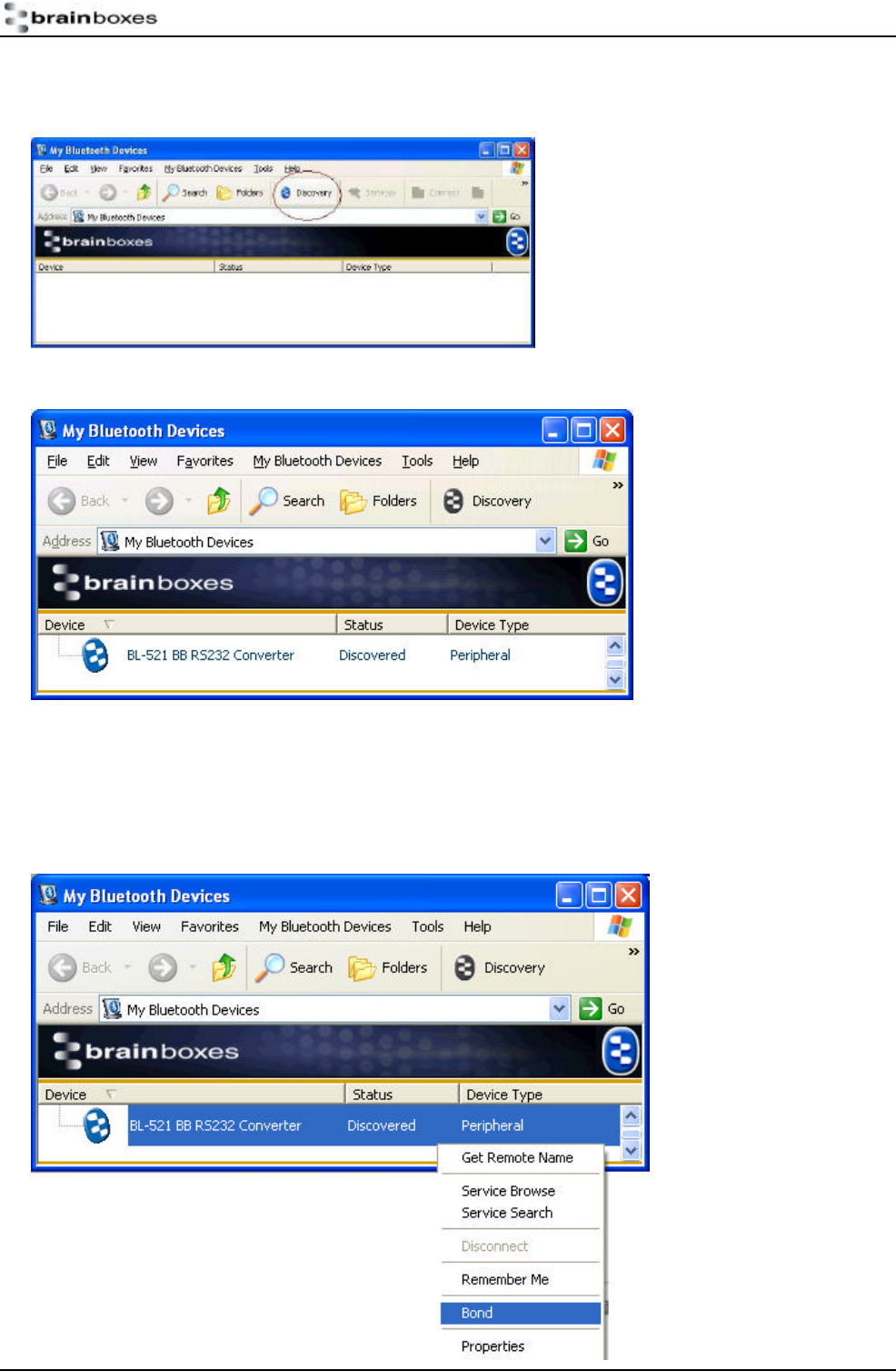
Pinouts for standard cable
Pinouts for supplied gender changer
BL-521 r7 QSG.doc © Copyright Brainboxes Limited 2003 Page 9 of 9
3.2.1. Discover the device
This is performed in Brainboxes Windows software by first opening the “My Bluetooth Devices” window and
clicking the discovery button. This sets the software to display all the Bluetooth devices it can find “in range”.
Assuming that your BL-521 is switched on and in range you should see it displayed (perhaps alongside other
Bluetooth devices in range) in the main screen.
3.2.2. Secure the relationship
This is where you must “Bond” or “Pair” with the device. This is a feature of Bluetooth, which allows secure
communications to take place. It is also used to stop other devices from performing unauthorised connections.
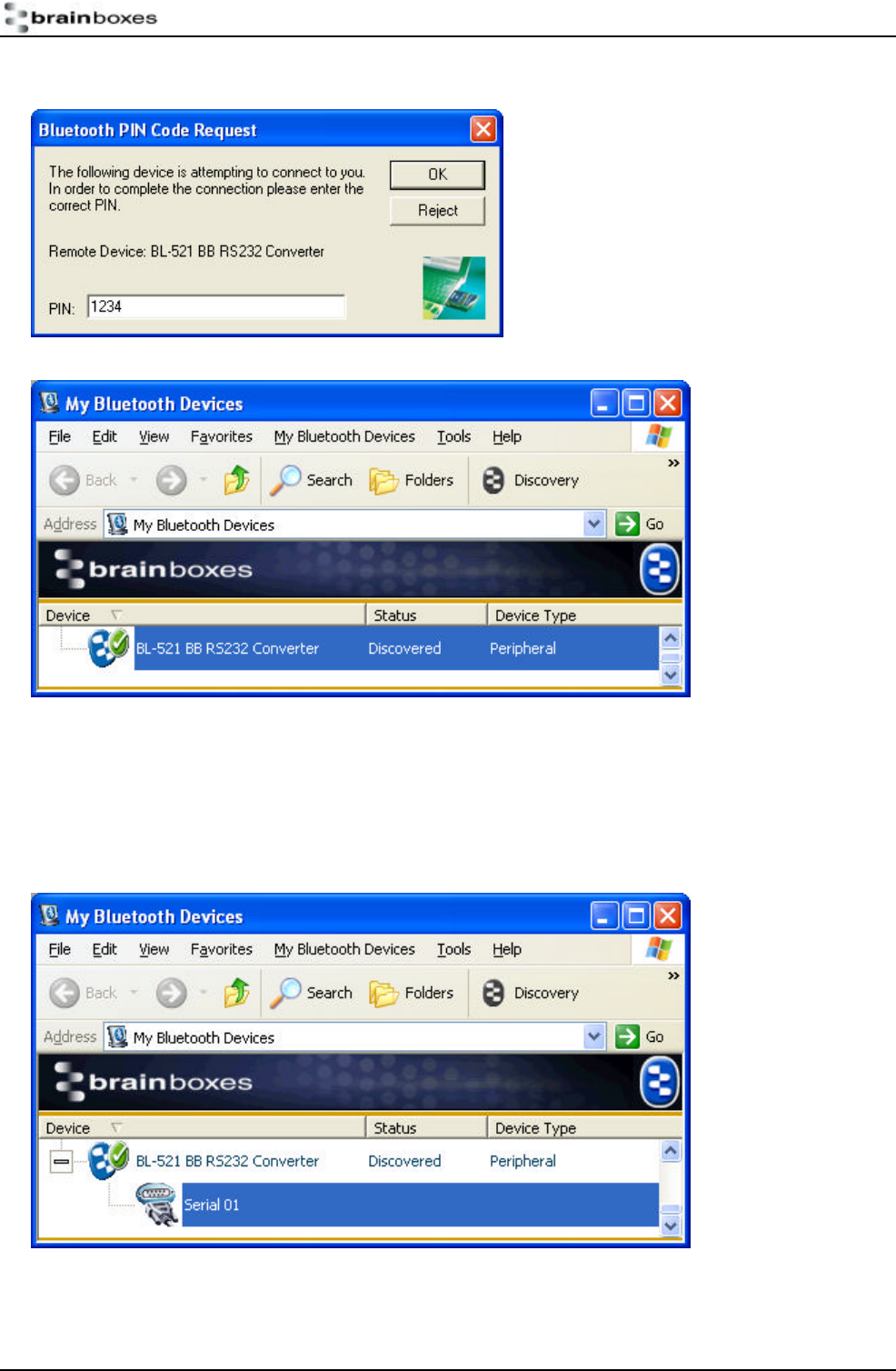
You can start the bonding process by selecting and right clicking on your BL-521 from the main screen. This
brings up a context menu from which you should select the “Bond” option.
BL-521 r7 QSG.doc © Copyright Brainboxes Limited 2003 Page 10 of 10
You will then be prompted to enter a PIN number. Enter the Pin number (which is 00000000 – 8 zeros, unless
you have configured it to be different. Click OK
The Icon of your BL-521 in the main window should now change to indicate a “bonded” status as shown below.
3.2.3. Connect to the profile
In order to actually connect to the appropriate function on the BL-521 you will need to discover it’s services.
Simply Double-Click the device.
This will display a serial port service called “Serial 01”
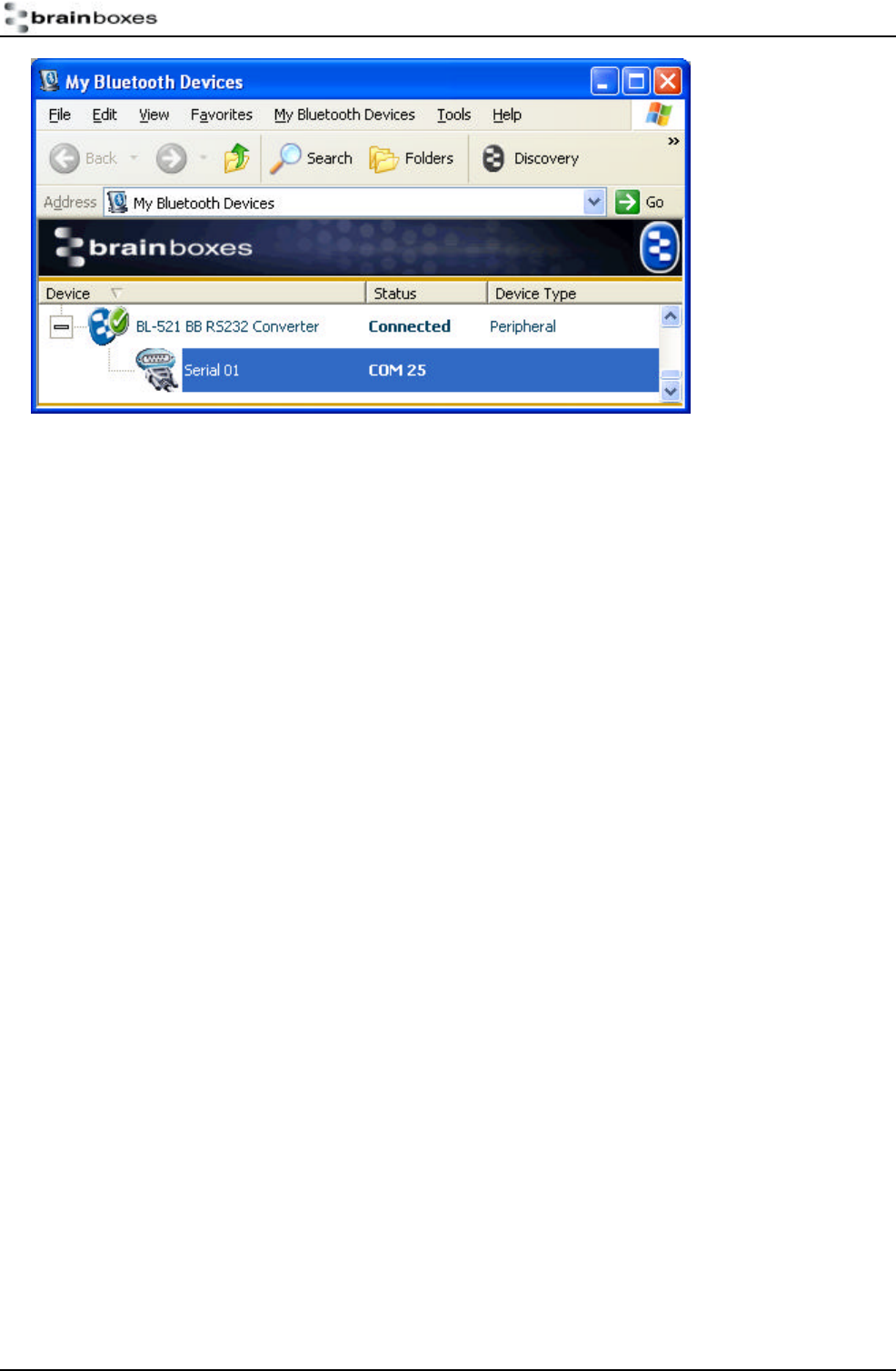
Double clicking this service will create a COM port style connection to the BL-521.
The screen shot below shows that the port in our example here is listed as COM25 – your port number should be
much lower than this, but the actual value will depend on your particular machine configuration.
BL-521 r7 QSG.doc © Copyright Brainboxes Limited 2003 Page 11 of 11
This “COM” port is now available for any application to use to communicate with your device, or in our case, the
oscilloscope.
3.2.4. Connect your application to the COM port
In our initial testing at our labs, we used the HyperTerminal application included in Windows to open COM25.
Setting HyperTerminal to save data to a file called screen.bmp, and activating the hardcopy feature of the
oscilloscope, caused all data to be sent from the scope to the file as listed. This file could then be viewed using
any picture editing software and displays an exact screen copy of the oscilloscope.
BL-521 r7 QSG.doc © Copyright Brainboxes Limited 2003 Page 12 of 12
4. Regulatory Information
Bluetooth product operating in 2.4GHz band for Home and Office use.
1. Europe - EU Declaration of Conformity
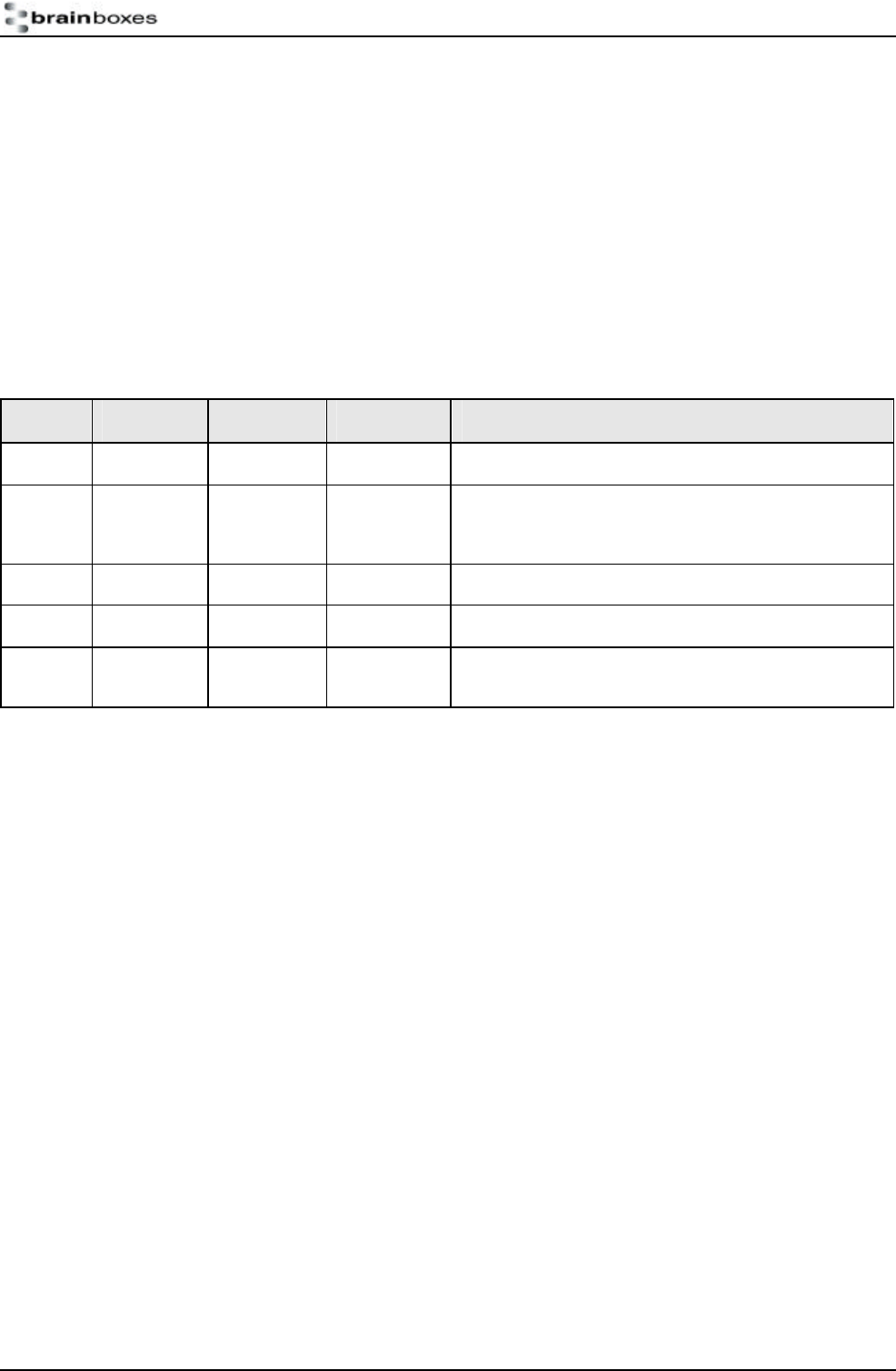
This device complies with the R&TTE Directive 1999/5/EC, and the following standards:
EN 60950: 1992; EN60335-1: 1994 Safety information Technology Equipment,
including Electrical Business Equipment
ETS 300 826; EN 301 489-1/-17: 2000;
EN50081 - 1: 1992; EN 50082 - 1: 1997 Electromagnetic compatibility
ETS 300 328-2:
2000 Radio Equipment and Systems (RES);
Wideband transmission systems; Technical
characteristics and test conditions for data
transmission equipment operating in the 2.4
GHz ISM band and using spread spectrum
modulation techniques.
4.1. Important Notice for use in France and Italy
Italy: License required for use. Your reseller will tell you the procedure to follow.
E'necessaria la concessione ministeriale anche per l'uso. Verification con Irivenditori la procedura
da seguire.
France: Low power device (1mW), there is no limitation for indoor or outdoor use.
Dispositif à faible puissance (1mW), pas de limitation pour son usage à l'intérieur ou a l'extérieur.
2. Rest of World
Country restrictions apply for home and office use.
STATEMENT:
This device complies with Part 15 of the FCC Rules. Operation is subject to the following two conditions: (1) this
device may not cause harmful interference, and (2) this device must accept any interference received, including
interference that may cause undesired operation
Notice - FCC Compliance Statement for United States Users:
This equipment has been tested and found to comply within the limits for a Class B digital device pursuant to Part
15 of the FCC Rules. These limits are designed to provide reasonable protection against harmful interference in a
residential installation. This equipment generates, uses, and can radiate radio frequency energy and, if not installed
and used in accordance with the instructions, may cause harmful interference to radio communications. However
there is no guarantee that interference will not occur in a particular installation. If this equipment does cause harmful
interference to radio or television reception, which can be determined by turning the equipment off and on, the user
is encouraged to try to correct the interference by one or more of the following measures:
- Reorient or relocate the receiving antenna - increase the separation between the equipment and receiver
- Connect the equipment into an outlet different from that to which the receiver is connected
- Consult the dealer or an experienced radio/TV technician for help.
Caution - changes or modifications not expressly approved by the manufacturer could void
the user's authority to operate this equipment.
BL-521 r7 QSG.doc © Copyright Brainboxes Limited 2003 Page 13 of 13
RF Exposure Compliance: this product transmits at very low power of less than 20dBm and
therefore complies with the RF exposure compliance requirements. A separation distance of
at least 20cm should be maintained between the product and all persons during use, and
must not be co-located or operated in conjunction with any other antenna or transmitter.
Important Safety Information
- Do not open the case. There are no user serviceable parts inside the unit
- Do NOT plug in, turn on or attempt to operate an obviously damaged unit.
- Do not alter or modify the cable assembly, or attempt to connect the cable(s) except as directed in the User
Guide.
- Do not expose this product to extremes of heat or cold, or to moisture – i.e. dripping or splashing.
Version History
Version Date Author Checked By Comments
1.0 05/01/ 2003 Gavin Jewell N/a Initial version
2.0 10/01/2003 Gavin Jewell Added info for configuration menu options, changes in
pinouts, and other features along with minor formatting
changes.
2.1 14/01/2003 Gavin Jewell Minor formatting changes
2.2 10/04/2003 Gavin Jewell Updated to reflect rev7 (retail release)
2.3 25/04/2003 Stephen
Evans Add FCC information