Bridge Systems BS10R11B Server for Bridge score input device User Manual BM Pro 1 6 manual english
Bridge Systems B.V. Server for Bridge score input device BM Pro 1 6 manual english
Manual

Bridgemate Pro Scoring system
Manual
© 2004-2007 Bridge Systems BV
All information contained in this document is subject to change without prior warning. Unless stated
otherwise, all persons and details mentioned in this document are fictitious. No part of this publication
may be reproduced and/or published, by print, photoprint, microfilm or otherwise, or stored in a
retrieval system, without prior written permission from Bridge Systems BV.
© Copyright 2004-2007 Bridge Systems BV. All rights reserved.
Bridgemate, Bridgemate Pro and the Bridgemate logo are trademarks and/or registered trademarks of
Bridge Systems BV in the Netherlands and other countries. Microsoft and Microsoft Windows are
trademarks and/or registered trademarks of the Microsoft Corporation in the United States and other
countries.

Table of contents
LIMITED WARRANTY 1
SAFETY INSTRUCTIONS 5
INTRODUCTION 9
CHAPTER 1: DESCRIPTION BRIDGEMATE PRO SCORING SYSTEM 11
DESCRIPTION OF COMPONENTS 11
PROCEDURE 13
CHAPTER 2: HARDWARE CONFIGURATION 15
SYSTEM REQUIREMENTS 15
INSTALLING BRIDGEMATE PRO CONTROL SOFTWARE 15
INSTALLING THE SERVER 15
POWER SUPPLY 15
CONNECTING THE SERVER TO THE PC 16
SETTING THE REGION 16
CONFIGURING THE BRIDGEMATES 16
SETTING THE CHANNEL 17
OPERATING INSTRUCTIONS 17
CHAPTER 3: BRIDGEMATE PRO CONTROL SOFTWARE 19
LAUNCHING BRIDGEMATE PRO CONTROL 19
LOGGING IN AND LOGGING OFF BRIDGEMATES 20
LOGGING IN BRIDGEMATE 20
LOGGING OFF BRIDGEMATE 21
BOARD RESULTS 21
READING FROM THE SERVER 21
VIEWING AND FILTERING OR SORTING SCORES 22
CHANGING AND DELETING SCORES 22
PROCESSING SCORES IN THE SCORING PROGRAM 23
OPENING AND CLOSING RESULT FILES 23
ADDING A CLIENT TO THE RESULT FILE 23
MANAGING TABLES 23
SERVER CONTROL 24
ACTIVATING THE SERVER 24
ADDING TABLES 24
REMOVING TABLES 24
SYNCHRONIZING THE SERVER AND CLIENT 24
RECOVERING THE SERVER 26
UPDATING MOVEMENT IN THE SERVER 26
SETTINGS 26
CHAPTER 4: SERVER FUNCTIONS 29
OVERVIEW OF TABLES 29
OVERVIEW OF ENTERED SCORES 29
RESTARTING BRIDGEMATE NETWORK 29
RESETTING THE SERVER 30
SETTING THE REGION 30
SETTING THE CHANNEL 30
SYSTEM FUNCTIONS 31
CHAPTER 5: USE OF THE BRIDGEMATE® PRO SCORING DEVICES 33
EXPLORING THE BRIDGEMATE 33
ACTIVATING THE BRIDGEMATE 34
ENTERING SCORES WITH THE BRIDGEMATE 35
READING BRIDGEMATE PRO SCORES 39
TD MENU 40
CHAPTER 6: ADDITIONAL BRIDGEMATE FUNCTIONS 42
READING SCORES MANUALLY IN BRIDGEMATE 42
BRIDGEMATE SETTINGS 42
SYSTEM FUNCTIONS 44
CHAPTER 7: TIPS FOR USE 47
REPLACING BRIDGEMATE 47
RECOVERING THE SERVER 47
PROCEDURE IN THE EVENT OF DATA LOSS 47
MULTIPLE BRIDGE CLUBS PLAYING SIMULTANEOUSLY 49
LARGE TOURNAMENTS 49
DECLARATION OF CONFORMITY 51

Limited warranty 1
Limited warranty
IMPORTANT—PLEASE READ THIS LIMITED WARRANTY CAREFULLY TO UNDERSTAND YOUR
RIGHTS AND OBLIGATIONS! The term “Hardware Device” means the Bridge Systems hardware
product. The term “You” means either an individual or a single legal entity who will be referred to in
this Limited Warranty as “You” and “Your”.
A. WARRANTIES.
1. Express Warranty. Subject to the terms and conditions of this Limited Warranty and in lieu of any
other (if any) express warranties, Bridge Systems warrants that under normal use and service, on the
date of acquisition as shown on Your receipt or similar proof of payment and for the period of time
stated below for the applicable Hardware Device (hereafter each defined as the “Warranty Period”),
that the Hardware Device will substantially conform with the accompanying Bridge Systems packaging
and documentation. As to any defects discovered after the Warranty Period, there is no warranty or
condition of any kind.
Warranty Period:
For all hardware parts of the Bridgemate Pro scoring system: one (1) year.
This Limited Warranty does not cover, and no warranty of any kind is provided with respect to any
subjective or aesthetic aspects of the Hardware Device. The express warranty stated above is the only
express warranty made to You and is provided in lieu of all other express or implied warranties and
conditions (except for any nondisclaimable implied warranties that exist), including any created by any
other documentation or packaging. No information or suggestions (oral or in a record) given by Bridge
Systems, its distributors, agents, affiliates or suppliers or its or their employees or agents, shall create
a warranty or condition or expand the scope of this Limited Warranty.
2. Limitation on Duration of Implied Warranties. If you are a consumer, You may also have an implied
warranty and/or condition under the laws of some jurisdictions, which is hereby limited to the duration
of the Warranty Period. Some jurisdictions do not allow limitations on how long an implied warranty or
condition lasts, so the foregoing limitation may not apply to You.
B. EXCLUSIVE REMEDY. Subject to applicable law and the following, and provided that You return
the Hardware Device to Your place of acquisition (or, if that place will not accept the return, to Bridge
Systems) with a copy of Your receipt or other bona fide proof of payment during the Warranty Period,
Bridge Systems will, at its option and as Your exclusive remedy for breach of this Limited Warranty
and any implied warranties:
repair or replace the defective Hardware Device; or
make payment to You for the allowable damages that You incurred in reasonable reliance, but only up
to the amount You paid (if any) for the Hardware Device less reasonable depreciation based on actual
use.
The above remedy is subject to the following:
Any repaired or replaced Hardware Device will be new or refurbished or serviceably used, comparable
in function and performance to the original Hardware Device, and may include third party items;
Any Hardware Device repaired or replaced under this Limited Warranty will be warranted for the
remainder of the original Warranty Period or 30 days from the date of shipment of the item back to
You, whichever is longer.
Except as otherwise required by legislation in Your jurisdiction, costs associated with transport
(including packaging) for warranty service shall be at Your expense; and Bridge Systems, its
distributors, agents, affiliates and suppliers do not provide any warranties regarding any other services
provided under this Limited Warranty and disclaim all duties (if any) of workmanlike effort or of lack of
negligence regarding such services.
C. NO OTHER WARRANTIES. The express warranty stated above is the only express warranty made
to You and is provided in lieu of all other express or implied warranties and conditions (if any)

Limited warranty 2
including any created by any other documentation or packaging. No other warranties or conditions are
made with respect to the Hardware Device or the warranty services by any person, including but not
limited to Bridge Systems, its distributors, agents, affiliates and suppliers. No information (oral or
written) or suggestions given by Bridge Systems, its distributors, agents or suppliers or its or their
employees, shall create a warranty or condition or expand the scope of this Limited Warranty. Also,
there is no warranty or condition of title, quiet enjoyment, or noninfringement in the Hardware Device.
You may have greater rights existing under legislation in your jurisdiction.
D. EXCLUSION OF OTHER DAMAGES.
TO THE FULL EXTENT ALLOWED BY LAW, BRIDGE SYSTEMS AND ITS DISTRIBUTORS,
AGENTS, AFFILIATES AND SUPPLIERS ARE NOT LIABLE FOR ANY:
(i) CONSEQUENTIAL OR INCIDENTAL DAMAGES;
(ii) DAMAGES OR LOSS OF ANY NATURE WHATSOEVER RELATING TO LOST PROFITS,
BUSINESS INTERRUPTION, LOSS OF DATA OR PRIVACY OR CONFIDENTIALITY, ANY
INABILITY TO USE ALL OR PART OF THE HARDWARE DEVICE, PERSONAL INJURY, OR ANY
FAILURE TO MEET ANY DUTY (INCLUDING BUT NOT LIMITED TO ANY DUTY OF NEGLIGENCE,
GOOD FAITH OR OF WORKMANLIKE EFFORT); OR
(iii) INDIRECT, SPECIAL, OR PUNITIVE DAMAGES ARISING OUT OF OR RELATING IN ANY WAY
TO THE HARDWARE DEVICE. THE FOREGOING APPLIES EVEN IF BRIDGE SYSTEMS OR ANY
DISTRIBUTOR, AGENT, AFFILIATE OR SUPPLIER HAS BEEN ADVISED OF THE POSSIBILITY OF
SUCH LOSSES OR DAMAGES; AND EVEN IN THE EVENT OF FAULT, TORT (INCLUDING
NEGLIGENCE), STRICT OR PRODUCT LIABILITY, MISREPRESENTATION OR OTHER REASON.
Some jurisdictions do not allow the exclusion or limitation of incidental or consequential damages, so
the above limitation or exclusions may not apply to You.
E. EXCLUSIONS FROM COVERAGE. This Limited Warranty shall not apply and Bridge Systems, its
distributors, agents, affiliates and suppliers have no liability under this Limited Warranty if the
Hardware Device:
- is used for commercial purposes (including rental or lease);
- is modified or tampered with;
- is damaged by Acts of God, power surge, misuse, abuse, negligence, accident, wear and tear,
mishandling, misapplication, or other causes unrelated to defects in the Hardware Device;
- is damaged by programs, data, viruses, or files, or during shipments;
- is not used in accordance with the accompanying documentation and use instructions; or
- is repaired, modified or altered by other than a Bridge Systems authorized repair center and the
unauthorized center causes or contributes to any defect or damage.
F. REGISTRATION. You need not register Your acquisition of the Hardware Device for the Limited
Warranty to be effective.
G. BENEFICIARY. To the extent allowed by applicable law, the Limited Warranty is only made to You,
the first purchaser of the Hardware Device, and there are no third party beneficiaries of the Limited
Warranty. It is not intended for and does not apply to anyone else (except as required by law),
including anyone to whom You make any transfer of the Hardware Device.
H. FURTHER INFORMATION. Bridge Systems is the warrantor under this Limited Warranty. To
receive instructions for obtaining performance of this Limited Warranty You must either contact the
local Bridgemate distributor serving your country, or write to: Bridge Systems BV, Postal Box 21570,
Rotterdam, 3001 AN, The Netherlands, or visit Bridge Systems on the World Wide Web at
http://www.bridgemate.com.
You must also:
1. Submit proof of payment in the form of a bona fide, dated receipt, or invoice (or a copy) evidencing
that You are the beneficiary of this Limited Warranty and that Your request for a remedy is made
within the Warranty Period;
2. Follow Bridge Systems’ shipping and other instructions if it determines that all or part of your
Hardware Device requires return. To obtain the Limited Warranty performance, you must take or
deliver the item in either its original packaging or packaging that provides an equal degree of
protection to the location specified by Bridge Systems. Except as otherwise required by legislation in
your jurisdiction, costs associated with transport (including packaging) for warranty service shall be at

Limited warranty 3
Your expense.
Failure to follow the above instructions may result in delays, cause you to incur additional charges, or
may void your warranty.
This Limited Warranty gives You specific legal rights and You may also have other rights which vary
from jurisdiction to jurisdiction. Where any term of this Limited Warranty is prohibited by such laws, it
shall be null and void, but the remainder of the Limited Warranty shall remain in full force and effect if
its allocation of risks is not materially disturbed.

Safety instructions 5
Safety instructions
Important safety warning
Failure to properly set up, use, and care for the Bridgemate Pro system can increase the risk of
serious injury or death, or damage to the system. Read this manual and the manuals of any
peripherals for important safety and health information. Keep all manuals for future reference. For
replacement manuals, go to www.bridgemate.com/support.php or contact your local Bridgemate
supplier.
Select a safe location for the Bridgemate server and scoring devices
If the Bridgemate Pro server or Bridgemate Pro scoring devices falls and hits someone, it could cause
serious injury. To reduce the risk of such injuries and damage to parts of the system, set them up
according to these instructions and place them on a surface that:
• Is flat and level.
• Is stable and not likely to tip over.
• Allows all four feet of both the server and scoring device to be in contact with the surface.
• Is not likely to allow the server and scoring device to slip or slide off.
• Is clean and free of dust and debris.
If the surface or feet of server or scoring devices become dirty or dusty, clean them with a dry cloth.
Arrange all cables and cords so that people and pets are not likely to trip over or accidentally pull on
them as they move around or walk through the area. When the Bridgemate Pro server is not in use,
you may need to disconnect all cables and cords from the server to keep them out of the reach of
children and pets. Do not allow children to play with cables and cords.
Do not place any part of the Bridgemate Pro system on a bed, sofa, or other soft surface. Do not place
any part near heat sources, such as radiators, heat registers, stoves, or amplifiers.
Avoid smoke and dust
Do not use the Bridgemate Pro system in smoky or dusty locations. Smoke and dust may damage the
Bridgemate Pro server and scoring devices.
Connect the Bridgemate Pro server to power
WARNING
As with many other electrical devices, failure to take the following precautions can result in serious
injury or death from electric shock or fire or damage to the Bridgemate Pro system.
Select an appropriate power source for your Bridgemate Pro server:
• Use only the power supply unit that came with the Bridgemate Pro server or that you received
from your Bridgemate supplier. If you are not sure if you have the correct power supply unit,
stop using it and contact your Bridgemate supplier. If you need a replacement power supply
unit, contact your Bridgemate supplier as well.

Safety instructions 6
• Confirm that your electrical outlet provides the type of power indicated on the power supply unit
(in terms of voltage [V] and frequency [Hz]). If you are not sure of the type of power supplied to
your home, consult a qualified electrician.
• Do not use non-standard power sources, such as generators or inverters, even if the voltage
and frequency appear acceptable. Only use AC power provided by a standard wall outlet.
• Do not overload your wall outlet, extension cord, power strip, or other electrical receptacle.
Confirm that they are rated to handle the total current (in amps [A]) indicated on the power
supply unit and any other devices that are on the same circuit.
To avoid damaging the power cord and power supply:
• Do not wrap the power cord around the power supply unit.
• Protect the power cord from being walked on.
• Protect cords from being pinched or sharply bent, particularly where they connect to the power
outlet, the power supply unit, and the Bridgemate Pro server.
• Do not jerk, knot, sharply bend, or otherwise abuse the power cord.
• Do not expose the power cord to sources of heat.
• Keep children and pets away from the power cord. Do not allow them to bite or chew on it.
• When disconnecting the power cord, pull on the plug—do not pull on the cord.
• Do not let the power supply hang from the power cord.
If a power cord or power supply becomes damaged in any way, stop using it immediately and contact
your Bridgemate supplier. Only use the power supply and AC power cords supplied with your
Bridgemate Pro system or received from your Bridgemate supplier.
Unplug the Bridgemate Pro server during lightning storms or when unused for long periods of time.
Always connect the power cord according to the following instructions:
1. Fully insert the power supply cord into the Bridgemate Pro server.
2. Plug the power supply unit into the wall outlet.
Insert batteries into the Bridgemate Pro scoring devices or server
WARNING
Improper use of batteries may result in battery fluid leakage, overheating, or explosion. Released
battery fluid is corrosive and may be toxic. It can cause skin and eye burns, and is harmful if
swallowed. To reduce the risk of injury:
• Keep batteries out of reach of children.
• Do not heat, open, puncture, mutilate, or dispose of batteries in fire.
• Do not mix new and old batteries or batteries of different types (for example, carbon-zinc and
alkaline batteries)

Safety instructions 7
• Remove the batteries if they are worn out or before storing your Bridgemate Pro system for an
extended period of time.
• If a battery leaks, remove all batteries, taking care to keep the leaked fluid from touching your
skin or clothes. If fluid from the battery comes into contact with skin or clothes, flush skin with
water immediately. Before inserting new batteries, thoroughly clean the battery compartment
with a damp paper towel, or follow the battery manufacturer's recommendations for cleanup.
• Dispose of batteries in accordance with Local and National Disposal Regulations, including
those governing the recovery and recycling of waste electrical and electronic equipment
(WEEE).
Remove batteries aboard aircraft
Before boarding any aircraft or packing the Bridgemate Pro scoring devices or server in luggage that
will be checked, remove all batteries. The Bridgemate Pro server and scoring devices can transmit
radio frequency (RF) energy, much like a cellular telephone, whenever batteries are installed.
Do Not Attempt Repairs
Do not attempt to take apart, service, or modify the Bridgemate Pro server, Bridgemate Pro scoring
devices, power supply, or its peripherals in any way. Doing so could present the risk of serious injury
or death from electric shock or fire, and it will void your warranty.
Any evidence of any attempt to open and/or modify the Bridgemate Pro system, including any peeling,
puncturing, or removal of any of the labels, will void the Limited Warranty and render the Bridgemate
Pro system ineligible for authorized repair.
Disposal of Waste Electrical and Electronic Equipment in the
European Union and other countries/regions with separate
collections systems
This symbol on the product or its packaging means that this product must not be
disposed of with your household waste. Instead, it is your responsibility to hand this over to an
applicable collection point for the recycling of electrical and electronic equipment. This separate
collection and recycling will help to conserve natural resources and prevent potential negative
consequences for human health and the environment, which inappropriate disposal could cause due
to the possible presence of hazardous substances in electrical and electronic equipment. For more
information about where to drop off your electrical and electronic waste, please contact your local
city/municipality office, your household waste disposal service, or the shop where you purchased this
product.

Introduction 9
Introduction
Thank you for purchasing your Bridgemate® Pro scoring system. Bridgemate Pro is an advanced
electronic scoring system for bridge clubs and tournaments, designed to enhance the enjoyment of
bridge. Bridgemate Pro automatically registers board results. The scores are verified and fed to the
central PC. Tournament directors will value the user-friendly features of Bridgemate Pro, as it enables
them to focus fully on their core tasks.
This manual describes the operation of the Bridgemate Pro scoring system, including the central
software program, the server and the Bridgemate Pro scoring devices. This manual serves as an
addition to the manual supplied with your scoring program. As the Bridgemate Pro scoring system
operates independently from the scoring program, this manual does not include instructions for
operating your scoring program.
This manual consists of the following chapters:
- The components of the Bridgemate Pro scoring system are explained in Chapter 1. A brief
and concise explanation is given of the individual components and how they relate to each
other.
- Chapter 2 explains how to configure and install the Bridgemate Pro software and hardware
and how to configure the Bridgemates per section and table. This chapter also explains how
to set the radio channels to enable wireless data exchange.
- Chapter 3 explores the use of the Bridgemate Pro Control software program in more detail.
- Chapter 4 explains the different Bridgemate Pro Control options offered by the Bridgemate
Pro server.
- Use of the Bridgemate Pro scoring devices is explained in Chapter 5.
- Chapter 6 highlights the additional functions for the Bridgemate.
- Chapter 7 contains tips on how to operate the Bridgemate Pro scoring system when multiple
bridge clubs are playing simultaneously in one room. Practical advice is also offered on how
to deploy Bridgemate Pro in big tournaments, involving different rooms and/or multiple
servers.
Version numbers
This manual covers the following versions of the Bridgemate Pro components:
Bridgemate Pro Control 1.6
Bridgemate Pro server 1.2.5 (firmware version)
Bridgemate Pro scoring devices 2.2.1a (firmware version)
Firmware updates
Updates of the Bridgemate firmware can be downloaded from http://www.bridgemate.com/support.php
Chapter 1: Description Bridgemate Pro scoring system 11
Chapter 1: Description Bridgemate Pro scoring
system
This chapter describes the components of the Bridgemate Pro scoring system and how they relate to
each other. It also explains how to use the Bridgemate Pro: from creating a session in your scoring
program to registering the scores in the scoring program.
Please read this chapter carefully. Once you understand the function of the individual components and
how they relate to each other, you will quickly get to grips with the Bridgemate Pro scoring system.
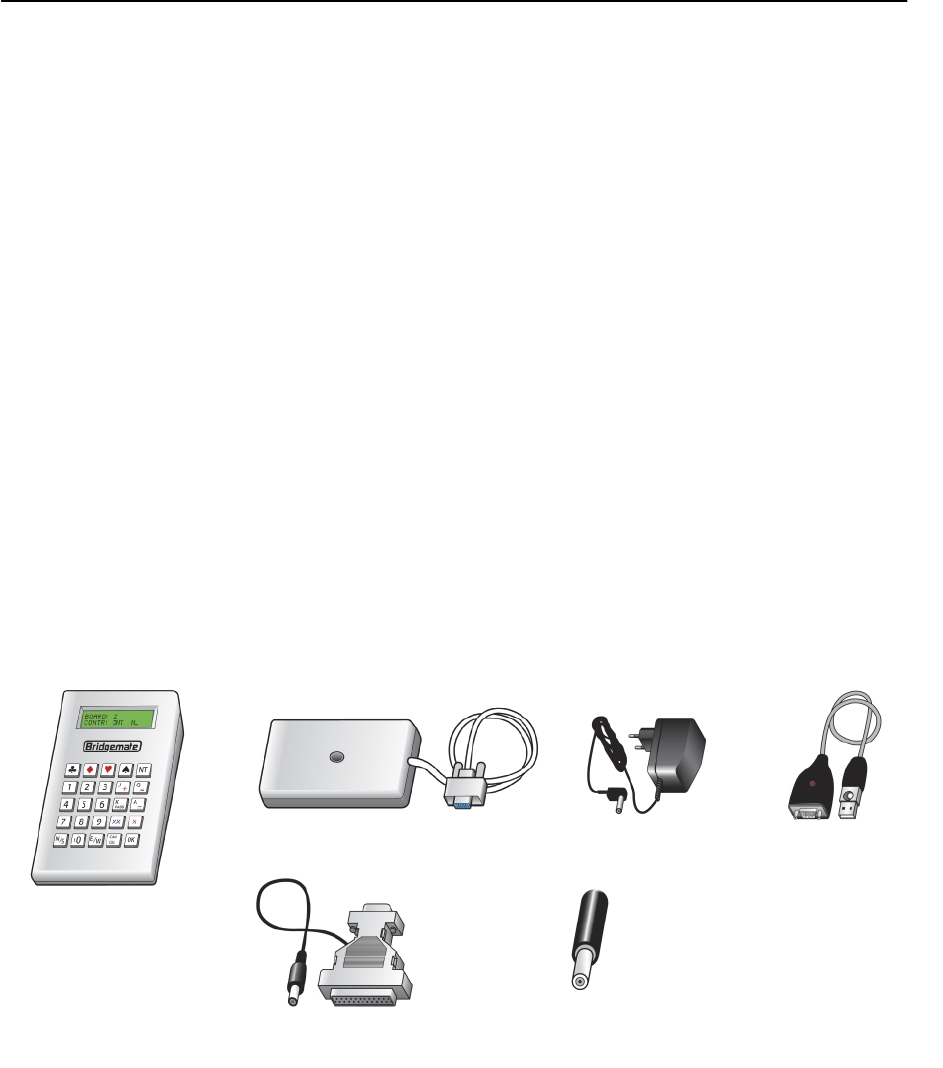
Description of components
The Bridgemate Pro scoring system consists of the following hardware and software:
• Bridgemate Pro scoring devices
• Bridgemate Pro server + power supply unit
• USB-to-serial converter
• Data communications cable
• Tournament directors key
• Bridgemate Pro Control software
Bridgemate Pro scoring devices
The Bridgemate Pro scoring devices are placed on the bridge table and are used to enter the scores.
For the purpose of simplicity, we shall refer to these input devices as ”Bridgemates”. Wireless
communication between the Bridgemates and the server is established and maintained using radio
frequency waves. Only one Bridgemate is required per table. The use of the Bridgemates is explained
in more detail in Chapter 5.
Bridgemate Pro server
The Bridgemate Pro server, “server” for short, is a small device connected to the PC. It acts as a
bridge between the PC and the Bridgemates. As the PC cannot communicate directly with the
Bridgemates, the server is a vital component. The server is equipped with a transmitter and a receiver,
establishing and maintaining wireless data communication with the Bridgemates. The server sends all
movement data to the Bridgemates, including board numbers and pair numbers, and receives the
Bridgemate Pro server + power supply unit
Bridgemate Pro
scoring device
USB-to-serial converter
Data communications cable
Tournament
directors key

Chapter 1: Description Bridgemate Pro scoring system 12
board results in return. The server can control up to 128 Bridgemates simultaneously. The server can
be powered by either an external power adapter or by 4 AA Batteries.
USB-to-serial converter
The server is connected to the serial port of your PC. If your PC does not have a serial port, use the
USB-to-serial converter, included with the Bridgemate Pro server. To add a serial port to your PC,
connect the converter to a USB port on your PC.
Data communications cable
The data communications cable enables you to connect the Bridgemate scoring devices directly to the
PC. This in turn enables you to read the board results stored in the Bridgemate memory manually, or
to install new firmware in the Bridgemates.
Tournament directors key
The tournament directors key, TD-key for short, is a small key that enables the tournament director to
configure the Bridgemate for each section and table, and to activate the special TD menu.
Bridgemate Pro Control software
A specific program is required to control the server from the PC: Bridgemate Pro Control (“BPC”). This
program runs on Windows95 or higher and is controlled in part by your scoring program. BPC fully
controls the server and data exchange between the server and the PC. BPC first saves all the relevant
session data used by the server to control the Bridgemates. BPC then retrieves all entered board
results from the server and stores these in the result file. All other server controls are also executed
from BPC.
In addition, the following three components are important. Although they are not supplied together with
your Bridgemate Pro scoring system, they are of crucial importance to the correct operation of the
system.
• Client (=Personal computer with Bridgemate Pro Control software)
• Result file
• Scoring program
Client
The Bridgemate Pro Control program runs on a so-called “client” (Windows-based) personal computer
(PC). The scoring program and BPC usually run on one client PC, to which the server is also
connected. During big tournaments, multiple servers may be required to support the high number of
Bridgemates and/or to establish and maintain the wireless communication between the server and the
Bridgemates. In this case, the servers are connected to a network PC, and the network consists of
multiple clients.
Note: The term “client” suggests that the Bridgemate Pro scoring system also consists of a PC
network server. This is not the case. All (network) PCs running the Bridgemate Pro scoring system are
known as clients.
Result file
The result file is created by the scoring program. It contains all the session data, including sections,
tables, movements, etc. This data is generated by the session configured in the scoring program. BPC
reads this session data and feeds the correct data to the server. During the session, BPC reads all the
board results entered in the server and saves these in the result file. All Bridgemate Pro result files
have the file extension .bws.
Scoring program
The scoring program creates the session and calculates the scores. After you have created a session,
the scoring program will create the abovementioned result file. This file contains all the relevant

Chapter 1: Description Bridgemate Pro scoring system 13
session data. The scoring program will read all board results saved in the result file and process these
during the session. These procedures are explained in more detail in the user manuals or help files of
your scoring program.
Procedure
Having examined the individual components of the Bridgemate Pro scoring system, the next step
involves assessing the entire process and how the different components relate to each other.
The process is outlined in the below diagram:
Activity Explanation
Step 1: Session created in the
scoring program
This is the starting point in the process. In the session, users can set
the number of sections to be played, the number of pairs per section,
boards and movements.
Step 2: Result file created in the
scoring program
Using the session data, the scoring program creates a result file,
containing all data relating to the sections, corresponding movements,
boards and pairs.
Step 3: Bridgemate Pro Control
reads the result file The scoring program starts BPC. The result file is then read by BPC,
generating the data for all tables used in each session.
Step 4: Bridgemate Pro Control
transfers data to the server
BPC initializes the server using the data contained in the result file. All
session tables are stored in the server. Movements from each table are
included, so that the server knows (per round) which pairs and boards
correspond with which table.
Step 5: The server has been
activated and the Bridgemates can
be activated
Now that all the relevant data has been stored in the server, the
Bridgemates can be activated. The players activate the Bridgemates,
which log in to the server. The scores can now be entered.
Step 6: Scores are entered in the
Bridgemate and sent to the server
During this process, the board number and pair number/direction of play
are verified for accuracy. Verification is executed via direct
communication between the Bridgemate and the server. The
Bridgemate itself does not contain any movement data. Entered board
results are sent directly to the server. This data is stored in the server
memory.
Step 7: Bridgemate Pro Control
retrieves the scores from the server.
The scores are saved in the result
file
BPC reads all newly entered scores from the server and saves them in
the result file.
Step 8: The scoring program reads
the scores saved in the result file
and adds these to the session
The scoring program reads the scores saved in the result file and stores
these in its session file. The scores are processed and incorporated in
the session data to calculate the final score.

Chapter 1: Description Bridgemate Pro scoring system 14
Automatic launch from your scoring program
If your scoring program fully supports Bridgemate, BPC can execute steps 2 to 4 and read the scores
(step 7) automatically via one simple command from the scoring program. For further information on
how to enable automatic launch of the Bridgemate Pro scoring system, please contact the supplier of
your scoring program.

Chapter 2: Hardware configuration 15
Chapter 2: Hardware configuration
System requirements
Operating system
The Bridgemate Pro scoring system can run on Windows 95 or higher. Recommended is
Windows2000 or higher.
Hardware
Recommended configuration:
Processor Pentium II 300MHz or higher
Memory 64MB or higher
The PC must also be equipped with a serial port. If your PC does not have a serial port, please use
the USB-to-serial converter to create an extra serial port on the PC.
Installing Bridgemate Pro Control Software
To install the Bridgemate Pro scoring system, you will need to run the “BMProSetup.exe” file. This
software is supplied on CD Rom by your Bridgemate supplier or may be downloaded from
http://www.bridgemate.com/support or your Bridgemate supplier’s website. The requirements for the
installation of the Bridgemate Pro software may differ, depending on your scoring program. For more
information about where to install the software on your PC, please consult the information supplied
with your scoring program or by your Bridgemate supplier. To install Bridgemate Pro on a separate
client, we recommend the default folder (=C:\Program files\Bridgemate Pro).
Installing the server
Power supply
To operate the server, please ensure it is connected to the power adapter or is fitted with batteries.
The server cannot operate without a power adapter and batteries. If batteries are not installed in the
server and power is lost, any unsaved data in the server will be lost.
Read the safety instructions at the front of this manual before installing the server.
Power adapter
A 9~12V power adapter is supplied with the server. Plug the adapter into the wall socket and the plug
in the black connection at the top of the server. The green LED on the server will light up, indicating
that the server is now connected to the power adapter.
Batteries
Batteries are used if there is no power adapter connected, or as a back-up in the event of power
failure. The battery compartment on the bottom of the server holds four AA 1.5 volt batteries (not
included). Install the four batteries as indicated. A red LED will light up, indicating that the batteries
have been installed correctly and no power adapter is used. The approximate operation time of the
batteries is 50 hours.

Chapter 2: Hardware configuration 16
Warning
• Always install the batteries as indicated. Incorrectly installed batteries could damage the server
and the batteries. The batteries may start leaking, potentially damaging the server and voiding
the warranty.
• With batteries installed (but also when powered by power adapter) the server is always actively
waiting to receive a radio signal from a Bridgemate – even if the client PC is not running BPC. If
a battery is not removed, and the server is running on batteries only, the battery set will drain in
aproximately 50 hours.
If both the power adapter and batteries are used, the server will obtain its power from the adapter. The
batteries will only be activated if the adapter is not supplying power (e.g. during a power cut). Power
will immediately transfer to the batteries and no data will be lost. We recommend installing batteries as
a back-up while the server is in operation. This will ensure no data is lost during the session.
Switching on / off
The server will automatically switch on once the power adapter is connected or the batteries are fitted.
To switch off the server, both power sources will need to be removed. It is recommended to remove
the power adapter and batteries after you have finished using the server. Only one of the four batteries
needs to be removed. To remove the batteries, please use a screwdriver or pen. Please do not
attempt to remove them with your fingers.
Warning
Do not reinstall the removed batteries in the opposite direction. Instead, store them separately.
Reinstalling batteries in the opposite direction will damage the server and the batteries and void the
warranty.
Connecting the server to the PC
Connect the server to the serial port of your PC. If your PC does not have a serial port available,
please use the USB-to-serial converter which is supplied with the server and connect it to the USB
port. This allows you to add an extra serial port to your PC. It comes with a set of software drivers
which need to be installed seperately. See the documentation included with the converter for more
information.
When using a USB-to-serial converter, please ensure the serial port has a port number between 1 and
10. If the assigned COM port is 11 or higher, it will need to be corrected manually in Device Settings of
Windows Control Panel.
Setting the region
When you start up Bridgemate Pro Control for the first time, you will be asked to select the correct
region. Select your region. To enable the server to transmit data to the Bridgemates over the correct
radio frequency, it is vital that you select the appropriate region. It is not possible to change the
original factory settings of the Bridgemate’s region coding. In other words, the server will be unable to
transmit data to the Bridgemates if its frequency settings differ from those of the Bridgemate.
Configuring the Bridgemates
Before the Bridgemates can be used in the session, the section and table for each Bridgemate will
need to be configured. For more information on how to configure the Bridgemates, please see Chapter
5.

Chapter 2: Hardware configuration 17
Setting the channel
The Bridgemate Pro scoring system can communicate over different radio channels. This enables
users to install multiple systems next to each other without causing interference (see also Chapter 6,
“Multiple clubs”). To enable a Bridgemate to communicate with the server, both must be set to the
same channel. The number of channels at your disposal depends on the region in which you are
playing. Users based in Europe have 8 channels. North American and Australian users don’t set a
specific channel, but choose the server ID to indicate the server to which the Bridgemate will log in.
The default setting for the Bridgemate and server channel or server ID is channel 0 for each region.
Setting Bridgemate channel
The channel over which the Bridgemate communicates is set using the same menu used for changing
the section/table settings. The tournament director (TD) key is used to perform this operation. See
also chapter 5 for more information.
GROUP: A +/-
TABLE: 1
Set the section and the table first, and press OK. The following screen will appear:
CHANNEL: 0 or SERVER ID: 0
Press the Cancel button to delete the set value and enter the new value. Press OK to save the new
settings.
Setting server channel
The channel over which the server communicates is set via Bridgemate Pro Control, Server à
Channel selection menu. For more information on how to set the channels, please see Chapter 4.
Operating instructions
The Bridgemate Pro server is very easy to use. Only a few instructions need to be followed. The
following rules must be observed:
- The supplied power adapter may only be used with the Bridgemate Pro server. Under no
circumstances should another adapter be used.
- Under no circumstances should the power adapter be connected to the data port of the
Bridgemate (black connector at the back) as this may cause damage to the Bridgemate
hardware. This data port may only be used with the Bridgemate communication cable and
tournament director’s key.
- Under no circumstances should the Bridgemate communication cable and TD-key be
connected to the power adapter connection of the server.
- Install the batteries as indicated. Incorrectly installed batteries could damage the server.
- During use, make sure the server is placed horizontally on a level surface.
- Do not place any objects on the server and make sure there is as much distance between the
server and other objects as possible. The fewer objects there are between the Bridgemates
and the server, the better the data exchange will be.
- Where possible, make sure the Bridgemates and the server are not separated by a wall. The
server should preferably be placed in a central location between the Bridgemates. If this is not
possible, place the server as closely as possible to the Bridgemates along the edge of the
playing room.
Chapter 3: Bridgemate Pro Control software 19
Chapter 3: Bridgemate Pro Control software
The Bridgemate Pro Control program is the bridge between the result file and the server. BPC reads
the session data from the result file and loads it into the server so that the server can control the
Bridgemates. Then, BPC retrieves the entered board results from the server and stores these in the
result file. BPC has been designed for simplicity and ease of use and is very user friendly.
This chapter contains information on the basic and advanced functions of Bridgemate Pro Control. For
general use of the program, it is not necessary to know all the information contained in this chapter.
When first starting the system, make sure to read the paragraphs “Launching Bridgemate Pro
Control”, “Logging in and logging off Bridgemates” and “Board results” first.
Launching Bridgemate Pro Control
Bridgemate Pro Control is launched from your scoring program. Depending on your scoring program,
there are several ways to launch BPC. The majority of scoring programs have a launching function,
enabling fully automatic activation of the Bridgemate Pro server and results reading. The scoring
program generally also contains a function to launch BPC using the existing and active result file. For
more information, please consult the manual of your scoring program.
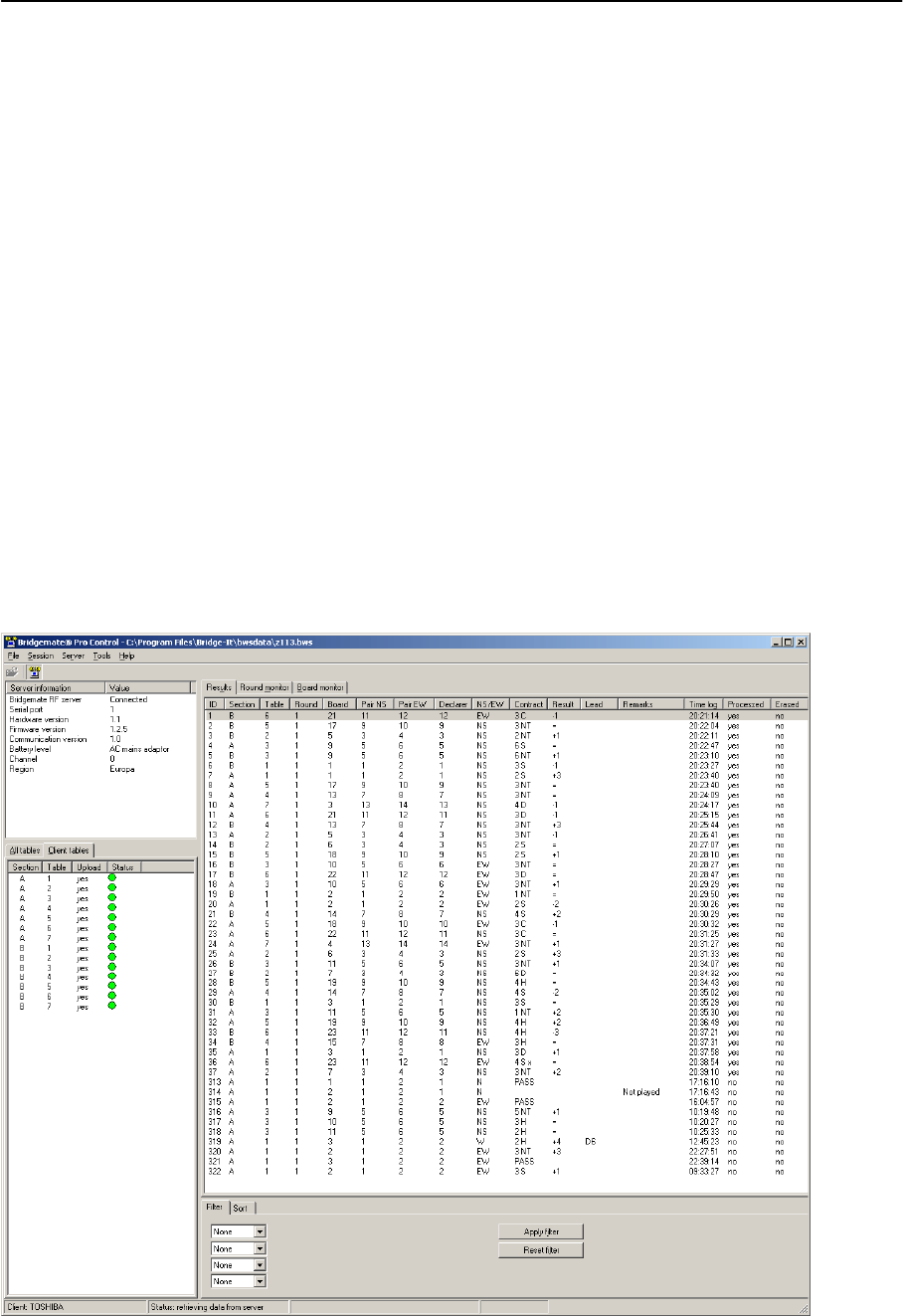
The BPC screen is displayed as follows:
The name of the active result file is displayed in the title bar. If no result files are open, the text “No
session active” will be displayed.

Chapter 3: Bridgemate Pro Control software 20
Server information
The pane in the top left-hand corner of the screen displays information relating to the server. If a
server has been found, the text “connected” and the version number will be displayed. You can also
check the serial port to which the server is connected, and whether server is running on a power
adapter or batteries. If the power adapter is used, the text “AC adapter” will be displayed; if batteries
are used, the power meter will display the number of operating hours remaining in percentages. If you
are using batteries, we would recommend replacing them in time rather than overusing them. BPC will
indicate when to replace the batteries. Lastly, BPC will display the region and the channel over which
the server is communicating.
Tables
The bottom left-hand corner of the screen contains two tabs, All tables and Client tables. Below these
tabs is a list of tables. The All tables tab contains all the tables stored in the result file. These are
generally all the tables used in the session. The tables must be assigned to a client. The Client tables
tab displays the tables assigned to the client PC you are currently using. The name of this client is
displayed in the bottom left-hand corner of the screen. If you are using one PC for your sessions, all
tables will be assigned to the same client. In this case, the All tables and Client tables tabs contain the
same tables. If you are using multiple clients (e.g. in big tournaments), the All tables tab contains all
tables in the session; the tables may be assigned to different clients. The Client tables tab only
displays (on both PCs) those tables assigned to that specific client.
The scoring program will create the result file for you. It is assumed that only one client is used. The
program will automatically assign all tables to the PC you are currently using. You do not need to
perform any manual changes. Manual changes are only required during big tournaments involving the
use of multiple clients and servers.
Received board results
All board results read from the server are displayed in the right-hand side of the screen. Per board
result, users can see the table(s) to which this score relates, the pair numbers, declarer, the overall
score and the time this score was logged in BPC. Please note: the time/date registration logs the
exact time the board results were saved in the result file. If there is a server delay in reading the
scores, the system logs the time/date when the server was read and the board result was saved in the
result file. In other words, the system does not log the time/date when the score was actually
registered in the server.
Filtering and sorting board results
The filtering and sorting functions, based on one or multiple criteria, are displayed in the bottom right-
hand corner of the screen. This enables users to perform a fast search for specific scores or to
compare scores. Filter and sort options are available per section, table, round and board number.
Logging in and logging off Bridgemates
Logging in Bridgemate
Once the corresponding tables have been added to the server, the Bridgemates can be activated. If
this is not the case, the Bridgemates cannot be activated.
Once the Bridgemate has been switched on, the start-up screen will display the text “Bridgemate Pro”
followed by the version number. Press OK to go to the section and table number screen. Press OK
again to log the Bridgemate in to the server. The flashing symbol in the top right-hand corner of the
Bridgemate screen indicates that radio communication is taking place. Once the Bridgemate has
logged in, all first round data will be displayed. The Bridgemate has now been activated. In the BPC
screen, the red symbol in the “Status” column of the All tables and Client tables tab will turn to green
(provided the function “Retrieve data from server” is checked, see Board results – Reading from
server later on in this manual). This column also gives a clear overview of all inactive Bridgemates: if
the status column is still red, the table has not activated the Bridgemate.

Chapter 3: Bridgemate Pro Control software 21
In the following cases, the Bridgemate will not be logged in to the server, but instead the message
“SYSTEM NOT ACTIVATED YET” will be displayed and the Bridgemate is returned to the start-up
screen:
- The corresponding table has not been added to the server.
- The session of this table has finished, all the scores have been registered for this table. In this
case, the Bridgemate will display the message “End of session”.
- Another Bridgemate with the same section/table number setting has already logged in to the
server. It is not possible for two Bridgemates to log in with the same section/table number.
- The server is outside the range of the Bridgemate and cannot communicate with the
Bridgemate.
- The server and the Bridgemate are not communicating over the same channel or server ID.
- The region setting in BPC does not match the region setting of the Bridgemates.
Logging off Bridgemate
The “End of session” message will be displayed for all Bridgemates that have completed the rounds
and sent all the scores. These Bridgemates are returned to the “Bridgemate Pro” start-up screen and
are automatically logged off from the server. The status column of this table will turn red again,
indicating that the session has been completed on this table. A clear overview is given of all the active
tables. All Bridgemates with the green status display are still in use.
As well as logging off automatically at the end of the session, users are given two alternative options
for logging off manually:
- Using the reset function in the TD menu (option 0). The Bridgemate is returned to the start-up
screen and is logged off from the server. See chapter 5 for more information on how to reset
the Bridgemates from the TD menu.
- Via menu Server à Show tables, Log off table(s). See chapter 4 for more information.
The latter function can be used if you need to use another Bridgemate for a specific reason but cannot
log off via the normal procedure. You will need to log off manually to start using another Bridgemate.
See also chapter 7 for more information.
Board results
Reading from the server
Once the Bridgemates have logged in, they will feed scores to the server during the session. These
scores are first saved in the server. To save them in the result file, BPC will continuously need to read
the new scores from the server. This process can be started and cancelled at any moment. Go to
Session à Retrieve data from server, or press the F4 function key, or click on the icon. The status
bar will display the following message: “Status: retrieving data from server”. New data is retrieved
every second from the server and automatically stored in the result file.
The process can be cancelled using the abovementioned menu, function key or icon. The status bar
will now display the following text: “Status: idle”, indicating that no new data is being retrieved from the
server.
If the reading process is re-activated after an idle period, all scores not yet sent to BPC will be
retrieved from the server, read and saved in the result file. Delayed reading and processing of scores
is therefore possible. It is advised, however, that the reading process is activated at all times during
the session.

Chapter 3: Bridgemate Pro Control software 22
Viewing and filtering or sorting scores
Viewing scores
Scores that have been read and saved in the result file are displayed in the right-hand table of
Bridgemate Pro Control. Per score, an overview is given of the corresponding table, the round, the
players, the player declaring the game and the contract. The registration time and date is also
displayed in the result file. Remarks are also displayed (“Not played” = the Bridgemate indicates that
the game has not been played, 40%/60% = arbitral score entered in the Bridgemate, “Result erased” =
score has been erased). Only those scores retrieved from tables assigned to the client you are
currently using will be displayed.
Go to the menu Tools à Show/hide columns to select the columns you would like to show or hide.
Applying filter or sort order
As more board results are added and displayed, the more time-consuming and difficult it becomes to
find or compare specific scores. Although you will generally use your scoring program for this purpose,
it is conceivable that you may wish to view the registered data in BPC.
To display a specific group of board results, you can apply a filter to the entire list. This filter can be
configured at the bottom of the screen. Enter specific criteria per section, table, round and board
number and NS/EW pair number. It is possible to enter multiple criteria, for example section A, table 1,
round 3. Per criterion, enter your filtering preference - equal to, not equal, equal or less, equal or
greater, between - and enter the relevant values. Select Apply filter to apply the filter. To remove the
filter and display all board results, press Reset filter.
The sort function can be used to sort the (filtered) results according to various criteria. Select the
criteria and choose Ascending or Descending for each criteria. Select Apply sort to start sorting the
scores.
Changing and deleting scores
You have the option of changing or deleting results saved in the result file and displayed in the result
list.
Changing scores
Right-click on the score you would like to change and select Edit score. A detail screen will appear
displaying all the score data. You can now edit the score using the following notation: NS/N/S to
indicate the North-South direction of play, EW/E/W for East-West direction of play; clubs = C,
diamonds = D, hearts = H, Spades = S, no trumps = NT, double = x, redouble =xx, pas = PASS. Enter
a space between the value of the contract, the contract type and double/redouble. Enter a = symbol in
front of contracts that have been exactly made.
If the board result has already been read by the scoring program, it makes little sense to change the
board result in BPC. It would be better in this instance to change it directly in the scoring program. If
however the score has not yet been read, it does make sense to perform this change in BPC. The
edited score will be displayed in your scoring program. It is however also possible to process the score
first before performing the desired changes in the scoring program.
Note that any changes made to the results in the result file will not be fed again to the server. The
Bridgemates will therefore show the unchanged result in the overview of previous board results.
Deleting scores
To delete a board result, right-click on the score you would like to delete and select Delete score. To
delete multiple scores simultaneously, press and hold the left mouse button and the Shift key to select
the scores you would like to delete. Deleted scores will also be deleted from the scoring program (if it
supports this function), even if the score has already been read. The score will also be deleted from
the server.

Chapter 3: Bridgemate Pro Control software 23
Processing scores in the scoring program
For information on how to read and process scores from the Bridgemate Pro result file, please consult
the manual supplied with your scoring program.
The following text will describe the more advanced functions in Bridgemate Pro Control.
Opening and closing result files
The result file is the starting point in the process. If no result files are opened in BPC, your options are
limited. The Session menu is inactive and no scores can be processed from the server. During normal
use of the Bridgemate Pro scoring system, your scoring program will create and automatically read the
result file in BPC. You do not need to open the result file or read the relevant session data. This is
processed automatically. To read other result files in BPC, use the Open and Close functions in the
File menu.
Opening existing result file
Use the File à Open menu to open an existing result file. If this result file has not been opened
previously on this client, BPC will ask whether the client wants to log in to this result file. This step is
necessary to add tables to the client and interact with the result file.
Closing the result file
Select File à Close to close the active result file. You can now open another result file.
Adding a client to the result file
The result file keeps track of which clients are using the result file. Your scoring program will
automatically add your client to the result file.
If the result file has not previously been opened by the client PC (it was created on another PC), this
client has not yet logged in to the result file and cannot use the file. To add a new client to the result
file, open the result file on the relevant client. BPC will ask you to confirm whether the client needs to
be logged in to the result file. Confirm. You will now be able to start using the result file.
Managing tables
Assigning tables to a client
Once a result file has been opened, all tables of the result file will be displayed under the All tables
tab. The “Client” column will display the text “not assigned” if the scoring program has not assigned
the table to the current client (this only occurs sporadically) or if the table has been removed by a
client. To assign a table to the client you are currently using, right-click on the table and select Add to
client. To add multiple tables simultaneously, select the table by clicking and holding the left mouse
button and the Shift key, or use the Select all function to select all the tables. Once the table has been
added to the client, the client name will be stored in the table. You can only assign tables to the client
(PC) you are currently using. If you are using multiple clients in a network, the result file will need to be
opened manually per client and the tables added to the relevant client.
Taking over tables from another client
To transfer a table that has already been assigned to another client to your own client, repeat the
above procedure. Right-click on the table and select Add to client. BPC will ask you to confirm whether
you would like to take over the table from another client.

Chapter 3: Bridgemate Pro Control software 24
Overview of tables assigned to a client
The client to which the tables have been assigned is displayed in the “Client” column of the All tables
tab. The Client tables tab only displays those tables assigned to the current client.
Removing tables from the client
Click on the Client tables tab for an overview of all the tables added to this client. Right-click on the
table you would like to remove and select Remove from client. The table will now be removed from the
client.
Server control
Activating the server
To activate the server, connect it to the client PC and connect the power adapter or fit batteries. Once
the server has been found, specific data will be displayed in the top left-hand corner of the BPC
screen and the Server menu will be activated. You are advised to connect the server before launching
BPC.
Resetting the server
The server contains no data when initially connected to a power source. New tables can be added
instantly.
If the server contains data which you would like to delete, you will need to empty the server. This is
done using the reset function. Go to Server à Reset. You will be asked to enter a verification number
which is displayed on the screen. This verification number ensures that the server cannot accidentally
be reset. Once the correct verification number has been entered, the server is emptied and all data
removed.
Adding tables
The server is activated by adding tables. As soon as a table has been added, the server feeds this
data to the corresponding Bridgemate, which in turn is activated. The Bridgemate cannot operate if the
corresponding table has not been added to the server. Tables can only be added once to the server. If
you attempt to add a table that has already been added to the server, an error message will be
displayed.
To add a table to the server, go to the Client tables tab, select the relevant tables, right-click on one of
the tables and select Add to server. The tables will now be added one by one to the server, and the
corresponding movement loaded per table. An overview of the added tables will be displayed.
Removing tables
It is also possible to remove tables from the server using the Client tables tab. Select the tables you
would like to remove, right-click on these tables and select Remove from server. The tables will now
be removed. You will not be able to use any Bridgemates that are configured to these tables.
Synchronizing the server and client
All data relating to the tables is saved separately in both the result file and the server. This may result
in discrepancies between the two in the event of a temporary disconnection between the server and
the PC. These discrepancies can be rectified using the Session à Synchronize client <-> server menu
function.

Chapter 3: Bridgemate Pro Control software 25
Check the relevant options to indicate your synchronization preferences. You are effectively
determining whether to synchronize the server to the result file, or whether to update the result file
using the data stored in the server.
Tables in server which are not in client
Use this option to determine what to do with tables stored in the server but not assigned to the client.
To delete these tables from the server, select “Delete from server”. To add them to the client, select
“Add to client”. Tables that have already been assigned to another client can only be assigned to the
current client if the “Take over from other client” option has been checked. If this box has not been
checked, the tables cannot be added to the client.
Tables in client which are not in server
Conversely, some tables may have been assigned to the client but not to the server. To add these
tables to the server, select the option “Add to server”. To delete these tables from the client, select the
option “Delete from client”. This option also allows you to delete all the tables from the result file by
checking the “Delete from session” option.
Delete tables from server which are not in session
The synchronization function will also verify whether the server contains tables not contained in the
result file. These are so-called “obsolete tables”. Check the “Delete tables from server which are not in
session” option to delete these tables from the server. If this option is unchecked, these tables will not
be removed.
Synchronizing client to server and vice versa
As outlined above, the main function of the synchronization process is to synchronize the client to the
server and vice versa. The default settings of this function are configured to synchronize the client to
the server: tables that have been assigned to the server but not to the client are added to the client,
and tables that have been assigned to the client but not to the server are removed from the client.
These settings will need to be adjusted when synchronizing the server to the client. In this case, delete
all tables from the server that have been assigned to the server but not to the client (select “Delete
from server”). Conversely, add to the server all tables that have been assigned to the client but not to
the server (select “Add to server”).
In all these cases, make sure the “Delete tables from server which are not in session” option is
checked to delete all tables that have been assigned to the server but not the result file (and therefore
not to the session). Should it transpire that these tables were correctly stored in the server and not in
the result file, a new result file will need to be created, or the current file updated.
Chapter 3: Bridgemate Pro Control software 26
Recovering the server
The Synchronize menu function also offers users the opportunity to fully synchronize the result file and
the server. To do this, go to the “Recovery” tab and press the “Recover server” button. All existing
data will be deleted from the server and overwritten with the tables and the scores contained in the
result file. The server is synchronized with the current position of the result file.
This function is ideal in the event of data loss and if you wish to configure the server from the moment
data was lost. Make sure however to move the scores from the server to the result file in time.
Updating movement in the server
Movement data is assigned to all tables added to the server during the synchronization process. The
synchronization function does not update the movement data of tables already stored in the server
and which have not been updated. If the movement data of the result file has been synchronized from
the scoring program, and the scoring program does not order BPC to update this data, use the
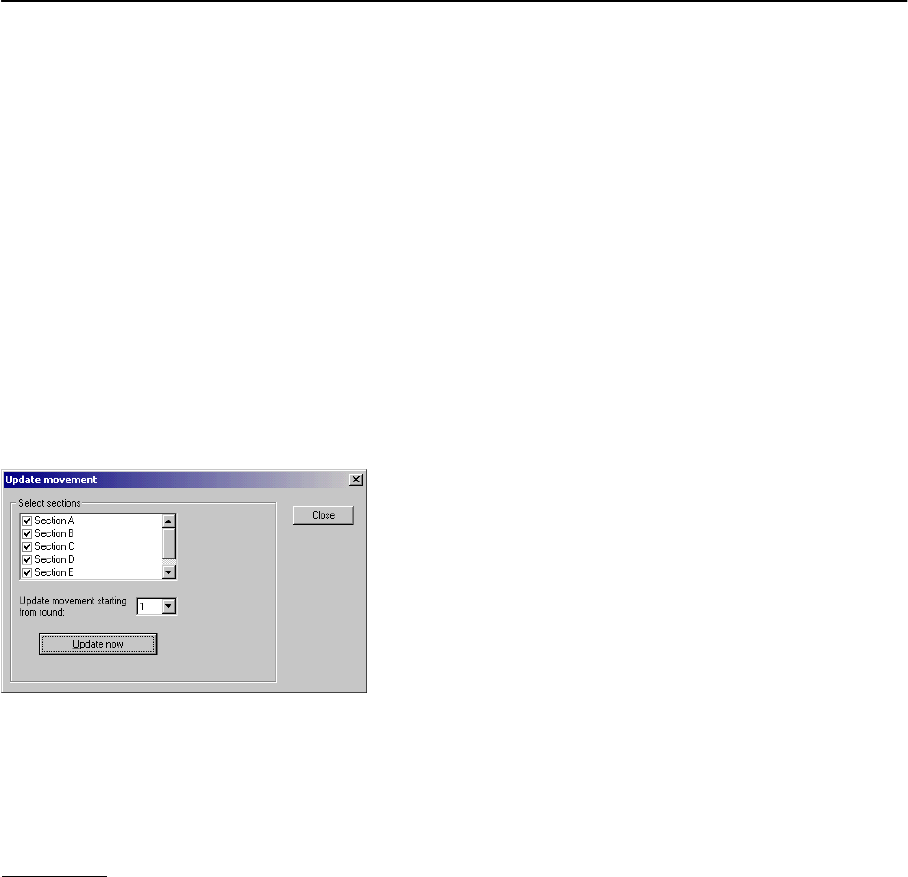
Session à Update movement menu function to update the server with the correct movement for these
tables.
All sections are checked by default. Uncheck all sections that you do not wish to update. By default,
data is updated from round 1. To update from a later round, select another round number using the
selection option. Press Update now to update the sections with the correct movement. All table scores
belonging to sections that you wish to update will now be deleted from the selected round onwards. A
report will be displayed of the executed operations.
Please note
The scoring program will normally update all movements in BPC automatically. It is therefore not
necessary to invoke this function manually. Please refer to the manual of your scoring program for
more information on movement updating in BPC.
Settings
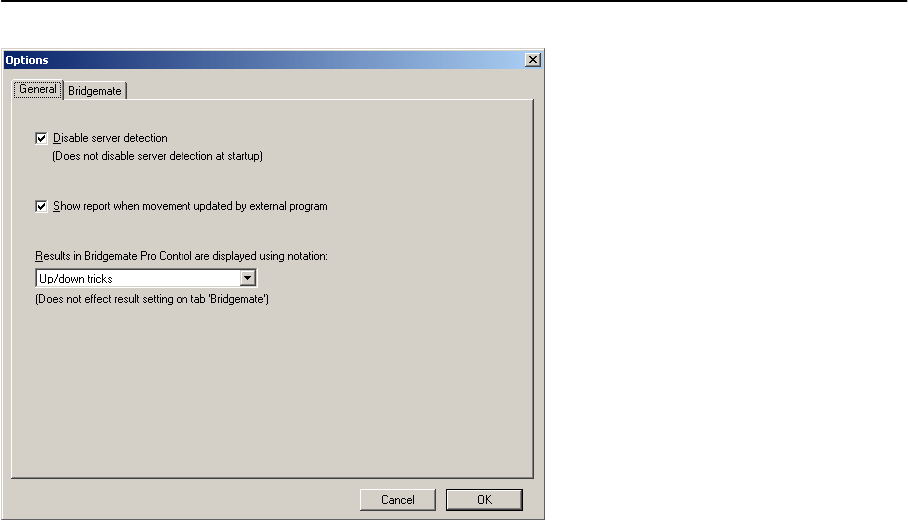
Program settings of BPC can be changed using menu Tools à Options à tab General.
Chapter 3: Bridgemate Pro Control software 27
To disable the automatic server detection while the program is running, check Disable server
detection. You may decide to do so whenever you are running BPC without a server connected.
During your sessions, however, you are always advised to leave this function unchecked.
Note that disable server detection will not disable detection at startup of BPC.
When the scoring program updates the movement, the result of it is shown on the BPC screen through
a report window. If you want to disable this report, uncheck Show report when movement updated by
external program.
Results in BPC are by default shown as overtricks/downtricks. If you want to show results using a
different method, you can select here the desired method.
Chapter 4: Server functions 29
Chapter 4: Server functions
Once the server is connected to the PC, the BPC Server menu is active. This menu contains several
useful server functions. It is not necessary to open a result file to use these functions.
Overview of tables
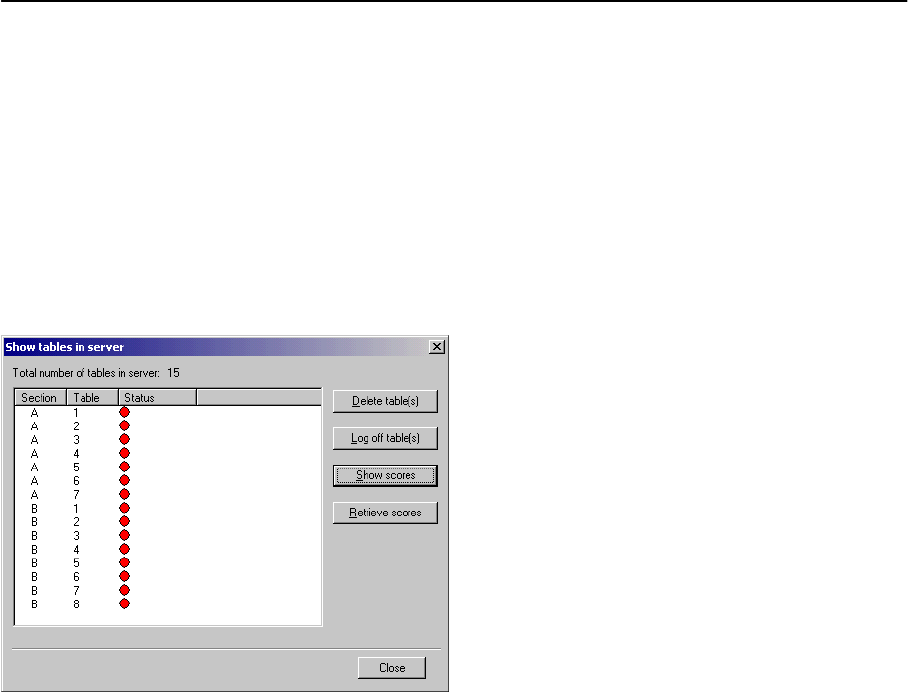
Use the Server à Show tables menu to create an overview of the tables stored in the server.
Per table, the green or red status light indicates whether this table has logged in to the server, logged
off, or has not yet logged in.
To delete a table from the server, select the relevant table(s) and choose “Delete table(s)”. The tables
will be deleted from the server, as will all the registered scores of these tables.
To log off a table manually, select the relevant table(s) and press “Log off table(s)”.
Press the “Show scores” button to create an overview of the scores entered by the Bridgemate. Select
the table(s) of which you would like to see the board results and select this function.
Press the “Retrieve scores” button to move all entered scores for the selected tables to the result file.
Overview of entered scores
The Server à Show all scores menu function displays an overview of all board results entered in the
server. Depending on the number of tables stored in the server, there may be a delay in reading and
displaying the data.
Restarting Bridgemate network
The wireless network can be restarted from the server using the function Server à Force restart. Use
this function to solve wireless communication problems between multiple Bridgemates and the server.
Chapter 4: Server functions 30
Resetting the server
The Reset server menu function resets the entire server and deletes all entered data. To avoid
accidental resets, you will be asked to enter a verification number which is displayed on the screen.
Note: If the server is not connected to the power adapter and/or is not fitted with batteries, all data will
be lost. It is therefore not necessary to reset the server before disconnecting it from the power source
or after connecting it to the power source.
Setting the region
The Bridgemate Pro score system communicates over a predetermined frequency spectrum. The
permitted frequency differs per continent. Three continents are currently supported: Europe, North
America and Australia / New Zealand. When first launching Bridgemate Pro Control, you will be asked
to select your region. The server will select the corresponding frequency spectrum to communicate
with the Bridgemates. Remember to use the correct Bridgemate firmware for your region. For Europe,
all firmware versions with a European country code can be used (NL, FR, DE, EN, ES, PT, IT, DK,
NO, SE). For North America, firmware version with country code US can be used. For Australia and
New Zealand the country code is AU. This country code is displayed on the start-up screen of the
Bridgemate.
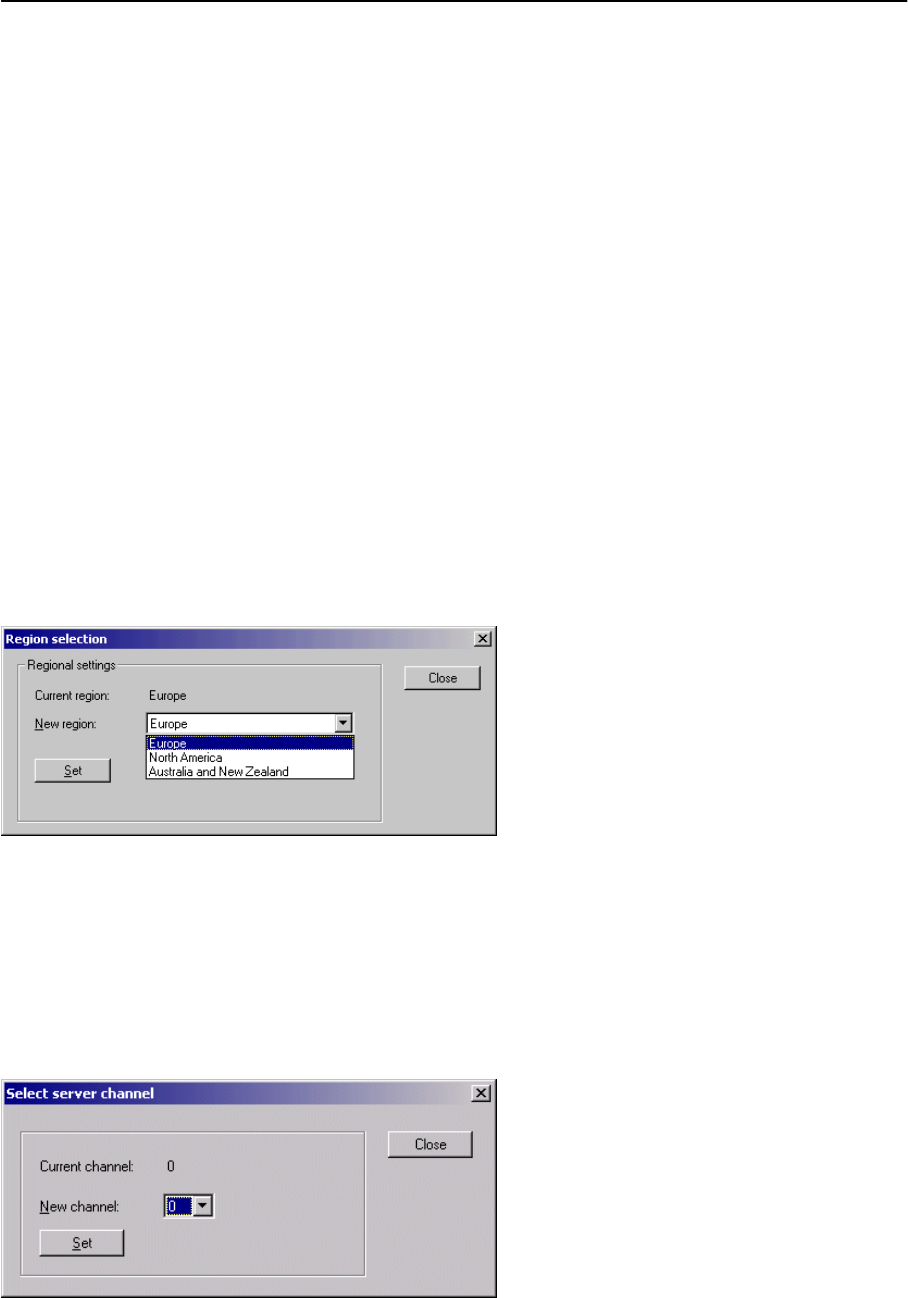
If you want to change the regional settings of the server, go to Server à Region selection.
The “Current region” function displays the current region. Select the new region and press “Set”. The
new region has now been set.
Setting the channel
The server and the Bridgemates must be set to the same channel to communicate with each other. To
set the channel on the server, use the Server à Channel selection menu.
The “Current channel” function displays the current channel. Select the new channel and press “Set”.
The new channel has now been set.

Chapter 4: Server functions 31
System functions
Trace & debug
This function is not covered by this manual.
Chapter 5: Use of the Bridgemate® Pro scoring devices 33
Chapter 5: Use of the Bridgemate® Pro scoring
devices
The Bridgemate is a small device designed to
enhance the enjoyment of bridge for tournament
directors and bridge players alike. The system
enables you to enter scores faster than before, and
is guaranteed to prevent operator errors. As well as
allowing players to enter board results, the
Bridgemate also feeds information to the players,
such as the achieved percentage on the board
played, and the traveler overview. We are convinced
that tournament directors and bridge players will
appreciate the convenience of the Bridgemate!
Preparing the Bridgemate for use
The Bridgemates are individually packed in compact sturdy cardboard boxes. Each Bridgemate comes
complete with four AAA batteries, which must be inserted into the bottom of the Bridgemate unit. The
+ and – signs in the casing indicate the insertion direction of the batteries. Insert all four batteries in
the direction indicated, close the lid and press the OK button. Check whether the text “Bridgemate
Pro” appears. The Bridgemate is now ready for use.
Exploring the Bridgemate
The keyboard
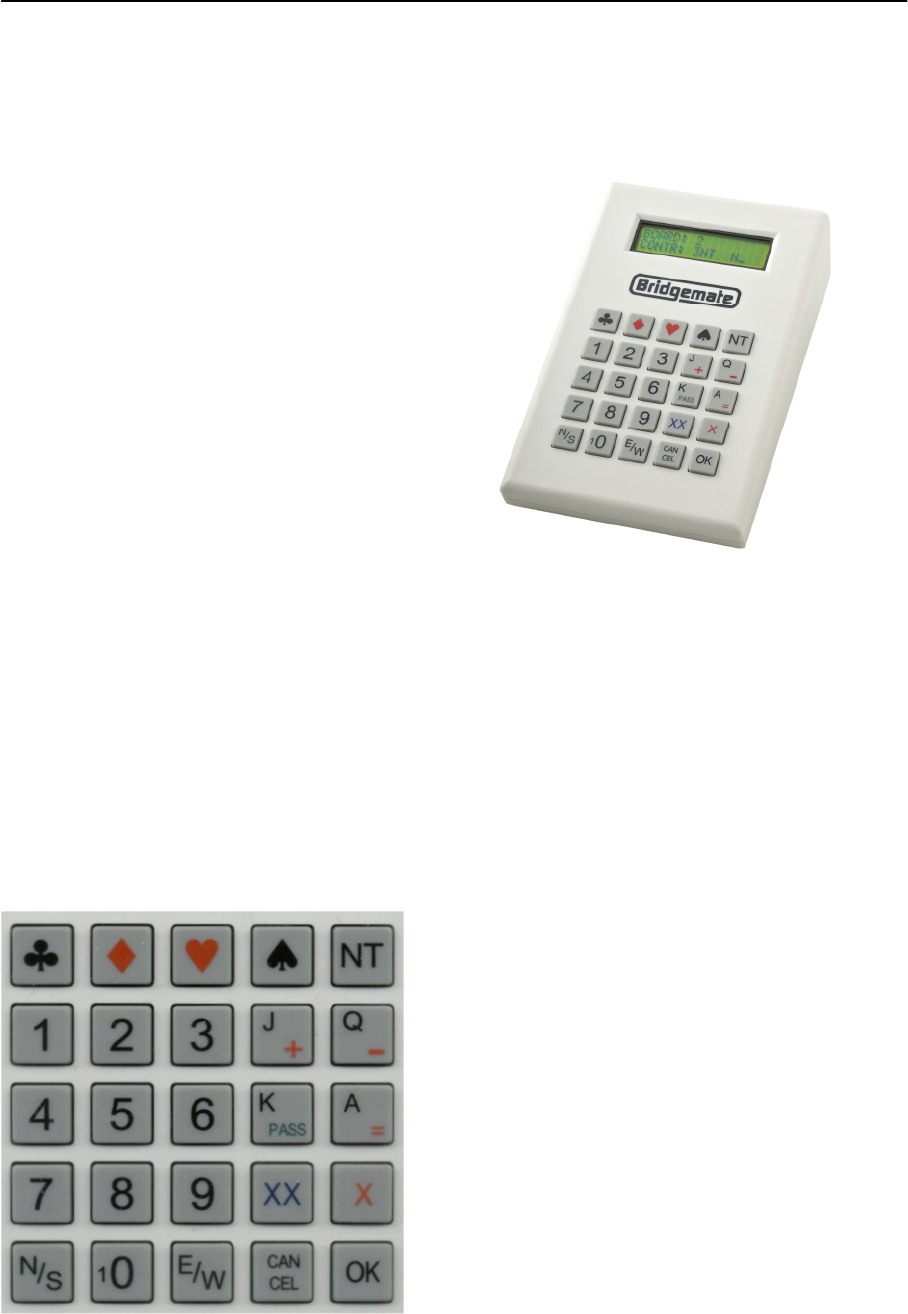
The Bridgemate keyboard contains 25 keys. Some of the keys have a dual function.
Chapter 5: Use of the Bridgemate® Pro scoring devices 34
Keys Explanation
1 to 9, 10
These keys are used to enter numbers in the Bridgemate, for
example board numbers, pair numbers, contract and result. The
10 button is used to enter 0 (when entering member numbers,
board numbers etc) and to indicate 10 as the lead card.
♣, ♦, ♥, ♠, NT These keys enable you to indicate the contract type or the card
color of the lead card.
+, - Indicates overtricks or downtricks of the result.
= Indicates that the contract has been exactly made.
J, Q, K, A Use these keys to specify Jack/Queen/King/Ace as the lead
card.
X, XX Double or redouble.
N/S, E/W Declarer’s direction of play.
PASS Indicates a pass-out.
CANCEL Correct an entry and cancel commands.
OK Confirm an entry.
Switching on/off
The Bridgemate does not have a separate on/off button. To switch on the Bridgemate, press the OK
button. It is not possible to switch off the Bridgemate manually. The Bridgemate will automatically
switch off after it has been idle for a while, i.e. no buttons have been pressed. No data will be lost
when the Bridgemate switches off. Simply press the OK button to continue as before. In other words,
you can continue entering scores as soon as the Bridgemate has been activated again.
The default autopower-off time is set to 20 seconds. This value can be changed to between 5 and 60
seconds. See chapter 6 for more information.
Activating the Bridgemate
When switching on the Bridgemate Pro for the first time, you will be taken to the main screen:
BRIDGEMATE PRO
V2.2.1a EN
(version number and language code may differ)
Press the OK key again to view the section and table settings of the Bridgemate. The default setting is
section A, table 1. If these settings are correct, move the Bridgemate to the corresponding table. The
Bridgemate is now ready for use.
Configuring the section and table
You will need to configure the section and table for each Bridgemate. To do this, insert the TD-key in
the Bridgemate when the “Bridgemate Pro” screen is displayed. The following screen will now appear:

Chapter 5: Use of the Bridgemate® Pro scoring devices 35
GROUP: A +/-
TABLE: 1
Use the + and - key to adjust the section. Sections range from A to Z.
Press OK to confirm the section. The following screen will now be displayed:
GROUP: A
TABLE: 1_
Use the number keys to set the correct table number. Press CANCEL to delete the current number.
Table numbers range from 1 to 511.
Press OK again to confirm the table number. The screen will now change, ready for you to set the
channel.
CHANNEL: 0_
Press the CANCEL button to delete the channel and enter the new channel. If you wish to leave the
channel number unchanged, press OK. The Bridgemate will display a message informing you that the
settings have been saved. The Bridgemate will retain these settings until you next change the section
and table number. In other words, these settings will be retained even after the session has been
completed. It is therefore not necessary to change the settings for the next session. All you need to do
is move the Bridgemate to the correct table.
To exit the screen, simply remove the TD-key. The Bridgemate will return to the main screen, and no
changes will be made to the section and table number.
Activating the server
For more information on how to activate the server, please see Chapter 3.
Replacing batteries
The Bridgemate will check the remaining battery life each time it is activated for a new session. If the
battery power is extremely low, the “Replace batteries” message will appear. Although it is safe to
continue using the Bridgemate for several more sessions, it is recommended that you replace the
batteries as soon as possible. The average battery life is approximately 200 sessions. However, this
depends largely on the length of each session, the time frame over which these sessions are played,
and how the Bridgemates are stored.
Entering scores with the Bridgemate
Who operates the Bridgemate?
As with the score card, the Bridgemate is operated normally by North. North is responsible for the
correct operation. East (or west) is responsible for verification of the entered board results.
Switching on/off
To switch on the Bridgemate, press the OK button. The Bridgemate will automatically switch off after it
has been idle for a while, i.e. no buttons have been pressed. No data will be lost. Press the OK button
again to continue as before.

Chapter 5: Use of the Bridgemate® Pro scoring devices 36
Activating the Bridgemate
At the start of the session, the Bridgemate will by default display the “Bridgemate Pro” main screen,
including the version number and language code. Press OK to view the table and section settings of
the Bridgemate. For example:
GROUP: A
TABLE: 1
To activate the Bridgemate and log on to the server, press OK again. The Bridgemate has now been
activated and can be put into use.
Entering member numbers (optional)
If you have specified in BPC that you wish to enter member numbers, the Bridgemate will ask you -
after activation and before the start of the first round - to enter the member numbers of the four
players.
N:_
S:
and
E:_
W:
The number must be numeric and has a maximum of 12 digits. Use the number keys to enter the
number, and confirm by pressing the OK key. If a player does not know his member number or does
not have a member number, press OK without entering a number. No number will be registered for
this player.
Once a member number has been entered for West, the numbers will be fed to the server and the
Bridgemate will start the first round.
Information before the start of the round
At the start of each new round, the Bridgemate will display the new round and the expected pairs, as
well as the direction of play. The board numbers will also be displayed. For example, you can verify at
the start of the round whether you are seated in the correct direction and have the correct boards on
the table. This information is displayed as follows:
ROUND 1, 1-4
NS: 1 EW: 2
Press OK to confirm this screen and continue with the board input.
Entering board results
The following screen will be displayed when entering the board results:
BOARD: _
CONTR:
The flashing line indicates the input position. Before starting the game, enter the board number and
press OK to confirm. The Bridgemate will verify the number. An error message will be displayed if the
board number does not appear in that round:
BOARD NUMBER
INCORRECT! R1

Chapter 5: Use of the Bridgemate® Pro scoring devices 37
R1 indicates that the Bridgemate is in round 1. The message will disappear after a few seconds. You
will now be asked to enter the correct board number.
If the board is entered a second time within the same round, the following message will be displayed:
BOARD ALREADY
PLAYED! R1
It is not possible to enter a board twice in the same round. If the board result has been entered
incorrectly and requires correction, delete the board result from the TD menu (see further) and re-
enter the score.
Use the Bridgemate settings to indicate whether you would like the Bridgemate to check whether the
entered board number corresponds to the logical order. If the Bridgemate expects a different board
number to be entered, the following message will appear:
BOARD OUT OF
ORDER, ACCEPT?
Press Cancel to return to the previous screen and press Cancel again to erase the board number and
to enter a new board number. If you do wish to play an out-of-sequence board, press OK. The board
number will be accepted, and the Bridgemate will assume that you have chosen to deviate from the
logical order.
Once the board number has been entered and confirmed, the cursor will jump to the second line. You
can now begin bidding. As soon as the contract has been determined, enter the contract type and the
direction of the declarer.
To enter the contract, use numbers 1 to 7 and the ♣, ♦, ♥, ♠ and NT keys. If required, you can also
use the X and XX keys to indicate double or redouble. To specify the declarer, use the N/S and E/W
keys. If the declarer is North, press N/S once. If the declarer is South, press this key twice. Ditto if the
declarer is East or West. The screen is displayed as follows:
BOARD: 13
CONTR: 3NT x E_
Press OK to confirm this.
Entering lead card (optional)
If you have specified in BPC that lead cards must be entered, the Bridgemate will ask you to enter the
lead card.
LEAD: _
RESULT:
Select the lead card using keys 2 to 9, 10, J, Q, K or A and the card type using ♣, ♦, ♥ or ♠. You are
free to decide in which order to enter the card and the card suit. Press OK to confirm the lead card.
Entering the result
Once you have finished playing the board, you can enter the result. When the contract has been
exactly made, press the = key. To indicate overtricks, use the + key and enter the number of
overtricks. For downtricks, use the – key.
Depending on the settings in BPC, the result can also be entered as the total number of tricks won or
by using the American style (tricks made/down). The standard method is entering overtricks or
downtricks and is used in this manual.

Chapter 5: Use of the Bridgemate® Pro scoring devices 38
Verification by east
Once you have entered the contract, the lead card and the result, press OK. The message
"Verification by east" will now be displayed. The Bridgemate must now be passed to East to verify the
entered data.
The verification screen will for example be displayed as follows:
Board 13, 3NTx +1
by East, -950
The board data entered by North is displayed on one total screen (the lead card will not be displayed).
In addition, the number of score points obtained on this board will be displayed. Depending on the
BPC setting, the number of score points will be displayed as assigned to the North/South pair or to the
declarer.
Confirming board result
East verifies the data displayed on the verification screen. If this data is incorrect, East will press
CANCEL to edit the data. If the result is correct, East will press OK to confirm the result. The message
“Entry completed” will now be displayed. The data is saved and sent to the server. It is now no longer
possible for players to edit the results.
Overview of percentage achieved and previous results (optional)
Once East has confirmed the board result, players have feedback options for viewing their achieved
result and board results achieved by other pairs. Depending on the BPC settings, the following
information can be displayed:
• Achieved percentage for the entered board result
• Overview of scores of other pairs on the entered board
If one (or both) of the functions is activated, the message “Entry completed” will also display the text
“Show results?”. Press OK to view information on the achieved board result.
The percentage achieved on the board will be displayed first. This is done by reviewing the other
scores registered on the board, the value of the entered score and how the entered score compares
with the other scores. This percentage will have little significance at the start of a session. As the
session progresses, the percentage will approximate the actual end percentage on the board.
3NTx E +1
-950 = 33%
The percentage relates to the achieved number of score points. Depending on the BPC setting, this
always applies to the North/South pair and/or the declarer. Press OK to exit this screen.
If you have set BPC to also display the scores of other pairs on the entered board, the Bridgemate will
display these results. This screen is displayed as follows:
S 2S = +110
E* 3NTx +1 -950
The scores are sorted from high to low on the basis of the achieved score points of North/South. The
score achieved by the table is displayed with a * (optional). The scores are displayed in pairs. If there
are multiple board results, press OK to view the next results.
It is possible to set BPC to view the scores again after they have all been displayed.

Chapter 5: Use of the Bridgemate® Pro scoring devices 39
End of round
At the end of the round, the Bridgemate will display the message "End of round". You do not need to
do anything. The Bridgemate will automatically switch off after a few seconds. Press OK again to
begin entering the scores in the next round.
End of session
At the end of the last round, the Bridgemate will display the message “End of session” and return to
the Bridgemate Pro main screen after a few seconds. The Bridgemate has completed its tasks and
can now be safely stored away.
Special entries: pass-out and board not played
If the players have passed four times without offering a contract, enter ‘Pass’ at CONTR and confirm
with OK. You will not be asked for the lead card and the result, and the Bridgemate will switch
immediately to the verification screen.
If a board has not been played in a particular round due e.g. to time constraints, the Bridgemate must
be informed. If this step is skipped, the Bridgemate will remain in the uncompleted round, and other
pairs will be prevented from entering their results. To enter an unplayed board, press the 10 key in the
CONTR screen. The screen will now display the text ”NO PLAY”. Confirm by pressing OK. The
Bridgemate will now display the verification screen again.
The Bridgemate will not display an overview for unplayed boards. As it is possible to play the board in
a later round, players must be prevented from seeing the results of previous boards. The board can be
played afterwards without the Bridgemate; in that case, the relevant score must be entered manually
in the scoring program.
Rectifying an input error
If you have made an input error, press CANCEL to rectify the error. In principle, it is possible to return
to the board number input screen by repeatedly pressing this button. It is also possible for East to
reject the entered data by pressing CANCEL. The Bridgemate will now return to the input screen, and
the entered data can be deleted by pressing CANCEL again. Once East has confirmed the score and
the message “Entry completed” has been displayed, the score cannot be edited. This option is only
available to tournament directors.
Please note:
• It is not necessary to enter the number of score points (+420, -50 etc.) in the Bridgemate. The
Bridgemate will calculate the score using the entered contract and result, taking vulnerability
into account.
• The Bridgemate monitors the active rounds. In case of a sit-out, the Bridgemate will skip this
round.
• Before starting a new round, verify whether you and your opponents are seated in the correct
direction to avoid playing in the wrong direction. At the start of the round, press OK to display
the directions.
Reading Bridgemate Pro scores
Scores to Bridgemate Pro Control
Scores entered on the Bridgemates are first saved on the server. The Bridgemate Pro Control
program periodically reads the scores from the server and stores these in the result file. To start or
stop this periodic reading, click on Session à Retrieve data from server. Alternatively, press F4. At the

Chapter 5: Use of the Bridgemate® Pro scoring devices 40
bottom of the screen, you can check whether the program is busy retrieving scores or is idle. Read-out
is normally activated by your scoring program (if the program supports this function).
Reading scores in the scoring program
Once the scores have been saved in the result file, your scoring program can read and process the
scores. For more information, please consult the manual of your scoring program.
TD menu
Tournament directors have far-reaching powers to verify the entered scores. A special TD menu is
available for this purpose. To access this menu, please use the TD-key supplied with the package.
Activating the menu
To activate the TD menu, insert the TD-key in the communication port of the Bridgemate. This
requires the Bridgemate to be switched on and waiting for data to be entered (board, contr, lead, result
input screen). It is for instance not possible to activate the menu if the device is in the verification
screen or is displaying an overview of previous results.
To exit the menu, simply remove the TD-key.
Menu options
Once you have inserted the TD-key, the following screen will appear:
TD-MENU
You now have seven options:
1. To enter an arbitral score, press ‘1’.
2. For an overview of the entered scores, press ‘2’.
3. To delete an entry, press ‘3’.
4. If you would like to view the corresponding table and section of the Bridgemate and/or the
corresponding round and pairs, press ‘4’ (retrieve status).
5. To retrieve an overview of the board numbers not yet entered, press ‘5’.
6. To reset the Bridgemate, press ‘0’.
7. To set the contrast of the screen, press + or -.
Entering an arbitral score
It is possible to specify in the Bridgemate that an arbitral score must be entered for a certain board.
Proceed as follows: enter the board number and confirm with OK. The cursor is positioned at CONTR.
Insert the TD-key in the Bridgemate to activate the TD menu. Press '1' and confirm (OK button)
“Arbitral score?” Next, enter the arbitral score for both pairs:
NS: _
EW:
You can choose between 40% (average-minus), 50% (average) and 60% (average-plus). Press 4 or –
to enter 40%, 5 or = to enter 50%, 6 or + to enter 60%. It is not possible to enter a value other than
these percentages. Press OK after you have entered the percentage. Do this for both pairs. The

Chapter 5: Use of the Bridgemate® Pro scoring devices 41
screen will now return to the TD MENU. Remove the TD key. The assigned arbitral score is now
displayed at CONTR. Press OK to confirm this, and confirm the verification screen. The Bridgemate
has now saved an arbitral score for this board and will feed this to the scoring program during read-
out.
Retrieving overview
To obtain a board overview without reading the data or completing a board input, it is possible to use
the special overview function of the TD menu. To access this overview, insert the TD-key and press
‘2’. You will be asked to enter the corresponding board number. The overview displays the pair
number, direction of play, contract and result. The number of score points is not displayed in this
overview. If the screen returns to the TD menu after the board number has been entered, no scores
have been registered for this board at this table.
Erasing entry
Tournament directors have the option of erasing entries. This can either be a board result from the
current round or the previous round. If the board results have not yet been entered in the current
round, the board result of the previous round will be erased. This method enables you to erase all
results from the Bridgemate. To erase a board input, press ‘3’ and press OK when prompted to
confirm “Erase result?”. You will be asked to enter a board number. Enter a board number and confirm
with OK. If that particular board can be erased, the message “Board erased” will be displayed to
indicate that the entered result has been erased. If the board has not yet been played, or not played
on this table in the current or previous round, the TD menu will be displayed again after you have
pressed OK.
Retrieving current status
If you no longer know to which table and section the Bridgemate relates, you can retrieve this
information in the status part of the TD menu. To do so, insert the TD-key in the Bridgemate and press
‘4’. Press OK when prompted to confirm ‘Status?’ The expected table and section of the Bridgemate
will be displayed first. Press OK again to view the current round of the Bridgemate and the
corresponding pairs at the table. You will also see the boards to be played in this round.
Overview of missing scores
From the TD menu, it is easy to establish which boards of the round have not yet been entered. Press
‘5’ and OK when prompted to confirm ‘Missing boards?’ The Bridgemate will now display the numbers
of the boards not yet entered in this round at this table.
Resetting the Bridgemate
The Bridgemate can be reset from the TD menu. Press ‘10’ and OK when prompted to confirm
‘Reset?’. It will now return to the main screen.
Setting contrast
It is possible to set the contrast of the screen from the TD menu. Press + to make the screen darker,
– to make the screen lighter. Press the button several times to adjust the contrast.
It is also possible to adjust the contrast if the Bridgemate is in the Bridgemate Pro main screen without
using the TD-key.
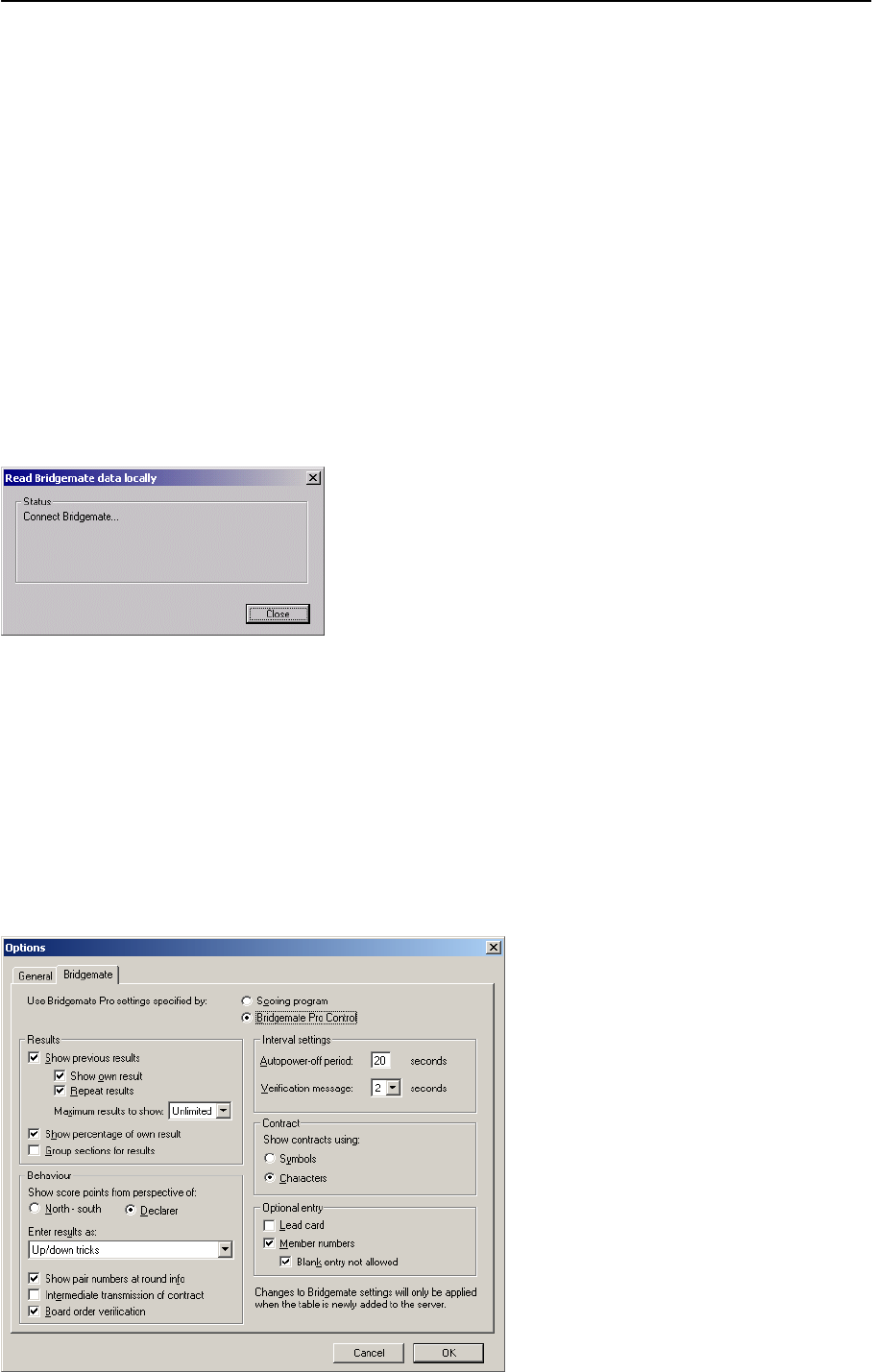
Chapter 6: Additional Bridgemate functions 42
Chapter 6: Additional Bridgemate functions
Bridgemate Pro Control has a number of functions specifically designed for the Bridgemate scoring
devices.
Reading scores manually in Bridgemate
All entered scores are also saved in the local memory of the Bridgemates. If for whatever reason a
Bridgemate is unable to feed a board result to the server, you have the option of reading the scores
manually in Bridgemate Pro Control at the end of the session. This is done using the menu Session à
Read Bridgemate Locally.
To use this function, it is necessary to connect a Bridgemate communication cable to the serial port of
your PC. This communication cable is available from your Bridgemate supplier.
Connect the Bridgemate to the communication cable via the data port at the back of the Bridgemate.
All board results are read and stored in the result file score, including scores that have already been
sent. These scores can now be processed in your scoring program in the usual way.
This function can be used for example in the event of PC and server data loss. See chapter 7 for more
information about the applicable procedures in the event of data loss.
Bridgemate settings
All Bridgemate settings can be changed via the menu Tools à Options à Bridgemate tab.

Chapter 6: Additional Bridgemate functions 43
Bridgemate settings can be specified either by the scoring program or by BPC. If you want your
scoring program to control Bridgemate settings, choose “Use Bridgemate Pro settings specified by
Scoring program”. The settings information is included in the result file by the scoring program.
Consult the manual of your scoring program for more information on how to set Bridgemate settings
through the scoring program. Select “Use Bridgemate Pro settings specified by Bridgemate Pro
Control” when you want to manually set the Bridgemate settings regardless the information in the
result file.
Displaying previous results
To enable the Bridgemate to display an overview of previous board results of a particular game, check
the “Show previous results” option. If you would also like to display your own score, check the “Show
own result” option. Your own score is indicated by a * on the Bridgemate screen. To enable the
players to display multiple overviews, check the “Repeat results” box. Limit the number of scores to be
displayed by entering a maximum number. To remove the limitation, set the maximum to unlimited.
To display the board result percentage achieved so far, check the “Show percentage of own result”
box.
When multiple sections are calculated as one, you should check the option “Group sections for
results”. The percentage will be calculated through all sections, and the results on all boards with the
same number are shown in the overview of previous results. Especially in this case, it is
recommended to set a maximum number of scores you want the Bridgemate to show. Without doing
so, the players will use up a greater amount of time watching the results at large sessions.
Displaying score points
The score points can be displayed from the perspective of the player declarer or from the North/South
direction of play. In the latter case, score points are obtained by displaying East-West as an opposite
score (4H+1 by East-West is displayed as -450 of -650). This applies both to the score points
displayed in the verification screen for East and to the percentage overview screen. The overview of
previous board results always shows the scores as North/South scores.
Entering results
Results can be entered in three ways: as overtricks / downtricks, as the total number of tricks won, or
by using the American style (tricks made/down). The default setting is overtricks / downtricks.
Displaying the pair number
If you do not wish to display the pair numbers in the round-information screen, disable the “Show pair
numbers at round info” function. This option can be used for team-of-four events.
Transmitting contracts
The Bridgemate offers users the option of feeding information to the server immediately after the
contract and/or lead card have been entered. This could for example be displayed on vuegraph
presentations while the game is still being played. If you wish to feed this information to the server,
check the “Intermediate transmission of contract” box.
Board order verification
Check the relevant box if you would like the Bridgemate to check whether the boards are to be played
in the logical order. An error message will appear on the Bridgemate if the entered board number does
not correspond to the logical order. The logical order starts with the first board of the round and the
numbers of subsequent boards should be entered in ascending order. For example, if boards 1 to 4
are to be played in round A, the logical order is 1, 2, 3, 4.
Lead card
If you would like to enter the lead card on the Bridgemate, check this setting.

Chapter 6: Additional Bridgemate functions 44
Member numbers
If you would like to enter the member numbers on the Bridgemate, check this setting. By default,
players have the option of leaving the entry blank when entering the member number. If entry of
member numbers is compulsory, check the “Blank entry not allowed” box.
View contract
Use this function to specify whether the Bridgemate uses card symbols or letters for displaying the
contracts.
Autopower-off periods
The Bridgemate will automatically go into autopower-off mode if it remains idle for a while. The default
setting is 20 seconds. To change this setting, enter a value between 5 and 60 seconds in “Autopower-
off period”. In “Verification message”, enter the length of time you would like the message “Verification
by East” to be displayed on the screen.
Note
Changes to Bridgemate settings will only be applied when the table is newly added to the server and
the Bridgemate is logging in. This is usually at the start of a new session.
System functions
The Bridgemate has two separate system functions. In both cases, the communication cable must be
connected to the PC.
Changing Firmware
The Bridgemate is controlled by a piece of software in the internal memory. This software can be
changed from BPC. In concrete terms, this means that the Bridgemate can be updated and that new
functions can be added. The language selection option for example can also be changed. In other
words, the Bridgemate can be updated without requiring you to purchase new Bridgemates.
To update the Bridgemate firmware, proceed as follows:
1. Go to Tools à Bridgemate à Update firmware.
2. Press Choose firmware file.
3. Select a Bridgemate firmware file to be loaded into the Bridgemate. These files have the
extension ‘.bpf’. Once the file has been selected, the location, version number and date of the
file are displayed.
4. Switch on the Bridgemate and connect it to the PC. If the Bridgemate is not switched on,
connect it first and press OK.
5. The program is written in Bridgemate. Wait with disconnecting the Bridgemate until the text
"Writing firmware completed. Disconnect Bridgemate" is displayed.
6. The new program has now been loaded. Press OK to activate the Bridgemate.
The process will be cancelled if an error occurs during loading. Disconnect the Bridgemate and
reconnect to repeat the process. If the problem persists, replace the batteries of the Bridgemate.

Chapter 6: Additional Bridgemate functions 45
WARNING
Only use this option on the instructions of the supplier. Incorrect use may result in faulty operation.
Only use those files supplied by your supplier and follow the instructions carefully. We strongly advise
against any other use.
Bridgemate analysis
The Tools à Bridgemate à Bridgemate analysis menu contains relevant information on the
Bridgemate, including version numbers, set autopower-off time and/or correct operation of the
Bridgemate.

Chapter7: Tips for use 47
Chapter 7: Tips for use
Replacing Bridgemate
If for whatever reason you need to replace a Bridgemate during a session, and you are unable to log
off the Bridgemate using the Reset TD menu option, proceed as follows:
- In BPC, go to menu Server à Show tables.
- Select the relevant table and press “Log off table(s)”. The Bridgemate will now be logged off
from the server.
- Take another Bridgemate and use the TD-key to set this Bridgemate to the correct section
and table number. Also make sure to set the correct channel.
- Activate this Bridgemate using the OK button. The Bridgemate will take over the position of
the old Bridgemate.
Recovering the server
If the server is accidentally disconnected from the power supply, all data will be lost and the
Bridgemates will stop functioning. Bridgemate Pro Control is able to recover the old situation. Proceed
as follows:
- Make sure the server is reconnected to the power supply.
- In BPC, go to menu Session à Synchronize client <-> Server.
- Go to the “Recovery” tab and press “Recover server”. All information from the result file will
now be moved to the server.
When recovering the server, it is important that all scores have been moved previously from the server
to the result file. If this is not the case, scores that have not been moved to the computer will be lost
and the server cannot restart fully from the previous position. Make sure therefore that the data
retrieval is always activated during the session.
Procedure in the event of data loss
The security of the board results entered in the Bridgemate Pro scoring system is given top priority.
The best defense against data loss is to store the results in multiple locations, namely:
• The Bridgemate memory
All results entered in the Bridgemate are sent to the server. At the same time, each result is also
stored in the Bridgemate’s internal memory. These results are stored until the Bridgemate is
started up again for a new session. Then the memory will be erased.
The data remains stored in the internal memory of the Bridgemate, even if no batteries are
installed.
• The server memory
Results entered in the Bridgemate are sent to the server, and stored in the server’s internal
memory. It is essential that the server is connected to a power source (batteries and/or power
adapter). If there is no power source, or in the event of power failure, all data will be lost.

Chapter7: Tips for use 48
• Bridgemate Pro Control result file and log file
BPC continuously reads the new results from the server and processes these into the result file.
This data is immediately written to the hard disk of your PC, ensuring the data is safe even in
the event of power failure. All results shown on the BPC screen have been written to the result
file.
BPC also has a log file, containing all the relevant events. All received results are written to this
log file. To view the log file, go to the Tools à Show log file menu.
• Session file in your scoring program
Lastly, the scoring program retrieves the results from the result file. The scoring program stores
the results in its own files.
The results are therefore stored in five locations in total. In the event of data loss in one of the five
locations, it is possible to check whether the results are still stored at the next level up, and to
reprocess the results from that location.
Scoring program data loss
In the event of data loss in the scoring program, check whether the results are still stored in the BPC
result file. The recommended method is to launch BPC from the Windows Start menu à All Programs
à Bridgemate Pro. Once BPC is started up, go to the File à Open menu and select the result file you
used for your session. If the results appear on the screen, they have been stored in the result file. The
results can now be reprocessed from the scoring program. For further information about processing
Bridgemate results, see the instructions included with the scoring program.
Bridgemate Pro Control data loss
If the result file contains no results (see the above-mentioned step), it is possible to retrieve them from
the server and to read them in the result file. The first step is to check whether the results are still
stored on the server. Use the Server à Show all scores menu for this purpose. All the results stored in
the server will now be shown. If the correct results are shown, it is possible to read them manually
using the Server à Show tables menu. Select all tables (hold down the left mouse button and the Shift
key) and press “Retrieve scores”. The results of the selected tables are retrieved from the server and
processed in the result file. The results can now be read by the scoring program.
Server data loss
If neither the server, nor the result file, nor the scoring program contains any data, your last resort is to
retrieve the results from the Bridgemates. All results entered in the Bridgemate are stored in the
internal memory of the Bridgemate. These can be read in the result file using the manual connection
between the Bridgemates and your PC. Use the communications cable for this purpose. See chapter 6
for more information about reading results manually.
Warning
The board results are stored in the internal memory of the Bridgemate. Once the Bridgemate has been
started up again for a new session, the memory is erased and all the data removed. This procedure is
executed after you have pressed OK in the GROUP/TABLE screen and the Bridgemate has logged
into the server. When retrieving the results from the Bridgemate, please ensure that no players are
operating the Bridgemates to avoid the Bridgemate logging into the server.
Retrieving results from the log file
Results can also be retrieved from the log file. All results entered in BPC are stored in the log file. To
view the log file, go to the Tools à Show log file menu. The selected rows can be copied and saved to
an empty text file and printed. Automatic processing is not possible; the results must be entered
manually in the scoring program. The actual file, BMProLog.log, is located in the Bridgemate Pro
folder, normally C:\Program files\Bridgemate Pro.

Chapter7: Tips for use 49
Multiple bridge clubs playing simultaneously
There may be times when two or more bridge clubs are playing at the same time in one building. As
the Bridgemate Pro server can incorporate a specific table number only once at a time, it is not
possible for two clubs to make use of one server simultaneously. Both bridge clubs will therefore
require their own server. It is of course vitally important that they do not interfere with each other. This
problem can be rectified by getting the systems to communicate over different channels. The first club
sets its system (server and Bridgemates) to channel 0, while the other uses channel 1. A third and
fourth club can then use channel 2, 3, etc. This method enables multiple clubs to use the Bridgemate
Pro scoring system simultaneously without causing any interference.
Large tournaments
During large tournaments, more than one server will be required to control over 128 tables. The layout
of the tables is important in this respect. If the tables are outside the range of the server, an extra
server will be needed to increase the range. The Bridgemate Pro scoring system supports multiple
servers over a network. In principle, this network can support an unlimited number of tables. The
following guidelines must be observed:
- You will need a fully operational network in which all used PCs are interconnected, enabling
them to access and process files.
- Only one result file is used, containing all session data and board results of all tables.
- The scoring program is running on one of the computers in the network. It is not necessary for
the scoring program and/or the result file to be running on one of the client computers that run
BPC. From an organizational point of view, it may be easier to use a separate PC containing
the scoring program and result file. Client PCs access the result file over the network.
- Each Bridgemate server is connected to its own PC (=client) where BPC is running. Do not
connect two servers to one client. Although technically feasible, it may cause unnecessary
confusion, as both servers are using the same client name. Worse still, it may even be
counter-productive if both servers are operating over the same channel.
- Use different channels for each server, especially if the servers are within range of each
other. Only use the same channels if you are sure that the servers are not interfering with
each other (e.g. in different buildings).

Declaration of conformity 51
Declaration of Conformity
Federal Communication Commission Declaration of Conformity (DoC) Statement
Responsible party: Bridge Systems BV
Address: Postbus 21570, 3001 AN, Rotterdam, The Netherlands
Hereby declares that the product:
Product Name: Bridgemate® Pro Wireless Scoring System
Product No. Table Terminal: BM11R11B
Product No. Server: BS10R11B
Conforms to the following regulations: FCC part 15, subpart B, section 15.247
This equipment has been tested and found to comply with the limits for a Class B digital device,
pursuant to Part 15 of the FCC rules. These limits are designed to provide reasonable protection
against harmful interference in a residential installation. This equipment generates, uses, and can
radiate radio frequency energy and, if not installed and used in accordance with the instructions, may
cause harmful interference to radio communications. However, there is no guarantee that interference
will not occur in a particular installation. If this equipment does cause harmful interference to radio or
television reception, which can be determined by turning the equipment off and on, the user is
encouraged to try to correct the interference by one or more of the following measures:
• Reorient or relocate the receiving antenna.
• Increase the separation between the equipment and receiver.
• Connect the equipment into an outlet on a circuit different from that to which the receiver is
connected.
• Consult the dealer or an experienced radio/TV technician for help.
This device complies with Part 15 of the FCC Rules. Operation is subject to the following two
conditions: (1) This device may not cause harmful interference, and (2) This device must accept any
interference received, including interference that may cause undesired operation.
Caution:
Any changes or modifications not expressly approved by Bridge Systems BV could void the user's
authority to operate the equipment.
Canada Regulatory Compliance Statement
This device complies with Industry Canada Standard RSS-210. Operation is subject to the following
two conditions: (1) this device may not cause harmful interference, and (2) this device must accept
any interference, including interference that may cause undesired operation of the device.
Ce dispositif est conforme avec la norme CNR-210 d’Industrie Canada. Le fonctionnement du
dispositif est sujet aux deux conditions suivantes: (1) le dispositif ne doit pas causer de brouillage, et
(2) le dispositif doit accepter tous brouillages, incluant tous brouillages.

EC Declaration of Conformity
to the Essential Requirements of
the applicable Directive 1999/5/EC
We, Bridge Systems BV, Rotterdam The Netherlands, declare under our sole responsibility that the
Radio-communication products
Product Name: Bridgemate® Pro
Product Description: Bridgemate® Pro Wireless Scoring System
Model Number of the Server: BS10R11868
Model Number of the Table Terminal: BM11R11868
are fully in conformity with the essential requirements of the Council Directive 1999/5/EC (R&TTE).
This declaration is based on the full compliance of the products with the following European
Standards:
Radio: EN 300 220-3 v1.1.1
EMC: EN 301 489-1&3 v1.4.1 (August 2002)
Electrical safety: EN 60950-1:2001
Authorized Representative: BRIDGE SYSTEMS BV
Postbus 21570
3001 AN Rotterdam
The Netherlands
Date: May 10th, 2004
Signed:
Ron F. Bouwland
Executive Director

English Hereby, Bridge Systems BV, declares that this Bridgemate® Pro Wireless Scoring System is in
compliance with the essential requirements and other relevant provisions of Directive 1999/5/EC.
Finnish Bridge Systems BV vakuuttaa täten että Bridgemate® Pro Wireless Scoring System tyyppinen laite
on direktiivin 1999/5/EY oleellisten vaatimusten ja sitä koskevien direktiivin muiden ehtojen mukainen.
Dutch Hierbij verklaart Bridge Systems BV dat het toestel Bridgemate® Pro Wireless Scoring System in
overeenstemming is met de essentiële eisen en de andere relevante bepalingen van richtlijn 1999/5/EG.
French Par la présente Bridge Systems BV déclare que l'appareil Bridgemate® Pro Wireless Scoring
System est conforme aux exigences essentielles et aux autres dispositions pertinentes de la directive
1999/5/CE.
Swedish Härmed intygar Bridge Systems BV att denna Bridgemate® Pro Wireless Scoring System står I
överensstämmelse med de väsentliga egenskapskrav och övriga relevanta bestämmelser som framgår
av direktiv 1999/5/EG.
Danish Undertegnede Bridge Systems BV erklærer herved, at følgende udstyr Bridgemate® Pro Wireless
Scoring System overholder de væsentlige krav og øvrige relevante krav i direktiv 1999/5/EF.
German Hiermit erklärt Bridge Systems BV, dass sich dieses Bridgemate® Pro Wireless Scoring System in
Übereinstimmung mit den grundlegenden Anforderungen und den anderen relevanten Vorschriften der
Richtlinie 1999/5/EG befindet. (BMWi)
Greek ΜΕ ΤΗΝ ΠΑΡΟΥΣΑ
Bridge Systems BV
ΔΗΛΩΝΕΙ ΟΤΙ
Bridgemate® Pro Wireless Scoring System
ΣΥΜΜΟΡΦΩΝΕΤΑΙ ΠΡΟΣ ΤΙΣ ΟΥΣΙΩΔΕΙΣ ΑΠΑΙΤΗΣΕΙΣ ΚΑΙ ΤΙΣ ΛΟΙΠΕΣ ΣΧΕΤΙΚΕΣ ΔΙΑΤΑΞΕΙΣ ΤΗΣ
ΟΔΗΓΙΑΣ 1999/5/ΕΚ.
Italian Con la presente Bridge Systems BV dichiara che questo Bridgemate® Pro Wireless Scoring System
è conforme ai requisiti essenziali ed alle altre disposizioni pertinenti stabilite dalla direttiva 1999/5/CE.
Spanish Por medio de la presente Bridge Systems BV declara que el Bridgemate® Pro Wireless Scoring
System cumple con los requisitos esenciales y cualesquiera otras disposiciones aplicables o exigibles
de la Directiva 1999/5/CE.
Portuguese Bridge Systems BV declara que este Bridgemate® Pro Wireless Scoring System está conforme
com os requisitos essenciais e outras disposições da Directiva 1999/5/CE.
Malti Hawnhekk, Bridge Systems BV, jiddikjara li dan Bridgemate® Pro Wireless Scoring System
jikkonforma mal-ħtiġijiet essenzjali u ma provvedimenti oħrajn relevanti li hemm fid-Dirrettiva 1999/5/EC.
Estonian Käesolevaga kinnitab Bridge Systems BV seadme Bridgemate® Pro Wireless Scoring System
vastavust direktiivi 1999/5/EÜ põhinõuetele ja nimetatud direktiivist tulenevatele teistele asjakohastele
sätetele.
Hungarian Alulírott, Bridge Systems BV nyilatkozom, hogy a Bridgemate® Pro Wireless Scoring System
megfelel a vonatkozó alapvetõ követelményeknek és az 1999/5/EC irányelv egyéb elõírásainak.
Slovak Bridge Systems BV týmto vyhlasuje, že Bridgemate® Pro Wireless Scoring System spĺňa základné
požiadavky a všetky príslušné ustanovenia Smernice 1999/5/ES.
Czech Bridge Systems BV tímto prohlašuje, že tento Bridgemate® Pro Wireless Scoring System je ve
shodě se základními požadavky a dalšími příslušnými ustanoveními směrnice 1999/5/ES.
Slovene Šiuo Bridge Systems BV deklaruoja, kad šis Bridgemate® Pro Wireless Scoring System atitinka
esminius reikalavimus ir kitas 1999/5/EB Direktyvos nuostatas.
Lithuanian Šiuo Bridge Systems BV deklaruoja, kad šis Bridgemate® Pro Wireless Scoring System atitinka
esminius reikalavimus ir kitas 1999/5/EB Direktyvos nuostatas.
Latvian Ar šo Bridge Systems BV deklarē, ka Bridgemate® Pro Wireless Scoring System atbilst Direktīvas
1999/5/EK būtiskajām prasībām un citiem ar to saistītajiem noteikumiem.