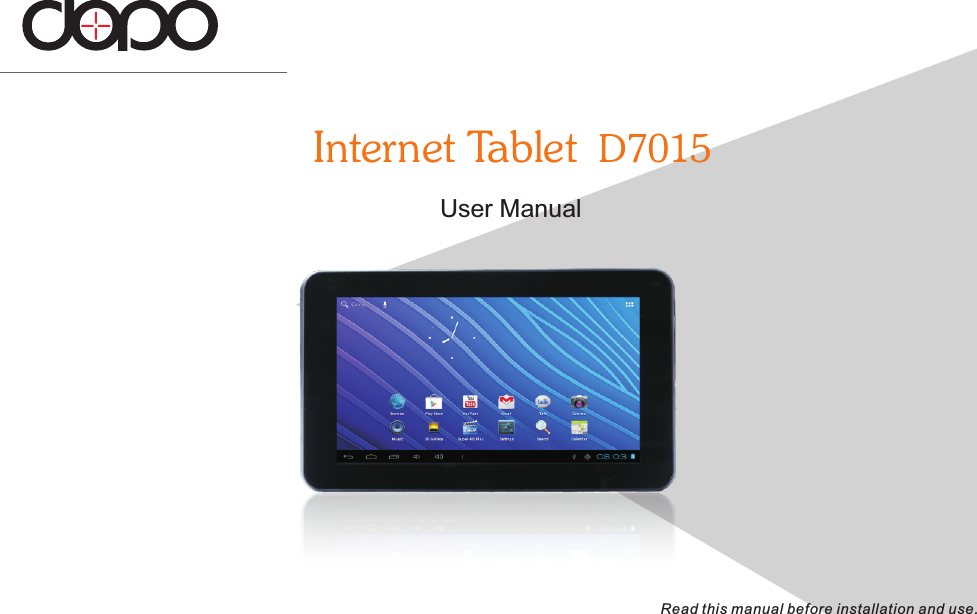
Bright Win Technology DOPO-D7015 Tablet User Manual D7015

Bright Win Technology Co., Ltd. Tablet D7015

user manual

User ManualInternet Tablet  D7015Read this manual before installation and use.
Important Safety Instructions .......................................Features ........................................................................ ................................................Basic Operations ..........................................................Getting Started .............................................................    Home Screen at a Glance ............................................    About Applications .....................................................           Preinstalled Applications ......................................                Browser ..........................................................                Settings ..........................................................                Super-HD Player ..............................................                File Manager....................................................                Music ..............................................................                Gallery ICS......................................................                Hi-Q MP3 Recorder ..........................................                Calculator ......................................................                Calendar ......................................................                Clock .............................................................                Camera ..........................................................Introducing your device4567889101010111213141515151516Connecting to the Internet .......................................................Troubleshooting .......................................................................Compliance Information ..........................................................Warranty ....................................................................................17181921Contents3EN
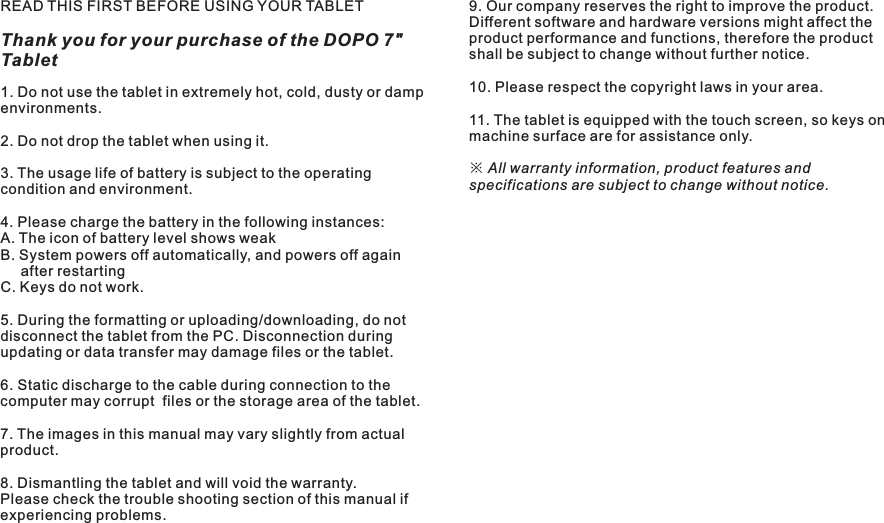
READ THIS FIRST BEFORE USING YOUR TABLETThank you for your purchase of the DOPO 7" Tablet4 ENImportant Safety Instructions1. Do not use the tablet in extremely hot, cold, dusty or damp environments.2. Do not drop the tablet when using it.3. The usage life of battery is subject to the operating condition and environment.4. Please charge the battery in the following instances:A. The icon of battery level shows weak B. System powers off automatically, and powers off again     after restartingC. Keys do not work.5. During the formatting or uploading/downloading, do not disconnect the tablet from the PC. Disconnection during updating or data transfer may damage files or the tablet.6. Static discharge to the cable during connection to the computer may corrupt  files or the storage area of the tablet.7. The images in this manual may vary slightly from actual product.8. Dismantling the tablet and will void the warranty. Please check the trouble shooting section of this manual if experiencing problems.9. Our company reserves the right to improve the product. Different software and hardware versions might affect the product performance and functions, therefore the product shall be subject to change without further notice. 10. Please respect the copyright laws in your area.11. The tablet is equipped with the touch screen, so keys on machine surface are for assistance only.※ All warranty information, product features and specifications are subject to change without notice.D7015
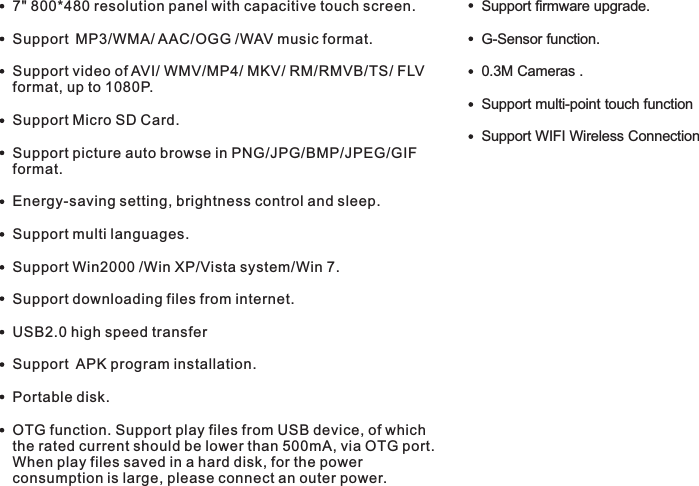
Features7" 800*480 resolution panel  capacitive touch screen.Support MP3/WMA/ AAC/OGG /WAV music format. Support video of AVI/ WMV/MP4/ MKV/ RM/RMVB/TS/ FLV format, up to 1080P.Support Micro SD Card.Support picture auto browse in PNG/JPG/BMP/JPEG/GIF format.Energy-saving setting, brightness control and sleep.Support multi languages.Support Win2000 /Win XP/Vista system/Win 7.Support downloading files from internet.USB2.0 high speed transferSupport  APK program installation.Portable disk.OTG function. Support play files from USB device, of which the rated current should be lower than 500mA, via OTG port. When play files saved in a hard disk, for the power consumption is large, please connect an outer power.     with G-Sensor function.0.3M Cameras .Support multi-point touch function Support WIFI Wireless ConnectionSupport firmware upgrade.5 END7015
ENKeys and interfaces on machine surface have functions shown below: Introducing your device2345678910Power andlock keyKey to switch the tablet on or off.Earphone jack To connect your earphone Power jack(DC input)Connect to a 5V output adapterMini USBportConnect to a computer via a USB cable  to  transfer  data(e.g.music,video, photos and other files).TF card slot To insert an TF card Speaker SpeakerName Description1No.Camera 0.3M Camera6D7015Vol+key Press to increase the volume. Vol-key Press to decrease the volume. Reset hole Press to reset the tablet.Insert a paper clip or other smallobject with a narrow tip into this reset hole. 11 089456723
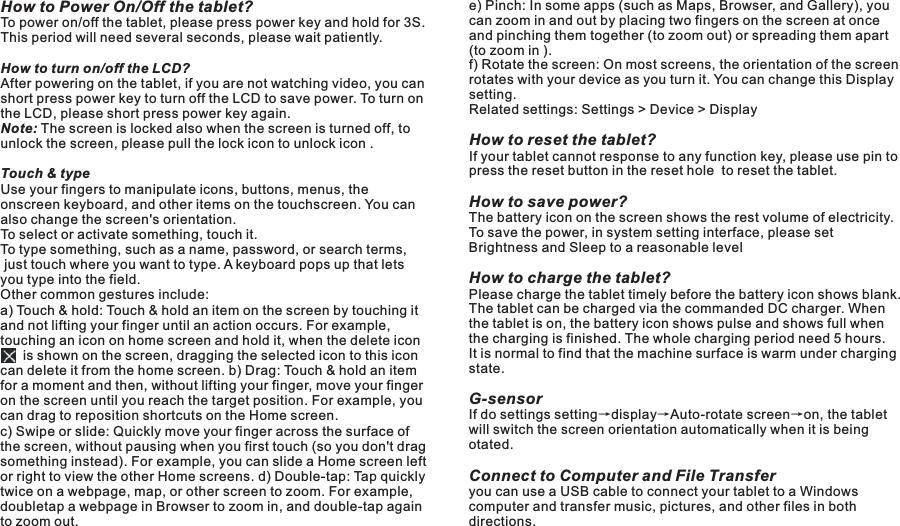
How to Power On/Off the tablet?To power on/off the tablet, please press power key and hold for 3S. This period will need several seconds, please wait patiently.How to turn on/off the LCD? After powering on the tablet, if you are not watching video, you can short press power key to turn off the LCD to save power. To turn on the LCD, please short press power key again. Note: The screen is locked also when the screen is turned off, to unlock the screen, please pull the lock icon to unlock icon .Touch & typeUse your fingers to manipulate icons, buttons, menus, the onscreen keyboard, and other items on the touchscreen. You can also change the screen's orientation.To select or activate something, touch it.To type something, such as a name, password, or search terms, just touch where you want to type. A keyboard pops up that lets you type into the field.Other common gestures include:a) Touch & hold: Touch & hold an item on the screen by touching it and not lifting your finger until an action occurs. For example, touching an icon on home screen and hold it, when the delete icon           is shown on the screen, dragging the selected icon to this icon can delete it from the home screen. b) Drag: Touch & hold an item for a moment and then, without lifting your finger, move your finger on the screen until you reach the target position. For example, you can drag to reposition shortcuts on the Home screen.c) Swipe or slide: Quickly move your finger across the surface of the screen, without pausing when you first touch (so you don't drag something instead). For example, you can slide a Home screen left or right to view the other Home screens. d) Double-tap: Tap quickly twice on a webpage, map, or other screen to zoom. For example, doubletap a webpage in Browser to zoom in, and double-tap again to zoom out.Basic Operationse) Pinch: In some apps (such as Maps, Browser, and Gallery), you can zoom in and out by placing two fingers on the screen at once and pinching them together (to zoom out) or spreading them apart (to zoom in ). f) Rotate the screen: On most screens, the orientation of the screen rotates with your device as you turn it. You can change this Display setting.Related settings: Settings > Device > DisplayHow to reset the tablet?If your tablet cannot response to any function key, please use pin to press the reset button in the reset hole  to reset the tablet.How to save power?The battery icon on the screen shows the rest volume of electricity. To save the power, in system setting interface, please set Brightness and Sleep to a reasonable levelHow to charge the tablet?Please charge the tablet timely before the battery icon shows blank. The tablet can be charged via the commanded DC charger. When the tablet is on, the battery icon shows pulse and shows full when the charging is finished. The whole charging period need 5 hours. It is normal to find that the machine surface is warm under charging state.G-sensor If do settings setting→display→Auto-rotate screen→on, the tablet will switch the screen orientation automatically when it is being otated.Connect to Computer and File Transferyou can use a USB cable to connect your tablet to a Windows  computer and transfer music, pictures, and other files in both directions.        7 END7015
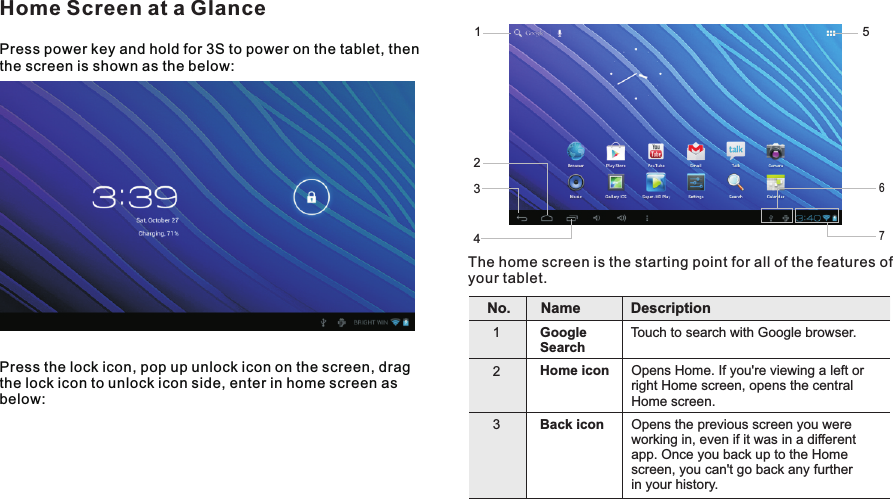
2431567Press power key and hold for 3S to power on the tablet, then the screen is shown as the below:Press the lock icon, pop up unlock icon on the screen, drag the lock icon to unlock icon side, enter in home screen as below:Home Screen at a GlanceThe home screen is the starting point for all of the features of your tablet. Name Description1Google Search Touch to search with Google browser.2Home icon Opens Home. If you're viewing a left or right Home screen, opens the central Home screen.3Back icon Opens the previous screen you were working in, even if it was in a different app. Once you back up to the Home screen, you can't go back any further in your history.No.Getting Started8 END7015
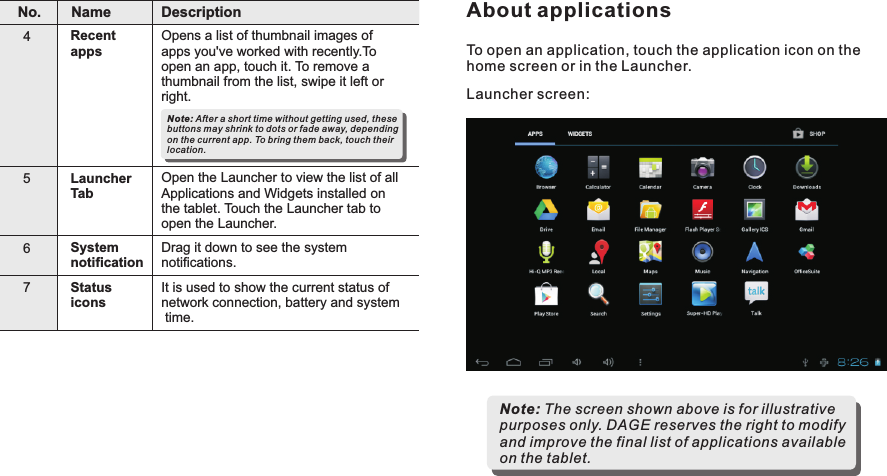
Name Description4Recent appsOpens a list of thumbnail images of apps you've worked with recently.To open an app, touch it. To remove a thumbnail from the list, swipe it left or right.5Launcher TabOpen the Launcher to view the list of all Applications and Widgets installed on the tablet. Touch the Launcher tab to open the Launcher.6System notificationDrag it down to see the system notifications.7Status iconsIt is used to show the current status of network connection, battery and system time.Note: After a short time without getting used, these buttons may shrink to dots or fade away, depending on the current app. To bring them back, touch their location.No.To open an application, touch the application icon on the home screen or in the Launcher.Note: The screen shown above is for illustrative purposes only. DAGE reserves the right to modify and improve the final list of applications available on the tablet.Launcher screen:About applicationsGetting Started9END7015
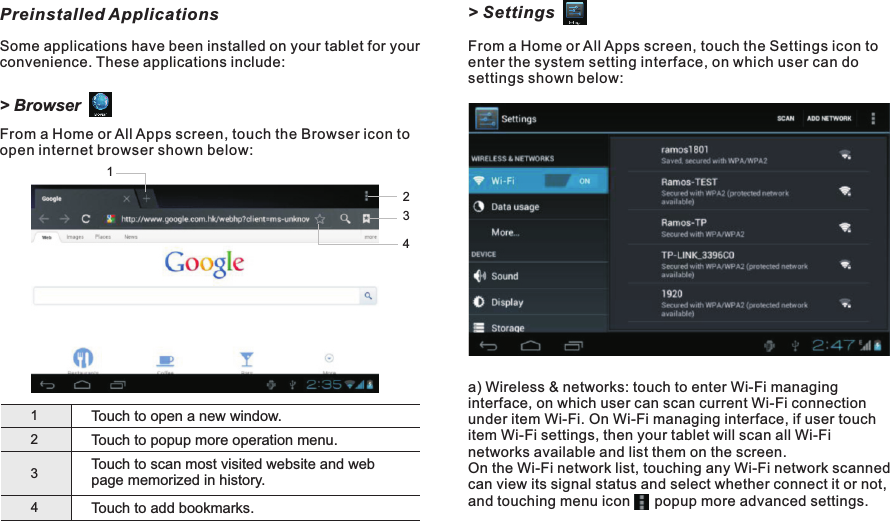
> SettingsFrom a Home or All Apps screen, touch the Settings icon to enter the system setting interface, on which user can do settings shown below:a) Wireless & networks: touch to enter Wi-Fi managing interface, on which user can scan current Wi-Fi connection under item Wi-Fi. On Wi-Fi managing interface, if user touch item Wi-Fi settings, then your tablet will scan all Wi-Fi networks available and list them on the screen.On the Wi-Fi network list, touching any Wi-Fi network scanned can view its signal status and select whether connect it or not, and touching menu icon      popup more advanced settings. Preinstalled ApplicationsSome applications have been installed on your tablet for your convenience. These applications include:> BrowserFrom a Home or All Apps screen, touch the Browser icon to open internet browser shown below:1Touch to open a new window.234Touch to popup more operation menu.Touch to scan most visited website and web page memorized in history.Touch to add bookmarks.2134Getting Started10 END7015
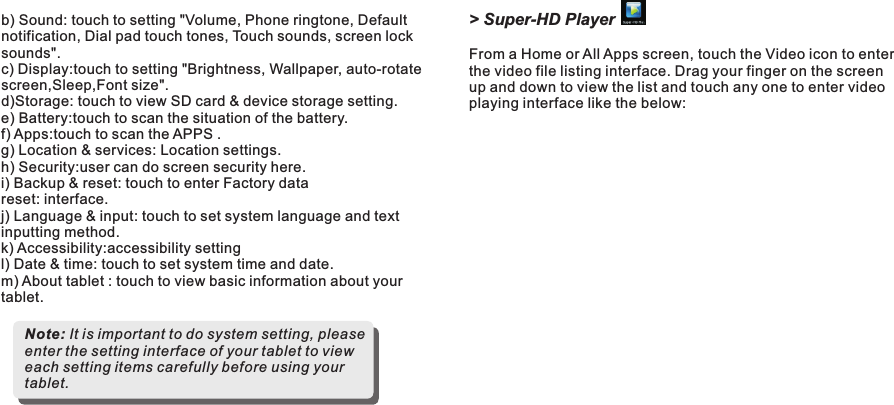
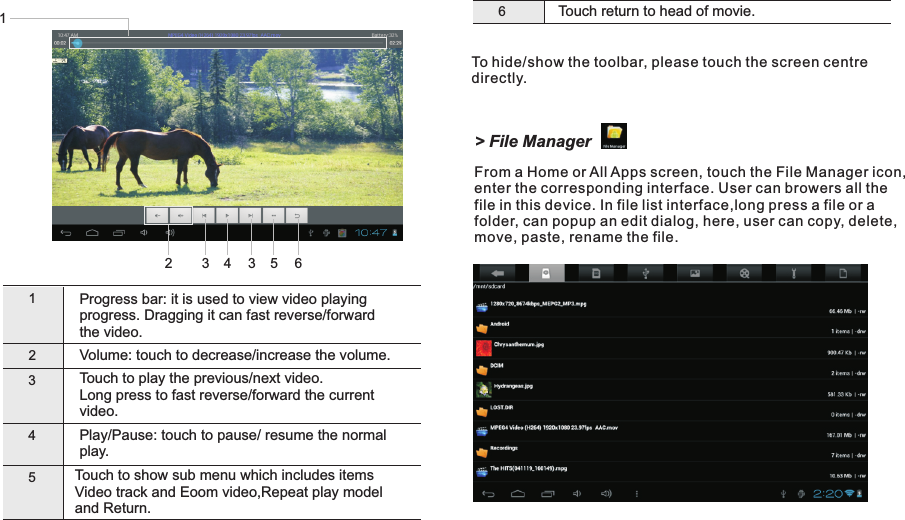
> Super-HD PlayerFrom a Home or All Apps screen, touch the Video icon to enter the video file listing interface. Drag your finger on the screen up and down to view the list and touch any one to enter video playing interface like the below:b) Sound: touch to setting "Volume, Phone ringtone, Default notification, Dial pad touch tones, Touch sounds, screen lock sounds".c) Display:touch to setting "Brightness, Wallpaper, auto-rotate screen,Sleep,Font size".d)Storage: touch to view SD card & device storage setting. e) Battery:touch to scan the situation of the battery.f) Apps:touch to scan the APPS .g) Location & services: Location settings.h) Security:user can do screen security here.i) Backup & reset: touch to enter Factory data reset: interface.j) Language & input: touch to set system language and text inputting method. k) Accessibility:accessibility settingl) Date & time: touch to set system time and date.m) About tablet : touch to view basic information about your tablet.Note: It is important to do system setting, please enter the setting interface of your tablet to view each setting items carefully before using your tablet.Getting Started11 END7015
6Touch return to head of movie.Touch to show sub menu which includes items Video track and Eoom video,Repeat play model and Return.To hide/show the toolbar, please touch the screen centre directly.1Progress bar: it is used to view video playing progress. Dragging it can fast reverse/forward the video.2Volume: touch to decrease/increase the volume.345Touch to play the previous/next video.Long press to fast reverse/forward the current video.Play/play.Pause: touch to pause/ resume the normal Getting Started12 EN213 4 3 5 6> File ManagerFrom a Home or All Apps screen, touch the File Manager icon, enter the corresponding interface. User can browers all the file in this device. In file list interface,long press a file or a folder, can popup an edit dialog, here, user can copy, delete, move, paste, rename the file.D7015
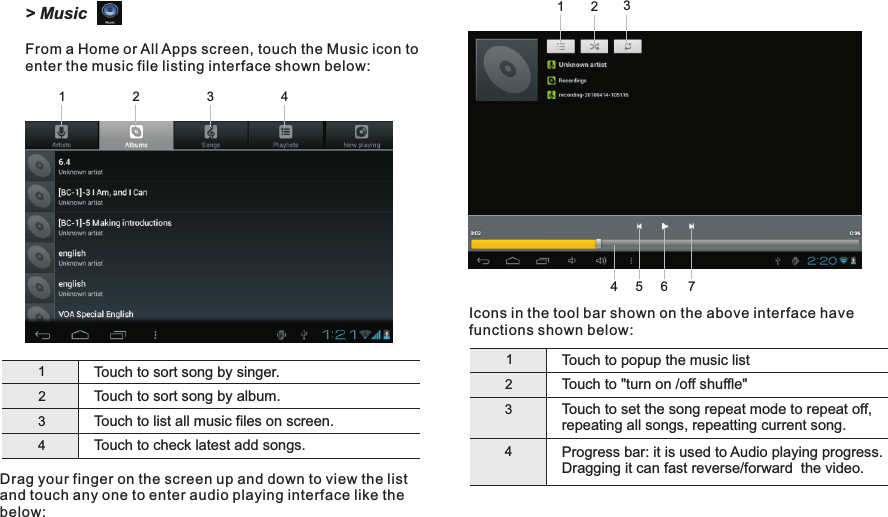
Icons in the tool bar shown on the above interface have functions shown below:1Touch to popup the music list2Touch to "turn on /off shuffle"3Touch to set the song repeat mode to repeat off, repeating all songs, repeatting current song.4Progress bar: it is used to Audio playing progress. Dragging it can fast reverse/forward  the video.1Touch to sort song by singer.2Touch to sort song by album.3Touch to list all music files on screen.Touch to check latest add songs.4Drag your finger on the screen up and down to view the list and touch any one to enter audio playing interface like the below:24314567Getting Started23113 EN> MusicFrom a Home or All Apps screen, touch the Music icon to enter the music file listing interface shown below:D7015
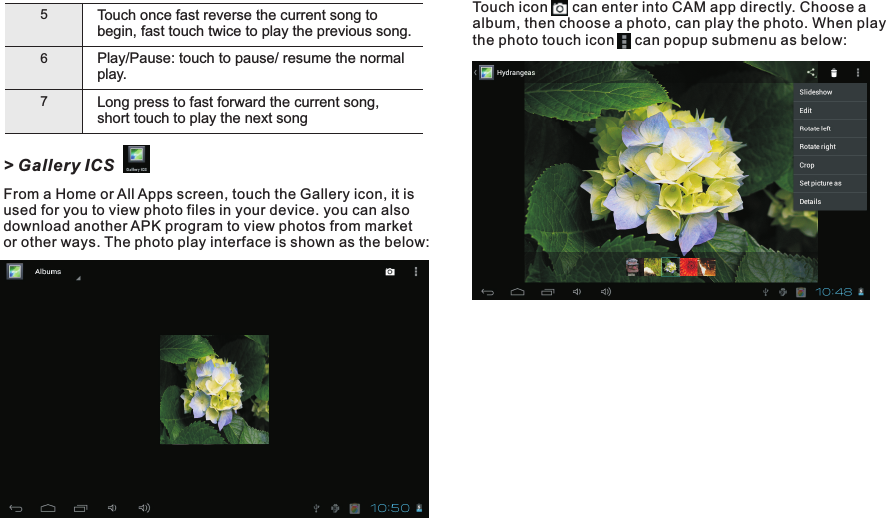
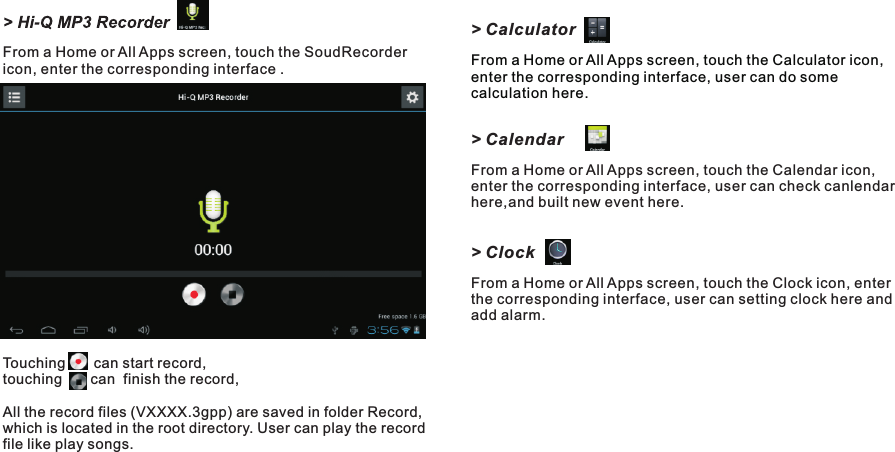
Touch        can enter into CAM app directly. Choose a album, then choose a photo, can play the photo. When play the photo touch icon     can popup submenu as below:icon56Play/play.Pause: touch to pause/ resume the normal Long press to fast forward the current song, short touch to play the next song7Touch once fast reverse the current song to begin, fast touch twice to play the previous song.> Gallery ICSFrom a Home or All Apps screen, touch the Gallery icon, it is used for you to view photo files in your device. you can also download another APK program to view photos from market or other ways. The photo play interface is shown as the below:Getting Started14 END7015
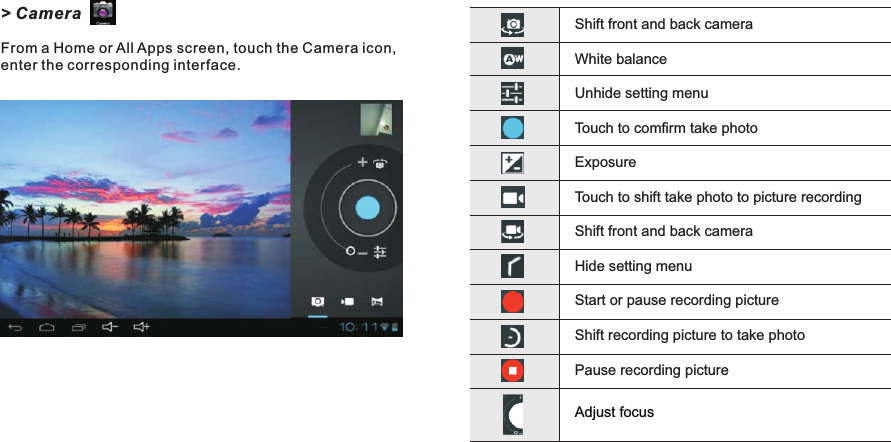
> CalculatorFrom a Home or All Apps screen, touch the Calculator icon, enter the corresponding interface, user can do some calculation here. > CalendarFrom a Home or All Apps screen, touch the Calendar icon, enter the corresponding interface, user can check canlendar here,and built new event here.> ClockFrom a Home or All Apps screen, touch the Clock icon, enter the corresponding interface, user can setting clock here and add alarm.From a Home or All Apps screen, touch the SoudRecorder icon, enter the corresponding interface .Touching       can start record, touching       can  finish the record,All the record files (VXXXX.3gpp) are saved in folder Record, which is located in the root directory. User can play the record file like play songs.Getting Started15 END7015
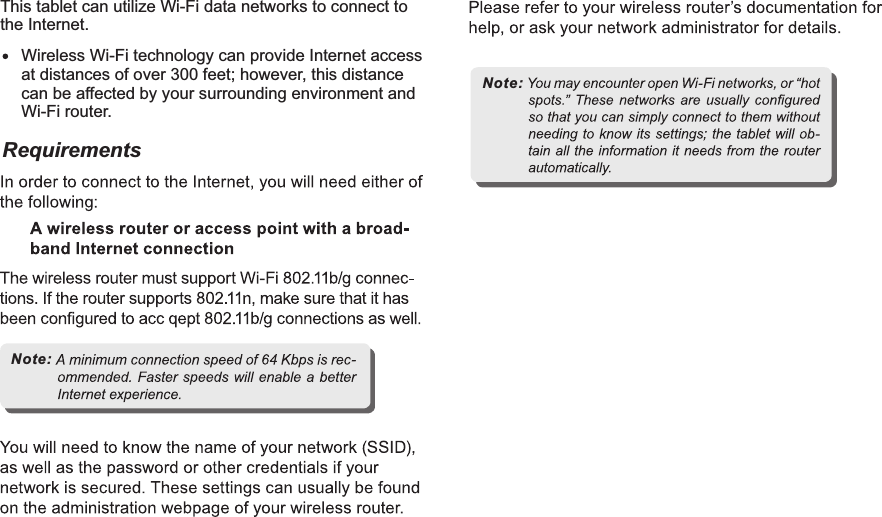
> CameraFrom a Home or All Apps screen, touch the Camera icon, enter the corresponding interface. Shift front and back cameraWhite balanceUnhide setting menuTouch to comfirm take photoExposureTouch to shift take photo to picture recordingShift front and back cameraHide setting menuStart or pause recording pictureShift recording picture to take photoPause recording pictureAdjust focusGetting Started16 END7015
RequirementsConnecting to the InternetNote:Note:17 ENThis tablet can utilize Wi-Fi data networks to connect to the Internet.Wireless Wi-Fi technology can provide Internet access at distances of over 300 feet; however, this distance can be affected by your surrounding environment and Wi-Fi router.D7015
The tablet cannot be turned on.Please charge it via the DC charger to check if the battery is low. If not, then please reset the tablet.No sound can be heard from the earphones.1. Check if the volume is set as 0. Adjust the volume as required.2. Check the volume of the file attempting to be played.3. Confirm the earphone is properly connected.Noise through earphones.1. Check if the earphone plug is clean, foreign particles can cause static to be heard through the earphone during playback.2. Check if the music file is damaged. Confirm by playing other music. The damaged file might create serious noises or voice dithering.Incorrect language displayed.Please make sure that you have selected the correct language. Set language in (Settings) => (personal) => (Language &input)Files cannot be downloaded.1. Make sure the proper connection between computer  and tablet.2. Check if the memory is full.3. Check if the USB cable is damaged and replace if necessary.Audio files not playable.This tablet cannot play audio files that are copy protected. Please ensure that only files that contain no copy protection are transferred to the tablet.Video files not playable.Please check that the video files transferred to the tablet are in the correct size and format. Some files may need to be re encoded to be played on this tablet.Fail to open the web page.Please check whether successfully create the Wi-Fi connection.  Forgot the password or lock patternPlease contact our customer service team through email or phone, you will be receiving the instruction on how to do the factory reset. However, all the personal data will be deleted after the factory reset!Troubleshooting18 END7015
ONE-YEAR LIMITED WARRANTY ON PARTS AND 90 DAYS ON LABORPARTS AND LABOR TYPE OF SERVICEWarranty21 ENDAGE provides a warranty to the original purchaserof a new Product against defects in materials andworkmanship for a period of one year of non-commercial usage and ninety(90)days if commercialuse.If a Product covered by this by this warranty isdetermined to be defective within the warranty period,DAGE will either repair or replace the unit at its soleoption and discretion.There will be no charge for parts or labor during thefirst ninety(90)days of the warranty period.Thereafterand up to one year from the date of purchase,partsonly are under warranty.There will be a labor fee ifrepairs are required during this time.Replacementparts and units may be new or recertified at DAGE'Soption and sole discretion.Defective Products must be sent to a DAGE servicecenter to obtain warranty service.DAGE is notresponsible for transportation costs to theservice center,but DAGE will cover returnshipping to the customer.Pre-authorizationis required before sending any unit in forwarranty service.Product returns to DAGE'S service centers mustutilize either the original box and shippingmaterial or packaging that affords an equal degreeof protection.DAGE Technical Support will provideinstructions for packing and shipping the coveredProduct to the DAGE service center.Replacement parts and units are warranted for theremaining portion of the original warranty or for ninety(90)days from warranty service or replacement,whichever is greater.D7015
Limitations and ExclusionsWarranty22 ENDAGE'S one-year limited warranty only coversdefects in materials and workmanship.This warrantydoes not cover:cosmetic damage,units that aredropped,normal wear and tear,improper operation,improper voltage supply or power surges,signal issues,damages from shipping,acts of God,any type ofcustomer misuse,modifications or adjustments,aswell as installation and set-up issues or any repairsattempted by anyone other than by a DAGE authorizedservice center.Products with unreadable or removedserial numbers,or requiring routine maintenance arenot covered.This one year limited warranty does notcover Products sold: "AS IS", "FACTORY RECERTIFIED"or by a non-authorized reseller.THERE ARE NO EXPRESS WARRANTIESOTHER THAN THOSE LISTED OR DESCRIBEDABOVE.ANY IMPLIED WARRANTIES,INCLUDINGANY IMPLIED WARRANTY OF MERCHANTABILITYAND FITNESS FOR A PARTICULAR PURPOSE,SHALL BE LIMITED IN DURATION TO THEPERIOD OF TIME SET FORTH ABOVE.DAGE'STOTAL LIABILITY FOR ANY AND ALL LOSSESAND DAMAGES RESULTING FROM ANY CAUSEWHATSOEVER INCLUDING DAGE'S NEGLIGENCE,ALLEGED DAMAGE,OR DEFECTIVE GOODS,WHETHERSUCH DEFECTS ARE DISCOVERABLE OR LATECT,SHALL IN NO EVENT EXCEED THE PURCHASEPRICE OF THE PRODUCT,DAGE SHALL NOTBE RESPONSIBLE FOR LOSS OF USE,LOSS OFINFORMATION OR DATA,COMMERCIAL LOSS,LOST REVENUE OR LOST PROFITS,OR OTHERINCIDENTAL OR CONSEQUENTIAL DAMAGES.D7015
)&&6WDWHPHQWThis device complies with part 15 of the FCC Rules. Operation is subject to the following two conditions: (1) This device may not cause harmful interference, and (2) this device must accept any interference received, including interference that may cause undesired operation.This equipment has been tested and found to comply with the limits for a Class B digital device, pursuant to part 15 of the FCC Rules. These limits are designed to provide reasonable protection against harmful interference in a residential installation. This equipment generates, uses and can radiate radio frequency energy and, if not installed and used in accordance with the instructions, may cause harmful interference to radio communications. However, there is no guarantee that interference will not occur in a particular installation. If this equipment does cause harmful interference to radio or television reception, which can be determined by turning the equipment off and on, the user is encouraged to try to correct the interference by one or more of the following measures:—Reorient or relocate the receiving antenna. —Increase the separation between the equipment and receiver. —Connect the equipment into an outlet on a circuit different from that to which the receiver is connected. —Consult the dealer or an experienced radio/TV technician for help. Caution: Any changes or modifications not expressly approved by the party responsible for compliance could void the user's authority to operate the equipment.

Navigation menu