Bright Win Technology DOPO-M7088 Tablet User Manual M7088

Bright Win Technology Co., Ltd. Tablet M7088

Contents

User Manual I

User ManualInternet Tablet  M7088Read this manual before installation and use.
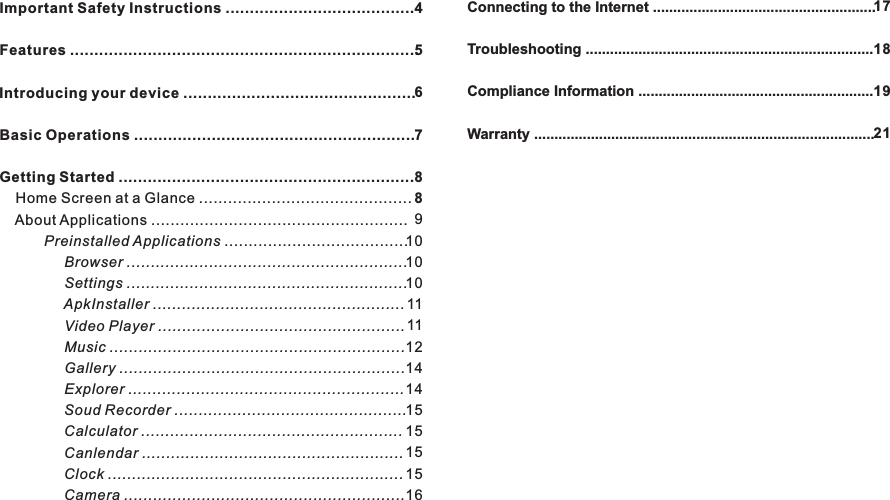
Important Safety Instructions .......................................Features ........................................................................ ................................................Basic Operations ..........................................................Getting Started .............................................................    Home Screen at a Glance ............................................    About Applications .....................................................           Preinstalled Applications ......................................                Browser ..........................................................                Settings ..........................................................                ApkInstaller ....................................................                Video Player ...................................................                Music .............................................................                Gallery ...........................................................                Explorer .........................................................                Soud Recorder ................................................                Calculator ......................................................                Canlendar ......................................................                Clock .............................................................                Camera ..........................................................Introducing your device456788910101011111214141515151516Connecting to the Internet .......................................................Troubleshooting .......................................................................Compliance Information ..........................................................Warranty ....................................................................................17181921Contents M70883EN
READ THIS FIRST BEFORE USING YOUR TABLETThank you for your purchase of the 7" Internet Tablet4 ENM7088Important Safety Instructions1. Do not use the tablet in extremely hot, cold, dusty or damp environments.2. Do not drop the tablet when using it.3. The usage life of battery is subject to the operating condition and environment.4. Please charge the battery in the following instances:A. The icon of battery level shows weak B. System powers off automatically, and powers off again     after restartingC. Keys do not work.5. During the formatting or uploading/downloading, do not disconnect the tablet from the PC. Disconnection during updating or data transfer may damage files or the tablet.6. Static discharge to the cable during connection to the computer may corrupt  files or the storage area of the tablet.7. The images in this manual may vary slightly from actual product.8. Dismantling the tablet and will void the warranty. Please check the trouble shooting section of this manual if experiencing problems.9. Our company reserves the right to improve the product. Different software and hardware versions might affect the product performance and functions, therefore the product shall be subject to change without further notice. 10. Please respect the copyright laws in your area.11. The tablet is equipped with the touch screen, so keys on machine surface are for assistance only.※ All warranty information, product features and specifications are subject to change without notice.
M7088Features7" 1024*600 HD capacitive touch screen.Support MP3/WMA/ AAC/OGG /WAV music format. Support video of AVI/ WMV/MP4/ MKV/ RM/RMVB/TS/ FLV format, up to 1080P.Support Micro SD Card.Support picture auto browse in PNG/JPG/BMP/JPEG/GIF format.Energy-saving setting, brightness control and sleep.Support multi languages.Support Win2000 /Win XP/Vista system/Win 7.Support downloading files from internet.USB2.0 high speed transferSupport  APK program installation.Portable disk.OTG function. Support play files from USB device, of which the rated current should be lower than 500mA, via OTG port. When play files saved in a hard disk, for the power consumption is large, please connect an outer power.     G-Sensor function.Dual Cameras .Support multi-point touch function Support WIFI Wireless ConnectionSupport firmware upgrade.5 EN
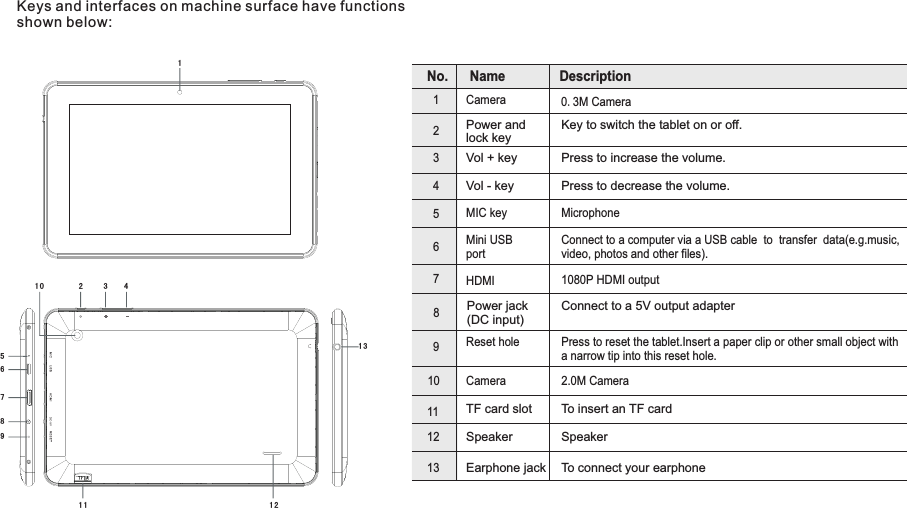
Keys and interfaces on machine surface have functions shown below: M7088Introducing your device6 ENName Description123456789No.101112132 31567891 01 1 1 21 34Camera 0.3M CameraMIC key MicrophoneHDMI 1080P HDMI outputMini USBportConnect to a computer via a USB cable  to  transfer  data(e.g.music,video, photos and other files).Reset hole Press to reset the tablet.Insert a paper clip or other small object with a narrow tip into this reset hole.Power jack(DC input)Connect to a 5V output adapterEarphone jack To connect your earphone TF card slot To insert an TF card Speaker SpeakerVol + keyVol - keyPress to increase the volume.Press to decrease the volume.Power andlock keyKey to switch the tablet on or off.Camera 2.0M Camera
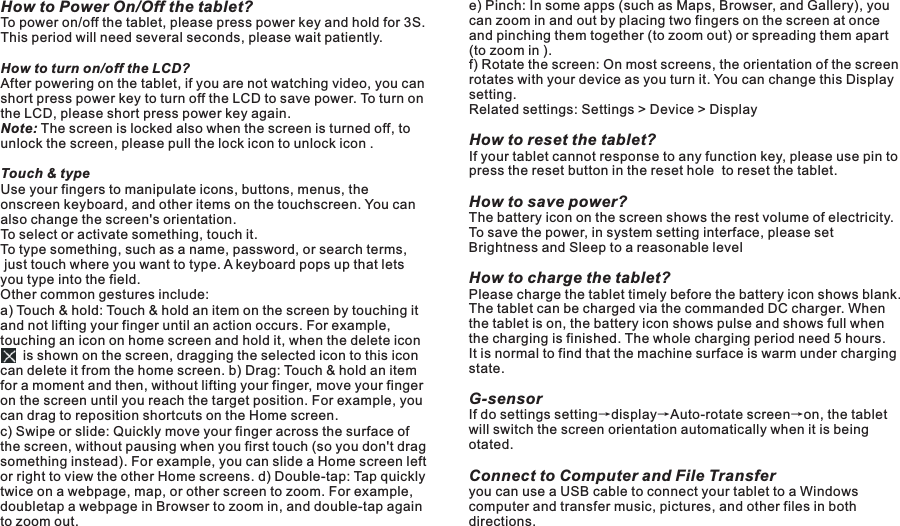
How to Power On/Off the tablet?To power on/off the tablet, please press power key and hold for 3S. This period will need several seconds, please wait patiently.How to turn on/off the LCD? After powering on the tablet, if you are not watching video, you can short press power key to turn off the LCD to save power. To turn on the LCD, please short press power key again. Note: The screen is locked also when the screen is turned off, to unlock the screen, please pull the lock icon to unlock icon .Touch & typeUse your fingers to manipulate icons, buttons, menus, the onscreen keyboard, and other items on the touchscreen. You can also change the screen's orientation.To select or activate something, touch it.To type something, such as a name, password, or search terms, just touch where you want to type. A keyboard pops up that lets you type into the field.Other common gestures include:a) Touch & hold: Touch & hold an item on the screen by touching it and not lifting your finger until an action occurs. For example, touching an icon on home screen and hold it, when the delete icon           is shown on the screen, dragging the selected icon to this icon can delete it from the home screen. b) Drag: Touch & hold an item for a moment and then, without lifting your finger, move your finger on the screen until you reach the target position. For example, you can drag to reposition shortcuts on the Home screen.c) Swipe or slide: Quickly move your finger across the surface of the screen, without pausing when you first touch (so you don't drag something instead). For example, you can slide a Home screen left or right to view the other Home screens. d) Double-tap: Tap quickly twice on a webpage, map, or other screen to zoom. For example, doubletap a webpage in Browser to zoom in, and double-tap again to zoom out.M7088Basic Operationse) Pinch: In some apps (such as Maps, Browser, and Gallery), you can zoom in and out by placing two fingers on the screen at once and pinching them together (to zoom out) or spreading them apart (to zoom in ). f) Rotate the screen: On most screens, the orientation of the screen rotates with your device as you turn it. You can change this Display setting.Related settings: Settings > Device > DisplayHow to reset the tablet?If your tablet cannot response to any function key, please use pin to press the reset button in the reset hole  to reset the tablet.How to save power?The battery icon on the screen shows the rest volume of electricity. To save the power, in system setting interface, please set Brightness and Sleep to a reasonable levelHow to charge the tablet?Please charge the tablet timely before the battery icon shows blank. The tablet can be charged via the commanded DC charger. When the tablet is on, the battery icon shows pulse and shows full when the charging is finished. The whole charging period need 5 hours. It is normal to find that the machine surface is warm under charging state.G-sensor If do settings setting→display→Auto-rotate screen→on, the tablet will switch the screen orientation automatically when it is being otated.Connect to Computer and File Transferyou can use a USB cable to connect your tablet to a Windows  computer and transfer music, pictures, and other files in both directions.        7 EN
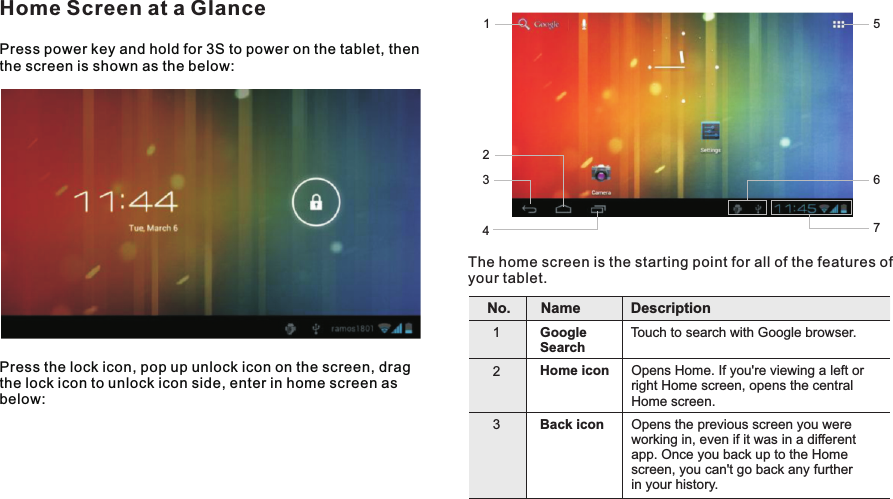
Press power key and hold for 3S to power on the tablet, then the screen is shown as the below:Press the lock icon, pop up unlock icon on the screen, drag the lock icon to unlock icon side, enter in home screen as below:Home Screen at a GlanceThe home screen is the starting point for all of the features of your tablet. Name Description1Google Search Touch to search with Google browser.2Home icon Opens Home. If you're viewing a left or right Home screen, opens the central Home screen.3Back icon Opens the previous screen you were working in, even if it was in a different app. Once you back up to the Home screen, you can't go back any further in your history.2431567No.M7088Getting Started8 EN
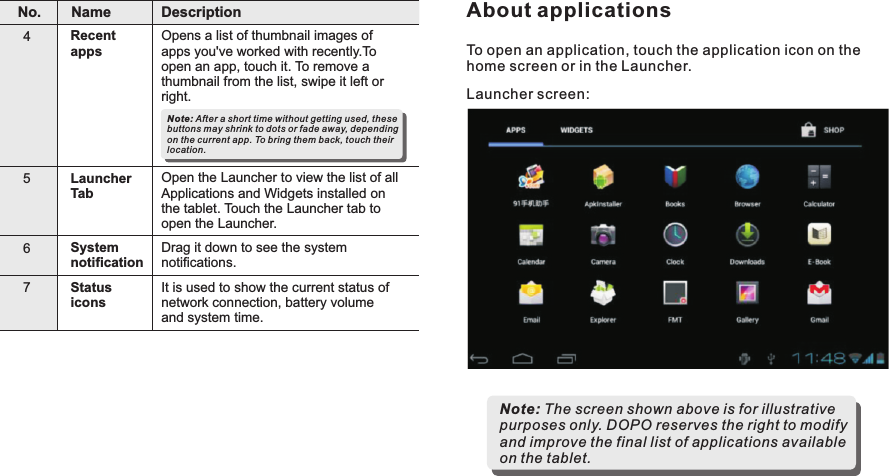
Name Description4Recent appsOpens a list of thumbnail images of apps you've worked with recently.To open an app, touch it. To remove a thumbnail from the list, swipe it left or right.5Launcher TabOpen the Launcher to view the list of all Applications and Widgets installed on the tablet. Touch the Launcher tab to open the Launcher.6System notificationDrag it down to see the system notifications.7Status iconsIt is used to show the current status of network connection, battery volume and system time.Note: After a short time without getting used, these buttons may shrink to dots or fade away, depending on the current app. To bring them back, touch their location.No.To open an application, touch the application icon on the home screen or in the Launcher.Note: The screen shown above is for illustrative purposes only. DOPO reserves the right to modify and improve the final list of applications available on the tablet.Launcher screen:About applicationsM7088Getting Started9EN
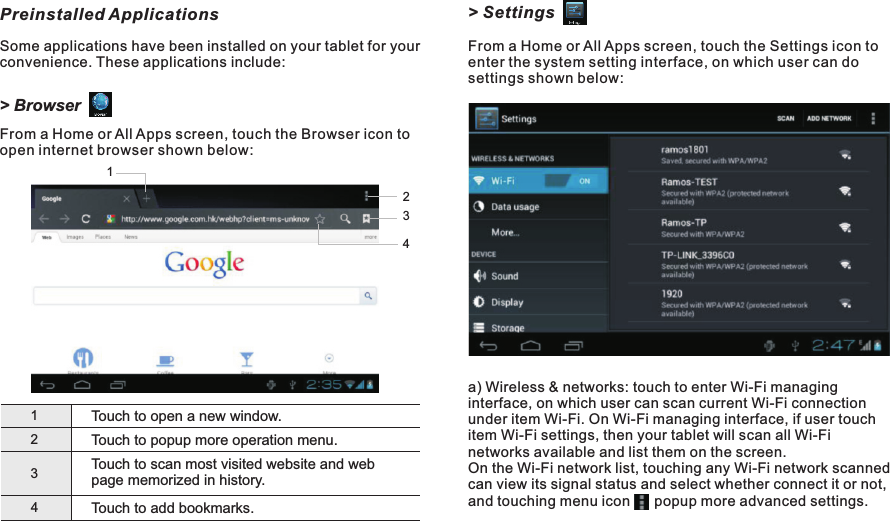
> SettingsFrom a Home or All Apps screen, touch the Settings icon to enter the system setting interface, on which user can do settings shown below:a) Wireless & networks: touch to enter Wi-Fi managing interface, on which user can scan current Wi-Fi connection under item Wi-Fi. On Wi-Fi managing interface, if user touch item Wi-Fi settings, then your tablet will scan all Wi-Fi networks available and list them on the screen.On the Wi-Fi network list, touching any Wi-Fi network scanned can view its signal status and select whether connect it or not, and touching menu icon      popup more advanced settings. Preinstalled ApplicationsSome applications have been installed on your tablet for your convenience. These applications include:> BrowserFrom a Home or All Apps screen, touch the Browser icon to open internet browser shown below:1Touch to open a new window.234Touch to popup more operation menu.Touch to scan most visited website and web page memorized in history.Touch to add bookmarks.2134M7088Getting Started10 EN
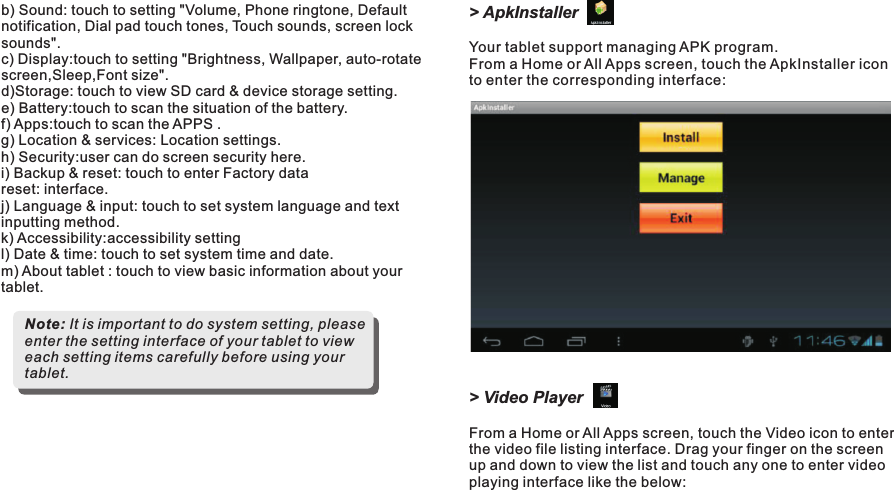
> ApkInstallerYour tablet support managing APK program.  From a Home or All Apps screen, touch the ApkInstaller iconto enter the corresponding interface:> Video PlayerFrom a Home or All Apps screen, touch the Video icon to enter the video file listing interface. Drag your finger on the screen up and down to view the list and touch any one to enter video playing interface like the below:b) Sound: touch to setting "Volume, Phone ringtone, Default notification, Dial pad touch tones, Touch sounds, screen lock sounds".c) Display:touch to setting "Brightness, Wallpaper, auto-rotate screen,Sleep,Font size".d)Storage: touch to view SD card & device storage setting. e) Battery:touch to scan the situation of the battery.f) Apps:touch to scan the APPS .g) Location & services: Location settings.h) Security:user can do screen security here.i) Backup & reset: touch to enter Factory data reset: interface.j) Language & input: touch to set system language and text inputting method. k) Accessibility:accessibility settingl) Date & time: touch to set system time and date.m) About tablet : touch to view basic information about your tablet.Note: It is important to do system setting, please enter the setting interface of your tablet to view each setting items carefully before using your tablet.M7088Getting Started11 EN

Navigation menu