Bright Win Technology T708 TABLET PC(MID) User Manual Android 4 0 handleiding

Bright Win Technology Co., Ltd. TABLET PC(MID) Android 4 0 handleiding

Users Manual

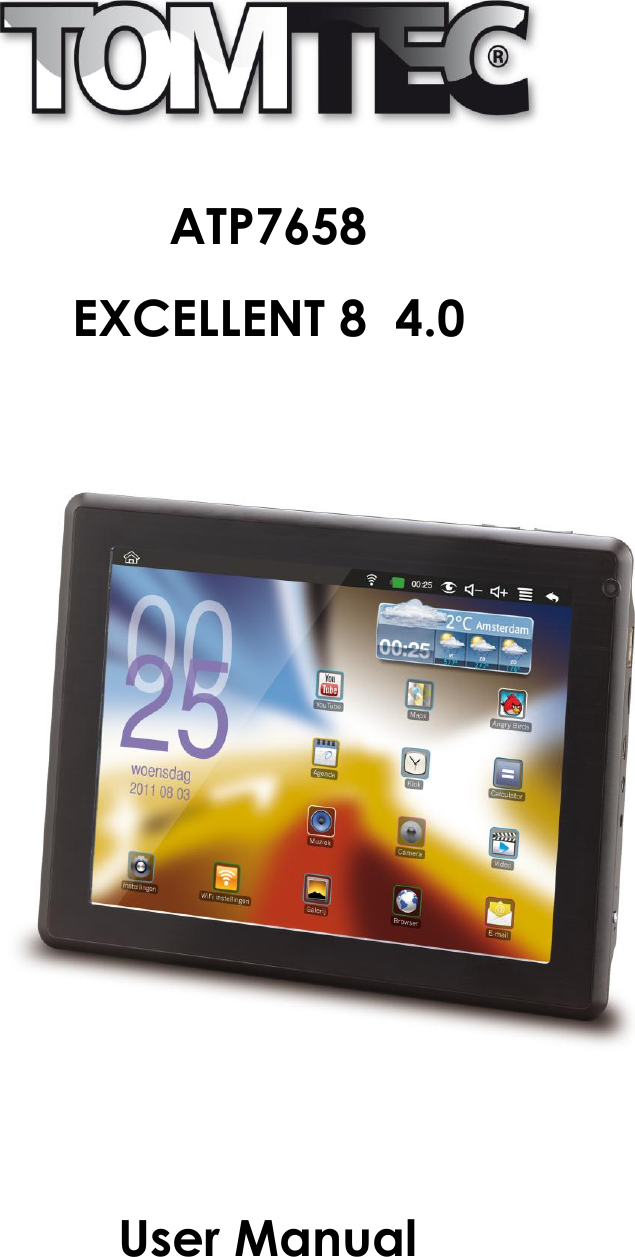
       ATP7658 EXCELLENT 8  4.0             User Manual
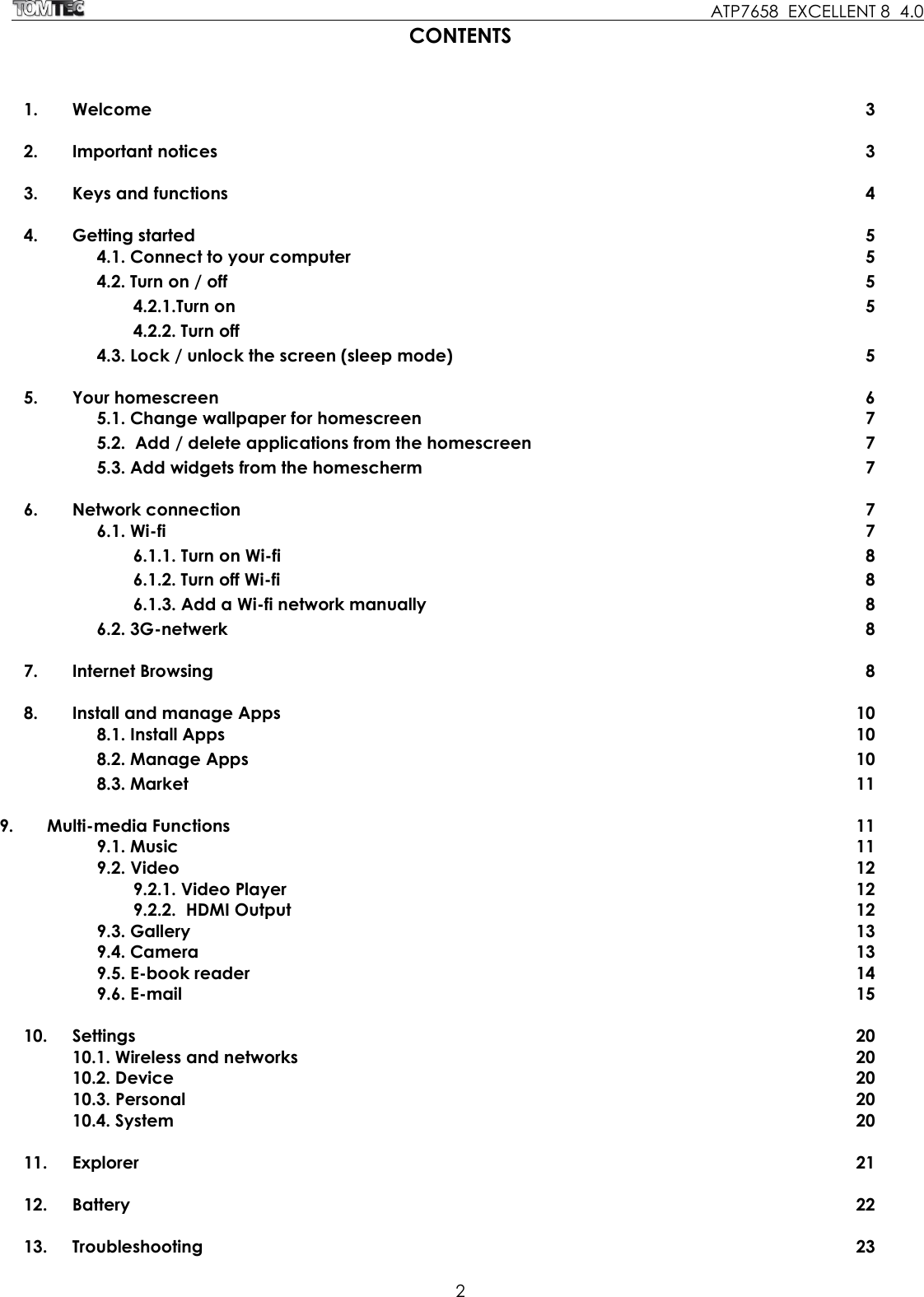
    ATP7658  EXCELLENT 8  4.0 2  CONTENTS 1.  Welcome  3  2.  Important notices  3  3.  Keys and functions  4  4.  Getting started  5   4.1. Connect to your computer  5   4.2. Turn on / off  5   4.2.1.Turn on  5   4.2.2. Turn off     4.3. Lock / unlock the screen (sleep mode)  5    5.  Your homescreen  6   5.1. Change wallpaper for homescreen  7   5.2.  Add / delete applications from the homescreen  7   5.3. Add widgets from the homescherm  7  6.  Network connection  7   6.1. Wi-fi  7   6.1.1. Turn on Wi-fi   8   6.1.2. Turn off Wi-fi   8   6.1.3. Add a Wi-fi network manually  8     6.2. 3G-netwerk  8  7.  Internet Browsing  8  8.  Install and manage Apps  10   8.1. Install Apps  10   8.2. Manage Apps   10   8.3. Market  11  9.       Multi-media Functions  11   9.1. Music  11 9.2. Video  12   9.2.1. Video Player  12   9.2.2.  HDMI Output  12   9.3. Gallery  13 9.4. Camera  13   9.5. E-book reader  14 9.6. E-mail  15  10.  Settings  20   10.1. Wireless and networks  20   10.2. Device  20   10.3. Personal  20   10.4. System  20  11.  Explorer  21  12.  Battery  22  13.  Troubleshooting  23
    ATP7658  EXCELLENT 8  4.0 3   1. WELCOME Thank you for purchasing this Excellent 8 tablet. This tablet offers total convenience for your business (supports Word, Excel, send & receive e-mails...) and personal entertainment needs (chatting, movie playback, e-books etc.). Running on Android 4.0 and with a highly responsive capacitive touch screen, it will bring you a wonderful user experience.  Before you begin, please read this User Manual carefully.  2. IMPORTANT NOTICES  Your tablet's battery will reach optimum performance after you have fully charged and discharged the tablet 2-3 times.   Excessive use of earphones at high volumes may cause hearing impairment.    Adjust the volume of the player to a moderate level and limit earphone usage.   Do not suddenly disconnect the tablet when formatting or uploading and downloading, this can lead to program errors.   Do not dismantle the tablet by yourself, and do not use alcohol, thinner or benzene to clean its surface.   Do not use the tablet while driving or walking.   The tablet is not moisture/water-resistant. Please do not use it in a damp environment.    Do not drop the tablet or slam it down on a hard surface as this may damage the screen.
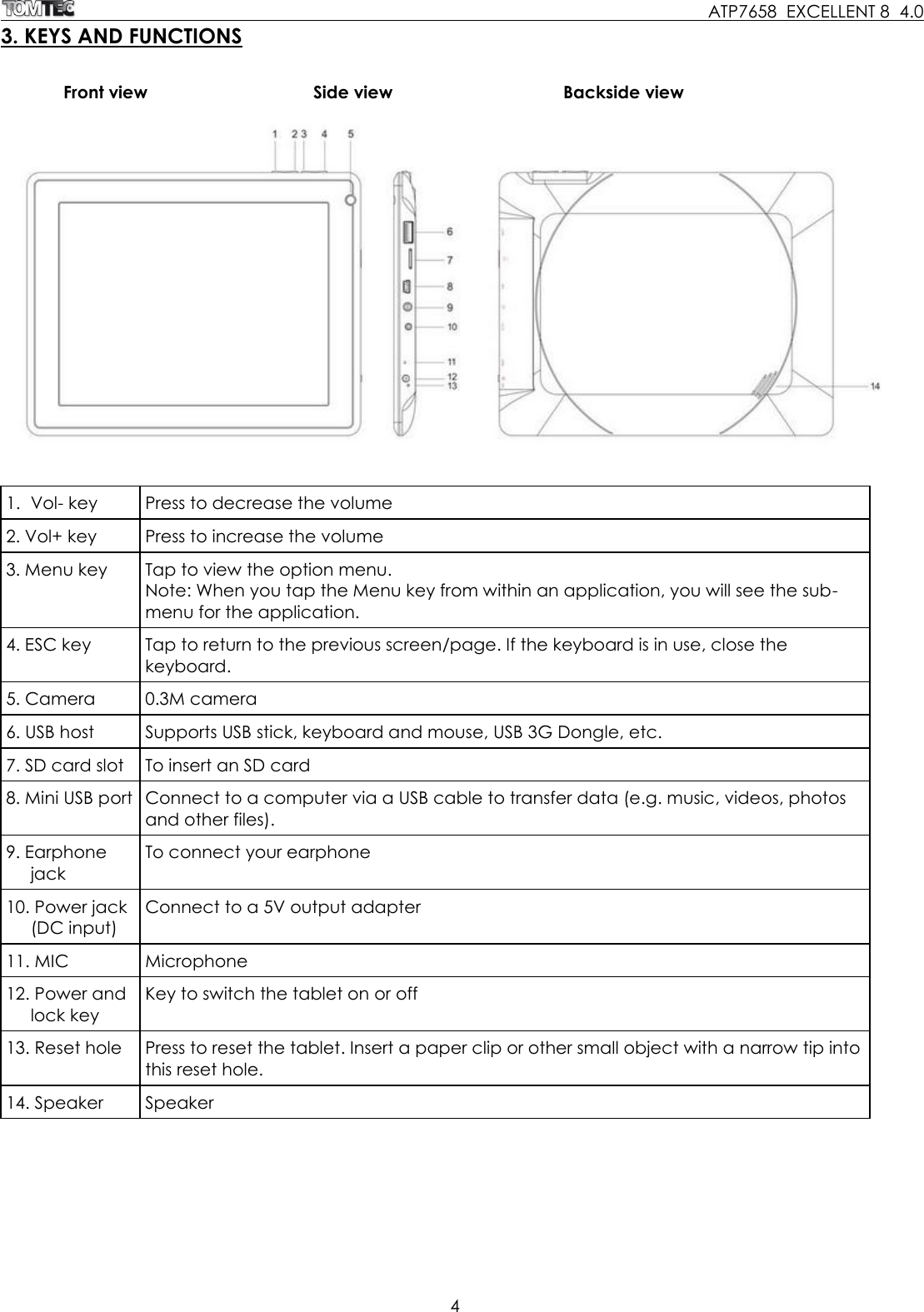
    ATP7658  EXCELLENT 8  4.0 4  3. KEYS AND FUNCTIONS      Front view         Side view            Backside view   1.  Vol- key Press to decrease the volume 2. Vol+ key Press to increase the volume 3. Menu key Tap to view the option menu. Note: When you tap the Menu key from within an application, you will see the sub-menu for the application.  4. ESC key Tap to return to the previous screen/page. If the keyboard is in use, close the keyboard. 5. Camera 0.3M camera  6. USB host Supports USB stick, keyboard and mouse, USB 3G Dongle, etc.  7. SD card slot To insert an SD card  8. Mini USB port Connect to a computer via a USB cable to transfer data (e.g. music, videos, photos and other files). 9. Earphone jack  To connect your earphone 10. Power jack  (DC input) Connect to a 5V output adapter 11. MIC Microphone 12. Power and lock key Key to switch the tablet on or off 13. Reset hole Press to reset the tablet. Insert a paper clip or other small object with a narrow tip into this reset hole.  14. Speaker Speaker
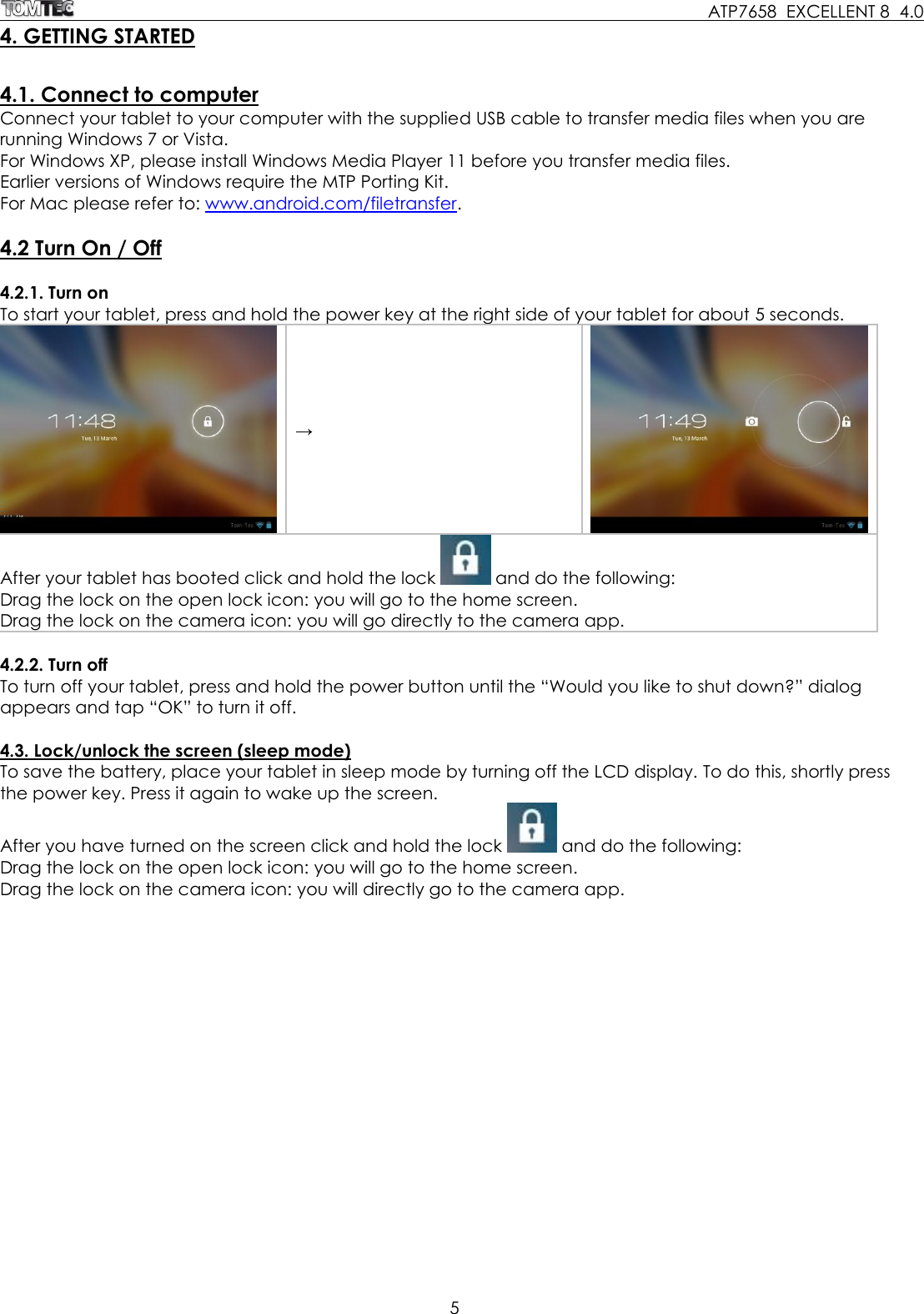
    ATP7658  EXCELLENT 8  4.0 5  4. GETTING STARTED  4.1. Connect to computer Connect your tablet to your computer with the supplied USB cable to transfer media files when you are running Windows 7 or Vista. For Windows XP, please install Windows Media Player 11 before you transfer media files.  Earlier versions of Windows require the MTP Porting Kit. For Mac please refer to: www.android.com/filetransfer.  4.2 Turn On / Off  4.2.1. Turn on To start your tablet, press and hold the power key at the right side of your tablet for about 5 seconds.   →  After your tablet has booted click and hold the lock   and do the following: Drag the lock on the open lock icon: you will go to the home screen. Drag the lock on the camera icon: you will go directly to the camera app.  4.2.2. Turn off To turn off your tablet, press and hold the power button until the “Would you like to shut down?” dialog appears and tap “OK” to turn it off.   4.3. Lock/unlock the screen (sleep mode) To save the battery, place your tablet in sleep mode by turning off the LCD display. To do this, shortly press the power key. Press it again to wake up the screen.  After you have turned on the screen click and hold the lock   and do the following: Drag the lock on the open lock icon: you will go to the home screen. Drag the lock on the camera icon: you will directly go to the camera app.
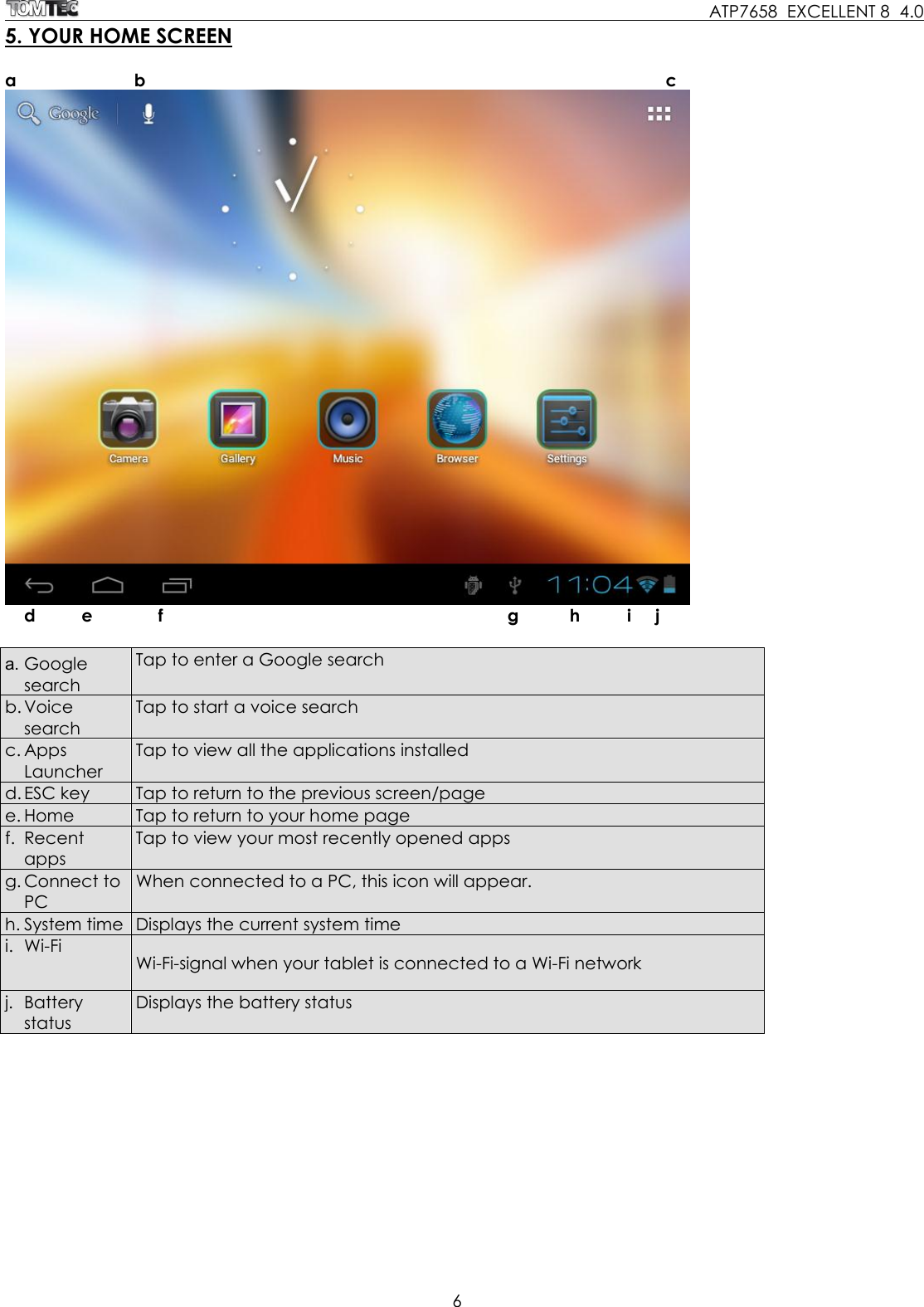
    ATP7658  EXCELLENT 8  4.0 6  5. YOUR HOME SCREEN  a              b                        c        d          e           f                                             g          h         i     j  a. Google search Tap to enter a Google search b. Voice search Tap to start a voice search c. Apps Launcher Tap to view all the applications installed d. ESC key Tap to return to the previous screen/page  e. Home Tap to return to your home page f. Recent apps Tap to view your most recently opened apps g. Connect to PC  When connected to a PC, this icon will appear.  h. System time  Displays the current system time i. Wi-Fi Wi-Fi-signal when your tablet is connected to a Wi-Fi network  j. Battery status Displays the battery status
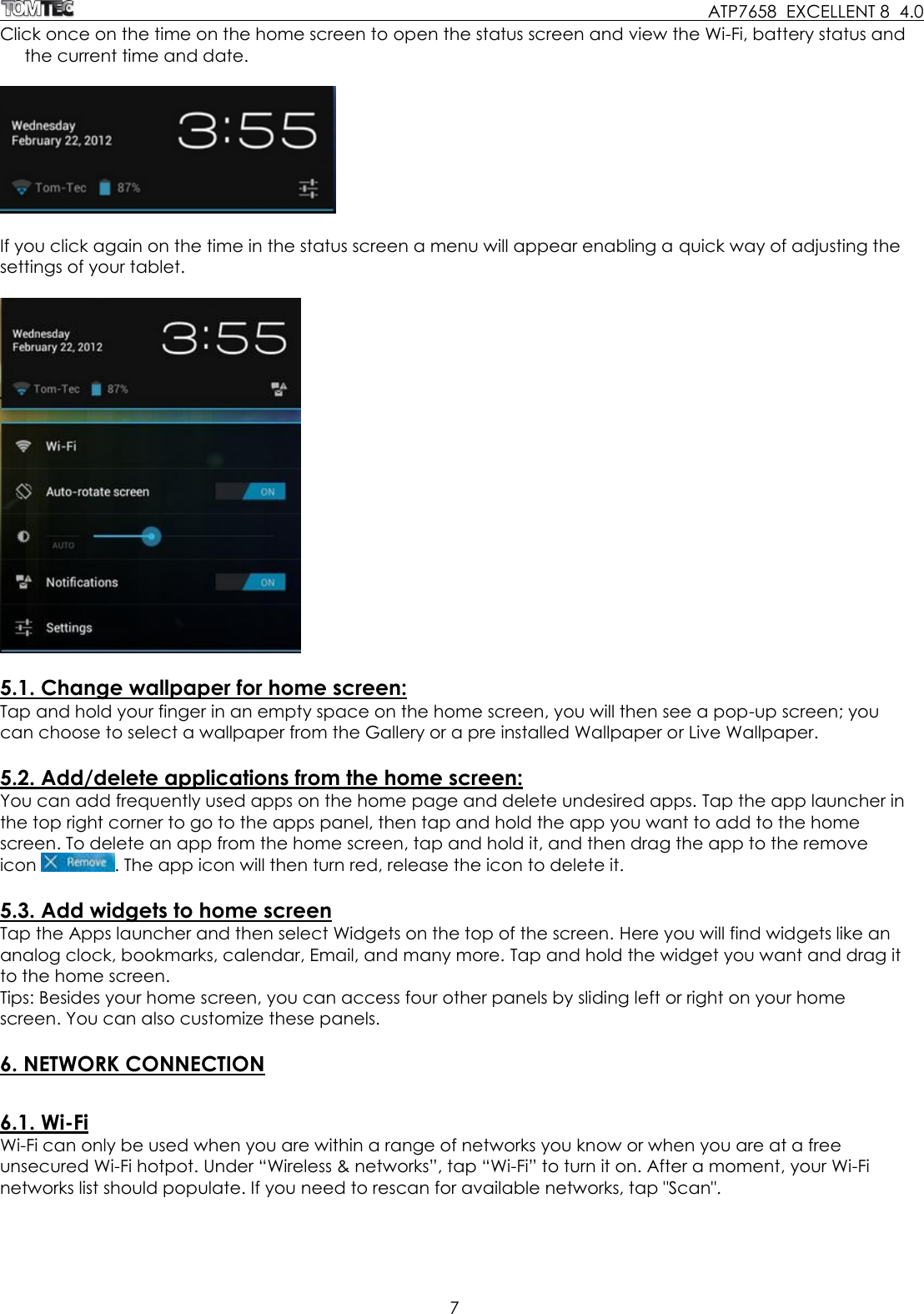
    ATP7658  EXCELLENT 8  4.0 7  Click once on the time on the home screen to open the status screen and view the Wi-Fi, battery status and the current time and date.    If you click again on the time in the status screen a menu will appear enabling a quick way of adjusting the settings of your tablet.    5.1. Change wallpaper for home screen: Tap and hold your finger in an empty space on the home screen, you will then see a pop-up screen; you can choose to select a wallpaper from the Gallery or a pre installed Wallpaper or Live Wallpaper.   5.2. Add/delete applications from the home screen: You can add frequently used apps on the home page and delete undesired apps. Tap the app launcher in the top right corner to go to the apps panel, then tap and hold the app you want to add to the home screen. To delete an app from the home screen, tap and hold it, and then drag the app to the remove icon  . The app icon will then turn red, release the icon to delete it.  5.3. Add widgets to home screen Tap the Apps launcher and then select Widgets on the top of the screen. Here you will find widgets like an analog clock, bookmarks, calendar, Email, and many more. Tap and hold the widget you want and drag it to the home screen.  Tips: Besides your home screen, you can access four other panels by sliding left or right on your home screen. You can also customize these panels.  6. NETWORK CONNECTION  6.1. Wi-Fi Wi-Fi can only be used when you are within a range of networks you know or when you are at a free unsecured Wi-Fi hotpot. Under “Wireless & networks”, tap “Wi-Fi” to turn it on. After a moment, your Wi-Fi networks list should populate. If you need to rescan for available networks, tap "Scan".
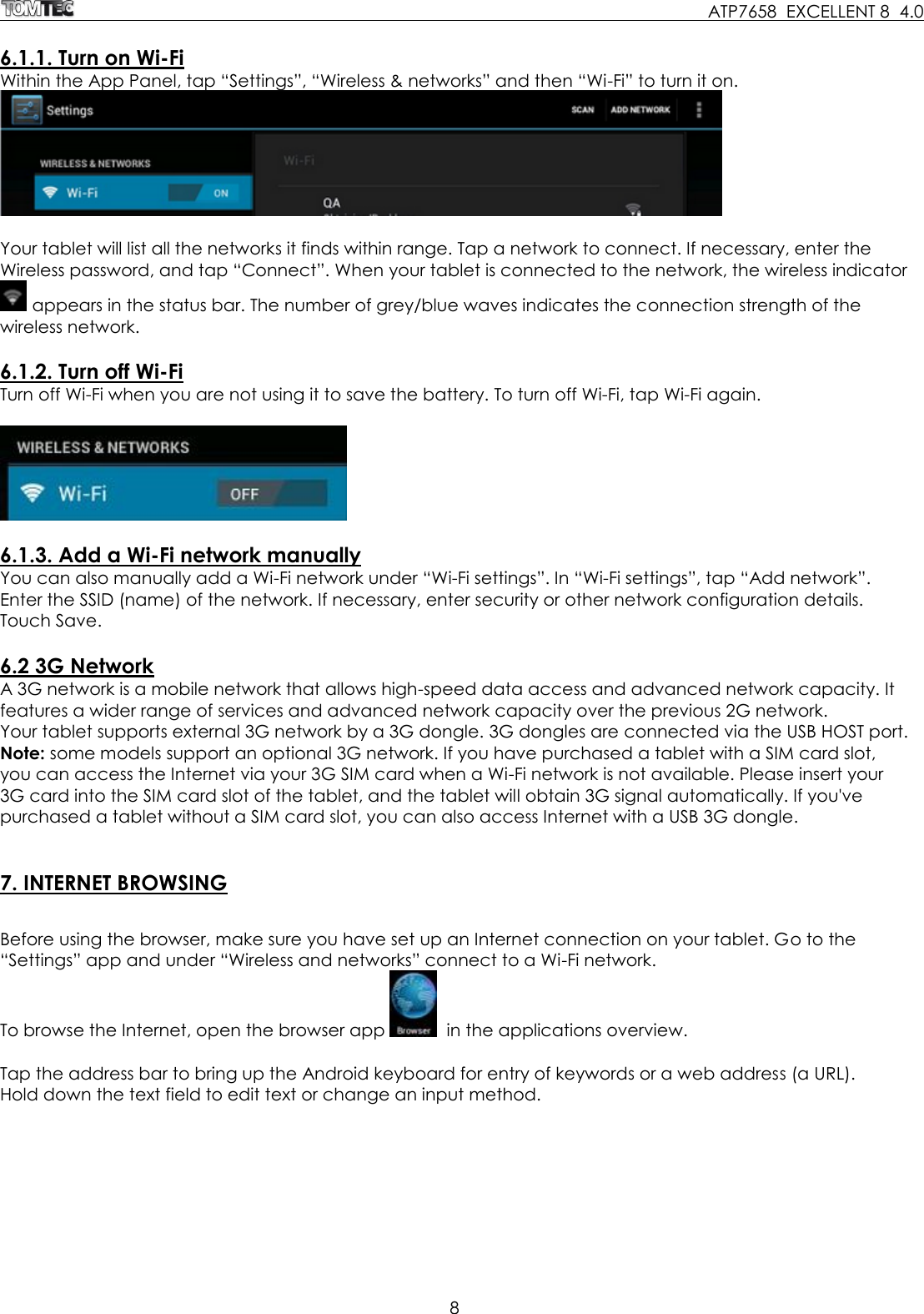
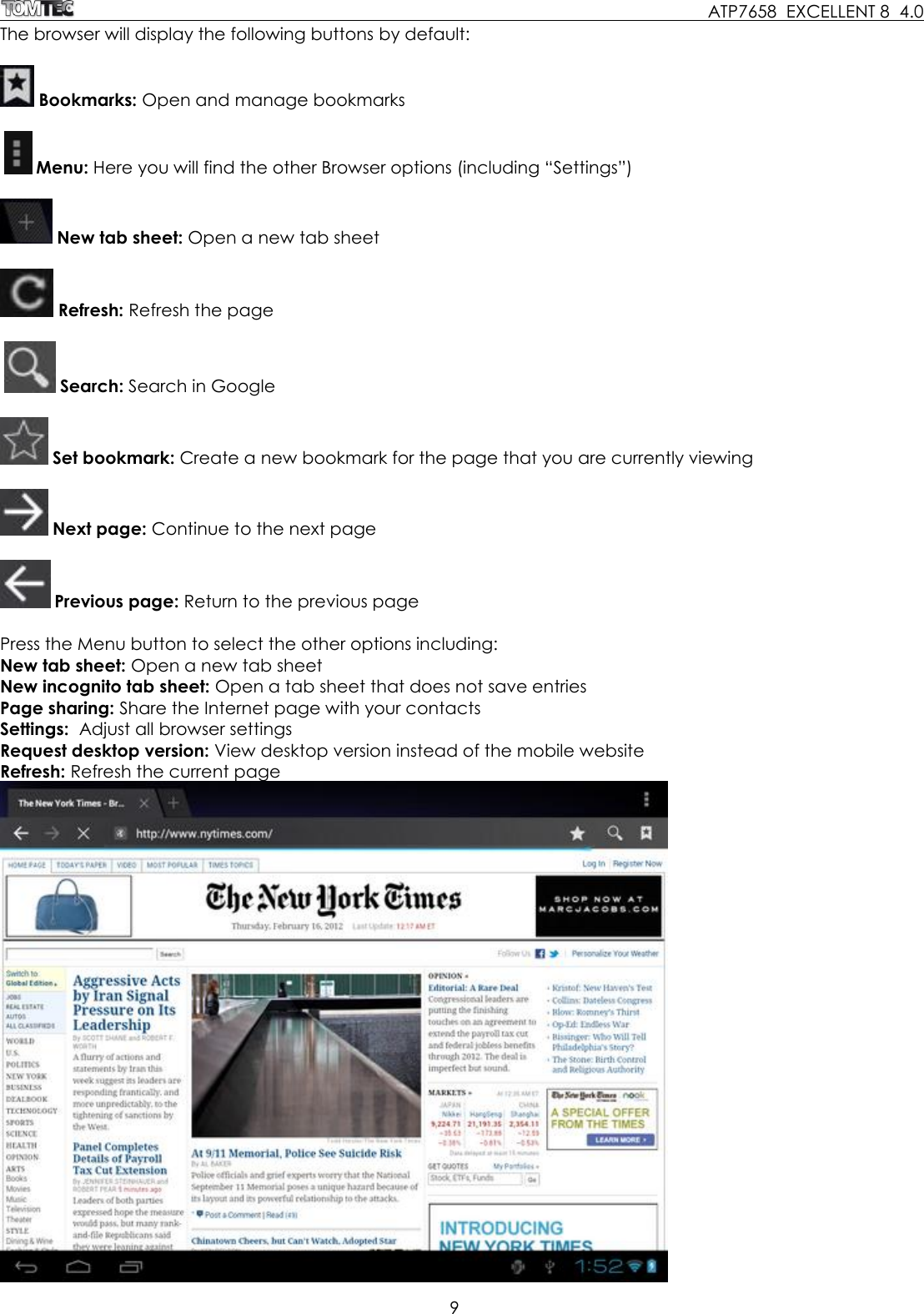
    ATP7658  EXCELLENT 8  4.0 8   6.1.1. Turn on Wi-Fi Within the App Panel, tap “Settings”, “Wireless & networks” and then “Wi-Fi” to turn it on.   Your tablet will list all the networks it finds within range. Tap a network to connect. If necessary, enter the Wireless password, and tap “Connect”. When your tablet is connected to the network, the wireless indicator  appears in the status bar. The number of grey/blue waves indicates the connection strength of the wireless network.  6.1.2. Turn off Wi-Fi Turn off Wi-Fi when you are not using it to save the battery. To turn off Wi-Fi, tap Wi-Fi again.     6.1.3. Add a Wi-Fi network manually You can also manually add a Wi-Fi network under “Wi-Fi settings”. In “Wi-Fi settings”, tap “Add network”. Enter the SSID (name) of the network. If necessary, enter security or other network configuration details. Touch Save.  6.2 3G Network A 3G network is a mobile network that allows high-speed data access and advanced network capacity. It features a wider range of services and advanced network capacity over the previous 2G network. Your tablet supports external 3G network by a 3G dongle. 3G dongles are connected via the USB HOST port.  Note: some models support an optional 3G network. If you have purchased a tablet with a SIM card slot, you can access the Internet via your 3G SIM card when a Wi-Fi network is not available. Please insert your 3G card into the SIM card slot of the tablet, and the tablet will obtain 3G signal automatically. If you've purchased a tablet without a SIM card slot, you can also access Internet with a USB 3G dongle.    7. INTERNET BROWSING  Before using the browser, make sure you have set up an Internet connection on your tablet. Go to the “Settings” app and under “Wireless and networks” connect to a Wi-Fi network.  To browse the Internet, open the browser app    in the applications overview.  Tap the address bar to bring up the Android keyboard for entry of keywords or a web address (a URL).  Hold down the text field to edit text or change an input method.
    ATP7658  EXCELLENT 8  4.0 9  The browser will display the following buttons by default:   Bookmarks: Open and manage bookmarks    Menu: Here you will find the other Browser options (including “Settings”)   New tab sheet: Open a new tab sheet   Refresh: Refresh the page     Search: Search in Google   Set bookmark: Create a new bookmark for the page that you are currently viewing   Next page: Continue to the next page   Previous page: Return to the previous page  Press the Menu button to select the other options including: New tab sheet: Open a new tab sheet New incognito tab sheet: Open a tab sheet that does not save entries Page sharing: Share the Internet page with your contacts Settings:  Adjust all browser settings Request desktop version: View desktop version instead of the mobile website Refresh: Refresh the current page
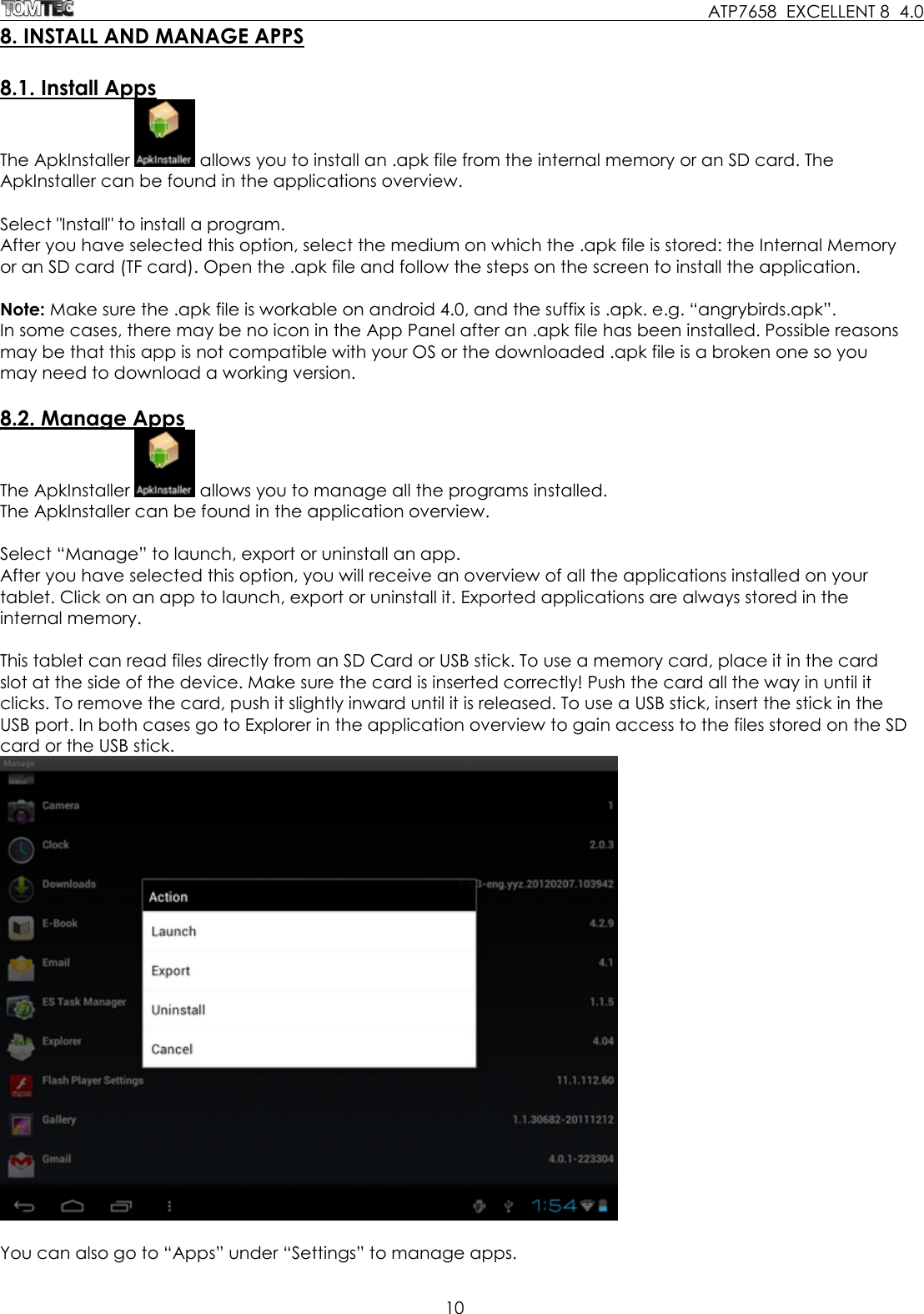
    ATP7658  EXCELLENT 8  4.0 10  8. INSTALL AND MANAGE APPS  8.1. Install Apps The ApkInstaller   allows you to install an .apk file from the internal memory or an SD card. The ApkInstaller can be found in the applications overview.  Select "Install" to install a program. After you have selected this option, select the medium on which the .apk file is stored: the Internal Memory or an SD card (TF card). Open the .apk file and follow the steps on the screen to install the application.  Note: Make sure the .apk file is workable on android 4.0, and the suffix is .apk. e.g. “angrybirds.apk”.  In some cases, there may be no icon in the App Panel after an .apk file has been installed. Possible reasons may be that this app is not compatible with your OS or the downloaded .apk file is a broken one so you may need to download a working version.   8.2. Manage Apps The ApkInstaller   allows you to manage all the programs installed. The ApkInstaller can be found in the application overview.  Select “Manage” to launch, export or uninstall an app. After you have selected this option, you will receive an overview of all the applications installed on your tablet. Click on an app to launch, export or uninstall it. Exported applications are always stored in the internal memory.  This tablet can read files directly from an SD Card or USB stick. To use a memory card, place it in the card slot at the side of the device. Make sure the card is inserted correctly! Push the card all the way in until it clicks. To remove the card, push it slightly inward until it is released. To use a USB stick, insert the stick in the USB port. In both cases go to Explorer in the application overview to gain access to the files stored on the SD card or the USB stick.    You can also go to “Apps” under “Settings” to manage apps.
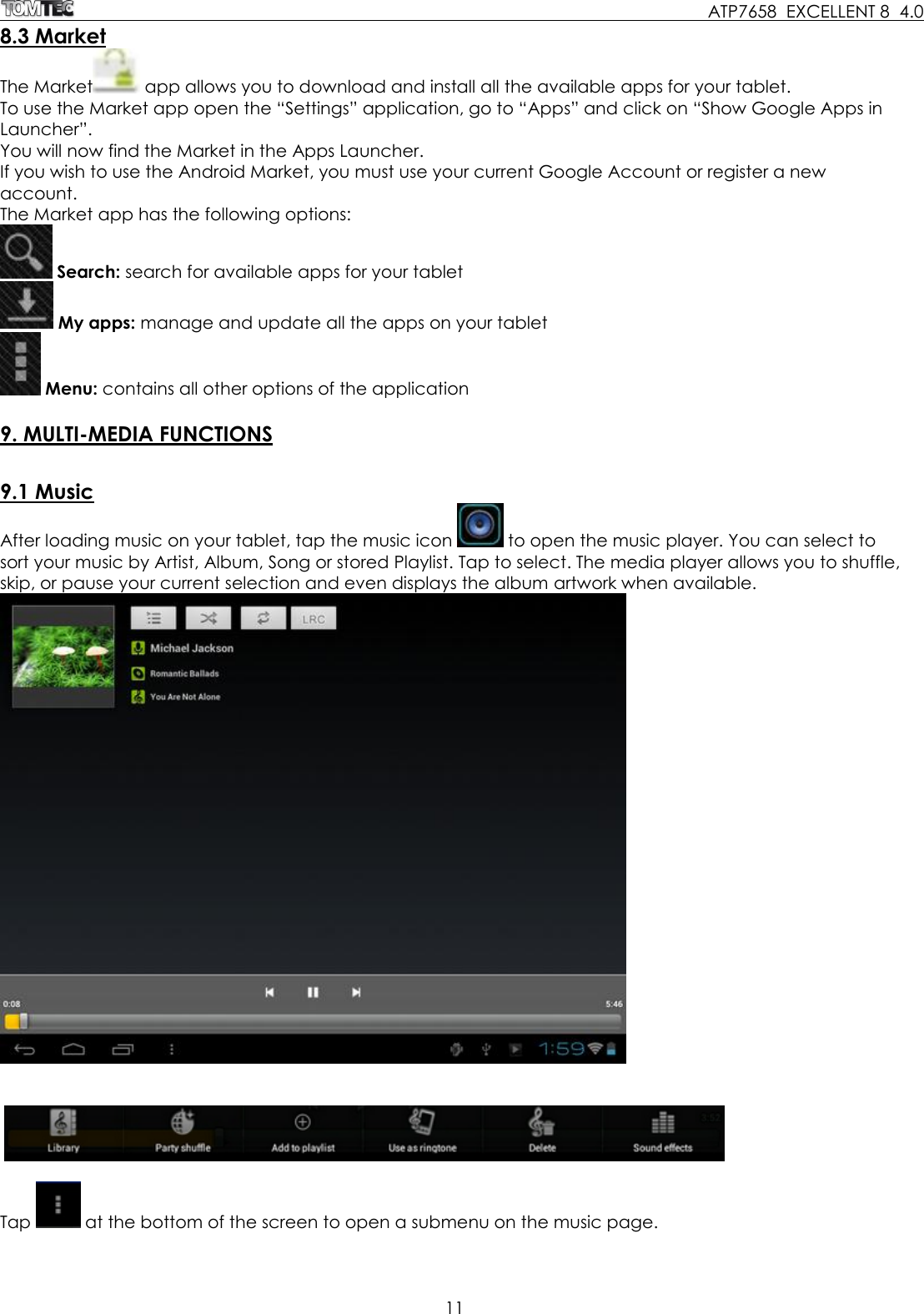
    ATP7658  EXCELLENT 8  4.0 11  8.3 Market The Market  app allows you to download and install all the available apps for your tablet.  To use the Market app open the “Settings” application, go to “Apps” and click on “Show Google Apps in Launcher”.  You will now find the Market in the Apps Launcher. If you wish to use the Android Market, you must use your current Google Account or register a new account. The Market app has the following options:  Search: search for available apps for your tablet  My apps: manage and update all the apps on your tablet  Menu: contains all other options of the application  9. MULTI-MEDIA FUNCTIONS  9.1 Music After loading music on your tablet, tap the music icon   to open the music player. You can select to sort your music by Artist, Album, Song or stored Playlist. Tap to select. The media player allows you to shuffle, skip, or pause your current selection and even displays the album artwork when available.        Tap   at the bottom of the screen to open a submenu on the music page.
    ATP7658  EXCELLENT 8  4.0 12  9.2. Video  9.2.1. Video Player You can play videos stored on your tablet or SD card. To play, tap the Video   icon to launch the video player:    Tap the video you would like to play. To playback, fast forward or pause your video tap the screen to display the toolbar. You can also add bookmarks, adjust the brightness, or set the screen ratio. Below is an example of the toolbar:    9.2.2. HDMI Output Connect the tablet to your TV via an HDMI cable and wait a few seconds for your TV set to receive the display signal. Adjust your TV settings if necessary. An HDMI cable is not included as an accessory.  The HDMI port is a single-ended output. The screen of the tablet goes dark when connected to the TV. To carry out operations on the tablet, please use a USB mouse.
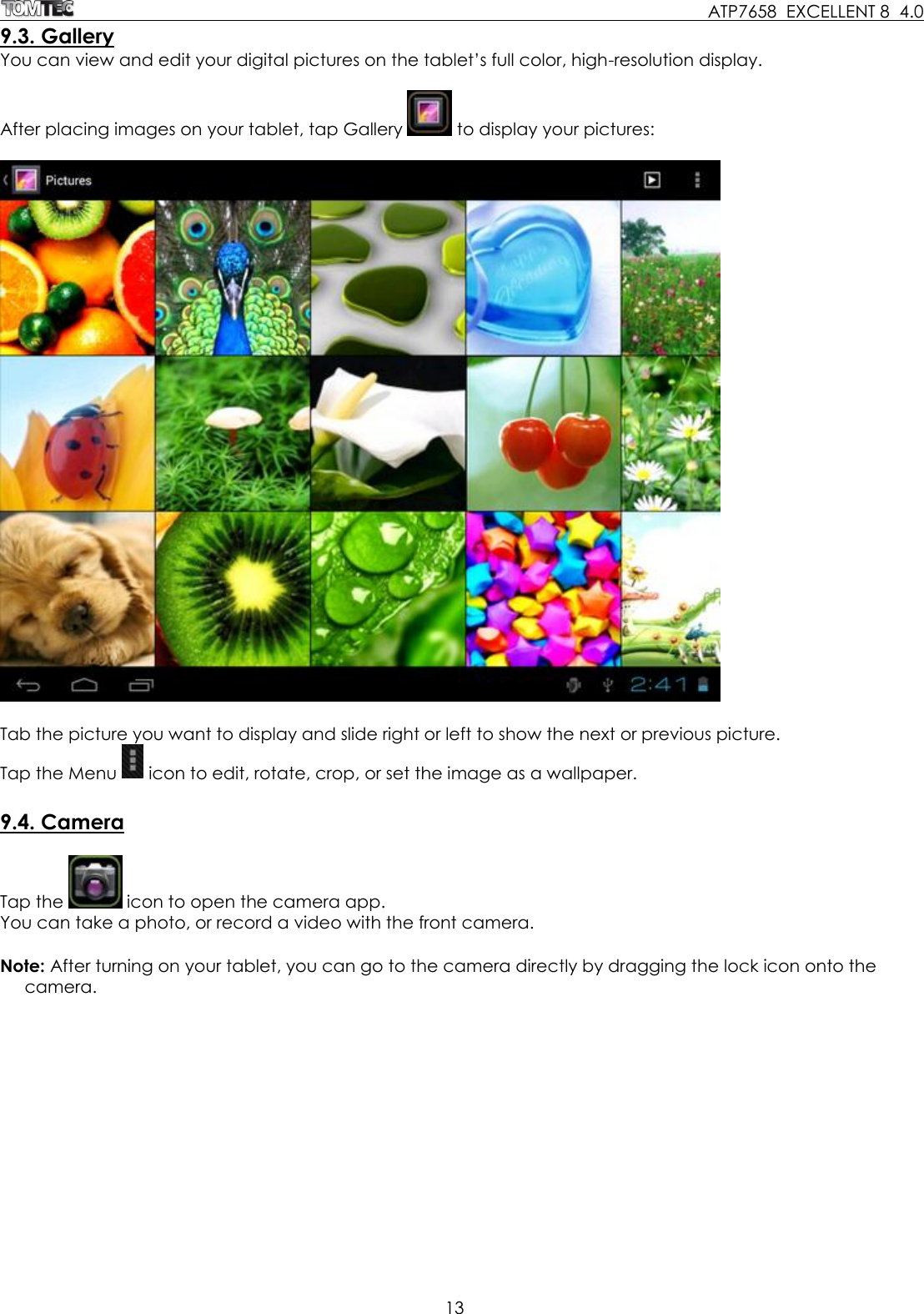
    ATP7658  EXCELLENT 8  4.0 13  9.3. Gallery You can view and edit your digital pictures on the tablet’s full color, high-resolution display.   After placing images on your tablet, tap Gallery   to display your pictures:     Tab the picture you want to display and slide right or left to show the next or previous picture. Tap the Menu   icon to edit, rotate, crop, or set the image as a wallpaper.   9.4. Camera  Tap the   icon to open the camera app.  You can take a photo, or record a video with the front camera.   Note: After turning on your tablet, you can go to the camera directly by dragging the lock icon onto the camera.
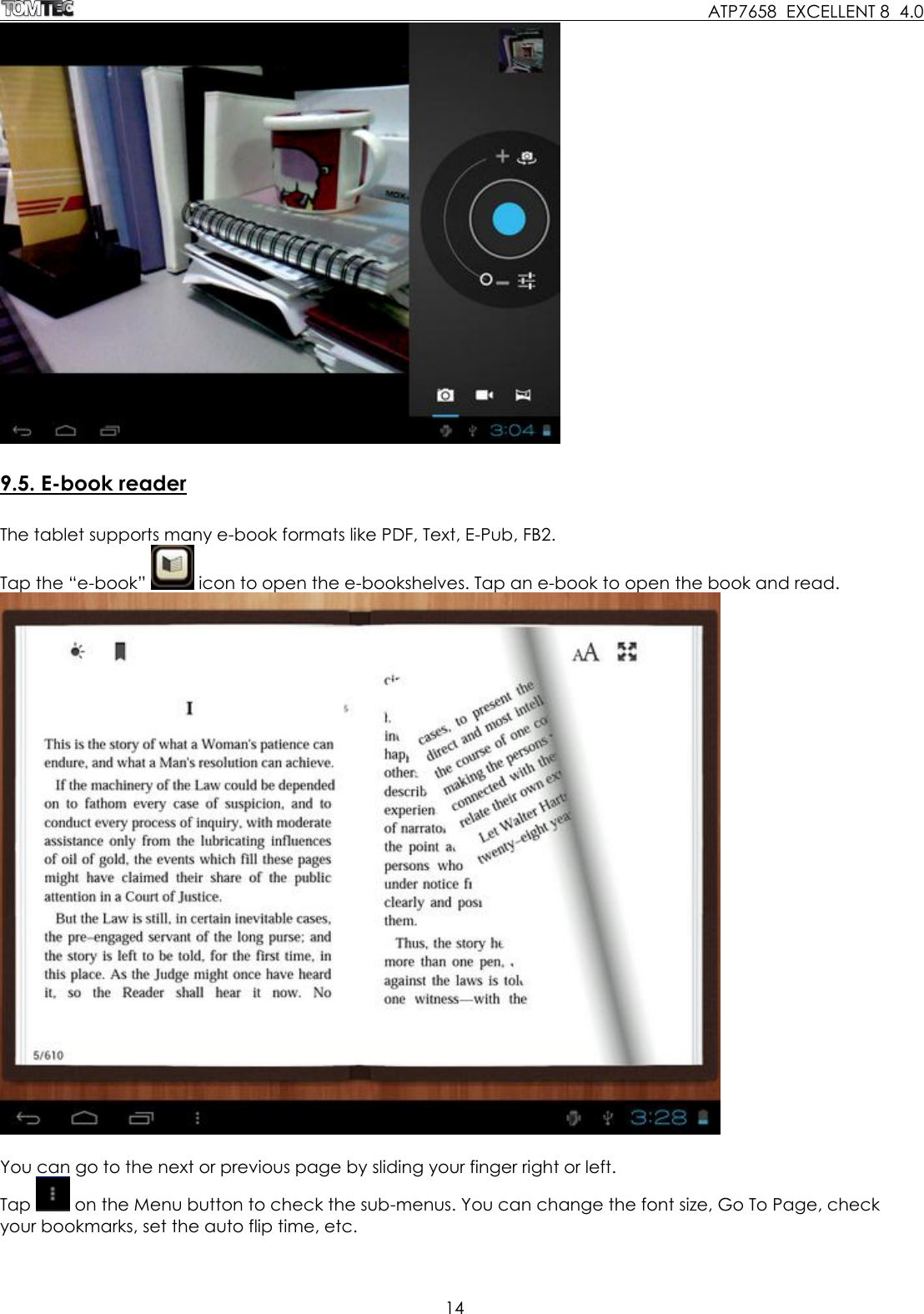
    ATP7658  EXCELLENT 8  4.0 14    9.5. E-book reader  The tablet supports many e-book formats like PDF, Text, E-Pub, FB2.  Tap the “e-book”   icon to open the e-bookshelves. Tap an e-book to open the book and read.   You can go to the next or previous page by sliding your finger right or left.  Tap   on the Menu button to check the sub-menus. You can change the font size, Go To Page, check your bookmarks, set the auto flip time, etc.
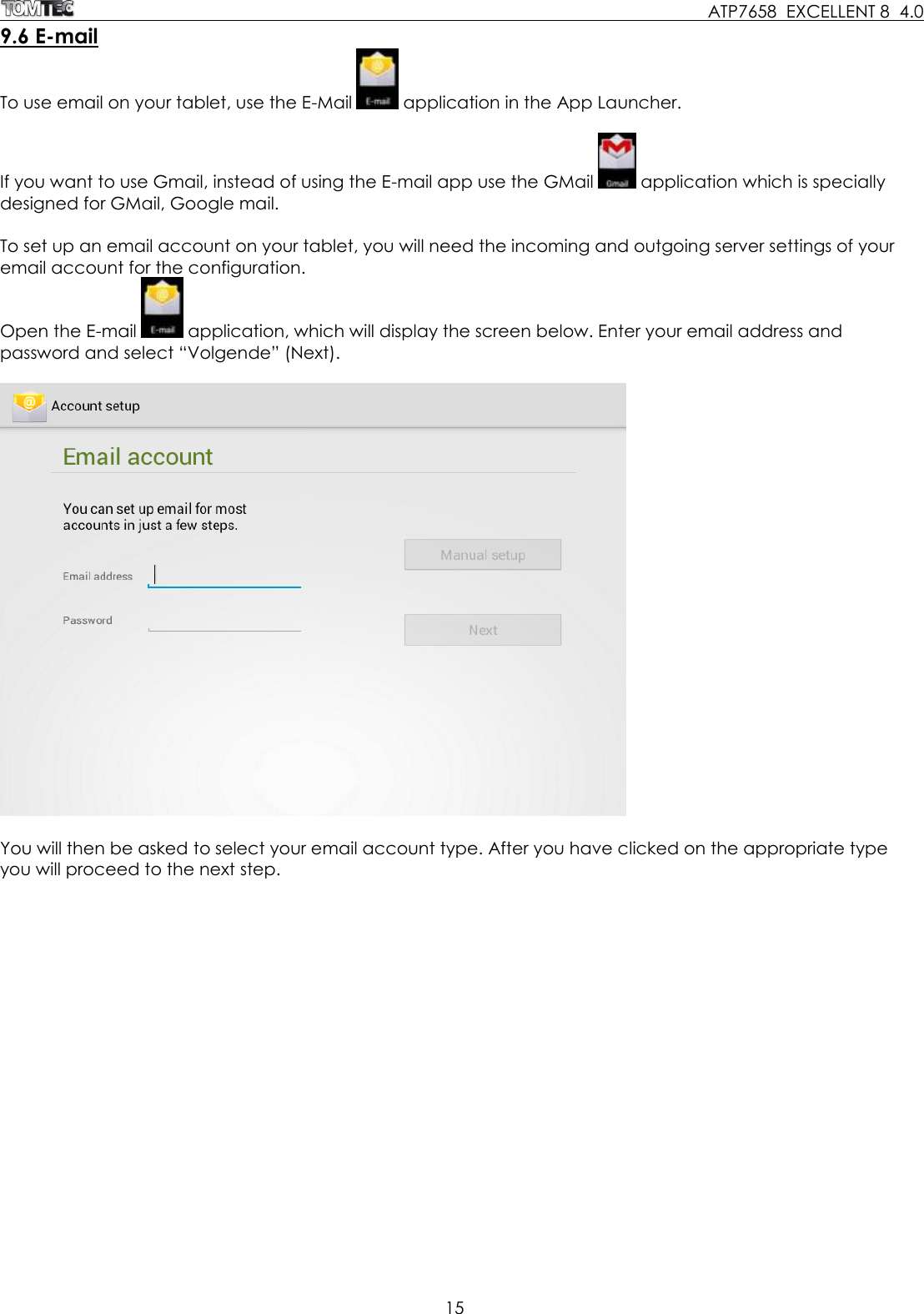
    ATP7658  EXCELLENT 8  4.0 15  9.6 E-mail To use email on your tablet, use the E-Mail   application in the App Launcher.  If you want to use Gmail, instead of using the E-mail app use the GMail   application which is specially designed for GMail, Google mail.  To set up an email account on your tablet, you will need the incoming and outgoing server settings of your email account for the configuration. Open the E-mail   application, which will display the screen below. Enter your email address and password and select “Volgende” (Next).    You will then be asked to select your email account type. After you have clicked on the appropriate type you will proceed to the next step.
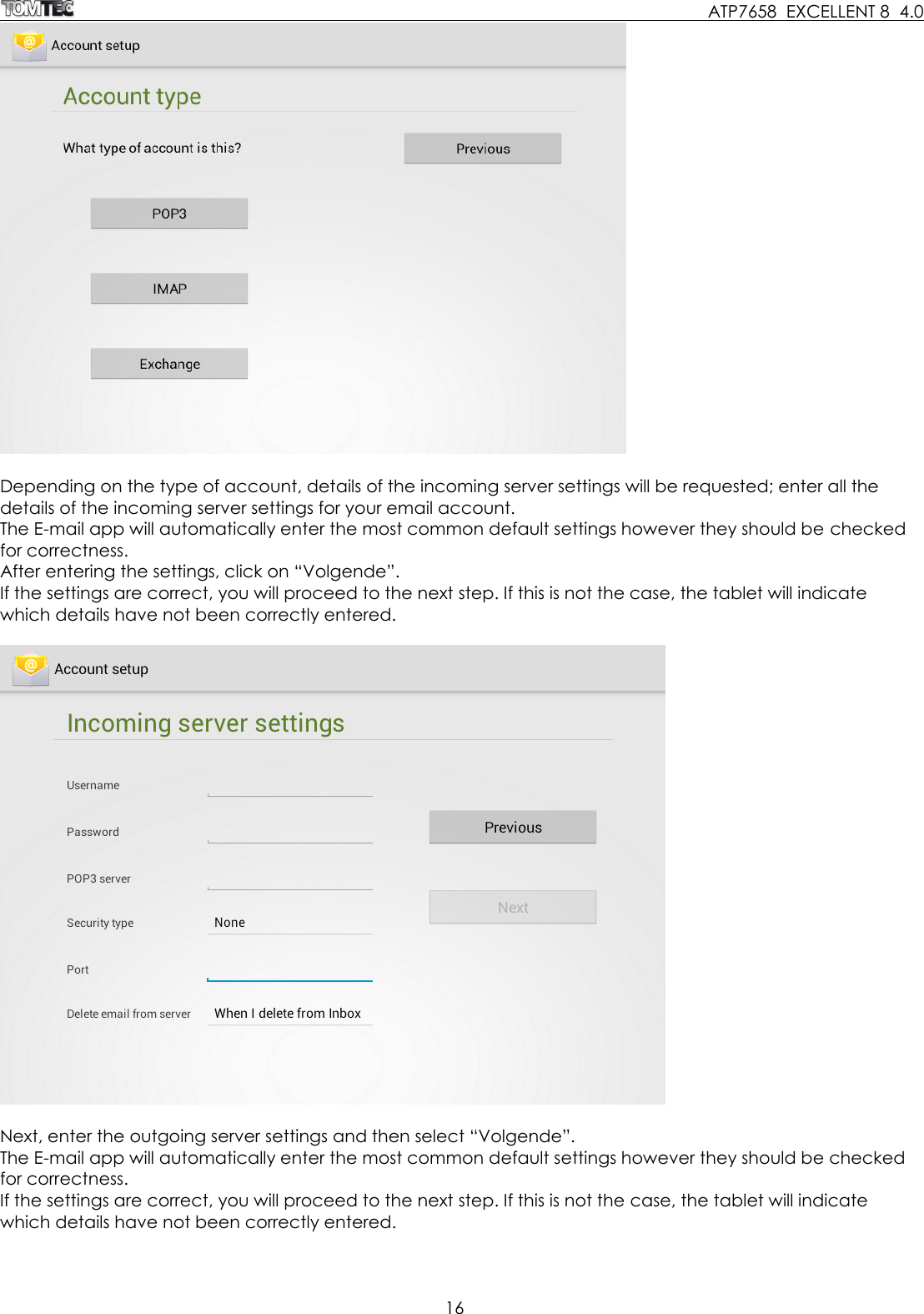
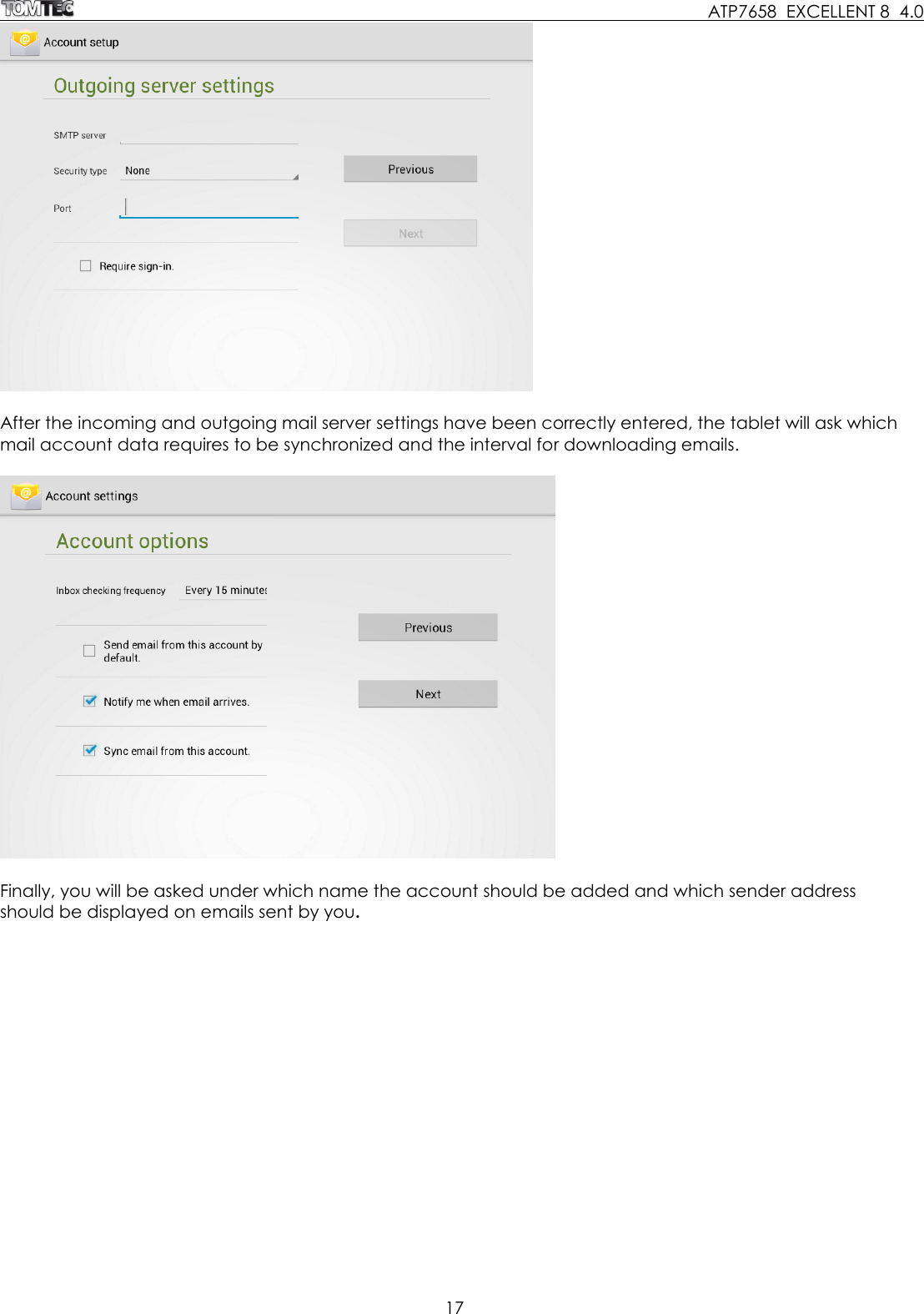
    ATP7658  EXCELLENT 8  4.0 16    Depending on the type of account, details of the incoming server settings will be requested; enter all the details of the incoming server settings for your email account. The E-mail app will automatically enter the most common default settings however they should be checked for correctness. After entering the settings, click on “Volgende”. If the settings are correct, you will proceed to the next step. If this is not the case, the tablet will indicate which details have not been correctly entered.    Next, enter the outgoing server settings and then select “Volgende”. The E-mail app will automatically enter the most common default settings however they should be checked for correctness. If the settings are correct, you will proceed to the next step. If this is not the case, the tablet will indicate which details have not been correctly entered.
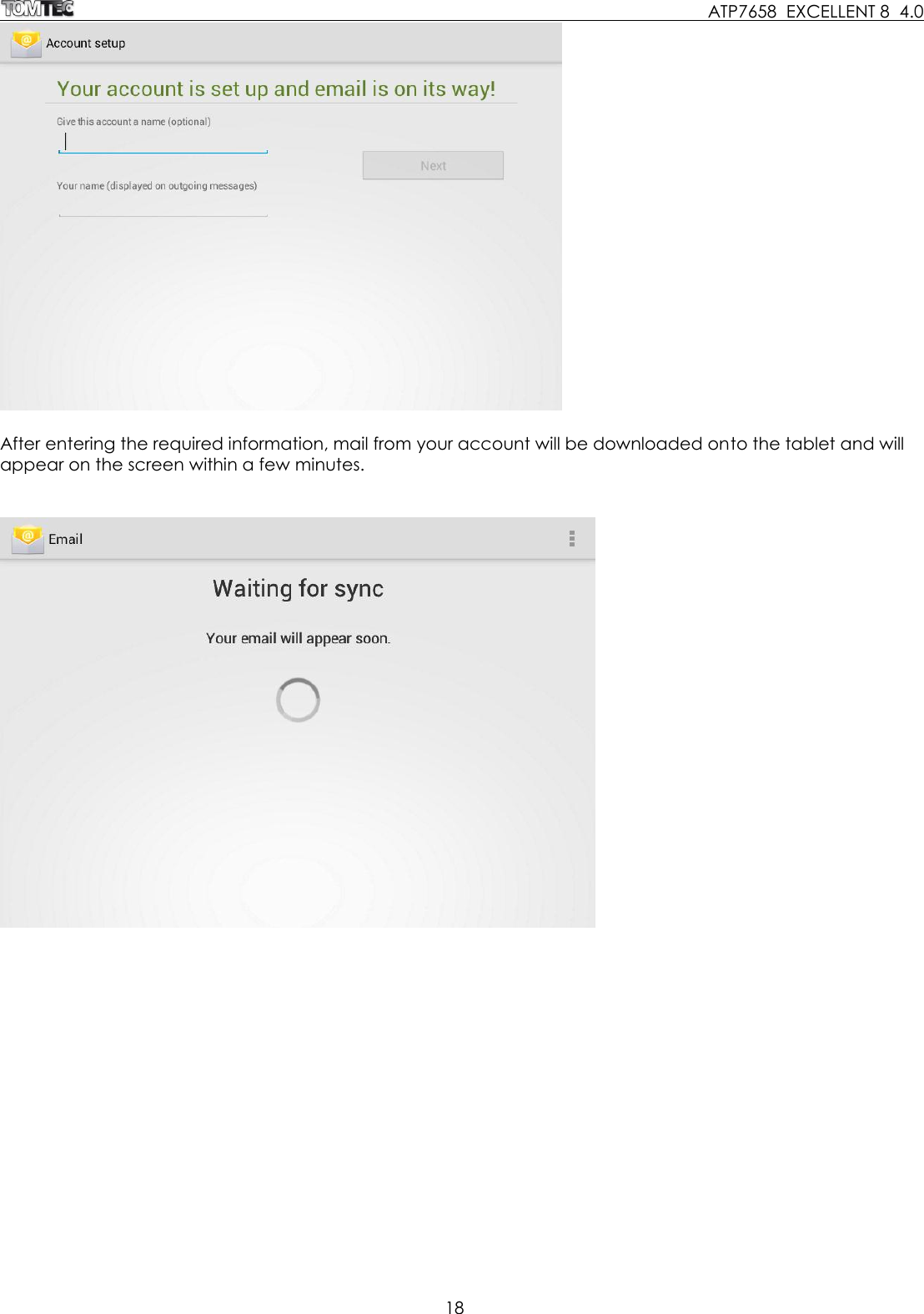
    ATP7658  EXCELLENT 8  4.0 17    After the incoming and outgoing mail server settings have been correctly entered, the tablet will ask which mail account data requires to be synchronized and the interval for downloading emails.     Finally, you will be asked under which name the account should be added and which sender address should be displayed on emails sent by you.
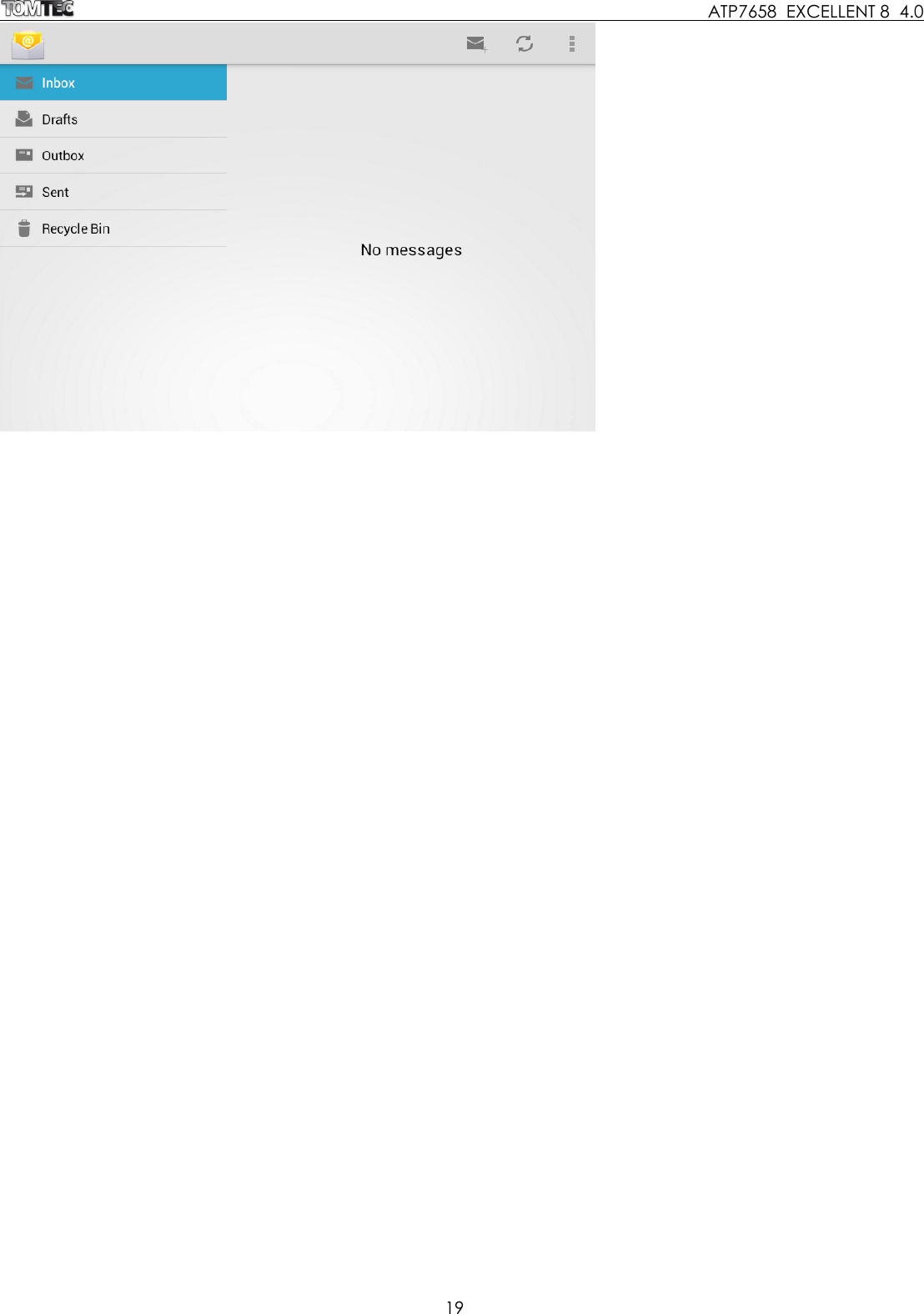
    ATP7658  EXCELLENT 8  4.0 18    After entering the required information, mail from your account will be downloaded onto the tablet and will appear on the screen within a few minutes.
    ATP7658  EXCELLENT 8  4.0 19
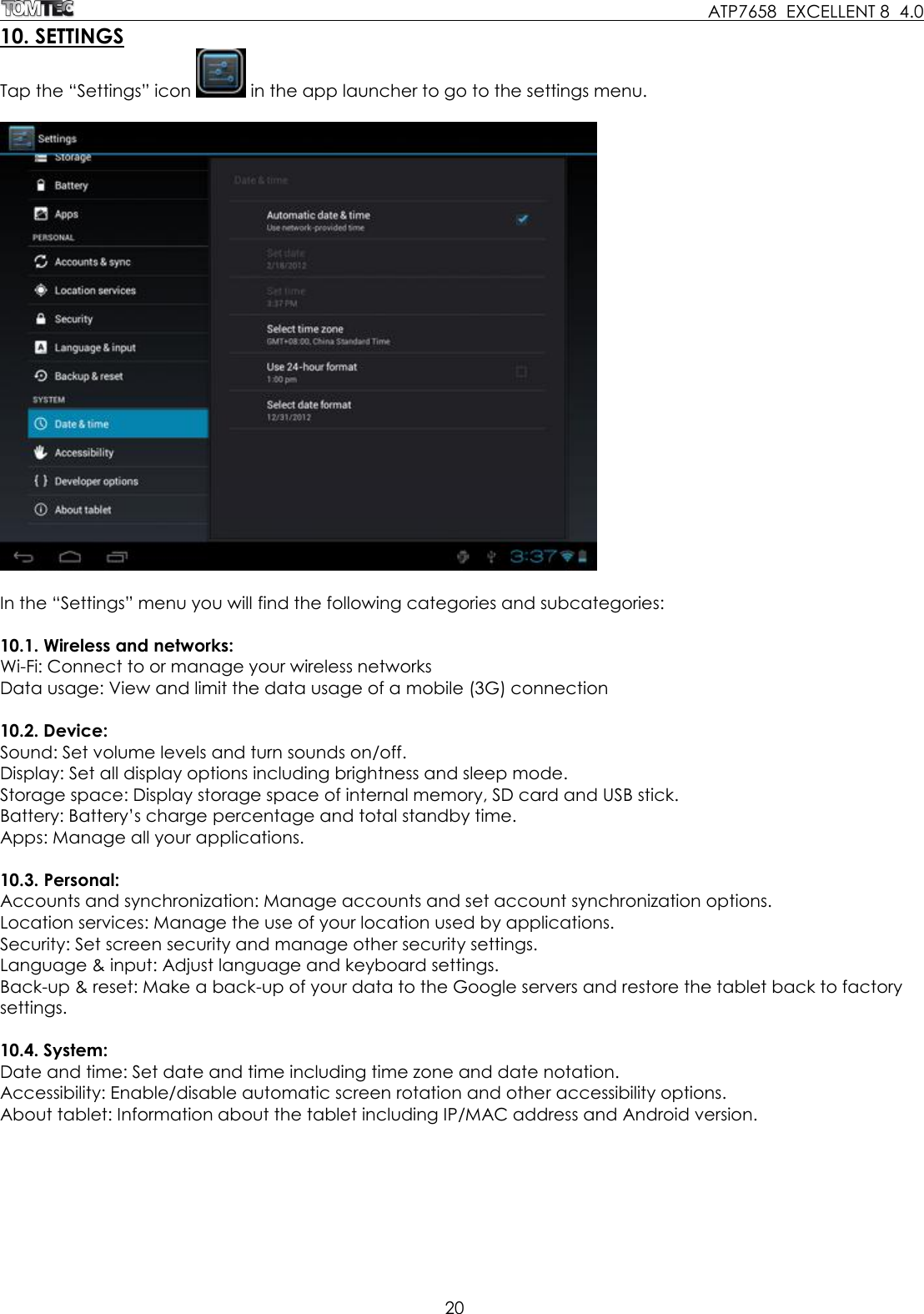
    ATP7658  EXCELLENT 8  4.0 20  10. SETTINGS Tap the “Settings” icon   in the app launcher to go to the settings menu.     In the “Settings” menu you will find the following categories and subcategories:  10.1. Wireless and networks: Wi-Fi: Connect to or manage your wireless networks Data usage: View and limit the data usage of a mobile (3G) connection  10.2. Device: Sound: Set volume levels and turn sounds on/off. Display: Set all display options including brightness and sleep mode. Storage space: Display storage space of internal memory, SD card and USB stick. Battery: Battery’s charge percentage and total standby time. Apps: Manage all your applications.  10.3. Personal: Accounts and synchronization: Manage accounts and set account synchronization options. Location services: Manage the use of your location used by applications. Security: Set screen security and manage other security settings.  Language & input: Adjust language and keyboard settings. Back-up & reset: Make a back-up of your data to the Google servers and restore the tablet back to factory settings.  10.4. System: Date and time: Set date and time including time zone and date notation.  Accessibility: Enable/disable automatic screen rotation and other accessibility options.   About tablet: Information about the tablet including IP/MAC address and Android version.
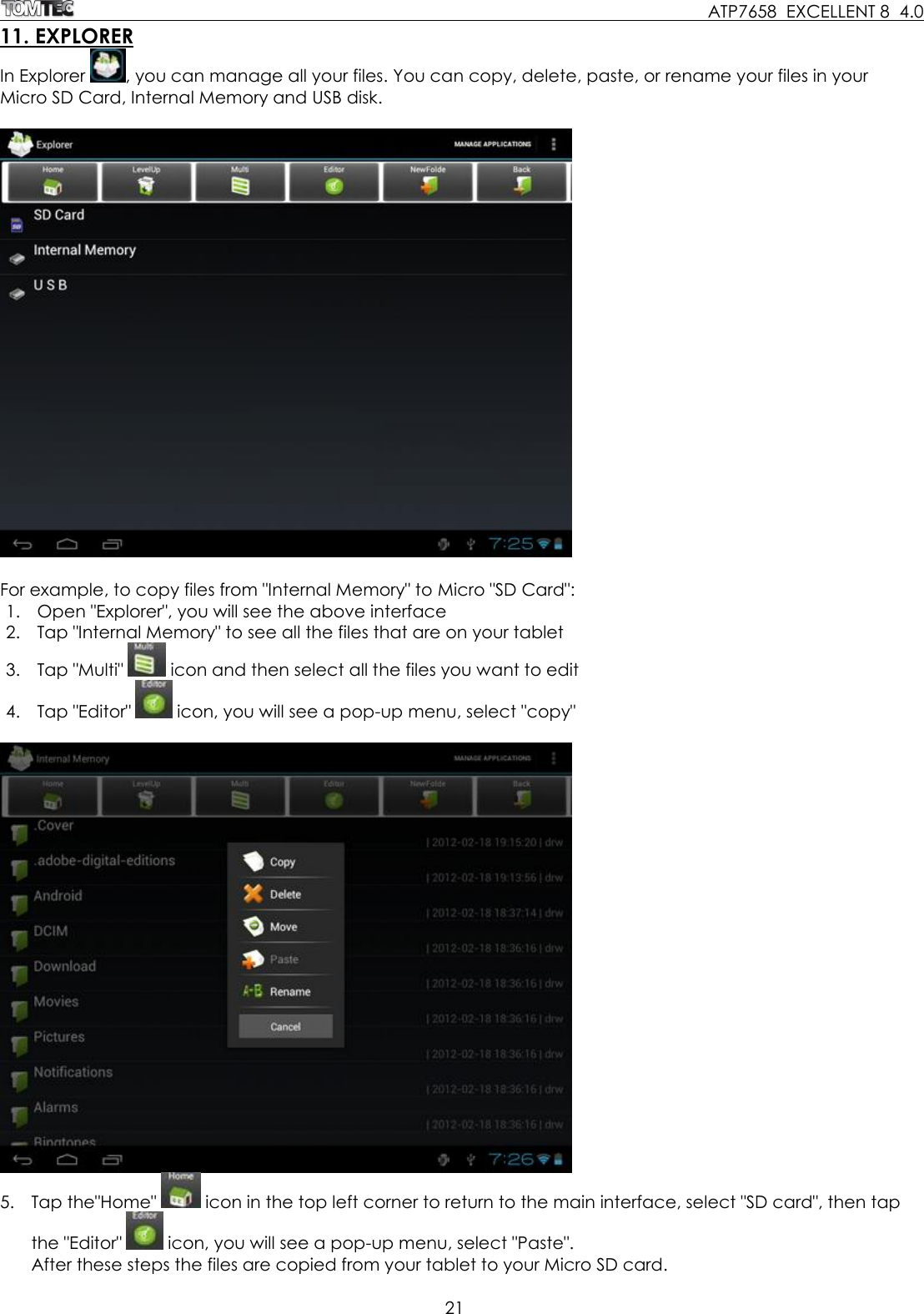
    ATP7658  EXCELLENT 8  4.0 21  11. EXPLORER In Explorer  , you can manage all your files. You can copy, delete, paste, or rename your files in your Micro SD Card, Internal Memory and USB disk.     For example, to copy files from "Internal Memory" to Micro "SD Card":  1. Open "Explorer", you will see the above interface 2. Tap "Internal Memory" to see all the files that are on your tablet 3. Tap "Multi"   icon and then select all the files you want to edit 4. Tap "Editor"   icon, you will see a pop-up menu, select "copy"     5. Tap the"Home"   icon in the top left corner to return to the main interface, select "SD card", then tap the "Editor"   icon, you will see a pop-up menu, select "Paste".  After these steps the files are copied from your tablet to your Micro SD card.
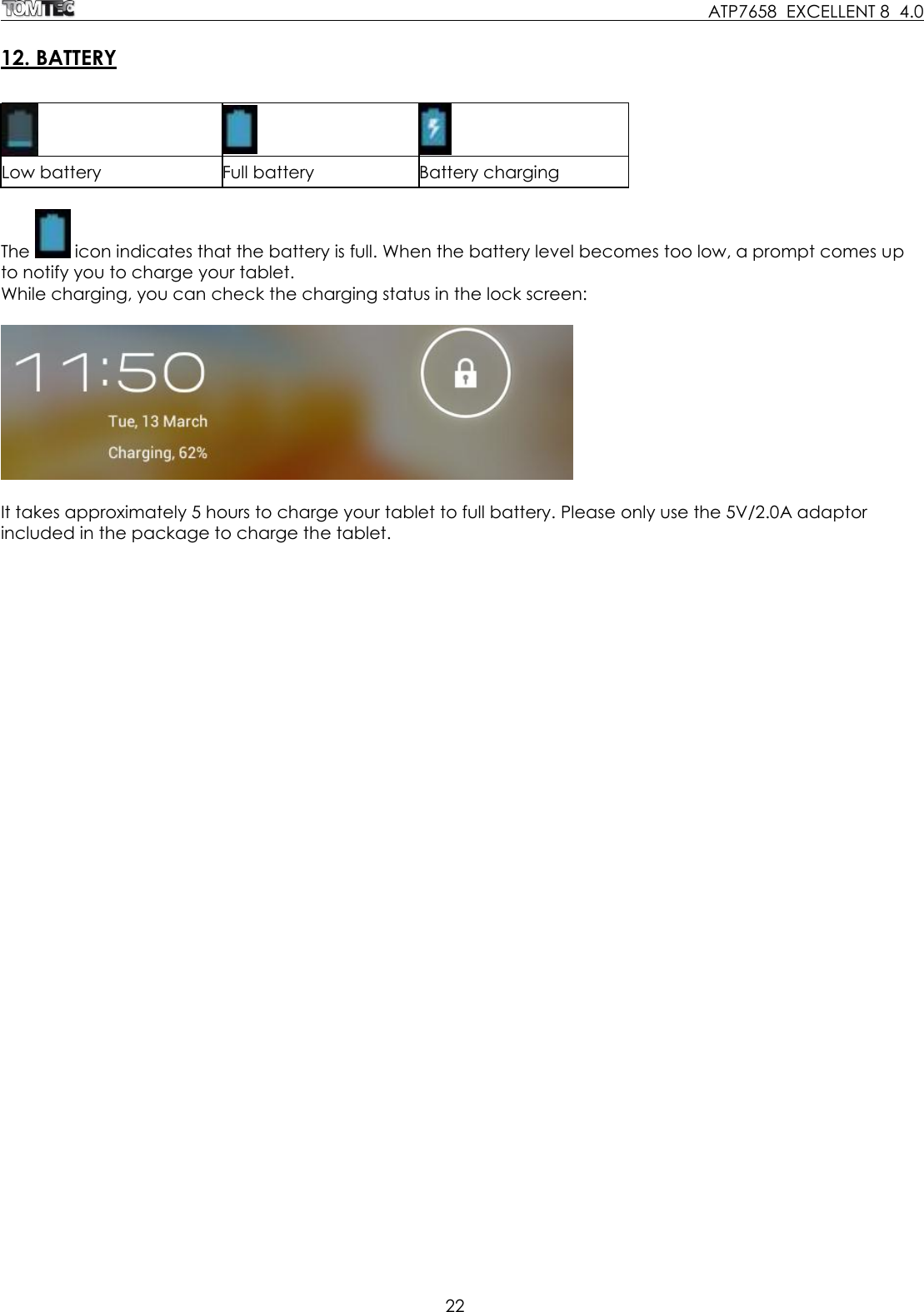
    ATP7658  EXCELLENT 8  4.0 22   12. BATTERY     Low battery Full battery Battery charging  The   icon indicates that the battery is full. When the battery level becomes too low, a prompt comes up to notify you to charge your tablet. While charging, you can check the charging status in the lock screen:     It takes approximately 5 hours to charge your tablet to full battery. Please only use the 5V/2.0A adaptor included in the package to charge the tablet.
    ATP7658  EXCELLENT 8  4.0 23  13. TROUBLESHOOTING  1.  Cannot turn on the tablet Check the tablet’s power level, please charge it before starting the tablet. If you still cannot turn on your tablet, try to reset it. 2.  No sound coming from the earphones Check to see if the volume is turned off or is turned down to "0". Also try another earphone to make sure it is not damaged. 3.  Earphone noise Check for dust in the earphone or speaker. Check to see if the music file you are playing is damaged. 4.  Tablet freezes and doesn't respond on input Use a pin to reset and then restart your tablet. 5.  Screen drift or unresponsive screen To correct it, you may a) Go to Settings → Accessibility → Touch panel calibration to calibrate it, or b) In case calibration cannot be carried out, you may press and hold the power button for about 15 seconds to force the tablet to shut down. Calibration will be automatically carried out after you start up your tablet. Use a USB mouse to carry out calibration operations on your tablet. 6.  Application is not working Possible reasons may be that this app is not compatible with Android or the downloaded .apk file is damaged. 7.  How can I delete a Google account? If an account is added, the account is shown in “Accounts & sync” under “Settings”, where you may also add another account. To delete an undesired account, go to “Settings” → “Privacy settings” → “Factory data reset”. Your tablet’s internal storage, downloaded apps, etc. will also be deleted, except for the info that is stored on external devices such as a USB disk or SD card. Be careful when carrying out this operation.   For all your questions about your   product within the warranty period, please go to:   helpdesk.tom-tec.eu  On this website you will find user manuals and FAQs (Frequently Asked Questions) about your product, as well as information about our helpdesk.
FCC Statement   This device complies with part 15 of the FCC rules. Operation is subject to the following two conditions:   (1) this device may not cause harmful interference, and   (2) this device must accept any interference received, including interference that may cause undesired operation.   NOTE: The manufacturer is not responsible for any radio or TV interference caused by unauthorized modifications to this equipment. Such modifications could void the user’s authority to operate the equipment.   NOTE: This equipment has been tested and found to comply with the limits for a Class B digital device, pursuant to part 15 of the FCC Rules.  These limits are designed to provide reasonable protection against harmful interference in a residential installation.    This equipment generates uses and can radiate radio frequency energy and, if not installed and used in accordance with the instructions, may cause  harmful interference to radio communications.    However, there is no guarantee that interference will not occur in a particular installation.       If this equipment does cause harmful    interference to radio or television reception, which can be determined by turning the equipment off and on, the user is encouraged to try to correct the interference by one or more of the   following measures:     - Reorient or relocate the receiving antenna.     - Increase the separation between the equipment and receiver.     -Connect the equipment into an outlet on a circuit different from that to which the receiver is connected.     -Consult the dealer or an experienced radio/TV technician for help.

Navigation menu