Brother Hl 2140 Users Manual HL2140_2150N_2170W_UG
2014-12-12
: Brother Brother-Hl-2140-Users-Manual-119222 brother-hl-2140-users-manual-119222 brother pdf
Open the PDF directly: View PDF  .
.
Page Count: 138 [warning: Documents this large are best viewed by clicking the View PDF Link!]
- User's Guide HL-2140/2150N/2170W
- Using this guide
- Safety precautions
- Trademarks
- Compilation and Publication Notice
- Shipment of the Printer
- Table of Contents
- 1 About this Printer
- 2 Printing Methods
- 3 Driver and Software
- 4 Control Panel
- 5 Routine Maintenance
- 6 Troubleshooting
- Appendix A
- Printer specifications
- Symbol and character sets (HL-2150N / HL-2170W only)
- Quick reference for bar code control commands (HL-2150N / HL-2170W only)
- Print bar codes or expanded characters
- Definition of parameters
- Bar code mode
- Bar code, expanded character, line block drawing and box drawing
- Bar code
- Bar code human readable line ON or OFF
- Quiet zone
- Bar code, expanded character unit, line block drawing and box drawing
- Bar code, expanded character, line block drawing and box drawing offset in X-axis
- Bar code & expanded character offset in Y-axis
- Bar code, expanded character, line block drawing and box drawing height
- Expanded character width, line block drawing and box drawing
- Expanded character rotation
- Bar code data start
- Box drawing
- Line block drawing
- Expanded character data start
- Print bar codes or expanded characters
- Appendix B (for Europe and Other Countries)
- Appendix C (for USA and Canada)
- Index
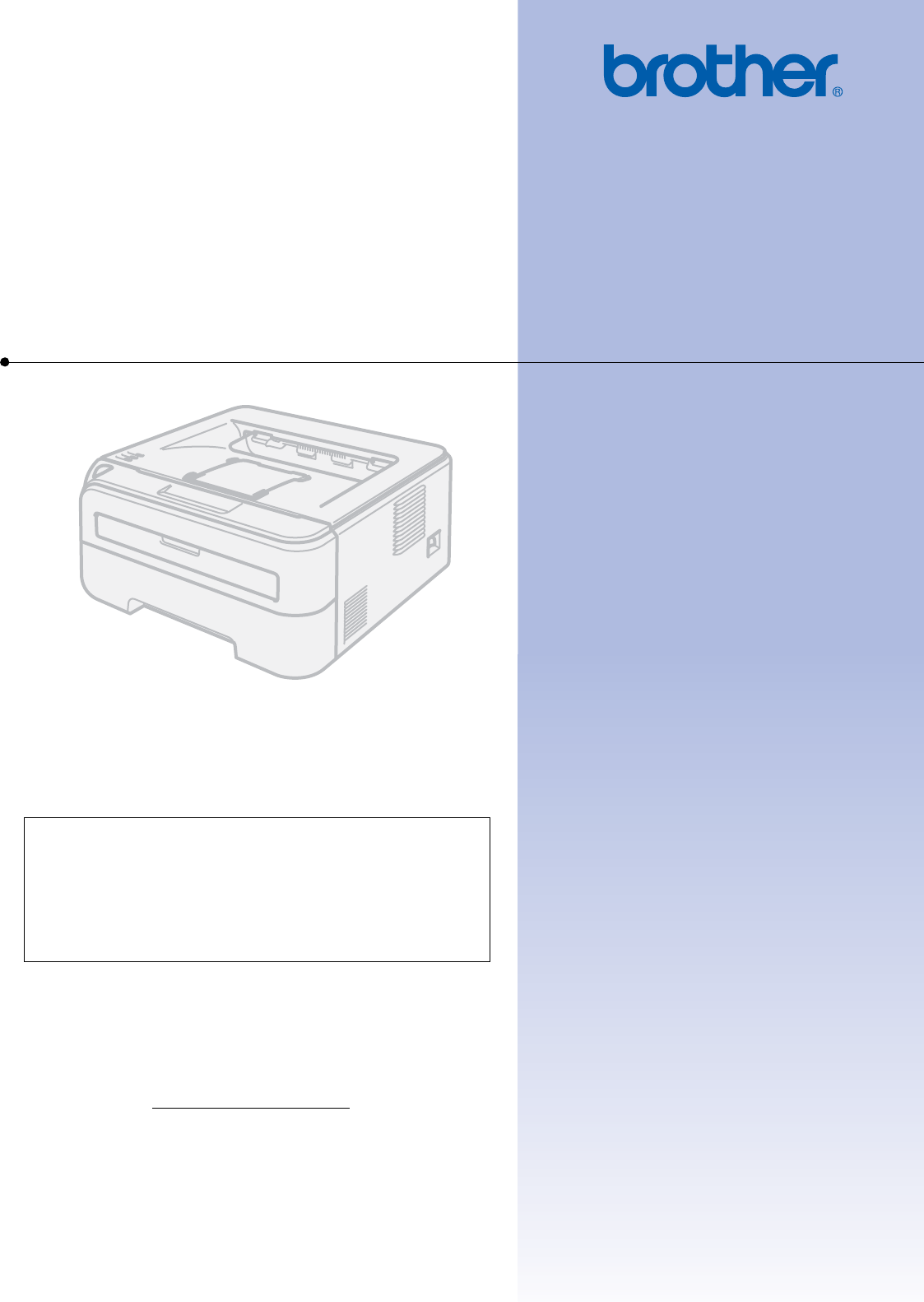
USER’S GUIDE
Brother Laser Printer
HL-2140
HL-2150N
HL-2170W
For visually-impaired users
You can read this manual with Screen
Reader ‘text-to-speech’ software.
You must set up the hardware and install the driver before you can use the printer.
Please use the Quick Setup Guide to set up the printer. You can find a printed copy in the box.
Please read this User’s Guide thoroughly before you use the printer. Keep the CD-ROM in a convenient place so you
can use it quickly if you need to.
Please visit us at http://solutions.brother.com where you can get product support, the latest driver updates and
utilities, and answers to frequently asked questions (FAQs) and technical questions.
Note: Not all models are available in all countries.
Version A
EN-Asa_Ose
i
Using this guide
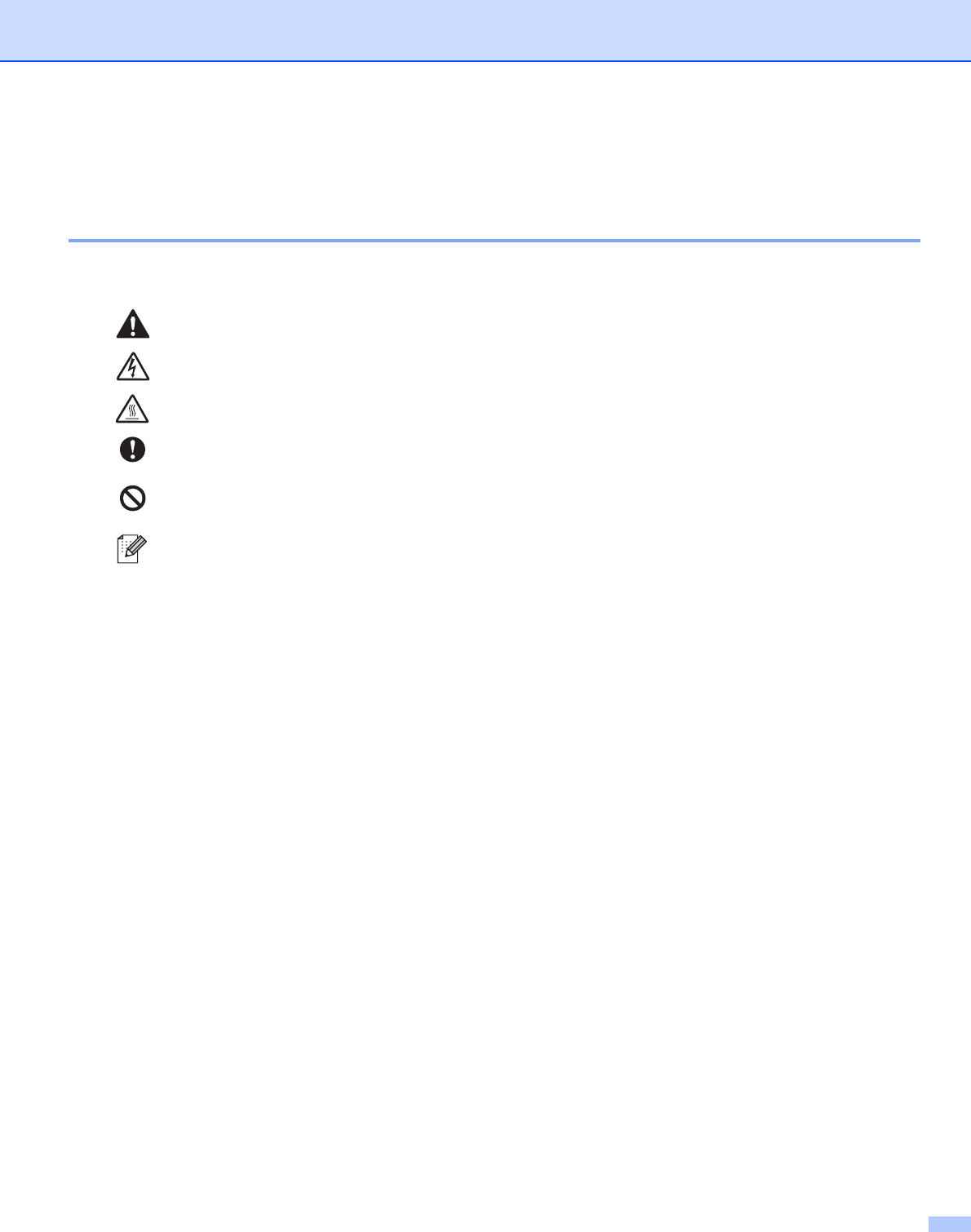
Symbols used in this guide
We use the following icons throughout this User’s Guide:
Warnings tell you what to do to prevent possible personal injury.
Electrical Hazard icons alert you to a possible electrical shock.
Hot Surface icons warn you not to touch machine parts that are hot.
Cautions specify procedures you must follow or avoid to prevent possible damage to the
printer or other objects.
Improper Setup icons alert you to devices and operations that are not compatible with the
printer.
Notes tell you how you should respond to a situation that may arise or give tips about how
the operation works with other features.
ii
Safety precautions
To use the printer safely
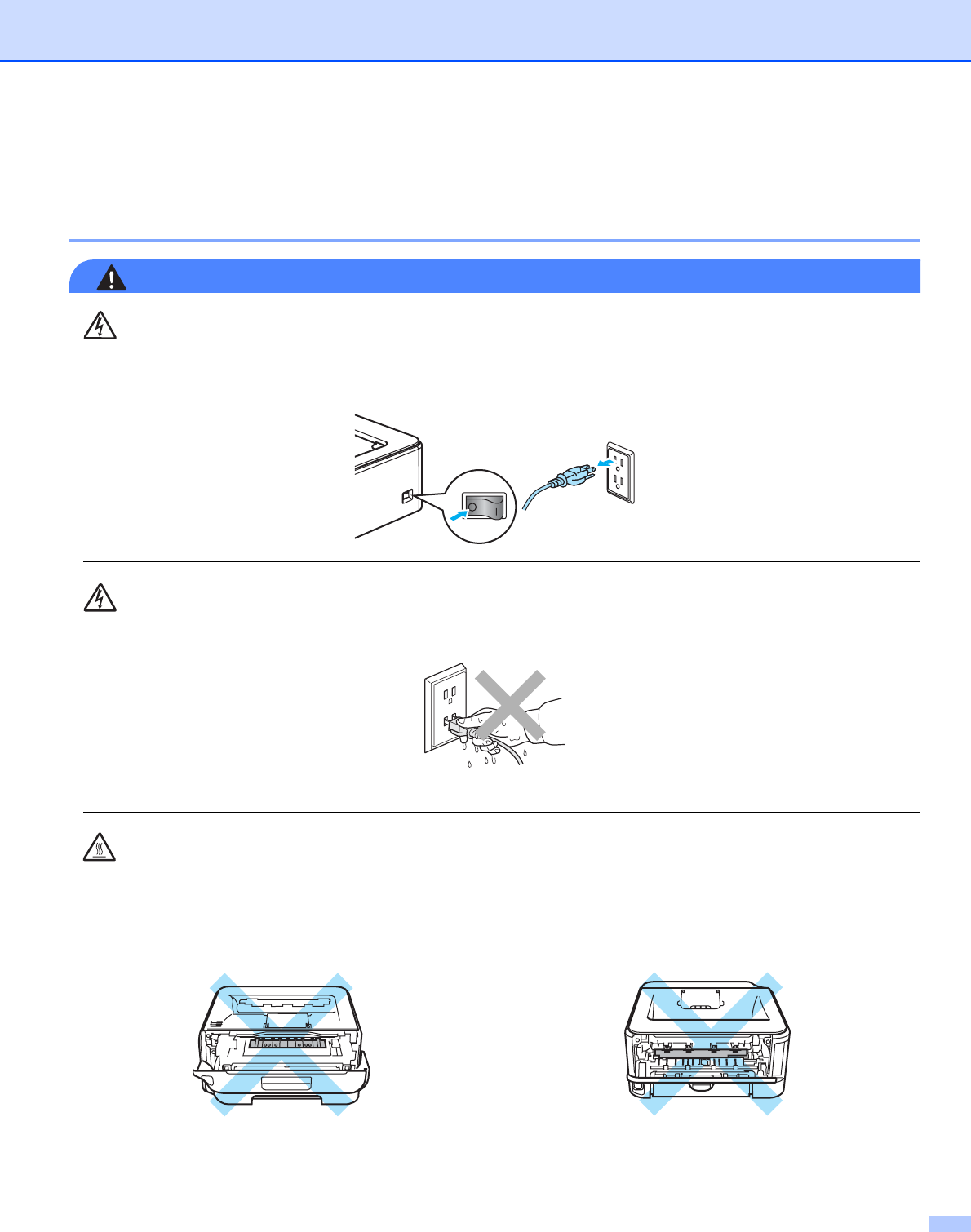
WARNING
There are high voltage electrodes inside the printer. Before you clean the inside of the printer, make sure
that you have turned off the power switch and unplugged the printer from the AC power outlet.
DO NOT handle the plug with wet hands. Doing this might cause an electrical shock.
Always make sure the plug is fully inserted.
After you have just used the printer, some internal parts of the printer will be extremely hot. When you open
the front or back cover (back output tray) of the printer, DO NOT touch the shaded parts shown in the
illustration.
Inside the printer
(Front View)
Inside the printer
(Back View)
iii
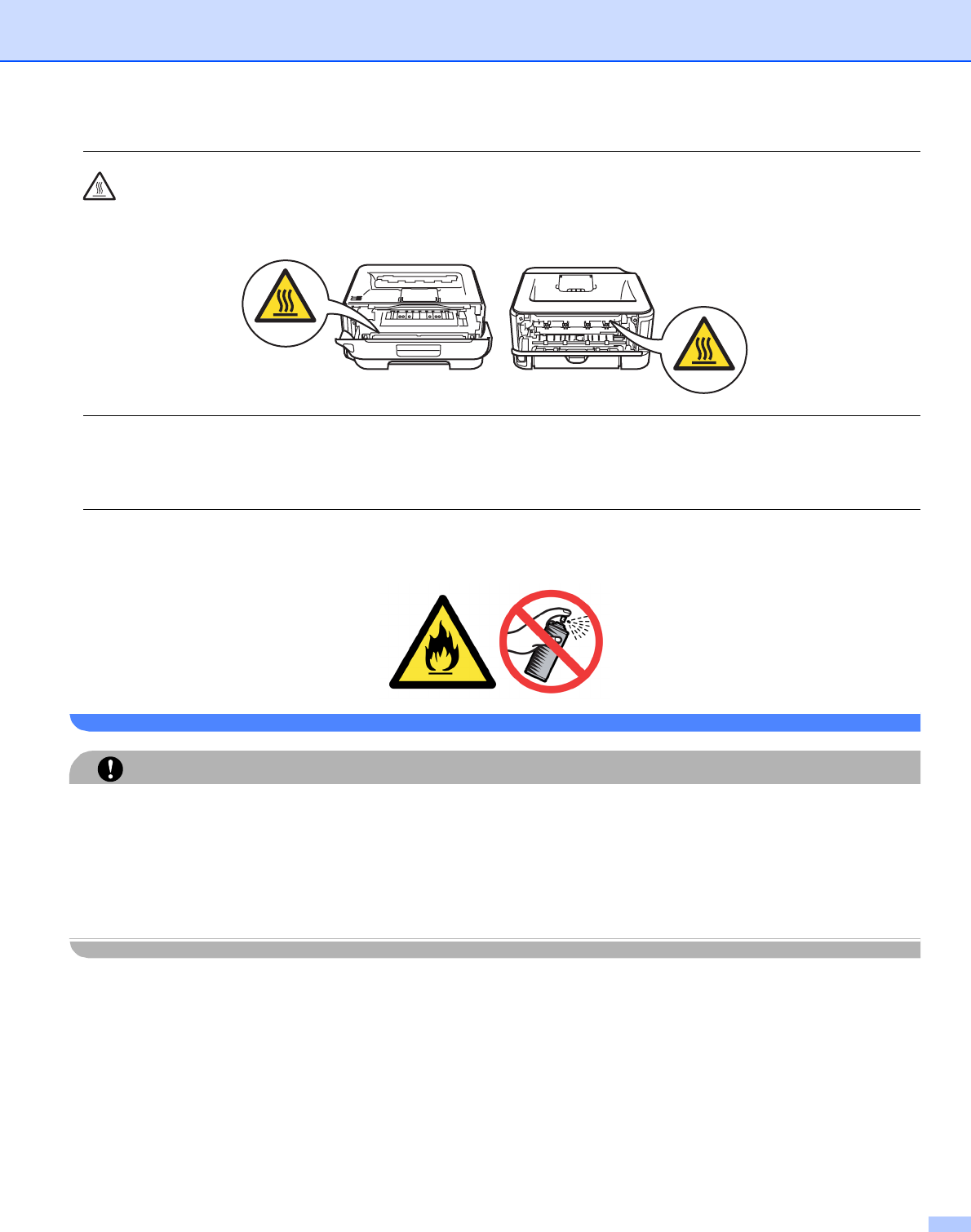
DO NOT remove or damage the caution labels located on or around the fuser.
DO NOT use a vacuum cleaner to clean up scattered toner. Doing this might cause the toner dust to ignite
inside the vacuum cleaner, potentially starting a fire. Carefully clean the toner dust with a dry, lint-free cloth
and dispose of it according to local regulations.
DO NOT use flammable substances or any type of spray to clean the inside or outside of the machine.
Doing this may cause a fire or electrical shock.
CAUTION
Cleaning the outside of the printer:
• Make sure that you have unplugged the printer from the AC power outlet.
• Use neutral detergents. Cleaning with volatile liquids such as thinner or benzine will damage the outside
surface of the printer.
• DO NOT use cleaning materials that contain ammonia.

iv
Trademarks
The Brother logo is a registered trademark of Brother Industries, Ltd.
Apple, the Apple Logo, Macintosh and TrueType are registered trademarks of Apple Inc. in the United States
and other countries.
Hewlett Packard is a registered trademark and HP LaserJet 6P, 6L, 5P, 5L, 4, 4L 4P, III, IIIP, II, and IIP are
trademarks of Hewlett-Packard Company.
Microsoft, MS-DOS, Windows are registered trademarks of Microsoft Corporation in the U.S. and other
countries.
Windows Vista is either a registered trademark or trademark of Microsoft Corporation in the United States
and/or other countries.
ENERGY STAR is a U.S. registered mark.
SuSE is a registered trade mark of SuSE Linux AG.
RED HAT is a registered trade mark of Red Hat. Inc.
Mandrake is a registered trade mark of Mandrake Soft SA.
Intel, Intel Xeon and Pentium are trademarks or registered trademarks of Intel Corporation.
AMD, AMD Athlon, AMD Opteron and combinations thereof, are trademarks of Advanced Micro Devices, Inc.
Java and all Java-based trademarks and logos are trademarks or registered trademarks of
Sun Microsystems, Inc. in the United States and other countries.
Each company whose software title is mentioned in this manual has a Software License Agreement specific
to its proprietary programs.
All other terms and brand and product names mentioned in this User’s Guide are registered trademarks of
their respective companies.
Compilation and Publication Notice
Under the supervision of Brother Industries Ltd., this manual has been compiled and published, covering the
latest product’s descriptions and specifications. The contents of this manual and the specifications of this
product are subject to change without notice. Brother reserves the right to make changes without notice in
the specifications and materials contained herein and shall not be responsible for any damages (including
consequential) caused by reliance on the materials presented, including but not limited to typographical and
other errors relating to the publication.
© 2007 Brother Industries Ltd.
Shipment of the Printer
If for any reason you must ship your printer, carefully package the printer to avoid any damage during transit.
We recommend that you save and use the original packaging. The printer should also be adequately insured
with the carrier.

v
Table of Contents
1 About this Printer 1
What is in the box? ....................................................................................................................................1
Interface cable .....................................................................................................................................1
Front view ............................................................................................................................................2
Back view ............................................................................................................................................3
Positioning the printer................................................................................................................................4
Power supply .......................................................................................................................................4
Environment ........................................................................................................................................4
2 Printing Methods 5
About paper ...............................................................................................................................................5
Type and size of paper........................................................................................................................5
Recommended paper ..........................................................................................................................6
Unprintable area ..................................................................................................................................8
Printing methods........................................................................................................................................9
Printing on plain paper, bond paper and transparencies.....................................................................9
Printing on thick paper, labels and envelopes ...................................................................................17
Duplex printing.........................................................................................................................................22
Guidelines for printing on both sides of the paper .............................................................................22
Printing on both sides of the paper (manual duplex printing) ............................................................22
3 Driver and Software 26
Printer driver ............................................................................................................................................26
Features in the printer driver (for Windows®) ....................................................................................29
Features in the printer driver (for Macintosh®) ..................................................................................39
Uninstalling the printer driver...................................................................................................................45
Printer driver for Windows® and Windows Vista™ and Windows Server® 2003...............................45
Printer driver for Macintosh®.............................................................................................................45
Software ..................................................................................................................................................46
Software for network models (HL-2150N / HL-2170W only) .............................................................46
Automatic interface selection (HL-2150N / HL-2170W only) .............................................................47
Remote Printer Console ....................................................................................................................47
4 Control Panel 48
LEDs (Light Emitting Diodes)...................................................................................................................48
Service call indications ............................................................................................................................53
Go button.................................................................................................................................................55
Print a test page ................................................................................................................................56
Print a Printer Settings page..............................................................................................................57
Print Fonts (HL-2150N / HL-2170W only)..........................................................................................58
Network default settings (HL-2150N / HL-2170W only).....................................................................59
5 Routine Maintenance 60
Replacing the consumable items.............................................................................................................60
Consumables.....................................................................................................................................60

vi
Toner cartridge ..................................................................................................................................61
Drum unit ...........................................................................................................................................68
Cleaning ..................................................................................................................................................73
Cleaning the outside of the printer.....................................................................................................73
Cleaning the inside of the printer.......................................................................................................74
Cleaning the corona wire...................................................................................................................77
6 Troubleshooting 79
Identifying your problem ..........................................................................................................................79
Error messages in the Status Monitor .....................................................................................................80
Error message printout ............................................................................................................................82
Paper handling ........................................................................................................................................83
Paper jams and how to clear them ..........................................................................................................85
Improving the print quality........................................................................................................................91
Solving print problems .............................................................................................................................97
Network problems (HL-2150N / HL-2170W only) ....................................................................................98
Other problems........................................................................................................................................98
For Macintosh® with USB..................................................................................................................98
AAppendix 99
Printer specifications................................................................................................................................99
Engine ...............................................................................................................................................99
Controller.........................................................................................................................................100
Software ..........................................................................................................................................101
Control panel ...................................................................................................................................101
Paper handling ................................................................................................................................101
Media specifications ........................................................................................................................102
Supplies...........................................................................................................................................102
Dimensions / weights.......................................................................................................................102
Other................................................................................................................................................103
Computer requirements...................................................................................................................103
Important information for choosing your paper................................................................................104
Symbol and character sets (HL-2150N / HL-2170W only).....................................................................107
How to use Web Based Management (web browser) .....................................................................107
Symbol and character sets list.........................................................................................................108
Quick reference for bar code control commands
(HL-2150N / HL-2170W only) .............................................................................................................110
Print bar codes or expanded characters..........................................................................................110
B Appendix (for Europe and Other Countries) 117
Brother numbers....................................................................................................................................117
Important information: regulations .........................................................................................................118
Radio interference (220 to 240 volt model only)..............................................................................118
International ENERGY STAR® Compliance Statement ..................................................................118
IEC 60825-1 specification (220 to 240 volt model only) ..................................................................118
Internal laser radiation .....................................................................................................................119
IMPORTANT - for your safety .........................................................................................................119
EC Declaration of Conformity ..........................................................................................................121

vii
C Appendix (for USA and Canada) 122
Brother numbers....................................................................................................................................122
Important information: regulations .........................................................................................................125
Federal Communications Commission (FCC) Declaration of Conformity (USA only) .....................125
Industry Canada Compliance Statement (Canada only) .................................................................125
International ENERGY STAR® Compliance Statement ..................................................................126
Laser notices .........................................................................................................................................127
Laser safety (110 to 120 volt model only)........................................................................................127
FDA regulations (110 to 120 volt model only) .................................................................................127
Internal laser radiation .....................................................................................................................127
IMPORTANT - for your safety .........................................................................................................128
DIndex 129
1
1
1
What is in the box? 1
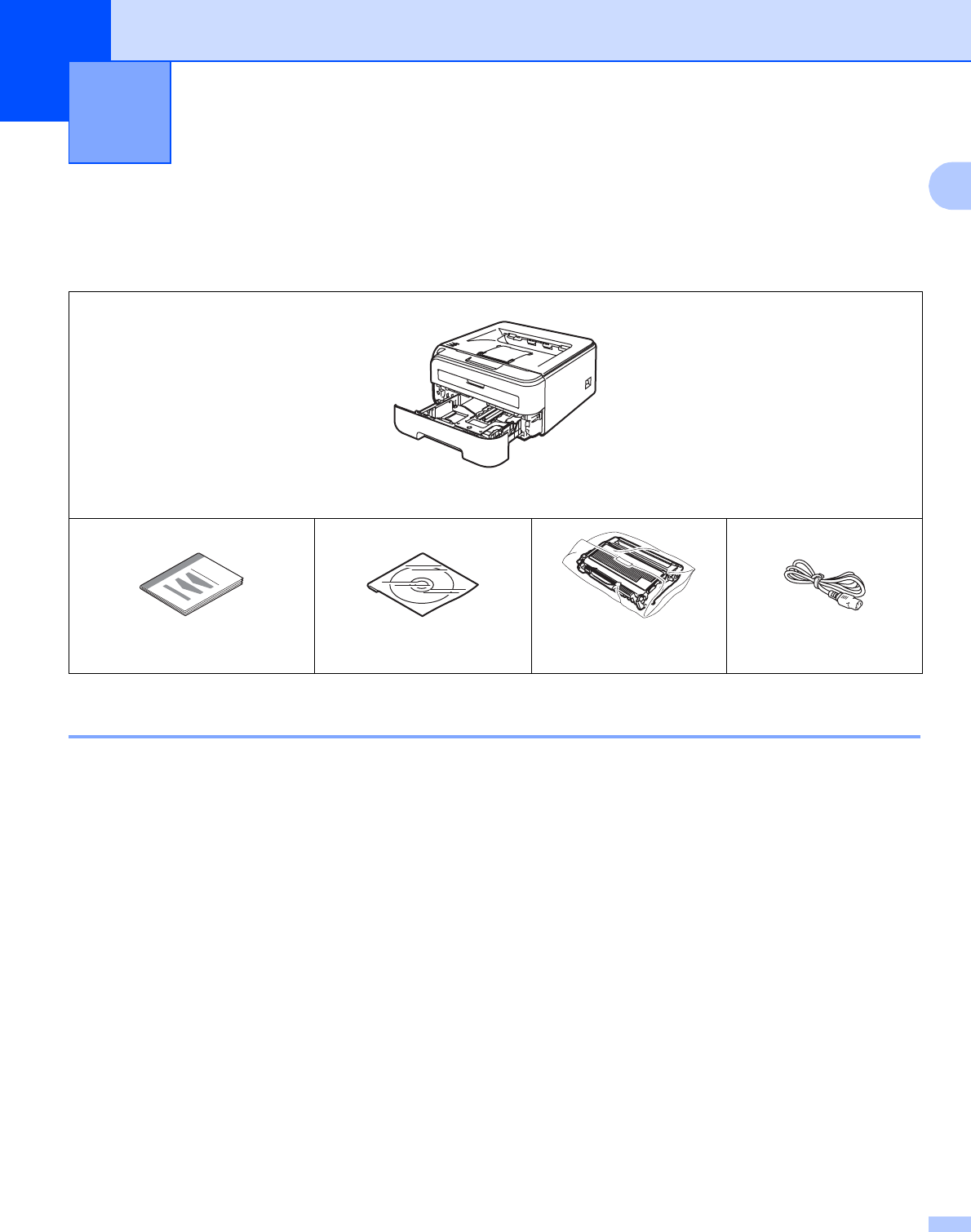
When you unpack the printer, make sure that you have all of the following parts.
Interface cable 1
The interface cable is not a standard accessory. Purchase the appropriate cable for the interface you are
using.
USB cable
Please make sure you use a USB 2.0 interface cable that is no longer than 6 feet (2 meters).
DO NOT connect the interface cable at this time. Connecting the interface cable is done during the printer
driver installation process.
When you use a USB cable, make sure you connect it to the USB port of your computer and not to a USB
port on a keyboard or non-powered USB hub.
Third party USB ports are not supported for Macintosh®.
Network cable (HL-2150N / HL-2170W only)
Use a straight-through Category5 (or greater) twisted-pair cable for 10BASE-T or 100BASE-TX Fast
Ethernet Network.
About this Printer 1
Printer
Quick Setup Guide
CD-ROM
Drum unit and toner
cartridge assembly
AC power cord
About this Printer
2
1
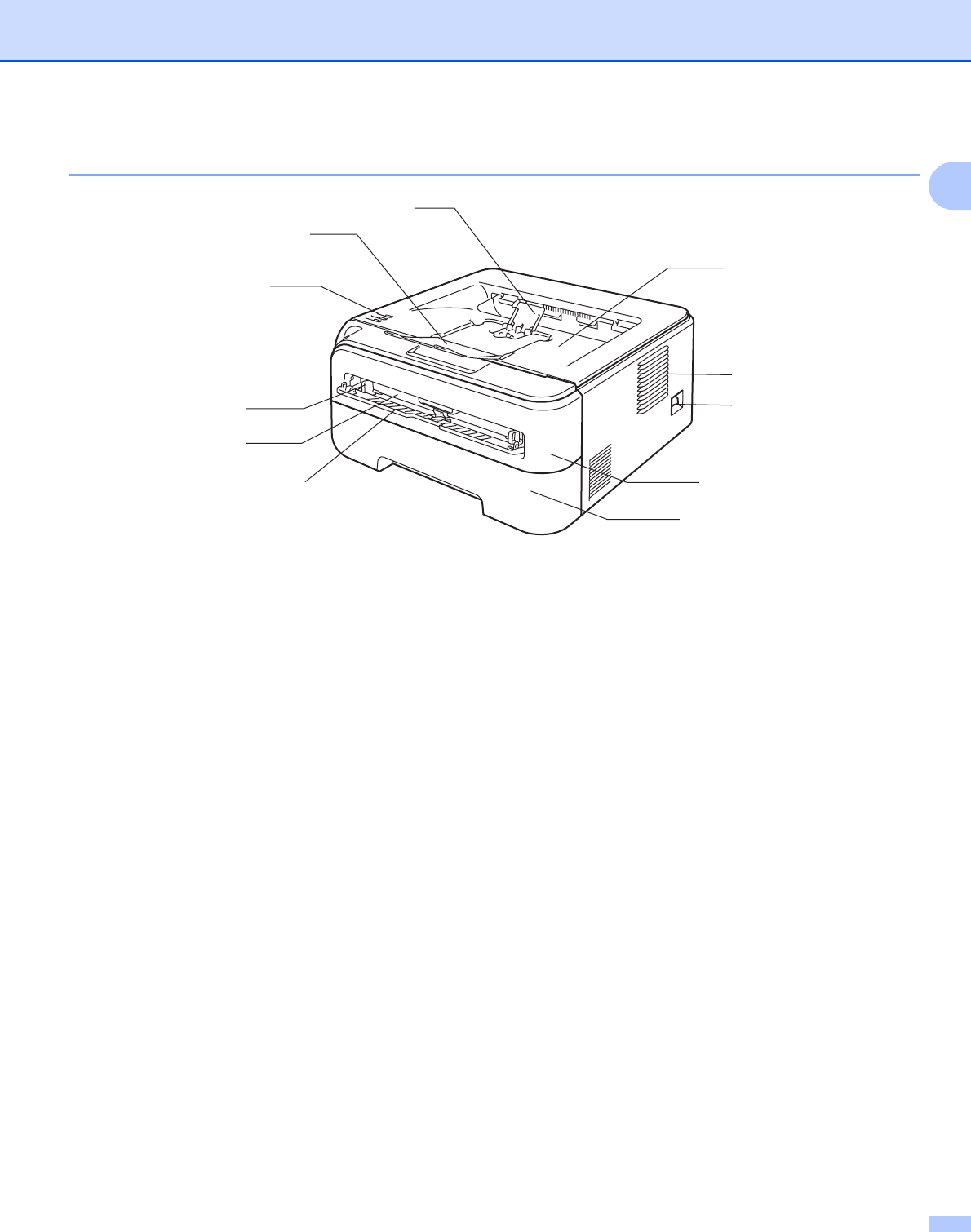
Front view 1
1 Face-down output tray support flap 2 (support flap 2) 1
2 Face-down output tray support flap 1 (support flap 1)
3 Control panel
4 Manual feed paper guide
5 Manual feed slot
6 Manual feed slot cover
7 Paper tray
8 Front cover
9 Power switch
10 Ventilation hole
11 Face-down output tray
1For details about the support flap 2, see page 96.
1
2
3
4
6
7
11
9
10
5
8
About this Printer
3
1
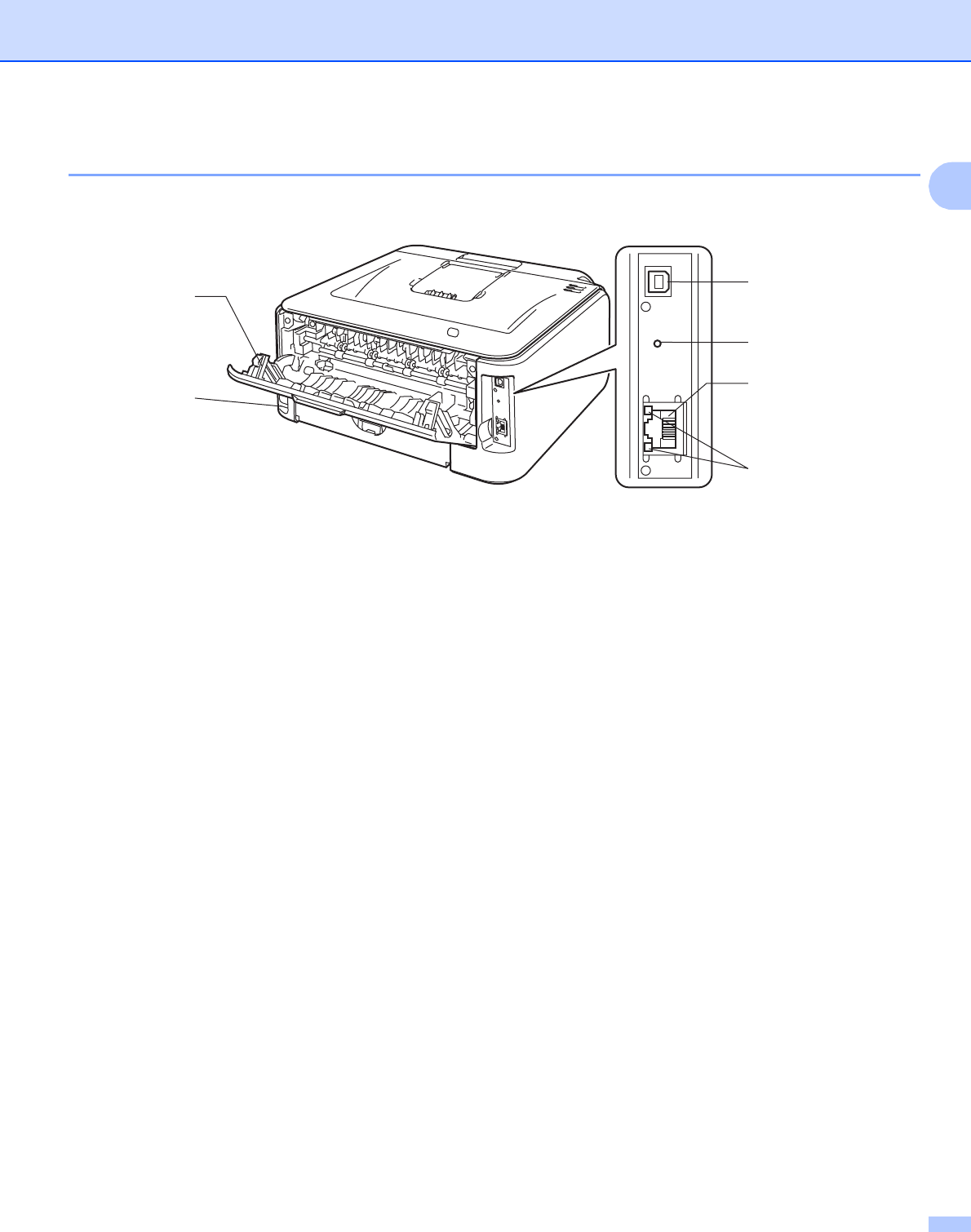
Back view 1
1 Back cover (back output tray)
2 AC power connector
3 HL-2150N / HL-2170W: Network status LEDs (Light Emitting Diodes)
4 HL-2150N / HL-2170W: 10/100BASE-TX port
5 HL-2170W: Wireless setup button
6 USB interface connector
1
2
3
6
5
4

About this Printer
4
1
Positioning the printer 1
Read the following before you use the printer.
Power supply 1
Use the printer within the recommended power range.
The power cord, including extensions, should be no longer than 5 meters (16.5 feet).
Do not share the same power circuit with other high-powered appliances, such as an air conditioner, copier,
shredder and so on. If you cannot avoid using the printer with these appliances, we recommend that you use
a voltage transformer or a high-frequency noise filter.
Use a voltage regulator if the power source is not stable.
Environment 1
Put your printer on a flat, stable surface such as a desk that is free of vibration and shocks.
Put the printer near an AC power outlet, so that it can be easily unplugged from the AC power outlet if there
is an emergency.
Only use the printer within the following ranges of temperature and humidity:
Temperature: 10 °C to 32.5 °C (50 °F to 90.5 °F)
Humidity: 20% to 80% (without condensation)
Use the printer in a well-ventilated room.
DO NOT put the printer where the ventilation hole of the printer is blocked. Keep a gap of roughly 100 mm
(4 in.) between the ventilation hole and the wall.
DO NOT expose the printer to direct sunlight, excessive heat, moisture, or dust.
DO NOT put the printer near devices that contain magnets or produce magnetic fields.
DO NOT expose the printer to open/naked flames or salty or corrosive gasses.
DO NOT put objects on top of the printer.
DO NOT put the printer near heaters, air conditioners, water, chemicals or refrigerators.
Keep the printer horizontal when you carry it.
Power source: USA and Canada: AC 110 to 120 V, 50/60 Hz
Europe and Australia: AC 220 to 240 V, 50/60 Hz
5
2
2
About paper 2
Type and size of paper 2
The printer loads paper from the installed paper tray or the manual feed slot.
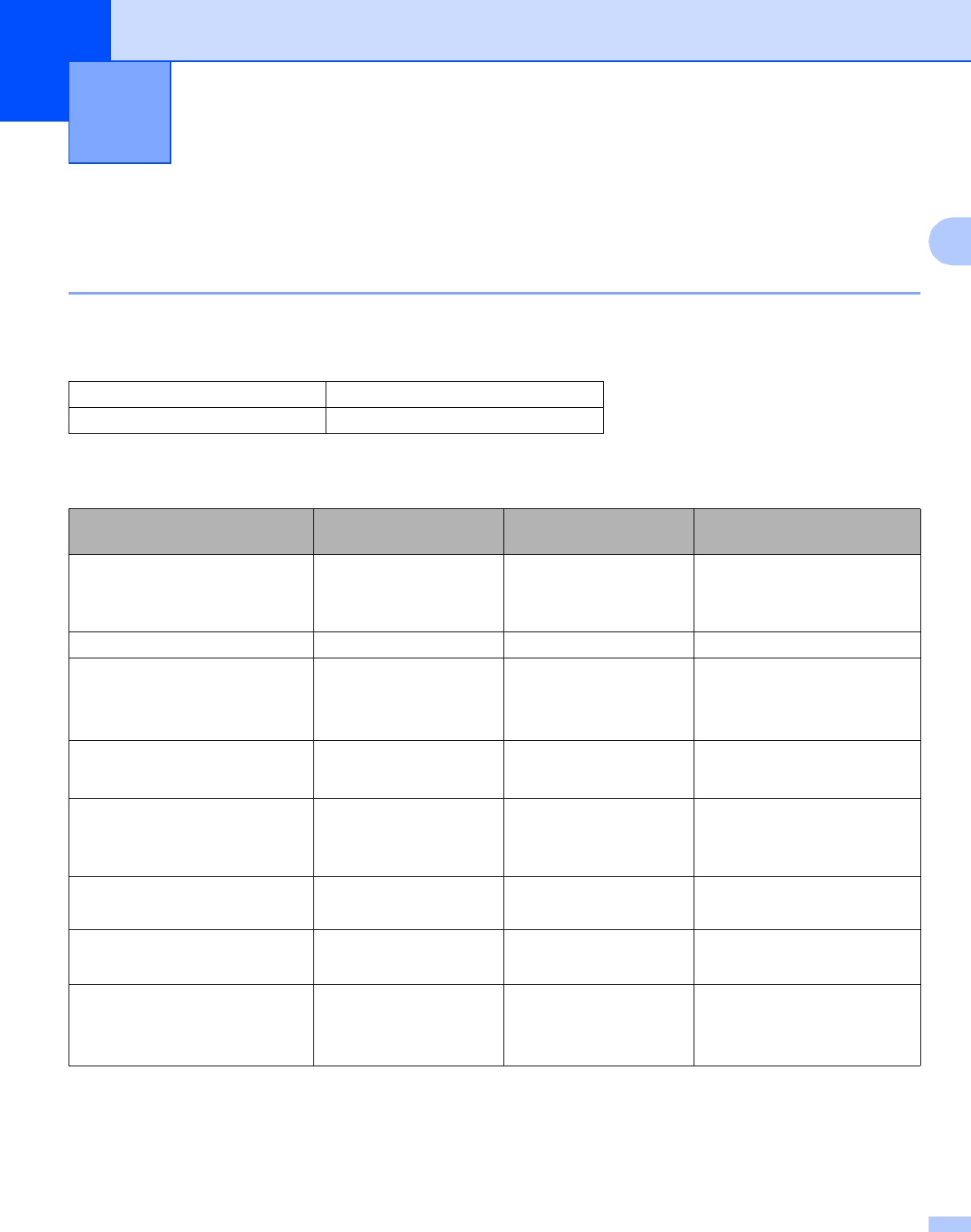
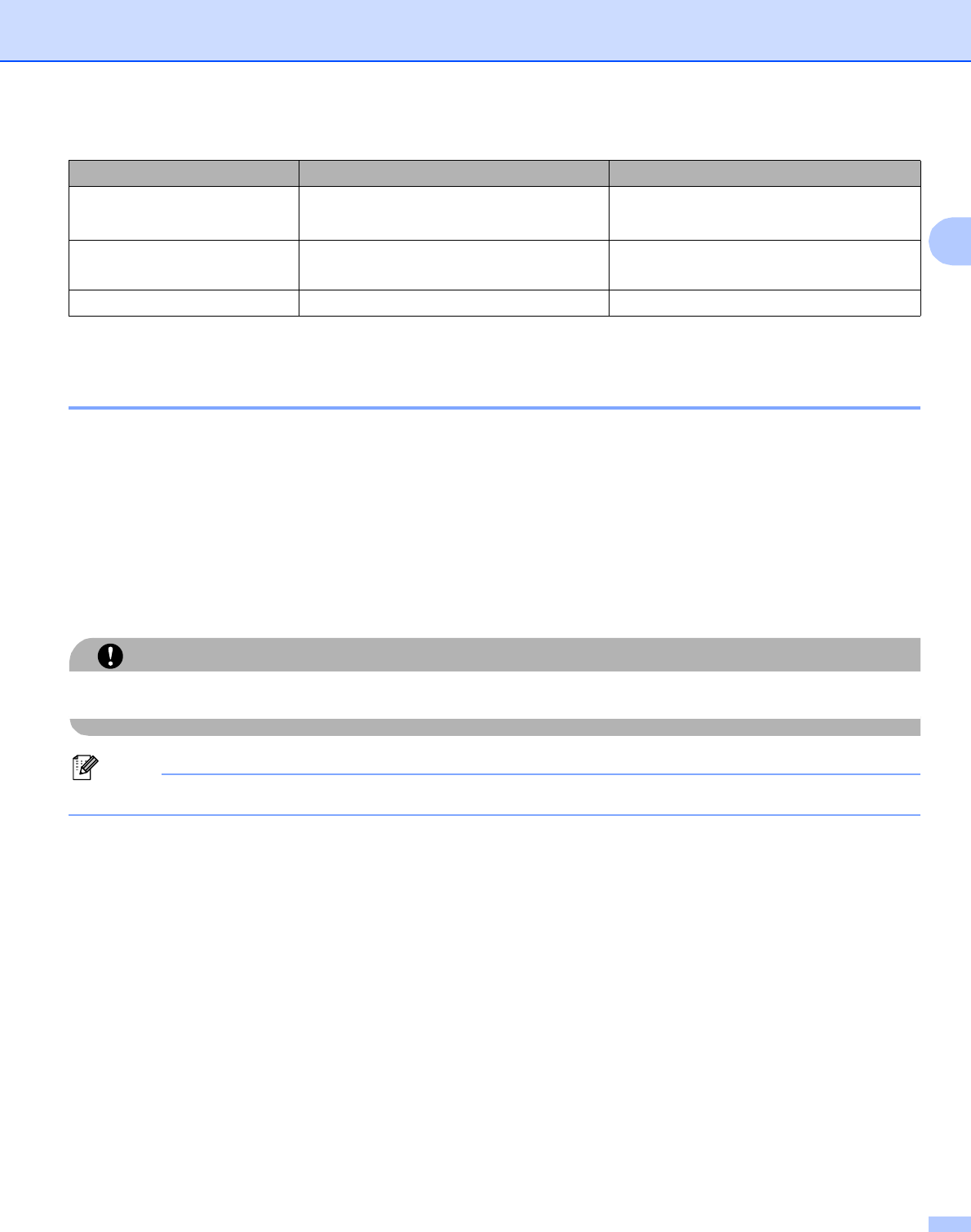
The names for the paper trays in the printer driver and this guide are as follows:
When looking at this page on the CD-ROM, you can jump to the page for each printing method by clicking p
in the table.
Printing Methods 2
Paper tray Tray 1
Manual feed slot Manual
Media type Tray 1 Manual Choose the media type
from the printer driver
Plain paper
75 g/m2 to 105 g/m2 (20 to
28 lb)
pp
Plain Paper
Recycled paper ppRecycled Paper
Bond paper
Rough paper– 60 g/m2 to
163 g/m2 (16 to 43 lb)
pp
Bond Paper
Thin paper
60 g/m2 to 75 g/m2(16 to 20 lb)
pp
Thin Paper
Thick paper
105 g/m2 to 163 g/m2(28 to
43 lb)
p
Thick Paper or Thicker
Paper
Transparency p
A4 or Letter
p
A4 or Letter
Transparencies
Labels p
A4 or Letter
Thicker Paper
Envelopes
p
Envelopes
Env. Thin
Env. Thick
Printing Methods
6
2
1Legal size paper is not available in some regions outside the USA and Canada.
Recommended paper 2
To get the bset print quality, we suggest using paper that meets the conditions mentioned below.
Paper that is made for plain-paper copying
Paper that is 75 to 90 g/m2 (20 to 24 lb)
Neutral paper, not acidic or alkaline paper
Long-grain paper
Paper with a moisture content of approximately 5%.
Recycled paper that meets DIN 19309 specifications.
CAUTION
DO NOT use ink jet paper because it may cause a paper jam or damage your printer.
Note
If you use paper that is not recommended, a paper jam or misfeed may occur in the printer.
Especially when paper that satisties the conditions mentioned above is not available in your country, we
recommend testing various papers before purchasing large quantities.
To help you choose which paper to use with this printer, see Important information for choosing your
paper on page 177.
Should you need further information on recommended paper, please contact local Brother office in your
country.
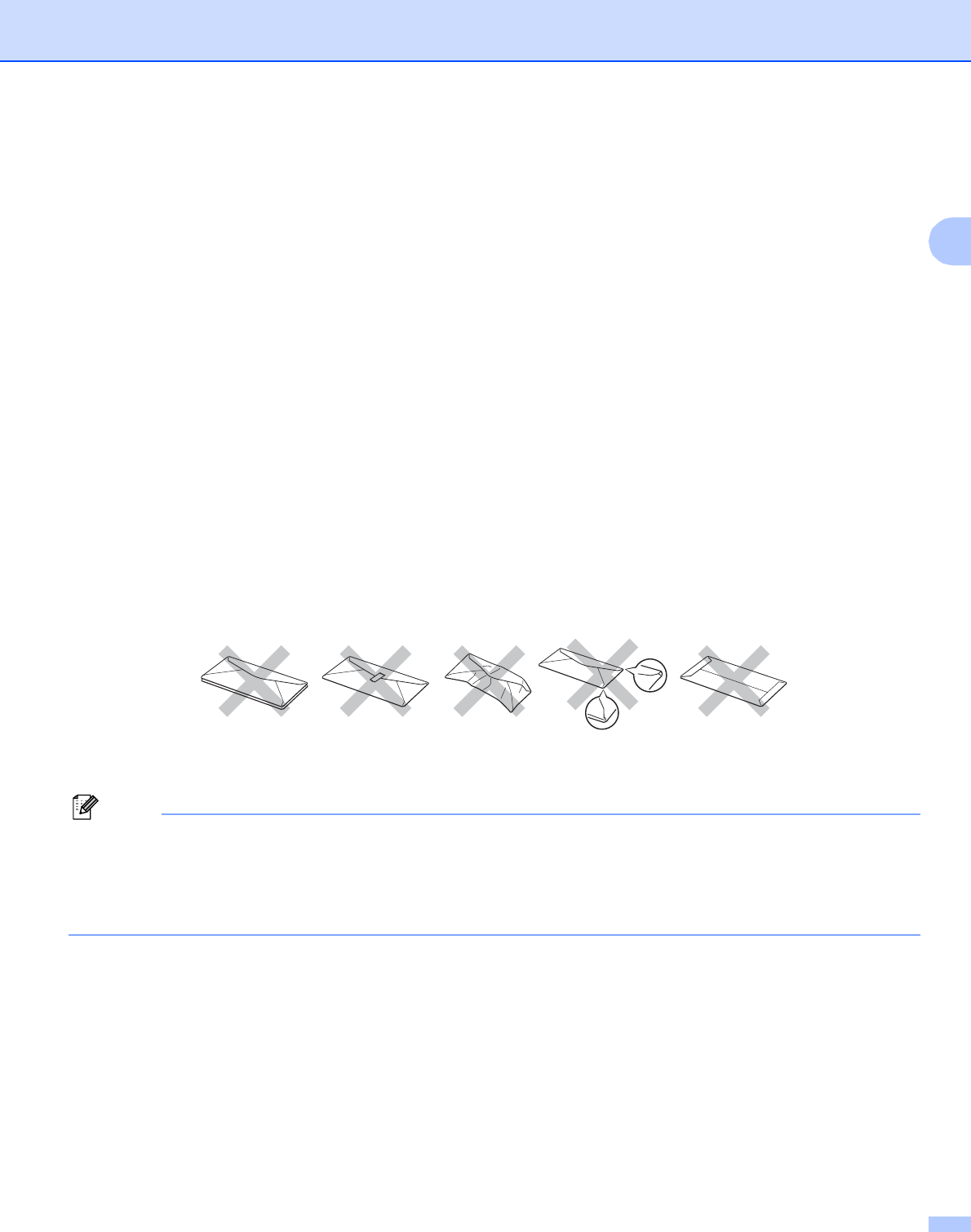
Tray 1 Manual
Paper size A4, Letter, Legal 1, B5 (ISO), Executive,
A5, A6, B6 (ISO), Folio, Post Card
Width: 76.2 to 220mm (3 to 8.7 in.)
Length: 116 to 406.4 mm (4.57 to 16 in.)
Number of sheets (80 g/m2 /
20 lb)
250 sheets Single sheet
Envelope size N/A COM10
Printing Methods
7
2
Types of envelopes 2
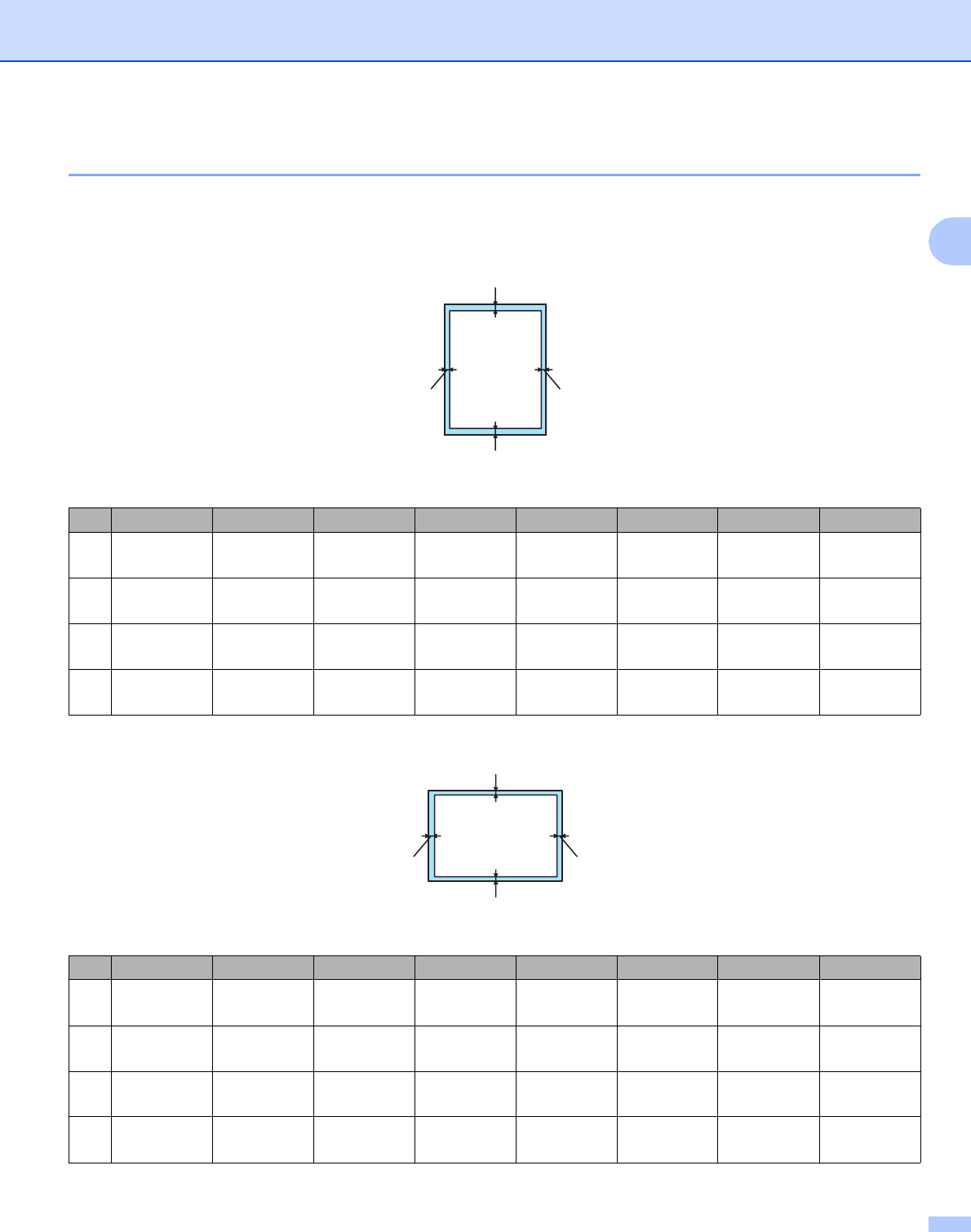
Most envelopes will be suitable for your printer. However, some envelopes may have feed and print quality
problems due to the way they have been made. A suitable envelope should have edges with straight, well-
creased folds and the leading edge should not be thicker than two pieces of paper. The envelope should lie
flat and not be of baggy or flimsy construction. You should buy quality envelopes from a supplier who
understands that you will be using the envelopes in a laser printer. Before you print a lot of envelopes, test
one to make sure that the print results are what you want.
Brother does not recommend a particular envelope because envelope manufacturers may change the
envelope specifications. You are responsible for the quality and performance of the envelopes you use.
Do not use damaged, curled, wrinkled, irregularly shaped, extremely shiny or textured envelopes.
Do not use envelopes with clasps, snaps, tie strings, self-adhesive components, windows, holes, cutouts
or perforations.
Do not use envelopes that are of a baggy construction, not sharply creased, embossed (have raised
writing on them) or pre-printed on the inside.
Do not use envelopes that were previously printed by a laser printer.
Do not use envelopes that cannot be arranged when put in a pile.
Do not use envelopes that are made of paper that weighs more than the paper weight specifications for
the printer.
Do not use envelopes that have been badly made, with edges that are not straight or consistently square.
If you use any of the types of envelopes listed above, they may damage your printer. This damage is not
covered under any Brother warranty or service agreement.
Note
• Do not put different types of paper in the paper tray at the same time because it may cause paper jams or
misfeeds.
• Do not print envelopes using duplex printing.
• You must choose the same paper size from your application as the paper in the tray.
Printing Methods
8
2
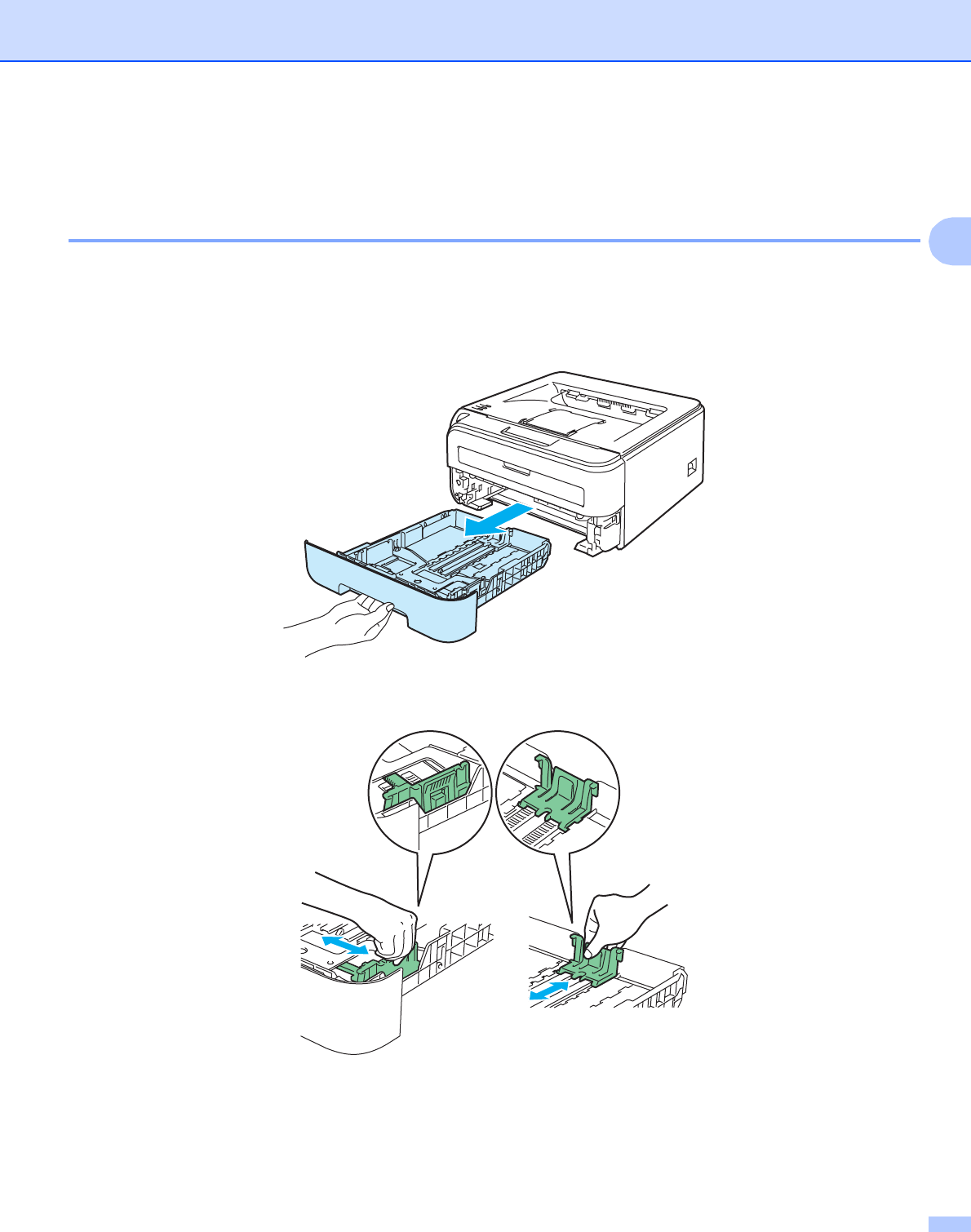
Unprintable area 2
The area of the paper that cannot be printed on is shown in the table below:
Portrait 2
Landscape 2
A4 Letter Legal B5 (ISO) Executive A5 A6 B6
14.23 mm
(0.16 in.)
4.23 mm
(0.16 in.)
4.23 mm
(0.16 in.)
4.23 mm
(0.16 in.)
4.23 mm
(0.16 in.)
4.23 mm
(0.16 in.)
4.23 mm
(0.16 in.)
4.23 mm
(0.16 in.)
26.01 mm
(0.24 in.)
6.35 mm
(0.25 in.)
6.35 mm
(0.25 in.)
6.01 mm
(0.24 in.)
6.35 mm
(0.25 in.)
6.01 mm
(0.24 in.)
6.01 mm
(0.24 in.)
6.01 mm
(0.24 in.)
34.23 mm
(0.16 in.)
4.23 mm
(0.16 in.)
4.23 mm
(0.16 in.)
4.23 mm
(0.16 in.)
4.23 mm
(0.16 in.)
4.23 mm
(0.16 in.)
4.23 mm
(0.16 in.)
4.23 mm
(0.16 in.)
46.01 mm
(0.24 in.)
6.35 mm
(0.25 in.)
6.35 mm
(0.25 in.)
6.01 mm
(0.24 in.)
6.35 mm
(0.25 in.)
6.01 mm
(0.24 in.)
6.01 mm
(0.24 in.)
6.01 mm
(0.24 in.)
A4 Letter Legal B5 (ISO) Executive A5 A6 B6
14.23 mm
(0.16 in.)
4.23 mm
(0.16 in.)
4.23 mm
(0.16 in.)
4.23 mm
(0.16 in.)
4.23 mm
(0.16 in.)
4.23 mm
(0.16 in.)
4.23 mm
(0.16 in.)
4.23 mm
(0.16 in.)
25.0 mm
(0.19 in.)
5.08 mm
(0.2 in.)
5.08 mm
(0.2 in.)
5.0 mm
(0.19 in.)
5.08 mm
(0.2 in.)
5.0 mm
(0.19 in.)
5.0 mm
(0.19 in.)
5.0 mm
(0.19 in.)
34.23 mm
(0.16 in.)
4.23 mm
(0.16 in.)
4.23 mm
(0.16 in.)
4.23 mm
(0.16 in.)
4.23 mm
(0.16 in.)
4.23 mm
(0.16 in.)
4.23 mm
(0.16 in.)
4.23 mm
(0.16 in.)
45.0 mm
(0.19 in.)
5.08 mm
(0.2 in.)
5.08 mm
(0.2 in.)
5.0 mm
(0.19 in.)
5.08 mm
(0.2 in.)
5.0 mm
(0.19 in.)
5.0 mm
(0.19 in.)
5.0 mm
(0.19 in.)
1
3
24
1
3
24
Printing Methods
9
2
Printing methods 2
Printing on plain paper, bond paper and transparencies 2
Printing on plain paper, bond paper and transparencies from the paper tray 2
(For the recommended paper to use, see About paper on page 5.)
aPull the paper tray completely out of the printer.
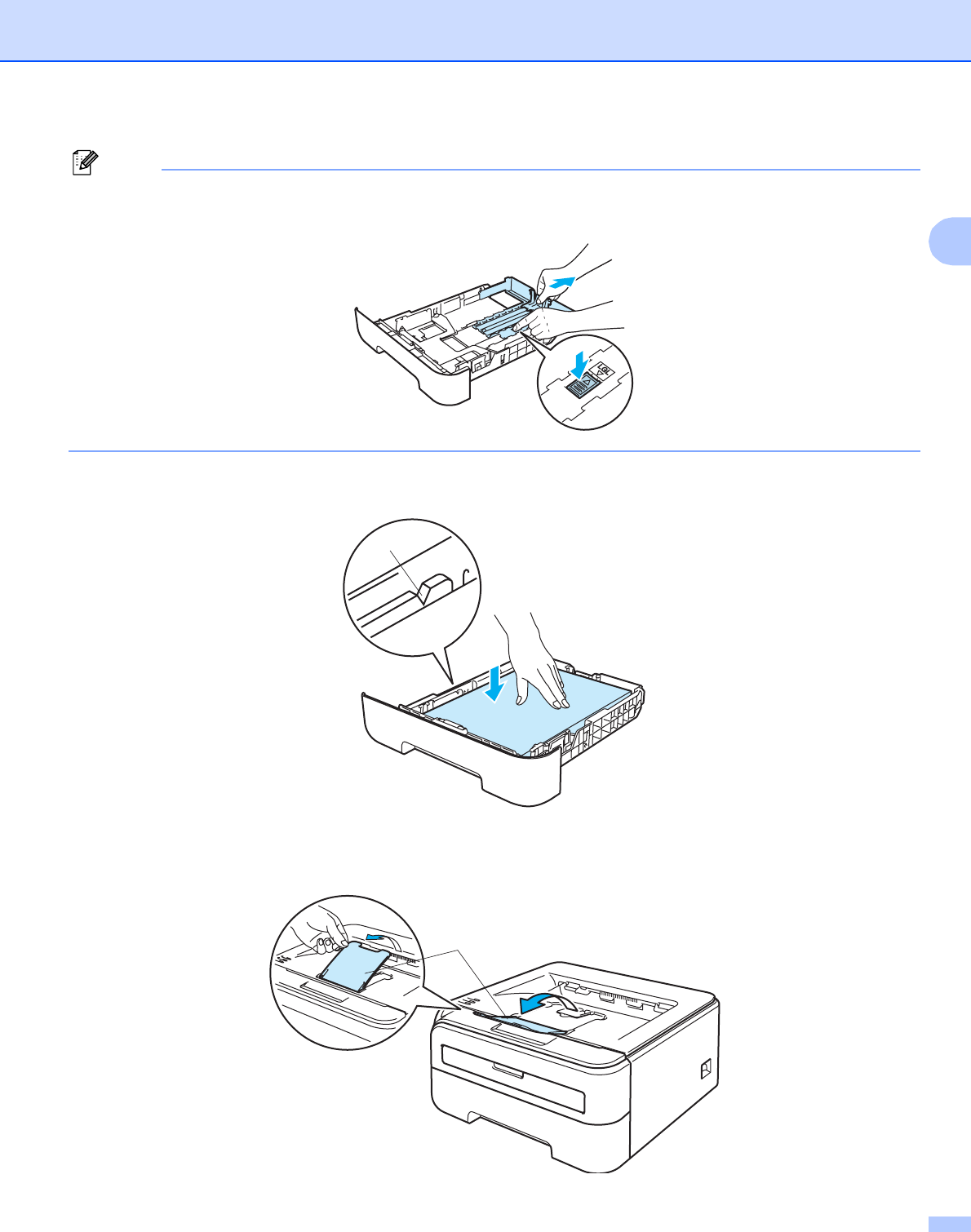
bWhile pressing the green paper-guide release lever, slide the paper guides to fit the paper size. Make
sure that the guides are firmly in the slots.
Printing Methods
10
2
Note
For Legal size paper, press in the inside latches and pull out the back of the paper tray. (Legal size paper
is not available in some regions.)
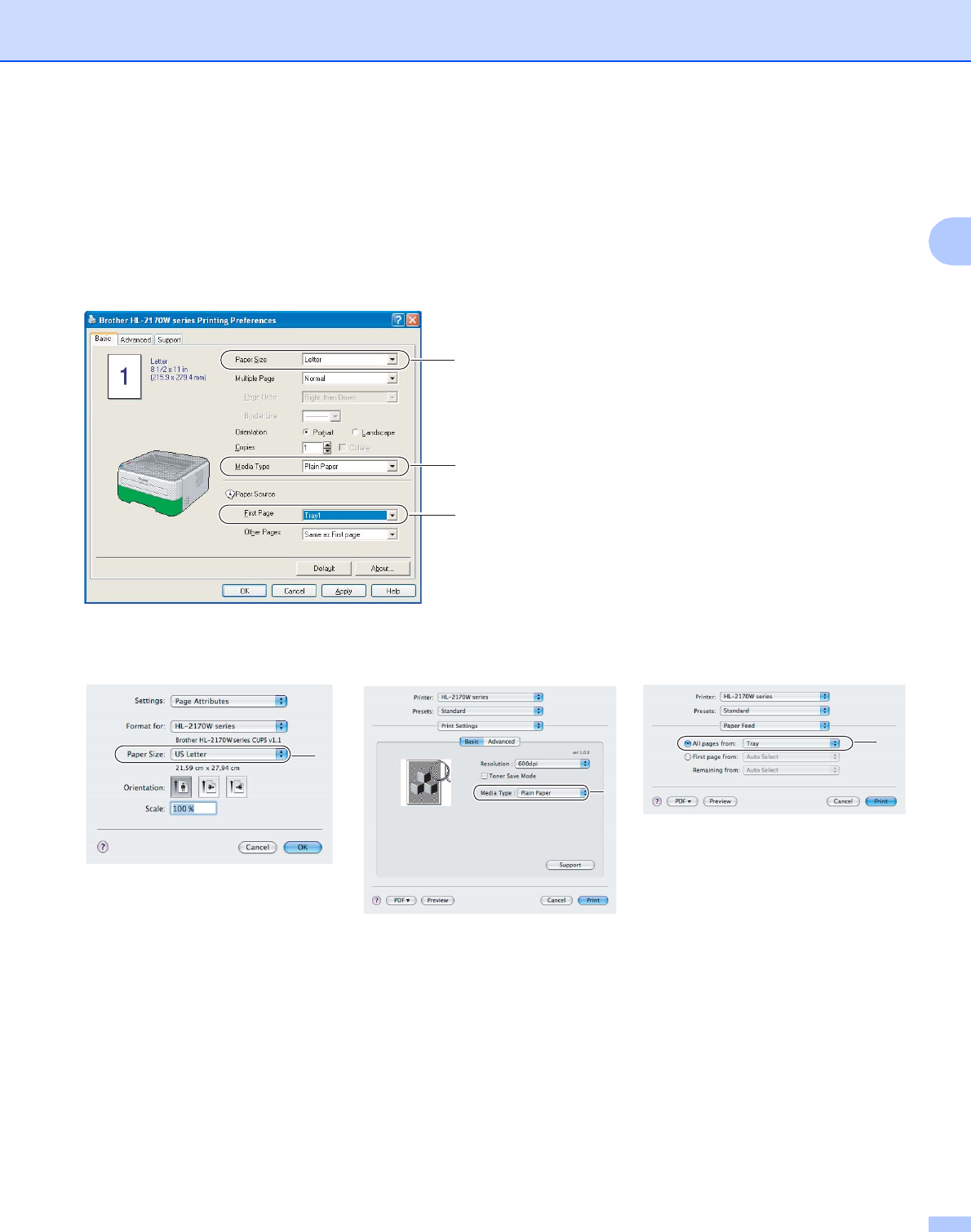
cPut paper in the tray, and make sure that the paper is below the maximum paper mark (1). The side to
be printed on must be face down.
dPut the paper tray firmly back in the printer. Make sure that it is completely inserted into the printer.
eLift up the support flap 1 (1) to prevent paper from sliding off the face-down output tray.
1
1
Printing Methods
11
2
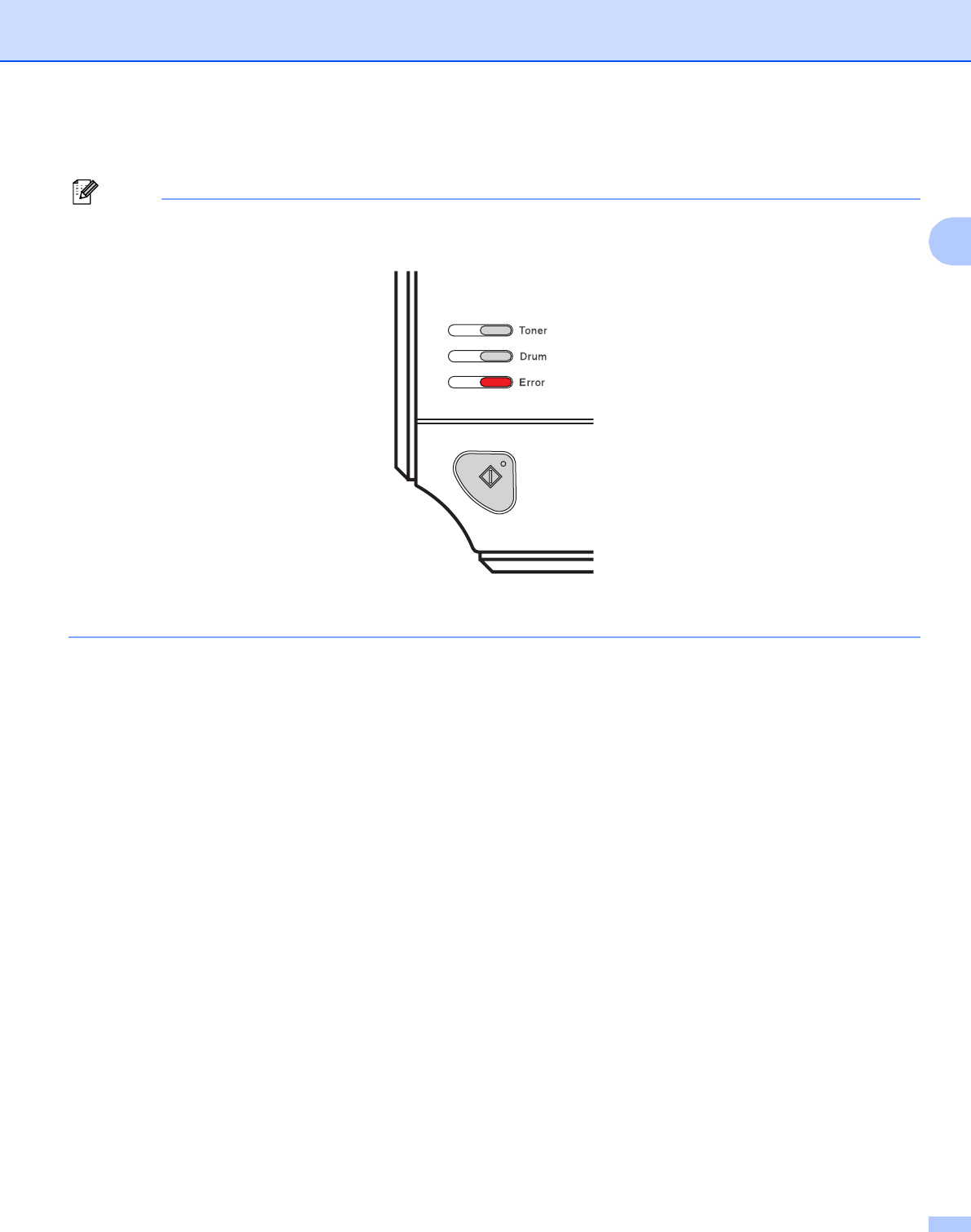
fChoose the following from the printer driver:
Paper Size ............................(1)
Media Type ...........................(2)
Paper Source .......................(3)
and any other settings.
Windows® printer driver
Macintosh® printer driver
1
2
3
1
2
3
Printing Methods
12
2
gSend the print data to the printer.
Note
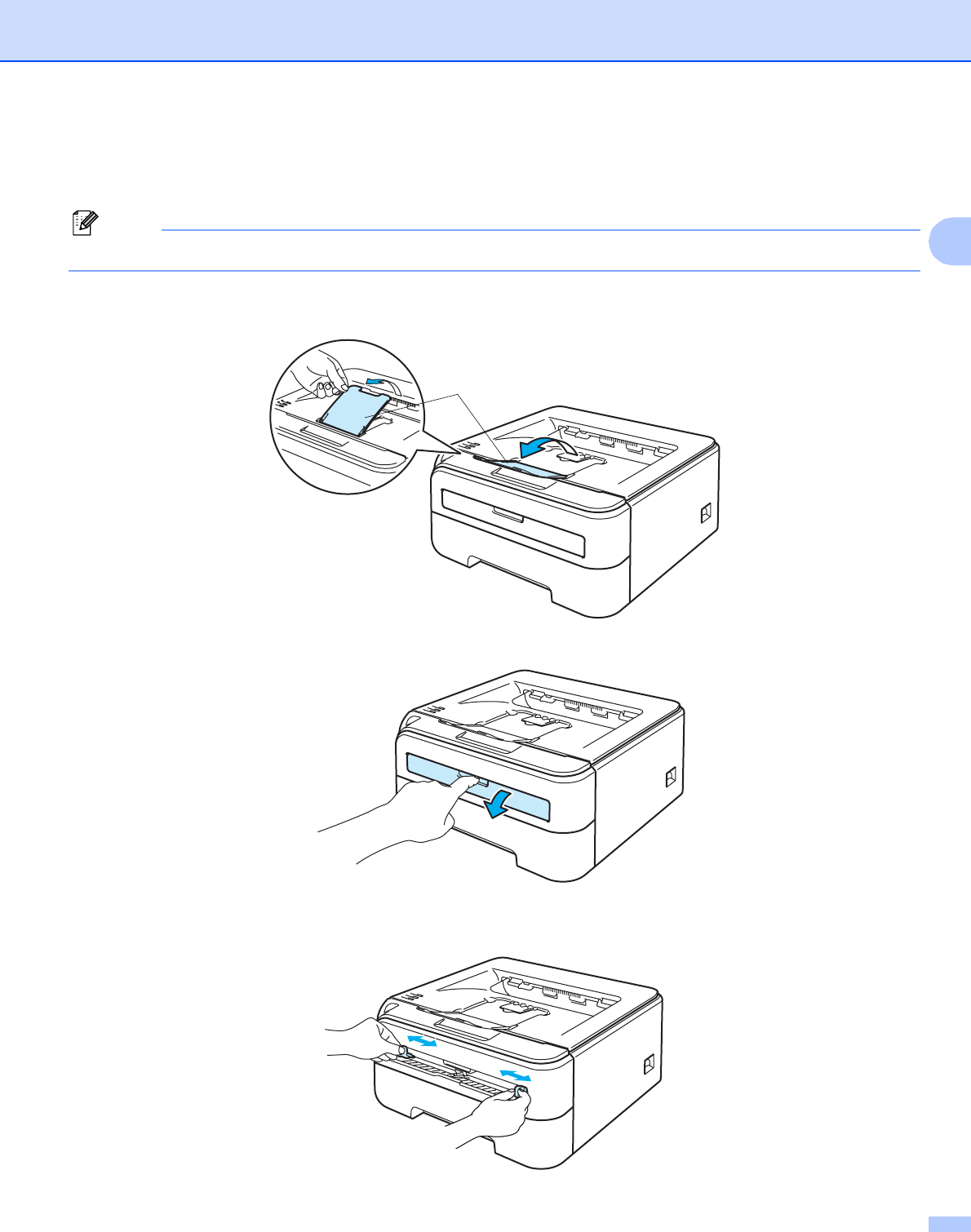
• The Error LED on the control panel will light up to indicate No paper if the power switch is turned on before
you put paper or transparencies in the tray. You can clear this error indication by pressing Go.
• When printing on transparencies, remove each transparency as soon as it has been printed. Stacking the
printed transparencies may cause a paper jam or the transparency to curl.
Printing Methods
13
2
Printing on plain paper, bond paper or transparencies from the Manual feed slot 2
(For the recommended paper to use, see About paper on page 5.)
Note
The printer automatically turns on the Manual Feed mode when you put paper in the manual feed slot.
aLift up the support flap 1 (1) to prevent paper from sliding off the face-down output tray, or remove each
page as soon as it comes out of the printer.
bOpen the manual feed slot cover.
cUsing both hands, slide the manual feed slot paper guides to the width of the paper that you are going
to use.
1
Printing Methods
14
2
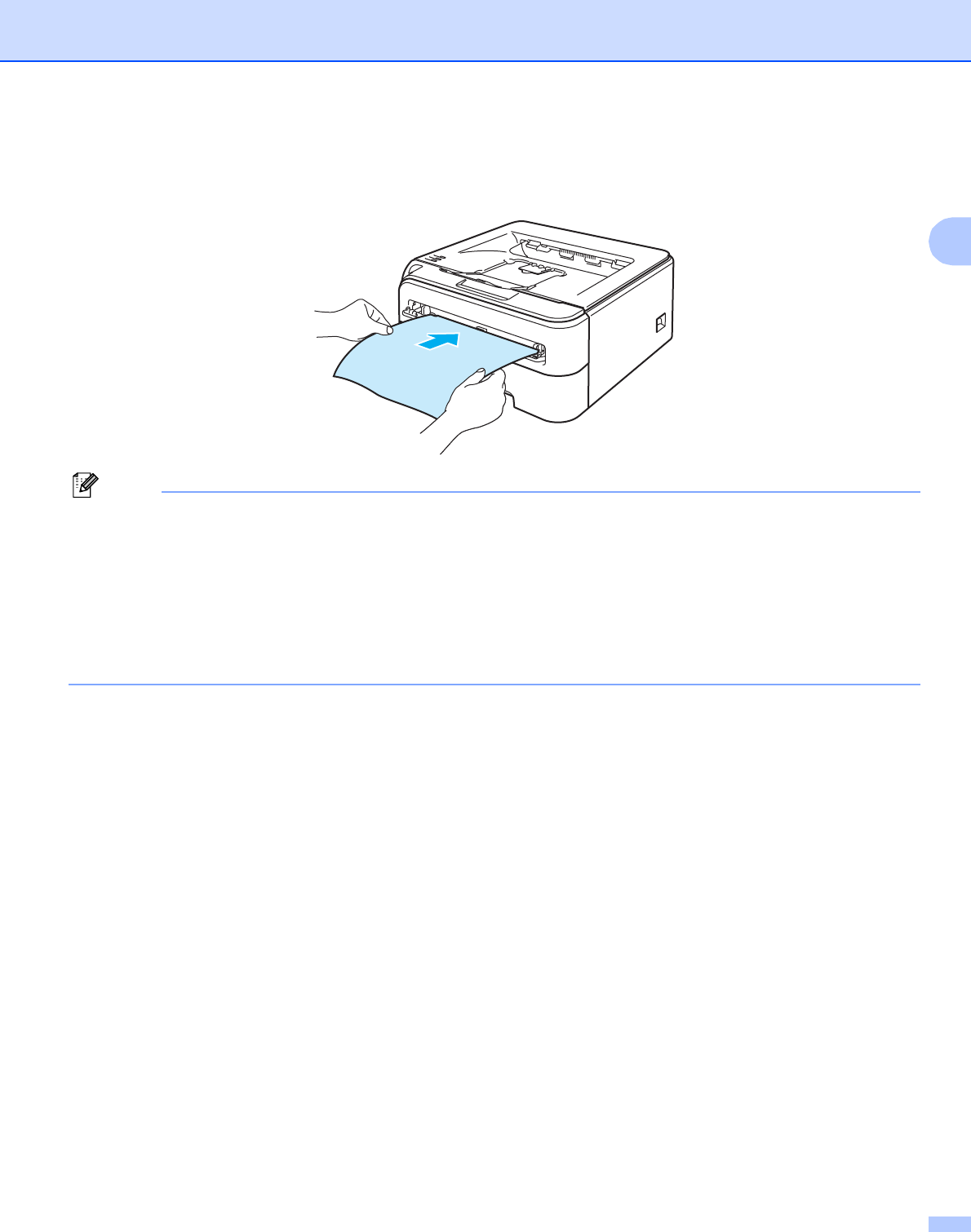
dUsing both hands, put one piece of paper or one transparency in the manual feed slot until the front edge
of the paper or transparency touches the paper feed roller. When you feel the machine pull in the paper,
let go.
Note
• Put the paper into the manual feed slot with the side to be printed face up.
• Make sure that the paper or transparency is straight and in the correct position on the manual feed slot. If
it is not, the paper or the transparency may not be fed properly, resulting in a skewed printout or a paper
jam.
• Do not put more than one piece of paper in the manual feed slot at any one time, as it may cause a jam.
• If you put any media (paper, transparency and so on) in the manual feed slot before the printer is in the
Ready state, the media may be ejected without being printed on.
Printing Methods
15
2
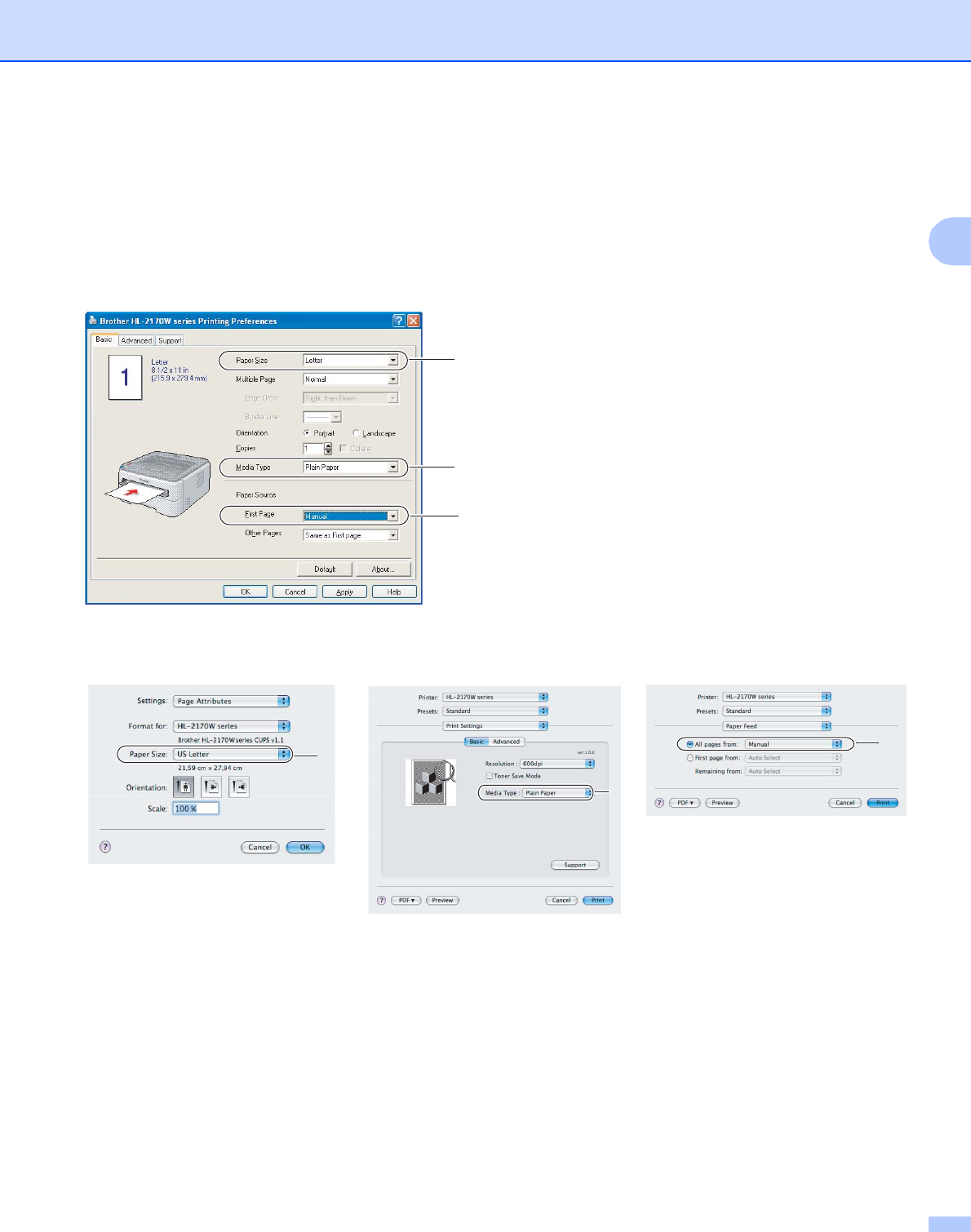
eChoose the following from the printer driver:
Paper Size ............................(1)
Media Type ...........................(2)
Paper Source .......................(3)
and any other settings.
Windows® printer driver
Macintosh® printer driver
1
2
3
1
2
3
Printing Methods
16
2
fSend the print data to the printer.
gAfter the printed page comes out of the printer, put in the next sheet of paper or transparency as in Step
d above. Repeat for each page that you want to print.
Note
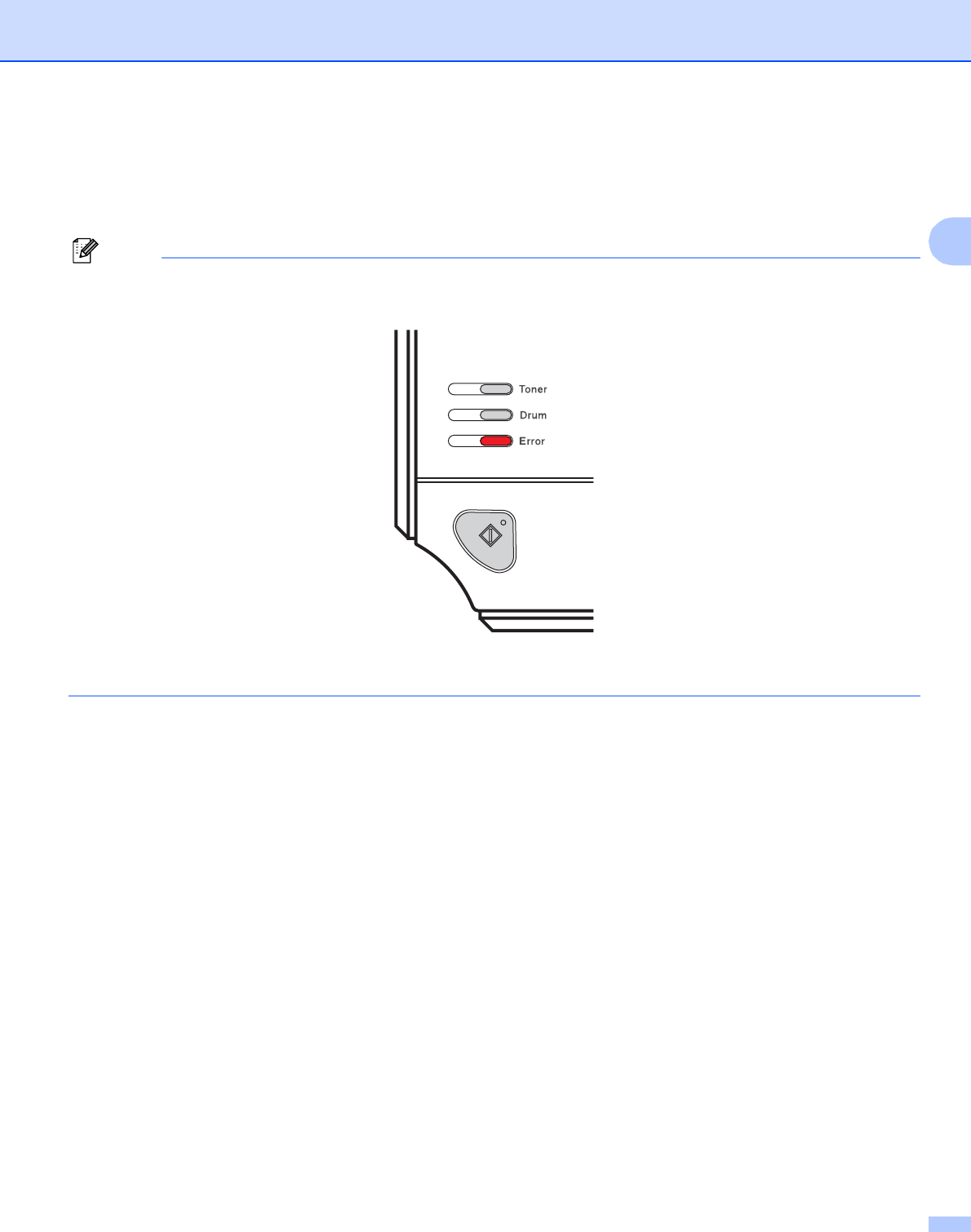
• The Error LED on the control panel will flash to indicate No paper in the manual feed slot until you put a
sheet of paper or transparency in the manual feed slot.
• When printing on transparencies, remove each transparency as soon as it has been printed. Stacking the
printed transparencies may cause a paper jam or transparency to curl.
Printing Methods
17
2
Printing on thick paper, labels and envelopes 2
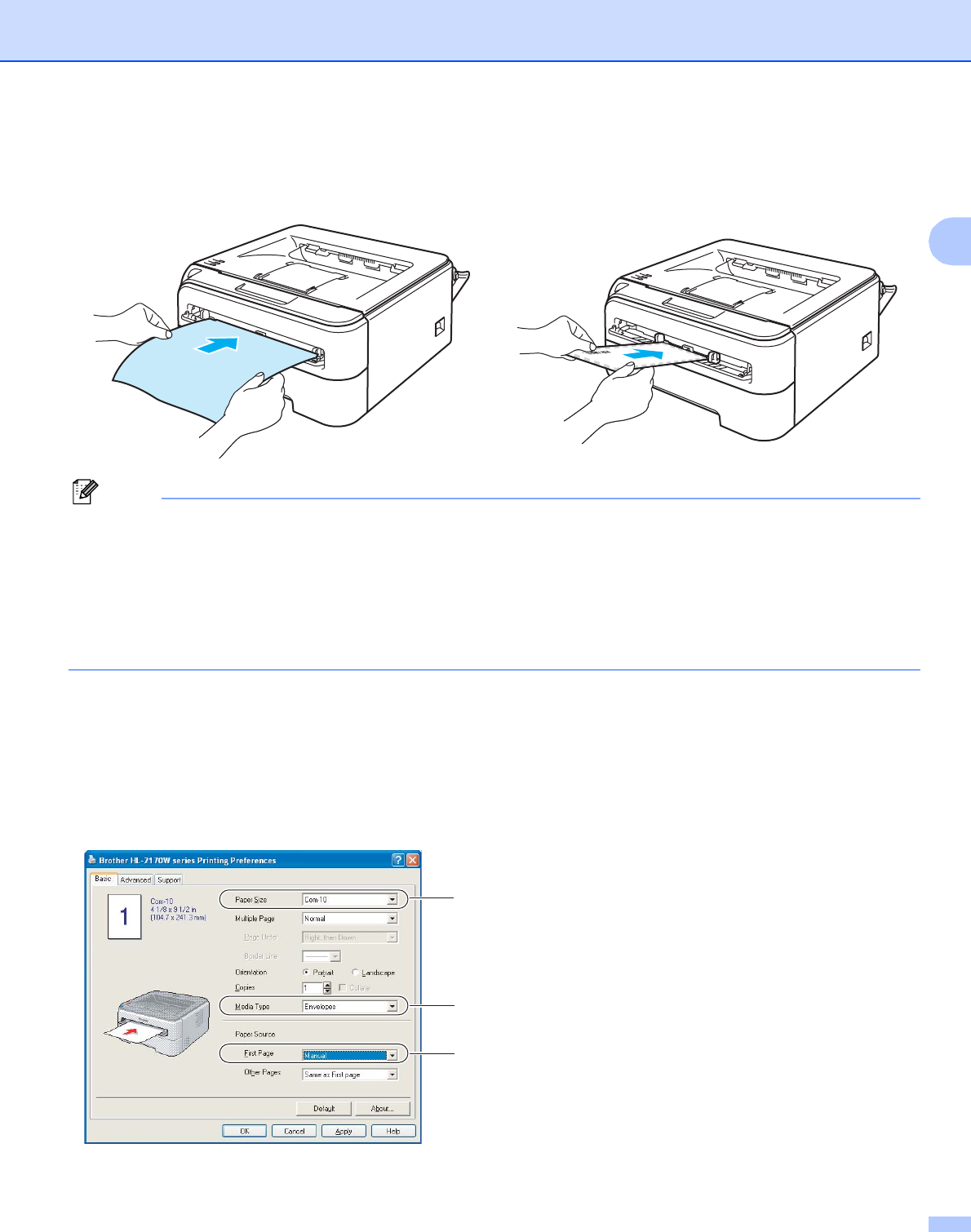
When the back output tray is pulled down, the printer has a straight paper path from the manual feed slot
through to the back of the printer. Use this paper feed and output method when you want to print on thick
paper, labels or envelopes. (For the recommended paper to use, see About paper on page 5 and Type and
size of paper on page 5.)
Note
The printer automatically turns on the Manual Feed mode when you put paper in the manual feed slot.
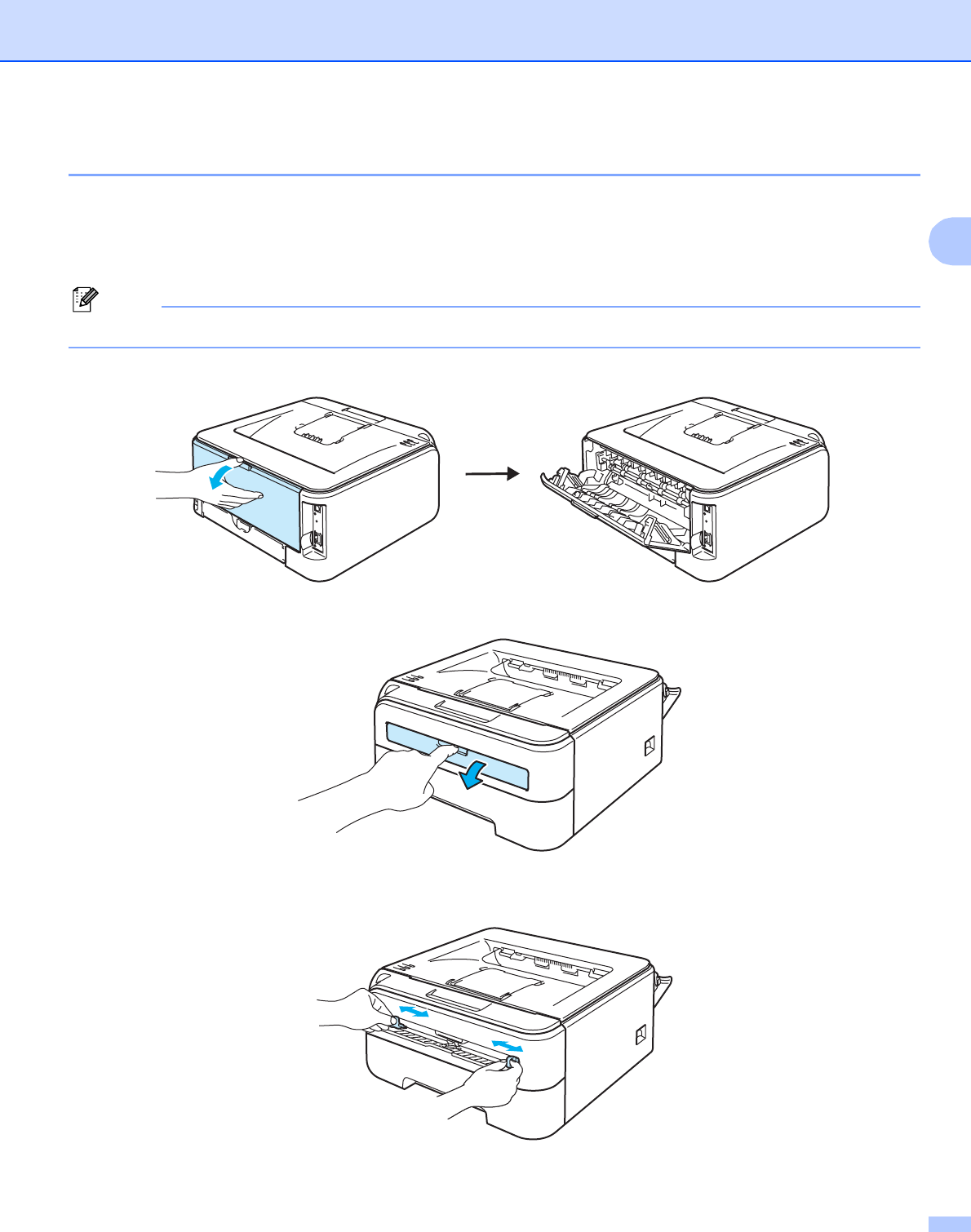
aOpen the back cover (back output tray).
bOpen the manual feed slot cover.
cUsing both hands, slide the manual feed slot paper guides to the width of the paper that you are going
to use.
Printing Methods
18
2
dUsing both hands, put one piece of paper or one envelope in the manual feed slot until the front edge of
the paper or envelope touches the paper feed roller. When you feel the machine pull in the paper, let go.
Note
• Put the paper into the manual feed slot with the side to be printed face up.
• Make sure that the paper or envelope is straight and in the proper position on the manual feed slot. If it is
not, the paper or the envelope may not be fed properly, resulting in a skewed printout or a paper jam.
• Do not put more than one piece of paper in the manual feed slot at any one time, as it may cause a jam.
• If you put any Media (paper, envelope and so on) in the manual feed slot before the printer is in the Ready
state, the media may be ejected without being printed on.
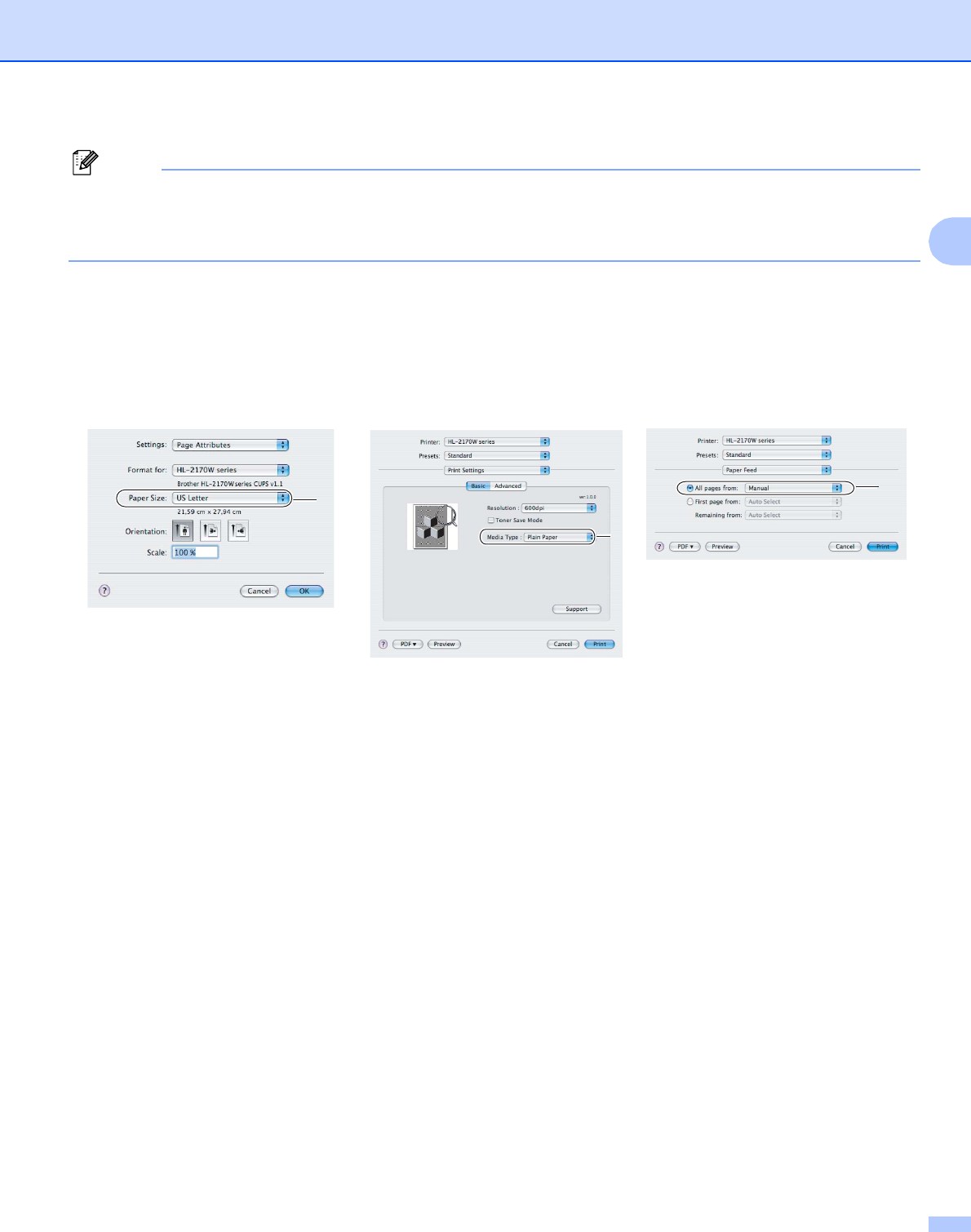
eChoose the following from the printer driver:
Paper Size ............................(1)
Media Type ...........................(2)
Paper Source .......................(3)
and any other settings.
Windows® printer driver
1
2
3
Printing Methods
19
2
Note
• When you use Envelope #10, choose Com-10 for the Paper Size.
• For other envelopes which are not listed in the printer driver, such as Envelope #9 or Envelope C6,
choose User Defined... (For more information on envelope sizes, see Paper size on page 106.)
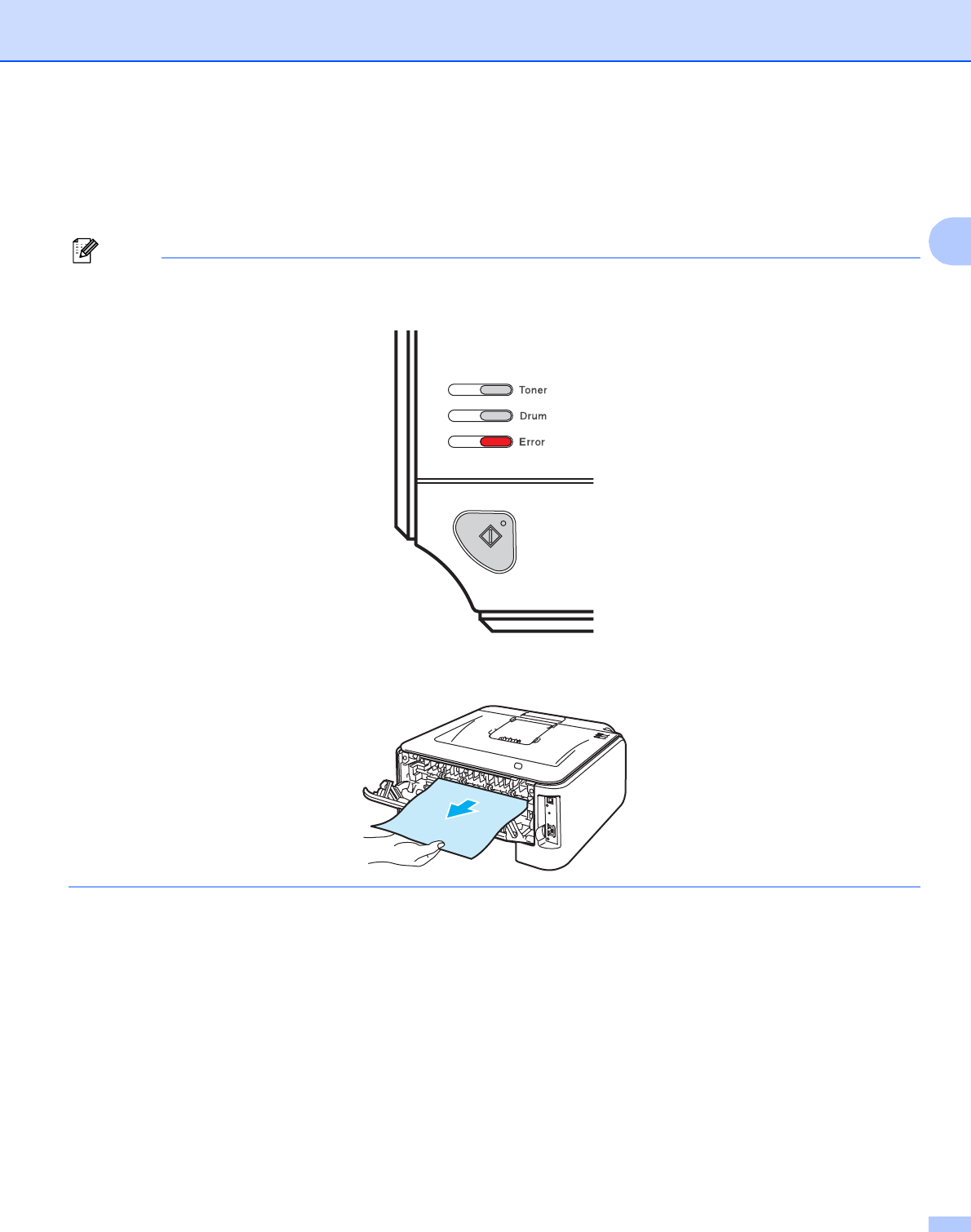
Macintosh® printer driver
Paper Size ............................(1)
Media Type ...........................(2)
Paper Source .......................(3)
and any other settings.
1
2
3
Printing Methods
20
2
fSend the print data to the printer.
gAfter the printed page comes out of the printer, put in the next sheet of paper or envelope as shown in
Step d. Repeat for each page that you want to print.
Note
• The Error LED on the control panel will flash to indicate No paper in the manual feed slot until you put a
sheet of paper or envelope in the manual feed slot.
• Remove each sheet or envelope as soon as it has been printed. Stacking sheets or envelopes may cause
the paper to jam or curl.
Printing Methods
21
2
Note
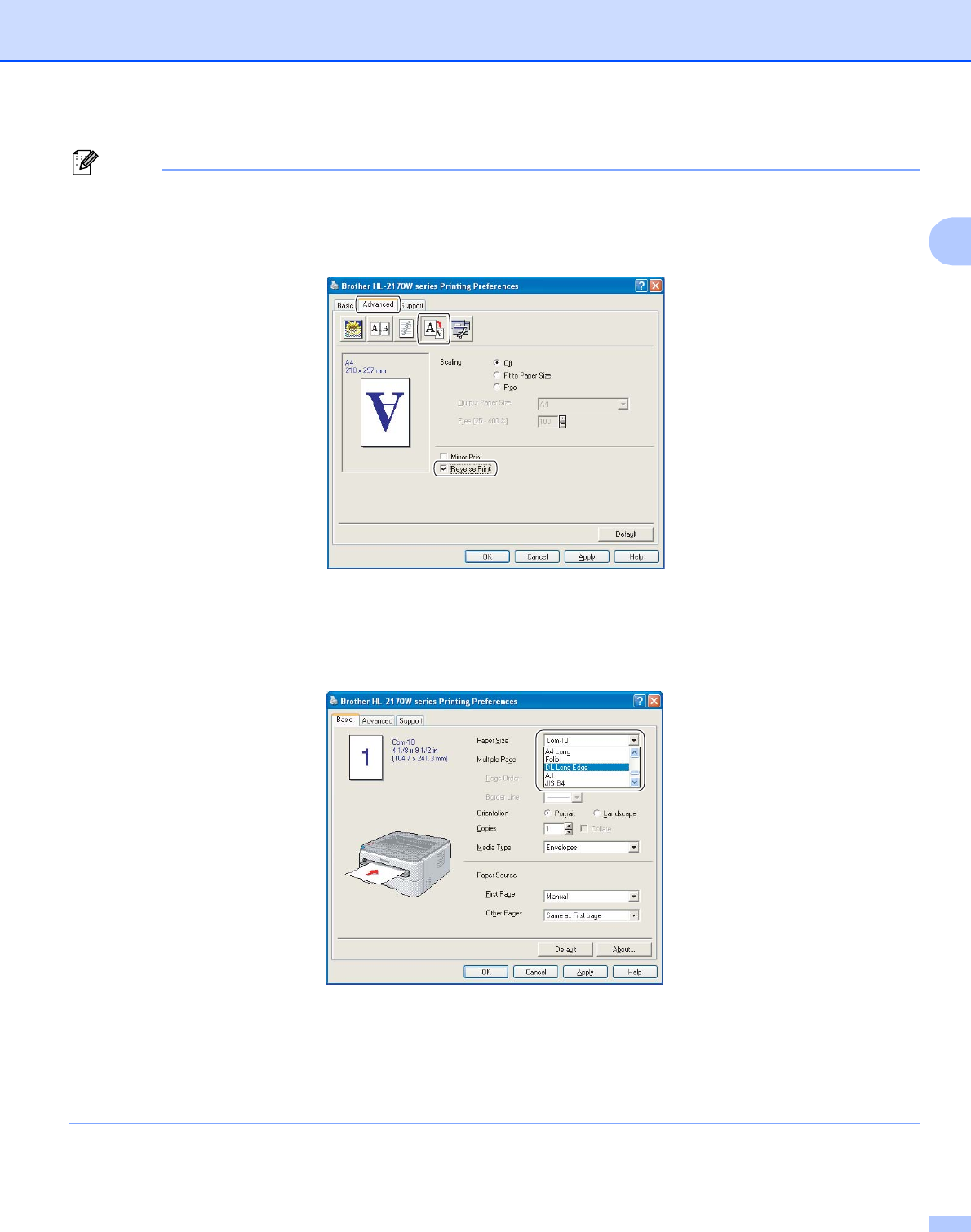
• If an envelope is creased after it is printed, turn the next one around 180° when you put it in the manual
feed slot, and then in the printer driver choose the Advanced tab, select Page Setting, and check the
Reverse Print box. As an alternative you can change the printing direction in your software application.
• If the DL size double flap envelope is creased after printing, choose DL Long Edge in Paper Size, from
the Basic tab. Put a new DL size double-flap envelope in the manual feed slot with the longest edge of
the envelope in first, then print again.
• If envelopes get smudged during printing set the Media Type to Thick Paper or Thicker Paper to
increase the fixing temperature.
• Envelope joints that are sealed by the manufacturer should be secure.
• All sides of the envelope should be properly folded without wrinkles or creases.
Printing Methods
22
2
Duplex printing 2
The supplied printer drivers for Windows® 2000/XP/XP Professional x64 Edition, Windows Vista™,
Windows Server® 2003/Windows Server® 2003 x64 Edition and Mac OS® X 10.3 or greater all enable duplex
printing. For more information about how to choose the settings, see the Help text in the printer driver.
Guidelines for printing on both sides of the paper 2
If the paper is thin, it may wrinkle.
If paper is curled, straighten it and then put it back in the paper tray or the manual feed slot.
If the paper is not feeding properly, it may be curled. Remove the paper and straighten it.
When you use the manual duplex function, it is possible that there may be paper jams or poor print quality.
(If there is a paper jam, see Paper jams and how to clear them on page 85. If you have a print quality
problem, see Improving the print quality on page 91.)
Note
• The screens in this section are from Windows® XP. The screens on your computer may vary depending on your
operating system.
• Make sure that the paper tray is completely inserted into the printer.
• You should use plain paper, recycled paper or thin paper. Do not use bond paper.
Printing on both sides of the paper (manual duplex printing) 2
If you are using the Macintosh® printer driver, see Duplex Printing on page 41.
Manual duplex printing from the paper tray 2
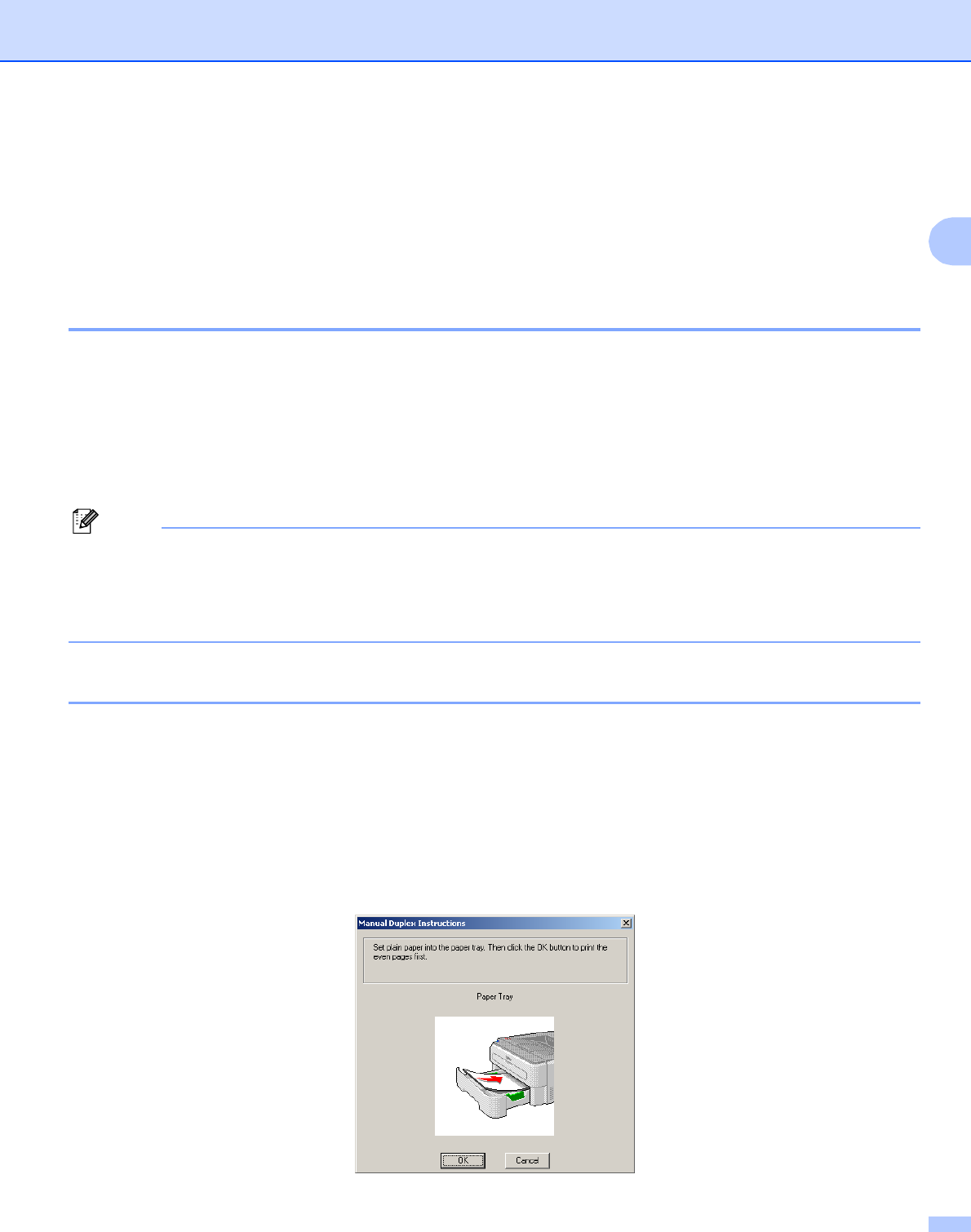
aIn the printer driver choose the Advanced tab, click the Duplex icon, and then choose the
Manual Duplex printing mode, and from the Basic tab choose the Paper Source to be Tray1.
bSend the data to the printer, then click OK on the computer screen.
The printer will automatically print all the even-numbered pages on one side of the paper first.
Printing Methods
23
2
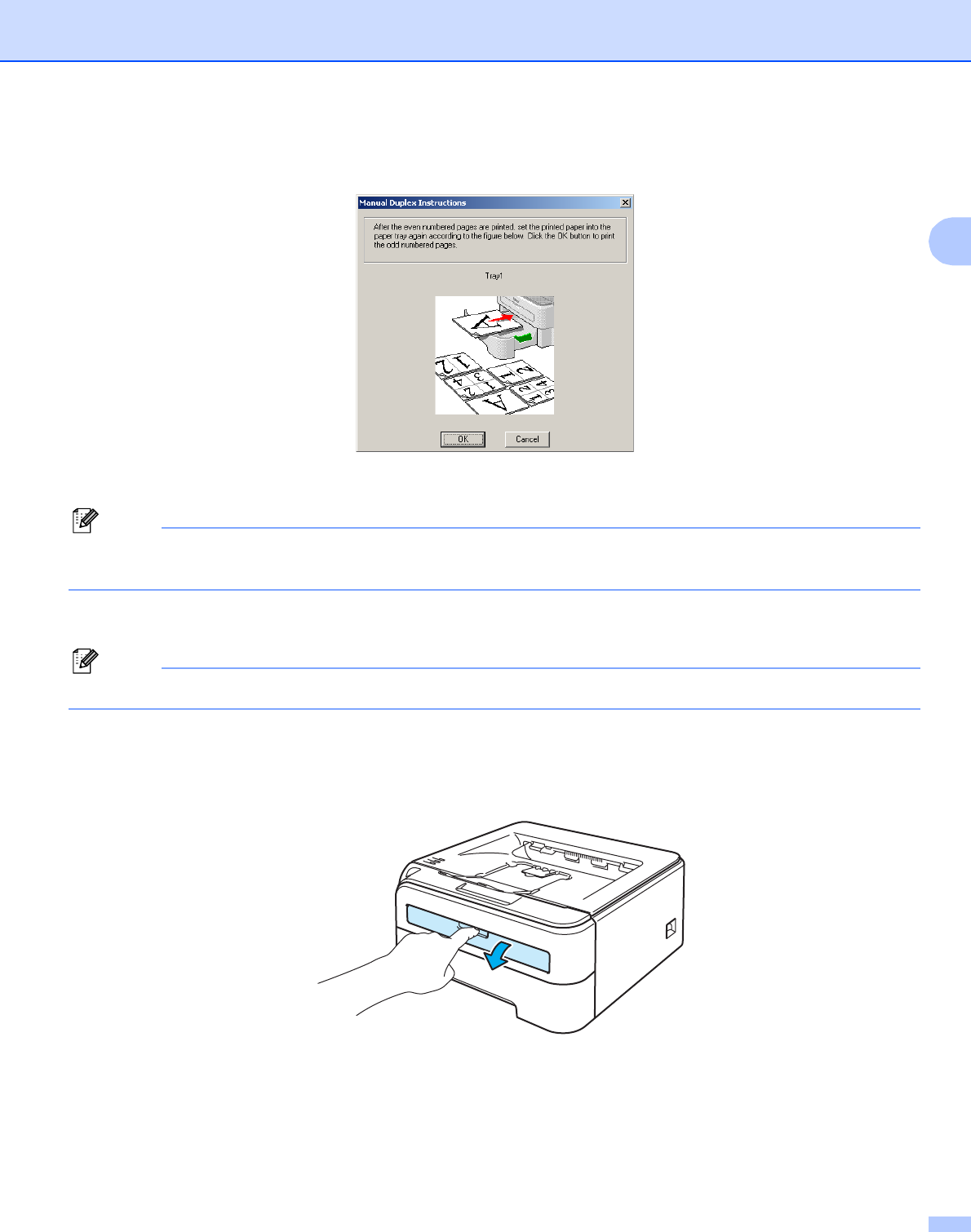
cRemove the printed even-numbered pages from the output tray and put them back in the paper tray with
the side to be printed on (blank side) face down. Follow the instructions on the computer screen.
dThe printer will now automatically print all the odd-numbered pages on the other side of the paper.
Note
When you put paper in the paper tray, first empty the tray. Next, put the printed pages in the tray, with the
printed side face up. (Do not add the printed pages to the top of a stack of unprinted paper.)
Manual duplex printing from the manual feed slot 2
Note
You should use plain paper and recycled paper. Do not use bond paper.
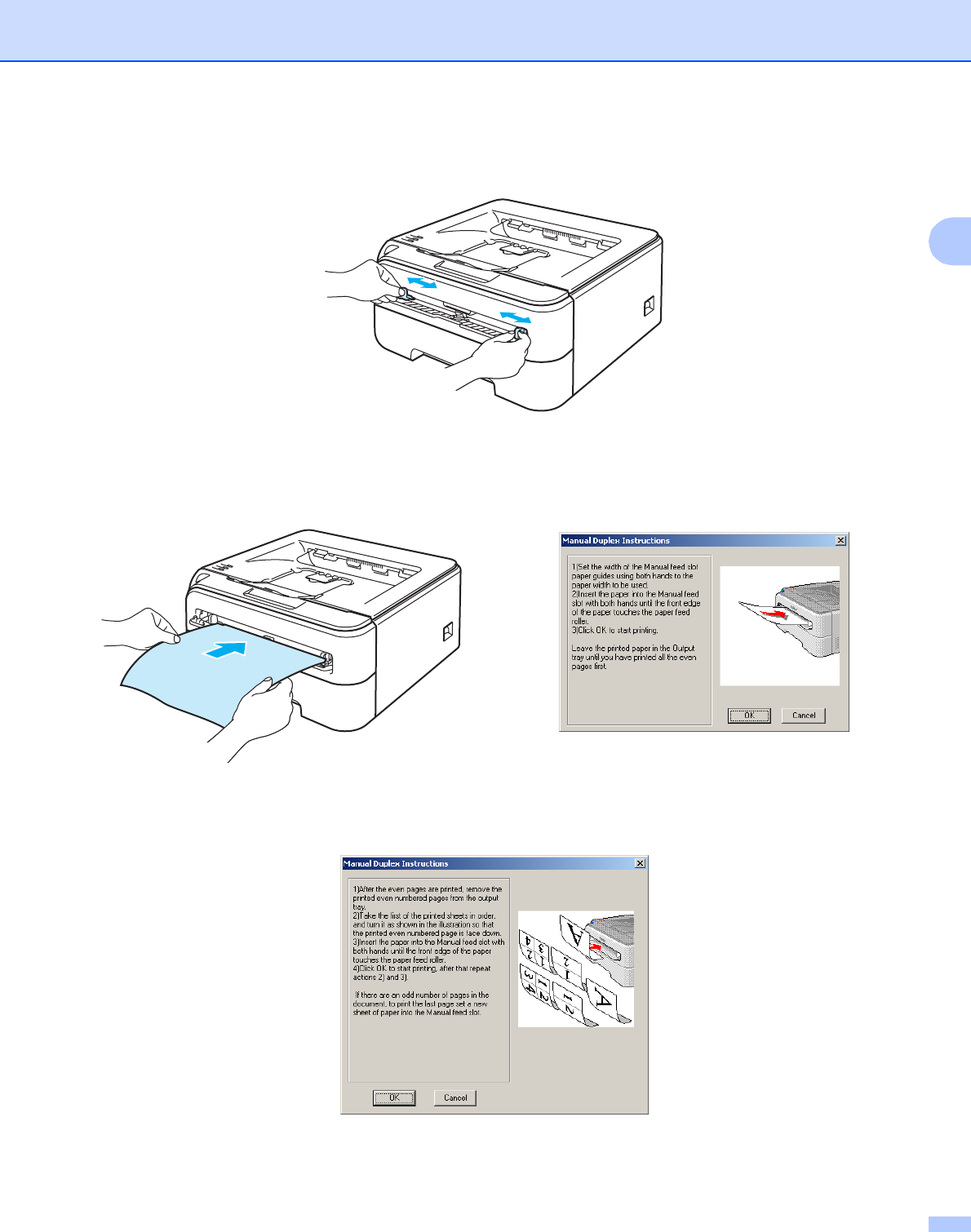
aIn the printer driver choose the Advanced tab, click the Duplex icon, then choose the Manual Duplex
printing mode, and then from the Basic tab choose the Paper Source to be Manual feed.
bOpen the manual feed slot cover.
Printing Methods
24
2
cUsing both hands, slide the manual feed slot paper guides to the width of the paper that you are going
to use.
dUsing both hands put the paper in the manual feed slot with the side that is going to be printed on first
facing up. Follow the instructions on the computer screen. Repeat this step until you have printed all the
even-numbered pages.
eRemove the printed even-numbered pages from the output tray, and then put the first of the printed
sheets back into the manual feed slot with the side to be printed on (the blank side) face up. Follow the
instructions on the computer screen.
fRepeat Step e until you have printed all the odd-numbered pages.

Printing Methods
25
2
Paper orientation for manual duplex printing 2
The printer prints the second page first.
If you print 10 pages on 5 sheets of paper, it will print page 2 and then page 1 on the first sheet of paper. It
will print page 4 and then page 3 on the second sheet of paper. It will print page 6 and then page 5 on the
third sheet of paper, and so on.
When doing manual duplex printing, the paper must be put in the paper tray in the following way:
For the paper tray:
• Put the side to be printed on face down with the leading edge (top) of the paper at the front of the tray.
• To print on the second side, put the paper face up, with the leading edge (top) of the paper at the front
of the tray.
• If letterhead paper is used, put the paper in the tray with the heading face up at the front of the tray.
• To print on the second side, put the heading face down at the front of the tray.
For the manual feed slot:
• Put the side to be printed on face up with the leading edge (top) of the paper in first.
• To print on the second side, put the paper face down, with the leading edge (top) of the paper in first.
• If letterhead paper is used, put it in with the heading face down and in first.
• To print on the second side, put the heading face up and in first.

26
3
3
Printer driver 3
A printer driver is software that translates data from the format used by a computer to the format that a
particular printer needs. Typically, this format is page description language (PDL).
The printer drivers for the supported versions of Windows® and Macintosh® are on the CD-ROM we have
supplied or on the Brother Solutions Center at http://solutions.brother.com. Install the drivers by following the
Quick Setup Guide. The latest printer driver can be downloaded from the Brother Solutions Center at
http://solutions.brother.com.
(If you want to uninstall the printer driver, see Uninstalling the printer driver on page 45.)
For Windows® 3
Windows® printer driver (HL-2150N / HL-2170W only)
GDI printer driver for Windows® (HL-2140 only)
For Macintosh®
3
Macintosh® printer driver
For Linux 12
3
LPR printer driver
CUPS printer driver
1Download the printer driver for Linux from http://solutions.brother.com or a link on the supplied CD-ROM.
2Depending on Linux distributions, the driver may not be available.
Note
• For more information about Linux printer driver, visit us at http://solutions.brother.com.
• The printer driver for Linux may be released after the initial release of this product.
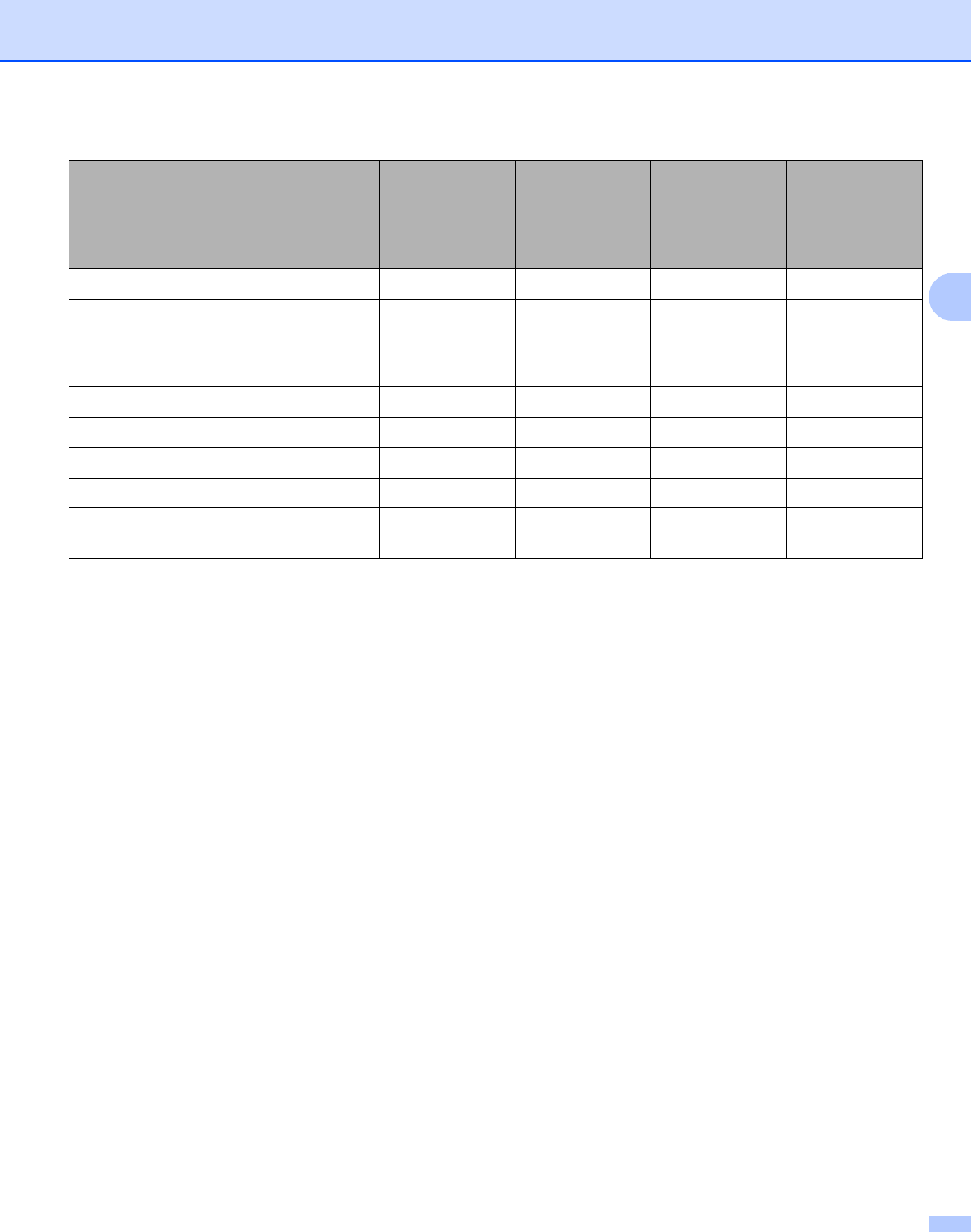
Driver and Software 3
Driver and Software
27
3
1Download the printer driver from http://solutions.brother.com or a link on the supplied CD-ROM.
If you download from a link on CD-ROM, click Install Other Drivers or Utilities, then click For Linux users on the screen menu. Access to
internet is required.
Windows®
printer driver
(HL-2150N/
HL-2170W
Only)
GDI printer
driver for
Windows®
(HL-2140 Only)
Macintosh®
printer driver
LPR / CUPS
printer driver 1
Windows® 2000 Professional pp
Windows® XP Home Edition pp
Windows® XP Professional pp
Windows Vista™ pp
Windows Server® 2003 pp
Windows® XP Professional x64 Edition pp
Windows Server® 2003 x64 Edition pp
Mac OS® X 10.2.4 or greater p
Linux (Mandrake, Red Hat,
SuSE Linux, Debian) 1p

Driver and Software
28
3
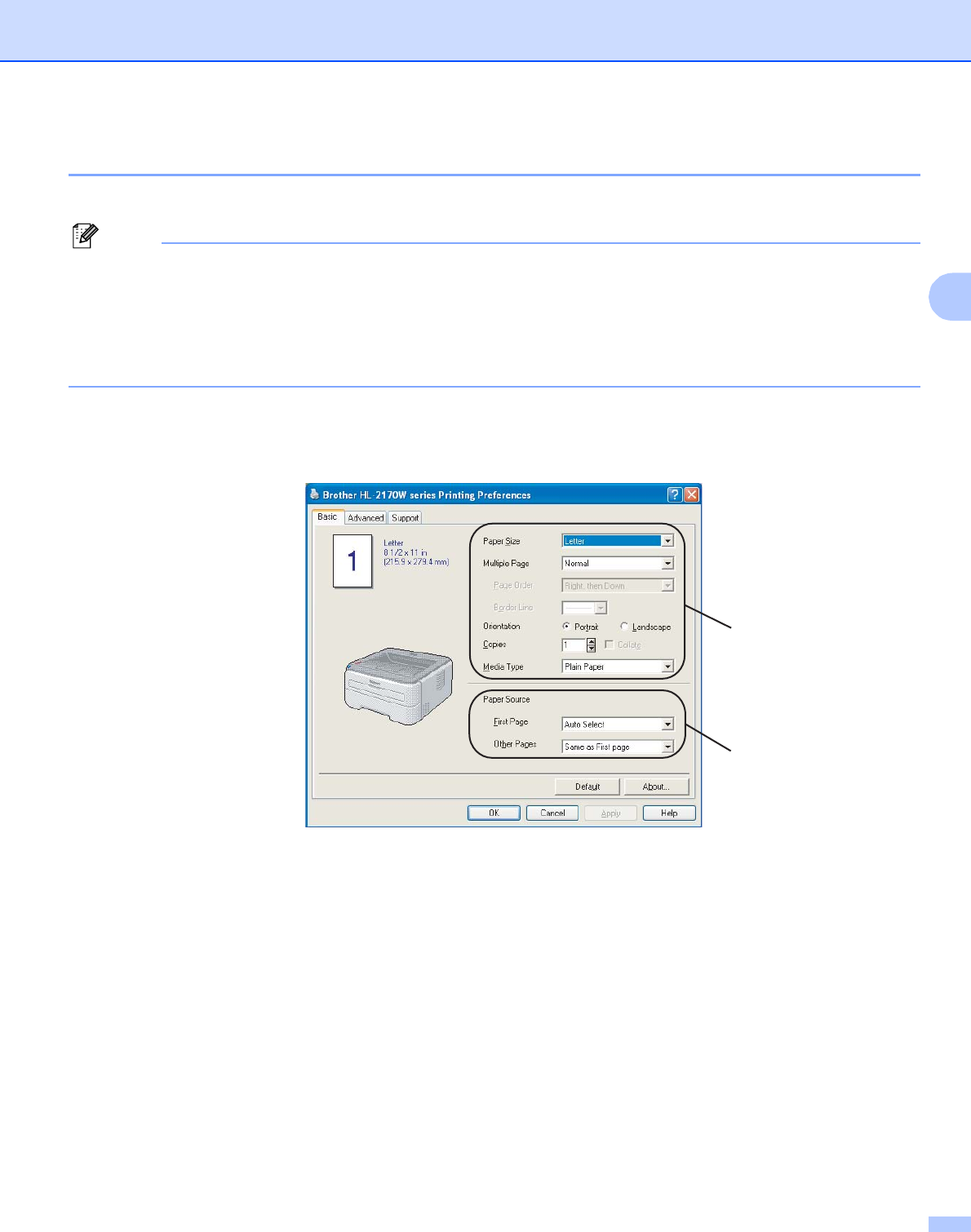
You can change the following printer settings when you print from your computer.
Paper Size
Multiple Page
Orientation
Copies
Media Type
Paper Source
Resolution
Toner Save Mode
Print Setting
Manual Duplex printing 1
Watermark 2
Scaling
Job Spooling 2
Quick Print Setup 2
Sleep Time
Macro 23
Header-Footer Print 2
Density adjustment 2
Error Message Printout 2
Improve Print Output
1These settings are not available with the Mac OS® 10.2.4.
2These settings are not available with the Macintosh® printer driver.
3These settings are not available with the HL-2140.
Driver and Software
29
3
Features in the printer driver (for Windows®)3
(For more information, see the Help text in the printer driver.)
Note
• The screens in this section are from Windows® XP. The screens on your computer will vary depending on
your operating system.
• If you are using Windows® 2000, XP, Windows Vista™ or Windows Server® 2003, you can access the
Printing Preferences dialog box by clicking Printing Preferences... in the General tab of the
Printer Properties dialog box.
Basic tab 3
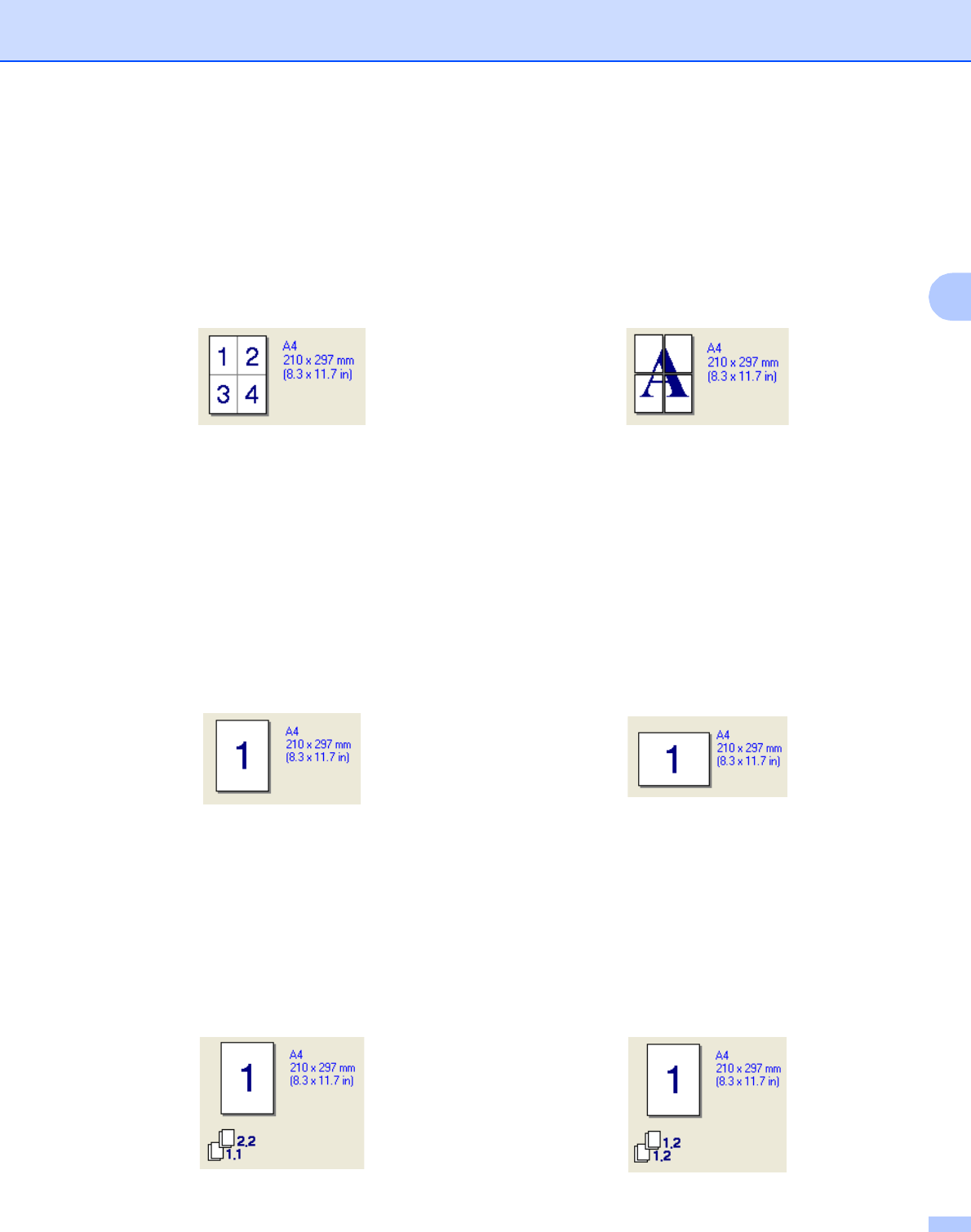
You can also change settings by clicking the illustration on the left side of the Basic tab.
aChoose the Paper Size, Multiple Page, Orientation, Copies and Media Type (1).
bChoose the Paper Source (2).
cClick OK to apply your chosen settings.
To return to the default settings, click Default, then OK.
1
2
Driver and Software
30
3
Paper Size 3
From the drop-down box choose the Paper Size you are using.
Multiple Page 3
The Multiple Page selection can reduce the image size of a page allowing multiple pages to be printed on
one sheet of paper or can enlarge the image size for printing one page on multiple sheets of paper.
Page Order 3
When N in 1 option is selected, the page order can be selected from the drop-down list.
Border Line 3
When printing multiple pages on one sheet with the Multiple Page feature you can choose to have a solid
border, dash border or no border around each page on the sheet.
Orientation 3
Orientation selects the position of how your document will be printed (Portrait or Landscape).
Copies 3
The copies selection sets the number of copies that will be printed.
Collate 3
With the Collate check box selected, one complete copy of your document will be printed and then will be
repeated for the number of copies you selected. If the Collate check box is not selected, then each page will
be printed for all the copies selected before the next page of the document is printed.

Driver and Software
31
3
Media Type 3
You can use the following types of media in your printer. For the best print quality, select the type of media
that you wish to use.
Note
• When using ordinary plain paper (72.5 g/m2 to 95 g/m2 / 19 to 25 lb) choose Plain Paper. When using
heavier weight paper or rough paper choose Thick Paper or Thicker Paper. For bond paper, choose
Bond Paper.
• When you use envelopes, choose Envelopes. If the toner is not fixed to the envelope correctly when
Envelopes has been selected, choose Env. Thick. If the envelope is crumpled when Envelopes has
been selected, choose Env.Thin.
Paper Source 3
You can choose Auto Select, Tray1, Manual and specify separate trays for printing the first page and for
printing from the second page onwards.
Note
The printer automatically turns on the Manual Feed mode when you put paper in the manual feed slot.
Plain Paper Thin Paper Thick Paper Thicker Paper Bond Paper Transparencies
Envelopes Env. Thick Env. Thin Recycled Paper
Driver and Software
32
3
Advanced tab 3
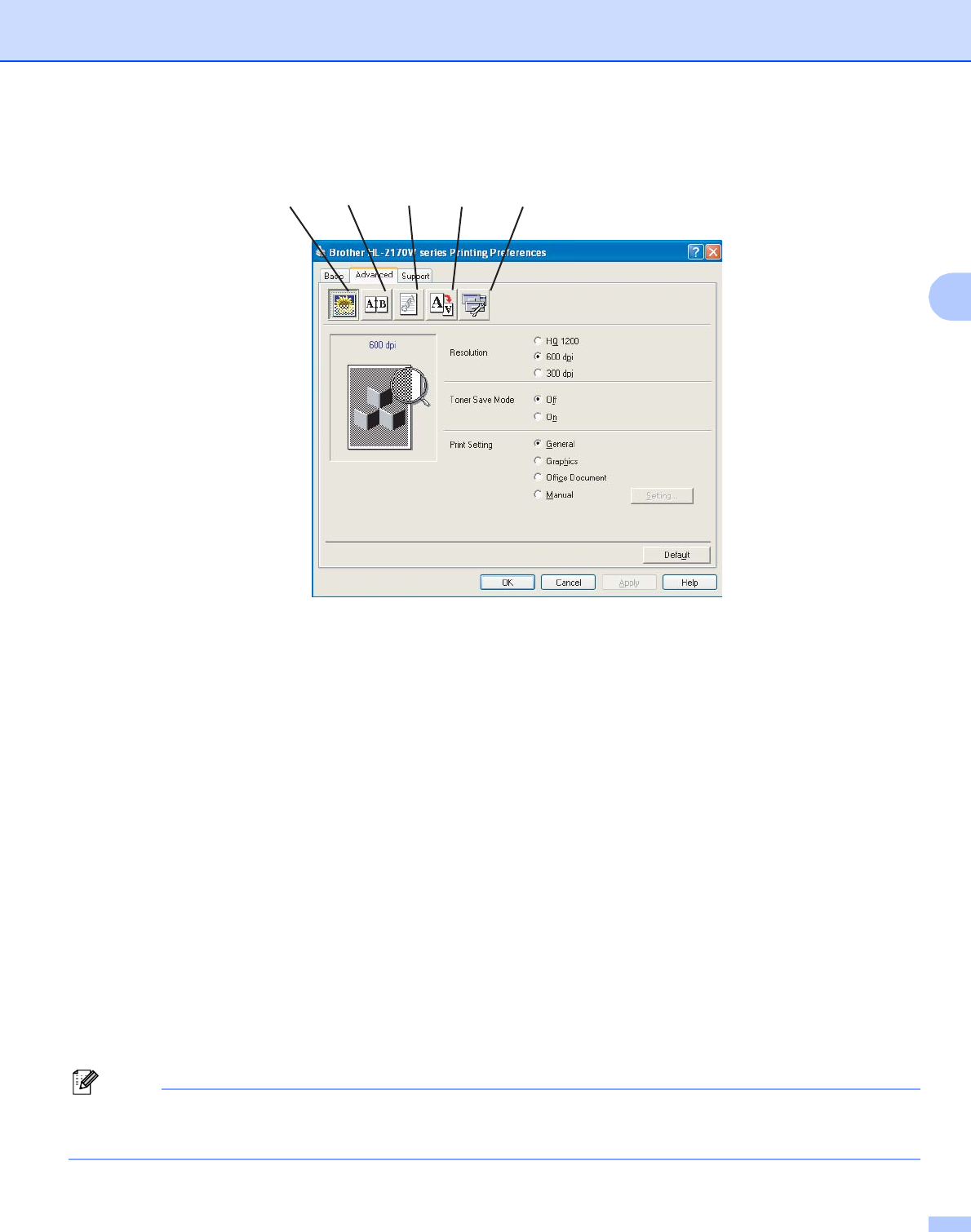
Change the tab settings by clicking one of the following icons:
Print Quality (1)
Duplex (2)
Watermark (3)
Page Setting (4)
Device Options (5)
Print Quality 3
Resolution
You can change the resolution as follows:
•HQ1200
• 600 dpi
• 300 dpi
Toner Save Mode
You can save running costs by turning on the Toner Save Mode, which reduces the print density (print
appears lighter).
Note
• We do not recommend Toner Save Mode for printing Photo or Greyscale images.
•Toner Save Mode is not available for HQ 1200 resolution.
12 34 5

Driver and Software
33
3
Print Setting
You can manually change the print setting.
•General
This is a printing mode for general printing of documents.
•Graphics
This is the best mode for printing documents that contain graphics.
•Office Document
This is the best mode for printing office documents.
•Manual
You can change the settings manually by choosing Manual and clicking the Setting... button. You can
set brightness, contrast and other settings.
Duplex Printing 3
Manual Duplex
Check the Duplex box and choose Manual Duplex. In this mode, the printer prints all the even numbered
pages first. Then the printer driver will stop and show the instructions required to re-install the paper. When
you click OK the odd numbered pages will be printed. There are six types of manual duplex binding
directions available for each orientation.
Booklet Printing
When you want to print a booklet, use this function. To make the Booklet, fold the printed pages down the
middle, when using the booklet printing function.
Binding Offset
If you check the Binding Offset option, you can also specify the offset for binding in inches or millimeters.
Watermark 3
You can put a logo or text into your documents as a watermark.
You can choose one of the preset watermarks, or you can use a bitmap file or text file that you have created.
When you use a bitmap file as a watermark, you can change the size of the watermark and put it anywhere
you like on the page.
When you use text as a watermark, you can change the font, darkness and angle settings.
Page Setting 3
You can change the print image scaling and choose Mirror/Reverse print options.
Driver and Software
34
3
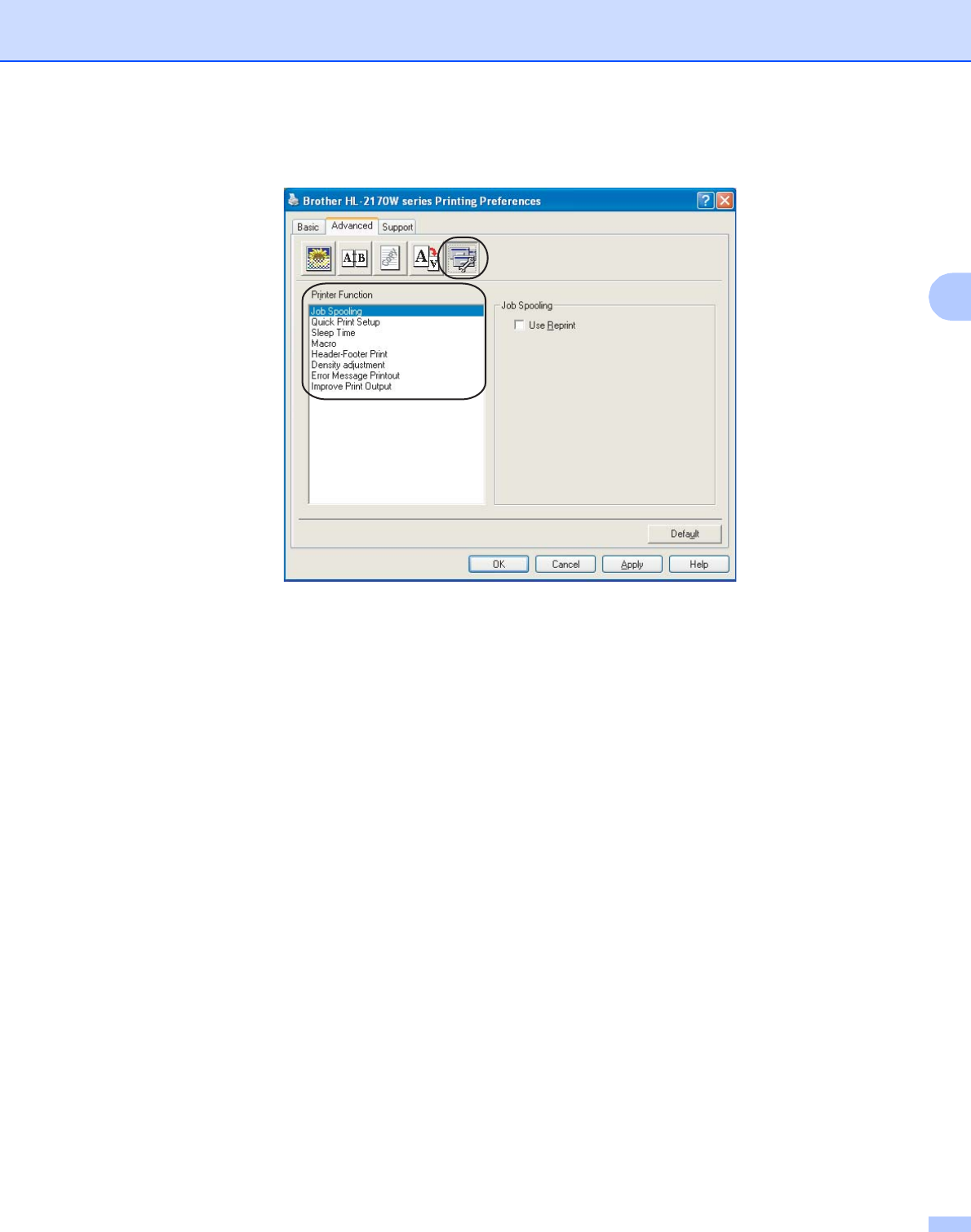
Device Options 3
You can set the following in Printer Function:
Job Spooling
Quick Print Setup
Sleep Time
Macro (HL-2150N / HL-2170W only)
Header-Footer Print
Density adjustment
Error Message Printout
Improve Print Output

Driver and Software
35
3
Job Spooling
The printer keeps the last print job sent to it in memory.
To reprint the last document, press the Go button and hold it down for about 4 seconds until all the LEDs
light up in order (Toner, Drum, Error, Ready), and then release the Go button. Within 2 seconds press
the Go button the number of times you want to reprint. If you don’t press the Go button within 2 seconds,
a single copy will be printed.
Note
If you want to prevent other people from printing your data using the reprint function, uncheck the
Use Reprint check box in the job spooling settings.
Quick Print Setup
This feature allows you to quickly choose driver settings by clicking a tasktray icon.
You can turn the quick print setting on or off. By placing a check in the selection boxes for the following
functions you can choose which will be available in the quick print setting.
• Multiple Page
• Manual Duplex
• Toner Save Mode
• Paper Source
• Media Type
Sleep Time
When the printer does not receive data for a certain period of time, it enters sleep mode. In sleep mode,
the printer acts as though it were turned off. When you choose Printer Default the timeout setting will be
5 minutes. Intelligent Sleep Mode automatically adjusts to the most suitable timeout setting depending on
the frequency of your printer use.
While the printer is in sleep mode, the Ready LED lights up slightly, but the printer can still receive data.
Receiving a print file or document or pressing the Go button will automatically wake up the printer to start
printing.
To turn sleep mode off, from the Advanced tab, click the Device Options icon and choose Sleep Time.
Double-click the word Sleep Time, and the Sleep Time Off function will appear. Click Off to stop the printer
going into sleep mode. The Sleep Time Off function can be hidden by double-clicking the word Sleep Time
again. We recommend that you keep sleep mode on for power saving.
Macro (HL-2150N / HL-2170W only)
You can save a page of a document as a macro to the printer's memory. You can also execute the saved
macro (you can use the saved macro as an overlay on any document). This will save time and increase
printing speed for often used information such as forms, company logos, letterhead formats or invoices.

Driver and Software
36
3
Header-Footer Print
When this feature is enabled, it will print the date and time on your document from your computer’s system
clock and the PC login user name or the text you entered. By clicking Setting, you can customize the
information.
•ID Print
If you select Login User Name, your PC login user name will print. If you select Custom and enter the
text in the Custom edit box, the text you entered will print.
Density adjustment
Increase or decrease the print density.
Note
The Density adjustment is not available when you set the resolution to HQ 1200.
Error Message Printout
You can choose whether the printer reports problems by printing an error page. For details, see Error
message printout on page 82.
Selections are Printer Default (ON), ON and OFF.
Improve Print Output
This feature allows you to improve a print quality problem.
• Reduce Paper Curl
If you choose this setting, the paper curl may be reduced.
If you are printing only a few pages, you do not need to choose this setting. We recommend that you
change the printer driver setting in Media Type to a thin setting.
• Improve Toner Fixing
If you choose this setting, the toner fixing on paper may be improved. If this selection does not improve
the situation enough, select Thicker paper in Media type settings.
Driver and Software
37
3
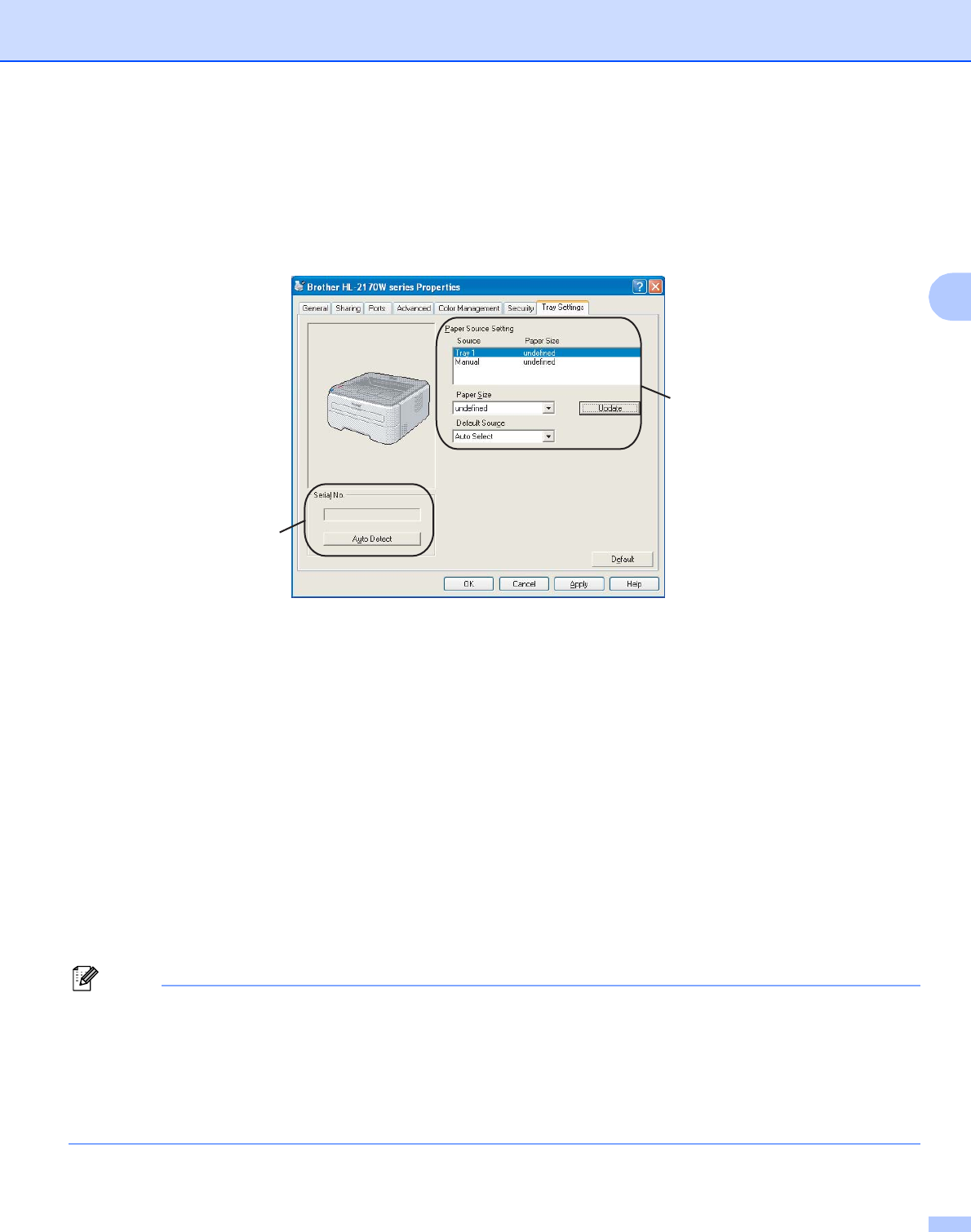
Tray Settings tab 3
You can define the paper size for each paper tray and auto detect the serial number in the Tray Settings tab
as follows.
Paper Source Setting (1)
This feature identifies the paper size defined for each paper tray.
•Paper Size
This setting allows you to define which paper size is used for the tray and manual feed slot. Highlight the paper
source you want to define and then choose the paper size from the pull-down menu. Click Update to apply the
setting to the paper source.
•Default Source
This setting allows you to choose the default paper source that your document will be printed from. Choose the
Default Source from the pull-down menu and click Update to save your setting. The Auto Select setting will
automatically pull paper from any paper source (tray or manual feed slot) that has a defined paper size that
matches your document.
Serial No. (2)
By clicking Auto Detect, the printer driver will probe the printer and display its serial number. If it fails to
receive the information, the screen will display "---------".
Note
The Auto Detect function is not available under the following printer conditions:
• The printer power switch is off.
• The printer is in an error state.
• The printer is in a network shared environment.
• The cable is not connected to the printer correctly.
1
2
Driver and Software
38
3
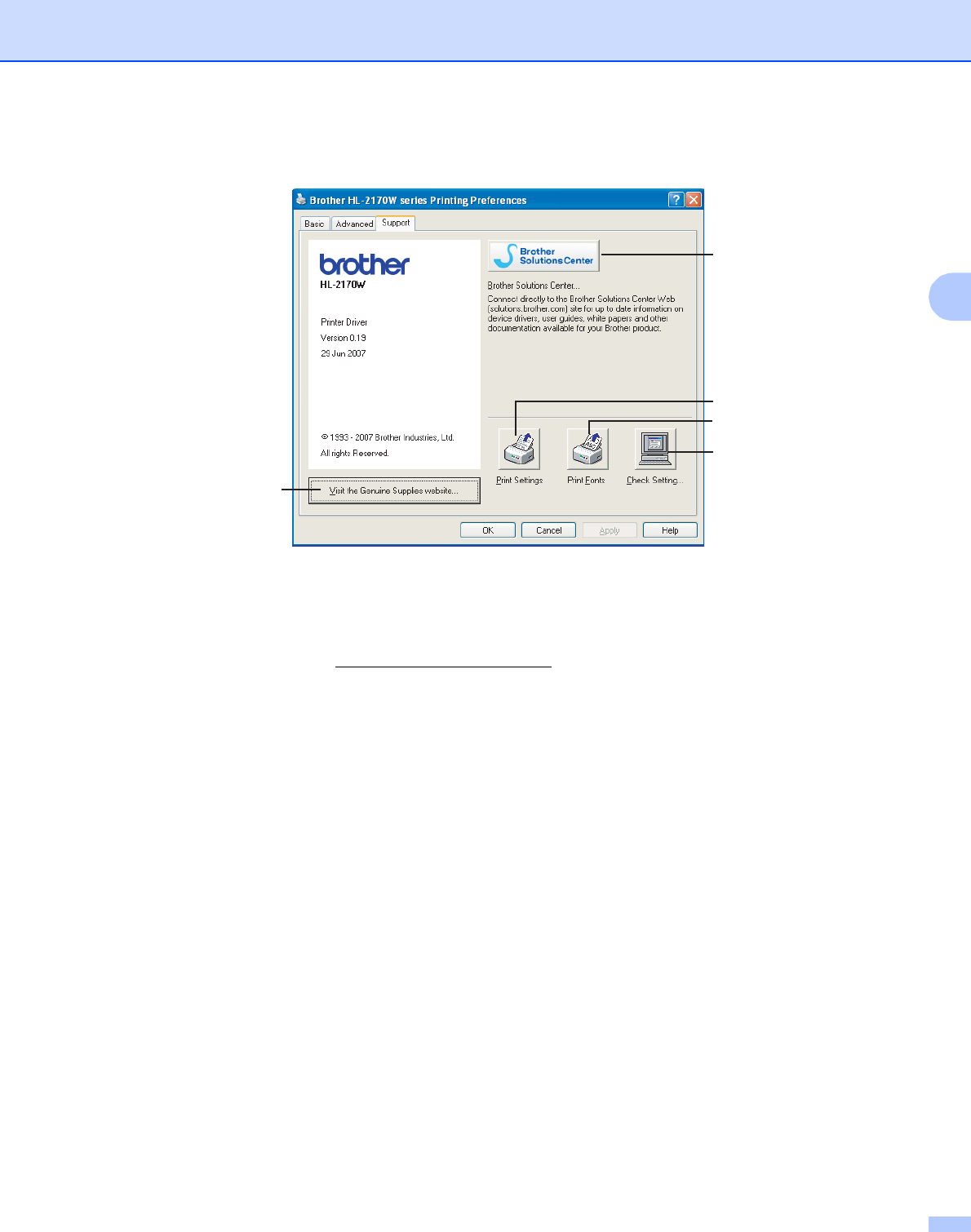
Support tab 3
Visit the Genuine Supplies website (1)
You can visit our website for original/genuine Brother supplies by clicking this button.
Brother Solutions Center (2)
The Brother Solutions Center (http://solutions.brother.com) is a website offering information about your
Brother product including FAQs (Frequently Asked Questions), User’s Guides, driver updates and tips for
using your printer.
Print Settings (3)
This will print the pages that show how the internal settings of the printer have been configured.
Print Fonts (4) (HL-2150N / HL-2170W only)
This will print the pages that show all the internal fonts of the printer.
Check Setting... (5)
You can check the current driver settings.
2
1
3
5
4
Driver and Software
39
3
Features in the printer driver (for Macintosh®)3
This printer supports Mac OS® X 10.2.4 or greater.
Note
The screens in this section are from Mac OS® X 10.4. The screens on your Macintosh® will vary depending
on your operating system.
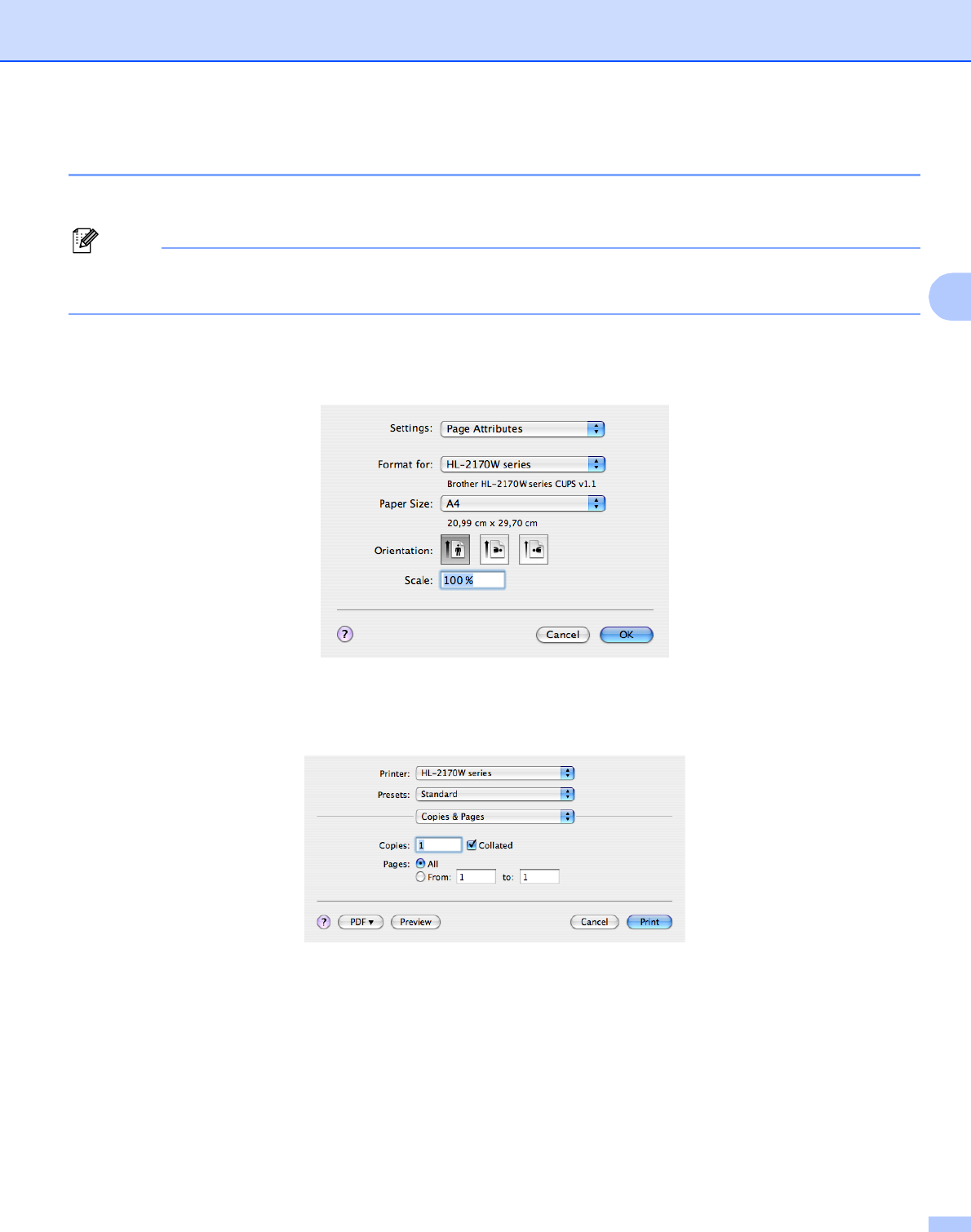
Page Setup 3
You can set the Paper Size, Orientation and Scale.
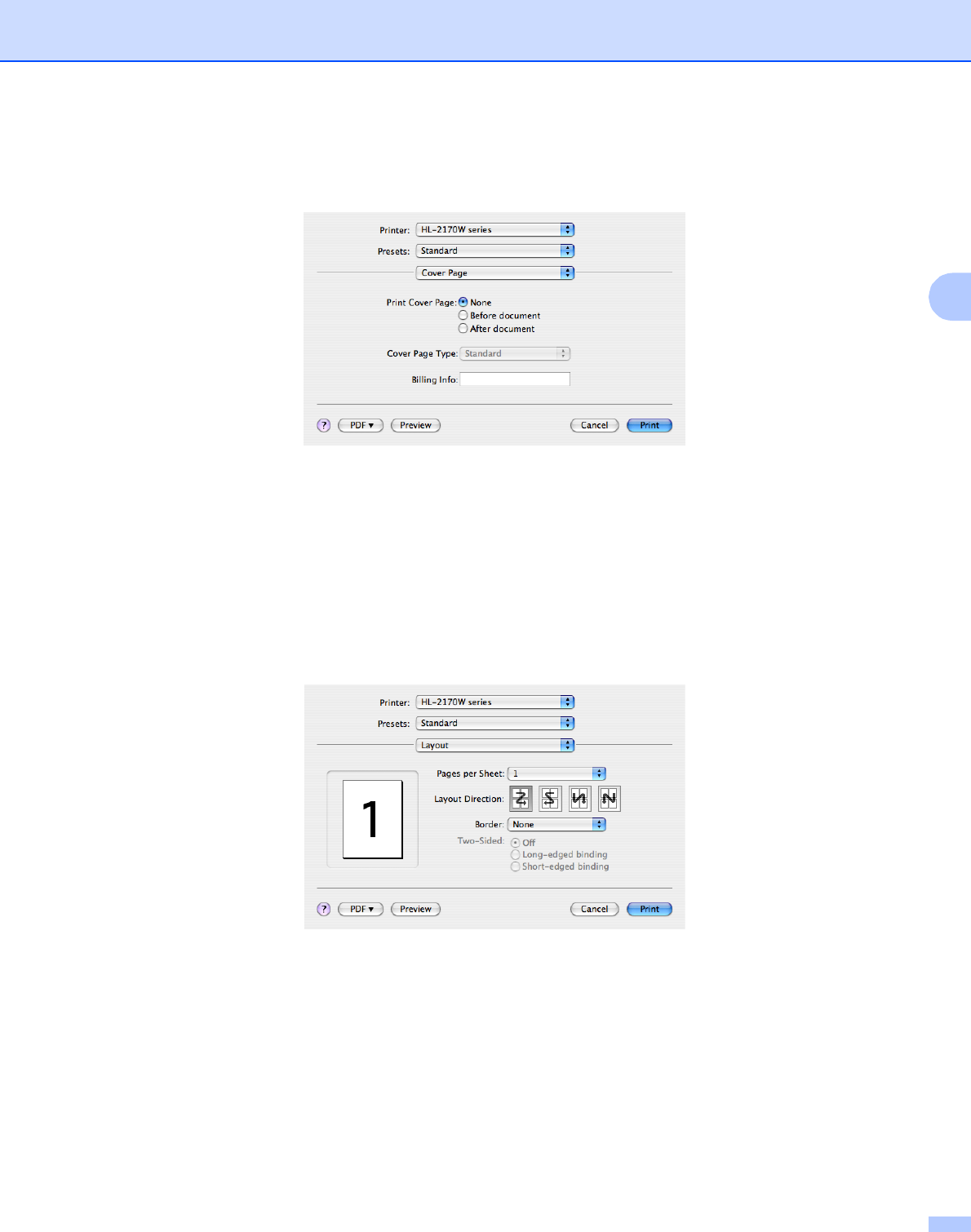
Copies & Pages 3
You can set the Copies and Pages.
Driver and Software
40
3
Cover Page (for Mac OS® X 10.4) 3
You can make the following cover page settings:
Print Cover Page
If you want to add a cover page to your document, use this function.
Cover Page Type
Choose a template for the cover page.
Billing Info
If you want to add the billing information to the cover page, enter text in the Billing Info box.
Layout 3
Pages per Sheet
Choose how many pages will appear on each side of the paper.
Layout Direction
When you specify the pages per sheet, you can also specify the direction of the layout.
Border
If you want to add a border, use this function.
Driver and Software
41
3
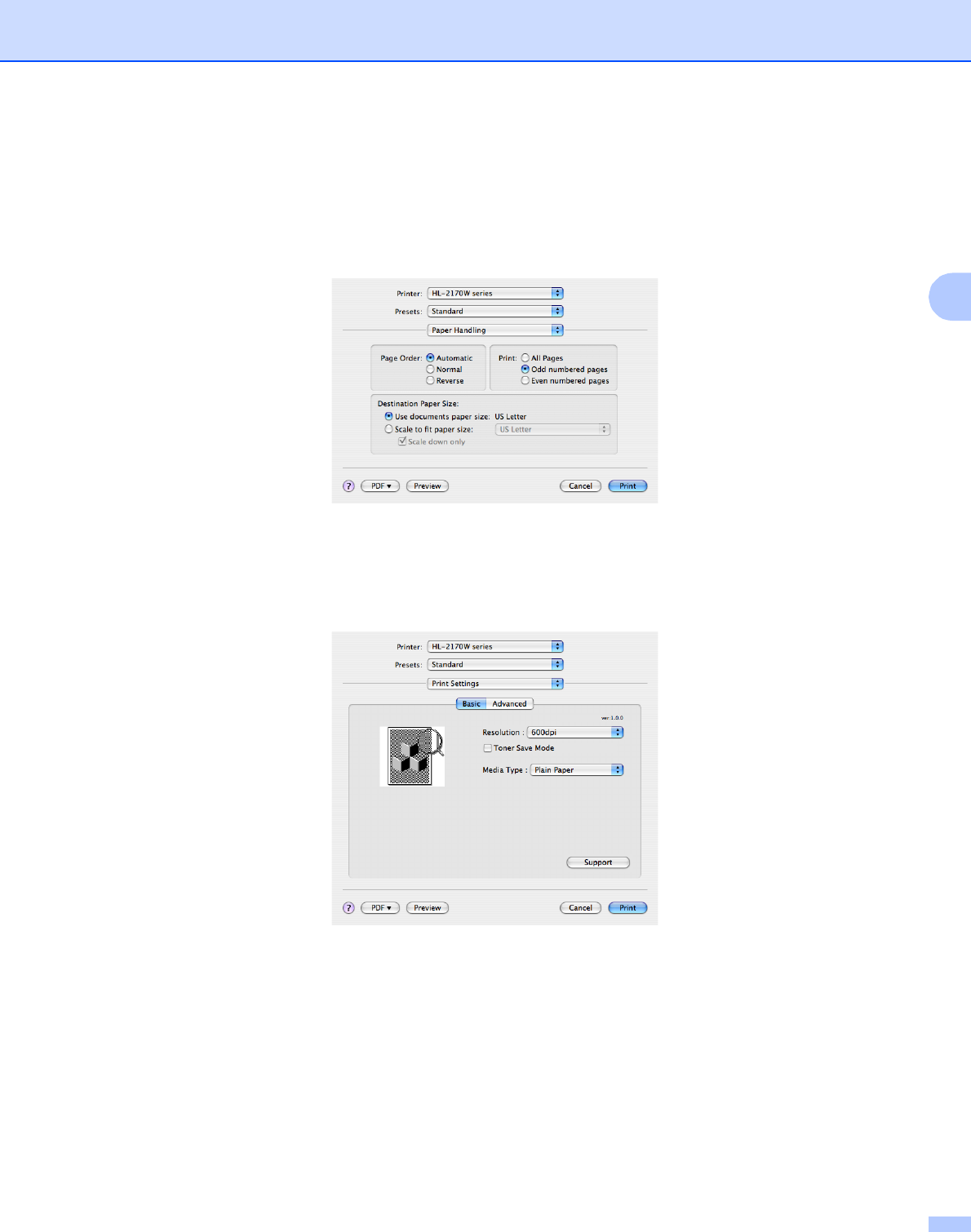
Duplex Printing 3
Manual duplex (for Mac OS® X 10.3 or greater)
Select Paper Handling.
Choose Odd numbered pages and print, and then choose Even numbered pages and print.
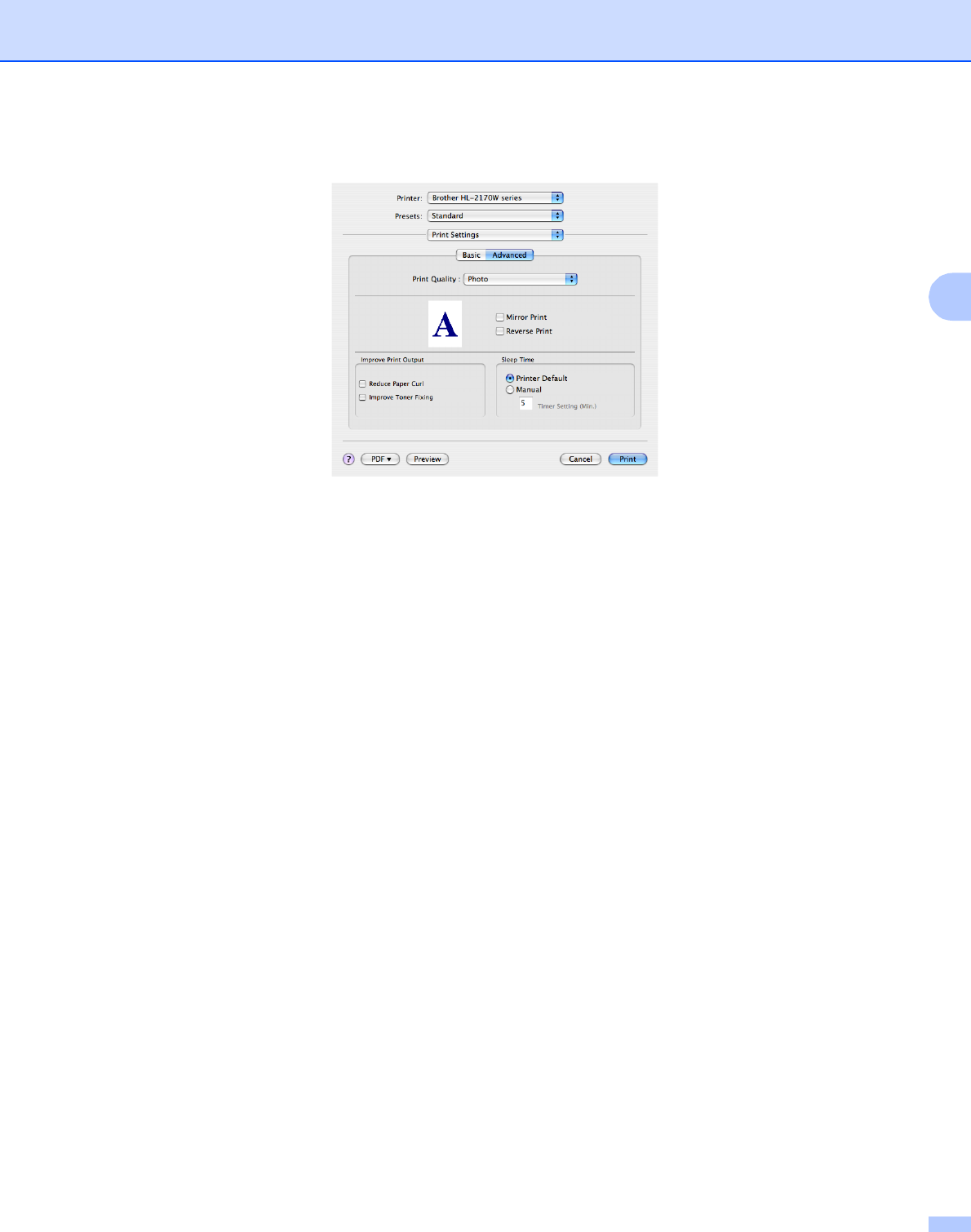
Print Settings 3
You can change settings by choosing a setting in the Print Settings list:
Basic tab
Resolution
You can change the resolution as follows:
• 300 dpi
• 600 dpi
• HQ 1200

Driver and Software
42
3
Toner Save Mode
You can conserve toner using this feature. When you set Toner Save Mode to On, print appears lighter.
The default setting is Off.
Note
• We do not recommend Toner Save Mode for printing Photo or Greyscale images.
•Toner Save Mode is not available for HQ 1200 resolution.
Media Type
You can change the media type to one of the following:
• Plain Paper
• Thin Paper
• Thick Paper
• Thicker Paper
• Bond Paper
• Transparencies
• Envelopes
• Env. Thick
• Env. Thin
• Recycled Paper
Support
You can visit the Brother Solutions Center (http://solutions.brother.com) and our website for
original/genuine Brother supplies by clicking the Support button.
The Brother Solutions Center is a web site offering information about your Brother product including FAQs
(Frequently Asked Questions), User’s Guides, driver updates and tips for using your printer.
Driver and Software
43
3
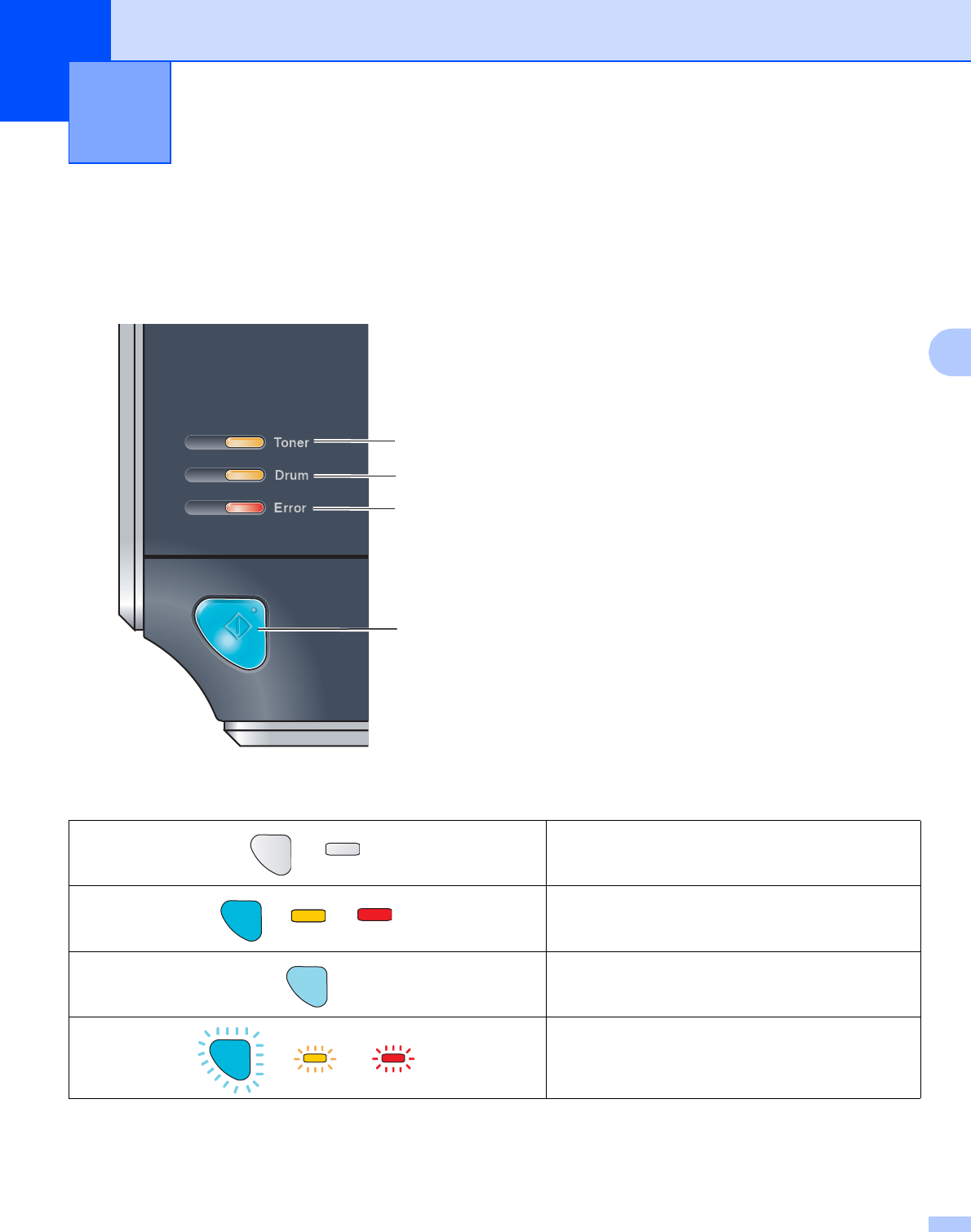
Advanced tab
Print Quality
You can change the print quality as follows:
•Photo
This is a photograph mode (gradation priority). Choose this setting for printing photographs that have
continuous gradation. You can represent soft contrasts between various shades of grey.
•Graphics
This is a graphics mode (contrast priority). Choose this setting for printing text and figures, such as
business and presentation documents. You can represent sharp contrasts between shaded areas.
• Chart/Graph
This is the best dither pattern for business documents such as presentations, that include words,
graphs or charts. It is particularly suitable for solid colours.
Mirror Print
Check Mirror Print to reverse the data from left to right.
Reverse Print
Check Reverse Print to reverse the data from up to down.
Sleep Time
When the printer does not receive data for a certain period of time, it enters sleep mode. In sleep mode,
the printer acts as though it were turned off. The default setting for timeout is 5 minutes. If you want to
change the sleep time, choose Manual and then enter the time in the text box on the driver.
While the printer is in sleep mode, the Ready LED lights up slightly, but the printer can still receive data.
Receiving a print file or document or pressing one of the buttons will automatically wake up the printer to
start printing.

Driver and Software
44
3
Improve Print Output
This feature allows you to improve a print quality problem.
• Reduce Paper Curl
If you choose this setting, the paper curl may be reduced.
If you are printing only a few pages, you do not need to choose this setting. We recommend that you
change the printer driver setting in Media Type to a thin setting.
• Improve Toner Fixing
If you choose this setting, the toner fixing on paper may be improved. If this selection does not improve
the situation enough, select thicker paper in media type settings.
Status Monitor (For Mac OS® X 10.3 or greater users) 3
This reports the printer status (any errors that may happen with the printer) when printing. If you would like to
turn the status monitor on, run the BrStatusMonitor.app (from the Macintosh HD (Startup Disk), choose
Library, Printers, Brother, Utilities).

Driver and Software
45
3
Uninstalling the printer driver 3
You can uninstall the printer driver that you have installed with the following steps.
Note
•This is not available if you installed the printer driver from the Windows Add a printer function.
•After uninstalling, we recommend that you restart your computer to remove files that were in use during the uninstall.
Printer driver for Windows® and Windows Vista™ and Windows Server® 2003 3
aClick the Start button, point to All Programs 1and then to your printer name.
bClick UnInstall.
cFollow the instructions on the screen.
1Programs for windows® 2000 users
Printer driver for Macintosh®
3
For Mac OS® X 10.2 3
aDisconnect the USB cable between the Macintosh® and your printer.
bRestart the Macintosh®.
cLog on as an ‘Administrator’.
dRun the Print Center (from the Go button menu, choose Applications, Utilities), then choose the
printer you want to remove and remove it by clicking the Delete button.
eDrag the HL_MFLPro folder (from the Macintosh HD (Startup Disk), choose Library, Printers,
Brother) into the Trash and then empty the Trash.
fRestart the Macintosh®.
For Mac OS® X 10.3 or greater 3
aDisconnect the USB cable between the Macintosh® and your printer.
bRestart the Macintosh®.
cLog on as an ‘Administrator’.
dRun the Printer Setup Utility (from the Go button menu, choose Applications, Utilities), then choose
the printer you want to remove and remove it by clicking the Delete button.
eRestart the Macintosh®.

Driver and Software
46
3
Software 3
Software for network models (HL-2150N / HL-2170W only) 3
BRAdmin Light 3
BRAdmin Light is a utility for initial setup of Brother network connected devices. This utility can search for
Brother products on your network, view the status and configure basic network settings, such as IP address.
The BRAdmin Light utility is available for Windows® 2000/XP and Windows Vista™ and Windows Server®
2003, and Mac OS® X 10.2.4 or greater computers. For installing BRAdmin Light, please see the Quick Setup
Guide we provided with the printer. For Macintosh® users, BRAdmin Light will be installed automatically when
you install the printer driver. If you have already installed the printer driver, you do not have to install it again.
For more information on BRAdmin Light, visit us at http://solutions.brother.com.
BRAdmin Professional (for Windows®)3
BRAdmin Professional is a utility for more advanced management of network connected Brother devices.
This utility can search for Brother products on your network, view the status and configure the network
settings from a computer running the Windows® system. BRAdmin Professional has additional features from
BRAdmin Light.
For more information and to download the software, visit us at http://solutions.brother.com.
Web BRAdmin (for Windows®)3
Web BRAdmin is a utility for managing network connected Brother devices. This utility can search for Brother
products on your network, view the status and configure the network settings. Unlike BRAdmin Professional,
which is designed for Windows® only, the Web BRAdmin is a server based utility that can be accessed from
any client PC with a web browser that supports JRE (Java Runtime Environment). By installing the Web
BRAdmin server utility on a computer running IIS 1, administrators can connect to the Web BRAdmin server
using a web browser, which then communicates with the device itself.
For more information and to download the software, visit us at http://solutions.brother.com.
1Internet Information Server 4.0 or Internet Information Services 5.0 / 5.1 / 6.0 / 7.0
Web Based Management (web browser) 3
Web Based Management (web browser) is a utility for managing network connected Brother devices, using
the HTTP (Hyper Text Transfer Protocol). This utility can view the status of Brother products on your network
and configure the machine or network settings using a standard web browser that is installed on your
computer.
For more information, see Chapter 13 of the Network User’s Guide on the CD-ROM we have supplied.
Driver Deployment Wizard (for Windows®)3
This installer includes the Windows® printer driver and Brother network port driver (LPR). If the administrator
installs the printer driver and port driver using this application, the administrator can save the file to the file
server or send the file by E-mail to users. Then, each user just clicks that file to have the printer driver, port
driver, IP address, and so on, automatically copied to their computer.

Driver and Software
47
3
Automatic interface selection (HL-2150N / HL-2170W only) 3
This printer has an automatic interface selection feature that is turned on by default. This lets it automatically
change the interface to USB or Ethernet depending on which interface is receiving data.
Since the default setting is on for the automatic interface selection mode, simply connect the interface cable
to the printer. Always turn off both your computer and printer when connecting or disconnecting the cable.
Note
This function takes a few seconds to work. If you want to speed up printing, choose the required interface
manually by using Remote Printer Console. (See Remote Printer Console on page 47.)
If you typically use only one interface, we recommend that you choose that interface using Remote Printer
Console. (See Remote Printer Console on page 47.). If only one interface is chosen, the printer will allocate
the entire input buffer to that interface.
Remote Printer Console 3
Remote Printer Console is software to change many of the printer settings independently of your application.
For example, you can change the settings for printer margin, sleep mode, character set and so on. These
settings are then remembered and used by the printer.
How to use and install the Remote Printer Console software 3
To use the Remote Printer Console software, follow the steps below.
For Windows®
3
aPut the CD-ROM into your CD-ROM drive and close the opening screen when it appears.
bOpen Windows® Explorer and choose the CD-ROM drive.
cDouble-click the Tool folder.
dDouble-click the RPC folder.
eRefer to the RPC_User’s_Guide.pdf for how to install and use the Remote Printer Console.
For Macintosh® (HL-2150N / HL-2170W only) 3
aPut the CD-ROM into your CD-ROM drive. Double-click the HL2100 icon on the desktop.
bDouble-click the RPC folder.
cRefer to the RPC_User’s_Guide.pdf for how to install and use the Remote Printer Console.
48
4
4
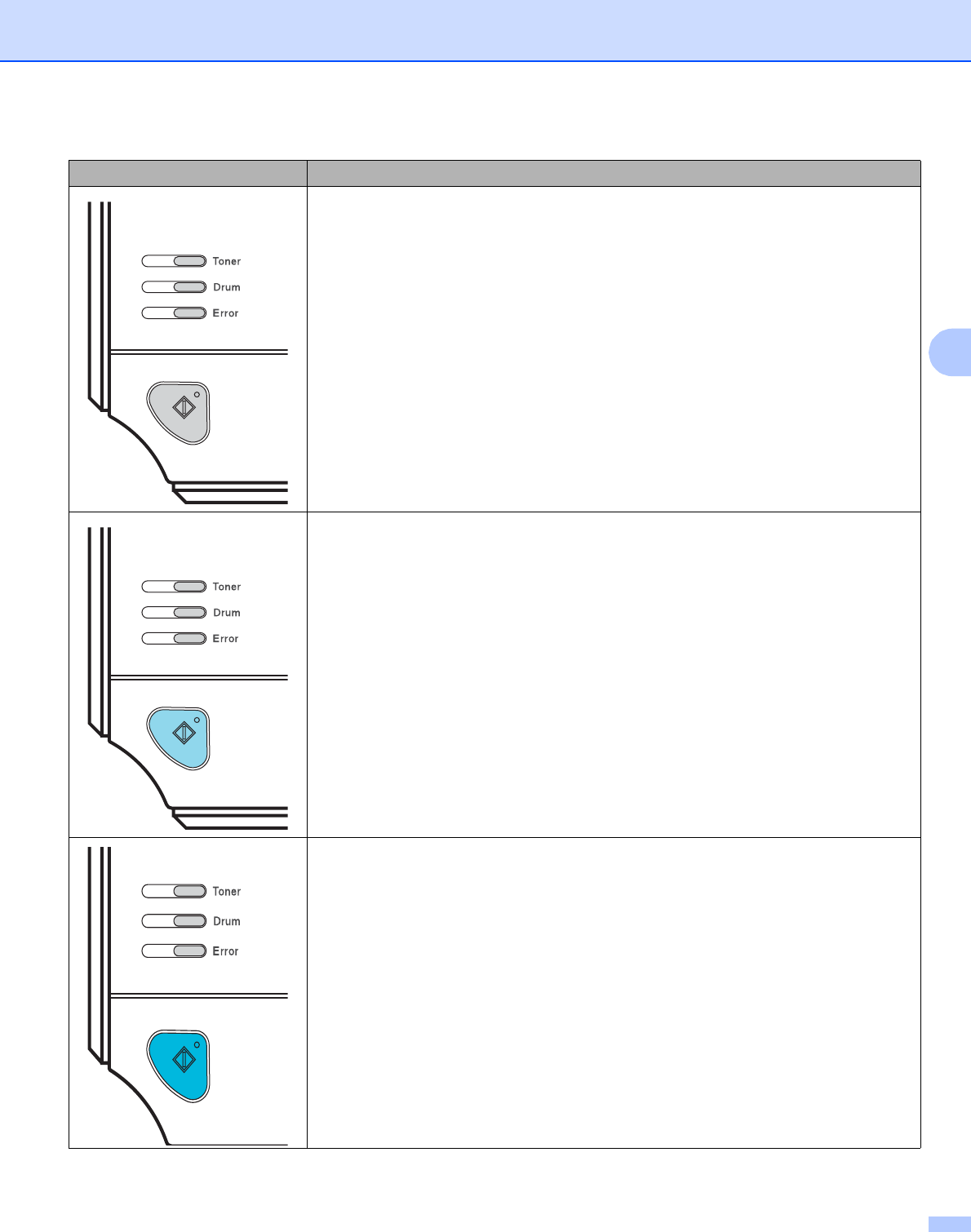
LEDs (Light Emitting Diodes) 4
This section refers to three LEDs Toner, Drum and Error, and a dual function Ready LED & Go button on
the control panel.
The LED indications shown in the table below are used in the illustrations in this chapter.
Control Panel 4
1Toner LED
The Toner LED indicates when the Toner is low or at the end
of its life.
2Drum LED
The Drum LED indicates when the Drum is nearing the end of
its life.
3Error LED
The Error LED indicates when the printer is in one of the
following states:
No paper / Paper jam / Cover open
4Ready LED
The Ready LED will flash depending on the printer status.
Go button
Wake-up / Error recovery / Form feed / Job Cancel / Reprint
or
LED is off.
or or
LED is on.
The LED is dimmed.
or or
LED is blinking.
1
2
3
4
Control Panel
49
4
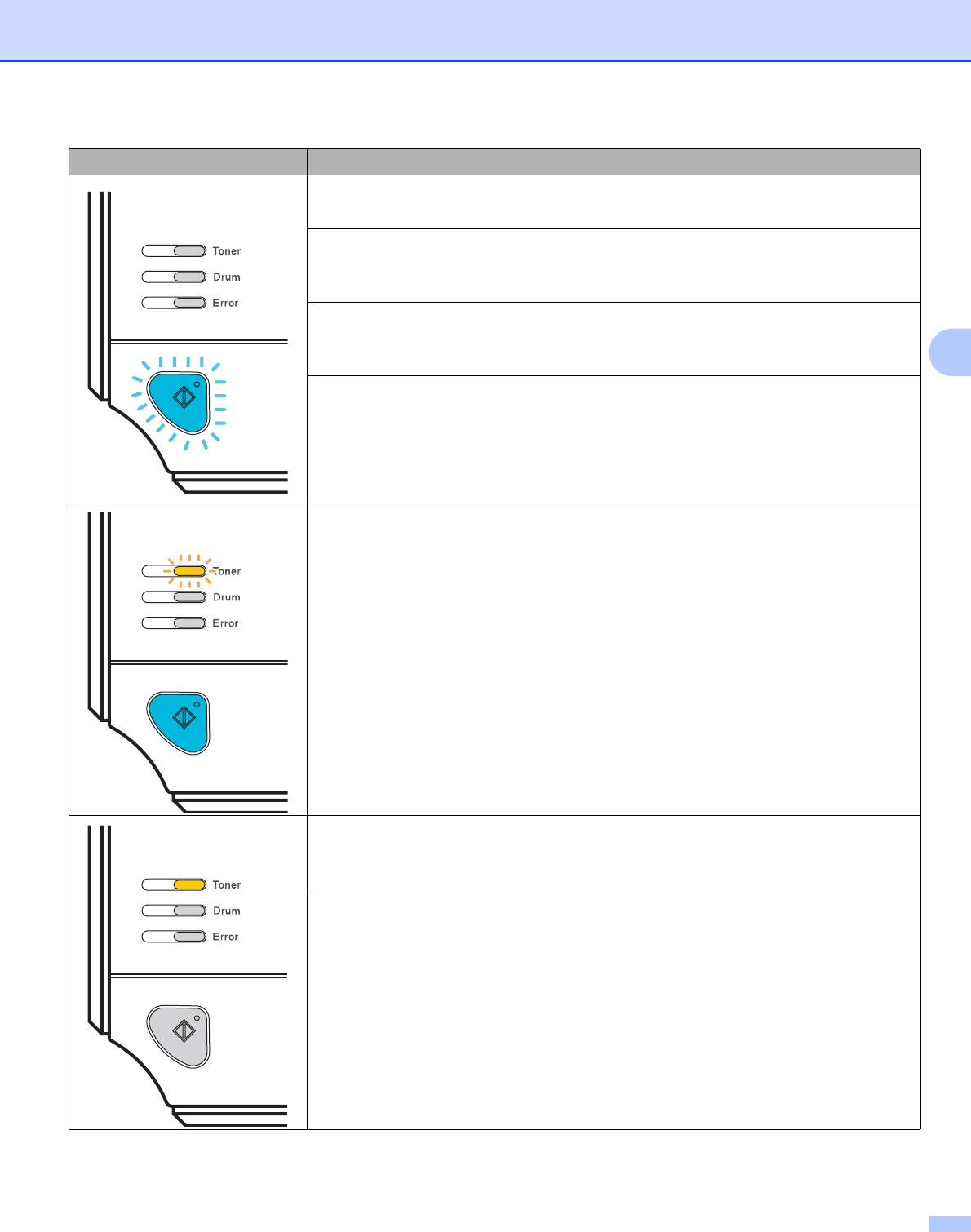
LED Printer status
Off
The power switch is off.
Sleep mode
The printer is in sleep mode. Pressing the Go button wakes up the printer from sleep
mode to ready mode.
Ready to print
The printer is ready to print.
Control Panel
50
4
Warming up
The printer is warming up.
Cooling down
The printer is cooling down. Wait for a few seconds until the inside of the printer has
cooled down.
Receiving data
The printer is either receiving data from the computer, processing data in memory or
printing the data.
Data remaining in memory
There is remaining print data in the printer memory. If the Ready LED is blinking for
a long time and nothing has printed, press the Go button to print the remaining data
in the memory.
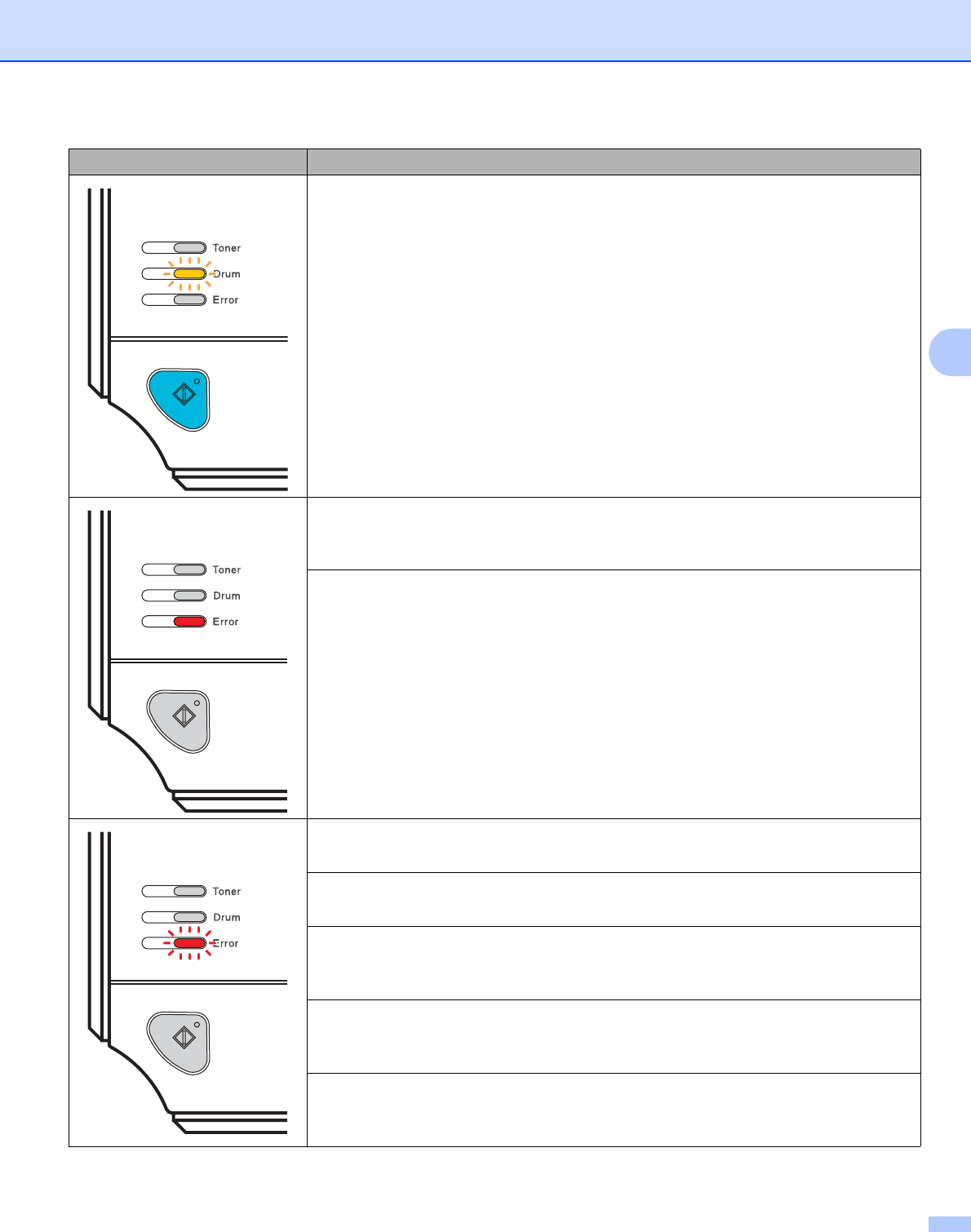
Toner low
Indicates that the toner cartridge is nearly empty. Buy a new toner cartridge and have
it ready for when Toner life end is indicated.
The Toner LED will turn on for 2 seconds and off for 3 seconds.
Toner life end
Replace the toner cartridge with a new one. See Replacing the toner
cartridge on page 62.
Cartridge position error
The drum unit assembly is not installed correctly. Take the drum unit out of the
machine and put it back in.
LED Printer status
Control Panel
51
4
Drum life end soon
The drum unit is near the end of its life. We recommend that you get a new drum unit
to replace the current one. See Replacing the drum unit on page 69.
The Drum LED will turn on for 2 seconds and off for 3 seconds.
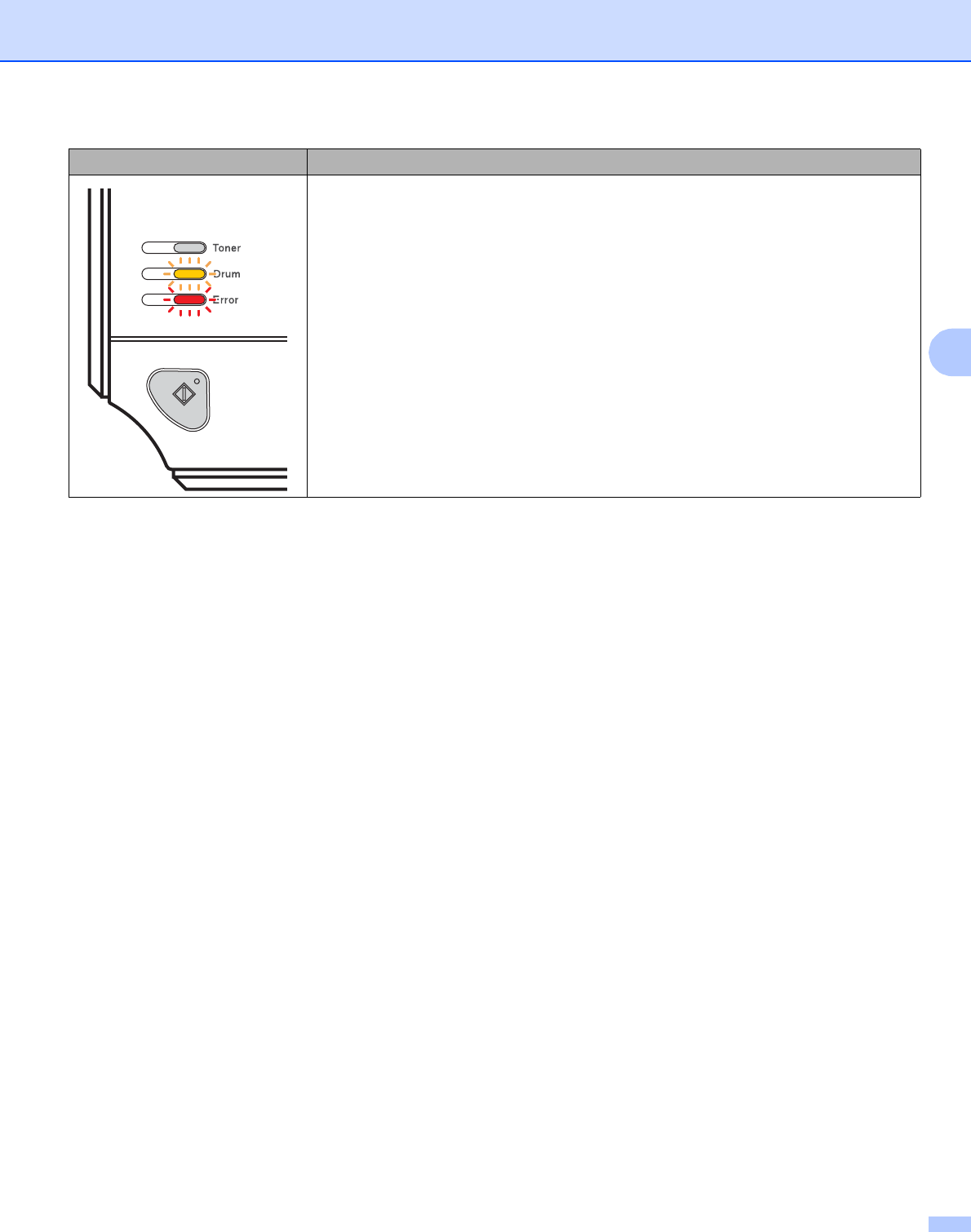
No paper fed tray1
Put paper in the tray. Then press the Go button. See Printing on plain paper, bond
paper and transparencies on page 9.
No paper fed manual feed slot
Put paper in the manual feed slot. See Printing on plain paper, bond paper and
transparencies on page 9 or Printing on thick paper, labels and
envelopes on page 17.
Front cover is open
Close the front cover of the printer.
Fuser cover is open
Close the fuser cover located behind the back cover of the printer.
Paper jam
Clear the paper jam. See Paper jams and how to clear them on page 85. If the printer
does not start printing, press the Go button.
Memory full
The printer memory is full and the printer cannot print full pages of a document. See
Solving print problems on page 97.
Print overrun
A print overrun occurred and the printer cannot print full pages of a document. See
Solving print problems on page 97.
LED Printer status
Control Panel
53
4
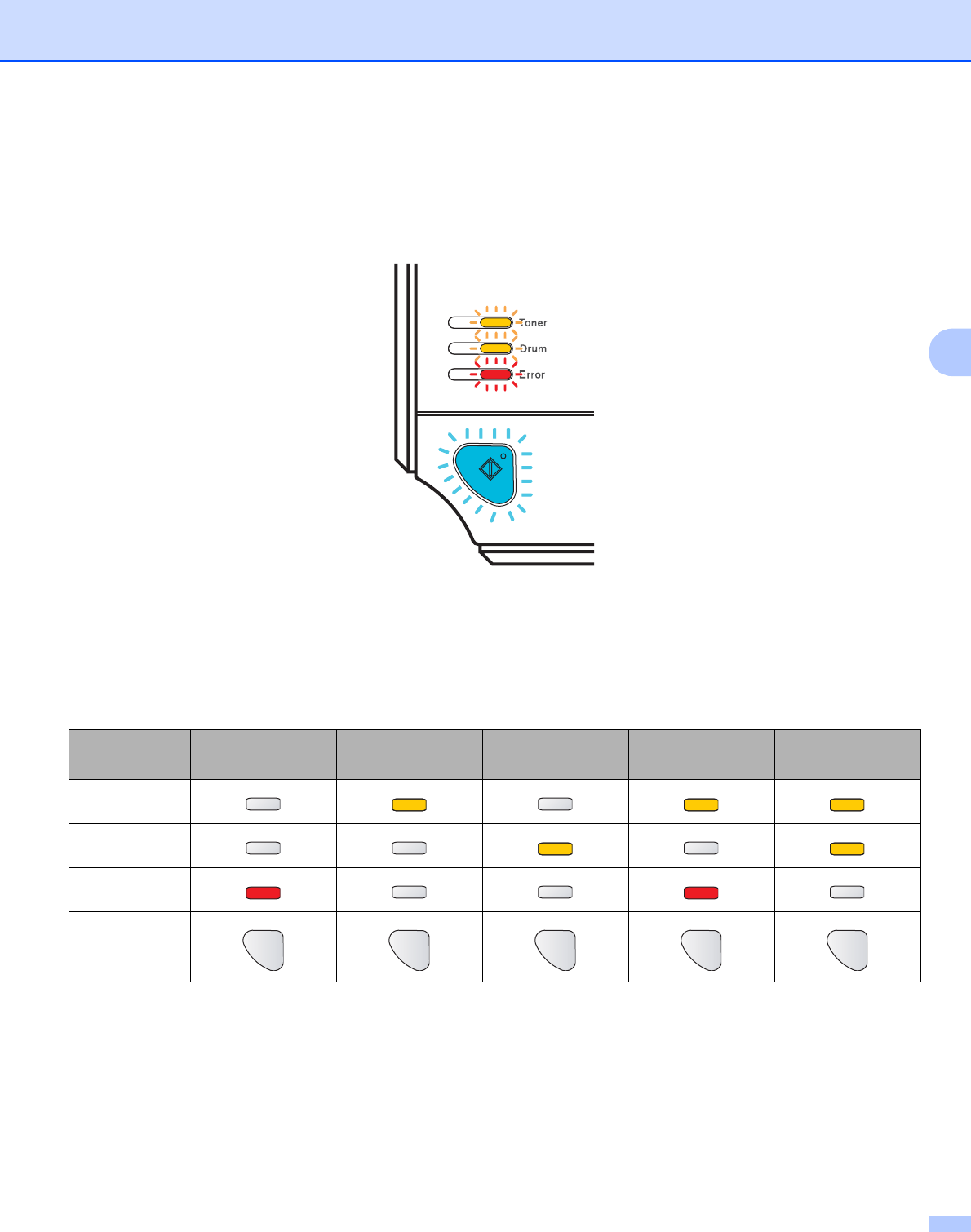
Service call indications 4
If there is an error that cannot be cleared by the user, the printer will show that a service call is needed by
lighting up all the LEDs as shown below.
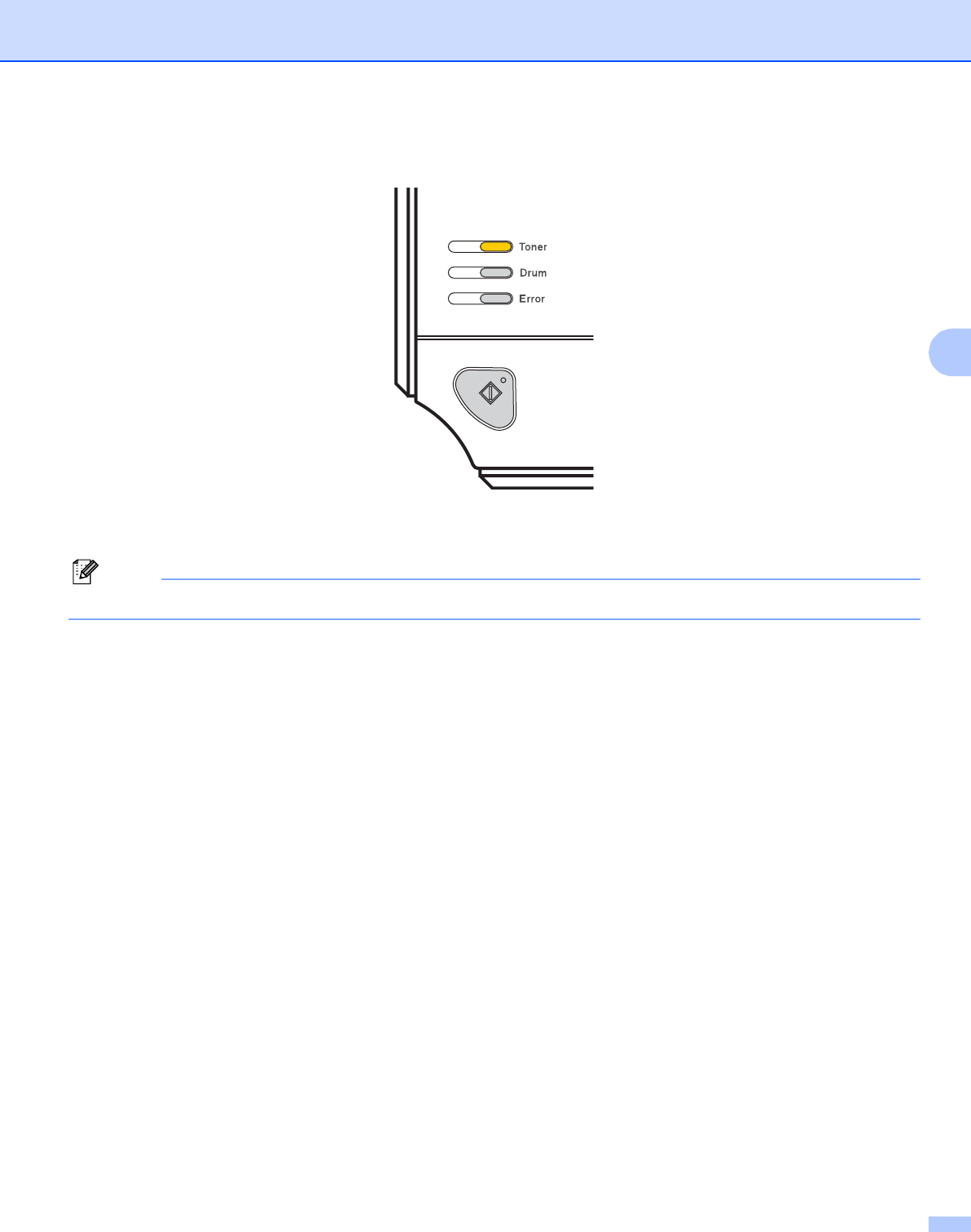
If you see the service call indication shown above, turn off the power switch, and then turn it back on and try
to print again.
If the error remains after switching the printer back on, press the Go button and make a note of the LED's that
remain lit and report the error status (as shown in the table below) to your dealer or Brother Customer Service.
1If this error occurs, turn off the printer power switch, wait a few seconds, and then turn it on again. Leave the printer for 10 minutes with the power
on. If the error occurs again, call your dealer or Brother Customer Service.
LED indications while pressing the Go button
LEDs Main PCB failure Fuser unit
failure 1
Laser unit failure Main motor
failure
High voltage
failure
Toner
Drum
Error
Ready
Control Panel
54
4
For example, the LED indication below shows a fuser unit failure.
Make a note of the indication, referring to the table on page 53, and report the error status to your dealer or
Brother Customer Service.
Note
Make sure that the front cover is completely closed before you report a service call.

Control Panel
55
4
Go button 4
The Go button has the following functions:
Cancel printing
Cancel only the printing job:
While printing press the Go button for about 4 seconds until all the LEDs light up. The Ready and Error
LEDs will flash as the job is being canceled.
Cancel all the received jobs:
To delete all jobs, press the Go button for about 4 seconds until all the LEDs light up and then release it.
Press the Go button again. The Ready and Error LEDs will flash as the job is being canceled.
Wake-up
If the printer is in sleep mode, press the Go button to wake the printer up and go to the Ready state.
Error recovery
If there is an error, the printer will recover automatically from some errors. If an error is not automatically
cleared, press the Go button to clear the error, and then continue to use the printer.
Form feed
If the blue Ready LED blinks for a long time, press the Go button. The printer will print any data that is left
in the printer’s memory.
Reprint
To reprint the last document, press the Go button for about 4 seconds until all the LEDs light up and then
release it. Within 2 seconds press the Go button the number of times you want to reprint. If you don’t press
the Go button within 2 seconds, a single copy will be printed.
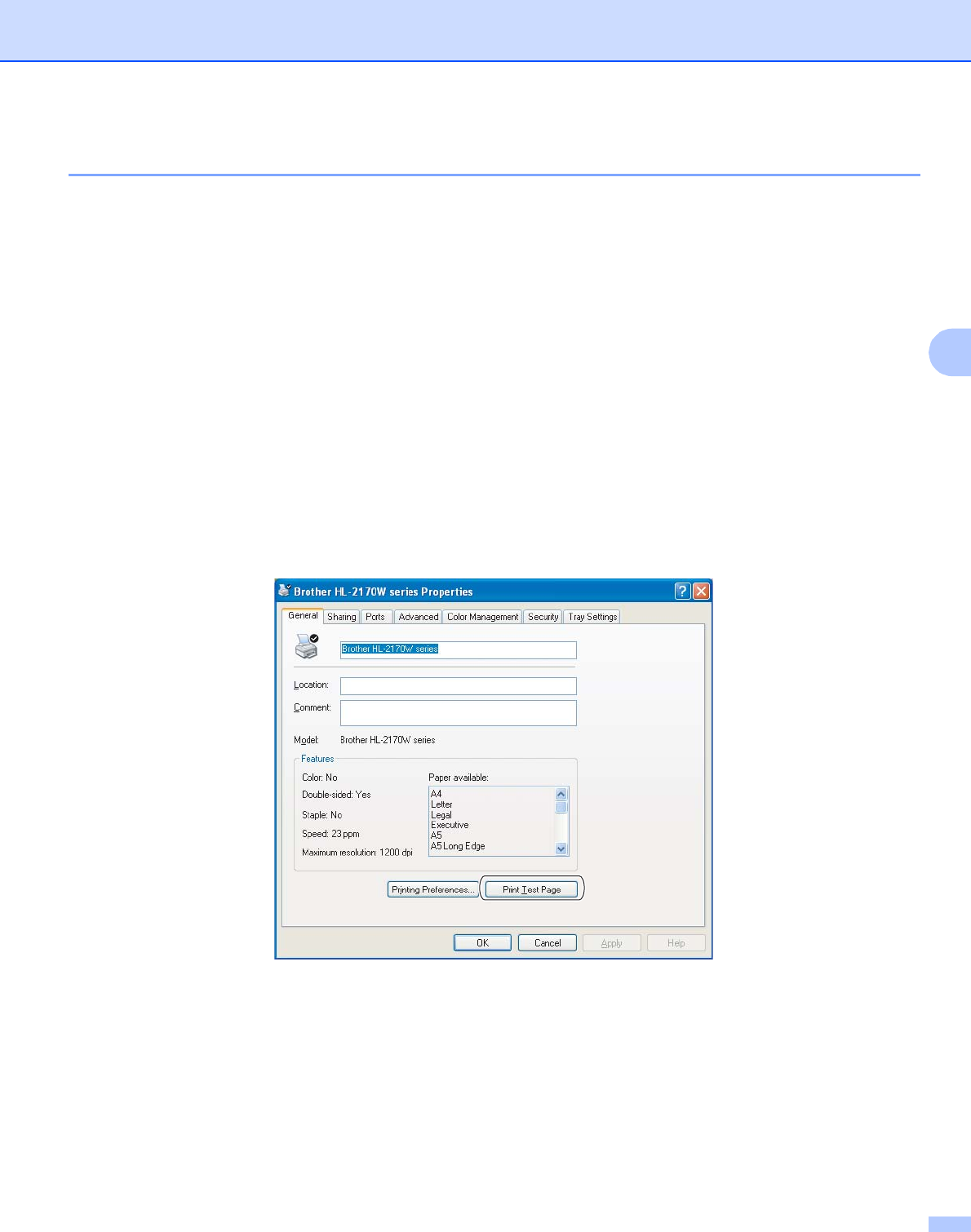
Control Panel
56
4
Print a test page 4
You can use the Go button or the printer driver to print a test page.
Using the Go button 4
aTurn off the printer.
bMake sure that the front cover is closed and the power cord is plugged in.
cHold down the Go button as you turn on the power switch. Keep the Go button pressed down until the
Toner, Drum and Error LEDs light up. Release the Go button. Make sure that the Toner, Drum and
Error LEDs are off.
dPress the Go button again. The printer will print a test page.
Using the printer driver 4
If you are using the Windows® printer driver, click the Print Test Page button in the General tab of the printer
driver.
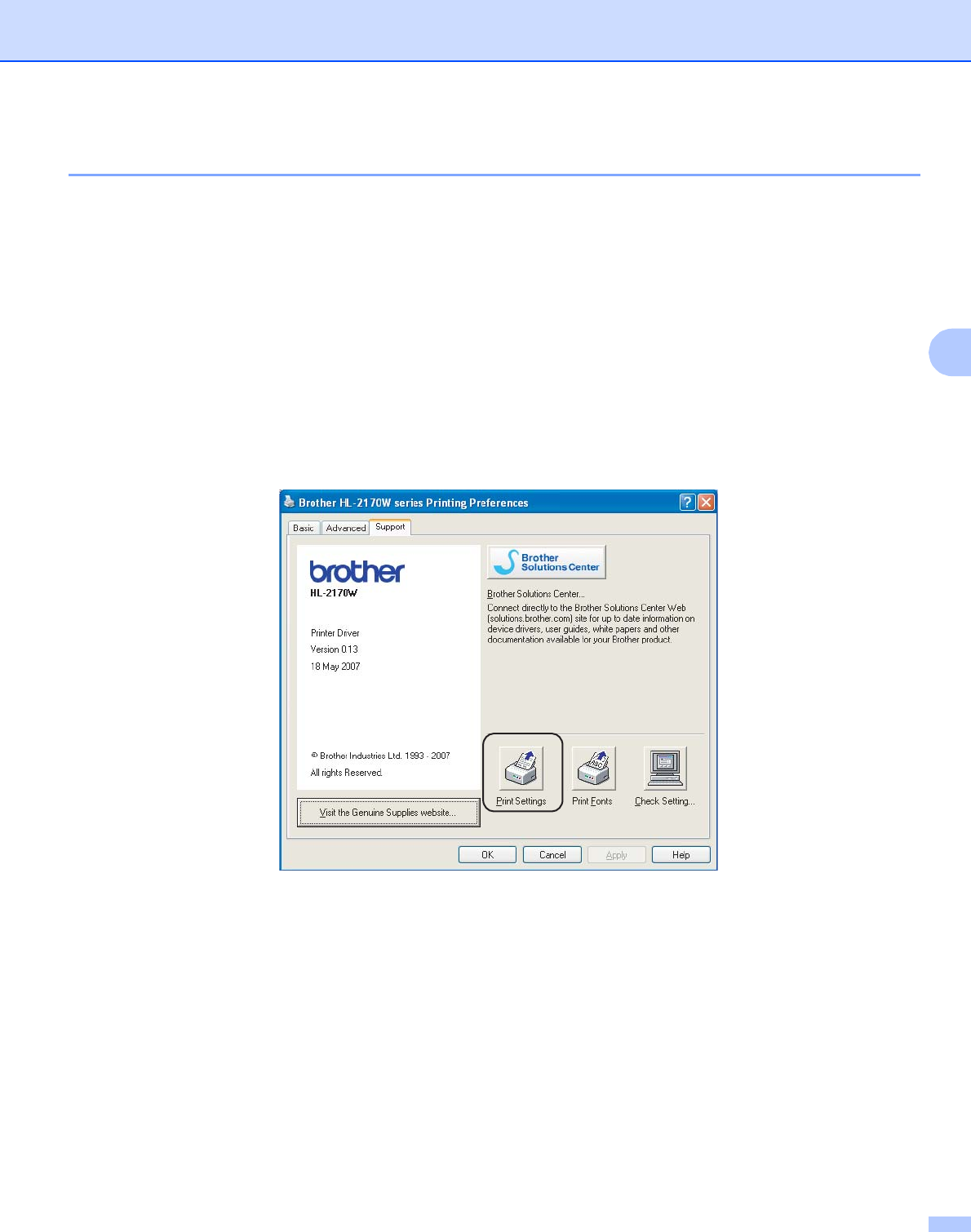
Control Panel
57
4
Print a Printer Settings page 4
You can print the current settings using the control panel button or printer driver.
Using the Go button 4
aMake sure that the front cover is closed and the power cord is plugged in.
bTurn on the printer and wait until the printer is in the Ready state.
cPress the Go button three times within 2 seconds. The printer will print the current printer settings page.
Using the printer driver 4
If you are using the Windows® printer driver, you can print the current printer settings page by clicking the
Print Settings button in the Support tab.
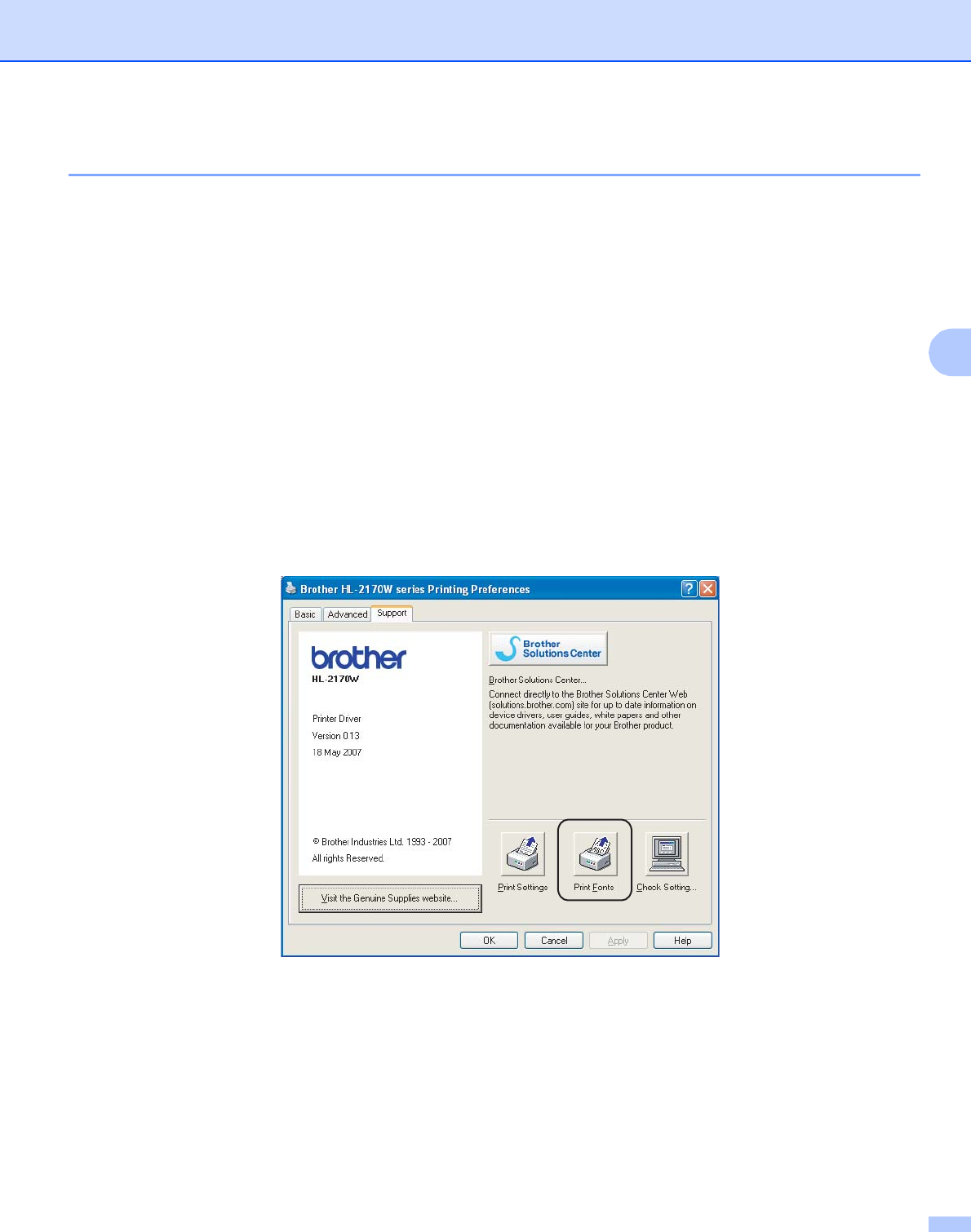
Control Panel
58
4
Print Fonts (HL-2150N / HL-2170W only) 4
You can print a list of the internal fonts using the control panel button or printer driver.
Using the Go button 4
aTurn off the printer.
bMake sure that the front cover is closed and the power cord is plugged in.
cHold down the Go button as you turn on the power switch. Keep the Go button pressed down until the
Toner, Drum and Error LEDs light up. Release the Go button. Make sure that the Toner, Drum and
Paper LEDs are off.
dPress the Go button twice. The printer will print a list of the internal fonts.
Using the printer driver 4
If you are using the Brother’s Windows® printer driver, you can print a list of the internal fonts by clicking the
Print Fonts button in the Support tab.

Control Panel
59
4
Network default settings (HL-2150N / HL-2170W only) 4
If you want to reset the print server back to its default settings (resetting all information such as the password
and IP address information), follow these steps:
Using the Go button 4
aTurn off the printer.
bMake sure that the front cover is closed and the power cord is plugged in.
cHold down the Go button as you turn on the power switch. Keep the Go button pressed down until the
Toner, Drum and Error LEDs light up. Release the Go button. Make sure that the Toner, Drum and
Paper LEDs are off.
dPress the Go button seven times. Make sure that all the LEDs light up to indicate the print server has
been reset to its default settings.
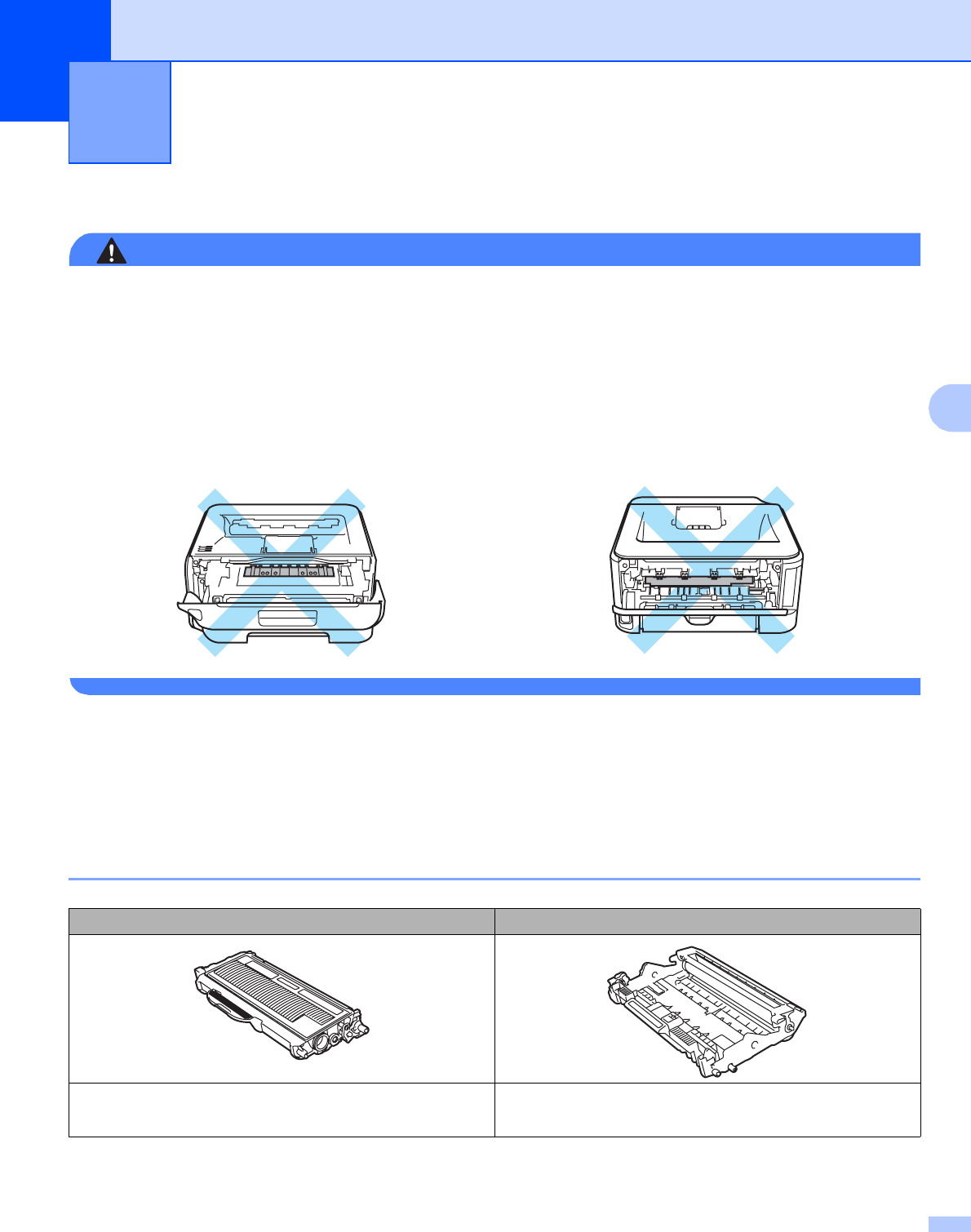
60
5
5
You will need to replace certain parts and clean the printer regularly.
WARNING
When you replace certain parts or clean the inside of the printer, remember the following:
• If your clothes are smeared with toner, wipe off the toner with a dry cloth and immediately wash the
clothes in cold water to avoid stains.
• Be careful not to inhale toner.
• After you have just used the printer, some internal parts of the printer will be extremely hot. When you
open the front cover or back cover (back output tray) of the printer, DO NOT touch the shaded parts
shown in the illustration.
Replacing the consumable items 5
You will need to replace the consumable items when the machine indicates that the life of the consumable is
over.
Consumables 5
Routine Maintenance 5
Toner cartridge Drum unit
See Toner cartridge on page 61.
Order No.TN-2130, TN-2150
See Drum unit on page 68.
Order No.DR-2125
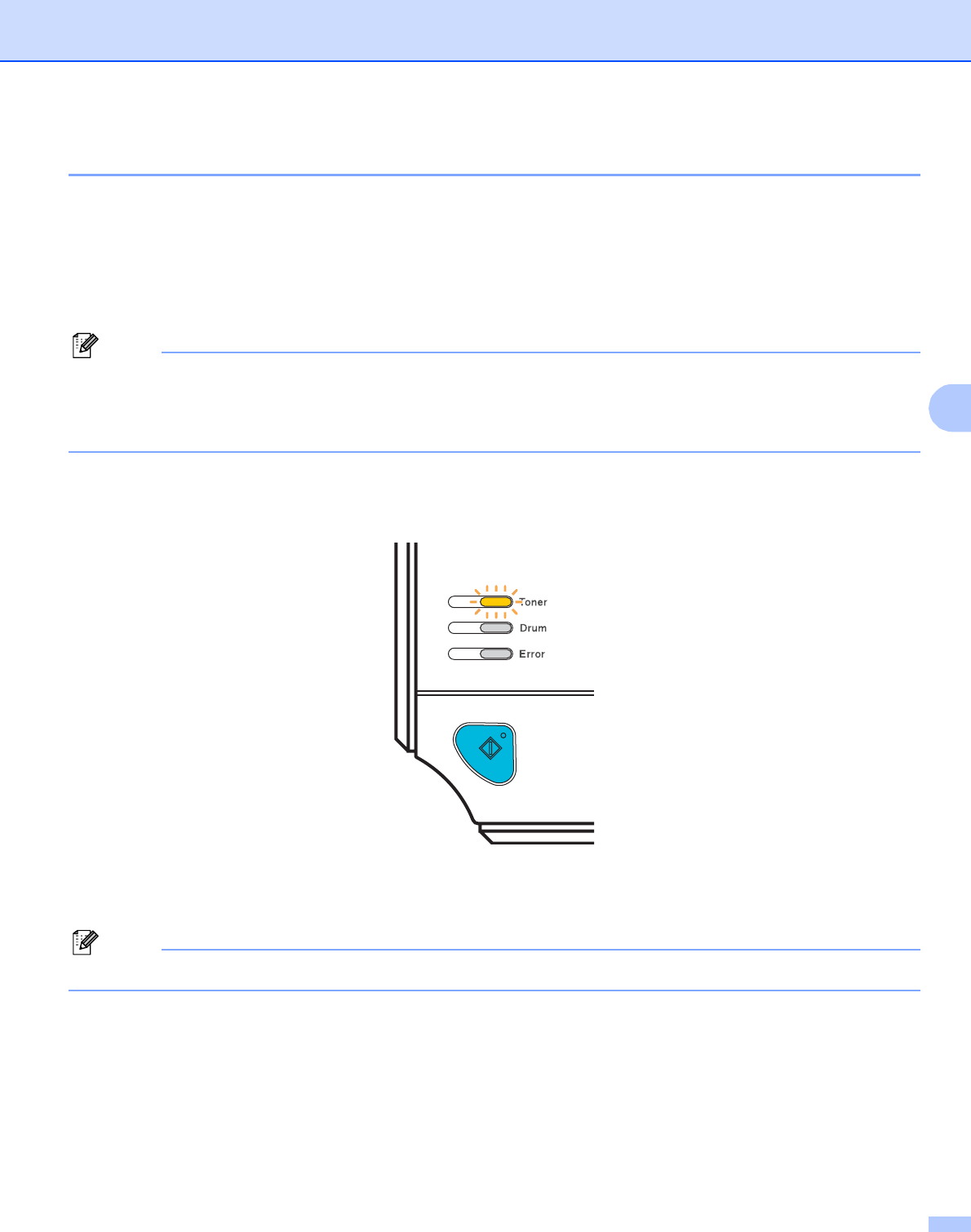
Routine Maintenance
61
5
Toner cartridge 5
The life of the original toner cartridge that came with the printer may be either a standard 1 or high yield 2 toner
cartridge, and depends on the model and country you bought the printer in.
1Standard toner cartridges print approximately 1,500 A4 or Letter-size single-sided pages. Approx. cartridge yield is declared in accordance with
ISO/IEC 19752. (Letter/A4)
2High yield toner cartridges print approximately 2,600 A4 or Letter-size single-sided pages. Approx. cartridge yield is declared in accordance with
ISO/IEC 19752. (Letter/A4)
Note
• The amount of toner used varies according to what is printed on the page and the print density setting.
• If you change the print density setting for lighter or darker printing, the amount of toner used will change.
• Wait to unpack the toner cartridge until immediately before you put it into the printer.
Toner Low message 5
The Toner LED will turn on for 2 seconds and off for 3 seconds and repeats this pattern.
If the LED shows this message, the printer has nearly run out of toner and will continue to print until it has
reached the end of its life. Buy a new toner cartridge and have it ready before you get a Toner Life End
message. To replace the toner cartridge, see Replacing the toner cartridge on page 62.
Note
The Toner LED will blink continuously if the toner cartridge is nearly empty.
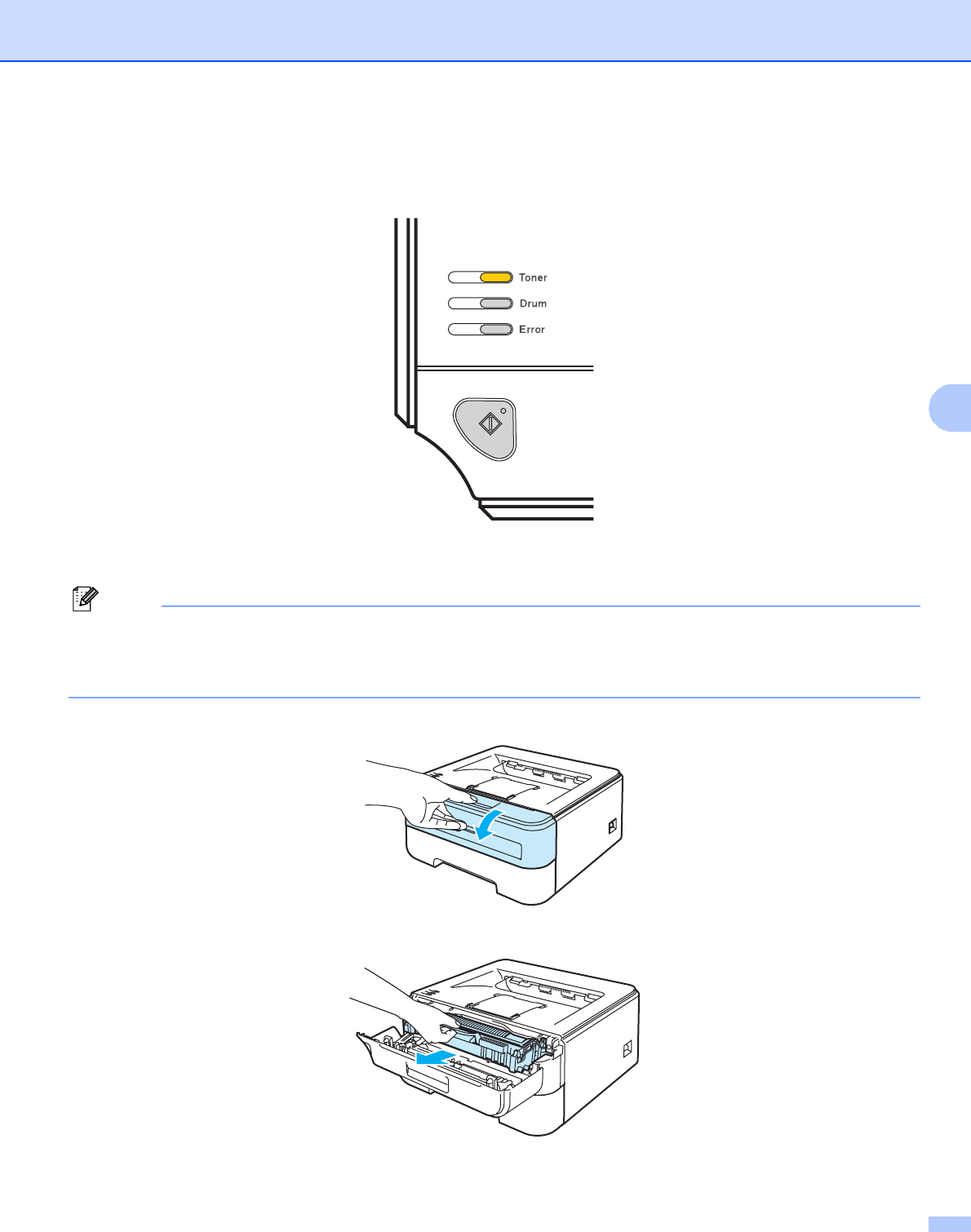
Routine Maintenance
62
5
Toner Life End message 5
The printer will stop printing until you replace the toner cartridge with a new one.
Replacing the toner cartridge 5
Note
• To ensure high quality printing, we recommend that you use only genuine Brother toner cartridges. When
you want to buy toner cartridges, call your dealer or Brother Customer Service.
• We recommend that you clean the printer when you replace the toner cartridge. See Cleaning on page 73.
aMake sure that the printer is turned on. Open the front cover.
bTake out the drum unit and toner cartridge assembly.
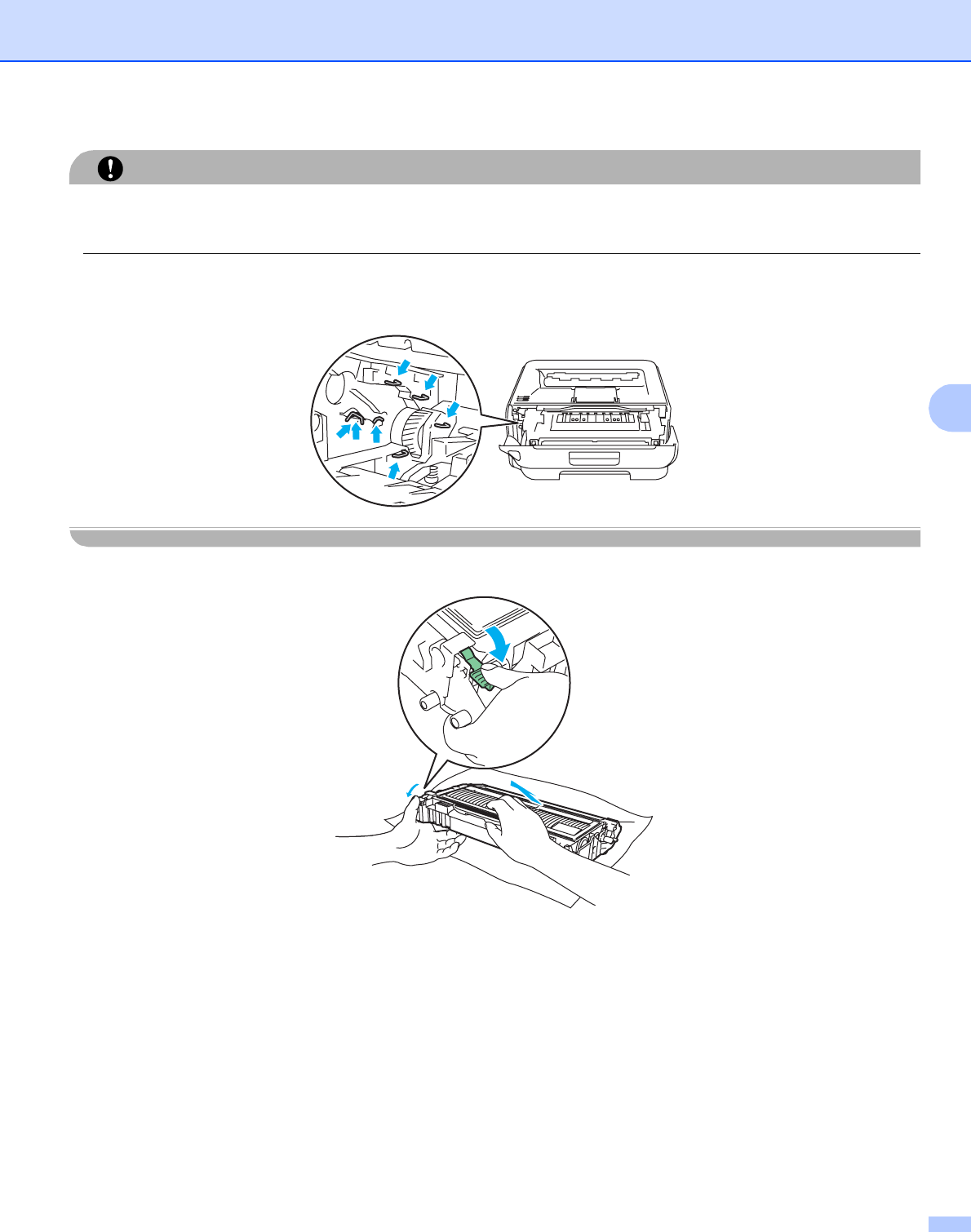
Routine Maintenance
63
5
CAUTION
We recommend that you put the drum unit and toner cartridge assembly on a piece of disposable paper or
cloth in case you accidentally spill or scatter toner.
To prevent damage to the printer from static electricity, DO NOT touch the electrodes shown in the
illustration.
cPush down the green lock lever and take the toner cartridge out of the drum unit.
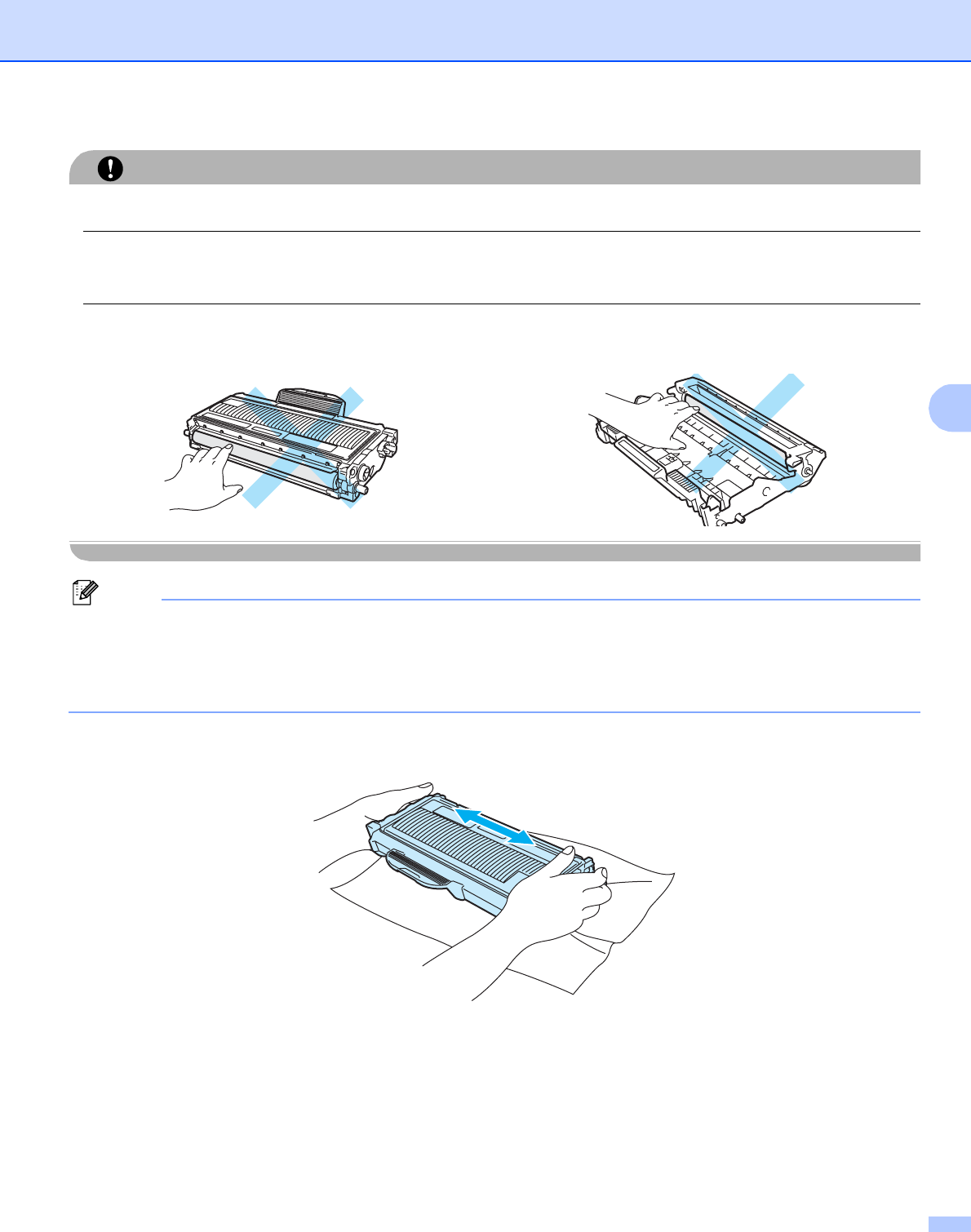
Routine Maintenance
64
5
CAUTION
DO NOT put a toner cartridge into a fire. It could explode, resulting in injuries.
Handle the toner cartridge carefully. If toner scatters on your hands or clothes, wipe or wash it off with cold
water at once.
To avoid print quality problems, DO NOT touch the shaded parts shown in the illustrations.
Note
• Be sure to seal up the toner cartridge tightly in a suitable bag so that toner powder does not spill out of the
cartridge.
• Discard the used toner cartridge according to local regulations, keeping it separate from domestic waste.
If you have questions, call your local waste disposal office.
dUnpack the new toner cartridge. Hold the cartridge level with both hands and gently rock it from side to
side five or six times to spread the toner evenly inside the cartridge.
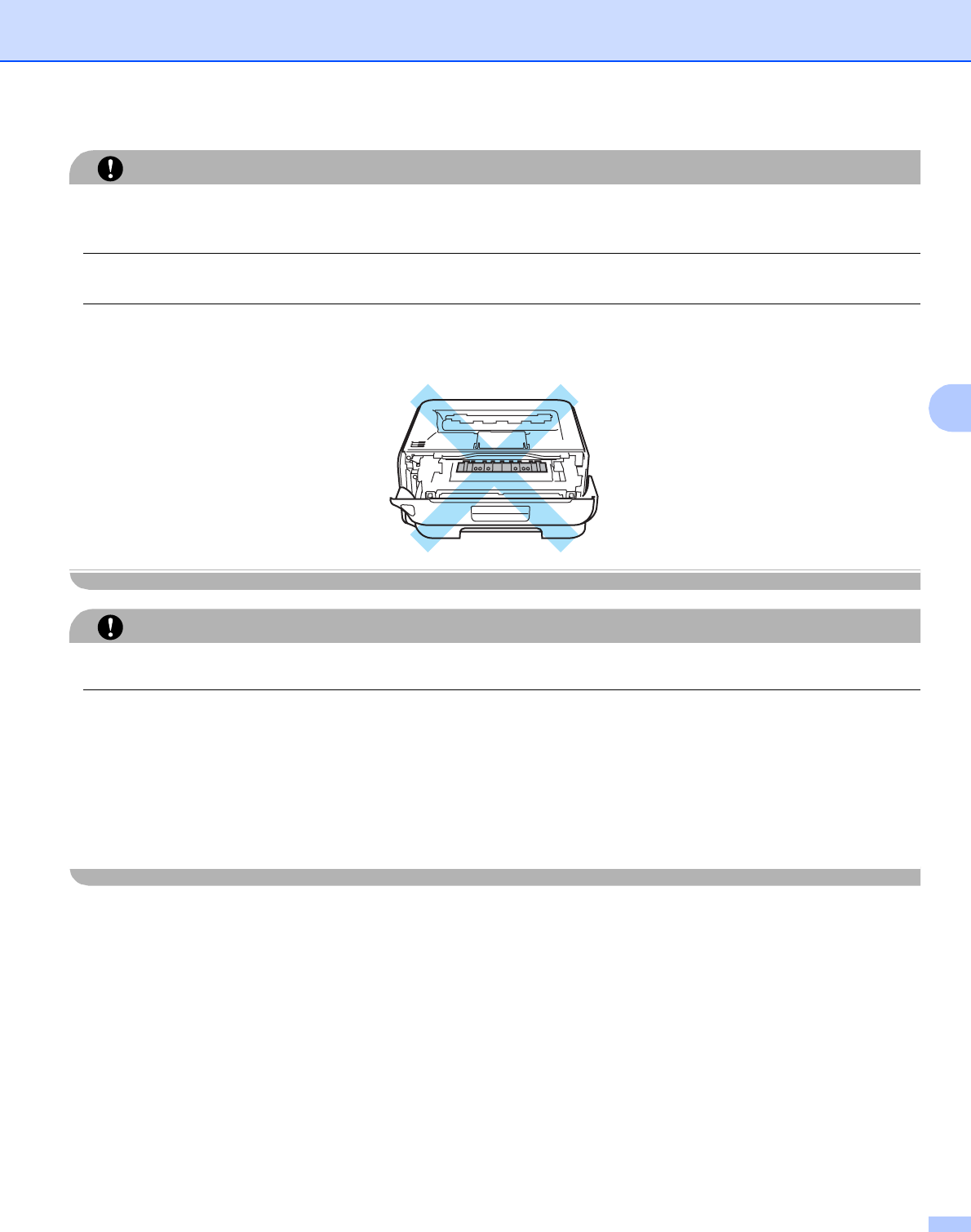
Routine Maintenance
65
5
CAUTION
Wait to unpack the toner cartridge until immediately before you put it in the printer. If toner cartridges are
left unpacked for a long time the toner life will be shortened.
If an unpacked drum unit is put in direct sunlight or room light, the unit may be damaged.
Put the toner cartridge in the drum unit immediately after you have removed the protective cover. To prevent
any degradation to the print quality, DO NOT touch the shaded parts shown in the illustrations.
CAUTION
For USA and Canada
Brother strongly recommends that you do not refill the toner cartridge provided with your printer. We also
strongly recommend that you continue to use only genuine Brother brand replacement toner cartridges. Use
or attempted use of potentially incompatible toner and/or cartridges in the Brother machine may cause
damage to the machine and/or may result in unsatisfactory print quality. Our warranty coverage does not
apply to any problem that is caused by the use of unauthorized third party toner and/or cartridges. To protect
your investment and obtain premium performance from the Brother machine, we strongly recommend the
use of genuine Brother supplies.
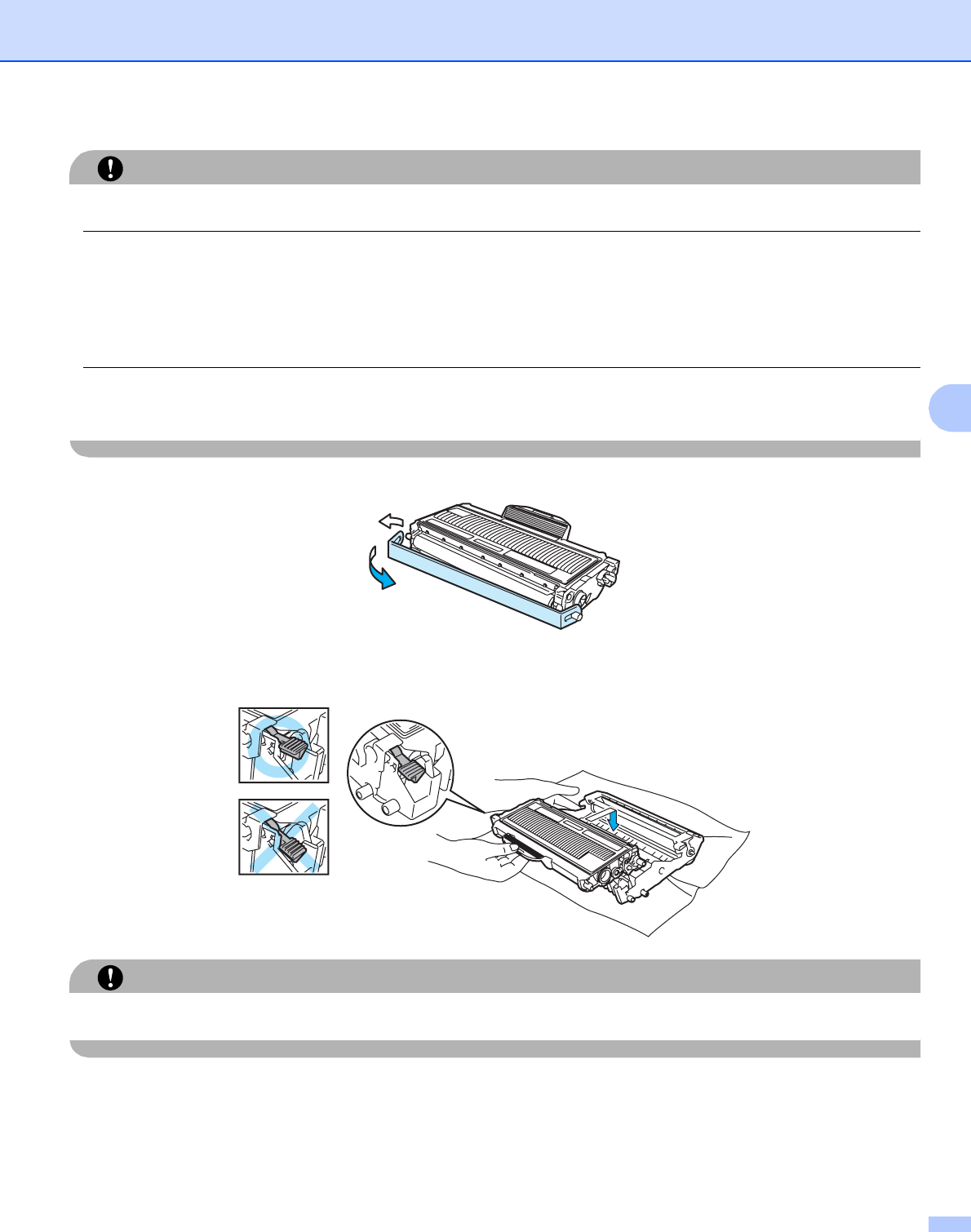
Routine Maintenance
66
5
CAUTION
For UK and other countries
Brother machines are designed to work with toner of a particular specification and will work to a level of
optimum performance when used with genuine Brother branded toner cartridges. Brother cannot guarantee
this optimum performance if toner or toner cartridges of other specifications are used. Brother does not
therefore recommend the use of cartridges other than genuine Brother branded cartridges with this
machine.
If damage is caused to the drum unit or other part of this machine as a result of using other manufacturer’s
products with this machine, any repairs required as a result may not be covered by the warranty.
ePull off the protective cover.
fPut the new toner cartridge firmly into the drum unit until you hear it lock into place. If you put it in
properly, the lock lever will lift automatically.
CAUTION
Make sure that you put in the toner cartridge properly or it may separate from the drum unit.
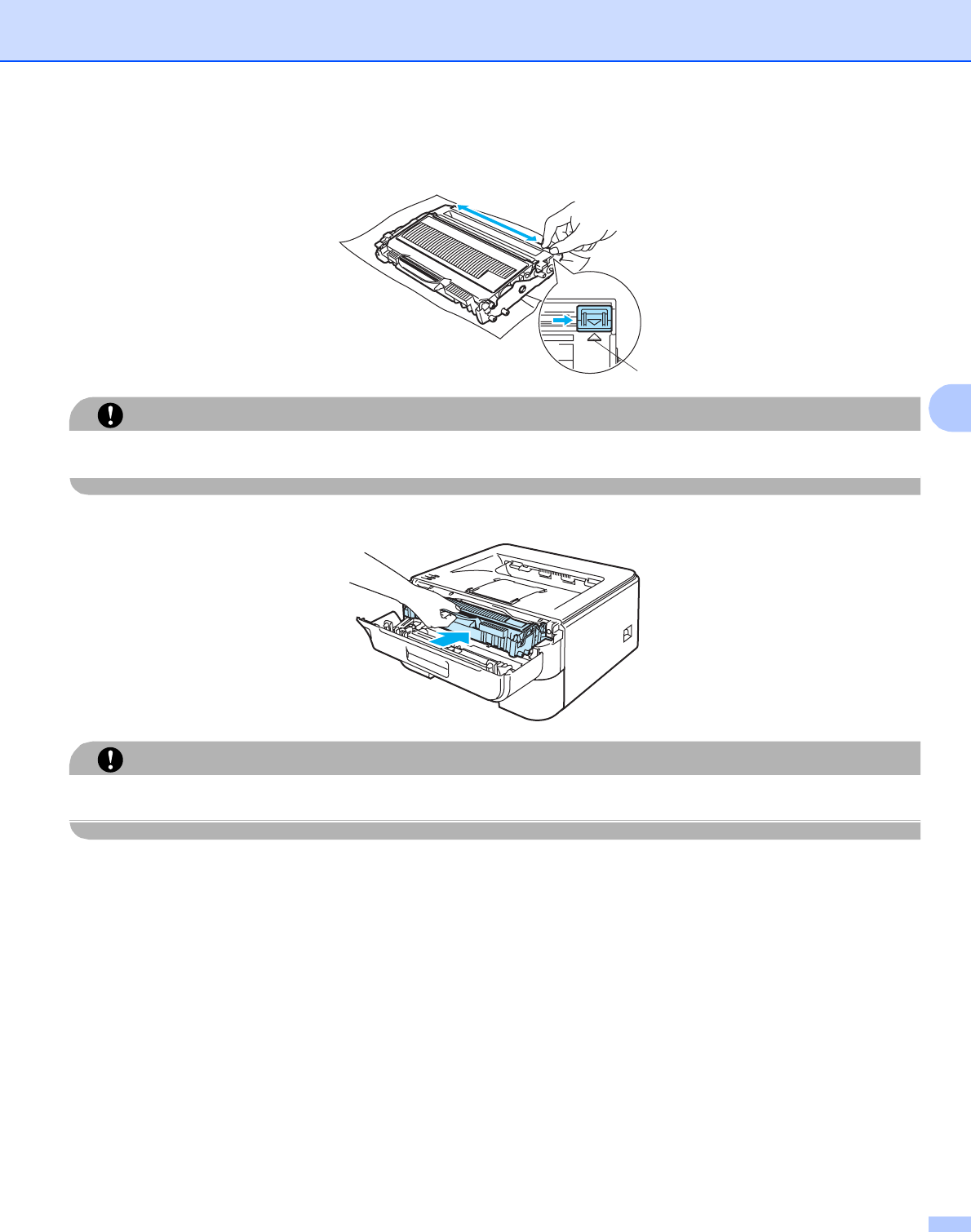
Routine Maintenance
67
5
gClean the primary corona wire inside the drum unit by gently sliding the green tab from right to left and
left to right several times.
CAUTION
Be sure to return the tab to the home position (a) (1). If you do not, printed pages may have a vertical stripe.
hPut the drum unit and toner cartridge assembly back in the printer. Close the front cover.
CAUTION
DO NOT turn off the printer power switch or open the front cover until the Ready LED lights up.
1
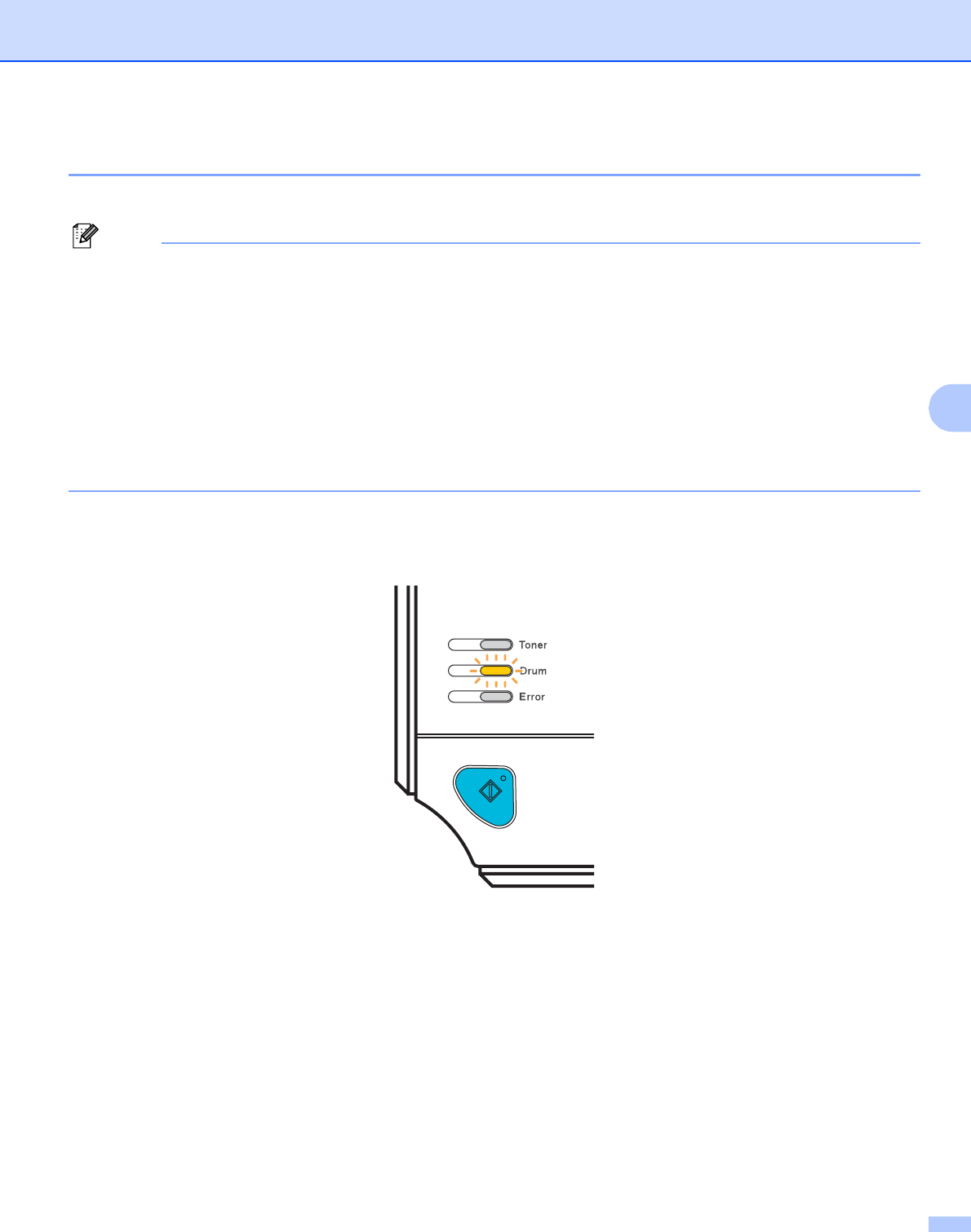
Routine Maintenance
68
5
Drum unit 5
A new drum unit can print approximately 12,000 A4 or Letter size single-sided pages at 1 per/ job.
Note
• There are many factors that determine the actual drum life, such as the temperature, humidity, type of
paper, type of toner used, number of pages per print job and so on. Under ideal conditions, the average
drum life is estimated at approximately 12,000 pages. The actual number of pages that your drum will print
may be significantly less than this estimate. Because we have no control over the many factors that
determine the actual drum life, we cannot guarantee a minimum number of pages that will be printed by
your drum.
• For best performance, use only genuine Brother toner. The printer should be used only in a clean, dust-
free environment with adequate ventilation.
• Printing with a third-party drum unit may reduce not only the print quality but also the quality and life of the
printer itself. Warranty coverage does not apply to problems caused by the use of a third-party drum unit.
Change Drum message 5
The Drum LED will turn on for 2 seconds and off for 3 seconds and repeats this pattern.
If the LED shows the message, it means the drum unit is near the end of its life. We recommend that you
replace the drum unit with a new one before there is a noticeable deterioration in the print quality.
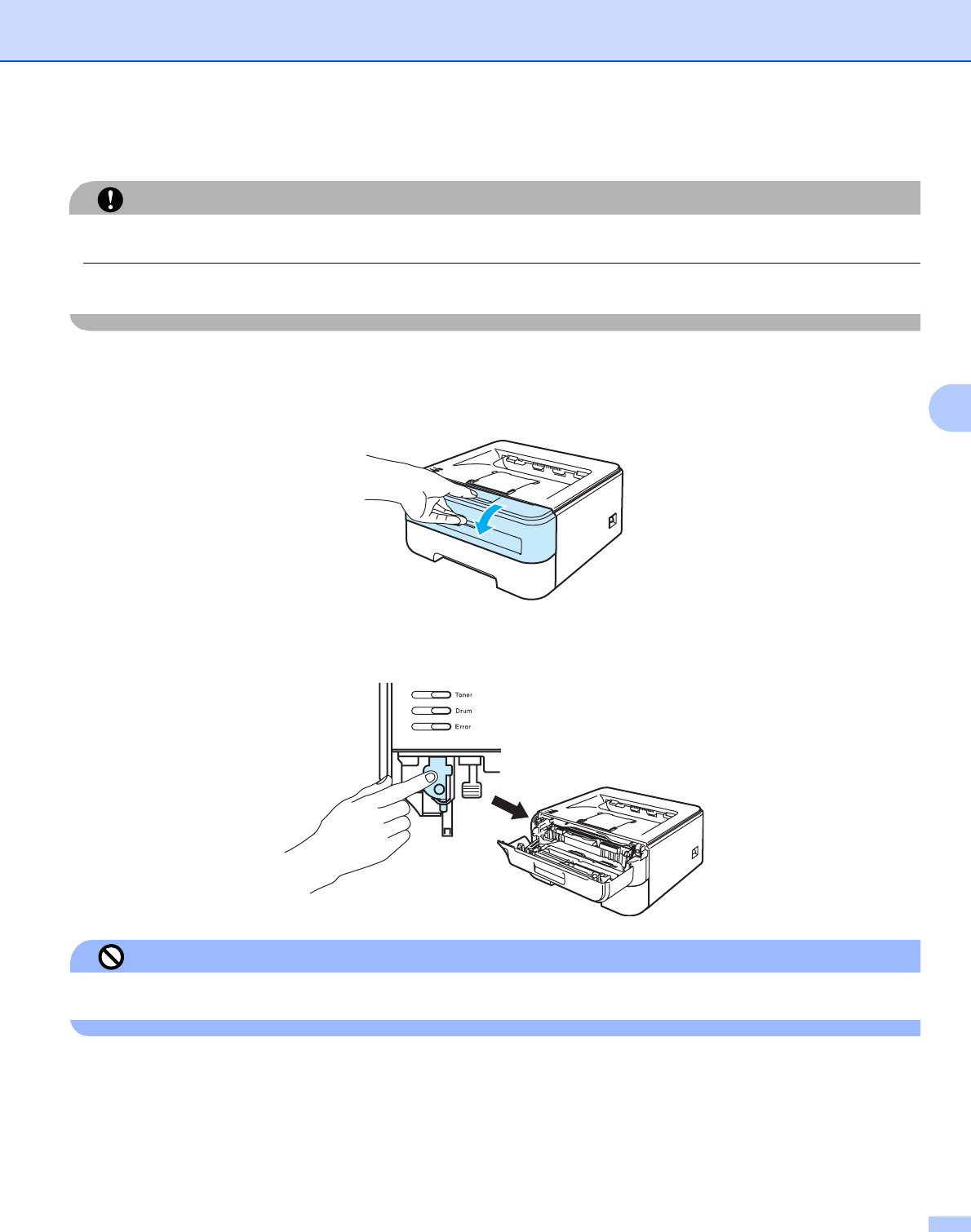
Routine Maintenance
69
5
Replacing the drum unit 5
CAUTION
While removing the drum unit, handle it carefully because it may contain toner.
Every time you replace the drum unit, clean the inside of the printer. See Cleaning on page 73.
When you replace the drum unit with a new one, you need to reset the drum counter by completing the
following steps:
aMake sure that the printer is turned on and the Drum LED is blinking. Open the front cover.
bPress and hold down the white Go button for about 4 seconds until all the LEDs light up. Once all four
LEDs are lit, release the Go button.
Improper Setup
Do not reset the drum counter when you only replace the toner cartridge.
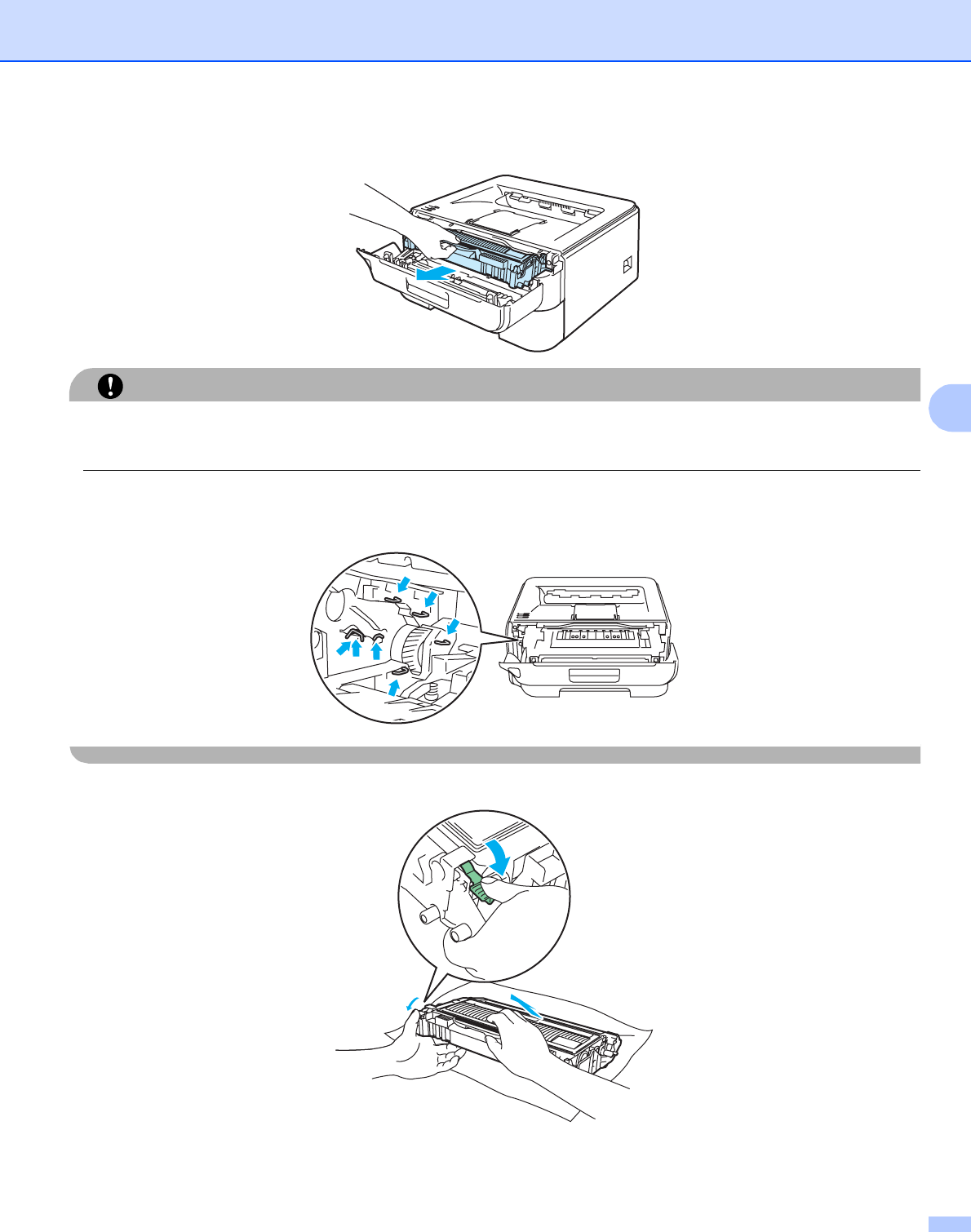
Routine Maintenance
70
5
cTake out the drum unit and toner cartridge assembly.
CAUTION
We recommend that you put the drum unit and toner cartridge assembly on a piece of disposable paper or
cloth in case you accidentally spill or scatter toner.
To prevent damage to the printer from static electricity, DO NOT touch the electrodes shown in the
illustration.
dPush down the green lock lever and take the toner cartridge out of the drum unit.
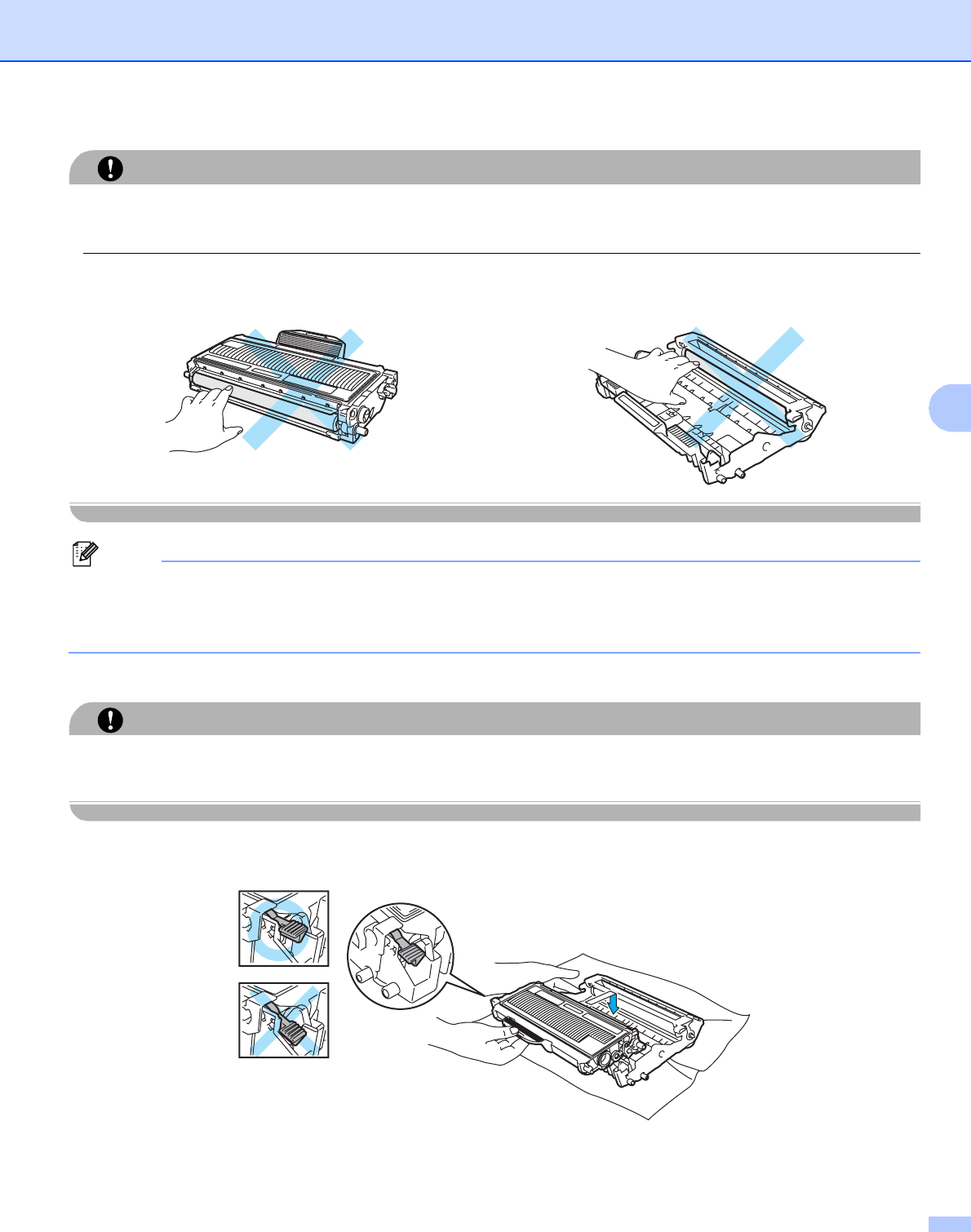
Routine Maintenance
71
5
CAUTION
Handle the toner cartridge carefully. If toner scatters on your hands or clothes, wipe or wash it off with cold
water at once.
To avoid print quality problems, DO NOT touch the shaded parts shown in the illustrations.
Note
• Be sure to seal up the drum unit tightly in a suitable bag so that toner powder does not spill out of the unit.
• Discard the used toner cartridge according to local regulations, keeping it separate from domestic waste.
If you have questions, call your local waste disposal office.
eUnpack the new drum unit.
CAUTION
Wait to unpack a drum unit until immediately before you put it in the printer. Exposure to direct sunlight or
room light may damage the drum unit.
fPut the toner cartridge firmly into the new drum unit until you hear it lock into place. If you put the cartridge
in properly, the green lock lever will lift automatically.
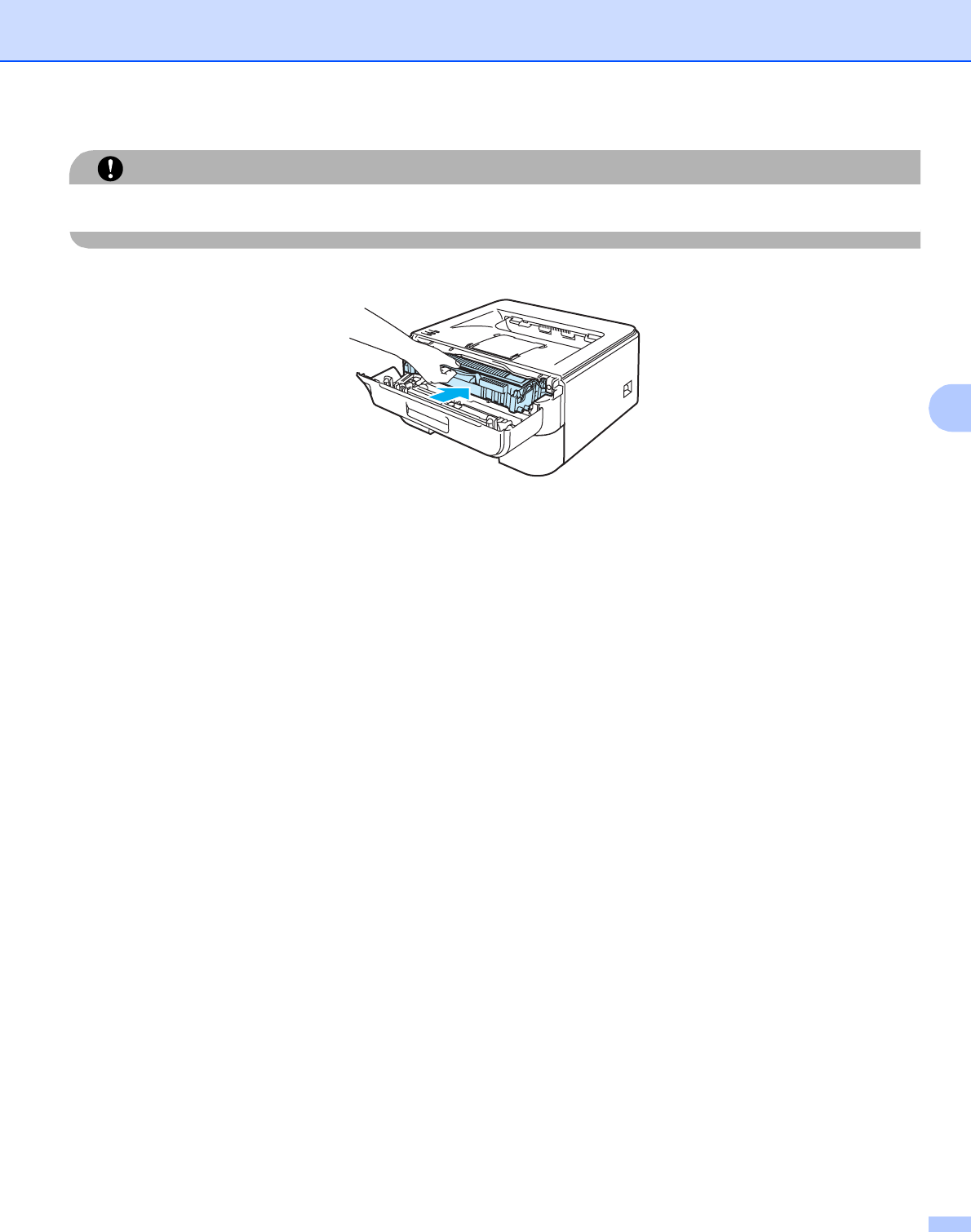
Routine Maintenance
72
5
CAUTION
Make sure that you put in the toner cartridge properly, or it may separate from the drum unit.
gPut the drum unit and toner cartridge assembly back in the printer.
hClose the front cover.
iMake sure that the Drum LED is now off.
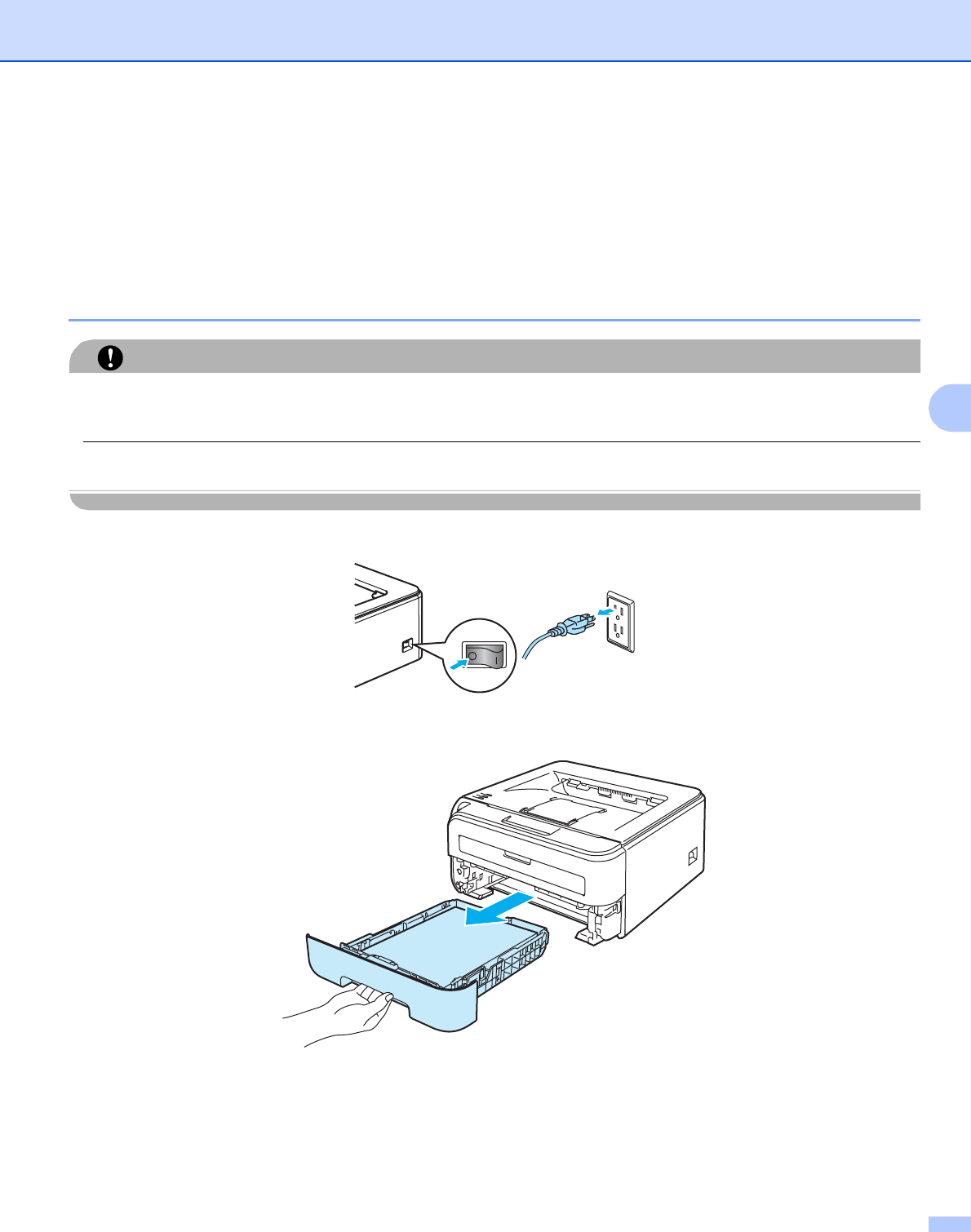
Routine Maintenance
73
5
Cleaning 5
Clean the outside and inside of the printer regularly with a dry, lint-free cloth. When you replace the toner
cartridge or the drum unit, make sure that you clean the inside of the printer. If printed pages are stained with
toner, clean the inside of the printer with a dry, lint-free cloth.
Cleaning the outside of the printer 5
CAUTION
Use neutral detergents. Cleaning with volatile liquids such as thinner or benzine will damage the surface of
the printer.
DO NOT use cleaning materials that contain ammonia.
aTurn off the printer power switch and then unplug the printer.
bPull the paper tray completely out of the printer.
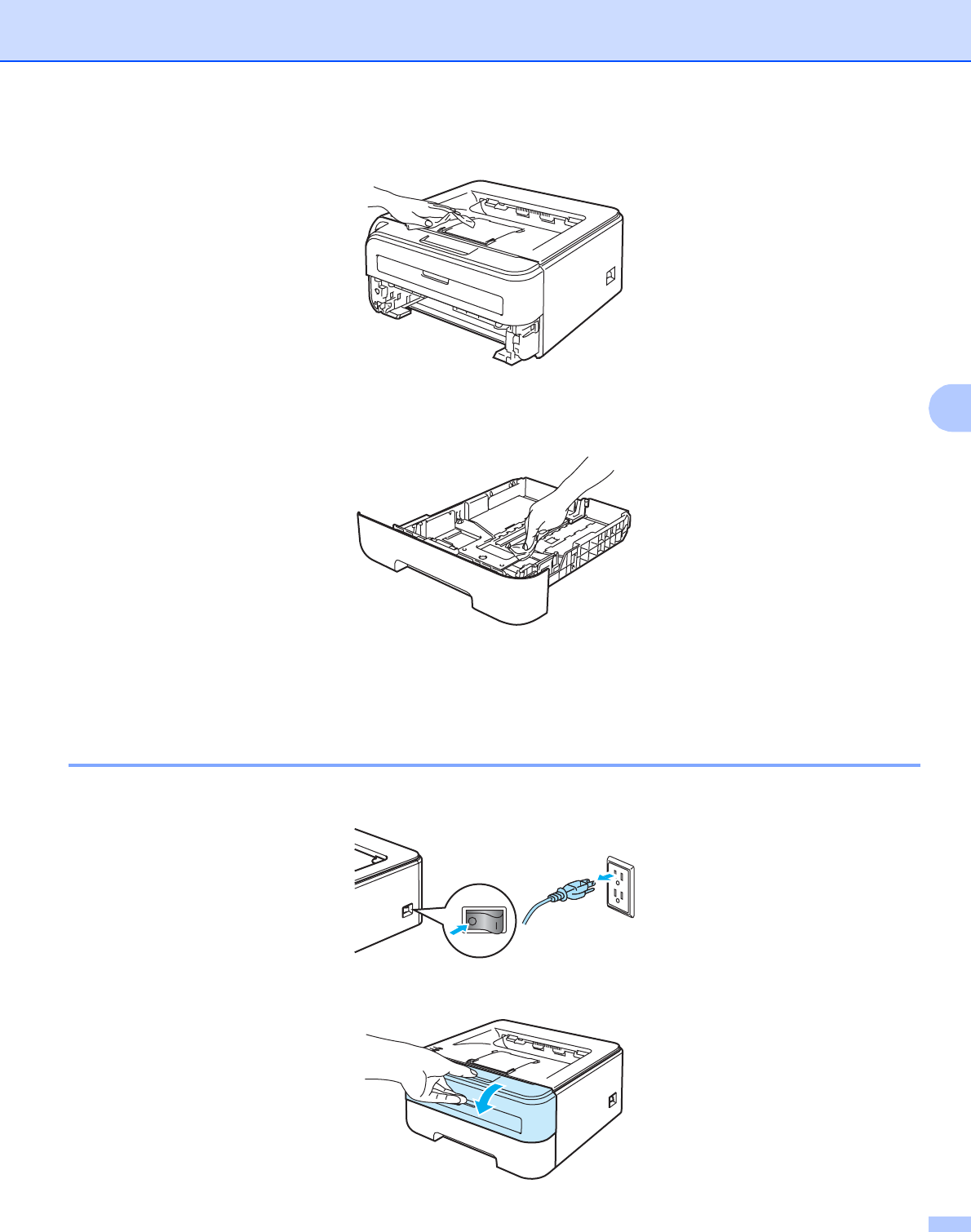
Routine Maintenance
74
5
cWipe the outside of the printer with a dry, lint-free cloth to remove dust.
dRemove anything that is stuck inside the paper tray.
eWipe the inside of the paper tray with a dry, lint-free cloth to remove dust.
fPut the paper tray back in the printer.
gPlug the printer back in, and then turn on the power switch.
Cleaning the inside of the printer 5
aTurn off the printer power switch and then unplug the printer.
bOpen the front cover.
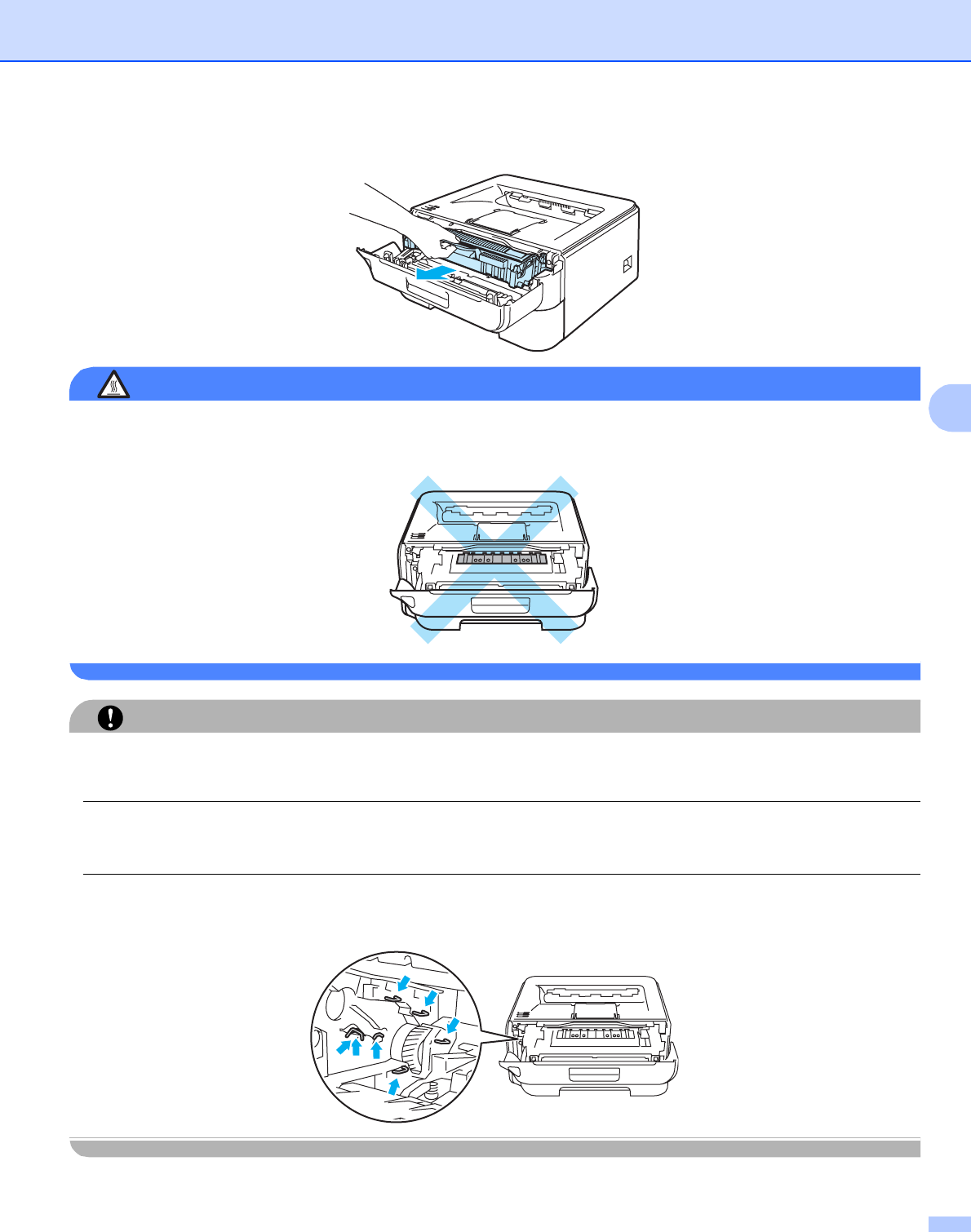
Routine Maintenance
75
5
cTake out the drum unit and toner cartridge assembly.
HOT SURFACE
After you have just used the printer, some internal parts of the printer will be extremely hot. Wait for the
printer to cool down before you touch the internal parts of the printer.
CAUTION
We recommend that you put the drum unit and toner cartridge assembly on a piece of disposable paper or
cloth in case you accidentally spill or scatter toner.
Handle the toner cartridge carefully. If toner scatters on your hands or clothes, wipe or wash it off with cold
water at once.
To prevent damage to the printer from static electricity, DO NOT touch the electrodes shown in the
illustration.
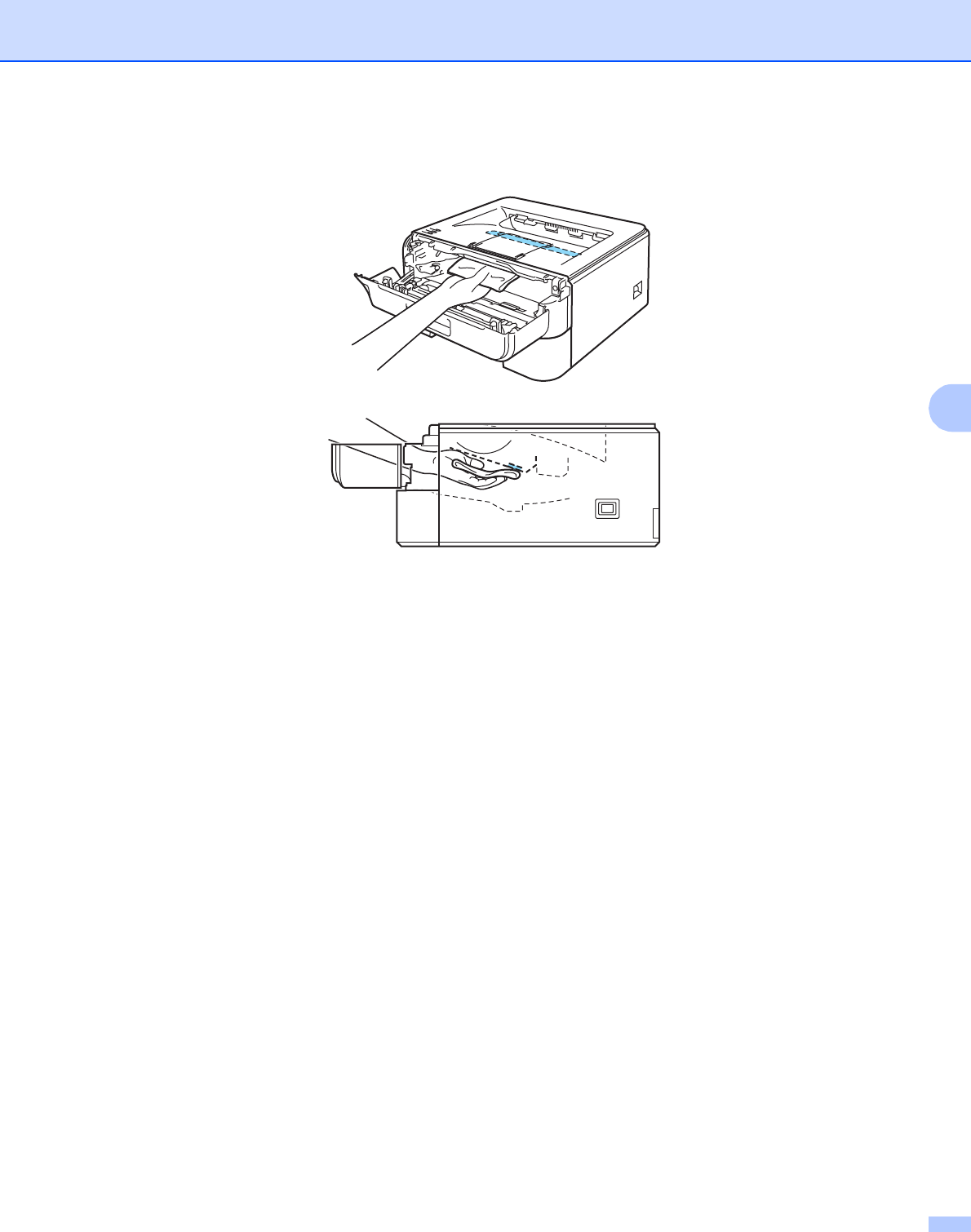
Routine Maintenance
76
5
dWipe the scanner window with a dry, lint-free cloth.
ePut the drum unit and toner cartridge assembly back in the printer.
fClose the front cover.
gPlug the printer back in, and then turn on the power switch.
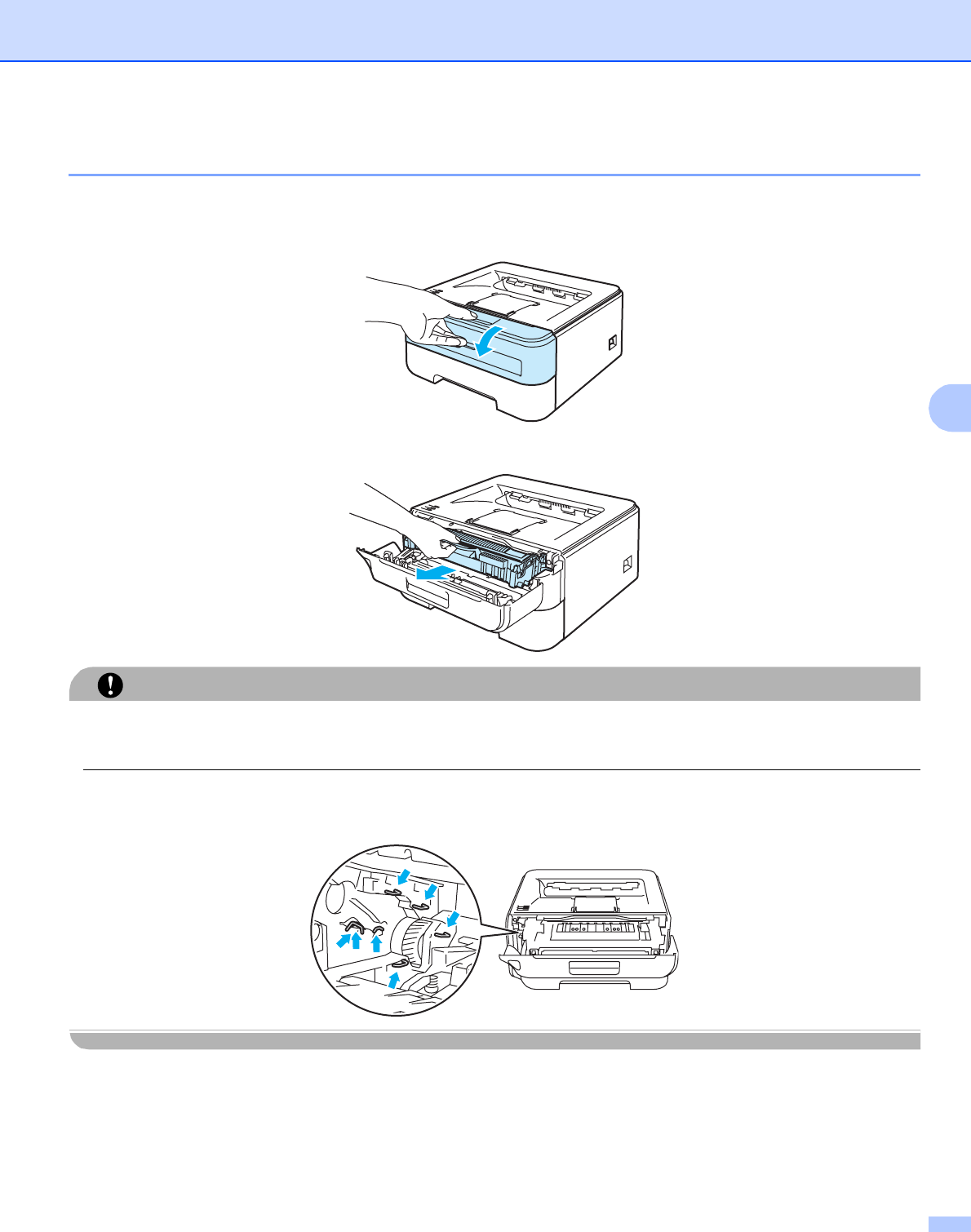
Routine Maintenance
77
5
Cleaning the corona wire 5
If you have print quality problems, clean the corona wire as follows:
aOpen the front cover.
bTake out the drum unit and toner cartridge assembly.
CAUTION
We recommend that you put the drum unit and toner cartridge assembly on a piece of disposable paper or
cloth in case you accidentally spill or scatter toner.
To prevent damage to the printer from static electricity, DO NOT touch the electrodes shown in the
illustration.
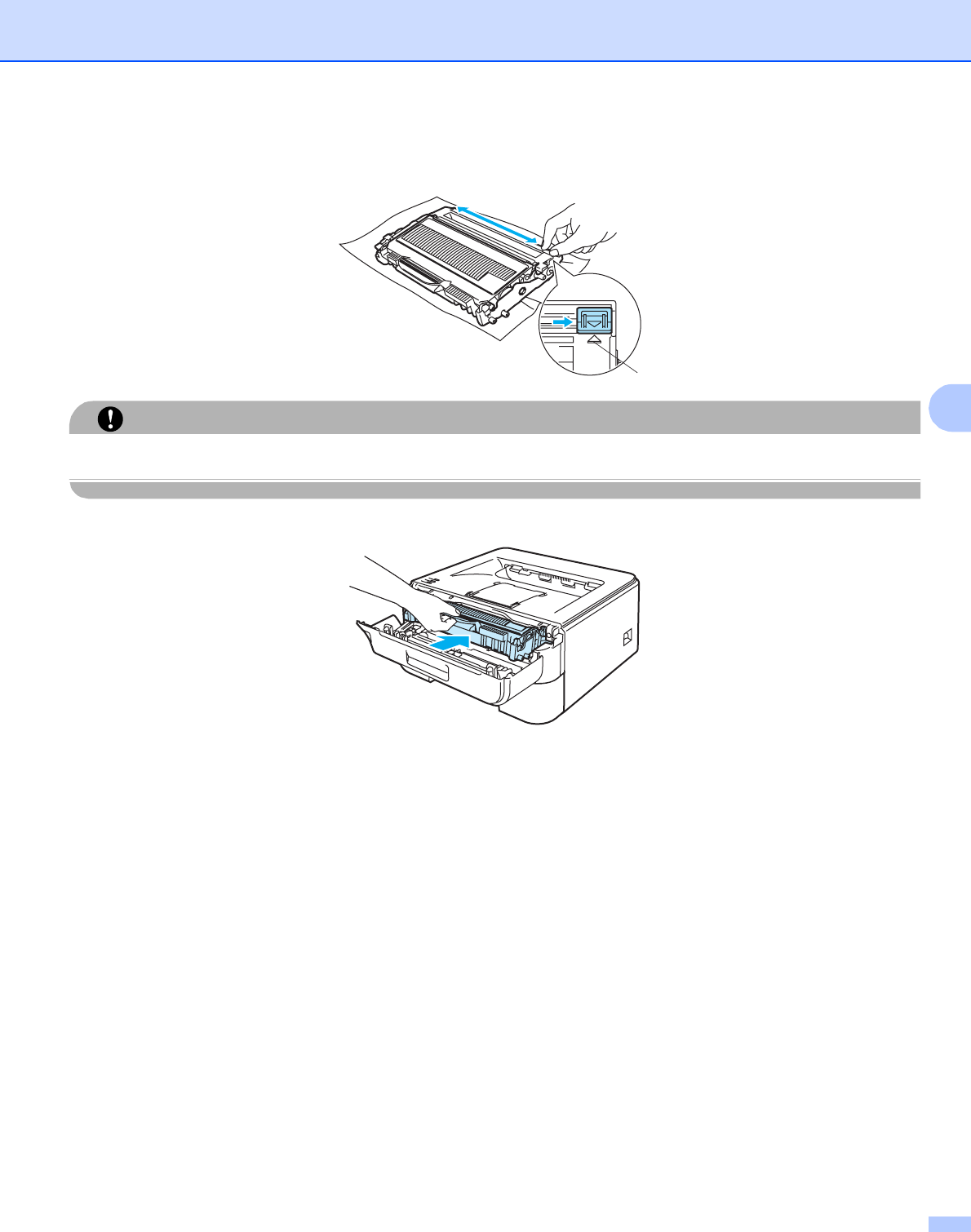
Routine Maintenance
78
5
cClean the primary corona wire inside the drum unit by gently sliding the green tab from right to left and
left to right several times.
CAUTION
Be sure to return the tab to the home position (a) (1). If you do not, printed pages may have a vertical stripe.
dPut the drum unit and toner cartridge assembly back in the printer. Close the front cover.
1

79
6
6
You can correct most problems by yourself. If you need additional help, the Brother Solutions Center offers
the latest FAQs and troubleshooting tips. Visit us at http://solutions.brother.com.
Identifying your problem 6
First, check the following: 6
The AC power cord is connected properly and the printer is turned on.
All of the protective parts have been removed.
The toner cartridges and drum unit are installed properly.
The front cover and fuser cover are fully closed.
Paper is inserted properly in the paper tray.
The interface cable is securely connected to the printer and the computer.
The correct driver for the printer has been chosen and is installed.
The computer is set up to connect to the correct printer port.
Printer does not print: 6
If you did not solve your problem with the above checks, identify your problem and then go to the page
suggested below.
Printer LED is blinking
See LEDs (Light Emitting Diodes) on page 48.
Status Monitor Error Message appears
See Error messages in the Status Monitor on page 80.
Printer printed an Error Message
See Error message printout on page 82.
Paper handling
(See Paper handling on page 83 and Paper jams and how to clear them on page 85.)
Other problems
(See Other problems on page 98.)
Pages are printed, but there are problems with: 6
Print quality
(See Improving the print quality on page 91.)
Printout is incorrect
(See Solving print problems on page 97.)
Troubleshooting 6

Troubleshooting
80
6
Error messages in the Status Monitor 6
The Status Monitor will report problems with the printer. Take the proper action by referring to the following
table.
The default setting for the Status Monitor is off. If you want to turn the status monitor on, follow these steps:
For Windows® users
Click the Start button, All Programs 1, your printer (e.g Brother HL-2140), and then Status Monitor.
1Programs for Windows® 2000 users
For Macintosh® users (Mac OS® X 10.3 or greater only)
See Status Monitor (For Mac OS® X 10.3 or greater users) on page 44.
Error message Action
Cover is Open Close the front cover of the printer.
Memory Full Press the Go button to print the remaining data in the printer memory. Cancel the
print job if you want to delete the remaining data in the printer memory. See Go
button on page 55.
Reduce the complexity of your document or cut the print resolution.
Print Overrun Press the Go button to print the remaining data in the printer memory. Cancel the
print job if you want to delete the remaining data in the printer memory. See Go
button on page 55.
If this does not clear the error, reduce the complexity of your document or cut the
print resolution.
(HL-2150N / HL-2170W only)
Change the following settings in the supplied Windows® driver and try again. The
best combination of these settings will vary depending on your document:
• Graphics mode 1
• TrueType mode 1
• Use Printer TrueType® Fonts 1
1Choose the Advanced tab, click the Print Quality icon, and then choose Manual in Print Setting
and click the Setting... button.
No Paper Fed Tray 1 The paper tray may be out of paper or not properly installed. If it is empty, put a
new stack of paper in the paper tray and then press the Go button.
If there is paper in the paper tray, make sure it is straight. If the paper is curled,
straighten it before printing. Sometimes it is helpful to remove the paper, turn the
stack over and put it back in the paper tray.
Cut the amount of paper in the paper tray, and then try again.
Make sure you use paper that meets Brother’s recommended paper
specifications. See About paper on page 5.
Load the same size paper that you selected in the current driver setting.
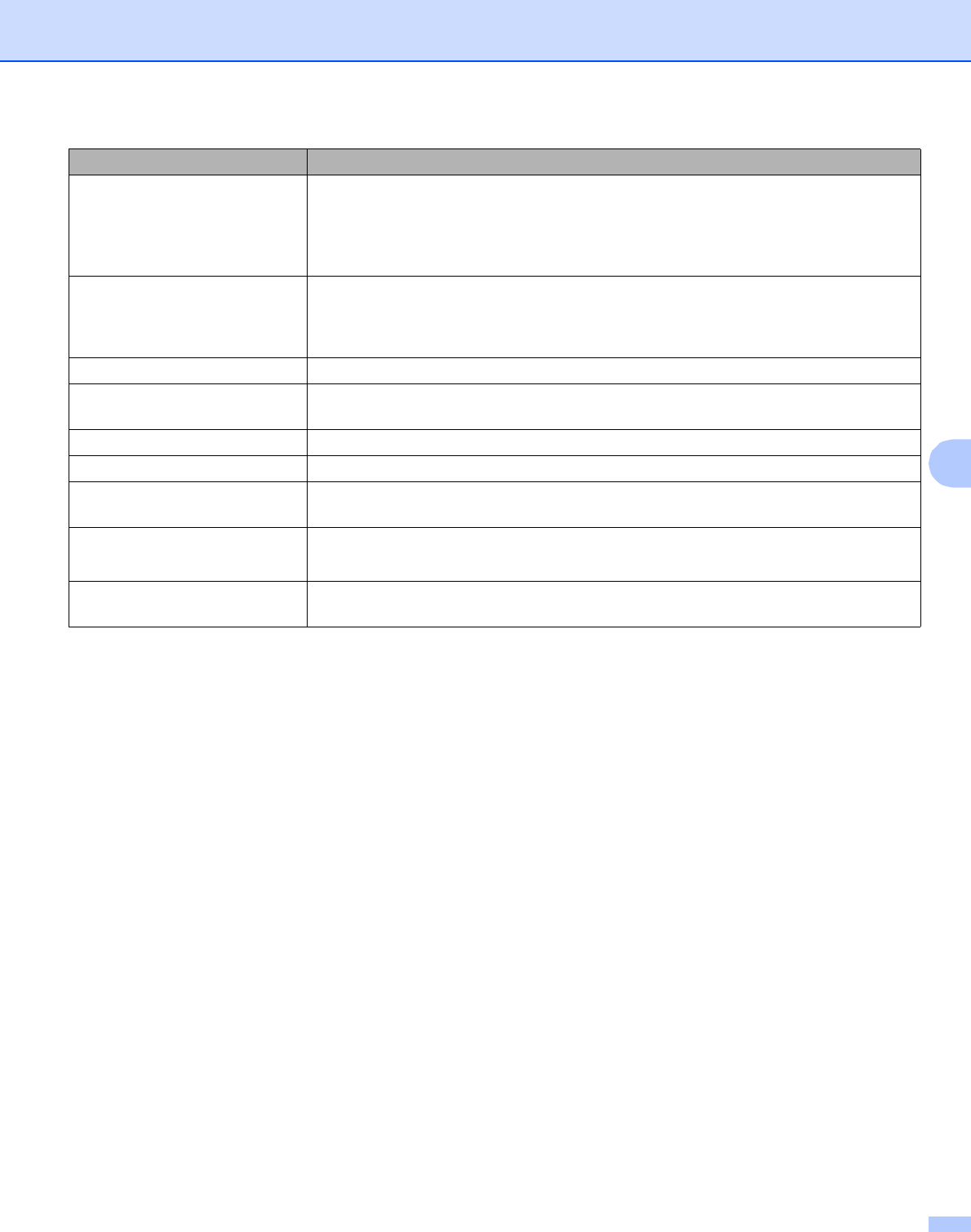
Troubleshooting
81
6
No Paper Fed Manual Slot If the manual feed slot is empty, put a piece of paper in it.
Make sure you use paper that meets Brother’s recommended paper
specifications. See About paper on page 5.
Load the same size paper that you selected in the current driver setting.
Paper Jam Tray 1
Paper Jam Inside
Paper Jam Rear
Clear the jammed paper from the indicated area. See Paper jams and how to
clear them on page 85.
Toner Life End See Replacing the toner cartridge on page 62.
Toner Low Buy a new toner cartridge and have it ready for when the Toner Life End status
is indicated.
Cartridge Position Error Make sure the drum unit and toner cartridge assembly is installed properly.
Fuser Cover is Open Close the fuser cover located behind the back cover of the printer.
Drum Life End Soon The drum unit is near the end of its life. Buy a new drum unit to replace the current
one. See Replacing the drum unit on page 69.
Drum Error See Cleaning the corona wire on page 77.
Put in a new drum unit. See Replacing the drum unit on page 69.
Service Call Check the LED indication to identify the error. See Service call
indications on page 53.
Error message Action

Troubleshooting
82
6
Error message printout 6
The printer can also report problems by printing an error message. Use the table below to identify and clear
the error message.
Error message Action
MEMORY FULL Press the Go button to print the remaining data in the printer memory. Cancel the
print job if you want to delete the remaining data in the printer memory. See Go
button on page 55.
Reduce the complexity of your document or reduce the print resolution.
PRINT OVERRUN Press the Go button to print the remaining data in the printer memory. Cancel the
print job if you want to delete the remaining data in the printer memory. See Go
button on page 55.
If this does not clear the error, reduce the complexity of your document or reduce
the print resolution.
(HL-2150N / HL-2170W only)
Change the following settings in the supplied Windows® driver and try again. The
best combination of these settings will vary depending on your document:
• Graphics mode 1
• TrueType mode 1
• Use Printer TrueType® Fonts 1
1Choose the Advanced tab, click the Print Quality icon, and then choose Manual in Print Setting
and click the Setting... button.
RESOLUTION REDUCED TO
ENABLE PRINTING
(The printer has printed the
document at a reduced
resolution)
Reduce the complexity of your document before you print to prevent automatic
reduction in the resolution.
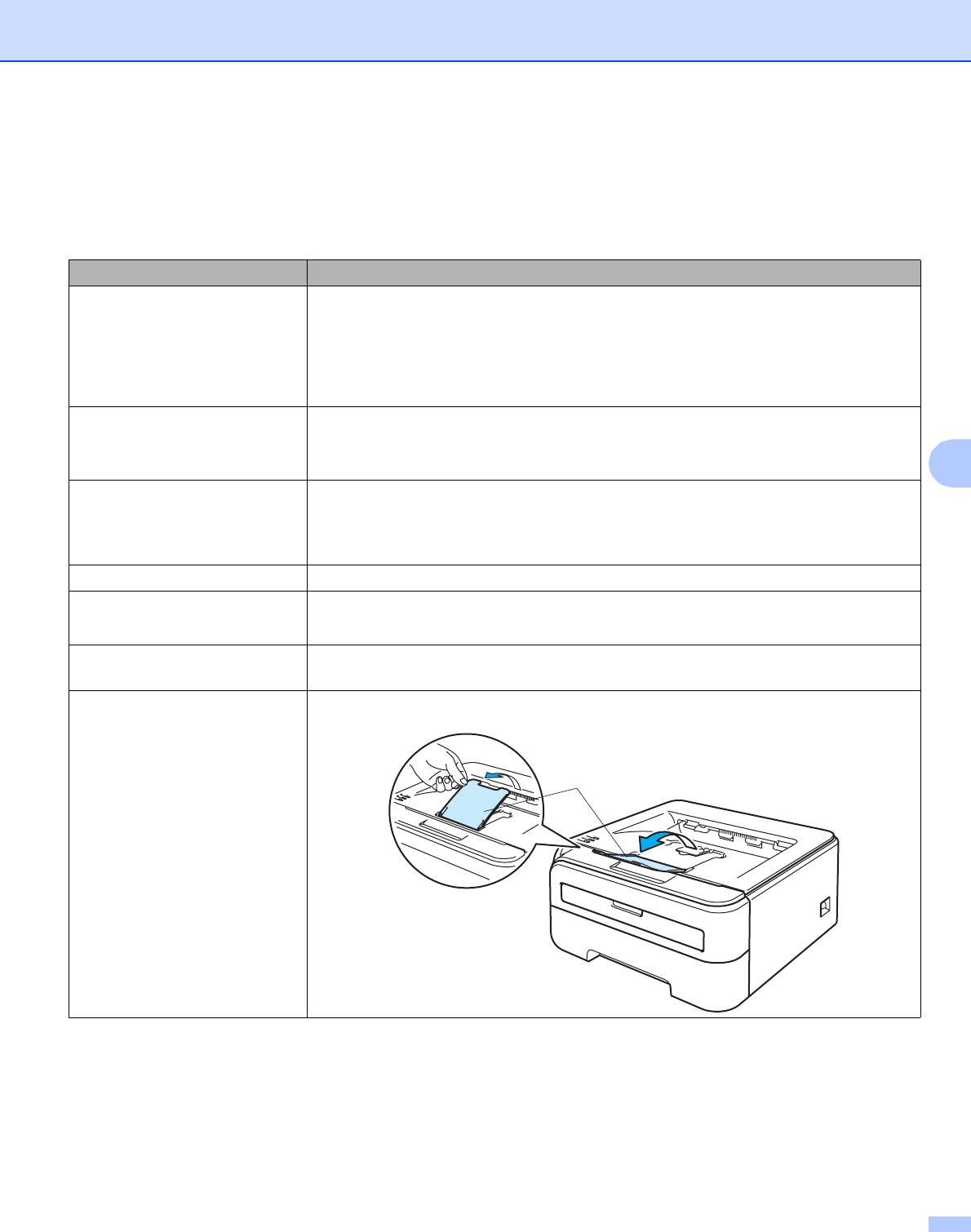
Troubleshooting
83
6
Paper handling 6
First, make sure that you are using paper that meets Brother’s recommended paper specifications. (See
About paper on page 5.)
Problem Recommendation
The printer does not feed
paper.
If there is paper in the paper tray, make sure it is straight. If the paper is curled,
straighten it before printing. Sometimes it is helpful to remove the paper. Turn the
stack over and put it back in the paper tray.
Reduce the amount of paper in the paper tray, and then try again.
Make sure that manual feed mode is not chosen in the printer driver.
The printer does not feed paper
from the manual feed slot.
Fan the paper well and put it back in firmly.
Make sure that you have chosen the manual feed slot in the Paper Source of the
printer driver.
The printer does not feed
envelopes.
The printer can feed envelopes from the manual feed slot. You must set up your
application to print on the size of envelopes you are using. This is usually done in
the page setup or document setup menu of your software. (See your application
manual.)
A paper jam has occurred. Clear the jammed paper. (See Paper jams and how to clear them on page 85.)
The printer does not print. Make sure that the cable is connected to the printer.
Make sure that you have chosen the correct printer driver.
When printing on normal paper,
it creases.
Change the printer driver setting in Media Type to a thin setting.
The paper slides off the top
output tray.
Lift up the output tray support flap 1 (1).
1
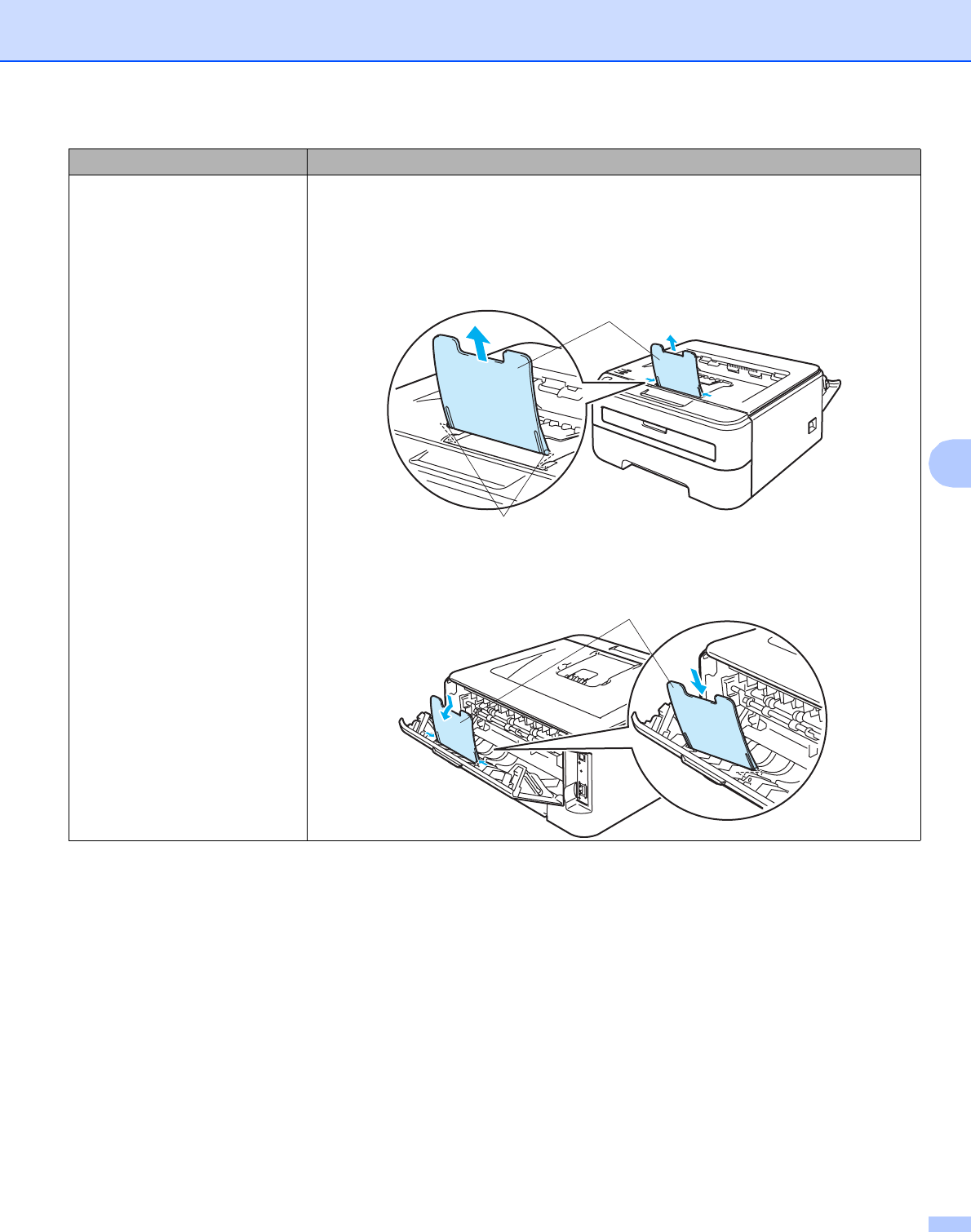
Troubleshooting
84
6
The paper slides off the back
output tray.
Follow these steps:
aRemove the output tray support flap 1 (1) from the top of the printer by first
lifting the flap up.
Then push the flap to the left or right to release one of the posts (2) on the flap
and pull up.
bAttach the support flap 1 (1) to the back output tray by inserting the posts of the
support flap one at a time into the holes of the back output tray.
Problem Recommendation
1
2
1
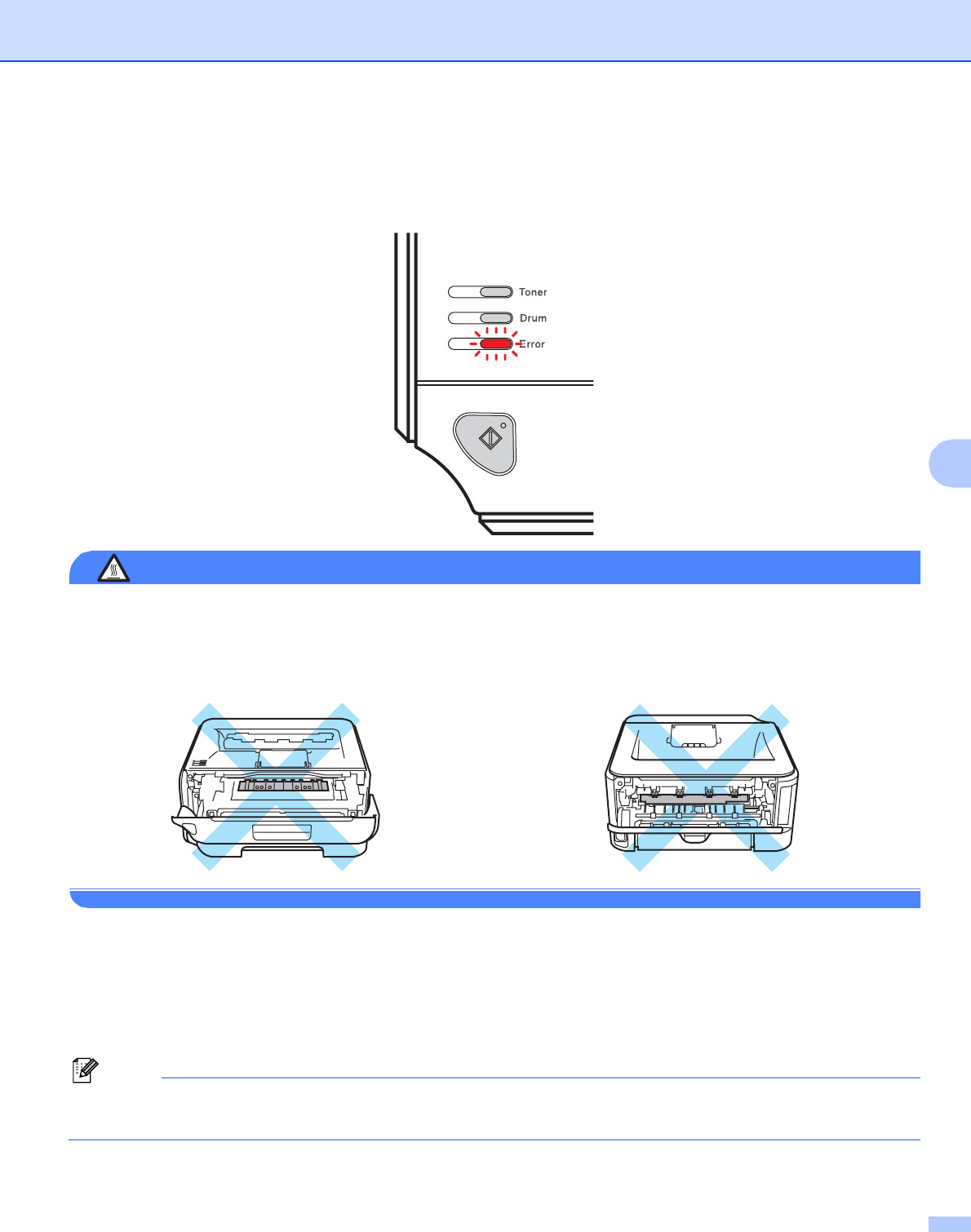
Troubleshooting
85
6
Paper jams and how to clear them 6
If a paper jam occurs, the printer will flash the Error LED as shown below.
HOT SURFACE
After you have just used the printer, some internal parts of the printer will be extremely hot. When you open
the front cover or back cover (back output tray) of the printer, DO NOT touch the shaded parts shown in the
illustrations.
Clear the jammed paper as follows.
If the jammed paper is removed completely by following the steps below, you can install the paper tray first,
and then close the front cover. The printer will resume printing automatically.
If the printer does not start printing automatically, press the Go button. If the printer still does not start printing,
check that all the remaining jammed paper has been removed from the printer. Then try printing again.
Note
Always remove all paper from the paper tray and straighten the stack when you add new paper. This helps
prevent multiple sheets of paper from feeding through the printer at one time and prevents paper jams.
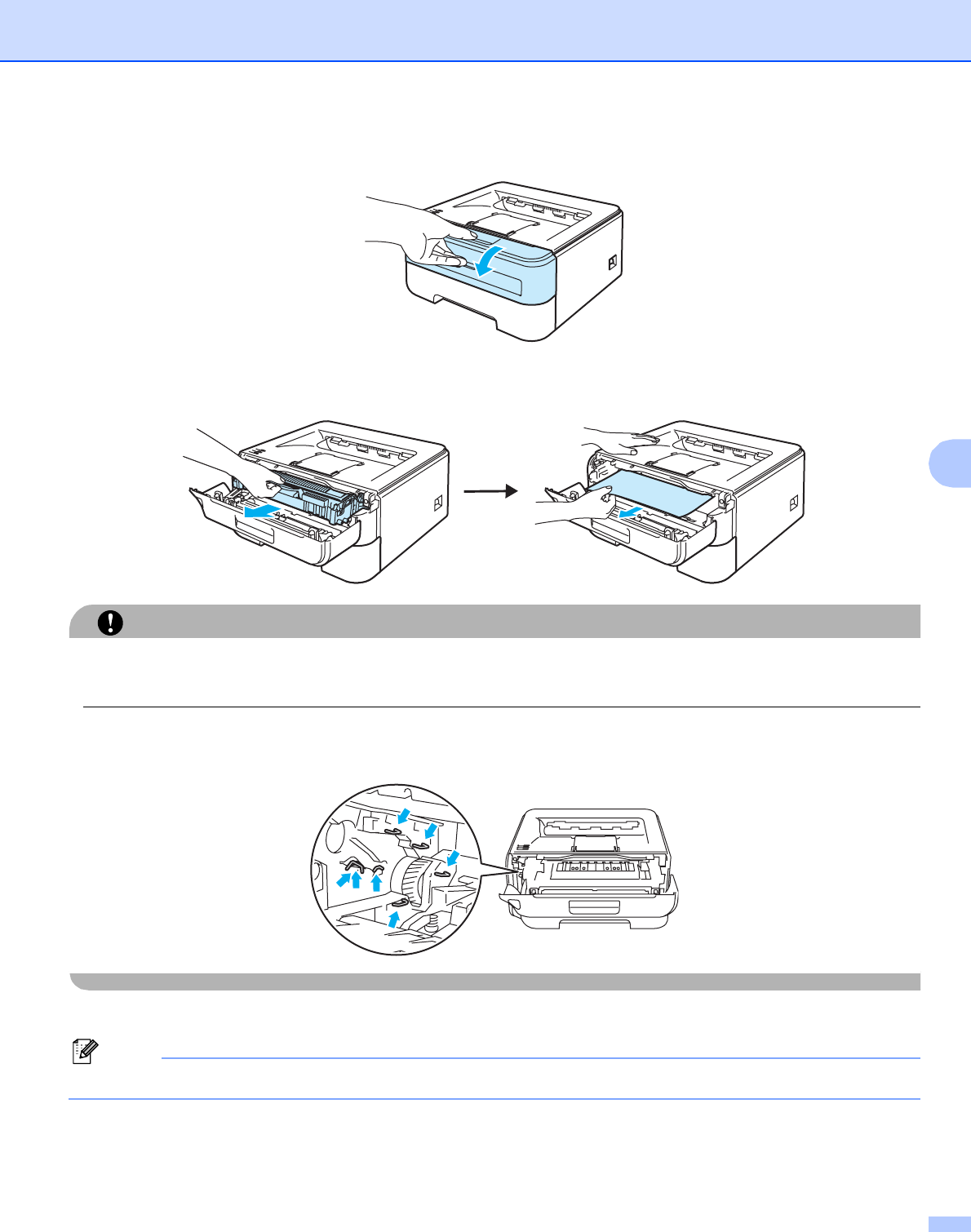
Troubleshooting
86
6
aOpen the front cover.
bSlowly take out the drum unit and toner cartridge assembly. The jammed paper will be pulled out with
the drum unit and toner cartridge assembly.
CAUTION
We recommend that you put the drum unit and toner cartridge assembly on a piece of disposable paper or
cloth in case you accidentally spill or scatter toner.
To prevent damage to the printer caused by static electricity, DO NOT touch the electrodes shown in the
illustration.
cClose the front cover.
Note
Do not put the drum unit and toner cartridge assembly back in at this point.
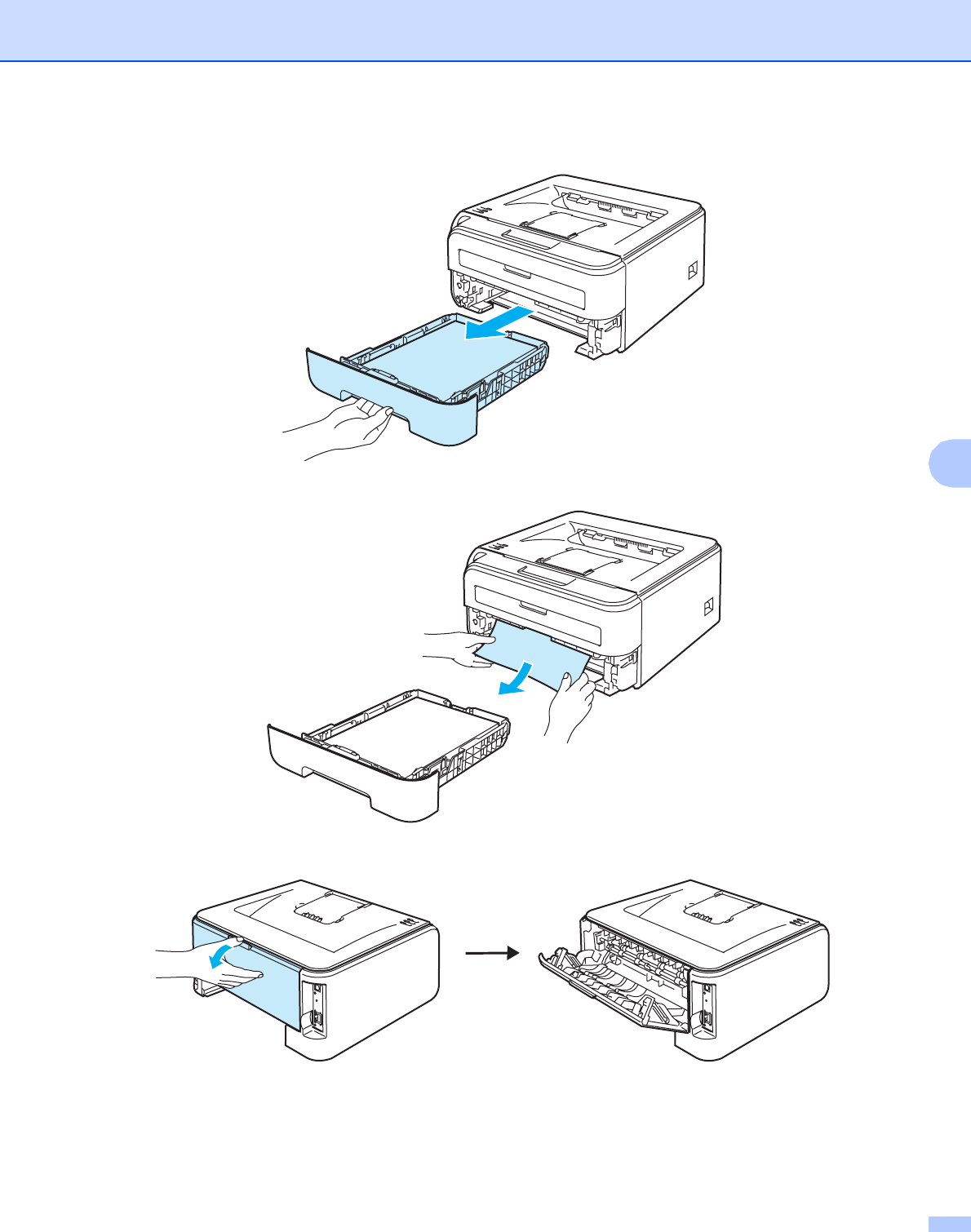
Troubleshooting
87
6
dPull the paper tray completely out of the printer.
ePull the jammed paper down and out of the printer.
fOpen the back cover (back output tray).
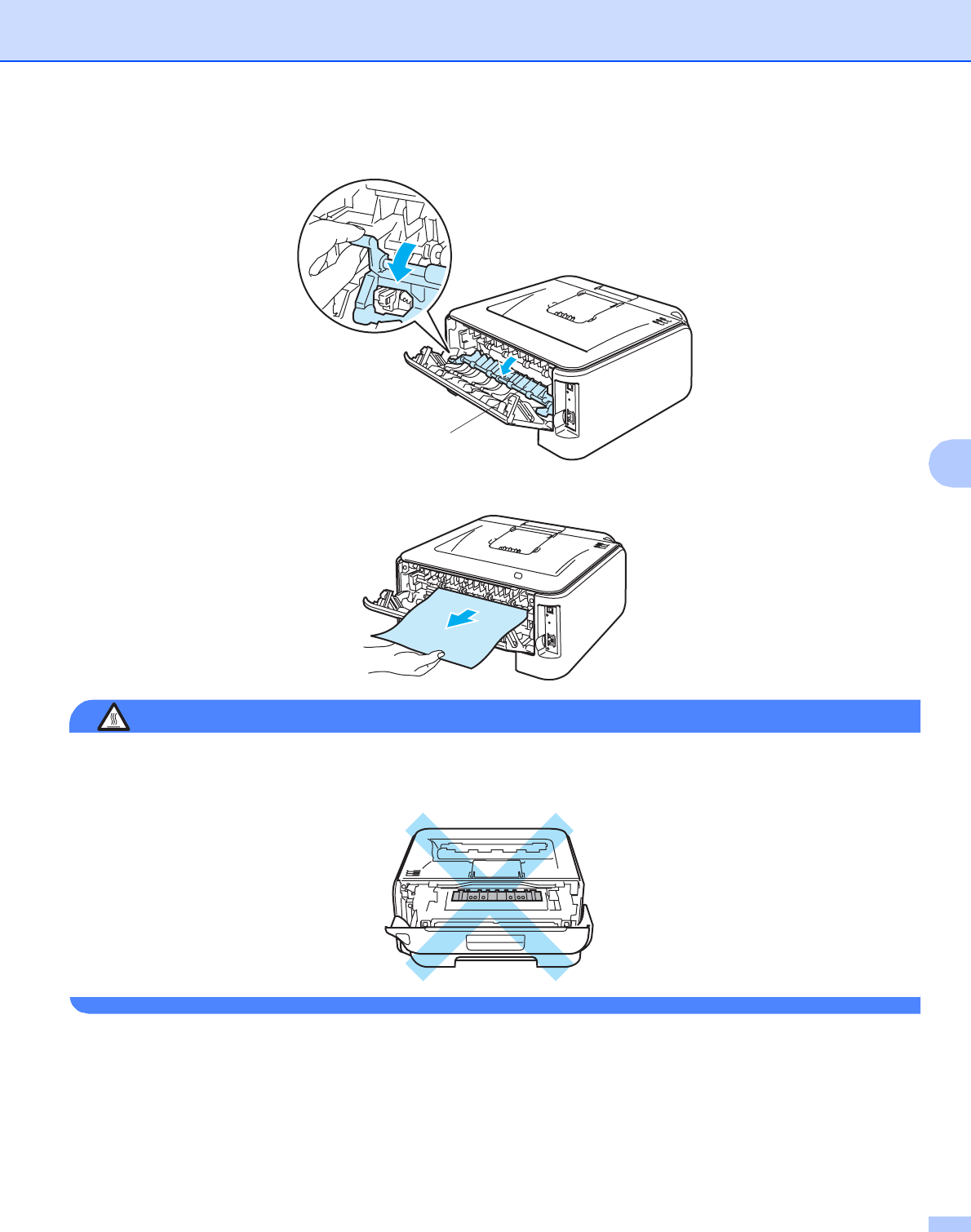
Troubleshooting
88
6
g Pull the tab toward you to open the fuser cover (1).
hPull the jammed paper out of the fuser unit.
HOT SURFACE
After you have just used the printer, some internal parts of the printer will be extremely hot. Wait for the
printer to cool down before you touch the internal parts of the printer.
iClose the back cover (back output tray).
1
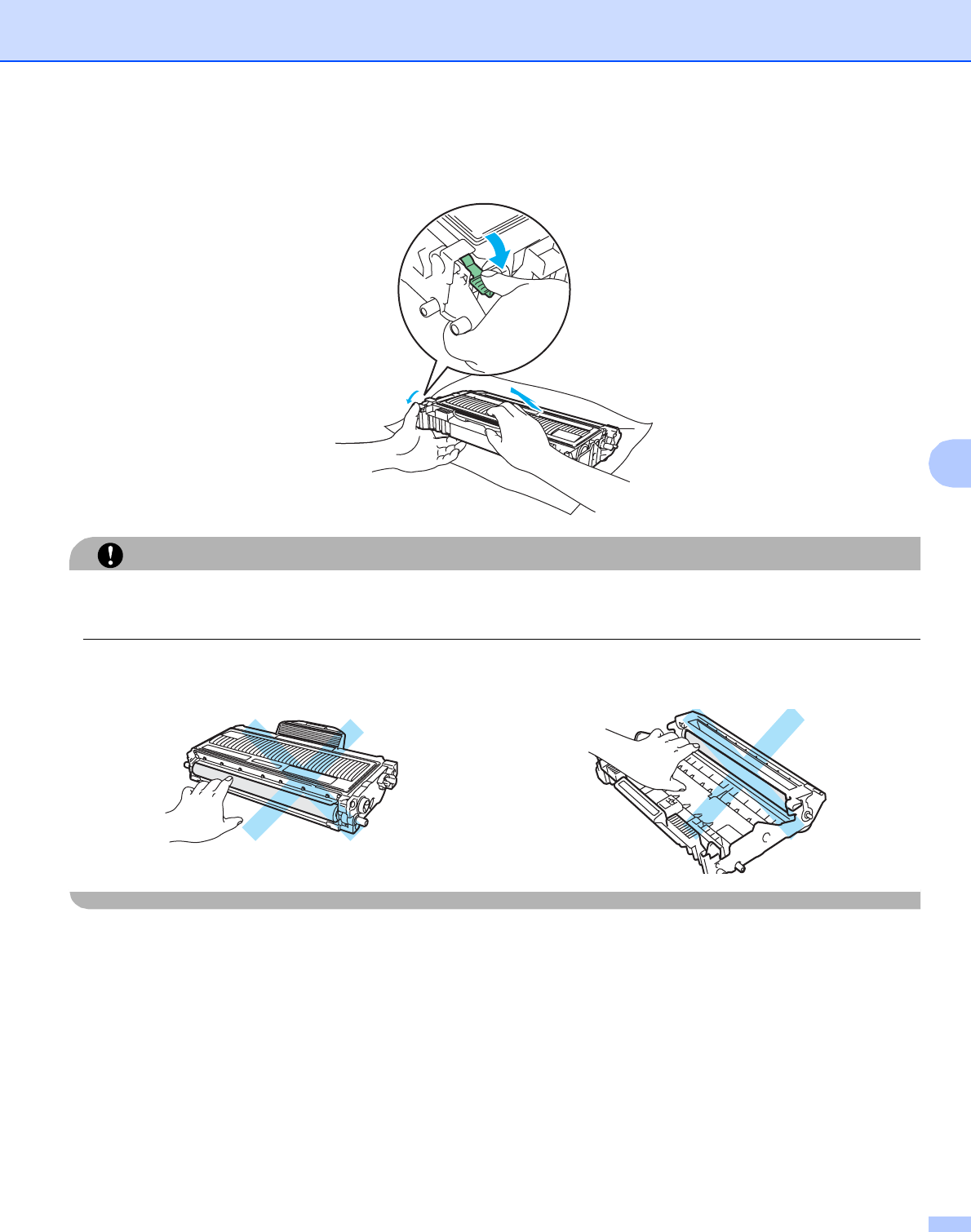
Troubleshooting
89
6
jPush down the green lock lever and take the toner cartridge out of the drum unit. Clear the jammed paper
if there is any inside the drum unit.
CAUTION
Handle the toner cartridge carefully. If toner scatters on your hands or clothes, wipe or wash it off with cold
water at once.
To avoid print quality problems, DO NOT touch the shaded parts shown in the illustrations.
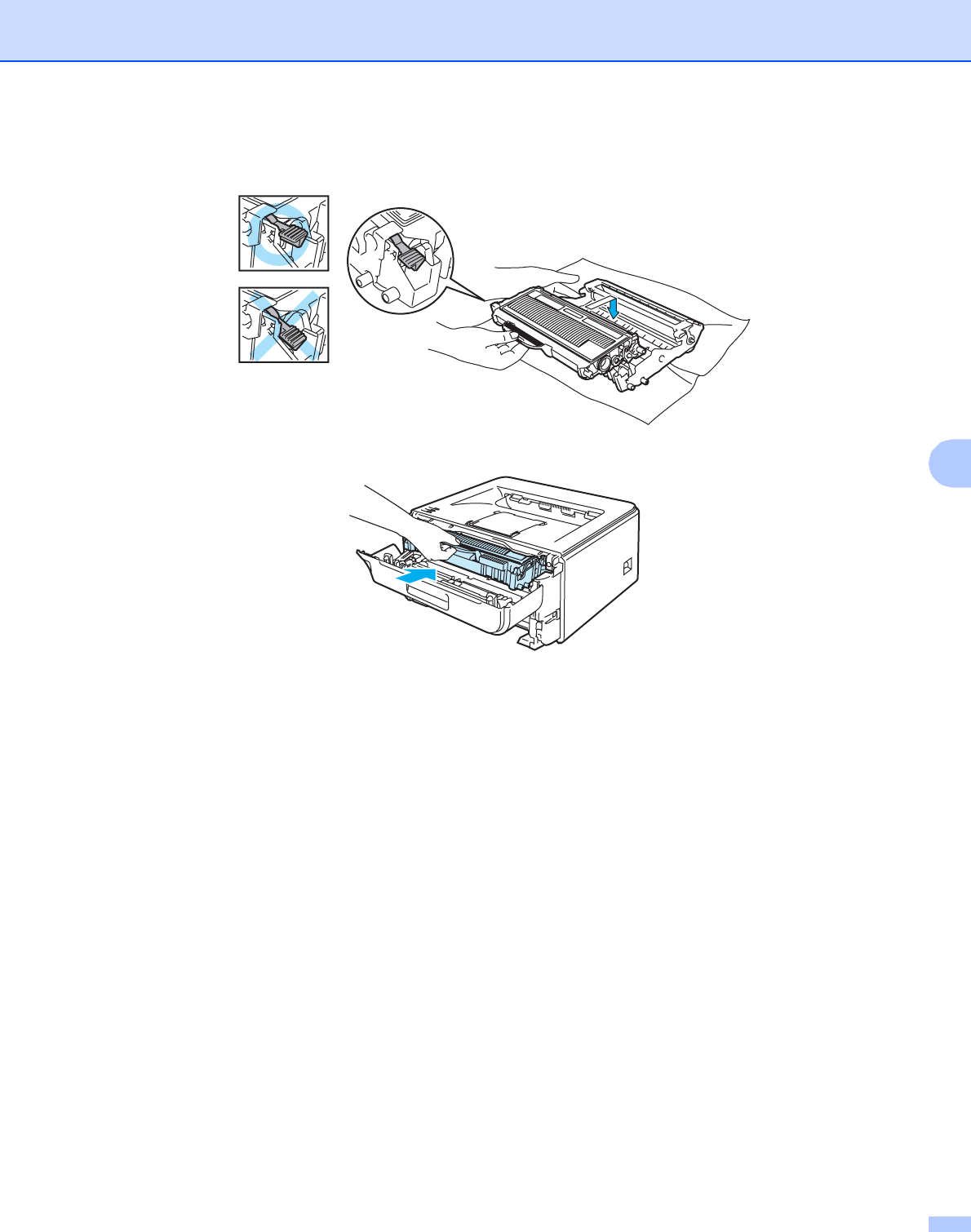
Troubleshooting
90
6
kPut the toner cartridge back into the drum unit until you hear it lock into place. If you put the cartridge in
properly, the green lock lever will lift automatically.
lOpen the front cover. Put the drum unit and toner cartridge assembly back in the printer.
mPut the paper tray firmly back in the printer.
nClose the front cover.
oMake sure that the Error LED is now off.
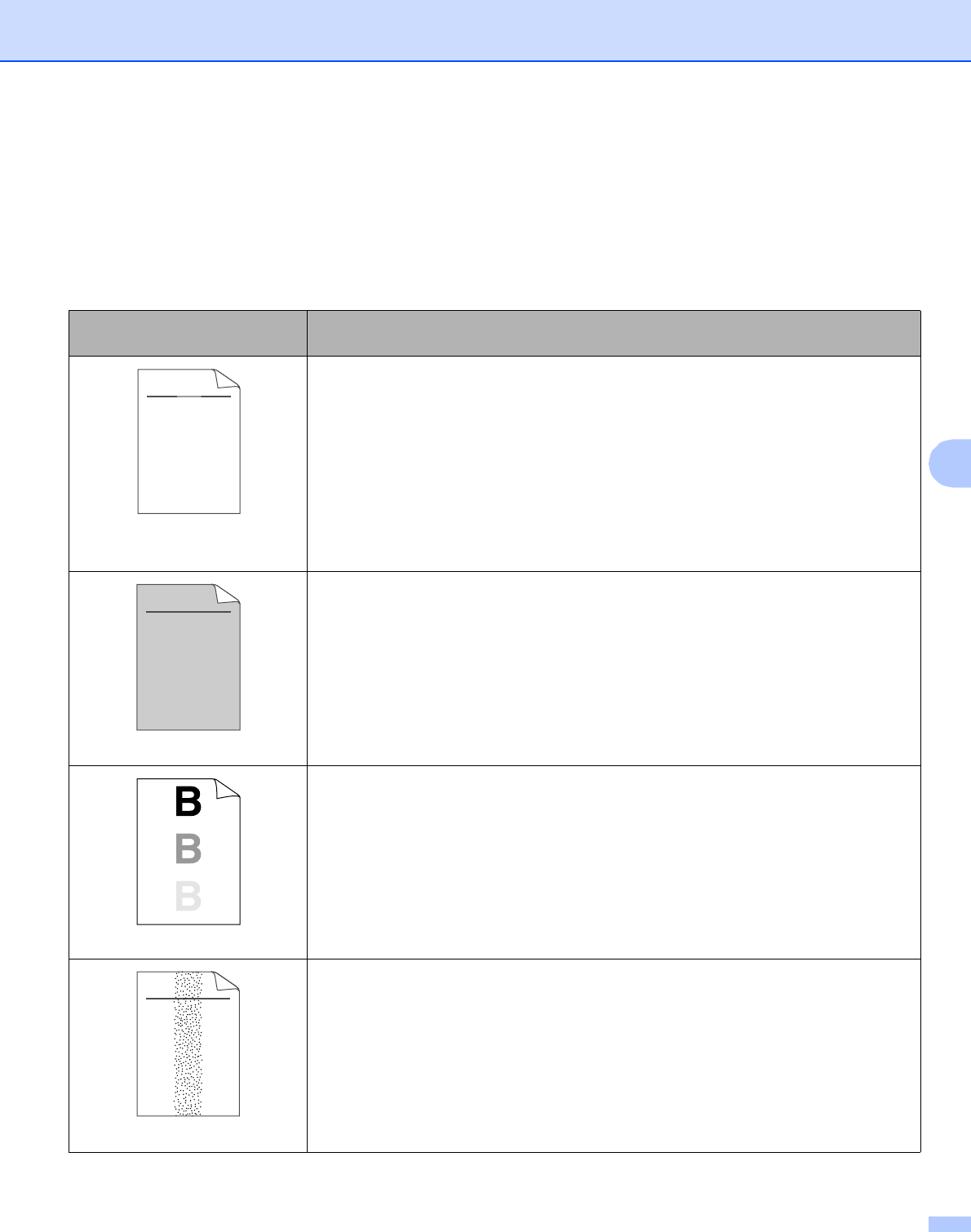
Troubleshooting
91
6
Improving the print quality 6
If you have a print quality problem, print a test page first (see Print a test page on page 56). If the printout
looks good, the problem is probably not the printer. Check the interface cable or try the printer on another
computer.
This section gives information on the following topics.
Examples of poor print
quality
Recommendation
Faint
Check the printer’s environment. Conditions such as humidity, high
temperatures, and so on, may cause this print fault. See Positioning the
printer on page 4.
If the whole page is too light, Toner Save Mode may be on. Turn off Toner Save
Mode in the printer Properties tab of the driver.
Put in a new toner cartridge. See Replacing the toner cartridge on page 62.
Put in a new drum unit. See Replacing the drum unit on page 69.
You may clear the problem by wiping the scanner window with a soft cloth. See
Cleaning the inside of the printer on page 74.
Grey background
Make sure that you use paper that meets our specifications. See About
paper on page 5.
Check the printer’s environment. Conditions such as high temperatures and high
humidity can increase the amount of background shading. See Positioning the
printer on page 4.
Put in a new toner cartridge. See Replacing the toner cartridge on page 62.
Put in a new drum unit. See Replacing the drum unit on page 69.
Ghost
Make sure that you use paper that meets our specifications. Rough-surfaced
paper or thick print media may cause this problem. See About paper on page 5.
Make sure that the media type setting in the driver matches the type of paper you
are using. See About paper on page 5.
Put in a new drum unit. See Replacing the drum unit on page 69.
The fuser unit may be contaminated. Call Brother Customer Service.
Toner specks
Make sure that you use paper that meets our specifications. Rough-surfaced
paper may cause the problem. See About paper on page 5.
The drum unit may be damaged. Put in a new drum unit. See Replacing the drum
unit on page 69.
The fuser unit may be contaminated. Call Brother Customer Service.
ABCDEFGH
abcdefghijk
ABCD
abcde
01234
C
DE
F
d
ef
g
BC
b
c
d
2
3
ABCDEFGH
abcdefghijk
ABCD
abcde
01234
ABCDEFGH
abcdefghijk
ABCD
abcde
01234
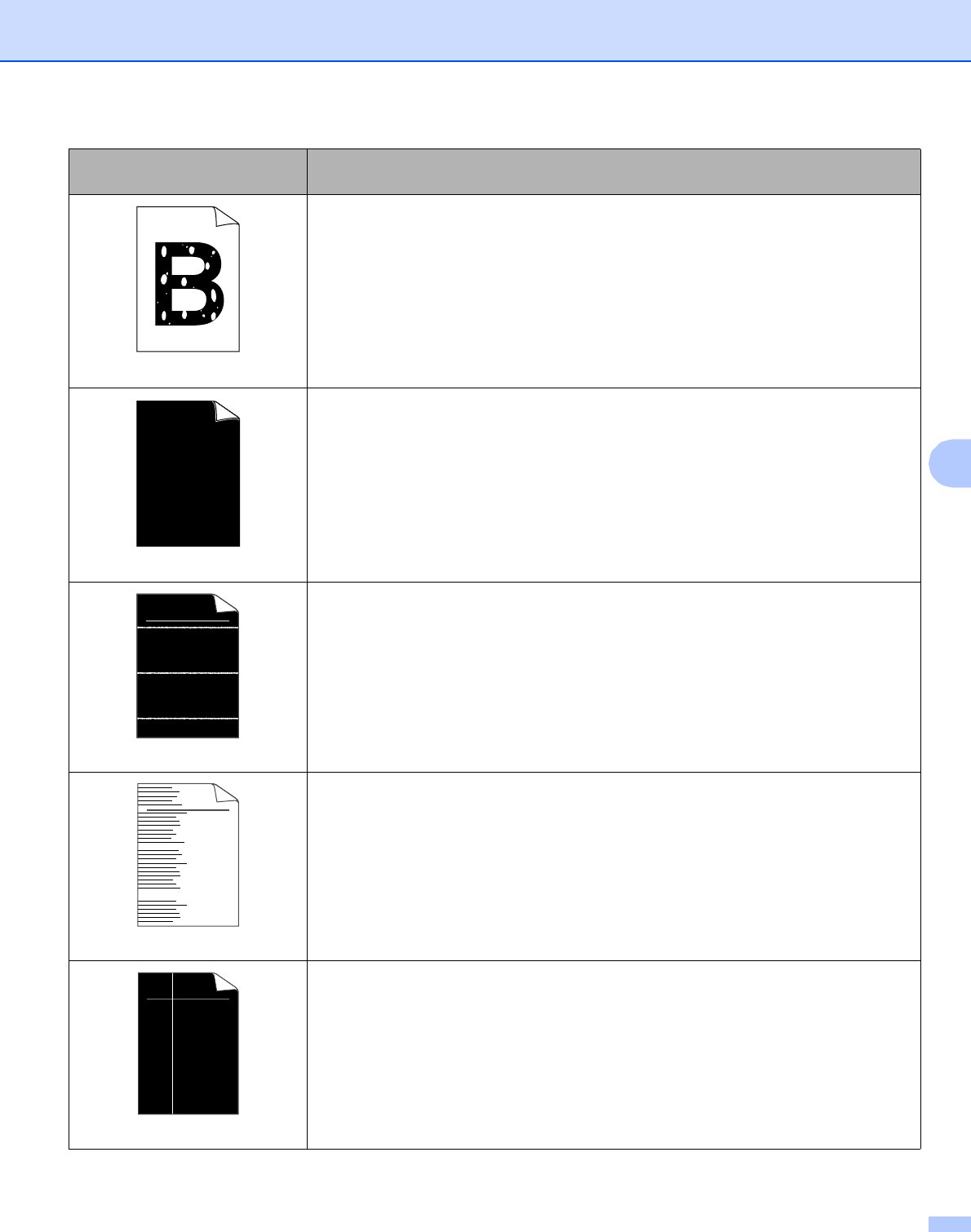
Troubleshooting
92
6
Hollow print
Make sure that you use paper that meets our specifications. See About
paper on page 5.
Choose Thick paper mode in the printer driver, or use thinner paper than what
you are now using.
Check the printer’s environment. Conditions such as high humidity can cause
hollow print. See Positioning the printer on page 4.
All black
Clean the primary corona wire inside the drum unit by sliding the green tab. Be
sure to return the green tab to the home position (a). See Cleaning the corona
wire on page 77.
The drum unit may be damaged. Put in a new drum unit. See Replacing the drum
unit on page 69.
The fuser unit may be contaminated. Call Brother Customer Service.
White lines across the page
Make sure that you use paper that meets our specifications. A rough surfaced
paper or thick print media can cause problems.
Make sure that you choose the correct media type in the printer driver.
The problem may disappear by itself. Print multiple pages to clear this problem,
especially if the printer has not been used for a long time.
The drum unit may be damaged. Put in a new drum unit. See Replacing the drum
unit on page 69.
Lines across the page
Clean the inside of the printer and the primary corona wire in the drum unit. See
Cleaning on page 73.
The drum unit may be damaged. Put in a new drum unit. See Replacing the drum
unit on page 69.
White lines down the page
Make sure that a torn piece of paper is not inside the printer covering the scanner
window.
Wipe the scanner window with a soft cloth. See Cleaning the inside of the
printer on page 74.
The toner cartridge may be damaged. Put in a new toner cartridge. See
Replacing the toner cartridge on page 62.
The drum unit may be damaged. Put in a new drum unit. See Replacing the drum
unit on page 69.
Examples of poor print
quality
Recommendation
ABCDEFGH
abcdefghijk
ABCD
abcde
01234
ABCDEFGH
abcdefghijk
ABCD
abcde
01234
ABCDEFGH
abcdefghijk
ABCD
abcde
01234
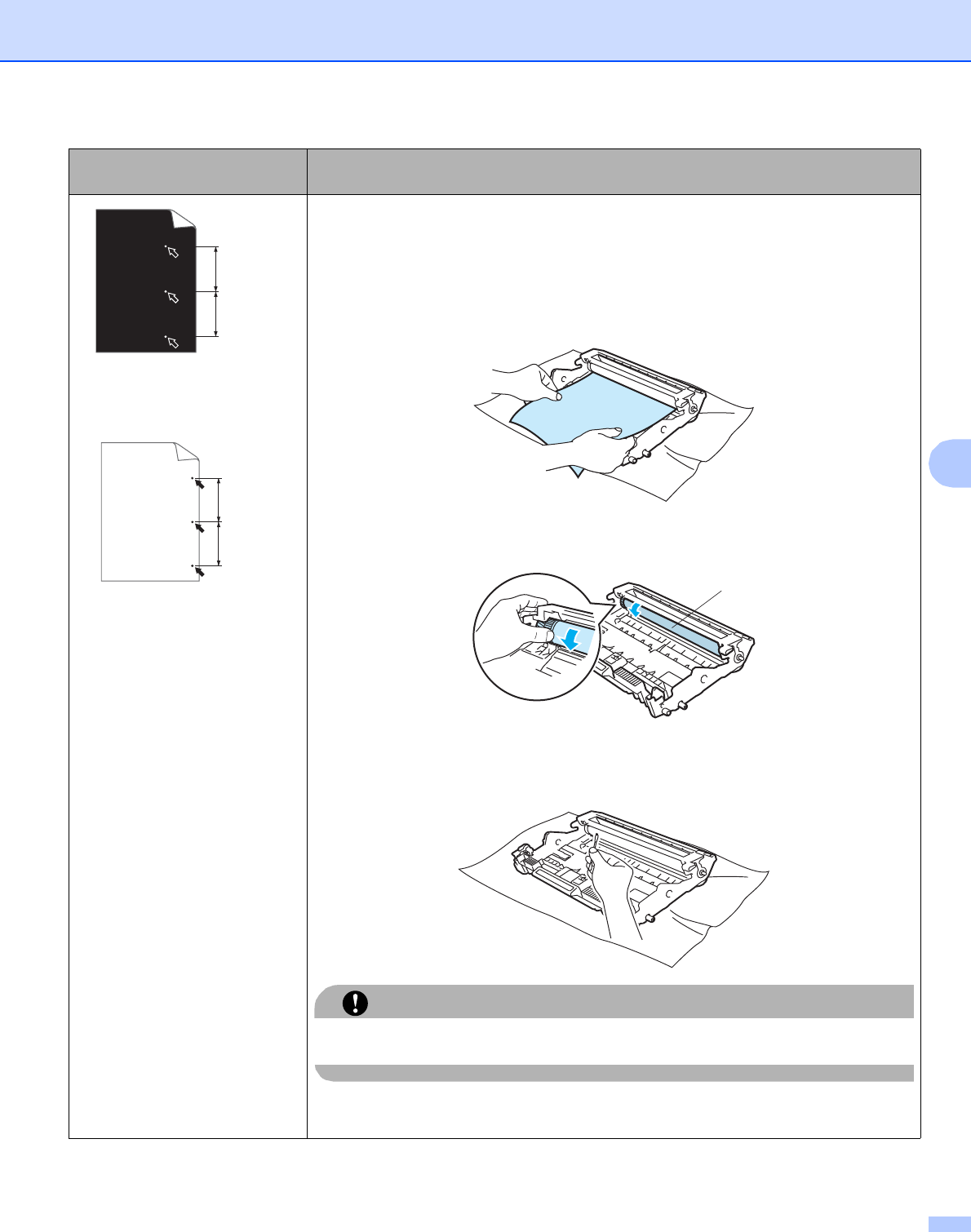
Troubleshooting
93
6
White Spots on black text
and graphics at 75 mm
(2.95 in.) intervals
Black Spots at 75 mm
(2.95 in.) intervals
If the problem is not solved after printing a few pages, the drum unit may have
glue from a label stuck on the OPC drum surface.
Clean the drum unit as follows: 6
aPut the print sample in front of the drum unit, and find the exact position of
the poor print.
bTurn the drum unit gear by hand while looking at the surface of the OPC
drum (1).
cWhen you have found the mark on the drum that matches the print sample,
wipe the surface of the OPC drum with a dry cotton swab until the dust or
glue on the surface comes off.
CAUTION
DO NOT clean the surface of the photosensitive drum with a sharp object.
The drum unit may be damaged. Put in a new drum unit. See Replacing the drum
unit on page 69.
Examples of poor print
quality
Recommendation
75 mm
(2.95 in.)
75 mm
(2.95 in.)
75 mm
(2.95 in.
)
75 mm
(2.95 in.
)
1
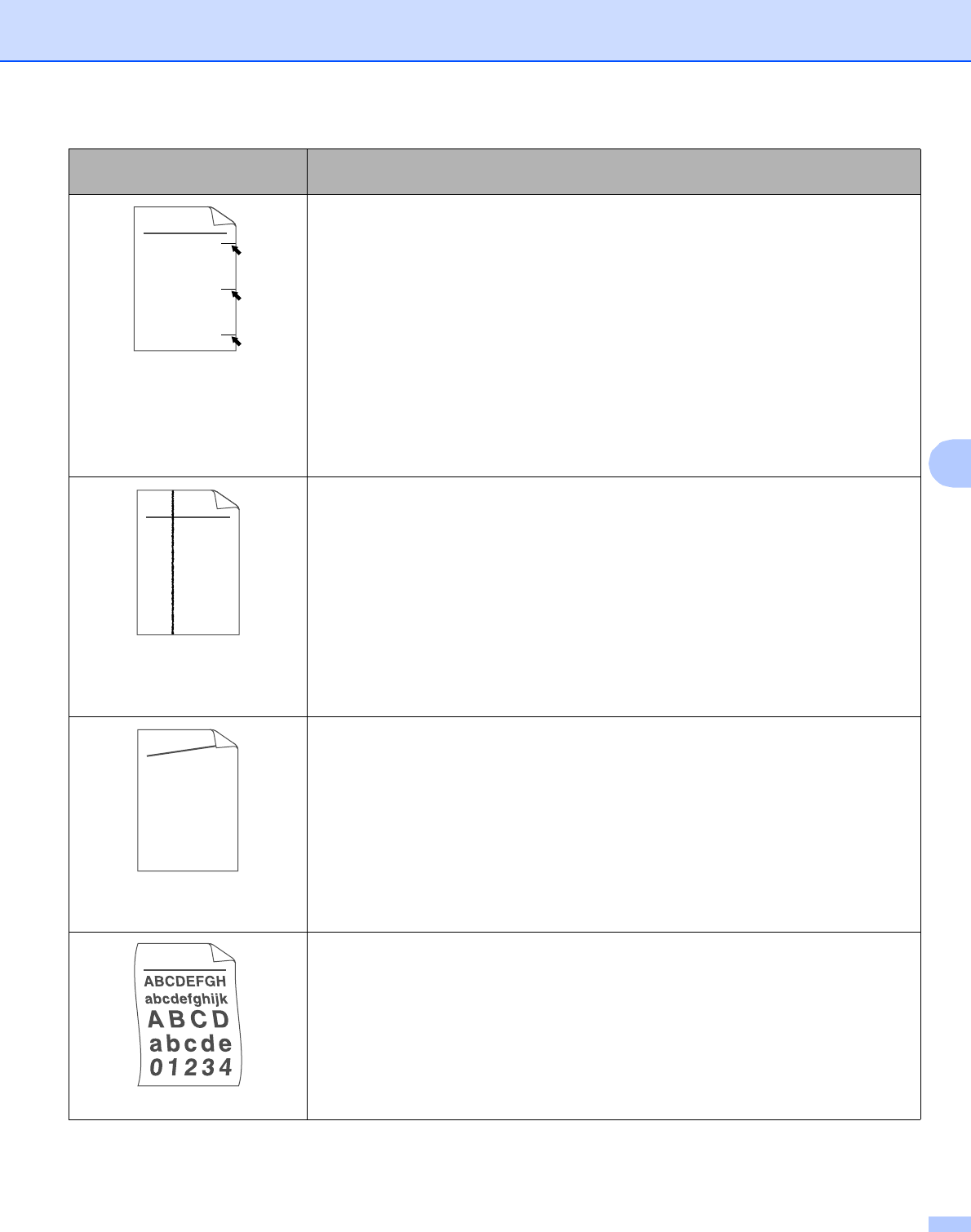
Troubleshooting
94
6
Black toner marks across the
page
The drum unit may be damaged. Put in a new drum unit. See Replacing the drum
unit on page 69.
The toner cartridge may be damaged. Put in a new toner cartridge. See
Replacing the toner cartridge on page 62.
Make sure that you use paper that meets our specifications. See About
paper on page 5.
If you use label sheets for laser printers, the glue from the sheets may sometimes
stick to the OPC drum surface. Clean the drum unit. See page 93.
Do not use paper that has clips or staples because they will scratch the surface
of the drum.
If the unpacked drum unit is in direct sunlight or room light, the unit may be
damaged.
Black lines down the page
Printed pages have toner stains
down the page.
Clean the corona wire inside the drum unit by sliding the green tab. See Cleaning
the corona wire on page 77.
Make sure the primary corona wire cleaner is at the home position (a).
The drum unit may be damaged. Put in a new drum unit. See Replacing the drum
unit on page 69.
The toner cartridge may be damaged. Put in a new toner cartridge. See
Replacing the toner cartridge on page 62.
The fuser unit may be smudged. Call your dealer or Brother Customer Service.
Page skewed
Make sure that the paper or other print media is loaded properly in the paper tray
and that the guides are not too tight or too loose against the paper stack.
Set the paper guides correctly. See Printing on plain paper, bond paper and
transparencies from the paper tray on page 9.
If you are using the manual feed slot, see Printing on plain paper, bond paper or
transparencies from the Manual feed slot on page 13.
The paper tray may be too full. See Printing on plain paper, bond paper and
transparencies from the paper tray on page 9.
Check the paper type and quality. See About paper on page 5.
Curled or wavy
Check the paper type and quality. High temperatures and high humidity will cause
paper to curl. See About paper on page 5.
If you do not use the printer often, the paper may have been in the paper tray too
long. Turn over the stack of paper in the paper tray. Also, fan the paper stack and
then rotate the paper 180° in the paper tray.
Examples of poor print
quality
Recommendation
ABCDEFGH
abcdefghijk
ABCD
abcde
01234
ABCDEFGH
abcdefghijk
ABCD
abcde
01234
ABCDEFGH
abcdefghijk
ABCD
abcde
01234
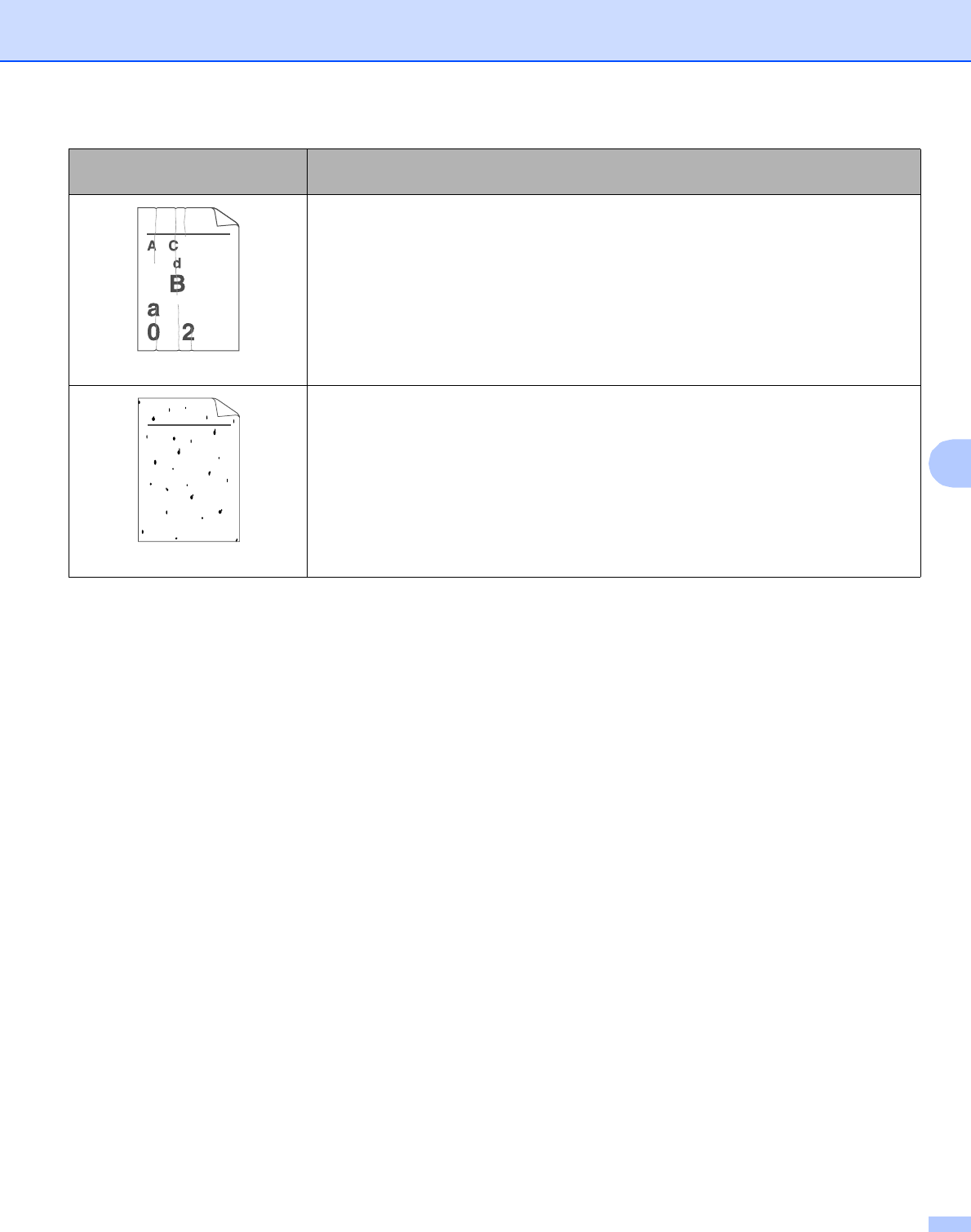
Troubleshooting
95
6
Wrinkles or creases
Make sure that the paper is loaded properly. See Printing on plain paper, bond
paper and transparencies from the paper tray on page 9.
Check the paper type and quality. See About paper on page 5.
Turn over the stack of paper in the tray or try rotating the paper 180° in the input
tray.
Poor fixing
Choose Improve Toner Fixing mode in the printer driver. See Improve Print
Output in Advanced tab on page 32 (For Windows®) or Print
Settings on page 41 (For macintosh®).
If you print only a few pages, change the printer driver setting in Media Type to
a thin setting.
Examples of poor print
quality
Recommendation
B DEFGH
abc efghijk
ACD
bcde
134
ABCDEFGH
abcdefghijk
ABCD
abcde
01234
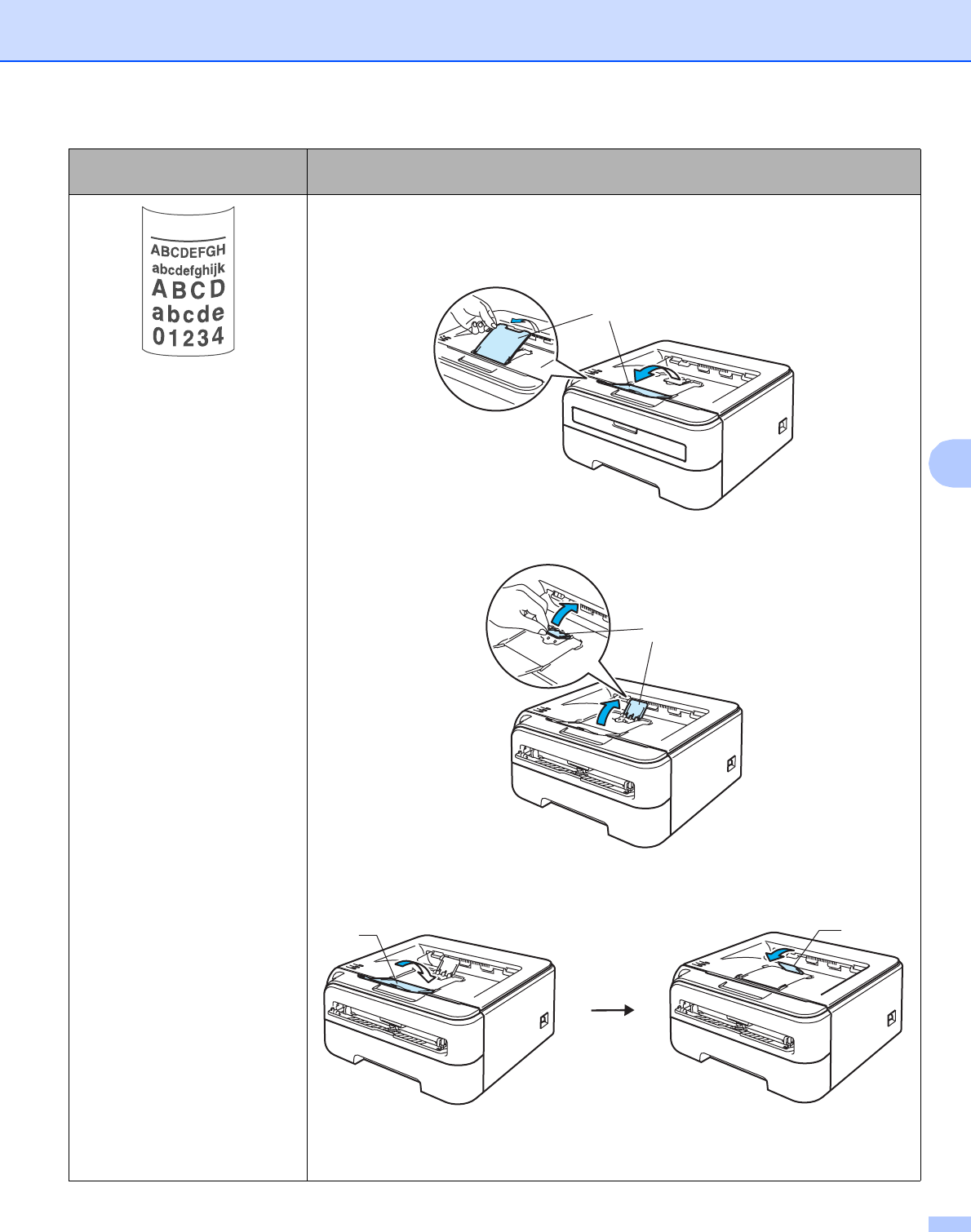
Troubleshooting
96
6
Curled
Turn the paper over in the paper tray, and print again. (Excluding Letterhead
paper) If the problem remains, lift up the support flaps as follows:
aLift up the output tray support flap 1 (1).
bLift up the output tray support flap 2 (2).
cFold down the output tray support flap 1 (1) and fold down the output tray
support flap 2 (2).
Choose Reduce Paper Curl mode in the printer driver when you do not use our
recommended paper. See Improve Print Output in Advanced tab on page 32 (For
Windows®) or Print Settings on page 41 (For Macintosh®).
Examples of poor print
quality
Recommendation
1
2
12

Troubleshooting
97
6
Solving print problems 6
Problem Recommendation
The printer prints unexpectedly
or it prints garbage data.
Make sure that the printer cable is not too long. We recommend that you use a
USB cable that is no longer than 2 meters (6.5 feet).
Make sure that the printer cable is not damaged or broken.
If you are using an interface-switching device, remove it. Connect your computer
directly to your printer, and then try again.
Make sure that you have chosen the correct printer driver with ‘Set as Default
Printer’.
Make sure that the printer is not connected to the same port that is also
connected to a storage device or scanner. Take away all other devices and
connect the port only to the printer.
Turn off the Status Monitor.
The printer cannot print full
pages of a document. An error
message Memory Full
appears.
Press the Go button to print the remaining data in the printer memory. Cancel the
print job if you want to delete the remaining data in the printer memory. (See Go
button on page 55.)
Reduce the complexity of your document or reduce the print resolution.
The printer cannot print full
pages of a document. An error
message Print Overrun
appears.
Press the Go button to print the remaining data in the printer memory. Cancel the
print job if you want to delete the remaining data in the printer memory. See Go
button on page 55.
If this does not clear the error, reduce the complexity of your document or cut the
print resolution.
(HL-2150N / HL-2170W only)
Change the following settings in the supplied Windows® driver and try again. The
best combination of these settings will vary depending on your document:
• Graphics mode 1
• TrueType mode 1
• Use Printer TrueType® Fonts 1
1Choose the Advanced tab, click the Print Quality icon, and then choose Manual in Print Setting
and click the Setting... button.
The headers or footers appear
when the document displays on
the screen but they do not show
up when it is printed.
Adjust the top and bottom margins of your document.
Troubleshooting
98
6
Network problems (HL-2150N / HL-2170W only) 6
For problems concerning using your printer on a Network, see the Network User’s Guide on the CD-ROM we
have supplied. Click Documentation on the menu screen.
The Network User’s Guide in HTML format will be installed automatically when you install the driver. Click the
Start button, All Programs 1, your printer, and then User’s Guide.
You can also view the manuals in PDF format by accessing the Brother Solutions Center
(http://solutions.brother.com).
1Programs for Windows® 2000 users
Other problems 6
For Macintosh® with USB 6
Problem Recommendation
The printer does not appear in
Print Center (Mac OS® X 10.2)
or Print Setup Utility (Mac
OS® X 10.3 or greater).
Make sure that the printer is turned on.
Make sure that the USB interface cable is connected correctly.
Make sure the printer driver is installed correctly.
Unable to print from the
application.
Make sure that the supplied Macintosh® printer driver is installed in the Hard Disk
and that it is chosen with Print Center (Mac OS® X 10.2) or Print Setup Utility
(Mac OS® X 10.3 or greater).
99
A
A
Printer specifications A
Engine A
1The printing speed may change depending on the type of document you print.
2Print speed may be slower when the printer is connected by wireless LAN (HL-2170W only).
3From standard paper tray.
Appendix A
Model HL-2140 HL-2150N HL-2170W
Technology Electrophotographic
Print speed 12
(A4 size/ Letter size) Up to 22 ppm (A4 size) 3,Up to 23 ppm (Letter size) 3
First print time Less than 10 sec
Resolution Windows® 2000/XP/
XP Professional x64
Edition,
Windows Vista™,
Windows Server®
2003/
Windows Server®
2003 x64 Edition
HQ1200
600 dpi
300 dpi
DOS N/A 600 dpi
Mac OS® X 10.2.4 or
greater
HQ1200
600 dpi
300 dpi
Linux 600 dpi
300 dpi
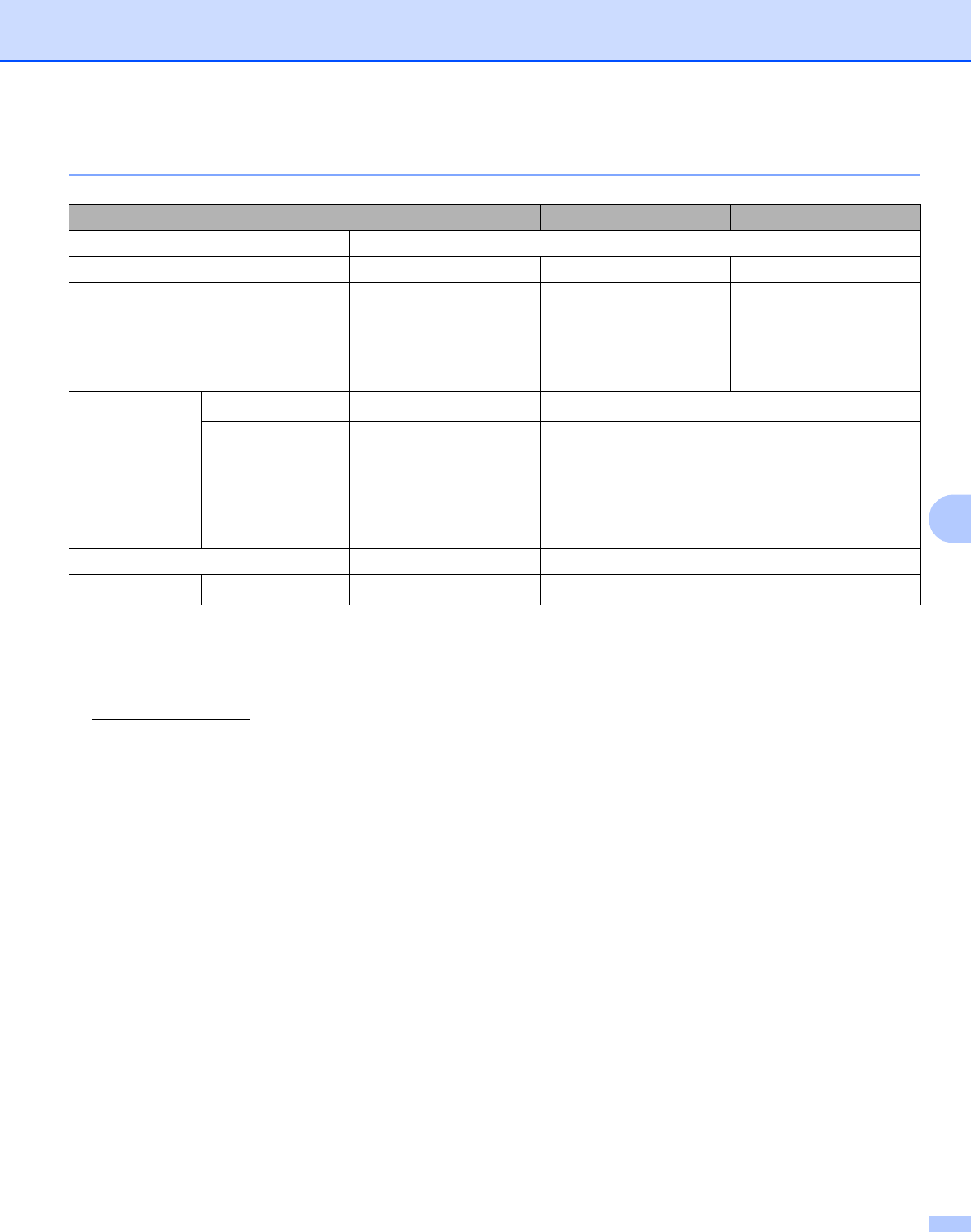
Appendix
100
A
Controller A
1Compatible with USB 2.0 specification
2See the Network User's Guide locator on the CD-ROM for details on the supported network protocols.
3Brother original Windows® and Macintosh® utility for printer and print server management. Install from the supplied CD-ROM.
4Brother original Windows® utility for printer and print server management. It has more functions than BRAdmin Light. Download from
http://solutions.brother.com.
5Server based management utility. Download from http://solutions.brother.com.
6Printer and print server management through Web Based Management (Web browser).
7Code39, Interleaved 2 of 5, EAN-8, EAN-13, UPC-A, UPC-E, EAN-128, Codabar, FIM (US-PostNet), ISBN, Code128
Model HL-2140 HL-2150N HL-2170W
Processor 181MHz
Memory 8MB 16MB 32MB
Interface USB 1USB 1,
10BASE-T/100BASE-
TX Ethernet
USB 1,
10BASE-T/100BASE-
TX Ethernet,
Wireless LAN IEEE
802.11b/g
Network
Connectivity
Protocols N/A TCP/IP (Standard 10/100BASE-TX Ethernet) 2
Management tool N/A BRAdmin Light 3
BRAdmin Professional 4
Web BRAdmin 5
Web Based Management 6
Emulation GDI PCL6
Resident fonts PCL N/A 49 scalable fonts, 12 bitmap fonts, 11 bar codes 7
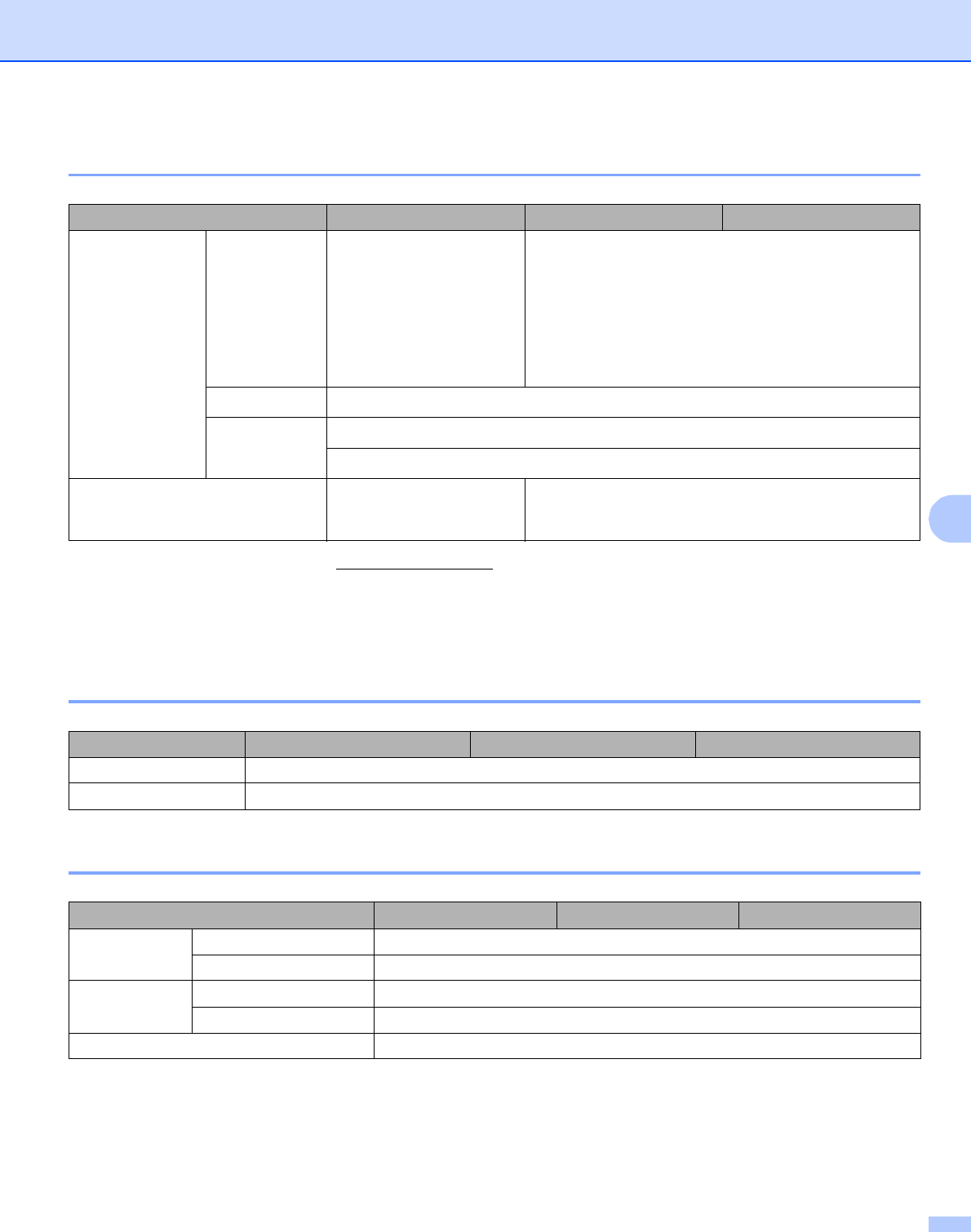
Appendix
101
A
Software A
1Download the printer driver for Linux from http://solutions.brother.com.
2Depending on Linux distributions, the driver may not be available.
3Instructional animations for problem solving.
4The Driver Deployment Wizard automates the installation of printers in a peer-to-peer network (Windows® only).
Control panel A
Paper handling A
1Calculated with 80 g/m2 (20 lb) paper
Model HL-2140 HL-2150N HL-2170W
Printer driver Windows®GDI printer driver for
Windows® 2000/XP/XP
Professional x64 Edition,
Windows Vista™,
Windows Server®
2003/Windows Server®
2003 x64 Edition
PCL printer driver for Windows® 2000/XP/XP
Professional x64 Edition, Windows Vista™, Windows
Server® 2003/Windows Server® 2003 x64 Edition
Macintosh®Macintosh printer driver for Mac OS® X 10.2.4 or greater
Linux Linux driver for CUPS printing system (x86, x64 environment) 12
Linux driver for LPD/LPRng printing system (x86, x64 environment) 12
Utilities Interactive Help 3Interactive Help 3
Driver Deployment Wizard 4
Model HL-2140 HL-2150N HL-2170W
LED 4 LEDs
Button 1 button
Model HL-2140 HL-2150N HL-2170W
Paper Input 1Manual feed slot 1 sheet
Paper tray 250 sheets
Paper
Output 1
Face-down 100 sheets
Face-up 1 sheet
Duplex Manual Duplex
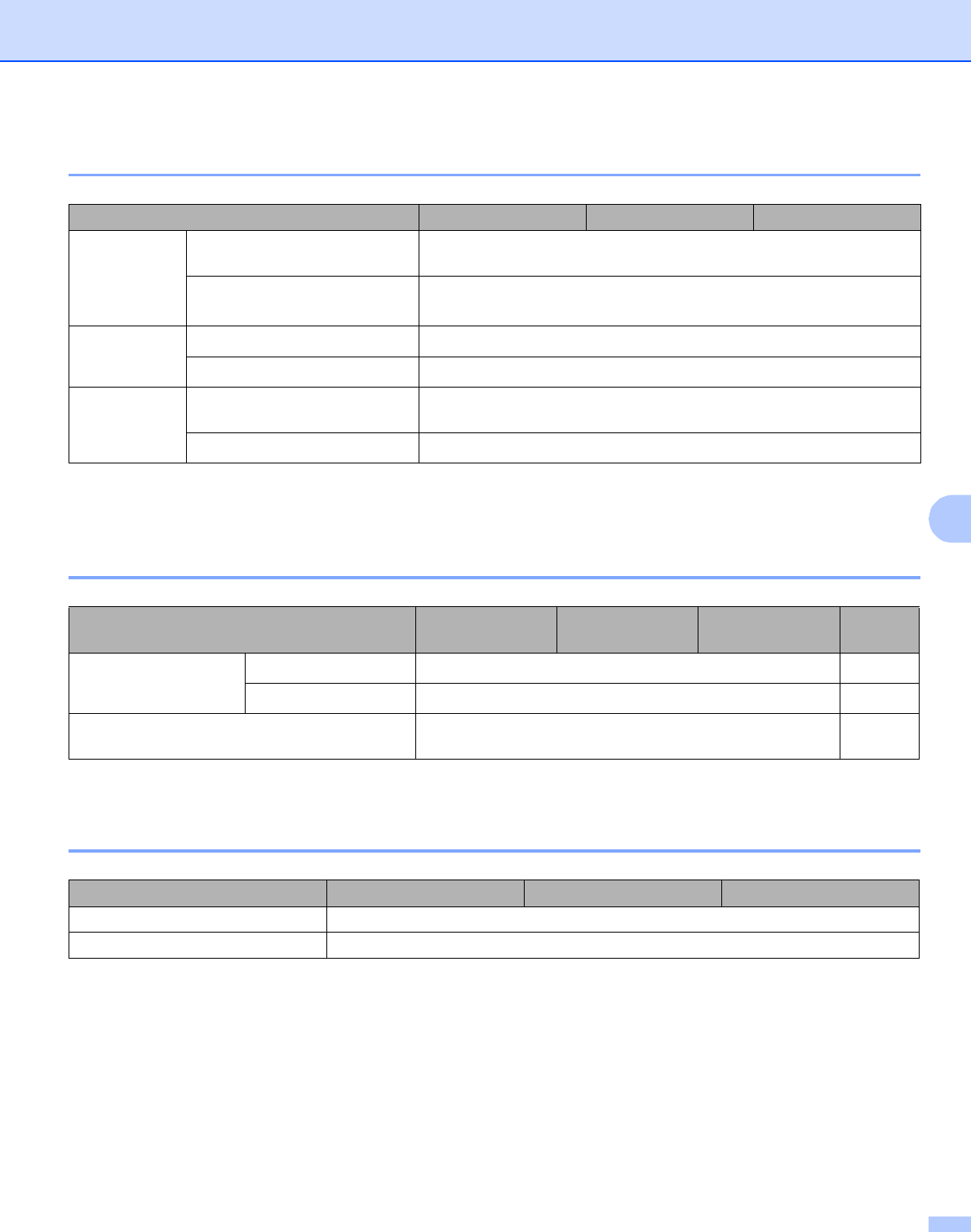
Appendix
102
A
Media specifications A
1Up to 10 sheets
2Legal size paper is not available in some regions outside the USA and Canada.
Supplies A
1Approx. cartridge yield is declared in accordance with ISO/IEC 19752. (Letter/A4)
Dimensions / weights A
Model HL-2140 HL-2150N HL-2170W
Media types Manual feed slot Plain paper, Bond paper, Recycled paper, Thin paper, Thick paper,
Envelopes, Labels, Transparencies
Paper tray Plain paper, Bond paper, Recycled paper, Thin paper,
Transparencies 1
Media
weights
Manual feed slot 60 to 163 g/m2 (16 to 43 lb)
Paper tray 60 to 105 g/m2 (16 to 28 lb)
Media sizes Manual feed slot Width: 76.2 to 220mm (3.0 to 8.66 in.)
Length: 116 to 406.4 mm (4.57 to 16 in.)
Paper tray (Standard) A4, Letter, Legal 2, B5 (ISO), Executive, A5, A6, B6, Folio
Model HL-2140 HL-2150N HL-2170W Order
No.
Toner Cartridge Standard cartridge Approx. 1,500 pages A4/Letter pages 1TN-2130
High yield cartridge Approx. 2,600 pages A4/Letter pages 1TN-2150
Drum Unit Approx. 12,000 pages A4/Letter pages
(1 page / job)
DR-2125
Model HL-2140 HL-2150N HL-2170W
Dimensions (W × D × H) 368 × 361 × 170.5 mm (14.5 × 14.2 × 6.7 in.)
Weights Approx. 5.8 kg (12.8 lb)
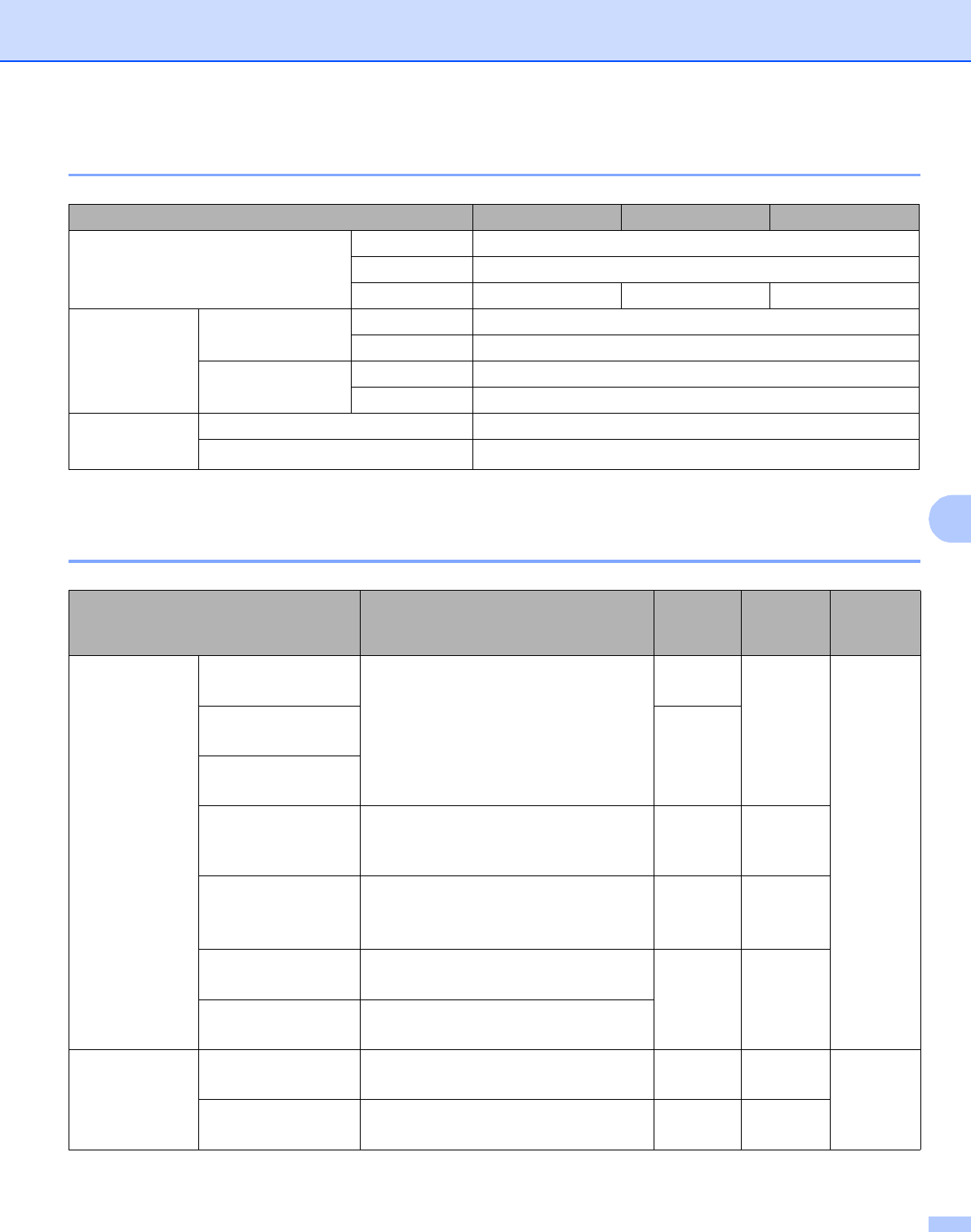
Appendix
103
A
Other A
1We do not recommend Toner Save Mode for printing Photo or Greyscale images.
Computer requirements A
1Third party USB ports are not supported.
Model HL-2140 HL-2150N HL-2170W
Power consumption Printing Average 460 W at 25 °C (77 °F)
Standby Average 80 W at 25 °C (77 °F)
Sleep Average 5 W Average 7 W Average 8 W
Noise level Sound Pressure Printing 51 dB (A)
Standby 30 dB (A)
Sound power Printing LWAd = 6.7 Bell (A)
Standby LWAd = 4.5 Bell (A)
Ecology Power save Yes
Toner save 1Yes
Computer Platform & Operating
System Version
Processor Minimum Speed Minimum
RAM
Recomm
ended
RAM
Hard Disk
Space to
install
Windows®
Operating
System
Windows® 2000
Professional
Intel®Pentium®II or equivalent 64 MB
256 MB
50 MB
Windows® XP Home
Edition 128 MB
Windows® XP
Professional
Windows® XP
Professional x64
Edition
64-bit (Intel®64 or AMD64) supported
CPU
256 MB 512 MB
Windows Vista™ Intel®Pentium®4 or equivalent
64-bit (Intel®64 or AMD64) supported
CPU
512 MB 1 GB
Windows Server®
2003
Intel®Pentium®III or equivalent
256 MB 512 MB
Windows Server®
2003 x64 Edition
64-bit (Intel®64 or AMD64) supported
CPU
Macintosh®
Operating
System 1
Mac OS® X 10.2.4 -
10.4.3
PowerPC G4/G5,
PowerPC G3 350MHz
128 MB 256 MB
80 MB
Mac OS® X 10.4.4 or
greater
PowerPC G4/G5,
Intel® Core™ Processor
512 MB 1 GB
Appendix
104
A
Important information for choosing your paper A
This section gives information to help you choose paper to use with this printer.
Note
If you use paper that is not recommended, a paper jam or misfeed may occur in the printer. (See
Recommended paper on page 6.)
Before you buy a large quantity of paper A
Make sure that the paper is suitable for the printer.
Paper for plain paper copies A
Paper is divided by usage, such as paper for printing and paper for copying. The usage is usually written on
the paper’s package. Check the package to see whether it is suitable for laser printers. Use paper that is
suitable for laser printers.
Basis weight A
The basis weight of the paper in general use varies in different countries. We recommend that you use paper
that weighs 75 to 90 g/m2 (20 to 24 lb), although this printer is able to cope with thinner or thicker paper than
these weights.
Long grain and short grain A
The pulp fiber of the paper is aligned during paper manufacturing. Paper can be classified into two types, long
grain and short grain.
Long grain paper fibers run in the same direction as the long edge of the paper. Short grain paper fibers run
perpendicular to the long edge of the paper. Though most plain paper for copying is long grain, some is short
grain. We recommend that you use long grain paper for this printer. Short grain paper is too weak for the
paper transport of the printer.
Acid paper and neutralized paper A
Paper can be classified as either acid paper or neutralized paper.
Though modern paper manufacture methods started with acid paper, neutralized paper is recently taking the
place of acid paper because of environmental issues.
However, many forms of acid paper can be found in recycled paper. We recommend that you use neutralized
paper for this printer.
You can use an acid paper check pen to distinguish acid paper from neutral paper.
Unit Europe USA
g/m2 80 to 90 75 to 90
lb 20 to 24
Appendix
105
A
Print surface A
The characteristics of the face side and reverse side of a sheet of paper may vary a little.
Usually, the opening side of the paper ream package is the print side. Follow the indications on the paper
package. Typically, the print side is indicated by an arrow.
Moisture content A
Moisture content is the amount of water left in the paper after manufacture. It is one of the important
characteristics of the paper. This can change greatly depending on the storage environment, although usually
paper contains about 5% water by weight. Because paper often absorbs water, the amount of water can
sometimes be about 10% in a high humidity environment. When the amount of water increases, the
characteristics of the paper changes greatly. The fixing of the toner may become worse. For storage of the
paper and during use, we recommend that the humidity of the surrounding environment be between 50% and
60%.
Rough estimate of basis weight A
g/m2 lb
Bond Index
60 16
64 17
75 20
90 24
105 28
120 32
135 36
161 43 90
Appendix
106
A
Paper size A
Paper size mm in.
Letter 8.5 × 11 in.
Legal 8.5 × 14 in.
Executive 7.25 × 10.5 in.
A4 210 × 297 mm
A5 148 × 210 mm
A5 Long Edge 210 × 148 mm
A6 105 × 148 mm
Envelope Monarch 3.875 × 7.5 in.
Envelope Com-10 4.12 × 9.5 in.
Envelope DL 110 × 220 mm
Envelope C5 162 × 229 mm
B5 (JIS) 182 × 257 mm
B5 (ISO) 176 × 250 mm
B6 (ISO) 125 × 176 mm
Folio 8.5 × 13 in.
Post Card 100 × 148 mm
A4 Long 210 × 405 mm
Envelope DL-L 220 × 110 mm
3 × 5 3 × 5in.

Appendix
107
A
Symbol and character sets (HL-2150N / HL-2170W only) A
For the HP LaserJet emulation modes, you can choose the symbol and character sets using Web Based
Management (Web browser) when connected to a network or the control panel buttons.
How to use Web Based Management (web browser) A
To use Web Based Management (Web browser), follow the steps below.
Note
We recommend Microsoft Internet Explorer 6.0® (or greater) or Firefox® 1.0 (or greater) for Windows® and
Safari™ 1.0 for Macintosh®. Please also make sure that JavaScript and cookies are always enabled in
whichever browser you use. We recommend you upgrade to Safari™ 1.2 or greater to enable JavaScript.
To use a web browser, you will need to know the IP address of the print server.
aStart your web browser.
bType http://printer_ip_address/ into your browser. (Where printer_ip_address is the IP
address or the node name)
For example:
http://192.168.1.2/ (if the printer’s IP address is 192.168.1.2.)
Note
• If you have edited the hosts file on your computer or are using a Domain Name System, you can also enter
the DNS name of the print server. As the print server supports TCP/IP and NetBIOS, you can also enter
the NetBIOS name of the print server. The NetBIOS name can be seen on the printer settings page. The
NetBIOS name assigned is the first 15 characters of the node name and by default it will appear as
“BRNxxxxxxxxxxxx” for a wired network or “BRWxxxxxxxxxxxx” for a wireless network.
• For Macintosh® users, you can also have easy access to Web Based Management by clicking the
machine icon on Status Monitor screen.
cClick Printer Settings.
dEnter a user name and a password.
Note
The login name for the Administrator is “admin” (case sensitive) and the default password is “access”.
eClick OK.
fChoose the HP LaserJet tab and click Font Setup. Choose a symbol set you want to use from the
Symbol Set list box.

Appendix
108
A
Symbol and character sets list A
OCR symbol sets A
When you choose the OCR-A or OCR-B font, the matching symbol set is always used.
OCR A (0O)
OCR B (1O)
HP LaserJet mode
ABICOMP Brazil / Portugal (13P) ABICOMP International (14P)
Desktop (7J) Greek8 (8G)
HP German (0G) HP Spanish (1S)
ISO Latin1 (0N) ISO Latin2 (2N)
ISO Latin5 (5N) ISO Latin6 (6N)
ISO2 IRV (2U) ISO4 UK (1E)
ISO5 ASCII (0U) ISO10 Swedish (3S)
ISO11 Swedish (0S) ISO14 JIS ASCII (0K)
ISO15 Italian (0I) ISO16 Portuguese (4S)
ISO17 Spanish (2S) ISO21 German (1G)
ISO25 French (0F) ISO57 Chinese (2K)
ISO60 Norwegian1 (0D) ISO61 Norwegian2 (1D)
ISO69 French (1F) ISO84 Portuguese (5S)
ISO85 Spanish (6S) ISO8859 / 7 Latin / Greek (12N)
ISO8859 / 15 Latin (9N) ISO8859 / 15 Latin / Cyrillic (10N)
Legal (1U) Math-8 (8M)
MC Text (12J) MS Publishing (6J)
PC8 (10U) PC8 Bulgarian (13R)
PC8 D/N (11U) PC8 Greek Alternate (437G) (14G)
PC8 Latin / Greek (12G) PC8 PC Nova (27Q)
PC8 Turkish (9T) PC775 (26U)
PC850 Multilingual (12U) PC851 Greece (10G)
PC852 East Europe (17U) PC853 Latin3 (Turkish) (18U)
PC855 Cyrillic (10R) PC857 Latin5 (Turkish) (16U)
PC858 Multilingual Euro (13U) PC860 Portugal (20U)
PC861 Iceland (21U) PC863 Canadian French (23U)
PC865 Nordic (25U) PC866 Cyrillic (3R)
PC869 Greece (11G) PC1004 (9J)
Pi Font (15U) PS Math (5M)

Appendix
109
A
PS Text (10J) Roman8 (8U)
Roman9 (4U) Roman Extension (0E)
Russian-GOST (12R) Symbol (19M)
HP LaserJet mode

Appendix
110
A
Quick reference for bar code control commands
(HL-2150N / HL-2170W only) A
The printer can print bar codes in the HP LaserJet emulation modes.
Print bar codes or expanded characters A
Format: ESC i n ... n \
Creates bar codes or expanded characters according to the segment of parameters ‘n ... n’. For more
information about parameters, see the following Definition of Parameters. This command must end with the
‘ \ ’ code (5CH).
Definition of parameters A
This bar code command can have the following parameters in the parameter segment (n ... n). As parameters
are effective within the single command syntax ESC i n ... n \, they do not apply in the bar code commands.
If certain parameters are not given, they take the preset settings. The last parameter must be the bar code
data start (‘b’ or ‘B’) or the expanded character data start (‘l’ or ‘L’). Other parameters can be given in any
sequence. Each parameter can start with a lower-case or upper-case character, for example, ‘t0’ or ‘T0’, ‘s3’
or ‘S3’ and so one.
Bar code mode A
Code ESC i
Dec 27 105
Hex 1B 69
n = ‘t0’ or ‘T0’ CODE 39 (default)
n = ‘t1’ or ‘T1’ Interleaved 2 of 5
n = ‘t3’ or ‘T3’ FIM (US-Post Net)
n = ‘t4’ or ‘T4’ Post Net (US-Post Net)
n = ‘t5’ or ‘T5’ EAN 8, EAN 13, or UPC A
n = ‘t6’ or ‘T6’ UPC E
n = ‘t9’ or ‘T9’ Codabar
n = ‘t12’ or ‘T12’ Code 128 set A
n = ‘t13’ or ‘T13’ Code 128 set B
n = ‘t14’ or ‘T14’ Code 128 set C
n = ‘t130’ or ‘T130’ ISBN (EAN)
n = ‘t131’ or ‘T131’ ISBN (UPC-E)
n = ‘t132’ or ‘T132’ EAN 128 set A
n = ‘t133’ or ‘T133’ EAN 128 set B
n = ‘t134’ or ‘T134’ EAN 128 set C

Appendix
111
A
This parameter selects the bar code mode as shown above. When n is ‘t5’ or ‘T5’ the bar code mode (EAN
8, EAN 13, or UPC A) varies according to the number of characters in the data.
Bar code, expanded character, line block drawing and box drawing A
This parameter chooses the bar code style as above. When the EAN 8, EAN 13, UPC-A, Code 128 or EAN
128 bar code mode is chosen, this bar code style parameter is ignored.
Expanded Character
‘S’
0 = White
1 = Black
2 = Vertical stripes
3 = Horizontal stripes
4 = Cross hatch
For example ‘S’ n1 n2
n1 = Background fill pattern
n2 = Foreground fill pattern
If ‘S’ is followed by only one parameter, the parameter is a foreground fill pattern.
Line block drawing & box drawing
‘S’
1 = Black
2 = Vertical stripes
3 = Horizontal stripes
4 = Cross hatch
Bar code A
n = ‘mnnn’ or ‘Mnnn’ (nnn = 0 ~ 32767)
This parameter shows the bar code width. The unit of ‘nnn’ is a percentage.
n = ‘s0’ or ‘S0’ 3: 1 (default)
n = ‘s1’ or ‘S1’ 2: 1
n = ‘s3’ or ‘S3’ 2.5: 1

Appendix
112
A
Bar code human readable line ON or OFF A
This parameter shows whether the printer prints the human readable line below the bar code. Human
readable characters are always printed with OCR-B font of 10 pitch and all the current character style
enhancements are masked. The default setting is determined by the bar code mode selected by ‘t’ or ‘T’.
Quiet zone A
n = ‘onnn’ or ‘Onnn’ (nnn = 0 ~ 32767)
Quiet zone is the space on both sides of the bar codes. Its width can be shown using the units that are set by
the ‘u’ of ‘U’ parameter. (For the description of ‘u' or ‘U' parameter, see the next section.) The default setting
of the quiet-zone width is 1 inch.
Bar code, expanded character unit, line block drawing and box drawing A
This parameter shows the measurement units of X-axis offset, Y-axis offset, and bar code height.
Bar code, expanded character, line block drawing and box drawing offset in X-axis A
n = ‘xnnn’ or ‘Xnnn’
This parameter shows the offset from the left margin in the ‘u’- or ‘U’-specified unit.
n = ‘r0’ or ‘R0 Human readable line OFF
n = ‘r1’ or ‘R1 Human readable line ON
Preset: Human readable line ON
(1) ‘T5’ or ‘t5’
(2) ‘T6’ or ‘t6’
(3) ‘T130’ or ‘t130’
(4) ‘T131’ or ‘t131’
Preset: Human readable line OFF
All others
n = ‘u0’ or ‘U0’ mm (preset)
n = ‘u1’ or ‘U1’ 1/10
n = ‘u2’ or ‘U2’ 1/100
n = ‘u3’ or ‘U3’ 1/12
n = ‘u4’ or ‘U4’ 1/120
n = ‘u5’ or ‘U5’ 1/10 mm
n = ‘u6’ or ‘U6’ 1/300
n = ‘u7’ or ‘U7’ 1/720

Appendix
113
A
Bar code & expanded character offset in Y-axis A
n = ‘ynnn’ or ‘Ynnn’
This parameter shows the downward offset from the current print position in the ‘u’- or ‘U’-specified unit.
Bar code, expanded character, line block drawing and box drawing height A
n = ‘hnnn’, ‘Hnnn’, ‘dnnn’, or ‘Dnnn’
1 EAN13, EAN8, UPC-A, ISBN (EAN13, EAN8, UPC-A), ISBN (UPC-E): 22 mm
2UPC-E: 18mm
3 Others: 12 mm
Expanded characters i 2.2 mm (preset)
Line block drawing and box drawing i 1 dot
This parameter shows the height of bar codes or expanded characters as shown above. It can start with ‘h’,
‘H’, ‘d’, or ‘D’. The height of bar codes is shown in the ‘u’- or ‘U’-specified unit. The default setting of the bar
code height (12 mm, 18 mm or 22 mm) is determined by the bar code mode selected by ‘t’ or ‘T’.
Expanded character width, line block drawing and box drawing A
n = ‘wnnn’ or ‘Wnnn’
Expanded character i 1.2 mm
Line block drawing and box drawing i 1 dot
This parameter shows the width of expanded characters as shown above.
Expanded character rotation A
Bar code data start A
n = ‘b’ or ‘B’
Data that follows ‘b’ or ‘B’ is read in as bar code data. Bar code data must end with the ‘ \ ’ code (5CH), which
also ends this command. The acceptable bar code data is determined by the bar code mode selected by ‘t’
or ‘T’.
When CODE 39 is chosen with the parameter ‘t0’ or ‘T0’
Forty three characters ‘0’ to ‘9’, ‘A’ to ‘Z’, ‘-’, ‘ . ’, ‘ (space)’, ‘$’, ‘ / ’, ‘+’, and ‘%’ can be accepted as bar code
data. Other characters will cause a data error. The number of characters for bar codes is not limited. The
bar code data automatically starts and ends with an asterisk ‘ * ’ (start character and stop character). If the
received data has an asterisk ‘ * ’ at the beginning or end, the asterisk is regarded as a start character or
stop character.
n = ‘a0’ or ‘A0’ ‘Upright (preset)
n = ‘a1’ or ‘A1’ ‘Rotated 90 degrees
n = ‘a2’ or ‘A2’ ‘Upside down, rotated 180 degrees
n = ‘a3’ or ‘A3’ ‘Rotated 270 degrees

Appendix
114
A
When Interleaved 2 of 5 is selected with the parameter ‘t1’ or ‘T1’:
Ten numerical characters ‘0’ to ‘9’ can be accepted as bar code data. Other characters cause a data error.
The number of characters for bar codes is not limited. This mode of bar codes needs even characters. If
the bar code data has odd characters, ‘0’ is automatically added to the end of the bar code data.
When FIM (US-Post Net) is selected with the parameter ‘t3’ or ‘T3’
Characters ‘A’ to ‘D’ are valid and one digit of data can be printed. Upper-case and lower-case alphabet
characters can be accepted.
When Post Net (US-Post Net) is selected with the parameter ‘t4’ or ‘T4’
Numbers ‘0’ to ‘9' can be data and it must end with a check digit. ‘?’ can be used instead of the check digit.
When EAN 8, EAN 13, or UPC A is selected with the parameter ‘t5’ or ‘T5’
Ten numbers ‘0’ to ‘9’ can be accepted as bar code data. The number of characters for bar codes is limited
as follows:
EAN 8: Total 8 digits (7 digits + 1 check digit)
EAN 13: Total 13 digits (12 digits + 1 check digit)
UPC A: Total 12 digits (11 digits + 1 check digit)
A number of characters other than those stated above will cause a data error that results in the bar code
data being printed as normal print data. If the check digit is not correct, the printer decides the correct
check digit automatically so that the correct bar code data will be printed. When EAN13 is selected, adding
‘+’ and a two-digit or five-digit number after the data can create an add-on code.
When UPC-E is selected with the parameter ‘t6’ or ‘T6’:
The numbers ‘0’ to ‘9’ can be accepted as bar code data.
1‘?’ can be used instead of a check digit.
2Adding ‘+’ and two-digit or five-digit number after the data creates an add-on code.
When Codebar is chosen with the parameter ‘t9’ or ‘T9’
Characters ‘0’ to ‘9’, ‘-’, ‘ . ’, ‘$’, ‘/’, ‘+’, ‘ : ’ can be printed. Characters ‘A’ to ‘D’ can be printed as a start-
stop code, which can be upper case or lower case. If there is no start-stop code, errors will happen. A
check digit cannot be added and using ‘?’ causes errors.
When Code 128 Set A, Set B, or Set C is selected with the parameter ‘t12’ or ‘T12’, ‘t13’ or ‘T13’, or ‘t14’
or ‘T14’
Code 128 sets A, B and C can be individually selected. Set A shows characters Hex 00 to 5F. Set B
includes characters Hex 20 to 7F. Set C includes the pairs 00 to 99. Switching is allowed between the code
sets by sending %A, %B, or %C. FNC 1, 2, 3, and 4 are produced with %1, %2, %3, and %4. The SHIFT
code, %S, allows temporary switching (for one character only) from set A to set B and vice versa. The ‘%’
character can be encoded by sending it twice.
When ISBN (EAN) is selected with the parameter ‘t130’ or ‘T130’
The same rules apply as for ‘t5’ or ‘T5’.
Eight digits 12 (standard format) The first character must be ‘0’ and the data must end with a check digit.
Total eight digits = ‘0’ plus 6 digits plus 1 check digit.
Six digits 2The first character and the last check digit are removed from the eight digit data.

Appendix
115
A
When ISBN (UPC-E) is selected with the parameter ‘t131’ or ‘T131’:
The same rules apply as for ‘t6’ or ‘T6’.
When EAN 128 set A, set B or set C is selected with the parameter ‘t132’ or ‘T132’, ‘t133’ or ‘T133’ or ‘t134’
or ‘T134’
The same rules apply as for ‘t12’ or ‘T12’, ‘t13’ or ‘T13’, or ‘t14’ or ‘T14’.
Box drawing A
ESC i ... E (or e)
‘E’ or ‘e’ is a terminator.
Line block drawing A
ESC i ... V (or v)
‘V’ or ‘v’ is a terminator.
Expanded character data start A
n = ‘l’ or ‘L’
Data that follows ‘l’ or ‘L’ is read as expanded character data (or labeling data). Expanded character data must
end with the ‘ \ ’ code (5CH), which also ends this command.
Example Program Listings A
WIDTH "LPT1:",255
'CODE 39
LPRINT CHR$(27);"it0r1s0o0x00y00bCODE39?\";
'Interleaved 2 of 5
LPRINT CHR$(27);"it1r1s0o0x00y20b123456?\";
'FIM
LPRINT CHR$(27);"it3r1o0x00y40bA\";
'Post Net
LPRINT CHR$(27);"it4r1o0x00y60b1234567890?\";
'EAN-8
LPRINT CHR$(27);"it5r1o0x00y70b1234567?\";
'UPC-A
LPRINT CHR$(27);"it5r1o0x50y70b12345678901?\";
'EAN-13
LPRINT CHR$(27);"it5r1o0x100y70b123456789012?\";
'UPC-E
LPRINT CHR$(27);"it6r1o0x150y70b0123456?\";

Appendix
116
A
'Codabar
LPRINT CHR$(27);"it9r1s0o0x00y100bA123456A\";
'Code 128 set A
LPRINT CHR$(27);"it12r1o0x00y120bCODE128A12345?\";
'Code 128 set B
LPRINT CHR$(27);"it13r1o0x00y140bCODE128B12345?\";
'Code 128 set C
LPRINT CHR$(27);"it14r1o0x00y160b";CHR$(1);CHR$(2);"?\";
'ISBN(EAN)
LPRINTCHR$(27);"it130r1o0x00y180b123456789012?+12345\";
'EAN 128 set A
LPRINT CHR$(27);"it132r1o0x00y210b1234567890?\";
LPRINT CHR$(12)
END

117
B
B
Brother numbers B
IMPORTANT
For technical and operational help, you must call the country where you bought the printer. Calls must be
made from within that country.
Register your product B
By registering your Brother product, you will be recorded as the original owner of the product.
Your registration with Brother:
may serve as a confirmation of the purchase date of your product should you lose your receipt;
may support an insurance claim by you in the event of product loss covered by insurance; and,
will help us to notify you of enhancements to your product and special offers.
Please complete the Brother Warranty Registration or, for your convenience and most efficient way to register
your new product, register on-line at
http://www.brother.com/registration/
Frequently asked questions (FAQs) B
The Brother Solutions Center is our one-stop resource for all your printer needs. You can download the latest
drivers, software and utilities, read FAQs and troubleshooting tips to learn how to get the most from your
Brother product.
http://solutions.brother.com
You can check here for Brother driver updates.
Customer Service B
Visit http://www.brother.com for contact information on your local Brother office.
Service center locations B
For service centres in Europe, contact your local Brother Office. Address and telephone contact information
for European offices can be found at http://www.brother.com by selecting your country.
Appendix (for Europe and Other
Countries) B
Internet Addresses
Brother Global Web Site: http://www.brother.com
For Frequently Asked Questions (FAQs), Product Support and Technical Questions, and Driver Updates and Utilities:
http://solutions.brother.com
Appendix (for Europe and Other Countries)
118
B
Important information: regulations B
Radio interference (220 to 240 volt model only) B
This printer follows EN55022 (CISPR Publication 22)/Class B.
International ENERGY STAR® Compliance Statement B
The purpose of the International ENERGY STAR® Program is to promote the development and
popularization of energy-efficient office equipment. As an ENERGY STAR® Partner, Brother Industries, Ltd.
has determined that this product meets the ENERGY STAR® guidelines for energy efficiency.
IEC 60825-1 specification (220 to 240 volt model only) B
This printer is a Class 1 laser product as defined in IEC 60825-1 +A2:2001 specifications. The label shown
below is attached in countries where it is needed.
This printer has a Class 3B laser diode which produces invisible laser radiation in the laser unit. You should
not open the laser unit under any circumstances.
Caution B
Use of controls or adjustments or performance of procedures other than those specified in this User’s Guide
may result in hazardous invisible radiation exposure.
CLASS 1 LASER PRODUCT
APPAREIL À LASER DE CLASSE 1
LASER KLASSE 1 PRODUKT

Appendix (for Europe and Other Countries)
119
B
For Finland and Sweden B
LUOKAN 1 LASERLAITE
KLASS 1 LASER APPARAT
Varoitus! B
Laitteen käyttäminen muulla kuin tässä käyttöohjeessa mainitulla tavalla saattaa altistaa käyttäjän
turvallisuusluokan 1 ylittävälle näkymättömälle lasersäteilylle.
Varning B
Om apparaten används på annat sätt än i denna Bruksanvisning specificerats, kan användaren utsättas för
osynlig laserstrålning, som överskrider gränsen för laserklass 1.
Internal laser radiation B
IMPORTANT - for your safety B
To ensure safe operation, the supplied three-pin plug must be inserted only into a standard three-pin power
outlet that is properly grounded through the standard electrical wiring.
Extension cords used with this printer must be three-pin plug type and correctly wired to provide grounding.
Incorrectly wired extension cords may cause personal injury and equipment damage.
The fact that the equipment operates satisfactorily does not imply that the power is grounded and that the
installation is completely safe. For your safety, if in any doubt about the effective grounding of the power, call
a qualified electrician.
This product should be connected to an AC power source within the range indicated on the rating label. DO
NOT connect it to a DC power source. If you are not sure, contact a qualified electrician.
Disconnect device B
You must install this printer near a power outlet that is easily accessible. In case of an emergency, you must
disconnect the power cord from the power outlet to shut off the power completely.
Caution for LAN connection (HL-2150N / HL-2170W only) B
Connect this product to a LAN connection that is not subjected to overvoltages.
IT power system (For Norway only) B
This product is also designed for an IT power system with phase-to-phase voltage 230V.
Maximum radiation power: 10 mW
Wave length: 780 - 800 nm
Laser class: Class 3B

Appendix (for Europe and Other Countries)
120
B
Wiring information (for UK) B
Important B
If you need to replace the plug fuse, fit a fuse that is approved by ASTA to BS1362 with the same rating as
the original fuse.
Always replace the fuse cover. Never use a plug that does not have a cover.
Warning - This printer must be earthed. B
The wires in the mains lead are coloured in line with the following code:
Green and Yellow: Earth
Blue: Neutral
Brown: Live
If in any doubt, call a qualified electrician.
Maschinenlärminformations- Verordnung 3. GPSGV (For Germany only) B
Der höchste Schalldruckpegel beträgt 70 dB(A) oder weniger gemäß EN ISO 7779.
Appendix (for Europe and Other Countries)
121
B
EC Declaration of Conformity B

122
C
C
Brother numbers C
IMPORTANT
For technical and operational help, you must call the country where you bought the printer. Calls must be
made from within that country.
Register your product C
By registering your product with Brother International Corporation, you will be recorded as the original owner
of the product.
Your registration with Brother:
may serve as a confirmation of the purchase date of your product should you lose your receipt;
may support an insurance claim by you in the event of product loss covered by insurance; and,
will help us notify you of enhancements to your product and special offers.
Please complete the Brother Warranty Registration or, for your convenience and most efficient way to register
your new product, register on-line at
http://www.brother.com/registration/
FAQs (frequently asked questions) C
The Brother Solutions Center is our one-stop resource for all your printer needs. You can download the latest
software and utilities and read FAQs and troubleshooting tips to learn how to get the most from your Brother
product.
http://solutions.brother.com
You can check here for Brother driver updates.
Appendix (for USA and Canada) C

Appendix (for USA and Canada)
123
C
Customer Service C
If you have comments or suggestions, please write us at:
Service center locator (USA only) C
For the location of a Brother authorized service center, call 1-877-BROTHER (1-877-276-8437).
Service center locations (Canada only) C
For the location of a Brother authorized service center, call 1-877-BROTHER.
In USA: 1-877-BROTHER (1-877-276-8437)
In Canada: 1-877-BROTHER
In USA: Printer Customer Support
Brother International Corporation
26250 Enterprise Ct. # 250
Lake Forest, CA 92630
In Canada: Brother International Corporation (Canada), Ltd.
- Marketing Dept.
1, rue Hotel de Ville Dollard-des-Ormeaux, PQ, Canada H9B 3H6
Internet addresses
Brother Global Web Site: http://www.brother.com
For Frequently Asked Questions (FAQs), Product Support and Technical Questions, and Driver Updates and Utilities:
http://solutions.brother.com
For Brother Accessories & Supplies:
In USA : http://www.brothermall.com
In Canada : http://www.brother.ca
Appendix (for USA and Canada)
124
C
Ordering supplies C
For best quality results use only genuine Brother supplies, which are available at most Brother retailers. If you
cannot find the supplies you need and you have a Visa, MasterCard, Discover, or American Express credit
card, you can order supplies directly from Brother. (You can visit us online for a complete selection of the
Brother accessories and supplies that are available for purchase.)
Note
In Canada, only Visa and MasterCard are accepted.
1Approx. cartridge yield is declared in accordance with ISO/IEC 19752. (Letter/A4)
In USA: 1-877-552-MALL (1-877-552-6255)
1-800-947-1445 (fax)
http://www.brothermall.com
In Canada: 1-877-BROTHER
http://www.brother.ca
Description Item
Toner Cartridges TN-330 (Standard, prints approx. 1,500 pages) 1
TN-360 (High Yield, prints approx. 2,600 pages) 1
Drum Unit DR-360

Appendix (for USA and Canada)
125
C
Important information: regulations C
Federal Communications Commission (FCC) Declaration of Conformity (USA
only) C
declares, that the products
complies with Part 15 of the FCC Rules. Operation is subject to the following two conditions: (1) This device
may not cause harmful interference, and (2) this device must accept any interference received, including
interference that may cause undesired operation.
This equipment has been tested and found to comply with the limits for a Class B digital device, pursuant to
Part 15 of the FCC Rules. These limits are designed to provide reasonable protection against harmful
interference in a residential installation. This equipment generates, uses, and can radiate radio frequency
energy and, if not installed and used in accordance with the instructions, may cause harmful interference to
radio communications. However, there is no guarantee that interference will not occur in a particular
installation. If this equipment does cause harmful interference to radio or television reception, which can be
determined by turning the equipment off and on, the user is encouraged to try to correct the interference by
one or more of the following measures:
Reorient or relocate the receiving antenna.
Increase the separation between the equipment and receiver.
Connect the equipment into an outlet on a circuit different from that to which the receiver is connected.
Consult the dealer or an experienced radio/TV technician for help.
Important C
A shielded interface cable should be used to ensure compliance with the limits for a Class B digital device.
Changes or modifications not expressly approved by Brother Industries, Ltd. could void the user’s authority
to operate the equipment.
Industry Canada Compliance Statement (Canada only) C
This Class B digital apparatus complies with Canadian ICES-003.
Cet appareil numérique de la classe B est conforme à la norme NMB-003 du Canada.
Responsible Party: Brother International Corporation
100 Somerset Corporate Boulevard
P.O. Box 6911
Bridgewater, NJ 08807-0911
USA
Telephone: (908) 704-1700
Product name: Laser Printer HL-2140, HL-2150N and HL-2170W
Model number: HL-21

Appendix (for USA and Canada)
126
C
International ENERGY STAR® Compliance Statement C
The purpose of the International ENERGY STAR® Program is to promote the development and
popularization of energy-efficient office equipment. As an ENERGY STAR® Partner, Brother Industries, Ltd.
has determined that this product meets the ENERGY STAR® guidelines for energy efficiency.
Appendix (for USA and Canada)
127
C
Laser notices C
Laser safety (110 to 120 volt model only) C
This printer is certified as a Class 1 laser product under the U.S. Department of Health and Human Services
(DHHS) Radiation Performance Standard according to the Radiation Control for Health and Safety Act of
1968. This means that the printer does not produce hazardous laser radiation.
Since radiation emitted inside the printer is completely confined within protective housings and external
covers, the laser beam cannot escape from the machine during any phase of user operation.
FDA regulations (110 to 120 volt model only) C
The U.S. Food and Drug Administration (FDA) has implemented regulations for laser products manufactured
on and after August 2, 1976. Compliance is mandatory for products marketed in the United States. The
following label on the back of the printer indicates compliance with the FDA regulations and must be attached
to laser products marketed in the United States.
Caution C
Use of controls, adjustments or performance of procedures other than those specified in this User’s Guide
may result in hazardous invisible radiation exposure.
Internal laser radiation C
MANUFACTURED:
Brother Technology (Shenzhen) Ltd.
NO6 Gold Garden Ind., Nanling Buji, Longgang, Shenzhen, China
This product complies with FDA performance standards for laser products except for deviations pursuant to Laser
Notice No.50, dated June 24, 2007.
Maximum radiation power: 10 mW
Wave length: 780 - 800 nm
Laser class: Class 3B

Appendix (for USA and Canada)
128
C
IMPORTANT - for your safety C
To ensure safe operation, the supplied three-pin plug must be inserted only into a standard three-pin power
outlet that is properly grounded through the standard electrical wiring.
Extension cords used with this printer must be three-pin plug type and correctly wired to provide proper
grounding. Incorrectly wired extension cords may cause personal injury and equipment damage.
The fact that the equipment operates satisfactorily does not imply that the power is grounded and that the
installation is completely safe. For your safety, if in any doubt about the effective grounding of the power, call
a qualified electrician.
This product should be connected to an AC power source within the range indicated on the rating label. DO
NOT connect it to a DC power source. If you are not sure, contact a qualified electrician.
Disconnect device C
You must install this printer near a power outlet that is easily accessible. In case of an emergency, you must
disconnect the AC power cord from the AC power outlet to shut off the power completely.
Caution for LAN connection (HL-2150N / HL-2170W only) C
Connect this product to a LAN connection that is not subjected to overvoltages.

Index
129
D
D
A
Automatic Interface Selection ................................... 47
B
Bar code control ...................................................... 110
BRAdmin Light .......................................................... 46
BRAdmin Professional .............................................. 46
Brother Numbers (USA/Canada) ....................122, 123
C
Carton contents ........................................................... 1
Cartridge position error ............................................. 50
Character sets ......................................................... 107
Cleaning .................................................................... 73
Computer requirements .......................................... 103
Consumables ............................................................ 60
Control panel .....................................................48, 101
Corona wire .................................................. 67, 77, 78
Cover open ............................................................... 51
D
Device options .......................................................... 34
Dimensions ............................................................. 102
Domain .................................................................... 107
Driver Deployment Wizard ........................................ 46
Drum error ................................................................. 52
Drum life end soon .................................................... 51
Drum unit .................................................................. 68
Duplex printing .......................................................... 22
E
Emulation ................................................................ 100
Envelopes .............................................................7, 17
Error messages ...................................................80, 82
F
Fonts .................................................................58, 100
G
Go buttons ................................................................ 55
I
Interface .................................................................. 100
J
Job cancel ................................................................. 55
L
LEDs ......................................................................... 48
Linux ......................................................................... 26
M
Macintosh® .........................................................39, 98
Manual feed slot ........................................................ 13
manual feed slot ........................................................ 23
Media specifications ................................................ 102
Media type .................................................................. 5
Memory ................................................................... 100
Memory full ............................................................... 51
N
Network ..................................................................... 46
Network connectivity ............................................... 100
Network default setting ............................................. 59
No paper ................................................................... 51
O
OPC drum ................................................................. 93
P
Paper ..................................................................5, 104
Paper handling ........................................................ 101
Paper jams ..........................................................51, 85
PCL printer driver ...................................................... 29
Power supply .............................................................. 4
Print overrun ............................................................. 51
Print quality ............................................................... 91
Print test page ........................................................... 56
Printer driver .............................................. 29, 45, 101
Printer settings .......................................................... 57
Processor ................................................................ 100
R
Register your product ......................................117, 122
Remote Printer Console ............................................ 47
Reprint ................................................................35, 55

Index
130
D
S
Scanner window ........................................................ 76
Service call ................................................................ 53
Service centers (USA/Canada) ............................... 123
Service centres (Europe and other countries) ........ 117
Software .................................................................... 46
Specifications ............................................................ 99
Status Monitor .....................................................44, 80
Symbol .................................................................... 107
T
Toner cartridge .......................................................... 61
Toner life end ......................................................50, 62
Toner low .................................................................. 50
Tray Setting tab ......................................................... 37
Troubleshooting ........................................................ 79
U
Unprintable area ......................................................... 8
Utilities .................................................................... 101
W
Watermark ................................................................ 33
Web Based Management
Web browser .......................................................... 46
Web BRAdmin .......................................................... 46
Weights ................................................................... 102
Windows® ................................................................. 29
