Brother Mfc 3220C Quick Start Guide BHL2_Base_MFC_QSG_US
MFC-3220C QSG_MFC_3220C_EN_374
MFC-3220C to the manual ab7d4a11-d637-77b4-c5c1-36b7ddf92f9a
2014-07-05
: Brother Brother-Mfc-3220C-Quick-Start-Guide brother-mfc-3220c-quick-start-guide brother pdf
Open the PDF directly: View PDF  .
.
Page Count: 31
- Quick Setup Guide MFC-3220C
- Getting Started
- Table of Contents
- Step1 Setting Up the Machine
- 1 Removing the Protective Parts
- 2 Attaching the Paper Tray and Supports
- 3 Loading Paper
- 4 Install Phone Line and Power Cord
- 5 Installing the Ink Cartridges
- 6 Color Block Quality and Alignment Check
- 7 Setting the Date and Time
- 8 Setting Your Station ID
- 9 Selecting a Receive Mode
- 10 Selecting Your Language (Canada Only)
- 12 Sending in the Product Registration and Test Sheet (USA Only)
- Step2 Installing the Driver & Software
- Replacement Consumables
Quick Setup Guide MFC-3220C
Before you can use the MFC, you must set up the hardware and install the driver.
Please read this “Quick Setup Guide” for proper set up and installation instructions.
For the latest drivers and to find the best solution for your problem or question, access the Brother
Solutions Center directly from the driver or go to http://solutions.brother.com
Keep this “Quick Setup Guide” , User’s Guide and supplied CD-ROM in a convenient place for
quick and easy reference at all times.
Step 1
Setting Up the Machine
Step 2
Installing the Driver & Software
Setup is Complete!
Installing the Driver & Software
Setting Up
the Machine
Windows® Mac OS®
8.6-9.2
Mac OS® X
10.1/10.2.1 or greater

■
Warning Hint User’s Guide
Indicates warnings that
must be observed to
prevent possible
personal injury.
Indicates cautions that
must be observed to use
the MFC properly or to
prevent damage to the
MFC.
Indicates notes and
useful tips to remember
when using the MFC.
Indicates reference to the
User’s Guide.
1
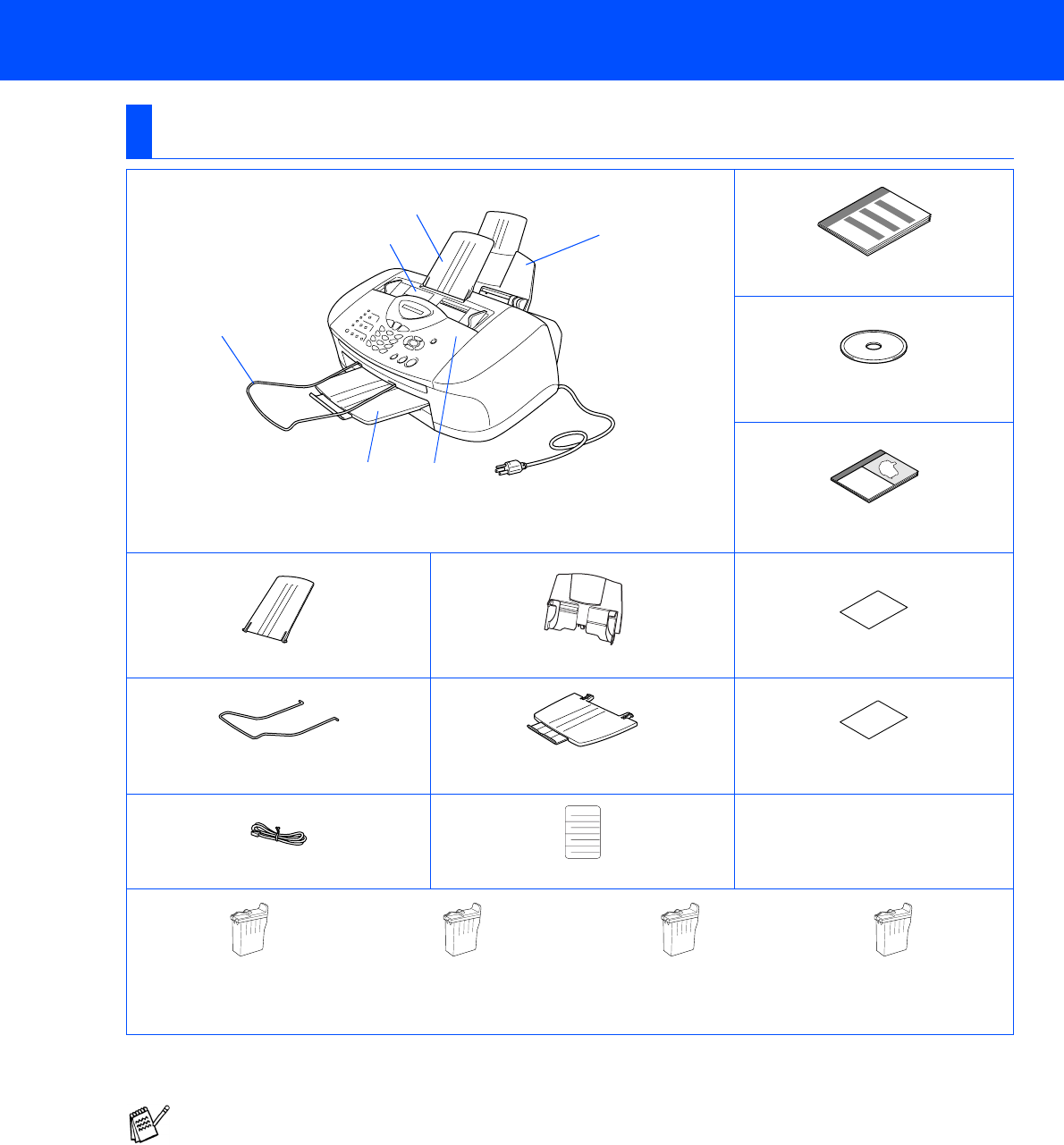
Carton components may differ from one country to another.
Save all packing materials and the carton.
Carton Components
Quick Setup Guide
CD-ROM
User’s Guide
ADF Document Support Paper Tray
Accessory Order Form
ADF Document Output Support Output Paper Support Test Sheet
(USA only)
Telephone Line Cord One Touch Labels
Ink Cartridges
■You must use the appropriate USB cable.
■The interface cable is not a standard accessory. Please purchase an appropriate USB interface cable.
■Use only a USB interface cable that is no longer than 6 feet long (2 meters).
2
1. Control Panel 2. Top Cover
1
MFC
4
3
5
6
3 4
5 6
Black
(LC31BK)
Yellow
(LC31Y)
Magenta
(LC31M)
Cyan
(LC31C)
■Getting Started
2
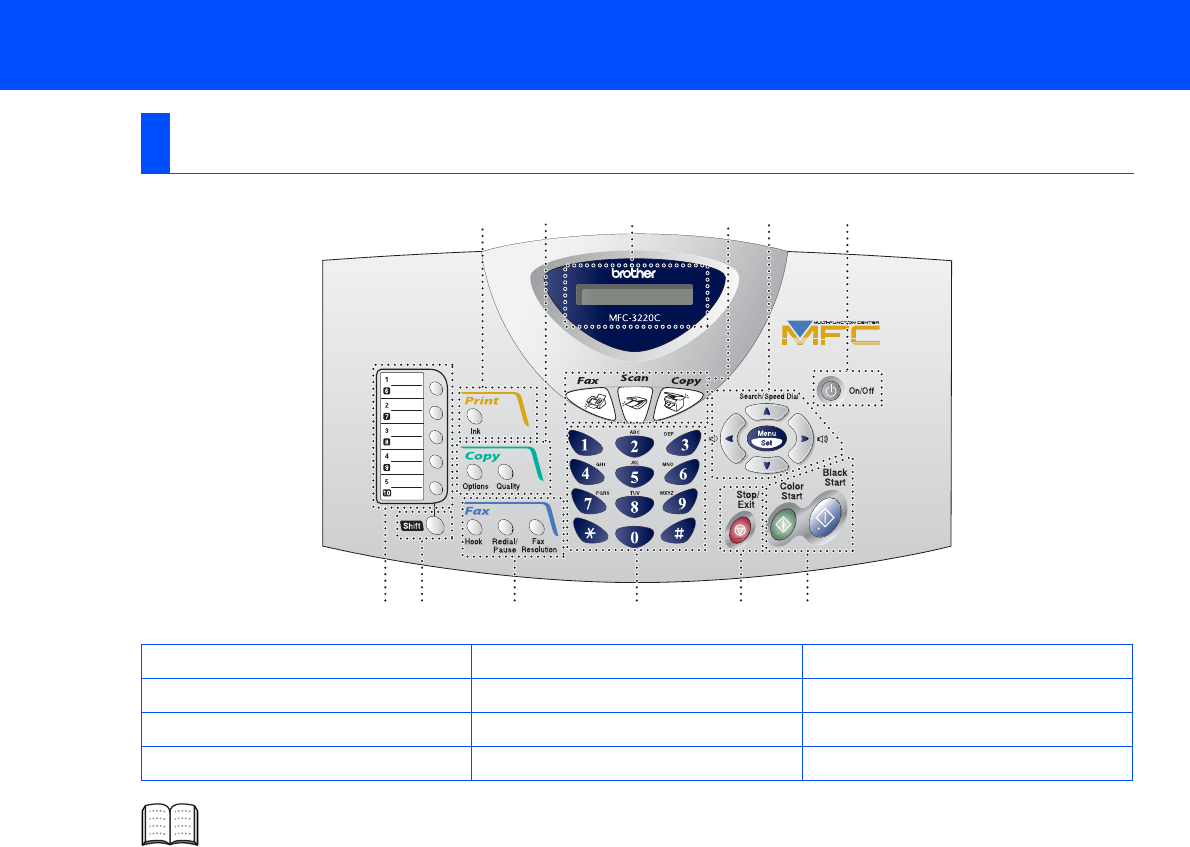
Control Panel
1. One Touch keys 5. Stop/Exit 9. Mode keys
2. Shift 6. Start keys 10. Liquid Crystal Display (LCD)
3. Fax and telephone keys 7. On/Off key 11. Copy keys
(Temporary Settings)
4. Dial Pad 8. Navigation keys 12. Print key
For the details of the control panel, see "Control panel overview" in Chapter 1 of the User’s Guide.
12 3 4 5 6
87
9101112

3
Table of Contents
Setting Up the Machine
1. Removing the Protective Parts ......................................................................... 4
2. Attaching the Paper Tray and Supports .......................................................... 4
3. Loading Paper .................................................................................................... 5
4. Install Phone Line and Power Cord..................................................................5
5. Installing the Ink Cartridges.............................................................................. 6
6. Color Block Quality and Alignment Check ...................................................... 8
7. Setting the Date and Time ...............................................................................10
8. Setting Your Station ID ....................................................................................11
9. Selecting a Receive Mode ...............................................................................12
10. Selecting Your Language (Canada Only).......................................................13
11. Sending in the Product Registration and Test Sheet (USA Only) ............... 13
Installing the Driver & Software
Supplied CD-ROM (MFL-Pro Suite).................................................................... 14
For Windows® 98/98SE/Me/2000 Professional/XP Users................................. 16
■For Windows® 98/98SE/Me Users Only............................................................19
■For Windows® 2000 Professional Users Only ................................................. 21
■For Windows® XP Users Only...........................................................................23
For Mac OS® 8.6 to 9.2 Users............................................................................. 24
For Mac OS® X 10.1/10.2.1 or greater Users ..................................................... 26
Step 1
Step 2
4
Setting Up the Machine
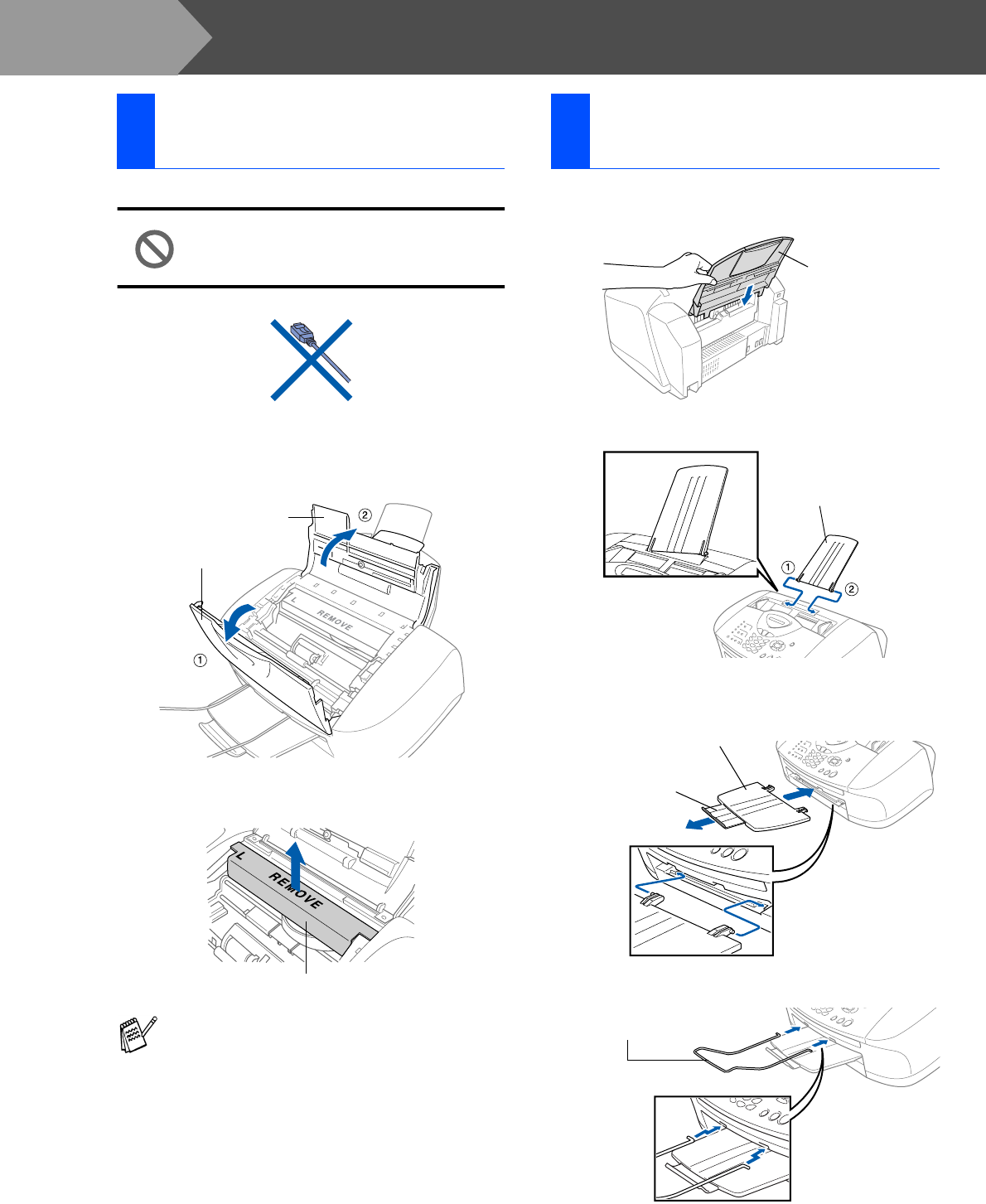
1Remove the protective tape.
Do NOT connect the USB cable.
Connecting the USB cable is done
when installing the driver.
2Open the control panel cover by pulling it
toward you (1), and then lift the top cover
toward the back (2).
3Pull the protective yellow bar out of the
machine.
4Close the top cover, and then close the
control panel cover.
1Insert the paper tray from above into the
back of the MFC.
2Attach the ADF document support.
3Attach the output paper support to the paper
output slot, and then pull out the extension.
4Attach the ADF document output support.
1Removing the Protective
Parts
Do not throw away the protective yellow bar.
You will need it in the future to transport the
machine.
Control Panel Cover
Top Cover
Protective Yellow Bar
2Attaching the Paper Tray
and Supports
Paper Tray
ADF Document
Support
Output Paper Support
Output Paper
Support Extension
ADF Document
Output Support
Step 1
5
Setting Up
the Machine
Windows® Mac OS®
8.6-9.2
Mac OS® X
10.1/10.2.1 or greater
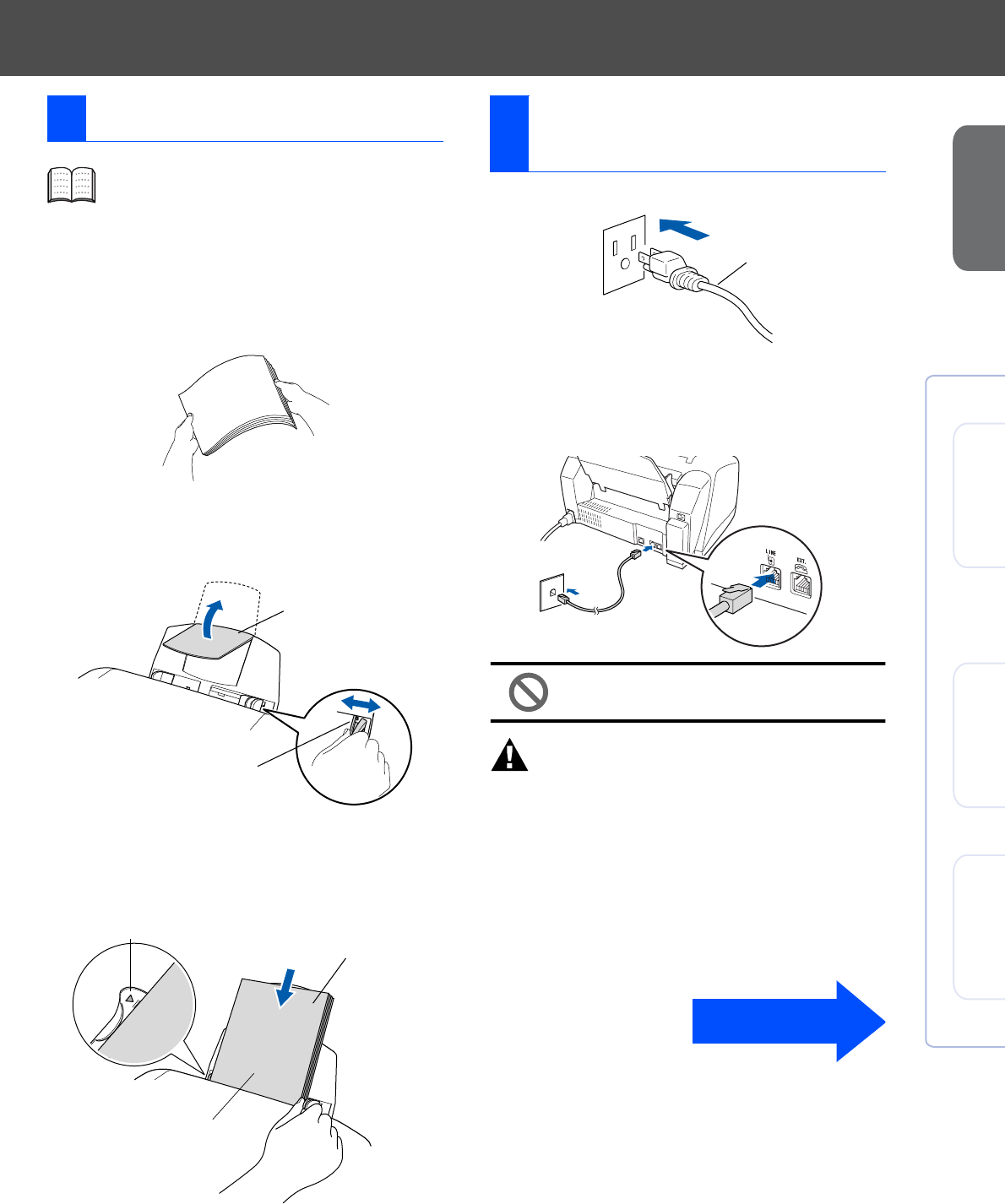
1Fan the stack of paper well to avoid paper
jams and misfeeds.
2Unfold the paper support and then press
and slide the paper guide to fit the paper
width.
3
Gently insert the paper.
Make sure the print side is towards you and
the paper is below the maximum paper
mark.
1Connect the power cord.
2Connect the telephone line cord.
Connect one end of the telephone line cord
to the jack on the MFC marked LINE and the
other end to a modular wall jack.
Do not connect the USB cable yet.
Warning
■The MFC must be grounded using a 3-prong plug.
■Since the MFC is grounded through the power
outlet, you can protect yourself from potentially
hazardous electrical conditions on the telephone
network by keeping the power to your MFC on
when you connect it to a telephone line. Similarly,
you can protect yourself when you want to move
your MFC by disconnecting the telephone line first
and then the power cord.
3Loading Paper
You can load up to 100 sheets of 20 lb
(80 g/m2) paper.
For more details, see “Paper Capacity of
the Paper Tray” in Chapter 2 of the User’s
Guide.
Paper Support
Paper Width Guide
Paper
Print Side
Maximum Paper Mark
4Install Phone Line and
Power Cord
Power Cord
Continued...
6
Setting Up the Machine
Warning
If ink gets in your eyes irrigate them with water
immediately, and if irritation occurs consult a doctor.
1Make sure that the power is turned on.
The LCD shows;
2Open the control panel cover by pulling it
toward you (1), then lift the top cover
toward the back (2).
The print heads will move to the ink
replacement position.
3Push the four colored ink cartridge covers
one at a time so they pop up.
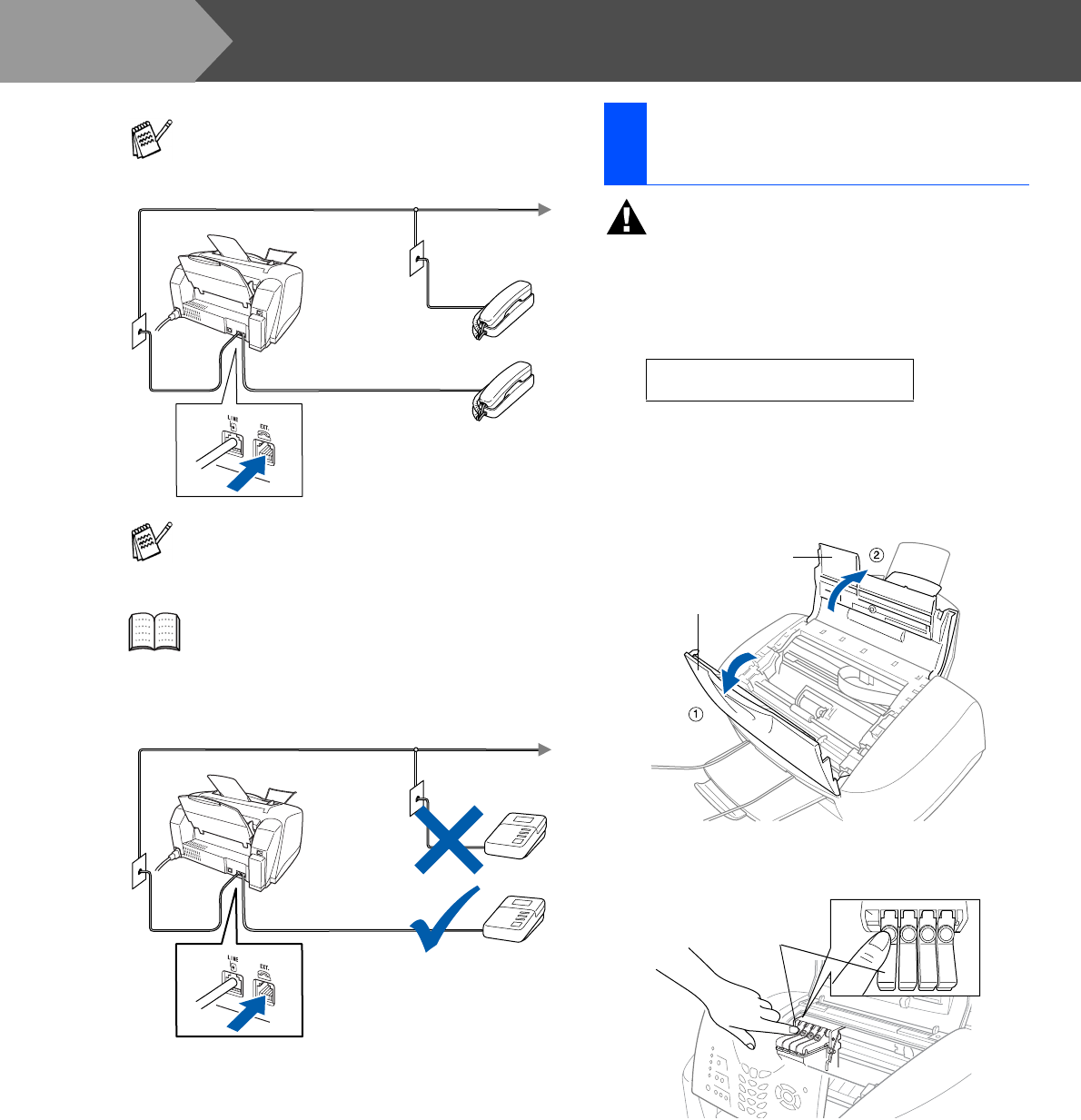
If you are sharing one phone line with an
external telephone, connect it as shown
below.
If you are sharing one phone line with an
external telephone answering machine,
connect it as shown below.
Please set the Receive Mode to “External
TAD” if you have an external answering
machine. For more details, see
“Connecting the machine” in Chapter 1 of
the User’s Guide.
TAD
TAD
5Installing the Ink
Cartridges
Check Cartridge
Control Panel Cover
Top Cover
PUSH
PUSH
PUSHPUSH
Colored Ink
Cartridge Covers
Step 1
7
Setting Up
the Machine
Windows® Mac OS®
8.6-9.2
Mac OS® X
10.1/10.2.1 or greater
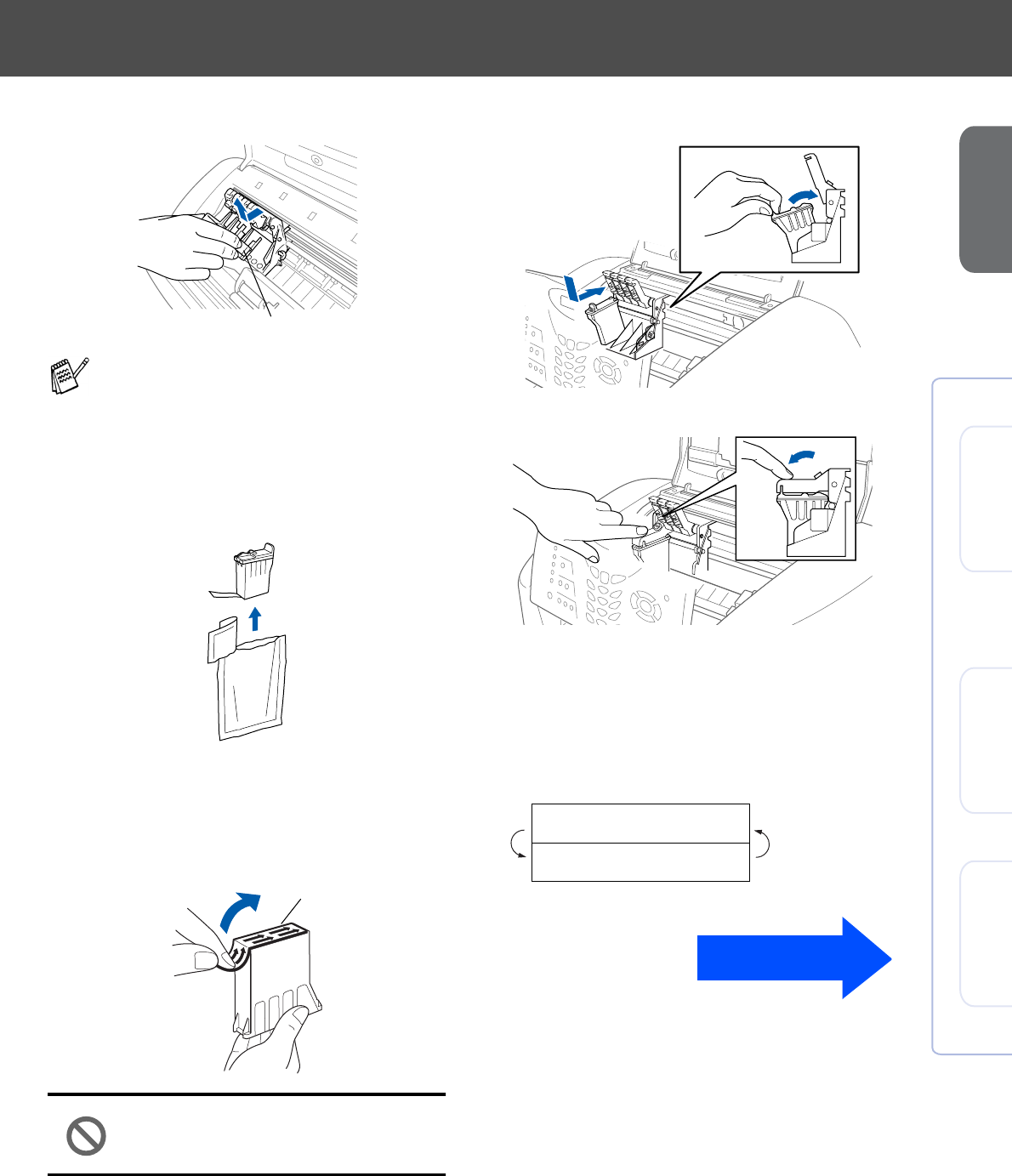
4Remove the white shipping cover by pulling
it towards you.
5Take out the black ink cartridge.
6Carefully remove the sealing tape from the
ink cartridge.
To prevent spilling ink and staining your
hands and clothing, peel the sealing tape
gently and slowly.
• Do not touch the ink opening on
the cartridge or removed tape.
7Gently insert the black ink cartridge in the
black ink position.
8Press the cover down until it clicks.
9Repeat Steps 5 to 8 to install each color ink
cartridge. Match the colors of the ink to the
cartridge covers.
0Close the top cover and control panel cover.
The MFC will enter a head cleaning cycle for
approximately four minutes.
■The bottom of the white shipping cover is
wet with ink that will cause stains, so wipe
it clean before you place it down.
■Do not throw away the white shipping
cover. You will need it when you transport
the machine.
White Shipping Cover
Opening
Cleaning
Please Wait
Continued...
8
• DO NOT remove ink cartridges if
you do not need to replace them.
If you do so, it may reduce the ink
quantity and the MFC will not
know the quantity of ink left in
the cartridge.
• DO NOT shake the ink cartridges.
If ink stains your body or
clothing, wash with soap or
detergent immediately.
• Brother strongly recommends
that you do not refill the ink
cartridges provided with your
machine. We also strongly
recommend that you continue to
use only Genuine Brother Brand
replacement ink cartridges.
Using or attempting to use
potentially incompatible inks
and/or cartridges in your
machine may cause damage to
the machine itself and/or it may
result in unsatisfactory print
quality. Our warranty coverage
does not apply to any problem
that was caused by the use of
unauthorized third party ink and/
or cartridges. To protect your
investment and guarantee your
print quality please continue to
replace consumed ink cartridges
with only Genuine Brother
Branded Supplies.
1After the cleaning cycle is finished, the LCD
shows;
2Make sure the paper is loaded in the paper
tray.
Press Color Start.
3The MFC starts printing the PRINT
QUALITY CHECK SHEET (only during
initial ink cartridge installation).
■If you mix the colors by installing an ink
cartridge in the wrong position, you must
clean the print head by running several
cleaning cycles after correcting the
cartridge installation. (See “Cleaning the
print head” on page 12-10 of the User’s
Guide.)
■Once you open an ink cartridge, install it in
the MFC and use it up within six months of
installation. Use unopened ink cartridges
by the expiration date written on the
cartridge package.
■
If Ink Empty shows on the LCD after you
install the ink cartridges, check to make
sure the ink cartridges are installed
correctly.
6Color Block Quality and
Alignment Check
Set Paper and
Press Start
Check in Step A
Check in Step B
Setting Up the Machine
Step 1
9
Setting Up
the Machine
Windows® Mac OS®
8.6-9.2
Mac OS® X
10.1/10.2.1 or greater
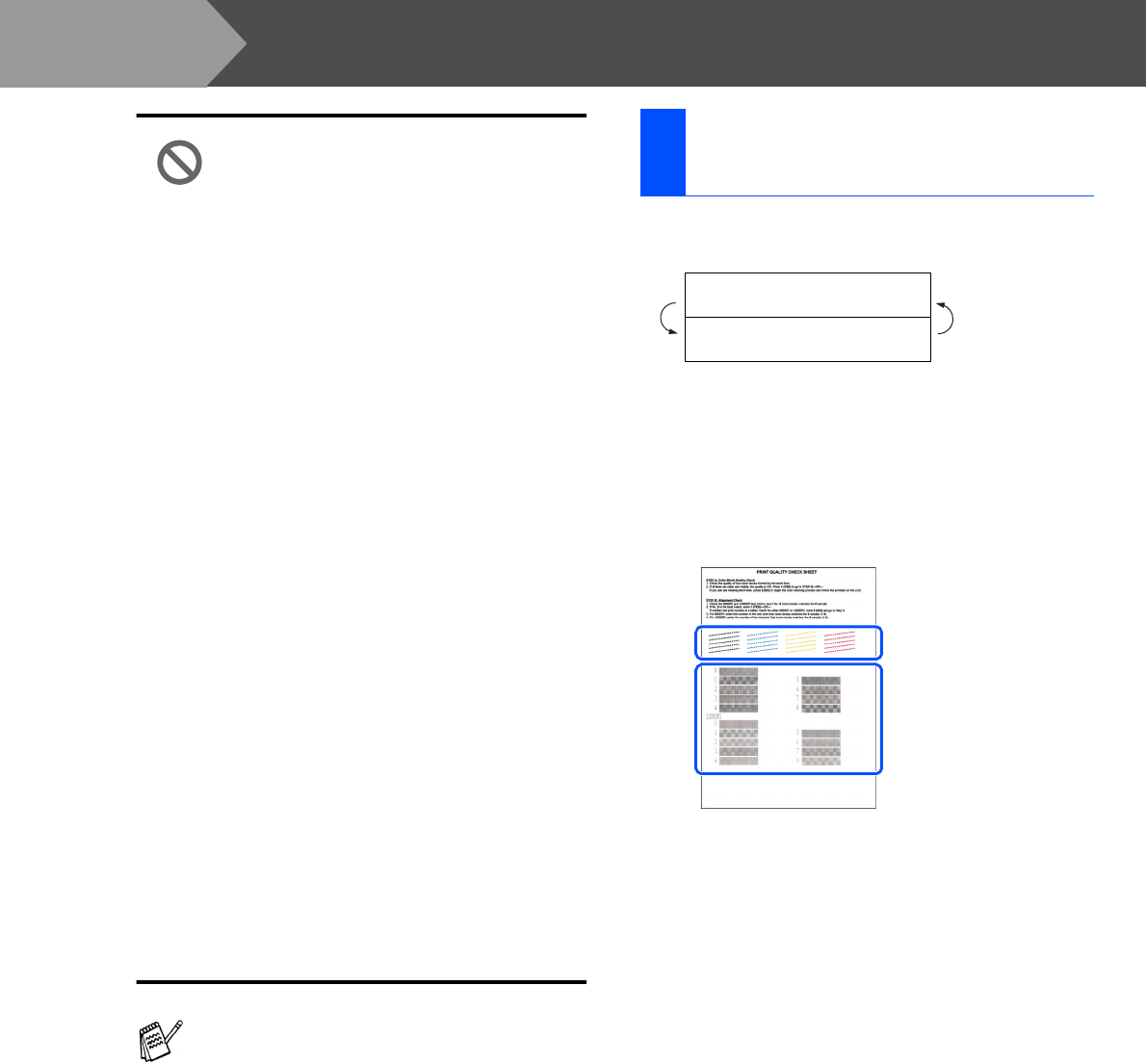
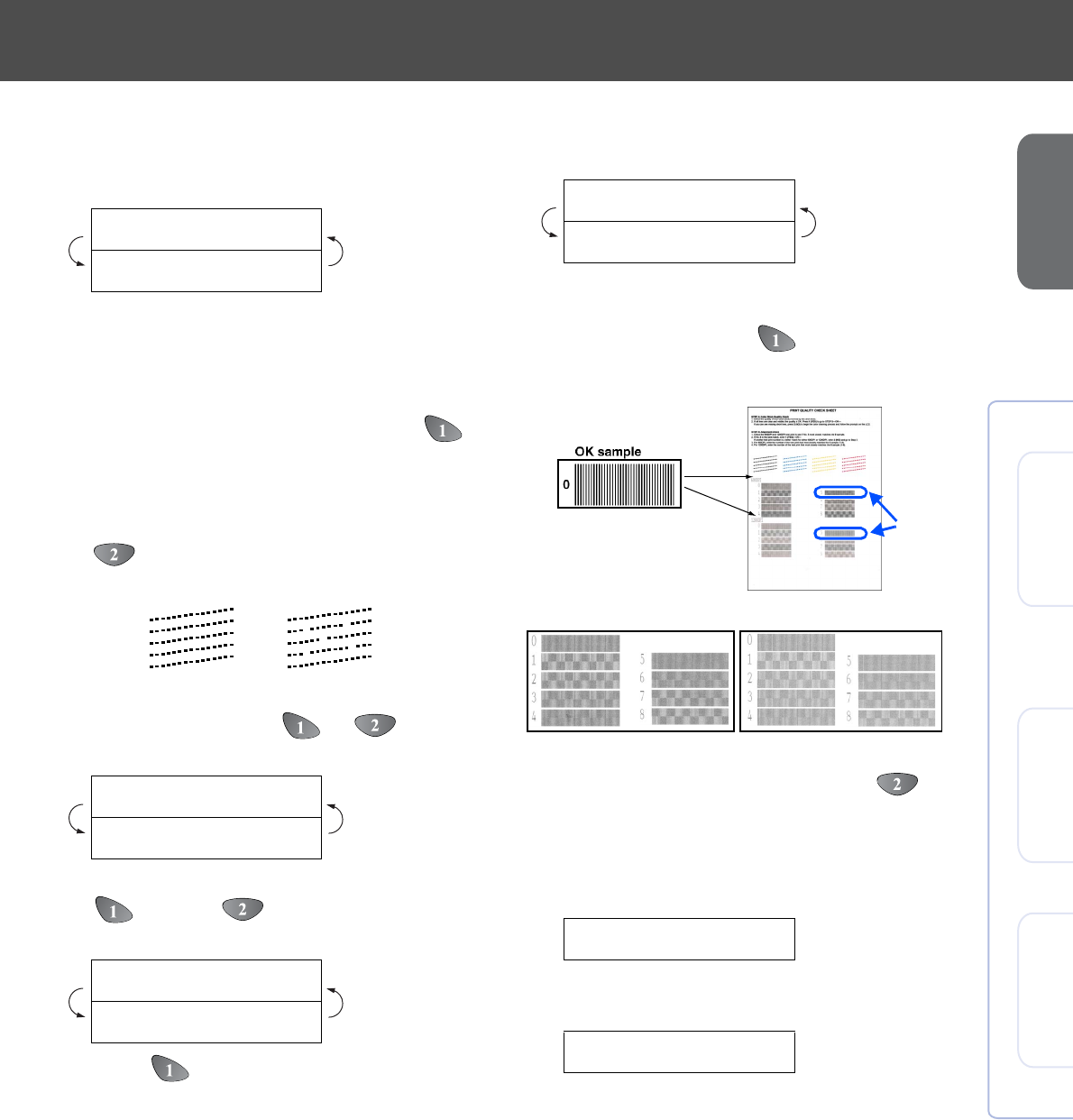
Step A: Color Block Quality
Check
1The LCD shows:
Check the quality of the four color blocks
formed by the short lines printed on the
sheet.
(BLACK/CYAN/YELLOW/MAGENTA)
2If all lines are clear and visible, press
on the dial pad to go to STEP B: Alignment
Check.
---OR---
If you can see missing short lines, press
on the dial pad and go to 3.
3The LCD asks you if the print quality is OK
for each color. Press or on the
dial pad.
When you have finished selecting
(YES) or (NO) for each color, the
LCD shows:
Press (YES), and then MFC starts
cleaning the colors.
After cleaning is finished, press
Color Start. The MFC starts printing the
PRINT QUALITY CHECK SHEET again
and goes back to the first step of STEP A.
Step B: Alignment Check
1The LCD shows:
Check the 600 dpi and 1200 dpi test print to
see if No.5 most closely matches the OK
sample (No.0). Press if No.5 matches
it.
If another test print number is a better match
for either 600 dpi or 1200 dpi, press to
select NO and go to 2.
2For 600 dpi, select the number from 1 to 8
that most closely matches the No.0 sample
and enter it using the dial pad.
3For 1200 dpi, enter the number from 1 to 8
that most closely matches the No.0 sample.
The Quality check is now complete.
Is Step "A" OK?
1.Yes 2.No
Black OK?
1.Yes 2.No
Start Cleaning?
1.Yes 2.No
OK Poor
Is Step "B" OK?
1.Yes 2.No
Select Best #
Select Best #
600 DPI 1200 DPI
No.5
10
Setting Up the Machine
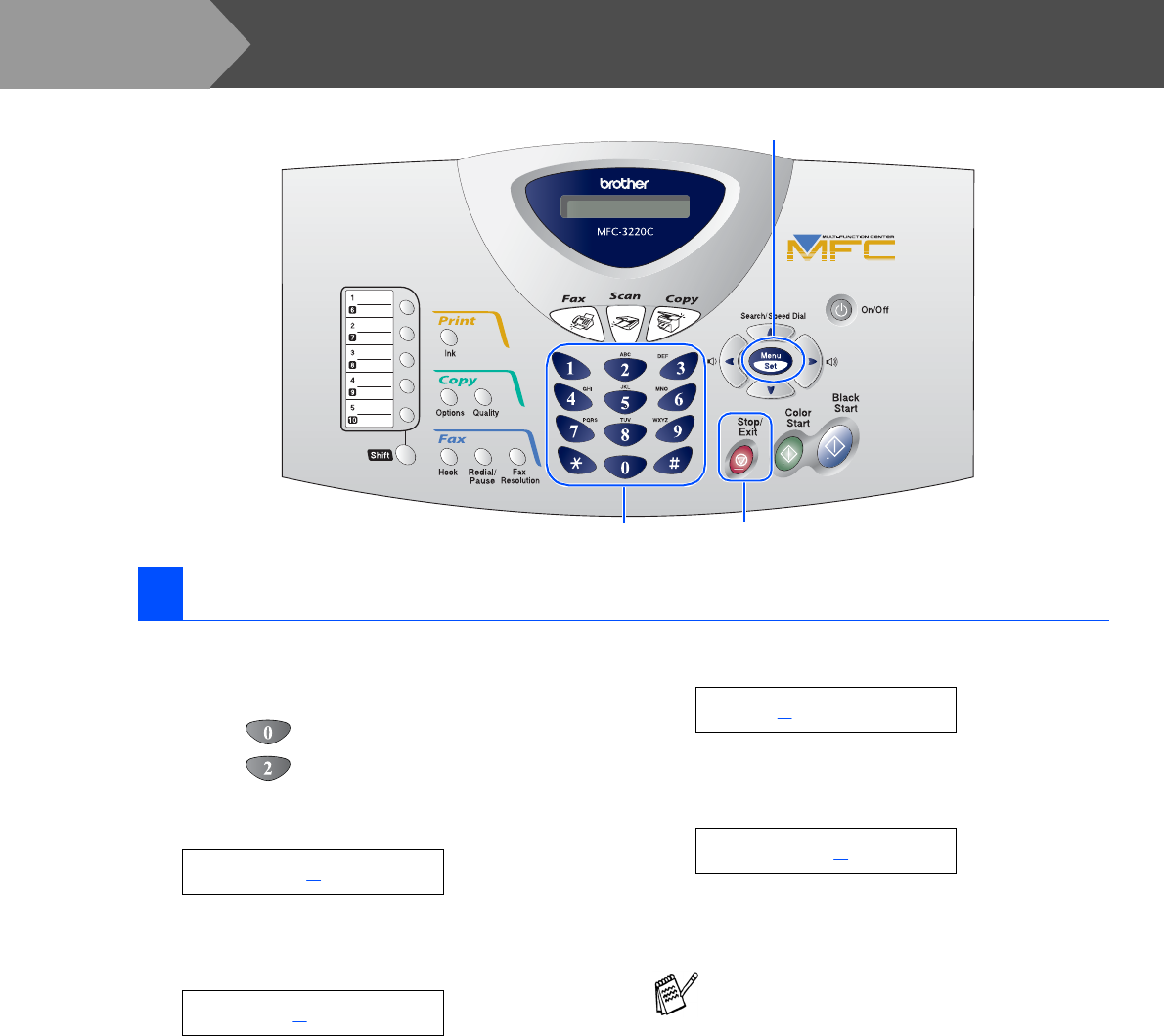
The MFC displays the date and time, and prints it on
every fax you send.
1Press Menu/Set.
2Press .
3Press .
4Enter the last two digits of the year on the
dial pad, and then press Menu/Set.
(e.g. Enter 0, 4 for 2004.)
5Enter the two digits for the month on the dial
pad, and then press Menu/Set.
(e.g. Enter 0, 3 for March.)
6Enter the two digits for the day on the dial
pad, and then press Menu/Set.
(e.g. Enter 0, 1.)
7Enter the time in 24-hour format on the dial
pad, and then press Menu/Set.
(e.g. Enter 1, 5, 2, 5 for 3:25 P.M.)
8Press Stop/Exit.
7Setting the Date and Time
Menu/Set
Stop/ExitDial pad
Year:2004
Month:03
Day:01
Time:15:25
If you want to repeat from step1, press
Stop/Exit.
Step 1
11
Setting Up
the Machine
Windows® Mac OS®
8.6-9.2
Mac OS® X
10.1/10.2.1 or greater
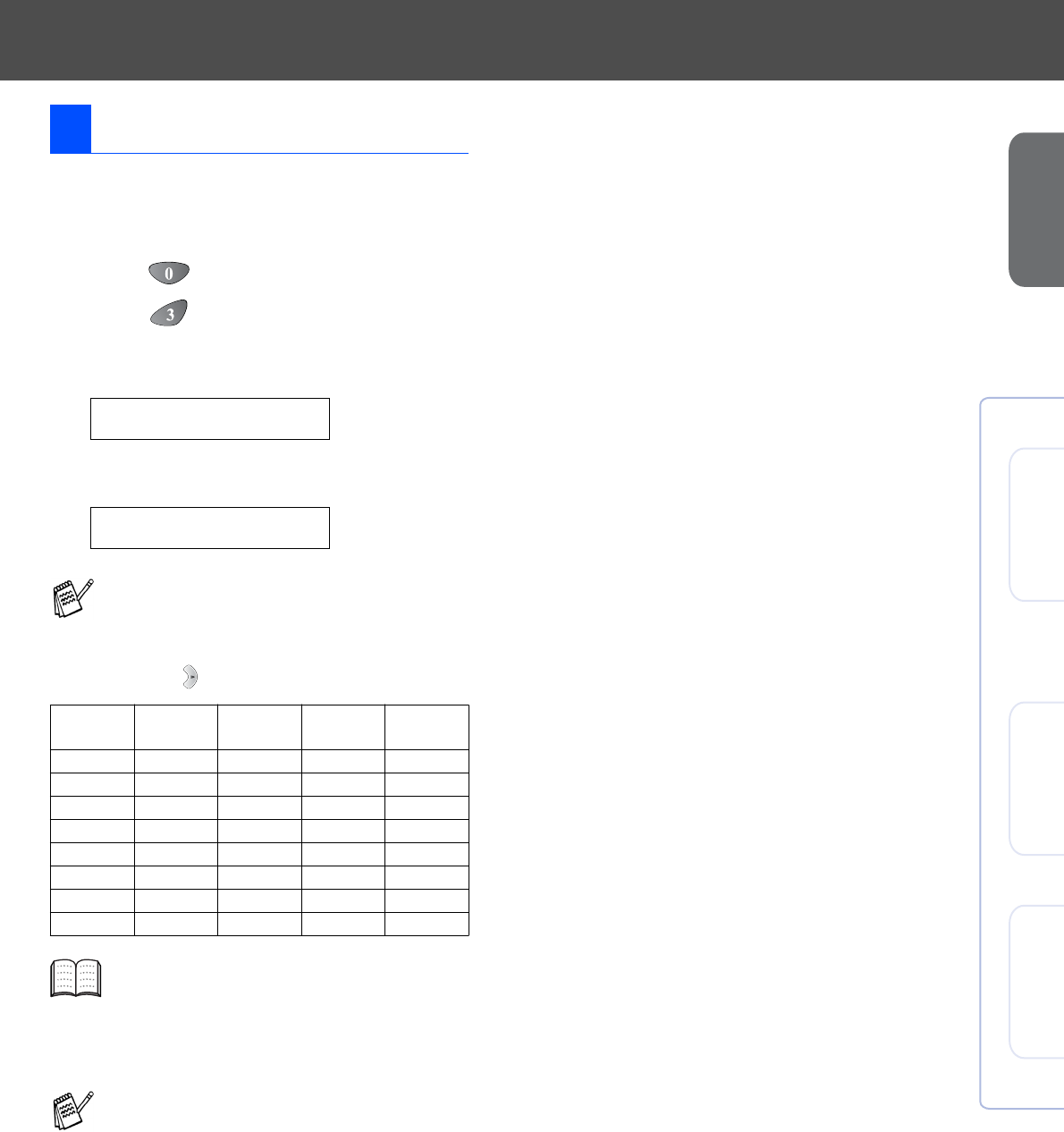
You should store your name and fax number to be
printed on all fax pages that you send.
1Press Menu/Set.
2Press .
3Press .
4Enter your fax number (up to 20 digits) on
the dial pad, and then press Menu/Set.
5Use the dial pad to enter your name (up to
20 characters), and then press Menu/Set.
6Press Stop/Exit.
8Setting Your Station ID
Fax:_
Name:_
■Refer to the following chart for entering
your name.
■If you need to enter a character that is on
the same key as the previous character,
press to move the cursor to the right.
Press
key
One
time
Two
times
Three
times
Four
times
2ABC2
3DEF3
4GH I 4
5JKL5
6MNO6
7PQRS
8TUV8
9WX Y Z
For more details, see “Setting the Station
ID” in Chapter 4 of the User's Guide.
If you want to repeat from step1, press
Stop/Exit.
12
Setting Up the Machine
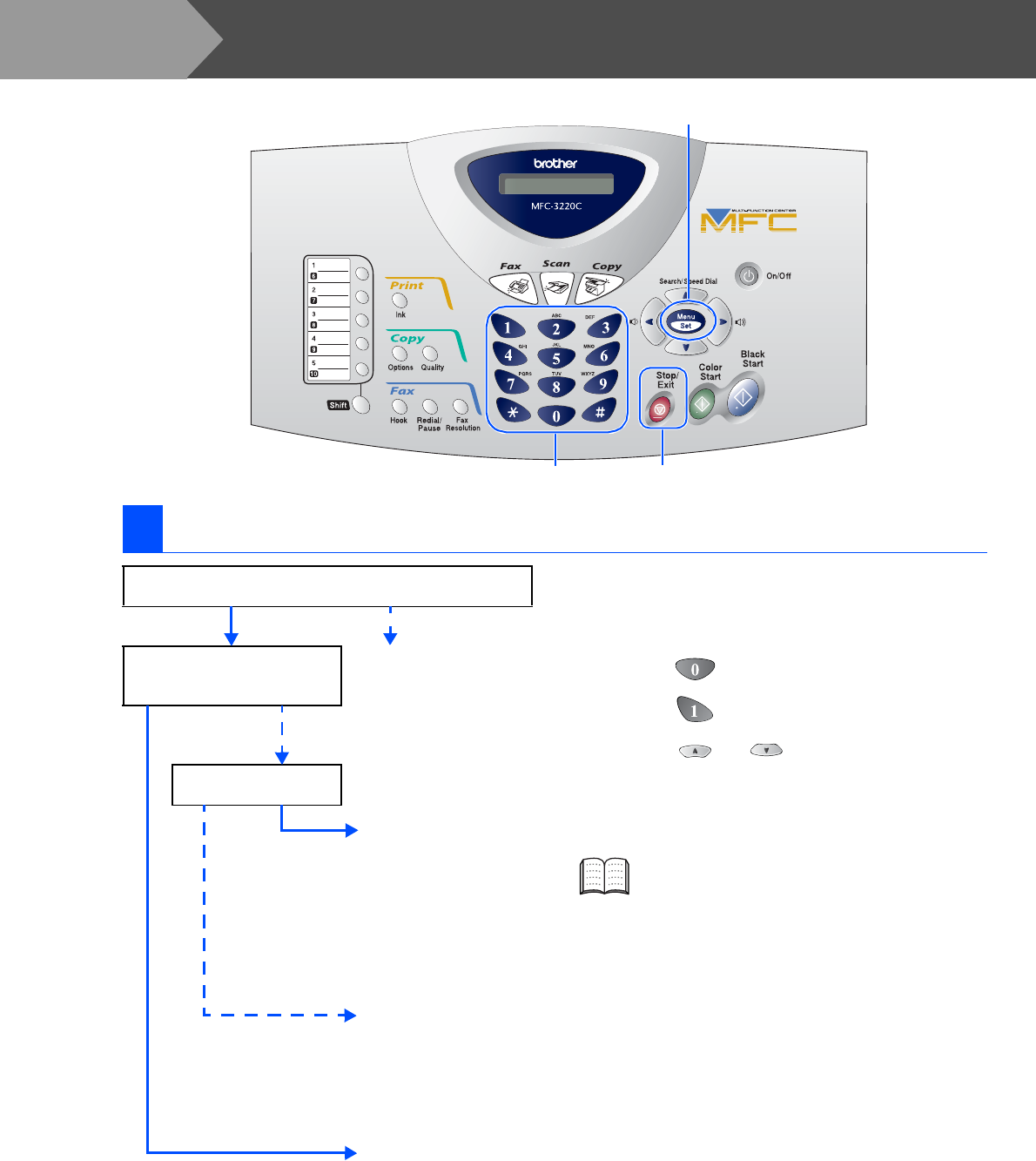
There are four possible receive modes: Fax Only,
Fax/Tel, Manual and External TAD.
1Press Menu/Set.
2Press .
3Press .
4Press or to select the mode.
5Press Menu/Set.
6Press Stop/Exit.
9Selecting a Receive Mode
Menu/Set
Stop/ExitDial pad
Are you connecting an external telephone or external
telephone answering device to the MFC?
Are you using the voice message
function of your external
telephone answering device?
Fax Only
The MFC automatically
answers every call as a
fax.
Do you want the MFC to
answer fax calls only?
Fax/Tel
The MFC controls the
line and automatically
answers every call. If
the call is not a fax, the
phone will ring for you to
pick up the call.
Manual
You control the phone
line and must answer
every call yourself.
External TAD
Your external telephone
answering device (TAD)
automatically answers
every call. Voice
messages are stored on
the external TAD. Fax
messages are printed.
Yes No
Yes
No
No
Yes
For more details, see “Setup Receive” in
Chapter 5 of the User’s Guide.
Step 1
13
Setting Up
the Machine
Windows® Mac OS®
8.6-9.2
Mac OS® X
10.1/10.2.1 or greater
1Press Menu/Set.
2Press .
3Press .
4Select your language (ENGLISH or FRENCH) by using or , and then press Menu/Set.
5Press Stop/Exit.
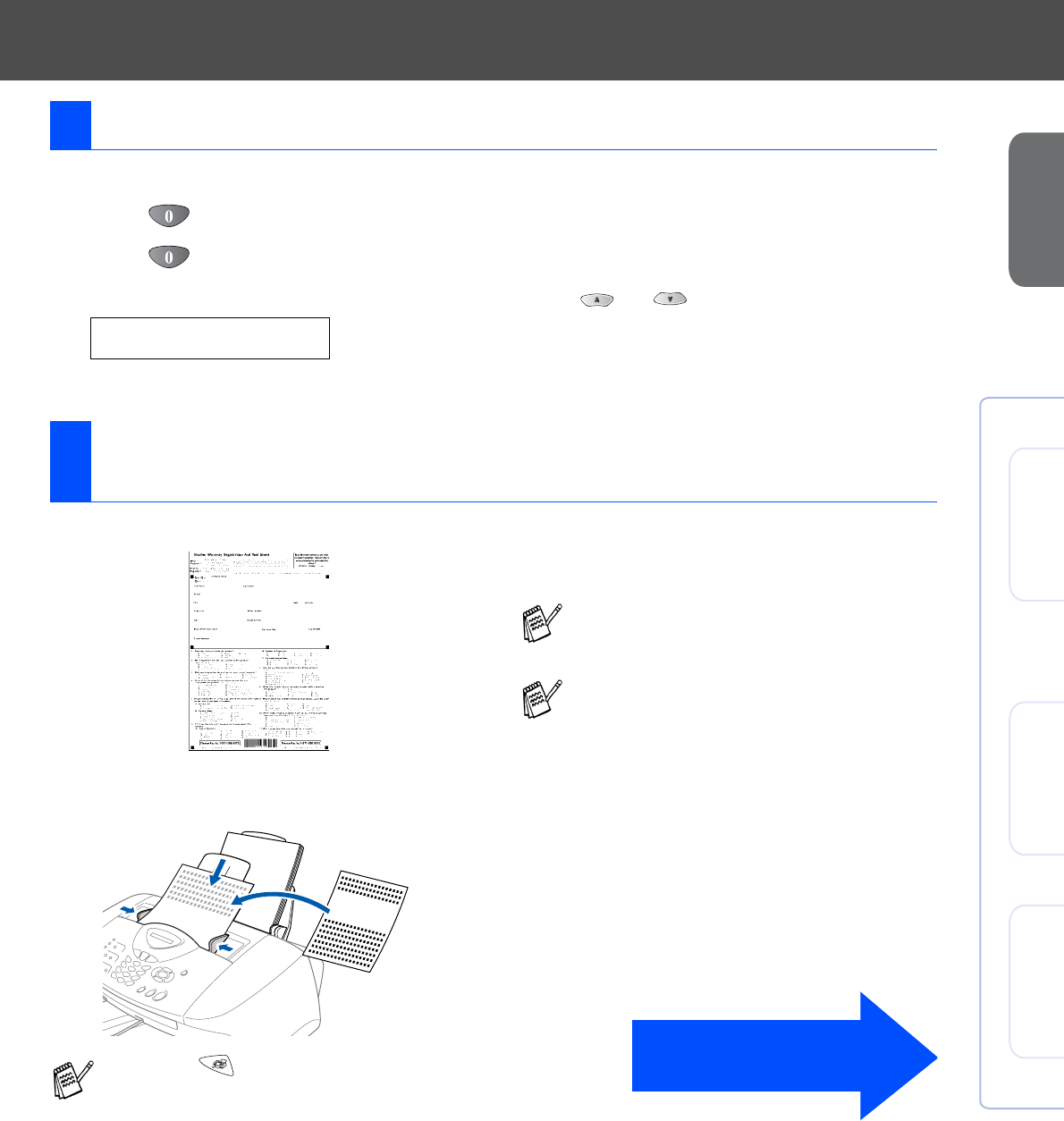
1
Fill out the Product Registration and Test Sheet.
2Place the sheet face down in the Automatic
Document Feeder.
3
Enter the toll-free fax number: 1-877-268-9575.
4Press Black Start.
10 Selecting Your Language (Canada Only)
English
11 Sending in the Product Registration and Test Sheet
(USA Only)
Make sure (Fax) is illuminated in Green.
You will receive a confirmation fax of your
Product Registration.
You can also register your product online
using the On-Line Registration link from the
installation CD-ROM or go to
www.registermybrother.com
Go to Next page to
install the driver
14
Installing the Driver & Software
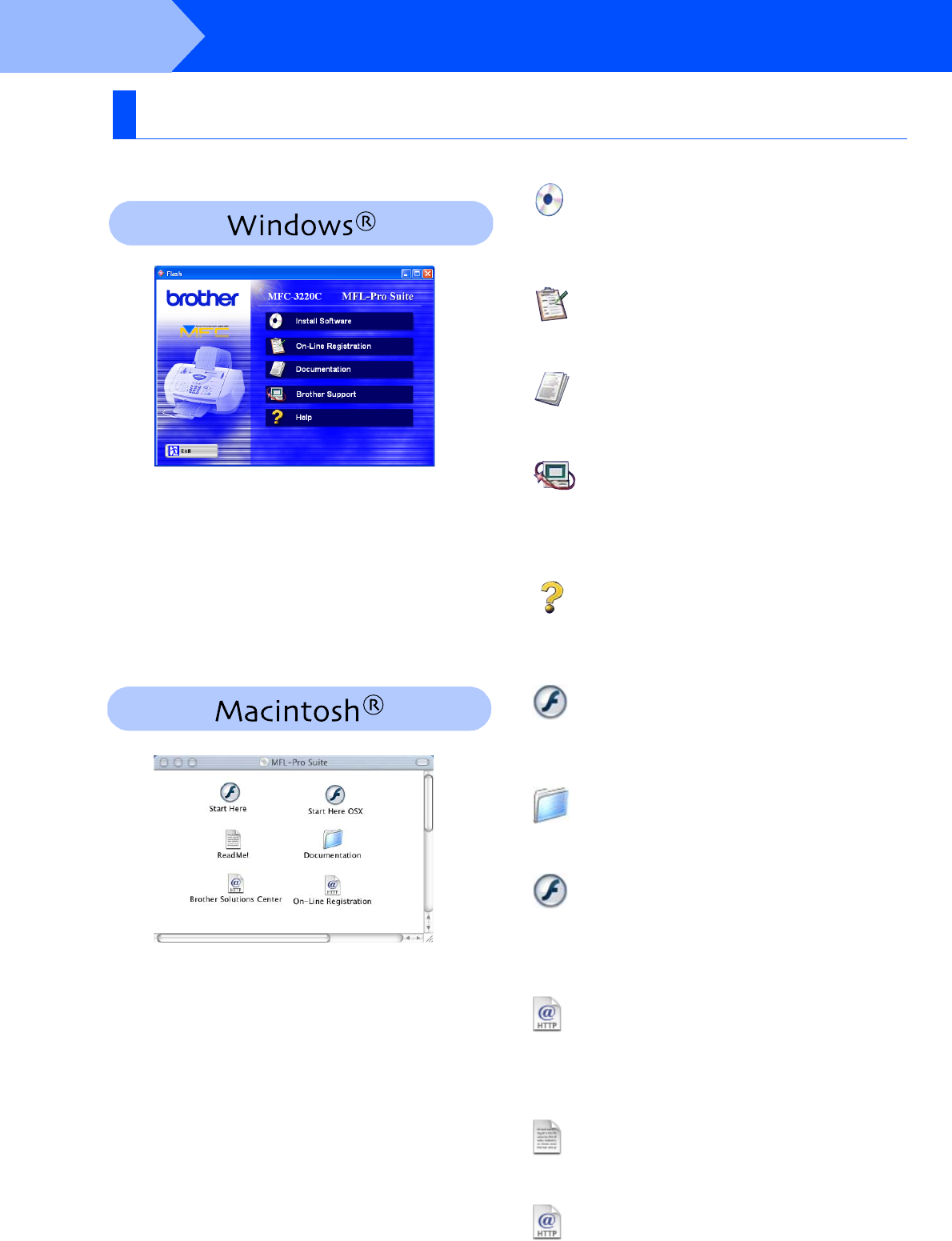
The CD-ROM includes the following items:
Install Software
You can install printer, PC-FAX Send, scanner drivers
and the various utility items, including PaperPort
®
and
TextBridge
®
OCR.
On-Line Registration
You will be pointed to the Brother Product Registration
Web Page for quick registration of your MFC.
Documentation
View the User’s Guide and other documentation in
PDF format. (Viewer included)
Brother Support
You can access the Brother Solutions Center which is
a Web site offering information about your Brother
product including FAQs, User’s Guides, Driver
updates and Tips for using your machine.
Help
Helpful hints.
Start Here
You can install the printer driver, scanner driver,
PC-FAX Send and Presto! PageManager
®
for
Mac OS
®
8.6 - 9.2
Documentation
View the User’s Guide and other documentations in
PDF format.
Start Here OS X
You can install the printer driver, scanner driver,
PC-Fax Send, remote setup program and
Presto! PageManager® for Mac OS® 10.1/10.2.1 or
greater (Scanning is not supported in OS 10.1).
Brother Solutions Center
You can access the Brother Solutions Center which is
a Web site offering information about your Brother
product including FAQs, User’s Guides, Driver
updates and Tips for using your machine.
ReadMe!
You can get important information and
troubleshooting tips.
On-Line Registration
You will be pointed to the Brother Product Registration
Web Page for quick registration of your MFC.
Supplied CD-ROM (MFL-Pro Suite)
Step 2

15
Setting Up
the Machine
Windows® Mac OS®
8.6-9.2
Mac OS® X
10.1/10.2.1 or greater
Installing the Driver & Software
Follow the instructions on this page for your operating system.
Step 2
For Windows® 98/98SE/Me/
2000 Professional/XP Users................................ Go to page 16
For Mac OS® 8.6 to 9.2 Users.............................. Go to page 24
For Mac OS® X 10.1/10.2.1 or greater Users ...... Go to page 26
16
Installing the Driver & Software
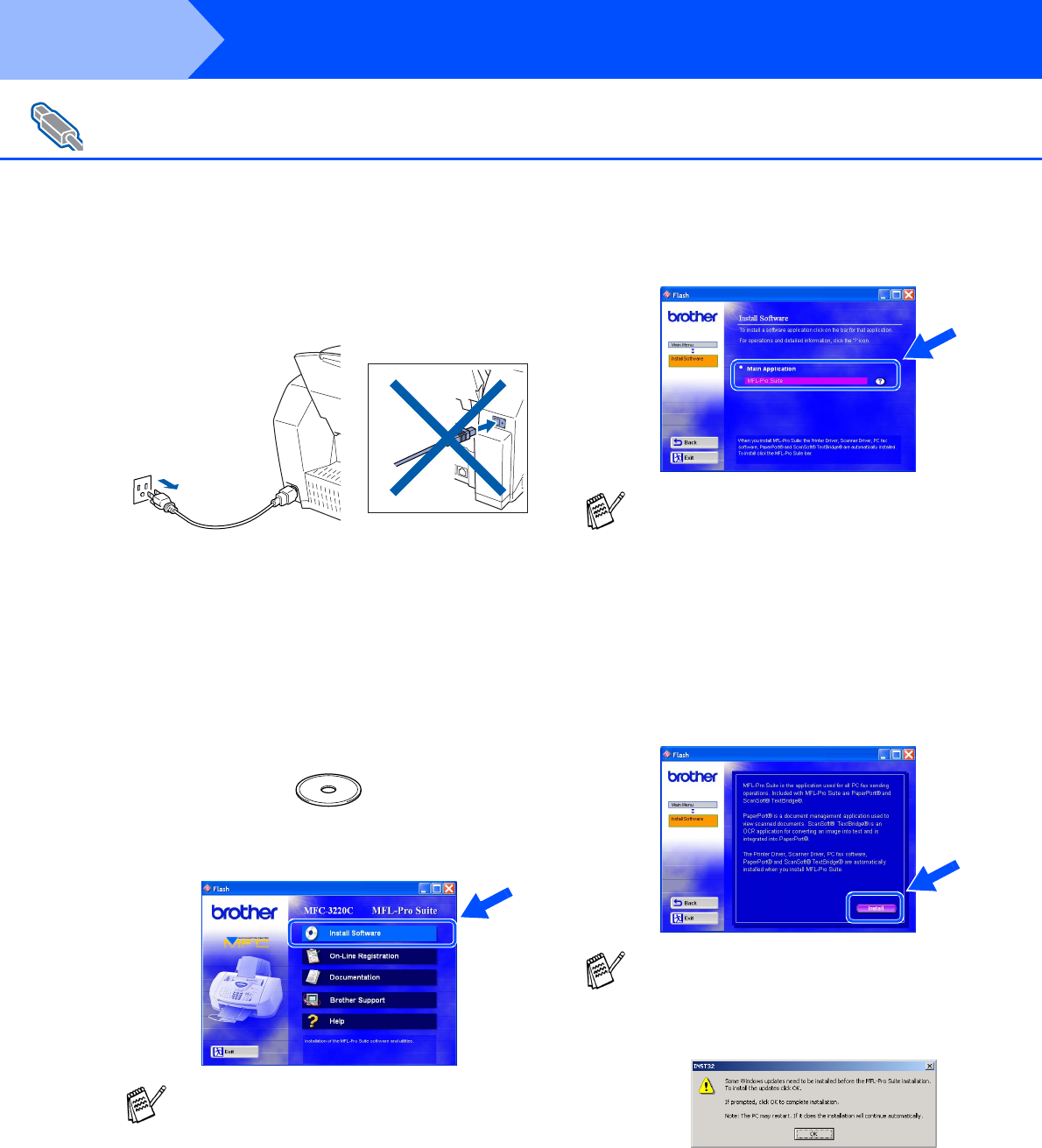
Make sure that you have completed the instructions from Step 1 “Setting Up
the Machine” on pages 4 - 13.
1Turn off and unplug the MFC from the AC
outlet and disconnect it from your computer,
if you already connected an interface cable.
2Turn on your computer.
(For Windows® 2000 Professional/XP, you
must be logged on as the administrator.)
3Insert the supplied CD-ROM into your
CD-ROM drive. If the model name screen
appears, select your machine. If the
language screen appears, select your
language.
4The CD-ROM main menu will appear.
Click Install Software.
5Click MFL-Pro Suite in Main Application.
6Click Install.
For Windows® 98/98SE/Me/2000 Professional/XP Users
If this window does not appear, use
Windows® Explore to run the setup.exe
program from the root directory of the
Brother CD-ROM.
MFL-Pro Suite includes Printer Driver,
Scanner Driver, ScanSoft® PaperPort ®,
ScanSoft ® TextBridge ®, PC-FAX software,
Remote Setup and True Type fonts.
PaperPort ® is a document management
application for viewing scanned originals.
ScanSoft ® TextBridge ®, which is integrated
into PaperPort ®, is an OCR application that
converts an image into text and inserts it into
your default word processor.
If you see the following screen, click OK to
install the Windows® updates. After the
updates are installed your PC may restart.
Note: If it does the installation will
automatically continue.
If the installation does not continue
automatically, please open the installer
menu again by double-clicking the
setup.exe program from the root directory of
the Brother CD-ROM, and continue from
Step 4.
Step 2
17
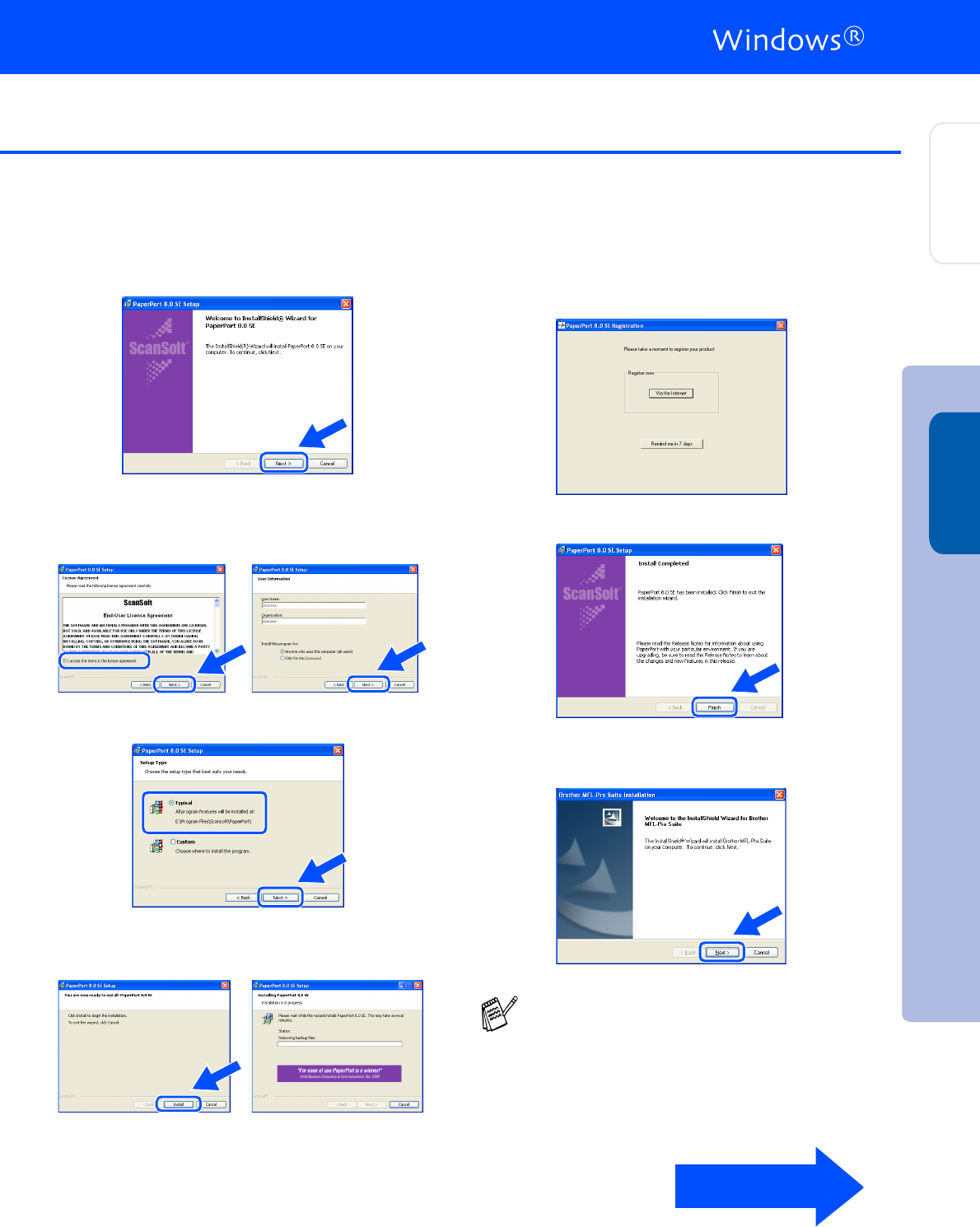
7When the PaperPort® 8.0 SE Setup window
is displayed, click Next.
8After reading and accepting the ScanSoft®
License Agreement, enter your user
information and click Next.
9Select Typical and click Next.
0Click Install and PaperPort® will start
installing on your computer.
AWhen the ScanSoft® Registration screen is
displayed, make your selection and follow
the on-screen instructions.
BClick Finish to complete installation.
CWhen the Brother MFL-Pro Suite
Installation window appears, click Next.
If an error message appears at this point in
the installation process, you will first have to
uninstall it. From the Start menu, select
Programs, Brother, MFL-Pro Suite,
Uninstall, and then follow the instructions on
the screen.
Continued...
Step 2
Installing the Driver & Software
Setting Up
the Machine
Windows®
18
Installing the Driver & Software
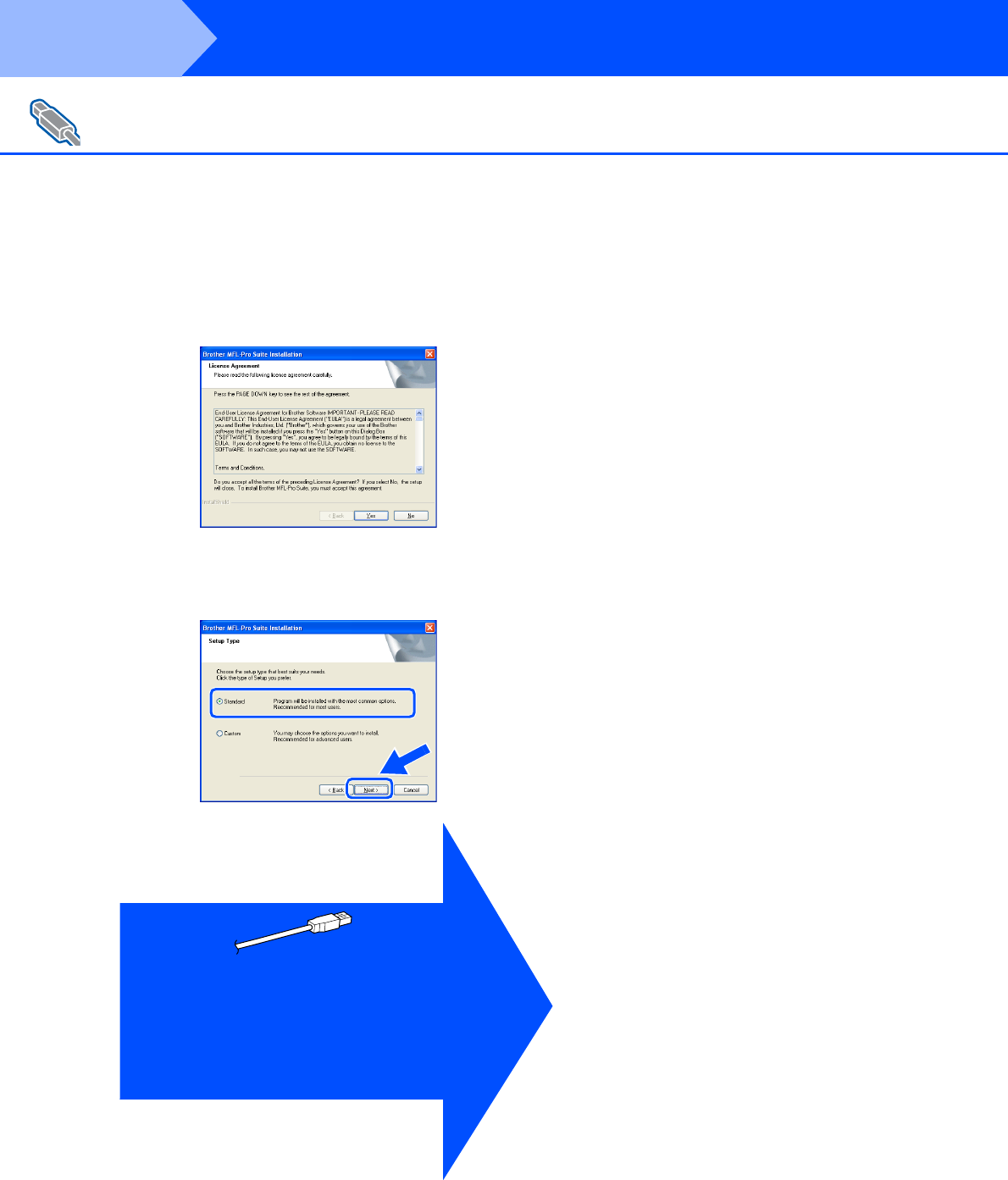
DWhen the Brother Software License
Agreement window appears, click Yes, if
you agree to the Software Licence
Agreement.
ESelect Standard, and then click Next.
The application files will be copied and
installed to your computer.
For Windows® 98/98SE/Me/2000 Professional/XP Users
Windows® 98/98SE/Me Users
➝ Go to page 19
Windows® 2000 Professional Users
➝ Go to page 21
Windows® XP Users
➝ Go to page 23
Step 2
19
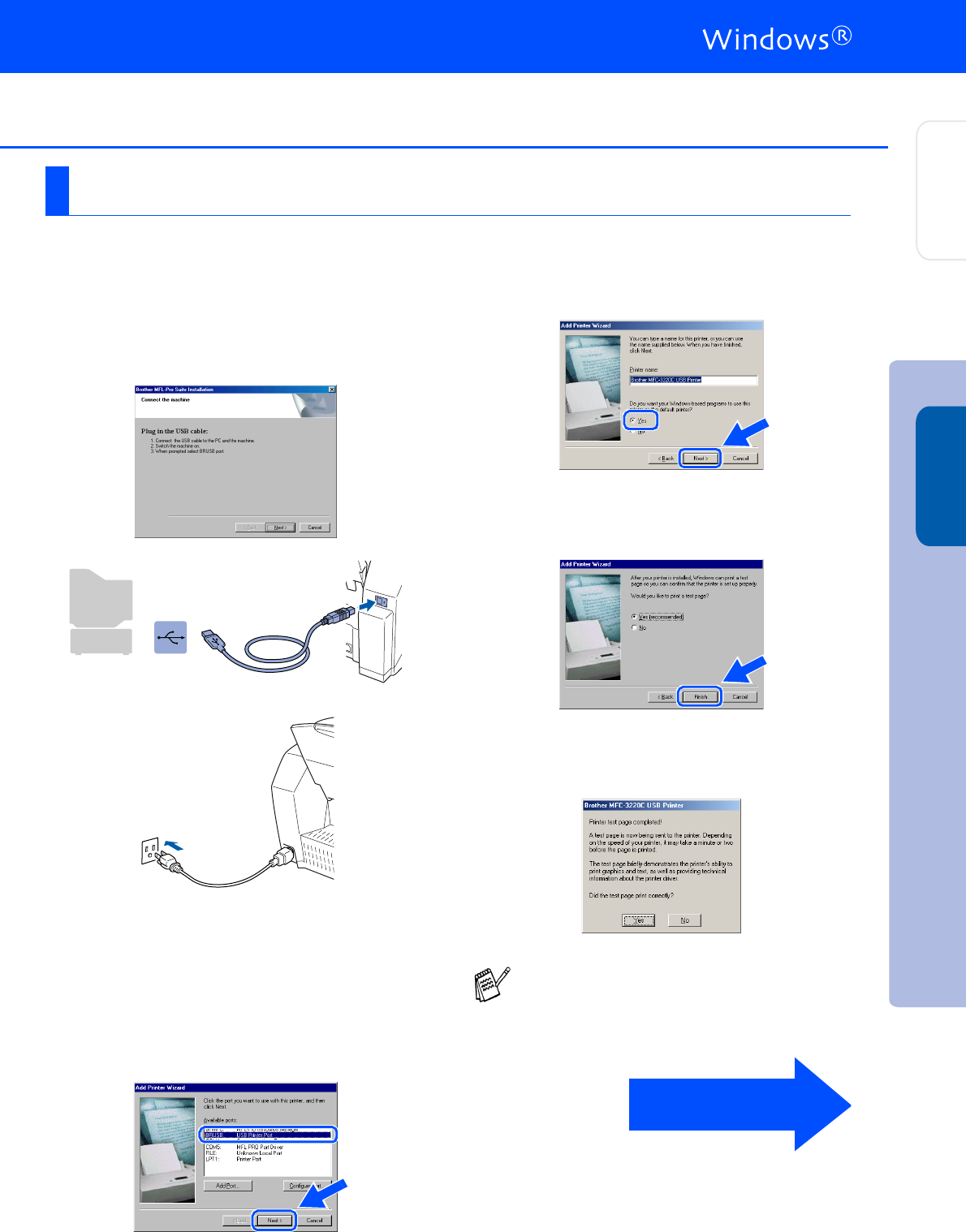
Make sure that you followed the instructions in 1 to E on pages 16 - 18.
FWhen this screen appears, connect the
USB interface cable to your PC, and then
connect it to the MFC.
Turn on the MFC by plugging in the power
cord.
It will take a few seconds for the installation
screen to appear.
The installation of the Brother drivers will
automatically start. Follow the instructions
on the screen.
GSelect BRUSB: USB Printer Port, and then
click Next.
HAccept the default Printer name by selecting
Yes, and then click Next.
ISelect Yes (recommended), and then click
Finish. A test page will be printed so you
can check the print quality.
JIf the test page is printed correctly, click
Yes. If you click No, follow the prompts on
the screen to correct the problem.
For Windows® 98/98SE/Me Users Only
If the ReadMe3220C.wri file shown in step
K appears, close the ReadMe3220C.wri file
and then click Finish after printing the page.
Continued...
Step 2
Installing the Driver & Software
Setting Up
the Machine
Windows®
20
Installing the Driver & Software
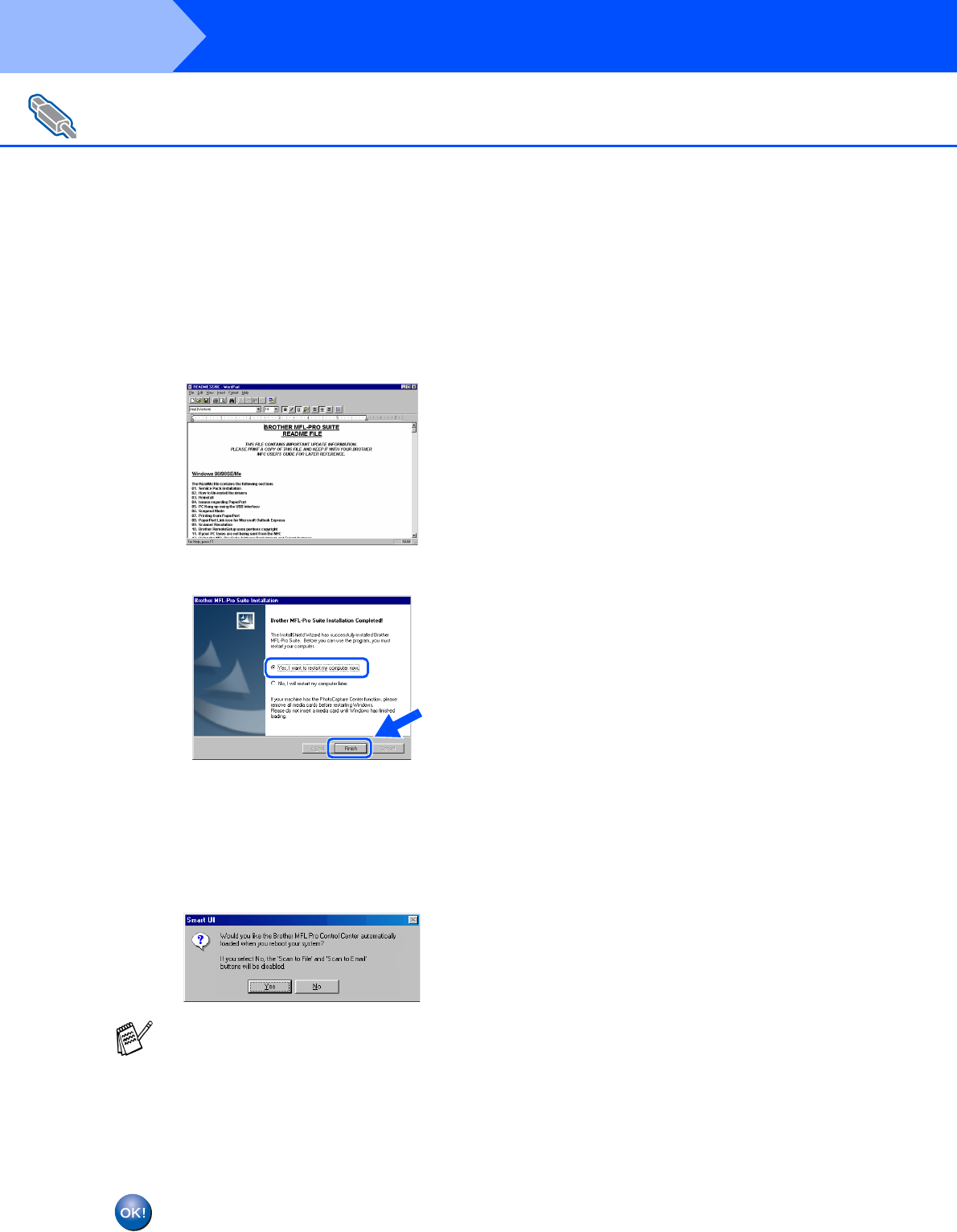
KThe ReadMe3220C.wri file will be
displayed.
Please read this file for troubleshooting
information and then close the file to
continue installation.
LClick Finish to restart your computer.
MAfter the computer restarts, click Yes to
have the Control Center load each time
Windows® is started. The Control Center
will appear as an icon in the task tray.
If you click No the Scan keys on the MFC
will be disabled.
The Brother PC-FAX, Printer and
Scanner drivers have been installed
and the installation is now complete.
For Windows® 98/98SE/Me/2000 Professional/XP Users
Even if you select NO, later you will be able
to launch the Brother Control Center to use
the Scan key by double clicking the Smart UI
icon on the desktop. This loads the Brother
Control Center to the task tray. See
AutoLoad the Brother Control Center,
Chapter 4 in the Documentation (Software
User’s Guide) located on the CD-ROM.
Step 2
21
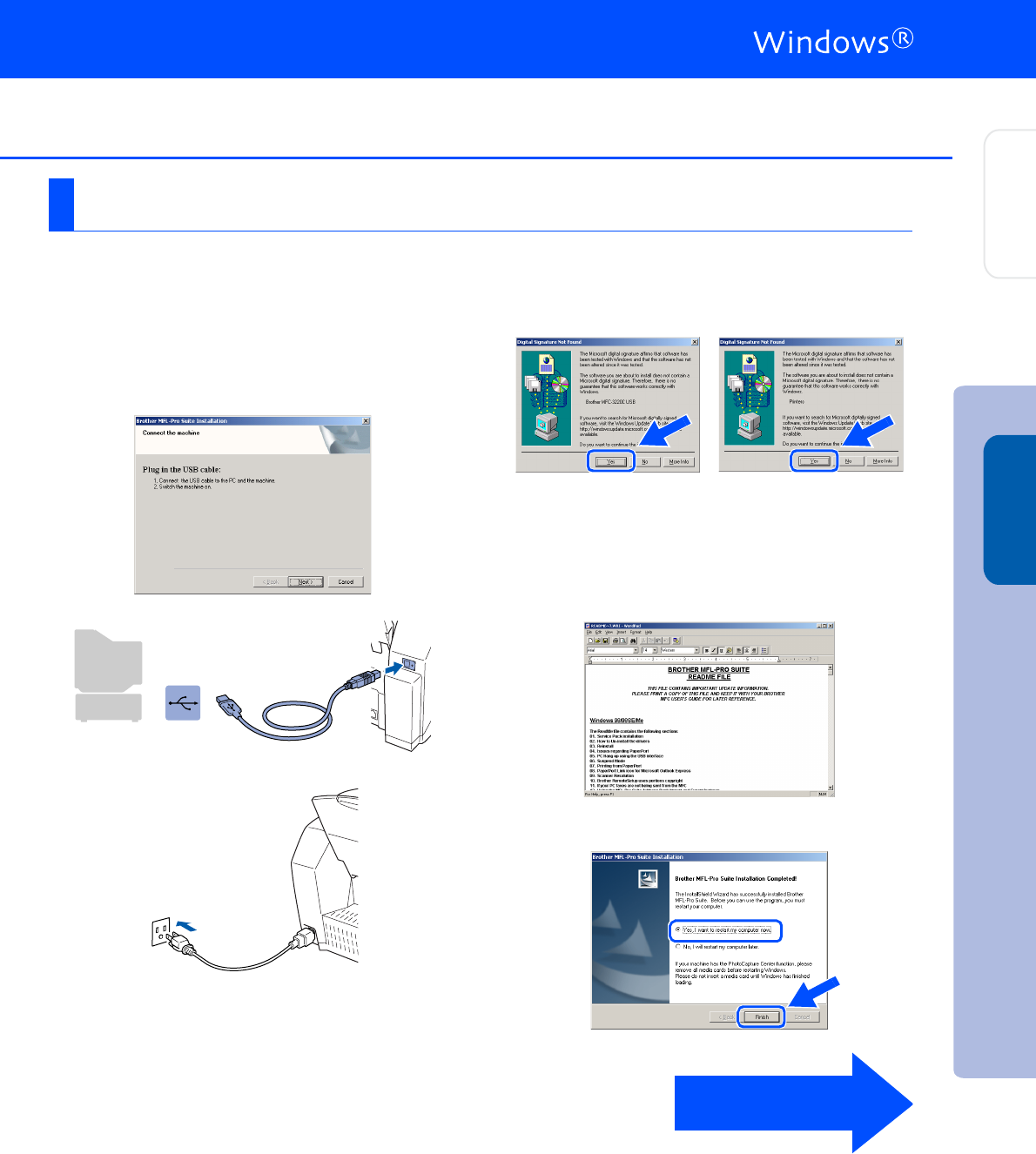
Make sure that you followed the instructions in 1 to E on pages 16 - 18.
FWhen this screen appears, connect the
USB interface cable to your PC, and then
connect it to the MFC.
Turn on the MFC by plugging in the power
cord.
It will take a few seconds for the installation
screen to appear.
The installation of the Brother drivers will
automatically start. Follow the instructions
on the screen.
GIf the Digital Signature Not Found dialog
boxes appear, click Yes to install the driver.
.
HThe ReadMe3220C.wri file will be
displayed.
Please read this file for troubleshooting
information and then close the file to
continue installation.
IClick Finish to restart your computer.
For Windows® 2000 Professional Users Only
Continued...
Installing the Driver & Software
Setting Up
the Machine
Windows®
22
Installing the Driver & Software
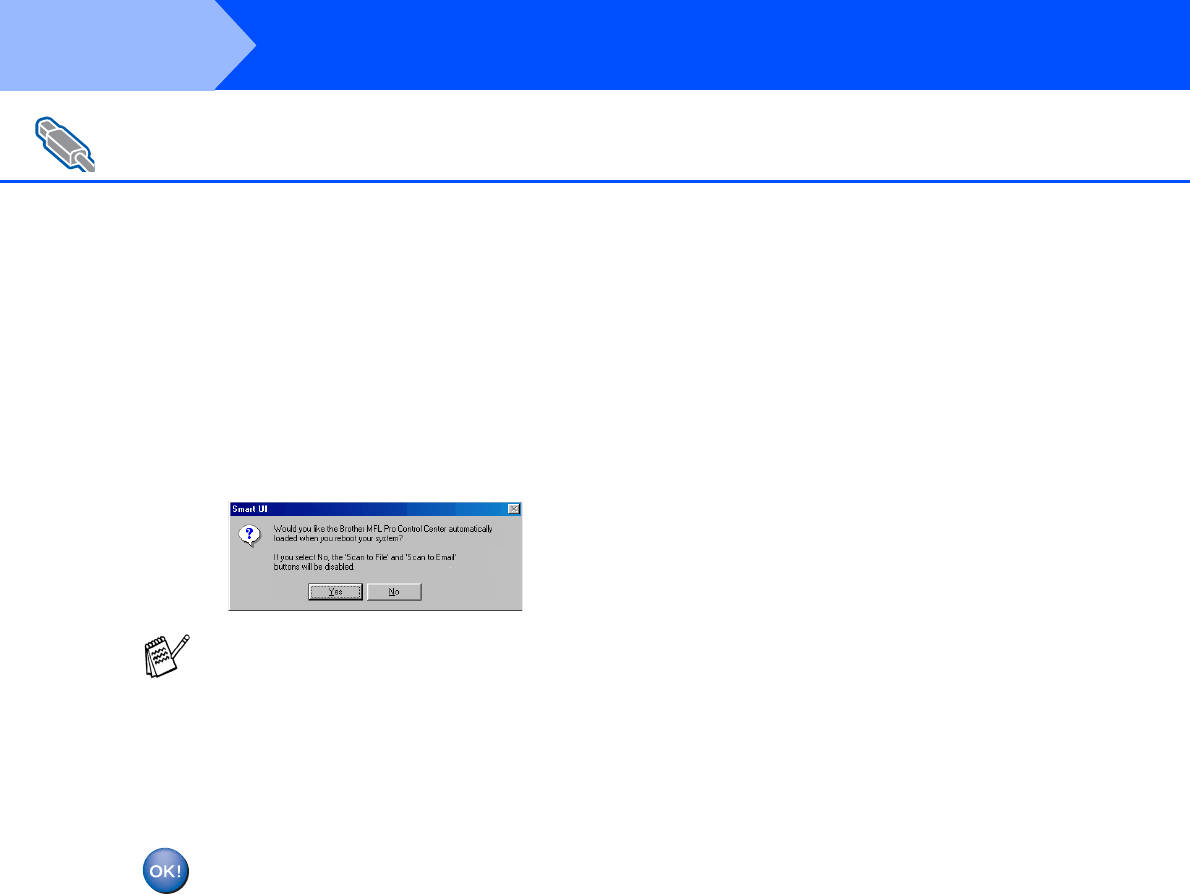
JAfter the computer restarts, click Yes to
have the Control Center load each time
Windows® is started. The Control Center
will appear as an icon in the task tray.
If you click No the Scan keys on the MFC
will be disabled.
.
The Brother PC-FAX, Printer and
Scanner drivers have been installed
and the installation is now complete.
For Windows® 98/98SE/Me/2000 Professional/XP Users
Even if you select NO, later you will be able
to launch the Brother Control Center to use
the Scan key by double clicking the Smart UI
icon on the desktop. This loads the Brother
Control Center to the task tray. See
AutoLoad the Brother Control Center,
Chapter 4 in the Documentation (Software
User’s Guide) located on the CD-ROM.
Step 2
23
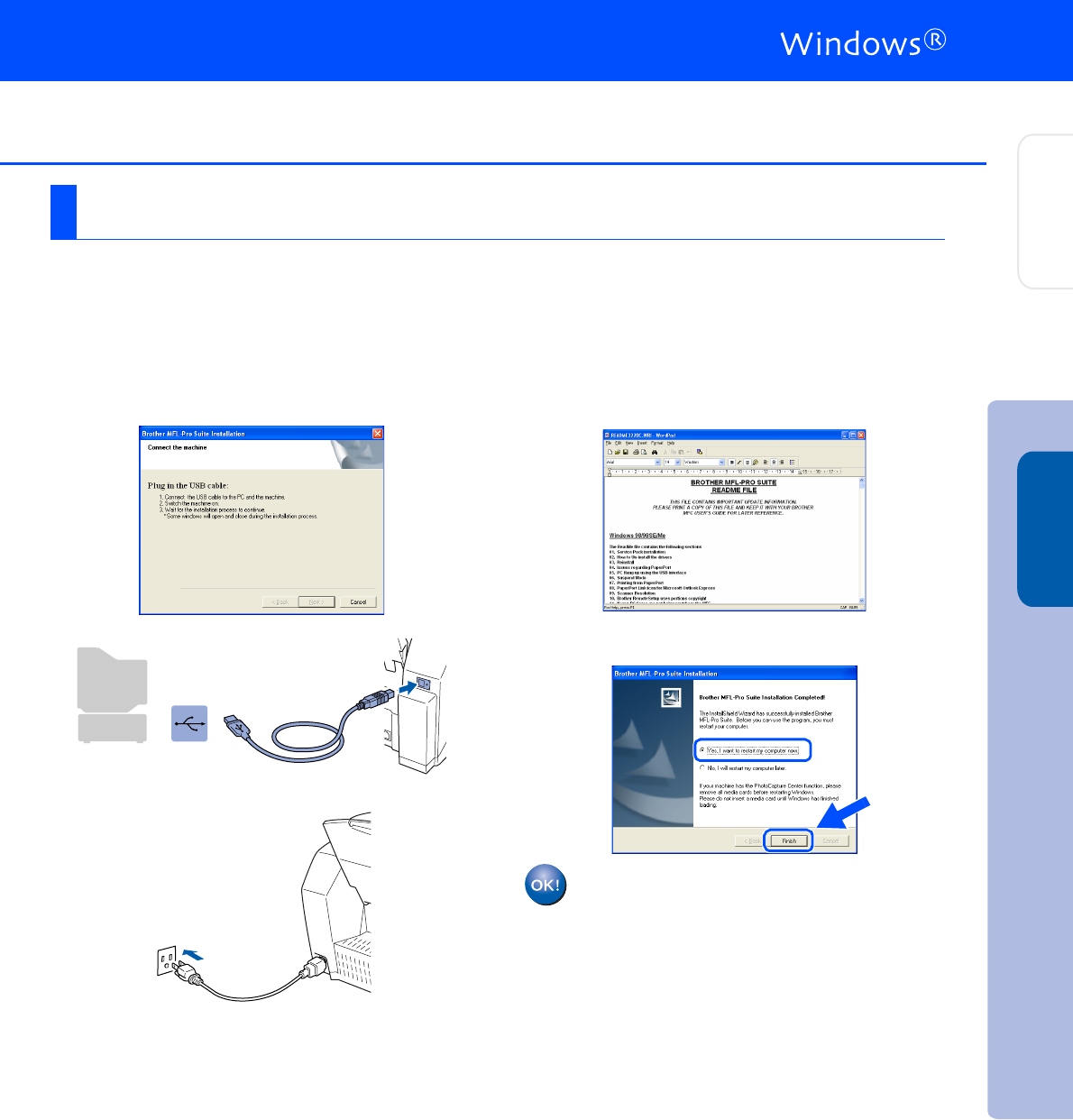
Make sure that you followed the instructions in 1 to E on pages 16 - 18.
FWhen this screen appears, connect the
USB interface cable to your PC, and then
connect it to the MFC.
Turn on the MFC by plugging in the power
cord.
It will take a few seconds for the installation
screen to appear.
The installation of the Brother drivers will
automatically start. The installation screens
appear one after another, please wait for a
while.
GThe ReadMe3220C.wri file will be
displayed.
Please read this file for troubleshooting
information and then close the file to
continue installation.
HClick Finish to restart your computer.
The Brother PC-FAX, Printer and
Scanner drivers have been installed
and the installation is now complete.
For Windows® XP Users Only
Installing the Driver & Software
Setting Up
the Machine
Windows®
24
Installing the Driver & Software
Make sure that you have completed the instructions from Step 1 “Setting Up
the Machine” on pages 4 - 13.
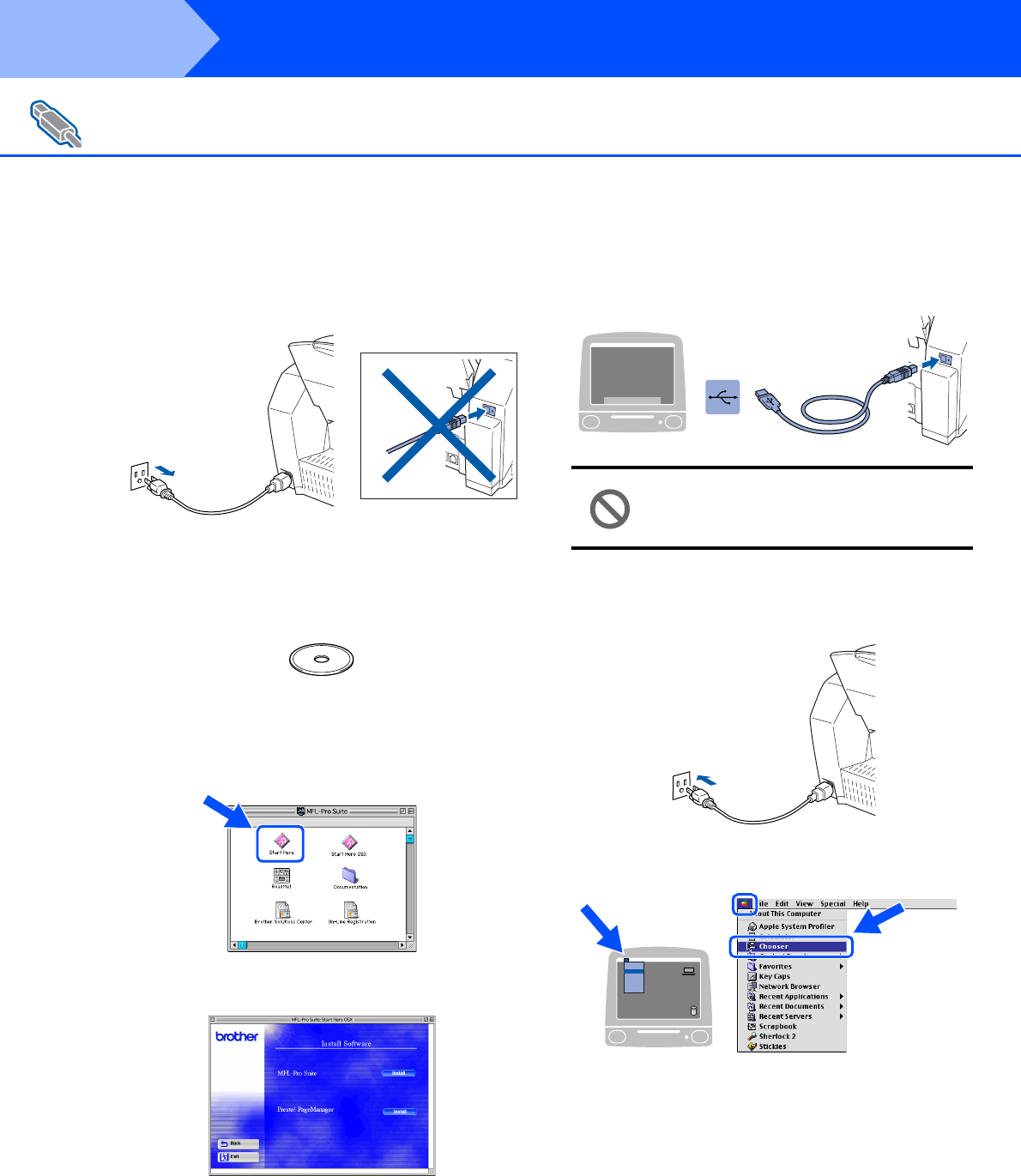
1Turn off and unplug the MFC from the AC
outlet and disconnect it from your Macintosh
if you already connected an interface cable.
2Turn on your Macintosh®.
3Insert the supplied CD-ROM into your
CD-ROM drive.
4Double-click the Start Here icon to install
the printer, scanner and PC-FAX Send
drivers. If the language screen appears,
select your language.
5Click MFL-Pro Suite to install.
6Follow the on-screen instructions, and
restart your Macintosh®.
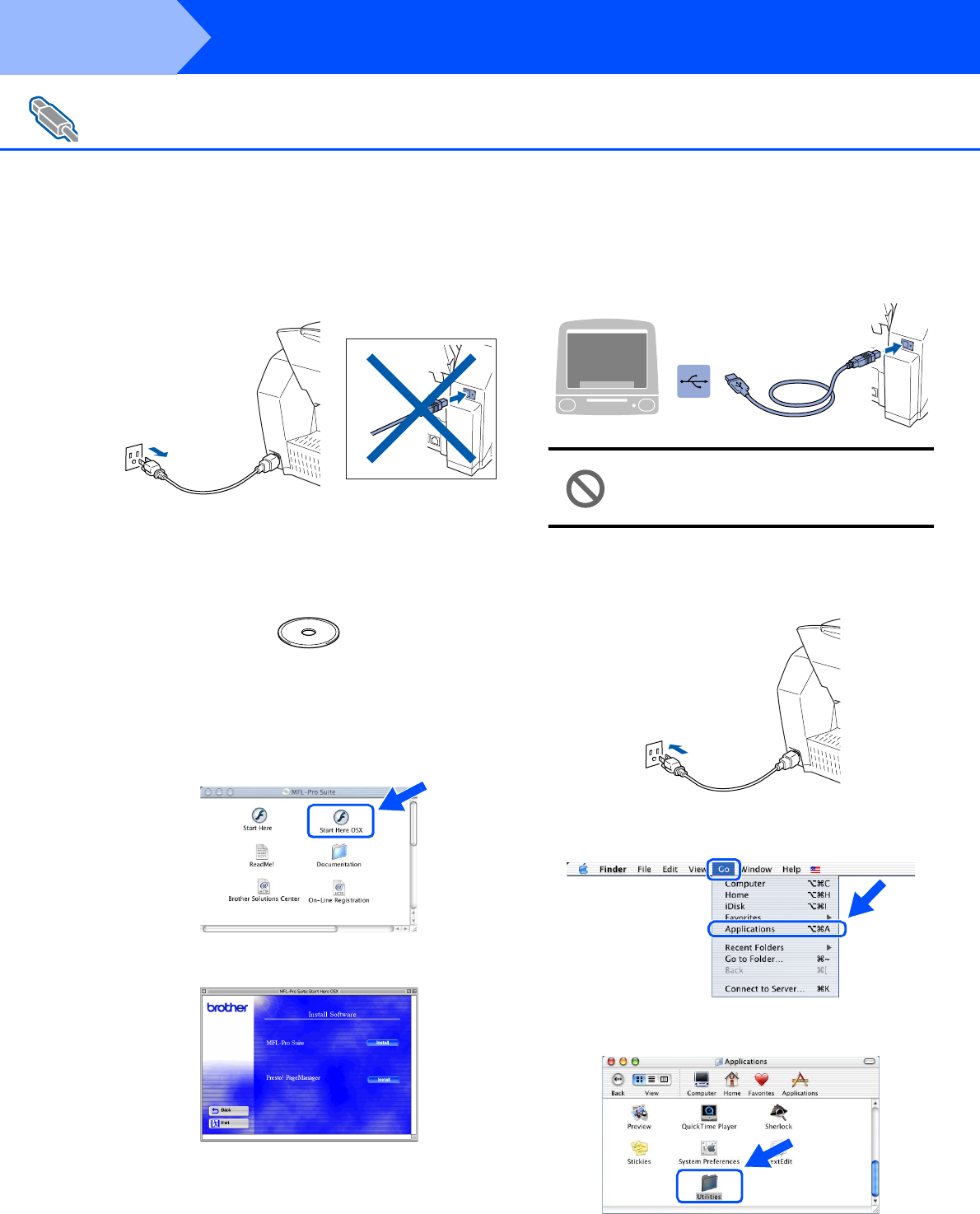
7Connect the USB interface cable to your
Macintosh®, and then connect it to the MFC.
Do not connect the MFC to a USB
port on a keyboard or a non powered
USB hub.
8Turn on the MFC by plugging in the power
cord.
9From the Apple® menu, open the Chooser.
For Mac OS® 8.6 to 9.2 Users
Step 2
25
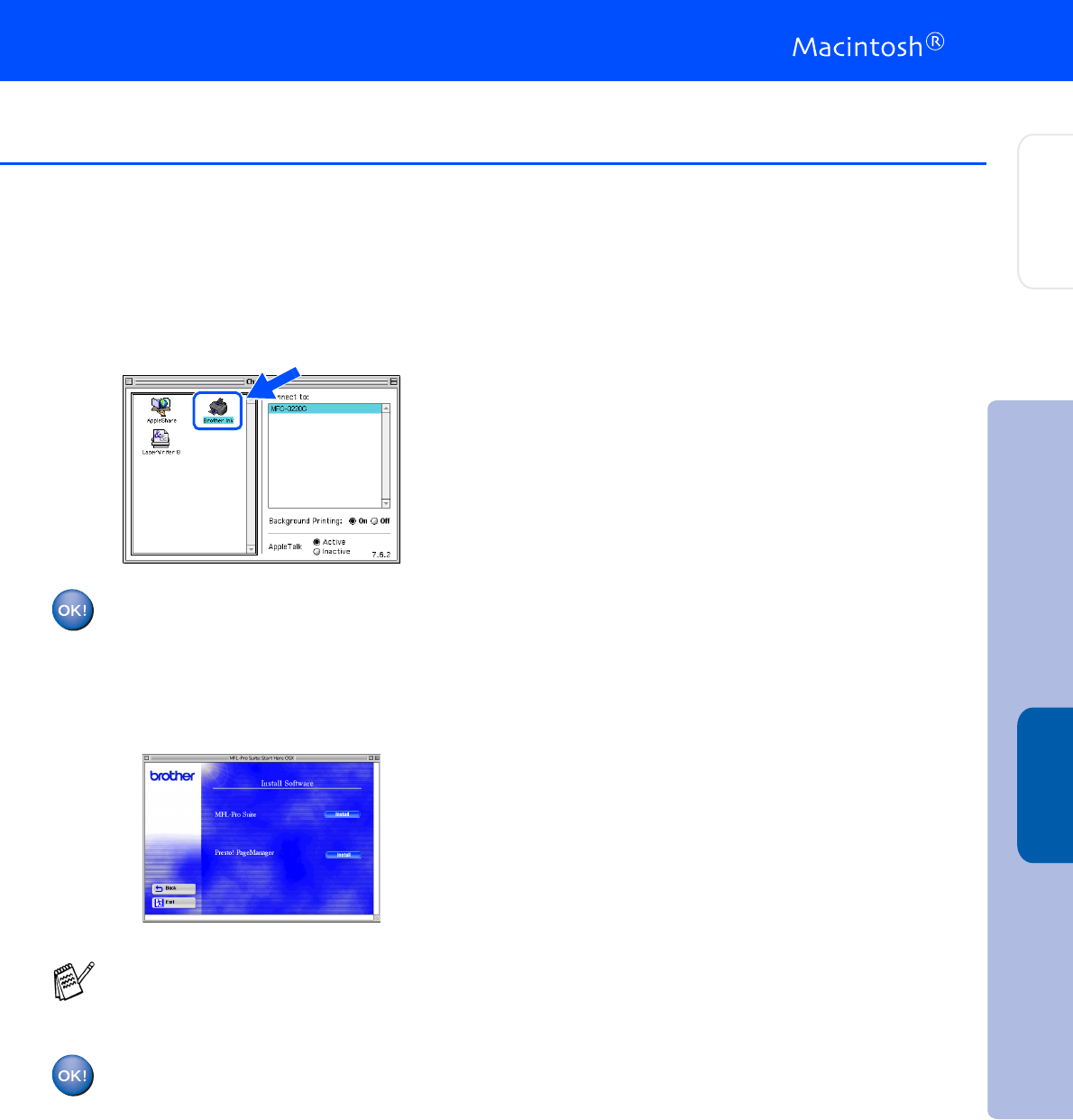
0Click the Brother Ink icon you installed. On
the right side of the Chooser, select the
printer to which you want to print.
Close the Chooser.
The Brother PC-FAX Send, Printer and
Scanner drivers have been installed.
ATo install Presto! PageManager®, click the
Presto! PageManager® icon and follow on
the Screen instructions.
Presto! PageManager® has been
installed and the installation is now
complete.
You can easily scan, share and organize
photos and originals using Presto!
PageManager®.
Installing the Driver & Software
Setting Up
the Machine
Mac OS®
8.6-9.2
26
Installing the Driver & Software
Make sure that you have completed the instructions from Step 1 “Setting Up
the Machine” on pages 4 - 13.
1Turn off and unplug the MFC from the AC
outlet and disconnect it from your Macintosh
if you already connected an interface cable.
2Turn on your Macintosh®.
3Insert the supplied CD-ROM into your
CD-ROM drive.
4Double-click the Start Here OS X icon to
install the printer driver, Scanner driver,
Brother PC-FAX Send and Remote Setup
program. If the language screen appears,
select your language.
5Click MFL-Pro Suite to install.
6Follow the on-screen instructions, and
restart your Macintosh®.
7Connect the USB interface cable to your
Macintosh®, and then connect it to the MFC.
Do not connect the MFC to a USB
port on a keyboard or a non powered
USB hub.
8Turn on the MFC by plugging in the power
cord.
9Select Applications from the Go menu.
0Open the Utilities folder.
For Mac OS® X 10.1/10.2.1 or greater Users
Step 2
27
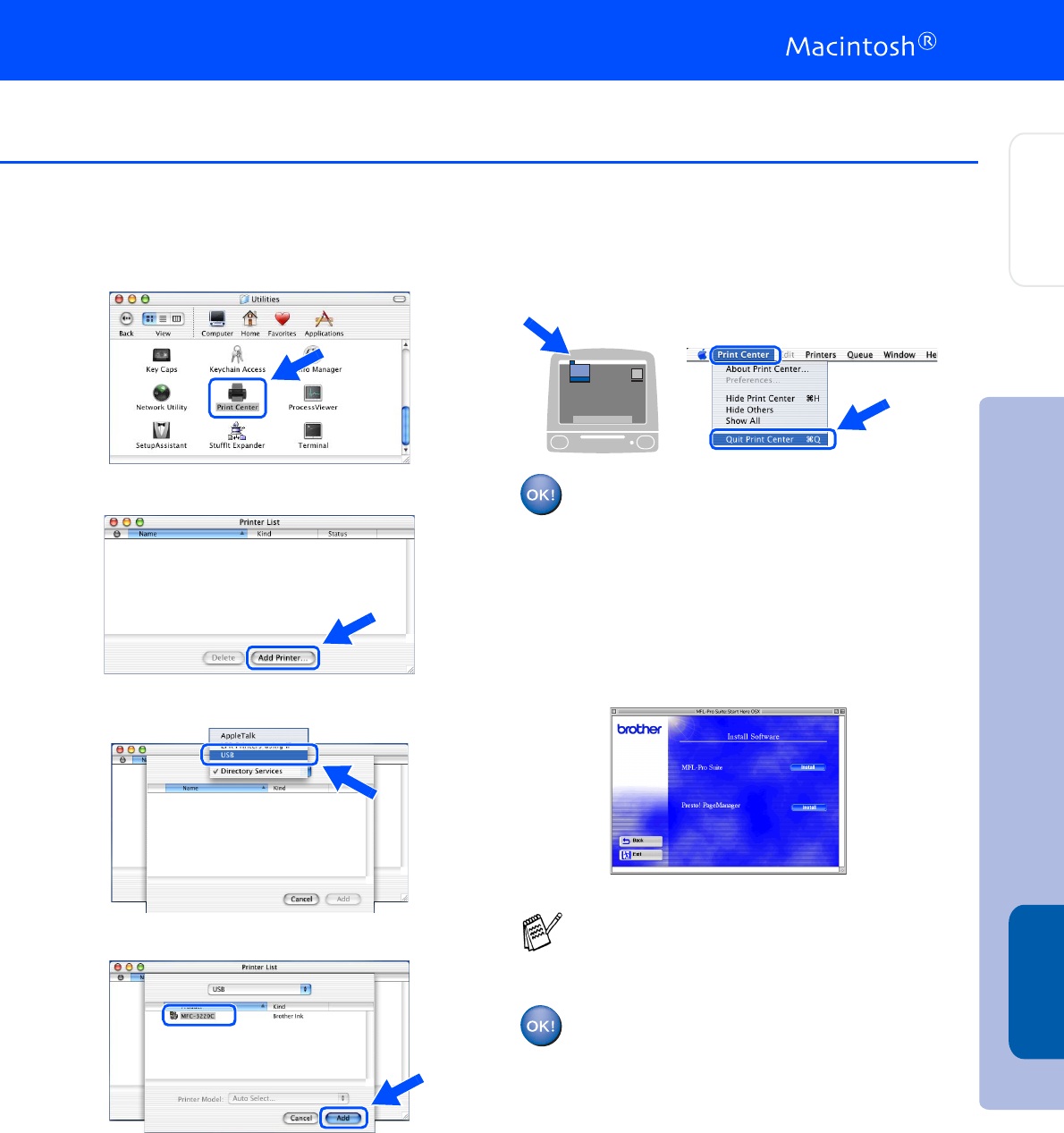
AOpen the Print Center icon.
BClick Add Printer....
CSelect USB.
DSelect MFC-3220C, and then click Add.
ESelect Quit Print Center from the Print
Center menu.
The Brother Printer driver, Scanner
driver, Brother PC-FAX Send and
Remote Setup Program have been
installed and the installation is now
complete.
FTo install Presto! PageManager®, click the
Presto! PageManager® icon and follow on
the Screen instructions.
Presto! PageManager® has been
installed and the installation is now
complete.
You can easily scan, share and organize
photos and originals using Presto!
PageManager®.
Installing the Driver & Software
Setting Up
the Machine
Mac OS® X
10.1/10.2.1 or greater
Ink
Trademarks
The Brother logo is a registered trademark of Brother Industries, Ltd.
Brother is a registered trademark of Brother Industries, Ltd.
Multi-Function Link is a registered trademark of Brother International Corporation.
© Copyright 2003 Brother Industries, Ltd. All rights reserved.
Windows, Microsoft and MS-DOS are registered trademarks of Microsoft in the U.S. and other countries.
Macintosh is a registered trademark of Apple Computer, Inc.
PaperPort and TextBridge are registered trademarks of ScanSoft, Inc.
Presto! PageManager is a registered trademark of NewSoft Technology Corporation.
Each company whose software title is mentioned in this manual has a Software License Agreement specific to its
proprietary programs.
All other brand and product names mentioned in this manual are registered trademarks of their respective
companies.
Compilation and Publication
Under the supervision of Brother Industries Ltd., this manual has been compiled and published, covering the latest
product descriptions and specifications.
The contents of this manual and the specifications of this product are subject to change without notice.
Brother reserves the right to make changes without notice in the specifications and materials contained herein and
shall not be responsible for any damages (including consequential) caused by reliance on the materials presented,
including but not limited to typographical and other errors relating to the publication.
This product is designed for use in a Professional Environment.
©2003 Brother Industries, Ltd.
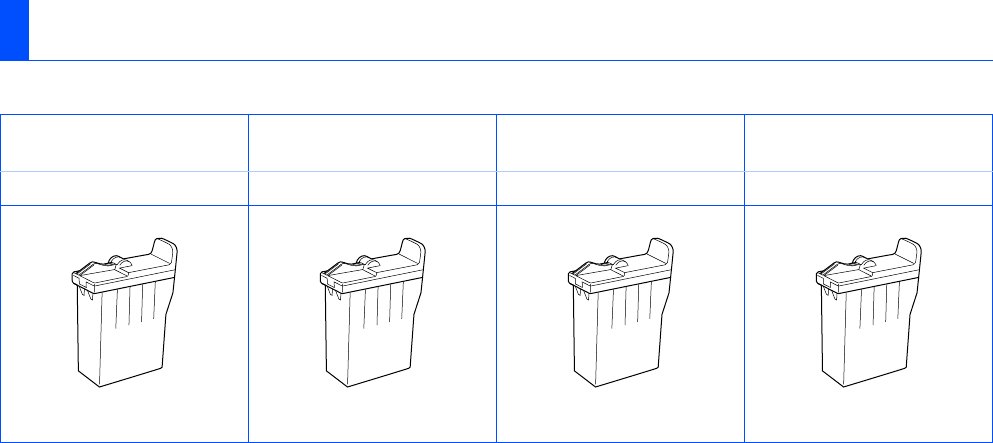
Replacement Consumables
Black Magenta Yellow Cyan
LC31BK LC31M LC31Y LC31C

USA
Version A
