Brother Mfc 4300 Quick Start Guide
2014-07-05
: Brother Brother-Mfc-4300-Quick-Start-Guide brother-mfc-4300-quick-start-guide brother pdf
Open the PDF directly: View PDF  .
.
Page Count: 2
Brother
MFC 4300 StartCard
If you cannot solve a problem:
Refer to Frequently Asked Questions (FAQs) on Brother World Wide Web;
URL: http://www.brother.com
Call Brother Customer Service at;
In USA: 1-800-284-4329
1-800-284-3238 (TTY service for the hearing-impaired)
In Canada: 1-800-853-6660
1-514-685-6464 (within Montreal)
THANK YOU!
CONGRATULATIONS ON PURCHASING THE ULTIMATE BROTHER MACHINE.
WE ARE SURE YOU WILL BE THRILLED WITH THE CONVENIENT WAY YOUR
NEW MACHINE PERFORMS SO MANY TASKS WITH DAZZLING RESULTS!
Follow these simple instructions in numerical order.
For more details, press Help or your machine or see your Operations Manual.
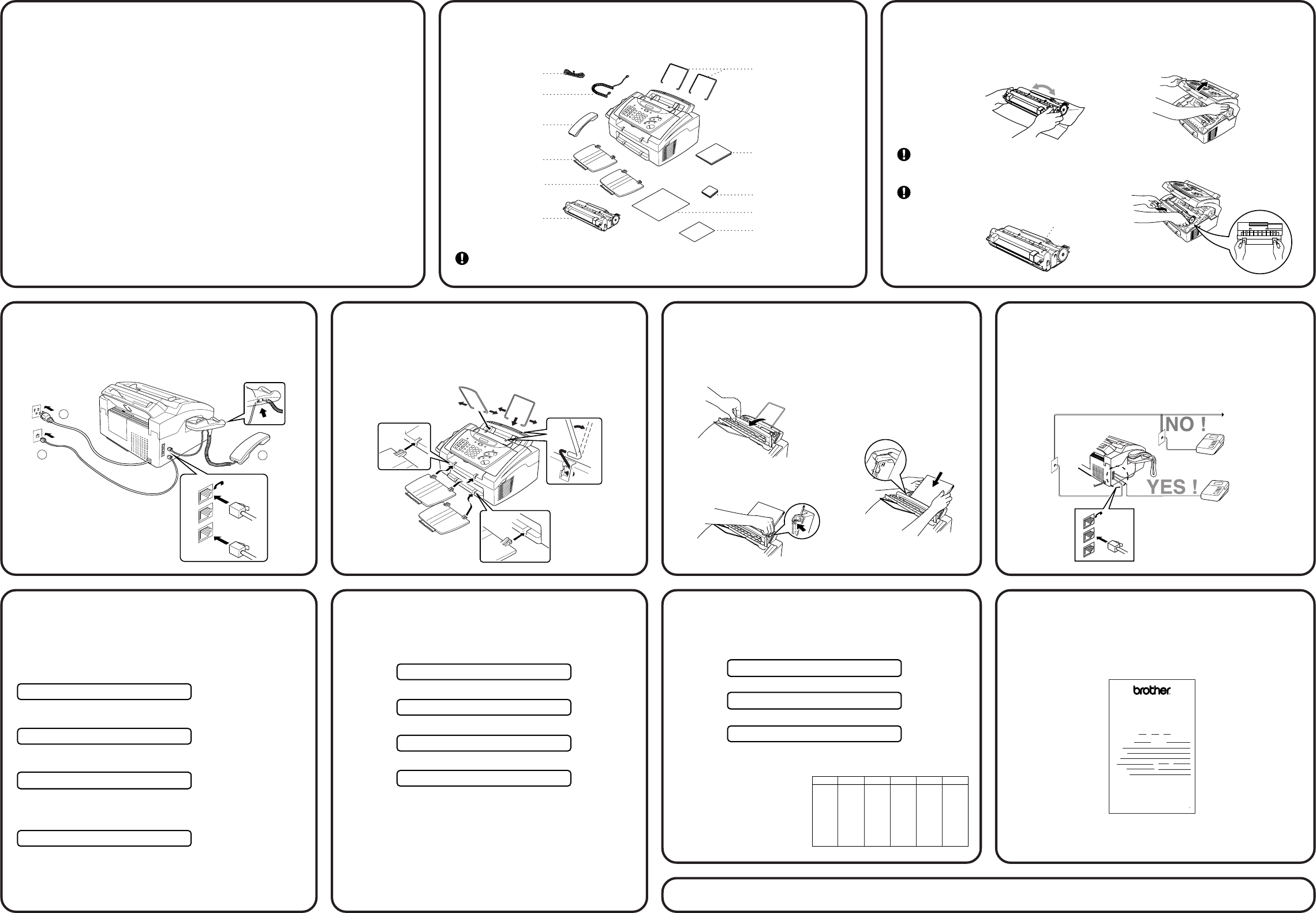
1Packing List 2Install the Drum Unit
3Install Handset, Power
Cord and Phone Line 4Attach Wire Extensions
and Document/Paper
Trays 5Load Paper 6
A. Unpack the drum unit assembly,
and gently rock it from side to side
five or six
times to
distribute the
toner evenly.
C. Holding the drum unit by its handles,
insert it into the MFC.
D. Close the top cover.
If you are sharing one
phone line with an
external telephone
answering device, connect
it now to the external jack.
A. Open the multi-purpose
sheet feeder cover.
B. Fan the paper well.
Keep the packing materials for possible future transport. If you do not pack the
machine properly, it may void your warranty.
7Select an Answer Mode 8Set Date and Time
A. Press Function, 1, 1, 1.
ENTER YEAR:XX
B. Enter the last two digits of the year and press Set.
ENTER MONTH:XX
C. Enter two digits for the month and press Set.
ENTER DAY:XX
D. Enter two digits for the day and press Set.
ENTER TIME:XX:XX
E. Enter the time in 24-hour format and press Set.
F. Press Stop to exit.
9Set Station ID
A. Press Function, 1, 1, 2.
FAX:
B. Enter your fax number, then press Set.
TEL:
C. Enter your telephone number, then press Set.
NAME:
D. Enter your name using the dial pad and the chart below,
then press Set. Use the right arrow to create spaces.
E. Press Stop to exit.
For more details, see
pages 4-2 to 4-3 in
Owner’s Manual.
For the USA,
complete the Warranty
Registration and Test
Sheet...
10
Telephone Wire Cord
Telephone Handset
Wire Extensions
(Both Wire Extensions
are the same size.)
Drum Unit Assembly
(With free
Starter
Toner Cartridge)
Owner's Manual
CD-ROM
Brother StartCard
Paper Tray
Document Tray
Handset Curled Cord
Test Sheet
(For USA Only)
B. Open the top cover of the machine.
LH0554001
Load the paper, making
sure that the print side is
toward the fax machine
and the paper level is
stacked below the paper
mark.
C. Adjust the guides to fit the
paper, to help prevent
paper jams.
...and fax it to Brother
at: 1-877-268-9575
To prevent damage to the drum, do
not expose it to light for longer than
a few minutes.
Do NOT remove the starter sheet-
this will be ejected while the MFC is
warming up.
LINE
EXT.
1
2
3
Press and Slide.
LINE
EXT.
TAD
TAD
That’s all you need to start using your Brother machine.
Choose the mode that best suits your needs by pressing
Receive Mode repeatedly until the screen displays the
setting you want to use.
MANUAL
You must answer every call yourself.
The Brother machine must be started manually to receive.
FAX ONLY
For use with a dedicated fax line.
Every call is answered as a fax.
FAX/TEL
For receiving fax and voice calls on one line.
The MFC answers every call and receives a fax or double
rings for you to pick up a voice call.
TAD:ANSWER MACH.
For use with an answering device.
The TAD answers every call and stores voice messages.
Fax messages are printed.
Make sure that TAD is connected to external jack.
Note: Please select “TAD” on
your machine if you have an
external answering machine.
(For more details, see pages 2-9
to 2-10 in Owner’s Manual.)
Starter Sheet
Key once twice
three times four times
A
D
G
P
J
M
T
W
B
E
H
K
N
Q
U
X
C
F
R
I
L
O
V
Y
five times
2
3
4
5
6
S
8
Z
A
D
G
7
9
J
M
T
2
3
4
5
6
7
8
9
Warranty Registration and Test Sheet
Important: Fill out and fax this sheet to 1-908-685-9283
Be sure to set up your Station ID including your area code.
FAX THIS SIDE DOWN, TOP OF PAGE FIRST.
Brother International Corporation
100 Somerset Corporate Boulevard
P.O. BOX 6911
Bridgewater, New Jersey 08807-0911
Date of Purchase
Facsimile Model Number Serial Number
Your Name
Company Name
Address
City
Daytime Phone ( ) Fax ( )
State Zip
Place of Purchase
We're at your side.
Month Day Year
UF6212001 1
1
The following are the minimum
Computer requirements you
need to set up and operate the
MFC.
Note
If you are using Windows®
3.1x, Windows NT®
Workstation Version 4.0
and Windows® 2000
Professional, see Owner’s
Manual Chapter 11.
Windows® Operating System
3.1, 3.11, 95, 98, 98SE, Me,
NT® Workstation Version 4.0 or
2000 Professional
CPU
486/66MHz or higher for
Windows® 3.1, 3.11, 95, 98,
98SE
Pentium 75MHz or higher for
Windows NT® Workstation
Version 4.0
Pentium 133MHz or higher for
Windows® 2000 Professional
Pentium 150MHz or higher for
Windows® Me
RAM
8MB or higher for Windows®
3.1, 3.11
(16MB recommended)
24MB or higher for Windows®
95, 98, 98SE
(32MB recommended)
32MB or higher for Windows
NT® Workstation Version 4.0 or
Windows® Me
(64MB recommended)
64MB or higher for Windows®
2000 Professional
(128MB recommended)
Hard Disk Space for MFC drivers
40MB for Windows® 3.1, 3.11
50MB for Windows® 95, 98,
98SE, Me, 2000 Professional
and Windows NT® Workstation
Version 4.0
Please see Owner’s Manual
for more information.
Note
Each operating system has a different dialog box. Some text may be different depending on which operating
system you are using. The instructions in steps 3b to 3i are for Windows® 98SE.
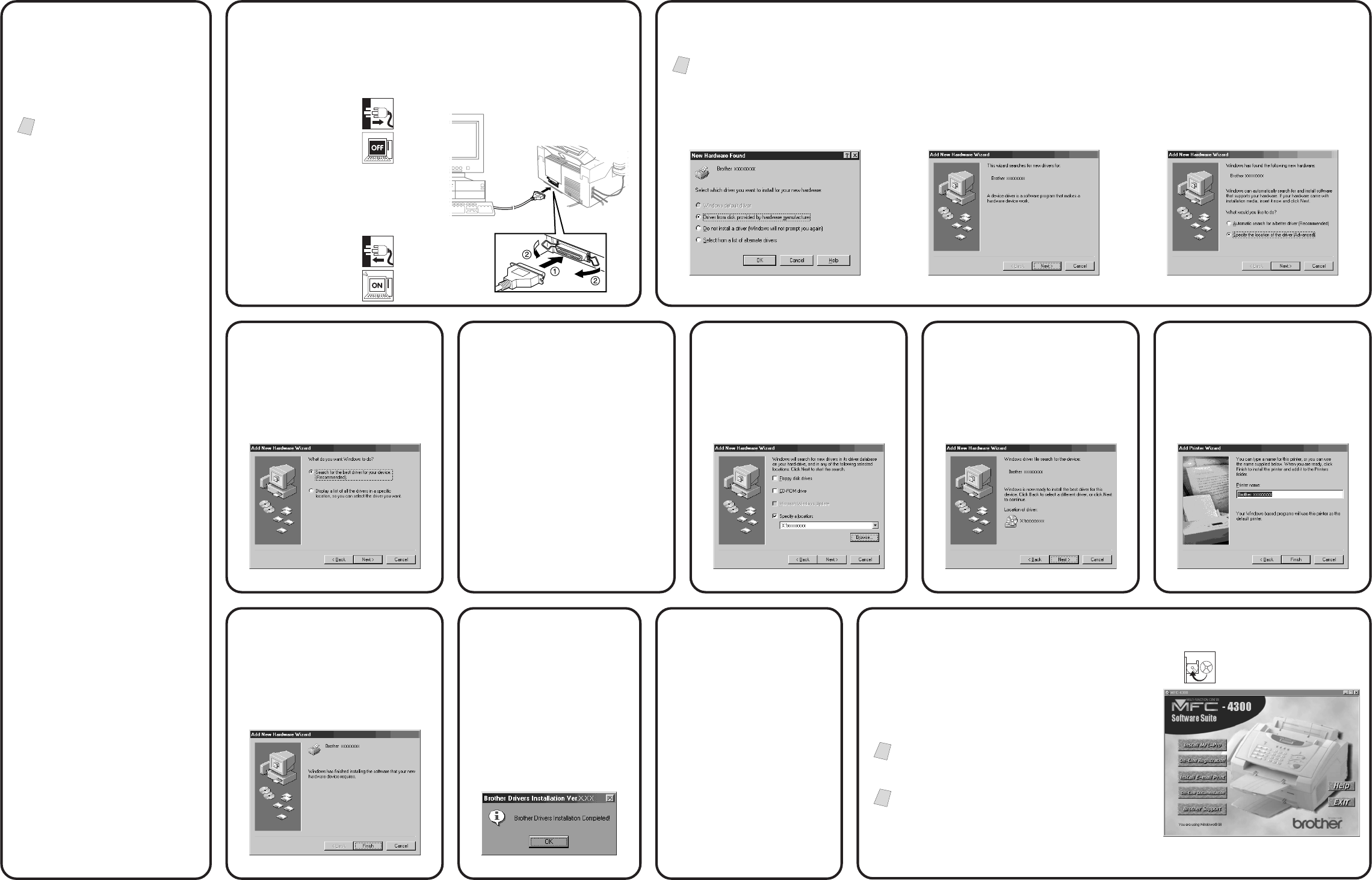
Before you can connect the MFC to your computer, you must purchase
a bi-directional IEEE 1284-compliant parallel cable that is no longer
than 6 feet.
A. Unplug the MFC.
B. Turn off the PC.
C. Connect one end of the parallel
cable to the parallel port of the
MFC, and then the other end to
the parallel port of the PC.
D. Plug in the MFC.
E. Turn on the PC.
2Connect the MFC to the PC
Brother MFC 4300 MFL StartCard
For Windows Users Only 3a Install the Scanner and Printer drivers
Check your
Computer
3b
Select (Recommended) and click
Next.
3c
A. Insert the MFL Pro CD-ROM
into your CD-ROM drive.
B. Select Specify a location and
remove the other check
marks, and then click Browse
to locate the file.
C. Double-click on the CD icon
and click on the “X:\w9x\para”
folder. (X: is the drive letter for
your CD-ROM drive), and then
click OK.
3d
Make sure Specify a location is
selected, and then click Next.
3e
Make sure your printer driver
name is displayed, and click Next.
3f
You can type a name for this
printer, or you can use the name
supplied on the screen. When you
have finished, click Finish.
3g
When the Add New Hardware
Wizard appears, click Finish.
3h
A. After the Setup window
appears and the status
bar reaches 100%, the
remaining drivers will be
copied.
B. Click OK.
3i
All the drivers are now
installed. Now you can print
and scan. If you want to
install PaperPort® or MFL
Pro, go to Step 4.
4Install the Remote Setup and True Type Fonts
For Windows® 95 user:
Select “Driver from disk provided by hardware
manufacturer,” and then click OK.
For Windows® 95OSR2, 98, 98SE user:
When the Add New Hardware Wizard
screen appears, click Next.
For Windows® Me user:
Select “Specify the location of the driver
(Advanced),” and then click Next.
A. Insert the Brother CD-ROM into your CD-ROM drive.
A window appears listing the following options:
(If this window does not appear, please use
Windows Explorer to run the setup.exe program
from the root directory of the Brother CD.)
Note
Please note that the software will automatically
detect the operating system you are using and it
will be displayed at the bottom of the screen.
Note
If you are using Windows® 2000 Professional or
Windows NT® 4.0, you must be logged on as the
Administrator, before you can install the software.
B. Click on the first button “Install MFL-Pro”, and
follow instructions.
