Brother Mfc 8810Dw Quick Start Guide
Brother-Mfc-8710Dw-Quick-Start-Guide brother-mfc-8710dw-quick-start-guide
Brother-Mfc-8910Dw-Quick-Start-Guide brother-mfc-8910dw-quick-start-guide
Brother Printer MFC-8710DW QSG_MFC_8710DW_8810DW_8910DW_EN_6891
2014-07-05
: Brother Brother-Mfc-8810Dw-Quick-Start-Guide brother-mfc-8810dw-quick-start-guide brother pdf
Open the PDF directly: View PDF  .
.
Page Count: 44
- Quick Setup Guide MFC-8710DW/MFC-8810DW/MFC-8910DW
- Start Here
- 1 Unpack the machine and check the components
- 2 Remove the packing material from the machine
- 3 Load paper in the paper tray
- 4 Connect the power cord and telephone line
- 5 Wireless setup (if needed)
- 6 Choose your language (if needed)
- 7 Choose the correct Receive Mode
- 8 Set the LCD contrast (if needed)
- 9 Set the date and time
- 10 Set your Station ID
- 11 Fax Transmission Report
- 12 Set tone or pulse dialing mode (Canada only)
- 13 Set the telephone line compatibility
- 14 Dial Prefix
- 15 Automatic Daylight Saving Time
- 16 Set the Time Zone
- 17 Send in the Product Registration and Test Sheet (USA only)
- 18 Choose your connection type
- For USB Interface Users (Windows® XP/XP Professional x64 Edition/Windows Vista®/ Windows® 7)
- For USB Interface Users (Mac OS X 10.5.8 - 10.7.x)
- For Wired Network Interface Users (Windows® XP/XP Professional x64 Edition/Windows Vista®/ Windows® 7)
- For Wired Network Interface Users (Mac OS X 10.5.8 - 10.7.x)
- For Wireless Network Interface Users
- 19 Before you begin
- 20 Choose your wireless setup method
- Setup using the Installer CD-ROM and temporarily using a USB cable (Windows® only)
- Manual setup from the control panel using the Setup Wizard (Macintosh, mobile devices and Windows®)
- One push setup using WPS (Wi-Fi Protected Setup) or AOSS™ (Windows® and Macintosh)
- Troubleshooting
- Entering Text for Wireless Settings
- Install the Drivers & Software (Windows® XP/XP Professional x64 Edition/Windows Vista®/ Windows® 7)
- Install the Drivers & Software (Mac OS X 10.5.8 - 10.7.x)
- For Network Users
- Other Information
- Options and Consumables
- Start Here
1
Start Here MFC-8710DW
MFC-8810DW
MFC-8910DW
Quick Setup Guide
USA/CAN Version A
Thank you for choosing Brother, your support is important to us and we value your business. Your Brother product
is engineered and manufactured to the highest standards to deliver reliable performance, day-in and day-out.
Please read the Product Safety Guide first, then read this Quick Setup Guide for the correct setup and installation
procedure.
To view the Quick Setup Guide in other languages, please visit http://solutions.brother.com/.
1
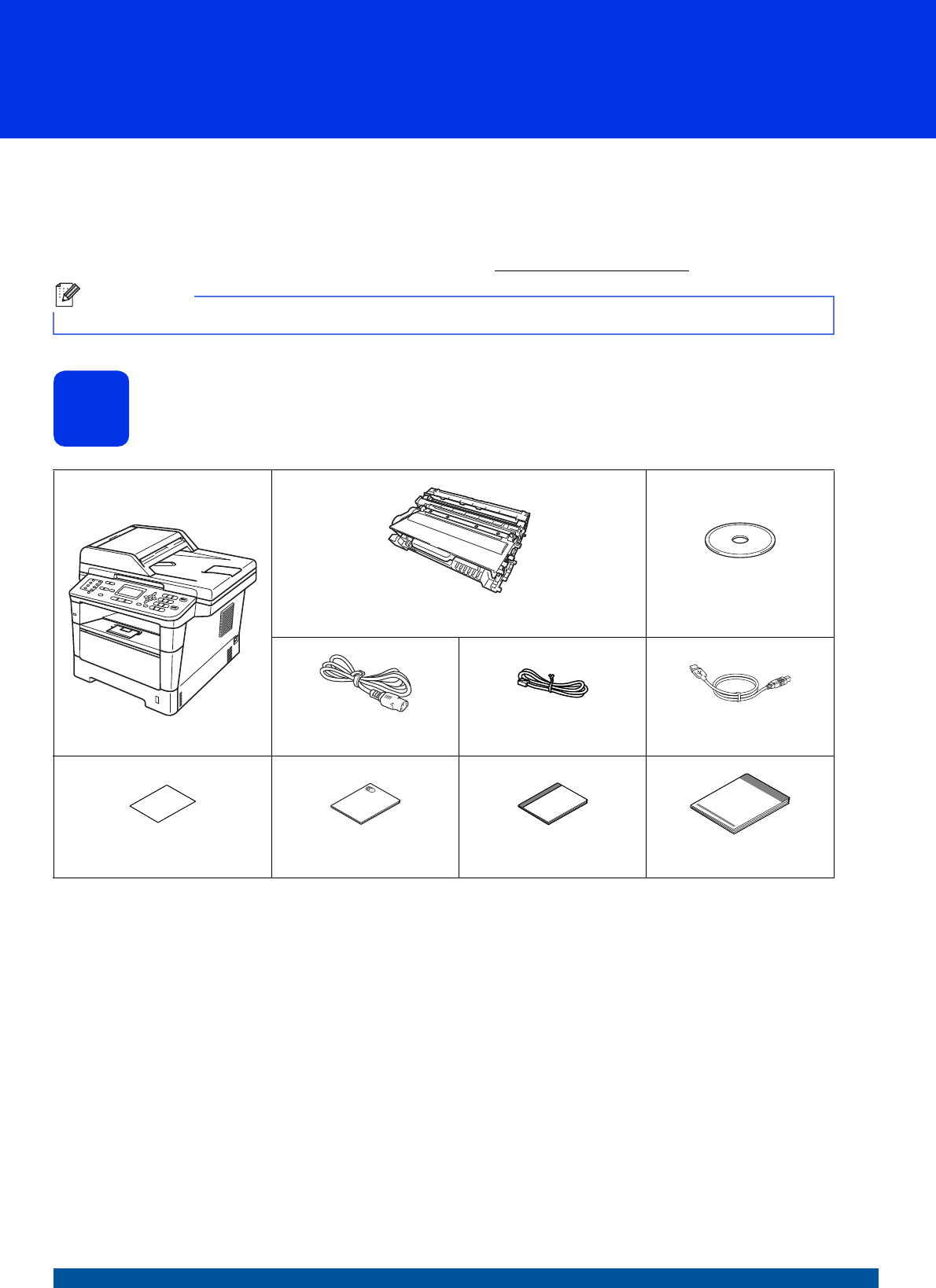
Unpack the machine and check the components
Note
Not all models are available in all countries.
Drum Unit and Toner Cartridge Assembly
(pre-installed)
Installer CD-ROM
AC Power Cord Telephone Line Cord USB Interface Cable
(MFC-8810DW only)
Product Registration Sheet
(USA only)
Product Safety Guide Basic User's Guide Quick Setup Guide
2
WARNING
• Plastic bags are used in the packing of your machine. Plastic bags are not toys. To avoid the danger
of suffocation, keep these bags away from babies and children and dispose of them correctly.
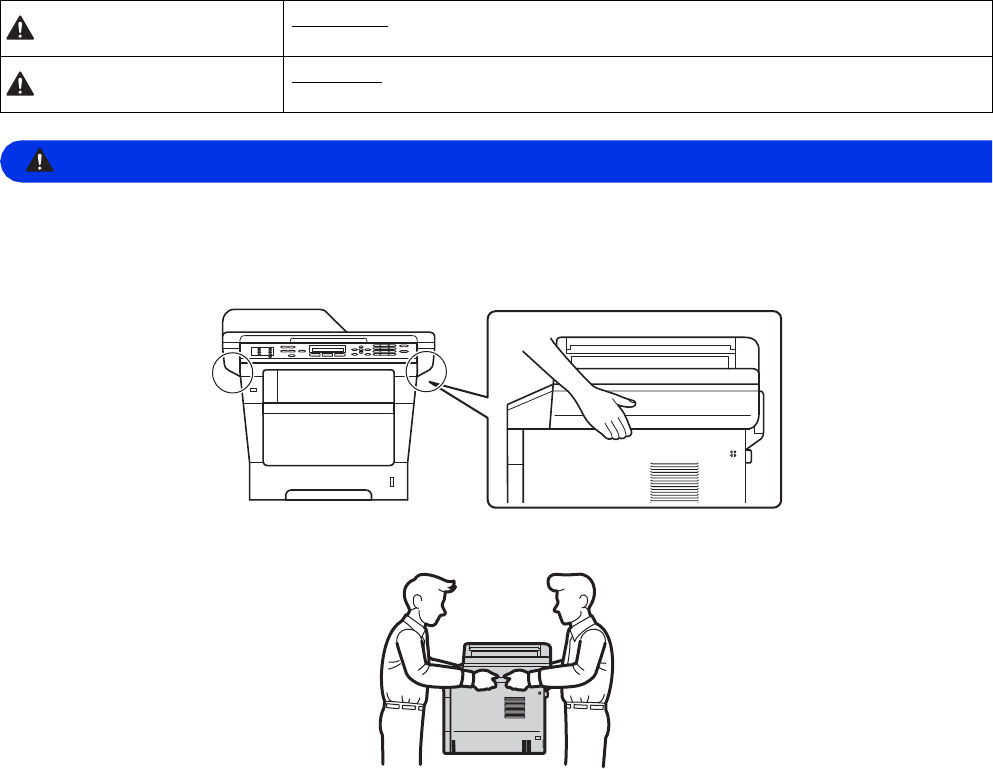
• When moving the machine, grasp the side handholds firmly from the front of the machine. The side
handholds are located under the scanner. DO NOT carry the machine by holding it at the bottom.
• This machine is heavy and weighs more than 39.7 lb. (18.0 kg) including paper. To prevent possible
injuries at least two people should lift the machine by holding it from the front and back.
• If you use a Lower Tray, DO NOT carry the machine with the Lower Tray as you may be injured or cause
damage to the machine because it is not attached to the Lower Tray.
WARNING indicates a potentially hazardous situation which, if not avoided,
could result in death or serious injuries.
CAUTION indicates a potentially hazardous situation which, if not avoided, may
result in minor or moderate injuries.
WARNING
CAUTION
3
Note
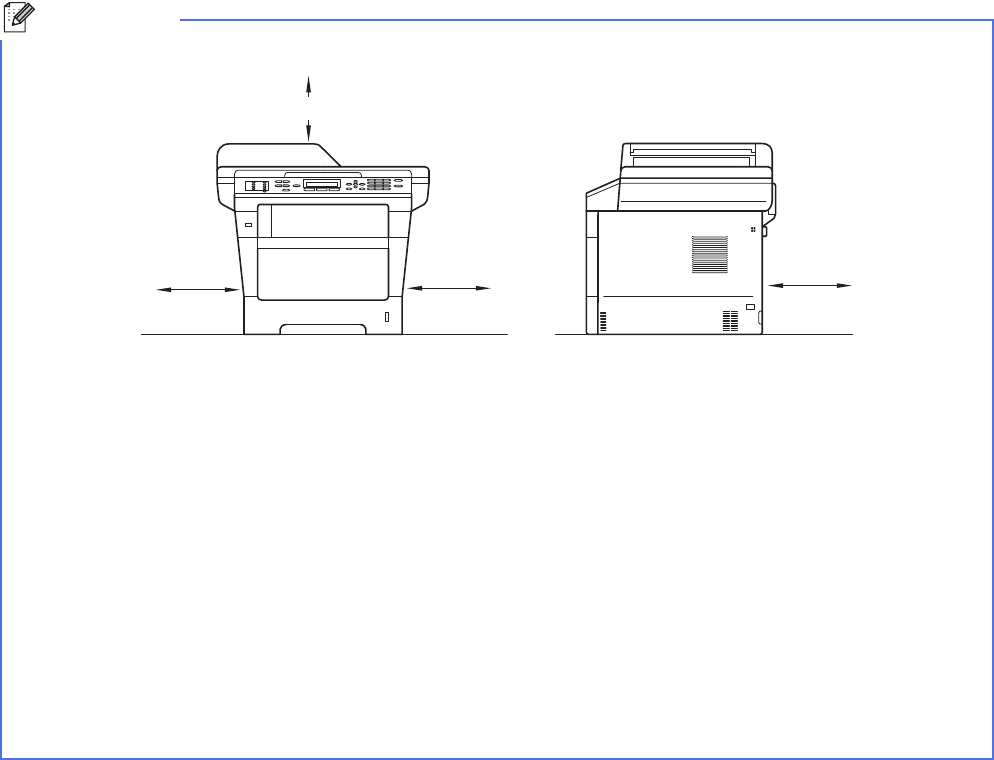
• Keep a minimum gap around the machine as shown in the illustration.
• The components included in the box may differ depending on your country.
• We recommend that you save the original packaging.
• If for any reason you must ship your machine, carefully repack the machine in the original packaging to avoid
any damage during transit. The machine should be adequately insured with the carrier. For how to repack
the machine, see Packing and shipping the machine in the Advanced User's Guide.
• The interface cable is not a standard accessory. Buy the appropriate interface cable for the connection you
want to use (USB or Network). The MFC-8810DW includes a USB 2.0 interface cable as a standard
accessory.
USB cable
• It is recommended to use a USB 2.0 cable (Type A/B) that is no longer than 6 feet (2 meters).
• DO NOT connect the interface cable at this time. Connecting the interface cable is done during the MFL-Pro
Suite installation process.
Network cable
Use a straight-through Category 5 (or greater) twisted-pair cable for 10BASE-T or 100BASE-TX Fast Ethernet
Network.
6.00 in.
(150 mm)
6.00 in.
(150 mm)
6.00 in.
(150 mm)
15.70 in. (400 mm)

4
2
Remove the packing
material from the
machine
aRemove the packing tape from the outside of
the machine and the film covering the scanner
glass.
bOpen the MP tray a, and remove the packing
tape b from the MP tray support, then close
the MP tray.
cPress the front cover release button and open
the front cover. Remove the silica gel pack a.
CAUTION
CAUTION
DO NOT eat the silica gel pack. Please throw
away. If ingested, seek medical attention
immediately.
dTake out the drum unit and toner cartridge
assembly.
eRemove the orange protective material from
the drum unit and toner cartridge assembly.
fHold the drum unit and toner cartridge
assembly level with both hands and gently
shake it from side to side several times to
distribute the toner evenly inside the cartridge.
gPut the drum unit and toner cartridge assembly
firmly back in the machine.
hClose the front cover of the machine.
Important
DO NOT connect the AC power cord yet.
5
3
Load paper in the paper
tray
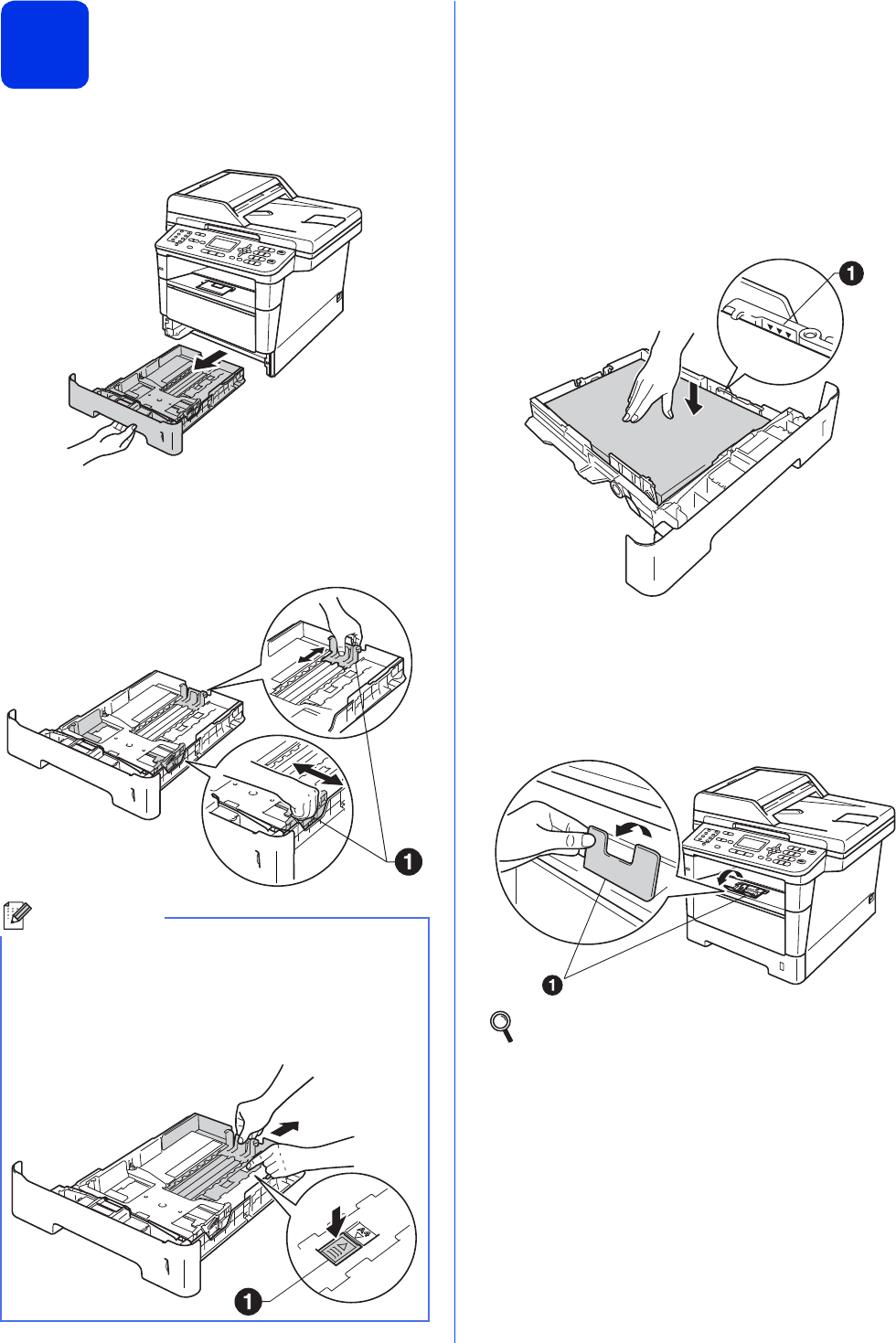
aPull the paper tray completely out of the
machine.
bWhile pressing the green paper-guide release
lever a, slide the paper guides to fit the paper
size you are loading in the tray. Make sure that
the guides are firmly in the slots.
cFan the stack of paper well to avoid paper jams
and misfeeds.
dPut the paper in the tray and make sure:
The paper is below the maximum paper
mark (bbb)a.
Over filling the paper tray will cause paper
jams.
The side to be printed on is face down.
The paper guides touch the sides of the
paper so it will feed properly.
ePut the paper tray firmly back in the machine.
Make sure that it is completely inserted into the
machine.
fLift up the support flap a to prevent paper from
sliding off the face-down output tray.
Note
For Legal or Folio size paper, press the release
button a in the bottom of the paper tray and then
pull out the back of the paper tray.
(Legal or Folio size paper are not available in
some regions.)
For more information about recommended
paper, see Recommended paper and print
media in the Basic User's Guide.
6
4
Connect the power cord
and telephone line
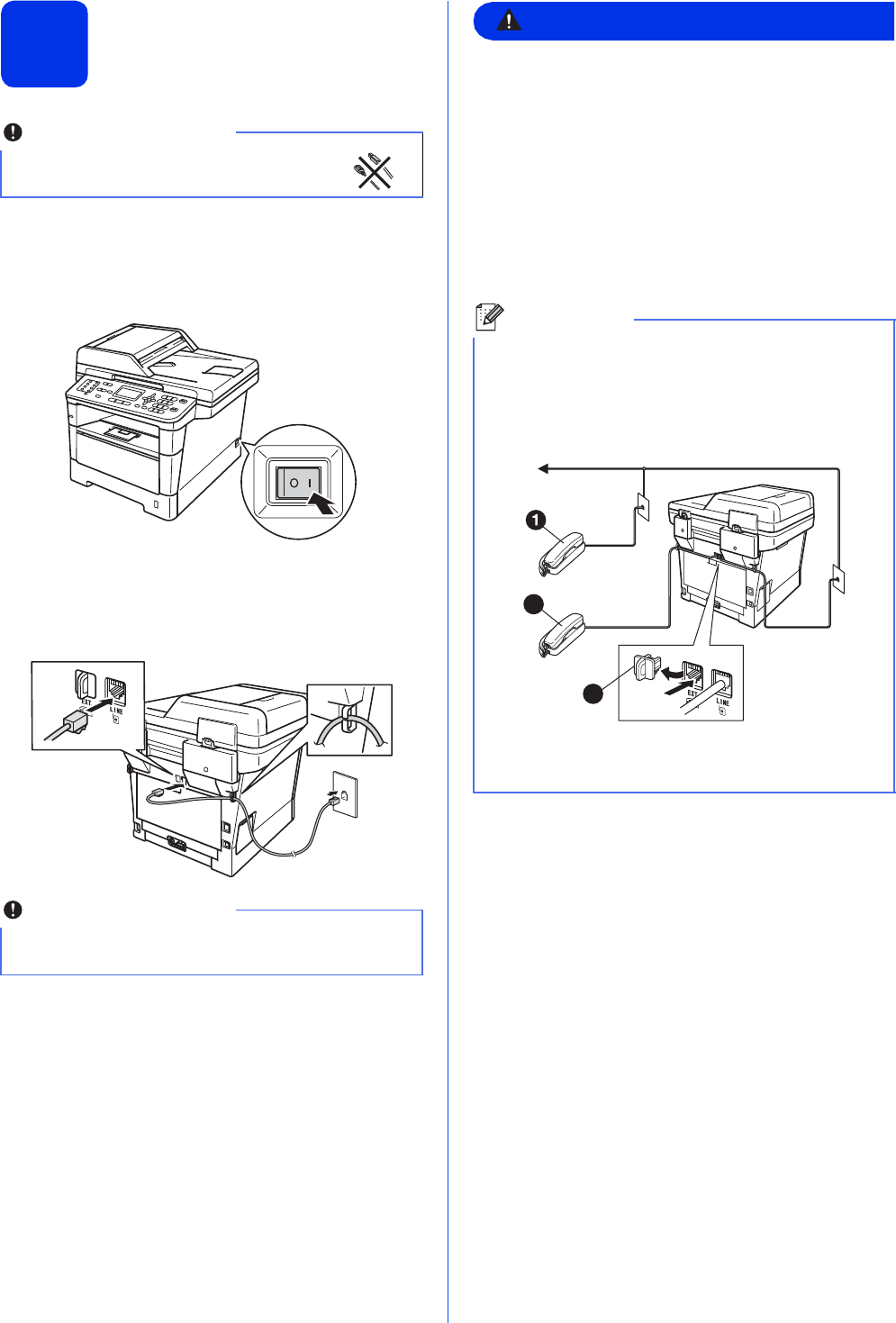
aConnect the AC power cord to the machine and
then plug it into an AC power outlet.
bTurn the machine's power switch on.
cConnect the telephone line cord. Connect one
end of the telephone line cord to the jack on the
machine marked LINE and the other end to a
modular wall jack.
WARNING
The machine must be grounded using a
3-prong plug.
Since the machine is grounded through the
power outlet, you can protect yourself from
potentially hazardous electrical conditions on
the telephone network by keeping the power
cord connected to your machine when you
connect it to a telephone line. Similarly, you
can protect yourself when you want to move
your machine by disconnecting the telephone
line first and then the power cord.
Important
DO NOT connect the interface cable
yet.
Important
The telephone line cord MUST be connected to
the jack on the machine marked LINE.
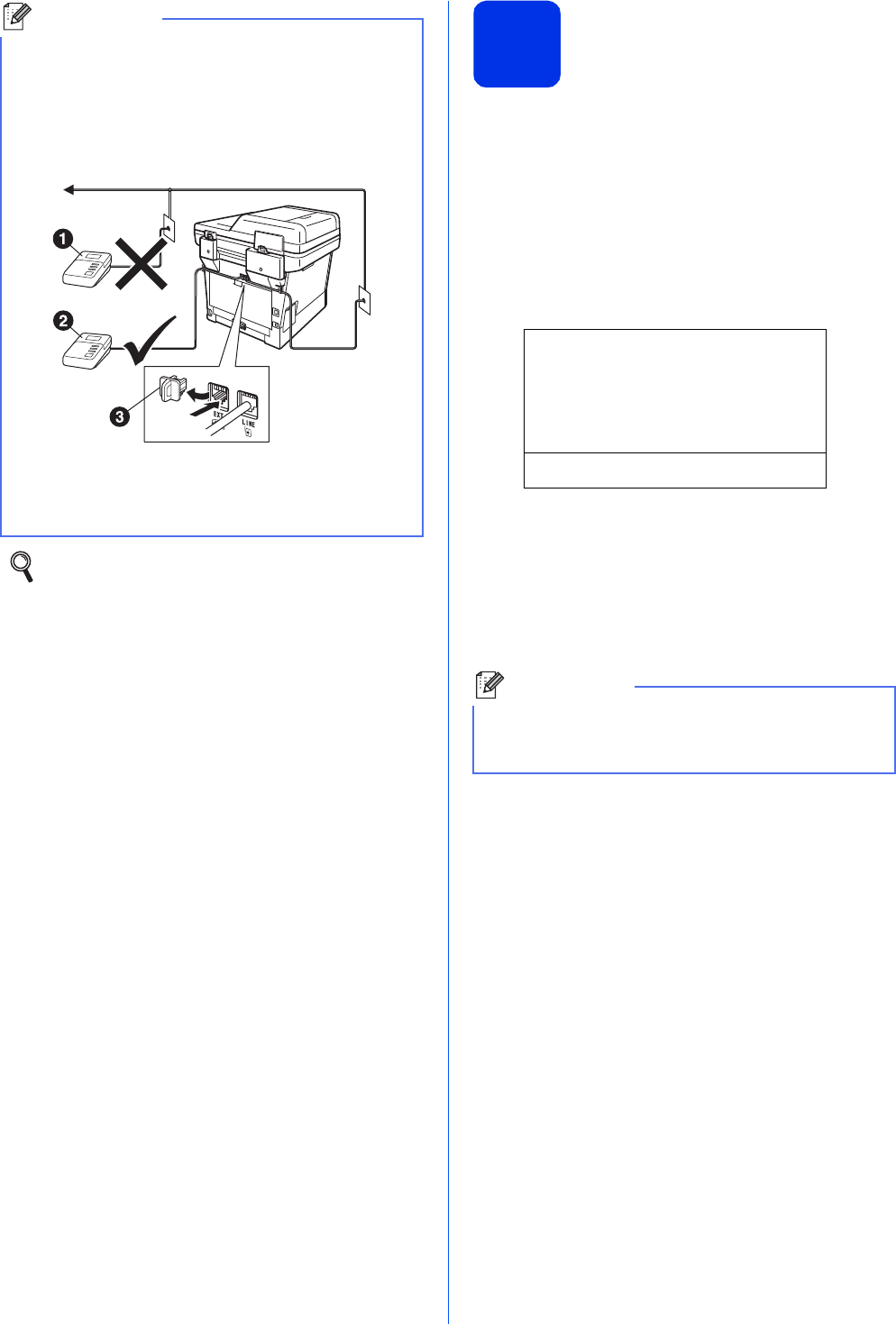
Note
If you are sharing one telephone line with an
external telephone, connect it as shown below.
Before you connect the external telephone,
remove the protective cap c from the EXT. jack
on the machine.
aExtension telephone
bExternal telephone
cProtective cap
2
3
7
5
Wireless setup
(if needed)
aWhen the Wi-Fi setup message appears, press
OK.
Do one of the following:
If you are using a Macintosh computer or a
mobile device on a wireless network, go to
b.
If you are using a Windows® computer or
want to connect your Macintosh using USB
or wired network, go to c.
Setup Wi-Fi?
aYes
bNo
Select ab or OK
bPress a or b to choose Yes.
Press OK.
Then go to step 19 on page 25 to continue the
wireless setup.
After finishing the wireless setup you will need
to return to step 6 to finish the machine setup.
cPress a or b to choose No.
Press OK.
Then go to step 6.
The wireless setup for Windows® users will be
covered in later steps.
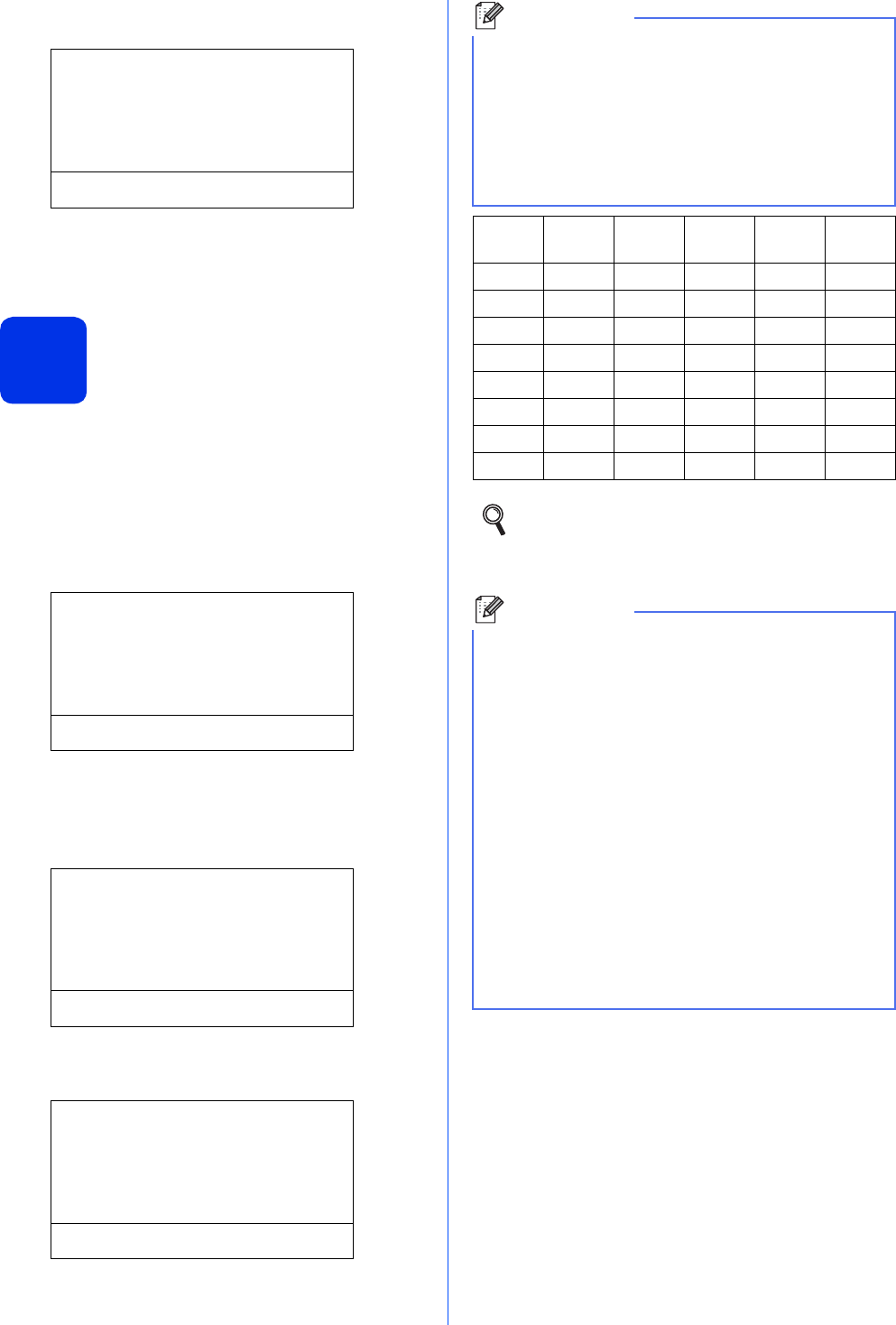
Note
If you are sharing one telephone line with an
external telephone answering machine, connect it
as shown below.
Before you connect the external telephone
answering machine, remove the protective cap c
from the EXT. jack on the machine.
aExtension telephone answering machine
(not supported)
bExternal telephone answering machine
cProtective cap
Set the receive mode to External TAD if
you have an external answering machine.
See Choose the correct Receive
Mode on page 9. For additional details, see
Connecting an external TAD (telephone
answering device) in the Basic User's Guide.
Note
If you want to change the initial settings on your
machine first, you can choose No and you will be
able to configure the wireless settings later.

8
6
Choose your language
(if needed)
aPress Menu, 0, 0.
bPress a or b to choose your language.
Press OK.
cPress Stop/Exit.

9
7
Choose the correct Receive Mode
The correct Receive Mode is determined by the external devices and telephone subscriber services (Voice Mail,
Distinctive Ring, etc.) you have (or will be using) on the same line as the Brother machine.
aPress Menu, 0, 1.
bPress a or b to choose the receive mode.
Press OK.
cPress Stop/Exit.
Will you be using a Distinctive Ring number for receiving faxes?
Brother uses the term “Distinctive Ring” but telephone companies may have other names for this service such
as Custom Ringing, RingMaster, Personalized Ring, Teen Ring, Ident-A-Call, and Smart Ring. See Distinctive
Ring in the Basic User's Guide for instruction on setting up your machine using this feature.
Will you be using Voice Mail on the same telephone line as your Brother machine?
If you have Voice Mail on the same telephone line as your Brother machine, there is a strong possibility that
Voice Mail and the Brother machine will conflict with each other when receiving incoming calls. See Voice Mail
in the Basic User's Guide for instructions on setting up your machine using this service.
Will you be using a Telephone Answering Device on the same telephone line as your Brother machine?
Your external telephone answering device (TAD) will automatically answer every call. Voice messages are
stored on the external TAD and fax messages are printed. Choose External TAD as your receive mode. See
the instructions below.
Will you be using your Brother machine on a dedicated fax line?
Your machine automatically answers every call as a fax. Choose Fax Only as your receive mode. See the
instructions below.
Will you be using your Brother machine on the same line as your telephone?
Do you want to receive voice calls and faxes automatically?
The Fax/Tel receive mode is used when sharing the Brother machine and your telephone on the same line.
Choose Fax/Tel as your receive mode. See the instructions below.
Important Note: You cannot receive voice messages on either Voice Mail or an answering machine when
choosing the Fax/Tel mode.
Do you expect to receive very few faxes?
Choose Manual as your receive mode. You control the telephone line and must answer every call yourself.
See the instructions below.
For details, see Using receive modes in the Basic User's Guide.

10
8
Set the LCD contrast
(if needed)
If you are having difficulty reading the LCD, try
changing the contrast setting.
aPress Menu, 1, 7.
bPress c to increase the contrast.
—OR—
Press d to decrease the contrast.
Press OK.
cPress Stop/Exit.
9
Set the date and time
The machine displays the date and time, and if you
set up the station ID, the date and time will be added
to each fax you send.
aPress Menu, 0, 2, 1.
bEnter the last two digits of the year on the dial
pad, and then press OK.
02.Date&Time
Year:2012
Enter & OK Key
(e.g. Enter 1, 2 for 2012.)
cEnter the two digits for the month on the dial
pad, and then press OK.
02.Date&Time
XX/XX/2012
Month:03
Enter & OK Key
(e.g. Enter 0, 3 for March.)
dEnter the two digits for the day on the dial pad,
and then press OK.
02.Date&Time
03/XX/2012
Day:25
Enter & OK Key
(e.g. Enter 2, 5 for 25th.)
eDo one of the following:
If you want to use the 24-hour clock, press a
or b to choose 24h Clock, and then press
OK. Go to step f.
If you want to use the 12-hour clock, press a
or b to choose 12h Clock, and then press
OK. Go to step g.
02.Date&Time
03/25/2012
a12h Clock
b24h Clock
Select ab or OK
fEnter the time in 24-hour format on the dial
pad, and then press OK. Go to step i.
02.Date&Time
03/25/2012
Time:15:25
Enter & OK Key
(e.g. Enter 1, 5, 2, 5 for 15:25.)
gEnter the time in 12-hour format on the dial
pad, and then press OK.
02.Date&Time
03/25/2012
Time:03:25
Enter & OK Key
(e.g. Enter 0, 3, 2, 5 for 3:25.)
11
hPress a or b to choose AM or PM, and then press
OK.
02.Date&Time
03/25/2012 03:25
aAM
bPM
Select ab or OK
(e.g. Choose PM for 3:25 P.M.)
iPress Stop/Exit.
10
Set your Station ID
The machine displays the date and time, and if you
set up the Station ID, it will add it to each fax you send.
aPress Menu, 0, 3.
bEnter your fax number (up to 20 digits) on the
dial pad, and then press OK.
03.Station ID
Fax:_
Enter & OK Key
cEnter your telephone number (up to 20 digits)
on the dial pad, and then press OK. (If your
telephone number and fax number are the
same, enter the same number again.)
03.Station ID
Fax:XXXXXXXXXXX
Tel:_
Enter & OK Key
dUse the dial pad to enter your name (up to
20 characters), and then press OK.
03.Station ID
Fax:XXXXXXXXXXX
Tel:XXXXXXXXXXX
Name:_
Enter & OK Key
ePress Stop/Exit.
Note
• See the following chart for entering your name.
• If you need to enter a character that is on the
same key as the last character, press c to move
the cursor to the right.
• If you entered a character incorrectly and want
to change it, press d or c to move the cursor to
the incorrect character, then press Clear.
Press
key
One
time
Two
times
Three
times
Four
times
Five
times
2ABC2A
3DEF 3D
4GH I 4G
5JKL5J
6MNO6M
7PQRS7
8TUV8T
9WX Y Z 9
For more details, see Entering text in the
Basic User's Guide.
Note
If you make a mistake and want to start again,
press Stop/Exit and go back to step a.
(USA only) The Telephone Consumer Protection
Act of 1991 makes it unlawful for any person to
use a computer or electronic device to send any
message via a telephone fax machine unless
such messages clearly contain, in a margin at the
top or bottom of each transmitted page, or on the
first page of the transmission, the date and time it
is sent and an identification of the business or
other entity or other individual sending the
message and the telephone number of the
sending machines or such business, other entity
or individual. To program this information into
your machine, see Set the date and
time on page 10 and Set your Station
ID on page 11.

12
11
Fax Transmission Report
Your Brother machine is equipped with a
Transmission Verification Report that can be used as
confirmation that you sent a fax. This report lists the
name or fax number of the receiving party, the date,
time and duration of the transmission, the number of
pages transmitted, and whether or not the
transmission was successful. If you want to use the
Fax Transmission Report feature see Printing reports
in the Advanced User's Guide.
12
Set tone or pulse dialing
mode (Canada only)
Your machine comes set for a Tone dialing service. If
you have a Pulse dialing service (rotary), you need to
change the dialing mode.
aPress Menu, 0, 4.
bPress a or b to choose Pulse (or Tone).
Press OK.
cPress Stop/Exit.
13
Set the telephone line
compatibility
If you are connecting the machine to a VoIP service
(over the Internet) you need to change the
compatibility setting.
aPress Menu, 2, 0, 1.
bPress a or b to choose Basic(for VoIP).
Press OK.
cPress Stop/Exit.
Note
If you are using an analog telephone line you can
skip this step.

13
14
Dial Prefix
The dial prefix setting will automatically dial a
predefined number before every fax number you dial.
For example: If your phone system requires a 9 to dial
an outside number this setting will automatically dial 9
for every fax you send.
aPress Menu, 0, 5.
(For Canada, press Menu, 0, 6.)
bEnter the prefix number (up to 5 digits) on the
dial pad, and then press OK.
cPress Stop/Exit.
15
Automatic Daylight
Saving Time
You can set the machine to change automatically for
Daylight Saving Time. It will reset itself forward one
hour in the Spring and backward one hour in the Fall.
aPress Menu, 0, 2, 2.
bPress a or b to choose On (or Off).
Press OK.
cPress Stop/Exit.
16
Set the Time Zone
You can set the time zone (not summer time but
standard time) on the machine for your location.
For example, the time zone for Eastern Time in the
USA and Canada is UTC-05:00.
aPress Menu, 0, 2, 3.
bPress a or b to choose the time zone.
Press OK.
cPress Stop/Exit.
Note
• You can use the numbers 0 to 9, #, l and !.
(Press Hook to display “!”.)
• You cannot use ! with any other numbers or
characters.
• If your telephone system requires a timed break
recall (hookflash), press Hook to enter the
break.
• If the pulse dialing mode is on, # and l are not
available to use. (Canada only)
14
17
Send in the Product
Registration and Test
Sheet (USA only)
You can also register your product online using the
On-Line Registration link from the installer CD-ROM
or visit
http://www.brother.com/registration/.
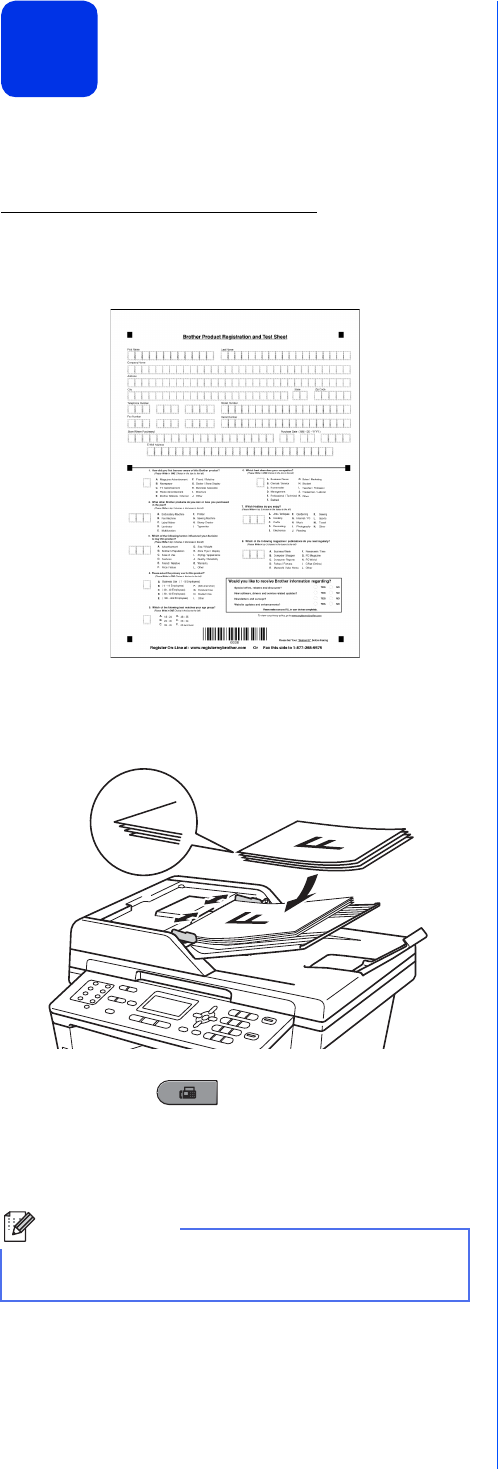
aFill out the Product Registration and Test
Sheet.
bPut the sheet face up in the ADF (Automatic
Document Feeder) or face down on the
scanner glass.
cMake sure (FAX) is illuminated in Blue.
dEnter the toll-free fax number: 1-877-268-9575.
ePress Start.
Note
You will receive a confirmation fax of your Product
Registration.
15
Windows®
USB
Macintosh
Windows®Macintosh
Wired Network
Wireless Network
Windows®Macintosh
18
Choose your connection type
These installation instructions are for Windows® XP Home/Windows® XP Professional, Windows® XP
Professional x64 Edition, Windows Vista®, Windows® 7, and Mac OS X (versions 10.5.8, 10.6.x and 10.7.x).
Note
• For Windows Server® 2003/2003 x64 Edition/2008/2008 R2 and Linux®, visit your model page at
http://solutions.brother.com/.
• You can visit us at http://solutions.brother.com/ where you can get product support, the latest driver updates
and utilities, and answers to frequently asked questions (FAQs) and technical questions.
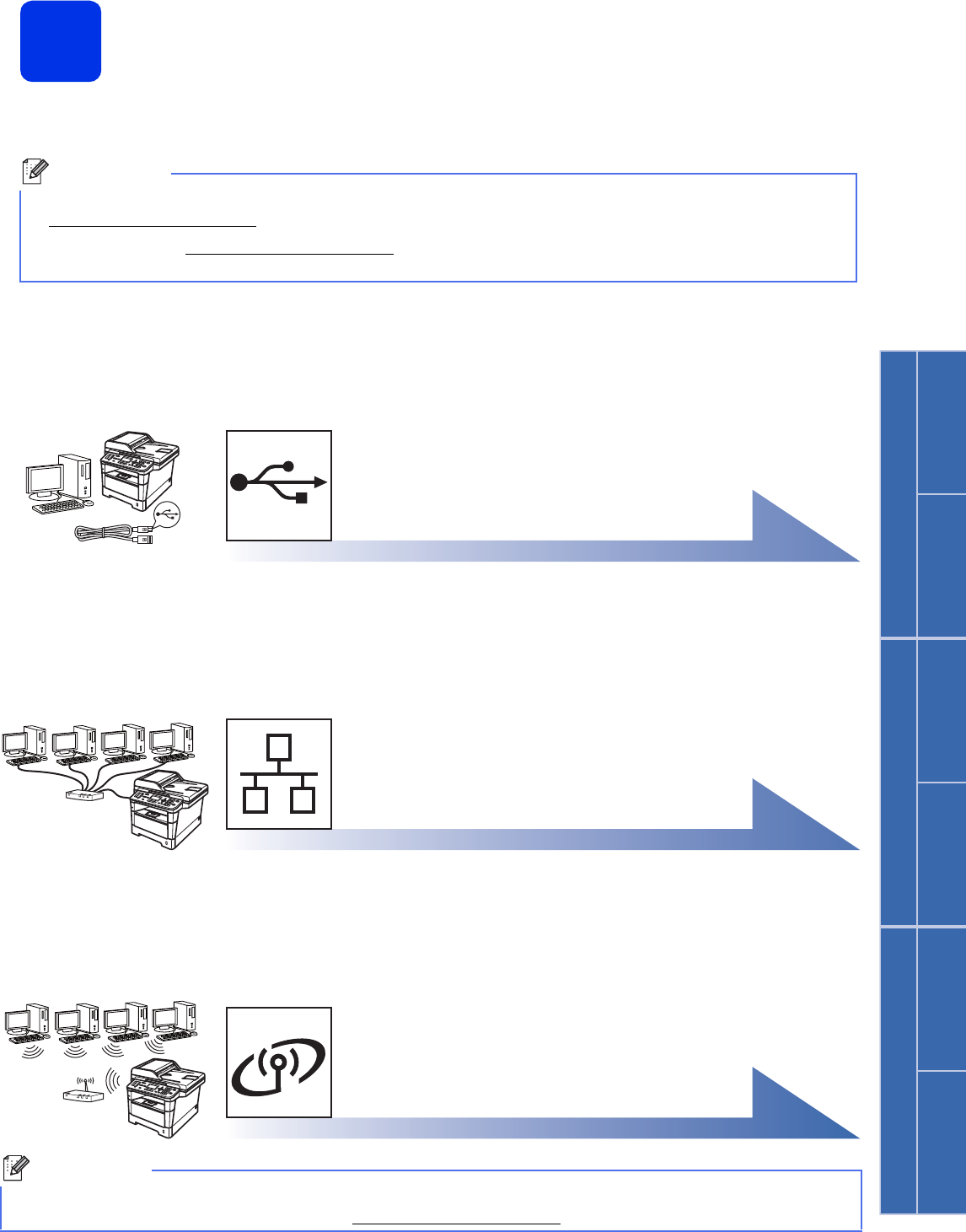
For USB Interface Users
Windows
®
, go to page 16
Macintosh, go to page 18
For Wired Network
Windows
®
, go to page 20
Macintosh, go to page 23
For Wireless Network
Windows
®
and Macintosh,
go to page 25
Note
To connect your iOS or Android™ device or Windows® Phone to your Brother machine using Wi-Fi Direct™,
please download the Wi-Fi Direct™ Guide at http://solutions.brother.com/.

16
Windows®
USB
For USB Interface Users
(Windows
®
XP/XP Professional x64 Edition/Windows Vista
®
/
Windows
®
7)
19
Before you install
aMake sure that your computer is ON and you
are logged on with Administrator rights.
bTurn off the machine and make sure the USB
interface cable is NOT connected to the
machine. If you have already connected the
cable, disconnect it.
20
Install MFL-Pro Suite
aPut the installer CD-ROM into your CD-ROM
drive. If the model name screen appears,
choose your machine. If the language screen
appears, choose your language.
bClick Install MFL-Pro Suite, and click Yes if
you accept the license agreements.
cChoose Local Connection (USB) and then
click Next.
Important
• If there are any programs running, close them.
• The screens may differ depending on your
operating system.
Note
The installer CD-ROM includes Nuance™
PaperPort™ 12SE. This software supports
Windows®XP (SP3 or greater), XP Professional
x64 Edition (SP2 or greater), Windows Vista®
(SP2 or greater) and Windows®7. Update to the
latest Windows® Service Pack before installing
MFL-Pro Suite.
Note
If the Brother screen does not appear
automatically, go to My Computer (Computer),
double-click the CD-ROM icon, and then
double-click start.exe.
Note
• If the installation does not continue
automatically, open the top menu again by
ejecting and then reinserting the CD-ROM or
double-click the start.exe program from the
root folder, and continue from step b to install
MFL-Pro Suite.
• For Windows Vista® and Windows®7 users,
when the User Account Control screen
appears, click Allow or Yes.
Note
If you want to install the PS driver (BR-Script3
printer driver), choose Custom Install and then
follow the on-screen instructions.
17
Windows®
USB
Windows®
USB
Macintosh
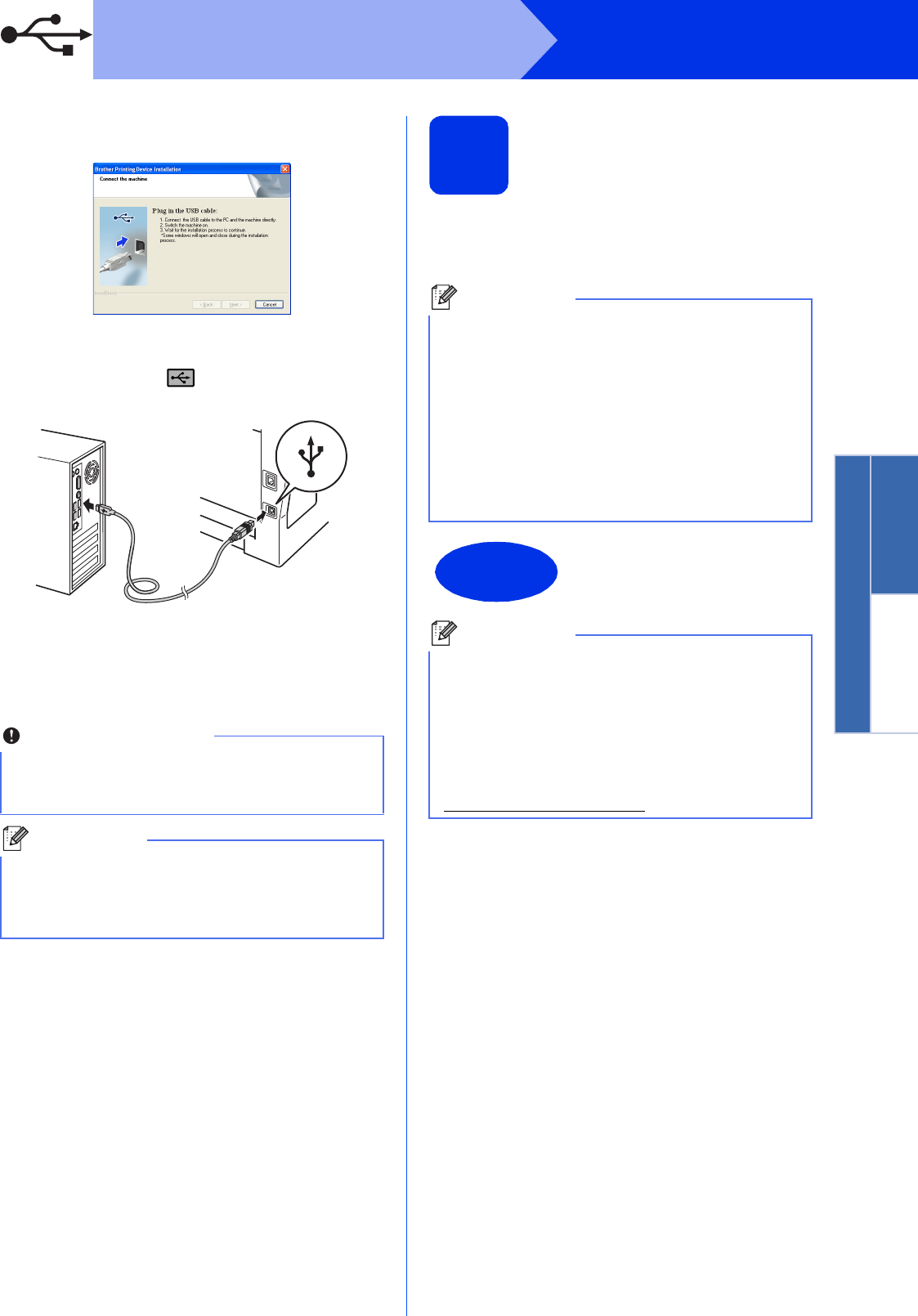
dFollow the on-screen instructions until this
screen appears.
eConnect the USB cable to the USB port
marked with the symbol on your machine
and then connect the cable to your computer.
fTurn the machine on.
The installation will automatically continue. The
installation screens appear one after another. If
prompted, follow any on-screen instructions.
gWhen the On-Line Registration screen
appears, make your selection and follow the
on-screen instructions. Once you have
completed the registration process, click Next.
hWhen the Setup Complete screen appears,
check the box of the action you want to
perform, and then click Next.
21
Finish and restart
aClick Finish to restart your computer. After
restarting the computer, you must log on with
Administrator rights.
Important
DO NOT cancel any of the screens during the
installation. It may take a few seconds for all
screens to appear.
Note
For Windows Vista® and Windows®7 users,
when the Windows Security screen appears,
click the check box and click Install to complete
the installation correctly.
Note
• If an error message appears during the
software installation, run the Installation
Diagnostics located in
Start/All Programs/Brother/MFC-XXXX
(where MFC-XXXX is your model name).
• Depending on your security settings, a
Windows® Security or antivirus software
window may appear when using the machine or
its software. Please allow or permit the window
to continue.
Finish
The installation is now
complete.
Note
XML Paper Specification Printer Driver
The XML Paper Specification Printer Driver is the
most suitable driver for Windows Vista® and
Windows®7 when printing from applications that
use the XML Paper Specification. Please
download the latest driver by accessing the
Brother Solutions Center at
http://solutions.brother.com/.

18
Macintosh
USB
For USB Interface Users
(Mac OS X 10.5.8 - 10.7.x)
19
Before you install
aMake sure your machine is connected to the
power and your Macintosh is ON. You must be
logged on with Administrator rights.
bConnect the USB cable to the USB port
marked with the symbol on your machine
and then connect the cable to your Macintosh.
cMake sure your machine's power switch is on.
20
Install MFL-Pro Suite
aPut the installer CD-ROM into your CD-ROM
drive.
bDouble-click the Start Here OSX icon. If
prompted, select your model.
cChoose Local Connection (USB) and then
click Next. Follow the on-screen instructions.
dChoose your machine from the list, and then
click OK.
eWhen this screen appears, click Next.
Important
For users of Mac OS X 10.5.7 or lower, upgrade
to Mac OS X 10.5.8 - 10.7.x. (For the latest
drivers and information for the Mac OS X you are
using, visit http://solutions.brother.com/.)
Note
If you want to add the PS driver (BR-Script3
printer driver), please go to the Brother Solutions
Center at http://solutions.brother.com/ and visit
FAQ's on your model page for instructions.
Important
DO NOT cancel any of the screens during the
installation. It may take a few minutes for the
installation to complete.
The installation of MFL-Pro Suite is now
complete.
Go to step 21 on page 19.
19
Macintosh
USB
Windows®
USB
Macintosh
21
Download and install
Presto! PageManager
When Presto! PageManager is installed OCR
capability is added to Brother ControlCenter2. You
can easily scan, share and organize photos and
documents using Presto! PageManager.
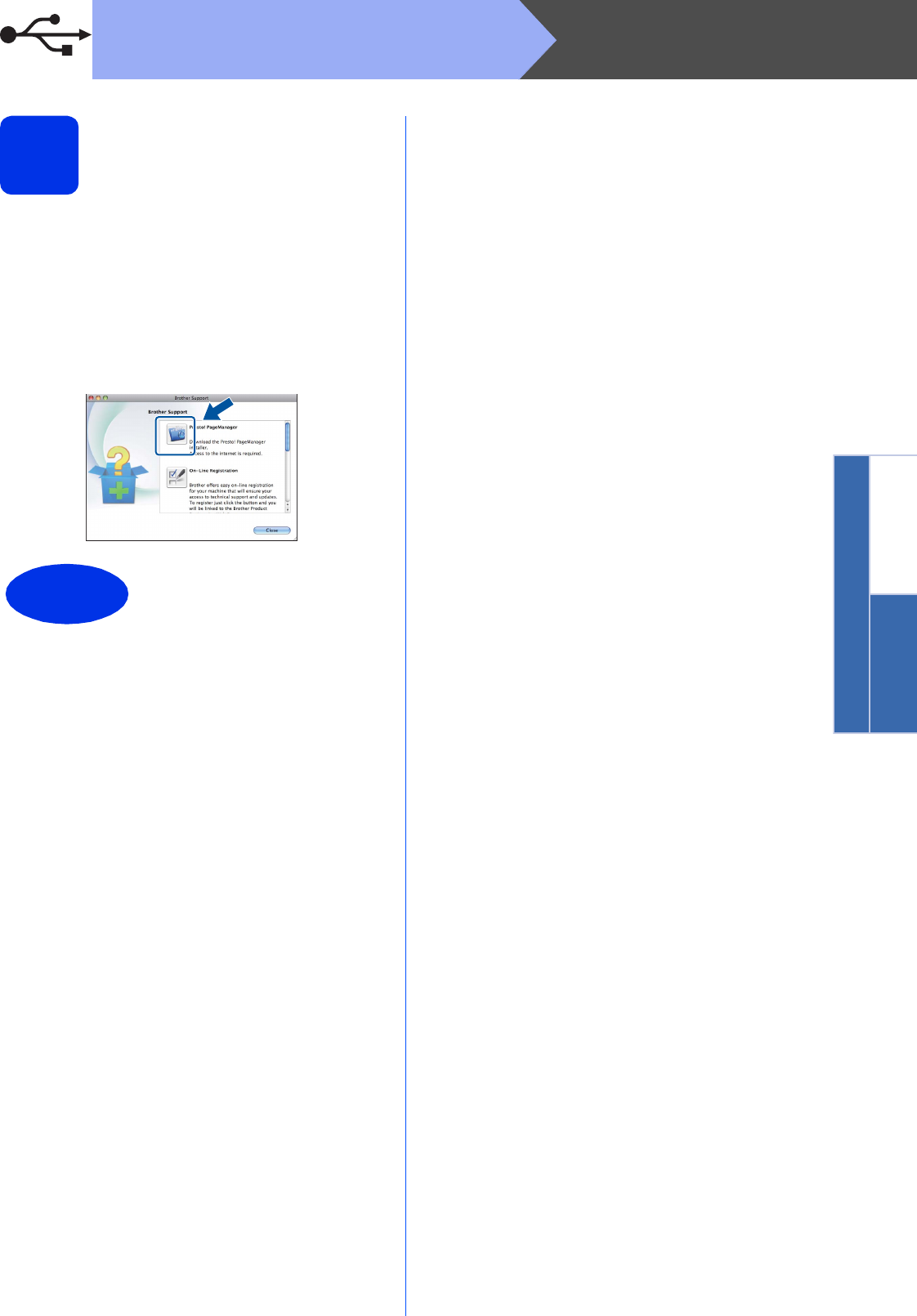
aOn the Brother Support screen, click
Presto! PageManager and follow the
on-screen instructions.
Finish
The installation is now
complete.
20
Windows®
Wired Network
For Wired Network Interface Users
(Windows
®
XP/XP Professional x64 Edition/Windows Vista
®
/
Windows
®
7)
19
Before you install
aMake sure that your computer is ON and you
are logged on with Administrator rights.
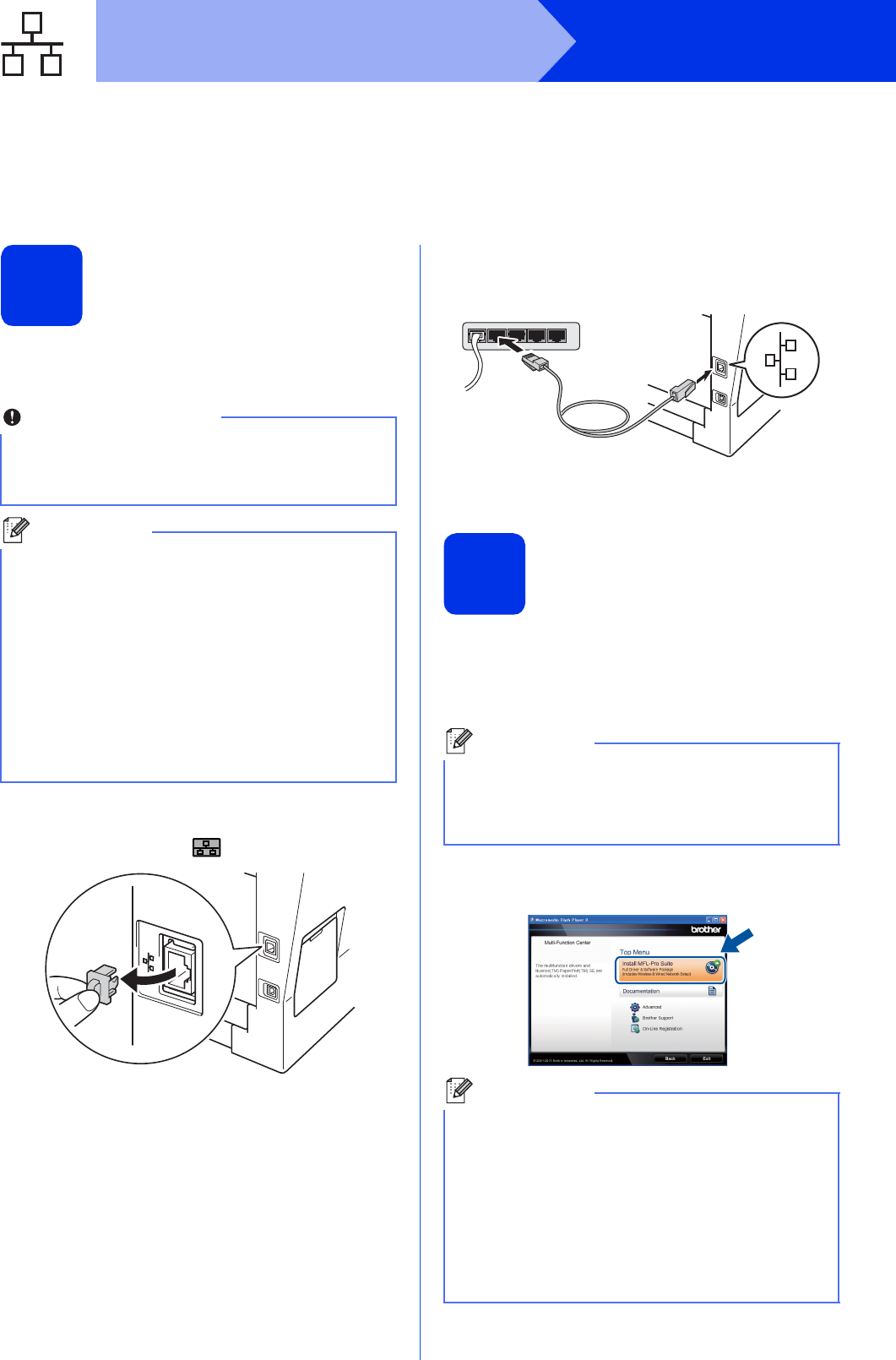
bRemove the protective cap from the Ethernet
port marked with a symbol.
cConnect the network interface cable to the
Ethernet port and then connect it to a free port
on your hub.
dMake sure your machine's power switch is on.
20
Install MFL-Pro Suite
aPut the installer CD-ROM into your CD-ROM
drive. If the model name screen appears,
choose your machine. If the language screen
appears, choose your language.
bClick Install MFL-Pro Suite, and click Yes if
you accept the license agreements.
Important
• If there are any programs running, close them.
• The screens may differ depending on your
operating system.
Note
• The installer CD-ROM includes Nuance™
PaperPort™ 12SE. This software supports
Windows®XP (SP3 or greater), XP
Professional x64 Edition (SP2 or greater),
Windows Vista® (SP2 or greater) and
Windows®7. Update to the latest Windows®
Service Pack before installing MFL-Pro Suite.
• Disable all personal firewall software (other
than Windows® Firewall), anti-spyware or
antivirus applications for the duration of the
installation.
Note
If the Brother screen does not appear
automatically, go to My Computer (Computer),
double-click the CD-ROM icon, and then
double-click start.exe.
Note
• If the installation does not continue
automatically, open the top menu again by
ejecting and then reinserting the CD-ROM or
double-click the start.exe program from the
root folder, and continue from step b to install
MFL-Pro Suite.
• For Windows Vista® and Windows®7 users,
when the User Account Control screen
appears, click Allow or Yes.
21
Windows®
Wired Network
Windows®Macintosh
Wired Network
cChoose Wired Network Connection
(Ethernet) and then click Next.
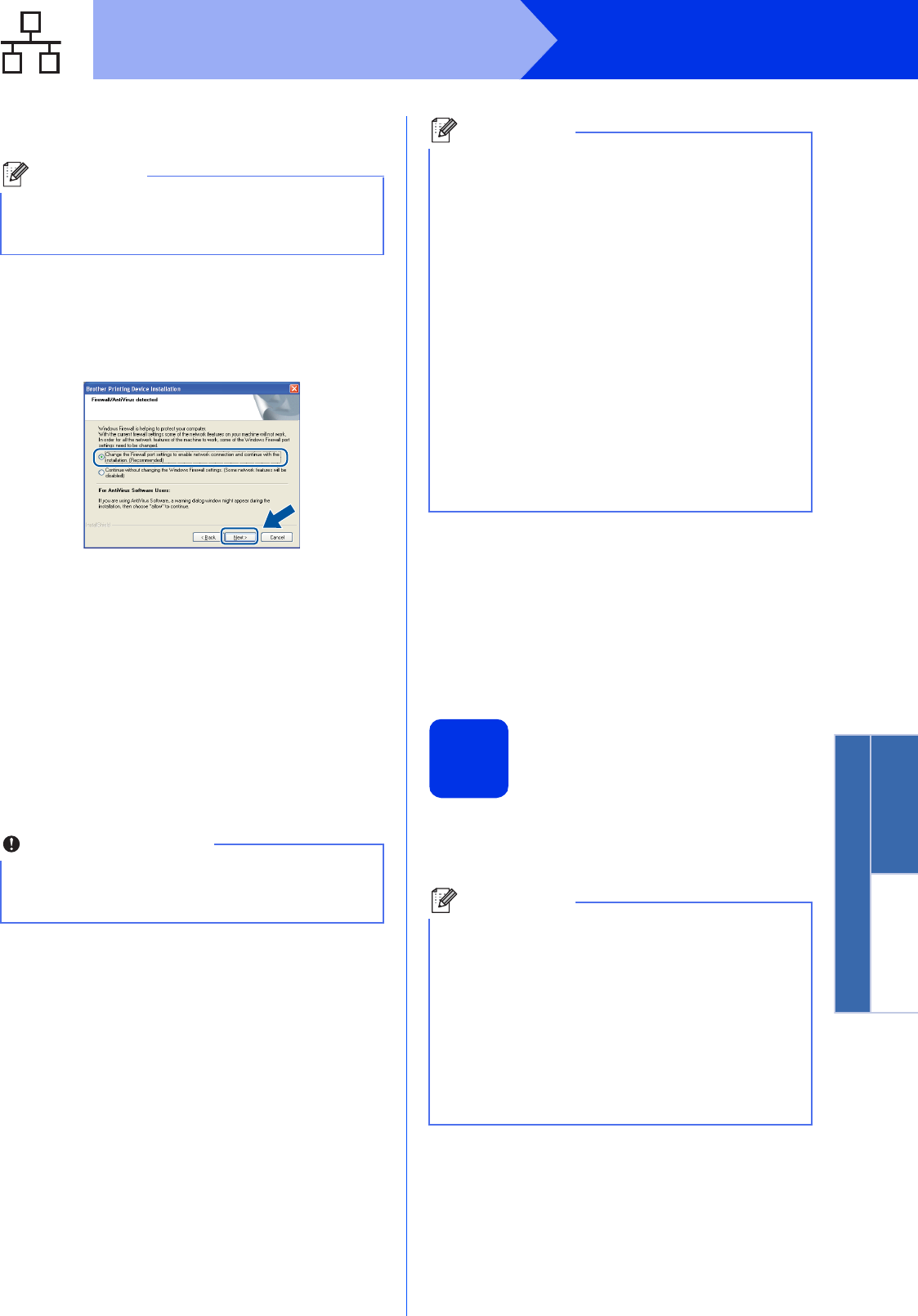
dWhen the Firewall/AntiVirus detected screen
appears, choose Change the Firewall port
settings to enable network connection and
continue with the installation.
(Recommended) and click Next.
If you are not using the Windows® Firewall, see
the user’s guide for your software for
information on how to add the following
network ports.
For network scanning, add UDP port 54925.
For network PC-Fax receiving, add UDP port
54926.
If you still have trouble with your network
connection, add UDP port 161 and 137.
eThe installation will automatically continue. The
installation screens appear one after another. If
prompted, follow any on-screen instructions.
fWhen the On-Line Registration screen
appears, make your selection and follow the
on-screen instructions. Once you have
completed the registration process, click Next.
gWhen the Setup Complete screen appears,
check the box of the action you want to
perform, and then click Next.
21
Finish and restart
aClick Finish to restart your computer. After
restarting the computer, you must log on with
Administrator rights.
Note
If you want to install the PS driver (BR-Script3
printer driver), choose Custom Install and then
follow the on-screen instructions.
Important
DO NOT cancel any of the screens during the
installation. It may take a few seconds for all
screens to appear.
Note
• If prompted, choose your machine from the list,
and then click Next.
• If your machine is not found over the network,
confirm your settings by following the on-screen
instructions.
• If there is more than one of the same model
connected on your network, the IP Address and
Node Name will be displayed to help you
identify the machine.
• You can find your machine’s IP address and the
node name by printing out the Network
Configuration Report. See Print the Network
Configuration Report on page 41.
• For Windows Vista® and Windows®7 users,
when the Windows Security screen appears,
click the check box and click Install to complete
the installation correctly.
Note
• If an error message appears during the
software installation, run the Installation
Diagnostics located in
Start/All Programs/Brother/MFC-XXXX LAN
(where MFC-XXXX is your model name).
• Depending on your security settings, a
Windows® Security or antivirus software
window may appear when using the machine or
its software. Please allow or permit the window
to continue.
22
Windows®
Wired Network
22
Install MFL-Pro Suite on
additional computers
(if needed)
If you want to use your machine with multiple
computers on the network, install MFL-Pro Suite on
each computer. Go to step 20 on page 20.
Note
Network license (Windows®)
This product includes a PC license for up to
5 users. This license supports the installation of
the MFL-Pro Suite including Nuance™
PaperPort™ 12SE on up to 5 PCs on the network.
If you want to use more than 5 PCs with
Nuance™ PaperPort™ 12SE installed, please
purchase the Brother NL-5 pack which is a
multiple PC license agreement pack for up to
5 additional users. To purchase the NL-5 pack,
contact your authorized Brother dealer or contact
Brother customer service.
Finish
The installation is now
complete.
Note
XML Paper Specification Printer Driver
The XML Paper Specification Printer Driver is the
most suitable driver for Windows Vista® and
Windows®7 when printing from applications that
use the XML Paper Specification. Please
download the latest driver by accessing the
Brother Solutions Center at
http://solutions.brother.com/.

23
Macintosh
Wired Network
Windows®Macintosh
Wired Network
For Wired Network Interface Users
(Mac OS X 10.5.8 - 10.7.x)
19
Before you install
aMake sure your machine is connected to the
power and your Macintosh is ON. You must be
logged on with Administrator rights.
bRemove the protective cap from the Ethernet
port marked with a symbol.
cConnect the network interface cable to the
Ethernet port and then connect it to a free port
on your hub.
dMake sure your machine's power switch is on.
20
Install MFL-Pro Suite
aPut the installer CD-ROM into your CD-ROM
drive.
bDouble-click the Start Here OSX icon. If
prompted, select your model.
cChoose Wired Network Connection
(Ethernet) and then click Next. Follow the
on-screen instructions.
dChoose your machine from the list, and then
click OK.
Important
For users of Mac OS X 10.5.7 or lower, upgrade
to Mac OS X 10.5.8 - 10.7.x. (For the latest
drivers and information for the Mac OS X you are
using, visit http://solutions.brother.com/.)
Note
If you want to add the PS driver (BR-Script3
printer driver), please go to the Brother Solutions
Center at http://solutions.brother.com/ and visit
FAQ's on your model page for instructions.
Important
DO NOT cancel any of the screens during the
installation. It may take a few minutes for the
installation to complete.
Note
If your machine is not found over the network,
confirm your network settings. See Before you
install on page 23.
24
Macintosh
Wired Network
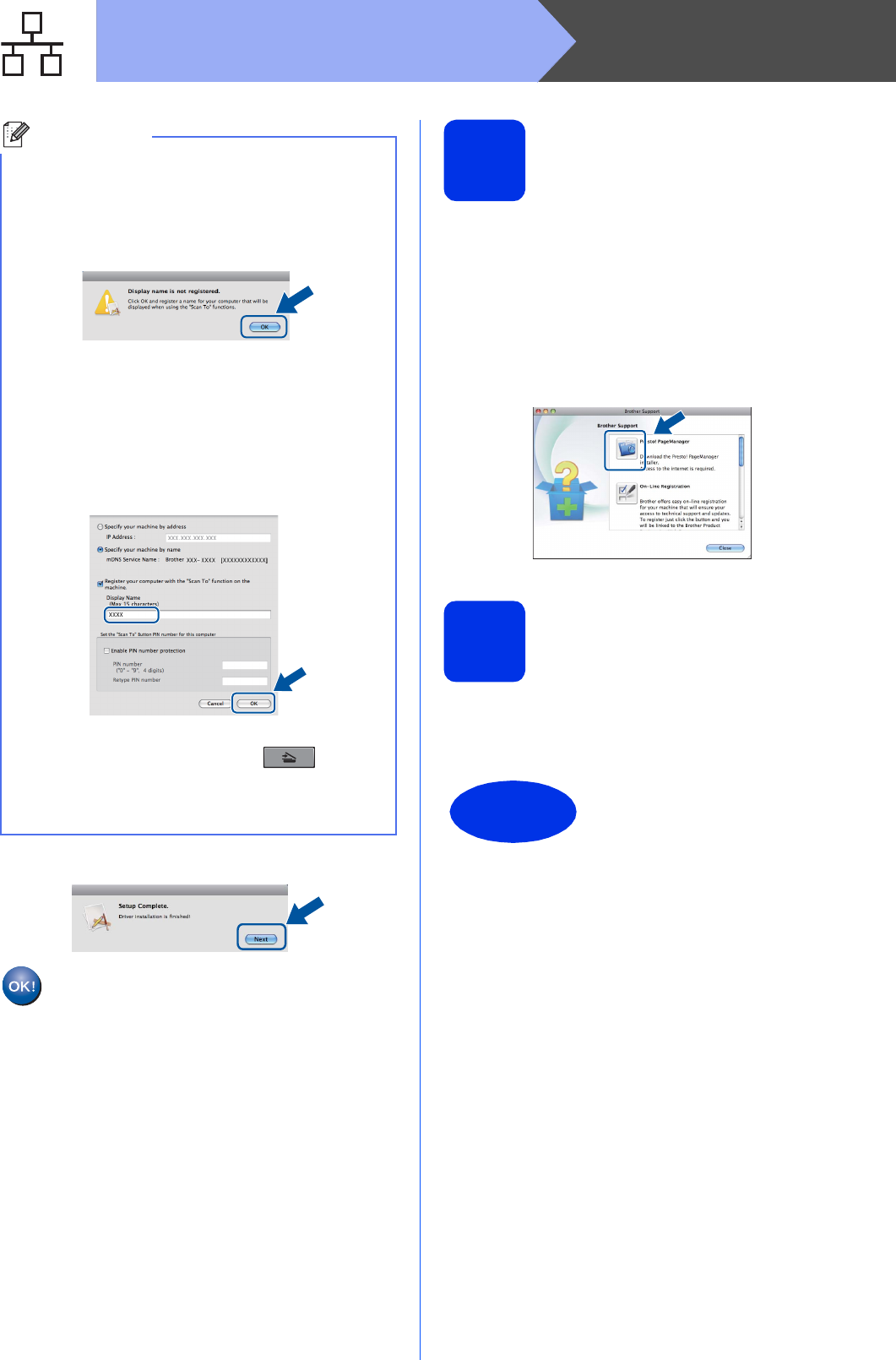
eWhen this screen appears, click Next.
21
Download and install
Presto! PageManager
When Presto! PageManager is installed OCR
capability is added to Brother ControlCenter2. You
can easily scan, share and organize photos and
documents using Presto! PageManager.
aOn the Brother Support screen, click
Presto! PageManager and follow the
on-screen instructions.
22
Install MFL-Pro Suite on
additional computers
(if needed)
If you want to use your machine with multiple
computers on the network, install MFL-Pro Suite on
each computer. Go to step 20 on page 23.
Note
• You can find your machine’s MAC Address
(Ethernet Address) and IP Address by printing
out the Network Configuration Report. See Print
the Network Configuration Report on page 41.
• If this screen appears click OK.
1) Enter a name for your Macintosh in
Display Name (up to 15 characters long).
2) If you want to use the machine’s SCAN key
to scan over the network, you must check the
Register your computer with the "Scan
To" function on the machine box.
3) Click OK. Go to e.
• The name you enter will appear on the
machine’s LCD when you press (SCAN)
and choose a scan option. (For more
information, see Network Scanning (For
network models) in the Software User's Guide.)
The installation of MFL-Pro Suite is now
complete.
Go to step 21 on page 24.
Finish
The installation is now
complete.
25
For Wireless Network Users
Wireless Network
Windows®Macintosh
For Wireless Network Interface Users
19
Before you begin
First you must configure the wireless network settings of your machine to communicate with your wireless access
point/router. After the machine is configured to communicate with your wireless access point/router, computers
and mobile devices on your network will have access to the machine. To use the machine from a computer, you
will need to install the drivers and software. The following steps will guide you through the configuration and
installation process.
Infrastructure Mode
Important
• If you are going to connect the machine to your network, we recommend that you contact your system
administrator prior to installation. You must know your wireless network settings before you proceed with this
installation.
• If you have previously configured the wireless settings of the machine, you must reset the network (LAN)
settings before you can configure the wireless settings again.
1. On your machine, press Menu. Press 7.
2. Press 0 to choose Network Reset.
3. Press 1 twice for Yes to accept the change.
Note
• To achieve optimum results with normal everyday document printing, place the Brother machine as close to
the wireless access point/router as possible with minimal obstructions. Large objects and walls between the
two devices as well as interference from other electronic devices can affect the data transfer speed of your
documents.
Due to these factors, wireless may not be the best method of connection for all types of documents and
applications. If you are printing large files, such as multi-page documents with mixed text and large graphics,
you may want to consider choosing wired Ethernet for a faster data transfer or USB for the fastest throughput
speed.
• Although the Brother MFC-8710DW, MFC-8810DW and MFC-8910DW can be used in both a wired and
wireless network, only one of the connection methods can be used at a time.
• If you use your machine in an IEEE 802.1x supported wireless network, see Using IEEE 802.1x
authentication in the Network User's Guide.
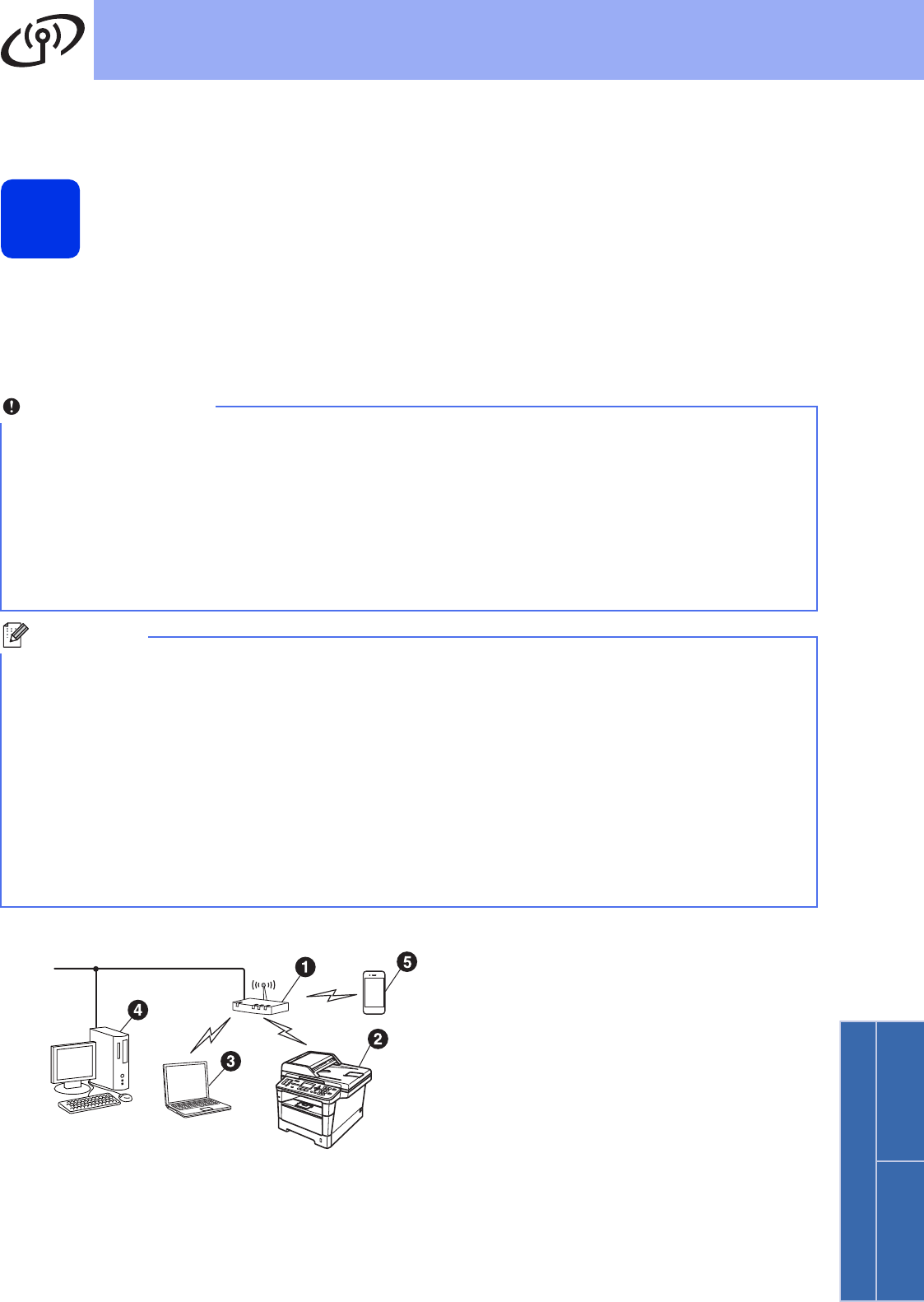
aWireless access point/router
bWireless Network machine (your machine)
cWireless capable computer connected to
the wireless access point/router
dWired computer connected to the wireless
access point/router
eMobile device connected to the wireless
access point/router
26
For Wireless Network Users
20
Choose your wireless setup method
The following instructions will offer three methods for setting up your Brother machine on a wireless network. If
you began the wireless setup from step 5 on page 7 (for Macintosh and mobile devices), go to method b (Setup
Wizard). For all other users, choose the method you prefer for your environment.
Note
To setup your machine in any other wireless environment, you can find instructions in the Network User's
Guide.
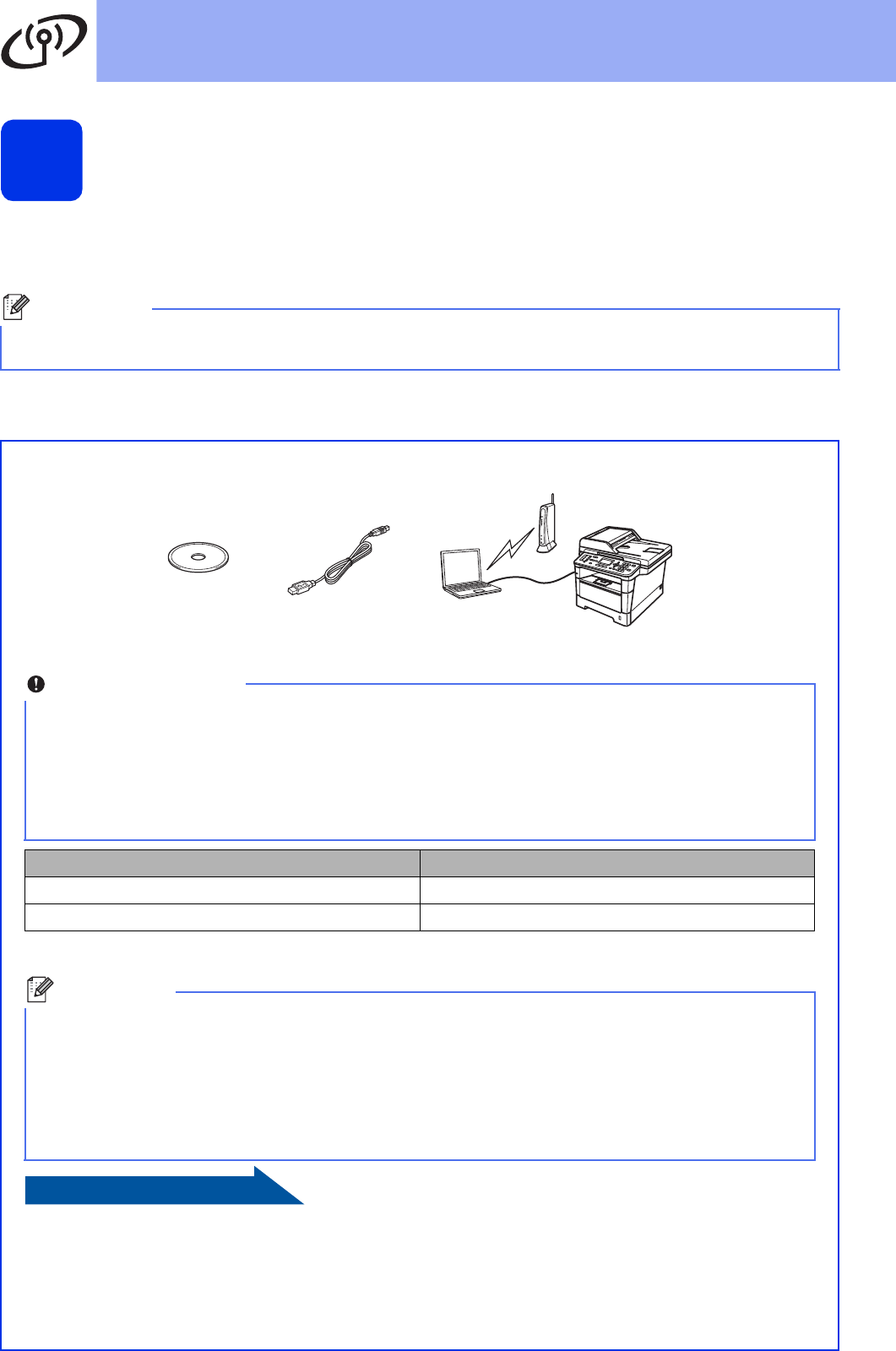
aSetup using the Installer CD-ROM and temporarily using a USB cable (Windows® only)
It is recommended that you use a PC wirelessly connected to your network for this method.
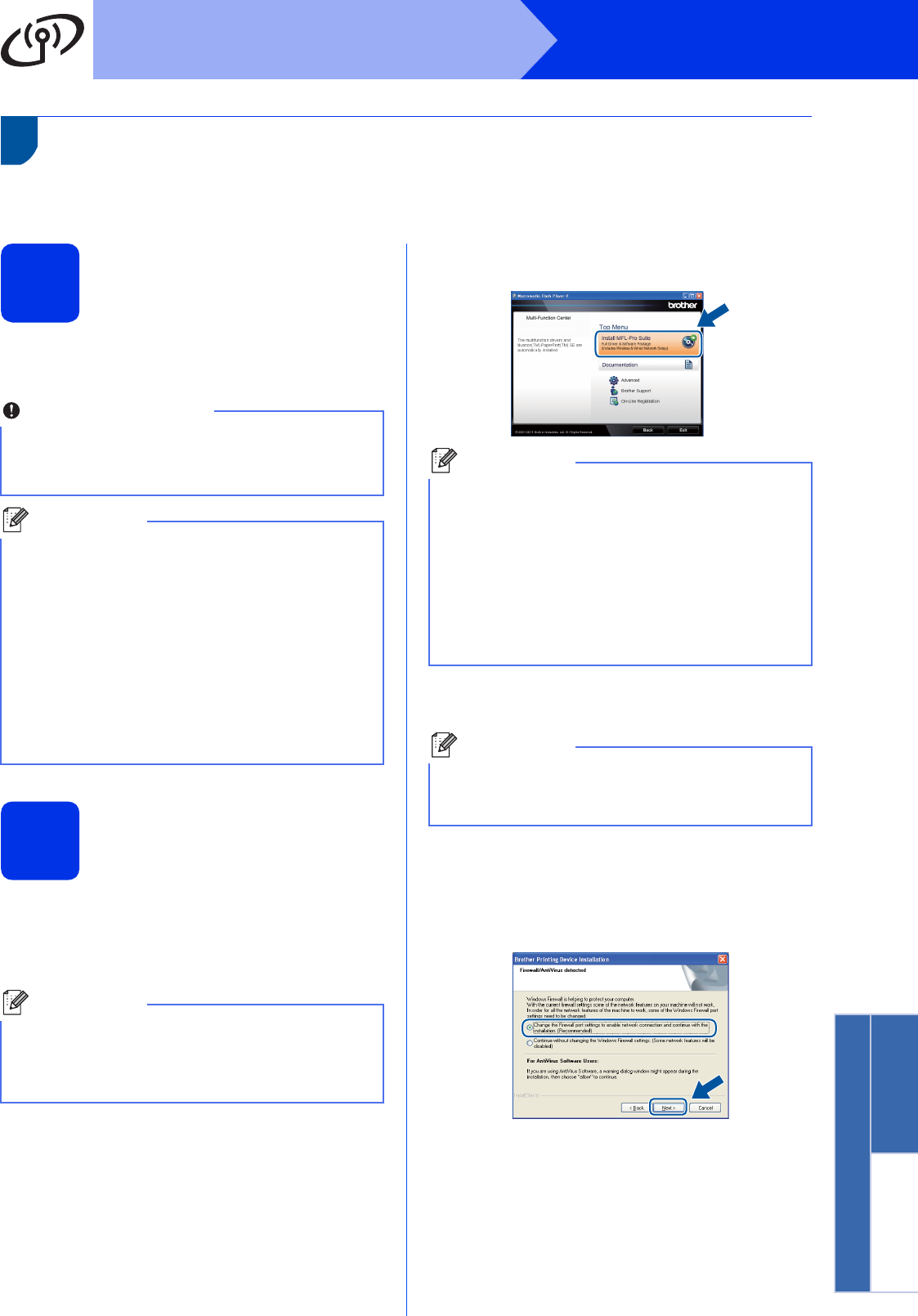
* The Network Key may also be described as the Password, Security Key or Encryption Key.
Now go to
page 28
Important
• You must use a USB cable temporarily during configuration.
• If you are using Windows® XP, or using a network cable to connect your computer with your wireless
access point/router, you need to know the SSID and Network Key of your wireless access point/router
before you proceed. Please write down your wireless network settings in the area below.
• Please do not contact Brother Customer Service for assistance without the wireless security
information. We cannot assist you in locating your network security settings.
Item Record the current wireless network settings
SSID (Network Name)
Network Key (Security Key/Encryption Key)
Note
• If you do not know this information (SSID and Network Key), you cannot continue the wireless setup.
• How can I find this information (SSID and Network Key)?
1. You should see the documentation provided with your wireless access point/router.
2. The initial network name could be the manufacturer’s name or the model name.
3. If you do not know the security information, please consult the router manufacturer, your system
administrator, or internet provider.
27
For Wireless Network Users
Wireless Network
Windows®Macintosh
bManual setup from the control panel using the Setup Wizard (Macintosh, mobile devices and
Windows®)
If your wireless access point/router does not support WPS (Wi-Fi Protected Setup™) or AOSS™,
write down the wireless network settings of your wireless access point/router in the area below.
* The Network Key may also be described as the Password, Security Key or Encryption Key.
Now go to
page 30
Important
Please do not contact Brother Customer Service for assistance without the wireless security
information. We cannot assist you in locating your network security settings.
Item Record the current wireless network settings
SSID (Network Name)
Network Key (Security Key/Encryption Key)
Note
• If you do not know this information (SSID and Network Key), you cannot continue the wireless setup.
• How can I find this information (SSID and Network Key)?
1. You should see the documentation provided with your wireless access point/router.
2. The initial network name could be the manufacturer’s name or the model name.
3. If you do not know the security information, please consult the router manufacturer, your system
administrator, or internet provider.
cOne push setup using WPS or AOSS™ (Windows® and Macintosh)
If your wireless access point/router supports automatic wireless (one-push) setup (WPS or AOSS™)
Now go to
page 32
28
For Wireless Network Users
Setup using the Installer CD-ROM and temporarily using a USB
cable (Windows
®
only)
21
Setup the wireless
settings
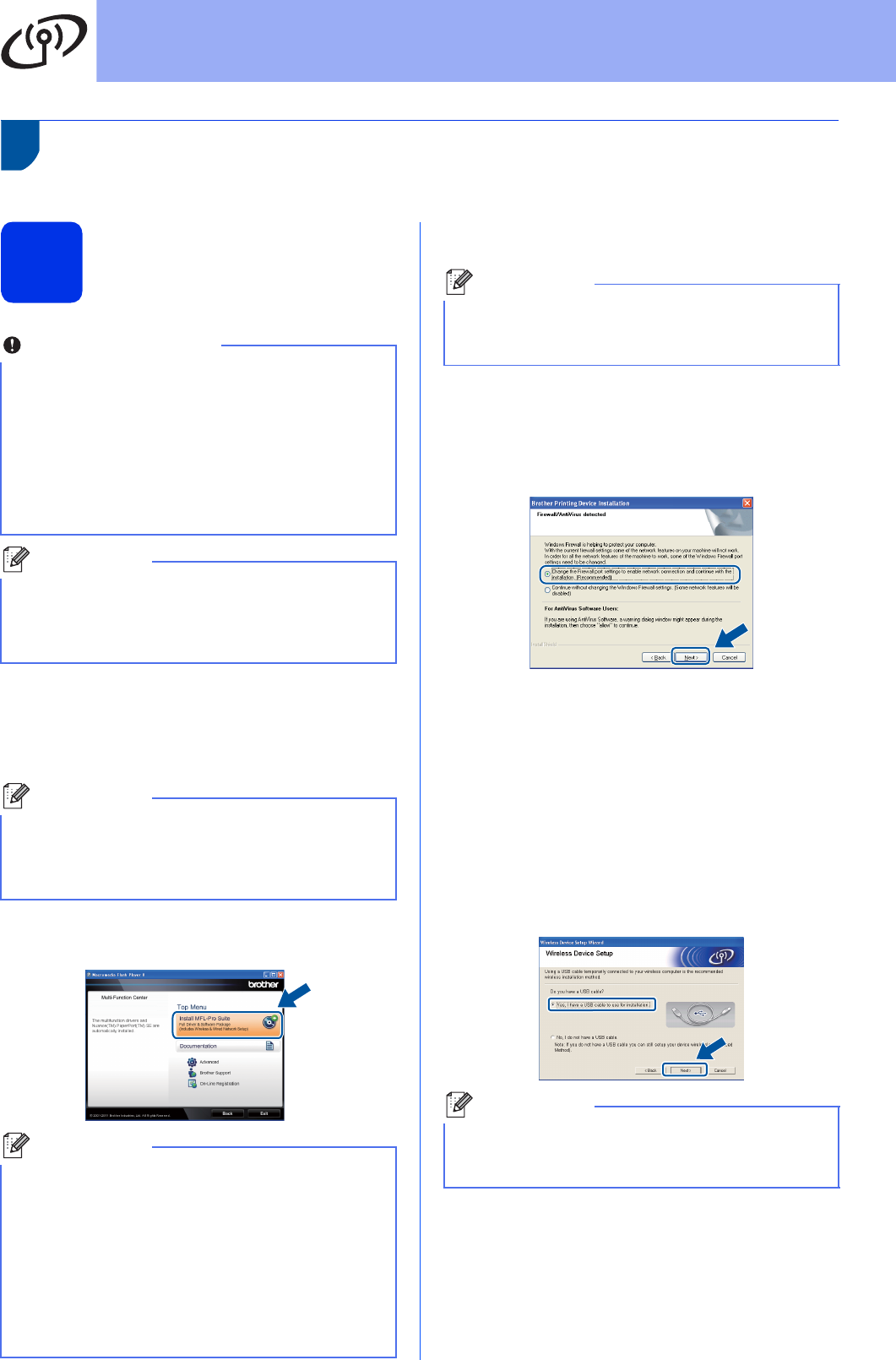
aPut the installer CD-ROM into your CD-ROM
drive. If the model name screen appears,
choose your machine. If the language screen
appears, choose your language.
bClick Install MFL-Pro Suite, and click Yes if
you accept the license agreements.
cChoose Wireless Network Connection and
then click Next.
dWhen the Firewall/AntiVirus detected screen
appears, choose Change the Firewall port
settings to enable network connection and
continue with the installation.
(Recommended) and click Next.
If you are not using the Windows® Firewall, see
the user’s guide for your software for
information on how to add the following
network ports.
For network scanning, add UDP port 54925.
For network PC-Fax receiving, add UDP port
54926.
If you still have trouble with your network
connection, add UDP port 161 and 137.
eChoose Yes, I have a USB cable to use for
installation, and then click Next.
Important
• You must use a USB cable temporarily during
configuration.
• If you are using Windows® XP, or using a
network cable to connect your computer with
your wireless access point/router, you need to
know the SSID and Network Key of your
wireless access point/router you wrote down in
step 20-a on page 26 before you proceed.
Note
If you use your machine in an IEEE 802.1x
supported wireless network, see Using
IEEE 802.1x authentication in the Network User's
Guide.
Note
If the Brother screen does not appear
automatically, go to My Computer (Computer),
double-click the CD-ROM icon, and then
double-click start.exe.
Note
• If the installation does not continue
automatically, open the top menu again by
ejecting and then reinserting the CD-ROM or
double-click the start.exe program from the
root folder, and continue from step b to install
MFL-Pro Suite.
• For Windows Vista® and Windows®7 users,
when the User Account Control screen
appears, click Allow or Yes.
Note
If you want to install the PS driver (BR-Script3
printer driver), choose Custom Install and then
follow the on-screen instructions.
Note
If the Important Notice screen appears, read the
notice. Check the box after you confirm the SSID
and Network Key, and then click Next.

29
For Wireless Network Users
Wireless Network
Windows®Macintosh
fConnect the USB cable directly to the
computer and the machine (you must remove
the USB cable in step l, on this page).
gDo one of the following:
If the Installation confirmation screen
appears, check the box and click Next, go
to h.
Otherwise, go to i.
hCheck Yes if you want to connect with the listed
SSID. Click Next and go to k.
iThe wizard will search for wireless networks
available from your machine. Choose the SSID
that you wrote down for your network in step
20-a on page 26, and then click Next.
jEnter the Network Key you wrote down in step
20-a on page 26, and then click Next.
kConfirm the wireless network settings and then
click Next. The settings will be sent to your
machine.
lDisconnect the USB cable between the
computer and the machine and then click Next.
To install the MFL-Pro Suite, continue to
step 23-e on page 38.
Now go to
page 38
Note
• If the list is blank, check that the wireless access
point/router has power and is broadcasting the
SSID, and then see if the machine and the
wireless access point/router are within range for
wireless communication. Then, click Refresh.
• If your wireless access point/router is set to not
broadcast the SSID you can manually add it by
clicking the Advanced button. Follow the
on-screen instructions for entering the Name
(SSID), and then click Next.
Note
If your network is not configured for
Authentication and Encryption, the ATTENTION!
screen will appear. To continue configuration,
click OK.
Note
• The settings will remain unchanged if you click
Cancel.
• If you want to manually enter the IP address
settings of your machine, click Change IP
Address and enter the necessary IP address
settings for your network.
• If the wireless setup failure screen appears,
click Retry.
Wireless setup is now complete. A four
level indicator at the top right of your
machine’s LCD will show the wireless
signal strength of your wireless access
point/router.

30
For Wireless Network Users
Manual setup from the control panel using the Setup Wizard
(Macintosh, mobile devices and Windows
®
)
21
Setup the wireless
settings
aIf you began the wireless setup from step 5 on
page 7 (for Macintosh and mobile devices),
press 1 to choose Setup Wizard.
Then go to c.
All other users, go to b.
Select Method
1.Setup Wizard
2.Setup with PC
3.WPS/AOSS
Select ab or OK
bOn your machine, press Menu, 7(Network),
2(WLAN), 2(Setup Wizard).
cWhen WLAN Enable ? is displayed, press a
or b to choose On and press OK. This will start
the wireless setup wizard.
Otherwise press Stop/Exit to exit from the
wireless setup wizard.
dThe machine will search for available SSIDs. It
will take several seconds to display a list of
available SSIDs.
If a list of SSIDs is displayed, use the a or b key
to choose the SSID you wrote down in step
20-b on page 27, then press OK.
eDo one of the following:
If the wireless access point/router of the
selected SSID supports WPS and
Selected access point supports
WPS. Use WPS? appears, go to f.
If you are using an authentication and
encryption method that requires a Network
Key, go to g.
If your authentication method is Open
System and your encryption mode is None,
go to h.
fTo connect your machine using the automatic
wireless mode, press 1 to choose Yes. (If you
choose No(Manual), go to g to enter the
Network Key.) When Start WPS on your
wireless access point/router,then
choose Next. appears, press the WPS
button on your wireless access point/router,
and then press 1. Go to h.
gEnter the Network Key you wrote down in step
20-b on page 27 using the dial pad to choose
each character or number. To delete the
characters you have entered, press Clear.
For example, to enter the letter a, press the 2
key on the dial pad once. To enter the number
3, press the 3 key on the dial pad seven times.
The letters appear in this order: lower case,
upper case and then numbers.
For more information, see Entering Text for
Wireless Settings on page 36.
Press OK when you have entered all the
characters, then press 1 for Yes to apply your
settings.
hYour machine will now try to connect to your
wireless network using the information you
have entered.
A connection result message appears on the
LCD and a WLAN report will automatically be
printed.
If the connection failed, check the error code on
the printed report and refer to
Troubleshooting on page 33.
Important
You must have the wireless settings you wrote
down for your network in step 20-b on page 27
before you proceed.
Note
If you use your machine in an IEEE 802.1x
supported wireless network, see Using
IEEE 802.1x authentication in the Network User's
Guide.
Note
• If a list of SSIDs is not displayed, make sure
your wireless access point/router is on. Move
your machine closer to the wireless access
point/router and try starting from b again.
• If your wireless access point/router is set to not
broadcast the SSID you will have to manually
add the SSID name. For details, see
Configuring your machine when the SSID is not
broadcast in the Network User's Guide.
31
For Wireless Network Users
Wireless Network
Windows®Macintosh
For computer users, please install
MFL-Pro Suite.
For Macintosh Users:
Now go to
step 22 on page 39
For Windows® Users:
Now go to
step 22 on page 37
For mobile device users who began the
setup from step 5 on page 7, go back to
step 6 to continue the machine settings.
Wireless setup is now complete. A four
level indicator at the top right of your
machine’s LCD will show the wireless
signal strength of your wireless access
point/router.
Note
For Mobile Device users, please go to the User’s
Guide for the application you are using (e.g.,
AirPrint, Brother iPrint&Scan or other
applications) for additional details on how to use
your machine with the application. To download
the User’s Guide for the application you are using,
please go to the manuals download section on
your model’s home page on the Brother Solutions
Center at http://solutions.brother.com/.
32
For Wireless Network Users
One push setup using WPS (Wi-Fi Protected Setup) or AOSS™
(Windows
®
and Macintosh)
21
Configure the wireless
settings
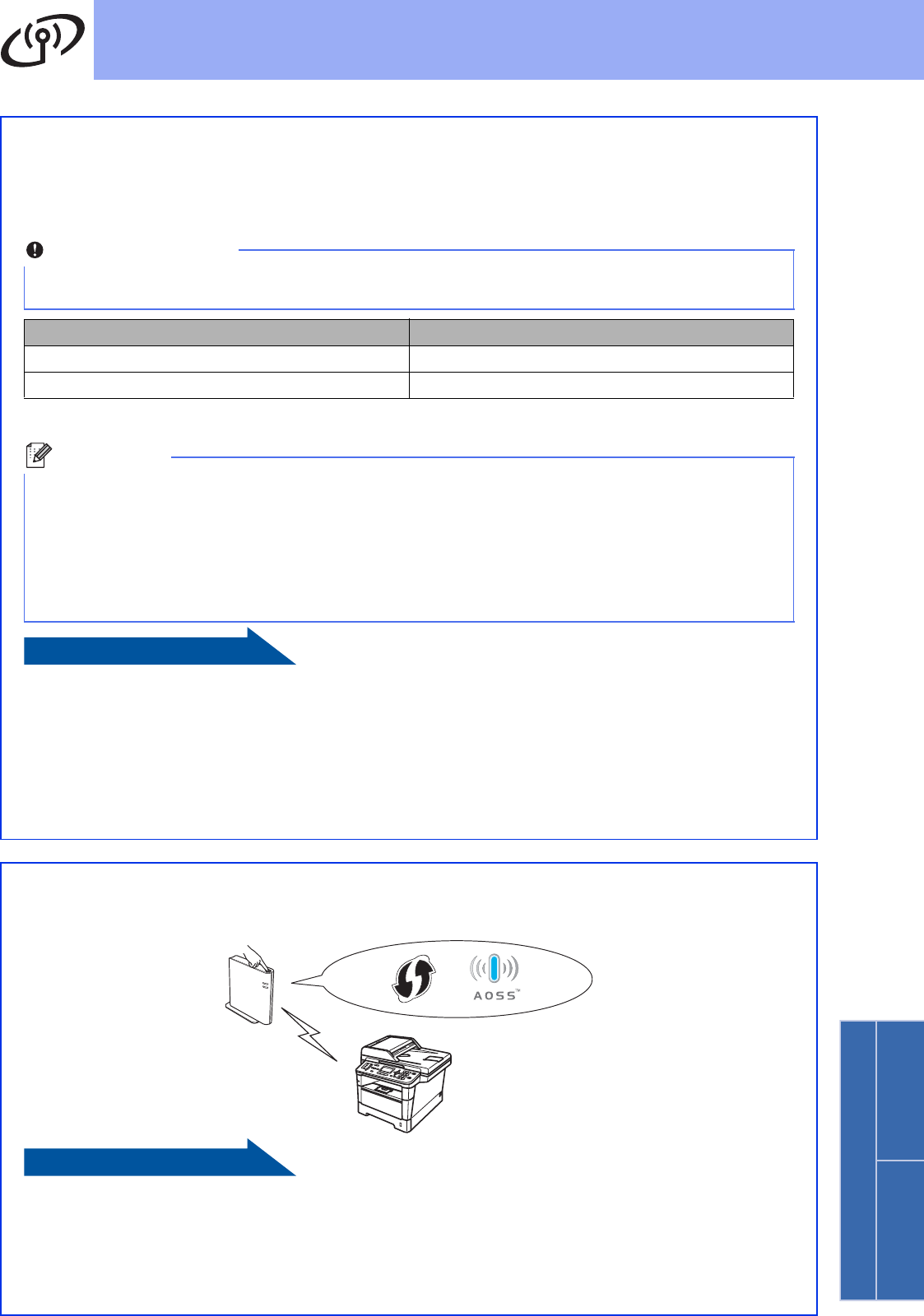
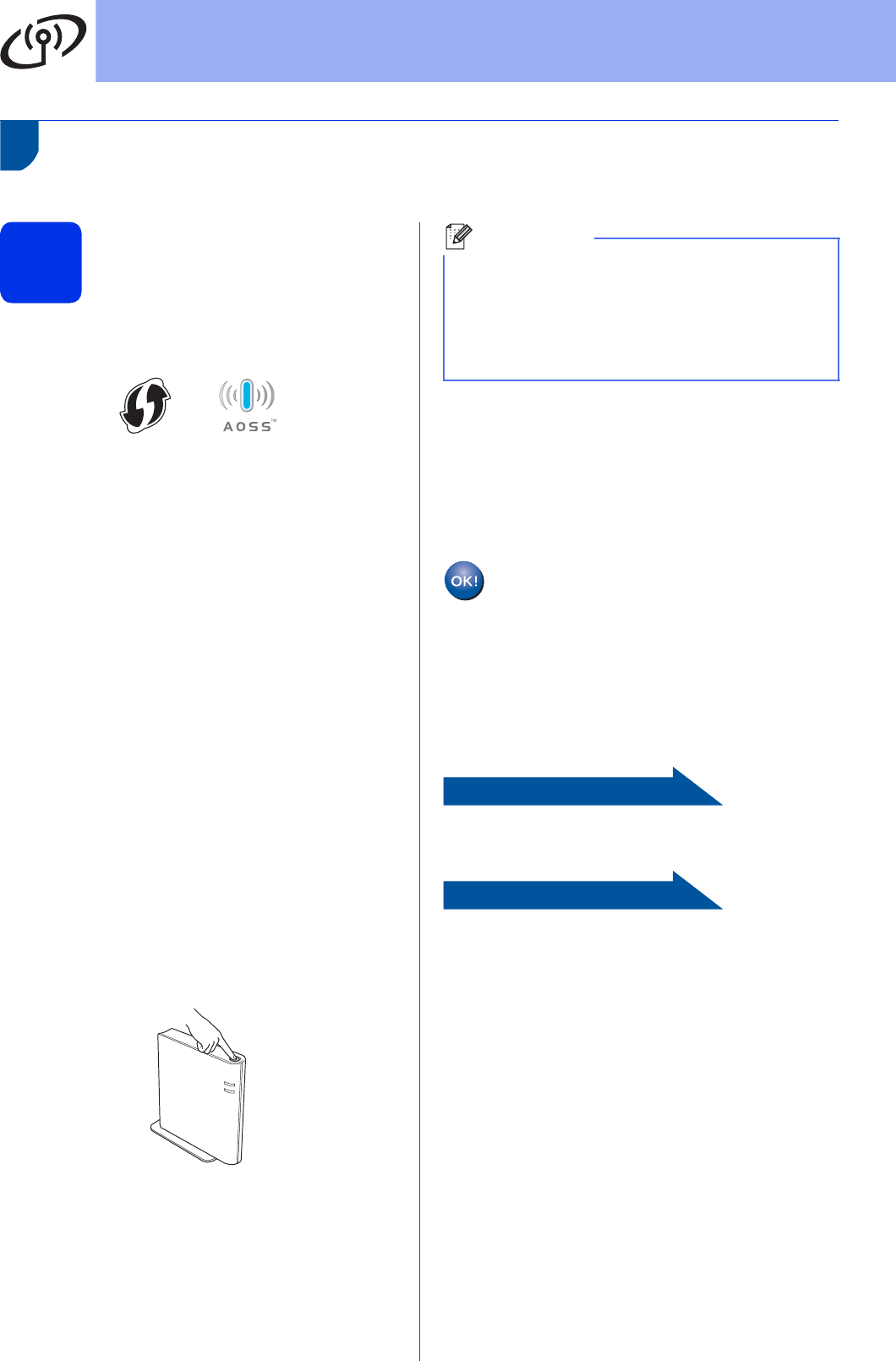
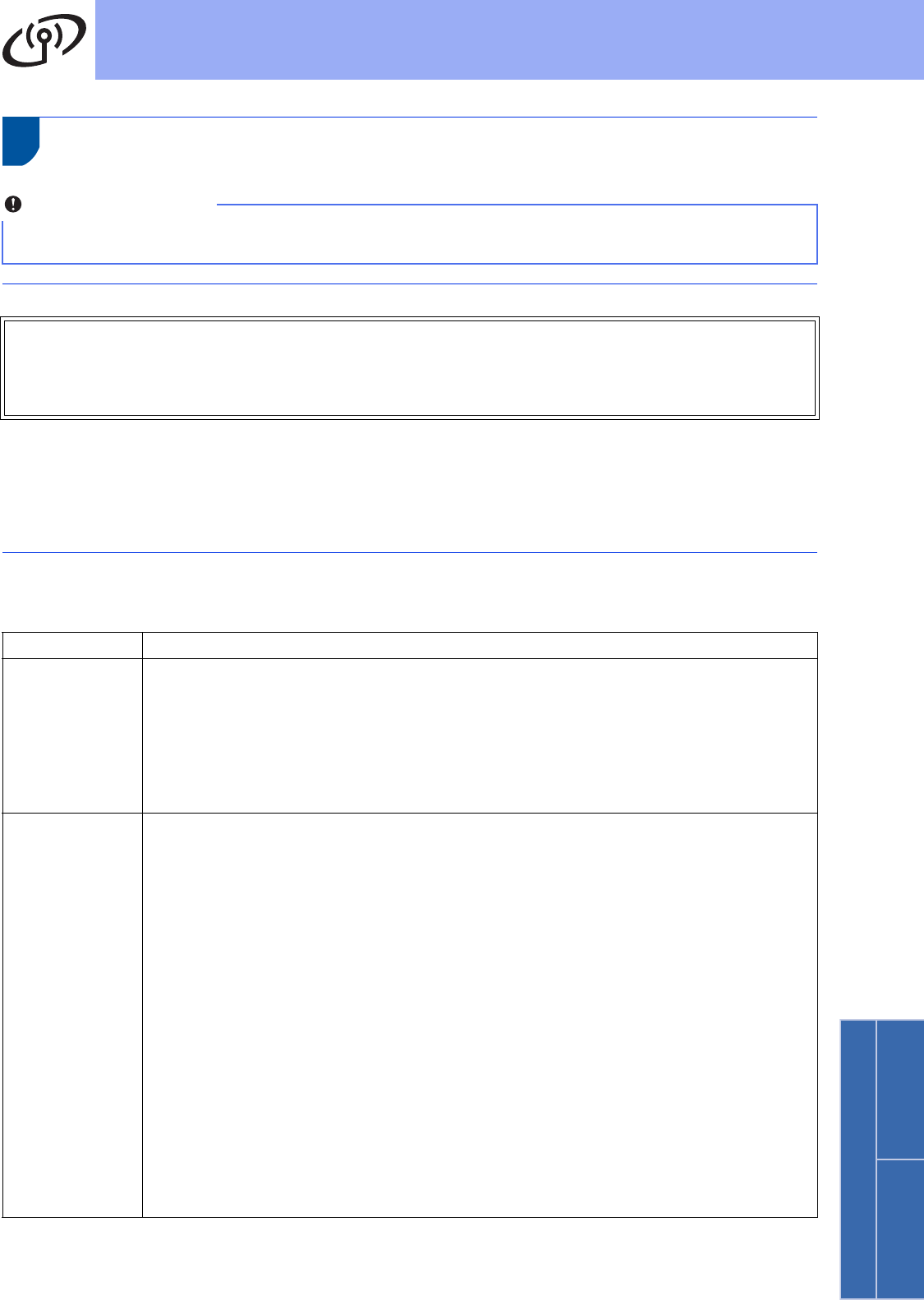
aConfirm your wireless access point/router has
the WPS or AOSS™ symbol as shown below.
bPlace the Brother machine within range of your
WPS or AOSS™ access point/router. The
range may differ depending on your
environment. Refer to the instructions provided
with your wireless access point/router.
If you began the wireless setup from step 5 on
page 7, press 3 to choose WPS/AOSS.
Then go to d.
All other users, go to c.
cOn your machine, press Menu, 7(Network),
2(WLAN), 3(WPS/AOSS).
dWhen WLAN Enable ? is displayed, press a
or b to choose On and press OK. This will start
the wireless setup wizard.
Otherwise press Stop/Exit to exit from the
wireless setup wizard.
eWhen Start WPS/AOSS on your
wireless access point/router.
appears, press the WPS or AOSS™ button on
your wireless access point/router. See the
user’s guide for your wireless access
point/router for instructions. And then press
OK.
This feature will automatically detect which
mode (WPS or AOSS™) your wireless access
point/router uses to configure your machine.
fA connection result message appears on the
LCD and a WLAN report will automatically be
printed.
If the connection failed, check the error code on
the printed report and refer to
Troubleshooting on page 33.
To install the MFL-Pro Suite, continue to
step 22.
For Windows® Users:
Now go to
page 37
For Macintosh Users:
Now go to
page 39
Note
If your wireless access point/router supports WPS
(PIN Method) and you want to configure your
machine using the PIN (Personal Identification
Number) Method, see Configuration using the
PIN Method of WPS (Wi-Fi Protected Setup) in
the Network User's Guide.
Wireless setup is now complete. A four
level indicator at the top right of your
machine’s LCD will show the wireless
signal strength of your wireless access
point/router.
33
For Wireless Network Users
Wireless Network
Windows®Macintosh
Troubleshooting
How can I find the wireless settings (Network Name (SSID) and Network Key)
* The Network Key may also be described as the Password, Security Key or Encryption Key.
* If the wireless access point/router is set to not broadcast the SSID, the SSID will not automatically be detected.
You will have to manually enter the SSID name. See Configuring your machine when the SSID is not broadcast
in the Network User's Guide.
WLAN report
If the WLAN report that printed shows that the connection failed, check the error code on the printed report and
refer to the following instructions.
Important
Please do not contact Brother Customer Service for assistance without the wireless security information. We
cannot assist you in locating your network security settings.
1. You should see the documentation provided with your wireless access point/router.
2. The initial network name could be the manufacturer’s name or the model name.
3. If you do not know the security information, please consult the router manufacturer, your system
administrator or internet provider.
Error code Recommended Solutions
TS-01
The wireless setting is not activated, turn the wireless setting to ON.
- If a LAN cable is connected to your machine, disconnect it and turn the wireless setting of
your machine to ON.
1. On your machine, press Menu, 7(Network), 2(WLAN), 2(Setup Wizard).
2. When WLAN Enable ? is displayed, press a or b to choose On and press OK. This will
start the wireless setup wizard.
TS-02
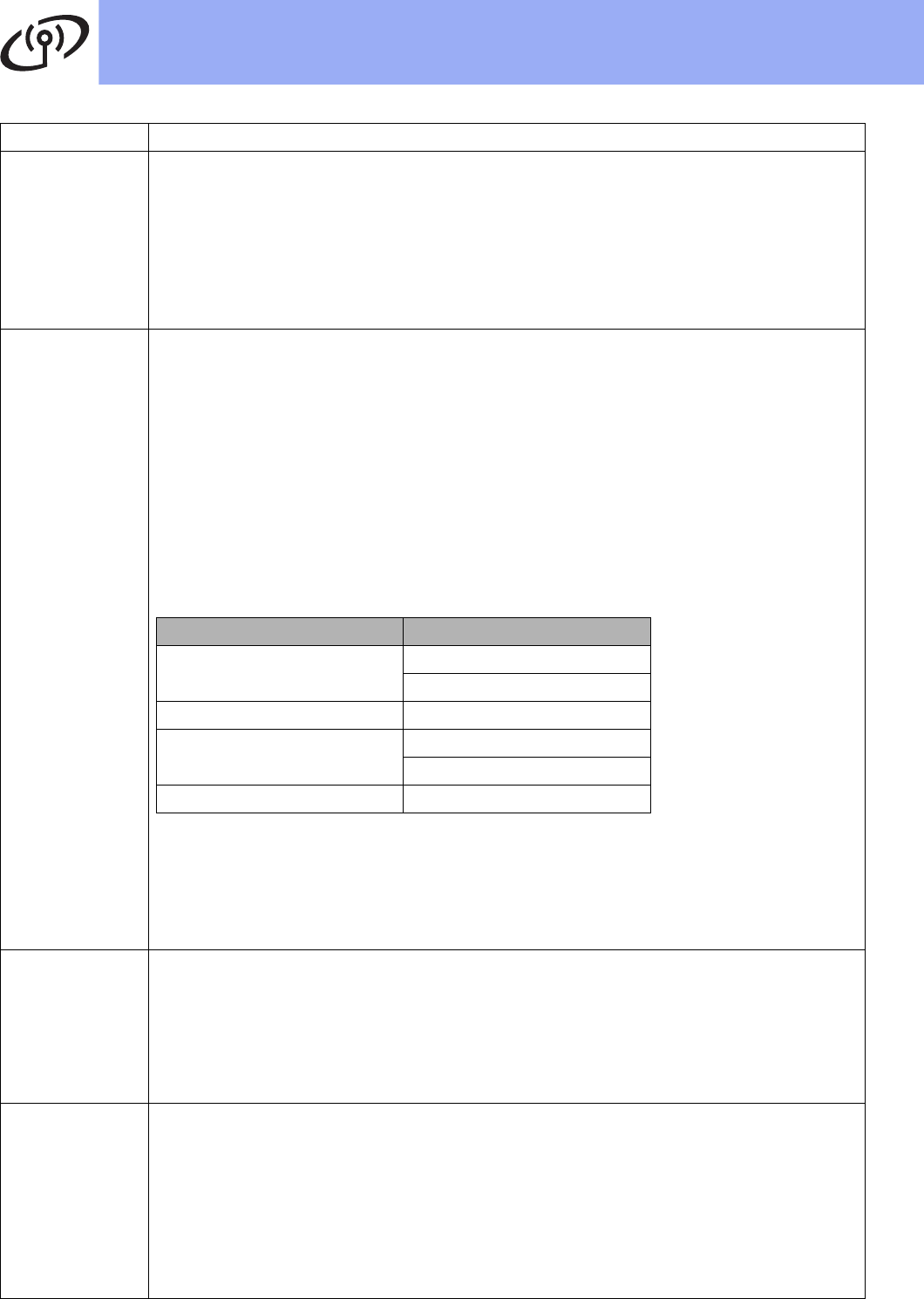
The wireless access point/router cannot be detected.
1. Check the following 4 points.
- Make sure that the wireless access point/router is powered on.
- Move your machine to an obstruction-free area, or closer to the wireless access
point/router.
- Temporarily place your machine within about 3.3 feet (one meter) from the wireless
access point/router when you are configuring the wireless settings.
- If your wireless access point/router is using MAC address filtering, confirm the MAC
address of the Brother machine is allowed in the filter. See Print the Network
Configuration Report on page 41.
2. If you manually entered the SSID and security information (SSID/authentication
method/encryption method/Network Key) the information may be incorrect.
Reconfirm the SSID and security information and reenter the correct information as
necessary.
See How can I find the wireless settings (Network Name (SSID) and Network
Key) on page 33 to confirm.
34
For Wireless Network Users
TS-03
The wireless network and security setting you entered may be incorrect.
Reconfirm the wireless network settings.
* Check if the entered or selected SSID/authentication method/encryption
method/UserID/Userpass are correct.
See How can I find the wireless settings (Network Name (SSID) and Network
Key) on page 33 to confirm.
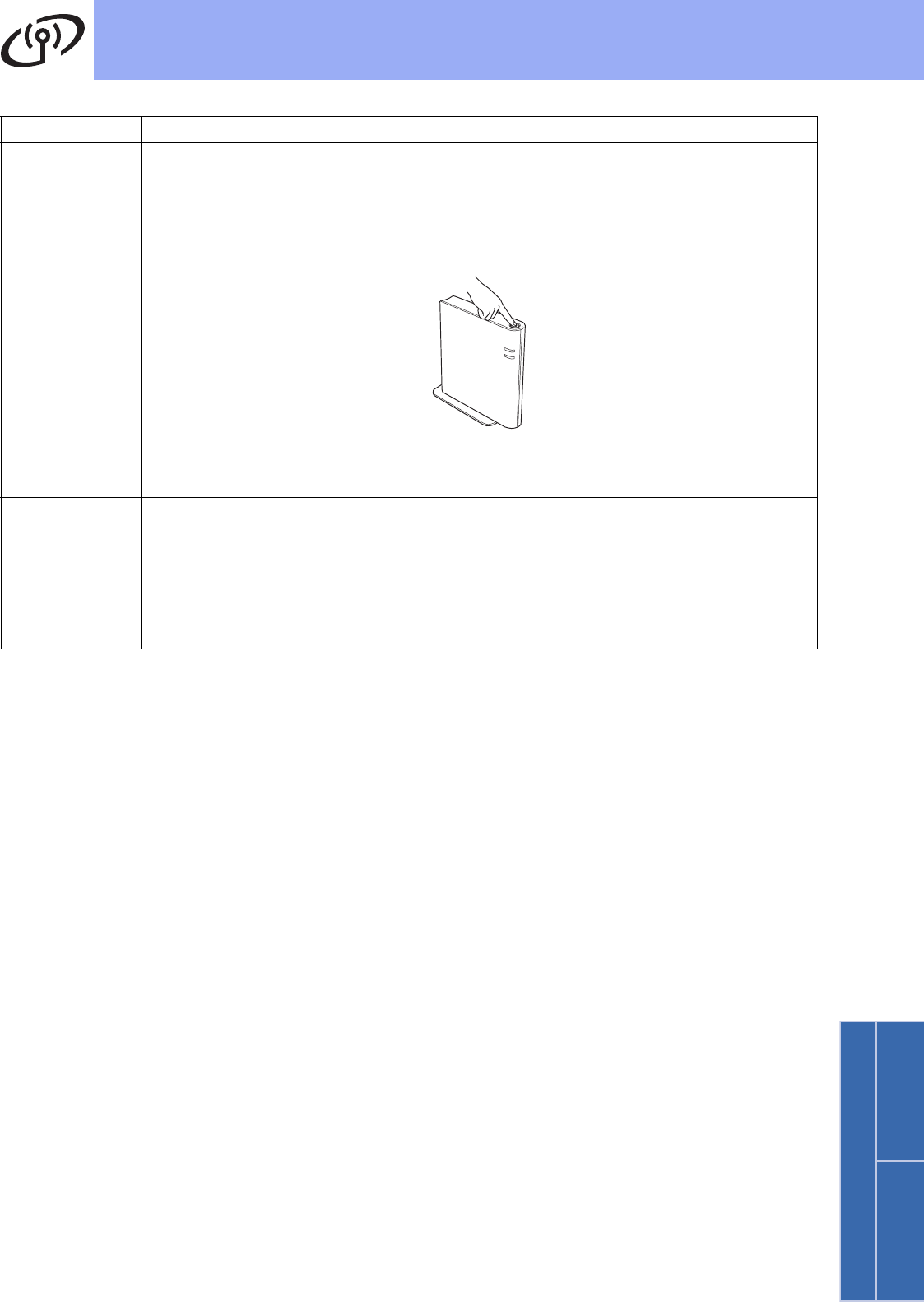
TS-04
The Authentication/Encryption methods used by the selected wireless access point/router
are not supported by your machine.
For infrastructure mode, change the authentication and encryption methods of the wireless
access point/router. Your machine supports the following authentication methods WPA™,
WPA2™, OPEN and Shared key. WPA supports TKIP or AES encryption methods. WPA2
supports AES for the encryption method. OPEN and Shared key correspond to WEP
encryption.
If your problem is not solved the SSID or network settings you entered may be incorrect.
Reconfirm the wireless network settings.
Combined table of authentication and encryption methods
See How can I find the wireless settings (Network Name (SSID) and Network
Key) on page 33 to confirm.
For ad-hoc mode, change the authentication and encryption methods of your computer for
the wireless setting.
Your machine supports OPEN authentication method only, with optional WEP encryption.
TS-05
The security information (SSID/Network Key) is incorrect.
Reconfirm the SSID and security information (Network Key).
If your router uses WEP encryption, enter the key used as the first WEP key. Your Brother
machine supports the use of the first WEP key only.
See How can I find the wireless settings (Network Name (SSID) and Network
Key) on page 33 to confirm.
TS-06
The wireless security information (Authentication method/Encryption method/Network Key)
is incorrect.
Reconfirm the wireless security information (Authentication method/Encryption
method/Network Key) in the table of TS-04.
If your router uses WEP encryption, enter the key used as the first WEP key. Your Brother
machine supports the use of the first WEP key only.
See How can I find the wireless settings (Network Name (SSID) and Network
Key) on page 33 to confirm.
Error code Recommended Solutions
Authentication method Encryption method
WPA-Personal TKIP
AES
WPA2-Personal AES
OPEN WEP
NONE (without encryption)
Shared key WEP
35
For Wireless Network Users
Wireless Network
Windows®Macintosh
TS-07
The machine cannot detect a wireless access point/router that has WPS or AOSS™
enabled.
If you would like to configure your wireless settings using WPS or AOSS™, you must operate
both your machine and the wireless access point/router.
Confirm your wireless access point/router supports WPS or AOSS™ and try starting again.
If you do not know how to operate your wireless access point/router using WPS or AOSS™,
see the documentation provided with your wireless access point/router, ask the manufacturer
of your wireless access point/router or ask your network administrator.
TS-08
Two or more wireless access points/routers that have WPS or AOSS™ enabled are
detected.
- Confirm that only one wireless access point/router within range has the WPS or AOSS™
method active and try again.
- Try starting again after a few minutes in order to avoid interference from other wireless
access points/routers.
Error code Recommended Solutions
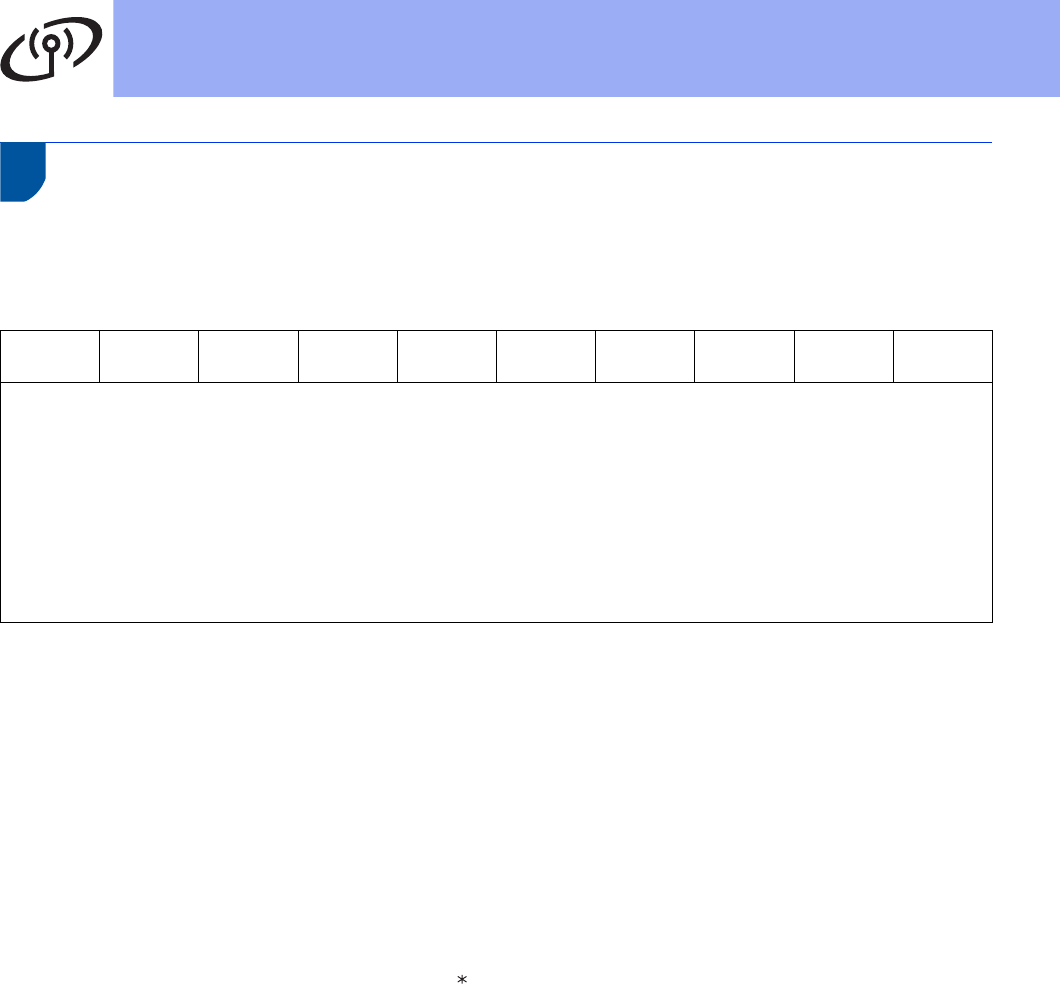
36
For Wireless Network Users
Entering Text for Wireless Settings
Most number keys have three or four letters printed on them. The keys for 0, # and l do not have printed letters
because they are used for special characters.
By pressing the proper number key repeatedly, you can access the character you want.
For configuring wireless network settings
Putting spaces
To enter a space in a name, press c twice between characters.
Making corrections
If you entered a character incorrectly and want to change it, press d or c to move the cursor under the incorrect
character, and then press Clear. Enter the correct character.
Repeating letters
If you need to enter a character that is on the same key as the character before, press c to move the cursor right
before you press the key again.
Special characters and symbols
Press l, # or 0, then press d or c to move the cursor to the special character or symbol you want. Press OK to
choose it.
Press
Key One time Two
times
Three
times
Four
times
Five
times Six times Seven
times
Eight
times
Nine
times
2abcABC2ab
3de fDEF3de
4gh iGHI 4gh
5jklJKL5jk
6mnoMNO6mn
7pqrsPQRS7
8tuvTUV8tu
9wxyzWXYZ9
Press lfor (space) ! " # $ % & ' ( ) + , - . /
Press #for : ; < = > ? @ [ ] ^ _ \ ~ ` | { }
Press 0for 0 \ { | } ~
37
Windows®
Wireless Network
Wireless Network
Windows®Macintosh
Install the Drivers & Software
(Windows
®
XP/XP Professional x64 Edition/Windows Vista
®
/
Windows
®
7)
22
Before you install
aMake sure that your computer is ON and you
are logged on with Administrator rights.
23
Install MFL-Pro Suite
aPut the installer CD-ROM into your CD-ROM
drive. If the model name screen appears,
choose your machine. If the language screen
appears, choose your language.
bClick Install MFL-Pro Suite, and click Yes if
you accept the license agreements.
cChoose Wireless Network Connection and
click Next.
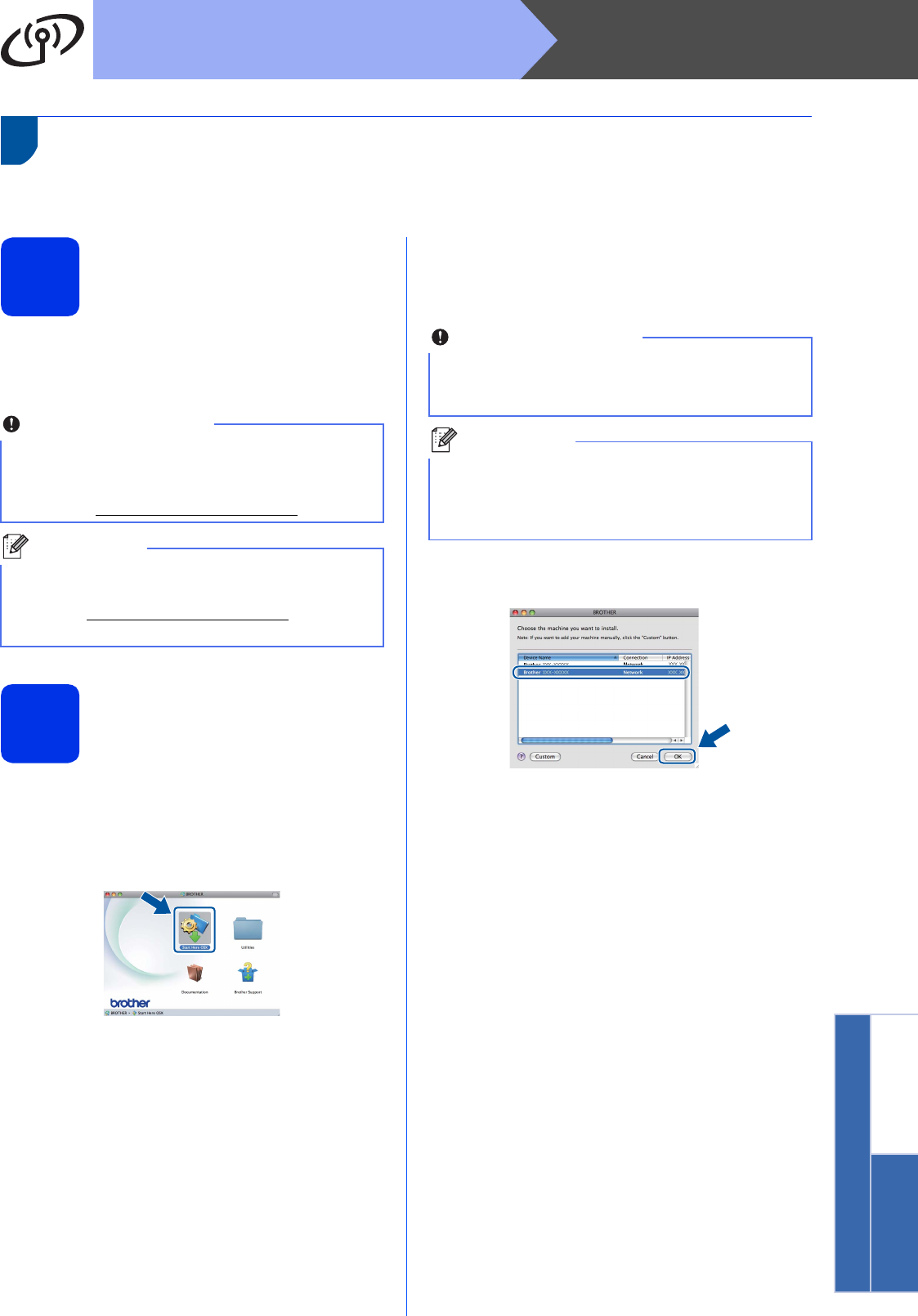
dWhen the Firewall/AntiVirus detected screen
appears, choose Change the Firewall port
settings to enable network connection and
continue with the installation.
(Recommended) and click Next.
If you are not using the Windows® Firewall, see
the user’s guide for your software for
information on how to add the following
network ports.
For network scanning, add UDP port 54925.
For network PC-Fax receiving, add UDP port
54926.
If you still have trouble with your network
connection, add UDP port 161 and 137.
Important
• If there are any programs running, close them.
• The screens may differ depending on your
operating system.
Note
• The installer CD-ROM includes Nuance™
PaperPort™ 12SE. This software supports
Windows®XP (SP3 or greater), XP
Professional x64 Edition (SP2 or greater),
Windows Vista® (SP2 or greater) and
Windows®7. Update to the latest Windows®
Service Pack before installing MFL-Pro Suite.
• Disable all personal firewall software (other
than Windows® Firewall), anti-spyware or
antivirus applications for the duration of the
installation.
Note
If the Brother screen does not appear
automatically, go to My Computer (Computer),
double-click the CD-ROM icon, and then
double-click start.exe.
Note
• If the installation does not continue
automatically, open the top menu again by
ejecting and then reinserting the CD-ROM or
double-click the start.exe program from the
root folder, and continue from step b to install
MFL-Pro Suite.
• For Windows Vista® and Windows®7 users,
when the User Account Control screen
appears, click Allow or Yes.
Note
If you want to install the PS driver (BR-Script3
printer driver), choose Custom Install and then
follow the on-screen instructions.

38
Windows®
Wireless Network
eChoose the machine from the list, and then
click Next.
fThe installation will automatically continue. The
installation screens appear one after another. If
prompted, follow any on-screen instructions.
gWhen the On-Line Registration screen
appears, make your selection and follow the
on-screen instructions. Once you have
completed the registration process, click Next.
hWhen the Setup Complete screen appears,
check the box of the action you want to
perform, and then click Next.
24
Finish and restart
aClick Finish to restart your computer. After
restarting the computer, you must log on with
Administrator rights.
25
Install MFL-Pro Suite on
additional computers
(if needed)
If you want to use your machine with multiple
computers on the network, install MFL-Pro Suite on
each computer. Go to step 23 on page 37.
Note
If you are using WEP and the LCD displayed
‘Connected’ but your machine is not found,
make sure you entered the WEP key correctly.
The WEP key is case sensitive.
Important
DO NOT cancel any of the screens during the
installation. It may take a few seconds for all
screens to appear.
Note
For Windows Vista® and Windows®7 users,
when the Windows Security screen appears,
click the check box and click Install to complete
the installation correctly.
Note
• If an error message appears during the
software installation, run the
Installation Diagnostics located in
Start/All Programs/Brother/MFC-XXXX LAN
(where MFC-XXXX is your model name).
• Depending on your security settings, a
Windows® Security or antivirus software
window may appear when using the machine or
its software. Please allow or permit the window
to continue.
Note
Network license (Windows®)
This product includes a PC license for up to
5 users. This license supports the installation of
the MFL-Pro Suite including Nuance™
PaperPort™ 12SE on up to 5 PCs on the network.
If you want to use more than 5 PCs with
Nuance™ PaperPort™ 12SE installed, please
purchase the Brother NL-5 pack which is a
multiple PC license agreement pack for up to
5 additional users. To purchase the NL-5 pack,
contact your authorized Brother dealer or contact
Brother customer service.
Finish
The installation is now
complete.
Note
XML Paper Specification Printer Driver
The XML Paper Specification Printer Driver is the
most suitable driver for Windows Vista® and
Windows®7 when printing from applications that
use the XML Paper Specification. Please
download the latest driver by accessing the
Brother Solutions Center at
http://solutions.brother.com/.
39
Macintosh
Wireless Network
Wireless Network
Windows®Macintosh
Install the Drivers & Software
(Mac OS X 10.5.8 - 10.7.x)
22
Before you install
aMake sure your machine is connected to the
power and your Macintosh is ON. You must be
logged on with Administrator rights.
23
Install MFL-Pro Suite
aPut the installer CD-ROM into your CD-ROM
drive.
bDouble-click the Start Here OSX icon. If
prompted, select your model.
cChoose Wireless Network Connection and
then click Next.
dFollow the on-screen instructions.
eChoose your machine from the list, and then
click OK.
Important
For users of Mac OS X 10.5.7 or lower, upgrade
to Mac OS X 10.5.8 - 10.7.x. (For the latest
drivers and information for the Mac OS X you are
using, visit http://solutions.brother.com/.)
Note
If you want to add the PS driver (BR-Script3
printer driver), please go to the Brother Solutions
Center at http://solutions.brother.com/ and visit
FAQ's on your model page for instructions.
Important
DO NOT cancel any of the screens during the
installation. It may take a few minutes for the
installation to complete.
Note
If your wireless settings fail, the Wireless Device
Setup Wizard screen appears. Follow the
on-screen instructions to complete the wireless
configuration.

40
Macintosh
Wireless Network
fWhen this screen appears, click Next.
24
Download and install
Presto! PageManager
When Presto! PageManager is installed OCR
capability is added to Brother ControlCenter2. You
can easily scan, share and organize photos and
documents using Presto! PageManager.
aOn the Brother Support screen, click
Presto! PageManager and follow the
on-screen instructions.
25
Install MFL-Pro Suite on
additional computers
(if needed)
If you want to use your machine with multiple
computers on the network, install MFL-Pro Suite on
each computer. Go to step 23 on page 39.
Note
• You can find your machine’s MAC Address
(Ethernet Address) and IP Address by printing
out the Network Configuration Report. See Print
the Network Configuration Report on page 41.
• If this screen appears click OK.
1) Enter a name for your Macintosh in
Display Name (up to 15 characters long).
2) If you want to use the machine’s SCAN key
to scan over the network, you must check the
Register your computer with the "Scan
To" function on the machine box.
3) Click OK. Go to f.
• The name you enter will appear on the
machine’s LCD when you press (SCAN)
and choose a scan option. (For more
information, see Network Scanning (For
network models) in the Software User's Guide.)
The installation of MFL-Pro Suite is now
complete.
Go to step 24 on page 40.
Finish
The installation is now
complete.
Note
If you began the wireless setup from step 5 on
page 7, go back to step 6 to continue the machine
settings.
41
For Network Users
Web Based Management
(web browser)
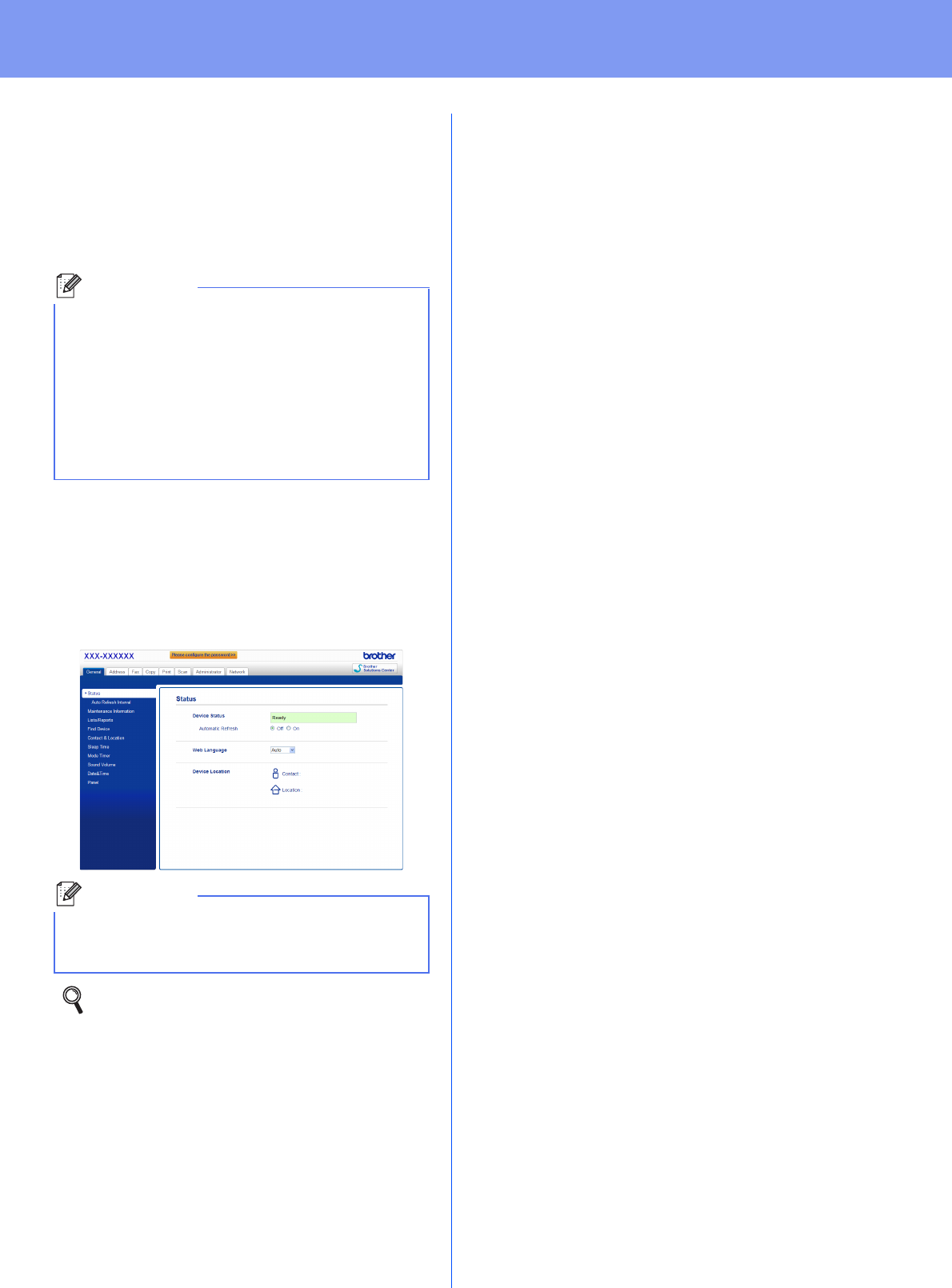
The Brother print server is equipped with a web server
that allows you to monitor its status or change some
of its configuration settings, using HTTP (Hyper Text
Transfer Protocol).
aOpen your browser.
bType “http://machine’s IP address/” into your
browser’s address bar (where “machine’s IP
address” is the IP address of the Brother
machine or the print server name).
For example: http://192.168.1.2/
Print the Network Configuration
Report
You can print the Network Configuration Report to
confirm the current network settings.
aTurn on the machine and wait until the machine
is in the Ready state.
bPress Menu, 6, 5.
cPress Start.
The machine will print the current network
settings.
dPress Stop/Exit.
Restore the network settings to
the factory default
To restore all network settings of the internal
Print/Scan server to the factory default, please follow
the steps below.
aMake sure the machine is not operating, then
disconnect all the cables from the machine
(except the power cord).
bPress Menu, 7, 0.
cPress 1 to choose Reset.
dPress 1 to choose Yes.
The machine will restart, re-connect the cables
once this is complete.
Note
We recommend Windows® Internet
Explorer®7.0/8.0 or Firefox®3.6 for Windows®
and Safari 4.0/5.0 for Macintosh. Please also
make sure that JavaScript and cookies are
always enabled in whichever browser you use. To
use a web browser, you will need to know the IP
address of the print server. The IP address of the
print server is listed on the Network Configuration
Report.
Note
If you have configured an optional login
password, you must enter it when prompted to
access the Web Based Management.
For more information, see Web Based
Management in the Network User's Guide.

Other Information
42
Brother CreativeCenter
Get inspired. If you're using Windows®, double-click
the Brother CreativeCenter icon on your desktop to
access our FREE web site with many ideas and
resources for personal and professional use.
Mac users can access Brother CreativeCenter at this
web address:
http://www.brother.com/creativecenter/
43
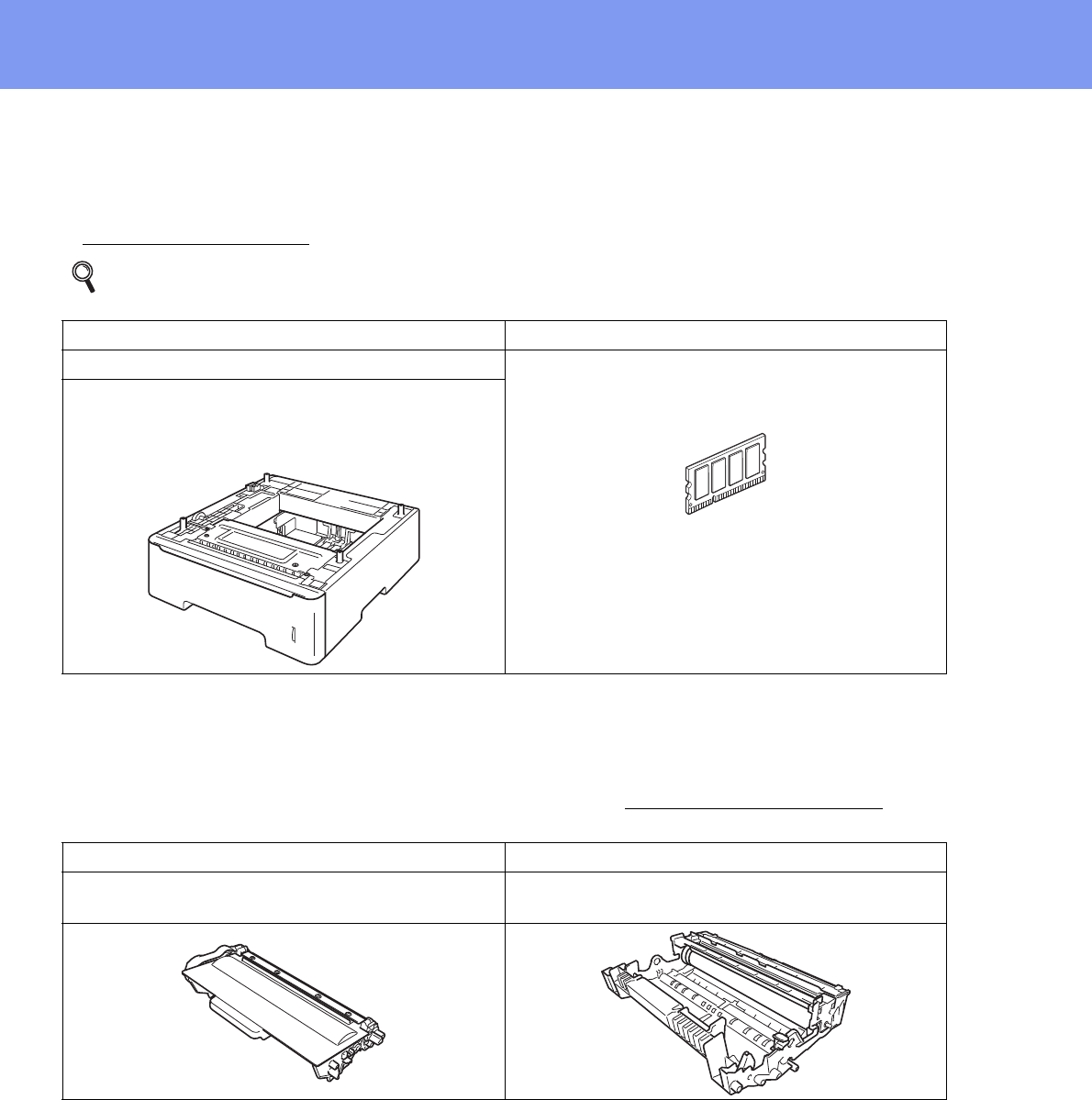
Options and Consumables
Options
The machine has the following optional accessories. You can expand the capabilities of the machine by adding
these items. For more information about the optional Lower Tray Unit and compatible SO-DIMM Memory, visit us
at http://solutions.brother.com/.
Consumables
When the time comes to replace consumable items, an error will be indicated by the LCD on the control panel. For
more information about the consumables for your machine, visit us at http://www.brother.com/original/ or contact
your local Brother reseller.
For installing the SO-DIMM Memory, see Installing extra memory in the Advanced User's Guide.
Lower Tray Unit SO-DIMM Memory
LT-5400 You can increase the memory by installing one
SO-DIMM (Small Outline Dual In-line Memory
Module).
The lower paper tray unit can hold up to 500 sheets
of paper. When the tray is installed, the machine
expands total input capacity up to 800 sheets.
Toner cartridge Drum unit
Standard Toner: TN-720
High Yield Toner: TN-750 DR-720

Trademarks
The Brother logo is a registered trademark of Brother Industries, Ltd.
Brother is a registered trademark of Brother Industries, Ltd.
Microsoft, Windows, Windows Server and Internet Explorer are either registered trademarks or trademarks of Microsoft Corporation in the
United States and/or other countries.
Windows Vista is either a registered trademark or trademark of Microsoft Corporation in the United States and/or other countries.
Apple, Macintosh, Safari and Mac OS are trademarks of Apple Inc., registered in the U.S. and other countries. AirPrint is a trademark of Apple
Inc.
Linux is the registered trademark of Linus Torvalds in the U.S. and other countries.
Wi-Fi Direct, Wi-Fi Protected Setup, WPA and WPA2 are marks of the Wi-Fi Alliance.
AOSS is a trademark of Buffalo Inc.
Android is a trademark of Google Inc.
Nuance, the Nuance logo, PaperPort and ScanSoft are trademarks or registered trademarks of Nuance Communications, Inc. or its affiliates
in the United States and/or other countries.
Each company whose software title is mentioned in this manual has a Software License Agreement specific to its proprietary programs.
Any trade names and product names of companies appearing on Brother products, related documents and any other
materials are all trademarks or registered trademarks of those respective companies.
Compilation and Publication
Under the supervision of Brother Industries, Ltd., this manual has been compiled and published, covering the latest product descriptions and
specifications.
The contents of this manual and the specifications of this product are subject to change without notice.
Brother reserves the right to make changes without notice in the specifications and materials contained herein and shall not be responsible for
any damages (including consequential) caused by reliance on the materials presented, including but not limited to typographical and other
errors relating to the publication.
Copyright and License
©2012 Brother Industries, Ltd. All rights reserved.
This product includes software developed by the following vendors:
©1983-1998 PACIFIC SOFTWORKS, INC. ALL RIGHTS RESERVED.
©2008 Devicescape Software, Inc. All rights reserved.
This product includes the “KASAGO TCP/IP” software developed by ZUKEN ELMIC, Inc.
