Brother P Touch 2200 Users Manual PT 2200Book
Brother-Pt-1290Bt2-Owner-S-Manual brother-pt-1290bt2-owner-s-manual
2200 to the manual e74fb9a6-667f-a1f4-75c4-54b7d5aa6d61
2015-01-25
: Brother Brother-P-Touch-2200-Users-Manual-213299 brother-p-touch-2200-users-manual-213299 brother pdf
Open the PDF directly: View PDF  .
.
Page Count: 135 [warning: Documents this large are best viewed by clicking the View PDF Link!]
- INTRODUCTION
- CONTENTS
- Getting Started
- Learning the Ropes
- For Your Information
- POWER KEY
- CURSOR KEYS
- CODE, ALT & SHIFT KEYS
- SPACE KEY
- RETURN KEY
- TAB FUNCTION
- DELETE KEY
- LINE OUT FUNCTION
- CLEAR FUNCTION
- ACCENT FUNCTION
- SYMBOL FUNCTION
- AUTO FORMAT FUNCTION
- STAMP FUNCTION
- SIZE & WIDTH FUNCTIONS
- STYLE FUNCTION
- UNDERLINE FUNCTION
- FONT FUNCTION
- FRAME FUNCTION
- TAPE MARGIN FUNCTION
- HORIZONTAL ALIGNMENT FUNCTION
- MIRROR PRINTING FUNCTION
- LENGTH FUNCTION
- AUTO CUT FUNCTION
- PRINT KEY
- FEED & CUT FUNCTION
- NUMBERING FUNCTION
- REPEAT PRINTING FUNCTION
- MEMORY FUNCTIONS
- TROUBLESHOOTING
- ERROR MESSAGE LIST
- SPECIFICATIONS
- ACCESSORIES
- Spanish
- INTRODUCCIÓN
- ÍNDICE
- CUIDADOS Y PRECAUCIONES GENERALES
- PILAS
- ADAPTADOR DE CA OPCIONAL
- CASETES DE CINTA
- COLOCACIÓN DE ETIQUETAS
- CABEZA DE IMPRESIÓN Y RODILLOS
- TECLA DEL CURSOR
- TECLAS CODE, ALT Y SHIFT
- TECLA DE RETORNO
- TABULACIÓN
- TECLA DE BORRADO (DEL)
- FUNCIÓN DE BORRADO DE LÍNEA (LINE OUT)
- FUNCIÓN DE REPOSICIÓN (CLEAR)
- FUNCIÓN DE ACENTOS
- FUNCIÓN DE SÍMBOLOS
- FUNCIÓN DE FORMATO AUTOMÁTICO
- FUNCIÓN DE SELLOS
- FUNCIONES DE TAMAÑO Y DE ANCHURA
- FUNCIÓN DE ESTILO
- FUNCIÓN DE SUBRAYADO
- FUNCIÓN DEL TIPO DE CARACTERES
- FUNCIÓN DE MARCOS
- FUNCIÓN DE CINTA
- FUNCIÓN DE LA ALINEACIÓN HORIZONTAL
- FUNCIÓN DE IMPRESIÓN DE ESPEJO
- FUNCTIÓN DE LONGITUD
- FUNCIÓN DE CORTE AUTOMÁTICO
- TECLA DE IMPRESIÓN
- FUNCIÓN DE AVANCE Y CORTE
- FUNCIÓN DE NUMERACIÓN
- FUNCIÓN DE IMPRESIÓN REPETIDA
- FUNCIONES DE LA MEMORIA
- SOLUCIÓN DE PROBLEMAS
- LISTA DE MENSAJES DE ERROR
- ESPECIFICACIONES
- ACCESORIOS
• Read this User’s Guide before you start using your P-touch.
• Keep this User’s Guide in a handy place for future reference.
USER’S GUIDE
2200/2210
INTRODUCTION
Thank you for purchasing the P-touch 2200/2210!
Your new P-touch will allow you to create labels and stamps for any need. Its versatility
enables you to design custom labels by choosing from a variety of frame designs and from
many characters sizes and styles. In addition, the five tape widths (1/4” (6 mm), 3/8” (9 mm),
1/2” (12 mm), 3/4” (18 mm) and 1” (24 mm)) and variety of tape colors allow you to print
personalized labels, useful for color-coded filing. With the
Stamp
function, you can quickly
and easily make stamps for reusable pre-inked stamp holders.
You no longer have to worry about urgent tasks that require professional printing. In the office,
the factory, the lab and the home, the quality and performance of the P-touch 2200/2210
makes it an extremely practical machine.
Finally, as you may want to refer to this User’s Guide occasionally, we suggest that you keep it
in a handy place.
(The PT-2200 and the PT-2210 models are equipped with the same functions; however, only
the PT-2210 included with a carrying case and AC adapter.)
FCC NOTICE
This equipment has been tested and found to comply with the limits for a Class B digital
device, pursuant to Part 15 of the FCC Rules. These limits are designed to provide reason-
able protection against harmful interference in a residential installation. This equipment
generates, uses, and can radiate radio frequency energy and, if not installed and used in
accordance with the instructions, may cause harmful interference to radio communica-
tions. However, there is no guarantee that interference will not occur in a particular instal-
lation. If this equipment does cause harmful interference to radio or television reception,
which can be determined by turning the equipment off and on, the user is encouraged to
try to correct the interference by one or more of the following measures:
-Reorient or relocate the receiving antenna
-Increase the separation between the equipment and receiver.
-Connect the equipment into an outlet on a circuit different from that to which the receiver
is connected.
-Consult the dealer or an experienced radio/television technician for help.
Patent numbers and patent publication numbers which are related to this product are as
below:
USP4839742 USP4983058 USP5120147
USP4927278 USP5009530
USP4976558 USP5069557
i
CONTENTS
Getting Started
GENERAL DESCRIPTION .................................................................................... 2
GENERAL PRECAUTIONS................................................................................... 4
BATTERIES .......................................................................................................... 5
OPTIONAL AC ADAPTOR.................................................................................. 6
TAPE CASSETTE .................................................................................................. 7
ATTACHING LABELS .......................................................................................... 8
PRINT HEAD & ROLLERS ................................................................................... 9
Learning the Ropes
DOOR LABEL EXAMPLE ................................................................................... 12
ADDRESS LABEL EXAMPLE............................................................................... 16
For Your Information
POWER KEY...................................................................................................... 24
CURSOR KEYS .................................................................................................. 25
CODE, ALT & SHIFT KEYS ................................................................................ 27
SPACE KEY........................................................................................................ 30
RETURN KEY .................................................................................................... 31
TAB FUNCTION ............................................................................................... 32
DELETE KEY ...................................................................................................... 34
LINE OUT FUNCTION...................................................................................... 35
CLEAR FUNCTION ........................................................................................... 36
ACCENT FUNCTION ........................................................................................ 38
SYMBOL FUNCTION........................................................................................ 40
AUTO FORMAT FUNCTION ............................................................................ 42
STAMP FUNCTION .......................................................................................... 44
SIZE & WIDTH FUNCTIONS ............................................................................ 47
STYLE FUNCTION ............................................................................................ 51
UNDERLINE FUNCTION .................................................................................. 54
FONT FUNCTION ............................................................................................ 55
FRAME FUNCTION .......................................................................................... 57
TAPE MARGIN FUNCTION .............................................................................. 59

ii
HORIZONTAL ALIGNMENT FUNCTION ......................................................... 61
MIRROR PRINTING FUNCTION ...................................................................... 62
LENGTH FUNCTION........................................................................................ 63
AUTO CUT FUNCTION ................................................................................... 65
PRINT KEY ........................................................................................................ 66
FEED & CUT FUNCTION.................................................................................. 66
NUMBERING FUNCTION ................................................................................ 67
REPEAT PRINTING FUNCTION ........................................................................ 69
MEMORY FUNCTIONS .................................................................................... 71
TROUBLESHOOTING ...................................................................................... 75
ERROR MESSAGE LIST...................................................................................... 76
SPECIFICATIONS .............................................................................................. 79
ACCESSORIES ................................................................................................... 80
1
Getting Started
2
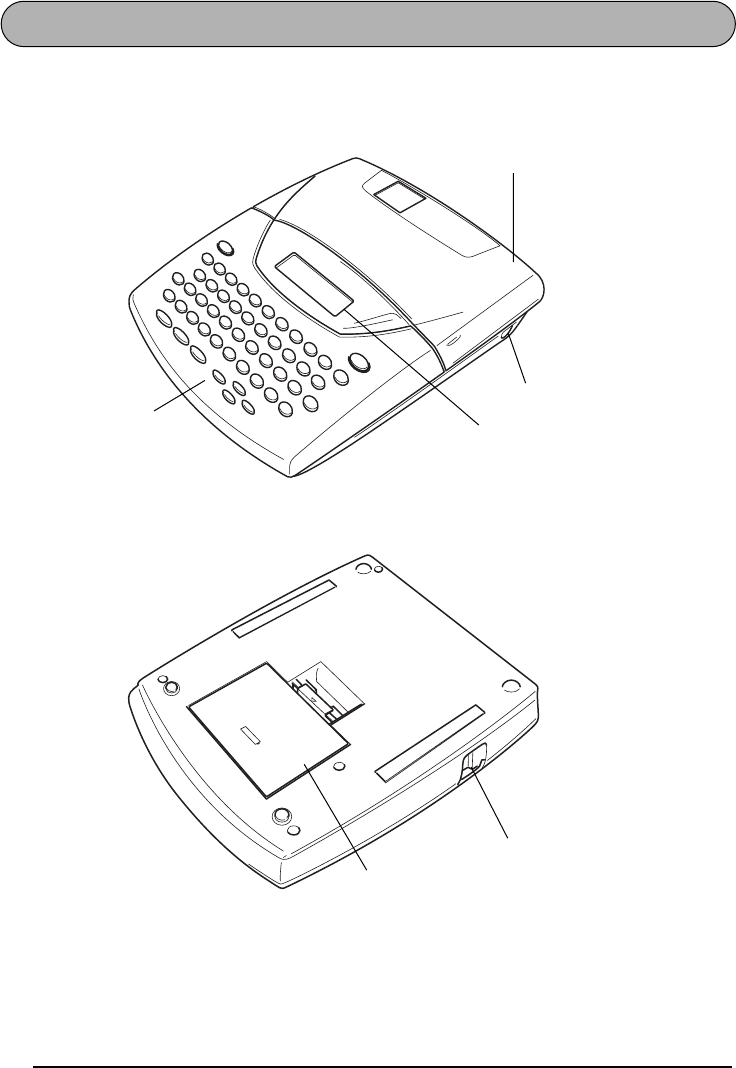
GENERAL DESCRIPTION
TOP VIEW
BOTTOM VIEW
Tape compartment
cover
LCD display
Keyboard
AC adaptor
connector
Tape exit slot
Battery compartment cover
3
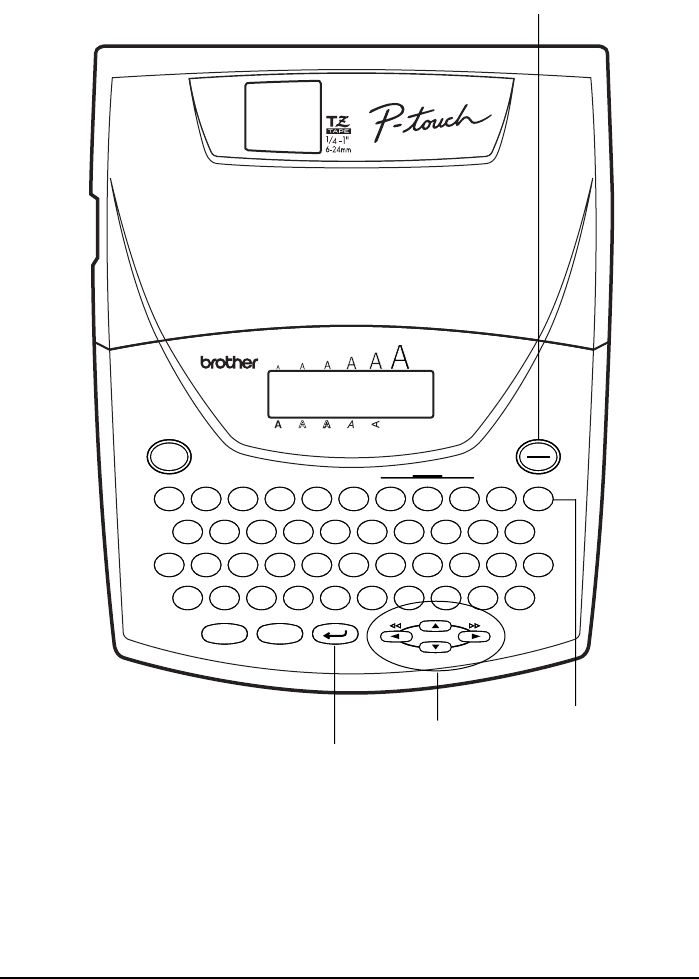
KEYBOARD & LCD DISPLAY
¡
¿éú "
ÇçÑñ -'
üí óá
Alt
Tab
Caps
Font Size Width Style Underline Frame Line out Clear
Symbol Accent
Tab Length
Tape Align Length
A.Format
Stamp Repeat Number
Home
End
Store Recall M.Del
Mirror
Memory Off
Space
ASDFGHJKL :
;
ZXCVBNM
Shift /
,?
.
QWERTYUI OP
!
12
@
#
$
%
¢
3456&*()
7890Del
Print On
Code
¡
¿éú "
ÇçÑñ -'
üí óá
Alt
Feed&Cut
Tab
Caps A.Cut
Font Size Width Style Underline Frame
Memory
Line out Clear
Symbol Accent
Tab Length
Tape Align Length
A.Format
Stamp Repeat Number
Home
End
Store Recall M.Del
Off
Space
ASDFGHJKL :
;
ZXCVBNM
Shift /
,?
.
QWERTYUI OP
!
12
@
#
$
%
¢
3456&*()
7890Del
Print On
Code
UndI/Frm
Length
Wide
Power key
Return key
Cursor keys Delete key

4
GENERAL PRECAUTIONS
• Use only Brother TZ tapes with this machine. Do not use tapes that do not have the
mark.
• Do not pull on the tape being fed from the P-touch. This may damage the tape cassette.
• Do not use the machine in dusty places, and keep it out of both direct sunlight and rain.
• Do not expose the machine to high temperatures or high humidity. Never leave it on the
dashboard or in the back of your car.
• Do not leave any rubber or vinyl on the machine for an extended period of time. Doing so
may cause staining.
• Do not clean the machine with alcohol or other organic solvents. Use a soft, dry cloth only.
• Do not put any foreign objects into or anything on the machine.
• To avoid injuries, do not touch the cutter’s edge.
• Use only the AC adaptor (model AD-60) designed exclusively for this machine. Use of any
other adaptor will void the warranty.
• Do not try to disassemble the AC adaptor.
• When the machine is not being used for a long period of time and it is not necessary to
keep the text files stored in the memory, disconnect the AC adaptor, and remove the batter-
ies to prevent them from leaking and damaging the machine.
• When the AC adaptor is connected, unplugging the adaptor from the electrical outlet
before unplugging it from the machine can delete all text files in the memory, even if bat-
teries are installed.
• Use eight AA alkaline batteries or eight AA manganese batteries in this machine.
5
BATTERIES
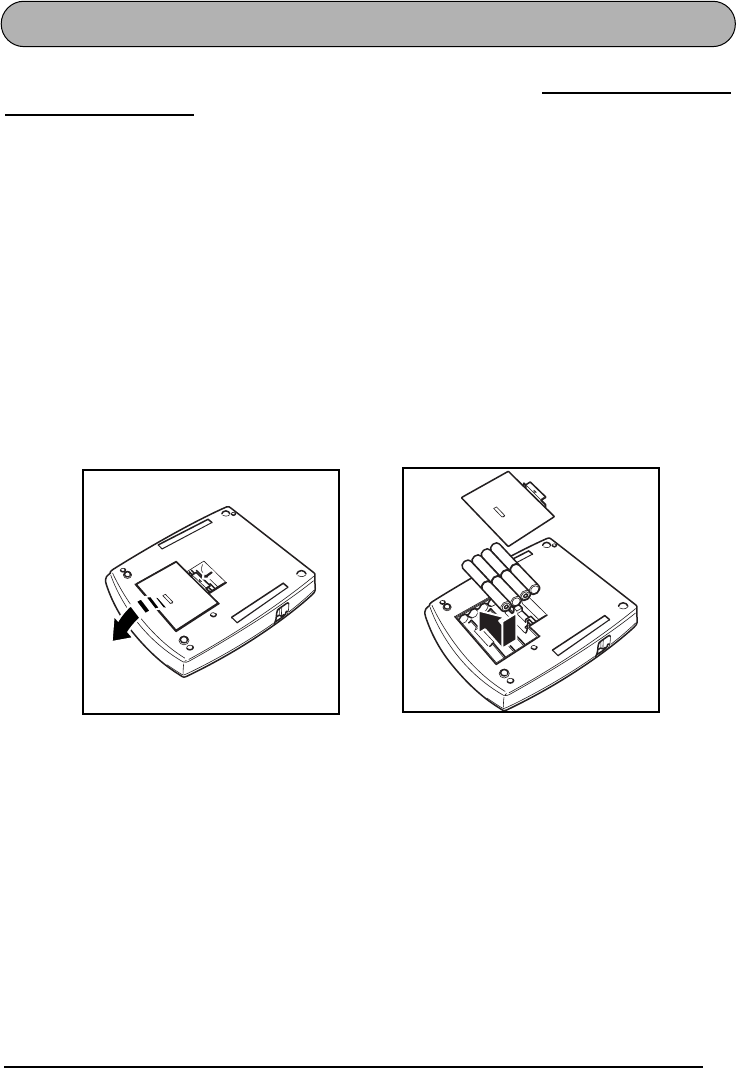
This portable machine can be used anywhere by installing eight (8)
AA alkaline batteries or
AA manganese batteries
. When you change the batteries, always replace all eight at the same
time.
To change the batteries:
1
Remove the battery compartment cover on the back of the machine.
2
If batteries are already installed, remove them.
3
Insert eight new AA alkaline batteries or manganese, making sure that they face the cor-
rect direction.
4
Attach the battery compartment cover.
☞
Be sure to insert the new batteries within five minutes of removing the old ones,
otherwise the text shown in the display and any text files stored in the memory will
be lost (unless the machine is plugged into an AC outlet with the AC adaptor).
Remove the batteries and disconnect the AC adaptor if you do not intend to use this
machine for an extended period of time. When the power is disconnected, all text
shown in the display and stored in the memory will be lost.
6
OPTIONAL AC ADAPTOR
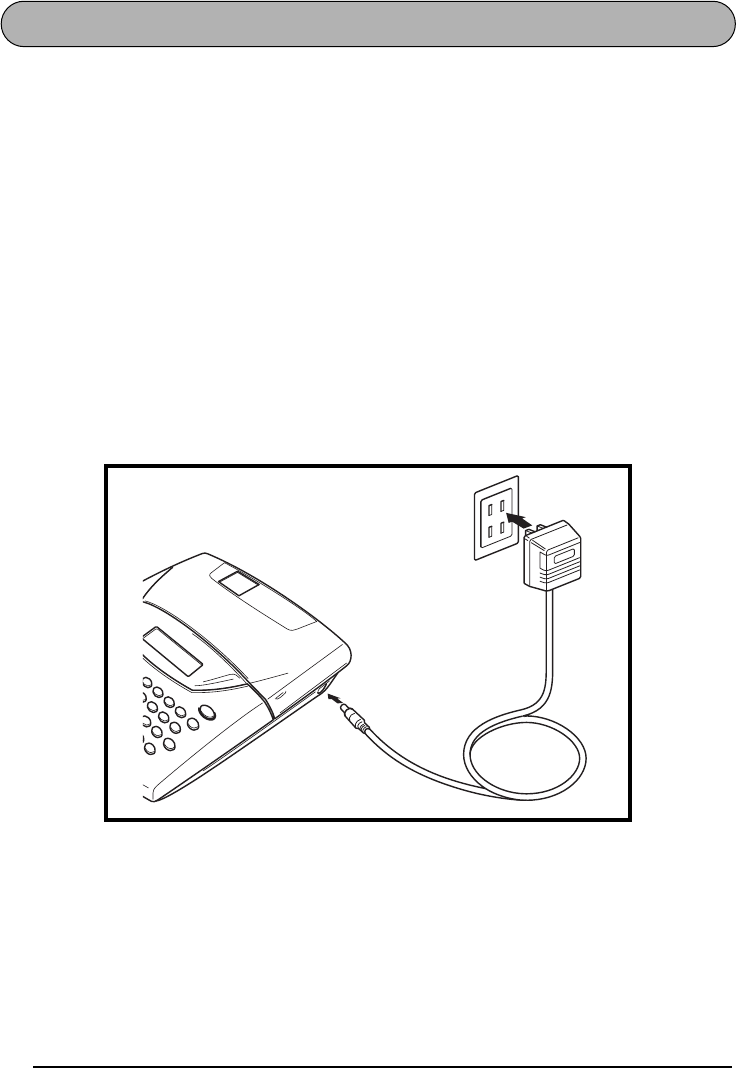
The AC adaptor (model AD-60) allows you to use this machine wherever there is an electrical
outlet.
To connect the optional AC adaptor:
1
Insert the plug on the adaptor cord into the connector marked DC IN 9.5V on the right
side of the machine.
2
Insert the plug on the adaptor into the nearest standard electrical outlet.
☞
Only use the AC adaptor designed exclusively for this machine.
Remove the batteries and disconnect the AC adaptor if you do not intend to use this
machine for an extended period of time. When the power is disconnected, all text
shown in the display and stored in the memory will be lost.
When the AC adaptor is connected, unplugging the adaptor from the electrical out-
let before unplugging it from the machine can delete all text files in the memory,
even if batteries are installed.
It is recommended that you use the AC adaptor when printing large fonts on
1” (24 mm)-wide tape since this operation can quickly drain the batteries.
7
TAPE CASSETTE
A single TZ tape cassette is supplied with this unit. However, since TZ tape cassettes are avail-
able for this machine in a wide variety of colors and sizes, it is possible to make distinctive
color-coded and stylized labels.
In addition, this machine has been designed to allow you to change the tape cassettes quickly
and easily.
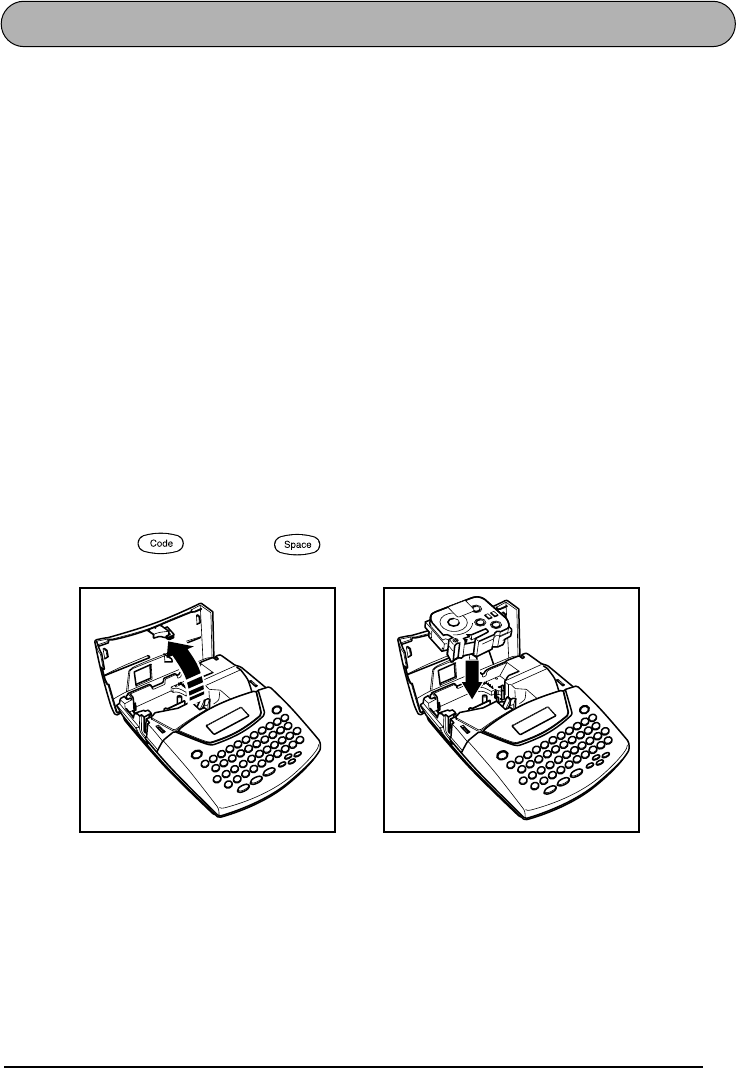
To change the tape cassette:
1
Lift open the tape compartment cover. The installed cassette is also released.
2
If a tape cassette is already installed, remove it by pulling it straight up.
3
If the ink ribbon in the other tape cassette is loose, use your finger to wind the toothed
wheel in the direction of the arrow on the cassette until there is no slack in the ribbon.
Also, make sure that the end of the tape feeds under the tape guides.
☞
If you are using a new tape cassette provided with a stopper, be sure to remove the
stopper.
4
Insert the tape cassette firmly into the tape compartment, making sure that the entire back
of the cassette touches the bottom of the compartment.
☞
When inserting the tape cassette, make sure that the inner ribbon does not catch on
the corner of the metal guide.
5
Close the compartment cover, then turn on the machine if it is off.
6
Hold down and press once to advance the tape and remove any slack.
Feed&Cut
8
ATTACHING LABELS
LAMINATED TAPE
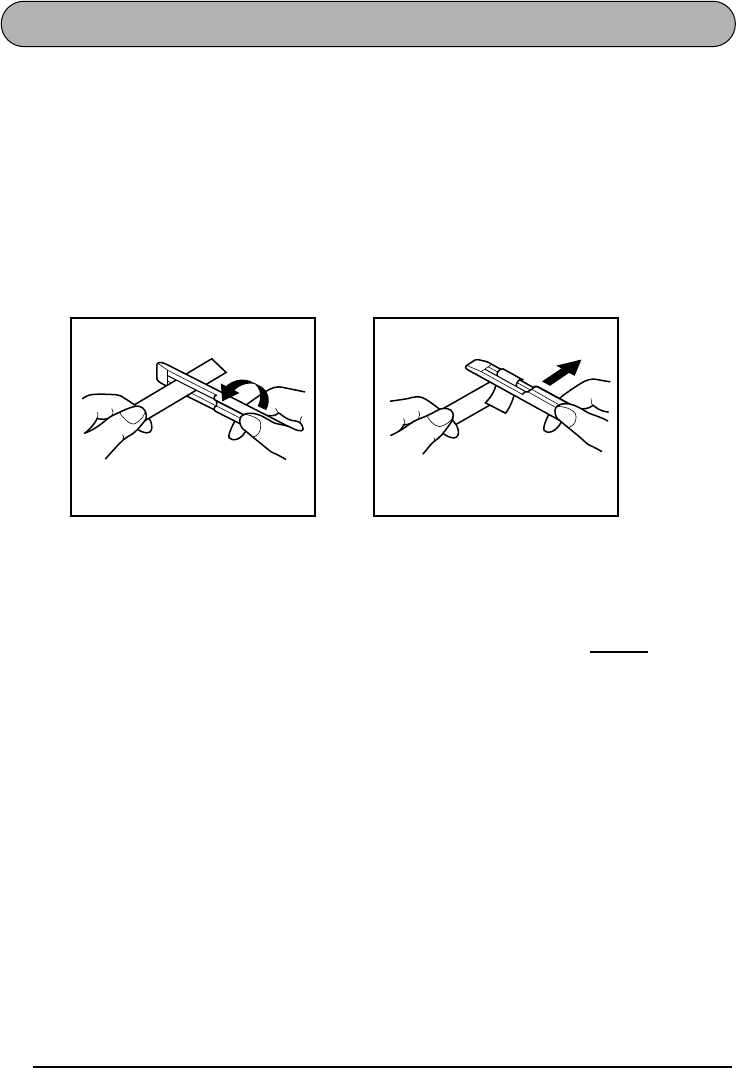
The enclosed stick enables you to easily remove the backing from labels printed on laminated
tapes.
1
Hold the tape in your left hand, with the printed surface facing up, and hold the stick in
your right hand.
2
Pass the tape halfway through the long narrow hole in the stick.
3
Turn the stick three-quarters of a turn towards you and pull the stick away from you as
shown below.
4
Peel off the label backing.
FABRIC TAPE
Fabric tape is used to attach a piece of fabric printed with your text onto garments using an
iron. After printing the text onto fabric tape and cutting off the label using scissors, place the
label on an ironed garment at the location where you wish to attach it in such a way that the
printed text can be read correctly. Cover the label with another piece of cloth and use an iron
set to a medium-high temperature (320 to 356 ˚F (160 to 180 ˚C)) to press down firmly for 10
to 15 seconds. For more details, refer to the instructions included with the fabric tape cassette.
STAMP TAPE
Refer to pages 44 through 46 for a detailed explanation on using the stamp tape to make
stamps.
GH
ABCDEF
ABCDEF
9
PRINT HEAD & ROLLERS
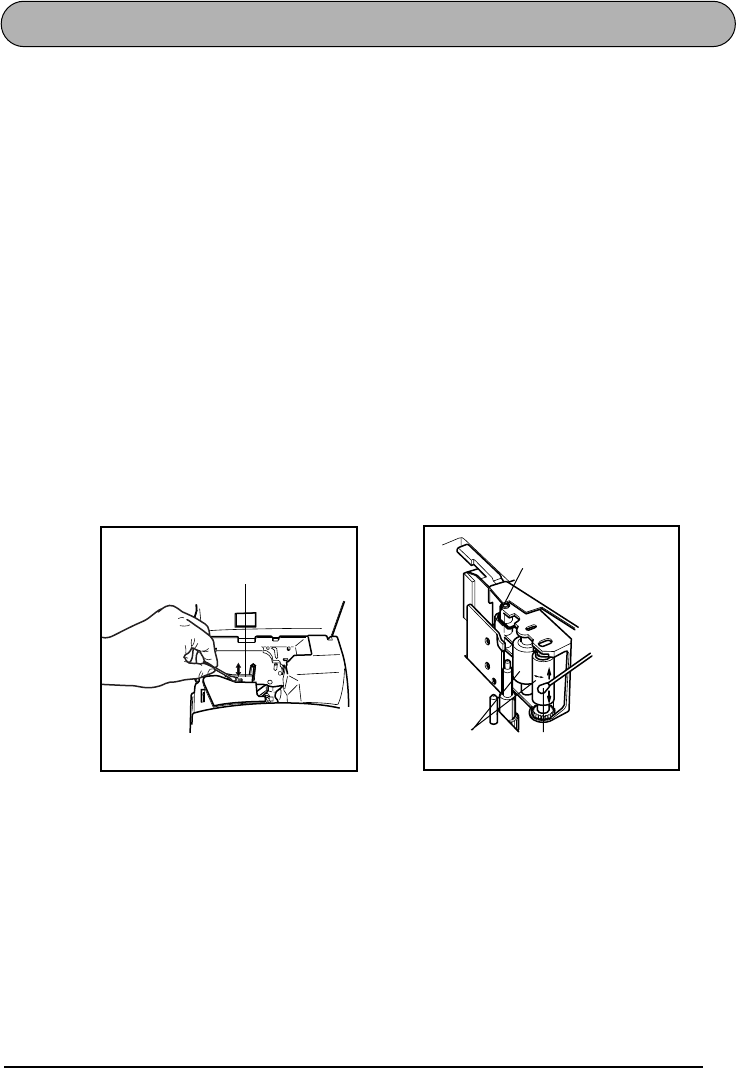
Occasionally, specks of dust or dirt become attached to the machine’s print head and rollers.
This is particularly likely when you are using the unit outdoors or in a very dusty environment.
If a section of the print head is covered with dust, a blank horizontal streak may appear
through the label text. Therefore, as with a tape recorder, the machine’s head may need to be
cleaned from time to time.
To clean the print head and rollers:
1
Turn off the machine.
2
Open the tape compartment cover, then remove the tape cassette if one is installed. The
print head and rollers are located in the tape compartment.
3
Print head: Use a dry cotton swab to gently wipe the print head with an up-and-down
motion.
Rollers: Use a dry cotton swab to wipe each roller with an up-and-down motion while
rotating them with your finger.
4Install a tape cassette, close the tape compartment cover, and then try printing again.
5If dust still remains, repeat steps 3 and 4 using a cotton swab dipped in isopropyl (rub-
bing) alcohol.
If none of the above works, contact your service representative.
Print head Print head
Rollers Cotton swab

10
11
Learning
the Ropes
12
DOOR LABEL EXAMPLE
After you have inserted the batteries and the enclosed tape cassette as explained in the
Getting
Started
chapter, let’s practice using some of the basic functions of your P-touch. We must first
begin by turning on the power to the machine.
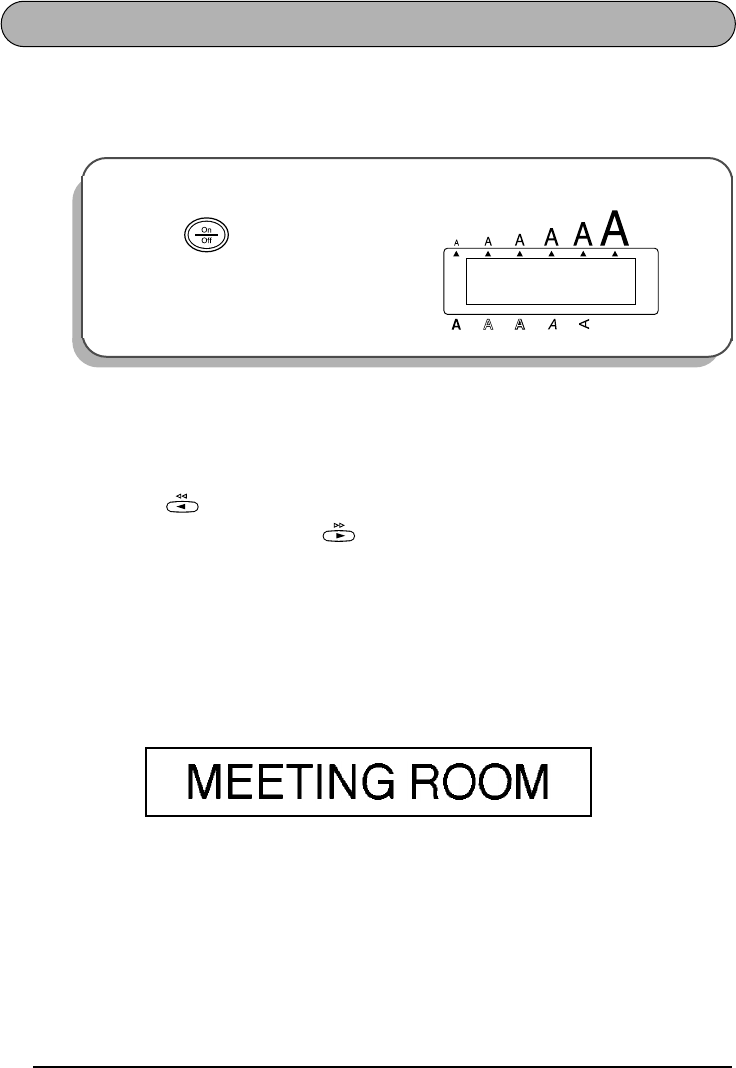
The underline in the LCD display is called the “cursor”. It is like a pointer which shows your
current position and lets you select characters in your text.
The text you create may sometimes be longer than the 11 characters that the LCD display can
show at one time. Therefore, the cursor can be moved to show other parts of the text. Pressing
the left cursor key ( ) moves the cursor to the left so that the left side of the text can be
seen and pressing the right cursor key ( ) moves the cursor to the right so that the right
side of the text can be seen.
Some format settings are shown by the triangular and square indicators around the edge of the
display. The default settings (the selected settings when the power is turned on for the very first
time) have been pre-programmed into the machine and represent the most common settings
for labels. However, you can design your own label to have any format that you wish. Detailed
explanations of the formats can be found on pages 47 through 64.
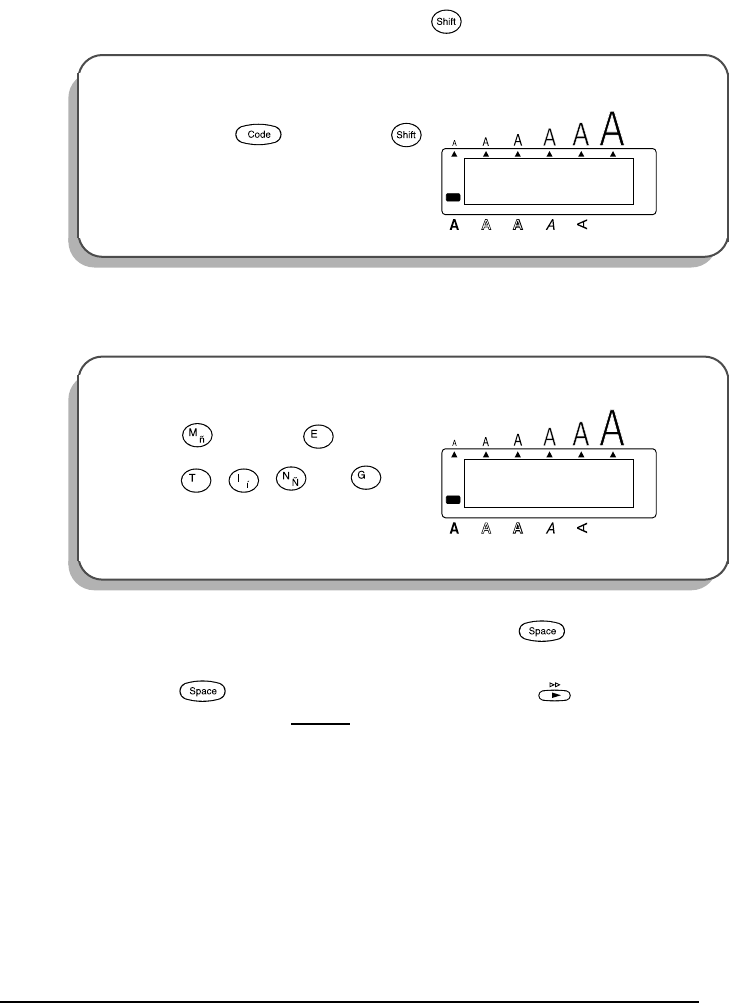
Now, let’s enter the text for our first example, the simple door label shown below.
☞
The label in this example was made using the enclosed 1/2” (12-mm)-wide tape.
To turn on the machine:
1Press in the top right-hand corner
of the keyboard.
1:
_
ABCDEFGHIJKL
Alt
Caps
Undl/Frm
Length
Wide
13
ENTERING THE TEXT
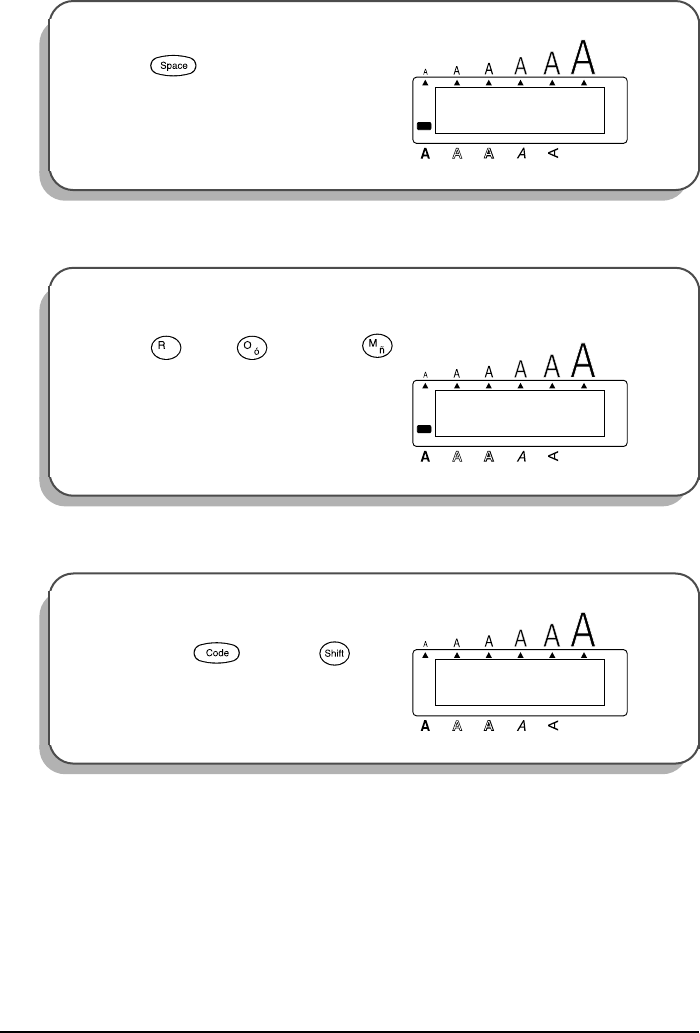
Since all of the text will be in capital letters, we will use the Caps mode, which allows us to
type capital letters continuously without holding down .
Then, let’s type in the text in the same way that you would type on a typewriter or a computer
keyboard.
Also like on a typewriter or computer keyboard, the Space key ( ) allows you to add
blank spaces to the text.
☞
The Space key ( ) is different from the right cursor key ( ), which moves the
cursor through the entered text without adding blank spaces.
To enter Caps mode:
2Hold down and press
once. The Caps indicator on the left side
of the display lights up.
To type in “MEETING”:
3Press once and twice, then
press , , and once
each.
☞
All letters are automatically entered
as capital letters.
Caps
1:
_
ABCDEFGHIJKL
Alt
Undl/Frm
Length
Wide
Caps
Caps
Tape
Length Repeat
1:
MEETING_
ABCDEFGHIJKL
Alt
Undl/Frm
Length
Wide
Caps
Feed&Cut
Feed&Cut
14
Type the second word, “ROOM”, to finish the text.
Now that we are finished entering capital letters, we can exit Caps mode.
Once you have entered the text, you can easily edit it by correcting mistakes or simply adjust-
ing it or its format. For detailed explanations of text editing methods, see pages 34 to 35.
To add a space:
4Press .
To type in “ROOM”:
5Press once, twice, then
once.
☞
Since the text is longer than the LCD
display, “ME” moves off the display to
the left.
To exit Caps mode:
6Hold down and press once.
The Caps indicator goes off.
1:
MEETING _
ABCDEFGHIJKL
Alt
Undl/Frm
Length
Wide
Caps
Feed&Cut
1:
ETING ROOM_
ABCDEFGHIJKL
Alt
Undl/Frm
Length
Wide
Caps
Align Number
Caps
1:
ETING ROOM_
ABCDEFGHIJKL
Alt
Caps
Undl/Frm
Length
Wide
15
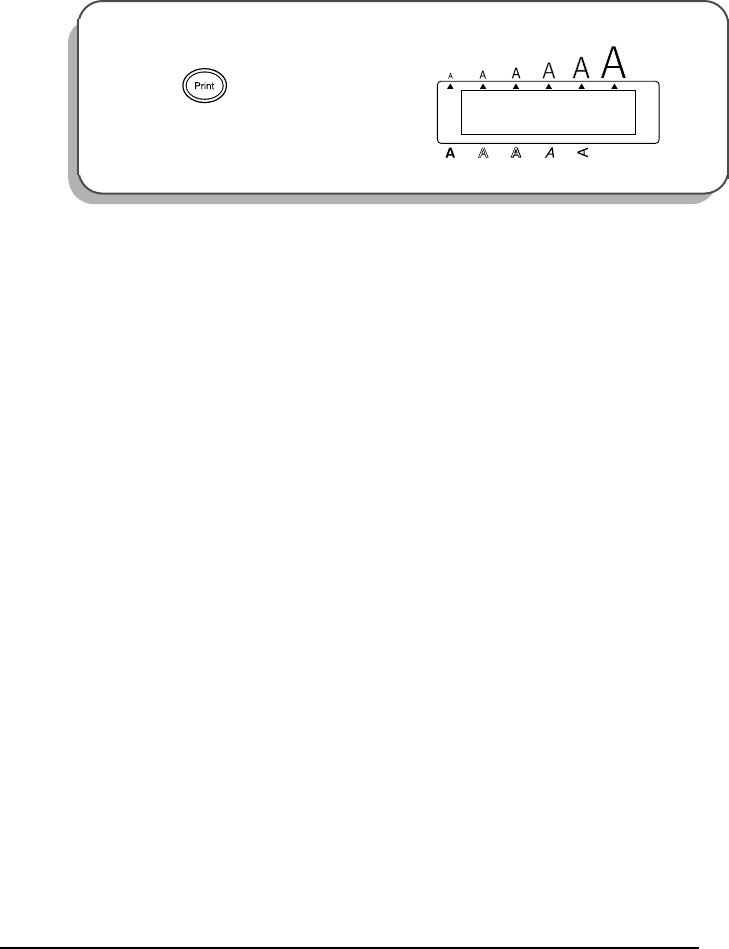
PRINTING THE TEXT
Several format settings are available, however, in this example we will use the default settings
pre-programmed into the machine and print out our label, which is then automatically cut off
after printing is finished.
To print the door label:
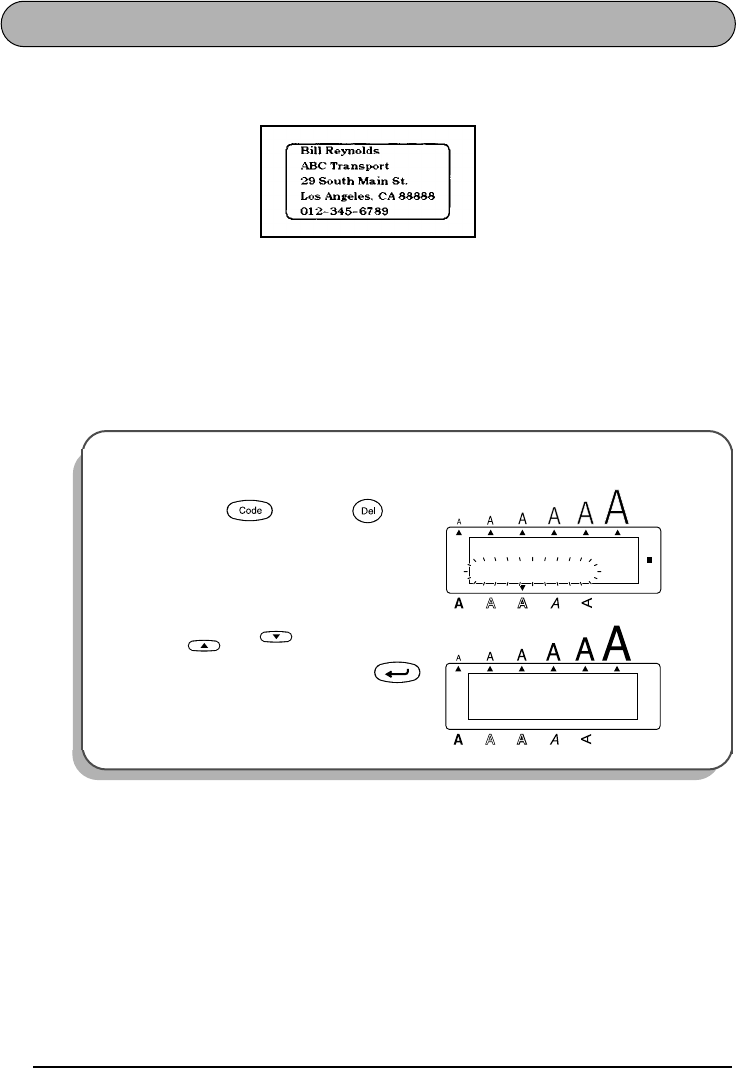
7Press once. The message “COP-
IES 1/1” appears while the label is being
printed.
1/1
COPIES
Alt
Caps
Undl/Frm
Length
Wide
Mirror
16
ADDRESS LABEL EXAMPLE
While making the multi-line address label in this example, we will learn how to create more
decorative labels using the various format settings.
☞
Five-line labels, such as this one, can only be printed on either 3/4” (18-mm) or 1” (24-
mm)-wide tape (see page 31).
Before entering the new text, we must first erase the text shown in the display from the previ-
ous time that the machine was used. When clearing the display, we can choose whether to
erase all of the text and return all format functions (Font, Size, Width, Style, Underline, Frame,
Tape margin, Alignment, Tab length, Mirror printing, and Length) to their default settings or
just to erase the text.
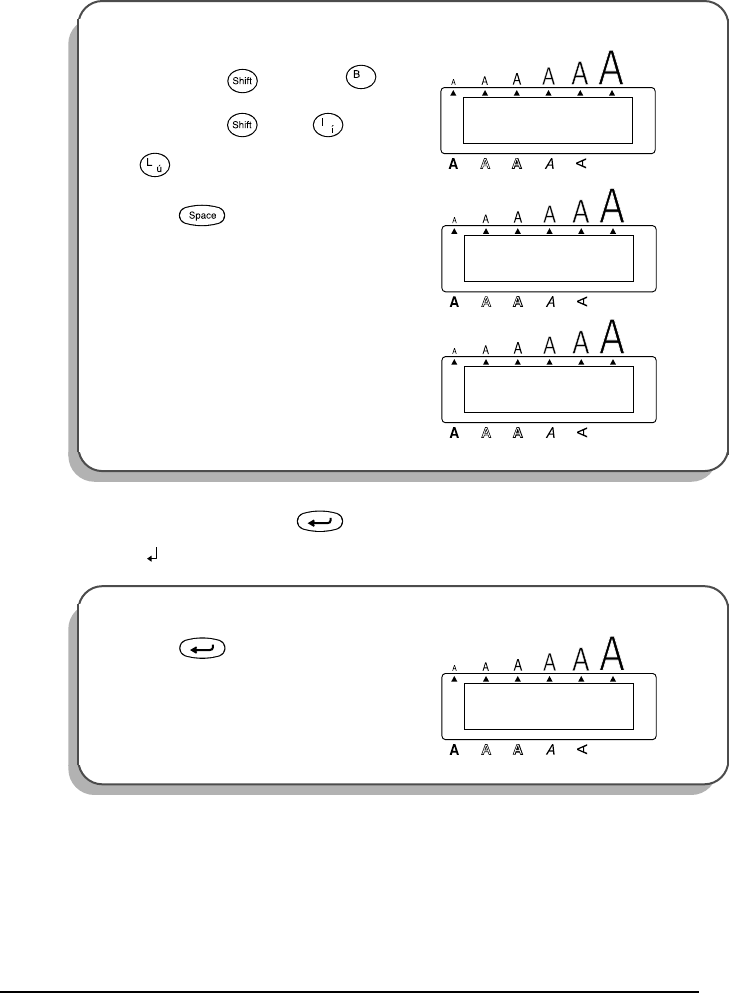
To erase all of the text and reset the format functions:
1Hold down and press once.
2Press or until TEXT&FOR-
MATS is selected, and then press .
Alt
Caps
TEXT&FORMATS
TEXT ONLY
Undl/Frm
Length
Wide
Clear
1:
_
ABCDEFGHIJKL
Alt
Caps
Undl/Frm
Length
Wide
Home
End
17
ENTERING THE TEXT
Let’s begin by typing in the first row of text, the name “Bill Reynolds”.
In a multi-line label, the return key ( ) is used to end one line and start the next one.
The return mark ( ) indicates the end of the line.
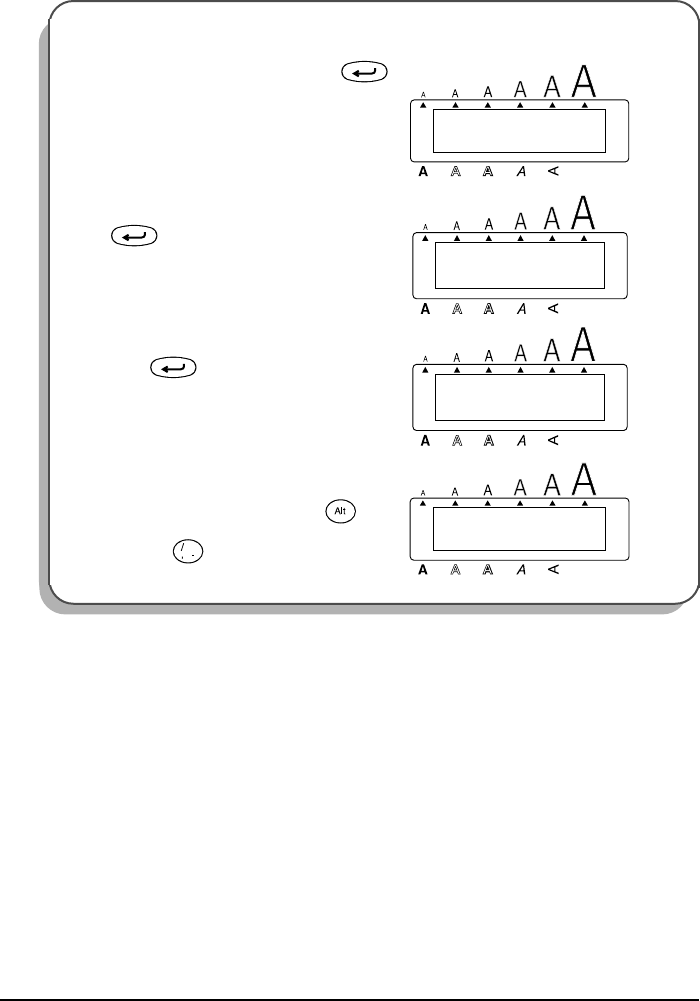
To type in “Bill Reynolds”:
3Hold down and press once,
then release . Press once, then
twice.
4Press .
5Type in “Reynolds”.
☞
Again, the text is longer than the LCD
display. So “Bil” moves off the display
to the left.
To end the first line and begin another one:
6Press .
1:
Bill_
OK TO
Alt
Caps
Undl/Frm
Length
Wide
Caps
Caps Repeat
1:
Bill _
OK TO
Alt
Caps
Undl/Frm
Length
Wide
Feed&Cut
1:
l Reynolds_
OK TO
Alt
Caps
Undl/Frm
Length
Wide
2:
_
1:
Bill Reynol
Alt
Caps
Undl/Frm
Length
Wide
18
Now, we can enter the company name, address, and telephone number: ABC Transport; 29
South Main St.; Los Angeles, CA 88888; 012-345-6789.
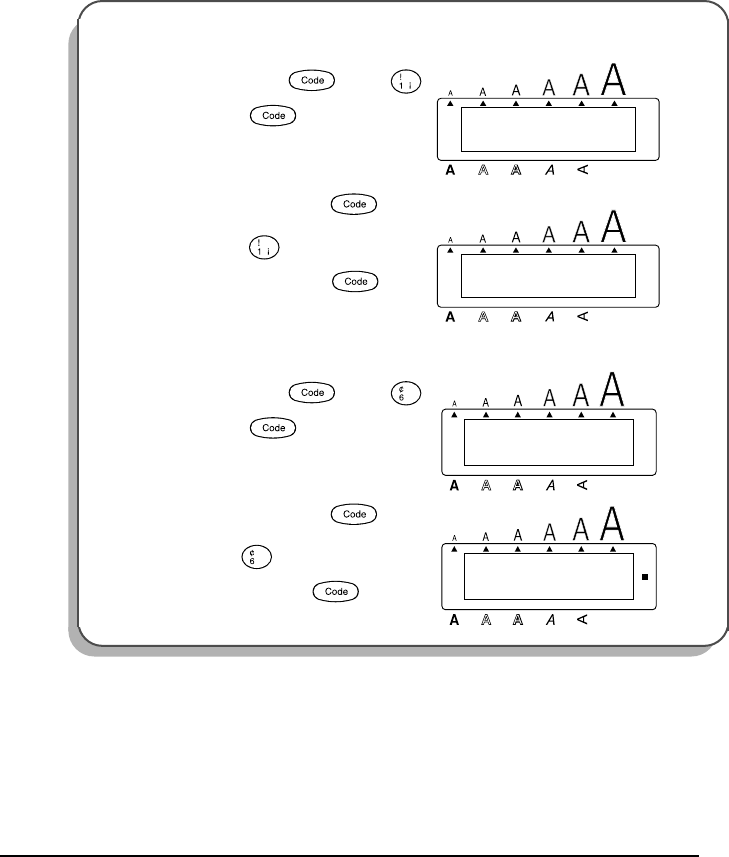
To type in the company name, address, and telephone number:
7Type “ABC Transport”, then press .
8Type “29 South Main St.”, then press
.
9Type “Los Angeles, CA 88888”, then
press .
0Type in “012-345-6789”.
☞
To type in “-”, hold down and
press .
3:
_
2:
ABC Transpo
Alt
Caps
Undl/Frm
Length
Wide
4:
_
3:
29 South Ma
Alt
Caps
Undl/Frm
Length
Wide
5:
_
4:
Los Angeles
Alt
Caps
Undl/Frm
Length
Wide
5:
2-345-6789_
4:
s Angeles
Alt
Caps
Undl/Frm
Length
Wide
Symbol
19
FORMATTING THE TEXT
Now the text has been entered as we wish. If it were printed, the standard default settings
would be used. The text would be aligned on the left side with 1″ (25 mm) margins and would
not be framed or underlined. In addition, the characters would be auto-sized (Auto) and
printed using the HELSINKI font and NORMAL style settings. For more details concerning for-
mat settings, please see pages 47 and 64.
For this label, though, let’s assume we want a different style of text: BRUSSELS font, framed,
and printed with NARROW (1/3” (8 mm)) tape margins. Therefore, we must change the format
.
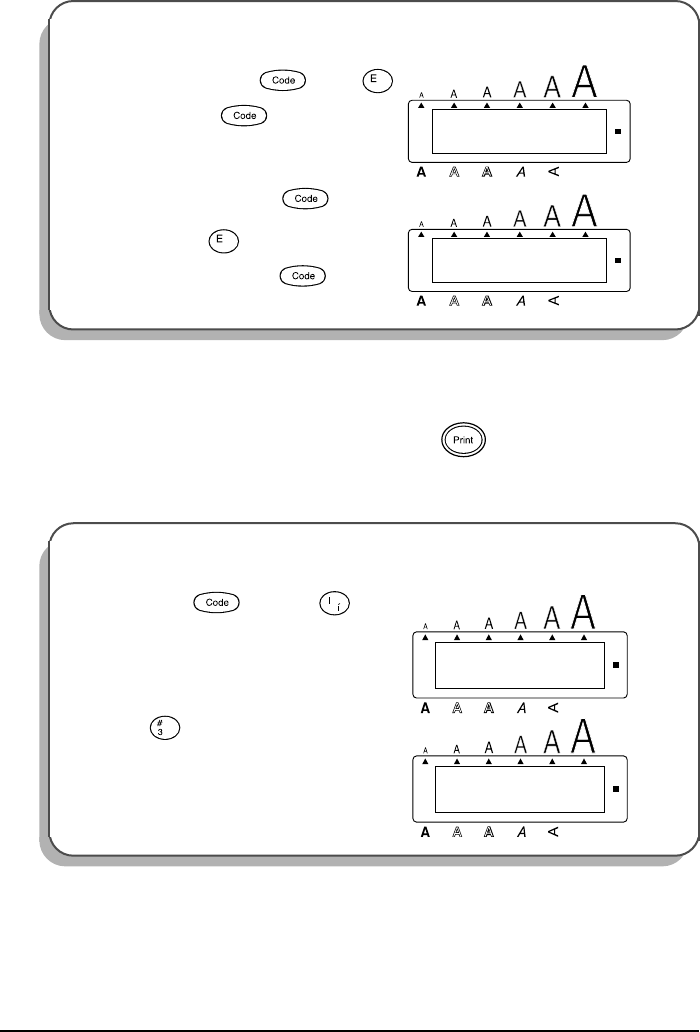
To select the BRUSSELS font setting:
AWhile holding down , press
once, and keep held down to dis-
play the current font setting.
BWhile still holding down , con-
tinue pressing until BRUSSELS is
displayed, and then release .
To select the ROUND frame setting:
CWhile holding down , press
once, and keep held down to dis-
play the current frame setting.
DWhile still holding down , con-
tinue pressing until ROUND is dis-
played, and then release .
HELSINKI
FONT
Alt
Caps
Undl/Frm
Length
Wide
Font
BRUSSELS
FONT
Alt
Caps
Undl/Frm
Length
Wide
Font
OFF
FRAME
Alt
Caps
Undl/Frm
Length
Wide
Frame
ROUND
FRAME
Alt
Caps
Undl/Frm
Length
Wide
Frame
20
Different format settings can be chosen either before or after the text is entered. The procedure
shown above can be used to change the other format settings.
PRINTING THE TEXT
If we want only one copy of the text, we could just press to print it. However, let’s
assume that we have three letters onto which we wish to attach address labels. Therefore, we
need to print three copies of the same text.
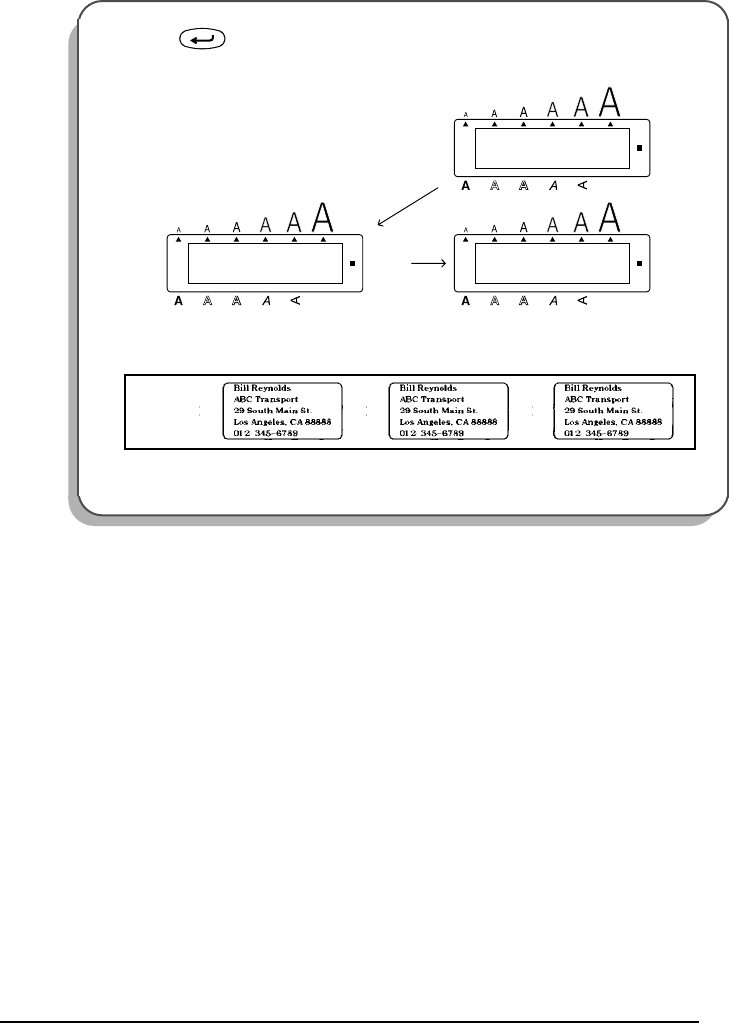
To select the NARROW tape margin setting:
EWhile holding down , press
once, and keep held down to dis-
play the current tape margin setting.
FWhile still holding down , con-
tinue pressing until NARROW is dis-
played, and then release .
To print three copies of the label:
GHold down and press once.
HPress .
FEED
FULL
Alt
Caps
Undl/Frm
Length
Wide
Tape
FEED
NARROW
Alt
Caps
Undl/Frm
Length
Wide
Tape
Mirror
UNTIL 1–9?
COPIES
Alt
Caps
Undl/Frm
Length
Wide
Repeat
UNTIL 3
COPIES
Alt
Caps
Undl/Frm
Length
Wide
Width
21
With these examples, we have covered many of the basic features of your P-touch so that you
can begin creating your own customized labels. If you have any questions about any of the
functions or keys, refer to the appropriate explanation in the following section.
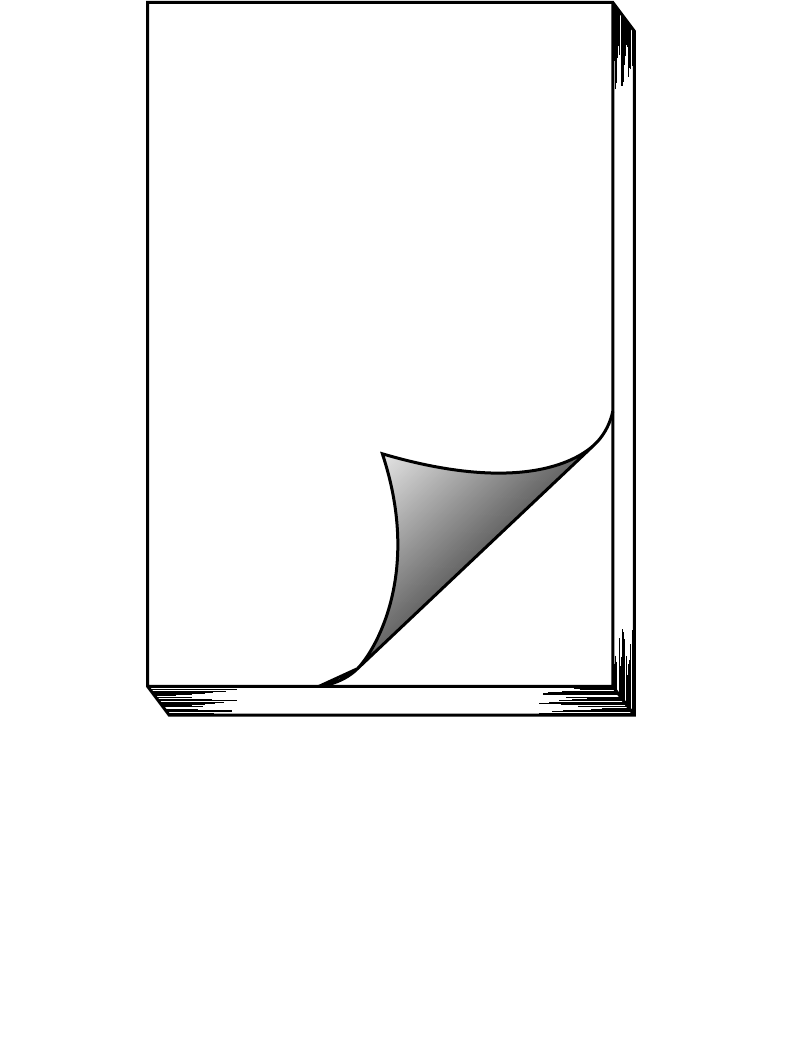
IPress . The number of each copy is displayed while it is being printed.
JAfter the tape is automaticcally cut off, use scissors to cut along the cutting guide
and separate the labels.
1/3
COPIES
2/3
COPIES
3/3
COPIES
Alt
Caps
Alt
Caps
Alt
Caps
Undl/Frm
Length
Wide
Undl/Frm
Length
Wide
Undl/Frm
Length
Wide
✂
✂
✂

22
23
For Your
Information
24
POWER KEY
The power key ( ) is located in the top right-hand corner of the keyboard. If batteries
have been installed or the machine has been plugged in using the optional AC adaptor, the
previous session’s information is displayed when the machine is turned on. This feature allows
you to stop work on a label, turn off the machine, and return to it later without having to re-
enter the text.
The machine will automatically turn off if no key is pressed within 5 minutes. The machine’s
internal memory stores the current session’s information and displays it when you turn on the
machine again.
To turn on the machine:
●Press . The previous session’s information appears in the LCD display.
To turn off the machine:
●Press . The current session’s information is stored in the internal memory.
25
CURSOR KEYS
The machine’s LCD display shows two rows of 11 characters; however, the text that you create
can be up to 99 characters long. You can review and edit your text by using the cursor keys to
move the cursor so that different parts are shown in the display.
LEFT CURSOR KEY
To move the cursor one character to the left:
●Press once.
To move the cursor several characters to the left:
●Hold down until the cursor moves to the desired position.
To move the cursor to the beginning of the current line:
●Hold down and press .
RIGHT CURSOR KEY
To move the cursor one character to the right:
●Press once.
To move the cursor several characters to the right:
●Hold down until the cursor moves to the desired position.
To move the cursor to the end of the current line:
●Hold down and press .
26
UP CURSOR KEY
To move the cursor up to the previous line:
●Press once.
☞
If the cursor is in the first line of text, it will move to the beginning of the line.
To move the cursor up several lines:
●Hold down until the cursor moves to the desired position.
To move the cursor to the beginning of the entire text:
●Hold down and press .
DOWN CURSOR KEY
To move the cursor down to the following line:
●Press once.
☞
If the cursor is in the last line of text, it will move to the end of the line.
To move the cursor down several lines:
●Hold down until the cursor moves to the desired position.
To move the cursor to the end of the entire text:
●Hold down and press .
Home
Home
Home
End
End
End
27
CODE, ALT & SHIFT KEYS
Most characters can be entered simply by pressing their keys. However, to use special func-
tions or to enter capital letters, accented characters and some symbols, the following special
keys are necessary.
CODE KEY
To use a function printed above a key:
●Hold down and press the key immediately below the desired function.
EXAMPLE
To start the Symbol function:
●Hold down and press
once.
1:
ABC_
ABCDEFGHIJKL
Alt
Caps
Undl/Frm
Length
Wide
1:
ABC_
Alt
Caps
Undl/Frm
Length
Wide
T
M
Symbol
28
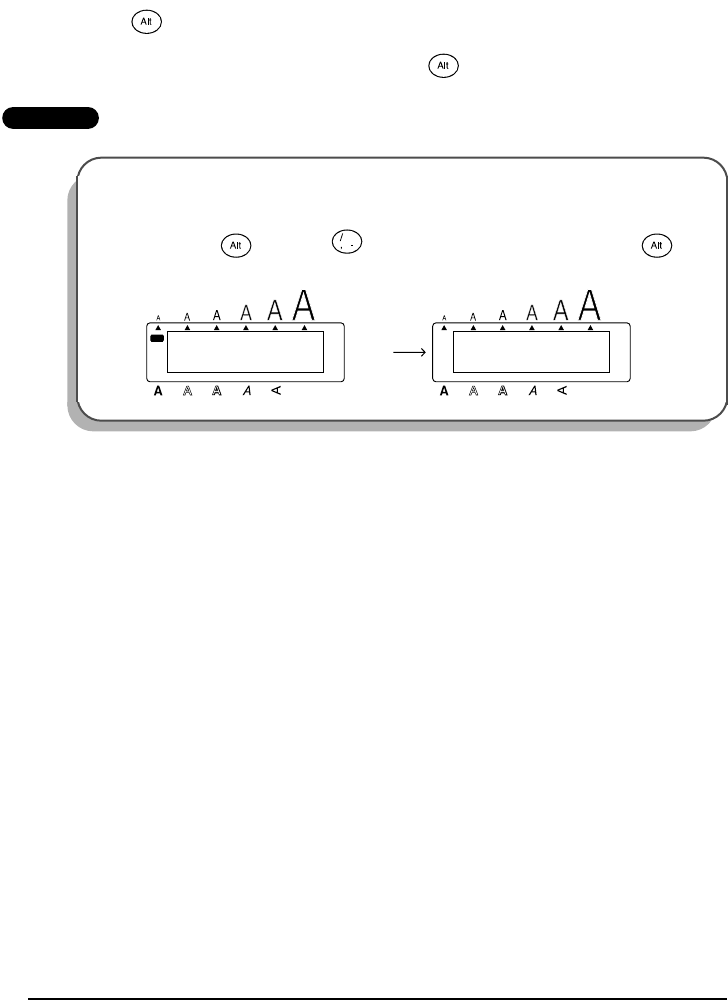
ALT KEY
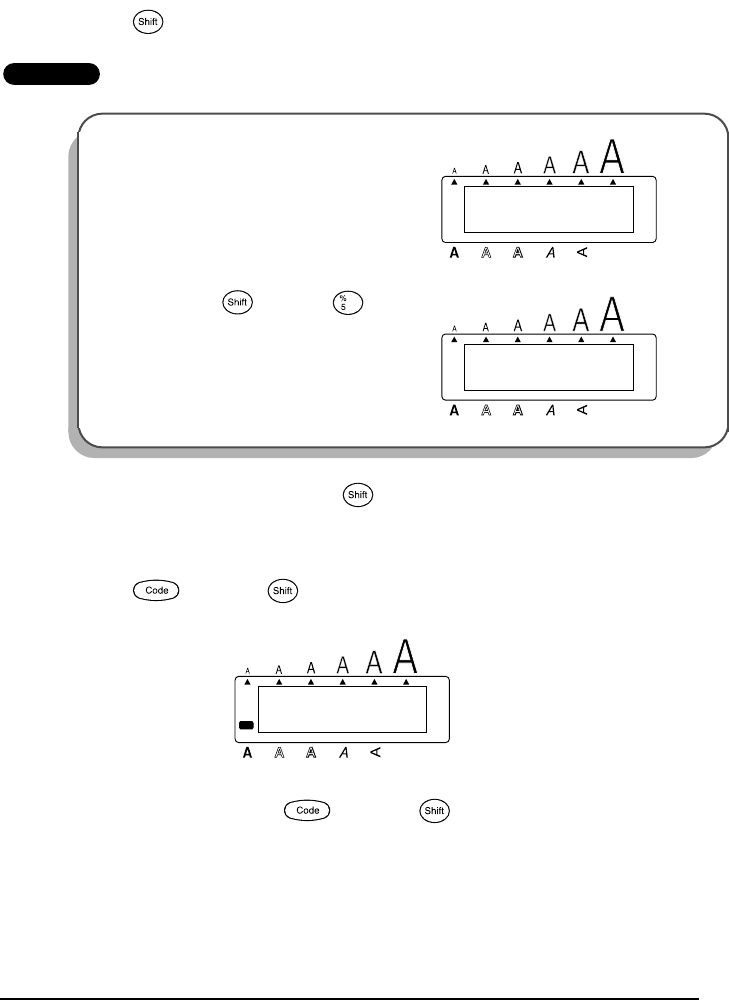
To type in characters printed in color on the right-hand side of the keys:
●Hold down and press the key of the desired character written in color. The Alt indi-
cator on the left side of the display lights up while is held down.
EXAMPLE
To type in “–”:
●Hold down and press once. The Alt indicator lights up while is
held down.
Symbol
Symbol
Symbol Symbol
1:
012_
LENGTH inch
1:
012-_
LENGTH inch
Caps
Alt
Caps
Alt
Undl/Frm
Length
Wide
Undl/Frm
Length
Wide
29
SHIFT KEY
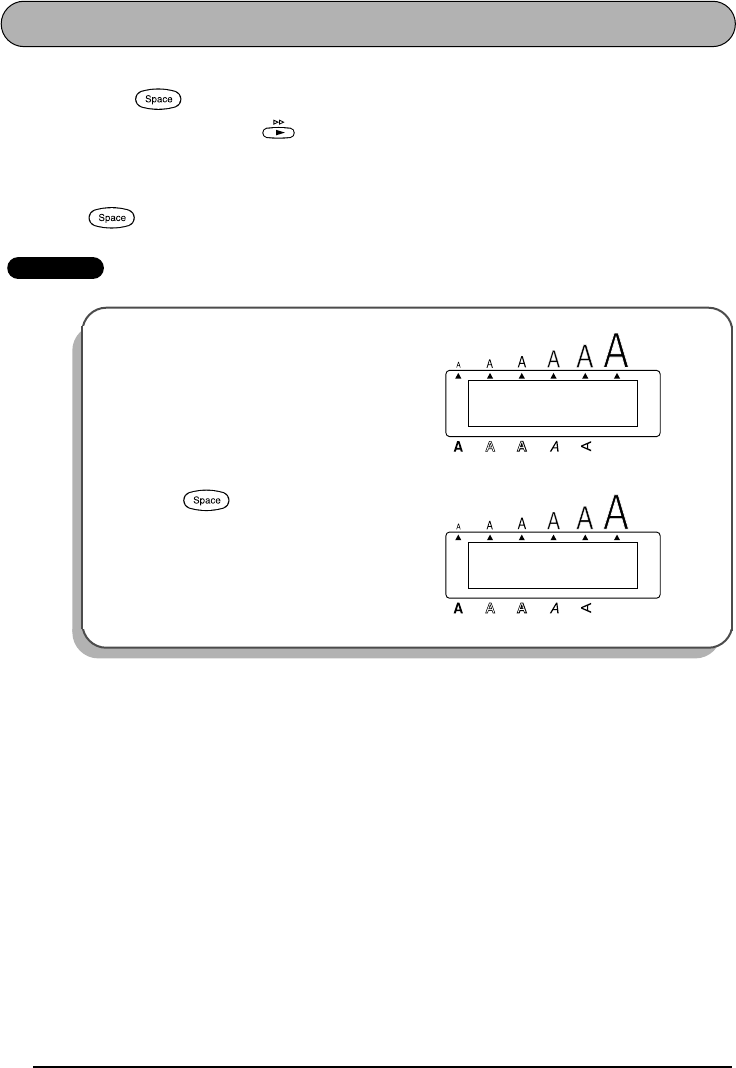
To type in a capital letter or a symbol printed in the top left-hand corner of a key:
●Hold down and press the key of the desired letter or symbol.
EXAMPLE
The Caps mode is similar to holding down . It allows you to type capital letters continu-
ously.
To type in many capital letters:
1Hold down and press . The Caps indicator on the left side of the display lights
up.
2Press the keys of the desired letters or symbols.
3To exit Caps mode, hold down and press . The Caps indicator goes off.
To type in “%”:
●Hold down and press .
Caps
1:
5_
ABCDEFGHIJKL
Alt
Caps
Undl/Frm
Length
Wide
1:
5%_
ABCDEFGHIJKL
Alt
Caps
Undl/Frm
Length
Wide
Caps
Underline
Caps
Caps
1:
_
ABCDEFGHIJKL
Alt
Caps
Undl/Frm
Length
Wide
Caps
30
SPACE KEY
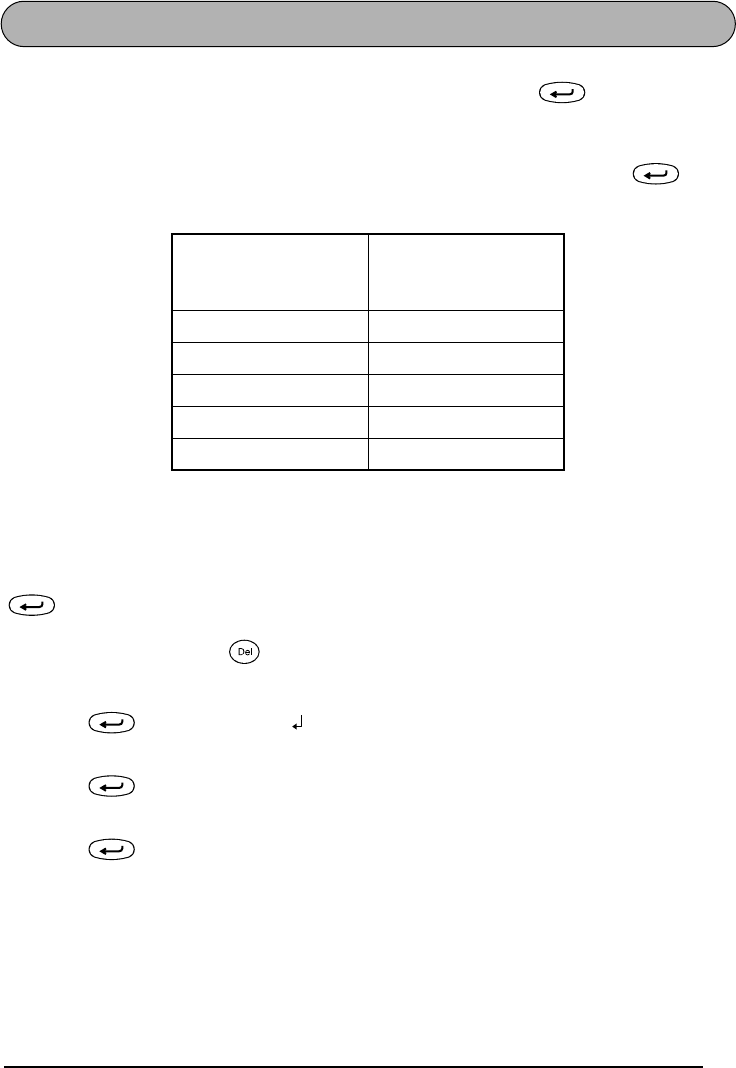
The Space key ( ) lets you add blank spaces between characters in your text. It is differ-
ent from the right cursor key ( ), which just moves the cursor without adding blank
spaces.
To add a space:
●Press .
EXAMPLE
To add a space:
●Press .
Feed&Cut
Feed&Cut
1:
J._
ABCDEFGHIJKL
Alt
Caps
Undl/Frm
Length
Wide
1:
J. _
ABCDEFGHIJKL
Alt
Caps
Undl/Frm
Length
Wide
Feed&Cut
31
RETURN KEY
Like on a typewriter or word processor, this machine’s return key ( ) is used to end a
line of text and start another one. When you have finished entering one line, press the return
key to make a new line and move the cursor to it.
☞
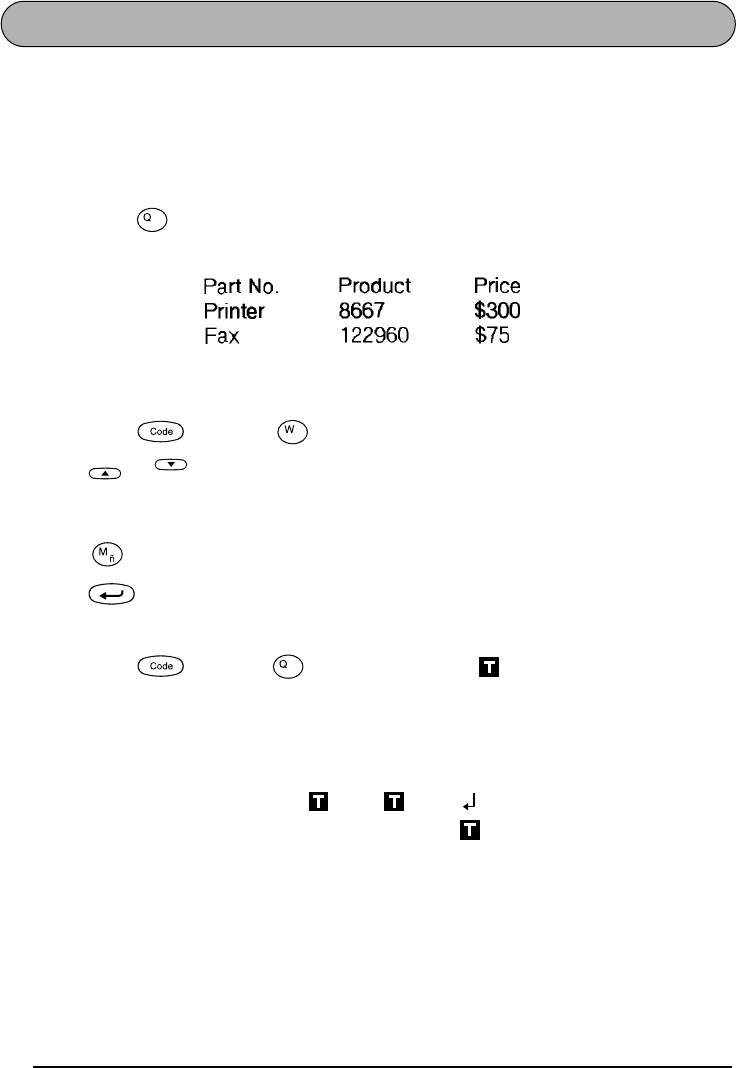
A single block can only contain a maximum of five text lines. If you press when
the cursor is located in the fifth line, the error message “5 LINE LIMIT!” will appear.
The return key can also be used to select an item from a list (e.g., add a symbol or accented
character to the text) or to apply a selected setting.
Some questions asking you to confirm a command may appear on the LCD display, especially
when the function that you have chosen will delete or affect files. In these cases, pressing
is like answering “yes”.
☞
To answer “no”, press . Refer to
DELETE KEY
on page 34.
To add a new line:
●Press . The return mark ( ) appears to indicate the end of the line.
To select an item from a list:
●Press .
To answer “yes”:
●Press .
Tape widths Maximum number
of lines that can be
printed
1/4” (6 mm) 1
3/8” (9 mm) 2
1/2” (12 mm) 3
3/4” (18 mm) 5
1” (24 mm) 5
Clear
32
TAB FUNCTION
This function allows you to separate sections of a line of text by adding tabs. This enables you
to create perfectly aligned columns without having to type in several spaces. All tabs have the
same length and are measured from either the beginning of the line or the previous tab if there
is more than one. The tab length can be set between 0.0” and 11.8” (0.0 and 30.0 cm).
☞
The text can contain no more than 50 tabs. If 50 tabs have already been added to the
text when is pressed, the error message “TAB LIMIT!” appears.
To set the tab length:
1Hold down and press once. The current tab length is displayed.
2Press or until the desired length is displayed or use the number keys to type in
the length.
☞
To change the units (inches or centimeters) used to display the tab lengths, press
until the desired units are displayed.
3Press .
To add a tab:
●Hold down and press once. The tab mark ( ) appears in the text to indi-
cate the position of the tab.
☞
If the text in front of a tab extends past the point where the next section of text
should start, the text will instead start at the following tab position.
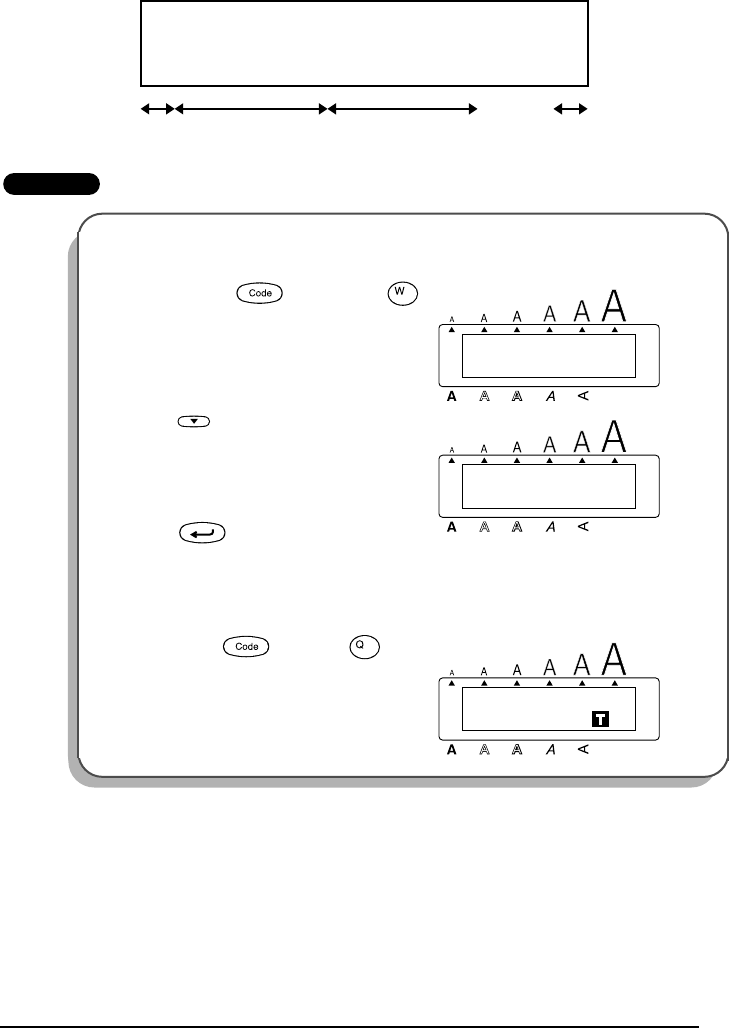
For example, if the tab length is set to 2” and the following text is typed in:
Tab
Tab Length
Home
End
Tab
2:
JKLMNOPQRST U
1:
ABC DEF GHI
33
the label shown below will be printed
EXAMPLE
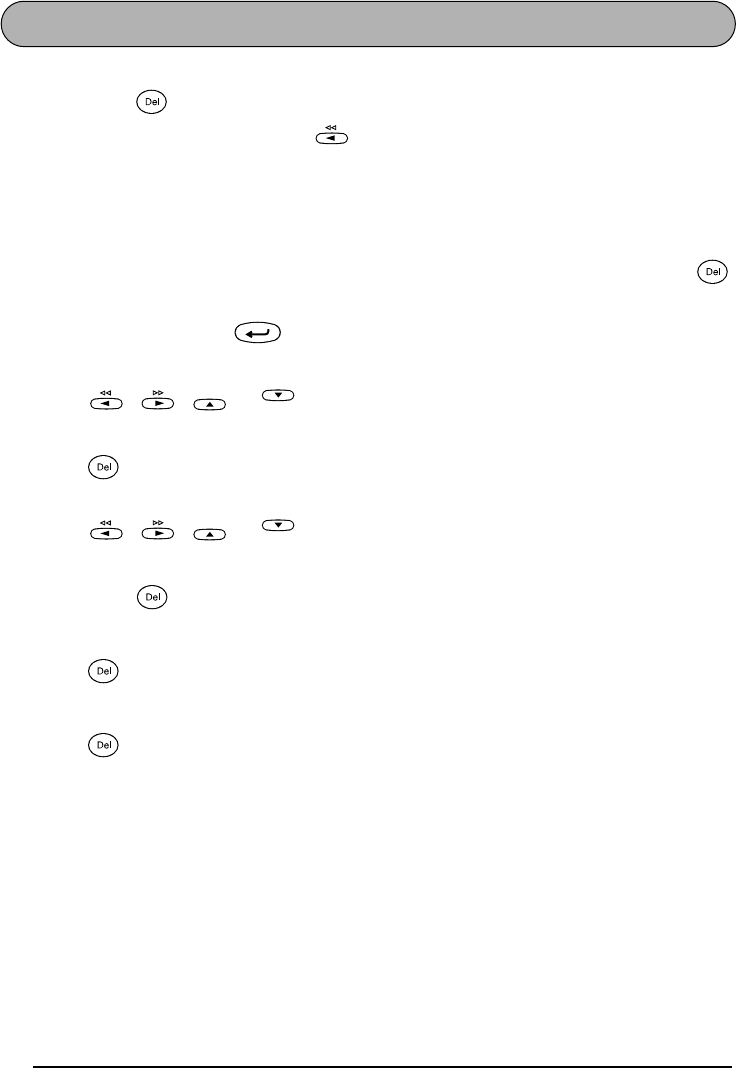
To set the tab length to 1”:
1Hold down and press
once.
2Press until 1.0 is displayed.
3Press .
To add a tab:
●Hold down and press
once.
JKLMNOPQRST U
ABC DEF GHI
Margin Tab (2 inch) Tab (2 inch) Margin
Alt
Caps
TAB LENGTH
2.0inch
Undl/Frm
Length
Wide
Tab Length
Alt
Caps
TAB LENGTH
1.0inch
Undl/Frm
Length
Wide
End
Alt
Caps
1:
Part No.
ABCDEFGHIJKL
Undl/Frm
Length
Wide
Tab
34
DELETE KEY
The delete key ( ) allows you to remove characters to the left of the cursor’s current posi-
tion. It differs from the left cursor key ( ), which only moves the cursor without deleting
any characters.
The delete key can also be used to quit most functions and return to the previous display with-
out changing the text.
Some questions asking you to confirm a command may appear on the LCD display, especially
when the function that you have chosen will delete or affect files. In these cases, pressing
is like answering “no”.
☞
To answer “yes”, press . Refer to
RETURN KEY
on page 31.
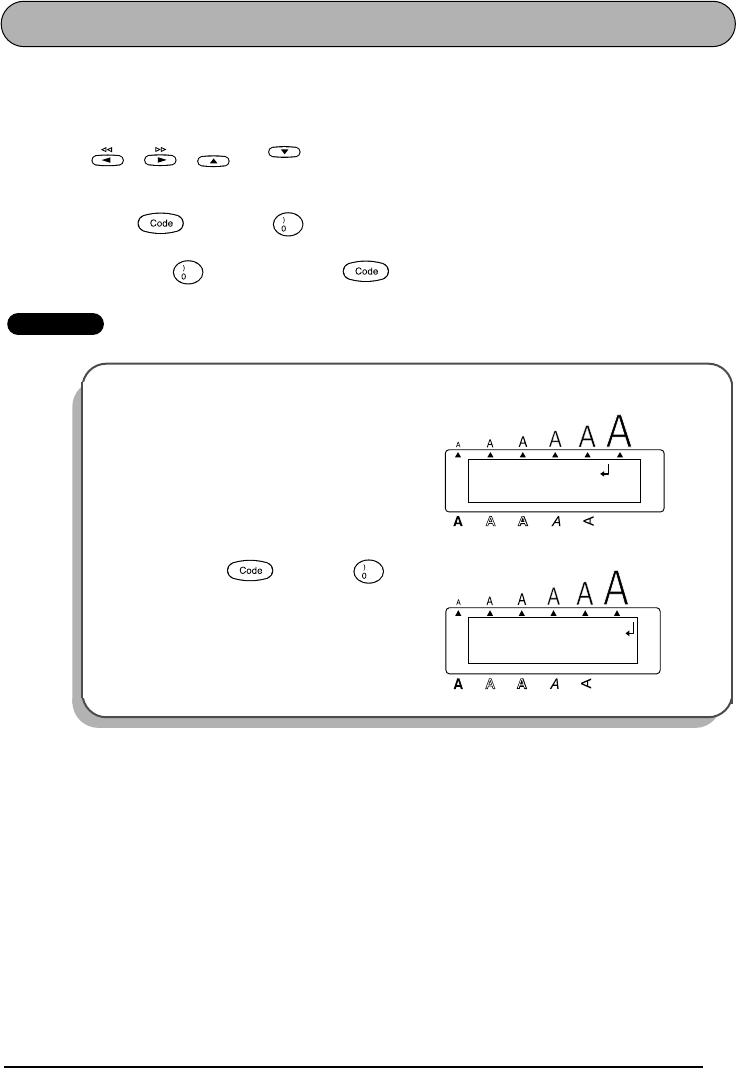
To delete one character:
1Press , , or to position the cursor below the character immediately
to the right of the character that you wish to delete.
2Press once.
To delete a sequence of characters:
1Press , , or to position the cursor below the character immediately
to the right of the last character that you wish to delete.
2Hold down until all of the characters that you wish to delete are deleted.
To quit a function without changing your text:
●Press to return to your text.
To answer “no”:
●Press .
Clear
Clear
Home
End
Clear
Home
End
Clear
Clear
Clear
35
LINE OUT FUNCTION
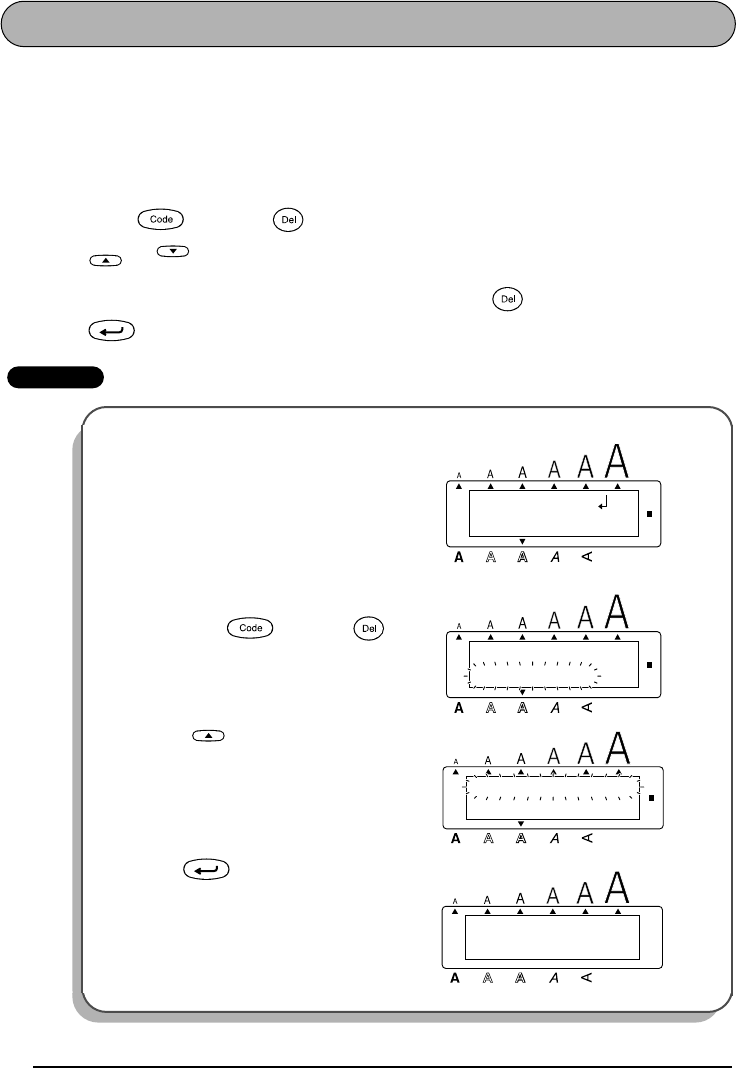
With the Line Out function, you can easily remove an entire line of text.
To delete a line of text:
1Press , , or to position the cursor within the line of text that you
wish to delete.
2Hold down and press once.
☞
Each time is pressed while is held down, one line of text is deleted.
EXAMPLE
To delete “012-345-6789”:
●Hold down and press
once.
Home
End
Line Out
Line Out
Alt
Caps
2:
2-345-6789_
1:
s Garden Undl/Frm
Length
Wide
Line Out
2:
_
1:
K’s Garden
Alt
Caps
Undl/Frm
Length
Wide
36
CLEAR FUNCTION
When clearing the display before entering new text, the Clear function can be used to choose
whether all of the text is erased and all format functions (Font, Size, Width, Style, Underline,
Frame, Tape margin, Alignment, Tab length, Mirror printing, and Length) are returned to their
default settings, or whether just the text is erased.
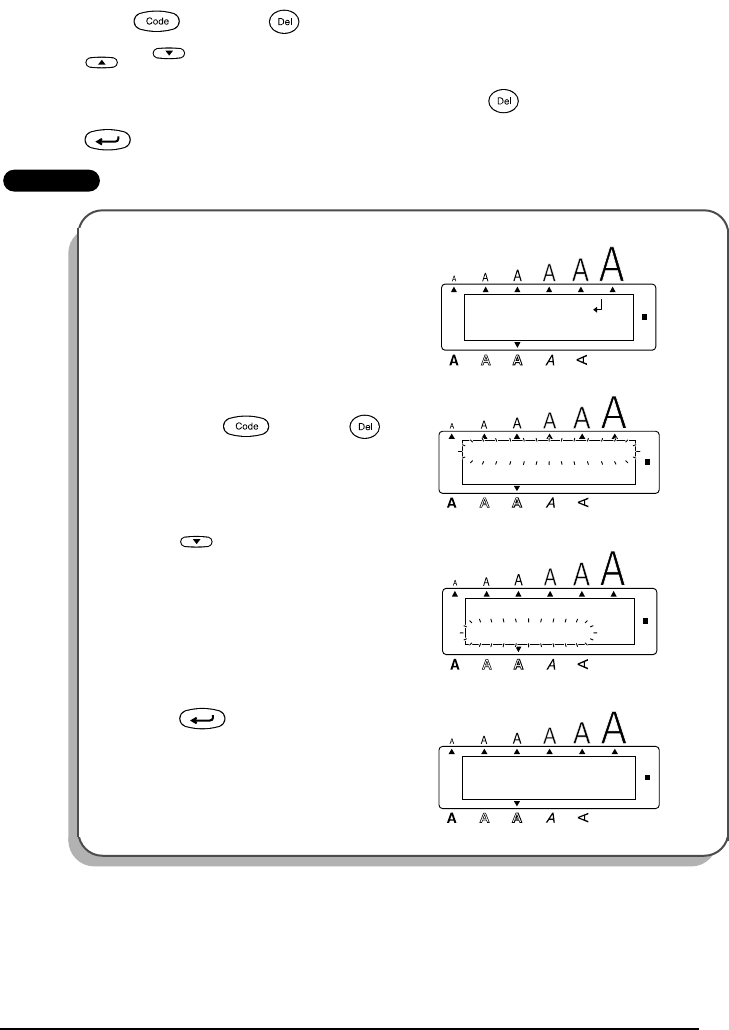
To delete all of the text and return all formats to their default settings:
1Hold down and press .
2Press or until TEXT&FORMATS is selected (flashing).
☞
To return to the text without erasing anything, press .
3Press .
EXAMPLE
To clear the text and formats:
1Hold down and press .
2Press until TEXT&FORMATS is
flashing.
3Press .
Clear
Home
End
Clear
Alt
Caps
2:
2-345-6789_
1:
s Garden
Undl/Frm
Length
Wide
Clear
Alt
Caps
TEXT&FORMATS
TEXT ONLY
Undl/Frm
Length
Wide
Home
Alt
Caps
TEXT&FORMATS
TEXT ONLY
Undl/Frm
Length
Wide
Alt
Caps
1:
_
Undl/Frm
Length
Wide
37
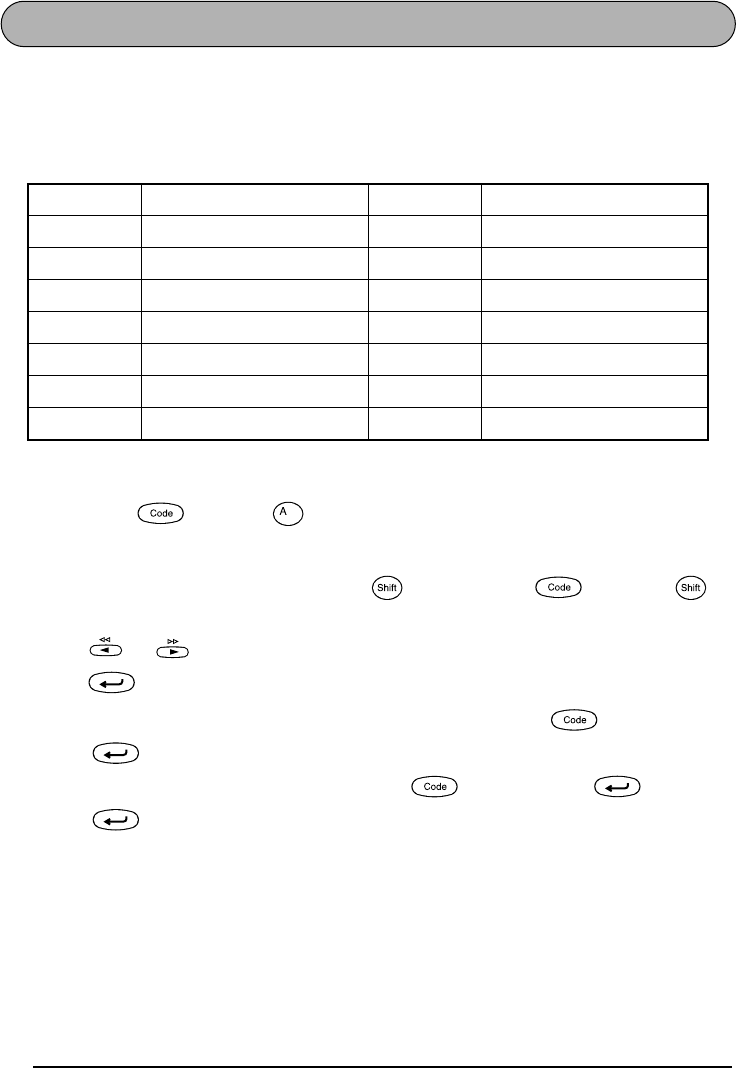
To delete just the text:
1Hold down and press .
2Press or until TEXT ONLY is selected (flashing).
☞
To return to the text without erasing anything, press .
3Press .
EXAMPLE
To clear just the text:
1Hold down and press .
2Press until TEXT ONLY is flashing.
3Press .
Clear
Home
End
Clear
Alt
Caps
2:
2-345-6789_
1:
s Garden
Undl/Frm
Length
Wide
Clear
Alt
Caps
TEXT&FORMATS
TEXT ONLY
Undl/Frm
Length
Wide
End
Alt
Caps
TEXT&FORMATS
TEXT ONLY
Undl/Frm
Length
Wide
Alt
Caps
1:
_
Undl/Frm
Length
Wide
38
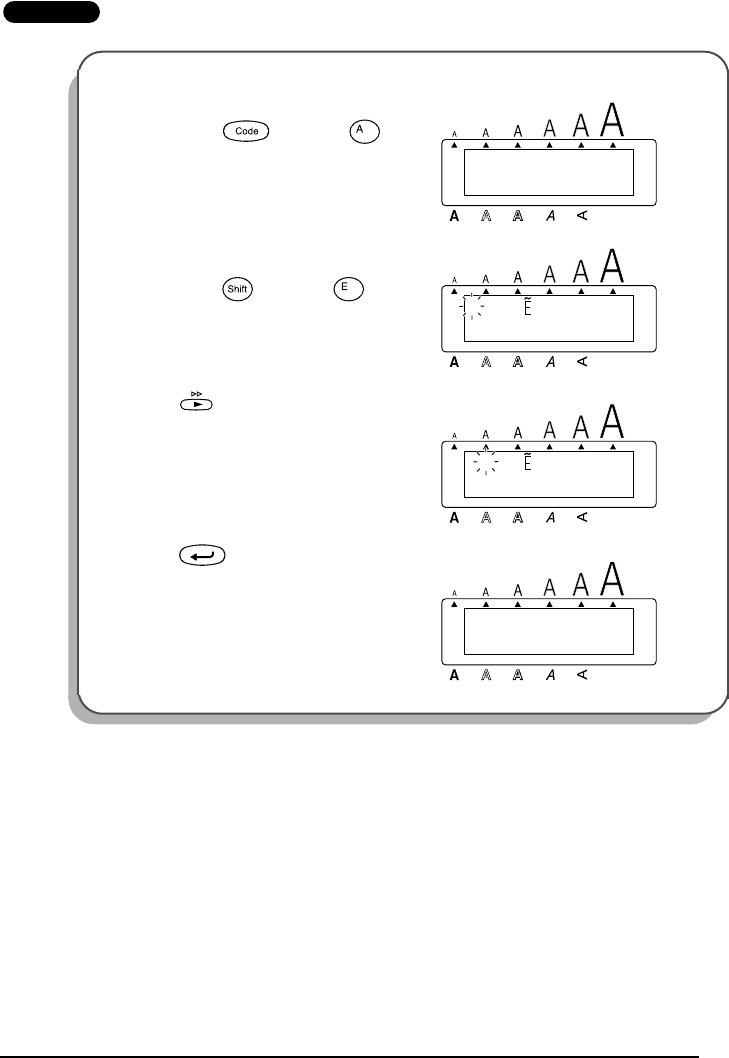
ACCENT FUNCTION
The Accent function can also be used to add accented characters to your text. Many of these
characters can also be typed in using the Symbol function.
The accented characters are grouped according to the capital or small letter that they are com-
bined with. The following accented characters are available:
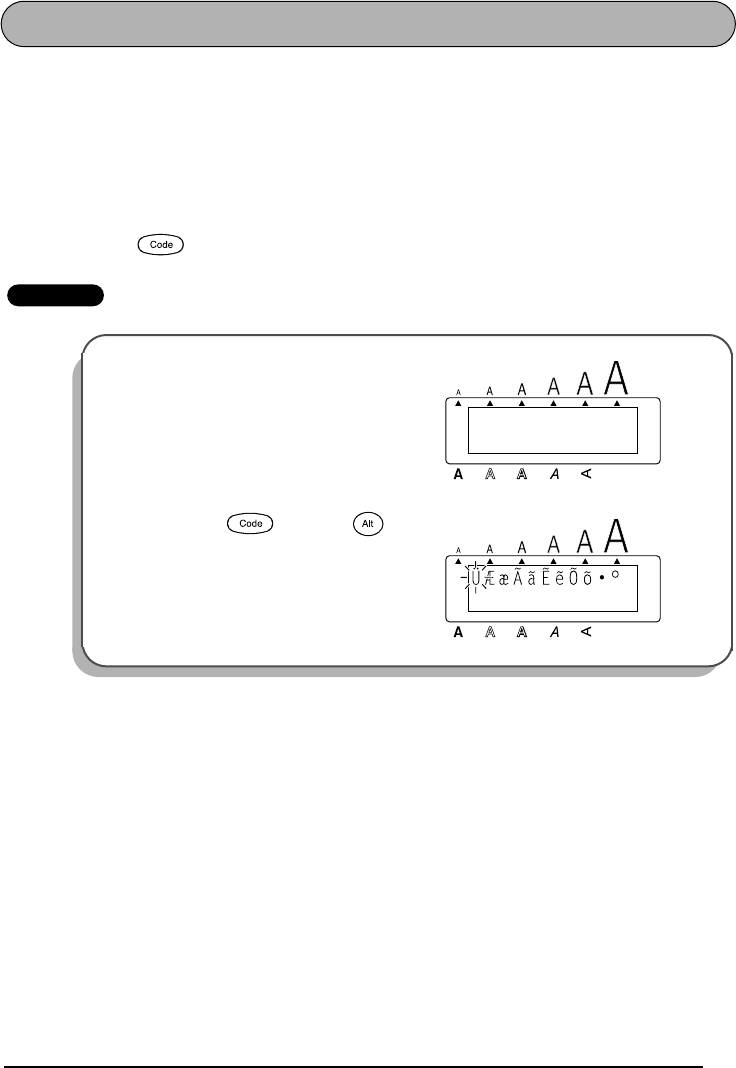
To type in an accented character:
1Hold down and press . The message “a – u / A – U?” appears on the display.
2Press the key of the letter in the desired accented character.
☞
To type a capital letter, hold down (or hold down and press to
turn on Caps mode) before pressing the letter key.
3Press or until the desired accented character flashes.
4Press . The letter and the accent flash alternately in the text.
☞
To type in a series of accented characters, hold down before pressing
. Then, continue adding accented characters by selecting them as explained
in steps
2
and
3
, and holding down while pressing . Press just
after selecting the last character in the series.
Letters Accented characters Letters Accented characters
a à á ä â ã æ I Í Ï Î
A À Á Ä Â Ã Æ n ñ
cçNÑ
C Ç o ó ö ô õ
e è é ë ê e˜ O Ó Ö Ô Õ
E È É Ë Ê E u ù ú ü û
i í ï î U Ù Ú Ü Û
˜
Accent
Caps Caps
39
EXAMPLE
To add the accented character “É”:
1Hold down and press .
2Hold down and press .
3Press until É flashes.
4Press .
Accent
1:
RESUM_
a-u/A-U?
Alt
Caps
Undl/Frm
Length
Wide
Caps Tape
1:
RESUM_
ÈÉËÊ
Alt
Caps
Undl/Frm
Length
Wide
1:
RESUM_
ÈÉËÊ
Alt
Caps
Undl/Frm
Length
Wide
1:
RESUMÉ_
Alt
Caps
Undl/Frm
Length
Wide
40
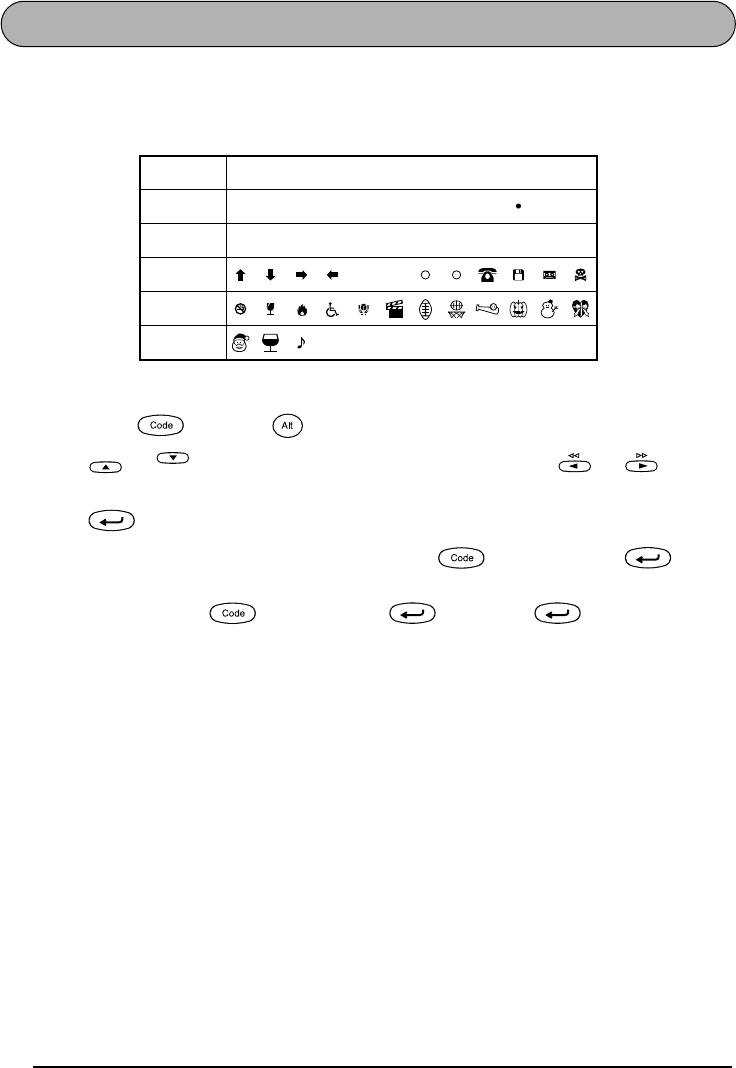
SYMBOL FUNCTION
In addition to the letters, symbols and numerals on the key tops, there are 53 additional marks
available with the Symbol function.
The following symbols are available:
To type in a symbol:
1Hold down and press . A row of symbols appear in the display.
2Press or to display different rows of symbols and press or until the
desired symbol flashes.
3Press . The symbol appears in the text.
☞
To type in a series of symbols, hold down before pressing . Then,
continue adding symbols by selecting them as explained in steps
2
and
3
, and
holding down while pressing . Press just after selecting the
last symbol in the series.
Group Symbol
1ÜÆæÃã e˜Õõ °
2+×÷=§23234[]
3
4
5
˜
ETM
☞
☞
R C
♥ ★
Symbol
Home
End
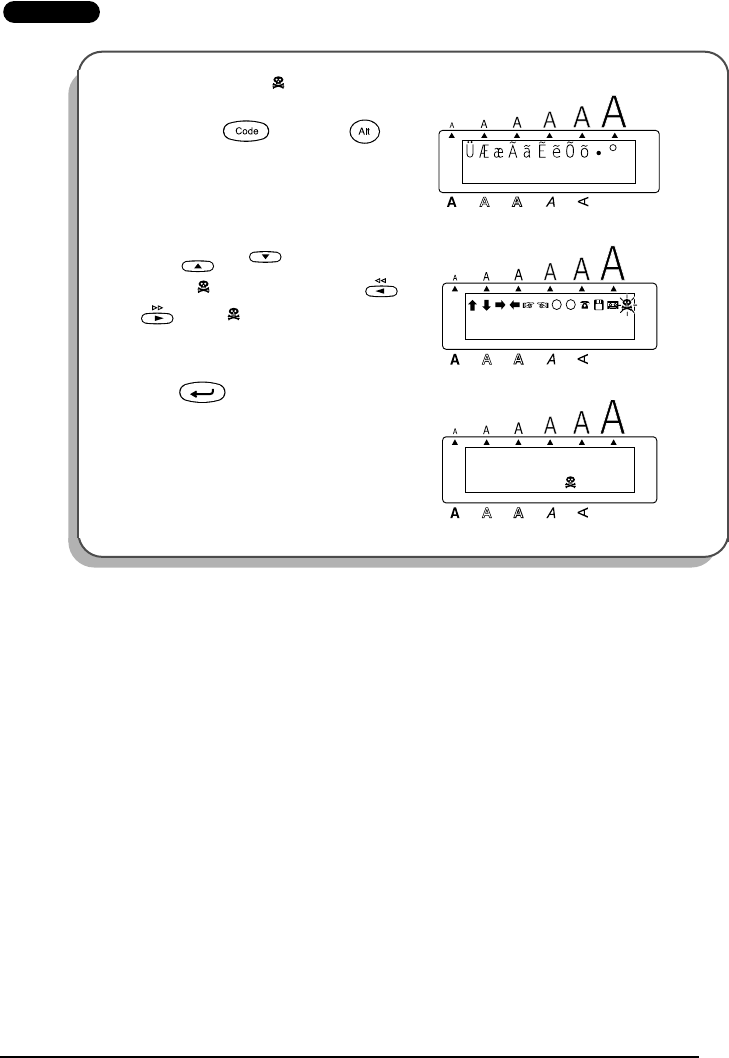
41
EXAMPLE
To add the symbol “ ”:
1Hold down and press .
2Press or until the row con-
taining “ ” appears, then press or
until “ ” flashes.
3Press .
Symbol
Alt
Caps
1:
DANGER_
Undl/Frm
Length
Wide
T
M
Home
End
Alt
Caps
1:
DANGER_
R C
Undl/Frm
Length
Wide
Alt
Caps
1:
DANGER _
Undl/Frm
Length
Wide
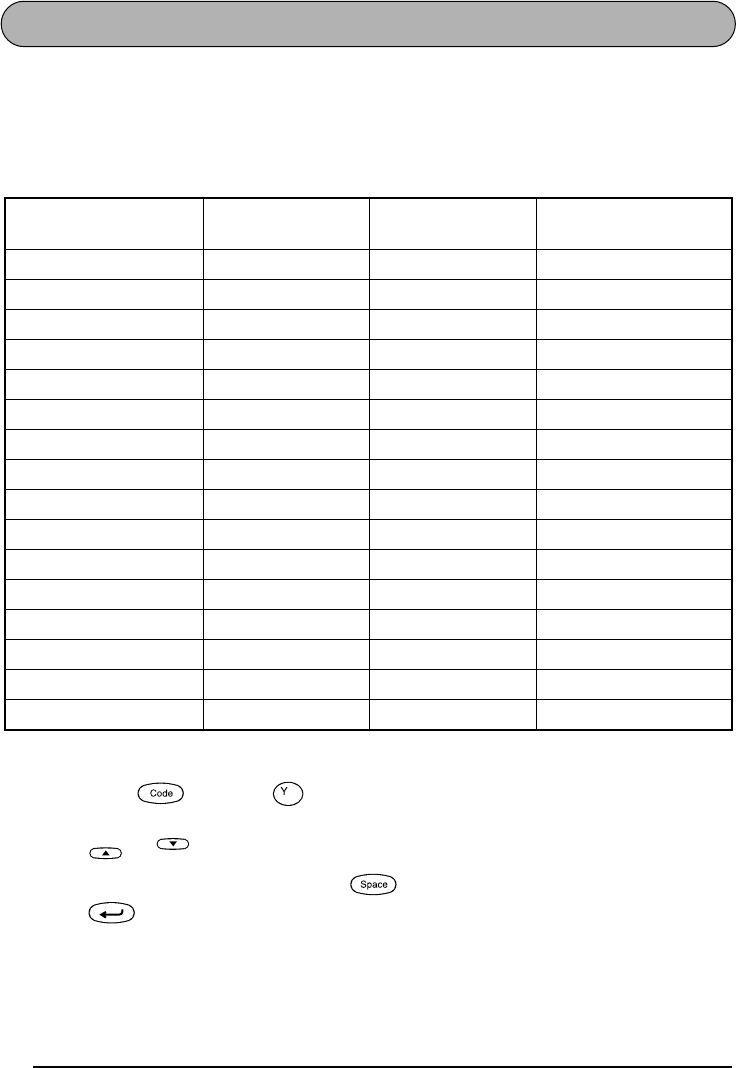
42
AUTO FORMAT FUNCTION
With the Auto Format function, you can select from a variety of preset formats perfect for your
specific need. This function automatically adjusts the label length, tape margins and holizontal
alignment without changing the text or any other formats, allowing you to create labels faster
and easier.
The following preset formats are available:
To select a preset format:
1Hold down and press once. The currently selected setting appears in the dis-
play.
2Press or to select the desired setting.
☞
To return to default settings, press .
3Press to apply the selected setting.
☞
The Length indicator lights up if any setting other than DEFAULT is selected.
Auto Format setting Label length
setting Tape margin
setting Horizontal
alignment setting
DEFAULT OFF FULL LEFT
3.5”FLOPPY 2.8” (7.0 cm) NONE CENTER
5”FLOPPY 4.8” (12.2 cm) NONE CENTER
VHS SPINE 5.5” (14.0 cm) NONE CENTER
VHS 3.0” (7.7 cm) NONE CENTER
VCR8mm CASE 3.6” (9.2 cm) NONE CENTER
VCR8mm 2.9” (7.3 cm) NONE CENTER
VHS-C SPINE 1.8” (4.5 cm) NONE CENTER
VHS-C 2.3” (5.8 cm) NONE CENTER
AUDIO 3.5” (8.9 cm) NONE CENTER
DAT CASSETTE 2.2” (5.6 cm) NONE CENTER
MINI DISK 2.0” (5.2 cm) NONE CENTER
ORGANIZER L 3.2” (8.2 cm) NONE CENTER
ORGANIZER S 2.6” (6.5 cm) NONE CENTER
FILE LONG 7.2” (18.3 cm) NONE CENTER
FILE SHORT 3.7” (9.4 cm) NONE CENTER
A.Format
Home
End
Feed&Cut
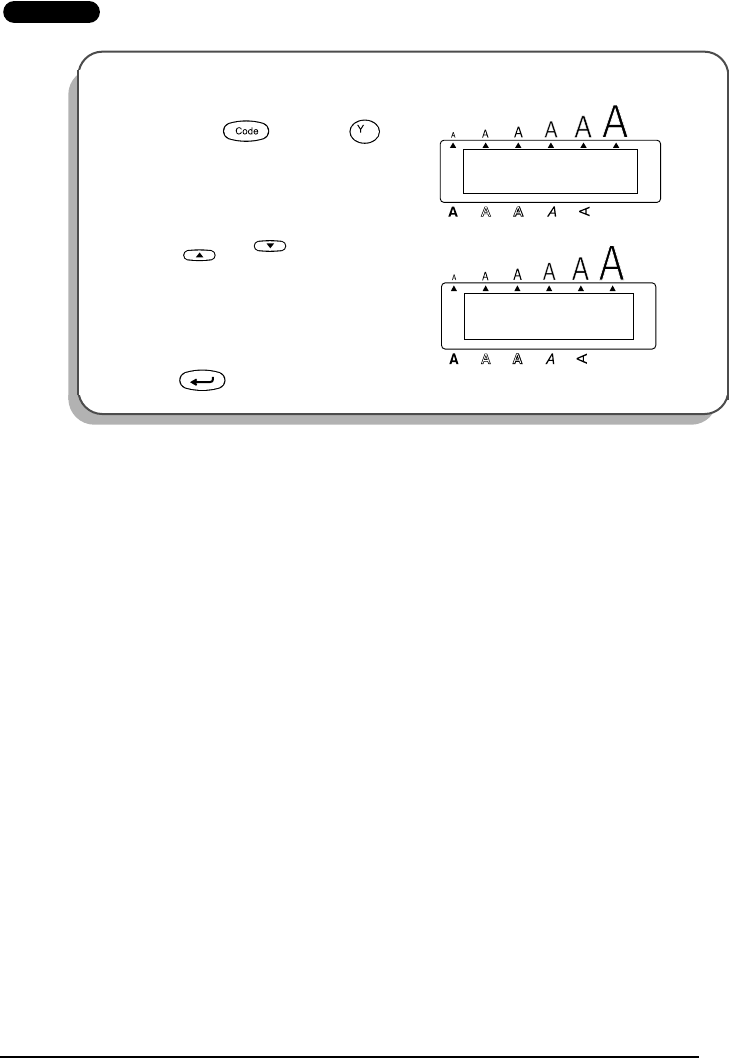
43
EXAMPLE
To select the AUDIO setting:
1Hold down and press .
2Press or until the AUDIO
setting is displayed.
3Press .
A.Format
Alt
Caps
FORMAT TYPE?
DEFAULT
Undl/Frm
Length
Wide
Home
End
Alt
Caps
FORMAT TYPE?
AUDIO
Undl/Frm
Length
Wide
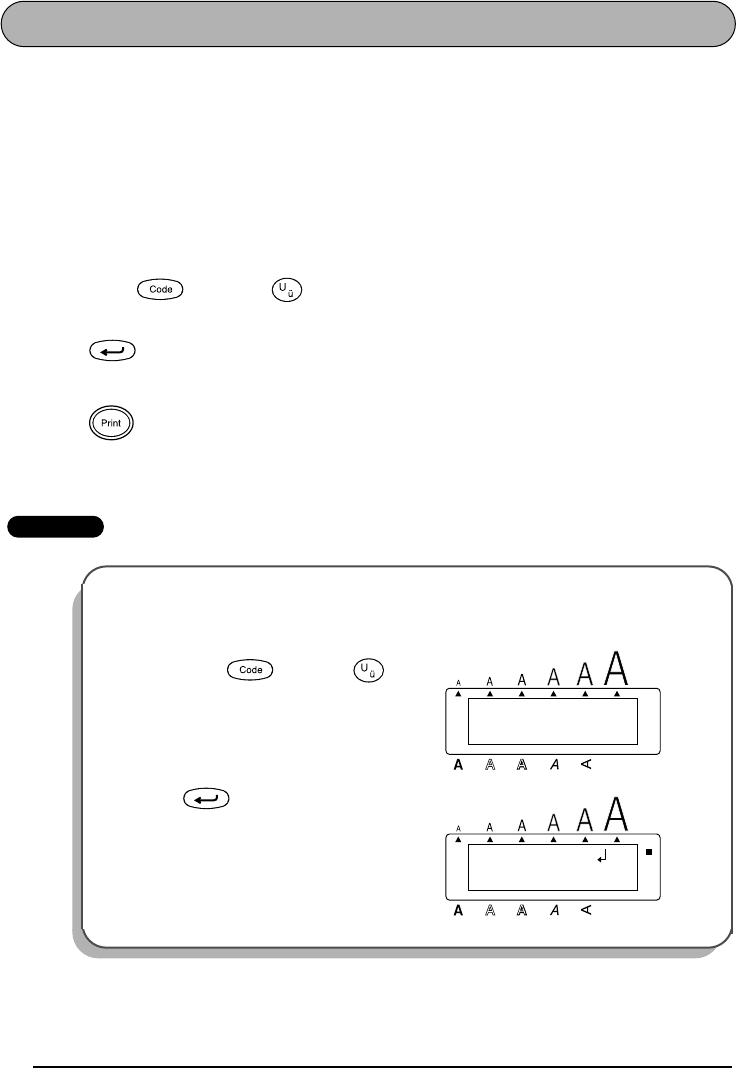
44
STAMP FUNCTION
The Stamp function allows you to quickly and easily create your own stamp stencil films for
customized stamps. After inserting a stamp film cassette, select this function to automatically
center the text and adjust the tape length and margins to a perfect format for the pre-inked
stamp film holders. Since the stamp holder is reusable, just make a new stamp stencil film and
replace the one in the holder.
To make a stamp:
1Type in the text, and then insert a medium (3/4” (18-mm)-wide) or large (1” (24-mm)-
wide) stamp film cassette.
2Hold down and press once. The message “STAMP FORMAT?” appears in the
display.
3Press . The text is automatically formatted for the installed stamp: centered within
the preset message area with the tape length and margins automatically adjusted.
4Press to cut the text out of the stamp stencil film.
5After the stamp stencil film is cut off, remove the backing paper from the stamp stencil
film and affix it to the ink pad of a stamp film holder.
EXAMPLE
To cut a stamp:
1Enter the text and insert a stamp film cassette in the tape compartment.
2Hold down and press .
3Press .
Stamp
Mirror
Stamp
FORMAT?
STAMP
Alt
Caps
Undl/Frm
Length
Wide
2:
1234 Main S _
1:
J. Smith
Alt
Caps
Undl/Frm
Length
Wide
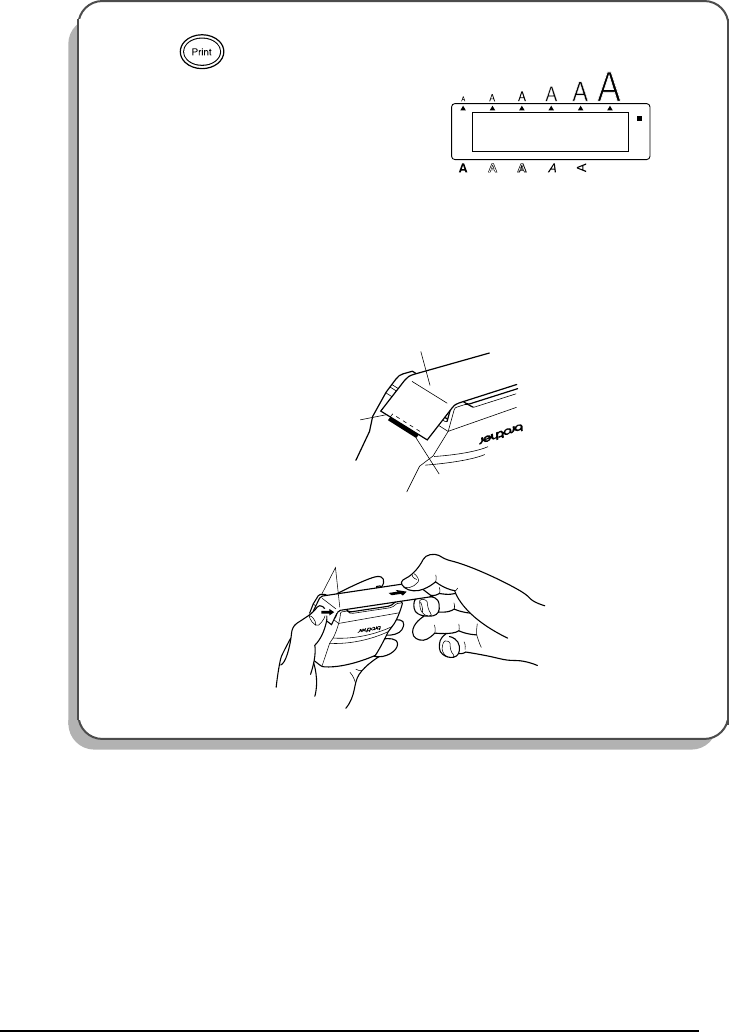
45
4Press to engrave the stamp stencil film, and then automatically cut off.
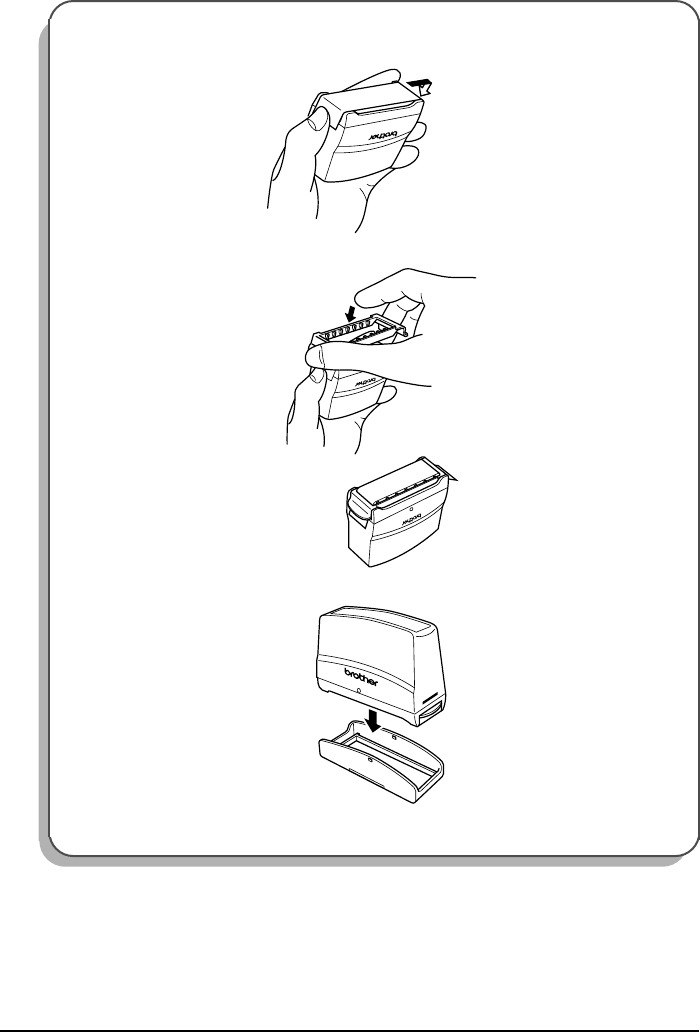
To affix a stamp:
5Remove the stamp frame from around the stamp film holder ink pad, one side at a
time, then remove the protective seal covering the ink pad and the backing paper
from the stamp stencil film.
6With the glossy side of the stamp stencil film upward, align one of its ends with the
slit on the side of the stamp film holder.
7Hold the end of the stamp stencil film in place with your thumb, then pass the tape
through the guides while pulling it tight.
1/1
COPIES
Alt
Caps
Undl/Frm
Length
Wide
Mirror
Tape end
Glossy side
Slit
Guides
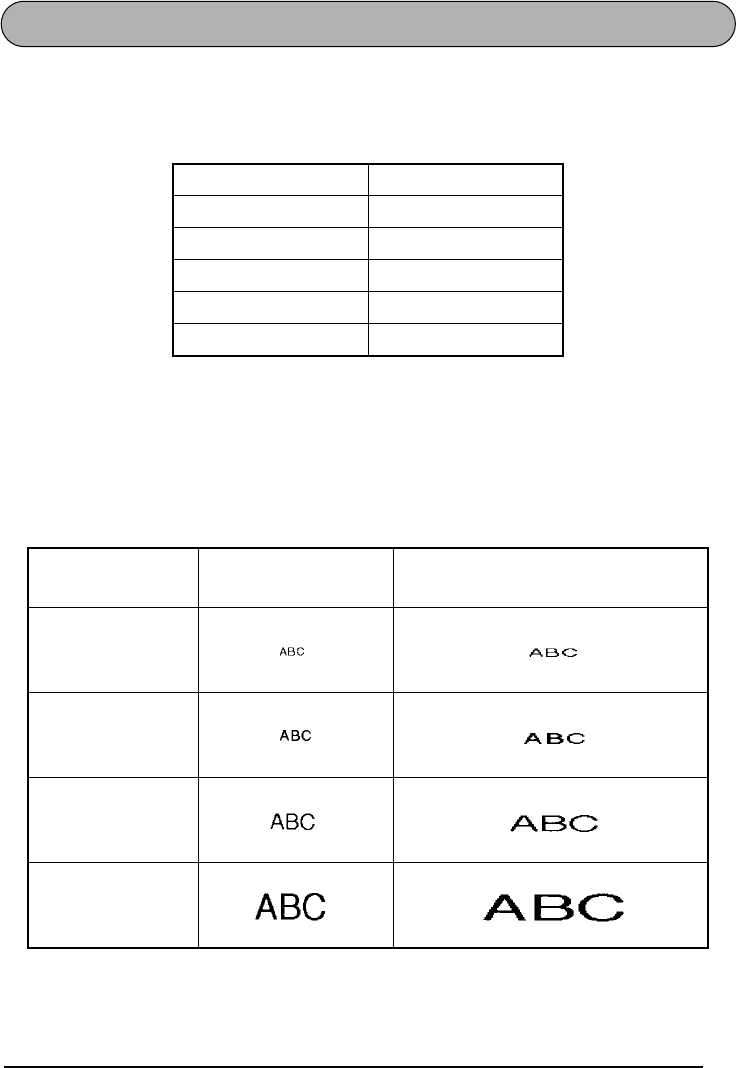
46
8Fold the other end of the stamp stencil film over the other side of the stamp film
holder and hold it in place with your finger.
9Fit the stamp frame over the stamp stencil film and push it into place.
0Insert the stamp film holder straight into its cap.
☞
Be sure that the stamp is correctly covered in order to prevent ink spills.
Fold over
47
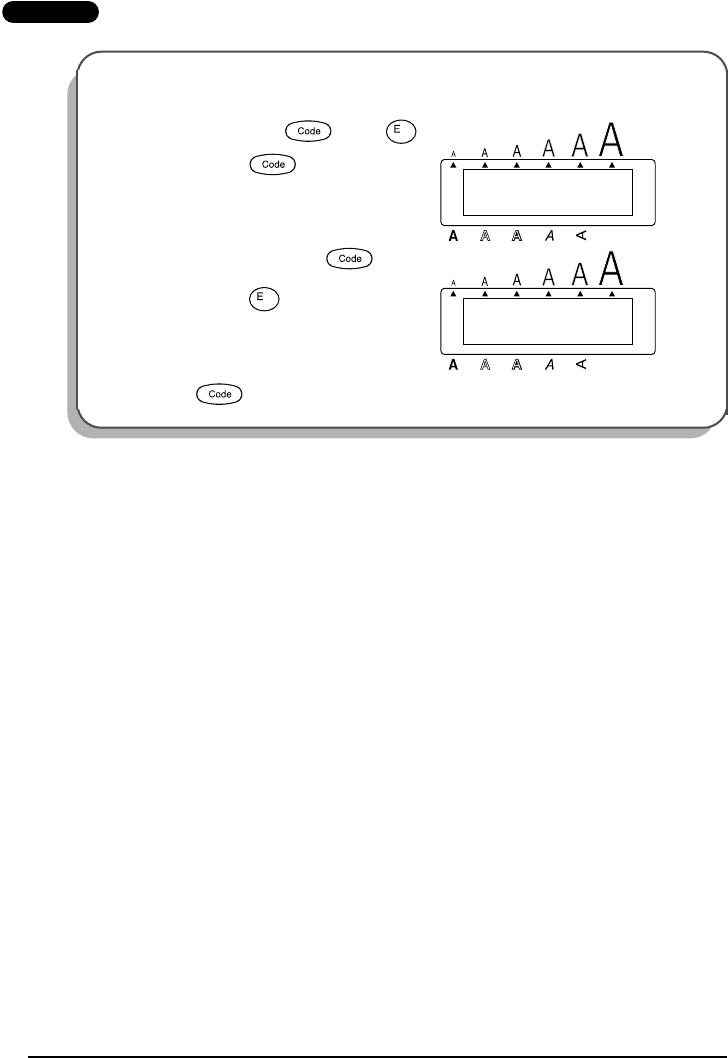
SIZE & WIDTH FUNCTIONS
The character size can be adjusted using both the Size and Width functions. Since the charac-
ter size that can be used depends on the width of the tape, the following table shows the char-
acter sizes that can be used with each tape width.
The default size setting is AUTO and the default width setting is OFF. The currently selected
size setting is always shown by the indicators above the display. All of the size indicators light
up when the AUTO setting is selected. In addition, when the ON width setting is selected, the
Wide indicator lights up.
With the AUTO size setting, the machine compares your text with the width of the installed
tape and automatically adjusts the characters to the largest possible size. However, six other
point sizes are also available and each can be printed in wide characters.
Tape widths Sizes (in points)
1/4” (6 mm) 6, 9, 12
3/8” (9 mm) 6, 9, 12, 18
1/2” (12 mm) 6, 9, 12, 18, 24
3/4” (18 mm) 6, 9, 12, 18, 24, 36
1” (24 mm) 6, 9, 12, 18, 24, 36
Size setting
(in points) Width function OFF Width function ON
6
9
12
18
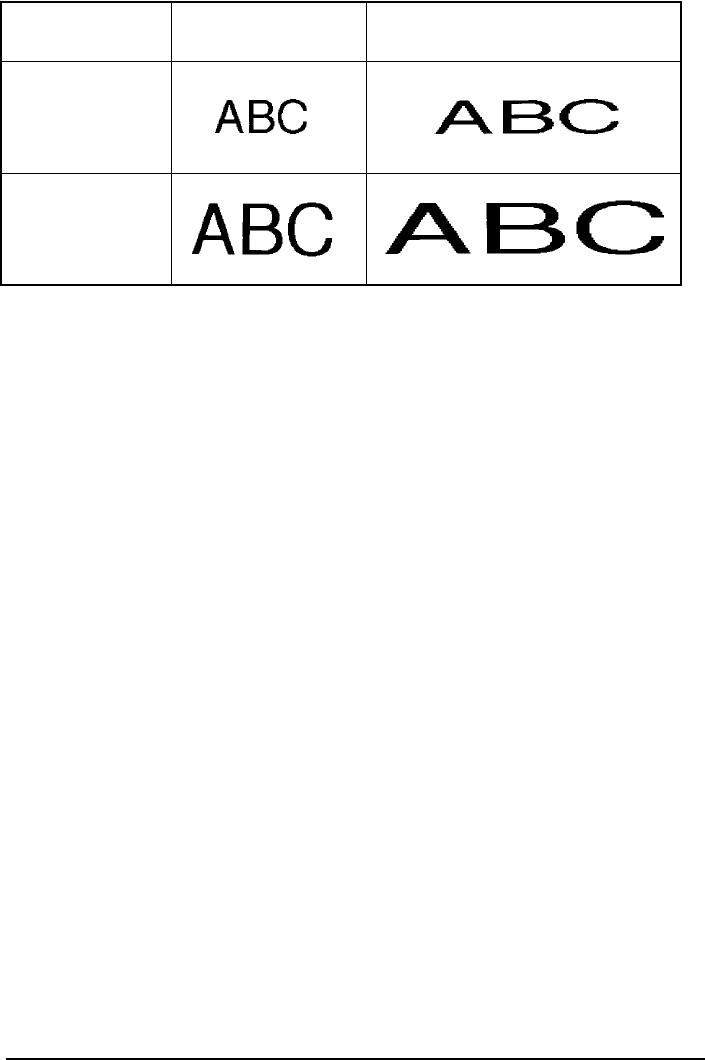
48
24
36
Size setting
(in points) Width function OFF Width function ON
49
To change the size setting:
1While holding down , press once, and keep held down to display the
current size setting.
2While still holding down , continue pressing until the desired size setting is
displayed and is shown by the size indicators.
3Release to apply the selected size setting to the entire text.
☞
With the AUTO setting selected and 3/4” (18-mm) or 1” (24-mm)-wide tape
installed, text consisting of just one line of only capital letters will be printed with a
character size of 48 point.
EXAMPLE
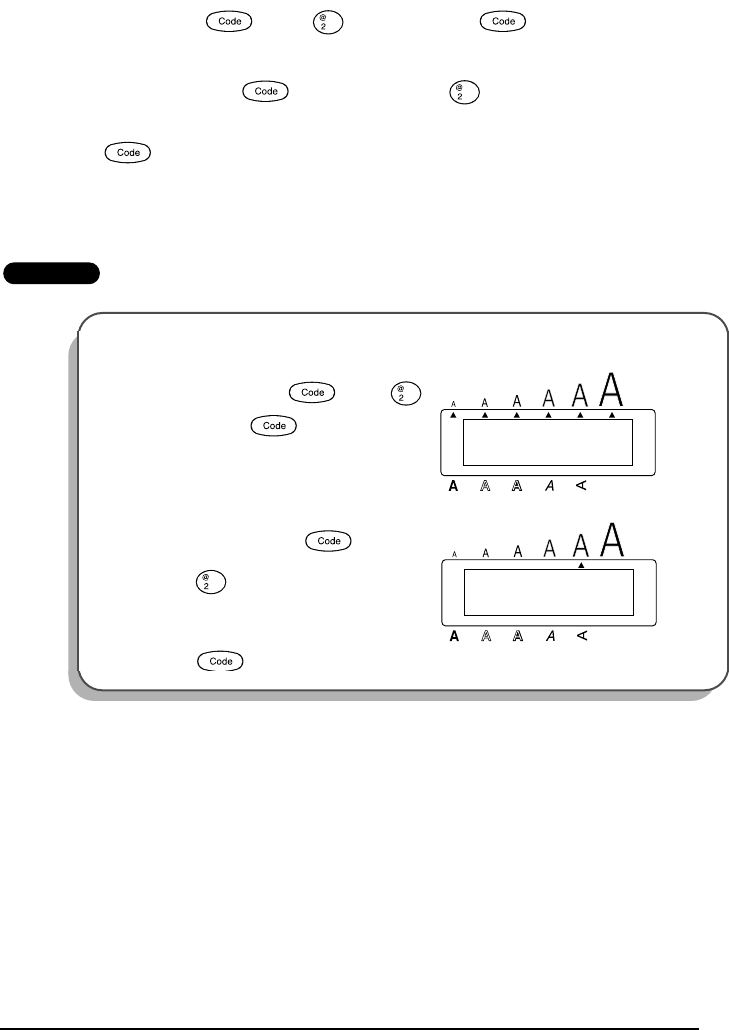
To select the 24 point size setting:
1While holding down , press
once, and keep held down.
2While still holding down , continue
pressing until 24 is displayed.
3Release .
Size
Size
Size
AUTO
SIZE
Alt
Caps
Undl/Frm
Length
Wide
Size
24
SIZE
Alt
Caps
Undl/Frm
Length
Wide
50
To turn on or off the Width function:
1While holding down , press once, and keep held down to display the
current width setting.
2While still holding down , continue pressing until the desired width setting is
displayed.
☞
The Wide indicator lights up when the ON setting is selected.
3Release to apply the selected width setting to the entire text.
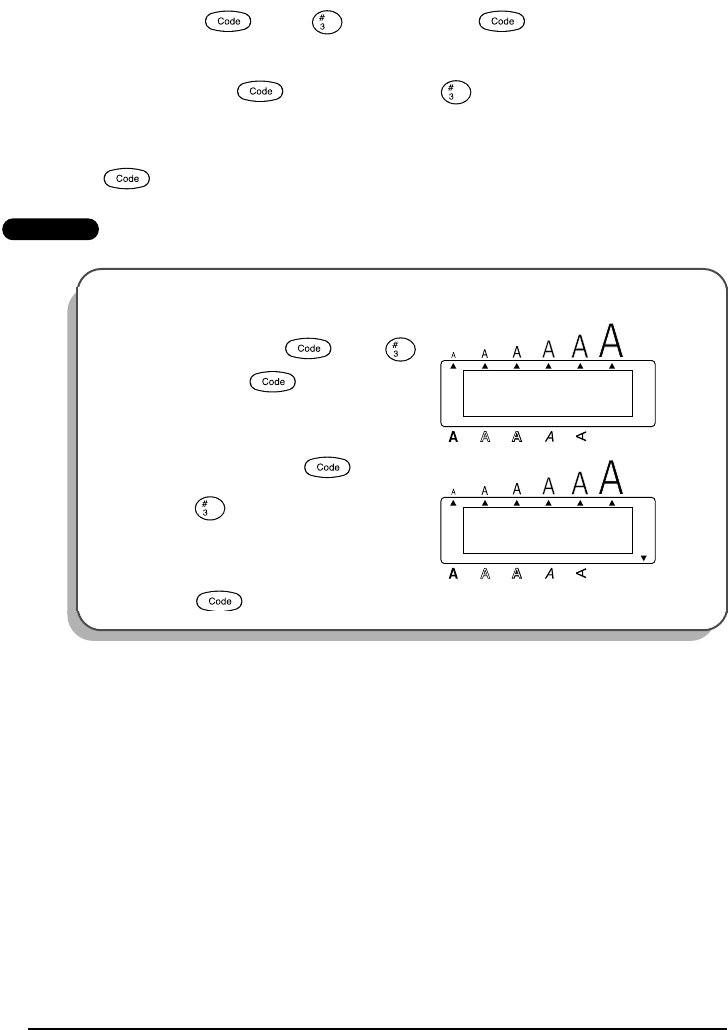
EXAMPLE
To turn on the Width function:
1While holding down , press
once, and keep held down.
2While still holding down , continue
pressing until ON is displayed.
3Release .
Width
Width
Width
OFF
WIDE
Alt
Caps
Undl/Frm
Length
Wide
Width
ON
WIDE
Alt
Caps
Undl/Frm
Length
Wide
51
STYLE FUNCTION
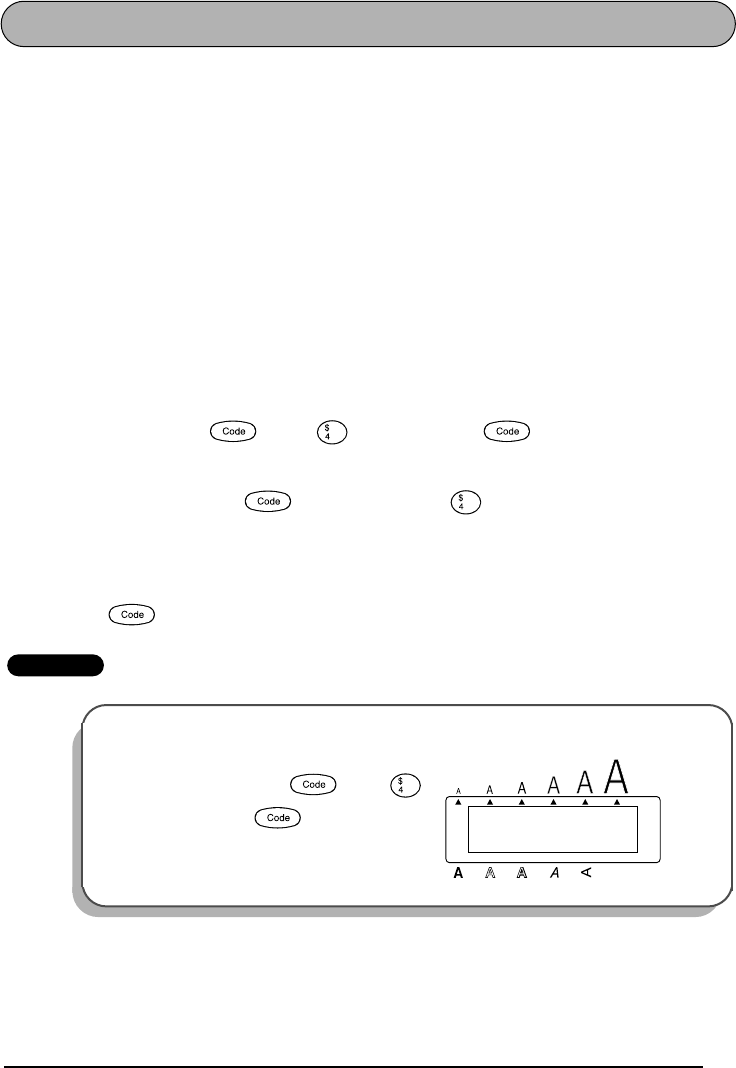
You can choose from nine different character styles to apply to your text.
☞
Characters printed using the smaller sizes may be difficult to read if certain style settings
(e.g., I+SHADOW) are selected.
The following style settings are available:
NORMAL I+BOLD (italic & bold)
BOLD I+OUTLINE (italic & outline)
OUTLINE I+SHADOW (italic & shadow)
SHADOW VERTICAL
ITALIC
The default style setting is NORMAL. The style indicator at the bottom right of the display
shows the current style setting when any setting other than NORMAL is selected.
Refer to
Reference
at the end of this section for samples of the available settings.
To change the style setting:
1While holding down , press once, and keep held down to display the
current style setting.
2While still holding down , continue pressing until the desired style setting is
displayed.
☞
The current style setting is shown by the style indicator at the bottom right of the
display.
3Release to apply the selected style setting to the entire text.
EXAMPLE
To select the I+SHADOW style setting:
1While holding down , press
once, and keep held down.
Style
Style
Style
NORMAL
STYLE
Alt
Caps
Undl/Frm
Length
Wide

52
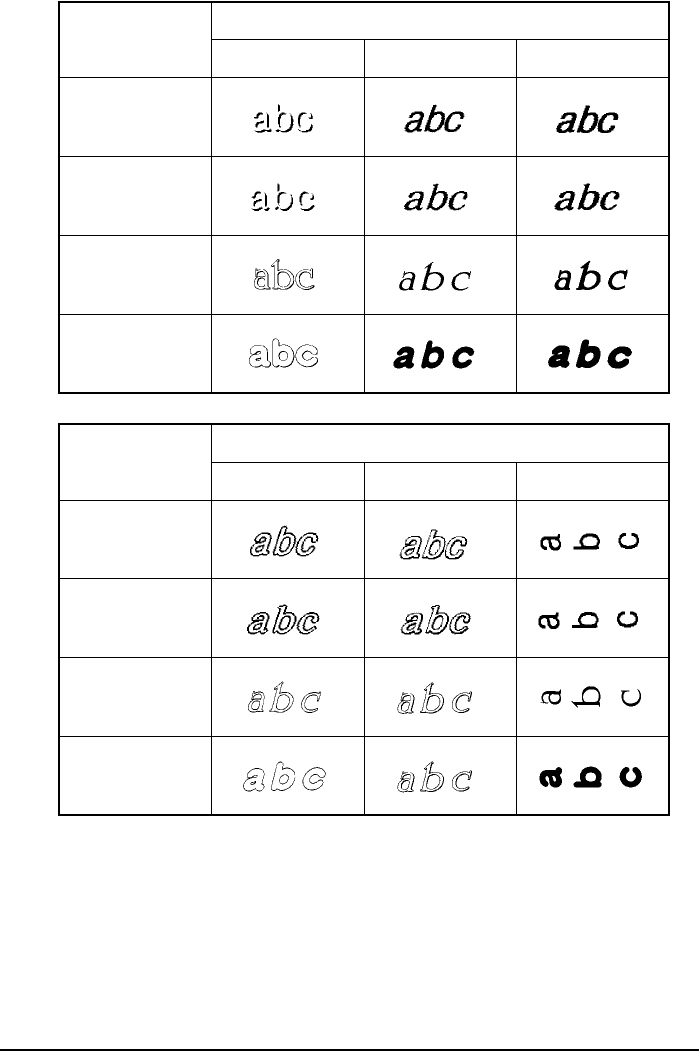
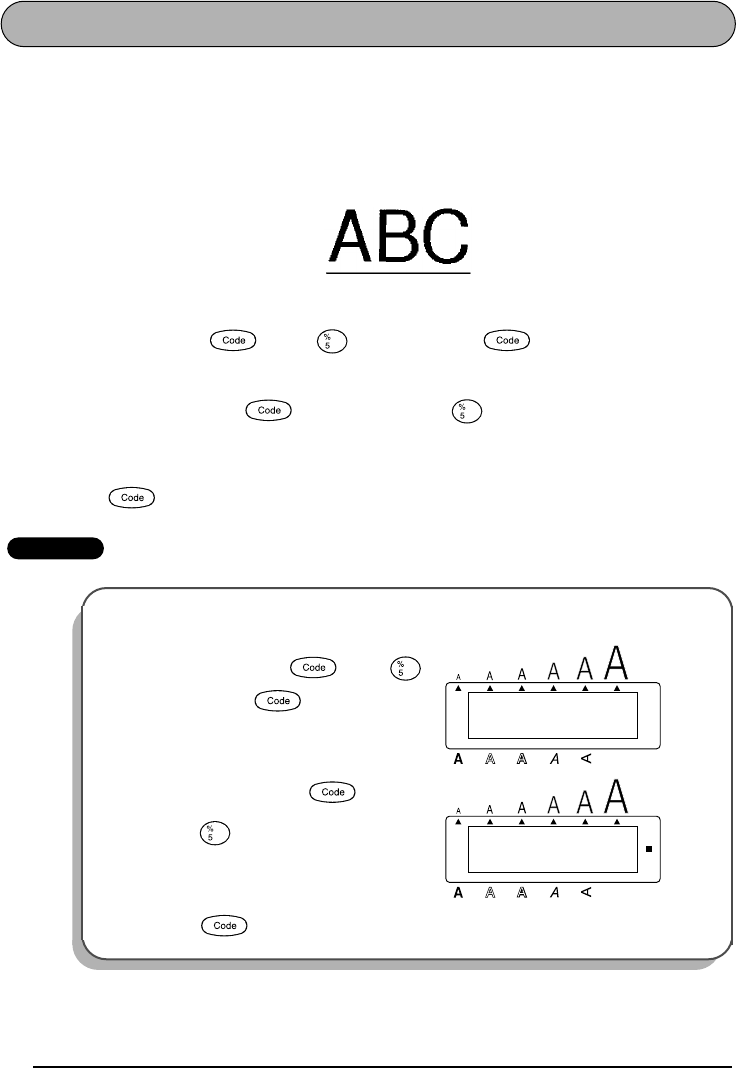
REFERENCE
REFERENCE
2While still holding down , continue
pressing until I+SHADOW is dis-
played.
3Release .
Font
setting
Style setting
NORMAL BOLD OUTLINE
HELSINKI
BRUSSELS
US
FLORIDA
I+SHADOW
STYLE
Alt
Caps
Undl/Frm
Length
Wide
Style
53
Font
setting
Style setting
SHADOW ITALIC I+BOLD
HELSINKI
BRUSSELS
US
FLORIDA
Font
setting
Style setting
I+OUTLINE I+SHADOW VERTICAL
HELSINKI
BRUSSELS
US
FLORIDA
54
UNDERLINE FUNCTION
You can emphasize your text by underlining it.
The default underline setting is OFF. When the Underline function is set to ON, the Undl/Frm
indicator on the right side of the display lights up.
☞
If a frame or highlight has already been chosen when the ON underline setting is
selected, the frame setting changes back to OFF and the text is underlined.
To turn on or off the Underline function:
1While holding down , press once, and keep held down to display the
current underline setting.
2While still holding down , continue pressing until the desired underline set-
ting is displayed.
☞
The Undl/Frm indicator lights up when the ON setting is selected.
3Release to apply the selected underline setting to the entire text.
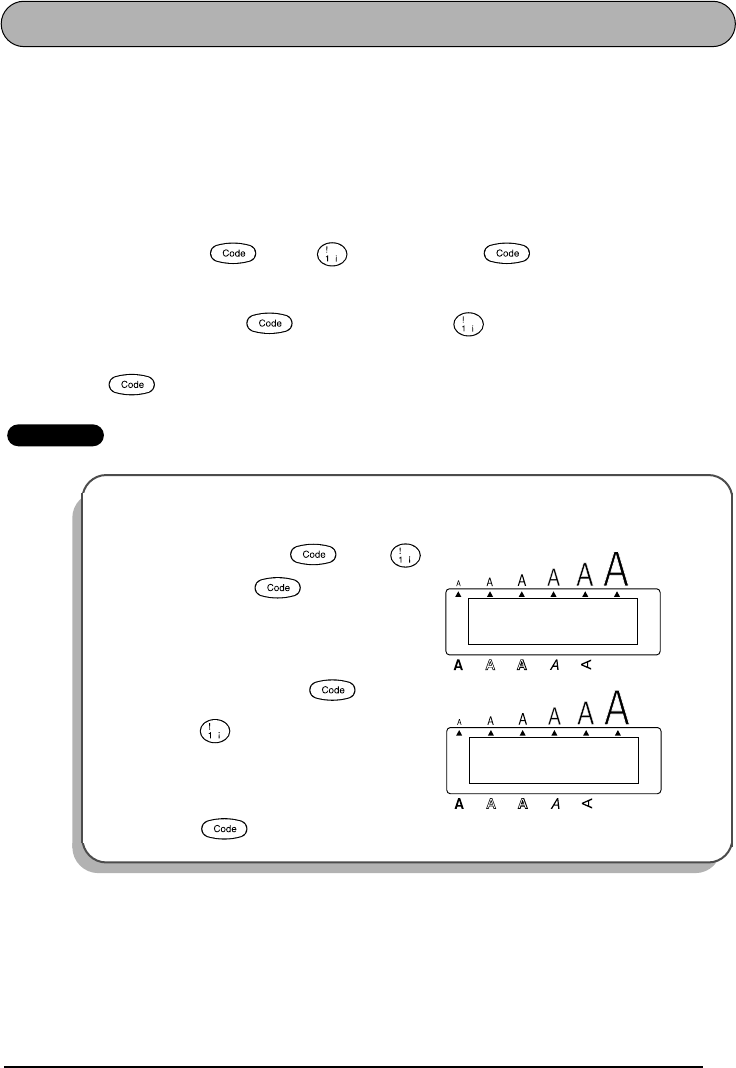
EXAMPLE
ON
To select the ON underline setting:
1While holding down , press
once, and keep held down.
2While still holding down , continue
pressing until ON is displayed.
3Release .
Underline
Underline
OFF
UNDERLINE
Alt
Caps
Undl/Frm
Length
Wide
Underline
ON
UNDERLINE
Alt
Caps
Undl/Frm
Length
Wide
Underline
55
FONT FUNCTION
With the Font function, you can choose one of four fonts for your text.
The following font settings are available:
HELSINKI, BRUSSELS, US and FLORIDA
The default font setting is HELSINKI.
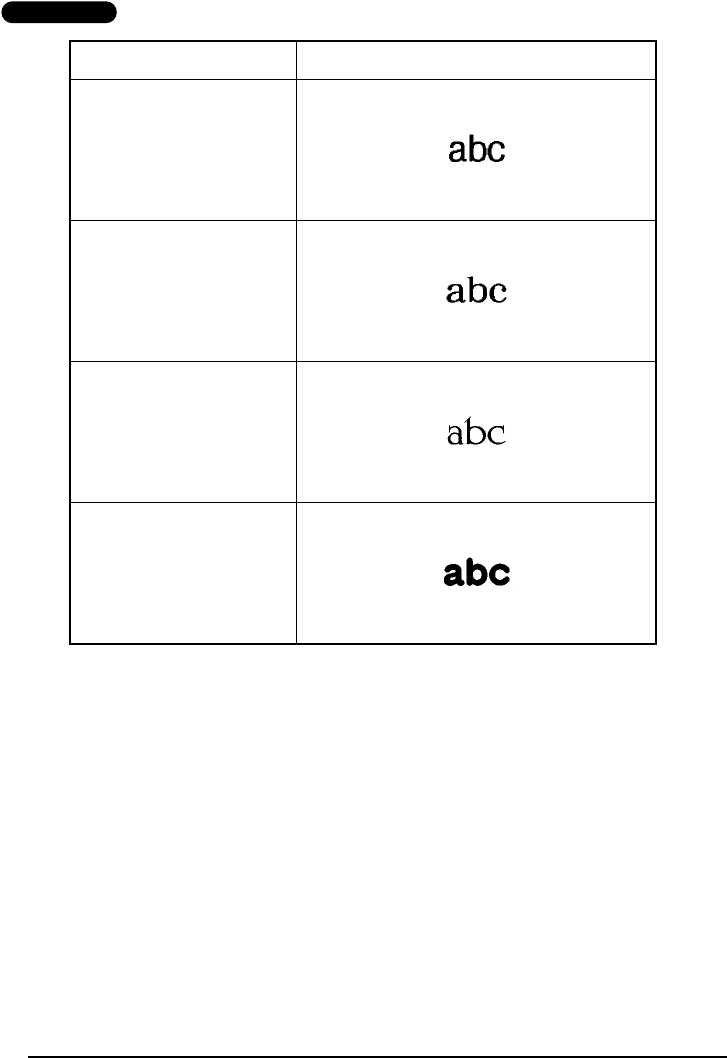
Refer to
Reference
at
the end of this section for samples of the available settings.
To change the font setting:
1While holding down , press once, and keep held down to display the
current font setting.
2While still holding down , continue pressing until the desired font setting is
displayed.
3Release to apply the selected font setting to the entire text.
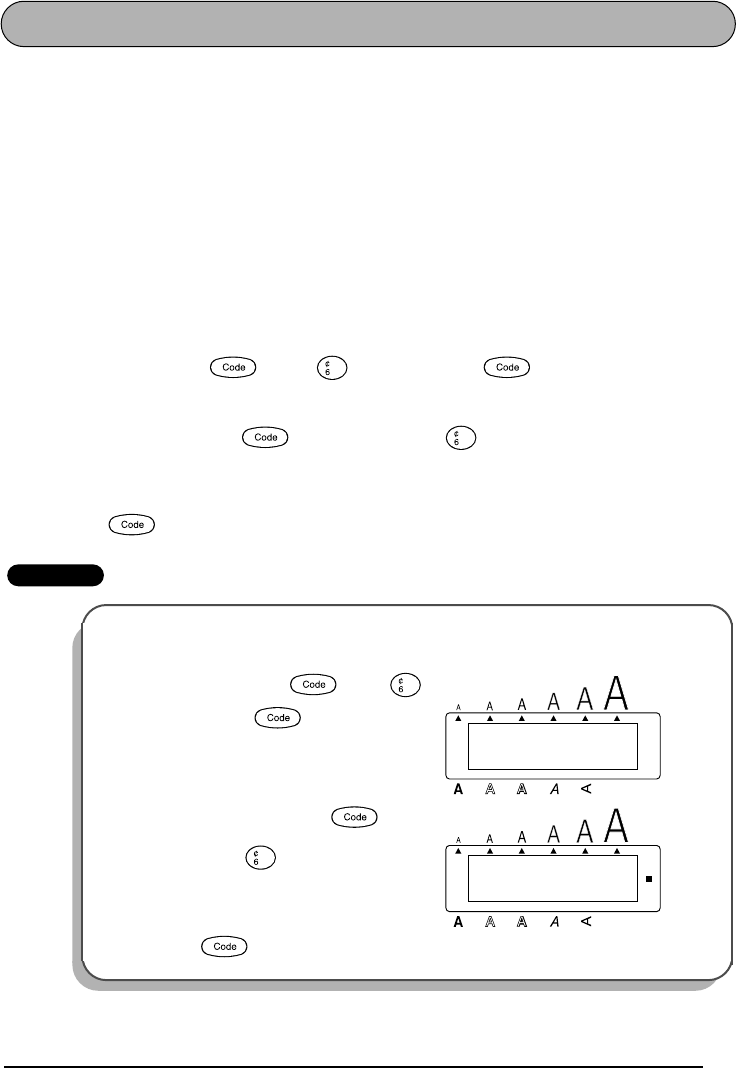
EXAMPLE
To select the BRUSSELS font setting:
1While holding down , press
once, and keep held down.
2While still holding down , continue
pressing until BRUSSELS is displayed.
3Release .
Font
Font
HELSINKI
FONT
Alt
Caps
Undl/Frm
Length
Wide
Font
BRUSSELS
FONT
Alt
Caps
Undl/Frm
Length
Wide
Font
56
REFERENCE
REFERENCE
Font setting Font sample
HELSINKI
BRUSSELS
US
FLORIDA
57
FRAME FUNCTION
With the Frame function, you can choose from various frames and highlights to design a more
decorative or emphasized label.
The following Frame settings are available:
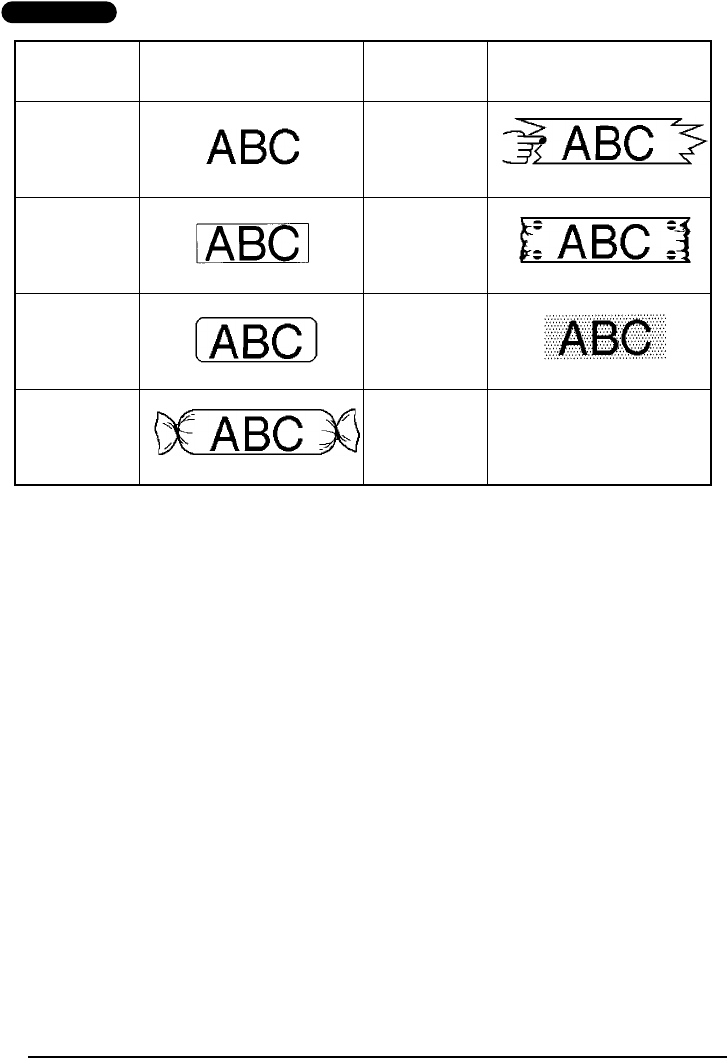
OFF, SQUARE, ROUND, CANDY, POINTING, NAMEPLATE and DOT
The default frame setting is OFF; however, other settings are also available. When any setting
other than OFF is selected, the Undl/Frm indicator on the right side of the display lights up.
☞
If the ON underline setting has already been chosen when a frame or highlight is
selected, the underline setting changes back to OFF and the text is framed or high-
lighted.
Refer to
Reference
at the end of this section for samples of the available settings.
To change the frame setting:
1While holding down , press once, and keep held down to display the
current frame setting.
2While still holding down , continue pressing until the desired frame setting is
displayed.
☞
The Undl/Frm indicator lights up when any setting other than OFF is selected.
3Release to apply the selected frame setting to the entire text.
EXAMPLE
To select the CANDY frame setting:
1While holding down , press
once, and keep held down.
2While still holding down , con-
tinue pressing until CANDY is dis-
played.
3Release .
Frame
Frame
OFF
FRAME
Alt
Caps
Undl/Frm
Length
Wide
Frame
CANDY
FRAME
Alt
Caps
Undl/Frm
Length
Wide
Frame
58
REFERENCE
REFERENCE
Frame
setting Frame sample Frame
setting Frame sample
OFF POINTING
SQUARE NAME-
PLATE
ROUND DOT
CANDY
59
TAPE MARGIN FUNCTION
The Tape margin function allows you to adjust the size of the margins on the left and right
sides of your text.
The default tape margin setting is FULL; however, three other settings are also available.
☞
After printing using the NONE, NARROW and MEDIUM tape margin settings, and the
tape is automatically cut off, use scissors to cut along the cutting guide (:) to center the
text within the label.
To change the tape margin setting:
1While holding down , press once, and keep held down to display the
current tape margin setting.
2While still holding down , continue pressing until the desired tape margin set-
ting is displayed.
3Release to apply the selected tape margin setting to the entire text.
FULL
(1” (25 mm margins))
NONE
(1/6” (4 mm margins)
NARROW
(1/3” (8 mm margins))
MEDIUM
(1/2” (12 mm margins))
Tape
Tape
60
EXAMPLE
To select the MEDIUM tape margin setting:
1While holding down , press
once, and keep held down.
2While still holding down , con-
tinue pressing until MEDIUM is
displayed.
3Release .
FEED
Alt
Caps
FULL
Undl/Frm
Length
Wide
Tape
FEED
Alt
Caps
MEDIUM
Undl/Frm
Length
Wide
Tape
61
HORIZONTAL ALIGNMENT FUNCTION
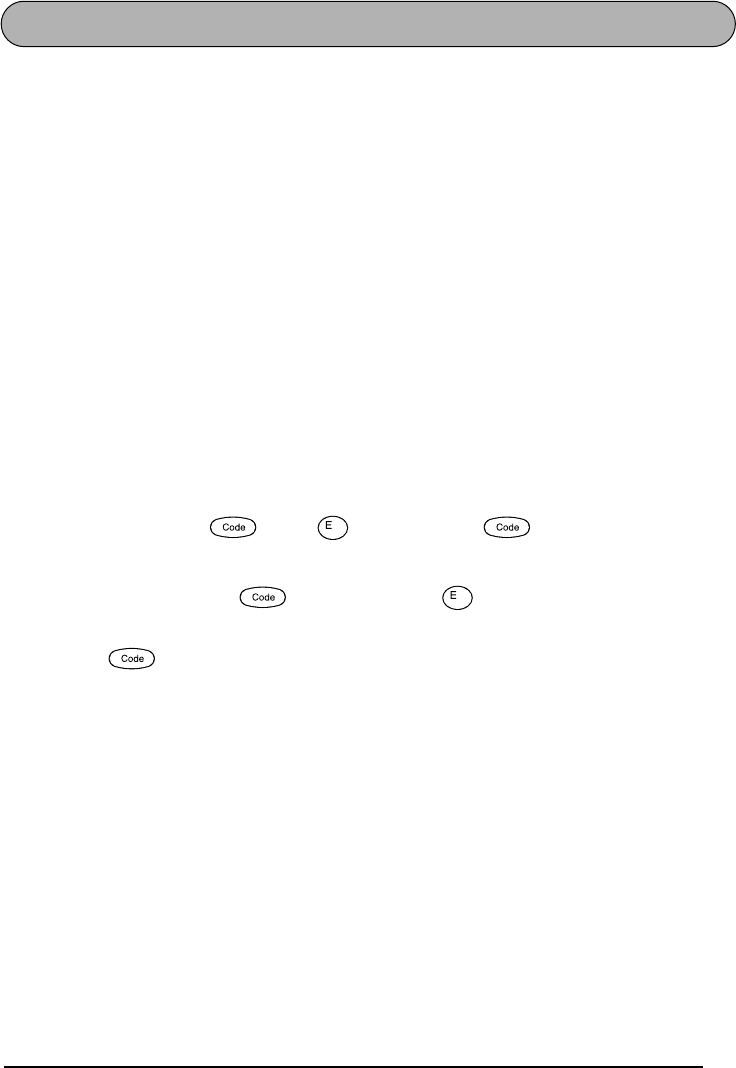
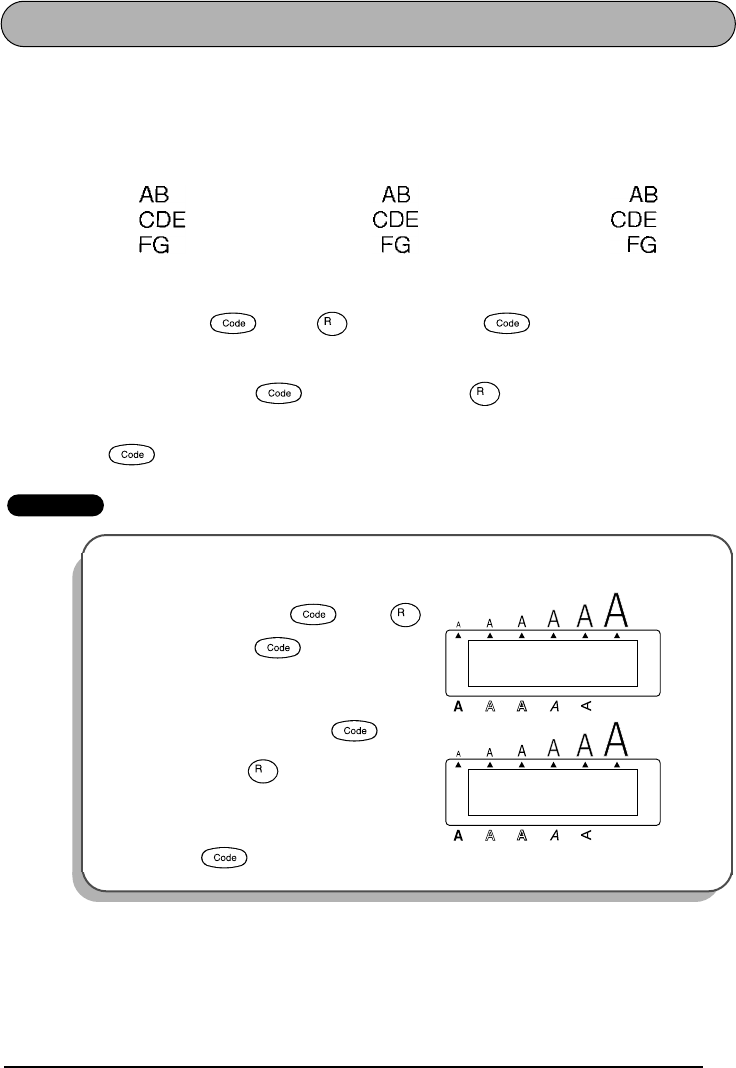
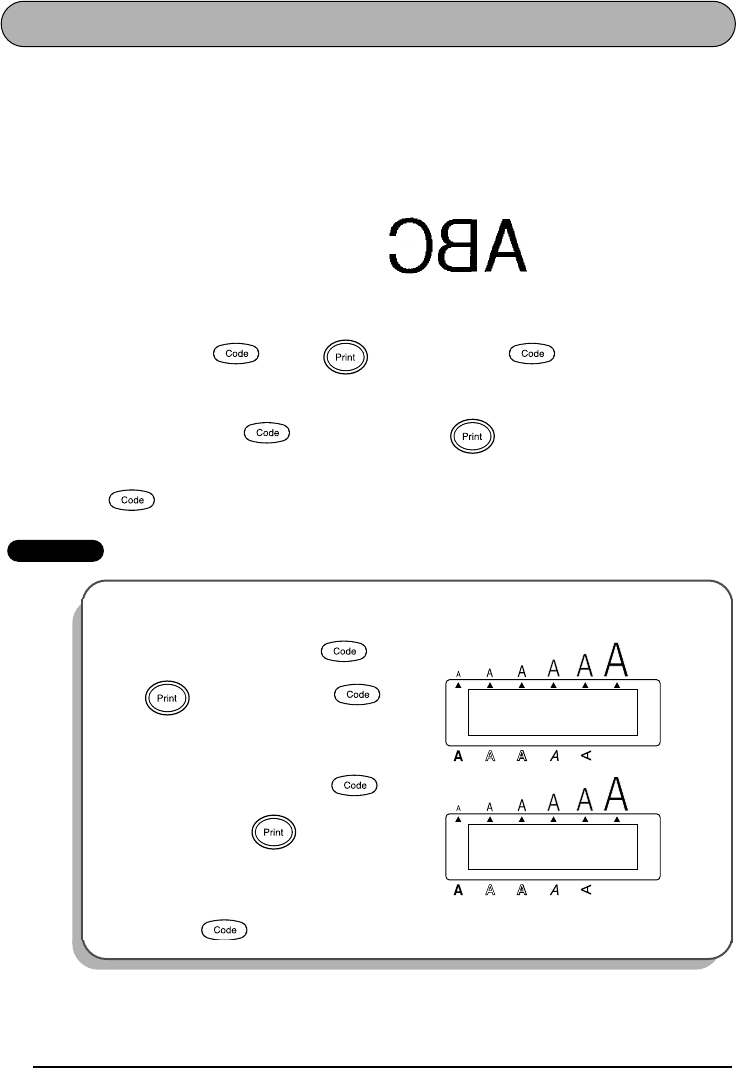
You can choose to align the text in one of three ways. In addition, if the Length function was
used to set the length of the label, the text will align within the label according to the selected
horizontal alignment setting.
Three settings exist, as follws. The default setting is LEFT.
To change the horizontal alignment setting:
1While holding down , press once, and keep held down to display the
current horizontal alignment setting.
2While still holding down , continue pressing until the desired horizontal
alignment setting is displayed.
3Release to apply the selected horizontal alignment setting to the entire text.
EXAMPLE
LEFT CENTER RIGHT
To select the RIGHT horizontal alignment setting:
1While holding down , press
once, and keep held down.
2While still holding down , con-
tinue pressing until RIGHT is dis-
played.
3Release .
Align
Align
LEFT
H.ALIGNMENT
Alt
Caps
Undl/Frm
Length
Wide
Align
RIGHT
H.ALIGNMENT
Alt
Caps
Undl/Frm
Length
Wide
Align
62
MIRROR PRINTING FUNCTION
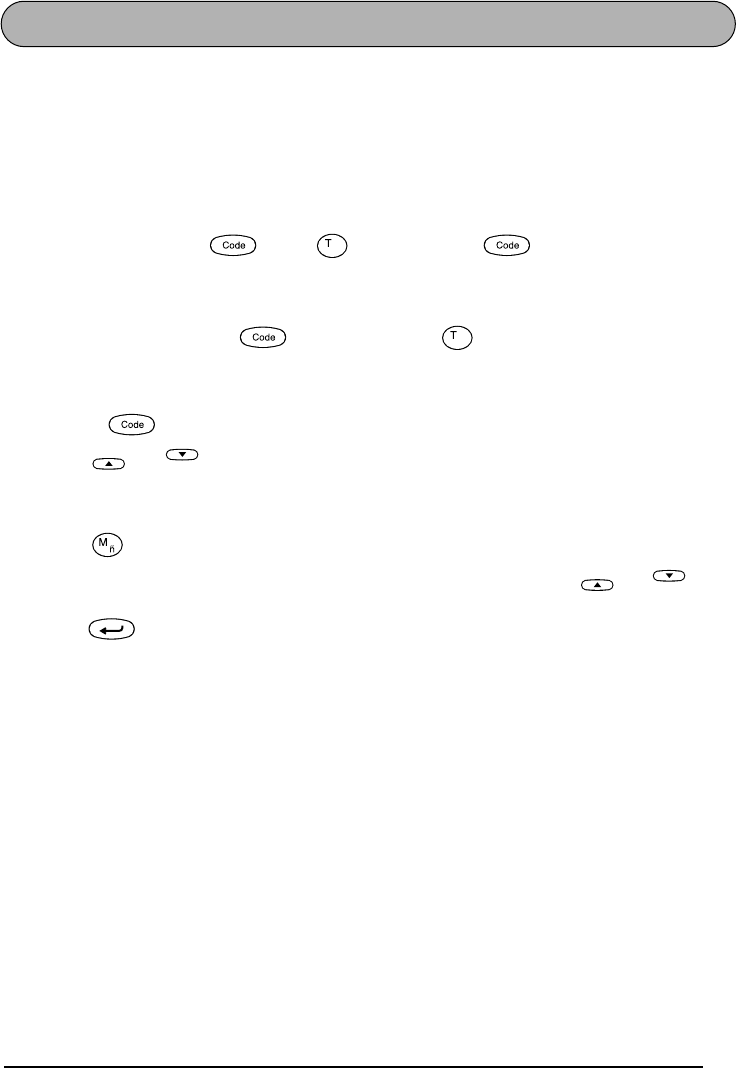
With this function, you can print your text so that the characters can be read from the tape side
of the tape. If mirror-printed labels are attached to glass or some other clear material, they can
be read correctly from the opposite side.
☞
When using the Mirror printing function, the text should be printed on clear tape.
The default mirror printing setting is OFF.
To turn on or off the mirror printing setting:
1While holding down , press once, and keep held down to display
the current mirror printing setting.
2While still holding down , continue pressing until the desired mirror print-
ing setting is displayed.
3Release to apply the selected mirror printing setting to the entire text.
EXAMPLE
ON
To select the ON mirror printing setting:
1While holding down , press
once, and keep held
down.
2While still holding down , con-
tinue pressing until ON is dis-
played.
3Release .
Mirror
Mirror
OFF
MIRROR
Alt
Caps
Undl/Frm
Length
Wide
Mirror
ON
MIRROR
Alt
Caps
Undl/Frm
Length
Wide
Mirror
63
LENGTH FUNCTION
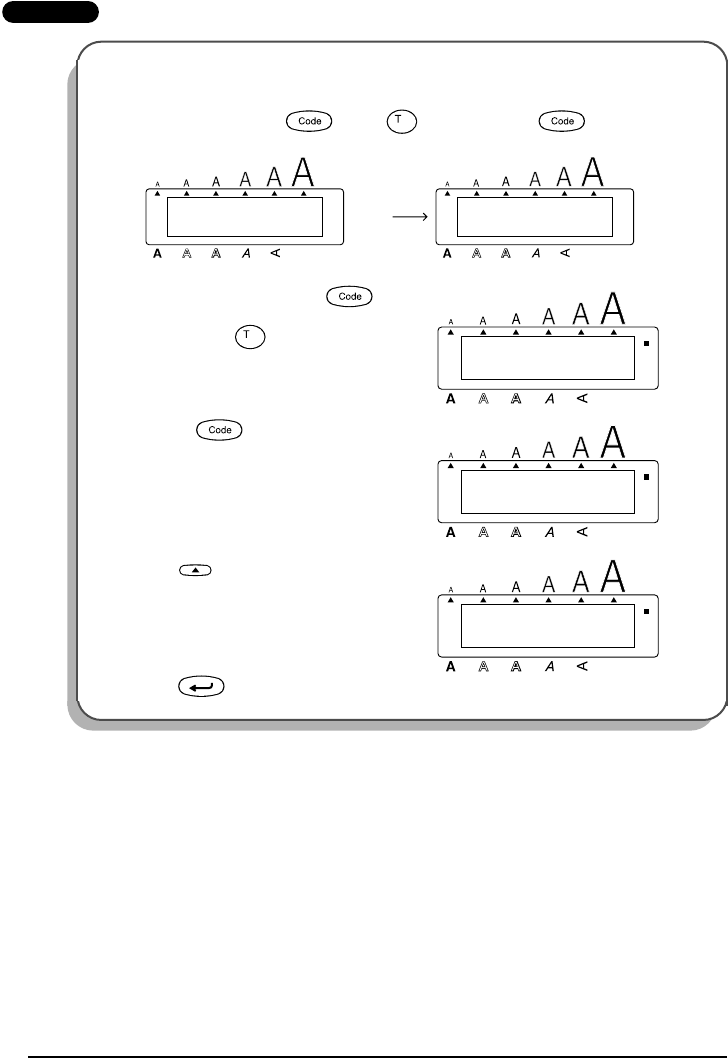
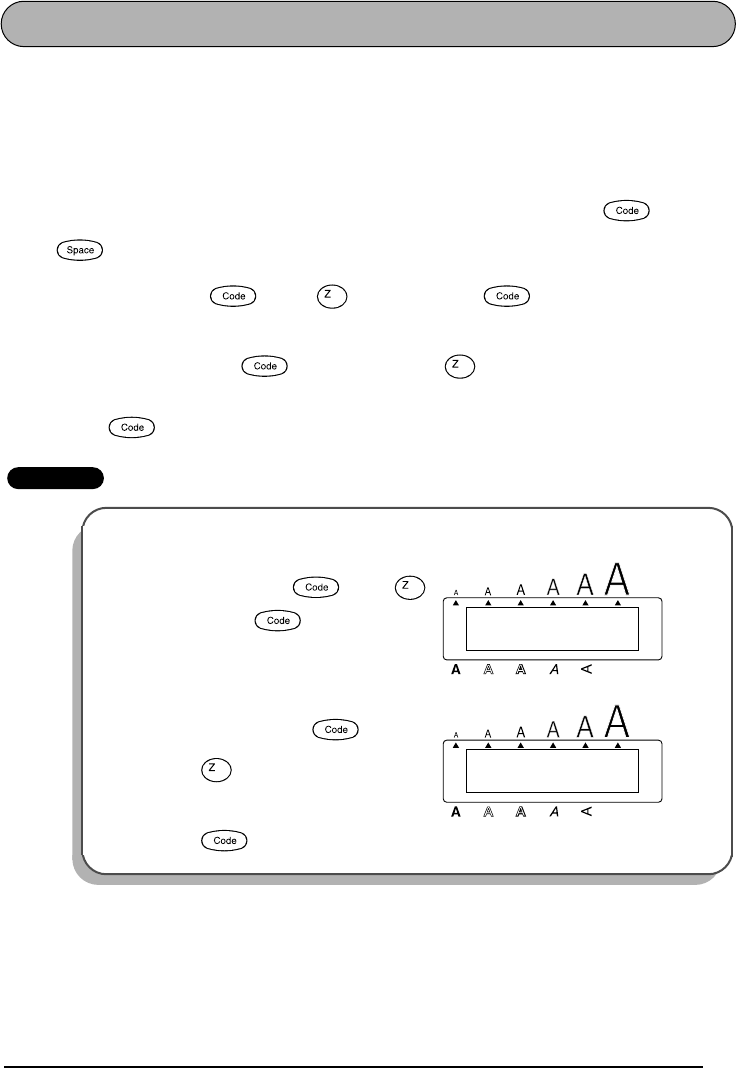
Although the length of the printed label automatically adjusts to fit the length of the entered
text, there may be times when you will want to make a label with a specific length. The Length
function allows you to set the label length between 1.6” and 11.8” (4.0 cm and 30.0 cm).
The default length setting is OFF. When the Length function is set to ON, the Length indicator
on the right side of the display lights up.
To turn on or off the Length function:
1While holding down , press once, and keep held down to display the
current length of the label (the text and both margins) briefly, then display the current
label length setting (ON or OFF).
2While still holding down , continue pressing until the desired label length set-
ting is displayed.
☞
The Length indicator lights up when ON is selected.
3Release . If ON was selected, the current label length setting is displayed.
4Press or to select the desired length or use the number keys to enter the
length.
☞
To change the units (inches or centimeters) used to display the label length, press
until the desired units are displayed.
To change the length in 1” (1.0-cm)-steps, hold down either
or
, and
then release the key when the desired setting is displayed.
5Press .
Length
Length
Home
End
Home
End
64
EXAMPLE
To select a label length of 5”:
1While holding down , press once, and keep held down.
2While still holding down , con-
tinue pressing until ON is displayed.
3Release .
4Press until 5.0 is displayed.
5Press .
Length
2.1
LENGTH inch
OFF
LENGTH inch
Alt
Caps
Alt
Caps
Undl/Frm
Length
Wide
Undl/Frm
Length
Wide
Alt
Caps
LENGTH inch
ON
Undl/Frm
Length
Wide
Length
Alt
Caps
LENGTH inch
3.9
Undl/Frm
Length
Wide
Alt
Caps
LENGTH inch
5.0
Undl/Frm
Length
Wide
Home
65
AUTO CUT FUNCTION
The Auto cut function allows you to set whether or not the machine will automatically cut off
a label after it is printed or each set of labels printed with the Numbering or Repeat printing
functions. Turn on the Auto cut function before starting to print in order to cut off the labels
automatically after printing them.
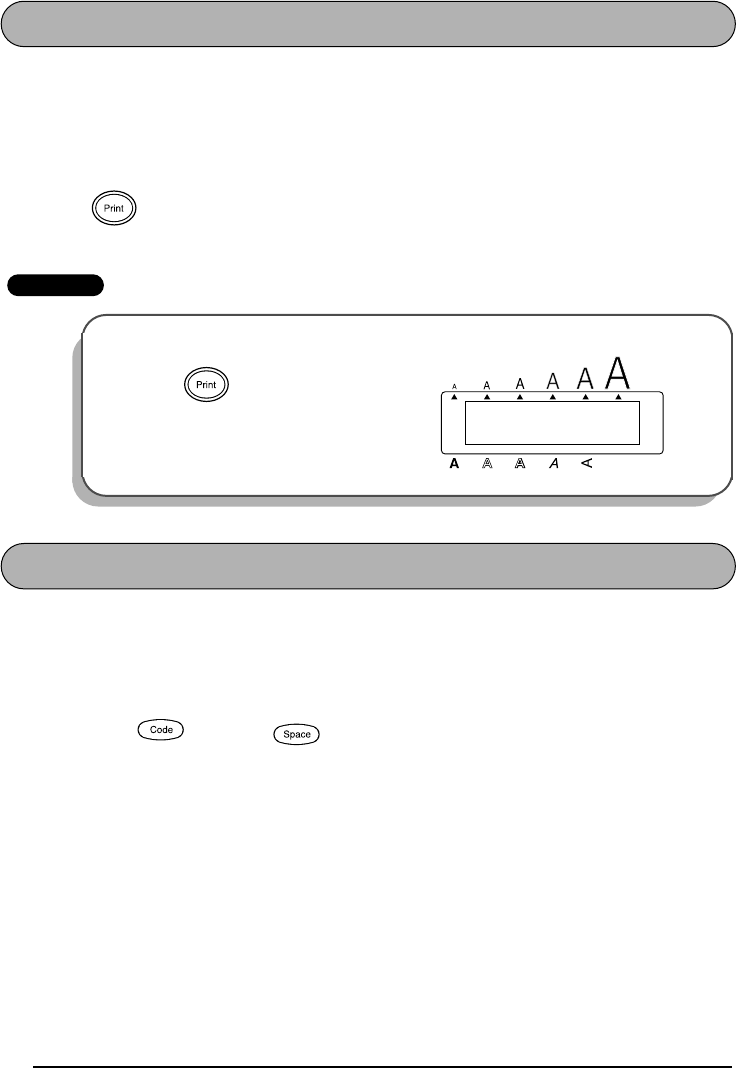
To turn on or off the Auto cut function:
☞
After printing a label with the Auto cut function turned off, hold down and press
once to feed the tape, then cut it.
1While holding down , press once, and keep held down to display the
current auto cut setting.
2While still holding down , continue pressing until the desired auto cut setting
is displayed.
3Release to apply the selected auto cut setting.
EXAMPLE
To turn on the Auto cut function:
1While holding down , press
once, and keep held down.
2While still holding down , continue
pressing until ON is displayed.
3Release .
Feed&Cut
A.Cut
A.Cut
OFF
AUTO CUT
Alt
Caps
Undl/Frm
Length
Wide
A.Cut
ON
AUTO CUT
Alt
Caps
Undl/Frm
Length
Wide
A.Cut
66
PRINT KEY
After you have entered your text and chosen the desired format settings, you are ready to print.
☞
If the Auto cut function is set to ON, the label will automatically be cut off after it is
printed.
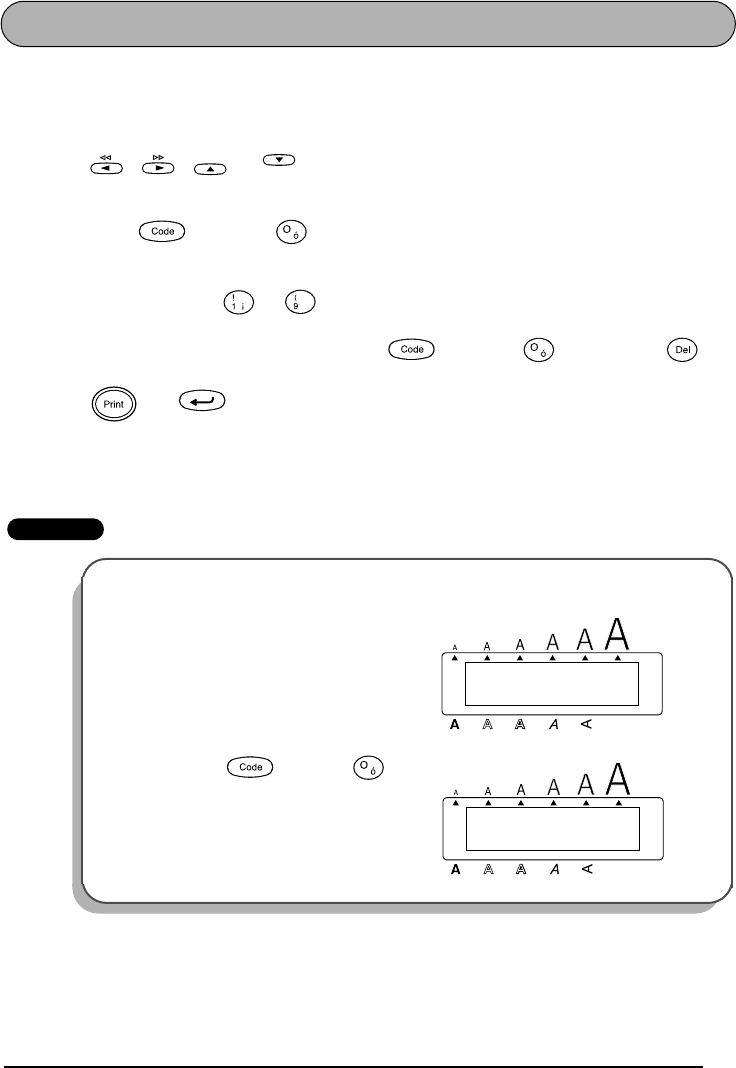
To print a label:
●Press once. The message “COPIES” followed by the number of the label being
printed is displayed.
EXAMPLE
FEED & CUT FUNCTION
The Feed & Cut function is used to feed out 1” (25 mm) of tape and automatically cut it off, for
example after printing with the Auto cut function set to OFF or when printing has been inter-
rupted.
To feed and cut off 1” (25 mm) of tape:
●Hold down and press once. 1” (25 mm) of tape is fed out and cut off.
To print a label and cut it off:
●Press once.
Mirror
1/1
COPIES
Alt
Caps
Undl/Frm
Length
Wide
Mirror
Feed&Cut
67
NUMBERING FUNCTION
This function can be used to print many copies of the same text while increasing a certain
number in the text by 1 after each label is printed.
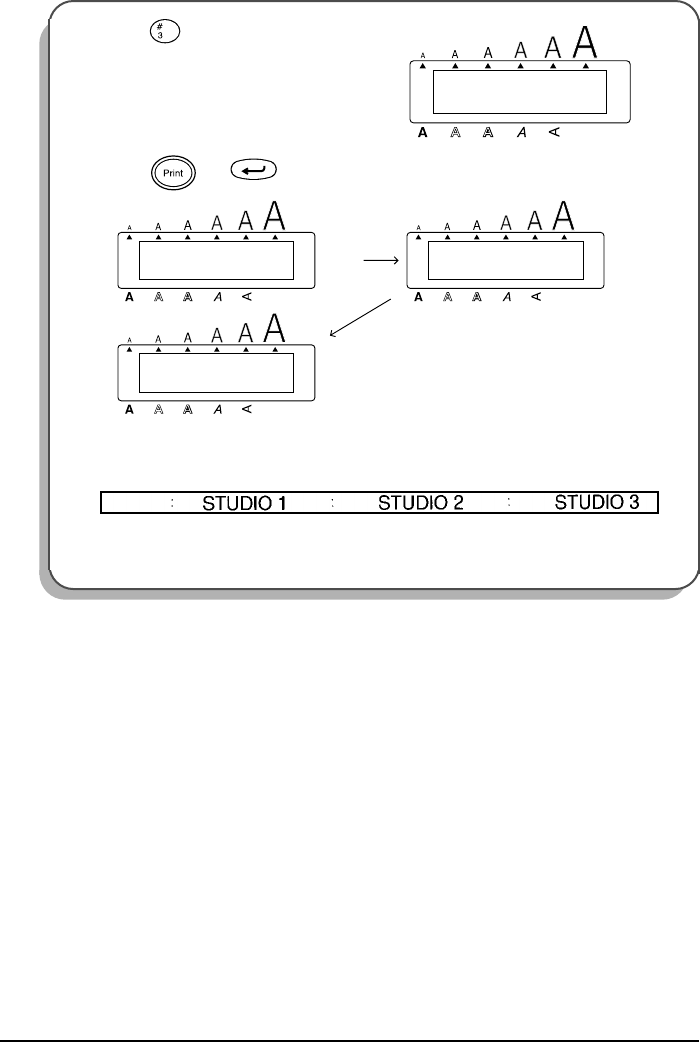
To use the Numbering function:
1Press , , or to position the cursor below the number that you wish
to increase.
2Hold down and press . The message “NUMBER UNTIL 1–9?” appears in the
display.
3Press the number key ( to ) of the last number that is to be printed.
☞
To cancel the Numbering, hold down and press (or press just ).
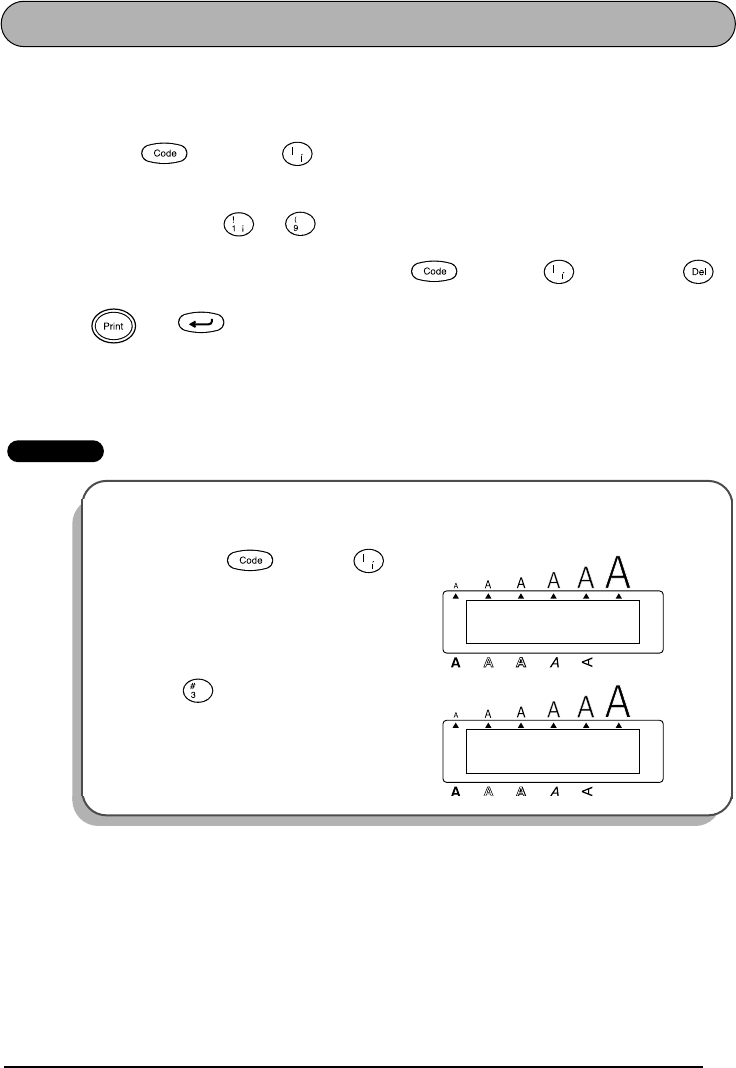
4Press (or ) to begin printing the labels. The number of each copy is dis-
played while it is being printed.
5After the tape is automatically cut off, use scissors to cut along the cutting guide and
separate the labels.
EXAMPLE
To print three labels with numbers 1, 2 and 3:
1Position the cursor below “1”.
2Hold down and press .
Home
End
Number
Font M.Del
Number Clear
Mirror
Alt
Caps
1:
STUDIO 1
_
Undl/Frm
Length
Wide
Alt
Caps
UNTIL 1–9?
NUMBER
Undl/Frm
Length
Wide
Number
68
3Press .
4Press (or ).
5After the tape is automatically cut off, use scissors to cut along the cutting guide and
separate the labels.
Alt
Caps
UNTIL 3
NUMBER
Undl/Frm
Length
Wide
Width
Mirror
2/3
COPIES
3/3
COPIES
1/3
COPIES
Alt
Caps
Alt
Caps
Alt
Caps
Undl/Frm
Length
Wide
Undl/Frm
Length
Wide
Undl/Frm
Length
Wide
✂
✂
✂
69
REPEAT PRINTING FUNCTION
This function allows you to print up to 9 copies of the same text.
To use the Repeat printing function:
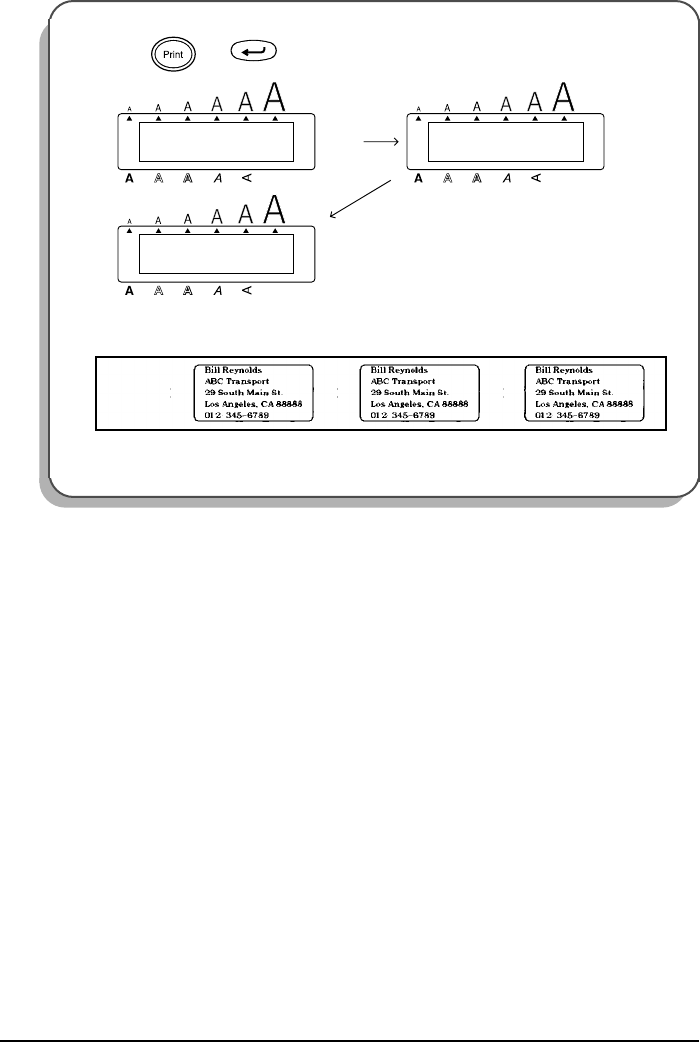
1Hold down and press . The message “COPIES UNTIL 1–9?” appears in the
display.
2Press the number key ( to ) of the number of labels that you want.
☞
To cancel the Repeat printing, hold down and press (or press just ).
3Press (or ) to begin printing the labels. The number of each copy is dis-
played while it is being printed.
4After the tape is automatically cut off, use scissors to cut along the cutting guide and sepa-
rate the labels.
EXAMPLE
To print three copies of a label:
1Hold down and press .
2Press .
Repeat
Font M.Del
Repeat Clear
Mirror
Alt
Caps
UNTIL 1–9?
COPIES
Undl/Frm
Length
Wide
Repeat
Alt
Caps
UNTIL 3
COPIES
Undl/Frm
Length
Wide
Width
70
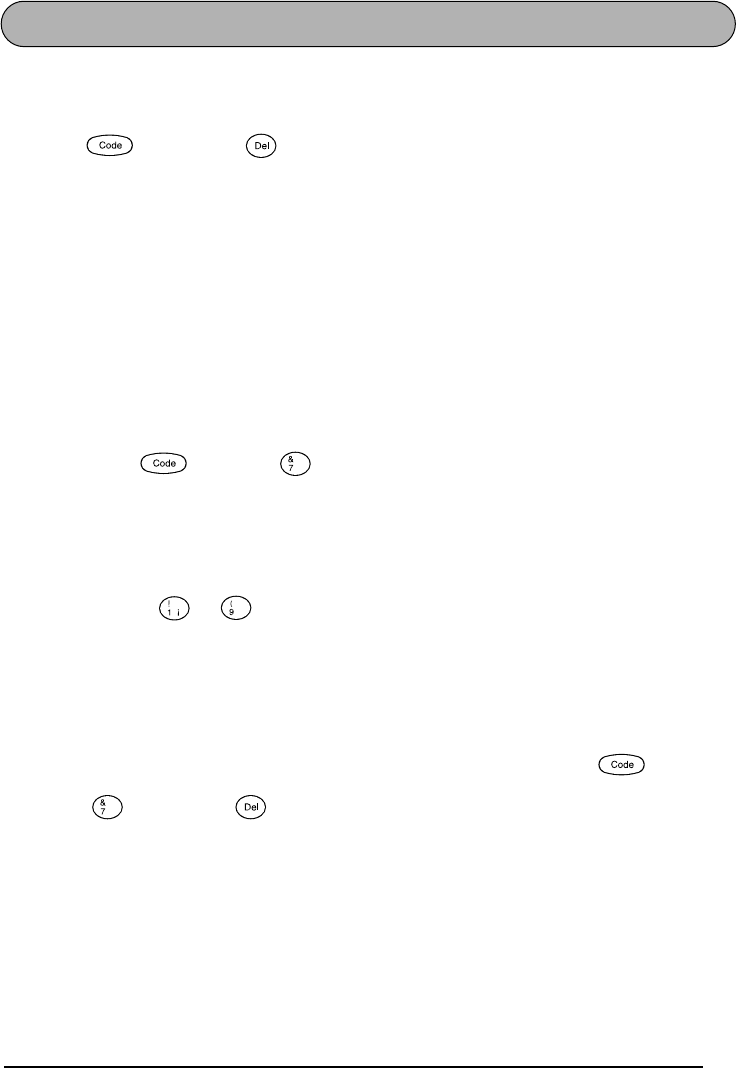
3Press (or ).
4After the tape is automatically cut off, use scissors to cut along the cutting guide and
separate the labels.
Mirror
2/3
COPIES
3/3
COPIES
1/3
COPIES
Alt
Caps
Alt
Caps
Alt
Caps
Undl/Frm
Length
Wide
Undl/Frm
Length
Wide
Undl/Frm
Length
Wide
✂
✂
✂
71
MEMORY FUNCTIONS
You can use the memory to store your most frequently used text files. The text remains in the
memory, even after all characters are removed from the display using the Clear function (hold-
ing down and pressing ).
When each file is stored, it is given a number to make recalling it easier. Up to 9 text files or
about 300 characters can be stored in the memory. Each stored text file can have a maximum
of 99 characters.
Since a copy of the stored text file is recalled when the Recall function is used, the text can be
edited or printed without changing the originally stored file. When a file is no longer needed or
more space is necessary, the Memory delete function can be used to delete it.
☞
When inserting new batteries, be sure to insert the new ones within five minutes of
removing the old ones, otherwise any text files stored in the memory will be lost (unless
the machine is plugged into an electrical outlet with the AC adaptor).
STORING TEXT
To store a text file:
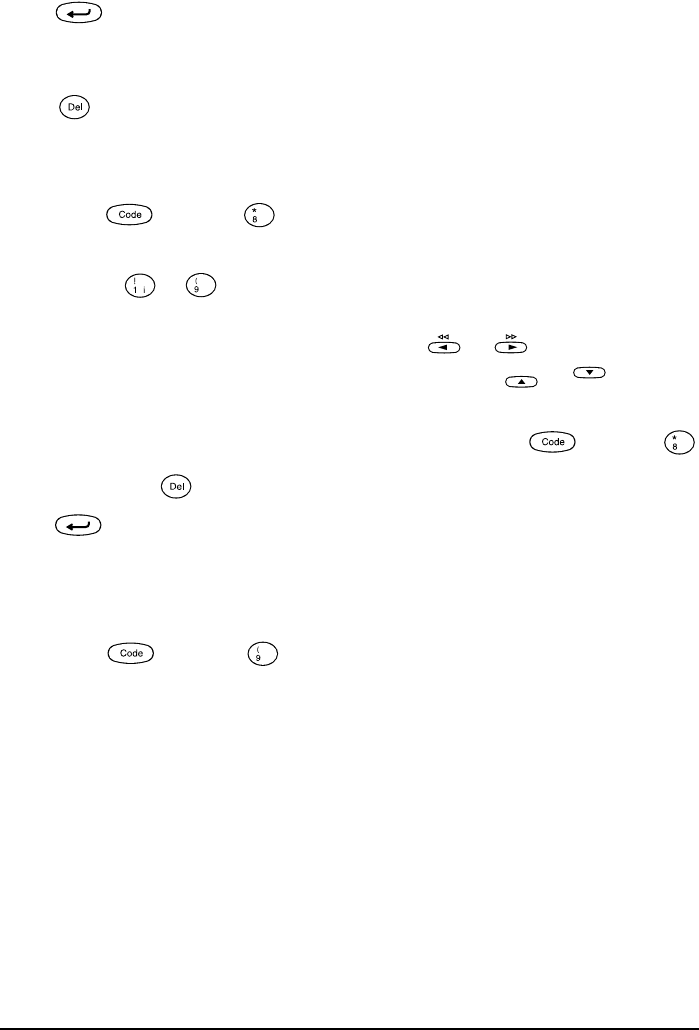
1Hold down and press . The message “STORE SELECT 1–9?” appears on the
display.
☞
If 300 characters have already been stored, the error message “MEMORY FULL!”
appears in the display. If this occurs, an existing text file must be deleted before the
new one can be stored.
2Press the key ( to ) of the file number where you wish to store the text. The text
is stored under the selected file number and the text previously shown in the display reap-
pears.
☞
If a file is already stored under the selected file number, the message “OVER-
WRITE?” appears in the display and you must decide whether or not to overwrite it
(delete it from the memory and store the new one).
To quit the Store function without storing the text, hold down and press
(or press just ).
Clear
Store
Font M.Del
Store Clear
72
To overwrite the stored file with the new one:
●Press to delete the previously stored file and store the new one under the selected
number.
☞
To go back and choose another file number without overwriting the text file, press
, and then press the key of a different file number.
RECALLING TEXT
To recall a text file:
1Hold down and press . The message “RECALL SELECT 1–9?” appears on the
display.
2Press the key ( to ) of the file number containing the text that you wish to recall.
The text stored under the selected file number is shown.
☞
To see other parts of the selected text file, press
or
.
To display the text stored under other file numbers, press
or
, or the key
of a different file number.
To quit the Recall function without recalling text, hold down and press
(or press just ).
3Press . Any text previously entered in the display is erased and the text stored under
the selected file number is recalled into the display.
DELETING A FILE
To delete a text file:
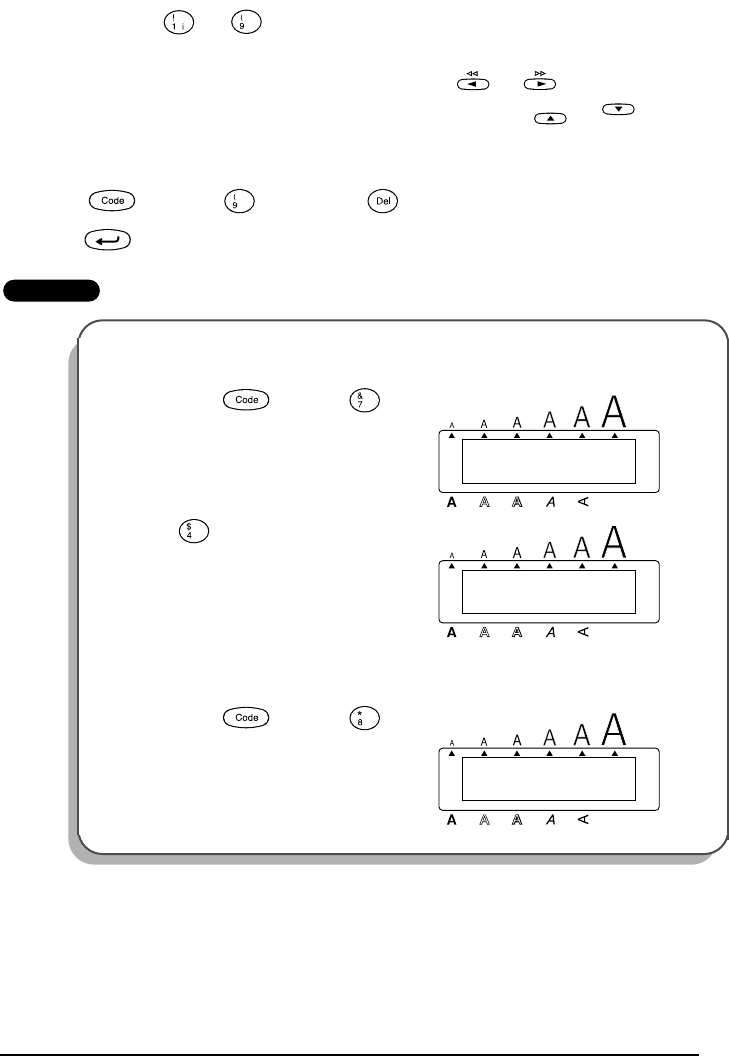
1Hold down and press . The message “CLEAR SELECT 1–9?” appears on the
display.
Clear
Recall
Font M.Del
Home
End
Recall
Clear
M.Del
73
2Press the key ( to ) of the file number containing the text that you wish to
delete. The text stored under the selected file number is shown.
☞
To see other parts of the selected text file, press
or
.
To display the text stored under other file numbers, press
or
, or the key
of a different file number.
To cancel the Memory delete function without deleting the text file, hold down
and press (or press just ).
3Press to delete the text file that was selected.
EXAMPLE
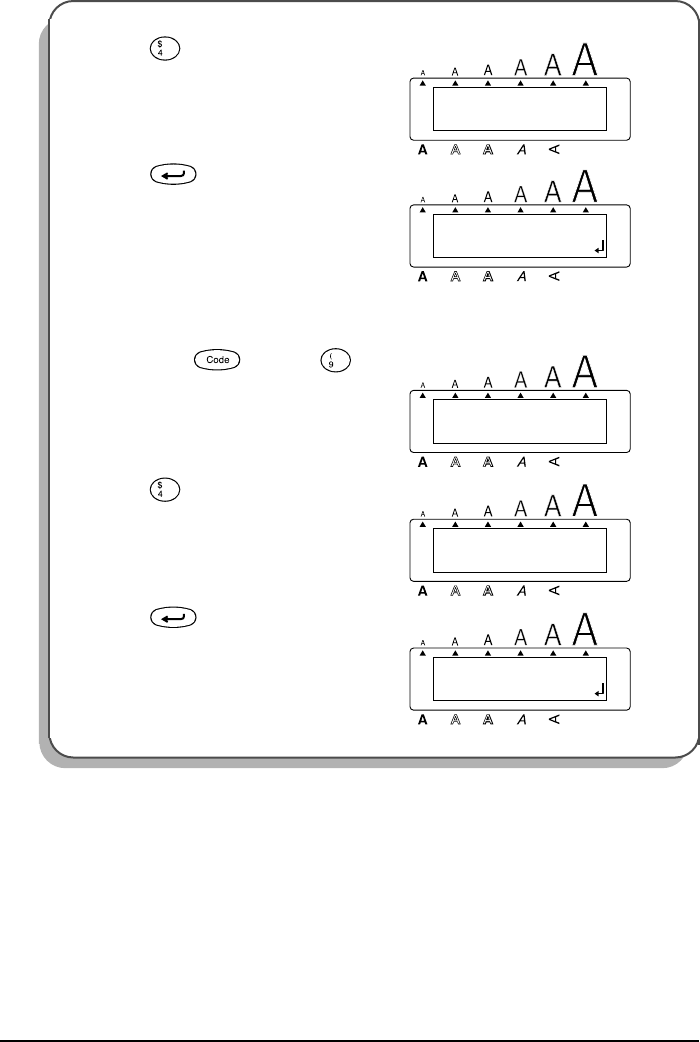
To store text under file number 4:
1Hold down and press .
2Press .
To recall the text from file number 4:
1Hold down and press .
Font M.Del
Home
End
M.Del Clear
Alt
Caps
SELECT 1–9?
STORE
Undl/Frm
Length
Wide
Store
Alt
Caps
1:
John Smith
Undl/Frm
Length
Wide
Style
Alt
Caps
SELECT 1–9?
RECALL
Undl/Frm
Length
Wide
Recall
74
2Press .
3Press .
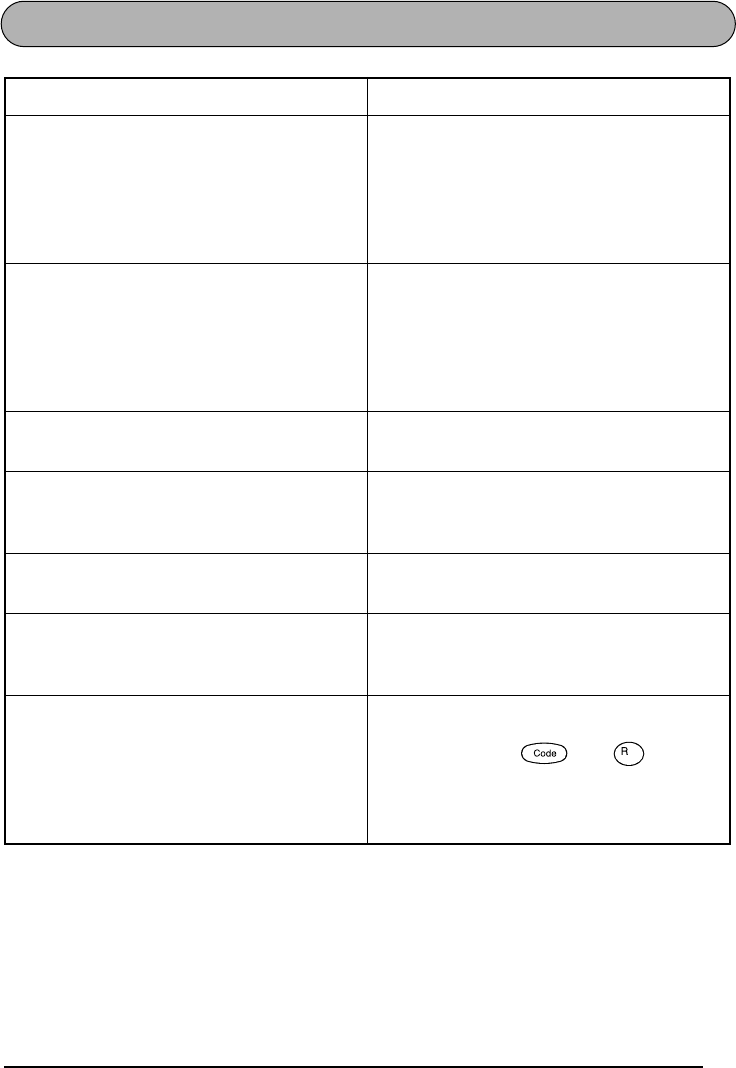
To delete the text stored under file number 4:
1Hold down and press .
2Press .
3Press .
Alt
Caps
[4]John Smit
RECALL
Undl/Frm
Length
Wide
Style
Alt
Caps
1:
John Smith
_
Undl/Frm
Length
Wide
Alt
Caps
SELECT 1–9?
CLEAR
Undl/Frm
Length
Wide
M.Del
Alt
Caps
[4]John Smit
CLEAR
Undl/Frm
Length
Wide
Style
Alt
Caps
1:
John Smith
_
Undl/Frm
Length
Wide
75
TROUBLESHOOTING
Problem Remedy
1. The display stays blank after you have
turned on the machine.
• Check that the AC adaptor is connected
correctly.
• If you are using alkaline batteries, check
that they are correctly inserted.
• If the batteries are low, replace them with
new ones.
2. The machine does not print or the printed
characters are blurred.
• Check that the tape cassette has been
inserted properly.
• If the tape cassette is empty, replace it
with a new one.
• Make sure that the tape compartment
cover has been closed.
3. The text files that you stored in the mem-
ory are no longer there.
• If the batteries are low, replace them with
new ones.
4. The printed characters are not formed
properly.
• If you are using alkaline batteries, they
may be low. Try using the AC adaptor or
replace the batteries with new ones.
5. A blank horizontal line appears through
the printed label.
• Clean the print head as explained on
page 9.
6. Striped tape appears. • You have reached the end of the tape.
Replace the tape cassette with a new
one.
7. The machine has “locked up” (i.e., noth-
ing happens when a key is pressed).
• Turn off the machine, and then while
holding down and , turn the
machine back on. The text and formats
in the display and all text files stored in
the memory are erased.
Align
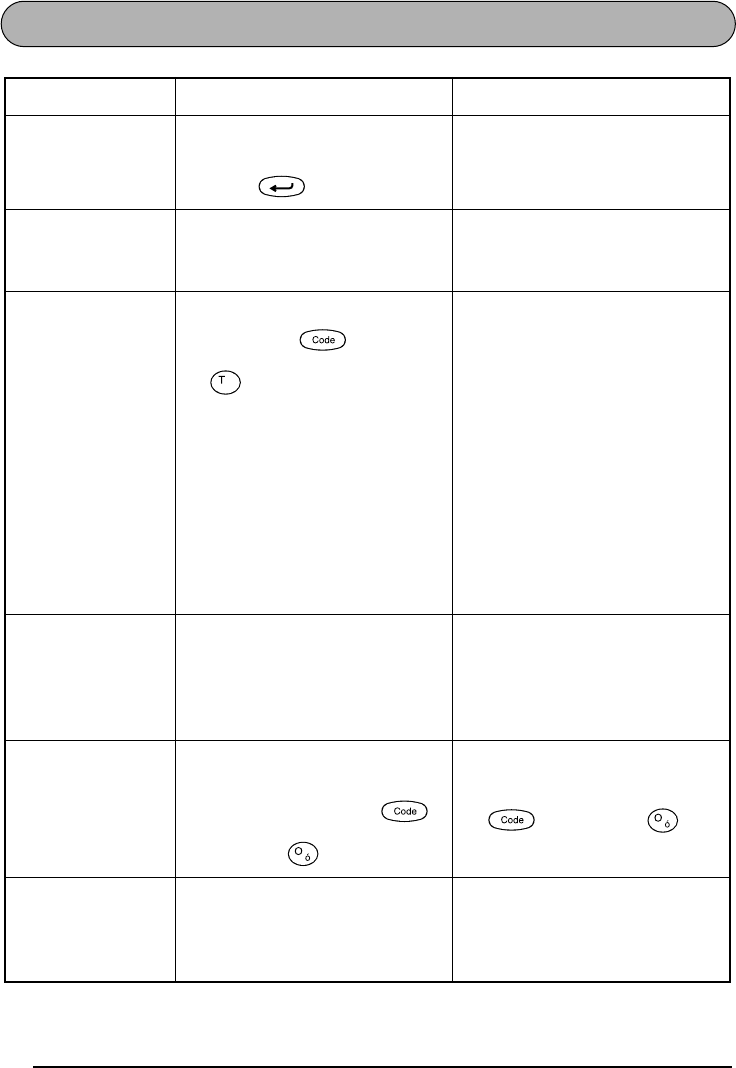
76
ERROR MESSAGE LIST
Error Message Cause Remedy
5 LINE
LIMIT! • This message appears if five
lines already exist when you
press .
• Limit the number of lines to
five.
BATTERIES
WEAK! • This message appears when the
installed alkaline batteries
become weak.
• Replace the batteries or use
the AC adaptor.
BUFFER
EMPTY! • This message appears if you
hold down and press
, but no text has been
entered in the display.
• Enter some text before starting
the function.
• This message appears if you
try to print, but no text has
been entered.
• Enter text before printing.
• This message appears if you
try to store a text file in the
memory, but no text has been
entered in the display.
• Enter text before storing.
BUFFER
FULL! • This message appears if you
try to enter a character, sym-
bol, bar code, return or space
after 99 characters have
already been entered.
• Delete some existing text so
that more text can be entered.
CAN’T
HERE! • This message appears if the
cursor is at the end of the text
when you hold down
and press .
• Move the cursor below a
number before holding down
and pressing .
CHANGE
ADAPTOR • This message appears if a
high-voltage adaptor is being
used.
• Remove the high-voltage
adaptor and connect the
adaptor designed exclusively
for this machine.
Length
Number
Number
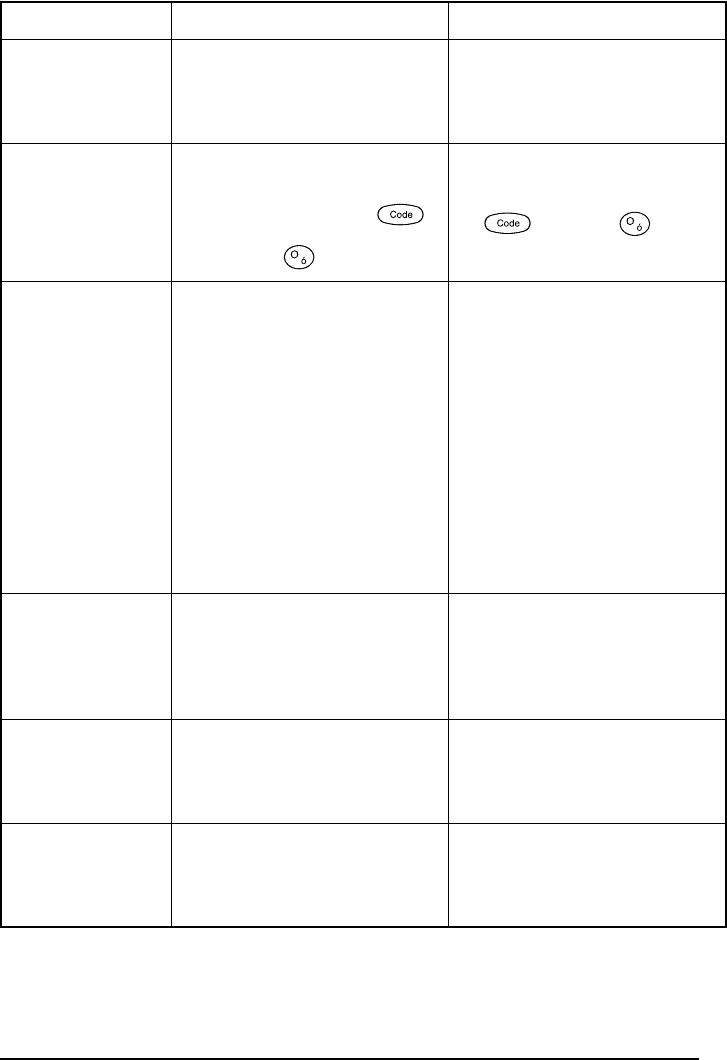
77
CUTTER
ERROR! • This message appears if the
tape cutter lever is pressed
down while a label is being
printed.
• Turn the P-touch off, then on
again.
INVAL.
CHRS! • This message appears if the
cursor is not below a number
when you hold down
and press .
• Move the cursor below a
number before holding down
and press .
LENGTH
LIMIT! • This message appears if the text
is longer than 1 meter when
you try to print.
• Shorten the text to less than 1
meter before trying to print.
• This message appears if the
Length function is used to set
a label length that is less than
1.6” (4.0 cm) or more than
11.8” (30.0 cm).
• Set the label length between
1.6” (4.0 cm) and 11.8” (30.0
cm).
• This message appears if the
Tab Length function is used to
set a tab length that is more
than 11.8” (30.0 cm).
• Set the tab length so that it is
less than 11.8” (30.0 cm).
LINE
LIMIT! • This message appears if the
number of lines in the text is
greater than the maximum
number of lines possible for
the installed tape.
• Reduce the number of lines or
install a tape of greater width.
MEMORY
FULL! • This message appears if you
try to store a text file after 300
characters have already been
stored in the memory.
• Delete an unwanted file to
make room for the new one.
NO
FILES! • This message appears if you try
to recall or delete a text file
from the memory when none
are stored.
• Store a text file first.
Error Message Cause Remedy
Number
Number
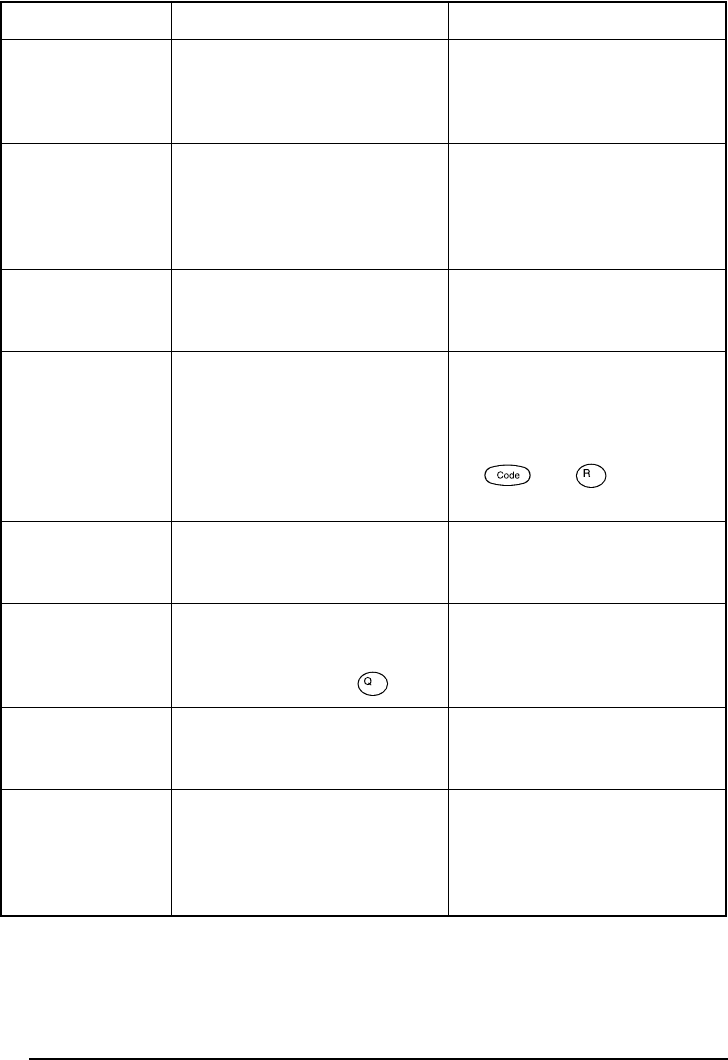
78
NO
TAPE! • This message appears if you try
to print a label or feed the tape
when no tape cassette is
installed.
• Install a tape cassette and try
again.
NUMBER
TOO SMALL! • This message appears if the
number that is set to be
printed using the Numbering
function is less than the
number above the cursor.
• Press the key of a number that
is greater than the number in
the text.
REPLACE
BATTERIES! • This message appears if the
installed alkaline batteries are
about to run out.
• Replace the batteries or use
the AC adaptor.
ROM
PROBLEM! • This message appears if there
is a problem with the
machine’s read only memory.
• Contact your service repre-
sentative.
Turn off the machine, and
then while holding down
and , turn the
machine back on.
SYSTEM
ERROR! • This message appears if there
is a problem with the
machine’s software.
• Contact your service repre-
sentative.
TAB
LIMIT! • This message appears if 50 tabs
have already been added to the
text when you press .
• Limit the number of tabs in
the text to 50.
TEXT
TOO HIGH! • This message appears if the
size of the text is larger than
the width of the installed tape.
• Reduce the size of the charac-
ters or install a wider tape.
TEXT
TOO LONG! • This message appears if the
length of the text is longer
than the label length that has
been set using the Length
function.
• Delete some of the text,
reduce the character width or
increase the set label length.
Error Message Cause Remedy
Align
Tab

79
SPECIFICATIONS
HARDWARE
SOFTWARE
Input Device: Keyboard - 51 keys
LCD: 7 × 5 dots
12 characters × 2 lines
16 indicators
Print Tape: Pressure-sensitive, Adhesive-based
26’ 3” (8 m) long
Five widths available:
1/4” (6 mm)
3/8” (9 mm)
1/2” (12 mm)
3/4” (18 mm)
1” (24 mm)
Power Supply: Eight AA alkaline batteries (AM3, LR6), eight AA manganese batteries
or optional AC adaptor
Auto power-off if no key is pressed for 5 minutes
Print Head: 128 dot / 180 dpi
Dimensions: 7 1/2” (W) × 9” (D) × 2 1/2” (H)
(188 × 234 × 67 mm)
Weight: 1.98 lbs (900 g) (without a tape cassette and batteries installed)
Buffer Size: Maximum 99 characters
Maximum five lines
Memory Size: 300 characters
Character Size: Six sizes (6, 9, 12, 18, 24 and 36 points) + 48 point (Capital letters only)
All are available in normal and wide
Print Styles: Normal, Outline, Bold, Shadow
(each can be combined with Italic), and Vertical
80
ACCESSORIES
●Supplies
Obtain tape cassettes from your nearest authorized dealer.
Use only Brother TZ tapes with this machine. Brother cannot be held responsible for trou-
ble caused by the use of unauthorized supplies. Do not use tapes that do not have the
mark.
Stock No. Description QTY/
PACKAGE PRICE
1” (24mm)-wide laminated tapes
TZ-151 Black characters on clear adhesive 1 $23.99
TZ-251 Black characters on white adhesive 1 $23.99
TZ-451 Black characters on red adhesive 1 $23.99
TZ-651 Black characters on yellow adhesive 1 $23.99
TZ-252 Red characters on white adhesive 1 $23.99
TZ-354 Gold characters on black adhesive 1 $26.99
TZ-355 White characters on black adhesive 1 $26.99
3/4” (18mm)-wide laminated tapes
TZ-141 Black characters on clear adhesive 1 $20.99
TZ-145 White characters on clear adhesive 1 $20.99
TZ-241 Black characters on white adhesive 1 $20.99
TZ-242 Red characters on white adhesive 1 $20.99
TZ-243 Blue characters on white adhesive 1 $20.99
TZ-344 Gold characters on black adhesive 1 $24.99
TZ-345 White characters on black adhesive 1 $23.99
TZ-441 Black characters on red adhesive 1 $20.99
TZ-541 Black characters on blue adhesive 1 $20.99
TZ-545 White characters on blue adhesive 1 $23.99
TZ-641 Black characters on yellow adhesive 1 $20.99
TZ-741 Black characters on green adhesive 1 $20.99
TZ-B41 Black characters on fluorescent orange adhesive 1 $24.99
TZ-M41 Black characters on clear (matte) adhesive 1 $20.99
TZ-WB41 Black characters on Bugs Bunny adhesive 1 $23.99
TZ-WT41 Black characters on Taz adhesive 1 $23.99
TZ-WS41 Black characters on Tweety & Sylvester adhesive 1 $23.99
1/2” (12mm)-wide laminated tapes
TZ-131 Black characters on clear adhesive 1 $16.99
TZ-231 Black characters on white adhesive 1 $17.99
TZ-232 Red characters on white adhesive 1 $17.99
TZ-335 White characters on black adhesive 1 $20.99
81
Special tapes
Stamp kit
Options
3/8” (9mm)-wide laminated tapes
TZ-121 Black characters on clear adhesive 1 $14.99
TZ-221 Black characters on white adhesive 1 $16.99
TZ-325 White characters on black adhesive 1 $18.99
TZ-421 Black characters on red adhesive 1 $16.99
1/4” (6mm)-wide laminated tapes
TZ-111 Black characters on clear adhesive 1 $12.99
TZ-211 Black characters on white adhesive 1 $14.99
TZ-315 White characters on black adhesive 1 $17.99
Stock No. Description QTY/
PACKAGE PRICE
TZ-SE4 Black characters on 3/4” (18 mm) security adhesive 1 $29.99
TZ-FA3 Blue characters on 1/2” (12 mm) fabric adhesive 1 $24.99
Stock No. Description QTY/
PACKAGE PRICE
SK-LB Stamp-making kit for Large stamp with black ink 1 $39.99
SK-MB Stamp-making kit for Medium stamp with black ink 1 $37.99
SH-LB Additional stamper for Large stamp with black ink 1 $27 .99
SH-MB Additional stamper for Medium stamp with black ink 1 $24.99
Stock No. Description QTY/
PACKAGE PRICE
AD-60 AC Adapter 1 $24.99
6999 Protective carrying case 1 $24.99
Stock No. Description QTY/
PACKAGE PRICE

82
P-TOUCH ACCESSORY ORDER FORM
Dear Customer:
This order form is provided for your convenience should your retailer not stock the item(s)
needed. To order by mail, send this completed form along with proper payment to the address
below OR credit card holders: Call toll-free 1-888-879-3232, fax completed order form to 1-
800-947-1445, or visit our web site at http://www
.brothermall.com. Please refer to the Acces-
sories listing in your User’s Guide for stock no. and price.
* Prices subject to change without notice.
Stock No. Description Price Quantity Total
Subtotal
Name: Accessory Subtotal: $
Address: AZ, CA, CO, CT, FL, GA, IL, LA,
MA, MD, MI, MN, MO, NC, NJ,
NV, NY, OH, PA, TN, TX, VA, WA
residents add applicable sales tax
City:
State/Zip: $
Daytime Phone:
Shipping/Handing Options
SEND ORDER FORM TO: Please choose one:
Brother International Corp.
Attn: Consumer Accessory Div.
P.O. Box 341332
Bartlett, TN38184-1332
•Standard ($5.00)
•2nd day air freight ($8.75) Mandatory for all
deliveries outside of the continental U.S.
(Alaska, Hawaii, Puerto Rico, Virgin Islands
& Canada)
•All other overseas orders ($25.00) $
TOTAL DUE (US dollars) $
Method of payment (Check one)
( ) Visa ( ) MasterCard ( ) Discover ( ) American Express ( ) Check/Money Order
Account Number
Expiration Date
Signature
✂

P-TOUCH ACCESSORY ORDER FORM
Dear Customer:
This order form is provided for your convenience should your retailer not stock the item(s)
needed. To order by mail, send this completed form along with proper payment to the address
below OR credit card holders: Call toll-free 1-888-879-3232, fax completed order form to 1-
800-947-1445, or visit our web site at http://www
.brothermall.com. Please refer to the Acces-
sories listing in your User’s Guide for stock no. and price.
* Prices subject to change without notice.
Stock No. Description Price Quantity Total
Subtotal
Name: Accessory Subtotal: $
Address: AZ, CA, CO, CT, FL, GA, IL, LA,
MA, MD, MI, MN, MO, NC, NJ,
NV, NY, OH, PA, TN, TX, VA, WA
residents add applicable sales tax
City:
State/Zip: $
Daytime Phone:
Shipping/Handing Options
SEND ORDER FORM TO: Please choose one:
Brother International Corp.
Attn: Consumer Accessory Div.
P.O. Box 341332
Bartlett, TN38184-1332
•Standard ($5.00)
•2nd day air freight ($8.75) Mandatory for all
deliveries outside of the continental U.S.
(Alaska, Hawaii, Puerto Rico, Virgin Islands
& Canada)
•All other overseas orders ($25.00) $
TOTAL DUE (US dollars) $
Method of payment (Check one)
( ) Visa ( ) MasterCard ( ) Discover ( ) American Express ( ) Check/Money Order
Account Number
Expiration Date
Signature
✂

GUIA DE
INSTRUCCIONES
INTRODUCCIÓN
Gracias por adquirir el P-touch 2200/2210.
El nuevo P-touch le permitirá diseñar y crear etiquetas y membretes para cualquier tipo de
aplicación. Su versatilidad le permitirá crear etiquetas personales seleccionando distintos dise-
ños de marcos y muchos tamaños y estilos de caracteres. Además, los cinco diferentes anchos
de cinta (1/4
″
(6 mm), 3/8
″
(9 mm), 1/2
″
(12 mm), 3/4
″
(18 mm) y 1
″
(24 mm)) y la variedad de
los colores de la cintas le hará posible imprimir etiquetas personales. Con la función de
sellos
,
podrá hacer membretes con facilidad y rapidez para soportes de membretes entintados reutili-
zables.
Ya no hay por qué preocuparse por tareas urgentes que requieren impresión profesional. En la
oficina, fábrica, laboratorio, o en casa, la calidad y el rendimiento del P-touch 2200/2210 la
convierten en una máquina muy práctica.
Para terminar, puesto que esta guía del usuario le será de gran utilidad, le aconsejamos que la
guarde en un lugar accesible para poder consultar en cualquier momento.
(Los modelos PT-2200 y PT-2210 disponen de las mismas funciones. Sin embargo, solamente
el modelo PT-2210 dispone de estuche de transporte y adaptador de CA.)
AVISO DE LA FCC
Este equipo ha sido probado y cumple con los límites de un aparato digital de la Clase B,
siguiendo el apartado 15 de las normas de la FCC. Estos límites están pensados para pro-
porcionar una protección razonable contra interferencias nocivas dentro de una instala-
ción residencial. Este equipo podría interferir de forma nociva con comunicaciones por
radio si no se instala y utiliza siguiendo las instrucciones. No obstante, no existe ninguna
garantía de que no vayan a suceder interferencias en una instalación concreta. Si este
equipo causara interferencias nocivas con la recepción de radio o televisión, lo cual
puede determinarse poniendo el equipo en ON u OFF, se recomienda que el usuario
intente corregir dichas interferencias mediante una de las siguientes medidas:
- Reoriente o ponga la antena receptora en otro lugar.
- Aumente la separación entre el equipo y el receptor.
- Conecte el equipo en una toma de un circuito diferente de la que esté conectada el
receptor.
- Consulte a su distribuidor o a un técnico experimentado de radio/televisión.
A continuación se indican los números de patente y de publicación de patente relaciona-
dos con este producto:
USP4839742 USP4983058 USP5120147
USP4927278 USP5009530
USP4976558 USP5069557

i
ÍNDICE
CUIDADOS Y PRECAUCIONES GENERALES...................................................... 1
PILAS .................................................................................................................. 2
ADAPTADOR DE CA OPCIONAL....................................................................... 3
CASETES DE CINTA ............................................................................................ 4
COLOCACIÓN DE ETIQUETAS .......................................................................... 5
CABEZA DE IMPRESIÓN Y RODILLOS ............................................................... 6
TECLA DEL CURSOR .......................................................................................... 7
TECLAS CODE, ALT Y SHIFT .............................................................................. 9
TECLA DE RETORNO ....................................................................................... 10
TABULACIÓN................................................................................................... 11
TECLA DE BORRADO (DEL) ............................................................................. 13
FUNCIÓN DE BORRADO DE LÍNEA (LINE OUT)............................................. 14
FUNCIÓN DE REPOSICIÓN (CLEAR)................................................................ 14
FUNCIÓN DE ACENTOS .................................................................................. 15
FUNCIÓN DE SÍMBOLOS ................................................................................ 16
FUNCIÓN DE FORMATO AUTOMÁTICO ....................................................... 17
FUNCIÓN DE SELLOS ...................................................................................... 18
FUNCIONES DE TAMAÑO Y DE ANCHURA ................................................... 19
FUNCIÓN DE ESTILO....................................................................................... 20
FUNCIÓN DE SUBRAYADO ............................................................................ 21
FUNCIÓN DEL TIPO DE CARACTERES ............................................................ 22
FUNCIÓN DE MARCOS ................................................................................... 23
FUNCIÓN DE CINTA........................................................................................ 24
FUNCIÓN DE LA ALINEACIÓN HORIZONTAL ............................................... 25
FUNCIÓN DE IMPRESIÓN DE ESPEJO ............................................................. 26
FUNCTIÓN DE LONGITUD ............................................................................. 27
FUNCIÓN DE CORTE AUTOMÁTICO.............................................................. 28
TECLA DE IMPRESIÓN...................................................................................... 29
FUNCIÓN DE AVANCE Y CORTE .................................................................... 29
FUNCIÓN DE NUMERACIÓN.......................................................................... 30
FUNCIÓN DE IMPRESIÓN REPETIDA .............................................................. 31
FUNCIONES DE LA MEMORIA......................................................................... 32
SOLUCIÓN DE PROBLEMAS............................................................................ 34
LISTA DE MENSAJES DE ERROR ....................................................................... 35
ESPECIFICACIONES .......................................................................................... 38
ACCESORIOS.................................................................................................... 39

ii

1
CUIDADOS Y PRECAUCIONES GENERALES
• Con esta máquina emplee sólo cintas TZ Brother. No emplee cintas que no tengan la
marca .
• No tire de la cinta que se alimenta desde la P-touch. Podría dañar el casete de cinta.
• No utilice la máquina en lugares polvorientos, y manténgala alejada de la luz solar directa
y la lluvia.
• No exponga la máquina a altas temperaturas ni humedad. No la deje nunca en el tablero
de instrumentos ni en la parte trasera de su automóvil.
• No deje nada que sea de goma o vinyl encima de la máquina durante períodos prolonga-
dos. Podría producir manchas.
• No limpie la máquina con alcohol ni con otros solventes orgánicos. Emplee solamente un
paño suave y seco.
• No ponga ningún objeto encima ni dentro de la máquina.
• Para evitar daños, no toque el borde de la cuchilla.
• Utilize sólo el adaptador de CA (modelo AD-60) exclusivamente diseñado para esta
máquina. El empleo de otro cancelaría la garantía.
• No intente desmontar el adaptador de CA.
• Cuando el equipo no se utilice durante períodos prolongados de tiempo y no sea necesario
conservar los archivos de texto en la memoria, desenchufe el adaptador de CA, y saque las
pilas para evitar fugas de las mismas que podrían ser causa de daños en la máquina.
• Cuando el adaptador de CA esté enchufado en el equipo, si se desenchufa el adaptador de
la toma de CA se correrá el riesgo de perder todos los archivos de texto de la memoria,
aunque las pilas estén insertadas.
• Este equipo utiliza, utilice ocho pilas alcalinas o de manganeso de tamaño AA.
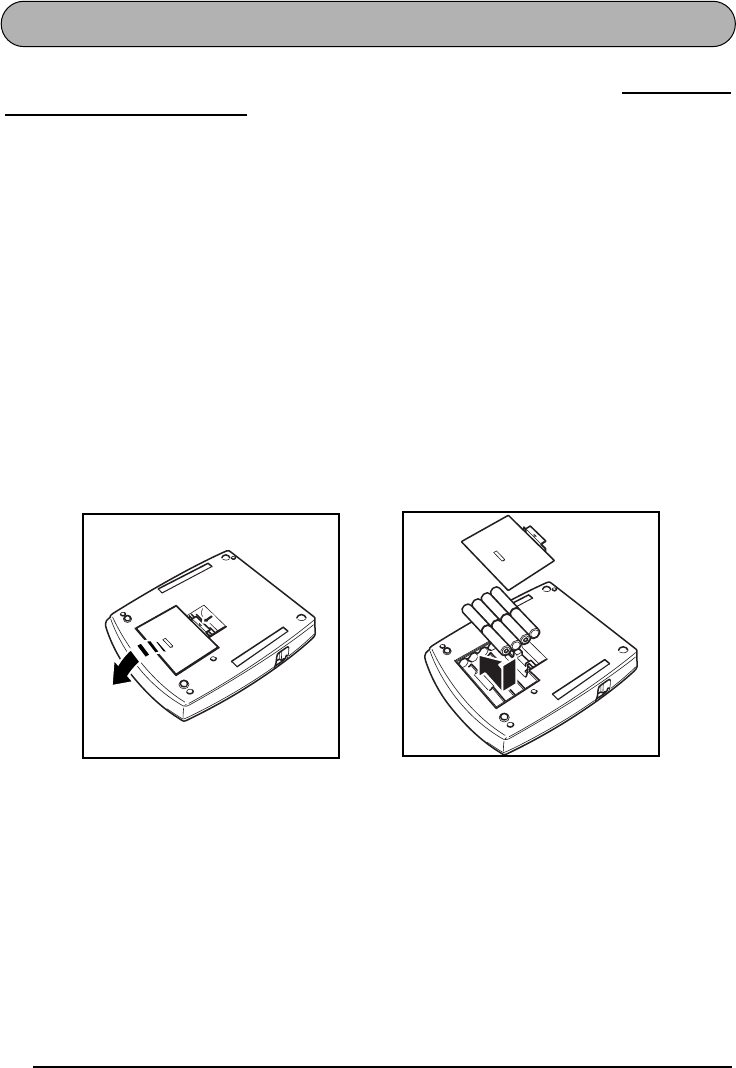
2
PILAS
Este rotulador es portátil puede utilizarse en cualquier lugar instalando ocho (8)
pilas alcalinas
o de manganeso de tamaño AA
. Cuando cambie las pilas, reemplace siempre las ocho pilas al
mismo tiempo.
Para cambiar las pilas:
1
Extraiga la cubierta del compartimiento de las pilas de la parte posterior de la máquina.
2
Si ya hay pilas instaladas, extráigalas.
3
Inserte ocho pilas alcalinas AA nuevas o de manganeso, asegurándose de que quedan
orientadas en la dirección correcta.
4
Coloque la cubierta del compartimiento de las pilas.
☞
Asegúrese de insertar las pilas nuevas antes de que transcurran cinco minutos desde
que se extraen las pilas gastadas, porque de lo contrario el texto que se visualiza en
la pantalla y los archivos de texto almacenados en la memoria se perderían (a
menos que la máquina esté enchufada a una toma de CA con el adaptador de CA).
Extraiga las pilas y desconecte el adaptador de CA si no se propone utilizar la
máquina durante períodos de tiempo prolongados. Cuando se desconecta la ali-
mentación, se pierden el texto que se muestra en la pantalla y el que está almace-
nado en la memoria.
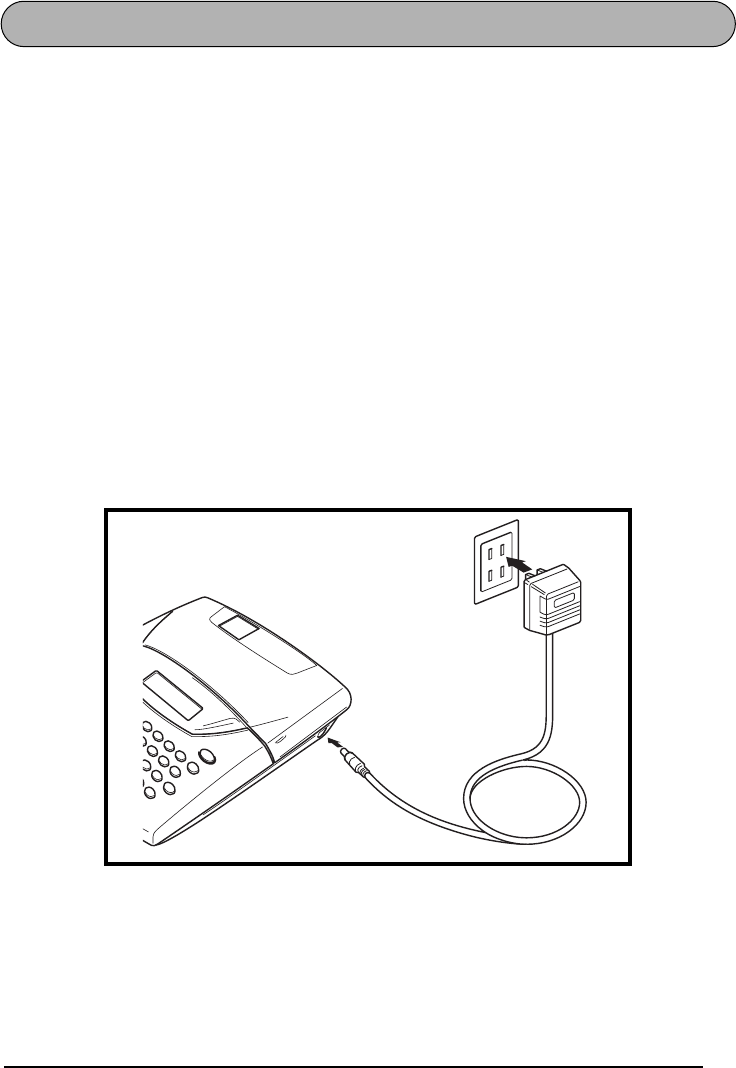
3
ADAPTADOR DE CA OPCIONAL
El adaptador de CA (modelo AD-60) le permite emplear esta máquina siempre que disponga
de una toma de corriente eléctrica.
Para conectar el adaptador de CA opcional:
1
Inserte el conector del adaptador que tiene la marca DC IN 9.5V al lado derecho de la
máquina.
2
Inserte la clavija del adaptador de CA en la toma de corriente más cercana.
☞
Emplee sólo el adaptador de CA diseñado exclusivamente para esta máquina.
Extraiga las pilas y desconecte el adaptador de CA si no se propone utilizar el
equipo durante períodos de tiempo prolongados. Cuando se desconecta la alimen-
tación, se pierden el texto que se muestra en la pantalla y el que está almacenado
en la memoria.
Cuando el adaptador de CA esté enchufado en la máquina, si se desenchufa el
adaptador de la toma de CA se correrá el riesgo de perder todos los archivos de
texto de la memoria, aunque las pilas estén insertadas.
Se recomienda emplear el adaptador de CA para imprimir tipos de caracteres gran-
des y códigos de barras con cintas de 1” (24 mm) porque esta operaciónes pueden
gastar las pilas con rapidez.
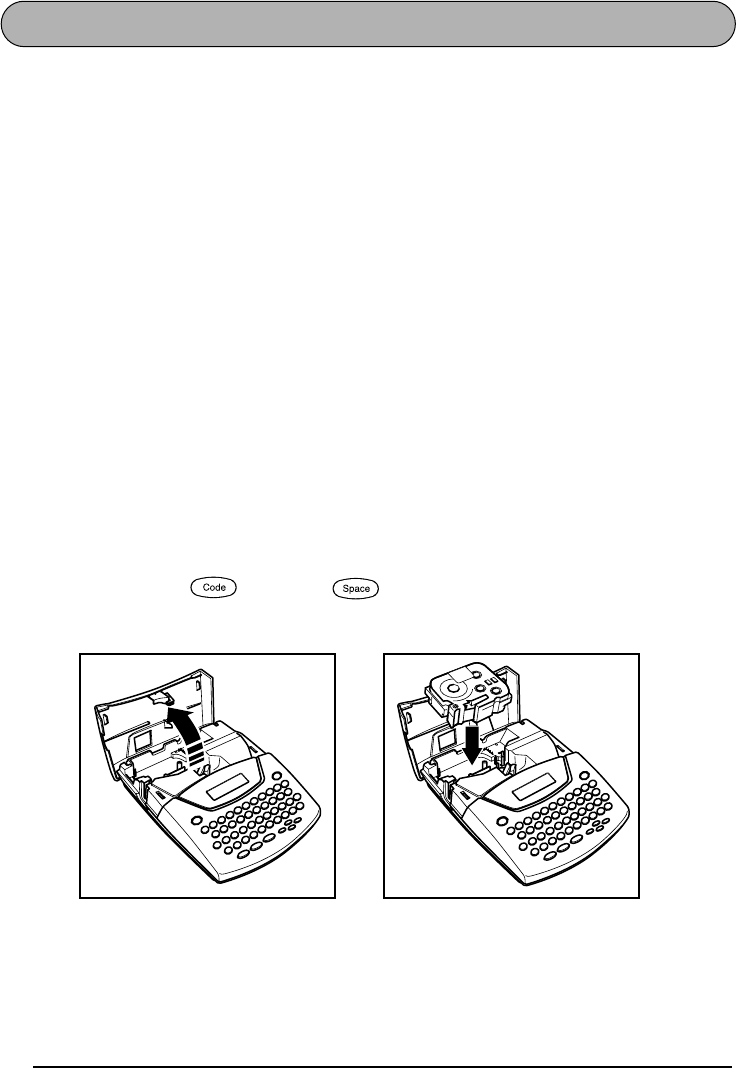
4
CASETES DE CINTA
Un casete de TZ se suministra con la unidad. Sin embargo, para esta máquina hay disponibles
una amplia gama de cintas TZ de distintos colores y tamaños, es posible crear etiquetas dife-
rentes codificadas por colores o tamaños.
Además, este equipo ha sido diseñado para permitirle cambiar los casetes de cinta rápida y
fácilmente.
Para cambiar el casete de cinta:
1
Levante la cubierta del compartimiento de la cinta para abrirla. Se libera también enton-
ces el casete instalado.
2
Si ya hay un casete instalado, extráigalo tirando del mismo recto hacia arriba.
3
Si la cinta entintadora del otro casete se afloja, utilice un dedo para bobinar la rueda den-
tada en el sentido de la flecha de dicho casete hasta tensar la cinta. Además, cerciórese
de que el extremo de la cinta esté debajo de las guías de la misma.
☞
Si está utilizando un casete de cinta nuevo provisto de retén, cerciórese de extraer
éste.
4
Inserte firmemente el casete de cinta en el compartimiento de la cinta asegurándose de
que toda la parte posterior del casete está en contacto con la inferior del compartimiento.
☞
Cuando inserte el casete de cinta, asegúrese de que la cinta interior no esté engan-
chada en la esquina de la guía metálica.
5
Cierre la cubierta del compartimiento y conecte la alimentación de la máquina si estaba
desconectada.
6
Mantenga pulsada y presione una vez para que la cinta avance y así quede
con la tensión óptima.
Feed&Cut

5
COLOCACIÓN DE ETIQUETAS
CINTA LAMINADA
La varilla suministrada permite que, en las cintas laminadas, usted pueda extraer facilmente el
papel del dorso de la etiqueta.
1
Tome la cinta con la mano izquierda, con la superficie impresa arriba, y tome la varilla
con la mano derecha.
2
Pase la mitad de la cinta por el orificio estrecho largo de la varilla.
3
Gire tres cuartos de vuelta la varilla hacia usted y separe la varilla de usted como se
muestra abajo.
4
Quite el papel del dorso de la etiqueta.
CINTAS DE TELA
La cinta de tela se emplea para adherir un trozo de tela impresa con el texto en la prendar de
vestir empleando una plancha. Después de imprimir el texto en la cinta de tela y de haber
cortado la etiqueta empleando unas tijeras, coloque la etiqueta sobre una prenda planchada
en la posición el la que desee ponerla de modo que el texto impreso pueda leerse correcta-
mente. Cubra la etiqueta con otra tela y emplee un ajuste de la plancha de temperatura
medio-alta (320 a 356˚F (160 a 180 ˚C)) para presionar con firmeza durante 10 a 15 segundos.
Para más detalles, consulte las instrucciones suministradas con el casete de cinta de tela.
CINTAS DE SELLOS
Consulte las páginas 18 para encontrar la explicación detallada sobre el empleo de cintas de
membretes para hacer membretes.
GH
ABCDEF
ABCDEF
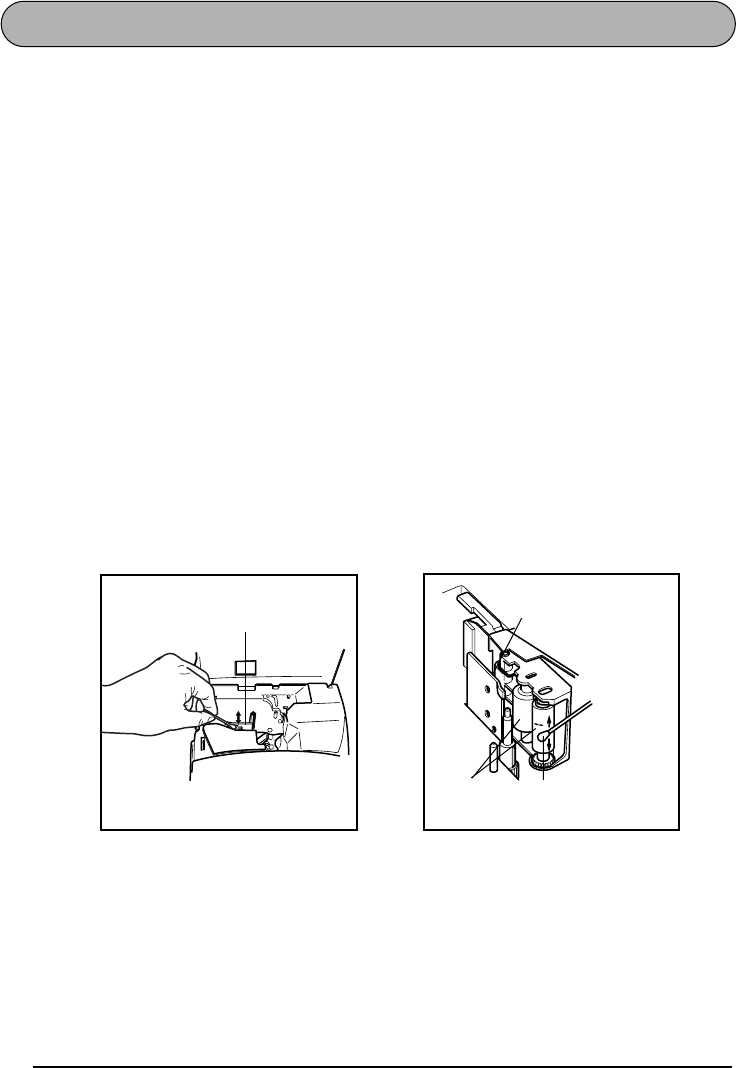
6
CABEZA DE IMPRESIÓN Y RODILLOS
De vez en cuando, el polvo se adhieren al cabezal de impresión y a los rodillos del el equipo.
Suele suceder cuando se emplea la unidad en exteriores o en lugares con mucho polvo. Si
alguna parte de la cabeza termica de impresión está cubierta de polvo, es posible que apa-
rezca una franja horizontal blanca por el texto de la etiqueta.
Por lo tanto, al igual que con las grabadoras de cintas, la cabeza del equipo deberá limpiarse
de vez en cuando.
Para limpiar el cabeza de impresión y los rodillos:
1
Desconecte la alimentación del equipo.
2
Abra la cubierta del compartimiento de la cinta, extraiga el casete, si está dentro. La
cabeza de impresión y los rodillos están situados dentro del compartimiento de la cinta.
3
Cabezal de impresión: Emplee un palillo con punta de algodón seco para frotar con cui-
dado la cabeza de impresión con movimiento hacia arriba y abajo.
Rodillos: Emplee un palillo con punta de algodón seco para frotar cada rodillo con movi-
miento hacia arriba y abajo mientras los gira con el dedo.
4
Instale un casete de cinta, cierre la cubierta del compartimiento de la cinta, y después
pruebe de nuevo la impresión.
5
Si todavía queda polvo, repita el paso
3 y 4 empleando un palillo con cabeza de algo-
dón humedecido en alcohol isopropílico (limpieza).
Si no funciona nada de lo de arriba, póngase en contacto con el representante de servicio.
Cabezal de impresión
Cabezal de
impresión
Rodillos Palillo de cabeza
de algodón
7
TECLA DEL CURSOR
La pantalla de LCD de esta máquina muestra dos filas de 11 caracteres; sin embargo, el texto
que usted diseñe puede tener hasta 99 caracteres de longitud. Podrá revisar y editar el texto
empleando las teclas del cursor para moverlo y que muestre las distintas partes la pantalla.
TECLA DEL CURSOR IZQUIERDA
Para mover el cursor un carácter hacia la izquierda:
●Presione una vez.
Para mover el cursor varios caracteres hacia la izquierda:
●Mantenga presionado hasta que el cursor se mueva a la posición deseada.
Para mover el cursor al principio de la línea actual:
●Mantenga presionado y presione .
TECLA DEL CURSOR DERECHA
Para mover el cursor un carácter hacia la derecha:
●Presione una vez.
Para mover el cursor varios caracteres hacia la derecha:
●Mantenga presionado hasta que el cursor se mueva a la posición deseada.
Para mover el cursor al final de la línea actual:
●Mantenga presionado y presione .
TECLA DEL CURSOR HACIA ARRIBA
Para mover el cursor a la línea anterior:
●Presione una vez.
☞
Si el cursor está en la primera línea del texto, se moverá al principio de la línea.
Para mover el cursor varias líneas hacia arriba:
●Mantenga presionado hasta que el cursor se mueva a la posición deseada.
Para mover el cursor al principio de todo el texto:
●Mantenga presionado y presione .
Home
Home
Home

8
TECLA DEL CURSOR HACIA ABAJO
Para mover el cursor a la línea siguiente:
●Presione una vez.
☞
Si el cursor está en la última línea del texto, se moverá al final de la línea.
Para mover el cursor varias líneas hacia abajo:
●Mantenga presionado hasta que el cursor se mueva a la posición deseada.
Para mover el cursor al final de todo el texto:
●Mantenga presionado y presione .
End
End
End
9
TECLAS CODE, ALT Y SHIFT
La mayoría de los caracteres pueden introducirse simplemente presionando sus teclas. Sin
embargo, para emplear funciones especiales o para introducir letras en mayúsculas, caracteres
acentuados y algunos símbolos, se requieren las siguientes teclas especiales.
TECLA CODE
Para emplear una función impresa encima de la tecla:
●Mantenga presionado y presione la tecla que está inmediatamente debajo de la
función deseada.
TECLA ALT
Para escribir los caracteres impresos en color del lado derecho de las teclas:
●Mantenga presionado y presione la tecla del carácter deseado escrita en color. El
indicador Alt, de la izquierda del visualizador, se encenderá mientras se tiene presionado
.
TECLA SHIFT
Para escribir una letra mayúscula o un símbolo impreso en la esquina superior izquierda de
la tecla:
●Mantenga presionado y presione la tecla de la letra o símbolo deseado.
El modo Caps (mayúsculas) es similar a mantener presionada . Le permite escribir letras
mayúsculas continuamente.
Para escribir muchas letras mayúsculas:
1Mantenga presionado y presione . El indicador de Caps, de la izquierda del
visualizador, se encenderá.
2Presione las teclas de las letras o símbolos deseados.
3Para salir del modo Caps, mantenga presionado y presione . Se apagará el
indicador de Caps.
Symbol
Symbol
Caps
Caps
Caps
Caps
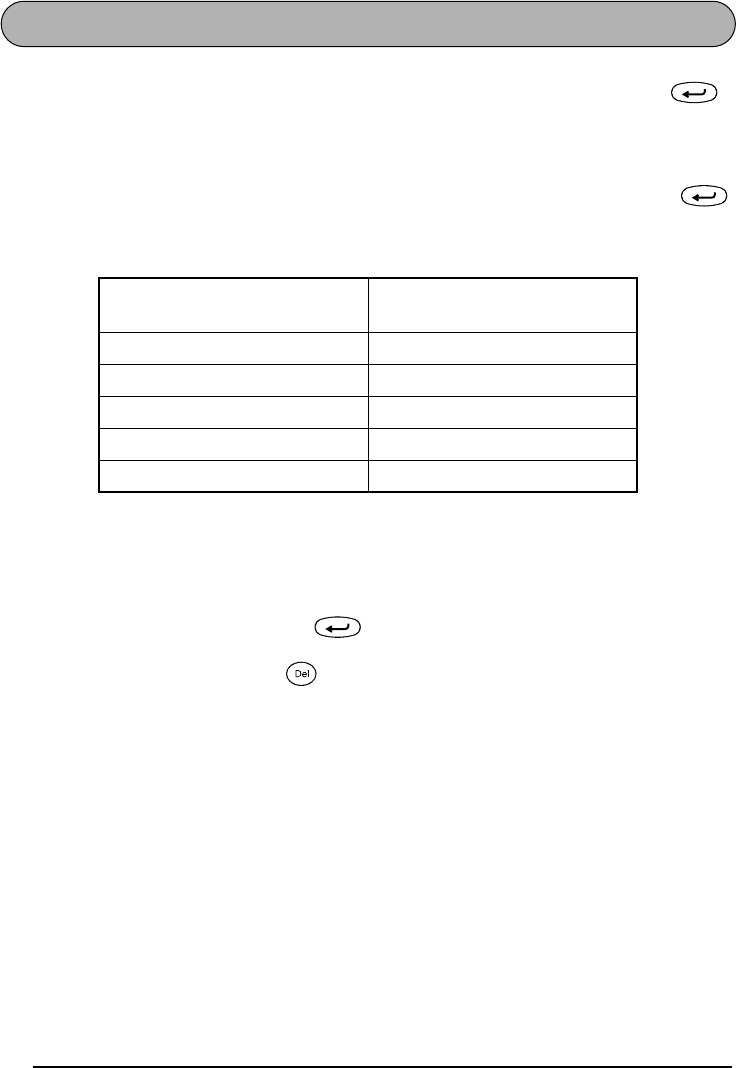
10
TECLA DE RETORNO
Al igual que en una máquina de escribir o procesador de texto, la tecla de retorno ( )
de esta máquina se emplea para poner fin a una línea de texto y empezar otra. Cuando haya
terminado de introducir una línea, presione la tecla de retorno para hacer una línea nueva y
mover al cursor a la misma.
☞
Un bloque sólo puede contener un máximo de cinco líneas de texto. Si presiona
cuando el cursor está situado en la quinta línea, aparecerá el mensaje de error “5 LINE
LIMIT!”.
La tecla de retorno también podrá utilizarse para seleccionar un ítem de una lista (p. ej., añadir
un símbolo o un carácter acentuado al texto) o para aplicar un ajuste seleccionado.
Es posible que aparezcan en el visualizador de LCD algunas preguntas para que confirme un
comando, especialmente cuando la función que usted ha seleccionado es para borrar o afec-
tar archivos. En estos casos, si presiona es como si respondiera “sí”.
☞
Para contestar “no”, presione . Consulte la descripción de la TECLA DE BORRADO
(DEL) de la página 13.
Anchuras de cinta Número máximo de líneas
que pueden imprimirse
1/4” (6 mm) 1
3/8” (9 mm) 2
1/2” (12 mm) 3
3/4” (18 mm) 5
1” (24 mm) 5
Clear
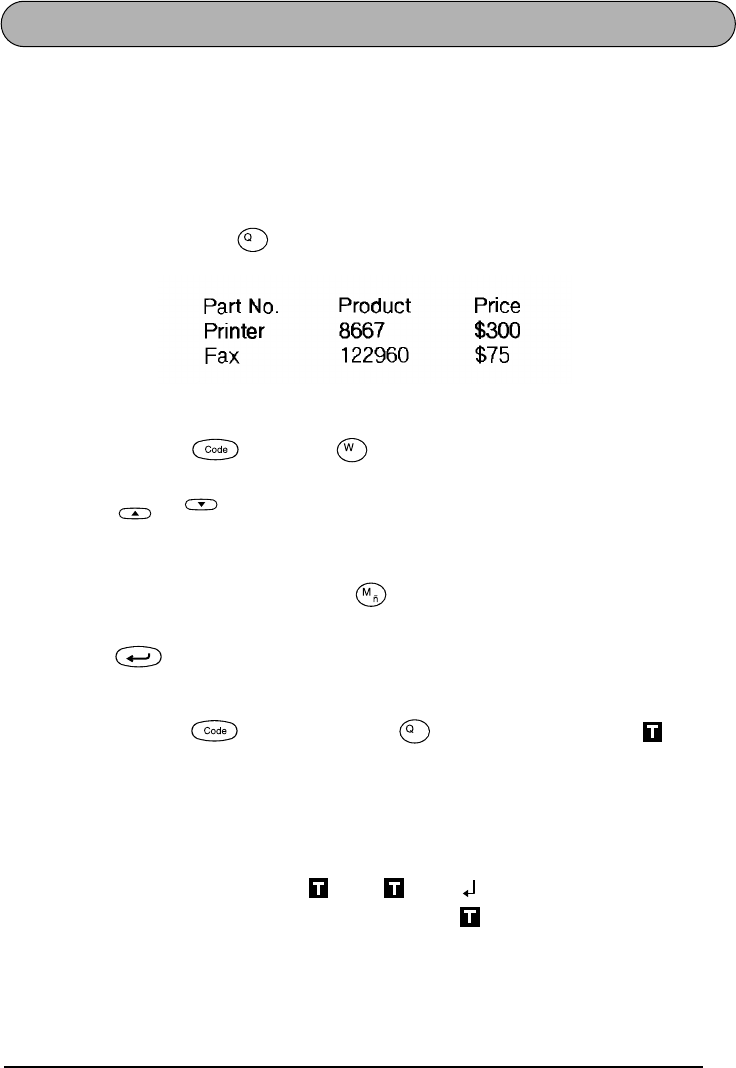
11
TABULACIÓN
Esta función le permitirá separar secciones de una línea de texto añadiendo tabulaciones. Esto
le permitirá crear columnas perfectamente alineadas sin tener que introducir varios espacios.
Todas las tabulaciones tendrán la misma longitud y se medirán desde el comienzo de la línea,
o de la tabulación anterior, si es que existe. La longitud de las tabulaciones podrá ajustarse
entre 0,0” y 11,8” (0,0 y 30,0 cm).
☞
El texto no podrá contener más de 50 tabulaciones. Si ya ha añadido 50 tabulaciones al
texto, cuando presione , aparecerá el mensaje de error “TAB LIMIT!”.
Para ajustar la longitud de las tabulaciones:
1Mantenga pulsada y presione una vez. Se visualizará la longitud de tabula-
ción actual.
2Presione o hasta que se visualice la longitud deseada, o utilice las teclas
numéricas para introducir la longitud.
☞
Para cambiar las unidades (pulgadas o centímetros) utilizadas para la indicación de la
longitud de las tabulaciones, presione hasta que se visualicen las unidades desea-
das.
3Presione .
Para añadir una tabulación:
●Mantenga pulsada y presione una vez . La marca de tabulación ( ) apare-
cerá en el texto para indicar la posición de la tabulación.
☞
Si el texto delante de una tabulación sobrepasa el punto en el que tiene que
comenzar la sección siguiente de texto, tal texto comenzará en la siguiente
posición de tabulación.
Por ejemplo, si la longitud está ajustada a 2” y escribe el texto siguiente:
Tab
Tab Length
Home
End
Tab
2:
JKLMNOPQRST U
1:
ABC DEF GHI
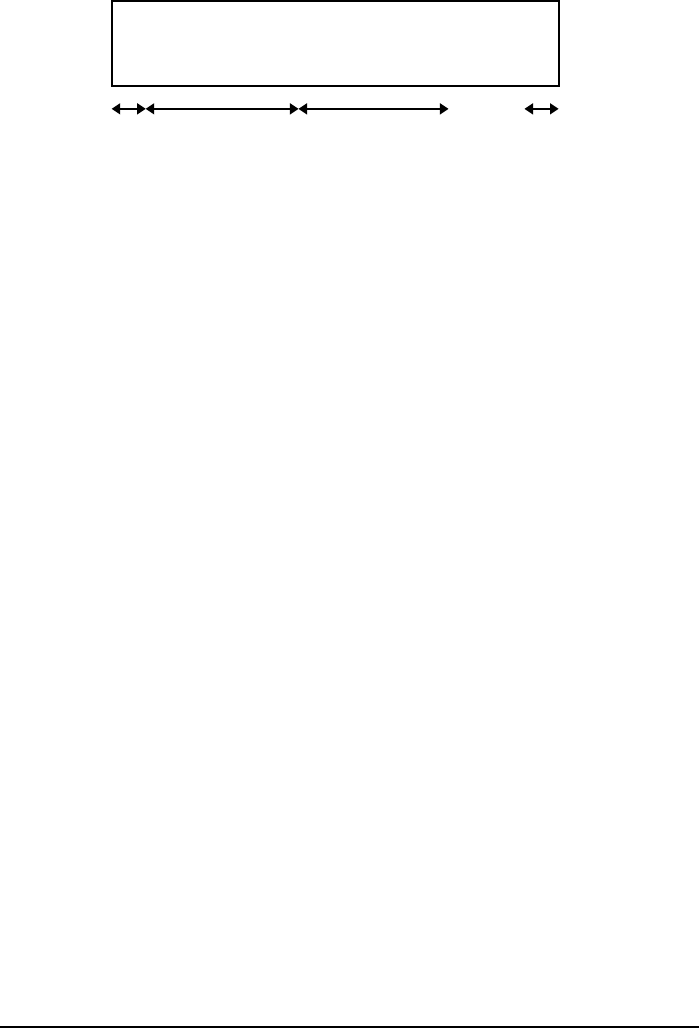
12
Se imprimirá la etiqueta mostrada a continuación.
JKLMNOPQRST U
ABC DEF GHI
Margen
Tabulación (2 inch)
Tabulación (2 inch)
Margen
13
TECLA DE BORRADO (DEL)
La tecla de borrado ( ) le permite eliminar caracteres situados a la izquierda de la posi-
ción actual del cursor. Se diferencia de la tecla del cursor izquierda ( ) que sólo mueve el
cursor sin borrar ningún carácter.
La tecla de borrado también puede utilizarse para abandonar la mayor parte de funciones y
volver a la visualización anterior sin cambiar el texto.
Es posible que aparezcan en el visualizador de LCD algunas preguntas para que confirme un
comando, especialmente cuando la función que usted ha seleccionado es para borrar o afec-
tar archivos. En estos casos, si presiona es como si respondiera “sí”.
☞
Para contestar “no”, presione . Consulte la descripción de la TECLA DE
RETORNO de la página 10.
Para borrar un carácter:
1Presione , , , o para situar el cursor debajo del carácter que está
inmediatamente a la derecha del carácter que usted desea borrar.
2Presione una vez.
Para borrar una secuencia de caracteres:
1Presione , , , o para situar el cursor debajo del carácter que está
inmediatamente a la derecha del último carácter que usted desea borrar.
2Mantenga presionado hasta que se hayan borrado todos los caracteres que usted
deseaba borrar.
Clear
Clear
Home
End
Clear
Home
End
Clear
14
FUNCIÓN DE BORRADO DE LÍNEA (LINE OUT)
Con la función de borrado de línea, podrá sacar con facilidad una línea entera de texto.
Para borrar una línea de texto:
1Presione , , , o para situar el cursor dentro de la línea del texto que
usted desee borrar.
2Mantenga presionado y presione una vez.
☞
Cada vez que se presione mientras se tiene presionado , se borrará una
línea de texto.
FUNCIÓN DE REPOSICIÓN (CLEAR)
Si borra la visualización antes de introducir nuevo texto, la función reposición podrá utilizarse
para elegir si se desea borrar todo el texto, y todas las funciones de formato (tipo de caracte-
res, tamaño, ancho, estilo, subrayado, marco, margen de la cinta, alineación, longitud de la
tabulación, impresión de espejo y longitud) volverán a sus ajustes iniciales, o borrar sola-
mente texto.
Para borrar todo el texto y reponer todos los formatos a sus ajustes iniciales:
1Mantenga presionado y presione .
2Presione o hasta que se seleccione TEXT&FORMATS (parpadeando).
☞
Para volver al texto sin borrar nada, presione .
3Presione .
Home
End
Line Out
Line Out
Clear
Home
End
Clear
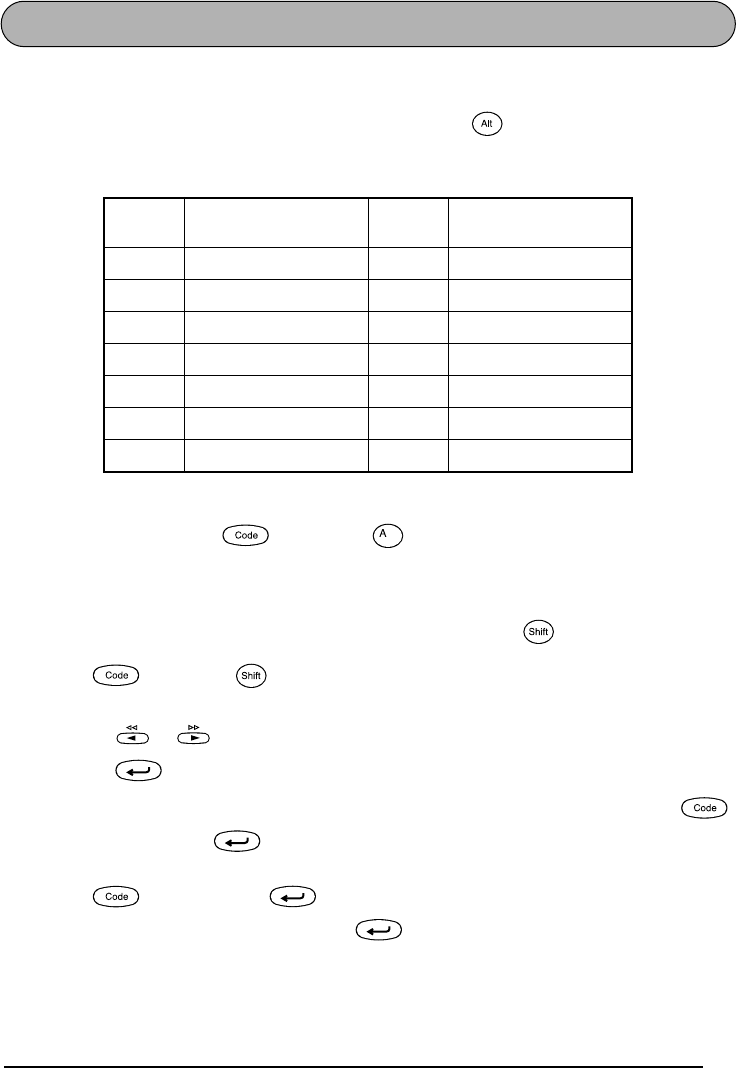
15
FUNCIÓN DE ACENTOS
La función de acentos también podrá utilizarse para añadir caracteres acentuados al texto.
Muchos de estos caracteres podrán introducirse empleando .
Los caracteres acentuados se agrupan de acuerdo con la letra mayúscula o minúscula con la
que se combinan. Hay disponibles los siguientes caracteres acentuados:
Para escribir un carácter acentuado:
1Mantenga presionado y presione . Aparecerá el mensaje “a-u/A-U?” en el
visualizador.
2Presione la tecla de la letra acentuada deseada.
☞
Para escribir una letra mayúscula, mantenga pulsada (o mantenga pulsada
y presione para pasar al modo de mayúsculas) antes de pulsar la tecla
de la letra.
3Presione o hasta que parpadee el carácter acentuado.
4Presione . La letra y el acento parpadearán alternadamente en el texto.
☞
Para escribir una secuencia de caracteres acentuados, mantenga presionada
antes de pulsar . Después continúe añadiendo caracteres acentuados selec-
cionándolos como se ha explicado en los pasos
2
y
3
, manteniendo pulsada
y presionando . Después de haber seleccionado el último carácter
de la serie, presione simplemente .
Letras Caracteres
acentuados Letras Caracteres
acentuados
a à á ä â ã æ I Í Ï Î
A À Á Ä Â Ã Æ n ñ
cçNÑ
C Ç o ó ö ô õ
e è é ë ê e˜ O Ó Ö Ô Õ
E È É Ë Ê E u ù ú ü û
i í ï î U Ù Ú Ü Û
Symbol
˜
Accent
Caps
Caps
16
FUNCIÓN DE SÍMBOLOS
Además de letras, de los símbolos y los números de las teclas, hay 53 marcas adicionales con
la función de símbolos.
Los siguientes símbolos están disponibles:
Para escribir un símbolo:
1Mantenga presionado y presione . Aparecerá una fila símbolos en el visuali-
zador.
2Presione o para visualizar distintas filas de símbolos y presione o
hasta que parpadee el símbolo deseado.
3Presione . El símbolo aparecerá en el texto.
☞
Para escribir una secuencia de símbolos, mantenga presionada antes de pul-
sar . Después continúe añadiendo símbolos seleccionándolos como se ha
explicado en los pasos
2
y
3
, manteniendo pulsada y presionando .
Después de haber seleccionado el último símbolo de la serie, presione simple-
mente .
Symbol
Home
End
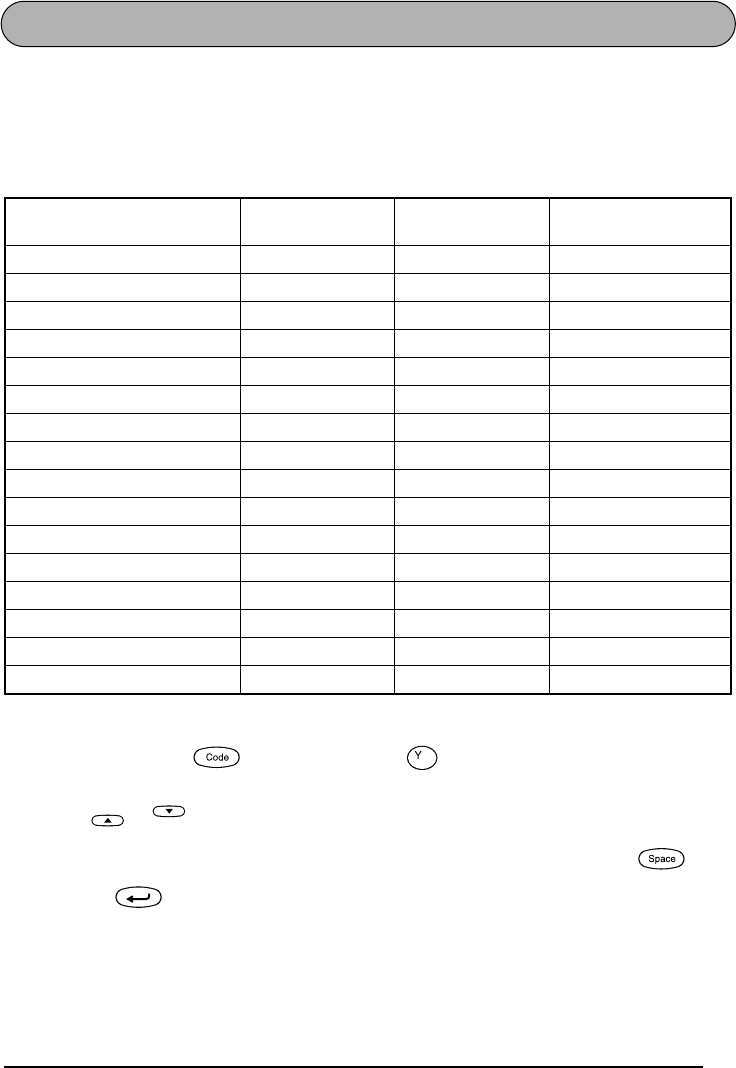
17
FUNCIÓN DE FORMATO AUTOMÁTICO
Con la función de formato automático, podrá seleccionar gran variedad de formatos preajus-
tados adecuados para su necesidad específica. Esta función ajustará automáticamente la lon-
gitud de la etiqueta y los márgenes de la cinta sin cambiar el texto ni ningún otro formato,
permitiéndole crear etiquetas con mayor rapidez y facilidad.
Los formatos preajustados son los siguientes:
Para seleccionar un formato preajustado:
1Mantenga pulsada y presione una vez . El ajuste actualmente seleccionado
parecerá en el visualizador.
2Pulse o para seleccionar el ajuste deseado.
☞
El ajuste predeterminado (DEFAULT) podrá seleccionarse presionando .
3Presione para aplicar el ajuste seleccionado.
☞
El indicador de longitud se encenderá cuando seleccione un ajuste que no sea
DEFAULT.
Ajuste de formato
automático Ajuste de longitud
de la etiqueta Aajuste del mar-
gen de la cinta Aajuste de la alinea-
ción horizontal
DEFAULT OFF FULL LEFT
3.5”FLOPPY 2.8” (7.0 cm) NONE CENTER
5”FLOPPY 4.8” (12.2 cm) NONE CENTER
VHS SPINE 5.5” (14.0 cm) NONE CENTER
VHS 3.0” (7.7 cm) NONE CENTER
VCR8mm CASE 3.6” (9.2 cm) NONE CENTER
VCR8mm 2.9” (7.3 cm) NONE CENTER
VHS-C SPINE 1.8” (4.5 cm) NONE CENTER
VHS-C 2.3” (5.8 cm) NONE CENTER
AUDIO 3.5” (8.9 cm) NONE CENTER
DAT CASSETTE 2.2” (5.6 cm) NONE CENTER
MINI DISK 2.0” (5.2 cm) NONE CENTER
ORGANIZER L 3.2” (8.2 cm) NONE CENTER
ORGANIZER S 2.6” (6.5 cm) NONE CENTER
FILE LONG 7.2” (18.3 cm) NONE CENTER
FILE SHORT 3.7” (9.4 cm) NONE CENTER
A.Format
Home
End
Feed&Cut
18
FUNCIÓN DE SELLOS
Le permite crear con rapidez y facilidad sus propios sellos. Después de haber insertado un
casete de clichés, seleccione esta función para centrar automáticamente el texto y ajustar la
longitud de la cinta y los márgenes a un formato perfecto para los soportes de películas de
membrete entintados. Puesto que el soporte del membrete es reutilizable, haga un nuevo cli-
ché de membrete y reemplácelo por el que hay en el soporte de películas.
Para hacer un membrete:
1Escriba el texto, y después inserte un casete de película de membretes de tamaño medio
(3/4” (18 mm) de anchura) o grande (1” (24 mm) de anchura).
2Mantenga presionado y presione una vez. Aparecerá el mensaje “STAMP
FORMAT?” en el visualizador.
3Presione . El texto se formateará automáticamente para el membrete instalado:
centrado dentro del área preajustada del mensaje, con la longitud y los márgenes de la
cinta automáticamente ajustados.
4Presione para separar el texto del cliché de membrete.
5Después de haber cortado la película matriz de sellos, extraiga el papel del dorso del cli-
ché del membrete y adhiéralo al tampón de tinta o soporte de películas.
Para adherir un membrete:
1Extraiga el marco del membrete de entorno al lado al tampón de tinta del soporte
de películas de una vez, y saque entonces el sello protector que cubre el tampón
de tinta y el papel del dorso del cliché del membrete.
2Con el lado brillante del cliché del membrete encarado hacia arriba, alinee uno de
sus extremos con la ranura del lado del soporte de películas de membrete.
3Retenga el extremo del cliché del membrete en su lugar con el dedo pulgar, y pase
la cinta por las guías mientras la tensa bien.
4Pliegue el otro extremo del cliché del membrete por en otro lado del soporte de
películas de membrete y reténgalo en su lugar con el dedo.
5Adapte el marco del membrete encima del cliché del membrete y presiónelo a su
lugar.
6Inserte el soporte de películas de membrete recto en su tapa.
☞
Asegúrese de que el membrete quede correctamente cubierto para evitar der-
rames de tinta.
Stamp
Mirror
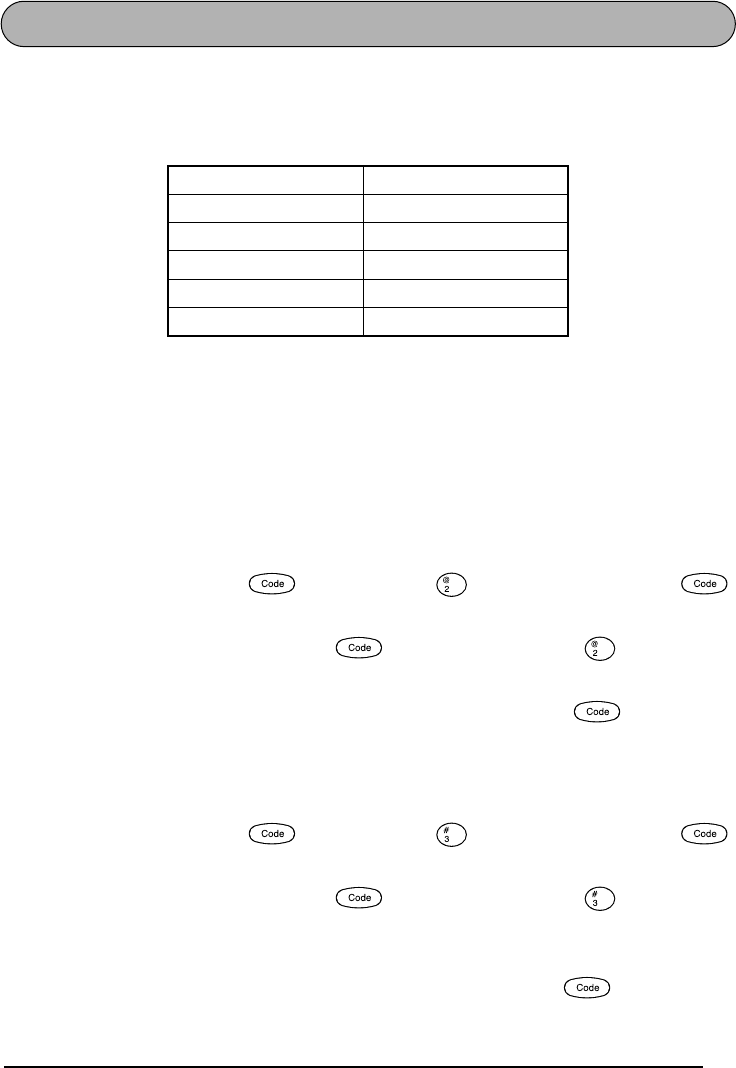
19
FUNCIONES DE TAMAÑO Y DE ANCHURA
El tamaño de los caracteres puede ajustarse empleando las funciones de tamaño (Size) y de
ancho (Wide). Puesto que el tamaño de los caracteres que puede utilizarse depende del ancho
de la cinta, la tabla siguiente indica los tamaños de caracteres que pueden utilizarse con cada
ancho de cinta.
El ajuste del tamaño de ajuste inicial es AUTO y el ajuste inicial para el ancho es OFF. El
tamaño y el ancho actualmente seleccionados siempre se indican con los indicadores de
encima del visualizador. Todos los indicadores de tamaño se encienden cuando se selecciona
el ajuste AUTO. Además, cuando se seleccione el ajuste de anchura ON, el indicador Wide se
encenderá.
Con el ajuste de tamaño AUTO, la máquina compara su texto con el ancho de la cinta insta-
lada y ajusta automáticamente los caracteres al tamaño más grande posible. Sin embargo, hay
también otros seis tamaños de puntos disponibles y cada uno puede imprimirse con caracteres
anchos.
Para cambiar el ajuste del tamaño:
1Manteniendo presionada , pulse una vez , y mantenga presionada
para hacer que se visualice el tamaño actualmente ajustado.
2Siguiendo manteniendo presionada , continúe presionando hasta que se
visualice el tamaño actualmente ajustado mediante el indicador del mismo.
3Para aplicar el ajuste de tamaño seleccionado a todo el texto, suelte .
☞
Cuando haya seleccionado el ajuste AUTO y haya instalado una cinta de 18 mm
(3/4”) o 24 mm (1”) de anchura, el texto se imprimirá en mayúsculas y en una sola
línea con un tamaño de caracteres de 48 puntos.
Para activar o desactivar la función de anchura:
1Manteniendo presionada , pulse una vez , y mantenga presionada
para hacer que se visualice el ancho actualmente ajustado.
2Siguiendo manteniendo presionada , continúe presionando hasta que se
visualice el ancho actualmente ajustado.
☞
Cuando seleccione el ajuste ON, el indicador de Wide se en encenderà.
3Para aplicar el ajuste de ancho seleccionado a todo el texto, suelte .
Anchos de cinta Tamaños (en puntos)
1/4” (6 mm) 6, 9, 12
3/8” (9 mm) 6, 9, 12, 18
1/2” (12 mm) 6, 9, 12, 18, 24
3/4” (18 mm) 6, 9, 12, 18, 24, 36
1” (24 mm) 6, 9, 12, 18, 24, 36
Size
Size
Width
Width
20
FUNCIÓN DE ESTILO
Podrá seleccionar entre nueve estilos de caracteres distintos que podrá aplicar a su texto.
☞
Los caracteres que se imprimen utilizando los tamaños más pequeños pueden resultar
difíciles de leer si se seleccionan ciertos ajustes de estilos (por ejemplo, (I+SHADOW).
Hay disponibles los siguientes ajustes de estilos:
NORMAL I+BOLD (cursiva y negrilla)
BOLD (negrilla) I+OUTLINE (cursiva y perfilado)
OUTLINE (perfilado) I+SHADOW (cursiva y sombreado)
SHADOW (sombreado) VERTICAL
ITALIC (cursiva)
El ajuste de estilo predeterminado es NORMAL. El indicador de estilo de la parte inferior dere-
cha del visualizador mostrará el ajuste de estilo actual cuando seleccione un estilo que no sea
NORMAL.
Consulte el apartado de
Referencia
, al final de esta sección, para ver muestras de los ajustes
disponibles.
Para cambiar el ajuste del estilo:
1Manteniendo presionada , pulse una vez , y mantenga presionada
para hacer que se visualice el estilo actualmente ajustado.
2Siguiendo manteniendo presionada , continúe presionando hasta que se
visualice el estilo actualmente ajustado mediante el indicador del mismo.
☞
El ajuste de estilo actual se mostrará en el indicador de estilo de la esquina inferior
derecha del visualizador.
3Para aplicar el ajuste de estilo seleccionado a todo el texto, suelte .
Style
Style
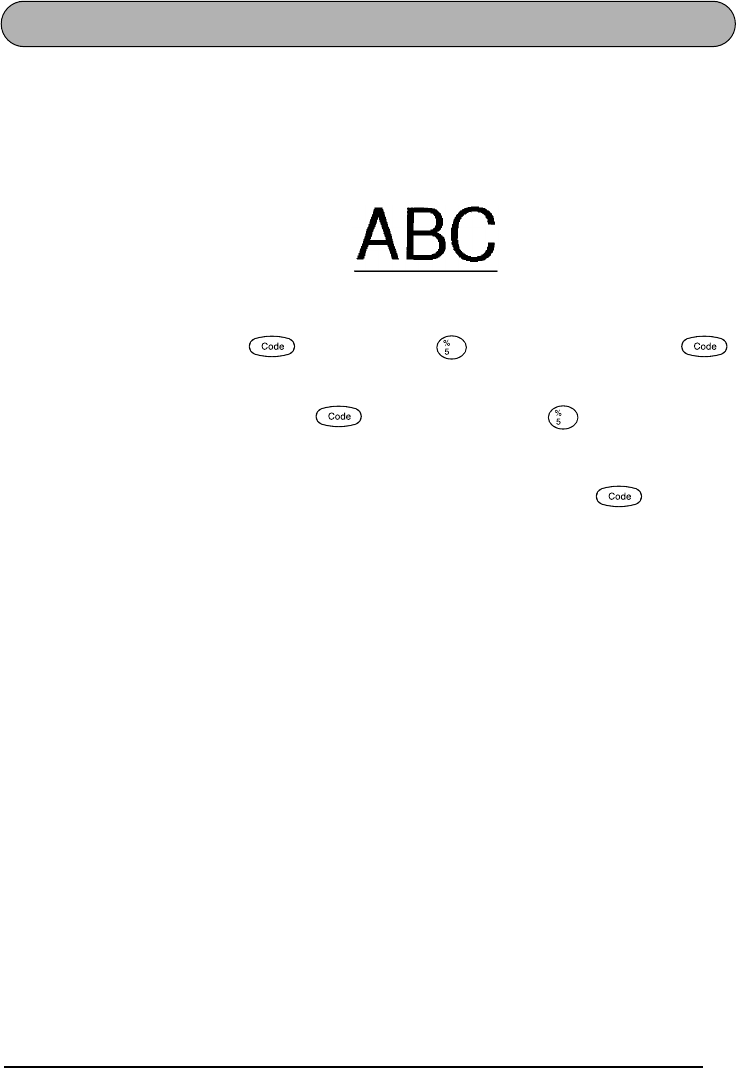
21
FUNCIÓN DE SUBRAYADO
Podrá acentuar el texto subrayándolo.
El ajuste de subrayado predeterminado es OFF. Cuando haya ajustado la función de subra-
yado a ON, el indicador de Undl/Frm de la parte derecha del visualizador se encenderá.
☞
Si ya se encuentra elegido un marco o resalto cuando se selecciona el ajuste de subra-
yado ON, el ajuste de marco cambiará de vuelta a OFF y el texto quedará subrayado.
Para cambiar el ajuste del subrayado:
1Manteniendo presionada , pulse una vez , y mantenga presionada
para hacer que se visualice el subrayado actualmente ajustado.
2Siguiendo manteniendo presionada , continúe presionando hasta que se visua-
lice el subrayado actualmente ajustado mediante el indicador del mismo.
☞
Cuando seleccione el ajuste ON, el indicador de Undl/Frm se en encenderá.
3Para aplicar el ajuste de subrayado seleccionado a todo el texto, suelte .
ON
Underline
Underline
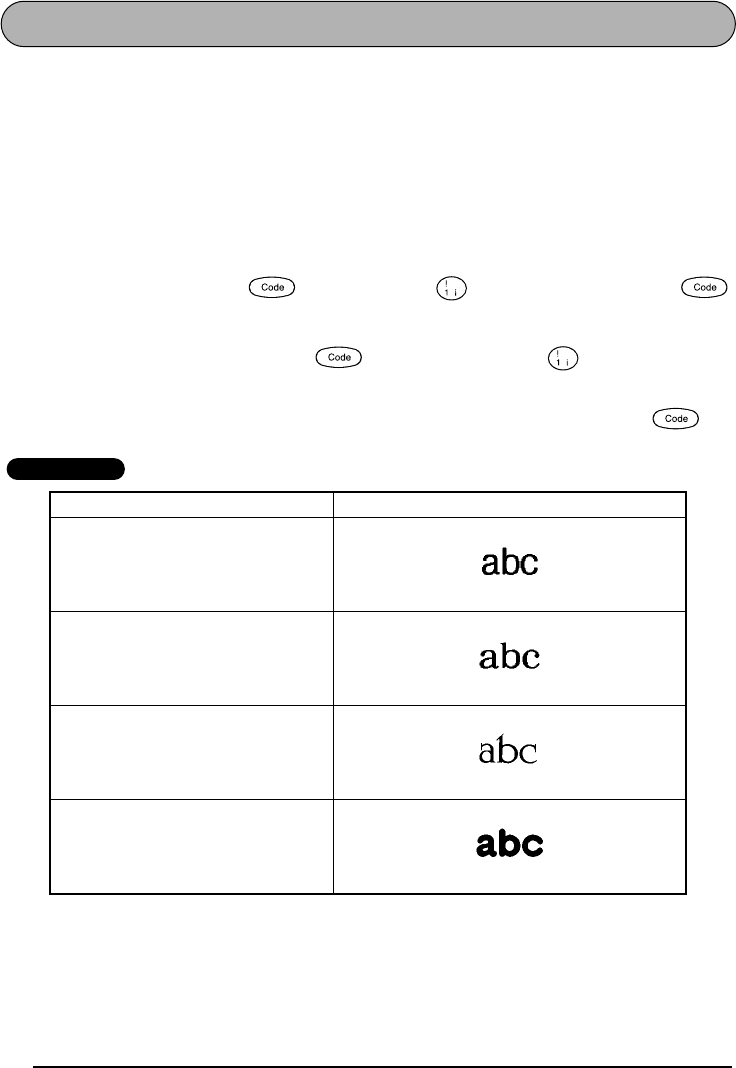
22
FUNCIÓN DEL TIPO DE CARACTERES
Con la función del tipo de caracteres podrá seleccionar uno de cuatro de tipos de caracteres
para su texto.
Los ajustes de tipos de caracteres siguientes están disponibles en la PT-2200/2210:
HELSINKI, BRUSSELS, US y FLORIDA
El ajuste inicial del tipo de caracteres es HELSINKI.
Consulte el apartado de
Referencia
, al final de esta sección, para ver muestras de los ajustes
disponibles.
Para cambiar el ajuste del tipo de caracteres:
1Manteniendo presionada , pulse una vez , y mantenga presionada
para hacer que se visualice el tipo de caracteres actualmente ajustado.
2Siguiendo manteniendo presionada , continúe presionando hasta que se visua-
lice el tipo de caracteres actualmente ajustado.
3Para aplicar el ajuste de tipo de caracteres seleccionado a todo el texto, suelte .
REFERENCIA
Ajustes del tipo de caracters Muestras de tipos de caracters
HELSINKI
BRUSSELS
US
FLORIDA
Font
Font
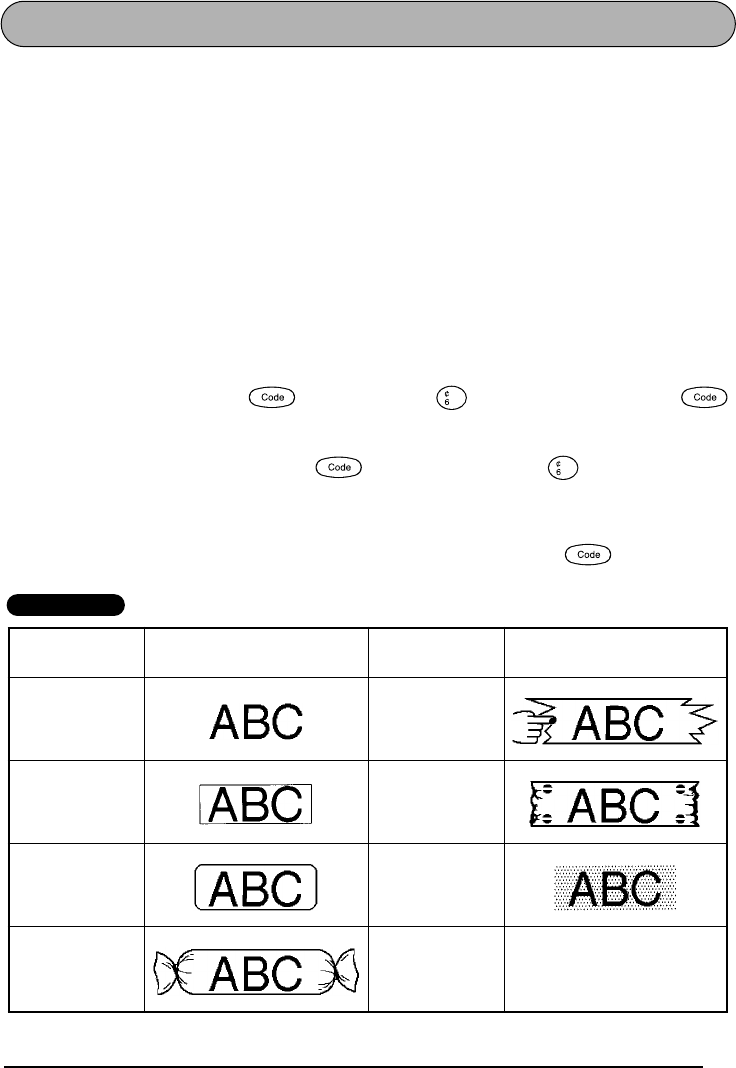
23
FUNCIÓN DE MARCOS
Con la función de marcos, podrá seleccionar diversos marcos y funciones destacadas para
hacer un diseño más decorativo o una etiqueta con más énfasis.
Los ajustes de marcos siguientes están disponibles:
OFF, SQUARE, ROUND, CANDY, POINTING, NAMEPLATE y DOT
El ajuste inicial de marco es OFF, aunque hay también otros ajustes. Si se selecciona cualquier
ajuste que no sea OFF, se encenderá el indicador de Undl/Frm, situado a la derecha del visua-
lizador.
☞
Si el ajuste de subrayado ON ya se encuentra elegido cuando se selecciona un marco o
resalto, el ajuste de subrayado cambiará de vuelta a OFF y el texto quedará enmarcado
o resaltado.
Consulte el apartado de
Referencia
, al final de esta sección, para ver muestras de los ajustes
disponibles.
Para cambiar el ajuste del marco:
1Manteniendo presionada , pulse una vez , y mantenga presionada
para hacer que se visualice el marco actualmente ajustado.
2Siguiendo manteniendo presionada , continúe presionando hasta que se visua-
lice el marco actualmente ajustado mediante el indicador del mismo.
☞
El indicator de Undl/Frm se enciende si se selectiona un ajuste que no sea OFF.
3Para aplicar el ajuste de marco seleccionado a todo el texto, suelte .
REFERENCIA
Ajustes
del marco Muestras de marco Ajustes
del marco Muestras de marco
OFF POINTING
SQUARE NAMEPLATE
ROUND DOT
CANDY
Frame
Frame
24
FUNCIÓN DE CINTA
La función de margen cinta le permite ajustar el tamaño de los márgenes de los lados
izquierdo y derecho del texto.
El ajuste inicial de margen cinta es FULL, aunque hay también disponibles otros tres ajustes.
☞
Después de haber impreso utilizando los ajustes de margen de cinta NONE, NARROW
y MEDIUM, y que la cinta se haya cortado automáticamente, utilice unas tijeras para
cortar a lo largo de la guía (:) para centrar el texto dentro de la etiqueta.
Para cambiar el ajuste de la cinta:
1Manteniendo presionada , pulse una vez , y mantenga presionada
para hacer que se visualice la cinta actualmente ajustado.
2Siguiendo manteniendo presionada , continúe presionando hasta que se visua-
lice la cinta actualmente ajustado.
3Para aplicar el ajuste de la cinta seleccionado a todo el texto, suelte .
FULL
(márgenes de 25 mm (1”))
NONE
(márgenes de 4 mm (1/6”))
NARROW
(márgenes de 8 mm (1/3”))
MEDIUM
(márgenes de 12 mm (1/2”))
Tape
Tape
25
FUNCIÓN DE LA ALINEACIÓN HORIZONTAL
Podrá elegir alinear texto en una de las tres formas disponibles. Además, si utilizó la función
de longitud para ajustar la longitud de la etiqueta, los texto se alinearán dentro de la etiqueta
de acuerdo con el ajuste de alineación horizontal seleccionado.
El ajuste inicial de la alineación horizontal es LEFT (izquierda), aunque también están disponi-
bles otros dos ajustes.
Para cambiar el ajuste de la alineación horizontal:
1Manteniendo presionada , pulse una vez , y mantenga presionada
para hacer que se visualice la alineación horizontal actualmente ajustado.
2Siguiendo manteniendo presionada , continúe presionando hasta que se visua-
lice la alineación horizontal actualmente ajustado.
3Para aplicar el ajuste de la alineación seleccionado a todo el texto, suelte .
LEFT RIGHT
CENTER
Align
Align
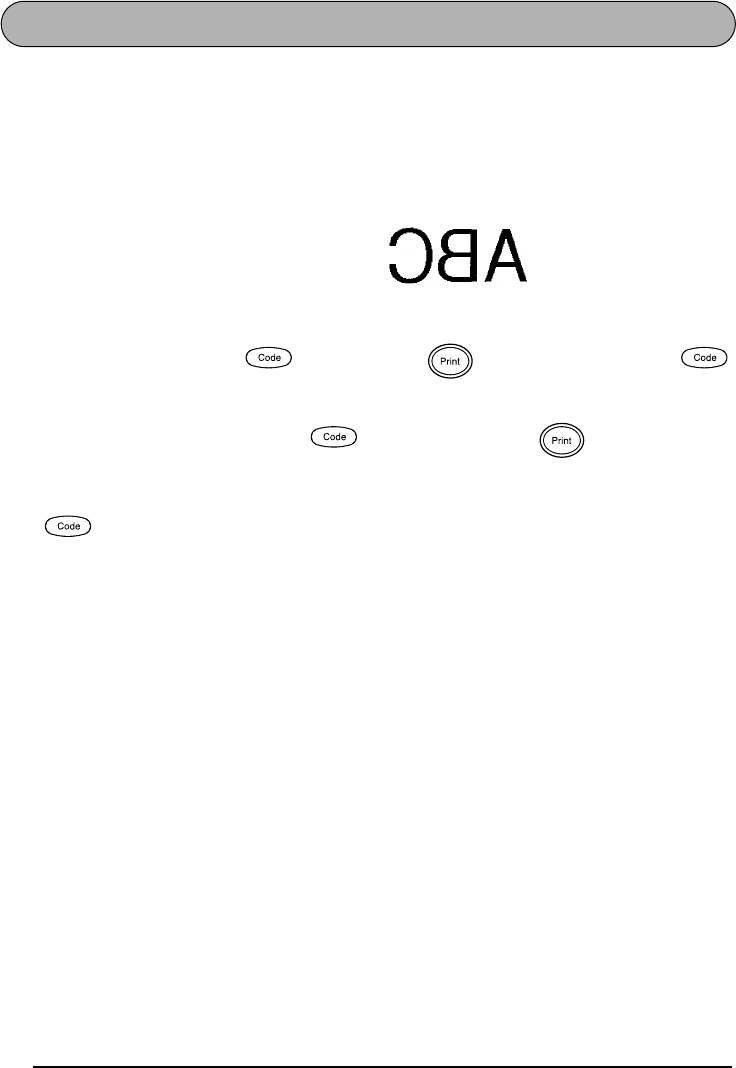
26
FUNCIÓN DE IMPRESIÓN DE ESPEJO
Con esta función, podrá imprimir el texto de modo que los caracteres puedan leerse desde el
lado del adhesivo de la cinta. Si se adhieren etiquetas con impresión de espejo a un vidrio, o
en otro material transparente, podrán leerse correctamente desde el lado opuesto.
☞
Cuando emplee la función de impresión de espejo, el texto se imprimirá en cinta trans-
parente.
El ajuste inicial para la impresión de espejo es OFF.
Para activar o desactivar la impresión de espejo:
1Manteniendo presionada , pulse una vez , y mantenga presionada
para hacer que se visualice la impresión de espejo actualmente ajustado.
2Siguiendo manteniendo presionada , continúe presionando hasta que se visua-
lice la impresión de espejo actualmente ajustado.
3Para aplicar el ajuste de la impresión de espejo seleccionado a todo el texto, suelte
.
ON
Mirror
Mirror
27
FUNCTIÓN DE LONGITUD
Aunque la longitud de la etiqueta impresa ajusta automáticamente dicha longitud de acuerdo
con el texto introducido, es posible que usted desee hacer una etiqueta con una longitud espe-
cífica. La función de longitud le permitirá ajustar la longitud de la etiqueta entre 1,6” y 11,8”
(4,0 cm y 30,0 cm).
El ajuste predeterminado de longitud es OFF. Cuando ponga la función de longitud en ON, se
encenderá el indicador de longitud de la parte derecha del visualizador.
Para activar y desactivar la función de longitud:
1Manteniendo presionada , presione una vez , y mantenga presionada
hasta que se visualice brevemente la longitud actual de la etiqueta (texto y ambos márge-
nes), y después haga que se visualice el ajuste de longitud de etiqueta actual (ON u OFF).
2Manteniendo presionada , continúe presionando hasta que se visualice el
ajuste de longitud de etiqueta deseado.
☞
Cuando seleccione ON, se encenderá el indicador de longitud.
3Suelte . Si había seleccionado ON, se visualizará la longitud actual de la etiqueta.
4Presione o para seleccionar la longitud deseada, o utilice las teclas numéricas
para introducir la longitud.
☞
Para cambiar las unidades (pulgadas o centímetros), presione hasta que apa-
rezcan las unidades deseadas.
Para cambiar la longitud en pasos de 1” (1,0 cm), mantenga pulsada
o
,
y después presione la tecla cuando se visualice el ajuste deseado.
5Presione .
Length
Length
Home
End
Home
End
28
FUNCIÓN DE CORTE AUTOMÁTICO
La función de corte automático le permite ajustar si el rotulador va a cortar automáticamente
o no una etiqueta después de imprimirse ésta o cada juego de etiquetas impresas con las fun-
ciones de numeración o impresión repetida. Active la función de corte automático antes de
empezar a imprimir para cortar automáticamente las etiquetas después de imprimirlas.
Para activar o desactivar la función de corte automático:
☞
Después de haber impreso una etiqueta con la función de corte automático desactivada,
mantenga pulsada y presione una vez para hacer que avance la cinta, y
después córtela.
1Mientras mantiene presionada , presione una vez y mantenga presionada
para visualizar al ajuste de corte automático actual.
2Mientras mantiene presionada , continúe presionando hasta que se visualice
el ajuste de corte automático deseado.
3Suelte para aplicar el ajuste de corte automático seleccionado.
Feed&Cut
A.Cut
A.Cut
29
TECLA DE IMPRESIÓN
Después de haber introducido su texto y de haber elegidos los ajustes de formato deseados,
podrá imprimir.
☞
Si la función de corte automático está activada (ON), la etiqueta se cortará automática-
mente después de haberse impreso.
Para imprimir una etiqueta:
●Presione una vez. Se visualizarán “COPIES” y el número de la etiqueta que esté
imprimiéndose.
FUNCIÓN DE AVANCE Y CORTE
La función de avance y corte se utiliza para hacer que la cinta avance 1” (25 mm) y se corte
automáticamente, por ejemplo después de haber impreso con la función de corte automático
desactivada (OFF) o cuando se haya interrumpido la impresión.
Para hacer que la cinta avance 1” (25 mm):
●Mantenga pulsada y presione una vez. La cinta avanzará 1” (25 mm) y se
cortará.
Mirror
Feed&Cut
30
FUNCIÓN DE NUMERACIÓN
Esta función podrá utilizarse para imprimir muchas copias del mismo texto aumentando en
cierto número en el texto después de haber impreso cada etiqueta.
Para utilizar la función de numeración:
1Presione , , , o para colocar el cursor debajo del número que desee
aumentar.
2Mantenga pulsada y presione . En la pantalla aparecerá el mensaje “NUM-
BER UNTIL 1-9?”.
3Presione una tecla numérica ( a ) correspondiente all último número que desee
imprimir.
☞
Para abandonar la función de numeración sin imprimir, mantenga pulsada y
después presione (o presione simplemente ).
4Para comenzar la impresión de etiquetas, presione (o ). El número de cada
copia se visualizará mientras esté copiándose.
5La cinta se cortará automáticamente, y después utilice unas tijeras para cortar a lo largo
de la guía de corte para separar las etiquetas.
Home
End
Number
Font M.Del
Number Clear
Mirror
31
FUNCIÓN DE IMPRESIÓN REPETIDA
Esta función le permite imprimir hasta 9 copias del mismo texto.
Para emplear la función de impresión repetida:
1Mantenga presionado y presione . Aparecerá el mensaje “COPIES UNTIL 1-
9?” en el visualizador.
2Presione la tecla numérica ( a ) correspondiente al número de etiquetas que
desee.
☞
Para abandonar la función de impresión repetida sin imprimir, mantenga pulsada
y después presione (o presione simplemente ).
3Presione (o ) para empezar a imprimir las etiquetas. Se visualizará el
número de cada copia mientras se imprime.
4La cinta se cortará automáticamente, y después utilice unas tijeras para cortar a lo largo
de la guía de corte para separar las etiquetas.
Repeat
Font M.Del
Repeat Clear
Mirror
32
FUNCIONES DE LA MEMORIA
Usted podrá utilizar la memoria para almacenar sus archivos de texto más frecuentemente utili-
zados. El texto permanecerá en la memoria, incluso después de haberlo eliminado de la panta-
lla utilizando la función de borrado (manteniendo presionada y presionando ).
Cuando almacena cada archivo, a éste se le asignará un número para poder invocarlo fácil-
mente. En la memoria podrá almacenar hasta 9 archivos de texto, o aproximadamente 300
caracteres. Cada archivo de texto almacenado podrá tener un máximo de 99 caracteres.
Cuando se desee un archivo de texto con la función de memoria, se aparecera archivo alma-
cenado, el texto podrá editar o imprimirse sin cambiar el archivo originalmente almacenado.
Cuando ya no necesite un archivo podrá utilizar la función de borrado de la memoria.
☞
Cuando tenga que insertar nuevas pilas, hágalo antes de cinco minutos de haber
extraído las viejas, ya que de lo contrario los archivos de texto almacenados en la
memoria se perderían (a menos que la máquina esté enchufada en un tomacorriente de
la red con el adaptador de alimentación de CA).
ALMACENAMIENTO DE TEXTO
Para almacenar un archivo de texto:
1Mantenga pulsada y presione . En el visualizador aparecerá el mensaje
“STORE SELECT 1-9?”.
☞
Si ya están almacenados 300 caracteres, en el visualizador aparecerá el mensaje de
error “MEMORY FULL!”. Cuando ocurra esto, tendrá que borrar un mensaje exis-
tente antes de poder almacenar otro nuevo.
2Presione la tecla ( a ) correspondiente al número de archivo en el que desee
almacenar texto. El texto se guardar en el número de archivo seleccionado y el texto pre-
viamente mostrado en la pantalla desaparecerá.
☞
Si ya hay un archivo almacenado con el número de archivo seleccionado, en el
visualizador aparecerá el mensaje “OVERWRITE?”, y usted tendrá que decidir entre
reescribir o borrar tal archivo.
Para abandonar la función de almacenamiento del texto, mantenga pulsada
y presione (o simplemente presione ).
Par reescribir un archivo almacenado con otro nuevo:
●Presione para borrar el archivo previamente almacenado y almacenar el nuevo
con el número seleccionado.
☞
Para retroceder y elegir otro número de archivo sin reescribir el archivo de texto,
presione , y después presione una tecla numérica correspondiente a un
número de archivo diferente.
Clear
Store
Font M.Del
Store Clear
Clear
33
INVOCACIÓN DE TEXTO
Para invocar un archivo de texto:
1Mantenga pulsada y presione , En el visualizador aparecerá el mensaje
“RECALL SELECT 1-9?”.
2Presione la tecla ( a ) correspondiente al número de archivo que desee. Apare-
cerá el texto almacenado con el número de archivo seleccionado.
☞
Para ver otras partes del archivo de texto seleccionado, presione
o
.
Para hacer que se visualice el texto almacenado en otros números de archivos, pre-
sione
o
, o la tecla correspondiente a otro número de archivo.
Para abandonar la función de memoria sin solicitar texto, mantenga pulsada
y presione (o presione simplemente ).
3Presione . Cualquier texto previamente introducido se borrará y el texto introdu-
cido en el número de archivo seleccionado se vera en la pantalla.
BORRADO DE UN ARCHIVO
Para borrar un archivo de texto:
1Mantenga pulsada y presione . En el visualizador aparecerá el mensaje
“CLEAR SELECT 1-9?”.
2Presione la tecla ( a ) correspondiente al número de archivo que desee borrar.
Aparecerá el texto almacenado con el número de archivo seleccionado.
☞
Para ver otras partes del archivo de texto seleccionado, presione
o
.
Para hacer que se visualice el texto almacenado en otros números de archivos, pre-
sione
o
, o la tecla correspondiente a otro número de archivo.
Para abandonar la función de borrado de la memoria sin borrar el archivo de texto,
mantenga pulsada y presione (o presione simplemente ).
3Para borrar el archivo de texto seleccionado, presione .
Recall
Font M.Del
Home
End
Recall Clear
M.Del
Font M.Del
Home
End
M.Del Clear
34
SOLUCIÓN DE PROBLEMAS
Problema Remedio
1. La pantalla se queda en blanco después de
haber conectado la alimentación de la
máquina.
• Compruebe que el adaptador de CA esté
correctamente enchufado.
• Si está empleando pilas alcalinas, com-
pruebe que estén correctamente inserta-
das.
• Si las pilas están gastadas, reemplácelas
por otro nuevo.
2. La máquina no imprime o los caracteres
impresos quedan borrosos.
• Compruebe que el casete de cinta se haya
insertado correctamente.
• Si el casete de cinta está vacío, reemplá-
celo por otro nuevo.
• Asegúrese de que la cubierta del casete de
cinta se haya cerrado.
3. Los archivos de texto almacenados en la
memoria ya no están ella.
• Si las pilas están gastadas, reemplácelas
por otro nuevo.
4. Los caracteres impresos no se forman
correctamente.
• Si está empleando pilas alcalinas, quizás
estén gastadas. Pruebe utilizando el adap-
tador de CA o reemplace las pilas por
otras nuevas.
5. Aparece una línea horizontal en blanco a
través de la etiqueta impresa.
• Limpie el cabezal de impresión como se
ha explicado en la página 6.
6. Aparecen franjas. • Se ha terminado la cinta. Reemplace el
casete de cinta por otro nuevo.
7. La máquina se ha “bloqueado” (es decir,
no responde cuando se presiona una
tecla).
• Desconecte la alimentación de la
máquina, y entonces, mientras mantiene
presionado y , vuelva a
conectar la alimentación. El texto y los
formatos del visualizador y todos los
archivos de texto almacenados en la
memoria quedan borrados.
Align
35
LISTA DE MENSAJES DE ERROR
Mensaje de error Causa Remedio
5 LINE
LIMIT! • Este mensaje aparece si ya exis-
ten cinco líneas presiona
.
• Límite el número de líneas a
cinco.
BATTERIES
WEAK! • Este mensaje aparece cuando
las pilas alcalinas instaladas
están gastadas.
• Reemplace las pilas o emplee el
adaptador de CA.
BUFFER
EMPTY! • Este mensaje aparece si man-
tiene pulsada y presiona
, pero sin haber introdu-
cido texto en el visualizador.
• Introduzca algo de texto antes
de iniciar la función.
• Este mensaje aparece si intenta
imprimir, pero sin haber intro-
ducido texto.
• Introduzca texto antes de la
impresión.
• Este mensaje aparece si intenta
almacenar archivo de texto en
la memoria, pero sin haber
introducido texto.
• Introduzca texto antes del alma-
cenamiento.
BUFFER
FULL! • Este mensaje aparece si intenta
introducir un carácter, símbolo,
código de barras, retorno, o un
espacio cuando ya se han intro-
ducido 99 caracteres.
• Borre algo del texto existente
para poder introducir más texto.
CAN’T
HERE! • Este mensaje aparecerá si el
cursor está al final del texto
cuando mantenga pulsada
y presione .
• Mueva el cursor hasta abajo del
número manteniendo pulsada
y presionando .
CHANGE
ADAPTOR • Este mensaje aparece si se está
empleando un adaptador de
alta tensión.
• Extraiga el adaptador de alta
tensión y conecte el adaptador
de 9,0V CA 1,2 A.
CUTTER
ERROR! • Este mensaje aparecerá si pre-
siona la palanca del cortador de
cinta mientras esté imprimién-
dose una etiqueta.
• Suelte la palanca del cortador
de cinta.
Length
Number
Number
36
INVAL.
CHRS! • Este mensaje aparecerá si el
cursor está al final del texto
cuando mantenga pulsada
y presione .
• Mueva el cursor hasta debajo
del número manteniendo pul-
sada y presionando
.
LENGTH
LIMIT! • Este mensaje aparece si el texto
es más largo de 1 metro cuando
trate de imprimirlo.
• Acorte el texto a menos de 1
metro antes de tratar imprimir.
• Este mensaje aparecerá si uti-
lizó la función de longitud para
ajustar una longitud inferior a
1,6” (4,0 cm) o más de 11,8”
(30,0 cm).
• Ajuste la longitud de la etiqueta
entre 1,6” (4,0 cm) y 11,8”
(30,0 cm).
• Este mensaje aparecerá si uti-
lizó la función de longitud de
tabulaciones para ajustar una
longitud superior a 11,8” (30,0
cm).
• Ajuste la longitud de las tabula-
ciones de forma que sea inferior
a 11,8” (30,0 cm).
LINE
LIMIT! • Este mensaje aparece si el
número de líneas del texto es
mayor que el número máximo
de líneas posible para la cinta
instalada.
• Reduzca el número de líneas o
instale una cinta más ancha.
MEMORY
FULL! • Este mensaje aparecerá si
intenta almacenar un archivo
de texto después de haber
almacenado ya 300 caracteres
en la memoria.
• Borre un archivo que no desee
para dejar espacio para el
nuevo.
NO
FILES! • Este mensaje aparece si intenta
llamar o borrar un archivo de
texto de la memoria cuando
realmente no hay ninguno
almacenado.
• Almacene primero un archivo
de texto.
NO
TAPE! • Este mensaje aparecerá si intenta
imprimir una etiqueta o alimen-
tar cinta cuando haya casete de
cinta instalado.
• Instale un casete de cinta y
pruebe de nuevo.
Mensaje de error Causa Remedio
Number
Number
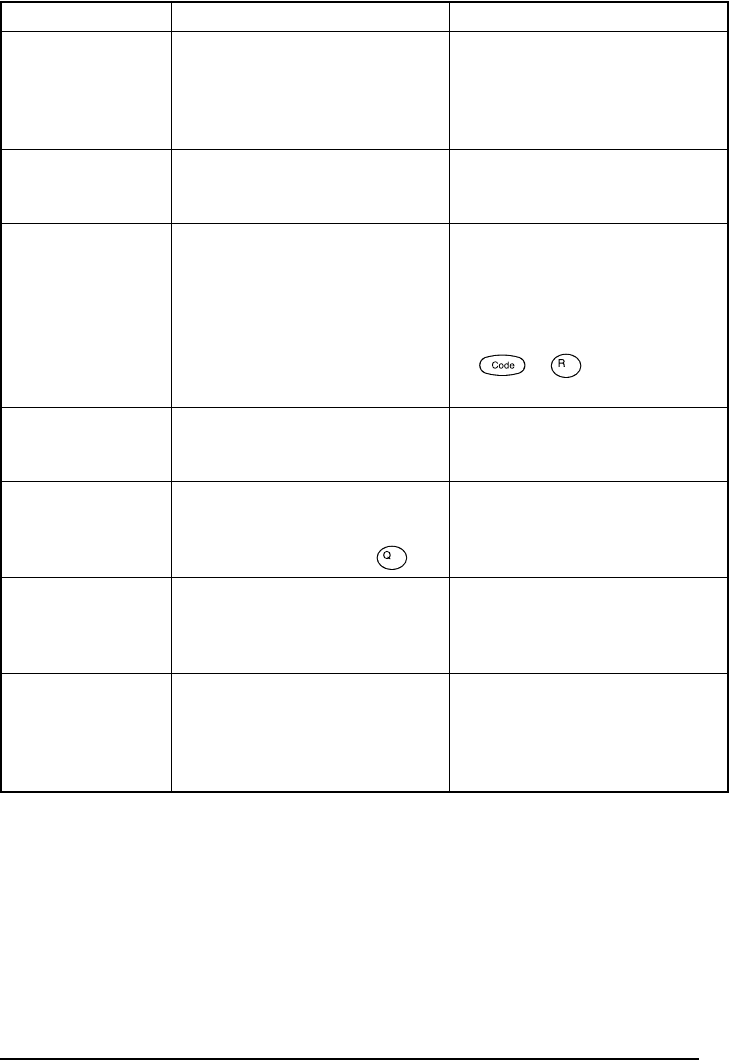
37
NUMBER
TOO SMALL! • Este mensaje aparecerá si el
número ajustado para impri-
mirse utilizando la función de
numeración es inferior al
situado sobre el cursor.
• Presione la tecla correspon-
diente a un número superior al
del texto.
REPLACE
BATTERIES! • Este mensaje aparece cuando
las pilas alcalinas instaladas
están casi gastadas.
• Reemplace las pilas o emplee el
adaptador de CA.
ROM
PROBLEM! • Este mensaje aparece si hay
algún problema con la memoria
de acceso aleatorio de la
máquina.
• Póngase en contacto con su
representante de servicio.
Desconecte la alimentación de
la máquina, y entonces, mien-
tras mantiene presionado
y , vuelva a conec-
tar la alimentación.
SYSTEM
ERROR! • Este mensaje aparece si hay
algún problema con el soft-
ware de la máquina.
• Póngase en contacto con su
representante de servicio.
TAB
LIMIT! • Este mensaje aparecerá si ya ha
ajustado 50 tabulaciones en el
texto cuando presione .
• Limite el número de tabulacio-
nes del texto a 50.
TEXT
TOO HIGH! • Este mensaje aparece si el
tamaño del texto es más grande
que el ancho de la cinta insta-
lada.
• Reduzca el tamaño de los
caracteres o instale una cinta
más ancha.
TEXT
TOO LONG! • Este mensaje aparece si la longi-
tud del texto es mayor que la
longitud que se ha ajustado para
la etiqueta utilizando la función
de longitud.
• Borre algo de texto, reduzca el
ancho de los caracteres o incre-
mente la longitud ajustada de la
etiqueta.
Mensaje de error Causa Remedio
Align
Tab

38
ESPECIFICACIONES
HARDWARE
SOFTWARE
Dispositivo de entrada: Teclado de 51 teclas
LCD: 7 × 5 puntos
12 caracteres × 2 líneas
16 indicadores
Cinta de impresión: Sensible a la presión, base adhesiva, 8 m (26´3”) de longitud
Cinco anchos disponibles:
6 mm (1/4”)
9 mm (3/8”)
12 mm (1/2”)
18 mm (3/4”)
24 mm (1”)
Alimentación: Ocho pilas alcalinas AA (AM3, LR6), ocho pilas alcalinas de man-
ganeso de tamãno AA o adaptador de CA opcional
Desconexión automática de la alimentación si no se pulsa nin-
guna tecla durante 5 minutos
Cabezal de impresión: 128 puntos / 180 dpi
Dimensiones: 188 (An) × 234 (Prf) × 67 (Al) mm
(7 1/2” × 9” × 2 1/2”)
Peso: 900 g (1.98 lbs) (sin casete de cinta ni pilas instalados)
Tamaño de la
memoria intermedia: Máximo de 99 caracteres
Una línea – 1 m
Máximo de cinco líneas
Tamaño de la memoria: 300 caracteres
Tamaño de caracteres: Seis tamaños (6, 9, 12, 18, 24 y 36 puntos) +
48 puntos (Mayúsculas solamente)
Todos disponibles en el modo normal y ancho (wide)
Estilos de impresión: Normal, perfilado, negrilla, sombreado (todos pueden combi-
narse con cursiva), y Vertical
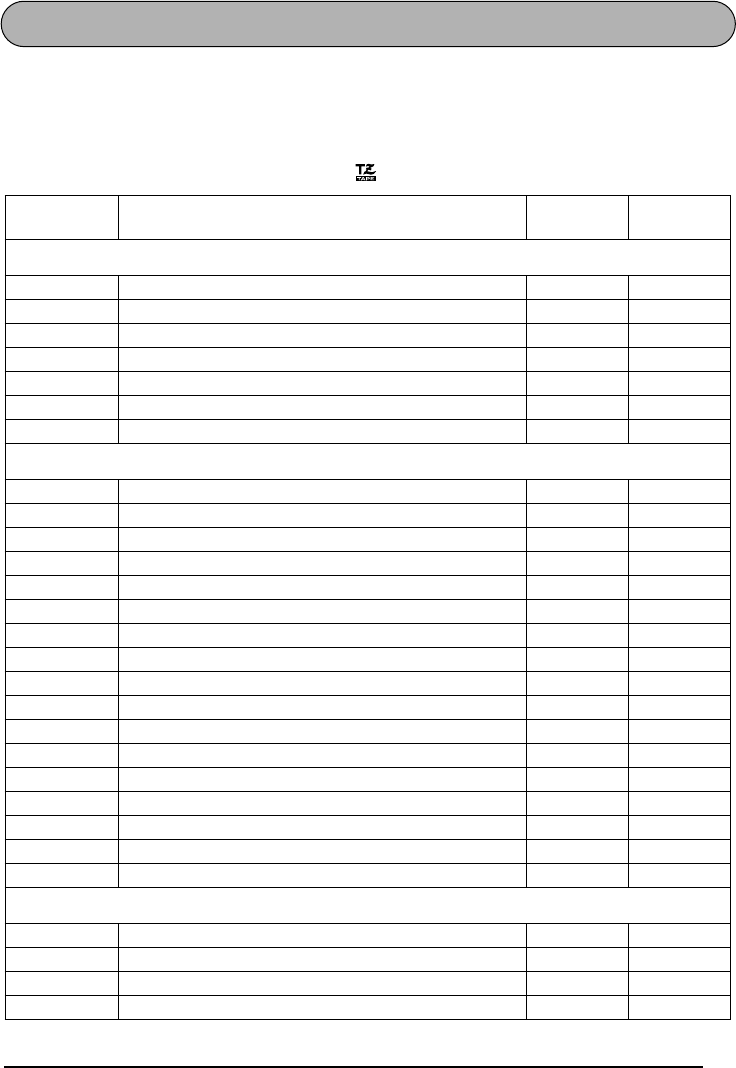
39
ACCESORIOS
●Accesorios de consumo
Adquiera los casetes de cinta en el distribuidor autorizado que le quede más cerca.
Emplee sólo cintas Brother TZ con esta máquina. Brother no puede hacerse responsable
por los problemas causados por el empleo de accesorios de consumo no autorizados. No
emplee cintas que no tengan el modelo .
N.º de
producto Descripción CANT./
PAQUETE PRECIO
Cintas laminadas de 1” (24 mm)
TZ-151 Caracteres negros sobre fondo transparente 1 $23.99
TZ-251 Caracteres negros sobre fondo blanco 1 $23.99
TZ-451 Caracteres negros sobre fondo rojo 1 $23.99
TZ-651 Caracteres negros sobre fondo amarillo 1 $23.99
TZ-252 Caracteres rojos sobre fondo blanco 1 $23.99
TZ-354 Caracteres dorados sobre fondo negro 1 $26.99
TZ-355 Caracteres blancos sobre fondo negro 1 $26.99
Cintas laminadas de 3/4” (18 mm)
TZ-141 Caracteres negros sobre fondo transparente 1 $20.99
TZ-145 Caracteres blancos sobre fondo transparente 1 $20.99
TZ-241 Caracteres negros sobre fondo blanco 1 $20.99
TZ-242 Caracteres rojos sobre fondo blanco 1 $20.99
TZ-243 Caracteres azules sobre fondo blanco 1 $20.99
TZ-344 Caracteres dorados sobre fondo negro 1 $24.99
TZ-345 Caracteres blancos sobre fondo negro 1 $23.99
TZ-441 Caracteres negros sobre fondo rojo 1 $20.99
TZ-541 Caracteres negros sobre fondo azul 1 $20.99
TZ-545 Caracteres blancos sobre fondo azul 1 $23.99
TZ-641 Caracteres negros sobre fondo amarillo 1 $20.99
TZ-741 Caracteres negros sobre fondo verde 1 $20.99
TZ-B41 Caracteres negros sobre fondo naranja fluorescente 1 $24.99
TZ-M41 Caracteres negros sobre fondo claro (MATE) 1 $20.99
TZ-WB41 Caracteres negros sobre fondo Bugs Bunny 1 $23.99
TZ-WT41 Caracteres negros sobre fondo Taz 1 $23.99
TZ-WS41 Caracteres negros sobre fondo Tweety & Sylvester 1 $23.99
Cintas laminadas de 1/2” (12 mm)
TZ-131 Caracteres negros sobre fondo transparente 1 $16.99
TZ-231 Caracteres negros sobre fondo blanco 1 $17.99
TZ-232 Caracteres rojos sobre fondo blanco 1 $17.99
TZ-335 Caracteres blancos sobre fondo negro 1 $20.99
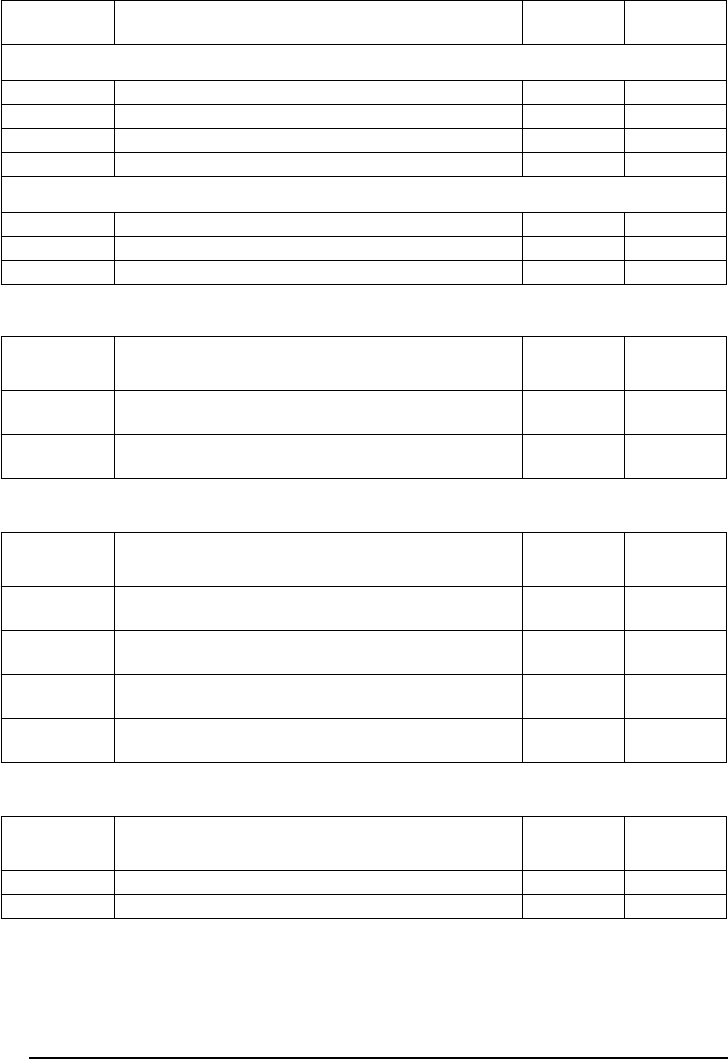
40
Cintas especiales
Juego de sellos
Opcións
Cintas laminadas de 3/8” (9 mm)
TZ-121 Caracteres negros sobre fondo transparente 1 $14.99
TZ-221 Caracteres negros sobre fondo blanco 1 $16.99
TZ-325 Caracteres blancos sobre fondo negro 1 $18.99
TZ-421 Caracteres negros sobre fondo rojo 1 $16.99
Cintas laminadas de 1/4” (6 mm)
TZ-111 Caracteres negros sobre fondo transparente 1 $12.99
TZ-211 Caracteres negros sobre fondo blanco 1 $14.99
TZ-315 Caracteres blancos sobre fondo negro 1 $17.99
N.º de
producto Descripción CANT./
PAQUETE PRECIO
TZ-SE4 Caracteres negros sobre cinta de seguridad de
3/4” (18 mm) 1 $29.99
TZ-FA3 Caracteres azulese sobre cinta de tela de
1/2” (12 mm) 1 $24.99
N.º de
producto Descripción CANT./
PAQUETE PRECIO
SK-LB Juego para hacer sellos para sello con tinta negra
grande 1 $39.99
SK-MB Juego para hacer sellos para sello con tinta negra
medio 1 $37.99
SH-LB Estampador adicional para sello con tinta negra
grande 1 $27.99
SH-MB Estampador adicional para sello con tinta negra
medio 1 $24.99
N.º de
producto Descripción CANT./
PAQUETE PRECIO
AD-60 Adaptador de CA 1 $24.99
6999 Caja de transporte protectora 1 $24.99
N.º de
producto Descripción CANT./
PAQUETE PRECIO

Printed in China
LA0321001A
