Brother Xr 31 Owner S Manual
Brother-Nnov-S-4000D-Quick-Start-Guide brother-nnov-s-4000d-quick-start-guide
Brother Sewing Machine 885-V51 UM_PE_500_EN_6591
885-V51 to the manual 152dbe50-c8cc-4dc2-a9c4-622ec305c5ea
2014-07-05
: Brother Brother-Xr-31-Owner-S-Manual brother-xr-31-owner-s-manual brother pdf
Open the PDF directly: View PDF  .
.
Page Count: 92
885-V51
English
XE5427-001①
Printed in China
Product Code 885-V51
GETTING READY
EMBROIDERY
APPENDIX
Computerized Embroidery Machine
Operation Manual
PANTONE 285 Black _Ccombo_emb_cover
Please visit us at http://solutions.brother.com where you can get
product support and answers to frequently asked questions (FAQs).
0711-0120-C-combo_E.book Page 91 Friday, July 4, 2008 1:35 PM

1
— — — — — — — — — — — — — — — — — — — — — — — — — — — — — — — — — — — — — — — — — — — — — — — — — — — —
Introduction
Thank you for purchasing this embroidery machine. Before using this machine, carefully read the "IMPORTANT
SAFETY INSTRUCTIONS", and then study this manual for the correct operation of the various functions.
In addition, after you have finished reading this manual, store it where it can quickly be accessed for future
reference.
IMPORTANT SAFETY INSTRUCTIONS
Please read these safety instructions before attempting to use the machine.
DANGER - To reduce the risk of electric shock
1Always unplug the machine from the electrical outlet immediately after using, when cleaning,
when making any user servicing adjustments mentioned in this manual, or if you are leaving the
machine unattended.
WARNING - To reduce the risk of burns, fire, electric shock, or injury to persons.
2Always unplug the machine from the electrical outlet when removing covers, lubricating, or
when making any adjustments mentioned in the instruction manual.
• To unplug the machine, switch the machine to the symbol “O” position to turn it off, then grasp
the plug and pull it out of the electrical outlet. Do not pull on the cord.
• Plug the machine directly into the electrical outlet. Do not use an extension cord.
•Always unplug your machine if the power is cut.
3 Never operate this machine if it has a damaged cord or plug, if it is not working properly, if it has
been dropped or damaged, or water is spilled on the unit. Return the machine to the nearest
authorized dealer or service center for examination, repair, electrical or mechanical adjustment.
• While the machine is stored or in use if you notice anything unusual, such as an odor, heat,
discoloration or deformation, stop using the machine immediately and unplug the power cord.
• When transporting the machine, be sure to carry it by its handle. Lifting the machine by any other
part may damage the machine or result in the machine falling, which could cause injuries.
•When lifting the machine, be careful not to make any sudden or careless movements, otherwise
you may injure your back or knees.
4 Always keep your work area clear:
•Never operate the machine with any air openings blocked. Keep ventilation openings of the
machine free from the build up of lint, dust, and loose cloth.
•Do not use extension cords. Plug the machine directly into the electrical outlet.
•Never drop or insert any object into any opening.
•Do not operate where aerosol (spray) products are being used or where oxygen is being
administered.

2
— — — — — — — — — — — — — — — — — — — — — — — — — — — — — — — — — — — — — — — — — — — — — — — — — — —
•Do not use the machine near a heat source, such as a stove or iron; otherwise, the machine,
power cord or garment being embroidered may ignite, resulting in fire or an electric shock.
•Do not place this machine on an unstable surface, such as an unsteady or slanted table,
otherwise the machine may fall, resulting in injuries.
5 Special care is required when embroidering:
•Always pay close attention to the needle. Do not use bent or damaged needles.
• Keep fingers away from all moving parts. Special care is required around the machine needle.
• Switch the machine to the symbol “O” position to turn it off when making any adjustments in the
needle area.
•Do not use a damaged or incorrect needle plate, as it could cause the needle to break.
•Do not push or pull the fabric when embroidering.
6 This machine is not a toy:
• Your close attention is necessary when the machine is used by or near children.
• The plastic bag that this machine was supplied in should be kept out of the reach of children or
disposed of. Never allow children to play with the bag due to the danger of suffocation.
• Do not use outdoors.
7 For a longer service life:
• When storing this machine, avoid direct sunlight and high humidity locations. Do not use or store
the machine near a space heater, iron, halogen lamp, or other hot objects.
• Use only neutral soaps or detergents to clean the machine. Benzene, thinner, and scouring
powders can damage the machine, and should never be used.
• Always consult the operation manual when replacing or installing any assemblies, needle, or
other parts to assure correct installation.
8 For repair or adjustment:
• If the light unit is damaged, it must be replaced by an authorized dealer.
• In the event a malfunction occurs or adjustment is required, first follow the troubleshooting table
in the back of the operation manual to inspect and adjust the machine yourself. If the problem
persists, please consult your local authorized Brother dealer.
Use this machine only for its intended use as described in the manual.
Use accessories recommended by the manufacturer as contained in this manual.
Use only the interface cable (USB cable) included with this machine.
The contents of this manual and specifications of this product are subject to change without notice.
For additional product information and updates, visit our web site at www.brother.com
SAVE THESE INSTRUCTIONS
This machine is intended for household use.

3
— — — — — — — — — — — — — — — — — — — — — — — — — — — — — — — — — — — — — — — — — — — — — — — — — — — —
This appliance is not intended for use by persons (including children) with reduced physical, sensory
or mental capabilities, or lack of experience and knowledge, unless they have been given supervision
or instruction concerning use of the appliance by a person responsible for their safety. Children should
be supervised to ensure that they do not play with the appliance.
FOR USERS IN THE UK, EIRE, MALTA AND CYPRUS ONLY
IMPORTANT
• In the event of replacing the plug fuse, use a fuse approved by ASTA to BS 1362, i.e. carrying
the mark, rating as marked on plug.
• Always replace the fuse cover. Never use plugs with the fuse cover omitted.
• If the available electrical outlet is not suitable for the plug supplied with this equipment, you should
contact your authorized dealer to obtain the correct lead.

4
— — — — — — — — — — — — — — — — — — — — — — — — — — — — — — — — — — — — — — — — — — — — — — — — — — —
Federal Communications Commission (FCC)
Declaration of Conformity (For USA Only)
Responsible Party: Brother International Corporation
100 Somerset Corporate Boulevard
Bridgewater, NJ 08807-0911 USA
TEL : (908) 704-1700
declares that the product
Product Name: Brother Sewing Machine
Model Number: HE1, PE500
This device complies with Part 15 of the FCC Rules. Operation is subject to the following two
conditions: (1) this device may not cause harmful interference, and (2) this device must accept any
interference received, including interference that may cause undesired operation.
This equipment has been tested and found to comply with the limits for a Class B digital device,
pursuant to Part 15 of the FCC Rules. These limits are designed to provide reasonable protection
against harmful interference in a residential installation. This equipment generates, uses, and can
radiate radio frequency energy and, if not installed and used in accordance with the instructions,
may cause harmful interference to radio communications. However, there is no guarantee that
interference will not occur in a particular installation. If this equipment does cause harmful
interference to radio or television reception, which can be determined by turning the equipment off
and on, the user is encouraged to try to correct the interference by one or more of the following
measures:
• Reorient or relocate the receiving antenna.
• Increase the separation between the equipment and receiver.
• Connect the equipment into an outlet on a circuit different from that to which the receiver is
connected.
• Consult the dealer or an experienced radio/TV technician for help.
• The included interface cable should be used in order to ensure compliance with the limits for a
Class B digital device.
• Changes or modifications not expressly approved by Brother Industries, Ltd. could void the user's
authority to operate the equipment.

5
— — — — — — — — — — — — — — — — — — — — — — — — — — — — — — — — — — — — — — — — — — — — — — — — — — — —
Contents
Introduction ........................................................................................................................1
IMPORTANT SAFETY INSTRUCTIONS ...............................................................................1
Machine Features ................................................................................................................7
Accessories ..........................................................................................................................8
Included accessories ......................................................................................................................................... 8
Optional accessories ......................................................................................................................................... 9
Names of Machine Parts and Their Functions ...................................................................10
Front view ....................................................................................................................................................... 10
Needle and embroidery foot section ............................................................................................................... 11
Right-side/rear view ........................................................................................................................................ 11
Operation buttons ........................................................................................................................................... 12
Operation panel .............................................................................................................................................. 13
GETTING READY 15
Basic Steps for Embroidering .............................................................................................16
Turning the Machine On/Off .............................................................................................17
Power supply precautions ............................................................................................................................... 17
Turning on the machine .................................................................................................................................. 18
Turning off the machine .................................................................................................................................. 18
Attaching the Embroidery Unit ..........................................................................................19
Embroidery unit precautions ........................................................................................................................... 19
Attaching the embroidery unit ......................................................................................................................... 19
Removing the embroidery unit ........................................................................................................................ 21
LCD (Liquid Crystal Display) Operation ............................................................................22
Viewing the LCD ............................................................................................................................................. 22
Changing the machine settings ....................................................................................................................... 23
Checking machine operating procedures ........................................................................................................ 25
Preparing Items for embroidering .....................................................................................26
Preparing the Needle .........................................................................................................27
Needle precautions ......................................................................................................................................... 27
Checking the needle ....................................................................................................................................... 27
Replacing the needle ....................................................................................................................................... 28
Winding/Installing the Bobbin ...........................................................................................29
Bobbin precautions ......................................................................................................................................... 29
Winding the bobbin ........................................................................................................................................ 29
Installing the bobbin ....................................................................................................................................... 34
Upper Threading ...............................................................................................................37
About the spool of thread ................................................................................................................................ 37
Threading the upper thread ............................................................................................................................. 38
Preparing the Fabric ..........................................................................................................43
Attaching a stabilizer material to the fabric ..................................................................................................... 43
Setting the fabric in the embroidery frame ....................................................................................................... 44
Attaching the Embroidery Frame .......................................................................................47
Attaching the embroidery frame ...................................................................................................................... 47
Removing the embroidery frame ..................................................................................................................... 48
EMBROIDERY 49
Selecting Embroidery Patterns ...........................................................................................50
Copyright information ..................................................................................................................................... 50
Embroidery pattern types ................................................................................................................................. 50
Setting for embroidering.................................................................................................................................. 51
Selecting alphanumeric characters .................................................................................................................. 53
Selecting an embroidery pattern ...................................................................................................................... 54
Selecting a frame pattern ................................................................................................................................. 55
Using an embroidery card ............................................................................................................................... 55

6
— — — — — — — — — — — — — — — — — — — — — — — — — — — — — — — — — — — — — — — — — — — — — — — — — — —
Embroidering .....................................................................................................................57
Embroidering a pattern .................................................................................................................................... 57
Appliquéing ................................................................................................................................................... 59
Editing and Saving Patterns ...............................................................................................61
Adjusting the layout and the size ..................................................................................................................... 61
Adjusting the upper thread tension .................................................................................................................. 63
Adjusting the bobbin thread tension ................................................................................................................ 64
Connecting character patterns ......................................................................................................................... 65
Resewing ........................................................................................................................................................ 66
Thread runs out partway through a design ....................................................................................................... 67
Stopping while embroidering .......................................................................................................................... 67
Using the Memory Function ..............................................................................................69
Embroidery data precautions ........................................................................................................................... 69
Saving patterns ................................................................................................................................................ 70
Retrieving embroidery patterns from the computer .......................................................................................... 71
APPENDIX 73
Care and Maintenance ......................................................................................................74
Cleaning the machine surface ......................................................................................................................... 74
Cleaning the race ............................................................................................................................................ 74
Attaching the Embroidery Foot .........................................................................................76
Attaching the embroidery foot ........................................................................................................................ 76
Troubleshooting ................................................................................................................78
Error messages ................................................................................................................................................ 82
Adjusting the LCD ........................................................................................................................................... 85
Operation beep ............................................................................................................................................... 85
Upgrading Your Machine's Software .................................................................................86
Index .................................................................................................................................87
0711-0120-C-combo_E.book Page 6 Thursday, July 24, 2008 1:46 PM
7
— — — — — — — — — — — — — — — — — — — — — — — — — — — — — — — — — — — — — — — — — — — — — — — — — — — —
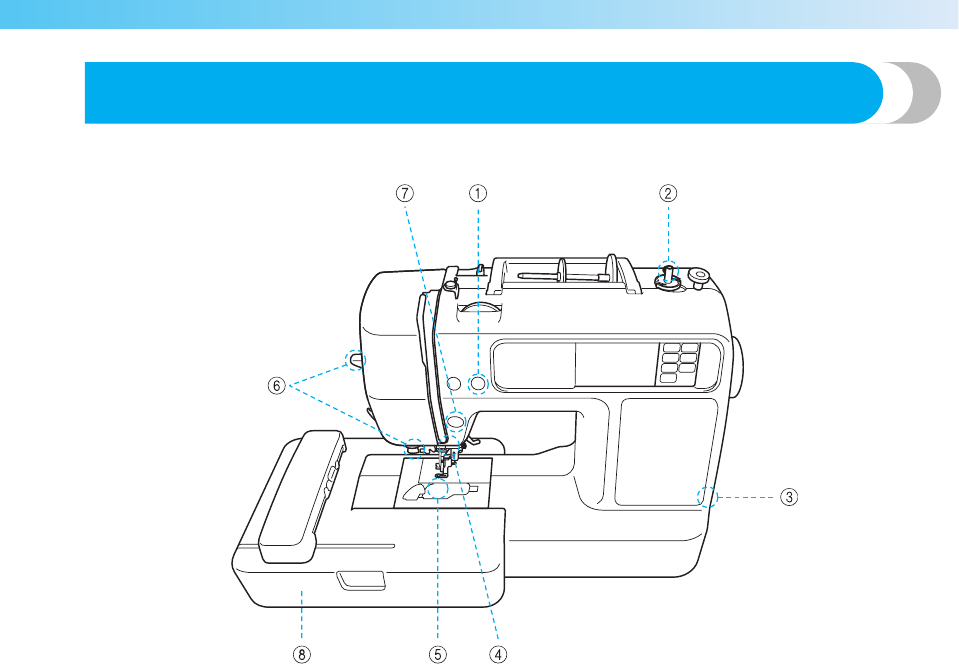
Machine Features
aAutomatic thread cutting
The thread can be cut automatically after embroidering (page 58).
bFast bobbin winding system
With the fast and simple bobbin winder, you can wind bobbins with one press of a button (page 29).
cUSB port
Various embroidery patterns on the website or saved in your PC become available by using the USB cable (page 71).
dBright light
The convenient LED lamp makes it easy to work on dark fabrics.
eQuick-set bobbin
You can start embroidering without pulling up the bobbin thread (page 34).
fEasy-to-use needle threader
You can thread the needle easily by one press of a lever (page 38).
gLighting Start/Stop button
When the green light is on, the machine is ready to embroider. A red or orange light indicates an error or that the machine
is warming up (page 12).
hEmbroidery
You can embroider built-in embroidery patterns, alphanumeric characters, framed decorations, and designs from optional
embroidery cards (page 49).
0711-0120-C-combo_E.book Page 7 Thursday, July 24, 2008 1:46 PM
8
— — — — — — — — — — — — — — — — — — — — — — — — — — — — — — — — — — — — — — — — — — — — — — — — — — —
Accessories
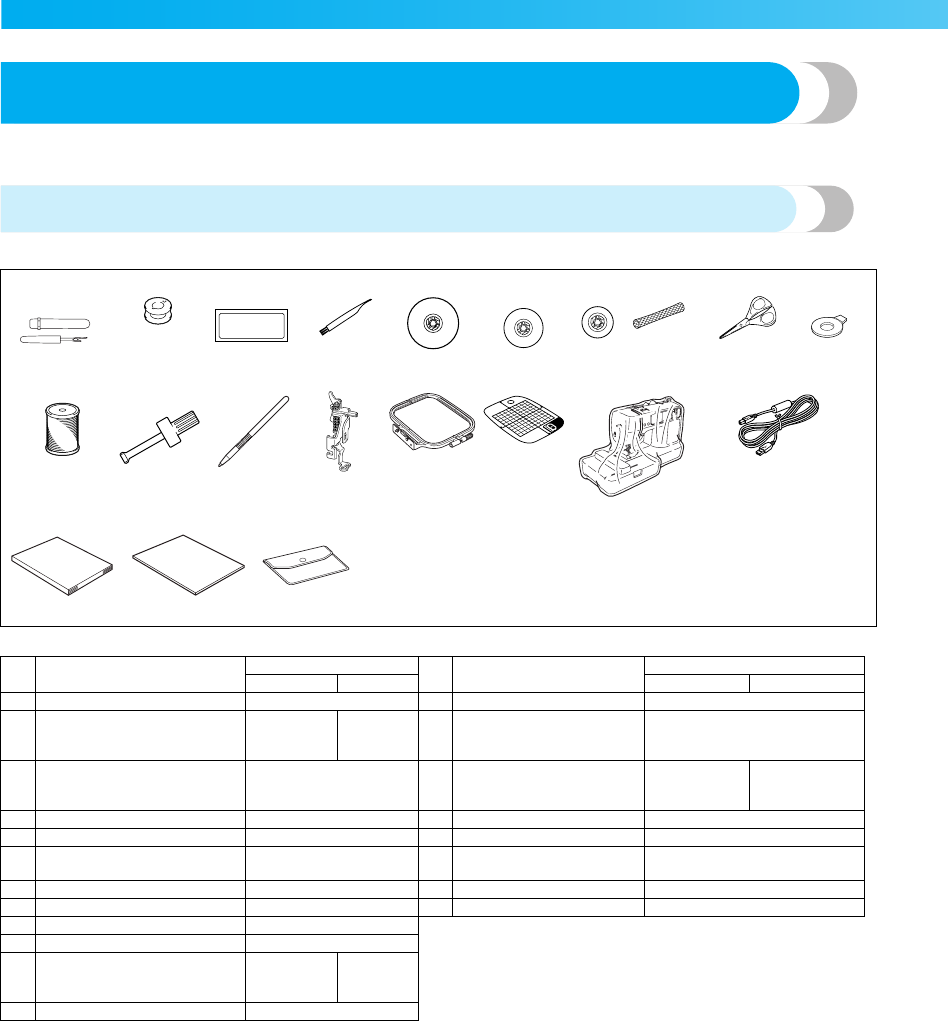
After opening the box, check that the following accessories are included. If any item is missing or
damaged, contact your dealer.
Included accessories
1. 2. 3.*1 4. 5. 6. 7. 8. 9. 10.
11. 12. 13. 14. 15. 16. 17.
18. 19. 20.
*1 75/11 3 needles, 90/14 1 needle
No. Part Name Part Code No. Part Name Part Code
Americas Others Americas Others
1 Seam ripper XZ5082-001 13 Touch pen XE3069-001
2Bobbin (4)
(One is on machine.)
SA156 SFB:
XA5539-
151
14 Embroidery foot "Q"
(on machine)
XD0474-151
3 Needle set X59535-051 15
Embroidery set (medium)
H 10 cm X W 10 cm
(H 4 inches X W 4 inches)
SA432 EF62:
XA6628-102
4 Cleaning brush X59476-021 16 Dust cover XE5387-001
5 Spool cap (large) 130012-024 17 USB cable XD0745-051
6Spool cap (medium)
(on machine) XE1372-001 18 Operation manual XE5427-201
7 Spool cap (small) 130013-124 19 Quick reference guide XE5366-001
8 Spool net XA5523-020 20 Accessory bag XC4487-021
9 Scissors XC1807-121
10 Disc-shaped screwdriver XC1074-051
11 Brother poly #90 bobbin
thread EBT-PE EBT-PEN:
XC5996-
001
12 Screwdriver XC4237-021
9
— — — — — — — — — — — — — — — — — — — — — — — — — — — — — — — — — — — — — — — — — — — — — — — — — — — —
Optional accessories
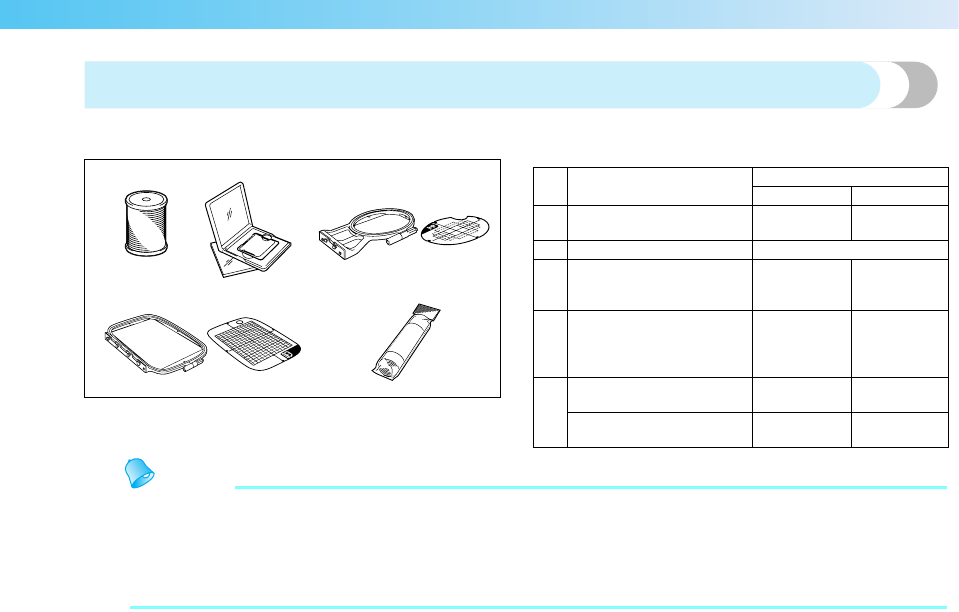
The following are available as optional accessories.
Memo
zTo obtain optional accessories or parts, contact your sales representative, the nearest authorized service
center or visit the website at " http://www.brother.com ".
z
All specifications are correct at the time of printing. The part codes are subject to change without notice.
zVisit your nearest authorized dealer for a complete listing of optional accessories available for your
machine.
1. 2. 3.
4. 5.
No. Part Name Part Code
Americas Others
1Brother poly #90 bobbin
thread EBT-PE EBT-PEN:
XC5996-001
2 Embroidery card -
3Embroidery set (small)
H 2 cm
×
W 6 cm
(H 1 inch
×
W 2-1/2 inches)
SA431 EF61:
XA6630-102
4
Embroidery set (large)
H 17 cm
×
W 10 cm
(H 6-3/4 inches
×
W 4
inches)
SA434 EF71:
XC2026-102
5
Water soluble stabilizer SA520 BM5:
XE0615-001
Stabilizer material for
embroidery SA519 BM3:
XE0806-001
10
— — — — — — — — — — — — — — — — — — — — — — — — — — — — — — — — — — — — — — — — — — — — — — — — — — —
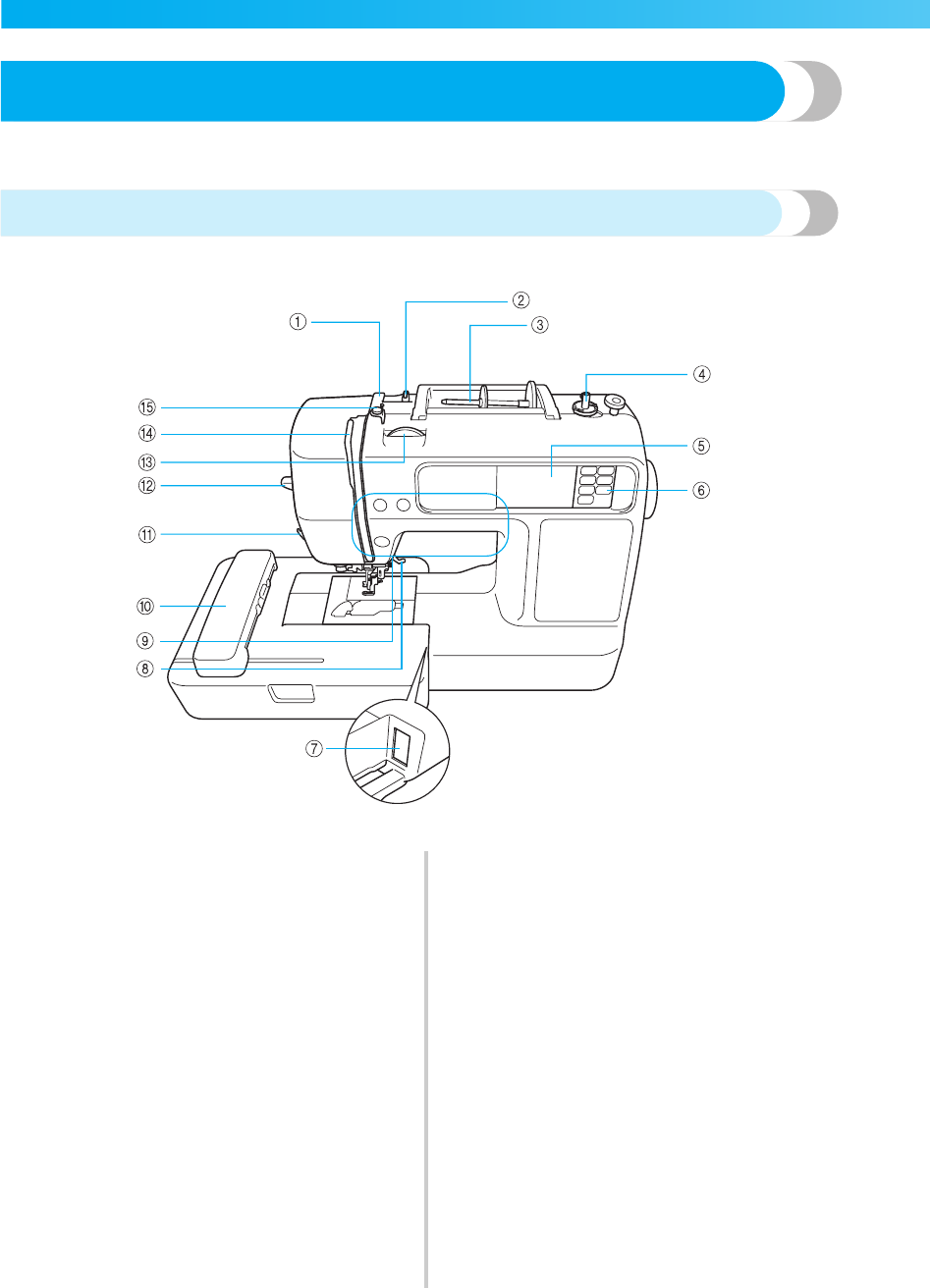
Names of Machine Parts and Their Functions
The names of the various parts of the machine and their functions are described below. Before using the
machine, carefully read these descriptions to learn the names of the machine parts.
Front view
aThread guide cover (page 31, 39)
Pass the thread under this thread guide cover when
winding the bobbin thread and threading the machine.
bThread guide (page 31, 39)
Pass the thread under this thread guide when winding
the bobbin thread and threading the machine.
cSpool pin (page 30, 38)
Place a spool of thread on the spool pin.
dBobbin winder (page 29)
Use the bobbin winder when winding the bobbin.
eLCD (liquid crystal display) (touch panel) (page 22)
Setting for the selected pattern and error messages
appear in the LCD.
fOperation panel (page 13)
Use the keys on this panel to select embroidery patterns,
or check how to use the machine, etc.
gEmbroidery unit connector slot (page 20)
Plug in the connector for the embroidery unit.
hPresser foot lever (page 28)
Raise and lower the presser foot lever to raise and lower
the embroidery foot .
iOperation buttons (page 12)
Use these buttons to operate the machine.
jEmbroidery unit (page 19)
Attach the embroidery unit to the machine, and then
attach the embroidery frame.
kThread cutter (page 40)
Pass the threads through the thread cutter to cut them.
lNeedle threader lever (page 41)
Use the needle threader lever to thread the needle.
mThread tension dial (page 63)
Adjust the upper thread tension with this dial.
nThread take-up lever (page 40)
oBobbin-winding thread guide and pretension disc
(page 31)
Pass the thread under this thread guide and around the
pretension disc when winding the bobbin thread.
introduction1 Page 10 Tuesday, August 19, 2008 4:54 PM
11
— — — — — — — — — — — — — — — — — — — — — — — — — — — — — — — — — — — — — — — — — — — — — — — — — — — —
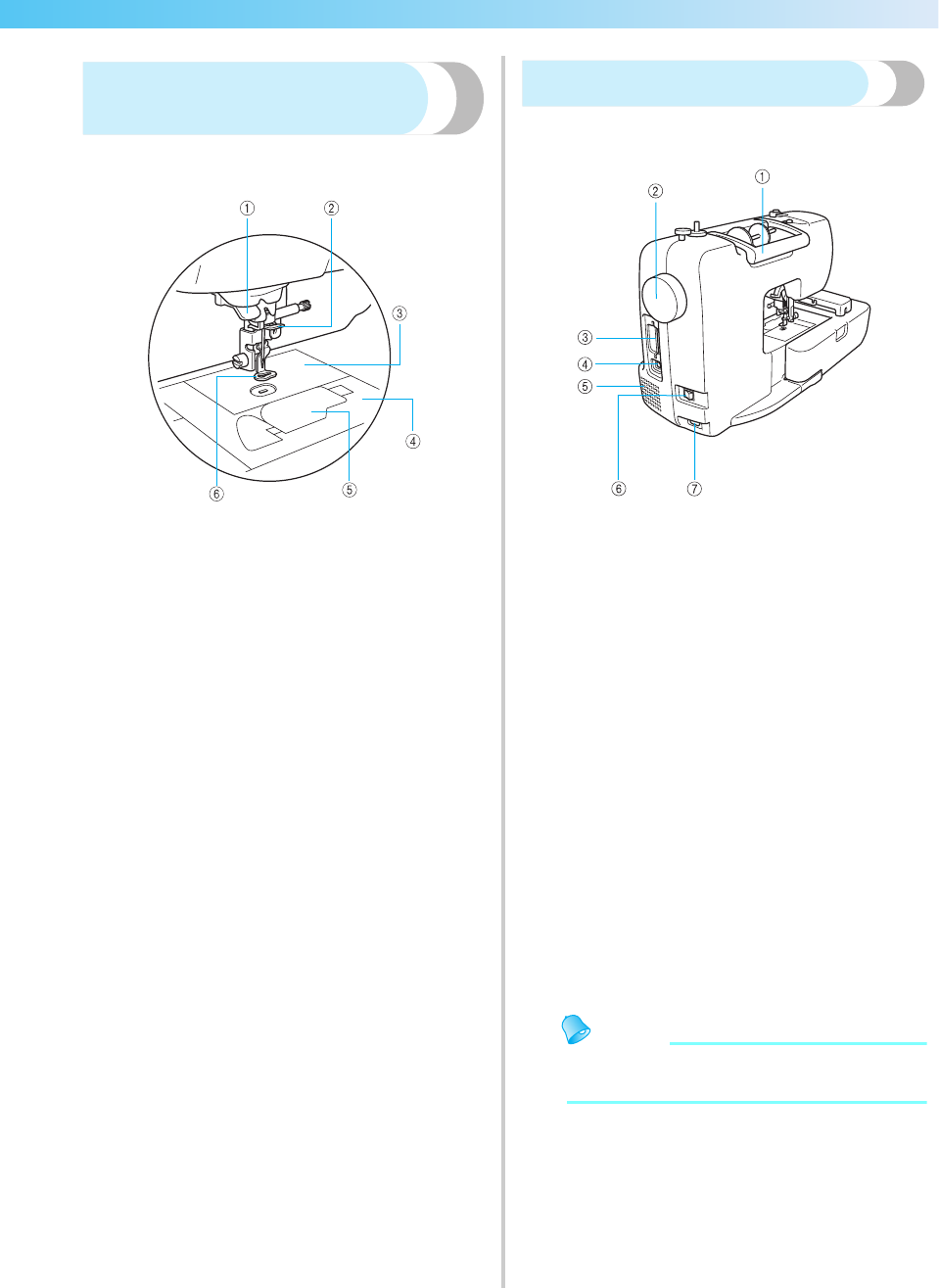
Needle and embroidery foot
section
aThread guide disk (page 40)
Pass the thread through the thread guide disk when
using the needle threader to thread the needle.
bNeedle bar thread guide (page 40)
Pass the upper thread through the needle bar thread
guide.
cNeedle plate
When the needle is lowered, it enters the hole in the
needle plate.
dNeedle plate cover (page 74)
Remove the needle plate cover to clean the bobbin case
and race.
eBobbin cover/bobbin case (page 35)
Remove the bobbin cover, and then insert the bobbin
into the bobbin case.
fEmbroidery foot “Q” (page 76)
This presser foot is used for embroidering.
Right-side/rear view
aHandle
Carry the machine by its handle when transporting the
machine.
bHandwheel (page 38)
Turn the handwheel toward you (counterclockwise) to
raise and lower the needle.
cEmbroidery card slot (page 55)
Insert the embroidery card.
dUSB port (page 71)
Connect the one end of the USB cable to this port and
the other to the computer.
eAir vent
The air vent allows the air surrounding the motor to be
exchanged. Do not cover the air vent while the machine
is being used.
fMain power switch (page 18)
Use the main power switch to turn the machine on and
off.
gPower supply jack (page 18)
Insert the plug on the power supply cord into the power
supply jack.
Memo
zRefer to pages 10 through 13 while you are
learning to use your machine.
0711-0120-C-combo_E.book Page 11 Thursday, July 24, 2008 1:46 PM
12
— — — — — — — — — — — — — — — — — — — — — — — — — — — — — — — — — — — — — — — — — — — — — — — — — — —
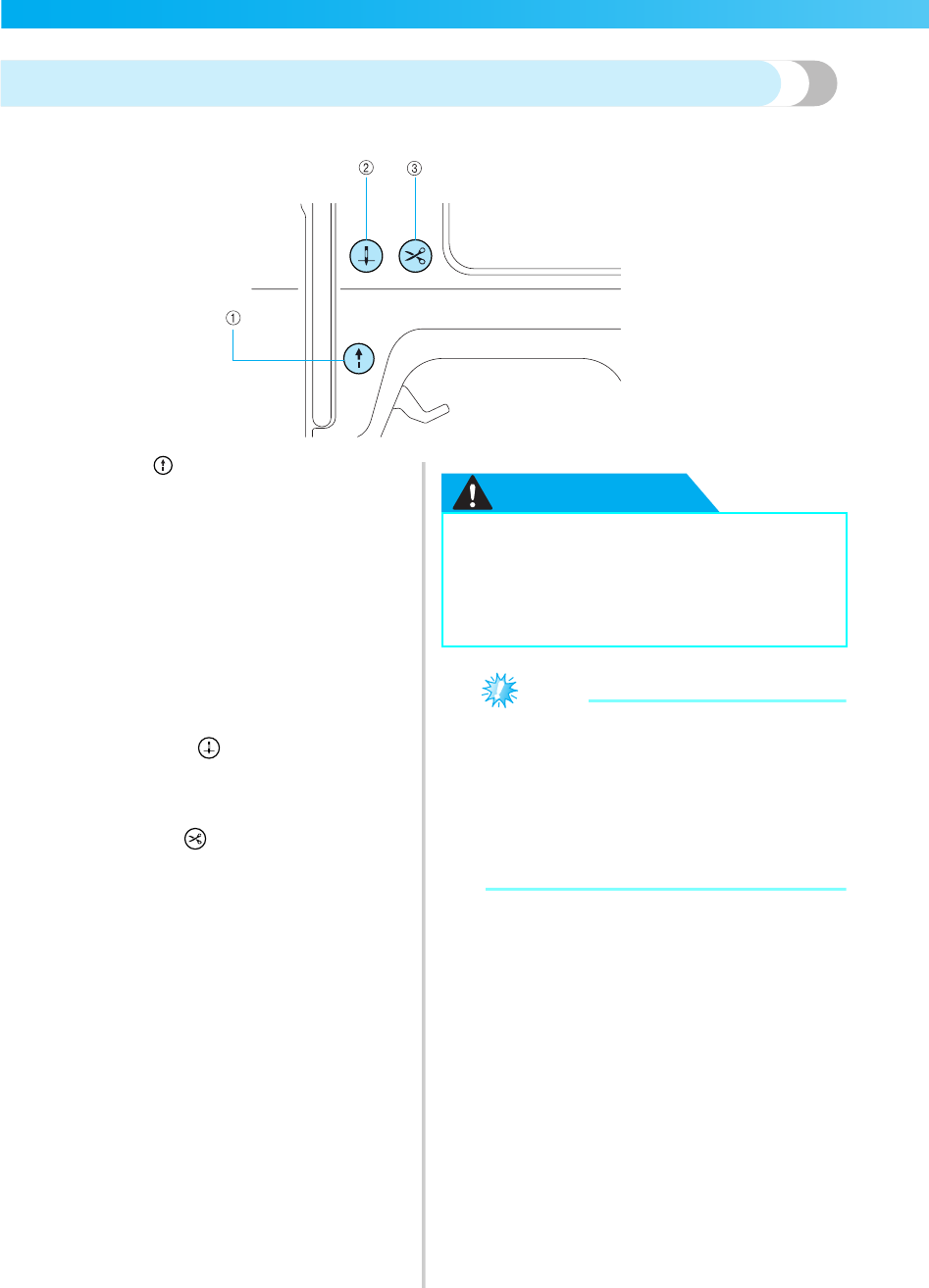
Operation buttons
The operation buttons help you to easily perform various basic machine operations.
aStart/stop button
Press the start/stop button to start or stop embroidering.
The machine embroiders at a slow speed while the
button is pressed. When embroidering is stopped, the
needle is lowered in the fabric.
The button changes color according to the machine’s
operation mode.
bNeedle position button
Press the needle position button to raise or lower the
needle. Be sure to raise the needle before threading the
needle. Pressing the button twice sews one stitch.
cThread cutter button
Press the thread cutter button after embroidering is
stopped to cut both the upper thread and the bobbin
threads.
CAUTION
Note
zDo not press the thread cutter button if there
is no fabric under the embroidery foot or
while the machine is embroidering,
otherwise damage to the machine may
occur.
zWhen cutting nylon thread or other special
threads, use the thread cutter on the side of
the machine.
Green: The machine is ready to embroider or
is embroidering.
Red: The machine can not embroider.
Orange: The machine is winding the bobbin
thread, or the bobbin winder shaft is
moved to the right side.
●Do not press the thread cutter button
after the threads have already been cut,
otherwise the needle may break, the
threads may become tangled or damage
to the machine may occur.
0711-0120-C-combo_E.book Page 12 Thursday, July 24, 2008 1:46 PM
13
— — — — — — — — — — — — — — — — — — — — — — — — — — — — — — — — — — — — — — — — — — — — — — — — — — — —
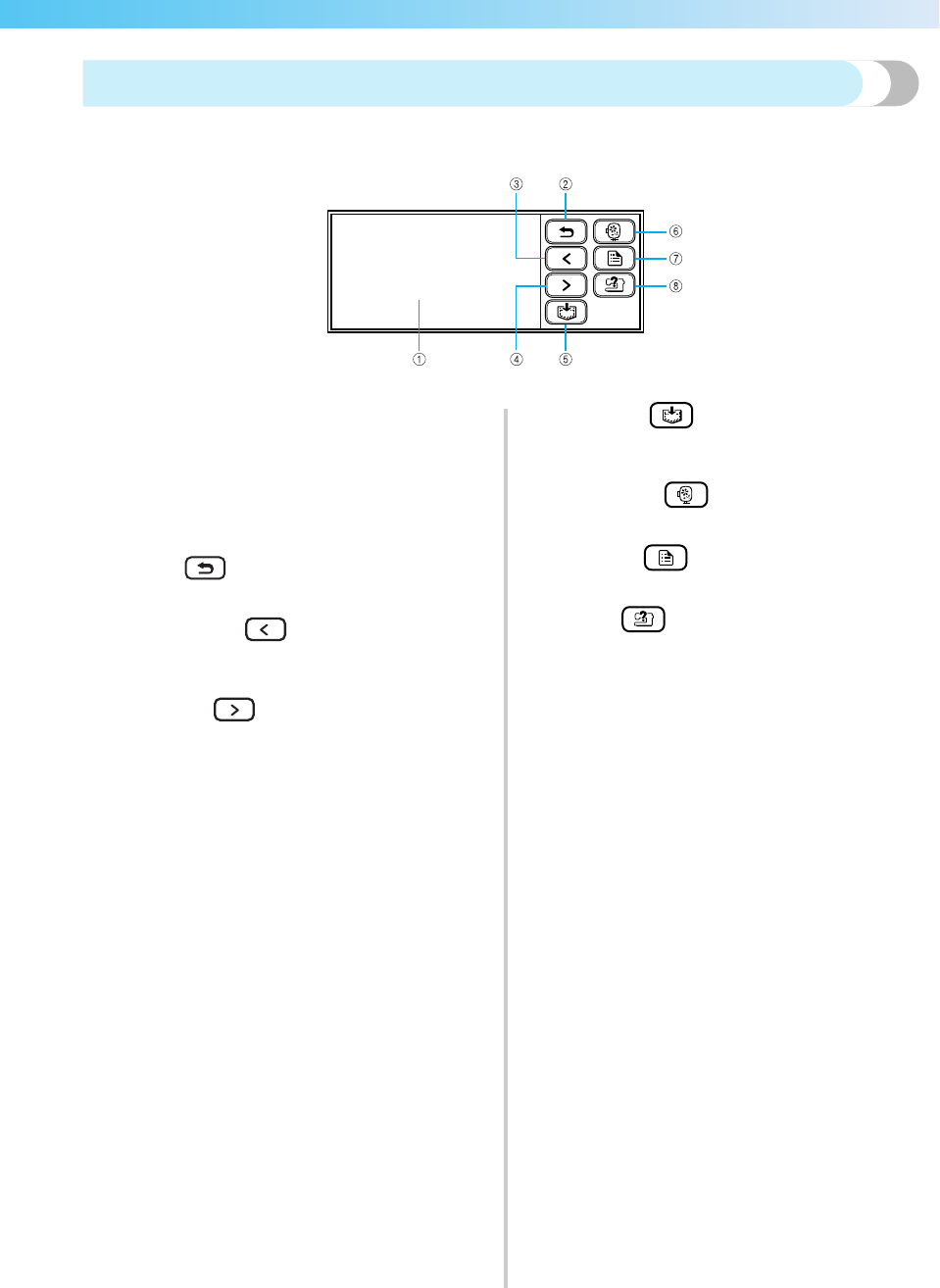
Operation panel
The front operation panel has an LCD (liquid crystal display) and operation keys.
aLCD (liquid crystal display) (touch panel)
Setting for the selected pattern and error messages
appear in the LCD.
Touch the keys displayed on the LCD with your finger
or a touch pen to perform operations.
For details, refer to "LCD (Liquid Crystal Display)
Operation" (page 22).
bBack key
Press to return to the previous screen.
cPrevious page key
Press to display the previous page when there are items
that are not displayed on the LCD.
dNext page key
Press to display the next page when there are items that
are not displayed on the LCD.
eMemory key
Press to save embroidery patterns and the alphanumeric
characters in the machine’s memory.
fEmbroidery key
Press to display the pattern type selection screen.
gSettings key
Press to display the settings screen.
hHelp key
Press to get help on using the machine. Displays simple
explanations of setting upper thread / bobbin winding /
setting bobbin thread / embroidery unit attachment /
embroidery frame attachment / needle replacement.
0711-0120-C-combo_E.book Page 13 Thursday, July 24, 2008 1:46 PM

14
— — — — — — — — — — — — — — — — — — — — — — — — — — — — — — — — — — — — — — — — — — — — — — — — — — —
0711-0120-C-combo_E.book Page 14 Thursday, July 24, 2008 1:46 PM

1 GETTING READY
The various preparations to start embroidering are described in this chapter.
Basic Steps for Embroidering...................................................................................16
Turning the Machine On/Off ..................................................................................17
Attaching the Embroidery Unit................................................................................19
LCD (Liquid Crystal Display) Operation..................................................................22
Preparing Items for Embroidering ...........................................................................26
Preparing the Needle...............................................................................................27
Winding/Installing the Bobbin.................................................................................29
Upper Threading .....................................................................................................37
Preparing the Fabric ................................................................................................43
Attaching the Embroidery Frame.............................................................................47
0711-0120-C-combo_E.book Page 15 Thursday, July 24, 2008 1:46 PM
16
GETTING READY — — — — — — — — — — — — — — — — — — — — — — — — — — — — — — — — — — — — — — — — — — — —
Basic Steps for Embroidering
This section describes the preparations for embroidering.
The basic steps for embroidering are as follows.
↓
↓
↓
↓
↓
↓
↓
1Embroidery unit attachment Attach the embroidery unit.
For details, refer to "Attaching the embroidery unit" (page 19).
2Needle preparation Use a needle matched to the fabric.
For details, refer to "Replacing the needle" (page 28).
3Bobbin thread setup For the bobbin thread, wind embroidery bobbin thread and set it in
place.
For details, refer to "Winding/Installing the Bobbin" (page 29).
4Fabric preparation Attach a stabilizer material to the fabric, and hoop it in an embroidery
frame.
For details, refer to "Preparing the Fabric" (page 43).
5Embroidery frame
attachment
Attach the embroidery frame to the embroidery unit.
For details, refer to "Attaching the Embroidery Frame" (page 47).
6Pattern selection Select an embroidery pattern.
For details, refer to "Selecting Embroidery Patterns" (page 50).
7Upper thread setup Set up the upper thread according to the selected pattern.
For details on setting up the thread, refer to "Upper Threading" (page 37).
8Checking the layout Check and adjust the size and position of the embroidery pattern.
For details, refer to "Adjusting the layout and the size" (page 61).
0711-0120-C-combo_E.book Page 16 Thursday, July 24, 2008 1:46 PM
Turning the Machine On/Off 17
1
— — — — — — — — — — — — — — — — — — — — — — — — — — — — — — — — — — — — — — — — — — — — — — — — — — — —
Turning the Machine On/Off
This section explains how to turn the machine on and off.
Power supply precautions
Be sure to observe the following precautions concerning the power supply.
WARNING
CAUTION
●Use only regular household electricity for the power source. Using other power sources may
result in fire, electric shock, or damage to the machine.
●Make sure that the plugs on the power cord are firmly inserted into the electrical outlet and
the power supply jack on the machine.
●Do not insert the plug on the power cord into an electrical outlet that is in poor condition.
●Turn off the main power and remove the plug in the following circumstances:
• When you are away from the machine
• After using the machine
• When the power fails during use
• When the machine does not operate correctly due to a bad connection or a disconnection
• During electrical storms
●Use only the power cord included with this machine.
●Do not use extension cords or multi-plug adapters with many other appliances plugged in to
them. Fire or electric shock may result.
●Do not touch the plug with wet hands. Electric shock may result.
●When unplugging the machine, always turn off the main power first. Always grasp the plug to
remove it from the outlet. Pulling on the cord may damage the cord, or lead to fire or electric
shock.
●Do not allow the power cord to be cut, damaged, modified, forcefully bent, pulled, twisted,
or bundled. Do not place heavy objects on the cord. Do not subject the cord to heat. These
things may damage the cord and cause fire or electric shock. If the cord or plug is damaged,
take the machine to your authorized dealer for repairs before continuing use.
●Unplug the power cord if the machine is not to be used for a long period of time. Otherwise a
fire may result.
0711-0120-C-combo_E.book Page 17 Thursday, July 24, 2008 1:46 PM
18
GETTING READY — — — — — — — — — — — — — — — — — — — — — — — — — — — — — — — — — — — — — — — — — — — —
Turning on the machine
Memo
zBefore turning on the machine, be sure to
attach the embroidery unit to it. If the
embroidery unit is not attached, the machine
does not operate. (For details, refer to
“Attaching the Embroidery Unit” (page 19).)
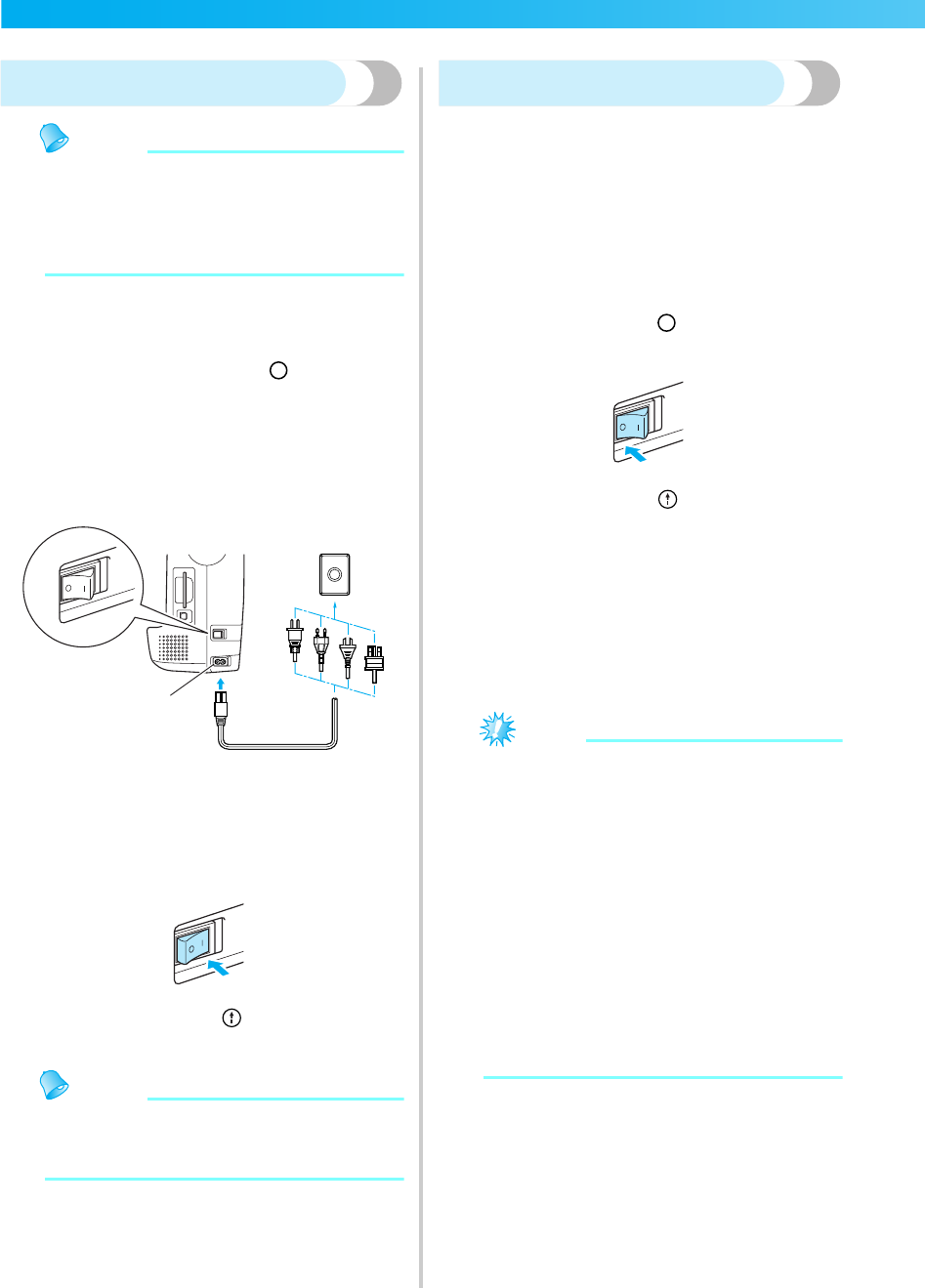
Prepare the included power supply cord.
aMake sure that the machine is turned off (the
main power switch is set to " "), and then
plug the power supply cord into the power
supply jack on the right side of the machine.
bInsert the plug of the power supply cord into a
household electrical outlet.
aPower supply jack
cPress the right side of the main power switch
on the right side of the machine to turn the
machine on (set it to "|").
XThe light, LCD and (Start/stop button)
light up when the machine is turned on.
Memo
zWhen the machine is turned on, the needle
will make sound when it moves; this is not a
malfunction.
Turning off the machine
When you have finished using the machine, turn it
off. In addition, before transporting the machine to
another location, be sure to turn it off.
aMake sure that the machine is completely
stopped.
bPress the left side of the main power switch on
the right side of the machine to turn the
machine off (set it to " ").
XThe light, LCD and (Start/stop button) go
off when the machine is turned off.
cUnplug the power supply cord from the
electrical outlet.
Grasp the plug when unplugging the power
supply cord.
dUnplug the power cord from the power supply
jack.
Note
zIf a power outage occurs while the machine
is being operated, turn off the machine and
unplug the power supply cord. When
restarting the machine, follow the necessary
procedure to correctly operate the machine.
(For U.S.A. only)
zThis appliance has a polarized plug (one
blade wider than the other). To reduce the
risk of electrical shock, this plug is intended
to fit in a polarized outlet only one way. If
the plug does not fit fully in the outlet,
reverse the plug. If it still does not fit, contact
a qualified electrician to install the proper
outlet. Do not modify the plug in any way.
1
0711-0120-C-combo_E.book Page 18 Thursday, July 24, 2008 1:46 PM
Attaching the Embroidery Unit 19
1
— — — — — — — — — — — — — — — — — — — — — — — — — — — — — — — — — — — — — — — — — — — — — — — — — — — —
Attaching the Embroidery Unit
This section describes how to attach the embroidery unit.
Embroidery unit precautions
CAUTION
Note
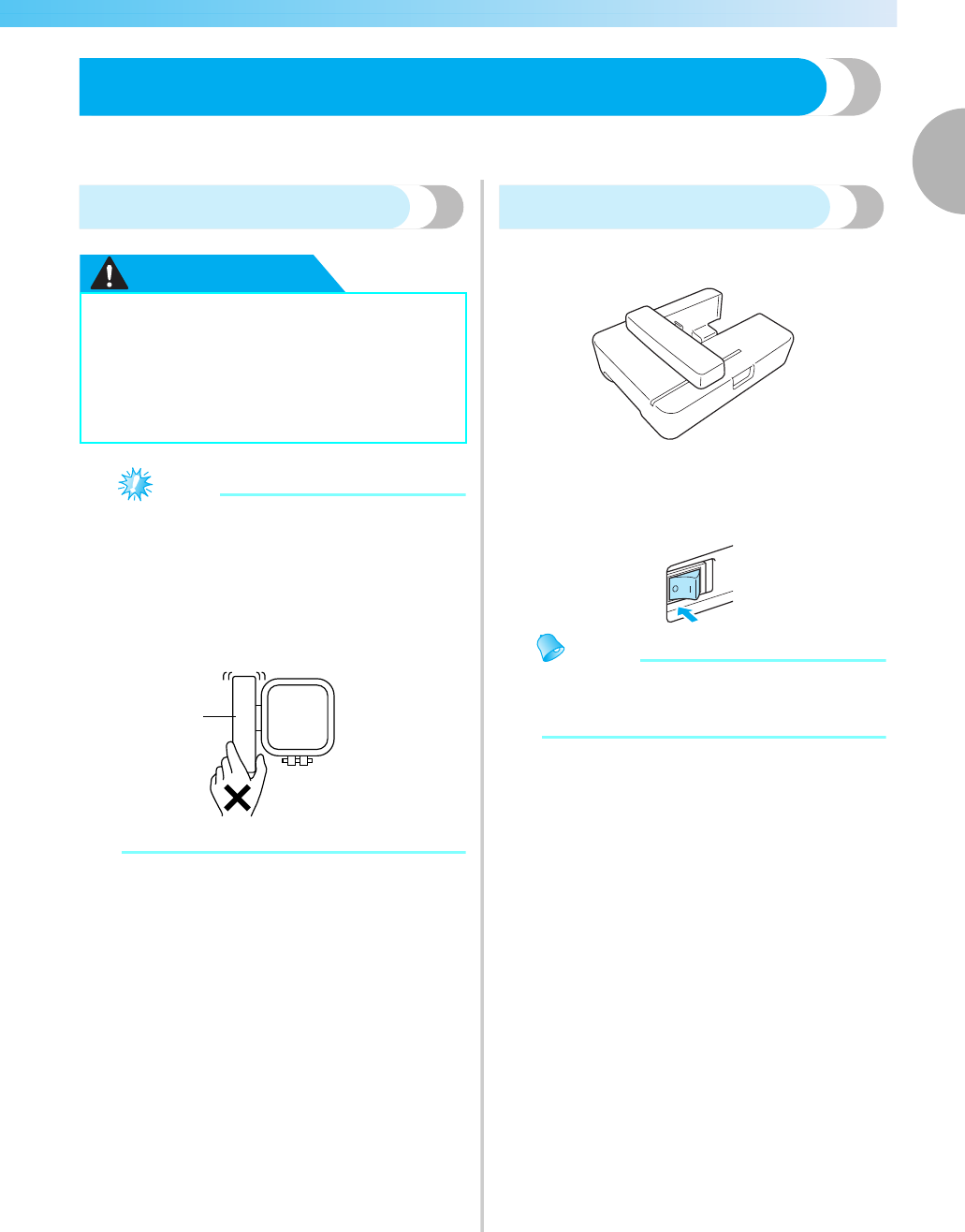
zDo not touch the connector in the
embroidery unit connector slot. The
connector could be damaged, and it may
cause malfunctions.
zDo not lift up on the embroidery carriage,
and do not forcefully move it. It may cause
malfunctions.
aCarriage
Attaching the embroidery unit
Get the embroidery unit ready.
aMake sure that the machine is turned off.
Memo
zAlways turn off the machine before attaching
the embroidery unit. It may cause
malfunctions.
●Do not move the machine with the
embroidery unit in place. The embroidery
unit may be dropped and cause injury.
●Keep your hands and other objects away
from the embroidery carriage and frame.
Otherwise injury may result.
a
0711-0120-C-combo_E.book Page 19 Thursday, July 24, 2008 1:46 PM
20
GETTING READY — — — — — — — — — — — — — — — — — — — — — — — — — — — — — — — — — — — — — — — — — — — —
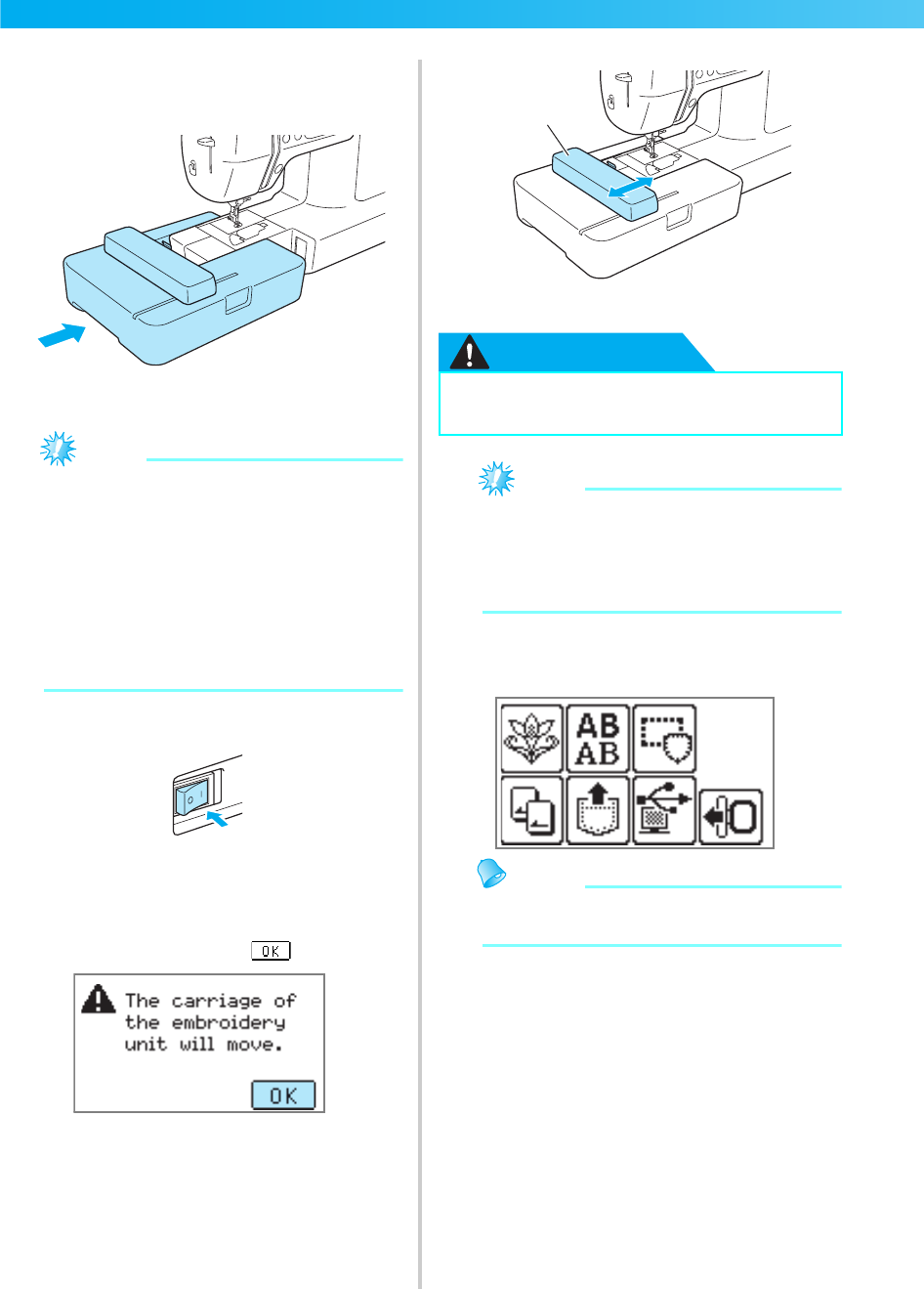
bSlide the embroidery unit onto the machine
arm.
Push it in until it clicks and stops.
XThe embroidery unit is attached.
Note
zMake sure that there is no gap between the
embroidery unit and the machine, otherwise
the embroidery pattern may not be sewn
correctly.
Be sure to fully insert the connector into the
connection port.
zDo not push on the carriage when attaching
the embroidery unit to the machine,
otherwise damage to the embroidery unit
may result.
cTurn on the machine.
XThe confirmation message is displayed.
dBe sure that no objects or hands are near the
embroidery unit and press .
XThe carriage moves to its initial position.
aCarriage
CAUTION
Note
zIf the machine is initialized with hands or
objects near the carriage, the screen may
return to the initial display. After removing
whatever is near the carriage, turn the power
on again.
XThe screen for selecting the embroidery
pattern type is displayed.
Memo
zFor details on the embroidery patterns, refer
to "Selecting Embroidery Patterns" (page 50).
●Do not put your hands or other objects
near the carriage. It may cause injury.
a
0711-0120-C-combo_E.book Page 20 Thursday, July 24, 2008 1:46 PM
Attaching the Embroidery Unit 21
1
— — — — — — — — — — — — — — — — — — — — — — — — — — — — — — — — — — — — — — — — — — — — — — — — — — — —
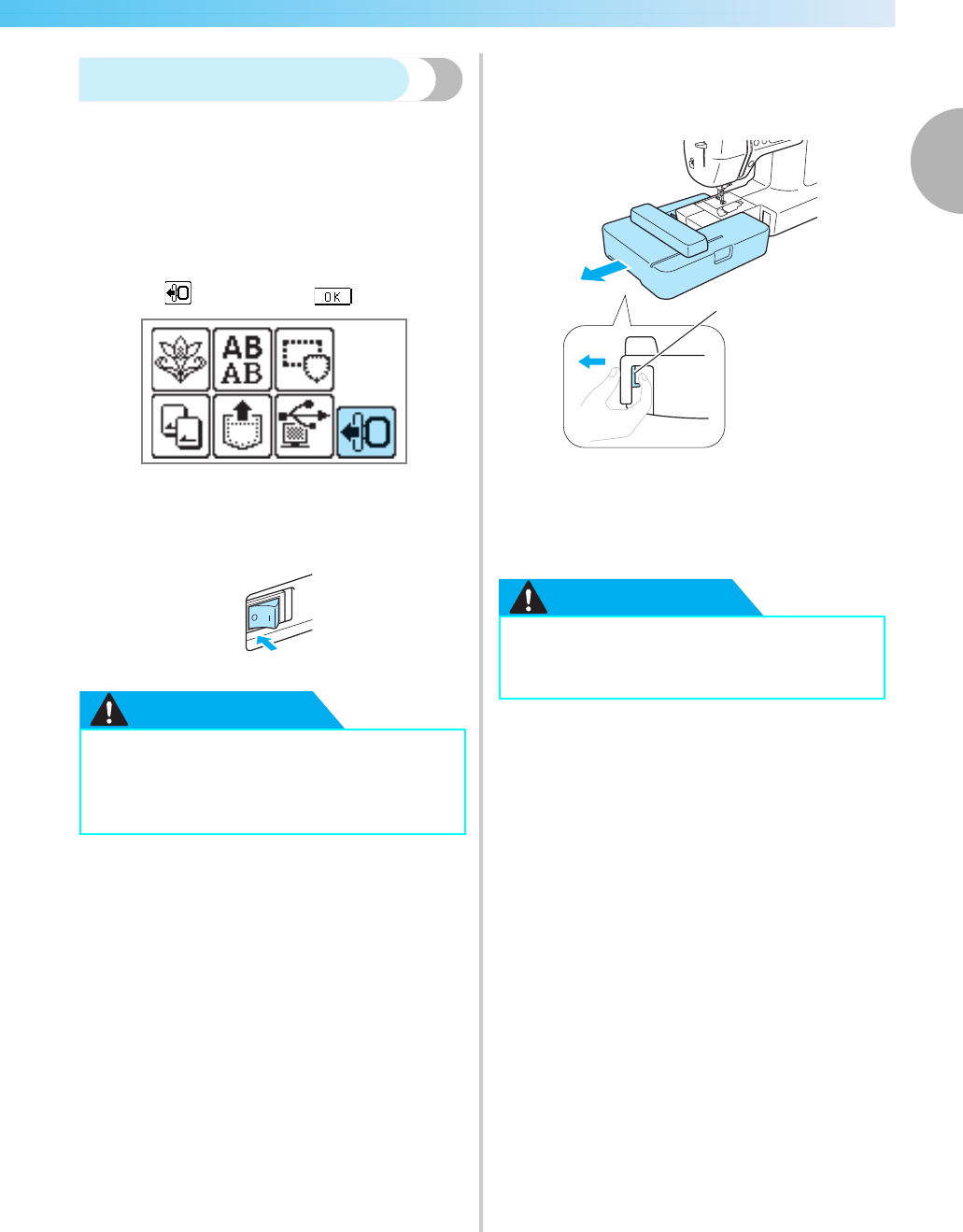
Removing the embroidery unit
Make sure that the machine is completely stopped
and follow the instructions below.
aRemove the embroidery frame.
• For details on removing the embroidery
frame, refer to "Removing the embroidery
frame" (page 48).
bPress , and then press .
XThe embroidery carriage moves into a
position where it can be saved.
cTurn off the machine.
CAUTION
dHold the release button on the bottom left of
the embroidery unit, and slowly pull the
embroidery unit to the left.
aRelease button
XThe embroidery unit separates from the
machine.
CAUTION
●Always turn off the machine before
removing the embroidery unit. It may
cause malfunctions if removed when the
machine is turned on.
●Do not carry the embroidery unit by
holding the carriage. It may cause
malfunctions.
a
0711-0120-C-combo_E.book Page 21 Thursday, July 24, 2008 1:46 PM
22
GETTING READY — — — — — — — — — — — — — — — — — — — — — — — — — — — — — — — — — — — — — — — — — — — —
LCD (Liquid Crystal Display) Operation
Selected embroidery pattern, settings and messages are displayed on the LCD (liquid crystal display) on
the front of the machine. Change the screen on the LCD using the keys on the right side of the LCD, and
make operations by directly touching the icons with your finger or a touch pen. For details, refer to
"Operation panel" (page 13).
Viewing the LCD
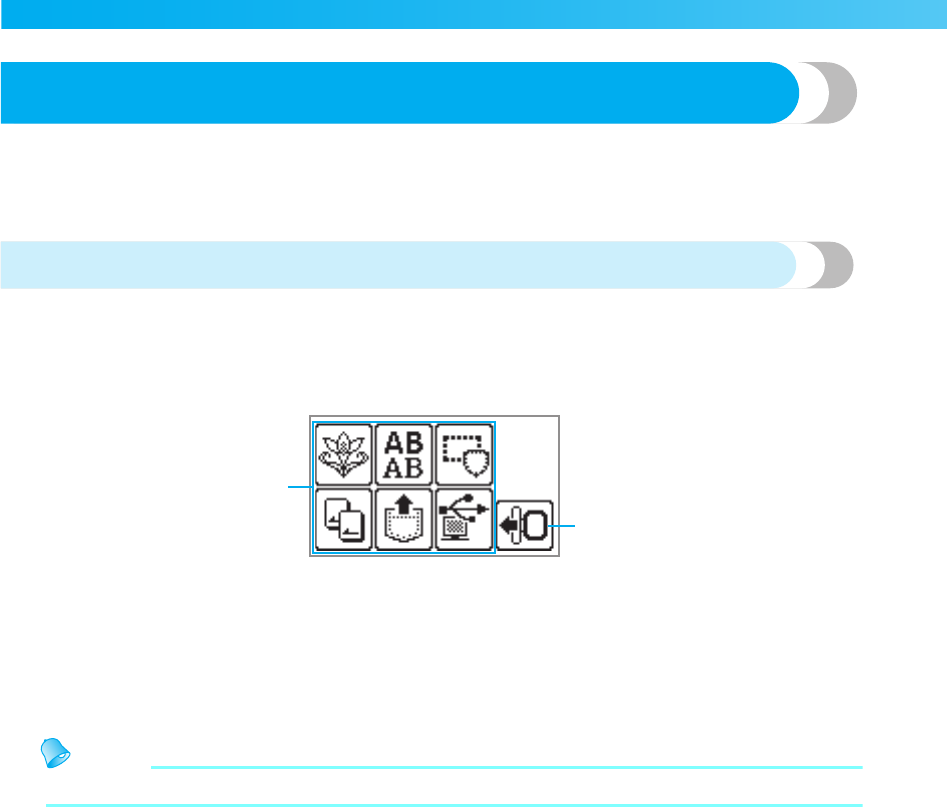
When the power is turned on, the LCD comes on. When you touch the LCD screen according to the message
displayed on the screen with your finger or a touch pen, the following screen is displayed.
aPattern type selection
You can select the pattern type from this screen.
For details, refer to "Embroidery pattern types"
(page 50).
bMoves the embroidery unit carriage to its storage
position
Press when removing the embroidery unit.
For details, refer to "Removing the embroidery
unit" (page 21).
Memo
zRefer to "Error messages" (page 82) for messages displayed on the LCD.
a
b
0711-0120-C-combo_E.book Page 22 Thursday, July 24, 2008 1:46 PM
LCD (Liquid Crystal Display) Operation 23
1
— — — — — — — — — — — — — — — — — — — — — — — — — — — — — — — — — — — — — — — — — — — — — — — — — — — —
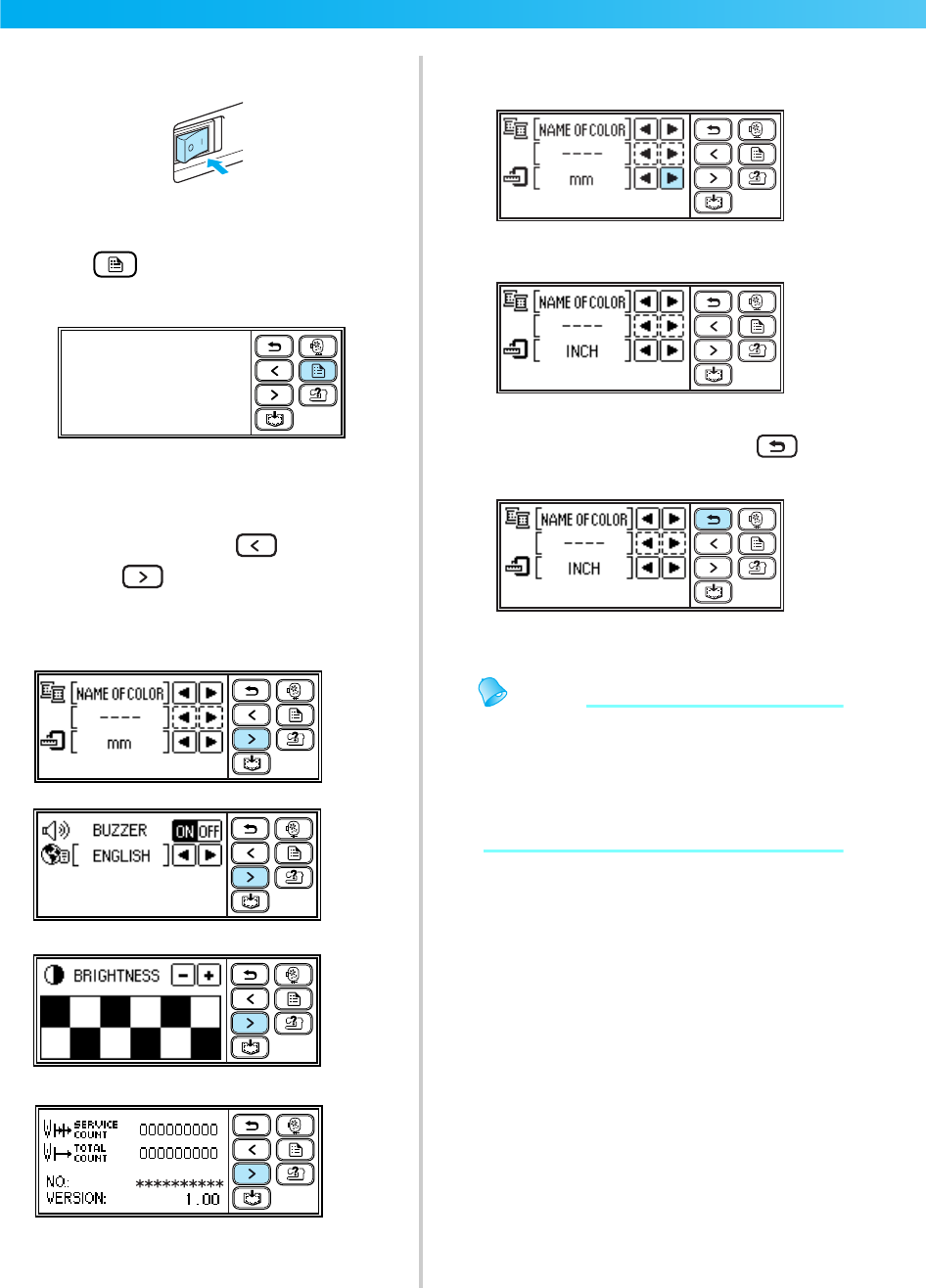
Changing the machine settings
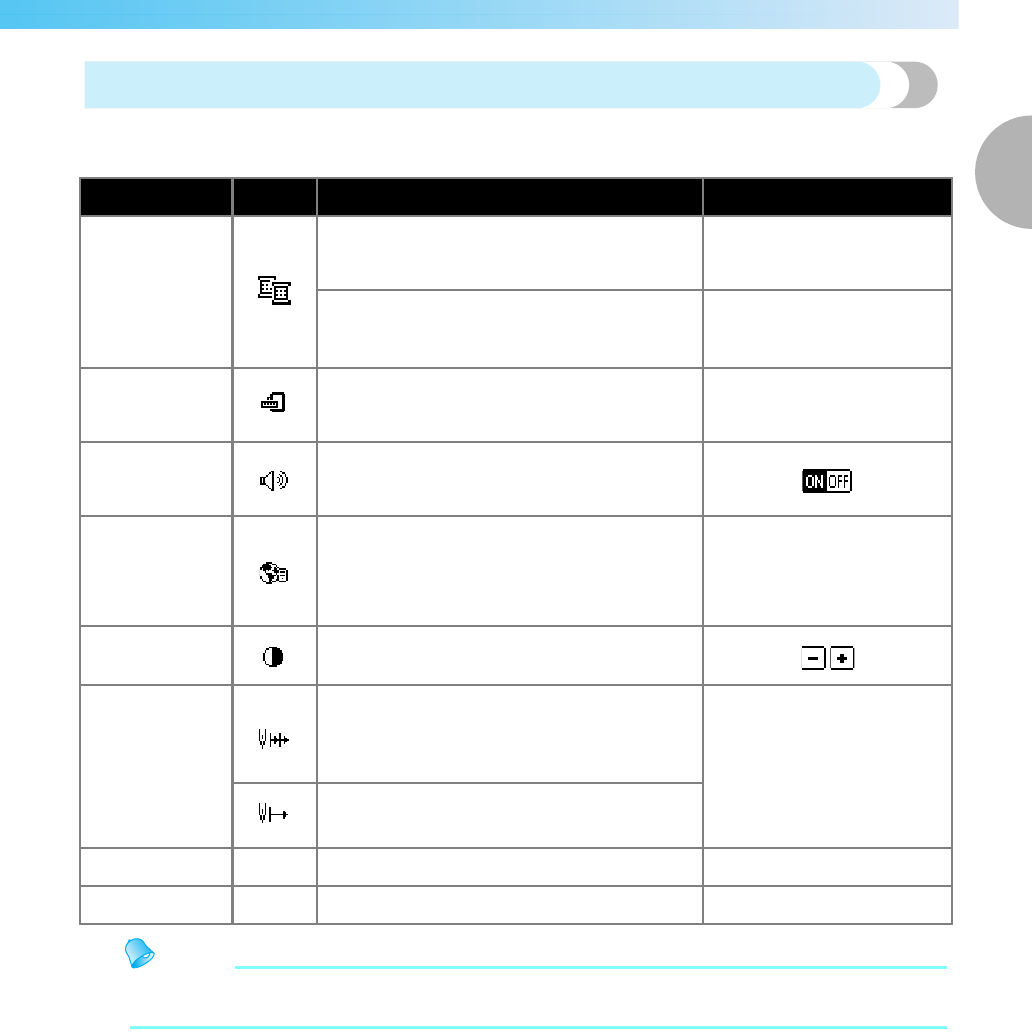
Various machine operations and settings can be changed.
The attributes that can be set are listed below. For details on operation, refer to page 24.
Memo
zThe item shown in reverse highlighting are the settings at the time of purchase.
zFor details on the setting while embroidering, refer to "Setting for embroidering" (page 51).
Attribute Icon Details Settings
Thread color
display
Changes the thread color display (page 51). Thread color/Time to
embroider/Needle count/
Thread number (#123)
(When "Thread No.#123" is selected)
Embroidery/Country/Madeira
poly/Madeira rayon/Sulky/
Robison Anton
Display unit Selects the measurement units that are
displayed (page 52). mm/INCH
Buzzer Specifies whether or not a beep is sounded with
each operation (page 85).
Language Allows the language used in the screens to be
changed.
English/German/French/
Italian/Dutch/Spanish/
Japanese/Danish/Norwegian/
Finnish/Swedish/Portuguese/
Russian/Korean/Thai/others
LCD brightness Adjust the brightness of the LCD (page 85). Lighter Darker
Stitch counter
Display the service count which is a reminder
to take your machine in for regular servicing.
(Contact your nearest authorized service center
for details.) -
Display the total number of embroidery stitches.
Product number NO.: The "NO." is the number for the machine. -
Program version Version: Displays the program version. -
24
GETTING READY — — — — — — — — — — — — — — — — — — — — — — — — — — — — — — — — — — — — — — — — — — — —
aTurn on the machine.
The highlig hted display is t he initial settin g.
XThe LCD comes on.
bPress (Settings key) on the operation
panel.
XThe setting screen appears.
cPress the item to be set.
Switch the screen using (Previous page
key) and (Next page key).
• The following screens show their default
settings.
Example: Changing the measurement unit
dWhen settings are complete, press
(Back key).
XThe initial screen appears again.
Memo
z"NO." is the individual number for the
machine.
z"VERSION" is the program version which is
installed in the machine.
zSettings that are changed are saved even if
the power is turned off.
0711-0120-C-combo_E.book Page 24 Thursday, July 24, 2008 1:46 PM
LCD (Liquid Crystal Display) Operation 25
1
— — — — — — — — — — — — — — — — — — — — — — — — — — — — — — — — — — — — — — — — — — — — — — — — — — — —
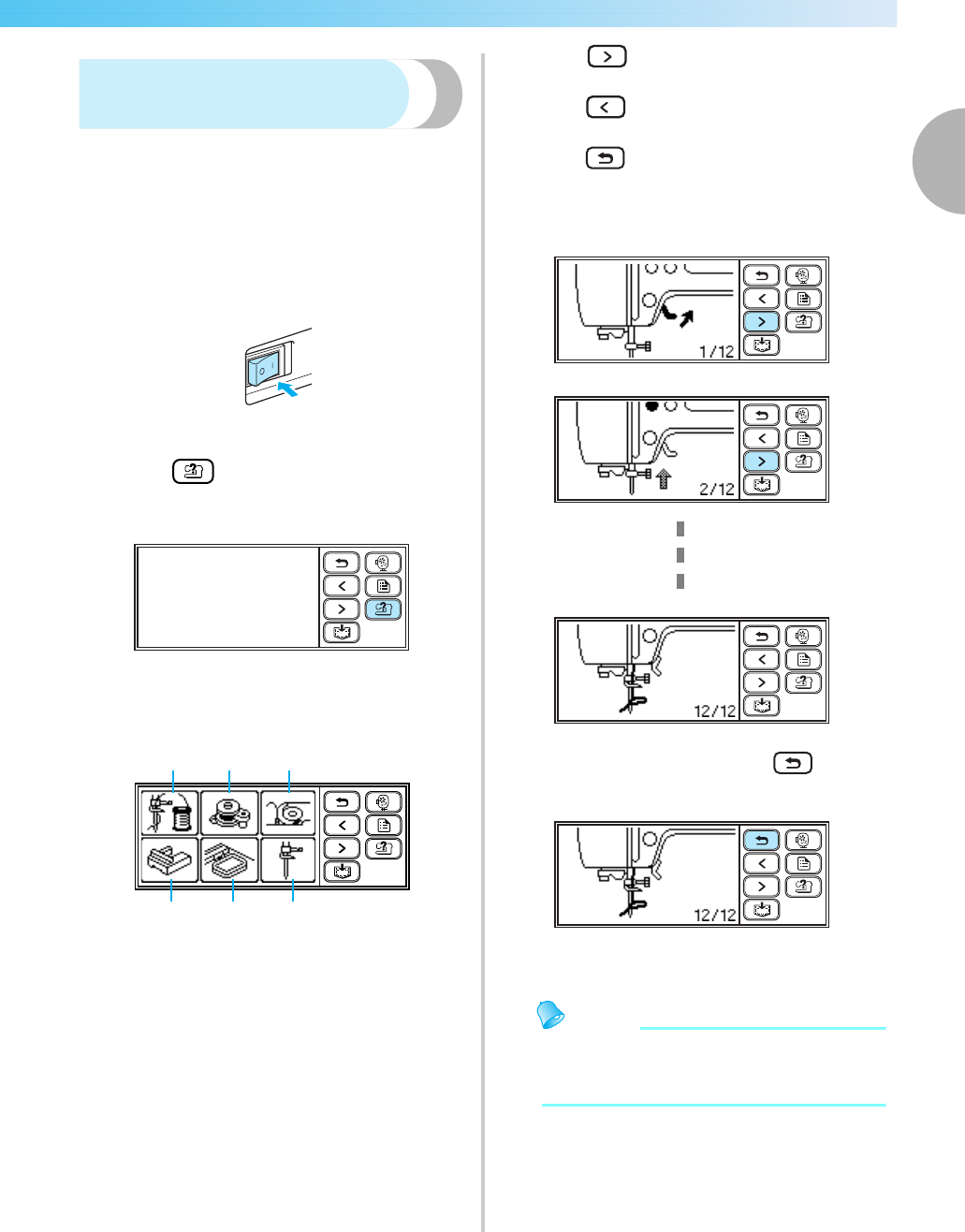
Checking machine operating
procedures
Simple explanations can be referred on the LCD
display for the following items.
Displays simple explanations of setting upper thread /
bobbin winding / setting bobbin thread / embroidery
unit attachment / embroidery frame attachment /
needle replacement on the LCD.
aTurn on the machine.
XThe LCD comes on.
bPress (Help key) on the operation
panel.
XThe help screen appears.
cPress the item to be displayed.
XThe first screen describing the procedure for
the selected topic appears.
dPress (Next page key) to switch to the
next page.
Press (Previous page key) to return to the
previous page.
Press (Back key) to return to the item
selection screen.
Example: Upper threading
eAfter you finish viewing, press (Back
key) two times.
XThe initial screen appears again.
Memo
zFor details on each topic, refer to the
corresponding page in this Operation
Manual.
a Upper threading
b Bobbin winding
c Bobbin installation
d Needle replacement
e Embroidery frame attachment
f Embroidery unit attachment
abc
d
e
f
0711-0120-C-combo_E.book Page 25 Thursday, July 24, 2008 1:46 PM
26
GETTING READY — — — — — — — — — — — — — — — — — — — — — — — — — — — — — — — — — — — — — — — — — — — —
Preparing Items for Embroidering
The following is necessary for embroidering.
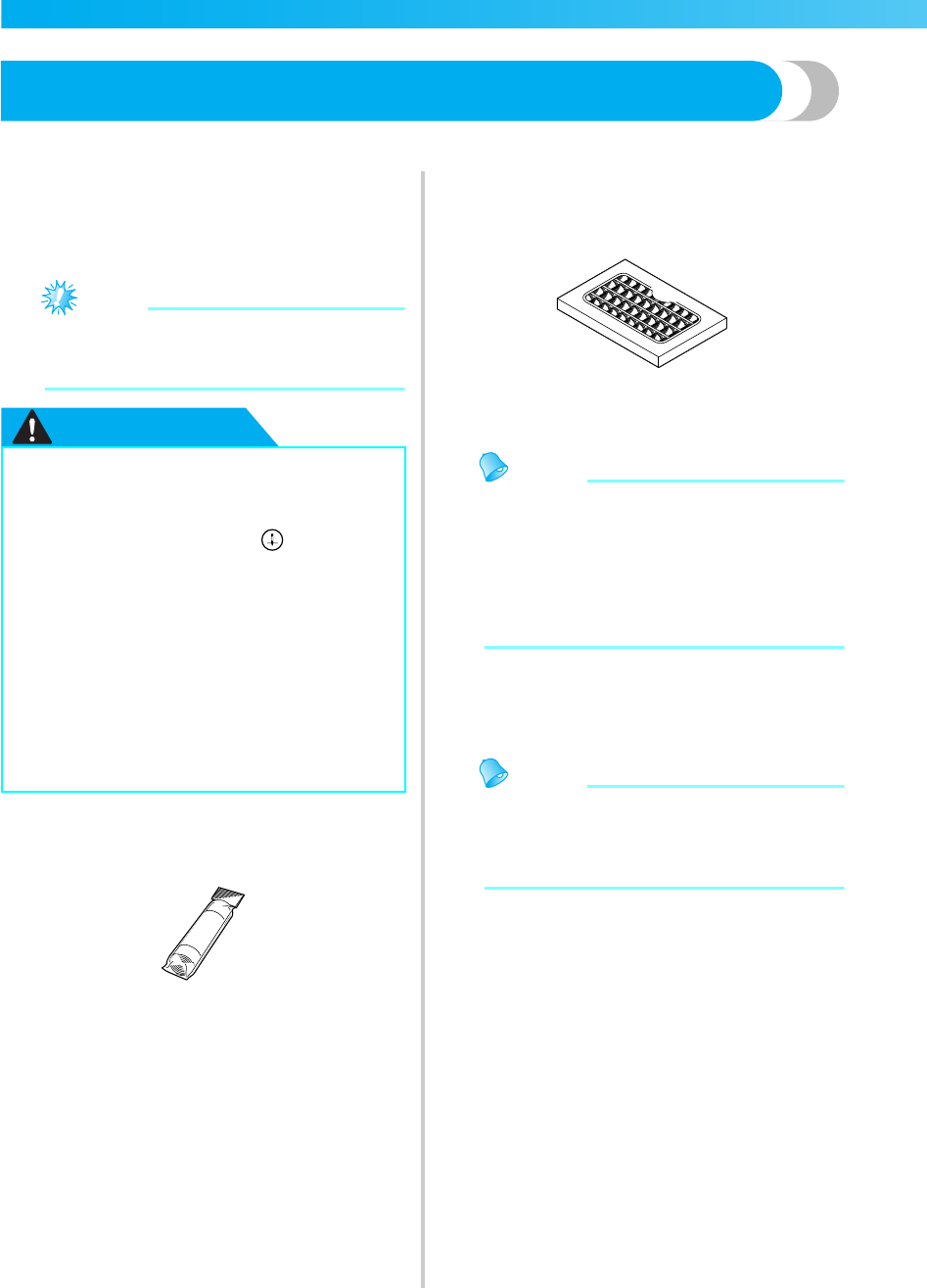
■Fabric
Prepare the fabric for embroidery. Prepare a piece
of fabric a little larger than the embroidery frame
that matches the size of the pattern you want to
embroider.
Note
zAlways use stabilizer when embroidering
projects, especially when embroidering on
lightweight or stretch fabrics.
CAUTION
■Stabilizer material (option)
Attach a stabilizer material for embroidery to the
fabric to prevent poor quality embroidery designs.
Use a water soluble sheet on thin materials like
organdy and fabrics with a nap like towels.
For details, refer to "Attaching a stabilizer material
to the fabric" (
page 43
).
■Embroidery thread (option)
For the upper thread, use the embroidery thread or
country thread.
For the bobbin thread, use the embroidery bobbin
thread. For details, refer to "Optional accessories"
(page 9).
Memo
zFor good quality embroidery designs be sure
to use embroidery thread designed for
embroidery machines.
zBefore starting to embroider, be sure there is
enough bobbin thread. If you continue
embroidering when the bobbin thread is
low, the thread may become tangled.
■Needle
Use a 75/11 home sewing machine needle. When
embroidering on thick fabrics such as denim, use a
90/14 home sewing machine needle.
Memo
zA 75/11 needle is already installed when the
machine is purchased.
zWhen replacing the needle, refer to
"Replacing the needle" (page 28).
■Other
Embroidery frames "small" and "large" are
optional. For details, refer to "Setting the fabric in
the embroidery frame" (page 44).
●Do not embroider fabrics that are too
thick. To check the fabric thickness,
attach the embroidery frame to the
embroidery unit, and use (Needle
position button) to raise the needle. If
there is space between the embroidery
foot and the fabric, the fabric can be
embroidered. If there is not space, do not
embroider the fabric. Otherwise, the
needle may break, resulting in injury.
●Be careful when embroidering
overlapping patterns. The needle may not
easily pierce the fabric, causing the
needle to break.
0711-0120-C-combo_E.book Page 26 Thursday, July 24, 2008 1:46 PM
Preparing the Needle 27
1
— — — — — — — — — — — — — — — — — — — — — — — — — — — — — — — — — — — — — — — — — — — — — — — — — — — —
Preparing the Needle
Before starting embroidering, check the needle and replace it if necessary.
Needle precautions
Be sure to observe the following precautions concerning the handling of the needle. Failure to observe
these precautions is extremely dangerous, for example, if the needle breaks and fragments are dispersed.
Be sure to read and carefully follow the instructions below.
CAUTION
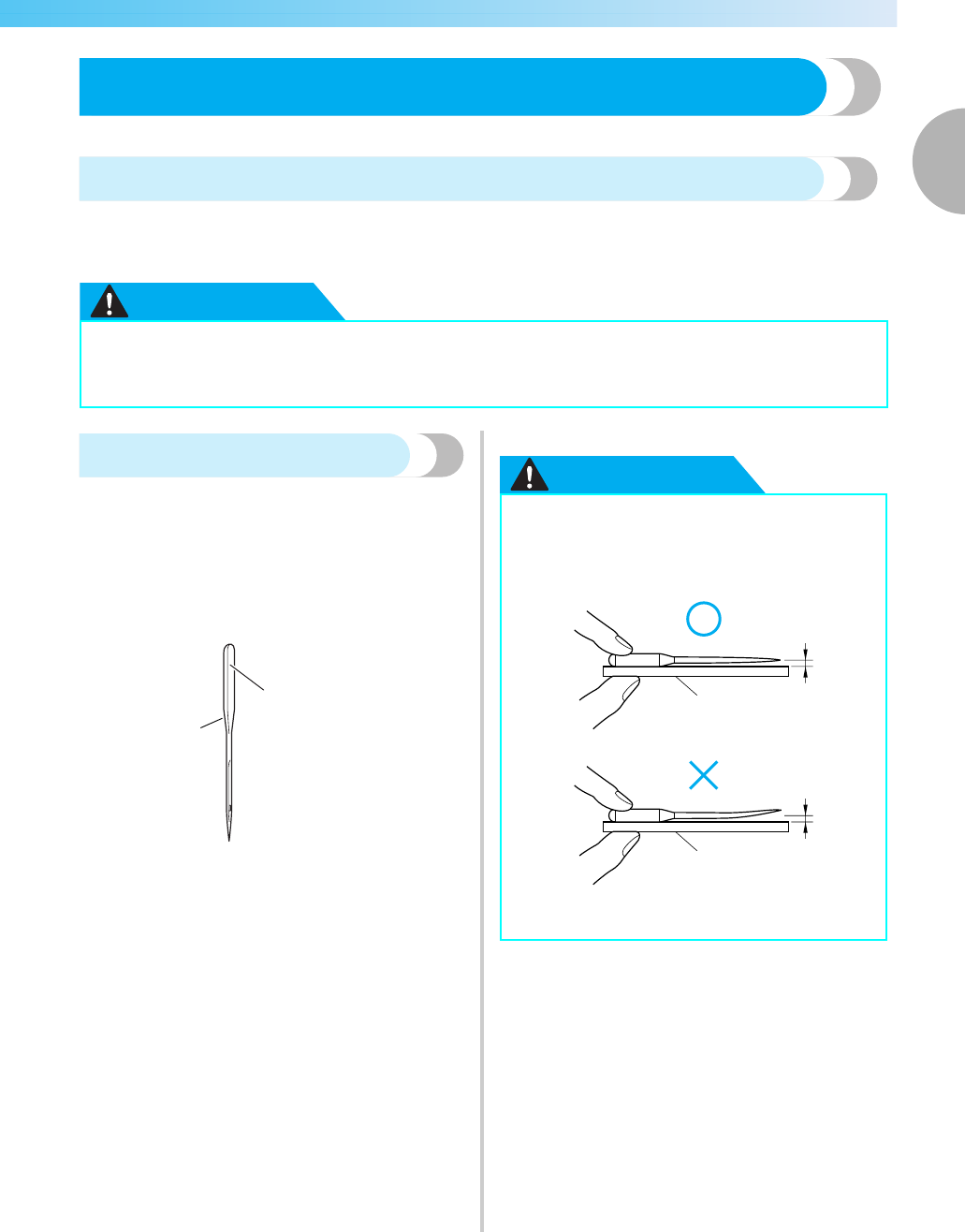
Checking the needle
Embroidering with a bent needle is extremely
dangerous since the needle may break while the
machine is being operated.
Before using the needle, place the flat side of the
needle on a flat surface and check that the distance
between the needle and the flat surface is even.
aFlat side
bNeedle type marking
CAUTION
zOnly use home sewing machine needles. Use of any other needle may bend the needle or
damage the machine.
zNever use bent needles. Bent needles can easily break, possibly resulting in injuries.
a
b
zIf the distance between the needle and
the flat surface is not even, the needle is
bent. Do not use a bent needle.
aFlat surface
a
a
0711-0120-C-combo_E.book Page 27 Thursday, July 24, 2008 1:46 PM
28
GETTING READY — — — — — — — — — — — — — — — — — — — — — — — — — — — — — — — — — — — — — — — — — — — —
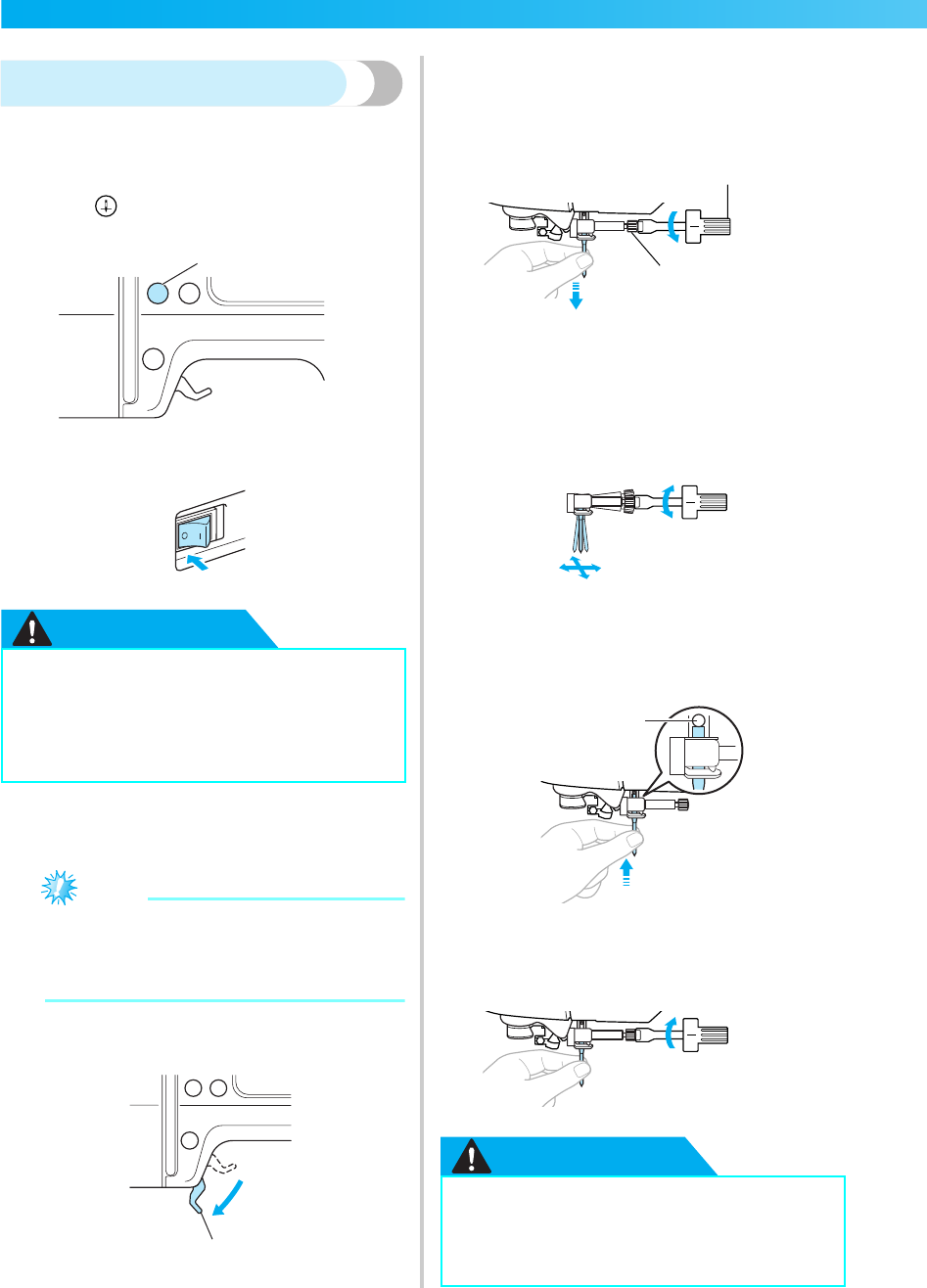
Replacing the needle
Use the screwdriver and a needle that has been
determined to be straight according to the
instructions in "Checking the needle" (page 27).
aPress (Needle position button) once or
twice to raise the needle.
aNeedle position button
bTurn off the machine.
CAUTION
cPlace fabric or paper under the embroidery
foot and cover the hole on the needle plate.
Note
zBefore replacing the needle, be sure to cover
the hole in the needle plate with fabric or
paper to prevent the needle from falling into
the machine.
dLower the presser foot lever.
aPresser foot lever
eHold the needle with your left hand, and then
use a screwdriver to turn the needle clamp
screw toward you (counterclockwise) to
remove the needle.
aScrewdriver
bNeedle clamp screw
• Do not apply a strong force when loosening
or tightening the needle clamp screw,
otherwise certain parts of the machine may
be damaged.
fWith the flat side of the needle toward the rear
of the machine, insert the needle until it
touches the needle stopper.
aNeedle stopper
gWhile holding the needle with your left hand,
use the screwdriver to tighten the needle
clamp screw.
CAUTION
zBefore replacing the needle, be sure to
turn off the machine. Otherwise, injuries
may occur if one of the operation buttons
is accidentally pressed and the machine
starts embroidering.
a
a
z
Be sure to insert the needle until it touches the
needle stopper and securely tighten the needle
clamp screw with the screwdriver. Otherwise,
the needle may break or damage may result.
b
a
a
0711-0120-C-combo_E.book Page 28 Thursday, July 24, 2008 1:46 PM
Winding/Installing the Bobbin 29
1
— — — — — — — — — — — — — — — — — — — — — — — — — — — — — — — — — — — — — — — — — — — — — — — — — — — —
Winding/Installing the Bobbin
This section describes how to wind the thread onto the bobbin, and then insert the bobbin thread.
Bobbin precautions
Be sure to observe the following precautions concerning the bobbin.
CAUTION
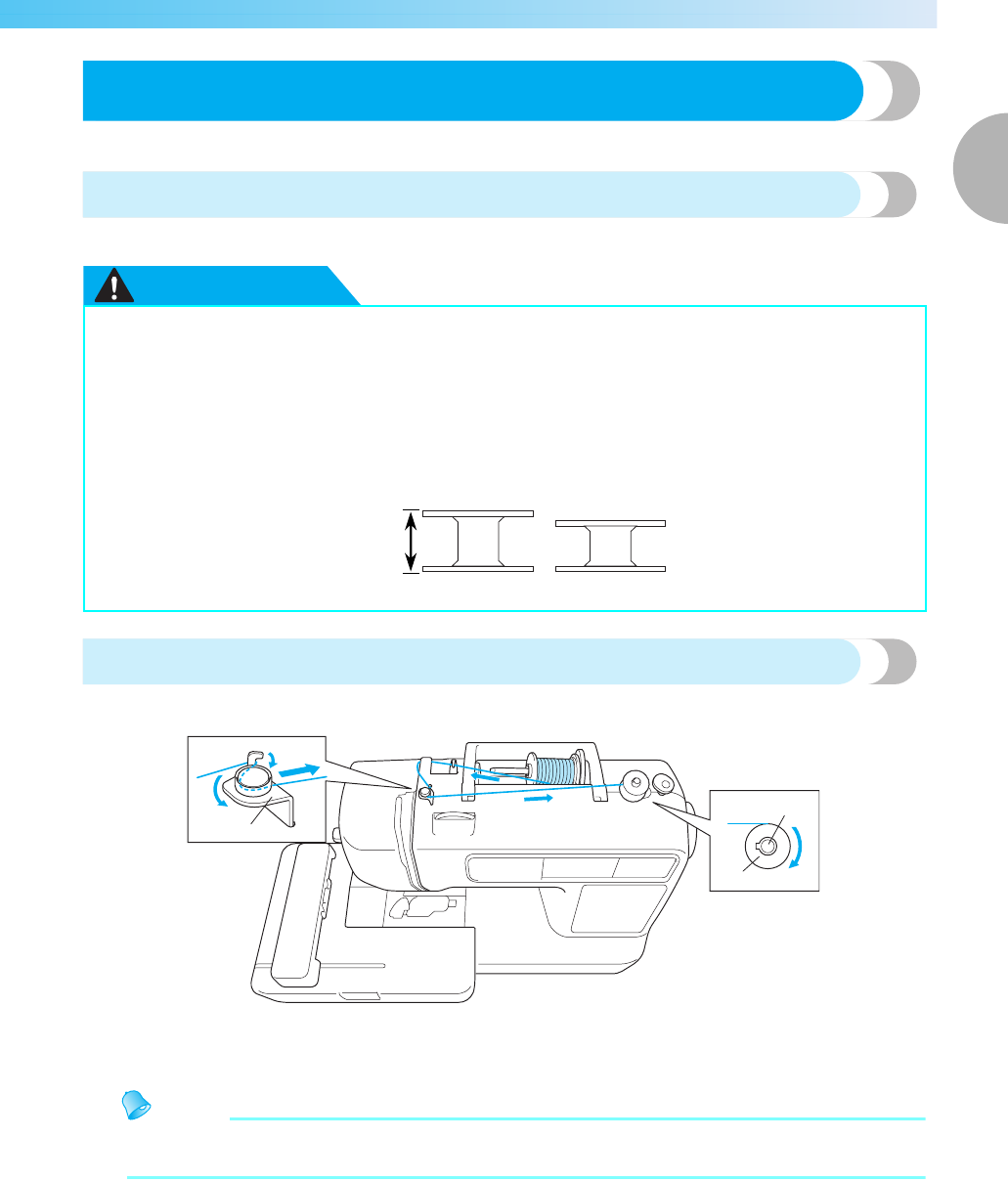
Winding the bobbin
Wind the thread around the bobbin to prepare the bobbin thread.
aBobbin-winding thread guide
bBobbin winder shaft
cBobbin
Memo
zUse embroidery bobbin thread intended for this machine to get attractive finishes. If you use o
ther
threads, the pattern may not turn out correctly. For details, refer to
"Optional accessories"
(
page 9
).
●Only use the Bobbin (part code: SA156, SFB (XA5539-151)) designed specifically for this
machine. Use of any other bobbin may result in injuries or damage to the machine.
●The included bobbin was designed specifically for this machine. If bobbins from other models
are used, the machine will not operate correctly. Use only the included bobbin or bobbins of
the same type (part code: SA156, SFB (XA5539-151)).
This model Other model
11.5 mm
(7/16 inch)
Actual size
a
b
c
0711-0120-C-combo_E.book Page 29 Thursday, July 24, 2008 1:46 PM
30
GETTING READY — — — — — — — — — — — — — — — — — — — — — — — — — — — — — — — — — — — — — — — — — — — —
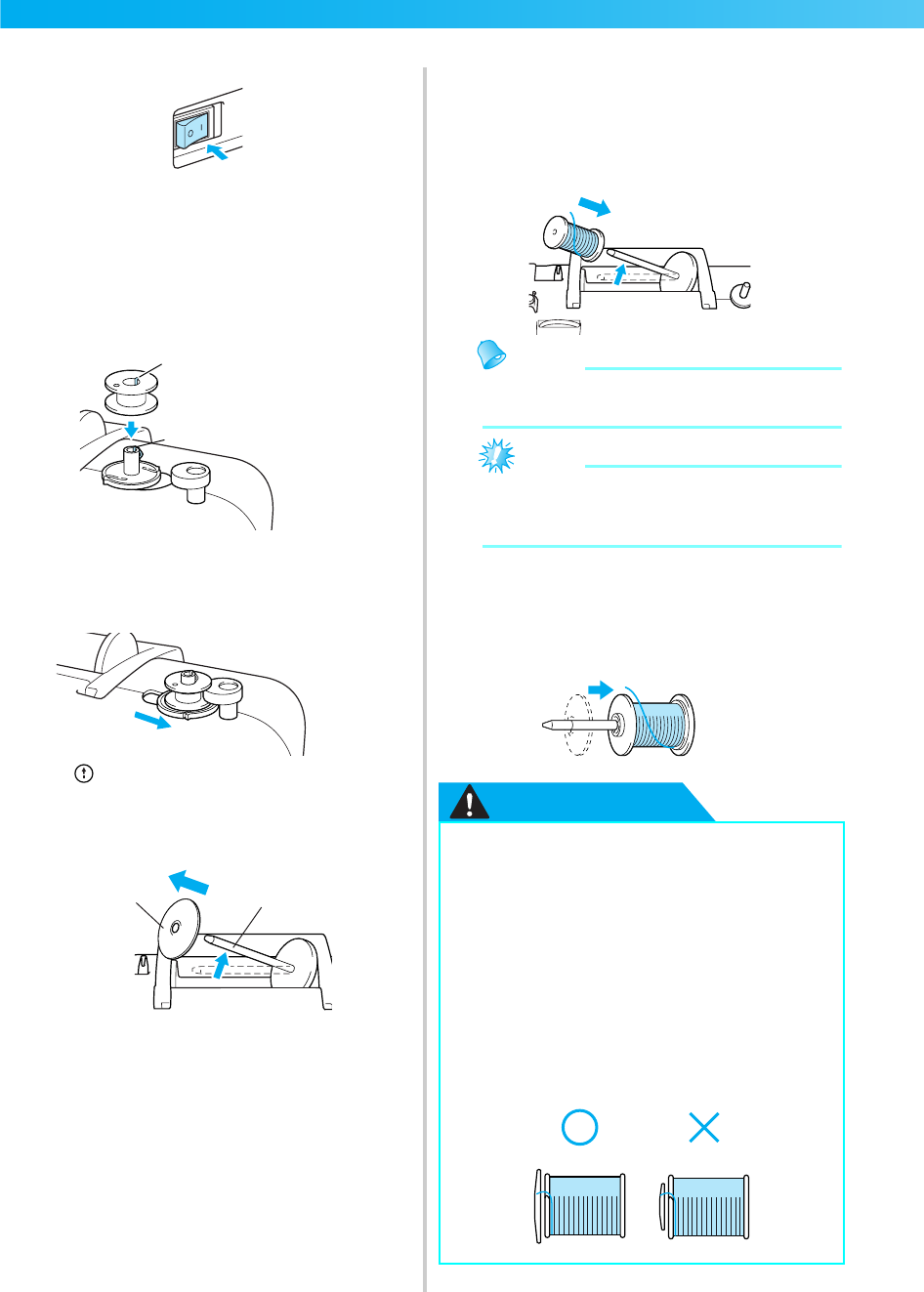
aTurn on the machine.
bPlace the bobbin on the bobbin winder shaft so
that the spring on the shaft fits into the notch
in the bobbin.
Press down on the bobbin until it snaps into
place.
aNotch
bBobbin winder shaft spring
cSlide the bobbin winder in the direction of the
arrow until it snaps into place.
X(Start/stop button) lights up in orange.
dPick up the spool pin and remove the spool
cap that is inserted onto the spool pin.
aSpool cap
bSpool pin
ePlace the spool of thread for the bobbin onto
the spool pin.
Slide the spool onto the pin so that the spool is
horizontal and the thread unwinds to the front
at the bottom.
Memo
zUse the embroidery bobbin thread for
embroidering.
Note
zIf the spool is not positioned so that the
thread unwinds correctly, the thread may
become tangled around the spool pin.
fSlide the spool cap onto the spool pin and
return the spool pin to its original position.
Slide the spool cap as far as possible to the right
as shown, with the rounded side on the left.
CAUTION
a
b
ab
●If the spool or the spool cap is not
positioned correctly, the thread may
become tangled around the spool pin or
the machine may be damaged.
●Three spool cap sizes are available,
allowing you to choose a spool cap that
best fits the size of spool being used. If the
spool cap is too small for the spool being
used, the thread may catch on the slit in
the spool or the machine may be
damaged.
●
0711-0120-C-combo_E.book Page 30 Thursday, July 24, 2008 1:46 PM
Winding/Installing the Bobbin 31
1
— — — — — — — — — — — — — — — — — — — — — — — — — — — — — — — — — — — — — — — — — — — — — — — — — — — —
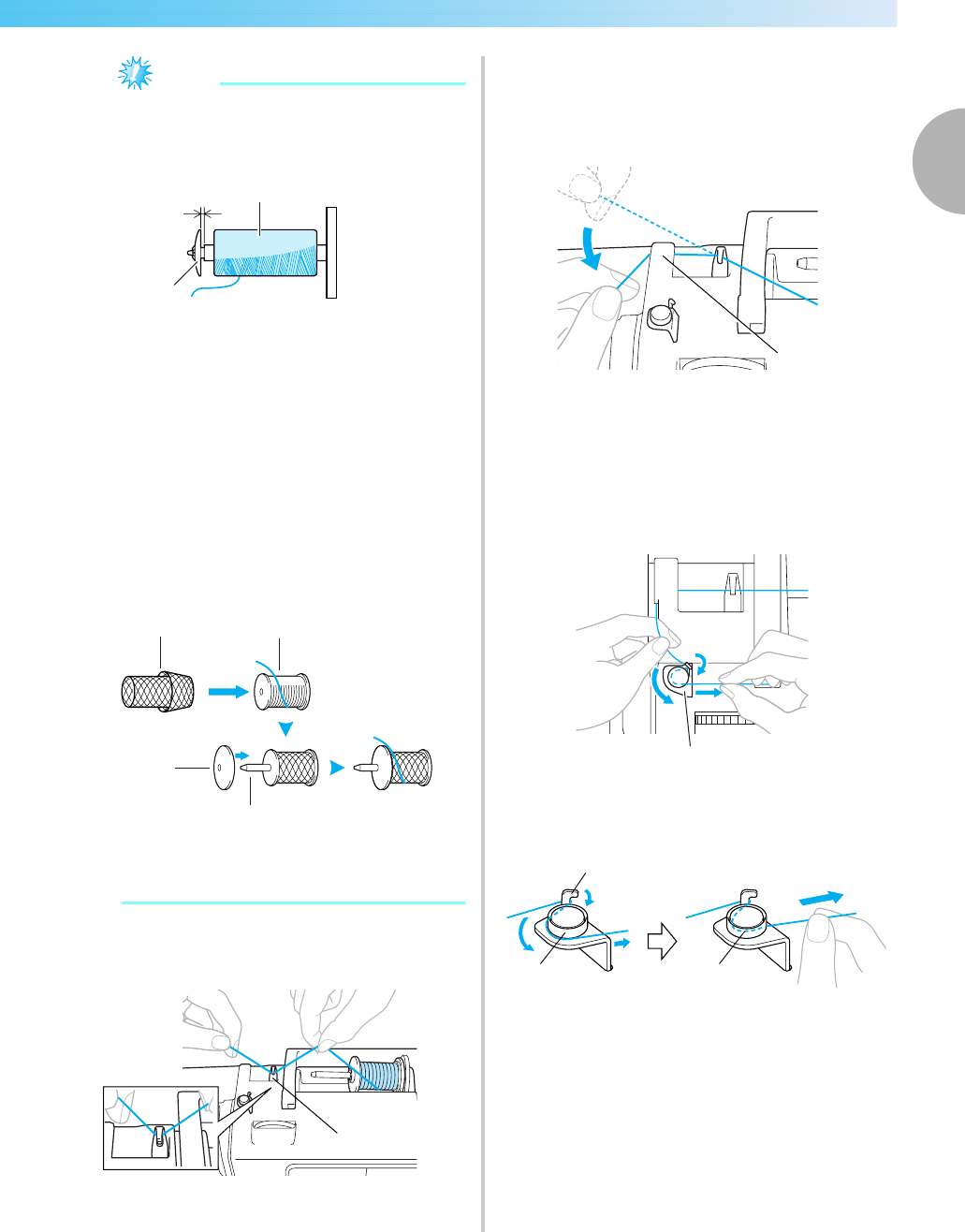
Note
zWhen embroidering with fine, cross-wound
thread, use the small spool cap, and leave a
small space between the cap and the spool.
aSpool cap (small)
bSpool (cross-wound thread)
cSpace
zWhen using thread that winds off quickly,
such as transparent nylon thread or metallic
thread, place the spool net over the spool
before placing the spool of thread onto the
spool pin. If the spool net is too long, fold it
to fit the size of the spool.
When the spool net is used, the upper thread
tension may become tighter. Before
embroidering, refer to "Adjusting the upper
thread tension" (page 63).
aSpool net
bSpool
cSpool cap
dSpool pin
gPull the thread from the spool and pass the
thread under the hook of thread guide.
aThread guide
hPass the thread behind the thread guide cover
and to the front.
While holding the thread near the spool with
your right hand, pull the thread with your left
hand as shown below.
aThread guide cover
iPull the thread to the right, pass it under the
hook of the bobbin-winding thread guide, and
then wind the thread counterclockwise under
the pretension disc, pulling it in as far as
possible.
aBobbin-winding thread guide
Make sure that the thread passes under the
pretension disk.
bHook
cPretension disk
dPull it in as far as possible.
a
cb
b
a
c
d
a
a
a
c d
b
0711-0120-C-combo_E.book Page 31 Thursday, July 24, 2008 1:46 PM
32
GETTING READY — — — — — — — — — — — — — — — — — — — — — — — — — — — — — — — — — — — — — — — — — — — —
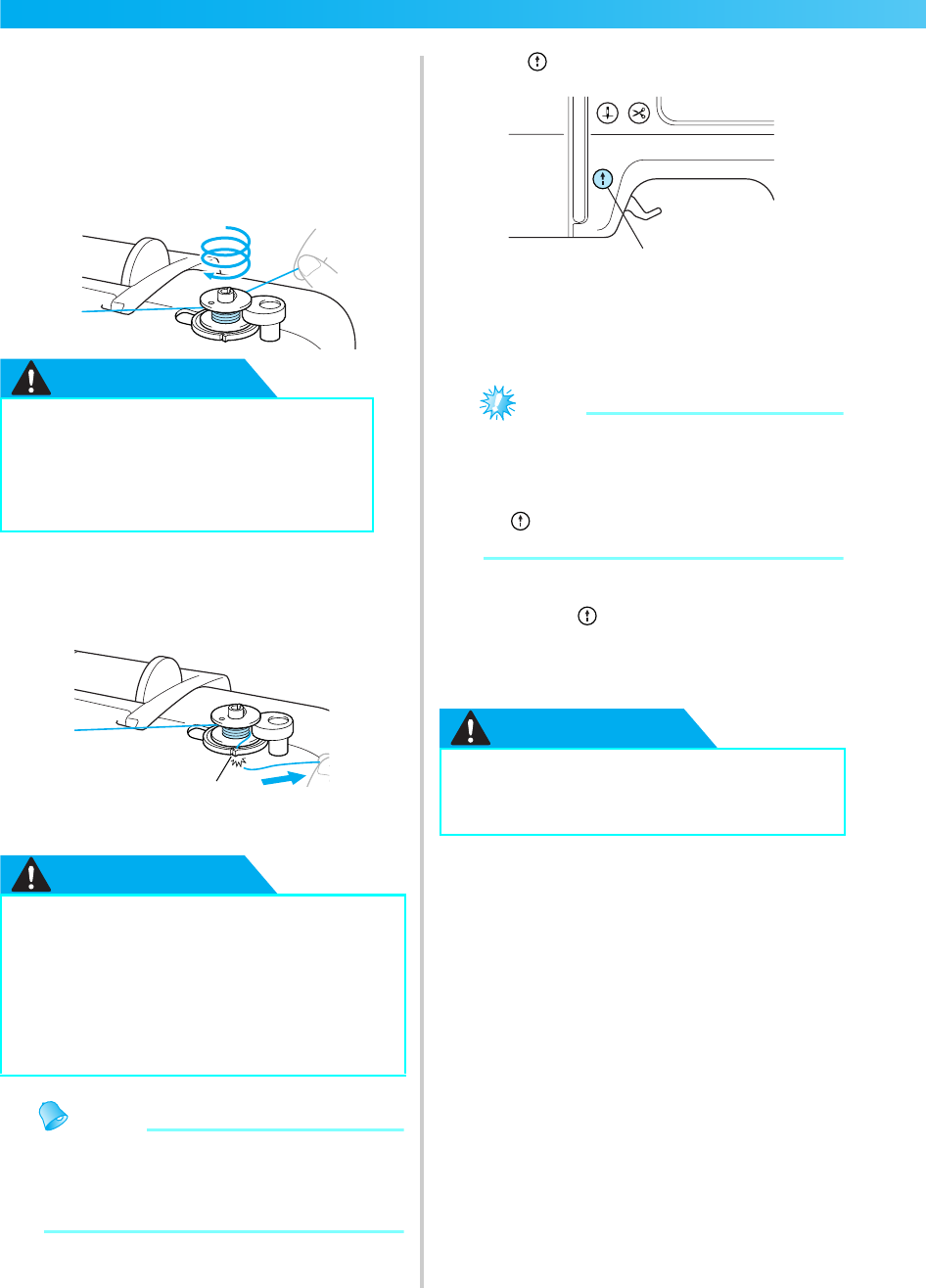
jWind the end of the thread clockwise around
the bobbin five or six times.
While using your left hand to hold the thread
that was passed through the bobbin-winding
thread guide, use your right hand to wind the
end of the thread.
CAUTION
kPass the end of the thread through the guide
slit in the bobbin winder seat, and then pull
the thread to the right to cut it.
aGuide slit in bobbin winder seat
(with built-in cutter)
CAUTION
Memo
zMake sure that the thread is correctly set
before starting the bobbin winding.
Otherwise the thread may become tangled
and fail to wind the thread.
lPress (Start/stop button) once.
aStart/stop button
XThe bobbin starts winding and "Winding
bobbin thread..." is displayed on the LCD
screen.
Note
zDo not get away from the machine while
winding the bobbin. Make sure the bobbin
thread is being wound correctly. If the
bobbin thread is wound incorrectly, press
(Start/stop button) immediately to stop
the bobbin winding.
mWhen the bobbin winding stops or becomes
slow, press (Start/stop button) once to
stop the machine.
XThe bobbin winding will stop.
CAUTION
●Be sure to pull the thread tightly and
wind it clockwise. If the thread is
wound counterclockwise, the thread
may wind around the bobbin winder
shaft.
●Be sure to cut the thread as described. If
the bobbin is wound without cutting the
thread using the cutter built into the slit
in the bobbin winder seat, the thread may
become tangled in the bobbin or the
needle may bend or break when the
bobbin thread starts to run out.
Wind five or six times.
a
●When the bobbin winding stops or
becomes slow, stop the machine.
Otherwise, the machine may be damaged.
a
0711-0120-C-combo_E.book Page 32 Thursday, July 24, 2008 1:46 PM
Winding/Installing the Bobbin 33
1
— — — — — — — — — — — — — — — — — — — — — — — — — — — — — — — — — — — — — — — — — — — — — — — — — — — —
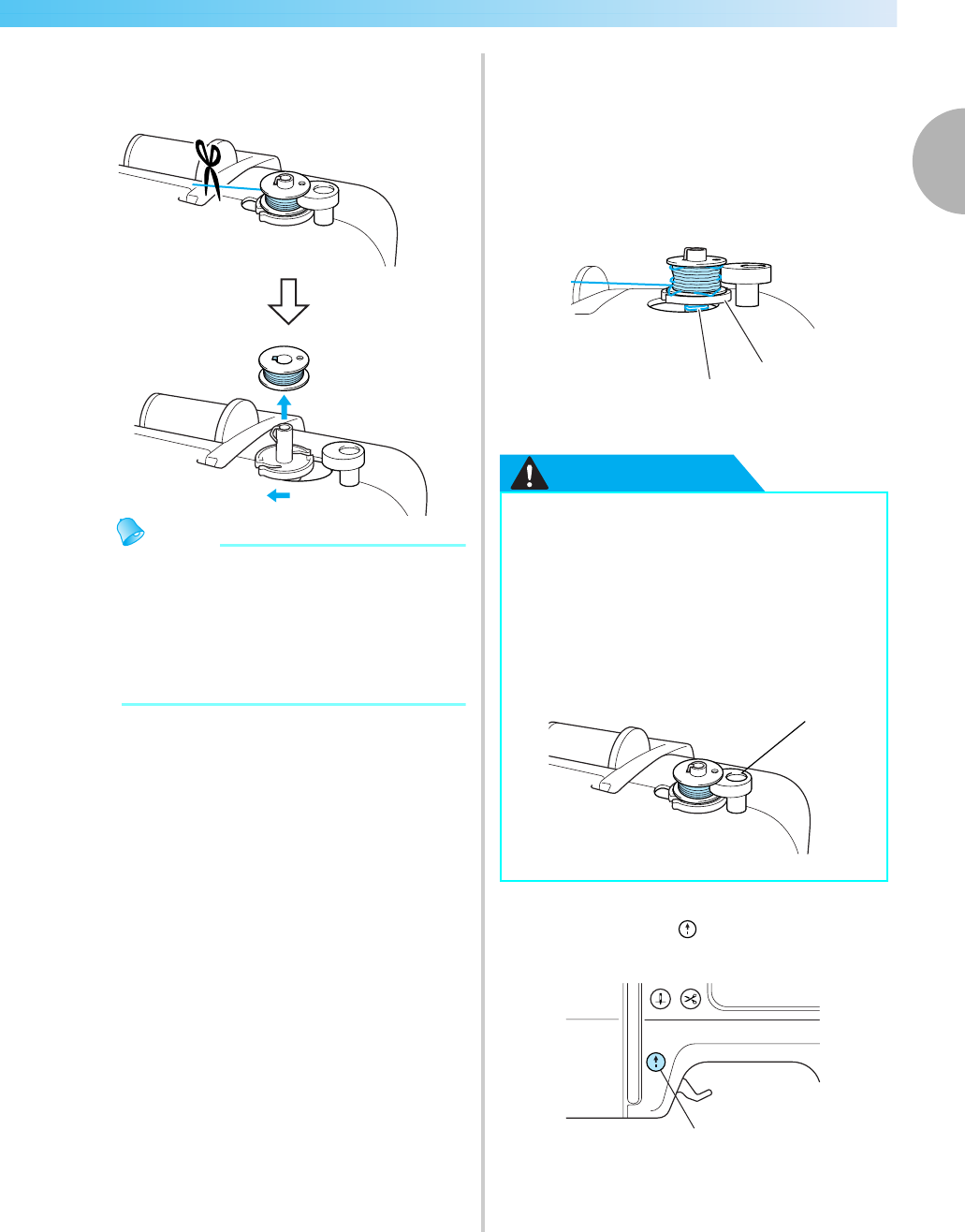
nCut the thread with scissors, slide the bobbin
winder shaft to the left, and then remove the
bobbin from the shaft.
Memo
zIf the bobbin winder shaft is set to the right
side, the needle will not move.
(Embroidering is impossible.)
zWhen the machine is started or the
handwheel is turned after winding the
bobbin, the machine will make a clicking
sound; this is not a malfunction.
■When the thread became tangled under the
bobbin winder seat.
If the bobbin winding starts when the thread is not
passed under the pretension disk of the bobbin-
winding thread guide correctly, the thread may
become tangled under the bobbin winder seat.
In such a case, wind off the thread according to the
following procedure.
aThread
bBobbin winder seat
CAUTION
aIf the thread become tangled under the bobbin
winder seat, press (Start/stop button) once
to stop the bobbin winding.
aStart/stop button
●Do not remove the bobbin winder seat
even if the thread become tangled under
the bobbin winder seat. It may result in
injuries.
●Do not remove the screw of the bobbin
winder presser, otherwise the machine
may be damaged; you cannot wind off the
thread by removing the screw.
aScrew of the bobbin winder presser
a
b
a
a
0711-0120-C-combo_E.book Page 33 Thursday, July 24, 2008 1:46 PM
34
GETTING READY — — — — — — — — — — — — — — — — — — — — — — — — — — — — — — — — — — — — — — — — — — — —
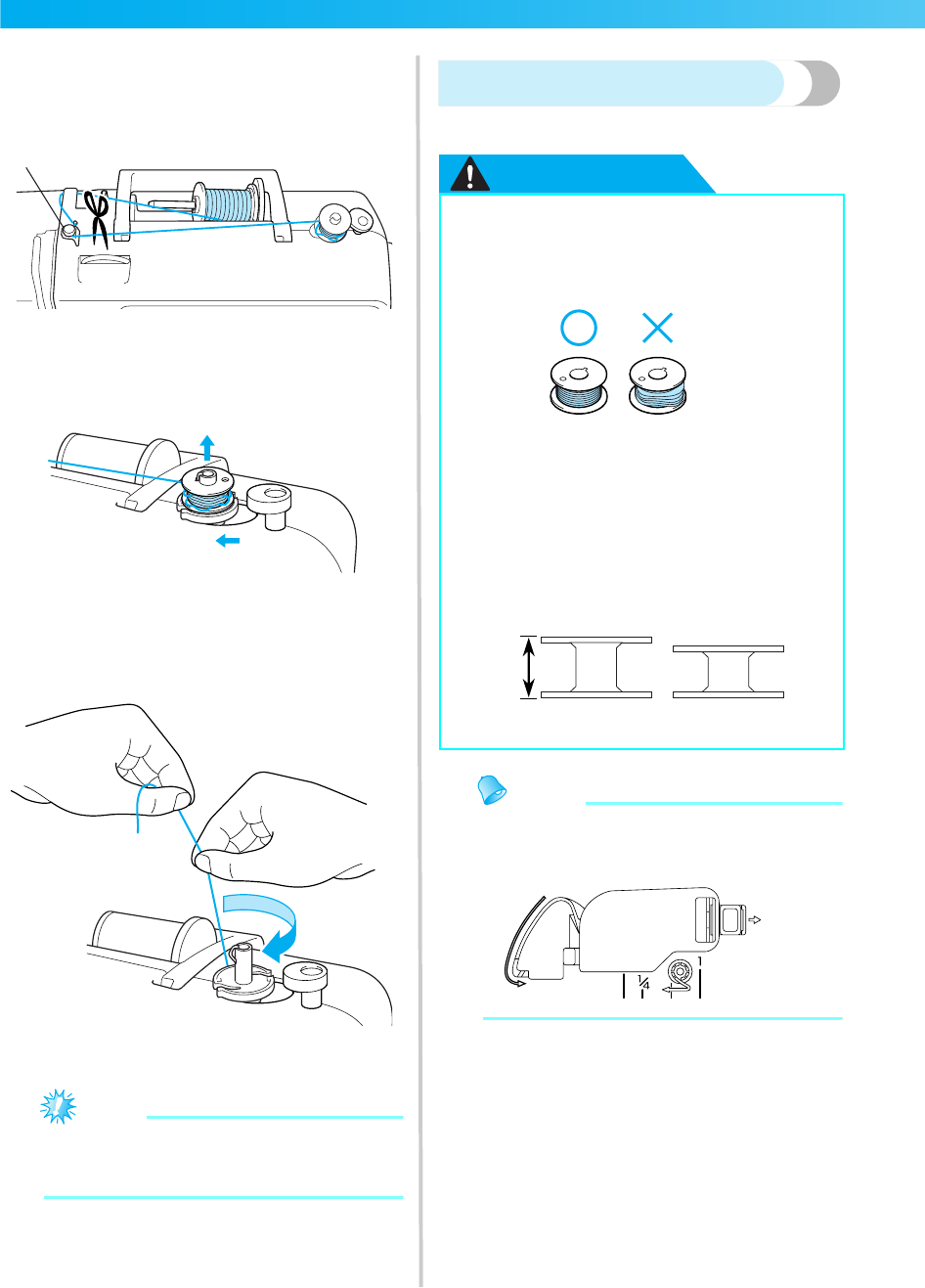
bCut the thread with scissors beside the bobbin-
winding thread guide.
aBobbin-winding thread guide
cSlide the bobbin winder shaft to the left, and
then remove the bobbin from the shaft.
dHold the thread end with your left hand, and
wind off the thread clockwise near the bobbin
with your right hand as shown below.
eWind the bobbin again.
Note
zMake sure that the thread passes under the
pretension disk of the bobbin-winding
thread guide correctly (page 31).
Installing the bobbin
Install the bobbin wound with thread.
CAUTION
Memo
zThe order that the bobbin thread should be
passed through the bobbin case is indicated
by marks that surround the bobbin case.
a
●Use a bobbin that has been correctly
wound with thread, otherwise the needle
may break or the thread tension will be
incorrect.
●The included bobbin was designed
specifically for this machine. If bobbins
from other models are used, the machine
will not operate correctly. Use only the
included bobbin or bobbins of the same
type (part code: SA156, SFB (XA5539-
151)).
This model Other model
11.5 mm
(7/16 inch)
Actual size
0711-0120-C-combo_E.book Page 34 Thursday, July 24, 2008 1:46 PM
Winding/Installing the Bobbin 35
1
— — — — — — — — — — — — — — — — — — — — — — — — — — — — — — — — — — — — — — — — — — — — — — — — — — — —
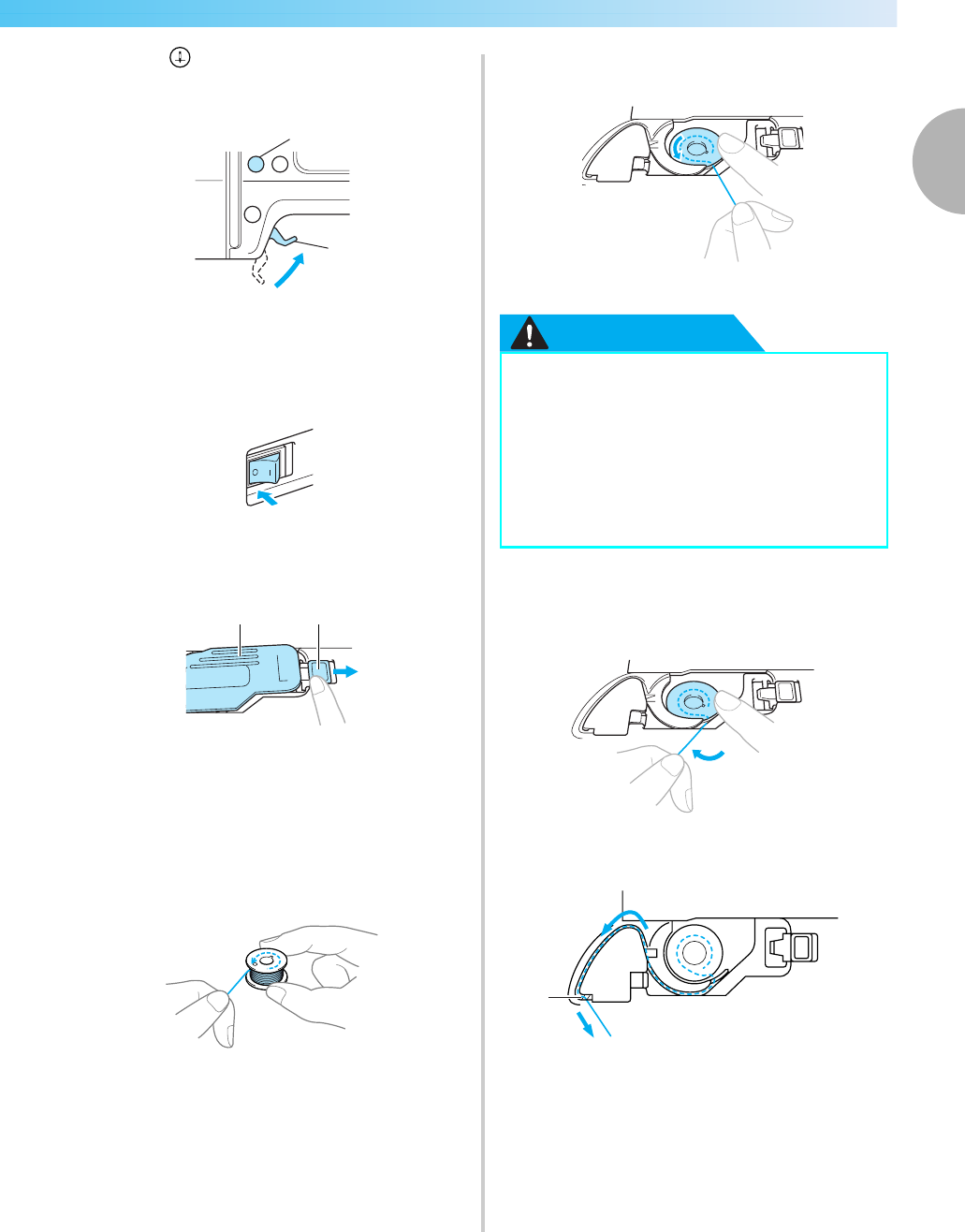
aPress (Needle position button) once or
twice to raise the needle, and then raise the
presser foot lever.
aNeedle position button
bPresser foot lever
bTurn off the machine.
cSlide the bobbin cover latch to the right.
aBobbin cover
bLatch
XThe bobbin cover opens.
dRemove the bobbin cover.
eHold the bobbin with your right hand and hold
the end of the thread with your left hand.
• Be careful not to drop the bobbin.
fInsert the bobbin into the bobbin case with
your right hand.
• Be sure to insert the bobbin correctly.
CAUTION
gLightly hold down the bobbin with your right
hand, and then guide the thread as shown with
your left hand.
hPass the thread through the slot as shown, and
then pull the thread out toward the front.
aCutter
XThe cutter cuts the thread.
a
b
ab
●Be sure to insert the bobbin and depress it
to the bottom with your finger.
Otherwise, the thread may break or the
thread tension will be incorrect.
●Be sure to thread the machine as
indicated. Otherwise, the thread may
break or the thread tension will be
incorrect.
a
0711-0120-C-combo_E.book Page 35 Thursday, July 24, 2008 1:46 PM
36
GETTING READY — — — — — — — — — — — — — — — — — — — — — — — — — — — — — — — — — — — — — — — — — — — —
Note
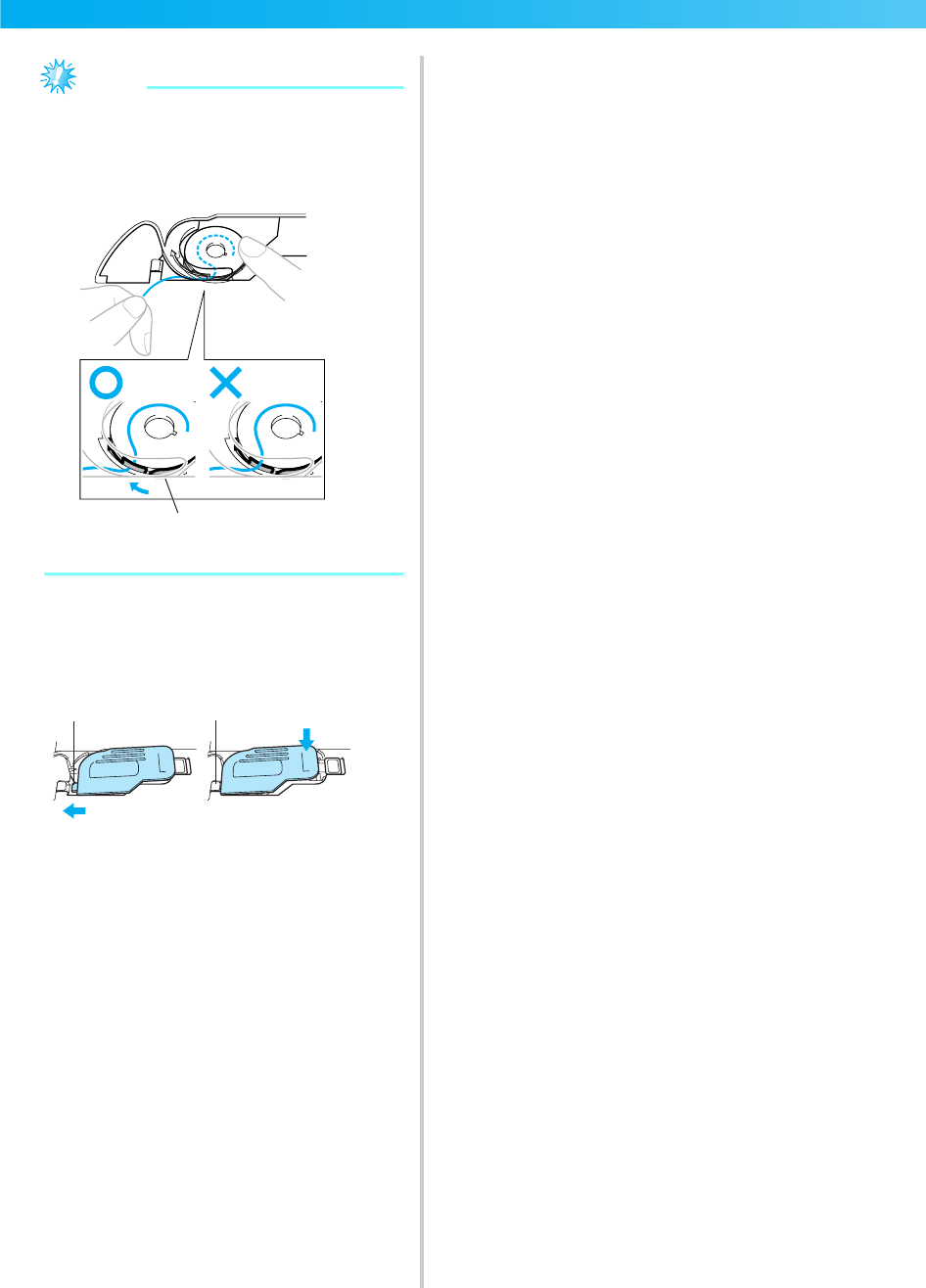
zIf the thread is not correctly inserted through
the tension-adjusting spring of the bobbin
case, it may cause incorrect thread tension
(page 63).
aTension-adjusting spring
iReattach the bobbin cover.
Insert the tab in the lower-left corner of the
bobbin cover, and then lightly press down on
the right side.
aTab
bLower-left corner
XThe bobbin threading is finished. You can
begin embroidering without pulling up the
bobbin thread.
Next, thread the upper thread. Continue with
the procedure in "Upper Threading" (page 37).
a
1
2
ab
0711-0120-C-combo_E.book Page 36 Thursday, July 24, 2008 1:46 PM
Upper Threading 37
1
— — — — — — — — — — — — — — — — — — — — — — — — — — — — — — — — — — — — — — — — — — — — — — — — — — — —
Upper Threading
This section describes how to position the spool for the upper thread, and then thread the needle.
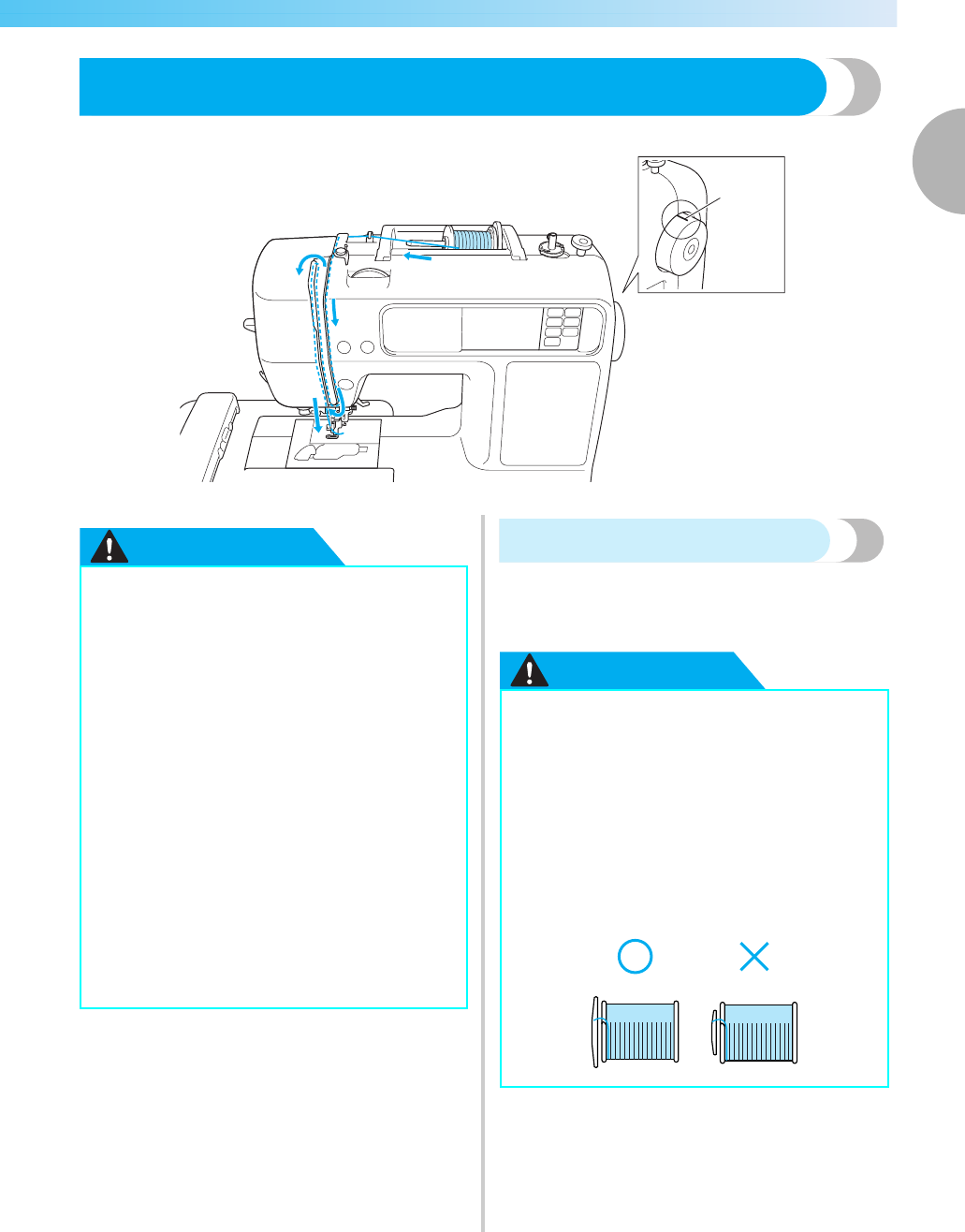
a Mark on handwheel
If you use threads other th an those listed above, the patter n may not turn out correctly.
CAUTION About the spool of thread
Information about the spools of thread is described
below.
CAUTION
a
●When threading the upper thread,
carefully follow the instructions. If the
upper threading is not correct, the thread
may become tangled or the needle may
bend or break.
●The needle threader can be used with a
75/11 through 100/16 home sewing
machine needle. When using special
thread such as transparent nylon thread
or metallic thread, the needle threader
cannot be used.
●Thread with a thickness of 130/120 or
thicker cannot be used with the needle
threader.
●If the needle threader cannot be used,
refer to "Threading the needle manually
(without using the needle threader)" (page
42).
●Never use a thread weight of 20 or lower.
●If the spool or the spool cap is not
positioned correctly, the thread may
become tangled around the spool pin or
the needle may break.
●Three spool cap sizes are available,
allowing you to choose a spool cap that
best fits the size of spool being used. If the
spool cap is too small for the spool being
used, the thread may catch on the slit in
the spool or the needle may break.
0711-0120-C-combo_E.book Page 37 Thursday, July 24, 2008 1:46 PM
38
GETTING READY — — — — — — — — — — — — — — — — — — — — — — — — — — — — — — — — — — — — — — — — — — — —
Threading the upper thread
Set the spool of thread on the spool pin, and then
thread the machine.
Memo
zUse embroidery thread, or country
embroidery thread intended for this machine
to get attractive finishes. If you use o
ther
threads, the pattern may not turn out
correctly.
zBefore threading the upper thread, check the
appropriate thread for the selected pattern.
For details, refer to “Selecting Embroidery
Patterns” (page 50).
CAUTION
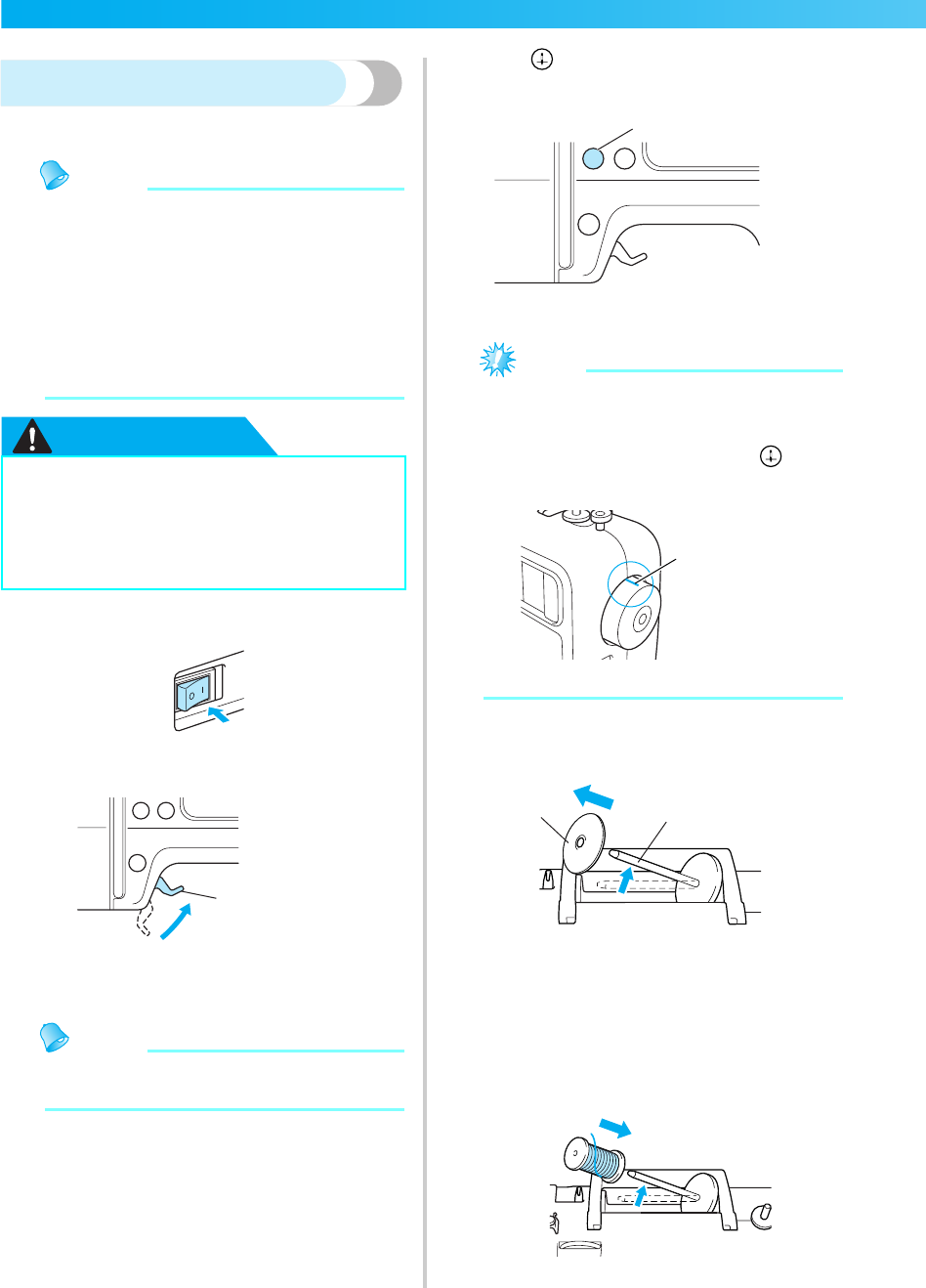
aTurn on the machine.
bRaise the presser foot lever.
aPresser foot lever
XThe embroidery foot is raised.
Memo
zIf the embroidery foot is not raised, the
machine cannot be threaded.
cPress (Needle position button) once or
twice to raise the needle.
aNeedle position button
Note
zThe needle is correctly raised when the mark
on the handwheel is at the top, as shown
below. Check the handwheel and, if this
mark is not at this position, press
(Needle position button) until it is.
aMark on handwheel
dPick up the spool pin and remove the spool
cap that is inserted onto the spool pin.
aSpool pin
bSpool cap
ePlace the spool of thread onto the spool pin.
Slide the spool onto the pin so that the spool is
horizontal and the thread unwinds to the front
at the bottom.
●When threading the upper thread,
carefully follow the instructions. If the
upper threading is not correct, the thread
may become tangled or the needle may
bend or break.
a
a
a
ba
Upper Threading 39
1
— — — — — — — — — — — — — — — — — — — — — — — — — — — — — — — — — — — — — — — — — — — — — — — — — — — —
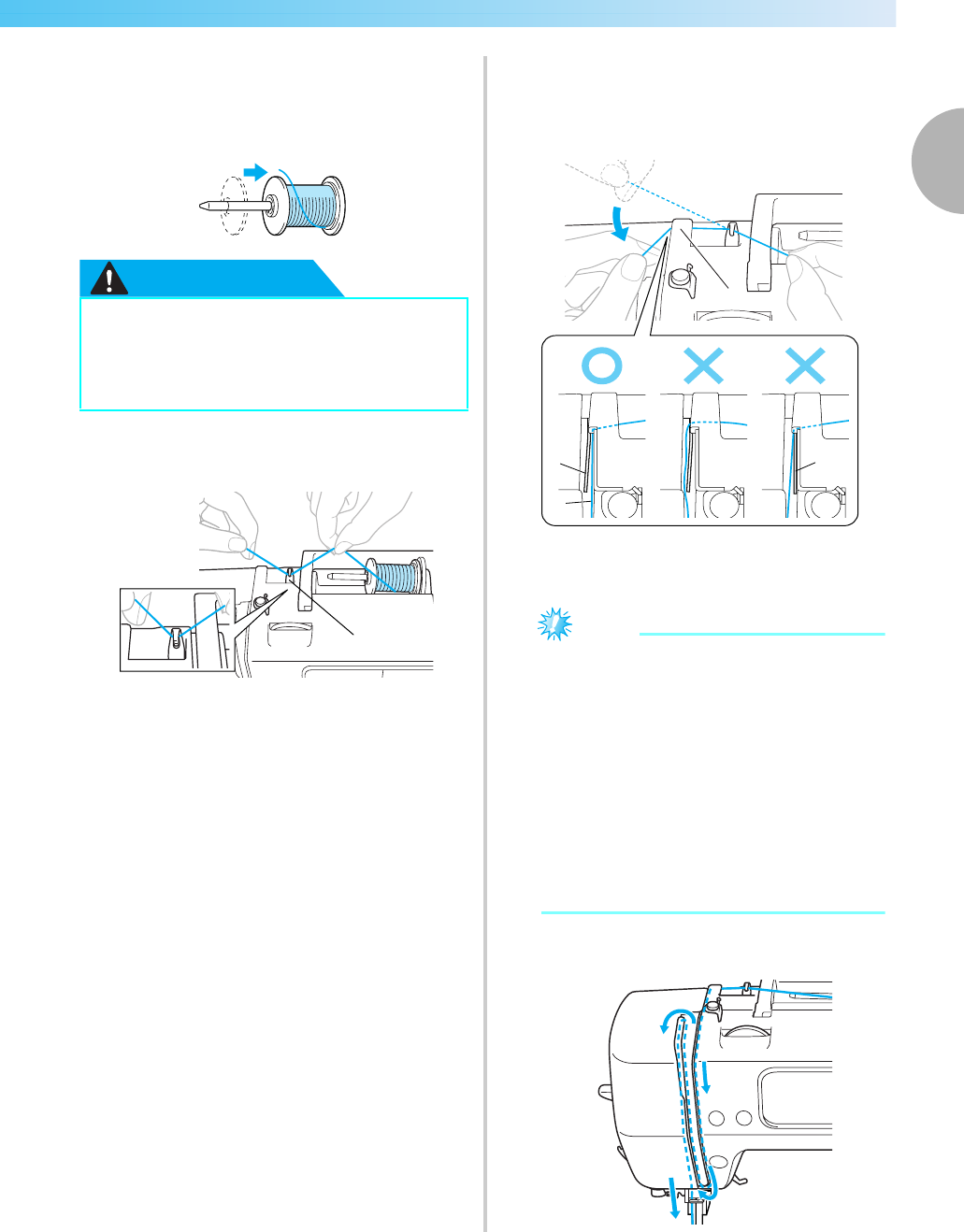
fSlide the spool cap onto the spool pin and
return the spool pin to its original position.
Slide the spool cap as far as possible to the right
as shown, with the rounded side on the left.
CAUTION
gPull the thread from the spool and pass the
thread under the hook of the thread guide.
aThread guide
hPass the thread behind the thread guide cover
and to the front.
While holding the thread near the spool with
your right hand, pull the thread with your left
hand as shown below.
aThread guide cover
bThread guide spring
cThread
dWhen the presser foot lever is lowered
Note
zWhen passing the thread behind the thread
guide cover, be sure to use both hands. If
you do not hold the thread with your right
hand, the thread will be loose and you will
not be able to secure the thread in the thread
spring guide. It may cause incorrect thread
tension.
zMake sure that the presser foot lever is raised
before passing the thread behind the thread
guide cover. If the presser foot lever is
lowered, the thread guide spring is shut and
you cannot hang the thread on the thread
guide spring correctly.
iPass the thread through the guides in the order
shown below.
●If the spool or the spool cap is not
positioned correctly, the thread may
become tangled around the spool pin or
the needle may break.
a
a
b
c
d
1
2
3
4
0711-0120-C-combo_E.book Page 39 Thursday, July 24, 2008 1:46 PM
40
GETTING READY — — — — — — — — — — — — — — — — — — — — — — — — — — — — — — — — — — — — — — — — — — — —
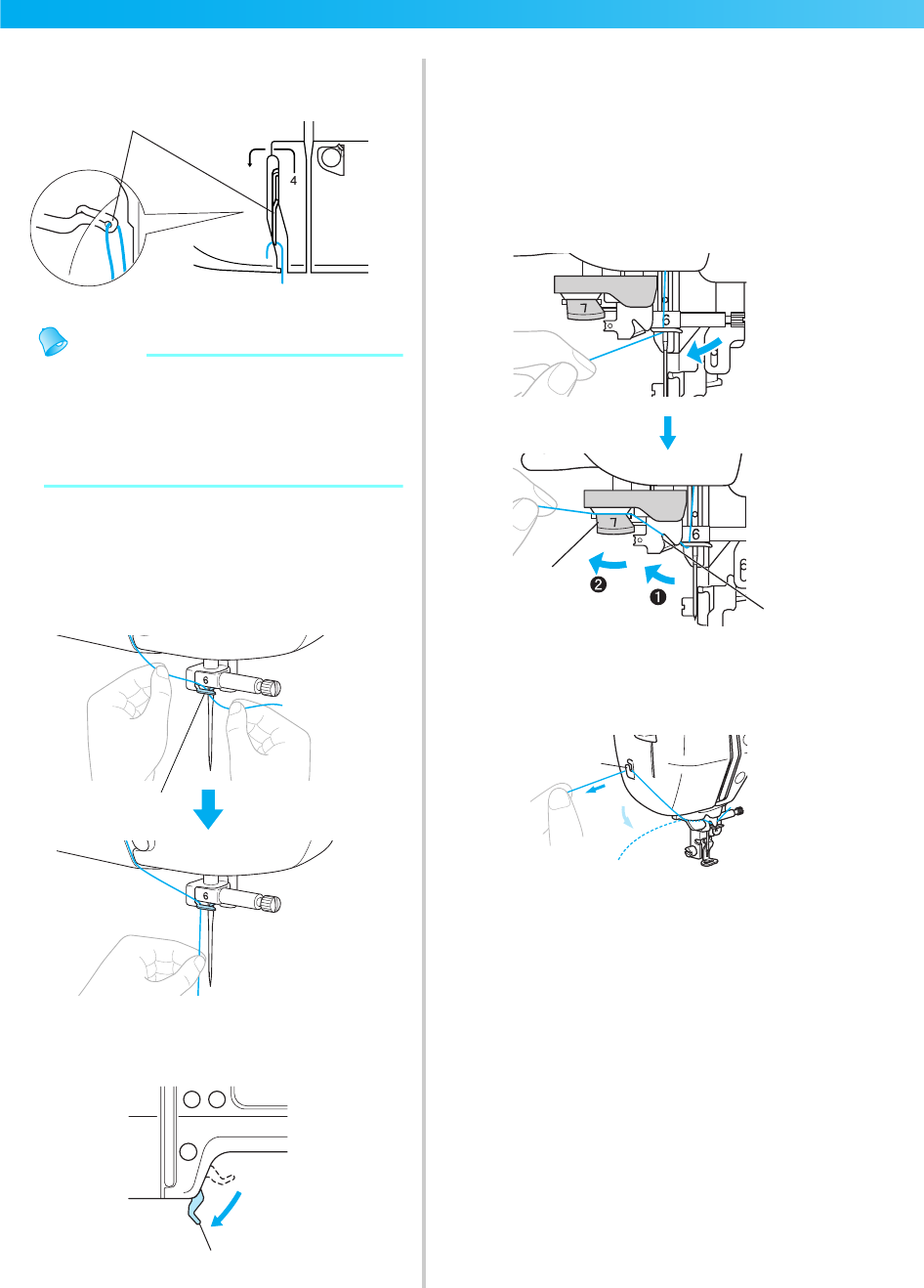
jMake sure that the thread is passed into the
thread take-up lever as shown below.
aThread take-up lever
Memo
zIf the needle is not raised, you cannot pass
the thread into the thread take-up lever. Be
sure to press the needle position button to
raise the needle before passing the thread
into the thread take-up lever.
kPass the thread behind the needle bar thread
guide.
The thread can easily be passed behind the
needle bar thread guide by holding the thread
in your left hand, then feeding the thread with
your right hand, as shown.
aNeedle bar thread guide
lLower the presser foot lever to lower the
embroidery foot.
aPresser foot lever
mPull the end of the thread, which has been
passed through the needle bar thread guide, to
the left, then pass the thread through the notch
of the thread guide (1), and then firmly pull
the thread from the front and insert it into the
slit of the thread guide disk marked "7" all the
way (2).
Make sure that the thread passes the notch of
the thread guide.
aNotch of the thread guide
bThread guide disk
nCut the thread with the cutter on the left side
of the machine.
aThread cutter
a
a
a
b
a
a
0711-0120-C-combo_E.book Page 40 Thursday, July 24, 2008 1:46 PM
Upper Threading 41
1
— — — — — — — — — — — — — — — — — — — — — — — — — — — — — — — — — — — — — — — — — — — — — — — — — — — —
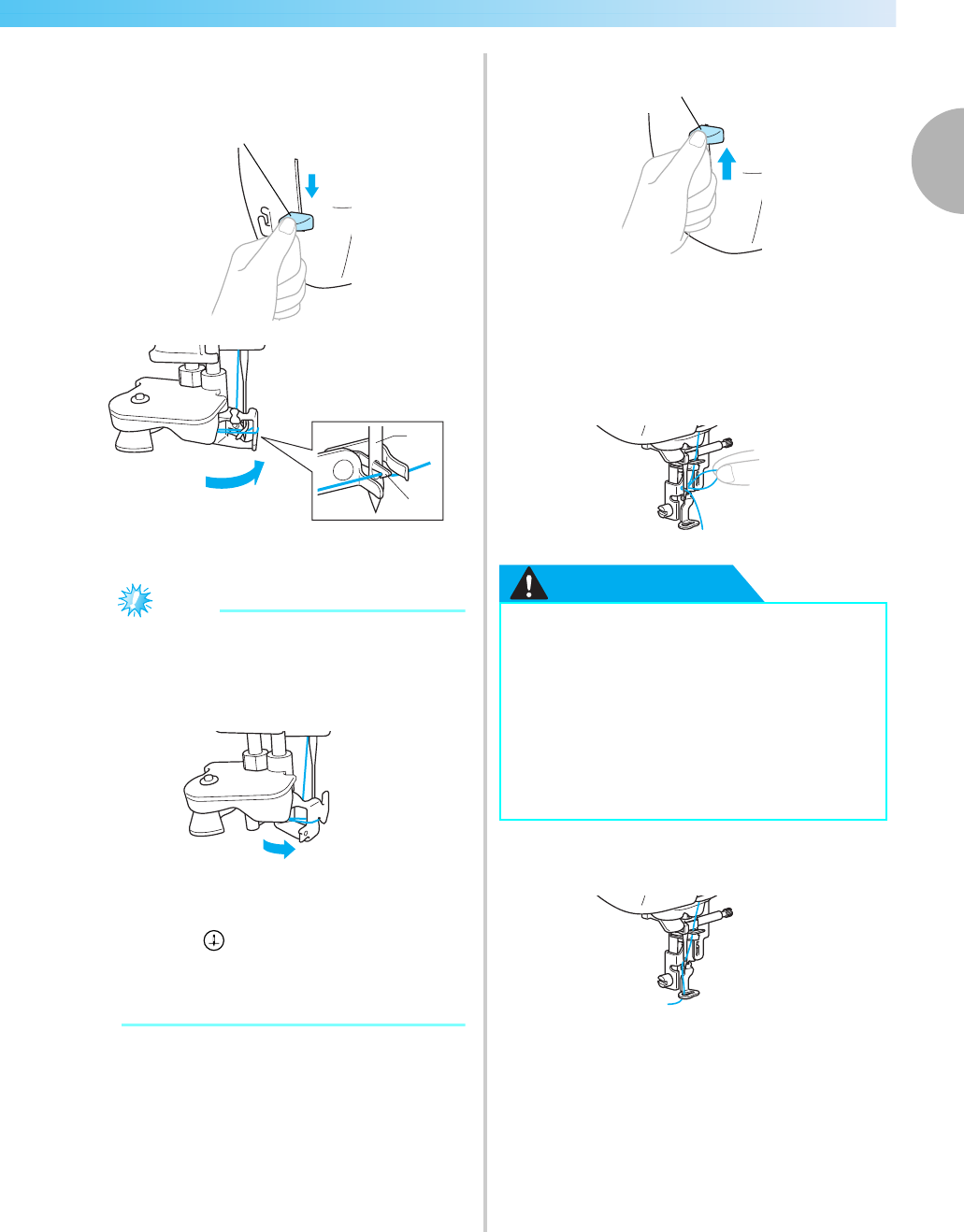
oLower the needle threader lever on the left
side of the machine as much as possible to
make the hook turn.
aNeedle threader lever
aNeedle
bHook
Note
zIf the needle threader lever is not lowered as
much as possible, the hook will not turn
fully as shown below and the thread will not
pass through the eye of the needle.
In such a case, start from m again.
zIf the needle is not raised, the needle
threader cannot thread the needle. Be sure
to press (Needle position button) to raise
the needle before using the needle threader.
For details, refer to step c of "Threading the
upper thread" (page 38).
z
pRaise the needle threader lever slowly.
aNeedle threader lever
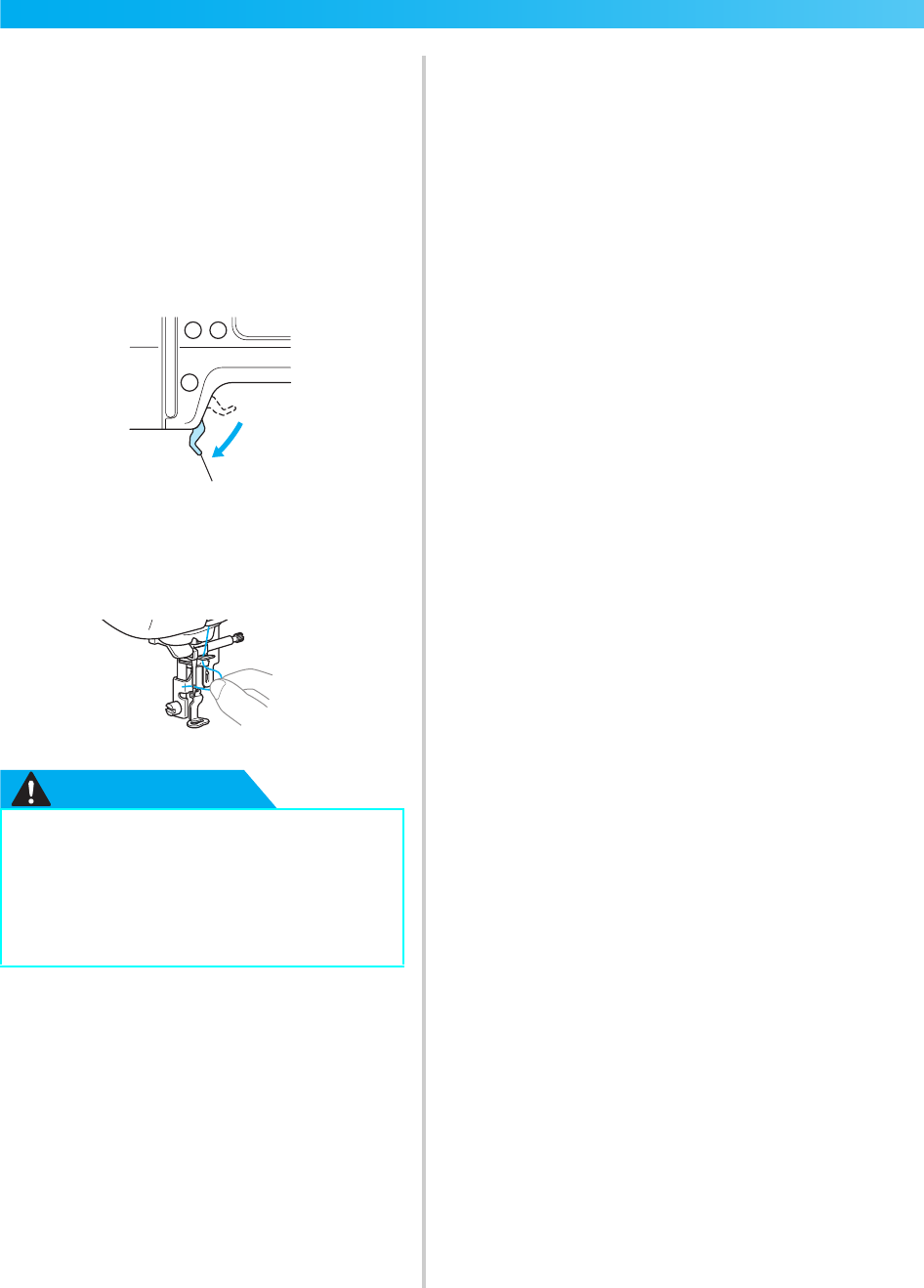
qRaise the presser foot lever, and carefully pull
the loop of the thread through the eye of the
needle to pull out the end of the thread.
CAUTION
rPass the end of the thread through the
embroidery foot hole.
XThe upper threading is finished.
a
a
b
●Do not touch a button. Do not touch the
start/stop button or needle position
button. If one of the buttons is
accidentally pressed, the machine will
move and your finger may be pricked
with the needle or the needle may break.
●When pulling out the thread, do not pull
it with extreme force, otherwise the
needle may bend or break.
a
0711-0120-C-combo_E.book Page 41 Thursday, July 24, 2008 1:46 PM
42
GETTING READY — — — — — — — — — — — — — — — — — — — — — — — — — — — — — — — — — — — — — — — — — — — —
■Threading the needle manually (without using
the needle threader)
When using specialty thread, such as transparent
nylon thread which cannot be used with the needle
threader, thread the needle as described below.
aThread the machine to the needle bar thread
guide according to steps a through k on
"Threading the upper thread" (page 38).
bLower the presser foot lever.
aPresser foot lever
cPass the thread through the eye of the needle
from front to back.
CAUTION
dRaise the presser foot lever, pass the end of the
thread through the embroidery foot hole.
●Do not touch the start/stop button or
needle position button. If one of the
buttons is accidentally pressed, the
machine will move and your finger may
be pricked with the needle or the needle
may break.
a
0711-0120-C-combo_E.book Page 42 Thursday, July 24, 2008 1:46 PM
Preparing the Fabric 43
1
— — — — — — — — — — — — — — — — — — — — — — — — — — — — — — — — — — — — — — — — — — — — — — — — — — — —
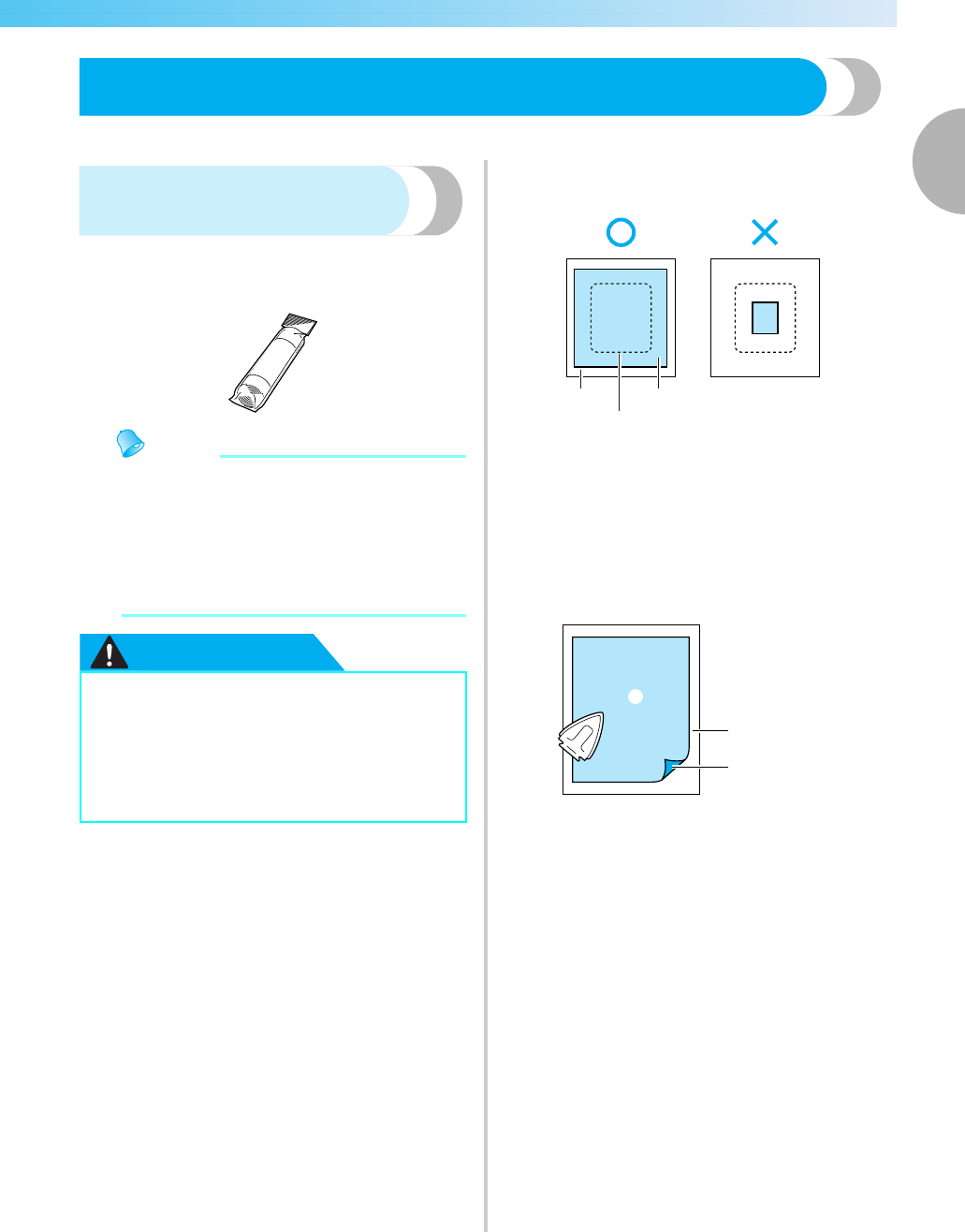
Preparing the Fabric
After attaching a stabilizer material to the embroidery fabric, it is stretched on an embroidery frame.
Attaching a stabilizer
material to the fabric
Attach a stabilizer material for embroidery to the
fabric to prevent poor quality embroidery designs.
Memo
zWe recommend the optional stabilizer
material for embroidery. Use a water soluble
sheet on thin materials like organdy and
fabrics with a nap like towels.
To obtain optional accessories or parts, visit
[http://www.brother.com/], or [http://
www.brothermall.com] (in USA).
CAUTION
aPrepare stabilizer material that is larger than
the embroidery frame being used.
aFabric
bSize of embroidery frame
cStabilizer material
bIf you are using stabilizers with adhesive, place
the adhesive surface of the stabilizer material
against the wrong side of the fabric, and iron it
with a steam iron.
aStabilizer material
bFabric (wrong side)
cAttached surface
When it cannot be ironed or placed in the
hoop
For fabrics, such as towels, which cannot be
ironed or for embroidering in places where
ironing is difficult, place the stabilizer
material under the fabric, and stretch the
fabric in the embroidery frame without
attaching the stabilizer.
●Always use stabilizer material for
embroidery projects. The needle may
break or bend if you embroider without
using a stabilizer material for thin fabrics
or stretch fabrics. Furthermore, the
pattern may not turn out correctly.
a
b
c
2
3
1
0711-0120-C-combo_E.book Page 43 Thursday, July 24, 2008 1:46 PM
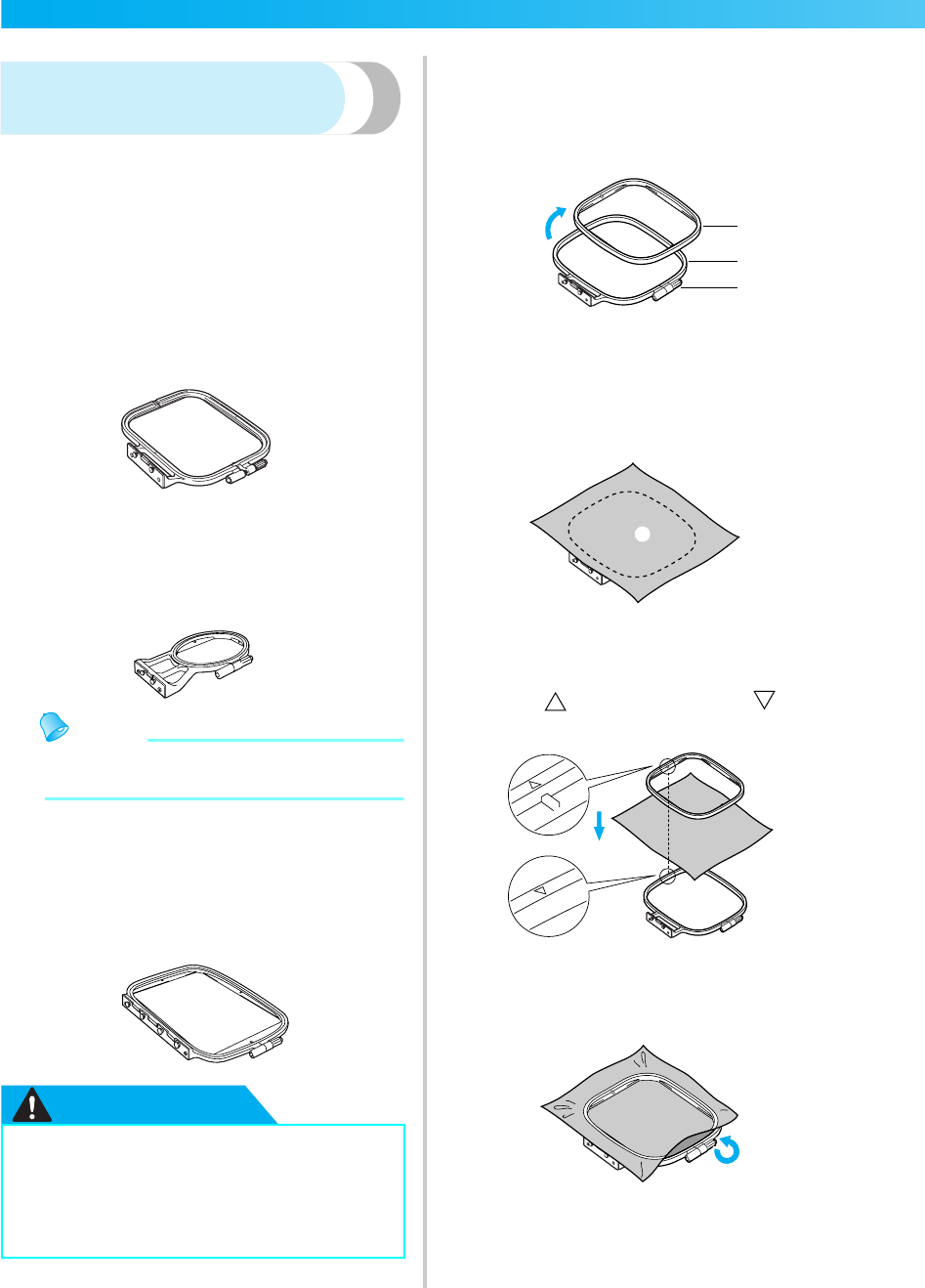
44
GETTING READY — — — — — — — — — — — — — — — — — — — — — — — — — — — — — — — — — — — — — — — — — — — —
Setting the fabric in the
embroidery frame
The fabric is stretched in the embroidery frame. If the
fabric is loose, the quality of the embroidery pattern
may be poor. Put the fabric in the frame without slack
following the steps below. Have a fabric with a
stabilizer material attached and the embroidery frame
(medium, small or large) ready.
■Embroidery frame (medium)
Patterns with a height of up to 10 cm (4 inches)
and a width of up to 10 cm (4 inches) can be
embroidered.
■Embroidery frame (small) [option]
Patterns with a height of up to 2 cm (1 inch) and a
width of up to 6 cm (2-1/2 inches) can be
embroidered. This is used for letters and other
small embroidery.
Memo
zThere are patterns for which embroidery
frame (small) cannot be used.
■Embroidery frame (large) [option]
Embroidery can be done in an area with a height
of up to 17 cm (6-7/10 inch) and a width of up to
10 cm (4 inch). This is used to embroider multiple
patterns without changing the fabric position in
the frame.
CAUTION
aLoosen the embroidery frame adjustment
screw and remove the inner and outer frames,
placing the outer frame on a flat surface.
Separate the inner and outer frame by removing
inner frame upward.
aInner frame
bOuter frame
cAdjustment screw
bPlace the fabric with the stabilizer material on
top of the outer frame.
Have the right side of the cloth up.
aRight side
cPress the inner frame in from the top of the
fabric.
Line up on the inner frame and on
outer frame.
dTighten the adjustment screw by hand just
enough to secure the fabric.
●Use the embroidery frame that matches
the size of the pattern being embroidered.
Otherwise, the embroidery frame may be
hit by the embroidery foot and cause
injury or needle breakage.
a
b
c
1
0711-0120-C-combo_E.book Page 44 Thursday, July 24, 2008 1:46 PM
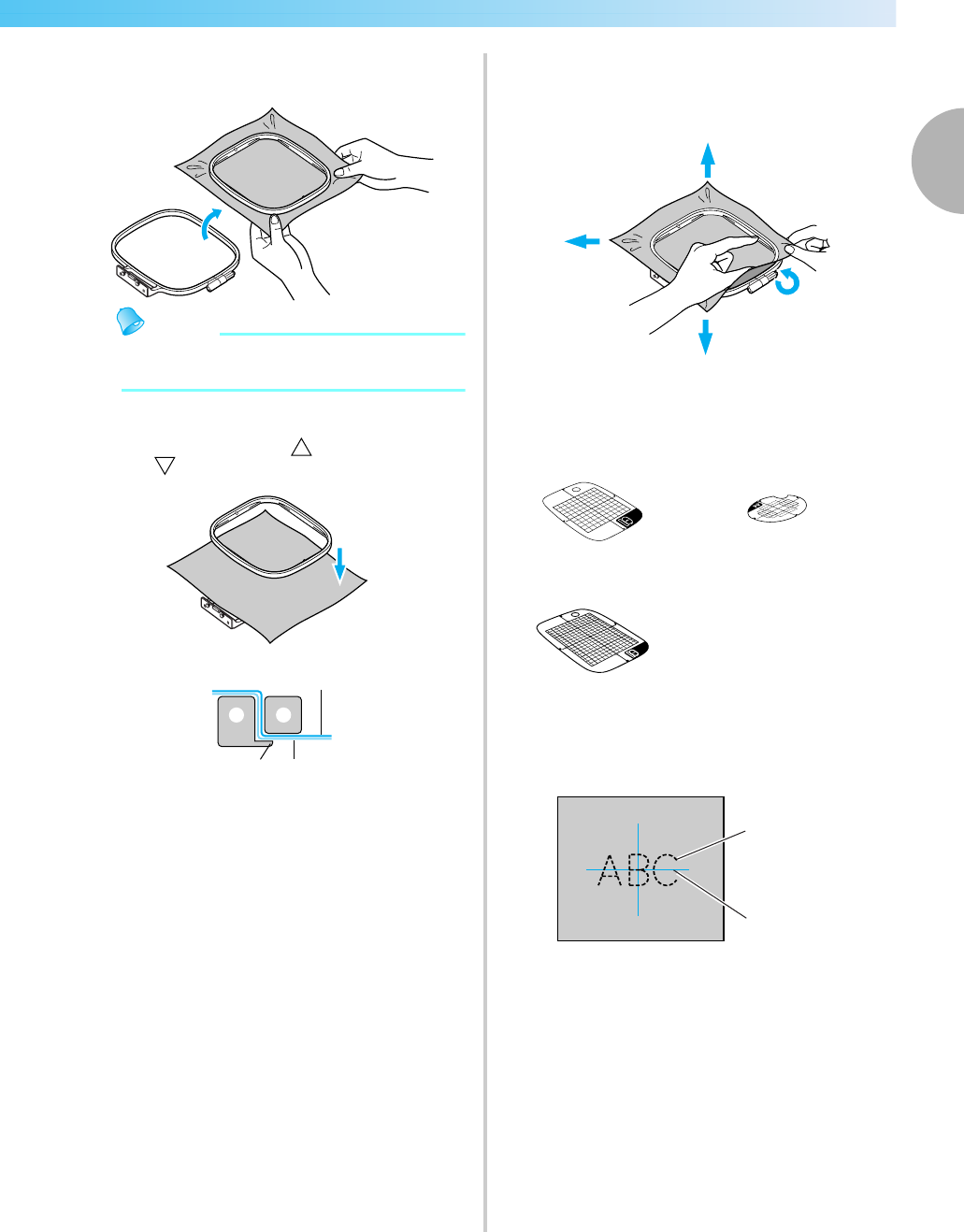
Preparing the Fabric 45
1
— — — — — — — — — — — — — — — — — — — — — — — — — — — — — — — — — — — — — — — — — — — — — — — — — — — —
eGently remove the fabric from the frame
without loosening the adjustment screw.
Memo
zThis precautionary step will help reduce
pattern distortion while embroidering.
fPress the inner frame in from the top of the
fabric again, lining up on the inner frame
and on outer frame.
aOuter frame
bInner frame
cFabric (right side)
dStabilizer material
eLedge of outer frame
• Press down firmly until the inner frame is
securely pressed against the ledge of the
outer frame.
gTighten the adjustment screw while removing
any slack in the fabric by hand. The goal is to
have a drum-like sound when the stretched
fabric is struck lightly.
■Using embroidery sheets
If the embroidery sheet attached to the embroidery
frame is used, the pattern can be embroidered in
exactly the right position on the fabric.
aMake a mark with a chalk pen at the center of
the position for the pattern to be embroidered.
aEmbroidery pattern
bMark
3
45
21
Embroidery sheet
(medium) Embroidery sheet (small)
[option]
Embroidery sheet (large)
[option]
a
b
0711-0120-C-combo_E.book Page 45 Thursday, July 24, 2008 1:46 PM
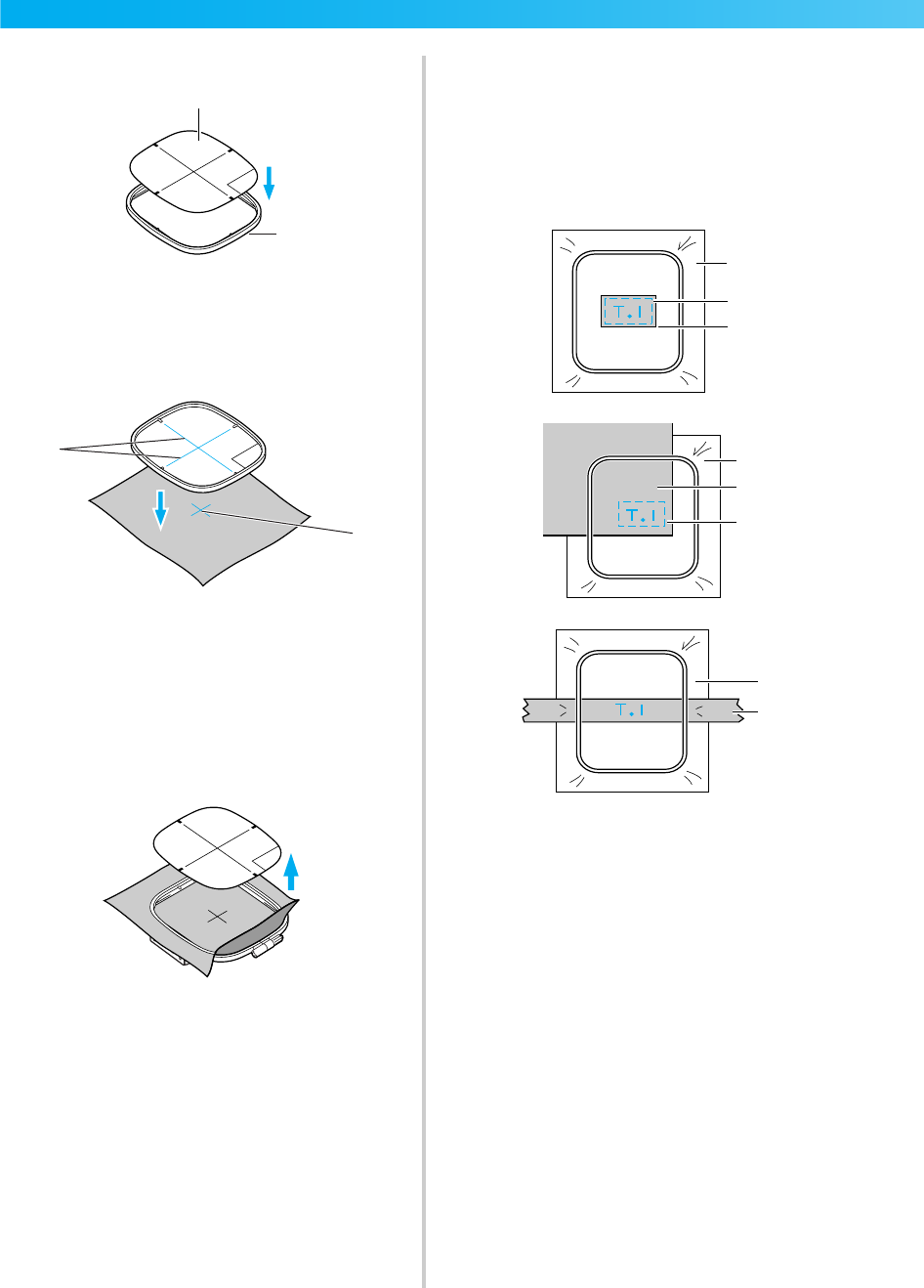
46
GETTING READY — — — — — — — — — — — — — — — — — — — — — — — — — — — — — — — — — — — — — — — — — — — —
bPlace the embroidery sheet on the inner frame.
aEmbroidery sheet
bInner frame
cLine the mark on the fabric up with the base
line on the embroidery sheet.
aBase line
bMark
dPlace the inner frame with the fabric on the
outer frame and stretch the fabric.
• For details, refer to page 44.
eRemove the embroidery sheet.
■Embroidery on fabrics that cannot be stretched
on an embroidery frame
When small pieces of fabric that cannot be
stretched on an embroidery frame or thin pieces
like ribbon are being embroidered, use stabilizer
material as a base to stretch on the frame. We
recommend stabilizer material for all embroidery.
aStabilizer material
bTack or spray glue
cFabric
After completing the embroidery, remove the
stabilizer material carefully.
a
b
a
b
a
b
c
c
a
b
c
a
0711-0120-C-combo_E.book Page 46 Thursday, July 24, 2008 1:46 PM
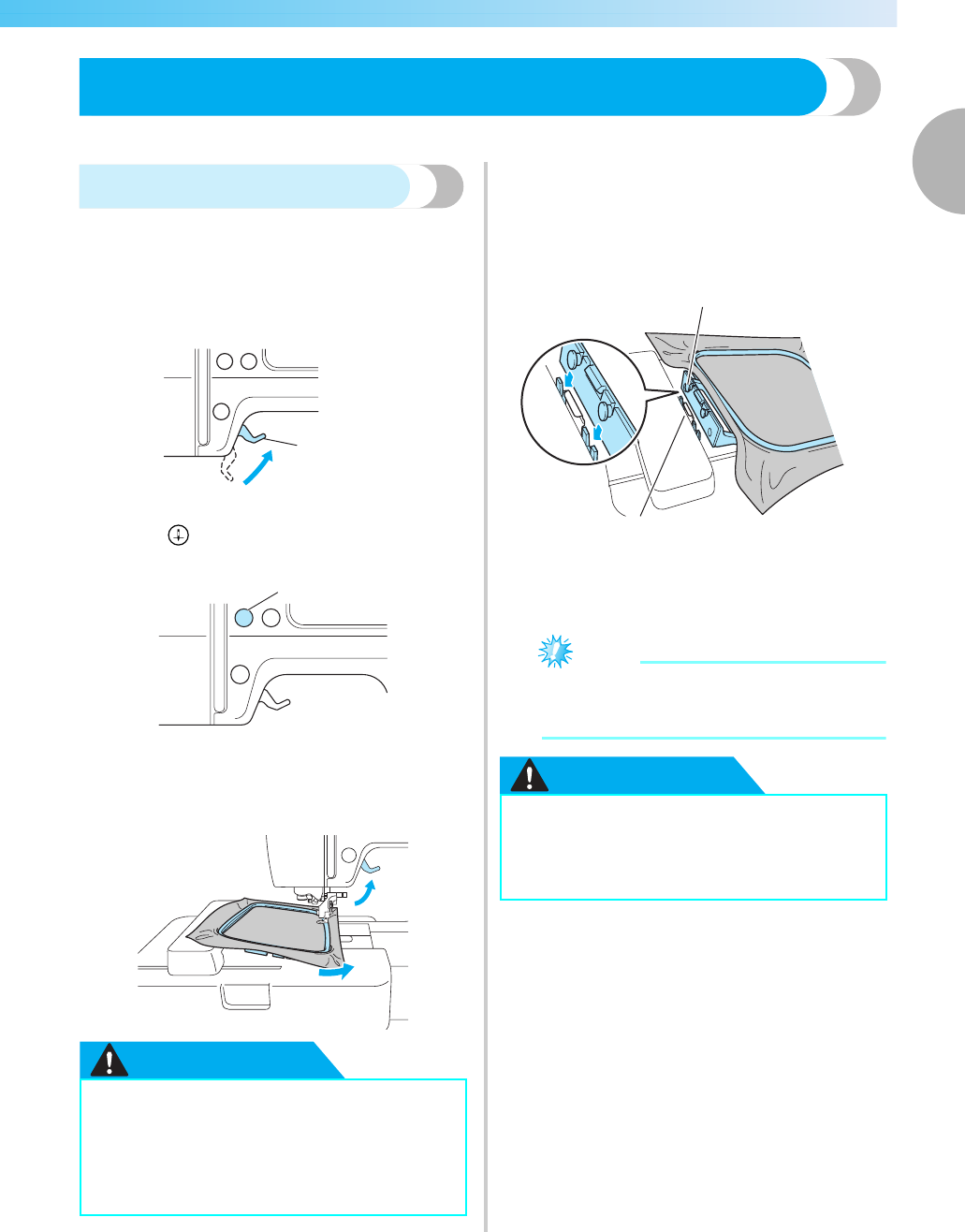
Attaching the Embroidery Frame 47
1
— — — — — — — — — — — — — — — — — — — — — — — — — — — — — — — — — — — — — — — — — — — — — — — — — — — —
Attaching the Embroidery Frame
This section describes how to attach the embroidery frame.
Attaching the embroidery frame
aWind the embroidery bobbin thread onto the
bobbin and set it into the bobbin case.
• For details, refer to "Winding/Installing the
Bobbin" (page 29).
bRaise the presser foot lever.
aPresser foot lever
cPress (Needle position button) once or
twice to raise the needle.
aNeedle position button
dPass the embroidery frame under the presser
foot while raising the presser foot lever even
further.
CAUTION
eFirmly insert the embroidery frame guide into
the embroidery carriage frame holder from the
top.
Line up the embroidery frame guide tabs and
the embroidery carriage frame holder slots and
push in until it clicks and stops.
aEmbroidery frame guide tabs
bEmbroidery carriage frame holder slots
XThe embroidery unit is attached.
Note
zBe sure to insert both pins. If only the
forward or the back pin is inserted, the
pattern may not turn out correctly.
CAUTION
●Do not touch the start/stop button or
needle position button. If one of the
buttons is accidentally pressed, the
machine will move and your finger may
be pricked with the needle or the needle
may break.
a
a
●Correctly set the embroidery frame into
the embroidery frame holder. Otherwise,
the embroidery foot may hit the
embroidery frame, resulting in injury.
a
b
0711-0120-C-combo_E.book Page 47 Thursday, July 24, 2008 1:46 PM
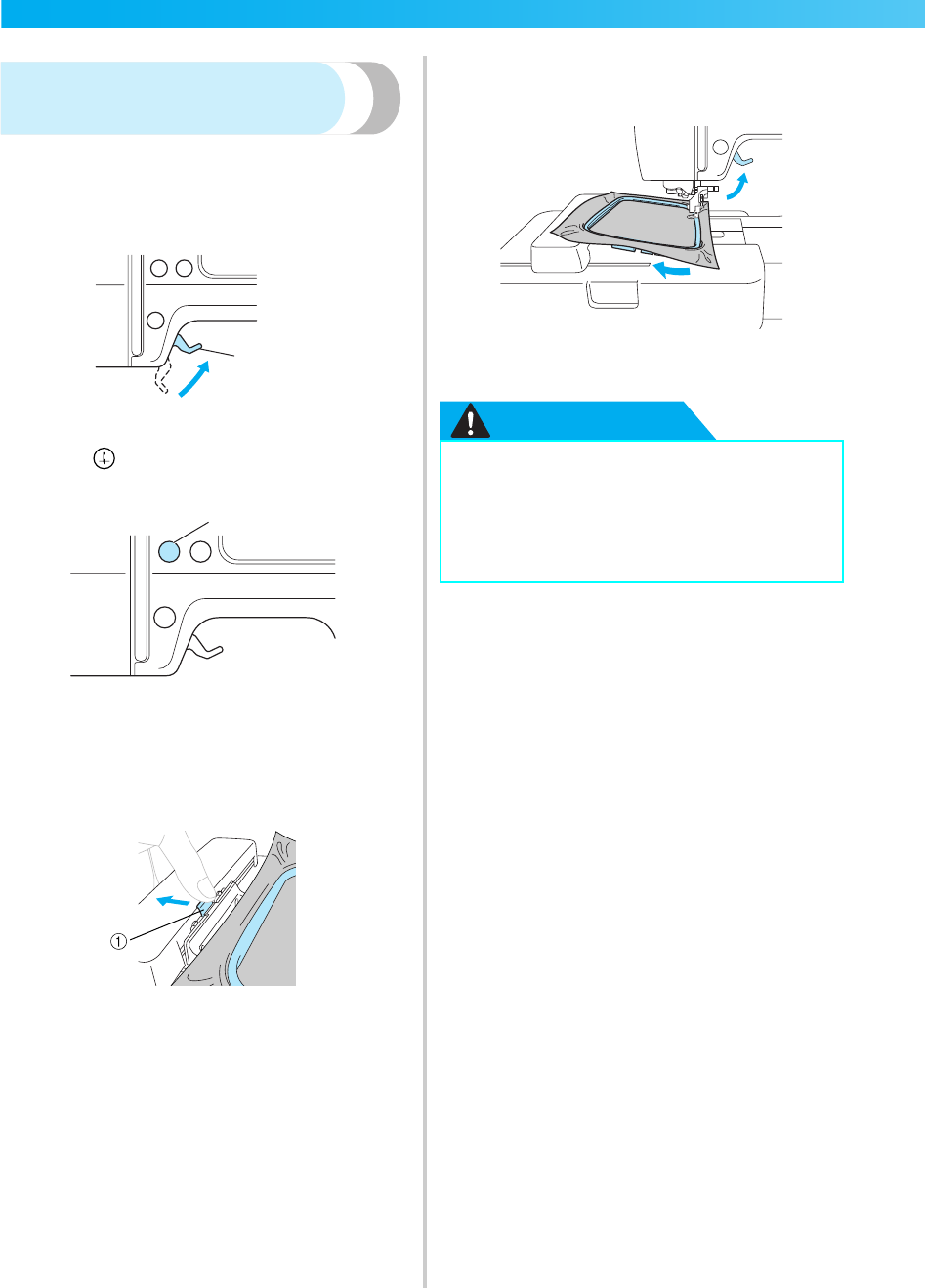
48
GETTING READY — — — — — — — — — — — — — — — — — — — — — — — — — — — — — — — — — — — — — — — — — — — —
Removing the embroidery
frame
Make sure that the machine is completely stopped
and follow the instructions below.
aRaise the presser foot lever.
aPresser foot lever
bPress (Needle position button) once or
twice to raise the needle.
aNeedle position button
cPress the part of the embroidery frame holder
to the left side as shown in the figure below,
and raise the embroidery frame.
aPress here to remove.
XThe embroidery frame will separate from the
embroidery frame holder.
dPass the embroidery frame under the presser
foot while raising the presser foot lever even
further.
eRemove the embroidery frame.
CAUTION
a
a
●Do not touch the start/stop button or
needle position button. If one of the
buttons is accidentally pressed, the
machine will move and your finger may
be pricked with the needle or the needle
may break.
0711-0120-C-combo_E.book Page 48 Thursday, July 24, 2008 1:46 PM

2EMBROIDERY
The steps for embroidering are described in this chapter.
Selecting Embroidery Patterns.................................................................................50
Embroidering...........................................................................................................57
Editing and Saving Patterns .....................................................................................61
Using the Memory Function....................................................................................69
chapter2 Page 49 Monday, August 18, 2008 8:01 PM
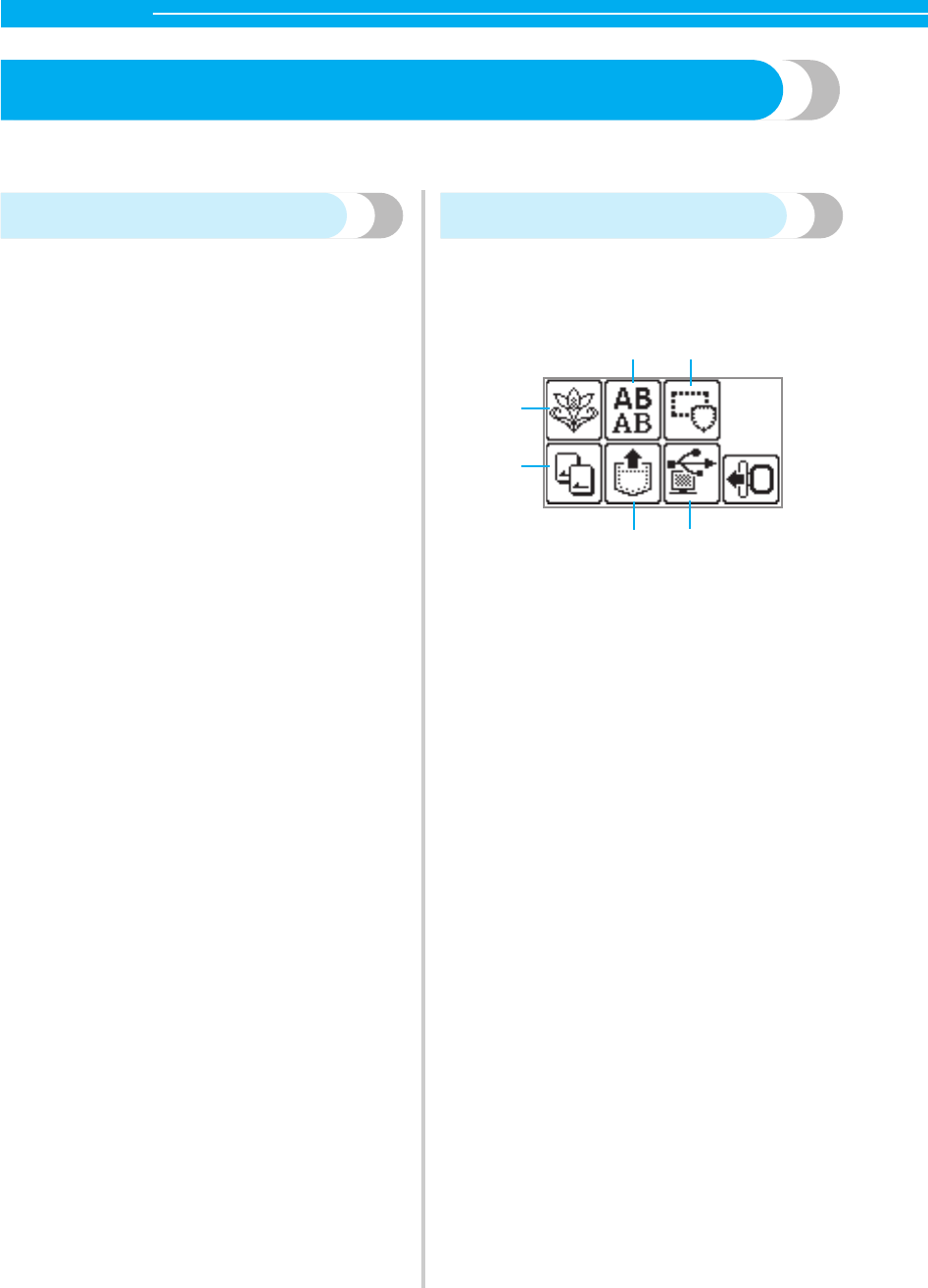
50
EMBROIDERY — — — — — — — — — — — — — — — — — — — — — — — — — — — — — — — — — — — — — — — — — — — — —
Selecting Embroidery Patterns
This section provides details on the various types of embroidery patterns available and the procedure for
selecting a pattern.
Copyright information
The patterns saved in the machine and embroidery
cards are intended for private use only. Any public or
commercial use of copyrighted patterns is an
infringement of copyright law and is strictly
prohibited.
Embroidery pattern types
An embroidery pattern can be selected from the
following types available.
aEmbroidery patterns
There are total 70 patterns. The patterns are
completed by changing the upper thread
according to the instructions displayed on the
screen.
For details, refer to "Selecting an embroidery
pattern"(page 54).
bAlphanumeric character patterns
There are 5 types of characters: upper case/lower
case/numbers/symbols/European characters.
For details, refer to "Selecting alphanumeric
characters" (page 53).
cFrame patterns
10 shapes, such as squares and circles, can be
combined with 12 stitch types.
For details, refer to "Selecting a frame pattern"
(page 55).
dEmbroidery card
Press when selecting patterns from an embroidery
card.
For details, refer to "Using an embroidery card"
(page 55).
ePatterns saved in the machine's memory
Press when retrieving patterns from the machine's
memory.
For details, refer to "Saving patterns" (page 70).
fPatterns retrieved from the computer
Patterns retrieved from a computer can be
embroidered.
For details, refer to "Retrieving embroidery
patterns from the computer" (page 71).
a
b
c
d
e
f
chapter2 Page 50 Monday, August 18, 2008 8:01 PM
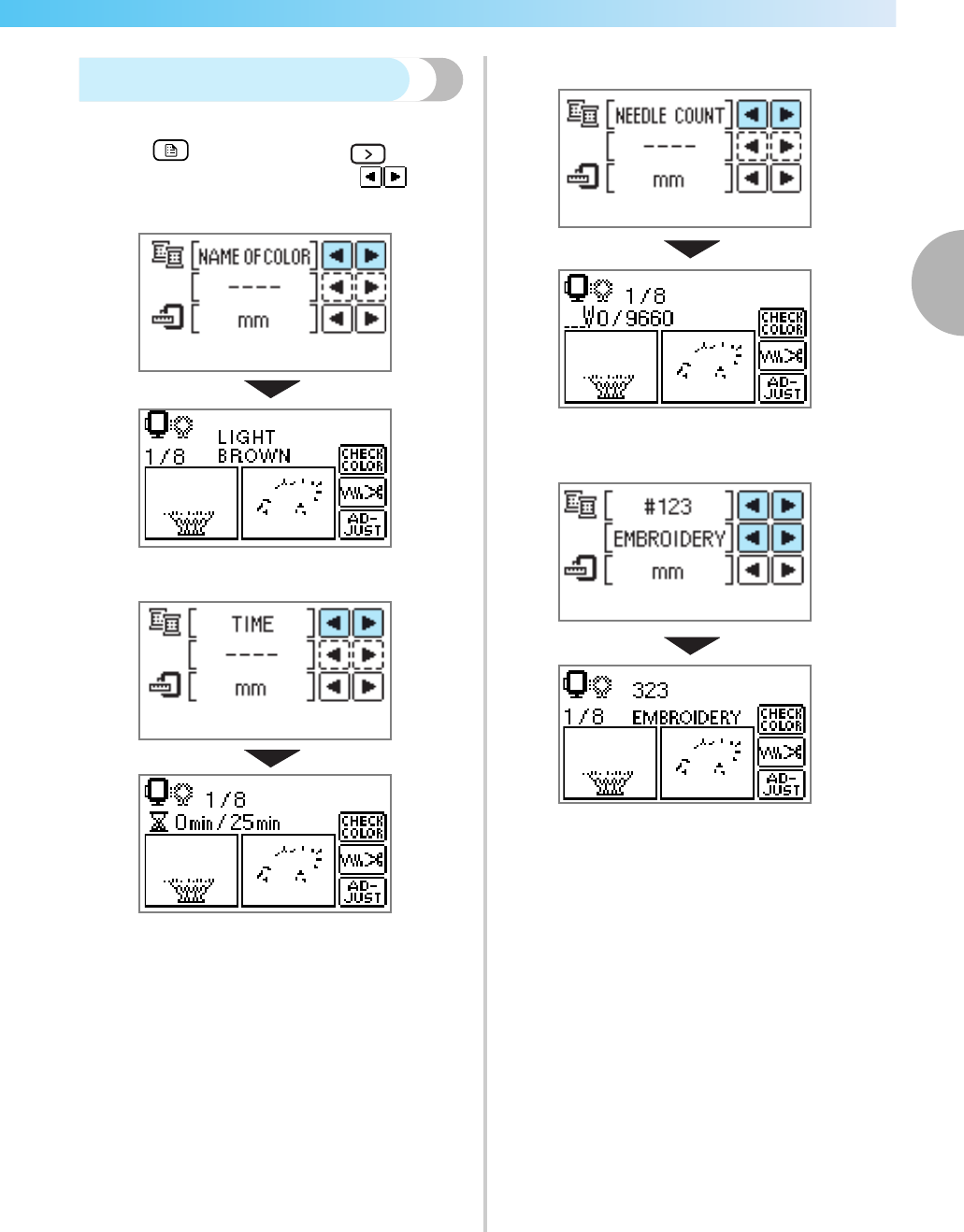
Selecting Embroidery Patterns 51
2
— — — — — — — — — — — — — — — — — — — — — — — — — — — — — — — — — — — — — — — — — — — — — — — — — — — —
Setting for embroidering
Setting the display while embroidering
Press (
Settings key) and then (Next page
key). Then, select the item by pressing
.
NAME OF COLOR: Typical color name
TIME: Time required for embroidering
NEEDLE COUNT: Needle progress number
#123: Thread color number
Select from the following thread color number
sets (The display above is an example when
EMBROIDERY (POLYESTER) THREAD# is
selected.)
•EMBROIDERY (POLYESTER) THREAD#
•COUNTRY (COTTON) THREAD#
•MADEIRA POLY THREAD#
•MADEIRA RAYON THREAD#
•SULKY THREAD#
•ROBISON-ANTON POLY THREAD#
chapter2 Page 51 Monday, August 18, 2008 8:01 PM
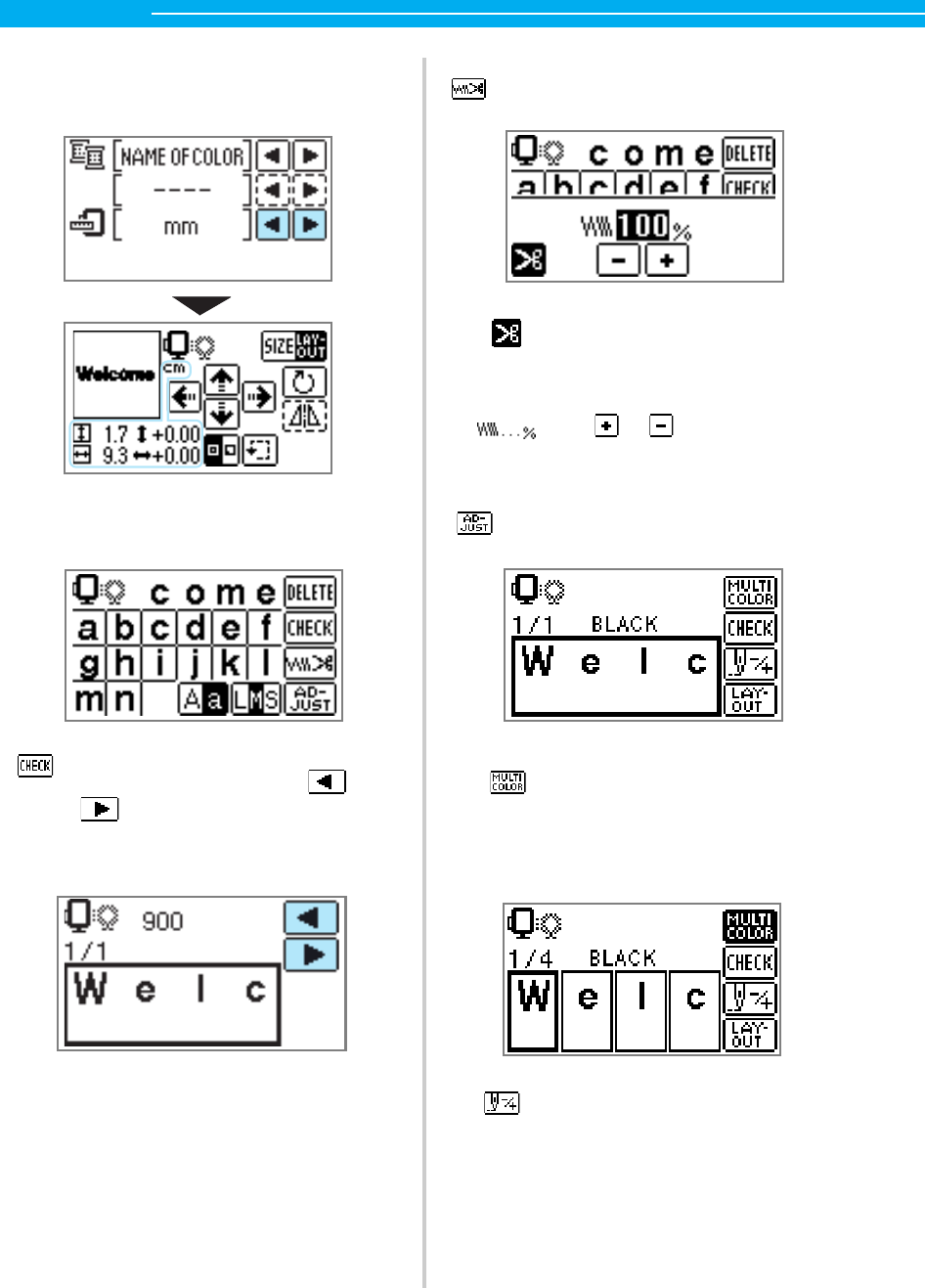
52
EMBROIDERY — — — — — — — — — — — — — — — — — — — — — — — — — — — — — — — — — — — — — — — — — — — — —
DISPLAY UNIT
The measurement units that are displayed can
be selected. [mm/inch]
■LCD button
Example: Selecting alphanumeric characters
When a specific pattern is selected,
press this key and then, press
to switch the display. The
settings such as the specified
alphanumeric character string and
color are confirmed.
Press this key to change the thread settings.
Press this key to select or cancel
programmed thread cutting. When
programmed thread cutting is set, the
thread is cut automatically after
reinforcement.
Press or to change the thread
density (characters and frame
patterns only).
Press this key to adjust the pattern.
Press this key when you want to change
the color, character by character in
character embroidery. Since the machine
stops at the end of each character, the
upper thread is changed as you embroider.
Press this key again to cancel multi-color.
The needle progresses one color or
one stitch (if pressed continuously, 9
stitches to 30 stitches) at a time and
changes the position for starting the
embroidery. This is used when a
specific color is not embroidered or
when restarting the machine after
power has been turned off in the
middle of the operation.
chapter2 Page 52 Monday, August 18, 2008 8:01 PM
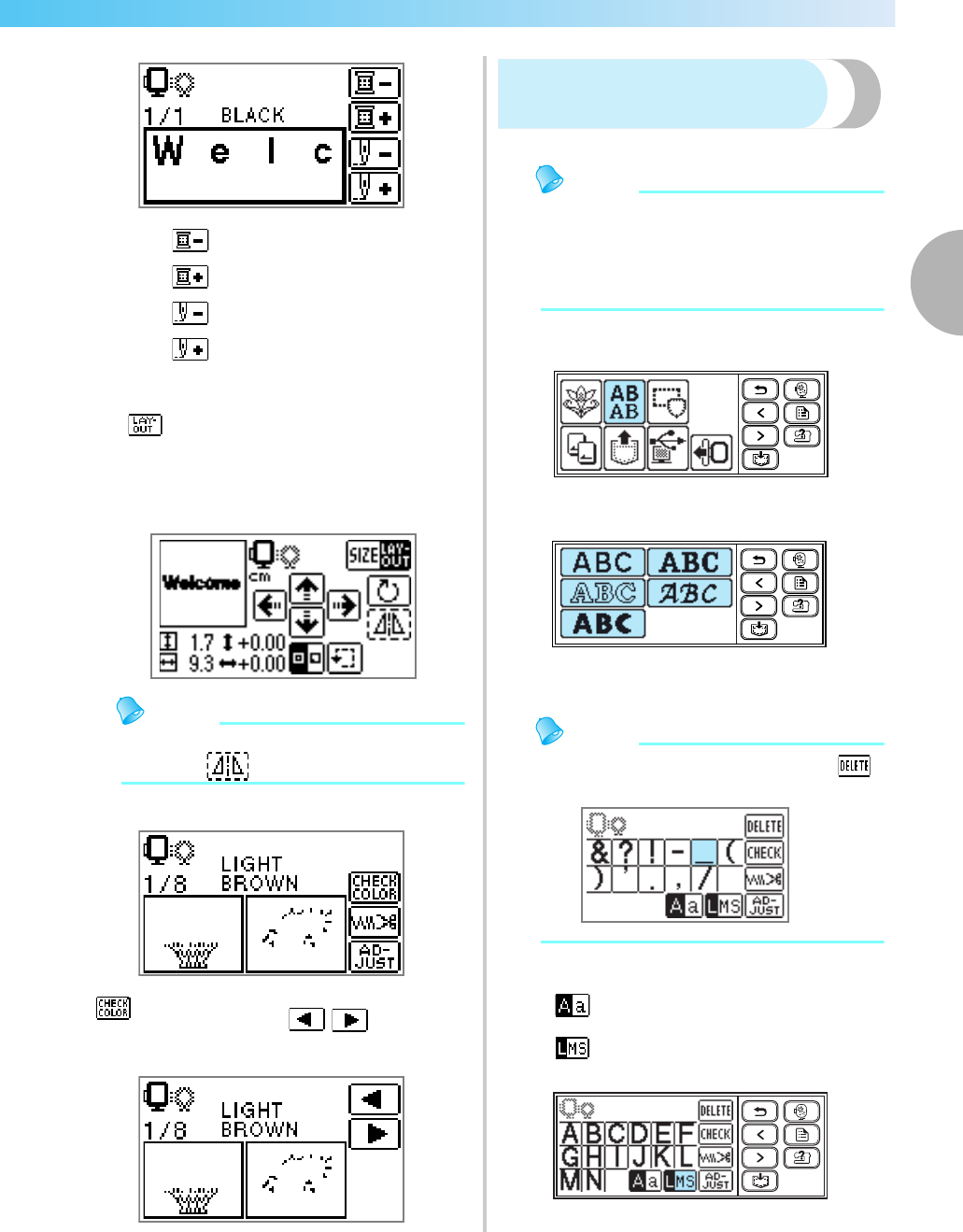
Selecting Embroidery Patterns 53
2
— — — — — — — — — — — — — — — — — — — — — — — — — — — — — — — — — — — — — — — — — — — — — — — — — — — —
• For details, refer to "Resewing" (page 66).
Memo
zKeys that appear surrounded with a dotted
line (ex. ) cannot be used.
Example: Selecting an embroidery pattern
Selecting alphanumeric
characters
Specify the characters for embroidery.
Memo
zWhen "The pattern is too large for the
embroidery frame" is displayed, no more
characters can be entered.
zCharacters of different style (sans serif, serif
and outline, etc.) cannot be combined.
aSelect the alphanumeric characters.
bSelect the character style.
cEnter the characters.
Memo
zIf a wrong character is selected, press .
zTo enter a space, press "_".
Example: Come on
Back one color
Forward one color
Back one stitch
Forward one stitch
The position of the pattern within the
embroidery frame can be checked,
and the size and angle can be
changed.
For details, refer to "Adjusting the
layout and the size" (page 61).
Press this key to check the order of
multi color. Press to
switch the display.
Switch between uppercase/
lowercase
Switch among large/medium/small
sizes
chapter2 Page 53 Monday, August 18, 2008 8:01 PM
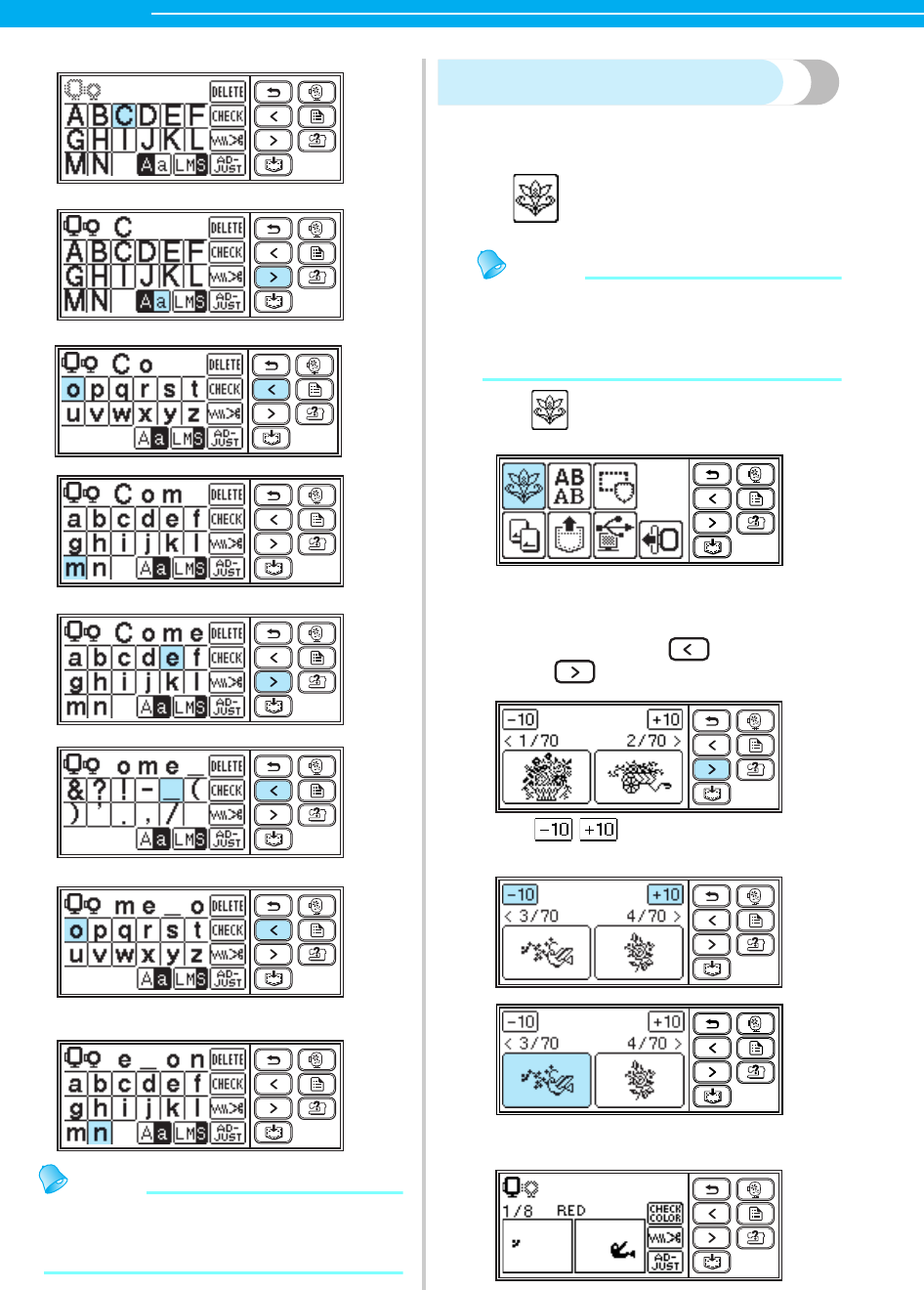
54
EMBROIDERY — — — — — — — — — — — — — — — — — — — — — — — — — — — — — — — — — — — — — — — — — — — — —
Memo
zThe character pattern you created can be
saved for later use. For details, refer to
"Saving patterns" (page 70).
Selecting an embroidery pattern
There are 70 embroidery patterns, such as flowers
and animals, saved in the machine's memory.
Memo
zRefer to "Embroidery Pattern Color Change
Table" in the Quick reference guide for
samples of completed patterns and the
thread used.
aPress .
XThe pattern selection screen is displayed.
bSelect the pattern.
Switch the screen using (Previous page
key) and (Next page key).
When / is pressed, the display of
patterns moves backward/forward 10 patterns.
X
When a pattern is selected, it can be embroidered
.
70 Embroidery patterns
chapter2 Page 54 Monday, August 18, 2008 8:01 PM
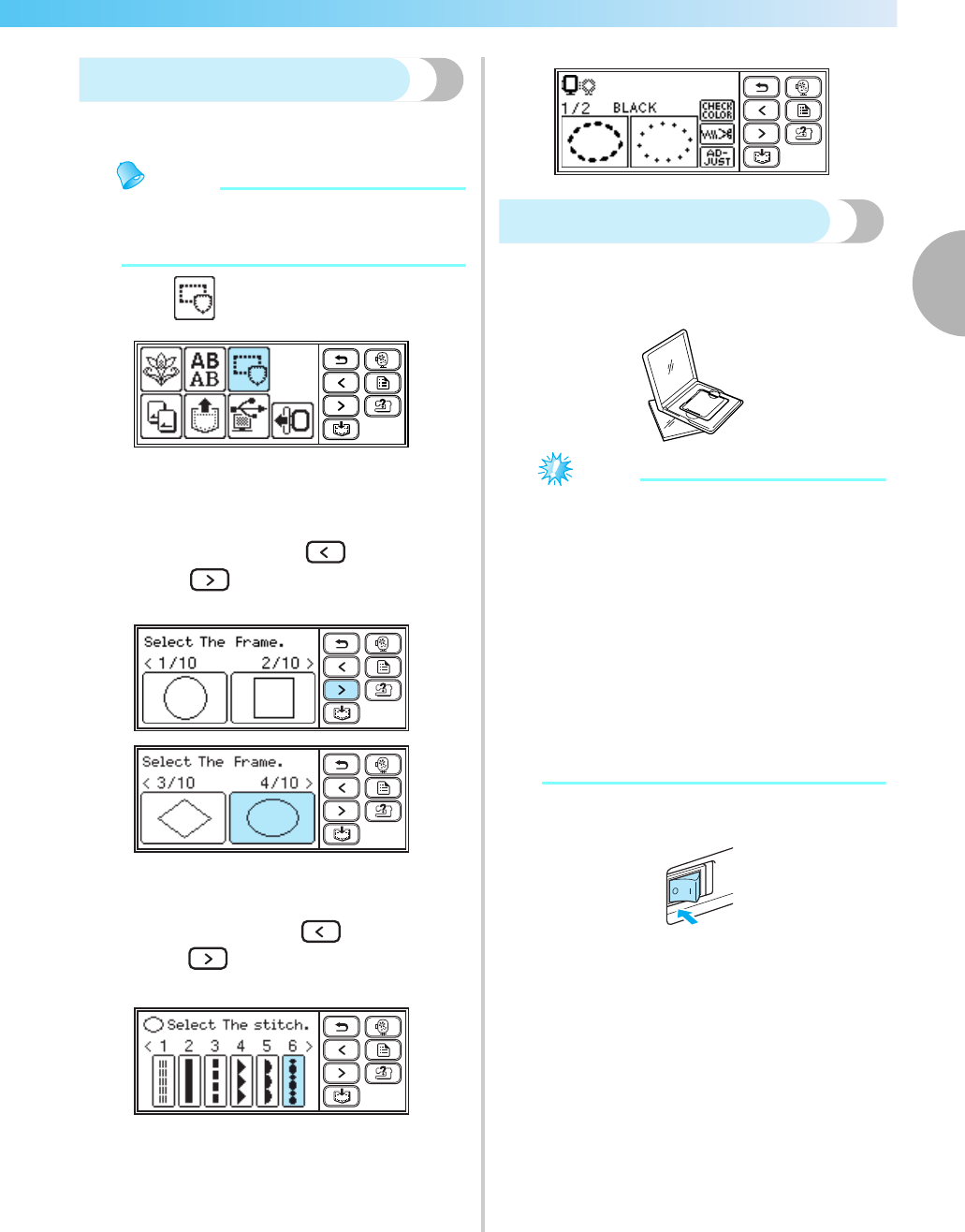
Selecting Embroidery Patterns 55
2
— — — — — — — — — — — — — — — — — — — — — — — — — — — — — — — — — — — — — — — — — — — — — — — — — — — —
Selecting a frame pattern
10 shapes, such as squares and circles, can be
combined with 12 stitch types.
Memo
zRefer to "Frame patterns" in the Quick
reference guide for frame pattern shapes and
stitches.
aPress .
XThe frame shape selection screen is
displayed.
bSelect the frame shape.
Switch the screen using (Previous page
key) and (Next page key), and select
from the 10 types.
XThe stitch selection screen is displayed.
cSelect the stitch.
Switch the screen using (Previous page
key) and (Next page key), and select
from the 12 stitches.
XWhen a stitch is selected, it can be
embroidered.
Using an embroidery card
If an embroidery card is used, you can embroider
patterns other than the patterns saved in the machine.
There are various cards with different themes.
Note
zAlways turn off the machine to insert and
remove embroidery cards.
zInsert the embroidery card into the
embroidery card slot, facing it in the right
direction.
zDo not put anything other than an
embroidery card in the embroidery card slot.
zWhen embroidery cards are not in use, keep
them in their storage cases.
zUse only embroidery cards manufactured for
this machine. Using unauthorized cards may
cause your machine to operate incorrectly.
zEmbroidery cards purchased in foreign
countries may not work with your machine.
aTurn off the machine.
chapter2 Page 55 Monday, August 18, 2008 8:01 PM
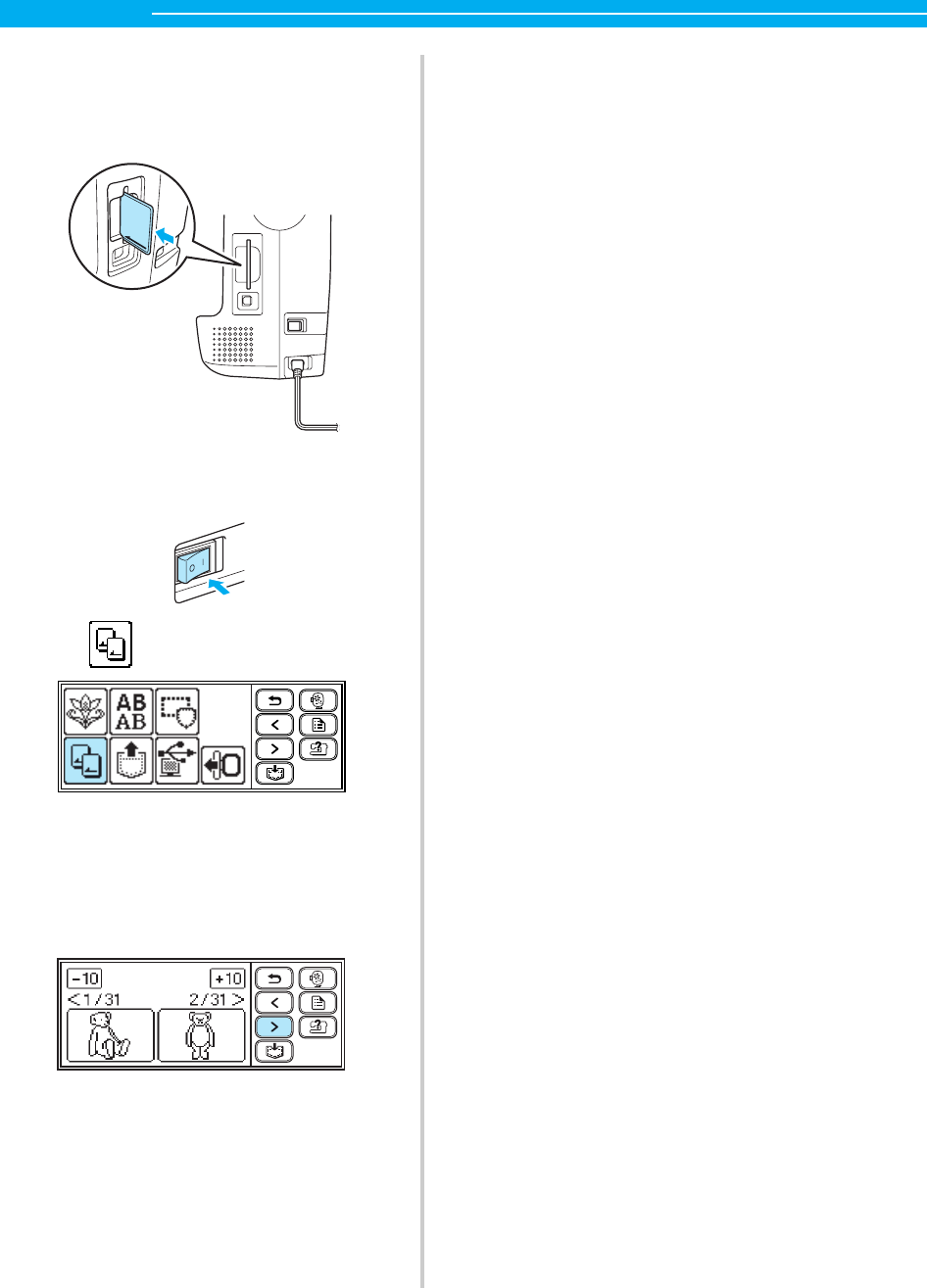
56
EMBROIDERY — — — — — — — — — — — — — — — — — — — — — — — — — — — — — — — — — — — — — — — — — — — — —
bInsert the embroidery card in the embroidery
card slot on the right side of the machine.
Face the arrow on the embroidery card toward
you, and insert it in the direction of the arrow.
cTurn on the machine.
dPress on the screen.
XThis selection screen for the patterns saved
in the card is displayed.
eSelect a pattern.
The operation is the same as in "Selecting an
embroidery pattern" (page 54).
chapter2 Page 56 Monday, August 18, 2008 8:01 PM
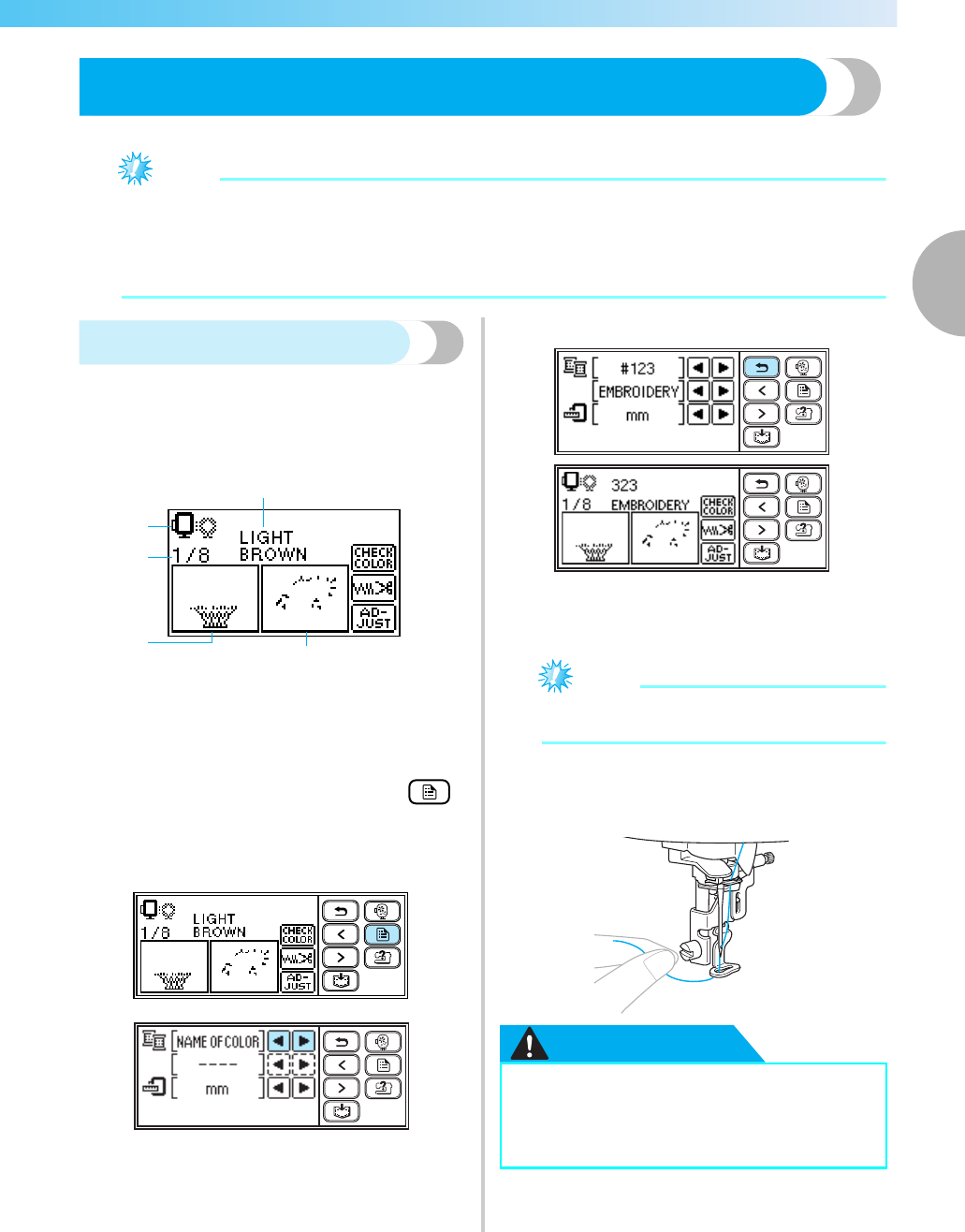
Embroidering 57
2
— — — — — — — — — — — — — — — — — — — — — — — — — — — — — — — — — — — — — — — — — — — — — — — — — — — —
Embroidering
After the preparations are done, you can try embroidering. This section describes the steps for embroidering and appliqu
é
ing.
Note
zBefore embroidering, check that there is enough thread in the bobbin. If you continue embroidering
without enough thread in the bobbin, the thread may tangle.
zWhen embroidering on large garments (especially jackets or other heavy fabrics), do not let the fabric
hang over the table. Otherwise, the embroidery unit cannot move freely, and the pattern may not turn
out as planned.
Embroidering a pattern
Embroidery patterns are embroidered with a change
of thread after each color.
aPrepare embroidery thread of the color shown
on the screen.
a
Embroidery frames that can be used for embroidering
bCurrent color step/Number of colors in design
cCurrent name of color
dCurrent color part
eNext color part
• The thread color number set displayed for the
thread colors can be changed. Press
(Setting key), and then change the setting in
the setting screen. For details, refer to "Setting
for embroidering" (page 51).
Example: Embroidery thread number selected
b
Set the embroidery thread, and thread the needle.
•
Refer to "Threading the upper thread" (
page
38
).
Note
zBefore using the needle threader, be sure to
lower the embroidery foot.
cPass the thread through the embroidery foot
hole, and hold it lightly in your left hand.
Give the thread a little slack.
CAUTION
a
c
b
de
●If the thread is pulled too tight, the needle
may break or bend.
●
Do not let hands or objects hit the carriage
while embroidering. The pattern may misalign.
chapter2 Page 57 Monday, August 18, 2008 8:01 PM
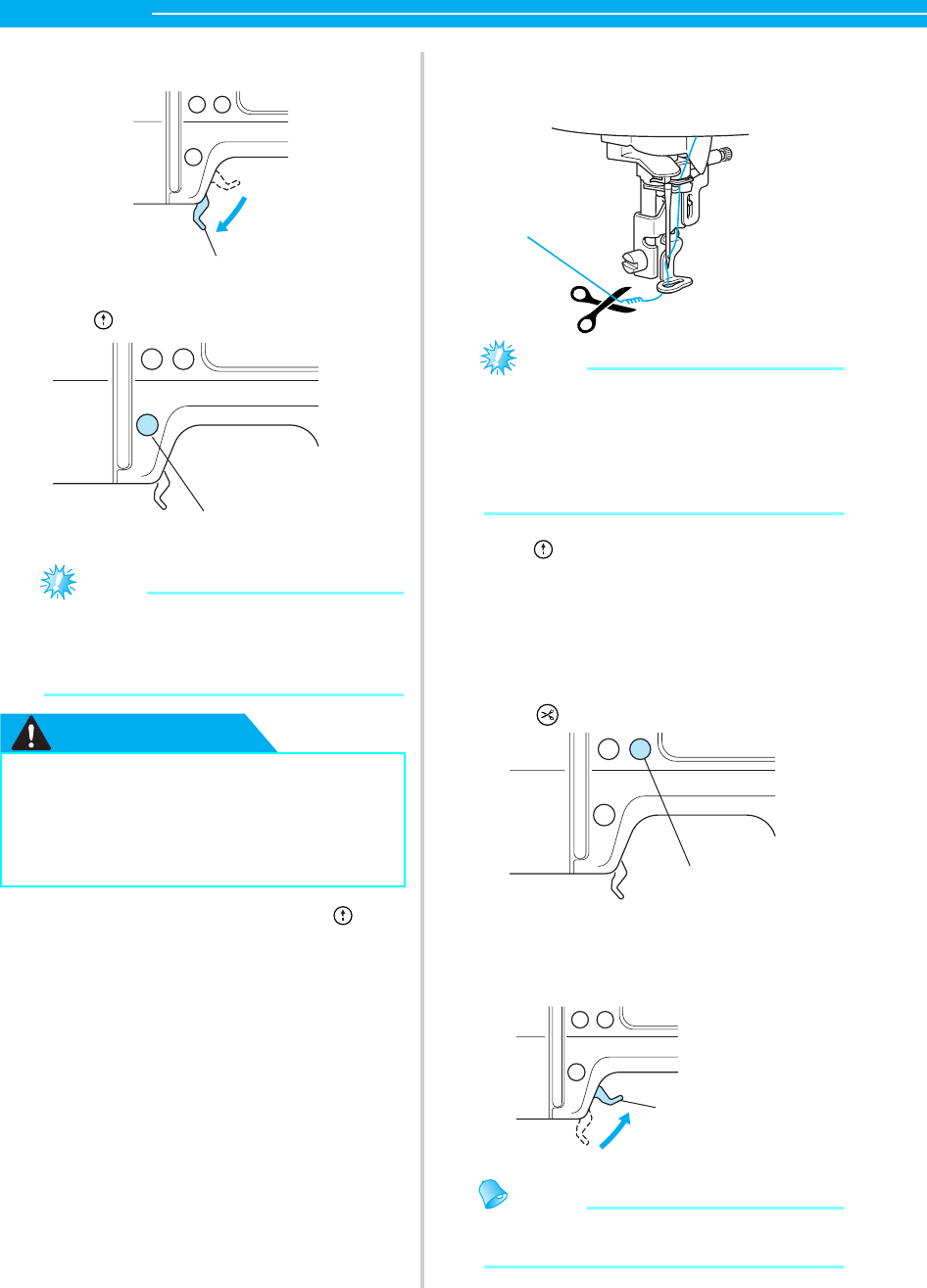
58
EMBROIDERY — — — — — — — — — — — — — — — — — — — — — — — — — — — — — — — — — — — — — — — — — — — — —
dLower the presser foot lever.
aPresser foot lever
ePress (Start/stop button).
aStart/stop button
Note
zDo not leave objects in the range of motion
of the embroidery frame. The frame may
strike the object and cause a poor finish to
the embroidery pattern.
CAUTION
f After progressing 5-6 stitches, press
(Start/stop button) to stop the machine.
gUse scissors to cut the thread at the beginning
of the stitching.
Cut the thread at the edge of the stitching.
Note
zIf the thread is left at the beginning of the
stitching, it may be sewn over as you
continue embroidering the pattern, making it
very difficult to deal with the thread after the
pattern is finished. Trim the thread at the
beginning.
hPress (Start/stop button) again.
X
The embroidery starts again and stops
automatically with reinforcement after one
color has been completed. When
programmed thread cutting is set, the thread is
cut automatically after reinforcement. In this
case, go to step
j
.
iPress (Thread cutter button) once.
aThread cutter button
XThe needle is raised and the threads are cut.
jRaise the presser foot lever.
aPresser foot lever
Memo
zIf the embroidery foot is not raised, the
upper thread cannot be replaced.
●Use the embroidery frame that matches
the size of the pattern being embroidered.
Otherwise, the embroidery frame may be
hit by the embroidery foot and cause
injury or needle breakage.
a
a
a
a
chapter2 Page 58 Monday, August 18, 2008 8:01 PM
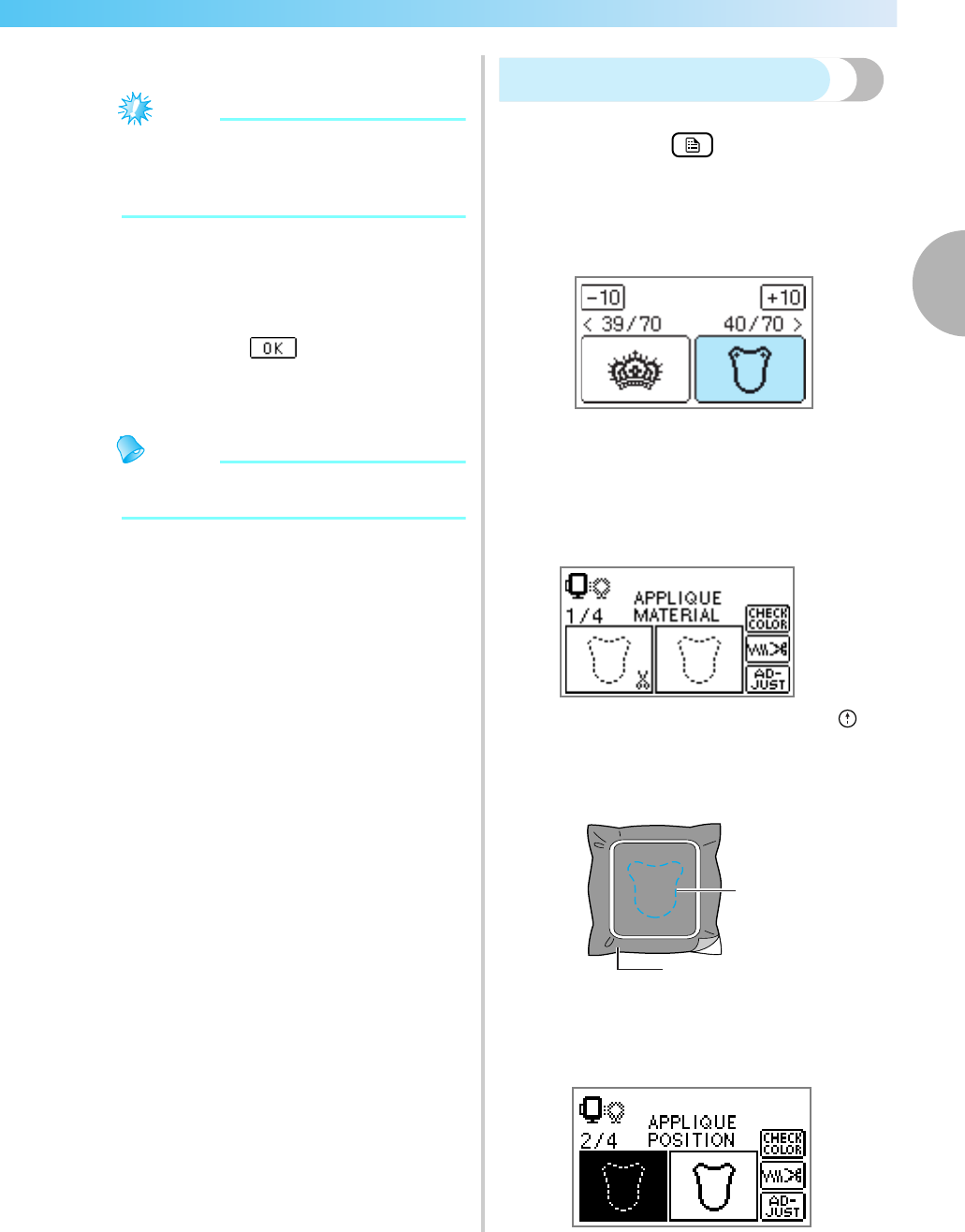
Embroidering 59
2
— — — — — — — — — — — — — — — — — — — — — — — — — — — — — — — — — — — — — — — — — — — — — — — — — — — —
kRemove the upper thread.
Note
zBe sure to raise the presser foot lever before
removing the upper thread. If you remove
the upper thread with the embroidery foot
lowered, it may cause malfunction.
lSet up embroidery thread for the next color,
and repeat steps b through h.
XWhen the last color is embroidered,
"Finished sewing." will appear on the
display. Press , and the display will
return to the initial screen.
mCut the excess thread.
Memo
zFor the programmed thread cutting setting,
refer to "Setting for embroidering" (page 52).
Appliquéing
Prepare the base fabric and the appliqué fabric
(appliqué piece). Press (Settings key), and set
the thread color display to NAME OF COLOR, so
"APPLIQUE MATERIAL", "APPLIQUE POSITION" and
"APPLIQUE" are displayed on the screen.
aSelect an appliqué pattern.
X"APPLIQUE MATERIAL" is displayed on the
screen.
bApply iron-on stabilizer to the back of the
appliqué piece fabric, and stretch it on the
embroidery frame.
cLower the presser foot lever, and press
(Start/stop button).
XThe cut-out for the appliqué piece is sewn,
and the machine stops.
aCut-out line
bAppliqué piece fabric
X"APPLIQUE POSITION" will be displayed on
the screen.
a
b
chapter2 Page 59 Monday, August 18, 2008 8:01 PM
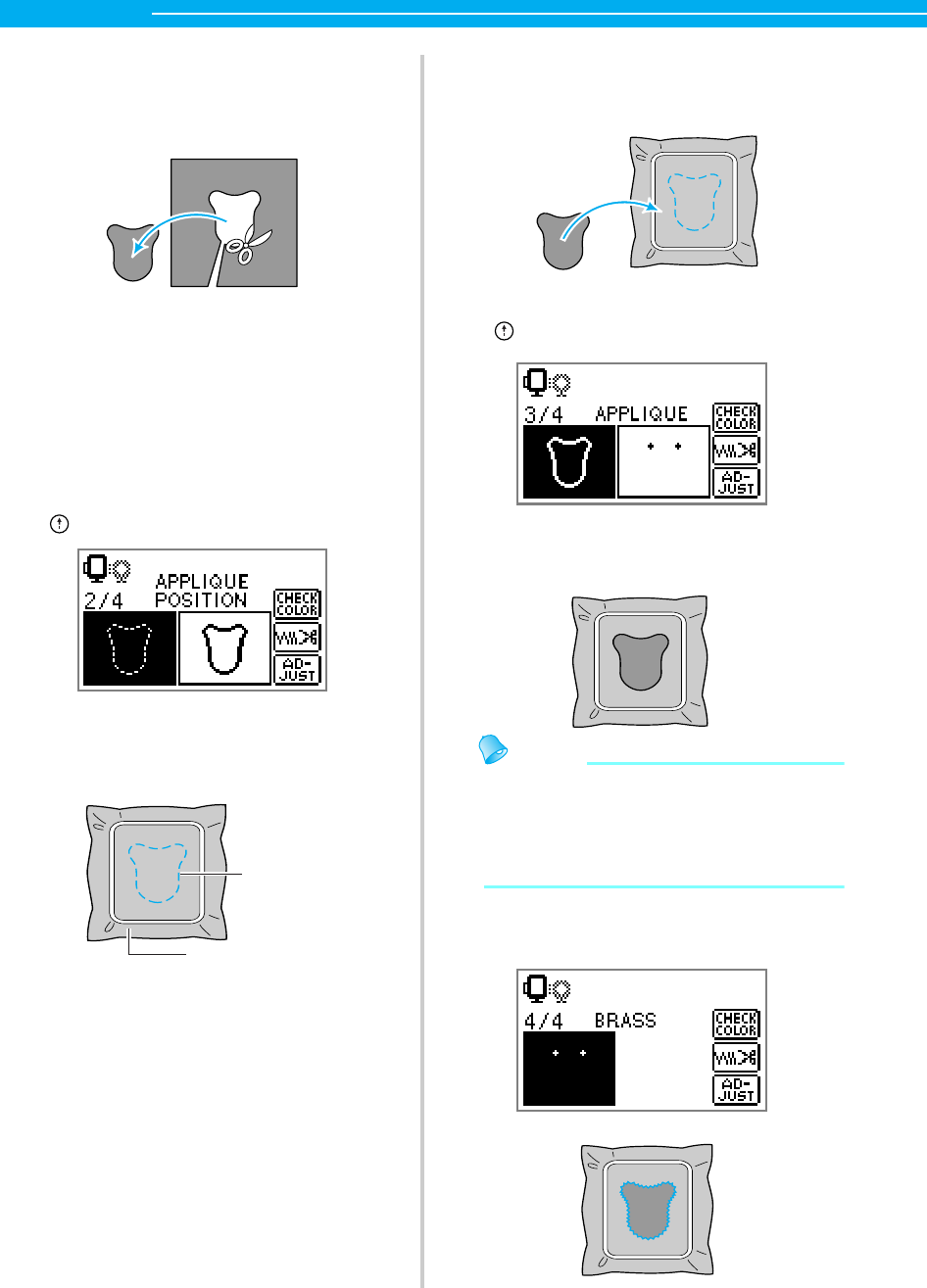
60
EMBROIDERY — — — — — — — — — — — — — — — — — — — — — — — — — — — — — — — — — — — — — — — — — — — — —
dRemove the fabric from the embroidery frame,
and cut it out along the cut-out line.
Cut carefully along the stitching and remove
the thread.
• If it is not cut right on the stitching, it will not
be finished neatly.
eStretch the base fabric on the embroidery
frame.
fSet up the thread for appliquéing.
gLower the presser foot lever, and press
(Start/stop button).
XThe position for the appliqué is stitched, and
the machine stops. "APPLIQUE" will be
displayed on the screen.
aAppliqué position
bBase fabric
hApply a thin layer of fabric glue or spray
adhesive to the back of the appliqué piece, and
attach it in the appliqué position.
iLower the presser foot lever, and press
(Start/stop button).
XThe position for the appliqué is stitched, and
the machine stops.
Memo
zWhen "APPLIQUE MATERIAL", "APPLIQUE
POSITION" and "APPLIQUE" are displayed,
a specific color thread does not appear. Use
a proper color thread to match the appliqué
piece.
jFollow the instructions on the screen, and
change thread colors as you embroider.
a
b
chapter2 Page 60 Monday, August 18, 2008 8:01 PM
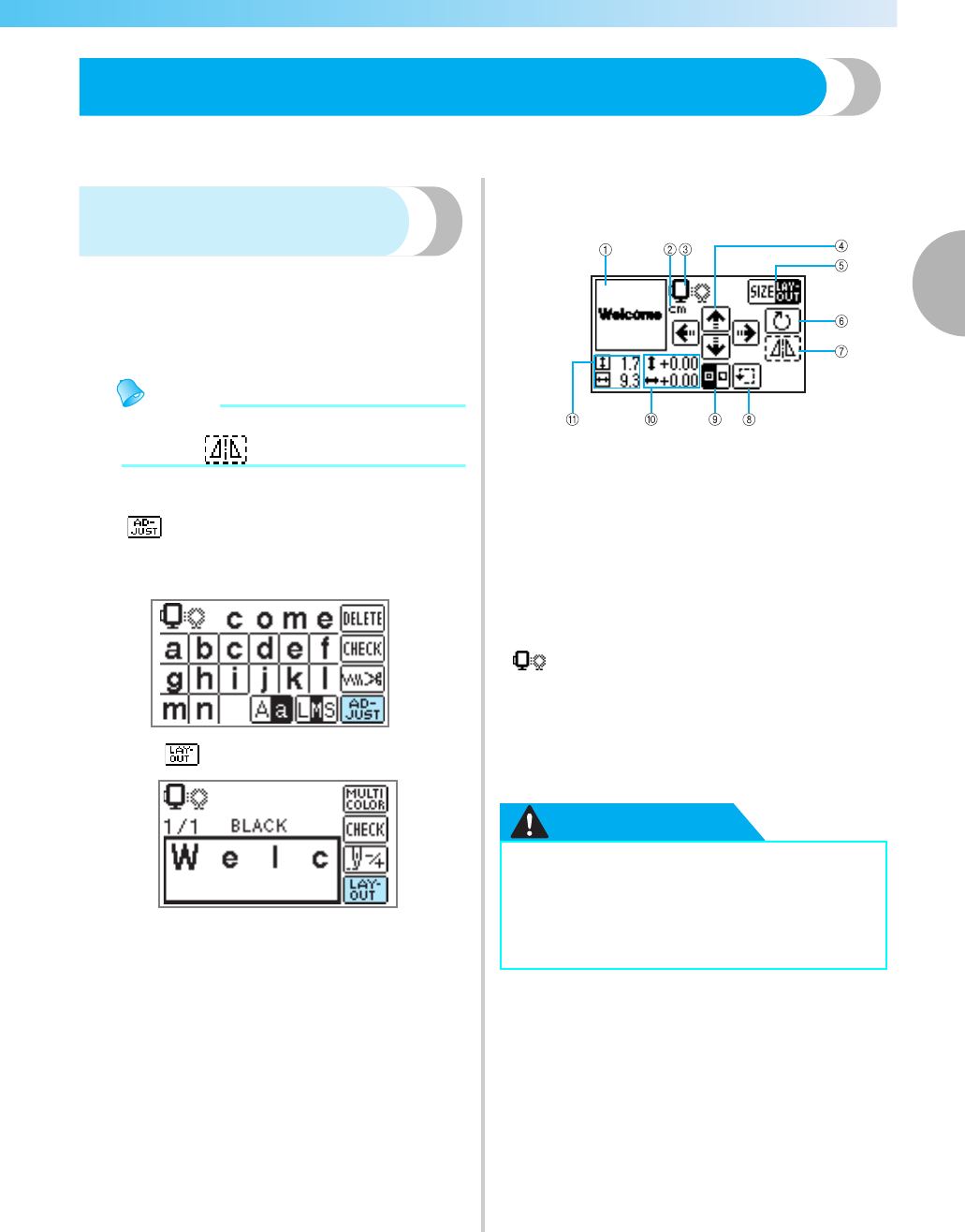
Editing and Saving Patterns 61
2
— — — — — — — — — — — — — — — — — — — — — — — — — — — — — — — — — — — — — — — — — — — — — — — — — — — —
Editing and Saving Patterns
This section describes ways to edit, adjust, reposition and memorize patterns.
Adjusting the layout
and the size
The pattern is normally positioned in the center of the
embroidery frame. You can check the layout before
starting embroidery and change the position and the
size.
Memo
zKeys that appear surrounded with a dotted
line (ex. ) cannot be used.
aAfter selecting the embroidery pattern, press
.
XThe embroidering screen is displayed.
bPress .
XThe layout screen is displayed.
cCheck and adjust the layout.
aLayout within the frame
bDisplay unit (cm/INCH)
cAvailable embroidery frames
dChange position keys
eSize key/Layout key
fRotation key
gHorizontal mirror image key
hTrial key
iStarting point key
jDistance from the center
kEmbroidery size
CAUTION
Embroidery frame size
The size of embroidery frame that can be
used is displayed. When the smaller mark
is grayed out in the display, embroidery
frame (small) cannot be used. These icons
flash if the pattern was resized, the layout
was adjusted, or the recommended
embroidery frame size was changed.
●Use the embroidery frame that matches
the size of the pattern being embroidered.
Otherwise, the embroidery frame may be
hit by the embroidery foot and cause
injury or needle breakage.
chapter2 Page 61 Monday, August 18, 2008 8:01 PM
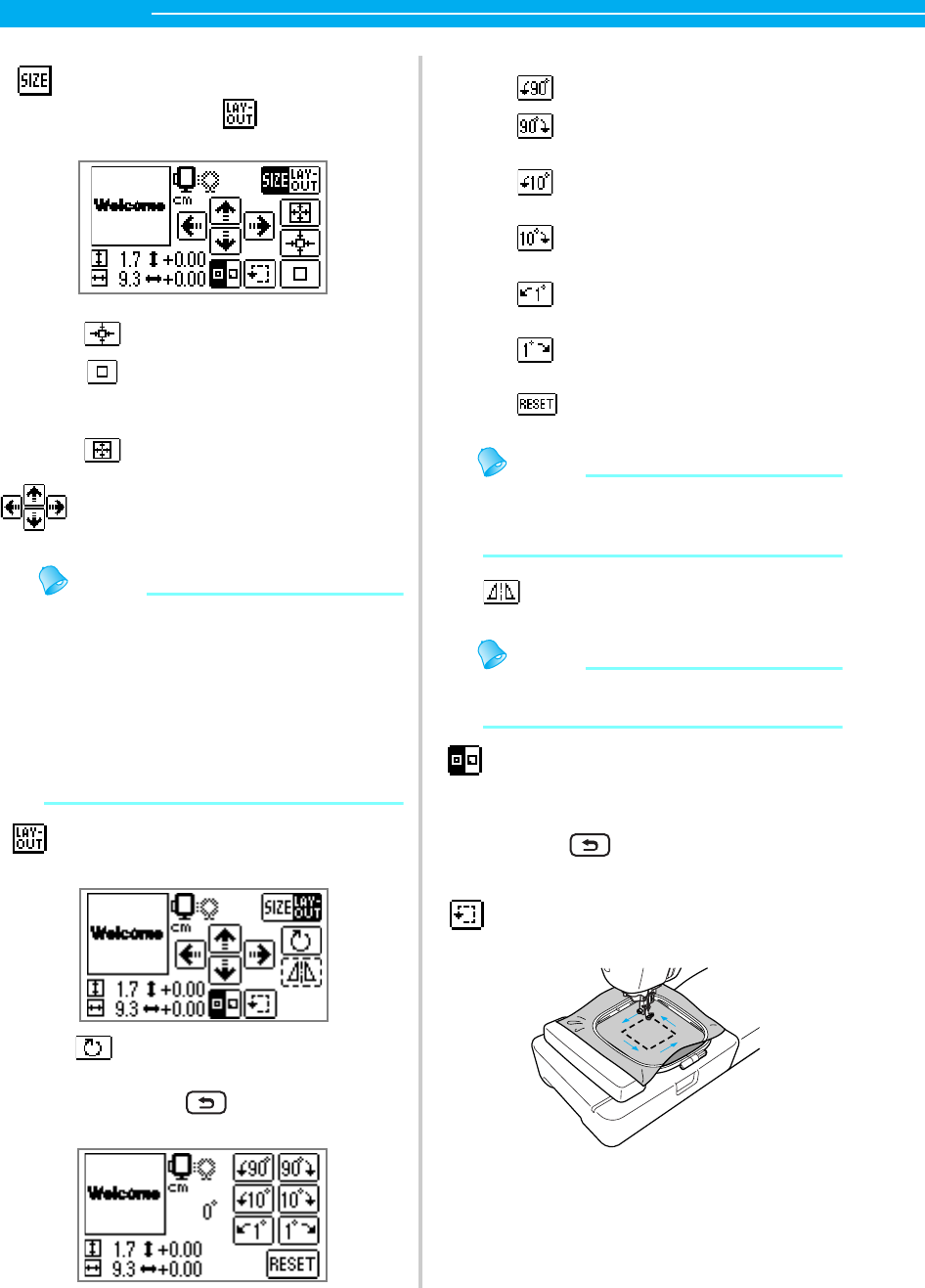
62
EMBROIDERY — — — — — — — — — — — — — — — — — — — — — — — — — — — — — — — — — — — — — — — — — — — — —
Memo
zIf you change the size of the pattern or
reverse it, the embroidery which have been
moved will return to its initial position. Use
the Change position keys after you have
changed the size of the pattern or reversed it.
zThe embroidery patterns you have edited or
adjusted can be saved in the machine’s
memory. For details, refer to "Saving
patterns" (page 70).
Memo
zWhen the pattern is larger than 10cm (4
inches) x 10cm (4 inches), there may be a
case that the pattern cannot be rotated.
Memo
zMirroring patterns is possible only for a
embroidery pattern or a frame pattern.
•Press (Back key) to return to the
previous screen.
Size key
Increases/decreases the size of
the pattern. Press to return
to the previous screen.
Decreases size
Returns to original size. When
the pattern was moved with the
change position keys, it returns to
its original position.
Increases size
Change position keys
Moves the embroidery position up, down,
left and right.
Layout key
Press this key to move to rotation
screen.
Rotation key
Rotates the pattern 1 degree, 10
degrees or 90 degrees at a time.
Press (Back key) to return
to the previous screen.
Rotates the pattern 90 degrees to the left
Rotates the pattern 90 degrees to the right
Rotates the pattern 10 degrees to the left
Rotates the pattern 10 degrees to the right
Rotates the pattern 1 degree to the left
Rotates the pattern 1degree to the right
Returns the pattern to its original positio
n
Horizontal mirror image key
Mirrors the pattern left and right.
Starting point stitching key
Switches the stitching starting
point between center and lower
left of the design.
Trial key
Moves the frame to check the
pattern position.
chapter2 Page 62 Monday, August 18, 2008 8:01 PM
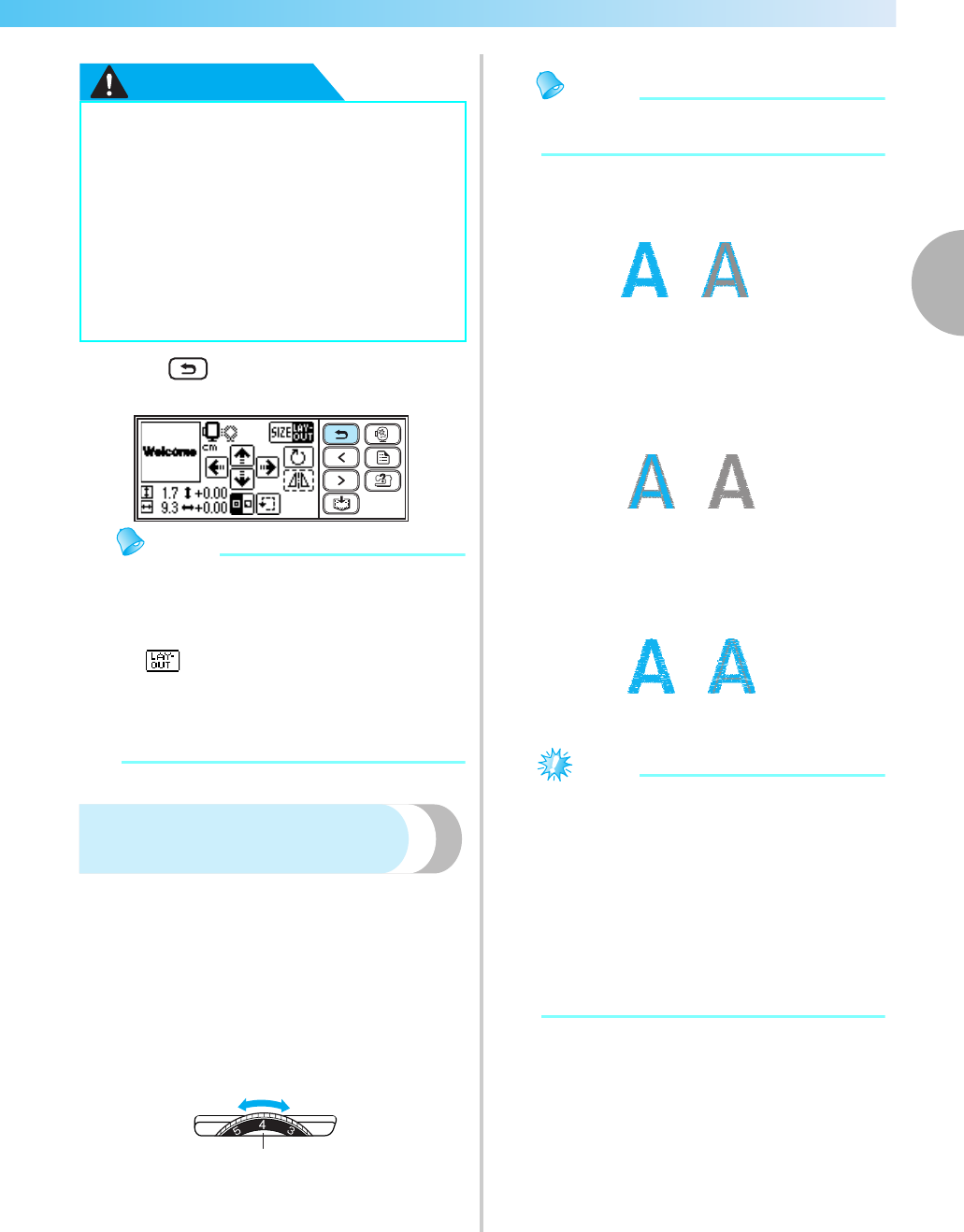
Editing and Saving Patterns 63
2
— — — — — — — — — — — — — — — — — — — — — — — — — — — — — — — — — — — — — — — — — — — — — — — — — — — —
CAUTION
dPress (Back key) to return to the
previous screen.
Memo
zWhen the machine is turned off, the layout
returns to the original setting.
zYou can also check the pattern size and
distance from the center by pressing
after beginning embroidering.
zThe embroidery patterns you have edited or
adjusted can be saved in the machine’s
memory. For details, refer to "Saving
patterns" (page 70).
Adjusting the upper thread
tension
If embroidery fails, it is difficult to undo the thread
and the fabric may be damaged.
Before embroidering, use a scrap of the same fabric
to check the adjustment of the thread tension, etc.
The upper thread tension is changed using the thread
tension dial.
When doing machine embroidery, the tension dial
should be set somewhere between 2 to 6.
aLoose (Decrease thread tension)
bTight (Increase thread tension)
cUpper thread tension dial
Memo
zIf the stitches appear loose, turn the tension
up one notch and resew.
■Correct thread tension
The thread tension is correct when upper thread
slightly appears on the wrong side of fabric.
aRight side of fabric
bWrong side of fabric
■Upper thread is too tight
The lower thread will be visible on the right side of
fabric. If this occurs, decrease the upper thread
tension.
aRight side of fabric
bWrong side of fabric
■Upper thread is too loose
The upper thread has slack. If this occurs, increase
the upper thread tension.
aRight side of fabric
bWrong side of fabric
Note
zIf the upper thread is not threaded correctly
or the bobbin is not installed correctly, it
may not be possible to set the correct thread
tension. If the correct thread tension cannot
be achieved, rethread the upper thread and
insert the bobbin correctly.
zIf the tension dial is set extremely low, the
machine may stop stitching during
embroidering. This is not a sign that
anything's broken. Simply increase the
tension slightly to continue embroidering.
●Never lower the needle when the
embroidery frame is moving. The needle
may break or bend.
●When you have revised the pattern, check
the display of available embroidery
frames and use an appropriate frame. If
you use an embroidery frame not
displayed as available for use, the
embroidery foot may strike the frame and
possibly cause injury.
b
a
c
ab
ab
ab
chapter2 Page 63 Monday, August 18, 2008 8:01 PM
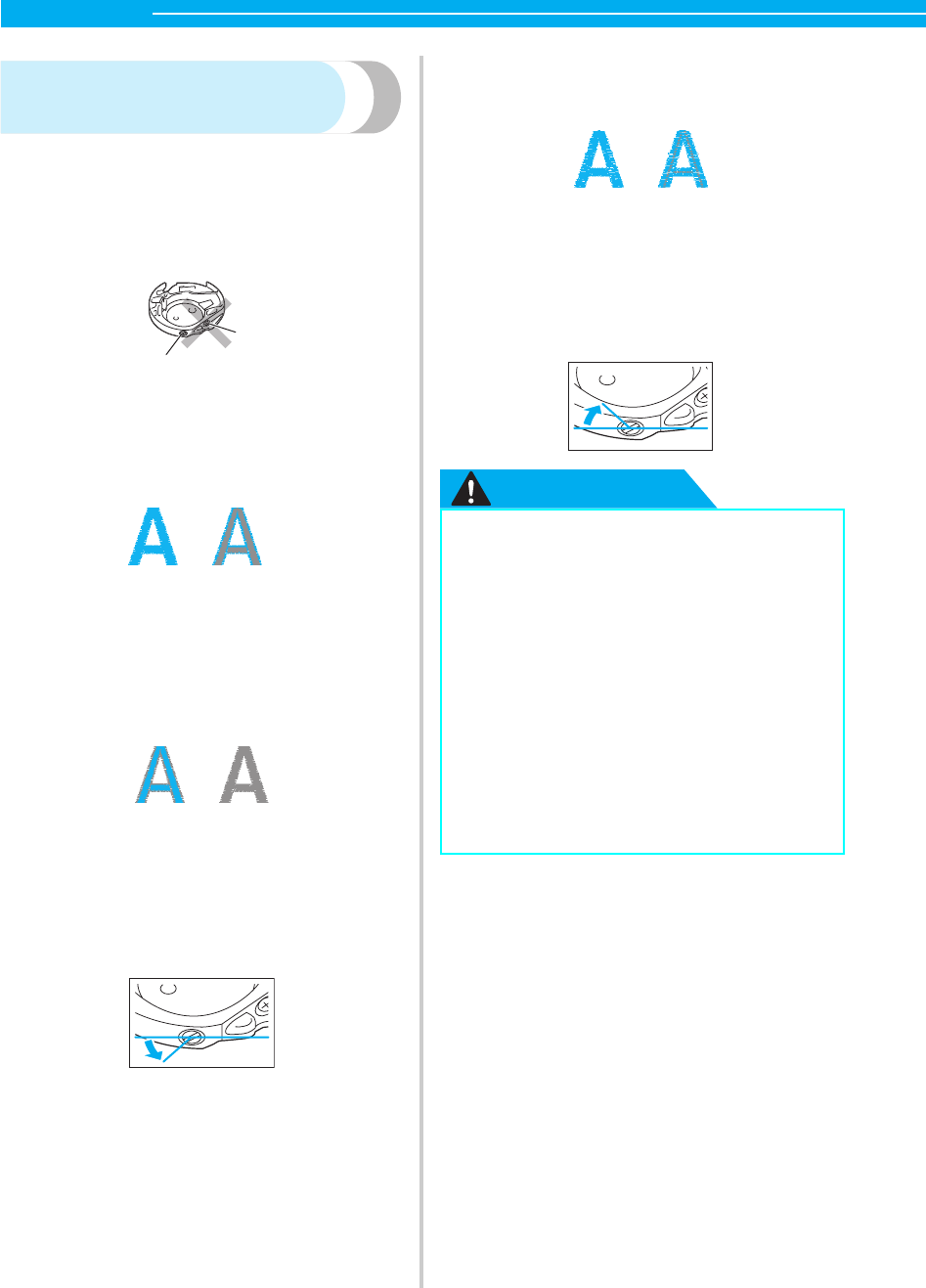
64
EMBROIDERY — — — — — — — — — — — — — — — — — — — — — — — — — — — — — — — — — — — — — — — — — — — — —
Adjusting the bobbin thread
tension
The bobbin case installed in this machine can be
adjusted, if necessary, to accommodate the bobbin
tension for embroidering.
Using a small slotted screwdriver, turn the slotted-
head (-) screw to adjust the bobbin case tension.
aDo not turn a phillips screw (+).
bAdjust with a screwdriver (small).
■Correct thread tension
The thread tension is correct when upper thread
slightly appears on the wrong side of fabric.
aRight side of fabric
bWrong side of fabric
■Bobbin thread is too tight
Upper thread on the right side of fabric seems to
be lifting/looping and bobbin thread is not seen on
the wrong side of fabric.
aRight side of fabric
bWrong side of fabric
If this occurs, turn the slotted-head screw (-)
counterclockwise being careful not to over-loosen
the screw, approximately 30-45 degrees to
decrease bobbin tension.
■Bobbin thread is too loose
Bobbin thread appears slightly on the right side of
fabric.
aRight side of fabric
bWrong side of fabric
If this occurs, turn the slotted-head screw (-)
clockwise, being careful not to over-tighten the
screw, approximately 30-45 degrees to increase
bobbin tension.
CAUTION
1
2
ab
ab
●When adjusting the bobbin case, be sure
to remove the bobbin from the bobbin
case.
●DO NOT adjust the position of the
Phillips (+) screw on the bobbin case as
this may result in damage to the bobbin
case, rendering it unusable.
●If the slotted-head screw (-) is difficult to
turn, do not use force. Turning the screw
too much or providing force in either
(rotational) direction may cause damage
to the bobbin case. Should damage occur,
the bobbin case may not maintain proper
tension.
ab
chapter2 Page 64 Monday, August 18, 2008 8:01 PM
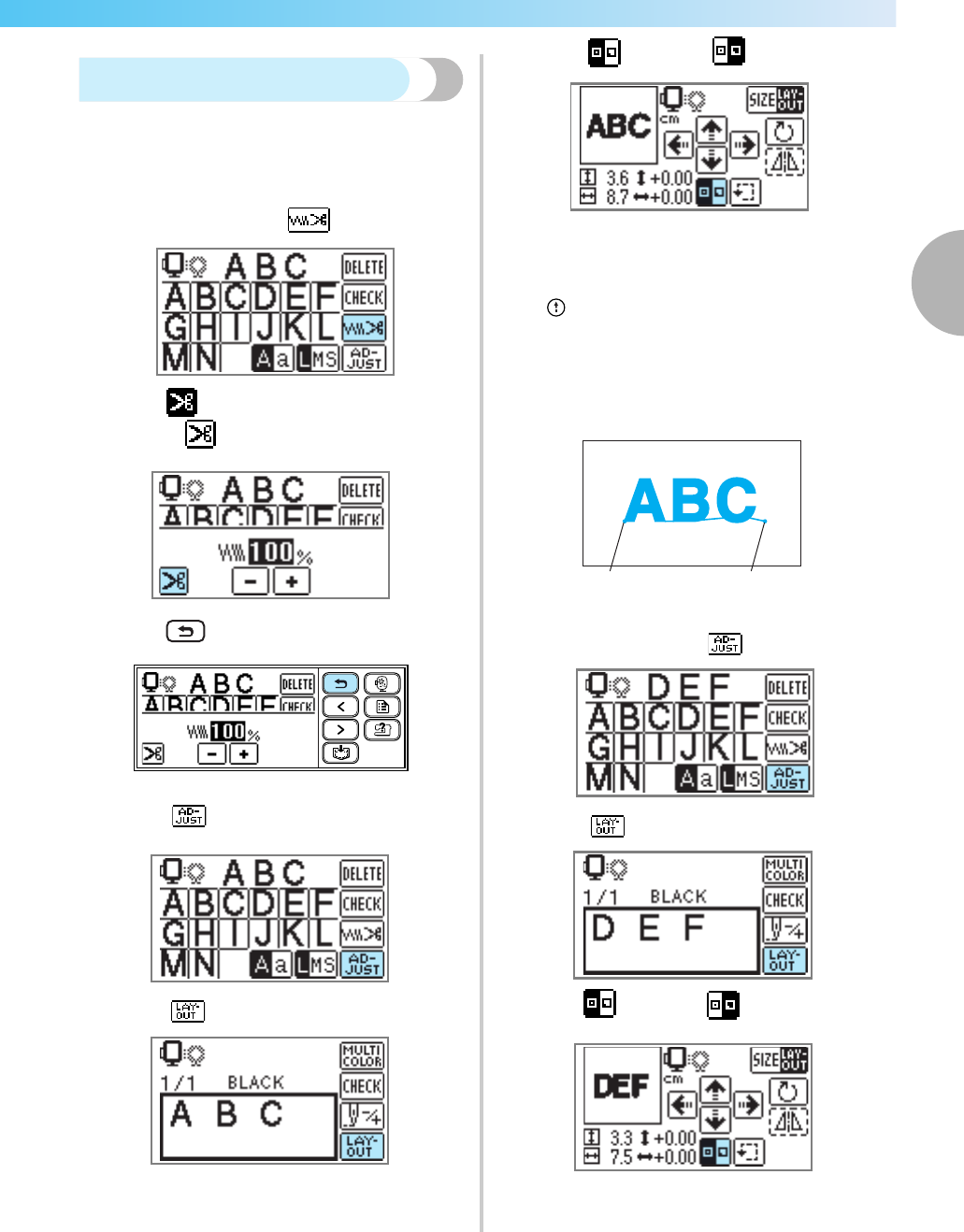
Editing and Saving Patterns 65
2
— — — — — — — — — — — — — — — — — — — — — — — — — — — — — — — — — — — — — — — — — — — — — — — — — — — —
Connecting character patterns
If the character pattern is too long to fit in the
embroidery frame, follow the steps below.
Example: Connecting "ABC" with "DEF"
aEnter "ABC" and press .
bPress to turn off the programmed thread
cutting ( ).
cPress (Back key).
d Press .
e Press .
f Press to turn it to .
XThe stitching starting point is set to lower left
of the design.
gLower the embroidery foot, and then press
(Start/stop switch) to begin embroidering.
h
When embroidering is finished, trim the thread
leaving the end of the thread longer than usual.
Then reset the fabric in the embroidery frame,
in a position where you can embroider "DEF".
aEmbroidery start position
bEmbroidery end position
iEnter "DEF" and press .
j Press .
kPress to turn it to .
XThe stitching starting point is set to lower left
of the design.
ab
chapter2 Page 65 Monday, August 18, 2008 8:01 PM
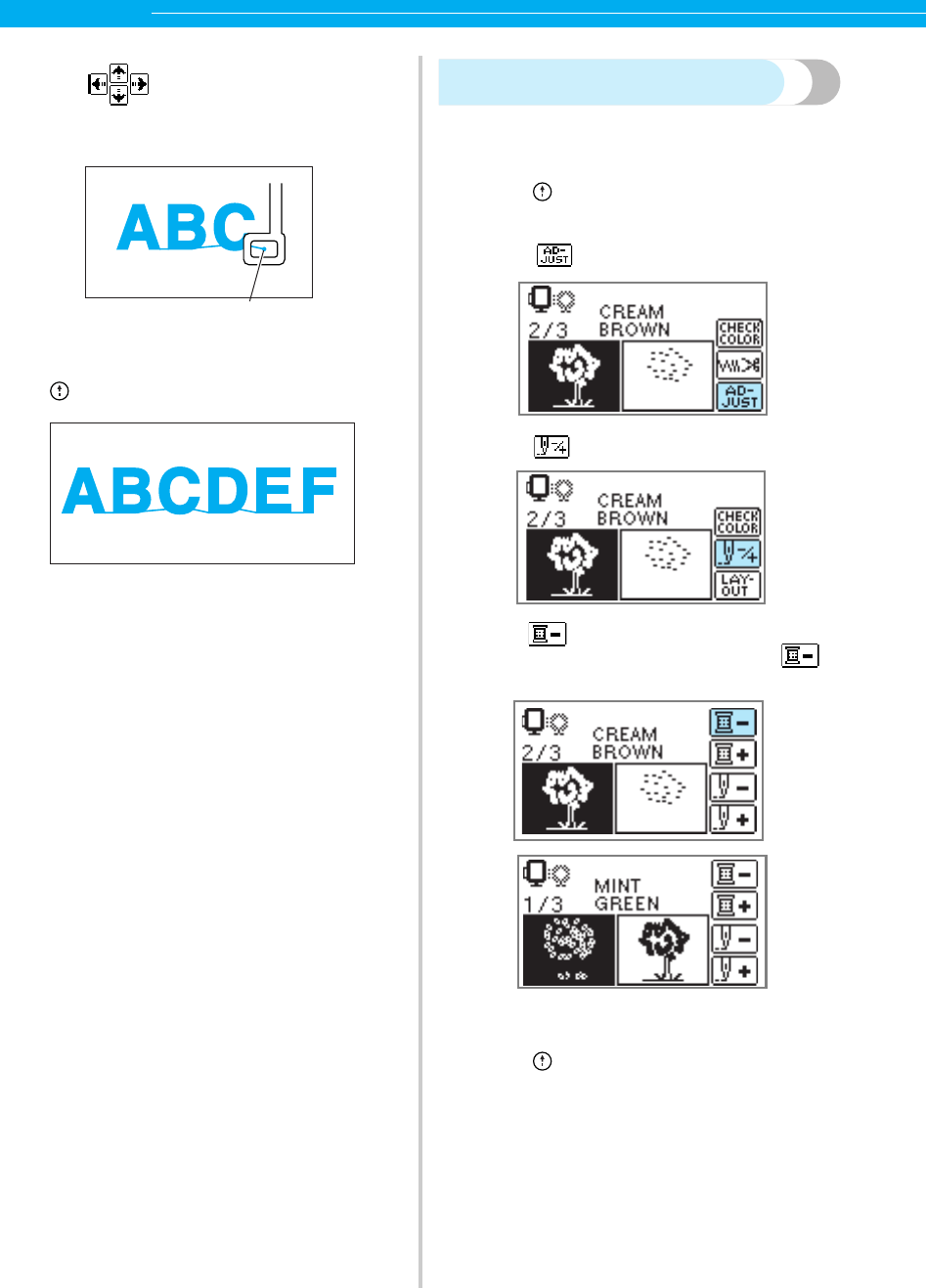
66
EMBROIDERY — — — — — — — — — — — — — — — — — — — — — — — — — — — — — — — — — — — — — — — — — — — — —
l Use (change position keys) to move
the needle to the embroidery end position of
"ABC".
aEmbroidery end position
mLower the embroidery foot, and then press
(Start/Stop button) to embroider "DEF".
nWhen you have finished embroidering, cut the
thread.
Resewing
When the wrong upper thread color has been sewn,
it can be resewn with the correct color.
aPress (Start/stop button) to stop the
machine.
b Press .
c Press .
dPress (Back one color) to return to the
beginning of the mistaken color. Press
one more time to go to previous color.
eSet up the correct color for the upper thread.
fPress (Start/stop button) to continue the
design.
a
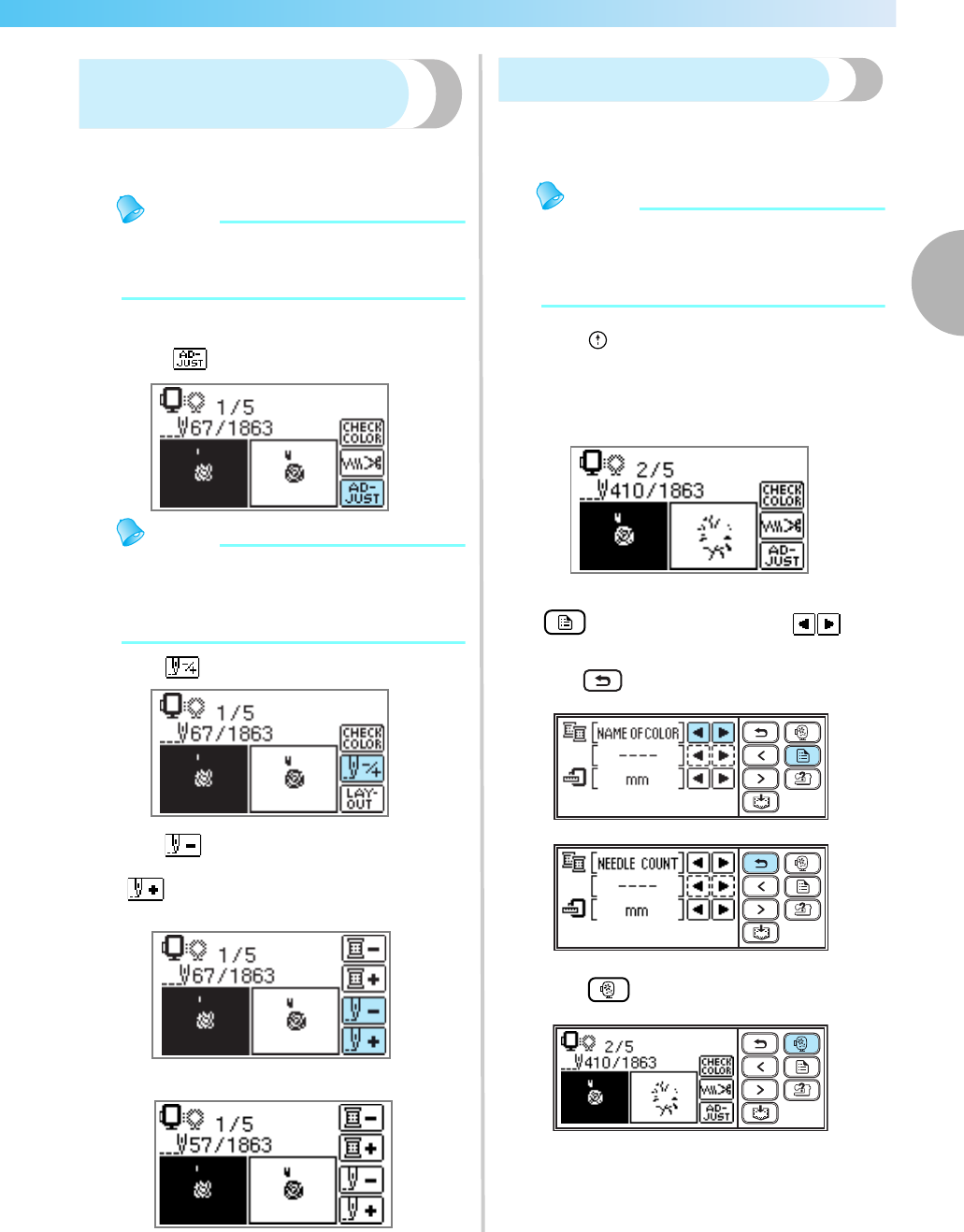
Editing and Saving Patterns 67
2
— — — — — — — — — — — — — — — — — — — — — — — — — — — — — — — — — — — — — — — — — — — — — — — — — — — —
Thread runs out partway
through a design
When the upper thread or the bobbin thread runs out while
embroidering, the machine stops. Move the needle back
about 10 stitches and resume embroidering
.
Memo
zWhen the bobbin thread runs out, cut the
threads and remove the embroidery frame
before replacing the bobbin thread.
aSet the upper thread or bobbin thread.
b Press .
Memo
zIf the needle count is not displayed, display
the needle count on the screen. For details,
refer to "Stopping while embroidering" (page
67).
cPress .
dPress (Back one stitch) to move the
needle back about 10 stitches.
(Forward one stitch) increases the stitch
number.
eRestart the embroidery.
Stopping while embroidering
If the embroidery is stopped before it is complete,
check the current needle count and layout before
turning off the machine.
Memo
zWhen the machine is turned off, the
embroidery size and layout return to the
original setting. If you have changed the
layout, you need to adjust it again.
aPress (Start/stop button) to stop the
machine.
bCheck the current needle count on the screen
and make a note of it.
If the needle count is not displayed, press
(Settings key), and then use to
display the following screen.
Press to return to the previous screen.
cPress (Embroidery key).
XThe confirmation message is displayed.
chapter2 Page 67 Monday, August 18, 2008 8:01 PM
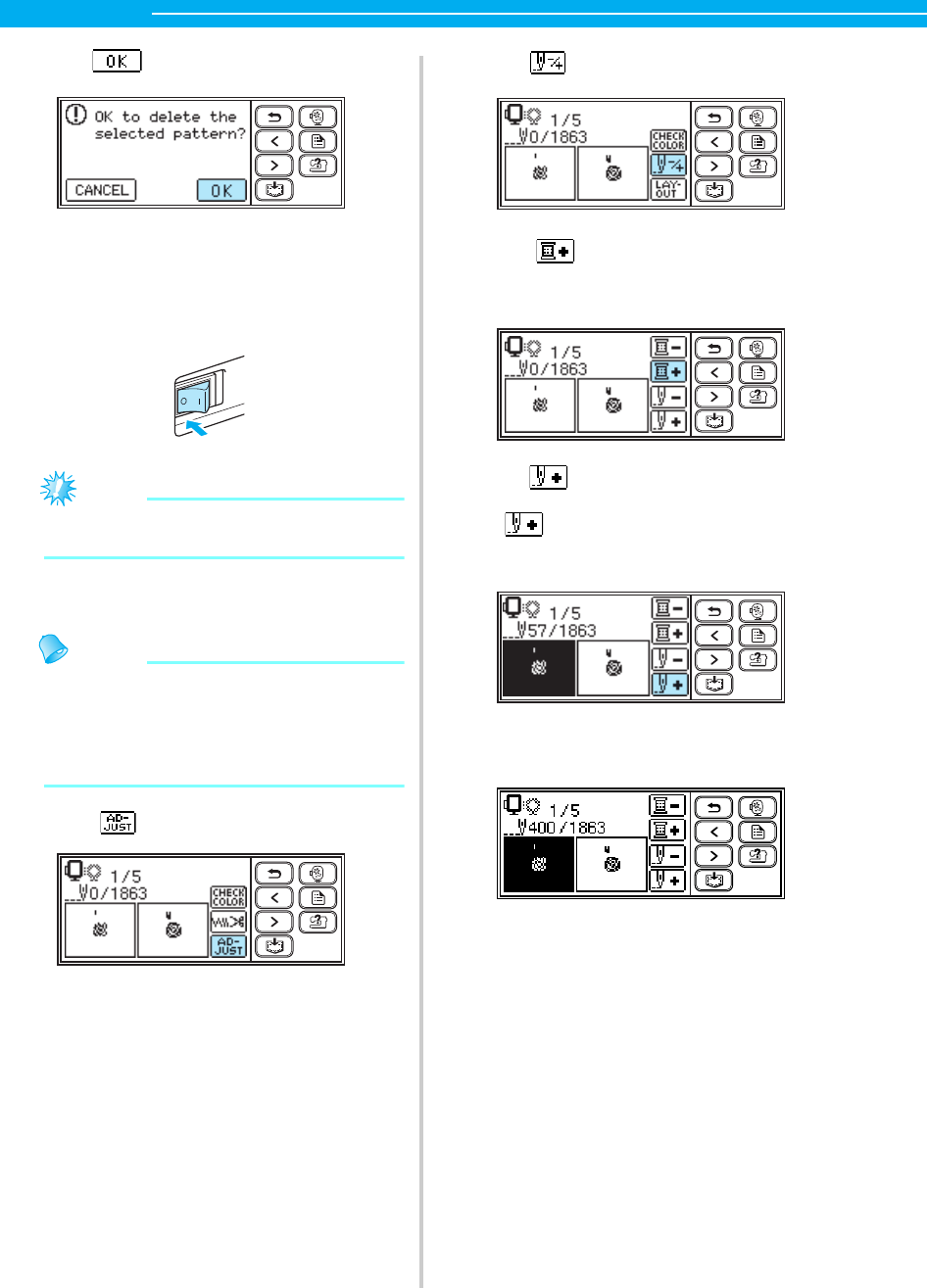
68
EMBROIDERY — — — — — — — — — — — — — — — — — — — — — — — — — — — — — — — — — — — — — — — — — — — — —
dPress .
XThe selected pattern is deleted, and the
screen for selecting the embroidery pattern
type is displayed.
eTurn off the machine.
Note
zAlways remove the embroidery unit when
you move the machine.
fTurn on the machine, and then select the
pattern.
Memo
zIf you have changed the embroidery size
and/or layout before turning off the machine,
make the same setting changes again before
restarting embroidering. For details, refer to
"Adjusting the layout and the size" (page 61).
g Press .
hPress .
i Press (Forward one color) to move to
the beginning of the color you want to
embroider.
jPress (Forward one stitch) to increase
the needle count.
If is pressed continuously, it moves
forward 1 —> 9 —>30 stitches.
Move forward to about 10 stitches before the
total number of stitches confirmed in b.
kRestart the embroidery.
chapter2 Page 68 Monday, August 18, 2008 8:01 PM

Using the Memory Function 69
2
— — — — — — — — — — — — — — — — — — — — — — — — — — — — — — — — — — — — — — — — — — — — — — — — — — — —
Using the Memory Function
Embroidery data precautions
Observe the following precautions when using embroidery data other than that created and saved in this
machine.
CAUTION
■Types of Embroidery Data that can be Used
• Only .pes and .dst embroidery data files can be used with this machine. Using data other than that saved
using our data design systems or machines may cause the embroidery machine to malfunction.
■Computers and Operating Systems with the Following Specifications can be Used
• Compatible models:
IBM PC with a USB port as standard equipment
IBM PC-compatible computer equipped with a USB port as standard equipment
• Compatible operating systems:
Microsoft Windows Me/Windows 2000/Windows XP/Windows Vista/Windows 7
(Windows 98SE requires a driver. Download the driver from our web site “ http://solutions.brother.com ”.)
■Precautions on Using the Computer to Create and Save Data
• If the file name of embroidery data cannot be identified, for example, because the name contains special
characters, the file is not displayed. If this occurs, change the name of the file. We recommend using the
26 letters of the alphabet (uppercase and lowercase), the numbers 0 through 9, “-”, and “_”.
• .pes files saved with the number of stitches, the number of colors and the number of combined patterns
exceeding the specified limits cannot be displayed. Use one of our original data design systems to edit the
embroidery pattern so that it meets the specifications.
• Do not create folders in “Removable Disk” on a computer. If embroidery data is saved in a folder in
“Removable Disk”, that embroidery data cannot be retrieved by the machine.
• Even if the embroidery unit is not attached, the machine will manage embroidery data.
■Tajima (.dst) Embroidery Data
• .dst data is displayed in the pattern list screen by file name (the actual image cannot be displayed). Only
the first eight characters of the file name can be displayed.
• Since Tajima (.dst) data does not contain specific thread color information, it is displayed with our default
thread color sequence. Check the preview and change the thread colors as desired.
■Trademarks
• IBM is a registered trademark or a trademark of International Business Machines Corporation.
• Microsoft and Windows are registered trademarks or trademarks of Microsoft Corporation.
Each company whose software title is mentioned in this manual has a Software License Agreement specific
to its proprietary programs.
All other brands and product names mentioned in this manual are registered trademarks of their respective
companies. However, the explanations for markings such as
®
and
™
are not clearly described within the text.
●When using embroidery data other than our original patterns, the thread or needle may break
when sewing with a stitch density that is too fine or when sewing three or more overlapping
stitches. In that case, use one of our original data design systems to edit the embroidery data.
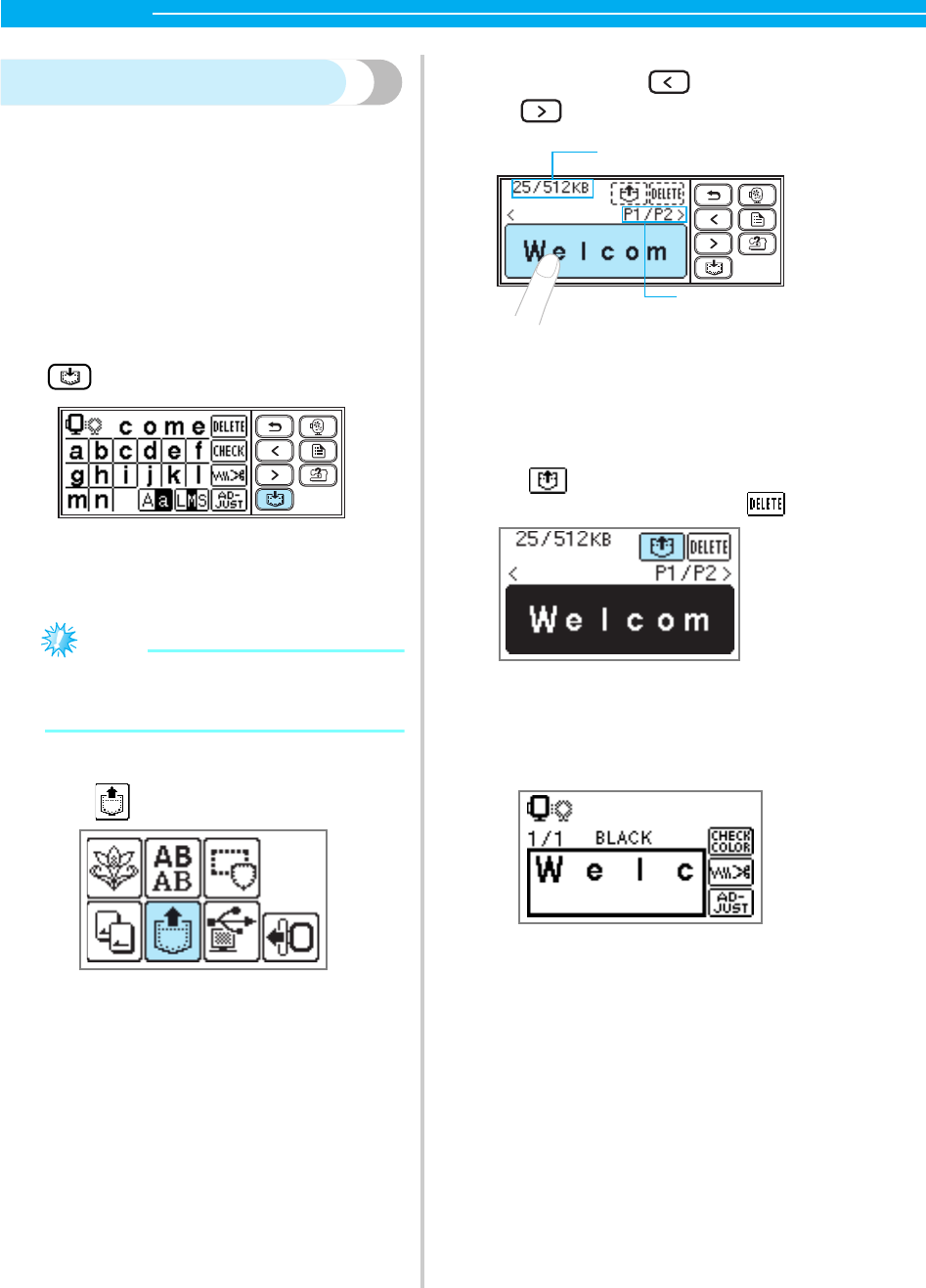
70
EMBROIDERY — — — — — — — — — — — — — — — — — — — — — — — — — — — — — — — — — — — — — — — — — — — — —
Saving patterns
The embroidery patterns and the alphanumeric
characters you have customized can be saved in the
machine's memory.
Since the saved patterns will not be erased when the
power is turned off, you can always retrieve them for
embroidery. This is convenient for saving names and
the like. You can save up to 12 patterns or 512KB of
data.
■Saving a pattern
aAfter selecting the pattern to be saved, press
(Memory key).
X"Saving..." appears while the pattern is being
saved. After the pattern is saved, the initial
screen appears again.
Note
zDo not turn off the machine while the
pattern is being saved, otherwise the pattern
data may be lost.
■Retrieving a pattern
aPress (Retrieve key).
XThe saved patterns are displayed.
bSelect the pattern you wish to retrieve.
Switch screens using (Previous page key)
and (Next page key).
aTotal amount of memory used/Total amount of
memory space
bNumber of the currently displayed page from the
total number of pages
XThe selected pattern is shown in reverse
highlighting.
cPress .
To delete the saved pattern, press .
XThe saved pattern is retrieved.
XThe embroidery screen appears, and you
can embroider the retrieved pattern.
a
b
chapter2 Page 70 Monday, August 18, 2008 8:01 PM
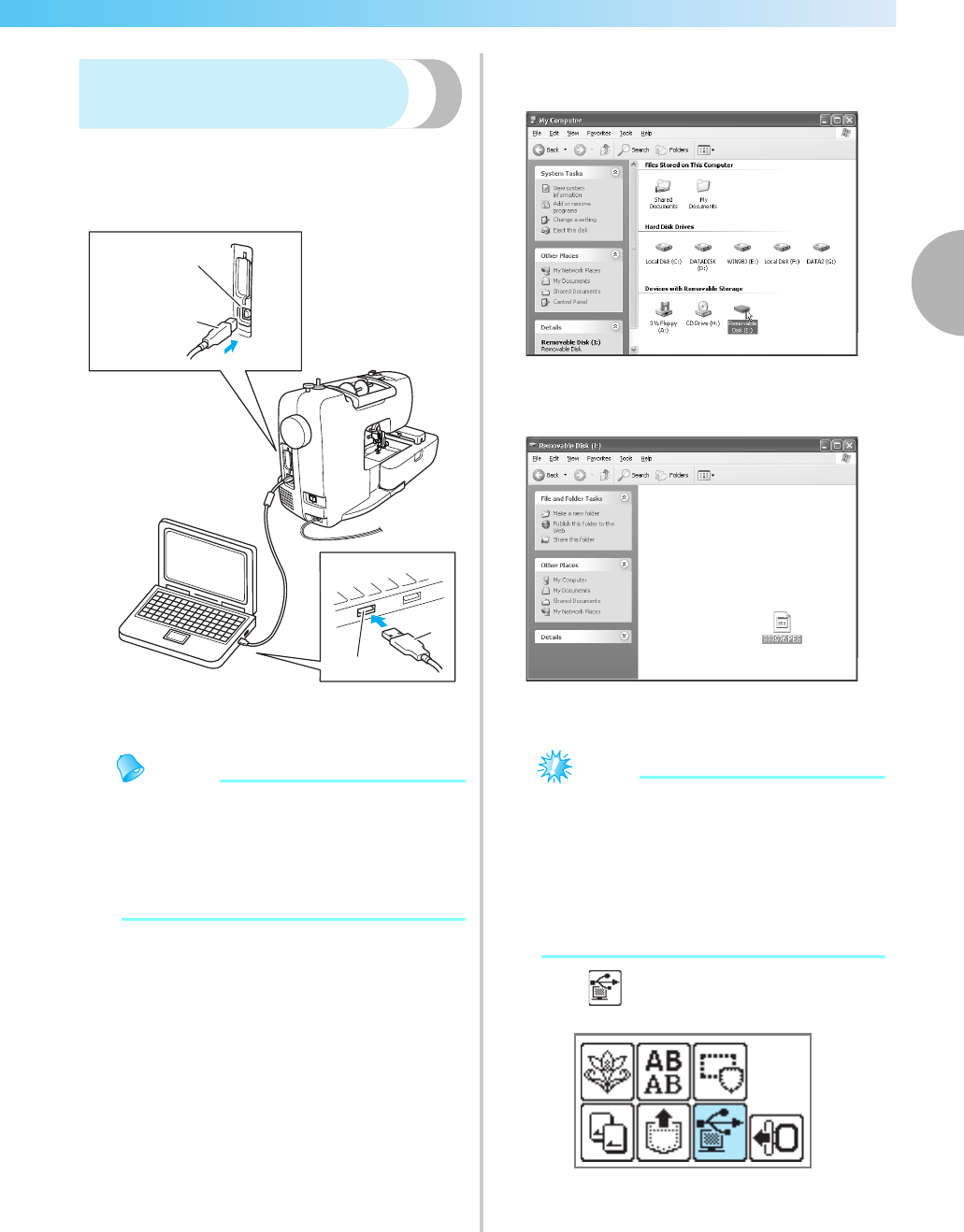
Using the Memory Function 71
2
— — — — — — — — — — — — — — — — — — — — — — — — — — — — — — — — — — — — — — — — — — — — — — — — — — — —
Retrieving embroidery
patterns from the computer
aPlug the USB cable connectors into the
corresponding USB port connectors on the
computer and on the machine.
aUSB port connector for computer
bUSB cable connector
Memo
zThe USB cable can be plugged into the USB
port connectors on the computer and
machine whether or not they are turned on.
zEmbroidery patterns can be retrieved with or
without the embroidery unit attached to the
machine.
bThe "Removable Disk" icon appears in "My
Computer" on the computer.
cCopy the pattern data to “Removable Disk”.
XPattern data in “Removable Disk” is written
to the machine.
Note
zWhile data is being written, do not
disconnect the USB cable.
z
Do not create folders within “Removable
Disk”. Since folders are not displayed, pattern
data within folders cannot be retrieved.
z
While the machine is embroidering, do not
write data to or delete data from “Removable
Disk”.
dPress .
XThe saved patterns are displayed.
a
b
a
b
chapter2 Page 71 Monday, August 18, 2008 8:01 PM
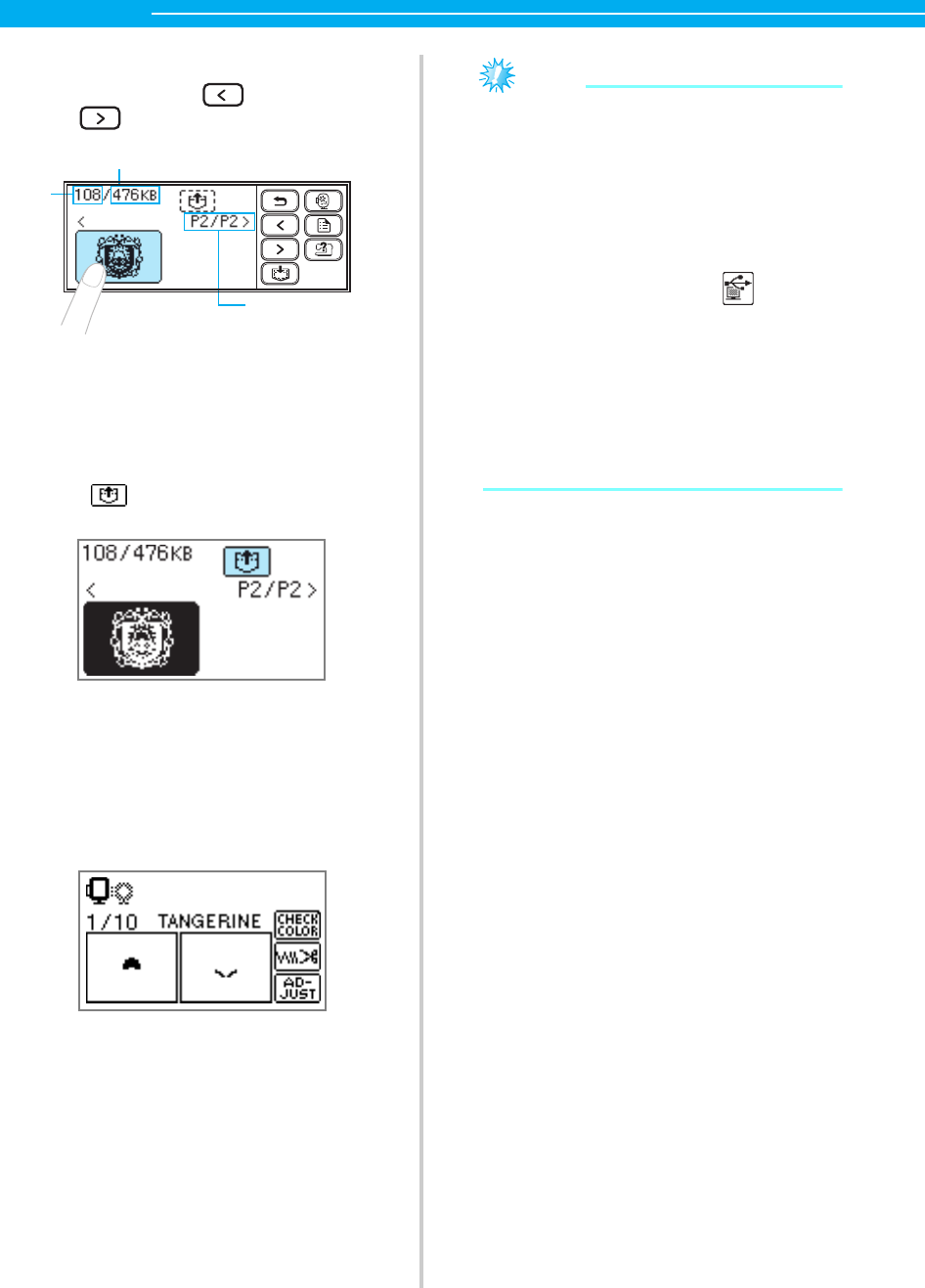
72
EMBROIDERY — — — — — — — — — — — — — — — — — — — — — — — — — — — — — — — — — — — — — — — — — — — — —
eSelect the pattern you wish to retrieve.
Switch screens using (Previous page key)
and (Next page key).
aTotal amount of memory used
bTotal amount of memory space
cNumber of the currently displayed page from the
total number of pages
XThe selected pattern is shown in reverse
highlighting.
fPress .
XThe saved pattern is retrieved.
XThe embroidery screen appears, and you
can embroider the retrieved pattern.
gAdjust the pattern as desired, and then begin
embroidering.
Note
zIf there are 13 or more patterns saved in
“Removable Disk”, the patterns cannot be
displayed. When the message “Reduce the
number of patterns. Only up to 12 patterns
can be handled.” appears, delete patterns
from “Removable Disk” so that it contains
no more than 12 patterns. Then, close the
error message, repeat the procedure starting
from step d and then press to retrieve
the pattern.
zIf patterns copied to “Removable Disk” are
not saved in the machine's memory, their
data is lost when the machine is turned off.
In order to retrieve patterns directly from the
machine the next time that they are needed,
save the data in the machine's memory
before turning off the machine. For details,
refer to “Saving patterns” (page 70).
a
b
c
chapter2 Page 72 Monday, August 18, 2008 8:01 PM

3 APPENDIX
The various maintenance and troubleshooting procedures are described in this chapter.
Care and Maintenance ............................................................................................74
Attaching the Embroidery Foot................................................................................76
Troubleshooting ......................................................................................................78
Upgrading Your Machine's Software.......................................................................86
Index .......................................................................................................................87
appendix1 Page 73 Monday, August 18, 2008 8:08 PM
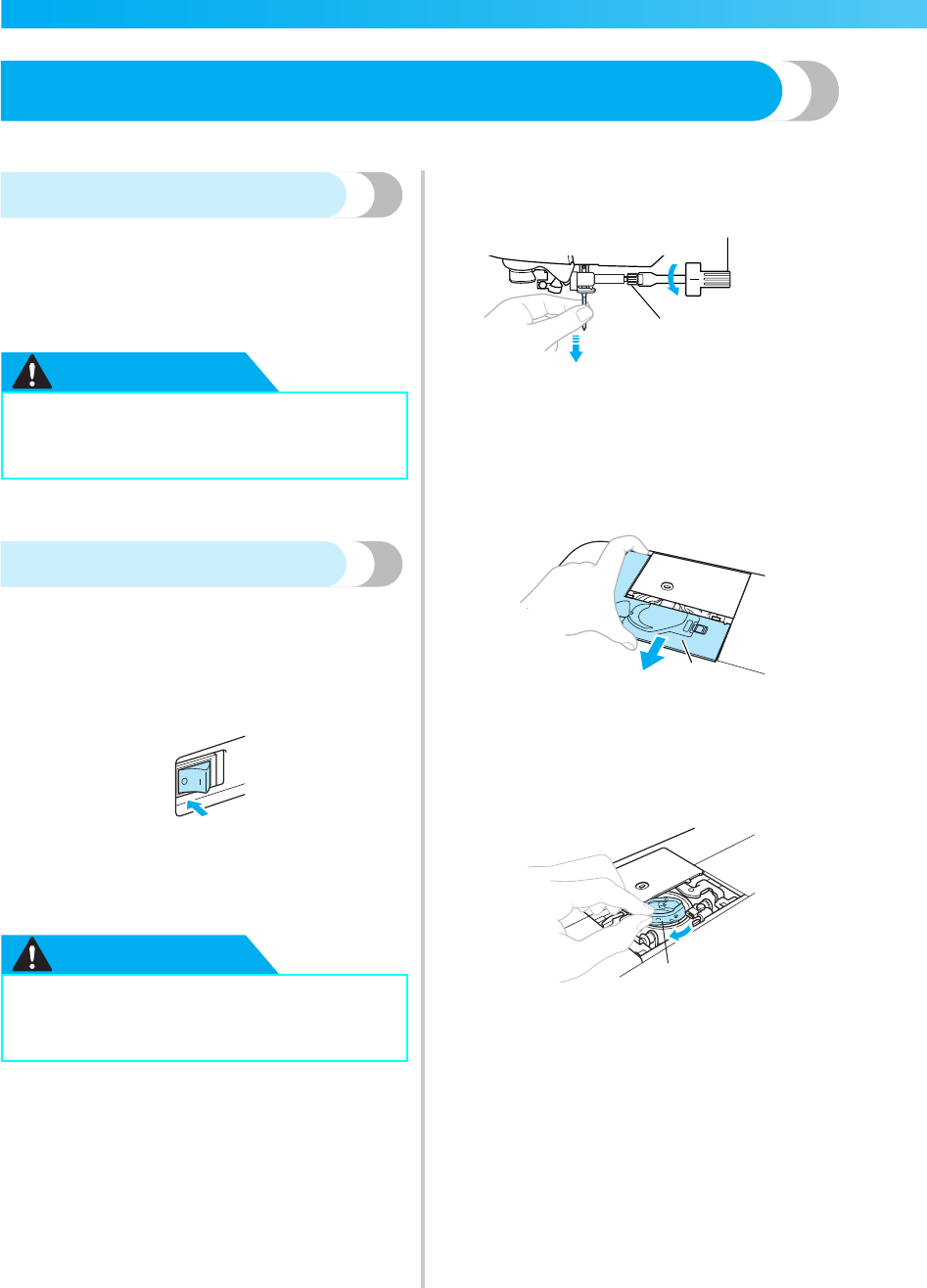
74
APPENDIX — — — — — — — — — — — — — — — — — — — — — — — — — — — — — — — — — — — — — — — — — — — — — —
Care and Maintenance
Simple machine maintenance operations are described below.
Cleaning the machine surface
If the surface of the machine is dirty, lightly soak a
cloth in neutral detergent, squeeze it out firmly, and
then wipe the surface of the machine. After cleaning
it once with a damp cloth, wipe it again with a dry
cloth.
CAUTION
Cleaning the race
Embroidery performance will suffer if dust collects in
the bobbin case. Therefore, it should be cleaned
periodically.
aTurn off the machine.
bUnplug the power supply cord from the power
supply jack on the right side of the machine.
CAUTION
cRemove the embroidery unit.
dLoosen the needle clamp screw and remove
the needle (page 28).
aScrewdriver
bNeedle clamp screw
eGrasp both sides of the needle plate cover, and
then slide it toward you.
aNeedle plate cover
XThe needle plate cover is removed.
fRemove the bobbin case.
Grasp the bobbin case, and then pull it out.
aBobbin case
●Unplug the power supply cord before
cleaning the machine. Otherwise, injuries
or an electric shock may occur.
●Unplug the power supply cord before
cleaning the machine. Otherwise, injuries
or an electric shock may occur.
a
b
a
a
appendix1 Page 74 Monday, August 18, 2008 8:08 PM
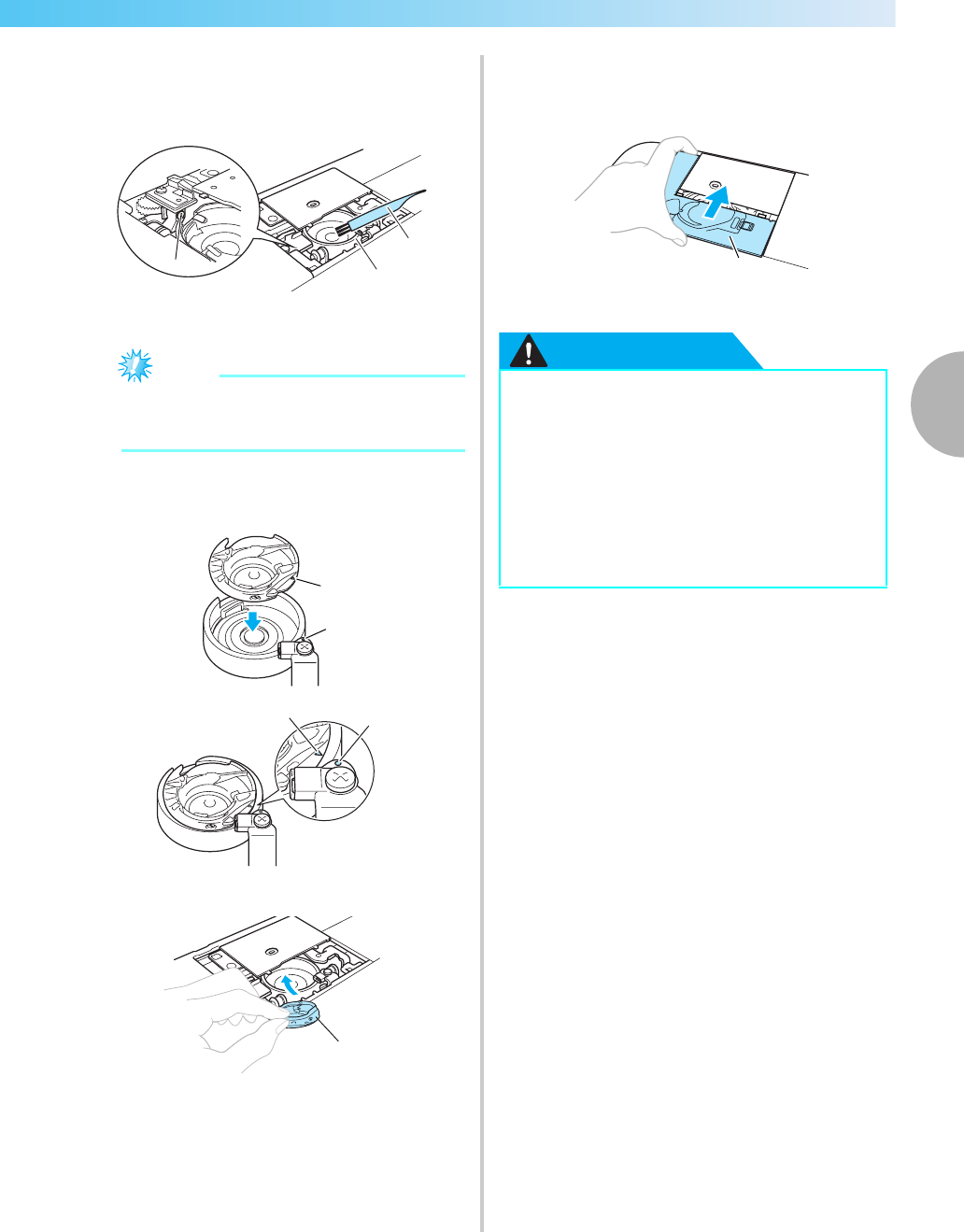
Care and Maintenance 75
3
— — — — — — — — — — — — — — — — — — — — — — — — — — — — — — — — — — — — — — — — — — — — — — — — — — — —
gUse the cleaning brush or a vacuum cleaner to
remove any lint and dust from the race and
bobbin thread sensor and their surrounding
area.
aCleaning brush
bRace
cBobbin thread sensor
Note
zDo not apply oil to the bobbin case.
zIf lint or dust collects on the bobbin thread
sensor, the sensor may not operate correctly.
hInsert the bobbin case so that the U mark on
the bobbin case aligns with the { mark on the
race.
• Align the U and { marks.
aU mark
b{ mark
cBobbin case
• Make sure that the indicated points are
aligned before installing the bobbin case.
iInsert the tabs on the needle plate cover into
the needle plate, and then slide the cover back
on.
aNeedle plate cover
CAUTION
a
b
c
a
b
b
a
c
●Never use a bobbin case that is scratched.
Otherwise, the upper thread may become
tangled, the needle may break or
embroidering performance may suffer.
For a new bobbin case (part code:
XD1855-351), contact your nearest
authorized service center.
●Be sure that the bobbin case is correctly
installed, otherwise the needle may break.
a
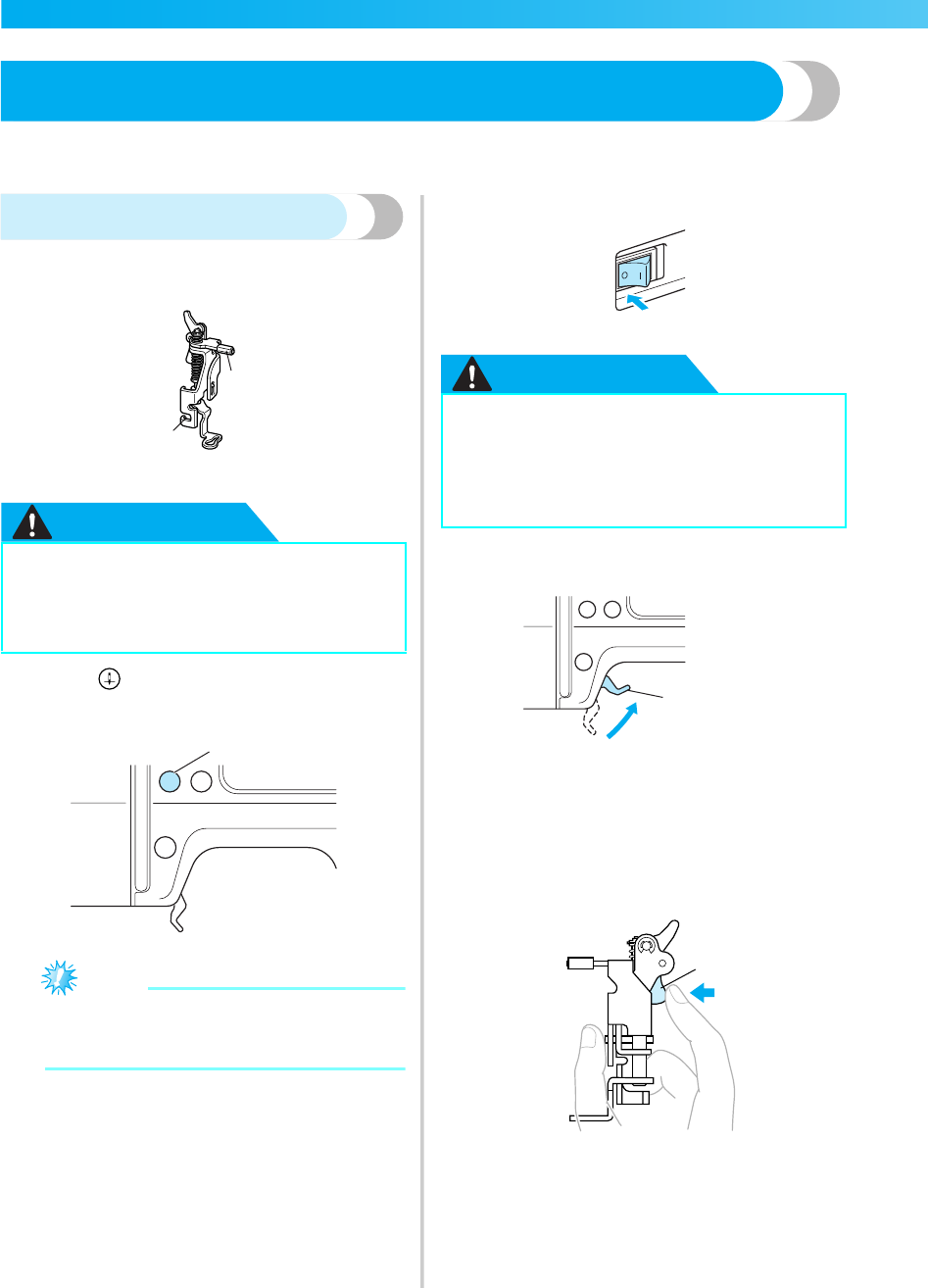
76
APPENDIX — — — — — — — — — — — — — — — — — — — — — — — — — — — — — — — — — — — — — — — — — — — — — —
Attaching the Embroidery Foot
This section describes how to attach the embroidery foot "Q".
Attaching the embroidery foot
If you need to replace the embroidery foot, attach the
embroidery foot "Q" as follows.
aEmbroidery foot bar
bCaught by the presser foot holder screw
CAUTION
aPress (Needle position button) once or
twice to raise the needle.
aNeedle position button
Note
zThe needle is correctly raised when the mark
on the handwheel is at the top. Check the
handwheel mark is at the top position.
bTurn off the machine.
CAUTION
cRaise the presser foot lever.
aPresser foot lever
dHold the embroidery foot "Q" with your right
hand, as shown.
Hold the embroidery foot with your index
finger wrapped around the lever at the back of
the foot.
aLever
●Always use the embroidery foot "Q" when
embroidering. If the wrong embroidery
foot is used, the needle may hit the
embroidery foot and bend or break.
a
b
a
zBefore attaching the embroidery foot, be
sure to turn off the machine. Otherwise,
injuries may occur if one of the operation
buttons is accidentally pressed and the
machine starts embroidering.
a
a
appendix1 Page 76 Monday, August 18, 2008 8:08 PM
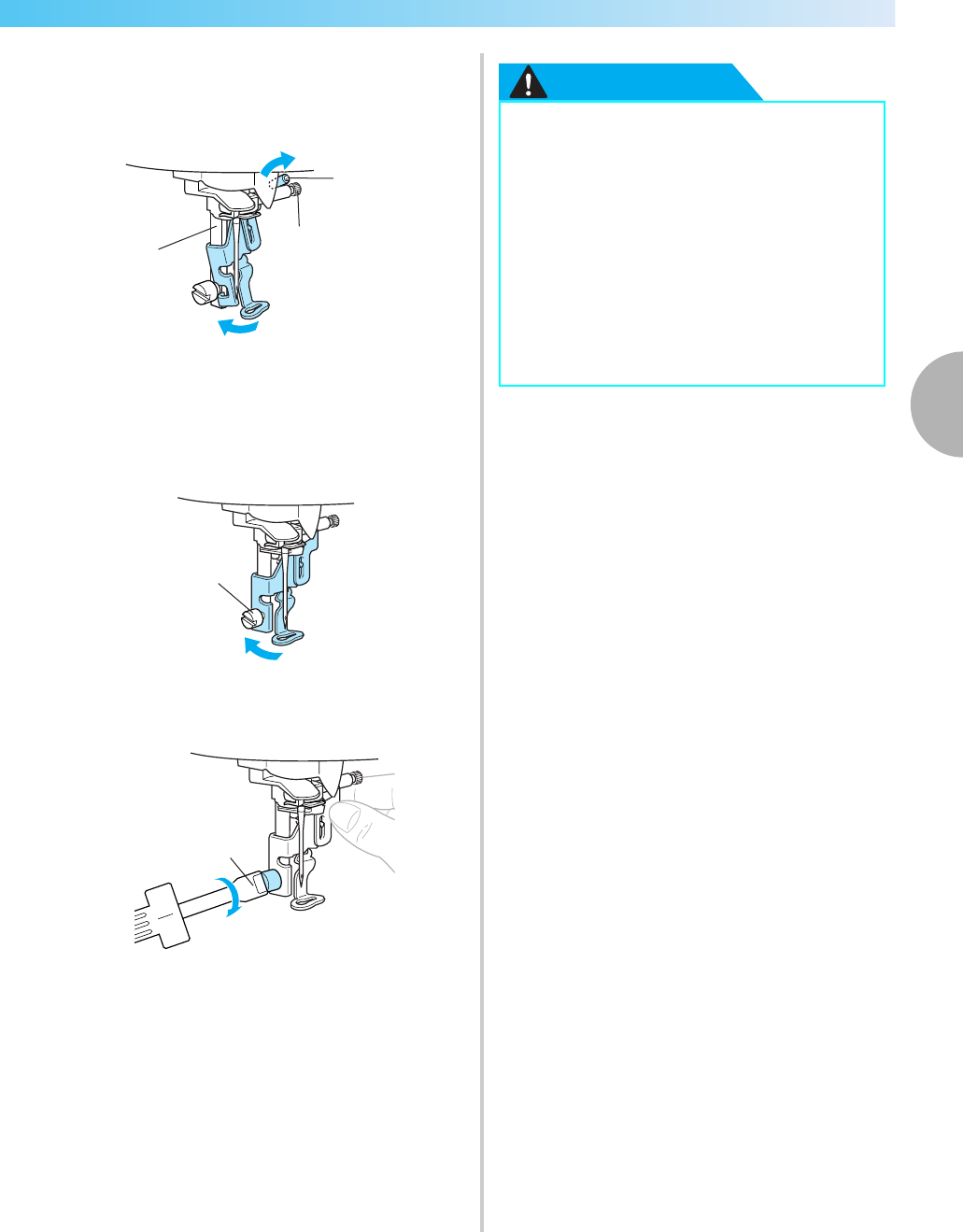
Attaching the Embroidery Foot 77
3
— — — — — — — — — — — — — — — — — — — — — — — — — — — — — — — — — — — — — — — — — — — — — — — — — — — —
eWhile pressing in the lever with your finger, fit
the embroidery foot bar over the needle clamp
screw to attach the embroidery foot to the
presser foot bar.
aPresser foot bar
bNeedle clamp screw
cEmbroidery foot bar
fSecure the embroidery foot with the presser
foot holder screw.
Set the embroidery foot perpendicular.
aPresser foot holder screw
gFirmly tighten the presser foot holder screw.
Turn the screwdriver toward the front.
aScrewdriver
CAUTION
a
c
b
a
a
●Do not hit the needle with your finger or
the embroidery foot when attaching it.
The needle may break or cause injury.
●Be sure to tighten the screw with the
included screwdriver. If the screw is
loose, the needle may hit the embroidery
foot and break or bend.
●
Before embroidering, always turn the
handwheel toward you (counterclockwise)
slowly to make sure that the needle does
not hit the embroidery foot. The needle
may break or bend.
appendix1 Page 77 Monday, August 18, 2008 8:08 PM

78
APPENDIX — — — — — — — — — — — — — — — — — — — — — — — — — — — — — — — — — — — — — — — — — — — — — —
Troubleshooting
If the machine stops operating correctly, check the following possible problems before requesting service.
You can solve most problems by yourself. If you need additional help, the Brother Solutions Center offers
the latest FAQs and troubleshooting tips. Visit us at [http://solutions.brother.com].
If the problem persists, contact your dealer or the nearest authorized service center.
Symptom Probable Cause Remedy Reference
The machine does
not operate.
The machine is not turned on. Turn on the machine. page 18
The start/stop button was not
pressed. Press the start/stop button. page 58
The presser foot lever is raised. Lower the presser foot lever. page 58
The bobbin winder shaft is on the
right side after winding the
bobbin.
Slide the bobbin winder shaft to the
left. page 33
The embroidery unit is not
attached on the machine. Attach the embroidery unit. page 19
The needle breaks.
The needle is incorrectly installed. Correctly install the needle.
page 28The needle clamp screw is loose. Use the screwdriver to firmly tighten
the screw.
The needle is bent or blunt. Replace the needle.
The upper thread tension is too
tight. Loosen the upper thread tension. page 63
The spool is incorrectly installed. Correctly install the spool. page 37
The area around the hole in the
needle plate is scratched, or has a
burr on it.
Replace the needle plate. Contact
your dealer or the nearest authorized
service center. -
The area around the hole in the
embroidery foot is scratched, or
has a burr on it.
Replace the embroidery foot. Contact
your dealer or the nearest authorized
service center. -
The bobbin case is scratched, or
has a burr on it.
Replace the bobbin case. Contact
your dealer or the nearest authorized
service center. -
A bobbin designed specifically for
this machine is not used.
Incorrect bobbins will not work
properly. Only use a bobbin
designed specifically for this
machine.
page 29
The upper thread was not
threaded correctly. Correct the upper threading. page 38
The upper thread
breaks.
The upper thread was not
threaded correctly (for example,
the spool is not installed correctly,
the spool cap is too big for the
spool being used, or the thread
has come out of the needle bar
thread guide.)
Correct the upper threading.
Use the spool cap that best fits the
size of the spool being used. page 37
appendix1 Page 78 Monday, August 18, 2008 8:08 PM
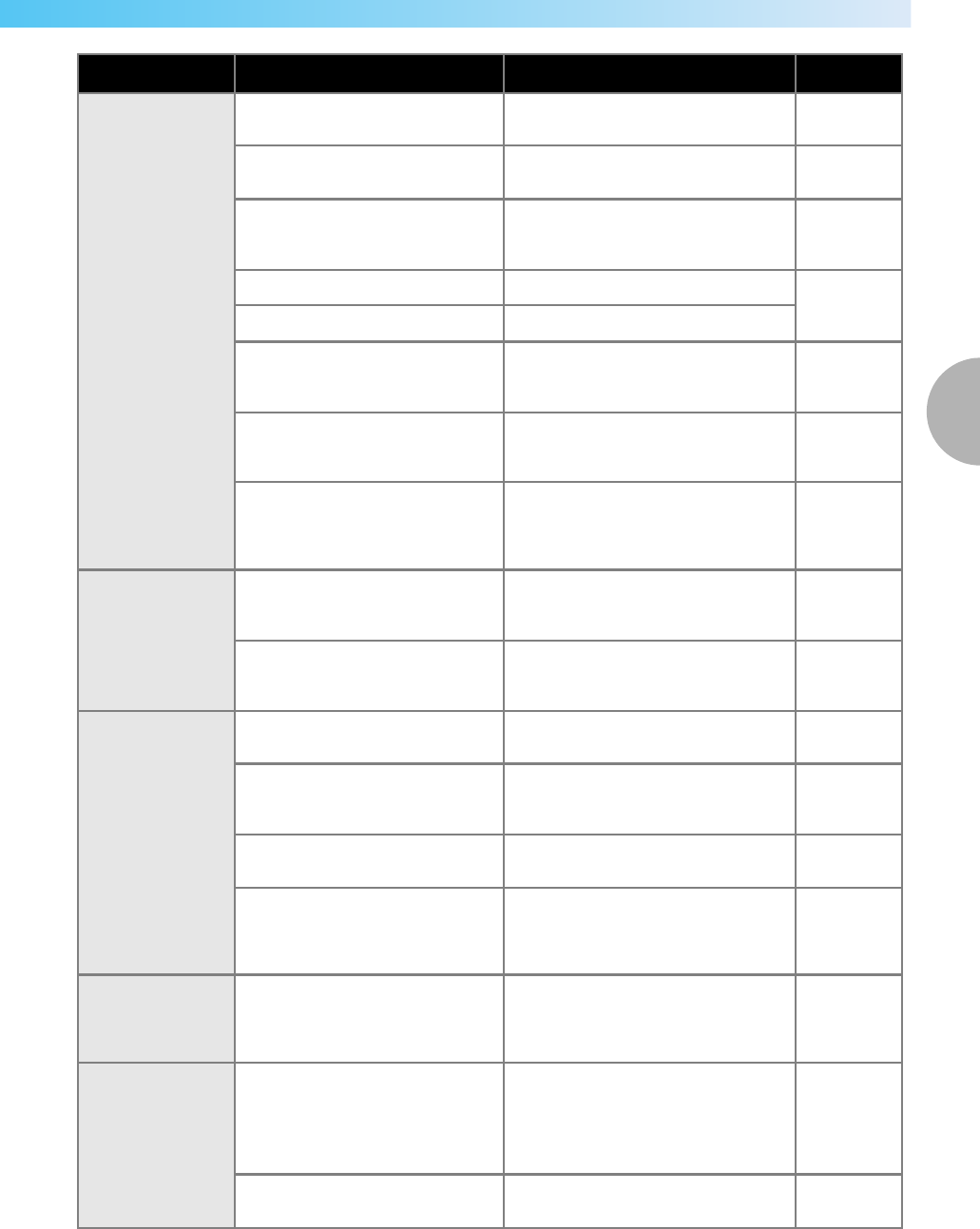
Troubleshooting 79
3
— — — — — — — — — — — — — — — — — — — — — — — — — — — — — — — — — — — — — — — — — — — — — — — — — — — —
The upper thread
breaks.
There are knots or tangles in the
thread. Remove any knots or tangles. -
The upper thread tension is too
tight. Loosen the upper thread tension. page 63
The thread is tangled, for example,
in the bobbin case.
Remove the tangled thread. If the
thread is tangled in the bobbin case,
clean the race. page 74
The needle is bent or blunt. Replace the needle.
page 28
The needle is incorrectly installed. Correctly install the needle.
The area around the hole in the
embroidery foot is scratched, or
has a burr on it.
Replace the embroidery foot.
Contact your dealer or the nearest
authorized service center. -
The bobbin case is scratched, or
has a burr on it.
Replace the bobbin case.
Contact your dealer or the nearest
authorized service center. -
A bobbin designed specifically for
this machine is not used.
Incorrect bobbins will not work
properly. Only use a bobbin
designed specifically for this
machine.
page 29
Bobbin thread
does not wind
neatly on the
bobbin.
The thread is not passed through
the bobbin-winding thread guide
correctly.
Correctly pass the thread through the
bobbin-winding thread guide. page 31
The thread that was pulled out
was not wound onto the bobbin
correctly.
Wind the thread that was pulled off
around the bobbin five or six times
clockwise. page 32
The lower thread is
tangled or breaks.
The bobbin thread is incorrectly
installed. Correctly install the bobbin thread. page 34
The bobbin is scratched or does
not rotate smoothly, or has a burr
on it. Replace the bobbin. -
The thread is tangled. Remove the tangled thread and clean
the race. page 74
A bobbin designed specifically for
this machine is not used.
Incorrect bobbins will not work
properly. Only use a bobbin
designed specifically for this
machine.
page 29
The thread is
tangled on the
wrong side of the
fabric.
The upper thread was not
threaded correctly. Correct the upper threading. page 38
The thread tension
is incorrect.
The upper thread was not
threaded correctly.
Correct the upper threading.
Make sure that the thread is hanged
on the thread guide spring which is
on the left side of the thread guide
cover.
page 38,
page 39
The bobbin thread is incorrectly
installed. Correctly install the bobbin thread. page 34
Symptom Probable Cause Remedy Reference
appendix1 Page 79 Monday, August 18, 2008 8:08 PM

80
APPENDIX — — — — — — — — — — — — — — — — — — — — — — — — — — — — — — — — — — — — — — — — — — — — — —
The thread tension
is incorrect.
The thread tension is incorrect. Adjust the tension of the upper thread
and the bobbin thread.
page 63,
page 64
A bobbin designed specifically for
this machine is not used.
Incorrect bobbins will not work
properly. Only use a bobbin
designed specifically for this
machine.
page 29
The upper thread is
too tight. The bobbin thread is incorrectly
installed. Correctly install the bobbin thread. page 34
Stitches are
skipped.
The upper thread was not
threaded correctly. Correct the upper threading. page 38
The needle is bent or blunt. Replace the needle. page 28
The needle is incorrectly installed. Correctly install the needle. page 28
Dust has accumulated under the
needle plate or in the bobbin case. Remove the needle plate cover and
clean the race. page 74
A high-pitched
noise is made
while
embroidering.
Dust has accumulated in the
bobbin case. Clean the race. page 74
The upper thread was not
threaded correctly. Correct the upper threading. page 38
The bobbin case is scratched, or
has a burr on it.
Replace the bobbin case.
Contact your dealer or the nearest
authorized service center. -
A bobbin designed specifically for
this machine is not used.
Incorrect bobbins will not work
properly. Only use a bobbin
designed specifically for this
machine.
page 29
The thread does
not pass through
the eye of the
needle.
The needle has not been raised to
the correct position. Press the needle position button. page 38
The needle is incorrectly installed. Correctly install the needle. page 28
The stitch is not
sewn correctly.
The thread tension is incorrect. Adjust the tension of the upper thread
and the bobbin thread.
page 63,
page 64
The thread is tangled, for example,
in the bobbin case.
Remove the tangle thread. If the
thread is tangled in the bobbin case,
clean the race. page 74
The needle
threader lever does
not lower to the
correct position.
The needle has not been raised to
the correct position. Press the needle position button. page 38
The lamps do not
come on.
The lamps are damaged. Contact your dealer or the nearest
authorized service center. -
The machine is not turned on. Turn on the machine. page 18
Nothing appears in
the LCD. The brightness of the LCD is either
too light or too dark. Adjust the brightness of the LCD. page 85
Symptom Probable Cause Remedy Reference
appendix1 Page 80 Monday, August 18, 2008 8:08 PM
Troubleshooting 81
3
— — — — — — — — — — — — — — — — — — — — — — — — — — — — — — — — — — — — — — — — — — — — — — — — — — — —
Embroidery unit
does not move.
No pattern selected. Select a pattern. page 50
The embroidery unit is not set up
correctly. Set the embroidery unit up correctly. page 19
Embroidery not
neatly done.
The fabric is not fully stretched on
the embroidery frame. The fabric
is loose.
Stretch the fabric properly on the
embroidery frame. page 44
No stabilizer material is attached. Always use stabilizer material for
embroidery. page 43
The thread is tangled and the
bobbin case, etc., is plugged up.
Remove the tangled thread. When
the bobbin case is plugged up, clean
the race. page 74
The thread tension is incorrect. Adjust the tension of the upper thread
and the bobbin thread.
page 63,
page 64
The upper thread was not
threaded correctly.
Correct the upper threading.
Make sure that the thread is hanged
on the thread guide spring which is
on the left side of the thread guide
cover.
page 38,
page 39
The bobbin thread is incorrectly
installed. Correctly install the bobbin thread. page 34
Objects are placed near the
carriage or embroidery frame.
If the embroidery unit carriage or
embroidery frame bumps into
objects, the pattern will be
misaligned. Do not place objects
within the range of embroidery frame
motion.
page 58
Material coming out of the
embroidery frame is causing
problems.
Stretch the fabric on the frame once
again so that the material coming out
of the embroidery frame does not
cause problems, rotate the pattern
and embroider.
-
A heavy fabric is being
embroidered, and the fabric is
hanging off the table.
If embroidery is done with the fabric
hanging off the table, the embroidery
unit movement will be impaired.
Support the fabric while
embroidering.
-
The fabric is catching. It is
pinched. Stop the machine and set the fabric
up correctly. -
The carriage was moved while the
embroidery frame was being
removed or attached during
embroidery.
If the carriage is moved during the
process, the pattern may be
misaligned. Be careful when
removing or attaching the
embroidery frame.
-
Symptom Probable Cause Remedy Reference
appendix1 Page 81 Monday, August 18, 2008 8:08 PM
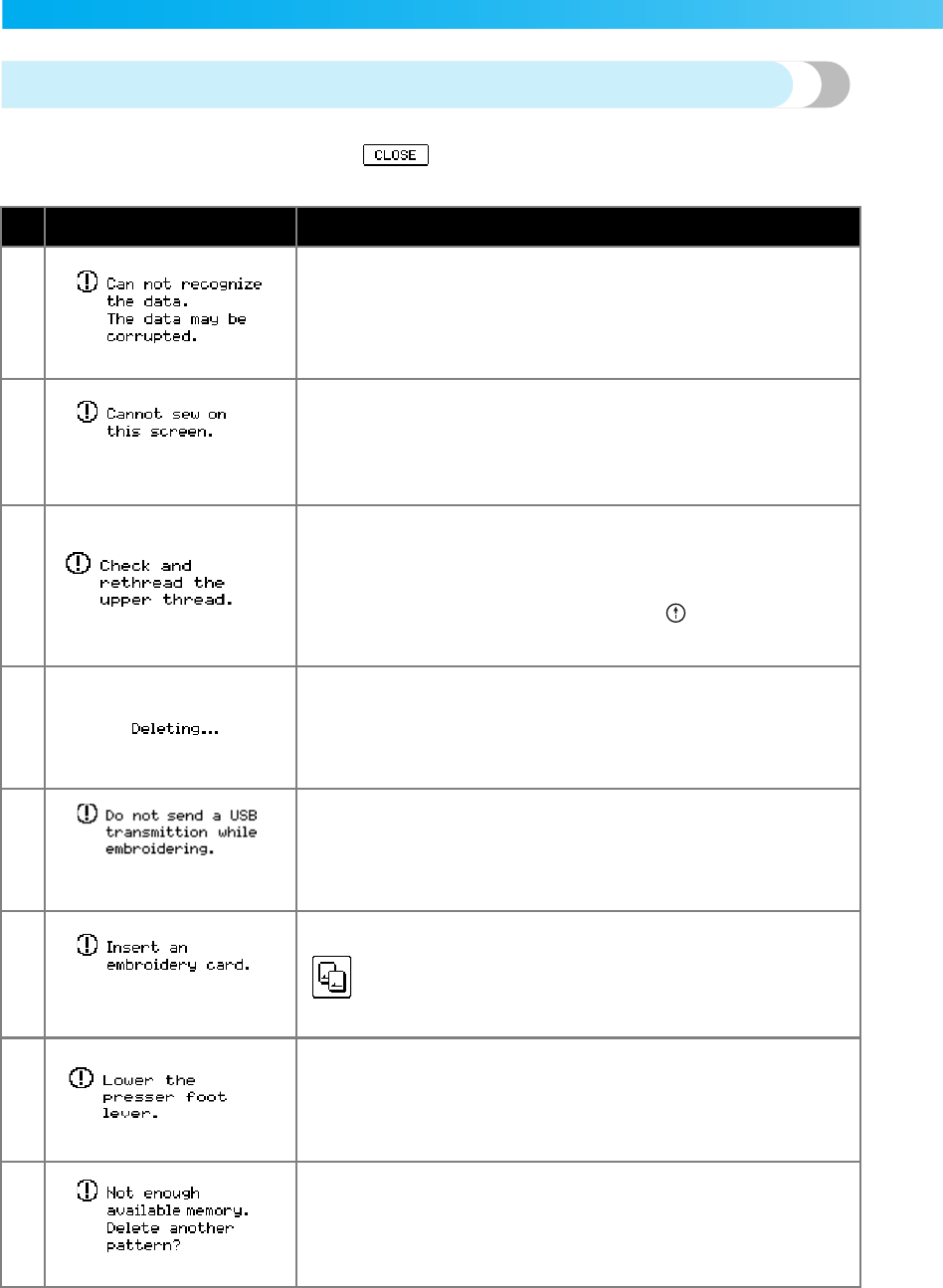
82
APPENDIX — — — — — — — — — — — — — — — — — — — — — — — — — — — — — — — — — — — — — — — — — — — — — —
Error messages
When erroneous operations are performed messages and advice on operation will be displayed on the
LCD. Follow what is displayed. If you press or do the operation correctly while the error
message is displayed, the message disappears.
No Error Message Probable Cause
1There is a possibility that the data for the selected pattern is corrupted.
2The start/stop button was pressed at a screen other than the embroidery
screen.
3
Upper thread broken.
Upper thread not set up correctly.
Upper thread has run out.
CAUTION
Be sure to rethread the machine. If you press (Start/stop button)
without rethreading the machine, the thread tension may be wrong or
the needle may break and cause injury.
4The machine is deleting a previously saved pattern while in embroidery
edit mode.
5While embroidering, data is written to the “Removable Disk” in the
connected computer or data is deleted from the “Removable Disk”.
6on the LCD was pressed when no card was inserted.
7The start/stop button or thread cutter button was pressed while the
embroidery foot was raised.
8The memory is full and the pattern cannot be saved.
appendix1 Page 82 Monday, August 18, 2008 8:08 PM
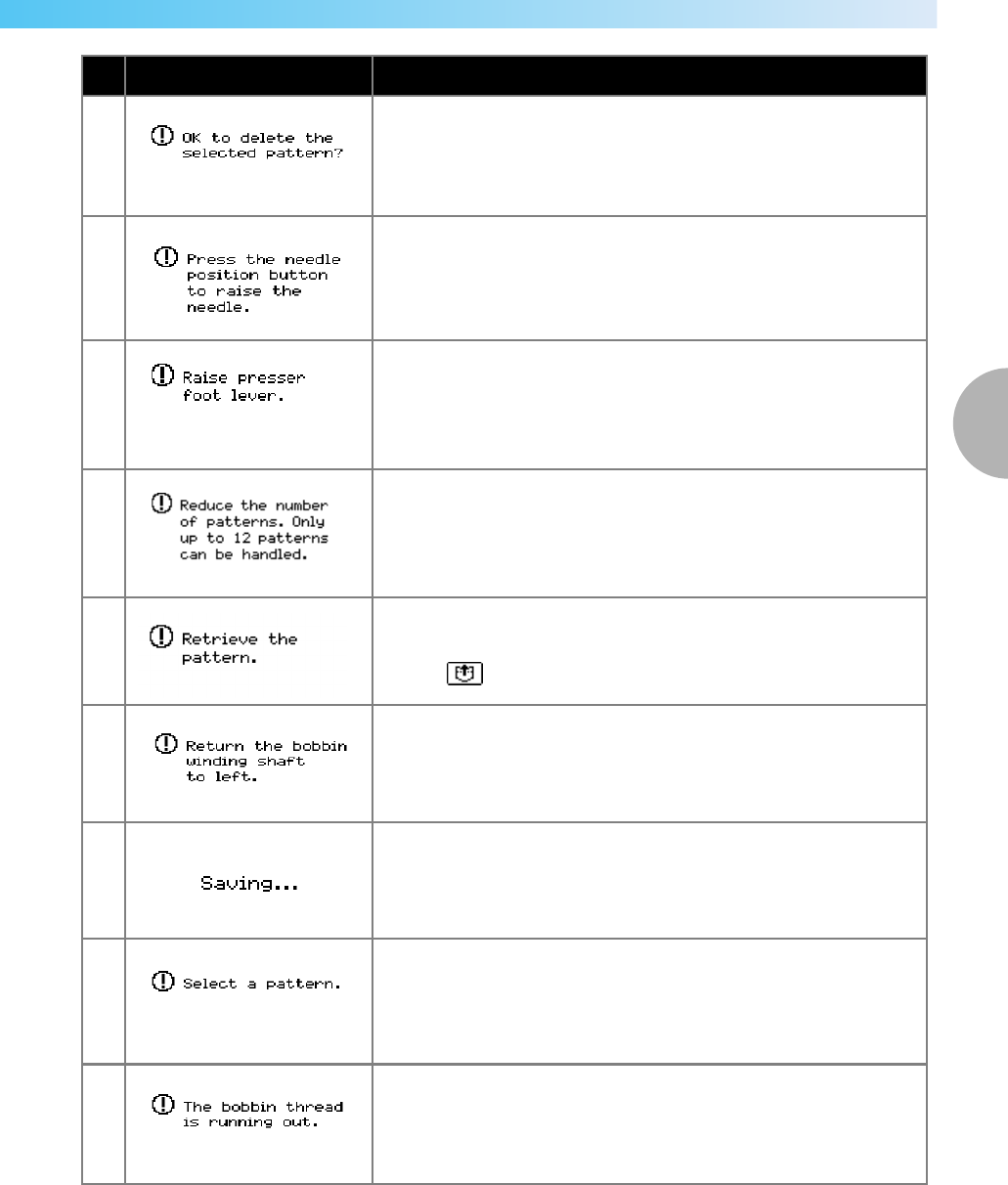
Troubleshooting 83
3
— — — — — — — — — — — — — — — — — — — — — — — — — — — — — — — — — — — — — — — — — — — — — — — — — — — —
9You pressed the back key or the embroidery key when a pattern was
selected.
10
You tried to select an embroidery pattern or change the layout when
the needle was down.
The machine is turned on while the needle is lowered and the
embroidery unit is attached.
11 You tried to initialize the embroidery unit with the embroidery foot
lowered.
12 When 13 or more patterns are in “Removable Disk”, a pattern was
being retrieved.
13
The start/stop button was pressed after selecting a pattern which is
saved in the machine's memory or entered from the USB port without
pressing (Retrieve key).
14 The needle position button or thread cutter button was pressed while
the bobbin winder shaft is moved to the right.
15 A pattern is being saved.
16 The start/stop button was pressed when no pattern is selected.
17 Bobbin thread has run out.
Little bobbin thread remains.
No Error Message Probable Cause
appendix1 Page 83 Monday, August 18, 2008 8:08 PM
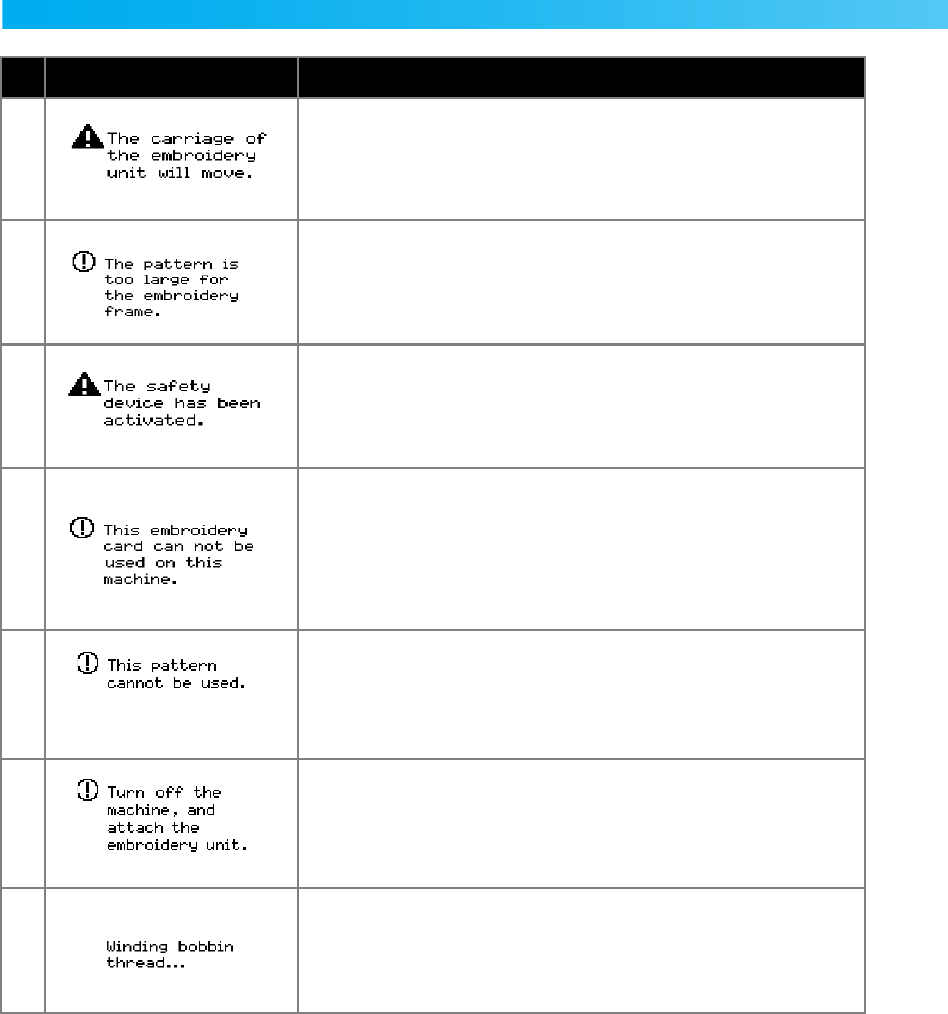
84
APPENDIX — — — — — — — — — — — — — — — — — — — — — — — — — — — — — — — — — — — — — — — — — — — — — —
18 When the embroidery unit is attached.
19 You tried to set a number of characters that will not fit within the frame.
20 The upper thread has become tangled around the bobbin case, and the
needle is bent and hitting the needle plate, etc., so the machine stops
(refer to page 78).
21
An Embroidery Memory Card that may not compatible with your
machine has been inserted.
• Certain licensed designs cannot be read by this machine.
• Designs in an unacceptable card format cannot be read by this
machine.
• Design data saved in a hoop size not compatible with your machine
has been selected.
22 You try to retrieve a pattern downloaded as one for a different machine.
23
The start/stop button, the embroidery key, or the memory key is
pressed, but the embroidery unit is not attached.
The embroidery key was pressed when the embroidery unit is not
attached.
24 The bobbin winder is winding the bobbin.
No Error Message Probable Cause
appendix1 Page 84 Monday, August 18, 2008 8:08 PM
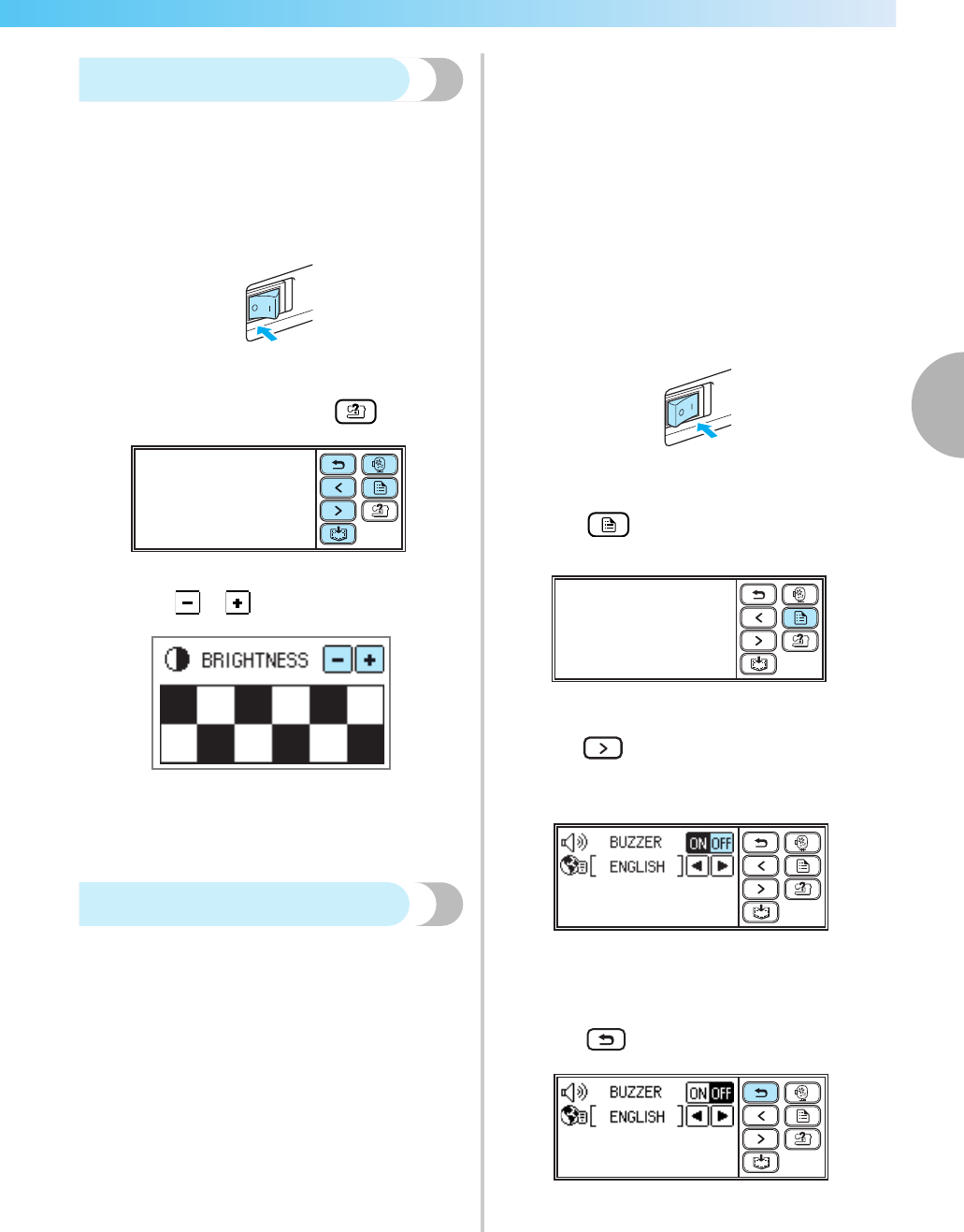
Troubleshooting 85
3
— — — — — — — — — — — — — — — — — — — — — — — — — — — — — — — — — — — — — — — — — — — — — — — — — — — —
Adjusting the LCD
If nothing appears in the LCD when the machine is
turned on, the brightness of the LCD is either too light
or too dark. In such a case, perform the following
operation.
aTurn off the machine.
bTurn on the machine while pressing any of the
operation panel keys except (Help key).
c Press or .
dTurn off the machine, then turn it on again.
Operation beep
Each time a key is pressed you will hear one beep. If
an incorrect operation is performed you will hear two
or four beeps.
■If a key is pressed (correct operation)
One beep sounds.
■If an incorrect operation is performed
Two or four beeps sound.
■If the machine locks up, for example, because
the thread is tangled
The machine beeps for four seconds and the
machine automatically stops.
Be sure to check for the cause of the error, and
correct it before continuing to embroider.
■Canceling the operation beep
When the machine is purchased, it is set to beep
each time an operation panel key is pressed. This
setting can be changed so that the machine does
not beep.
aTurn on the machine.
XThe LCD comes on.
bPress (Setting key) in the operation
panel.
XThe setting screen appears.
cPress (Next page key) twice.
dPress OFF for the buzzer.
XThe screen for changing the beep setting
appears.
ePress (Back key).
XThe initial screen appears again.
appendix1 Page 85 Monday, August 18, 2008 8:08 PM
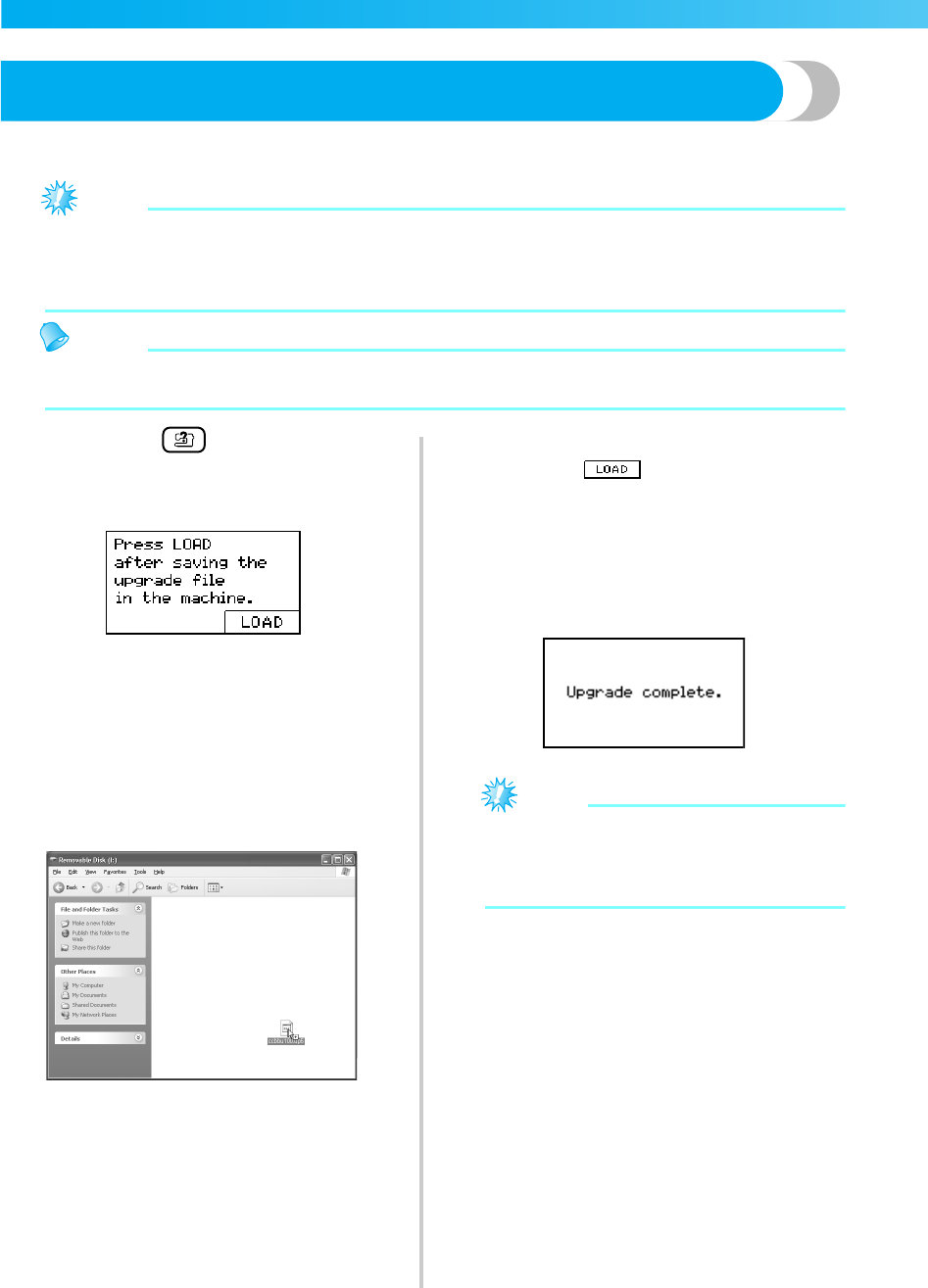
86
APPENDIX — — — — — — — — — — — — — — — — — — — — — — — — — — — — — — — — — — — — — — — — — — — — — —
Upgrading Your Machine's Software
You can use a computer to download software upgrades for your machine.
Visit our website at "http://solutions.brother.com" for notification of available updates.
Note
zBe sure to download the upgrade file for this model from our web site. An upgrade file for any different
model cannot be downloaded.
zRefer to the "Changing the machine settings" (page 23) for how to check the version of the machine’s
software.
Memo
zThe embroidery pattern which is saved in the machine will not be deleted if you upgrade the software.
zWhile the software is being upgraded, the buzzer will not sound when a key is pressed.
aWhile holding (Help key) pressed, turn
on the machine.
XThe following screen appears.
bPlug the USB cable connectors into the
corresponding USB ports on the computer and
on the machine.
XThe “Removable Disk” icon appears in “My
Computer” on the computer.
cCopy the upgrade file to "Removable Disk".
XThe message “Connected to PC. Do not
disconnect the USB cable.” appears.
dWhen the screen shown in step a appears
again, press .
XThe message “Saving the upgrade file. Do
not turn main power to OFF.” appears.
eWhen the following screen appears, upgrading
is completed.
Note
zIf an error occurred, an error message
appears. At this time, turn the machine off,
and then start the procedure again from step
a.
fDisconnect the USB cable, and turn the
machine off, then on again.
appendix1 Page 86 Monday, August 18, 2008 8:08 PM

Index 87
3
— — — — — — — — — — — — — — — — — — — — — — — — — — — — — — — — — — — — — — — — — — — — — — — — — — — —
Index
A
accessories ................................................................. 8, 9
adjusting layout ............................................................61
adjusting thread tension ......................................... 63, 64
air vent .........................................................................11
appliqué pattern selection .............................................59
attaching stabilizer material ..........................................43
attributes .......................................................................23
B
back key .......................................................................13
basic steps for embroidering .........................................16
beep .............................................................................85
bobbin ..........................................................................29
bobbin case removal .....................................................74
bobbin cover ................................................................11
bobbin installation ........................................................34
bobbin thread tension ...................................................64
bobbin winder ..............................................................10
bobbin winder seat .......................................................33
bobbin winding ............................................................29
bobbin-winding thread guide ................................. 10, 31
buzzer ..........................................................................85
C
care ..............................................................................74
checking needle ............................................................27
cleaning bobbin case ....................................................74
cleaning brush ................................................................8
cleaning machine surface .............................................74
connecting character patterns .......................................65
country thread ................................................ 23, 26, 51
E
embroidering ......................................................... 16, 57
embroidering pattern ....................................................57
embroidery card ...........................................................55
embroidery card slot .............................................. 11, 56
embroidery character selection .....................................53
embroidery data ............................................................69
embroidery foot installation ..........................................76
embroidery frame .........................................................44
embroidery frame installation .......................................47
embroidery frame removal ............................................48
embroidery key .............................................................13
embroidery pattern selection .........................................50
embroidery pattern types ..............................................50
embroidery set ................................................................8
embroidery sheet ..........................................................45
embroidery threads .......................................................26
embroidery unit connector slot .....................................10
embroidery unit installation ..........................................19
embroidery unit removal ...............................................21
error messages ..............................................................82
F
frame pattern selection ..................................................55
front view .....................................................................10
H
handle ..........................................................................11
handwheel ....................................................................11
help key ........................................................................13
I
installing bobbin ...........................................................34
L
layout adjustment .........................................................61
LCD ..............................................................................22
LCD button ...................................................................52
LCD messages ...............................................................82
LCD operation ..............................................................22
M
machine surface cleaning .............................................74
main power switch .......................................................11
maintenance .................................................................74
manual needle threading ..............................................42
memory key ..................................................................13
N
needle bar thread guide ................................................11
needle condition ...........................................................27
needle plate ..................................................................11
needle plate cover ........................................................11
needle position button ..................................................12
needle replacement ......................................................28
needle set .......................................................................8
needle threader lever ....................................................10
needle threading ...........................................................37
needles .........................................................................27
next page key ................................................................13
O
operation beep ..............................................................85
operation buttons ................................................... 10, 12
operation keys ..............................................................13
operation panel ...................................................... 10, 13
operation problems .......................................................78
operations .....................................................................25
optional accessories ........................................................9
P
pattern embroidery .......................................................57
0711-0120-C-combo_E.IX.fm Page 87 Monday, August 18, 2008 8:24 PM

88
APPENDIX — — — — — — — — — — — — — — — — — — — — — — — — — — — — — — — — — — — — — — — — — — — — — —
pattern retrieving .................................................... 70, 71
plug ..............................................................................18
power supply cord ........................................................18
power supply jack .........................................................18
power switch ......................................................... 11, 18
presser foot lever ...........................................................10
previous page key .........................................................13
Q
quick reference guide .....................................................8
R
race ..............................................................................74
release button ...............................................................21
replacing needle ...........................................................28
resewing .......................................................................66
retrieving pattern .................................................... 70, 71
S
safety instructions ...........................................................1
saving patterns ..............................................................70
seam ripper .....................................................................8
selecting alphanumeric characters ................................53
selecting embroidery patterns .......................................50
settings key ...................................................................13
solving operation problems ...........................................78
spool cap .......................................................... 8, 30, 38
spool net .................................................................. 8, 31
spool of thread ..............................................................37
stabilizer material .........................................................43
start/stop button ............................................................12
stopping embroidering ..................................................67
T
thread cutter .................................................................10
thread cutter button ......................................................12
thread guide .................................................... 10, 31, 39
thread guide cover .......................................... 10, 31, 39
thread guide disk ................................................... 11, 40
thread spools ................................................................37
thread take-up lever ............................................... 10, 40
thread tension adjustment ...................................... 63, 64
threading ......................................................................37
threading bobbin ..........................................................29
threading needle ...........................................................37
threading needle manually ............................................42
touch panel ...................................................................13
troubleshooting .............................................................78
turning machine on/off ..................................................17
U
upgrading .....................................................................86
upper thread .................................................................37
upper thread spool ........................................................37
upper thread tension .....................................................63
upper threading ............................................................37
USB cable .....................................................................71
USB port connector ......................................................71
W
winding bobbin ............................................................29
0711-0120-C-combo_E.book Page 88 Thursday, July 24, 2008 1:46 PM
0711-0120-C-combo_E.book Page 91 Friday, July 4, 2008 1:35 PM

English
885-V51
Printed in China
XE5427-2013
