Bt Diverse 5200 Users Manual 4010 User Guide
Diverse 5200 diverse_5200_ug
5200 to the manual 54dd49f2-9b50-44ba-a8ac-eebabc25fa86
2015-02-02
: Bt Bt-Diverse-5200-Users-Manual-409772 bt-diverse-5200-users-manual-409772 bt pdf
Open the PDF directly: View PDF  .
.
Page Count: 45
Diverse 5200 handset & charger ~ 4th Edition ~ 20th May ’03 ~ 5189
1
BT Diverse Helpline – 08457 908 070
User Guide
BT DIVERSE 5200
ADDITIONAL HANDSET AND CHARGER
This equipment is not designed for making
emergency telephone calls when the power fails.
Alternative arrangements should be made for
access to emergency services.
Diverse 5200 handset & charger ~ 4th Edition ~ 20th May ’03 ~ 5189
At a glance
1
INT MENU
1
4
9
WXYZ
7
PQRS
8TUV
GHI
3DEF
5JKL
2ABC
6MNO
0
R
2
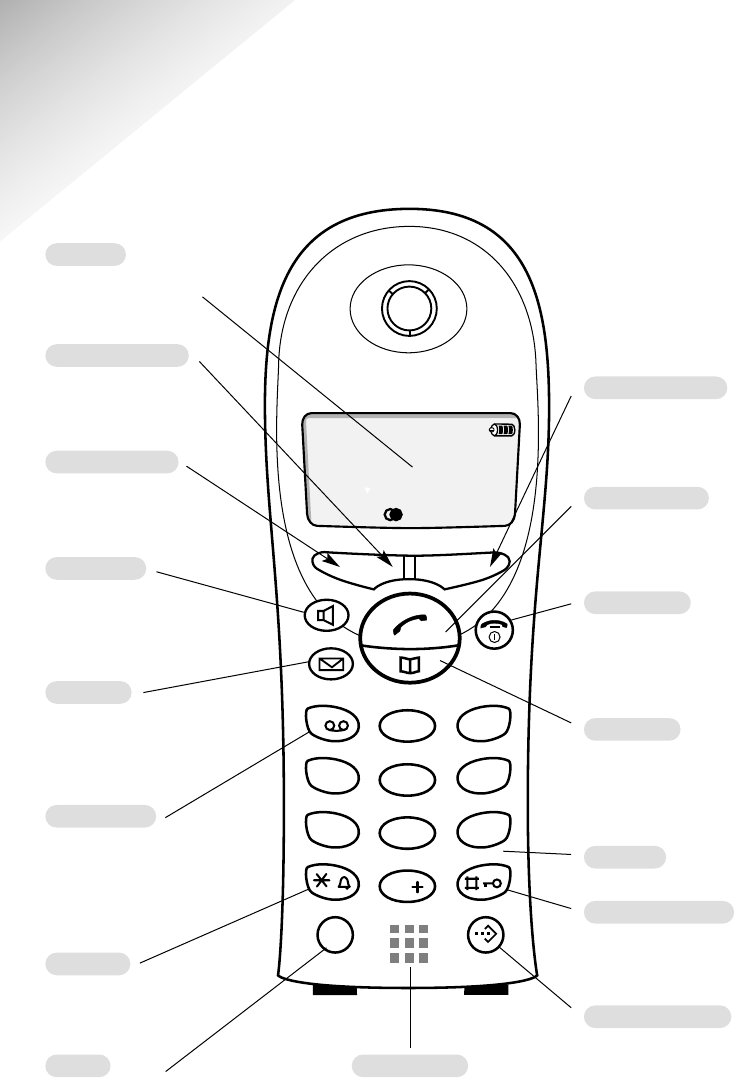
Microphone
Hash/Keyguard
Hold down to switch the
keypad guard on and off.
Extra Directory
Used to store 10
additional names and
numbers.
Keypad
Red phone
Press to end a call, return
the display to idle or turn
the power on and off.
Display
Displays the status
of your handset.
Handsfree
Use to answer
calls or make a call
in handsfree mode.
Green phone
For making and
answering calls.
Recall
Press for use with switchboards
and certain Network Services or
press and hold to enter a pause.
Calls list
Lets you access
your lists – calls,
text and voice mail.
Right hand side
Takes you into the
redial list.
Left hand side
Allows you to make an
internal call.
Right hand side
Takes you into the
menu options
Star/bell
Switches the handset
ringer on and off.
One button
As well as being the
number one button hold
down to access your
Voice Mail service.
Directory
Used to store numbers
and names in the directory.

Diverse 5200 handset & charger ~ 4th Edition ~ 20th May ’03 ~ 5189
Please open this page for an ‘At a glance’ guide to your
BT Diverse 5200 Additional Handset and Charger.
Diverse 5200 handset & charger ~ 4th Edition ~ 20th May ’03 ~ 5189
2
Base
Base underside
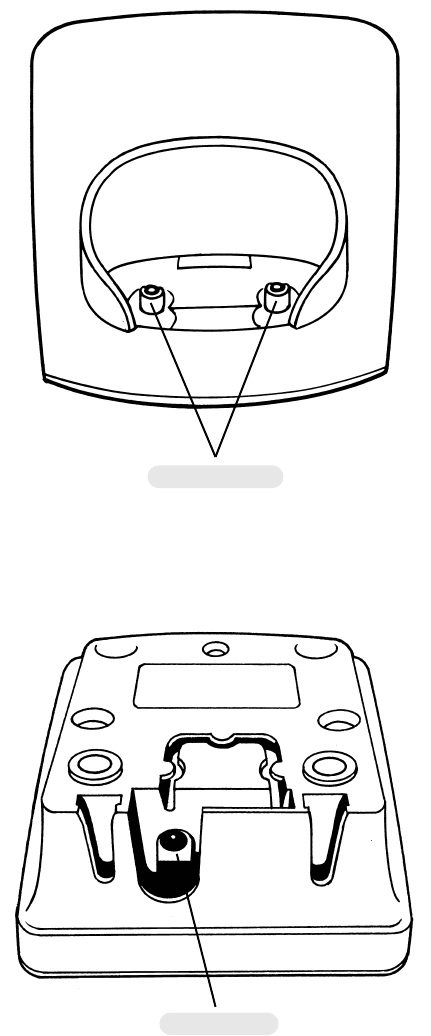
Contact points
Power socket
Diverse 5200 handset & charger ~ 4th Edition ~ 20th May ’03 ~ 5189
3
BT Diverse Helpline – 08457 908 070
In this guide
At a glance 1
Menu structure 4
Directory 5
Messages 5
Quick guide 6
Quick guide to handset
display icons 7
Introduction 8
Unpacking your Diverse 5200
Additional Handset and Charger 8
For your records 8
Safety instructions 9
Setting up 10
Using the telephone 15
Making and ending calls 15
Handsfree 16
Using the directory 17
Character map 18
Redial 20
Secrecy 21
Internal calls 22
Caller Display and other
BT Calling Features 24
Calls list 24
Call Waiting 27
Other BT Calling Features 27
Additional features 30
Voice mail 30
Handset settings 32
Help 37
General information 39
Guarantee 39
Technical information 39
Index 41
Hints and tips boxes
In this user guide, we’ve included
helpful tips and important notes.
They are shown in boxes like this.
Helpline
If you experience any difficulties with
your Diverse 5200 Additional Handset
and Charger, please call the BT
Diverse Helpline on 08457 908 070.
Please refer to the separate Using
SMS User Guide for instructions on
using the SMS functionality.
Diverse 5200 handset & charger ~ 4th Edition ~ 20th May ’03 ~ 5189
4
BT Diverse Helpline – 08457 908 070
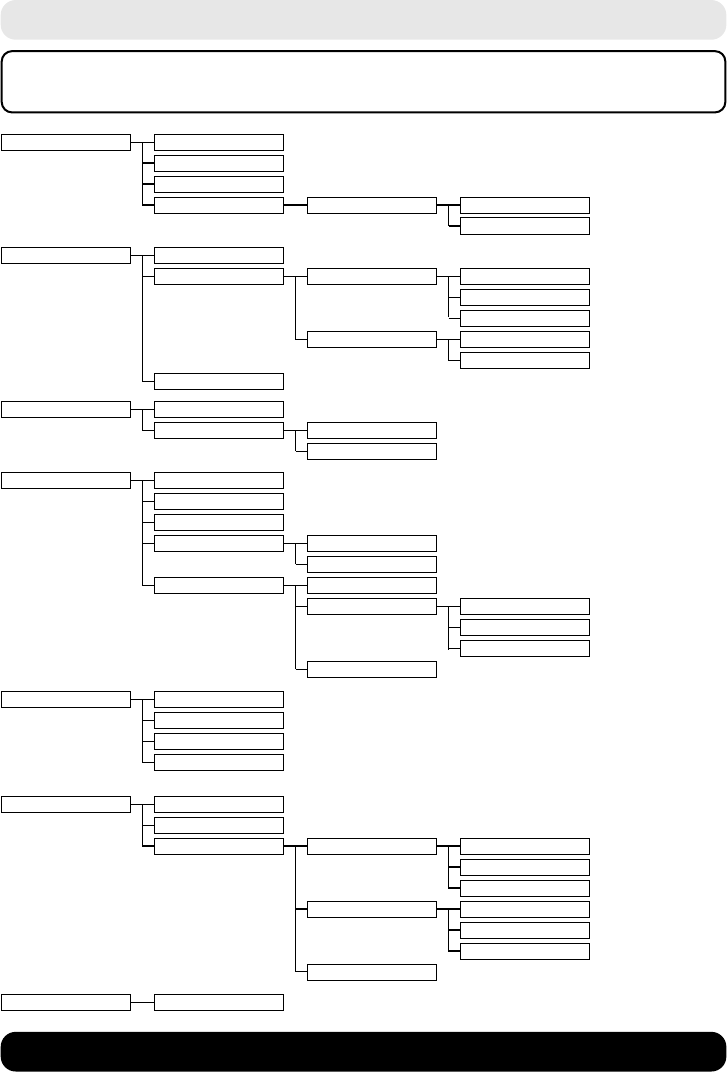
Menu structure
SMS Write message
Incoming
Outgoing
Settings Service Centres Service Centre 1 ->
Service Centre 5
Select Services Withhold Number
For All Calls Call Divert All Calls
No Answer
When Busy
Call Waiting On
Off
Cancel Ringback
Calendar/Clock Date/Time
Time Mode 12 Hour
24 Hour
Audio Settings Earpiece Volume
Handsfree Volume
Ringer Volume
Ringer Melody External Calls
Internal Calls
Advisory Tones Key Tones
Battery Low Off
On
During Call
Confirmation Tone
Handset Settings Auto Answer
Language
Register Handset
Reset Handset
Base Settings System-PIN
Base Reset
Additional Features Dialling mode Tone
Pulse
Tone-Earth
Recall 80 ms
to
800 ms
Repeater Mode
Voice Mail Set Key 1
Please note that you will only see all the below menu options if you are
registered to a BT Diverse 5210 or Diverse 5250 base station.
Diverse 5200 handset & charger ~ 4th Edition ~ 20th May ’03 ~ 5189
5
BT Diverse Helpline – 08457 908 070
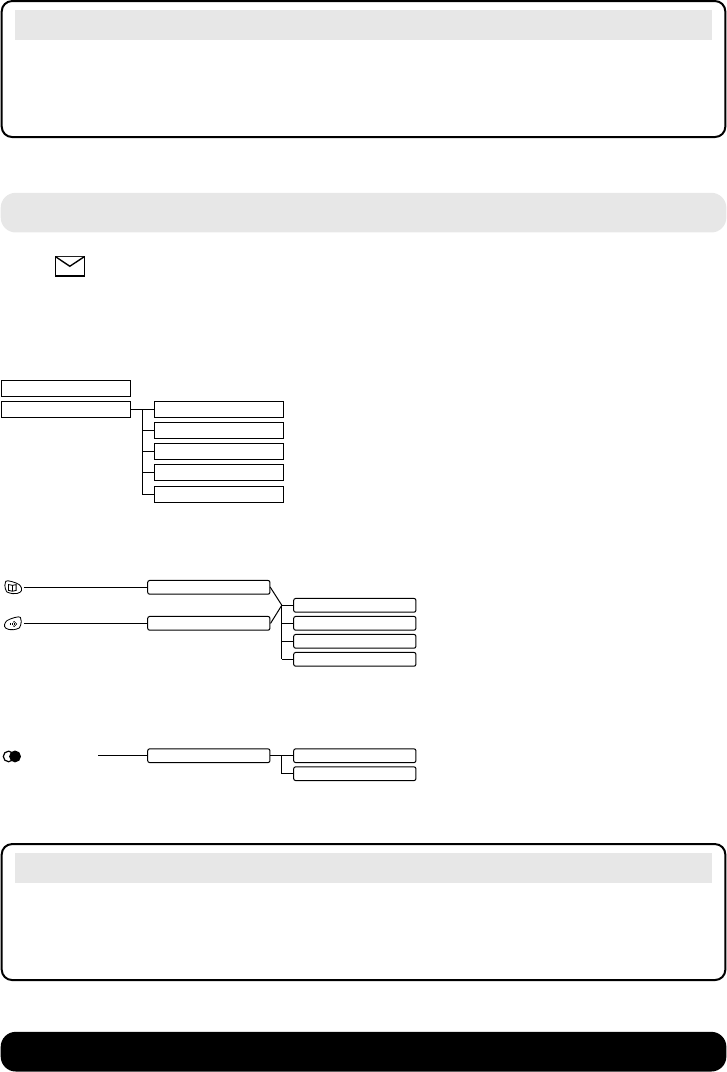
Messages
Press to get to your Mailbox and access your text messages, voicemail and
Calls list.
The following functions are available:
Note
If you make a mistake, you can return to the previous menu by pressing the RED
PHONE button. If you keep pressing the RED PHONE button you will return to the
idle screen.
Note
If your handset is registered to a BT Diverse 5250 answering machine base, you
will have additional menu’s in Voice Mail. Please refer to your BT Diverse 5250
guide to see what further menus are now available.
SMS
Calls List Delete entry
Copy to directory
Date and time
Status
Delete list
(On display) Redial list Edit entry
Copy to dir.
Menu structure for directory, redial list, extra directory
Opens directory
Edit entry
Opens extra directory New entry
Show entry
Delete
Diverse 5200 handset & charger ~ 4th Edition ~ 20th May ’03 ~ 5189
6
BT Diverse Helpline – 08457 908 070
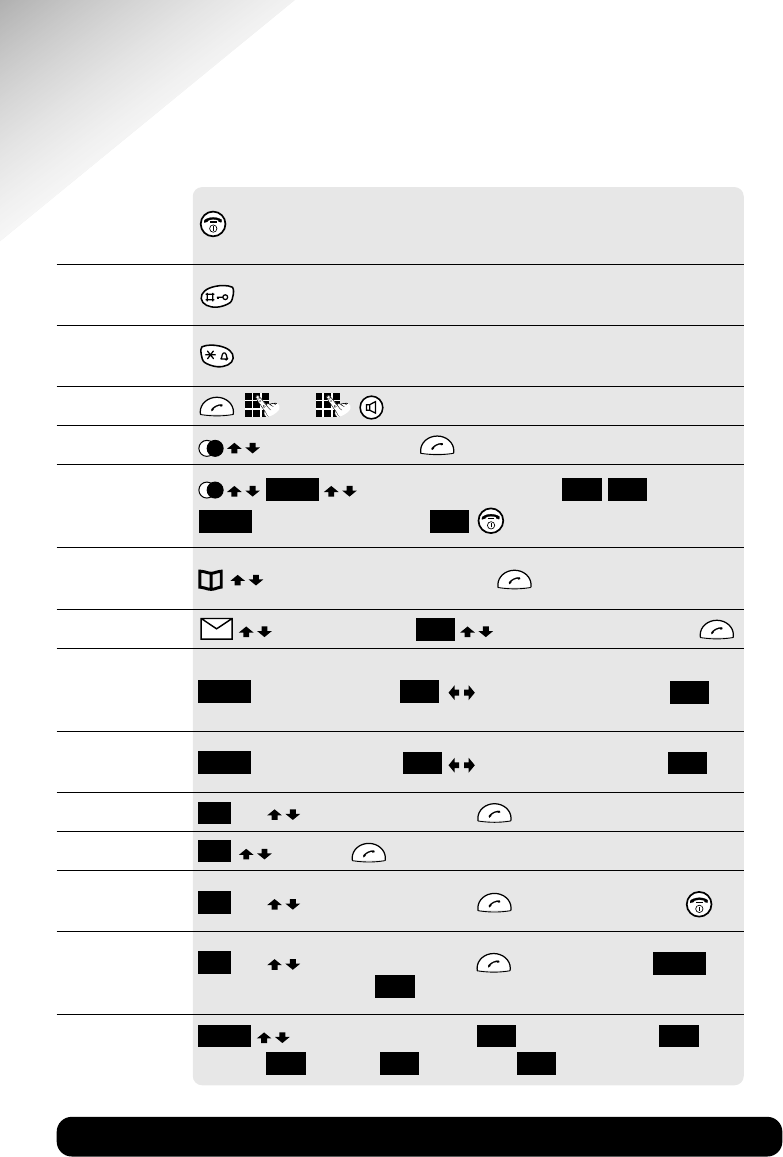
Quick guide
Switch the handset
OFF/ON: Hold down.
(default is ON)
Switch Keyguard Hold down.
on/off
Switch handset Hold down.
ringer off
Make a call or .
Redial a number to scroll through the list to dial.
Copy a displayed to display Copy to directory add name
number in the redial display shows Save entry .
list to the directory
Dial from the to name or number you want to dial .
directory
Dial from Calls list to display Calls List to display the number you want .
Adjust handsfree
volume whilst in Display shows Volume to decrease/increase volume .
handsfree mode
Adjust earpiece display shows Volume to decrease/increase volume .
volume
Make internal call then select handset and click on .
Call all handsets to Call All .
Transfer call to then select handset and click on . When user answers press .
another handset
Put caller on hold then select handset and click on . When finished press .
while you make Back will be selected press .
an internal call
Set date and time to display Calendar/Clock to display Date/Time
enter date enter time . Select am/pm .
OK OK
OK
OK
OK OK
OK
Int
Int
Int
Int
OK
OK OK OK
OK
OK
Menu
Menu
Menu
Menu
Menu
OK
Menu
Page
no
15
35
32
15
20
21
19
25
16
32
22
22
22
23
14
Diverse 5200 handset & charger ~ 4th Edition ~ 20th May ’03 ~ 5189
7
BT Diverse Helpline – 08457 908 070
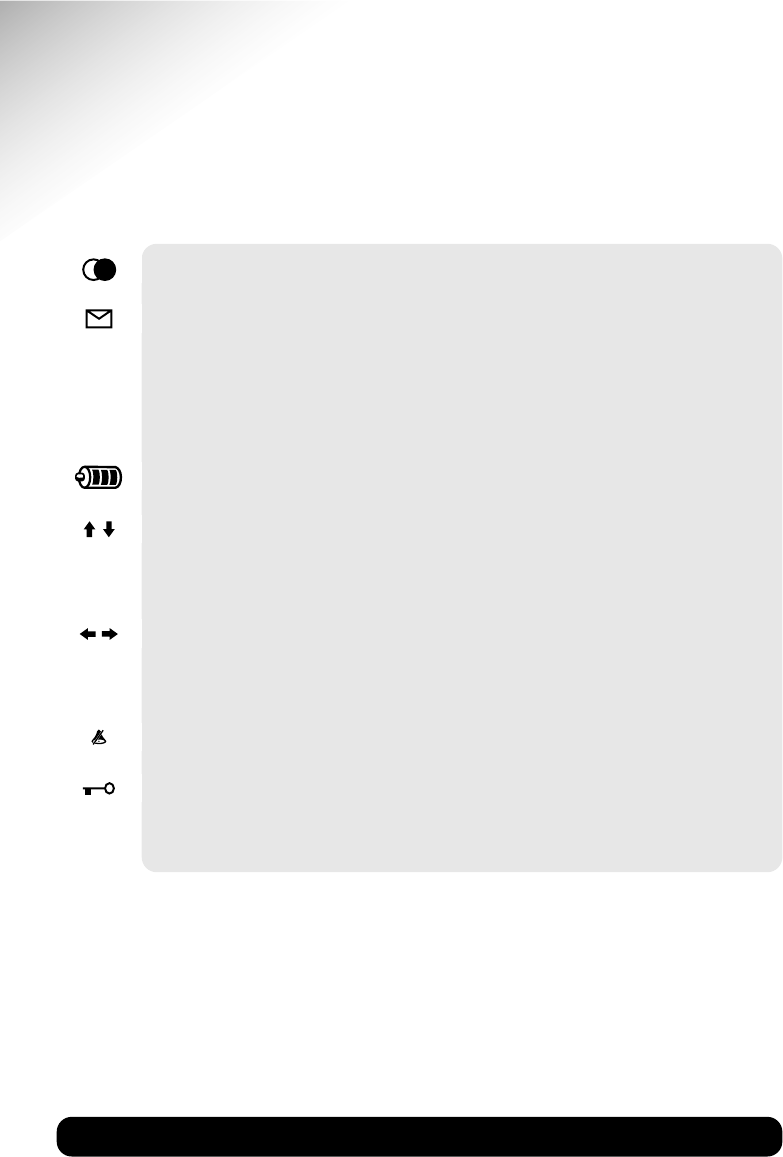
Quick guide to handset
display icons
Redial, lists up to the last 5 dialled number.
Flashes to indicate new messages (e.g Calls or SMS).
For calling other handsets.
Opens the menu.
Shows the status of the handset battery.
Scroll through the menu.
Confirms the function displayed.
Scroll left and right when entering numbers or messages.
Deletes numbers/characters (from left to right).
Ringer off.
Handset locked.
Shows the number of the handset and is displayed in top left hand corner.
INT
MENU
OK
C
eg. 1
Diverse 5200 handset & charger ~ 4th Edition ~ 20th May ’03 ~ 5189
INT MENU
1
4
9
WXYZ
7
PQRS
8TUV
GHI
3DEF
5JKL
2ABC
6MNO
0
R
1
8
BT Diverse Helpline – 08457 908 070
Introduction
INTRODUCTION
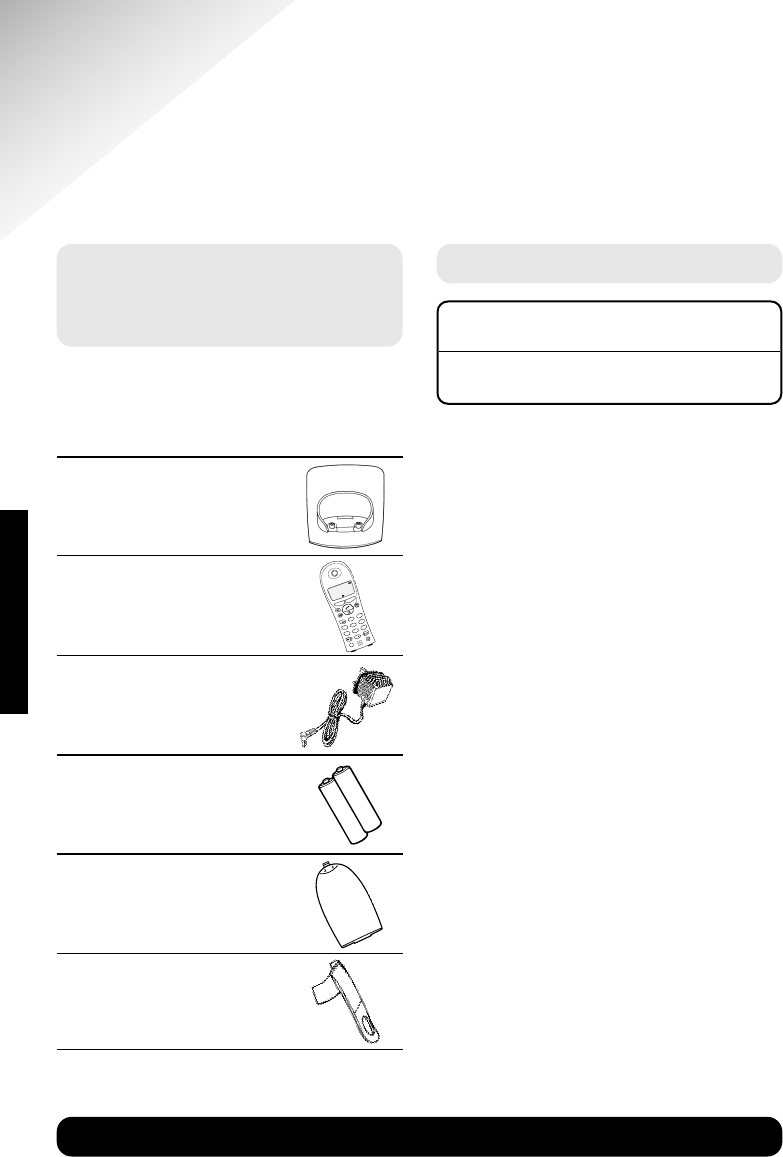
Unpacking your BT Diverse
5200 Additional Handset
and Charger
If anything is missing, please contact
your place of purchase immediately.
One BT Diverse 5200
Charger
One BT Diverse 5200
handset
One power supply
for the charger
Two AAA rechargeable
batteries
Battery compartment
cover
One belt clip
For guarantee purposes proof of
purchase is required so please keep
your receipt.
For your records
Date of purchase:
Place of purchase:

Diverse 5200 handset & charger ~ 4th Edition ~ 20th May ’03 ~ 5189
9
BT Diverse Helpline – 08457 908 070
Safety information
Safety information
General
Only use the power supply included
with the product. Using an
unauthorised power supply will
invalidate your guarantee and may
damage the telephone. Power supply
number is C39280-Z4-C478.
For the handset use only AAA 1.2V
Nickel Metal Hydride (NiMH)
rechargeable batteries with a minimum
capacity of 700 mAh. Never use other
batteries or conventional alkaline
batteries. They could lead to a short
circuit or destroy the battery casing.
Batteries and accessories are available
from www.withandwithoutwires.com
or call 0870 240 5522.
If the Keyguard is switched on, it is
NOT possible to make calls, including
emergency numbers (999/112).
Do not open the base station or handset
(other than to change batteries). This
could expose you to high voltages or
other risks.
Radio signals transmitted between the
handset and base may cause interference
to hearing aids.
This product should not be used near
emergency/intensive care medical
equipment and should not be used by
people with pacemakers.
Never dispose of batteries in a fire. There
is a serious risk of explosion and/or the
release of highly toxic chemicals.
Cleaning
Simply clean the handset and base
station with a damp (not wet) cloth, or
an anti-static wipe. Never use household
polish as this will damage the product.
Never use a dry cloth as this may cause
a static shock.
Environmental
Do not expose to direct sunlight.
The product may heat up when the
batteries are being recharged. This is
normal. However, we recommend that
you do not place the product on
antique/veneered wood to avoid damage.
Do not stand your product on carpets or
other surfaces which generate fibres, or
place it in locations preventing the free
flow of air over its surfaces.
Do not submerge any part of your
product in water and do not use it in
damp or humid conditions, such as
bathrooms.
Do not expose your product to fire,
explosive or other hazardous conditions.
There is a slight chance that your phone
could be damaged by an electrical storm.
We recommend that you unplug the
power and telephone line cord during an
electrical storm.
SAFETY INFORMATION
Diverse 5200 handset & charger ~ 4th Edition ~ 20th May ’03 ~ 5189
10
BT Diverse Helpline – 08457 908 070
Plan the location
Situate your product close enough to
the mains power socket so that the
cable will reach.
Make sure it is at least 1 metre away
from other electrical products to avoid
interference.
Do not situate the product in the
bathroom or other humid areas.
Setting up
2Plug the power supply
unit into the wall socket
SETTING UP
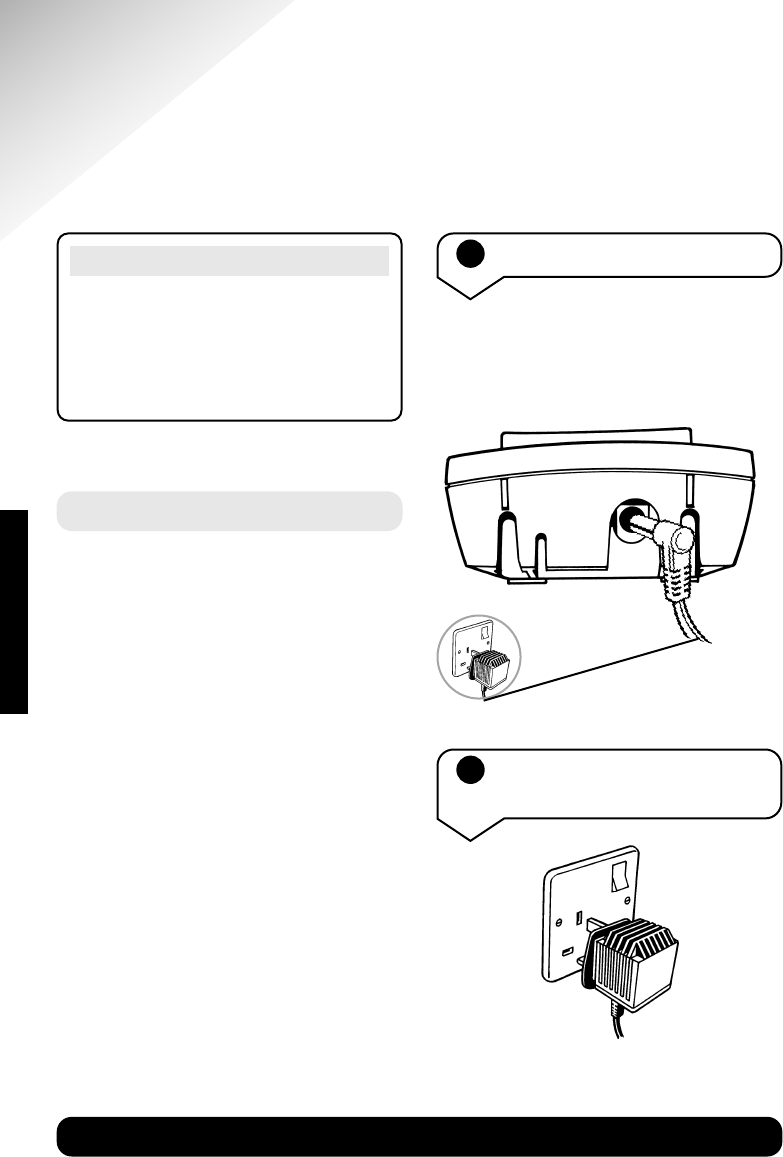
1Connect the charger
Plug the power supply cable into the
power socket on the underside of your
charger.
IMPORTANT
Please note that your handset is NOT
registered to the base station. The BT
Diverse 5200 additional handset will
be easily registered once you complete
the steps 1 to 3 below.
Diverse 5200 handset & charger ~ 4th Edition ~ 20th May ’03 ~ 5189
11
BT Diverse Helpline – 08457 908 070
WARNING
Under no circumstances should
non-rechargeable batteries be used.
Only use AAA 1.2V Nickel Metal
Hydride (NiMH) rechargeable
batteries with a minimum capacity of
700mAh.Using inappropriate batteries
will invalidate your guarantee and
may damage the telephone. Batteries
and accessories are available from
www.withandwithoutwires.com
or call 0870 240 5522.
3Registering and charging
the handset
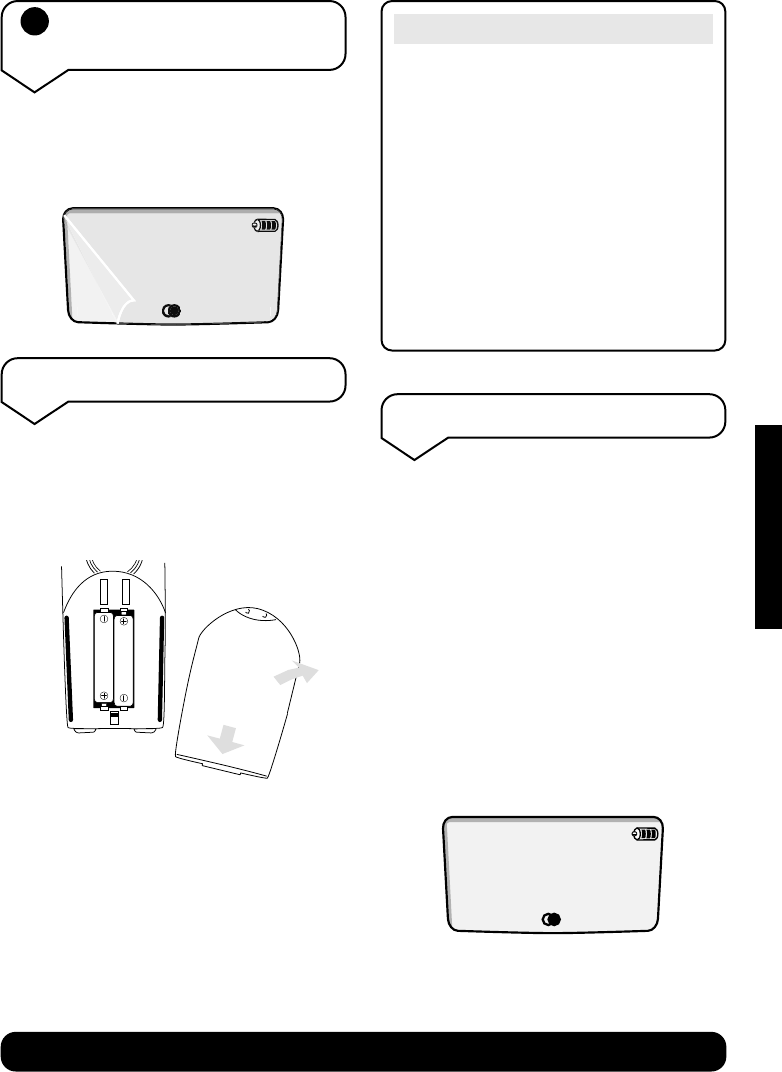
The display is protected by a plastic
film. Remove the protective plastic film
from the display.
MENU
INT
SETTING UP
Insert the batteries
Insert the two batteries supplied, as
indicated inside the battery
compartment and slide the battery
compartment cover shut.
The battery cover may be found in the
packaging with the batteries.
Registering the handset
To register your handset to a BT
Diverse 5210 or Diverse 5250 base
station, place it in the base station
with the display facing upward. After
approx. one minute, the handset’s
internal number is displayed (e.g.:
1
).
Successful registration is signalled by
a confirmation tone.
When the handset is registered the
display will show:
INT MENU
Diverse 5200 handset & charger ~ 4th Edition ~ 20th May ’03 ~ 5189
12
BT Diverse Helpline – 08457 908 070
SETTING UP
If the icons on the display
flash continuously...
It means that the handset is not
registered with the base station.
Ensure you have correctly carried out
step 3 above. If the product has still
not registered, please see “Registering
manually” below.
All additional handsets you purchase
will need to be individually registered
with the base station before they will
work with the BT Diverse 5200.
Leave the handset for approx. 16 hours
in the base station to charge the
batteries, as they are not charged in the
factory. The battery status icon flashes
on the handset to indicate that the
batteries are being charged.
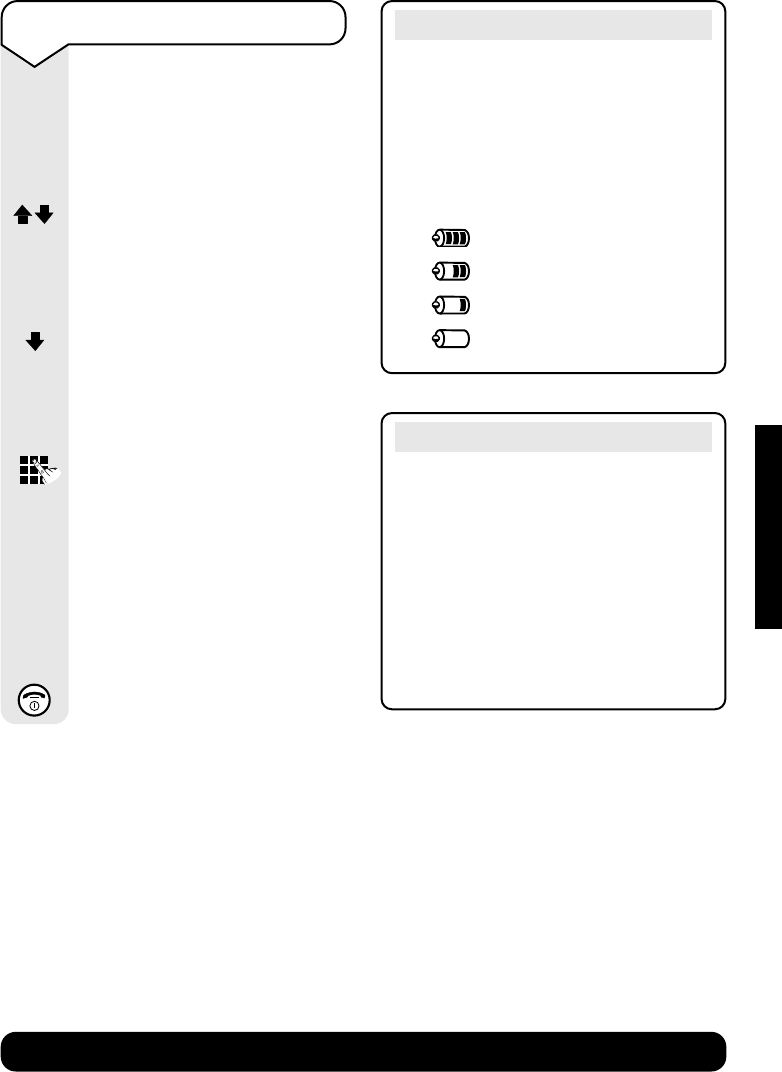
To manually register a
BT Diverse 5200 handset to
another base station
If you want to register your
handset to another base station
you will need to manually
register it.
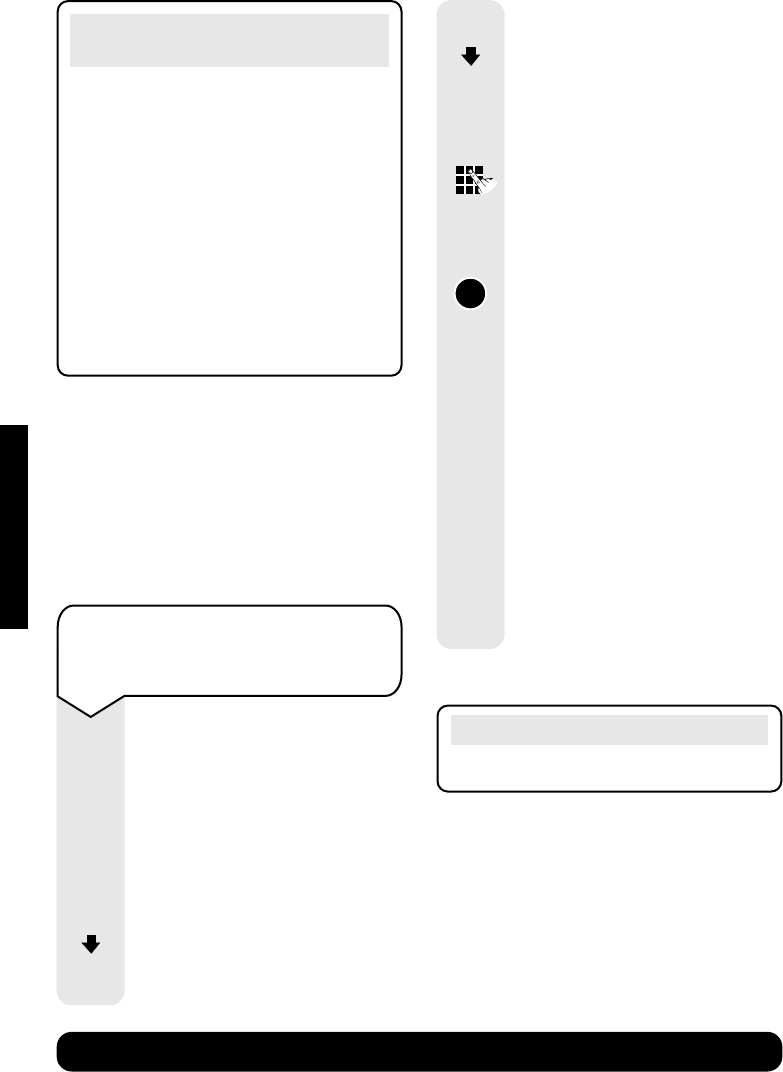
On the handset to be registered:
Press the MENU options button.
Press the DOWN navigation
button until the display shows
Handset Settings
.
MENU
OK
OK
Press the OK options button.
Press the DOWN navigation
button until the display shows
Register Handset
.
Press the OK options button.
Enter system PIN.
Press the OK options button.
If the base station is a
BT Diverse 5210 or 5250 base
press the PAGE button for
approximately three seconds.
After approximately one minute
the handset will display its
internal number. The handset
is now registered and the
handset display will return to
the idle screen.
If the base is not a 5210 or
5250 you will need to follow
the user guide for the base
station you are registering the
5200 handset to.
Note
To make internal calls see page 22.
OK
Diverse 5200 handset & charger ~ 4th Edition ~ 20th May ’03 ~ 5189
13
BT Diverse Helpline – 08457 908 070
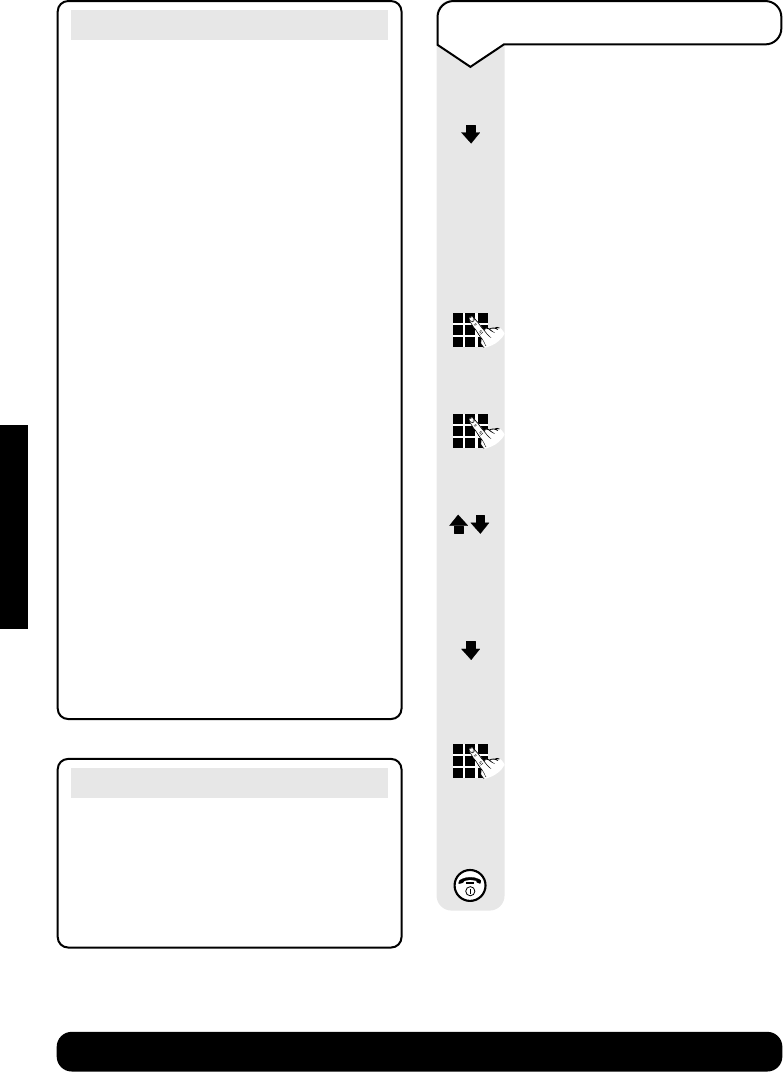
Battery level icons
When the batteries are almost flat a
beep sounds and the display shows the
empty battery icon. You will need to
recharge your handset before you can
use it. The various states of charge
are shown below:
Batteries fully charged
Batteries at 66%
Batteries at 33%
Batteries empty
To de-register a handset
Press the INT navigation
button to display the list of
internal handsets registered
to the base.
Press the UP or DOWN
navigation button to select the
handset you want to de-register.
Press the MENU options button.
Press the DOWN navigation
button until the display shows
De-register Handset
.
Press the OK options button.
Enter the base station PIN
(original setting =
0000
).
Press the OK options button.
Display shows
de-register
handset?
Press the OK options button
to confirm de-registration.
Press the RED PHONE button
to return to the idle screen.
MENU
OK
OK
OK
INT
Out of range?
If you go out of range of a base station
for a long time while your handset is
switched ON, it may take more than
20 minutes to ‘find’ the base station
again when you come back within
range. However, by simply switching
the handset OFF for a moment, then
ON again, it will find the base station
within a few seconds.
SETTING UP
Diverse 5200 handset & charger ~ 4th Edition ~ 20th May ’03 ~ 5189
14
BT Diverse Helpline – 08457 908 070
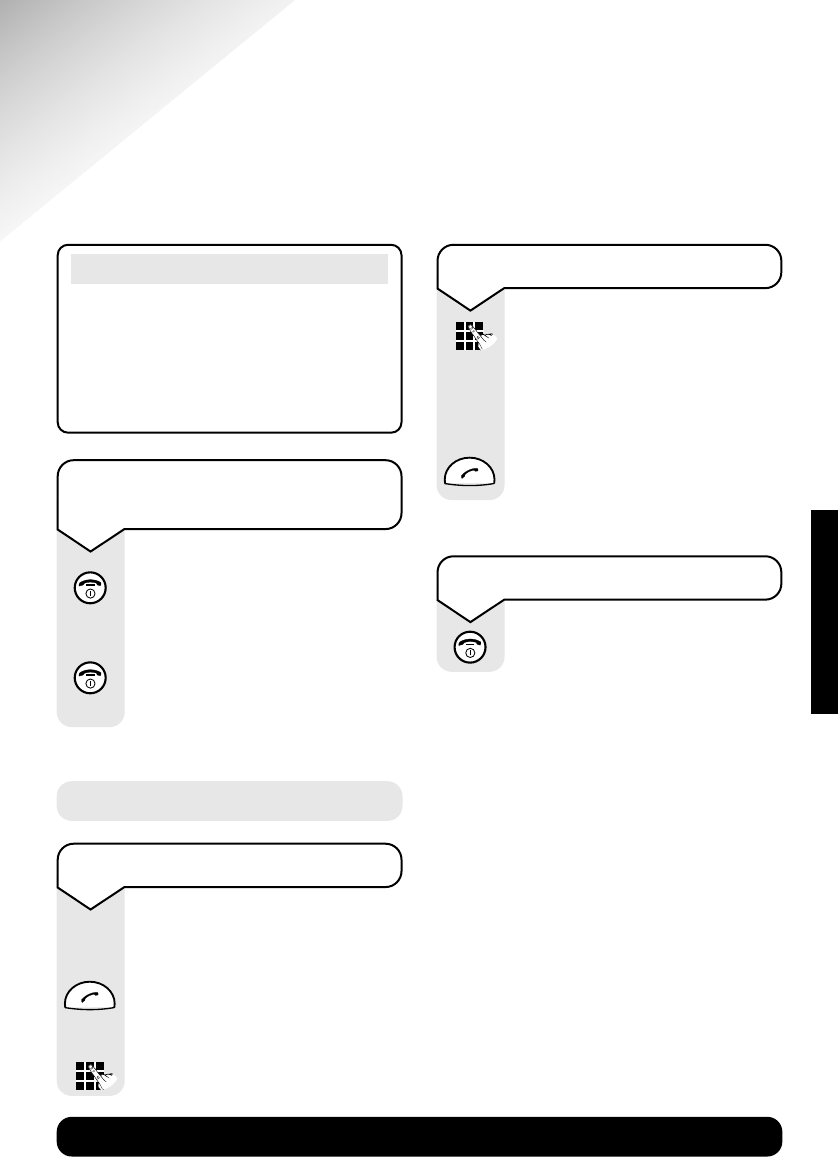
Setting the date and time
Press the Menu options button.
Press the DOWN navigation
button until the display shows
Calendar/Clock
.
Press the OK options button.
Date/Time
appears.
Press the OK options button.
Enter the day/month/year, e.g.
05 10 03 for 5th October 2003.
Press the OK options button.
Enter the time – hours/minutes.
e.g. 0925 for 9:25am.
Press the OK options button.
Use the UP/DOWN navigation
buttons to select
am/pm
if in 12
hour mode.
Press the OK options button.
Press the DOWN navigation
button to
Time Mode
.
Press the OK options button.
Use the UP/DOWN navigation
buttons to select 12 or 24 hour
display (12hr is the default).
Press the OK options button.
Press the RED PHONE button
until you reach the idle display.
OK
MENU
OK
OK
OK
OK
OK
OK
Note
If you subscribe to a Caller Display
service the time and date will be set
with the first incoming call.
However, the year setting will have to
be changed manually. See opposite.
Battery performance
Batteries and case may become warm
during charging. This is normal.
Under ideal conditions, the handset
batteries should give about 13 hours
talktime or 170 hours standby time
on a single charge. However, new
NiMH batteries do not reach their full
capacity until they have been in
normal use for several days.
The charge capacity of rechargeable
batteries will reduce with time as they
wear out, so reducing the talk/standby
time of the handset. Eventually they
will need to be replaced. New batteries
are available from
www.withandwithoutwires.com
or call 0870 240 5522.
If you replace the handset batteries
with ones that have been fully charged,
the battery indicator will not show full
until the next charge cycle has been
completed. Charge the handset until
the batteries register full again. From
then on the display will be correct.
SETTING UP
Diverse 5200 handset & charger ~ 4th Edition ~ 20th May ’03 ~ 5189
15
BT Diverse Helpline – 08457 908 070
To make an external call
Ensure the handset is
switched ON.
Press the GREEN PHONE
button. You will hear the dial
tone.
Dial the number.
Using the telephone
Preparatory dialling
Enter the phone number first.
If you make a mistake press
the Coptions button to
remove any incorrect digits.
Press the GREEN PHONE
button to dial the number.
Making and ending calls
To end a call
Press the RED PHONE button.
Note
To exit a menu at any time, press the
RED PHONE button. This will take
you back one step. Keep pressing the
RED PHONE button to return to the
idle screen.
To switch the handset power
on and off
Press and hold the RED
PHONE button to switch the
handset off.
Press and hold the RED
PHONE button to switch the
handset on again. Call timer
Your handset automatically times the
duration of all external calls, showing it
on the display during your call and for
a few seconds after it is finished.
C
USING
Diverse 5200 handset & charger ~ 4th Edition ~ 20th May ’03 ~ 5189
16
BT Diverse Helpline – 08457 908 070
To receive an external call
Press the GREEN PHONE
button to answer the call.
Or
If the handset is on the base,
simply lift it up and speak.
You do not need to press the
GREEN PHONE button.
This is called Autotalk. You
can switch autotalk off so you
always have to press the
GREEN PHONE button to
answer a call, see page 34.
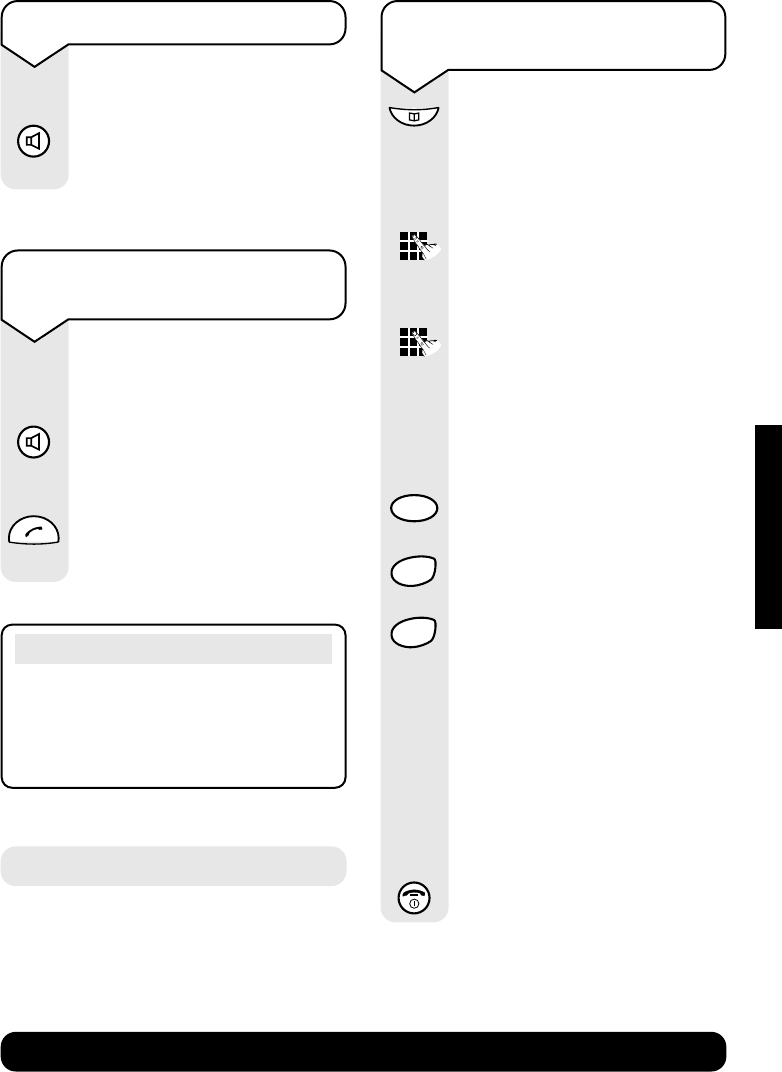
To make a handsfree call
Dial the number
Press the HANDSFREE button.
The loudspeaker is switched
on and you hear the number
being dialled.
To switch back to using the
handset at any time, press the
GREEN PHONE button.
Handsfree
Handsfree allows you to talk to your
caller without holding the handset and
enables other people in the room to
listen to the conversation. Your hands
are left free, for example to take notes.
Note
You can test the handsfree function by
dialling the BT speaking clock on 123.
To adjust the handsfree
volume whilst in handsfree
mode
Whilst in handsfree mode and
you want to increase or
decrease the handsfree volume.
Press the MENU options
button.
Press the OK options button to
select
volume
.
Using the LEFT or RIGHT
navigation buttons you can
either increase or decrease the
volume.
Press the OK options button
if you want to save the new
volume setting.
MENU
OK
OK
USING
Diverse 5200 handset & charger ~ 4th Edition ~ 20th May ’03 ~ 5189
17
BT Diverse Helpline – 08457 908 070
Note
If you need to replace the handset in
the base station during a call, for
example, because the battery is flat,
hold down the HANDSFREE button.
To switch to handsfree during
a call
During a call you can switch to
handsfree mode:
Press the HANDSFREE button.
The call is transferred to the
loudspeaker.
Press the GREEN PHONE
button to switch back to using
the handset.
To answer a call in handsfree
When the phone rings:
Press the HANDSFREE button.
The call is transferred to the
loudspeaker.
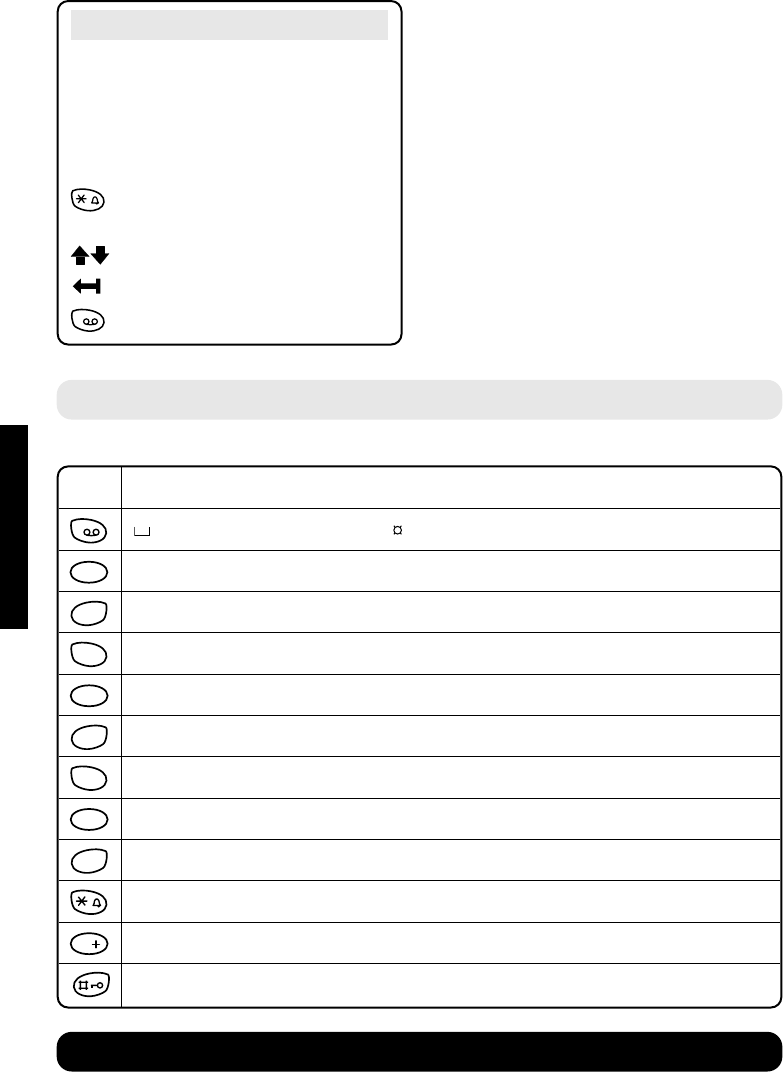
To store an entry in the
directory
Press the DIRECTORY button.
Press the MENU options button.
Display shows
New Entry
.
Press the OK options button.
Enter the telephone number.
Press the OK options button to
enter the name.
Enter the name.
Entering names:
Enter the name using the letters
on the keypad. For example, to
enter the name
TOM
:
Press the 8button,
T
appears
on the display.
Press the 6button three times
until the display shows
O
.
Then press the 6button to
display
m
.
For the full character map,
see page 18.
Press the MENU options
button. Display shows
Save
Entry
.
Press the OK options button
to confirm.
Press the RED PHONE button
until you reach the idle display.
OK
OK
MENU
Using the directory
You can store up to 50 names and
numbers in the telephone directory.
You can enter up to 32 digits and up to
16 characters.
OK
MENU
8TUV
6MNO
6MNO
USING
Diverse 5200 handset & charger ~ 4th Edition ~ 20th May ’03 ~ 5189
18
BT Diverse Helpline – 08457 908 070
Note
The first letter of each name, and the
first letter after a punctuation mark
are automatically shown as capitals.
Letters are always added to the left of
the cursor.
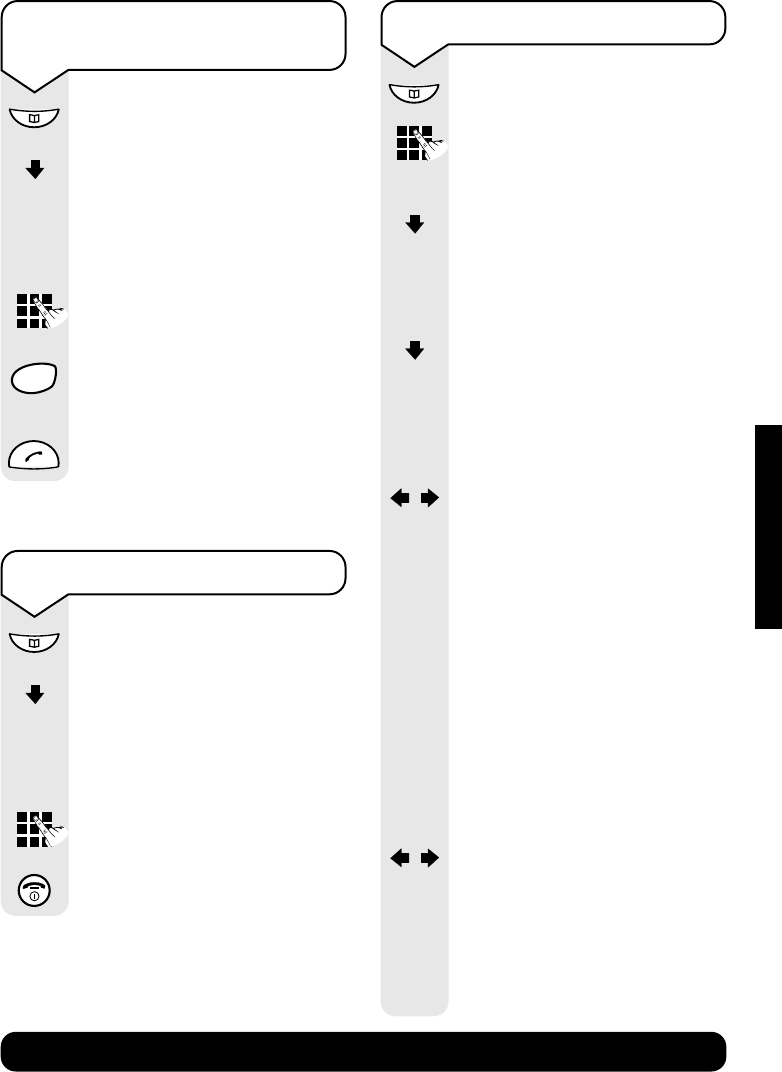
Press to switch between capitals
and lower case.
Press to move the cursor.
Press to delete from right to left.
Press 1to enter a blank space.
1
1x 2x 3x 4x 5x 6x 7x 8x 9x 10x 11x 12x 13x 14x
1€£$¥
abc2äáàâãç
def 3ëéèê
ghi 4ïíìî
jkl5
mn o 6 öñóòôõ
pqrs7ß
tuv8üúùû
wx y z 9 ÿ´yæø å
a➔A✱/()<=>%
.,?!0+-:¿¡ “ ‘ ;–
#@\ &§
0
9
WXYZ
8TUV
7
PQRS
6MNO
5JKL
4GHI
3DEF
2ABC
1
Character map
These are the characters you can use when storing a directory entry.
USING
Diverse 5200 handset & charger ~ 4th Edition ~ 20th May ’03 ~ 5189
19
BT Diverse Helpline – 08457 908 070
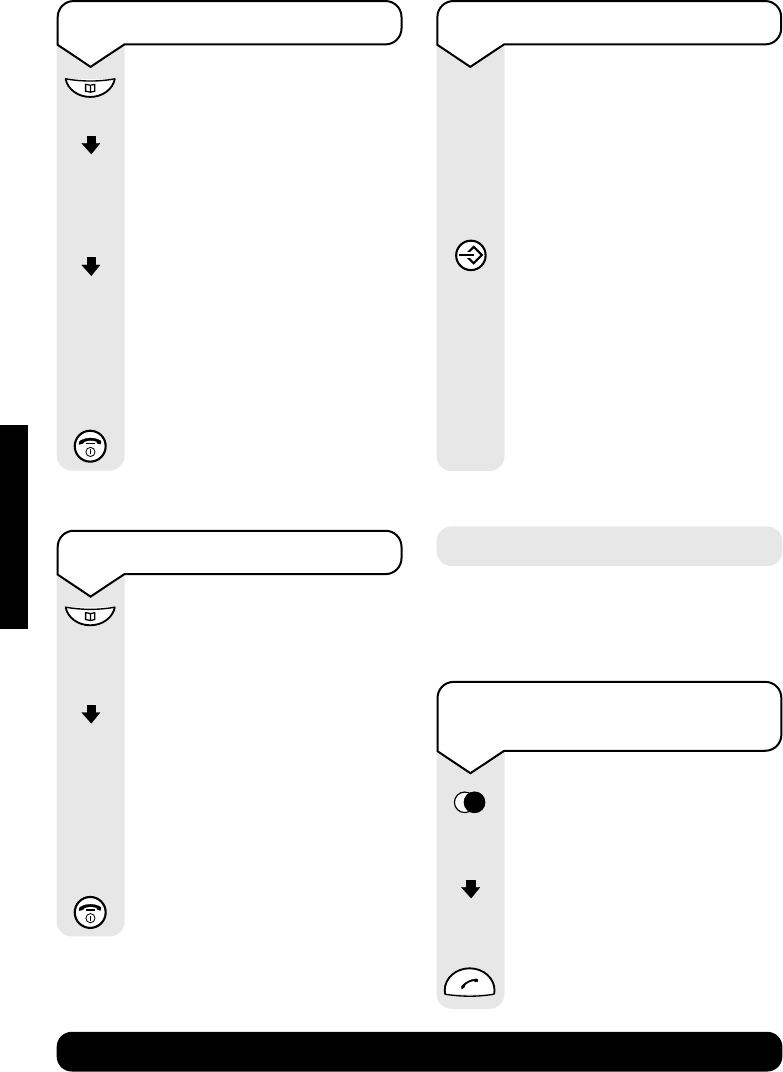
To dial a name and number in
the directory
Press the DIRECTORY button.
Press the DOWN navigation
button to scroll through the
names which are listed in
alphabetical order.
Or
Enter the first letter of the
name you want, e.g. for Emma,
press 3twice to search for
names beginning with E.
Press the GREEN PHONE
button. The number is dialled.
To view directory entry
Press the DIRECTORY button.
Press the DOWN navigation
button to scroll through the
entries.
Or
Press the first letter of the
name you are looking for.
Press the RED PHONE button
until you reach the idle display.
3DEF
To edit a directory entry
Press the DIRECTORY button.
Use the keypad to enter the
first letter of the name you
wish to edit.
Then press the DOWN
navigation button to scroll to
the exact entry.
Press the MENU options button.
Press the DOWN navigation
button until
EDIT ENTRY
is
displayed.
Press the OK button.
Edit the number, if necessary,
using the LEFT/RIGHT and
DELETE buttons.
Press the OK button.
<NAME>
is displayed.
If the name is correct, press
the MENU button,
SAVE ENTRY
is displayed.
Press the OK button. The
display will show
ENTRY SAVED
.
Or
If you wish to edit the name,
enter a new name now, using
the LEFT/RIGHT and DELETE
buttons as above.
Press the MENU button. The
display will show
SAVE ENTRY
.
Press the OK button. The
display will show
ENTRY SAVED
.
OK
OK
OK
OK
MENU
MENU
MENU
C
C
USING
Diverse 5200 handset & charger ~ 4th Edition ~ 20th May ’03 ~ 5189
20
BT Diverse Helpline – 08457 908 070
To delete an entry
Press the DIRECTORY button
and open the directory.
Press the DOWN navigation
button to scroll to the entry
you want to delete.
Press the MENU options button.
Press the DOWN navigation
button until the display shows
Delete Entry
.
Press the OK options button
to confirm. You hear a
confirmation beep.
Press the RED PHONE button
until you reach the idle display.
MENU
OK
To delete the entire directory
Press the DIRECTORY button
and open the directory.
Press the MENU options button.
Press the DOWN navigation
button until the display shows
Delete List
.
Press the OK options button.
Delete List?
is displayed.
Press the OK options button.
Press the RED PHONE button
until you reach the idle display.
MENU
OK
OK
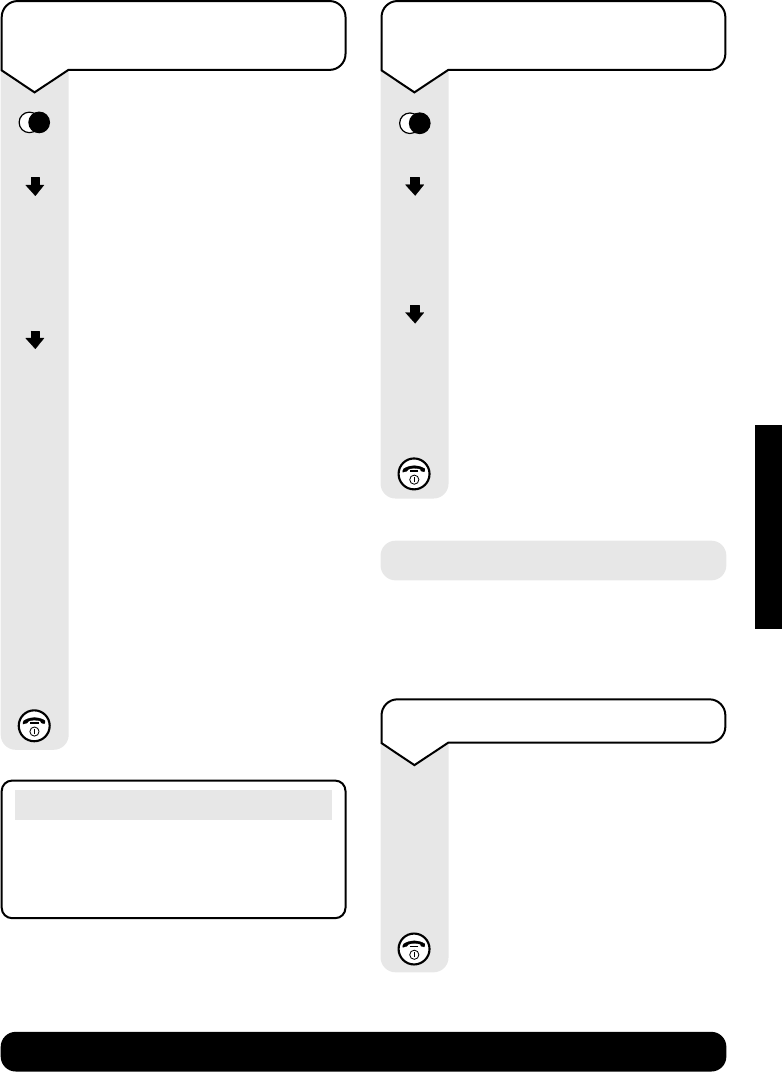
To dial a number in the
redial list
Press the REDIAL options
button. The last number
dialled will be displayed.
Press the DOWN navigation
button to scroll through the
redial list.
Press the GREEN PHONE
button to dial the number.
Redial
Your handset automatically saves the
last 10 telephone numbers dialled into a
redial list.
USING
Extra directory
Your Diverse 5200 has an
additional 10 name and number
directory. It is recommended
that this is used for special
numbers i.e. doctor, dentist,
takeaway numbers.
Press the EXTRA DIRECTORY
button.
The structure of this directory
is the same as the main
directory. You can follow the
instructions starting on page 17
for storing, dialling, viewing,
editing and deleting these
names and numbers.
Diverse 5200 handset & charger ~ 4th Edition ~ 20th May ’03 ~ 5189
21
BT Diverse Helpline – 08457 908 070
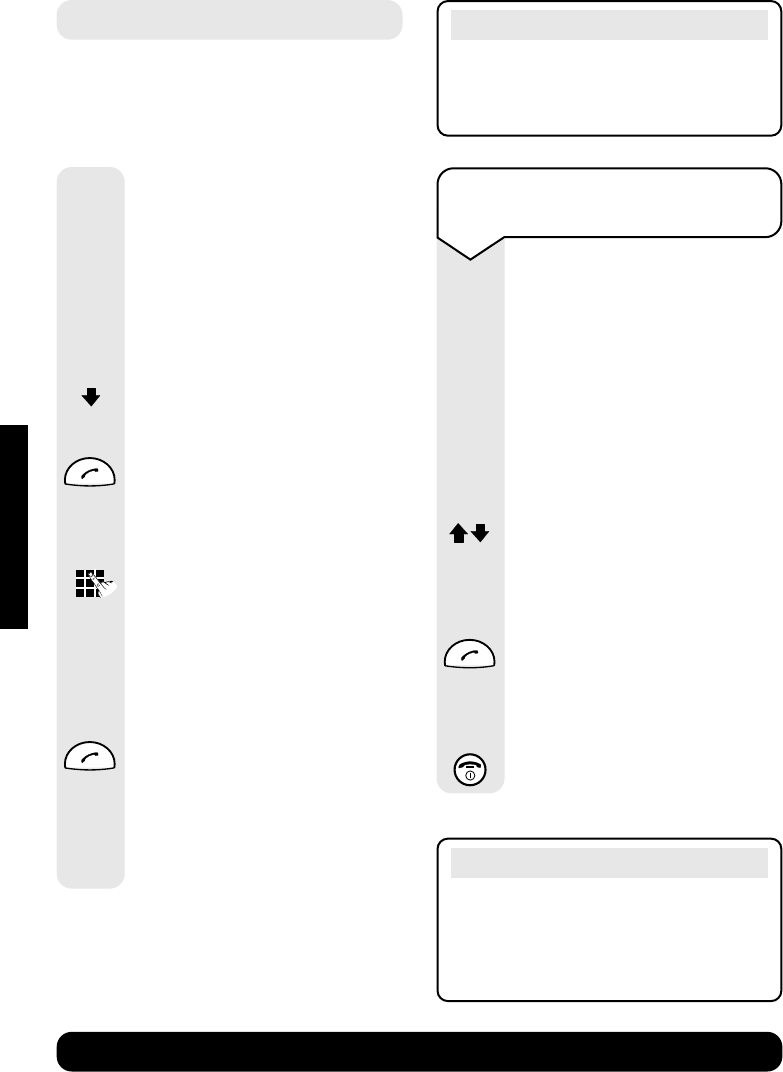
To copy numbers shown in
the redial list to the directory
Press the REDIAL options
button.
Press the DOWN navigation
button to scroll to the number
you want to copy.
Press the MENU options
button.
Press the DOWN navigation
button until the display shows
Copy to Directory
.
Press the OK options button.
Press the OK options button
again.
Enter the name (for details,
see page 17).
Press the MENU options button.
The display shows
Save Entry
.
Press the OK options button
to confirm.
Press the RED PHONE button
until you reach the idle display.
OK
OK
OK
MENU
MENU
Note
To cancel any procedure, press the
RED PHONE button until the display
returns to idle.
Secrecy
When on a call you can talk to someone
in the same room, without your caller
hearing.
To switch secrecy on/off
During a call:
Press the INT navigation
button. The microphone is
switched off. The caller hears
musical tones.
Press the RED PHONE button
to return to the caller.
INT
To delete a number from the
redial list
Press the REDIAL options
button.
Press the DOWN navigation
button to select the number
for deletion.
Press the MENU options
button.
Press the DOWN navigation
button until the display shows
Delete Entry
.
Press OK to confirm deletion.
Press the RED PHONE button
until you reach the idle display.
MENU
OK
USING
Diverse 5200 handset & charger ~ 4th Edition ~ 20th May ’03 ~ 5189
22
BT Diverse Helpline – 08457 908 070
Internal calls
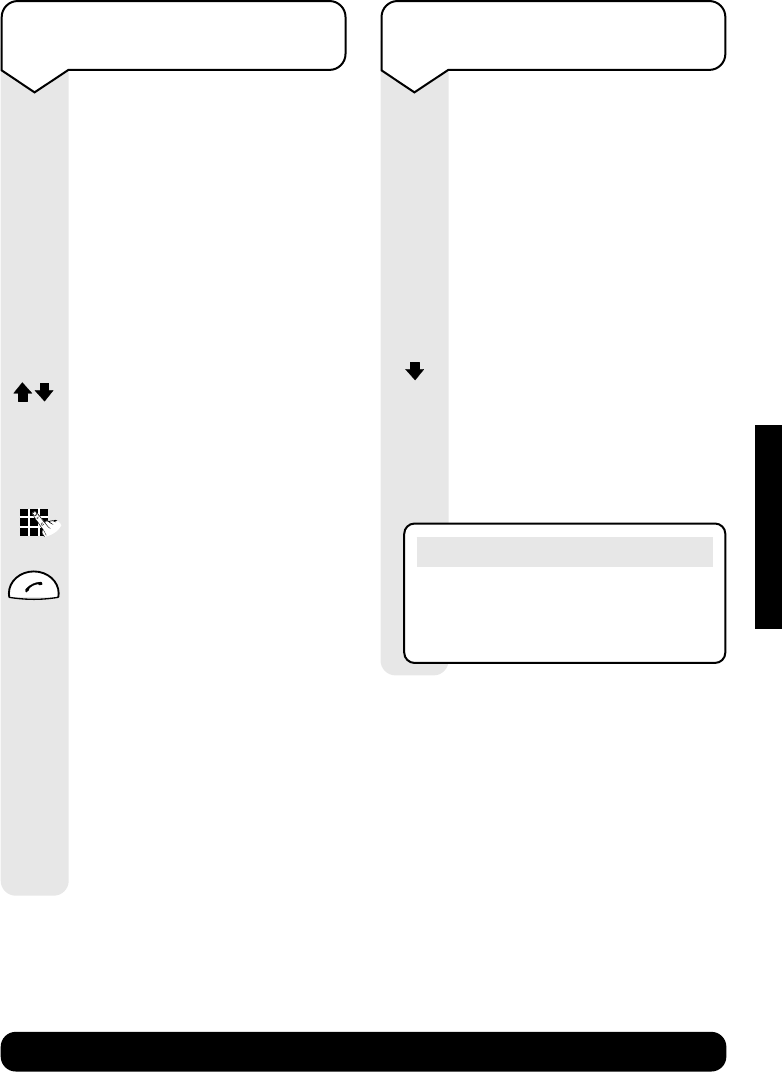
To transfer an external call
between handsets
You can forward an external
call to another handset
registered to the base.
During an external call:
Press the INT navigation
button to display the list of
handsets. Your caller hears
musical tones.
Press the UP or DOWN
navigation button to select the
handset you want to call or
Call all handsets
.
Press the GREEN PHONE
options button to call. When
the other handset answers you
can announce the call.
Press the RED PHONE button
to put the call through.
Note
You can also put the call through
without announcing it by immediately
pressing the RED PHONE button after
dialling the other handset.
INT
If you have multiple handsets
registered to the base you can make
internal calls between handsets.
Press the INT options button.
A list of all the handsets that
are registered to the base are
listed, you can select any of
them.
Your handset is identified by
INT 1 <
.
Press the DOWN navigation
button to highlight the
handset you want to call and
press the GREEN PHONE
button.
Or
Press the handset number you
want to call on the keypad.
Or
Select the
Call All
option
to page all the handsets
registered to the base and
press the GREEN PHONE
button.
The line will be seized by the
first handset user to answer
the call.
Call All
INT
Note
You can also page all handsets by
pressing the PAGE button on the base
station.
USING
Diverse 5200 handset & charger ~ 4th Edition ~ 20th May ’03 ~ 5189
23
BT Diverse Helpline – 08457 908 070
USING
To answer a waiting call
during an internal call
If you are making an internal
call and hear the Call Waiting
tone you can immediately take
the incoming call.
Press the MENU button.
To accept Call Waiting, press
the OK options button.
Or
To reject Call Waiting, press
the DOWN navigation button.
The display shows
reject
Call Waiting
.
Press the OK options button.
MENU
OK
OK
Note
If you accept Call Waiting you will
automatically terminate your
internal call.
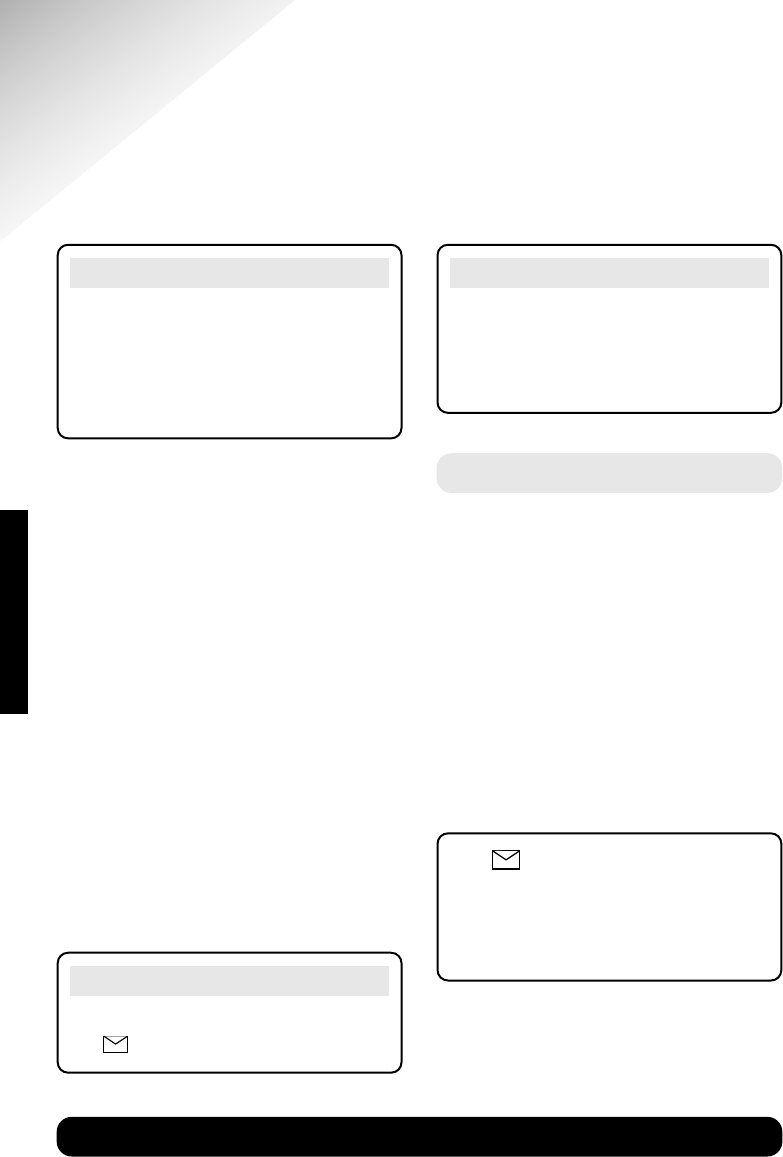
To put an external call on hold
while you make an internal call
This enables you to ask another
handset user a question and
then get straight back to your
caller.
During a call:
Press the INT options button
to display the list of handsets.
Your caller hears musical
tones.
Press the UP or DOWN
navigation button to select the
handset you want to call.
Or
Press the handset number you
want to call on the keypad.
Press the GREEN PHONE
button to call.
You can now speak with the
other handset user.
To return to your
external caller:
Press the MENU button and
Back
will be displayed.
Select the OK options button
which will reconnect you to
the external call.
MENU
OK
INT
Diverse 5200 handset & charger ~ 4th Edition ~ 20th May ’03 ~ 5189
24
BT Diverse Helpline – 08457 908 070
Caller Display and other
BT Calling Features
IMPORTANT
To use Caller Display and Call Waiting
you must first subscribe to the Services
from your Network Provider. For more
information on BT’s Calling Features
call BT free on 0800 800 150.
Note
Calls that are ‘withheld’, ‘unavailable’
or ‘international’ are not stored in the
Calls list, as there is no telephone
number sent via the Network.
Note
If you have a new call in your Calls list,
the icon will flash on the handset.
If you subscribe to a Caller Display
Service you can see who is calling you
on your handset display, as well as the
date and time of their call (unless the
number has been withheld).
If you have stored a name to go with
the number in your handset directory,
the name will be displayed instead.
Please ensure that you have stored the
full telephone number, including the area
code, otherwise the name will not match
the number stored in the directory.
If the caller has withheld their number,
the display will show
WITHHELD
.
If you call from another handset, the
display shows the handset number
and
INT
.
Calls list
The Calls list contains the telephone
numbers of your last 10 callers.
Whether you take a call or not, the
caller’s details are stored in the Calls
list. You can display, scroll through and
dial numbers in the list and copy them
into the directory.
If a call is received when the Calls list
is full then the oldest entry will be
deleted automatically.
The button lets you open:
•Calls list.
•Network mailbox.
•Text messages (SMS).
CALLER DISPLAY
Diverse 5200 handset & charger ~ 4th Edition ~ 20th May ’03 ~ 5189
25
BT Diverse Helpline – 08457 908 070
To view the Calls list
When you have new calls, the
icon flashes in the display.
Press the ENVELOPE button.
Press the DOWN navigation
button until the display shows,
e.g.
Calls List: 03+07
.
In this example, you have
received 3 new calls and you
have 7 old calls (calls you have
already viewed).
Press the OK options button to
display the most recent number
that called you.
Press the UP or DOWN
navigation button to display
all your new calls, followed by
all your old calls.
WHEN A CALLS LIST ENTRY
IS DISPLAYED YOU HAVE THE
FOLLOWING OPTIONS:
To call the number:
Press the GREEN PHONE
button. The number displayed
is dialled.
To display the date and time
the call was received:
Press the MENU options
button.
Press the DOWN navigation
button until the display shows
Date and Time
.
Press the OK options button.
The date and time of the call
are displayed.
Press the OK options button to
return to the Calls list.
To display the status of the call:
Press the MENU options
button.
Press the DOWN navigation
button until the display shows
Status
.
Press the OK options button.
The display shows whether the
call is a New Call or an Old
Call and the number of the
call in the Calls list, e.g.
01/10
–
the first call in a list of ten.
Press the OK options button to
return to the Calls list.
OK
MENU
OK
OK
Note
To exit the Calls list at any time,
press the RED PHONE button until
you reach the idle display.
MENU
OK
OK
CALLER DISPLAY
Diverse 5200 handset & charger ~ 4th Edition ~ 20th May ’03 ~ 5189
26
BT Diverse Helpline – 08457 908 070
To copy a number from the
Calls list to the directory:
Press the MENU options
button.
Press the DOWN navigation
button until the display shows
Copy to Directory
.
Press the OK options button.
The number is displayed.
Press the OK options button.
The display shows
<Enter Name>
.
Enter the name of the person
using the keypad.
Press the MENU options
button.
The display shows
Save Entry
.
Press the OK options button.
Entry Saved
is displayed.
The display automatically
returns to show the Calls list.
To delete a call from the
Calls list:
Press the MENU options
button.
The display shows
Delete Entry
.
Press the OK options button.
The display shows
Entry has
been deleted!
The display then shows the
next Calls list entry.
To delete the whole Calls list:
Press the MENU options
button.
Press the DOWN navigation
button until the display shows
Delete List
.
Press the OK options button.
The display shows
Calls list
empty!
Press the RED PHONE button
until you reach the idle display.
MENU
OK
MENU
OK
MENU
OK
OK
MENU
OK
CALLER DISPLAY
Diverse 5200 handset & charger ~ 4th Edition ~ 20th May ’03 ~ 5189
27
BT Diverse Helpline – 08457 908 070
To accept a waiting call
During a call when you hear
the Call Waiting beeps:
The number (and name if
stored in the directory) of
the second caller will flash
on the display.
Press the MENU options button.
Display shows
Accept Call
Waiting
.
Press the OK options button.
Press the UP or DOWN
navigation buttons to toggle
between callers.
Call Waiting
If you also subscribe to a Call Waiting
Service, when you are on a call and
another person tries to call you, the
second caller’s number will appear on
the handset display and you will hear
an intermittent beep through the
handset. This is to alert you to the
other caller waiting to speak to you.
OK
Options before you make a call
Before making a call you can:
•Withhold your number from being
sent for one call.
•Switch Call Waiting on/off.
•Switch off Ringback.
•Divert all calls to another number
(must be subscribed to).
Other BT Calling Features
Your Diverse 5200 additional handset
helps you use your Network’s special
services. For full details ask your
Network provider.
MENU
To withhold your number
from being sent
Your number appears on the
display of the person you call.
You can withhold it from the
next call.
Press the MENU options button.
Press the DOWN navigation
button until the display shows
Select Services
.
Press the OK options button.
The display shows
Withhold
Number
.
Press the OK options button.
Enter the telephone number
you want to call.
Press the OK options button
to dial.
The number is dialled and your
number is withheld for this call.
OK
OK
OK
MENU
BT CALLING FEATURES
Diverse 5200 handset & charger ~ 4th Edition ~ 20th May ’03 ~ 5189
28
BT Diverse Helpline – 08457 908 070
To switch Call Waiting on/off
You can choose whether to have
your Call Waiting service
switched on or off depending on
what you are doing i.e. if you
are using the Internet via your
PC and do not want Call Waiting
to interrupt you.
Press the MENU options button.
Press the DOWN navigation
button until the display shows
Select Services
.
Press the OK options button.
Press the DOWN navigation
button until the display shows
For All Calls
.
Press the OK options button.
Press the DOWN navigation
button until display shows
Call Waiting
.
Press the OK options button.
Press the DOWN navigation
button to choose between
On
or
Off
.
Press the OK options button.
Press the RED PHONE button
until you reach the idle display.
OK
OK
OK
OK
MENU
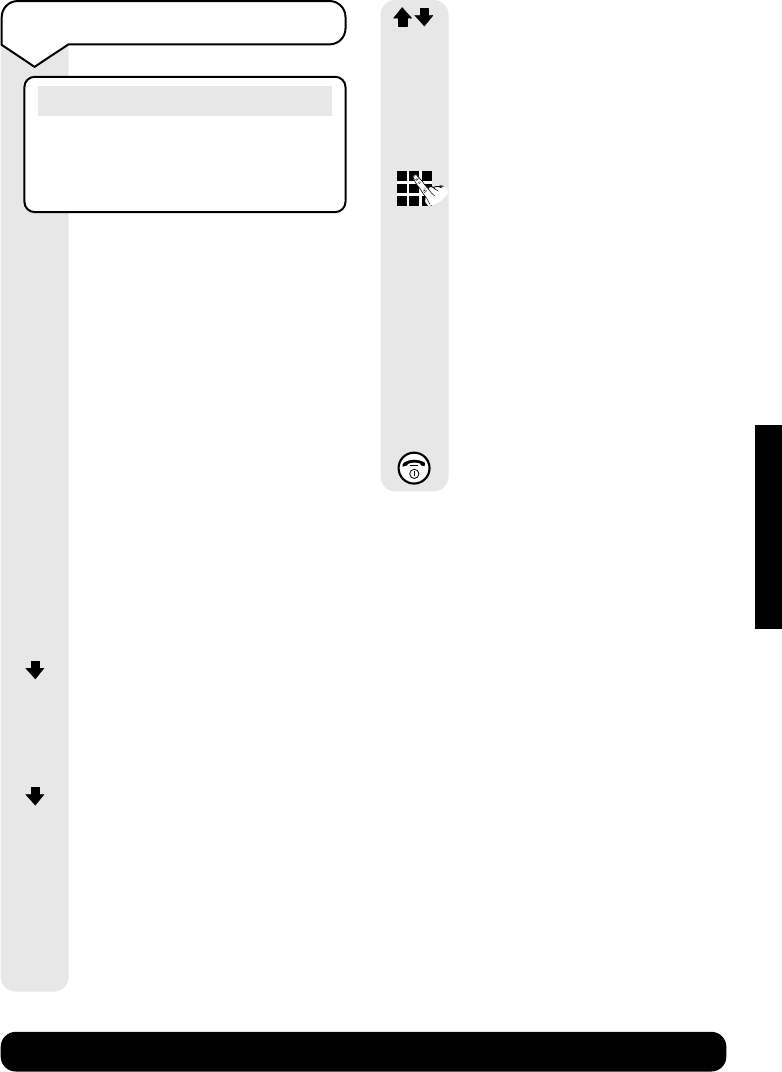
Ring Back Off
If you make a call and the
number is engaged you can
set your telephone to ring you
back once the number is free
by pressing 5. If you want to
cancel this request i.e. if you
have to go out before the call
rings back.
Press the MENU button.
Display shows
Select
Services
.
Press the OK options button.
Press the DOWN navigation
button until
Cancel Ringback
is displayed.
Press the OK options button.
You will hear a Network
message confirming your
divert request.
Press the RED PHONE button
until you reach the idle display.
OK
OK
MENU
5JKL
BT CALLING FEATURES
Diverse 5200 handset & charger ~ 4th Edition ~ 20th May ’03 ~ 5189
29
BT Diverse Helpline – 08457 908 070
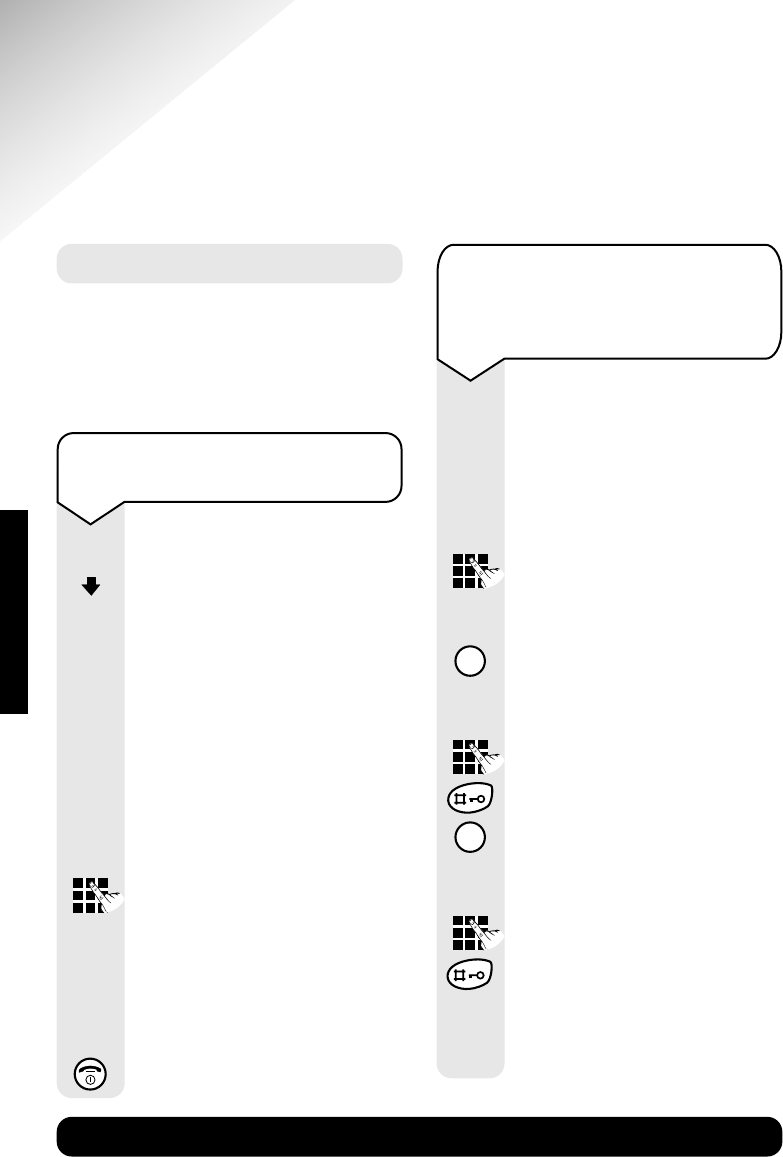
To set Call Divert
You can divert all incoming
calls to another number where
you can be reached.
You can divert calls:
•
All calls
– calls are put
straight through to the number
you have set.
•
No answer
– calls are
forwarded if your phone is
not answered.
•
When busy
– calls are
forwarded if your phone is
engaged.
Press the MENU options button.
Press the DOWN navigation
button until the display shows
Select Services
highlighted.
Press the OK options button.
Press the DOWN navigation
button until the display shows
For All Calls
.
Press the OK options button.
Display shows
Call Divert
.
Press the OK options button
again.
Press the UP or DOWN
navigation button to display
the option you want
All Calls
,
No Answer
or
When Busy
.
Press the OK options button
again.
Select
On
or
Off
.
Press the OK options button.
Enter the telephone number
you want your calls diverted to.
Press the OK options button.
You will hear a Network
message confirming your
divert request.
Press the RED PHONE button
until you reach the idle display.
OK
OK
OK
OK
OK
OK
MENU
Note
Call Divert requires subscription
from your Network provider. You
may be charged a subscription fee.
BT CALLING FEATURES
Diverse 5200 handset & charger ~ 4th Edition ~ 20th May ’03 ~ 5189
30
BT Diverse Helpline – 08457 908 070
Additional features
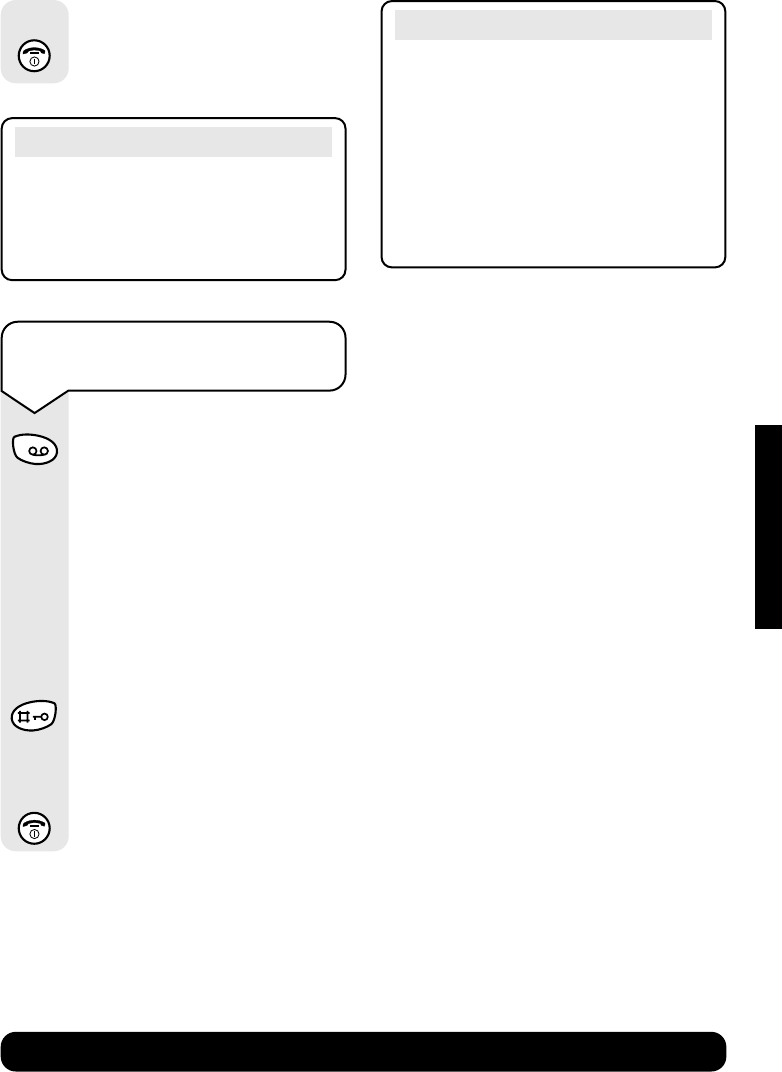
To set one-touch access to
your messages
Press the MENU options button.
Press the DOWN navigation
button until the display shows
Voice Mail
.
Press the OK options button.
The display shows
Set Key 1
.
Press the OK options button.
The display shows
Network
Mailbox
.
Press the OK options button.
Enter the telephone number
of your messaging service.
For example, 1571 to access the
‘BT Answer’ voice mail service.
Press the OK options button.
Display shows
Entry Saved
.
Press the RED PHONE button
until you reach the idle display.
MENU
OK
OK
OK
OK
Voice Mail
If you have Call Minder or a Network
Messaging Service on your telephone
line you can set the 1 button to access
your messages.
To set up quick access to
your Voice Mail service when
behind a switchboard e.g.
Meridian Mail
Follow the steps previously
given, but when you come to
enter the telephone number of
your messaging service, you
will need to follow the example
below:
Enter the access number for
your messaging service,
e.g.
7000
.
Press and hold the RECALL
button until
P
is displayed to
enter a pause in the dialling
sequence.
Enter your extension number,
followed by a hash, e.g.
1234 #
.
Press and hold the RECALL
button until
P
is displayed to
enter another pause in the
dialling sequence.
Enter your PIN followed by a
hash, e.g.
000000 #
.
The entire number should
look like this:
7000P1234#P000000#
R
R
ADDITIONAL FEATURES
Diverse 5200 handset & charger ~ 4th Edition ~ 20th May ’03 ~ 5189
31
BT Diverse Helpline – 08457 908 070
Press and hold down the
1button.
When set up it will take you into
your message service. If during
the set up you entered your
security PIN as well as the
telephone number you will be
taken quickly into your
messages. If the security PIN
was not included you will have
to enter this number now,
followed by a
#
.
You will then be taken into
your messages.
Press the RED PHONE button
until you reach the idle display.
Note
If you store your security PIN as part
of the quick access number, anyone
with access to the handset will be able
to retrieve your messages.
Note
If your handset is registered to an
answering machine base i.e.
BT Diverse 5250 you will be given the
choice of accessing your answering
machine messages or Network
Messaging Service. See your
BT Diverse 5250 user guide for further
information.
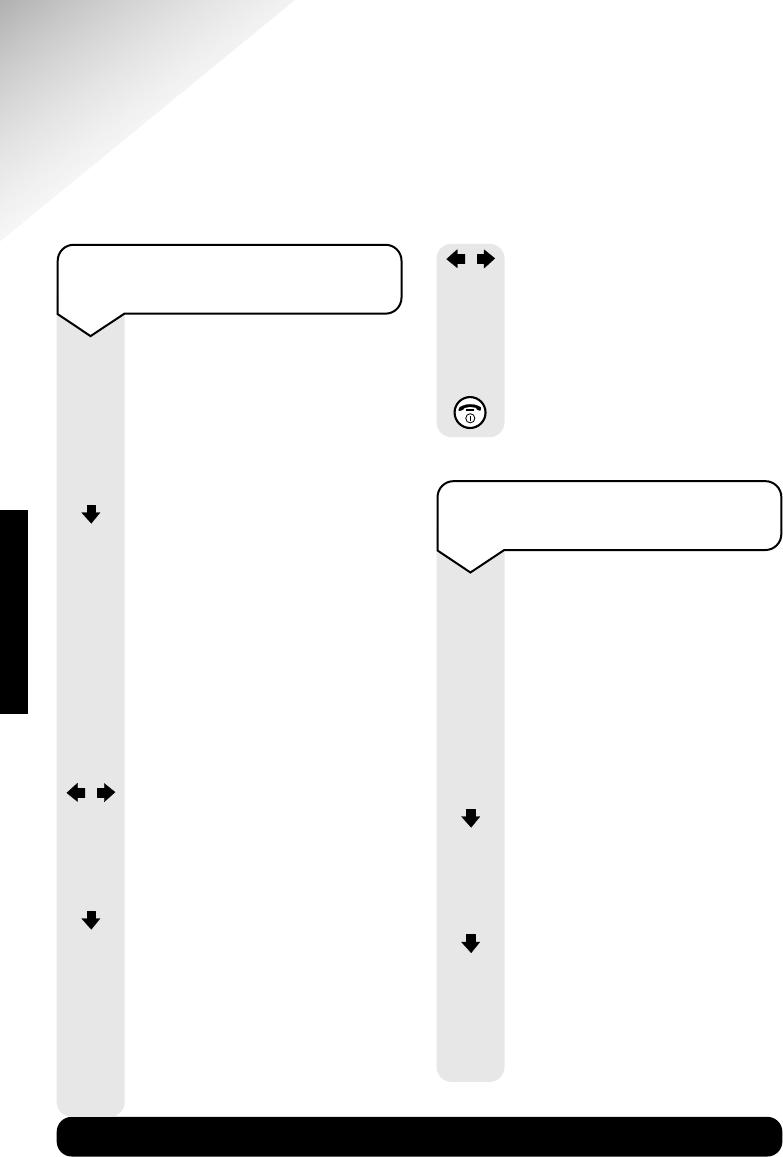
To retrieve messages from
your Voice Mail service
1
Press the OK options button.
Press the RED PHONE button
until you reach the idle display.
OK
ADDITIONAL FEATURES
Diverse 5200 handset & charger ~ 4th Edition ~ 20th May ’03 ~ 5189
32
BT Diverse Helpline – 08457 908 070
To change the earpiece volume
and handsfree volume
You can choose from:
•3 earpiece volume levels
•5 levels handsfree
loudspeaker volume levels.
Press the MENU options button.
Press the DOWN navigation
button until the display shows
Audio Settings
.
Press the OK options button.
The display shows
Earpiece
Volume
.
Press the OK options button.
You hear the current handsfree
volume.
Press the LEFT or RIGHT
navigation button to set the
volume level you want.
Press the OK options button.
Press the DOWN navigation
button to select the handsfree
volume.
Press the OK options button.
You hear the current
handsfree volume.
Press the LEFT or RIGHT
navigation button to set the
volume level you want.
Press the OK options button to
confirm and save the settings.
Press the RED PHONE button
until you reach the idle display.
Handset settings
You can choose a range of settings to suit your
personal preferences.
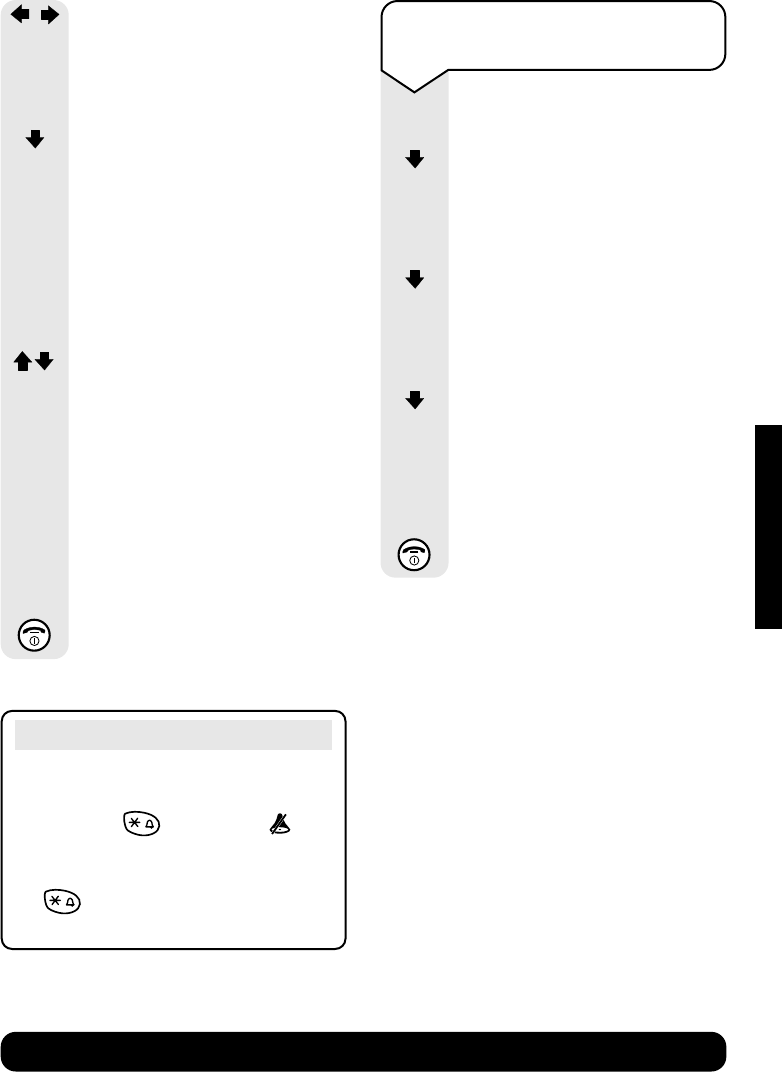
To set the ringer volume
and melody
You can choose from:
•5 ringer volumes (original
setting = 3)
•Crescendo ring (increasing
volume)
•Ringer off
•10 ringer melodies
Press the MENU options button.
Press the DOWN navigation
button until the display shows
Audio Settings
.
Press the OK options button.
Press the DOWN navigation
button until the display shows
Ringer Volume
.
Press the OK options button.
You hear the current ringer
volume.
MENU
OK
OK
MENU
OK
OK
OK
OK
OK
HANDSET SETTINGS
Diverse 5200 handset & charger ~ 4th Edition ~ 20th May ’03 ~ 5189
33
BT Diverse Helpline – 08457 908 070
Press the LEFT or RIGHT
navigation button to set the
ringer level you want.
Press the OK options button.
Press the DOWN navigation
button to select the ringer
melody.
Press the OK options button.
Select whether external calls or
internal calls:
Press the OK options button.
Press the UP or DOWN
navigation button to set the
ringer melody you want.
The melody is played and its
number shown.
Press the OK options button to
confirm and save the settings.
A ✔is displayed next to the
Set melody
.
Press the RED PHONE button
until you reach the idle display.
OK
OK
OK
OK
Shortcut button
If you want to switch the handset
ringer off quickly you can also press
and hold the button. The
icon is displayed. To turn the handset
ringer back on press and hold down
the button again and the symbol
will disappear.
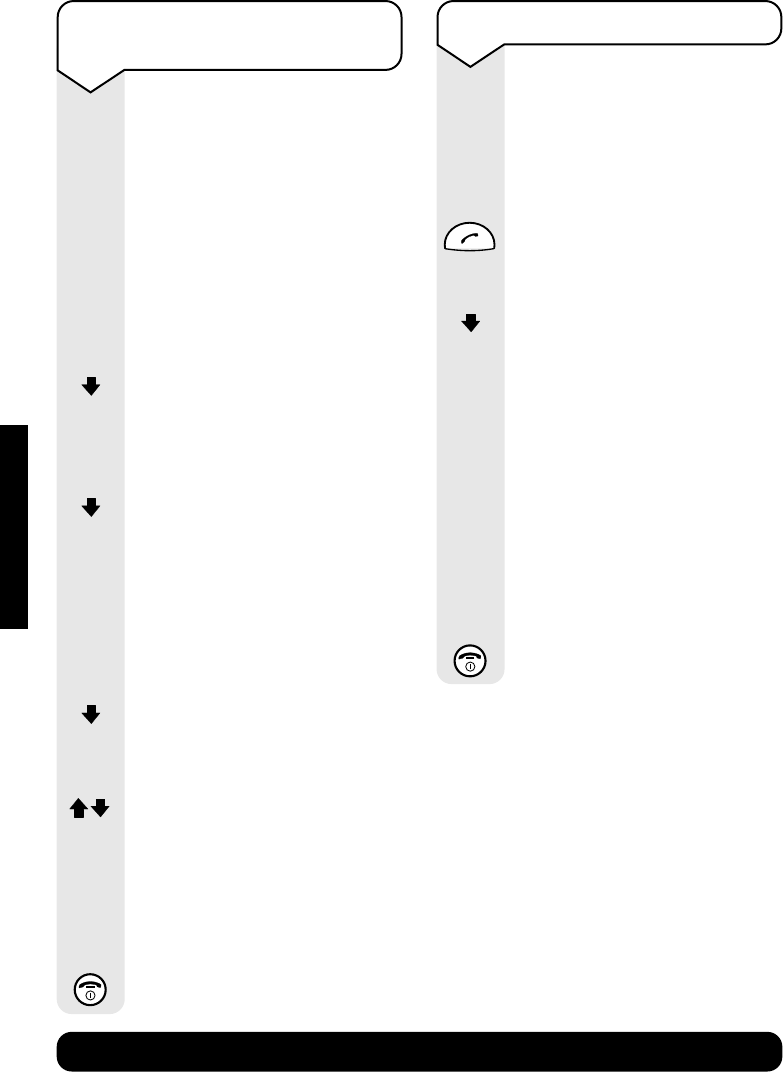
To change the display
language
Press the MENU options button.
Press the DOWN navigation
button until the display shows
Handset Settings
.
Press the OK options button.
Press the DOWN navigation
button until the display shows
Language
.
Press the OK options button.
Press the DOWN navigation
button to display the language
you want.
Press the OK options button
to confirm.
Press the RED PHONE button
until you reach the idle display.
OK
OK
OK
MENU
HANDSET SETTINGS
Diverse 5200 handset & charger ~ 4th Edition ~ 20th May ’03 ~ 5189
34
BT Diverse Helpline – 08457 908 070
To switch off your handset’s
beeps and tones
You can switch off and on:
•Key beeps when you press
each button on your handset
•Confirmation beeps when you
have finished making a setting
or action on your handset.
•Battery Low warning beep.
You can also set this to sound
only during a call.
Press the MENU options button.
Press the DOWN navigation
button until the display shows
Audio Settings
.
Press the OK options button.
Press the DOWN navigation
button until the display shows
Advisory Tones
.
Press the OK options button.
Press the OK navigation
button to switch the key tones
On or Off.
Press the DOWN navigation
button to move to the next line.
Press the OK options button.
Press the UP or DOWN
navigation button to switch the
battery low beep On or Off or to
sound only during a call.
Press the OK options button to
confirm the settings.
Press the RED PHONE button
until you reach the idle display.
OK
OK
OK
OK
OK
MENU
To switch auto talk on or off
When you receive a call, you
can answer it simply by lifting
the handset off the base station.
This is called auto-talk. When
you switch auto-talk off, you
answer all calls by pressing
the GREEN PHONE button.
Press the MENU options button.
Press the DOWN navigation
button until the display shows
Handset Settings
.
Press the OK options button.
The display shows
Auto
Answer
.
Press the OK options button.
A ✔indicates auto talk is
switched on. Press the OK
options button again to switch
auto-talk off.
Press the RED PHONE button
until you reach the idle display.
MENU
OK
OK
HANDSET SETTINGS
Diverse 5200 handset & charger ~ 4th Edition ~ 20th May ’03 ~ 5189
35
BT Diverse Helpline – 08457 908 070
To reset a handset
You can restore a handset to
its factory settings.
The handset’s Registration,
the Directory and the Calls list
are not affected.
Press the MENU options button.
Press the DOWN navigation
button until the display shows
Handset Settings
.
Press the OK options button.
Press the DOWN navigation
button until the display shows
Reset Handset
.
Press the OK options button.
The display shows
reset to
default?
Press the OK options button to
confirm reset.
The settings after a reset will be:
Ringer volume 3
Ringer melody 1
Auto talk On
Battery low beep On
Room monitor level off
Room monitor level high
Time control off
Display language English
Redial list deleted
Press the RED PHONE button
until you reach the idle display.
MENU
OK
OK
OK
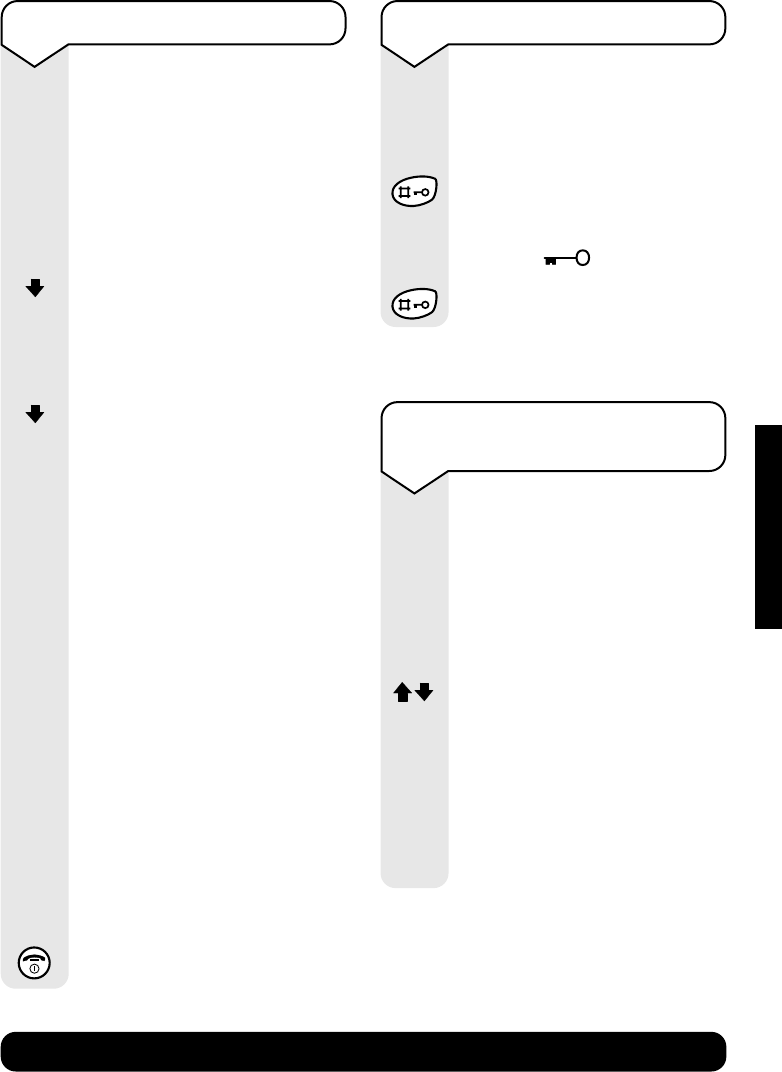
To switch keyguard on and off
You can lock the keypad so that
it cannot be used accidentally
while carrying it around.
Press and hold the
#
button.
When the keyguard is
switched on, the display will
show the icon.
Press and hold the
#
button
to switch the keyguard off.
To change the internal number
of a handset
Your handsets are automatically
assigned internal numbers
between 1-6. You can change
these numbers.
Press the INT options button
to display the list of handsets.
Press the UP or DOWN
navigation button to select the
handset you want.
Press the MENU options
button.
Edit Handset No.
is displayed.
Press the OK options button.
MENU
OK
INT
HANDSET SETTINGS

Diverse 5200 handset & charger ~ 4th Edition ~ 20th May ’03 ~ 5189
36
BT Diverse Helpline – 08457 908 070
Enter an available number.
If the number is already
assigned to another handset
you hear a beep. Select another
number.
If required, press the UP or
DOWN navigation button to
select another handset and use
the Keypad to change the
number.
Press the OK options button
to confirm.
Press the RED PHONE button
until you reach the idle display.
OK
HANDSET SETTINGS

Diverse 5200 handset & charger ~ 4th Edition ~ 20th May ’03 ~ 5189
37
BT Diverse Helpline – 08457 908 070
Help
Try these solutions to the most common problems.
Problem Possible cause Solution
Handset not registering. The base is not powered.
Make sure that the power supply
There are no batteries in the
is plugged in at the base and
handset.
switched on. Make sure that the
rechargeable batteries (included)
are fitted in the handset correctly.
Switch the handset off and then back
on again, place the handset on to the
base again and leave for approx.
1 minute to try registering again.
If this is still unsuccessful, then try a
manual registration (see page 12).
You have forgotten your base You have changed the PIN. Try entering the default PIN (0000).
station PIN number. If you have changed the PIN and
cannot remember the number you
will need to contact the BT Diverse
Helpline on 08457 908070.
No display. The handset is switched off. Hold down RED PHONE for
1 second.
Charge or replace the batteries.
Nothing happens when you press Keyguard may be switched on. Hold down the
#
button for
any button. 1 second.
No connection between handset Are you out of range of the base Move closer to the base station.
and base station. station.
Handset is not registered. Register the handset.
Charger is not switched on. Check the mains power is connected
correctly.
Handset on the charger does not Is another handset using the line Maximum charging power is only
charge. for a long time? possible when no calls are being made.
Is the handset placed on the Make sure that the handset is placed
charger properly? in the charger correctly.
You will hear a confirmation tone.
Are the batteries in correctly? Check that you have put the batteries
in the right way, you will hear a
confirmation tone.
HELP

Diverse 5200 handset & charger ~ 4th Edition ~ 20th May ’03 ~ 5189
38
BT Diverse Helpline – 08457 908 070
Handset does not ring. The handset ringer may be Hold down ✱to switch the ringer
switched off. back on.
The incoming caller’s number is The caller’s number has been Caller has to allow their number to
not displayed even though you withheld. be sent.
have Caller Display.
You keep hearing the error beep You have pressed the wrong Check the prompts in the display
(a descending tone). button in a sequence. or refer to instructions in the
user guide.
HELP

Diverse 5200 handset & charger ~ 4th Edition ~ 20th May ’03 ~ 5189
39
BT Diverse Helpline – 08457 908 070
General information
Within the 12-month guarantee period:
If you experience difficulty using the
product, prior to returning your
product, please read the Help section
beginning on page 37, or contact the
BT Diverse Helpline on 08457 908070
for assistance.
In the unlikely event of a defect
occurring, please follow the Helpline’s
instructions for replacement or repair.
Outside the 12-month guarantee period:
If your product needs repair after the
guarantee period has ended, the repair
must meet the approval requirements
for connection to the telephone network.
We recommend that you call the Helpline
on 08457 908070 and ask for details
of our recommended repair agents.
Guarantee
Your BT Diverse 5200 Additional
Handset and Charger is guaranteed
for a period of 12 months from the
date of purchase.
Subject to the terms listed below the
guarantee will provide for the repair of,
or at BT’s or its agent’s discretion the
option to replace the BT Diverse 5200,
or any component thereof, (other than
batteries), which is identified as faulty
or below standard, or as a result of
inferior workmanship or materials.
Products over 28 days old from the
date of purchase may be replaced with
a refurbished product.
The conditions of this guarantee are:
•The guarantee shall only apply to
defects that occur within the 12
month guarantee period.
•Proof of purchase is provided.
•The equipment is returned to BT or
its agent as instructed.
•This guarantee does not cover any
faults or defects caused by accidents,
misuse, fair wear and tear, neglect,
tampering with the equipment, or
any attempt at adjustment or repair
other than through approved agents.
•This guarantee does not affect your
statutory rights.
BT Accessories and
Replacement Items
For a full range of accessories and
replacement items for BT products
please call 0870 240 5522,
or visit:
GENERAL INFORMATION

Diverse 5200 handset & charger ~ 4th Edition ~ 20th May ’03 ~ 5189
40
BT Diverse Helpline – 08457 908 070
Technical information
How many telephones can you have on
the line?
All items of equipment have a Ringer
Equivalence Number (REN) which is
used to calculate the number of items
that may be connected to any one
telephone line.
The BT Diverse 5200 (with up to 6
handsets) has a total REN of 1.
Any other instrument provided by
BT may be assumed to have a REN of
1 unless stated otherwise.
A total REN of 4 is allowed per telephone
line. (For example: if the BT Diverse 5200
is used in conjunction with three
extension telephones, each with a REN
of 1, then the total REN = 4)
Only use approved power supply item
code C39280-Z4-C478.
R&TTE
This product is intended for use within
the UK for connection to the public
telephone network and compatible
switchboards.
This equipment complies with the
essential requirements for the Radio
Equipment and Telecommunications
Terminal Equipment Directive
(1999/5/EC). In demonstration with
the Essential Requirement for efficient
use of the radio spectrum, the product
complies with TBR6. For a copy of the
Declaration of Conformity please
contact the BT Diverse Helpline.
GENERAL INFORMATION

Diverse 5200 handset & charger ~ 4th Edition ~ 20th May ’03 ~ 5189
41
BT Diverse Helpline – 08457 908 070
Auto talk on/off 34
Batteries
charging 11
installing 11
performance 14
replacing 14
warning beeps 13
Beeps and tones 34
Call timer 15
Call Waiting 27
Caller Display 24
Calling Features 24
Calls
end 15
external 15
handsfree 16
holding 23
internal 22
making 15
on hold 23
receiving 16
redial 20
secrecy 21
transferring 22
Character map 18
Date set 14
Delete
all directory numbers 20
calls list call 26
complete calls list 26
directory entry 20
redial list 21
De-register handset 13
Directory 17
character map 18
delete all entries 20
delete an entry 20
dial a number 19
edit an entry 19
extra directory 20
store name and number 17
view an entry 19
Display icons 7
Earpiece volume 32
Ending calls 15
External calls 15
Extra directory 20
Guarantee 39
Handset
beeps and tones 34
change internal number 35
display 7
melody 32
on/off 15
reset 35
ringer 32
Handset quick guide 6
Handsfree 16
Help 37
Holding calls 23
Index
INDEX

Diverse 5200 handset & charger ~ 4th Edition ~ 20th May ’03 ~ 5189
42
BT Diverse Helpline – 08457 908 070
Internal calls 22
Internal number – change 35
Keyguard 35
Language change 33
Making calls 15
Melody 32
Menu structure 4
Music on hold X
On/off
auto talk 34
beeps and tones 34
handset power 15
keyguard 35
secrecy 21
Power connection 10
Preparatory dialling 15
Quick guide
display 7
handset 6
Range warning 13
Receiving calls 16
Redial 20
copy to directory 21
delete 21
dial number in redial list 20
Registering handset 11
manually 12
REN, how many phones can I have? 40
Reset
handset settings 35
Safety infomation 9
Secrecy 21
Setting up 10
Technical information 40
Time – set 14
Transferring calls 22
Voice mail 30
retrieve messages 31
set one-touch access 30
set up quick access behind
switchboard 30
Volume
earpiece 32
handset ringer 32
handsfree 16
INDEX

Visit us at www.bt.com
Offices worldwide
The Telecommunications services described in this publication
are subject to availability and may be modified from time to time.
Services and equipment are provided subject to British
Telecommunications plc’s respective standard conditions of contract.
Nothing in this publication forms any part of any contract.
TouchtoneTM is a registered trade mark of
British Telecommunications plc in the UK.
© British Telecommunications plc 2003.
Registered Office: 81 Newgate Street, London EC1A 7AJ.
Registered in England No. 1800000.
Diverse 5200 handset & charger Issue 1 (05/03) 4
Designed by The Art & Design Partnership Limited.
Siemens number: A31008-C001-P001-1-7619 CE compliant to R&TTE Directive (1999/5/EC)
0682
Diverse 5200 handset & charger ~ 4th Edition ~ 20th May ’03 ~ 5189
