Bushnell Performance Optics 36882 Phantom GPS RangeFinder User Manual NEO Phantom 1LIM indd
Bushnell Performance Optics Phantom GPS RangeFinder NEO Phantom 1LIM indd
Contents
- 1. User manual
- 2. Warning statement
User manual
User Manual
®
10-17
F.P.O.
Image-replace

2
Care and Maintenance
To help ensure reliable operation, the following care and maintenance guidelines are recommended :
• Avoid exposing the unit to extreme environmental conditions for a prolonged period of
time. The unit is IPX4 rated and resistant against water splashes from any direction, but
is not fully waterproof and should not be submerged in water at any depth, or exposed to
heavy rain or other strong streams of water.
• Avoid severe impacts on the unit.
• You may clean the unit occasionally with a soft, damp cloth.
• DO NOT expose the unit to strong chemicals such as gasoline and alcohol, as they will
damage the unit.
• Store the unit in a dry place when it is not in use.
WARNING
Do not attempt to open the NEO Phantom.
Risk of explosion if battery is replaced with incorrect type.
• Do not attempt to open, disassemble or service the internal battery. The battery must be
replaced by a qualied technician.
• Do not crush, puncture or short the battery’s external contacts. Do not expose to
temperatures above 140o F (60o C).
• Properly recycle or dispose of the battery. Do not dispose in re or water.
Legal Disclaimer
By using this product, you agree that Bushnell Outdoor Products will not be held legally responsible
for any injury or damage to you or any person or property caused by the user’s improper operation
and/or poor judgment while using this product.
Note: See Limited Warranty for other limitations to our liability.
Additional Information
The Global Positioning System (GPS), a network of 32 satellites orbiting Earth, is operated and
maintained by the U.S. government. This GPS device requires at least 3 satellites to be acquired to
accurately determine your position. Any change made to the system by the government could aect
the accuracy and performance of this product.
Bushnell Golf GPS Website
www.bushnellgolf.com is the best online resource for all our Golf GPS product owners, including
product support, FAQs, etc. It also serves as a portal to access iGolf.com GPS course les to use
with these Bushnell products. Registering your NEO Phantom via www.bushnell.igolf.com is not
required, but will ensure you have access to the latest updated GPS course data.
3
Contents Page #
Charging the Battery 4
Package Contents / Computer Requirements / Updates 4
Buttons and Functions 5
Getting Started 6
Using the Play Golf Mode 6
Button Functions in Play Golf Mode 7
Using the Play Golf Menu / Play Menu Items 8
Using the Settings Mode 9
Settings Menu Items 9-11
Accessing Updated Golf Course Data 12
How to Find the Product ID / Serial Number 13
Warranty Information 14
Table of Contents
4
Charging the Battery
The rechargeable battery of the NEO Phantom is long lasting
and provides up to 16 hrs (3 rounds of golf typically) on a charge.
However, battery life may be reduced due to a variety of factors
(external temperature, etc). All rechargeable batteries lose their
At the end of your round, be
.
To check your remaining battery life, select “Battery” from the
PLAY GOLF menu (pg. 8), or from the SETTINGS menu (pg.
9). To recharge the battery, attach the smaller plug on the
included USB cable to the port at the bottom side of the unit
and connect the large (standard) USB plug to your computer.
The NEO Phantom and USB cable are compatible with all USB
ports, including iPhone/other smartphone
USB chargers. Once connected, press the PWR
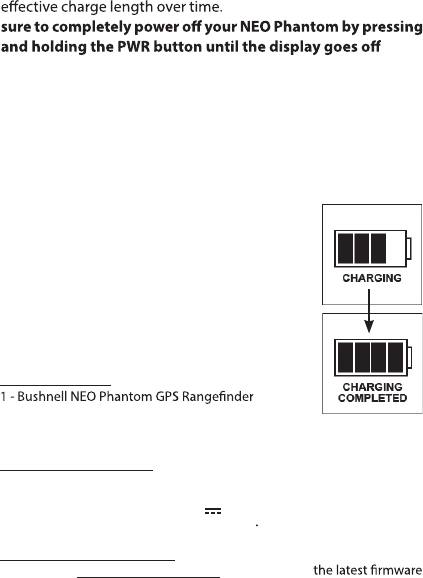
button-the display will read “CHARGING”.
When the Phantom is fully charged (about 4
hrs from totally discharged state, less if partial
charge remains) and ready to use, “CHARGING
COMPLETED” will be displayed (press PWR to
check charge status if not displayed).
Package Contents
1 - USB/Charging Cable
1 - Quick Start Guide
Computer Requirements
USB Port that supplies 5V DC for charging
OS:
Maximum charging current: 5V DC 150mA
Maximum battery charging temperature: 45 C
Windows (XP/Vista/Windows 7 or higher), Mac (OS X 10.4 or higher)
Firmware/Software Updates
Please check www.bushnellgolf.com periodically for
and software releases.
5
*Note: Backlight is activated with any button push. The
backlight will remain lit for 10 seconds after last button push.
Backlight is disabled in Play Golf Mode.
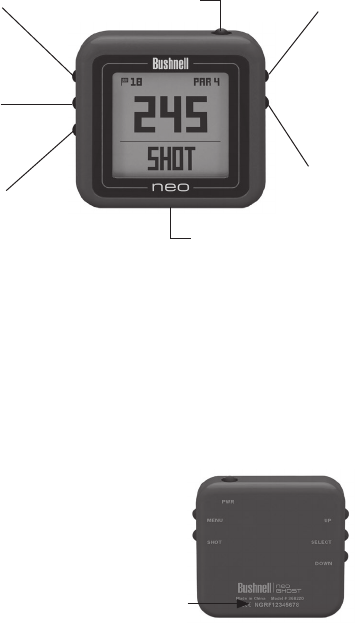
1. SHOT DISTANCE Button: Press at starting point, walk to
ball position to nd length of shot.
2. MENU Button: View Menu options/items.
3. UP Button: Scrolls up through Menu.
4. SELECT Button: Selects highlighted Menu item.
5. DOWN Button: Scrolls down through Menu.
6. PWR Button: Press & hold (1.5 sec.) to power on/o.
7. USB Port: Connect to PC or smartphone charger with
supplied cable to charge.
▲
◄
▼
Buttons and Functions
1
2
MENU
SHOT
3
UP
▲
5
DOWN
▼
4
SELECT
◄
PWR 6
USB
7
Rear View
Product ID (serial #)
F.P.O.
Image-replace
F.P.O.
Image-replace
6
GETTING STARTED
1. First, be sure the battery has a full
charge. If you are using it for the rst
time, it should be charged until full
(see pg. 4). Next, make sure you are
outdoors, in a location with a clear
view of the sky overhead, to ensure
good reception of GPS satellite signals.
Now, you’re ready to power up and use
your NEO Phantom.
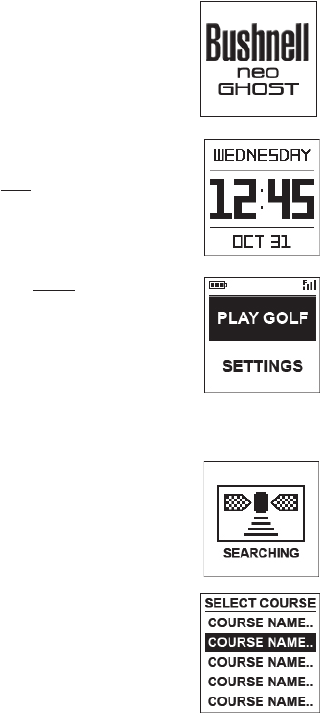
2. Press and hold the PWR button on the
top side of the unit until it powers on
(start screen as shown on right). Press
and hold again to turn o the power.
3. To turn on the backlight after the unit
is powered on, briey press and release
the PWR button.
4. The display will show the Main Menu
(from the time & date display screen,
press the MENU button on the right side),
with a choice of two operating modes:
PLAY GOLF or SETTINGS.
USING THE PLAY GOLF MODE
1. Highlight PLAY GOLF and press the
SELECT button. Display will show
”SEARCHING” , then SELECT COURSE.
2. Use the UP/DOWN buttons to select
(highlight) your course from list of
nearby courses (closest distance at
top), then press SELECT.
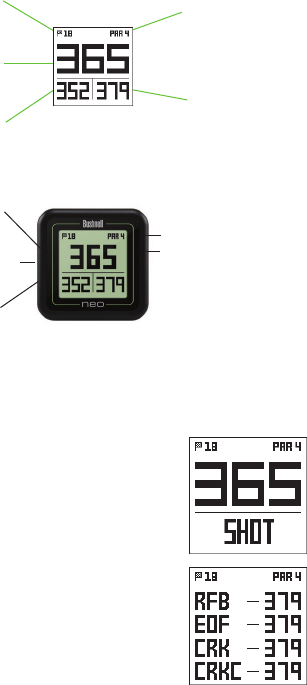
3. The display will show “LOADING”, then:
Current hole # (at upper left), Par for
the hole (upper right), and distances
to the center (large number at center
screen), front (lower left) and back
(lower right) of green. (see next page)
7
BUTTON FUNCTIONS IN PLAY GOLF MODE
• Press UP or DOWN buttons to manually advance to the
next hole (useful for “shotgun” starts), or go back to the
previous hole.
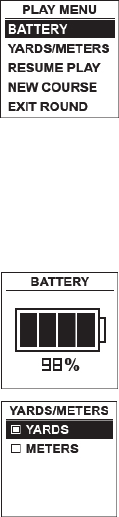
• Press the SHOT button at the tee (“point
A”)-display will update to indicate
distance from point A to your current
location (“point B”) as you walk. Useful
to measure the length of your shot.
Press SHOT again to return to zero and
set a new starting point.
• Press the SELECT button to display
distances to bunkers, hazards, etc. for
the hole from your current location.
Press SELECT again to return to the
regular PLAY GOLF display.
SHOT
NEXT HOLE
MENU
PREVIOUS
HOLE
HAZARDS/
ROUND INFO
Button Functions in Play Golf Mode
Hole #
Front of the
Green Distance
Back of the
Green Distance
Center of the
Green Distance
Par
Information
Displayed Info in Play Golf Mode
F.P.O.
Image-replace
8
USING THE PLAY MENU IN PLAY GOLF MODE
1. In PLAY GOLF Mode, press the MENU
button to view the PLAY MENU.
2. Select item from menu using UP/
DOWN buttons to highlight it, then
press SELECT button.
3. If multiple options are available for a
setting, use UP/DOWN to highlight
your choice, then press select.
4. A dot in a checkbox to the left of a setting indicates the
current setting (to change it, highlight a dierent setting
and press SELECT).
5. Press MENU button to return to previous menu screen.
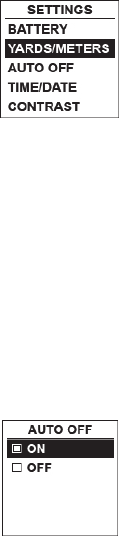
PLAY GOLF MENU ITEMS
• BATTERY*: press SELECT button to see
battery condition (charge %). (*also
provided in the SETTINGS Menu)
• YARD/METER*: press SELECT. Dot in
checkbox indicates current setting
(default=YARDS). To change how
distances are displayed, highlight
YARDS or METERS, press select. (*also
provided in the SETTINGS Menu)
•RESUME PLAY: from any screen, returns display to showing
current hole and distances based on current location.
• NEW COURSE: select another golf course from list.
• EXIT ROUND: stops tracking course, ends current game.
9
USING THE SETTINGS MODE
1. Highlight SETTINGS (if you are in PLAY
GOLF mode, press MENU and select
EXIT ROUND to go to the main menu)
and press SELECT.
2. Select item from menu using UP/
DOWN buttons to highlight it, then
press SELECT button.
3. If multiple options are available for a setting, use UP/
DOWN to highlight your choice, then press select.
4. A dot in a checkbox to the left of a setting indicates the
current setting (to change it, highlight a dierent setting
and press SELECT).
5. Press MENU button to return to previous menu screen.
SETTINGS MENU ITEMS
• BATTERY*: press SELECT button to see battery condition
(charge %). (*also provided in the PLAY GOLF Menu)
• YARD/METER*: press SELECT. Dot in checkbox indicates
current setting (default=YARDS). To change how distances
are displayed, highlight YARDS or METERS, press select.
(*also provided in the PLAY GOLF Menu)
• AUTO OFF: press SELECT. Dot in checkbox
indicates current setting (default=OFF).
ON=unit will automatically power o
after 30 minutes if no buttons have been
pressed (or if unit has not auto advanced
to next hole as you walk the course).
OFF=unit will stay powered on until
user manually powers o by holding PWR button. To change
setting, highlight ON or OFF, press SELECT.
NOTE: selecting “ON” can help avoid running down the
battery charge if you forget to power o after a round-but
there is the possibility of losing GPS satellite contact, along
with all data generated since your start of play. “OFF” is the
normally recommended setting. Use “ON” with caution.
10
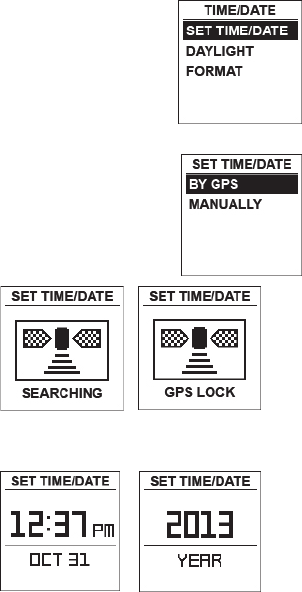
• TIME/DATE > press SELECT then
highlight and select one of these four
time/date related settings:
1) TIME ZONE: scroll through
list and highlight your time zone
(list continues if DOWN button
is pressed at bottom of screen),
press SELECT.
2) SET TIME/DATE: press SELECT
and highlight a method:
• BY GPS: press SELECT to
automatically set the time
based on your current GPS
location.
• MANUALLY: use the UP/DOWN buttons to enter
the correct current time and date yourself.
11
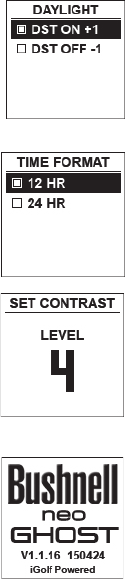
3) DAYLIGHT SAVI: press SELECT
and highlight current daylight
savings time status for your
location:
• DST ON +1
• DST OFF -1
4) FORMAT: press SELECT and
highlight preference for time
display:
• 12 HOUR
• 24 HOUR
• CONTRAST: press SELECT then
use UP/DOWN to select the display
contrast level for best viewing quality,
from 1 (lowest) to 10 (highest). Lower
contrast can improve screen viewing
in bright sun, as can higher contrast
settings on cloudy days.
• ABOUT: press SELECT to display your
unit’s rmware version.
12
Accessing Updated Golf Course Data
Your NEO Phantom is pre-loaded with data for over 33,000
courses located worldwide. It is ready to use right out of the box,
with no need to download software or pay any membership
fees.
But you might be thinking, “What if a new course opens
sometime after my unit was made? Is there a way to update the
database in my unit to add it?” The answer is yes, and it’s simple
to do.
Go to www.bushnellgolf.com and view the product page for
any of the dierent color versions of the NEO Phantom. You’ll
nd three orange links you can click:
• How to Update Your Golf GPS with the Latest Maps
Click this link for step-by-step directions for nding and
downloading new course data from iGolf.com
• Request Course Update
Click this link to go to a form you can ll out and email
to iGolf to submit a course that is not included in the
database, or if you nd information (data for a hole) that
is not mapped correctly on an existing course.
• Search for Available Courses on Your Bushnell Golf GPS
Click this link to search the current iGolf database to
verify a course you are interested in is included.
You can also go to: https://igolf.com and click “Join Now”, ll in
your contact info on the registration form then select “I Have A
GPS Device” to access course updates.
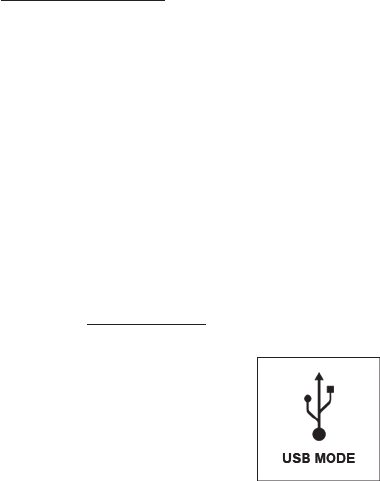
Use the provided USB cable to connect
your NEO Phantom to your PC or Mac. Once
connected, the screen will display “USB
MODE”.
13
BLUETOOTH SETTINGS
The NEO Phantom can connect to the smartphone app via
Bluetooth. Once connected the NEO Phantom can receive
text, email, phone, calendar, and Tee Time alerts. Further the
smartphone app can congure the NEO Phantom, display
Fitness data and Swing Pro data.
The smartphone app can be obtained from the Apple Store and
Google Play store for iPhone and Android devices, respectively.
Download and install the app on the mobile device. Go to the
mobile devices’ settings page to turn on Bluetooth, then launch
the app.
To connect your NEO Phantom to the smartphone app follow
the steps below:
1. On your smartphone, make sure you have Bluetooth turned
on.
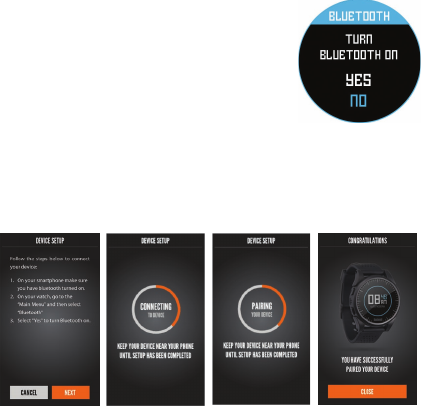
2. On your NEO Phantom, go to the “Main
Menu” and then select “Bluetooth”
(right).
3. Select “YES” to turn Bluetooth on.
4. Your NEO Phantom will then give
you a code. Enter that code into the
smartphone app when requested.
5. Once paired correctly, your smartphone app will display
a conrmation. The device is now paired with your
smartphone.
F.P.O.
14
MAGNETIC BITE FEATURE
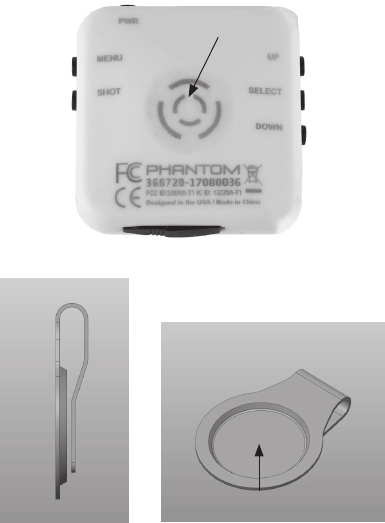
The NEO Phantom features a powerful BITE magnet incorporated
into the rear center of its housing, which allows it to be securely
attached to the included belt/bag clip, or directly to a golf cart
bar. To use the BITE clip, simple slide it onto your belt or golf
bag (round concave part facing out), then place the convex BITE
magnet on the back of the Phantom near the round concave
area on the BITE clip (see below).
BITE Magnet
BITE Clip for attaching Phantom
to belt or golf bag
Round concave area
F.P.O.
Image-replace
15
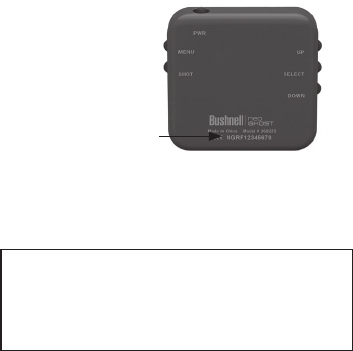
Product ID (serial #)
How to Find the Product ID / Serial Number
The serial # (Product ID) of your Phantom can be found on the
back of the unit. Write it down below for future reference. You
will need it to register on the iGolf site so you can access newly
added golf courses or update data for existing courses.
My Serial #/Product ID
F.P.O.
Image-replace

16
ONE YEAR LIMITED WARRANTY
Your Bushnell
®
NEO Phantom is warranted to be free of defects in materials and
workmanship for one year after the date of purchase. In the event of a defect under
this warranty, we will, at our option, repair or replace the product, provided that you
return the product postage prepaid. This warranty does not cover damages caused by
misuse, improper handling, installation, or maintenance provided by someone other
than a Bushnell Authorized Service Department.
Any return made under this warranty must be accompanied by the items listed
below:
1. A check/money order in the amount of $10.00 to cover the cost of postage
and handling
2. Name and address for product return
3. An explanation of the defect
4. Proof of Date Purchased
Product should be well packed in a sturdy outside shipping carton to prevent
damage in transit, to the address listed below:
IN U.S.A. Send To: IN CANADA Send To:
Bushnell Outdoor Products Bushnell Outdoor Products
Attn.: Repairs Attn.: Repairs
9200 Cody 140 Great Gulf Drive, Unit B
Overland Park, Kansas 66214 Vaughan, Ontario L4K 5W1
For products purchased outside the United States or Canada please contact your
local dealer for applicable warranty information. In Europe you may also contact
Bushnell at:
Bushnell Germany GmbH
European Service Centre
Mathias-Brüggen-Str. 80
D-50827 Köln
GERMANY
Tel: +49 221 995568-0
Fax: +49 221 995568-20
This warranty gives you specific legal rights.
You may have other rights which vary from country to country.
©2017 Bushnell Outdoor Products
Windows is a registered trademark of Microsoft Corporation in the United States and other countries.
Mac and Mac OS are trademarks of Apple Inc., registered in the U.S. and other countries.
Other names may be trademarks of their respective owners.
17
· Reorient or relocate the receiving antenna.
· Increase the separation between the equipment and receiver.
· Consult the dealer or an experienced radio/TV technician for help.
The device does not contain any user-serviceable parts. Repairs should only be made by an Authorized Bushnell
repair center. Unauthorized repairs or modifi cations could result in permanent damage to the equipment, and will
void your warranty and your authority to operate this device under Part 15 regulations.
The shielded interface cable which is provided must be used with the equipment in order to comply with the
limits for a digital device pursuant to Subpart B of Part 15 of FCC Rules.
Radiation Exposure Statement:
The product comply with the FCC portable RF exposure limit set forth for an uncontrolled environment and are safe
for intended operation as described in this manual. The further RF exposure reduction can be achieved if the
product can be kept as far as possible from the user body or set the device to lower output power if such function is
available.
Industry Canada statement:
This device complies with ISED’s licence-exempt RSSs. Operation is subject to the following two conditions: (1) This
device may not cause harmful interference, and (2) this device must accept any interference received, including
interference that may cause undesired operation.
Le présent appareil est conforme aux CNR d’ ISED applicables aux appareils radio exempts de licence. L’exploitation
est autorisée aux deux conditions suivantes: (1)le dispositif ne doit pas produire de brouillage préjudiciable, et (2)
ce dispositif doit accepter tout brouillage reçu, y compris un brouillage susceptible de provoquer un
fonctionnement indésirable.
Radiation Exposure Statement:
The product comply with the Canada portable RF exposure limit set forth for an uncontrolled environment and are
safe for intended operation as described in this manual. The further RF exposure reduction can be achieved if the
product can be kept as far as possible from the user body or set the device to lower output power if such function is
available.
Déclaration d'exposition aux radiations:
Le produit est conforme aux limites d'exposition pour les appareils portables RF pour les Etats-Unis et le Canada
établies pour un environnement non contrôlé. Le produit est sûr pour un fonctionnement tel que décrit dans ce
manuel. La réduction aux expositions RF peut être augmentée si l'appareil peut être conservé aussi loin que
possible du corps de l'utilisateur ou que le dispositif est réglé sur la puissance de sortie la plus faible si une telle
fonction est disponible.
FCC Statement
This device complies with Part 15 of the FCC interference limits for Class B digital devices FOR HOME OR OFFICE
USE. These limits are designed to provide reasonable protection against harmful interference in a residential
installation, and are more stringent than “outdoor” requirements.
Operation of this device is subject to the following conditions
(1) This device may not cause harmful interference, and (2) this device must accept any interference received,
undesired operation.
This equipment generates, uses and can radiate radio frequency energy and, if not installed and used in
accordance with the instructions, may cause harmful interference to radio communications. However, there is no
guarantee that interference will not occur in a particular installation. If this equipment does cause harmful
interference to radio or television reception, which can be determined by turning the equipment off and on, the
user is encouraged to try to correct the interference by one or more of the following measures:
FCC ID: 2ABQG-36882
IC: 5830A-36882
This device complies with part 15 of the FCC Rules.
including interference that may cause

Customer Service: (800) 423-3537
www.bushnellgolf.com
©2017 Bushnell Outdoor Products
®