Buzz Tech A09 Smart watch User Manual

Shenzhen Buzz Tech Co.,Ltd Smart watch

User manual

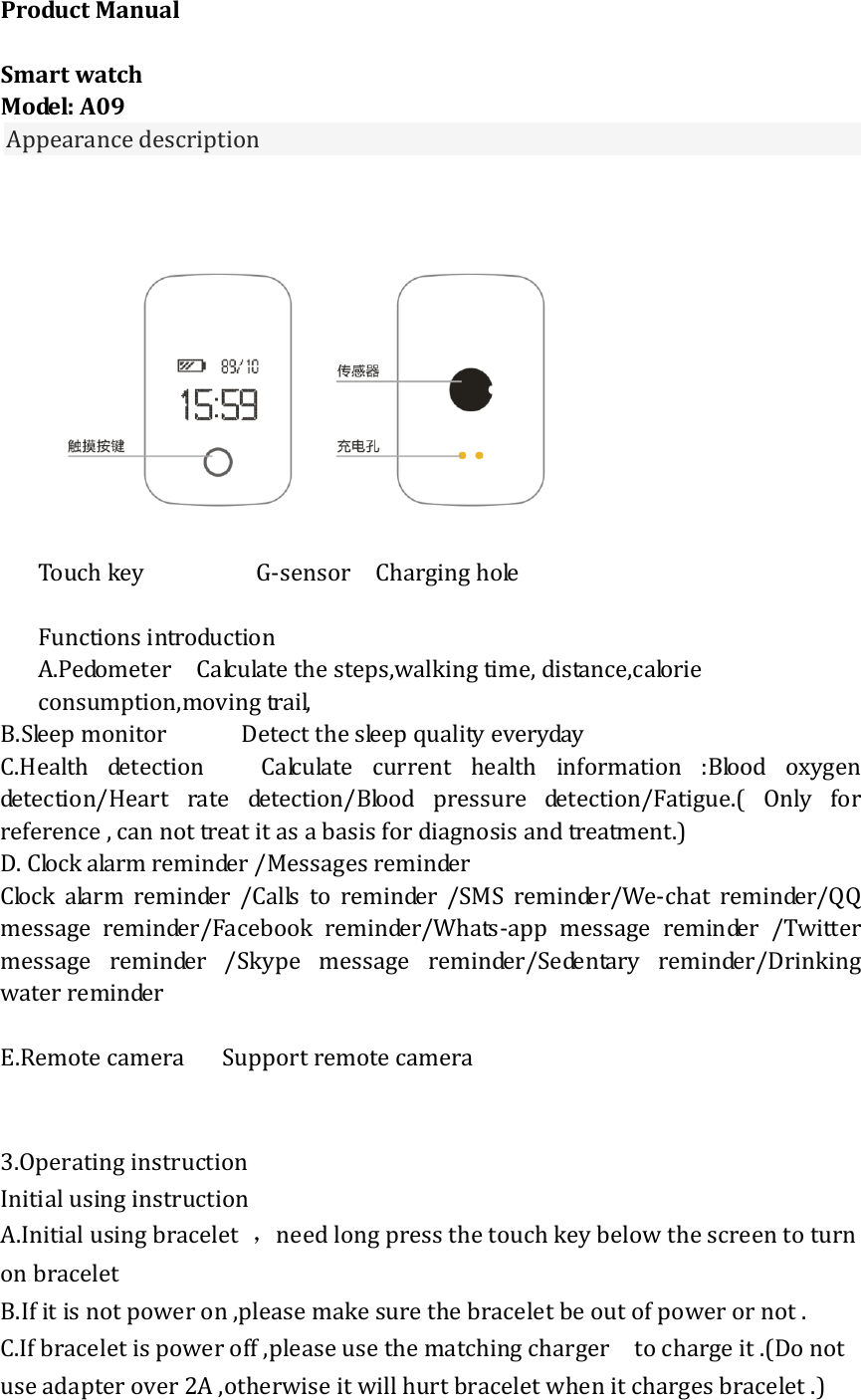
Product Manual  Smart watch Model: A09 Appearance description    Touch key                  G-sensor    Charging hole    Functions introduction   A.Pedometer    Calculate the steps,walking time, distance,calorie consumption,moving trail,   B.Sleep monitor            Detect the sleep quality everyday   C.Health  detection      Calculate  current  health  information  :Blood  oxygen detection/Heart  rate  detection/Blood  pressure  detection/Fatigue.(  Only  for reference , can not treat it as a basis for diagnosis and treatment.) D. Clock alarm reminder /Messages reminder   Clock  alarm  reminder  /Calls  to  reminder  /SMS  reminder/We-chat  reminder/QQ message  reminder/Facebook  reminder/Whats-app  message  reminder  /Twitter message  reminder  /Skype  message  reminder/Sedentary  reminder/Drinking water reminder  E.Remote camera      Support remote camera     3.Operating instruction Initial using instruction   A.Initial using bracelet  ,need long press the touch key below the screen to turn on bracelet   B.If it is not power on ,please make sure the bracelet be out of power or not . C.If bracelet is power off ,please use the matching charger    to charge it .(Do not use adapter over 2A ,otherwise it will hurt bracelet when it charges bracelet .)
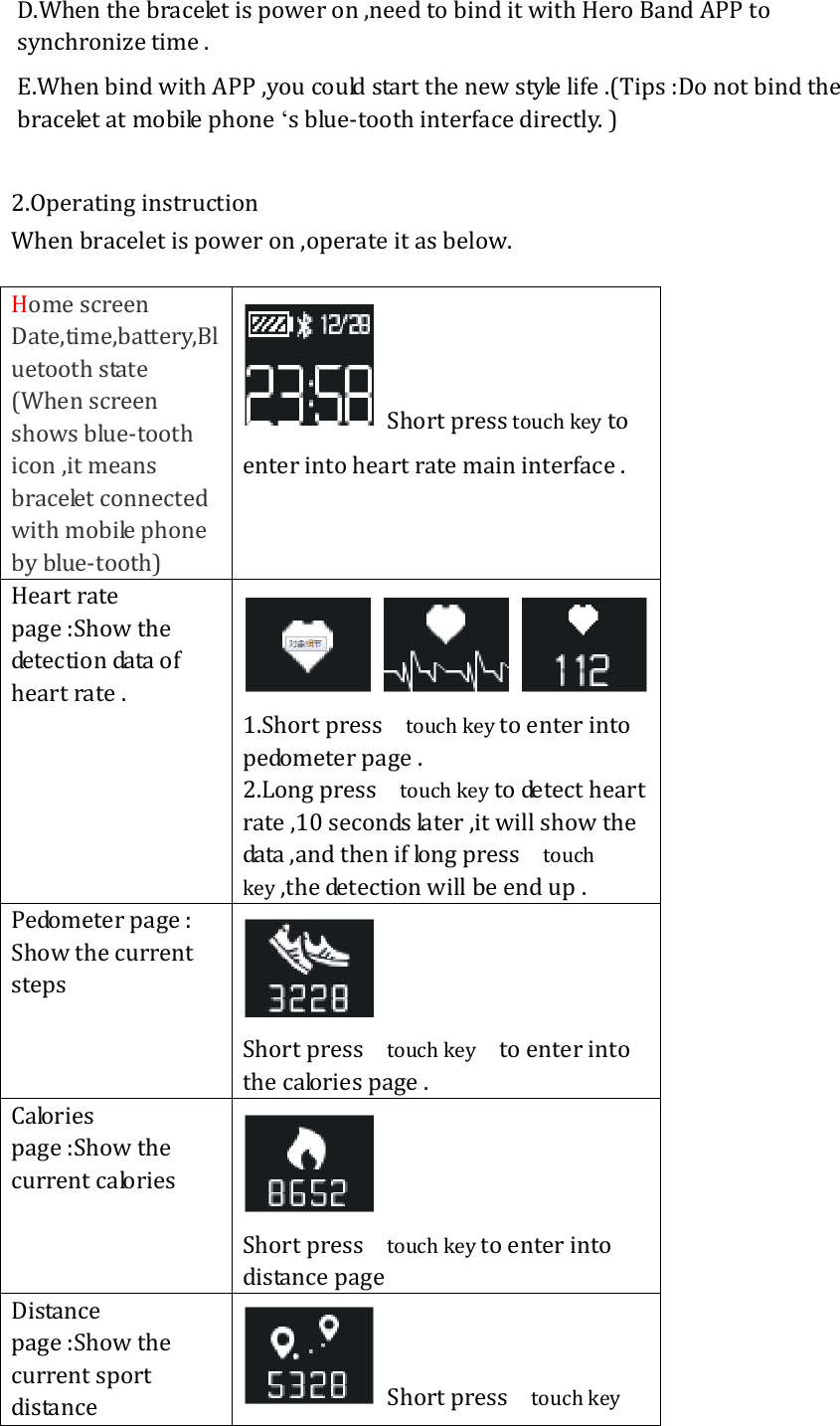
D.When the bracelet is power on ,need to bind it with Hero Band APP to synchronize time . E.When bind with APP ,you could start the new style life .(Tips :Do not bind the bracelet at mobile phone ‘s blue-tooth interface directly. )  2.Operating instruction When bracelet is power on ,operate it as below.  Home screen  Date,time,battery,Bluetooth state (When screen shows blue-tooth icon ,it means bracelet connected with mobile phone by blue-tooth)   Short press touch key to enter into heart rate main interface . Heart rate page :Show the detection data of heart rate .  1.Short press    touch key to enter into pedometer page . 2.Long press    touch key to detect heart rate ,10 seconds later ,it will show the data ,and then if long press    touch key ,the detection will be end up . Pedometer page : Show the current steps   Short press    touch key    to enter into the calories page . Calories page :Show the current calories    Short press    touch key to enter into distance page Distance page :Show the current sport distance     Short press    touch key
to enter into the calories page . Sleep page : Show the sleep time for last night    Short press touch key to enter into the calories page . Show blood pressure detection data      Blood pressure    Count down    Show three -dimensional values   1.Short press    touch key    to enter into taking photos page   2.Long press    touch key to start detecting blood pressure   Take photo page : Use remote camera function by application  1.If application do not enter   into taking    photos page,long press touch key to enter into taking photos page   2.If APP turn taking photos function already ,long press touch key to take photos. 3.Short press    touch key    to enter into power off page   Power off page :Shut   bracelet down    Long press touch key ,bracelet will show shutdown animation,   Short press    touch key to enter into home screen
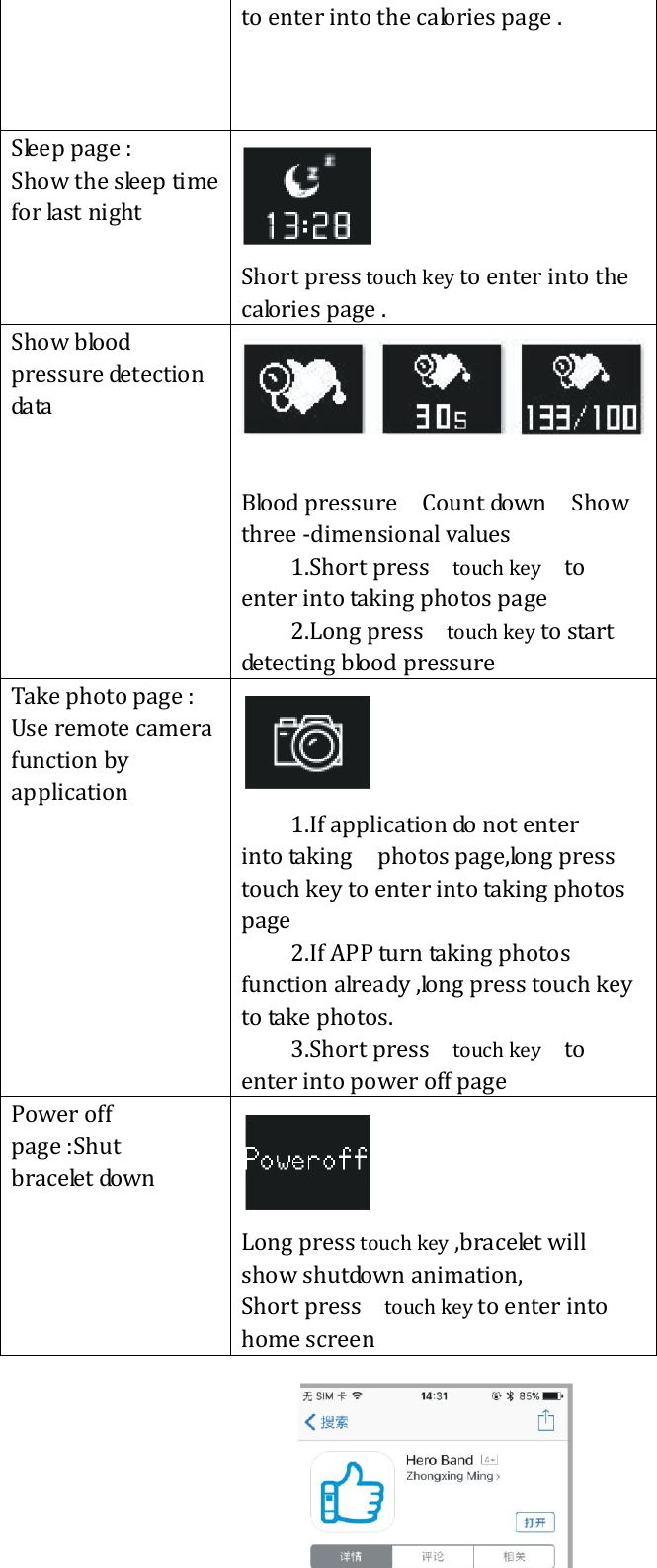
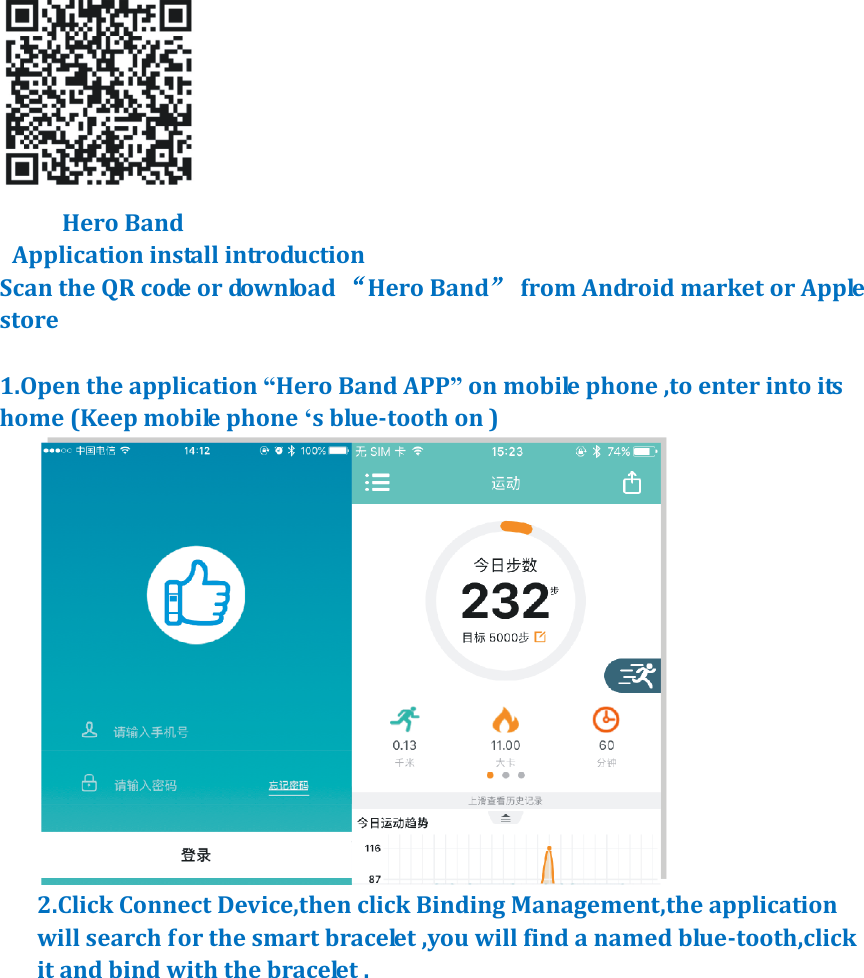
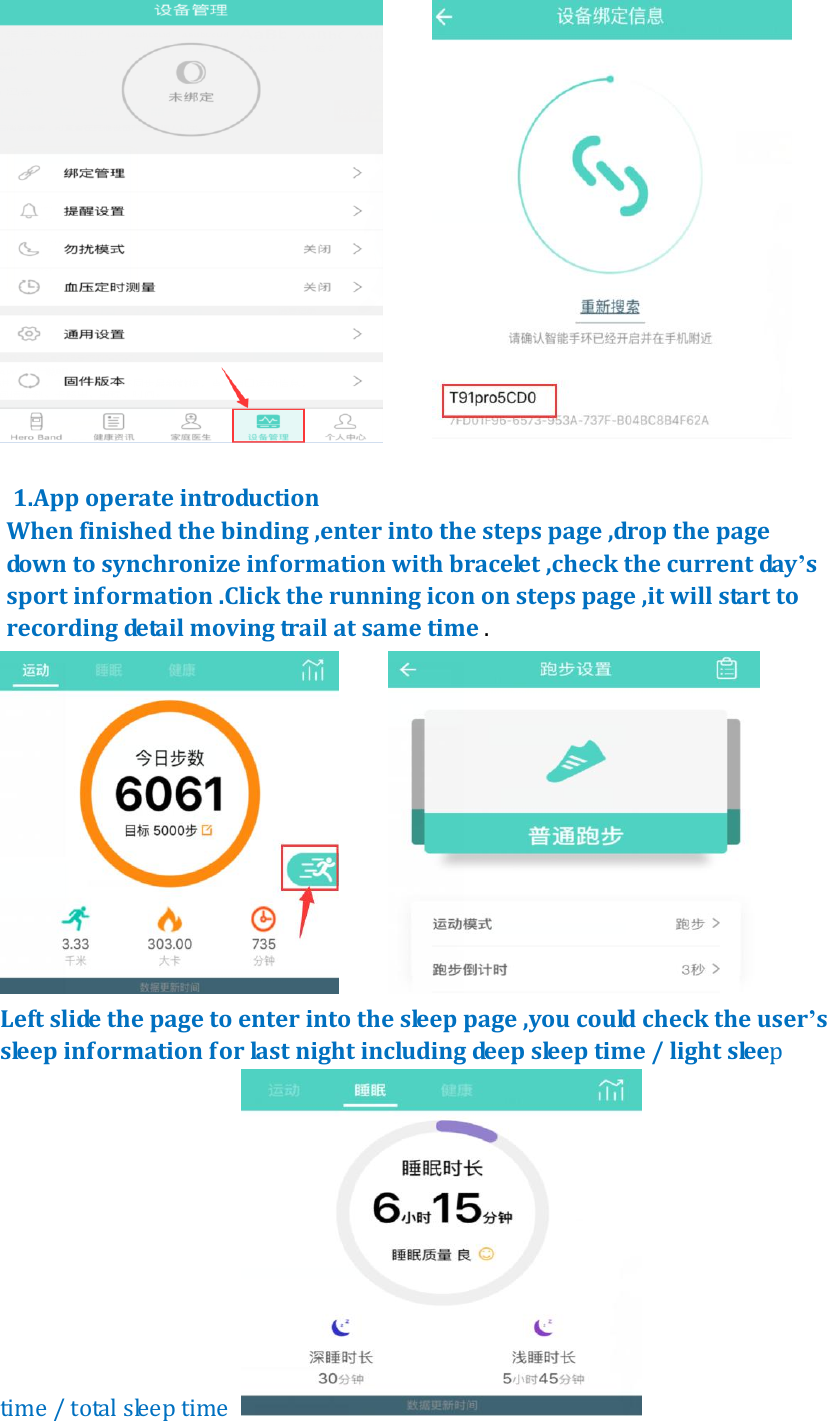
       Hero Band   Application install introduction   Scan the QR code or download “Hero Band”  from Android market or Apple store            1.Open the application “Hero Band APP” on mobile phone ,to enter into its home (Keep mobile phone ‘s blue-tooth on )  2.Click Connect Device,then click Binding Management,the application will search for the smart bracelet ,you will find a named blue-tooth,click it and bind with the bracelet .
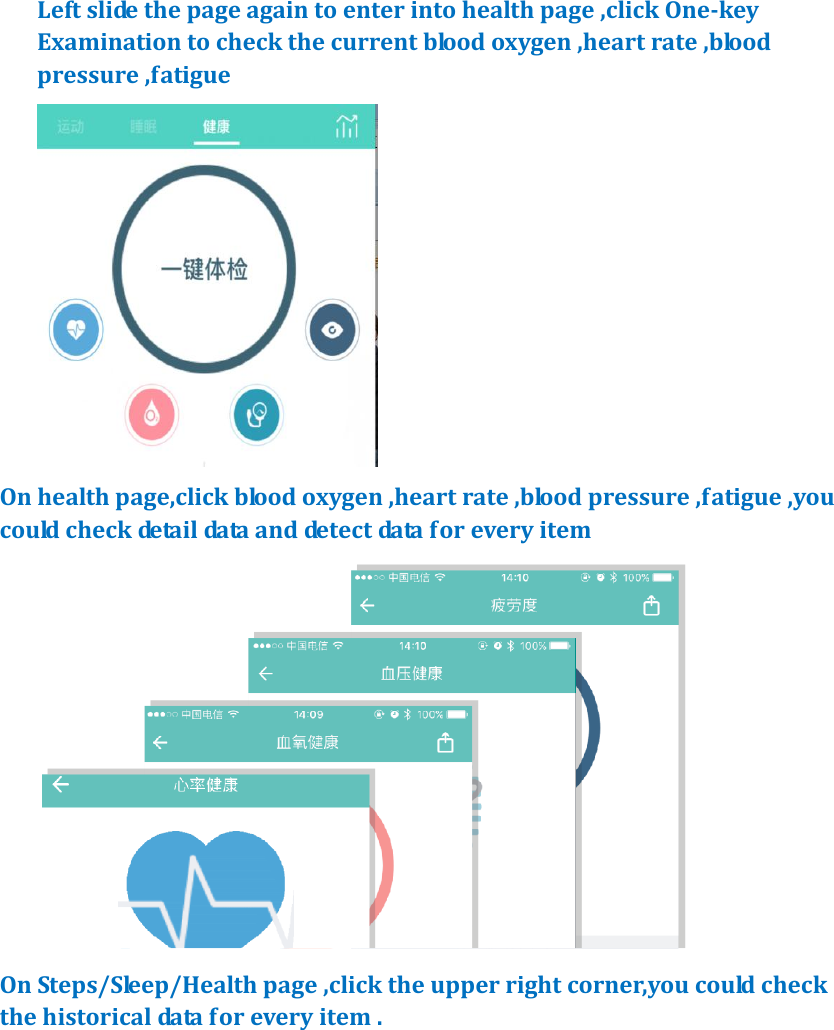
       1.App operate introduction When finished the binding ,enter into the steps page ,drop the page down to synchronize information with bracelet ,check the current day’s sport information .Click the running icon on steps page ,it will start to recording detail moving trail at same time .       Left slide the page to enter into the sleep page ,you could check the user’s sleep information for last night including deep sleep time / light sleep   time / total sleep time
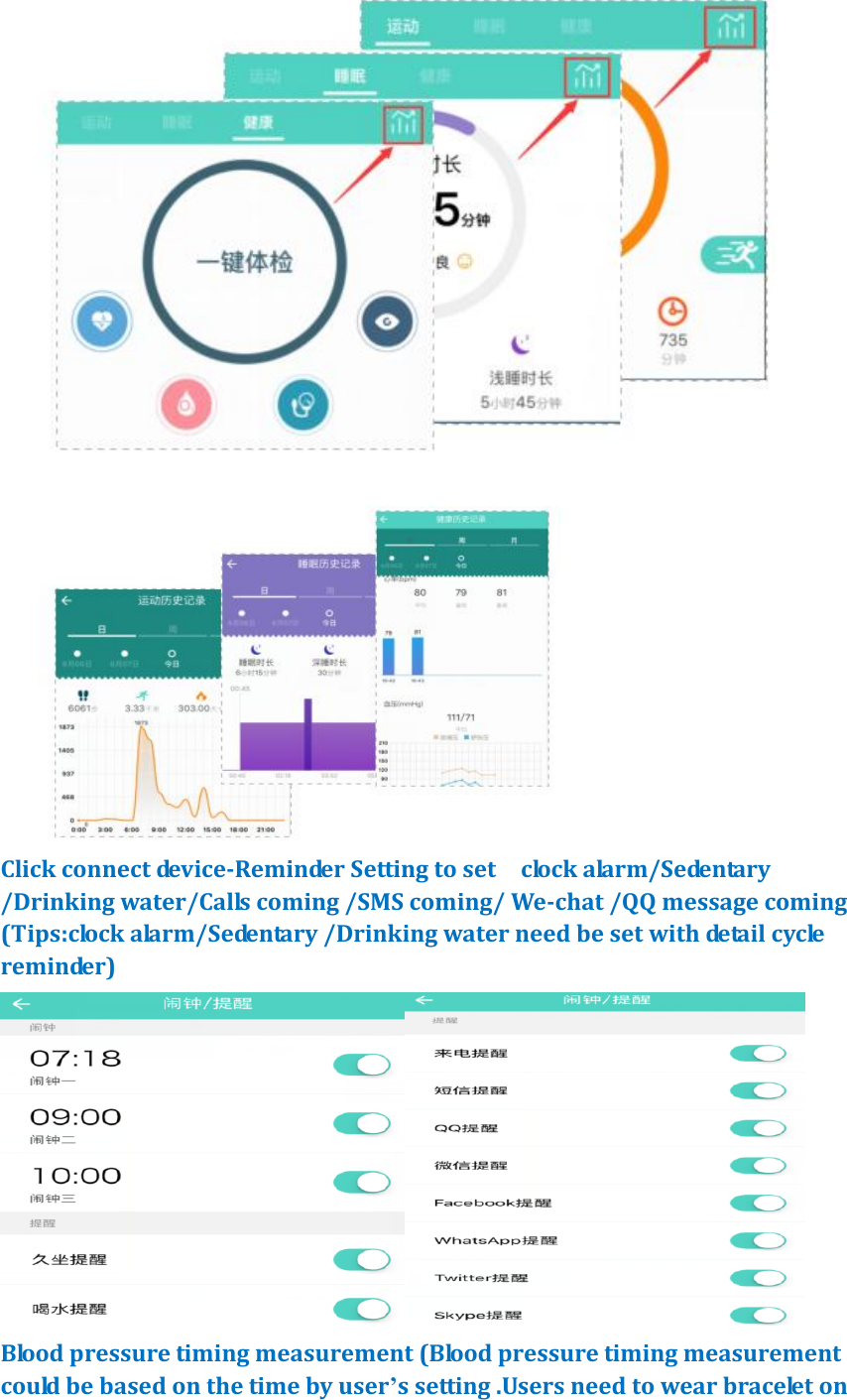
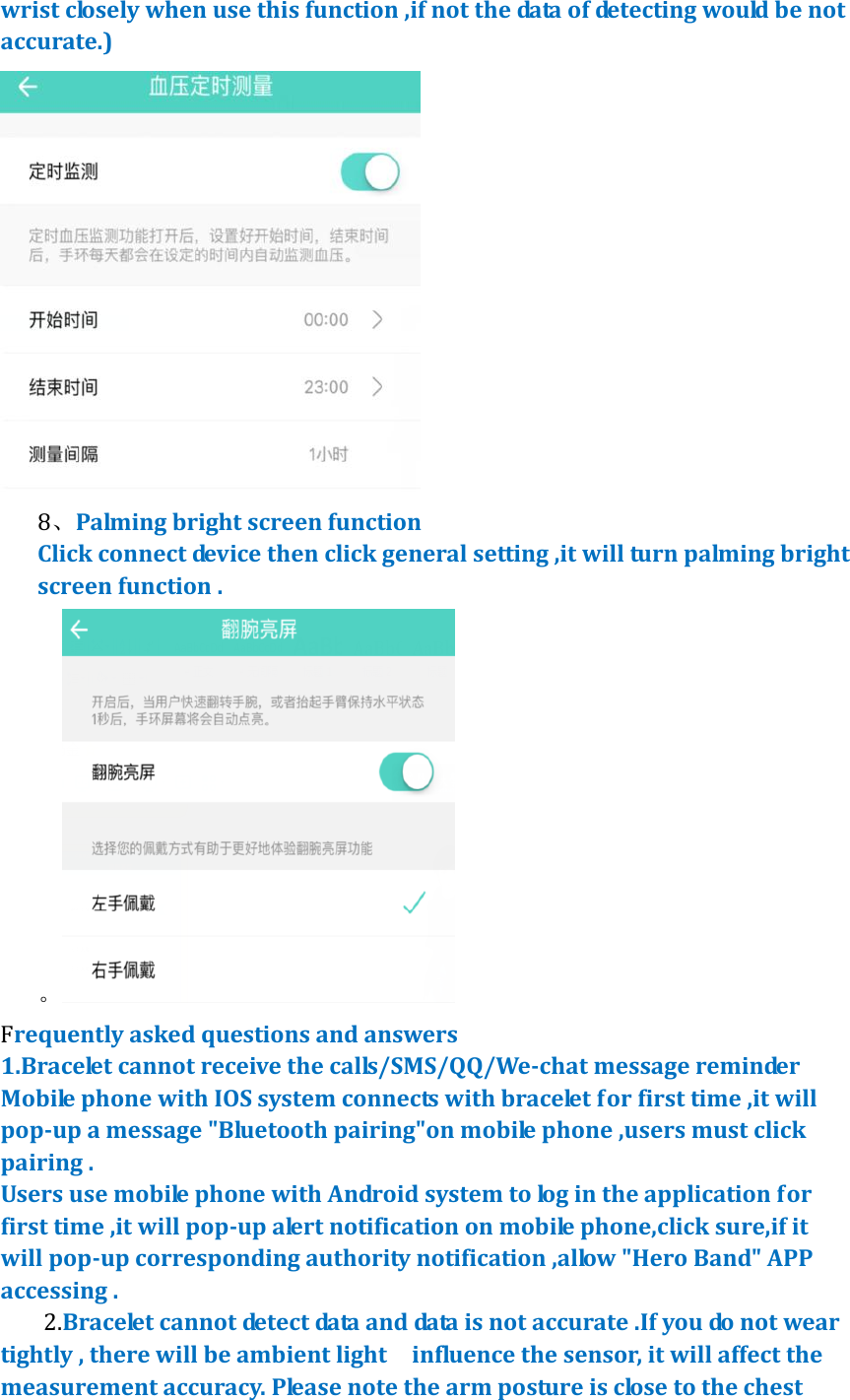
Left slide the page again to enter into health page ,click One-key Examination to check the current blood oxygen ,heart rate ,blood pressure ,fatigue    On health page,click blood oxygen ,heart rate ,blood pressure ,fatigue ,you could check detail data and detect data for every item    On Steps/Sleep/Health page ,click the upper right corner,you could check the historical data for every item .
   Click connect device-Reminder Setting to set    clock alarm/Sedentary /Drinking water/Calls coming /SMS coming/ We-chat /QQ message coming (Tips:clock alarm/Sedentary /Drinking water need be set with detail cycle reminder)  Blood pressure timing measurement (Blood pressure timing measurement could be based on the time by user’s setting .Users need to wear bracelet on
wrist closely when use this function ,if not the data of detecting would be not accurate.)  8、Palming bright screen function Click connect device then click general setting ,it will turn palming bright screen function . 。 Frequently asked questions and answers 1.Bracelet cannot receive the calls/SMS/QQ/We-chat message reminder   Mobile phone with IOS system connects with bracelet for first time ,it will pop-up a message "Bluetooth pairing"on mobile phone ,users must click pairing .   Users use mobile phone with Android system to log in the application for first time ,it will pop-up alert notification on mobile phone,click sure,if it will pop-up corresponding authority notification ,allow "Hero Band" APP accessing . 2.Bracelet cannot detect data and data is not accurate .If you do not wear tightly , there will be ambient light    influence the sensor, it will affect the measurement accuracy. Please note the arm posture is close to the chest
position.          3.Remote camera cannot be used by bracelet When bracelet was bind with mobile phone ,make sure APP has authority   which could turn the camera of mobile phone on ,and when user use the mobile phone with IOS system,users need enter into any page of Hero band App on mobile phone in advance ,then long press touch key of bracelet under taking phone page .      Bracelet ‘s calls coming reminder or SMS coming reminder didn’t work or screen did not show the caller ‘s name.   Make sure all reminder function are turn on ,mobile phone with Android system need to open the corresponding authority for “Hero band”application,    allow "Hero band" APP accessing calls,SMS, contacts and so on .  User can not search bracelet on APP. Firstly ,Users make sure there is blue-tooth icon on bracelet screen .Mobile phone with Android system 6.0 version or above ,some of them need open its GPS function and allow APP to get location permission.If APP still can not search bracelet ,please shutdown bracelet and restart . Pedometer can not be used   Bracelet need bind with APP before using it ,when users finish synchronizing time,bracelet will start recording steps and do other functions . Palming bright screen function can not be used or not good This function only can be used when users open this function at APP firstly .Palming or raising hand ,make screen face to the direction of eyes, try to keep them in the horizontal direction for a second, it will increase the probability of bright screen .
  FCC Statement: This equipment has been tested and found to comply with the limits for a Class B digital device, pursuant to part 15 of the FCC Rules.  These limits are designed to provide  reasonable  protection  against  harmful  interference  in  a  residential installation.  This  equipment  generates,  uses  and  can  radiate  radio  frequency energy  and,  if  not  installed  and  used  in  accordance  with  the  instructions,  may cause  harmful  interference  to  radio  communications.  However,  there  is  no guarantee  that  interference  will  not  occur  in  a  particular  installation.  If  this equipment  does  cause  harmful  interference  to  radio  or  television  reception, which  can  be  determined  by  turning  the  equipment  off  and  on,  the  user  is encouraged  to  try  to  correct  the  interference  by  one  or  more  of  the  following measures: •  Reorient or relocate the receiving antenna. •  Increase the separation between the equipment and receiver. •  Connect the equipment into an outlet on a circuit different from that to which the receiver is connected. •  Consult the dealer or an experienced radio/TV technician for help. Caution: Any changes  or  modifications  to this  device  not  explicitly approved  by manufacturer could void your authority to operate this equipment. This  device  complies  with  part  15  of  the  FCC  Rules.  Operation  is  subject  to  the following two conditions: (1) This device may not cause harmful interference, and (2) this device must accept any interference received, including interference that may cause undesired operation. The  device  has  been  evaluated  to  meet  general  RF  exposure  requirement.  The device can be used in portable exposure condition without restriction.

Navigation menu