CCT Tech Advanced 2-6710 46/49MHz 10 Channel Cordless Phone User Manual 26710XXX IB English draft10

CCT Tech Advanced Products Limited 46/49MHz 10 Channel Cordless Phone 26710XXX IB English draft10

User Manual

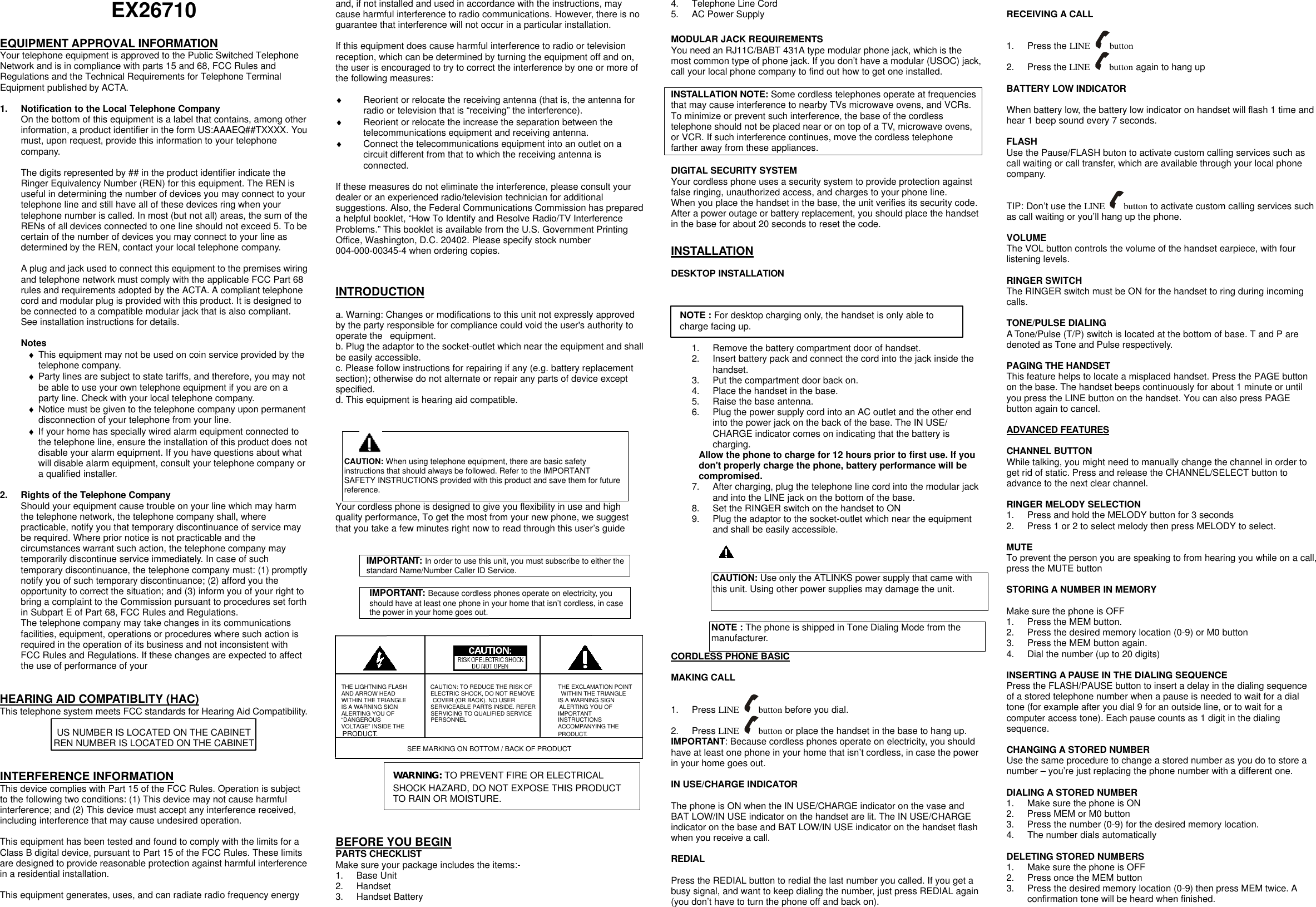
EX26710  EQUIPMENT APPROVAL INFORMATION Your telephone equipment is approved to the Public Switched Telephone Network and is in compliance with parts 15 and 68, FCC Rules and Regulations and the Technical Requirements for Telephone Terminal Equipment published by ACTA.  1. Notification to the Local Telephone Company On the bottom of this equipment is a label that contains, among other information, a product identifier in the form US:AAAEQ##TXXXX. You must, upon request, provide this information to your telephone company.  The digits represented by ## in the product identifier indicate the Ringer Equivalency Number (REN) for this equipment. The REN is useful in determining the number of devices you may connect to your telephone line and still have all of these devices ring when your telephone number is called. In most (but not all) areas, the sum of the RENs of all devices connected to one line should not exceed 5. To be certain of the number of devices you may connect to your line as determined by the REN, contact your local telephone company.  A plug and jack used to connect this equipment to the premises wiring and telephone network must comply with the applicable FCC Part 68 rules and requirements adopted by the ACTA. A compliant telephone cord and modular plug is provided with this product. It is designed to be connected to a compatible modular jack that is also compliant. See installation instructions for details.  Notes ♦ This equipment may not be used on coin service provided by the telephone company. ♦ Party lines are subject to state tariffs, and therefore, you may not be able to use your own telephone equipment if you are on a party line. Check with your local telephone company. ♦ Notice must be given to the telephone company upon permanent disconnection of your telephone from your line. ♦ If your home has specially wired alarm equipment connected to the telephone line, ensure the installation of this product does not disable your alarm equipment. If you have questions about what will disable alarm equipment, consult your telephone company or a qualified installer.  2. Rights of the Telephone Company Should your equipment cause trouble on your line which may harm the telephone network, the telephone company shall, where practicable, notify you that temporary discontinuance of service may be required. Where prior notice is not practicable and the circumstances warrant such action, the telephone company may temporarily discontinue service immediately. In case of such temporary discontinuance, the telephone company must: (1) promptly notify you of such temporary discontinuance; (2) afford you the opportunity to correct the situation; and (3) inform you of your right to bring a complaint to the Commission pursuant to procedures set forth in Subpart E of Part 68, FCC Rules and Regulations. The telephone company may take changes in its communications facilities, equipment, operations or procedures where such action is required in the operation of its business and not inconsistent with FCC Rules and Regulations. If these changes are expected to affect the use of performance of your     HEARING AID COMPATIBLITY (HAC) This telephone system meets FCC standards for Hearing Aid Compatibility.  US NUMBER IS LOCATED ON THE CABINET REN NUMBER IS LOCATED ON THE CABINET   INTERFERENCE INFORMATION This device complies with Part 15 of the FCC Rules. Operation is subject to the following two conditions: (1) This device may not cause harmful interference; and (2) This device must accept any interference received, including interference that may cause undesired operation.  This equipment has been tested and found to comply with the limits for a Class B digital device, pursuant to Part 15 of the FCC Rules. These limits are designed to provide reasonable protection against harmful interference in a residential installation.  This equipment generates, uses, and can radiate radio frequency energy and, if not installed and used in accordance with the instructions, may cause harmful interference to radio communications. However, there is no guarantee that interference will not occur in a particular installation.  If this equipment does cause harmful interference to radio or television reception, which can be determined by turning the equipment off and on, the user is encouraged to try to correct the interference by one or more of the following measures:  ♦ Reorient or relocate the receiving antenna (that is, the antenna for radio or television that is “receiving” the interference). ♦ Reorient or relocate the increase the separation between the telecommunications equipment and receiving antenna. ♦ Connect the telecommunications equipment into an outlet on a circuit different from that to which the receiving antenna is connected.  If these measures do not eliminate the interference, please consult your dealer or an experienced radio/television technician for additional suggestions. Also, the Federal Communications Commission has prepared a helpful booklet, “How To Identify and Resolve Radio/TV Interference Problems.” This booklet is available from the U.S. Government Printing Office, Washington, D.C. 20402. Please specify stock number 004-000-00345-4 when ordering copies.   INTRODUCTION  a. Warning: Changes or modifications to this unit not expressly approved by the party responsible for compliance could void the user's authority to operate the  equipment. b. Plug the adaptor to the socket-outlet which near the equipment and shall be easily accessible. c. Please follow instructions for repairing if any (e.g. battery replacement section); otherwise do not alternate or repair any parts of device except specified. d. This equipment is hearing aid compatible.   Your cordless phone is designed to give you flexibility in use and high quality performance, To get the most from your new phone, we suggest that you take a few minutes right now to read through this user’s guide   IMPORTANT: In order to use this unit, you must subscribe to either the standard Name/Number Caller ID Service.    IMPORTANT: Because cordless phones operate on electricity, you should have at least one phone in your home that isn’t cordless, in case the power in your home goes out.             THE LIGHTNING FLASH        CAUTION: TO REDUCE THE RISK OF         THE EXCLAMATION POINT AND ARROW HEAD            ELECTRIC SHOCK, DO NOT REMOVE         WITHIN THE TRIANGLE WITHIN THE TRIANGLE         COVER (OR BACK). NO USER           IS A WARNING SIGN IS A WARNING SIGN     SERVICEABLE PARTS INSIDE. REFER        ALERTING YOU OF ALERTING YOU OF     SERVICING TO QUALIFIED SERVICE         IMPORTANT “DANGEROUS        PERSONNEL             INSTRUCTIONS VOLTAGE” INSIDE THE      ACCOMPANYING THE PRODUCT.       PRODUCT.          SEE MARKING ON BOTTOM / BACK OF PRODUCT       BEFORE YOU BEGIN PARTS CHECKLIST Make sure your package includes the items:- 1. Base Unit 2. Handset 3. Handset Battery 4. Telephone Line Cord 5. AC Power Supply  MODULAR JACK REQUIREMENTS You need an RJ11C/BABT 431A type modular phone jack, which is the most common type of phone jack. If you don’t have a modular (USOC) jack, call your local phone company to find out how to get one installed.  INSTALLATION NOTE: Some cordless telephones operate at frequencies that may cause interference to nearby TVs microwave ovens, and VCRs. To minimize or prevent such interference, the base of the cordless telephone should not be placed near or on top of a TV, microwave ovens, or VCR. If such interference continues, move the cordless telephone farther away from these appliances.  DIGITAL SECURITY SYSTEM Your cordless phone uses a security system to provide protection against false ringing, unauthorized access, and charges to your phone line. When you place the handset in the base, the unit verifies its security code. After a power outage or battery replacement, you should place the handset in the base for about 20 seconds to reset the code.  INSTALLATION  DESKTOP INSTALLATION       1. Remove the battery compartment door of handset. 2. Insert battery pack and connect the cord into the jack inside the handset. 3. Put the compartment door back on. 4. Place the handset in the base. 5. Raise the base antenna. 6. Plug the power supply cord into an AC outlet and the other end into the power jack on the back of the base. The IN USE/ CHARGE indicator comes on indicating that the battery is charging. Allow the phone to charge for 12 hours prior to first use. If you don't properly charge the phone, battery performance will be compromised. 7. After charging, plug the telephone line cord into the modular jack and into the LINE jack on the bottom of the base. 8. Set the RINGER switch on the handset to ON 9. Plug the adaptor to the socket-outlet which near the equipment and shall be easily accessible.     CAUTION: Use only the ATLINKS power supply that came with this unit. Using other power supplies may damage the unit.  NOTE : The phone is shipped in Tone Dialing Mode from the manufacturer. CORDLESS PHONE BASIC  MAKING CALL  1. Press LINE  button before you dial. 2. Press LINE  button or place the handset in the base to hang up. IMPORTANT: Because cordless phones operate on electricity, you should have at least one phone in your home that isn’t cordless, in case the power in your home goes out.  IN USE/CHARGE INDICATOR  The phone is ON when the IN USE/CHARGE indicator on the vase and BAT LOW/IN USE indicator on the handset are lit. The IN USE/CHARGE indicator on the base and BAT LOW/IN USE indicator on the handset flash when you receive a call.  REDIAL  Press the REDIAL button to redial the last number you called. If you get a busy signal, and want to keep dialing the number, just press REDIAL again (you don’t have to turn the phone off and back on).  RECEIVING A CALL  1. Press the LINE  button 2. Press the LINE  button again to hang up  BATTERY LOW INDICATOR  When battery low, the battery low indicator on handset will flash 1 time and hear 1 beep sound every 7 seconds.  FLASH Use the Pause/FLASH buton to activate custom calling services such as call waiting or call transfer, which are available through your local phone company.  TIP: Don’t use the LINE  button to activate custom calling services such as call waiting or you’ll hang up the phone.  VOLUME The VOL button controls the volume of the handset earpiece, with four listening levels.  RINGER SWITCH The RINGER switch must be ON for the handset to ring during incoming calls.  TONE/PULSE DIALING A Tone/Pulse (T/P) switch is located at the bottom of base. T and P are denoted as Tone and Pulse respectively.  PAGING THE HANDSET This feature helps to locate a misplaced handset. Press the PAGE button on the base. The handset beeps continuously for about 1 minute or until you press the LINE button on the handset. You can also press PAGE button again to cancel.  ADVANCED FEATURES    CHANNEL BUTTON While talking, you might need to manually change the channel in order to get rid of static. Press and release the CHANNEL/SELECT button to advance to the next clear channel.  RINGER MELODY SELECTION   1. Press and hold the MELODY button for 3 seconds 2. Press 1 or 2 to select melody then press MELODY to select.    MUTE To prevent the person you are speaking to from hearing you while on a call, press the MUTE button  STORING A NUMBER IN MEMORY  Make sure the phone is OFF 1. Press the MEM button. 2. Press the desired memory location (0-9) or M0 button 3. Press the MEM button again. 4. Dial the number (up to 20 digits)  INSERTING A PAUSE IN THE DIALING SEQUENCE Press the FLASH/PAUSE button to insert a delay in the dialing sequence of a stored telephone number when a pause is needed to wait for a dial tone (for example after you dial 9 for an outside line, or to wait for a computer access tone). Each pause counts as 1 digit in the dialing sequence.  CHANGING A STORED NUMBER Use the same procedure to change a stored number as you do to store a number – you’re just replacing the phone number with a different one.  DIALING A STORED NUMBER 1. Make sure the phone is ON 2. Press MEM or M0 button 3. Press the number (0-9) for the desired memory location. 4. The number dials automatically  DELETING STORED NUMBERS 1. Make sure the phone is OFF 2. Press once the MEM button 3. Press the desired memory location (0-9) then press MEM twice. A confirmation tone will be heard when finished. CAUTION: When using telephone equipment, there are basic safety instructions that should always be followed. Refer to the IMPORTANT SAFETY INSTRUCTIONS provided with this product and save them for future reference. WARNING: TO PREVENT FIRE OR ELECTRICAL SHOCK HAZARD, DO NOT EXPOSE THIS PRODUCT TO RAIN OR MOISTURE.  NOTE : For desktop charging only, the handset is only able to charge facing up.
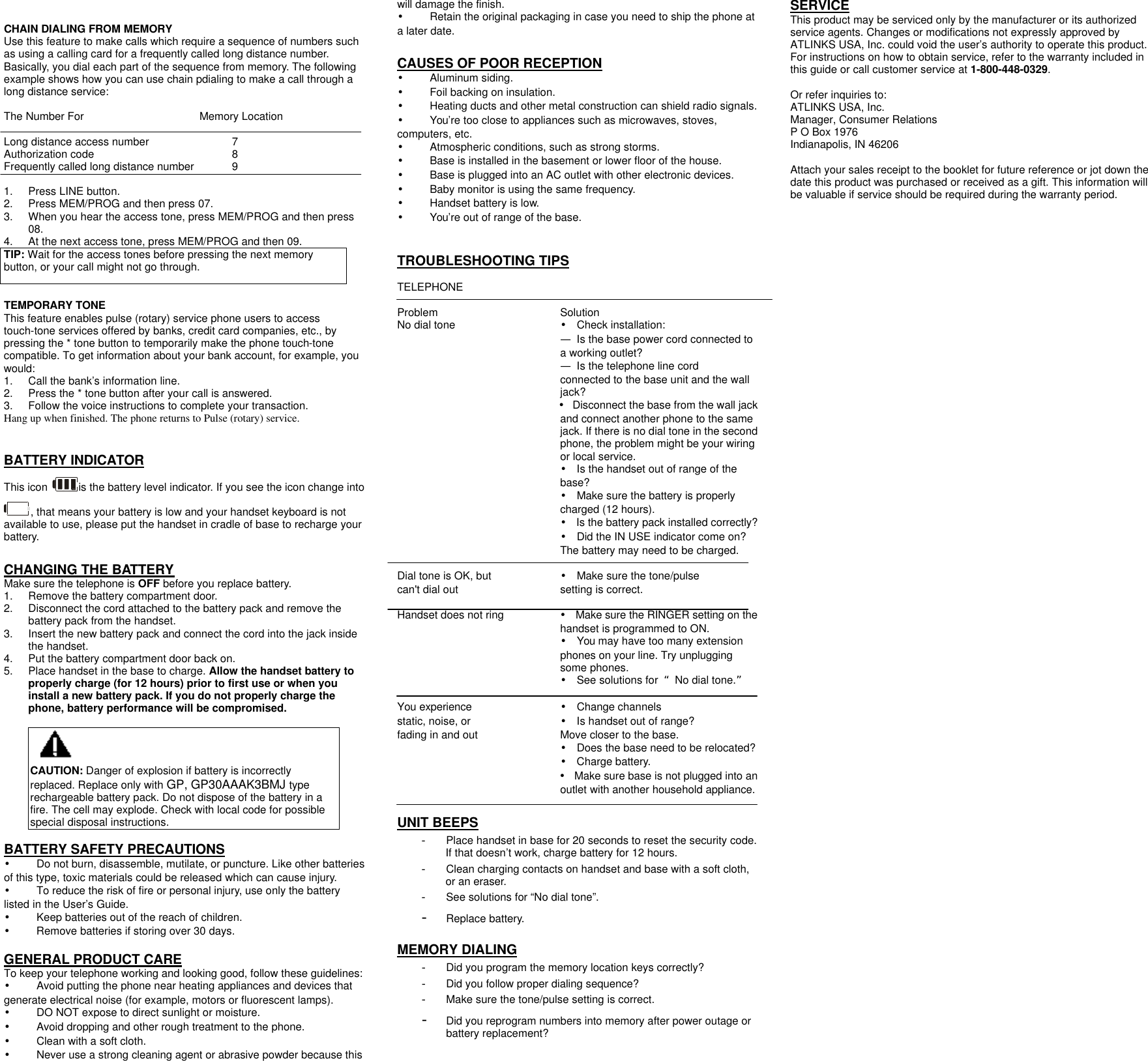
  CHAIN DIALING FROM MEMORY Use this feature to make calls which require a sequence of numbers such as using a calling card for a frequently called long distance number. Basically, you dial each part of the sequence from memory. The following example shows how you can use chain pdialing to make a call through a long distance service:  The Number For    Memory Location  Long distance access number     7 Authorization code       8 Frequently called long distance number   9  1. Press LINE button. 2. Press MEM/PROG and then press 07. 3. When you hear the access tone, press MEM/PROG and then press 08. 4. At the next access tone, press MEM/PROG and then 09. TIP: Wait for the access tones before pressing the next memory button, or your call might not go through.  TEMPORARY TONE This feature enables pulse (rotary) service phone users to access touch-tone services offered by banks, credit card companies, etc., by pressing the * tone button to temporarily make the phone touch-tone compatible. To get information about your bank account, for example, you would: 1. Call the bank’s information line. 2. Press the * tone button after your call is answered. 3. Follow the voice instructions to complete your transaction. Hang up when finished. The phone returns to Pulse (rotary) service.   BATTERY INDICATOR This icon  is the battery level indicator. If you see the icon change into , that means your battery is low and your handset keyboard is not available to use, please put the handset in cradle of base to recharge your battery.  CHANGING THE BATTERY Make sure the telephone is OFF before you replace battery. 1. Remove the battery compartment door.   2. Disconnect the cord attached to the battery pack and remove the battery pack from the handset. 3. Insert the new battery pack and connect the cord into the jack inside the handset. 4. Put the battery compartment door back on. 5. Place handset in the base to charge. Allow the handset battery to properly charge (for 12 hours) prior to first use or when you install a new battery pack. If you do not properly charge the phone, battery performance will be compromised.  CAUTION: Danger of explosion if battery is incorrectly replaced. Replace only with GP, GP30AAAK3BMJ type   rechargeable battery pack. Do not dispose of the battery in a fire. The cell may explode. Check with local code for possible special disposal instructions.  BATTERY SAFETY PRECAUTIONS •    Do not burn, disassemble, mutilate, or puncture. Like other batteries of this type, toxic materials could be released which can cause injury. • To reduce the risk of fire or personal injury, use only the battery listed in the User’s Guide. •    Keep batteries out of the reach of children. •    Remove batteries if storing over 30 days.  GENERAL PRODUCT CARE To keep your telephone working and looking good, follow these guidelines: •    Avoid putting the phone near heating appliances and devices that generate electrical noise (for example, motors or fluorescent lamps). •    DO NOT expose to direct sunlight or moisture. •    Avoid dropping and other rough treatment to the phone. •    Clean with a soft cloth. •    Never use a strong cleaning agent or abrasive powder because this will damage the finish. •    Retain the original packaging in case you need to ship the phone at a later date.  CAUSES OF POOR RECEPTION •    Aluminum siding. •    Foil backing on insulation. •    Heating ducts and other metal construction can shield radio signals. •    You’re too close to appliances such as microwaves, stoves, computers, etc. •    Atmospheric conditions, such as strong storms. •    Base is installed in the basement or lower floor of the house. •    Base is plugged into an AC outlet with other electronic devices. •    Baby monitor is using the same frequency. •    Handset battery is low. •    You’re out of range of the base.   TROUBLESHOOTING TIPS  TELEPHONE    Problem      Solution No dial tone      • Check installation: — Is the base power cord connected to a working outlet? — Is the telephone line cord connected to the base unit and the wall jack? • Disconnect the base from the wall jack and connect another phone to the same jack. If there is no dial tone in the second phone, the problem might be your wiring or local service. • Is the handset out of range of the base? • Make sure the battery is properly charged (12 hours). • Is the battery pack installed correctly? • Did the IN USE indicator come on? The battery may need to be charged.  Dial tone is OK, but      • Make sure the tone/pulse can't dial out     setting is correct.  Handset does not ring • Make sure the RINGER setting on the handset is programmed to ON. • You may have too many extension phones on your line. Try unplugging some phones. • See solutions for  “No dial tone.”  You experience   • Change channels static, noise, or     • Is handset out of range? fading in and out          Move closer to the base. • Does the base need to be relocated? • Charge battery. • Make sure base is not plugged into an outlet with another household appliance.  UNIT BEEPS - Place handset in base for 20 seconds to reset the security code. If that doesn’t work, charge battery for 12 hours. - Clean charging contacts on handset and base with a soft cloth, or an eraser. - See solutions for “No dial tone”.  - Replace battery.  MEMORY DIALING - Did you program the memory location keys correctly? - Did you follow proper dialing sequence? - Make sure the tone/pulse setting is correct. - Did you reprogram numbers into memory after power outage or battery replacement?  SERVICE This product may be serviced only by the manufacturer or its authorized service agents. Changes or modifications not expressly approved by ATLINKS USA, Inc. could void the user’s authority to operate this product. For instructions on how to obtain service, refer to the warranty included in this guide or call customer service at 1-800-448-0329.  Or refer inquiries to: ATLINKS USA, Inc. Manager, Consumer Relations P O Box 1976 Indianapolis, IN 46206  Attach your sales receipt to the booklet for future reference or jot down the date this product was purchased or received as a gift. This information will be valuable if service should be required during the warranty period.

Navigation menu