CCT Tech Advanced C8118 PCS1900 (Mobile Phone) User Manual 376708

CCT Tech Advanced Products Limited PCS1900 (Mobile Phone) 376708

Users Manual

376708.DOC Confidential & Proprietary  1/20  CCT Tech   User Manual   C8118 Multi Band GSM Mobile Phone
376708.DOC Confidential & Proprietary  2/20  CCT Tech  1. Description of the Phone ............................................................................................... 4 1.1 Phone Layout.............................................................................................................. 4 1.2 Icon Description .......................................................................................................... 4 2. Getting Started............................................................................................................... 5 2.1 Insert SIM Card........................................................................................................... 5 2.2 Insert the battery......................................................................................................... 6 2.3 Remove the battery .................................................................................................... 6 2.4 Charging the battery ................................................................................................... 7 3. Making a phone call ....................................................................................................... 7 3.1 Switch your phone on ................................................................................................. 7 3.2 Switch your phone off ................................................................................................. 7 3.3 Idle Screen.................................................................................................................. 7 3.4 Making a call............................................................................................................... 8 3.5 Receive a call ............................................................................................................. 8 3.6 During a call................................................................................................................ 8 3.7 Answer a second call.................................................................................................. 8 3.8 Multiple call ................................................................................................................. 9 3.9 Redial and Reply ........................................................................................................ 9 3.10 Quick Dial ................................................................................................................... 9 4. Using Your Phone.......................................................................................................... 9 4.1 Messages ................................................................................................................. 10 4.1.1 Create SMS ................................................................................. 10 4.1.2 Read SMS ................................................................................... 10 4.1.3 EMS ............................................................................................. 10 4.1.4 Draft message ............................................................................. 11 4.1.5 Message Set up........................................................................... 11 4.2 Services .................................................................................................................... 11 4.3 Sound Modes............................................................................................................ 12 4.4 Settings..................................................................................................................... 12 4.4.1 Preferences ................................................................................. 12 4.4.2 Call settings ................................................................................. 12 4.4.3 Call Meters................................................................................... 13 4.4.4 Security........................................................................................ 13 4.4.5 Factory reset................................................................................ 14 4.5 Time and Date .......................................................................................................... 14 4.5.1 Set time and date......................................................................... 14 4.5.2 Time Zone.................................................................................... 14 4.5.3 Format ......................................................................................... 14 4.5.4 Display ......................................................................................... 14 4.6 Extras........................................................................................................................ 15 4.6.1 Games ......................................................................................... 15 4.6.2 Calculator..................................................................................... 15 4.6.3 Calendar ...................................................................................... 15 4.6.4 Alarm clock .................................................................................. 15 4.6.5 Stopwatch .................................................................................... 16 4.6.6 Composer .................................................................................... 16
376708.DOC Confidential & Proprietary  3/20  CCT Tech 4.7 Call History ............................................................................................................... 16 4.8 Phone Book .............................................................................................................. 16 4.8.1 Search a name ........................................................................................................ 16 4.8.2 Create an entry........................................................................................................ 17 4.8.3 Copy ........................................................................................................................ 17 4.8.4 Groups..................................................................................................................... 17 4.8.5  Memory use ................................................................................ 17 4.8.6 Own number ................................................................................ 17 4.9 Special Operator (STK) Menu .................................................................................. 17 5. Text Editor.................................................................................................................... 18 5.1 Toggle different editor............................................................................................... 18 5.2 Predictive English Editor........................................................................................... 18 5.3 Multi-tap English Editor............................................................................................. 18 5.4 Number input ............................................................................................................ 18 5.5 Symbol input ............................................................................................................. 18
376708.DOC Confidential & Proprietary  4/20  CCT Tech  Your Phone  1.  Description of the Phone  1.1 Phone Layout 1. Receiver 2.  Graphic display 3.  Pickup key / Left soft key  4.  Hang up key / On off key / Right soft key  5.  Up / Down key  6. Menu key 7. Cancel  8. Keypad 9. Microphone 10.  Head phone / Charger socket 11. Battery door latch 12.  SIM card holder 13. Battery 14. Battery door 1.2 Icon Description    [Signal Strength]  Showing the receiving signal strength.        [Battery Strength] Current status of the battery with number of bar    [New Message] A new short message received    [Message full] The message box was full    [Unread-Full]
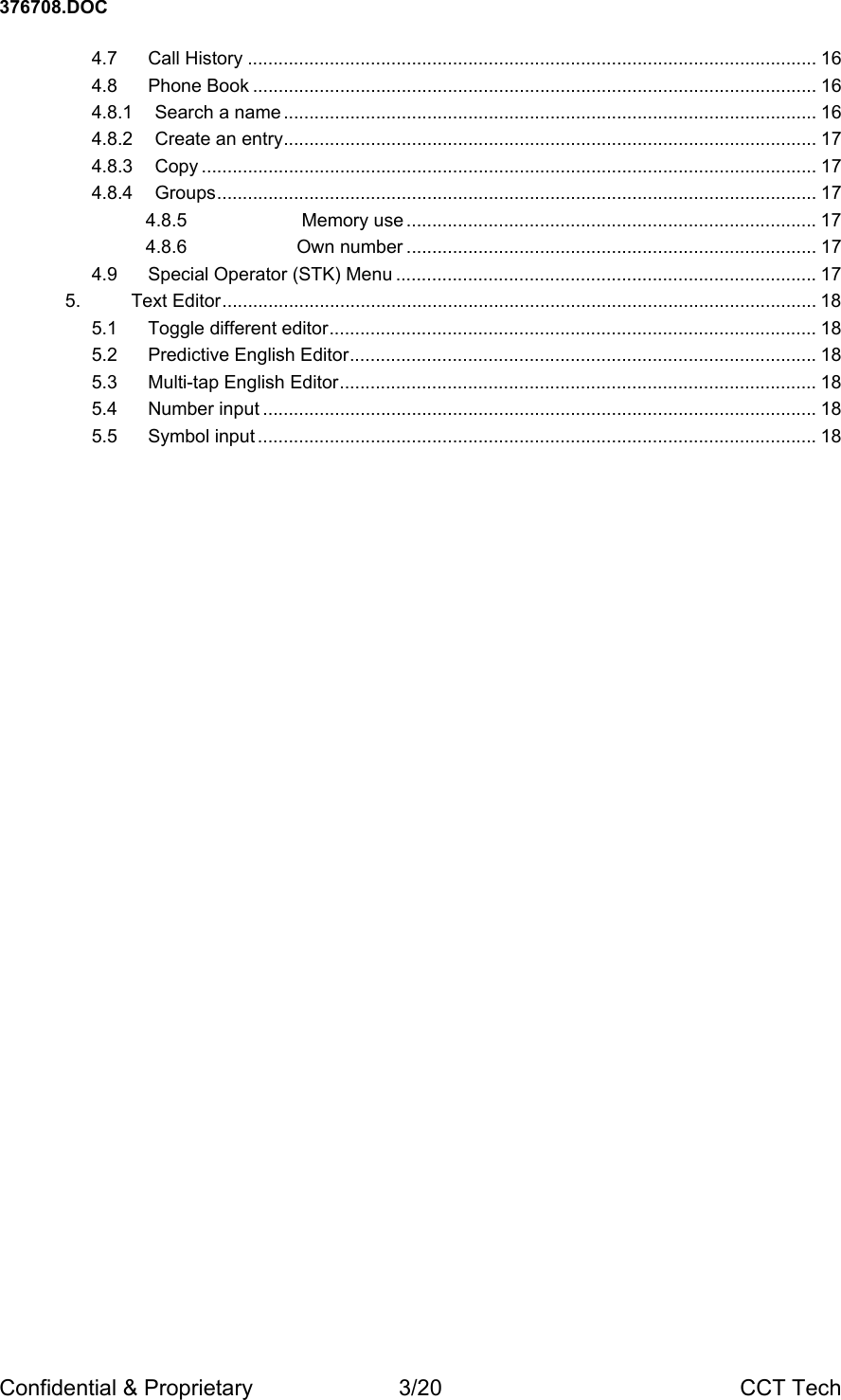
376708.DOC Confidential & Proprietary  5/20  CCT Tech You have unread messages and your mailbox is full.    [Alarm On] The alarm was set and turned on    [Vibrator on] The vibrator has been turned on    [CFU indicator] All the incoming calls has been forwarded to a specific number    [Keylock] The keypad has been locked to protect against mis-dial    [Silent] The ringer has been turned off       [L1 / L2] The line currently in use    [Missed Call] A call was not received   [Incoming Call] A received incoming call  [Outgoing call] A dialled call    [Home indicator] The time of your hometown    [World Time] The local time at where you are located    [Roaming] You are logged into a network other than your home networking (roaming).   [Headset] The Handsfree headset was plugged in.         [FDN] The Fixed Dialling has been turned on 2. Getting Started 2.1  Insert SIM Card •  Insert the SIM card under the tab.  Make sure the metal contact is facing down and the cut corner is on the top left. •  Push the retaining clip to the left.
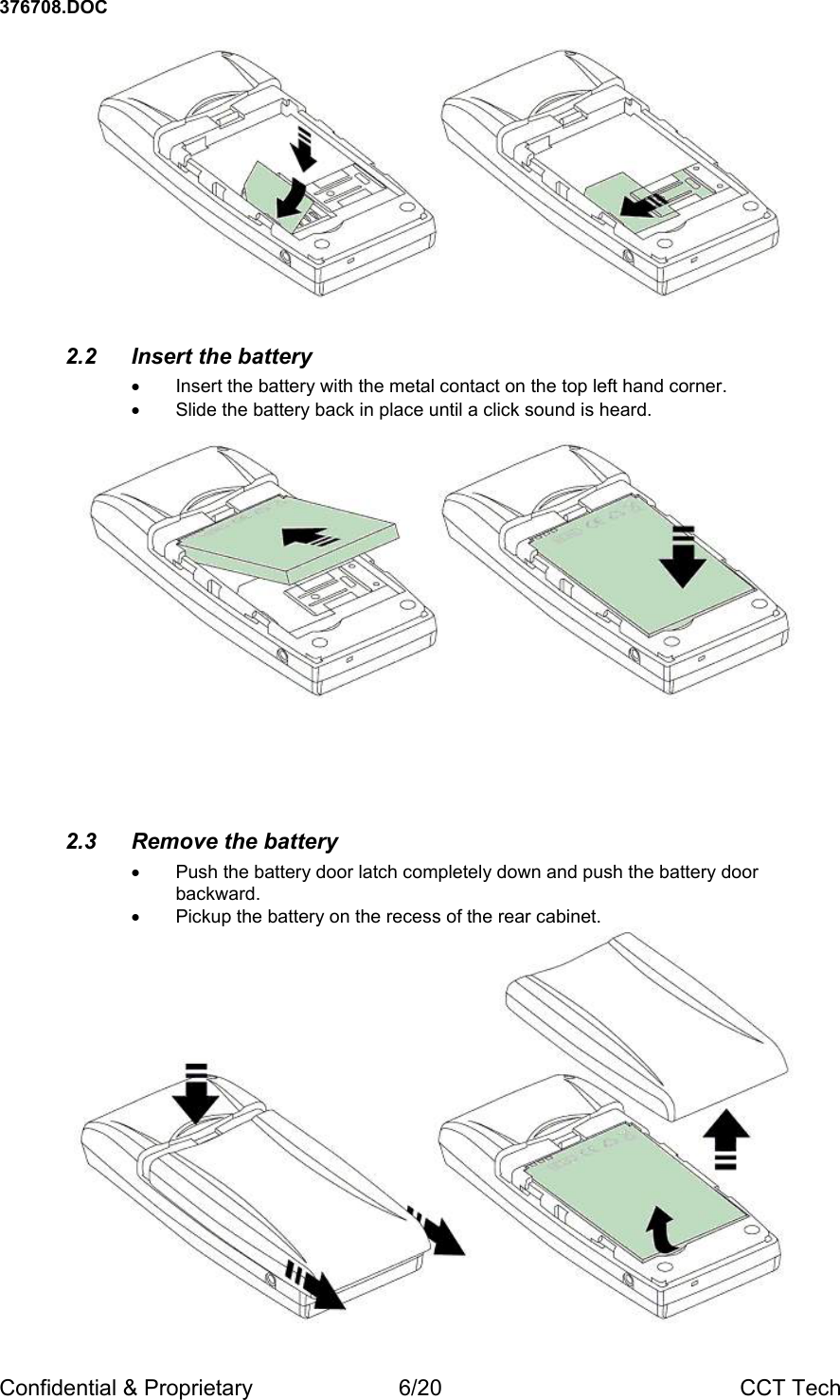
376708.DOC Confidential & Proprietary  6/20  CCT Tech   2.2  Insert the battery •  Insert the battery with the metal contact on the top left hand corner. •  Slide the battery back in place until a click sound is heard.         2.3 Remove the battery •  Push the battery door latch completely down and push the battery door backward. •  Pickup the battery on the recess of the rear cabinet.
376708.DOC Confidential & Proprietary  7/20  CCT Tech 2.4  Charging the battery  •  Plug the transformer into the main AC socket. •  Install the battery into the phone. •  Plug the charger into the charging socket at the base of the phone.  The Charging            symbols will indicate the status of charging.  Note: • The charging indicator will take several minutes to appear, if the battery is new or completely flat. • Please charge the battery for 4 hours when you the first time using the phone. • The battery will reach its maximum performance only after 2 or 3 times fully charged / discharged. • You can turn your phone and use it as usual while charging, however this will take longer time to charge the battery  • Please use a main outlet close to the phone and easily accessible. • Use only CCT charger.  Using other charger may cause damage to your phone. 3.  Making a phone call 3.1  Switch your phone on •  Press and hold the [Power] key             .   •  Enter your PIN code if asked and press the [OK] key          .   Note: The PIN code is a security feature that you can switch on or off using the “Security” features under the “Settings” menu.  Use the numeric keypad to enter the PIN and use the “C” key to clear the PIN if you have entered a wrong PIN.  You have 3 chances to enter the correct PIN.  If you have enter a wrong PIN 3 times you will have to enter the PUK code, which available from your network operator, the unlock the phone.  If the wrong PUK code was entered 10 time your SIM Will be lock permanently.  Please consult your network operator for detail.    3.2  Switch your phone off •  From the main screen, press and hold the key [Power] key            .   3.3 Idle Screen After switching on, an idle screen illustrated as below will be displayed, which means that the phone is ready to for use.
376708.DOC Confidential & Proprietary  8/20  CCT Tech 3.4  Making a call In Idle screen  •  Enter the phone number using the keypad.  ♦  To correct an error entry, press the [C] key            to delete one number or   press and hold the [C] key           to delete all the number.  ♦  For an international call you can enter the “+” for international prefix.  The “+”   character will appear if you press the “0” key twice quickly.  •  Press [Pickup] key            to dial the number.  •  After the call press [Power] key            to hang up.  Note: you can make an emergency call “112” even if no SIM is inserted or no subscribed network is available. 3.5  Receive a call When receiving an incoming call, the phone rings (or vibrates, depending on the phone setting) and the animation Incoming Call appears on the display.  If the caller can be identified, the caller’s phone number (or the correspondent name if the number has been stored in your phonebook) is displayed.  •  To answer the call, press the [Pick up] key         ,  or to reject the call, press the   [Power] key          .    •  You can adjust the receiver volume during conversation by pressing the [Up]          or [Down]           key. Receiver volume will be increased by pressing the [Up] key   and will be decreased by pressing the [Down] key         .  •  End the call after conversation by pressing the [Power] key          .  Note: if you have turned on “Any Key Answer” feature, you can pick up an incoming   call by pressing any key (except the [Power] key           ).  3.6 During a call When you are making a call, “Option” appears on the left soft key, press the key to use the ongoing call menu.  •  Mute a call: Temporally mute the microphone so that the caller can not hear you. •  Un-mute: This option deactivates the mute function. •  Hold a call: Put an active call on hold. •  Un-hold a call: This option will put a held call back to active. •  Send or read a message • Consult the phone book 3.7  Answer a second call Your can answer a second call during conversation if the “Call Waiting” feature is supported by your local operator.  When the third party call phones in, you will hear a
376708.DOC Confidential & Proprietary  9/20  CCT Tech beep sound and the screen will show the number of the caller. You can choose either to answer or reject the third call.  If the third call is answered, the current active calls will be held. 3.8 Multiple call You can set up a conference call if you have more than one calling party on line.  If you have one active call and one held call you can  •  Swap between the held call and the active call. •  Make a multiparty conference call. •  Private call: Separate an individual from the main conference call. •  End all the call  Once you set up a conference call, the connected parties become one group and you can still make a second call or receive a waiting call.  By doing this all parties in the conference will be held.  You can also add the third call into the conference.  Depending on the network service, you can add up to 5 parties into a conference call.  Please note the charging scheme may be different if you make a multiple call. 3.9 Redial and Reply The phone will store the last 30 numbers (10 called, 10 received and 10 missed).  You can reply or redial these numbers directly.  The numbers are shown in chronological order.  •  Press the [Pick up] key               to access the call list. •  •  Move to the number by pressing the [Up] or [Down] key          or          .   •  Press the [Pick up] key             again to dial the number.  •  You can also press the [Menu] key            to view / store or delete the record.  3.10 Quick Dial If you have stored phone numbers into the phone or SIM, you can assign the key from  ”2” to “9” with a frequently used number to give you direct access. Key “1” is pre-assigned for the mailbox and key “0” is pre-assign for international access code “+” which cannot be changed.  To dial the number: •  Press and hold a key between 2 to 9 until the call was setup. •  After the call press [Power] key             to hang up.  4. Using Your Phone From the idle screen you can press the [Menu] key            to enter the phone menu.  By  scrolling through the menu using the [Up] or [Down] key           or           , you will be able to   customize your phone, or access all the GSM functions equipped in it. The labels of the menu on the screen will guide you on what you have to do. In the following chapter of this manual, details of the above features will be described.
376708.DOC Confidential & Proprietary  10/20  CCT Tech 4.1 Messages The message menu allows you to manage the messages to be read, messages to be sent, message settings and voice mail box number. 4.1.1 Create SMS This feature allows you to send a predefined SMS in the SMS build in templates or a new SMS. You can do this according to the following procedure:  •  Select “Create” and start composing your message. •  Or pick “Quick Text” and choose what you want to send from the list. •  Enter the number(s) your message to be sent to, or pick a number / group in the phone book. •  Add a smiley icon (optional). •  Send the message right away or save the message for later use.  Note:  • You can send built-in message equipped with this phone. There are 100 canned text messages for you to choose from. • You can write each message in English up to 160 characters long or in Chinese up to 70 characters long.  If you send English message longer than 160 characters or Chinese message more than 70 characters the message will be send as 2 or 3 messages. • Each smiley icon will contribute 5 characters of a message. 4.1.2 Read SMS This feature allows you to read the text message stored in the SIM card.  • Select “Received” • The received messages will appear in a list of chronological order. New  messages will be marked by a closed envelope         , while the old  messages will be marked by an open envelope       .  •  Select the message to be read. •  You can choose to reply the message, forward the message to other people, save number of the sender or delete the message after reading it.  Note: Depending on your SIM card, your phone can store up to 125 messages maximum.  Once the storing space is totally used up, the message full icon   will be displayed, you will not be able to receive any more SMS until you have deleted the old messages to free some of the memory in the SIM card. 4.1.3 EMS This phone is capable to send and receive EMS (Enhanced SMS).  By using EMS you can send message with build-in pictures and audio clip (e.g. You can send a birthday greeting with a birthday cake picture and happy birthday music).  To send EMS choose to insert pictures or melody clip by pressing “Options” soft key to access to those functions during message editing.  Note:  •  The EMS you send can only be read by other handset which equipped with EMS feature.  If the receiver’s phone is not EMS compatible, the message received may be un-readable. •  Each EMS will be up to three times as big as an ordinary SMS. Please consult your service provider for different charging rate.
376708.DOC Confidential & Proprietary  11/20  CCT Tech •  You may send up to 462 English characters or 201 Chinese characters in each EMS. However, depending on the picture or melody clip you have inserted in the messages, the characters you are allowed in the EMS might be less than the aforementioned number. 4.1.4 Draft message You can select to send or delete the draft message 4.1.5 Message Set up The following item have to be set before using your voice mail and SMS.  •  Message Centre – Allow you to select your SMS Centre number.  If it is not available from your SIM card, please contact your network operator. •  Validity Period – This option lets you select the duration of your messages to be stored in the SMS centre. •  Voice Mail – This feature allows you to enter your mail box number. If this number was set previously, you will be able to call your voice mailbox by   long-press the key “1”           . .  •  Broadcast – allow you to switch on or off the reception of SMS Broadcast from the network operator to the subscriber.  4.2 Services  Call Divert This feature allows you to forward a call to a preset number in the following conditions:  •  Forward call if no reply •  Forward call if not reachable •  Forward call if busy •  Forward all call unconditional • Cancel all  You can activate / deactivate, set each option independently or you can check the current forward by the “Status” option.  Hide ID (Subscription dependent) Select to display or hide your number when making an outgoing call.  Call Waiting (Subscription dependent) You can turn on or turn off the call-waiting feature of your phone   Select Network You can manually registrar to an available network or manage your preferred network list.  •  Automatic: This option allows the phone to select the network automatically •  Manual: This option allows you to choose the available network  •  Preferred Networks:  You can build your own network list. Once the list was set up, the phone will try to registrar on a network according to the priority set on the list. •  Select Network: If you travel to area where 1900MHz GSM network is being use, you will have to select PCS1900.  Please consult your local operator for details.
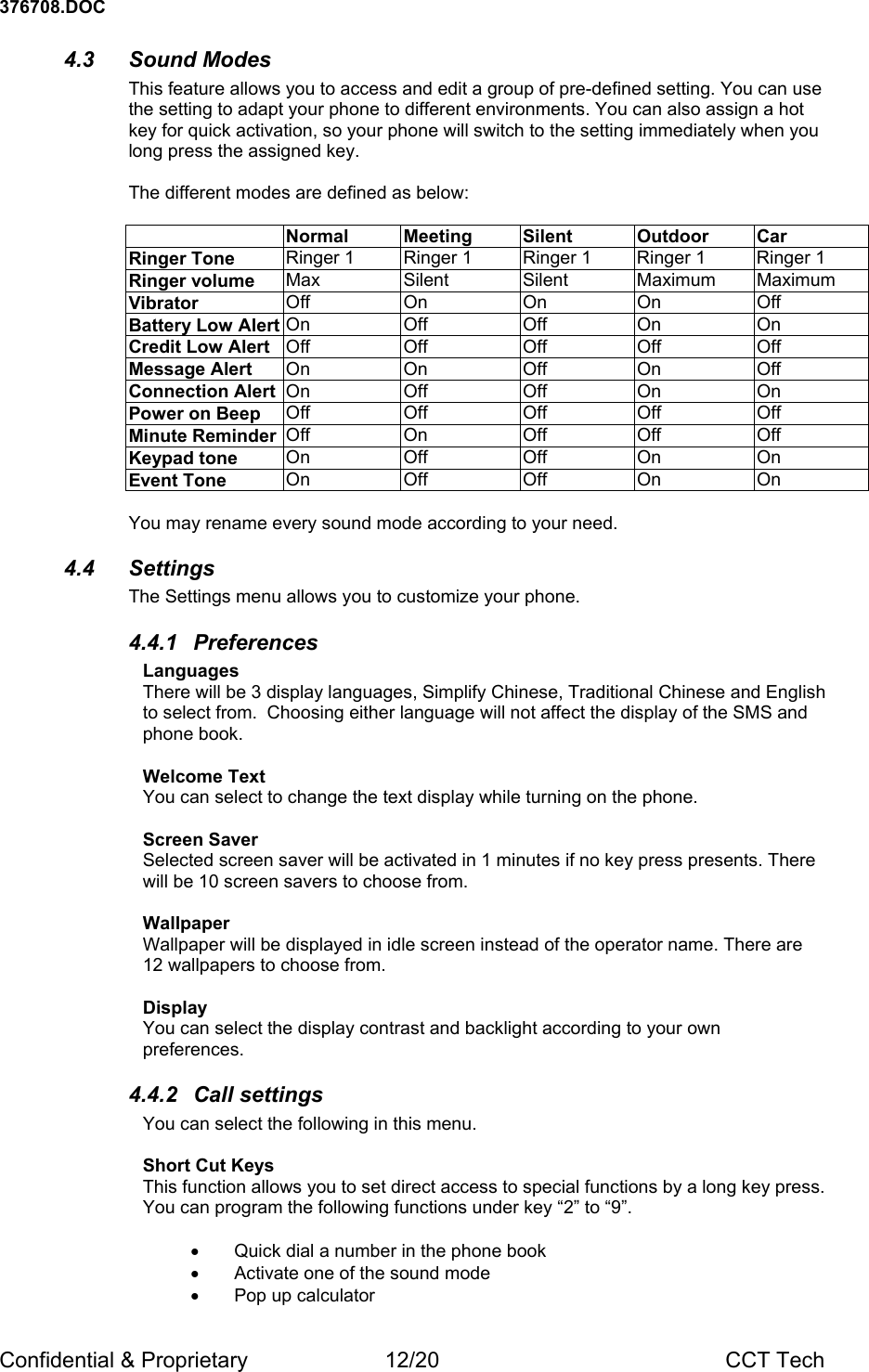
376708.DOC Confidential & Proprietary  12/20  CCT Tech 4.3 Sound Modes This feature allows you to access and edit a group of pre-defined setting. You can use the setting to adapt your phone to different environments. You can also assign a hot key for quick activation, so your phone will switch to the setting immediately when you long press the assigned key.  The different modes are defined as below:   Normal Meeting  Silent  Outdoor Car Ringer Tone  Ringer 1  Ringer 1  Ringer 1  Ringer 1  Ringer 1 Ringer volume  Max Silent Silent Maximum Maximum Vibrator  Off On On On Off Battery Low Alert On Off  Off On  On Credit Low Alert  Off Off Off Off  Off Message Alert  On On Off On  Off Connection Alert  On Off  Off On  On Power on Beep  Off Off Off Off Off Minute Reminder  Off On Off Off Off Keypad tone  On Off Off On  On Event Tone  On Off Off On  On  You may rename every sound mode according to your need. 4.4 Settings The Settings menu allows you to customize your phone. 4.4.1 Preferences Languages There will be 3 display languages, Simplify Chinese, Traditional Chinese and English to select from.  Choosing either language will not affect the display of the SMS and phone book.   Welcome Text You can select to change the text display while turning on the phone.    Screen Saver Selected screen saver will be activated in 1 minutes if no key press presents. There will be 10 screen savers to choose from.  Wallpaper Wallpaper will be displayed in idle screen instead of the operator name. There are 12 wallpapers to choose from.   Display You can select the display contrast and backlight according to your own preferences. 4.4.2  Call settings  You can select the following in this menu.  Short Cut Keys This function allows you to set direct access to special functions by a long key press. You can program the following functions under key “2” to “9”.   •  Quick dial a number in the phone book •  Activate one of the sound mode •  Pop up calculator
376708.DOC Confidential & Proprietary  13/20  CCT Tech •  Pop up the calender •  Pop up game • Send SMS •  Select Line In Use  You can reprogram each key.  Any Key Answer By turning this on you will be able to answer an incoming call by pressing any   key except the [Power] key          , not only by the [Pick up] key            .  Note: it is not recommended to turn on this feature if you put your phone in your pocket or handbag.  Auto Redial  If auto redial is turned on, your phone will continually call a number up to 10 times if the first call is not made successfully.  Note: this service is network dependent. If in doubt, please contact your network operator.  Select Line (Subscription dependent) This phone is equipped with Alternate Line Service, which means you can make an outgoing call by using one of the telephone lines provided.  Choose the line 1 or line 2 to make an outgoing call.  Incoming call will not be affected by choosing line 1 or line 2. Your SIM will set to line 1 on default.  Please consult your network operator for this feature. 4.4.3 Call Meters The call meter allows you to monitor the usage of your phone.  Call Time and Cost The accumulated call time and cost will be displayed.  To display the call cost, you have to set the call cost rate, which is described in the following paragraph.  Set Cost Rate You can set the cost rate in this menu. The cost rate will be shown in preferred currency. Note: the cost set up is for your reference only.  Please consult your network operator for charging scheme detail.  4.4.4 Security The security menu allows you protect your phone from undesired use.  PIN Protection (Phone Lock) * You will have to enter the PIN 1 upon switch on if this feature has been turned on.    Call Barring ** You can limit you phone to make specific calls or bar undesired incoming calls with this function.  Outgoing This allows you to block the international call / all outgoing calls / all calls except home call (i.e., during roaming, the phone can only make phone call to home country) / cancel all.
376708.DOC Confidential & Proprietary  14/20  CCT Tech Incoming  This allows you to block all incoming calls or incoming calls while your phone is in roaming mode, you can also cancel all the baring for incoming calls   Fixed Dialling This allows you to restrict your phone to be able to make outgoing call only to those numbers you have stored in your “Fixed Dialling Phonebook”.  Passwords * This allows you to change the PIN1 / PIN2 and Call Barring password in your SIM card.  Auto Key Lock The keypad will be locked automatically upon no key press for 1 minute in idle mode.  You can unlock the keypad by pressing [Menu] and [#] key.  Note :You can also lock the keypad by long press the “C” key in idle mode.   *Important Note:your network operator supplies The PIN1 and PIN2.  If you enter 3 times the wrong PIN1/PIN2, the phone will be locked, and you will be required to enter the unlock code PUK1/PUK2 to reset the code. If you have entered the wrong PUK1/PUK2 for 10 times, your SIM will be lock permanently.  Please contact your network operator for details.  **Note: Call barring password, which is available from the operator, if you need to use this features, please contact your operator for details.   4.4.5 Factory reset This feature allows you to restore the phone to the original ex-factory setting. 4.5 Time and Date From this menu you will be able to set the clock and the time format as you wish. 4.5.1  Set time and date Set the time and date when the first time you use your phone. The time and date will be displayed on the idle screen if selected.   4.5.2 Time Zone Set the time zone where you are locating.  You can choose the time zone from the build-in list. 4.5.3 Format You have the following options:  •  Display time in analogue or digital mode. •  Display digital clock in 12 or 24 hour format. •  Display dual time (local and visiting city) if the time zone is set. 4.5.4 Display You can select to display dual time (local and other international city).  If you choose automatic display the international time will be display when roaming.     Note:
376708.DOC Confidential & Proprietary  15/20  CCT Tech • The clock will still run even if the phone is switched off. However if the battery is drain or if it was removed for more than 30 minutes, the clock will be reset. • If you choose automatic world time display, the dual time will only display while you use your phone outside your home network. 4.6 Extras In this menu you can access to some additional features equipped in this phone. They are: 4.6.1 Games This phone has equipped with 2 games:  Snake Use the keypad “2”           ,  “4”           , “8”           , “6”             to move the snake   around. The mission is to eat all the apples (totally 10 in each level) on the screen. If the snake hit the wall, the snake will die, and you have to start again from the point you crash. You will have 3 snakes in each game.   Tetris Seven different shaped blocks fall down the game field one after the other.  The object of the game is to keep the blocks from piling up to the top of the game field. To do this, you can move the blocks to the left and right by pressing key “4”              and key “6”             respectively, and using key “5”              to rotate them as they fall. If you can completely fill in one horizontal line, that line disappears and you get points. If the blocks pile up to the top of the game field, it’s the end of the game.  4.6.2 Calculator You can perform simple calculation by the building calculator.  The value can be entered by the numeric keypad and the decimal place can be entered by   pressing the “#” key           . By pressing the “*” key             different number of   time, you will be able to get the operand “+”, “-”, “x”, and  “/”.  After entering all   the operands, press the “#” key            again to obtain your answer.   Alternately, you can also choose from “Options” soft key to select “Add” “Subtract” “Multiply” “Divide” “Equal” “Change Sign” & “Money Exchange” functions. The answer will be accurate to two decimal places. 4.6.3 Calendar This will show a monthly and weekly calendar. You can create “Notes” or set up your To-Do list in particular date. 4.6.4 Alarm clock You can set the alarm clock with this phone. You can use the alarm clock by selecting “on” under the menu and set the time of alarm. You will have the following alarm options:  •  Today – Alarm will ring according to the time you set on that day. •  Daily – Alarm will ring daily. •  Other Day – You will have to set your desired date for the alarm to ring. •  Monday to Friday – Alarm will only ring from Monday to Friday weekly. •  Monday to Saturday – Alarm will only ring from Monday to Saturday
376708.DOC Confidential & Proprietary  16/20  CCT Tech 4.6.5 Stopwatch Use the left soft key to start and stop the stopwatch, and the right soft key to reset the stopwatch. The stopwatch provides accuracy up to one tenth of a second. 4.6.6 Composer The Composer allows you to compose your own ring tone.   Simply key in 1-7 for your desired note, and the default note duration ¼ ( ) and octave (the middle one) will come with your entered note. For example: key in 5, it will come with 4F2. The “4” signifies the note duration ¼, the F signifies the note (So), and the 2 signifies the octave in the middle range.   Toggle sharp tone by pressing key “#”  , and toggle the octave by pressing key . Toggle the note duration by pressing key “*”   and toggle different durations by pressing key “0”  . The available note and rest durations are: 1, ½, ¼. 1/8, 1/16, and 1/32.   By pressing key “C”  , you will cancel the set of typed note, note duration and assigned octave.  Go into the Options will allow you to play, save, and clear the melody; you can also adjust the tempo for the melody to suit your liking. 4.7 Call History You can review the dialled, answered and missed call on this menu. Under each category, up to 10 calls will be listed in chronological order. You can store the sender number, send message or check the time / date of the call.    Note: You can also access the call history by pressing the [Pickup] key           when  the phone is in idle mode.  By doing that all recent calls (dialled, answered, and missed) will be listed all together by chronological order. On the left side of the number the following icon will presented    A missed call   A received call   A dialed call     You can press the [Menu] key               to save, delete or check the details of the number 4.8 Phone Book You can store phone number and their corresponding name in the SIM card or in the Phone memory. The Phone memory can hold up to 250 entries and the SIM card, depending on different SIM suppliers, can hold up to 250 entries.  You can quickly go   into the phone book browser by pressing the [Up] / [Down] key           or            in idle mode.  4.8.1  Search a name The phone book will be sorted by alphabetical order from A to Z. You can search the   name by scrolling through the list using the [Up] / [Down] keys            or          , or you
376708.DOC Confidential & Proprietary  17/20  CCT Tech can key in the first letter of the name by pressing the key associating the first letter of his/her name.    For example, if you want to find a name “Heidi”, you have to press the key “4”         twice, then the list will go to the first name starting with “H”, you can then scroll through the list by the [Up] or [Down] key           or           to find the name “Heidi”.  Once you have found the name, you can have the following option:  • Call the number. •  Send SMS to the number.  •  Edit the entry (name or number).  • View the details. • Delete the entry.  4.8.2  Create an entry This menu allows you to enter the name and the phone number of a new correspondent. You can select to create an entry in the SIM Card or in the Phone.  Each phone memory can hold a telephones number up to 20 digits and a name of characters.  The format of the SIM memory will be depended on the special configuration of each operator.  4.8.3 Copy You can copy the phone book from the SIM to the Phone or vise versa. If your phone book size is larger than the memory size of your destination, you will not be able to perform “copy all” correctly. You may then need to delete some of the entries in phone book/SIM car, or you have to copy each entry one by one.  Also because of the different format between SIM and Phone memory the record copy from phone to SIM may be different, content longer than the SIM capacity will be truncated. 4.8.4 Groups This menu allows you to group your phone book entries to different categories like “Work”, “Family”,  “Friends” and some other groups. You may assign different incoming call alert pattern, like different ringer melody or vibrator to each group, so you can quickly recognize who is calling by the ringing melody. Each group can contain up to 20 members, and you can re-program the name of the group according to your preferences. 4.8.5   Memory use By using this feature, you will be able to check the memory usage of your phone and SIM card. 4.8.6 Own number Depending on different operators, your SIM card may contain your own phone number.  If the number is not stored, you can use this feature to enter your own phone number into the SIM.  4.9  Special Operator (STK) Menu This menu will only appear if your SIM provide additional services.  Depends on your network operator this menu may have different name and provides different services.  Please consult your local operator for details
376708.DOC Confidential & Proprietary  18/20  CCT Tech 5. Text Editor This phone is equipped with different text editors for different user, they including:  •  Predictive English Editor •  Multi-tap English Editor • Number input • Symbol input  The following chapter will guide you through different editor. 5.1 Toggle different editor You can press “#” key in editor screen to toggle different editor.  Icon appear in bottom right hand corner will indicator the editor currently in use.    Predictive English Editor   Multi-tap English Editor (with auto capitalization)  Multi-tap Editor (all lower case)  Multi-tap Editor (all upper case)  Number input  You can toggle the symbol input by pressing “*” key in any editor mode. 5.2  Predictive English Editor This editor allows you to enter common English word with only one key press per character.  Each key on the keypad has mode than one letter, for example the key 2abc could be letter a, b or c.  If you want to enter the word “cat”, you have to press only 2abc, 2abc and 8tuv, the build in linguistic library will determine all the possible combinations (eg. cat, act, bat, etc) and all other words started with these three letters and display them in the candidate area which located at the bottom of the screen.  You can then press the down        key to select the right word.  When the correct word appear just press the left soft key to conform.  However if you cannot the word you need in this editor (like some uncommon special nouns) you have to switch to multi tap editor.  You can insert space by pressing the down        key when there is nothing appear in the candidate area.  Press “C” key to erase a character you have type in. 5.3  Multi-tap English Editor When typing in multi-tap editor, you may have to pressing the key labeled with the desire character more than one time according to the letter order, press the key once for the first letter and press the key twice for the second character.  For example if you want to enter the letter “w” press the 9wxyz key once but if you want to enter the letter “z” you have to press the 9wxyz four times.    5.4 Number input In this mode you only press the number button to the desire number. 5.5 Symbol input You can switch to symbol input mode in any editor by pressing the “*” key.  After that you will see a matrix of symbol, by pressing the down         key you can scroll to the row where the desired symbol located, then you can press the left soft key to confirm that is the row you want.  The cursor will then stay in the first symbol of the row.  You use the down key          to move the cursor to the symbol and press the left soft key to select.  Once the symbol has been selected the editor will jump back to the previous editor mode. Note : every symbol will count as one character.
376708.DOC Confidential & Proprietary  19/20  CCT Tech Safety and General Information   Radio Interference, FCC Statement Your phone may cause TV or radio interference (for example, when using a telephone in close proximity to receiving equipment). The FCC can require you to stop using your cell phone if such interference cannot be eliminated. If you require assistance, please contact your local service facility.   This device complies with Part 15 of the FCC rule.  Operation is subject to the following two conditions: (1)  This device may not cause harmful interference and  (2)  This device may not accept any interference received, including interference that may cause undesired operation  To assure optimal phone performance and make sure human exposure to radio frequency electromagnetic energy, always adhere to the following procedures:  Portable Phone Operation  Antenna Care Use only the supplied or an approved replacement antenna. Unauthorized antennas, modifications, or attachments could damage the phone and may violate FCC regulation.  Do NOT hold the antenna when the phone is in use. Holding the antenna affects call quality and may cause the phone to operate at a higher power level than needed.  Phone Operation When placing or receiving a phone call, hold your phone as you would a wireline telephone. Speak directly into Microphone.  Body-Worn Operation To maintain compliance with FCC guidelines, use of non-CCT supplied accessories is not advised, because it may exceed FCC guidelines. If you wear a phone on your body when transmitting, use only CCT- supplied accessories. Otherwise ensure the phone and its antenna are at least one inch from your body when transmitting.  * For body worn operation, this phone has been tested and meets FCC RF exposure guidelines when used with an accessory that contains no metal and that positions the handset a minimum of 1.5 cm from the body. Use of other accessories may not ensure compliance with FCC RF exposure guidelines  Data Operation When using any data feature of the phone, with or without an accessory cable, position the phone and its antenna at least one inch from your body.  Safety Precautions Please read this instruction guide and safety precautions carefully before use. Explain the content and the hazards associated with using the phone to your children.  •  Your must switch off your phone when traveling with an aircraft  •  Do not use your phone in gas station, blasting area or where explosive or flammable material is located.  •  Avoid using your phone in hospital as the radio frequency emitted by this phone may interfere with the medical equipment.
376708.DOC Confidential & Proprietary  20/20  CCT Tech  •  Do not use your phone while driving. Park the car first.  In certain countries / regions it is illegal to use hand held telephone while driving.  •  Cellular phone may affect sensitive equipment; special laws or regulations were then created accordingly.  If you are traveling to a country with your phone please check with local authority and respect the local regulation where you are visiting.  •  Cell phones can interfere with the functioning of medical devices such as hearing aids or pacemakers. Keep at least 20cm/9 inches between phone and pacemaker. When using the cell phone hold it to the ear, which is further away from the pacemaker. For more information consult your physician.  •  The SIM card maybe removed. Caution! Small parts like this could be swallowed by young children.  •  The main voltage specified on the power supply unit (Volt) must not be exceeded. Otherwise the charging device may be destroyed.  •  The ring tone and event tone are reproduced through the earpiece. Do not hold the phone to your ear when it rings. Otherwise you rise serious permanent damage to your hearing.  •  Only use original CCT batteries and charging devices. Otherwise you risk serious damage to health and property. The battery could explode, for instance.  •  You may only open the phone to replace battery or SIM card. You must not open the battery under any circumstances. All other change to this device are strictly prohibited and will invalidate the operating license.  •  Please dispose of unwanted batteries and phone as permitted by the laws in your country.  •  The phone may cause interference in the vicinity of TV sets, radios and PCs.  •  Use CCT original accessories only. This will avoid potential risks to health or property and ensure compliance with all regulations.   *Improper use will invalidate the warranty  Battery Quality  The capacity of your cell phone battery will reduce each time it is charged/emptied. Storage at too high or low temperatures will also result in a gradual capacity loss. As a result the operating time of your cell phone may be considerable reduced, even after a full recharge of the battery.  Regardless of this, the battery has been designed and manufactured so that it can be recharged and used for 12 months after the purchase of your cell phone. After 12 months, if the battery is clearly suffering from loss of performance, we recommend that you replace it. Please buy only CCT original batteries.

Navigation menu