CCT Tech Advanced MD220H Digital Cordless Telephone System W/ Caller ID-HS User Manual MD220 revised 3
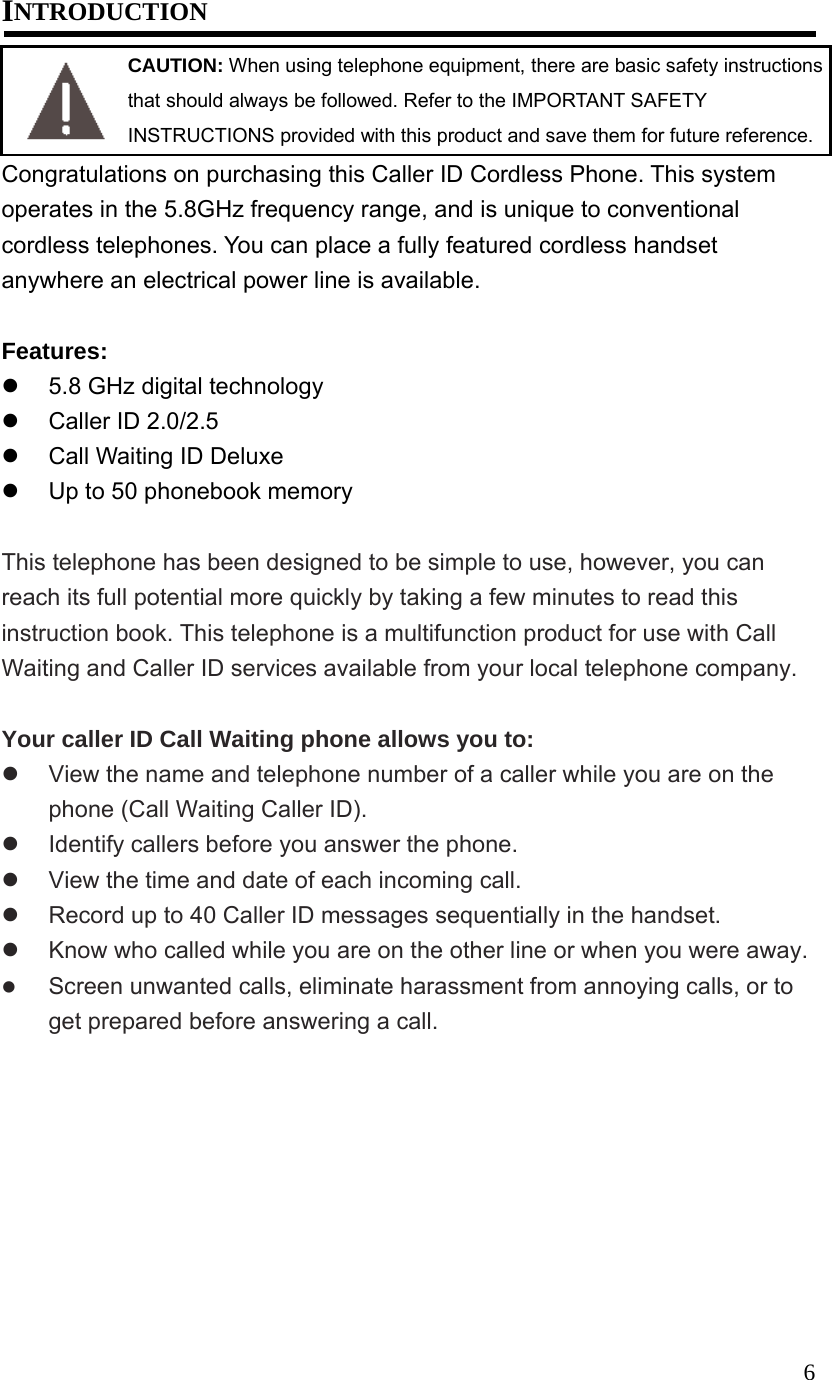
CCT Tech Advanced Products Limited Digital Cordless Telephone System W/ Caller ID-HS MD220 revised 3
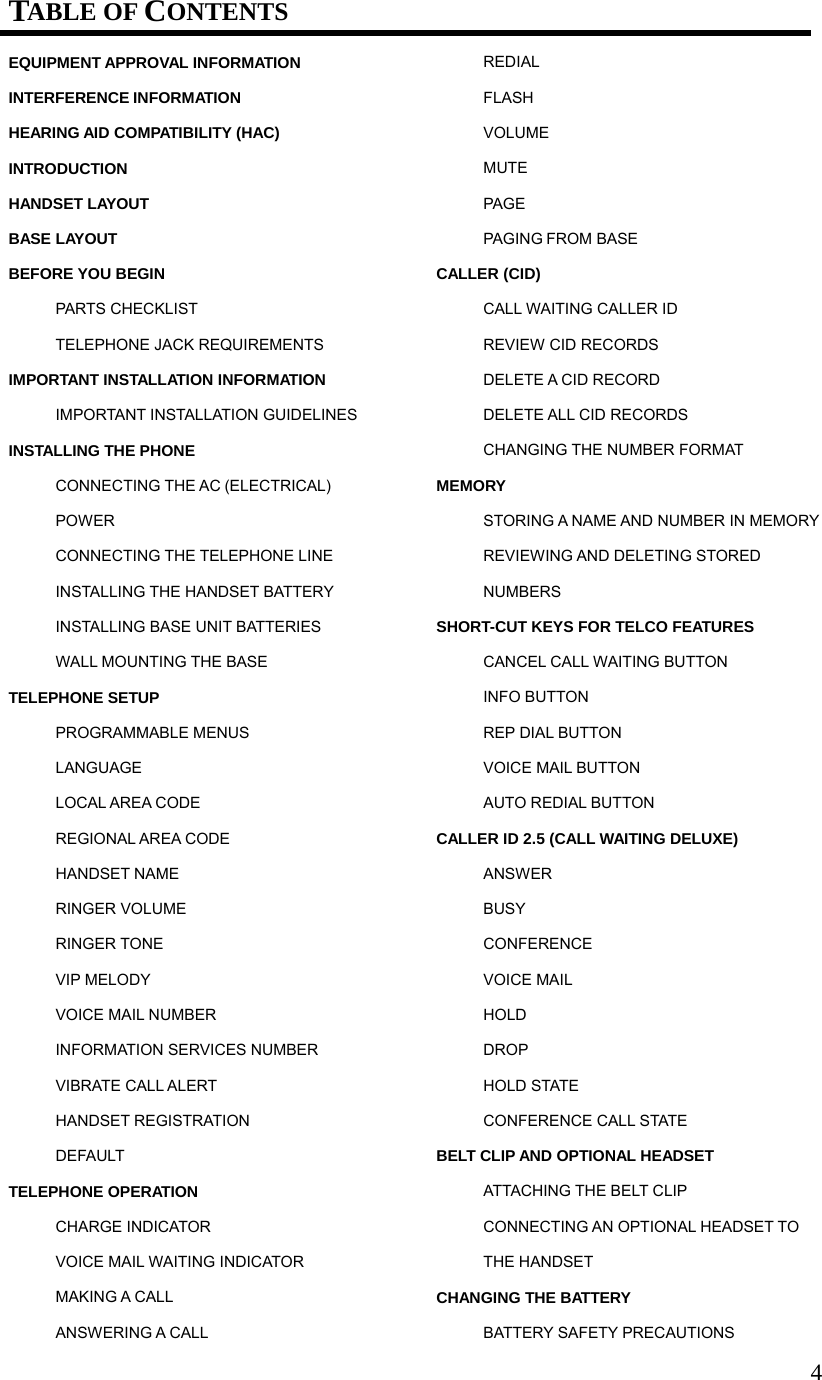
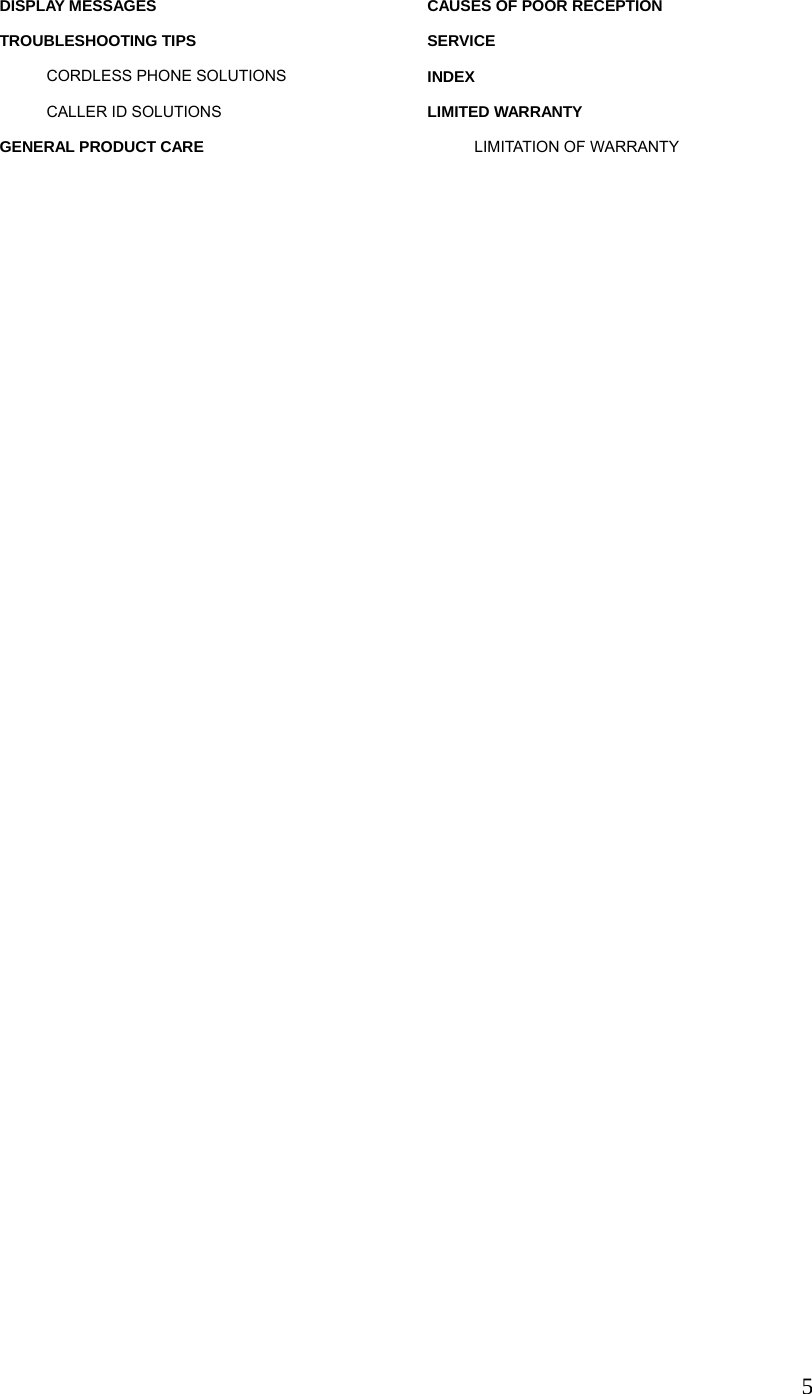
Contents
- 1. Users Manual I
- 2. Users Manual II
Users Manual I
![12 TELEPHONE SETUP PROGRAMMABLE MENUS There are twelve programmable menus available on the handset: Language, Local Area Code, Regional Area Code, Handset Name, Ringer Volume, Ringer Tone, VIP Melody, Voice Mail Number, Information Services Number, Vibrate Alert, Handset Registration and Default. When you program these settings, make sure the phone is not in talk mode. LANGUAGE 1. Press the [PROG/MUTE] button to go into the program menu. 2. Press ▲or ▼button until ►is pointing to LANGUAGE. 3. Press the [PROG/MUTE] button again to go into the LANGUAGE sub-menu. 1 ENGLISH 2 FRA 3 ESP shows in the display. 4. Press 1, 2, 3 or ▲,▼ to choose the preferred language. The ►icon will point to the latest selection. 5. Press [PROG/MUTE] button again. You will hear a confirmation tone. NOTE: Press the [FLASH/3 WAY/EXIT] button inside sub-menu will keep the current setting and return to program menu. NOTE: Press the [FLASH/3 WAY/EXIT] button inside program menu will keep the current setting and return to the standby screen. NOTE: Default is ENGLISH LOCAL AREA CODE 1. Press the [PROG/MUTE] button to go into the program menu. ►1 ENGLISH 2 FRA 3 ESP DEFAULT ►LANGUAGE LOC. AREA CODE](https://usermanual.wiki/CCT-Tech-Advanced/MD220H.Users-Manual-I/User-Guide-493223-Page-13.png)
![132. Press ▲or ▼button until ►is pointing to LOC. AREA CODE. 3. Press the [PROG/MUTE] button again to go into the LOCAL AREA CODE sub-menu. SET LOCAL AREA CODE - - - shows in the display. 4. You can enter 3-digit local area code. 5. Press the [PROG/MUTE] button again. You will hear a confirmation tone. NOTE: Press the [FLASH/3 WAY/EXIT] button inside sub-menu will keep the current setting and return to program menu. NOTE: Press the [FLASH/3 WAY/EXIT] button inside program menu will keep the current setting and return to the standby screen. NOTE: If the Local Area Code matches with the CID number, then the unit will only dial the last seven digits of the CID during redial. NOTE: The Local Area Code can set to blank by pressing [DELETE/HOLD] button. NOTE: Default is - - -. REGIONAL AREA CODE 1. Press the [PROG/MUTE] button to go into the program menu. 2. Press ▲or ▼button until ►is pointing to REG. AREA CODE. 3. Press the [PROG/MUTE] button again to go into the REGIONAL AREA CODE sub-menu. SET REGIONAL AREA CODE shows in the display. 4. Enter 3-digit area code. SET LOCAL AREA CODE - - - SET REGIONAL AREA CODE 1 - - - LANGUAGE ► LOC. AREA CODE REG. AREA CODE LOC. AREA CODE ► REG. AREA CODE HANDSET NAME](https://usermanual.wiki/CCT-Tech-Advanced/MD220H.Users-Manual-I/User-Guide-493223-Page-14.png)
![145. Press ▲or ▼to set up 6 different Regional Area Codes. 6. Press the [PROG/MUTE] again. You will hear a confirmation tone. NOTE: Press the [FLASH/3 WAY/EXIT] button inside sub-menu will keep the current setting and return to program menu. NOTE: Press the [FLASH/3 WAY/EXIT] button inside program menu will keep the current setting and return to the standby screen. NOTE: The Regional Area Code can set to blank by pressing [DELETE/HOLD] button. NOTE: Default is - - -. HANDSET NAME 1. Press the [PROG/MUTE] button to go into the program menu. 2. Press ▲or ▼button until ►is pointing to HANDSET NAME. 3. Press the [PROG/MUTE] button again to go into the HANDSET NAME sub-menu. HANDSET NAME shows in the display. 4. Use the handset keypad to enter a name (up to 15 characters). More than one letter is stored in each of the number keys. For example, to enter Bill Smith, press the 2 key twice for the letter B. Press the 4 key 3 times for the letter I. Press the 5 key 3 times for the letter L. Wait for 1 second. Press the 5 key 3 times for the second letter L, and press the 1 key to insert a space between the first and last name. Press the 7 key 4 times for the letter S; press the 6 key once for the letter M; press the 4 key 3 times for the letter I; press the 8 key for the letter T; press the 4 key twice for the letter H. 5. Press the [PROG/MUTE] button to confirm setting. You will hear a confirmation tone. NOTE: Press the [FLASH/3 WAY/EXIT] button inside sub-menu will keep the current setting and return to program menu. NOTE: Press the [FLASH/3 WAY/EXIT] button inside program menu will keep the current setting and return to the standby screen. NOTE: Maximum number of characters for handset name is 15. NOTE: Default is BLANK. HANDSET NAME REG. AREA CODE ► HANDSET NAME RINGER VOLUME](https://usermanual.wiki/CCT-Tech-Advanced/MD220H.Users-Manual-I/User-Guide-493223-Page-15.png)
![15RINGER VOLUME 1. Press the [PROG/MUTE] button to go into the program menu. 2. Press ▲or ▼button until ►is pointing to RINGER VOLUME. 3. Press the [PROG/MUTE] button again to go into the RINGER VOLUME sub-menu. SET RINGER VOL shows in the display. 4. Press ▲or ▼ to choose the ringer volume (HIGH, MEDIUM, LOW or OFF). 5. Press the [PROG/MUTE] button again. You can hear a confirmation tone. NOTE: Press the [FLASH/3 WAY/EXIT] button inside sub-menu will keep the current setting and return to program menu. NOTE: Press the [FLASH/3 WAY/EXIT] button inside program menu will keep the current setting and return to the standby screen. NOTE: Default is HIGH. RINGER TONE 1. Press the [PROG/MUTE] button to go into the program menu. 2. Press ▲or ▼button until ►is pointing to RINGER TONE. 3. Press the [PROG/MUTE] button again to go into the RINGER TONE sub-menu. SET RINGER TONE shows in the display. SET RINGER VOL ►HIGH HANDSET NAME ► RINGER VOLUME RINGER TONE RINGER VOLUME ► RINGER TONE VIP MELODY](https://usermanual.wiki/CCT-Tech-Advanced/MD220H.Users-Manual-I/User-Guide-493223-Page-16.png)
![164. Press ▲or ▼ to choose the preferred ringer tone. 5. Press the [PROG/MTUE] button again. You can hear a confirmation. NOTE: Press the [FLASH/3 WAY/EXIT] button inside sub-menu will keep the current setting and return to program menu. NOTE: Press the [FLASH/3 WAY/EXIT] button inside program menu will keep the current setting and return to the standby screen. NOTE: There are totally 2 Standard Ringers and 8 Melody Ringers available. NOTE: Default is STANDARD 1. VIP MELODY 1. Press the [PROG/MUTE] button to go into the program menu. 2. Press ▲or ▼button until ►is pointing to VIP MELODY. 3. Press the [PROG/MUTE] button again to go into the VIP MELODY sub-menu. SET VIP MELODY shows in the display. 4. Press 1, 2 or ▲,▼ to choose Yes or No. The ►icon will point to the latest selection. 5. Press the [PROG/MUTE] button again to select the choice. 6. Choose NO to deactivate the VIP melody. It will return to program menu. - OR – 7. Choose YES to activate the VIP melody. 8. A VIP Melody sub-menu is shown. Press ▲ or ▼ key to choose a VIP Melody location. (Totally 10 VIP Melody locations available) SET RINGER TONE ►STANDARD 1 SET VIP MELODY 1 YES ►2 NO RINGER TONE ► VIP MELODY VOICE MAIL#](https://usermanual.wiki/CCT-Tech-Advanced/MD220H.Users-Manual-I/User-Guide-493223-Page-17.png)
![179. Press the [PROG/MUTE] button again to set VIP Melody. If there is no entry in the phonebook, you can hear a warning beep after pressing the [PROG/MUTE] button and the following screen will be displayed. 10. Make sure there is at least one entry in the phonebook. Press the [PROG/MUTE] button again after step 6. SELECT MEMORY displays on the screen. Then you will see the record(s) in the phonebook. 11. Press ▲ or ▼ key to choose which entry to be used with this selected VIP Melody. Press the [PROG/MUTE] button again to confirm. 12. Then VIP MELODY shows in the display. 13. Press ▲ or ▼ key to choose which ringer to be used for this VIP Melody. Press the [PROG/MUTE] button again to confirm. 14. The setup for one VIP Melody is finished. It returns to the program menu. NOTE: Press the [FLASH/3 WAY/EXIT] button inside sub-menu will keep the current setting and return to program menu. NOTE: Press the [FLASH/3 WAY/EXIT] button inside program menu will keep the current setting and return to the standby screen. NOTE: Default is NO. VOICE MAIL NUMBER 1. Press the [PROG/MUTE] button to go into the program menu. 2. Press ▲or ▼button until ►is pointing to VOICE MAIL#. 3. Press the [PROG/MUTE] button again to go into the VOICE MAIL NUMBER sub-menu. SET VOICE MAIL# shows in the display. VIP 1 ** EMPTY ** NO USER MEMORY VIP MELODY ► VOICE MAIL# INFO SVCS#](https://usermanual.wiki/CCT-Tech-Advanced/MD220H.Users-Manual-I/User-Guide-493223-Page-18.png)
![18 4. You can enter the voice mail service number (Max. 20 digits) 5. Press the [PROG/MUTE] button again. You can hear a confirmation tone. NOTE: Press the [FLASH/3 WAY/EXIT] button inside sub-menu will keep the current setting and return to program menu. NOTE: Press the [FLASH/3 WAY/EXIT] button inside program menu will keep the current setting and return to the standby screen. NOTE: Default is BLANK. INFORMATION SERVICES NUMBER 1. Press the [PROG/MUTE] button to go into the program menu. 2. Press ▲or ▼button until ►is pointing to INFO SVCS#. 3. Press the [PROG/MUTE] button again to go into the INFORMATION SERVICES NUMBER sub-menu. SET INFO SVCS# shows in the display. 4. You can enter the information services number (Max. 11 digits) 5. Press the [PROG/MUTE] button again. You can hear a confirmation tone. NOTE: Press the [FLASH/3 WAY/EXIT] button inside sub-menu will keep the current setting and return to program menu. NOTE: Press the [FLASH/3 WAY/EXIT] button inside program menu will keep the current setting and return to the standby screen. NOTE: Default is 411. VIBRATE CALL ALERT 1. Press the [PROG/MUTE] button to go into the program menu. 2. Press ▲or ▼button until ►is pointing to VIBRATE ALERT. 3. Press the [PROG/MUTE] button again to go into the VIBRATOR CALL ALERT sub-menu. SET VIBRATOR shows in the display. SET VOICE MAIL# SET INFO SVCS# 411VOICE MAIL# ► INFO SVCS# VIBRATE ALERT INFO SVCS# ► VIBRATE ALERT REGISTRATION](https://usermanual.wiki/CCT-Tech-Advanced/MD220H.Users-Manual-I/User-Guide-493223-Page-19.png)
![194. Press 1, 2 or ▲,▼ to choose between ON and OFF. The ►icon will point to the latest selection. 5. Press [PROG/MUTE] button again. You will hear a confirmation tone. NOTE: Press the [FLASH/3 WAY/EXIT] button inside sub-menu will keep the current setting and return to program menu. NOTE: Press the [FLASH/3 WAY/EXIT] button inside program menu will keep the current setting and return to the standby screen. NOTE: Default is OFF. HANDSET REGISTRATION 1. Press the [PROG/MUTE] button to go into the program menu. 2. Press ▲or ▼button until ►is pointing to REGISTRATION. 3. Press the [PROG/MUTE] button again to go into the REGISTRATION sub-menu. REGISTRATION shows in the display. 4. Press 1, 2 or ▲,▼to choose between YES and NO. The ►icon will point to the latest selection. 5. If YES is selected, follow the instruction showing on the screen to register the handset. 6. Press [PROG/MUTE] button again. You will hear a confirmation tone. NOTE: Press the [FLASH/3 WAY/EXIT] button inside sub-menu will keep the current setting and return to program menu. NOTE: Press the [FLASH/3 WAY/EXIT] button inside program menu will keep the current setting and return to the standby screen. NOTE: You are recommended to register the handset before first use. NOTE: Default is NO. REGISTRATION 1 YES ►2 NO SET VIBRATOR 1 OFF ►2 ON VIBRATE ALERT ► REGISTRATION DEFAULT](https://usermanual.wiki/CCT-Tech-Advanced/MD220H.Users-Manual-I/User-Guide-493223-Page-20.png)
![20DEFAULT 1. Press the [PROG/MUTE] button to go into the program menu. 2. Press ▲or ▼button until ►is pointing to DEFAULT. 3. Press the [PROG/MUTE] button again to go into the DEFAULT sub-menu. DEFAULT SETTING shows in the display. 4. Press 1, 2 or ▲,▼ to choose between YES and NO. The ►icon will point to the latest selection. 5. Press [PROG/MUTE] button again. You will hear a confirmation tone. NOTE: Press the [FLASH/3 WAY/EXIT] button inside sub-menu will keep the current setting and return to program menu. NOTE: Press the [FLASH/3 WAY/EXIT] button inside program menu will keep the current setting and return to the standby screen. NOTE: Default is NO. TELEPHONE OPERATION For hands-free operation and convenience, your system is equipped with a speakerphone. For the best speakerphone performance, avoid the following: Areas with high background noise. (The microphone might pick up these sounds.) Surfaces affected by vibration. Recessed areas such as in a corner, under a cupboard, or next to a cabinet, which can generate an echo effect. CHARGE INDICATOR When the charge indicator is lit, the handset is correctly seated in the cradle DEFAULT SETTING 1 YES ►2 NO REGISTRATION ► DEFAULT LANGUAGE](https://usermanual.wiki/CCT-Tech-Advanced/MD220H.Users-Manual-I/User-Guide-493223-Page-21.png)
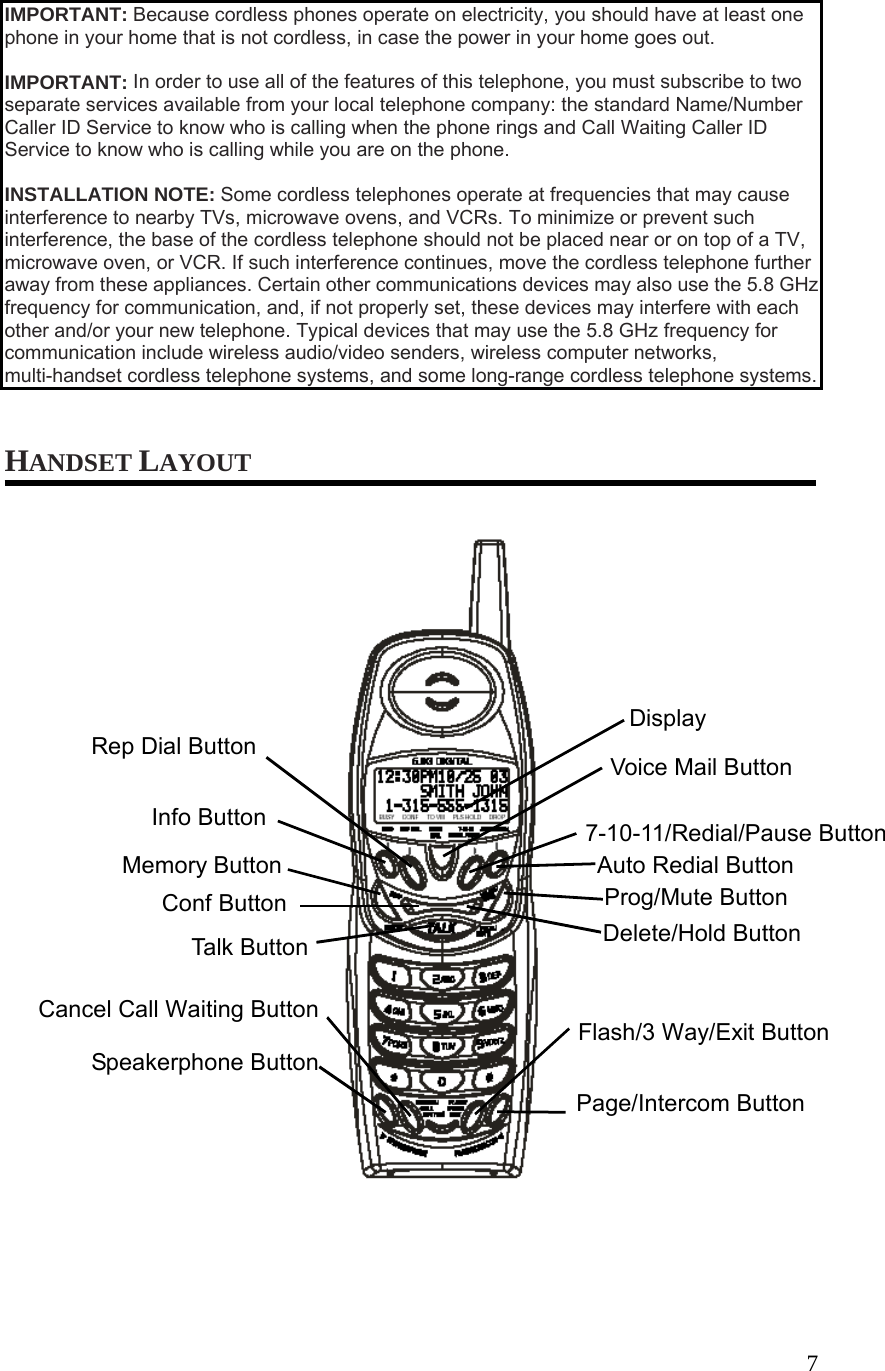
![21and is charging. The indicator flashes when the base pages the handset, or when you receive an incoming call. VOICE MAIL WAITING INDICATOR When there is voice mail waiting in the telephone service provider, the Voice Mail LED on the base will light up. After listening to the voice mail, the Voice Mail LED will be off. MAKING A CALL 1. Pick up the handset and press the [TALK] button. 2. When you hear a dial tone, dial a telephone number. 3. When finished, press the [TALK] button again to hang up. OR 1. Dial the phone number first, then press the [TALK] button. 2. When finished, press the [TALK] button again to hang up. NOTE: If you make a mistake press the [DELETE/HOLD] button to backspace and erase the wrong number(s). NOTE: For pre-dialing, 32 digits can be entered in maximum. ANSWERING A CALL 1. When the phone rings, pick up the handset and press the [TALK] button. 2. When finished, press the [TALK] button or place the handset back in the TALK 1234567TALK 00:05 VOL3 1234567](https://usermanual.wiki/CCT-Tech-Advanced/MD220H.Users-Manual-I/User-Guide-493223-Page-22.png)
![22cradle to hang up. REDIAL 1. Press the [TALK] button on the handset. 2. Press the [7-10-11/REDIAL/PAUSE] button to redial the last number you called (up to 32 digits). If you get a busy signal, and want to keep dialing the number, press the [7-10-11/REDIAL/PAUSE] button to dial the number directly. FLASH Use the [FLASH/3 WAY/EXIT] button on the handset to activate custom calling services, such as call waiting or call transfer, which are available through you local phone company. TIP: Don’t use the [TALK] button to activate custom calling services such as call waiting, or you will hang up the phone. VOLUME When the phone is ON, press ▲or ▼buttons to adjust the volume of the handset’s earpiece to a comfortable listening level. There are 4 settings to choose from. VOL 1 is the minimum volume level and VOL 4 is the maximum. MUTE Use the [PROG/MUTE] button during a phone conversation to speak privately and off-line with a third party. 1. Press the [PROG/MUTE] button on the handset. MUTE shows in the display and the party on the telephone cannot hear your external conversation. 2. Press the [PROG/MUTE] button again when finished. 1234567MUTE 00:05 VOL3](https://usermanual.wiki/CCT-Tech-Advanced/MD220H.Users-Manual-I/User-Guide-493223-Page-23.png)
![23HOLD 1. Press the [DELETE/HOLD] button on the handset to hold the far end. HOLD shows in the display. 2. Press the [TALK] button to un-hold and take the line again. PAGE PAGING FROM BASE This feature helps to locate a misplaced handset. 1. Press the [PAGE/INTERCOM] button on the base. All registered handsets beep for one minute. Then PAGING FROM BASE shows on the display. 2. To cancel the page, press the [TALK] or [FLASH/3 WAY/EXIT] button on the handset or the [PAGE/INTERCOM] button on the base. CALLER ID (CID) Caller ID (CID) is a service available from your local telephone company. For caller ID to work on this system, you must subscribe Caller ID service from your local telephone company. This unit receives and displays information transmitted by your local phone company. This information can include the phone number, date and time; or the name, phone number, date and time. The unit can store up to 40 calls for later review. 1234567HOLD 00:05 VOL3](https://usermanual.wiki/CCT-Tech-Advanced/MD220H.Users-Manual-I/User-Guide-493223-Page-24.png)
![24 Time Date Number of callsCaller ID name Caller ID phone number CALL WAITING CALLER ID To receive Caller ID (CID) information from a Call Waiting call, you must subscribe to the combined Call Waiting Caller ID service from your local telephone company. Call Waiting Caller ID service allows you to see CID information for an incoming call while you are on the telephone. REVIEW CID RECORDS As records are received and stored, the display is updated to let you know how many calls you have received. 1. Make sure the phone is not in talk mode. 2. Press the ▼button to scroll through the call records from the oldest to the newest. 3. Press the ▲button to scroll through the call records from the newest to the oldest. DELETE A CID RECORD 1. Make sure the phone is not in talk mode. 2. When reviewing the most current record, press the [DELETE/HOLD] button on the handset. The display shows DELETE?. 3. Press the [DELETE/HOLD] again to confirm. The display shows DELETED.](https://usermanual.wiki/CCT-Tech-Advanced/MD220H.Users-Manual-I/User-Guide-493223-Page-25.png)
![25DELETE ALL CID RECORDS 1. Make sure the phone is not in talk mode. 2. Press the ▲or ▼buttons until a CID record displays. 3. Press and hold the [DELETE/HOLD] button for 3 seconds. The display shows DELETE ALL?. 4. Press the [DELETE/HOLD] button again to erase all records. The display shows NO CALLS. CHANGING THE NUMBER FORMAT The [7-10-11/REDIAL/PAUSE] button lets you change the format of a telephone number. Available formats are: 7-digit 7-digit telephone number. 10-digit 3-digit area code + 7-digit telephone number. 11-digit long distance code “1” + 3-digit area code + 7-digit telephone number. 1. Make sure the phone is not in TALK mode. 2. Use the ▲or ▼ buttons on the handset to scroll to the number you want to call back. 3. Press [7-10-11/REDIAL/PAUSE] button on the handset to select another format. 4. Press [TALK] button to dial the number. 5. Repeat step 3, if necessary, until the correct number format is selected. MEMORY Store up to 50 20-digit numbers in memory for quick dialing. STORING A NAME AND NUMBER IN MEMORY 1. Press the [MEMORY] button on the handset. 2. Press the desired memory location (01-50). If the memory location is MEMO# - -SELECT MEMORY 01-50](https://usermanual.wiki/CCT-Tech-Advanced/MD220H.Users-Manual-I/User-Guide-493223-Page-26.png)
![26occupied, the memory location and stored name and number appear on the screen. If the memory location is empty, EMPTY appears in the display. 3. Press the memory button again. The display shows ENTER NAME. 4. Use the handset keypad to enter a name (up to 15 characters). More than one letter is stored in each of the number keys. For example, to enter Bill Smith, press the 2 key twice for the letter B. Press the 4 key 3 times for the letter I. Press the 5 key 3 times for the letter L. Wait for 1 second. Press the 5 key 3 times for the second letter L, and press the 1 key to insert a space between the first and last name. Press the 7 key 4 times for the letter S; press the 6 key once for the letter M; press the 4 key 3 times for the letter I; press the 8 key for the letter T; press the 4 key twice for the letter H. NOTE: If you make a mistake press the [DELETE/HOLD] button to backspace and erase the wrong character(s) or number(s). 5. Press the [MEMORY] button again to save the name. Then display shows ENTER TEL NUMBER. 6. Use the handset keypad to enter the area code followed by the telephone number (up to 20 digits, including pause(s)) and press the [MEMORY] button again to save your selection. The unit beeps to confirm. 7. To enter another name and number in a different memory location, return to step 1 and repeat the process. NOTE: You can save the number that is in the redial memory by pressing [7-10-11/REDIAL/PAUSE] button when entering the numbers. NOTE: When entering numbers, Pause (P) can be entered by pressing # key two times quickly. REVIEWING AND DELETING STORED NUMBERS 1. Make sure the phone is not in TALK mode. 2. Press the [MEMORY] button on the handset. 3. Use the ▲or ▼button on the handset to scroll to the desired memory location, or use the keypad to enter the desired memory location. 4. If you want to delete the information, press the [DELETE/HOLD] button on the handset while the entry displays. The display shows DELETE? 5. Press the [DELETE/HOLD] button again to confirm. The display shows **DELETED**. - OR - 6. If the [DELETE/HOLD] button is pressed for 3 seconds after step 4, the display shows DELETE ALL?. Press the [DELETE/HOLD] button again to confirm deleting all record(s). The display shows **DELETED**.](https://usermanual.wiki/CCT-Tech-Advanced/MD220H.Users-Manual-I/User-Guide-493223-Page-27.png)
![27 SHORT-CUT KEYS FOR TELCO FEATURES There are several special keys on the handset for calling Telco features. CANCEL CALL WAITING BUTTON 1. Press [CANCEL CALL WAITING] button at both on-hook and off-hook state will cancel the Call Waiting service in your telephone company 2. CANCEL CALL WAITING displays on the screen. 3. Press the [TALK] button to return to standby screen. INFO BUTTON 1. Press the [INFO] button on the handset will automatically dial to the Information Service Number entered in program menu. 2. INFO SERVICE displays on the screen. 3. Press the [TALK] button to return to standby screen. NOTE: You can change the Information Service Number in program menu at anytime. REP DIAL BUTTON 1. Press the [REP DIAL] button to re-dial the previously dialed number. CANCEL CALL WAITING 411INFO SERVICE REPEAT DIAL](https://usermanual.wiki/CCT-Tech-Advanced/MD220H.Users-Manual-I/User-Guide-493223-Page-28.png)
![282. If the called number is still busy, press [TALK] or [SPEAKERPHONE] to put the phone on-hook. The telephone company will try to connect to the designated number. 3. There will be a special ringer tone to show the phone is connected successfully. 4. Press the [TALK] button to return to standby screen. VOICE MAIL BUTTON 1. Press the [VOICE MAIL] button on the handset will automatically dial the Voice Mail Number entered in program menu. 2. VOICE MAIL displays on the screen. 3. Press the [TALK] button to return to standby screen. AUTO REDIAL BUTTON 1. Press the [AUTO REDIAL] button to dial the last received number. 2. If the number is busy, press [TALK] or [SPEAKERPHONE] to put the phone on-hook. The telephone company will try to connect to the designated number. 3. There will be a special ringer tone to show the phone is connected successfully. 4. Press the [TALK] button to return to standby screen. VOICE MAIL AUTO REDIAL](https://usermanual.wiki/CCT-Tech-Advanced/MD220H.Users-Manual-I/User-Guide-493223-Page-29.png)
![29CALLER ID 2.5 (CALL WAITING DELUXE) If you subscribe Caller ID 2.5 service from the telephone company, you will have the additional Call Waiting functions shown below. When Caller ID 2.5 information is received, a Waiting State menu and the Caller ID will be displayed on the screen. ANSWER 1. Press the [FLASH/3-WAY/EXIT] button to hold the far-end party and connect to the waiting party. 2. Hold state is available. (Detail description in other section) 3. ANSWER displays on the screen. 4. Return to normal display screen after 3 seconds. BUSY 1. Press the [INFO] button to connect the waiting party to a specified announcement and remain connecting to the far-end party. 2. TELL BUSY displays on the screen. 3. Return to normal display screen after 3 seconds. CONFERENCE 1. Press the [REP DIAL] button to join the waiting party together with the existing connection. 12:30PM 10/25 03 SMITH JOHN1-123-456-7890 BUSY CONF TO VM PLS HOLD DROP ANSWER TELL BUSY](https://usermanual.wiki/CCT-Tech-Advanced/MD220H.Users-Manual-I/User-Guide-493223-Page-30.png)
![302. Conference Call state is available. (Detail description in other section) 3. CONFERENCE displays on the screen. 4. Return to normal display screen after 3 seconds. VOICE MAIL 1. Press the [VOICE MAIL] button to forward the waiting party to a preset destination and remain connecting to the existing party. 2. TO VOICEMAIL displays on the screen 3. Return to normal display screen after 3 seconds. HOLD 1. Press the [7-10-11/REDAIL/PAUSE] button to connect the waiting party to a HOLD announcement. 2. Hold state is available. (Detail description in other section) 3. PLEASE HOLD displays on the screen. 4. Return to normal display screen after 3 seconds. DROP 1. Press the [AUTO REDIAL] button to disconnect the far-end party and get connected to the waiting party. CONFERENCE TO VOICEMAIL PLEASE HOLD](https://usermanual.wiki/CCT-Tech-Advanced/MD220H.Users-Manual-I/User-Guide-493223-Page-31.png)
![312. DROP displays on the screen. 3. Return to normal display screen after 3 seconds. HOLD STATE Below sub-menu is displayed if Hold state is available. RETURN Press [1] to toggle between the held party and the far-end party. CONFERENCE Press [3] to connect the on-hold party and the far-end party in a 3-way conference call. DROP Press [7] to connect to the on-hold party and disconnect the far-end party. CONFERENCE CALL STATE Below sub-menu is displayed if Conference Call state is available. DROP FIRST Press [5] to disconnect the first calling party. DROP LAST Press [4] to disconnect the last calling party. DROP 1 Return 7 Drop 3 Conference 4 Drop Last 5 Drop First](https://usermanual.wiki/CCT-Tech-Advanced/MD220H.Users-Manual-I/User-Guide-493223-Page-32.png)
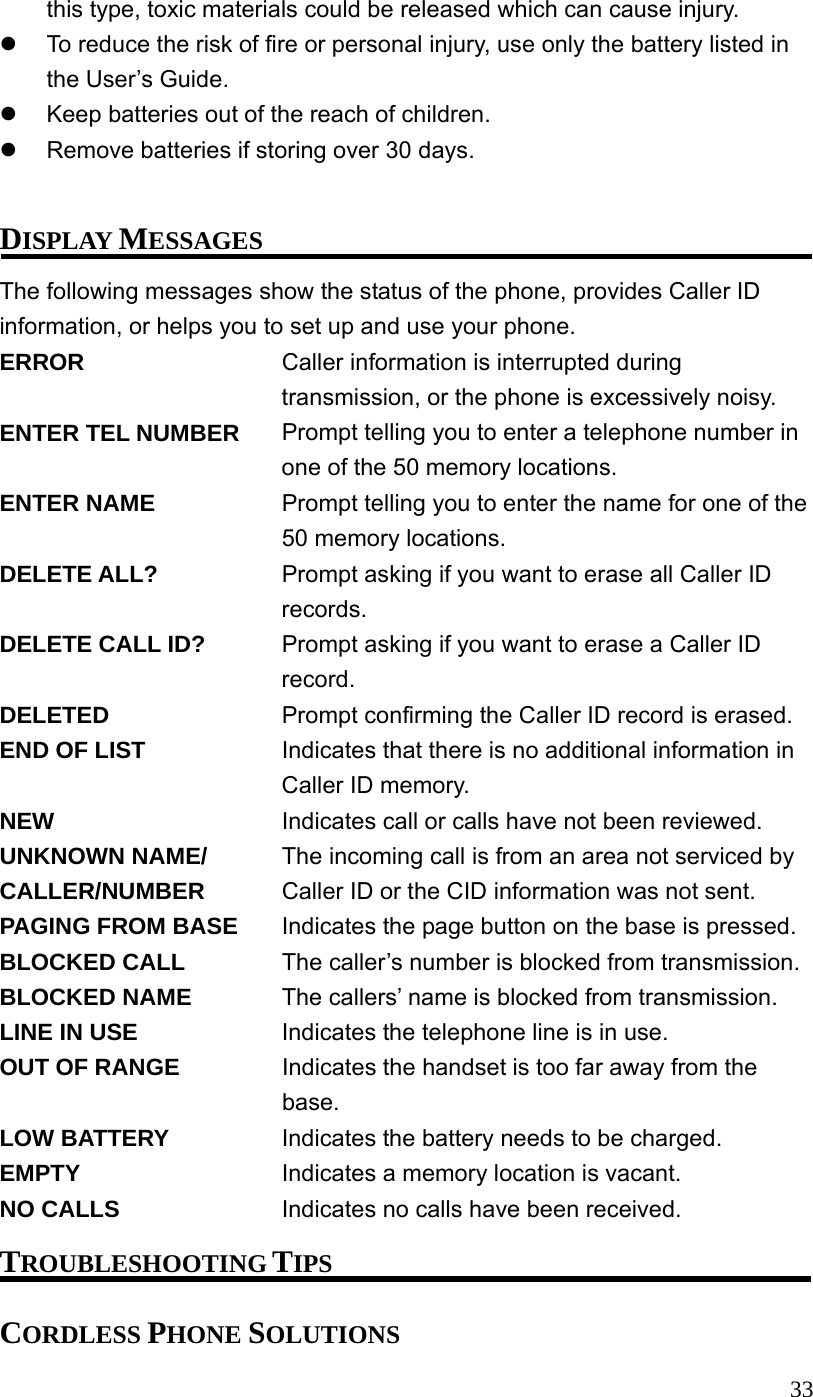
![32BELT CLIP AND OPTIONAL HEADSET ATTACHING THE BELT CLIP 1. Insert the sides of the clip into the slots on each side of the handset. 2. Snap the belt clip. CONNECTING AN OPTIONAL HEADSET TO THE HANDSET The handset can be used with an optional headset for hands free operation. 1. Connect the headset to the headset jack on the side of the handset. The handset receiver and microphone are disabled when the headset is connected. 2. Adjust the headset to rest comfortably on top of your head and over your ear. Move the microphone to approximately two to three inches from your mouth. 3. Press the [TALK] button to answer a call or make calls using the headset. 4. To return to normal operation, unplug the headset from the jack. CHANGING THE BATTERY CAUTION: To reduce the risk of fire or personal injury, use only the battery that is compatible with this unit. 1. Make sure the telephone is not in TALK mode before you replace battery. 2. Remove the battery compartment cover. 3. Disconnect the cord attached to the battery pack from the jack inside the battery compartment and remove the battery pack from the handset. 4. Reconnect the battery pack and insert it in the battery compartment. 5. Put the battery compartment cover back on. 6. Place handset in the base or handset charge cradle. If you don’t charge the handset battery properly (for 12 hours) when you first set up the phone and/or when you install a new battery pack, the battery’s long-term performance is compromised. BATTERY SAFETY PRECAUTIONS Do not burn, disassemble, mutilate, or puncture. Like other batteries of](https://usermanual.wiki/CCT-Tech-Advanced/MD220H.Users-Manual-I/User-Guide-493223-Page-33.png)
![34No dial tone Check or repeat installation steps: Make sure the base power cord is connected to a working electrical outlet. Make sure the telephone line cord is connected to the base and the wall jack. Connect another phone to the same wall jack; if it doesn’t work, the problem might be your wiring or local service. The handset may be out of range of the base. Move closer to the base. Make sure the battery is properly charged (12 hours). Make sure the battery pack (in the handset) is properly installed. The handset should beep when you press the [TALK] button, and the charge/in use indicator on the base should be lit when the handset rests in the cradle. If not, the battery may need to be changed. Handset does not ring Make sure the RINGER VOLUME setting is not OFF. The handset may be out of range of the base. Move closer to the base. You may have too many extension phones on your line. Try unplugging some phones. Check for dial tone. You experience static, noise or fading in and out. The handset may be out of range of the base. Move closer to the base Relocate the base. Make sure the base is not plugged into an outlet with another household appliance. Charge the battery. Unit beeps Clean charging contacts on handset and base with a soft cloth or an eraser. See solutions for “No dial tone”. Charge battery for 12 hours or replace the battery. Memory dialing doesn’t work Did you program the memory location key(s) correctly? Did you follow proper dialing sequence? CALLER ID SOLUTIONS No Display Charge the battery (for 12 hours). Or replace the battery. Make sure that the unit is connected to a non-switched electrical outlet. Disconnect the power converter from the outlet and plug it in again.](https://usermanual.wiki/CCT-Tech-Advanced/MD220H.Users-Manual-I/User-Guide-493223-Page-35.png)