CCT Tech Advanced MD751H Digital 2.4Ghz Cordless Telephone w/Caller ID HS User Manual MD750

CCT Tech Advanced Products Limited Digital 2.4Ghz Cordless Telephone w/Caller ID HS MD750

users manual

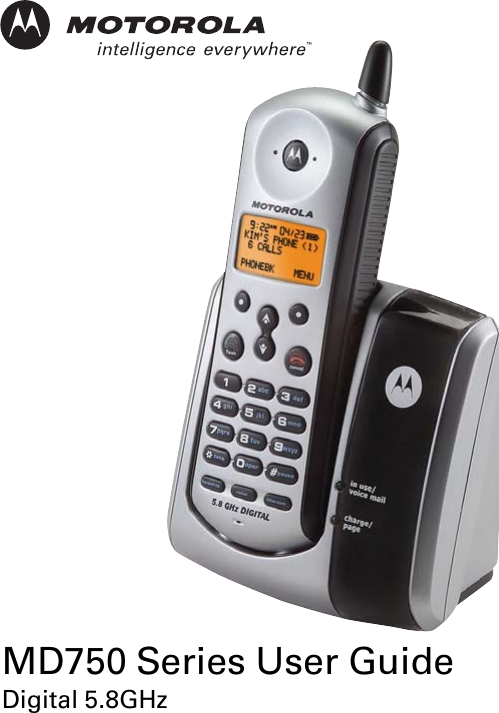
 MD750 Series User GuideDigital 5.8GHz
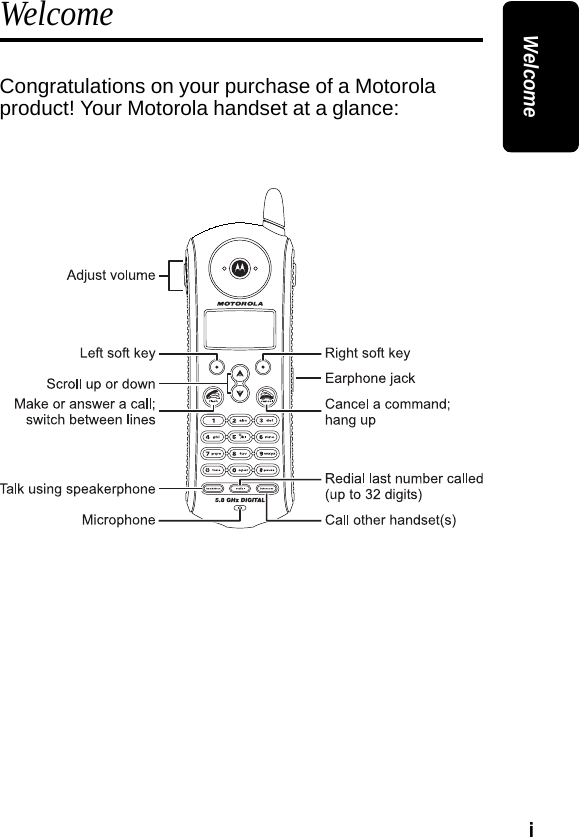
i WelcomeWelcomeCongratulations on your purchase of a Motorola product! Your Motorola handset at a glance:
ii WelcomeFor a copy of a large-print version of this guide, or for product-related questions, please contact:1-800-353-2729 U.S.A.1-800-461-4575 Canada1-888-390-6456 TTY (Text Telephone)Or visit us online: www.motorola.com/cordlessProduct registration is an important step toward enjoying your new Motorola product. Registering helps us facilitate warranty service, and permits us to contact you should your Motorola product require an update or other service.  Registration is not required for warranty coverage.  To register your product online, visit:www.motorola.com/warranty/cordlessPlease retain your original dated sales receipt for your records. For warranty service of your Motorola Product, you will need to provide a copy of your dated sales receipt to confirm warranty status.Copyright © 2004 Motorola, Inc. All rights reserved. No part of this publication may be reproduced in any form or by any means or used to make any derivative work (such as translation, transformation or adaptation) without written permission from Motorola, Inc.Motorola reserves the right to revise this publication and to make changes in content from time to time without obligation on the part of Motorola to provide notification of such revision or change.  Motorola provides this guide without warranty of any kind, either implied or expressed, including but not limited to, the implied warranties of merchantability and fitness for a particular
iii Welcomepurpose.  Motorola may make improvements or changes in the product(s) described in this manual at any time.MOTOROLA, the Stylized M Logo, and PhoneWrap are registered in the U.S. Patent and Trademark Office.  All other product or service names are the property of their respective owners.
iv Welcome
v ContentsTable of ContentsWelcome  . . . . . . . . . . . . . . . . . . . . . . . . . . . . . . . . . . . . . iImportant Safety Instructions . . . . . . . . . . . . . . . . . . .viiFCC Information . . . . . . . . . . . . . . . . . . . . . . . . . . . . . . xiGetting Started . . . . . . . . . . . . . . . . . . . . . . . . . . . . . . . .1Battery Safety Instructions  . . . . . . . . . . . . . . . . . . . . . .1Charging the Battery   . . . . . . . . . . . . . . . . . . . . . . . . . .2Installing Backup Batteries . . . . . . . . . . . . . . . . . . . . . .4Using the Handset  . . . . . . . . . . . . . . . . . . . . . . . . . . . .5Using the Handset Display  . . . . . . . . . . . . . . . . . . . .5Using the Soft Keys   . . . . . . . . . . . . . . . . . . . . . . . . .6Using the Navigation Key  . . . . . . . . . . . . . . . . . . . . . 7Installation. . . . . . . . . . . . . . . . . . . . . . . . . . . . . . . . . . . .9Installing the Phone on a Desk . . . . . . . . . . . . . . . . . . .9Installing the Phone on the Wall . . . . . . . . . . . . . . . . . 10Setting Up . . . . . . . . . . . . . . . . . . . . . . . . . . . . . . . . . . .13Personalizing Your Handset . . . . . . . . . . . . . . . . . . . .13Setting the Ring Volume  . . . . . . . . . . . . . . . . . . . . .13Setting the Ring Tone  . . . . . . . . . . . . . . . . . . . . . . .14Setting Key Beeps On or Off   . . . . . . . . . . . . . . . . .14Naming a Handset  . . . . . . . . . . . . . . . . . . . . . . . . .15Storing Area Codes for Caller ID  . . . . . . . . . . . . . . . .17Setting the Date and Time  . . . . . . . . . . . . . . . . . . . . .18Setting the Language  . . . . . . . . . . . . . . . . . . . . . . . . . 19Setting Touch Tone or Pulse Dialing . . . . . . . . . . . . . .19
vi ContentsUsing the Handset . . . . . . . . . . . . . . . . . . . . . . . . . . . . 21Making a Call . . . . . . . . . . . . . . . . . . . . . . . . . . . . . . . 21Adjusting the Volume During a Call . . . . . . . . . . . . . . 21Inserting Pauses in a Number  . . . . . . . . . . . . . . . . . . 22Using Automated Dialing . . . . . . . . . . . . . . . . . . . . . . 23Using the Speakerphone  . . . . . . . . . . . . . . . . . . . . . . 24Muting a Call  . . . . . . . . . . . . . . . . . . . . . . . . . . . . . . . 24Putting a Call on Hold  . . . . . . . . . . . . . . . . . . . . . . . . 24Redialing a Number . . . . . . . . . . . . . . . . . . . . . . . . . . 25Finding a Lost or Misplaced Handset   . . . . . . . . . . . . 25Using the Phonebook   . . . . . . . . . . . . . . . . . . . . . . . . 25Storing a New Number . . . . . . . . . . . . . . . . . . . . . . 26Storing a Recently Called Number . . . . . . . . . . . . . 27Storing a Caller ID Number  . . . . . . . . . . . . . . . . . . 28Editing a Phonebook Entry   . . . . . . . . . . . . . . . . . . 28Deleting a Phonebook Entry   . . . . . . . . . . . . . . . . . 29Sorting the Phonebook   . . . . . . . . . . . . . . . . . . . . . 29Calling a Number from the Phonebook  . . . . . . . . . 30Using Caller ID   . . . . . . . . . . . . . . . . . . . . . . . . . . . . . 31Reviewing the List of Caller ID Calls  . . . . . . . . . . . 31Deleting Caller ID Calls  . . . . . . . . . . . . . . . . . . . . . 31Using the Intercom   . . . . . . . . . . . . . . . . . . . . . . . . . . 32Using the Intercom . . . . . . . . . . . . . . . . . . . . . . . . . 32Enabling Auto-Answer  . . . . . . . . . . . . . . . . . . . . . . 32Transferring Calls to Other Handsets . . . . . . . . . . . 33Multihandset Functions  . . . . . . . . . . . . . . . . . . . . . . . 34Conference Calling   . . . . . . . . . . . . . . . . . . . . . . . . 34Using the Intercom . . . . . . . . . . . . . . . . . . . . . . . . . 35Enabling Auto-Answer  . . . . . . . . . . . . . . . . . . . . . . 36Transferring Calls to Other Handsets . . . . . . . . . . . 36Monitoring a Room . . . . . . . . . . . . . . . . . . . . . . . . . 37Warranty . . . . . . . . . . . . . . . . . . . . . . . . . . . . . . . . . . . . 39
vii Safety InfoImportant Safety InstructionsFollow these safety precautions when using your cordless phone to reduce the risk of fire, electric shock and injury to persons or property: Reduce risk of fire and shock by1. Keep all slits and openings of the phone unblocked. Do not set the phone on a heating register or over a radiator. Ensure that proper ventilation is provided at the installation site. 2. Do not use while wet or while standing in water. 3. Do not use this product near water (for example, near a bath tub, kitchen sink, or swimming pool). 4. Do not allow anything to rest on the power cord. Place the power cord so that it will not be walked on.   5. Never insert objects of any kind into the product slits as that may result in fire or shock. 6. Unplug this product from the wall outlet before cleaning. Do not use liquid cleaners or aerosol cleaners. Use a damp cloth for cleaning. 7. Do not disassemble this product. If service or repair work is required, contact the Motorola address found in the back of this user’s guide. 8. Do not overload wall outlets and extension cords. 9. Avoid using during an electrical storm. Use a surge protector to protect the equipment. 10. Do not use this cordless phone to report a gas leak, especially if you are in the vicinity of the gas line.
viii Safety InfoUnplug this cordless phone immediately from an outlet if:• The power cord or plug is damaged or frayed. • Liquid has been spilled into the product. • The product has been exposed to rain or water. Do not retrieve the handset or base until after you have unplugged the power and phone from the wall. Then retrieve the unit by unplugged cords. • The product has been dropped or the cabinet has been damaged. • The product exhibits a distinct change in performance. Installation Guidelines1. Read and understand all instructions and save them for future reference. 2. Follow all warnings and instructions marked on the product. 3. Do not install this product near a bath tub, sink or shower. 4. Operate this phone using only the power source that is indicated on the marking label. If you are unsure of the power supply to your home, consult with your dealer or local power company. 5. Do not place this product on an unstable cart, stand or table. This product may fall, causing serious damage to the product. 6. Adjust only those controls that are covered by the operating instructions. Improper adjustment of other controls may result in damage and will often require extensive work to restore the product to normal operation. 7. Clean this product with a soft, damp cloth. Do not use chemicals or cleaning agents to clean this phone.
ix Safety Info8. Use only the power supply that came with this unit. Using other power supplies may damage the unit. 9. Because cordless phones operate on electricity, you should have at least one phone in your home that isn’t cordless, in case the power in your home goes out. 10. To avoid interference to nearby appliances, do not place the base of the cordless phone on or near a TV, microwave oven, or VCR.
x Safety Info
xi FCC InfoFCC InformationThis equipment complies with Parts 15 and 68 of the FCC rules and the requirements adopted by the Administrative Council for Terminal Attachments (ACTA).A plug and jack used to connect this equipment to the premises wiring and telephone network must comply with applicable FCC Part 68 rules and requirements adopted by the ACTA. A compliant telephone cord and modular plug is provided with this product. It is designed to be connected to a compatible modular jack that is also compliant. See installation instructions for details.Notification of Local Telephone CompanyOn the bottom of this equipment is a label that contains, among other information, a product identifier in the form US:AAAEQ##TXXXX. You must, upon request, provide this information to your telephone company.The digits represented by ## in the product identifier indicate the Ringer Equivalency Number (REN) for this equipment. The REN is useful in determining the number of devices you may connect to your telephone line and still have all of these devices ring when your telephone number is called. In most (but not all) areas, the sum of the RENs of all devices connected to one line should not exceed 5. To be certain of the number of devices you may connect to your line as determined by the REN, contact your local telephone company.Note: This equipment may not be used on coin service provided by the telephone company.
xii FCC InfoConnection to party line service is subject to state tariffs. Contact the state public utility commission, public service commission or corporation commission for information.If your home has specially wired alarm equipment connected to the telephone line, ensure the installation of this cordless phone does not disable your alarm equipment. If you have questions about what will disable alarm equipment, consult your telephone company or a qualified installer.Notice must be given to the telephone company upon permanent disconnection of your telephone from your line. The FCC requires that you connect your cordless telephone to the nationwide telephone network through a modular telephone jack (USOC RJ11C/RJ11W or RJ14C/RJ14W).Rights of the Telephone CompanyShould your equipment cause trouble on your line which may harm the telephone network, the telephone company shall, where practicable, notify you that temporary discontinuance of service may be required. Where prior notice is not practical and the circumstances warrant such action, the telephone company may temporarily disconnect service immediately. In case of such temporary discontinuance, the telephone company must:•Promptly notify you of such temporary discontinuance•Afford you the opportunity to correct the situation
xiii FCC Info•Inform you of your right to bring a complaint to the Commission pursuant to procedures set forth in Subpart E of Part 68, FCC Rules and Regulations.The telephone company may make changes in its facilities, equipment, operations, or procedures that could affect the operation of the equipment. If this happens, the telephone company will provide advance notice in order for you to make necessary modifications to maintain uninterrupted service.Interference InformationThis device complies with Part 15 of the FCC Rules. Operation is subject to the following two conditions:• This device may not cause harmful interference,•This device must accept any interference received, including interference that may cause undesired operation.This equipment has been tested and found to comply with the limits for a Class B digital device, pursuant to Part 15 of the FCC Rules. These limits are designed to provide reasonable protection against harmful interference in a residential installation.This equipment generates, uses, and can radiate radio frequency energy and, if not installed and used in accordance with the instructions, may cause harmful interference to radio communications. However, there is no guarantee that interference will not occur in a particular installation.
xiv FCC InfoIf this equipment does cause harmful interference to radio or television reception, which can be determined by turning the equipment on and off, the user is encouraged to try to correct the interference with one or more of the following measures:• Reorient or relocate the receiving antenna (that is,the antenna for the radio or television that is"receiving" the interference).• Reorient or relocate and increase the separationbetween the telecommunications equipment andthe receiving antenna.• Connect the telecommunications equipment intoan outlet on a circuit different from that to whichthe receiving antenna is connected.If these measures do not eliminate the interference, please consult your dealer or an experienced radio/television technician for additional suggestions. Also, the Federal Communications Commission has prepared a helpful booklet, "How to Identify and Resolve Radio/TV Interference Problems." This booklet is available from the U.S. Government Printing Office, Washington, D.C. 20402. Please specify stock number 004-000-00345-4 when ordering copies.The FCC requires this product to be serviced only by Motorola or its authorized service agents. CAUTION / WARNING: Changes or modifications not expressly approved by CCT R&D could void not only the user's authority to operate the equipment, but also the limited warranty.
xv FCC InfoHearing Aid CompatibilityThis telephone system meets the FCC standards for hearing aid compatibility.
xvi FCC Info
1 Getting StartedGetting StartedBefore you can use your telephone to make or answer calls, you must charge the battery. This section provides the step-by-step instructions you will need. Battery Safety Instructions•Do not burn, disassemble, mutilate, or puncture the battery. The battery contains toxic materials that could be released, resulting in injury. •Caution: There is a risk of explosion if you replace the battery with an incorrect battery type. Use only the battery that came with your phone or an authorized replacement recommended by the manufacturer.•Keep batteries out of the reach of children. •Remove batteries if storing over 30 days. •Do not dispose of batteries in fire, which could result in explosion. •The rechargeable batteries that power this product must be disposed of properly and may need to be recycled. Refer to your battery’s label for battery type. Contact your local recycling center for proper disposal methods.
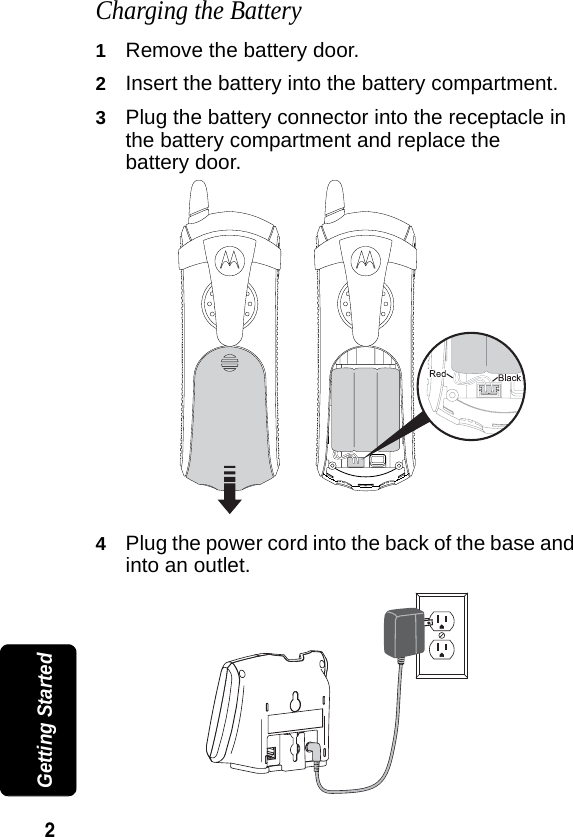
2 Getting StartedCharging the Battery1Remove the battery door. 2Insert the battery into the battery compartment.3Plug the battery connector into the receptacle in the battery compartment and replace the battery door. 4Plug the power cord into the back of the base and into an outlet.
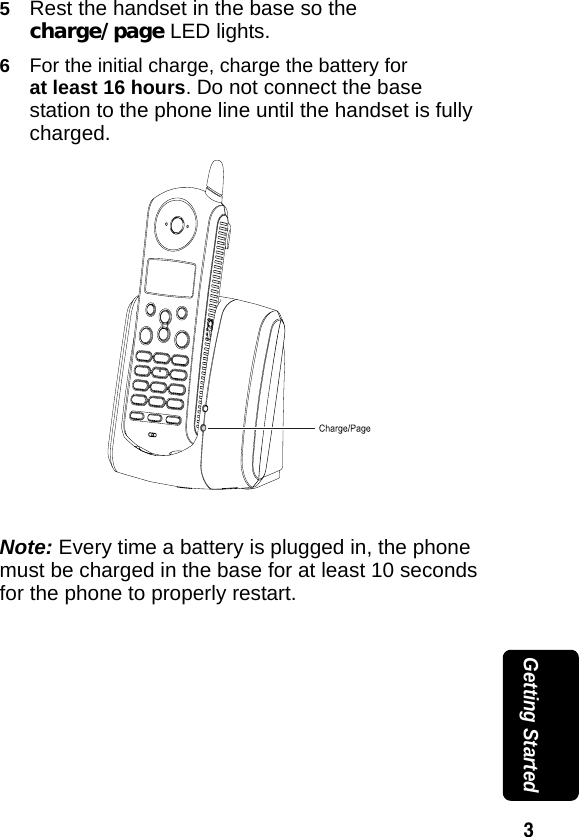
3 Getting Started5Rest the handset in the base so the charge/page LED lights. 6For the initial charge, charge the battery for at least 16 hours. Do not connect the base station to the phone line until the handset is fully charged.Note: Every time a battery is plugged in, the phone must be charged in the base for at least 10 seconds for the phone to properly restart.
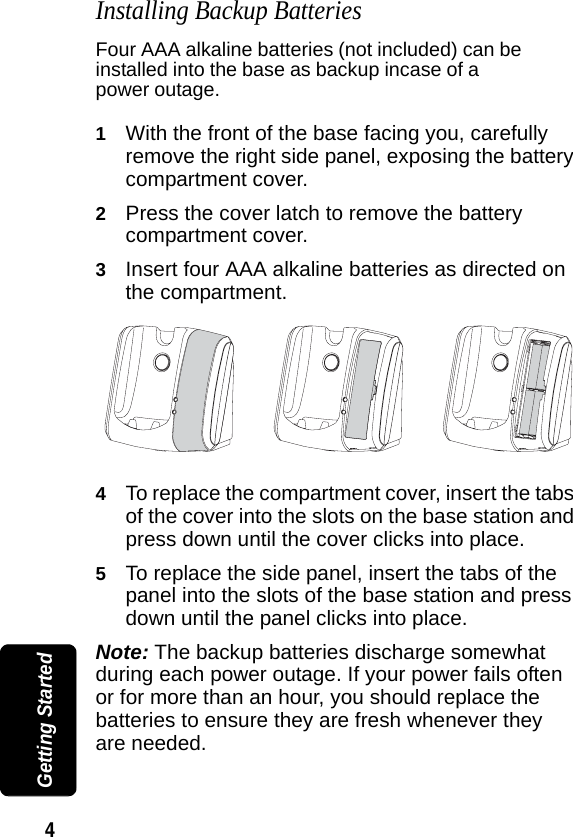
4 Getting StartedInstalling Backup BatteriesFour AAA alkaline batteries (not included) can be installed into the base as backup incase of a power outage.1With the front of the base facing you, carefully remove the right side panel, exposing the battery compartment cover.2Press the cover latch to remove the battery compartment cover.3Insert four AAA alkaline batteries as directed on the compartment.4To replace the compartment cover, insert the tabs of the cover into the slots on the base station and press down until the cover clicks into place.5To replace the side panel, insert the tabs of the panel into the slots of the base station and press down until the panel clicks into place.Note: The backup batteries discharge somewhat during each power outage. If your power fails often or for more than an hour, you should replace the batteries to ensure they are fresh whenever they are needed.
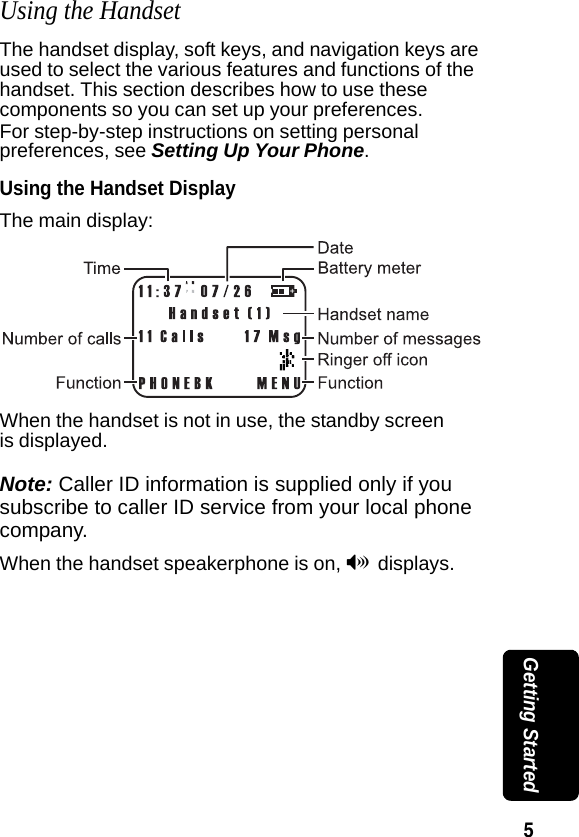
5 Getting StartedUsing the HandsetThe handset display, soft keys, and navigation keys are used to select the various features and functions of the handset. This section describes how to use these components so you can set up your preferences. For step-by-step instructions on setting personal preferences, see Setting Up Your Phone. Using the Handset DisplayThe main display:When the handset is not in use, the standby screen is displayed.Note: Caller ID information is supplied only if you subscribe to caller ID service from your local phone company.When the handset speakerphone is on, V displays.
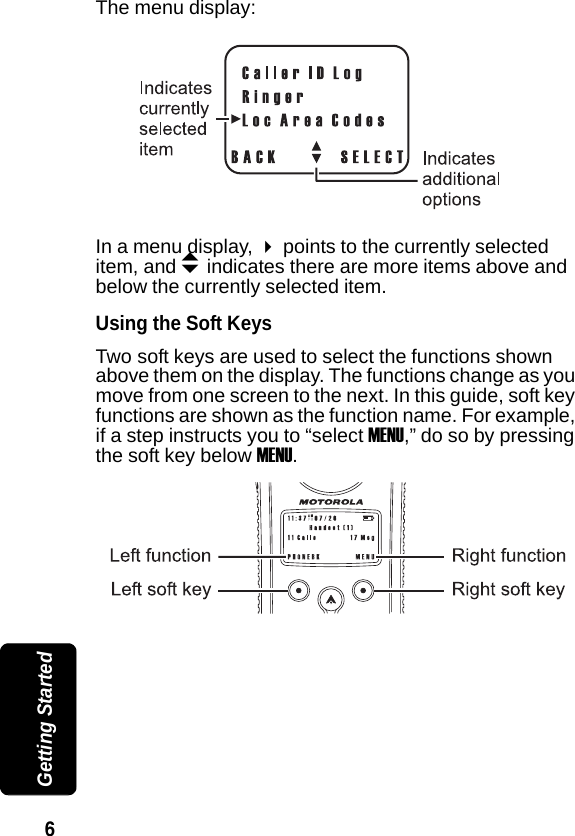
6 Getting StartedThe menu display:In a menu display, points to the currently selected item, and b indicates there are more items above and below the currently selected item.Using the Soft KeysTwo soft keys are used to select the functions shown above them on the display. The functions change as you move from one screen to the next. In this guide, soft key functions are shown as the function name. For example, if a step instructs you to “select MENU,” do so by pressing the soft key below MENU.
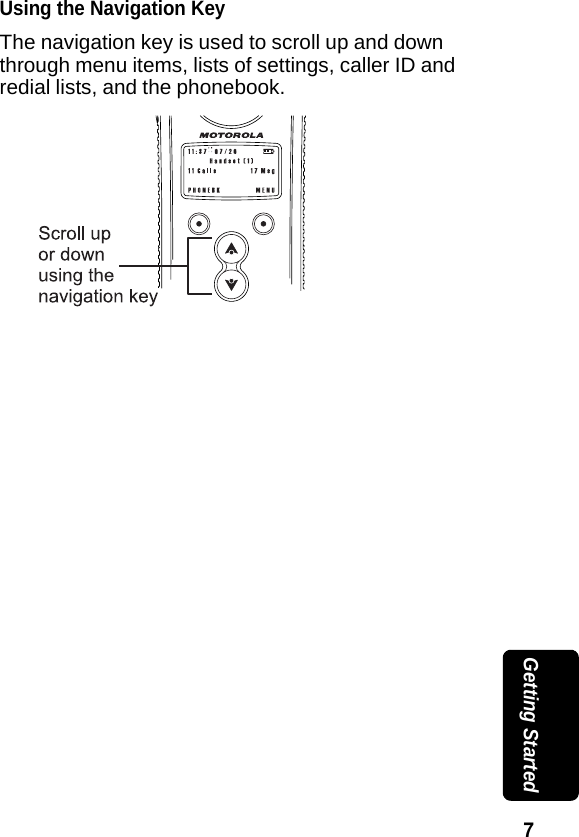
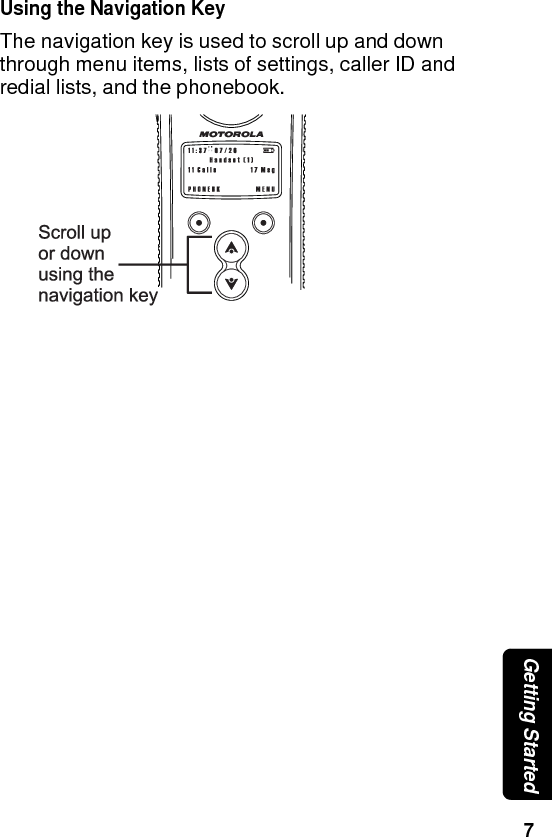
7 Getting StartedUsing the Navigation KeyThe navigation key is used to scroll up and down through menu items, lists of settings, caller ID and redial lists, and the phonebook.
8 Getting Started
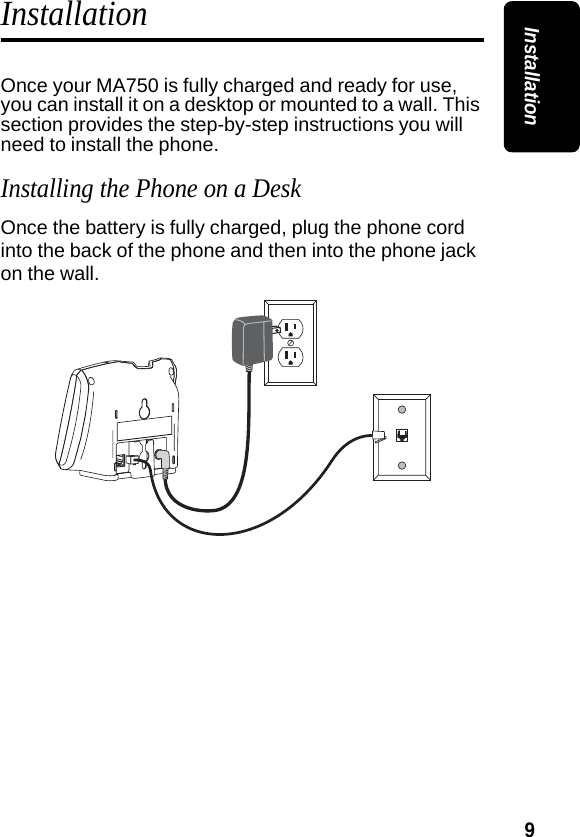
9InstallationInstallationOnce your MA750 is fully charged and ready for use, you can install it on a desktop or mounted to a wall. This section provides the step-by-step instructions you will need to install the phone.Installing the Phone on a DeskOnce the battery is fully charged, plug the phone cord into the back of the phone and then into the phone jack on the wall.
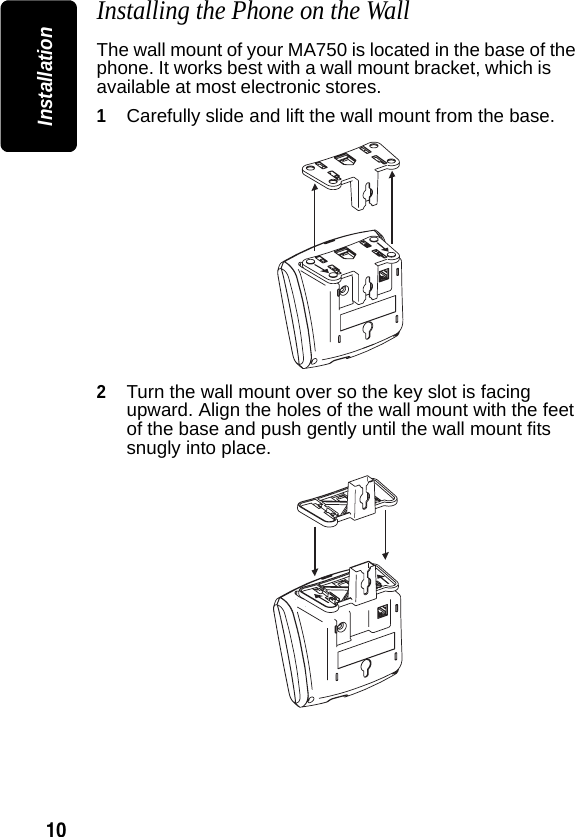
10InstallationInstalling the Phone on the WallThe wall mount of your MA750 is located in the base of the phone. It works best with a wall mount bracket, which is available at most electronic stores.1Carefully slide and lift the wall mount from the base.2Turn the wall mount over so the key slot is facing upward. Align the holes of the wall mount with the feet of the base and push gently until the wall mount fits snugly into place.
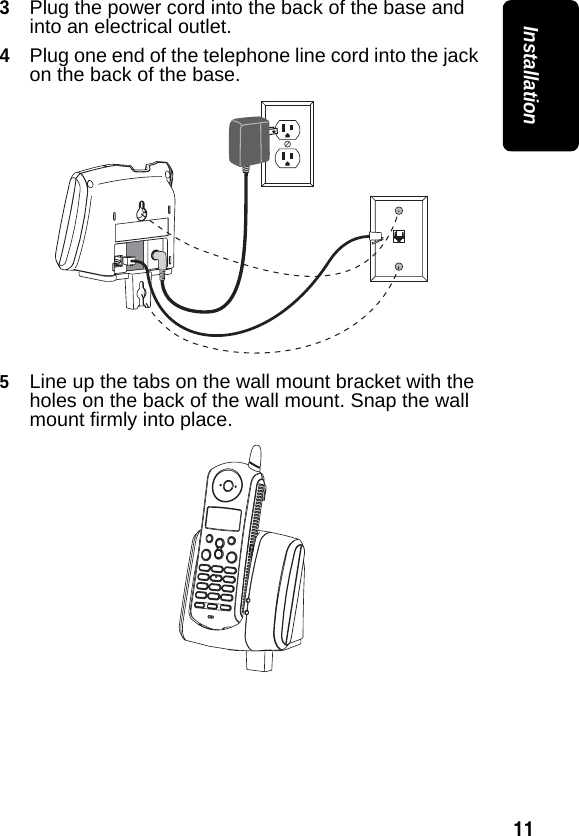
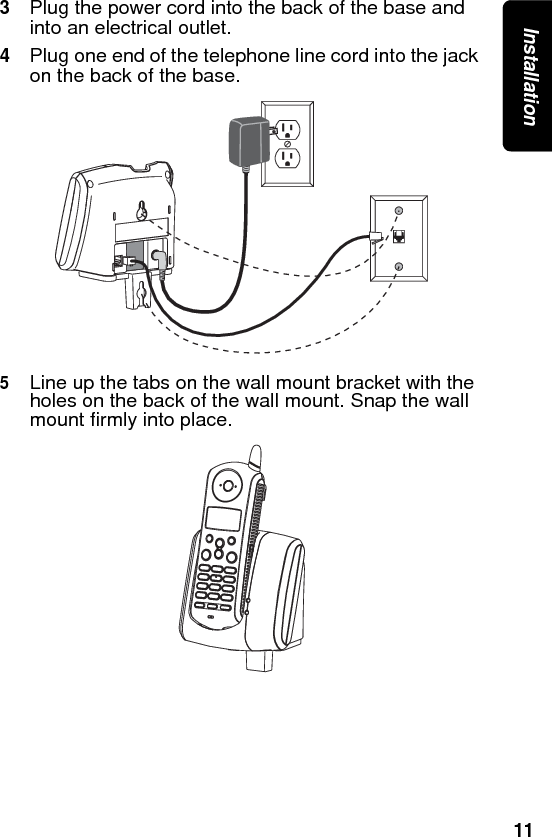
11Installation3Plug the power cord into the back of the base and into an electrical outlet.4Plug one end of the telephone line cord into the jack on the back of the base.5Line up the tabs on the wall mount bracket with the holes on the back of the wall mount. Snap the wall mount firmly into place.
12Installation
13Setting UpSetting Up Once your expansion handset has been fully charged, you can set your own preferences.Personalizing Your HandsetYou can personalize each handset by setting unique ring tones, adjusting the ringer volume for day and night, and naming each handset so you can distinguish one from another.Setting the Ring Volume If you want the volume of your ringer to differ from daytime to nighttime, you can set a separate day volume and night volume.1Select MENU.2Scroll to Ringer and select SELECT. Day Volume is displayed, which sets the ringer volume from 6 AM to 9 PM. 3Select CHANGE to scroll through the settings (off, low, medium, high). Each volume level plays as you select CHANGE. Stop at the volume level you want to set.To change the night volume, scroll down to Night Volume, which sets the ringer volume from 9 PM to 6 AM, and repeat step 3. 4Select DONE.Select EXIT to return to the standby screen, or scroll to a different menu option.
14Setting UpSetting the Ring ToneIf you subscribe to a caller ID service, you can set a specific ring tone for numbers stored in your handset’s phonebook and another for all other incoming calls.1Select MENU.2Scroll to Ringer and select SELECT.3Scroll down to Ring Tone, which sets the ring tone for incoming calls.4Select CHANGE to scroll through the ring tones. Each tone plays as you select CHANGE. Stop at the ring tone you want to set.5Select DONE.6Select EXIT to return to the standby screen, or scroll to a different menu option.Setting Key Beeps On or OffThe handset beeps each time you press a key. You can turn this feature off (the handset beeps by default), or set it to beep only when the ringer is on.1Select MENU.2Scroll to Ringer and select SELECT.3Scroll to Key Beeps and select SELECT.4Select CHANGE to scroll through the options (ON, OFF, or LINKED to RINGER). When your choice displays, select SELECT.Note: For the LINKED to RINGER option, key beeps are on when the ringer is on, and off when the ringer is off.
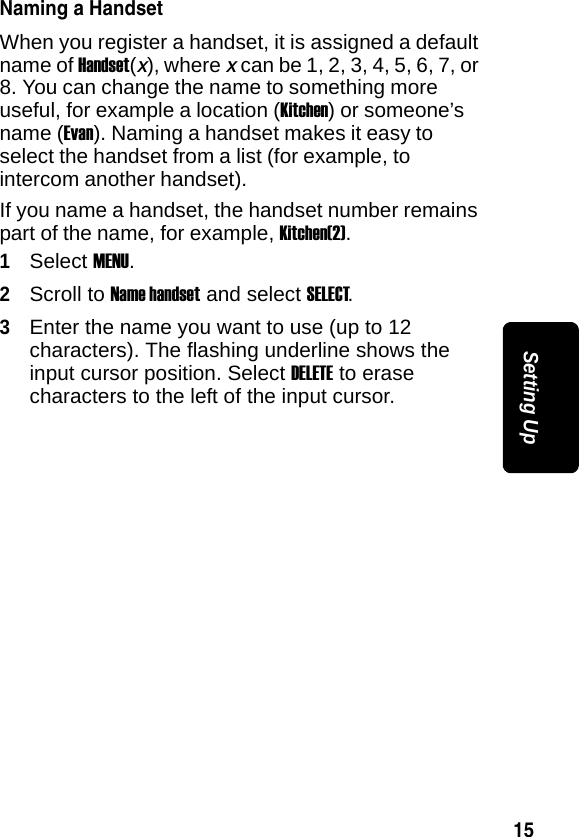
15Setting UpNaming a HandsetWhen you register a handset, it is assigned a default name of Handset(x), where x can be 1, 2, 3, 4, 5, 6, 7, or 8. You can change the name to something more useful, for example a location (Kitchen) or someone’s name (Evan). Naming a handset makes it easy to select the handset from a list (for example, to intercom another handset).If you name a handset, the handset number remains part of the name, for example, Kitchen(2).1Select MENU.2Scroll to Name handset and select SELECT.3Enter the name you want to use (up to 12 characters). The flashing underline shows the input cursor position. Select DELETE to erase characters to the left of the input cursor.
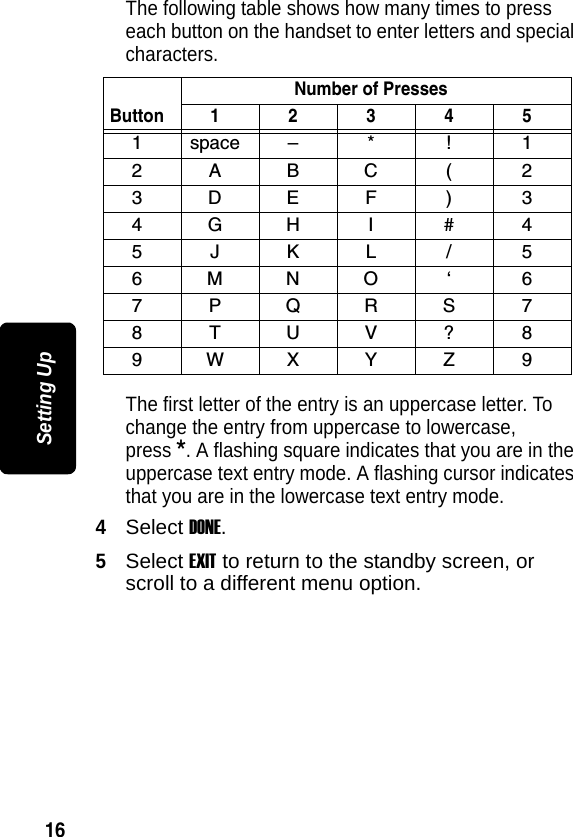
16Setting UpThe following table shows how many times to press each button on the handset to enter letters and special characters.The first letter of the entry is an uppercase letter. To change the entry from uppercase to lowercase, press *. A flashing square indicates that you are in the uppercase text entry mode. A flashing cursor indicates that you are in the lowercase text entry mode.4Select DONE.5Select EXIT to return to the standby screen, or scroll to a different menu option.ButtonNumber of Presses1 2 3 4 51space– * ! 12ABC( 23DEF ) 34GH I # 45JKL / 56MNO ‘ 67PQRS78TUV?89WXYZ 9
17Setting UpStoring Area Codes for Caller IDYou can store up to 5 area codes to make it easy to dial numbers from your list of caller ID calls. For example, if you store 954 in 10-digit format, when you receive a call from that area code, the phone number is stored in your call list with all 10 digits. The number will then be in the correct format for you to dial directly from the call list without any reformatting.Each area code can be:• 7-digit formatYou do not have to dial the area code to call numbers in this area code.• 10-digit formatYou have to dial the 3-digit area code + 7-digit phone number to call numbers in this area code.• 11-digit formatYou have to dial the 1 + 3-digit area code + 7-digit phone number to call numbers in this area code.Important: This feature should not be used in regions where the same area code can be used to dial 10-digit local numbers or 11-digit long distance numbers. Disregard this setup if your phone will be used in such regions.Note: This section applies only if you subscribe to caller ID service from your local phone company.1Select MENU.2Scroll to LOC AREA CODE and select SELECT.3Enter the first area code.
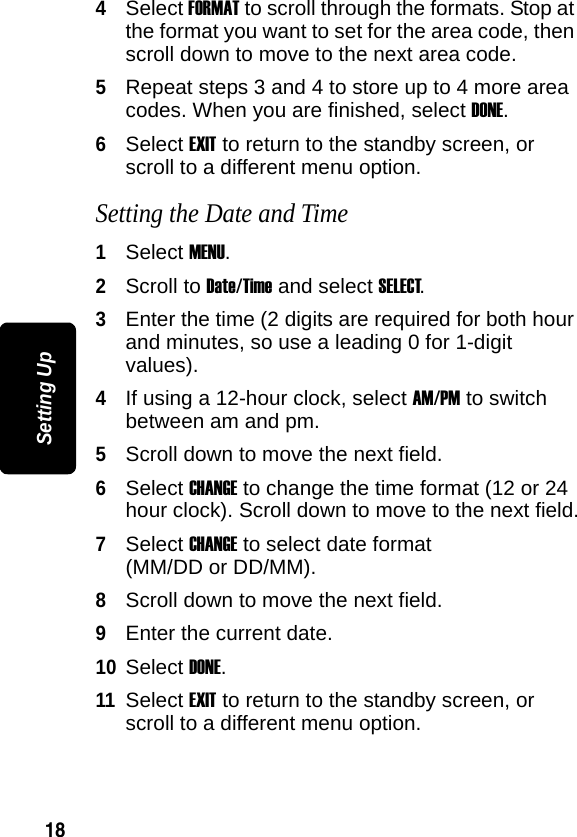
18Setting Up4Select FORMAT to scroll through the formats. Stop at the format you want to set for the area code, then scroll down to move to the next area code.5Repeat steps 3 and 4 to store up to 4 more area codes. When you are finished, select DONE.6Select EXIT to return to the standby screen, or scroll to a different menu option.Setting the Date and Time1Select MENU.2Scroll to Date/Time and select SELECT.3Enter the time (2 digits are required for both hour and minutes, so use a leading 0 for 1-digit values). 4If using a 12-hour clock, select AM/PM to switch between am and pm.5Scroll down to move the next field.6Select CHANGE to change the time format (12 or 24 hour clock). Scroll down to move to the next field.7Select CHANGE to select date format (MM/DD or DD/MM).8Scroll down to move the next field.9Enter the current date.10Select DONE.11Select EXIT to return to the standby screen, or scroll to a different menu option.
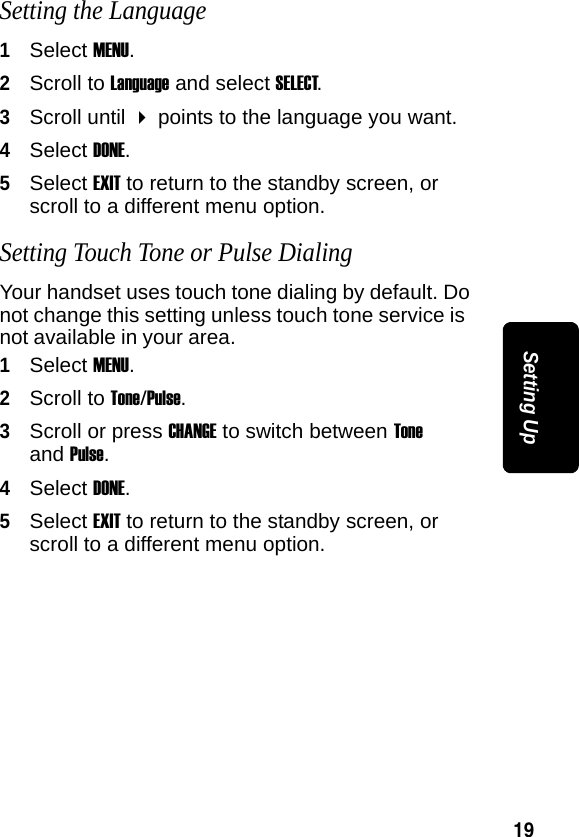
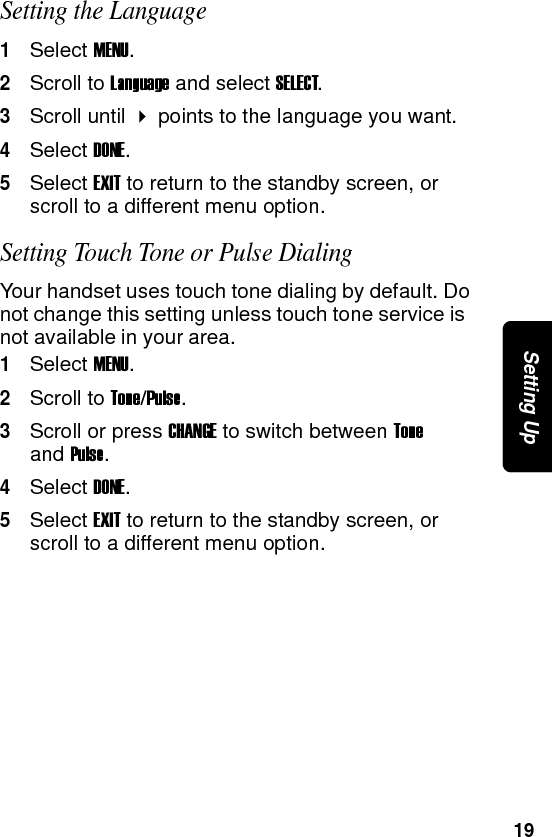
19Setting UpSetting the Language1Select MENU.2Scroll to Language and select SELECT. 3Scroll until  points to the language you want.4Select DONE.5Select EXIT to return to the standby screen, or scroll to a different menu option.Setting Touch Tone or Pulse DialingYour handset uses touch tone dialing by default. Do not change this setting unless touch tone service is not available in your area.1Select MENU.2Scroll to Tone/Pulse.3Scroll or press CHANGE to switch between Tone and Pulse.4Select DONE.5Select EXIT to return to the standby screen, or scroll to a different menu option.
20Setting Up
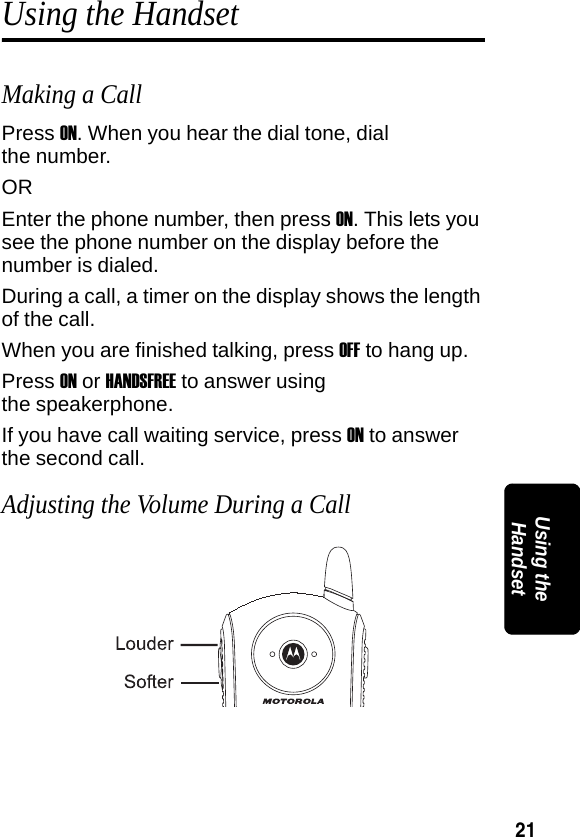
21PRELIMINARYUsing the HandsetUsing the HandsetMaking a CallPress ON. When you hear the dial tone, dial the number.OREnter the phone number, then press ON. This lets you see the phone number on the display before the number is dialed.During a call, a timer on the display shows the length of the call.When you are finished talking, press OFF to hang up.Press ON or HANDSFREE to answer using the speakerphone.If you have call waiting service, press ON to answer the second call.Adjusting the Volume During a Call
22PRELIMINARYUsing the HandsetInserting Pauses in a NumberWhen you call a number featuring a pause, the phone waits 3 seconds before transmitting the next digits in the dialing sequence. This is useful, for example, when you have to dial 9 to get a dial tone or for accessing a voicemail system.To insert a pause within a number, press the pound key (#) twice. A “P” is displayed on the handset display.
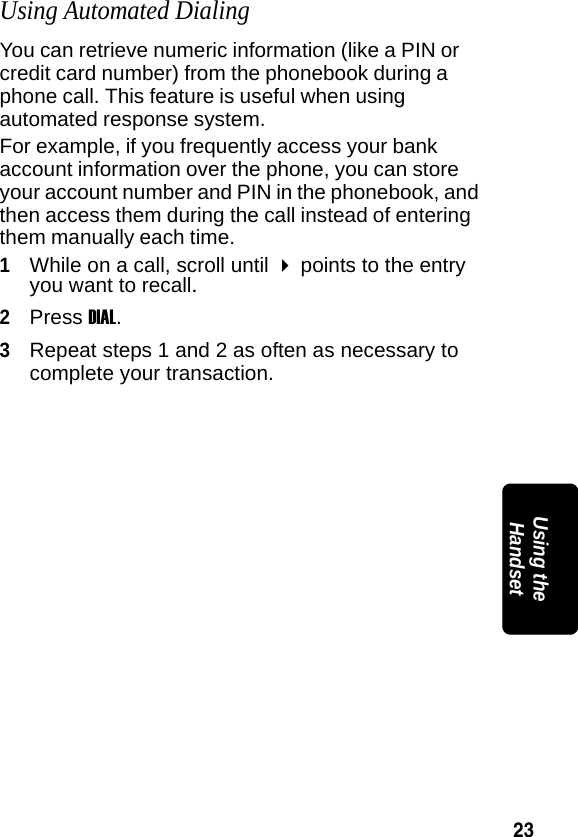
23PRELIMINARYUsing the HandsetUsing Automated DialingYou can retrieve numeric information (like a PIN or credit card number) from the phonebook during a phone call. This feature is useful when using automated response system.For example, if you frequently access your bank account information over the phone, you can store your account number and PIN in the phonebook, and then access them during the call instead of entering them manually each time.1While on a call, scroll until  points to the entry you want to recall.2Press DIAL.3Repeat steps 1 and 2 as often as necessary to complete your transaction.
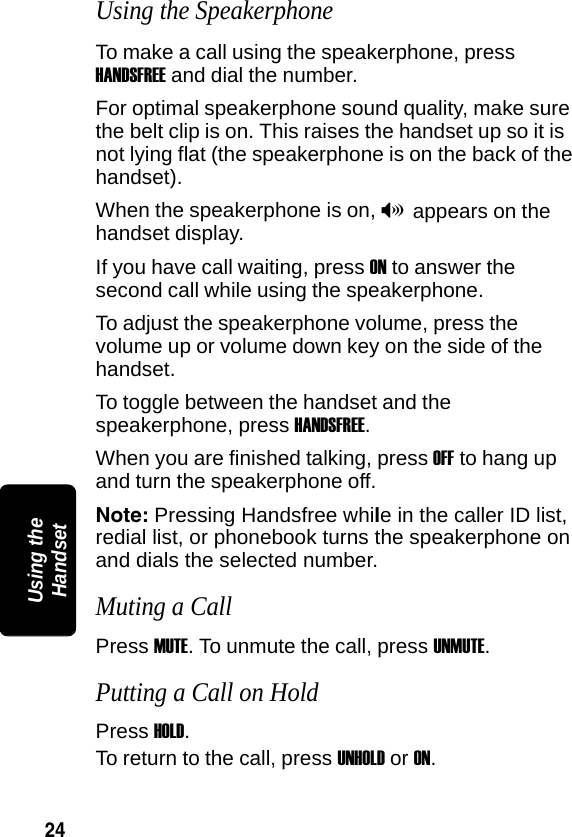
24PRELIMINARYUsing the HandsetUsing the SpeakerphoneTo make a call using the speakerphone, press HANDSFREE and dial the number. For optimal speakerphone sound quality, make sure the belt clip is on. This raises the handset up so it is not lying flat (the speakerphone is on the back of the handset).When the speakerphone is on, V appears on the handset display.If you have call waiting, press ON to answer the second call while using the speakerphone.To adjust the speakerphone volume, press the volume up or volume down key on the side of the handset.To toggle between the handset and the speakerphone, press HANDSFREE.When you are finished talking, press OFF to hang up and turn the speakerphone off.Note: Pressing Handsfree while in the caller ID list, redial list, or phonebook turns the speakerphone on and dials the selected number.Muting a CallPress MUTE. To unmute the call, press UNMUTE. Putting a Call on HoldPress HOLD.To return to the call, press UNHOLD or ON.
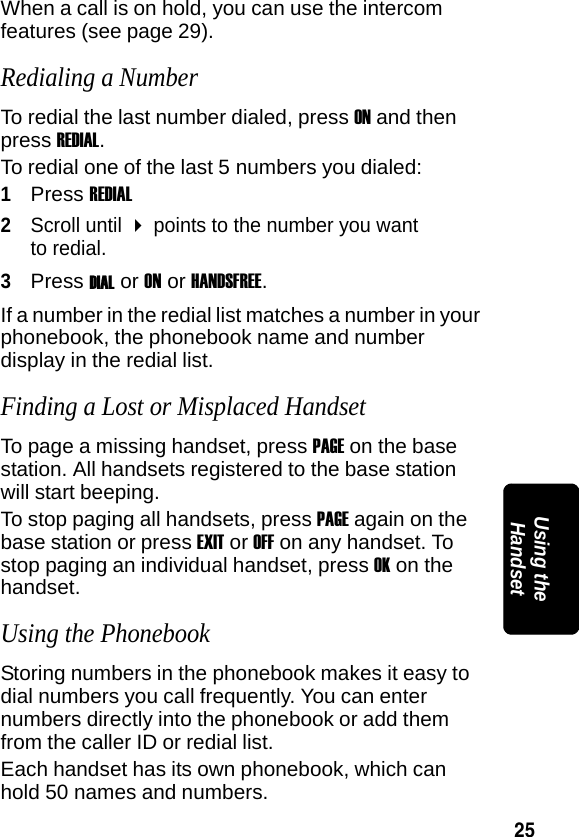
25PRELIMINARYUsing the HandsetWhen a call is on hold, you can use the intercom features (see page 29).Redialing a NumberTo redial the last number dialed, press ON and then press REDIAL. To redial one of the last 5 numbers you dialed:1Press REDIAL2Scroll until  points to the number you want to redial.3Press DIAL or ON or HANDSFREE.If a number in the redial list matches a number in your phonebook, the phonebook name and number display in the redial list. Finding a Lost or Misplaced HandsetTo page a missing handset, press PAGE on the base station. All handsets registered to the base station will start beeping. To stop paging all handsets, press PAGE again on the base station or press EXIT or OFF on any handset. To stop paging an individual handset, press OK on the handset.Using the PhonebookStoring numbers in the phonebook makes it easy to dial numbers you call frequently. You can enter numbers directly into the phonebook or add them from the caller ID or redial list.Each handset has its own phonebook, which can hold 50 names and numbers.
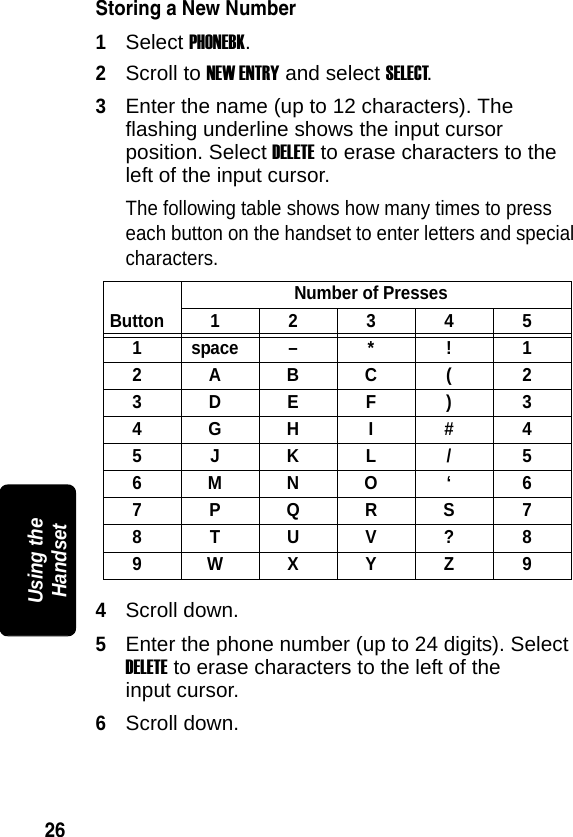
26PRELIMINARYUsing the HandsetStoring a New Number1Select PHONEBK.2Scroll to NEW ENTRY and select SELECT.3Enter the name (up to 12 characters). The flashing underline shows the input cursor position. Select DELETE to erase characters to the left of the input cursor. The following table shows how many times to press each button on the handset to enter letters and special characters.4Scroll down.5Enter the phone number (up to 24 digits). Select DELETE to erase characters to the left of the input cursor.6Scroll down. ButtonNumber of Presses1 2 3 4 51 space – * ! 12ABC ( 23DEF ) 34GH I #45JKL/56MNO ‘ 67PQRS78TUV?89WXYZ 9
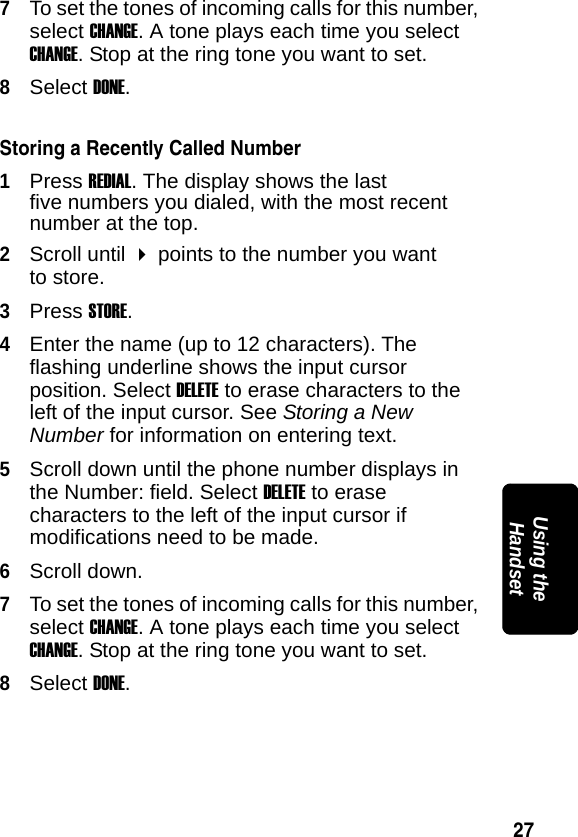
27PRELIMINARYUsing the Handset7To set the tones of incoming calls for this number, select CHANGE. A tone plays each time you select CHANGE. Stop at the ring tone you want to set.8Select DONE.Storing a Recently Called Number1Press REDIAL. The display shows the last five numbers you dialed, with the most recent number at the top.2Scroll until  points to the number you want to store.3Press STORE.4Enter the name (up to 12 characters). The flashing underline shows the input cursor position. Select DELETE to erase characters to the left of the input cursor. See Storing a New Number for information on entering text.5Scroll down until the phone number displays in the Number: field. Select DELETE to erase characters to the left of the input cursor if modifications need to be made. 6Scroll down. 7To set the tones of incoming calls for this number, select CHANGE. A tone plays each time you select CHANGE. Stop at the ring tone you want to set.8Select DONE.
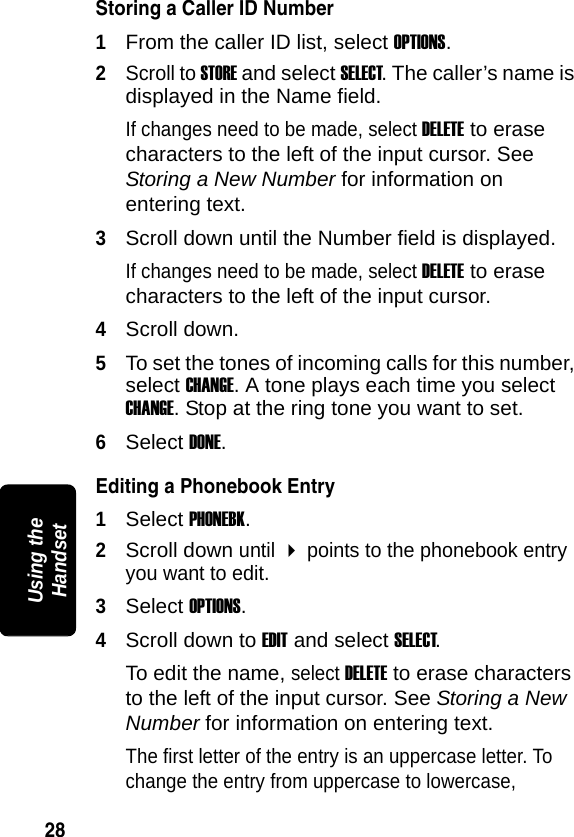
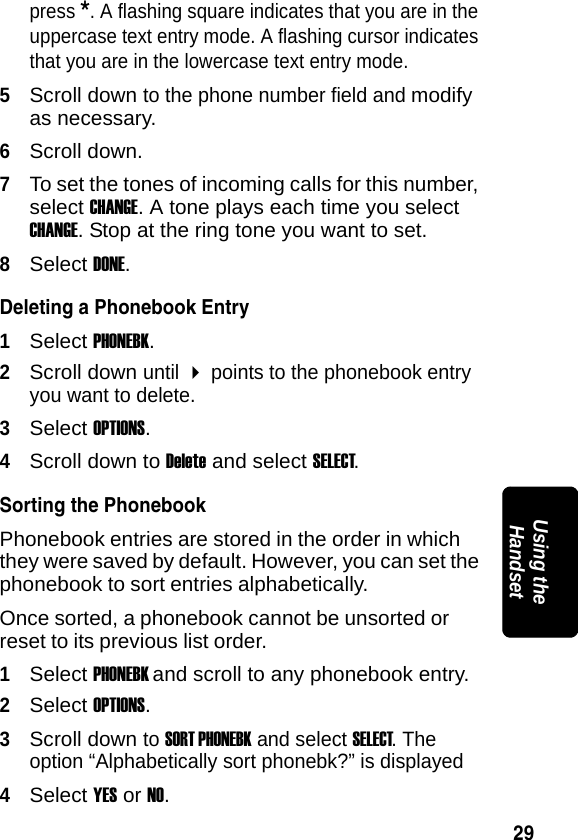
28PRELIMINARYUsing the HandsetStoring a Caller ID Number1From the caller ID list, select OPTIONS.2Scroll to STORE and select SELECT. The caller’s name is displayed in the Name field. If changes need to be made, select DELETE to erase characters to the left of the input cursor. See Storing a New Number for information on entering text.3Scroll down until the Number field is displayed. If changes need to be made, select DELETE to erase characters to the left of the input cursor.4Scroll down. 5To set the tones of incoming calls for this number, select CHANGE. A tone plays each time you select CHANGE. Stop at the ring tone you want to set.6Select DONE.Editing a Phonebook Entry1Select PHONEBK.2Scroll down until  points to the phonebook entry you want to edit.3Select OPTIONS.4Scroll down to EDIT and select SELECT.To edit the name, select DELETE to erase characters to the left of the input cursor. See Storing a New Number for information on entering text.The first letter of the entry is an uppercase letter. To change the entry from uppercase to lowercase,
29PRELIMINARYUsing the Handsetpress *. A flashing square indicates that you are in the uppercase text entry mode. A flashing cursor indicates that you are in the lowercase text entry mode.5Scroll down to the phone number field and modify as necessary.6Scroll down. 7To set the tones of incoming calls for this number, select CHANGE. A tone plays each time you select CHANGE. Stop at the ring tone you want to set.8Select DONE.Deleting a Phonebook Entry1Select PHONEBK.2Scroll down until  points to the phonebook entry you want to delete.3Select OPTIONS.4Scroll down to Delete and select SELECT.Sorting the PhonebookPhonebook entries are stored in the order in which they were saved by default. However, you can set the phonebook to sort entries alphabetically. Once sorted, a phonebook cannot be unsorted or reset to its previous list order.1Select PHONEBK and scroll to any phonebook entry. 2Select OPTIONS.3Scroll down to SORT PHONEBK and select SELECT. The option “Alphabetically sort phonebk?” is displayed4Select YES or NO.
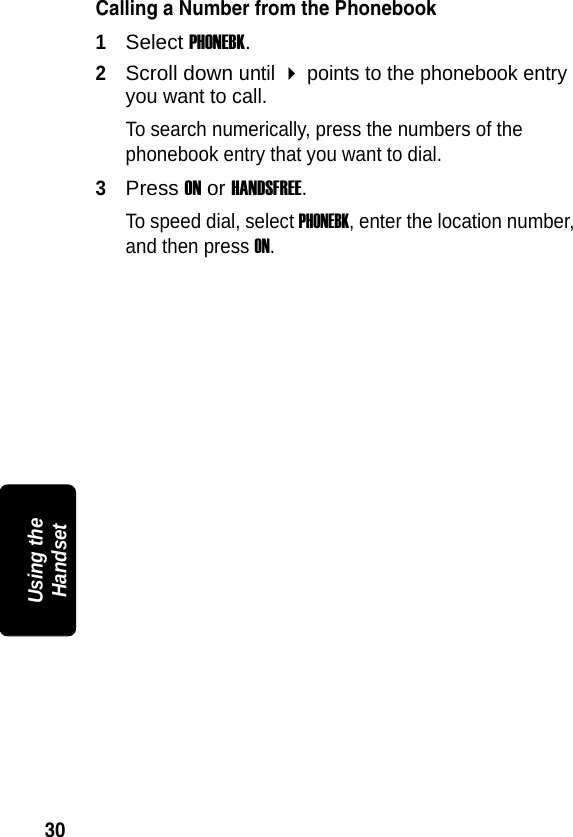
30PRELIMINARYUsing the HandsetCalling a Number from the Phonebook1Select PHONEBK.2Scroll down until  points to the phonebook entry you want to call.To search numerically, press the numbers of the phonebook entry that you want to dial.3Press ON or HANDSFREE.To speed dial, select PHONEBK, enter the location number, and then press ON.
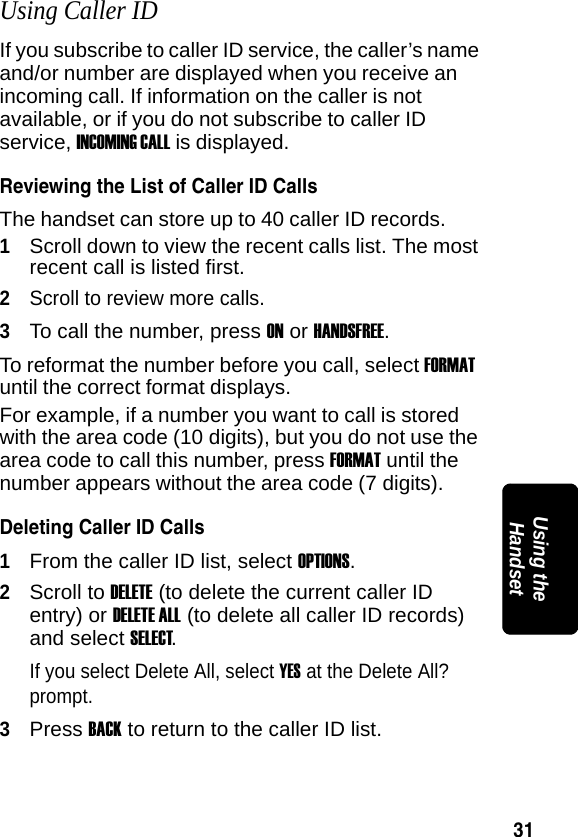
31PRELIMINARYUsing the HandsetUsing Caller IDIf you subscribe to caller ID service, the caller’s name and/or number are displayed when you receive an incoming call. If information on the caller is not available, or if you do not subscribe to caller ID service, INCOMING CALL is displayed.Reviewing the List of Caller ID CallsThe handset can store up to 40 caller ID records. 1Scroll down to view the recent calls list. The most recent call is listed first.2Scroll to review more calls.3To call the number, press ON or HANDSFREE.To reformat the number before you call, select FORMAT until the correct format displays. For example, if a number you want to call is stored with the area code (10 digits), but you do not use the area code to call this number, press FORMAT until the number appears without the area code (7 digits). Deleting Caller ID Calls1From the caller ID list, select OPTIONS.2Scroll to DELETE (to delete the current caller ID entry) or DELETE ALL (to delete all caller ID records) and select SELECT.If you select Delete All, select YES at the Delete All? prompt.3Press BACK to return to the caller ID list.
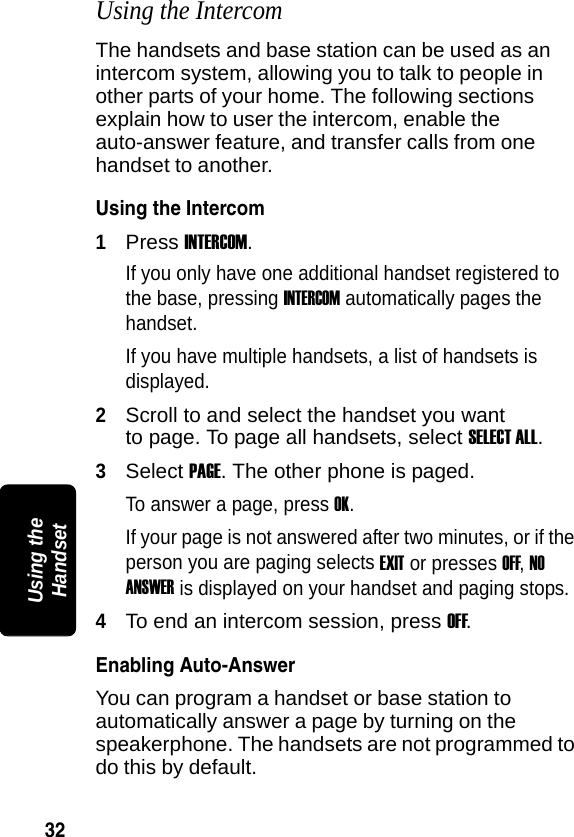
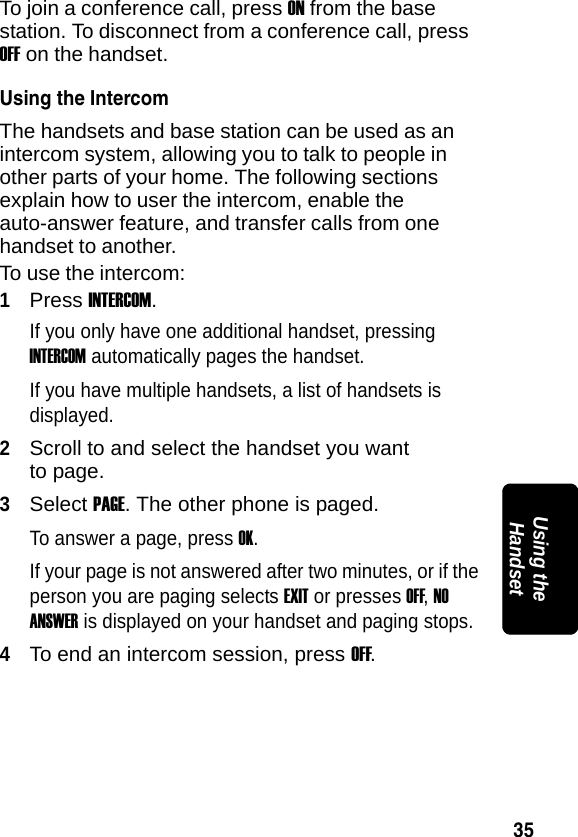
32PRELIMINARYUsing the HandsetUsing the IntercomThe handsets and base station can be used as an intercom system, allowing you to talk to people in other parts of your home. The following sections explain how to user the intercom, enable the auto-answer feature, and transfer calls from one handset to another.Using the Intercom1Press INTERCOM. If you only have one additional handset registered to the base, pressing INTERCOM automatically pages the handset. If you have multiple handsets, a list of handsets is displayed.2Scroll to and select the handset you want to page. To page all handsets, select SELECT ALL.3Select PAGE. The other phone is paged.To answer a page, press OK. If your page is not answered after two minutes, or if the person you are paging selects EXIT or presses OFF, NO ANSWER is displayed on your handset and paging stops.4To end an intercom session, press OFF. Enabling Auto-AnswerYou can program a handset or base station to automatically answer a page by turning on the speakerphone. The handsets are not programmed to do this by default.
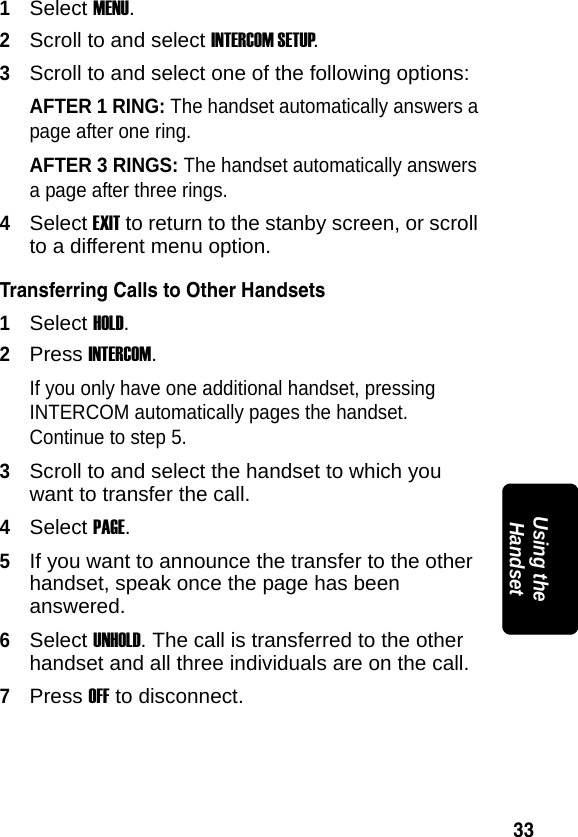
33PRELIMINARYUsing the Handset1Select MENU.2Scroll to and select INTERCOM SETUP.3Scroll to and select one of the following options:AFTER 1 RING: The handset automatically answers a page after one ring.AFTER 3 RINGS: The handset automatically answers a page after three rings.4Select EXIT to return to the stanby screen, or scroll to a different menu option.Transferring Calls to Other Handsets1Select HOLD.2Press INTERCOM.If you only have one additional handset, pressing INTERCOM automatically pages the handset. Continue to step 5. 3Scroll to and select the handset to which you want to transfer the call.4Select PAGE.5If you want to announce the transfer to the other handset, speak once the page has been answered.6Select UNHOLD. The call is transferred to the other handset and all three individuals are on the call.7Press OFF to disconnect.
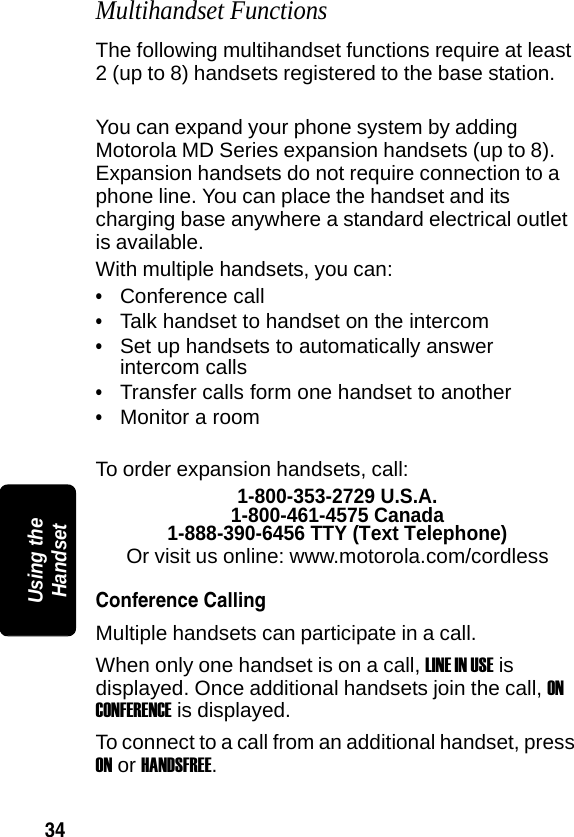
34PRELIMINARYUsing the HandsetMultihandset FunctionsThe following multihandset functions require at least 2 (up to 8) handsets registered to the base station.You can expand your phone system by adding Motorola MD Series expansion handsets (up to 8). Expansion handsets do not require connection to a phone line. You can place the handset and its charging base anywhere a standard electrical outlet is available.With multiple handsets, you can:•Conference call•Talk handset to handset on the intercom•Set up handsets to automatically answer intercom calls•Transfer calls form one handset to another•Monitor a roomTo order expansion handsets, call:1-800-353-2729 U.S.A.1-800-461-4575 Canada1-888-390-6456 TTY (Text Telephone)Or visit us online: www.motorola.com/cordlessConference CallingMultiple handsets can participate in a call. When only one handset is on a call, LINE IN USE is displayed. Once additional handsets join the call, ON CONFERENCE is displayed.To connect to a call from an additional handset, press ON or HANDSFREE.
35PRELIMINARYUsing the HandsetTo join a conference call, press ON from the base station. To disconnect from a conference call, press OFF on the handset.Using the IntercomThe handsets and base station can be used as an intercom system, allowing you to talk to people in other parts of your home. The following sections explain how to user the intercom, enable the auto-answer feature, and transfer calls from one handset to another.To use the intercom:1Press INTERCOM. If you only have one additional handset, pressing INTERCOM automatically pages the handset. If you have multiple handsets, a list of handsets is displayed.2Scroll to and select the handset you want to page.3Select PAGE. The other phone is paged.To answer a page, press OK. If your page is not answered after two minutes, or if the person you are paging selects EXIT or presses OFF, NO ANSWER is displayed on your handset and paging stops.4To end an intercom session, press OFF.
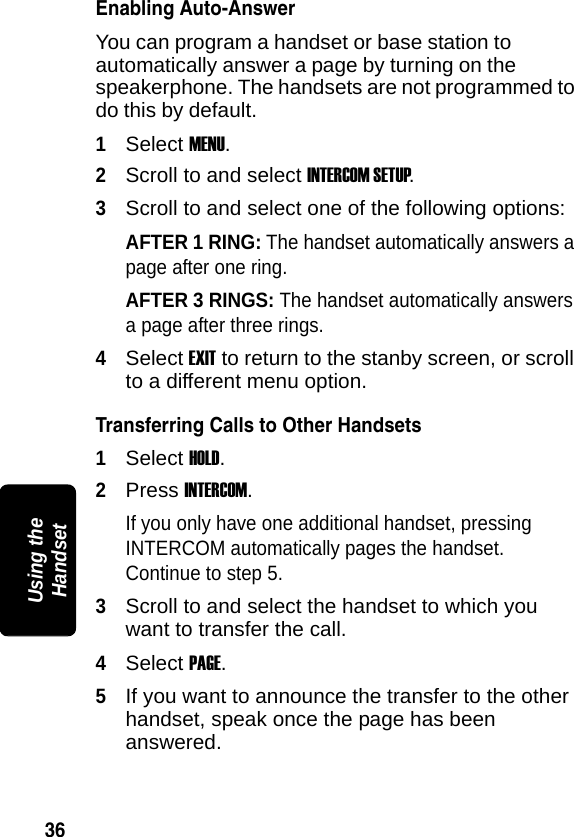
36PRELIMINARYUsing the HandsetEnabling Auto-AnswerYou can program a handset or base station to automatically answer a page by turning on the speakerphone. The handsets are not programmed to do this by default. 1Select MENU.2Scroll to and select INTERCOM SETUP.3Scroll to and select one of the following options:AFTER 1 RING: The handset automatically answers a page after one ring.AFTER 3 RINGS: The handset automatically answers a page after three rings.4Select EXIT to return to the stanby screen, or scroll to a different menu option.Transferring Calls to Other Handsets1Select HOLD.2Press INTERCOM.If you only have one additional handset, pressing INTERCOM automatically pages the handset. Continue to step 5. 3Scroll to and select the handset to which you want to transfer the call.4Select PAGE.5If you want to announce the transfer to the other handset, speak once the page has been answered.
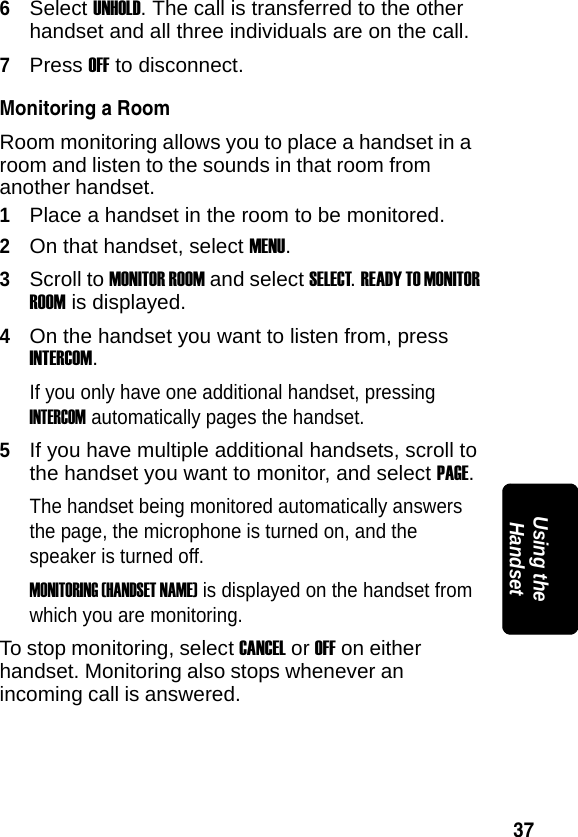
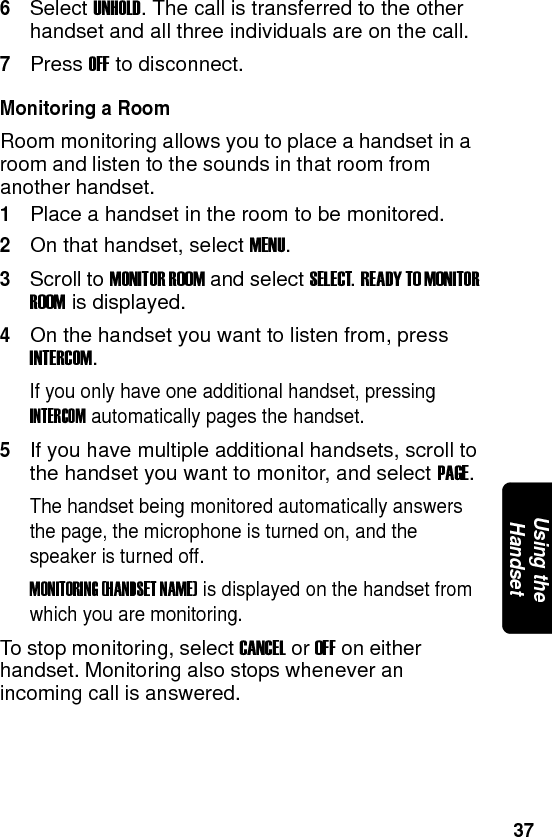
37PRELIMINARYUsing the Handset6Select UNHOLD. The call is transferred to the other handset and all three individuals are on the call.7Press OFF to disconnect. Monitoring a RoomRoom monitoring allows you to place a handset in a room and listen to the sounds in that room from another handset.1Place a handset in the room to be monitored.2On that handset, select MENU.3Scroll to MONITOR ROOM and select SELECT. READY TO MONITOR ROOM is displayed.4On the handset you want to listen from, press INTERCOM.If you only have one additional handset, pressing INTERCOM automatically pages the handset.5If you have multiple additional handsets, scroll to the handset you want to monitor, and select PAGE. The handset being monitored automatically answers the page, the microphone is turned on, and the speaker is turned off.MONITORING (HANDSET NAME) is displayed on the handset from which you are monitoring.To stop monitoring, select CANCEL or OFF on either handset. Monitoring also stops whenever an incoming call is answered.
38PRELIMINARYUsing the Handset
39 WarrantyWarrantyMotorola Limited Warranty for Consumer Products, Accessories, and Software Purchased in the United States or CanadaWhat Does this Warranty Cover?Subject to the exclusions contained below, Motorola, Inc. warrants its cordless telephones ("Products"), Motorola-branded or certified accessories sold for use with these Products ("Accessories"), and Motorola software contained on CD-ROMs or other tangible media and sold for use with these Products ("Software") to be free from defects in materials and workmanship under normal consumer usage for the period(s) outlined below. This limited warranty is a consumer's exclusive remedy, and applies as follows to new Motorola Products, Accessories and Software purchased by consumers in the United States or Canada, which are accompanied by this written warranty:Products and Accessories as defined above, unless otherwise provided for below. Length of coverage: one (1) year from the date of purchase by the first consumer purchaser of the product unless otherwise provided for below.•Decorative Accessories and Cases. Decorative covers, bezels, PhoneWrap® covers and cases. Length of coverage: limited lifetime warranty for the lifetime of ownership by the first consumer purchaser of the product.•Monaural Headsets. Ear buds and boom headsets that transmit mono sound through a wired connection. Length of coverage: limited lifetime warranty for the lifetime of ownership by the first consumer purchaser of the product.
40 Warranty•Products and Accessories that are Repaired or Replaced. Length of coverage: The balance of the original warranty or for ninety (90) days from the date returned to the consumer, whichever is longer.•Software. Applies only to physical defects in the media that embodies the copy of the software (e.g. CD-ROM, or floppy disk). Length of coverage: ninety (90) days from the date of purchase.ExclusionsNormal Wear and Tear. Periodic maintenance, repair and replacement of parts due to normal wear and tear are excluded from coverage.Batteries. Only batteries whose fully charged capacity falls below 80% of their rated capacity and batteries that leak are covered by this limited warranty.Abuse & Misuse. Defects or damage that result from: (a) improper operation, storage, misuse or abuse, accident or neglect, such as physical damage (cracks, scratches, etc.) to the surface of the product resulting from misuse; (b) contact with liquid, water, rain, extreme humidity or heavy perspiration, sand, dirt or the like, extreme heat, or food; (c) use of the Products or Accessories for commercial purposes or subjecting the Product or Accessory to abnormal usage or conditions; or (d) other acts which are not the fault of Motorola, are excluded from coverage.Use of Non-Motorola Products and Accessories. Defects or damage that result from the use of Non-Motorola branded or certified Products, Accessories, Software or other peripheral equipment are excluded from coverage.Unauthorized Service or Modification. Defects or damages resulting from service, testing, adjustment, installation, maintenance, alteration, or modification in any way by someone other than Motorola, or its authorized service centers, are excluded from coverage.Altered Products. Products or Accessories with (a) serial numbers or date tags that have been removed, altered, or obliterated; (b) broken seals or that show evidence of tampering; (c) mismatched board serial numbers; or (d) nonconforming or non-Motorola housings, or parts, are excluded from coverage.
41 WarrantyCommunication Services. Defects, damages, or the failure of Products, Accessories or Software due to any communication service or signal you may subscribe to or use with the Products, Accessories or Software is excluded from coverage.Software Embodied in Physical Media. No warranty is made that the software will meet your requirements or will work in combination with any hardware or software applications provided by third parties, that the operation of the software products will be uninterrupted or error free, or that all defects in the software products will be corrected.Software NOT Embodied in Physical Media. Software that is not embodied in physical media (e.g. software that is downloaded from the internet), is provided "as is" and without warranty. Who is CoveredThis warranty extends to the first end-user purchaser, only.What will Motorola Do?Motorola, at its option, will at no charge repair, replace or refund the purchase price of any Products, Accessories or Software that does not conform to this warranty. We may use functionally equivalent reconditioned/refurbished/pre-owned or new Products, Accessories or parts. No data, software or applications added to your Product, Accessory or Software, including but not limited to personal contacts, games and ringer tones, will be reinstalled. To avoid losing such data, software and applications please create a back up prior to requesting service.How to Get Warranty Service or Other InformationFor accessories and software, please call the telephone number designated above for the product with which they are used. You will receive instructions on how to ship the Products, Accessories or Software, at your expense, to a Motorola Authorized Repair Center. To obtain service, you must include: (a) a copy of your receipt, bill of sale or other In the USA, call: In Canada, call:1-800-353-2729 1-800-461-4575TTY 1-888-390-6456 TTY 1-888-390-6456
42 Warrantycomparable proof of purchase; (b) a written description of the problem; (c) the name of your service provider, if applicable; (d) the name and location of the installation facility (if applicable) and, most importantly; (e) your address and telephone number.What Other Limitations Are There?ANY IMPLIED WARRANTIES, INCLUDING WITHOUT LIMITATION THE IMPLIED WARRANTIES OF MERCHANTABILITY AND FITNESS FOR A PARTICULAR PURPOSE, SHALL BE LIMITED TO THE DURATION OF THIS LIMITED WARRANTY, OTHERWISE THE REPAIR, REPLACEMENT, OR REFUND AS PROVIDED UNDER THIS EXPRESS LIMITED WARRANTY IS THE EXCLUSIVE REMEDY OF THE CONSUMER, AND IS PROVIDED IN LIEU OF ALL OTHER WARRANTIES, EXPRESS OF IMPLIED. IN NO EVENT SHALL MOTOROLA BE LIABLE, WHETHER IN CONTRACT OR TORT (INCLUDING NEGLIGENCE) FOR DAMAGES IN EXCESS OF THE PURCHASE PRICE OF THE PRODUCT, ACCESSORY OR SOFTWARE, OR FOR ANY INDIRECT, INCIDENTAL, SPECIAL OR CONSEQUENTIAL DAMAGES OF ANY KIND, OR LOSS OF REVENUE OR PROFITS, LOSS OF BUSINESS, LOSS OF INFORMATION OR DATA, SOFTWARE OR APPLICATIONS OR OTHER FINANCIAL LOSS ARISING OUT OF OR IN CONNECTION WITH THE ABILITY OR INABILITY TO USE THE PRODUCTS, ACCESSORIES OR SOFTWARE TO THE FULL EXTENT THESE DAMAGES MAY BE DISCLAIMED BY LAW. Some states and jurisdictions do not allow the limitation or exclusion of incidental or consequential damages, or limitation on the length of an implied warranty, so the above limitations or exclusions may not apply to you. This warranty gives you specific legal rights, and you may also have other rights that vary from state to state or from one jurisdiction to another.Laws in the United States and other countries preserve for Motorola certain exclusive rights for copyrighted Motorola software such as the exclusive rights to reproduce and distribute copies of the Motorola software. Motorola software may only be copied into, used in, and redistributed
43 Warrantywith, the Products associated with such Motorola software. No other use, including without limitation disassembly of such Motorola software or exercise of the exclusive rights reserved for Motorola, is permitted.
44 Warranty
 Visit our website at:www.motorola.com514778-00107/04MGBI

Navigation menu