CCT Tech Advanced SD7505 5.8GHz FHSS Cell Dock w/ Bluetooth User Manual

CCT Tech Advanced Products Limited 5.8GHz FHSS Cell Dock w/ Bluetooth

User Manual

     C51 Series  Communication System Bluetooth® Mobile Phone Link    Model Family: SD7505   Users Guide
  For a copy of a large-print version of this guide, or for product-related questions, please visit us online: www.motorola.com/cordless Or contact us at: 1-800-353-2729 U.S.A. 1-800-461-4575 Canada 1-888-390-6456 TTY (Text Telephone)  Motorola reserves the right to revise this publication and to make changes in content from time to time without obligation on the part of Motorola to provide notification of such revision or change. MOTOROLA PROVIDES THIS GUIDE WITHOUT WARRANTY OF ANY KIND, EITHER IMPLIED OR EXPRESS, INCLUDING, BUT NOT LIMITED TO, THE IMPLIED WARRANTIES OF MERCHANTABILITY AND FITNESS FOR A PARTICULAR PURPOSE. Motorola may make improvements or changes in the product(s) described in this manual at any time.  MOTOROLA and the Stylized M logo are registered in the U.S. Patent and Trademark Office. All other product or service names are the property of their respective owners.  © Motorola, Inc. 2006
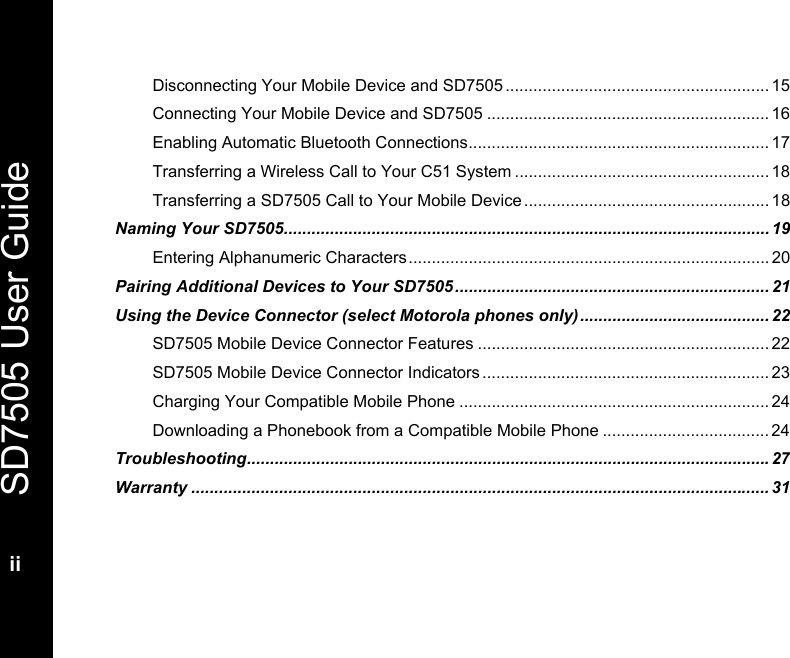
  SD7505 User Guidei  Table of Contents Regulatory Information.......................................................................................................iii Important Safety Instructions ...........................................................................................vii Welcome ...............................................................................................................................1 SD7505 Overview ..........................................................................................................2 Bluetooth Overview ........................................................................................................3 Summary of the Key SD7505 Indicators ........................................................................5 Getting Connected in Three Quick Steps ..........................................................................7 Step 1: Register Your SD7505 to Your C51 Cordless Phone Base...............................7 Step 2: Choose a Location for Your SD7505 .................................................................9 Step 3: Pair Your Mobile Device to Your SD7505 .......................................................10 Using Your C51 to Answer Mobile Device Calls .............................................................11 Assigning a Unique Ring Tone for Mobile Device Calls...............................................11 Using Your Answering Machine for Mobile Device Calls .............................................12 Using Your C51 to Place Mobile Device Calls .................................................................13 Changing the Default Line............................................................................................13 Managing Bluetooth Connections....................................................................................15
  SD7505 User Guide  ii  Disconnecting Your Mobile Device and SD7505 ......................................................... 15 Connecting Your Mobile Device and SD7505 ............................................................. 16 Enabling Automatic Bluetooth Connections................................................................. 17 Transferring a Wireless Call to Your C51 System ....................................................... 18 Transferring a SD7505 Call to Your Mobile Device ..................................................... 18 Naming Your SD7505......................................................................................................... 19 Entering Alphanumeric Characters.............................................................................. 20 Pairing Additional Devices to Your SD7505.................................................................... 21 Using the Device Connector (select Motorola phones only) ......................................... 22 SD7505 Mobile Device Connector Features ...............................................................22 SD7505 Mobile Device Connector Indicators .............................................................. 23 Charging Your Compatible Mobile Phone ...................................................................24 Downloading a Phonebook from a Compatible Mobile Phone .................................... 24 Troubleshooting.................................................................................................................27 Warranty ............................................................................................................................. 31
  SD7505 User Guideiii  Regulatory Information FCC Compliance Part 15 Subpart B Note: This equipment has been tested and found to comply with the limits for a Class B digital device, pursuant to part 15 of the FCC Rules. These limits are designed to provide reasonable protection against harmful interference in a residential installation. This equipment generates, uses, and can radiate radio frequency energy and, if not installed and used in accordance with the instructions, may cause harmful interference to radio communications. However, there is no guarantee that interference will not occur in a particular installation. If this equipment does cause harmful interference to radio or television reception, which can be determined by turning the equipment off and on, the user is encouraged to try to correct the interference by one or more of the following measures: • Reorient or relocate the receiving antenna. • Increase the separation between the equipment and receiver. • Connect the equipment into an outlet on a circuit different from that to which the receiver is connected. • Consult the dealer or an experienced radio/TV technician for help.  Privacy of communications may not be ensured when using this telephone.   CAUTION: Changes or modifications not expressly approved by Motorola for compliance could void the user’s authority to operate the equipment.
  SD7505 User Guide  iv  This device complies with part 15 of the FCC Rules. Operation is subject to the following two conditions: (1) This device may not cause harmful interference, and (2) this device must accept any interference received, including interference that may cause undesired operation.  CAUTION: To maintain compliance with the FCC's RF exposure guidelines place the base unit at least 20 cm from nearby persons.  FCC Certification This product contains a radio transmitter and accordingly has been certified as compliant with 47 CFR Part 15 of the FCC Rules for intentional radiators. Products that contain a radio transmitter are labeled with FCC ID and the FCC logo.  FCC Declaration of Conformity Motorola Inc., Connected Home Solutions, 101 Tournament Drive, Horsham, PA 19044,    1-215-323-1000, declares that the SD7505 Bluetooth® Mobile Phone Link complies with 47 CFR Parts 2 and 15 of the FCC rules as a Class B digital device.  Canadian Compliance This Class B digital apparatus complies with Canadian ICES-003. Cet appareil numérique de la classe B est conforme á la norme NMB-003 du Canada.
  SD7505 User Guidev  Industry Canada CS-03 Declaration of Conformity This product meets the applicable Industry Canada technical specifications. The Ringer Equivalence Number (REN) is an indication of the maximum number of devices allowed to be connected to a telephone interface. The termination on an interface may consist of any combination of devices subject only to the requirement that the sum of the RENs of all the devices does not exceed five.  If this equipment does cause harmful interference to radio or television reception, which can be determined by turning the equipment on and off, the user is encouraged to try to correct the interference with one or more of the following measures: Reorient or relocate the receiving antenna (that is, the antenna for the radio or television that is "receiving" the interference). Reorient or relocate and increase the separation.  WARNING: TO PREVENT FIRE OR SHOCK HAZARD, DO NOT EXPOSE THIS PRODUCT TO RAIN OR MOISTURE. THE UNIT MUST NOT BE EXPOSED TO DRIPPING OR SPLASHING. DO NOT PLACE OBJECTS FILLED WITH LIQUIDS, SUCH AS VASES, ON THE UNIT.  CAUTION: THIS PRODUCT WAS QUALIFIED UNDER TEST CONDITIONS THAT INCLUDED THE USE OF THE SUPPLIED CABLES BETWEEN SYSTEMS COMPONENTS. TO ENSURE REGULATORY AND SAFETY COMPLIANCE, USE ONLY THE PROVIDED POWER AND INTERFACE CABLES AND INSTALL THEM PROPERLY.
  SD7505 User Guide  vi  CAUTION: DIFFERENT TYPES OF CORD SETS MAY BE USED FOR CONNECTIONS TO THE MAIN SUPPLY CIRCUIT. USE ONLY A MAIN LINE CORD THAT COMPLIES WITH ALL APPLICABLE PRODUCT SAFETY REQUIREMENTS OF THE COUNTRY OF USE.  CAUTION: INSTALLATION OF THIS PRODUCT MUST BE IN ACCORDANCE WITH NATIONAL WIRING CODES AND CONFORM TO LOCAL REGULATIONS.  CAUTION: DO NOT OPEN THE UNIT. DO NOT PERFORM ANY SERVICING OTHER THAN THAT CONTAINED IN THE INSTALLATION AND TROUBLESHOOTING INSTRUCTIONS. REFER ALL SERVICING TO QUALIFIED SERVICE PERSONNEL.  CAUTION: CHANGES AND MODIFICATIONS NOT EXPRESSLY APPROVED BY MOTOROLA FOR COMPLIANCE COULD VOID USER’S AUTHORITY TO OPERATE THE EQUIPMENT.  CAUTION: TO MAINTAIN COMPLIANCE WITH THE FCC'S RF EXPOSURE GUIDELINES, PLACE THE WIRELESS CELL DOCK AT LEAST 20 CM (8 INCHES) FROM NEARBY PERSONS.
  SD7505 User Guidevii  Important Safety Instructions When using your telephone equipment, basic safety precautions should always be followed to reduce the risk of fire, electric shock, and injury, including the following:  1.  Read and understand all instructions. 2.  Follow all warnings and instructions marked on the product. 3.  Unplug this product from the wall outlet before cleaning. Do not use liquid or aerosol cleaners. Use a damp cloth for cleaning. 4.  Do not use this product near water (for example, near a bathtub, kitchen sink, or swimming pool). 5.  Do not place this product on an unstable surface, such as a table, shelf, or stand. The product may fall, causing serious damage. 6.  Slots and openings in the back or bottom of the base unit and handset are provided for ventilation. To protect them from overheating, these openings must not be blocked by placing the product on a soft surface such as a bed, sofa, or rug. This product should never be placed near or over a radiator or heat register. This product should not be placed in any area where proper ventilation is not provided. 7.  This product should be operated only from the type of power source indicated on the marking label. If you are not sure of the type of power supply in your home, consult your dealer or local power company. 8.  Do not allow anything to rest on the power cord. Do not install this product where the cord may have anyone walking on it. 9.  Never push objects of any kind into this product through slots in the base or handset, as they may touch dangerous voltage points or short out parts that could result in a risk of fire or electric shock.  10.  Never spill liquid of any kind on the product.
  SD7505 User Guide  viii  11.  To reduce the risk of electric shock, do not disassemble this product, but take it to an authorized service facility. Opening or removing parts of the base or handset other than specified access doors may expose you to dangerous voltages or other risks. Incorrect reassembling can cause electric shock when the product is subsequently used. 12.  Do not overload wall outlets and extension cords, as this can result in the risk of fire or electric shock. 13.  Unplug this product from the wall outlet and refer servicing to an authorized service facility under the following conditions: • When the power supply cord or plug is damaged or frayed. • If liquid has been spilled onto the product. • If the product has been exposed to rain or water. • If the product does not operate normally by following the operating instructions. Adjust only those controls that are covered by the operating instructions, as improper adjustment of other controls may result in damage and often requires extensive work by an authorized technician to restore the product to normal operation. • If the product has been dropped and the base and/or handset has been damaged. • If the product exhibits a distinct change in performance. 14.  Avoid using a telephone (other than cordless) during an electrical storm. There is a remote risk of electric shock from lightning. 15.  Do not use the telephone to report a gas leak in the vicinity of the leak. 16.  Only put the handset of your telephone next to your ear when it is in normal talk mode.
   1  SD7505 User Guide 1  Welcome Congratulations on your purchase of a Motorola SD7505. Please check the contents listing on the product packaging to ensure that your purchase includes each of the listed items.  Product registration is an important step toward enjoying your new Motorola product. Registering helps to facilitate warranty service and permits us to contact you should your Motorola product require an update or other service. Registration is not required for warranty coverage.  To register your product online, visit: http://broadbandregistration.motorola.com Product registration is not available in Canada. Please retain your original dated sales receipt for your records. For warranty service of your Motorola product, you will need to provide a copy of your dated sales receipt to confirm warranty status.
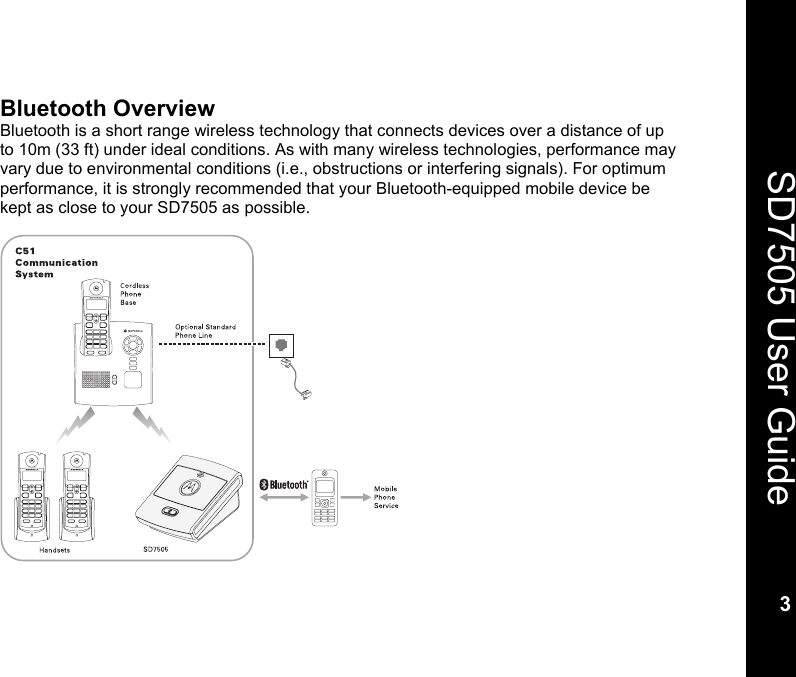
  SD7505 User Guide  2  SD7505 Overview  With your new SD7505 you can use your C51 Communication System to place and answer calls using your mobile phone service. You have the flexibility to use wireless minutes at home, even while you set down your mobile device to charge.  The Bluetooth® wireless technology in your mobile device enables a connection to your SD7505 without wires or cables.  When connected to the SD7505, your mobile device is available to C51 cordless handsets throughout your home. Your C51 cordless system views your mobile device as another telephone line for placing and receiving calls.
   3  SD7505 User Guide 3  Bluetooth Overview Bluetooth is a short range wireless technology that connects devices over a distance of up to 10m (33 ft) under ideal conditions. As with many wireless technologies, performance may vary due to environmental conditions (i.e., obstructions or interfering signals). For optimum performance, it is strongly recommended that your Bluetooth-equipped mobile device be kept as close to your SD7505 as possible.
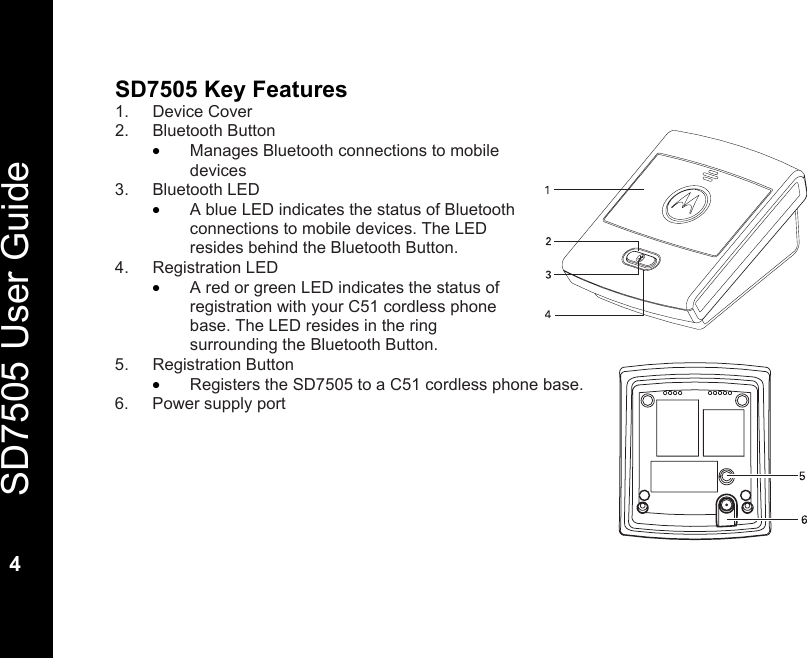
  SD7505 User Guide  4  SD7505 Key Features 1. Device Cover 2. Bluetooth Button • Manages Bluetooth connections to mobile devices 3. Bluetooth LED • A blue LED indicates the status of Bluetooth connections to mobile devices. The LED resides behind the Bluetooth Button. 4. Registration LED • A red or green LED indicates the status of registration with your C51 cordless phone base. The LED resides in the ring surrounding the Bluetooth Button. 5. Registration Button • Registers the SD7505 to a C51 cordless phone base. 6.  Power supply port
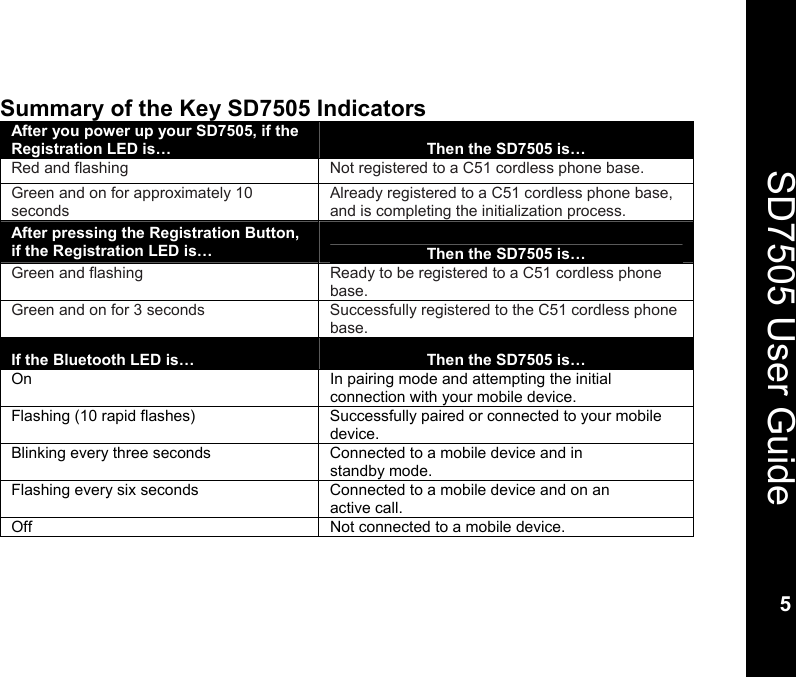
   5  SD7505 User Guide 5  Summary of the Key SD7505 Indicators After you power up your SD7505, if the Registration LED is…   Then the SD7505 is… Red and flashing    Not registered to a C51 cordless phone base. Green and on for approximately 10 seconds Already registered to a C51 cordless phone base, and is completing the initialization process. After pressing the Registration Button, if the Registration LED is…  Then the SD7505 is… Green and flashing Ready to be registered to a C51 cordless phone base.  Green and on for 3 seconds  Successfully registered to the C51 cordless phone base. If the Bluetooth LED is…  Then the SD7505 is… On  In pairing mode and attempting the initial connection with your mobile device. Flashing (10 rapid flashes)  Successfully paired or connected to your mobile device. Blinking every three seconds  Connected to a mobile device and in standby mode.     Flashing every six seconds    Connected to a mobile device and on an active call. Off  Not connected to a mobile device.
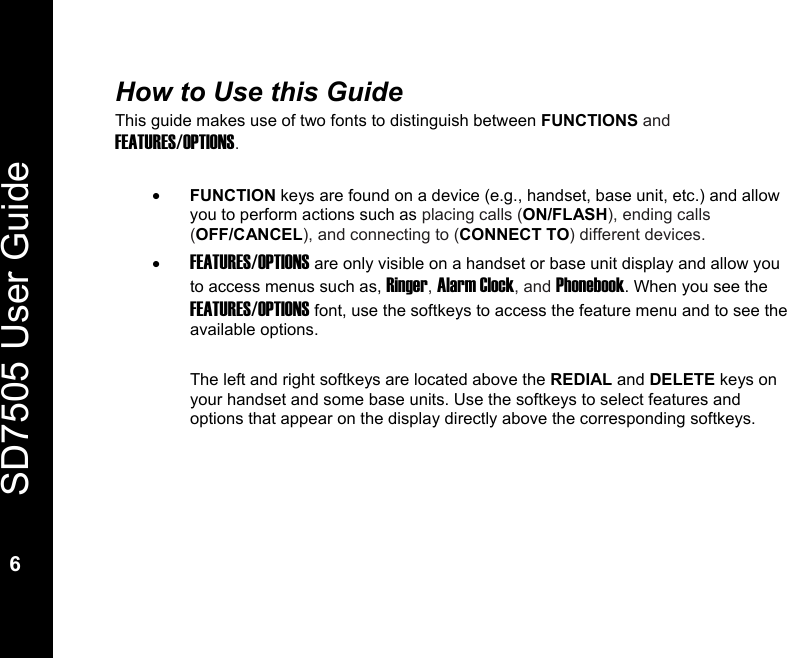
  SD7505 User Guide  6  How to Use this Guide This guide makes use of two fonts to distinguish between FUNCTIONS and FEATURES/OPTIONS.  • FUNCTION keys are found on a device (e.g., handset, base unit, etc.) and allow you to perform actions such as placing calls (ON/FLASH), ending calls (OFF/CANCEL), and connecting to (CONNECT TO) different devices. • FEATURES/OPTIONS are only visible on a handset or base unit display and allow you to access menus such as, Ringer, Alarm Clock, and Phonebook. When you see the FEATURES/OPTIONS font, use the softkeys to access the feature menu and to see the available options.  The left and right softkeys are located above the REDIAL and DELETE keys on your handset and some base units. Use the softkeys to select features and options that appear on the display directly above the corresponding softkeys.
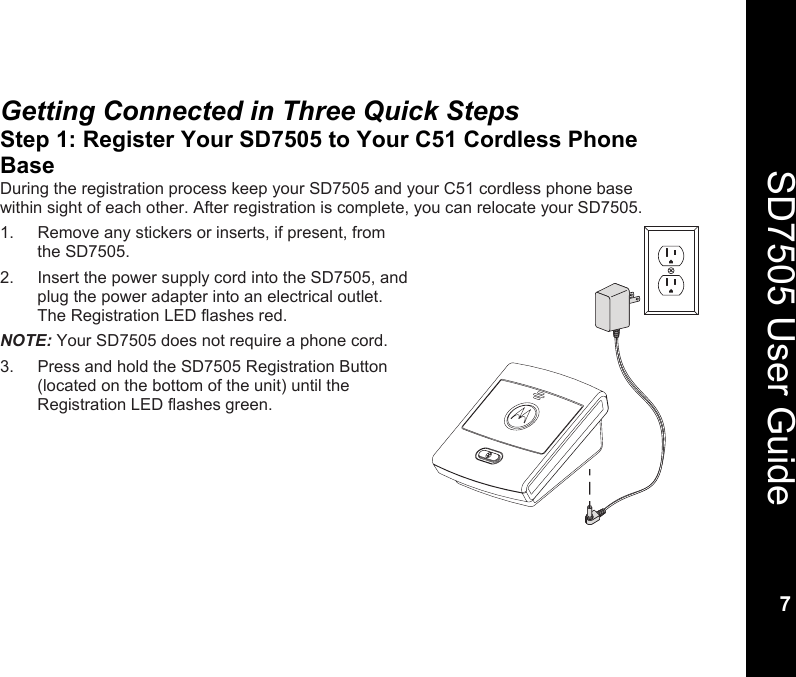
   7  SD7505 User Guide 7  Getting Connected in Three Quick Steps Step 1: Register Your SD7505 to Your C51 Cordless Phone Base During the registration process keep your SD7505 and your C51 cordless phone base within sight of each other. After registration is complete, you can relocate your SD7505. 1.  Remove any stickers or inserts, if present, from the SD7505. 2.  Insert the power supply cord into the SD7505, and plug the power adapter into an electrical outlet. The Registration LED flashes red. NOTE: Your SD7505 does not require a phone cord. 3.  Press and hold the SD7505 Registration Button (located on the bottom of the unit) until the Registration LED flashes green.
  SD7505 User Guide  8  4.  Press and hold the PAGE button on the cordless phone base. The In-Use LED flashes.  Release the button when the SD7505 Registration LED turns a solid green. Registration is complete when the: • Cordless phone base LED stops flashing, and the • SD7505 Registration LED turns off, after being solid green for  approximately 3 seconds. 5.  Check for your SD7505 by pressing CONNECT TO on a cordless handset or the cordless phone base, and scrolling through the list of available devices. Celldock-X (X represents the alpha-numeric order in which the device was registered) should appear in the list. If you do not see your SD7505, repeat steps 3 and 4.   NOTE: Celldock is a friendly default name used for the SD7505. You can change this name to one of your choosing; see "Naming Your SD7505" on page 19.
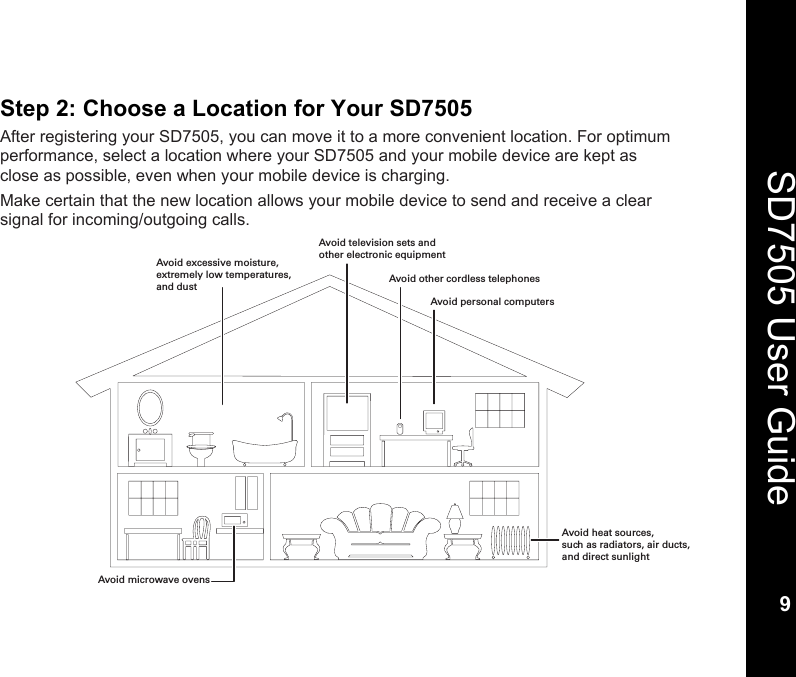
   9  SD7505 User Guide 9  Step 2: Choose a Location for Your SD7505  After registering your SD7505, you can move it to a more convenient location. For optimum performance, select a location where your SD7505 and your mobile device are kept as close as possible, even when your mobile device is charging. Make certain that the new location allows your mobile device to send and receive a clear signal for incoming/outgoing calls.    Avoid heat sources,such as radiators, air ducts,and direct sunlightAvoid television sets andother electronic equipmentAvoid microwave ovensAvoid excessive moisture,extremely low temperatures,and dustAvoid personal computersAvoid other cordless telephones
  SD7505 User Guide  10  Step 3: Pair Your Mobile Device to Your SD7505 You must pair your SD7505 and mobile device before you can make your first Bluetooth connection. “Pairing” creates a trusted link between devices equipped with Bluetooth wireless technology, and allows your mobile device to remember your SD7505’s ID.  After your SD7505 and mobile device are paired, they can connect to each other whenever they are in range.  1.  Power up your mobile device. 2.  Press and hold the Bluetooth Button on the SD7505 until the Bluetooth LED turns a solid blue (approximately 4 seconds). The SD7505 is in “pairing mode” while the Bluetooth LED is a solid blue. Your SD7505 will remain in “pairing mode” for 60 seconds or until pairing is successful.  3.  Enable the Bluetooth feature on your mobile device, and set it to look for available devices. After your mobile device detects the SD7505, you may be prompted to enter a password (or PIN) to “pair” or “bond” with the SD7505; enter 0000. Pairing is complete when the SD7505 Bluetooth LED rapidly flashes 10 times. If your SD7505 times out before pairing is successful (the Bluetooth LED goes off), repeat steps 2 and 3.  After a successful pairing, your mobile device and SD7505 automatically establish a Bluetooth connection. The Bluetooth LED will blink once every 3 seconds as long as that connection is in place.
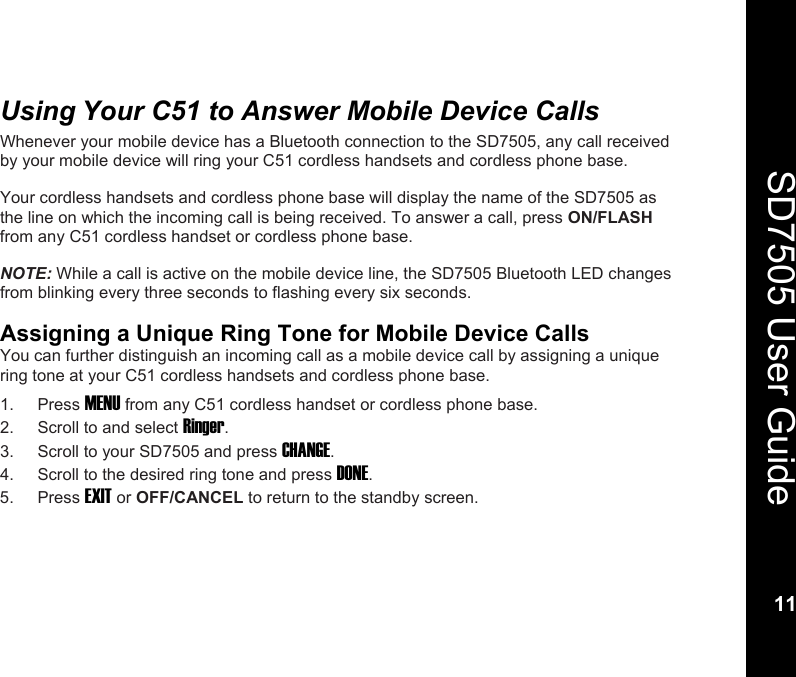
   11  SD7505 User Guide 11  Using Your C51 to Answer Mobile Device Calls Whenever your mobile device has a Bluetooth connection to the SD7505, any call received by your mobile device will ring your C51 cordless handsets and cordless phone base.  Your cordless handsets and cordless phone base will display the name of the SD7505 as the line on which the incoming call is being received. To answer a call, press ON/FLASH from any C51 cordless handset or cordless phone base.  NOTE: While a call is active on the mobile device line, the SD7505 Bluetooth LED changes from blinking every three seconds to flashing every six seconds.  Assigning a Unique Ring Tone for Mobile Device Calls You can further distinguish an incoming call as a mobile device call by assigning a unique ring tone at your C51 cordless handsets and cordless phone base. 1. Press MENU from any C51 cordless handset or cordless phone base. 2.  Scroll to and select Ringer. 3.  Scroll to your SD7505 and press CHANGE. 4.  Scroll to the desired ring tone and press DONE. 5. Press EXIT or OFF/CANCEL to return to the standby screen.
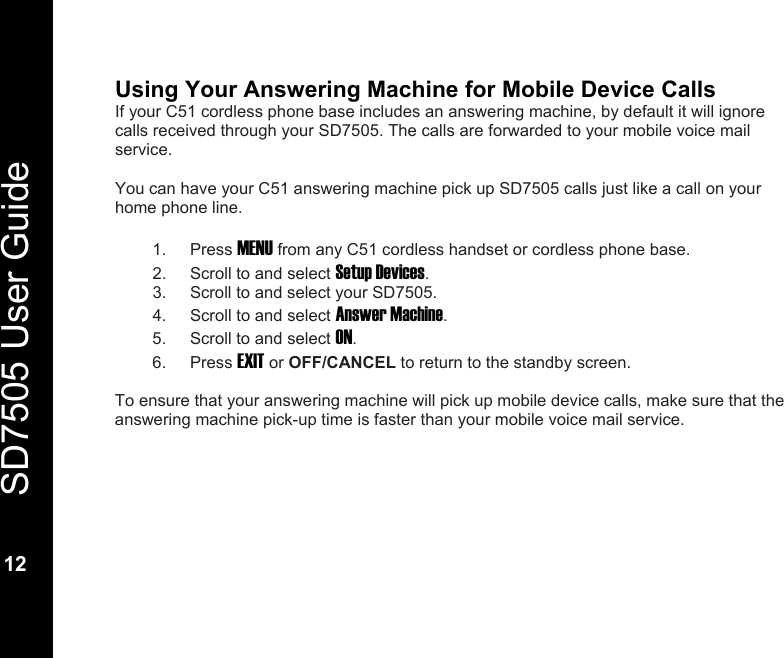
  SD7505 User Guide  12  Using Your Answering Machine for Mobile Device Calls If your C51 cordless phone base includes an answering machine, by default it will ignore calls received through your SD7505. The calls are forwarded to your mobile voice mail service.  You can have your C51 answering machine pick up SD7505 calls just like a call on your home phone line.  1. Press MENU from any C51 cordless handset or cordless phone base. 2.  Scroll to and select Setup Devices. 3.  Scroll to and select your SD7505. 4.  Scroll to and select Answer Machine. 5.  Scroll to and select ON. 6. Press EXIT or OFF/CANCEL to return to the standby screen.  To ensure that your answering machine will pick up mobile device calls, make sure that the answering machine pick-up time is faster than your mobile voice mail service.
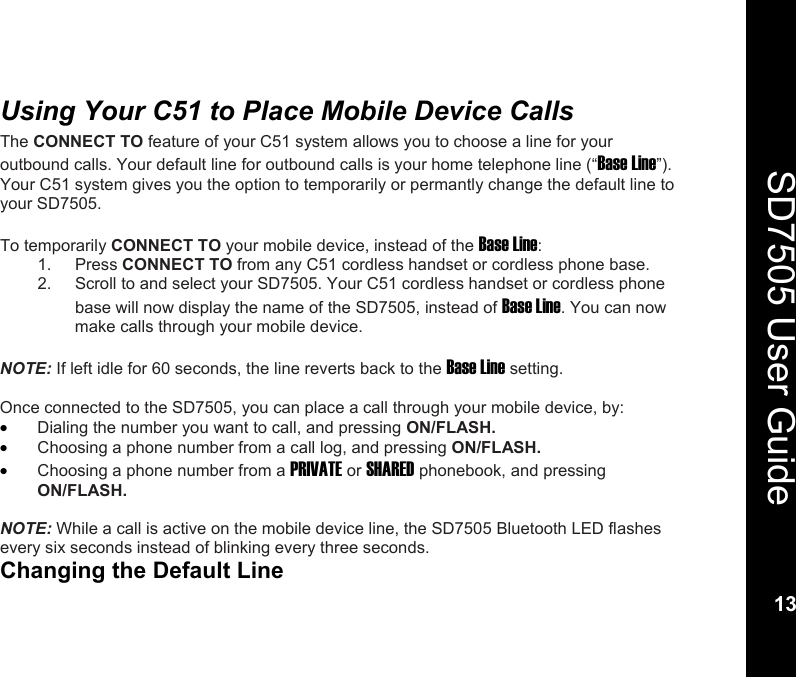
   13  SD7505 User Guide 13  Using Your C51 to Place Mobile Device Calls The CONNECT TO feature of your C51 system allows you to choose a line for your outbound calls. Your default line for outbound calls is your home telephone line (“Base Line”). Your C51 system gives you the option to temporarily or permantly change the default line to your SD7505.  To temporarily CONNECT TO your mobile device, instead of the Base Line: 1. Press CONNECT TO from any C51 cordless handset or cordless phone base. 2.  Scroll to and select your SD7505. Your C51 cordless handset or cordless phone base will now display the name of the SD7505, instead of Base Line. You can now make calls through your mobile device.     NOTE: If left idle for 60 seconds, the line reverts back to the Base Line setting.  Once connected to the SD7505, you can place a call through your mobile device, by: • Dialing the number you want to call, and pressing ON/FLASH. • Choosing a phone number from a call log, and pressing ON/FLASH. • Choosing a phone number from a PRIVATE or SHARED phonebook, and pressing ON/FLASH.  NOTE: While a call is active on the mobile device line, the SD7505 Bluetooth LED flashes every six seconds instead of blinking every three seconds. Changing the Default Line
  SD7505 User Guide  14  If you wish to automatically CONNECT TO your mobile device for outbound calls, change your default line to the SD7505.  1. Press MENU from any C51 cordless handset or cordless phone base. 2.  Scroll to and select Default Line. 3.  Scroll to and select your SD7505. 4. Press EXIT or OFF/CANCEL to return to the standby screen.
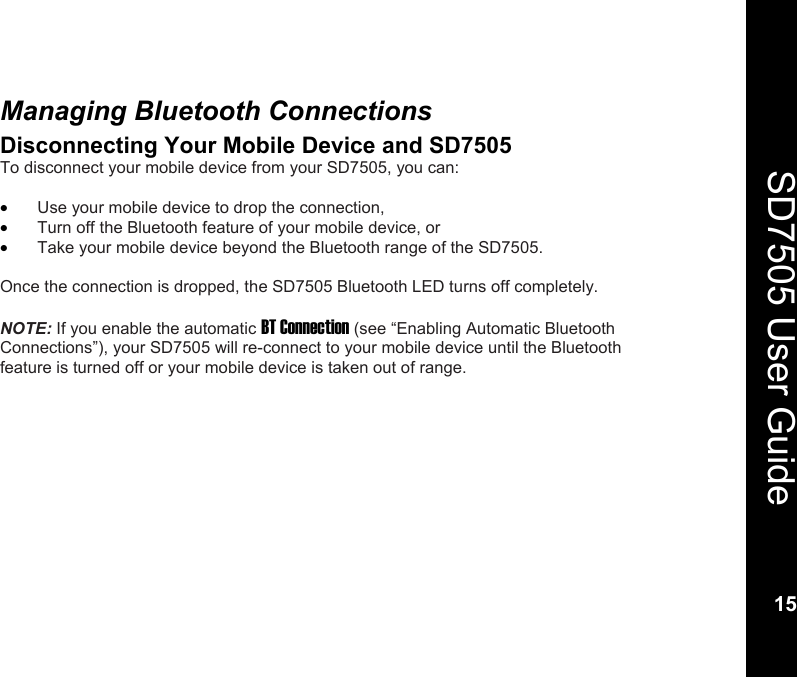
   15  SD7505 User Guide 15  Managing Bluetooth Connections Disconnecting Your Mobile Device and SD7505 To disconnect your mobile device from your SD7505, you can:  • Use your mobile device to drop the connection, • Turn off the Bluetooth feature of your mobile device, or  • Take your mobile device beyond the Bluetooth range of the SD7505.  Once the connection is dropped, the SD7505 Bluetooth LED turns off completely.  NOTE: If you enable the automatic BT Connection (see “Enabling Automatic Bluetooth Connections”), your SD7505 will re-connect to your mobile device until the Bluetooth feature is turned off or your mobile device is taken out of range.
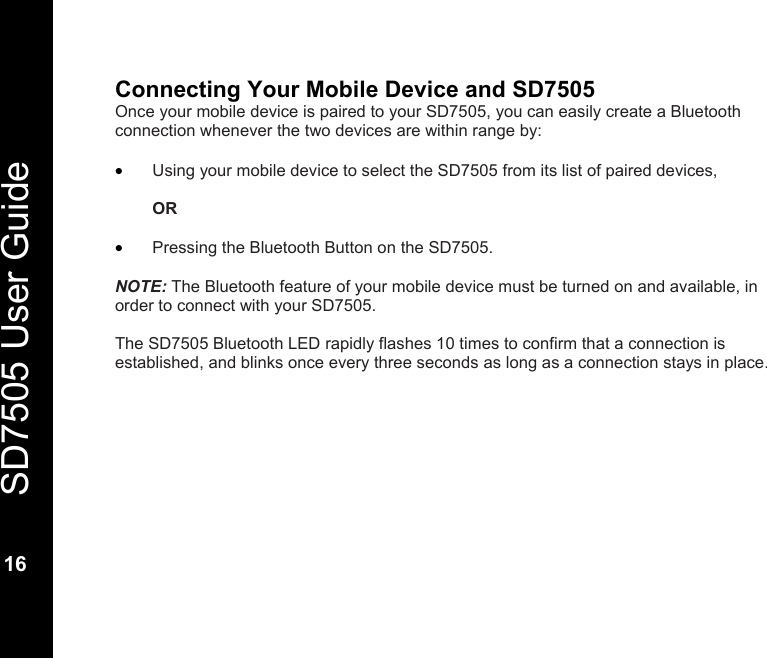
  SD7505 User Guide  16  Connecting Your Mobile Device and SD7505 Once your mobile device is paired to your SD7505, you can easily create a Bluetooth connection whenever the two devices are within range by:  • Using your mobile device to select the SD7505 from its list of paired devices,   OR   • Pressing the Bluetooth Button on the SD7505.  NOTE: The Bluetooth feature of your mobile device must be turned on and available, in order to connect with your SD7505.  The SD7505 Bluetooth LED rapidly flashes 10 times to confirm that a connection is established, and blinks once every three seconds as long as a connection stays in place.
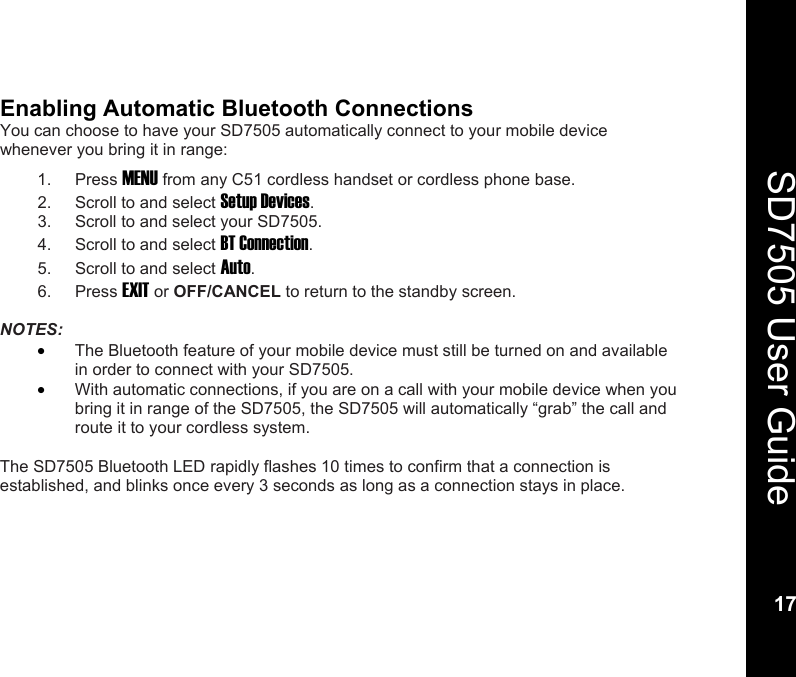
   17  SD7505 User Guide 17  Enabling Automatic Bluetooth Connections You can choose to have your SD7505 automatically connect to your mobile device whenever you bring it in range: 1. Press MENU from any C51 cordless handset or cordless phone base. 2.  Scroll to and select Setup Devices. 3.  Scroll to and select your SD7505. 4.  Scroll to and select BT Connection. 5.  Scroll to and select Auto. 6. Press EXIT or OFF/CANCEL to return to the standby screen.  NOTES:  • The Bluetooth feature of your mobile device must still be turned on and available in order to connect with your SD7505. • With automatic connections, if you are on a call with your mobile device when you bring it in range of the SD7505, the SD7505 will automatically “grab” the call and route it to your cordless system.  The SD7505 Bluetooth LED rapidly flashes 10 times to confirm that a connection is established, and blinks once every 3 seconds as long as a connection stays in place.
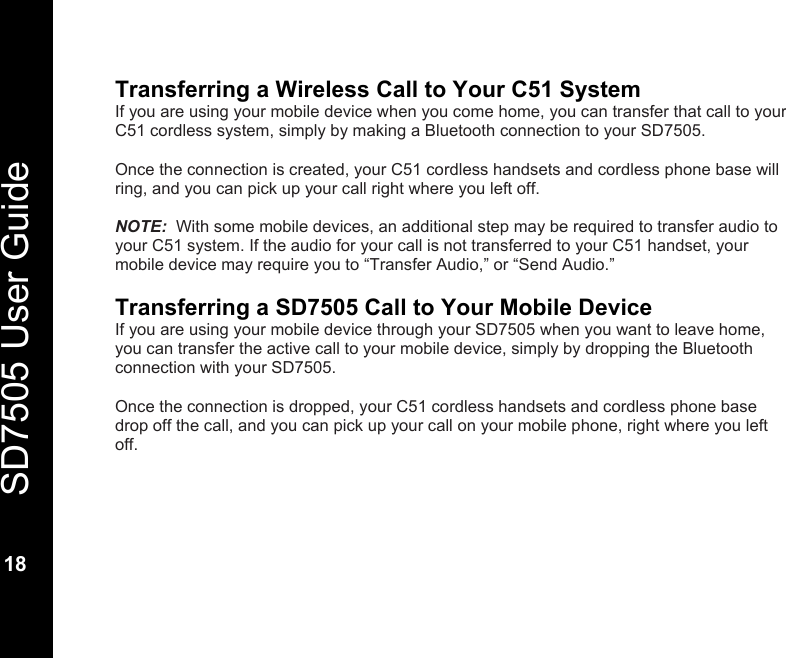
  SD7505 User Guide  18  Transferring a Wireless Call to Your C51 System If you are using your mobile device when you come home, you can transfer that call to your C51 cordless system, simply by making a Bluetooth connection to your SD7505.  Once the connection is created, your C51 cordless handsets and cordless phone base will ring, and you can pick up your call right where you left off.  NOTE:  With some mobile devices, an additional step may be required to transfer audio to your C51 system. If the audio for your call is not transferred to your C51 handset, your mobile device may require you to “Transfer Audio,” or “Send Audio.”  Transferring a SD7505 Call to Your Mobile Device If you are using your mobile device through your SD7505 when you want to leave home, you can transfer the active call to your mobile device, simply by dropping the Bluetooth connection with your SD7505.  Once the connection is dropped, your C51 cordless handsets and cordless phone base drop off the call, and you can pick up your call on your mobile phone, right where you left off.
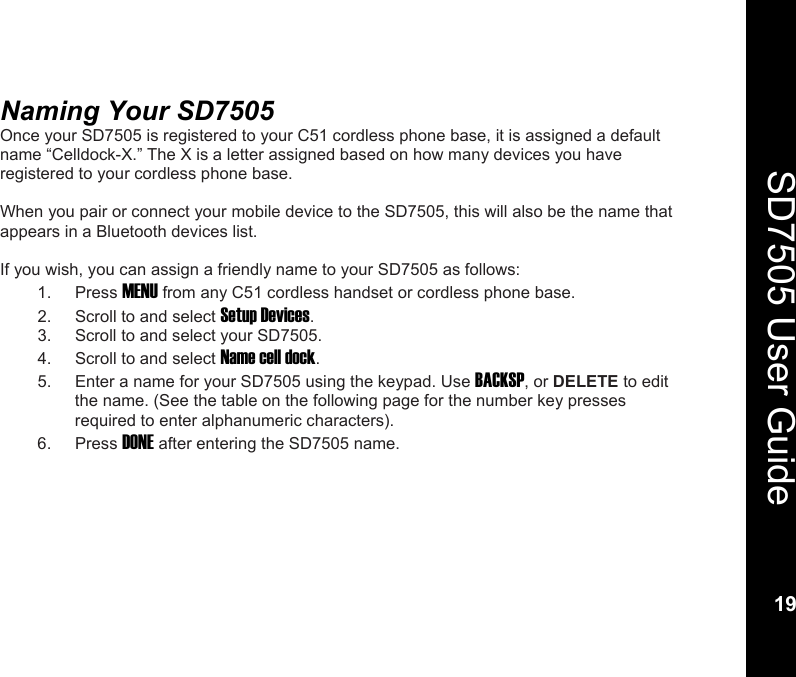
   19  SD7505 User Guide 19  Naming Your SD7505  Once your SD7505 is registered to your C51 cordless phone base, it is assigned a default name “Celldock-X.” The X is a letter assigned based on how many devices you have registered to your cordless phone base.  When you pair or connect your mobile device to the SD7505, this will also be the name that appears in a Bluetooth devices list.  If you wish, you can assign a friendly name to your SD7505 as follows: 1. Press MENU from any C51 cordless handset or cordless phone base. 2.  Scroll to and select Setup Devices. 3.  Scroll to and select your SD7505. 4.  Scroll to and select Name cell dock. 5.  Enter a name for your SD7505 using the keypad. Use BACKSP, or DELETE to edit the name. (See the table on the following page for the number key presses required to enter alphanumeric characters). 6. Press DONE after entering the SD7505 name.
  SD7505 User Guide  20  Entering Alphanumeric Characters  • Pressing the * key toggles between shift/no shift. •  An underscore indicates that lower case characters are active. •  A box indicates that upper case (Shift) characters are active.     Number of Key Presses  Button  1  2 3 4 5 1 space _  — & * $ ,  :  1 2 A a B b C c ( [ 2 3 D d E e F f ) ] 3 4 G g H h I i + @ 4 5 J j K k L l / \ 5 6 M m N n O o ' . 6 7 P p Q q R r S s 7 8 T t U u V v ? ! 8 9 W w X x Y y Z z 9
   21  SD7505 User Guide 21  Pairing Additional Devices to Your SD7505 Your SD7505 can store pairing information for up to three different mobile devices that have Bluetooth wireless technology. These mobile devices are stored in a “Paired Device List” in memory in chronological order.   When an attempt to pair to more than three devices is made, the oldest paired device is removed from the list.  Any of the three paired devices can initiate a Bluetooth connection to your SD7505.  **REMEMBER** Your SD7505 remembers the last device it was connected to and will look for that device when it is in range. This is true for automatic or manual connections.   If you wish to connect another device that you have paired to your SD7505, you must initiate the connection from that device.  1.  Turn on the Bluetooth feature in your mobile device. 2.  Use your mobile device to select the SD7505 from its list of paired devices.
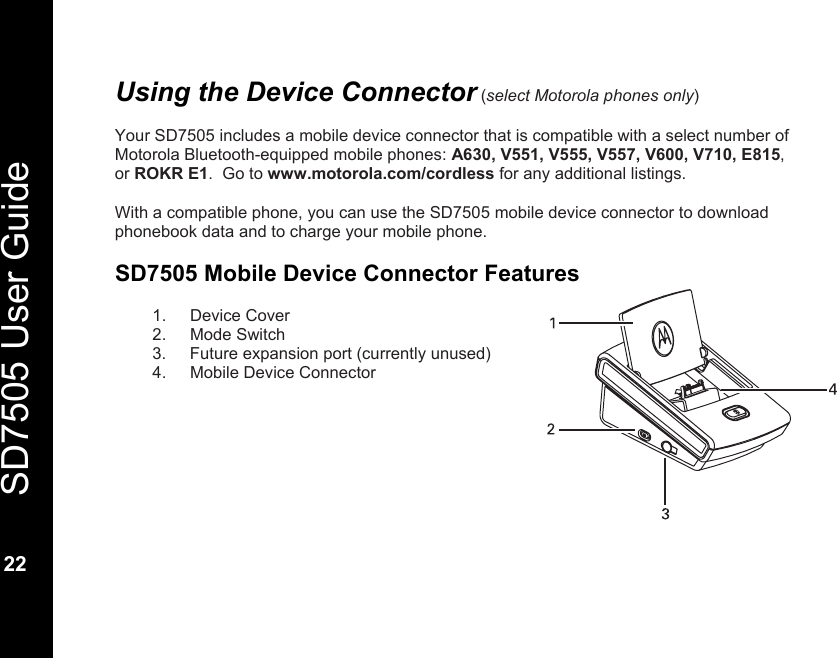
  SD7505 User Guide  22  Using the Device Connector (select Motorola phones only)  Your SD7505 includes a mobile device connector that is compatible with a select number of Motorola Bluetooth-equipped mobile phones: A630, V551, V555, V557, V600, V710, E815, or ROKR E1.  Go to www.motorola.com/cordless for any additional listings.   With a compatible phone, you can use the SD7505 mobile device connector to download phonebook data and to charge your mobile phone.    SD7505 Mobile Device Connector Features  1. Device Cover 2. Mode Switch 3.  Future expansion port (currently unused) 4.  Mobile Device Connector
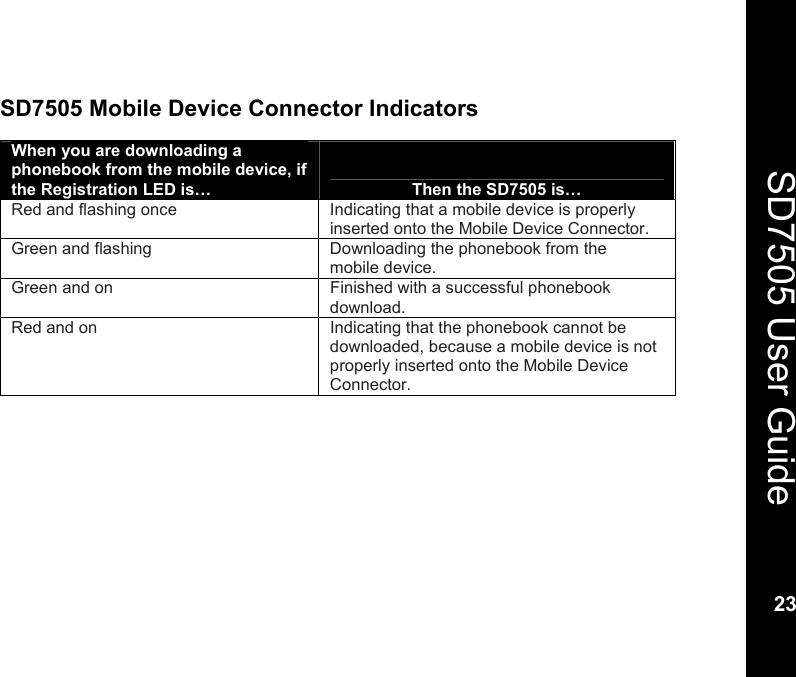
   23  SD7505 User Guide 23  SD7505 Mobile Device Connector Indicators  When you are downloading a phonebook from the mobile device, if the Registration LED is…   Then the SD7505 is… Red and flashing once  Indicating that a mobile device is properly inserted onto the Mobile Device Connector. Green and flashing  Downloading the phonebook from the   mobile device.  Green and on  Finished with a successful phonebook download. Red and on  Indicating that the phonebook cannot be downloaded, because a mobile device is not properly inserted onto the Mobile Device Connector.
  SD7505 User Guide  24  Charging Your Compatible Mobile Phone Place your phone onto the SD7505’s Mobile Device Connector. The SD7505 connector is adjustable. Slide the connector upward or back to support the design of your mobile phone.  Your mobile phone will indicate that it is charging. The SD7505 will not indicate that the mobile phone is charging.  Downloading a Phonebook from a Compatible Mobile Phone The phonebook of your mobile device can be downloaded into your SD7505, where it is stored as a SHARED phonebook. You can access the downloaded phonebook entries using any C51 cordless handset, when you CONNECT TO the SD7505.  NOTES: While a phonebook is downloading, Bluetooth connections are unavailable; calls cannot be placed or answered using the SD7505 during the download.  To download a phonebook: 1.  Place your mobile phone onto the SD7505’s Mobile Device Connector.  2.  Slide the SD7505 Mode Switch to the right position (marked by the phonebook icon).    After a few seconds, the SD7505 Registration LED flashes once in red, to confirm that a mobile device is inserted onto the Mobile Device Connector. Once the download begins, the Registration LED is green and flashes slowly.
   25  SD7505 User Guide 25  The phonebook download is complete when the SD7505 Registration LED turns a solid green. Slide the SD7505 mode switch back to the left position (marked by the Bluetooth icon) to re-establish your Bluetooth connection.   NOTE:  When the mode switch is moved to the left position, the SD7505 Registration LED is solid green for approximately 5 seconds, while the SD7505 re-initializes. After the LED turns off, an Automatic or Manual Bluetoooth connection can be made.   If the SD7505 Registration LED turns a solid red during the download, slide the mode switch back to the left position, check the seating of the mobile phone, and retry.  NOTE: Each new phonebook download overwrites the previous download.  Downloaded phonebook entries retain name and phone number information only. Other fields (e.g., number type, etc.) are not copied to the SD7505.
  SD7505 User Guide  26  If a phonebook entry includes multiple phone numbers, multiple records are created, one for each phone number. Phonebook downloads can transfer up to 250 entries.  A downloaded phonebook cannot be modified by a C51 cordless handset. Downloaded phonebook entries can only be viewed by a C51 cordless handset. The SD7505 phonebook can only be updated by performing a new download from the mobile phone.
   27  SD7505 User Guide 27  Troubleshooting The suggestions below should solve most problems you might encounter while using your SD7505. If you still have difficulty after trying these suggestions, visit us on the web at www.motorola.com/cordless.  Your SD7505 will not connect to your mobile device. • Make sure the Bluetooth feature is turned on in your mobile device. • Make sure your mobile device is paired to the SD7505.  • Make sure your SD7505 is not already connected to another Bluetooth device.  • Your mobile device may only be able to connect with one Bluetooth device at a time.  If so, make sure that it is not already connected to another Bluetooth device. • If you have paired multiple mobile devices to your SD7505, the SD7505 can only attempt a connection to the device to which it was last connected. Try initiating the connection from the mobile device. If it is one of the devices in the SD7505 Paired Device List, the connection will be established. • If all else fails, it may be that the Bluetooth pairing was obsoleted or deleted by your mobile device or your SD7505.
  SD7505 User Guide  28  You are using Automatic Bluetooth connection with multiple mobile devices, and having difficulty switching the SD7505 connection between the devices. • In Automatic connections, your SD7505 is always looking to connect with the last device to which it was connected. As a result, it may be difficult to “sneak in” with another device and request a connection. If you plan to regularly switch between multiple mobile devices, consider using Manual Bluetooth connections.  You tried to put the SD7505 in Bluetooth pairing mode (by pressing and holding the Bluetooth Button), but it connected to a mobile device instead. •  When set for Manual Bluetooth connections, a short press of the Bluetooth Button attempts a connection to the mobile device to which the SD7505 was last connected.  If that mobile device is available and in range, that connection will be established prior to the SD7505 going into pairing mode. Try temporarily turning off the last-connected mobile device, or turning off the Bluetooth feature of that device, in order to pair a new mobile device to the SD7505.  You tried to make a call through the SD7505, but got the message “Call Failed: No Line Exists.” •  Make sure that a Bluetooth connection exists between the SD7505 and the mobile device. The Bluetooth LED should blink every 3 seconds. •  Make sure that the mode switch is in the left position (marked by the Bluetooth logo).
   29  SD7505 User Guide 29  You tried to make a call through the SD7505, or configure the SD7505, but got the message “Call Failed”. •  Make sure your SD7505 is connected to power. If it is connected to a mobile device, the Bluetooth LED will blink every 3 seconds. •  Try moving your SD7505 closer to your C51 cordless phone base, to make sure it has a solid wireless link to the rest of your C51 system. •  If neither of the above resolves the problem, try re-powering the SD7505. It is possible that the wireless link between the SD7505 and C51 cordless phone base may have been temporarily disrupted.  You wanted to make a call through the SD7505, but it dialed out on the Base Line instead. • Your CONNECT TO the SD7505 may have timed out after 60 seconds of inactivity. •  Consider changing your default line to the SD7505, if you want to make calls regularly through the SD7505.  You get noise or static while on SD7505 calls. •  Make sure you have good wireless coverage where your mobile device is located. •  Trying moving your mobile device as close as possible to your SD7505. While Bluetooth range can be up to 10m (33 ft) under ideal conditions, obstructions or interference can reduce effective performance. Minimizing the distance between the mobile device and SD7505 can reduce exposure to obstructions or interference.
  SD7505 User Guide  30  Your mobile device rang when it received a call, but your C51 system did not. •  Make sure that a Bluetooth connection exists between the SD7505 and the mobile device. The Bluetooth LED should blink every 3 seconds. •  Make sure that the mode switch is in the left position (marked by the Bluetooth logo).   •  Make sure that your cordless handset or cordless phone base ringer is turned on.  You were on a call through the SD7505, but the call dropped. •  Make sure that a Bluetooth connection exists between the SD7505 and the mobile device. The Bluetooth LED should blink every 3 seconds. •  Try moving the mobile device as close as possible to the SD7505. While Bluetooth range can be up to 10m (33 ft) under ideal conditions, obstructions or interference can reduce effective performance. Minimizing the distance between the mobile device and SD7505 can reduce exposure to obstructions or interference.  You tried to transfer a call from your mobile device to your cordless phone, but after you picked up the call there was no audio. •  Your mobile device may require you to specifically request that audio be transferred to a connected accessory. The command for transferring audio will vary by mobile device (e.g., “Transfer Audio,”“Send Audio,” etc.); select the respective command for your mobile device model.   You tried to download the phonebook from your mobile device, but the Registration LED turned red. •  Make sure your mobile device is properly seated on the Mobile Device Connector.
   31  SD7505 User Guide 31  Warranty Motorola Limited Warranty for Consumer Products, Accessories, and Software Purchased in the United States or Canada  What Does this Warranty Cover? Subject to the exclusions contained below, Motorola, Inc. warrants its cordless telephones ("Products"), Motorola-branded or certified accessories sold for use with these Products ("Accessories"), and Motorola software contained on CD-ROMs or other tangible media and sold for use with these Products ("Software") to be free from defects in materials and workmanship under normal consumer usage for the period(s) outlined below. This limited warranty is a consumer's exclusive remedy, and applies as follows to new Motorola Products, Accessories, and Software purchased by consumers in the United States or Canada, which are accompanied by this written warranty:  Products and Accessories as defined above, unless otherwise provided for below. Length of coverage: one (1) year from the date of purchase by the first consumer purchaser of the product unless otherwise provided for below. • Products and Accessories that are Repaired or Replaced. Length of coverage: The balance of the original warranty or for ninety (90) days from the date returned to the consumer, whichever is longer. • Software. Applies only to physical defects in the media that embodies the copy of the software (e.g. CD-ROM, or floppy disk). Length of coverage: ninety (90) days from the date of purchase.
  SD7505 User Guide  32  Exclusions Normal Wear and Tear. Periodic maintenance, repair, and replacement of parts due to normal wear and tear are excluded from coverage. Batteries. Only batteries whose fully charged capacity falls below 80% of their rated capacity and batteries that leak are covered by this limited warranty.  Abuse & Misuse. Defects or damage that result from: (a) improper operation, storage, misuse or abuse, accident or neglect, such as physical damage (cracks, scratches, etc.) to the surface of the product resulting from misuse; (b) contact with liquid, water, rain, extreme humidity or heavy perspiration, sand, dirt or the like, extreme heat, or food; (c) use of the Products or Accessories for commercial purposes or subjecting the Product or Accessory to abnormal usage or conditions; or (d) other acts which are not the fault of Motorola, are excluded from coverage.  Use of Non-Motorola Products and Accessories. Defects or damage that result from the use of Non-Motorola branded or certified Products, Accessories, Software or other peripheral equipment are excluded  from coverage.  Unauthorized Service or Modification. Defects or damages resulting from service, testing, adjustment, installation, maintenance, alteration, or modification in any way by someone other than Motorola, or its authorized service centers, are excluded from coverage.  Altered Products. Products or Accessories with (a) serial numbers or date tags that have been removed, altered, or obliterated; (b) broken seals or that show evidence of tampering; (c) mismatched board serial numbers; or (d) nonconforming or non-Motorola housings, or parts, are excluded from coverage.
   33  SD7505 User Guide 33  Communication Services. Defects, damages, or the failure of Products, Accessories or Software due to any communication service or signal you may subscribe to or use with the Products, Accessories or Software is excluded from coverage.  Software Embodied in Physical Media. No warranty is made that the software will meet your requirements or will work in combination with any hardware or software applications provided by third parties, that the operation of the software products will be uninterrupted or error free, or that all defects in the software products will be corrected.  Software NOT Embodied in Physical Media. Software that is not embodied in physical media (e.g. software that is downloaded from the internet), is provided "as is" and without warranty.   Who is Covered This warranty extends to the first end-user purchaser only.  What will Motorola Do? Motorola, at its option, will at no charge repair, replace any Products that does not conform to this warranty. We may use functionally equivalent reconditioned/refurbished/pre-owned or new Products, Accessories or parts. No data, software, or applications added to your Product, Accessory or Software, including but not limited to personal contacts, games, and ringer tones, will be reinstalled. To avoid losing such data, software and applications please create a back up prior to requesting service.
  SD7505 User Guide  34  How to Get Warranty Service or Other Information In the USA, call  In Canada, call: 1-800-353-2729 1-800-461-4575 TTY 1-888-390-6456  TTY 1-888-390-6456  For accessories and software, please call the telephone number designated above for the product with which they are used. You will receive instructions on how to ship the Products, Accessories, or Software, at your expense, to a Motorola Authorized Repair Center. To obtain service, you must include: (a) a copy of your receipt, bill of sale, or other comparable proof of purchase; (b) a written description of the problem; (c) the name of your service provider, if applicable; (d) the name and location of the installation facility (if applicable); and, most importantly, (e) your address and telephone number.  What Other Limitations Are There? ANY IMPLIED WARRANTIES, INCLUDING WITHOUT LIMITATION THE IMPLIED WARRANTIES OF MERCHANTABILITY AND FITNESS FOR A PARTICULAR PURPOSE, SHALL BE LIMITED TO THE DURATION OF THIS LIMITED WARRANTY; OTHERWISE, THE REPAIR OR REPLACEMENT AS PROVIDED UNDER THIS EXPRESS LIMITED WARRANTY IS THE EXCLUSIVE REMEDY OF THE CONSUMER, AND IS PROVIDED IN LIEU OF ALL OTHER WARRANTIES, EXPRESS OF IMPLIED. IN NO EVENT SHALL MOTOROLA BE LIABLE, WHETHER IN CONTRACT OR TORT (INCLUDING NEGLIGENCE), FOR DAMAGES IN EXCESS OF THE PURCHASE PRICE OF THE PRODUCT, ACCESSORY, OR SOFTWARE, OR FOR ANY INDIRECT, INCIDENTAL, SPECIAL, OR CONSEQUENTIAL DAMAGES OF ANY KIND, OR LOSS OF REVENUE OR PROFITS, LOSS OF BUSINESS, LOSS OF INFORMATION OR DATA, SOFTWARE OR APPLICATIONS OR OTHER FINANCIAL LOSS ARISING OUT OF OR IN CONNECTION WITH THE ABILITY OR INABILITY TO USE THE PRODUCTS, ACCESSORIES, OR SOFTWARE TO THE FULL EXTENT THESE DAMAGES MAY BE DISCLAIMED BY LAW.
   35  SD7505 User Guide 35  Some states and jurisdictions do not allow the limitation or exclusion of incidental or consequential damages, or limitation on the length of an implied warranty, so the above limitations or exclusions may not apply to you. This warranty gives you specific legal rights, and you may also have other rights that vary from state to state or from one jurisdiction to another.  Laws in the United States and other countries preserve for Motorola certain exclusive rights for copyrighted Motorola software, such as the exclusive rights to reproduce and distribute copies of the Motorola software. Motorola software may only be copied into, used in, and redistributed with the Products associated with such Motorola software. No other use, including without limitation disassembly of such Motorola software or exercise of the exclusive rights reserved for Motorola, is permitted.
           Communication System  Bluetooth® Mobile Phone Link  Model Family:  SD7505    529245-001-b  07/06

Navigation menu