CLAMCASE CCM1000026 iPad Accessory with KB and BT radio User Manual

CLAMCASE, LLC iPad Accessory with KB and BT radio

User manual

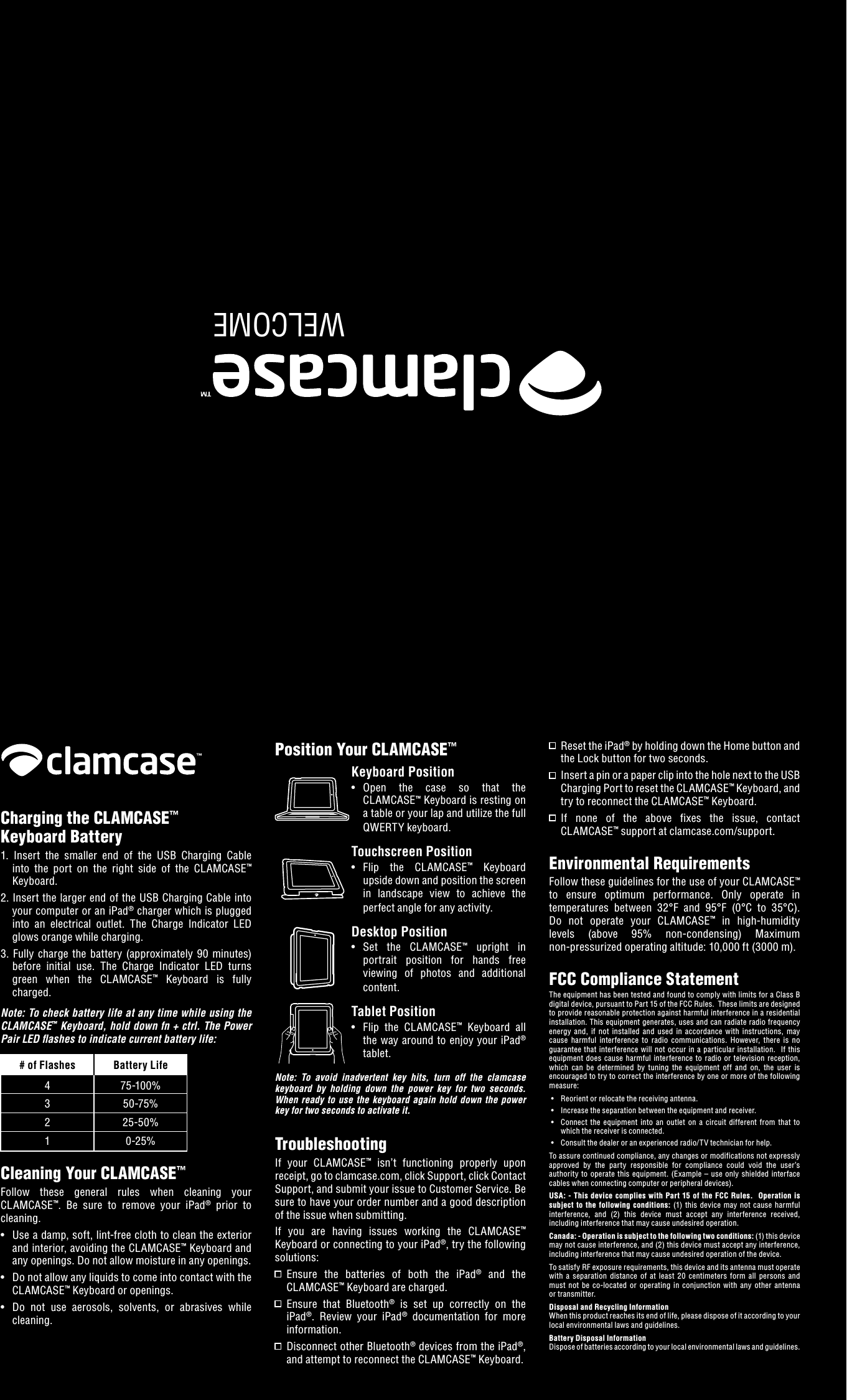
WELCOMECharging the CLAMCASE™ Keyboard Battery1.  Insert  the  smaller  end  of  the  USB  Charging  Cable into  the  port  on  the  right  side  of  the  CLAMCASE™ Keyboard.2. Insert the larger end of the USB Charging Cable into your computer or an iPad® charger which is plugged into  an  electrical  outlet.  The  Charge  Indicator  LED glows orange while charging.3.  Fully  charge  the  battery (approximately  90 minutes) before  initial  use.  The  Charge  Indicator  LED  turns green  when  the  CLAMCASE™  Keyboard  is  fully charged.Note: To check battery life at any time while using the CLAMCASE™ Keyboard, hold down fn + ctrl. The Power Pair LED ashes to indicate current battery life:  # of Flashes  Battery Life  4  75-100%  3  50-75%  2  25-50%  1  0-25%Cleaning Your CLAMCASE™Follow  these  general  rules  when  cleaning  your CLAMCASE™.  Be  sure  to  remove  your  iPad®  prior  to cleaning. •  Use a damp, soft, lint-free cloth to clean the exterior and interior, avoiding the CLAMCASE™ Keyboard and any openings. Do not allow moisture in any openings. •  Do not allow any liquids to come into contact with the CLAMCASE™ Keyboard or openings. •  Do  not  use  aerosols,  solvents,  or  abrasives  while cleaning.Position Your CLAMCASE™Keyboard Position •  Open  the  case  so  that  the CLAMCASE™ Keyboard is resting on a table or your lap and utilize the full QWERTY keyboard.Touchscreen Position•  Flip  the  CLAMCASE™  Keyboard upside down and position the screen in  landscape  view  to  achieve  the perfect angle for any activity.Desktop Position•  Set  the  CLAMCASE™  upright  in portrait  position  for  hands  free viewing  of  photos  and  additional content.Tablet Position•   Flip  the  CLAMCASE™  Keyboard  all the way around to enjoy your iPad® tablet.Note:  To  avoid  inadvertent  key  hits,  turn  off  the  clamcase keyboard  by  holding  down  the  power  key  for  two  seconds.  When  ready  to use  the  keyboard again  hold  down  the  power key for two seconds to activate it. TroubleshootingIf  your  CLAMCASE™  isn’t  functioning  properly  upon receipt, go to clamcase.com, click Support, click Contact Support, and submit your issue to Customer Service. Be sure to have your order number and a good description of the issue when submitting.If  you  are  having  issues  working  the  CLAMCASE™ Keyboard or connecting to your iPad®, try the following solutions:   Ensure  the  batteries  of  both  the  iPad®  and  the CLAMCASE™ Keyboard are charged.   Ensure  that  Bluetooth®  is  set  up  correctly  on  the iPad®.  Review  your  iPad®  documentation  for  more information.   Disconnect other Bluetooth® devices from the iPad®, and attempt to reconnect the CLAMCASE™ Keyboard.  Reset the iPad® by holding down the Home button and the Lock button for two seconds.   Insert a pin or a paper clip into the hole next to the USB Charging Port to reset the CLAMCASE™ Keyboard, and try to reconnect the CLAMCASE™ Keyboard.   If  none  of  the  above  fixes  the  issue,  contact CLAMCASE™ support at clamcase.com/support.Environmental RequirementsFollow these guidelines for the use of your CLAMCASE™ to  ensure  optimum  performance.  Only  operate  in temperatures  between  32°F  and  95°F  (0°C  to  35°C). Do  not  operate  your  CLAMCASE™  in  high-humidity levels  (above  95%  non-condensing)  Maximum  non-pressurized operating altitude: 10,000 ft (3000 m).FCC Compliance StatementThe equipment has been tested and found to comply with limits for a Class B digital device, pursuant to Part 15 of the FCC Rules.  These limits are designed to provide reasonable protection against harmful interference in a residential installation. This equipment generates, uses and can radiate radio frequency energy  and,  if  not  installed  and  used  in  accordance  with  instructions,  may cause  harmful  interference  to  radio  communications.  However,  there  is  no guarantee  that  interference will not occur in  a  particular  installation.   If  this equipment does  cause  harmful  interference  to  radio  or  television  reception, which  can  be  determined  by  tuning  the  equipment  off  and  on,  the  user  is encouraged to try to correct the interference by one or more of the following measure: •  Reorient or relocate the receiving antenna. •  Increase the separation between the equipment and receiver. •  Connect  the  equipment  into  an  outlet  on  a  circuit  different  from  that  to which the receiver is connected. •  Consult the dealer or an experienced radio/TV technician for help.To assure continued compliance, any changes or modifications not expressly approved  by  the  party  responsible  for  compliance  could  void  the  user’s authority  to operate  this equipment.  (Example – use  only shielded interface cables when connecting computer or peripheral devices).USA:  - This device complies  with Part  15  of the FCC  Rules.  Operation  is subject  to  the following  conditions:  (1)  this  device  may  not cause  harmful interference,  and  (2)  this  device  must  accept  any  interference  received, including interference that may cause undesired operation.Canada: - Operation is subject to the following two conditions: (1) this device may not cause interference, and (2) this device must accept any interference, including interference that may cause undesired operation of the device.To satisfy RF exposure requirements, this device and its antenna must operate with  a  separation  distance  of  at  least  20  centimeters  form  all  persons  and must  not  be  co-located  or  operating  in  conjunction  with  any  other  antenna or transmitter.Disposal and Recycling InformationWhen this product reaches its end of life, please dispose of it according to your local environmental laws and guidelines.Battery Disposal InformationDispose of batteries according to your local environmental laws and guidelines.
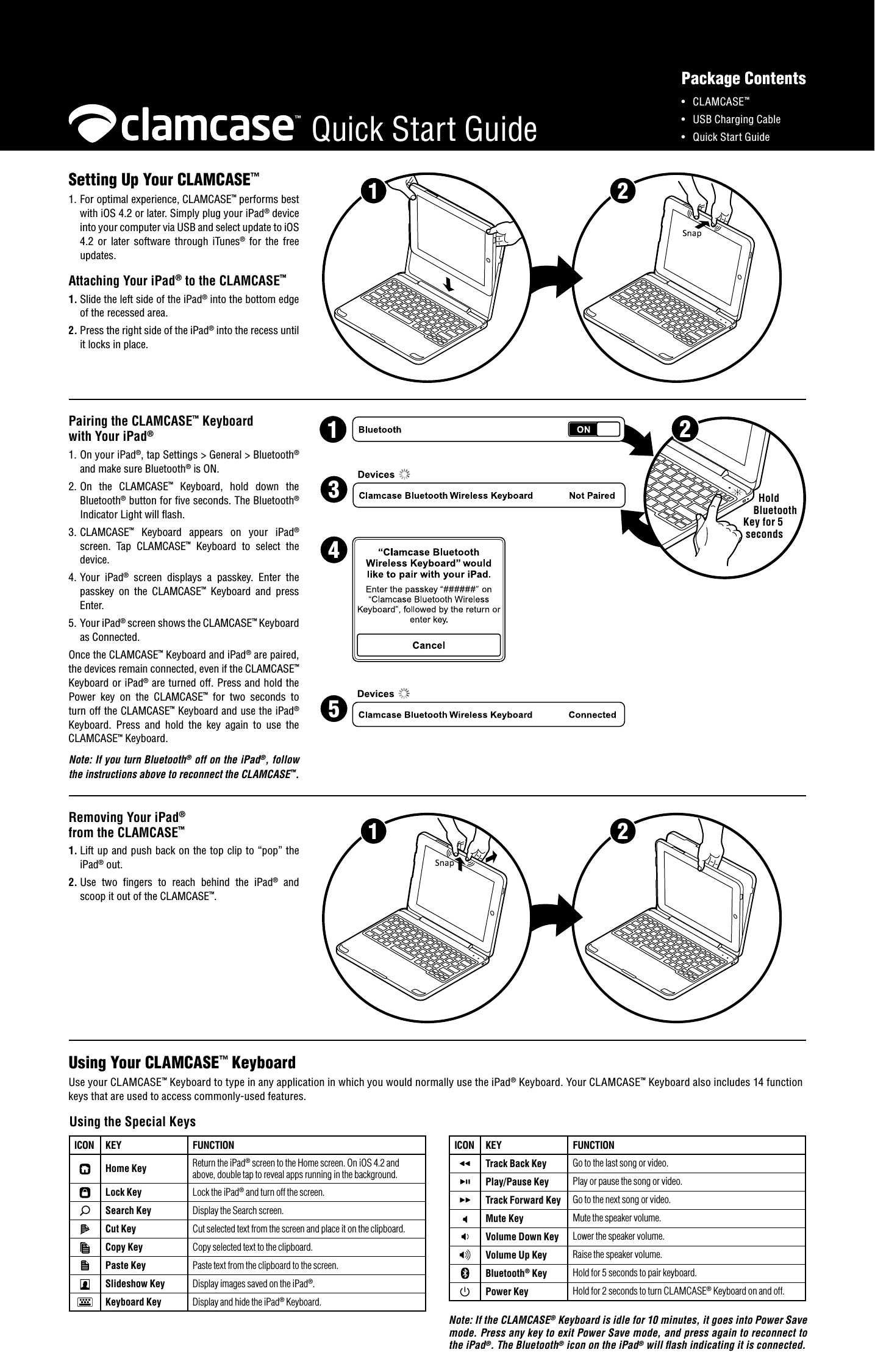
2Hold Bluetooth Key for 5 secondsQuick Start Guide21Pairing the CLAMCASE™ Keyboard with Your iPad®1. On your iPad®, tap Settings > General > Bluetooth® and make sure Bluetooth® is ON.2. On  the  CLAMCASE™  Keyboard,  hold  down  the Bluetooth® button for five seconds. The Bluetooth® Indicator Light will flash.3. CLAMCASE™  Keyboard  appears  on  your  iPad® screen.  Tap  CLAMCASE™  Keyboard  to  select  the device.4. Your  iPad®  screen  displays  a  passkey.  Enter  the passkey  on  the  CLAMCASE™  Keyboard  and  press Enter.5. Your iPad® screen shows the CLAMCASE™ Keyboard as Connected.Removing Your iPad® from the CLAMCASE™1. Lift up and push back on the top clip to “pop” the iPad® out.2. Use  two  fingers  to  reach  behind  the  iPad®  and scoop it out of the CLAMCASE™.21Setting Up Your CLAMCASE™1. For optimal experience, CLAMCASE™ performs best with iOS 4.2 or later. Simply plug your iPad® device into your computer via USB and select update to iOS 4.2  or  later  software  through  iTunes®  for  the  free updates.  Attaching Your iPad® to the CLAMCASE™1. Slide the left side of the iPad® into the bottom edge of the recessed area.2. Press the right side of the iPad® into the recess until it locks in place.•  CLAMCASE™•  USB Charging Cable •  Quick Start GuidePackage Contents1Once the CLAMCASE™ Keyboard and iPad® are paired, the devices remain connected, even if the CLAMCASE™ Keyboard or iPad® are turned off. Press and hold the Power  key  on  the  CLAMCASE™  for  two  seconds  to turn off the CLAMCASE™ Keyboard and use the iPad® Keyboard.  Press  and  hold  the  key  again  to  use  the CLAMCASE™ Keyboard.Note: If you turn Bluetooth® off on the iPad®, follow the instructions above to reconnect the CLAMCASE™.345ICON KEY FUNCTIONTrack Back Key Go to the last song or video.Play/Pause Key Play or pause the song or video.Track Forward Key Go to the next song or video.Mute Key Mute the speaker volume.Volume Down Key Lower the speaker volume.Volume Up Key Raise the speaker volume.Bluetooth® Key Hold for 5 seconds to pair keyboard.Power Key Hold for 2 seconds to turn CLAMCASE® Keyboard on and off.Note: If the CLAMCASE® Keyboard is idle for 10 minutes, it goes into Power Save mode. Press any key to exit Power Save mode, and press again to reconnect to the iPad®. The Bluetooth® icon on the iPad® will ash indicating it is connected.ICON KEY FUNCTIONHome Key Return the iPad® screen to the Home screen. On iOS 4.2 and above, double tap to reveal apps running in the background.Lock Key Lock the iPad® and turn off the screen.Search Key Display the Search screen.Cut Key Cut selected text from the screen and place it on the clipboard.Copy Key Copy selected text to the clipboard.Paste Key Paste text from the clipboard to the screen.Slideshow Key Display images saved on the iPad®.Keyboard Key Display and hide the iPad® Keyboard.Using the Special Keys Using Your CLAMCASE™ KeyboardUse your CLAMCASE™ Keyboard to type in any application in which you would normally use the iPad® Keyboard. Your CLAMCASE™ Keyboard also includes 14 function keys that are used to access commonly-used features.

Navigation menu