User Manual
Wifi HD Cube Camera
EPK-HC10L1 (HC10)
2
Instruction Manual
3
CONTENTS
1. INTRODUCTION....................................................................................................................................... 5
1.1. Features ......................................................................................................................................... 6
1.2. Packing List .................................................................................................................................... 6
1.3. Product Views ................................................................................................................................ 7
1.4. PC System Requirements ............................................................................................................. 7
1.5. Hardware Installation ..................................................................................................................... 8
2. INSTALLATION AND SETTINGS ............................................................................................................. 9
2.1. Network Connection ...................................................................................................................... 9
2.2. Browser Settings (For IE only) ..................................................................................................... 10
2.3. UPnP Service .................................................................................................................................. 11
2.4. Ezykam Search Tool (for IE browser only) ....................................................................................... 12
2.5. Install the EzykamOCX (For IE only) .............................................................................................. 13
3. SOFTWARE OPERATION ........................................................................................................................ 15
3.3. Functions ....................................................................................................................................... 19
3.4. For Live Video (for IE browser) ....................................................................................................... 20
4. Setup ........................................................................................................................................................ 26
4.1. Status Device Info. ..................................................................................................................... 26
4.2. General Settings ............................................................................................................................. 27
4.2.2. Multi-Device Settings ................................................................................................................. 28
4.2.3. Date & Time .............................................................................................................................. 28
4.2.4. Audio Settings ........................................................................................................................... 29
4.3. Network Settings ............................................................................................................................ 30
4.3.1. IP .............................................................................................................................................. 30
4.3.2. Wireless Settings ........................................................................................................................ 30
4.3.3. UPnP Settings ............................................................................................................................ 31
4.3.4. DDNS Settings ........................................................................................................................... 31
4.3.5. P2P Settings ............................................................................................................................... 32
4.3.6. FTP Settings .............................................................................................................................. 33
4.3.7. E-mail (SMTP) Settings .............................................................................................................. 33
4.4. Video ............................................................................................................................................ 35
4.4.1. Video Info.................................................................................................................................. 35
4.4.2. IR Control ................................................................................................................................. 36
4.5. Alarm Settings ............................................................................................................................... 37
4.5.1. Motion Detection ....................................................................................................................... 37
4.6. Record ........................................................................................................................................... 39
4.6.2. SD Card info .............................................................................................................................. 39
4.7. System .......................................................................................................................................... 40
4.7.1. Log ........................................................................................................................................... 40
4
4.7.2. Import/Export Config ................................................................................................................. 40
4.7.3. Auto Maintain ............................................................................................................................ 41
4.7.4. System ...................................................................................................................................... 41
5. PLAYBACK for IE browser only ................................................................................................................ 42
7. SPECIFICATIONS ......................................................................................................................................... 48
8. OBTAINING TECHNICAL SUPPORT ............................................................................................................ 49
5
1. INTRODUCTION
This user manual will show the details to set up your camera with your computer;
if you are viewing with a Smartphone, please check Quick Start Guide, as it is very easy to set
up.
Important Note: You need to use smart phone to set camera connecting to wifi, so that you can get IP in
search tool, and login via computer. Smart phone settings details see QSG.
IMPORTANT NOTICE
The various screens throughout this owner’s manual will look different depending on the
browser you use. Full functionality is available when using Internet Explorer (IE) with
EzykamOCX installed. Limited functionality is available with other browsers, such as Safari,
Chrome, and Firefox.
Please Read this manual carefully, according to the browser you are using.
This is an integrated wireless IP Camera. It combines a high quality digital Video Camera with network
connectivity and a powerful web server to bring clear pictures to your Desktop from anywhere on your
local network or over the Internet.
The main function of the camera is to transmit remote video over IP network. The high quality video
image can be transmitted with 30fps speed on the LAN/WAN by using H.264, MJPEG compression
technology.
It is based on the TCP/IP standard, build-in WEB server which supports Internet Explorer. Therefore the
management and maintenance of your camera becomes simple by using the network to achieve the
remote configuration, start-up and to upgrade firmware.
You can use your IP Camera to monitor your home or your office. Also, controlling and managing
images are simple by visiting the web site.
6
1.1. Features
Powerful high-speed video protocol processor
High-sensitivity 1/4’’ CMOS sensor
Picture total 1000K pixels (1megapixel)
Optimized H.264 MJPEG video compression for transmission
Multi-level user management and passwords definition
Embedded Web Server for users to visit by IE
Supports wireless network (WI-FI/802.11/b/g/n)
Supports Dynamic IP (DDNS) and UPNP LAN and Internet (ADSL, Cable Modem)
Gives an alarm in case of motion detection
Supports image snapshot
Supports multiple protocols:TCP/IP, HTTP, DNS, DHCP, PPPoE, SMTP, FTP, SSL, TFTP,
NTP, ARP/RARP, NFS, RTSP, RTP and RTCP.
Supports WEP/WPA/WPA2 encryption
Supports IE, Firefox, Safari, and Google chrome browsers
1.2. Packing List
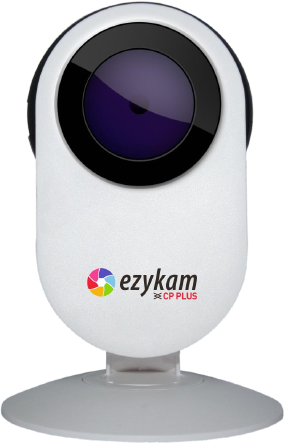
IP Camera
Quick Setup Guide
DC Power Supply
CD
Network Cable
Mountings
7
1.3. Product Views
1.3.1. Front View
Wireless: Built-in WI-FI Antenna.
Infrared LEDs: infrared LEDs with 8 meters night vision.
LENS: Megapixel lens.
Network Light: The green LED will be on when the network is connected, the yellow LED will blink
when data is transferred.
Reset: If you press and hold the RESET button for about 10 seconds, all the parameters will be set back
to the factory default settings. (Please keep the power on when doing a RESET).
1.4. PC System Requirements
System configuration requirements:
CPU: 2.06 GHZ or above.
Memory: 256M or above.
Network Card: 10M or above.
Display Card: 64M or above memory.
Recommended Operating system: Windows XP, Windows Vista, Windows 7.
8
1.5. Hardware Installation
Follow the steps below to set up your camera hardware.
1. Plug the power adaptor into the camera and into an AC outlet.
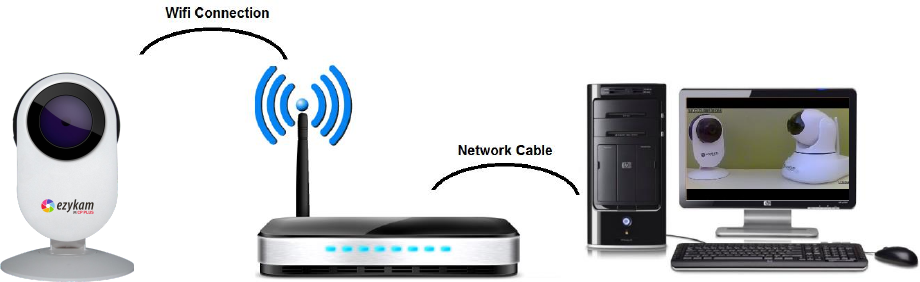
2. Use your Smartphone to search and connect the Camera SSID wifi signal, and set camera connect to
the router wifi via App.
4. It takes approx 30 seconds to boot up the camera, then you will find the IP address from “Ezykam
finder” (Figure 2.1.5).
5. When the power is on and the network cable is connected, the green LED on the rear panel will stay
on.
The Green LED will keep flashing, and the Indicator LED on the front of the camera will flash.
9
2. INSTALLATION AND SETTINGS
System Requirement:
Operating System: Windows 2000 / XP / Vista / 7
Network Protocol: TCP/IP
Network Structure: Applies to all network connections 10/100M LAN platform
Browser: Internet Explorer 6.0 or above. Firefox, Google, Safari, or Chrome.
2.1. Network Connection
Intranet and Extranet Connection Reference:
Extranet means public IP (i.e. The Internet), Intranet means private IP. If your IP belongs to the following range, then
it’s a private IP:
Category A: 10.0.0.0 - 10.255.255.255
Category B: 172.16.0.0 - 172.31.255.255
Category C: 192.168.0.0 - 192.168.255.255
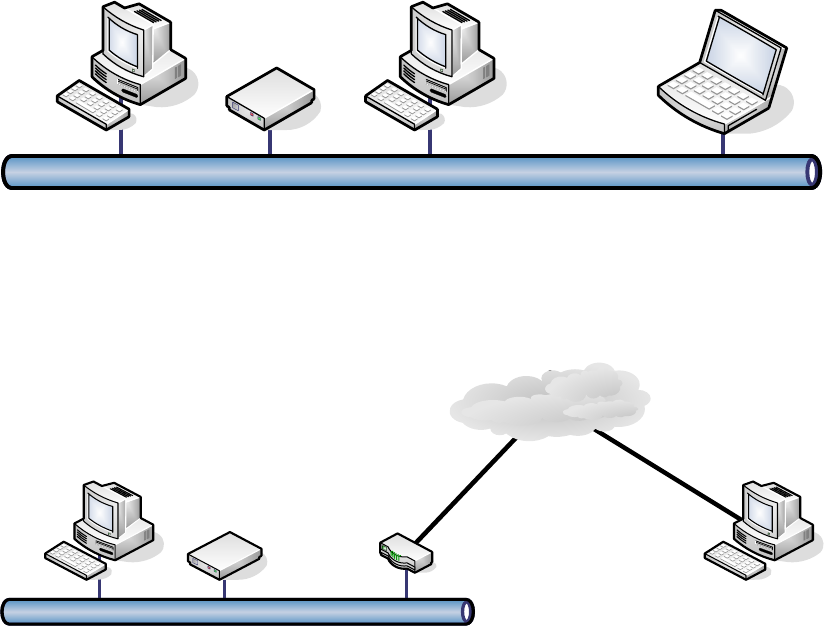
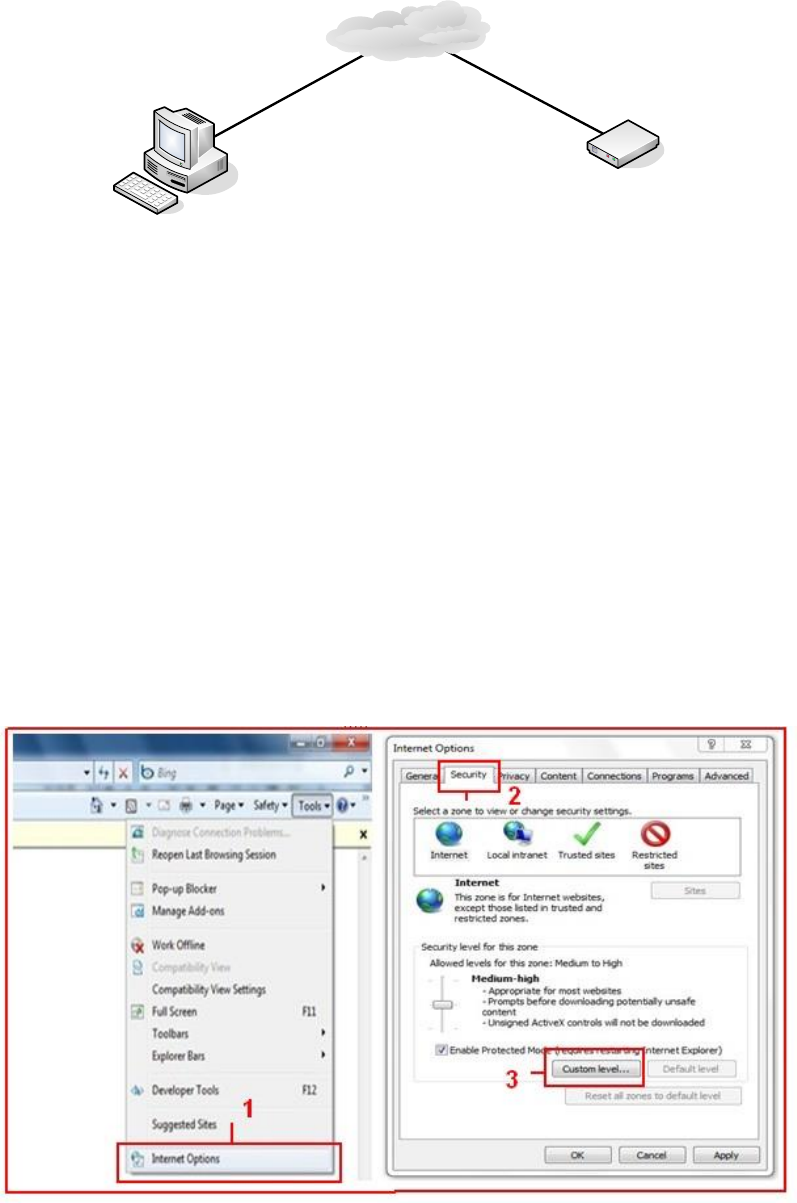
Intranet Connection: The IP camera and your computer (device) should be under the same network environment, and
both of the IPs should be under the same subnet, pictured as below:
IP camera
Ethernet
Extranet Connection: there are 2 ways as below:
(1). IP camera connects to the Internet via a router, here camera’s IP is a private IP, client needs to connect to the IP
camera through a router, with port forwarding to be connected correctly, as below:
Internet
IP camera router
Ethernet
(2). IP camera connects to the Internet directly, if it’s a fixed IP provided by your ISP, just input it. If it’s a floating IP,
then input the account and password provided by your ISP to dial-up connection.
10
Internet
IP camera
2.2. Browser Settings (For IE only)
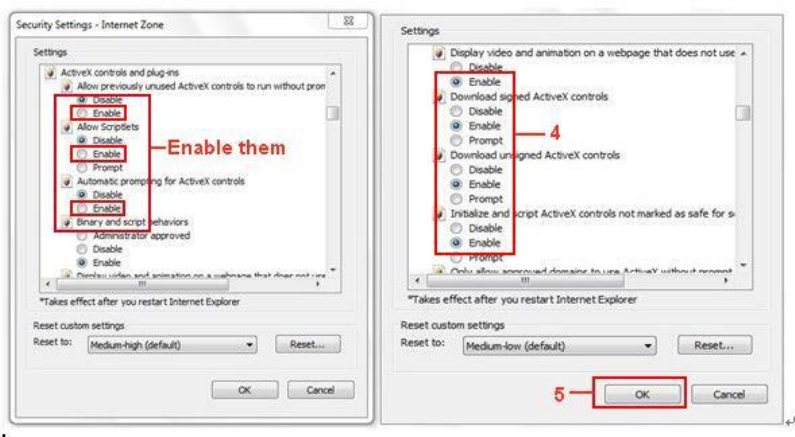
OCX will be downloaded automatically when you login to the IP Camera, but you might have to set the IE browser to
enable the OCX to be downloaded automatically after signing in. Steps as below:
1. Close the firewall of your computer.
2. Change the ActiveX settings, “IE” browser > “Tool” > “Internet Options” > “Security”> “Custom Level” >
“ActiveX control and Plug-ins”, all the ActiveX options set to be “Enable”:
Especially:
Enable: Download unsigned ActiveX controls
Enable: Initialize and script ActiveX controls not marked as safe
Enable: Run ActiveX controls and plug-ins
11
You can also click “Start” menu->“Internet Explorer”, and choose “Internet attributes”, or via “Control Panel”
->“Internet Explorer”, to access Security settings.
NOTE: Make sure that your firewall or anti-virus software doesn’t block the software or ActiveX. If you couldn’t see
live video, please close your firewall or anti-virus software, and try again.
2.3. UPnP Service
UPnP could help you to find your camera’s IP more quickly. For Window XP, from “Control Panel” > “Add or
remove applications” > “Add or remove Windows component” > “Network service” > “Detailed data” > “UPnP
users interface”, the factory default settings is disabled. Enable it, and then it can allow your operating system to
support UPnP.
Alternatively, you can also click “Start” menu>“Internet Explorer”, and choose “Internet attributes”, or via
“Control Panel” >“Internet Explorer”, enter to Security settings.
12
2.4. Ezykam Search Tool (for IE browser only)
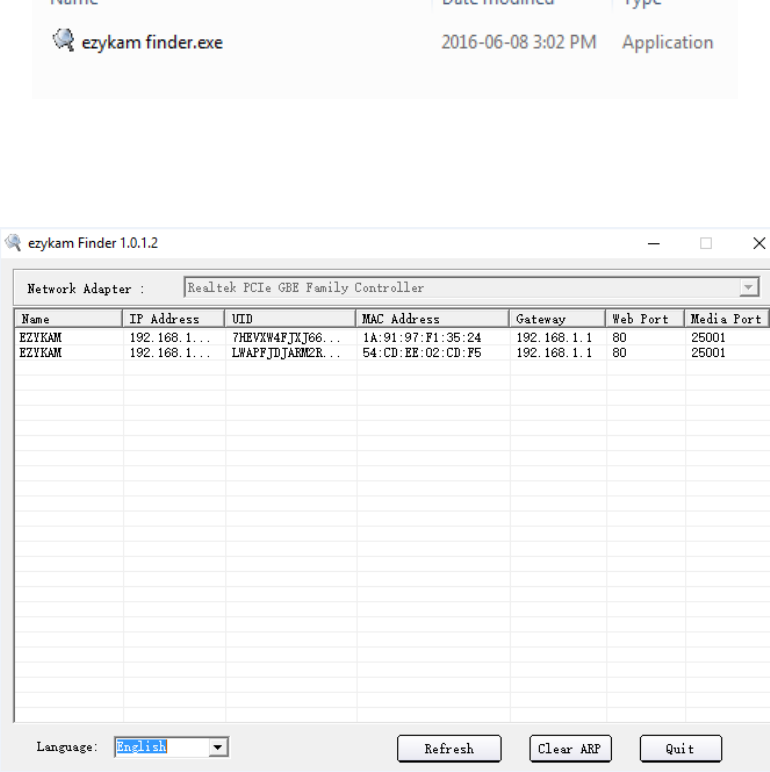
Step 1: Use tool “Ezykam finder.exe” to find IP address of LAN.
Step 2: Double click “Ezykam finder” on your desktop, the camera’s IP & MAC address will be displayed. If you want
to search again, click “Search”.
13
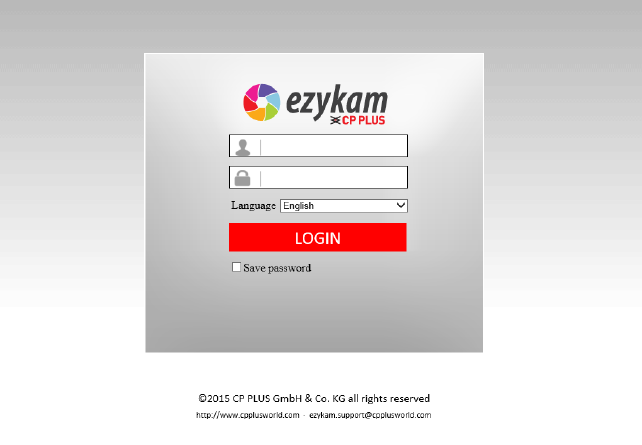
Step 3: Double-click the IP address of your camera to enter the login interface.(default user: admin; password: admin)
2.5. Install the EzykamOCX (For IE only)
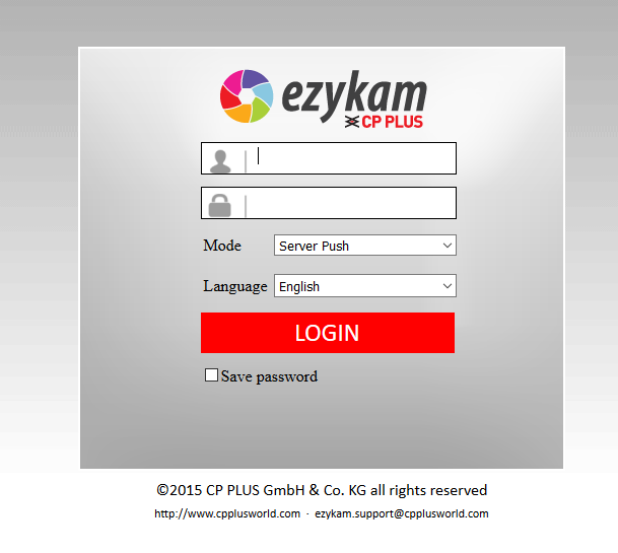
Install the EzykamOCX for the first time login; you will get tips after enter user and password in login page.
Download the EsykamOCX file, and then double click to install it automatically.
After EzykamOCX installed fully, and then input the user and password to login the camera.
14
2.6. For other Browsers, e.g., Safari, Firefox, Chrome, there is no need to install
the ActiveX control, see below:
User can input the IP address in the other browsers, select the view mode such as Server Push; VLC, Quick time to
view
If User cannot find the correct IP address, the default IP address for each camera is 192.168.1.155. You can run the
browser, and input the IP address directly into your browser to login to the camera.
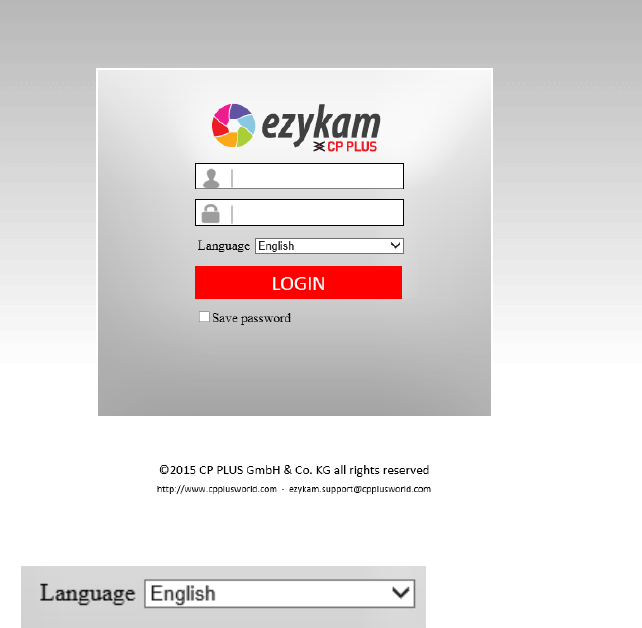
NOTE: If the IP segment of the computer is different from the camera, such as 192.168.0.xx, please change the IP
segment of the computer’s to the same as camera’s, such as 192.168.1.xx, then connect the IP Camera to the computer
via network cable directly, run the browser, input the IP address and the login screen below will pop-up:
15
3. SOFTWARE OPERATION
3.1. Software operation for IE Browser
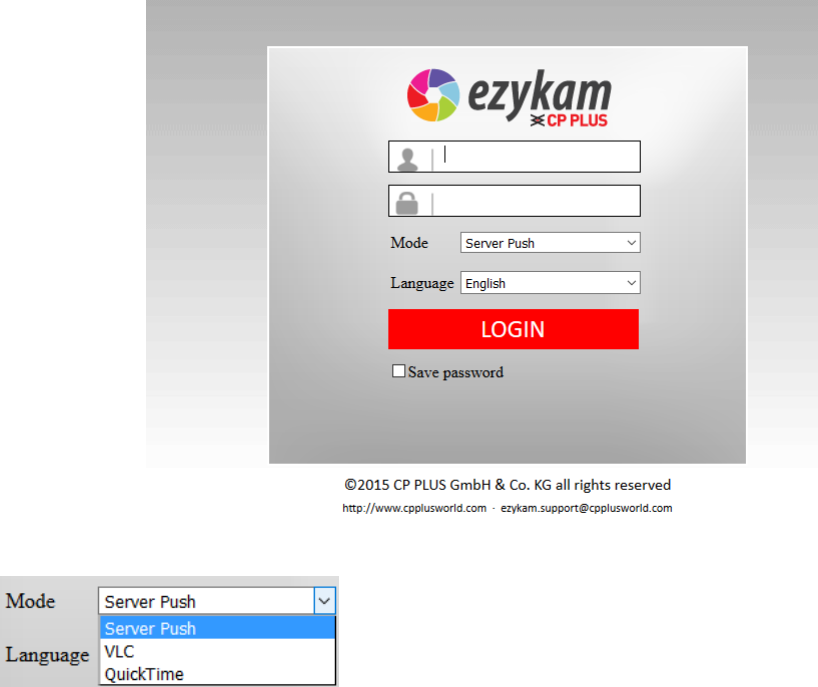
Choose your desired language, input correct user name and password, and then click “Login”
User name: admin Password: admin,
: Choose languages here
16
3.2. Software Operation for Chrome, Firefox, Safari:
Choose the suitable language, input correct user name and password, and then click “Login”
User name: admin Password: admin
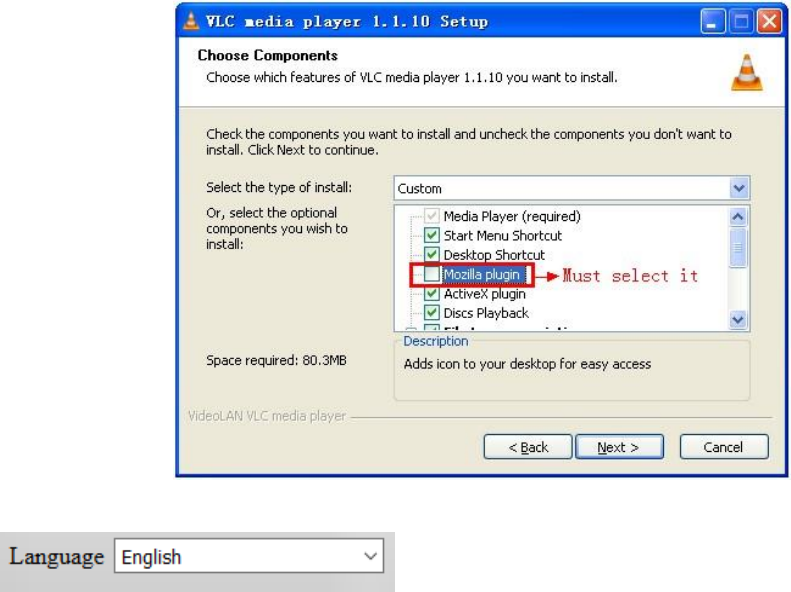
Choose the login mode.
QuickTime: Choose QuickTime, login to the camera directly. If there is prompt for installing the QuickTime player,
just download and install it.
Sever Push: For Firefox, Chrome, or Safari browser.
VLC: If you use VLC, should download the VLC player first.
During the VLC installation, you must enable Mozilla plug-in as the picture shows below:
17
: Choose languages here
18
Figure 2.3
19
3.3. Functions
3.3.1. Three main functions (For IE):
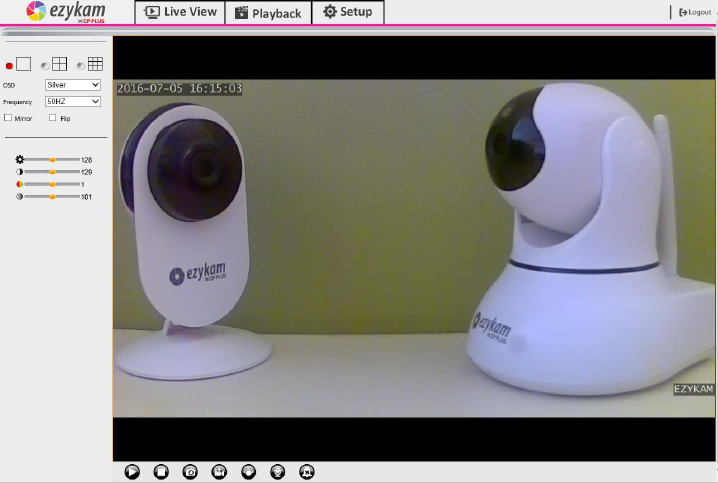
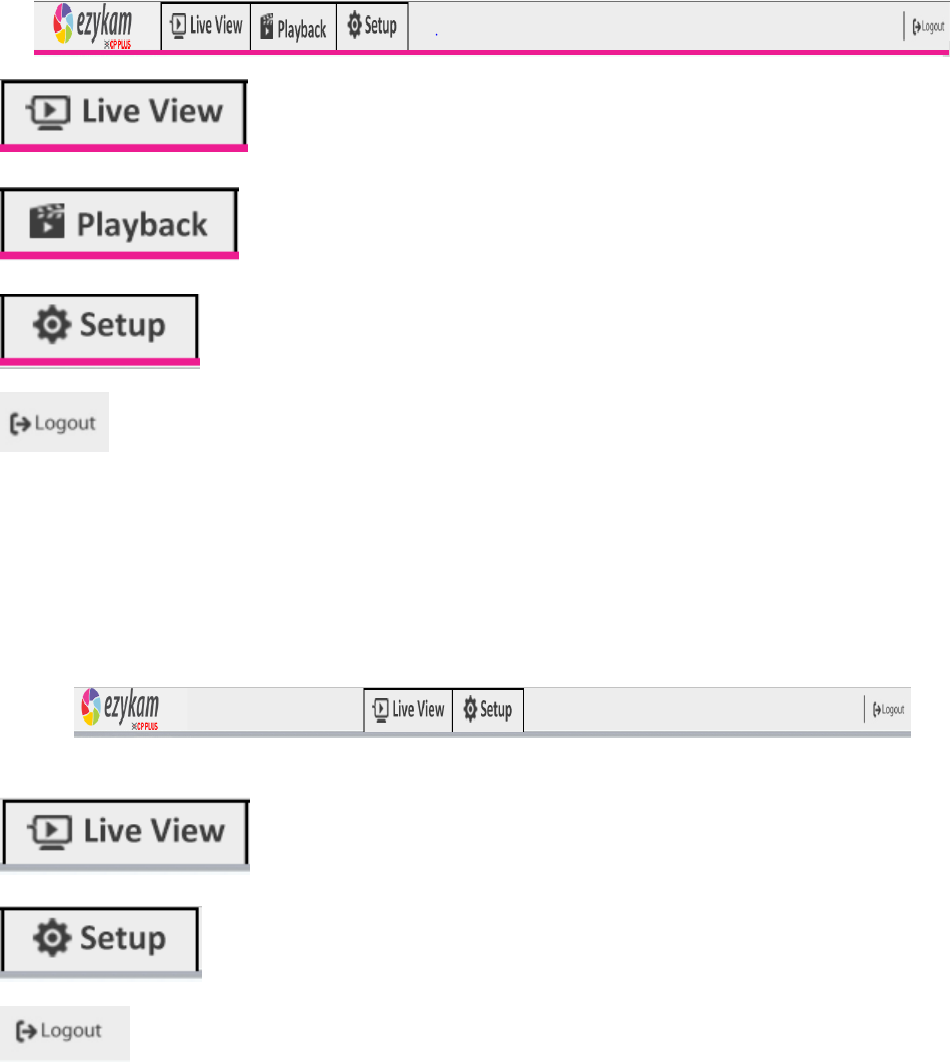
: Click it, back to live video window from “Playback” or Setup”.
: Click to query and playback the video files (Details see 5 Playback)
:Setting the camera’s parameters (Details see 4 Setup)
: You will back to the login page.
3.3.2. Two main functions (For Safari, Chrome, Firefox)
: Click it, back to live video window from “Playback” or “Setup”
:Setting the camera’s parameters (Details see 4 Setup)
: You will back to the login page
20
3.4. For Live Video (for IE browser)
3.4.1. Video Menu:
1.1.1. Video Menu:
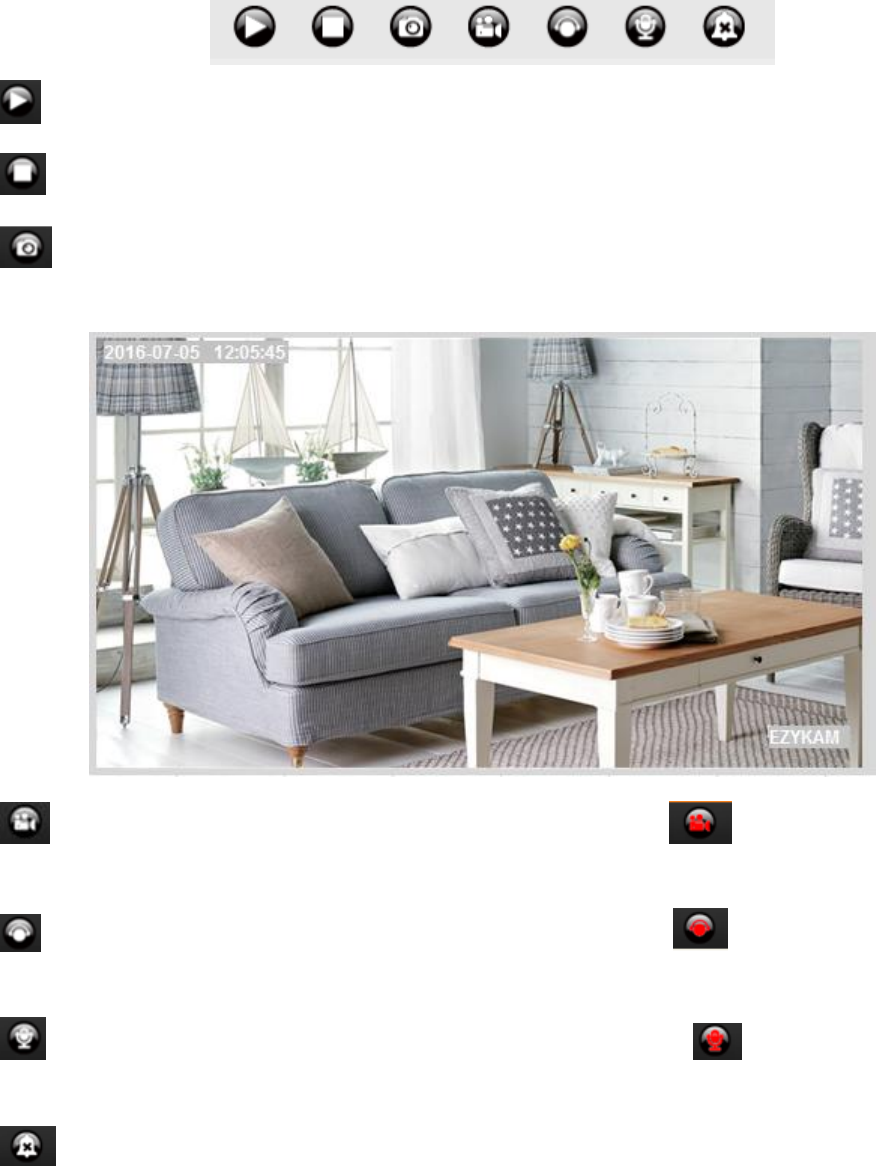
Play: Play the live video.
Stop: Stop the live video.
Snapshot: Click to take snapshot, the picture be saved in the PC to its appointed path as JPG format, and
pop-up the prompt as below :( you can click “Save” to save the snapshot)
Record: Click to start record manually; the icon will change to green color. Record file will be saved in
the PC to its appointed path as AVI format. Click it again, will stop record function.
Audio: Click it to enable listen function, the icon will change to green color can hear the live audio from
camera via PC if audio is ON. Click it again, will stop listen function.
Talk: Click it to enable talk function, the icon will change to green color can talk between PC and
camera if audio device connected. Click it again, will stop talk function.
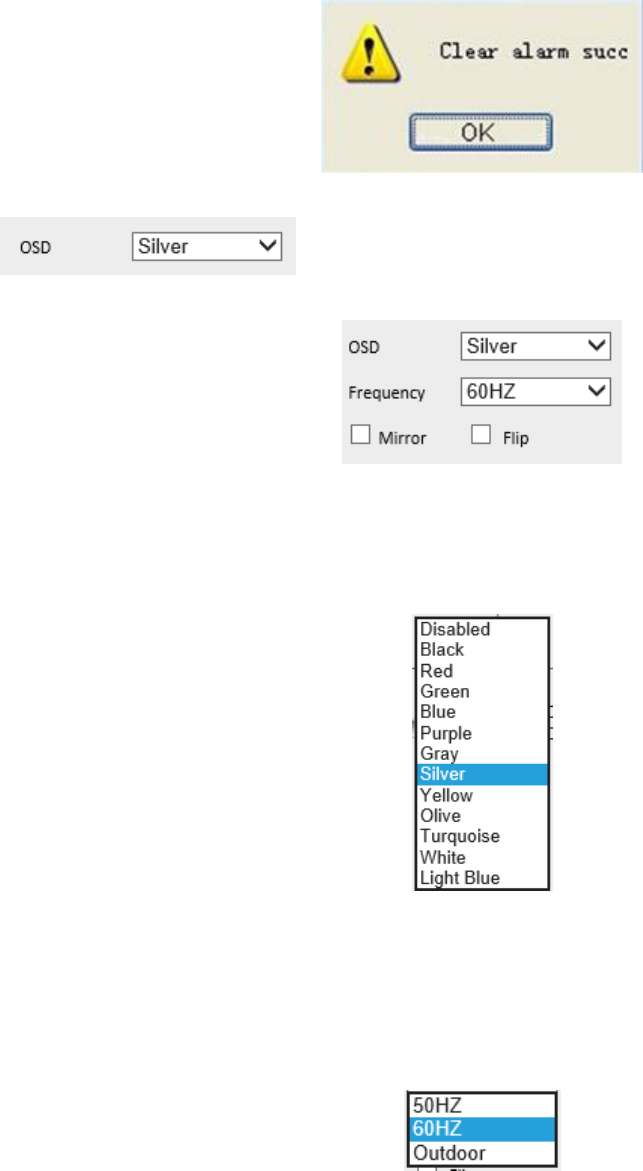
Clear Alarm: Click to stop the alarm manually when there is an alarm triggered, and pop-up prompt as below:
21
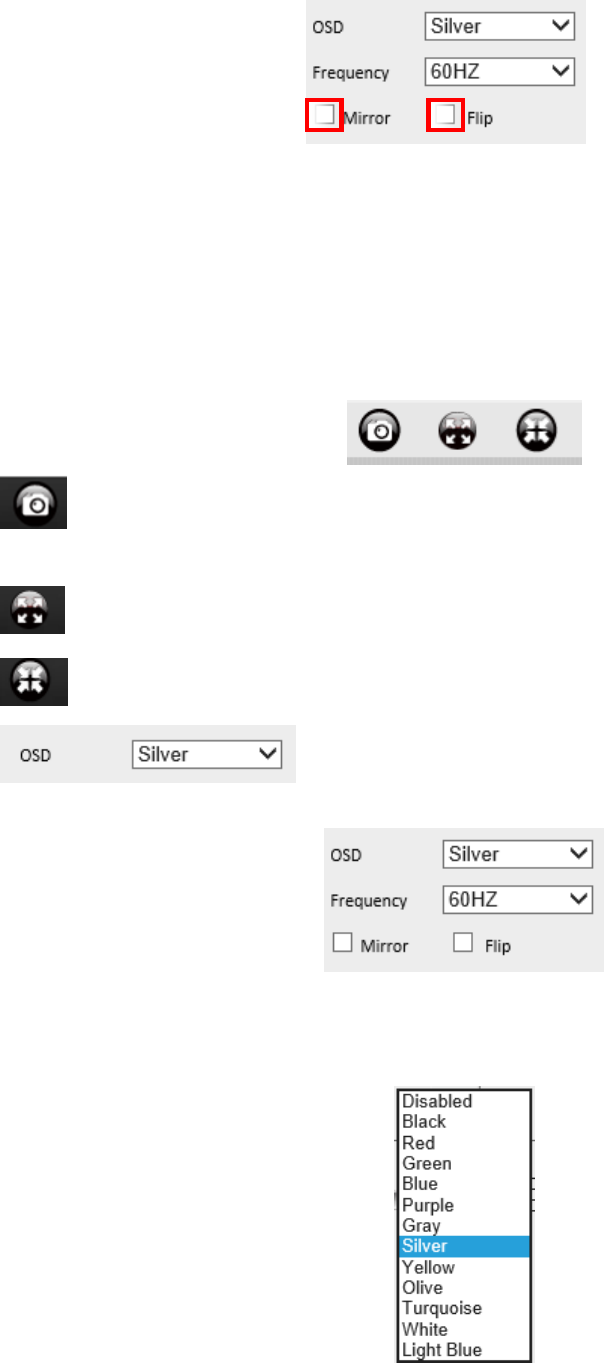
OSD Settings: Click it will pop-up the OSD settings interface, including OSD
Color, Frequency, Image Mirror and Flip.
OSD: Means “On-Screen Display”
OSD Color: Including Disabled, Black, Red, Green, Blue, Purple, Gray, Silver, Yellow, Olive, Turquoise, White, Light
Blue etc.
Frequency: Including 50HZ, 60HZ, Outdoor.
50HZ/60HZ for the users who use 50HZ/60HZ frequency, outdoor for the users who want to use this camera to monitor
an outdoor environment (through a window).
NOTE: The camera should only be used in an indoor environment
Mirror and Flip
Mirror: Select this checkbox to see a mirror image. Uncheck it to go back to normal.
Flip: Select this checkbox to flip the image upside down. Uncheck it to go back to normal.
22
NOTE: You can choose Mirror and Flip function if you set up the camera in a special position, upside down for
example.
3.5. Live Video for Safari, Chrome, and Firefox:
3.5.1. Play Menu for QuickTime Mode:
Capture: Click to take snapshot, the picture be saved in the PC to its appointed path as JPG format, will
pop-up the snapshot, right click the picture to save it.
Full screen: Click to have full screen view;
: Click to exit full screen.
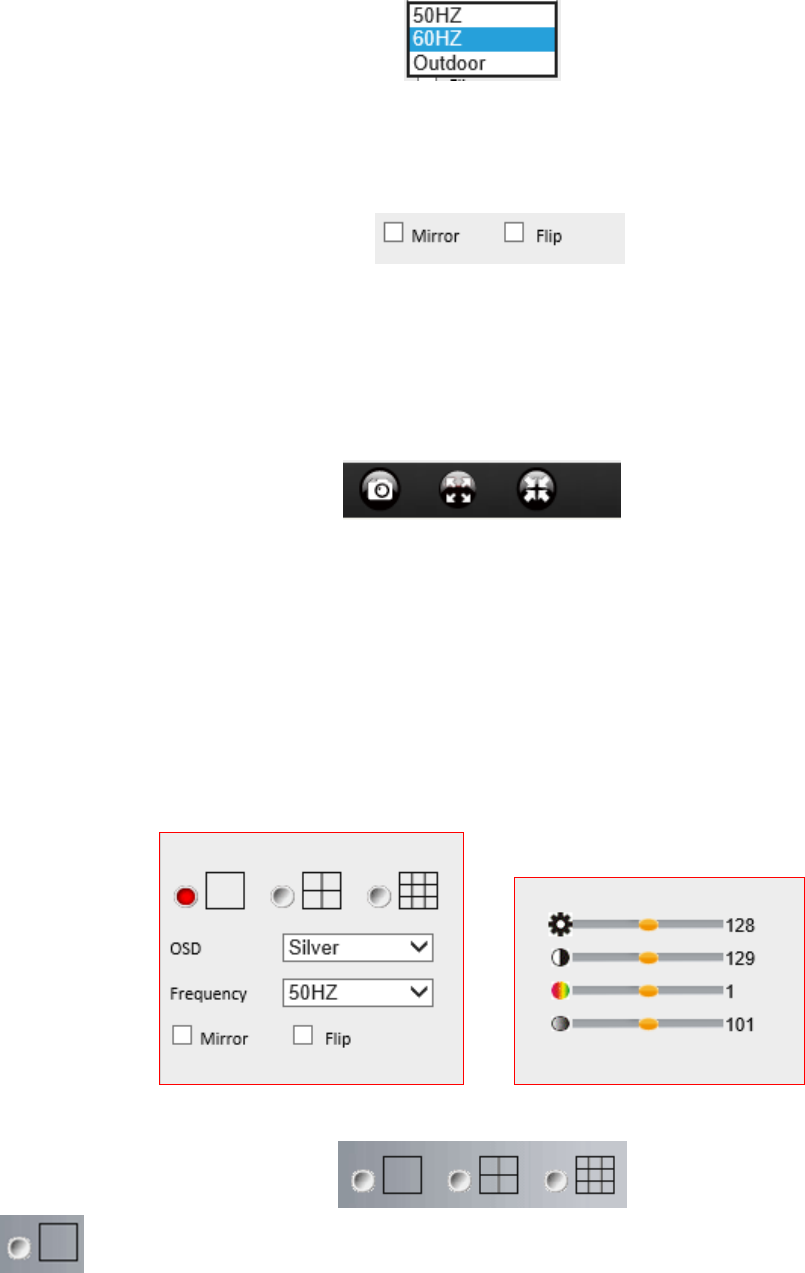
OSD Settings: Click it will pop-up the OSD settings interface, including OSD
Color, Frequency, Image Mirror and Flip.
OSD: Means “On-Screen Display”
OSD Color: Including Disabled, Black, Red, Green, Blue, Purple, Gray, Silver, Yellow, Olive, Turquoise, White,
Light Blue etc.
Frequency: Including 50HZ, 60HZ, Outdoor.
50HZ/60HZ for the users who use 50HZ/60HZ frequency, outdoor for the users who want to use this camera to
23
monitor an outdoor environment (through a window).
NOTE: The camera should only be used in an indoor environment.
Mirror and Flip
Mirror: Select this checkbox to see a mirror image. Uncheck it to go back to normal.
Flip: Select this checkbox to flip the image upside down. Uncheck it to go back to normal.
NOTE: You can choose Mirror and Flip function if you set up the camera in a special position, upside down for
example.
3.5.2. Top Menu for VLC Mode:
This will be the same as 3.3.1 TOP Menu for QuickTime Mode.
3.6. Left Side Menu:
3.6.1. Left Side Menu for IE browser
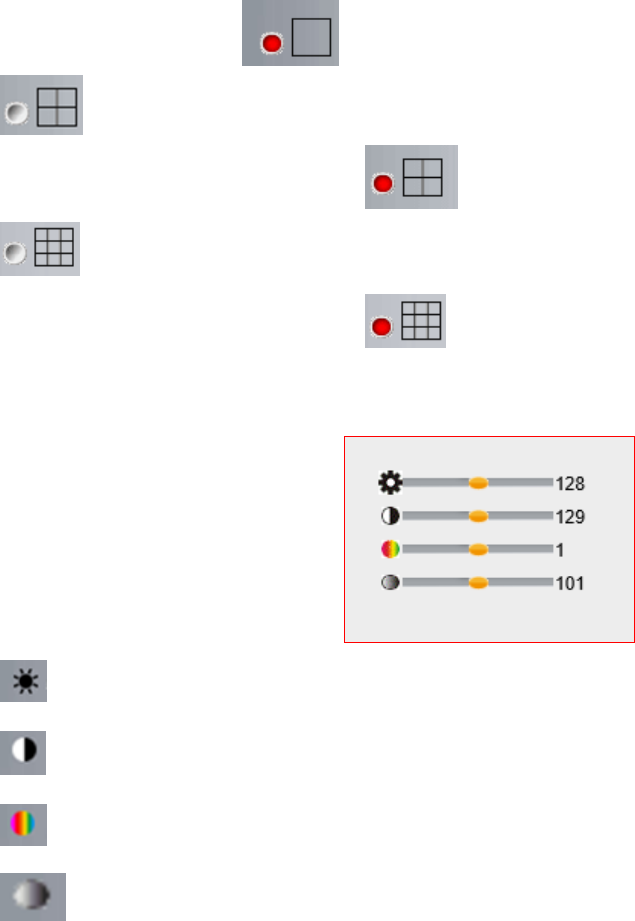
There is some basic operation icons listed on the left side menu as below:
Click this one, you can view the main channel of the camera you login to, move the mouse to the icon, the
24
frame will change to red color .
Click this one; you can view 4 Channels of cameras that are connected, from CH1 to CH4. Move the mouse
to the icon, the frame will change to red color .
Click this one; you can view 9 Channels of cameras that are connected, from CH1 to CH9. Move the mouse
to the icon, the frame will change to red color .
NOTE: If you want to view 4/9 channels, you should set the Multi-Device firstly (See section 4.13 Multi-Device
Settings).
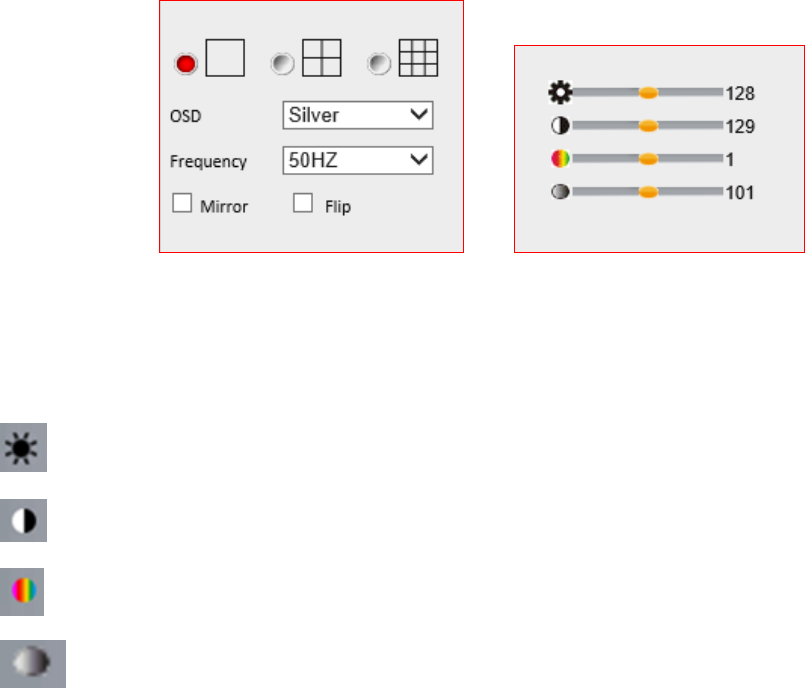
Brightness: set value from 0 to 255, click the icon, it will change back to the factory settings.
Contrast: set value from 0 to 255, click the icon, it will change back to the factory settings.
Hue: set value from -128 to 127, click the icon, it will change back to the factory settings.
Saturation: Set video saturation here.
25
3.6.2. Left Side Menu for Safari, Chrome, Firefox:
There is some basic operation icons listed on the left side menu as below:
Figure 4.4
Brightness: set value from 0 to 255; click the icon to go back to the factory settings.
Contrast: set value from 0 to 255; click the icon to go back to the factory settings.
Hue: set value from -128 to 127; click the icon to go back to the factory settings.
Saturation: Set video saturation here.
26
4. Setup
4.1. Status Device Info.
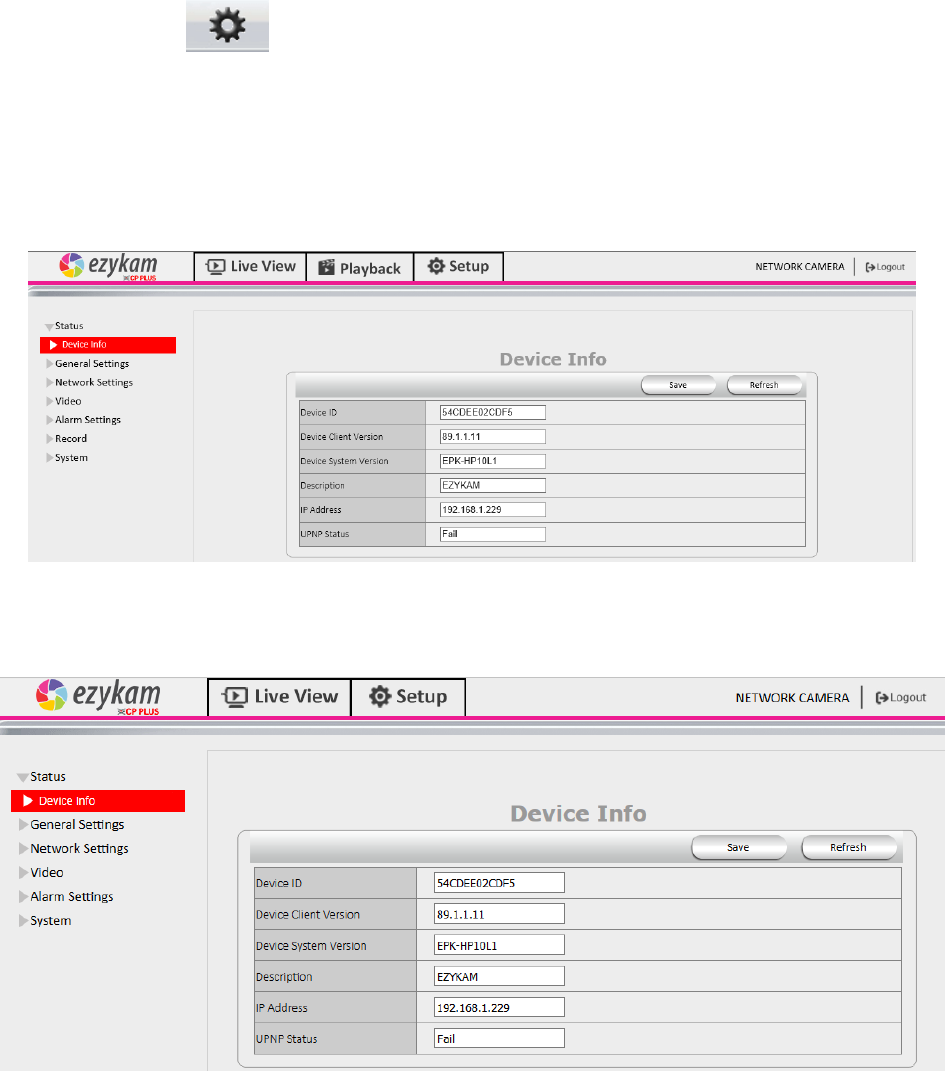
Click “ Settings” icon select “Status”, it will show the basic information such as “Device ID”, “Device
Client Version”, “Device System Version”, “Description”, “IP Address”, “UPNP Status”, “DDNS Status” etc.
Default device name is “IP Camera”, users can change the camera’s description here, picture as below:
4.1.1. For IE, camera will show as below:
Figure 4.7
4.1.2. For Safari, Chrome, Firefox, camera will show like picture as below:
Figure 4.8
27
4.2. General Settings
4.2.1. User Permission
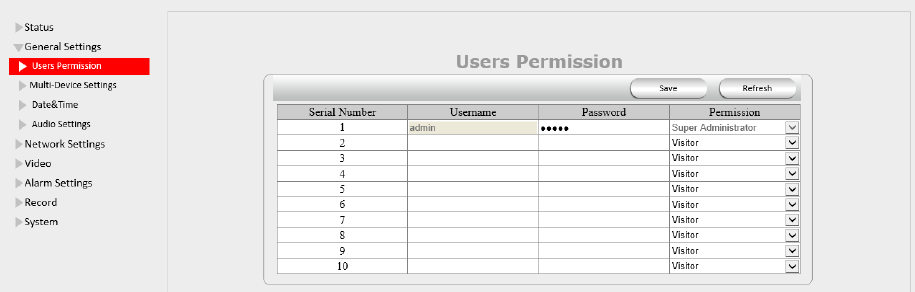
User can set 10 different usernames and passwords for different permission; Permission: Administrator, Operator;
Visitor;
Super Administrator:Every device has a super administrator, it has the highest permission, can set all the parameters.
Administrator:Lower permission than super administrator, it can set most of the parameters except adding or editing
other administrator accounts.
Operator: Lower permission than administrator, can do some operation such as pan/tilt control and set some
parameters.
Visitor: The lowest permission, only can view live video, can’t control the pan/tilt, parameter settings etc.
28
4.2.2. Multi-Device Settings
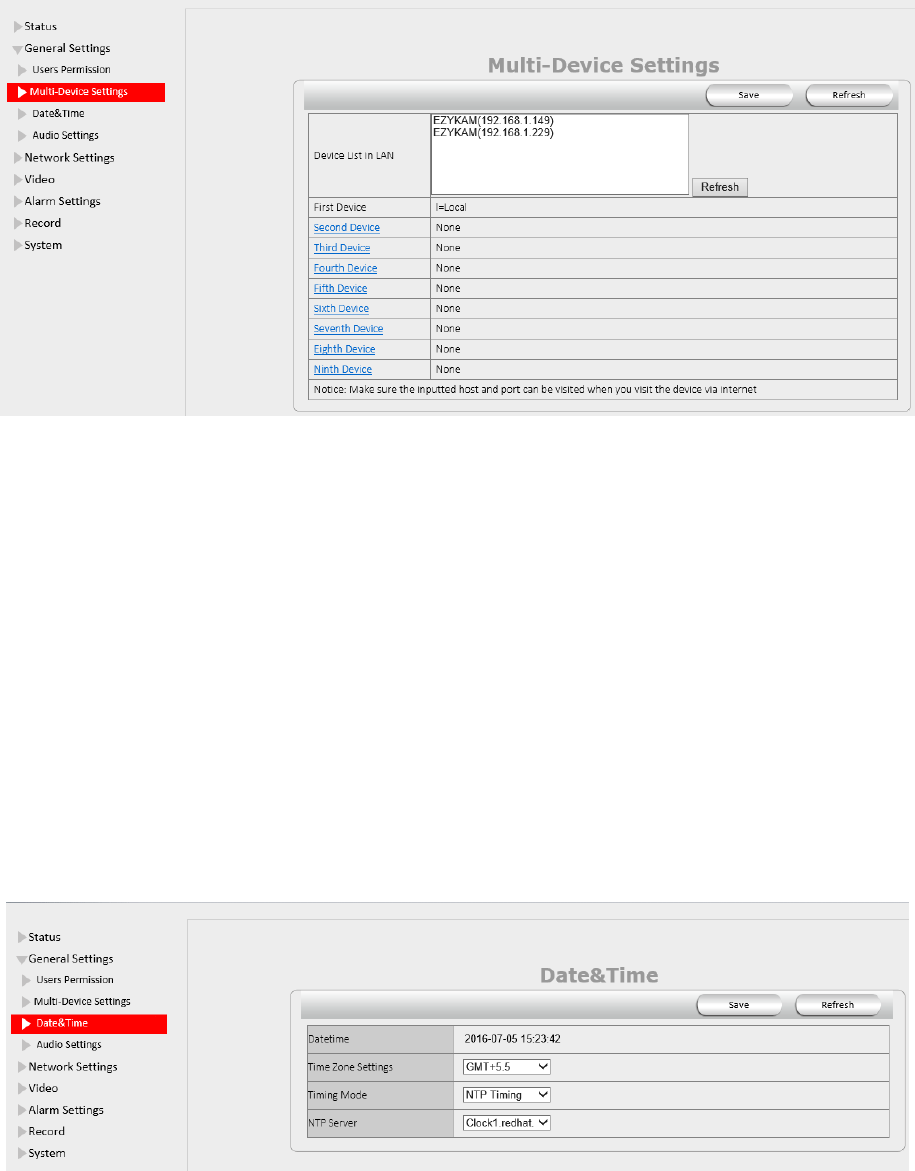
Note: Multi-Device only can be set under IE Browser, for Firefox, Safari, Chrome, you cannot see these setting, as they
do not support ActiveX.
Click “Multi-Device Settings” to enter the interface:
If you have more cameras in same LAN network, software can auto-detect them and list in “Device List in LAN”
Enable the channel you want to add; Choose the IP, input host(for camera in different network, you will need to input
external ip address/DDNS address), web port, media port, username, and password manually, click Add to submit.
4.2.3. Date & Time
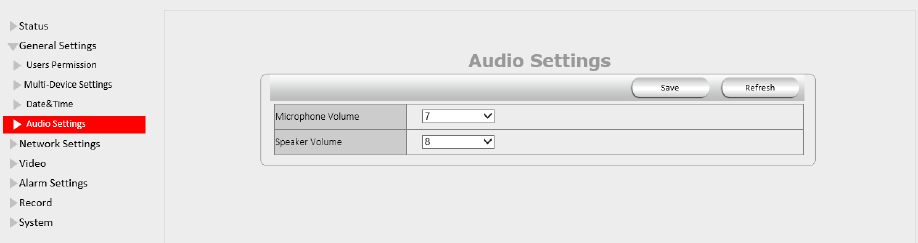
Date Time: Display the current date and time
Time Zone: Set the current time zone Select the working time server.
Time Mode: Can choose PC Time or NTP Time.
PC Timing: Camera will set the time the same as your PC.
NTP Server: User will need to select a working time server, and select the time zone.
29
4.2.4. Audio Settings
External Headset: User need to enable this feature, and connect external audio device like speak, Mic. So that this
feature work.
Built-in Headset: This means the built-in Headset port; with located in the cable. User can connect to the audio
devices;
Microphone Volume: User can adjust the volume of Microphone.
Speaker Volume: User can adjust the volume of Speaker.
30
4.3. Network Settings
4.3.1. IP
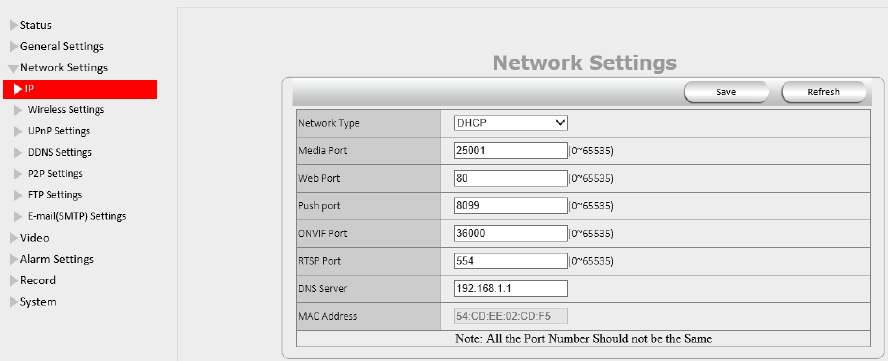
Network Type: User can set Dynamic Address to obtain IP directly from router, or set a Static IP manually.
Media Port: User can set the Media port to transfer video if need to view camera remotely. (Work with DDNS or
external IP)
Web Port: User can set the web port to transfer video if need to view camera remotely. (Work with DDNS or external
IP)
ONViF: User can set ONViF port to work with other ONViF device like NVR Etc;
RTSP Port: Default 554;
DNS server: User can change DNS IP settings.
4.3.2. Wireless Settings
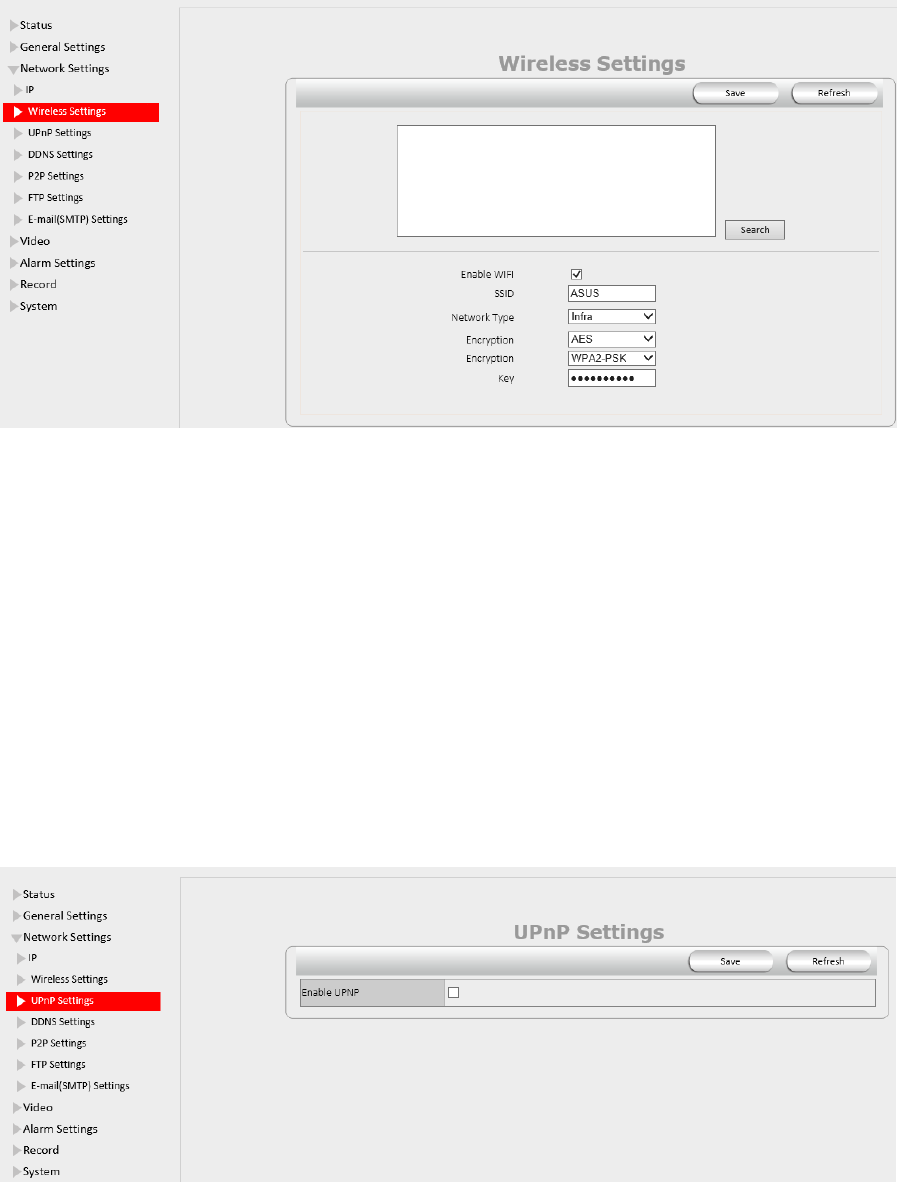
Click the icon “Search” to scan the wireless network in this environment automatically.
Using Wireless LAN: Set WI-Fi ON/OFF.
SSID: the ID of Wireless network, it should be the same SSID as the connected Wi-Fi router.
Network Type: Two modes:
1. Infra (Infrastructure Mode), if using normal AP, choose Infra mode.
2. Ad-Hoc Mode. If using point-to-point transmission, choose Ad-Hoc mode.
The factory setting is Infra.
● Encryption: WEP, TKIP, AES optional.
● Authentication: WEP: Open System or Share Key. TKIP (AES): WPA-PSK or WPA2-PSK.
● Select Key: Choose the channel of WEP share Key.
● Key: Input the key the same as the settings in your router.
All the Wi-Fi encryption mode settings should be the same as your Wi-Fi router, and different encryption has different
authentication menu.
31
4.3.3. UPnP Settings
Enable UPNP: Set UPNP function ON/OFF.
Select it to enable UPNP, then the camera will do port forwarding automatically.
It’s helpful for using DDNS, if your router support UPNP, then you no need do port forwarding in router.
NOTE: Here UPNP only for port forwarding now. It has much relation with security settings of your router; make sure
the UPnP function of router is ON.
ATTENTION: If your router doesn’t support UPNP function, it may show error information. So we recommend you do
port forwarding manually in your router.
4.3.4. DDNS Settings
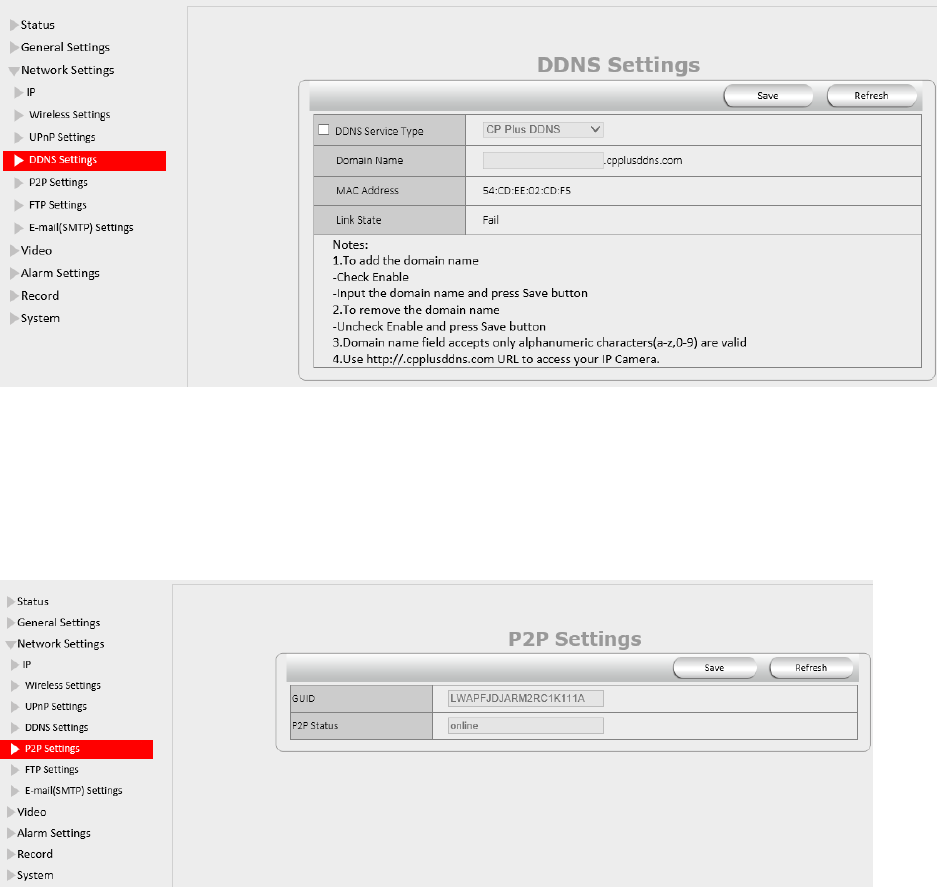
There are 2 options:
CPPlus DDNS: This domain is provided by CPPlus.
Third Party DDNS: This domain is provided by a 3rd party, such as Dyndns, 3322 etc.
● Enable DDNS: Set DDNS function ON/OFF.
32
● DDNS Server Type: Set DDNS server type, such as factory DDNS or third party DDNS server provider.
● DDNS User: Registered user name from DDNS server. (If you use factory DDNS, it can’t be modified.)
● DDNS Password: Registered password from DDNS server. (If you use factory DDNS, it can’t be modified.)
● DDNS Host Name: Domain name set by user. (If you use factory DDNS, it can’t be modified.)
For the third party DDNS, you have to register an account first, keep the user, password, host, then input it.
NOTE: Only one DDNS can be chosen, for example, if you use manufacturer’s DDNS, the 3rd one won’t work, if you
use a 3rd DDNS, the manufacturer’s one won’t work.
4.3.5. P2P Settings
Ezykam will provide P2P GUID for free using.
33
4.3.6. FTP Settings
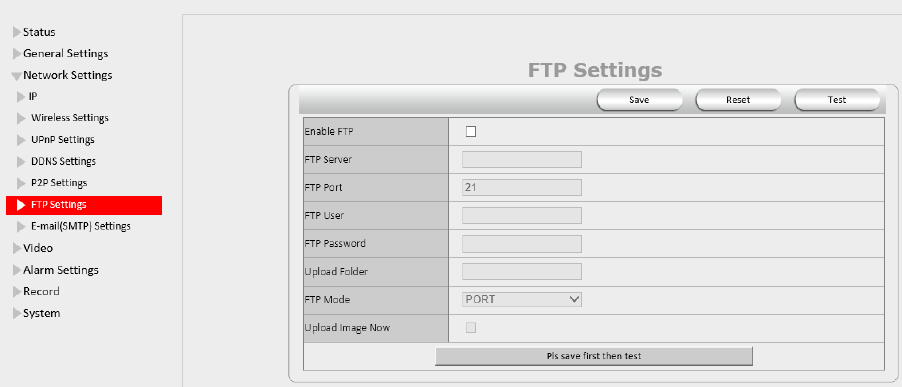
Set FTP service, Snapshots will be delivered to appointed FTP server when alarmed.
Enable FTP: Set FTP function ON/OFF.
FTP Server: Set FTP server address.
FTP Port: Set the port of FTP server, default is 21.
FTP User: Set the user name of FTP server.
FTP Password: Set the password of FTP server.
Upload Folder: Set the path of remote FTP server. Make sure that the folder you plan to store images exists. (The
camera cannot create the folder itself). Also, the folder must be erasable.
FTP Mode: It supports standard (POST) mode and passive (PASV) mode.
Click saves to submit, click test to check the settings.
NOTE: When alarmed, there will be 3 snapshots sent to the FTP server every 1 second
4.3.7. E-mail (SMTP) Settings
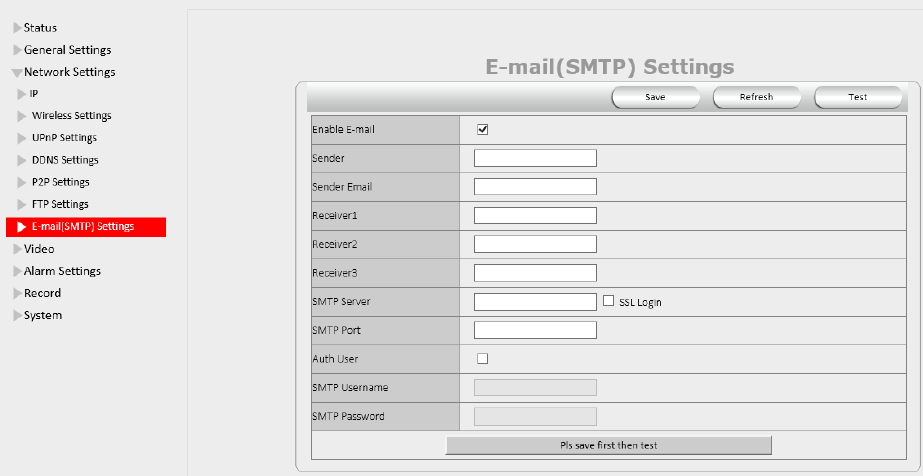
Enable Email: Set e-mail function ON/OFF.
Sender: Set sender’s name or email address
Sender’s email: Set sender’s email address.
Receiver: Set receiver’s email box. (Supports 3 receivers’ emails simultaneously)
SMTP Server: The sender address SMTP server.
SMTP Port: The sender’s SMTP Port usually is 25, some SMTP servers have their own port, e.g., the smtp port for
Gmail is 465.
Auth User: Verify the user settings.
SMTP Username: Set sender’s user name or email address.
SMTP password: Set sender’s email address password.
Note: User can save the settings first, then click Test button to see if settings working. If not, please double check your
34
settings or spelling.
35
4.4. Video
4.4.1. Video Info
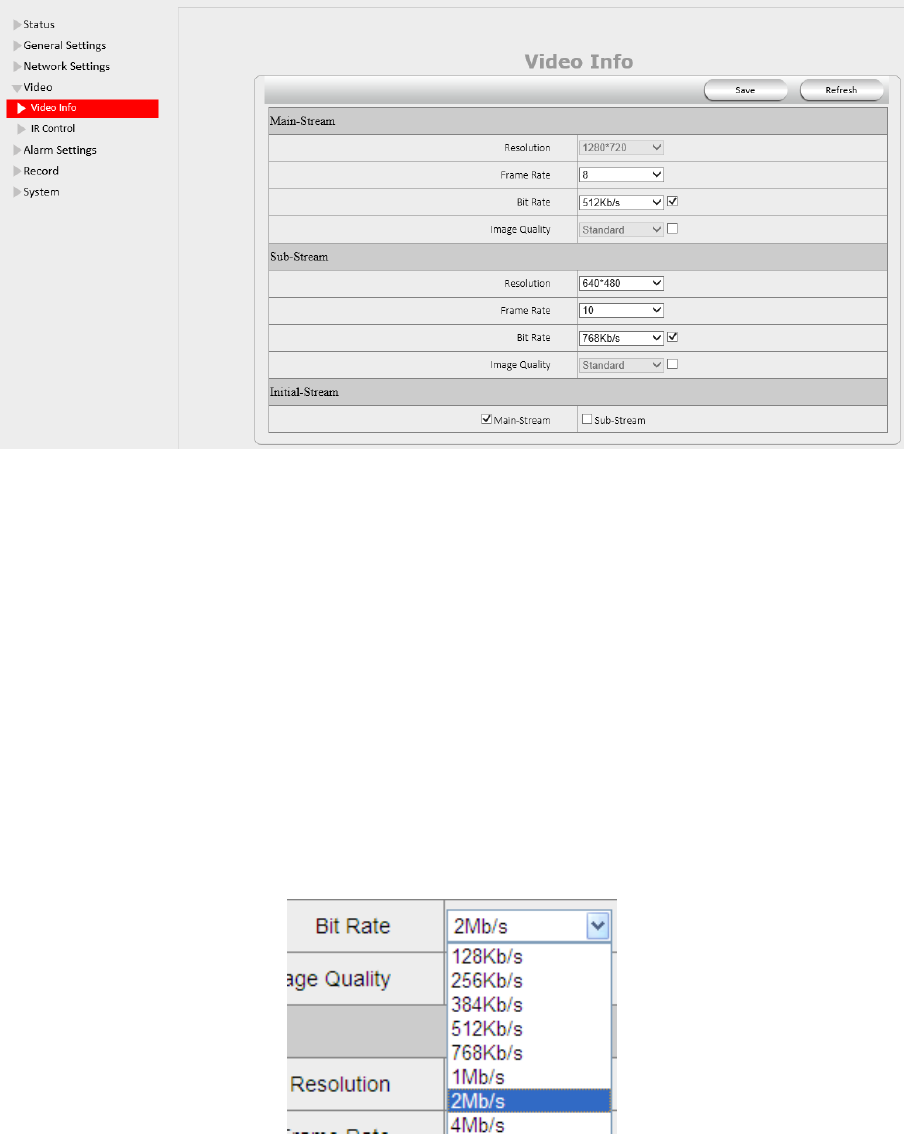
Click “Video Info” to enter the interface as below:
There are two options for stream, Main-Stream and Sub-Stream, you can set the stream based on the actual operation
environment, for example, if the bandwidth is good enough, set Main-Stream as Initial-Stream, or choose Sub-Stream if
better.
Set the parameters of Main-Stream and Sub-Stream as below:
Resolution: 1280 x 720, 640 x 368, 320 x 208 optional.
Frame Rate: Set the frame rate according to the bandwidth. Frame rate could be “Auto” or “from 1 fps to 30 fps (Real
time)”. If the network situation is not ideal, you can reduce the frame rate to control the coding rate, make the moving
pictures smoother.
Bit Rate: Higher bite rate means better quality images, but takes more bandwidth, so adjust the settings according to the
actual bandwidth available. The range of bit rate from 128 Kbps ~ 4 Mbps.
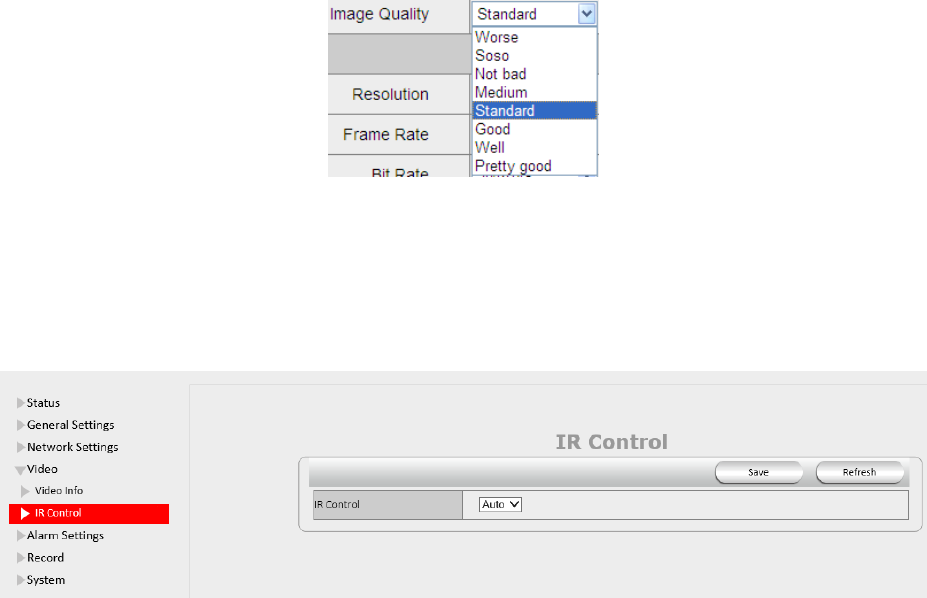
Image Quality: Better image quality, higher bit rate value, but it will take more bandwidth, the image quality
parameters could be set as below:
36
NOTE: When the device runs, only can select Bit Rate or Image Quality either.
4.4.2. IR Control
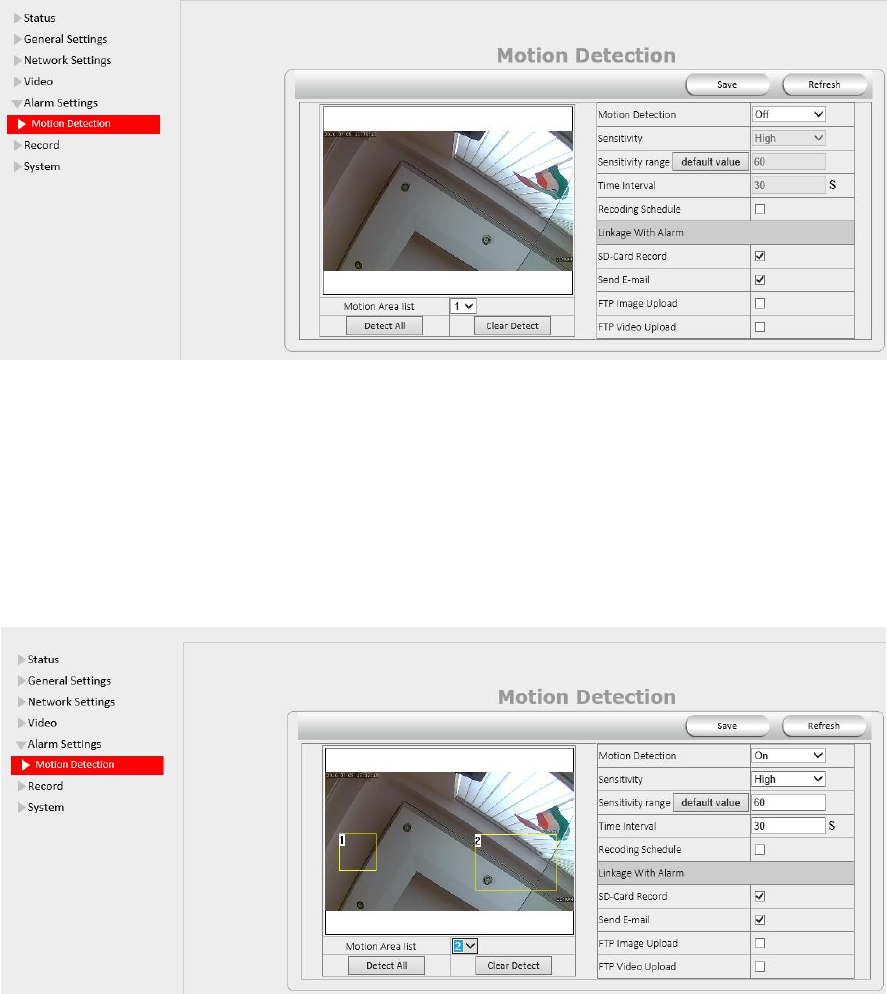
Here you can control IR for night mode
37
4.5. Alarm Settings
4.5.1. Motion Detection
Motion Detection Zone Armed:
Can set all zones to be armed, or a specified zone armed.
Before setting a specified zone, you should set "Motion Detection" to "ON", then press left mouse, drag the mouse
onto video area to set the detection zone, and save it, supports 3 areas.
Detect All: Setting the whole video window as the motion detect armed zone.
Clear Detect: Clear all armed zone.
Motion Detection: Set motion detection armed function ON/OFF.
Sensitivity: Set detection sensitivity as Low, Middle, High, Higher, and Highest.
Alarm Duration: Set each alarm duration, can be forever, 5s, 10s, 15s, 30s, 60s.
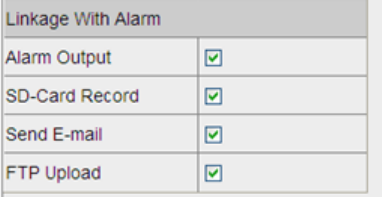
Action with Alarm: These are linkage actions optional for motion detection. User can select the alarm relative
alarm convince to them.
Alarm output: Select it to enable alarm output, unselect to stop.
38
SD-Card Record: Select it to enable record to SD card, unselect to stop.
Send E-mail: Select it to enable E-mail alert function, unselect to stop.
FTP Upload: Select it to enable FTP upload function, unselect to stop.
Click Save to save all the settings.
Click Update to refresh the settings.
39
4.6. Record
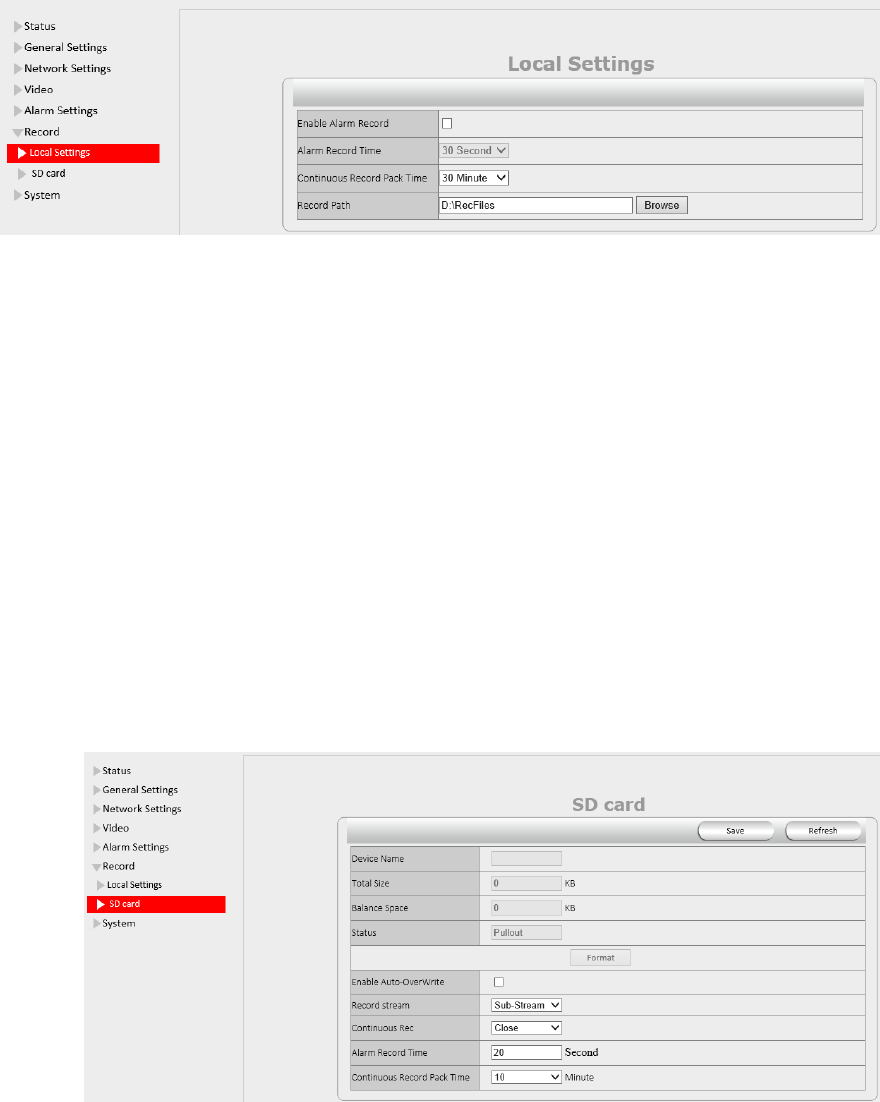
4.6.1. Local Settings
Note: This feature will suitable for IE only, as other browsers not support IE activeX.
Enable Alarm Record: Camera will record to the path user set when Alarm happens.
Alarm Record time: User can set the record time when Alarm happens. Such as 2 mins.
Manual Record Pack time: User can set the manual record time, such as 2 hours. Once click the “Record” button
under the live video screen, camera will record as long as user set.
Path: This belongs to the PC path, user can set the PC path to store all records.
4.6.2. SD Card info
Device Name: Display the name of SD card.
Total Size: Display the total size of SD card
Balance Space: Display the free space of SD card
Status: Display the state of SD card.
Format: Click it to delete all data and format the SD card. (All data will be lost if formatted).
Open Auto cover: Set SD card auto cover when it’s full.
Open Pre-recording: Set Pre-recording function (Record the video before alarm triggered).
Pre-recording Time: Set the Pre-recording time, can be from 1 to 6 seconds.
Record Stream: Choose the stream here: Main Stream and Sub Stream.
40
4.7. System
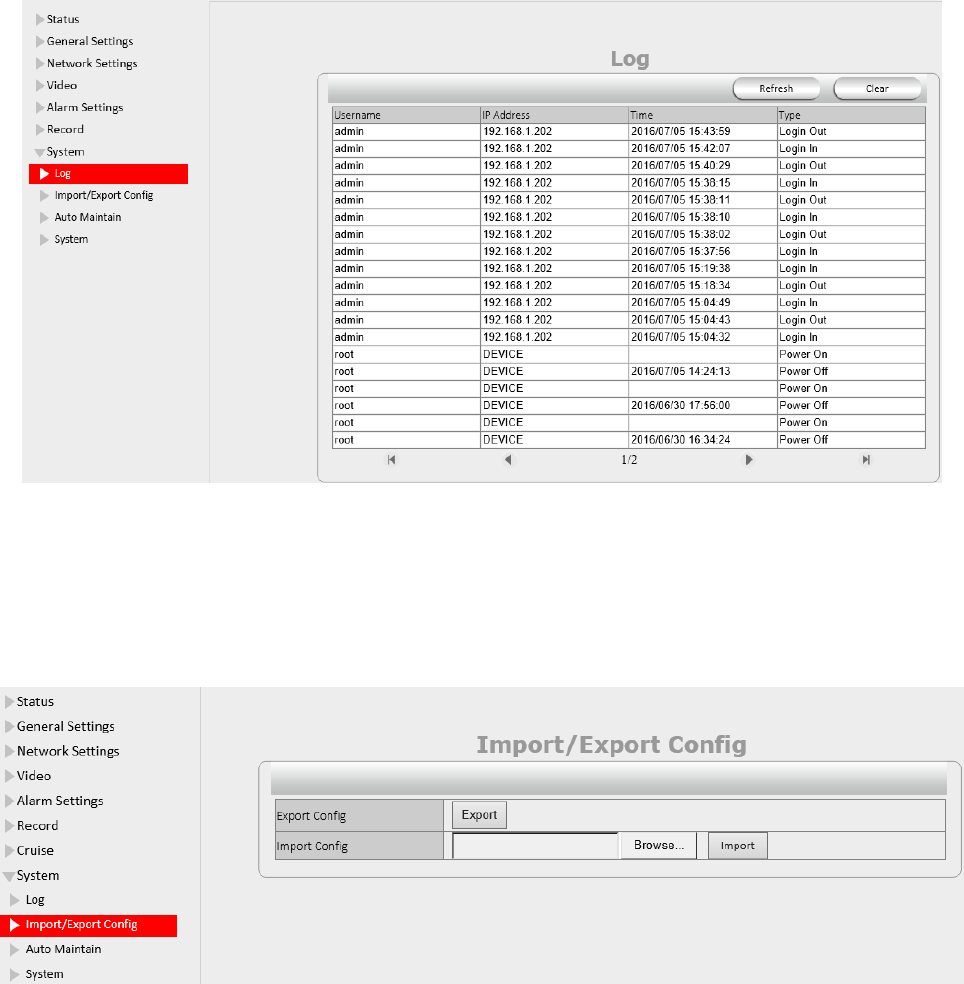
4.7.1. Log
Log provides information of camera, login, log out, alarm, power on/off etc;
4.7.2. Import/Export Config
Import/Export Config provide us to copy complete configuration setting of one camera to another
camera.
41
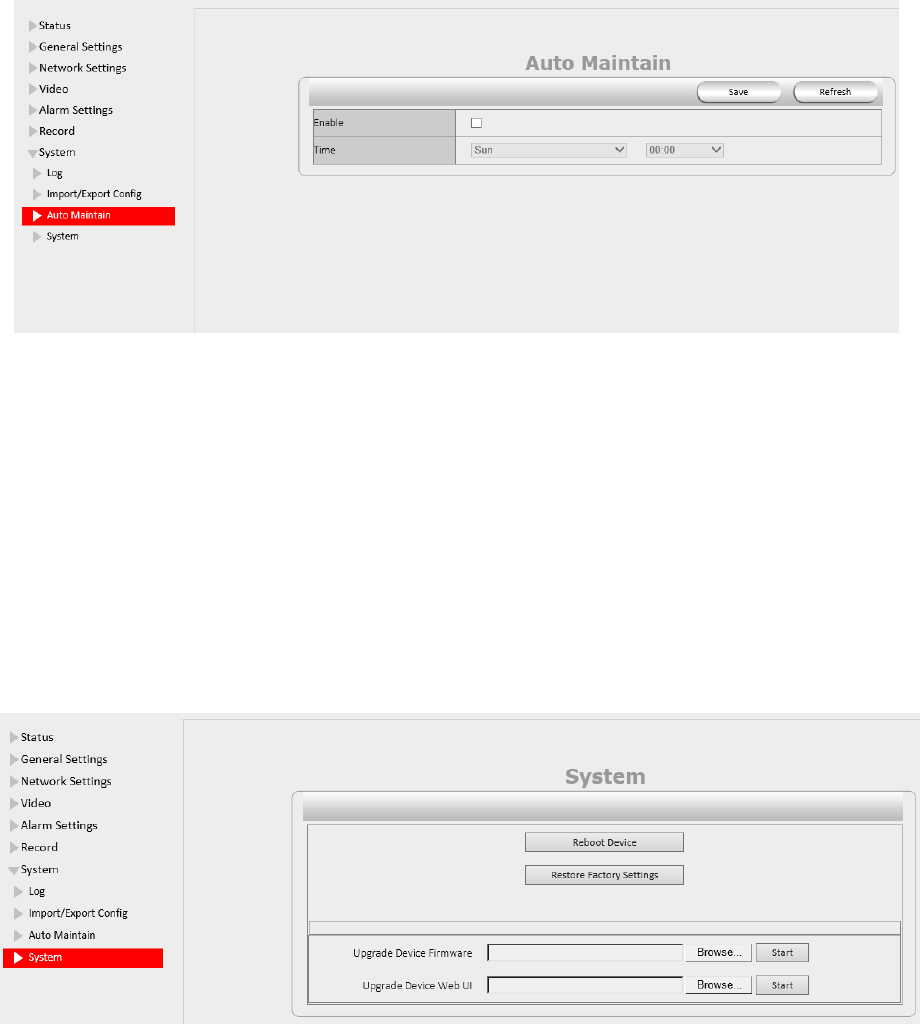
4.7.3. Auto Maintain
Auto Maintain provides an auto protection of hardware; Set a time such as 24:00; Then camera will auto reboot; and
refresh the hardware performance.
4.7.4. System
Reboot Device: Camera will get reboot.
Restore factory settings: User can restore factory settings once forget password, settings etc.
Upgrade Device Firmware: To upgrade or degrade the camera firmware. (The firmware needs to store in the same
camera you are viewing camera.)
Upgrade Device Web UI: To upgrade or degrade the camera web UI. (The firmware needs to store in the same camera
you are viewing camera.)
42
5. PLAYBACK for IE browser only
Note: Playback function shows under IE ActiveX mode only. Other browsers not support this feature.
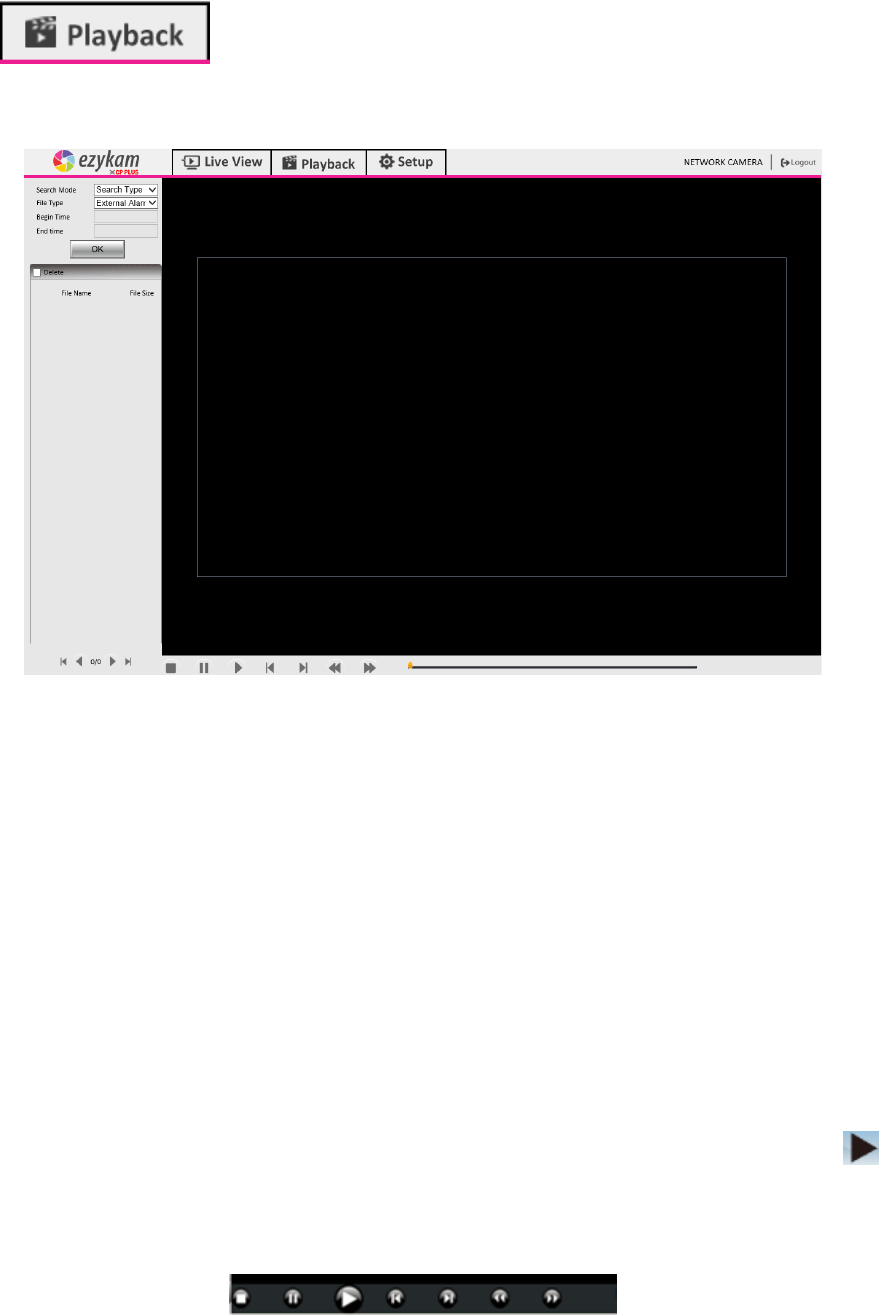
Click login the playback interface, this is for SD Card files playback. So If User not
have SD card in the camera or not have any file in SD card, will not work.
Search Mode: User can search the record, snapshot.etc by different methods.
Search Type: External Alarm and Motion detection optional; Select External Alarm; Camera will search the
alarm file from External alarm which comes from other device; Select motion detection, Camera will search
the alarm file from motion detection.
Search All: Camera will search all file in SD Card.
File type: External Alarm and Motion detection optional. This option works only work when user select
Search Type from Search mode
Begin Time and End Time: This feature work when user select Search Time from Seach mode; Select a begin
time, and end time, camera will search these files in the time area.
Click “OK” icon, will pop-up a window for search file, set the mode or time, click OK to submit, then all the
correlative files will be listed on the left side.
After searching, files will be listed on the left side window, choose the file, double click it or click play icon to
start replay. Users can check the replay file information here; do other operation such as Stop, Pause,
Previous, Next, Fast Backward, Fast Forward etc.
43
6. FREQUENTLY ASKED QUESTIONS
1. I have forgotten the administrator username and/or password
There is a [RST] button on the rear panel, keep the power on, hold the reset button for 30 seconds, it will restore back
to factory default settings as below:
Username: admin
Password: admin
NOTE: Please don’t press RST button unless you are sure you want to do it.
2. There is no picture displayed in IE browser (For IE only)
It maybe the ActiveX problem,
If using the IE browser for the first time, you should install the ActiveX control, details as below:
Before login, click the EzykamOCX at the right side of interface to download, save the file, run it to install the ActiveX.
3. Fail to visit IP camera via IE after upgrading (For IE Only)
Solution: Clear the browser buffer.
Steps: Open IE>click “Tools”> “Internet Options”>“General”>“Delete”> “Internet temporary files”, delete the
cookies and temporary files, then click “OK” and re-login.
4. The video is not smooth
Possible reason 1: The frame rate value is too small.
Solution: Increase the frame rate value.
Possible reason 2: Too many users are connecting to the device.
Solution: Close some connection or reduce the video frame rate.
Possible reason 3: Network bandwidth is too low, lots of lost packets.
Solution: Reduce the video frame rate or video compression bit rate.
5. Fail to visit IP camera via IE browser
Possible Reason 1: Network is disconnected.
Solution: Connect your PC to network, check whether the network works well or not. Check if there’s a problem with
the cable connection, or network problem caused by PC virus.
Possible reason 2: IP Address has been occupied by other devices.
Solution: Stop the connection between IP camera and network; connect the IP camera to PC.
Directly reset IP address according to the proper operations recommended.
Possible reason 3: IP addresses are in different subnets.
Solution: Check IP address, Subnet masking and Gateway.
Possible reason 4: Physical address of network conflicts with the IP camera.
Solution: modify the physical address of IP camera.
Possible Reason 5: Web port has been modified.
Solution: Contact as Network Administrator to obtain related information.
44
Possible Reason 6: Unknown.
Solution: Press RESET to restore to factory settings then connect it again, the default IP address is 192.168.1.155,
subnet mask is 255.255.255.0
6. The color of image is abnormal (Green or other color)
Sometimes the IP camera images cannot be displayed properly because of different graphics cards, the images appears
to be green or other colors, then you should run the program “Config.exe” from the downloaded OCT files.
(or run C:\windows\system32\Config.exe) to set the following parameters for the display buffer: auto-detection, used
display card memory or system memory, then run IE, connect IP camera again.
7. There is no voice while monitoring
Possible Reason 1: No audio input connection.
Solution: Check audio connection of the host.
Possible Reason 2: the relative audio option of IP camera is OFF.
Solution: Check audio parameter settings to see if you have set the audio option ON, but without external audio input.
8. Image processing doesn’t work properly
Possible Reason 1: System problem, DirectX function is disabled, which will cause slow display of images and
abnormal color.
Possible Reason 2: Hardware problem, graphics card doesn’t support image acceleration and hardware zooming
functions. (For hardware issue, the only solution is to change your graphics card).
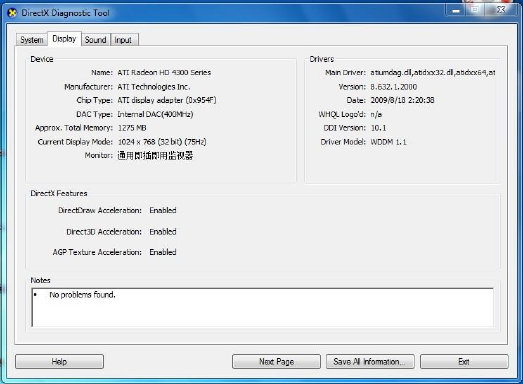
Solution: Install DirectX image driver, then click “Start”>”Run”>input “dxdiag”, set enable "DirectDraw
Acceleration" "Direct3D Acceleration" "AGP Texture Acceleration" functions.
.
Figure 13.0
Note: If you are unable to do it, it means your DirectX is not installed properly or hardware doesn't support this
function.
9. Fail to use DDNS
Possible Reason 1: The PC or IP Camera can’t connect to the internet.
45
Solution: Check the internet connection and settings.
Possible Reason 2: Port forward is not set in router.
Solution: Set the port forward of extranet in router correctly.
For example, if IP Camera address is: 192.168.1.100, Media port is 38401, Web port is 85, factory DDNS is
http://test.aipcam.com.
Set Port forwarding in the router.
This is an important step. You need to set port forwarding in your router, to refer to the IP of your camera correctly, for
DDNS to work. There are so many kinds of routers, so it’s difficult to show fixed steps, but here are some samples of
different router’s port forwarding settings, just for reference:
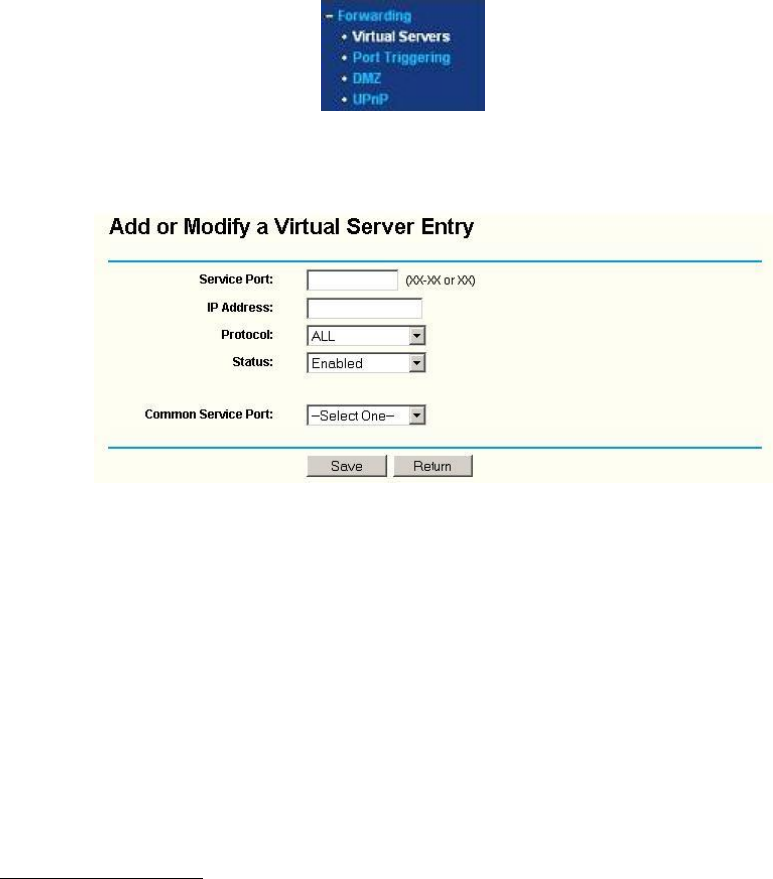
TP-LINK:
1. Login to the router.
2. Choose “Forwarding”, select “Virtual Servers”
3. Click the Add New button, pop-up below:
Figure 13.1
Fill in the service port (don’t use 80), IP address of the camera, then click Save
NOTE: The port and IP address should be the same as the camera.
Fill in the web port, for example port 85, IP address as 192.168.1.100, click Save.
(1) Repeat step 3 above, it will pop-up the window again, fill in the media port as 25001, IP address as
192.168.1.100, then save.
(2) Then check the “Device Info” –“DDNS Status”,
It will show DDNS: http://test.aipcam.com:85 , input this link in IE, then you can visit this camera remotely.
46
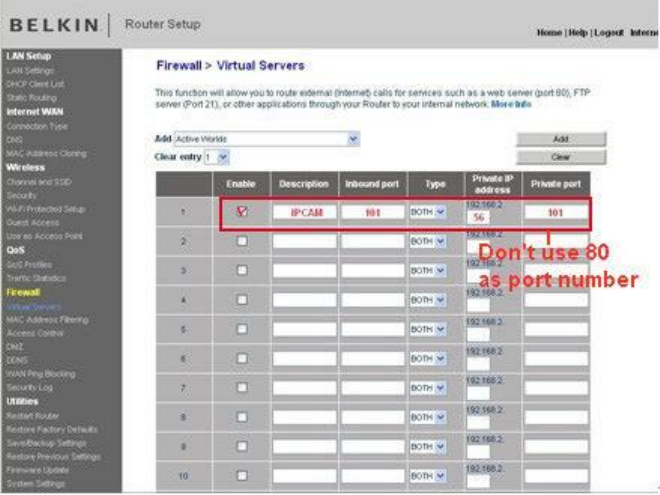
BELKIN:
1. Login to the router.
2. Choose “Firewall”, select “Virtual Servers”
3. Input the port (don’t use 80) and IP address, then click save.
NOTE: The port and IP address should be the same as the camera.
Figure 13.2
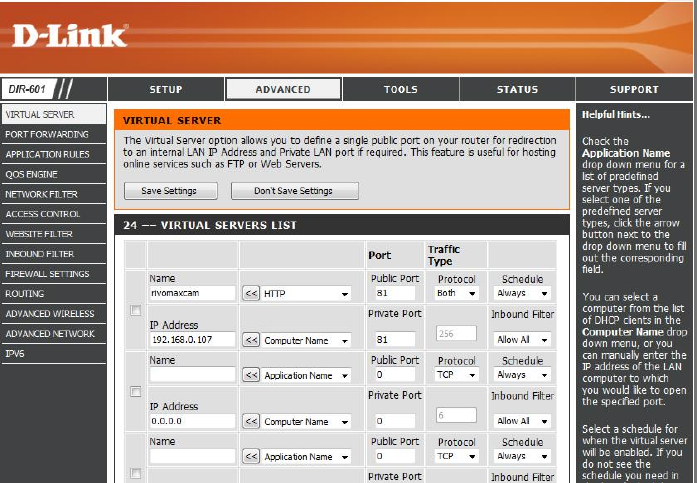
DLINK:
1. Login to the router.
2. Choose “Advanced”, select “Virtual Servers”
3. Input the port, IP address, Protocol, and then click save.
NOTE: The “public port” & “private port” should be the same as camera’s port, choose the protocol
to be “both”.
47
Figure 13.3

48
7. SPECIFICATIONS
Image Sensor
Image Sensor
1/4" Color CMOS Sensor
Display Resolution
1280 x 720 Pixels (1000K Pixels, i.e. 1.0 Megapixel)
Lens
3.6mm
Mini. Illumination
0.5 Lux
Viewing Angle
60-90 Degree
Audio
Input
Built-in Microphone
Output
Built-in Speaker
Audio Compression
ADPCM
Video
Image Compression
H.264, MJPEG
Image Frame Rate
30fps (VGA),30fps (QVGA)
Resolution
1280 x 720 (VGA), 640 x 368 (VGA), 320 x 208 (QVGA)
Flip Mirror Images
Vertical / Horizontal
Light Frequency
50Hz, 60Hz, Outdoor
Video Parameters
Brightness, Saturation, Contrast, Hue
Communication
Ethernet Interface
Build in 10/100Mbps,Auto MDI/MDIX , RJ-45
Supported Protocol
TCP/IP HTTP DNS DHCP PPPoE SMTP FTP SSL TFTP NTP
ARP/RARP NFS RTSP RTP RTCP
Compress rate level
128Kbps~4Mbps
Wireless Standard
IEEE 802.11b/g/n
Data Rate
802.11b: 11Mbps (max.), 802.11g: 54Mbps (max.), 802.11n: 150Mbps (max.)
Wireless Security
WEP & WPA WPA2 Encryption
Physical
Pan/Tilt Angle
Not Supported
Infrared Light
12 IR LEDs, Night visibility up to 10 meters
Alarm Input
Not Supported
Alarm Output
Not Supported
Power
Power Supply
DC 5V/1.0A (EU,US,AU adapter or other types optional)
Power Consumption
7 Watts (Max.)
Environment
Operate Temper.
0° ~ 55°C (14°F ~ 131°F)
Operating Humidity
20% ~ 85% non-condensing
Storage Temper.
-10°C ~ 60° (14°F ~ 140°F)
Storage Humidity
0% ~ 90% non-condensing
PC System
Requirements
CPU
2.0GHZ or above (suggested 3.0GHz)
Memory Size
256MB or above (suggested 1.0GHz)
Display Card
64M or above
Supported OS
Microsoft Windows 2000/XP/Vista/7
Browser
IE6.0/7.0/8.0/Firefox/Safari/Google chrome or other standard browsers
Certification
CE, FCC, RoHS
49
8. OBTAINING TECHNICAL SUPPORT
We hope your experience with your IP network camera is enjoyable, but if you experience any issues or have any
questions that this User's Guide has not answered, please email us.
If your camera does not support some special functions shown in this manual, please contact our technical support team
to obtain the latest Firmware and WEB UI file for upgrading.
Statement: If you found any bug of software, pls kindly not discuss in the public place or website,
contact us by email or phone, we will give you a quick shot.
FCC Caution
THIS DEVICE COMPLIES WITH PART 15 OF THE FCC RULES.
OPERATION IS SUBJECT TO THE FOLLOWING TWO CONDITIONS:
(1) THIS DEVICE MAY NOT CAUSE HARMFUL INTERFERENCE, AND
(2) THIS DEVICE MUST ACCEPT ANY INTERFERENCE RECEIVED, INCLUDING INTERFERENCE THAT
MAY CAUSE UNDESIRED OPERATION.
This equipment generates and uses radio frequency energy, and if not installed and used properly, that is, in strict
accordance with the manufacturer’s instructions, it may cause interference to radio and television reception. It has been
type tested and found to comply with the limits for remote control devices in accordance with the specifications in
Sub-Parts B and C of Part 15 of FCC Rules, which are designed to provide reasonable protection against such
interference in a residential installation. However, there is no guarantee that interference will not occur in a particular
installation. If this equipment does cause interference to radio or television reception, which can be determined by
unplugging the equipment, try to correct the interference by one or more of the following measures.
• Reorient the antenna of the radio/TV experiencing the interference.
• Relocate the equipment with respect to the radio/TV.
• Move the equipment away from the radio/TV.
• Plug the equipment into an outlet on a different electrical circuit from the radio/TV experiencing the interference.
• If necessary, consult your local dealer for additional suggestions.
NOTE: Modifications to this product will void the user’s authority to operate this equipment.
FCC Radiation Exposure Statement:
This equipment complies with FCC radiation exposure limits set forth for an uncontrolled
environment. This equipment should be installed and operated with minimum distance 20cm
between the radiator & your body.