CPS Distributors KMC10 Media Center User Manual

CPS Distributors, Inc. Media Center Users Manual

Users Manual

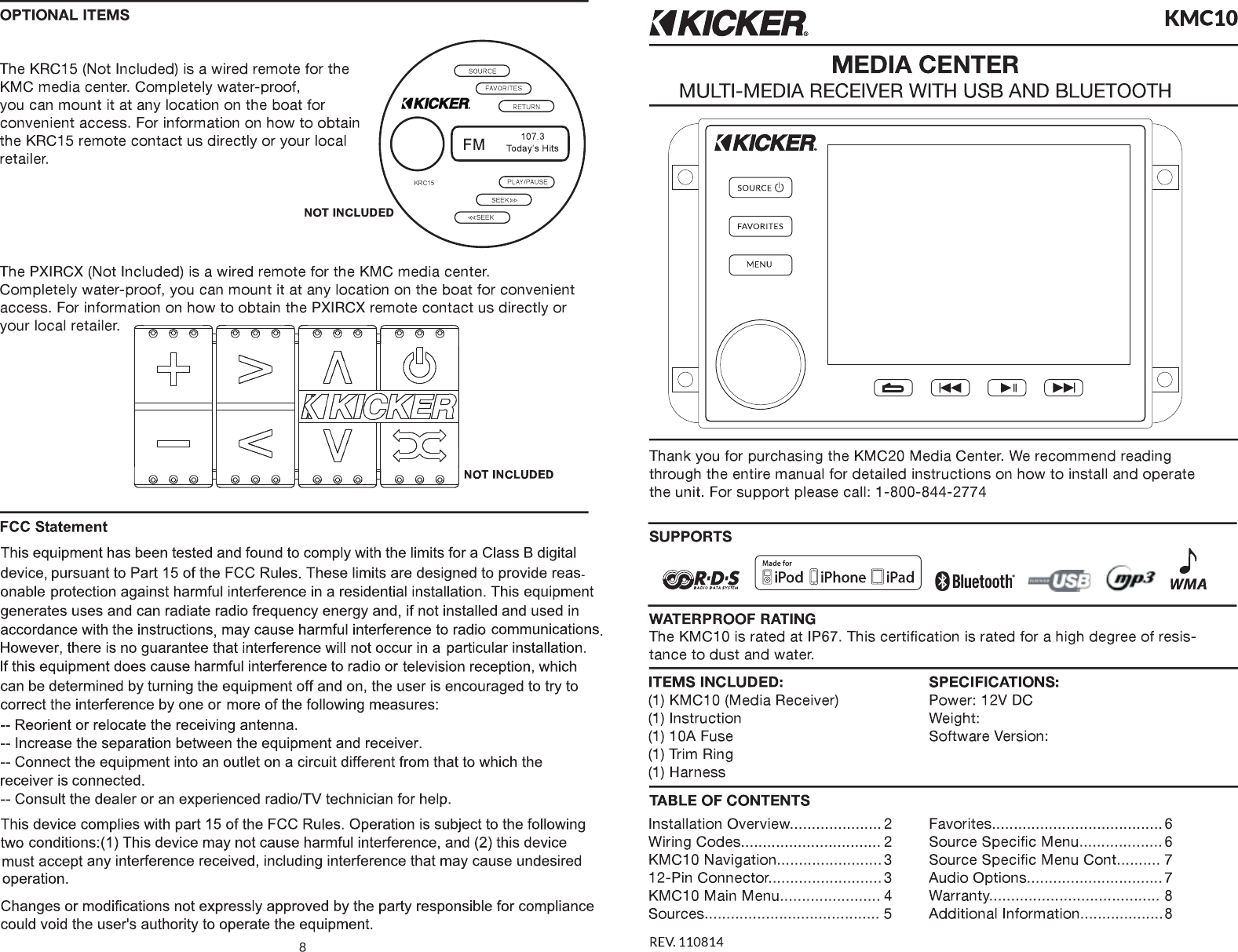
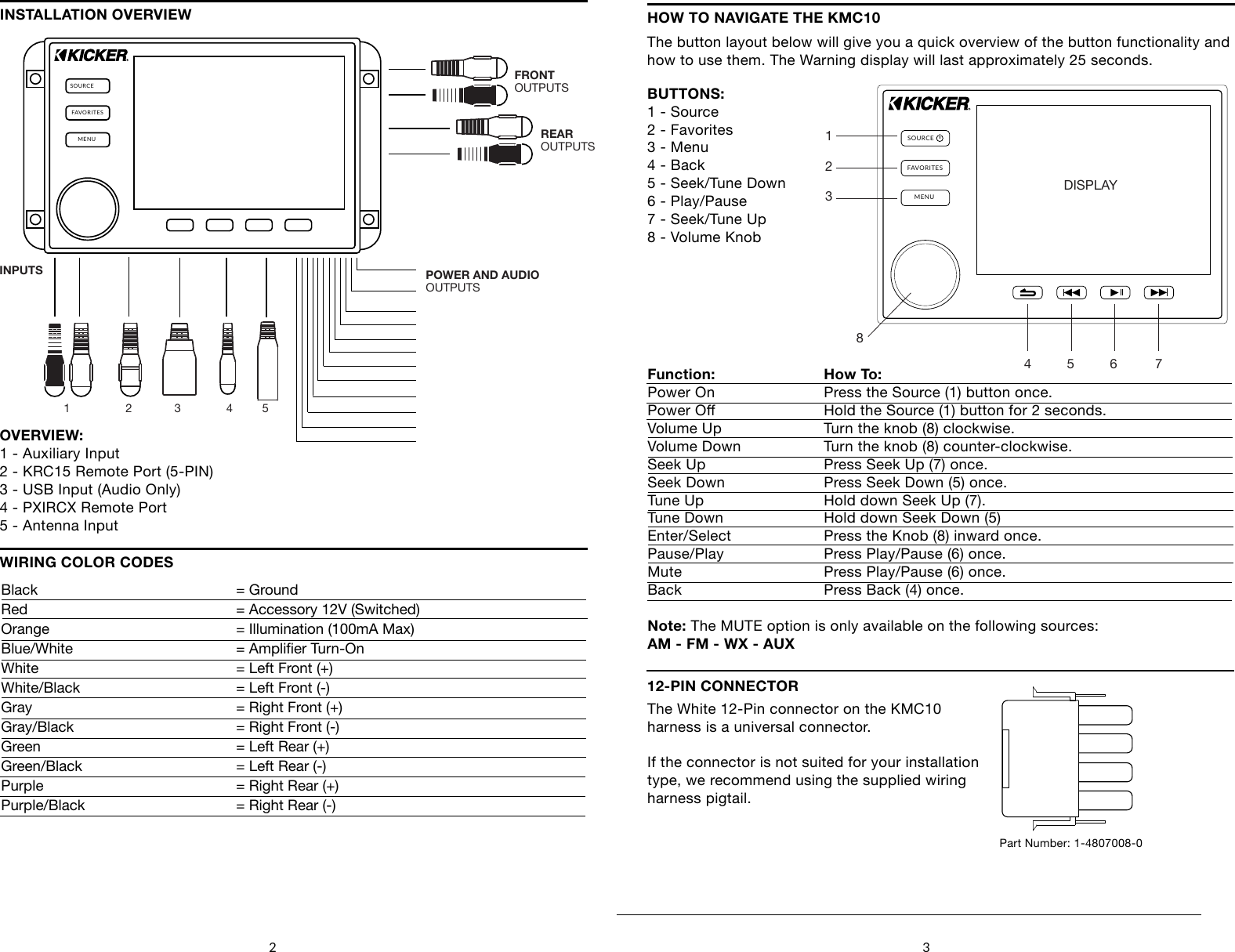
2 3SOURCEFAVORITESMENUFRONTOUTPUTSREAROUTPUTSPOWER AND AUDIOOUTPUTSINPUTS1                 2             3              4         5OVERVIEW:1 - Auxiliary Input2 - KRC15 Remote Port (5-PIN)3 - USB Input (Audio Only)4 - PXIRCX Remote Port5 - Antenna InputWIRING COLOR CODESINSTALLATION OVERVIEWBlack         = GroundRed         = Accessory 12V (Switched)Orange         = Illumination (100mA Max)Blue/White      = Amplier Turn-OnWhite         = Left Front (+)White/Black       = Left Front (-)Gray         = Right Front (+)Gray/Black      = Right Front (-)Green         = Left Rear (+)Green/Black       = Left Rear (-)Purple         = Right Rear (+)Purple/Black      = Right Rear (-)HOW TO NAVIGATE THE KMC10The button layout below will give you a quick overview of the button functionality and how to use them. The Warning display will last approximately 25 seconds.SOURCEFAVORITESMENUDISPLAY4     5        6    71      2       38BUTTONS:1 - Source2 - Favorites3 - Menu4 - Back5 - Seek/Tune Down6 - Play/Pause7 - Seek/Tune Up8 - Volume KnobFunction:  How To:    Power On    Press the Source (1) button once.Power O    Hold the Source (1) button for 2 seconds.Volume Up    Turn the knob (8) clockwise.Volume Down    Turn the knob (8) counter-clockwise.Seek Up     Press Seek Up (7) once.Seek Down    Press Seek Down (5) once.Tune Up     Hold down Seek Up (7). Tune Down    Hold down Seek Down (5)Enter/Select    Press the Knob (8) inward once.Pause/Play    Press Play/Pause (6) once.Mute      Press Play/Pause (6) once.Back      Press Back (4) once.Note: The MUTE option is only available on the following sources:AM - FM - WX - AUX12-PIN CONNECTORThe White 12-Pin connector on the KMC10harness is a universal connector.If the connector is not suited for your installationtype, we recommend using the supplied wiring harness pigtail.Part Number: 1-4807008-0
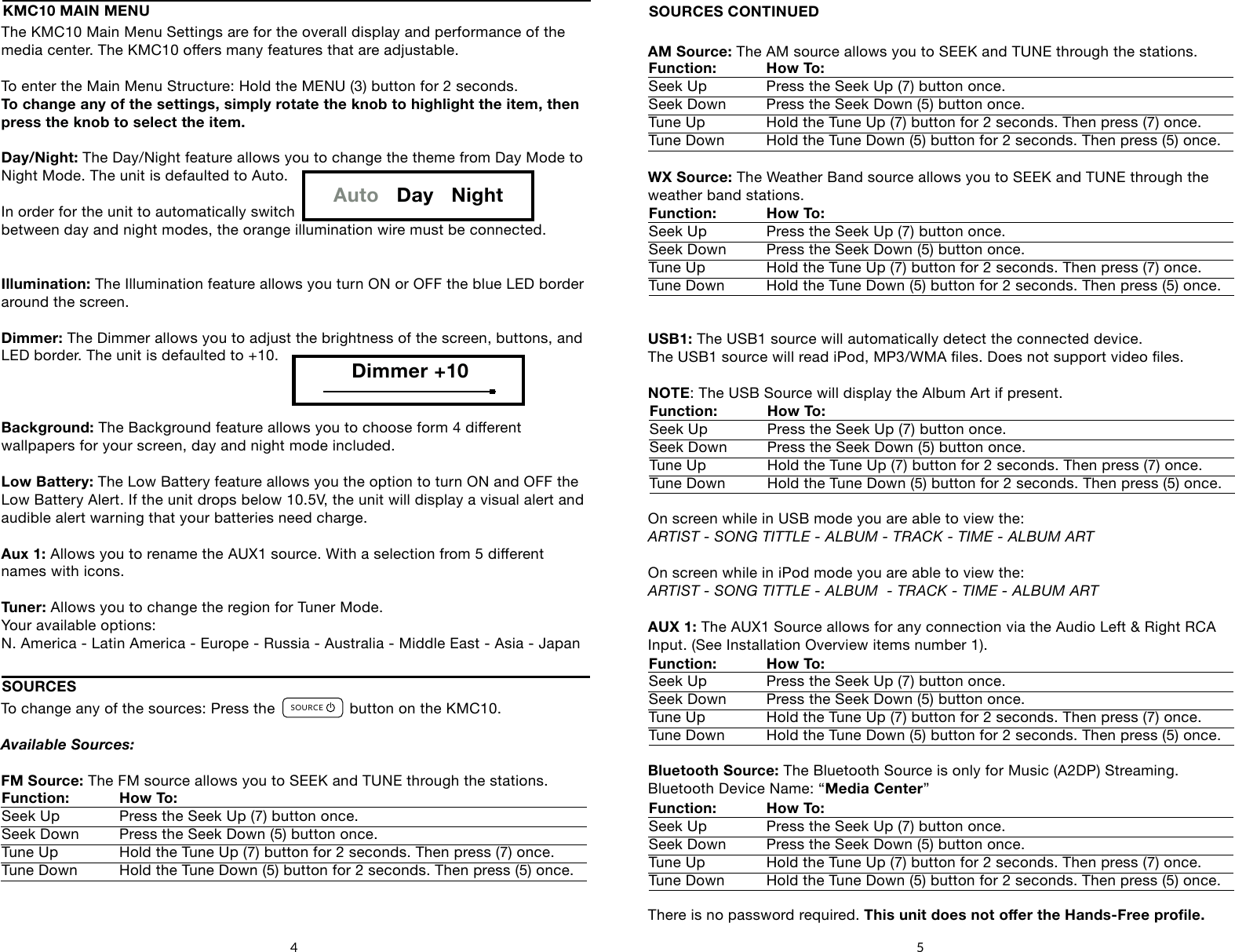
The KMC10 Main Menu Settings are for the overall display and performance of the media center. The KMC10 oers many features that are adjustable.To enter the Main Menu Structure: Hold the MENU (3) button for 2 seconds.To change any of the settings, simply rotate the knob to highlight the item, then press the knob to select the item.Day/Night: The Day/Night feature allows you to change the theme from Day Mode to Night Mode. The unit is defaulted to Auto.In order for the unit to automatically switch between day and night modes, the orange illumination wire must be connected.Illumination: The Illumination feature allows you turn ON or OFF the blue LED border around the screen.Dimmer: The Dimmer allows you to adjust the brightness of the screen, buttons, and LED border. The unit is defaulted to +10.Background: The Background feature allows you to choose form 4 dierent wallpapers for your screen, day and night mode included.Low Battery: The Low Battery feature allows you the option to turn ON and OFF theLow Battery Alert. If the unit drops below 10.5V, the unit will display a visual alert and audible alert warning that your batteries need charge.Aux 1: Allows you to rename the AUX1 source. With a selection from 5 dierent names with icons.Tuner: Allows you to change the region for Tuner Mode.Your available options: N. America - Latin America - Europe - Russia - Australia - Middle East - Asia - JapanAM Source: The AM source allows you to SEEK and TUNE through the stations.WX Source: The Weather Band source allows you to SEEK and TUNE through the weather band stations. USB1: The USB1 source will automatically detect the connected device.The USB1 source will read iPod, MP3/WMA les. Does not support video les.NOTE: The USB Source will display the Album Art if present.On screen while in USB mode you are able to view the: ARTIST - SONG TITTLE - ALBUM - TRACK - TIME - ALBUM ARTOn screen while in iPod mode you are able to view the: ARTIST - SONG TITTLE - ALBUM  - TRACK - TIME - ALBUM ARTAUX 1: The AUX1 Source allows for any connection via the Audio Left & Right RCA Input. (See Installation Overview items number 1).Bluetooth Source: The Bluetooth Source is only for Music (A2DP) Streaming.Bluetooth Device Name: “Media Center” There is no password required. This unit does not oer the Hands-Free prole.SOURCES CONTINUEDFunction: How To:    Seek Up   Press the Seek Up (7) button once.Seek Down  Press the Seek Down (5) button once.Tune Up   Hold the Tune Up (7) button for 2 seconds. Then press (7) once.Tune Down  Hold the Tune Down (5) button for 2 seconds. Then press (5) once.Function: How To:    Seek Up   Press the Seek Up (7) button once.Seek Down  Press the Seek Down (5) button once.Tune Up   Hold the Tune Up (7) button for 2 seconds. Then press (7) once.Tune Down  Hold the Tune Down (5) button for 2 seconds. Then press (5) once.5KMC10 MAIN MENUAuto   Day   NightDimmer +10To change any of the sources: Press the                 button on the KMC10.Available Sources:FM Source: The FM source allows you to SEEK and TUNE through the stations.SOURCESFunction: How To:    Seek Up   Press the Seek Up (7) button once.Seek Down  Press the Seek Down (5) button once.Tune Up   Hold the Tune Up (7) button for 2 seconds. Then press (7) once.Tune Down  Hold the Tune Down (5) button for 2 seconds. Then press (5) once.SOURCEFAVORITESMENUDISPLAY4     5        6    71      2       38Function: How To:    Seek Up   Press the Seek Up (7) button once.Seek Down  Press the Seek Down (5) button once.Tune Up   Hold the Tune Up (7) button for 2 seconds. Then press (7) once.Tune Down  Hold the Tune Down (5) button for 2 seconds. Then press (5) once.Function: How To:    Seek Up   Press the Seek Up (7) button once.Seek Down  Press the Seek Down (5) button once.Tune Up   Hold the Tune Up (7) button for 2 seconds. Then press (7) once.Tune Down  Hold the Tune Down (5) button for 2 seconds. Then press (5) once.Function: How To:    Seek Up   Press the Seek Up (7) button once.Seek Down  Press the Seek Down (5) button once.Tune Up   Hold the Tune Up (7) button for 2 seconds. Then press (7) once.Tune Down  Hold the Tune Down (5) button for 2 seconds. Then press (5) once.4
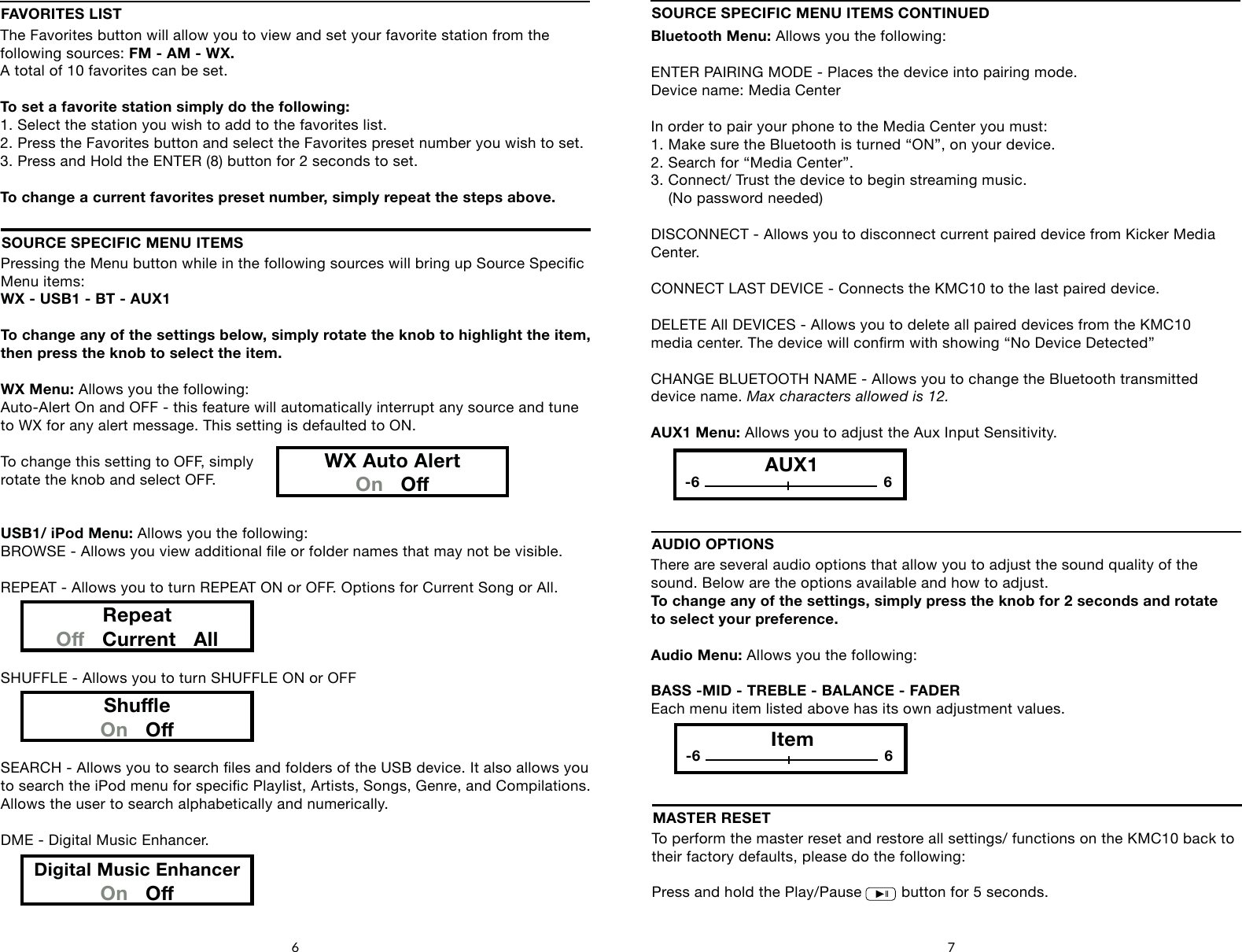
Pressing the Menu button while in the following sources will bring up Source Specic Menu items: WX - USB1 - BT - AUX1To change any of the settings below, simply rotate the knob to highlight the item, then press the knob to select the item.WX Menu: Allows you the following:Auto-Alert On and OFF - this feature will automatically interrupt any source and tune to WX for any alert message. This setting is defaulted to ON.To change this setting to OFF, simplyrotate the knob and select OFF.USB1/ iPod Menu: Allows you the following:BROWSE - Allows you view additional le or folder names that may not be visible.REPEAT - Allows you to turn REPEAT ON or OFF. Options for Current Song or All.SHUFFLE - Allows you to turn SHUFFLE ON or OFFSEARCH - Allows you to search les and folders of the USB device. It also allows you to search the iPod menu for specic Playlist, Artists, Songs, Genre, and Compilations.Allows the user to search alphabetically and numerically.DME - Digital Music Enhancer.SOURCE SPECIFIC MENU ITEMSRepeatO   Current   AllShueOn   ODigital Music EnhancerOn   OThere are several audio options that allow you to adjust the sound quality of the sound. Below are the options available and how to adjust.To change any of the settings, simply press the knob for 2 seconds and rotate to select your preference.Audio Menu: Allows you the following:BASS -MID - TREBLE - BALANCE - FADEREach menu item listed above has its own adjustment values.               AUDIO OPTIONSItem-6 66 7Bluetooth Menu: Allows you the following:ENTER PAIRING MODE - Places the device into pairing mode. Device name: Media CenterIn order to pair your phone to the Media Center you must:1. Make sure the Bluetooth is turned “ON”, on your device.2. Search for “Media Center”.3. Connect/ Trust the device to begin streaming music.     (No password needed)DISCONNECT - Allows you to disconnect current paired device from Kicker Media Center.CONNECT LAST DEVICE - Connects the KMC10 to the last paired device.DELETE All DEVICES - Allows you to delete all paired devices from the KMC10media center. The device will conrm with showing “No Device Detected”CHANGE BLUETOOTH NAME - Allows you to change the Bluetooth transmitteddevice name. Max characters allowed is 12.AUX1 Menu: Allows you to adjust the Aux Input Sensitivity.SOURCE SPECIFIC MENU ITEMS CONTINUEDFAVORITES LISTThe Favorites button will allow you to view and set your favorite station from the following sources: FM - AM - WX. A total of 10 favorites can be set.To set a favorite station simply do the following:1. Select the station you wish to add to the favorites list.2. Press the Favorites button and select the Favorites preset number you wish to set.3. Press and Hold the ENTER (8) button for 2 seconds to set.To change a current favorites preset number, simply repeat the steps above.WX Auto AlertOn   OAUX1-6 6To perform the master reset and restore all settings/ functions on the KMC10 back to their factory defaults, please do the following:Press and hold the Play/Pause         button for 5 seconds.MASTER RESETSOURCEFAVORITESMENUDISPLAY4     5        6    71      2       38

Navigation menu