CPS Distributors KMC20 Marine amplifier User Manual

CPS Distributors, Inc. Marine amplifier Users Manual

Users Manual

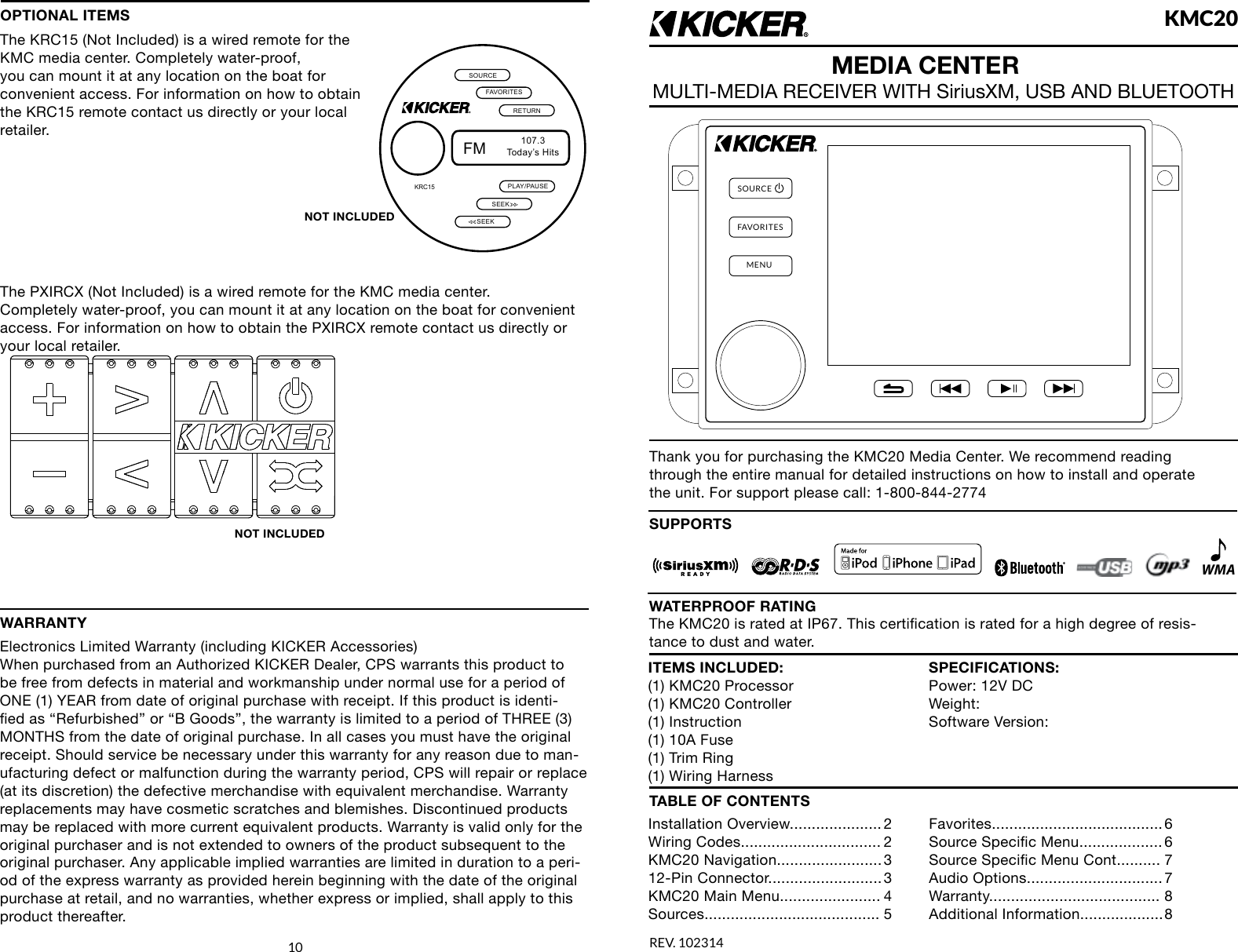
SOURCEFAVORITESMENUKMC20REV. 102314MEDIA CENTERMULTI-MEDIA RECEIVER WITH SiriusXM, USB AND BLUETOOTHThank you for purchasing the KMC20 Media Center. We recommend reading through the entire manual for detailed instructions on how to install and operate the unit. For support please call: 1-800-844-2774SUPPORTSWMAITEMS INCLUDED:(1) KMC20 Processor(1) KMC20 Controller(1) Instruction(1) 10A Fuse(1) Trim Ring(1) Wiring HarnessSPECIFICATIONS:Power: 12V DCWeight:Software Version:TABLE OF CONTENTSInstallation  Overview..................... 2Wiring Codes................................ 2KMC20  Navigation........................ 312-Pin  Connector.......................... 3KMC20 Main Menu....................... 4Sources........................................ 5Favorites....................................... 6Source Specic Menu................... 6Source Specic Menu Cont.......... 7Audio  Options............................... 7Warranty....................................... 8Additional  Information................... 810The KMC20 is rated at IP67. This certication is rated for a high degree of resis-tance to dust and water.WATERPROOF RATINGOPTIONAL ITEMSThe KRC15 (Not Included) is a wired remote for the KMC media center. Completely water-proof, you can mount it at any location on the boat for convenient access. For information on how to obtain the KRC15 remote contact us directly or your local retailer. The PXIRCX (Not Included) is a wired remote for the KMC media center. Completely water-proof, you can mount it at any location on the boat for convenient access. For information on how to obtain the PXIRCX remote contact us directly or your local retailer. FMToday’s Hits107.3PLAY/PAUSESEEKRETURNFAVORITESSOURCEKRC15SEEKNOT INCLUDEDNOT INCLUDEDWARRANTYElectronics Limited Warranty (including KICKER Accessories)When purchased from an Authorized KICKER Dealer, CPS warrants this product to be free from defects in material and workmanship under normal use for a period of ONE (1) YEAR from date of original purchase with receipt. If this product is identi-ed as “Refurbished” or “B Goods”, the warranty is limited to a period of THREE (3) MONTHS from the date of original purchase. In all cases you must have the original receipt. Should service be necessary under this warranty for any reason due to man-ufacturing defect or malfunction during the warranty period, CPS will repair or replace (at its discretion) the defective merchandise with equivalent merchandise. Warranty replacements may have cosmetic scratches and blemishes. Discontinued products may be replaced with more current equivalent products. Warranty is valid only for the original purchaser and is not extended to owners of the product subsequent to the original purchaser. Any applicable implied warranties are limited in duration to a peri-od of the express warranty as provided herein beginning with the date of the original purchase at retail, and no warranties, whether express or implied, shall apply to this product thereafter.
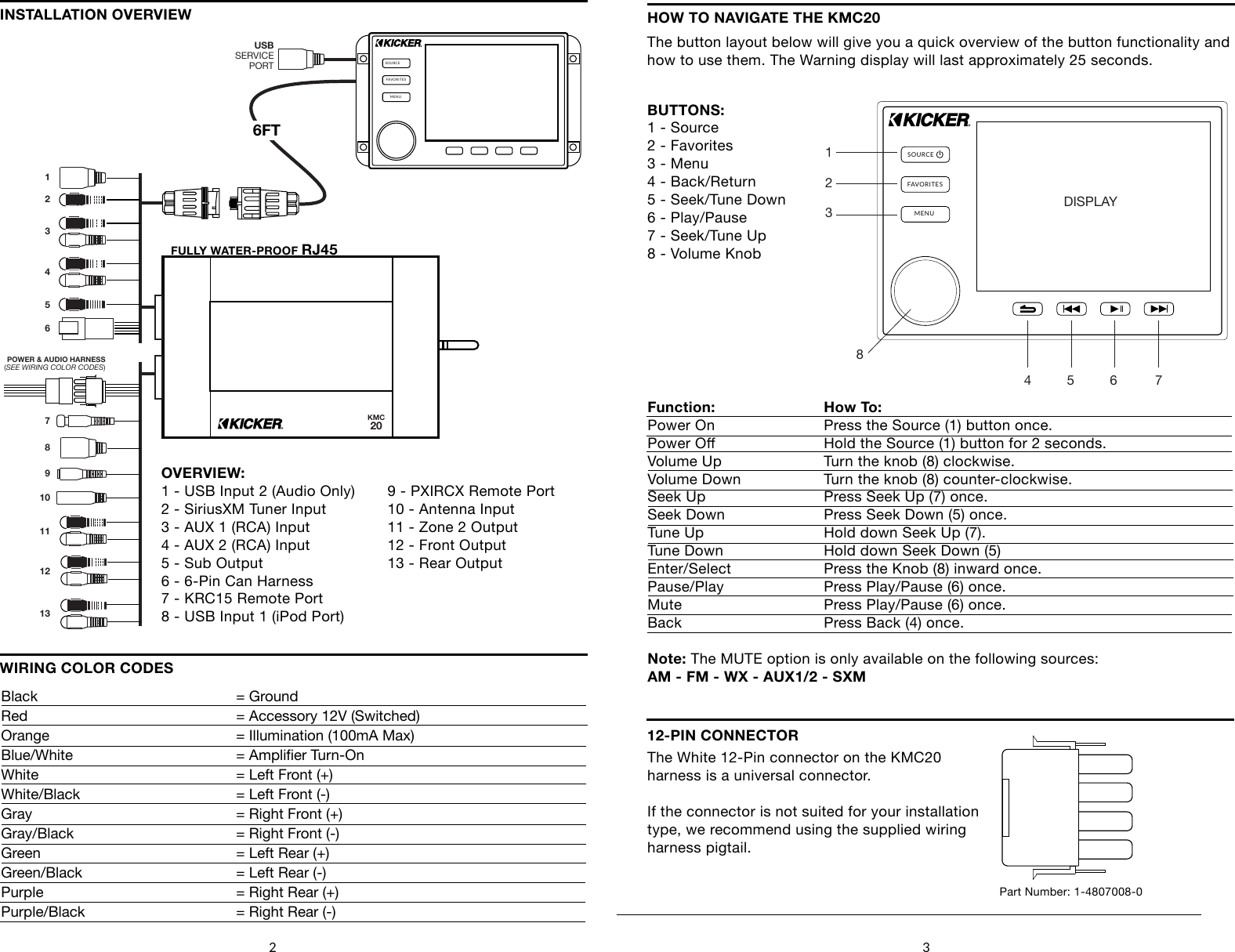
2 3SOURCEFAVORITESMENUKMC206FTPOWER & AUDIO HARNESS(SEE WIRING COLOR CODES)12345678910111213USBSERVICEPORTOVERVIEW:1 - USB Input 2 (Audio Only)2 - SiriusXM Tuner Input3 - AUX 1 (RCA) Input4 - AUX 2 (RCA) Input5 - Sub Output6 - 6-Pin Can Harness7 - KRC15 Remote Port8 - USB Input 1 (iPod Port)WIRING COLOR CODESINSTALLATION OVERVIEWBlack         = GroundRed        = Accessory 12V (Switched)Orange         = Illumination (100mA Max)Blue/White      = Amplier Turn-OnWhite         = Left Front (+)White/Black       = Left Front (-)Gray         = Right Front (+)Gray/Black      = Right Front (-)Green         = Left Rear (+)Green/Black       = Left Rear (-)Purple         = Right Rear (+)Purple/Black      = Right Rear (-)HOW TO NAVIGATE THE KMC20The button layout below will give you a quick overview of the button functionality and how to use them. The Warning display will last approximately 25 seconds.SOURCEFAVORITESMENUDISPLAY4     5        6    71      2       38BUTTONS:1 - Source2 - Favorites3 - Menu4 - Back/Return5 - Seek/Tune Down6 - Play/Pause7 - Seek/Tune Up8 - Volume KnobFunction:  How To:    Power On    Press the Source (1) button once.Power O    Hold the Source (1) button for 2 seconds.Volume Up    Turn the knob (8) clockwise.Volume Down    Turn the knob (8) counter-clockwise.Seek Up     Press Seek Up (7) once.Seek Down    Press Seek Down (5) once.Tune Up     Hold down Seek Up (7). Tune Down    Hold down Seek Down (5)Enter/Select    Press the Knob (8) inward once.Pause/Play    Press Play/Pause (6) once.Mute      Press Play/Pause (6) once.Back      Press Back (4) once.Note: The MUTE option is only available on the following sources:AM - FM - WX - AUX1/2 - SXM12-PIN CONNECTORThe White 12-Pin connector on the KMC20harness is a universal connector.If the connector is not suited for your installationtype, we recommend using the supplied wiring harness pigtail.Part Number: 1-4807008-09 - PXIRCX Remote Port10 - Antenna Input11 - Zone 2 Output12 - Front Output13 - Rear OutputFULLY WATER-PROOF RJ45
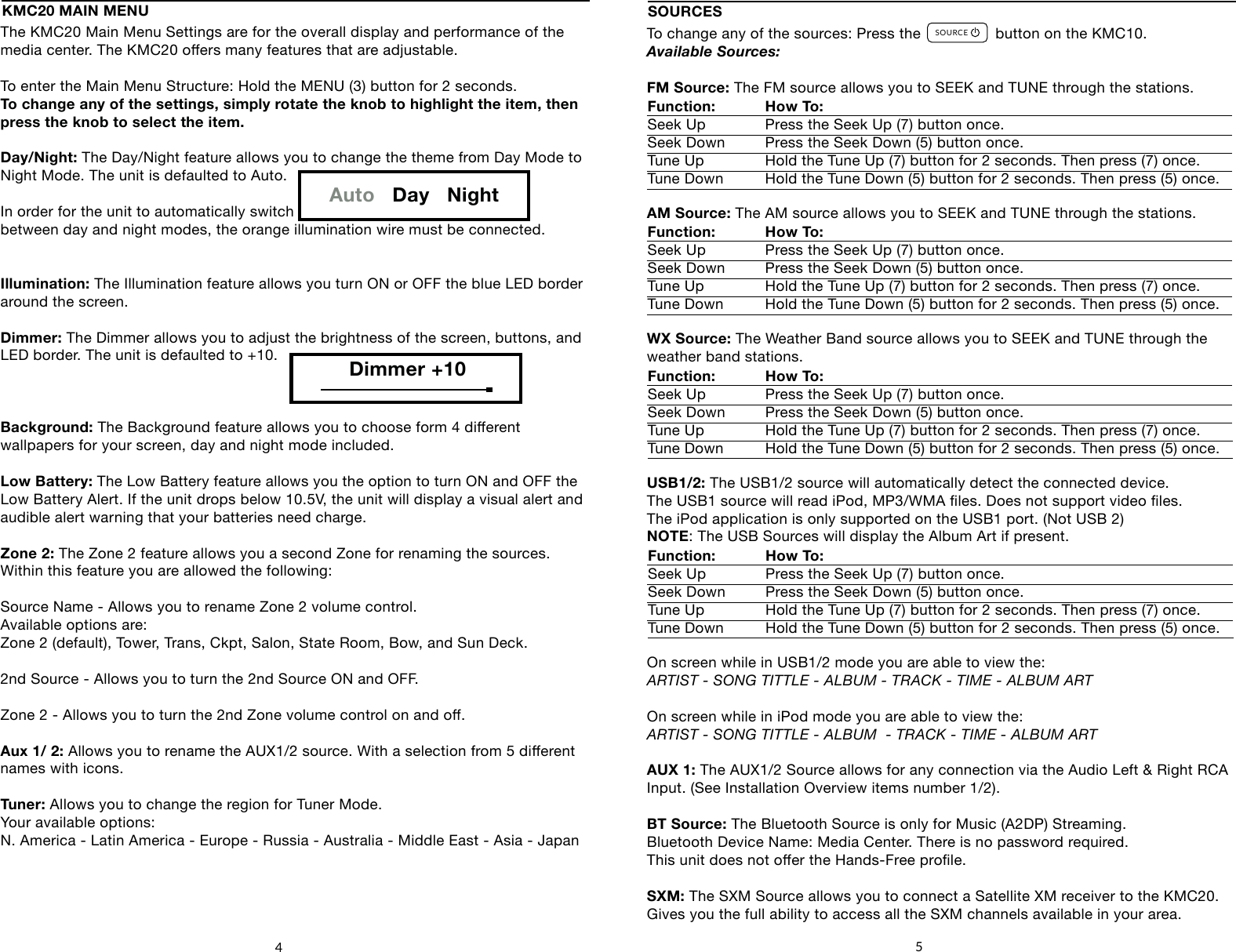
The KMC20 Main Menu Settings are for the overall display and performance of the media center. The KMC20 oers many features that are adjustable.To enter the Main Menu Structure: Hold the MENU (3) button for 2 seconds.To change any of the settings, simply rotate the knob to highlight the item, then press the knob to select the item.Day/Night: The Day/Night feature allows you to change the theme from Day Mode to Night Mode. The unit is defaulted to Auto.In order for the unit to automatically switch between day and night modes, the orange illumination wire must be connected.Illumination: The Illumination feature allows you turn ON or OFF the blue LED border around the screen.Dimmer: The Dimmer allows you to adjust the brightness of the screen, buttons, and LED border. The unit is defaulted to +10.Background: The Background feature allows you to choose form 4 dierent wallpapers for your screen, day and night mode included.Low Battery: The Low Battery feature allows you the option to turn ON and OFF theLow Battery Alert. If the unit drops below 10.5V, the unit will display a visual alert and audible alert warning that your batteries need charge.Zone 2: The Zone 2 feature allows you a second Zone for renaming the sources.Within this feature you are allowed the following:Source Name - Allows you to rename Zone 2 volume control.  Available options are: Zone 2 (default), Tower, Trans, Ckpt, Salon, State Room, Bow, and Sun Deck.2nd Source - Allows you to turn the 2nd Source ON and OFF.Zone 2 - Allows you to turn the 2nd Zone volume control on and o.Aux 1/ 2: Allows you to rename the AUX1/2 source. With a selection from 5 dierent names with icons.Tuner: Allows you to change the region for Tuner Mode.Your available options: N. America - Latin America - Europe - Russia - Australia - Middle East - Asia - Japan4To change any of the sources: Press the                 button on the KMC10.Available Sources:FM Source: The FM source allows you to SEEK and TUNE through the stations.AM Source: The AM source allows you to SEEK and TUNE through the stations.WX Source: The Weather Band source allows you to SEEK and TUNE through the weather band stations. USB1/2: The USB1/2 source will automatically detect the connected device.The USB1 source will read iPod, MP3/WMA les. Does not support video les.The iPod application is only supported on the USB1 port. (Not USB 2)NOTE: The USB Sources will display the Album Art if present.On screen while in USB1/2 mode you are able to view the: ARTIST - SONG TITTLE - ALBUM - TRACK - TIME - ALBUM ARTOn screen while in iPod mode you are able to view the: ARTIST - SONG TITTLE - ALBUM  - TRACK - TIME - ALBUM ARTAUX 1: The AUX1/2 Source allows for any connection via the Audio Left & Right RCA Input. (See Installation Overview items number 1/2).BT Source: The Bluetooth Source is only for Music (A2DP) Streaming.Bluetooth Device Name: Media Center. There is no password required. This unit does not oer the Hands-Free prole.SXM: The SXM Source allows you to connect a Satellite XM receiver to the KMC20.Gives you the full ability to access all the SXM channels available in your area.SOURCESFunction: How To:    Seek Up   Press the Seek Up (7) button once.Seek Down  Press the Seek Down (5) button once.Tune Up   Hold the Tune Up (7) button for 2 seconds. Then press (7) once.Tune Down  Hold the Tune Down (5) button for 2 seconds. Then press (5) once.Function: How To:    Seek Up   Press the Seek Up (7) button once.Seek Down  Press the Seek Down (5) button once.Tune Up   Hold the Tune Up (7) button for 2 seconds. Then press (7) once.Tune Down  Hold the Tune Down (5) button for 2 seconds. Then press (5) once.Function: How To:    Seek Up   Press the Seek Up (7) button once.Seek Down  Press the Seek Down (5) button once.Tune Up   Hold the Tune Up (7) button for 2 seconds. Then press (7) once.Tune Down  Hold the Tune Down (5) button for 2 seconds. Then press (5) once.5KMC20 MAIN MENUAuto   Day   NightDimmer +10SOURCEFAVORITESMENUDISPLAY4     5        6    71      2       38Function: How To:    Seek Up   Press the Seek Up (7) button once.Seek Down  Press the Seek Down (5) button once.Tune Up   Hold the Tune Up (7) button for 2 seconds. Then press (7) once.Tune Down  Hold the Tune Down (5) button for 2 seconds. Then press (5) once.
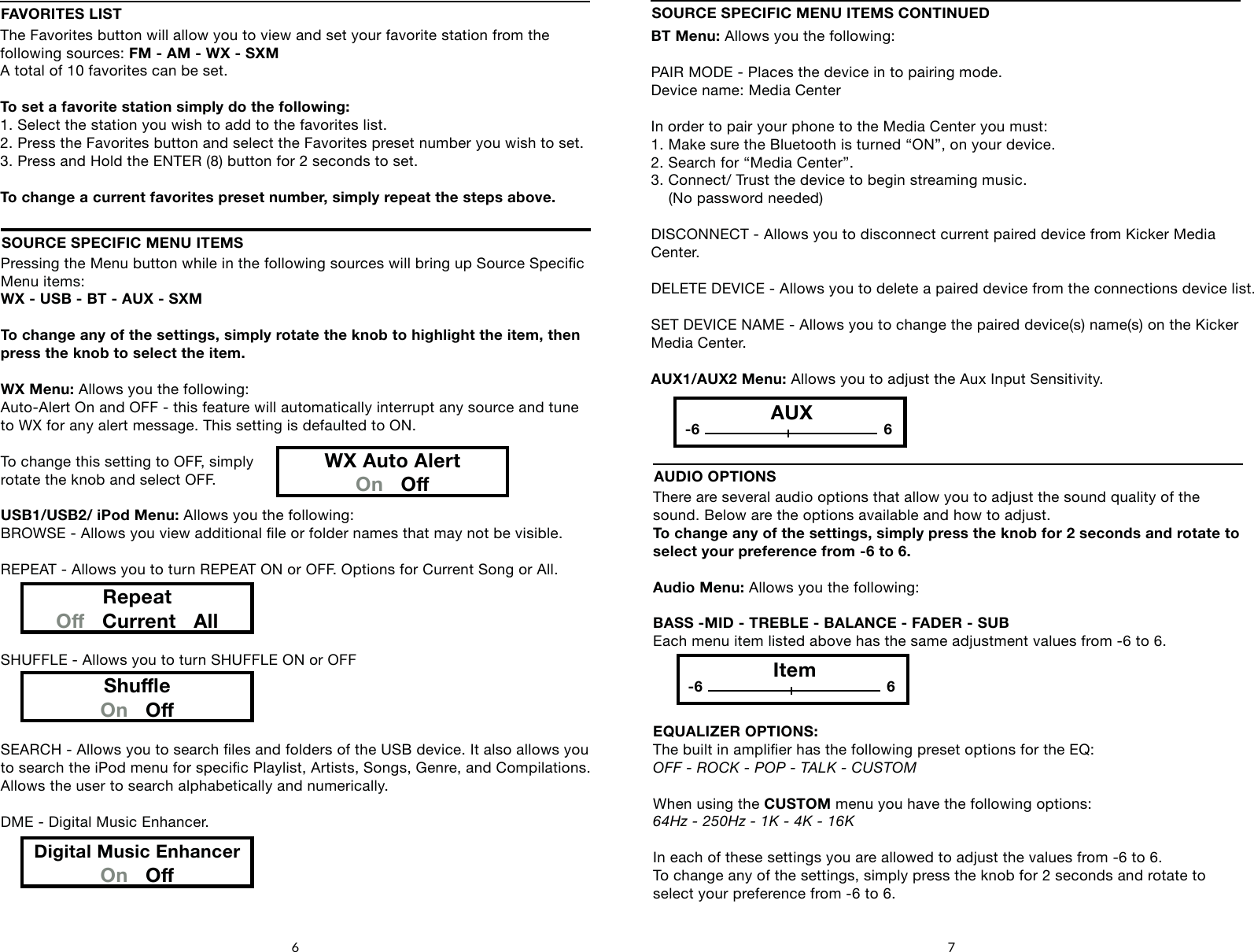
Pressing the Menu button while in the following sources will bring up Source Specic Menu items: WX - USB - BT - AUX - SXMTo change any of the settings, simply rotate the knob to highlight the item, then press the knob to select the item.WX Menu: Allows you the following:Auto-Alert On and OFF - this feature will automatically interrupt any source and tune to WX for any alert message. This setting is defaulted to ON.To change this setting to OFF, simplyrotate the knob and select OFF.USB1/USB2/ iPod Menu: Allows you the following:BROWSE - Allows you view additional le or folder names that may not be visible.REPEAT - Allows you to turn REPEAT ON or OFF. Options for Current Song or All.SHUFFLE - Allows you to turn SHUFFLE ON or OFFSEARCH - Allows you to search les and folders of the USB device. It also allows you to search the iPod menu for specic Playlist, Artists, Songs, Genre, and Compilations.Allows the user to search alphabetically and numerically.DME - Digital Music Enhancer.SOURCE SPECIFIC MENU ITEMSRepeatO   Current   AllShueOn   ODigital Music EnhancerOn   O6 7BT Menu: Allows you the following:PAIR MODE - Places the device in to pairing mode. Device name: Media CenterIn order to pair your phone to the Media Center you must:1. Make sure the Bluetooth is turned “ON”, on your device.2. Search for “Media Center”.3. Connect/ Trust the device to begin streaming music.     (No password needed)DISCONNECT - Allows you to disconnect current paired device from Kicker Media Center.DELETE DEVICE - Allows you to delete a paired device from the connections device list.SET DEVICE NAME - Allows you to change the paired device(s) name(s) on the Kicker Media Center.AUX1/AUX2 Menu: Allows you to adjust the Aux Input Sensitivity.SOURCE SPECIFIC MENU ITEMS CONTINUEDFAVORITES LISTThe Favorites button will allow you to view and set your favorite station from the following sources: FM - AM - WX - SXMA total of 10 favorites can be set.To set a favorite station simply do the following:1. Select the station you wish to add to the favorites list.2. Press the Favorites button and select the Favorites preset number you wish to set.3. Press and Hold the ENTER (8) button for 2 seconds to set.To change a current favorites preset number, simply repeat the steps above.WX Auto AlertOn   OAUX-6 6There are several audio options that allow you to adjust the sound quality of the sound. Below are the options available and how to adjust.To change any of the settings, simply press the knob for 2 seconds and rotate to select your preference from -6 to 6.Audio Menu: Allows you the following:BASS -MID - TREBLE - BALANCE - FADER - SUBEach menu item listed above has the same adjustment values from -6 to 6.EQUALIZER OPTIONS:The built in amplier has the following preset options for the EQ:OFF - ROCK - POP - TALK - CUSTOMWhen using the CUSTOM menu you have the following options:64Hz - 250Hz - 1K - 4K - 16KIn each of these settings you are allowed to adjust the values from -6 to 6.To change any of the settings, simply press the knob for 2 seconds and rotate toselect your preference from -6 to 6.AUDIO OPTIONSItem-6 6
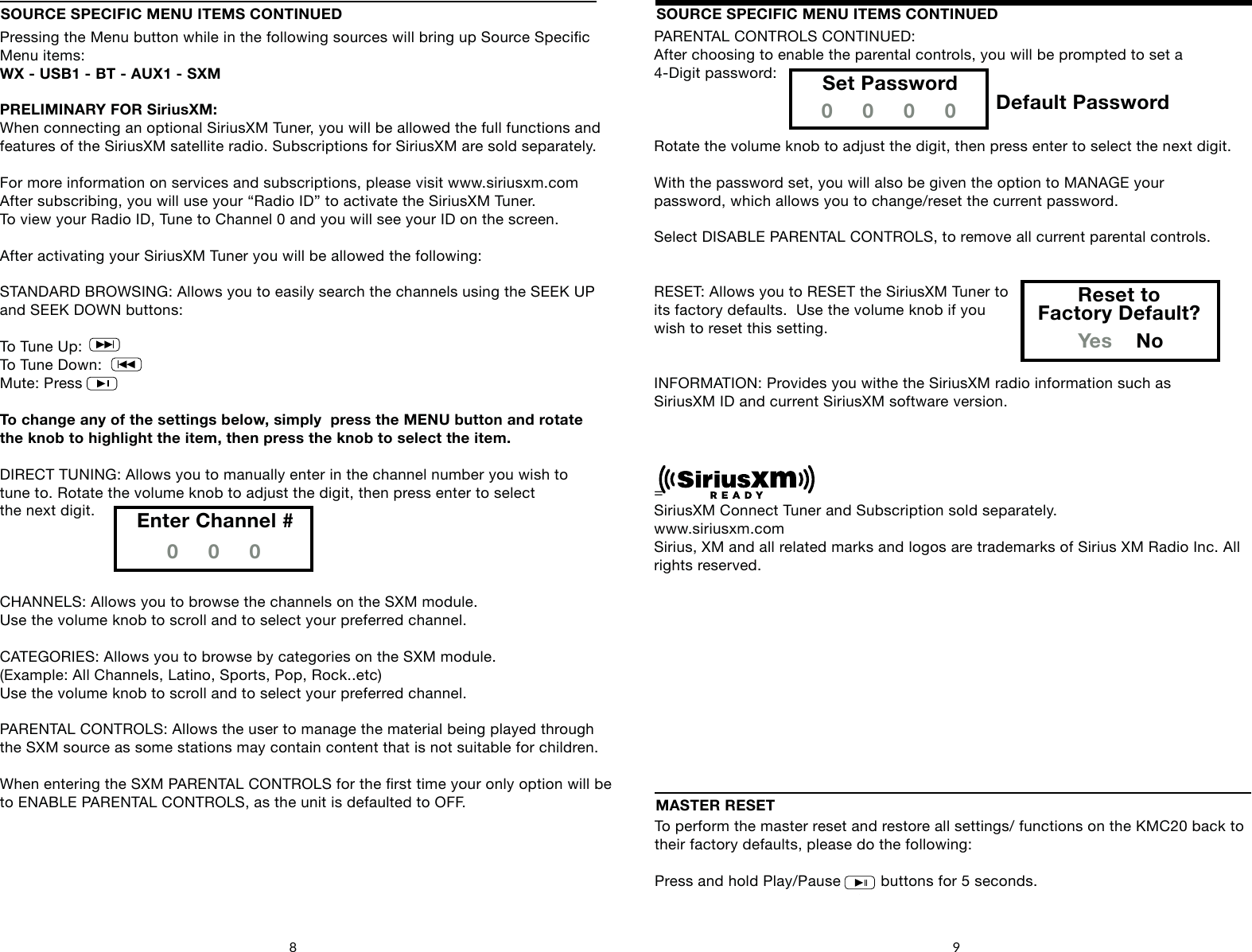
SOURCE SPECIFIC MENU ITEMS CONTINUEDPressing the Menu button while in the following sources will bring up Source Specic Menu items: WX - USB1 - BT - AUX1 - SXMPRELIMINARY FOR SiriusXM:When connecting an optional SiriusXM Tuner, you will be allowed the full functions and features of the SiriusXM satellite radio. Subscriptions for SiriusXM are sold separately.For more information on services and subscriptions, please visit www.siriusxm.comAfter subscribing, you will use your “Radio ID” to activate the SiriusXM Tuner.To view your Radio ID, Tune to Channel 0 and you will see your ID on the screen.After activating your SiriusXM Tuner you will be allowed the following:STANDARD BROWSING: Allows you to easily search the channels using the SEEK UPand SEEK DOWN buttons: To Tune Up:To Tune Down:Mute: PressTo change any of the settings below, simply  press the MENU button and rotate the knob to highlight the item, then press the knob to select the item.DIRECT TUNING: Allows you to manually enter in the channel number you wish to tune to. Rotate the volume knob to adjust the digit, then press enter to selectthe next digit.CHANNELS: Allows you to browse the channels on the SXM module.Use the volume knob to scroll and to select your preferred channel.CATEGORIES: Allows you to browse by categories on the SXM module.(Example: All Channels, Latino, Sports, Pop, Rock..etc)Use the volume knob to scroll and to select your preferred channel.PARENTAL CONTROLS: Allows the user to manage the material being played through the SXM source as some stations may contain content that is not suitable for children.When entering the SXM PARENTAL CONTROLS for the rst time your only option will be to ENABLE PARENTAL CONTROLS, as the unit is defaulted to OFF.SOURCE SPECIFIC MENU ITEMS CONTINUED8 9Enter Channel #0     0     0To perform the master reset and restore all settings/ functions on the KMC20 back to their factory defaults, please do the following:Press and hold Play/Pause         buttons for 5 seconds.MASTER RESETSOURCEFAVORITESMENUDISPLAY4     5        6    71      2       38SOURCEFAVORITESMENUDISPLAY4     5        6    71      2       38SOURCEFAVORITESMENUDISPLAY4     5        6    71      2       38PARENTAL CONTROLS CONTINUED:After choosing to enable the parental controls, you will be prompted to set a 4-Digit password: Rotate the volume knob to adjust the digit, then press enter to select the next digit.With the password set, you will also be given the option to MANAGE yourpassword, which allows you to change/reset the current password. Select DISABLE PARENTAL CONTROLS, to remove all current parental controls.RESET: Allows you to RESET the SiriusXM Tuner to its factory defaults.  Use the volume knob if you wish to reset this setting.INFORMATION: Provides you withe the SiriusXM radio information such as SiriusXM ID and current SiriusXM software version.=SiriusXM Connect Tuner and Subscription sold separately.www.siriusxm.comSirius, XM and all related marks and logos are trademarks of Sirius XM Radio Inc. All rights reserved.Set Password0     0     0     0Reset toFactory Default?Yes    NoDefault PasswordSOURCEFAVORITESMENUDISPLAY4     5        6    71      2       38
FCCSTATEMENT1. ThisdevicecomplieswithPart15oftheFCCRules.Operationissubjecttothefollowingtwoconditions:(1) Thisdevicemaynotcauseharmfulinterference.(2) Thisdevicemustacceptanyinterferencereceived,includinginterferencethatmaycauseundesiredoperation.2. Changes or modifications not expressly approved by the party responsible for compliance could void the user's authority to operate the equipment. FCC Radiation Exposure Statement:  This equipment complies with FCC radiation exposure limits set forth for an uncontrolled environment. In order to avoid the possibility of exceeding the FCC radio frequency exposure limits, Human proximity to the antenna shall not be less than 20cm(8 inches) during normal operation.

Navigation menu