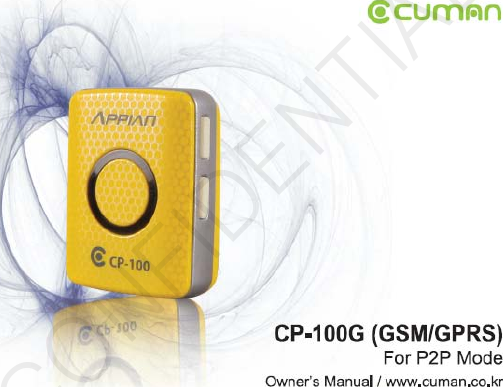
CUMAN CP100G LBS User Manual K3900 Technical Manual

CUMAN Co., Ltd. LBS K3900 Technical Manual

User manual

CONFIDENTIALCONFIDENTIAL
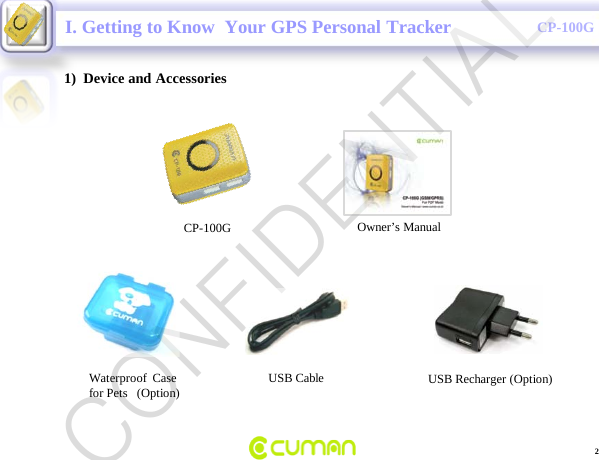
CONFIDENTIALCP-100G1)  Device and AccessoriesCP-100G Owner’s Manual2USB CableWaterproof  Case for Pets   (Option) USB Recharger (Option)I. Getting to Know  Your GPS Personal TrackerCONFIDENTIAL
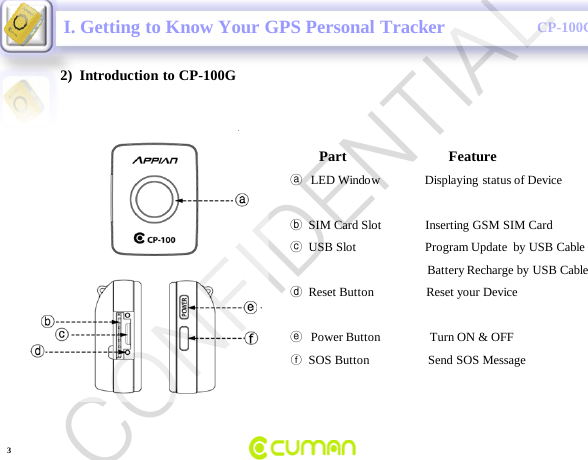
CONFIDENTIALCP-100GI. Getting to Know Your GPS Personal Tracker2)  Introduction to CP-100G3Part                            FeatureⓐLED Window Displaying status of DeviceⓑSIM Card Slot              Inserting GSM SIM CardⓒUSB Slot Program Update  by USB CableBattery Recharge by USB CableⓓReset Button                 Reset your DeviceⓔPower Button                Turn ON & OFFⓕSOS Button                   Send SOS MessageCONFIDENTIAL
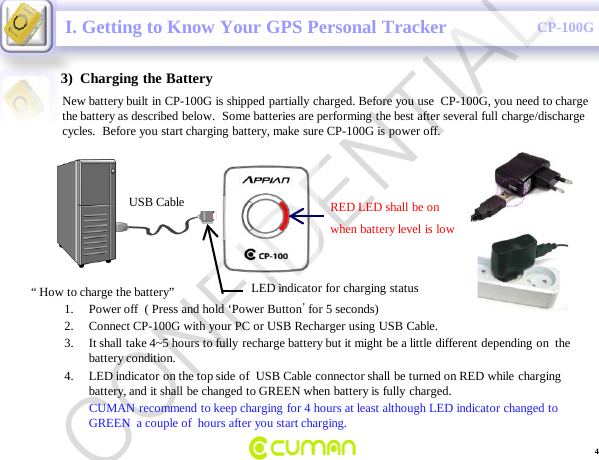
CONFIDENTIALCP-100G3)  Charging the BatteryNew battery built in CP-100G is shipped partially charged. Before you use  CP-100G, you need to charge the battery as described below.  Some batteries are performing the best after several full charge/discharge cycles.  Before you start charging battery, make sure CP-100G is power off.I. Getting to Know Your GPS Personal TrackerRED LED shall be onwhen battery level is lowUSB CableLED indicator for charging status “ How to charge the battery”1. Power off  ( Press and hold ‘Power Button’for 5 seconds)2. Connect CP-100G with your PC or USB Recharger using USB Cable.3. It shall take 4~5 hours to fully recharge battery but it might be a little different depending on  the battery condition.  4. LED indicator on the top side of  USB Cable connector shall be turned on RED while charging battery, and it shall be changed to GREEN when battery is fully charged. CUMAN recommend to keep charging for 4 hours at least although LED indicator changed to GREEN  a couple of  hours after you start charging.  4CONFIDENTIAL
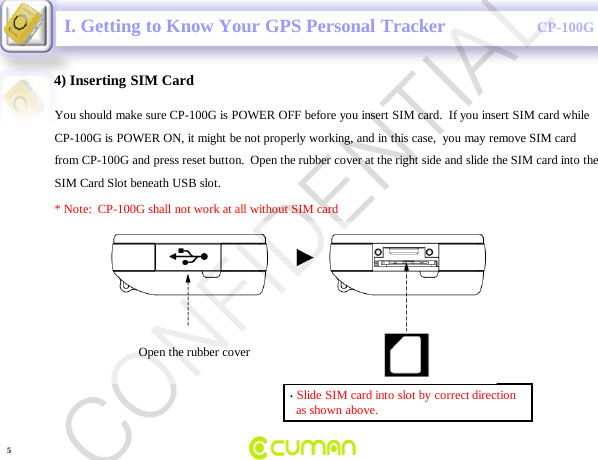
CONFIDENTIALCP-100G4) Inserting SIM CardYou should make sure CP-100G is POWER OFF before you insert SIM card.  If you insert SIM card whileCP-100G is POWER ON, it might be not properly working, and in this case,  you may remove SIM card from CP-100G and press reset button.  Open the rubber cover at the right side and slide the SIM card into the  SIM Card Slot beneath USB slot. * Note:  CP-100G shall not work at all without SIM card•Slide SIM card into slot by correct directionas shown above.I. Getting to Know Your GPS Personal TrackerOpen the rubber cover 5CONFIDENTIAL
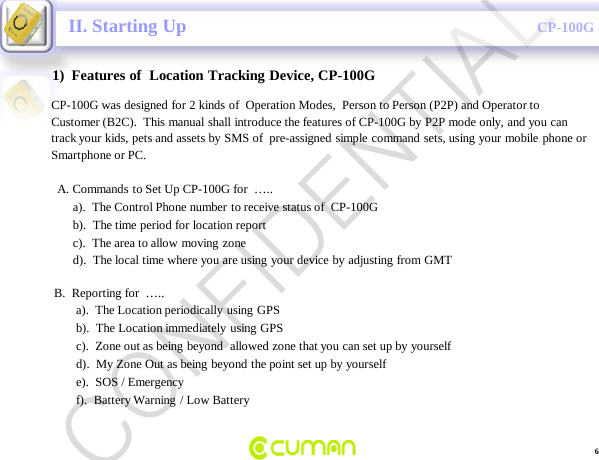
CONFIDENTIALCP-100GII. Starting Up1)  Features of  Location Tracking Device, CP-100GCP-100G was designed for 2 kinds of  Operation Modes,  Person to Person (P2P) and Operator to Customer (B2C).  This manual shall introduce the features of CP-100G by P2P mode only, and you can  track your kids, pets and assets by SMS of  pre-assigned simple command sets, using your mobile phone or  Smartphone or PC.A. Commands to Set Up CP-100G for  …..a).  The Control Phone number to receive status of  CP-100Gb).  The time period for location report   c).  The area to allow moving zone     d).  The local time where you are using your device by adjusting from GMTB.  Reporting for  …..a).  The Location periodically using GPS b).  The Location immediately using GPS c).  Zone out as being beyond  allowed zone that you can set up by yourselfd).  My Zone Out as being beyond the point set up by yourselfe).  SOS / Emergencyf).  Battery Warning / Low Battery6CONFIDENTIAL
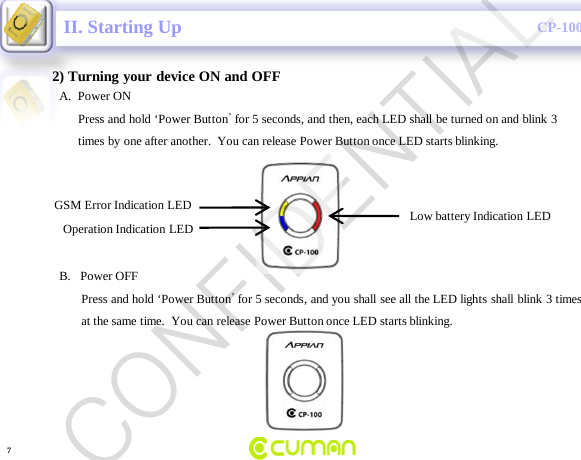
CONFIDENTIALCP-100GII. Starting Up2) Turning your device ON and OFFLow battery Indication LEDGSM Error Indication LEDOperation Indication LEDA.  Power ONPress and hold ‘Power Button’for 5 seconds, and then, each LED shall be turned on and blink 3times by one after another.  You can release Power Button once LED starts blinking.  B.   Power OFFPress and hold ‘Power Button’for 5 seconds, and you shall see all the LED lights shall blink 3 timesat the same time.  You can release Power Button once LED starts blinking.7CONFIDENTIAL
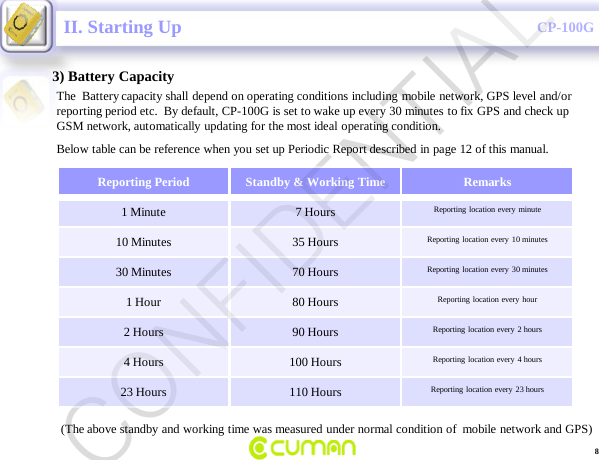
CONFIDENTIALCP-100GII. Starting Up3) Battery CapacityThe  Battery capacity shall depend on operating conditions including mobile network, GPS level and/or      reporting period etc.  By default, CP-100G is set to wake up every 30 minutes to fix GPS and check up GSM network, automatically updating for the most ideal operating condition.  Below table can be reference when you set up Periodic Report described in page 12 of this manual.  Reporting Period Standby & Working Time Remarks1 Minute 7 Hours Reporting location every minute10 Minutes 35 Hours Reporting location every 10 minutes30 Minutes 70 Hours Reporting location every 30 minutes1 Hour 80 Hours Reporting location every hour2 Hours 90 Hours Reporting location every 2 hours4 Hours 100 Hours Reporting location every 4 hours23 Hours 110 Hours Reporting location every 23 hours8(The above standby and working time was measured under normal condition of  mobile network and GPS) CONFIDENTIAL
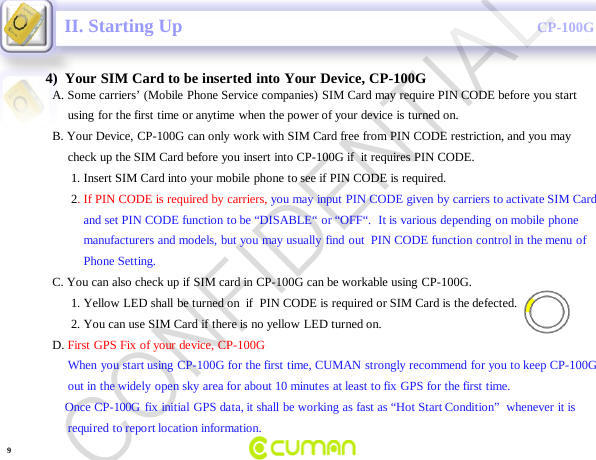
CONFIDENTIALCP-100GA. Some carriers’ (Mobile Phone Service companies) SIM Card may require PIN CODE before you startusing for the first time or anytime when the power of your device is turned on.B. Your Device, CP-100G can only work with SIM Card free from PIN CODE restriction, and you may   check up the SIM Card before you insert into CP-100G if  it requires PIN CODE.1. Insert SIM Card into your mobile phone to see if PIN CODE is required.2. If PIN CODE is required by carriers, you may input PIN CODE given by carriers to activate SIM Cardand set PIN CODE function to be “DISABLE“ or “OFF“.  It is various depending on mobile phonemanufacturers and models, but you may usually find out  PIN CODE function control in the menu ofPhone Setting.C. You can also check up if SIM card in CP-100G can be workable using CP-100G.1. Yellow LED shall be turned on  if  PIN CODE is required or SIM Card is the defected.2. You can use SIM Card if there is no yellow LED turned on.                   D. First GPS Fix of your device, CP-100G When you start using CP-100G for the first time, CUMAN strongly recommend for you to keep CP-100Gout in the widely open sky area for about 10 minutes at least to fix GPS for the first time.Once CP-100G fix initial GPS data, it shall be working as fast as “Hot Start Condition”  whenever it is required  to report location information.   II. Starting Up4)  Your SIM Card to be inserted into Your Device, CP-100G9CONFIDENTIAL
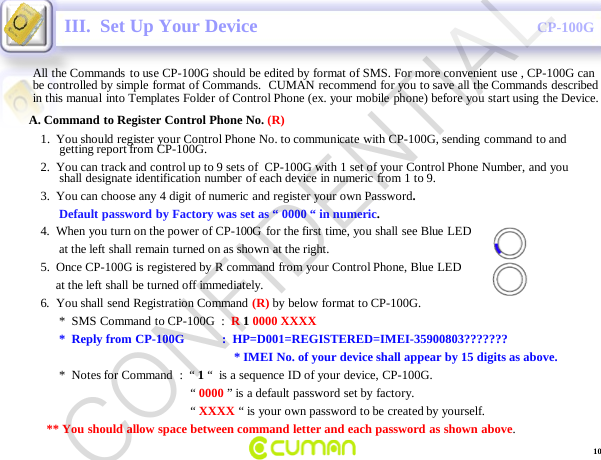
CONFIDENTIALCP-100GIII.  Set Up Your DeviceAll the Commands to use CP-100G should be edited by format of SMS. For more convenient use , CP-100G can be controlled by simple format of Commands.  CUMAN recommend for you to save all the Commands described in this manual into Templates Folder of Control Phone (ex. your mobile phone) before you start using the Device.A. Command to Register Control Phone No. (R)1.  You should register your Control Phone No. to communicate with CP-100G, sending command to and getting report from CP-100G.2.  You can track and control up to 9 sets of  CP-100G with 1 set of your Control Phone Number, and you shall designate identification number of each device in numeric from 1 to 9.3.  You can choose any 4 digit of numeric and register your own Password.                                         Default password by Factory was set as “ 0000 “ in numeric.4.  When you turn on the power of CP-100G  for the first time, you shall see Blue LED                                     at the left shall remain turned on as shown at the right.5.  Once CP-100G is registered by R command from your Control Phone, Blue LED                                   at the left shall be turned off immediately.6.  You shall send Registration Command  (R) by below format to CP-100G.*  SMS Command  to CP-100G  :  R 10000 XXXX*  Reply from CP-100G            :  HP=D001=REGISTERED=IMEI-35900803???????* IMEI No. of your device shall appear by 15 digits as above.*  Notes for Command  :  “ 1“  is a sequence ID of your device, CP-100G.       “ 0000 ” is a default password set by factory.“ XXXX “ is your own password to be created by yourself.** You should allow space between command letter and each password as shown above. 10CONFIDENTIAL
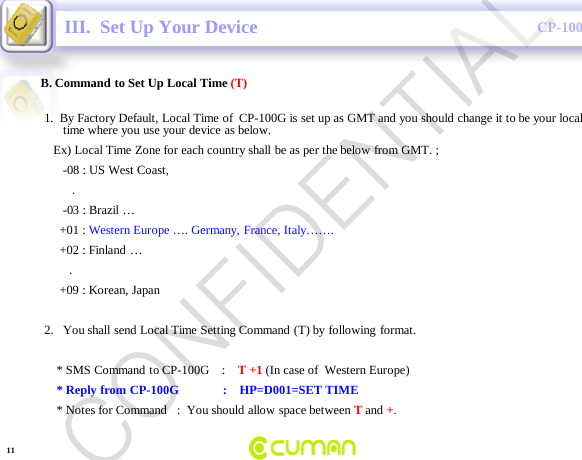
CONFIDENTIALCP-100GIII.  Set Up Your DeviceB. Command to Set Up Local Time (T)1.  By Factory Default, Local Time of  CP-100G is set up as GMT and you should change it to be your local time where you use your device as below.Ex) Local Time Zone for each country shall be as per the below from GMT. ;-08 : US West Coast, .-03 : Brazil …+01 : Western Europe …. Germany, France, Italy…….+02 : Finland ….+09 : Korean, Japan2. You shall send Local Time Setting Command (T) by following format.* SMS Command  to CP-100G    :    T +1 (In case of  Western Europe)* Reply from CP-100G              :    HP=D001=SET TIME* Notes for Command   :  You should allow space between Tand +.11CONFIDENTIAL
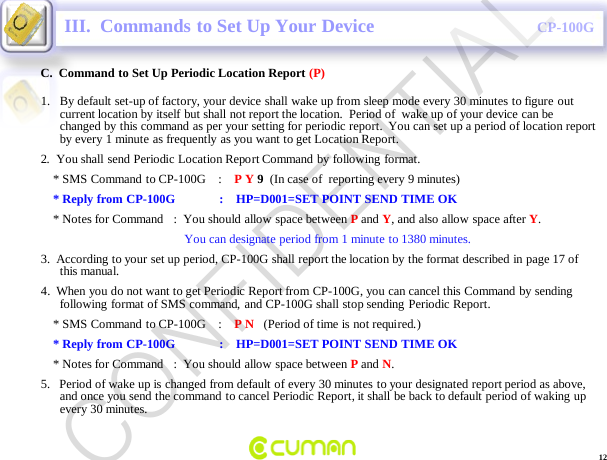
CONFIDENTIALCP-100G12C.  Command to Set Up Periodic Location Report (P)III.  Commands to Set Up Your Device1. By default set-up of factory, your device shall wake up from sleep mode every 30 minutes to figure out current location by itself but shall not report the location.  Period of  wake up of your device can be changed by this command as per your setting for periodic report.  You can set up a period of location report by every 1 minute as frequently as you want to get Location Report. 2.  You shall send Periodic Location Report Command by following format.* SMS Command  to CP-100G    :    P Y 9(In case of  reporting every 9 minutes)* Reply from CP-100G              :    HP=D001=SET POINT SEND TIME OK* Notes for Command   :  You should allow space between Pand Y, and also allow space after Y.You can designate period from 1 minute to 1380 minutes.3.  According to your set up period, CP-100G shall report the location by the format described in page 17 of this manual.4.  When you do not want to get Periodic Report from CP-100G, you can cancel this Command by sending following format of SMS command, and CP-100G shall stop sending Periodic Report.* SMS Command  to CP-100G    :    P N   (Period of time is not required.)* Reply from CP-100G              :    HP=D001=SET POINT SEND TIME OK* Notes for Command   :  You should allow space between Pand N.5.   Period of wake up is changed from default of every 30 minutes to your designated report period as above, and once you send the command to cancel Periodic Report, it shall be back to default period of waking up every 30 minutes. CONFIDENTIAL
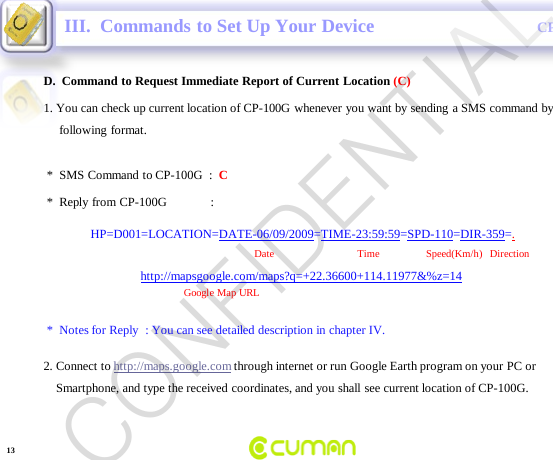
CONFIDENTIALCP-100GD.  Command to Request Immediate Report of Current Location (C)III.  Commands to Set Up Your Device*  Reply from CP-100G              :HP=D001=LOCATION=DATE-06/09/2009=TIME-23:59:59=SPD-110=DIR-359=.Date                                Time       Speed(Km/h)   Direction          http://mapsgoogle.com/maps?q=+22.36600+114.11977&%z=14Google Map URL*  Notes for Reply  : You can see detailed description in chapter IV.1. You can check up current location of CP-100G whenever you want by sending a SMS command by following format.  *  SMS Command  to CP-100G  :  C2. Connect to http://maps.google.com through internet or run Google Earth program on your PC orSmartphone, and type the received coordinates, and you shall see current location of CP-100G. 13CONFIDENTIAL
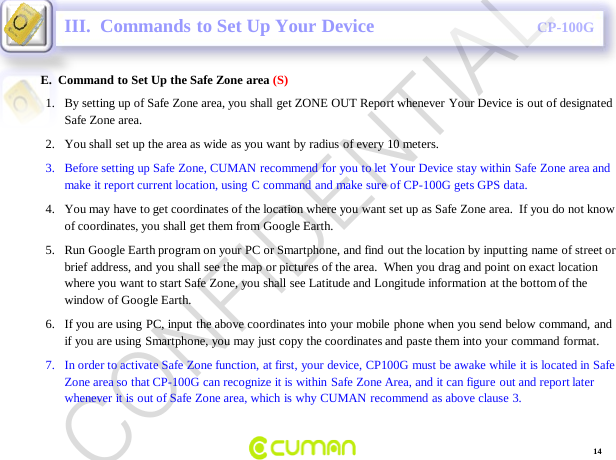
CONFIDENTIALCP-100GE.  Command to Set Up the Safe Zone area (S)III.  Commands to Set Up Your Device1. By setting up of Safe Zone area, you shall get ZONE OUT Report whenever Your Device is out of designated Safe Zone area.2. You shall set up the area as wide as you want by radius of every 10 meters. 3. Before setting up Safe Zone, CUMAN recommend for you to let Your Device stay within Safe Zone area and make it report current location, using C command and make sure of CP-100G gets GPS data.4. You may have to get coordinates of the location where you want set up as Safe Zone area.  If you do not know of coordinates, you shall get them from Google Earth.  5. Run Google Earth program on your PC or Smartphone, and find out the location by inputting name of street or brief address, and you shall see the map or pictures of the area.  When you drag and point on exact location where you want to start Safe Zone, you shall see Latitude and Longitude information at the bottom of the window of Google Earth. 6. If you are using PC, input the above coordinates into your mobile phone when you send below command, and if you are using Smartphone, you may just copy the coordinates and paste them into your command format.  7. In order to activate Safe Zone function, at first, your device, CP100G must be awake while it is located in Safe Zone area so that CP-100G can recognize it is within Safe Zone Area, and it can figure out and report later whenever it is out of Safe Zone area, which is why CUMAN recommend as above clause 3.14CONFIDENTIAL
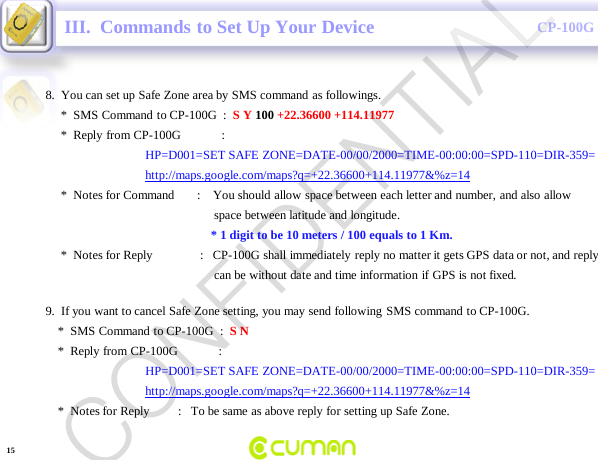
CONFIDENTIALCP-100GIII.  Commands to Set Up Your Device8.  You can set up Safe Zone area by SMS command as followings.*  SMS Command  to CP-100G  :  S Y 100 +22.36600 +114.11977*  Reply from CP-100G             :HP=D001=SET SAFE ZONE=DATE-00/00/2000=TIME-00:00:00=SPD-110=DIR-359= http://maps.google.com/maps?q=+22.36600+114.11977&%z=14*  Notes for Command       :    You should allow space between each letter and number, and also allow space between latitude and longitude.* 1 digit to be 10 meters / 100 equals to 1 Km.*  Notes for Reply               :   CP-100G shall immediately reply no matter it gets GPS data or not, and replycan be without date and time information if GPS is not fixed.9.  If you want to cancel Safe Zone setting, you may send following SMS command to CP-100G.*  SMS Command  to CP-100G  :  S N*  Reply from CP-100G             :HP=D001=SET SAFE ZONE=DATE-00/00/2000=TIME-00:00:00=SPD-110=DIR-359= http://maps.google.com/maps?q=+22.36600+114.11977&%z=14*  Notes for Reply         :   To be same as above reply for setting up Safe Zone.15CONFIDENTIAL
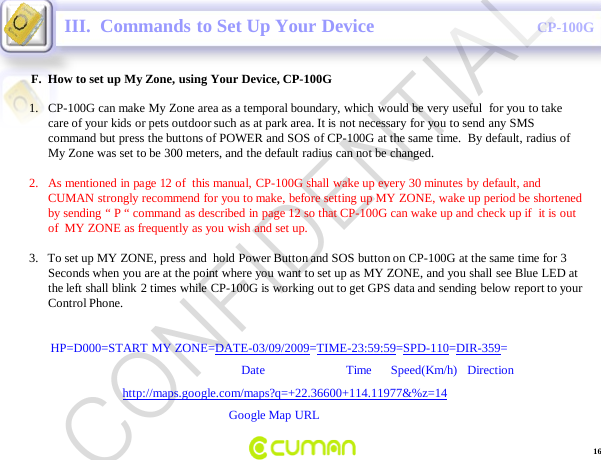
CONFIDENTIALCP-100GF.  How to set up My Zone, using Your Device, CP-100GIII.  Commands to Set Up Your Device1. CP-100G can make My Zone area as a temporal boundary, which would be very useful  for you to take care of your kids or pets outdoor such as at park area. It is not necessary for you to send any SMS command but press the buttons of POWER and SOS of CP-100G at the same time.  By default, radius of My Zone was set to be 300 meters, and the default radius can not be changed.2. As mentioned in page 12 of  this manual, CP-100G shall wake up every 30 minutes by default, and CUMAN strongly recommend for you to make, before setting up MY ZONE, wake up period be shortened by sending “ P “ command as described in page 12 so that CP-100G can wake up and check up if  it is out of  MY ZONE as frequently as you wish and set up.3.   To set up MY ZONE, press and  hold Power Button and SOS button on CP-100G at the same time for 3 Seconds when you are at the point where you want to set up as MY ZONE, and you shall see Blue LED at the left shall blink 2 times while CP-100G is working out to get GPS data and sending below report to your Control Phone. HP=D000=START MY ZONE=DATE-03/09/2009=TIME-23:59:59=SPD-110=DIR-359=Date                          Time      Speed(Km/h)   Direction         http://maps.google.com/maps?q=+22.36600+114.11977&%z=14Google Map URL16CONFIDENTIAL
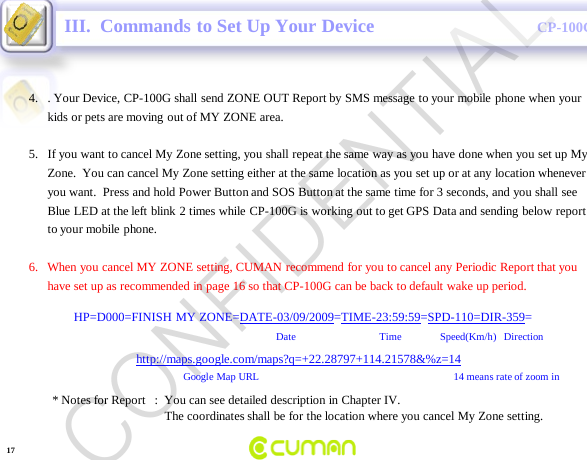
CONFIDENTIALCP-100GIII.  Commands to Set Up Your Device4. . Your Device, CP-100G shall send ZONE OUT Report by SMS message to your mobile phone when your kids or pets are moving out of MY ZONE area.5. If you want to cancel My Zone setting, you shall repeat the same way as you have done when you set up My Zone.  You can cancel My Zone setting either at the same location as you set up or at any location whenever you want.  Press and hold Power Button and SOS Button at the same time for 3 seconds, and you shall see Blue LED at the left blink 2 times while CP-100G is working out to get GPS Data and sending below report to your mobile  phone.6.   When you cancel MY ZONE setting, CUMAN recommend for you to cancel any Periodic Report that you have set up as recommended in page 16 so that CP-100G can be back to default wake up period.HP=D000=FINISH MY ZONE=DATE-03/09/2009=TIME-23:59:59=SPD-110=DIR-359=Date                                Time   Speed(Km/h)   Directionhttp://maps.google.com/maps?q=+22.28797+114.21578&%z=14Google Map URL 14 means rate of zoom in * Notes for Report   :  You can see detailed description in Chapter IV.The coordinates shall be for the location where you cancel My Zone setting.17CONFIDENTIAL
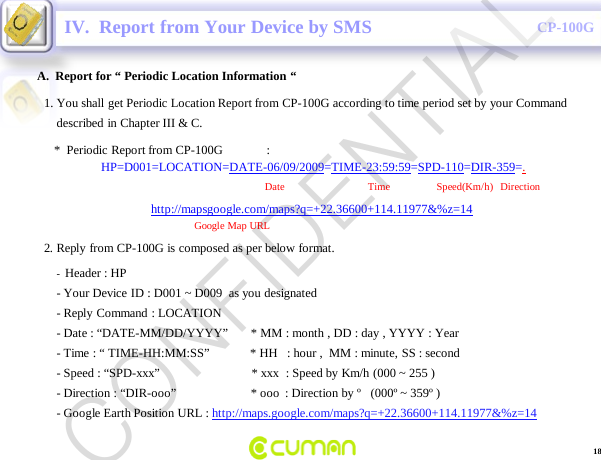
CONFIDENTIALCP-100GA.  Report for “ Periodic Location Information “IV.  Report from Your Device by SMS-Header : HP                                                                    -Your Device ID : D001 ~ D009  as you designated -Reply Command : LOCATION-Date : “DATE-MM/DD/YYYY”       * MM : month , DD : day , YYYY : Year -Time : “ TIME-HH:MM:SS”             * HH   : hour ,  MM : minute, SS : second-Speed : “SPD-xxx”                             * xxx  : Speed by Km/h (000 ~ 255 )-Direction : “DIR-ooo”                        * ooo : Direction by º   (000º ~ 359º )-Google Earth Position URL : http://maps.google.com/maps?q=+22.36600+114.11977&%z=141. You shall get Periodic Location Report from CP-100G according to time period set by your Command described in Chapter III & C.*  Periodic Report from CP-100G              :HP=D001=LOCATION=DATE-06/09/2009=TIME-23:59:59=SPD-110=DIR-359=.Date                                Time       Speed(Km/h)   Direction          http://mapsgoogle.com/maps?q=+22.36600+114.11977&%z=14Google Map URL2. Reply from CP-100G is composed as per below format.18CONFIDENTIAL
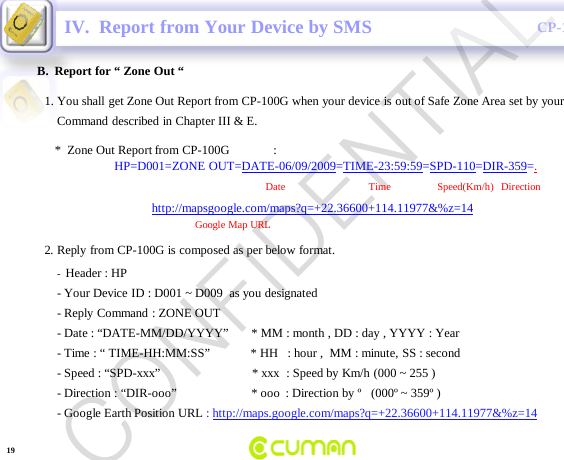
CONFIDENTIALCP-100GB.  Report for “ Zone Out “IV.  Report from Your Device by SMS-Header : HP                                                                    -Your Device ID : D001 ~ D009  as you designated  -Reply Command : ZONE OUT-Date : “DATE-MM/DD/YYYY”       * MM : month , DD : day , YYYY : Year -Time : “ TIME-HH:MM:SS”             * HH   : hour ,  MM : minute, SS : second-Speed : “SPD-xxx”                             * xxx  : Speed by Km/h (000 ~ 255 )-Direction : “DIR-ooo”                        * ooo : Direction by º   (000º ~ 359º )-Google Earth Position URL : http://maps.google.com/maps?q=+22.36600+114.11977&%z=141. You shall get Zone Out Report from CP-100G when your device is out of Safe Zone Area set by yourCommand described in Chapter III & E.*  Zone Out Report from CP-100G              :HP=D001=ZONE OUT=DATE-06/09/2009=TIME-23:59:59=SPD-110=DIR-359=.Date                                Time       Speed(Km/h)   Direction          http://mapsgoogle.com/maps?q=+22.36600+114.11977&%z=14Google Map URL2. Reply from CP-100G is composed as per below format.19CONFIDENTIAL
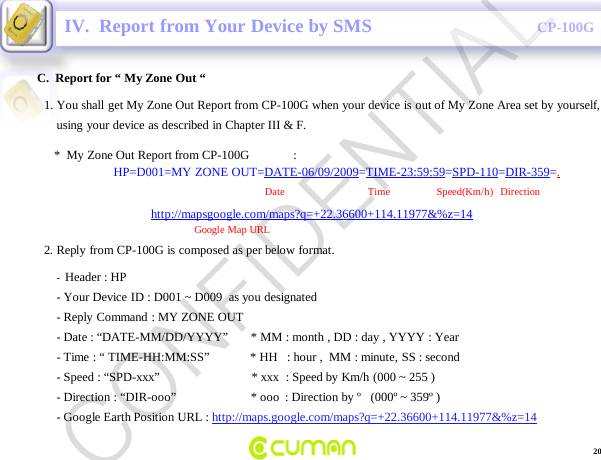
CONFIDENTIALCP-100GC.  Report for “ My Zone Out “IV.  Report from Your Device by SMS-Header : HP                                                                    -Your Device ID : D001 ~ D009  as you designated  -Reply Command : MY ZONE OUT-Date : “DATE-MM/DD/YYYY”       * MM : month , DD : day , YYYY : Year -Time : “ TIME-HH:MM:SS”             * HH   : hour ,  MM : minute, SS : second-Speed : “SPD-xxx”                             * xxx  : Speed by Km/h (000 ~ 255 )-Direction : “DIR-ooo”                        * ooo : Direction by º   (000º ~ 359º )-Google Earth Position URL : http://maps.google.com/maps?q=+22.36600+114.11977&%z=141. You shall get My Zone Out Report from CP-100G when your device is out of My Zone Area set by yourself,using your device as described in Chapter III & F.*  My Zone Out Report from CP-100G              :HP=D001=MY ZONE OUT=DATE-06/09/2009=TIME-23:59:59=SPD-110=DIR-359=.Date                                Time       Speed(Km/h)   Direction          http://mapsgoogle.com/maps?q=+22.36600+114.11977&%z=14Google Map URL2. Reply from CP-100G is composed as per below format.20CONFIDENTIAL
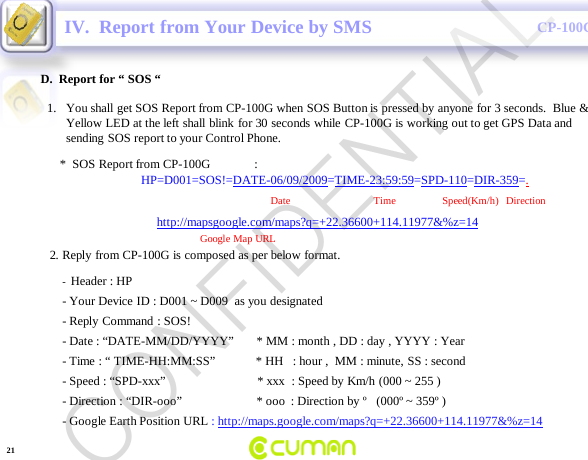
CONFIDENTIALCP-100GD.  Report for “ SOS “IV.  Report from Your Device by SMS-Header : HP                                                                    -Your Device ID : D001 ~ D009  as you designated  -Reply Command : SOS!-Date : “DATE-MM/DD/YYYY”       * MM : month , DD : day , YYYY : Year -Time : “ TIME-HH:MM:SS”             * HH   : hour ,  MM : minute, SS : second-Speed : “SPD-xxx”                             * xxx  : Speed by Km/h (000 ~ 255 )-Direction : “DIR-ooo”                        * ooo : Direction by º   (000º ~ 359º )-Google Earth Position URL : http://maps.google.com/maps?q=+22.36600+114.11977&%z=141. You shall get SOS Report from CP-100G when SOS Button is pressed by anyone for 3 seconds.  Blue &  Yellow LED at the left shall blink for 30 seconds while CP-100G is working out to get GPS Data and sending SOS report to your Control Phone.*  SOS Report from CP-100G              :HP=D001=SOS!=DATE-06/09/2009=TIME-23:59:59=SPD-110=DIR-359=.Date                                Time       Speed(Km/h)   Direction          http://mapsgoogle.com/maps?q=+22.36600+114.11977&%z=14Google Map URL2. Reply from CP-100G is composed as per below format.21CONFIDENTIAL
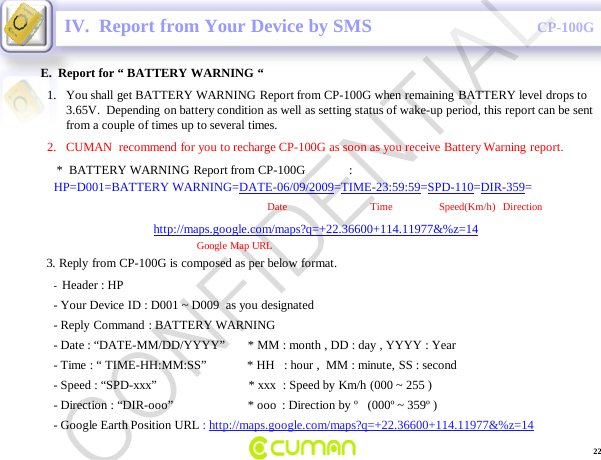
CONFIDENTIALCP-100GE.  Report for “ BATTERY WARNING “IV.  Report from Your Device by SMS-Header : HP                                                                    -Your Device ID : D001 ~ D009  as you designated  -Reply Command : BATTERY WARNING-Date : “DATE-MM/DD/YYYY”       * MM : month , DD : day , YYYY : Year -Time : “ TIME-HH:MM:SS”             * HH   : hour ,  MM : minute, SS : second-Speed : “SPD-xxx”                             * xxx  : Speed by Km/h (000 ~ 255 )-Direction : “DIR-ooo”                        * ooo : Direction by º   (000º ~ 359º )-Google Earth Position URL : http://maps.google.com/maps?q=+22.36600+114.11977&%z=141. You shall get BATTERY WARNING Report from CP-100G when remaining BATTERY level drops to 3.65V.  Depending on battery condition as well as setting status of wake-up period, this report can be sent from a couple of times up to several times.2. CUMAN  recommend for you to recharge CP-100G as soon as you receive Battery Warning report.*  BATTERY WARNING Report from CP-100G              :HP=D001=BATTERY WARNING=DATE-06/09/2009=TIME-23:59:59=SPD-110=DIR-359=Date                                Time       Speed(Km/h)   Direction          http://maps.google.com/maps?q=+22.36600+114.11977&%z=14Google Map URL3. Reply from CP-100G is composed as per below format.22CONFIDENTIAL
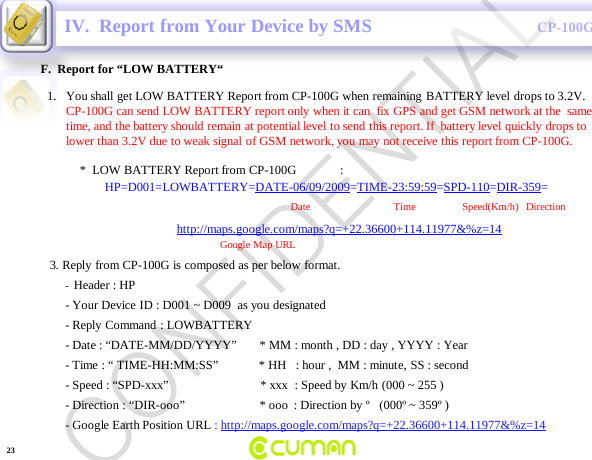
CONFIDENTIALCP-100GF.  Report for “LOW BATTERY“IV.  Report from Your Device by SMS-Header : HP                                                                    -Your Device ID : D001 ~ D009  as you designated  -Reply Command : LOWBATTERY-Date : “DATE-MM/DD/YYYY”       * MM : month , DD : day , YYYY : Year -Time : “ TIME-HH:MM:SS”             * HH   : hour ,  MM : minute, SS : second-Speed : “SPD-xxx”                             * xxx  : Speed by Km/h (000 ~ 255 )-Direction : “DIR-ooo”                        * ooo : Direction by º   (000º ~ 359º )-Google Earth Position URL : http://maps.google.com/maps?q=+22.36600+114.11977&%z=141. You shall get LOW BATTERY Report from CP-100G when remaining BATTERY level drops to 3.2V.                                       CP-100G can send LOW BATTERY report only when it can  fix GPS and get GSM network at the  same time, and the battery should remain at potential level to send this report. If  battery level quickly drops to lower than 3.2V due to weak signal of GSM network, you may not receive this report from CP-100G.*  LOW BATTERY Report from CP-100G              :HP=D001=LOWBATTERY=DATE-06/09/2009=TIME-23:59:59=SPD-110=DIR-359=Date                                Time       Speed(Km/h)   Direction          http://maps.google.com/maps?q=+22.36600+114.11977&%z=14Google Map URL3. Reply from CP-100G is composed as per below format.23CONFIDENTIAL
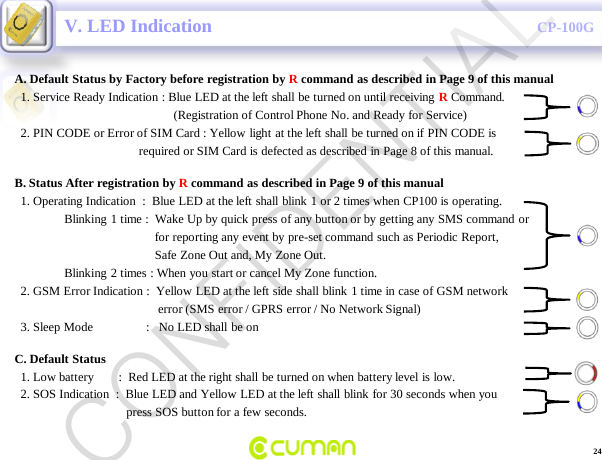
CONFIDENTIALCP-100GV. LED Indication A. Default Status by Factory before registration by Rcommand as described in Page 9 of this manual1. Service Ready Indication : Blue LED at the left shall be turned on until receiving RCommand.(Registration of Control Phone No. and Ready for Service)2. PIN CODE or Error of SIM Card : Yellow light at the left shall be turned on if PIN CODE is required or SIM Card is defected as described in Page 8 of this manual.B. Status After registration by Rcommand as described in Page 9 of this manual1. Operating Indication  :  Blue LED at the left shall blink 1 or 2 times when CP100 is operating.Blinking 1 time :  Wake Up by quick press of any button or by getting any SMS command or for reporting any event by pre-set command such as Periodic Report, Safe Zone Out and, My Zone Out.Blinking 2 times : When you start or cancel My Zone function.  2. GSM Error Indication :  Yellow LED at the left side shall blink 1 time in case of GSM network error (SMS error / GPRS error / No Network Signal)3. Sleep Mode                 :   No LED shall be onC. Default Status1. Low battery        :  Red LED at the right shall be turned on when battery level is low.2. SOS Indication  :  Blue LED and Yellow LED at the left shall blink for 30 seconds when youpress SOS button for a few seconds.24CONFIDENTIAL
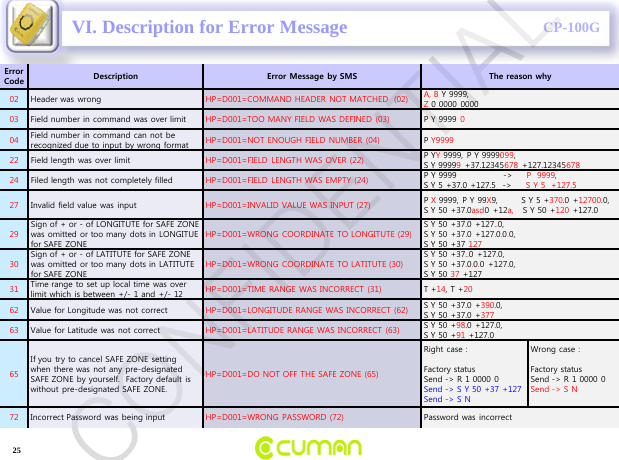
CONFIDENTIALCP-100GVI. Description for Error MessageError Code Description Error Message by SMS The reason why  02 Header was wrong HP=D001=COMMAND HEADER NOT MATCHED  (02) A, B Y 9999,Z0 0000 000003 Field number in command was over limit HP=D001=TOO MANY FIELD WAS DEFINED (03) P Y 9999  004 Field number in command can not be recognized due to input by wrong format HP=D001=NOT ENOUGH FIELD NUMBER (04) P Y999922 Field length was over limit HP=D001=FIELD  LENGTH WAS OVER (22) P YY9999, P Y 9999099,S Y 99999+37.12345678 +127.1234567824 Filed length was not completely filled  HP=D001=FIELD LENGTH WAS EMPTY (24) P Y 9999                ->     P  9999, S Y 5 +37.0 +127.5  ->     S Y 5  +127.527 Invalid field value was input  HP=D001=INVALID VALUE WAS INPUT (27) P X9999, P Y 99X9,        S Y 5 +370.0 +12700.0,S Y 50  +37.0asd0 +12a,    S Y 50 +120 +127.029Sign of + or -of LONGITUTE for SAFE ZONE was omitted or too many dots in LONGITUE for SAFE ZONEHP=D001=WRONG  COORDINATE TO LONGITUTE (29)S Y 50  +37.0 +127..0, S Y 50  +37.0 +127.0.0.0, S Y 50  +37 12730Sign of + or -of LATITUTE for SAFE ZONE was omitted or too many dots in LATITUTE  for SAFE ZONEHP=D001=WRONG  COORDINATE TO LATITUTE (30)S Y 50  +37..0 +127.0, S Y 50  +37.0.0.0 +127.0, S Y 50  37 +12731 Time range to set up local time was over limit which is between +/-1 and +/-12 HP=D001=TIME RANGE WAS INCORRECT (31) T +14, T +2062 Value for Longitude was not correct HP=D001=LONGITUDE RANGE WAS INCORRECT (62) S Y 50 +37.0  +390.0, S Y 50  +37.0 +37763 Value for Latitude was not correct HP=D001=LATITUDE RANGE WAS INCORRECT (63) S Y 50  +98.0 +127.0, S Y 50  +91 +127.065If you try to cancel SAFE ZONE setting when there was not any pre-designated SAFE ZONE by yourself.  Factory default is without pre-designated SAFE ZONE.HP=D001=DO NOT OFF THE SAFE ZONE (65)Right case :Factory statusSend -> R 1 0000 0Send -> S Y 50 +37 +127Send -> S NWrong case :Factory statusSend -> R 1 0000 0Send -> S N72 Incorrect Password  was  being input HP=D001=WRONG PASSWORD (72) Password was incorrect25CONFIDENTIAL
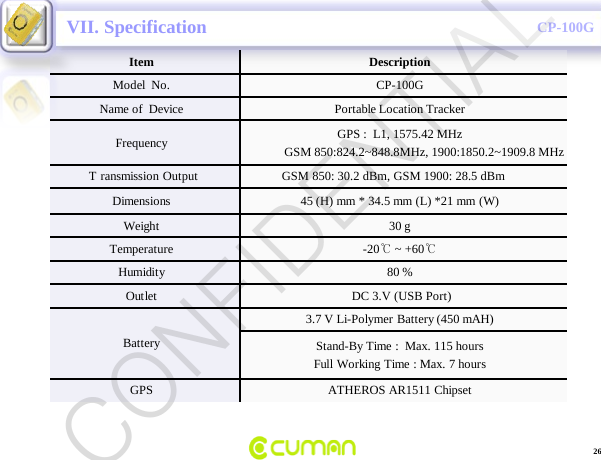
CONFIDENTIALCP-100GVII. SpecificationItem DescriptionModel  No. CP-100GName of  Device Portable Location TrackerFrequency GPS :  L1, 1575.42 MHzGSM 850:824.2~848.8MHz, 1900:1850.2~1909.8 MHzT ransmission Output                     GSM 850: 30.2 dBm, GSM 1900: 28.5 dBmDimensions  45 (H) mm * 34.5 mm (L) *21 mm (W)Weight 30 gTemperature -20℃~ +60℃Humidity 80 %Outlet DC 3.V (USB Port)Battery3.7 V Li-Polymer Battery (450 mAH)Stand-By Time :  Max. 115 hoursFull Working Time : Max. 7 hoursGPS ATHEROS AR1511 Chipset26CONFIDENTIAL
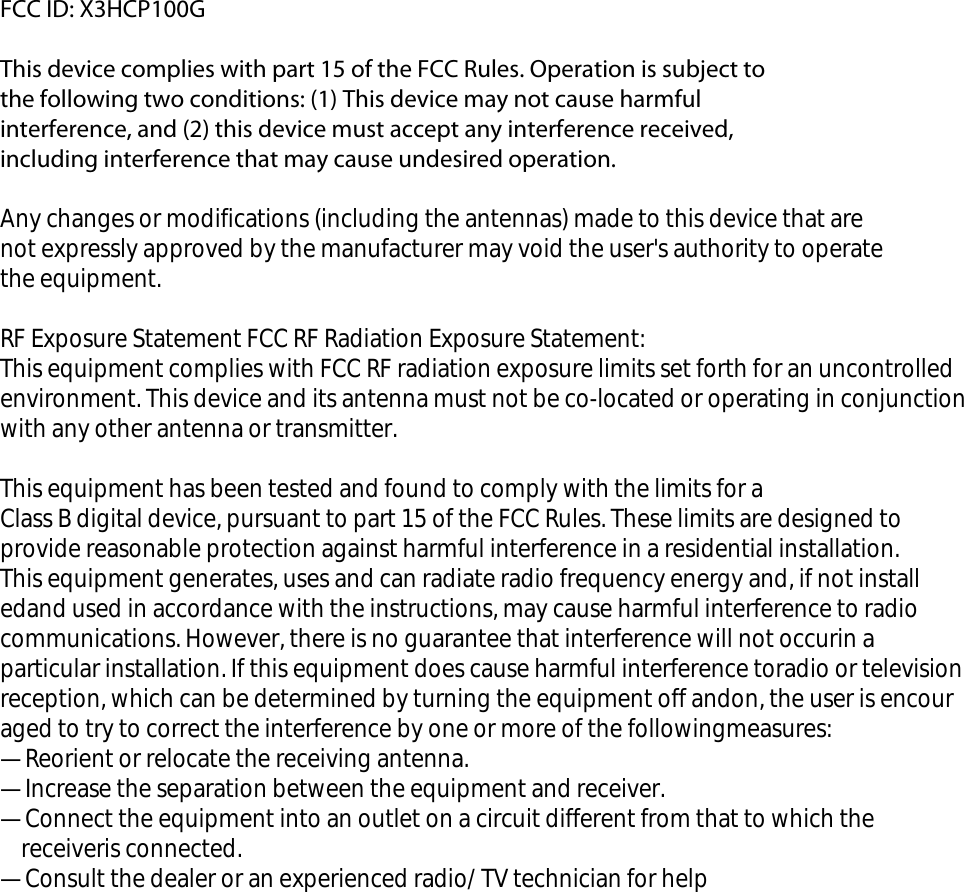
FCC ID: X3HCP100G   This device complies with part 15 of the FCC Rules. Operation is subject to the following two conditions: (1) This device may not cause harmful interference, and (2) this device must accept any interference received, including interference that may cause undesired operation. Any changes or modifications (including the antennas) made to this device that are not expressly approved by the manufacturer may void the user's authority to operate the equipment.  RF Exposure Statement FCC RF Radiation Exposure Statement: This equipment complies with FCC RF radiation exposure limits set forth for an uncontrolled environment. This device and its antenna must not be co-located or operating in conjunction with any other antenna or transmitter. This equipment has been tested and found to comply with the limits for a Class B digital device, pursuant to part 15 of the FCC Rules. These limits are designed to provide reasonable protection against harmful interference in a residential installation.This equipment generates, uses and can radiate radio frequency energy and, if not installedand used in accordance with the instructions, may cause harmful interference to radio communications. However, there is no guarantee that interference will not occurin a particular installation. If this equipment does cause harmful interference toradio or television reception, which can be determined by turning the equipment off andon, the user is encouraged to try to correct the interference by one or more of the followingmeasures:—Reorient or relocate the receiving antenna.—Increase the separation between the equipment and receiver.—Connect the equipment into an outlet on a circuit different from that to which the    receiveris connected.—Consult the dealer or an experienced radio/ TV technician for help

Navigation menu