Caavo W4RC Remote control User Manual CAAVOinsert8x10 v2 FINAL6 26 OL
Caavo Inc Remote control CAAVOinsert8x10 v2 FINAL6 26 OL
Caavo >
User Manual
The device has been evaluated to meet general RF exposure requirement.
The device can be used in portable exposure condition without restriction.
Caavo Accessories General
Getting Started Tips and Tricks
May 23, 2018 12:49
by Boone
Follow
Getting Started
This guide is here to help you get started with Control Center. If you have any questions, you can
contact Caavo support at support.caavo.com at any time.
1. If you’ve already created your Caavo Account, skip this step. If you haven’t created your Caavo
Account online, go to https://setup.caavo.com and create one.
2. Unpack Control Center.
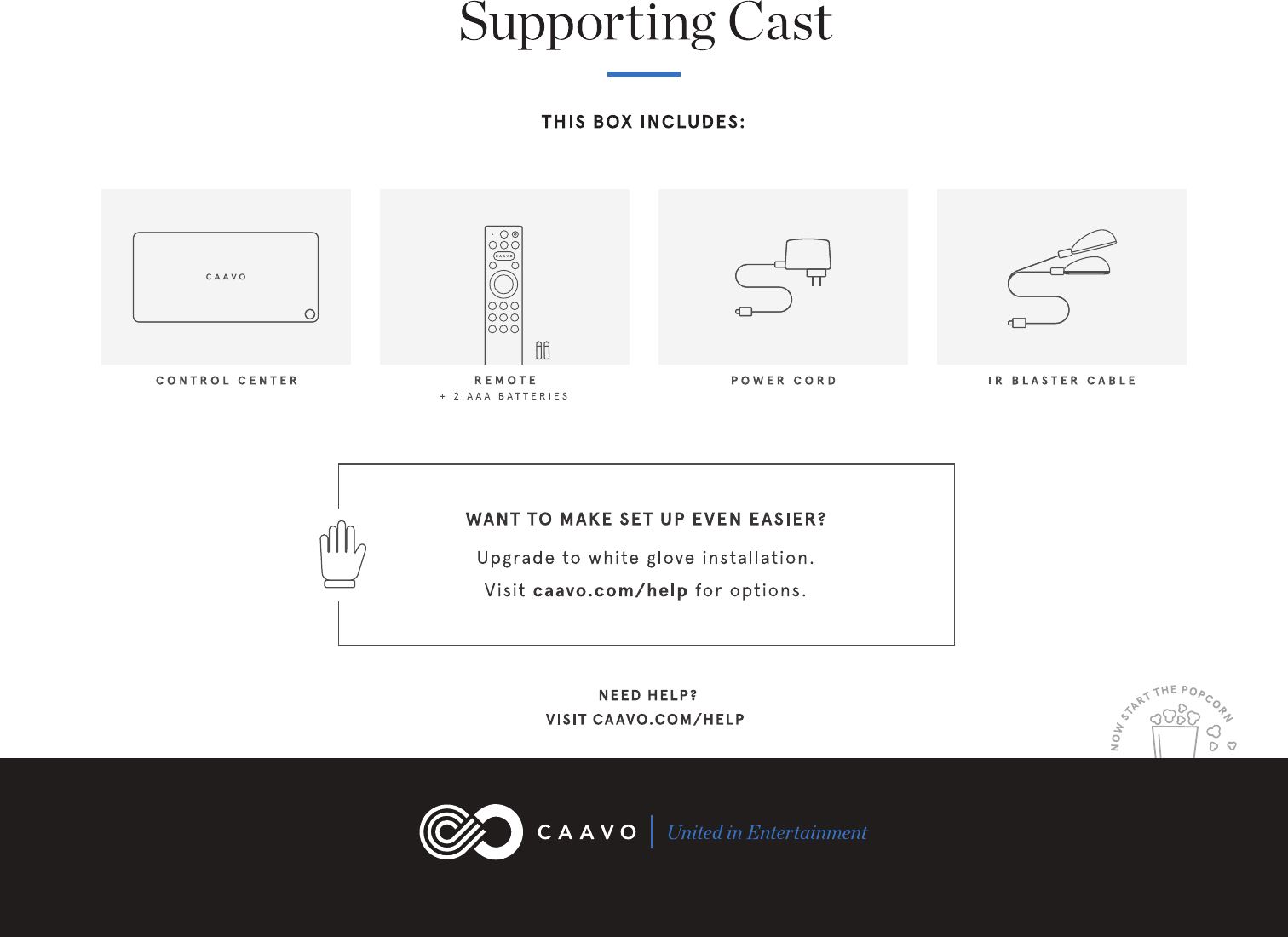
Your box includes: Control Center, Caavo Remote + Batteries, IR Blasters, Power Cable.
3. Place the included AA batteries into the Caavo Remote.
4. If you have an Audio Video Receiver (AVR) or Sound Bar connected to your TV via HDMI, leave
it connected on both ends. Then, disconnect all your HDMI source devices from your
AVR/Sound Bar. You will connect Caavo to your AVR/ Sound Bar.
OR If you do not have an AVR/Sound Bar, or your AVR/Sound Bar is connected via RCA or
optical, disconnect all your HDMI source devices from your TV. You will connect Caavo
directly to your TV.
5. Place Control Center in a central location where IR signals can reach both your source devices
and your AVR or TV.
6. Plug in your source devices to the 4 INPUT ports on the back of Control Center.
Start
yo
ur search here
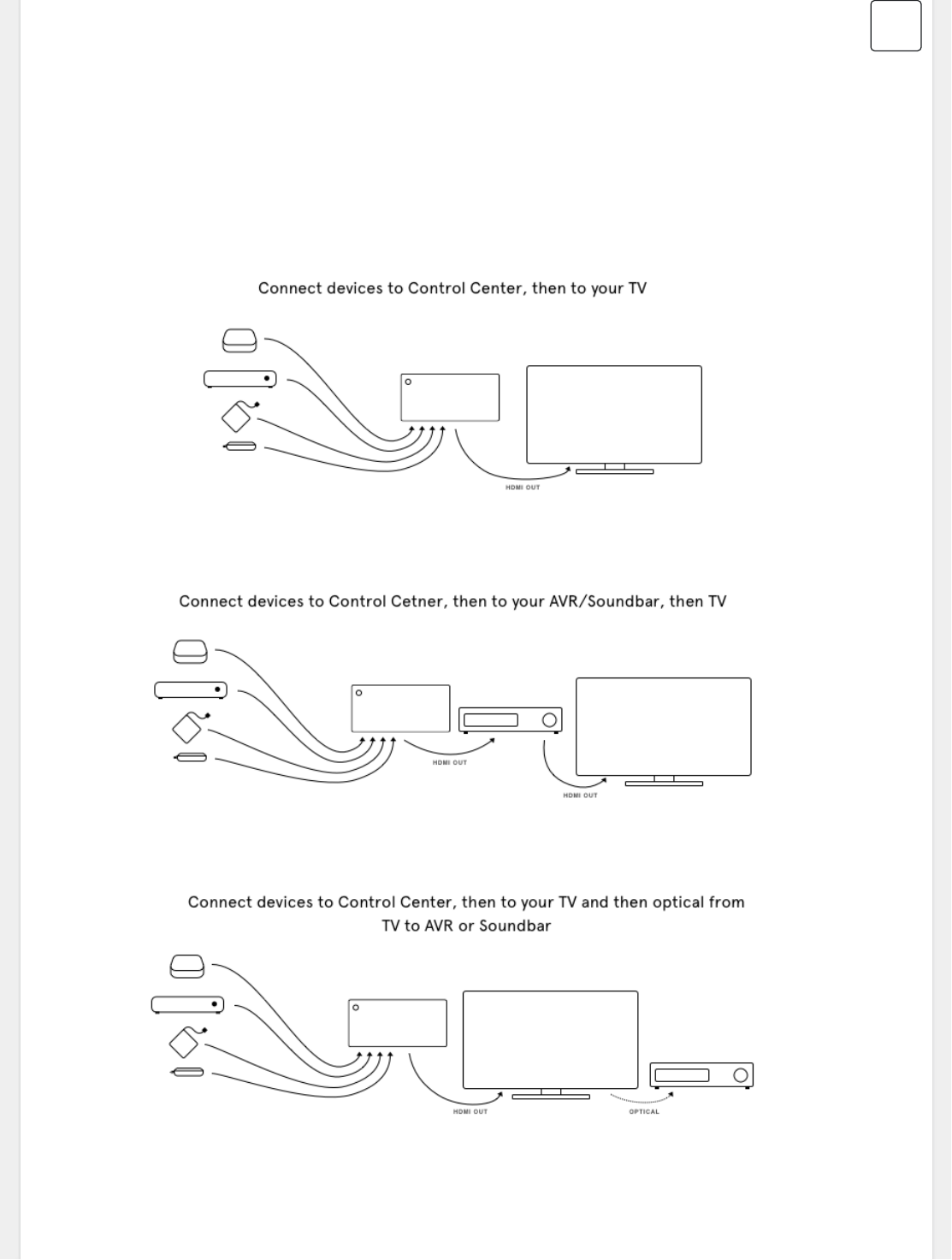
7. Plug in an HDMI cable from the OUT port on Control Center into your AVR, Soundbar, or
directly into your TV (if you are not using AVR or Soundbar).
8. Connect the Caavo power cord to a wall outlet.
9. Turn on your TV with your TV’s remote (and AVR/Sound Bar too). Follow the on-screen
instructions to complete your setup experience. During setup, you will be instructed how to
use the included IR accessories (if needed).
Three common ways to connect Control Center:
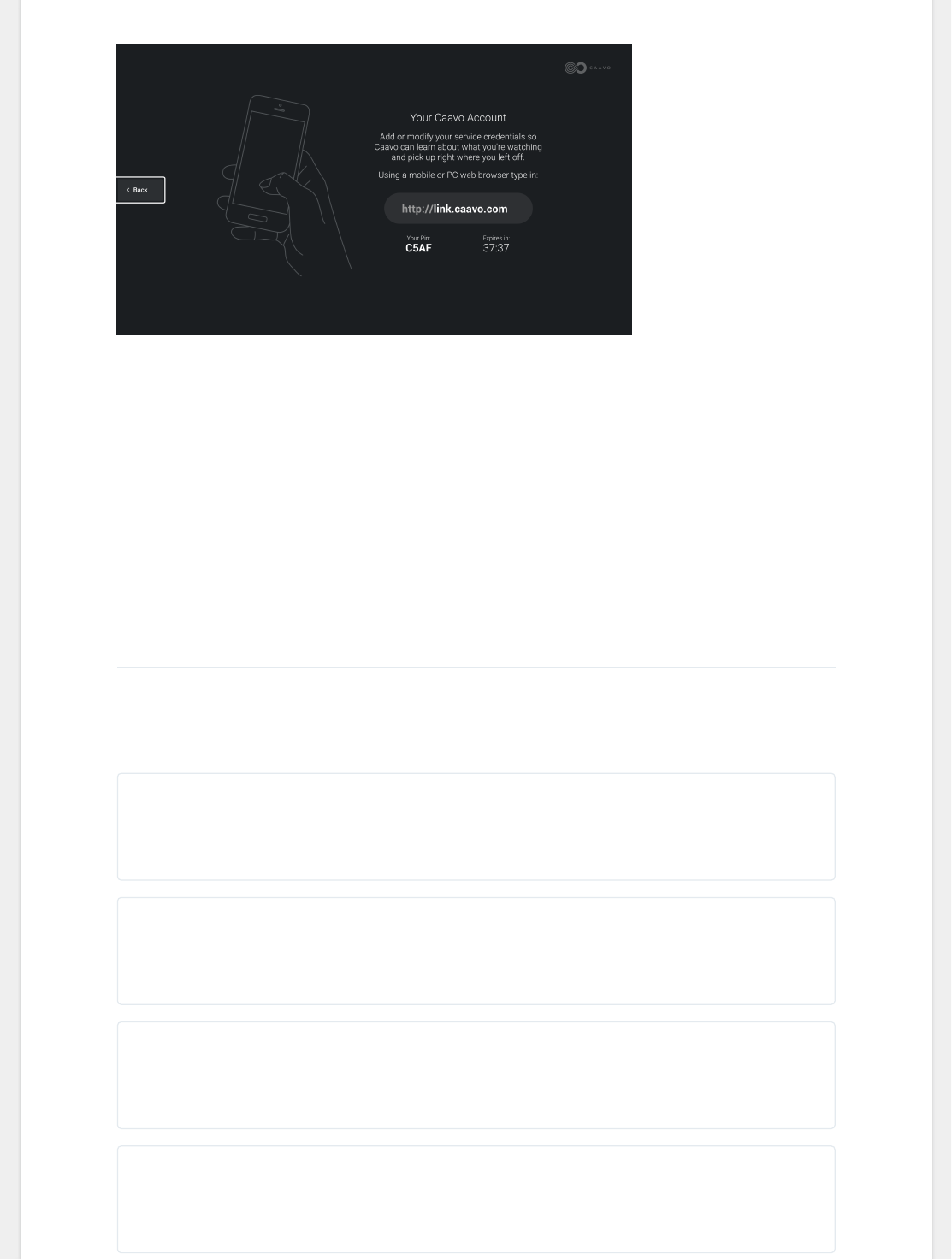
Your Caavo Account
The last step in the setup process is to sign in to (or create) your Caavo account. Here you will be
asked to select the apps and streaming services that you want to use with Caavo. You'll need to
make sure you've downloaded the apps on each source device, streamer box, or STB in order to
use them with Caavo.
Read more about signing into you Caavo account >
Was this article helpful?
0 out of 0 found this helpful
Related articles
Getting Started Tips and Tricks
Getting Started This guide is here to h...
HDMI-IR Controller
The HDMI-IR controller is specifically ...
TV-IR Controller
The TV-IR controller is 9 feet long and...
How Many Caavo Top Cover Types Are There?
The Caavo wood top cover comes in three...
Facebook Twitter Linked in YouTube
© Copyright 2018 Caavo Inc. All Rights Reserved.
Power Cord
The included Caavo power cord is design...
Wall Charger
The included USB wall charger is design...
What To Do If I'd Like A Different Wood Top For My Caavo
Please contact customer support via sup...
Comments
0 comments
Article is closed for comments.