Canon Color Imageclass Mf8280Cw Quick Start Guide Getting Started
Manual MF8280Cw_GS_en-us_R Canon imageCLASS MF8280CW Getting Started Manual | Manual Device
2014-07-05
: Canon Canon-Color-Imageclass-Mf8280Cw-Quick-Start-Guide canon-color-imageclass-mf8280cw-quick-start-guide canon pdf
Open the PDF directly: View PDF  .
.
Page Count: 36
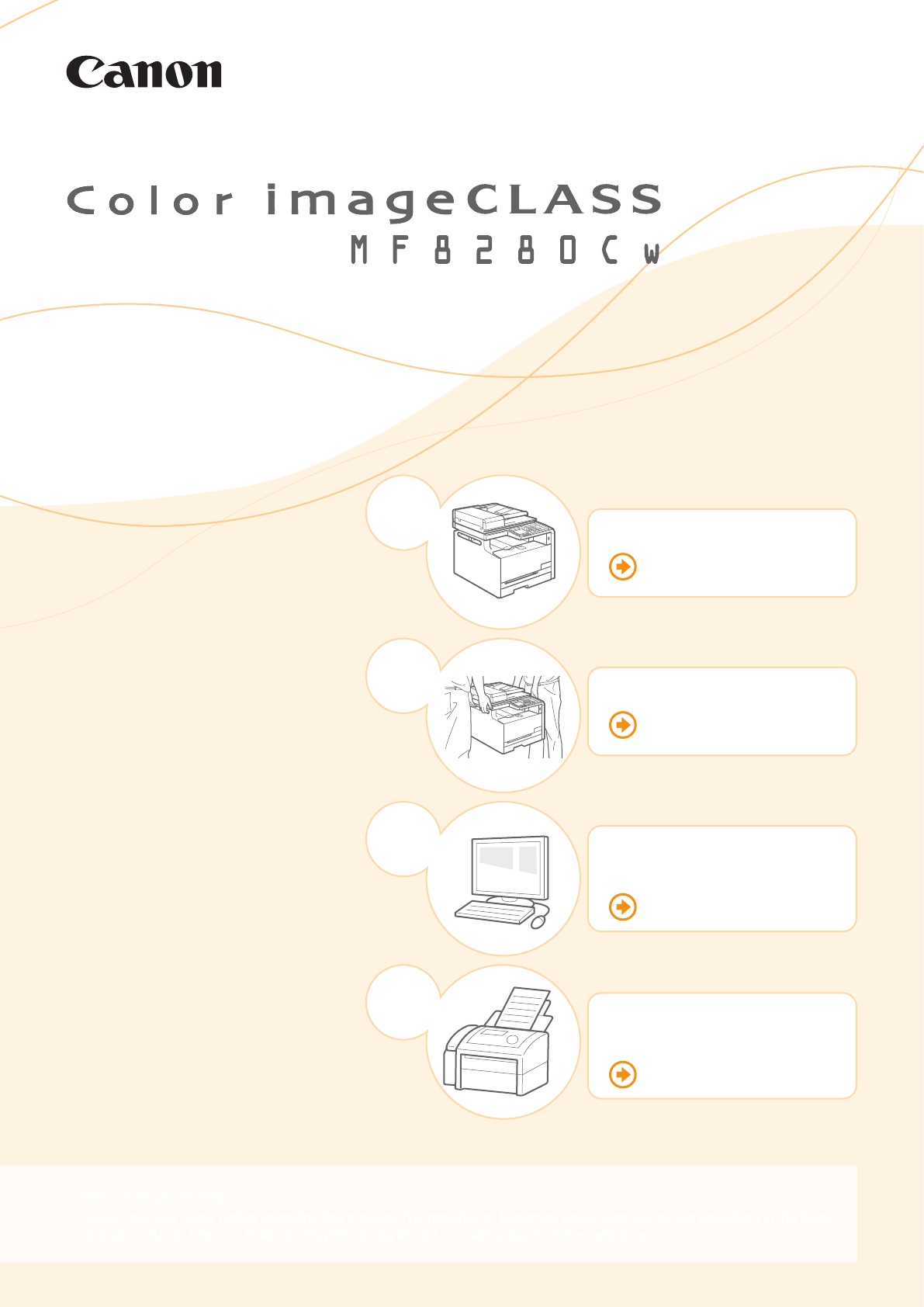
Getting Started
Getting Started
Please read this guide before operating this product. The remarks for important safety instructions are described in the Basic
Operation Guide. After you nish reading this guide, store it in a safe place for future reference.
Preface
P. 2
Installing the Machine
P. 4
Conguring and
Connecting the Fax
P.
24
Connecting to a Computer
and Installing the Drivers
P. 12
1
2
3
4
2
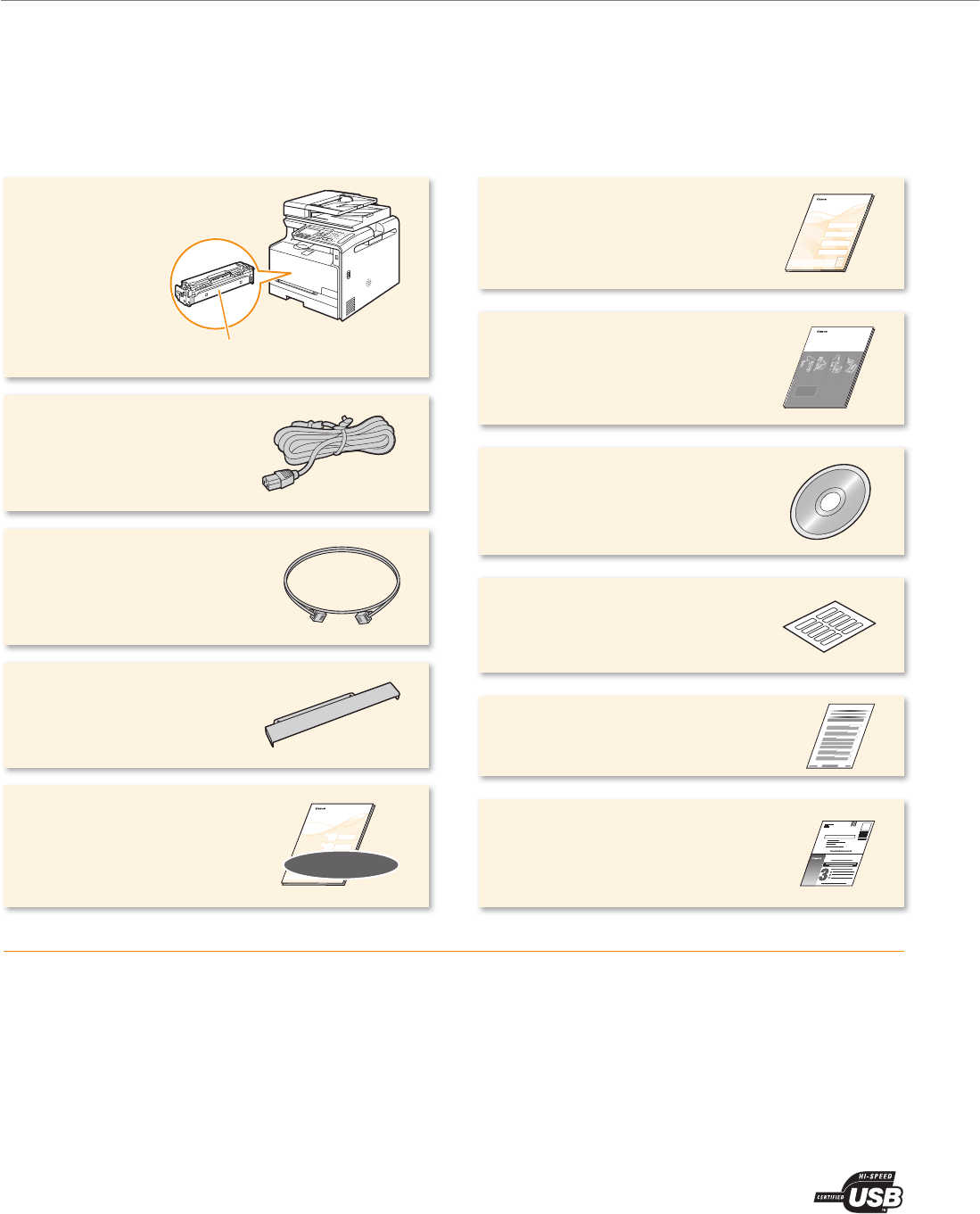
Checking the Supplied Accessories
Conrm that all the supplied accessories are contained in the box. If an item is missing or damaged, please contact the Canon
Authorized Service Facilities or the Canon Customer Care Center.
User Software CD-ROM
The User Software CD-ROM contains the MF Drivers, MF
Toolbox, various software, and e-Manual.
Depending on the operating system you are using, some
functions of the driver software included in the CD-ROM may
not be usable. The newest software is posted on the Canon
web site. Please verify the operating environment etc. and
download the appropriate software if required.
The MF Driver contains the Network Scan Utility (to use
to scan over a network) as well as printer, fax, and scanner
drivers.
The MF Toolbox provides a group of commands for you,
such as to open a scanned image in an application, send it
as an e-mail attachment le, and store it on the hard disk.
The User Software CD-ROM contains Presto! PageManager.
Install it from the [Custom Installation] option.
See “Using the e-Manual” (P. 33).
Windows XP/Vista/7/8 only.
About the LAN and USB cables
The machine does not come with a LAN cable, USB cable,
or a hub. Have cables or a hub ready as necessary.
Make sure that the USB cable you use has
the following mark.
Please use LAN Cable of Category 5
twisted pair cable or higher for support.
When connecting the machine to a 100BASE-TX Ethernet
network, all the devices on the LAN must be compatible
with 100BASE-TX.
Wireless LAN Setting Guide
Basic Operation Guide
PRINTED IN KOREA
Power Cord
User Software CD-ROM
Shortcut key label
Limited Warranty Notice
Telephone Cable
Registration Card
Machine Unit
The toner cartridge is already installed.
Legal dust cover
Getting Started
Starter Guide

3
Checking the Supplied Accessories
Printed Manuals
Starter Guide
PRINTED IN KOREA
This manual describes the
conguration and software installation.
This manual explains the wireless LAN
setup procedures and troubleshooting
during the setup.
This manual describes the basic use
of the machine.
Manuals Included in the CD-ROM
This manual explains all the features of the machine, and is
categorized by subject. For details about using the e-Manual, see
“Using the e-Manual” (P. 33).
Displaying the e-Manual from the CD-ROM
For Windows
Insert the User Software CD-ROM in your computer, click [Manuals],
and then click [e-Manual].
If the User Software CD-ROM has been already inserted in your
computer and [Manuals] is not displayed, remove the CD-ROM and
insert it again.
For Macintosh
After installing e-Manual using the User Software CD-ROM, double-
click [index.html] in the saved [MF Guide] folder.
This manual describes how to install the MF Drivers, MF Toolbox, and
software included on the User Software CD-ROM.
Preface Installing the Machine
2
Connecting to a Computer and Installing the Drivers
31
Configuring and Connecting the Fax
4
4
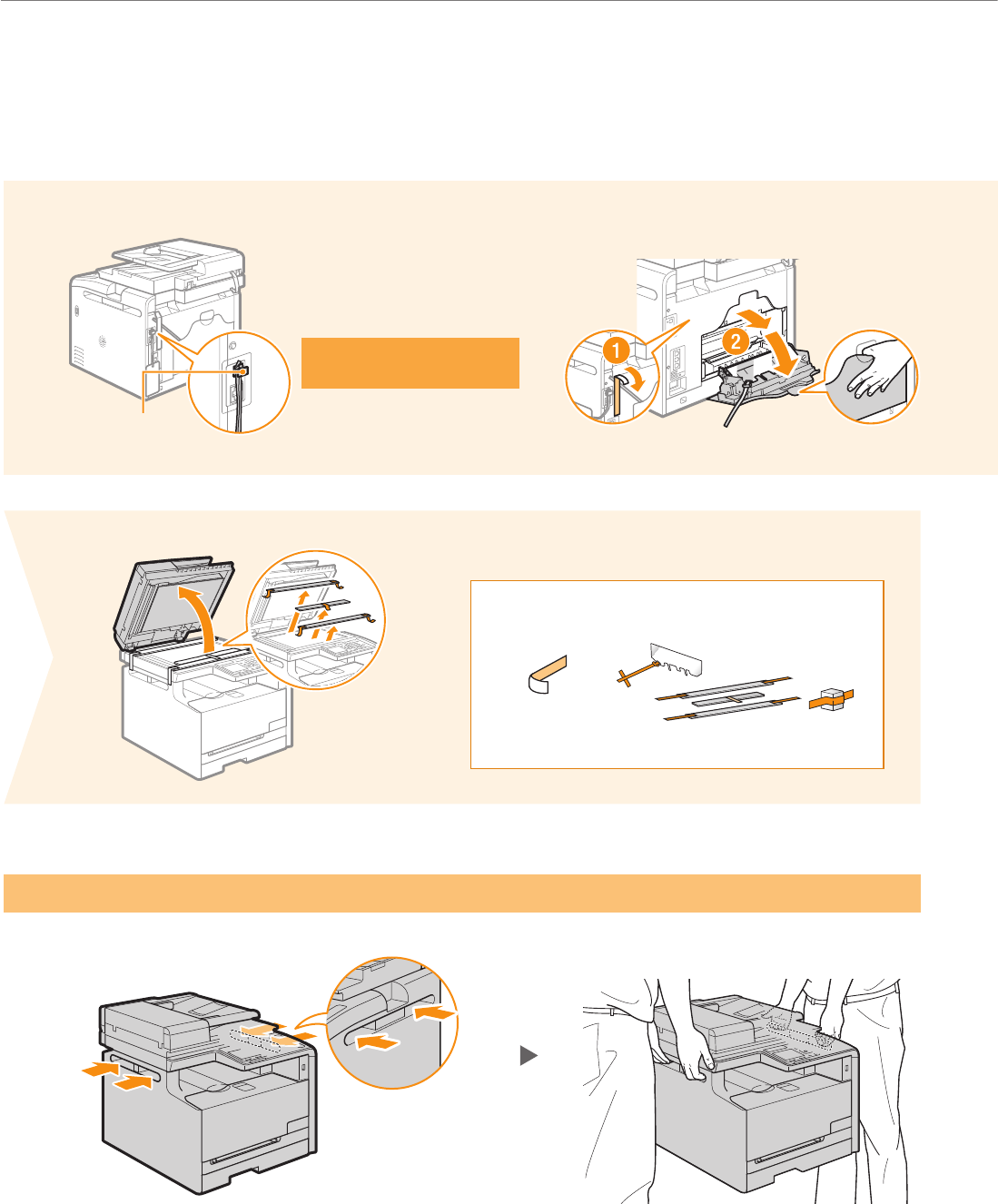
Removing the Packing Materials
Remove all the packing materials, such as orange tape. Packing materials may change in form or placement, or may be added or
removed without prior notice.
1
Are all the packing materials removed?
Packing materials with tapeTape
4
Hold here.
Hold here.
Cap

5
Removing the Packing Materials
= 4" (100 mm)
48 3/8" (1,229 mm)
26 1/2" (674 mm)
31 1/2" (801 mm)
Preface Installing the Machine
21
Connecting to a Computer and Installing the Drivers
3
Configuring and Connecting the Fax
4
Do not place the machine near the following:
Alcohol, paint thinner, or other ammable substances ▶ If ammable substances come into contact with electrical
parts inside the machine, this may result in a re or electrical shock.
Any medical equipment ▶ Radio wave emitted from this machine may interfere with medical equipment.
Surfaces that are unstable, subject to excessive vibration, objects that could block the ventilation slot, dampness
or dust, in direct sunlight or exposed to the elements, subject to high temperatures, open ames, and poor
ventilation ▶ Installing the machine in locations with these characteristics may result in personal injury, re, or
electric shock.
Ozone from the Unit
Although ozone is generated from the machine during operation, it does not have any aect on the human body.
However, if you intend to use the machine for long periods of time, ensure that the installation location is well
ventilated for a comfortable working environment.
2 3
6
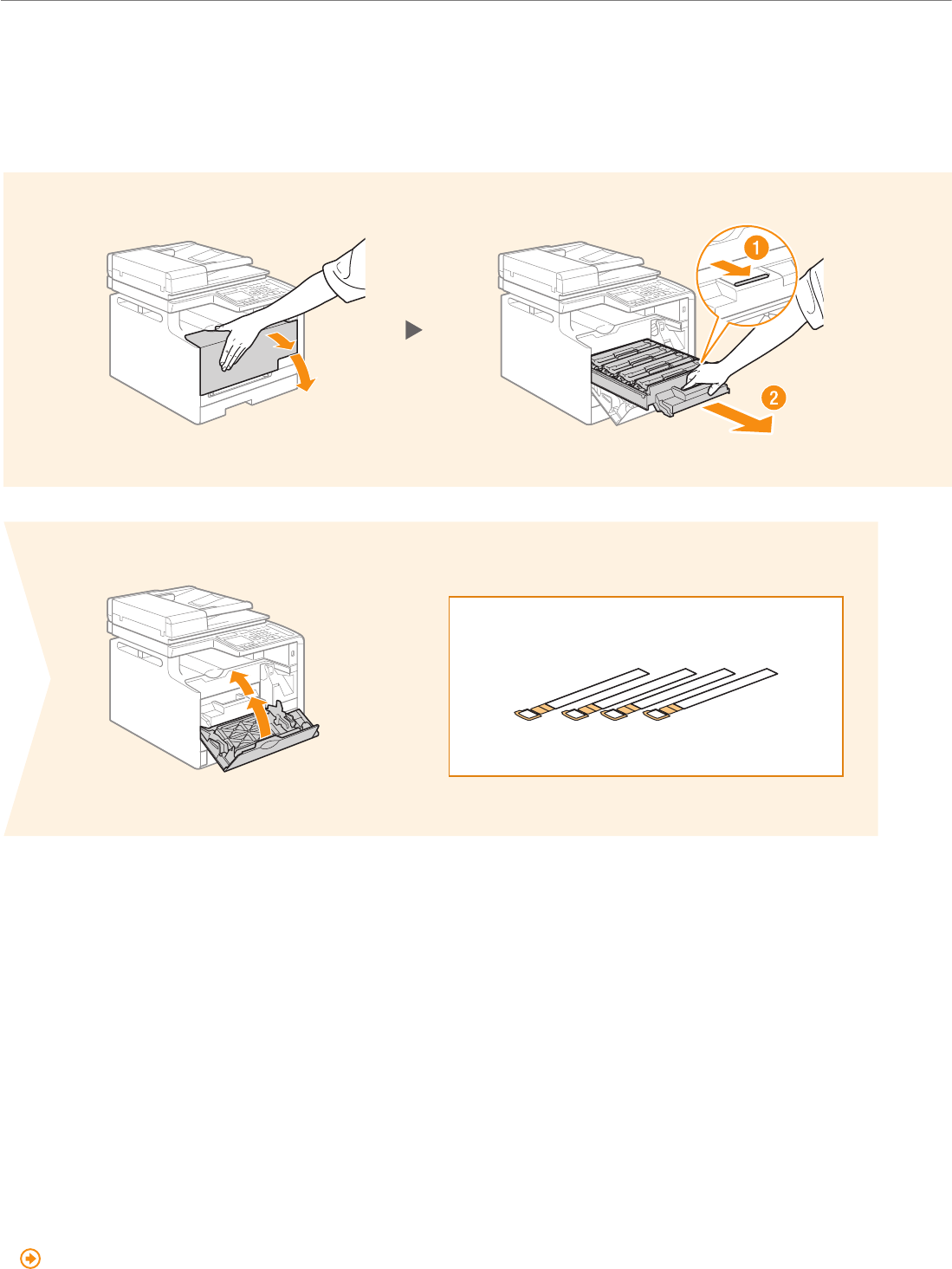
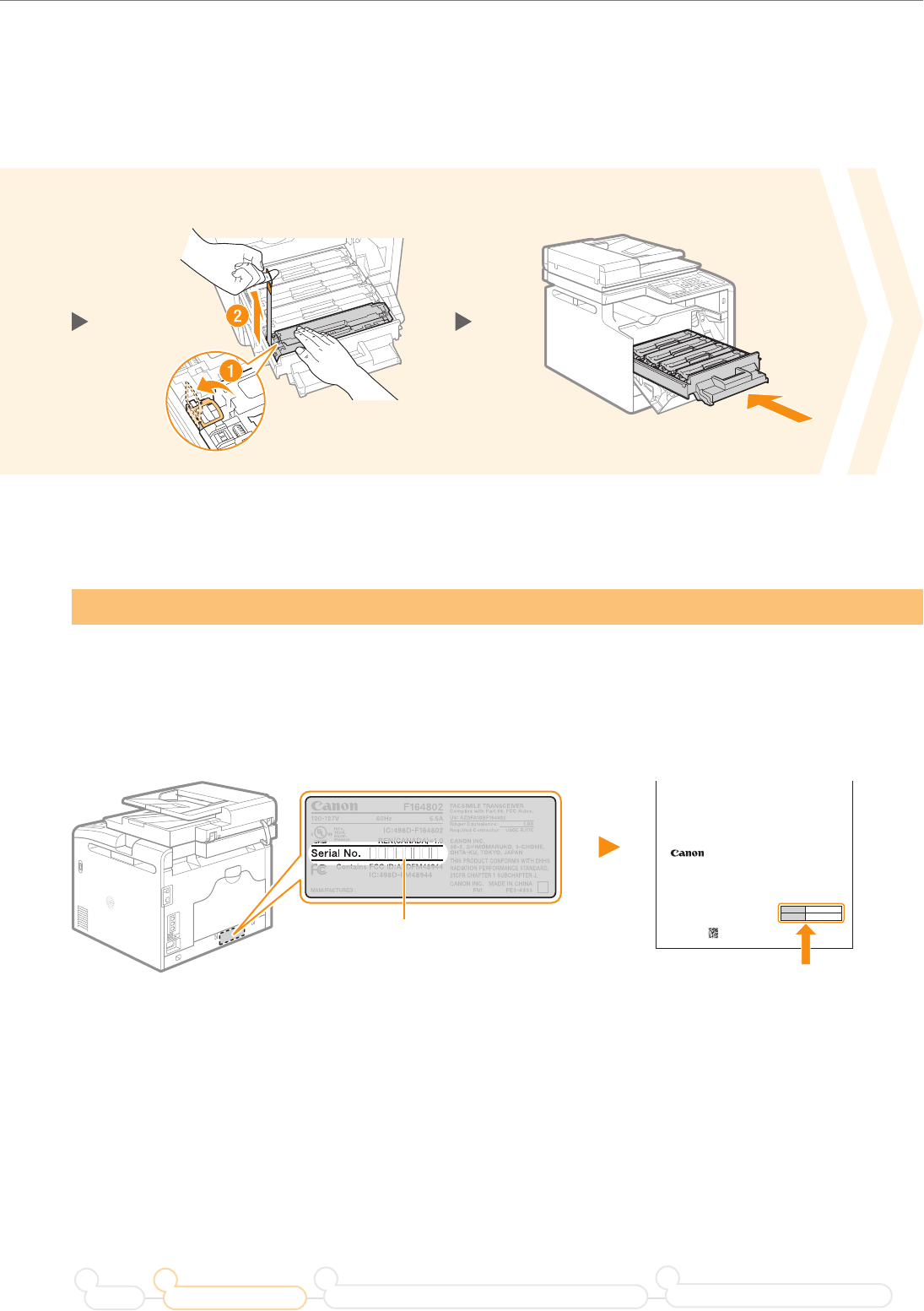
Preparing the Toner Cartridge
1
5
2
Supplied Toner Cartridges
The average yield is 800 sheets for the included K (Black) toner cartridge, and the composite yield is 800 sheets
for the included C (Cyan), M (Magenta), and Y (Yellow) toner cartridges. The average yield of replacement toner
cartridges dier from the supplied toner cartridges.
To purchase replacement toner cartridges:
“About Replacement Toner Cartridges” in the e-Manual
The average yield is based on “ISO/IEC 19798” when printing A4 size paper with the default printing density.
Are all the packing materials removed?
Sealing Tape
7
Preparing the Toner Cartridge
Preface Installing the Machine
21
Connecting to a Computer and Installing the Drivers
3
Configuring and Connecting the Fax
4
3 4
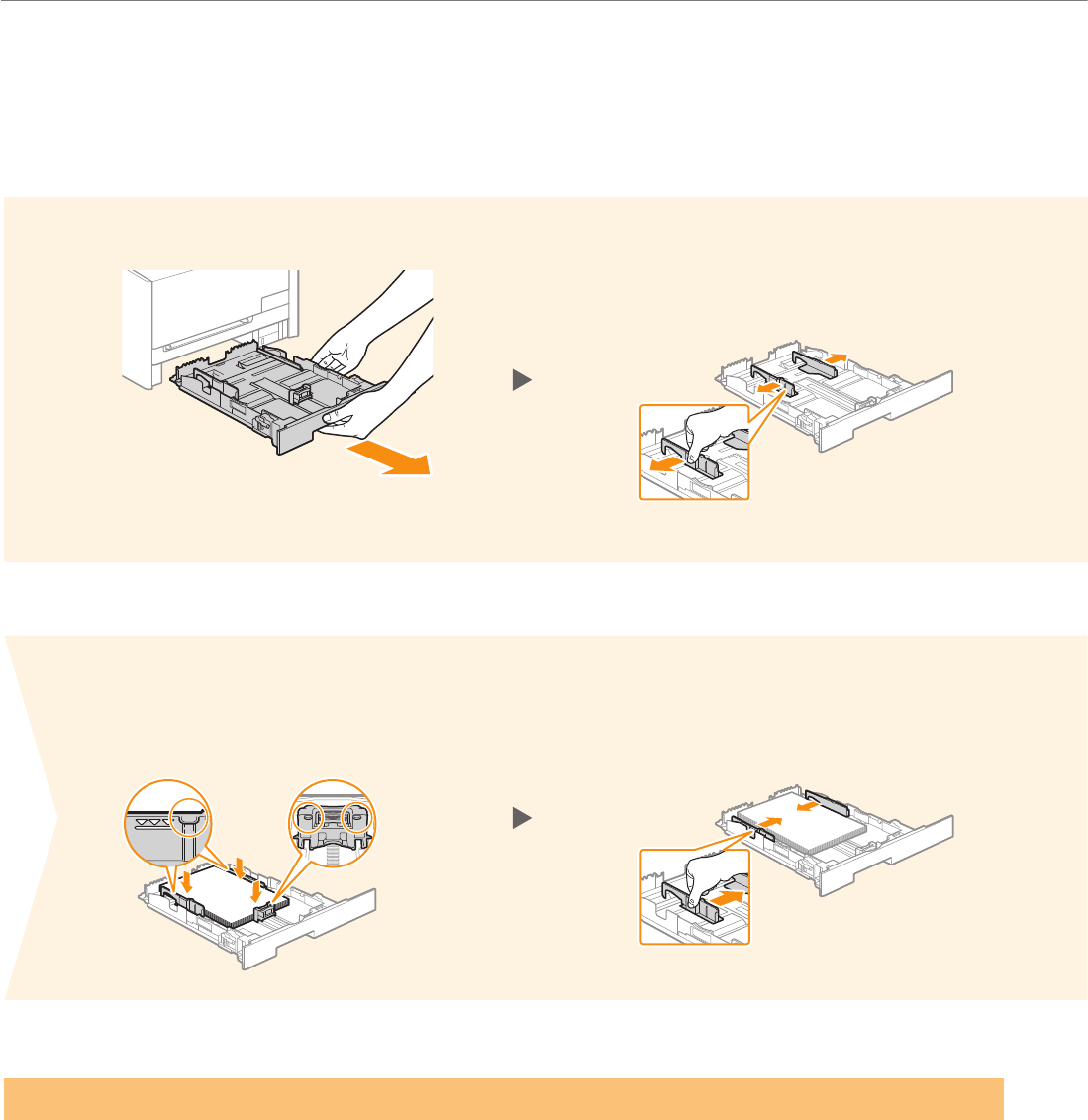
Write down the serial number and purchase date on the back cover of the Basic Operation Guide enclosed in the
package. You need this information when contacting your local authorized Canon dealer or Canon Customer Care
Center.
The serial number is indicated on the rating label
located on the back side of the machine (a character
string of 3 letters and a 5-digit number).
Write down the information here (on
the back cover of the Basic Operation
Guide).
FT6-0109 (000) XXXXXXXXXX © CANON INC. 2013 PRINTED IN CHINA
CANON INC.
30-2, Shimomaruko 3-chome, Ohta-ku, Tokyo 146-8501, Japan
CANON MARKETING JAPAN INC.
16-6, Konan 2-chome, Minato-ku, Tokyo 108-8011, Japan
CANON U.S.A., INC.
One Canon Park, Melville, NY 11747, U.S.A.
CANON EUROPA N.V.
Bovenkerkerweg 59, 1185 XB Amstelveen, The Netherlands
CANON CHINA CO. LTD.
15F Jinbao Building No.89, Jinbao Street, Dongcheng District, Beijing 100005, PRC
CANON SINGAPORE PTE LTD
1 HarbourFront Avenue, #04-01 Keppel Bay Tower, Singapore 098632
CANON AUSTRALIA PTY LTD
1 Thomas Holt Drive, North Ryde, Sydney NSW 2113, Australia
CANON GLOBAL WORLDWIDE SITES
http://www.canon.com/
Serial No.
Date of Purchase
Serial Number
8
Loading Paper
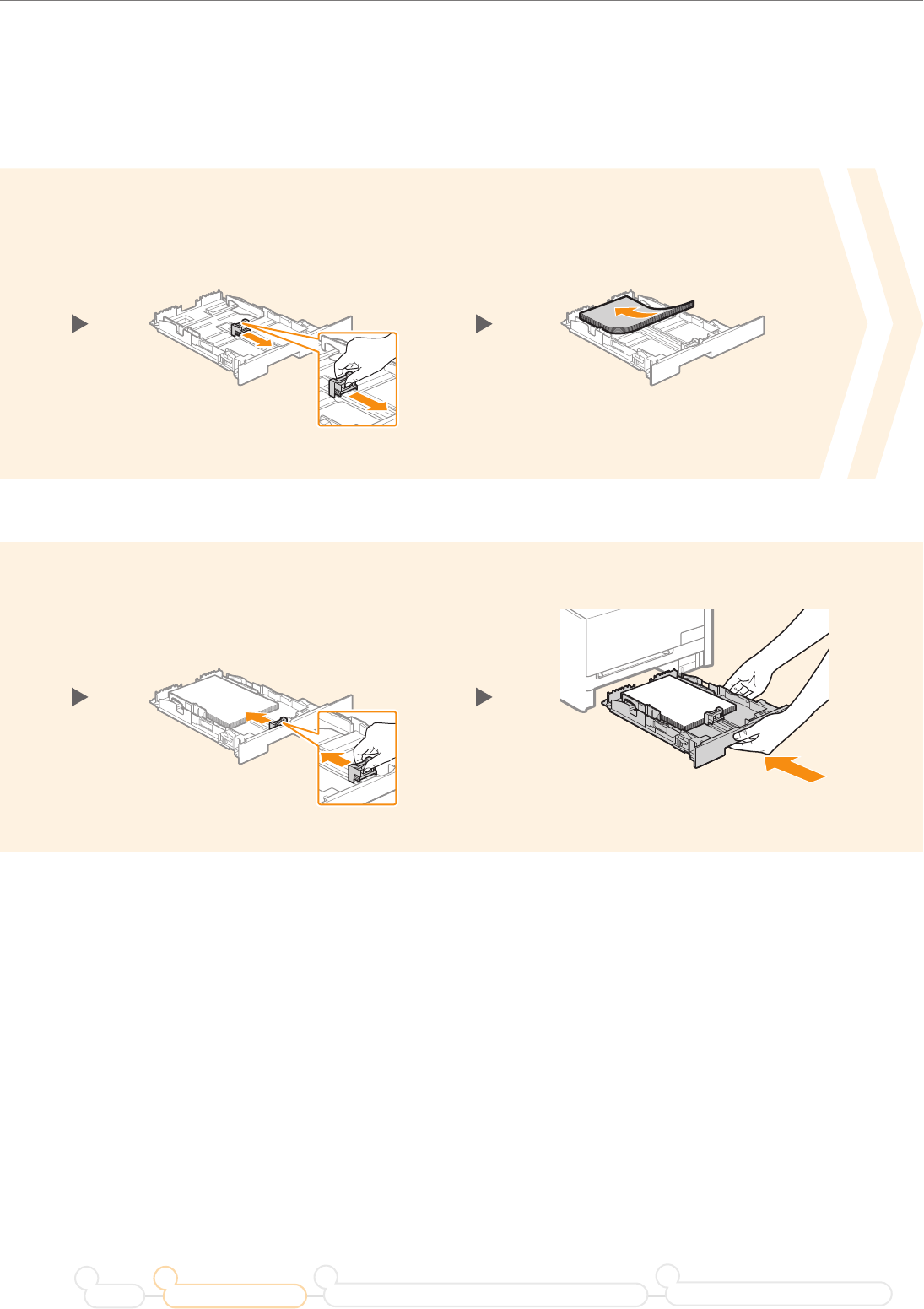
The procedure here is for loading Letter size paper. To load paper other than Letter size, such as Legal or
Statement, see “Loading Paper Other than Letter Size” (P. 28) after nishing the initial settings.
Slide the side paper guides inward
until they are aligned securely
against the edges of the paper.
Set the paper under the hooks. Make
sure that the paper stack does not
exceed the load limit mark.
Press the lock release lever and spread
the side paper guides a little wider than
the width of the paper.
1 2
5 6
9
Loading Paper
Preface Installing the Machine
21
Connecting to a Computer and Installing the Drivers
3
Configuring and Connecting the Fax
4
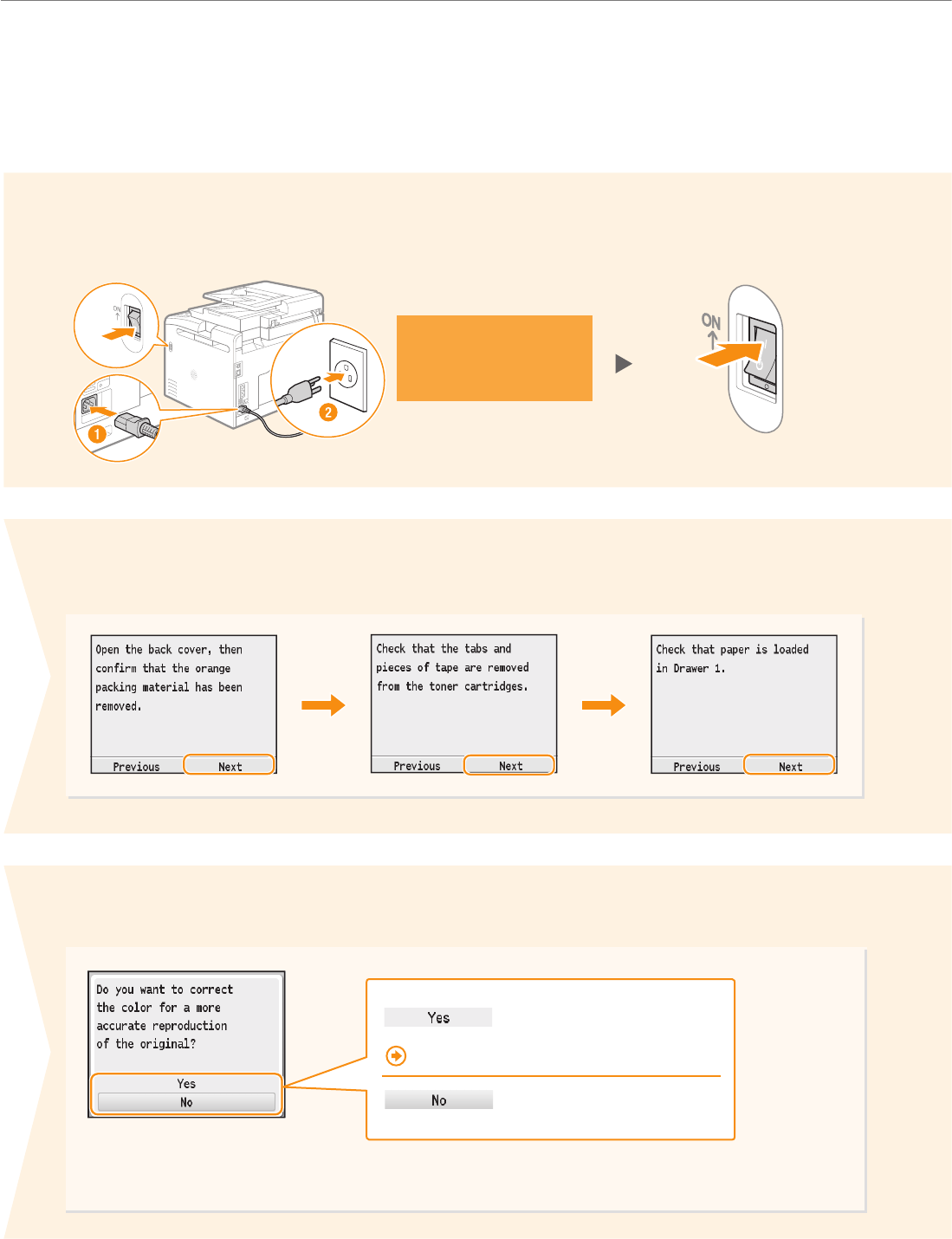
Press the lock release lever, and
slide the front-center paper guide
inward until it is aligned securely
against the edges of the paper.
Load paper so that its edge is
aligned with the rear side of the
paper drawer.
Press the lock release lever and
spread the front-center paper guide a
little wider than the length of the paper.
43
87
10
Connecting the Power Cord
Connect the cable when
installing the software.
Turn ON the machine.
Make sure that the machine is turned
OFF, and then connect the power cord.
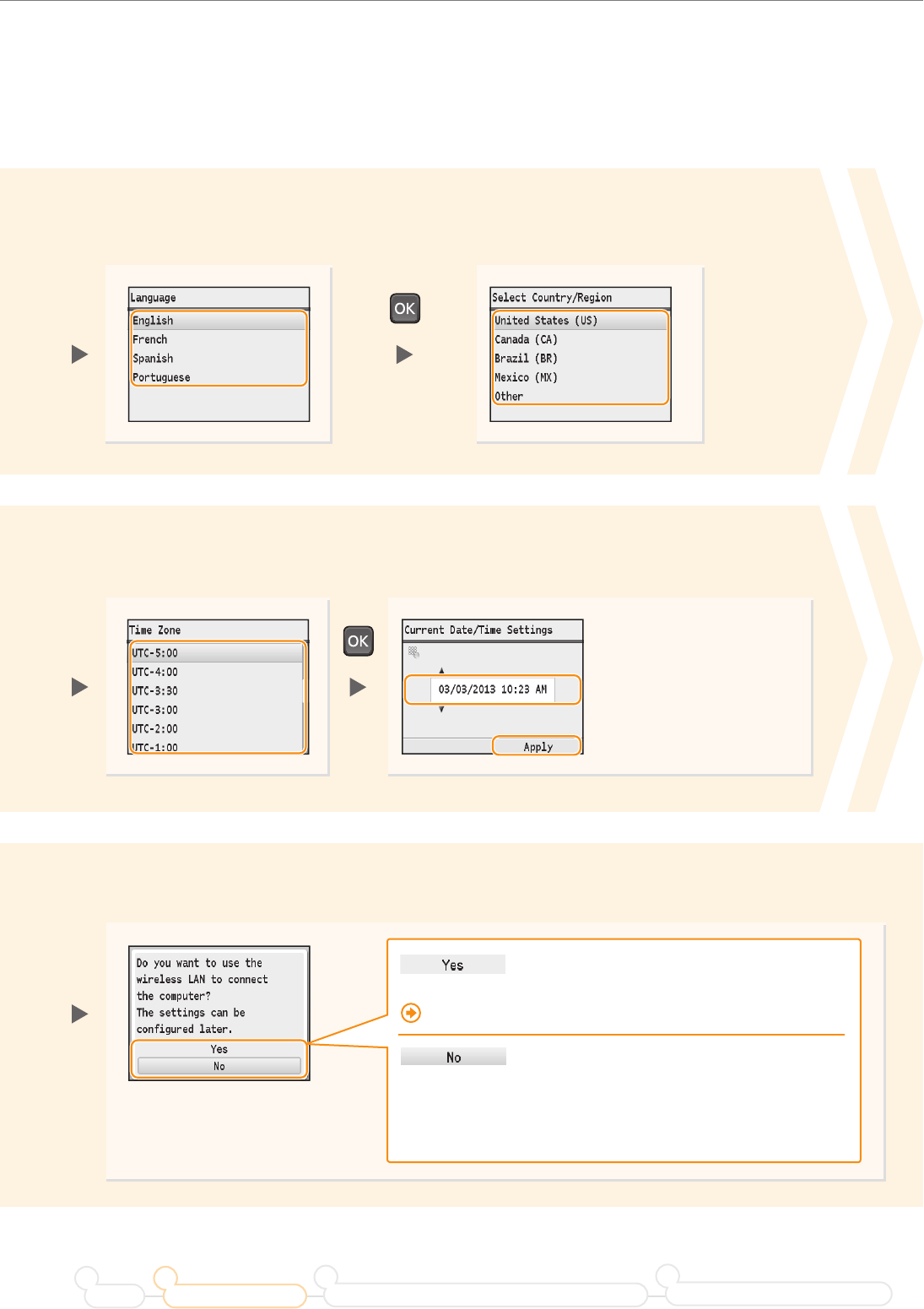
Select whether or not to perform color correction.
It is recommended to perform color correction to obtain optimum copy or printout results.
Press <Next>.
1
8
5
2
“Performing Color Correction” (P. 30)
ON
OFF
11
Connecting the Power Cord
Preface Installing the Machine
21
Connecting to a Computer and Installing the Drivers
3
Configuring and Connecting the Fax
4
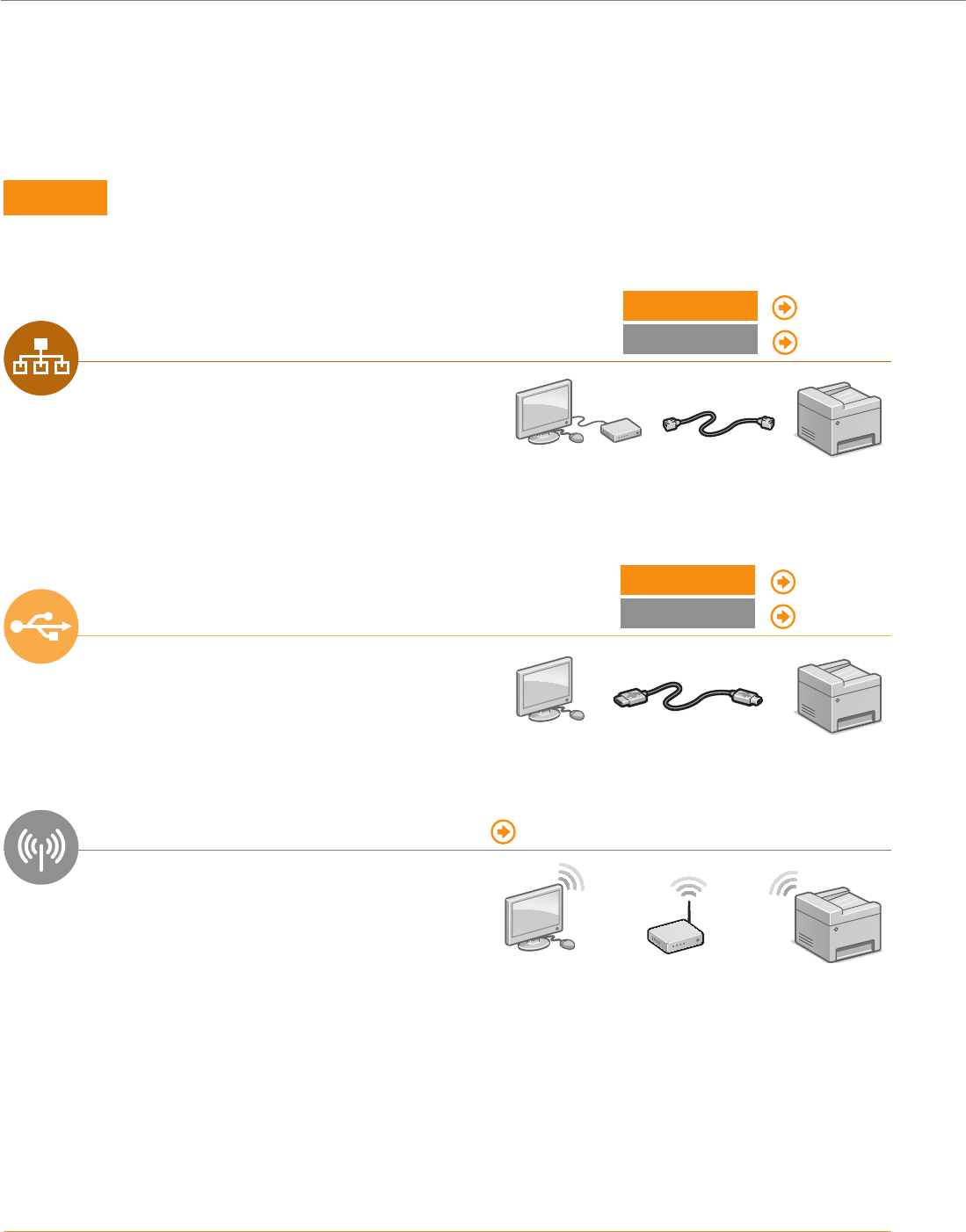
Press [▲] or [▼] to highlight a
language, and then press [OK].
Select whether or not to connect using wireless LAN immediately.
Press [▲] or [▼] to highlight a
region, and then press [OK].
3 4
9
Press [◀] or [▶] to move the
cursor to the left and right.
Press [▲] or [▼] to
change the numeric
value, or AM/PM.
The factory default settings for
time display is set as 12-Hour.
Enter the date and time, and then press <Apply>.
Press [▲] or [▼] to
highlight your time zone,
and then press [OK].
76
• Select <No> if you want to connect the machine to a
computer via a wireless LAN later. When connecting,
refer to Wireless LAN Setting Guide.
• If you do not connect the machine to a computer,
proceed to fax conguration (P. 24).
Start from step on P. 4 in Wireless LAN Setting Guide.
The time zone setting indicates the time dierence between your local time zone and Coordinated Universal Time (UTC). The correct time
zone setting is required for Internet communications.
12
Connecting to the Computer
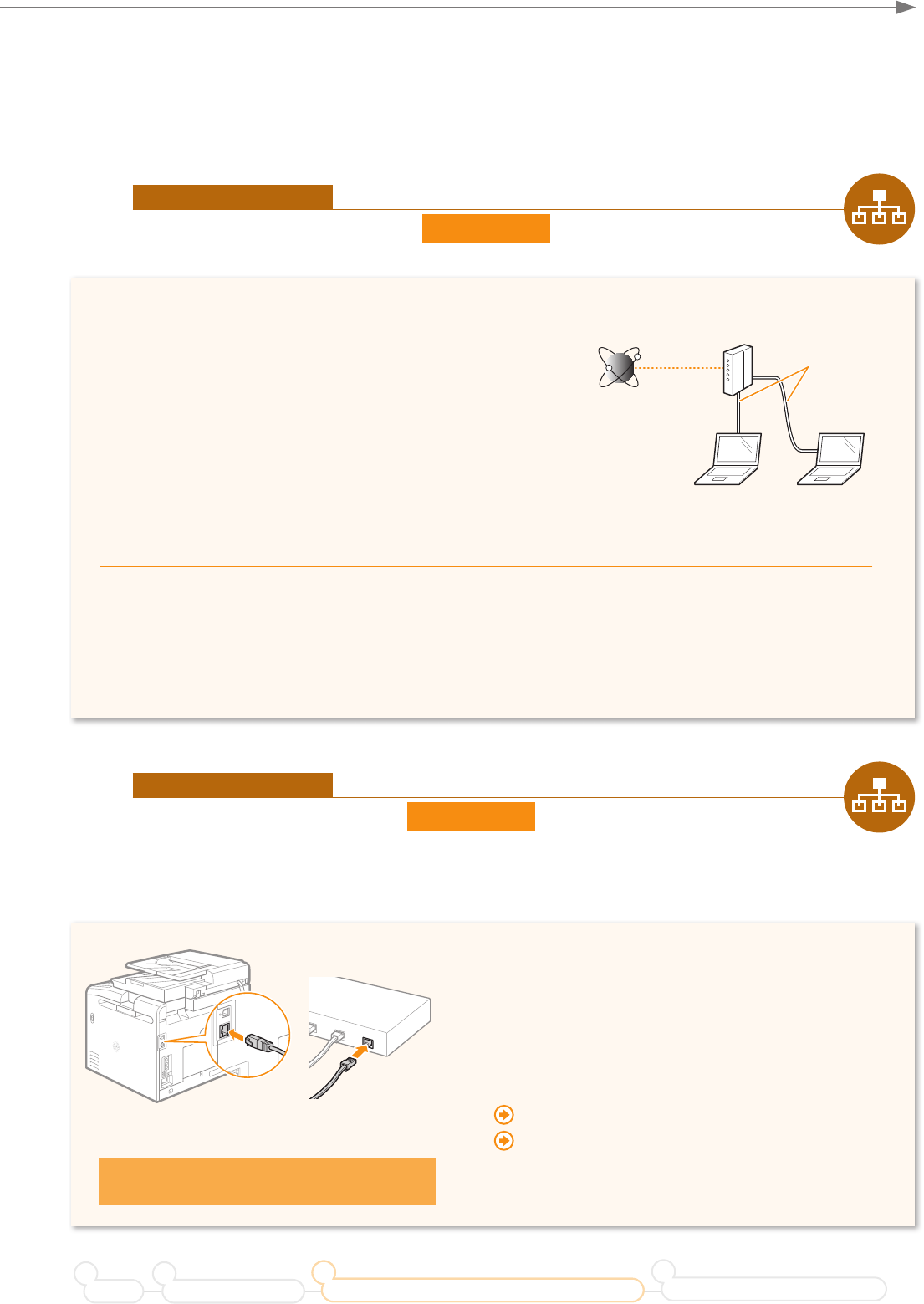
First, you need to decide on the method you would like to connect your machine to the computer. Choose from the
following three options.
P. 15
You can connect the machine to the computer
through a wired router. Use the LAN cables to
connect the machine to the wired router.
• Make sure that there is an available port in the router to connect
the machine and the computer.
• Have a LAN Cable of Category 5 twisted-pair cable or higher
ready.
LAN Cable
Wired Router
P. 21
You can connect the machine to the computer using
a USB cable. USB Cable
See “Wireless LAN Setting Guide”
You can connect the machine to the computer
through a wireless router. Since it is connected
wireless, no LAN cables are needed.
A wireless router which supports IEEE 802.11b/g/n is required.
Wireless Router
If you are not sure whether your router is wired or wireless:
See the instruction manual provided with your network device, or contact the manufacturer.
You can nd a video and written guides which will ensure a smooth setup of the machine into your existing wireless
environment at: .
P. 13
P. 19
13
Connecting to the Computer
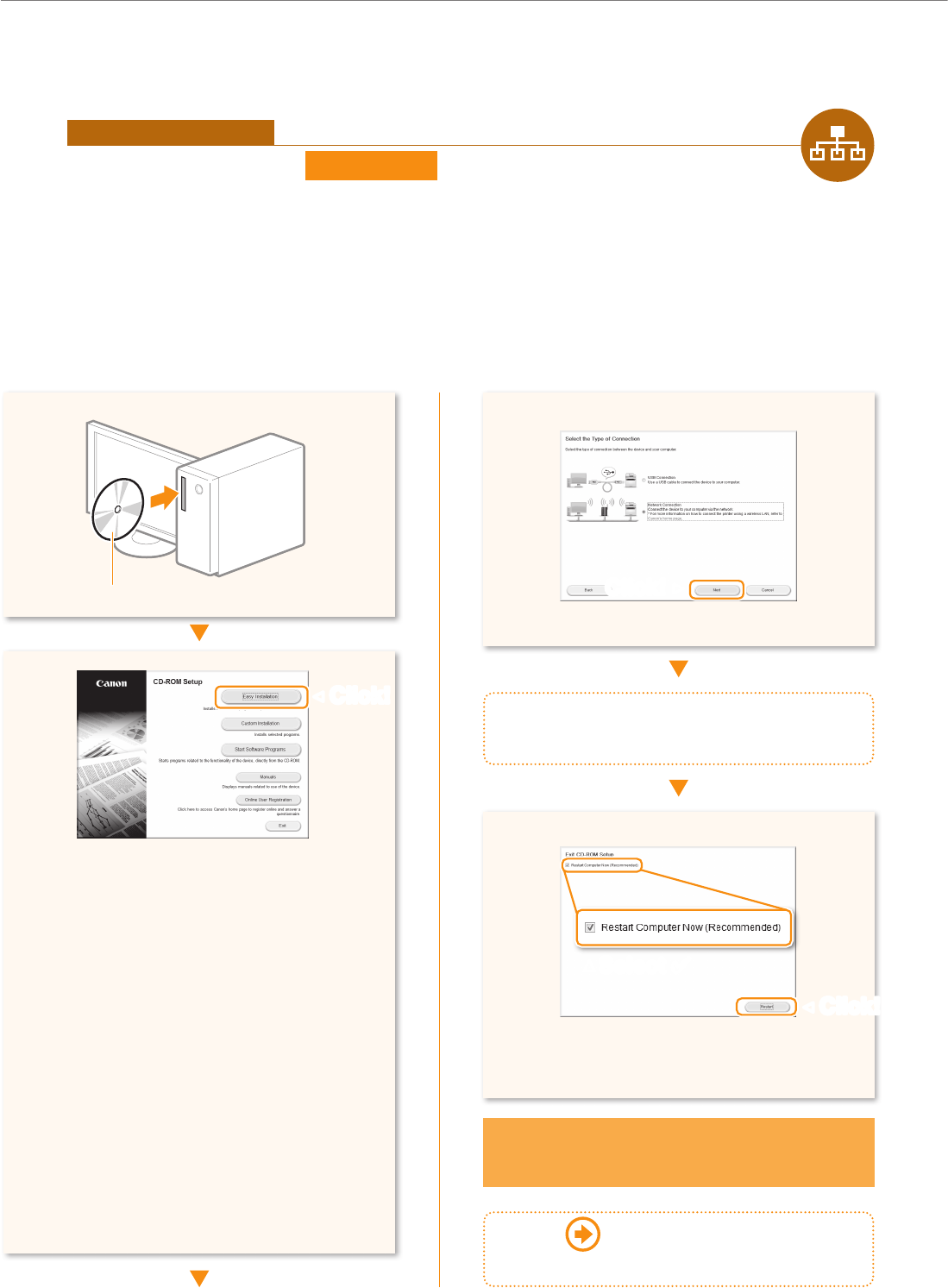
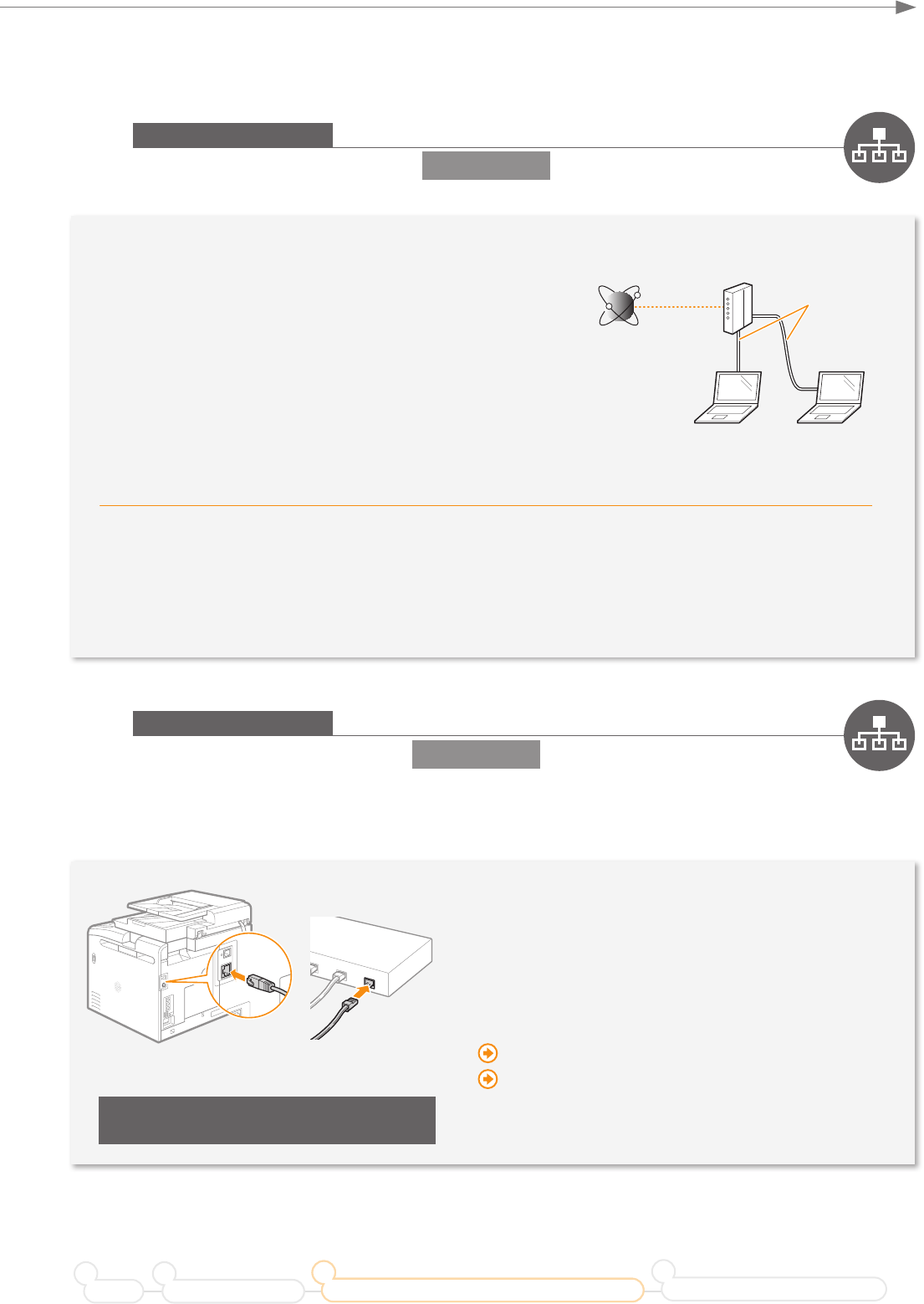
Are the computer and the router properly
connected using a LAN cable?
For details, see the instruction manual provided with your
network device, or contact the manufacturer.
Has the network settings on the computer been
complete?
If the computer is not properly congured, you may not
use the wired LAN connection even after completing the
following settings.
You cannot connect both the wired LAN and wireless
LAN at the same time.
When you connect to a network environment that
is not security protected, your personal information
could be disclosed to third parties. Please use
caution.
If you connect through a LAN in the oce, contact
your network administrator.
If the IP address on this machine has been changed:
If the machine is on the same subnet as the computer,
the connection is maintained.
* If you want to manually congure the IP address:
If you have set a static IP address to the IP address of the
computer, manually congure a static IP Address.
“Setting IPv4 Address” in the e-Manual
“Setting IPv6 Address” in the e-Manual
The IP address will be automatically congured.*
Internet Router
LAN Cable
1Wired LAN Connection
2Wired LAN Connection
The machine does not come with a LAN cable, router, or a hub. Have LAN Cable of Category 5 twisted pair cable or
higher ready.
Preface Installing the Machine
21
Connecting to a Computer and Installing the Drivers
3
Configuring and Connecting the Fax
4
Router
LAN Cable
14
Connecting to the Computer
3Wired LAN Connection
Install the MF Drivers and the MF Toolbox. Make sure that the machine is turned ON, and log on to Windows as a
user with administrative privileges. Shut down all applications that are running. See MF Driver Installation Guide for
details about installation.
If you are operating in the IPv6 environment, you may not install the software following the procedures below. See “Installing
the MF Drivers on the WSD Network” in MF Driver Installation Guide.
You may not use the scan function in the IPv6 environment.
4
Follow the instructions
on the screen to continue.
Computer connection via the
wired LAN is now complete.
Take the CD-ROM out, if necessary.
Printer, fax, scanner drivers and MF Toolbox
will be installed.
Select [Custom Installation] to install Presto!
PageManager and the e-Manual.
If the screen is not correctly displayed:
Windows XP/Server 2003
[Start] Menu → [Run] → enter [D:\MInst.exe]
→ [OK]
Windows Vista/7/Server 2008
[Start] Menu → [Search programs and les]
(or [Start Search]) → enter [D:\MInst.exe] →
press the [Enter] key
Windows 8/Server 2012
Right-click the lower-left corner of the screen
→ select [Run] → enter [D:\Minst.exe] → [OK]
The CD-ROM drive name is indicated as "D:" in this
manual.
User Software CD-ROM
▲
Proceed to P. 24
to configure the fax.
▲✔
15
Connecting to the Computer
Preface Installing the Machine
21
Connecting to a Computer and Installing the Drivers
3
Configuring and Connecting the Fax
4
Are the computer and the router properly
connected using a LAN cable?
For details, see the instruction manual provided with your
network device, or contact the manufacturer.
Has the network settings on the computer been
complete?
If the computer is not properly congured, you may not
use the wired LAN connection even after completing the
following settings.
You cannot connect both the wired LAN and wireless
LAN at the same time.
When you connect to a network environment that
is not security protected, your personal information
could be disclosed to third parties. Please use
caution.
If you connect through a LAN in the oce, contact
your network administrator.
If the IP address on this machine has been changed:
If the machine is on the same subnet as the computer,
the connection is maintained.
* If you want to manually congure the IP address:
If you have set a static IP address to the IP address of the
computer, manually congure a static IP Address.
“Setting IPv4 Address” in the e-Manual
“Setting IPv6 Address” in the e-Manual
The IP address will be automatically congured.*
Internet Router
LAN Cable
1Wired LAN Connection
2Wired LAN Connection
The machine does not come with a LAN cable, router, or a hub. Have LAN Cable of Category 5 twisted pair cable or
higher ready.
Router
LAN Cable
16
Connecting to the Computer
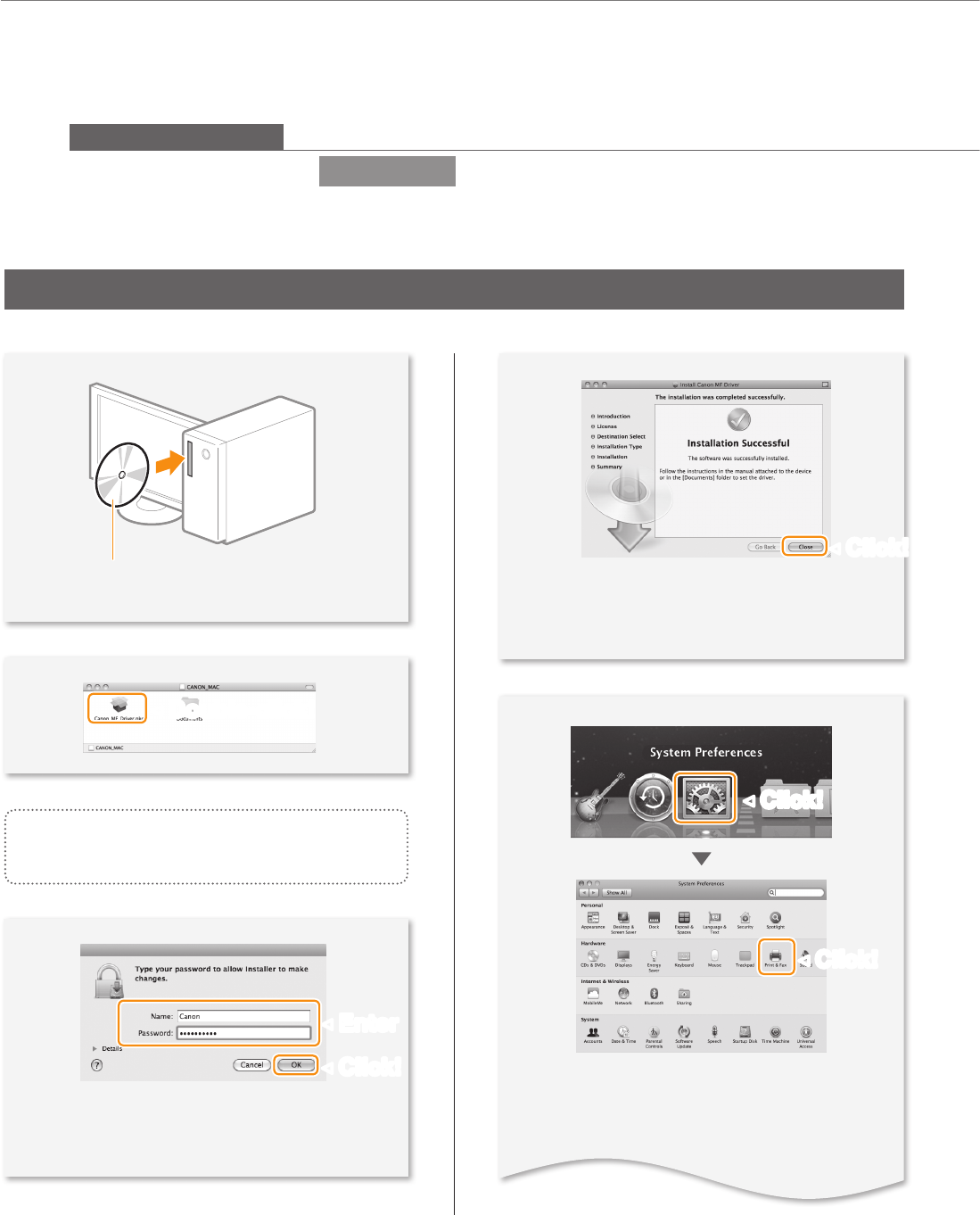
5
3Wired LAN Connection
Install the MF Drivers for Macintosh. It requires Mac OS X 10.5.8 version or later. The installation screen varies
depending on the version of Mac OS X.
4
Depending on the system environment, the
dialog box may not be displayed. In this case,
proceed to next step.
Installing the drivers is now complete.
Continued with registratiion operations on the
desktop.
This operation is for Macintosh. If using Windows, see P. 14.
Insert the User Software CD-ROM and
double-click the CD-ROM icon.
▲
▼
▼
▼
▼
▼
Follow the instructions
on the screen to continue.
17
Connecting to the Computer
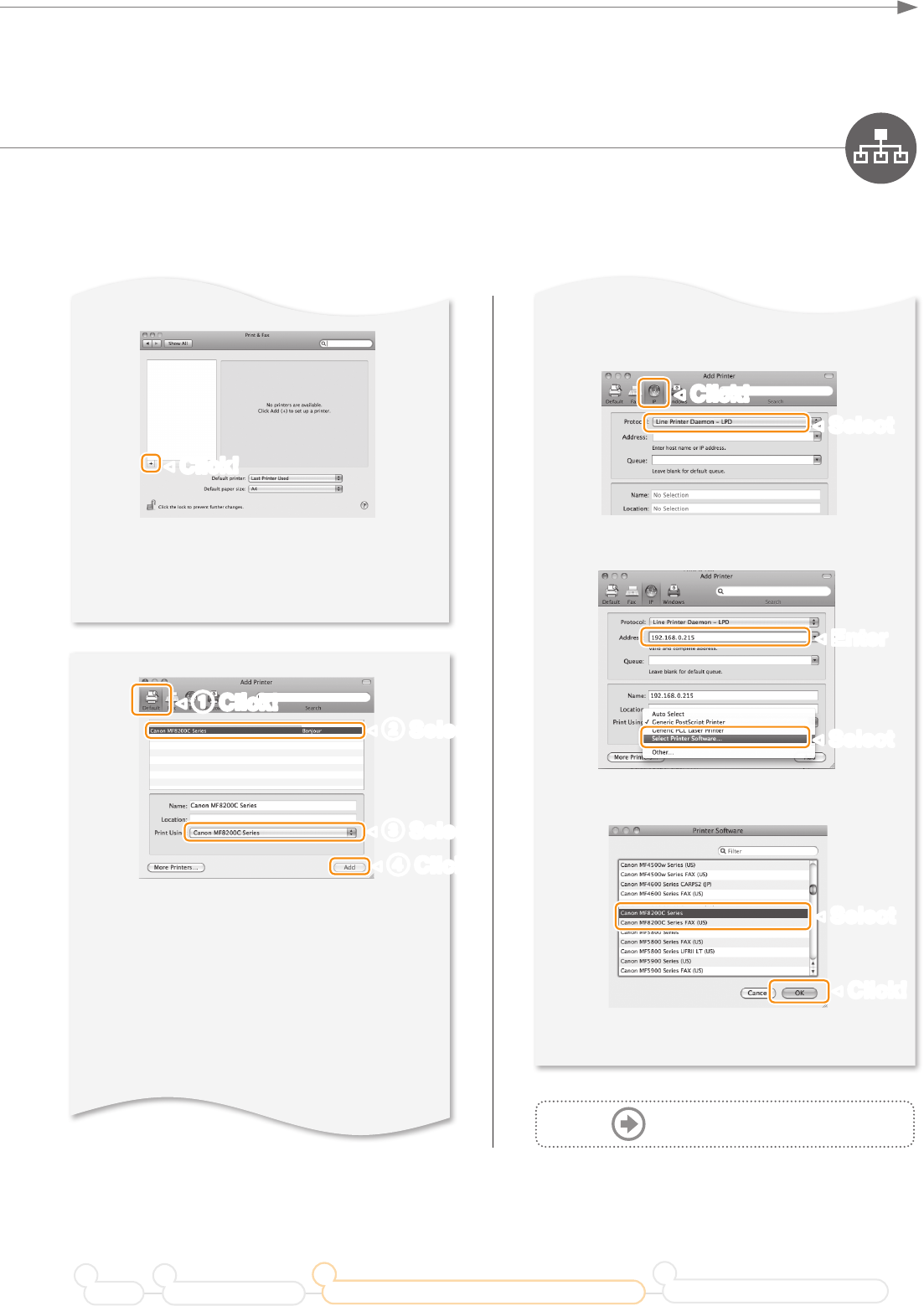
3Wired LAN Connection
Install the MF Drivers for Macintosh. It requires Mac OS X 10.5.8 version or later. The installation screen varies
depending on the version of Mac OS X.
6
7
Select a printer name for which [Bonjour] is
displayed in the [Kind] or [Connection] column.
If you are using Mac OS X 10.5.x, select the
corresponding driver from [Print Using].
An IP address is automatically congured
by the Bonjour function. If there is not the
Bonjour function or you want to set the IP
address manually, see “Setting IPv4 Address”
or “Setting IPv6 Address” in the e-Manual.
Connecting with the manual setting
4
▼
▼
▼
Proceed to P. 18
If you are using Mac OS X 10.5.8, click [+],
select [Canon MF8200] from the dialog box
displayed, and then proceed to next step.
▼
Preface Installing the Machine
21
Connecting to a Computer and Installing the Drivers
3
Configuring and Connecting the Fax
4
18
Connecting to the Computer
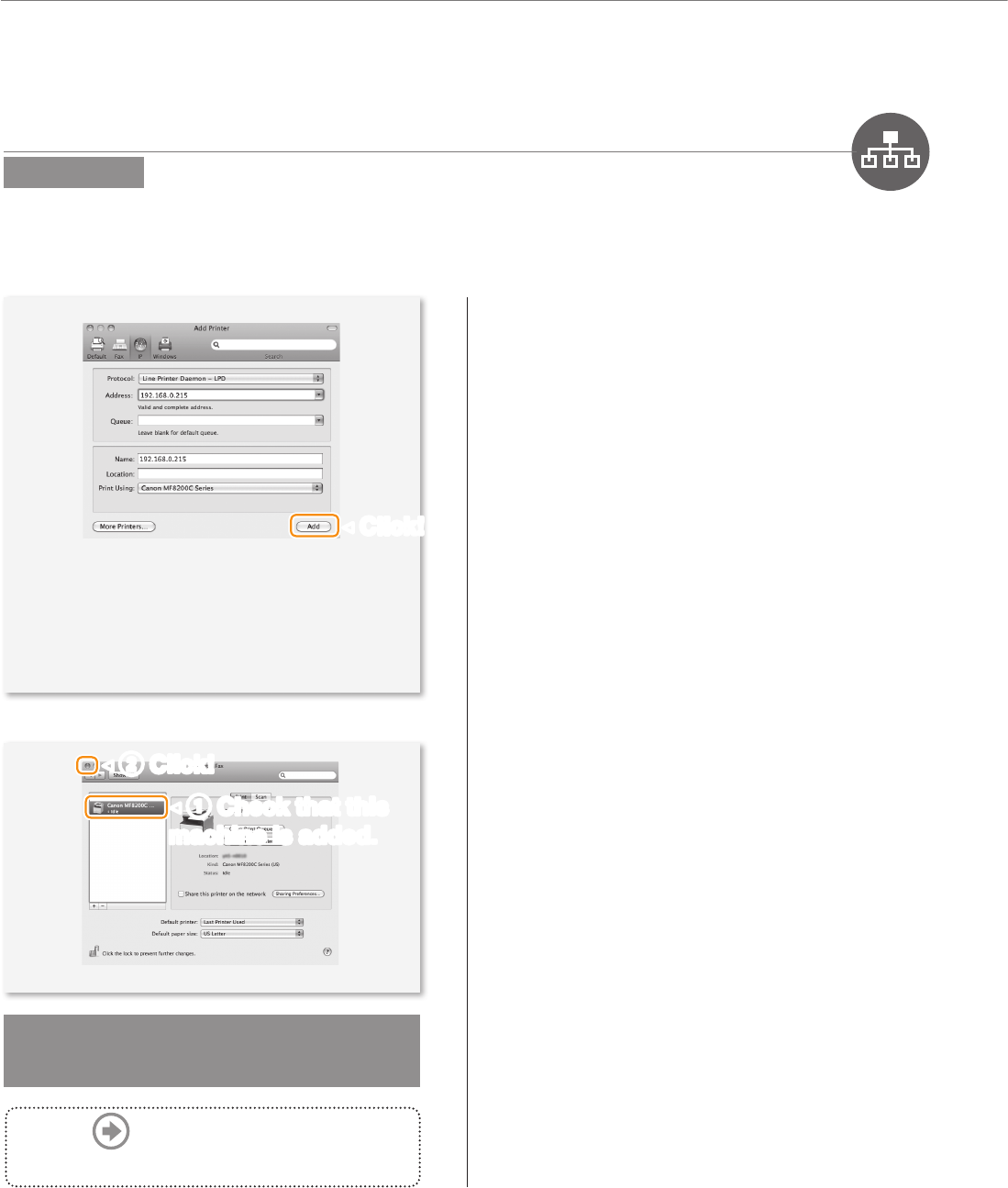
If you are using Mac OS X 10.5.x,
select [Select a driver to use] and the
corresponding driver from [Print Using], and
then click [Add].
▼
Proceed to P. 24
to configure the fax.
8
19
Connecting to the Computer
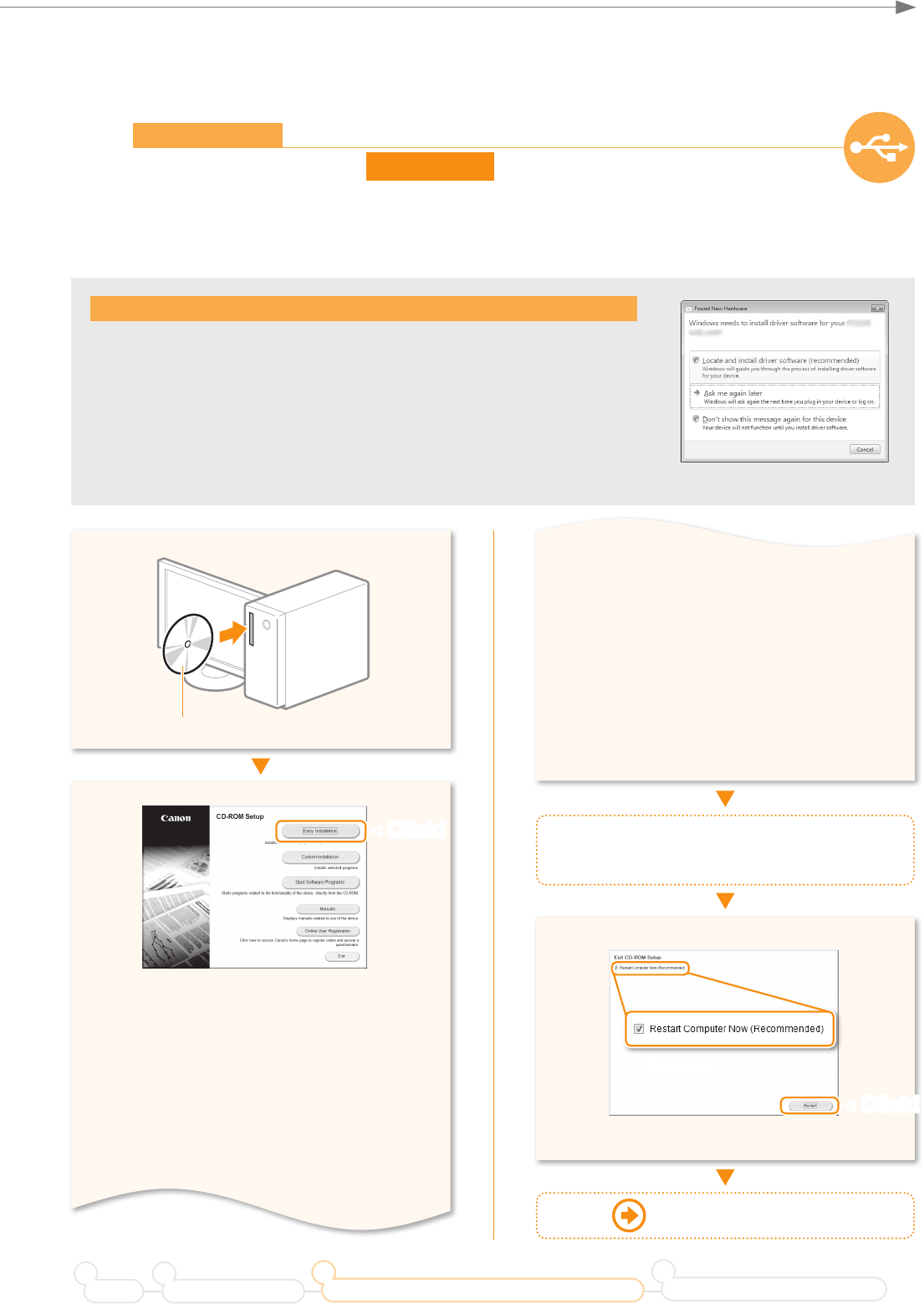
1USB Connection
Install the MF Drivers and the MF Toolbox. Make sure that the machine is turned ON, and log on to Windows as a
user with administrative privileges. Shut down all applications that are running. See MF Driver Installation Guide for
details about installation.
Do not connect the USB cable yet.
Connect the USB cable after installing the MF Drivers and the MF Toolbox.
If you already connected the USB cable:
Windows 7/8: Disconnect the USB cable from the computer, and then
proceed to step .
Windows XP/Vista: If the dialog box on the right appears, disconnect the USB
cable from the computer, click [Cancel], and then proceed to step .
If the USB cable is disconnected and the dialog box disappears, proceed to step .
Printer, fax, scanner drivers and MF Toolbox
will be installed.
Select [Custom Installation] to install Presto!
PageManager and the e-Manual.
If the screen is not correctly displayed:
Windows XP
[Start] Menu → [Run] → enter [D:\MInst.exe]
→ [OK] Remove the CD-ROM, if necessary.
Follow the instructions
on the screen to continue.
For Windows XP/Vista
User Software CD-ROM
▲
Windows Vista/7
[Start] Menu → [Search programs and les]
(or [Start Search]) → enter [D:\MInst.exe] →
press the [Enter] key
Windows 8
Right-click the lower-left corner of the screen
→ select [Run] → enter [D:\Minst.exe] → [OK]
The CD-ROM drive name is indicated as "D:" in this
manual.
Proceed to P. 20
Preface Installing the Machine
21
Connecting to a Computer and Installing the Drivers
3
Configuring and Connecting the Fax
4
▲✔
20
Connecting to the Computer
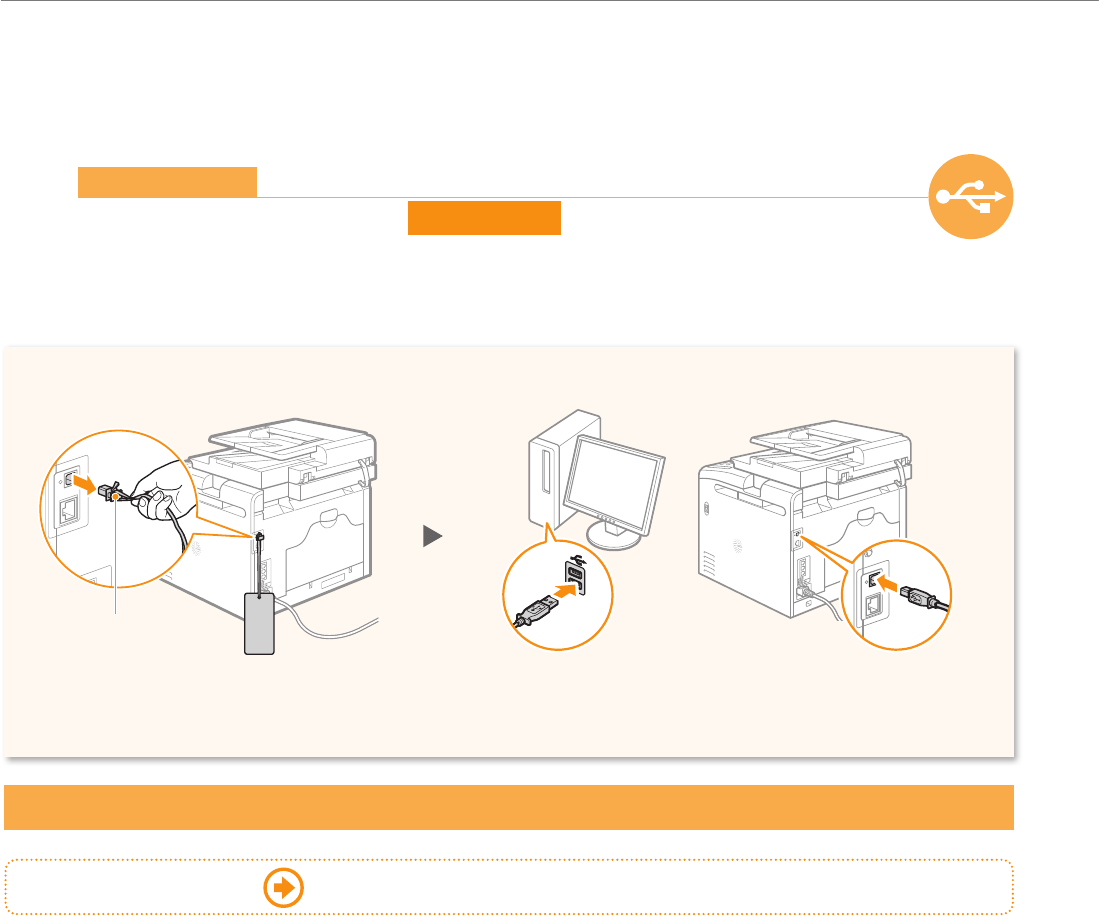
Connect to the computer.
Computer connection via the USB is now complete.
2USB Connection
After installing the software, such as MF Driver, connect the USB cable. Make sure the software is installed rst.
Connect to the machine.
Proceed to P. 24 to congure the fax.
Remove this.
21
Connecting to the Computer
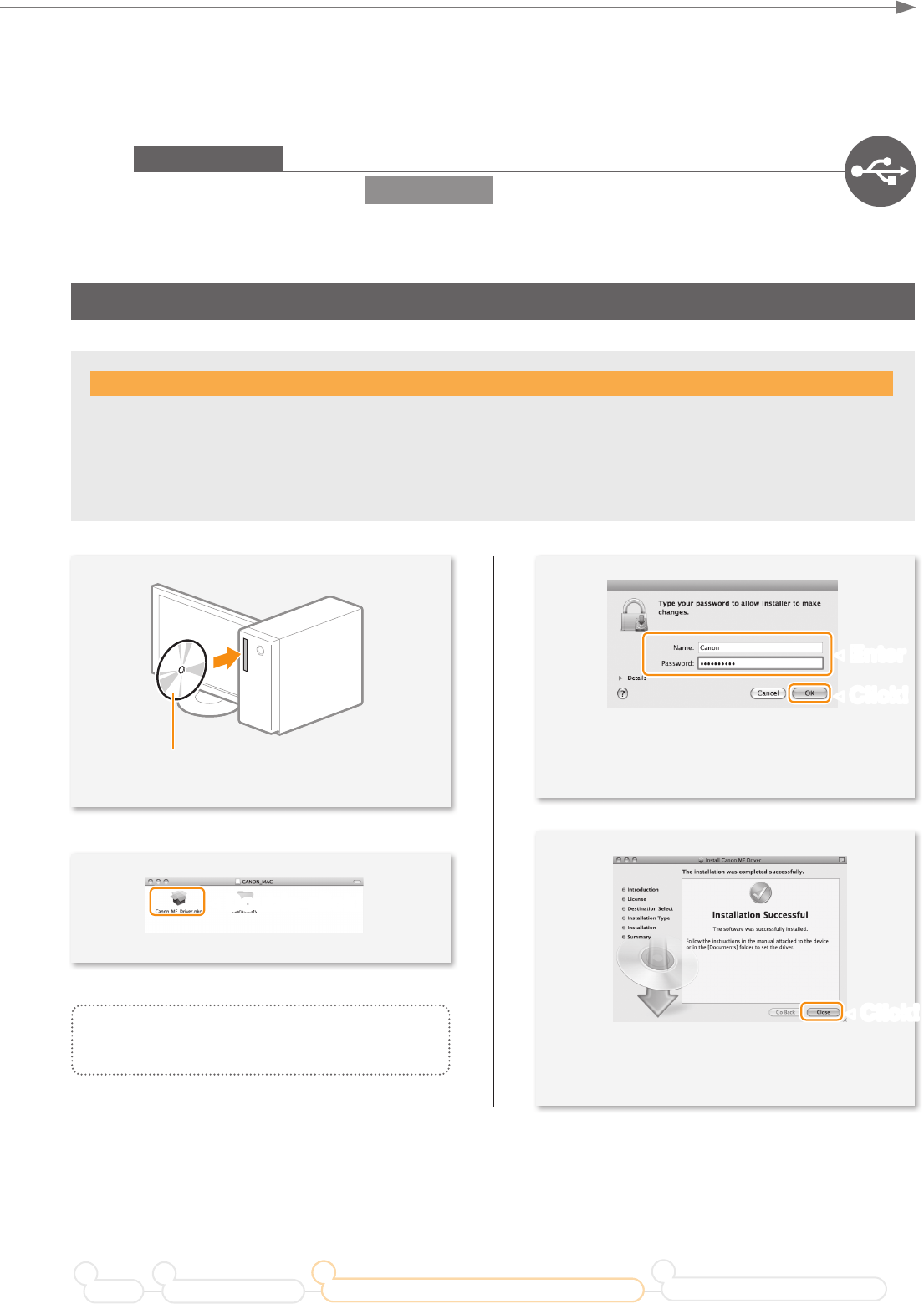
1USB Connection
Install the MF Drivers for Macintosh. It requires Mac OS X 10.5.8 version or later. The installation screen varies
depending on the version of Mac OS X.
This operation is for Macintosh. If using Windows, see P. 19
Insert the User Software CD-ROM and
double-click the CD-ROM icon.
▲
▼
▼
▼
Follow the instructions
on the screen to continue.
Depending on the system environment, the
dialog box may not be displayed. In this case,
proceed to next step.
▼
4
Installing the drivers is now complete.
Continued with registratiion operations on the
desktop.
Do not connect the USB cable yet.
Connect the USB cable after installing the MF Drivers and the MF Toolbox.
If you already connected the USB cable:
Disconnect the USB cable from the computer, and then proceed to step .
Preface Installing the Machine
21
Connecting to a Computer and Installing the Drivers
3
Configuring and Connecting the Fax
4
22
Connecting to the Computer
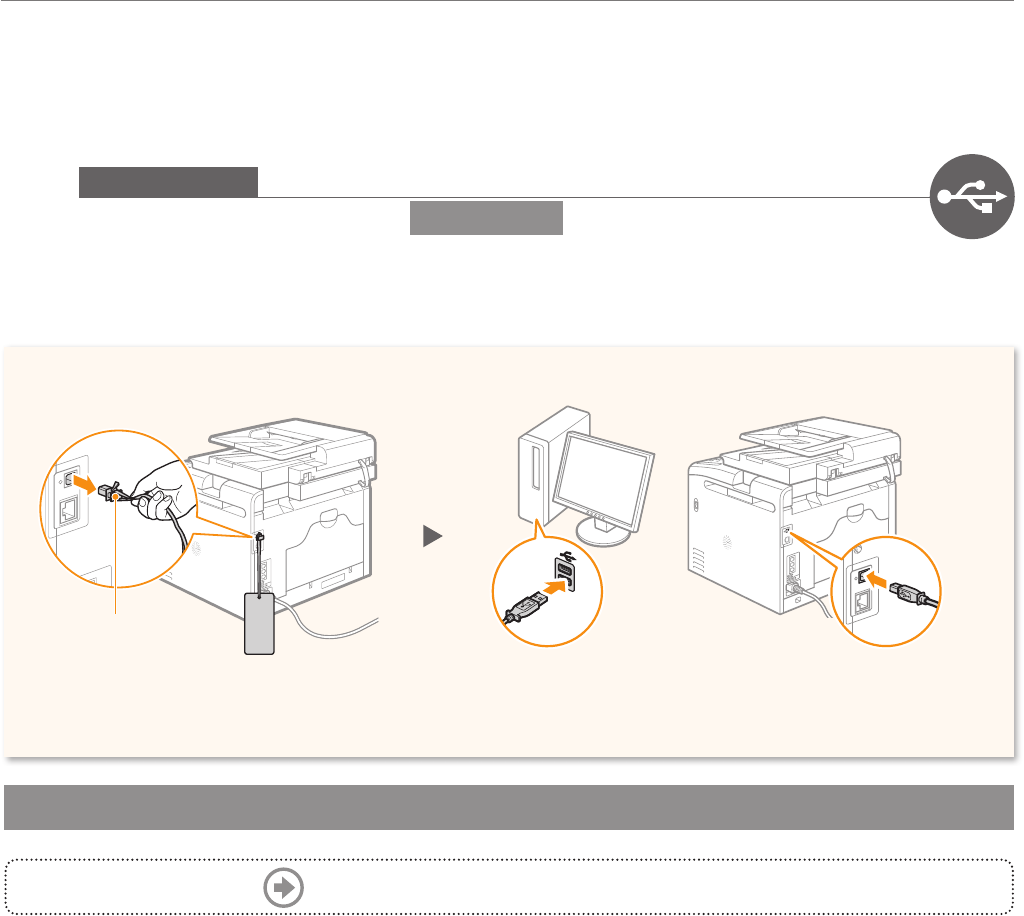
Proceed to P. 24 to configure the fax.
2USB Connection
After installing the software, such as MF Driver, connect the USB cable. Make sure the software is installed rst.
Connect to the computer.
Connect to the machine.
Remove this.
23
Preface Installing the Machine
21
Connecting to a Computer and Installing the Drivers
3
Configuring and Connecting the Fax
4
24
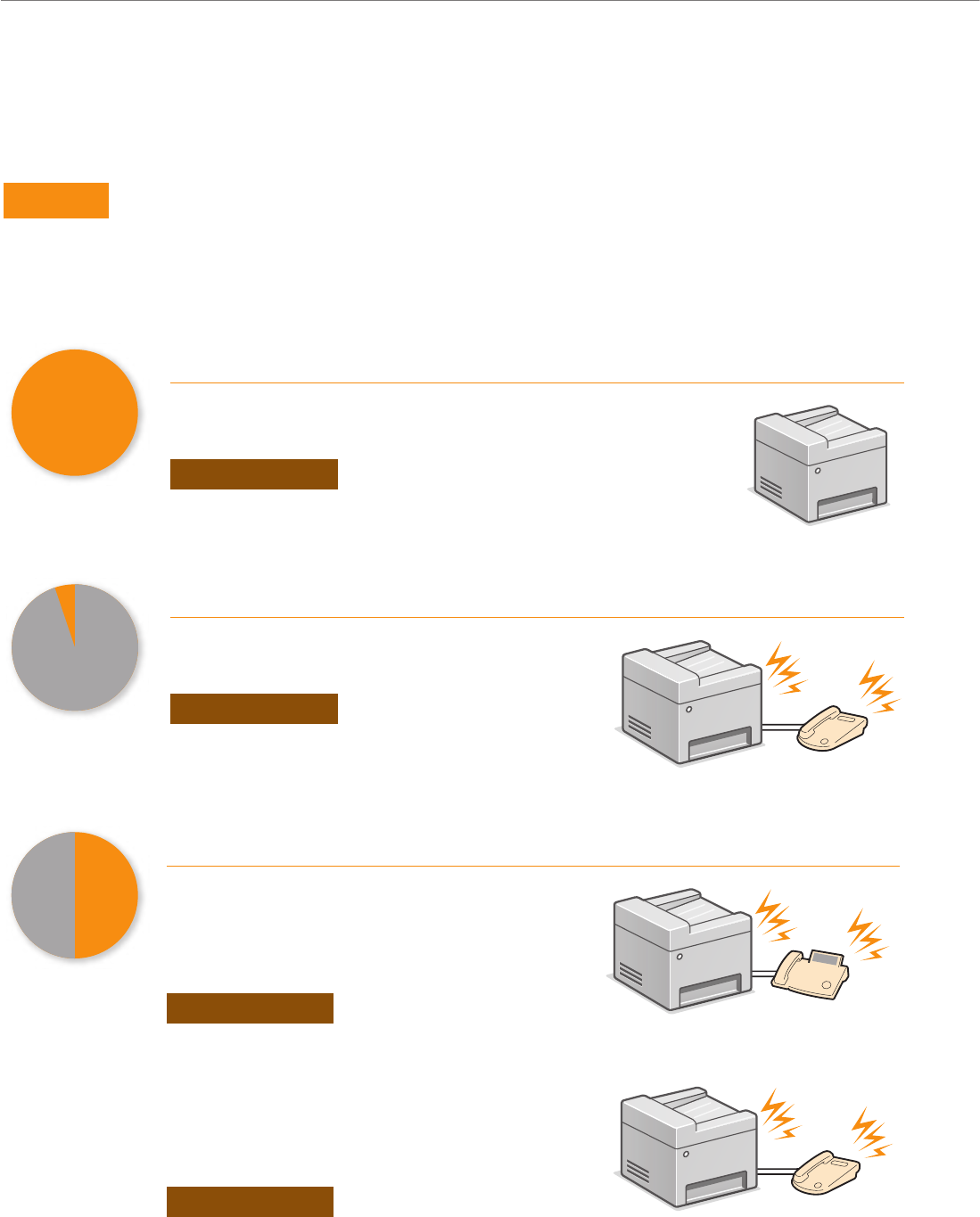
Conguring the Fax
Choose your purpose to know the receive mode to use. Remember the receive mode to congure the setting in
“Selecting the Fax Receive Mode” (P. 26).
If you have subscribed to a Distinctive Ring Pattern Detection (DRPD) service provided by your telephone company, <DRPD> is also available
for the receiving mode. See the e-Manual for details about other receive mode.
Fax
You can use only for fax and may not use for voice calls. You do not
need to connect the external telephone.
⇒ Auto
Phone
Connect an external phoneto receive calls.
Press the start button to receive faxes.
⇒ Manual
Telephone
Phone Fax
Using an answering machine
Connect an external answering machine to record
voice messages when you are out, as well as
receive calls. Faxes will be automatically received.
⇒ Answering Machine Answering machine
Using a General Telephone
Connect the external telephone. Faxes will be
automatically received and the machine will ring
when voice calls come in.
⇒ Fax/Tel Auto Switch Telephone
25
Conguring the Fax
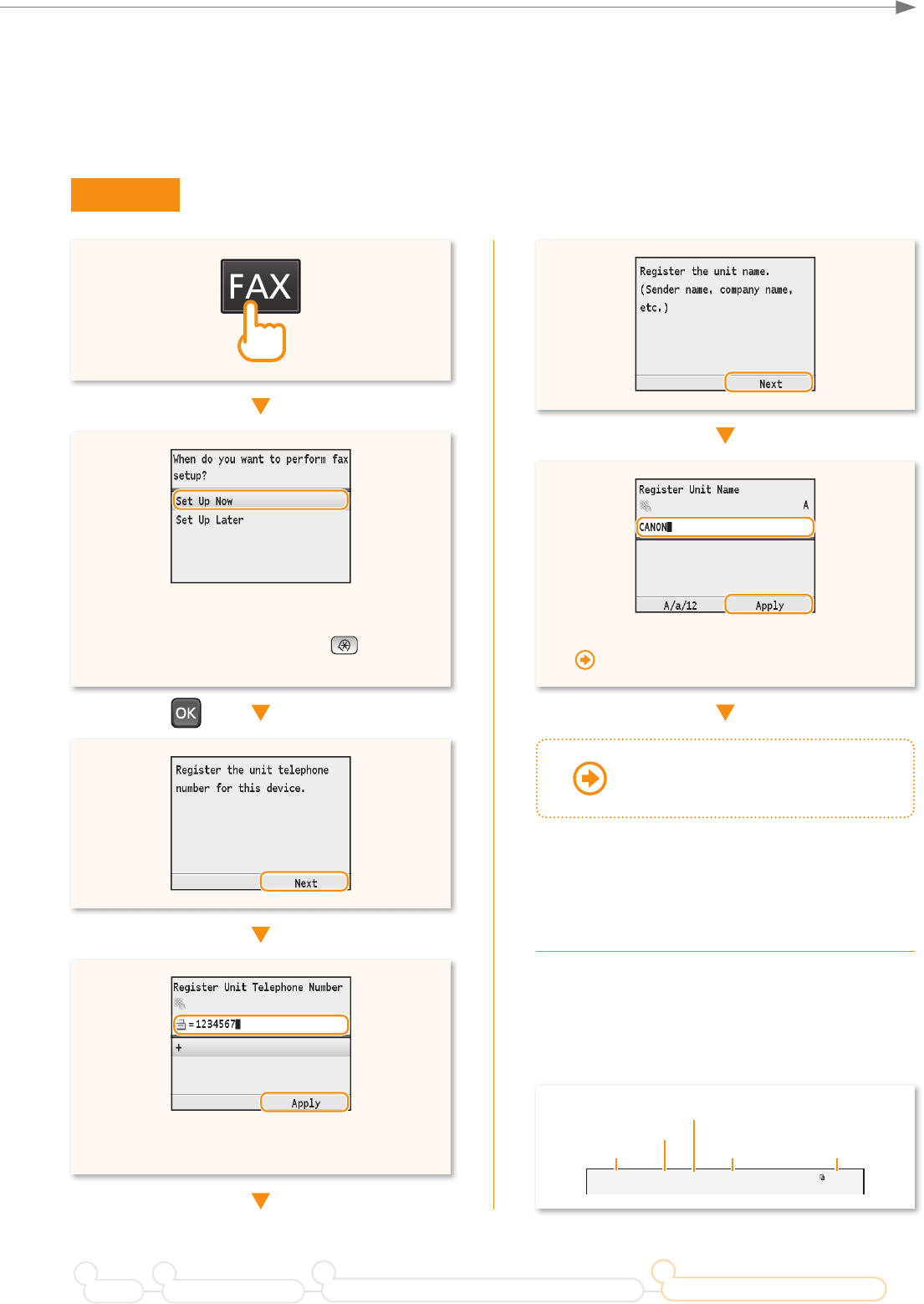
Enter the unit name, and then press <Apply>.
“Entering Text” (P. 35)
Registered information will be printed on the recipient's
paper.
The fax number and unit name registered here will
be printed on the recipient's paper as the sender
information.
If you select <Set Up Later>, the receive mode
will be set to <Auto>.
To recongure the settings, press → <Fax
Settings> → <Fax Setup Guide>.
03/03/2013 02:07 PM FAX 123XXXXXXX CANON 0001/0001
Sent Time Page Number
Fax Number
Unit Name
Number's Type
Enter the fax number using the numeric keys,
and then press <Apply>.
Preface Installing the Machine
21
Connecting to a Computer and Installing the Drivers
3
Configuring and Connecting the Fax
4
Proceed to the next page
26
Conguring the Fax
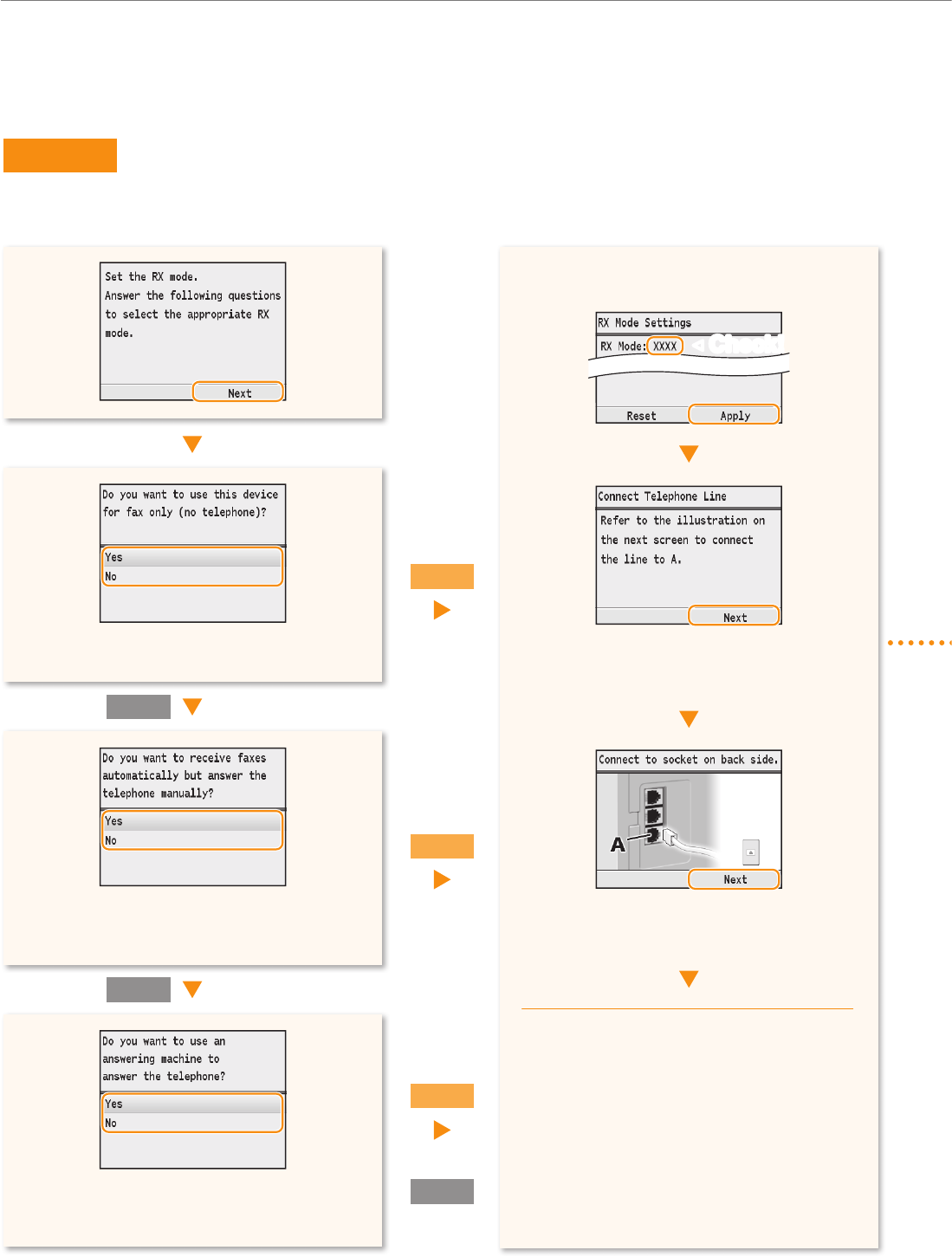
Set the receive mode that you conrmed in “Selecting a Receive Mode That Fits Your Purpose” (P. 24).
To set to Auto mode → <Yes> → [OK]
To set to other receive modes → <No> → [OK]
To set to Fax/Tel Auto Switch mode → <Yes>
→ [OK]
To set to other receive modes → <No> → [OK]
To set to Answering Machine mode → <Yes>
→ [OK]
To set to Manual mode → <No> → [OK]
The screen that appears varies
depending on the receive mode
selected.
The screen that appears varies
depending on the receive mode
selected.
<Auto>
<Fax/Tel>
<Answer>
<Manual>
When connecting a telephone with fax
functions:
Set the fax receive mode of the telephone to
“manual.”
Other receiving mode:
If you have subscribed to a Distinctive Ring
Pattern Detection (DRPD) service provided
by your telephone company, <DRPD> is also
available for the receiving mode. See the
e-Manual for details about other receive mode.
27
Conguring the Fax
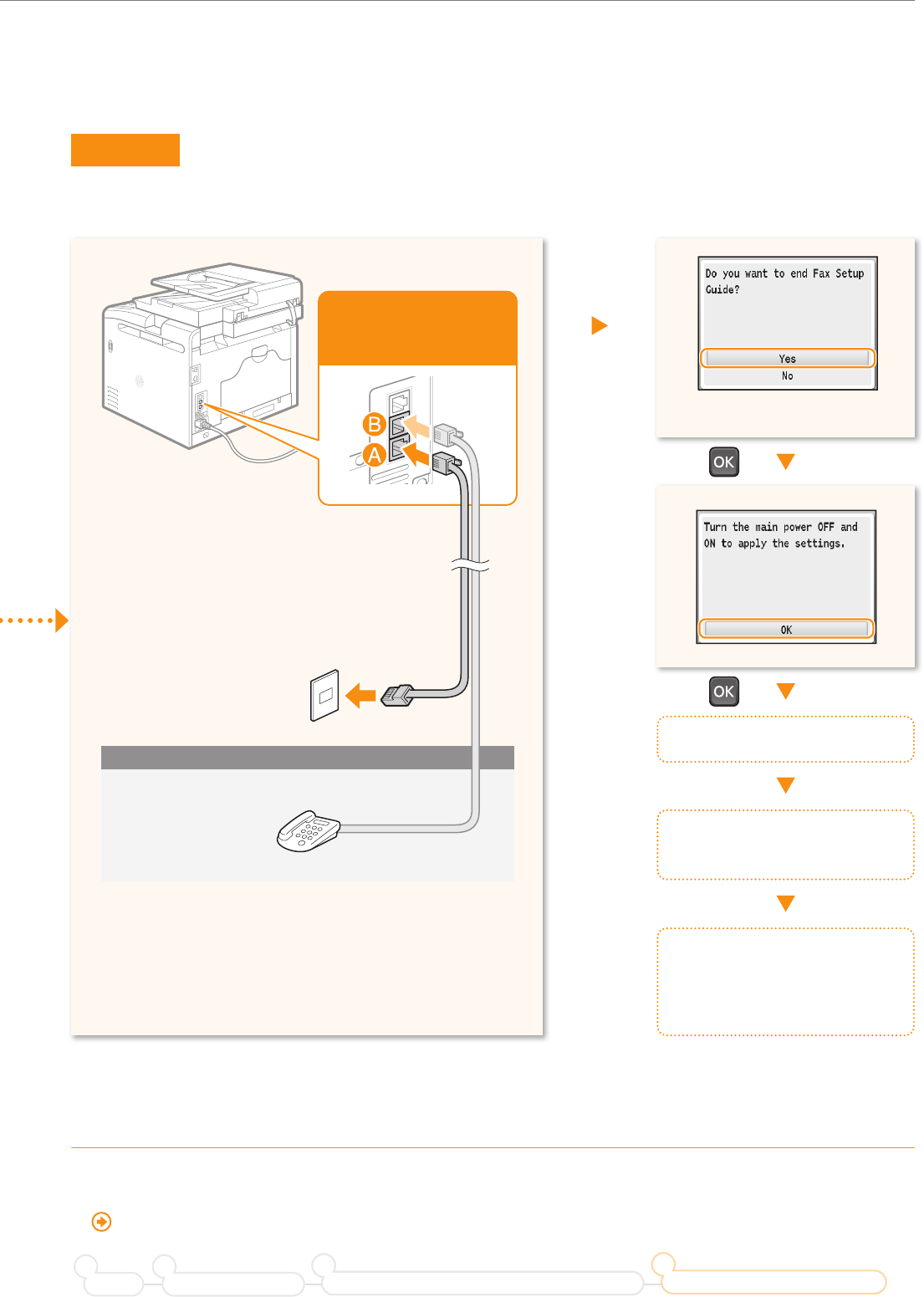
Turn OFF the machine.
Wait for at least 10
seconds.
Turn ON the machine.
The machine will restart, and
the telephone line type will be
automatically set.
Press [▲] to select <Yes>.
* If the telephone line type is not automatically set:
See the Basic Operation Guide to set manually.
“Fax” → “Change the Fax Settings” → “Changing Fax Sending Settings” in the Basic Operation Guide
Preface Installing the Machine
21
Connecting to a Computer and Installing the Drivers
3
Configuring and Connecting the Fax
4
To an analog
telephone line
Telephone
(answering machine)
28
Appendix
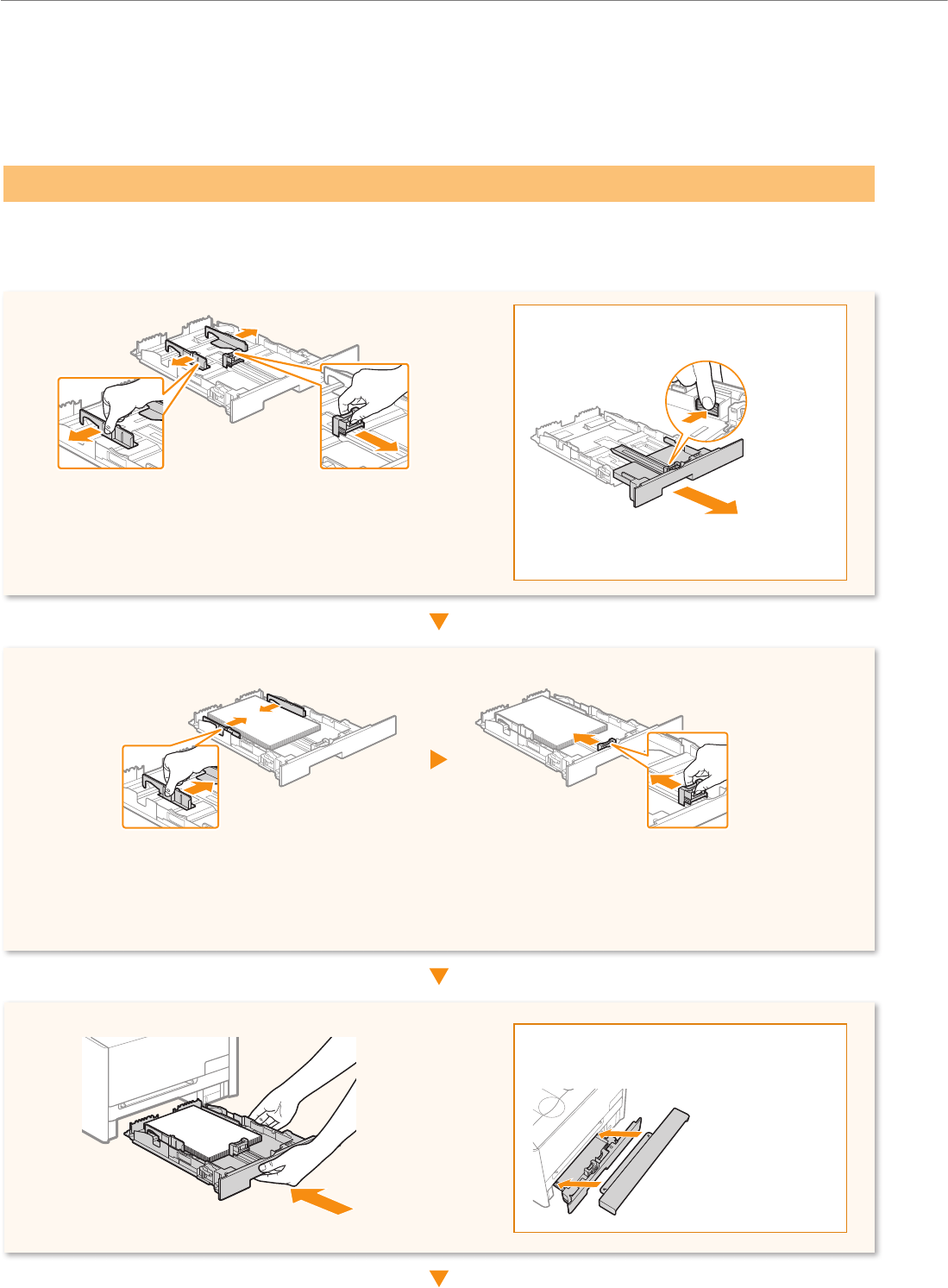
To load paper other than Letter size, such as Legal or Statement, see “Loading Paper” (P. 8) and the following
procedure to load paper and specify the paper size and type.
After loading paper, slide the side paper guides and the front-center paper guide inward
until they are aligned securely against the edges of the paper.
Make sure that the paper stack does not exceed load limit mark.
Pull out the paper drawer.
Slide the paper guides, and spread them a little wider
than the actual paper width.
When loading Legal size paper
Press the lock release lever and adjust the
length of the paper drawer.
When loading Legal size paper
Set the Legal dust cover on the paper drawer.
29
Appendix
8
47
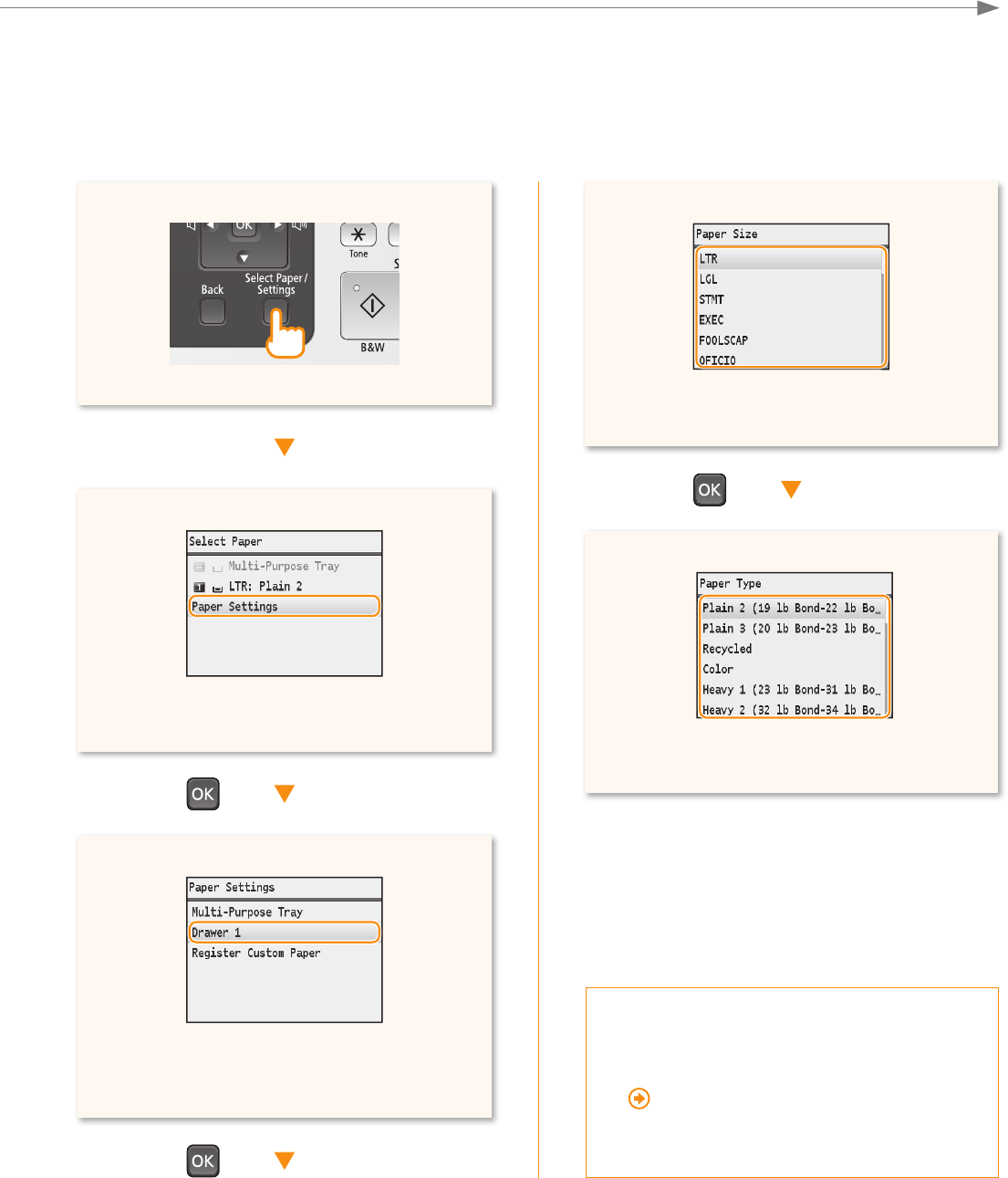
Press [▲] or [▼] to highlight a paper size, and
then press [OK].
Press [▲] or [▼] to highlight a paper type, and
then press [OK].
5
6
Press [▲] or [▼] to highlight <Paper Settings>,
and then press [OK].
Press [▲] or [▼] to highlight the paper drawer
for which you want to set the paper size and
type, and then press [OK].
Loading Envelopes or Paper
with a Letterhead
“Loading Envelopes or Paper with a
Letterhead” in the Basic Operation
Guide
30
Appendix
4
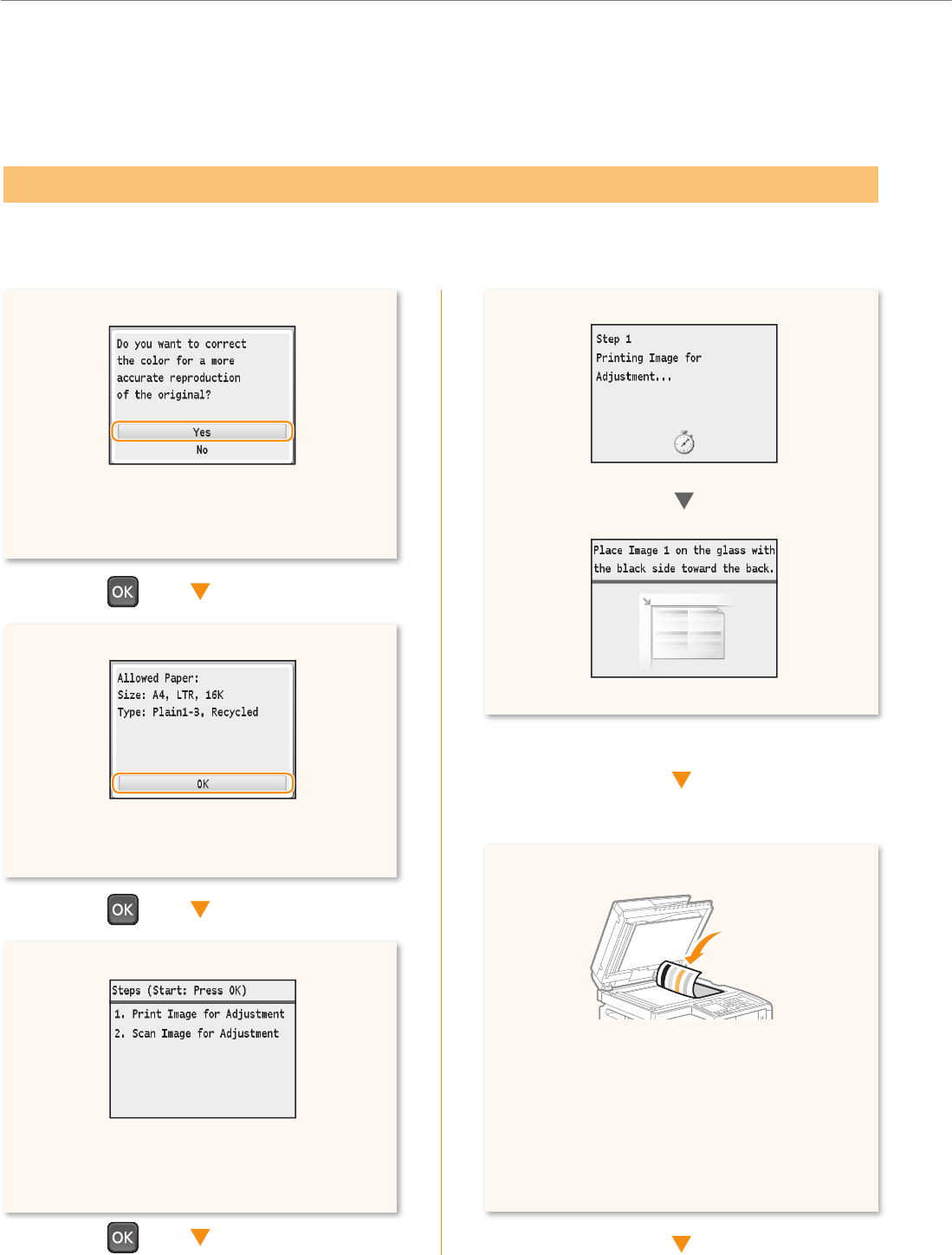
It is recommended to perform color correction to obtain optimum copy or printout results.
5
Conrm the procedure for color correction,
and then press [OK].
An adjustment image is printed.
Open the feeder, place the test chart on the
platen glass with the print side face down,
and then close the feeder.
Place the paper so that the black stripe is at
the back side of the machine.
When the above screen is displayed during
initial settings, select [Yes] to perform color
correction.
Make sure that paper is loaded, and then
press [OK].
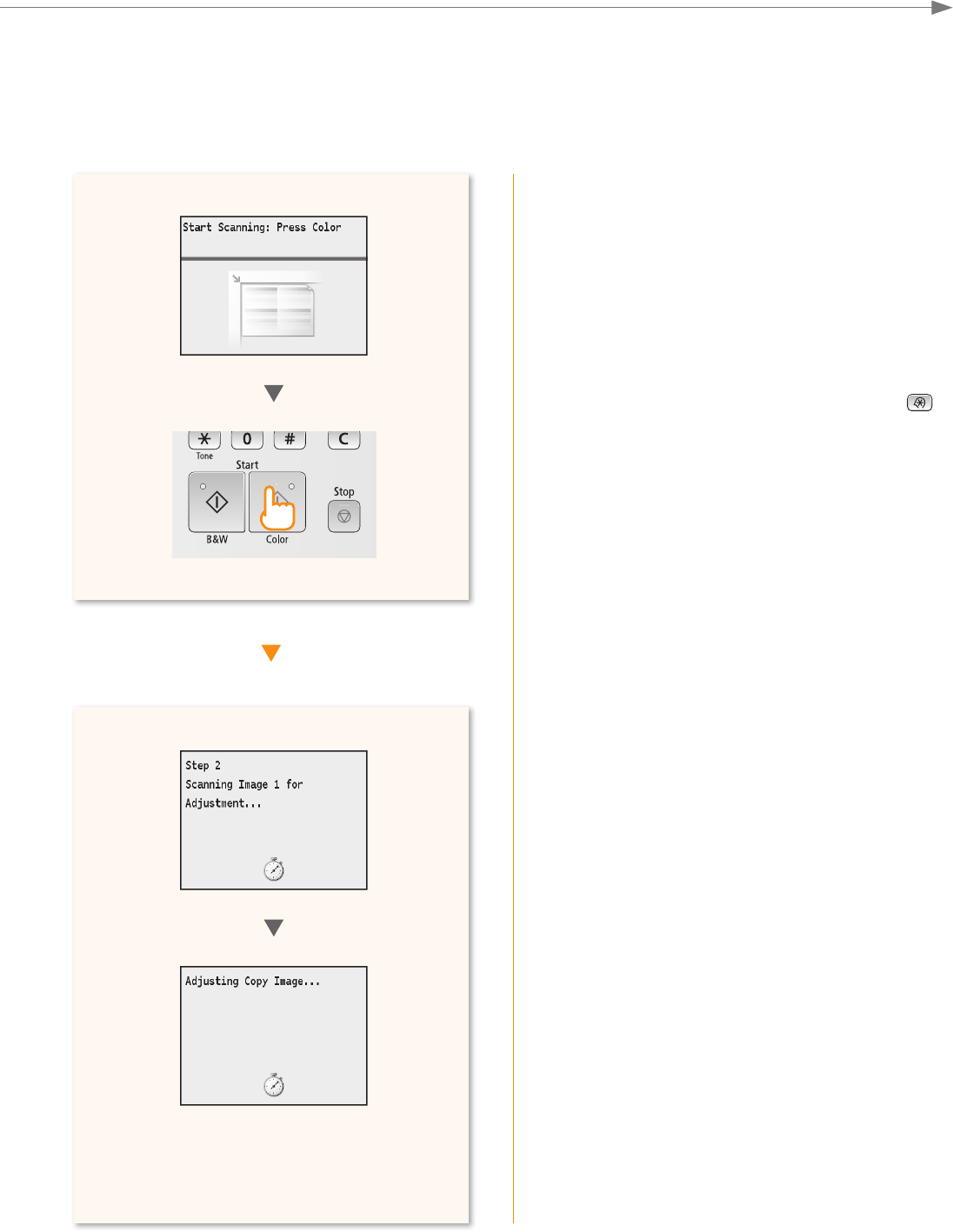
31
Appendix
7
6If <Correction failed.> appears:
Is the paper loaded correctly?
→ Load plain or recycled paper of A4/Letter size in the
paper drawer.
Is the adjustment image placed on the platen glass
correctly?
→ Place the adjustment image with the print side face
down and the black stripe toward the back of the
machine.
Has a paper jam occurred?
→ Remove the jammed paper.
If you want to perform color correction again, press ,
and then select the following settings in the following
order.
<Adjustment/Maintenance> → <Auto Adjust Gradation>
→ <Adjust Copy Image>
When [Finished] is displayed, remove the
adjustment image placed on the platen glass
in Step 5.
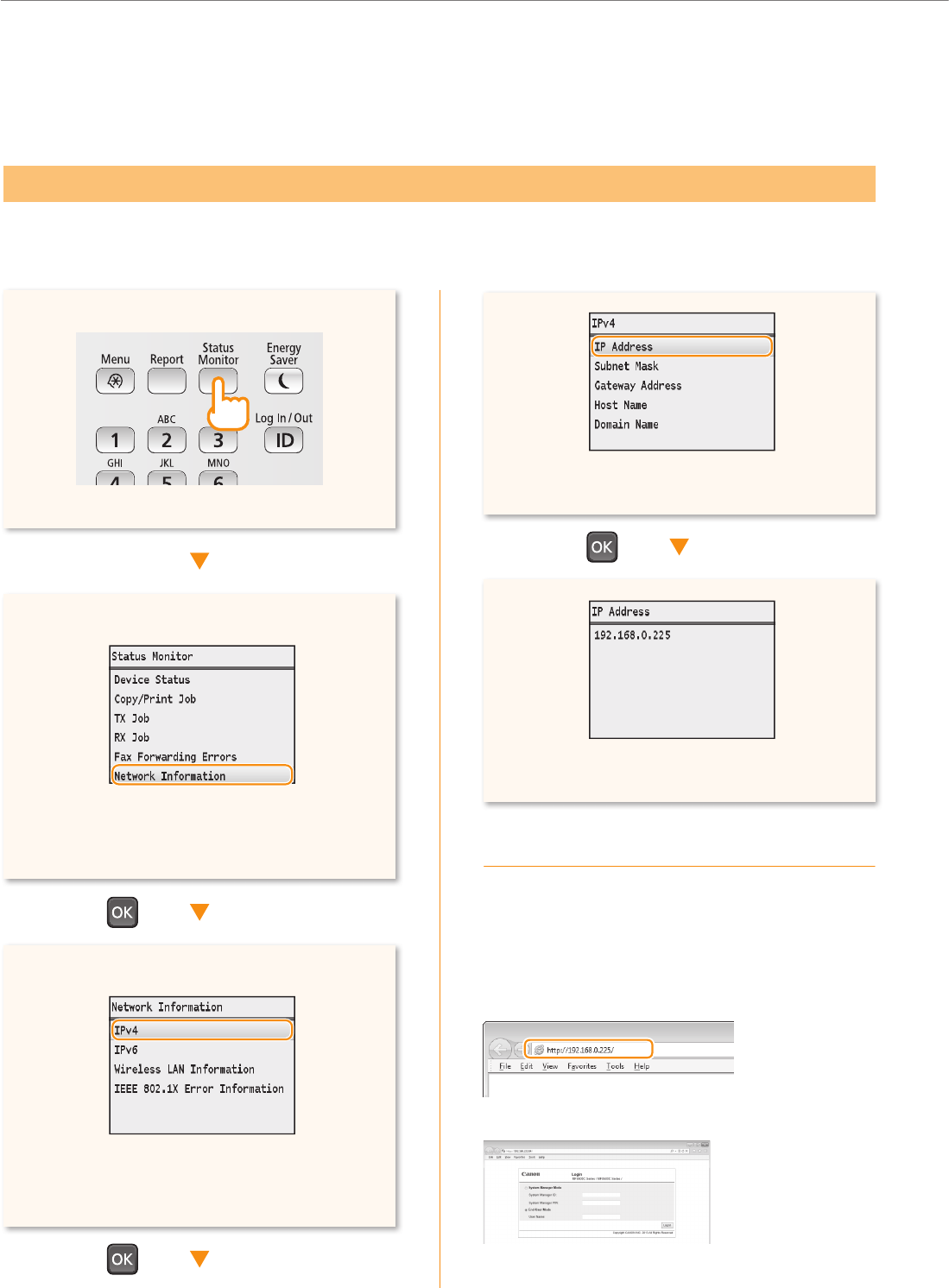
32
Appendix
4
You can check the IP address of the machine. Use it when you need to enter the IP address during the conguration
or registration.
5
Press [▲] or [▼] to highlight <Network
Information>, and then press [OK].
The IP address is displayed. Press [Status
Monitor] to close the screen.
Press [▲] or [▼] to highlight <IP Address>,
and then press [OK].
Check if the Machine Is Connected to the
Network Correctly
Start a Web of the computer that is connected
to the network, enter [http://IP address of the
machine], and then press [ENTER]. (Example:
http://192.168.0.225/)
The screen below (Remote UI) should be displayed.
If the remote UI screen is not displayed, see the e-Manual.
Press [▲] or [▼] to highlight <IPv4>, and
then press [OK].
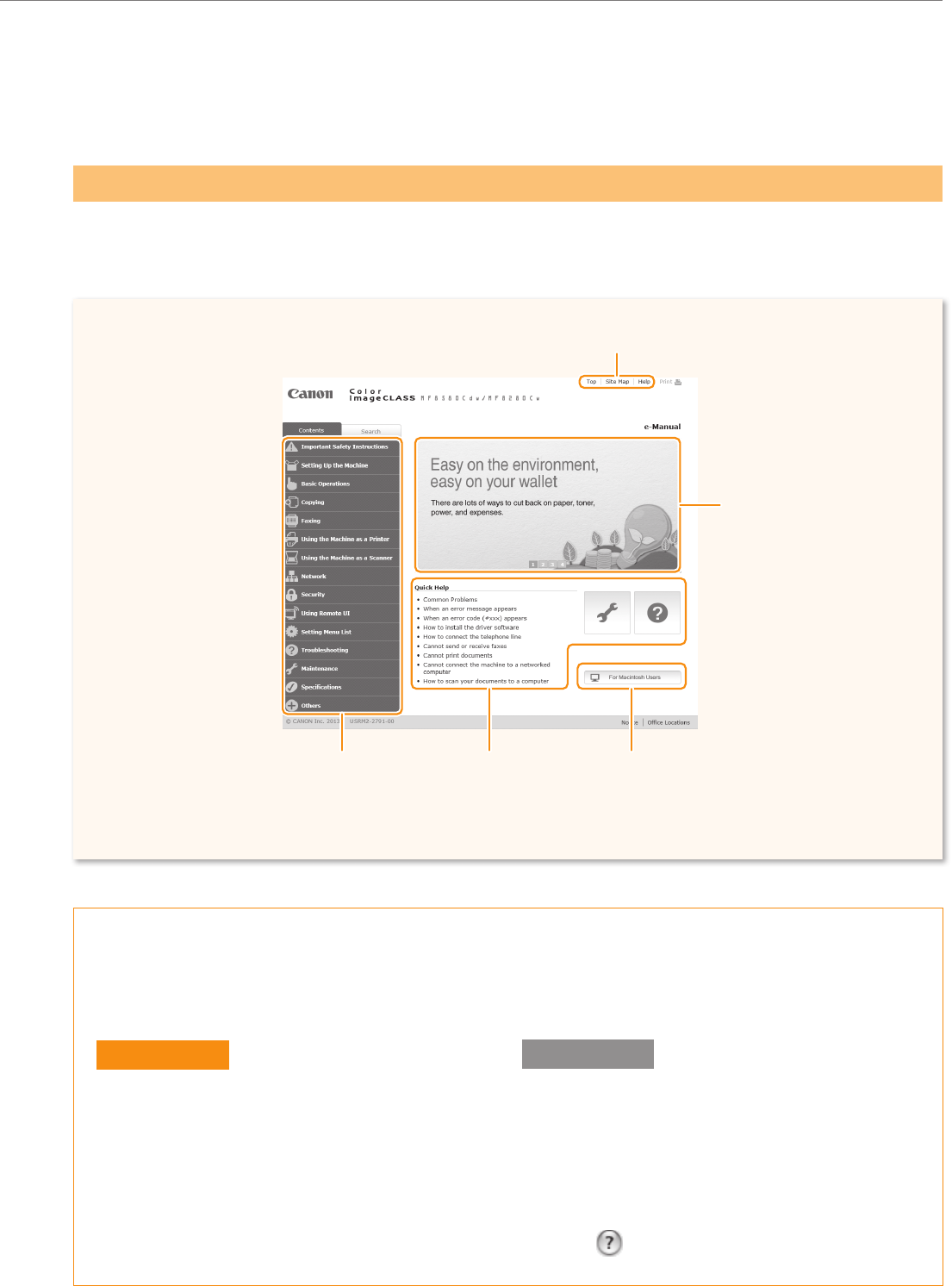
33
Appendix
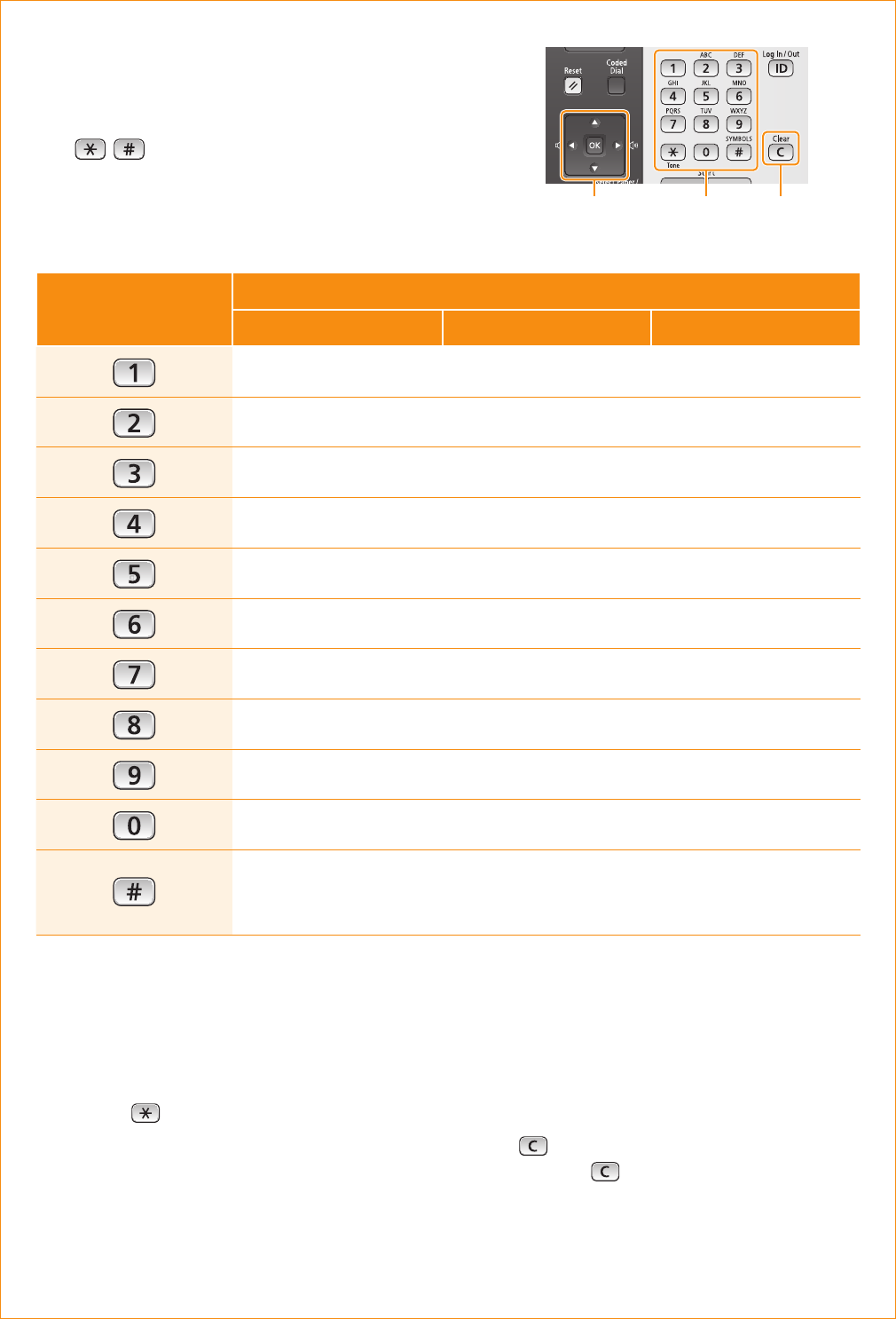
Using the Online Help
Information, such as driver software information, is included in the online help. When using the driver
software, you can immediately view the description of the features and the contents of the settings.
The e-Manual is an electronic manual document that is displayed on the computer. All features of the machine are
categorized by subject, and you can quickly view the information you need by using its search function. Use the
e-Manual as a reference.
Select [File] → [Print] from the menu bar in the
application.
Select the printer in [Printer].
Change the content displayed in lower pane
of the dialog to [Finishing], [Quality], [Special
Features], etc.
4 Click [ ].
Select [File] → [Print] from the menu bar of an
application.
Select the printer in [Select Printer] or [Name] in
the [Print] dialog box.
Click [Preferences] or [Properties].
4 Click [Help].
Click to refer to the contents and
instructions for using the e-Manual.
Click to display practical
uses of the machine.
Click when performing
troubleshooting or
maintenance of the
machine.
Click a topic to access
information.
Click to view precautions
when using Macintosh.

34
The information in this document is subject to change
without notice. CANON INC. MAKES NO WARRANTY
OF ANY KIND WITH REGARD TO THIS MATERIAL,
EITHER EXPRESS OR IMPLIED, EXCEPT AS PROVIDED
HEREIN, INCLUDING WITHOUT LIMITATION,
THEREOF, WARRANTIES AS TO MARKETABILITY,
MERCHANTABILITY, FITNESS FOR A PARTICULAR
PURPOSE OF USE OR NON-INFRINGEMENT. CANON
INC. SHALL NOT BE LIABLE FOR ANY DIRECT,
INCIDENTAL, OR CONSEQUENTIAL DAMAGES OF ANY
NATURE, OR LOSSES OR EXPENSES RESULTING FROM
THE USE OF THIS MATERIAL.
Canon, the Canon logo, and Color imageCLASS are
registered trademarks of Canon Inc. in the United States and
may also be trademarks or registered trademarks in other
countries.
Bonjour, Macintosh, Mac OS, and OS X are trademarks or
registered trademarks of Apple Inc. in the U.S. and/or other
countries.
Microsoft, Windows, Windows Vista and Windows Server
are either registered trademarks or trademarks of Microsoft
Corporation in the United States and/or other countries.
All other product and brand names are registered
trademarks, trademarks or service marks of their respective
owners.
© CANON INC. 2013 All Rights Reserved
No part of this publication may be reproduced, transmitted,
transcribed, stored in a retrieval system, or translated into
any language or computer language in any form or by any
means, electronic, mechanical, magnetic, optical, chemical,
manual, or otherwise, without the prior written permission of
Canon Inc.
35
Entering Text
During the setup or initial conguration, you may need to
enter letters and numbers. Use [▲], [▼], [◀], [▶], numeric
keys, , , and [OK] to enter text.
@.-_/ 1
ABC abc 2
DEF def 3
GHI ghi 4
JKL jkl 5
MNO mno 6
PQRS pqrs 7
TUV tuv 8
WXYZ wxyz 9
(Not available) 0
(space) @ . / - _ ! ? & $ % # ( ) [ ] { } < > * + = " , ; : ' ^ ` | \ ~(Not available)
Changing the Entry Mode
The machine supports three entry modes: <A>
for uppercase, <a> for lowercase, and <12>
for numbers. The default setting is <A>. Press
<A/a/12> or to change the entry mode.
Moving the Cursor
Press [◀] or [▶] to move the cursor.
Entering a Space
Move the cursor to the end of the text, and then
press [▶].
Deleting Characters
Press to delete characters.
Press and hold to delete all characters.
OK
▼ ▲ ◀ ▶
Numeric keys
,
*, #
Clear
Getting Started
Getting Started
When you have a problem with your
machine, refer to “Troubleshooting” in the
Basic Operation Guide or the e-Manual rst.
If you cannot solve the problem after referring
the manuals, contact the Canon Authorized
Service Facilities or the Canon Customer
Care Center.
Canon Customer Care Center
1-800-OK-CANON
(U.S.A./Canada)
Monday through Friday
From 8:00 A.M. to 8:00 P.M. EST
Monday through Friday
From 9:00 A.M. to 8:00 P.M. EST
http://www.canon.ca/
30-2, Shimomaruko 3-chome, Ohta-ku, Tokyo 146-8501, Japan
16-6, Konan 2-chome, Minato-ku, Tokyo 108-8011, Japan
One Canon Park, Melville, NY 11747, U.S.A.
Bovenkerkerweg 59, 1185 XB Amstelveen, The Netherlands
15F Jinbao Building No.89, Jinbao Street, Dongcheng District, Beijing 100005, PRC
1 HarbourFront Avenue, #04-01 Keppel Bay Tower, Singapore 098632
1 Thomas Holt Drive, North Ryde, Sydney NSW 2113, Australia
http://www.canon.com/
FT6-0101 (000) XXXXXXXXXX © CANON INC. 2013 PRINTED IN CHINA
