Canon Dc330 Instruction Manual For Macintosh
2015-03-09
: Canon Canon-Dc330-Instruction-Manual-For-Macintosh-585248 canon-dc330-instruction-manual-for-macintosh-585248 canon pdf
Open the PDF directly: View PDF  .
.
Page Count: 73
English
Digital Video Software
Version 29
Instruction Manual
COPY

2Contents
Contents
Read This First ........................................................................................................... 4
Checking Supplied Accessories ............................................................................ 4
System Requirements ............................................................................................... 5
What is Digital Video Software? ............................................................................... 6
Windows ..................................................................................................................... 7
CameraWindow ..................................................................................................... 7
[Acquire Images] Tab ........................................................................................ 7
[Print] Tab .......................................................................................................... 8
[Set to Camera] Tab .......................................................................................... 9
Camera Browser Window ............................................................................... 10
Browser Window...................................................................................................11
[Image Viewer] Window ....................................................................................... 15
[Trim Image] Window ...................................................................................... 16
[Color/Brightness Adjustment] Window ........................................................... 16
[Red Eye Correction] Window ......................................................................... 17
[Insert Text] Window ........................................................................................ 17
[Level Adjustment] Window ............................................................................. 18
[Tone Curve Adjustment] Window ................................................................... 18
[Sharpness] Window ....................................................................................... 19
[Auto Adjustment] Window .............................................................................. 19
Installing the Digital Video Software ...................................................................... 20
Before Downloading Still Images ........................................................................... 23
Connecting the Camcorder to a Computer .......................................................... 23
Downloading Still Images........................................................................................ 24
Using the Computer to Download Still Images (CameraWindow) ....................... 25
Auto-downloading ........................................................................................... 25
Applying Auto-downloading Settings .............................................................. 26
Downloading the Selected Still Images from the CameraWindow .................. 29
Using the Camcorder to Download Still Images (Direct Transfer Function) ........ 31
Setting the Direct Transfer Download Destination Folder ............................... 31
Direct Transfer ................................................................................................ 32
Using a Card Reader/Writer ................................................................................ 33
Auto-downloading ........................................................................................... 34
Applying Auto-downloading Settings .............................................................. 34
Downloading the Selected Still Images from the ImageBrowser .................... 35
Printing Still Images................................................................................................. 37
Printing Still Images without Downloading Them................................................. 37
Printing Still Images Already Downloaded to the Computer ................................ 42
[Photo Print] .................................................................................................... 42
[Index Print] ..................................................................................................... 44
[Layout Print] ................................................................................................... 46
Organizing Images ................................................................................................... 48
Applying Star Rating ............................................................................................ 48
Specifying the Keywords...................................................................................... 49
Classifying the Images......................................................................................... 50
Sort by the Shooting Date ............................................................................... 50
Sort by the Star Rating .................................................................................... 51
Renaming Multiple Files ...................................................................................... 53
Searching for Images........................................................................................... 54
COPY

3
Contents
Macintosh
Creating a Movie from the Still Images .................................................................. 56
Editing Movies (MovieEdit Task).......................................................................... 56
Playing Back Movies............................................................................................ 58
Exporting Images ..................................................................................................... 59
Changing the File Type and Saving..................................................................... 59
Extracting Still Images from Movies (MovieFrame Task) ..................................... 62
Uploading Still Images to the camcorder ............................................................. 64
Using Various Functions ......................................................................................... 66
Attaching Images to E-mail Messages ................................................................ 66
Running a Slide Show ......................................................................................... 68
Adding Sound to a Still Image.............................................................................. 69
Reviewing and Changing the Owner Name of the Camcorder............................ 70
Uninstalling the Software ........................................................................................ 71
Uninstalling ImageBrowser .................................................................................. 71
Troubleshooting ....................................................................................................... 72
COPY

4Read This First
Read This First
Disclaimer
• While every effort has been made to ensure that the information contained in this
guide is accurate and complete, no liability can be accepted for any errors or
omissions. Canon reserves the right to change the specifications of the hardware
and software described herein at any time without prior notice.
• No part of this guide may be reproduced, transmitted, transcribed, stored in a
retrieval system, or translated into any language in any form, by any means,
without the prior written permission of Canon.
• Canon makes no warranties for damages resulting from corrupted or lost data
due to mistaken operation or malfunction of the camcorder, the software, memory
cards (SD, SDHC and miniSD Cards), personal computers, or peripheral devices,
or due to use of a memory card not initialized by a Canon camcorder.
Trademark Acknowledgments
• Macintosh, Mac OS, iPhoto and QuickTime are trademarks of Apple Inc.,
registered in the U.S. and other countries.
• miniSD™ is a trademark of SD Card Association.
• The SD logo is a trademark. The SDHC logo is a trademark.
• Intel is a trademark or a registered trademark of Intel Corporation or its
subsidiaries in the United States and other countries.
• Other names and products not mentioned above may be registered trademarks
or trademarks of their respective companies.
© Canon Inc. 2008 All rights reserved.
Safety Precautions
Do not play the supplied CD-ROM(s) in any CD player that does not support data
CD-ROMs. Playing the CD-ROM(s) in an audio CD player (music player) could
damage the speakers. It is also possible to suffer from hearing loss from listening
with headphones to the loud sounds of a CD-ROM played on a music CD player.
Checking Supplied Accessories
Use the following accessories to download recorded still images from a memory card
to your computer.
• Supplied USB cable
The cable supplied with your
camcorder may be different from the
one described in this manual.
• DIGITAL VIDEO Solution Disk
The explanations in this manual use mainly Mac OS X version 10.3 screen shots.
The steps and windows may vary depending on your computer.
COPY

5
System Requirements
Macintosh
System Requirements
Proper operation is not guaranteed on any particular system, even if it meets
the requirements outlined above.
ImageBrowser does not operate on disks initialized with the Unix File
System (UFS).
A CD-ROM drive is required to install the software.
OS: Mac OS X (version 10.3/10.4)
Computer Model: Computers that come with above OS preinstalled
CPU: PowerPC G3/G4/G5, or Intel processor
RAM: 256 MB or more
Interface: USB
Free Hard Disk Space: Canon Utilities
- ImageBrowser 300 MB or more
Display: 1024 u 768 pixels/32,000 colors or better
COPY

6What is Digital Video Software?
What is Digital Video Software?
Digital Video Software allows you to download still images you recorded with the
camcorder to a computer and manage, print, and edit them.
ImageBrowser
• Viewing still images as thumbnails
• Managing by shooting date folders with still images
• Categorizing, organizing, and searching large volumes of still images
• Printing still images
• Editing still images
• Changing the data for still images and save them as new files
• Attaching still images to e-mail
• Viewing still images in a slide show
• Adding sound to a still image
CameraWindow
• Downloading still images from a memory card to your computer
• Viewing still images recorded in a memory card
• Printing still images recorded on a memory card without downloading the still
images to the computer
This instruction manual explains how to install the software, what you can do with the
main features and how to operate them. For more detailed operational instructions,
refer to the Help menu of each software program.
COPY
7
Windows
Macintosh
Windows
CameraWindow
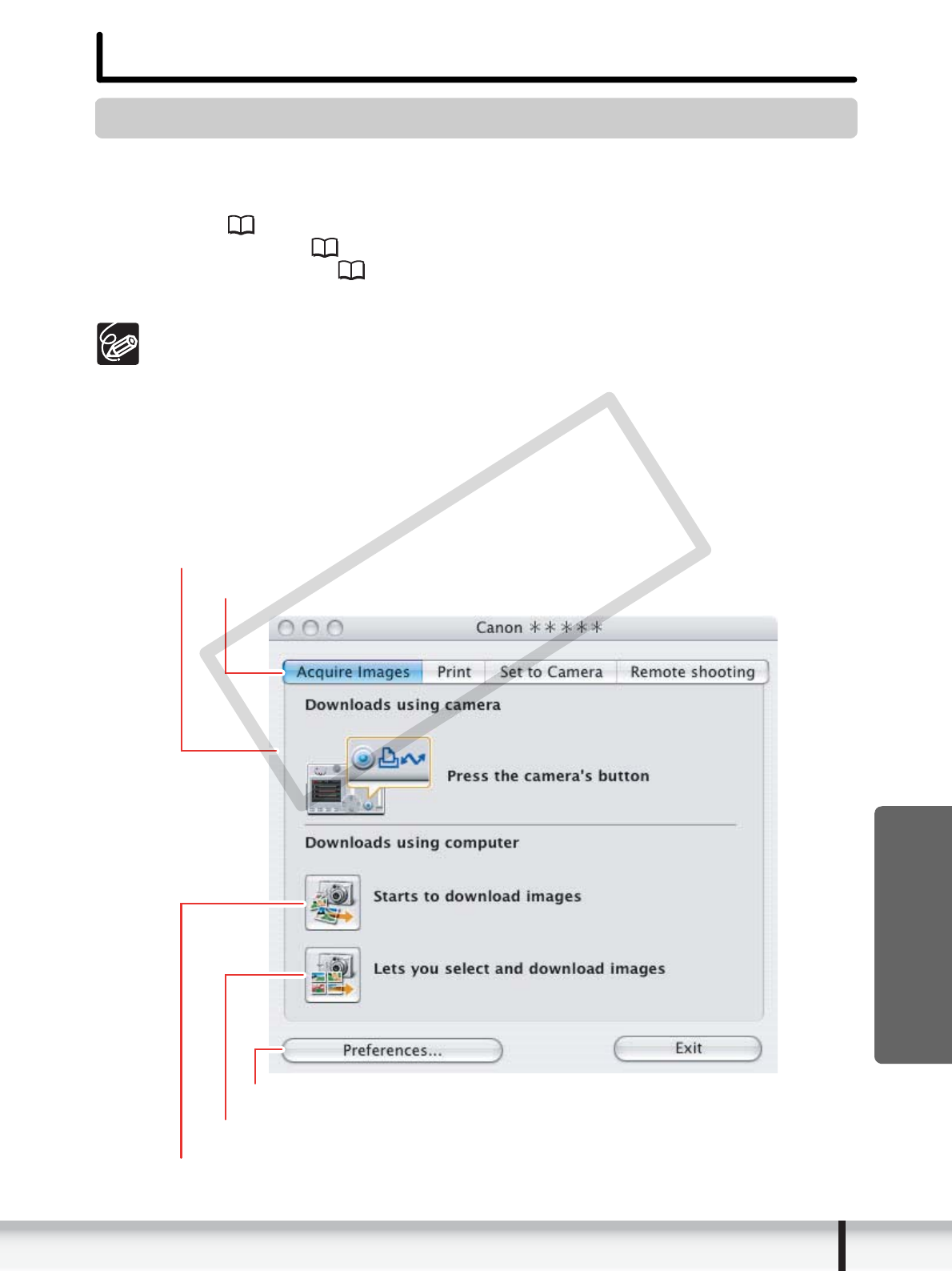
After you connect the camcorder to your computer, you can use CameraWindow to
download still images on the memory card to the computer. Furthermore, you can print
still images recorded on the memory card without having the images downloaded to
the computer ( 37), and you can confirm and change the owner’s name of the
camcorder you specify ( 70). Refer to Using the Computer to Download Still
Images (CameraWindow) ( 25) for launching the software. The Remote capture
function is not supported by the camcorder.
Click the [CameraWindow] icon in the Dock (bar appearing at the bottom of
the desktop) if the Camera Control window does not appear.
When the [CameraWindow] icon is not in the Dock, double click the [Canon
Utilities] folder on the drive where the program was installed, followed by the
[CameraWindow] folder and the [CameraWindow] icon.
[Acquire Images] Tab
After you connect the camcorder to your computer, use this tab to download still
images on the memory card to the computer.
Camera Control window
Images will be downloaded to the computer, and ImageBrowser starts.
Selects a function in the Camera Control window.
Images in the camcorder are displayed allowing you to select images.
Specify the image type to be downloaded and the destination folder.
COPY
8Windows
[Print] Tab
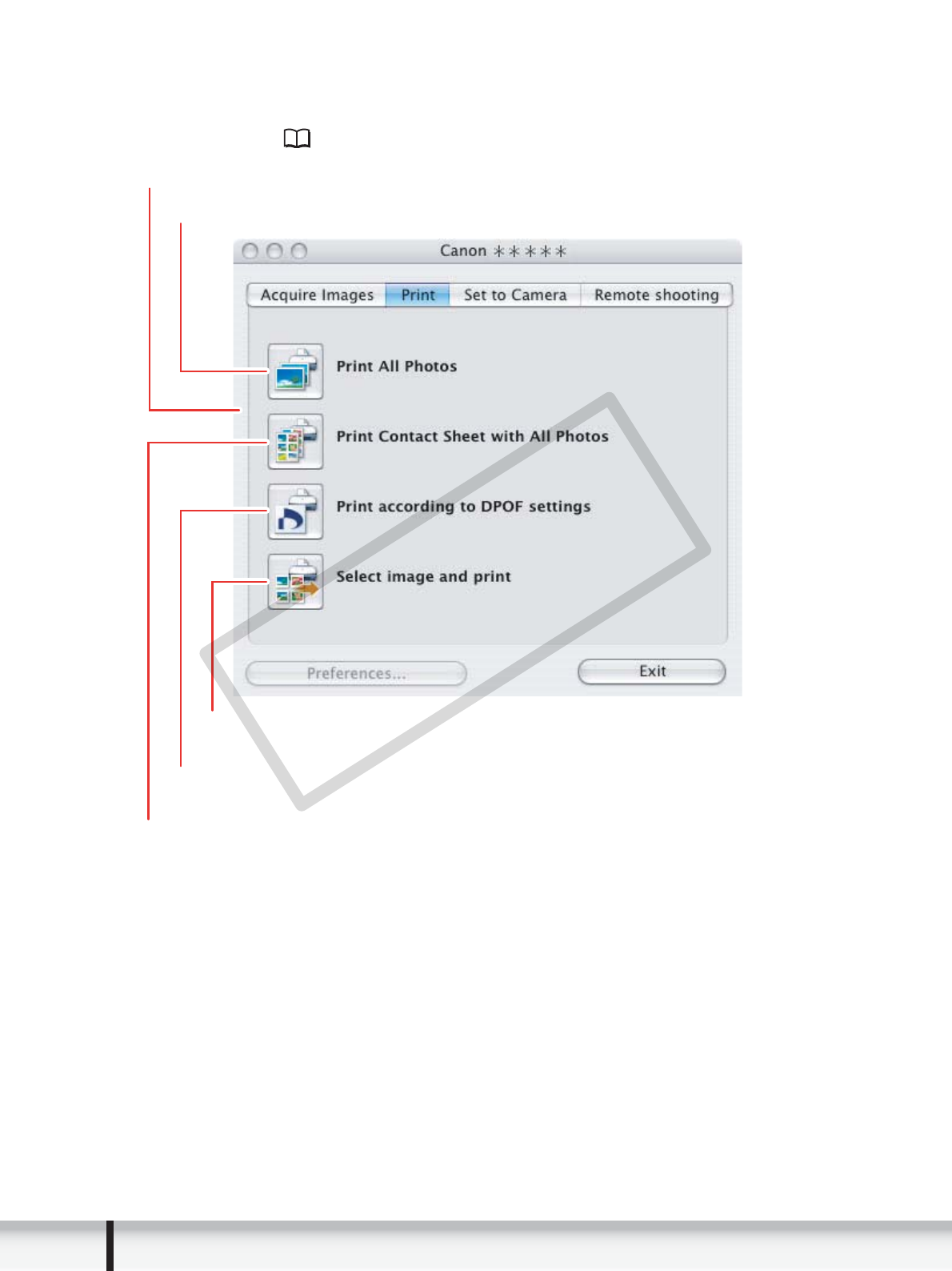
After connecting the camcorder to your computer, use this tab to print still images on
the memory card without downloading them to the computer first. The window varies
depending on the selected printing type. Refer to Printing Still Images without
Downloading Them ( 37).
Camera Control window
Prints all still images in the card one image per page.
Prints all still images in the card as an index page
(rows of images with file names and image information).
Displays a list of the still images in the card, allowing you to select
which ones to print.
Prints according to the DPOF print settings set by the camcorder to the still images
recorded on the card.
COPY

9
Windows
Macintosh
[Set to Camera] Tab
This tab is used for confirming and changing the owner’s name of the camcorder you
can specify ( 70) and uploading the still images to the card. My Camera function is
not supported by the camcorder.
Camera Control window
Enter or change the name of the camcorder’s owner.
Uploading the images from the computer.
COPY
10 Windows
Camera Browser Window
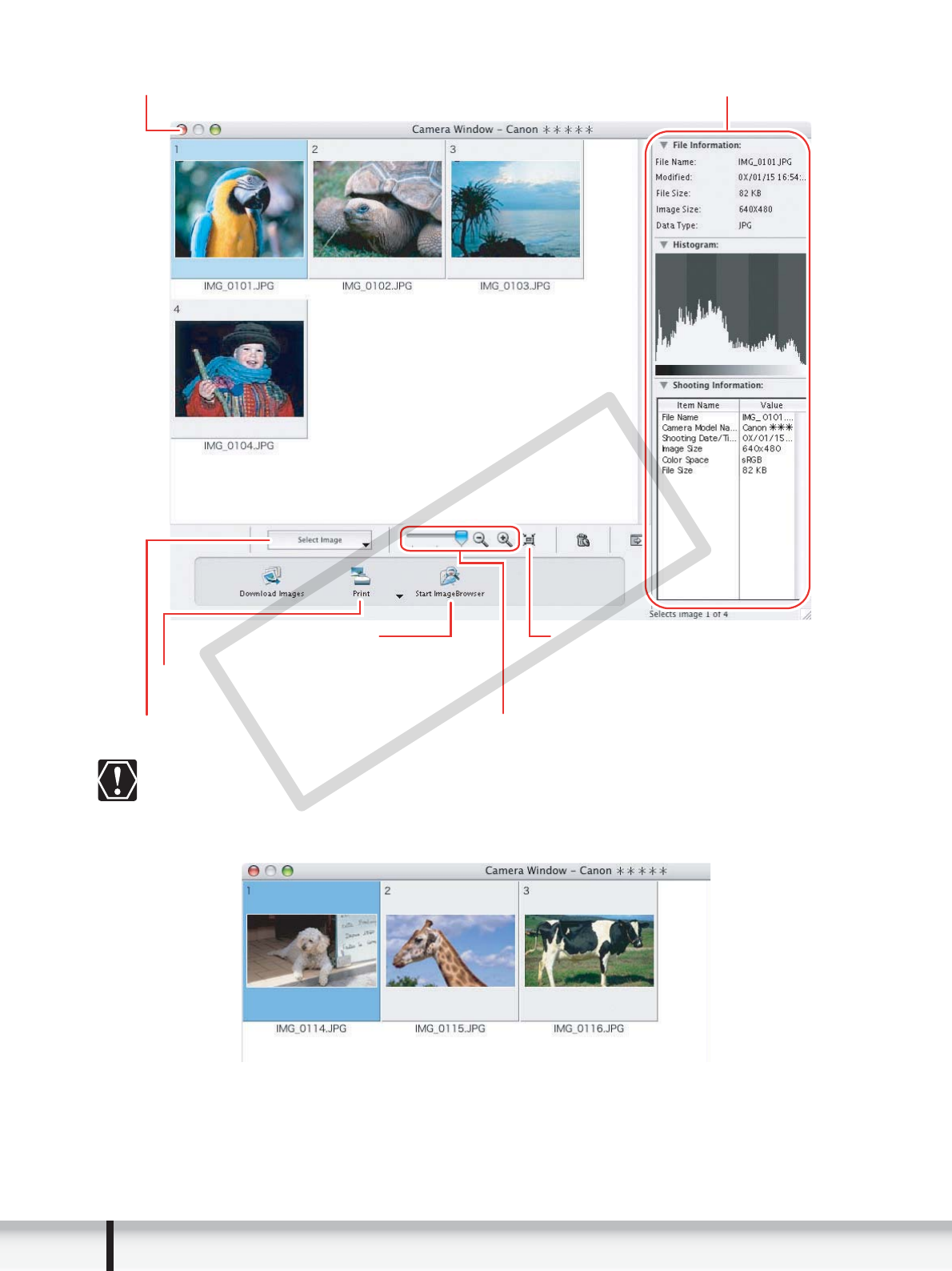
If your camcorder supports wide size still image (16:9 such as 1920 x 1080
pixels) recording, the thumbnails that appear in this window will be also 16:9
images. The sample images used on this instruction manual are normal size
still images (4:3).
Camera Browser window
Prints the selected still images.
Starts ImageBrowser.
Selects the still image selection method. Changes the size of the thumbnail.
Selects whether to show or hide
the image frame and file name.
Still image information and a histogram
COPY
11
Windows
Macintosh
Browser Window
ImageBrowser is a software program used for organizing, printing and editing the
downloaded still images. To start ImageBrowser, click the [ImageBrowser] icon in the
Dock. If the ImageBrowser icon is not in the Dock, double-click the [Canon Utilities]
folder on the drive on which the program was installed, followed by the
[ImageBrowser] folder and the [ImageBrowser] icon.
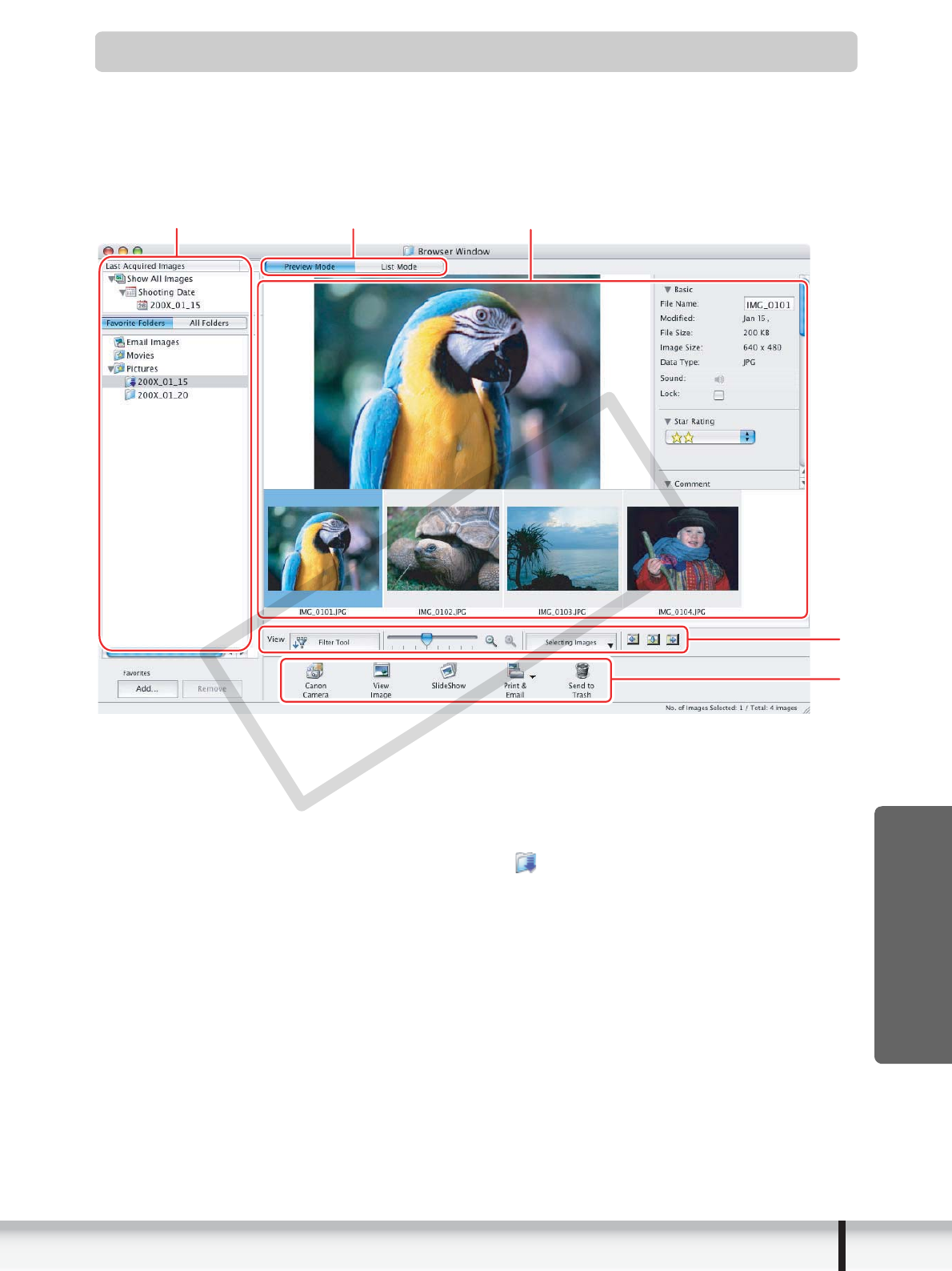
1 Explorer View
In the [Last Acquired Images] panel, the newly downloaded still images are placed
into virtual folders classified by recording date. In the panel below, the folders that
the downloaded still images are actually saved in are displayed. Selecting the
[Favorite Folders] tab shows only the folders that are registered as favorites. The
[All Folders] tab shows all available folders. indicates that newly downloaded
still images are in the folder.
Clicking the triangle symbol besides the folder name displays/hides the folder
contents. To register a folder as Favorites, follow the instructions below.
To remove the registered folder, select the folder, and click [Remove].
2Browser Area
This area displays the images contained in the selected folder.
When you have selected the [Favorite Folders] tab:
Click [Add] and specify a folder.
When you have selected the [All Folders] tab:
Select a folder and click [Add to Favorites].
132
4
5
COPY
12 Windows
3 View Mode
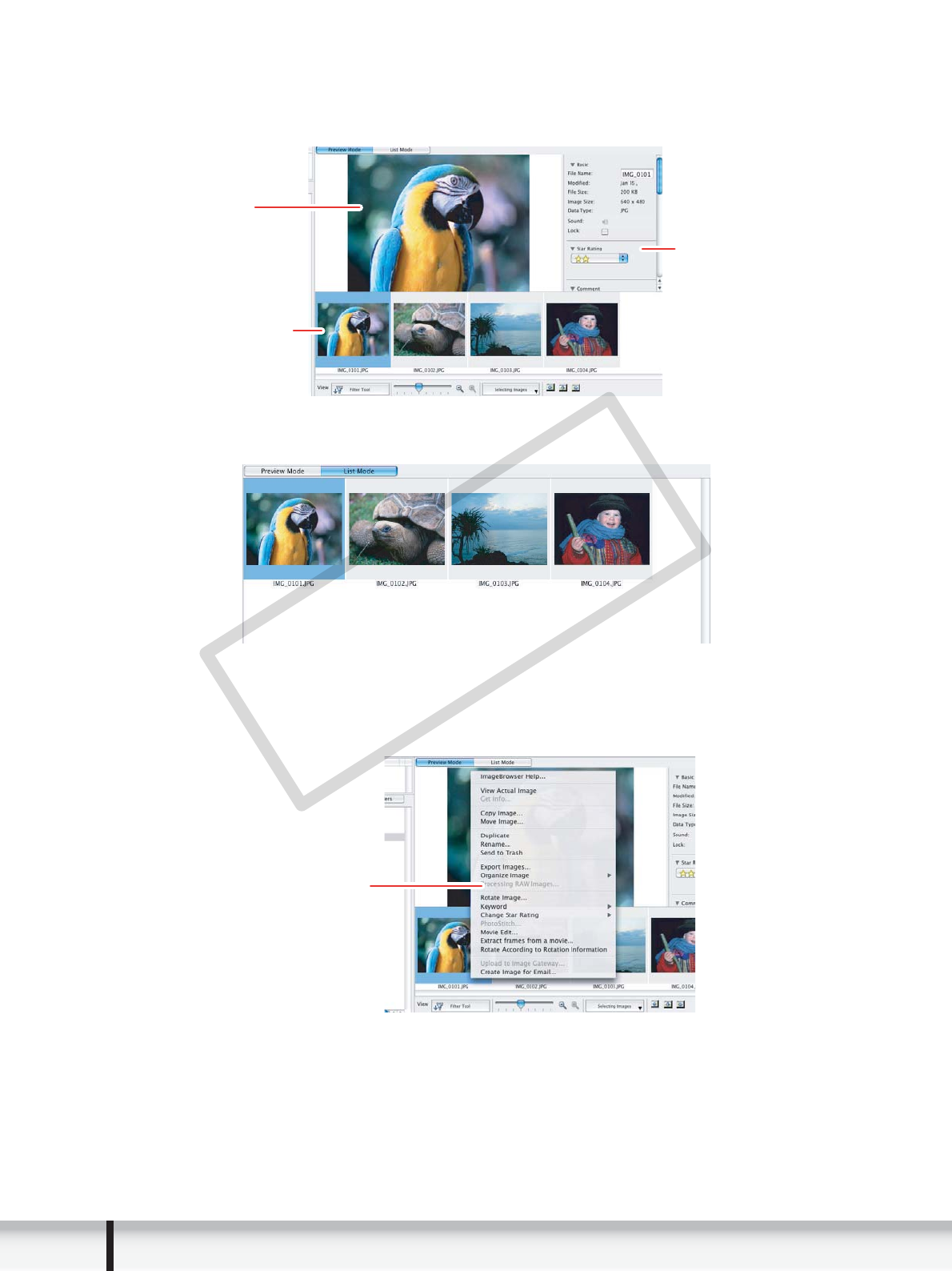
You can select a view mode of images in the Browser Area.
[Preview Mode]: The thumbnails are displayed at the bottom of the Browser Area,
and the Information Panel is displayed in the upper part.
[List Mode]: The images are displayed as thumbnails. The thumbnails can be
enlarged/reduced by selecting [Enlarge] or [Reduce] from the [View] menu.
Context Menu
When you click on a thumbnail while pressing the [control] key on the keyboard,
a context menu will appear. The context menu allows you to select several
functions directly without using the menu bar located on top of the window.
Preview Image
Selected Thumbnail
Information Panel
Context menu
COPY
13
Windows
Macintosh
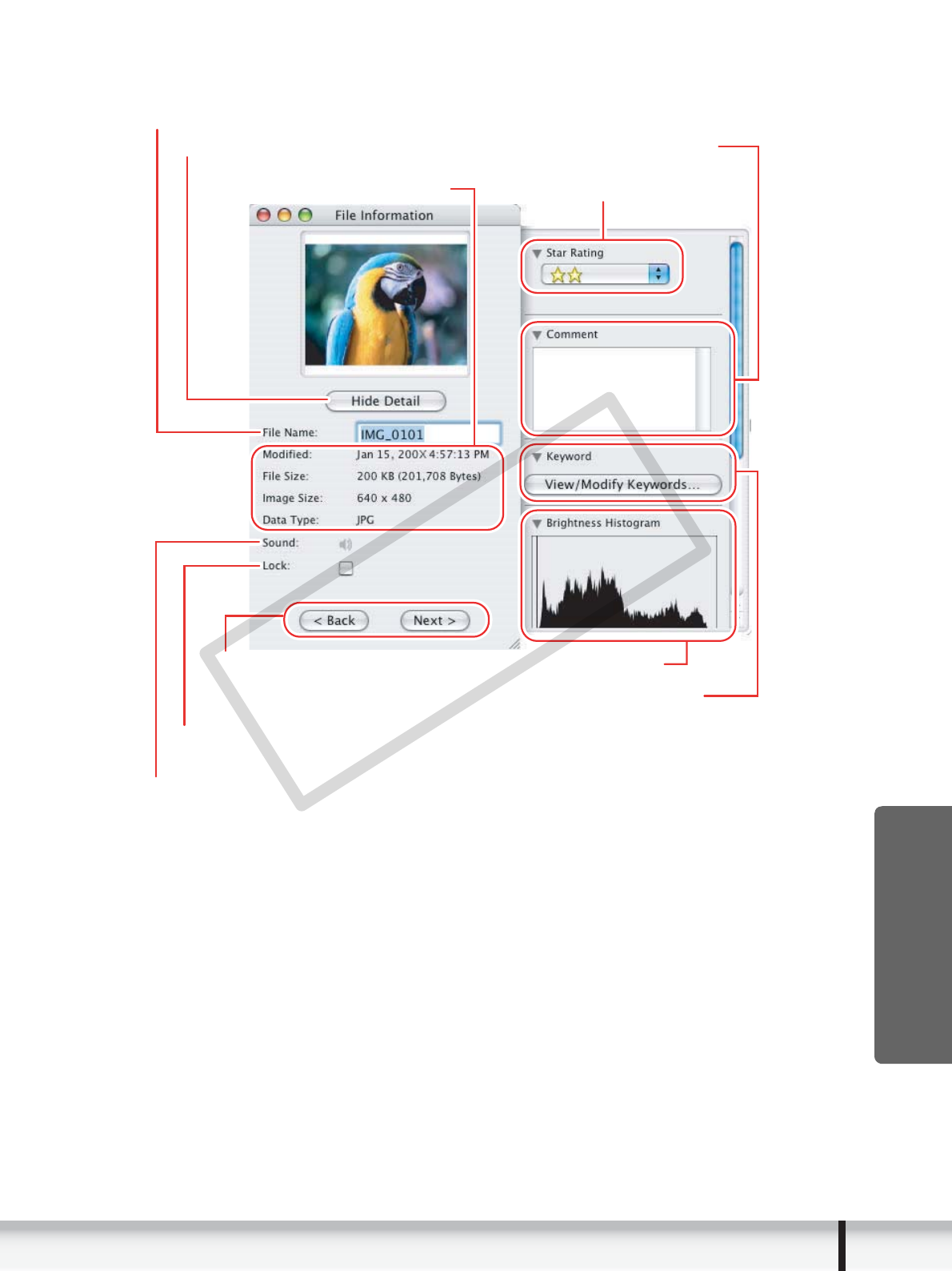
[File Information]
When the view mode is set to [List Mode], select [Get Info] from the [File] menu
to display the following window.
Histogram
Sets a star rating.
Sets a keyword.
Placing a check mark here prevents the image from being overwritten or deleted.
You can play sounds if they are attached to images.
You can rename files.
Hides the information display at the right.
You can switch and view the shooting
information of the next or previous
image by clicking these buttons.
Shooting information
Input a comment.
COPY
14 Windows
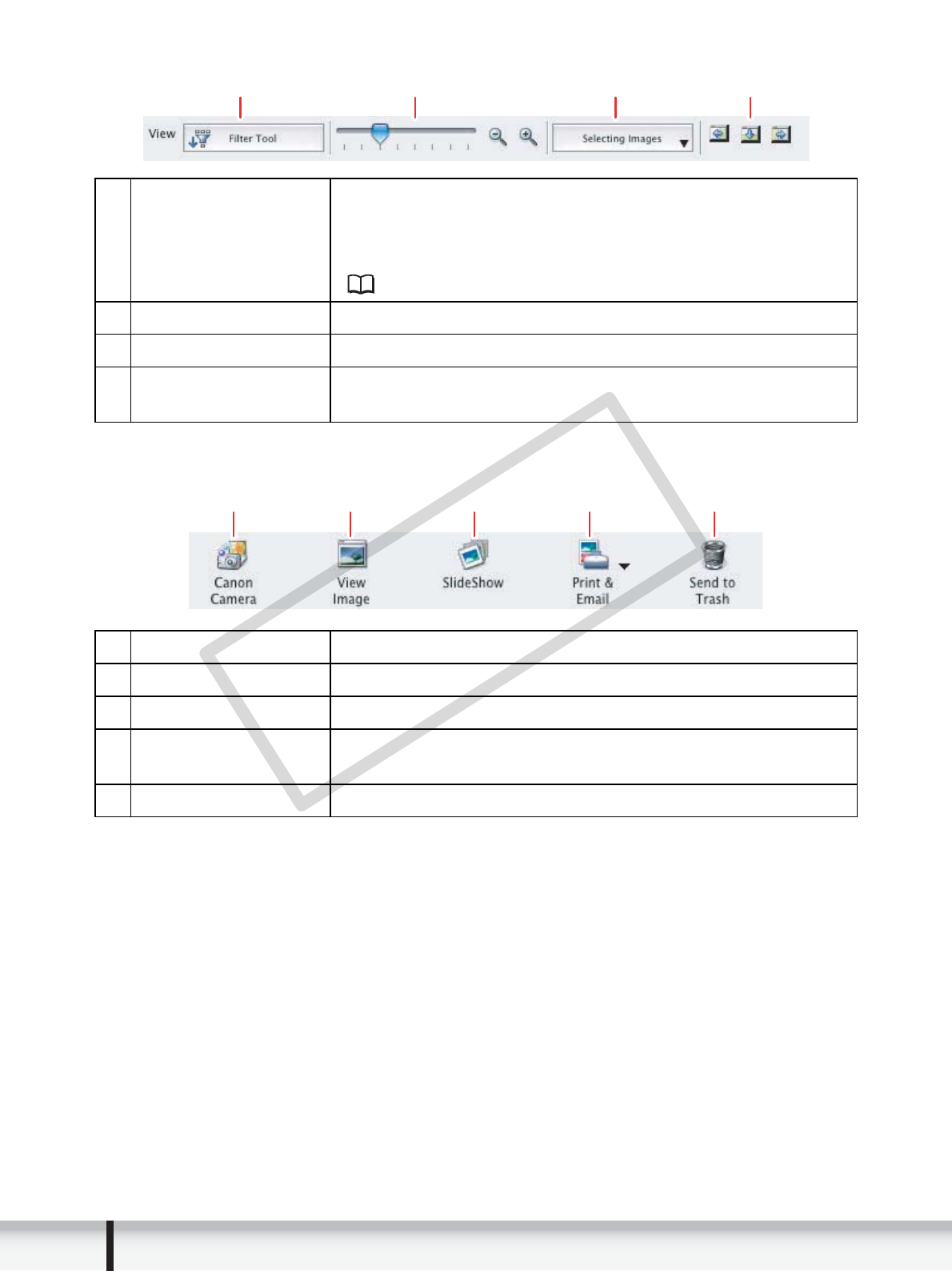
4 Image display control panel
5 Control panel
1 Filter Tool Allows you to select which still images to display
according to the star rating. When you download the
images, the star rating is set to two stars as a default. To
change the star rating, refer to Applying Star Rating
( 48).
2Enlarge/Reduce Enlarges/Reduces the thumbnails in the Browser Window.
3Selecting Images Allows you to select all images and deselects images.
4Display Pattern Allows you to change the appearance of the Browser
Window.
1Canon Camera Opens CameraWindow.
2View Image Displays a selected image in the [Image Viewer] window.
3SlideShow Displays still images in a slide show.
4Print & Email After you download still images to a computer, use this to
print them or to attach them to e-mail messages.
5Send to Trash Deletes the selected images.
132 4
123 4 5
COPY
15
Windows
Macintosh
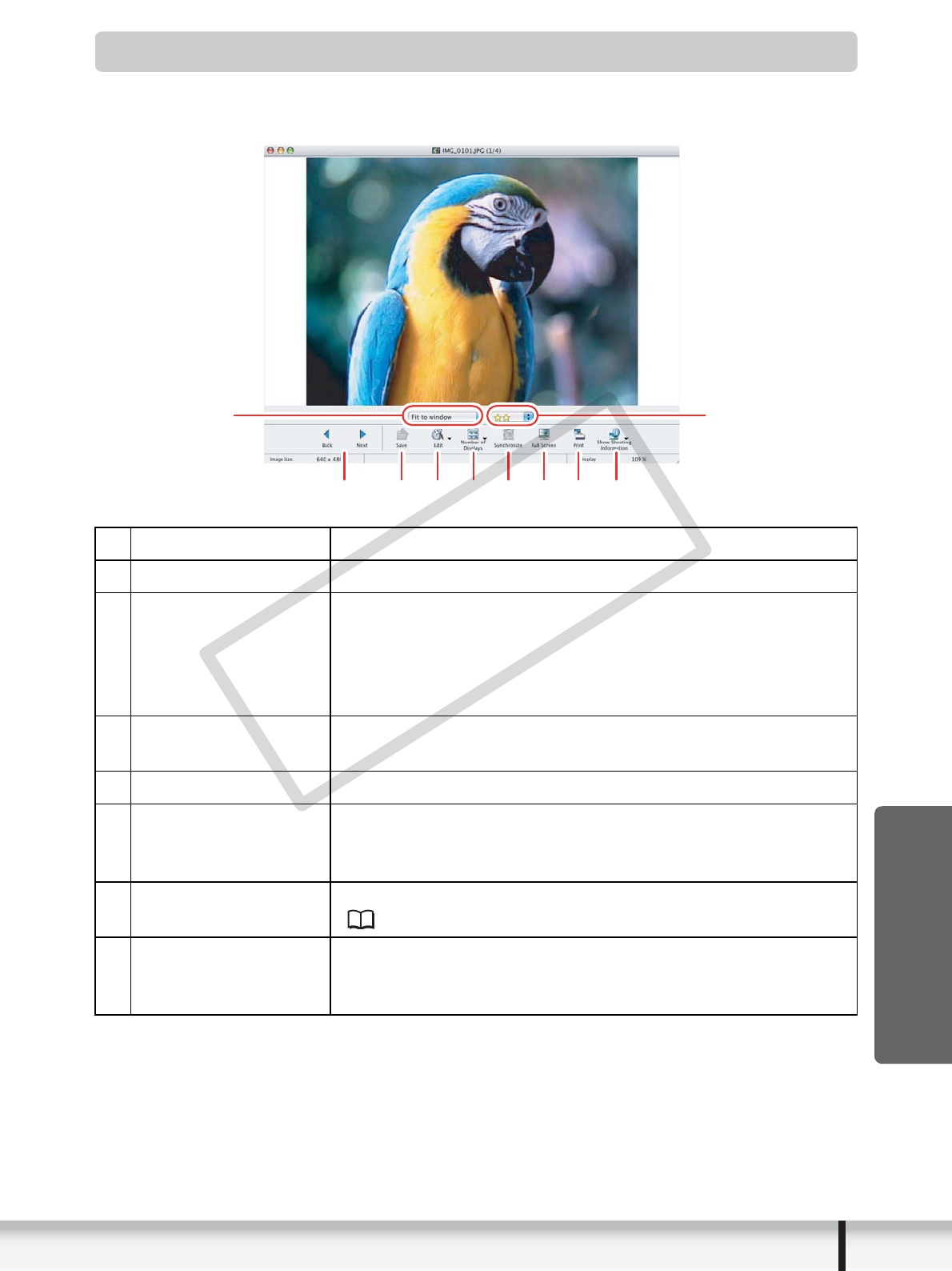
[Image Viewer] Window
The [Image Viewer] window appears when you select an image and click [View Image]
or double click an image.
1 Back/Next Displays the previous/next image in the current folder.
2Save Allows saving the edited image.
3Edit Allows you to perform the following operations: red-eye
correction, auto correct, color and brightness correction,
sharpness adjustment, trimming, inserting text, or
registering external image editing applications. Unable to
use when the multiple images are selected.
4Number of
Displays
Allows you to display multiple images at the same time.
5Synchronize Synchronizes View functions across all displayed images.
6Full Screen Displays an image in full screen size. To return to Browser
Window, click the full screen sized image or press any
key.
7Print Prints the selected still image. Refer to [Photo Print]
( 42).
8Show Shooting
Information
The shooting information of the image will be displayed.
[Show AF Frame] cannot be used for the images recorded
by the camcorder.
23 4 56
17 8
Changes the
zoom ratio of
the image.
Changes
the star rating.
COPY
16 Windows
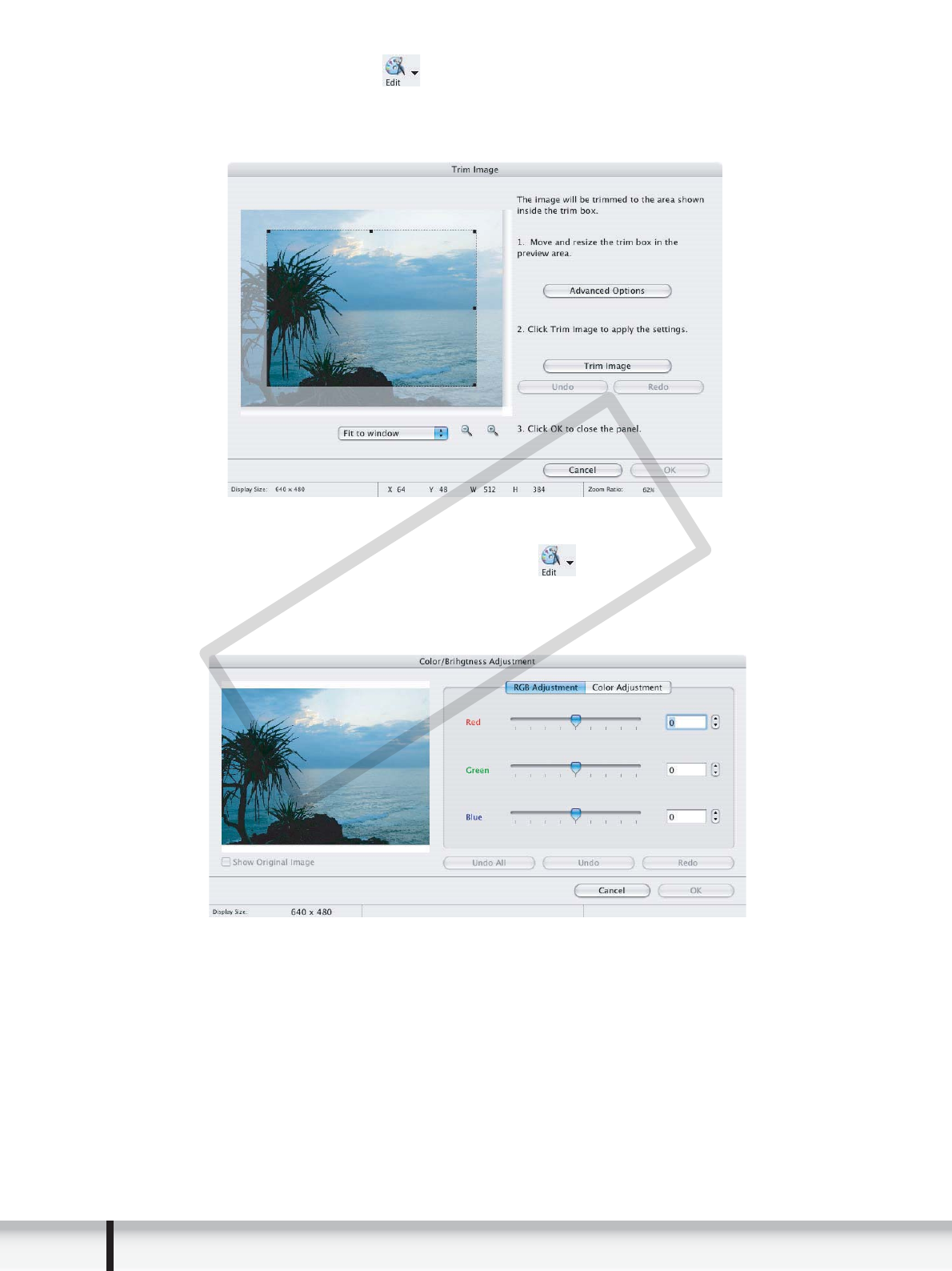
[Trim Image] Window
Select [Trim Image] from the icon located at the bottom of the [Image Viewer]
window. Specify the area in the still image to crop and click [Trim Image] to trim the
image.
[Color/Brightness Adjustment] Window
Select [Color/Brightness Adjustment] from the icon located at the bottom of
the [Image Viewer] window. Use this to change the image’s properties by adjusting
the RGB intensity, saturation and brightness.
COPY
17
Windows
Macintosh
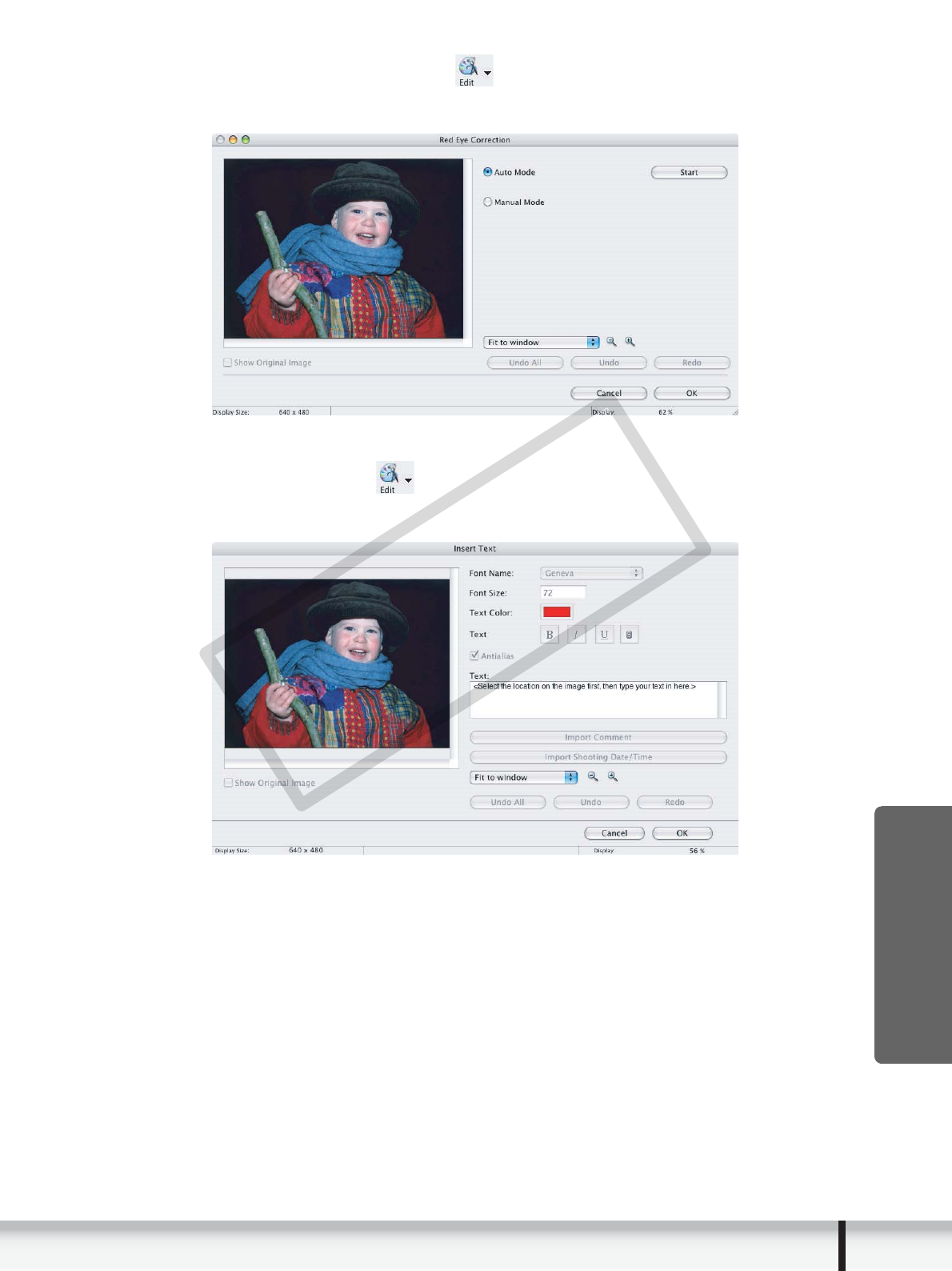
[Red Eye Correction] Window
Select [Red Eye Correction] from the icon located at the bottom of the [Image
Viewer] window. Use this to correct still images in which people’s eyes appear red.
[Insert Text] Window
Select [Insert Text] from the icon located at the bottom of the [Image Viewer]
window. Use this to write text on still images.
COPY

18 Windows
[Level Adjustment] Window
Select [Level Adjustment] from the icon located at the bottom of the [Image
Viewer] window. Use this to adjust the levels in a still image to change its
appearance.
[Tone Curve Adjustment] Window
Select [Tone Curve Adjustment] from the icon located at the bottom of the
[Image Viewer] window. Use this to adjust the tone curve for a still image to change
its appearance.
COPY
19
Windows
Macintosh
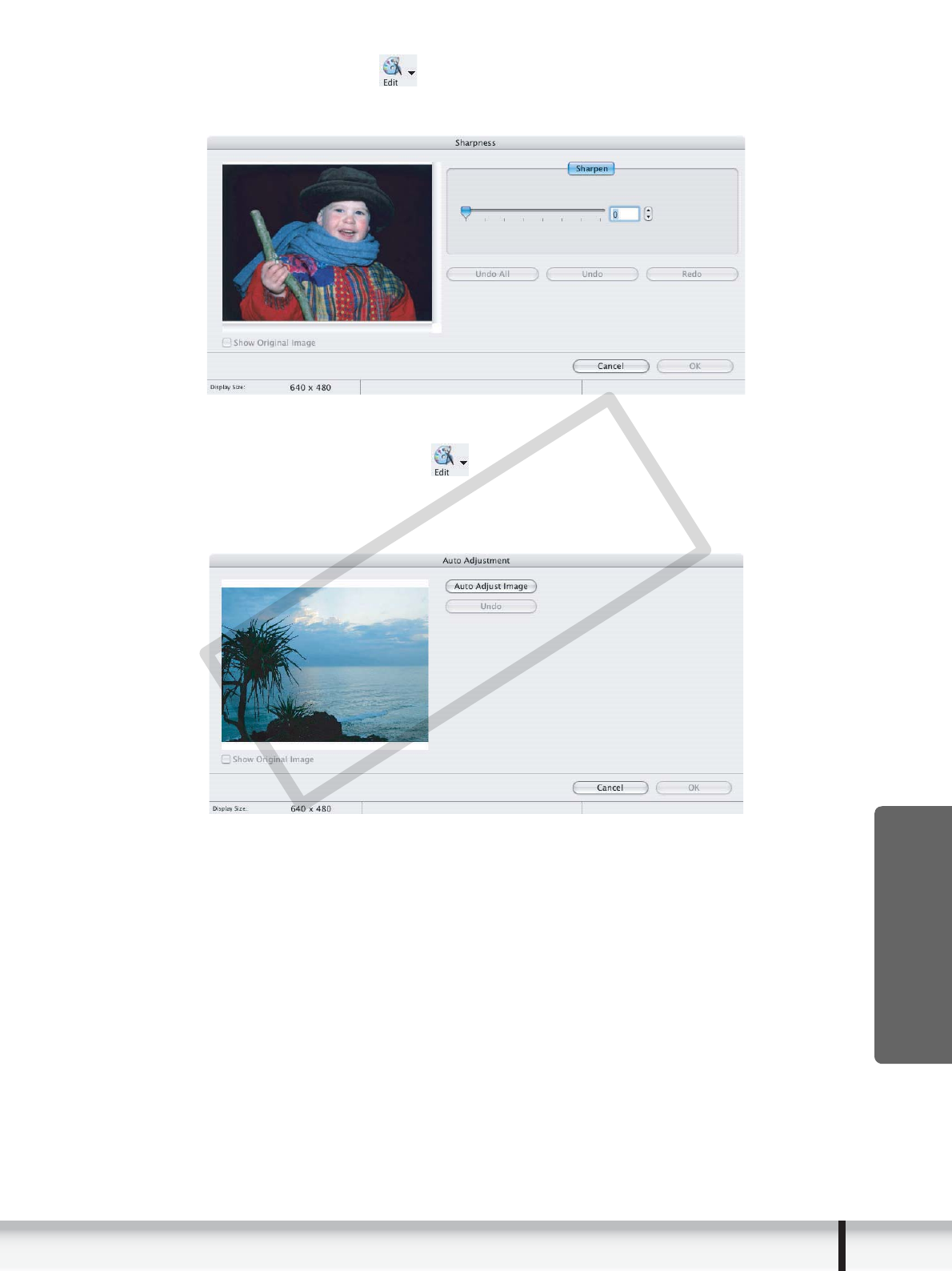
[Sharpness] Window
Select [Sharpness] from the icon located at the bottom of the [Image Viewer]
window. Use this to emphasize and clarify the outlines of people and objects.
[Auto Adjustment] Window
Select [Auto Adjustment] from the icon located at the bottom of the [Image
Viewer] window. Use this to automatically correct the color balance of the still
image.
COPY

20 Installing the Digital Video Software
Installing the Digital Video Software
Before you connect the camcorder to the computer with the USB cable for the
first time, you must install the Digital Video Software.
Your digital video camcorder is equipped with the standard Picture Transfer
Protocol (PTP). This protocol enables you to download still images by simply
connecting the camcorder to a computer with the USB cable (using software
such as iPhoto or Image Capture preinstalled on Mac OS X).
However, note that there are several limitations to downloading still images
with this method.
It may take a few minutes, after connecting the camcorder, until you can
download still images.
Still images protected on the camcorder may lose this setting once they are
downloaded to the computer.
When downloading the still images by Image Capture that comes with Mac
OS, the Exif version may change to 2.1 and image information may be
modified. Either install ImageBrowser to download the still images or use the
following procedure.
1) Connect the camcorder to the computer, and start Image Capture.
2) Click [Options].
3) Remove the checkmark from [Embed Colorsync profile] in the
[Download Options] tab and click [OK].
1
Close all programs that are running, and check that the
camcorder is not connected to the computer.
2
Set the DIGITAL VIDEO Solution Disk in the computer’s
CD-ROM drive.
3
Double click the CD-ROM icon and the [Canon Digital Video
Installer] icon.
COPY
21
Installing the Digital Video Software
Macintosh
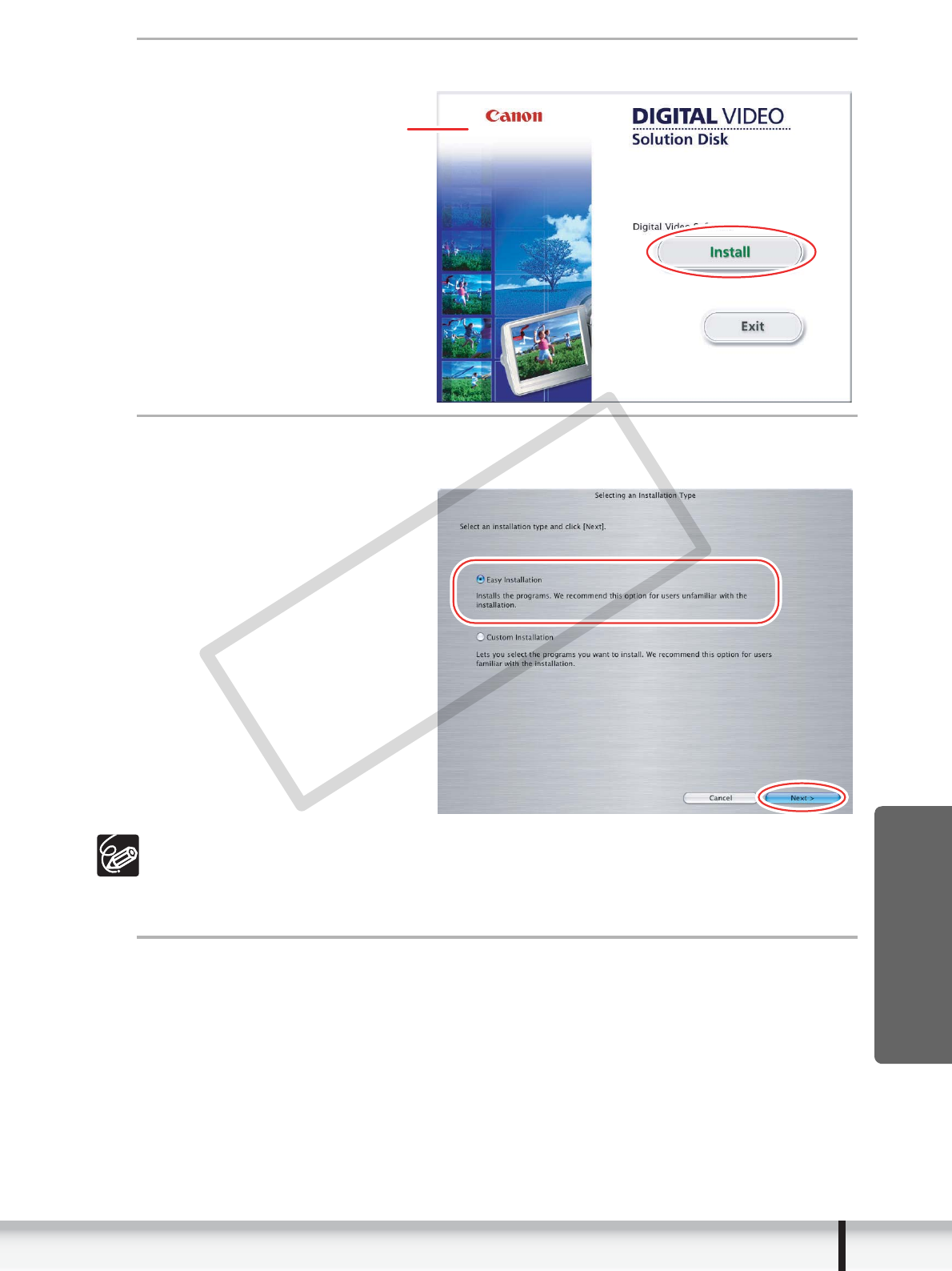
4
Click [Install] under Digital Video Software.
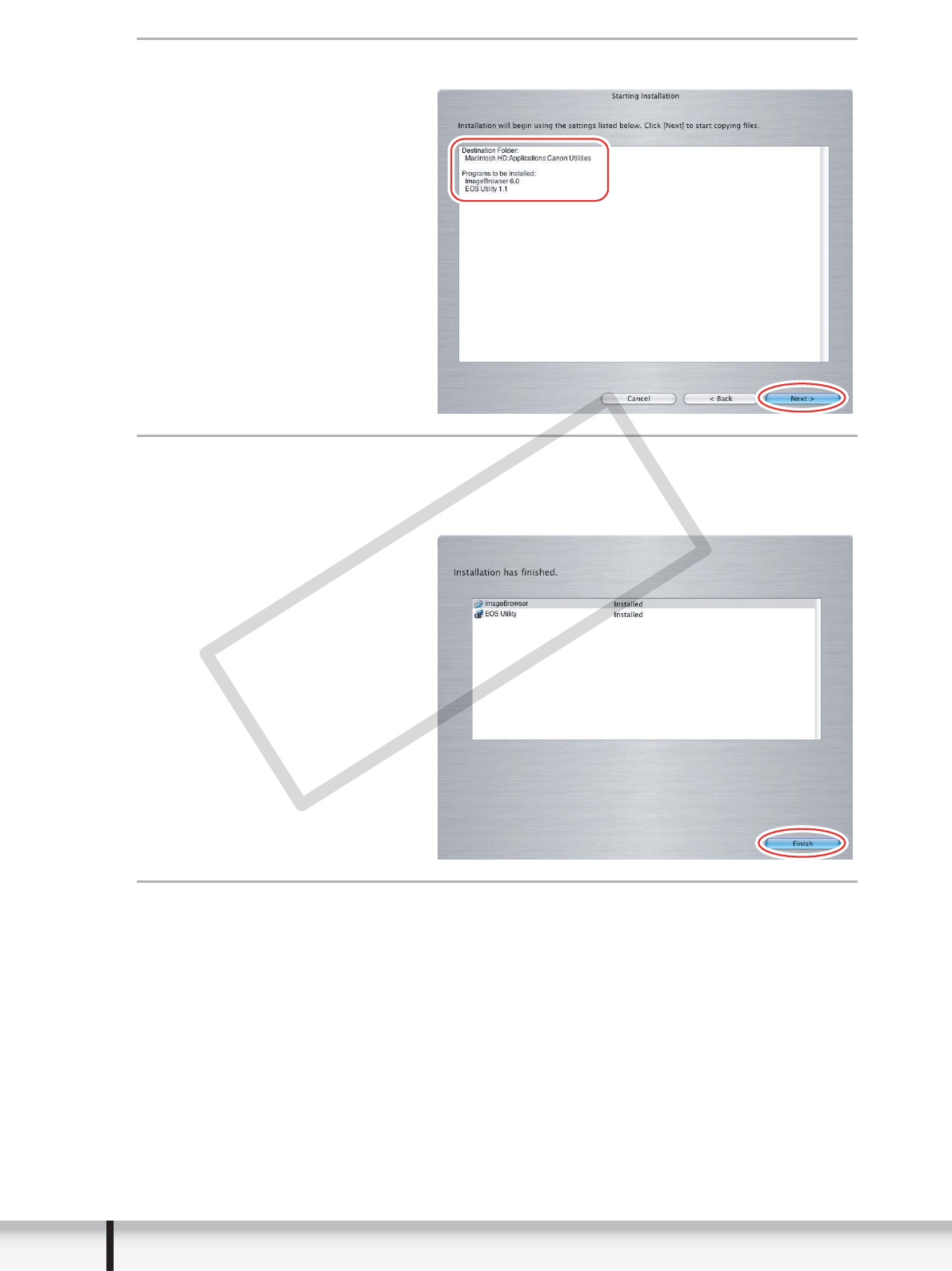
5
Select [Easy Installation] and click [Next].
To install the software individually, select [Custom Installation].
When installing the software by selecting [Easy Installation], EOS Utility
(software for downloading still images from the Canon EOS Digital SLR
Cameras) will be installed. This software is used only for compatible Canon
EOS Digital SLR Cameras, and the camcorder does not support this software.
6
Read the license agreement and click [Agree] to accept the
terms.
Installer Panel
COPY
22 Installing the Digital Video Software
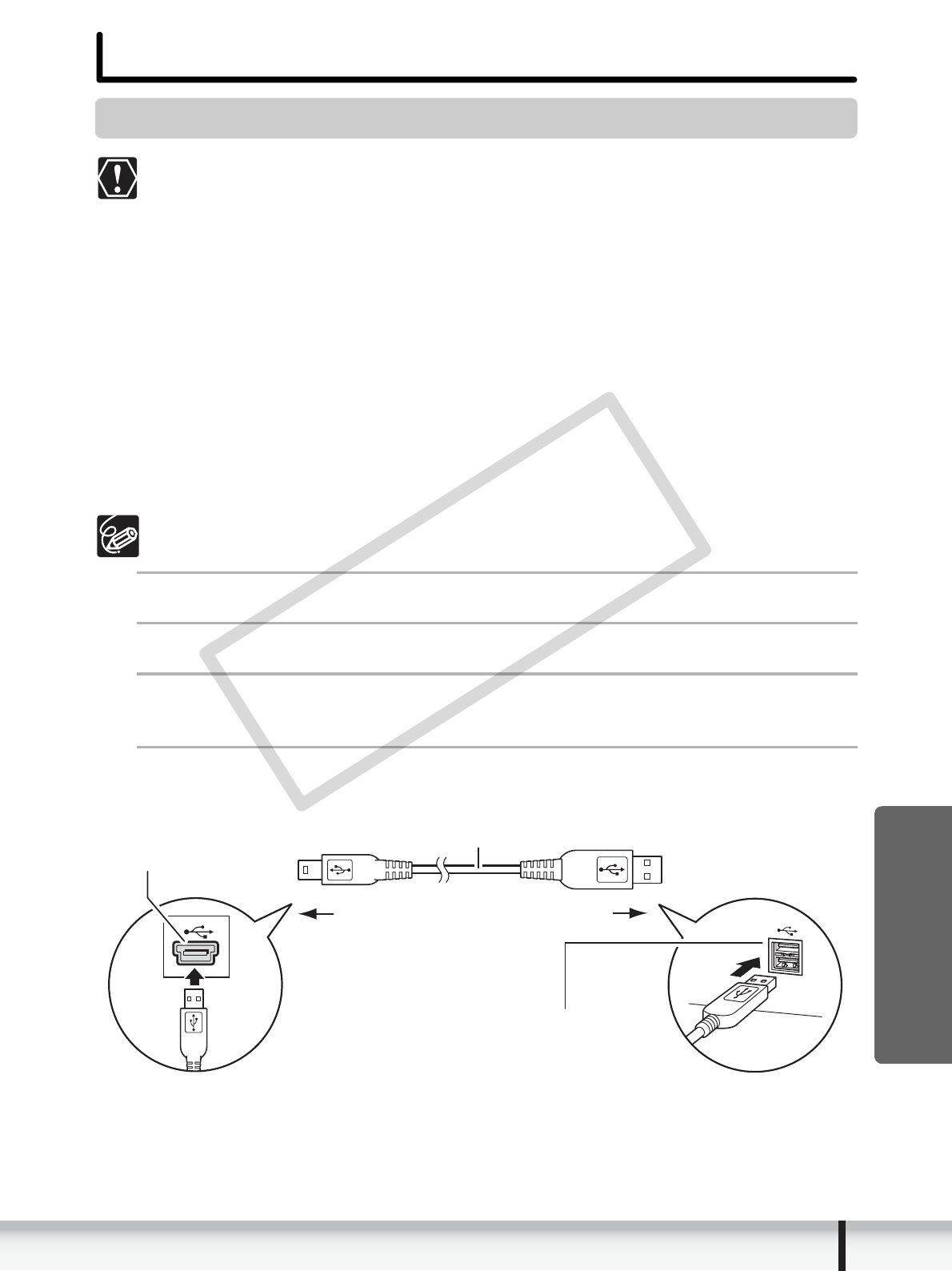
7
Review the installation settings and click [Next].
8
When the “Installation has finished.” message appears,
click [Finish].
After the installation is complete, restart the computer as prompted.
9
Remove the DIGITAL VIDEO Solution Disk from the CD-ROM
drive.
When installation is complete, remove the DIGITAL VIDEO Solution Disk before
you connect the camcorder to the computer.
COPY
23
Before Downloading Still Images
Macintosh
Before Downloading Still Images
Connecting the Camcorder to a Computer
Be sure to install the Digital Video Software before you connect the
camcorder to the computer.
Make sure the camcorder is being powered using the power adapter before
connecting it to a computer.
Connect the USB cable directly to one of the computer’s main USB ports.
The interface may not function correctly if the camcorder is connected via a
USB hub.
The connection may not operate correctly if you are using other USB
devices, excluding USB mice or keyboards, at the same time. If this occurs,
disconnect the other devices from the computer and try reconnecting the
camcorder.
Do not connect two or more camcorders to the same computer via the USB
interface. The connections may not operate correctly.
Never allow the computer to go into standby (sleep) mode while a
camcorder is connected via the USB interface.
Refer to your computer manual for the location of the computer’s USB ports.
See your camcorder instruction manual for connecting instructions.
1
Insert a memory card containing images into the camcorder.
2
Connect the power adapter to the camcorder.
3
Set the camcorder to still image playback mode.
Wait until the card access indicator stops flashing.
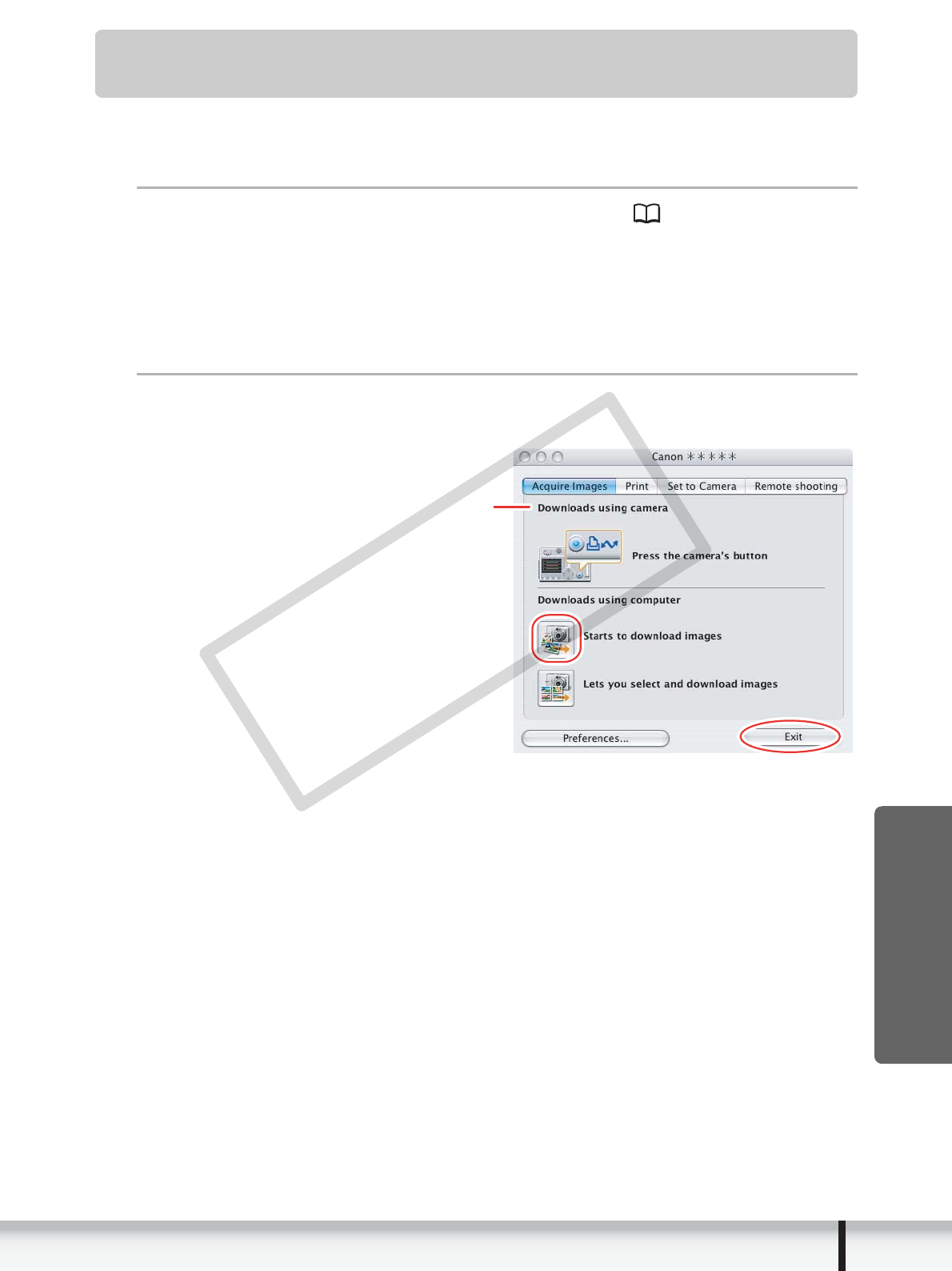
4
Attach the supplied USB cable to the computer’s USB port
and the camcorder’s USB Terminal.
USB Cable
USB Terminal
on the Camcorder
Camcorder End Computer End
USB Port on
the Computer
COPY

24 Downloading Still Images
Downloading Still Images
Below explains the procedure for connecting a camcorder to a computer using the
USB cable. For connecting a card reader/writer, see Using a Card Reader/Writer
(33).
You cannot connect the camcorder to a computer if the memory card
contains 1800 images or more, and you may not be able to download
images with ImageBrowser or OS standard software (depending on the
computer you are using and the installed OS) if the memory card contains
more than approximately 1000 images. In this case, use a card reader/writer
to download images.
- For instructions on how to connect a card reader/writer, see Using a Card
Reader/Writer (33).
Observe the following precautions when the camcorder’s access indicator is
flashing. Failure to do so may cause memory card data to become
corrupted.
- Do not remove the memory card or detach the USB cable.
- Do not turn off the camcorder or the computer.
- Do not change the position of the POWER switch or the / switch.
Images recorded onto the memory card or downloaded to the hard disk are
important original data files. Create a copy of the file first before working on it
on your computer.
COPY
25
Downloading Still Images
Macintosh
Using the Computer to Download Still Images
(CameraWindow)
You can select a downloading method in the Camera Control window.
Auto-downloading
1
Connect the camcorder to the computer ( 23).
• The Camera Control window will be displayed. If it does not appear
automatically, click the [CameraWindow] icon in the Dock (the bar at the
bottom of the desktop).
• If you do not wish the Camera Control window to open automatically when you
connect the camcorder, click the [File] menu and clear the check mark from
the [Displays this screen when the camera is connected].
2
Click [Starts to download images].
Click [Exit] to close the Camera Control window after downloading images.
Camera Control window
COPY
26 Downloading Still Images
Applying Auto-downloading Settings
This task allows you to apply auto-downloading settings. You can specify the types of
still images and the destination folder.
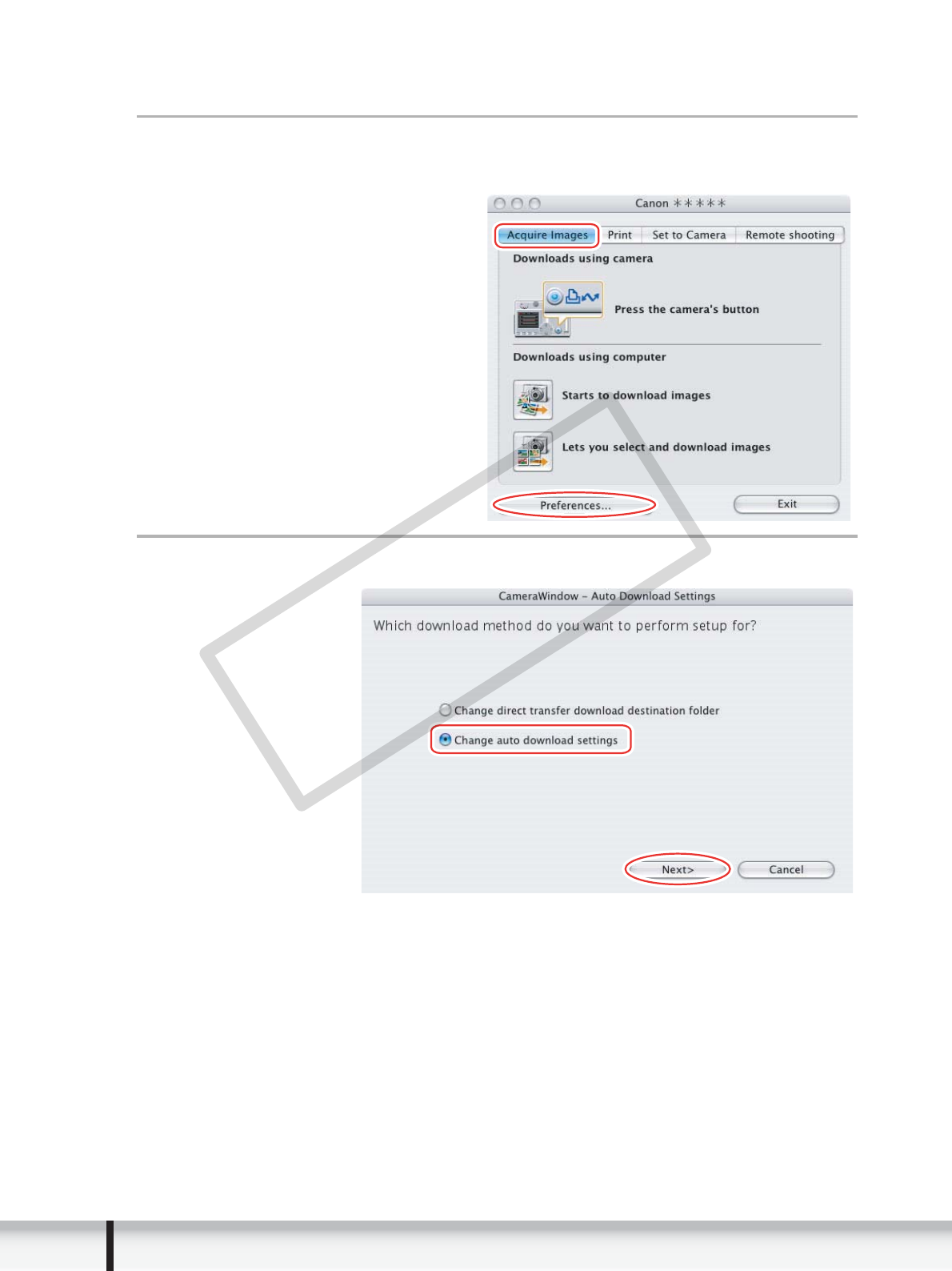
1
In the Camera Control window, click the [Acquire Images]
tab and click [Preferences].
2
Select [Change auto download settings] and click [Next].
COPY
27
Downloading Still Images
Macintosh
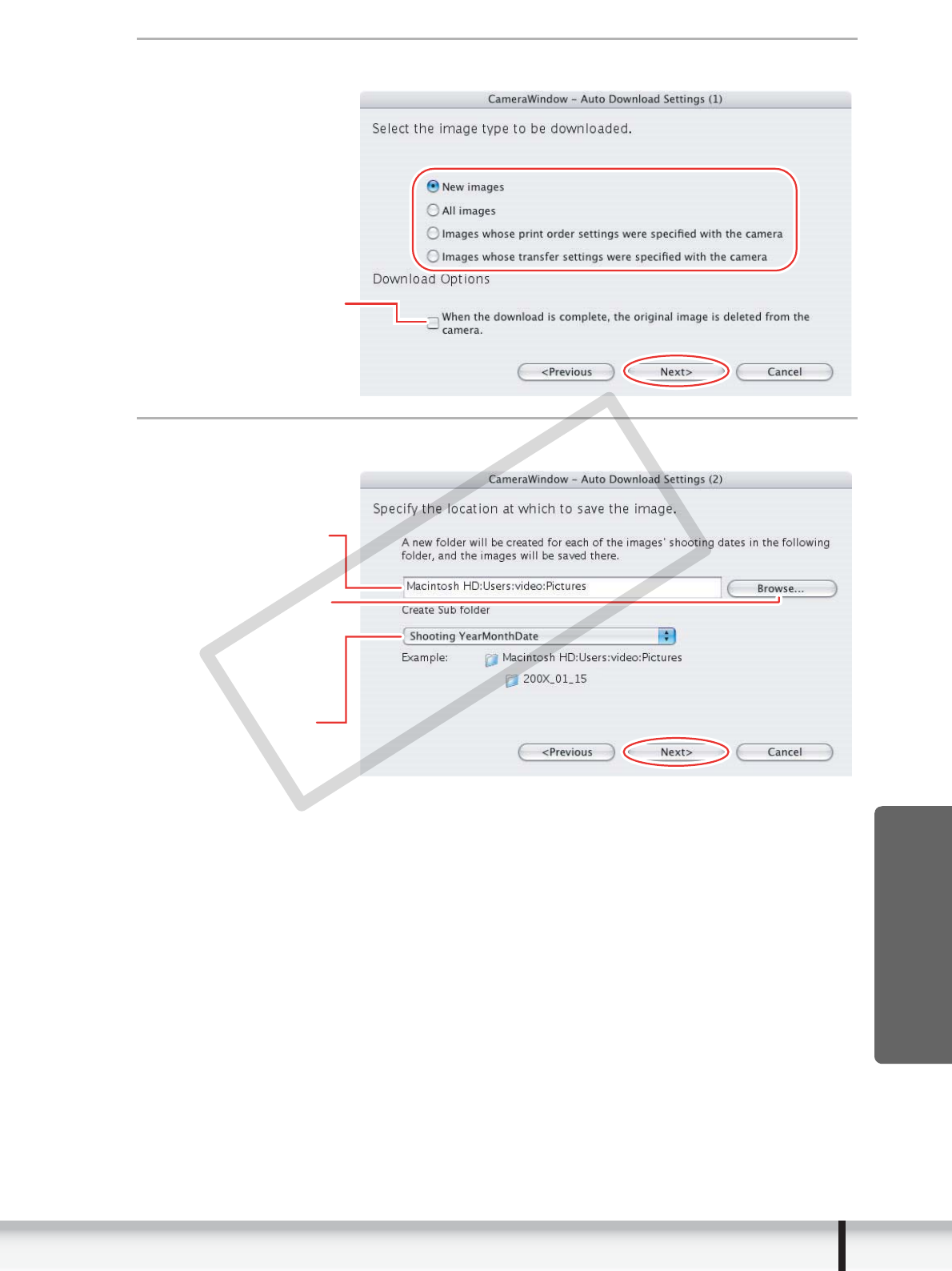
3
Select the image type to be downloaded and click [Next].
4
Specify the destination folder settings and click [Next].
Place a check mark here
if you wish the original
image in the memory card
to be deleted after
downloading.
Click this button to
browse where you
want to save the
images.
Destination Folder
Select to specify
the name of the
subfolder.
COPY
28 Downloading Still Images
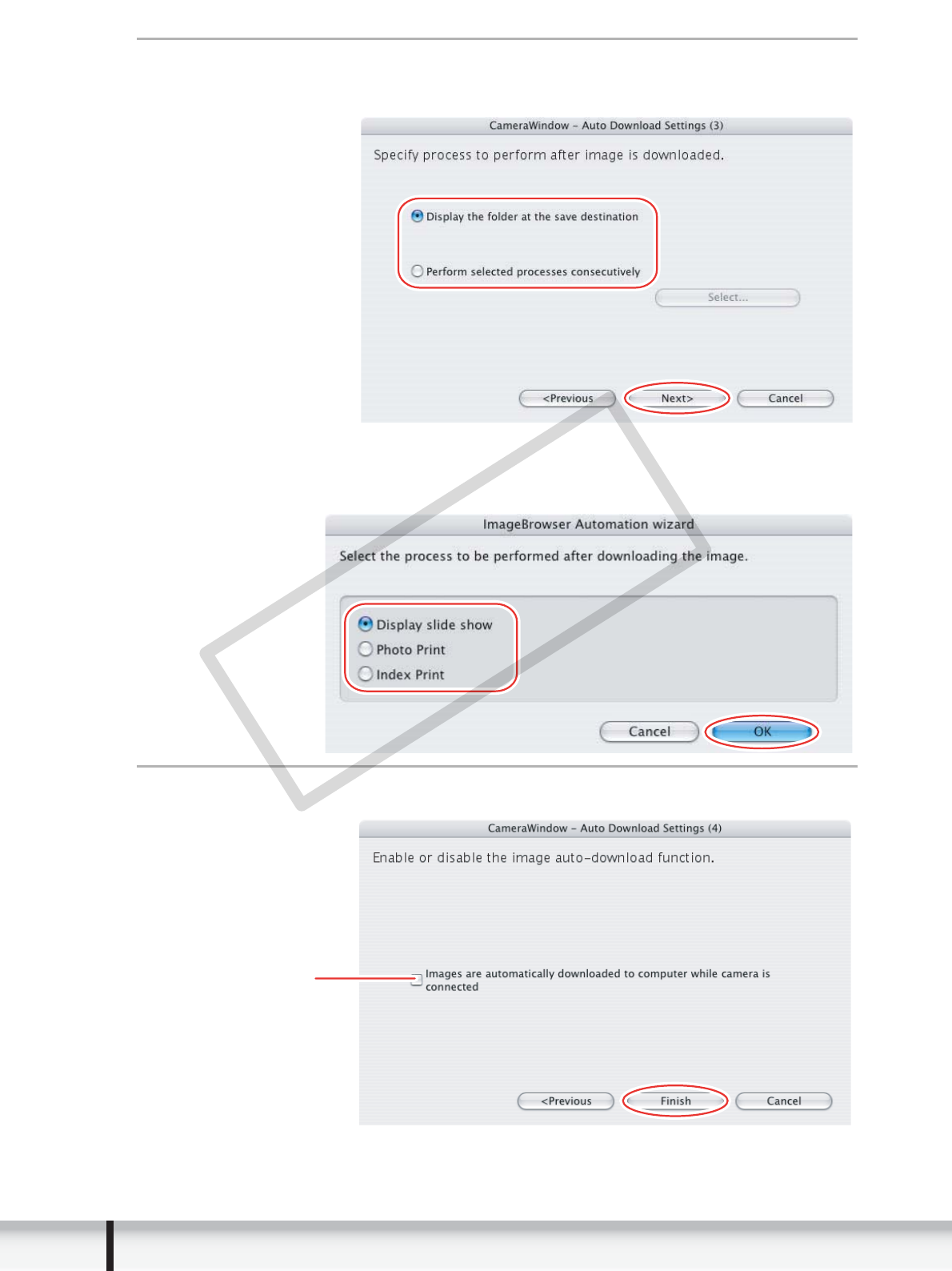
5
Specify a process to perform after the image is downloaded
and click [Next].
The window below will be displayed when you select [Perform selected
processes consecutively] (you can redisplay the window by clicking [Select]).
Select a process to perform after the image is downloaded, and click [OK].
6
Click [Finish].
Placing a check mark
here makes images in
the camcorder to be
automatically downloaded
when the camcorder is
connected.
COPY
29
Downloading Still Images
Macintosh
Downloading the Selected Still Images from the CameraWindow
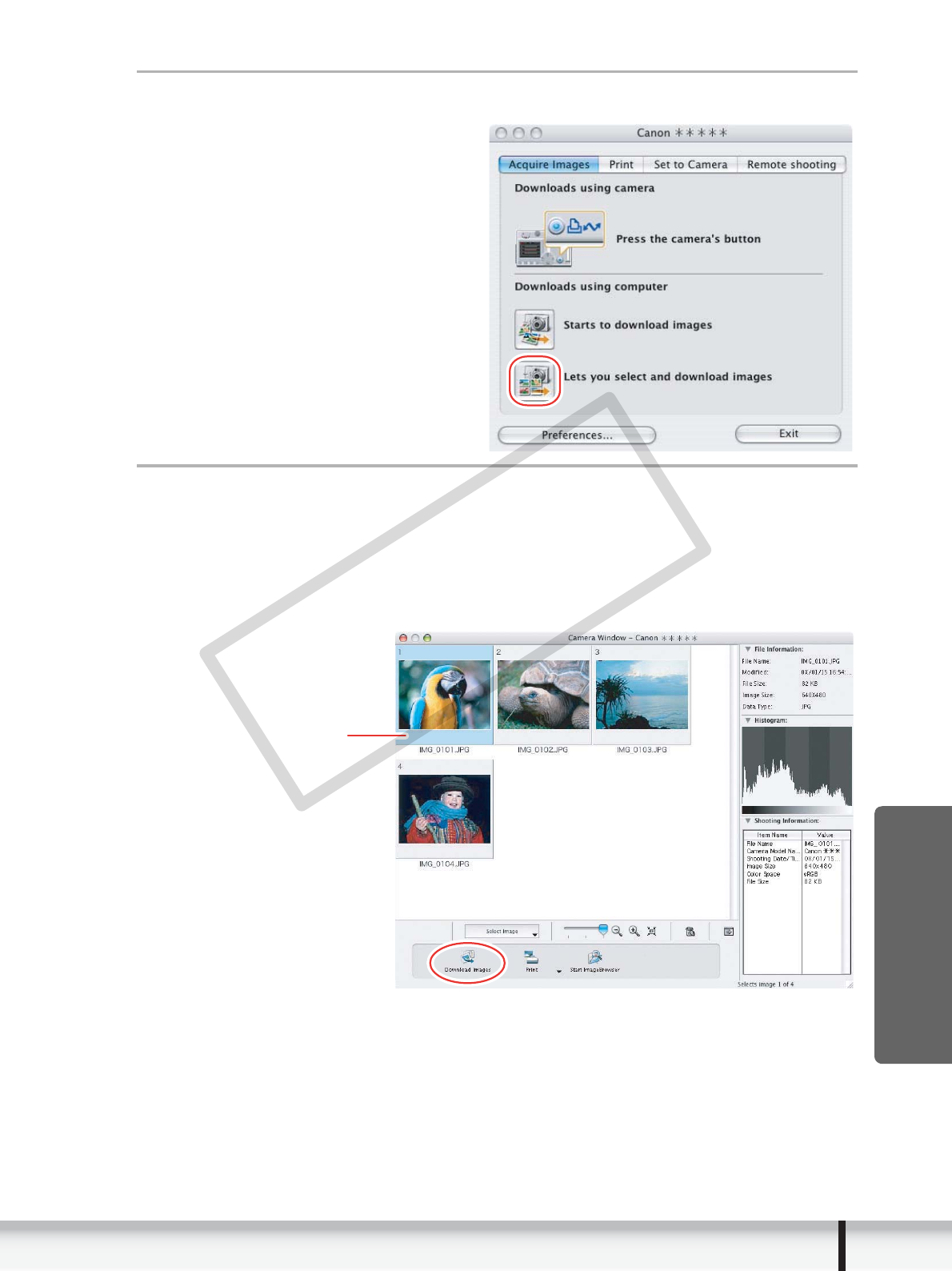
1
Click [Lets you select and download images].
2
Select images you wish to download and click [Download
Images].
• Clicking on 2 images while holding down the [option] + [shift] key selects also
all images between the 2 images.
• Clicking on different images while holding down the [shift] key selects multiple
images.
A
blue frame appears
around the selected image.
COPY
30 Downloading Still Images
3
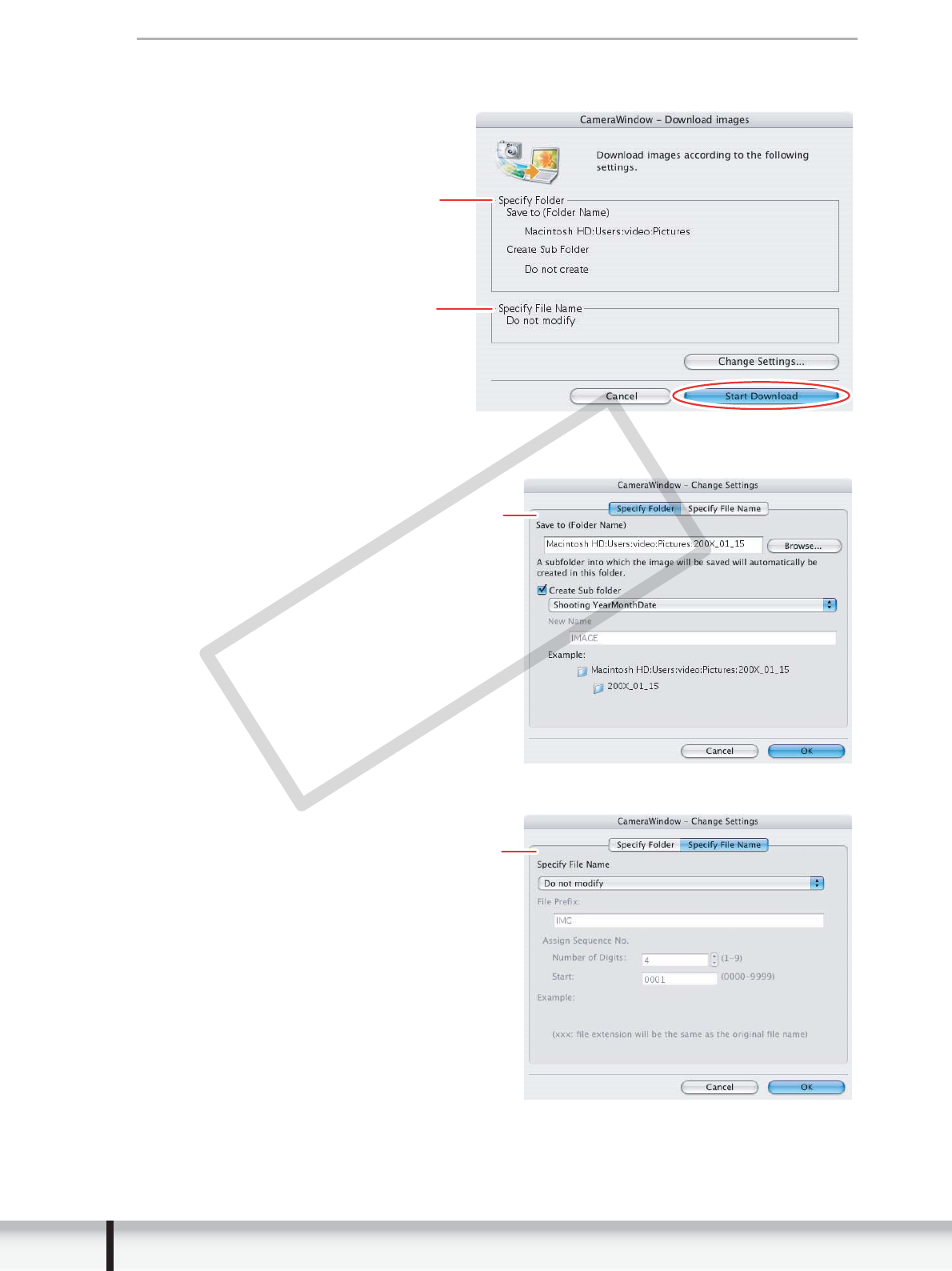
Confirm the settings and click [Start Download].
• ImageBrowser starts, and Browser Window appears.
• To make changes, click [Change Settings].
[Specify Folder] Tab
[Specify File Name] Tab
Settings for the file prefix and
the consecutive numbers
Settings for the folder and the
subfolder for downloaded images
Specify the settings of the folder
and subfolder.
Specify the file name with which
to save the images.
COPY

31
Downloading Still Images
Macintosh
Using the Camcorder to Download Still Images (Direct
Transfer Function)
If your camcorder supports the Direct Transfer function, you can use the camcorder to
download images.
Setting the Direct Transfer Download Destination Folder
1
Click the [Acquire Images] tab and click [Preferences].
Click [Exit] to close the Camera Control window.
2
Select [Change direct transfer download destination folder]
and click [Next].
COPY
32 Downloading Still Images
3
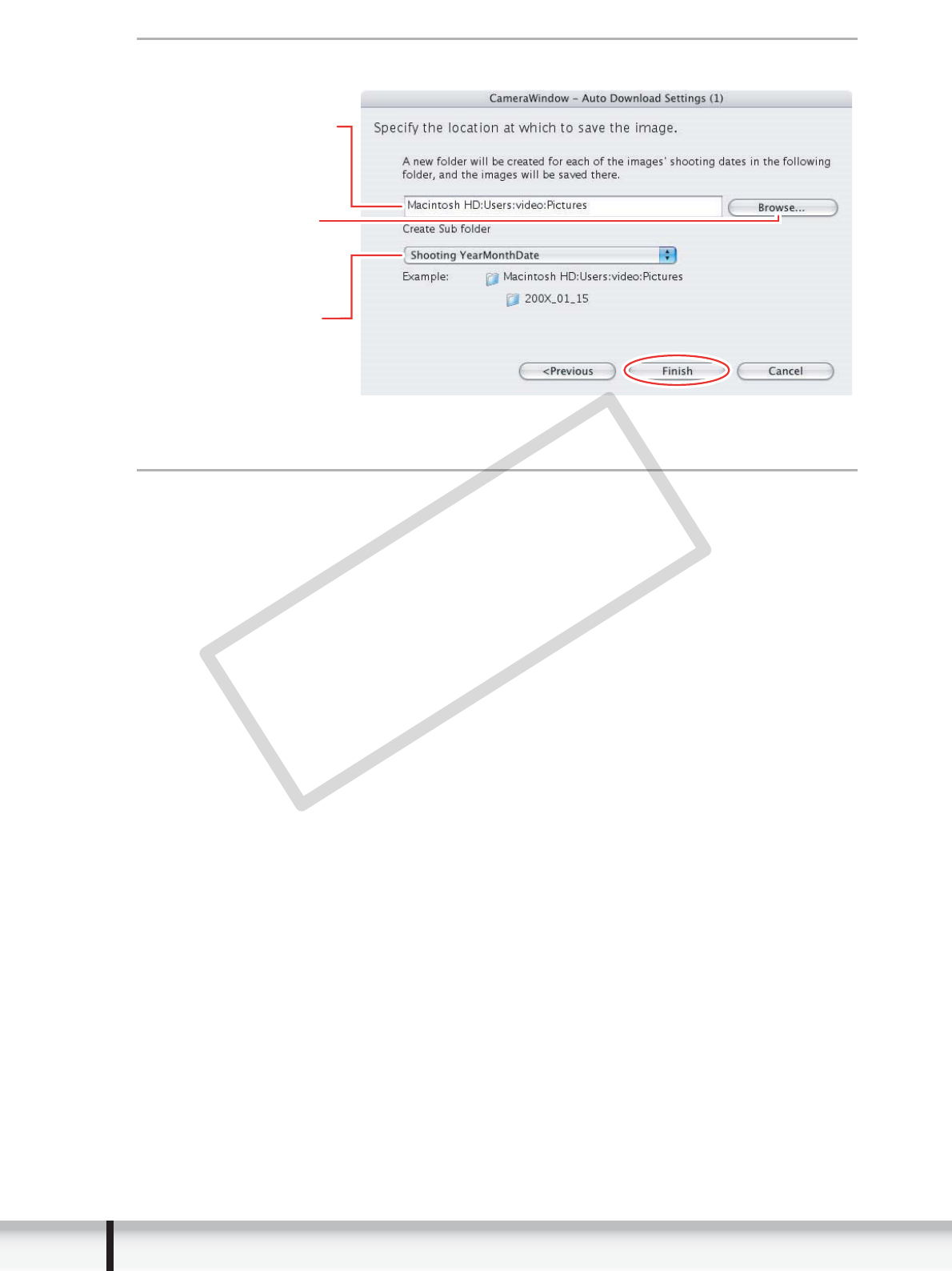
Specify the destination folder settings and click [Finish].
Direct Transfer
1
Select a transfer option on the camcorder screen and press
the joystick.
See your camcorder instruction manual for how to set and operate the
camcorder to transfer images.
Click this button
to specify the
destination folder.
Destination Folder
Select to specify
the name of the
subfolder.
COPY
33
Downloading Still Images
Macintosh
Using a Card Reader/Writer
Select a download method in the image download window.
The basic operations are the same as when you connect the camcorder to the
computer. Follow the procedure below to open the CameraWindow. For instructions
on how to connect the card reader/writer, refer to its manual.
If you are using a camcorder that supports miniSD cards but your card reader/
writer does not support them, please purchase an appropriate adapter for your
card. If you are using SDHC cards, you need to use a card reader/writer
compatible with SDHC cards.
1
Insert a memory card containing images recorded with the
camcorder into the card reader/writer and connect it to the
computer.
2
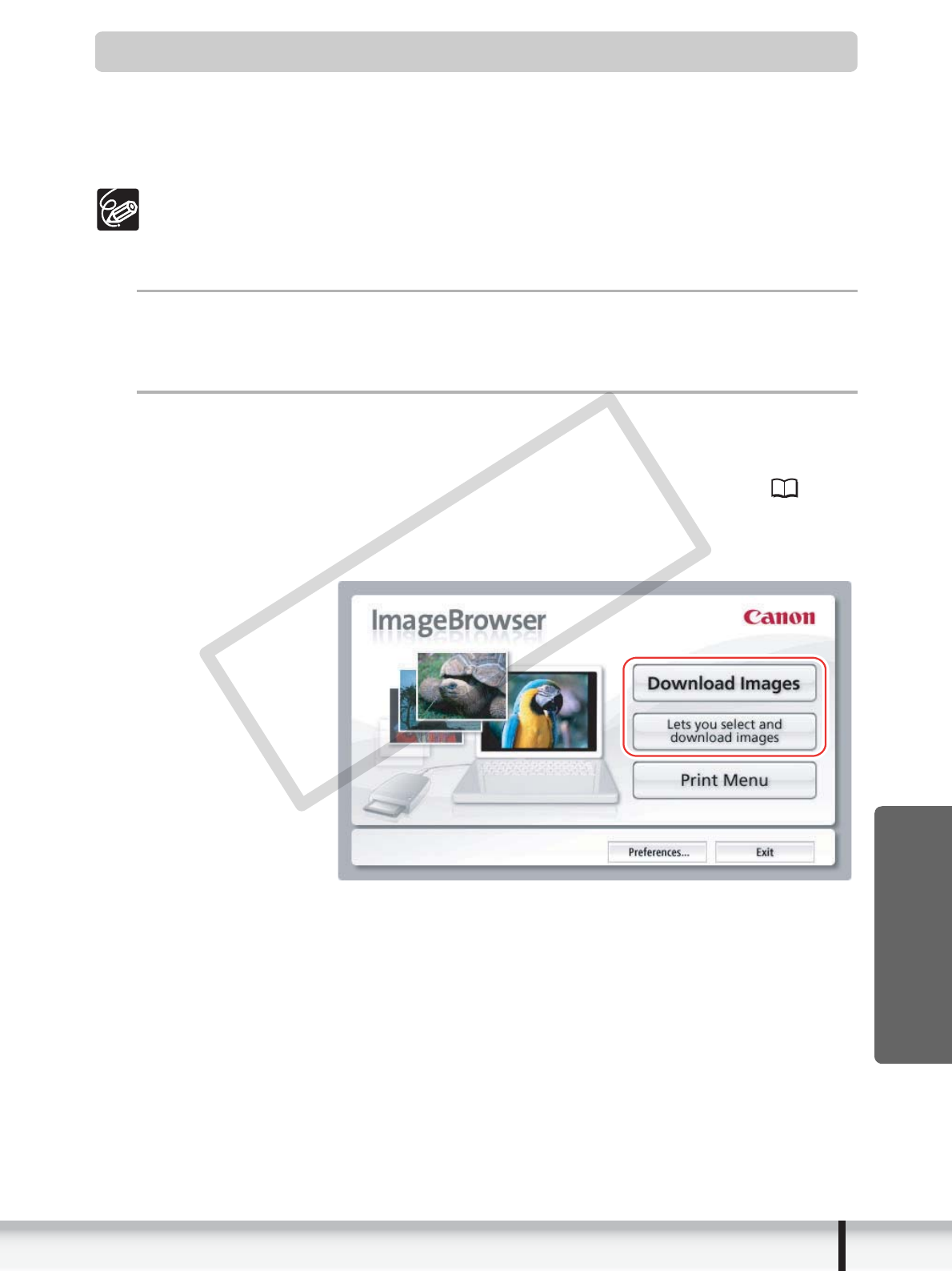
Select a method to download the images.
• [Download Images]: A progress bar will be displayed and images will be
downloaded to the computer, and ImageBrowser starts. To apply auto-
downloading settings, refer to Applying Auto-downloading Settings (34).
• [Lets you select and download images]: The ImageBrowser opens, displaying
the still images on the camcorder’s memory card as thumbnails (small
images).
COPY
34 Downloading Still Images
Auto-downloading
1
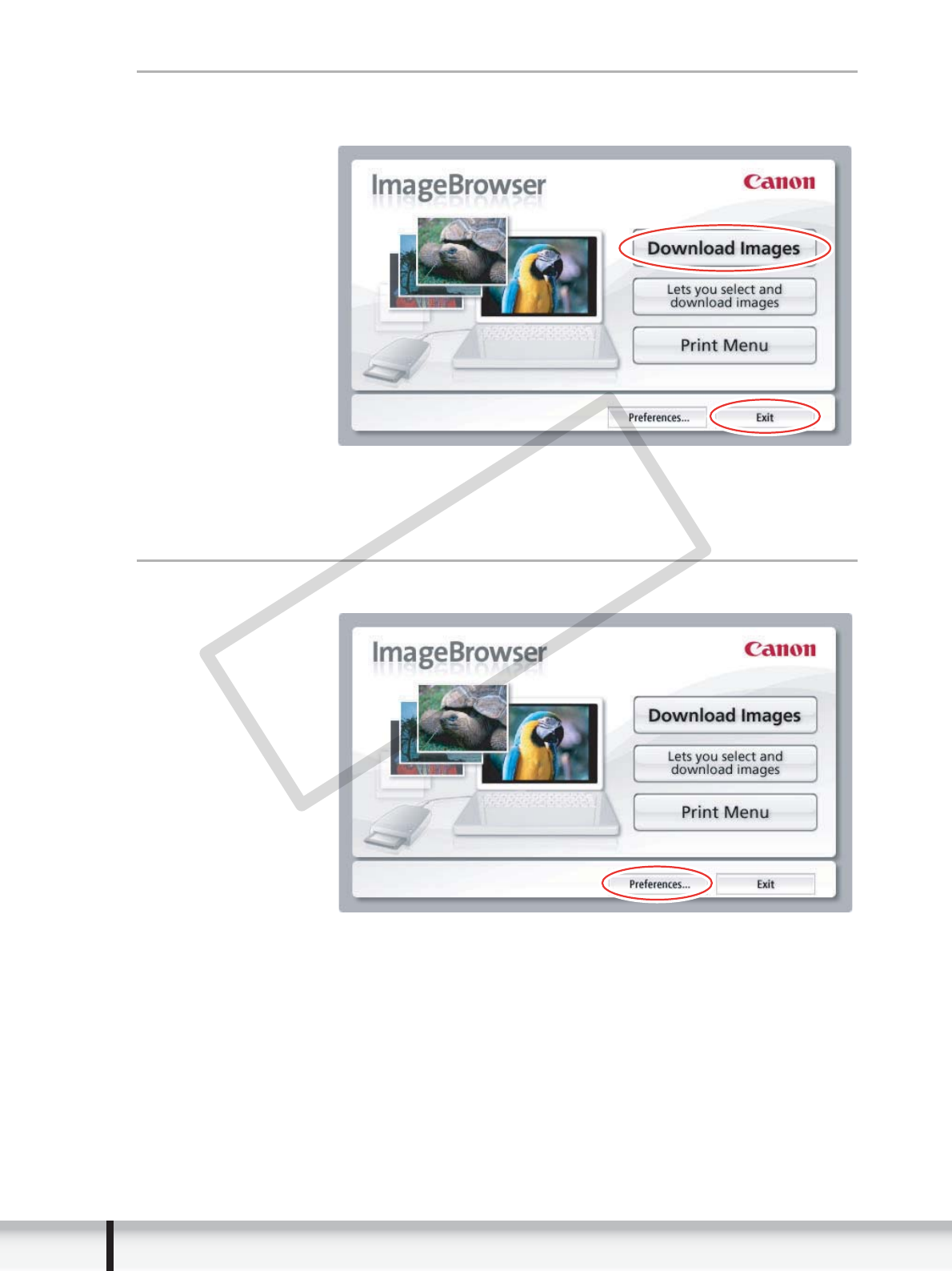
Click [Download Images].
Click [Exit] to close the window after downloading images.
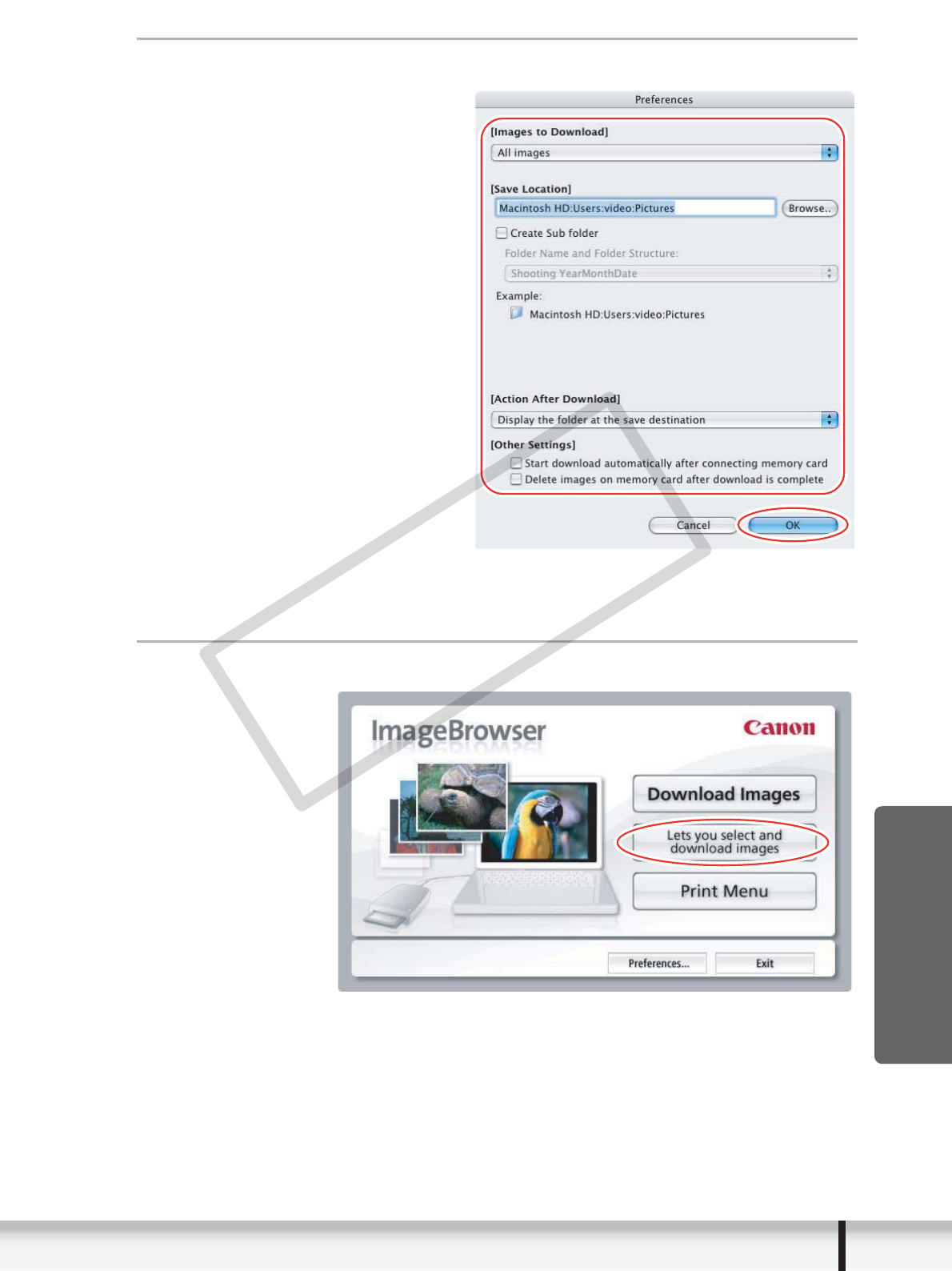
Applying Auto-downloading Settings
This task allows you to apply auto-downloading settings. You can specify the types of
still images and the destination folder.
1
Click [Preferences].
COPY
35
Downloading Still Images
Macintosh
2
Configure the settings and click [OK].
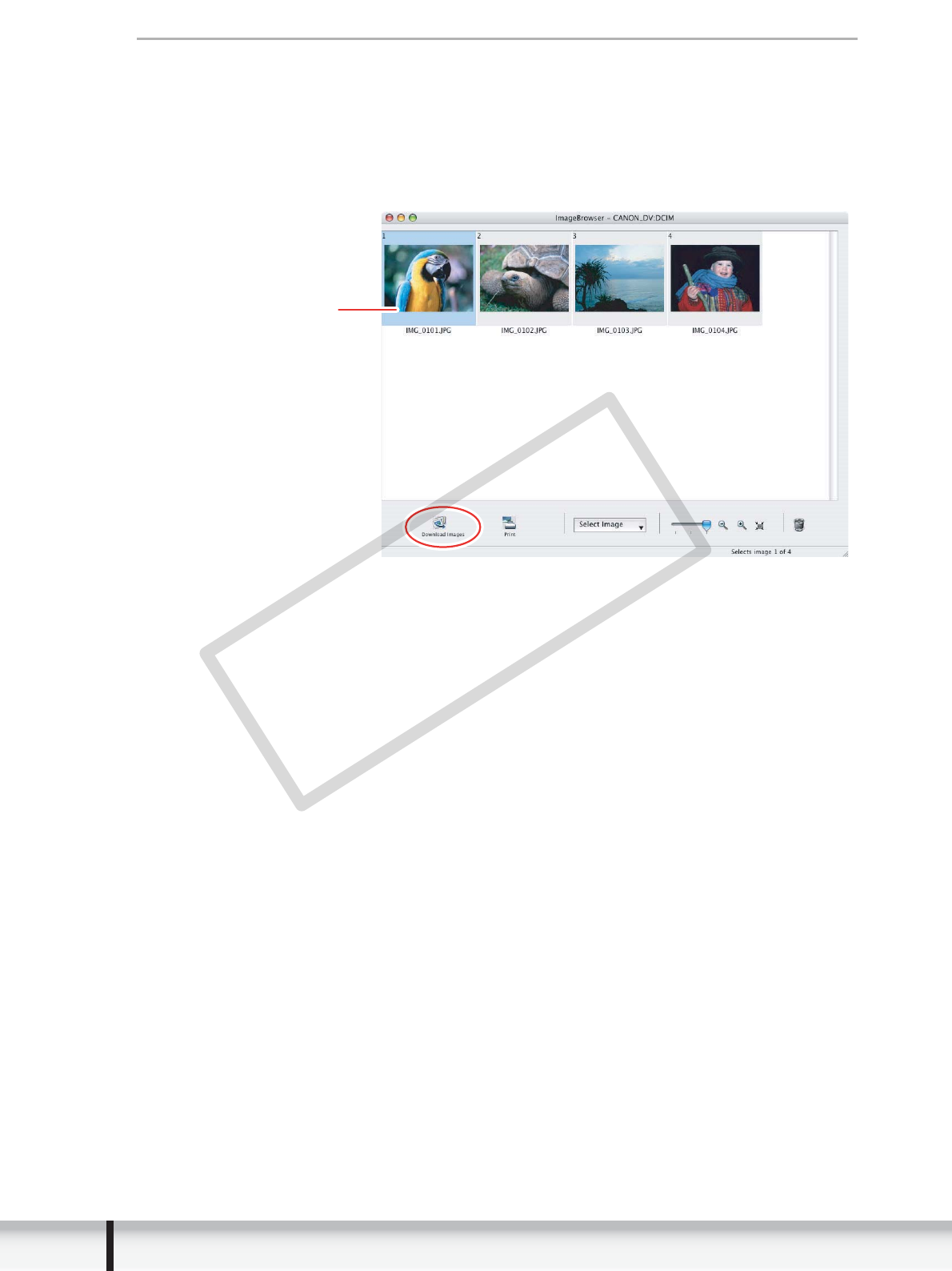
Downloading the Selected Still Images from the
ImageBrowser
1
Click [Lets you select and download images].
COPY
36 Downloading Still Images
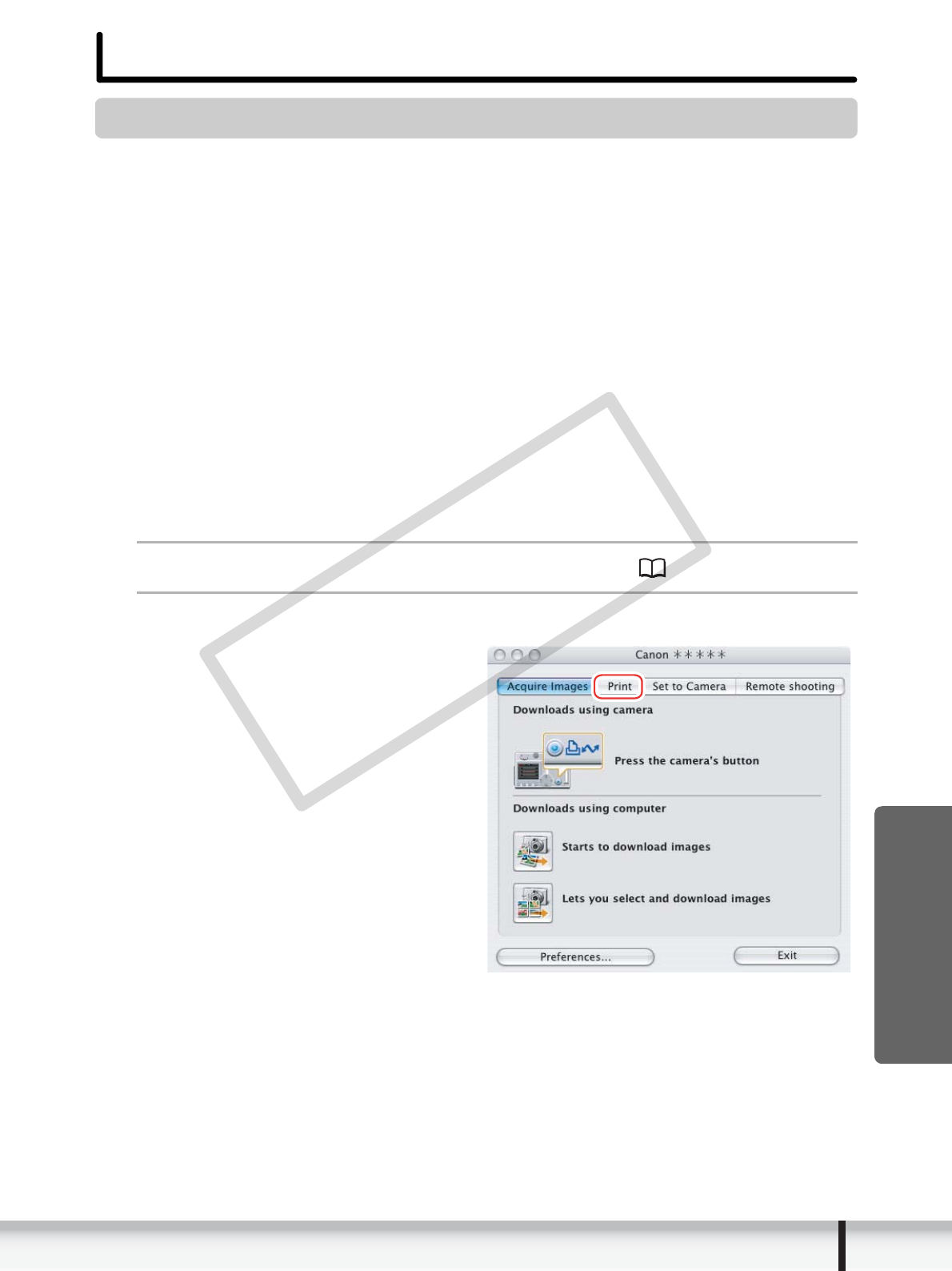
2
Select images you wish to download and click [Download
Images].
• Clicking on 2 images while holding down the [option] + [shift] key selects also
all images between the 2 images.
• Clicking on different images while holding down the [shift] key selects multiple
images.
A blue frame appears
around the selected image.
COPY
37
Printing Still Images
Macintosh
Printing Still Images
Printing Still Images without Downloading Them
This section explains how to print still images by connecting the camcorder to the
computer. The steps are basically the same when using a card reader/writer.
You can select one of the following 4 methods to print still images in the card without
downloading images to the computer.
• [Print All Photos]
- Prints all still images recorded on a memory card in the connected camcorder or in
a card reader/writer one image per page.
• [Print Contact Sheet with All Photos]
- Prints all still images recorded on a memory card in the connected camcorder or in
a card reader/writer in an index (rows of images with file names and image
information).
• [Print according to DPOF settings]
- Prints according to the DPOF print settings set by the camcorder.
• [Select image and print]
- A list of the still images recorded on a memory card in the connected camcorder or
in a card reader/writer will be displayed, and you can select images you wish to
print.
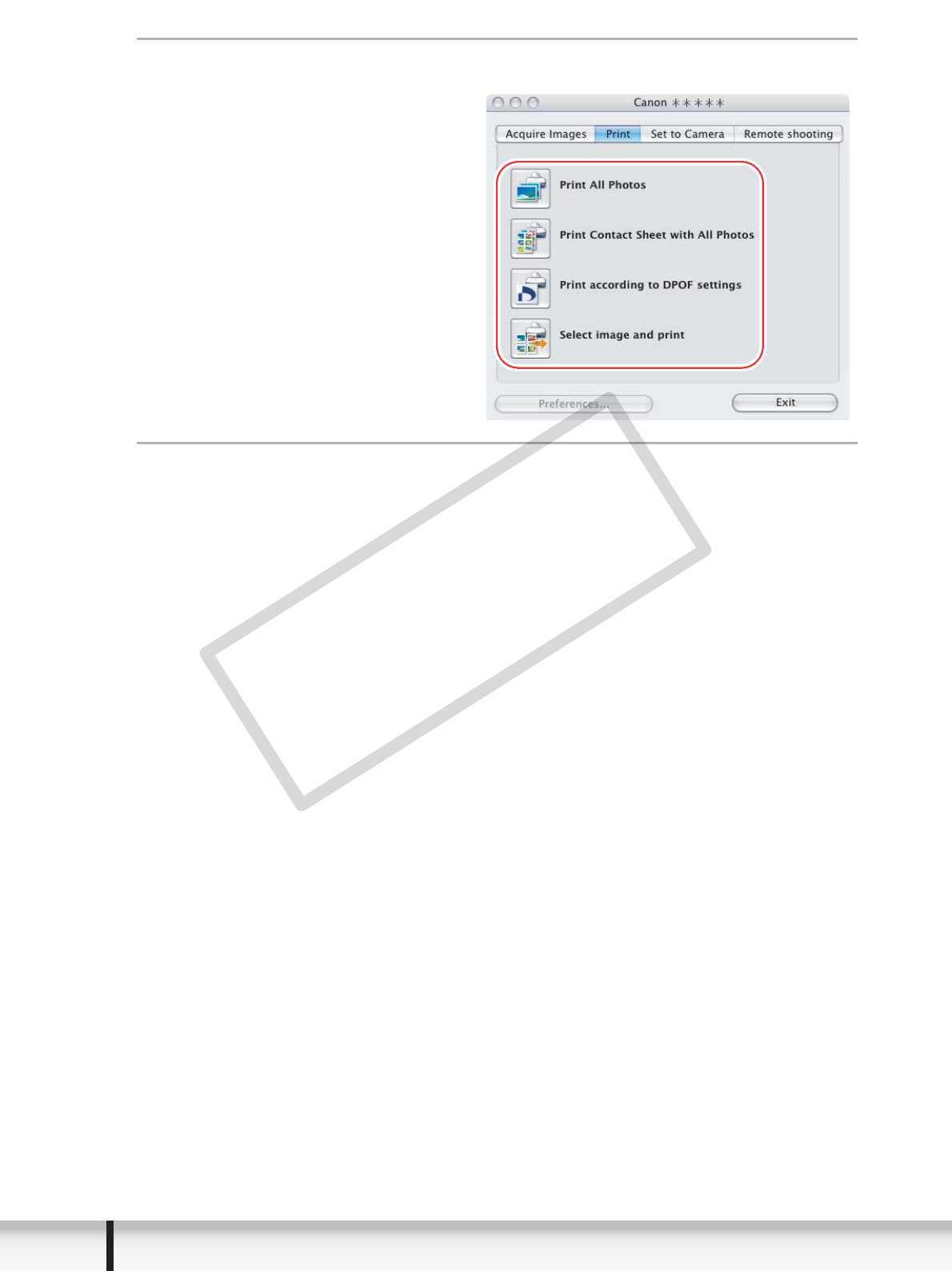
1
Connect the camcorder to the computer. ( 23)
2
Click the [Print] tab in the Camera Control window.
COPY
38 Printing Still Images
3
Click on one of the 4 printing methods.
4
Specify the print settings and click [Print].
The window varies depending on the selected printing method in step 3.
COPY
39
Printing Still Images
Macintosh
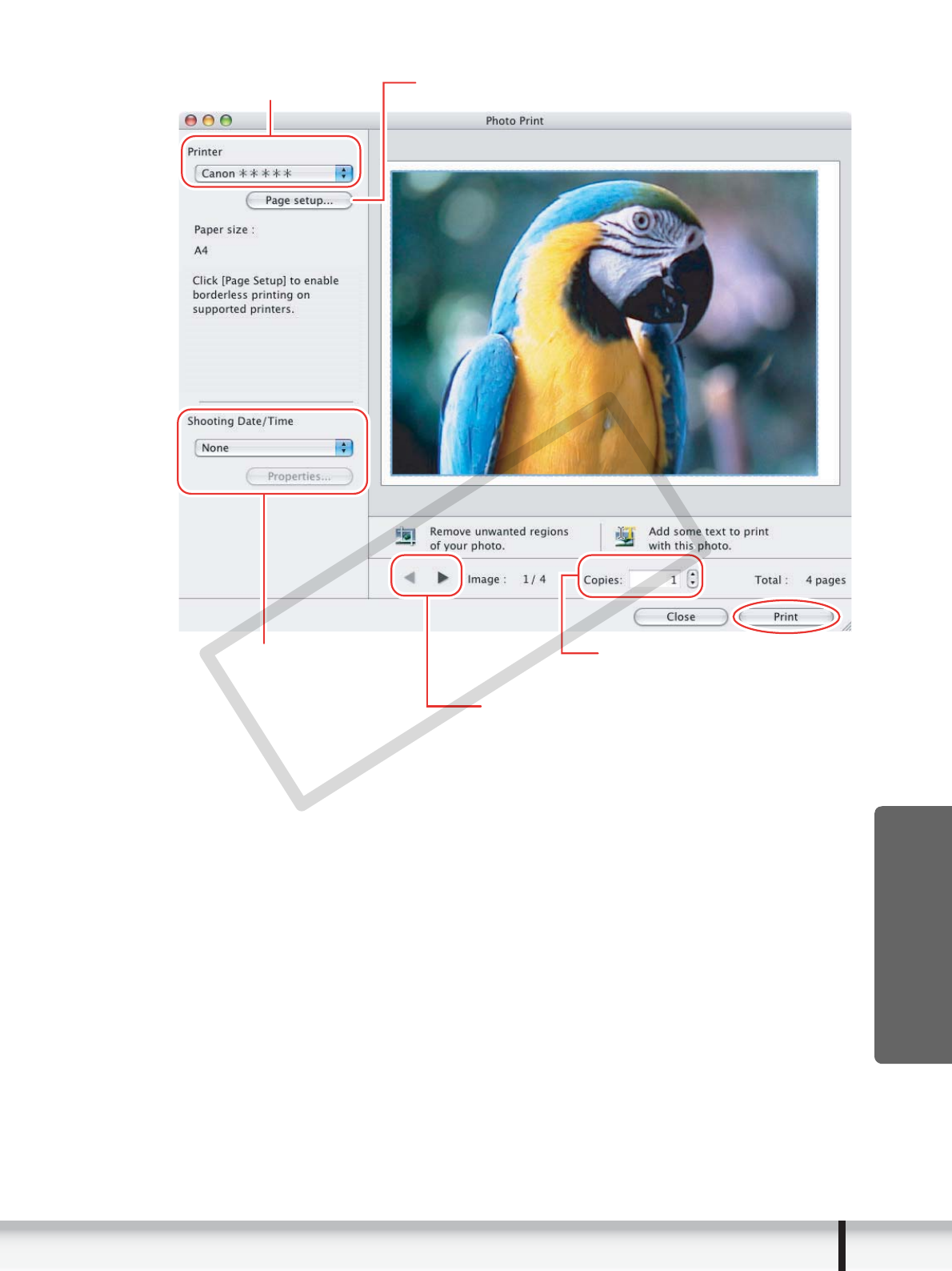
When you have selected [Print All Photos]:
Selects the printer. Sets the paper size settings.
Sets the shooting date/time
imprint and color settings.
Sets the number of print copies
of the displayed image.
Click this button to switch between still images
if multiple images are selected.
COPY
40 Printing Still Images
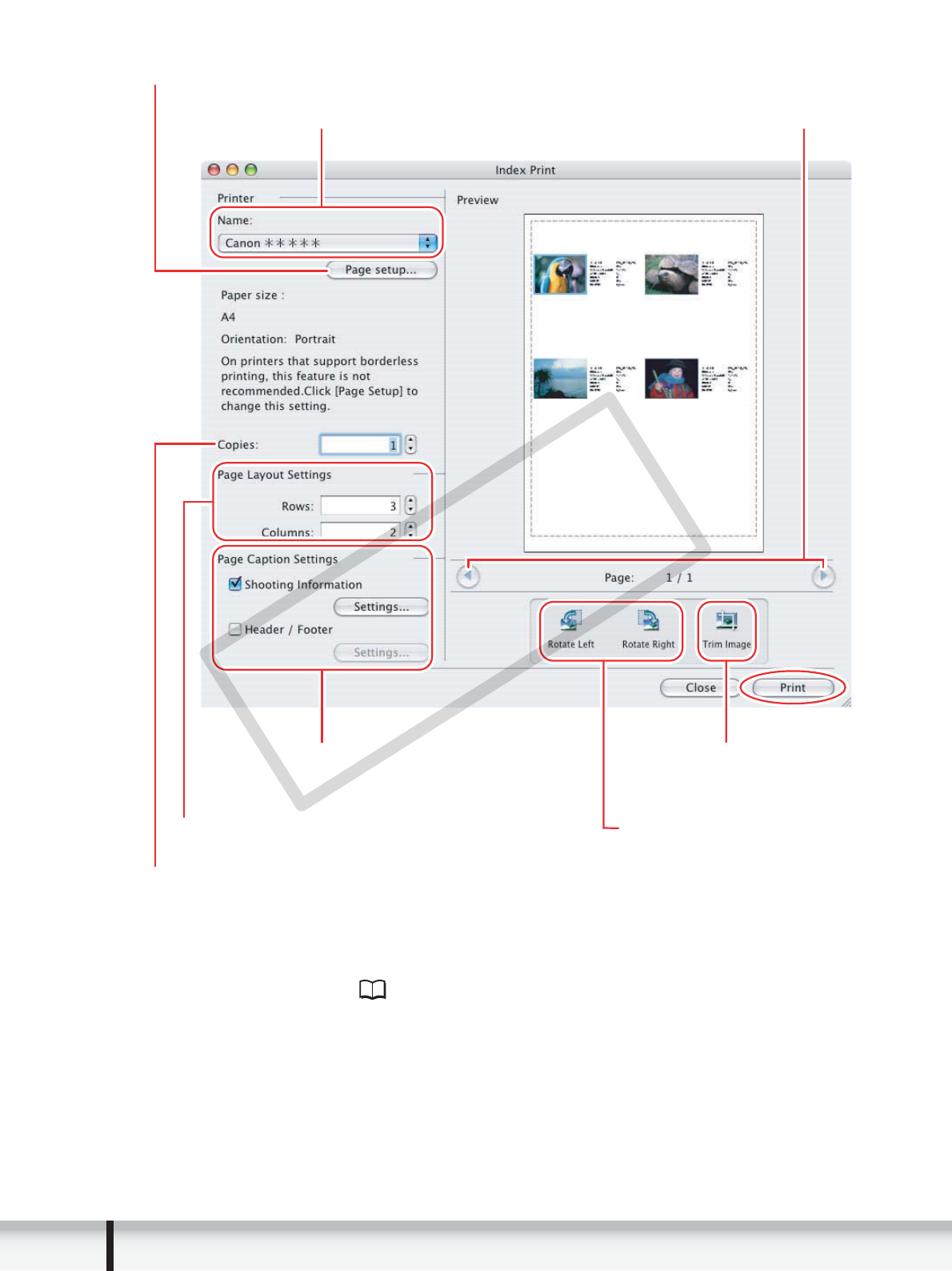
When you have selected [Print Contact Sheet with All Photos]:
When you have selected [Print according to DPOF settings]:
• The selected still images will be printed according to the number of copies set with
the camcorder. The same window described in the previous section When you have
selected [Print All Photos]: ( 39) will be displayed.
Click this to use the trimming
function (crops a portion of
the still image).
Selects the printer.
Sets the printer and paper size settings.
Rotates still images.
Sets the print settings for shooting information,
comments, headers, footers and page numbers.
Click these buttons to switch between pages.
Sets the number of print copies of the contact sheets.
Sets the number of rows and columns.
COPY
41
Printing Still Images
Macintosh
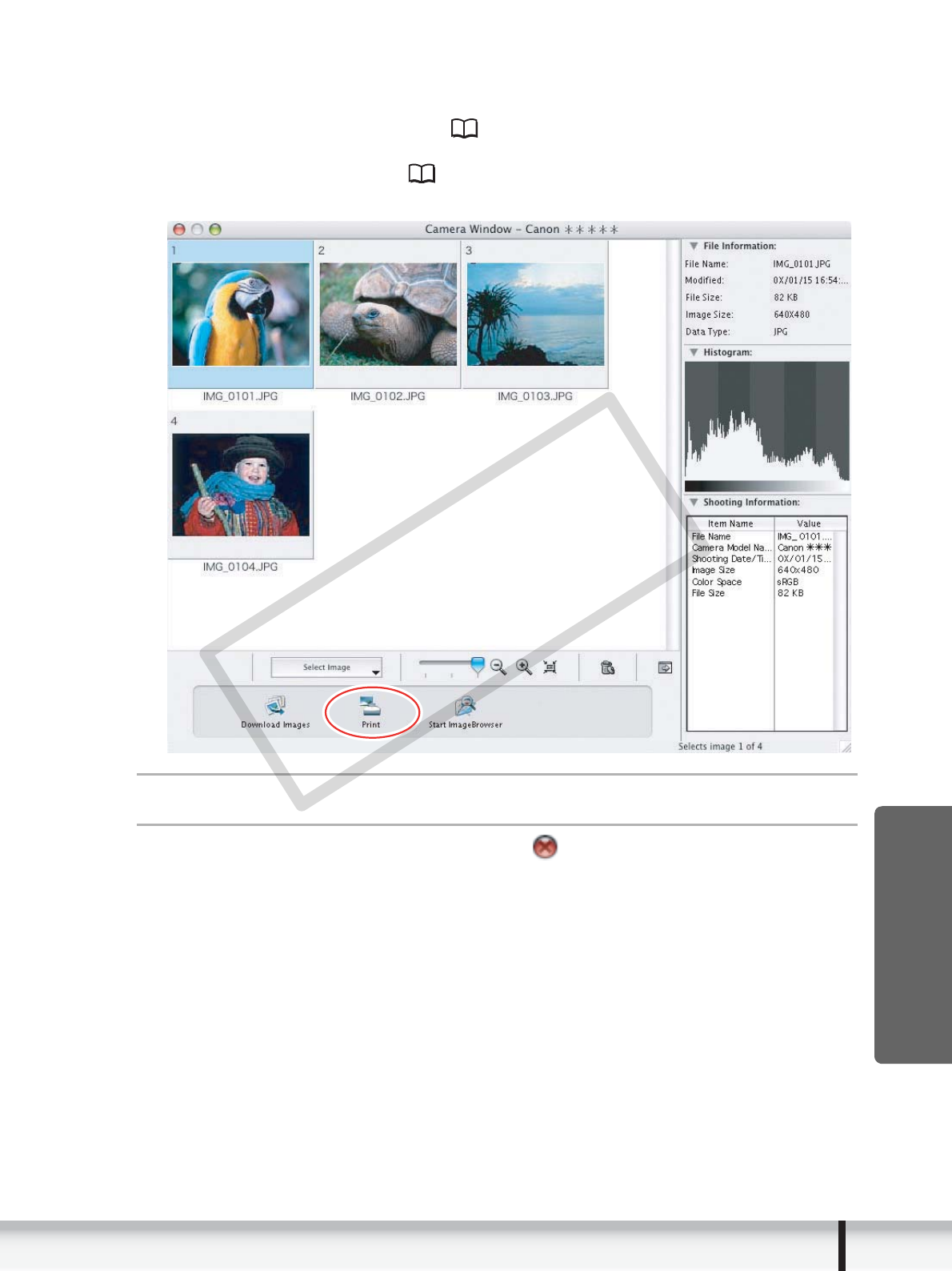
When you have selected [Select image and print]:
• If you selected [Select image and print], the following window will be displayed.
Select still images you wish to print, and click [Print]. If you selected [Contact Sheet
Print], the same window described in the previous section When you have selected
[Print Contact Sheet with All Photos]: ( 40) will be displayed. If you selected [One
Photo Per Page Print], the same window described in the previous section When you
have selected [Print All Photos]: ( 39) will be displayed instead. Set the print
settings and print the still images.
5
When the print window opens, click [Print].
6
When the printing finishes, click to close the window.
COPY
42 Printing Still Images
Printing Still Images Already Downloaded to the
Computer
You can select one of the following 3 methods to print still images downloaded to the
computer.
• [Photo Print]
- Prints one still image per page.
• [Index Print]
- Prints selected images in rows with file names and image information.
• [Layout Print]
- Allows you to lay out the selected still images in special arrangements and add text
and decorations, printing them as one page in a fancy album.
[Photo Print]
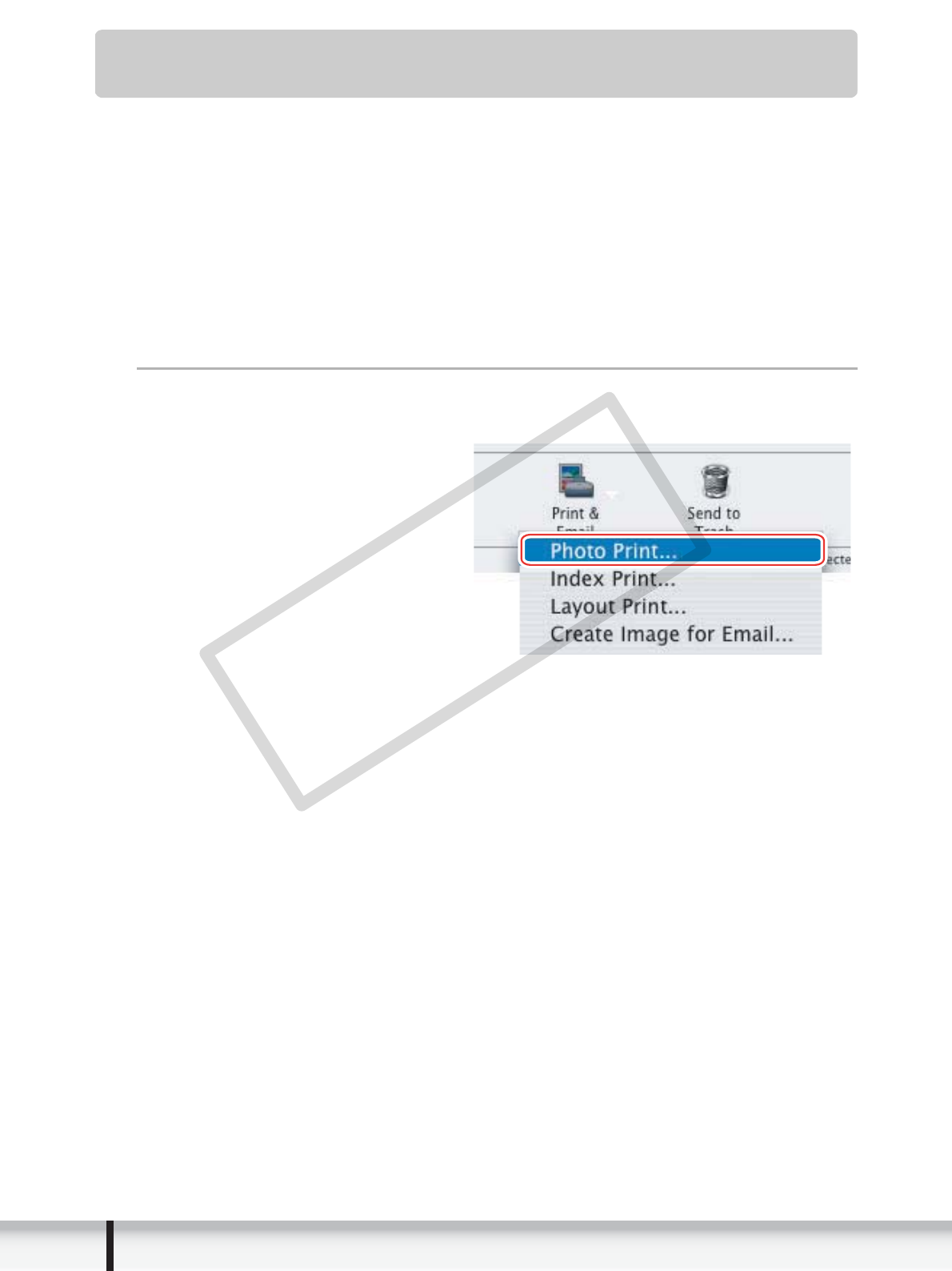
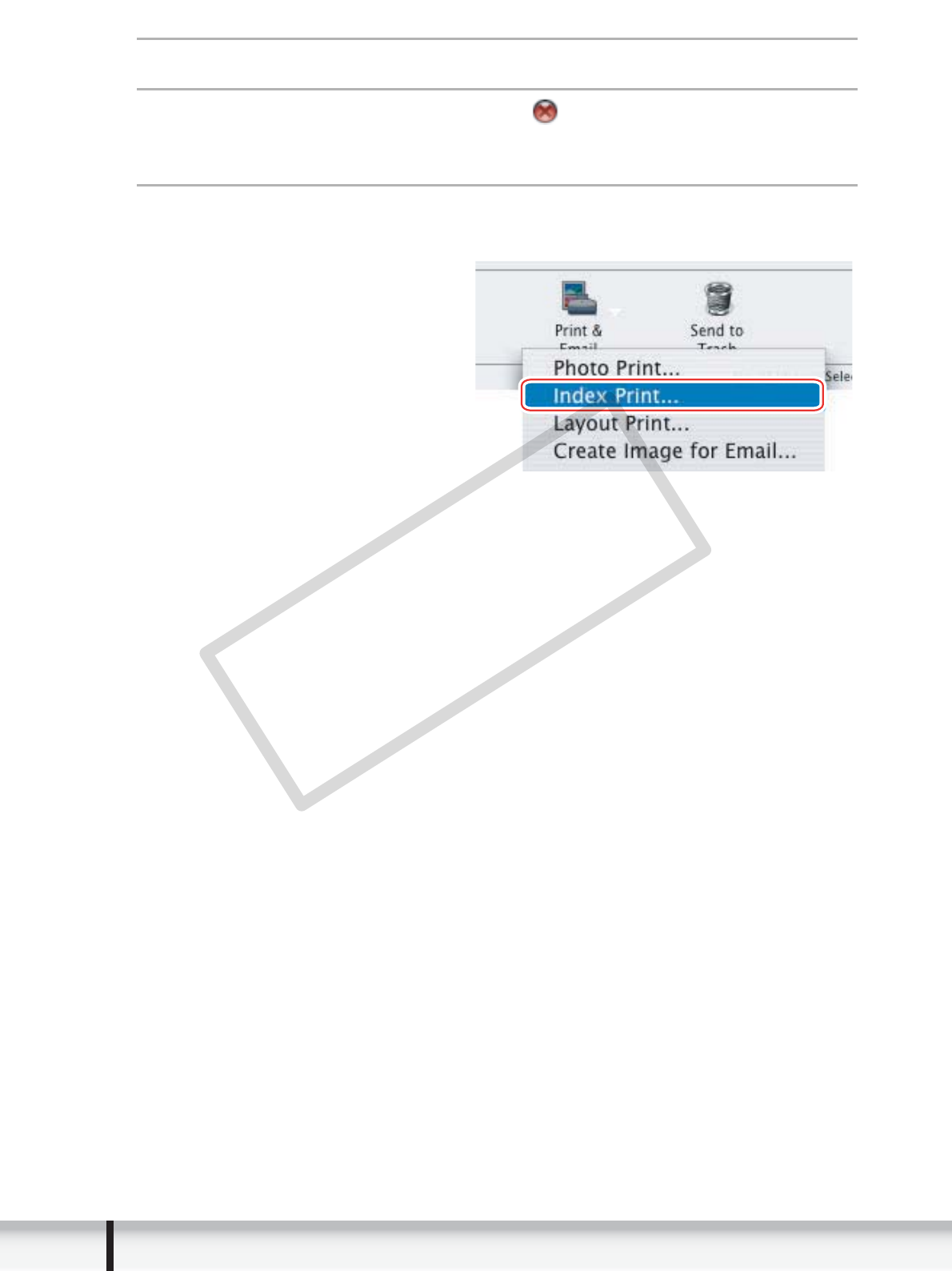
1
Select the still images you wish to print and click [Print &
Email]
[Photo Print] from the displayed menu.
COPY
43
Printing Still Images
Macintosh
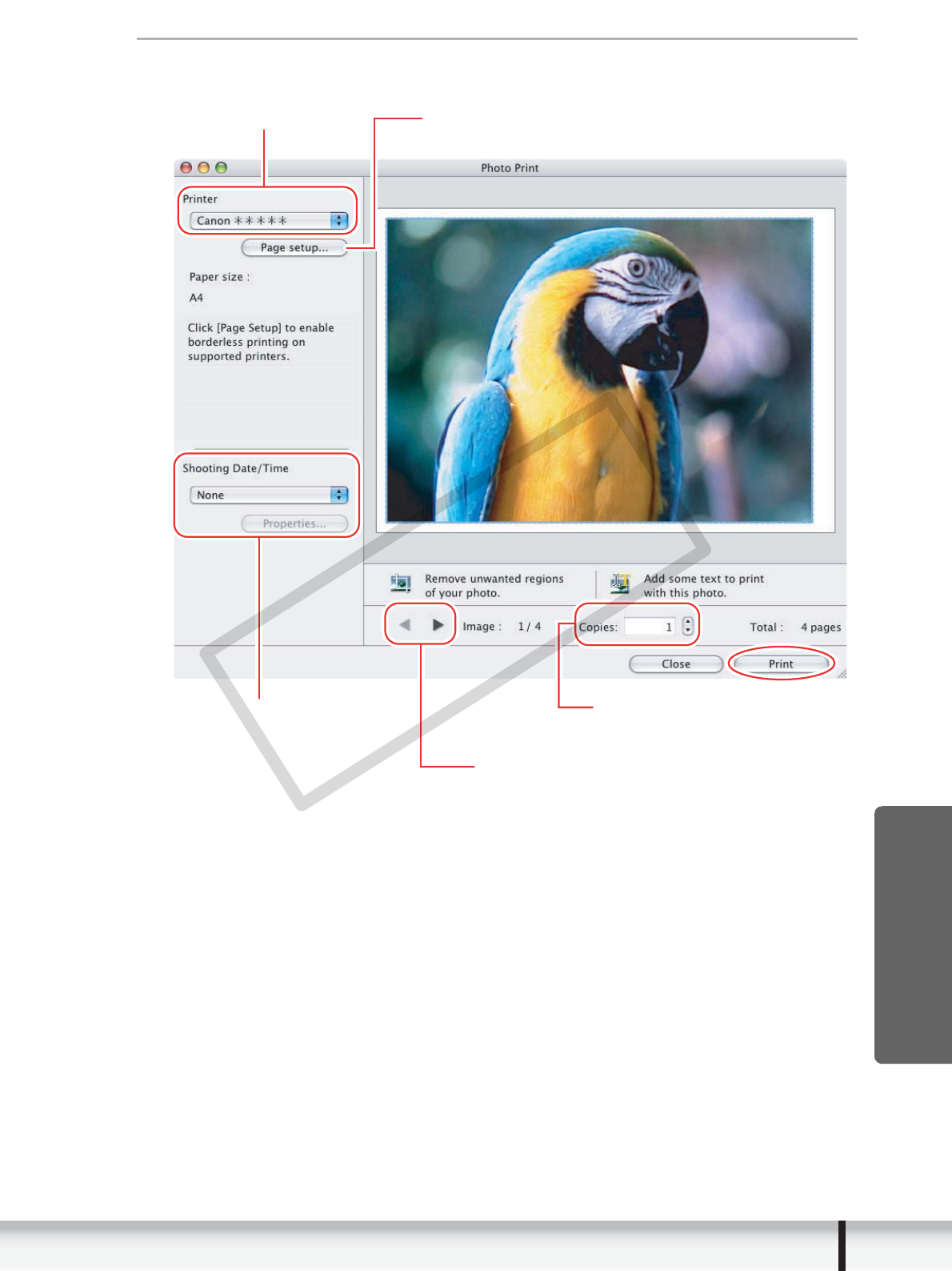
2
Specify the print settings and click [Print].
Selects the printer.
Sets the shooting date/time
imprint and color settings.
Sets the number of print copies
of the displayed image.
Click this button to switch between still images
if multi
p
le ima
g
es are selected.
Sets the paper settings.
COPY
44 Printing Still Images
3
When the print window opens, click [Print].
4
When the printing finishes, click to close the window.
[Index Print]
1
Select still images you wish to print and click [Print & Email]
[Index Print] from the displayed menu.
COPY
45
Printing Still Images
Macintosh
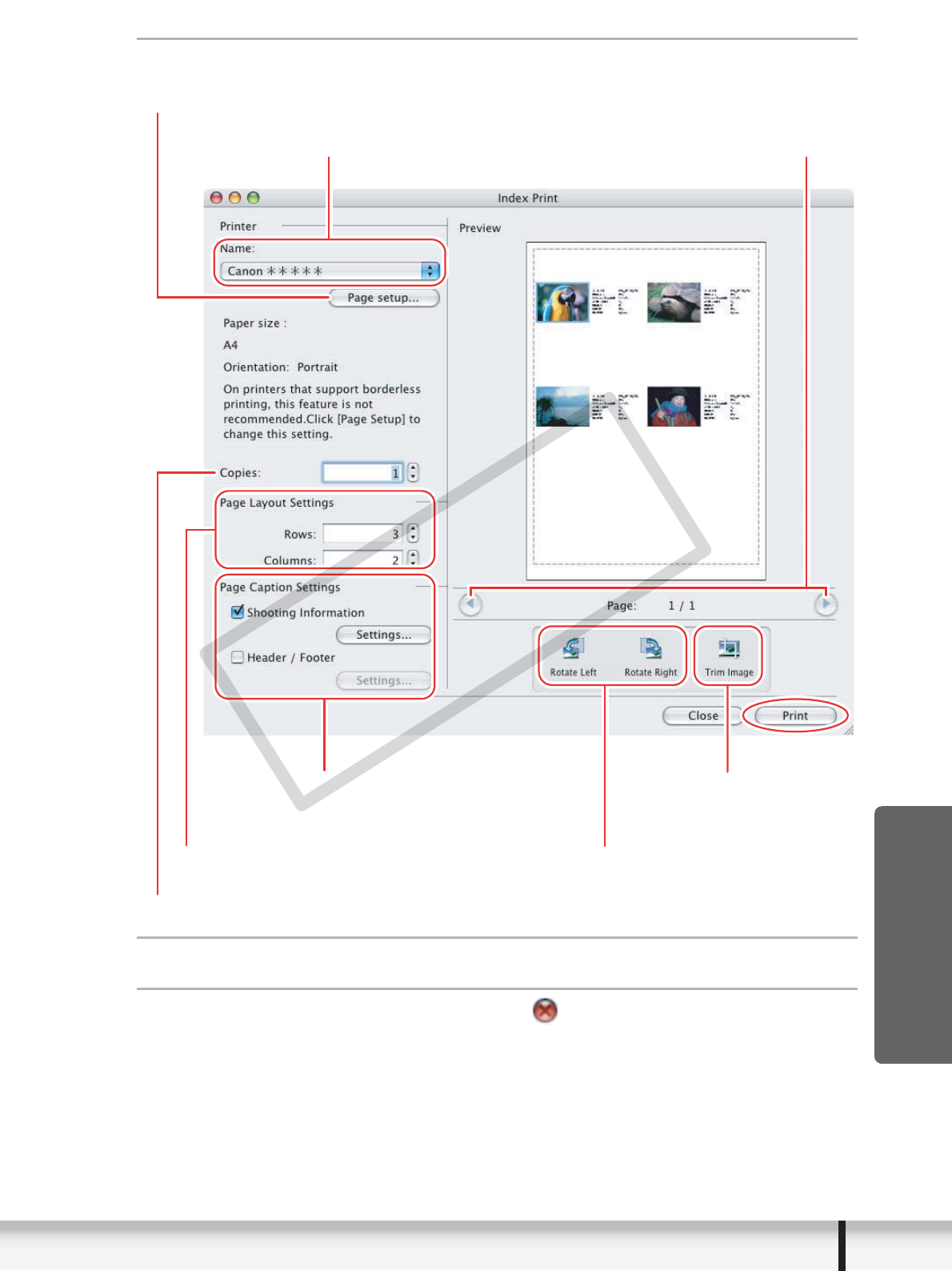
2
Specify the print settings and click [Print].
3
When the print window opens, click [Print].
4
When the printing finishes, click to close the window.
Click this to use the trimming
function (crops a portion of
the still image).
Selects the printer.
Rotates still images.
Sets the print settings for shooting information,
comments, headers, footers and page numbers.
Click these buttons to switch between pages.
Sets the number of print copies of the contact sheets.
Sets the number of rows and columns.
Sets the paper size and orientation.
COPY
46 Printing Still Images
[Layout Print]
• You can select one of the following 3 layout print methods.
- [Custom layout printing]:
Allows you to specify the size and location of the still images freely.
- [Fixed photo size printing]:
Allows you to specify the size of the all still images.
- [Tiled photo printing]:
Allows you to have the program lay out and print the specified number of images
per page with no gaps between still images on the page.
• Selecting [Edit] [Add Text] allows you to write some text on a still image. You can
move added text boxes on the still image by dragging them.
• Selecting [Edit] [Edit Header] allows you to insert a header.
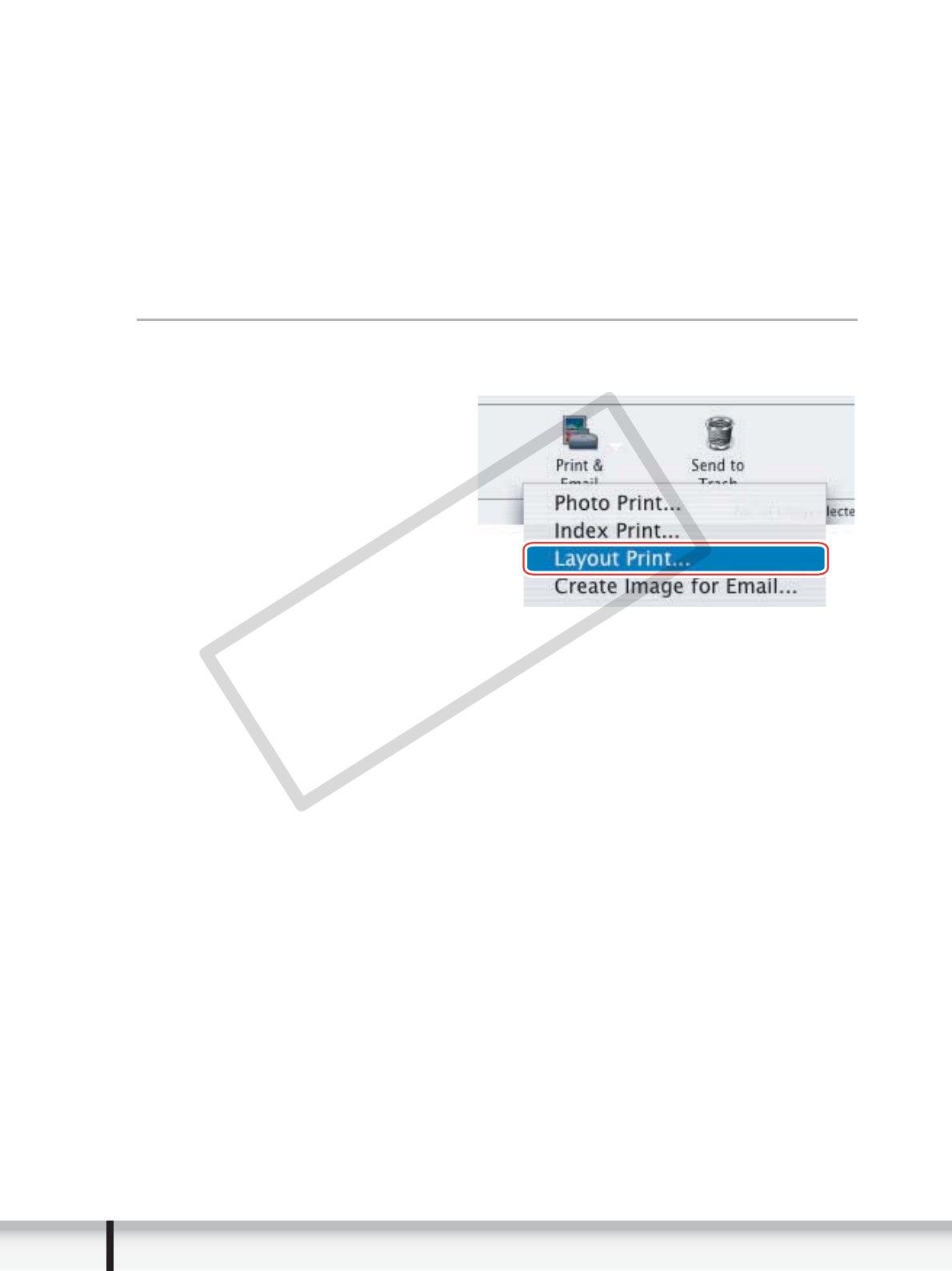
1
Select still images you wish to print and click [Print & Email]
[Layout Print].
COPY

47
Printing Still Images
Macintosh
2
Select a print style from the pull-down menu and click [Print]
after specifying the print settings.
3
When the print window opens, click [Print].
4
When the printing finishes, click to close the window.
COPY

48 Organizing Images
Organizing Images
Applying Star Rating
• This task allows you to apply ratings to your images from one star to three stars. The
star rating can be used as one of the search conditions, or for the selection of
images to be displayed in the Browser Window.
• The default setting of the star rating is two stars.
1
Select the image to which you wish to apply the Star Rating.
2
Select [Change Star Rating] from the [Edit] menu.
The default setting of the star rating is two stars.
COPY
49
Organizing Images
Macintosh
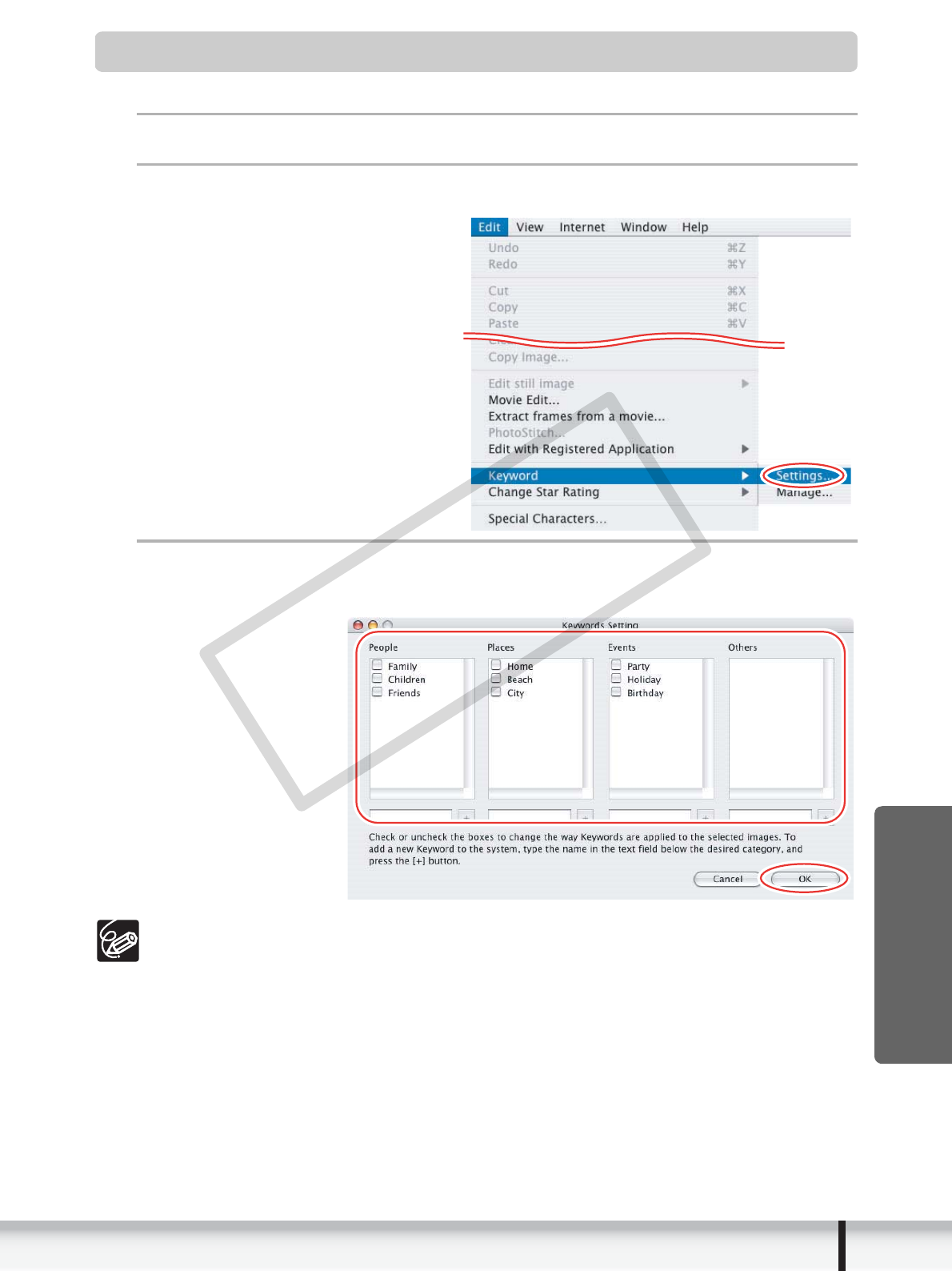
Specifying the Keywords
You can use keywords when searching for images.
1
Select an image to which you wish to apply the keyword.
2
Select [Keyword]
[Settings] from the [Edit] menu.
3
Place a check mark next to the keyword you wish to apply
and click [OK].
You can add and delete keywords, or change the keyword list in the [Manage
Keywords] window by selecting [Keyword] [Manage] from the [Edit] menu.
COPY
50 Organizing Images
Classifying the Images
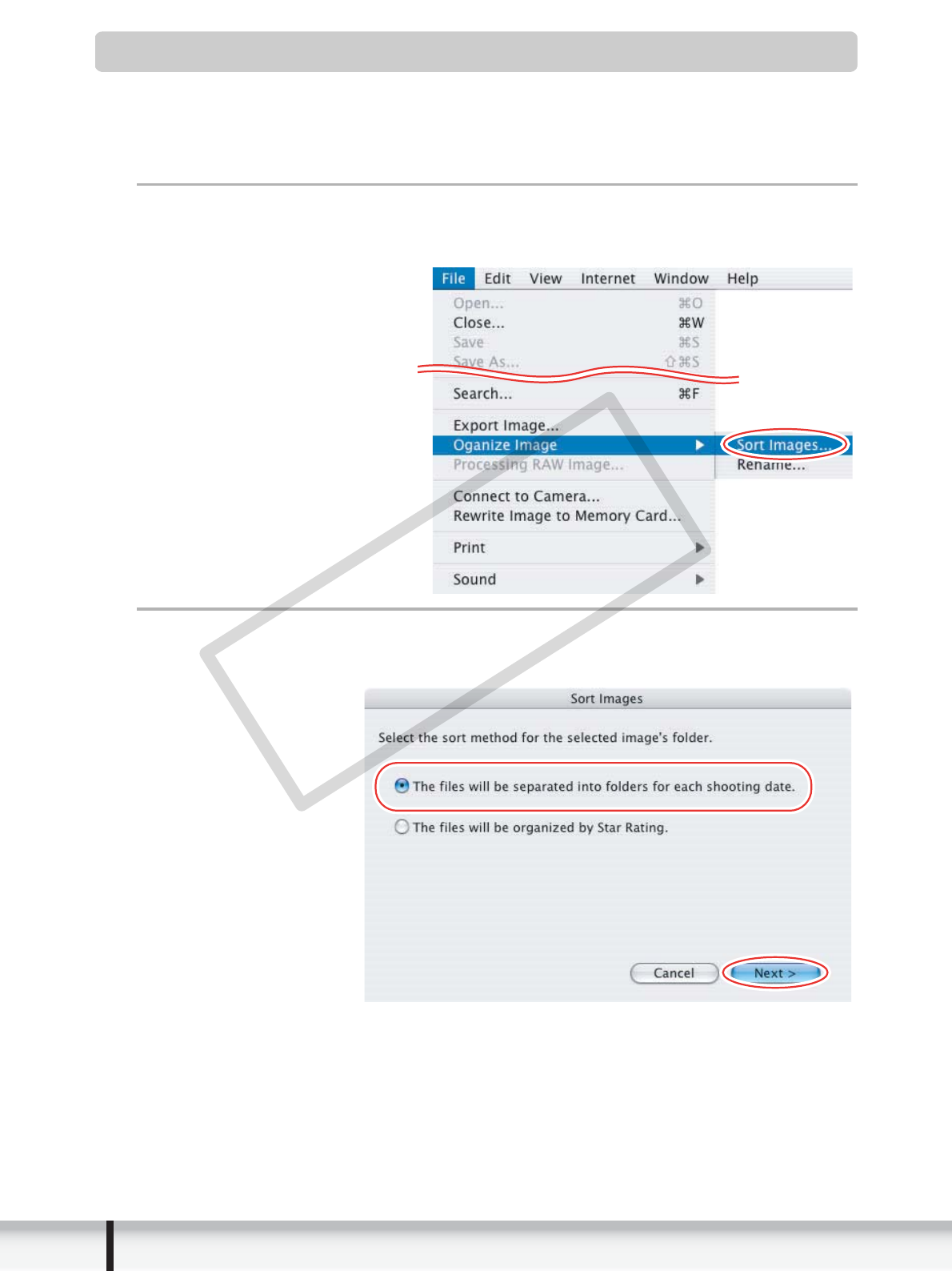
This task allows you to sort images into a folder according to the shooting date or star
rating.
Sort by the Shooting Date
1
Select the images you wish to classify and select [Organize
Image]
[Sort Images] from the [File] menu.
2
Select [The files will be separated into folders for each
shooting date.] and click [Next].
COPY
51
Organizing Images
Macintosh
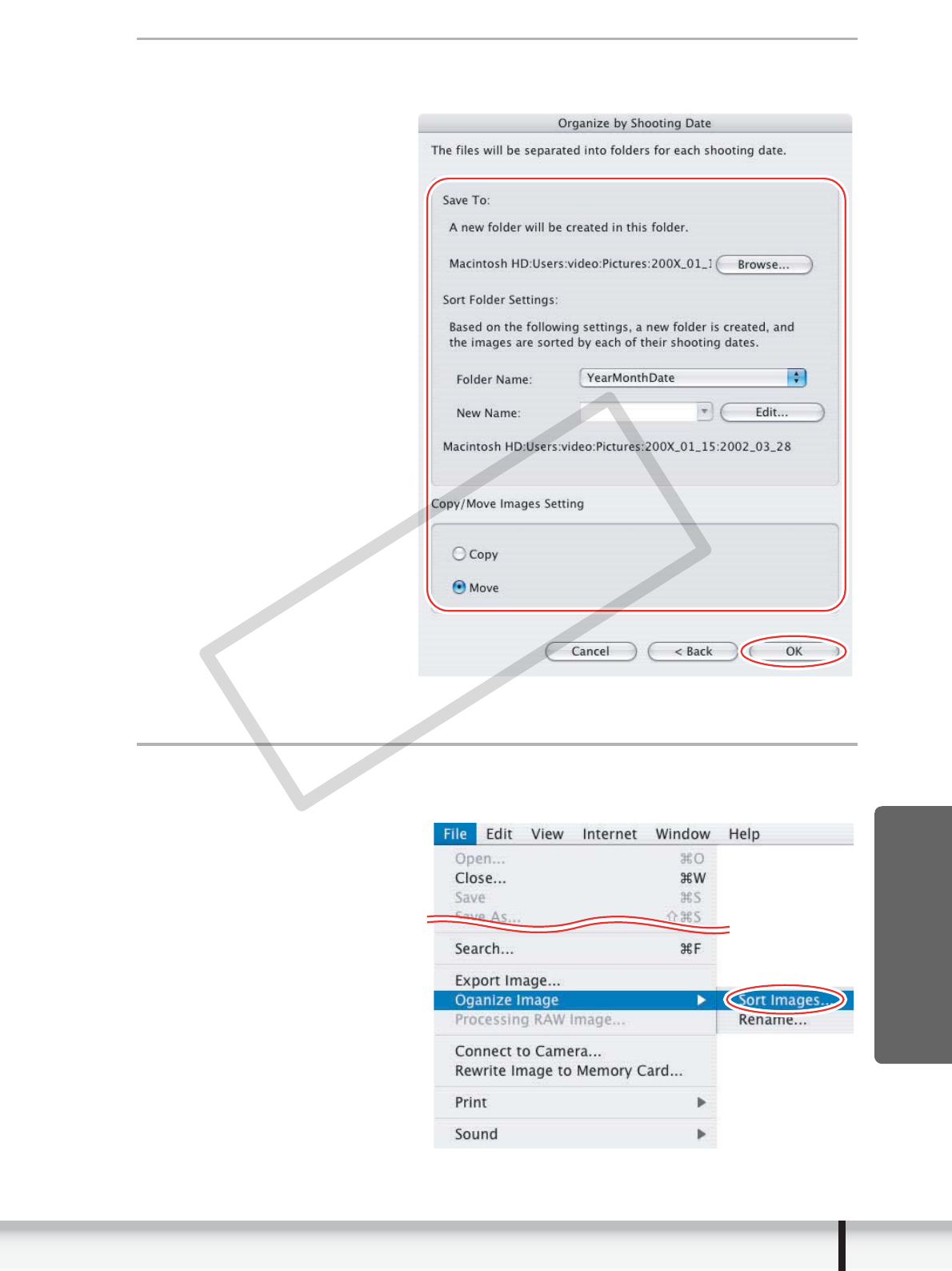
3
Specify the sort settings and click [OK].
The selected images are classified into the specific folder.
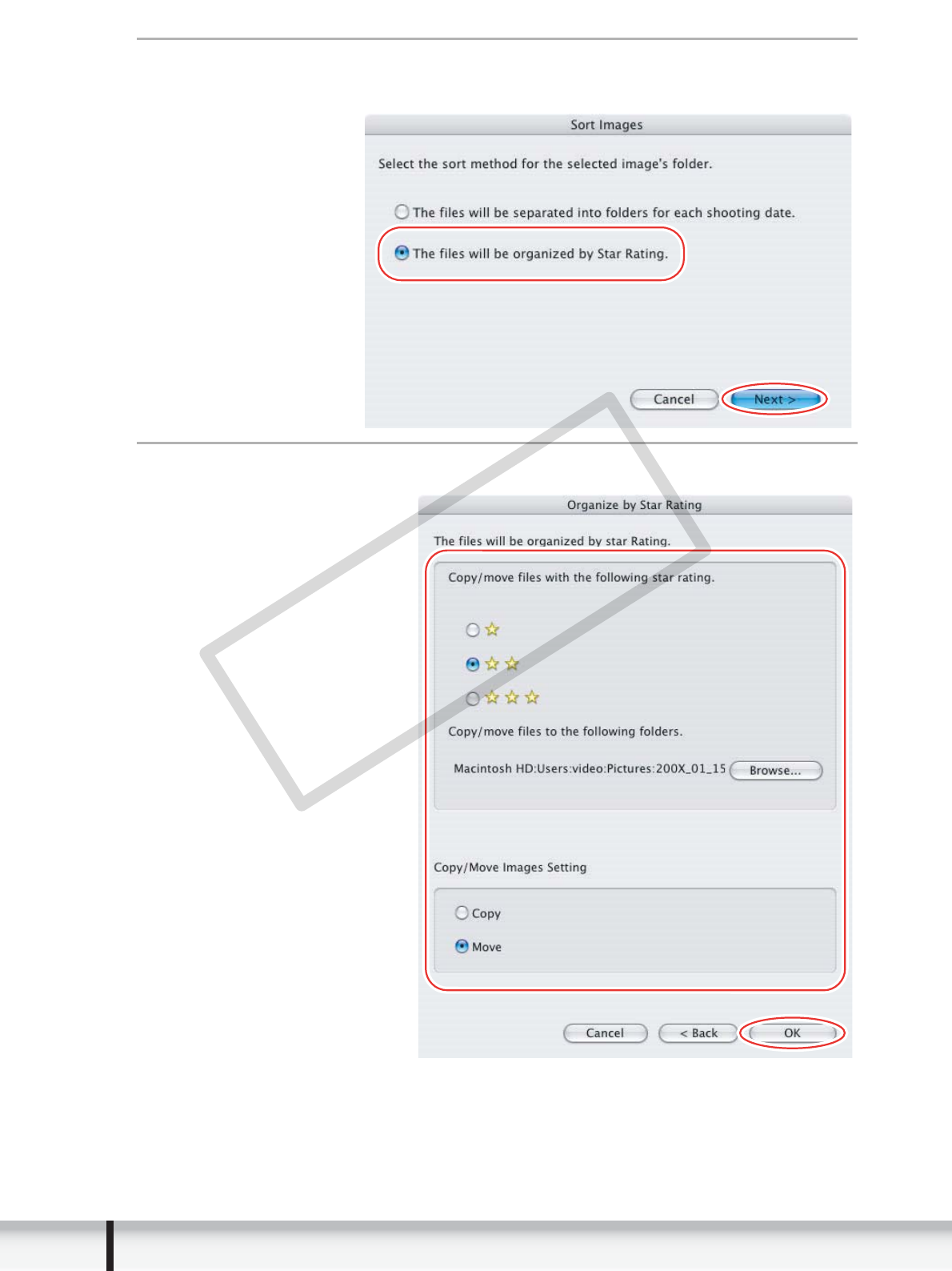
Sort by the Star Rating
1
Select the images you wish to classify and select [Organize
Image]
[Sort Images] from the [File] menu.
COPY
52 Organizing Images
2
Select [The files will be organized by Star Rating.] and click
[Next].
3
Specify the sort settings and click [OK].
COPY
53
Organizing Images
Macintosh
Renaming Multiple Files
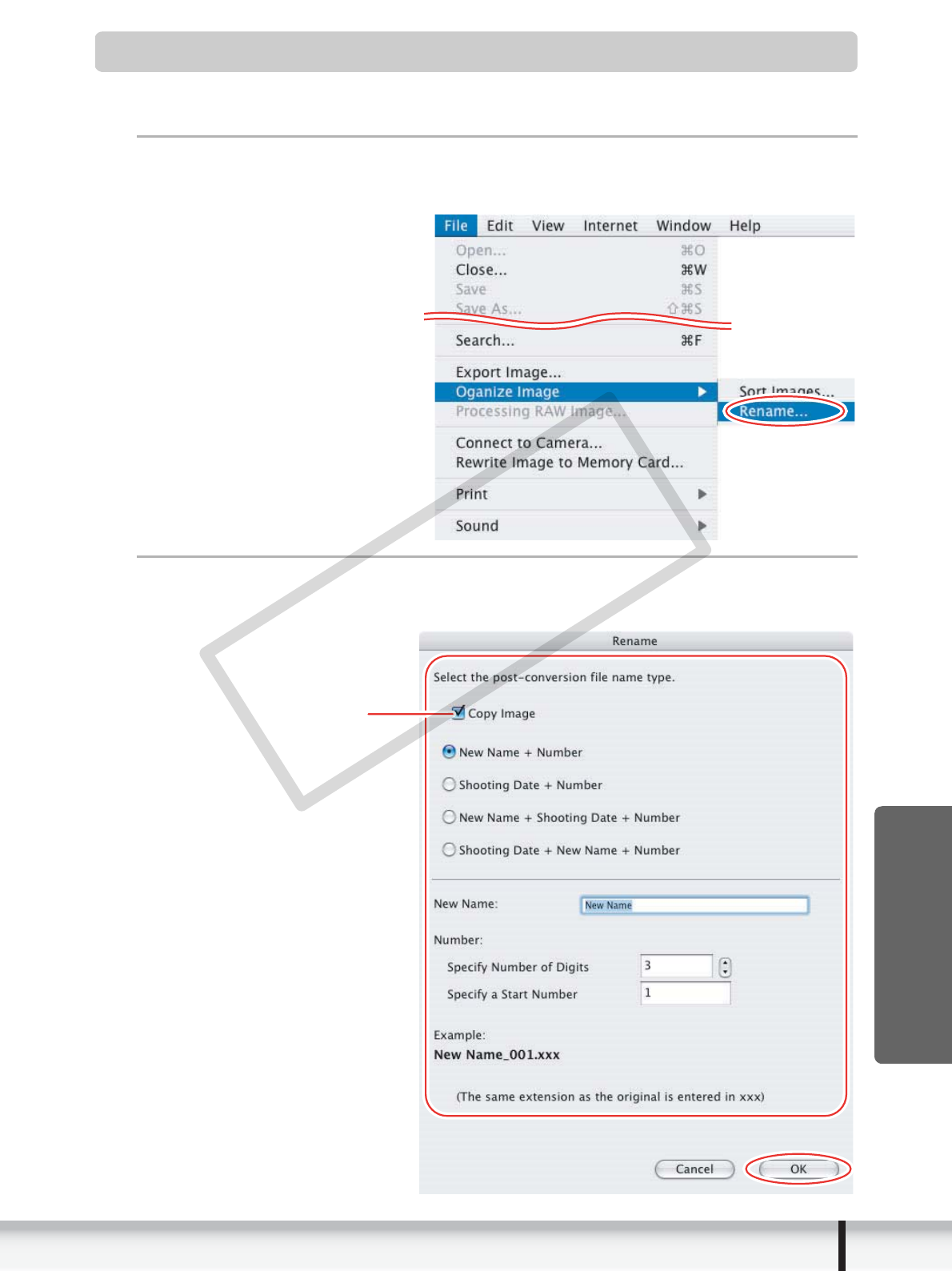
This task allows you to rename multiple files at the same time, or to rename and copy
multiple files.
1
Select the images you wish to rename and select [Organize
Image]
[Rename] from the [File] menu.
2
Specify the settings and click [OK].
The images are renamed according to the settings specified.
Placing a check mark
here makes copies of
images with new names.
The name of the original
images will not be changed.
COPY
54 Organizing Images
Searching for Images
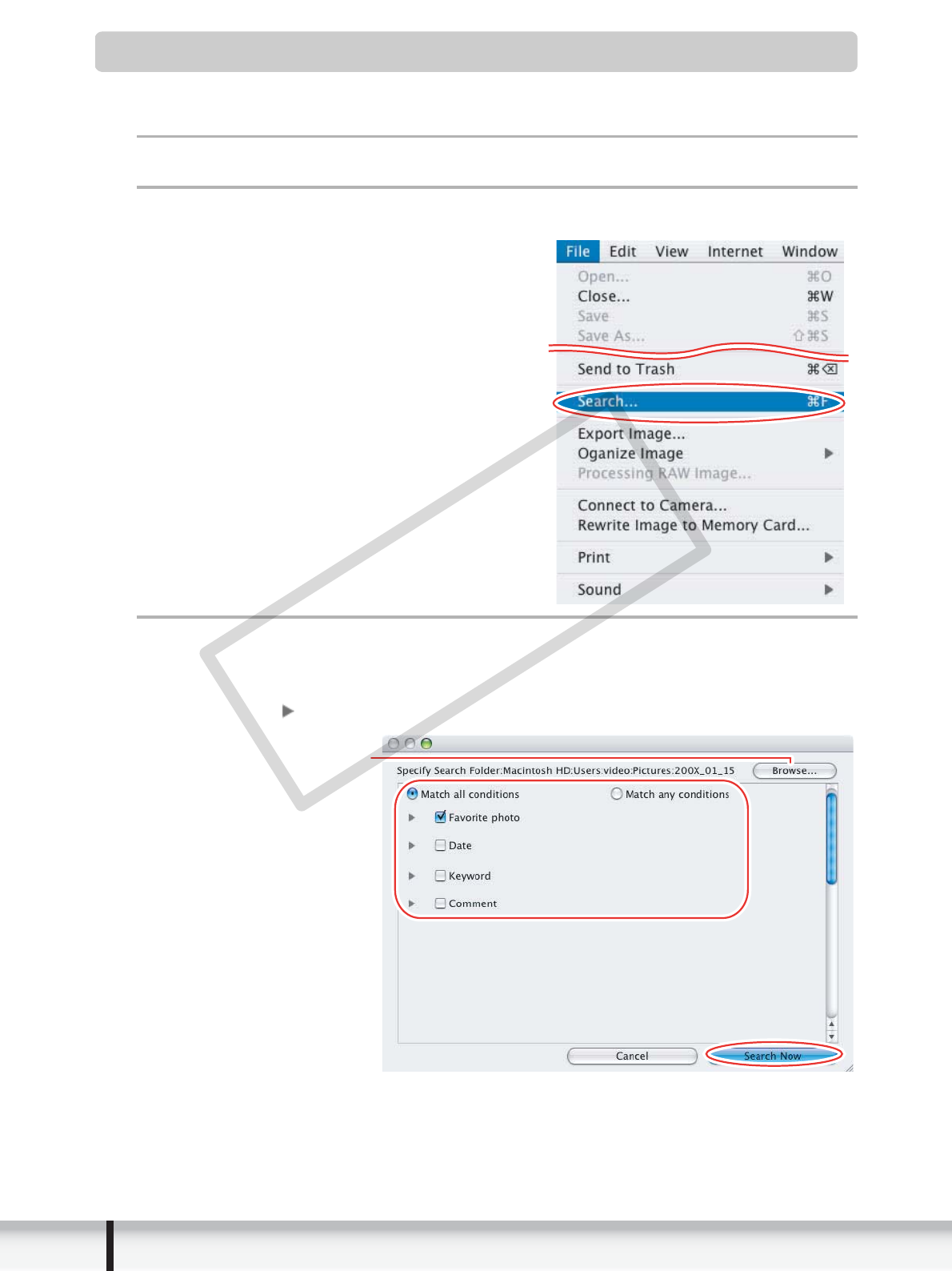
This task allows you to search for images by star rating, modification date, shooting
date, comment or keywords.
1
Select a folder in the explorer view.
2
Select [Search] from the [File] menu.
3
Specify the search conditions and click [Search Now].
• The search results are displayed as thumbnails.
• Select at least one search condition.
• Clicking the icon discloses the parameters of settings.
Clicking this button allows
you to specify a folder.
COPY
55
Organizing Images
Macintosh
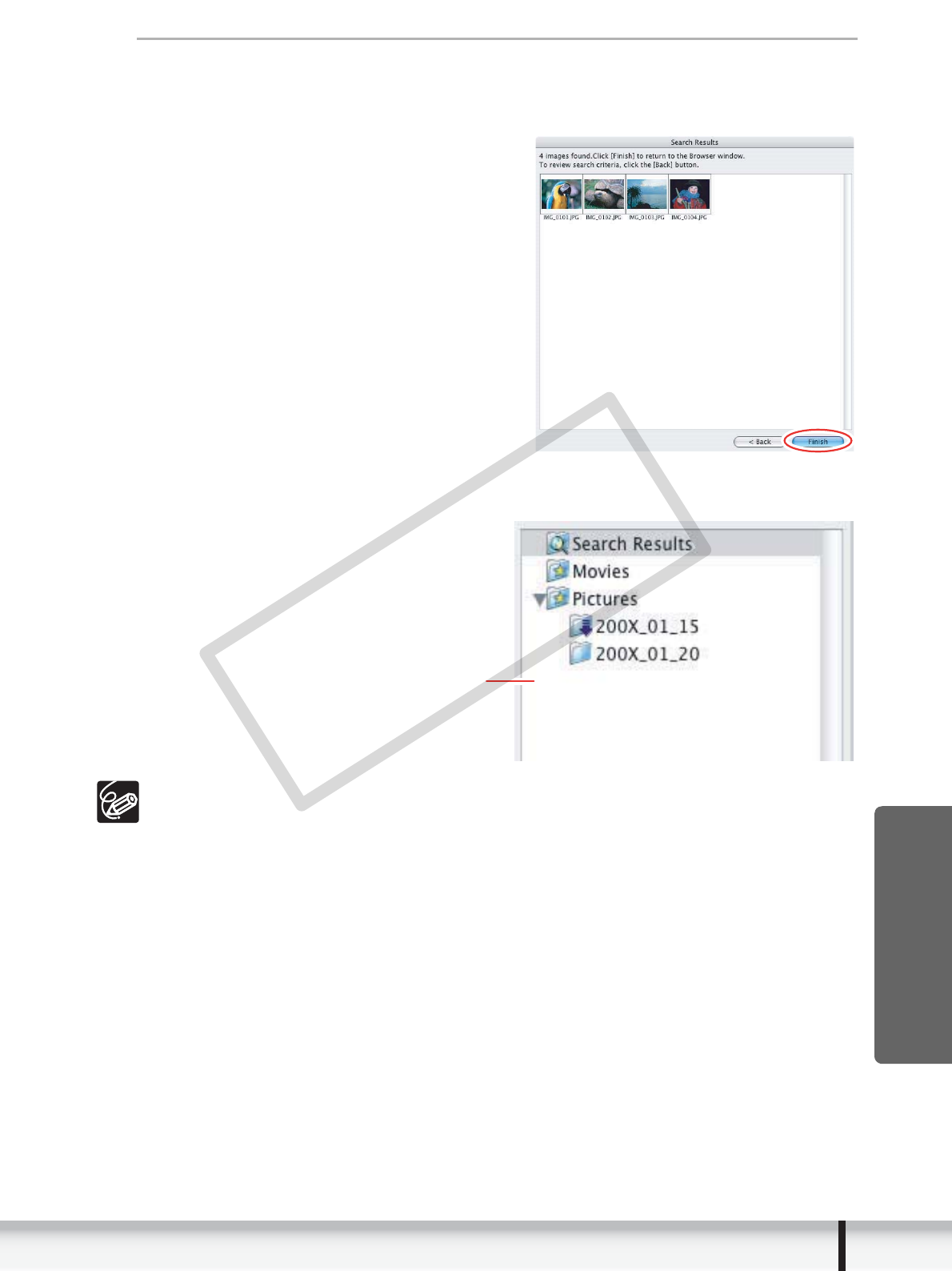
4
Click [Finish].
• To change the search parameters and perform another search, click [Back]
and repeat steps 3-4.
• The images of the search result are displayed in the [Search Results] folder.
You can print or copy these images to another folder.
The searched images will remain in this folder until ImageBrowser is closed or
another search is performed, but if you delete an image in this folder, the
corresponding original image will be deleted as well.
Explorer View
COPY
56 Creating a Movie from the Still Images
Creating a Movie from the Still Images
Editing Movies (MovieEdit Task)
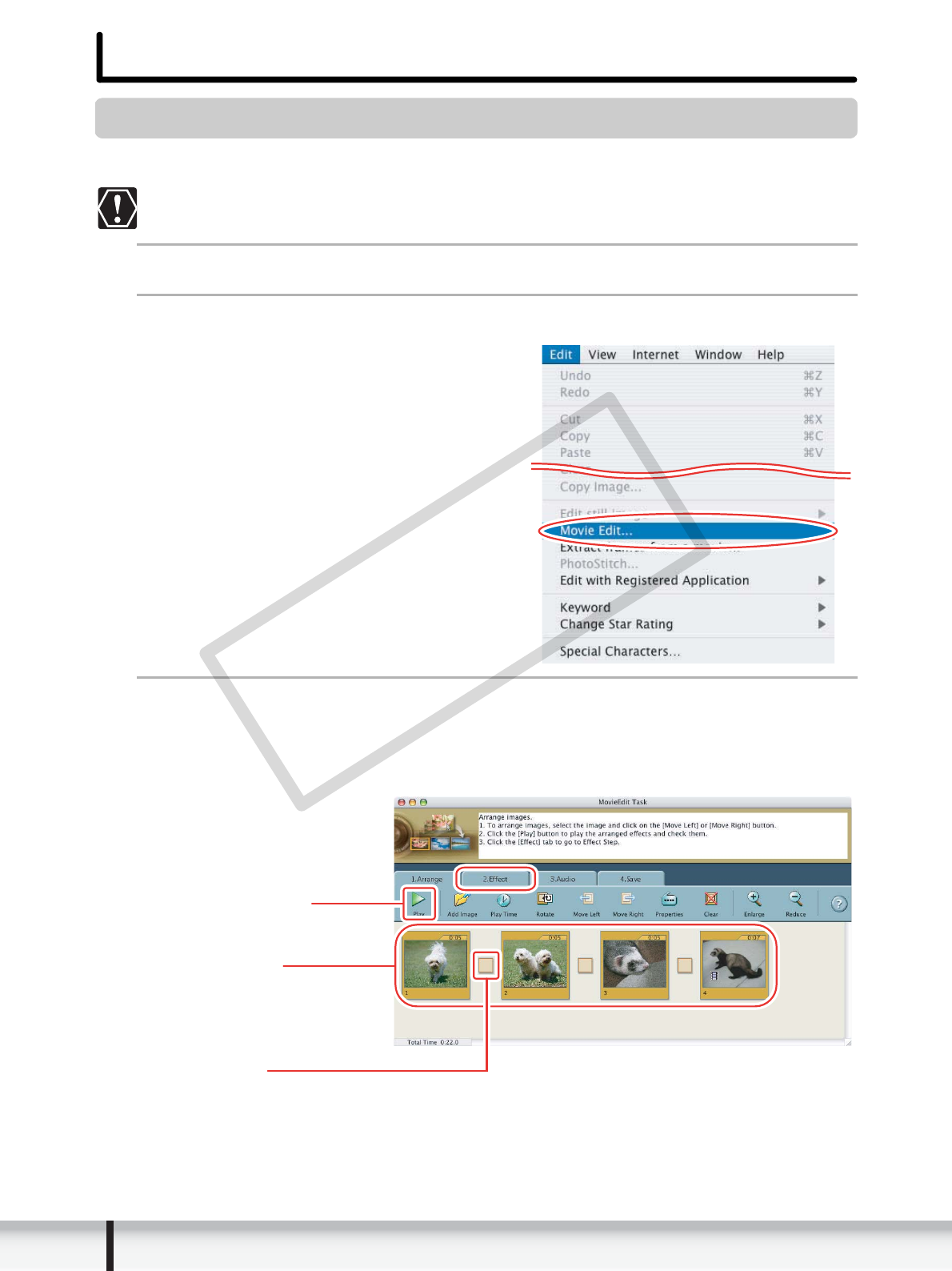
You can link still images, insert text and background music, and add effects.
If you have an AVI file in your computer, you can use this function to edit the
file.
1
Select images in the Browser area.
2
From the [Edit] menu, select [Movie Edit].
3
Arrange images and click [2.Effect].
• To change the order of images, select an image and click [Move Left] or [Move
Right].
• Operational instructions are displayed in the upper section of the window.
Plays back the movie
being edited.
Storyboard Area
Displays thumbnails of the
selected images. The images
will be linked from left to right.
Transition Box
Displays the symbol of the transition effect between linked images.
COPY
57
Creating a Movie from the Still Images
Macintosh
4
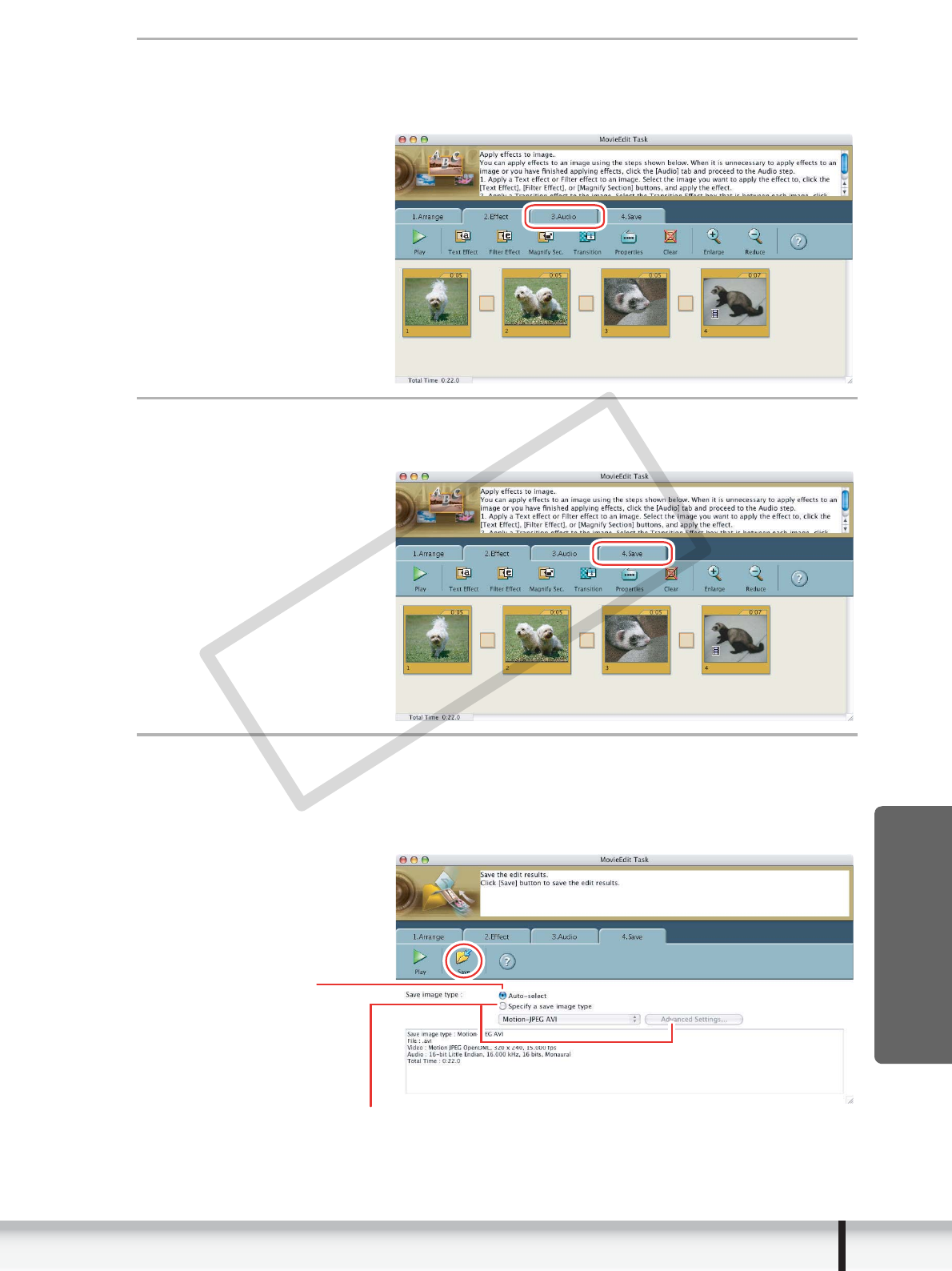
Apply effects to the images and click [3.Audio].
To set a transition effect, you need to select a transition box in the Storyboard
Area.
5
Set the audio and click [4.Save].
You can add an MP3 or WAV file as audio.
6
Select a file type and click [Save].
• Select the destination folder, input the file name and click [Save].
• To exit MovieEdit Task, from the [MovieEdit Task] menu, select [Quit MovieEdit
Task] .
Select this to save as
Motion JPEG compressed
A
VI.
Select this to save as either Motion JPEG compressed AVI or QuickTime movie.
COPY

58 Creating a Movie from the Still Images
Playing Back Movies
In the CameraWindow and Browser Area, movies are displayed with the first scene as
a still image with a (movie) icon.
1
In the Browser Area, double-click a thumbnail with a
(movie) icon.
Clicking the (Play) icon at the bottom of the image in the Main Window also
plays back the movie.
2
Click the icon in the [Image Viewer] window.
COPY
59
Exporting Images
Macintosh
Exporting Images
Changing the File Type and Saving
This task allows you to change the size, resolution or data of selected still images and
save them as new files and allows saving the shooting properties of the still image to a
text file or copying the still images with new names. Furthermore, you can export still
images for use as a screen saver or a wallpaper.
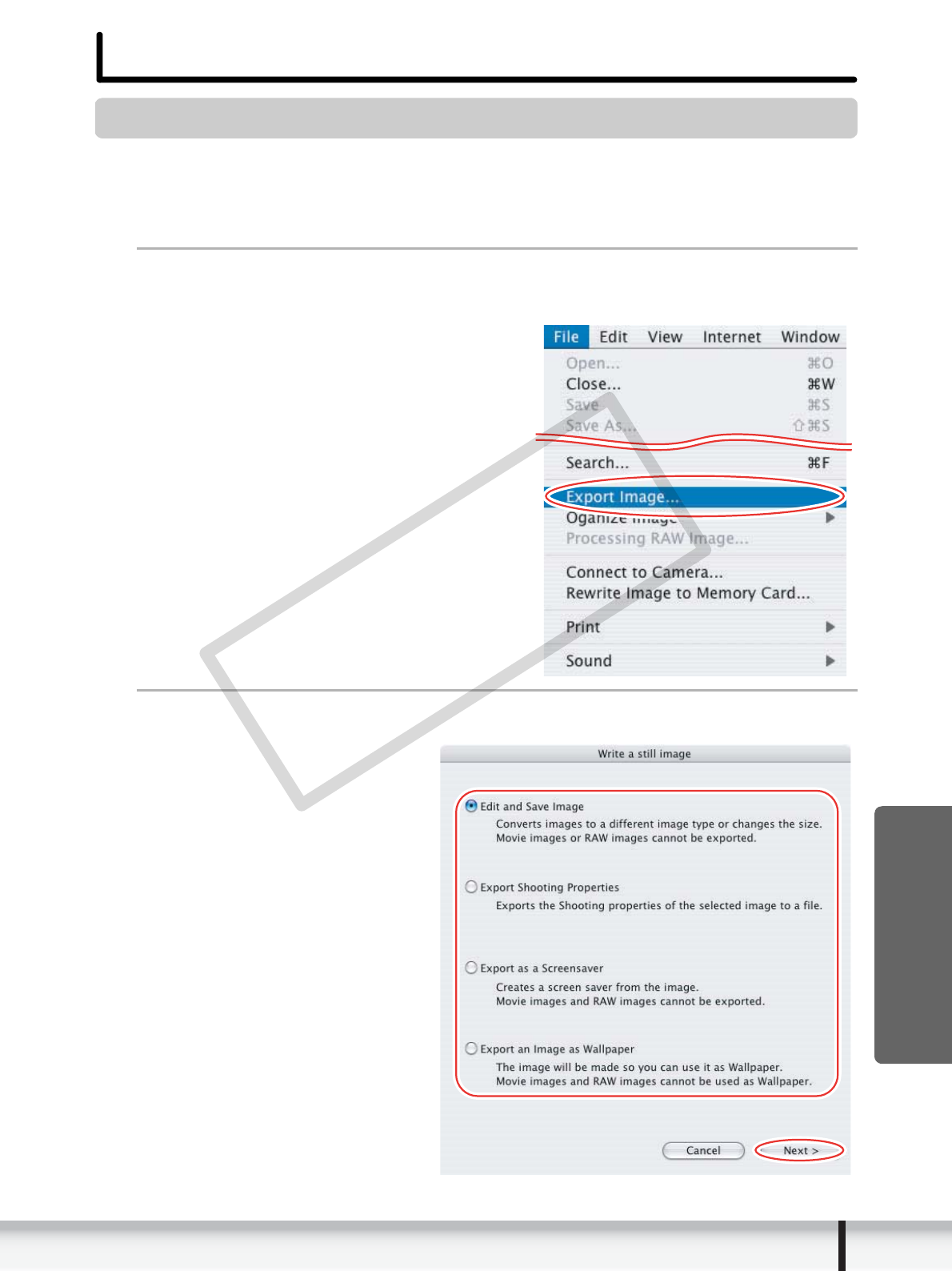
1
Select an image you wish to export and [Export Image] from
the [File] menu.
2
Select exporting type and click [Next].
COPY

60 Exporting Images
3
Specify the export settings and click [Finish].
The window varies depending on the selected export type in step 2.
When you have selected [Edit and Save Image]:
You can convert still images to another file type, resize and save them as new files.
You can select the file type from BMP, PICT, JPEG and TIFF. You can also specify a
prefix to be added to the exported still images.
When you have selected [Export Shooting Properties]:
You can select information you wish to export and save as a text file.
COPY
61
Exporting Images
Macintosh
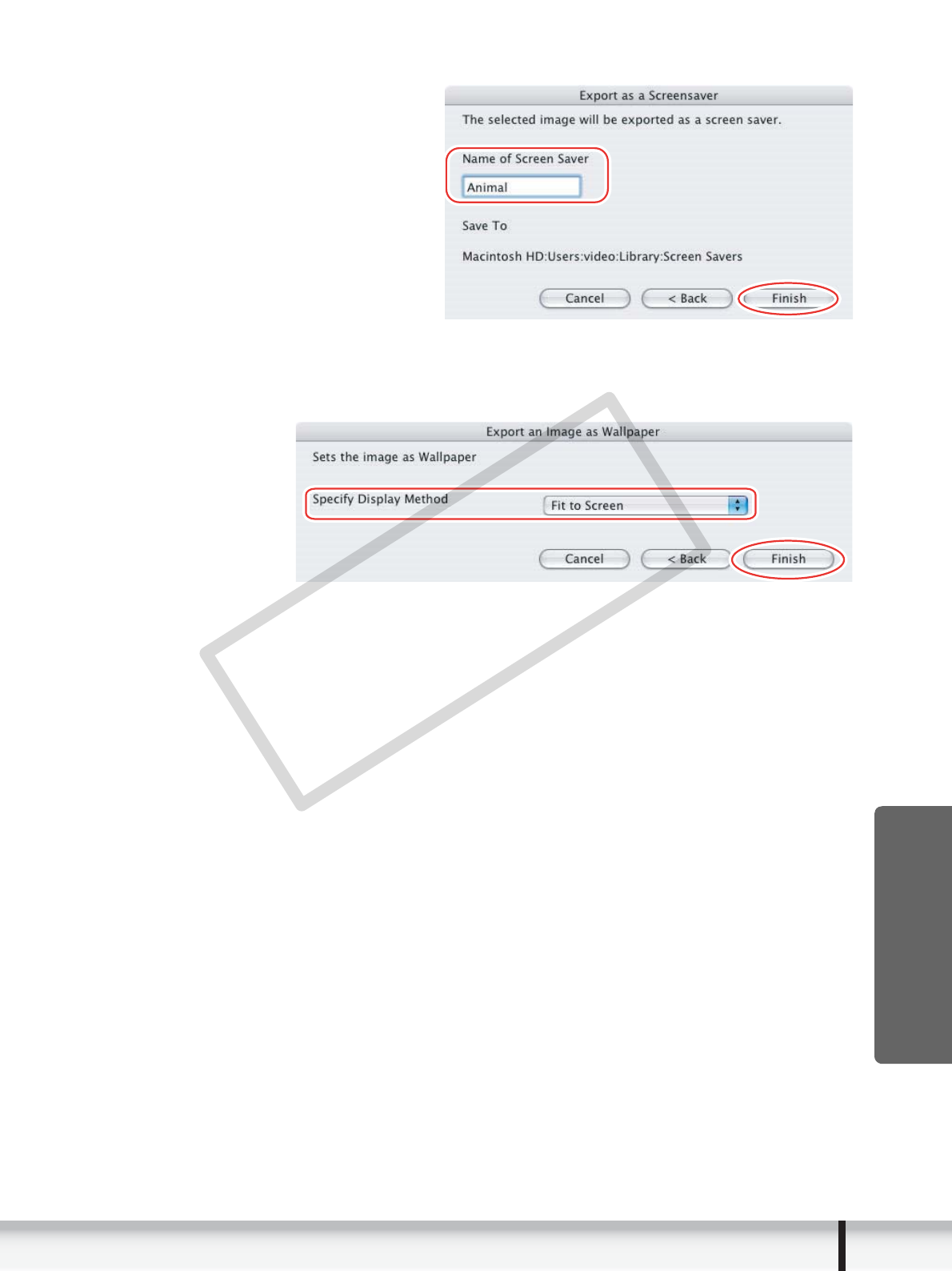
When you have selected [Export as a Screensaver]:
You can export and save the image as a screen saver.
When you have selected [Export an Image as Wallpaper]:
You can export and save the image as a desktop wallpaper. This task cannot be
performed if you have selected multiple images.
COPY
62 Exporting Images
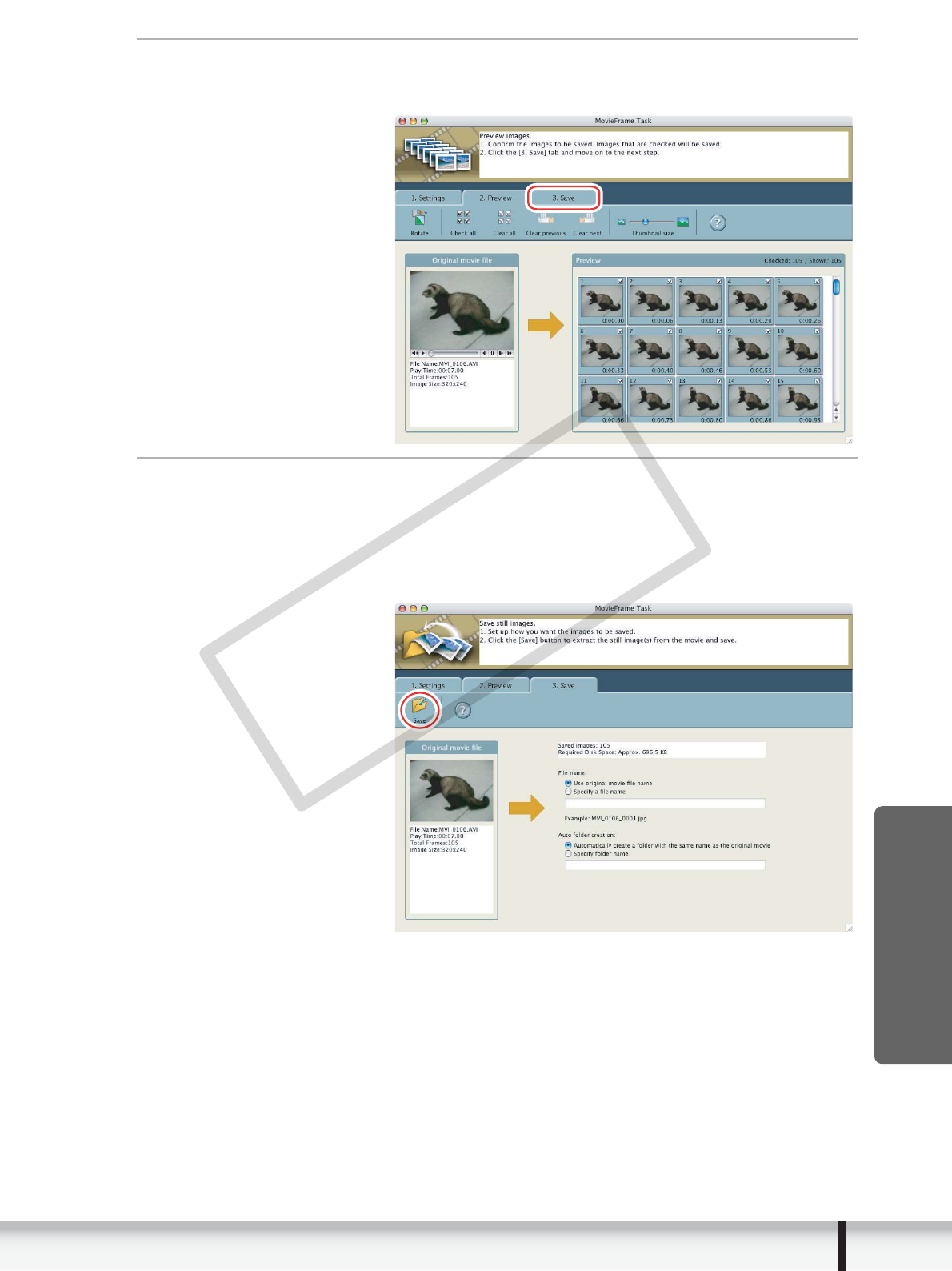
Extracting Still Images from Movies (MovieFrame Task)
You can extract still images from movies and save them as image files.
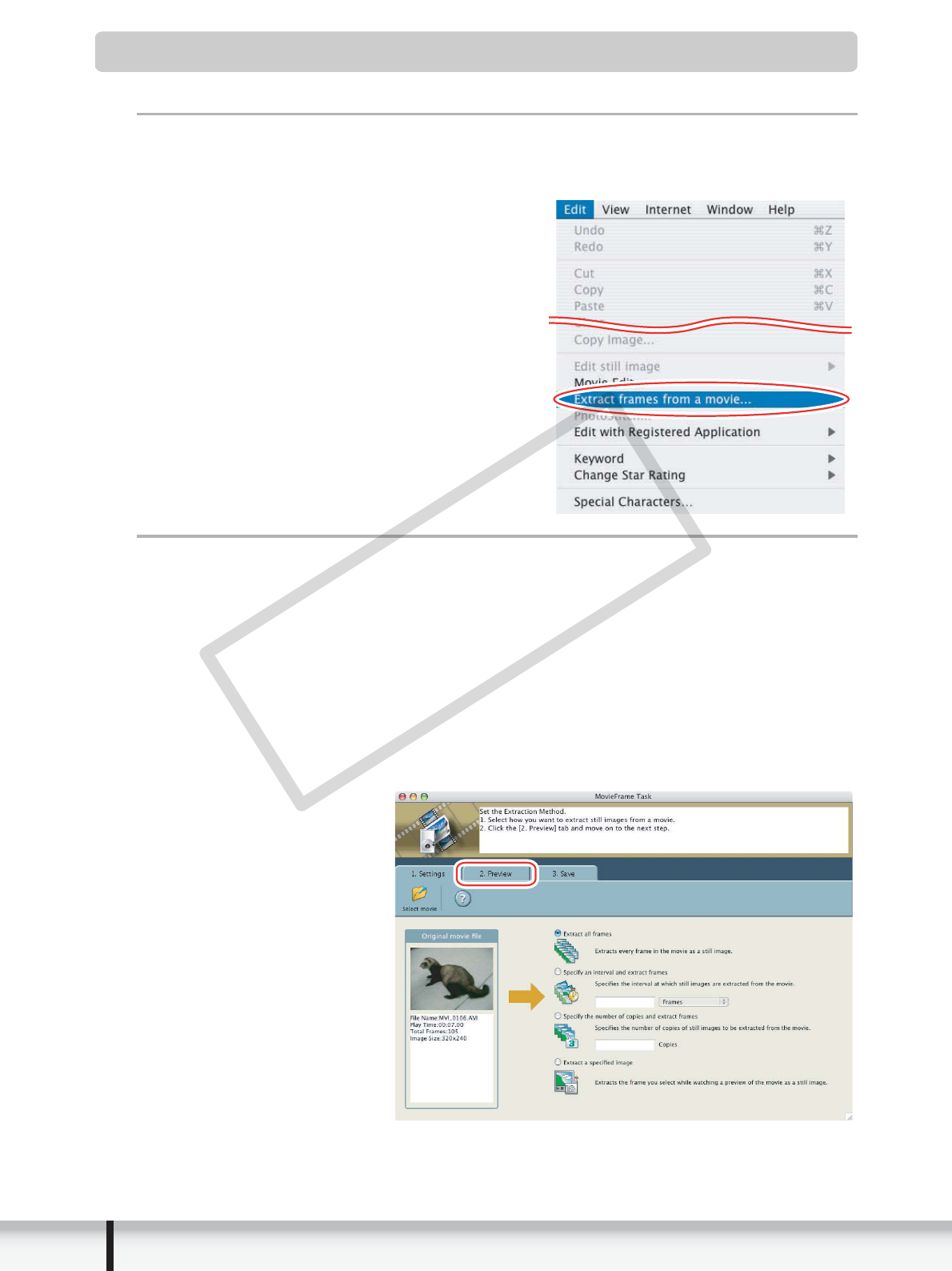
1
Select a movie and select [Extract frames from a movie]
from the [Edit] menu.
2
Set the still image extraction method and click [2. Preview].
• [Extract all frames]: Extracts all frames in the movie as still images.
• [Specify an interval and extract frames]: Extracts frames as still images from a
specified frame range or time interval.
• [Specify the number of copies and extract frames]: Extracts a specified
number of still images from the entire movie. The extraction interval is
calculated based on an equal distribution of the specified number of still
images.
• [Extract a specified image]: Extracts still images from scenes that catch your
attention.
COPY
63
Exporting Images
Macintosh
3
Confirm the still images which will be extracted (images with
check marks) and click [3. Save].
4
Specify the file name and the folder where you wish to save
it and click [Save].
• Select the destination folder and click [Open] or [Choose].
• To exit MovieFrame Task, from the [MovieFrame Task] menu, select [Quit
MovieFrame Task].
COPY
64 Exporting Images
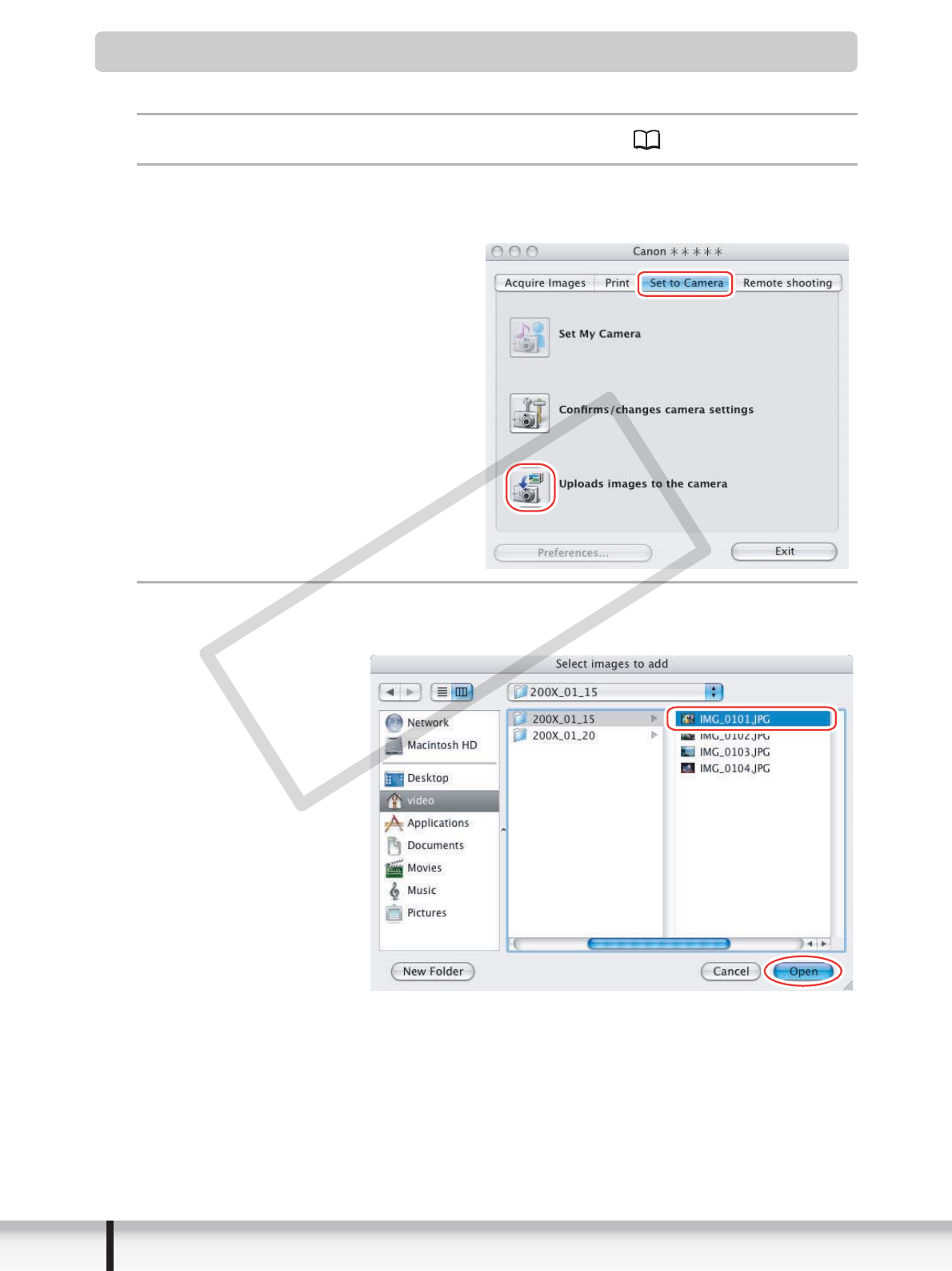
Uploading Still Images to the camcorder
You can copy still images saved on the computer to the camcorder.
1
Connect the camcorder to the computer ( 23).
2
Click the [Set to Camera] tab in the Camera Control window,
and [Uploads images to the camera].
3
Select the still image you wish to add and click [Open].
You can check the selected image by clicking the file name.
COPY
65
Exporting Images
Macintosh
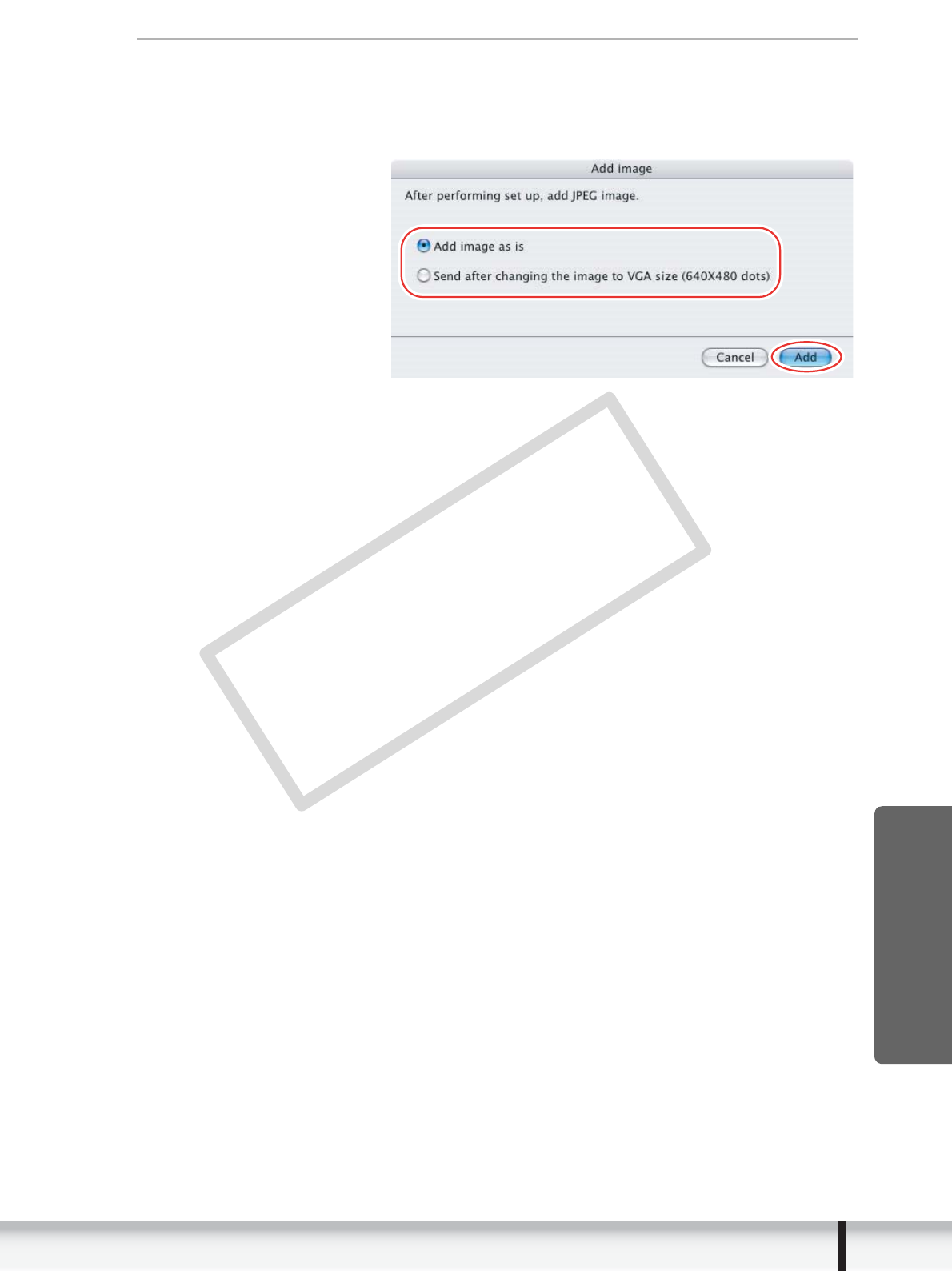
4
In the Add image window, select the image size and click
[Add].
• The selected images will be recorded to the memory card.
• When recording is complete, the images will appear in the CameraWindow.
COPY
66 Using Various Functions
Using Various Functions
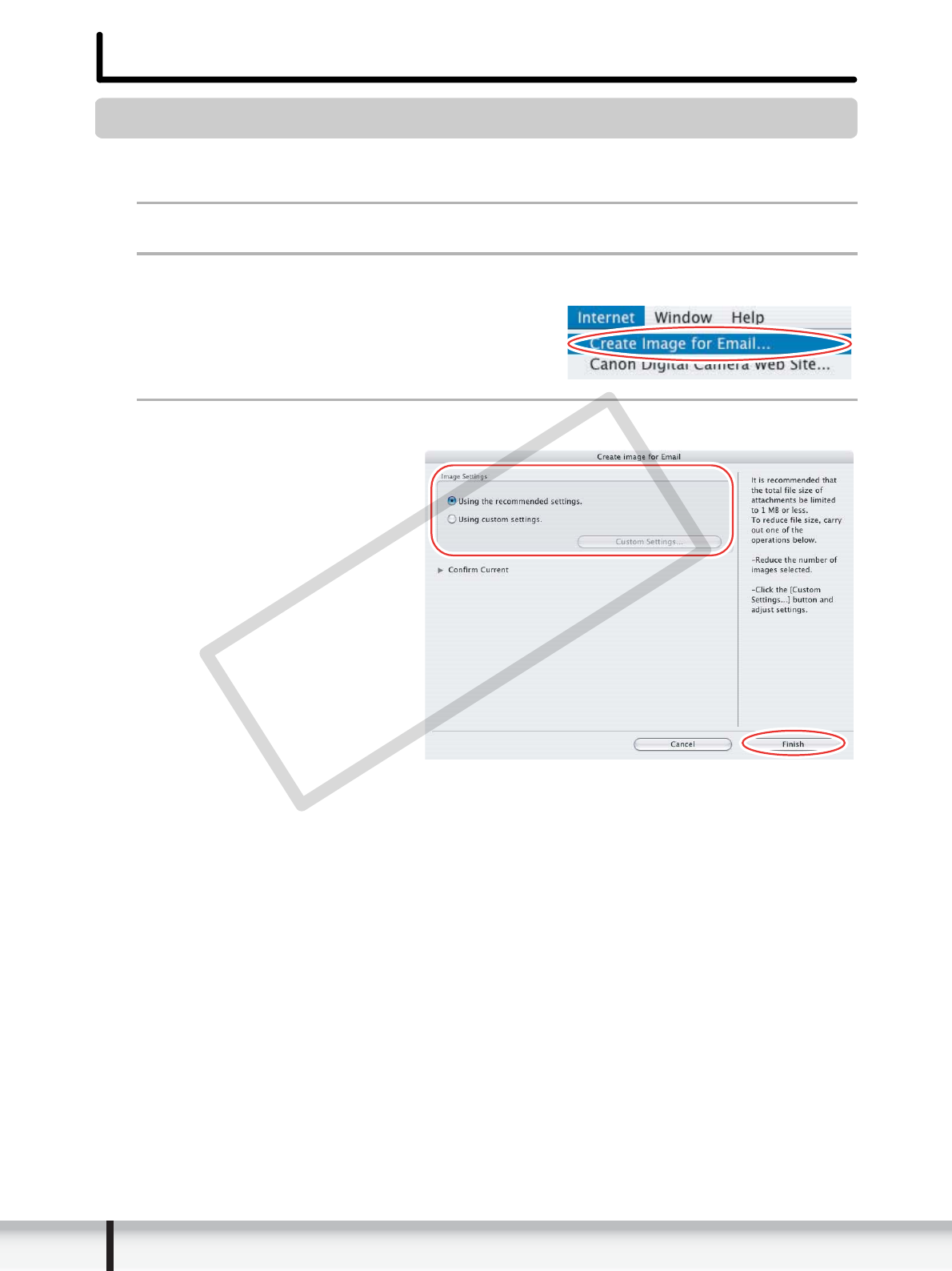
Attaching Images to E-mail Messages
You can attach selected images to an e-mail message. If necessary, you can make the
image file size smaller.
1
Select the images you wish to send in the Browser Area.
2
From the [Internet] menu, select [Create Image for Email].
3
Specify the image size and click [Finish].
COPY
67
Using Various Functions
Macintosh
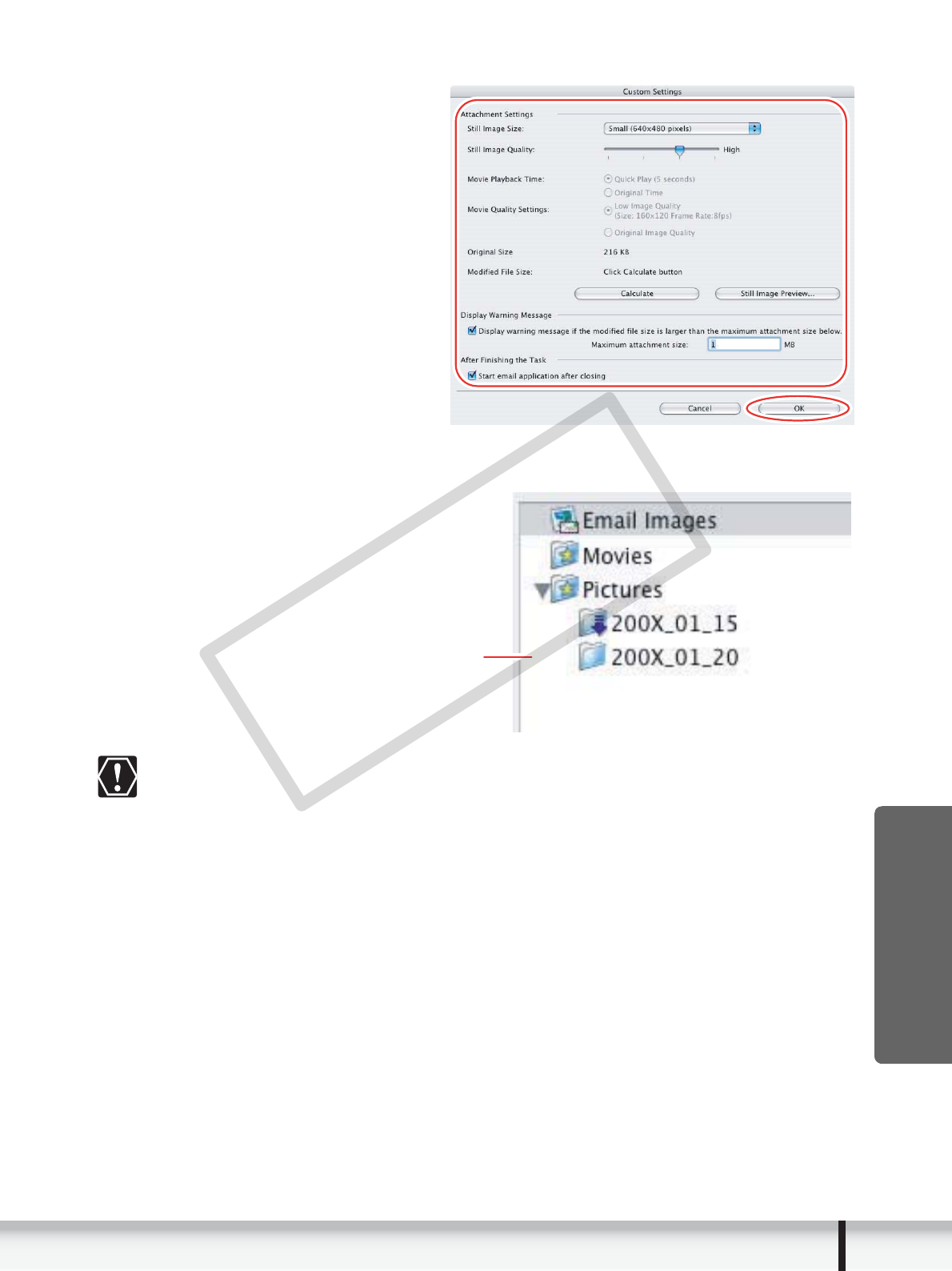
• If you select [Using custom settings.], change the settings in [Custom Settings]
and click [OK].
• The image will be saved to the [Email Images] folder in the explorer view
section.
Note that some e-mail software may not start automatically. For details, refer
to the Help menu of the OS you are using.
You can also set the e-mail software that starts automatically after the image
is created. To do so, click the [Applications] folder on the drive where the OS
was installed and then double click the [Mail] icon. Next, in Mail preferences,
click [General] and then configure [Default Email Reader].
The images in the [Email Images] folder are saved in the following location:
Open the [Users] folder, followed by [User login name], [Library],
[Preferences], [ImageBrowserUserData], and [Mail].
Explorer View
COPY
68 Using Various Functions
Running a Slide Show
1
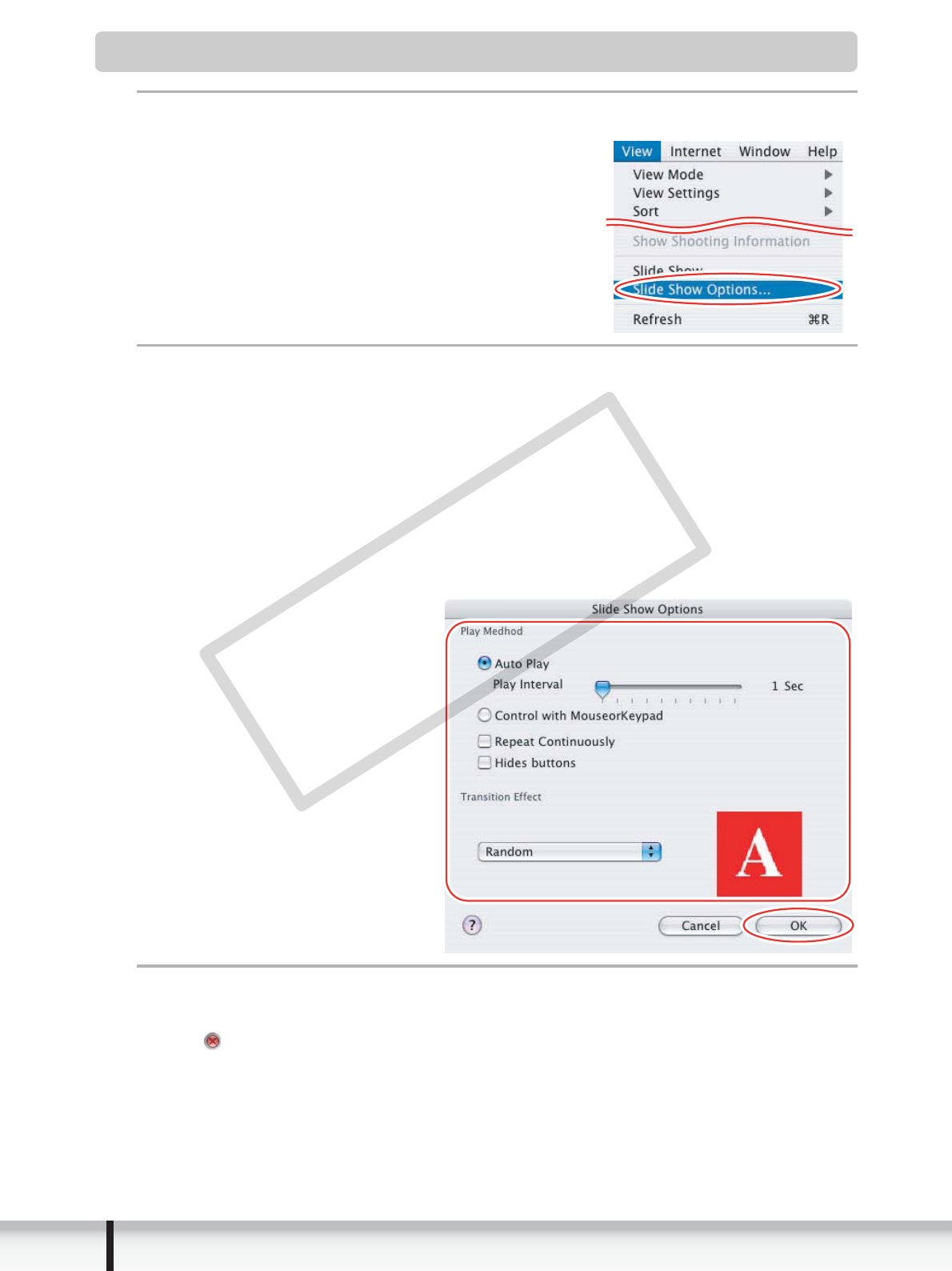
From the [View] menu, select [Slide Show Options].
2
Select the slide show settings and click [OK].
• [Auto Play]: Select the interval by sliding the control under [Play Interval] (from
1 to 30 seconds).
• [Control with Mouse or Keypad]: Advances the slide show manually with the
mouse or keyboard.
• [Repeat Continuously]: Runs the slide show in a loop.
• [Hides buttons]: Hides the buttons during the slide show.
• [Transition Effect]: Select the transition effect to be used when moving from
one slide to another. When you select an effect, you can check the effect in
the preview window.
3
Select the images and select [Slide Show] from the [View]
menu.
Click on the lower right of the screen to end the slide show.
COPY
69
Using Various Functions
Macintosh
Adding Sound to a Still Image
• To add sound to still images, use the Mac OS recording function. Depending on the
computer, you may need to connect peripherals such as microphones. Check if your
computer settings allow recording.
• The sound cannot be played back on the camcorder.
1
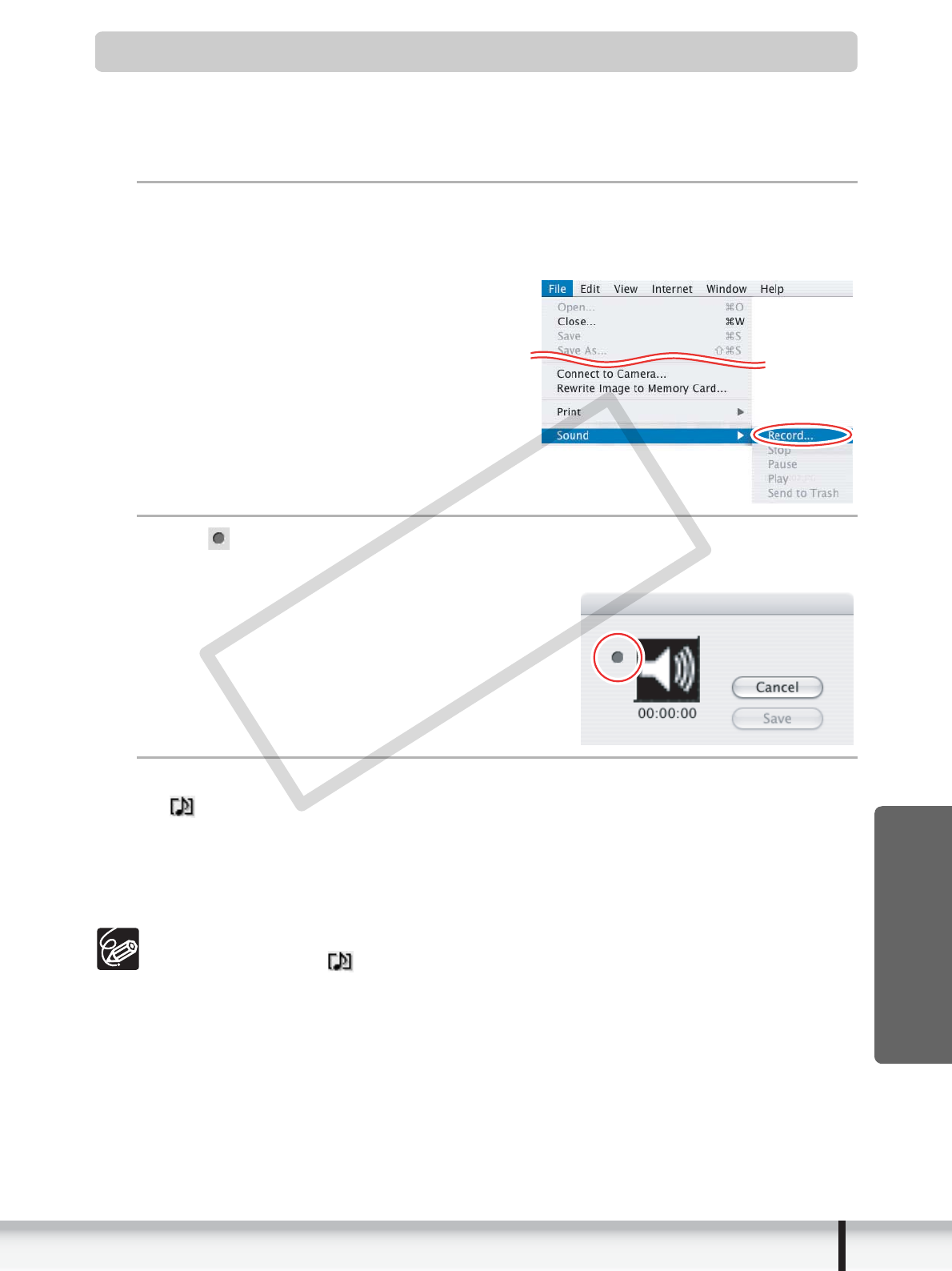
In the Browser Area, select a still image and select [Sound]
[Record] from the [File] menu.
The recording window appears.
2
Click and start recording when the [Save] button is
enabled.
3
Click [Save] to stop recording.
• appears on the still image.
• The sound file will be copied in AIFF type (extension “.AIF”) to the same folder
as the still image.
• To play back the sound, select an image with a sound icon and select [Sound]
[Play] from the [File] menu.
To remove sound from a still image, select [Sound] [Send to Trash] from
the [File] menu. disappears and the copied sound file will be deleted.
While playing back the sound, select [Sound] [Pause] or [Stop] to control
the status.
COPY
70 Using Various Functions
Reviewing and Changing the Owner Name of the
Camcorder
You can change and confirm the owner’s name of the camcorder.
1
Connect the camcorder to the computer ( 23).
2
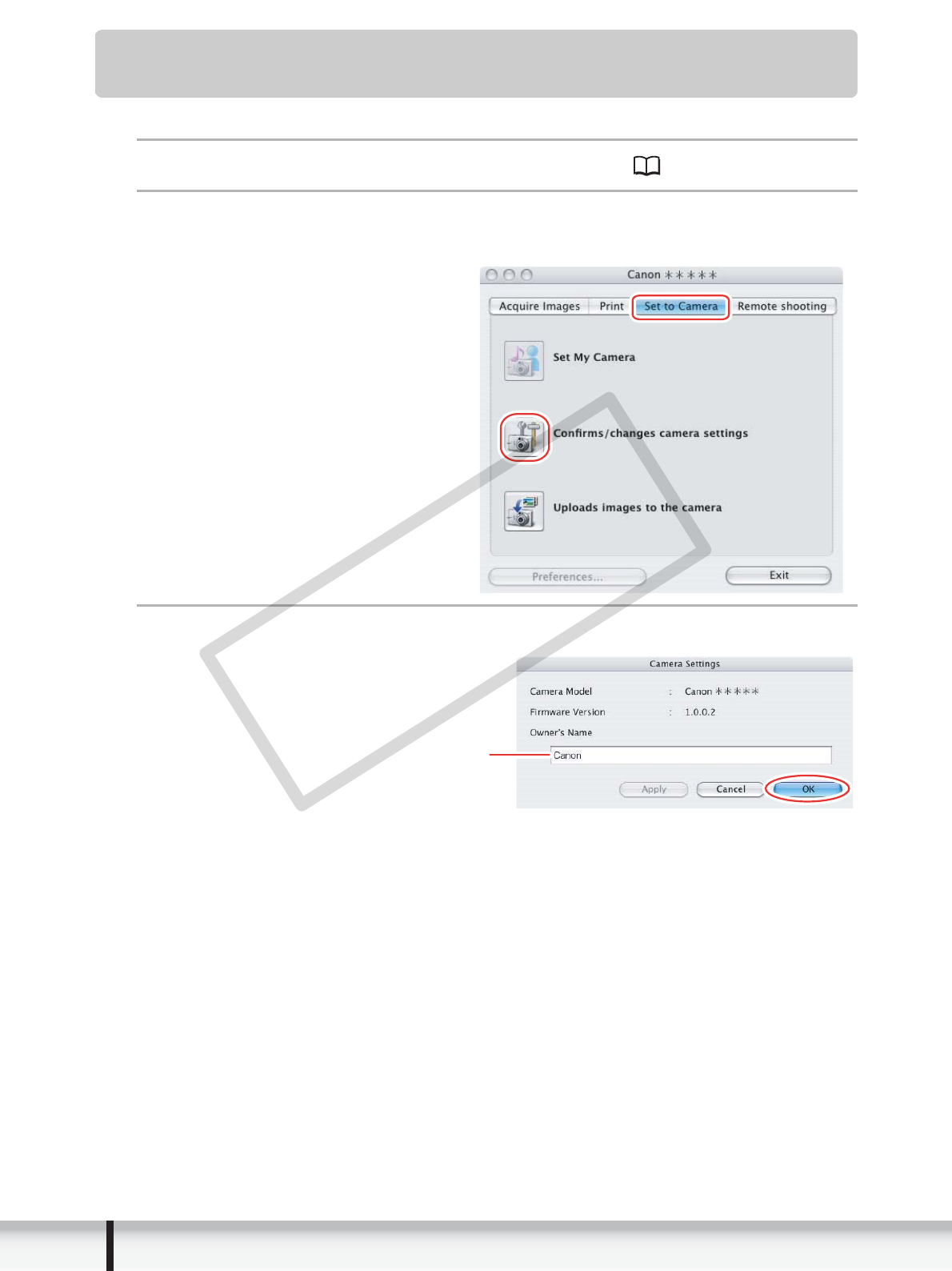
Click the [Set to Camera] tab and click [Confirms/changes
camera settings] in the Camera Control window.
3
Enter the camcorder’s owner’s name and click [OK].
Input the camcorder’s owner’s name
here (up to 31 characters).
COPY

71
Uninstalling the Software
Macintosh
Uninstalling the Software
Uninstall the software when you wish to delete it from your computer or when
reinstallation is required to fix corrupted files.
Uninstalling ImageBrowser
Move the program’s folder and subfolders into the Trash to uninstall programs such as
ImageBrowser.
If the program folders contain subfolders into which images have been
saved, be careful not to accidentally delete those subfolders.
For more details on how to uninstall ImageBrowser, refer to Read Me.
COPY

72 Troubleshooting
Troubleshooting
Connection
Camcorder is not recognized when connected to the computer.
Î
There is no memory card in the camcorder.
Insert a memory card into the camcorder.
Î
The camcorder is not set to the correct mode.
Set the camcorder to still image playback mode.
Î
Camcorder is not correctly connected to the computer.
Read Connecting the Camcorder to a Computer ( 23) and check the
connection.
Ensure that you are using the correct cable and that its connectors are in good
shape.
Î
If you are experiencing operational problems, detach the USB cable from
the camcorder and computer and terminate the connection. Restart the
computer and then reconnect the camcorder.
ImageBrowser Operation
Cannot download still images.
Î
The camcorder is not set to the correct mode.
Set the camcorder to still image playback mode.
Image files or folders do not appear in ImageBrowser.
Î
Images or folders shown in ImageBrowser and the actual file contents
may be different.
Click the [View] menu and select [Refresh].
COPY

CANON INC.
U.S.A. –––––––––– Canon U.S.A., Inc.
Canon Customer Care Center
Tel (US): 1-800-828-4040
(Mon.-Fri., 9 AM to 8 PM Eastern Time)
CANADA –––––––– Canon CANADA Inc.
Tel (Canada): 1-800-OK-CANON (1-800-652-2666)
ASIA ––––––––––– Canon Hongkong Co., Ltd.
19/F., The Metropolis Tower, 10 Metropolis Drive,
Hunghom, Kowloon, Hong Kong
Phone: 852-2170-2828
Fax: 852-2723-9684
The information in this manual is verified as of 1 February 2008.
DIE-305M © CANON INC. 2008
COPY
