Canon Imageclass Mf4150 Users Manual Basic Guide
IMAGECLASS MF4150 imageCLASS_MF4150_Basic_Guide_EN
MF4150 to the manual 1a1a0370-1234-4ff3-8c3d-f539d2f91c1e
2015-01-23
: Canon Canon-Imageclass-Mf4150-Users-Manual-239905 canon-imageclass-mf4150-users-manual-239905 canon pdf
Open the PDF directly: View PDF  .
.
Page Count: 175 [warning: Documents this large are best viewed by clicking the View PDF Link!]
- Manuals for the Machine
- What Can I Do with This Machine?
- Before Using the Machine
- Document Handling
- Print Media
- Sending Faxes
- Receiving Faxes
- Copying
- Printing
- Scanning
- PC Faxing
- Maintenance
- Troubleshooting
- Machine Settings
- Appendix
ENG
Basic Guide
Please read this guide before operating this product.
After you finish reading this guide, store it in a safe place for future reference.
Before Using the Machine
Document Handling
Print Media
Sending Faxes
Receiving Faxes
Copying
Printing
Scanning
PC Faxing
Troubleshooting
Machine Settings
Appendix
Maintenance
What Can I Do with This Machine?
i
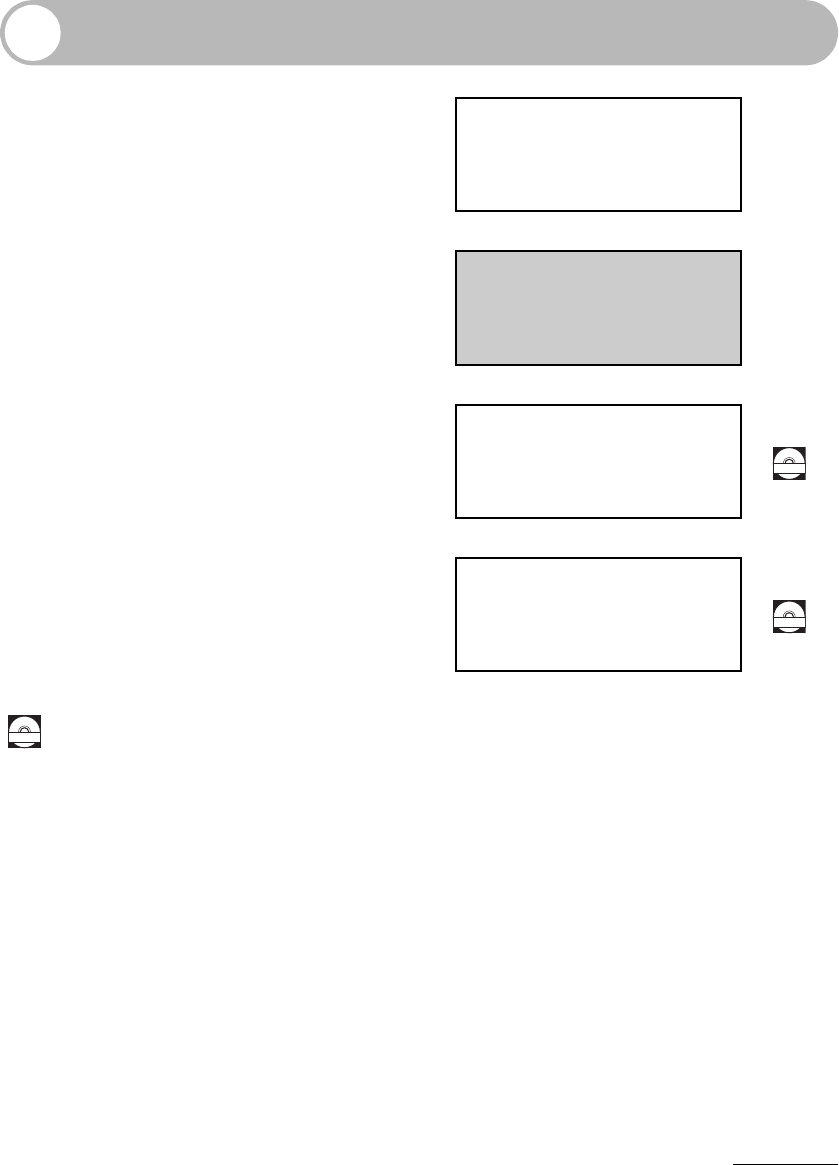
Manuals for the Machine
●Machine Set-Up
●Software Installation Starter Guide
●Basic Features
●Maintenance
●Machine Settings
●Specifications
Basic Guide
(This Document)
●Advanced Features
●System Monitor
●Reports and Lists Advanced Guide
●Scanning Features
Scanner Driver Guide
Indicates the manual is supplied in PDF format in the accompanying CD-ROM.
●To view the manual in PDF format, Adobe Reader/Acrobat Reader/Acrobat is required. If Adobe
Reader/Acrobat Reader/Acrobat is not installed on your system, please download it from the Adobe
Systems Incorporated website (http://www.adobe.com).
●Considerable effort has been made to ensure that this manual is free of inaccuracies and omissions.
However, as we are constantly improving our products, if you need an exact specification, please
contact Canon.
●The machine illustration on the cover may differ slightly from your machine.
CD-ROM
CD-ROM
CD-ROM
ii
What Can I Do with This Machine?
What Can I Do with This
Machine?
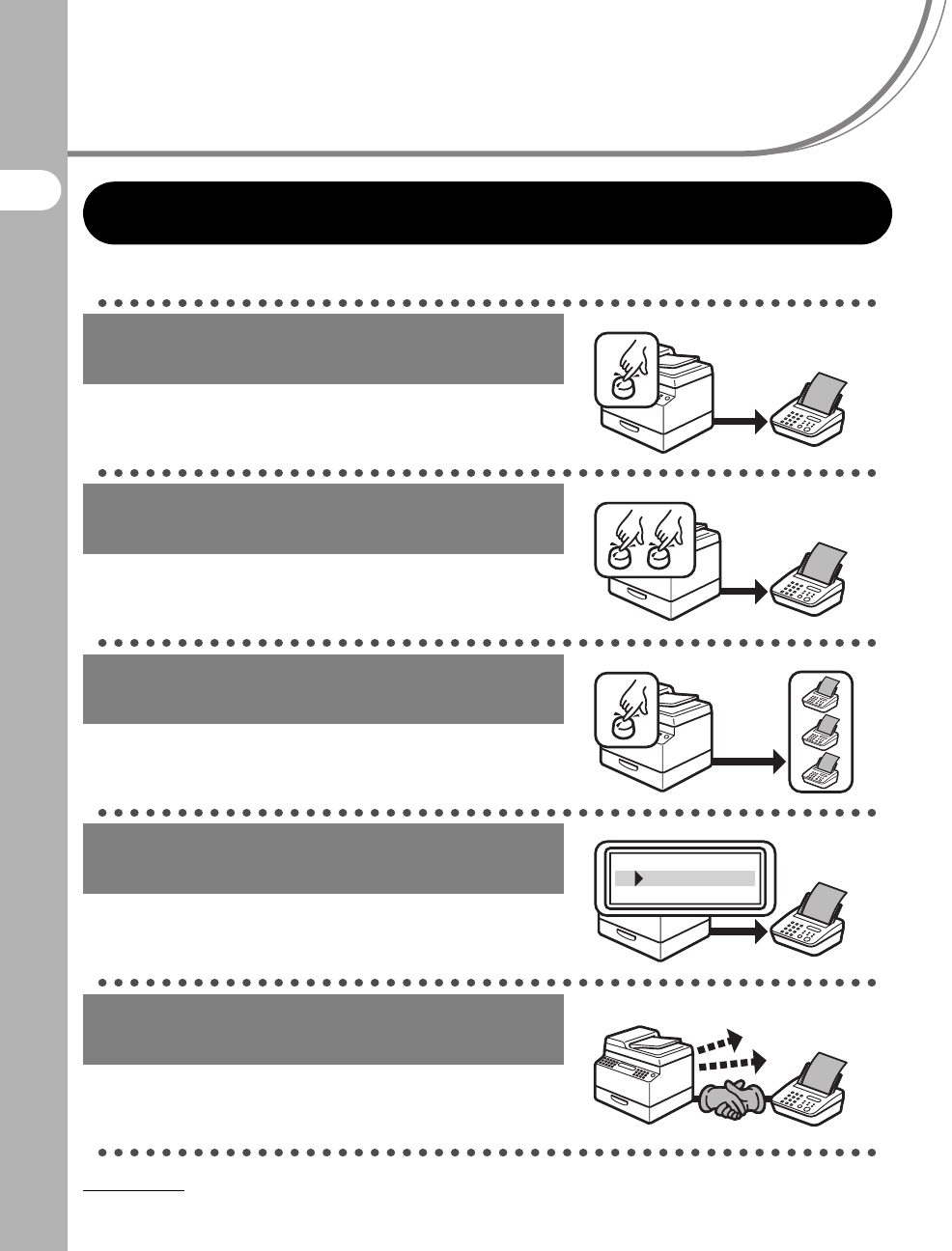
Fax Features
Specify a recipient with a single key
One-Touch Speed Dialing
→p. 4-7
Specify a recipient with a two-digit
code
Coded Dialing
→p. 4-14
Specify multiple recipients with a
single key
Group Dialing
→p. 4-21
Look up a particular recipient
Using Address Book
→Advanced Guide
Redial when the line is busy
Redialing
→Advanced Guide
AAAAA
BBBBB
CCCCC
iii
What Can I Do with This Machine?
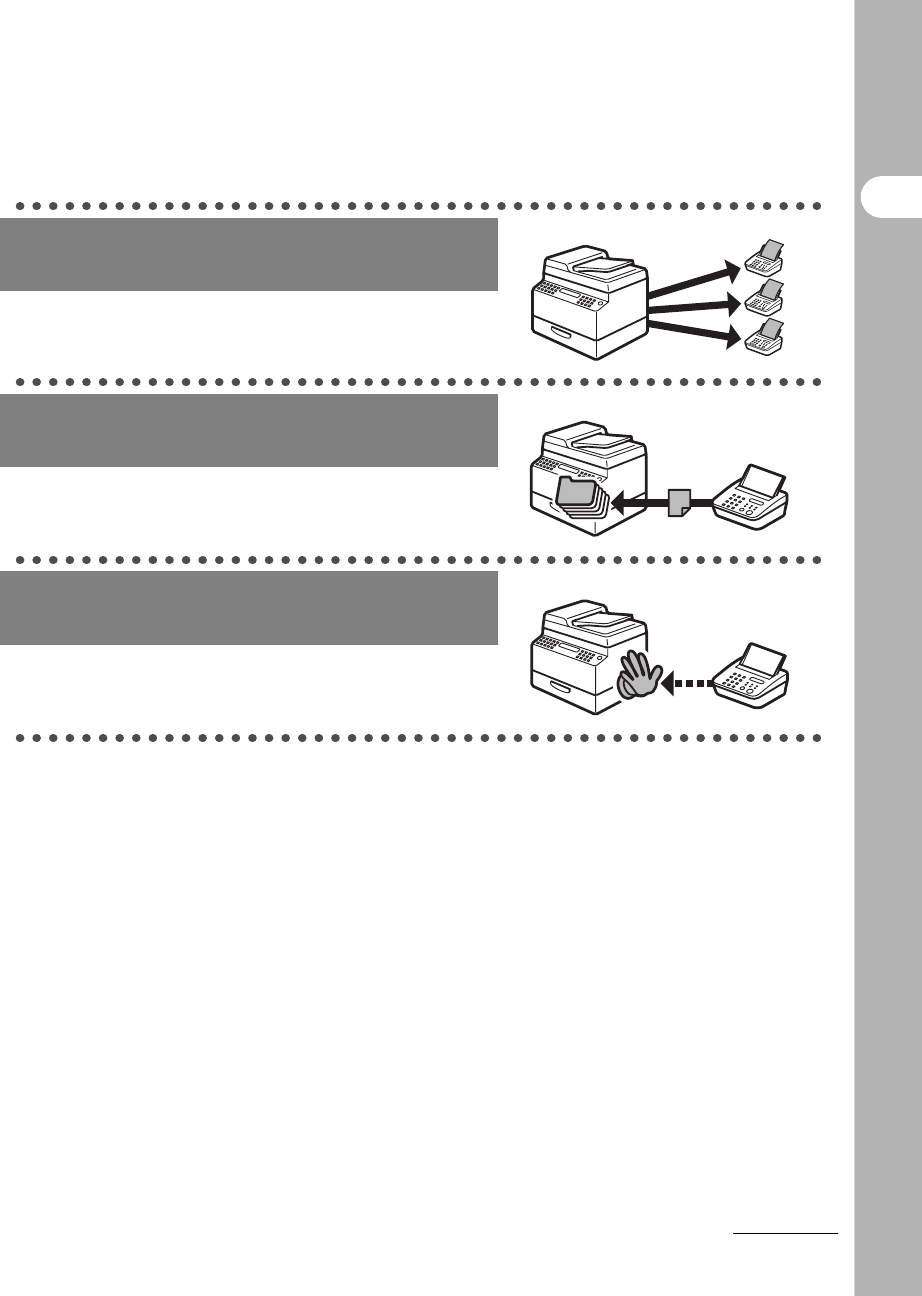
Send a fax to multiple recipients
Broadcasting
→Advanced Guide
Receive faxes in memory without
printing out
Memory Reception
→Advanced Guide
Reject faxes without their numbers
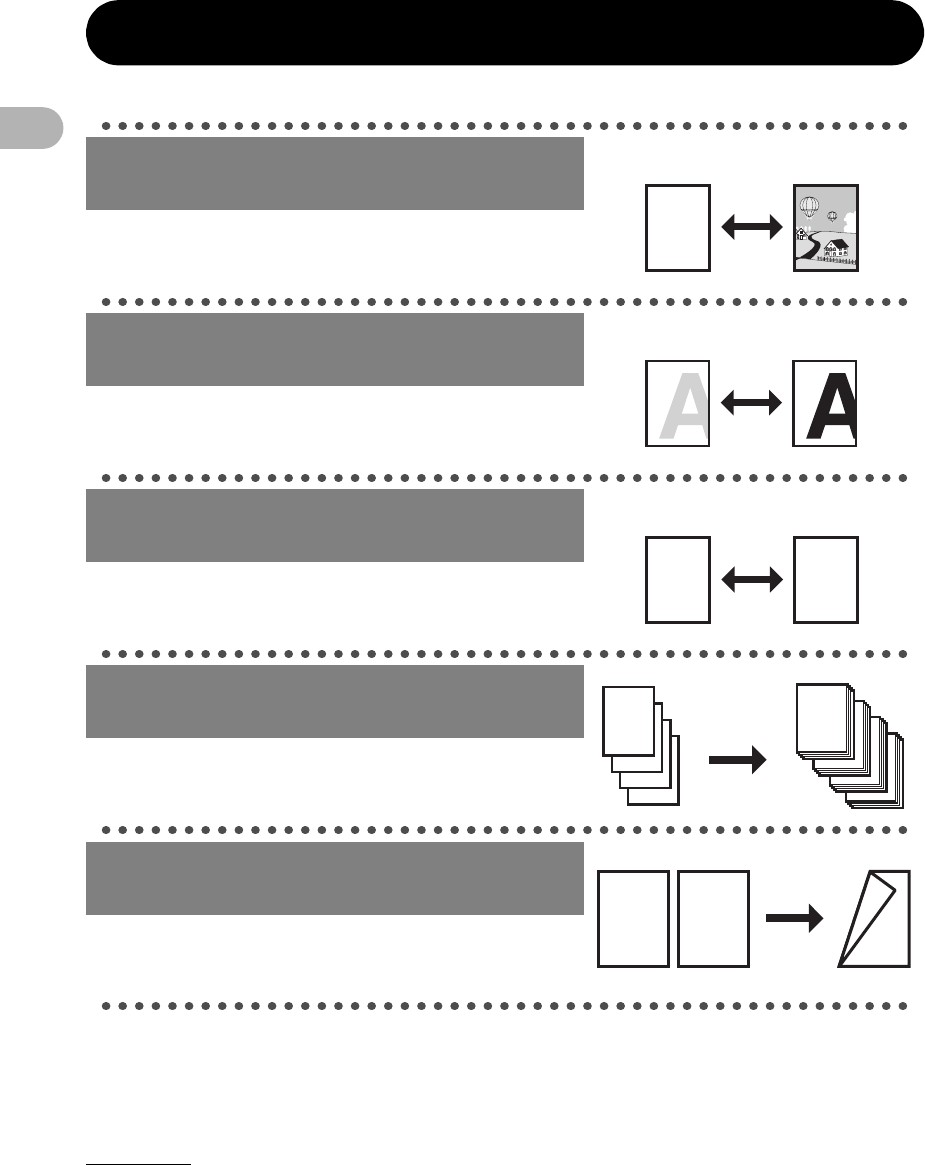
Reception Restriction
→Advanced Guide
iv
What Can I Do with This Machine?
Copy Features
Select a scan mode depending on
the type of image
Image Quality
→p. 6-3
Adjust the density level of scanned
images
Density
→p. 6-4
Enlarge or reduce copied images
Zoom Ratio
→p. 6-6
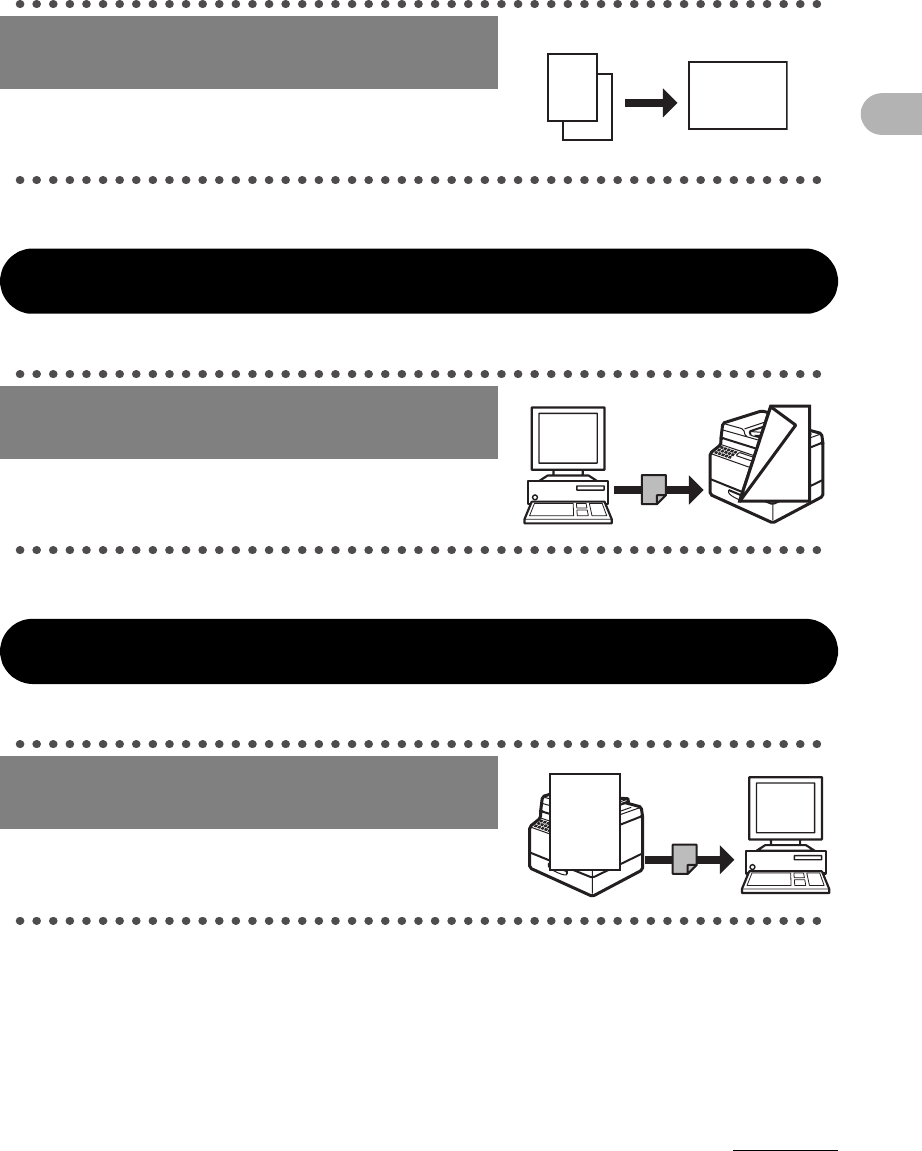
Sorts copies by page order
Collate Copy
→Advanced Guide
Make two-sided copies
Two-Sided Copying
→Advanced Guide
ABC
ABC
ABC
ABC
AA
DDDD
DDDD
DDDD
DDDD
4
CCCC
CCCC
CCCC
CCCC
3
BBBB
BBBB
BBBB
BBBB
2
AAAA
AAAA
AAAA
AAAA
1
AAAA
AAAA
AAAA
AAAA
1
AAAA
AAAA
AAAA
AAAA
1
AAAA
AAAA
AAAA
AAAA
1
AAAA
AAAA
AAAA
AAAA
1
DEF
DEF
DEF
DEF
2
ABC
ABC
ABC
ABC
1
ABC
ABC
ABC
ABC
1
DEF
DEF
DEF
v
What Can I Do with This Machine?
Printer Feature
Scanner Feature
Copy two documents on one sheet
2 on 1 Combination
→Advanced Guide
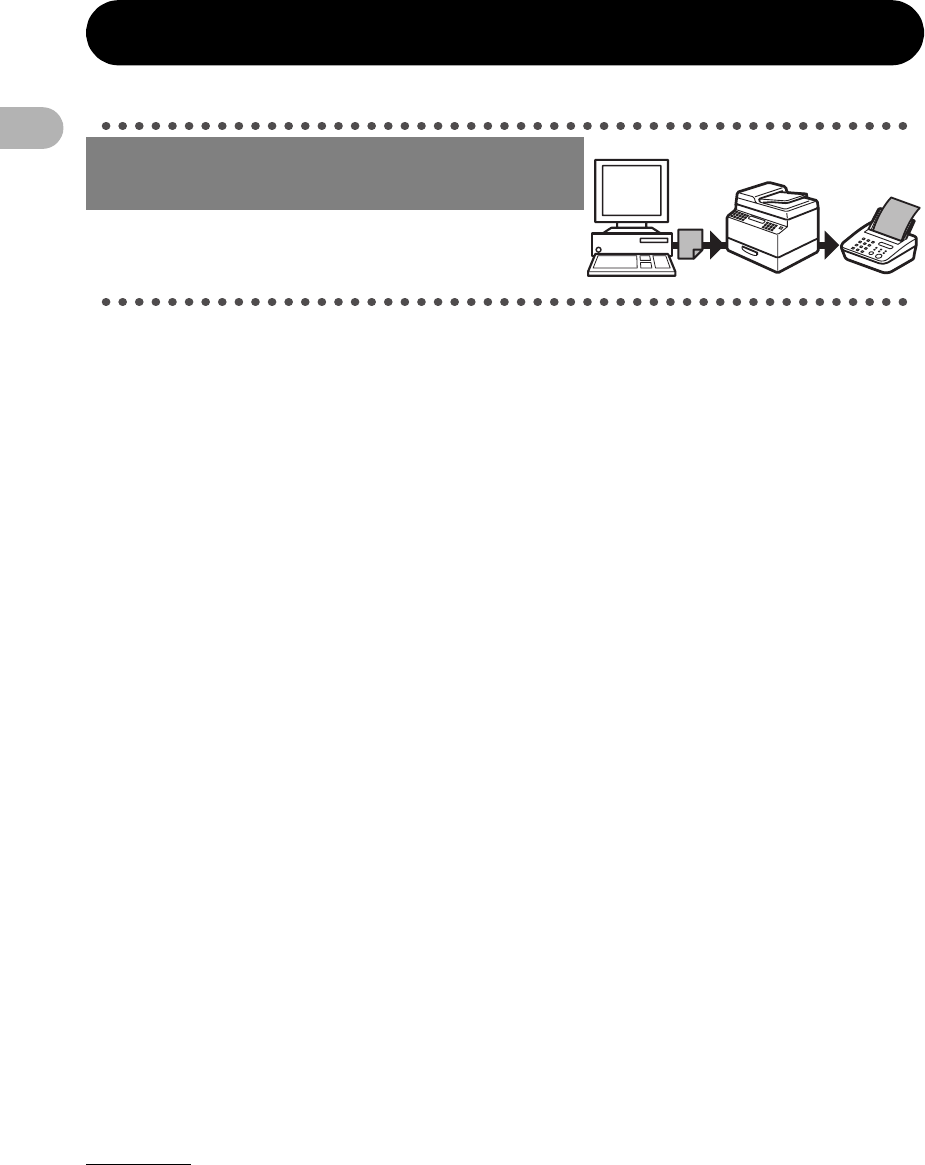
Print a document from a PC
Printing
→Online Help
Specify detailed scanning options
to suit various images
Scanning
→Scanner Driver Guide
ABC
ABC
ABC
ABC
1
DEF
DEF
DEF
DEF
2
DEF
DEF
DEF
DEF
2
ABC
ABC
ABC
ABC
1
ABC
ABC
ABC
ABC
1
DEF
DEF
DEF
ABC
ABC
ABC
ABC
vi
What Can I Do with This Machine?
PC Fax Feature
Send a fax from a PC
PC Faxing
→Online Help

vii
What Can I Do with This Machine?
Contents
Manuals for the Machine.................................................................i
What Can I Do with This Machine? ...............................................ii
Fax Features.................................................................... ii
Copy Features ................................................................ iv
Printer Feature................................................................. v
Scanner Feature.............................................................. v
PC Fax Feature .............................................................. vi
Contents ........................................................................................vii
Preface..........................................................................................xiii
Important Safety Instructions.........................................xiii
Handling and Maintenance............................................xiii
Location .........................................................................xiv
Power Supply................................................................. xv
Customer Support (U.S.A.)............................................xvi
Customer Support (Canada)..........................................xvi
How to Use This Guide...............................................................xvii
Symbols Used in This Manual ......................................xvii

viii
What Can I Do with This Machine?
Legal Notices .............................................................................xviii
Copyright .....................................................................xviii
Disclaimers ..................................................................xviii
Legal Limitations on the Usage of Your Product and the
Use of Images................................................................xix
Trademarks.................................................................... xx
Users in the U.S.A........................................................................xxi
Pre-Installation Requirements for Canon Facsimile
Equipment......................................................................xxi
Connection of the Equipment .......................................xxii
In Case of Equipment Malfunction................................xxii
Rights of the Telephone Company ..............................xxiii
FCC Notice ..................................................................xxiii
Users in Canada..........................................................................xxv
Pre-Installation Requirements for Canon Facsimile
Equipment.....................................................................xxv
Notice...........................................................................xxvi
Laser Safety .............................................................................xxviii
CDRH Regulations .................................................... xxviii
1 Before Using the Machine ......................................................1-1
Machine Components .................................................................1-1
Operation Panel ...........................................................................1-4
Main Operation Panel...................................................1-4
Facsimile Operation Panel............................................1-6

ix
What Can I Do with This Machine?
LCD (Standby Mode) ...................................................................1-7
Fax Mode......................................................................1-7
Copy Mode ...................................................................1-7
Scan Mode....................................................................1-7
Toner Cartridge............................................................................1-8
Maintaining the Toner Cartridge ...................................1-9
Checking the toner level .............................................1-10
Timer Settings............................................................................1-11
Setting the Sleep Mode ..............................................1-11
Setting Daylight Saving Time......................................1-14
2 Document Handling.................................................................2-1
Document Requirements ............................................................2-1
Scanning Area..............................................................................2-3
Loading Documents ....................................................................2-4
On the Platen Glass......................................................2-4
In the ADF.....................................................................2-6
3 Print Media ............................................................................... 3-1
Paper Requirements....................................................................3-1
Printable Area ..............................................................................3-2
Paper Guidelines .........................................................................3-3
Loading Paper..............................................................................3-4
Into the Multi-Purpose Tray ..........................................3-4
Setting Paper Size and Type.......................................................3-7

x
What Can I Do with This Machine?
4 Sending Faxes .........................................................................4-1
Scan Settings...............................................................................4-3
Image Quality................................................................4-3
Density..........................................................................4-5
Speed Dialing...............................................................................4-6
Registering Recipients for Speed Dialing .....................4-6
Using Speed Dialing ...................................................4-30
Manual Sending .........................................................................4-32
5 Receiving Faxes ...................................................................... 5-1
6 Copying ....................................................................................6-1
Scan Settings...............................................................................6-3
Image Quality................................................................6-3
Density..........................................................................6-4
Zoom Ratio ...................................................................6-6
7 Printing.....................................................................................7-1
8 Scanning .................................................................................. 8-1
9 PC Faxing ................................................................................. 9-1

xi
What Can I Do with This Machine?
10 Maintenance.........................................................................10-1
Cleaning the Machine................................................................10-1
Exterior .......................................................................10-1
Interior.........................................................................10-2
Fuser Roller ................................................................10-4
Scanning area.............................................................10-5
Replacing the Toner Cartridge .................................................10-8
Redistributing Toner ...................................................10-8
Replacing the Toner Cartridge with a New One .......10-10
Recycling Used Cartridges.....................................................10-12
The Clean Earth Campaign ......................................10-12
U.S.A. PROGRAM....................................................10-14
CANADA PROGRAM-CANADA PROGRAMME ......10-17
Transporting the Machine.......................................................10-19
11 Troubleshooting ..................................................................11-1
Clearing Jams ............................................................................11-1
Document Jams..........................................................11-1
Paper Jams.................................................................11-3
LCD Messages ...........................................................................11-9
Common .....................................................................11-9
Facsimile...................................................................11-16
Printer .......................................................................11-19

xii
What Can I Do with This Machine?
Error Codes..............................................................................11-20
If You Cannot Solve a Problem ..............................................11-21
Customer Support (U.S.A.).......................................11-21
Customer Support (Canada).....................................11-21
12 Machine Settings .................................................................12-1
Machine Settings .......................................................................12-1
Printing User’s Data List .............................................12-1
Accessing the Setting Menu .......................................12-3
Setting Menu ..............................................................................12-5
PAPER SETTINGS ....................................................12-5
COMMON SETTINGS ...............................................12-5
COPY SETTINGS ......................................................12-6
TIMER SETTINGS .....................................................12-7
FAX SETTINGS .........................................................12-8
BROADCAST ..........................................................12-12
ADDRESS BOOK SET. ...........................................12-12
ADJUST./CLEANING ..............................................12-13
REPORT SETTINGS ...............................................12-14
13 Appendix ..............................................................................13-1
Specifications ............................................................................13-1
General .......................................................................13-1
Copier .........................................................................13-2
Printer .........................................................................13-3
Facsimile.....................................................................13-3
Telephone...................................................................13-5
Index ...........................................................................................13-6

xiii
What Can I Do with This Machine?
Preface
Thank you for choosing a Canon product. Before using the machine, please read
the following instructions for your safety.
Important Safety Instructions
WARNING
Except as specifically described in this guide, do not attempt to service the machine yourself. Never
attempt to disassemble the machine: opening and removing its interior covers will expose you to
dangerous voltages and other risks. For all service, contact Canon Customer Care Center, or a Canon
Authorized Service Facility.
Handling and Maintenance
– Follow all warnings and instructions marked on the machine.
– Do not subject the machine to strong physical shocks or vibrations.
– Always unplug the machine before moving or cleaning it.
– To avoid paper jams, never unplug the power cord, open the scanning platform, or
add or remove paper in the machine while printing.
– When transporting the machine, be sure to remove the toner cartridge from the
machine.
– Place the toner cartridge in its original protective bag or wrap it in a thick cloth to
prevent exposure to light.
– Always grip the handle on the sides of the machine when you lift the machine. Never
lift the machine by any of its trays or attachments.
– Do not insert any objects into the slots or openings on the machine since they may
touch dangerous voltage points or short out parts. This could result in fire or electric
shock.
– Do not allow small objects (such as pins, paper clips, or staples) to fall into the
machine.
– To avoid spillage in or around the machine, do not eat or drink near it.
– Keep the machine clean. Dust accumulation can prevent the machine from operating
properly.

xiv
What Can I Do with This Machine?
– Turn off the main power switch and unplug the power cord from the wall outlet and
contact Canon Customer Care Center in any of the following cases:
– When the power cord or plug is damaged or frayed.
– If liquid or small object has fallen into the machine.
– If the machine has been exposed to rain or water.
– If the machine does not operate normally when you have followed the instructions
in this guide. Adjust only those controls that are covered by the instructions in this
guide. Improper adjustment of other controls may result in damage and may
require extensive work by a qualified technician to restore the product to normal
operation.
– If the machine has been dropped.
– If the machine exhibits a distinct change in performance, indicating a need for
servicing.
Location
– Place the machine on a flat, stable, vibration-free surface that is strong enough to
support its weight.
– Place the machine in a cool, dry, clean, well ventilated place.
– Make sure the area is free from dust.
– Make sure the location is not exposed to high temperature or humidity.
– Keep the machine away from direct sunlight as this can damage it. If you have to
place the machine near a window, install heavy curtains or blinds.
– Do not use the machine near water. Make sure that no wet or humid objects come
into contact with the machine.
– Do not use or store the machine outdoors.
– Do not place the machine near devices that contain magnets or generate magnetic
fields, such as speakers.

xv
What Can I Do with This Machine?
– If possible, place the machine near an existing telephone line outlet for easy
connection of the telephone line cord, and to avoid the expense of installing a new
outlet.
– Place the machine near a standard 120 V AC (60 Hz) power outlet.
– To ensure reliable operation of the machine and to protect it from overheating (which
can cause it to operate abnormally and create a fire risk), do not block the exhaust
vent. Never block or cover any openings on the machine by placing it on a bed, sofa,
rug, or other similar surface. Do not place the machine in a cupboard or built-in
installation, or near a radiator or other heat source unless proper ventilation is
provided. Leave enough space around all sides of the machine.
– Do not stack boxes or furniture around the power outlet. Keep the area free so you
can reach the outlet quickly. If you notice anything unusual (smoke, strange odors,
noises) around the machine, unplug the power cord immediately. Contact Canon
Customer Care Center.
– Do not allow anything to rest on the power cord, and do not place the machine where
the cord will be walked on. Make sure the cord is not knotted or kinked.
Power Supply
– During electrical storms, turn off the main power switch and unplug the power cord
from the power outlet.
(Please note that any documents stored in the machine’s memory will be deleted
when you unplug the power cord.)
– Whenever you turn off the main power switch, wait at least five seconds before you
turn it on again.
– Do not plug the power cord into an uninterruptible power supply (UPS).
WARNING
This product emits low level magnetic flux. If you use a cardiac pacemaker and feel abnormalities, please
move away from this product and consult your doctor.

xvi
What Can I Do with This Machine?
Customer Support (U.S.A.)
Your machine is designed with the latest technology to provide trouble-free operation. If
you encounter a problem with the machine’s operation, try to solve it by using the
information in Chapter 11. If you cannot solve the problem or if you think your machine
needs servicing, contact Canon Customer Care Center at 1-800-828-4040 between
the hours of 8:00 A.M. to 8:00 P.M. EST Monday through Friday and 10:00 A.M. to
8:00 P.M. on Saturday. On-line support for 24 hours is also available at the website.
http://www.canontechsupport.com/
Customer Support (Canada)
Canon Canada Inc., offers a full range of customer technical support options*:
– For step-by-step troubleshooting, e-mail technical support, the latest driver or
document downloads, and answers to frequently asked questions, visit
http://www.canon.ca/
– Free live technical support 9 A.M. to 8 P.M. EST Monday through Friday (excluding
holidays) for products still under warranty 1-800-652-2666
– For the location of the authorized service facility nearest you, visit
http://www.canon.ca/ or 1-800-652-2666
– If the problem cannot be corrected by using one of the above technical support
options, repair options are available at the time of your call to the live technical
support number above or via the website at http://www.canon.ca/
* Support program specifics are subject to change without notice.

xvii
What Can I Do with This Machine?
How to Use This Guide
Symbols Used in This Manual
The following symbols are used throughout the manuals for the machine and indicate
the warnings, cautions and notes you should keep in mind when using the machine.
WARNING Indicates a warning that may lead to death or serious injury if not
observed.
CAUTION Explains how to avoid actions that could injure you or damage your
machine.
NOTE Explains operating restrictions and how to avoid minor difficulties.
In addition, this guide uses distinctive notations to identify keys and information in the
LCD:
– The keys you press appear in square brackets: [Stop/Reset].
– Information in the LCD appears in angle brackets: <LOAD PAPER>.
The numbers that point to the keys on the operation panel diagram correspond to the
order of steps to take in the procedure.

xviii
What Can I Do with This Machine?
Legal Notices
Copyright
Copyright © 2006 by Canon Inc. All rights reserved. No part of this publication may be
reproduced, transmitted, transcribed, stored in a retrieval system, or translated into any
language or computer language in any form or by any means, electronic, mechanical,
magnetic, optical, chemical, manual, or otherwise, without the prior written permission
of Canon Inc.
Disclaimers
The information in this document is subject to change without notice.
CANON INC. MAKES NO WARRANTY OF ANY KIND WITH REGARD TO THIS
MATERIAL, EITHER EXPRESS OR IMPLIED, EXCEPT AS PROVIDED HEREIN,
INCLUDING WITHOUT LIMITATION, THEREOF, WARRANTIES AS TO
MARKETABILITY, MERCHANTABILITY, FITNESS FOR A PARTICULAR PURPOSE
OF USE OR NON-INFRINGEMENT. CANON INC. SHALL NOT BE LIABLE FOR ANY
DIRECT, INCIDENTAL, OR CONSEQUENTIAL DAMAGES OF ANY NATURE, OR
LOSSES OR EXPENSES RESULTING FROM THE USE OF THIS MATERIAL.

xix
What Can I Do with This Machine?
Legal Limitations on the Usage of Your Product and the
Use of Images
Using your product to scan, print or otherwise reproduce certain documents, and the
use of such images as scanned, printed or otherwise reproduced by your product, may
be prohibited by law and may result in criminal and/or civil liability.
A non-exhaustive list of these documents is set forth below. This list is intended to be a
guide only. If you are uncertain about the legality of using your product to scan, print or
otherwise reproduce any particular document, and/or of the use of the images
scanned, printed or otherwise reproduced, you should consult in advance with your
legal advisor for guidance.
– Paper Money – Travelers Checks
– Money Orders – Food Stamps
– Certificates of Deposit – Passports
– Postage Stamps (canceled or
uncanceled)
– Immigration Papers
– Identifying Badges or Insignias – Internal Revenue Stamps (canceled or
uncanceled)
– Selective Service or Draft Papers – Bonds or Other Certificates of
Indebtedness
– Checks or Drafts Issued by
Governmental Agencies
– Stock Certificates
– Motor Vehicle Licenses and Certificates
of Title
– Copyrighted Works/Works of Art
without Permission of Copyright Owner

xx
What Can I Do with This Machine?
Trademarks
Canon, the Canon logo, and imageCLASS are trademarks of Canon Inc.
All other product and brand names are registered trademarks, trademarks or service
marks of their respective owners.
As an ENERGY STA R Partner, Canon U.S.A., Inc. has determined that
this product meets the ENERGY STA R Program for energy efficiency.
The International ENERGY STA R Office Equipment Program is an
international program that promotes energy saving through the use of
computers and other office equipment.
The program backs the development and dissemination of products
with functions that effectively reduce energy consumption. It is an
open system in which business proprietors can participate voluntarily.
The targeted products are office equipment, such as computers,
displays, printers, facsimiles, and copiers. The standards and logos
are uniform among participating nations.

xxi
What Can I Do with This Machine?
Users in the U.S.A.
Pre-Installation Requirements for Canon Facsimile
Equipment
A. Location
Supply a suitable table, cabinet, or desk. See p. 13-1 for the machine’s weight and
dimensions.
B. Order Information
1. Only a single line, touch-tone or rotary telephone set is to be used.
2. Order an RJ11-C modular jack (USOC code), which should be installed by the
telephone company. If the RJ11-C jack is not present, installation cannot occur.
3. Order a regular voice grade line or the equivalent from your telephone company’s
business representative.
Use one line per machine.
DDD (DIRECT DISTANCE DIAL) LINE
-or-
IDDD (INTERNATIONAL DIRECT DISTANCE DIAL) LINE IF YOU COMMUNICATE
OVERSEAS
NOTE
Canon recommends an individual line following industry standards, e.g. the 2500 (Touch Tone) or
500 (Rotary/Pulse Dial) telephones. A dedicated extension off a PBX machine without “Call Waiting”
can be used with the machine. Key telephone systems are not recommended because they send
non-standard signals to individual telephones for ringing and special codes, which may cause a fax
error. This machine is not supported on Voice Over Internet Protocol (VOIP).
C. Power Requirements
This equipment should be connected to a standard 120-volt AC, three-wire grounded
outlet only. Do not connect this machine to an outlet or power line shared with other
appliances that cause “electrical noise.” Air conditioners, electric typewriters, copiers, and
machines of this sort generate electrical noise which often interferes with communications
equipment and the sending and receiving of documents.

xxii
What Can I Do with This Machine?
Connection of the Equipment
This equipment complies with Part 68 of the FCC rules and the requirements adopted
by the ACTA. On the rear panel of this equipment is a label that contains, among other
information, a product identifier in the format US:AAAEQ##TXXXX. If requested, this
number must be provided to the telephone company.
An FCC compliant telephone cord and modular jack are provided with this equipment.
This equipment is designed to be connected to the telephone network or premises
wiring using a compatible modular jack which is Part 68 compliant. See the Starter
Guide for details.
The Ringer Equivalence Number (REN) is used to determine the number of devices
that may be connected to a telephone line. Excessive RENs on a telephone line may
result in the devices not ringing in response to an incoming call. In most but not all
areas, the sum of RENs should not exceed five (5.0). To be certain of the number of
devices that may be connected to a line, as determined by the total RENs, contact the
local telephone company. The REN for this product is part of the product identifier that
has the format US:AAAEQ##TXXXX. The digits represented by ## are the REN
without a decimal point (e.g., 10 is a REN of 1.0).
This equipment may not be used on coin service provided by the telephone company.
Connection to party lines is subjected to state tariffs.
In Case of Equipment Malfunction
Should any malfunction occur which cannot be corrected by the procedures described
in this guide, disconnect the equipment from the telephone line and unplug the power
cord. The telephone line should not be reconnected or the power cord plugged in until
the problem is completely resolved. Users should contact Canon Authorized Service
Facilities for servicing of equipment. Information regarding Authorized Service Facility
locations can be obtained by calling Canon Customer Care Center (1-800-828-4040).

xxiii
What Can I Do with This Machine?
Rights of the Telephone Company
Should the equipment cause harm to the telephone network, the telephone company
may temporarily disconnect service. The telephone company also retains the right to
make changes in facilities and services which may affect the operation of this
equipment. When such changes are necessary, the telephone company is required to
give adequate prior notice to the user.
FCC Notice
imageCLASS MF4150: Model F149200
This device complies with Part 15 of the FCC Rules. Operation is subject to the
following two conditions:
(1) This device may not cause harmful interference, and
(2) this device must accept an interference received, including interference that may
cause undesired operation.
NOTE
This equipment has been tested and found to comply with the limits for a class B digital device, pursuant to
Part 15 of the FCC Rules. These limits are designed to provide reasonable protection against harmful
interference in a residential installation. This equipment generates, uses and can radiate radio frequency
energy and, if not installed and used in accordance with the instructions, may cause harmful interference
to radio communications. However, there is no guarantee that interference will not occur in a particular
installation. If this equipment does cause harmful interference to radio or television reception, which can
be determined by turning the equipment off and on, the user is encouraged to try to correct the
interference by one or more of the following measures:
• Reorient or relocate the receiving antenna.
• Increase the separation between the equipment and receiver.
• Connect the equipment into an outlet on a circuit different from that to which the receiver is connected.
• Consult the dealer or an experienced radio/TV technician for help.

xxiv
What Can I Do with This Machine?
Use of shielded cable is required to comply with class B limits in Subpart B of Part 15
of FCC Rules.
Do not make any changes or modifications to the equipment unless otherwise
specified in this manual. If such changes or modifications should be made, you could
be required to stop operation of the equipment.
Canon U.S.A., Inc.
One Canon Plaza, Lake Success, NY 11042, U.S.A.
TEL No. 1-516-328-5600
The Telephone Consumer Protection Act of 1991 makes it unlawful for any person to
use a computer or other electronic device to send any message via a telephone fax
machine unless such message clearly contains in a margin at the top or bottom of
each transmitted page or on the first page of the transmission, the date and time it is
sent and an identification of the business or other entity, or other individual sending the
message and the telephone number of the sending machine or such business, other
entity, or individual.
In order to program this information into the machine, follow the instructions in the
Starter Guide.

xxv
What Can I Do with This Machine?
Users in Canada
Pre-Installation Requirements for Canon Facsimile
Equipment
A. Location
Supply a suitable table, cabinet, or desk. See p. 13-1 for the machine’s weight and
dimensions.
B. Order Information
1. Provide only a single-line to touch-tone or rotary telephone set terminated with a
standard 4-pin modular phone plug. (Touch-tone is recommended if available in your
area.)
2. Order an CA11A modular jack (USOC code), which should be installed by the
telephone company. If the CA11A jack is not present, installation cannot occur.
3. Order a normal business line from your telephone company’s business representative.
The line should be a regular voice grade line or equivalent. Use one line per machine.
DDD (DIRECT DISTANCE DIAL) LINE
-or-
IDDD (INTERNATIONAL DIRECT DISTANCE DIAL) LINE IF YOU COMMUNICATE
OVERSEAS
NOTE
Canon recommends an individual line following industry standards, e.g., the 2500 (touch tone) or
500 (rotary/pulse dial) telephones. A dedicated extension off a PBX machine without “Camp On”
signals is also permissible with the machine. Key telephone systems are not recommended because
they send non-standard signals to individual telephones for ringing and special codes, which may
cause a fax error.
C. Power Requirements
The power outlet should be a three-prong grounded receptacle (Single or Duplex). It
should be independent from copiers, heaters, air conditioners or any electric equipment
that is thermostatically controlled. The rated value is 120 volts and 15 amperes. The
CA11A modular jack should be relatively close to the power outlet to facilitate installation.

xxvi
What Can I Do with This Machine?
Notice
This equipment meets the applicable Industry Canada Terminal Equipment Technical
Specifications. This is confirmed by the registration number. The abbreviation, IC,
before the registration number signifies that registration was performed based on a
Declaration of Conformity indicating that Industry Canada technical specifications were
met. It does not imply that Industry Canada approved the equipment.
Cet appareil est conforme aux Spécifications techniques des équipements terminaux
de I’lndustrie du Canada.
Ceci est confirmé par le numéro d’enregistrement. L’abréviation IC précédant le
numéro d’enregistrement signifie que I’enregistrement a été effectué sur la base de la
Déclaration de conformité indiquant que le produit est conforme aux spécifications
techniques du Canada. Ceci n’implique pas que le produit ait été approuvé par
I’industrie du Canada.
Before installing this equipment, users should ensure that it is permissible to be
connected to the facilities of the local telecommunications company. The equipment
must also be installed using an acceptable method of connection. The customer
should be aware that compliance with the above conditions may not prevent
degradation of service in some situations.
Repairs to certified equipment should be coordinated by a representative designated
by the supplier. Any repairs or alterations made by the user to this equipment, or
equipment malfunctions, may give the telecommunications company cause to request
the user to disconnect the equipment.
Users should ensure for their own protection that the electrical ground connections of
the power utility, telephone lines and internal metallic water pipe system, if present, are
connected together. This precaution may be particularly important in rural areas.

xxvii
What Can I Do with This Machine?
CAUTION
Users should not attempt to make such connections themselves, but should contact the appropriate
electric inspection authority, or electrician, as appropriate.
NOTE
This Class B digital apparatus meets all requirements of the Canadian Interference- Causing Equipment
Regulations.
Cet appareil numérique de la classe B respecte toutes les exigences du Règlement sur le matériel
brouilleur du Canada.
The Ringer Equivalence Number (REN) for this terminal equipment is 1.0. The REN
assigned to each terminal equipment provides an indication of the maximum number of
terminals allowed to be connected to a telephone interface. The termination on an
interface may consist of any combination of devices subject only to the requirement
that the sum of the Ringer Equivalence Numbers of all the devices does not exceed
five.
Le Nombre d’équivalence Ringer (REN) de cet appareil terminal est 1.0. Le REN
attribué à chaque équipement terminal fournit une indication sur le nombre maximum
de terminaux pouvant être connectés sur une interface téléphonique. La terminaison
sur une interface peut consister en n’importe quelle combinaison d’appareils, à la
condition seulement que la somme des Nombres d’équivalence Ringer de tous les
appareils ne soit pas supérieure à 5.
CANON CANADA INC.
1-800-652-2666
9 A.M. to 8 P.M. EST Monday through Friday (excluding holidays)
xxviii
What Can I Do with This Machine?
Laser Safety
This machine complies with 21 CFR Chapter 1 Subchapter J as a Class 1 laser
product under the U.S. Department of Health and Human Services (DHHS) Radiation
Performance Standard according to the Radiation Control for Health and Safety Act of
1968. This means that the machine does not produce hazardous radiation.
Since radiation emitted inside the machine is completely confined within protective
housings and external covers, the laser beam cannot escape from the machine during
any phase of user operation.
CDRH Regulations
The Center for Devices and Radiological Health (CDRH) of the U.S. Food and Drug
Administration implemented regulations for laser products on August 2, 1976. These
regulations apply to laser products manufactured from August 1, 1976. Compliance is
mandatory for products marketed in the United States.
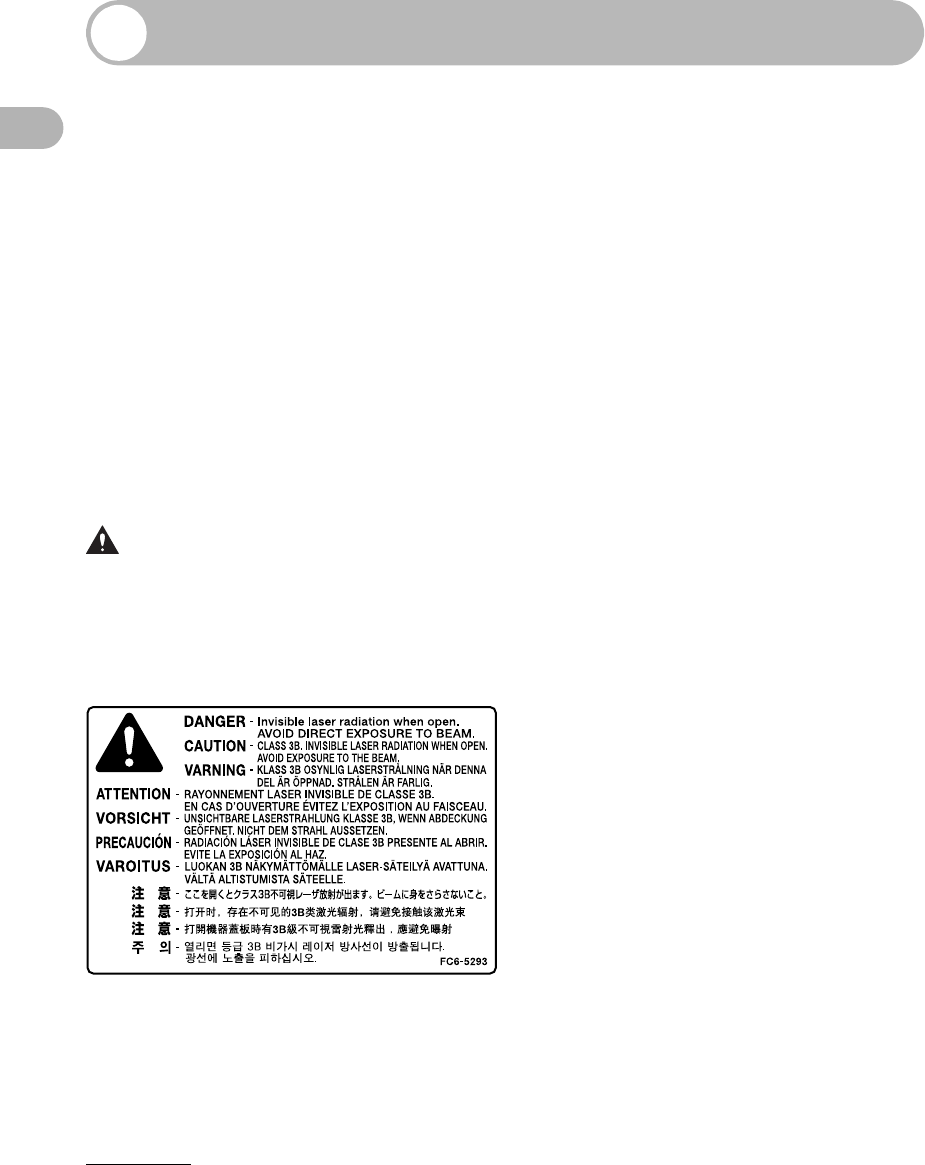
CAUTION
Use of controls, adjustments, or performance of procedures other than those specified in this manual may
result in hazardous radiation exposure.
The label is attached to the laser scanner machine inside the machine and is not in a
user access area.
1-1
1
Before Using the Machine
Before Using the
Machine
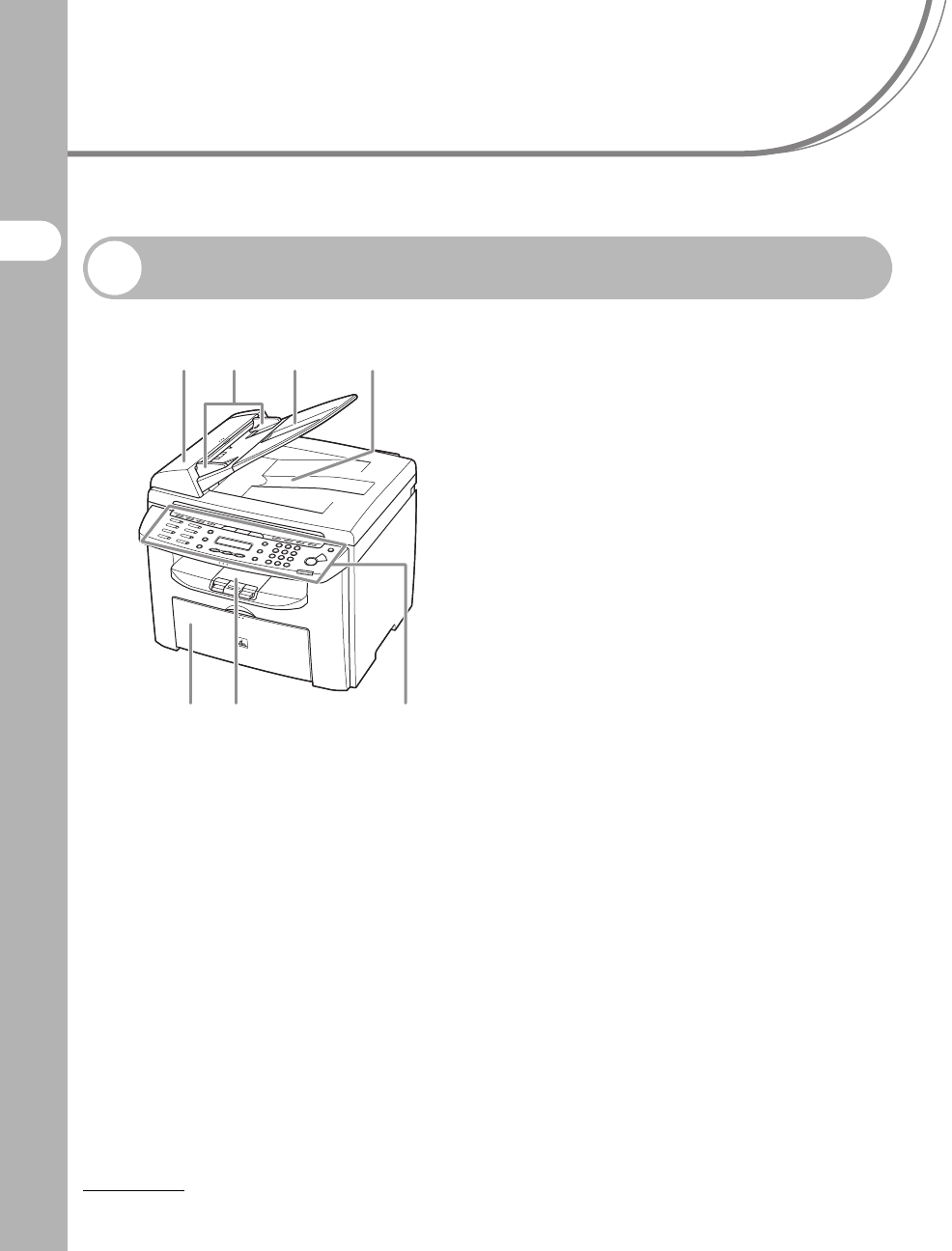
Machine Components
A ADF (Automatic Document Feeder)
Holds documents and feeds them
automatically into the scanning area.
B Slide guides
Adjust to the width of the document.
C Document feeder tray
Holds documents.
D Document delivery tray
Receives documents.
E Operation panel
Controls the machine.
F Output tray
Receives copies, prints and faxes.
G Paper feeding tray
Loads the paper supply.
A
G F E
C
B D
1-2
Before Using the Machine
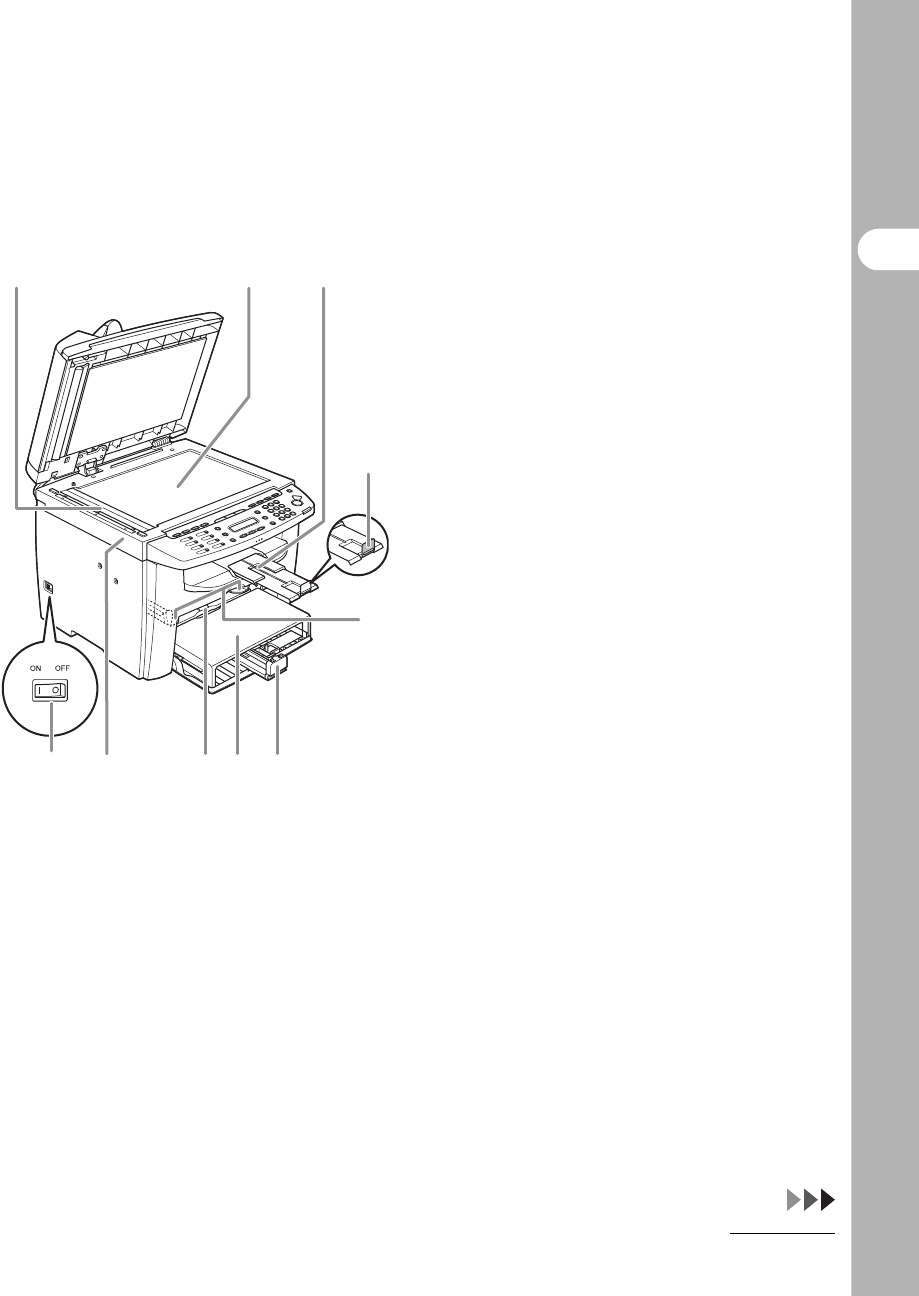
H Scanning area
Scans documents from the ADF.
I Platen glass
Place documents.
J Output tray extension
Extension for the output tray.
K Paper stopper
Prevents the paper from falling off the output
tray.
Open the paper stopper from its original
position for LTR/A4 paper. For LGL paper,
pull out the output tray extension first, and
then open the paper stopper.
L Slide guides for multi-purpose tray
Adjusts to the width of the paper.
M Paper guide rail
Holds the paper supply.
NDust cover
Protects the paper supply in the paper
feeding tray from the dirt and dust.
O Multi-purpose tray
Feeds paper when you insert one by one
manually.
P Scanning platform
Open this platform when replacing the toner
cartridge or clearing paper jams.
Q Main power switch
Turn the power on or off.
L
HI J
M
Q
K
NOP
1-3
Before Using the Machine
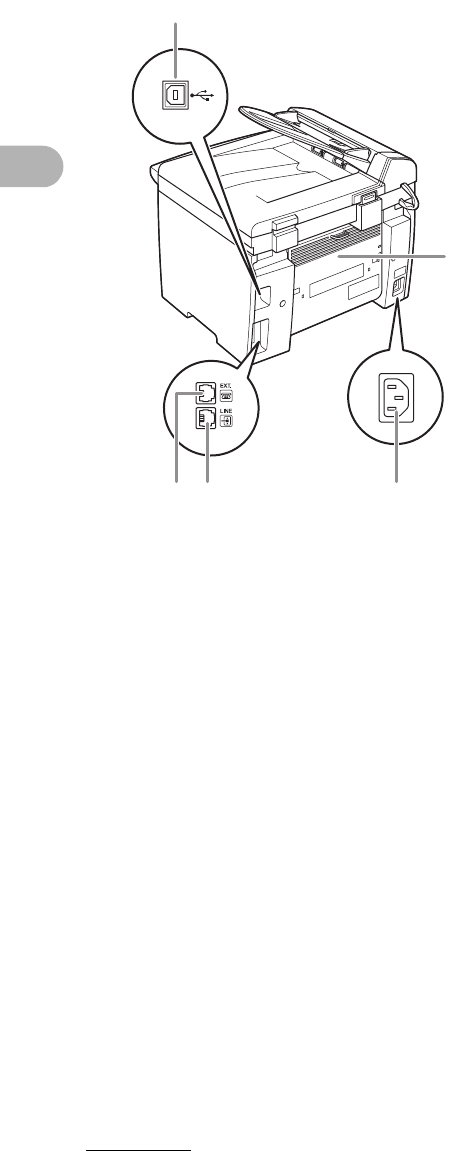
RUSB port
Connect the USB (Universal Serial Bus)
cable.
SRear cover
Open this cover when clearing paper jams.
T Power socket
Connect the power cord.
U Telephone line jack
Connect the external telephone cable.
V External device jack
Connect an external device.
R
S
U TV
1-4
Before Using the Machine
Operation Panel
Main Operation Panel
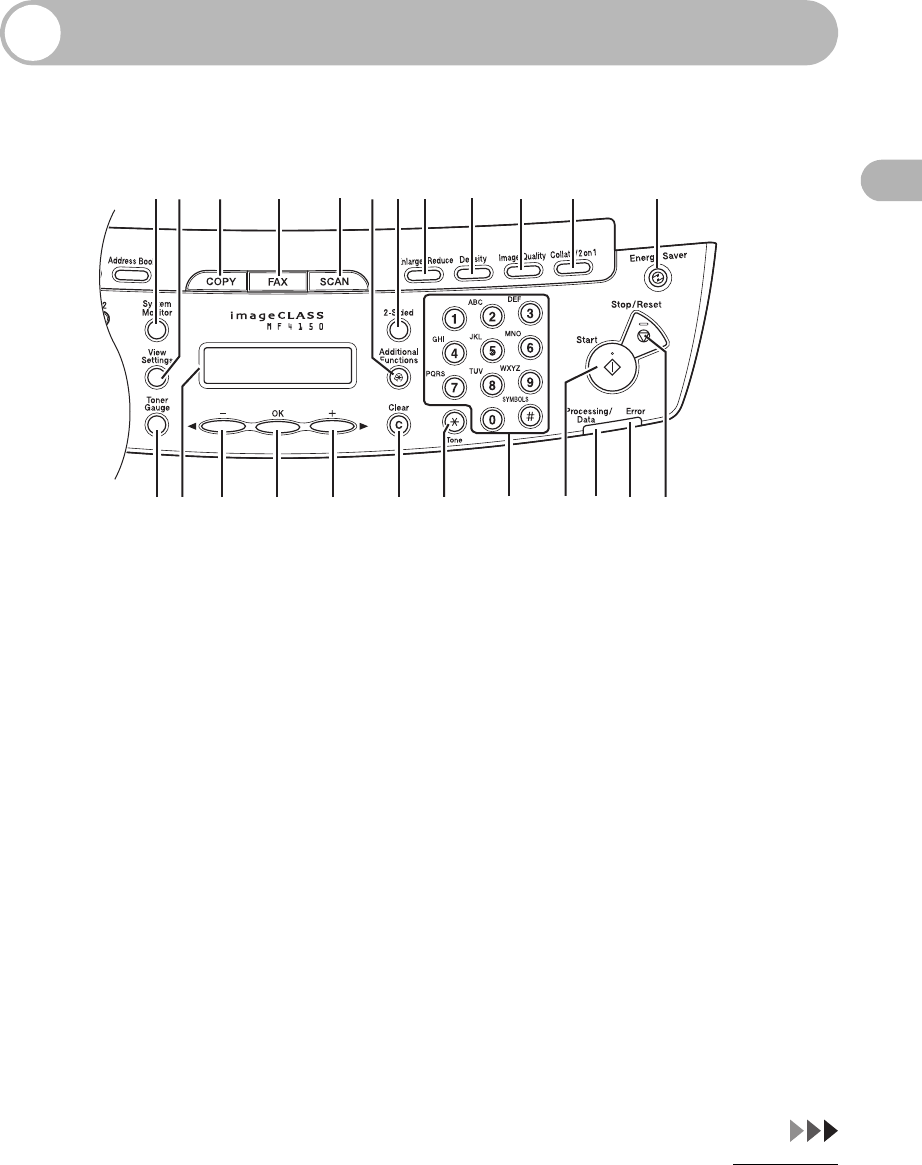
A [System Monitor] key
Press to check print status, fax status, print
and scan counts, remaining memory, or print
transmission/reception results.
B [View Settings] key
Press to confirm settings of the copy function.
C[COPY] key
Press to switch to the Copy mode.
D [FAX] key
Press to switch to the Fax mode.
E[SCAN] key
Press to switch to the Scan mode.
F [Additional Functions] key
Press to select or cancel the modes in
Additional Functions.
G [2-Sided] key
Press to set two-sided copying.
H [Enlarge/Reduce] key
Press to enlarge or reduce copy ratio.
I[Density] key
Press to adjust copy or fax density.
J [Image Quality] key
Press to select image quality for copy or fax.
K [Collate/2 on 1] key
Press to collate copies, or press to set 2 on 1
copying.
L [Energy Saver] key
Press to set or cancel the Sleep mode
manually. The key lights green when the
Sleep mode is set, and goes off when the
mode is canceled.
AB C D FEGH JK LI
XVUTSRQPONM
W

1-5
Before Using the Machine
M [Stop/Reset] key
Press to stop a current job. Also, press to
return the machine to the standby mode.
N Error indicator
Flashes when an error has occurred.
O Processing/Data indicator
Flashes during sending or receiving faxes.
Lights when the machine has waiting jobs
and stores the data in memory.
P [Start] key
Press to start copying, scanning and sending
faxes.
QNumeric keys
Enter letters and numbers.
R[Tone] key
Press to switch from rotary pulse to tone
dialing.
S [Clear] key
Press to clear entered alphanumeric
characters.
T[] key
Press to increase the value for various
settings. Also press to see the next item in
the menu.
U[OK] key
Press to accept a set function or mode.
V[] key
Press to decrease the value for various
settings. Also press to see the previous item
in the menu.
W LCD display
Displays messages and prompts during
operation. Displays selection, text, and
numbers when adjusting the settings.
X [Toner Gauge] key
Press to check the toner remaining in the
toner cartridge.
1-6
Before Using the Machine
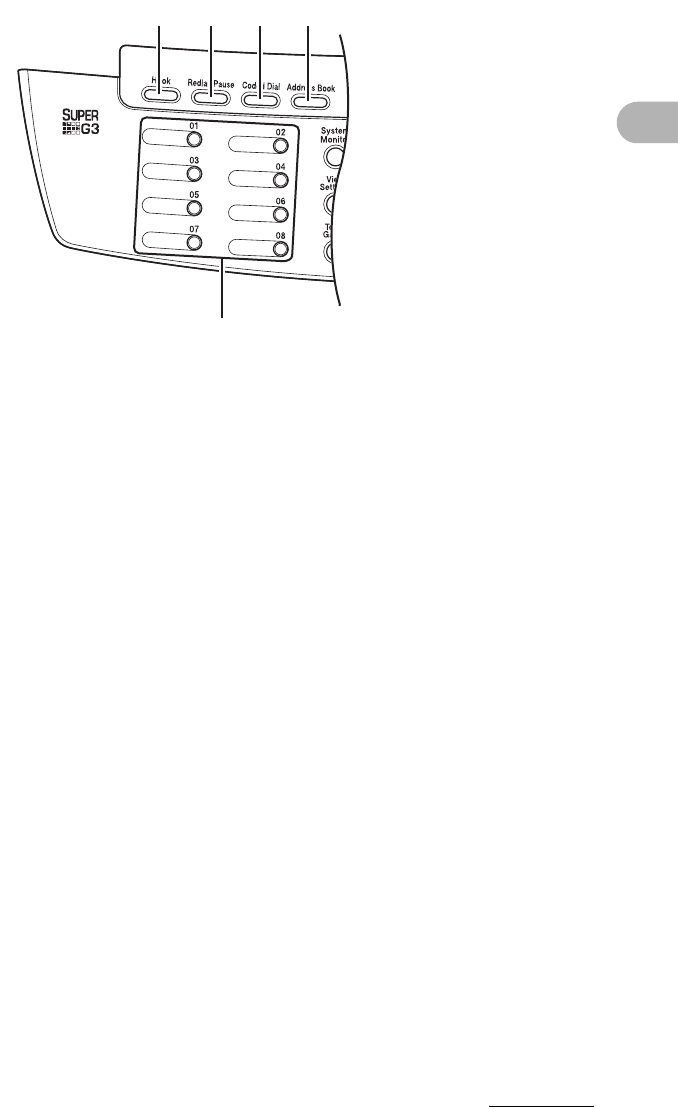
Facsimile Operation Panel
A[Hook] key
Press when you want to dial without lifting up
the handset of the external telephone.
B [Redial/Pause] key
Press to redial the last dialed number when
fax is standing by, or press to insert a pause
when entering a fax number.
C [Coded Dial] key
Press to perform coded dialing.
D [Address Book] key
Press to search pre-registered destinations
under one-touch speed dialing keys or coded
dialing numbers by name.
E One-Touch Speed Dial keys
Press to use one-touch speed dialing (Pre-
registered frequently used numbers or group
dialing).
A
E
B C D
1-7
Before Using the Machine
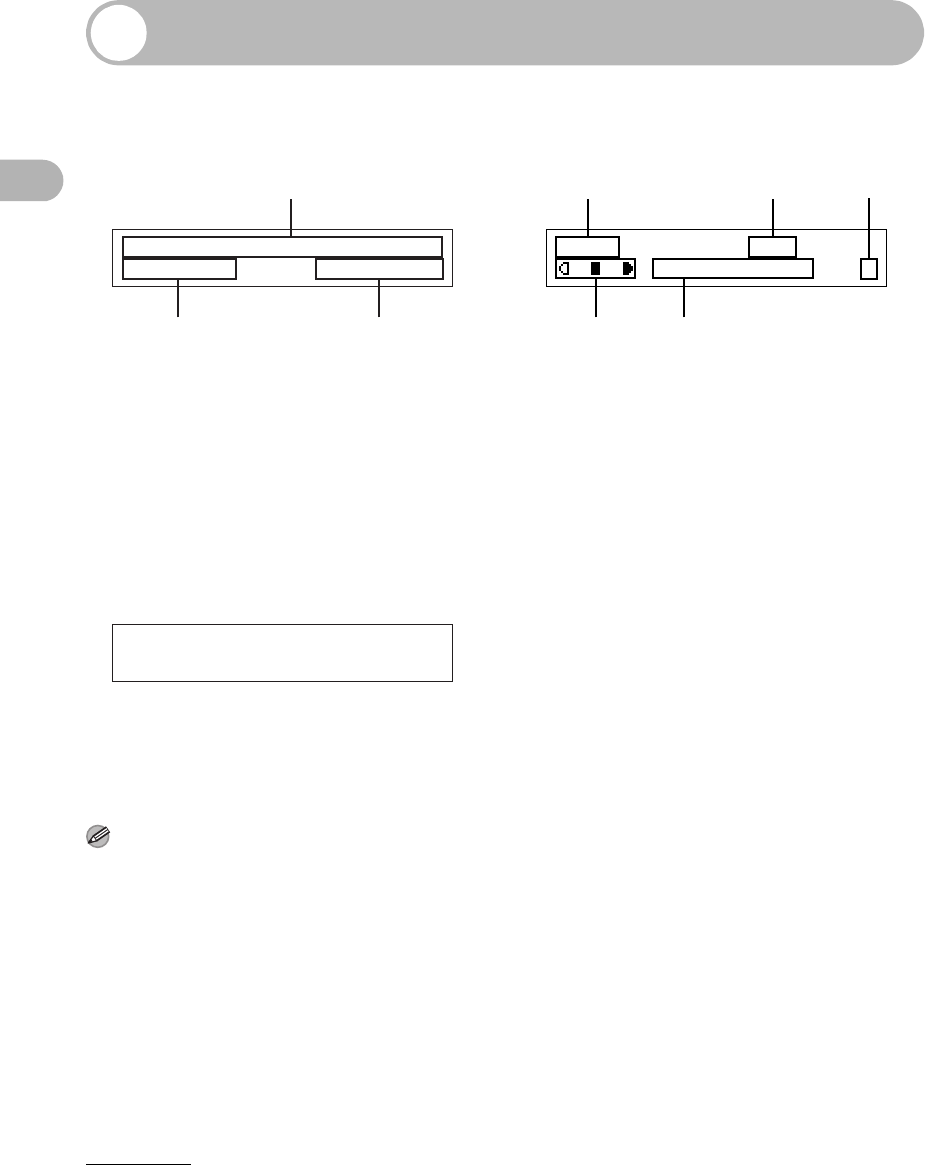
LCD (Standby Mode)
Fax Mode
ADate & Time
B Receive mode
C Image quality
Copy Mode
A Zoom ratio
B Paper size
C Quantity
DDensity
E Image quality
Scan Mode
NOTE
– Depending on your needs, you can change the
standby display which appears when the main
power switch is turned on. For details, see
“Setting Menu,” on p. 12-5.
– When the main power switch is turned on, the
LCD displays <PLEASE WAIT> first, and then
displays <INITIALIZING...> until the standby
display appears. It is also possible to see the
standby display without having
<INITIALIZING...> shown.
– If the machine remains idle for one minute, the
display returns to the standby mode (Auto Clear
Function).
12/31/2006 SUN 10:50
FaxOnly STANDARD
A
BC
100% LTR
TEXT/PHOTO 1
A
DE
BC
SCANNING MODE
1-8
Before Using the Machine
Toner Cartridge
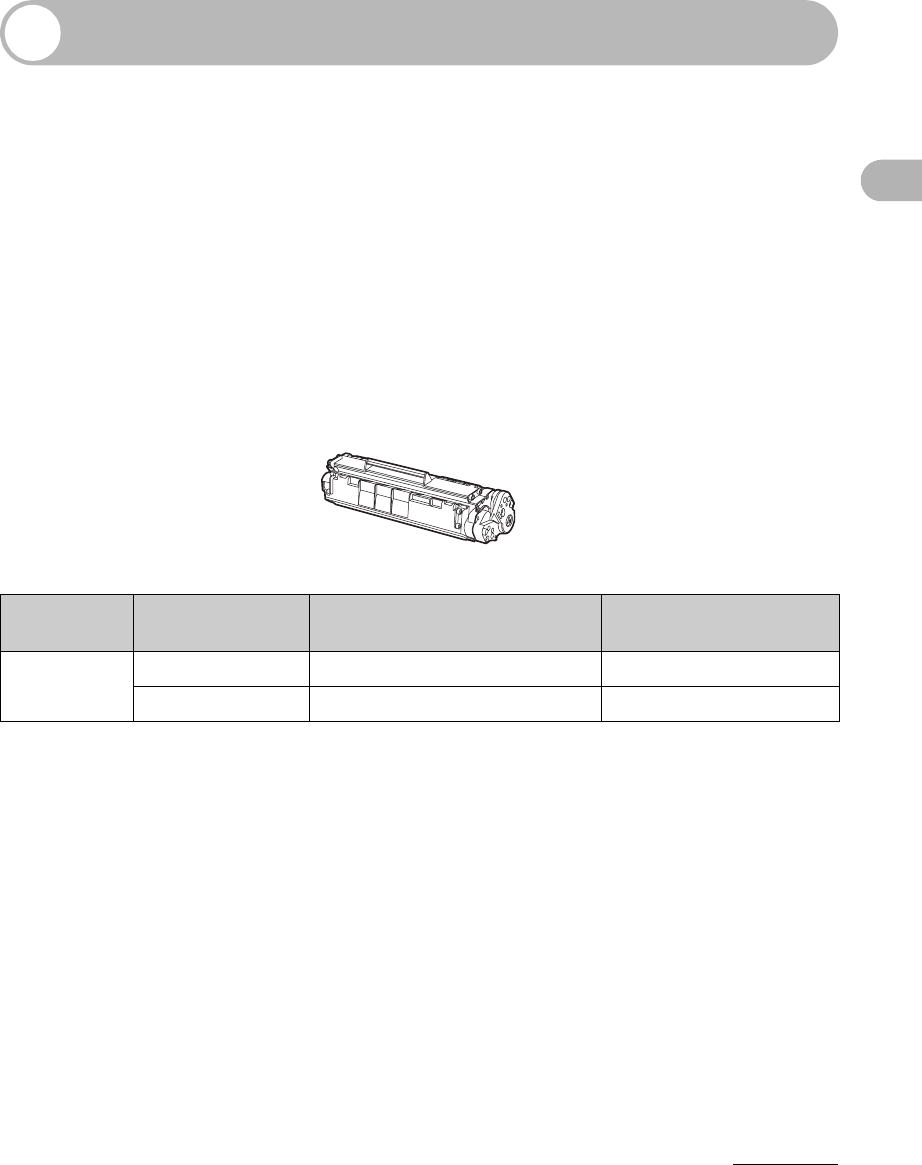
The lifetime of the Canon genuine starter toner cartridge which comes with the
machine is approximately 1,000 pages, the Canon genuine replacement toner
cartridge is approximately 2,000 pages. The page counts are on the basis of “ISO/
IEC 19752”* when printing A4 size paper with the default print density setting. The
level of toner consumption varies depending on the type of documents printed. If
your average document contains a lot of graphics, tables, or charts, the life of the
toner cartridge will be shorter as they consume more toner. To purchase the Canon
genuine replacement toner cartridge, contact your local Canon dealer or Canon
Customer Care Center(U.S.A.:1-800-828-4040, Canada:1-800-652-2666).
* “ISO/IEC 19752” is the global standard related to “Method for the determination of toner cartridge yield for
monochromatic electrophotographic printers and multi-function devices that may contain printer
components” issued by ISO (International Organization for Standardization).
Model
Name Type Supported Canon
Genuine Cartridge Print Yield
MF4150 Bundled Canon Cartridge 104 Starter Approx. 1,000 pages
Replacement Canon Cartridge 104 Approx. 2,000 pages
Toner Cartridge name:
Canon Cartridge 104

1-9
Before Using the Machine
Maintaining the Toner Cartridge
●Keep the toner cartridge away from computer screens, disk drives, and floppy disks.
The magnet inside the toner cartridge may harm these items.
●Avoid locations subject to high temperature, high humidity, or rapid changes in
temperature.
●Do not expose the toner cartridge to direct sunlight or bright light for more than five
minutes.
●Store the toner cartridge in its protective bag. Do not open the bag until you are
ready to install the toner cartridge in the machine.
●Save the toner cartridge’s protective bag in case you need to repack and transport
the toner cartridge at a later date.
●Do not store the toner cartridge in a salty atmosphere or where there are corrosive
gases such as from aerosol sprays.
●Do not remove the toner cartridge from the machine unnecessarily.
●Do not open the drum protective shutter on the toner cartridge. Print quality may
deteriorate if the drum surface is exposed to light or is damaged.
●Always hold the toner cartridge by its handle to avoid touching the drum protective
shutter.
●Do not stand the toner cartridge on end, and do not turn it upside down. If toner
becomes caked in the toner cartridge, it may become impossible to free it even by
shaking the toner cartridge.
CAUTION
Do not place the toner cartridge in fire. Toner powder is flammable.
1-10
Before Using the Machine
Checking the toner level
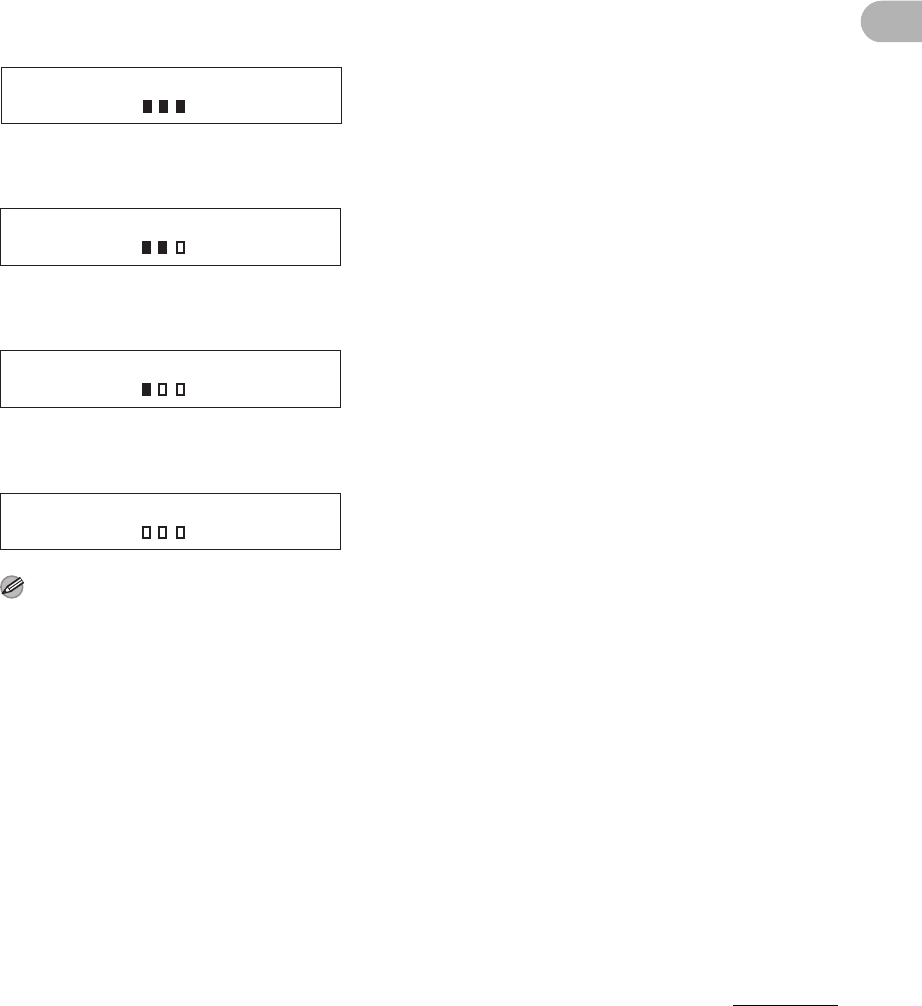
You can check the amount of toner remaining in the toner cartridge by pressing the
[Toner Gauge] key. The toner level is displayed in the LCD at four levels.
If the toner gauge indicates that the toner is empty, it is recommended that the toner
cartridge be replaced. (See “Replacing the Toner Cartridge,” on p. 10-8.)
Toner full
Toner high
Toner low
Toner empty
NOTE
To return to the standby mode, press [Stop/Reset]
TONER GAUGE
0% 100%
TONER GAUGE
0% 100%
TONER GAUGE
0% 100%
TONER GAUGE
0% 100%
1-11
Before Using the Machine
Timer Settings
Setting the Sleep Mode
When the machine remains idle for a certain period of time, it automatically enters the
Sleep mode.
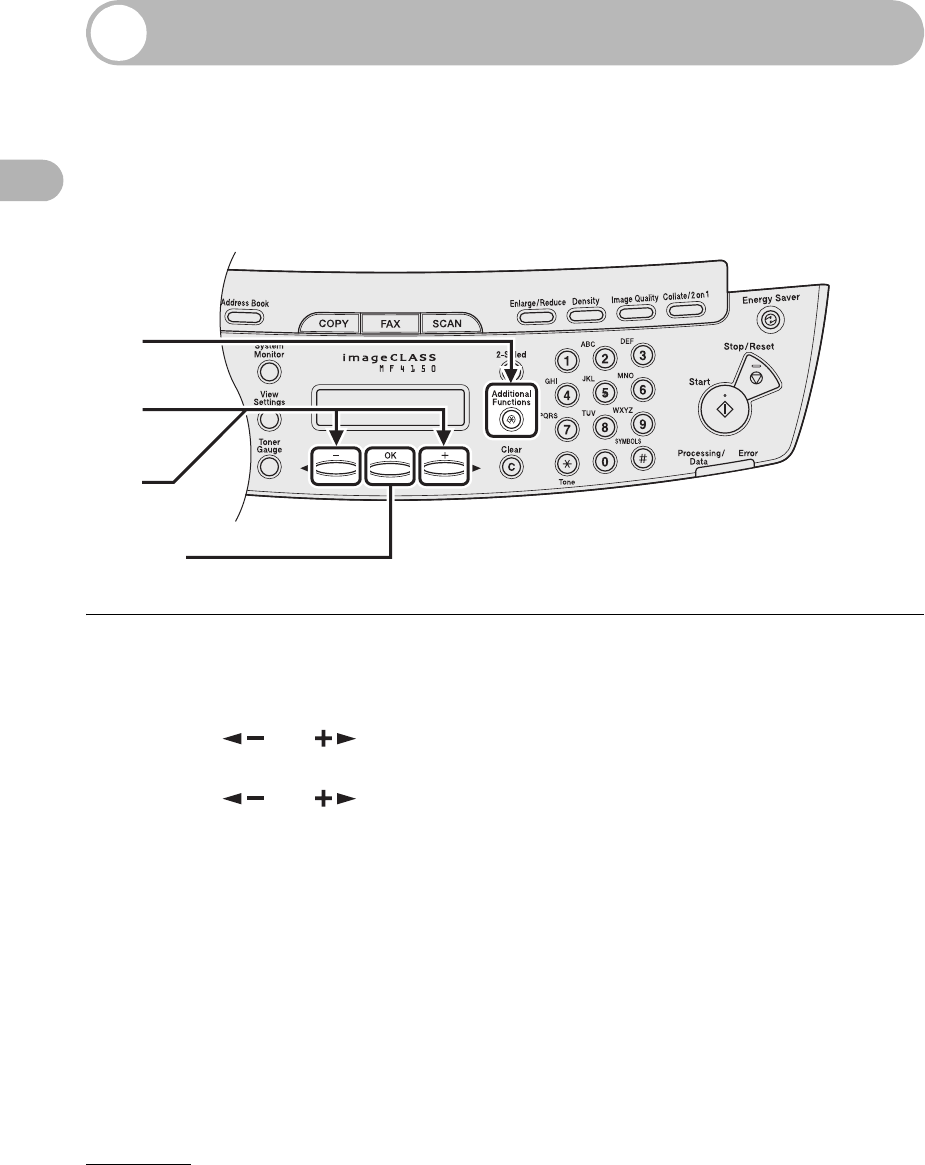
1Press [Additional Functions].
2Press [ ] or [ ] to select <TIMER SETTINGS>, then press [OK].
3Press [ ] or [ ] to select <AUTO SLEEP>, then press [OK].
1
2
3
[OK]
1-12
Before Using the Machine
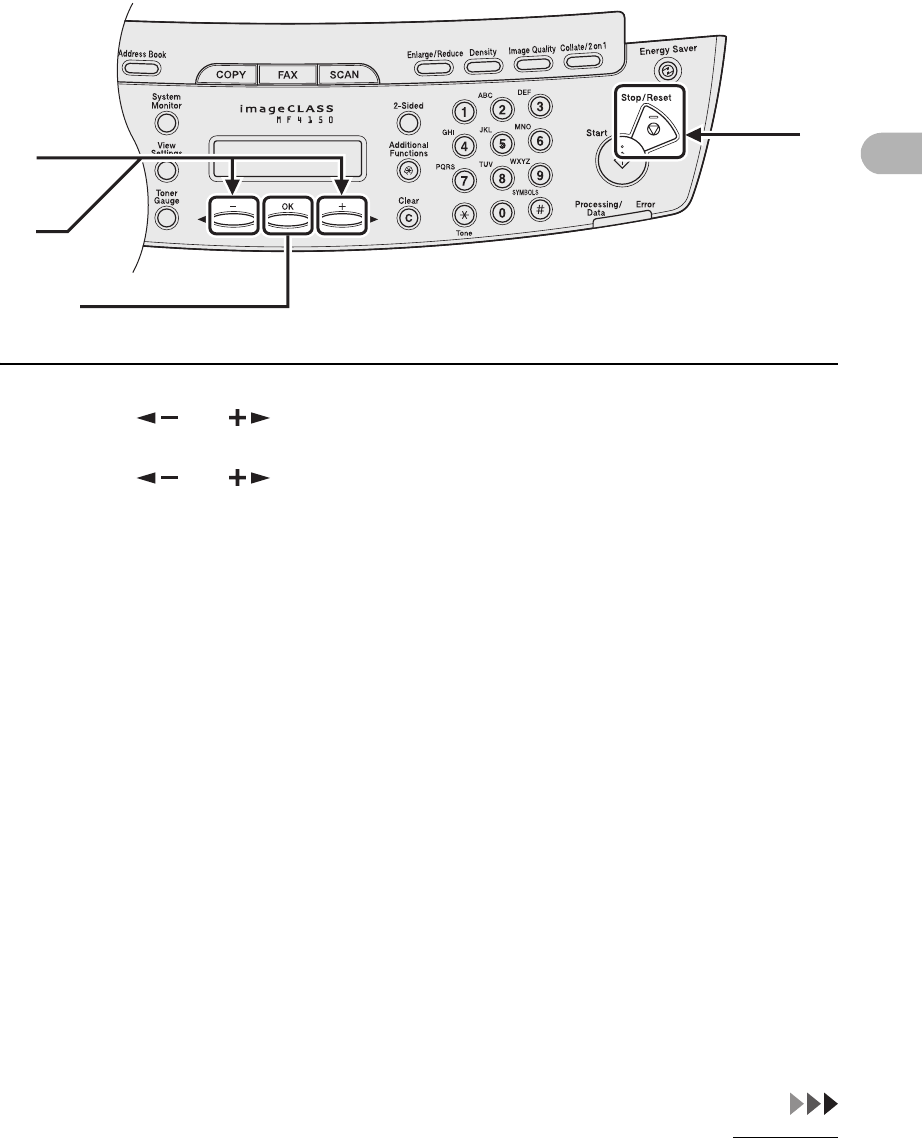
4Press [ ] or [ ] to select <ON>, then press [OK].
5Press [ ] or [ ] to select the desired interval, then press [OK].
You can set the interval from 3 to 30 minutes (in one-minute increments).
You can also enter values with the numeric keys.
6Press [Stop/Reset] to return to the standby mode.
4
5
[OK]
6

1-13
Before Using the Machine
NOTE
– To resume the normal mode from the Sleep mode, press [Energy Saver] on the operation panel.
– To enter the Sleep mode manually, press [Energy Saver] on the operation panel.
– The machine will not enter the Sleep mode when:
• the machine is in operation
• the Processing/Data indicator lights or flashes
• an error code or message appears on the display and the Error indicator flashes
• no paper is loaded in the paper feeding tray
• paper is loaded in the multi-purpose tray
• a paper jam occurs in the machine
– The machine will leave the Sleep mode when:
• you press [Energy Saver] on the operation panel
• a fax is received
• the handset of the external telephone is off the hook
• a print job is sent from a computer, and the print is started
1-14
Before Using the Machine
Setting Daylight Saving Time
In some countries or areas, time is advanced throughout the summer season. This is
called “Daylight Saving Time.”
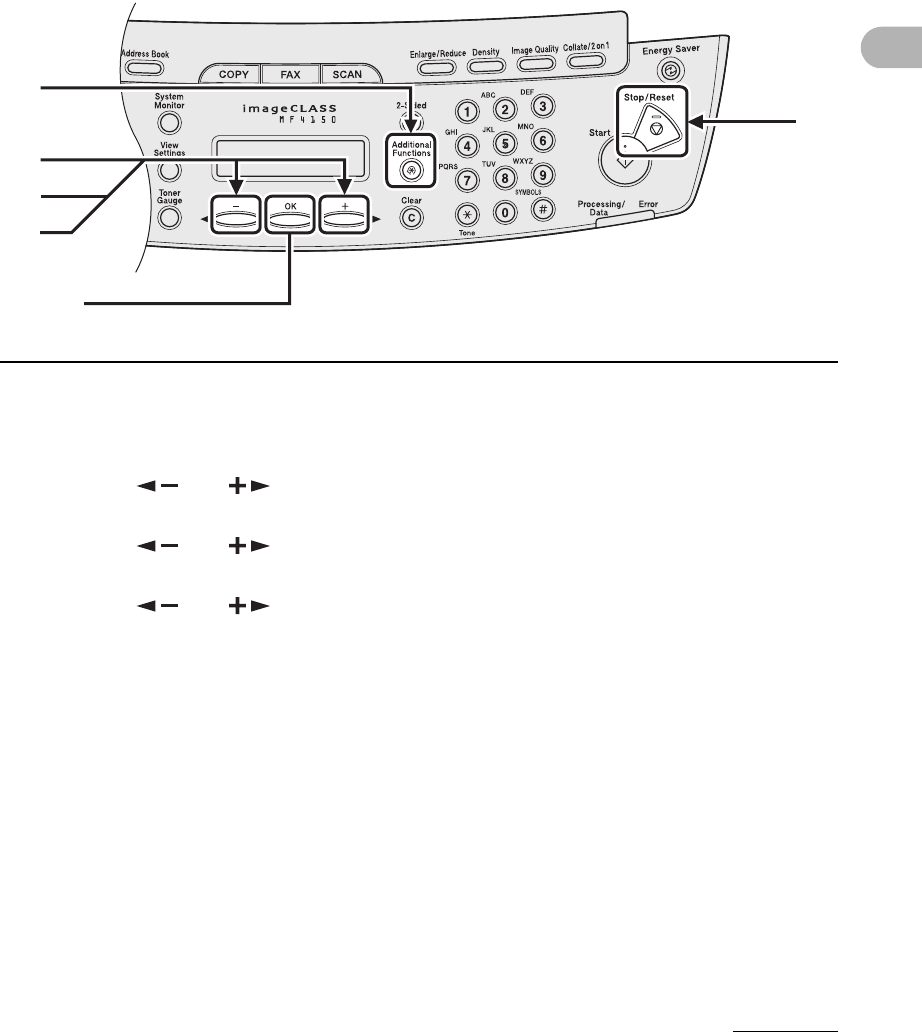
1Press [Additional Functions].
2Press [ ] or [ ] to select <TIMER SETTINGS>, then press [OK].
3Press [ ] or [ ] to select <DAYLIGHT SV.TIME>, then press [OK].
4Press [ ] or [ ] to select <ON> or <OFF>, then press [OK].
<ON>: adapts to Daylight Saving Time.
<OFF>: does not adapt to Daylight Saving Time.
5Press [Stop/Reset] to return to the standby mode.
1
2
4
[OK]
5
3
2-1
2
Document Handling
Document Handling
Document Requirements
*1When copying a transparent document such as tracing paper or transparencies, use a piece of plain
white paper to cover the document after placing it face-down on the platen glass.
*221 lb bond (80 g/m2) paper
Platen Glass ADF
Type – Plain paper
– Thick documents
– Photographs
– Small documents (e.g., index cards)
– Special types of paper (e.g., tracing
paper*1, transparencies*1, etc.)
– Book (Height: max. 1" (24 mm))
Plain paper (Multipage documents of
the same size, thickness and weight or
one page documents.)
Size (W x L) Max. 8 1/2" x 11 5/8"
(Max. 216 x 296 mm)
Max. 8 1/2" x 14"
(Max. 216 x 356 mm)
Min. 4 1/8" x 5 7/8"
(Min. 105 x 148.5 mm)
Weight Max. 4.4 lb (2 kg) 11 to 28 lb bond
(40 to 105 g/m2)
Quantity 1 sheet Max. 35 sheets*2
(Max. 10 sheets for LGL documents)

2-2
Document Handling
●Do not place the document on the platen glass or in the ADF until the glue, ink or
correction fluid on the document is completely dry.
●Remove all fasteners (staples, paper clips, etc.) before loading the document in the
ADF.
●To prevent document jams in the ADF, do not use any of the following:
– Wrinkled or creased paper
– Carbon paper or carbon-backed paper
– Curled or rolled paper
– Coated paper
– Torn paper
– Onion skin or thin paper
– Documents with staples or paper clips attached
– Paper printed with a thermal transfer printer
– Transparencies
2-3
Document Handling
Scanning Area
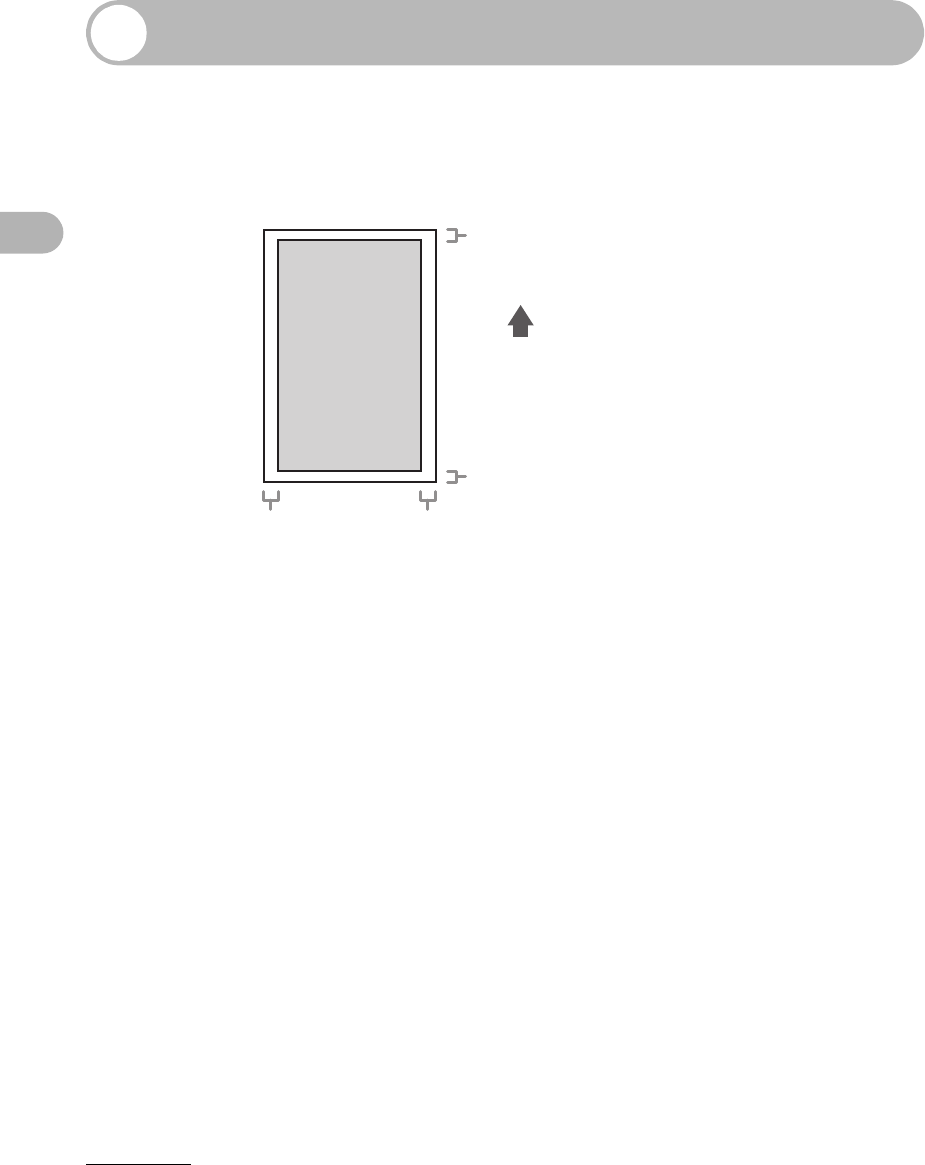
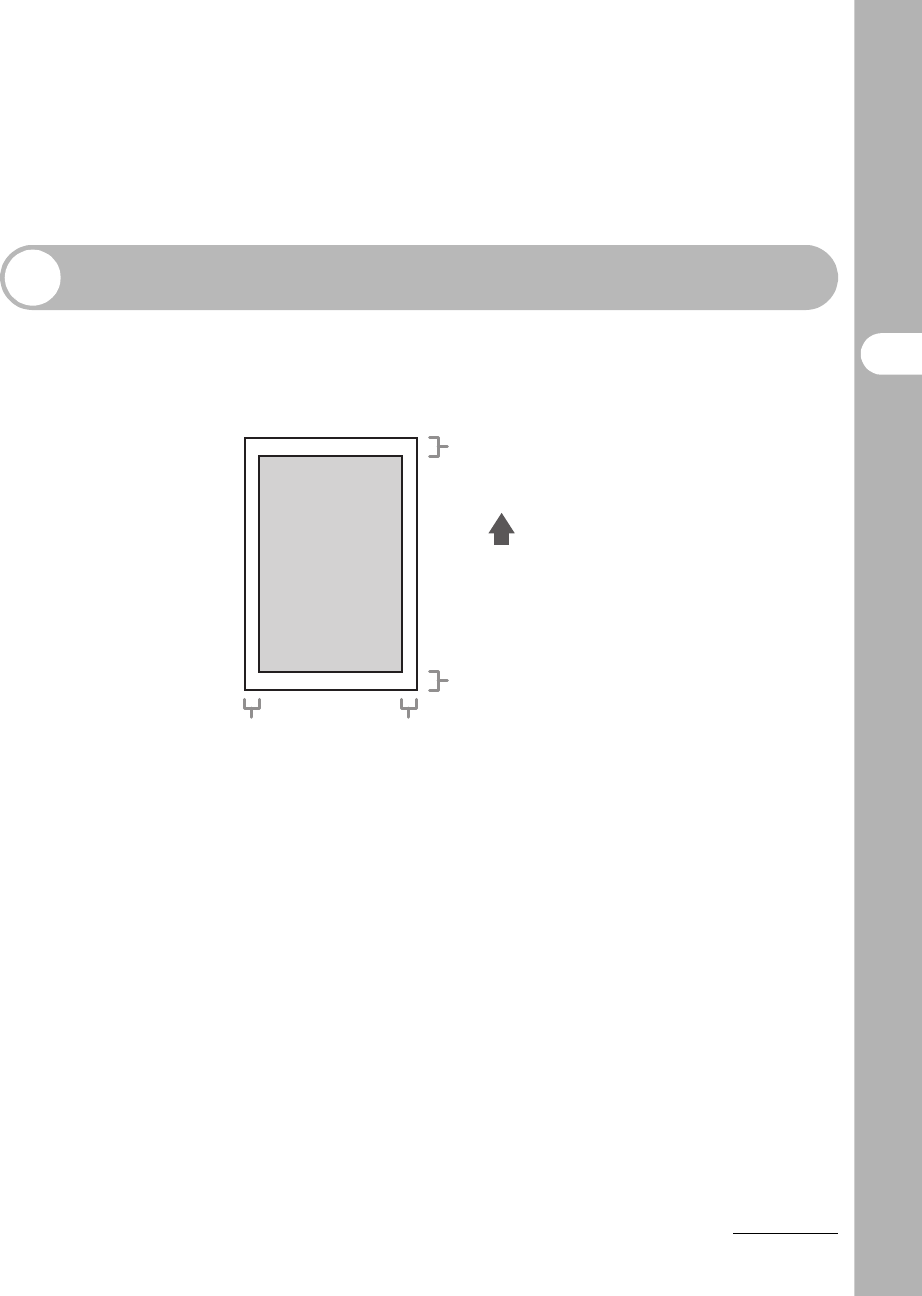
Make sure your document’s text and graphics fall within the shaded area in the
following diagram. Note that the margin widths listed are approximate and there
may be slight variations in actual use.
1
/
8
"
(2 mm)
1
/
8
"
(2 mm)
1
/
8
" (2 mm)
1
/
8
" (2 mm)
2-4
Document Handling
Loading Documents
On the Platen Glass
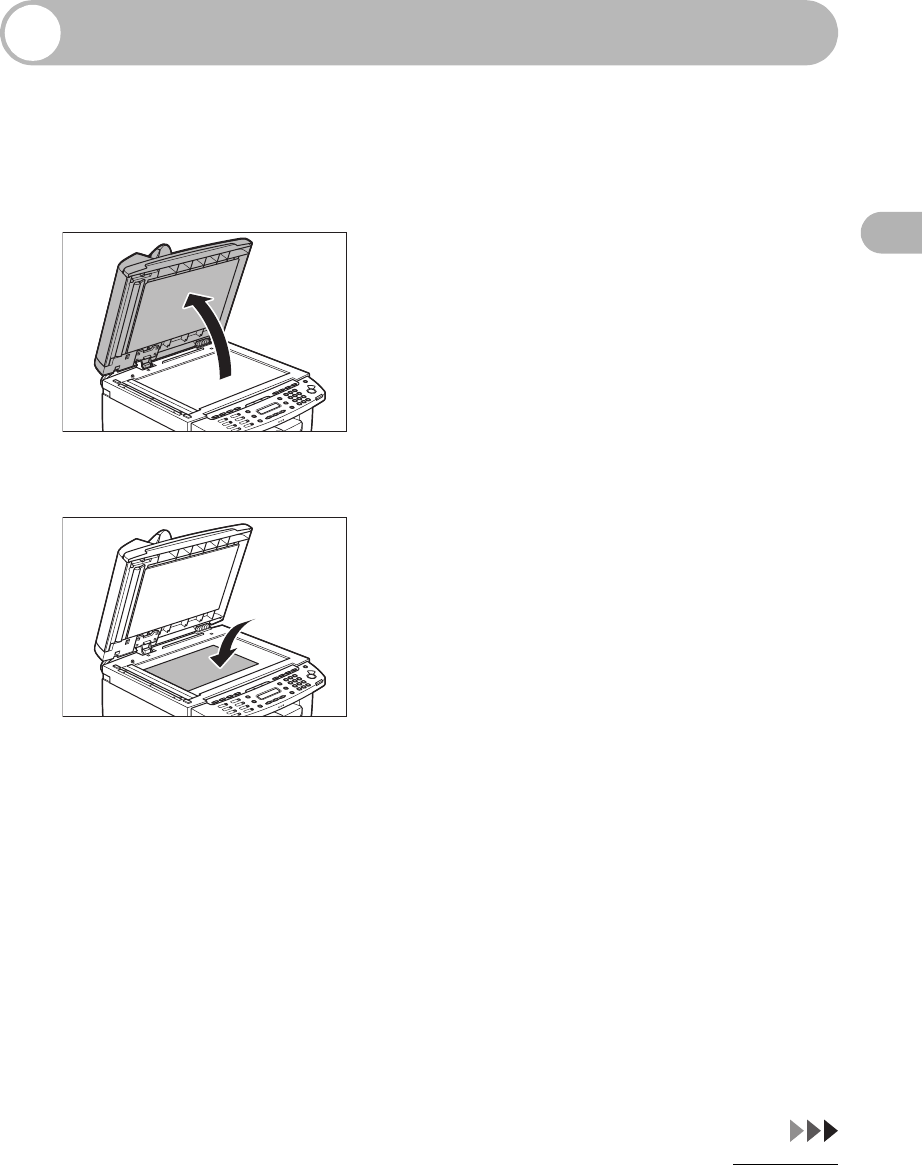
1Lift up the ADF.
2Place your document face down.
2-5
Document Handling
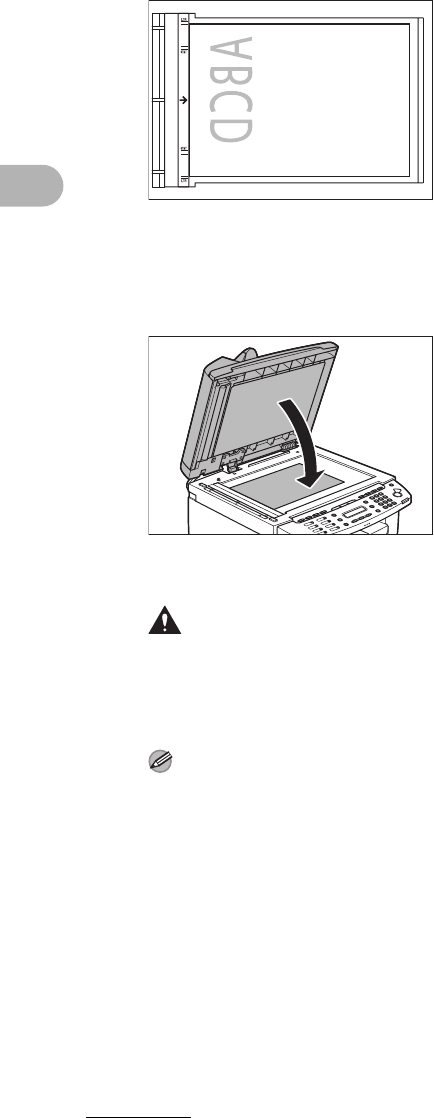
3Align the document with the appropriate paper size marks.
If your document does not match any of the paper size marks, align the center of your document
with the arrow mark.
4Gently close the ADF.
The document is ready for scanning.
CAUTION
–When closing the ADF be careful not to get your fingers caught, as this may result in
personal injury.
–Do not press down the ADF forcefully, as this may damage the platen glass and cause
personal injury.
NOTE
Remove the document from the platen glass when scanning is complete.
A5
A4
A4
A5
2-6
Document Handling
In the ADF
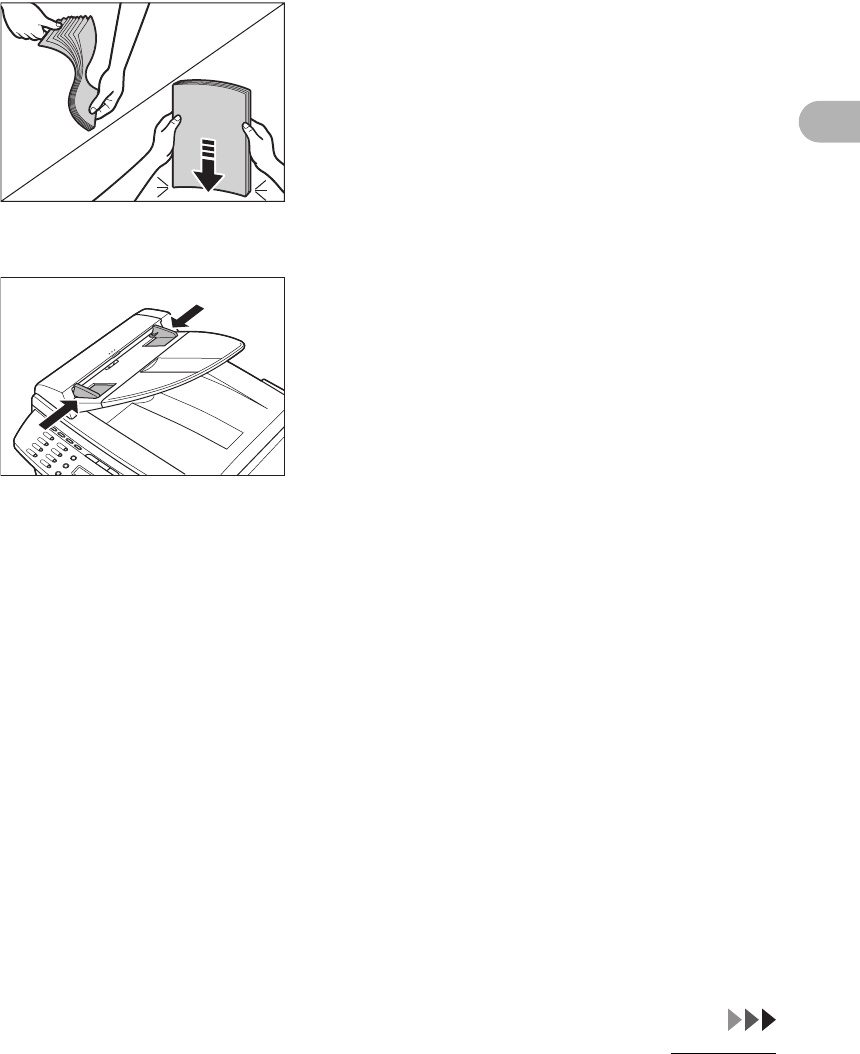
1Fan the document stack and even the edges.
2Adjust the slide guides to the width of the documents.
2-7
Document Handling
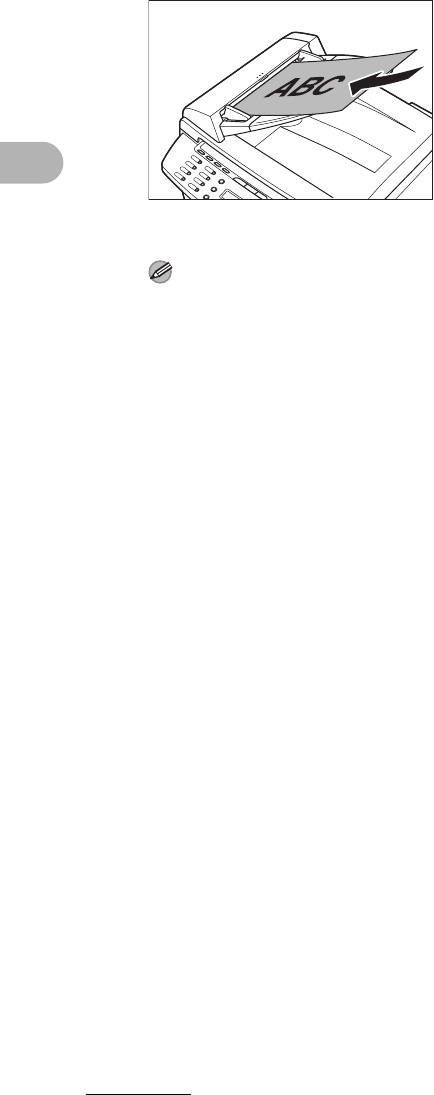
3Neatly place the documents face up in the document feeder tray.
When enlarging STMT originals to LTR paper, place your originals horizontally.
The document is ready for scanning.
NOTE
– Do not add or remove documents while they are being scanned.
– When scanning is complete, remove the documents from the document delivery tray to avoid
paper jams.
– Avoid using ADF to scan the same document more than 30 times. When scanned repeatedly,
documents can become folded or torn, which may cause paper jams.
– If the feeder rollers are soiled from scanning a document written in pencil, clean them. (See
“Cleaning the Machine,” on p. 10-1.)
3-1
3
Print Media
Print Media
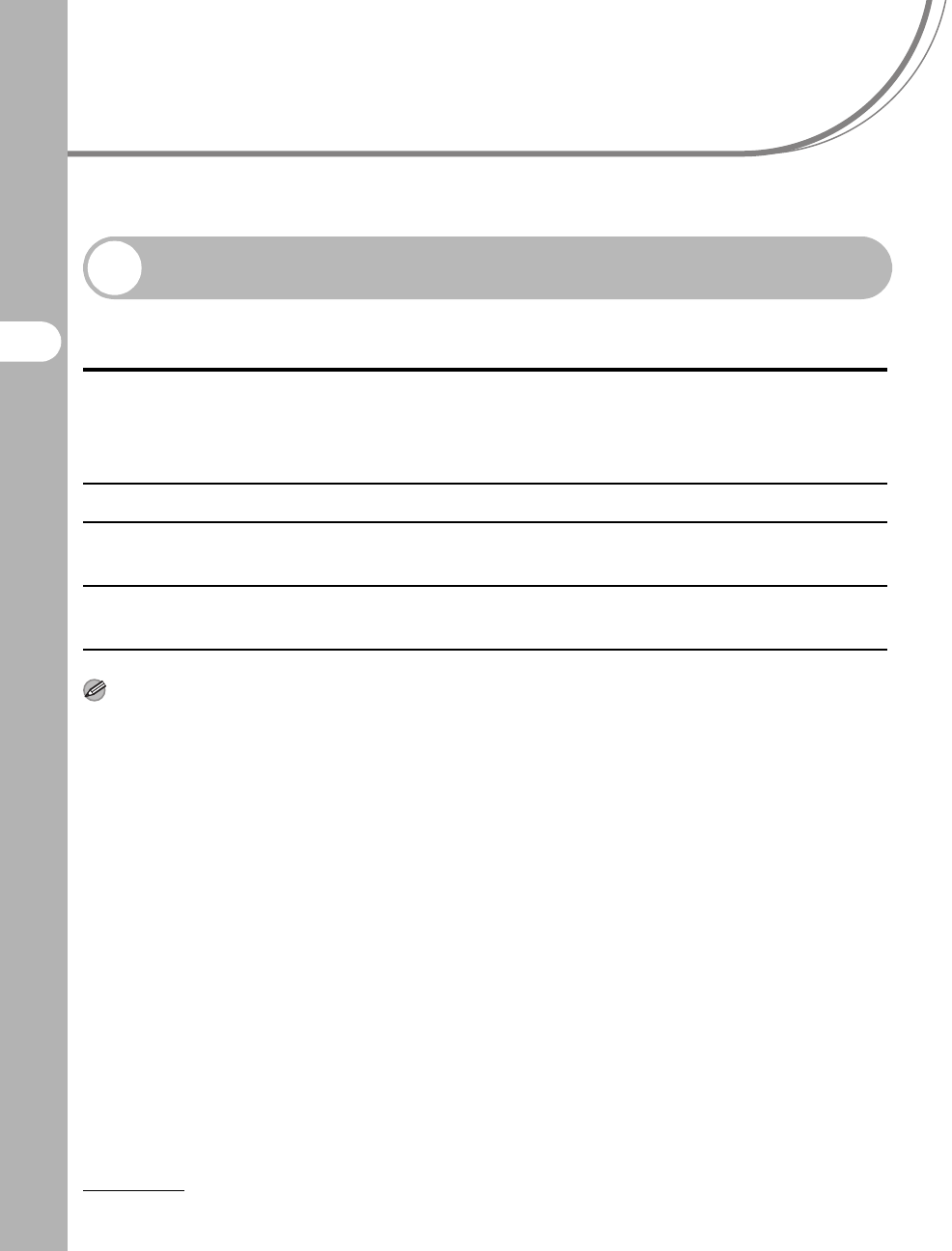
Paper Requirements
NOTE
The default paper size is LTR. If you use a different paper size, you must change the paper size settings.
(See “Setting Paper Size and Type,” on p. 3-7.)
Paper feeding tray Multi-purpose tray
Size (W x L) LTR, LGL, A4, B5, A5, Executive, Envelope (COM10, Monarch,
DL, ISO-C5), Oficio, Brazil-Oficio, Mexico-Oficio, Folio,
Government-LTR, Government-LGL, Foolscap
(3" x 5" to 8 1/2" x 14" (76 x 127 to 216 x 356 mm))
Weight 16 to 43 lb bond (60 to 163 g/m2)
Quantity Max. 250 sheets
(Height: max. 1" (25 mm))
Max. 1 sheet
Type Plain Paper, Plain Paper L, Heavy Paper, Heavy Paper H,
Transparency
3-2
Print Media
Printable Area
The shaded area indicates the approximate printable area of LTR paper and
envelope. Note that the margin widths listed are approximate and there may be
slight variations in actual use.
1
/
4
" (5 mm)
1
/
4
" (5 mm)
1
/
4
" (6 mm)
1
/
4
" (6 mm)

3-3
Print Media
Paper Guidelines
●To prevent paper jams, do not use any of the following:
– Wrinkled or creased paper
– Curled or rolled paper
– Coated paper
– Torn paper
– Damp paper
– Very thin paper
– Paper which has been printed on using a thermal transfer printer (Do not copy on
the reverse side.)
●The following types of paper do not print well:
– Highly textured paper
– Very smooth paper
– Shiny paper
●Make sure the paper is free from dust, lint, and oil stains.
●Be sure to test paper before purchasing large quantities.
●Store all paper wrapped and on a flat surface until ready for use. Keep opened packs
in their original packaging in a cool, dry location.
●Store paper at 64.4°F–75.2°F (18°C–24°C), 40%–60% relative humidity.
●Use only the transparencies designed for laser printers. Canon recommends you to
use Canon type transparencies with this machine.
3-4
Print Media
Loading Paper
To load paper in the paper feeding tray, see “Set Up the Paper Trays and Load
Paper,” in the Starter Guide.
Into the Multi-Purpose Tray
Use the multi-purpose tray when you want to copy or print on the different paper which
is in the paper feeding tray. Load paper one by one in the multi-purpose tray.
NOTE
– The paper in the multi-purpose tray is fed prior to the paper in the paper feeding tray.
– The recommended envelopes are COM10, MONARCH, DL, and ISO-C5. Using other envelopes may
affect the quality of the printout.
– Make sure to set the correct paper size in the printer driver. (See Online Help.)
– When printing received documents, it is possible to feed paper only from the paper feeding tray. If paper
is loaded into the multi-purpose tray, <REMOVE MP PAPER> appears.
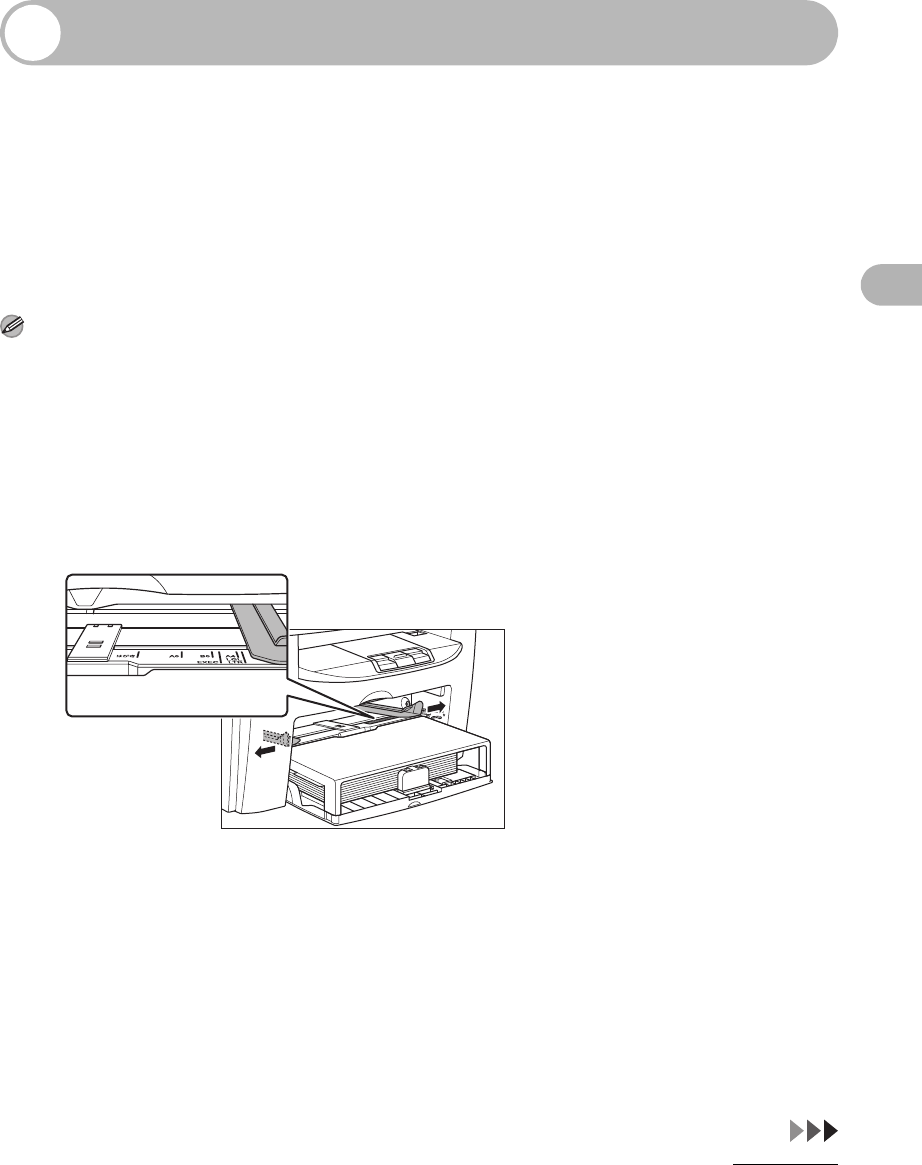
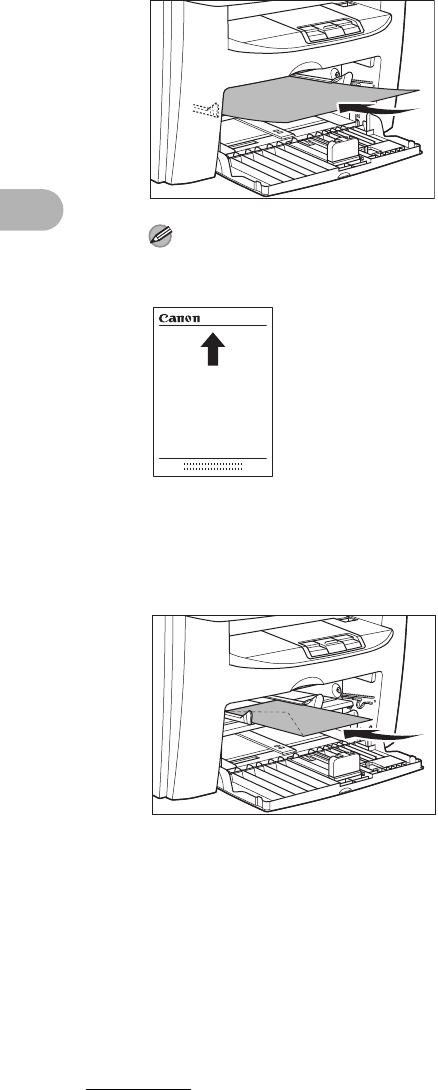
1Spread the paper guides a little wider than the actual paper width.
3-5
Print Media
2When setting a paper, gently insert the paper into the multi-purpose tray
with the print side up.
NOTE
When you load paper with a logo on, position the paper with the print side up (logo side) and insert
it so that the top of the paper feeds first in the multi-purpose tray.
When setting an envelope, gently insert the envelope into the multi-
purpose tray with the print side up and the right edge (i.e., closer to the
stamp) first.

3-6
Print Media
3Slide the paper guides so that they fit to both sides of the paper.
NOTE
If the paper guides are not adjusted correctly for the size of the paper, the quality of your printouts
may be adversely affected.
4Specify the size and the type of the paper you load.
For details on how to specify the paper size and type, see “Setting Paper Size and Type,” on p. 3-7.
3-7
Print Media
Setting Paper Size and Type
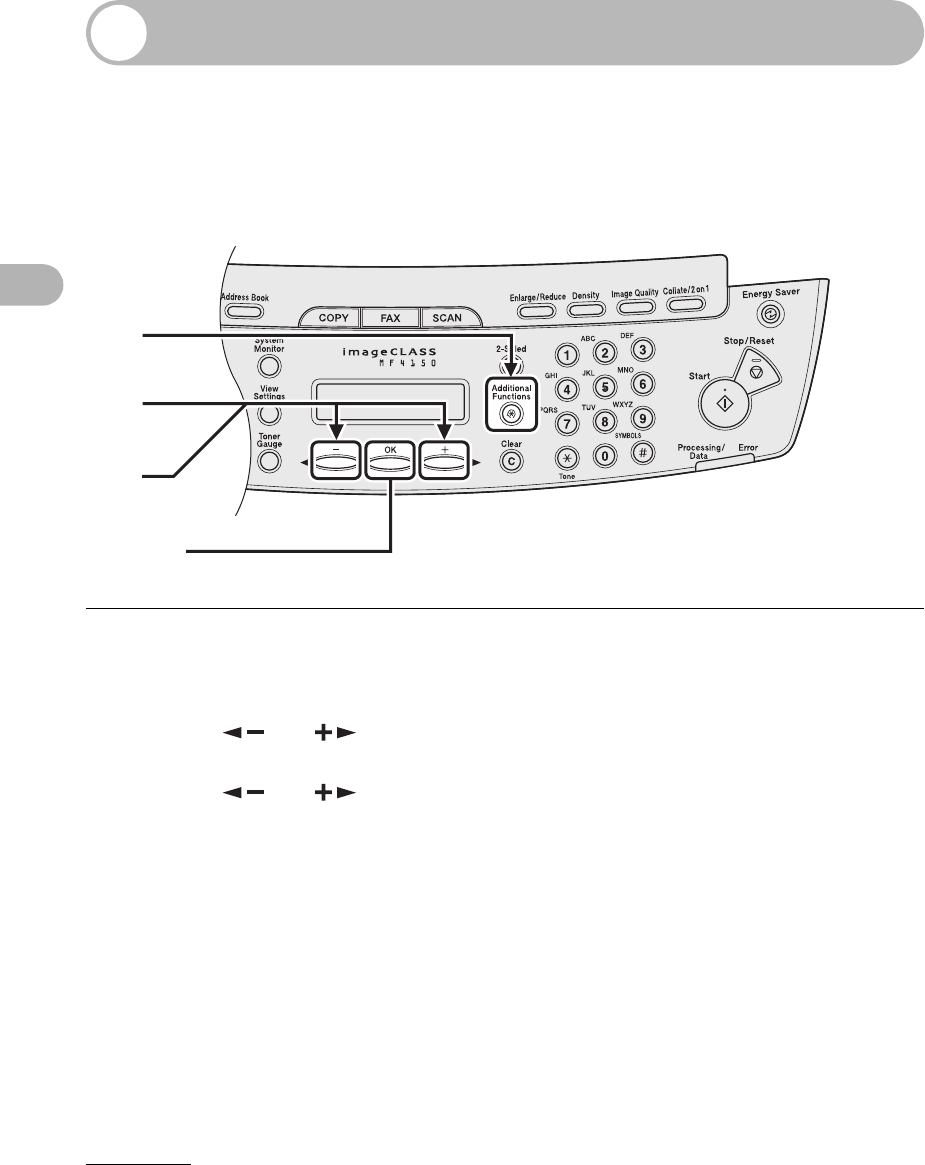
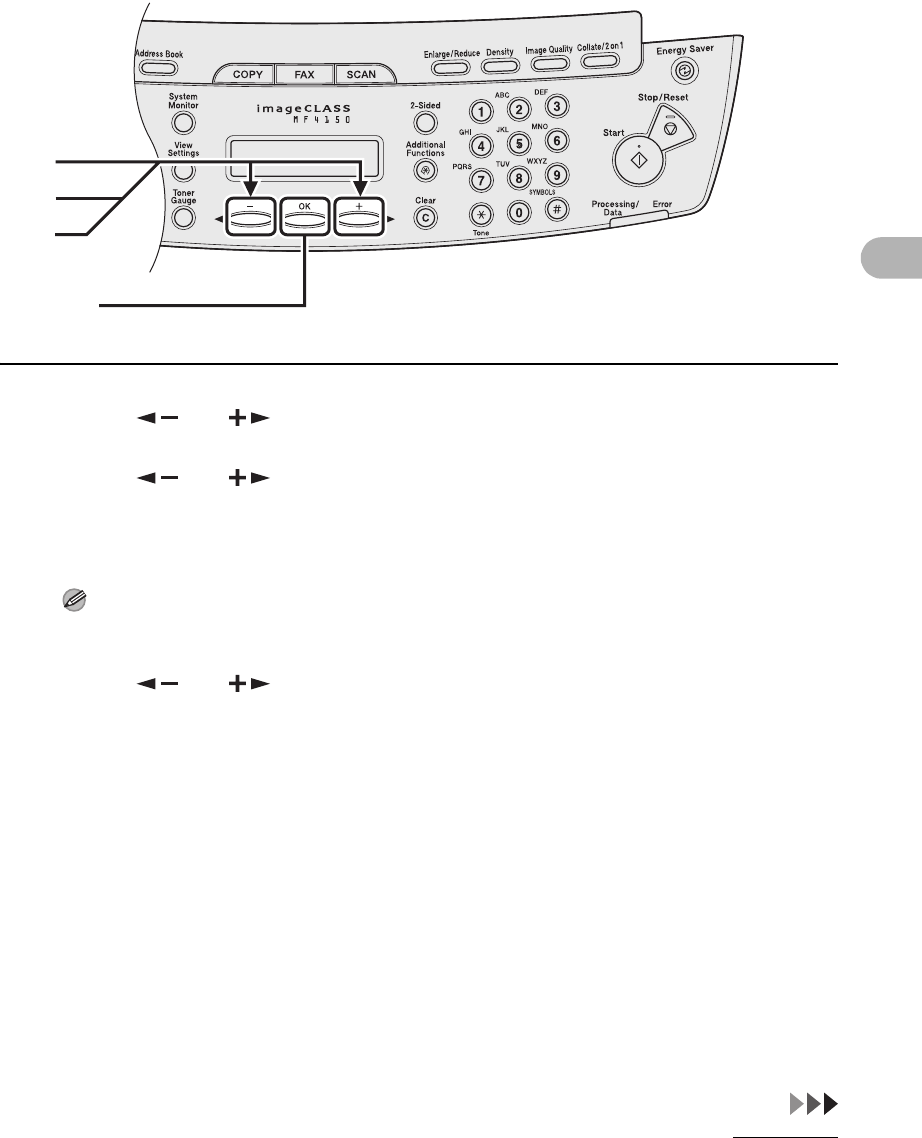
The default setting is <LTR> and <PLAIN PAPER>. When you place other sizes
and/or types of paper, follow this procedure to change the settings.
The procedure is same for the paper feeding tray and multi-purpose tray except
for selecting the paper feeding tray or multi-purpose tray in step 3 and 6.
1Press [Additional Functions].
2Press [ ] or [ ] to select <PAPER SETTINGS>, then press [OK].
3Press [ ] or [ ] to select <CASSETTE> or <MP TRAY>, then press
[OK].
1
2
3
[OK]
3-8
Print Media
4Press [ ] or [ ] to select <PAPER SIZE>, then press [OK].
5Press [ ] or [ ] to select the paper size, then press [OK].
<LTR>, <LGL>, <A4>, <B5>, <A5>, <EXECUTIVE>, <COM10>, <MONARCH>, <DL>, <ISO-C5>,
<OFICIO>, <BRAZIL-OFICIO>, <MEXICO-OFICIO>, <FOLIO>, <GOVERNMENT-LETTER>,
<GOVERNMENT-LEGAL>, <FOOLSCAP>
NOTE
The paper sizes available will vary depending on the country where the unit was purchased.
6Press [ ] or [ ] to select <CASSETTE> or <MP TRAY>, then press
[OK].
4
6
[OK]
5
3-9
Print Media
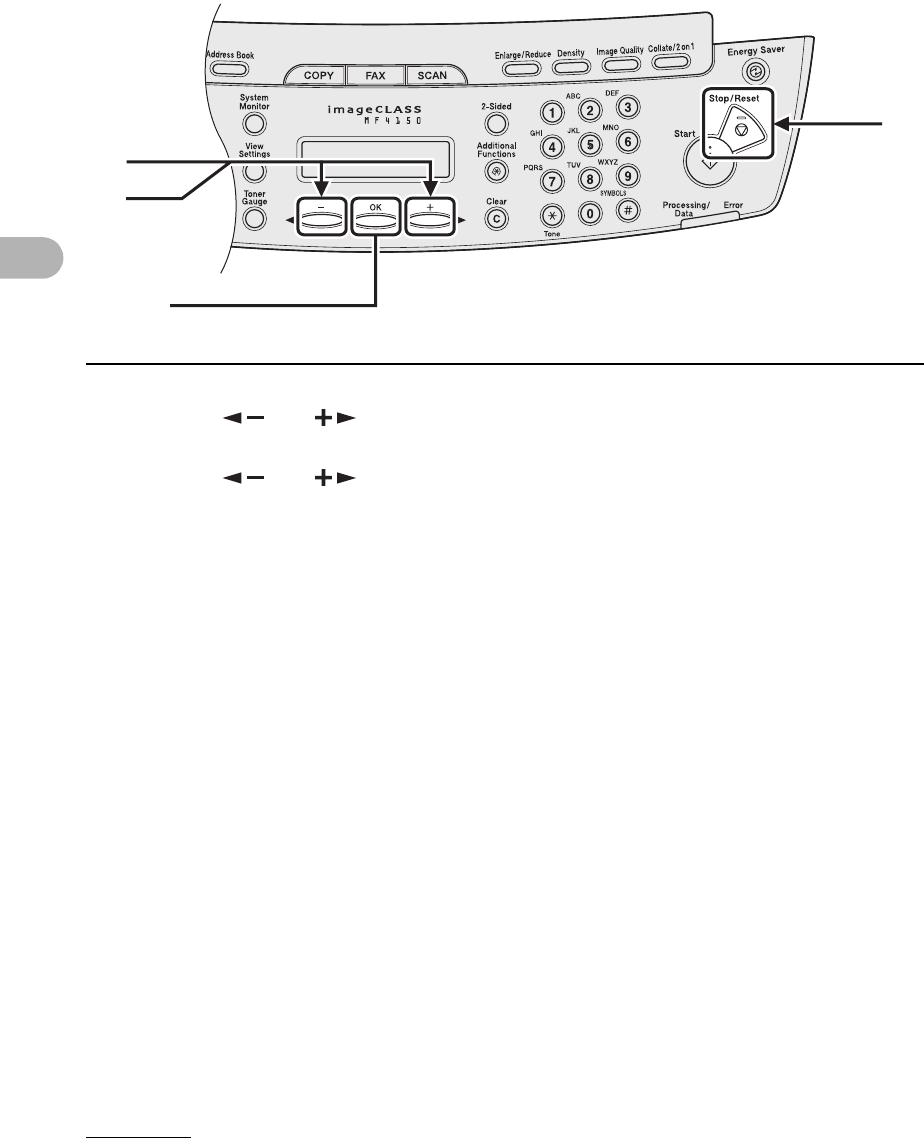
7Press [ ] or [ ] to select <PAPER TYPE>, then press [OK].
8Press [ ] or [ ] to select the paper type, then press [OK].
You can select from the following paper types:
<PLAIN PAPER> or <PLAIN PAPER L>*1 for Plain paper (17 lb to 24 lb (64 g/m2 to 90 g/m2))
<HEAVY PAPER> or <HEAVY PAPER H>*2 for Heavy paper (Paper feeding tray: 28 lb to 34 lb
(105 g/m2 to 128 g/m2), Multi-purpose tray: 28 lb to 43 lb (105 g/m2 to 163 g/m2)) or Envelope
<TRANSPARENCY> for Transparency
*1 If paper curls excessively when printed with <PLAIN PAPER> selected, select <PLAIN
PAPER L>.
*2 If print fixing is not sufficient when printed with <HEAVY PAPER> selected, select <HEAVY
PAPER H>.
9Press [Stop/Reset] to return to the standby mode.
7
9
[OK]
8
4-1
4
Sending Faxes
Sending Faxes
Follow this procedure to send a fax.
For advanced sending features, see Chapter 1, “Advanced Fax Features,” in the
Advanced Guide.
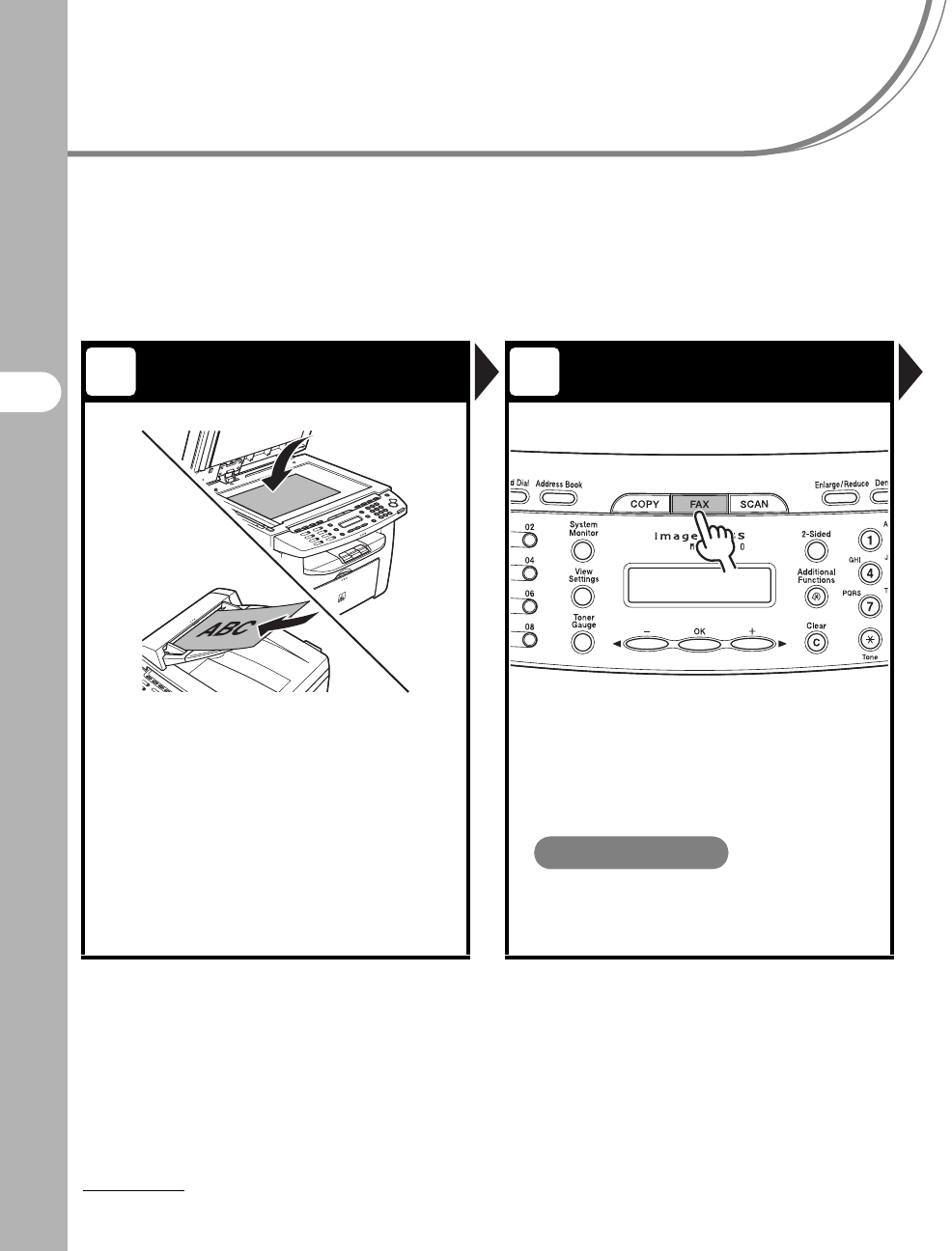
Set a Document Enter the Fax Mode
Place the document on the platen
glass or load it in the ADF.
For documents you can fax, see “Document
Requirements,” on p. 2-1.
Press [FAX].
The FAX indicator lights and the machine enters the fax
standby mode.
What if...
●You want to adjust the resolution and
density:
See “Scan Settings,” on p. 4-3.
1 2
ABC
4-2
Sending Faxes
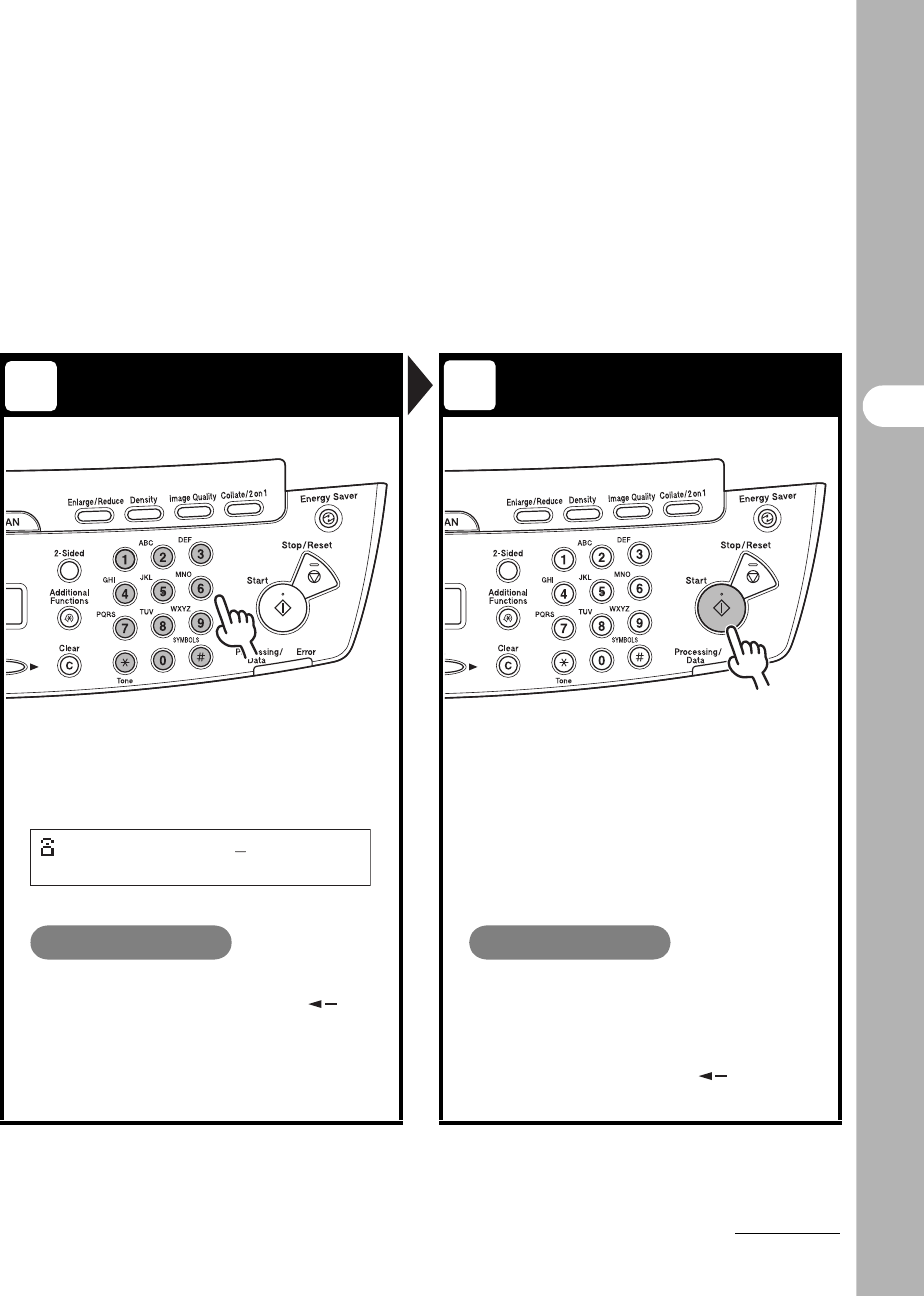
Enter the Fax Number Send the Document
Dial the recipient’s fax number with
the numeric keys.
Press [Start].
When you set the document on the platen glass, press
[Start] for each document. When scanning is complete,
press [OK].
If <CONFIRM NEW DEST.> is set to <ON> in the <TX
SETTINGS> of the <FAX SETTINGS> menu, you need
to enter the fax number again after pressing [Start].
What if...
●You enter a wrong number:
Go back to the wrong digit with [ ],
then press [Clear] to delete it. Or press
and hold [Clear] to delete the entire
entry. Then try again.
What if...
●You press [Stop/Reset] to cancel a
job during scanning documents or
after scanning documents:
The <CANCEL DURING TX/RX?>
message appears. Press [ ] to select
<Yes>.
34
Ex.
=012XXXXXXX
4-3
Sending Faxes
Scan Settings
You can adjust the image quality and density of the document you send. The
higher image quality you set, the better the output will be, but the longer the
transmission will take. Adjust the scan settings according to the type of
document you are sending.
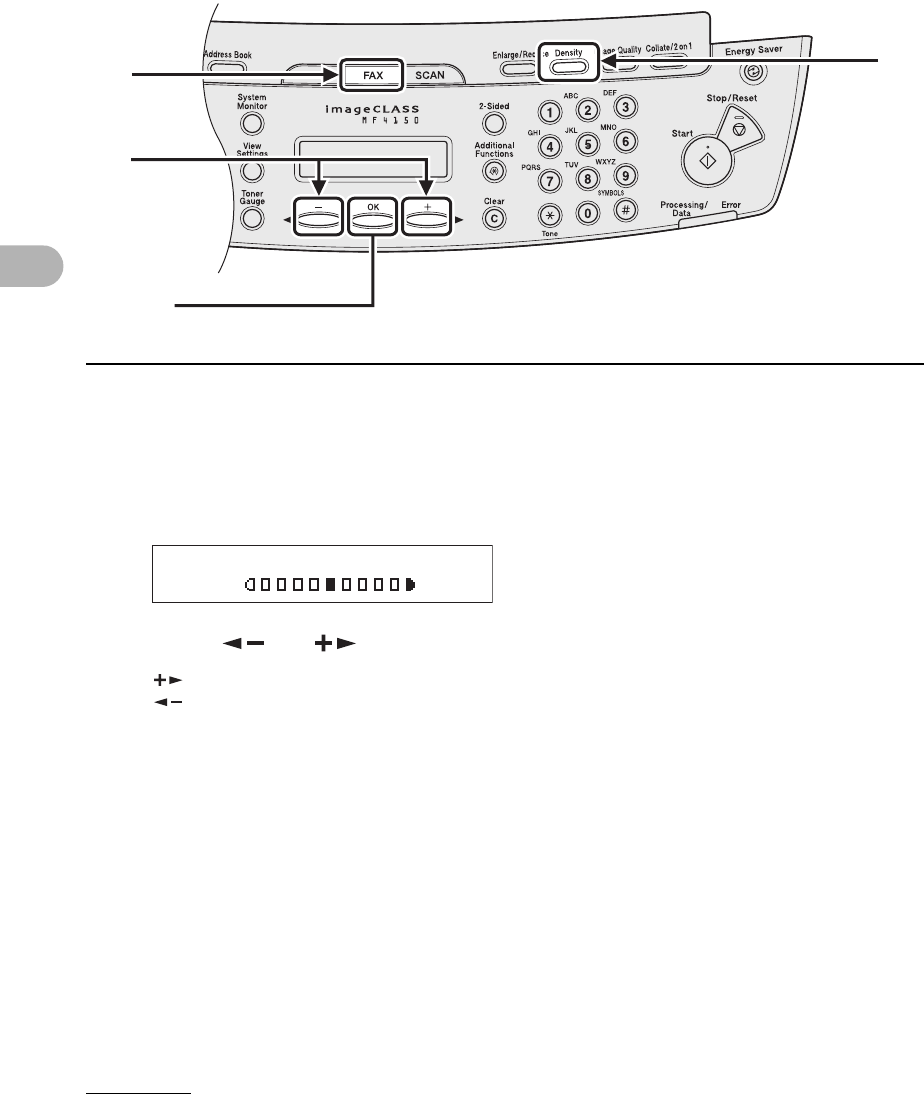
Image Quality
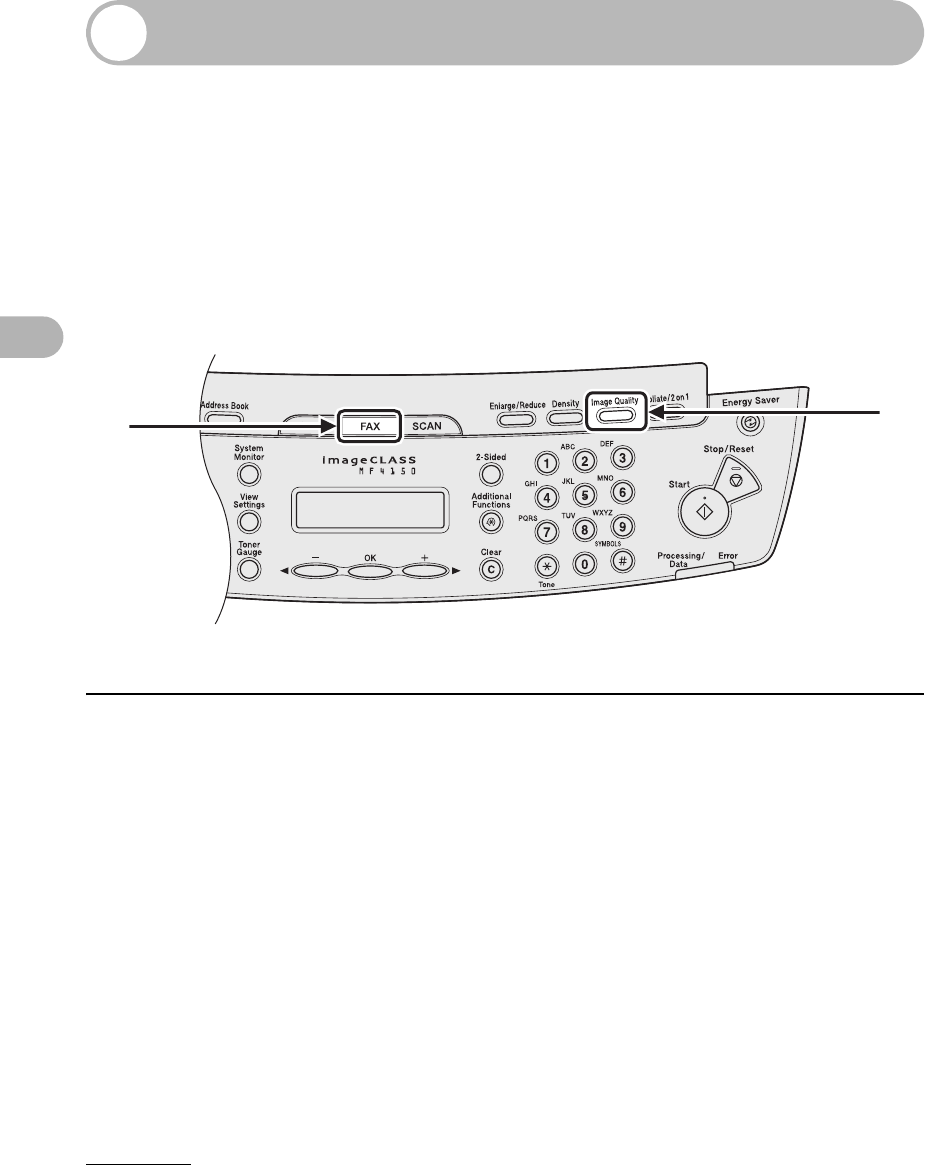
1Press [FAX].
2Press [Image Quality].
12
4-4
Sending Faxes
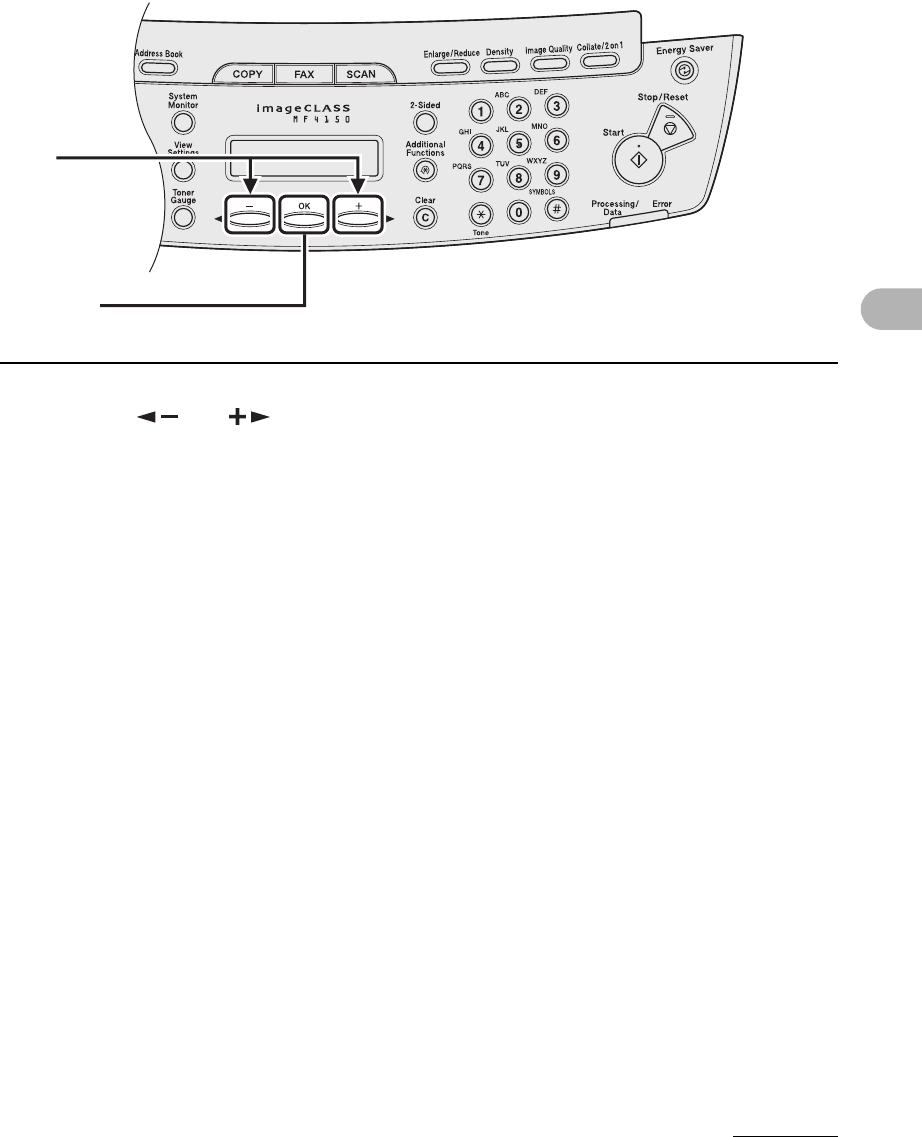
3Press [ ] or [ ] to select the resolution, then press [OK].
<STANDARD> for most text-only documents. (200 x 100 dpi)
<FINE> for fine-print documents (the resolution is twice that of <STANDARD>). (200 x 200 dpi)
<PHOTO> for documents that contain photographs (the resolution is twice that of <STANDARD>).
(200 x 200 dpi)
<SUPER FINE> for documents that contain fine print and images (the resolution is four times that
of <STANDARD>). (200 x 400 dpi)
3
[OK]
4-5
Sending Faxes
Density
1Press [FAX].
2Press [Density].
3Press [ ] or [ ] to adjust the density, then press [OK].
[ ]: to make light documents darker
[ ]: to make dark documents lighter
12
3
[OK]
Ex.
DENSITY
-LT DK+

4-6
Sending Faxes
Speed Dialing
Speed dialing allows you to dial fax/telephone numbers by simply pressing one
or a few keys. The following speed dialing methods are available:
●One-Touch Speed Dialing (p. 4-7)
– Register a fax/telephone number for one-touch speed dialing, then to dial the
number, simply press the one-touch speed dialing key assigned to that number.
You can register up to 8 one-touch speed dialing keys, including group dialing.
●Coded Dialing (p. 4-14)
– Register a fax/telephone number for coded dialing, then to dial the number, simply
press [Coded Dial] and enter the two-digit code assigned to that number.
You can register up to 100 coded dialing codes.
●Group Dialing (p. 4-21)
– Register a group of fax numbers (must be registered for one-touch speed dialing
and/or coded dialing) for group dialing, then to send a document to all numbers in
that group, simply press the one-touch speed dialing key assigned to that group.
You can register up to 50 destinations into a one-touch speed dialing key as a
group.
Registering Recipients for Speed Dialing
For each recipient, you can register:
–Name
– Fax number (required)
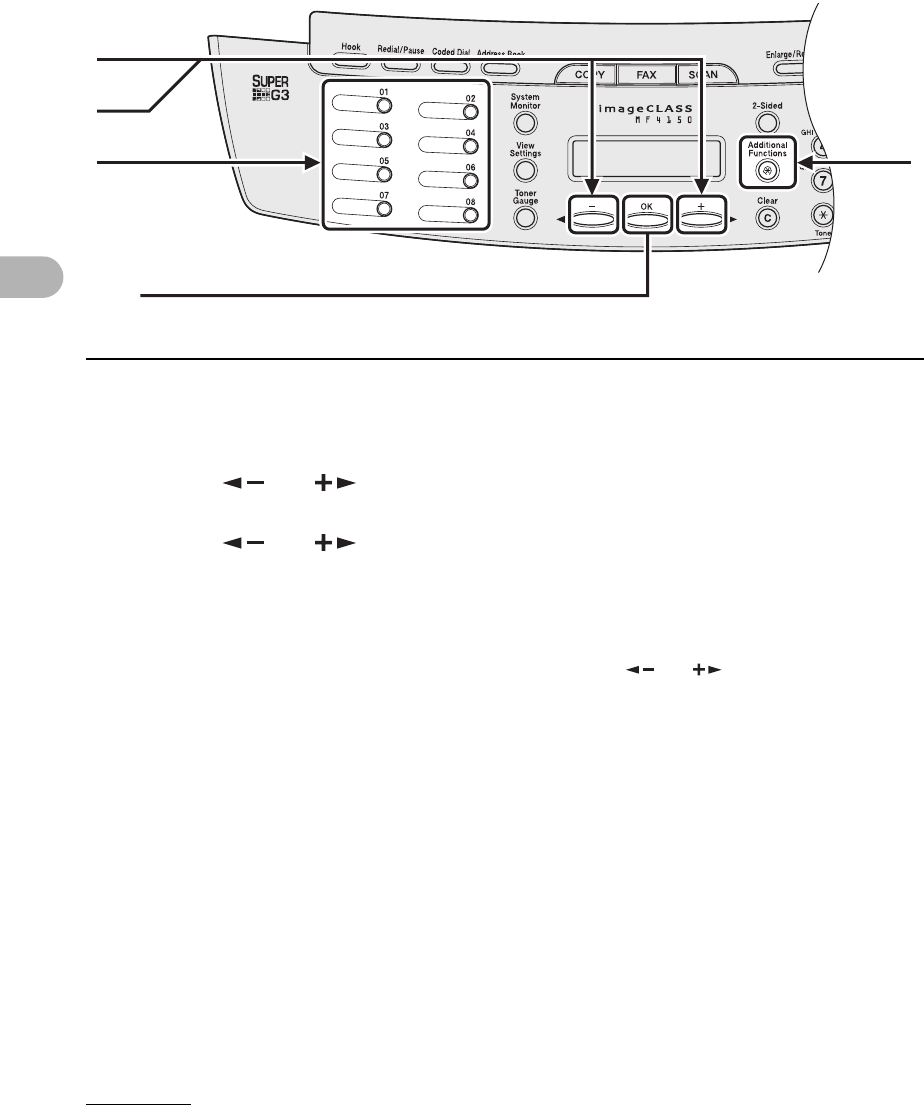
4-7
Sending Faxes
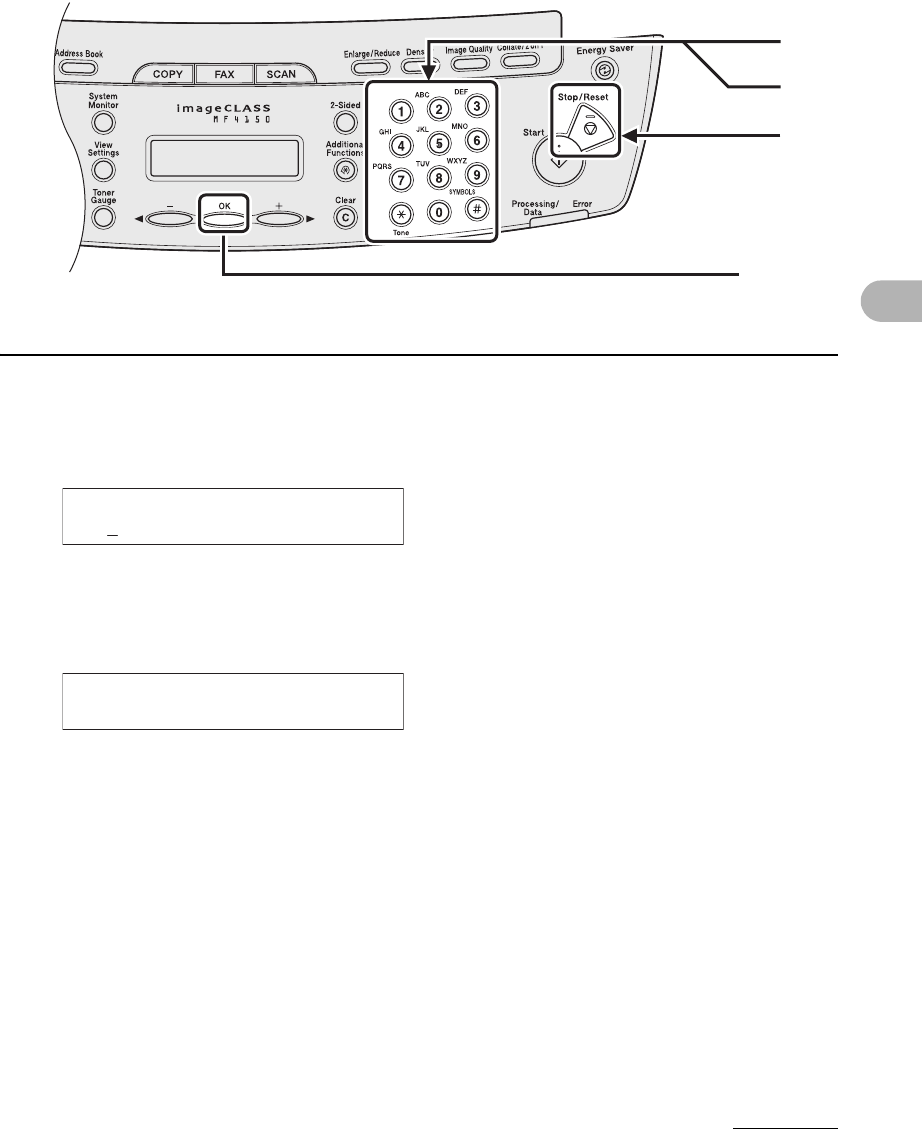
●Registering One-Touch Speed Dialing
1Press [Additional Functions].
2Press [ ] or [ ] to select <ADDRESS BOOK SET.>, then press [OK].
3Press [ ] or [ ] to select <1-TOUCH SPD DIAL>, then press [OK].
4Press a one-touch speed dialing key (01 to 08) for which you want to
register the fax number, then press [OK].
You can also select a one-touch speed dialing number with [ ] or [ ].
[OK]
4 1
3
2
4-8
Sending Faxes
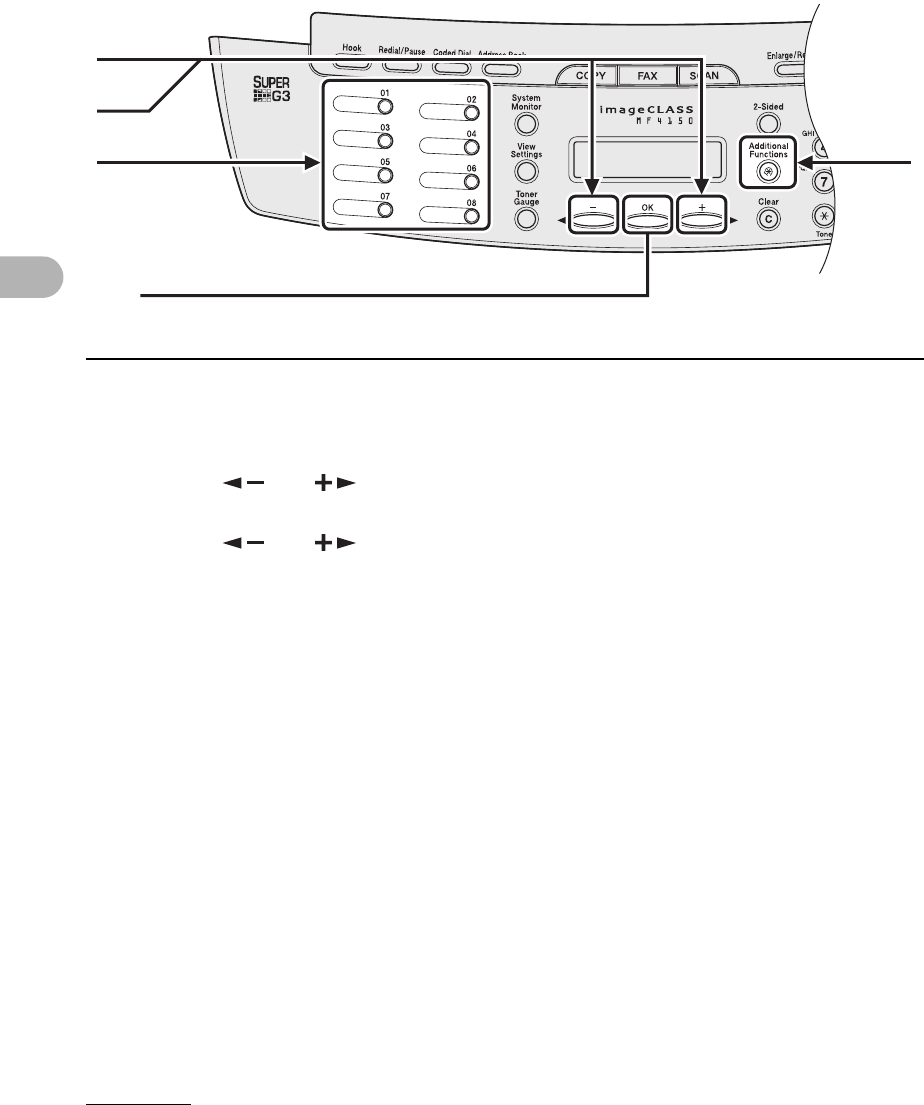
5Enter the destination name (max. 20 characters, including spaces) with the
numeric keys, then press [OK].
6Enter the fax number you register (max. 50 digits, including spaces and
pauses) with the numeric keys, then press [OK].
To register another one-touch speed dialing key, repeat the procedure from step 4.
7Press [Stop/Reset] to return to the standby mode.
7
6
5
[OK]
Ex.
NAME [A]
CAN
Ex.
TEL NUMBER ENTRY
012XXXXXXX_
4-9
Sending Faxes
●Editing One-Touch Speed Dialing
1Press [Additional Functions].
2Press [ ] or [ ] to select <ADDRESS BOOK SET.>, then press [OK].
3Press [ ] or [ ] to select <1-TOUCH SPD DIAL>, then press [OK].
4Press the one-touch speed dialing key (01 to 08) you want to edit, then
press [OK].
[OK]
4 1
3
2
4-10
Sending Faxes
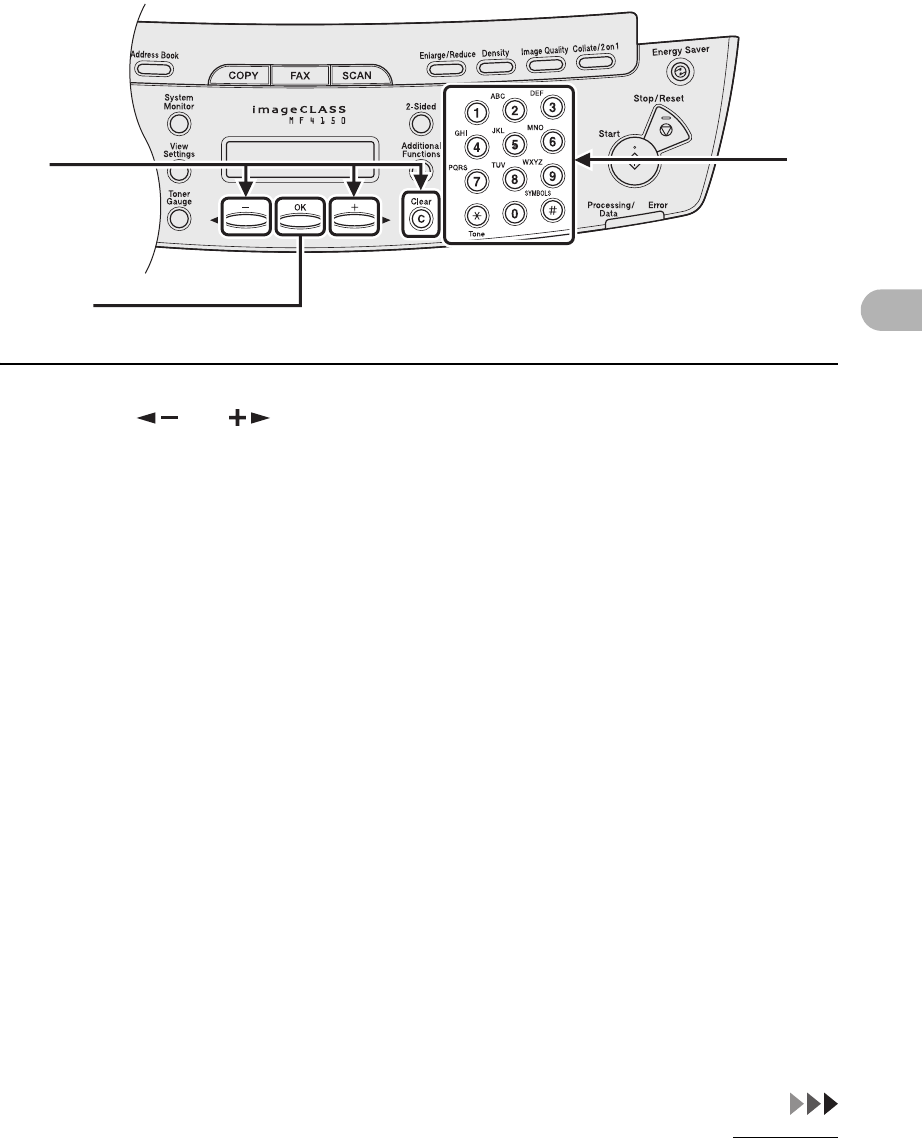
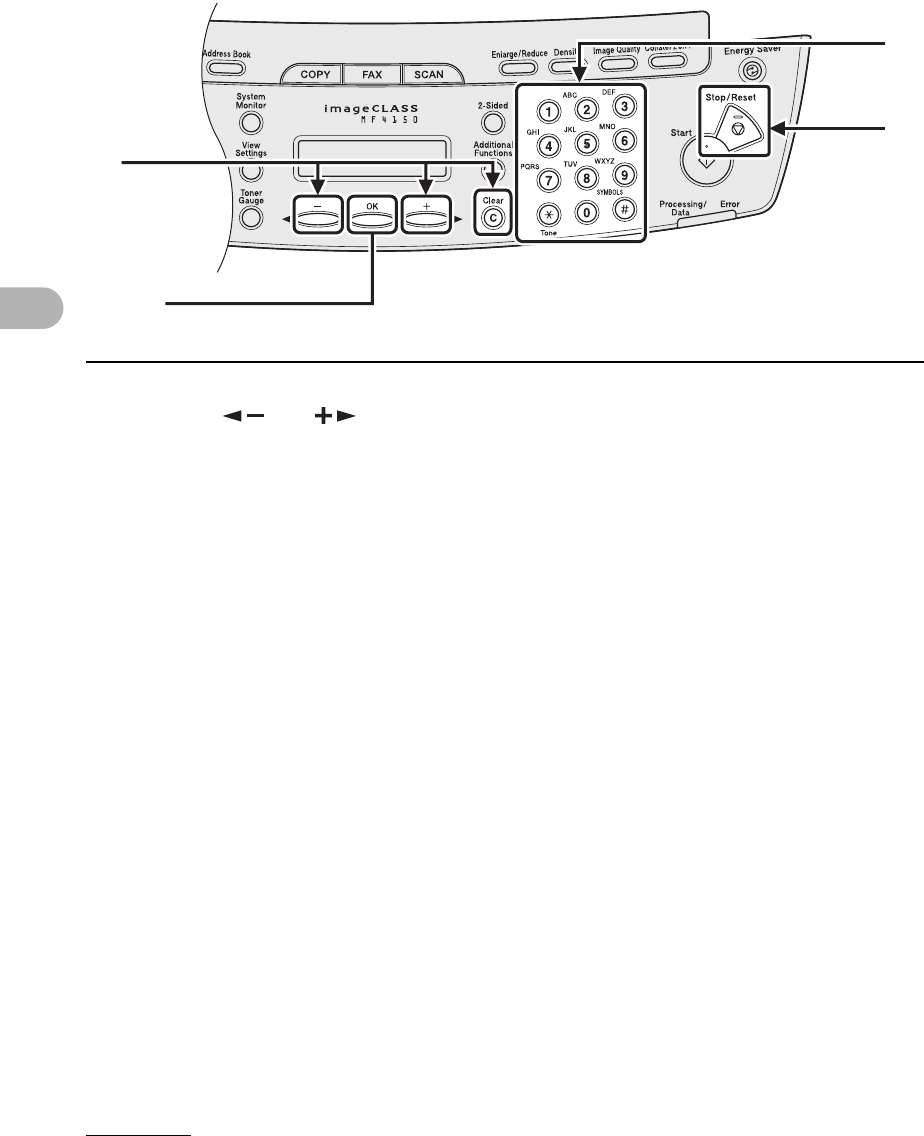
5Press [ ] or [ ] repeatedly to go to the wrong character, then press
[Clear] to delete it.
To delete the entire name, press and hold [Clear].
6Enter a new character with the numeric keys, then press [OK].
5
[OK]
6
4-11
Sending Faxes
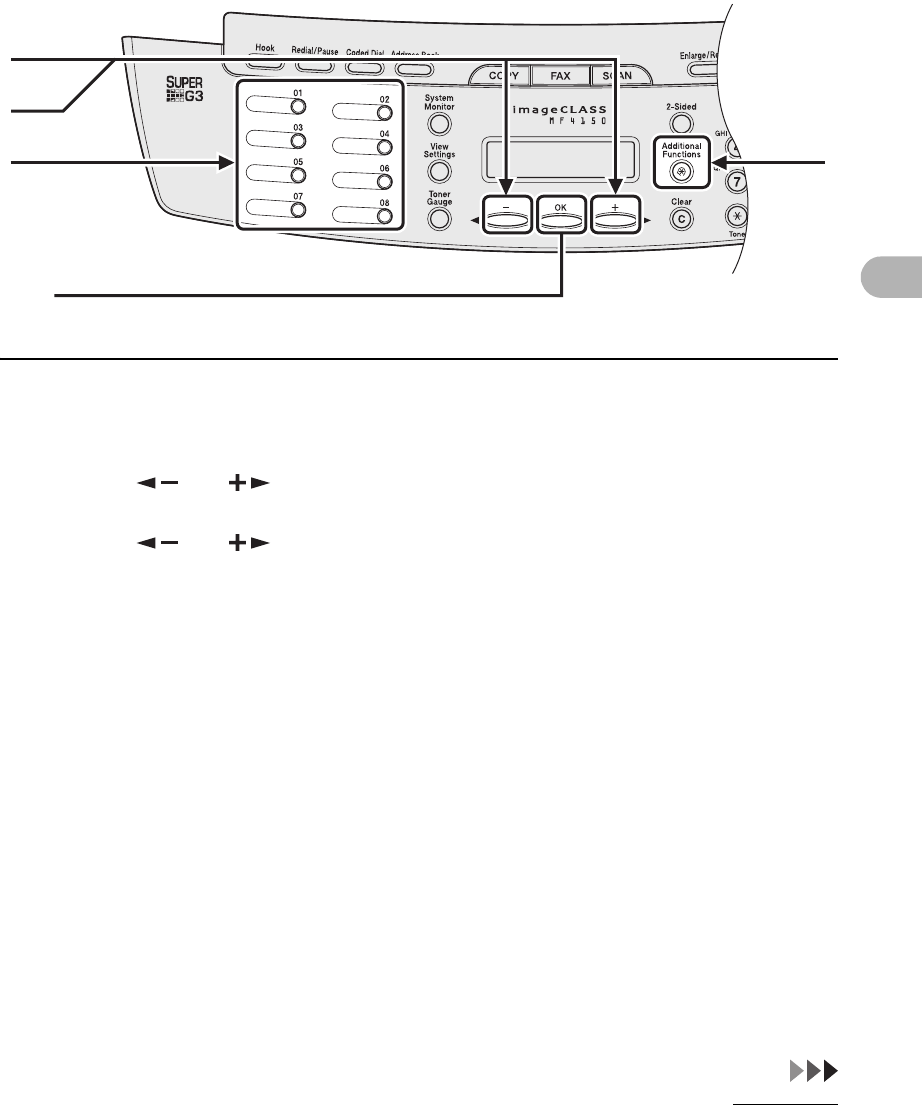
7Press [ ] or [ ] repeatedly to go to the wrong number, then press
[Clear] to delete it.
To delete all numbers, press and hold [Clear].
8Enter a new number with the numeric keys, then press [OK].
9Press [Stop/Reset] to return to the standby mode.
7
[OK]
9
8
4-12
Sending Faxes
●Deleting One-Touch Speed Dialing
1Press [Additional Functions].
2Press [ ] or [ ] to select <ADDRESS BOOK SET.>, then press [OK].
3Press [ ] or [ ] to select <1-TOUCH SPD DIAL>, then press [OK].
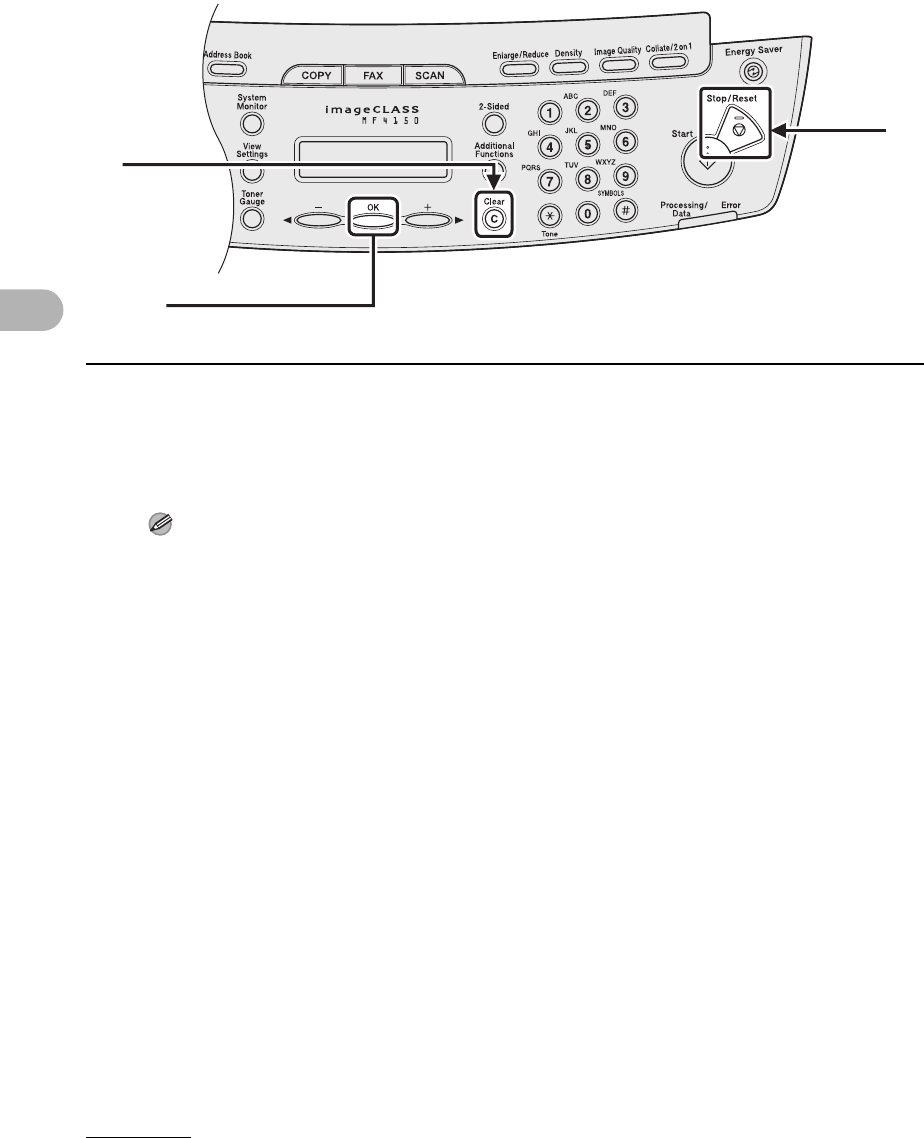
4Press the one-touch speed dialing key (01 to 08) you want to delete, then
press [OK].
[OK]
4 1
3
2
4-13
Sending Faxes
5Press [OK].
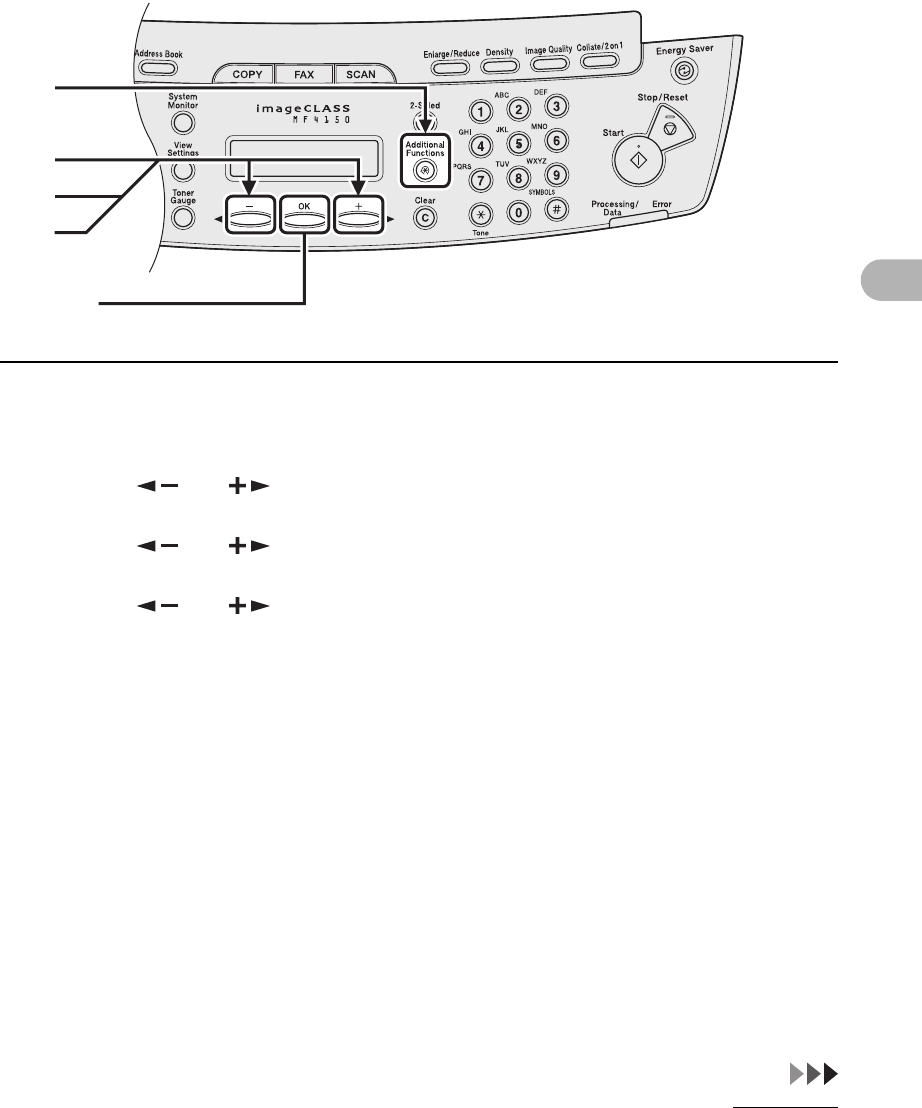
6Press and hold [Clear] to delete all numbers, then press [OK].
NOTE
When deleting all numbers, the registered name is cleared automatically.
7Press [Stop/Reset] to return to the standby mode.
6
[OK]
7
4-14
Sending Faxes
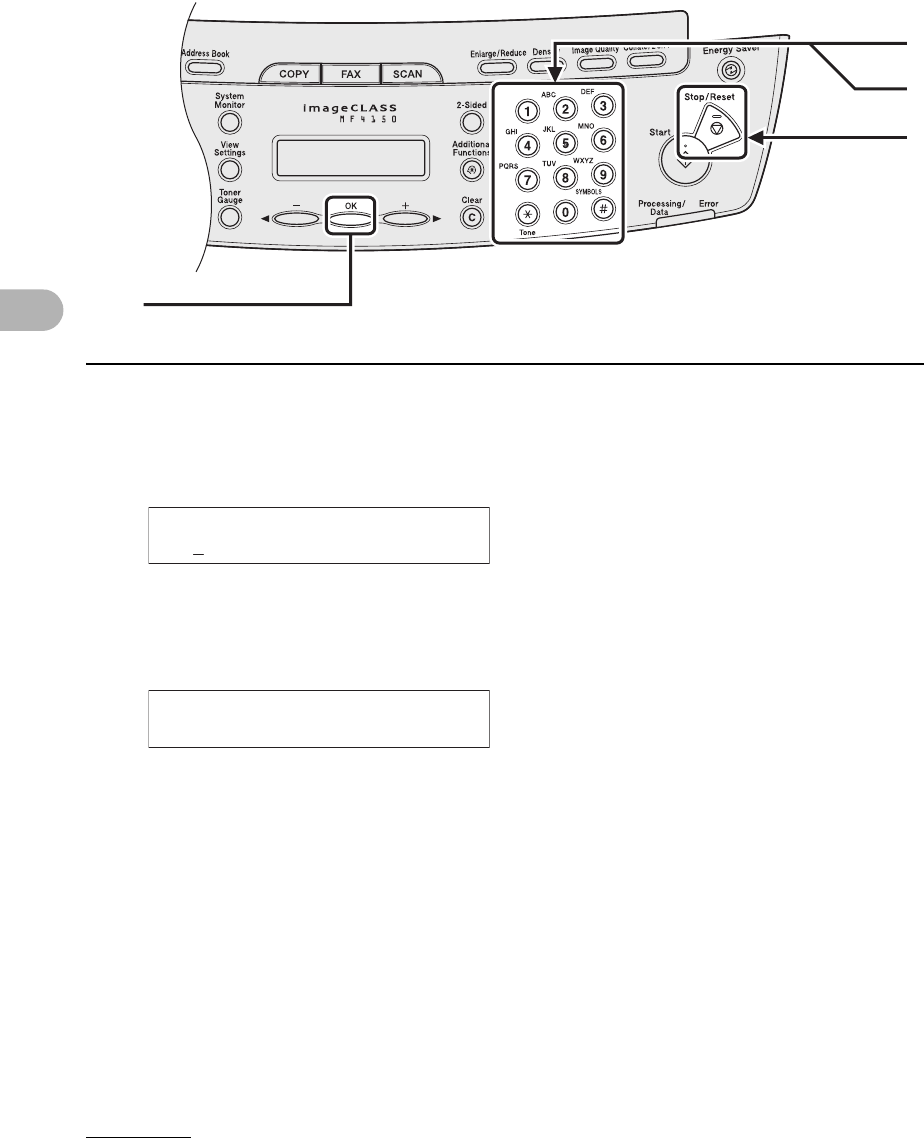
●Registering Coded Dialing
1Press [Additional Functions].
2Press [ ] or [ ] to select <ADDRESS BOOK SET.>, then press [OK].
3Press [ ] or [ ] to select <CODED DIAL>, then press [OK].
4Press [ ] or [ ] to select a coded dialing code (00 to 99), then press
[OK].
You can also enter a coded dialing code with the numeric keys after pressing [Coded Dial].
1
2
4
[OK]
3
4-15
Sending Faxes
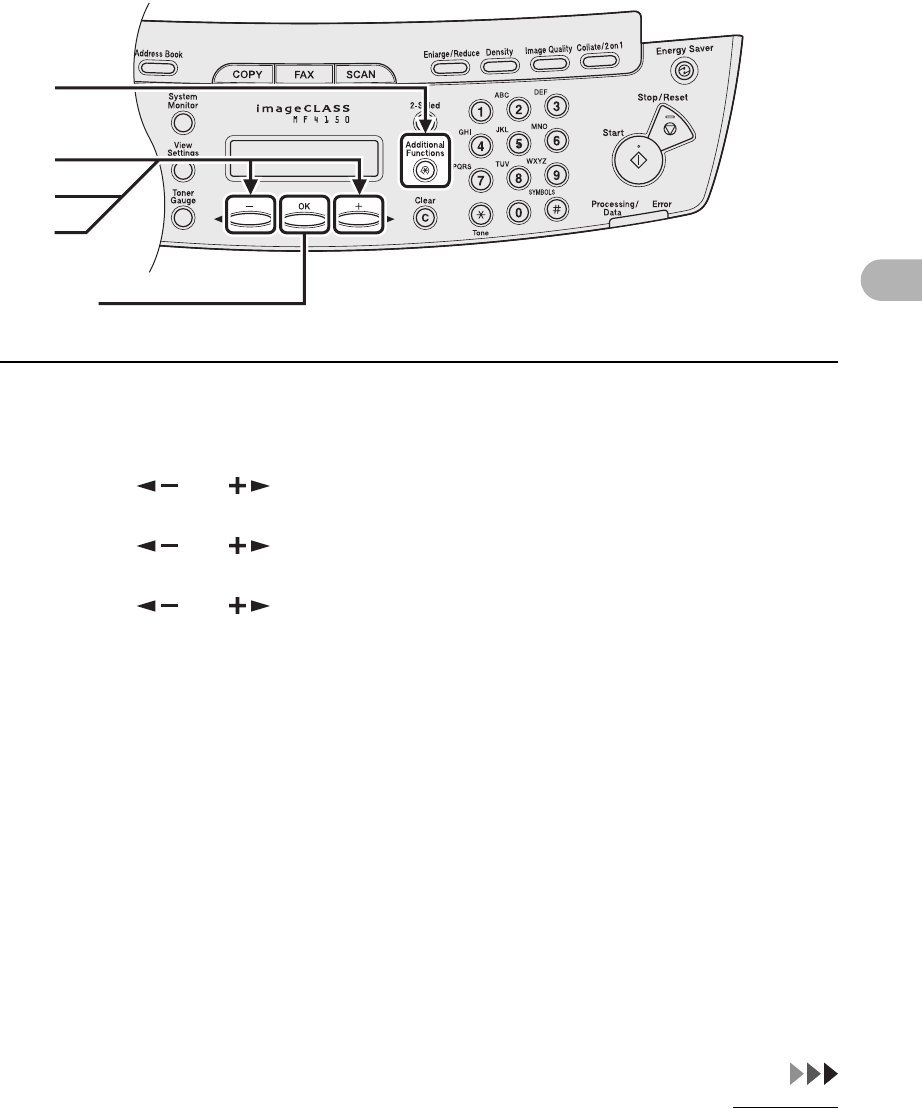
5Enter the destination name (max. 20 characters, including spaces) with the
numeric keys, then press [OK].
6Enter the fax number you register (max. 50 digits, including spaces and
pauses) with the numeric keys, then press [OK].
If you register another coded dialing number, repeat the procedure from step 4.
7Press [Stop/Reset] to return to the standby mode.
7
6
5
[OK]
Ex.
NAME [A]
CAN
Ex.
TEL NUMBER ENTRY
012XXXXXXX_
4-16
Sending Faxes
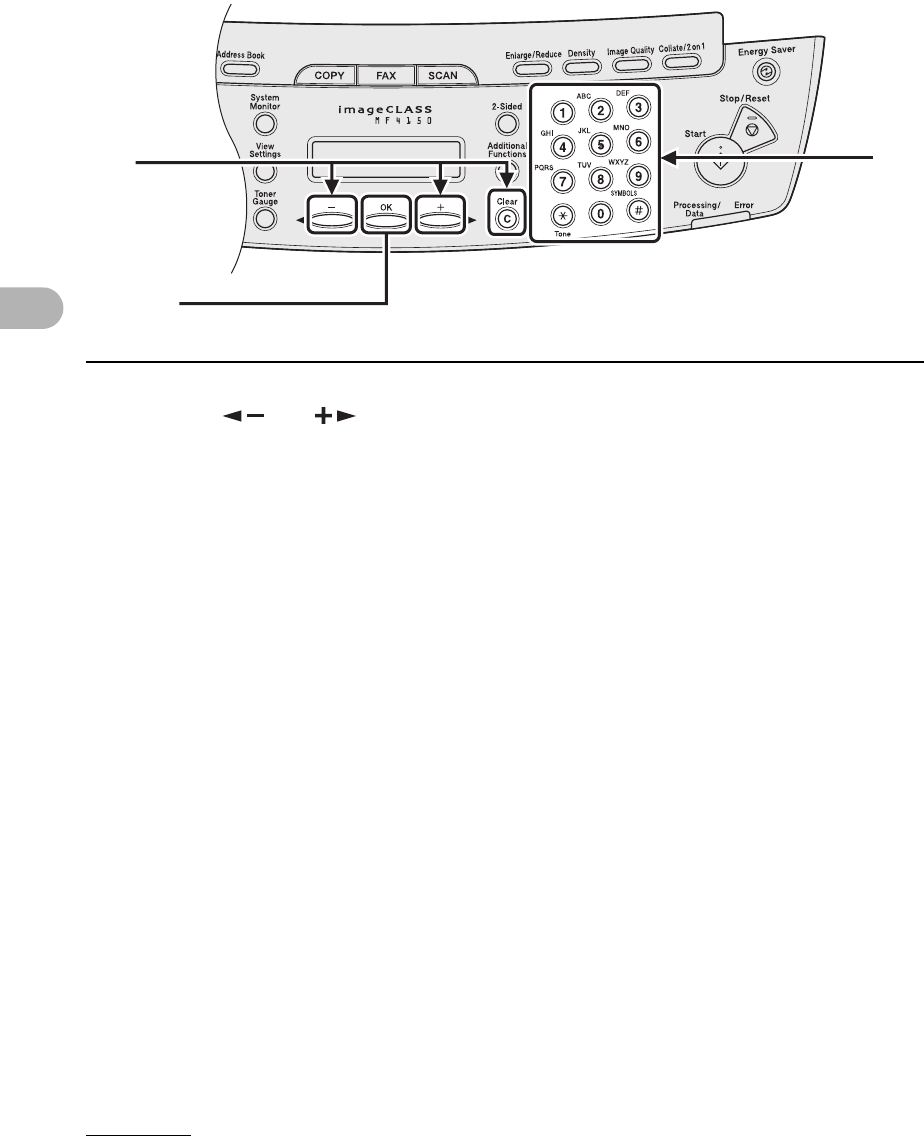
●Editing Coded Dialing
1Press [Additional Functions].
2Press [ ] or [ ] to select <ADDRESS BOOK SET.>, then press [OK].
3Press [ ] or [ ] to select <CODED DIAL>, then press [OK].
4Press [ ] or [ ] to select the coded dialing code (00 to 99) that you
want to edit, then press [OK].
You can also enter a coded dialing code with the numeric keys after pressing [Coded Dial].
1
2
4
[OK]
3
4-17
Sending Faxes
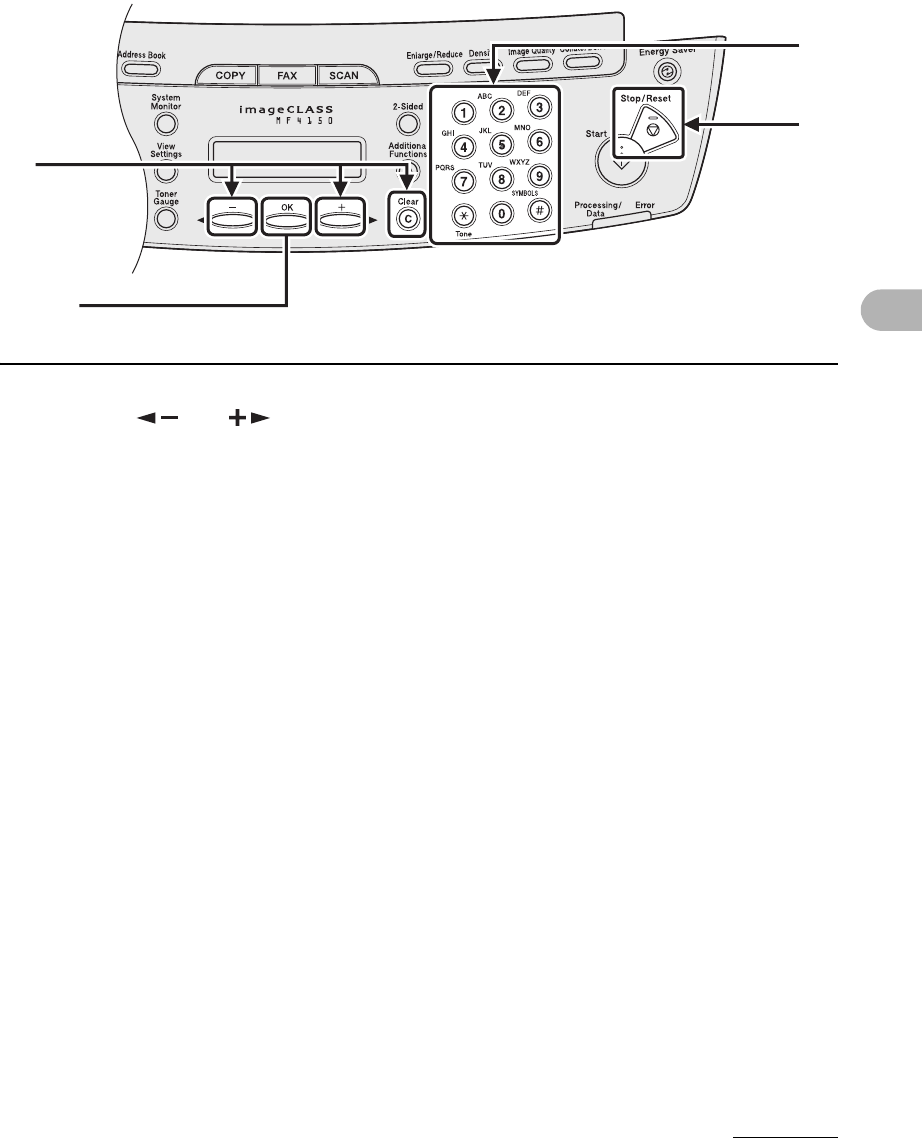
5Press [ ] or [ ] repeatedly to go to the wrong character, then press
[Clear] to delete it.
To delete the entire name, press and hold [Clear].
6Enter a new character with the numeric keys, then press [OK].
5
[OK]
6
4-18
Sending Faxes
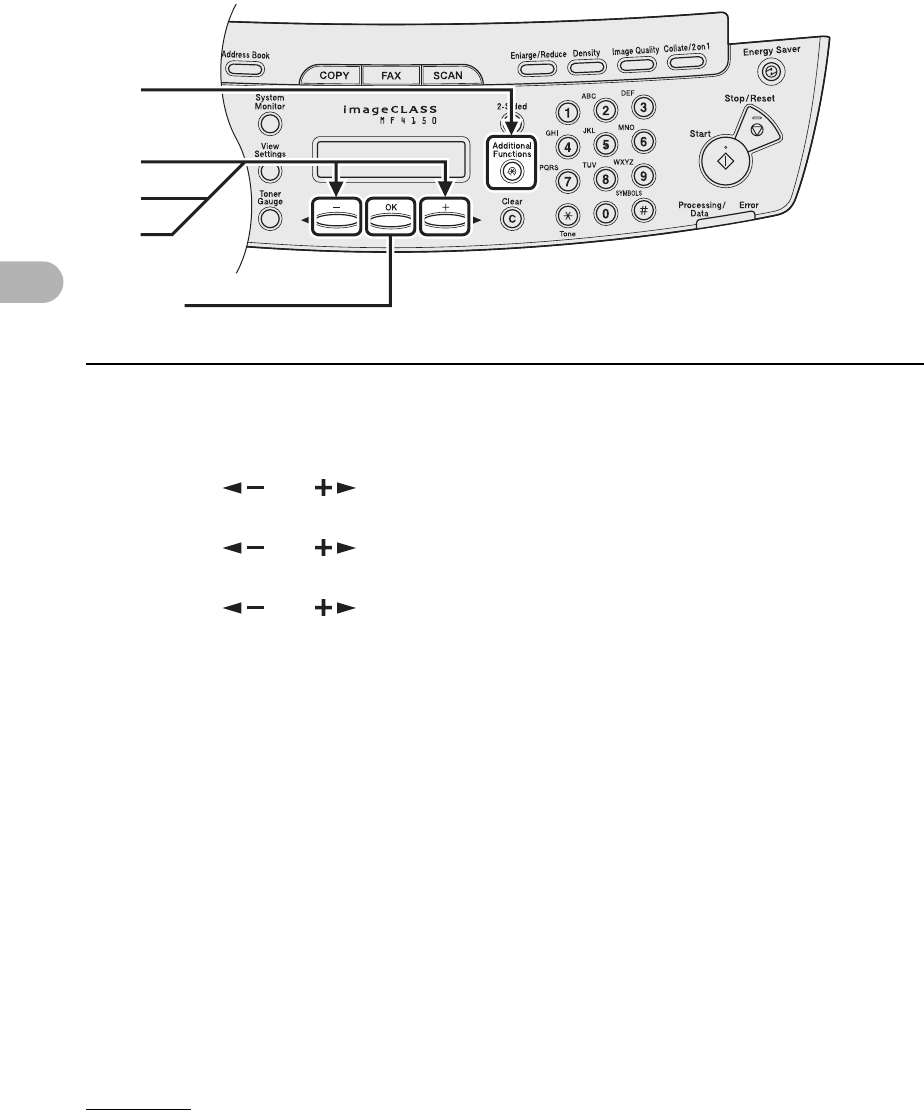
7Press [ ] or [ ] repeatedly to go to the wrong number, then press
[Clear] to delete it.
To delete all numbers, press and hold [Clear].
8Enter a new number with the numeric keys, then press [OK].
9Press [Stop/Reset] to return to the standby mode.
7
[OK]
9
8
4-19
Sending Faxes
●Deleting Coded Dialing
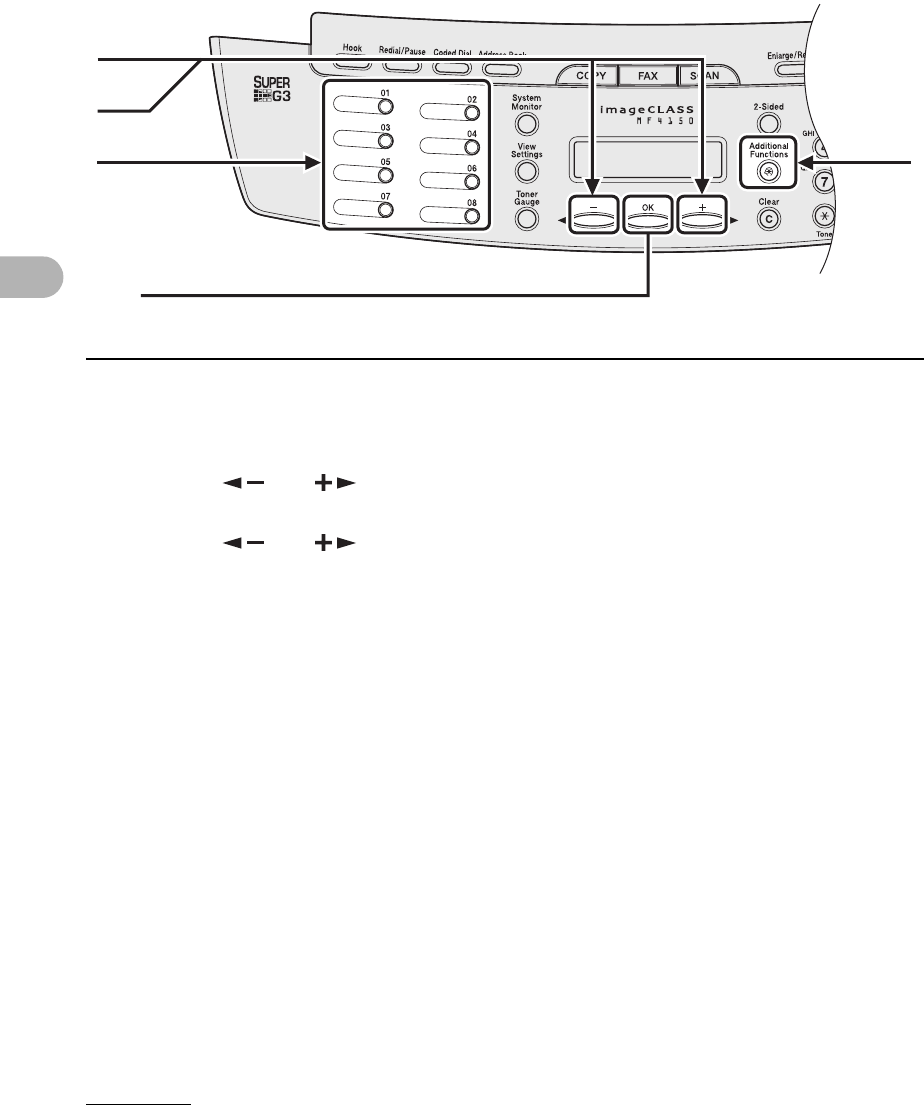
1Press [Additional Functions].
2Press [ ] or [ ] to select <ADDRESS BOOK SET.>, then press [OK].
3Press [ ] or [ ] to select <CODED DIAL>, then press [OK].
4Press [ ] or [ ] to select the coded dialing code (00 to 99) that you
want to delete, then press [OK].
You can also enter a coded dialing code with the numeric keys after pressing [Coded Dial].
1
2
4
[OK]
3
4-20
Sending Faxes
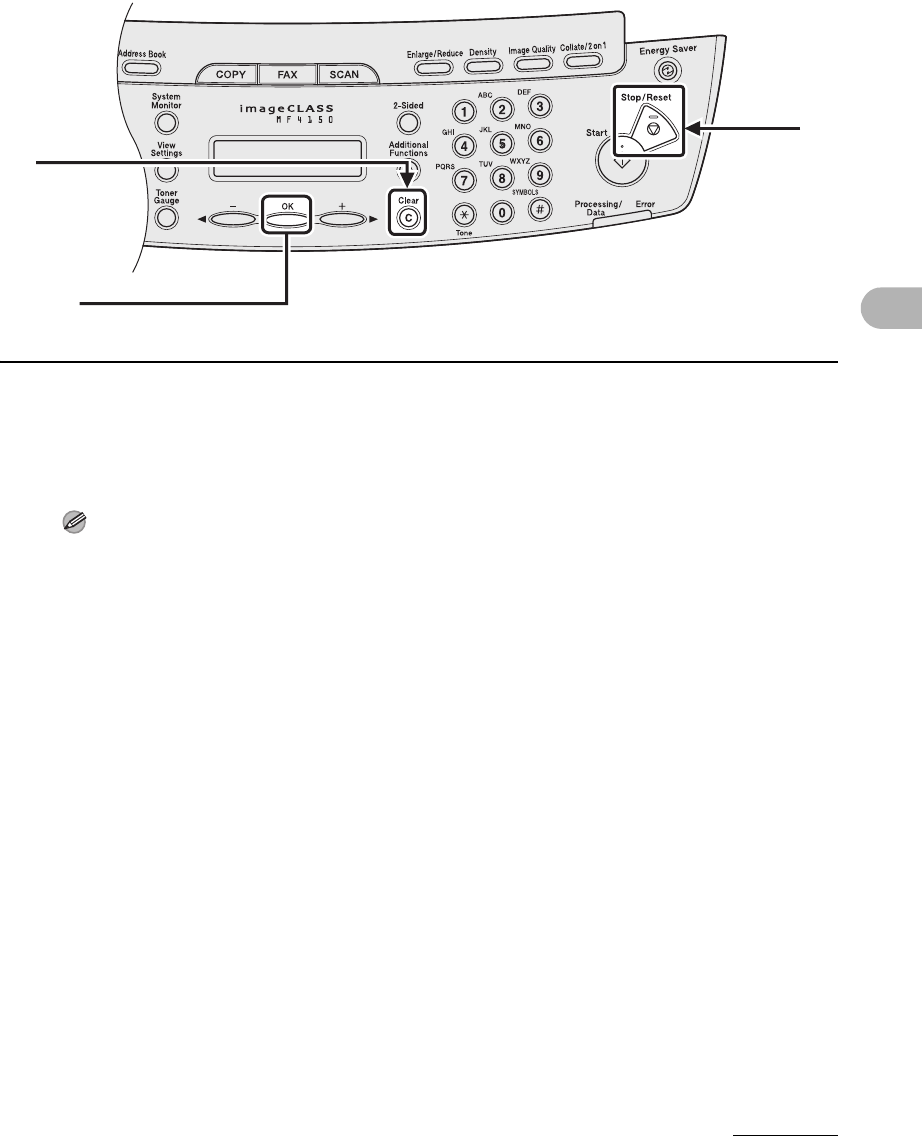
5Press [OK].
6Press and hold [Clear] to delete all numbers, then press [OK].
NOTE
When deleting all numbers, the registered name is cleared automatically.
7Press [Stop/Reset] to return to the standby mode.
6
[OK]
7
4-21
Sending Faxes
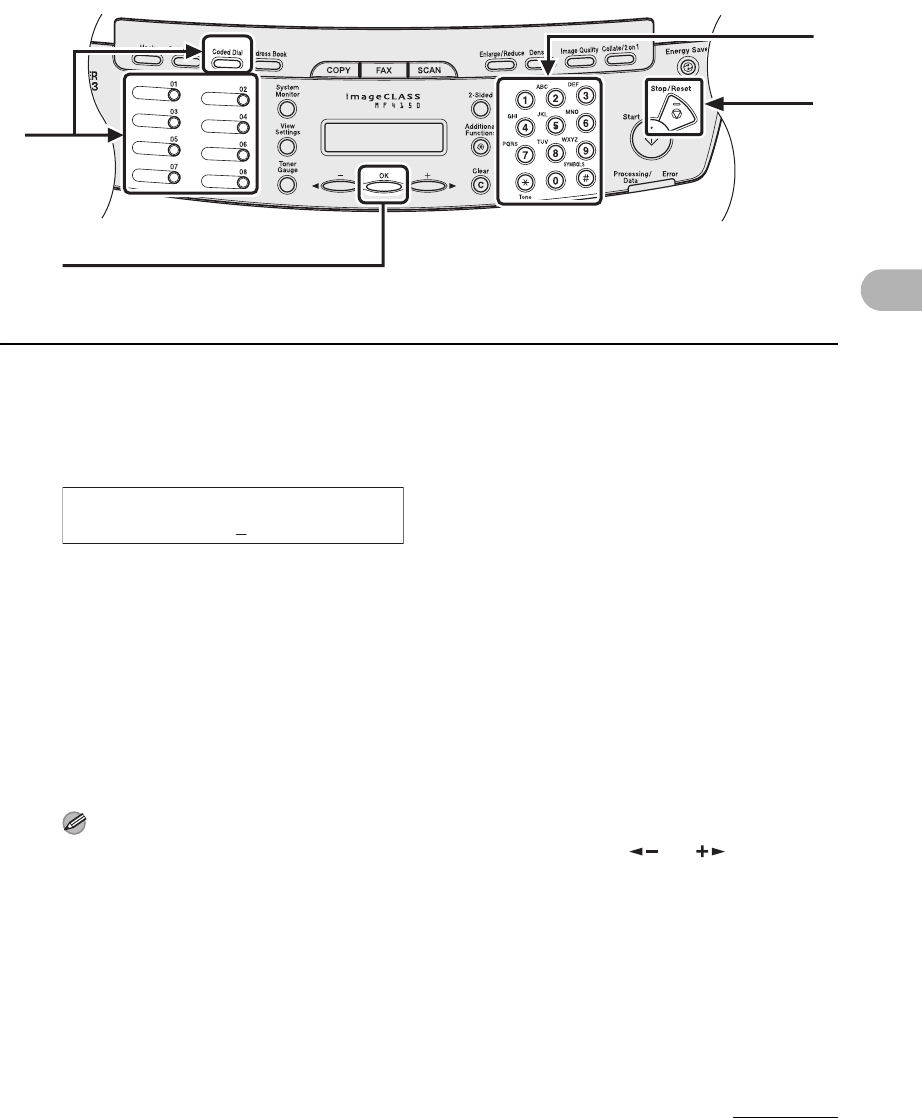
●Registering Group Dialing
1Press [Additional Functions].
2Press [ ] or [ ] to select <ADDRESS BOOK SET.>, then press [OK].
3Press [ ] or [ ] to select <GROUP DIAL>, then press [OK].
4Specify an empty one-touch speed dialing key that you want to set as the
group dial, then press [OK].
For details on selecting a one-touch speed dialing key, see “Registering One-Touch Speed
Dialing,” on p. 4-7.
[OK]
4 1
3
2
4-22
Sending Faxes
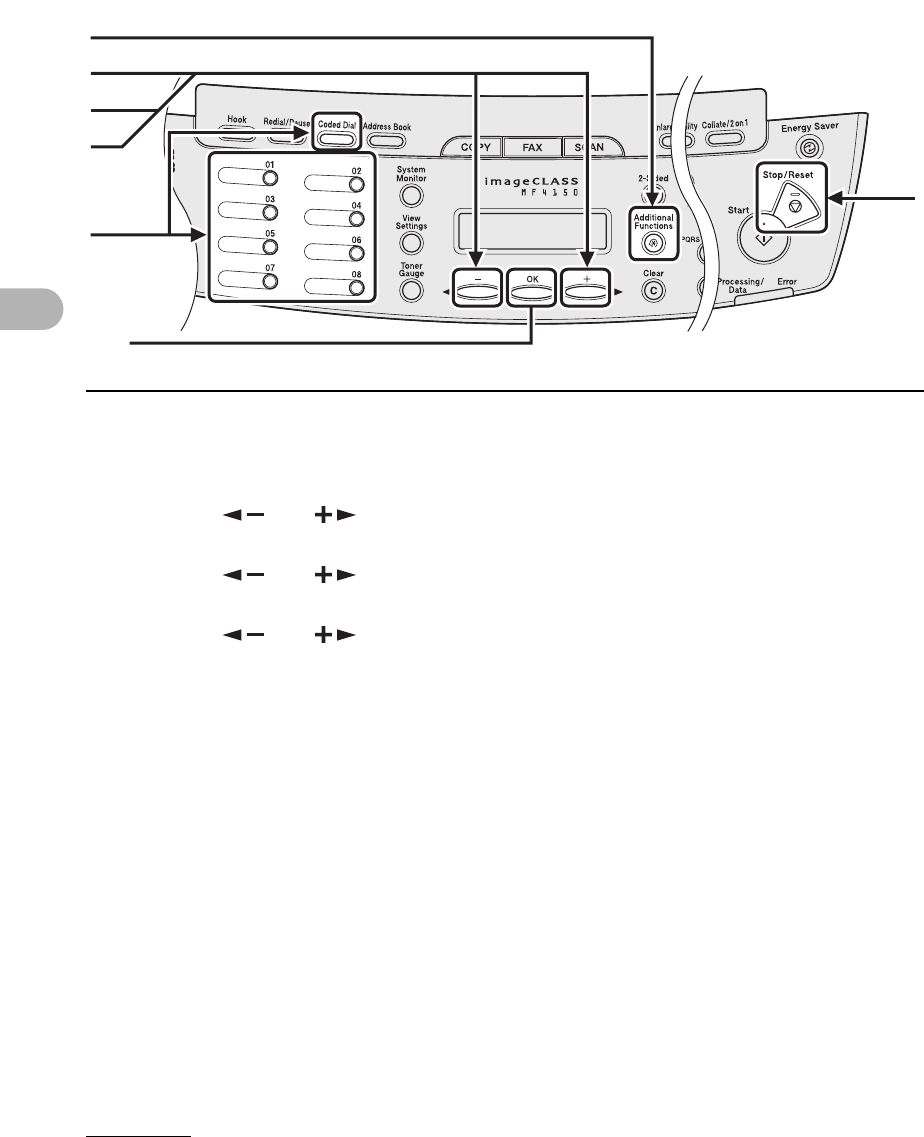
5Enter the group name (max. 20 characters, including spaces) with the
numeric keys, then press [OK].
6Select the speed dialing numbers you want to register in the group (max.
50 destinations) until all destinations are registered, then press [OK].
The speed dialing number refers to the one-touch dialing number or coded dialing code under
which the fax/telephone number is registered.
To enter a number stored under a one-touch speed dialing key, press the desired one-touch speed
dialing key(s).
To enter a number stored under a coded dialing code, press [Coded Dial], then enter the two-digit
code for the number with the numeric keys. For multiple entries, press [Coded Dial] between each
entry.
NOTE
You can review the destinations which have been already entered with [ ] or [ ].
7Press [Stop/Reset] to return to the standby mode.
7
5
6
[OK]
Ex.
NAME [A]
CANON GROUP
4-23
Sending Faxes
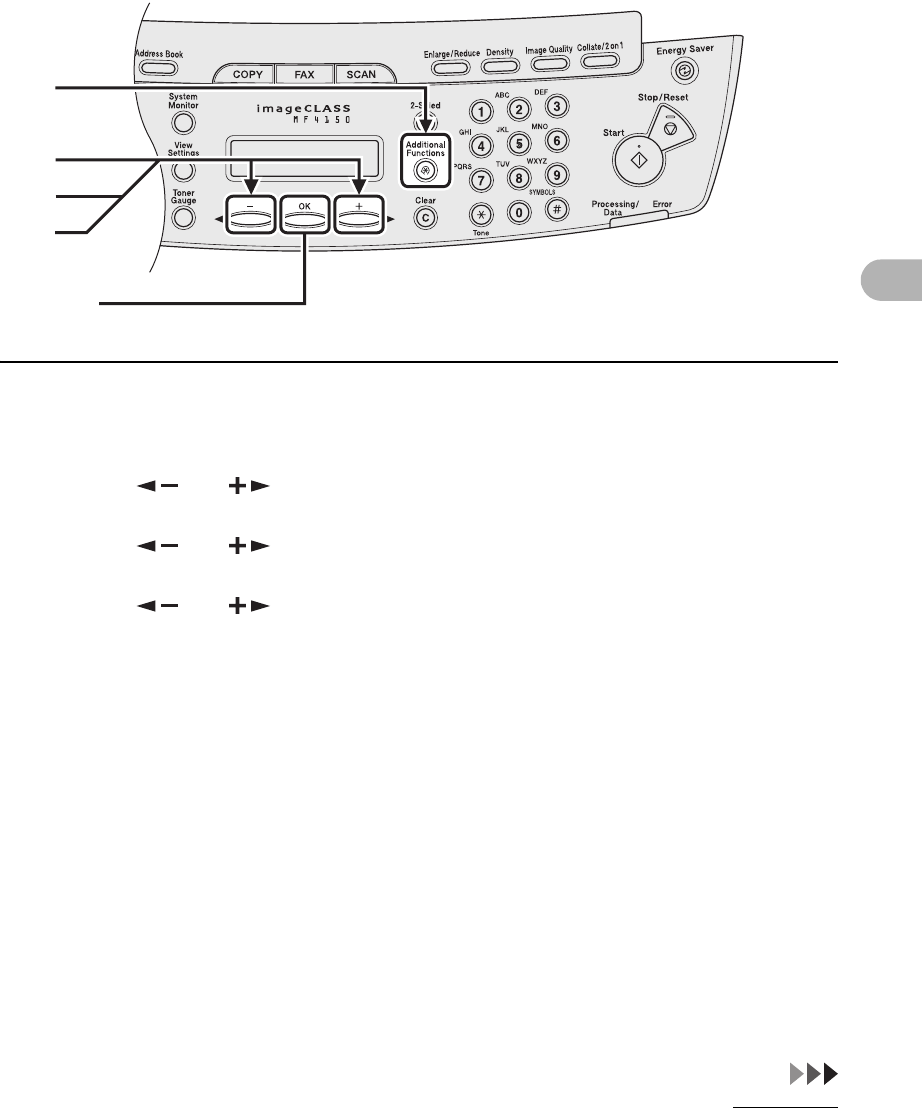
●Adding New Destination to Group
1Press [Additional Functions].
2Press [ ] or [ ] to select <ADDRESS BOOK SET.>, then press [OK].
3Press [ ] or [ ] to select <GROUP DIAL>, then press [OK].
4Press [ ] or [ ] to select a group dial to edit, then press [OK].
The group name appears.
5Press [OK].
6Select the speed dialing number you want to add to the group, then press
[OK].
For details on entering the speed dialing number, see “Registering Group Dialing,” on p. 4-21.
7Press [Stop/Reset] to return to the standby mode.
1
2
4
[OK]
7
3
6
4-24
Sending Faxes
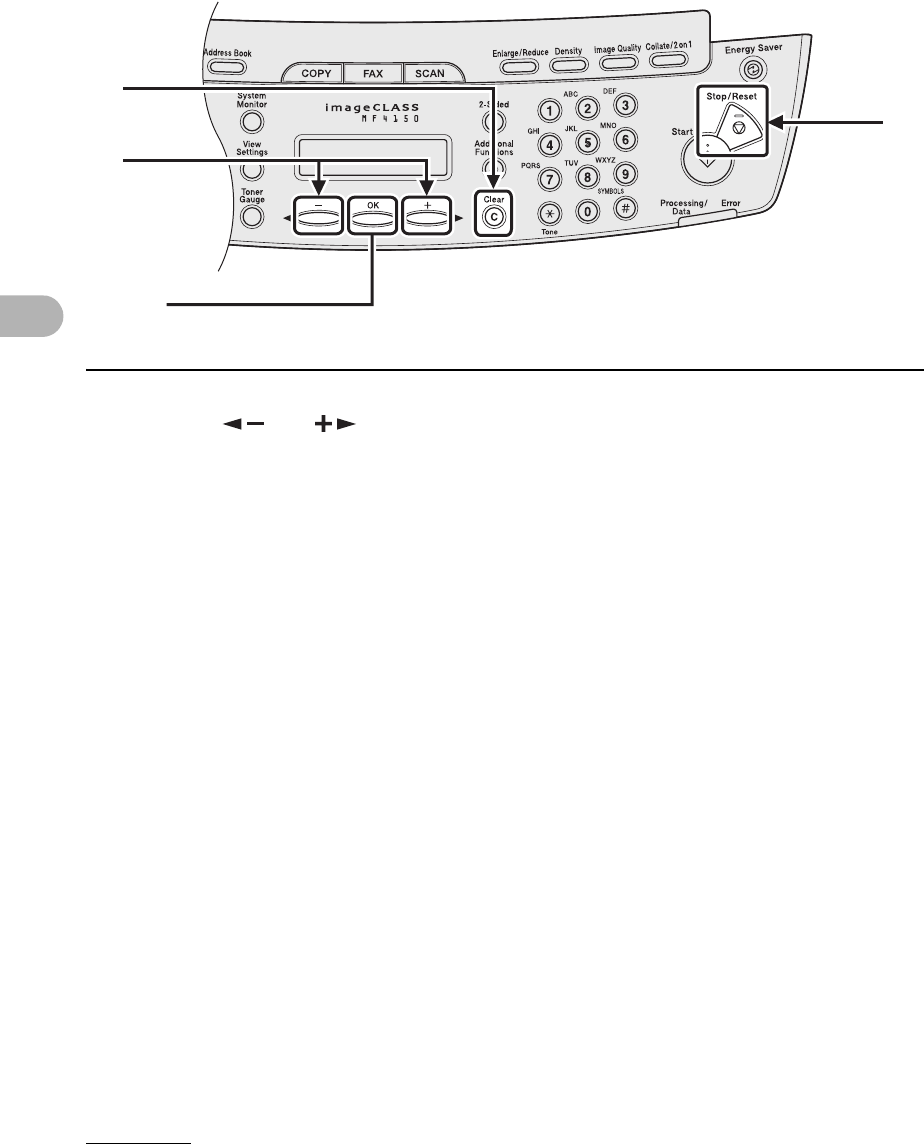
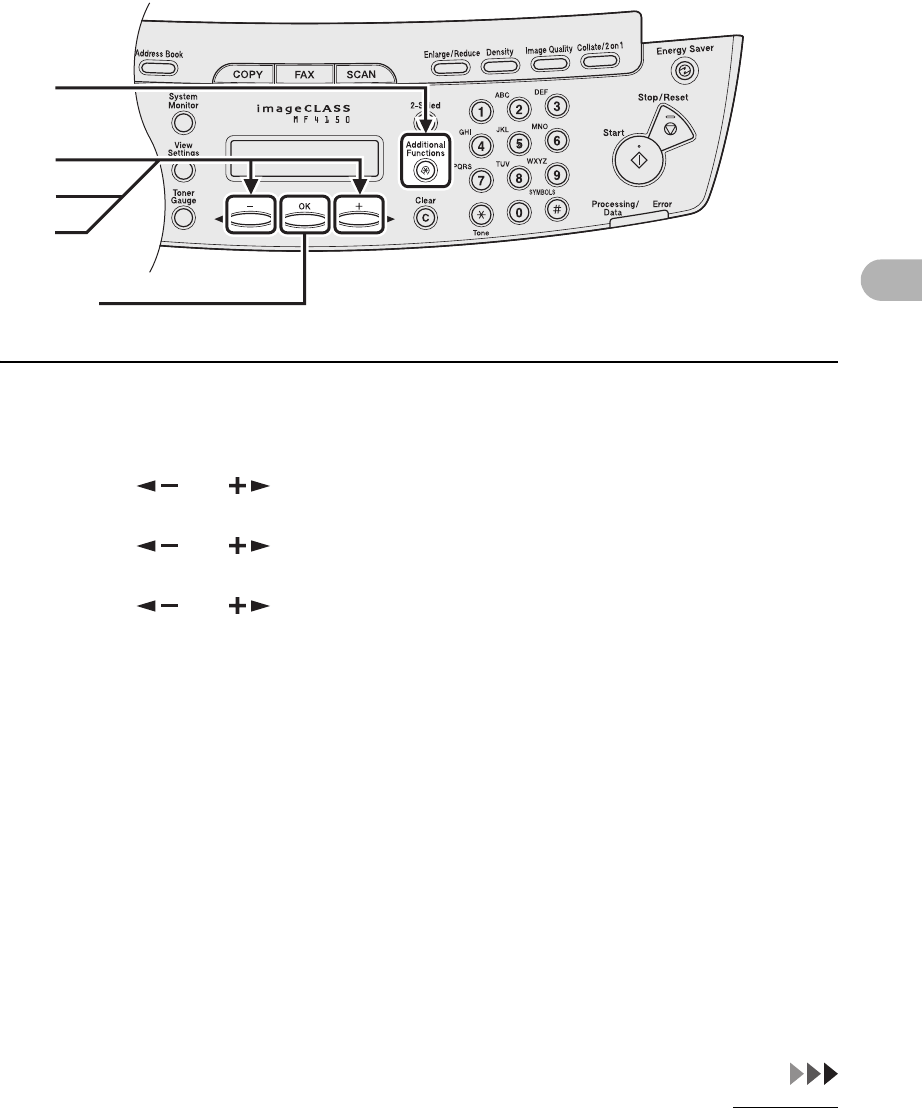
●Deleting Destination from Group
1Press [Additional Functions].
2Press [ ] or [ ] to select <ADDRESS BOOK SET.>, then press [OK].
3Press [ ] or [ ] to select <GROUP DIAL>, then press [OK].
4Press [ ] or [ ] to select a group dial to delete, then press [OK].
The group name appears.
5Press [OK].
1
2
4
[OK]
3
4-25
Sending Faxes
6Press [ ] or [ ] to display the speed dial number you want to delete
from the group.
7Press [Clear].
8Repeat steps 6 and 7 if you want to delete another speed dialing number,
then press [OK].
9Press [Stop/Reset] to return to the standby mode.
6
9
7
[OK]
4-26
Sending Faxes
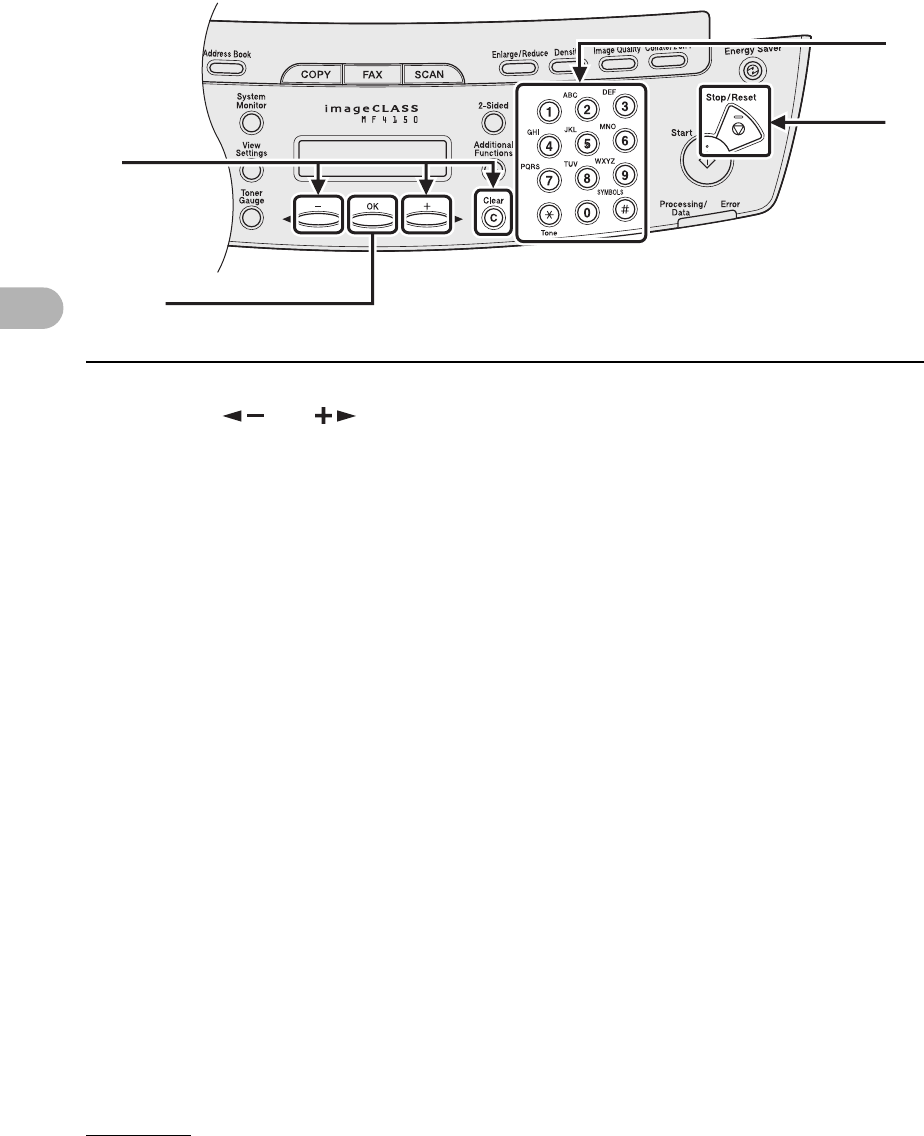
●Changing Group Name
1Press [Additional Functions].
2Press [ ] or [ ] to select <ADDRESS BOOK SET.>, then press [OK].
3Press [ ] or [ ] to select <GROUP DIAL>, then press [OK].
4Press [ ] or [ ] to select a group dial to edit, then press [OK].
1
2
4
[OK]
3
4-27
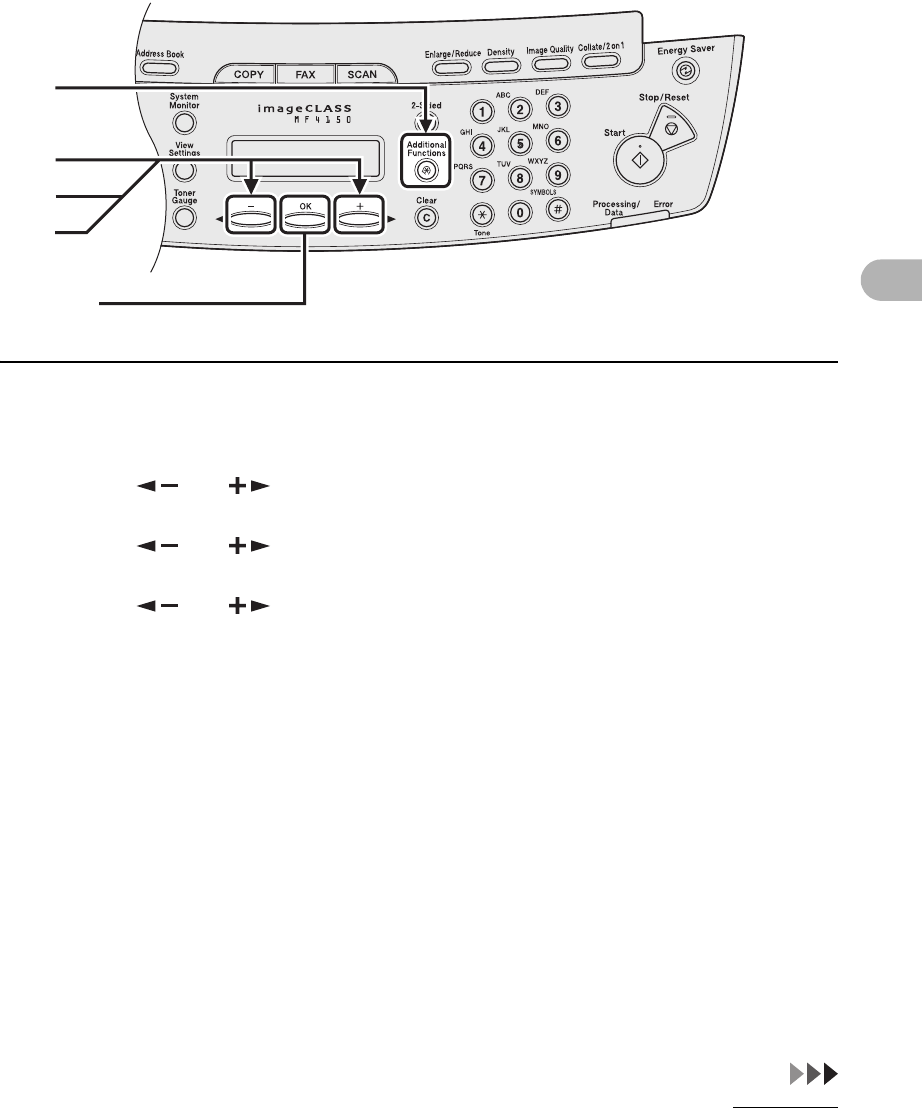
Sending Faxes
5Press [ ] or [ ] repeatedly to go to the wrong character, then press
[Clear] to delete it.
To delete the entire character, press and hold [Clear].
6Enter a new name with the numeric keys, then press [OK].
7Press [OK].
8Press [Stop/Reset] to return to the standby mode.
5
[OK]
6
8
4-28
Sending Faxes
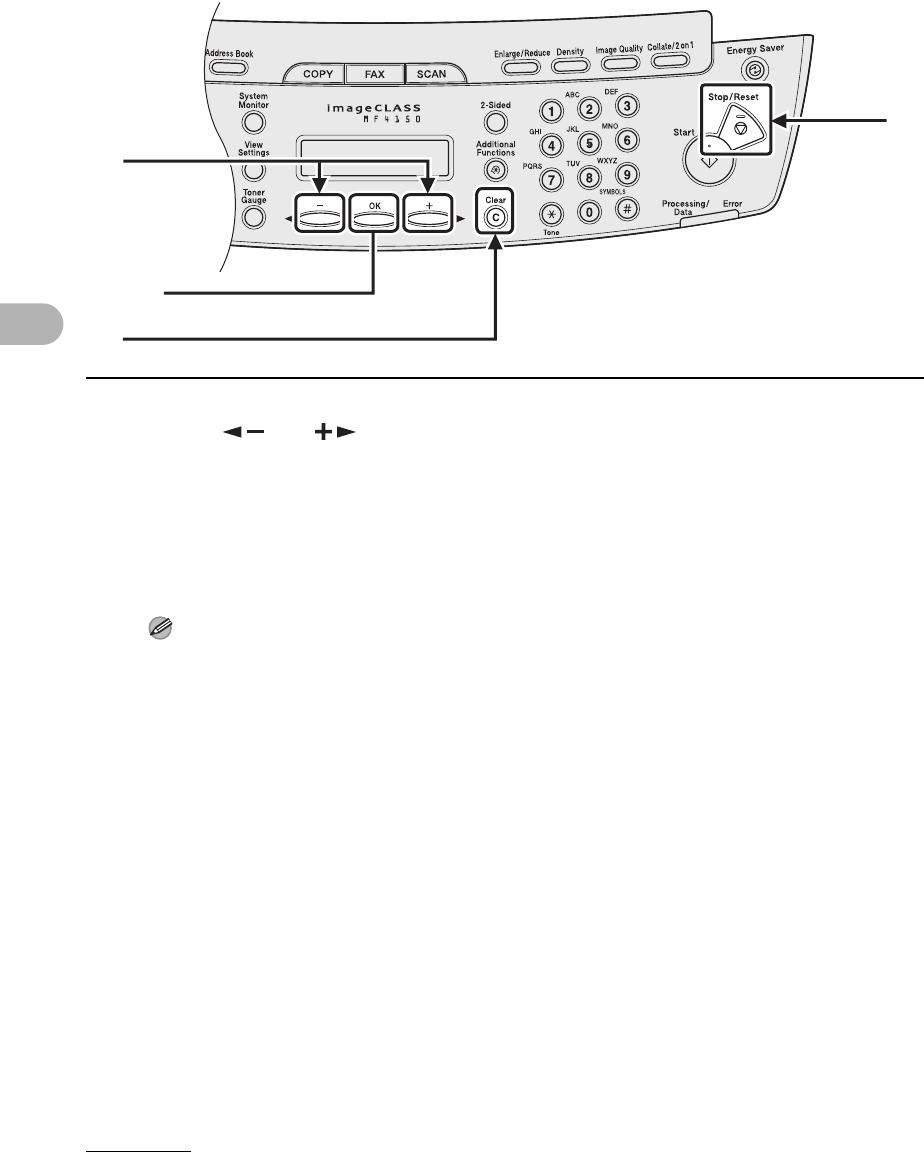
●Deleting Group Dialing
1Press [Additional Functions].
2Press [ ] or [ ] to select <ADDRESS BOOK SET.>, then press [OK].
3Press [ ] or [ ] to select <GROUP DIAL>, then press [OK].
4Press [ ] or [ ] to select a group dial to delete, then press [OK].
The group name appears.
5Press [OK].
1
2
4
[OK]
3
4-29
Sending Faxes
6Press [ ] or [ ] to display a speed dial number.
7Press [Clear].
8Repeat steps 6 and 7 until all speed dial numbers are deleted, then press
[OK].
NOTE
When deleting all speed dial numbers, the group name is cleared automatically.
9Press [Stop/Reset] to return to the standby mode.
6
9
7
[OK]
4-30
Sending Faxes
Using Speed Dialing
Follow the procedure below to send faxes to registered recipients using speed dialing.
For easy reference, print out the list of recipients registered for speed dialing. (See
Chapter 4, “Reports and Lists,” in the Advanced Guide.)
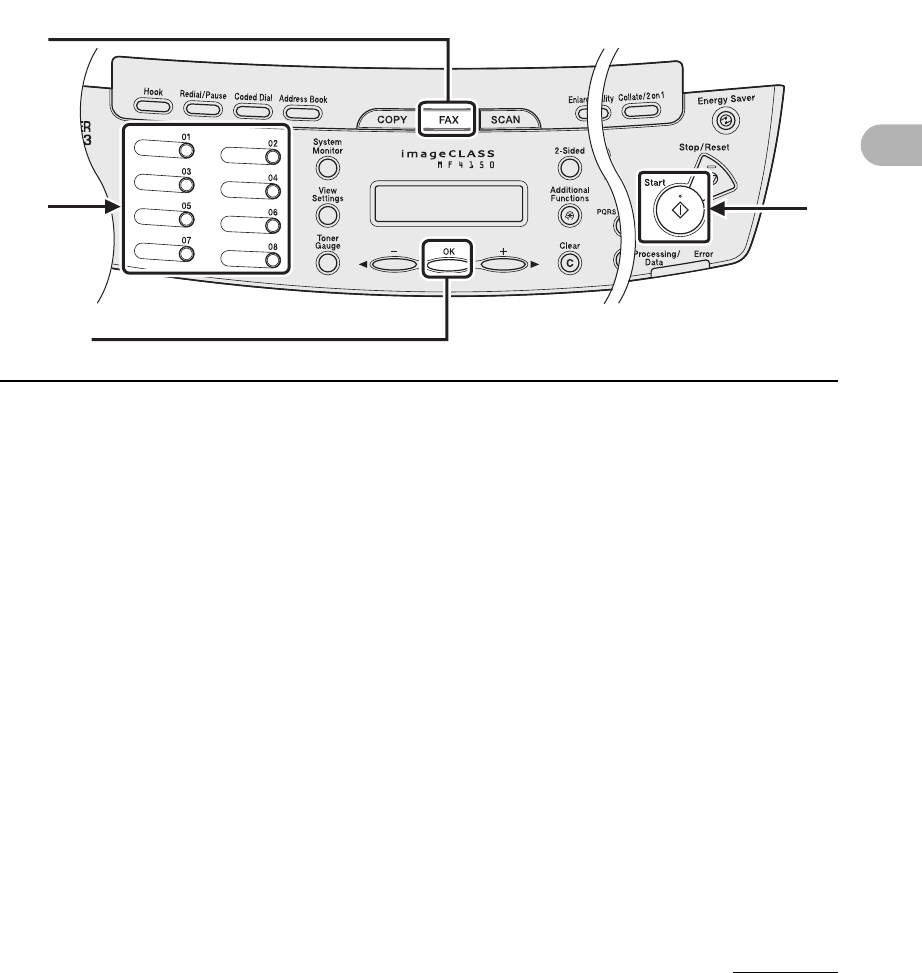
●Using One-Touch Speed/Group Dialing
1Place the document on the platen glass or load it in the ADF.
2Press [FAX].
3Adjust any necessary settings for your document.
For details, see “Scan Settings,” on p. 4-3.
4Press the desired one-touch speed or group dialing key (01 to 08).
5Press [Start].
When you set the document on the platen glass, press [Start] for each document. When scanning
is complete, press [OK].
[OK]
4
2
5
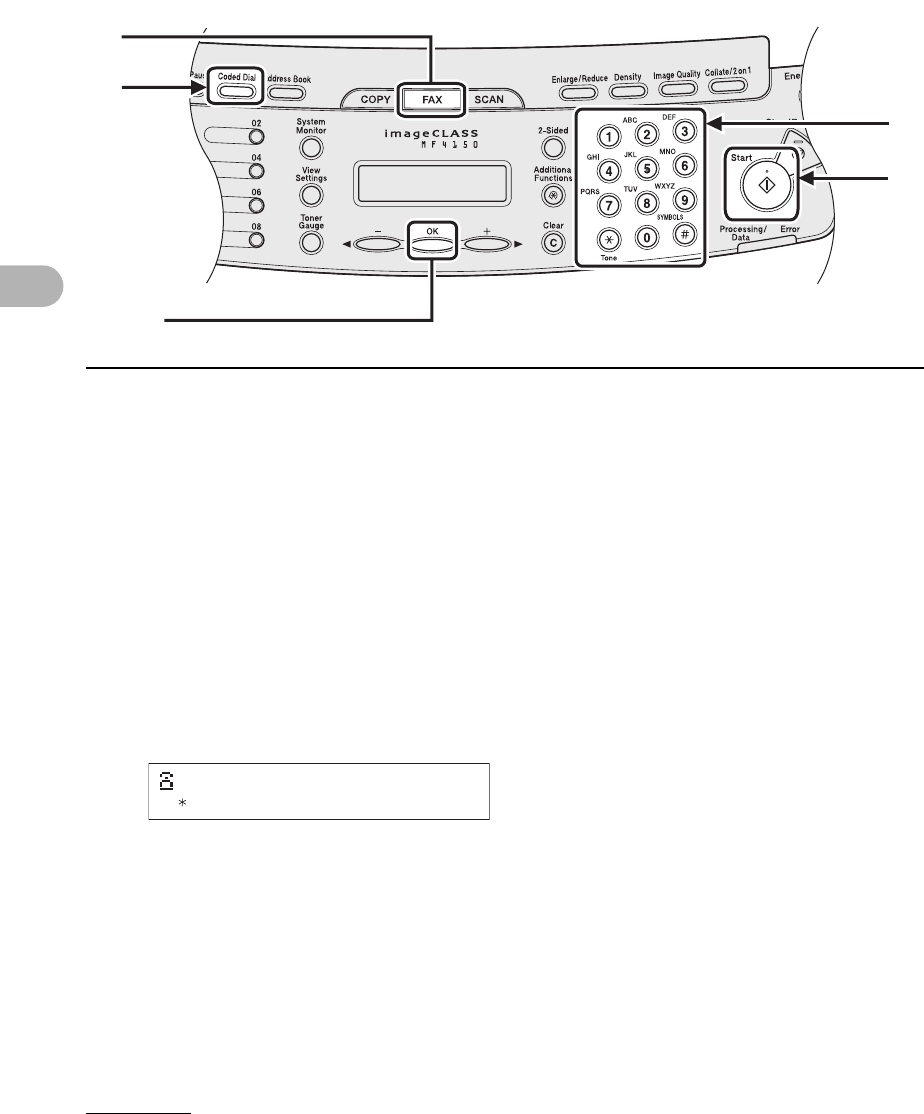
4-31
Sending Faxes
●Using Coded Dialing
1Place the document on the platen glass or load it in the ADF.
2Press [FAX].
3Adjust any necessary settings for your document.
For details, see “Scan Settings,” on p. 4-3.
4Press [Coded Dial].
5Enter the desired two-digit code (00 to 99) with the numeric keys.
6Press [Start].
When you set the document on the platen glass, press [Start] for each document. When scanning
is complete, press [OK].
2
4
5
6
[OK]
Ex.
=012XXXXXXX
[ 01]CANON
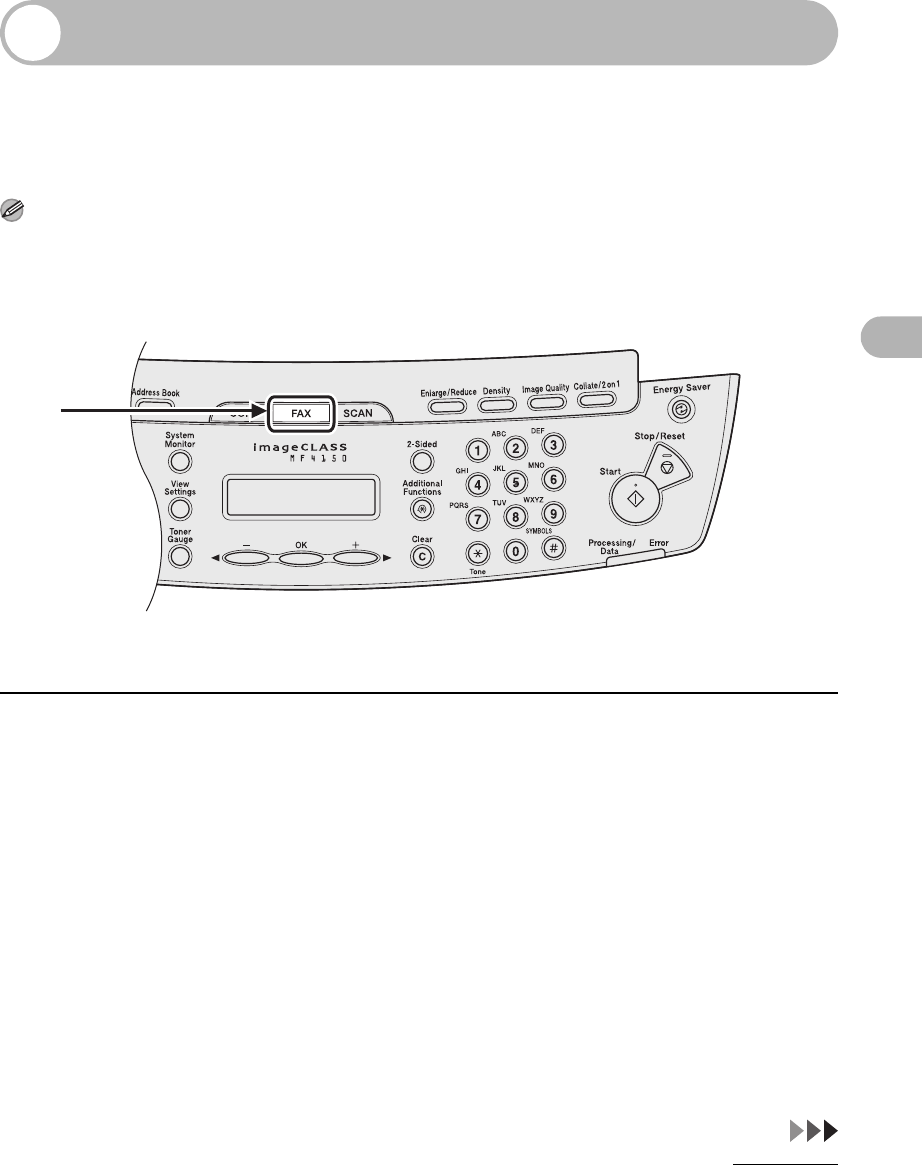
4-32
Sending Faxes
Manual Sending
Use manual sending when you want to talk to the recipient before sending a
document, or if the recipient does not have a fax machine that can receive
automatically.
NOTE
– You cannot use the platen glass for manual sending.
– You cannot use group dialing for manual sending.
1Connect an external telephone to the machine if you want to talk to the
recipient before sending a document.
For details on how to connect an external telephone to the machine, see “Connect Telephone
Cables,” in the Starter Guide.
2Load the document in the ADF.
3Press [FAX].
4Adjust any necessary settings for your document.
For details, see “Scan Settings,” on p. 4-3.
3

4-33
Sending Faxes
5Press [Hook] or pick up the handset of your external telephone.
6Dial the recipient’s fax/telephone number.
NOTE
Make sure to confirm the dial tone before entering a fax number. If you enter the number before
the dial tone can be heard, the call may not connect, or the wrong number may be dialed.
7Talk through the handset to the recipient.
If you press [Hook] in step 5, you can pick up the handset when you hear the recipient’s voice.
If you hear a high-pitched signal instead of the recipient's voice, go to step 9.
8Ask the recipient to set their fax machine to receive faxes.
9When you hear a high-pitched signal, press [Start], then hang up the
handset.
9
6
5
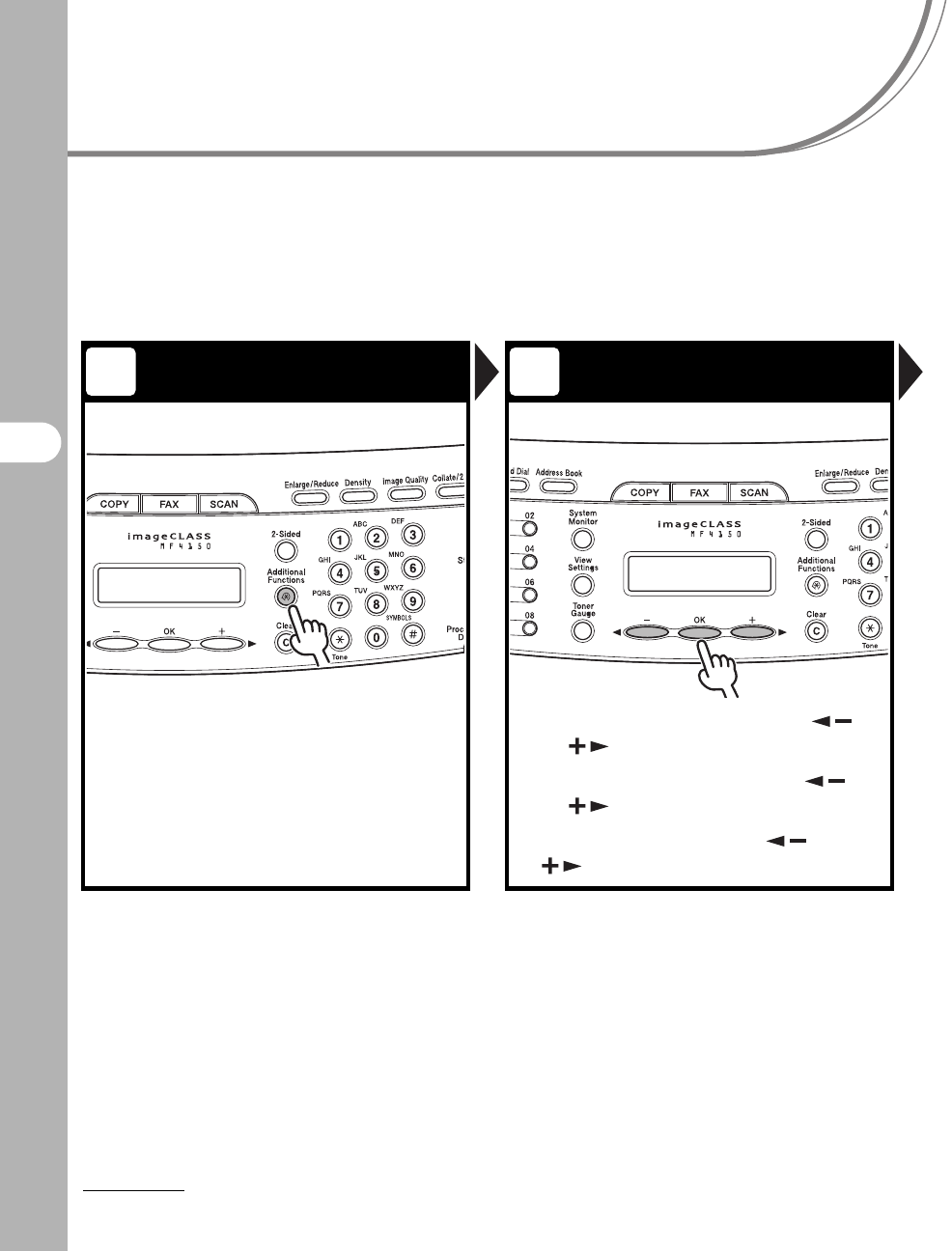
5-1
5
Receiving Faxes
Receiving Faxes
Follow this procedure to set the machine for receiving faxes.
For advanced receiving features, see Chapter 1, “Advanced Fax Features,” in the
Advanced Guide.
Enter the Setting Menu Enter the Receive Mode
Press [Additional Functions]. Select <FAX SETTINGS> with []
or [ ], then press [OK].
Select <RX SETTINGS> with []
or [ ], then press [OK].
Select <RX MODE> with [] or
[]
, then press [OK].
1 2
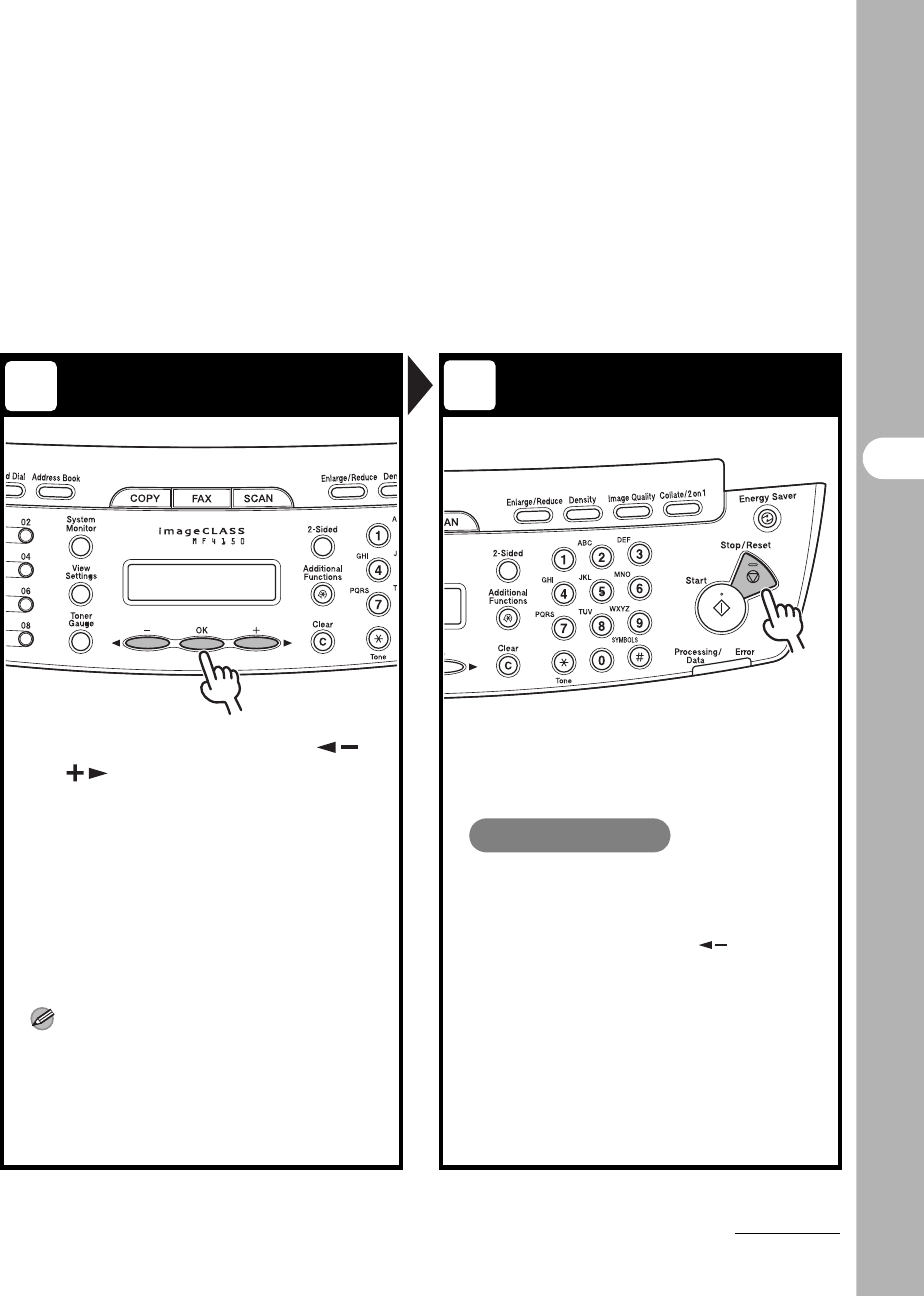
5-2
Receiving Faxes
Select the Receive Mode Exit the Setting Menu
Select the receive mode with []
or [ ], then press [OK].
<FaxOnly>: Answers all calls as faxes.
<AnsMode>: Receives faxes automatically and records
voice messages.
<DRPD>: Distinguishes between fax and voice calls if
you want to use an external telephone.
<FAX/TEL>: Switches between fax and voice calls
automatically if an external telephone is connected to
the machine.
<MANUAL>: Does not answer any calls. You have to
manually receive faxes.
For details on these settings, see Chapter 1, “Advanced
Fax Features,” in the Advanced Guide.
NOTE
– For <AnsMode>, make sure an answering
machine is connected to the machine.
– For <DRPD>, subscription to a DRPD
service is required.
Press [Stop/Reset] to return to the
standby display.
What if...
●You press [Stop/Reset] to cancel a
job:
The <CANCEL DURING TX/RX?>
message appears. Press [ ] to select
<Yes>. The job is canceled, and the
display returns to the standby mode.
●The <OUT OF TONER/CHANGE
TONER> message appears:
The toner cartridge is almost empty.
Replace the toner cartridge.
For details on this error message, see
“LCD Messages,” on p. 11-9.
34
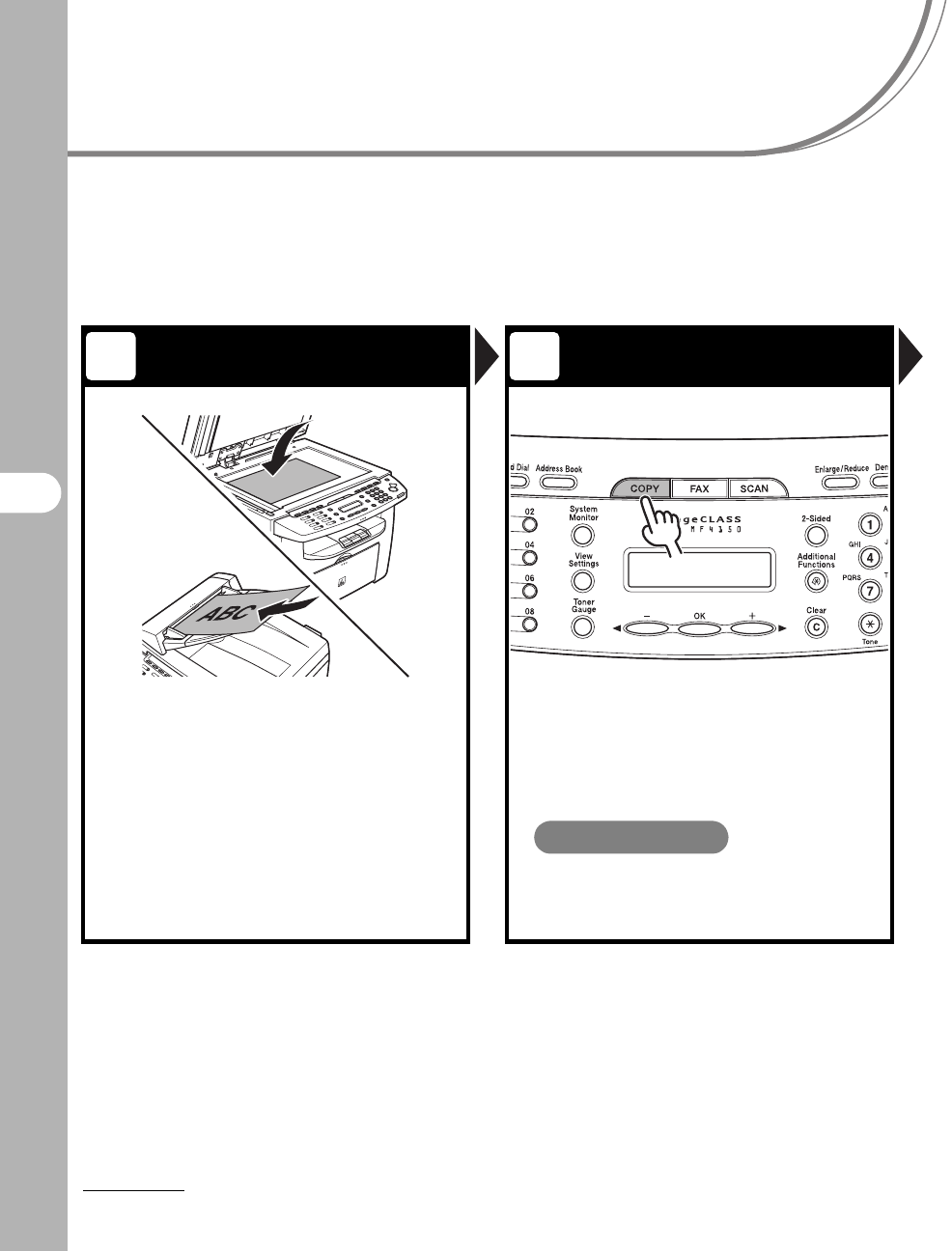
6-1
6
Copying
Copying
Follow this procedure to make a copy.
For advanced copying features, see Chapter 2, “Advanced Copy Features,” in the
Advanced Guide.
Set a Document Enter the Copy Mode
Place the document on the platen
glass or load it in the ADF.
For documents you can copy, see “Document
Requirements,” on p. 2-1.
Press [COPY].
The COPY indicator lights and the machine enters the
copy standby mode.
What if...
●You want to adjust the resolution and
density:
See “Scan Settings,” on p. 6-3.
1 2
ABC
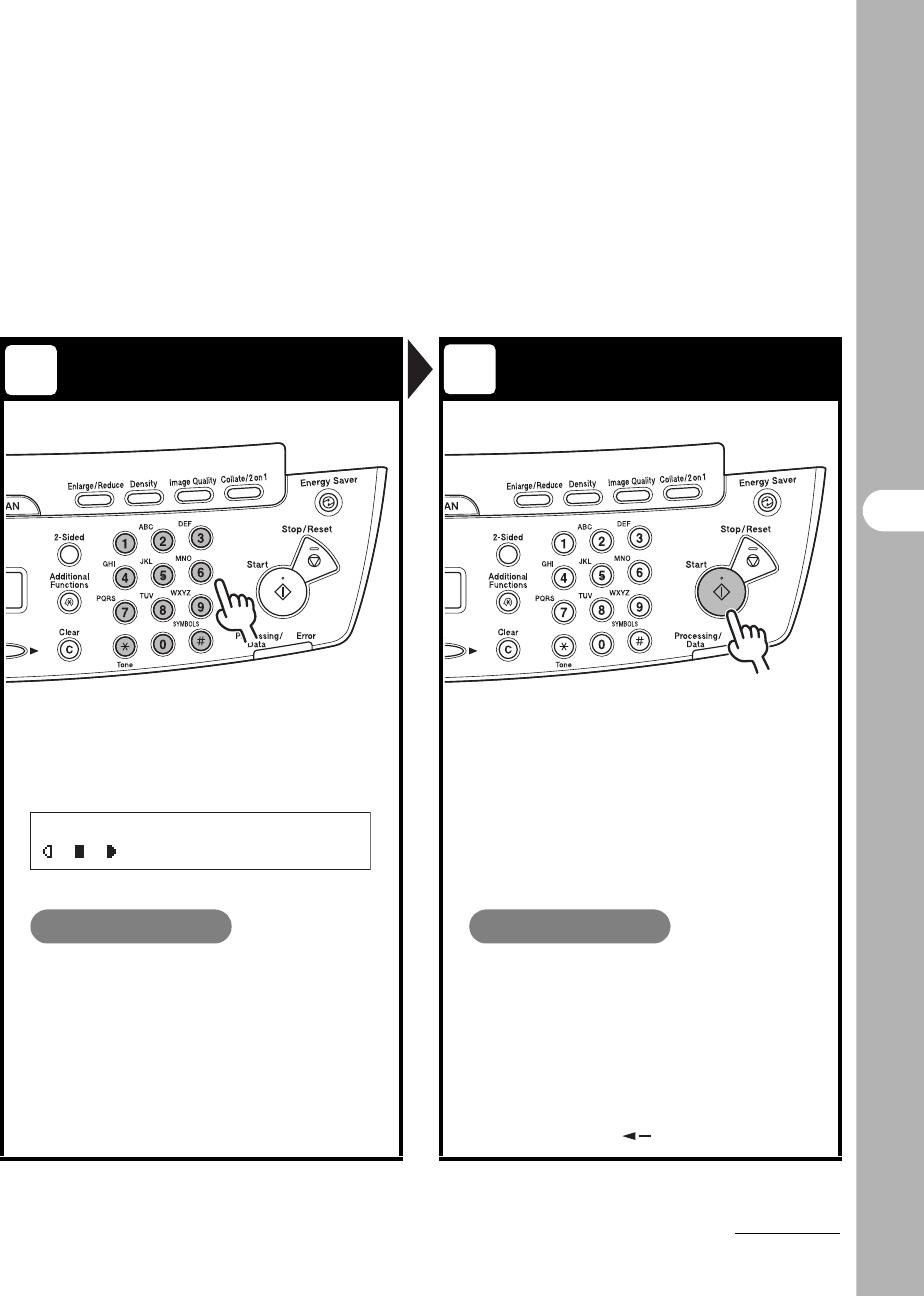
6-2
Copying
Enter the Copy Quantity Start Copying
Enter the copy quantity (1 to 99)
with the numeric key.
Press [Start].
What if...
●You enter a wrong number:
Press [Clear] and enter a new number.
What if...
●You press [Stop/Reset] to cancel a
job while scanning documents:
The job is canceled immediately, and the
copy quantity is reset.
●You press [Stop/Reset] to cancel a
job while printing:
The <CANCEL COPYING?> message
appears. Press [ ] to select <YES>.
34
Ex.
100% LTR
TEXT/PHOTO 3
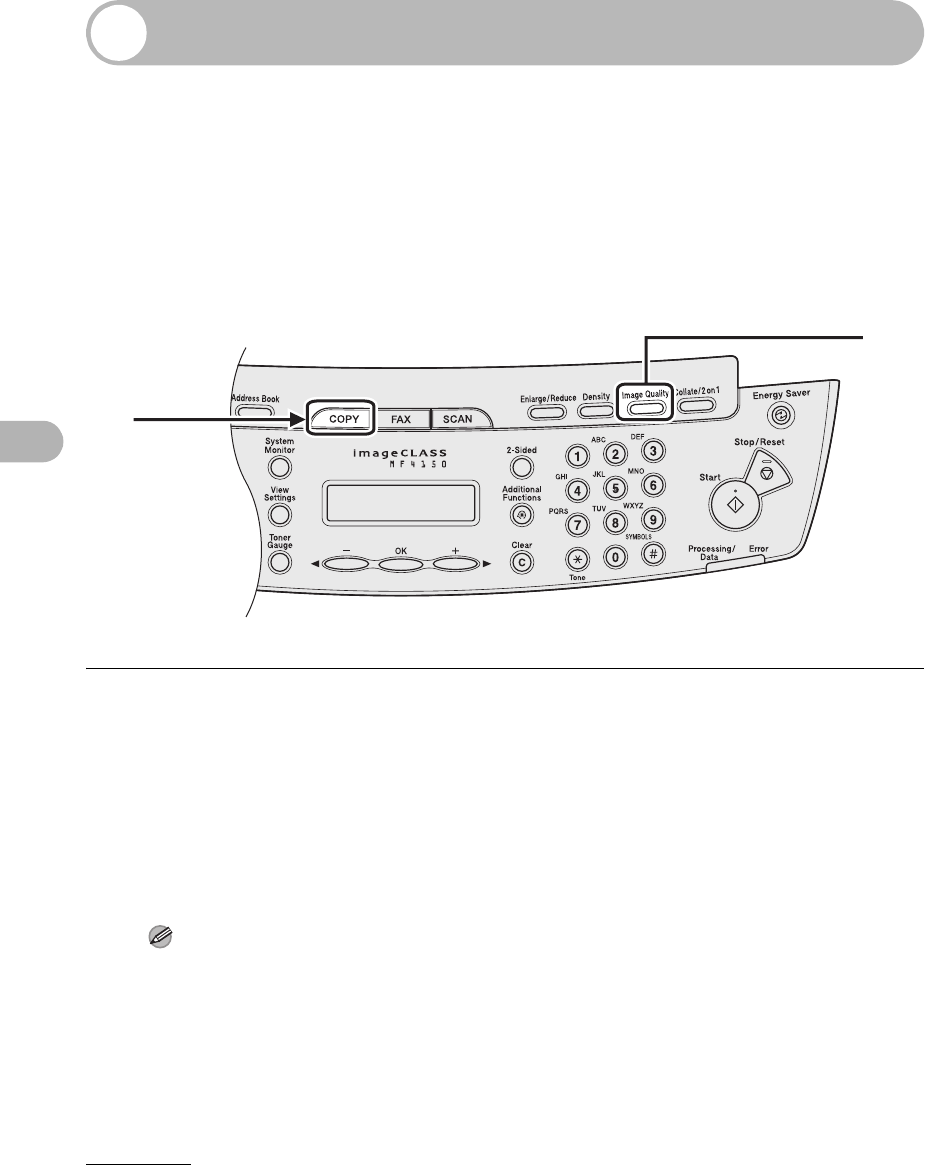
6-3
Copying
Scan Settings
Before pressing [Start] to begin copying, you can adjust scan settings to better
suit the document to be scanned. These settings return to the default values if
Auto Clear function is activated or if you press [Stop/Reset].
Image Quality
1Press [COPY].
2Press [Image Quality] repeatedly to select the document type.
<TEXT/PHOTO>: For documents that contain text and photos.
<TEXT>: For text documents.
<PHOTO>: For documents that contain fine text or photos.
<TEXT/PHOTO+>: For documents that contain fine text and photos.
NOTE
Copy density automatically changes to the manual mode when <TEXT/PHOTO>, <PHOTO>, or
<TEXT/PHOTO+> is set.
2
1
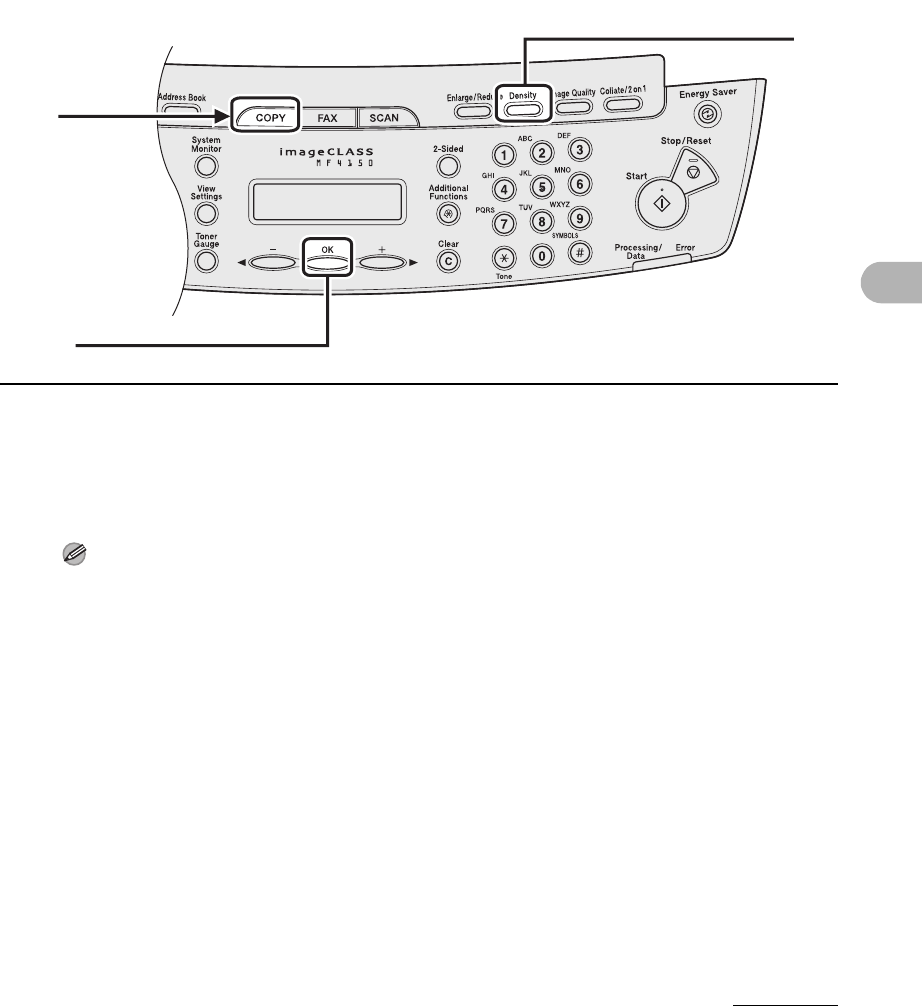
6-4
Copying
Density
You can adjust the density to the most appropriate level for the document either
automatically or manually.
●Adjusting Automatically
1Press [COPY].
2Press [Density] repeatedly until <AUTO> appears, then press [OK].
NOTE
The image quality is automatically set to <TEXT>.
2
[OK]
1
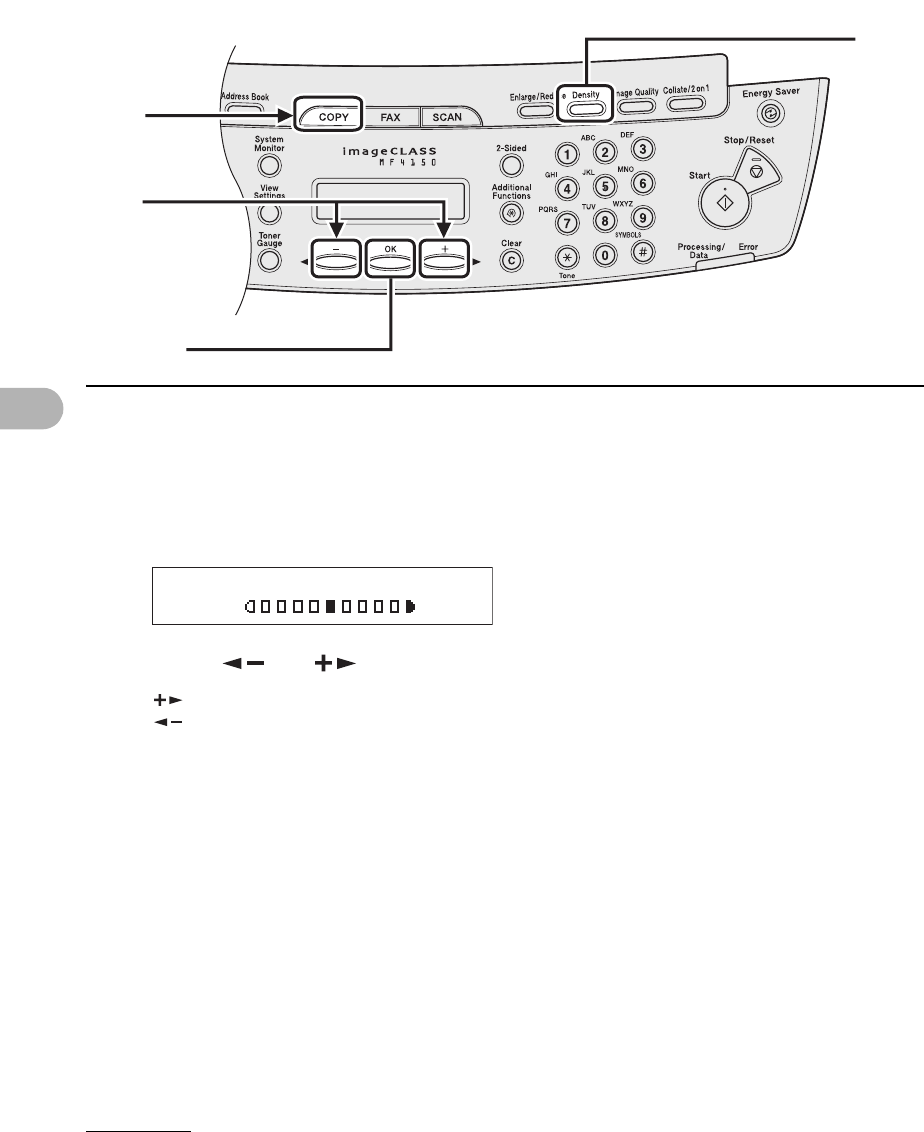
6-5
Copying
●Adjusting Manually
1Press [COPY].
2Press [Density] repeatedly to select the manual mode.
3Press [ ] or [ ] to adjust the copy density, then press [OK].
[ ]: to make light documents darker
[ ]: to make dark documents lighter
3
[OK]
2
1
Ex.
DENSITY
-LT DK+
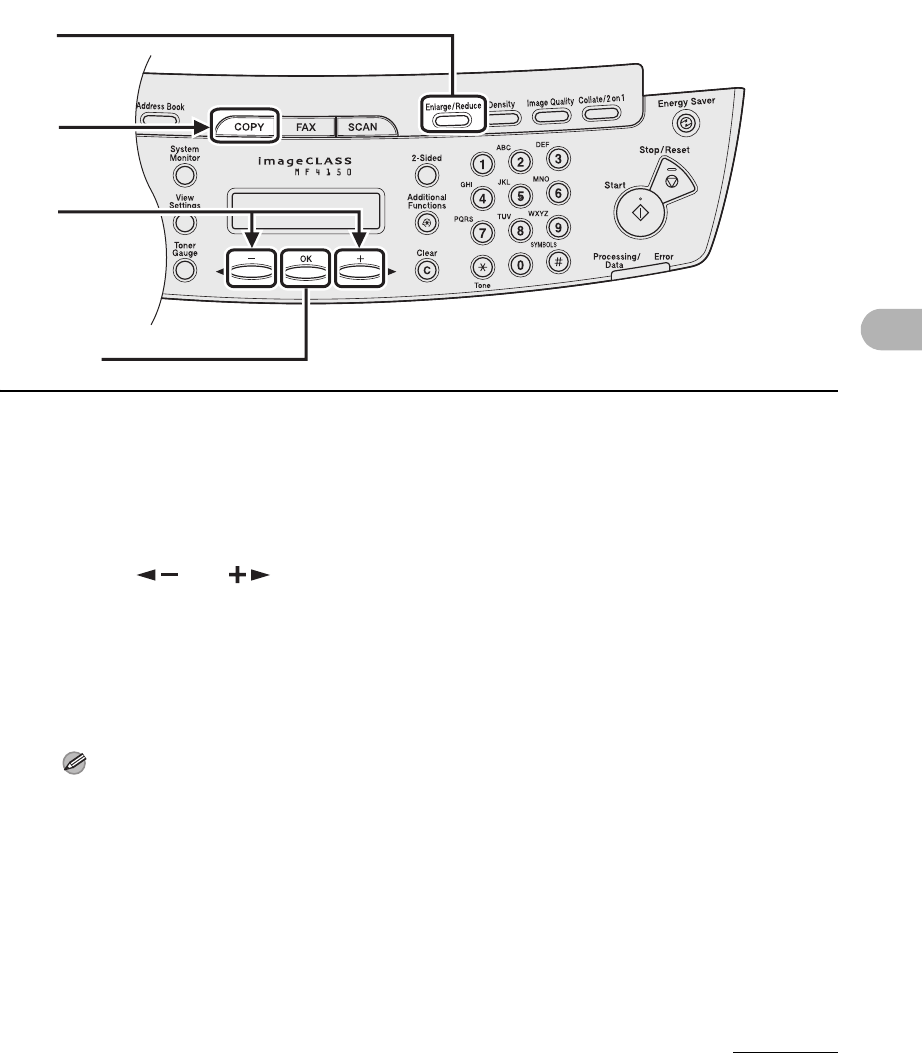
6-6
Copying
Zoom Ratio
●Preset Zoom
You can enlarge or reduce documents from one standard paper size to another.
1Press [COPY].
2Press [Enlarge/Reduce].
3Press [ ] or [ ] to select the copy ratio, then press [OK].
– 200 % MAX.
– 129 % STMT → LTR
– 100 %
– 78 %
– 64 %
– 50 % MIN.
NOTE
When <PAPER SIZE GROUP> in the <COPY SETTINGS> menu is set to <A> or <AB>, the
preset copy ratios change as follows:
A: 50%, 70%, 100%, 141%, 200%
AB: 50%, 70%, 81%, 86%, 100%, 115%, 122%, 141%, 200%
3
[OK]
2
1
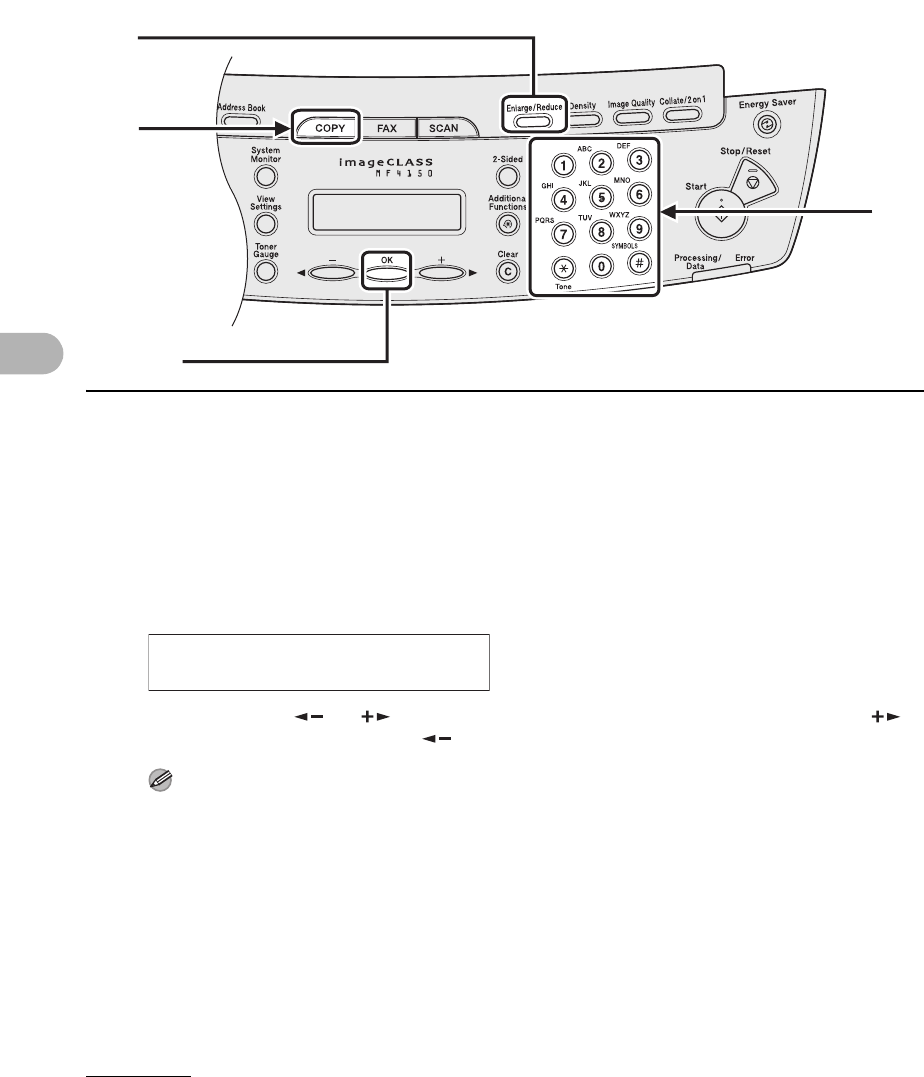
6-7
Copying
● Zoom Designation
You can reduce or enlarge images by any copy ratio, in 1 % increments. The available
copy ratios are from 50 % to 200 %.
1Press [COPY].
2Press [Enlarge/Reduce] twice.
3Enter the copy ratio with the numeric keys, then press [OK].
You can also use [ ] or [ ] to adjust the zoom ratio. To increase the zoom ratio, press [ ].
To decrease the copy ratio, press [ ].
NOTE
To return the copy ratio to 100%, press [Stop/Reset].
[
OK
]
2
3
1
Ex.
ZOOM 50-200%
- 100% +
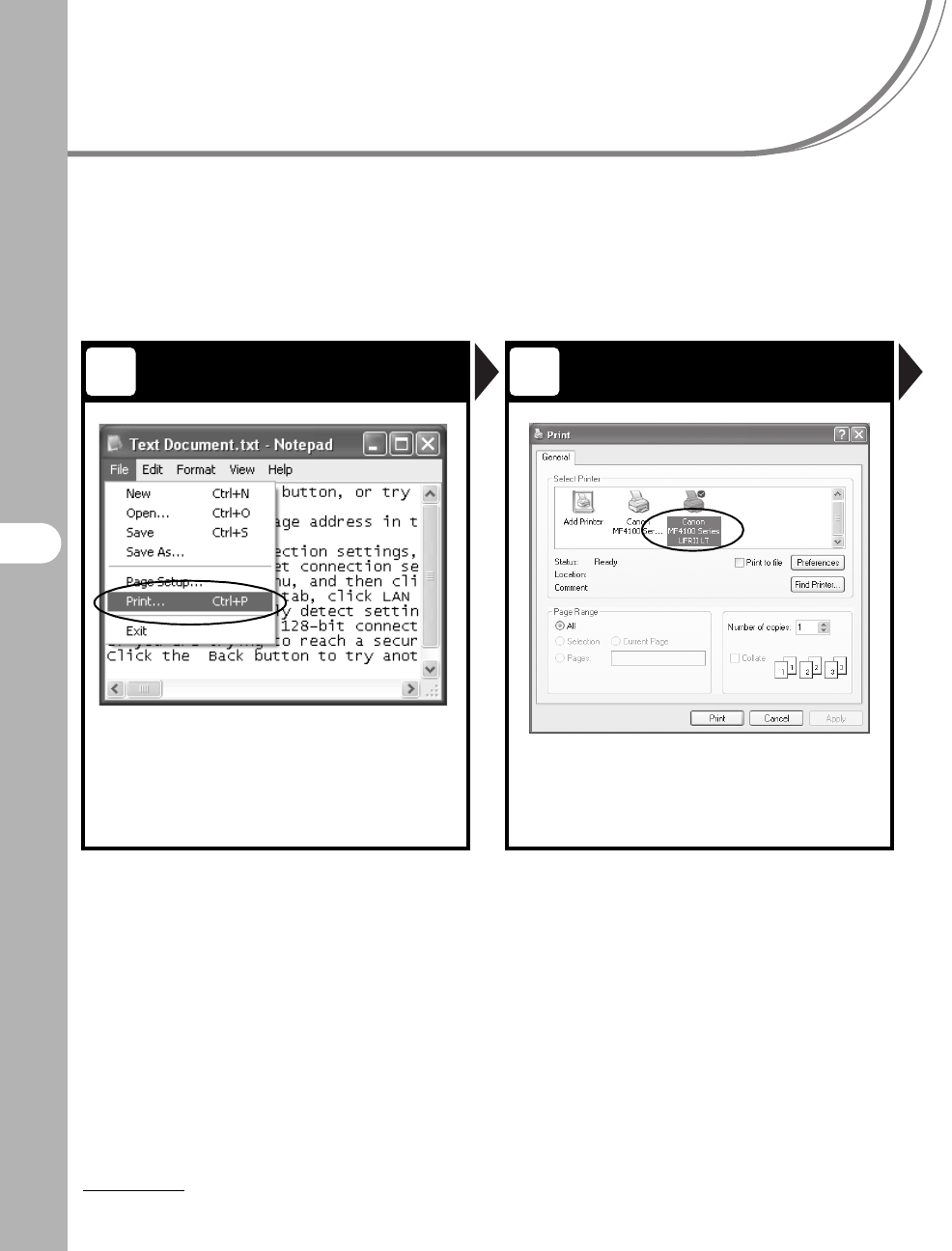
7-1
7
Printing
Printing
Follow this procedure to print a document from your computer.
Make sure that the printer driver is installed.
For details on printer driver settings, see Online Help.
Start the Print Command Select the Printer
From an open document on an
application, click [File] > [Print].
Select the printer icon for the
machine ([Canon MF4100 Series
UFRII LT]).
1 2
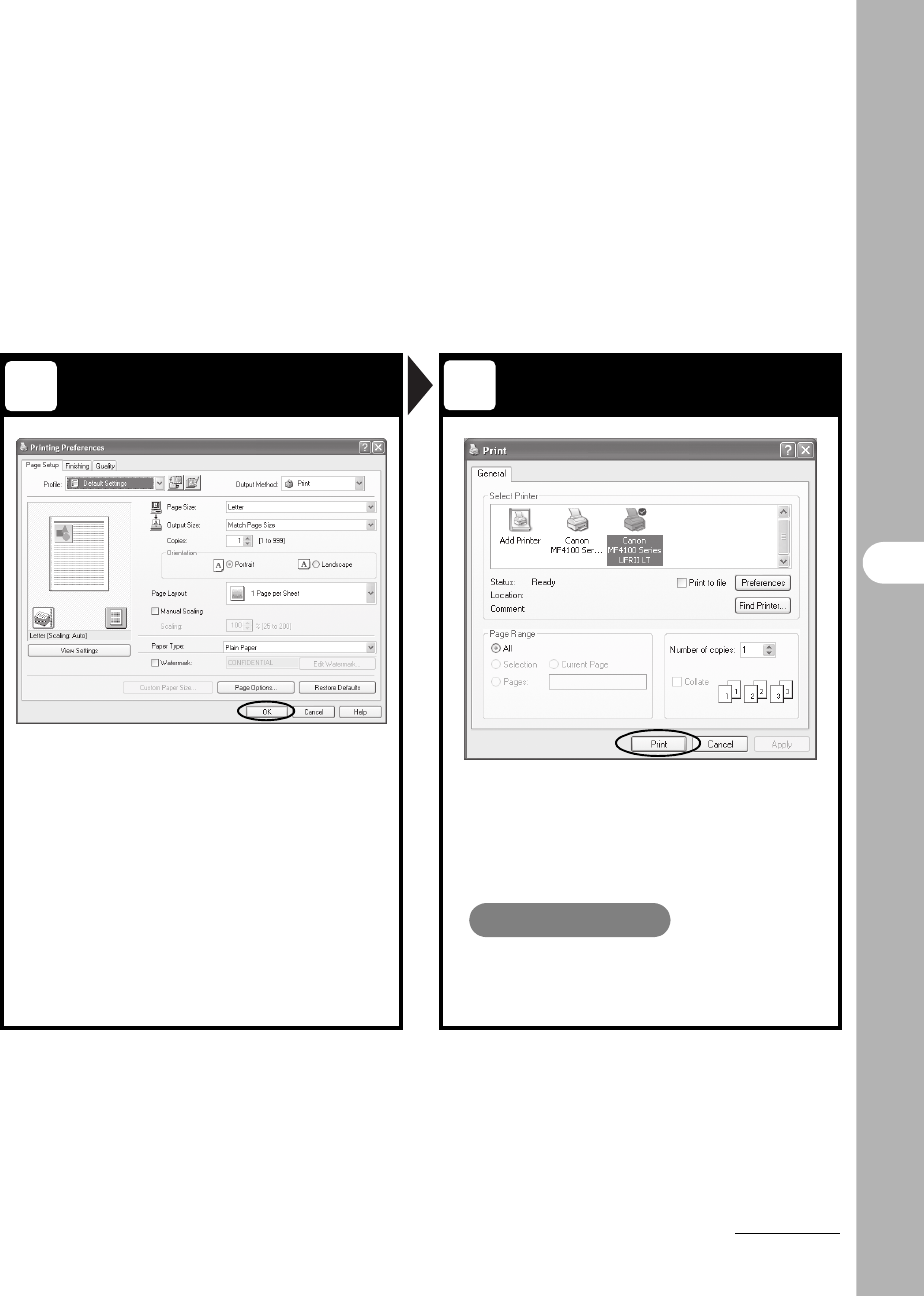
7-2
Printing
Adjust Preferences Print the Document
Click [Preferences] or [Properties]
to open the dialog box. After
finished, click [OK].
Click [Print] or [OK].
What if...
●You want to cancel printing:
See Chapter 3, “System Monitor,” in the
Advanced Guide.
34
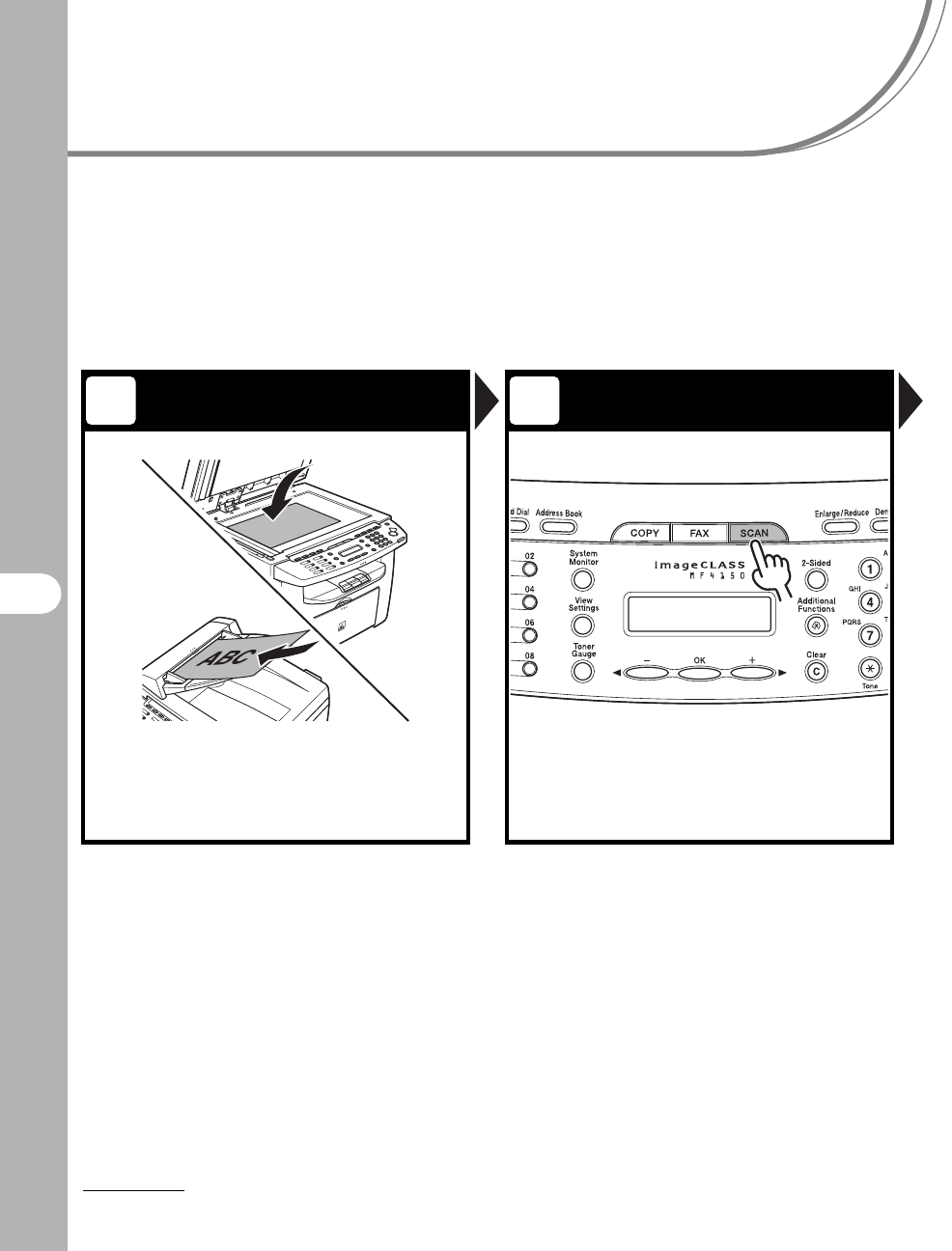
8-1
8
Scanning
Scanning
Follow this procedure to scan a document to your computer.
Make sure that the scanner driver is installed.
For details on scanner driver settings, see the Scanner Driver Guide (in the User
Software CD).
Set a Document Enter the Scan Mode
Place the document on the platen
glass or load it in the ADF.
For documents you can scan, see “Document
Requirements,” on p. 2-1.
Press [SCAN].
The SCAN indicator lights up and the machine enters
the scan standby mode.
1 2
ABC
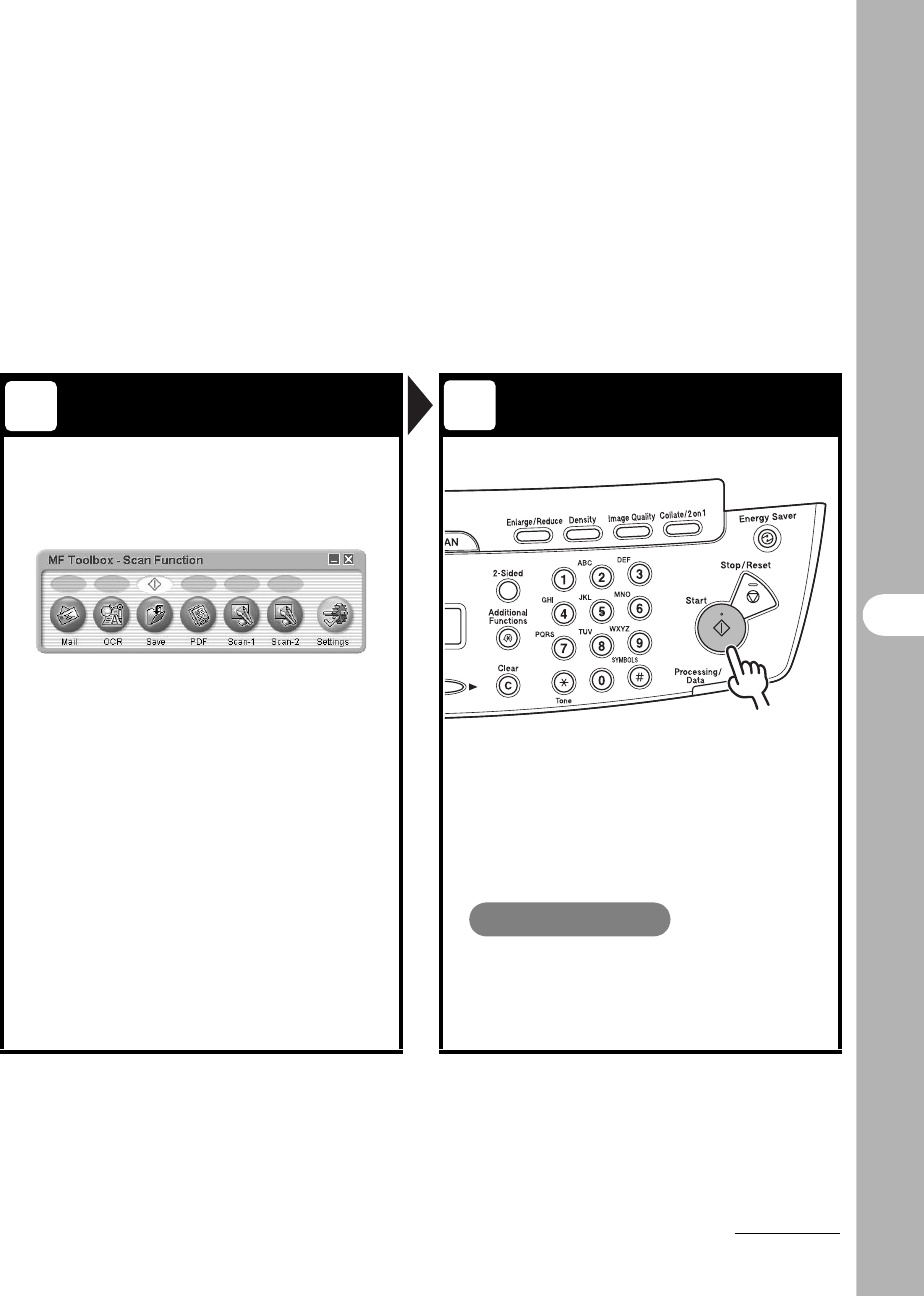
8-2
Scanning
Set Scan Function Start Scanning
Start MF Toolbox, then set the
scanning format.
The mark will be displayed above the button you select.
For details on the MF Toolbox Settings, see Chapter 2,
“Scanning a Document,” in the Scanner Driver Guide.
Press [Start].
What if...
●You want to cancel scanning:
Press [Stop/Reset] on the operation
panel, then click [OK] on the computer
screen.
34
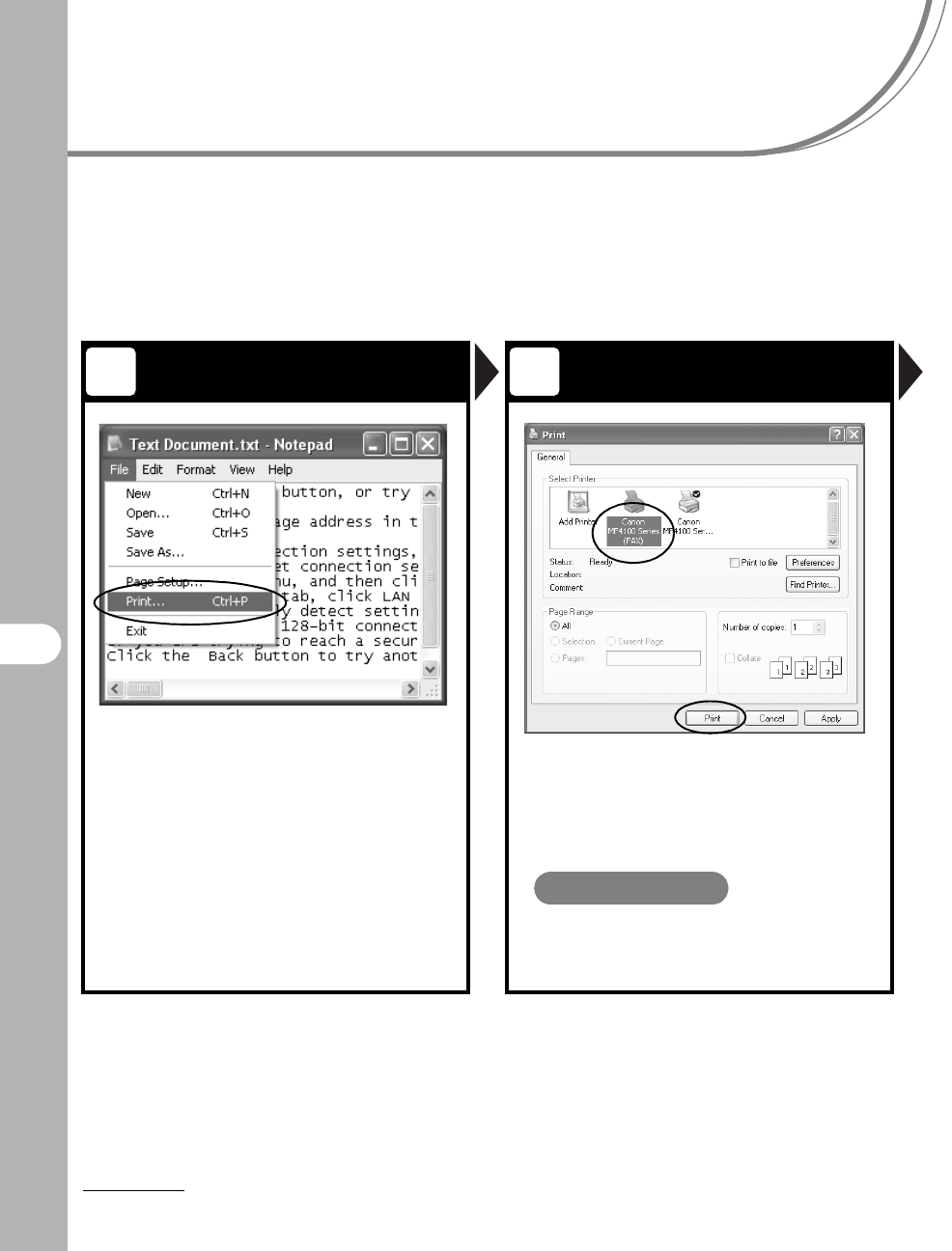
9-1
9
PC Faxing
PC Faxing
Follow this procedure to send a fax from your computer.
Make sure that the fax driver is installed.
For details on fax driver settings, see Online Help.
Start the Print Command Select the Fax
From an open document on an
application, click [File] > [Print].
Select the fax icon ([Canon MF4100
Series(FAX)]), then click [Print] or
[OK].
What if...
● You want to adjust the fax properties:
Click [Preferences] or [Properties] and
adjust the settings.
1 2
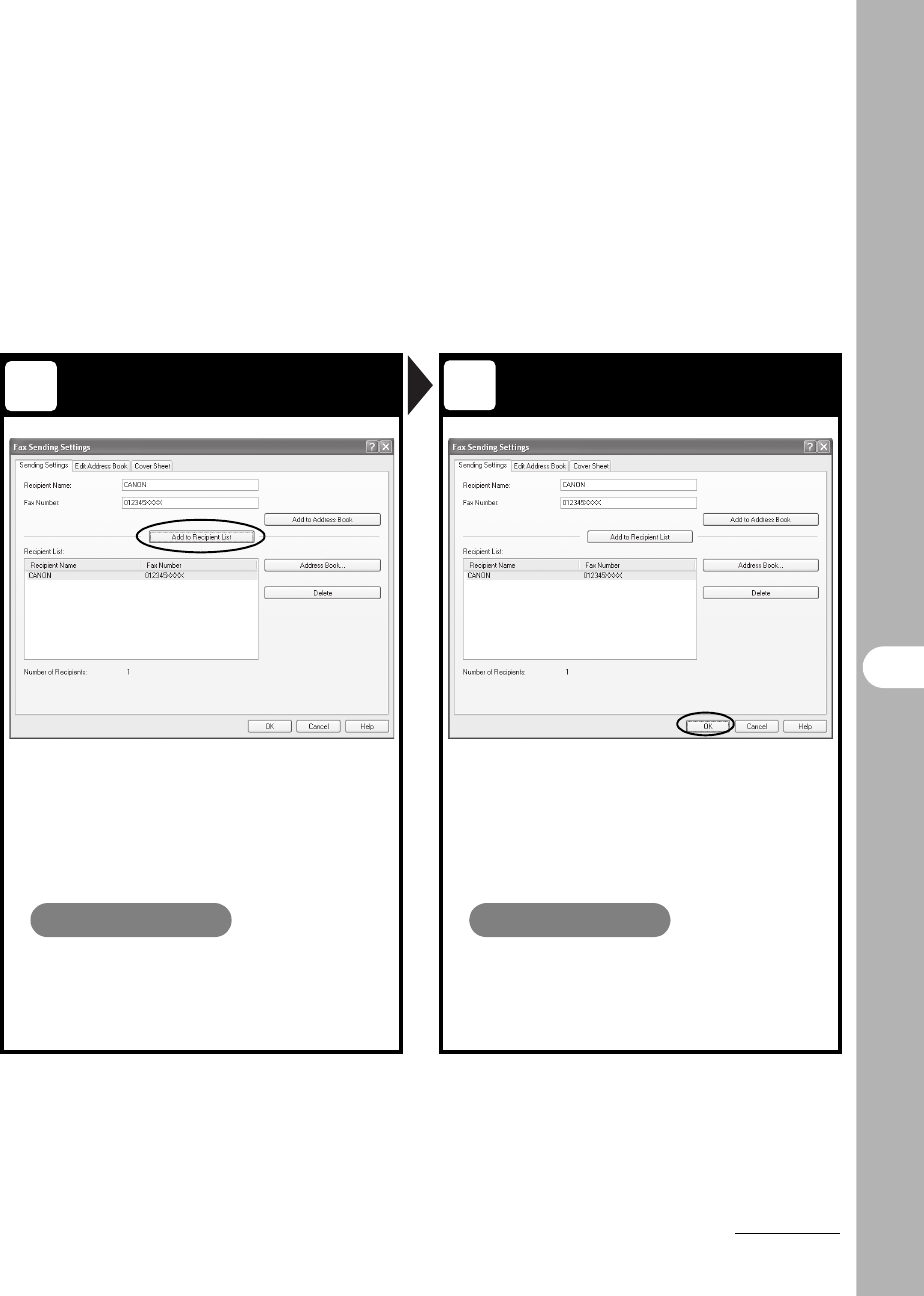
9-2
PC Faxing
Set the Destination Send the Document
Specify the name and fax number in
[Sending Settings], then click [Add
to Recipient List].
Click [OK] in the Fax Sending
Settings.
What if...
●You want to send a fax with the cover
sheet:
Click the [Cover Sheet] tab and set the
format for the cover sheet attachment.
What if...
●You want to cancel sending a fax:
See Chapter 3, “System Monitor,” in the
Advanced Guide.
34
10-1
10
Maintenance
Maintenance
Cleaning the Machine
Note the following before cleaning
your machine:
– Make sure no document is stored in
memory, then turn off the main
power switch and disconnect the
power cord.
– Use a soft cloth to avoid scratching
the components.
– Do not use tissue paper, paper
towels, or similar materials for
cleaning; they can stick to the
components or generate static
charges.
CAUTION
Never use volatile liquids such as thinners,
benzene, acetone, or any other chemical cleaner to
clean the machine. These can damage the
machine components.
Exterior
1Turn off the main power switch
and disconnect the power cord.
2Wipe the machine’s exterior with
a clean, soft, lint-free cloth
dampened with water or diluted
dishwashing detergent solution.
3Wait for the machine to dry, then
reconnect the power cord and
turn on the main power switch.
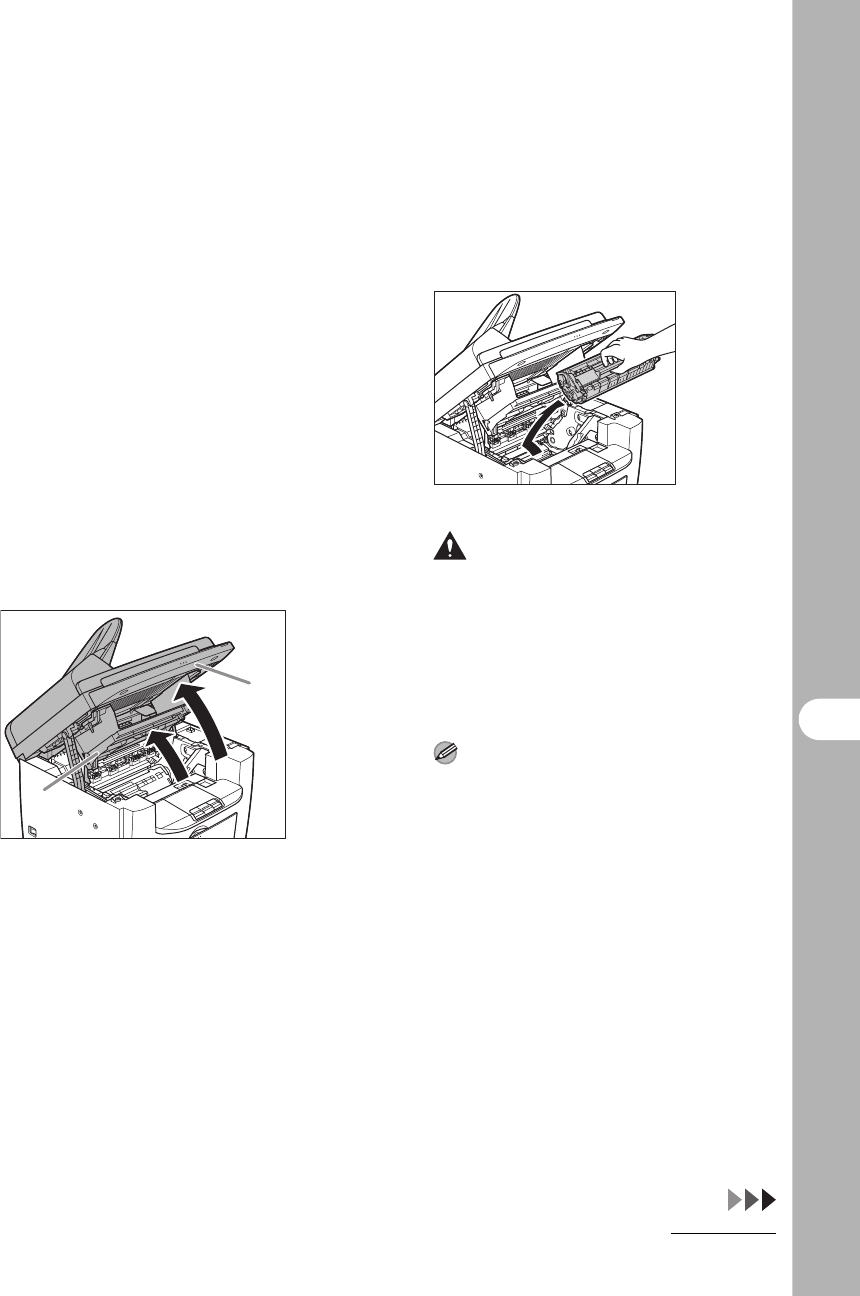
10-2
Maintenance
Interior
Clean the machine’s print area
periodically to prevent toner powder and
paper dust from accumulating inside.
1Turn off the main power switch
and disconnect the power cord.
2Lift the scanning platform until it
is locked (A), and open the
printer cover (B).
3Remove the toner cartridge.
CAUTION
– To avoid exposing the toner cartridge to
light, place it in its protective bag or
wrap it in a thick cloth.
– Do not open the drum protective shutter
on the toner cartridge. Print quality may
deteriorate if the drum surface is
exposed to light or is damaged.
NOTE
Always hold the toner cartridge by its
handle.
4Use a clean, soft, dry, lint-free
cloth to remove any toner or
paper debris from the machine’s
interior.
A
B
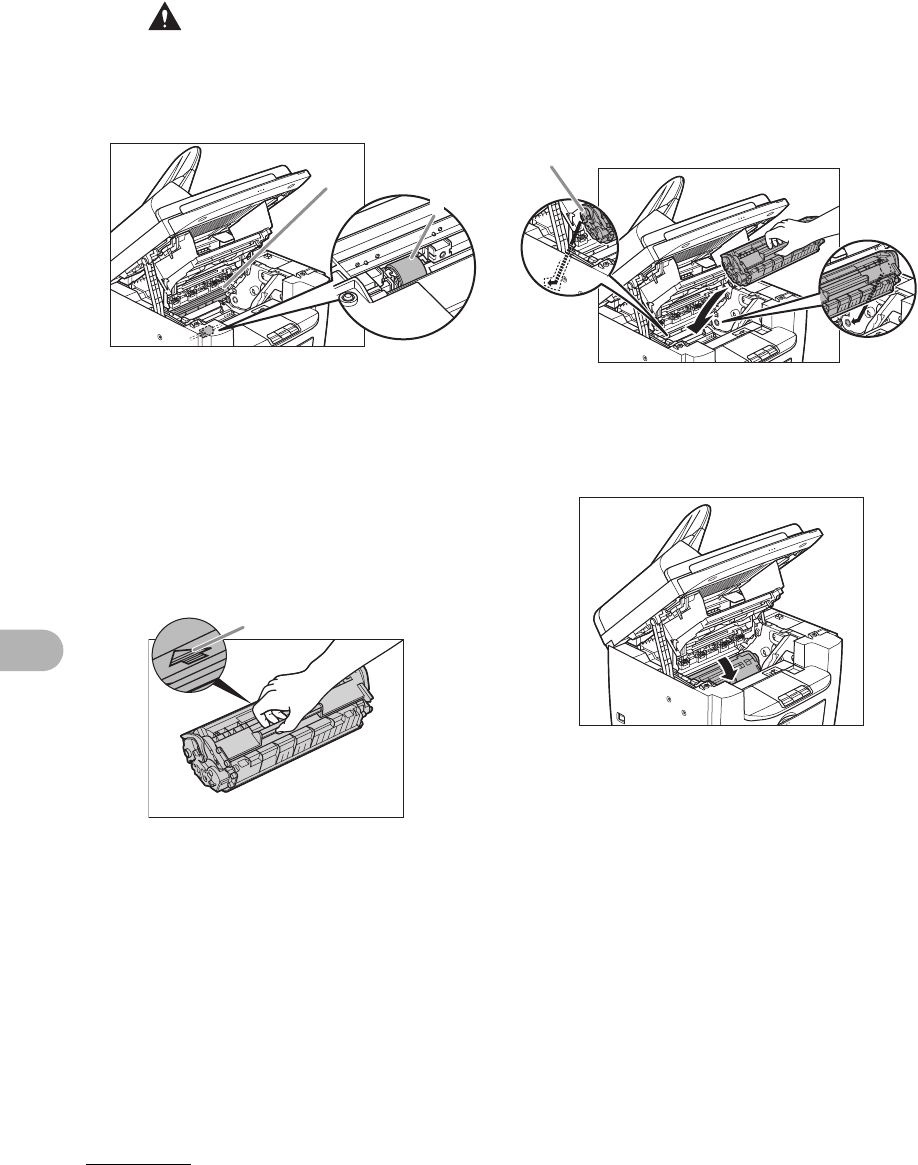
10-3
Maintenance
CAUTION
– Do not touch the fixing assembly (A) as
it becomes very hot during use.
– Do not touch the transfer roller (B) as
this can damage the machine.
– If loose toner comes into contact with
your skin or clothing, wash with cold
water. Warm water will set the toner.
5Hold the toner cartridge by its
handle (A).
The arrow (A) on the toner cartridge should
be facing away from you and pointing
down.
6Insert the toner cartridge into
the machine as far as it will go.
Align the guide (A) on the left side of the
toner cartridge with the groove inside the
machine.
7Push the toner cartridge to make
sure it is properly set in the
machine.
A
B
A
A
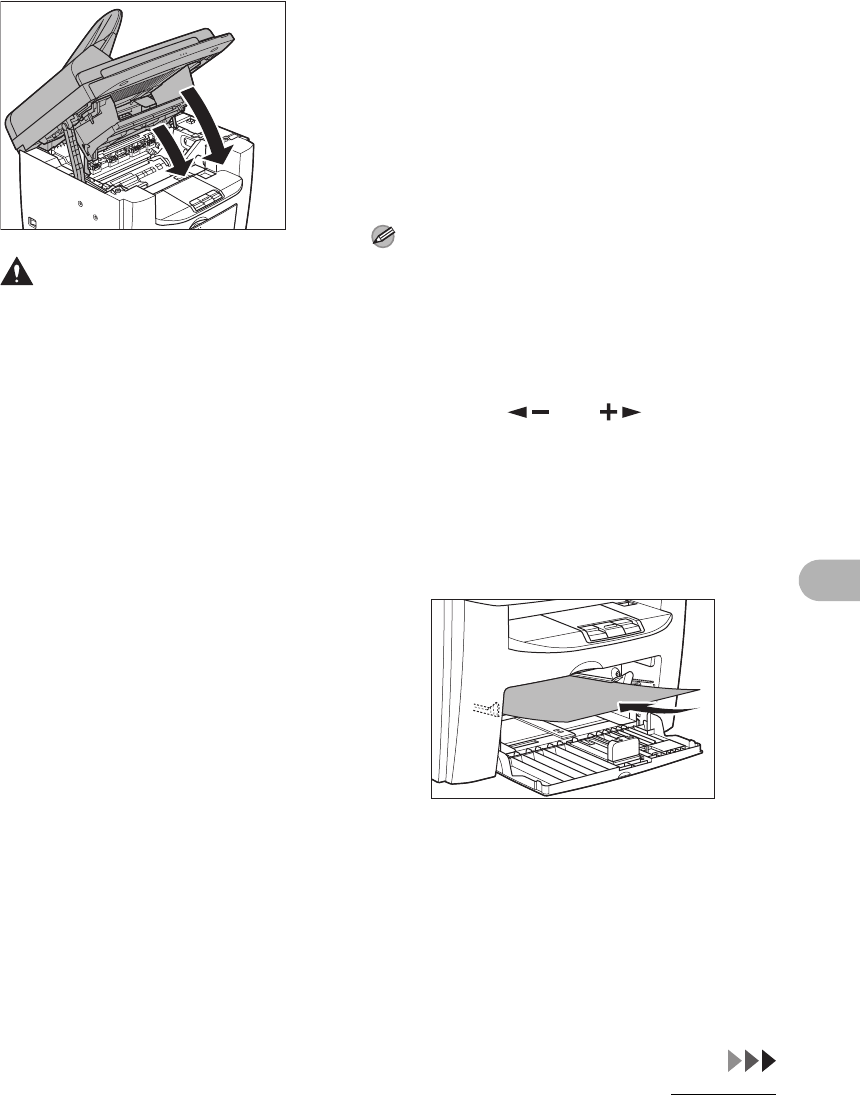
10-4
Maintenance
8Close the printer cover and
lower the scanning platform.
CAUTION
Be careful not to get your fingers caught.
9Reconnect the power cord and
turn on the main power switch.
Fuser Roller
If black streaks appear with printing, the
fuser roller in the main unit may be dirty.
Should this occur, clean the fusing roller
in the following procedure. The roller
should also be cleaned each time the
toner cartridge is replaced. Load a sheet
of blank LTR paper into the multi-purpose
tray and start cleaning.
NOTE
Cleaning the roller takes approximately 130
seconds.
1Press [Additional Functions].
2Press [ ] or [ ] to select
<ADJUST./CLEANING>, then
press [OK].
3Load a sheet of blank LTR paper
in the multi-purpose tray.
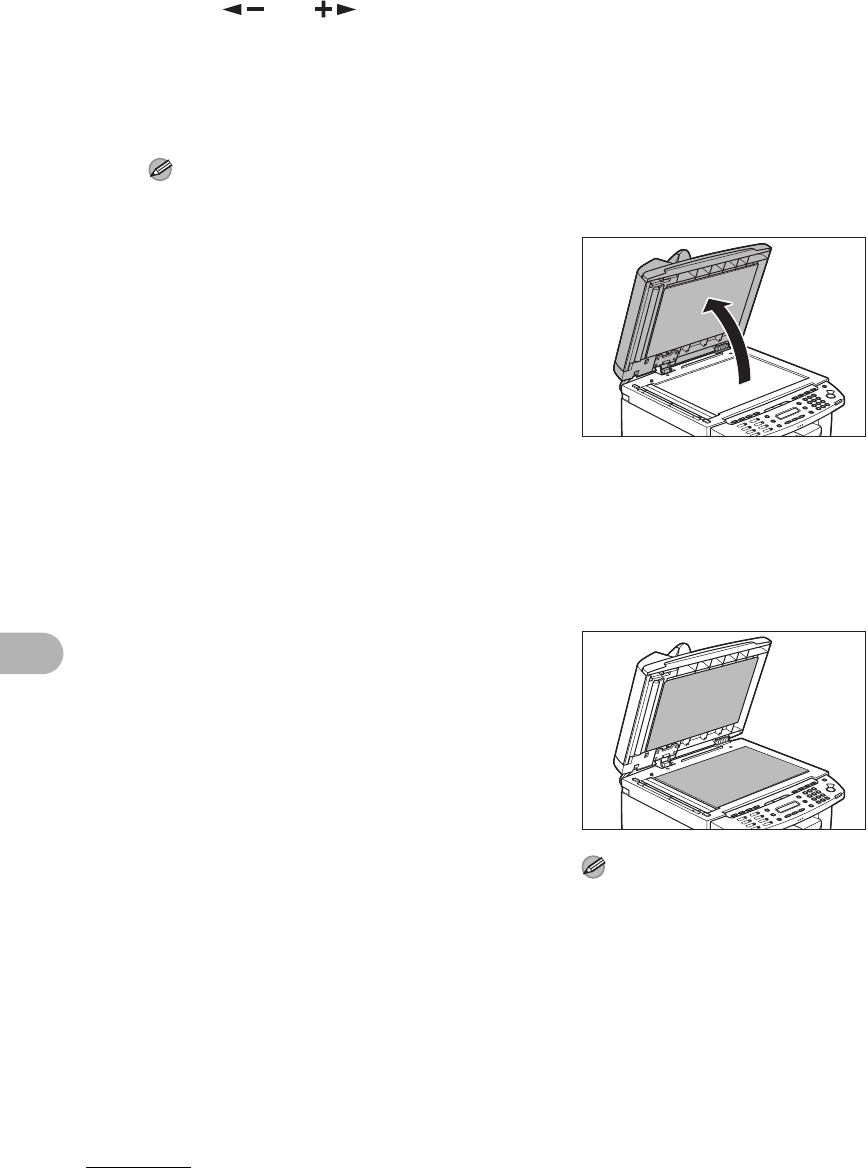
10-5
Maintenance
4Press [ ] or [ ] to select
<FIX. UNIT CLEANING>, then
press [OK].
Cleaning starts. When finished, the display
returns to the standby mode.
NOTE
– Use standard paper as the cleaning
paper.
– Throw away the cleaning paper after use.
Scanning area
Keep the scanning area clean to avoid
dirty copies or faxes to be sent.
●Platen glass
1Open the ADF.
2Clean the platen glass and the
underside of the ADF with a
cloth dampened with water.
Then, wipe the area with a soft,
dry cloth.
NOTE
Do not dampen the cloth too much, as this
may tear the document or damage the
machine.
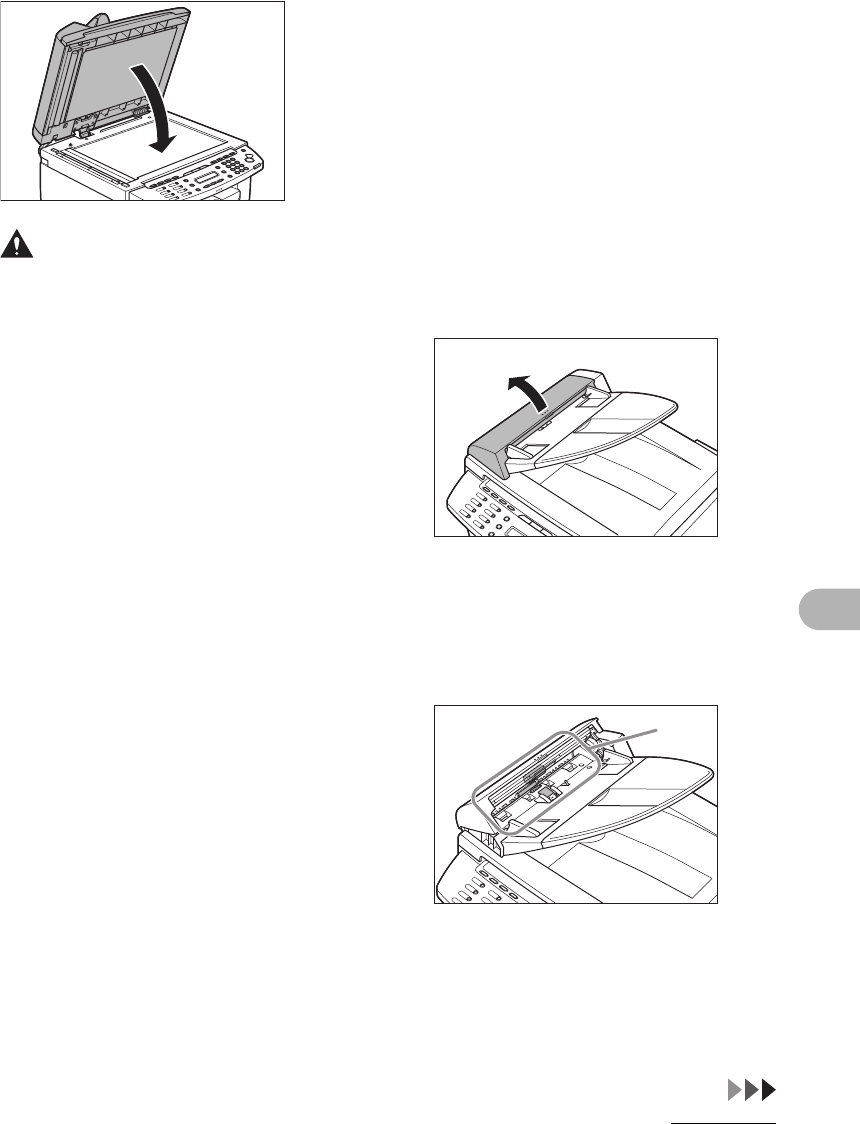
10-6
Maintenance
3Close the ADF.
CAUTION
Be careful not to get your fingers caught.
●ADF
If your documents have black streaks or
appear dirty after copying them using the
ADF, this may be caused by pencil lead
rubbing off the documents and onto the
roller. Clean the ADF scanning area, film,
and roller.
1Turn off the main power switch
and disconnect the power cord.
2Open the ADF cover.
3Clean the rollers (A) inside the
ADF with a cloth dampened with
water. Then wipe the area with a
soft, dry cloth.
A
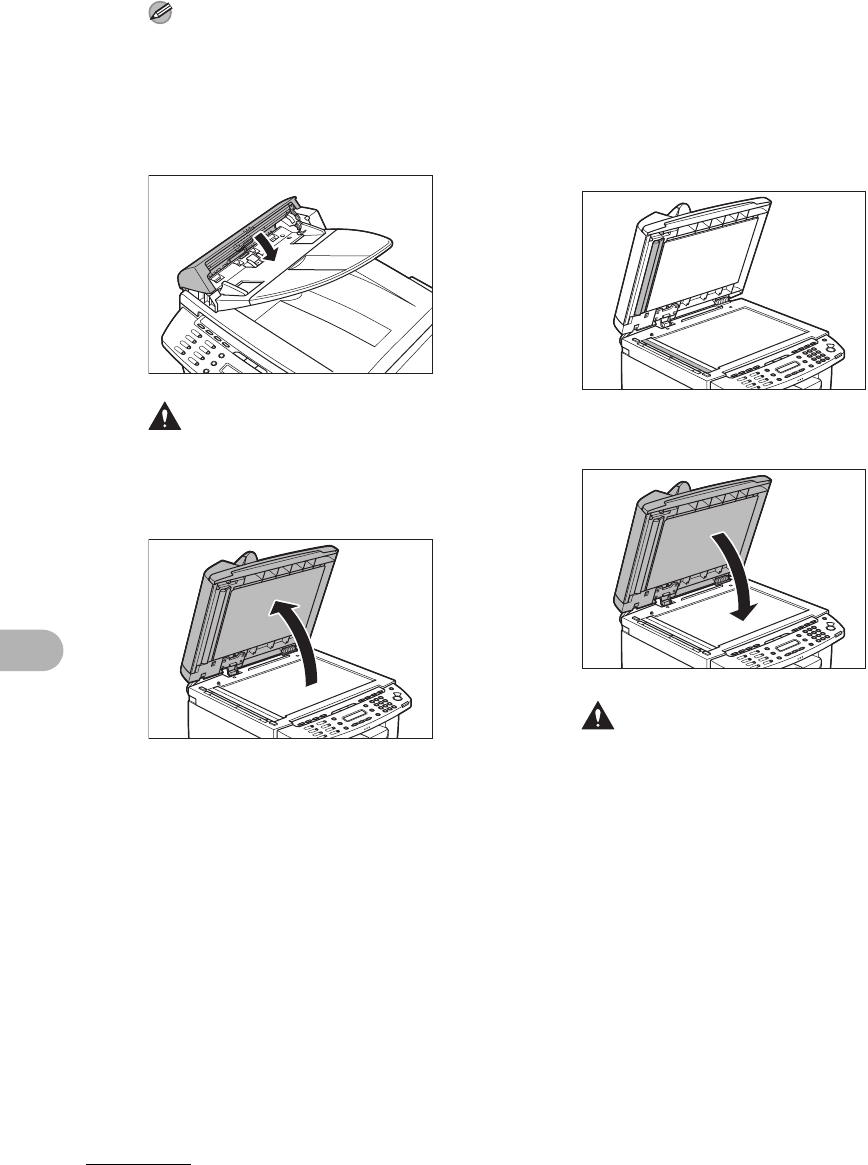
10-7
Maintenance
NOTE
Do not dampen the cloth too much, as this
may tear the document or damage the
machine.
4Close the ADF cover.
CAUTION
Be careful not to get your fingers caught.
5Open the ADF.
6Clean the ADF scanning area (on
the left side of the platen glass)
and the document feeding roller
with a cloth dampened with
water. Then wipe the area with a
soft, dry cloth.
7Close the ADF.
CAUTION
Be careful not to get your fingers caught.
8Reconnect the power cord and
turn on the main power switch.
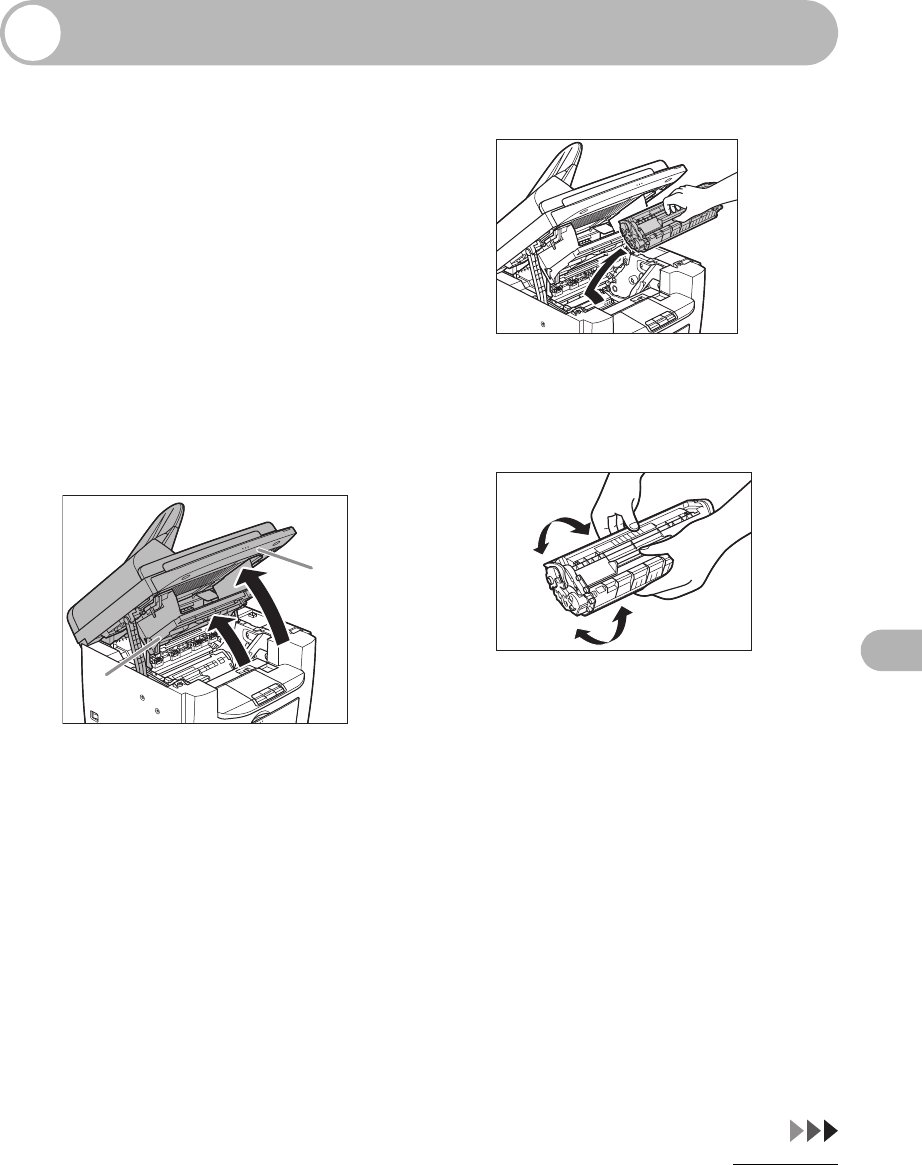
10-8
Maintenance
Replacing the Toner Cartridge
When the LCD displays <OUT OF
TONER/CHANGE TONER>, or toner
level is low by pressing [Toner Gauge],
redistribute toner in the toner
cartridge. If the message persists,
replace the toner cartridge.
Redistributing Toner
1Lift the scanning platform until it
is locked (A), and open the
printer cover (B).
2Remove the toner cartridge.
3Gently rock the toner cartridge
five or six times to distribute
toner evenly.
A
B
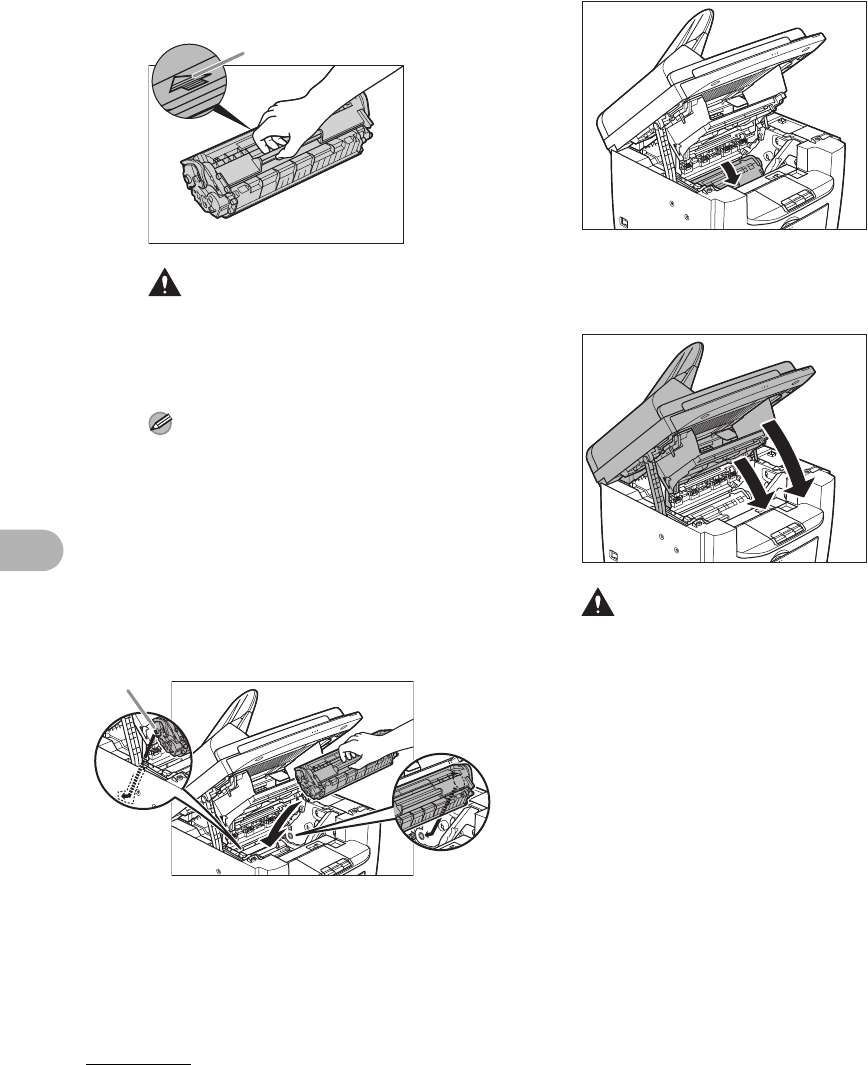
10-9
Maintenance
4Hold the toner cartridge by its
handle (A).
The arrow (A) on the toner cartridge should
be facing away from you and pointing
down.
CAUTION
– Do not open the drum protective shutter
on the toner cartridge. Print quality may
deteriorate if the drum surface is
exposed to light or is damaged.
NOTE
– Always hold the toner cartridge by its
handle.
5Insert the toner cartridge into
the machine as far as it will go.
Align the guide (A) on the left side of the
toner cartridge with the groove inside the
machine.
6Push the toner cartridge to make
sure it is properly set in the
machine.
7Close the printer cover and
lower the scanning platform.
CAUTION
Be careful not to get your fingers caught.
A
A
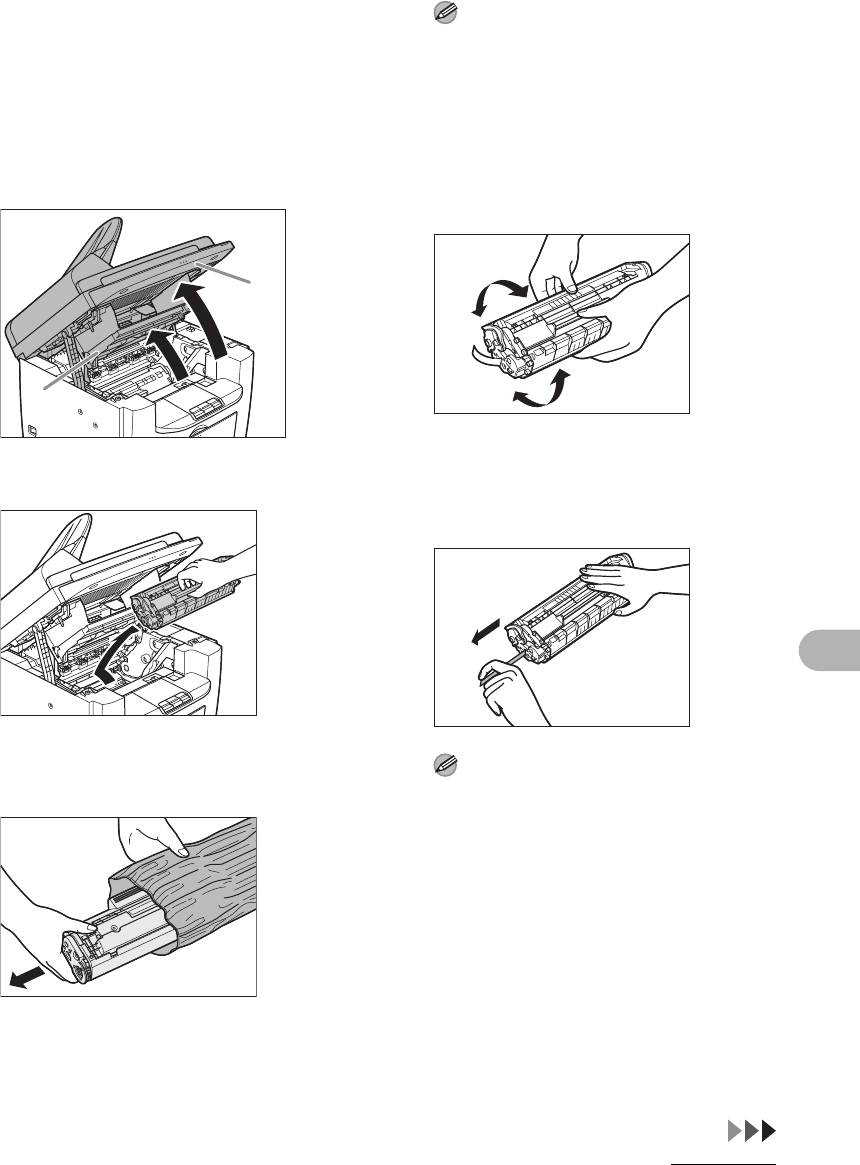
10-10
Maintenance
Replacing the Toner
Cartridge with a New One
1Lift the scanning platform until it
is locked (A), and open the
printer cover (B).
2Remove the toner cartridge.
3Remove the new toner cartridge
from the protective bag.
NOTE
Save the protective bag. You may need it
later when you remove the toner cartridge
from the machine.
4Gently rock the toner cartridge
five or six times to distribute
toner inside.
5Hold the toner cartridge with one
hand, and pull out the seal
completely.
NOTE
Do not pull out the seal at an angle.
A
B
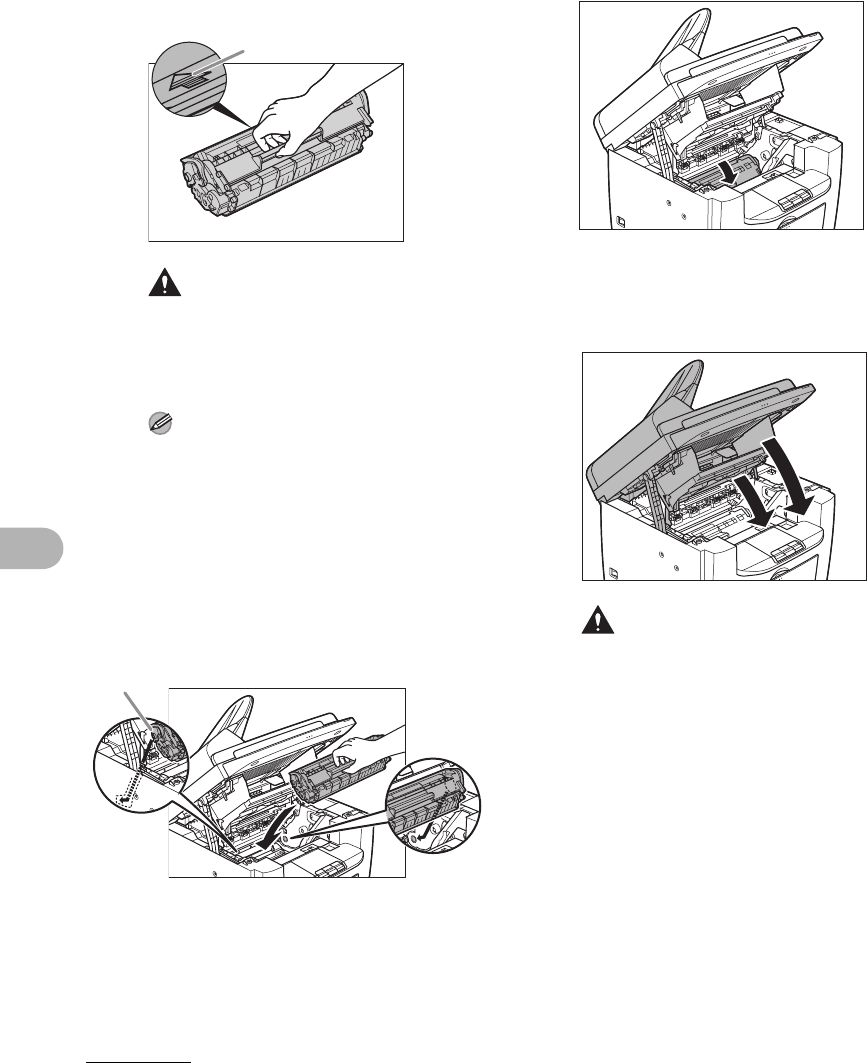
10-11
Maintenance
6Hold the toner cartridge by its
handle.
The arrow (A) on the toner cartridge should
be facing away from you and pointing
down.
CAUTION
Do not open the drum protective shutter on
the toner cartridge. Print quality may
deteriorate if the drum surface is exposed
to light or is damaged.
NOTE
Always hold the toner cartridge by its
handle.
7Insert the toner cartridge into
the machine as far as it will go.
Align the guide (A) on the left side of the
toner cartridge with the groove inside the
machine.
8Push the toner cartridge to make
sure it is properly set in the
machine.
9Close the printer cover and
lower the scanning platform.
CAUTION
Be careful not to get your fingers caught.
A
A
10-12
Maintenance
Recycling Used Cartridges
The Clean Earth Campaign
●THE Canon CARTRIDGE RECYCLING PROGRAM
The Canon Cartridge Recycling Program fulfills the first initiative of Canon’s Clean
Earth Campaign, which supports four critical environmental areas:
●Recycling in the Workplace
●Conserving Environmental Resources
●Scientific Research and Education
●Encouraging Outdoors Appreciation
The remaining “Clean Earth” initiatives are supported in the U.S. through sponsorships
of the National Park Foundation, the National Wildlife Federation, and The Nature
Conservancy and in Canada through donations to the World Wildlife Fund Canada and
The Nature Conservancy of Canada.
Canon has instituted a worldwide recycling program for cartridges
called “The Clean Earth Campaign.” This program preserves
precious natural resources by utilizing a variety of materials found in
the used cartridges that are of no further use, to remanufacture new
cartridges which, at the same time, keeps the environment cleaner
by reducing landfill waste. Complete details concerning this program
are enclosed in each PC Cartridge box.

10-13
Maintenance
Since its inception, The Canon Cartridge Recycling Program has collected millions of
cartridges that otherwise would have been discarded into landfills or similar facilities.
Instead, this rapidly growing program returns used cartridges to the manufacturing
process, thus conserving an array of resources.
Becoming a part of this worthwhile program is easy. When your cartridge is of no
further use, simply follow the instructions detailed for U.S. or Canadian residents.
We appreciate your support of The Canon Cartridge Recycling Program.
Working together we can make a significant contribution to a cleaner planet.
●Cartridges collected through this program are not refilled.
●You are not entitled to a tax deduction or rebate for the return of empty cartridges.
●This program may be modified or discontinued without notice.
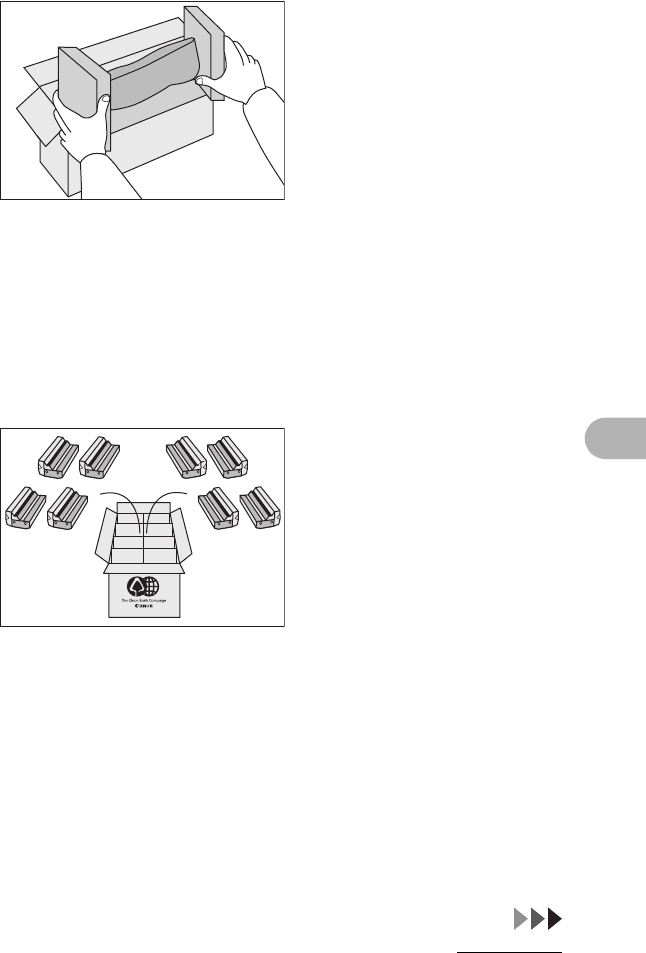
10-14
Maintenance
U.S.A. PROGRAM
●Packaging
■Option A-1: Single Box Return
●Repackage the empty cartridge utilizing the wrapper and pulp mould end-blocks
from the new cartridge’s box.
●Place the empty cartridge in the box of your new cartridge. Seal the box.
■Option B: Volume Box Return
We encourage you to use this option as a more efficient way to ship cartridges.
●Place as many cartridges as possible into one box.
Carefully seal the box with tape;
or
●Call 1-800-OK-Canon to receive your free eight cartridge collection box.
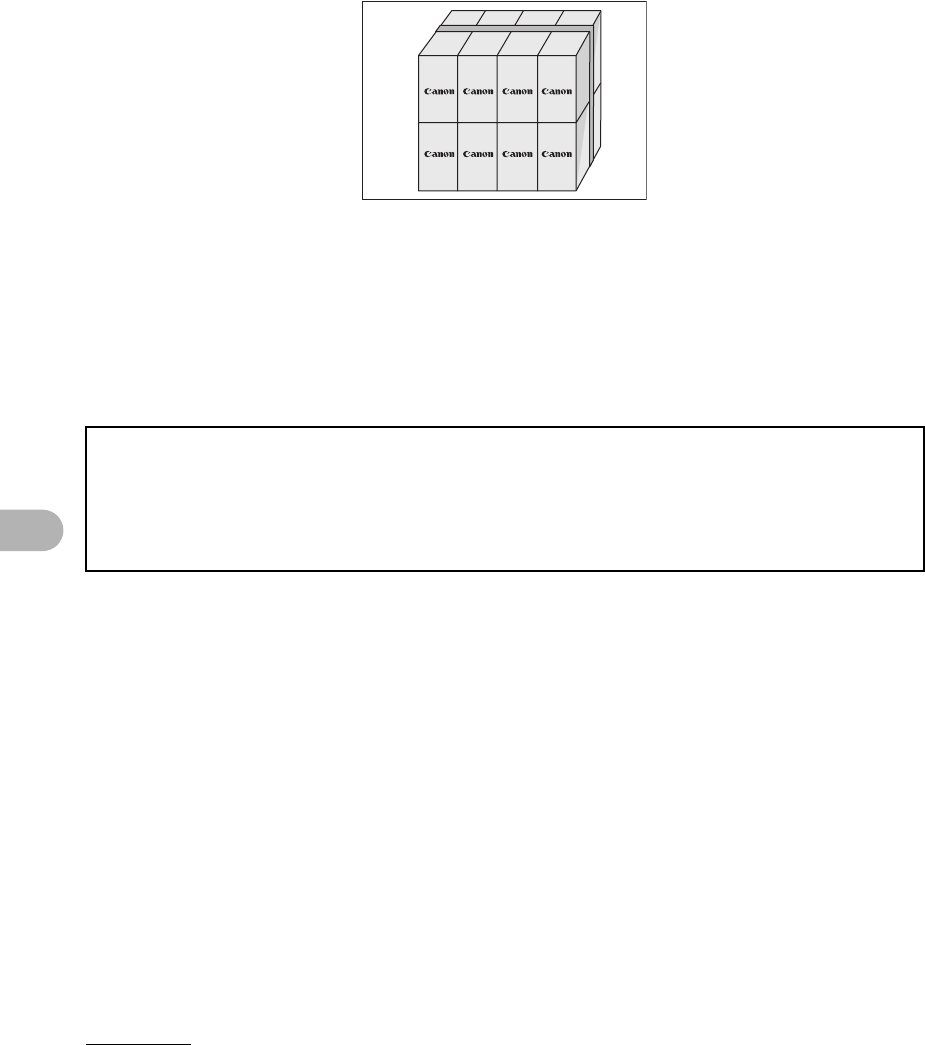
10-15
Maintenance
■Option A-2: Multiple Box Return
We encourage you to use this option as a more efficient way to ship cartridges.
●Complete Option A-1.
●Bundle multiple cartridge boxes together securely with tape.
Please be sure that the shipment does not exceed UPS specifications.
Maximum weight = 70 lb. (31.8 kg)
Maximum length = 108 in. (2,743 mm)
Maximum girth (length + 2 x width + 2 x height) = 130 in. (3,302 mm)
If your shipment exceeds the above limits, please call 1-800-OK-Canon for special
shipping information.
Please Note:
Do not send defective cartridges for replacement.
Defective cartridges under warranty should be exchanged by an authorized dealer
or service facility as provided in the warranty.
10-16
Maintenance
●Shipping
Apply the UPS authorized returning label provided in this guide.
Residents of Alaska and Hawaii: Do not use the UPS authorized returning label. For
Alaska and Hawaii Canon set up alternative mail service with the U.S. Postal Service.
Please call 1-800-OK-Canon to receive U.S. Postal Service merchandise returning
label.
■Option A: UPS Pick-up
●Give the shipment to your UPS driver when you receive your next regular delivery;
or
●Take the shipment to your local UPS receiving point.
■Option B: MBE Drop off
Take the shipment to a participating MBE (Mail Boxes, Etc.) Center.
For location, please call 1-800-949-6660.
10-17
Maintenance
By using either of the above methods of shipment, your used cartridge(s) will
be forwarded to the Canon Cartridge Collection Center at no charge to you.
For further information about the Clean Earth Campaign in the United States, please
call: 1-800-OK-Canon
CANADA PROGRAM-CANADA PROGRAMME
■Option A: Single Box Return
●Repackage the empty cartridge utilizing the wrapper and pulp mould end-blocks
from the new cartridge’s box.
●Place the empty cartridge in the box of your new cartridge. Seal the box.
●Apply the Canon Canada Inc./Canada Post label provided in this brochure.
Canon’s labels are specially marked so that Canon pays the postage.
●Deposit your empty cartridge in any full size street mailbox or take it to your local
Canada Post outlet or franchise.
■Option B: Volume Box Return (eight or more cartridges)
We encourage you to use this option as a more efficient way to ship cartridges.
●Call 1-800-667-2666 to receive your free Canon collection box kit.
●The collection box can accommodate eight individual cartridge boxes.
●Place your eight individually packaged boxes of empty cartridges into the Canon
collection box. Seal the box.
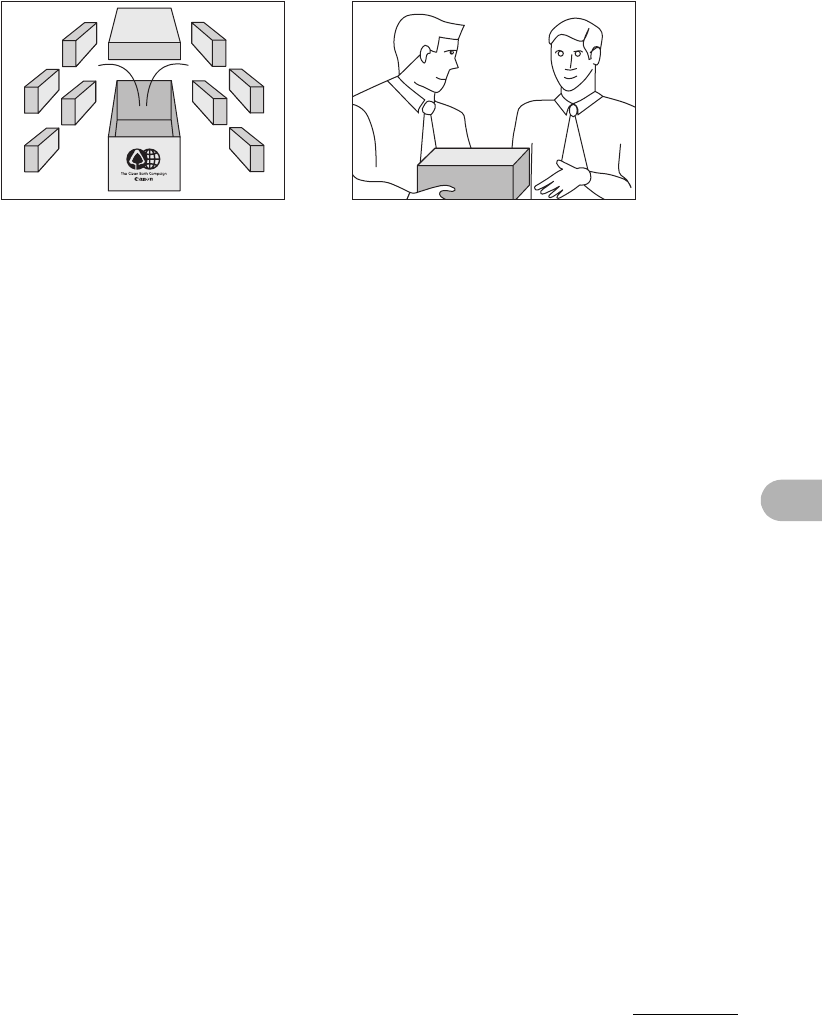
10-18
Maintenance
●Apply the Canon Canada Inc./Canada Post label provided in this brochure.
●Canon’s labels are specially marked so that Canon pays the postage.
●Deliver to any local Canada Post outlet or franchise. Customers who hold a
Commercial pick-up agreement with Canada Post may have their collection box
picked up.
Working to preserve endangered species is a long-standing Canon interest.
To this end, for every cartridge collected, Canon Canada donates $1, shared equally
between World Wildlife Fund Canada and the Nature Conservancy of Canada. This
donation is utilized in Canada.
●For further information about The Clean Earth Campaign in Canada, please call or
write to Canon.
1-800-667-2666
Canon Canada Inc.
Corporate Customer Relations
6390 Dixie Road
Mississauga, ON L5T 1P7
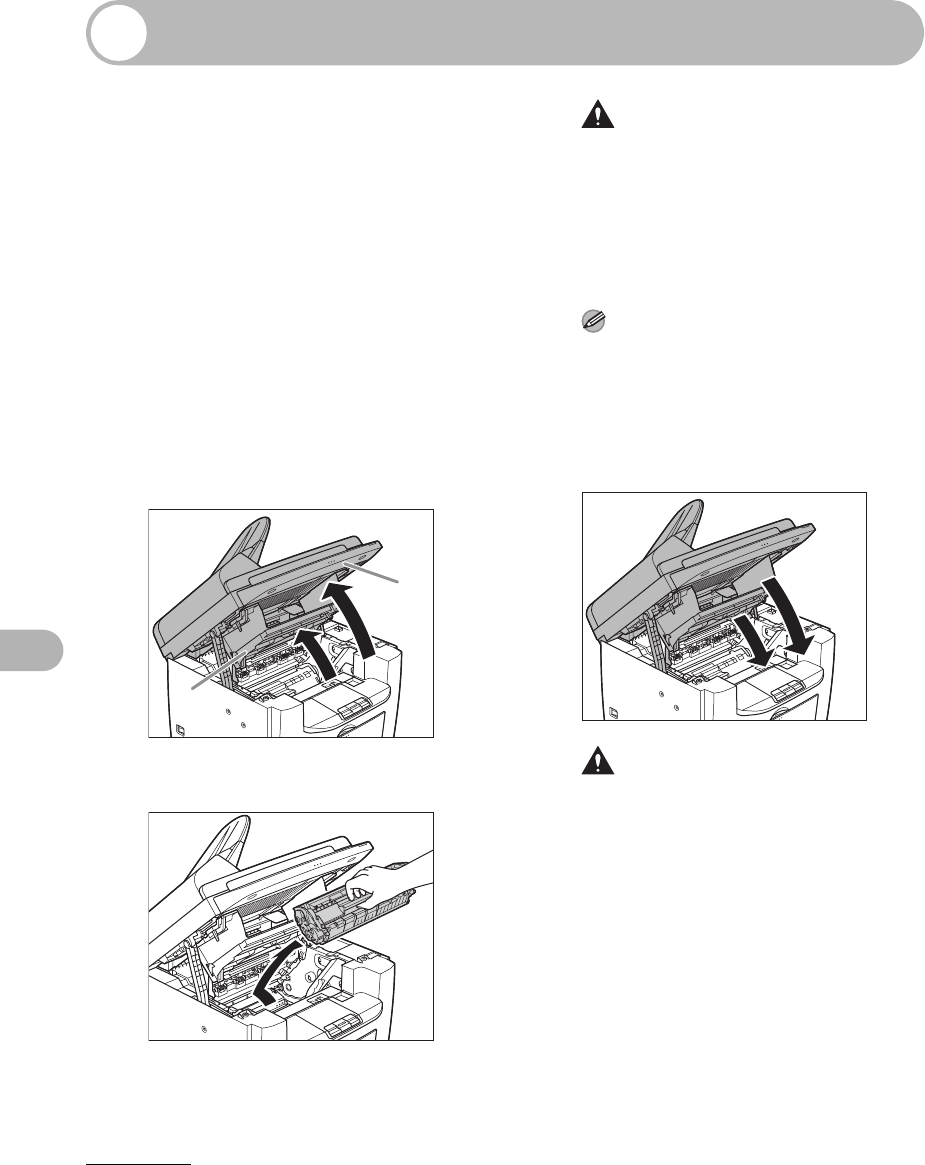
10-19
Maintenance
Transporting the Machine
Follow this procedure to avoid
vibration damage to the machine when
transporting it over a long distance.
1Turn off the main power switch.
2Disconnect the power cord and
all the cables from the back of
the machine.
3Lift the scanning platform until it
is locked (A), and open the
printer cover (B).
4Remove the toner cartridge.
CAUTION
– To avoid exposing the toner cartridge to
light, place it in its protective bag or
wrap it in a thick cloth.
– Do not open the drum protective shutter
on the toner cartridge. Print quality may
deteriorate if the drum surface is
exposed to light or is damaged.
NOTE
Always hold the toner cartridge by its
handle.
5Close the printer cover and
lower the scanning platform.
CAUTION
Be careful not to get your fingers caught.
A
B
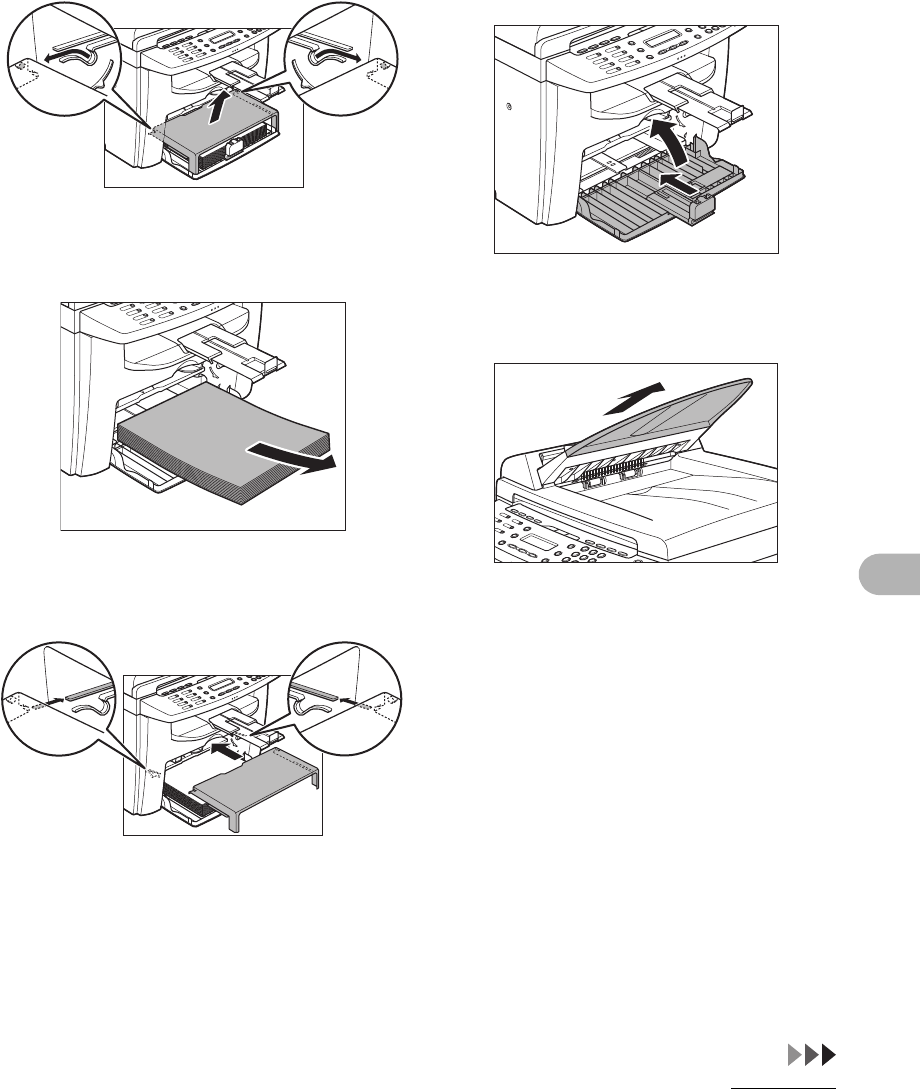
10-20
Maintenance
6Remove the dust cover from the
paper feeding tray.
7Remove the paper from the
paper feeding tray.
8Store the dust cover inside the
machine.
9Push the paper guide rail, and
then close the paper feeding
tray.
10 Detach the Document feeder
tray.
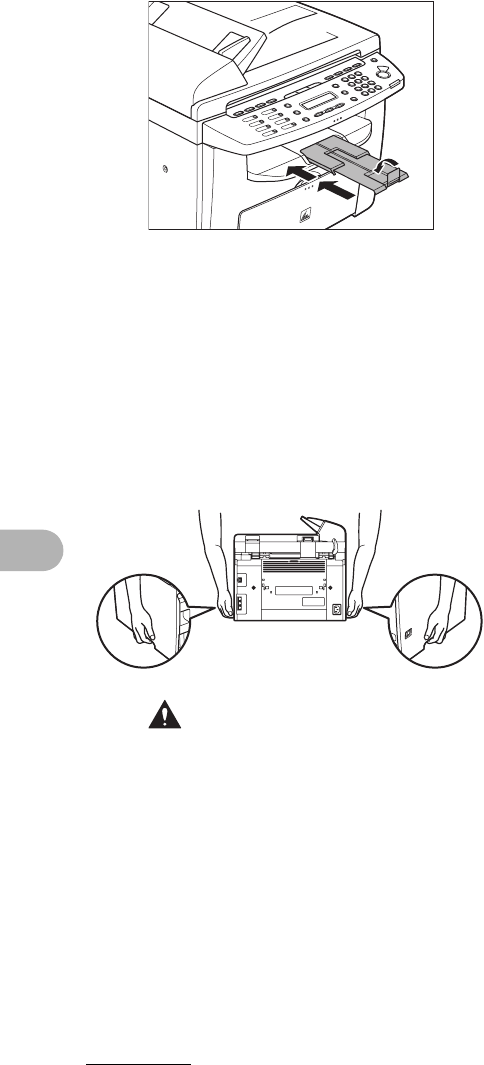
10-21
Maintenance
11 Fold the paper stopper, and then
push the output tray extension
into the machine.
12 Make sure all the covers are
closed.
13 Grip the handles on both sides
of the machine and lift it
carefully, as shown in the
illustration below.
CAUTION
– Do not lift the machine by any of its
attachments. Dropping the machine can
cause personal injury.
– If you have a back problem, make sure
to check the weight of this machine
before carrying. (See “Specifications,”
on p. 13-1.)
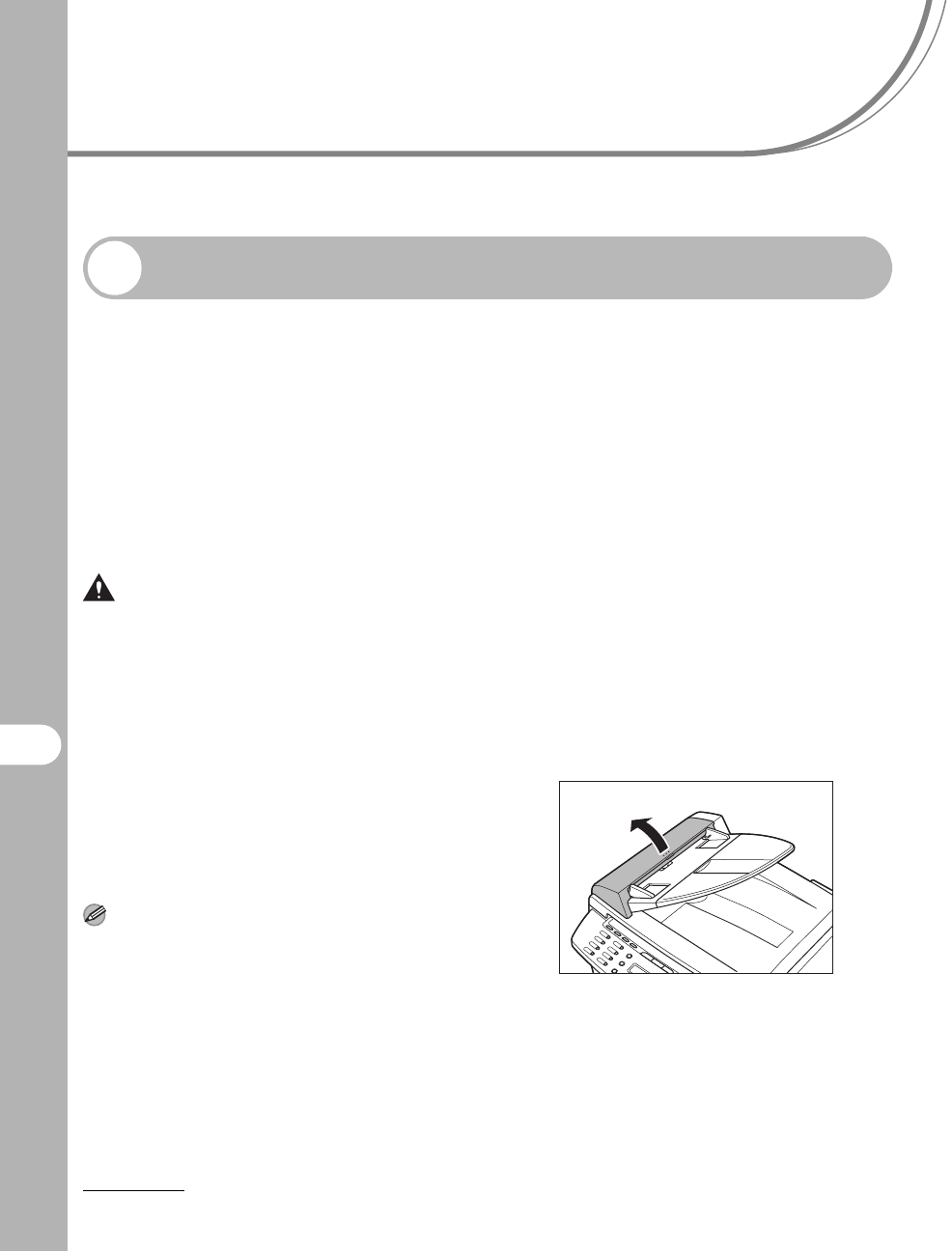
11-1
11
Troubleshooting
Troubleshooting
Clearing Jams
When <CHECK DOCUMENT>, <PAPER JAM> or <PAPER JAM/OPEN REAR
COVER> appears on the LCD display, remove jammed paper from the machine
first, then from the paper feeding tray or multi-purpose tray if necessary. Check
the following if you experience repeated paper jams:
– Fan and tap the paper stack on a flat surface before loading it in the machine.
– Check that the paper you are using meets the requirements for use. (See “Print
Media,” on p. 3-1.)
– Make sure you have removed any scraps of paper from the inside of the machine.
CAUTION
– When removing jammed documents or paper,
take care not to cut your hands on the edges of
the document or paper.
– When removing jammed paper or when
inspecting the inside of the machine, do not allow
necklaces, bracelets, or other metal objects to
touch the inside of the machine, as this may
result in burns or electrical shock.
– If you tear the paper, remove any torn pieces to
avoid further jams.
– If loose toner comes into contact with your skin
or clothing, wash with cold water. Warm water
will set the toner.
NOTE
Do not force a jammed document or paper out of
the machine. Contact Canon Customer Care
Center if needed.
Document Jams
When <CHECK DOCUMENT> appears
on the LCD display, remove a jammed
document from the ADF.
1Open the ADF cover.
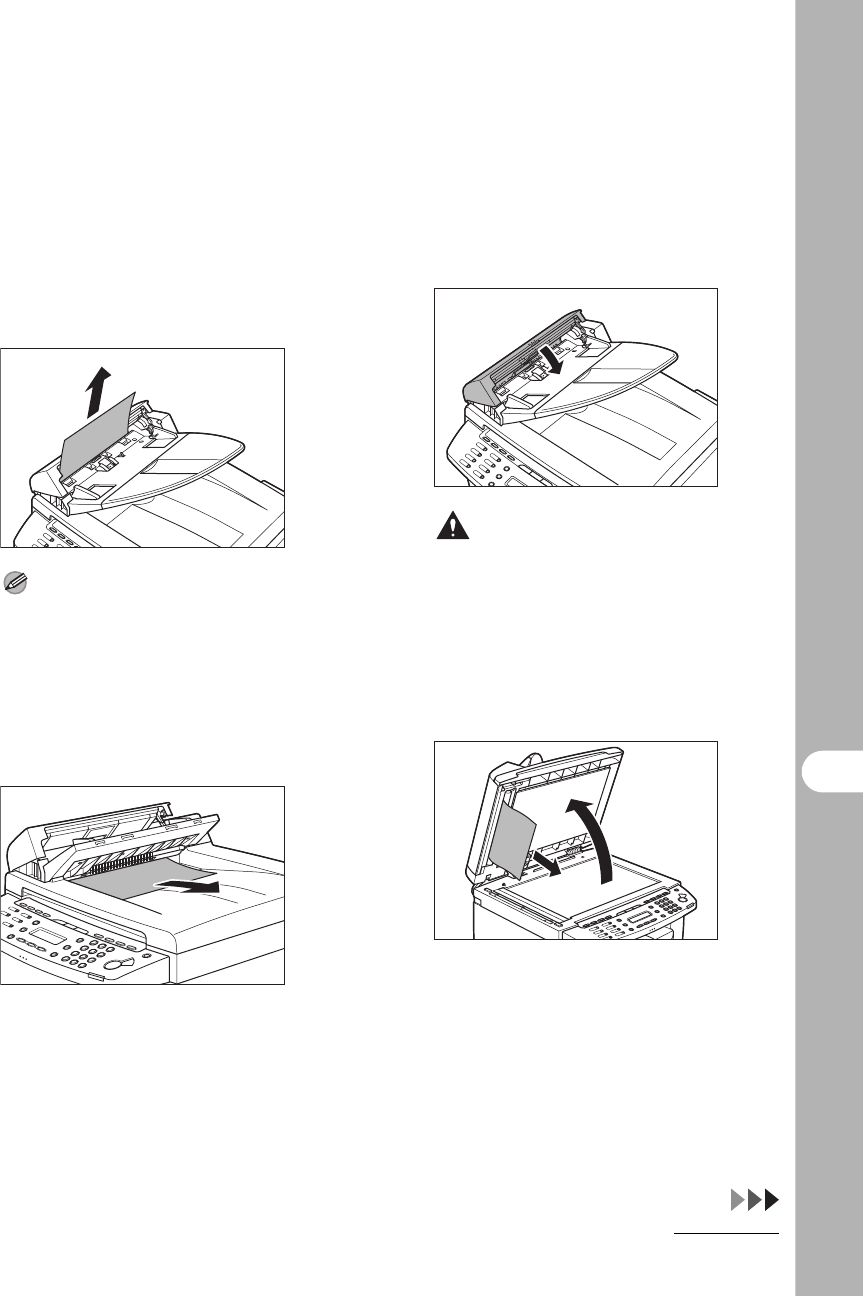
11-2
Troubleshooting
2Hold both sides of any jammed
documents and gently pull them
out straight upward.
NOTE
Do not pull the document forcefully as it
may tear.
3Hold both sides of any jammed
documents and gently pull them
out.
4Close the ADF cover.
CAUTION
Be careful not to get your fingers caught.
5Open the ADF and then hold
both sides of any jammed
documents and gently pull them
out.
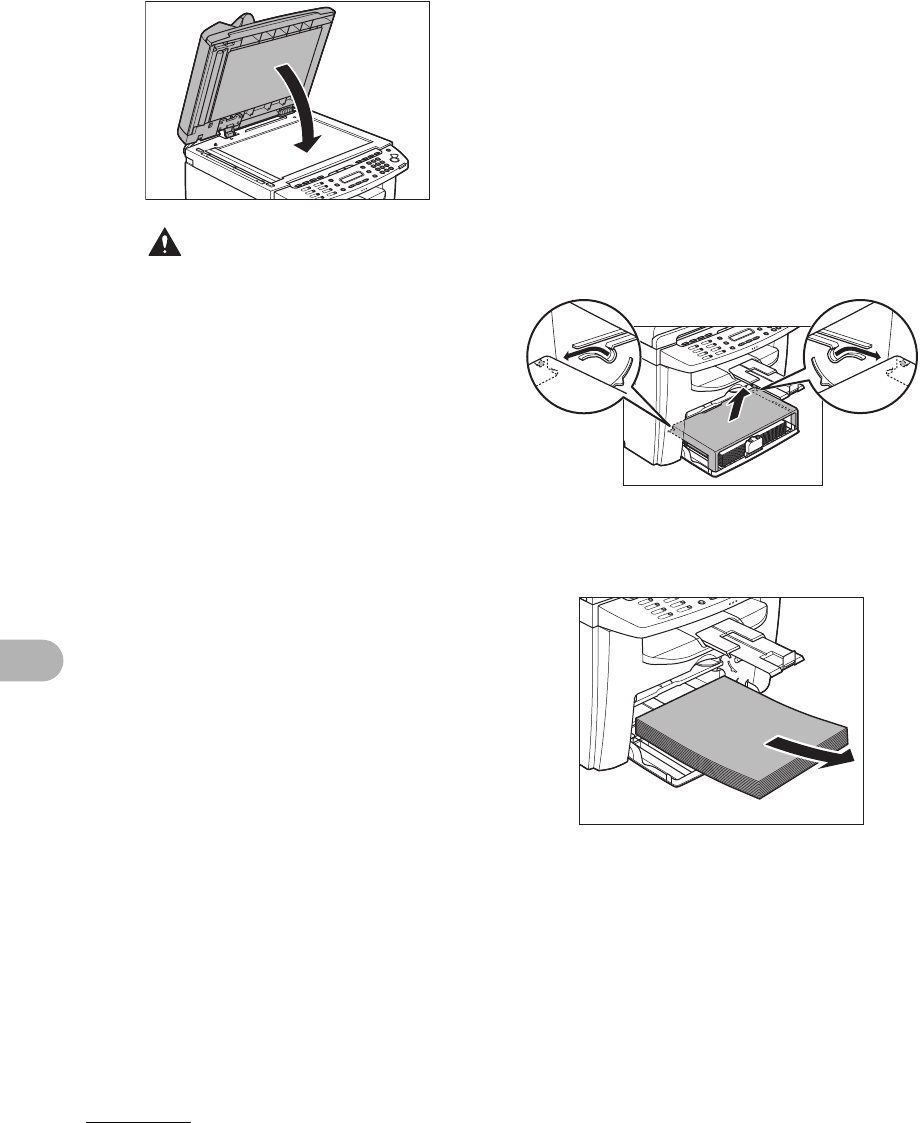
11-3
Troubleshooting
6Close the ADF.
CAUTION
Be careful not to get your fingers caught.
Paper Jams
When <PAPER JAM> or <PAPER JAM/
OPEN REAR COVER> appears on the
LCD display, remove jammed paper from
the inside of the machine first, then from
the paper feeding tray or multi-purpose
tray if necessary.
1Remove the dust cover from the
paper feeding tray.
2Remove the paper in the paper
feeding tray.
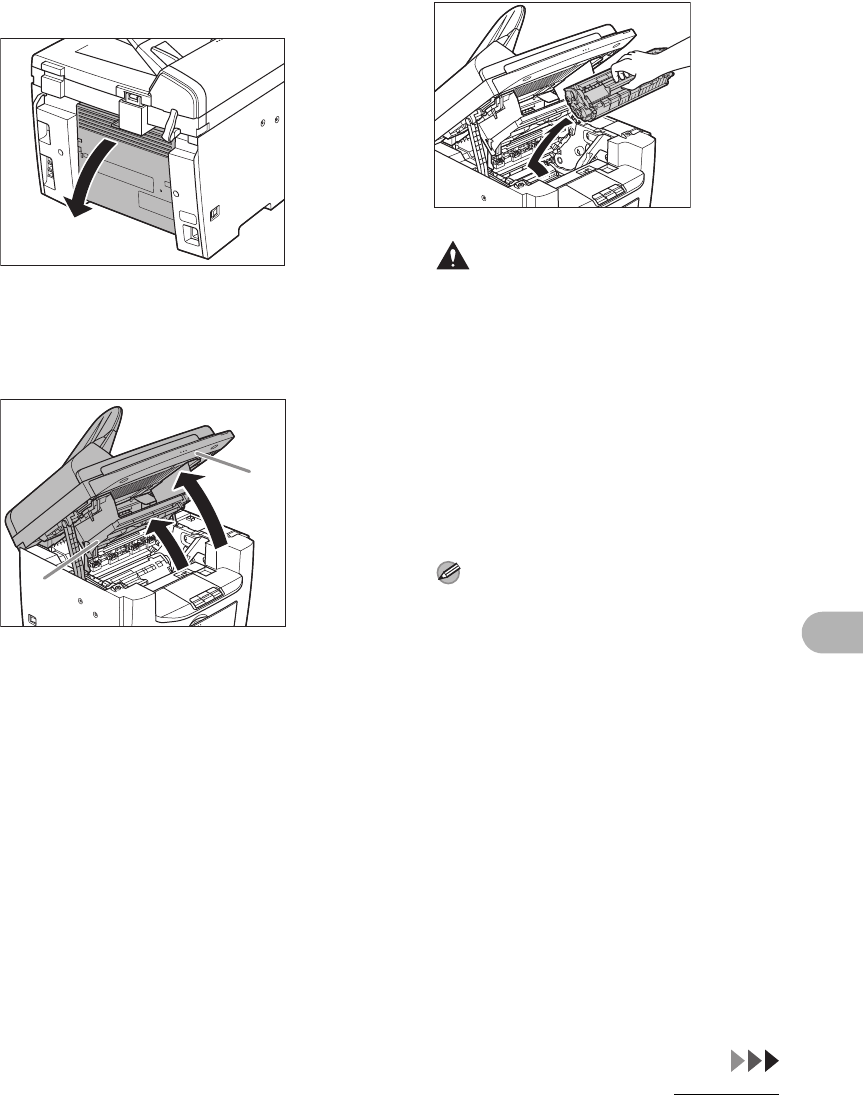
11-4
Troubleshooting
3Open the rear cover.
This operation is required only when
<PAPER JAM/OPEN REAR COVER>
appears on the LCD display.
4Lift the scanning platform until it
is locked (A), and open the
printer cover (B).
5Remove the toner cartridge from
the machine.
CAUTION
– Remove watches and any bracelets or
rings when touching the inside of the
machine. These items might be
damaged if they come into contact with
the parts inside of the machine.
– To avoid exposing the toner cartridge to
light, place it in its protective bag or wrap
it in a thick cloth.
– Do not open the drum protective shutter
on the toner cartridge. Print quality may
deteriorate if the drum surface is
exposed to light or is damaged.
NOTE
Always hold the toner cartridge by its
handle.
A
B
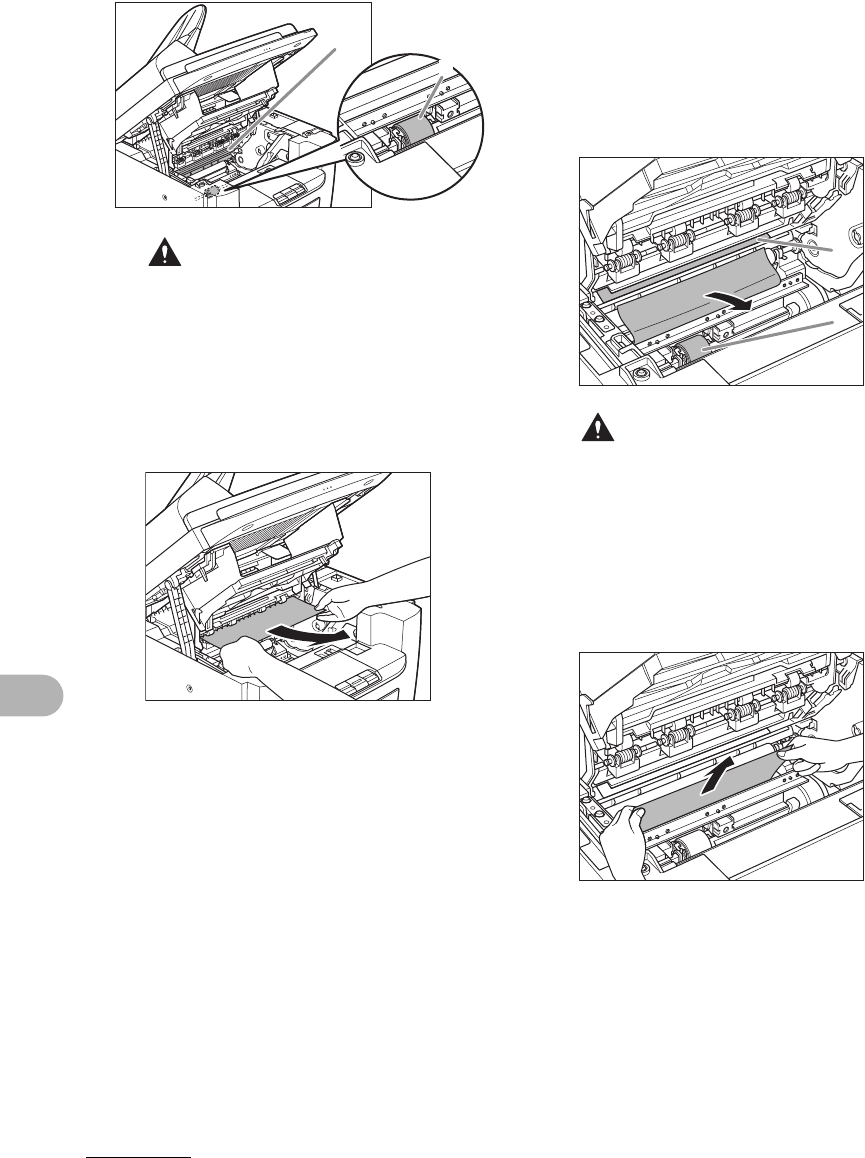
11-5
Troubleshooting
CAUTION
– Do not touch the fixing assembly (A) as it
becomes very hot during use.
– Do not touch the transfer roller (B) as this
can damage the machine.
6Hold both sides of the jammed
paper and gently pull it out.
7Gently pull the jammed paper
between the fixing assembly (A)
and transfer roller (B) until the
leading edge emerges from the
machine.
CAUTION
– Do not touch the fixing assembly (A) as it
becomes very hot during use.
– Do not touch the transfer roller (B) as this
can damage the machine.
8Hold both sides of the jammed
paper and carefully pull it out.
A
B
A
B
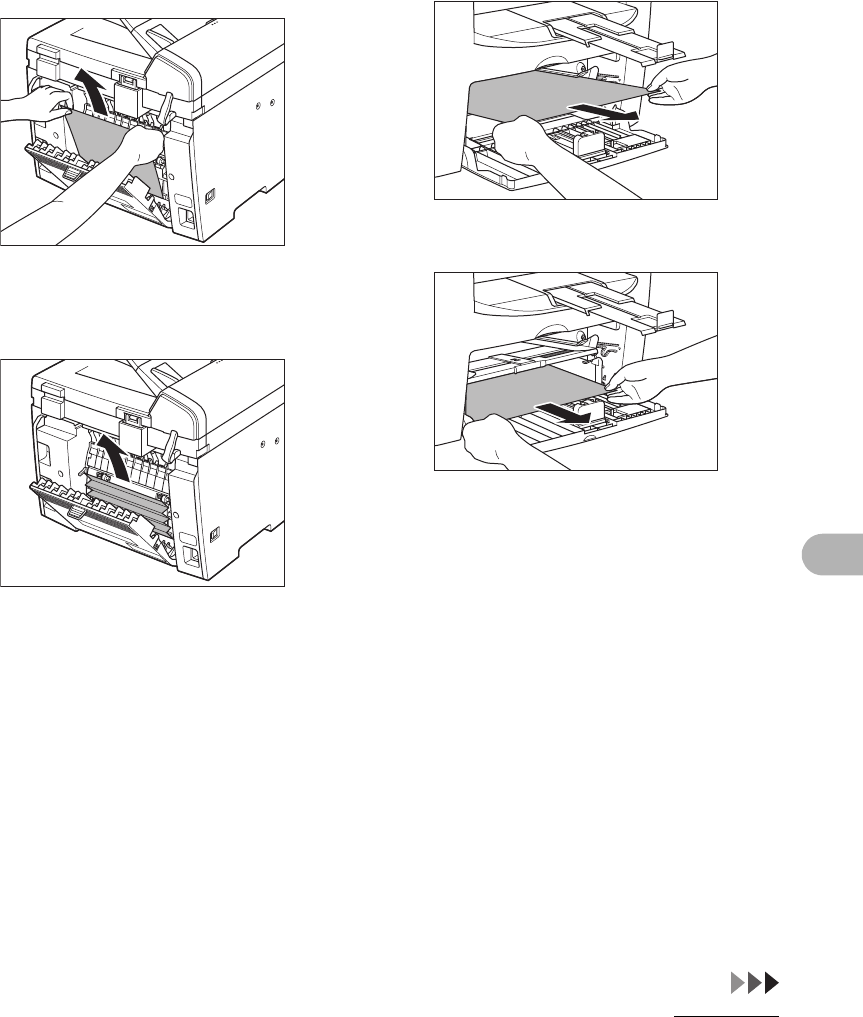
11-6
Troubleshooting
9Hold both sides of the jammed
paper and gently pull it out
upward.
This operation is required only when
<PAPER JAM/OPEN REAR COVER>
appears on the LCD display.
If the jammed paper is badly folded, similar
to the folds of an accordion, ease the
jammed paper loose and then pull it out
from the machine.
10 Hold both sides of the jammed
paper and slowly pull it out in
the direction of the arrow.
– When feeding paper from the paper
feeding tray:
– When feeding paper from the multi-
purpose tray:
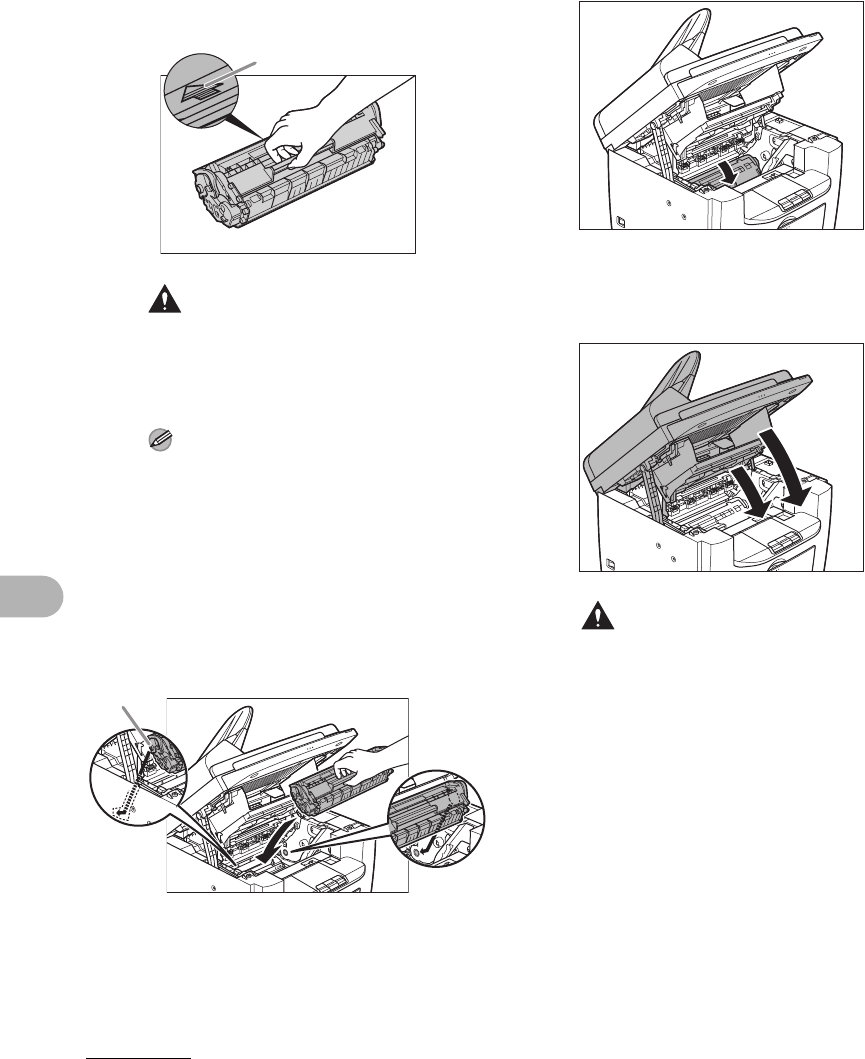
11-7
Troubleshooting
11 Hold the toner cartridge by its
handle.
The arrow (A) on the toner cartridge should
be facing away from you and pointing
down.
CAUTION
Do not open the drum protective shutter on
the toner cartridge. Print quality may
deteriorate if the drum surface is exposed
to light or is damaged.
NOTE
Always hold the toner cartridge by its
handle.
12 Insert the toner cartridge into
the machine as far as it will go.
Align the guide (A) on the left side of the
toner cartridge with the groove inside the
machine.
13 Push down the toner cartridge to
make sure it is properly set in
the machine.
14 Close the printer cover and
lower the scanning platform.
CAUTION
Be careful not to get your fingers caught.
A
A
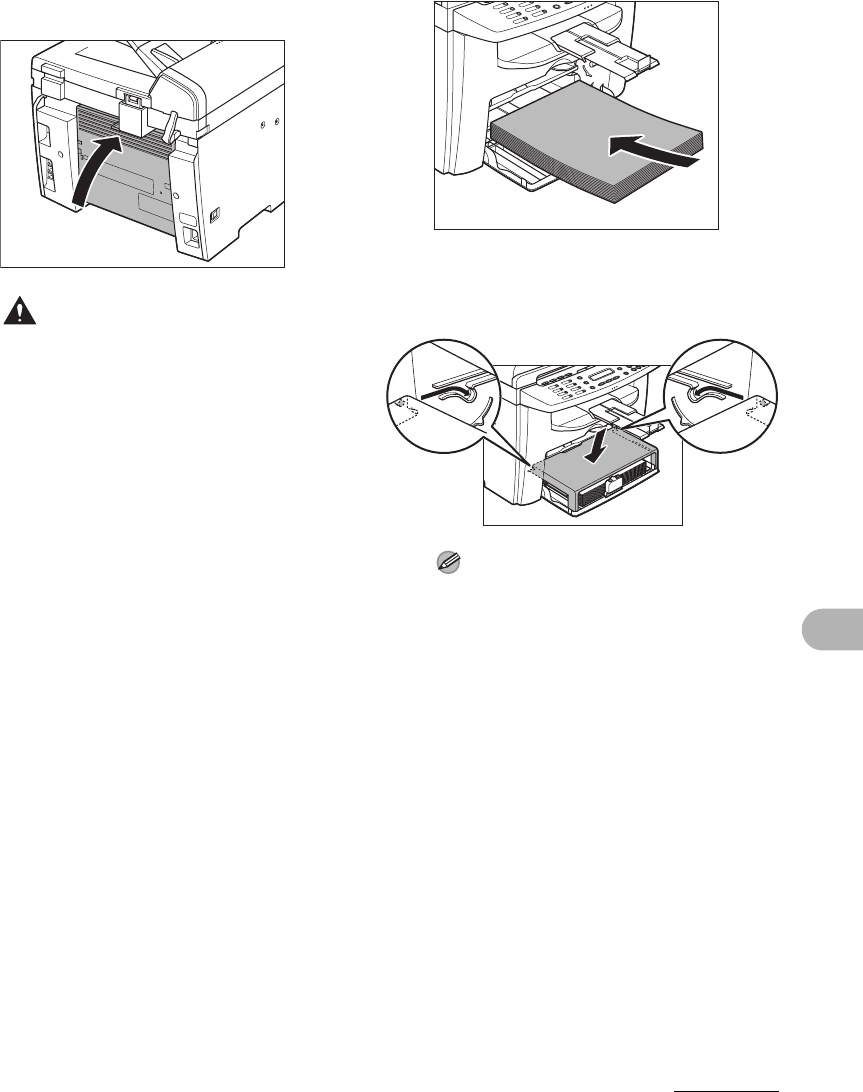
11-8
Troubleshooting
15 Close the rear cover.
This operation is required only when
<PAPER JAM/OPEN REAR COVER>
appears on the LCD display.
CAUTION
Be careful not to get your fingers caught.
16 Load the paper into the paper
feeding tray.
17 Set the dust cover on the paper
feeding tray.
NOTE
After all the procedures are completed, the
machine should be ready for operating. If
the machine returns to the standby mode,
troubleshooting has been successful. If the
machine does not return to the standby
mode, check if jammed paper is still left in
the machine.
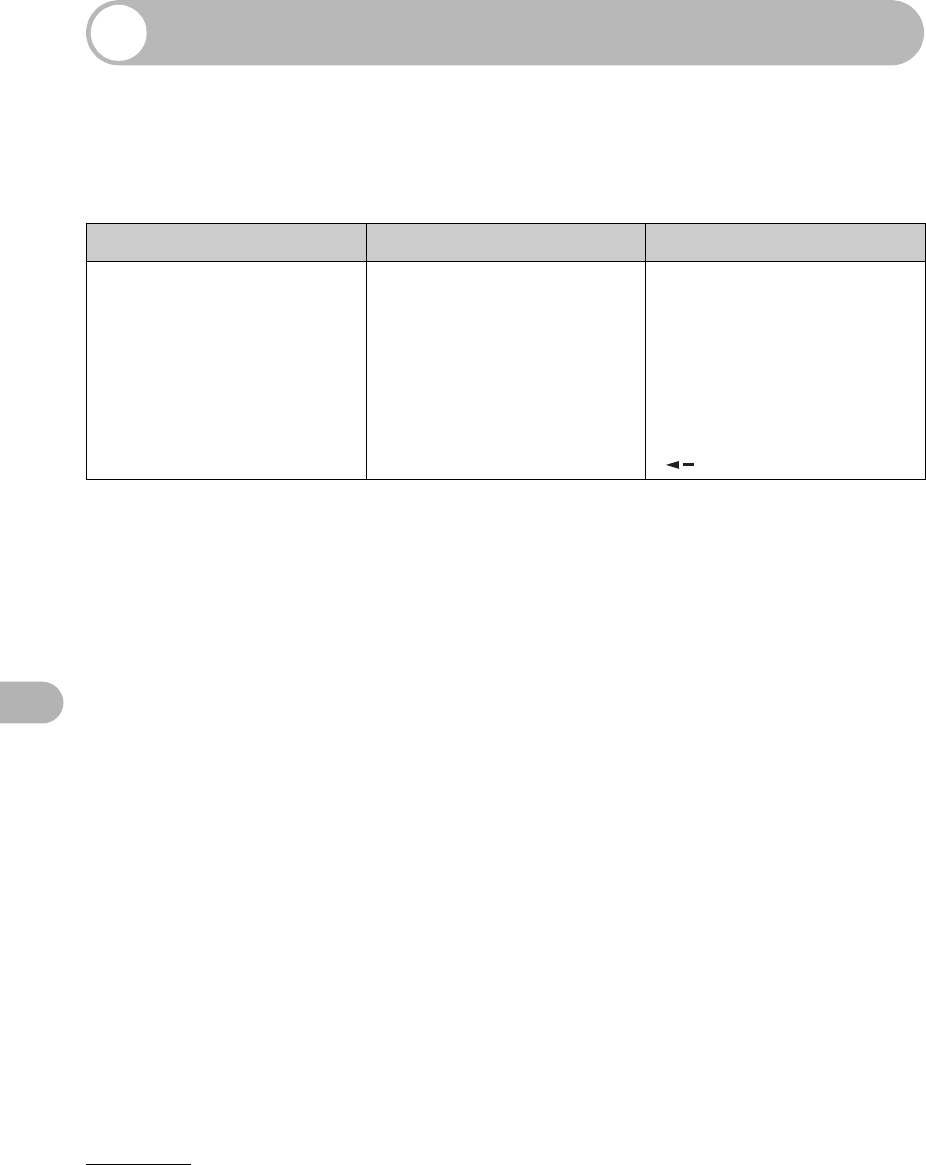
11-9
Troubleshooting
LCD Messages
See the table below when the LCD displays error messages.
Common
Message Description Action
CANCEL : STOP/RESET Appears alternately with
other messages.
Varies by the message that
appears. For details, see the
explanation for the message
(i.e., <LOAD CORRECT
PAPER>).
To cancel copy jobs, press
[Stop/Reset], then press
[].

11-10
Troubleshooting
CHANGE REG’D SIZE
-> PAPER SETTINGS
The paper size selected in
<CASSETTE> or <MP
TRAY> of the <PAPER
SETTINGS> menu is not
correct.
– For printing received doc-
uments, reports, or lists,
set the paper size to
<LTR>, <LGL>, <A4>,
<OFICIO>, <BRAZIL-OFI-
CIO>, <MEXICO-OFI-
CIO>, <FOLIO>,
<GOVERNMENT-LET-
TER>, <GOVERNMENT-
LEGAL>, or
<FOOLSCAP> in <CAS-
SETTE> of the <PAPER
SETTINGS> menu. (See
“Setting Paper Size and
Type,” on p. 3-7.)
– For the two-sided printing
for faxing, set the paper
size to <LTR> or <A4> in
<CASSETTE> of the
<PAPER SETTINGS>
menu. (See “Setting
Paper Size and Type,” on
p. 3-7.)
– For the two-sided copying,
set the paper size to
<LTR> or <A4> in <CAS-
SETTE> or <MP TRAY>
of the <PAPER SET-
TINGS> menu. (See “Set-
ting Paper Size and Type,”
on p. 3-7.)
Message Description Action

11-11
Troubleshooting
CHECK DOCUMENT A document jam may have
occurred in the ADF.
Remove the jammed
document.
CLOSE COVER
PRINTER COVER
The printer cover is not
closed completely.
Check the printer cover, and
make sure that it is
completely closed.
LIFT PANEL TO OPEN
OPEN PRINTER COVER
Appears alternately with
other messages.
Varies by the message that
appears. For details, see the
explanation for the message
(i.e., <OUT OF TONER/
CHANGE TONER>).
LOAD CORRECT PAPER The size of the paper in the
paper feeding tray or multi-
purpose tray is different from
that of the paper specified in
<CASSETTE> or <MP
TRAY> of the <PAPER
SETTINGS> menu.
– Load the correct paper
size or change the paper
size in <CASSETTE> or
<MP TRAY> of the
<PAPER SETTINGS>
menu. For more informa-
tion, see “Setting Paper
Size and Type,” on p. 3-7.
– If you are trying to print a
report or list, set the paper
size to <LTR>, <LGL>,
<A4>, <OFICIO>, <BRA-
ZIL-OFICIO>, <MEXICO-
OFICIO>, <FOLIO>,
<GOVERNMENT-LET-
TER>, <GOVERNMENT-
LEGAL> or
<FOOLSCAP> and then
load paper of the same
size.
Then press [OK] to continue
printing.
Message Description Action

11-12
Troubleshooting
LOAD PAPER No paper is loaded in the
paper feeding tray or multi-
purpose tray, or not inserted
correctly.
Load paper in the paper
feeding tray or multi-purpose
tray. (See “Loading Paper,”
on p. 3-4.) Make sure the
paper stack in the paper
feeding tray does not exceed
the capacity of the paper
feeding tray.
Load paper in the multi-
purpose tray one by one.
If you load paper while
making copies, do not load a
different paper size.
On the second line in the
LCD the message
<CASSETTE> or <MP
TRAY> and the paper size
may appear. In this case,
load the corresponding
paper in the paper feeding
tray or multi-purpose tray.
LOST IMAGE The data in memory was lost
when the machine was
turned on.
The error is automatically
released after two seconds,
and the machine
automatically prints out the
lost report that shows the
records still existing in the
activity report.
Message Description Action

11-13
Troubleshooting
MEMORY FULL – The number of the
scanned document that
can be stored in memory
reached the maximum.
– The machine’s memory is
full of scanned documents
when you use the sort
copy function.
Divide the document and
copy each part separately.
OUT OF TONER
CHANGE TONER
– The toner cartridge is
almost empty.
– If <CONT. PRINTING> is
set to <OFF> in the
<PRINTER SETTINGS>
of the <FAX SETTINGS>
menu, the Fax printing
and printing reports are
interrupted when the
<OUT OF TONER/
CHANGE TONER>
appears.
– Replace with a new toner
cartridge.
– If you want to continue
printing without replacing
the toner cartridge, set
<CONT. PRINTING> to
<ON> in the <PRINTER
SETTINGS> of the <FAX
SETTINGS> menu. How-
ever, the toner cartridge is
almost empty, so you
should replace the toner
cartridge with a new one.
PAPER JAM Paper jams have occurred in
the machine.
Clear the paper jam (See
“Clearing Jams,” on p. 11-1)
and reload paper in the
paper feeding tray or multi-
purpose tray. Then reset the
machine by opening the
printer cover and then
closing it.
Message Description Action

11-14
Troubleshooting
PAPER JAM
OPEN REAR COVER
Paper jams have occurred in
the machine when making
two-sided coping or two-
sided printing.
Clear the paper jam (See
“Clearing Jams,” on p. 11-1.)
and reload paper in the
paper feeding tray or multi-
purpose tray.
Then reset the machine by
opening the printer cover
and then closing it.
PLEASE WAIT This message appears when
the main power switch is
turned on or when the
machine is not ready for
printing.
Wait until the message
disappears.
REMOVE MP PAPER Paper is loaded in the multi-
purpose tray.
Remove the paper from the
multi-purpose tray. The
machine will not print faxes,
reports, or lists when paper
is loaded in the multi-
purpose tray. They will be
stored in memory.
RESUME : OK Appears alternately with
other messages.
Varies by the message that
appears. For details, see the
explanation for the message
(i.e., <LOAD PAPER>).
Message Description Action

11-15
Troubleshooting
SYSTEM ERROR
EXXX
A system error has occurred.
<XXX> will be a three-digit
code that indicates a
particular type of error.
Turn off the main power
switch. Wait for at least five
seconds, and then turn it on
again. If the message
persists, turn off the main
power switch, disconnect the
power cord, and contact
Canon Customer Care
Center.
TONER IS NOT SET
INSERT TONER
A toner cartridge is not
installed or not installed
correctly.
Install the toner cartridge
correctly. (See “Replacing
the Toner Cartridge,” on
p. 10-8.)
WRONG NUMBER ENTRY An invalid number was
entered in the <DATE&TIME
SETTING> of the <TIMER
SETTINGS> menu.
Enter a correct date or time.
Message Description Action

11-16
Troubleshooting
Facsimile
Message Description Action
ALREADY REGISTERED The same recipient was
entered twice.
Select a different recipient.
CANNOT REGIST MORE – Maximum number of
recipients (124) were
entered for broadcasting.
– Maximum number of
recipients (50) were regis-
tered for group dialing.
– Resend the document to
other recipients if neces-
sary.
– Register a different one-
touch speed dialing key
for group dialing.
CANNOT USE THIS KEY Redialing is not available
with [Redial/Pause].
This message appears when
<RESTRICT REDIAL> is set
to <ON> in the <TX
SETTINGS> of the <FAX
SETTINGS> menu.
Dial the number manually.
CHECK TEL NUMBER The fax number entered at
the second time is different
from the one entered at the
first time.
This message appears when
<CONFIRM NEW DEST.> is
set to <ON> in the <TX
SETTINGS> of the <FAX
SETTINGS> menu.
Check if the fax number is
correct, then enter the same
fax number as the first one
after pressing [Start].
HANG UP PHONE External telephone is off the
hook.
Hang up the phone.

11-17
Troubleshooting
MEMORY FULL – The memory becomes full
during sending or receiv-
ing the fax.
– The number of fax jobs
that can be stored in
memory reached the max-
imum.
– When sending the docu-
ment, divide it into a few
parts or select a lower fax
resolution.
If you need more space,
wait for the machine to
send any remaining faxes.
– The machine memory can
store up to 256 fax jobs
including sending and
receiving jobs.
(Based on the condition
that the other party sends
the fax by the
imageCLASS MF4150
with ITU-T Standard Chart
No.1, standard mode.)
Wait for the machine to
send any faxes in
memory. Also print or
delete any documents in
memory.
NOT AVAILABLE You pressed the one-touch
speed dialing key that has
already been registered,
when you specify a one-
touch speed dialing key as
the group dial.
Check the information
registered under the one-
touch speed dialing before
using.
Message Description Action

11-18
Troubleshooting
NOT REGISTERED No recipient is registered in
the selected speed dialing
key or code.
Select a registered key or
code. For more information,
“Registering One-Touch
Speed Dialing,” on p. 4-7 or
“Registering Coded Dialing,”
on p. 4-14.
RECEIVED IN MEMORY The received fax documents
or the reports are in memory
because paper or toner ran
out, paper jams occurred, or
incorrect paper size was
loaded.
Load correct paper size in
the paper feeding tray,
replace the toner cartridge,
or clear the paper jams. For
more information, see the
following:
– “Loading Documents,” on
p. 2-4.
– “Replacing the Toner
Cartridge with a New
One,” on p. 10-10.
– “Clearing Jams,” on
p. 11-1.
REGISTERING KEY
CANNOT REGISTER
The selected one-touch
speed dialing key is already
used as the group dialing
key it is being assigned to.
Select a different one-touch
speed dialing key.
Message Description Action

11-19
Troubleshooting
Printer
Message Description Action
CANCEL : SYS.MONITOR Appears alternately with
other messages.
Varies by the message that
appears. For details, see the
explanation for the message
(i.e., <LOAD CORRECT
PAPER>).
To cancel printing from a
computer, see Chapter 3,
"System Monitor," in the
Advanced Guide.
PRINTER DATA ERROR
CHECK PRINTER
The data from the PC was
not printed.
Check if the software is
installed properly or if the
printer cable is properly
connected.
PRINTING The printer is processing a
print job.
No action required. Wait for
printing to finish.
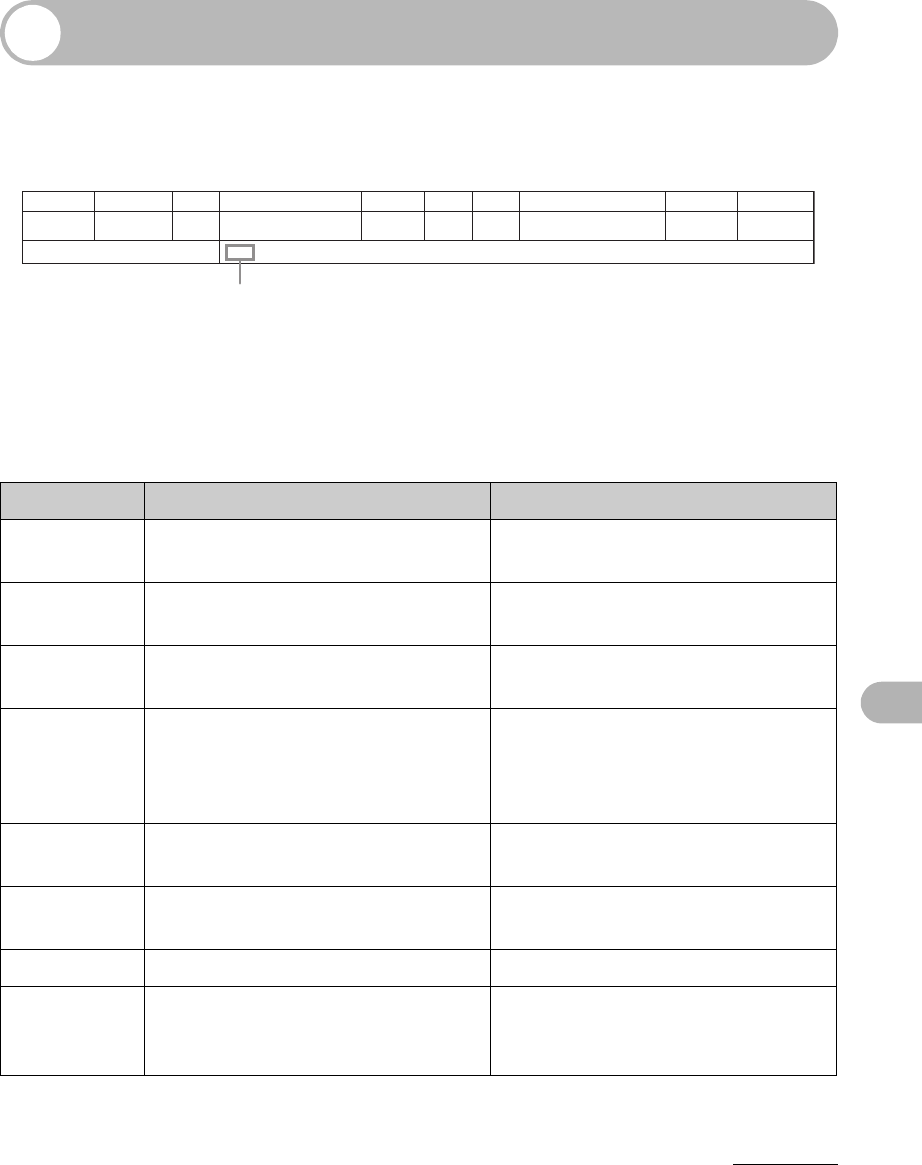
11-20
Troubleshooting
Error Codes
An error code is a four-digit code displayed on the LCD or in the bottom row of a
TX Report or an RX Report when an error occurs.
For details on TX Report and RX Report, see Chapter 4, “Reports and Lists,” in the
Advanced Guide.
See the table below for individual error codes.
Error Code Description Action
0001 The sender may not be using a G3
fax machine.
Make sure the sender’s machine is
compatible with your machine.
0070 Reception was manually canceled
on the machine.
Ask the sender to resend the
document if necessary.
0071 The machine’s memory is full. Print, send, or delete any
documents stored in memory.
0080 The recipient’s machine did not
respond within 35 seconds.
Resend the document. Ask the other
party to check their machine. If you
are making an overseas call, add a
pause to the number.
008D The recipient’s machine has run out
of paper.
Ask the recipient to make sure that
paper is loaded in their machine.
00A0 Transmission was manually
canceled on the machine.
Resend the document if necessary.
00A1 There is a document jam. Clear the document jam.
00FF All redialing attempts have failed. Check if the recipient’s number is
correct or the telephone cable is
properly connected, and try again.
JOB NO. TYPE NO. DESTINATION TEL/ID DATE TIME PAGE TIME USE MODE RESULT
0001 TX 001 WEST-1
55555555
04/10 16:00 002 02’21 ECM NG
00A0:TX CANCEL
Ex.
Error Code

11-21
Troubleshooting
If You Cannot Solve a Problem
Customer Support (U.S.A.)
If you cannot solve the problem after having referred to the information in this chapter,
contact Canon Customer Care Center at 1-800-828-4040 between the hours of 8:00
A.M. to 8:00 P.M. EST Monday through Friday and 10:00 A.M. to 8:00 P.M. on
Saturday. On-line support for 24 hours is also available at the website.
http://www.canontechsupport.com/
Customer Support (Canada)
Canon Canada Inc., offers a full range of customer technical support options*:
– For step-by-step troubleshooting, e-mail technical support, the latest driver or
document downloads, and answers to frequently asked questions, visit
http://www.canon.ca/
– Free live technical support 9 A.M. to 8 P.M. EST Monday through Friday (excluding
holidays) for products still under warranty 1-800-652-2666
– For the location of the authorized service facility nearest you, visit
http://www.canon.ca/ or 1-800-652-2666
– If the problem cannot be corrected by using one of the above technical support
options, repair options are available at the time of your call to the live technical
support number above or via the website at http://www.canon.ca/
* Support program specifics are subject to change without notice.

11-22
Troubleshooting
Please have the following information ready when you contact Canon:
– Product name (imageCLASS MF4150)
– Serial number (On the label located at the back of the machine)
– Place of purchase
– Nature of problem
– Steps you have taken to solve the problem and the results
CAUTION
If the machine makes strange noises, emits smoke or odd odor, turn off the main power switch
immediately, disconnect the power cord, and contact Canon Customer Care Center. Do not attempt to
disassemble or repair the machine yourself.
NOTE
Attempting to repair the machine yourself may void the limited warranty.
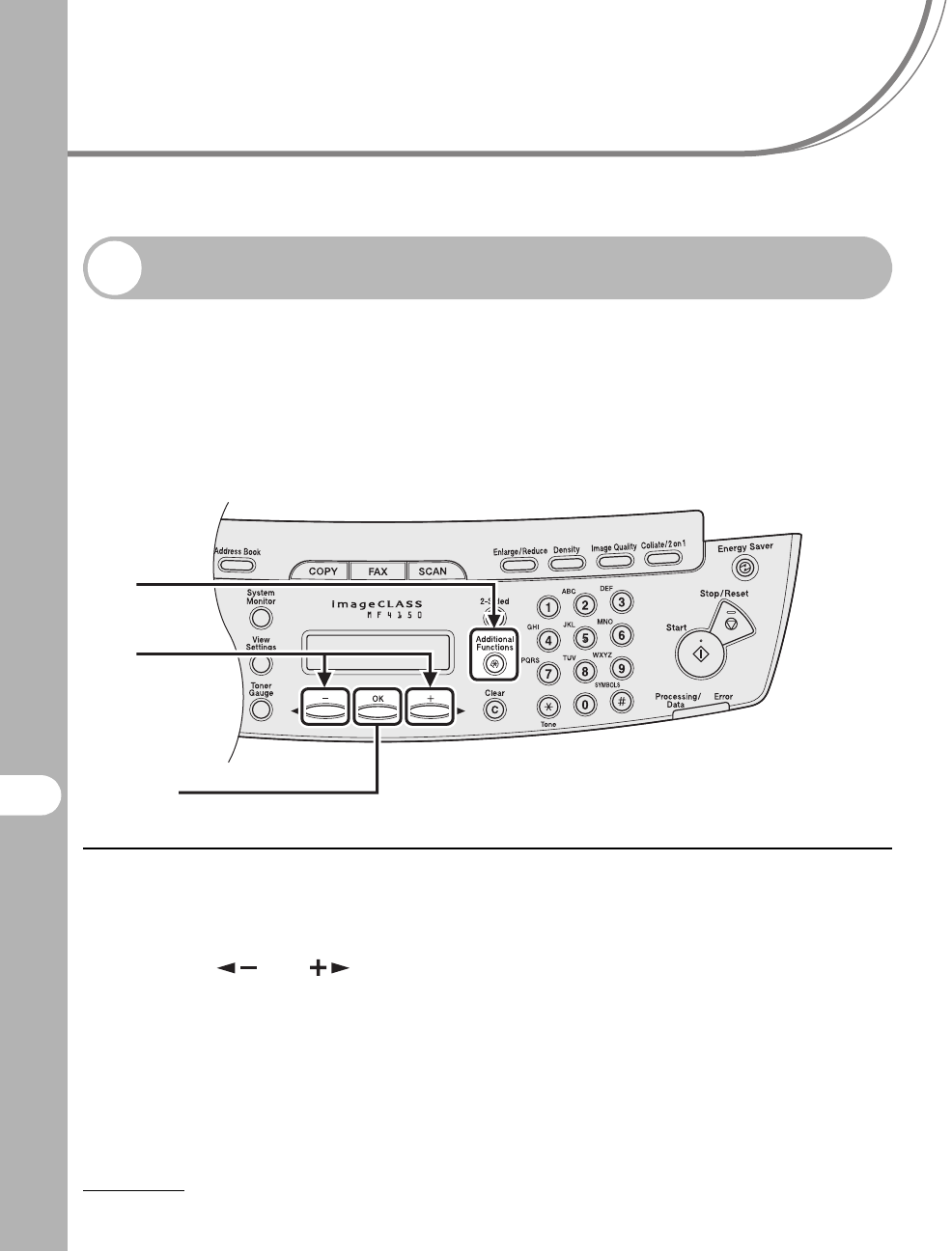
12-1
12
Machine Settings
Machine Settings
Machine Settings
You can adjust the machine settings from the Setting Menu to customize the way
the machine works. To see the list of current settings, print out User’s Data List.
Printing User’s Data List
1Press [Additional Functions].
2Press [ ] or [ ] to select <REPORT SETTINGS>, then press [OK].
1
2
[OK]
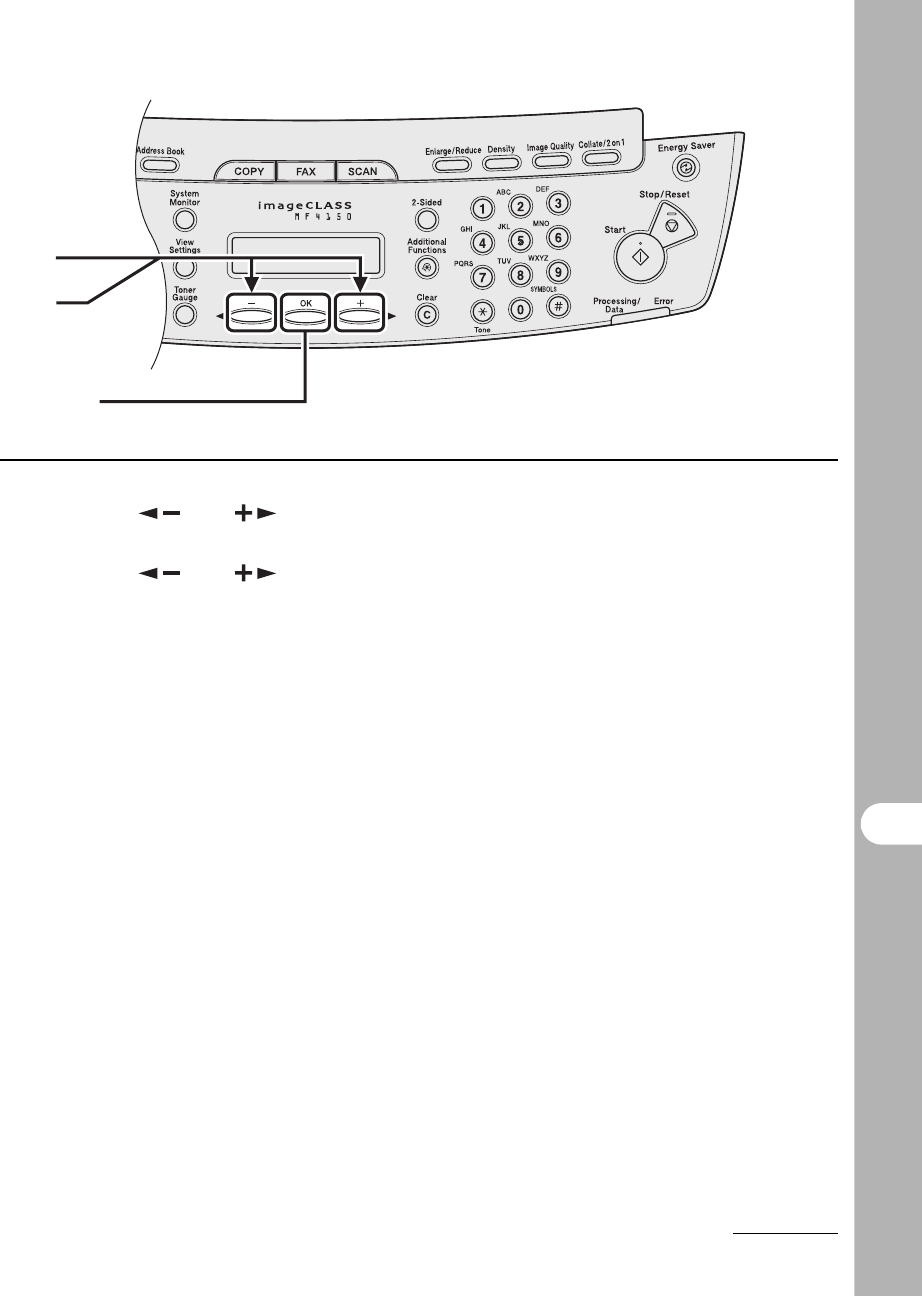
12-2
Machine Settings
3Press [ ] or [ ] to select <LIST PRINT>, then press [OK].
4Press [ ] or [ ] to select <USER’S DATA LIST>, then press [OK].
3
4
[OK]
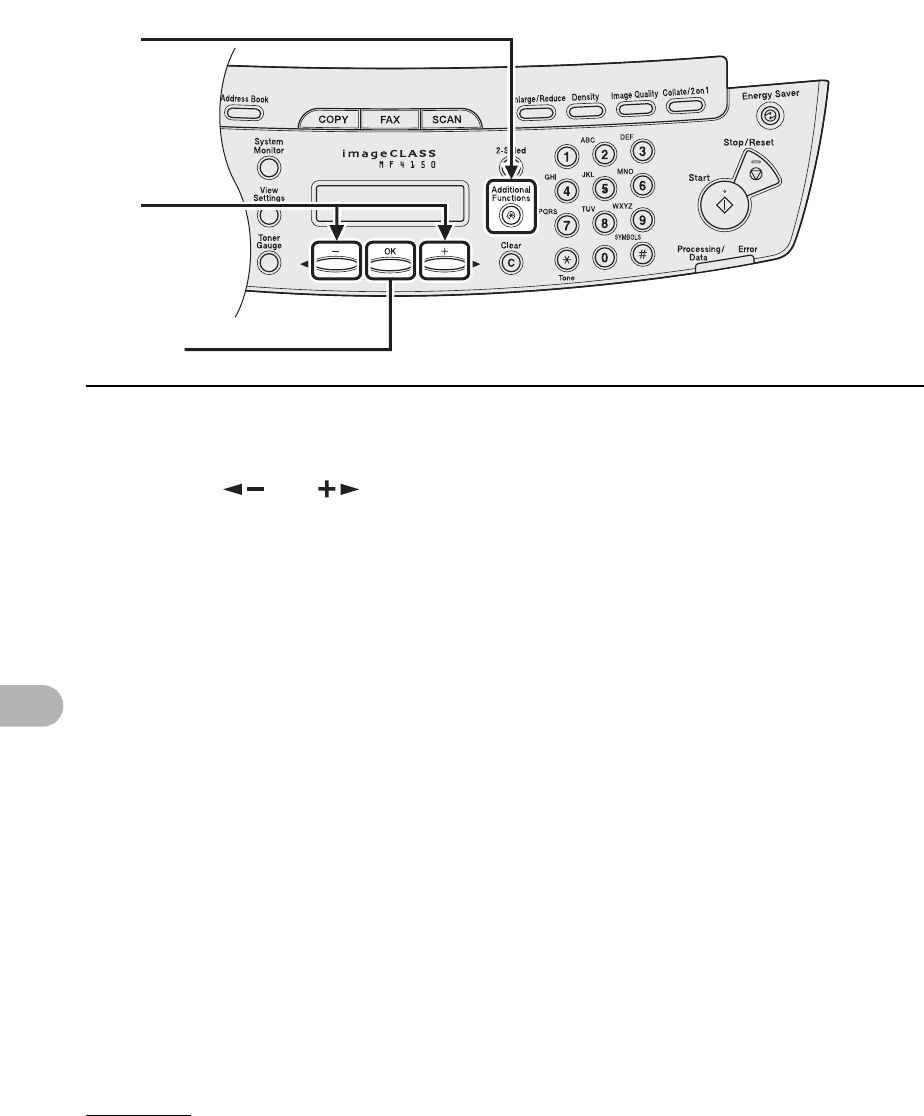
12-3
Machine Settings
Accessing the Setting Menu
1Press [Additional Functions].
2Press [ ] or [ ] to select the menu you want to access, then press
[OK].
<PAPER SETTINGS>
<COMMON SETTINGS>
<COPY SETTINGS>
<TIMER SETTINGS>
<FAX SETTINGS>
<BROADCAST>
<ADDRESS BOOK SET.>
<ADJUST./CLEANING>
<REPORT SETTINGS>
1
2
[OK]
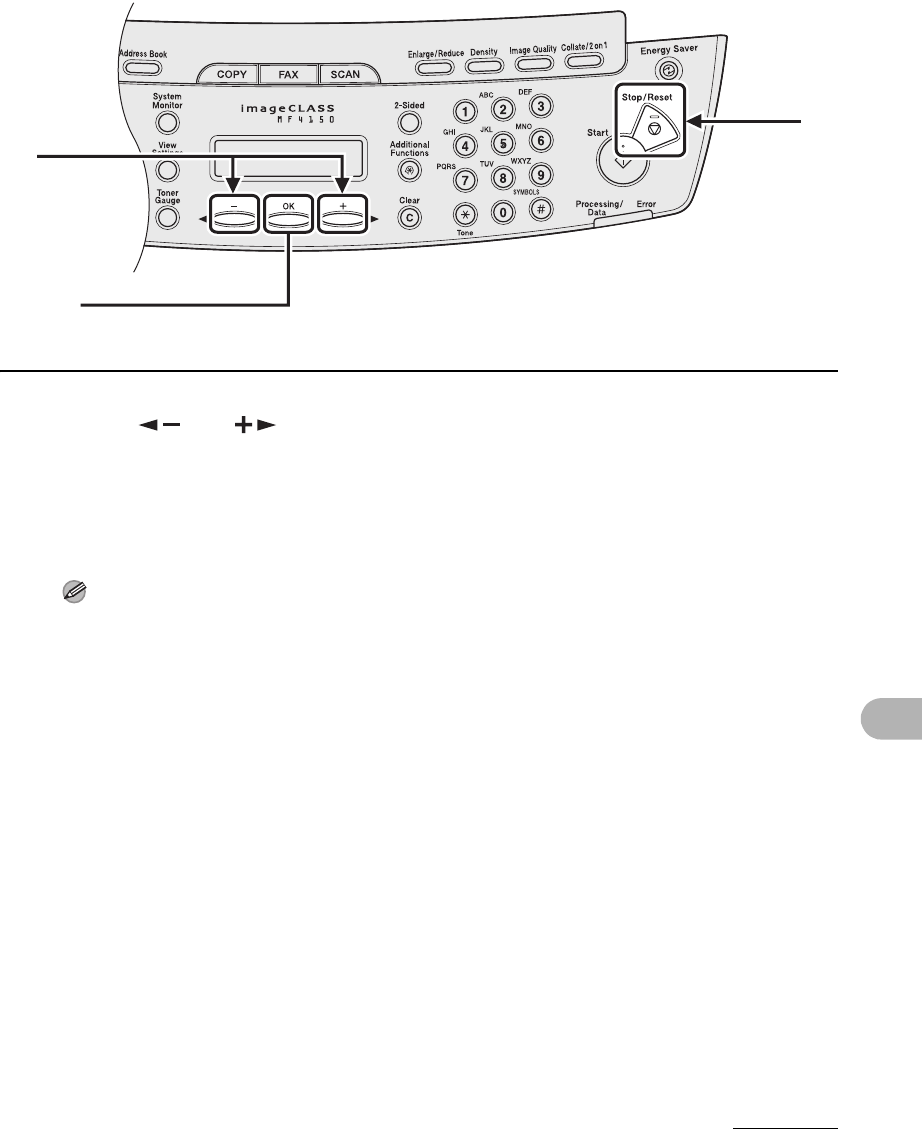
12-4
Machine Settings
3Press [ ] or [ ] to select a submenu, then press [OK].
4To register the settings or go to a submenu item, press [OK].
5When finished, press [Stop/Reset] to return to the standby mode.
NOTE
Press [Stop/Reset] to exit from the menu. If you press [Stop/Reset] before pressing [OK], the
setting will not be registered.
3
[OK]
5
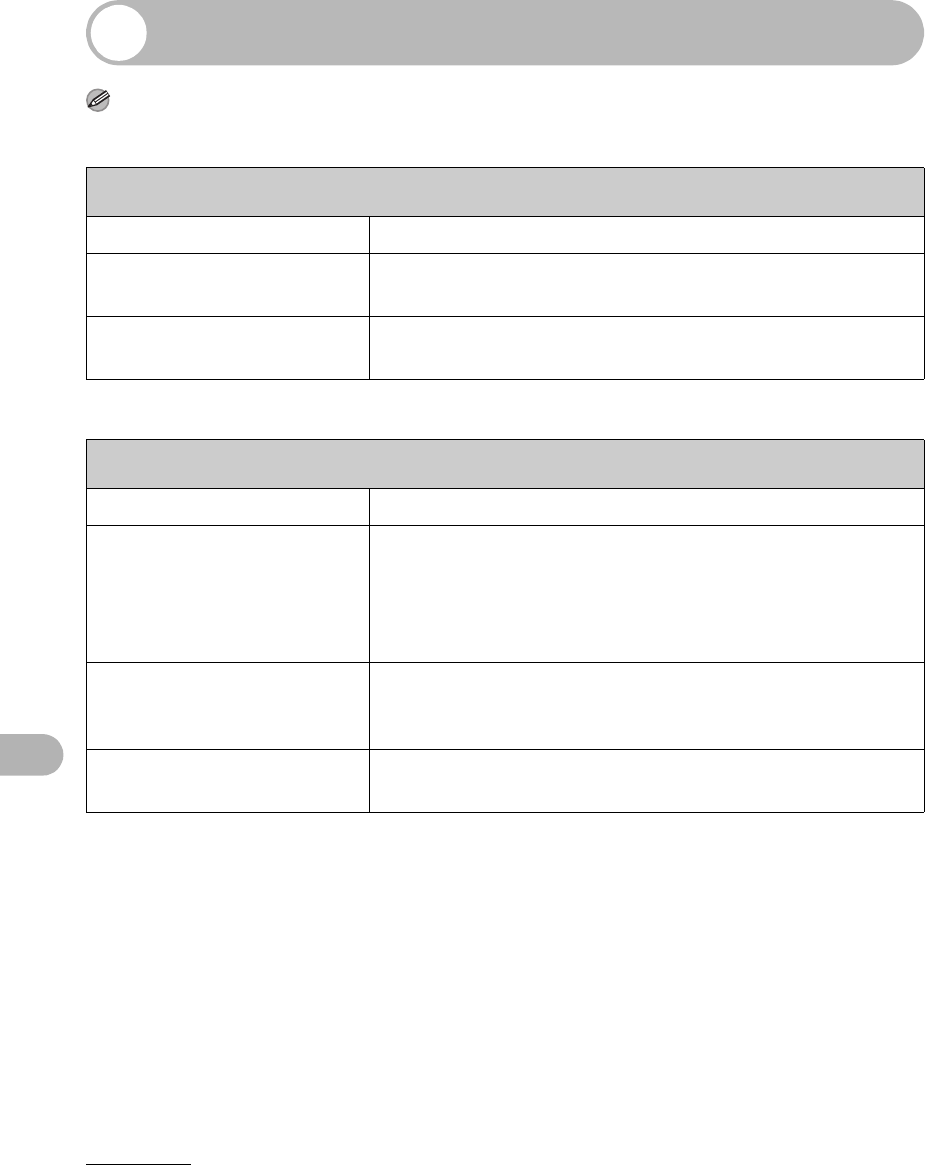
12-5
Machine Settings
Setting Menu
NOTE
Depending on the country of purchase, some settings may not be available.
PAPER SETTINGS
Setting Item Description
1 CASSETTE Sets the paper type and size on the paper feeding tray. (See
“Setting Paper Size and Type,” on p. 3-7.)
2 MP TRAY Sets the paper type and size on the multi-purpose tray. (See
“Setting Paper Size and Type,” on p. 3-7.)
COMMON SETTINGS
Setting Item Description
1 DEFAULT SETTINGS Selects which standby display appears when the main
power switch is turned on.
–COPY
–FAX
–SCAN
2 TONER SAVER MODE Sets whether to reduce toner consumption.
–OFF
–ON
3 DISPLAY LANGUAGE Selects the language on the display.
(See “Specifications,” on p. 13-1.)
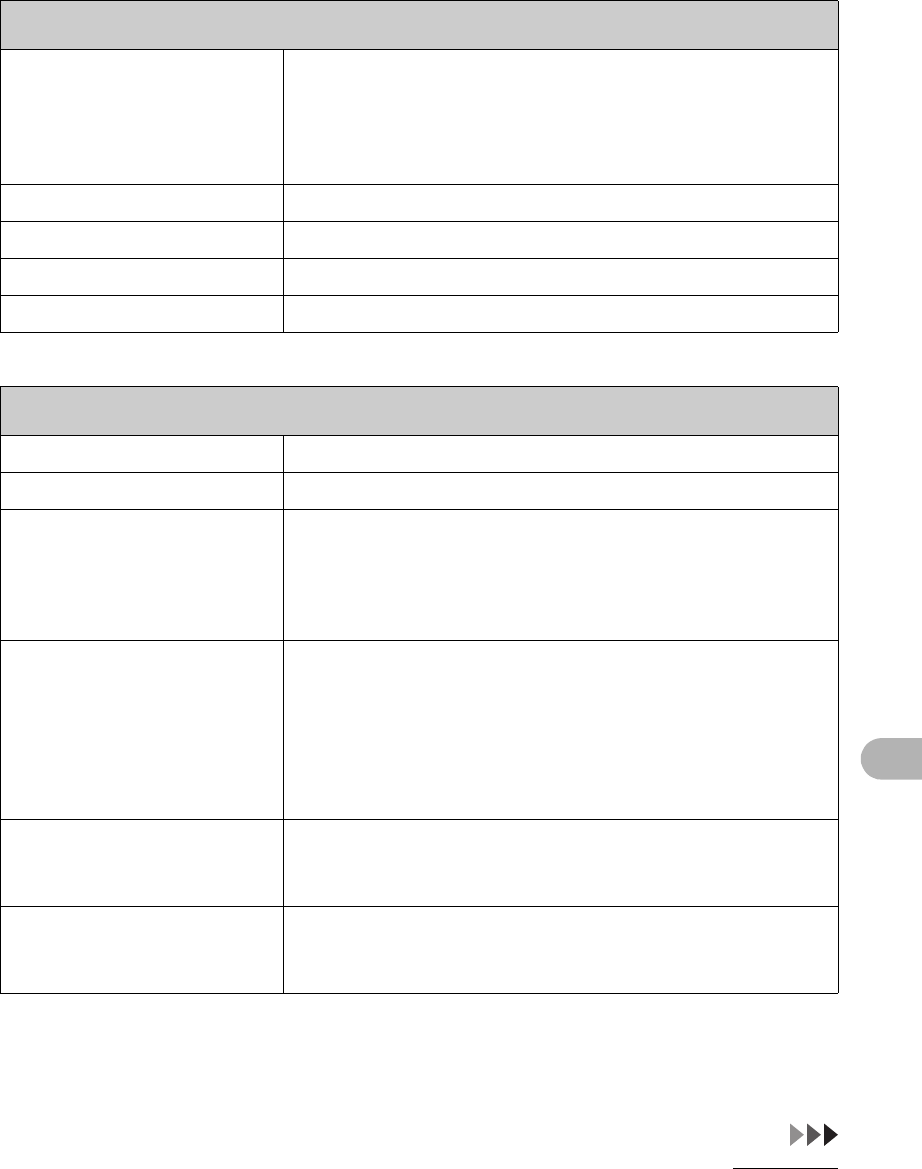
12-6
Machine Settings
4 VOLUME CONTROL Sets volumes for machine beeps in four levels.
–NORMAL
–HIGH
–OFF
–LOW
CALLING TONE Sets the calling volume.
MONITOR VOL. CTRL Sets the line monitor volume.
ENTRY TONE Sets the keypad volume.
ERROR TONE Sets the alarm volume.
COPY SETTINGS
Setting Item Description
1 STANDARD SETTINGS Sets the default setting for copying.
DENSITY Sets the density for copying.
– MANUAL (1-9)
–AUTO*
* When <AUTO> is set, the Image Quality mode is automatically
set to <TEXT>.
IMAGE QUALITY Sets the document type for copying.
– TEXT/PHOTO*
–TEXT
–PHOTO*
– TEXT/PHOTO+*
* When <TEXT/PHOTO>, <PHOTO>, or <TEXT/PHOTO+> is set,
the Density mode is automatically set to <MANUAL>.
AUTO COLLATE Sets whether to collate the copies automatically.
–OFF
–ON
2 - SIDED Sets the type of two-sided printing.
–OFF
–ON
COMMON SETTINGS
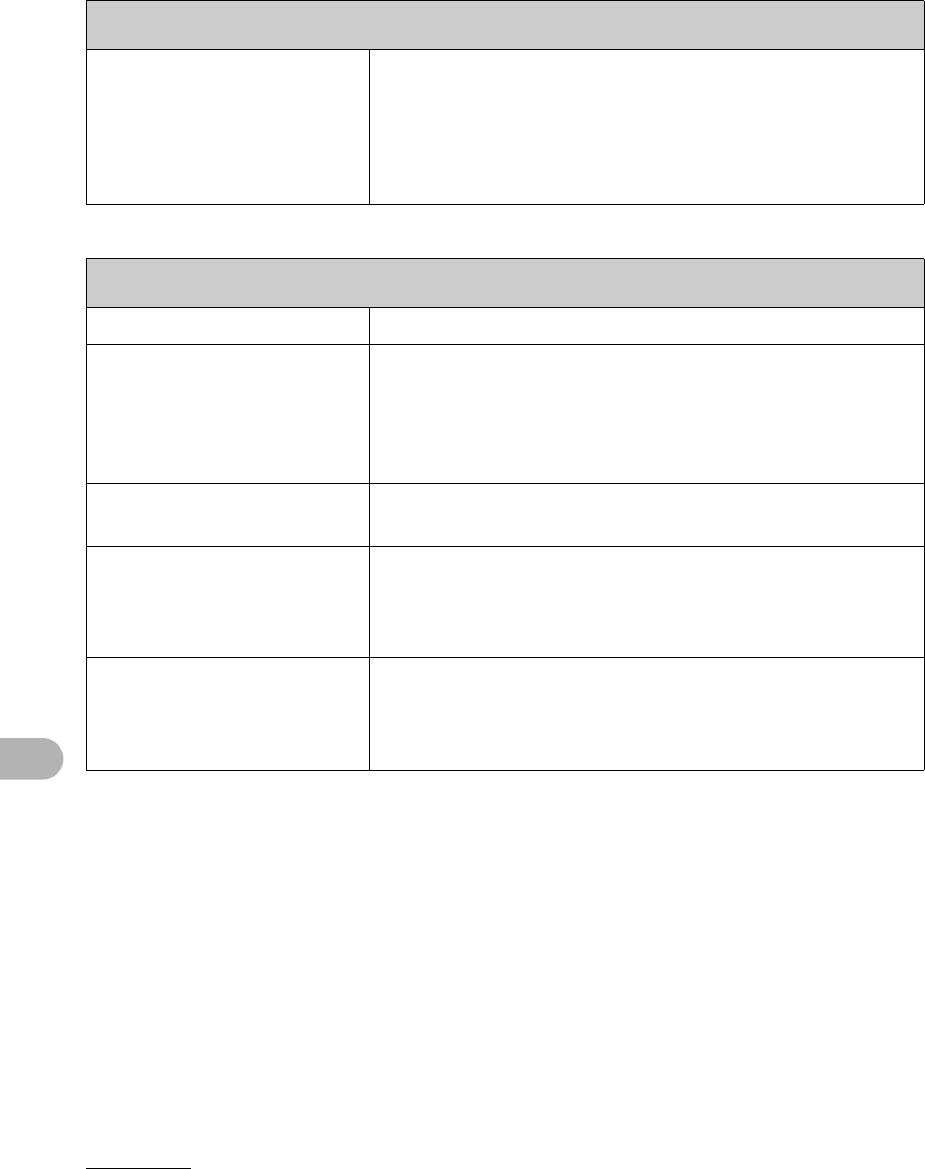
12-7
Machine Settings
2 PAPER SIZE GROUP Selects a paper size group for your machine.*
– INCHES
–A
–AB
* If the paper size group is changed, the available preset copy
ratios will also change.
TIMER SETTINGS
Setting Item Description
1 AUTO SLEEP Sets auto sleep when the machine remains idle for a certain
period of time. (3 MIN.–30 MIN.) (See “Setting the Sleep
Mode,” on p. 1-11.)
–ON
–OFF
2 DATE&TIME SETTING Sets the current date and time. (See “Connect Power Cord,”
in the Starter Guide.)
3 DATE TYPE SELECT Sets the date format.
– MM/DD/YYYY
– DD/MM YYYY
– YYYY MM/DD
4 DAYLIGHT SV. TIME Sets daylight saving time mode. (See “Setting Daylight
Saving Time,” on p. 1-14.)
–OFF
–ON
COPY SETTINGS
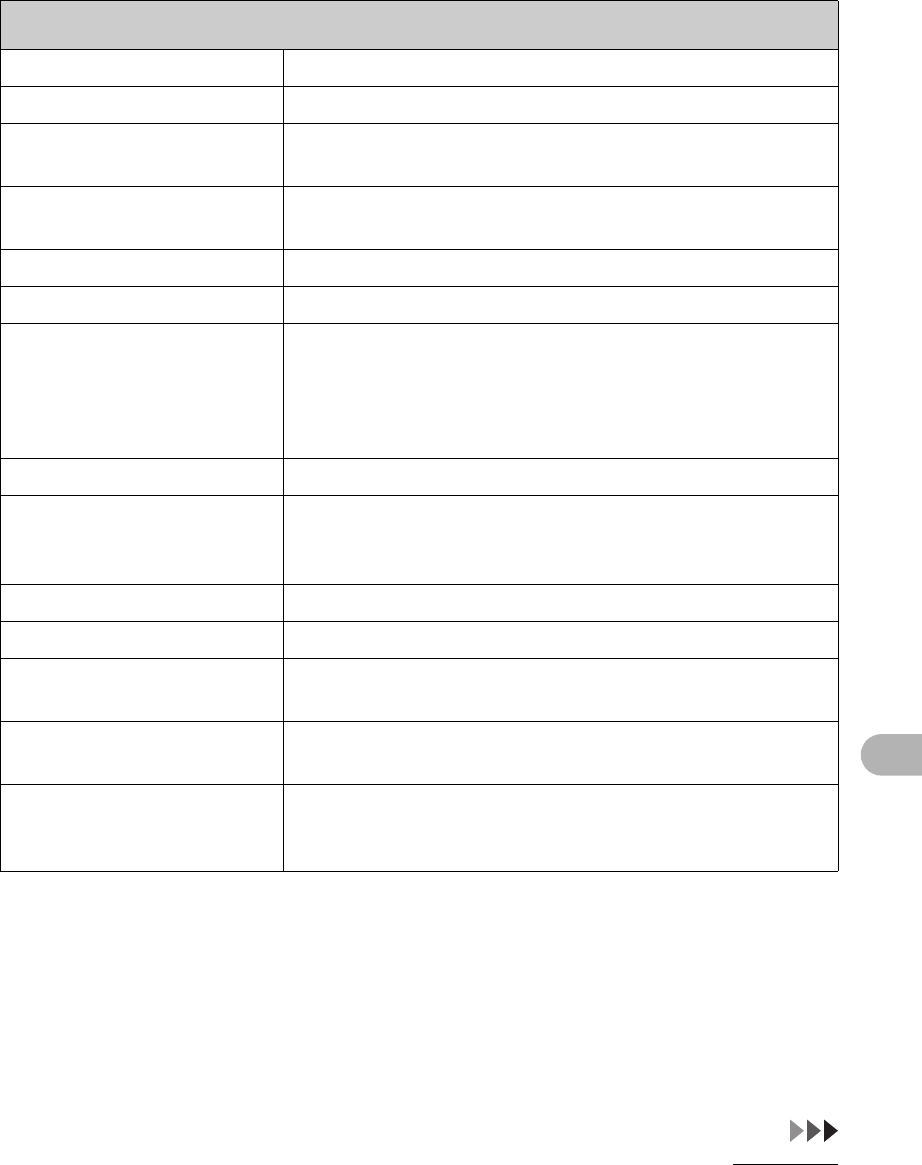
12-8
Machine Settings
FAX SETTINGS
Setting Item Description
1 BASIC SETTINGS Registers your fax number and name.
UNIT TELEPHONE # Registers your fax number. (See “Set the Machine for
Sending Faxes,” in the Starter Guide.)
UNIT NAME Registers your name/company name. (See “Set the
Machine for Sending Faxes,” in the Starter Guide.)
STANDARD SETTINGS Sets the default setting for faxing.
DENSITY Sets the default density for faxing. (1-9)
IMAGE QUALITY Sets the default image quality for faxing.
–STANDARD
–FINE
–PHOTO
– SUPER FINE
2 TX SETTINGS Sets the transmission functions.
AUTO REDIAL Sets whether to redial automatically when the other line is
busy or a transmission error occurs. (See Chapter 1,
“Advanced Fax Features,” in the Advanced Guide.)
ON Customizes the redial operation.
REDIAL TIMES Sets the number of retries. (1 TIMES–10 TIMES)
REDIAL
INTERVAL
Sets period of time before redialing. (2 MIN.–99 MIN.)
OFF After the first attempt at dialing fails, redialing is not
attempted.
DIALING LINE CHCK Sets whether to check the telephone line condition.
–OFF
–ON
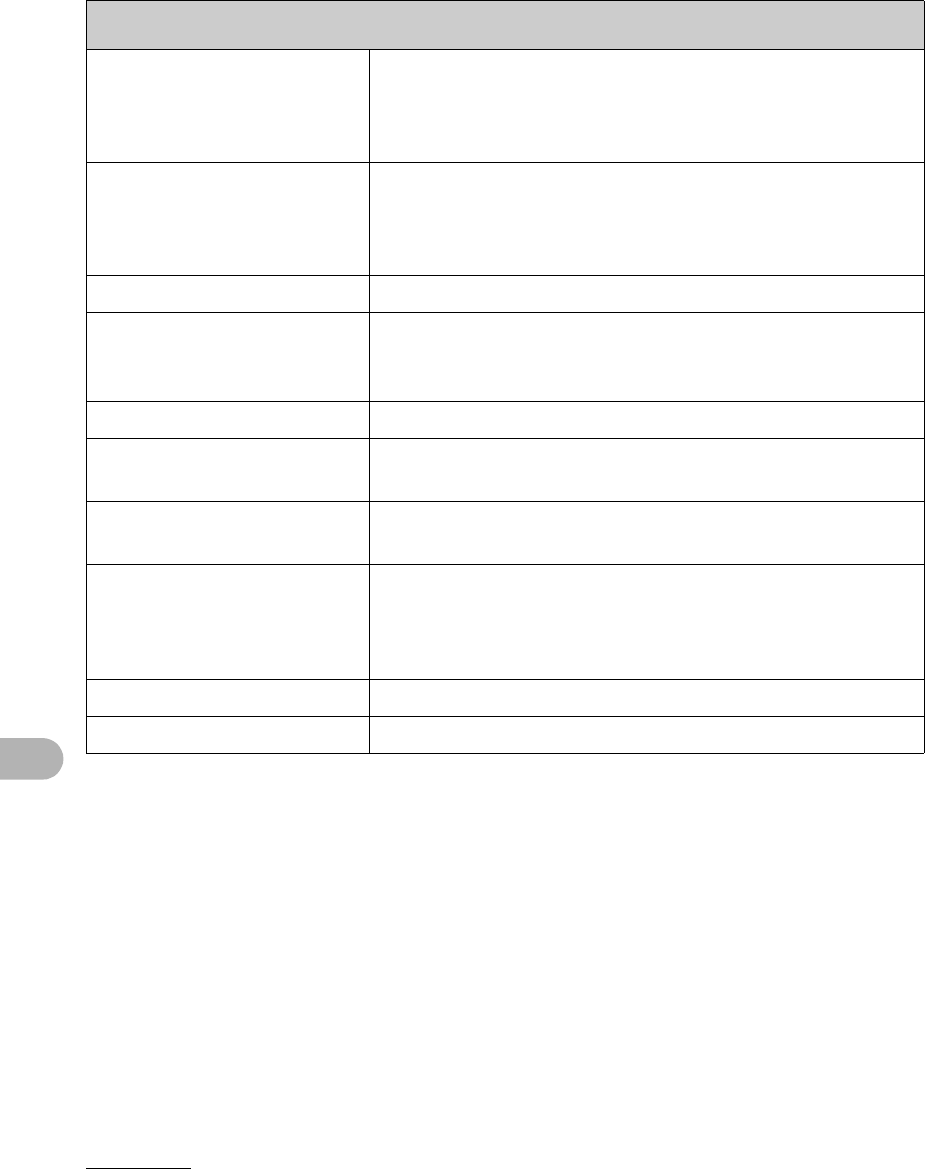
12-9
Machine Settings
RESTRICT REDIAL Sets whether to disable the redial function of the [Redial/
Pause] key.
–OFF
–ON
CONFIRM NEW DEST. Sets whether to prompt you to enter the fax number again
after pressing [Start] key.
–OFF
–ON
3 RX SETTINGS Sets the reception functions.
INCOMING RING Sets whether the telephone rings when it receives a voice
call, enabling you to answer the call. This function is only
available when the <RX MODE> is set to <FaxOnly>.
OFF The telephone does not ring when it receives a voice call.
ON The telephone rings when it receives a voice call if an
external telephone is connected.
RING COUNT Sets the number of incoming ring before the machine
answers. (1 TIMES–16 TIMES)
RX PRINT Sets whether to store all received pages in memory before
printing them out or print each page as it is received. (See
Chapter 1, “Advanced Fax Features,” in the Advanced
Guide.)
MEMORY RX Print after all the pages of the document are received.
PRINT RX Print each page as it is received.
FAX SETTINGS
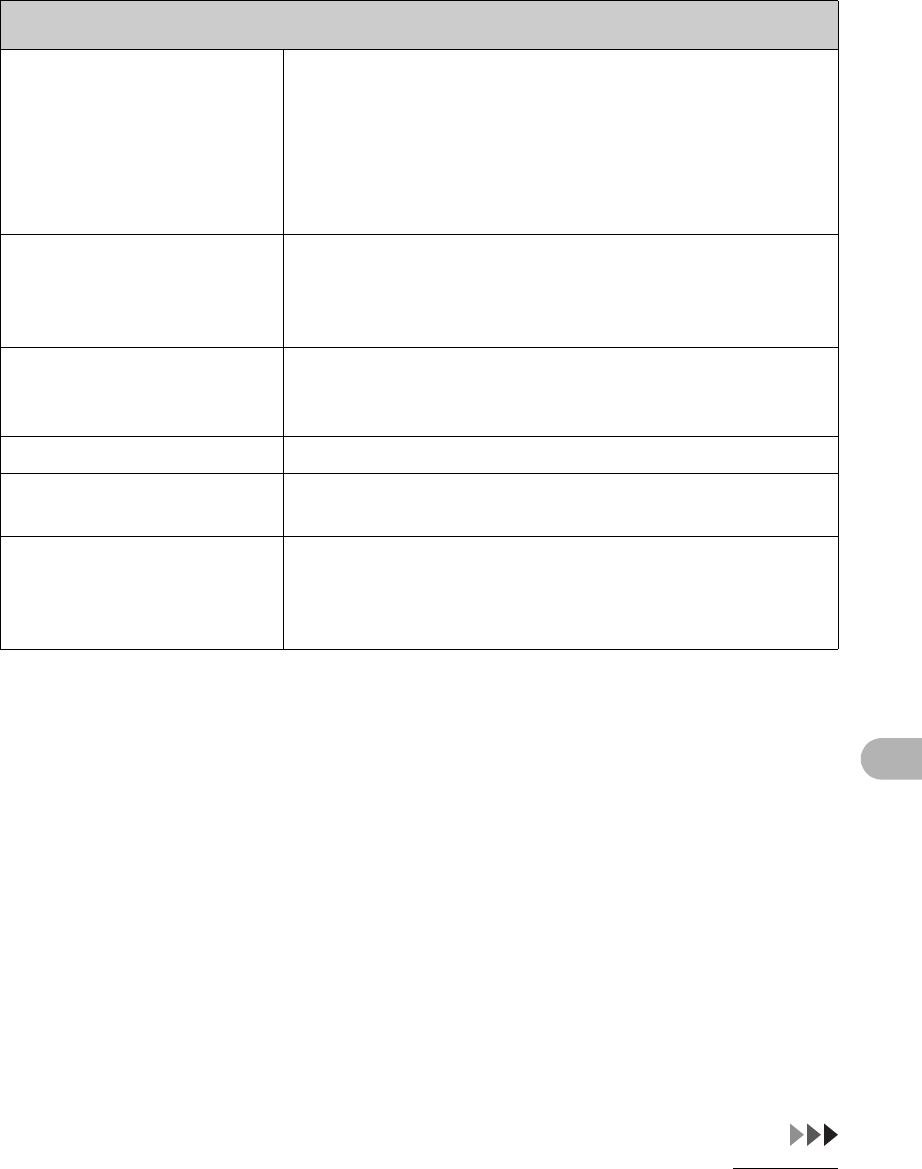
12-10
Machine Settings
RX MODE Selects the receive mode. (See Chapter 1,“Advanced Fax
Features,” in the Advanced Guide.)
–FaxOnly
– AnsMode
– DRPD
– FAX/TEL
–MANUAL
RX TERMINAL ID Sets whether to insert the machine’s fax number and the
sender information on received faxes.
–OFF
–ON
RX RESTRICTION You can reject faxes from senders with no fax/telephone
number in their sender information. (See Chapter 1,
“Advanced Fax Features,” in the Advanced Guide.)
OFF All receptions are conducted.
ON Receives the fax only from the sending fax machine that
sends the TSI signal.
REMOTE RX Sets whether to use remote receiving. (See Chapter 1,
“Advanced Fax Features,” in the Advanced Guide.)
–ON
–OFF
FAX SETTINGS
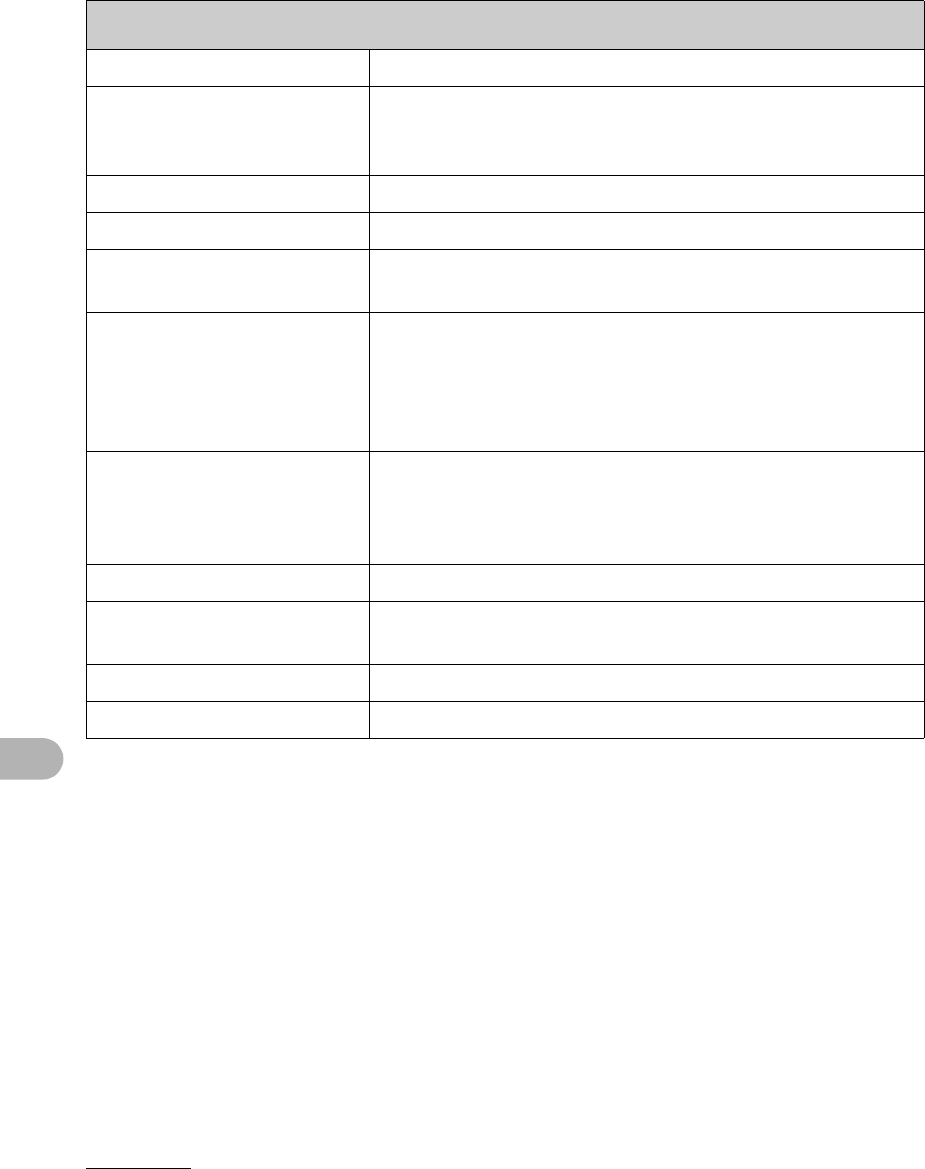
12-11
Machine Settings
4 PRINTER SETTINGS Sets the printer functions.
RX REDUCTION Sets whether to reduce or truncate the image when a faxed
page is larger than the size of paper loaded. (See Chapter 1,
“Advanced Fax Features,” in the Advanced Guide.)
ON Reduces the image to fit on the size of paper loaded.
OFF Retains the original size of the image.
CUT The image that is larger than 1-page record area is cut and
not recorded.
CONT. PRINTING Sets whether to continue printing when toner has run out.
This function is only for Fax printing and printing reports.
(See Chapter 5,“Troubleshooting,” in the Advanced Guide.)
–OFF
–ON
2 - SIDED PRINT Sets the type of two-sided printing for faxing. (See Chapter 1,
“Advanced Fax Features,” in the Advanced Guide.)
–OFF
–ON
5 COMMUNICATIONS Sets the communication setting.
TEL LINE TYPE Selects the telephone line type. (See “Set the Machine for
Sending Faxes,” in the Starter Guide.)
TOUCH TONE The telephone line is set for touch tone dialing.
ROTARY PULSE The telephone line is set for rotary pulse dialing.
FAX SETTINGS
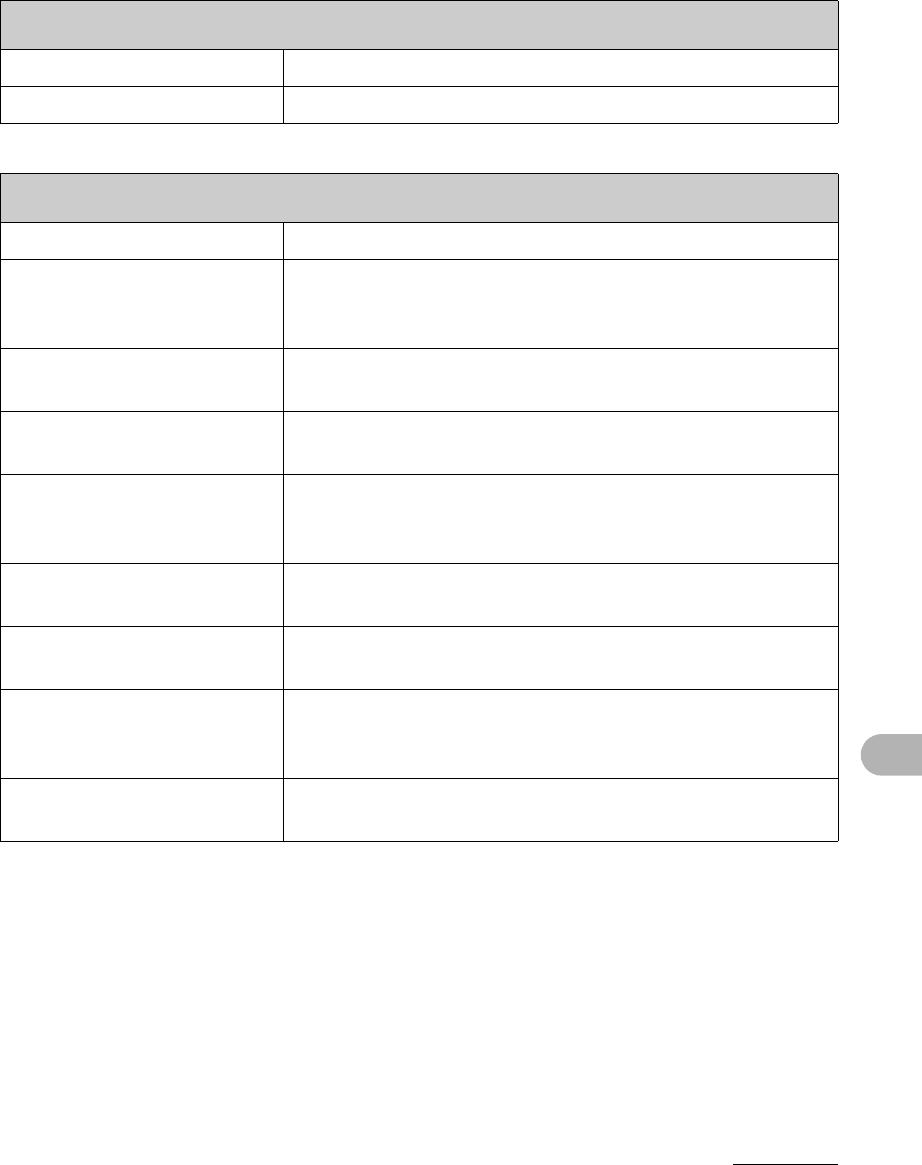
12-12
Machine Settings
BROADCAST
Setting Item Description
BROADCAST Registers destinations for broadcasting.
ADDRESS BOOK SET.
Setting Item Description
1 1-TOUCH SPD DIAL Registers the information on one-touch speed dialing. Up to
8 destinations can be registered. (See “Registering One-
Touch Speed Dialing,” on p. 4-7.)
NAME Registers the recipient’s name (max. 20 characters,
including spaces).
TEL NUMBER ENTRY Registers the recipient’s fax number (max. 50 digits,
including spaces).
2 CODED DIAL Registers the information on coded dialing. Up to 100
destinations can be registered. (See “Registering Coded
Dialing,” on p. 4-14.)
NAME Registers the recipient’s name (max. 20 characters,
including spaces).
TEL NUMBER ENTRY Registers the recipient’s fax number (max. 50 digits,
including spaces).
3 GROUP DIAL Registers the information on group dialing. Up to 50
destinations can be registered. (See “Registering Group
Dialing,” on p. 4-21.)
NAME Registers the group name (max. 20 characters, including
spaces).
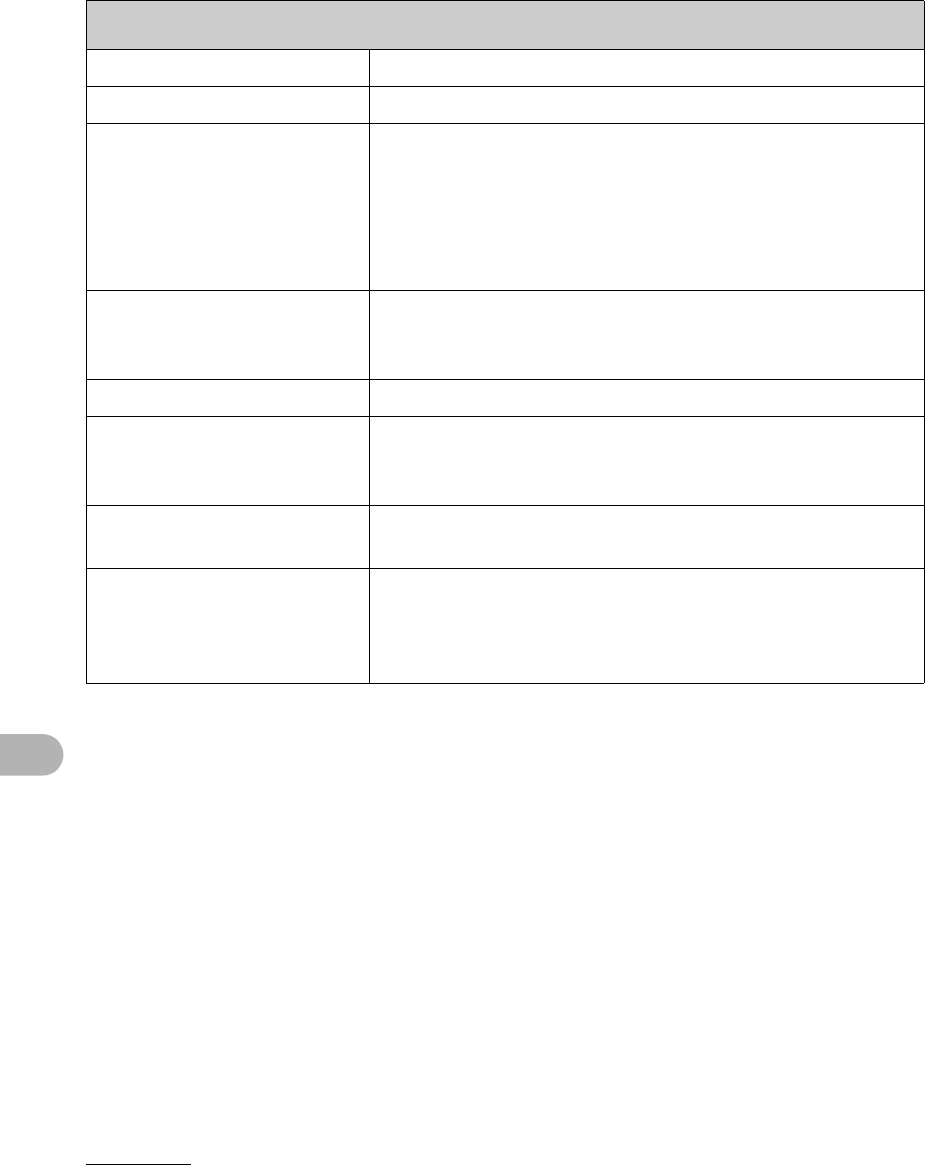
12-13
Machine Settings
ADJUST./CLEANING
Setting Item Description
1 FIX.UNIT CLEANING Cleans the fuser roller. (See “Fuser Roller,” on p. 10-4.)
2 SPECIAL MODE T Sets whether to prevent blur from appearing on the
printouts.
When this setting is set to <on>, the density of printouts may
become light.
– OFF
– ON
3 SPECIAL MODE U Select to improve print quality in high temperature and high
humidity conditions or in low temperature and low humidity
conditions.
OFF Select in normal condition.
MODE1 Select to improve print quality in low temperature and low
humidity conditions, or when using thick paper or an
envelope.
MODE2 Select to improve print quality in high temperature and high
humidity conditions.
4 SPECIAL MODE V Sets whether to prevent small size paper (B5, A5,
EXECUTIVE, etc) from being curled.
– OFF
– ON
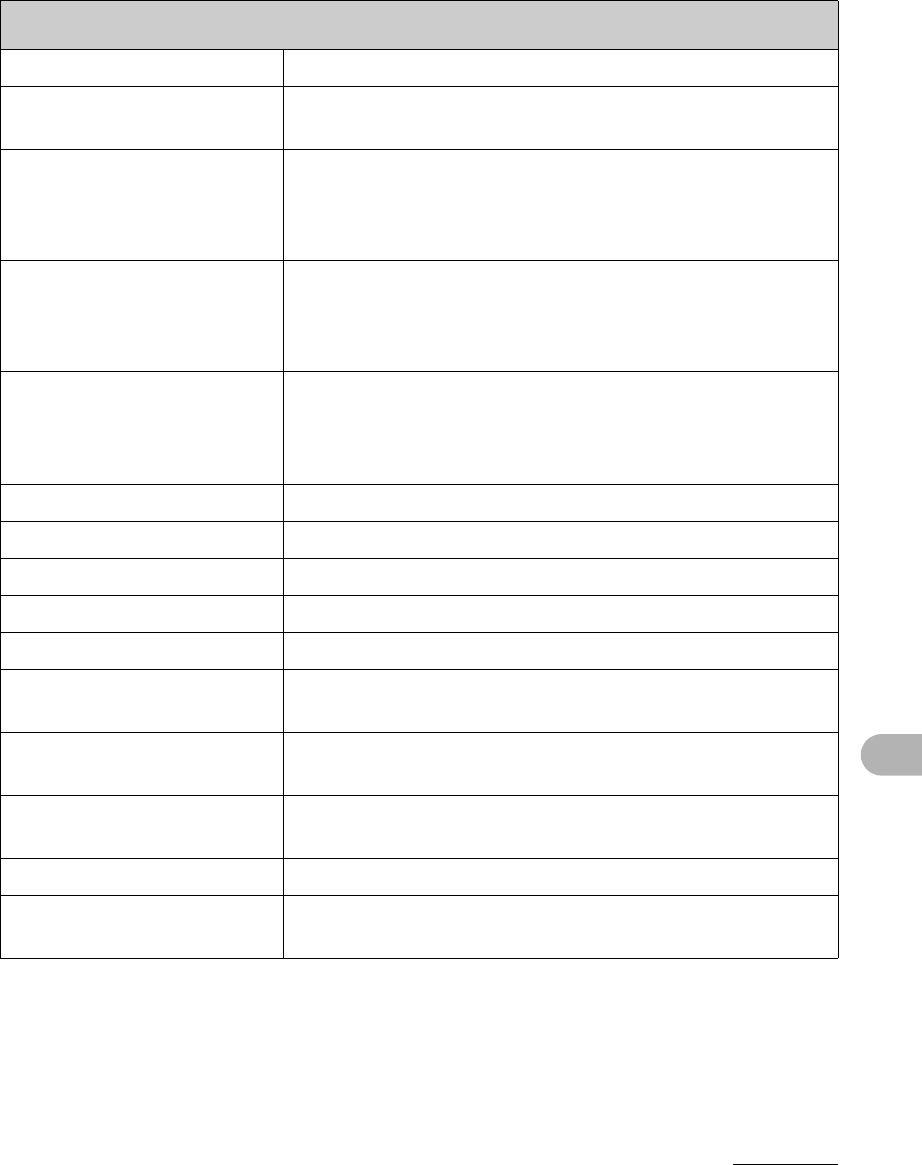
12-14
Machine Settings
REPORT SETTINGS
Setting Item Description
1 SETTINGS Sets the report functions. (See Chapter 4, “Reports and
Lists,” in the Advanced Guide.)
TX REPORT Sets whether the fax transmission report prints out.
– PRINT ERROR ONLY
– OUTPUT NO
–OUTPUT YES
RX REPORT Sets whether the fax reception report prints out.
– OUTPUT NO
–OUTPUT YES
– PRINT ERROR ONLY
ACTIVITY REPORT Sets whether to automatically print the fax transaction
report.
–OUTPUT YES
– OUTPUT NO
2 LIST PRINT Prints reports/lists.
TX REPORT Prints the fax transmission report manually.
RX REPORT Prints the fax reception report manually.
ACTIVITY REPORT Prints the fax transaction report manually.
MEMORY DATA LIST Prints the list of the reserved jobs in memory.
MEMORY IMAGE PRNT Prints the information and image of the first page of the
reserved job.
1-TOUCH LIST Prints the list of fax/telephone numbers and names
registered for one-touch speed dialing.
CODED DIAL LIST Prints the list of fax/telephone numbers and names
registered for coded dialing.
GROUP DIAL LIST Prints the list of groups registered for group dialing.
USER’S DATA LIST Prints the setting list registered in the menu. (See “Printing
User’s Data List,” on p. 12-1.)
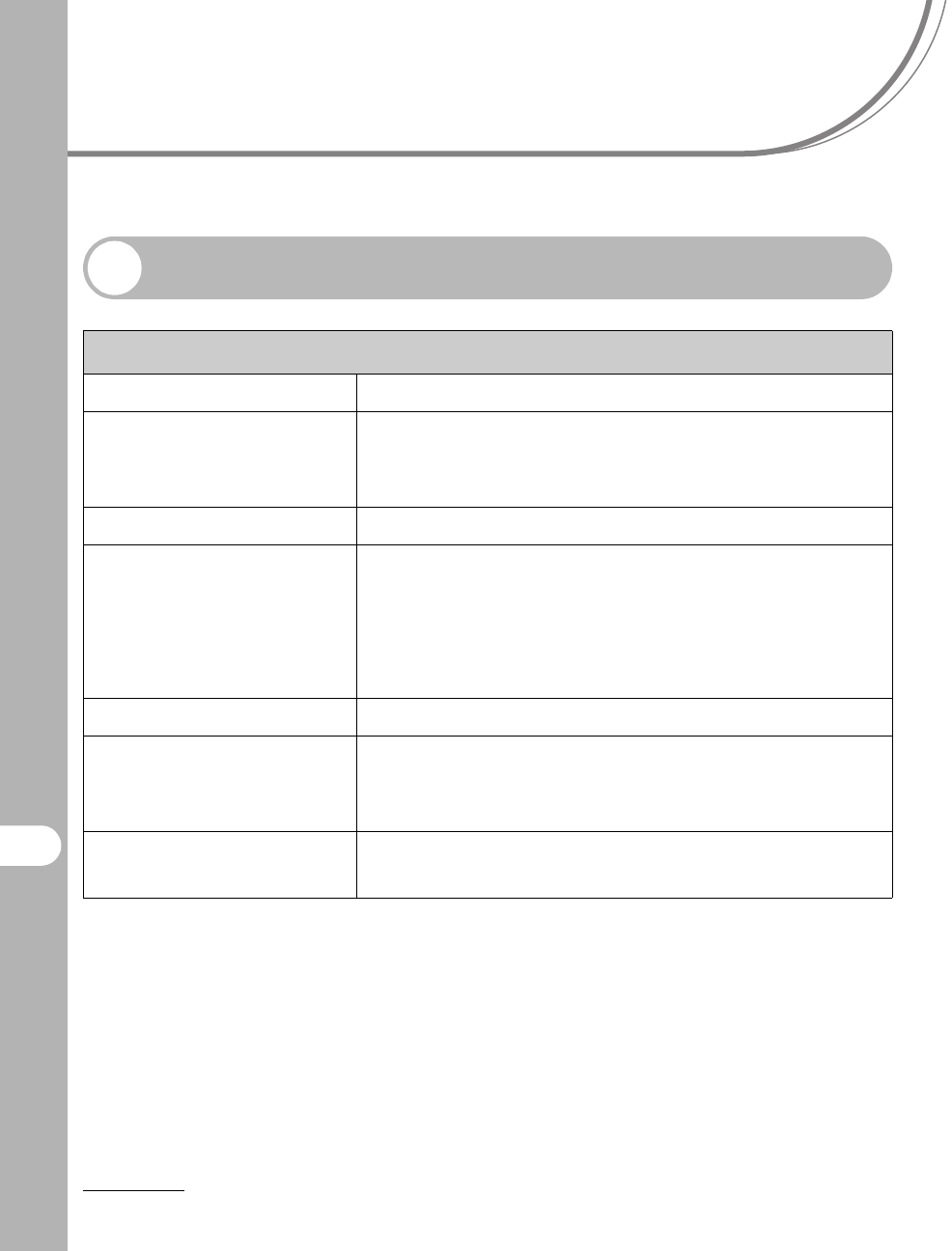
13-1
13
Appendix
Appendix
Specifications
General
●Type Personal Desktop
●Power Source 120 - 127 V, 60 Hz (Power requirements differ
depending on the country in which you purchased the
product.)
●Power Consumption Max: Less than 680 W
●Warm-up Time Less than 9.0 sec.* (temperature: 68°F (20°C),
humidity: 65%; from when the main power switch is
turned on until standby display appears)
* Warm-up time may differ depending on the condition
and environment of the machine.
●Weight Approx. 29.5 lb (13.4 kg) (including toner cartridge)
●Dimensions 14 5/8 in. (H) x 17 in. (D) x 15 3/8 in. (W)
(370mm (H) x 432 mm (D) x 390 mm (W))
(with the document feeder tray attached)
●Installation Space 33 5/8 in. (D) x 23 1/4 in. (W)
(855 mm (D) x 590 mm (W))
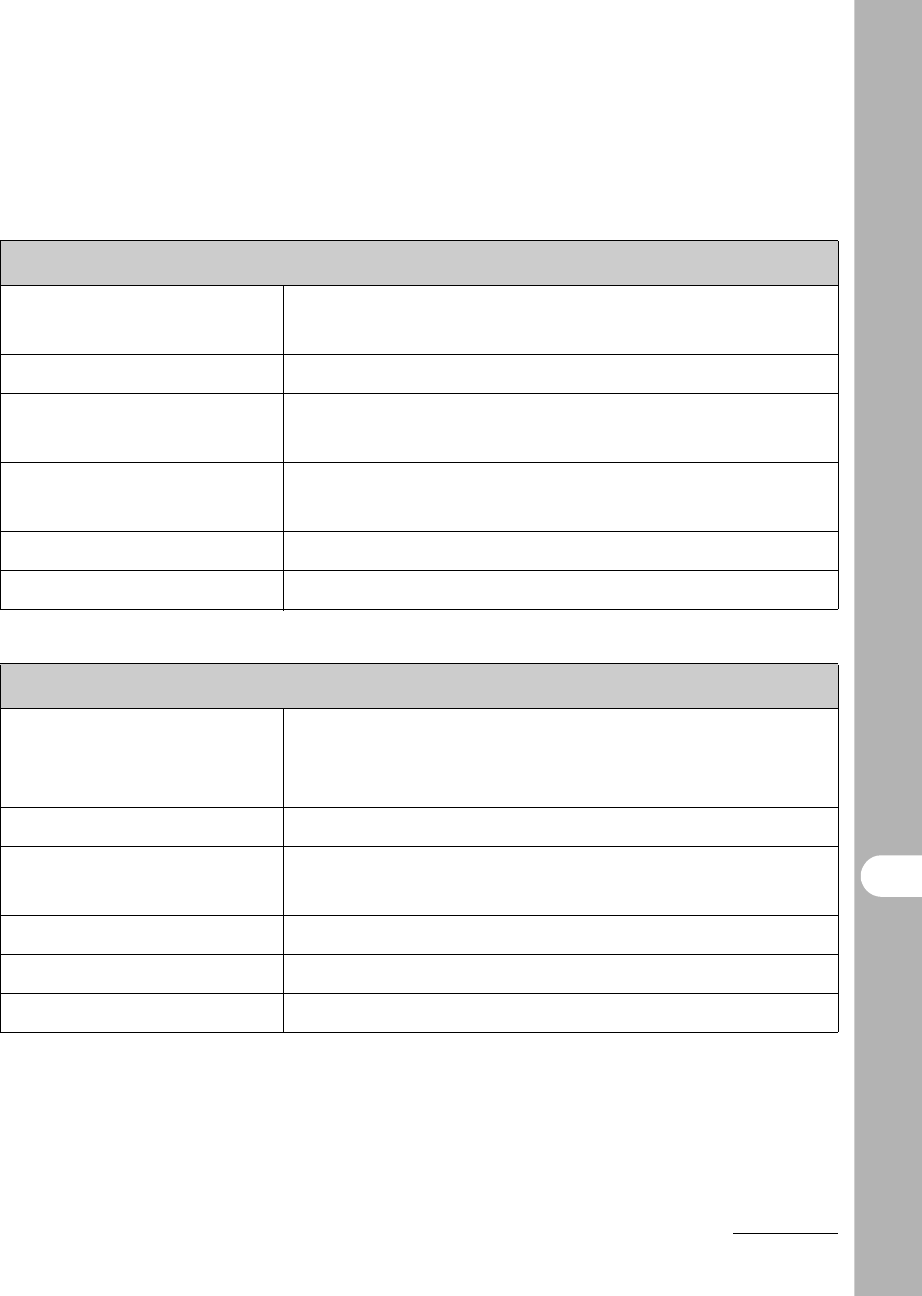
13-2
Appendix
●Environmental
Conditions
Temperature: 46°F–95°F (7.5°C–35°C)
Humidity: 5%–90% RH
●Display Languages ENGLISH/FRENCH/SPANISH/PORTUGUESE
●Acceptable
Documents
» p. 2-1.
●Acceptable Paper
Stock
» p. 3-1.
●Printable Area » p. 3-2.
●Scanning Area » p. 2-3.
Copier
●Scanning Resolution TEXT/PHOTO mode: 300 dpi x 300 dpi
TEXT mode, PHOTO mode, TEXT/PHOTO+ mode:
600 dpi x 600 dpi
●Printing Resolution 600 dpi x 600 dpi
●Magnification 1:1 ± 1.0%, 1:2.00, 1:1.29, 1:0.78, 1:0.64, 1:0.50
Zoom 0.50–2.00, 1% increments
●First Copy Time Platen glass: less than 9 sec. (LTR)
●Copy Speed Direct: LTR 21 cpm
●No. of Copies Max. 99 copies
General
13-3
Appendix
Printer
●Printing Method Indirect electrostatic method (On-demand fixing)
●Paper Handling –Paper feeding tray: 250 sheets
(Height: max. 1" (25 mm))
–Multi-purpose tray: 1 sheet
●Paper Delivery 100 sheets (17 to 21 lb bond (64 to 80 g/m2))
●Print Speed See “Copy Speed,” on p. 13-2.
●Printing Resolution 600 dpi x 600 dpi
●Number of Tones 256
●Toner Cartridge » p. 1-8.
Facsimile
●Applicable Line Public Switched Telephone Network (PSTN)*1
●Compatibility G3
●Data Compression
Schemes
MH, MR, MMR
●Modem Speed 33.6 Kbps
Automatic fallback
●Transmission Speed Approx. 3 seconds/page*2 at 33.6 Kbps, ECM-MMR,
transmitting from the memory
●Transmission/
Reception Memory
Maximum approx. 256 pages*2
(total pages of transmission/reception)

13-4
Appendix
●Fax Resolution STANDARD: 203 pels/in. x 98 lines/in. (8 pels/mm x
3.85 lines/mm)
FINE: 203 pels/in. x 196 lines/in. (8 pels/mm x
7.7 lines/mm)
PHOTO: 203 pels/in. x 196 lines/in. (8 pels/mm x
7.7 lines/mm)
SUPER FINE: 203 pels/in. x 392 lines/in. (8 pels/mm x
15.4 lines/mm)
●Dialing – Speed dialing
One-touch speed dialing (8 destinations)
Coded dialing (100 destinations)
Group dialing (50 destinations)
Address Book dialing (with Address Book key)
– Regular dialing (with numeric keys)
– Automatic redialing
– Manual redialing (with Redial/Pause key)
– Sequential broadcast (124 destinations)
– Automatic reception
– Remote reception by telephone (Default ID: 25)
– ACTIVITY REPORT (after every 60 transactions)
– TX (Transmission)/RX (Reception) REPORT
– TTI (Transmit Terminal Identification)
Facsimile

13-5
Appendix
*1The Public Switched Telephone Network (PSTN) currently supports 28.8 Kbps
modem speed or lower, depending on telephone line conditions.
*2Based on ITU-T Standard Chart No. 1, MMR standard mode.
NOTE
Specifications are subject to change without notice.
Telephone
●Connection – External telephone/answering machine/data modem

13-6
Appendix
Index
Symbols & Numerics
[2-Sided] key 1-4
A
Accessing
Setting Menu 12-3
[Additional Functions] key 1-4
[Address Book] key 1-6
ADDRESS BOOK SET. 12-3, 12-12
ADF 2-6
ADF (Automatic Document Feeder) 1-1
ADJUST./CLEANING 12-3, 12-13
B
BROADCAST 12-3, 12-12
C
CHANGE TONER message 10-8
Clean Earth Campaign 10-12
Cleaning machine 10-1
Exterior 10-1
Fuser roller 10-4
Interior 10-2
Scanning area 10-5
[Clear] key 1-5
Clearing Jams 11-1
Document jams 11-1
Paper jams 11-3
[Coded Dial] key 1-6, 4-31
Coded dialing 4-6
Deleting 4-19
Editing 4-16
Registering 4-14
Using 4-31
[Collate/2 on 1] key 1-4
COMMON SETTINGS 12-3, 12-5
[COPY] key 1-4
Copy Mode 1-7
COPY SETTINGS 12-3, 12-6
Copying 6-1
Customer support
Canada xvi, 11-21
U.S.A. xvi, 11-21
D
Daylight saving time 1-14
Density
Copying 6-4
Faxes 4-5
[Density] key 1-4

13-7
Appendix
Document
Jams 11-1
Loading 2-4
Requirements 2-1
Document delivery tray 1-1
Document feeder tray 1-1
Dust cover 1-2
E
[Energy Saver] key 1-4
[Enlarge/Reduce] key 1-4
Error codes 11-20
Error indicator 1-5
Error messages
Common 11-9
Facsimile 11-16
Printer 11-19
External device jack 1-3
F
[FAX] key 1-4
Fax Mode 1-7
FAX SETTINGS 12-3, 12-8
Faxes
Receiving 5-1
Sending 4-1
G
Group dialing 4-6
Adding destination 4-23
Changing name 4-26
Deleting destination 4-24
Deleting group 4-28
Registering 4-21
Using 4-30
H
Handling xiii
[Hook] key 1-6, 4-33
I
If You Cannot Solve a Problem 11-21
Image quality
Copying 6-3
Faxes 4-3
[Image Quality] key 1-4
J
Jams
Document 11-1
Paper 11-3

13-8
Appendix
L
LCD 1-5, 1-7
Messages 11-9
Loading
Document 2-4
Envelopes 3-4
Paper 3-4
Location xiv
M
Machine Components 1-1
Machine settings 12-1
Main power switch 1-2
Maintaining
Toner cartridge 1-9
Maintenance xiii, 10-1
Manual Sending 4-32
Menu
Accesing 12-3
Setting 12-5
Multi-purpose tray 1-2, 3-4
N
Numeric keys 1-5
O
[OK] key 1-5
One-Touch Speed Dial keys 1-6
One-touch speed dialing 4-6
Deleting 4-12
Editing 4-9
Registering 4-7
Using 4-30
Operation panel 1-1, 1-4
OUT OF TONER message 10-8
Output tray 1-1
Output tray extension 1-2
P
Paper
Guidelines 3-3
Jams 11-3
Loading 3-4
Printable area 3-2
Requirements 3-1
Size and type 3-7
Paper feeding tray 1-1
Paper guide rail 1-2
PAPER JAM message 11-3
PAPER SETTINGS 12-3, 12-5
Paper stopper 1-2
PC Faxing 9-1
Platen glass 1-2, 2-4
Power socket 1-3
Power supply xv
Printing 7-1
Processing/Data indicator 1-5

13-9
Appendix
R
Rear cover 1-3
Receiving faxes 5-1
Recycling cartridge 10-12
CANADA PROGRAM 10-17
U.S.A. PROGRAM 10-14
[Redial/Pause] key 1-6
Redistributing toner 10-8
Registering speed dialing 4-6
Replacing toner cartridge 10-8
REPORT SETTINGS 12-3, 12-14
RX SETTINGS 12-9
S
Safety instructions xiii
[SCAN] key 1-4
Scan Mode 1-7
Scan settings
Copying 6-3
Faxes 4-3
Scanning 8-1
Scanning area 1-2, 2-3
Scanning platform 1-2
Sending faxes 4-1
Setting Menu 12-5
Accessing 12-3
Sleep Mode 1-11
Slide guides 1-1, 2-6
for multi-purpose tray 1-2
Specifications 13-1
Copier 13-2
Facsimile 13-3
General 13-1
Printer 13-3
Telephone 13-5
Speed dialing 4-6
Standby mode
Copy 1-7
Fax 1-7
Scan 1-7
[Start] key 1-5
[Stop/Reset] key 1-5
[System Monitor] key 1-4
T
Telephone line jack 1-3
TIMER SETTINGS 12-3, 12-7
Timer settings 1-11
[Tone] key 1-5
Toner cartridge 1-8
Checking the toner level 1-10
Maintaining 1-9
Recycling 10-12
Redistributing 10-8
Replacing 10-10


CANON INC.
30-2, Shimomaruko 3-chome, Ohta-ku, Tokyo 146-8501, Japan
CANON U.S.A., INC.
One Canon Plaza, Lake Success, NY 11042, U.S.A.
CANON CANADA INC.
6390 Dixie Road Mississauga, Ontario L5T 1P7, Canada
CANON EUROPA N.V.
Bovenkerkerweg 59-61 1185 XB Amstelveen, The Netherlands
CANON FRANCE S.A.S.
17, quai du Président Paul Doumer 92414 Courbevoie Cedex, France
CANON COMMUNICATION & IMAGE FRANCE S.A.S.
12, rue de l’Industrie 92414 Courbevoie Cedex, France
CANON (U.K.) LTD.
Woodhatch, Reigate, Surrey, RH2 8BF, United Kingdom
CANON DEUTSCHLAND GmbH
Europark Fichtenhain A10, 47807 Krefeld, Germany
CANON ITALIA S.p.A.
Via Milano, 8 20097 San Donato Milanese (MI) Italy
CANON ESPAÑA, S.A.
c/ Joaquín Costa 41, 28002 Madrid, Spain
CANON LATIN AMERICA, INC.
703 Waterford Way Suite 400, Miami, Florida 33126 U.S.A.
CANON AUSTRALIA PTY. LTD
1 Thomas Holt Drive, North Ryde, Sydney, N.S.W. 2113, Australia
CANON CHINA CO., LTD
15F Jinbao Building No.89 Jinbao Street, Dongcheng District, Beijing 100005, China
CANON SINGAPORE PTE. LTD.
1 HarbourFront Avenue #04-01 Keppel Bay Tower, Singapore 098632
FT5-0271 (010) © CANON INC. 2006 PRINTED IN JAPAN OR KOREA
