Canon Pixma Mx870 Getting Started Guide
2014-12-12
: Canon Canon-Pixma-Mx870-Getting-Started-Guide-119315 canon-pixma-mx870-getting-started-guide-119315 canon pdf
Open the PDF directly: View PDF  .
.
Page Count: 67
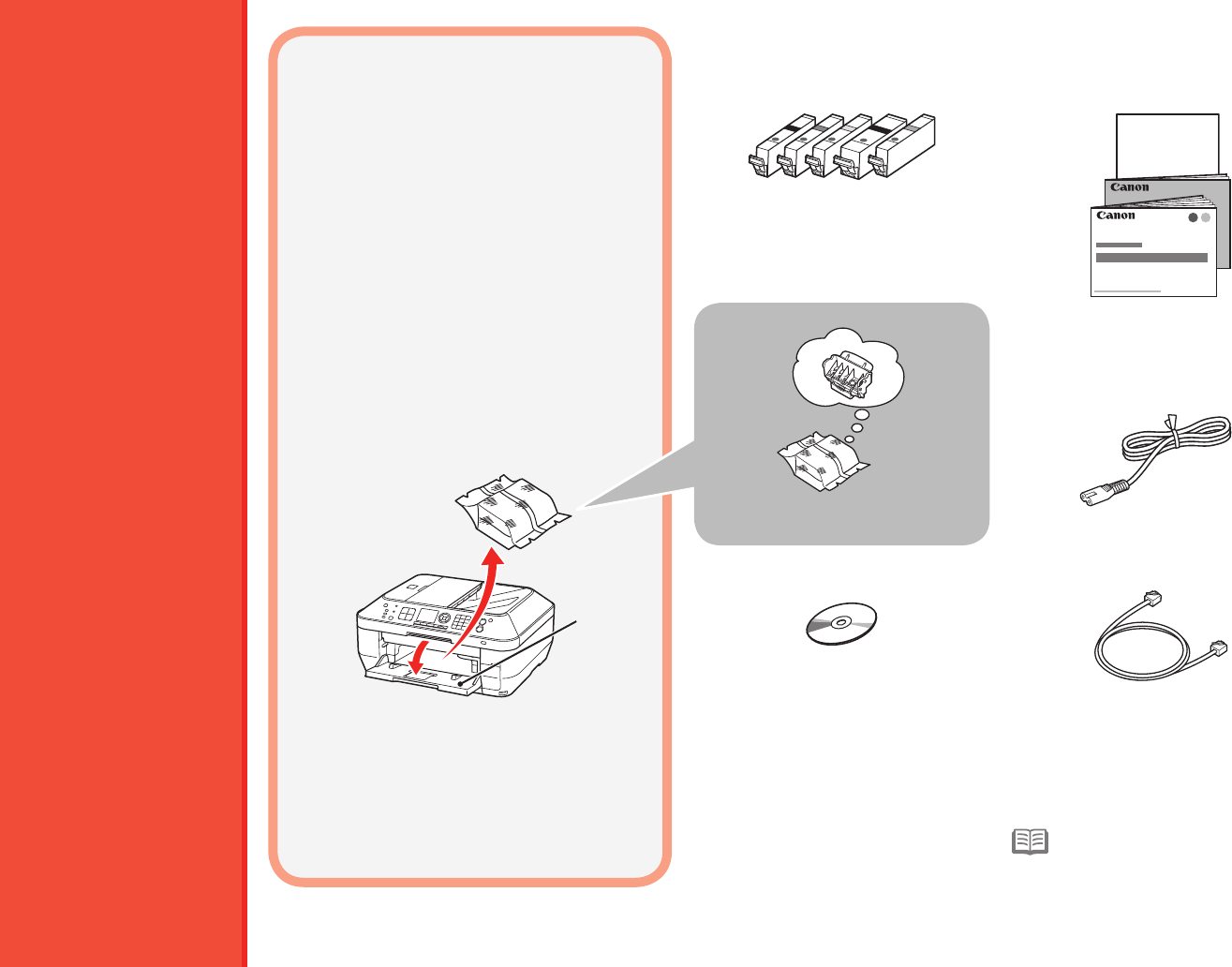
- 1 Check the Included Items
- 2 Connect the Telephone Line
- 3 Turn the Power On
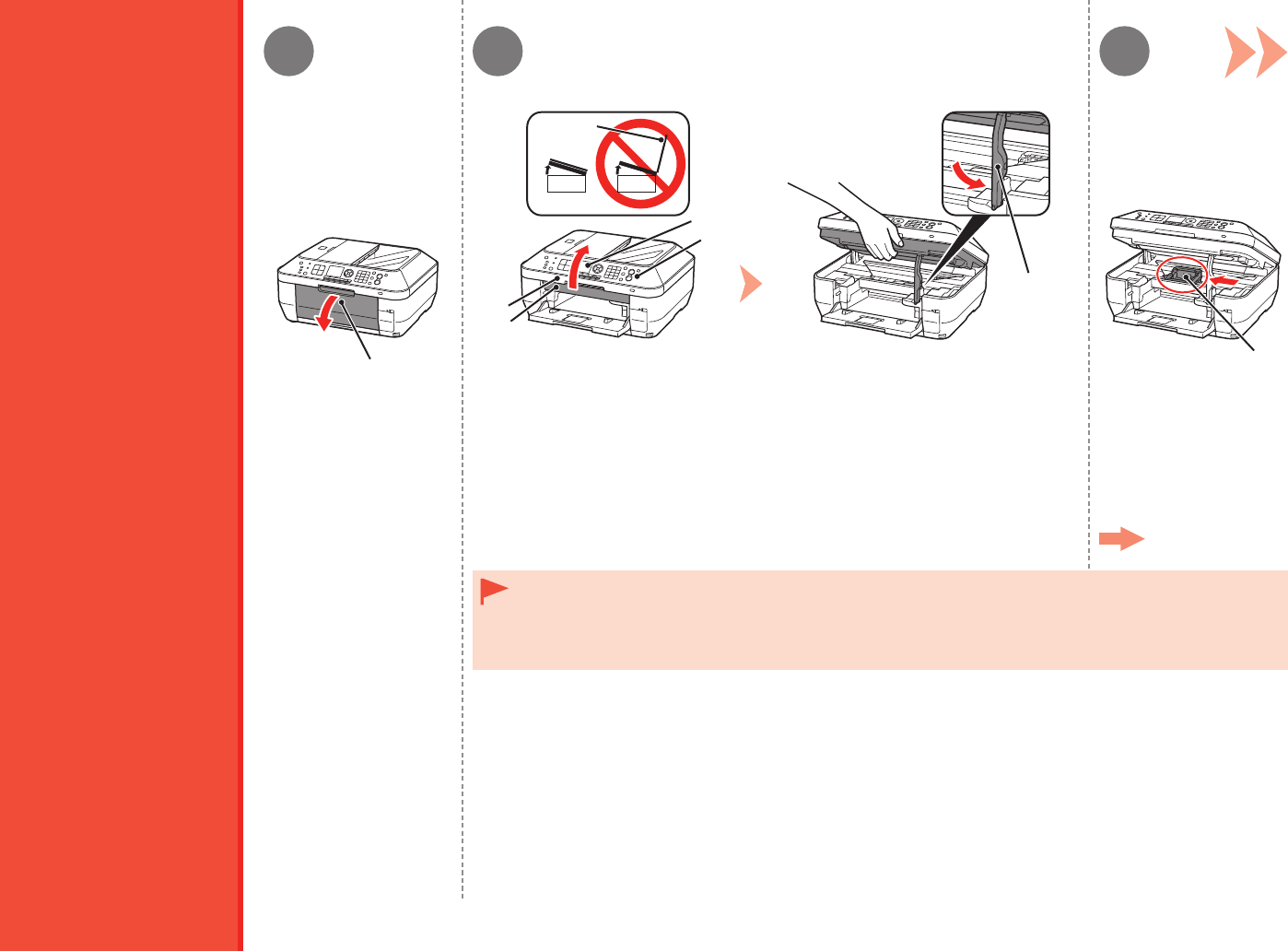
- 4 Install the Print Head
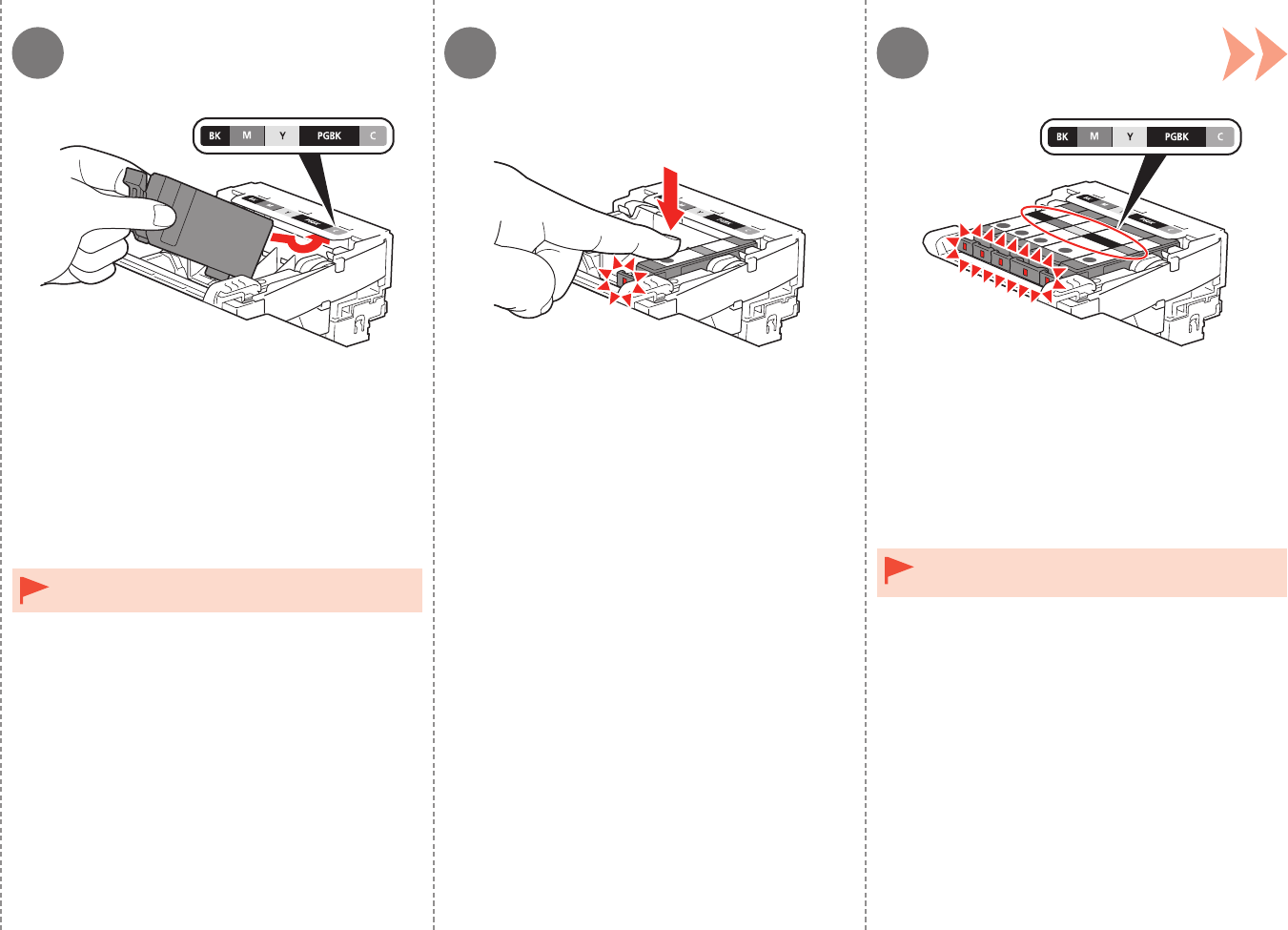
- 5 Install the Ink Tanks
- 6 Load Paper
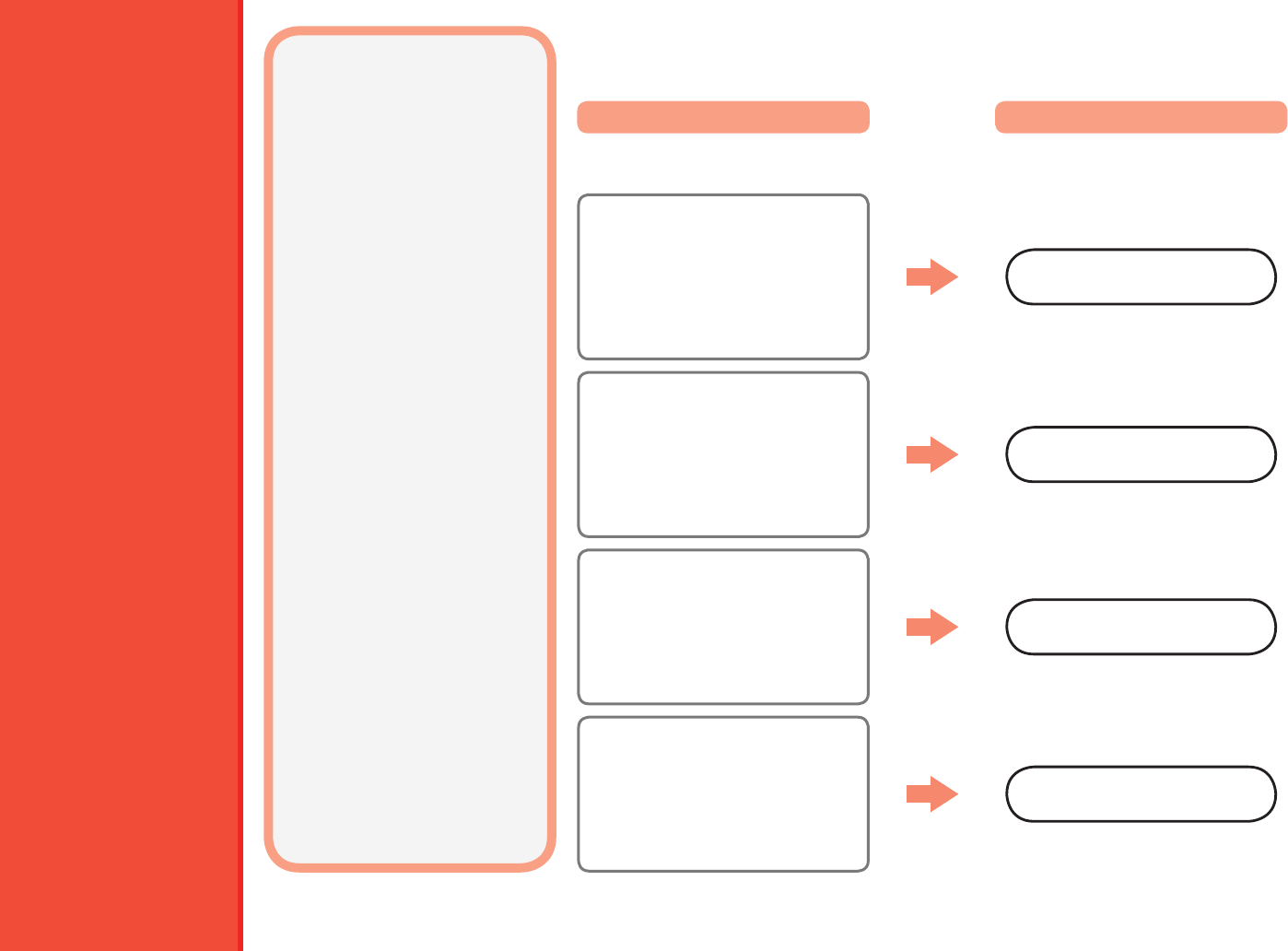
- 7 Set Up for Fax Reception
- 8 Select Connection Method
- 9 Install the Software (USB Connection)
- 10 Wireless Setup
- 11 Wired Setup
- 12 Install the Software (Network Connection)
- 13 Use from Additional Computers
- 14 Try Using the Machine
- 15 Specifications
Make sure to read this manual before using the machine. Please keep it in hand for future reference.
Getting Started
Read Me First
Ofce All-In-One
series

Model Number: K10348 (MX870)
Symbols Used in This Document■
Informational notes.
Instructions including important information.
Operations that take some time to complete.
Indicates operations in Windows.
Indicates operations in Macintosh.
Prohibited actions.
Microsoft is a registered trademark of Microsoft Corporation.
Windows is a trademark or registered trademark of Microsoft Corporation in the U.S. and/or other countries.
Windows Vista is a trademark or registered trademark of Microsoft Corporation in the U.S. and/or other countries.
Internet Explorer is a trademark or registered trademark of Microsoft Corporation in the U.S. and/or other countries.
Macintosh, Mac, and AirPort are trademarks of Apple Inc., registered in the U.S. and other countries.
Bonjour is a trademark of Apple Inc., registered in the U.S. and other countries.
•
•
•
•
•
•
In this guide, Windows 7 operating system is referred to as Windows 7 and Windows Vista operating system as Windows Vista.
1
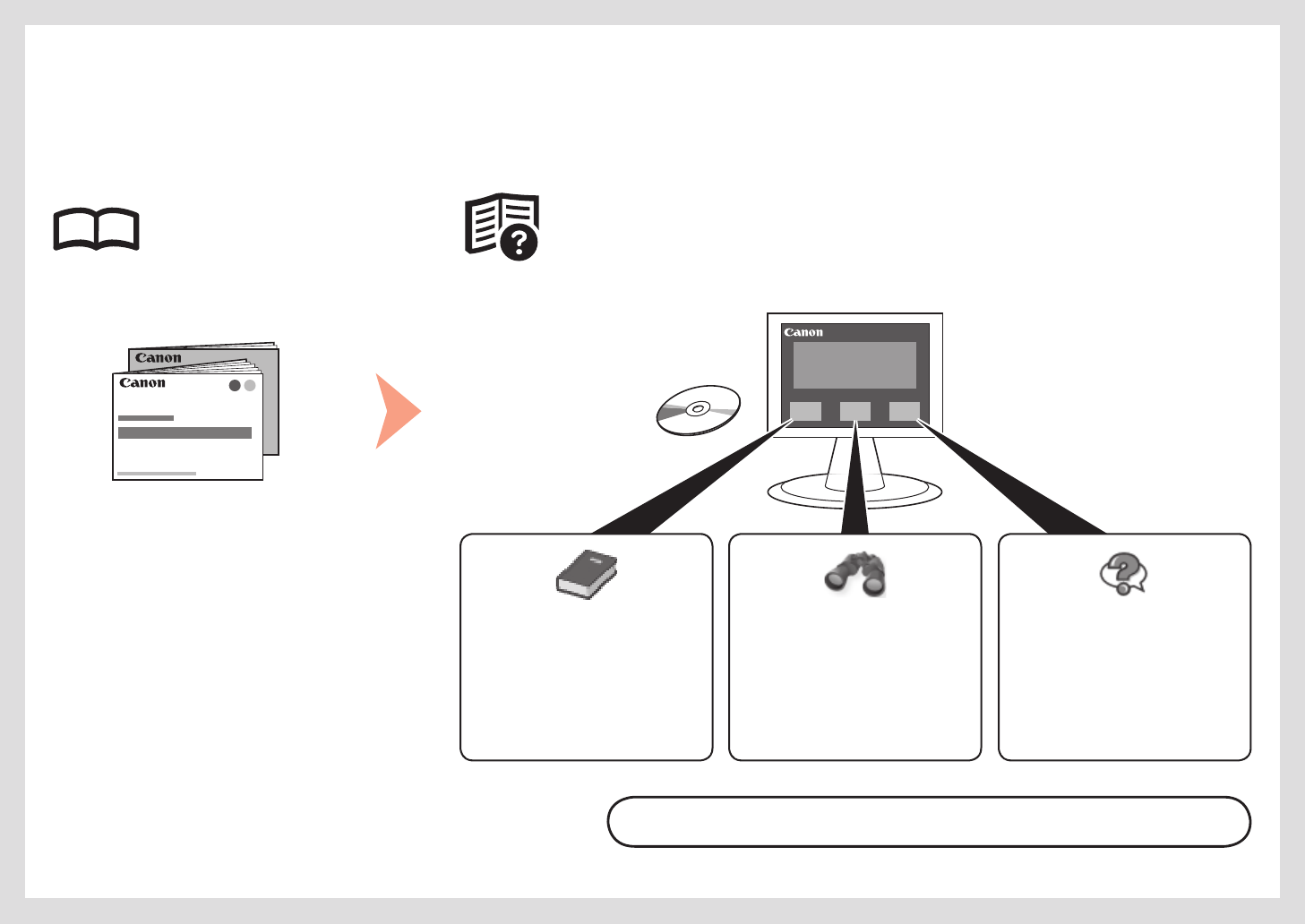
This machine contains both printed manuals and on-screen manuals to be viewed on a computer.
The on-screen manuals are included on the Setup CD-ROM and are installed during the software installation.
Describes how to set up and use
your machine. Introduces the
machine and its functions, the
included manuals and application
software.
Getting Started
(this manual)
•
Network Setup
Troubleshooting
•
Describes basic operations
and media, and gives
an introduction to other
functions available.
Describes various operating
procedures to make full use
of machine.
Describes troubleshooting
tips for problems you may
encounter when using the
machine.
Basic Guide Advanced Guide Troubleshooting
For details on opening the on-screen manuals, refer to page 57.
On-Screen Manuals
Printed Manuals
2
Contents■
9 Install the Software (USB Connection) ..................................
8 Select Connection Method ....................................................P.21
6 Load Paper ............................................................................
4 Install the Print Head .............................................................
3 Turn the Power On ................................................................
2 Connect the Telephone Line ..................................................
1 Check the Included Items ......................................................P.5
P.6
P.7
P.9
P.15
P.22
P.28
P.29
P.33
P.36
7 Set Up for Fax Reception ......................................................P.18
Wireless Setup Using Easy Setup ...................................................
Wireless Setup Using WPS (Wi-Fi Protected Setup) ......................
Wireless Setup Using WCN (Windows Connect Now) ....................
10 Wireless Setup ......................................................................
13 Use from Additional Computers .............................................
Try Copying .....................................................................................
Print Photos from a Computer .........................................................
Send Faxes .....................................................................................
14 Try Using the Machine...........................................................
P.56
P.58
P.60
P.61
P.57
15 Specications ........................................................................P.63
5 Install the Ink Tanks ...............................................................P.12
P.41 11 Wired Setup ...........................................................................
P.45 12 Install the Software (Network Connection) ............................
P.45
P.50
P.54
Install the Software ..........................................................................
Install the Software (Registration) ...................................................
Install the Software (Information) ....................................................
3
Network Connection
Wireless Connection
USB Connection Using from Additional
Computers
Machine Preparation
Fax Reception Setup
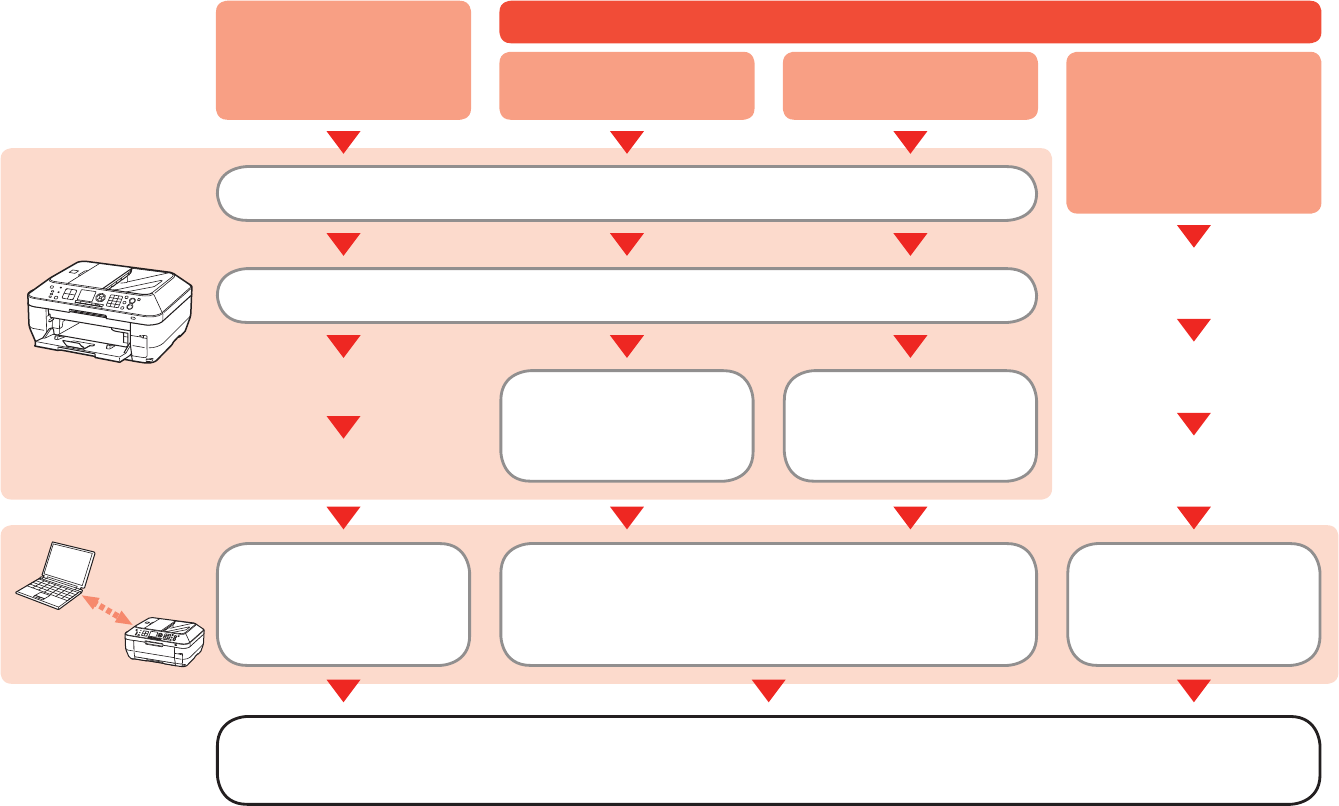
Machine Installation Flow■
P.4 - 17
P.18 - 20
Software Installation
P.56
P.45 - 55
Software Installation
P.21 - 27
Machine Wireless
Setup
P.21, 28 - 40
Software Installation
P.45 - 55
Machine Wired
Setup
P.21, 41 - 44
Installation Complete
Try Using the Machine P.57 - 62
Wired Connection
(when the machine is already
connected to the network and
you want to add computers
from which to use the machine)
4
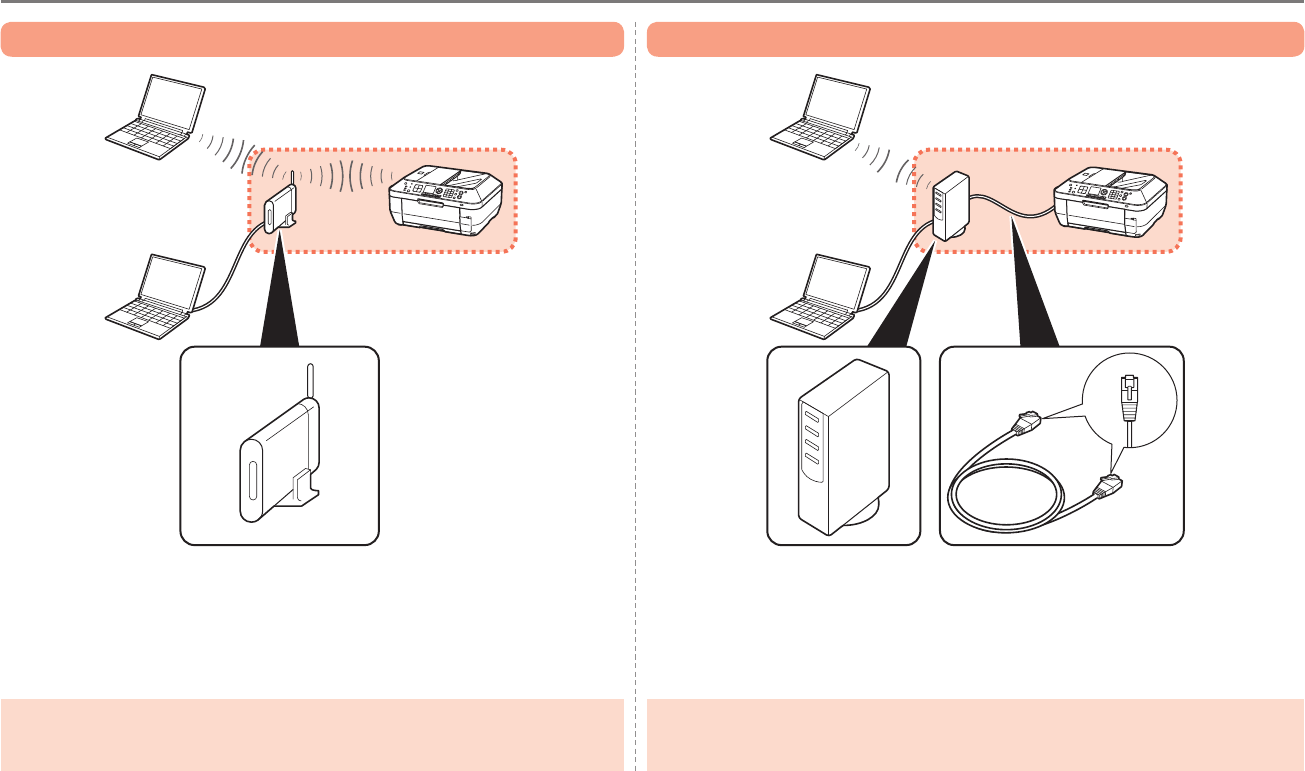
Devices Required for Wireless/Wired Connection■
Wireless Connection
When using the machine over a wireless/wired connection, the following devices are required depending on the connection method.
Wired Connection
Router, etc.
A commercial access point or router that supports IEEE802.11b/g is required. A commercial network device (router, etc.) and Ethernet cable are required.
Ethernet cableAccess point or wireless
router
1
A
5
Remove all orange tape and
protective materials from the inside
and outside of the machine.
Preparation□
1
The Print Head is placed inside of
the Paper Output Tray (A). Open the
Paper Output Tray and take it out.
2
Ink tanks
(5: BK, M, Y, PGBK, C)
Print Head Power cord
Other documents
Manuals
Telephone line cable
Setup CD-ROM (containing the
drivers, applications and on-screen
manuals)
Check that all the items shown below are included in the box.
Check the Included Items
A USB cable is necessary to
connect the machine with your
computer (USB connection only).
•
2
A
2
1
B
21
6
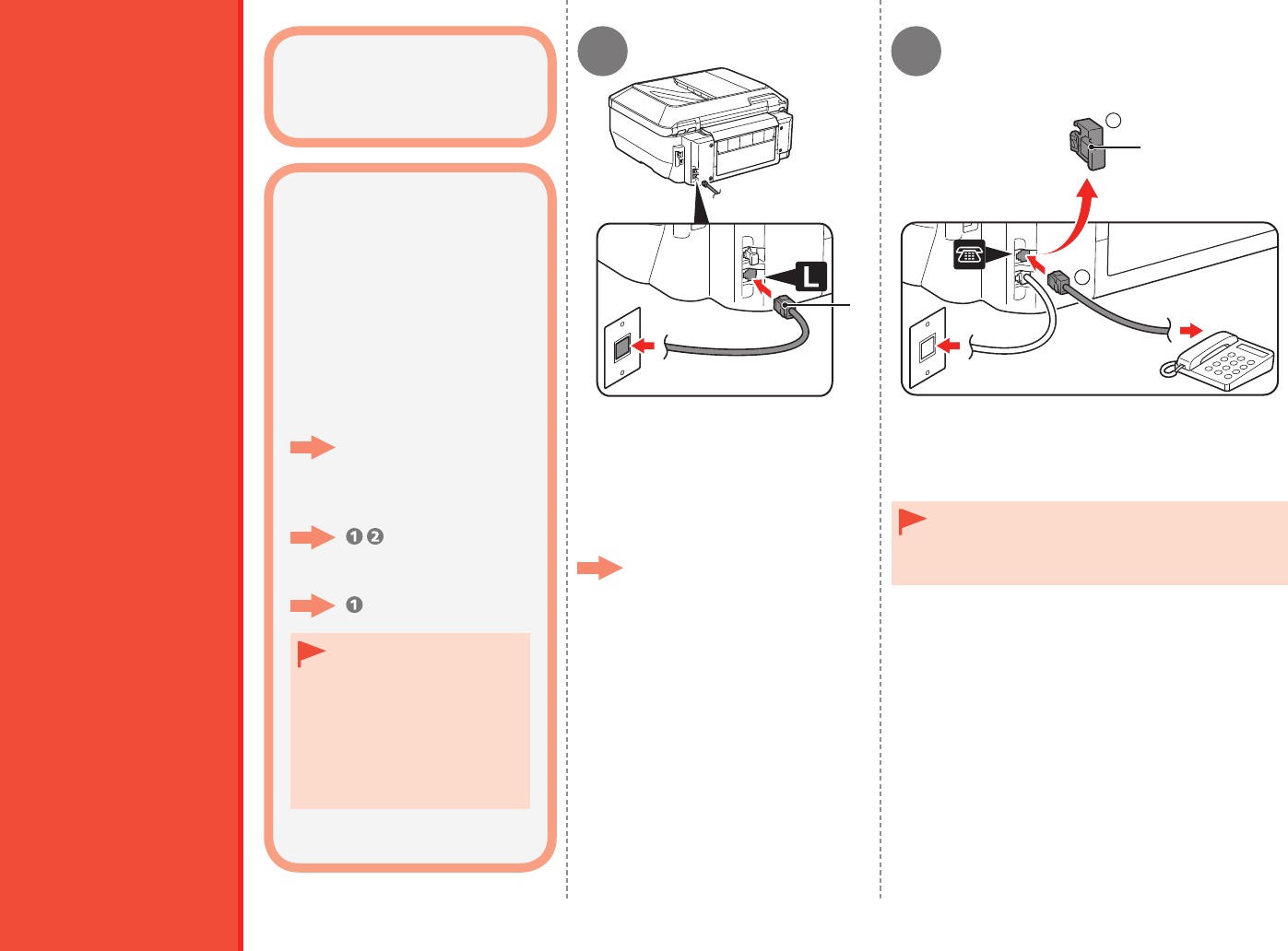
To use the machine as a fax,
a telephone line needs to be
connected.
This section describes the
basic method of telephone line
connection.
When using as both a fax and
telephone:
When using as a fax only:
When not using as a fax:
Go to "3 Turn the Power
On" on page 7.
only
Connect the machine with a
telephone line using the supplied
telephone line cable (A).
Remove the Cap (B) (1), then connect a telephone
with the telephone line cable (2).
When using as a fax only:
Go to "3 Turn the Power On" on
page 7.
Do not connect the machine and a telephone
in parallel to the same telephone line using a
distribution adapter. The machine may not operate
properly.
•
Only when connecting a telephone:
For other connection methods,
refer to the on-screen manual:
Basic Guide.
Connect the Telephone Line
If you cannot send
faxes after installing
the machine, check the
telephone line type.
For details, refer to
"Conrming the Telephone
Line Connection" in the
on-screen manual: Basic
Guide.
•
Do not turn the
power on yet.
31 2
A
B
7
Turn the Power On
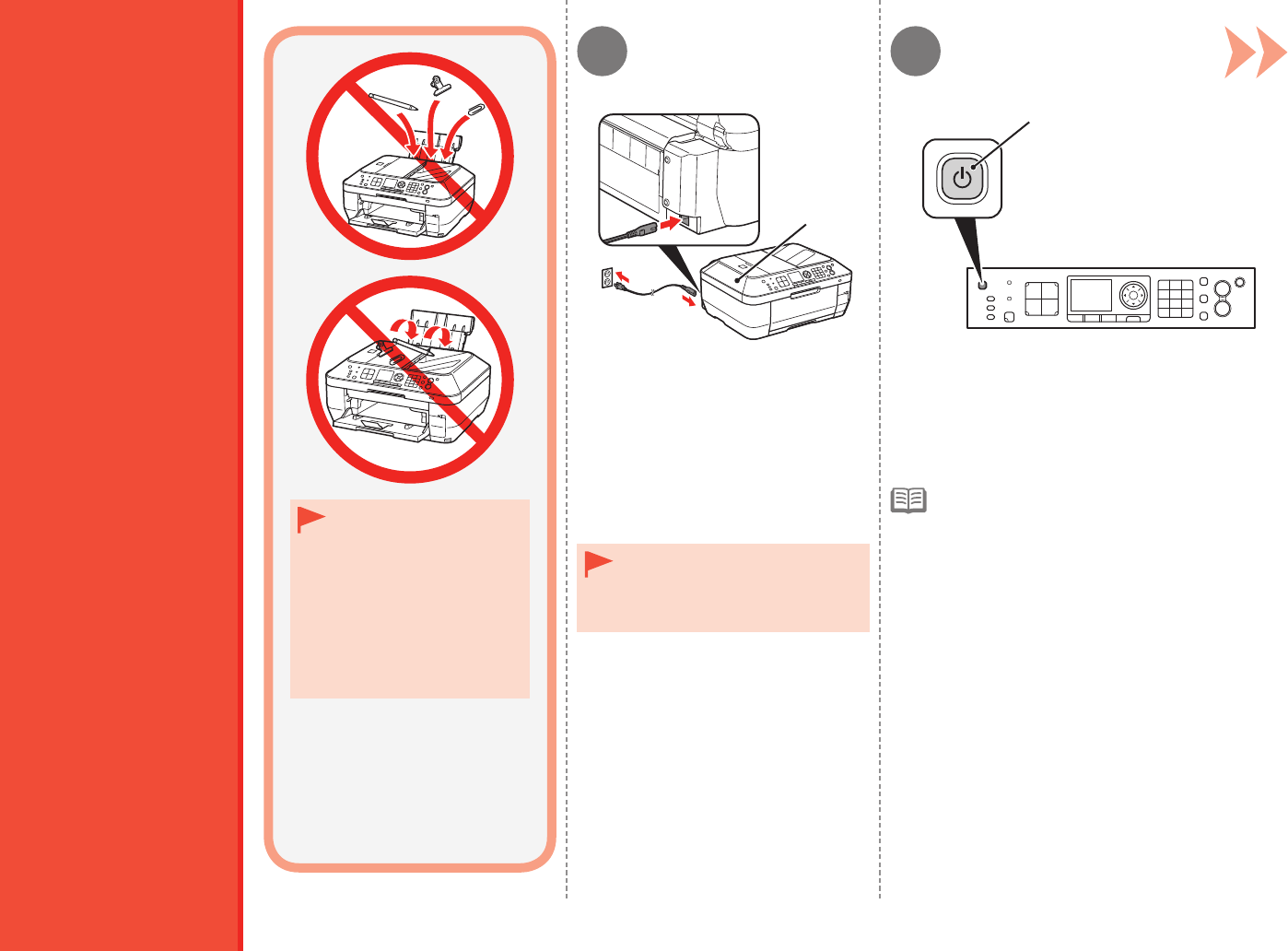
Do not install the machine
where an object may fall
on it. The object may
fall inside the machine,
resulting in malfunction.
Do not place any object on
top of the machine. It may
fall into the machine when
opening covers, resulting
in malfunction.
•
•
Insert the power cord into the
connector on the left side at the back
of the machine and into the wall
outlet.
Press the ON button (B) to turn on the machine.
Do NOT connect the USB cable or
Ethernet cable at this stage.
Make sure that the Document
Cover (A) is closed.
•
•
The machine may make some operating noises.
This is normal operation.
•
3 4
C
D
E
1 2
A
8
Turning the power off□
1. Press the ON button (A) to turn off the machine.
2. Make sure that all the lamps on the Operation Panel
are not lit.
Operating noise may continue for up to 30 seconds until the
machine turns off.
3 Turn the Power On
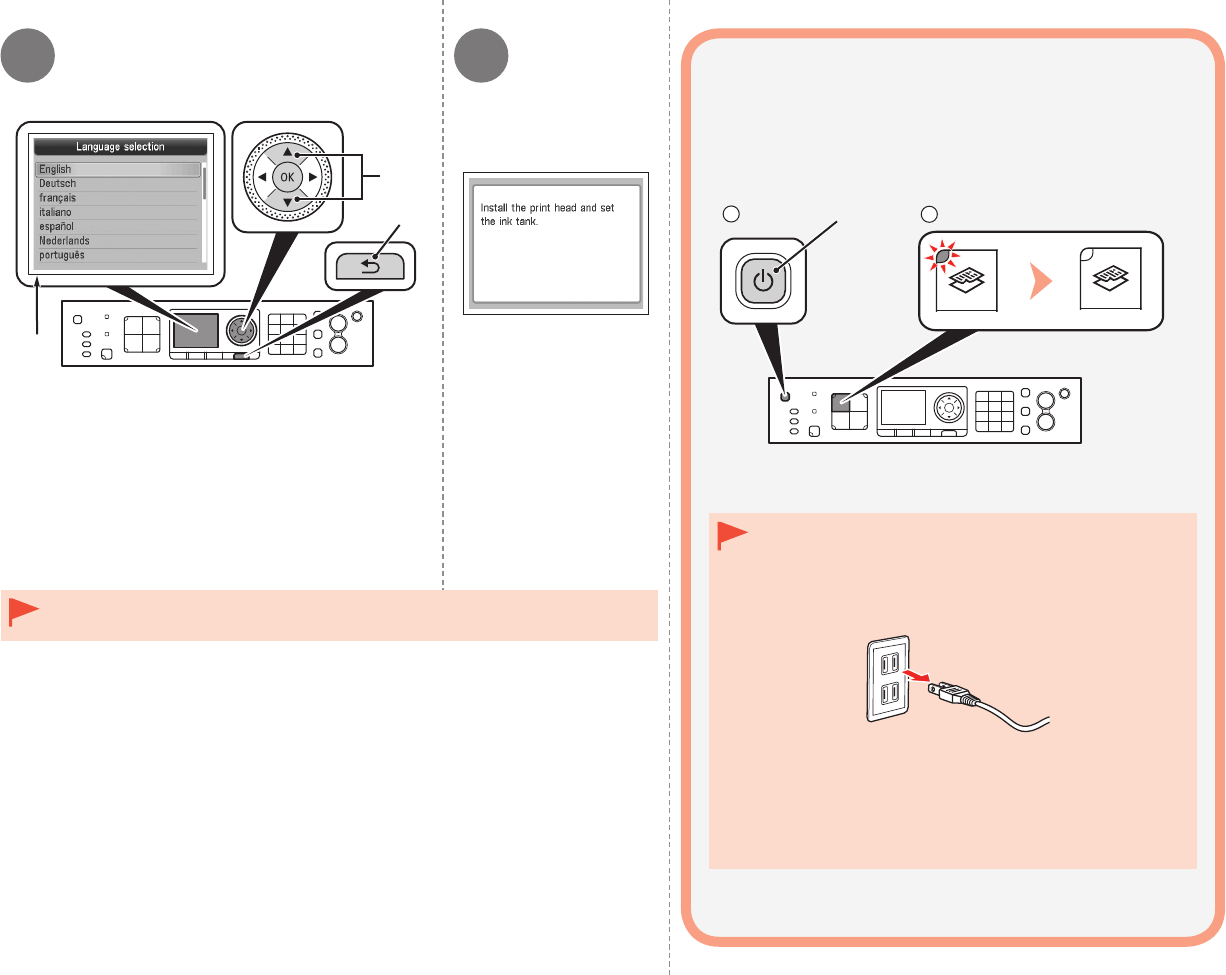
Use the { or } button (C) on the Operation Panel
to select the language for the LCD (Liquid Crystal
Display) (D), then press the OK button.
If an unintended language is displayed on the LCD, press the Back button (E) to
return to the Language selection screen.
•
Make sure that the
above screen is
displayed and go to the
next step.
When removing the power plug, make sure that all the
lamps on the Operation Panel are not lit before removing
the plug. Removing the power plug while all the lamps on
the Operation Panel light up or ash may cause drying and
clogging of the Print Head, resulting in poor printing.
•
If your machine is used as fax
Removing the power plug deletes all faxes stored
in memory. Send or print faxes as necessary before
removing the power plug.
•
Be sure to follow the procedure below.
41 2 3
A
B
C
D
F
D
E
G
9
Install the Print Head
Do not touch the buttons or LCD (E) on the Operation Panel (F). May result in unintended operation.
When opening the Scanning Unit (Cover), the Print Head Holder (G) moves automatically.
The Print Head Holder makes a noise as it moves. This is normal operation.
If the Print Head Holder does not move, make sure that the machine is turned on.
•
•
•
•
Open the Paper Output
Tray (A).
Lift the Scanning Unit (Cover) (B) and x it with the Scanning Unit Support
(C).
Make sure that the Print
Head Holder moves to
the installation position.
Go to the next
page.
Close the Document Cover (D) and lift it with the Scanning Unit (Cover).
4 65
H
I
JK
10 4 Install the Print Head
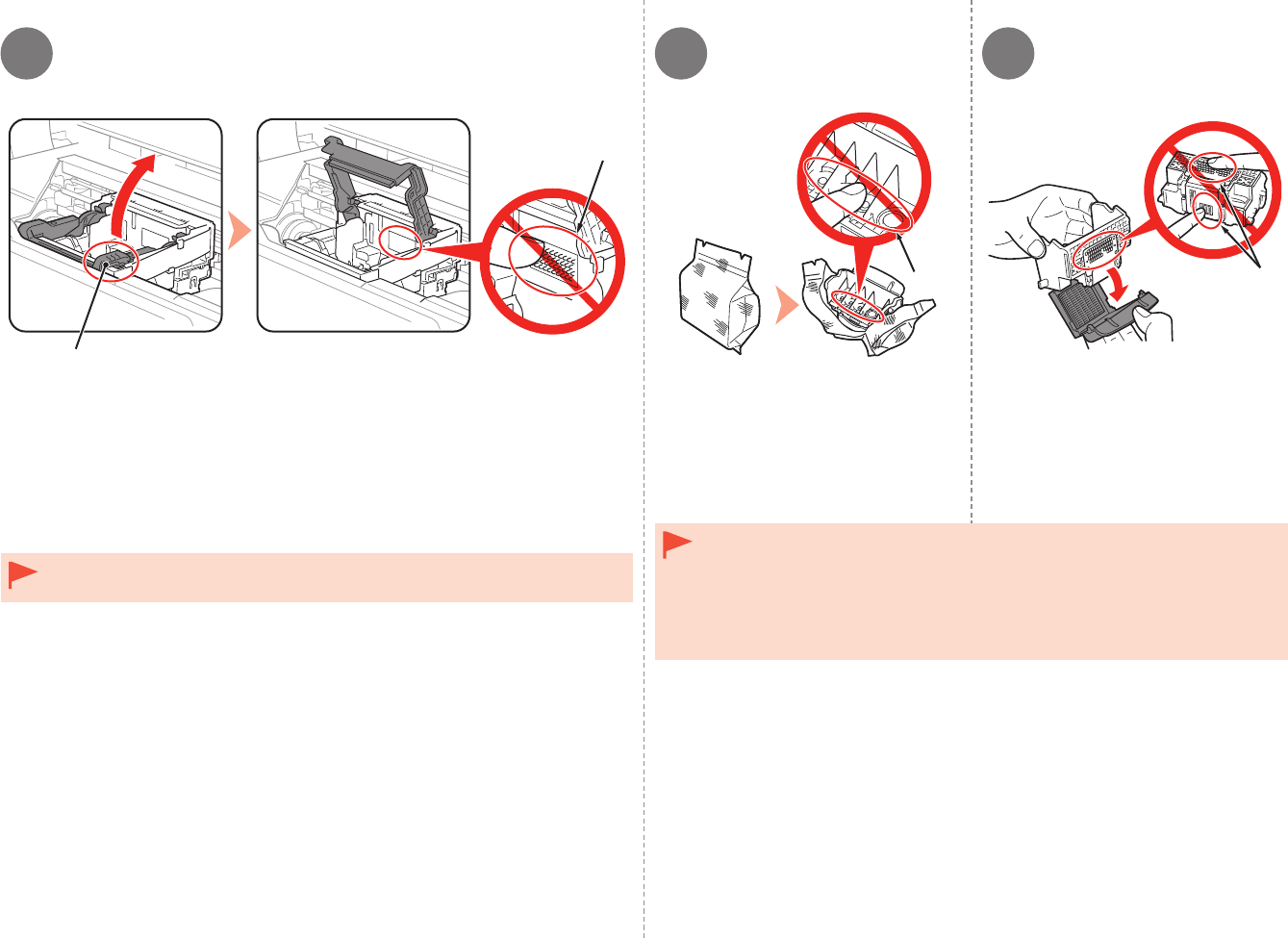
Firmly lift the part (H) of the Print Head Lock Lever in the Print Head Holder
until it stops.
Do not touch the inside of the Print Head Holder (I). The machine may not print
properly if you touch it.
•
Remove the Print Head from the
silver package.
Remove the orange protective cap.
Handle the Print Head carefully. Do not drop or apply excessive pressure to it.
Do not touch the inside (J) or metal parts (K) of the Print Head. The machine may
not print properly if you touch them.
There may be some transparent or light blue ink on the inside of the bag the Print
Head comes in, or the inside of the protective cap - this has no effect on print
quality. Be careful not to get ink on yourself when handling these items.
•
•
•
The Print Head Lock Lever may feel heavy.
7 8
11
4 Install the Print Head
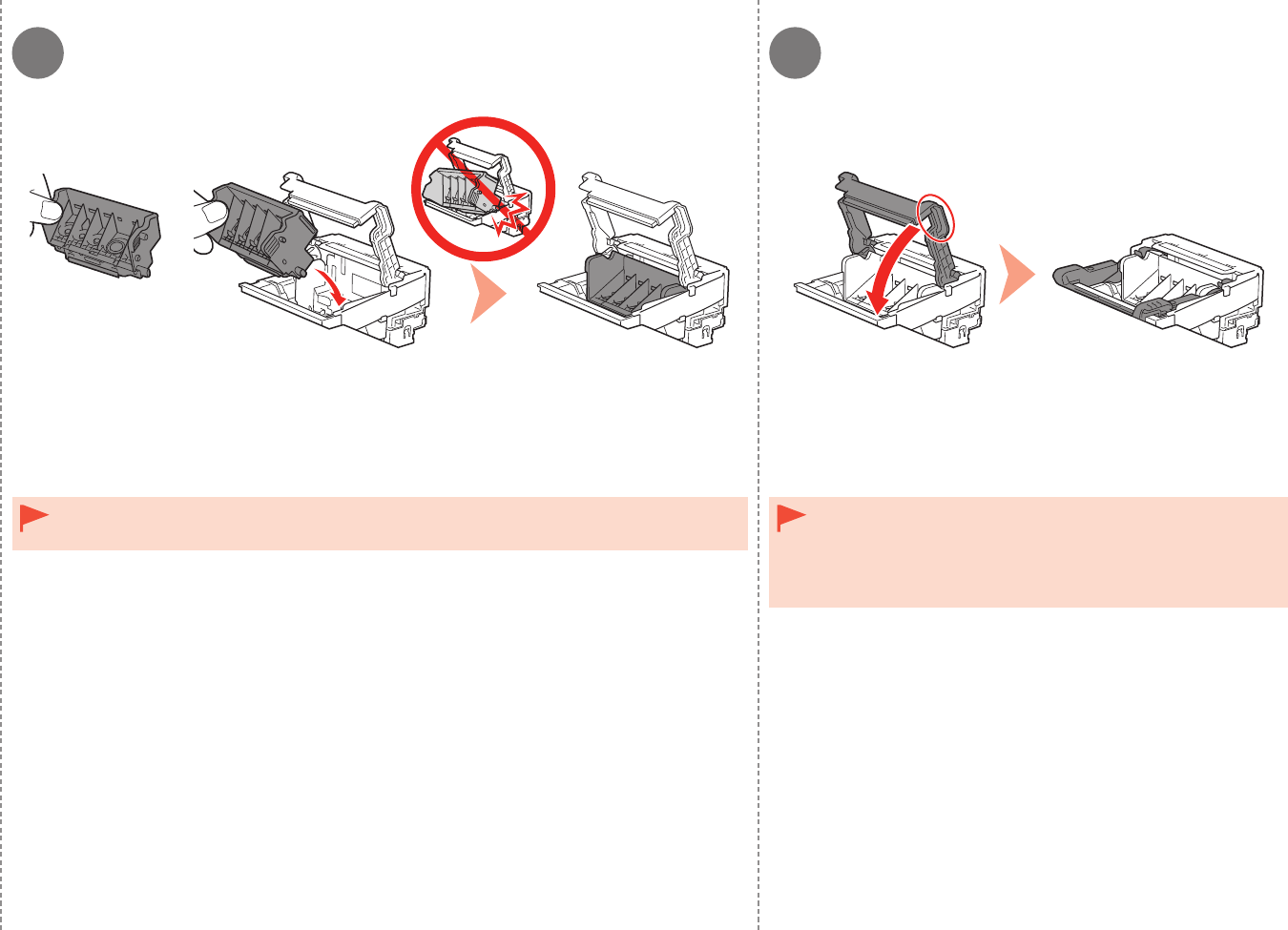
Tilt the Print Head forward and set it in place as shown. Hold the Print Head Lock Lever rmly and lower it completely.
Do not knock the Print Head against the sides of the holder.
Install in a well-lit environment.
•
•
Once you have installed the Print Head, do not remove it
unnecessarily.
If the Scanning Unit (Cover) is left open for more than 10 minutes,
the Print Head Holder moves to the right. In this case, close and
reopen the Scanning Unit (Cover).
•
•

51 2 3
A
B
C
D
12
Install the Ink Tanks
1. Remove the orange tape
completely.
2. Remove the protective lm
completely.
Handle the ink tanks carefully.
Do not drop or apply excessive
pressure to them.
Be sure to use the supplied ink
tanks.
•
•
Hold the ink tank with the orange
protective cap (A) pointing up while
being careful not to block the L-shape
air hole (B).
If the orange tape remains on the L-shape air hole, ink may splash or the machine may not print
properly.
If you push the sides of the ink tank with the L-shape air hole blocked, ink may splash.
Do not touch the inside (C) of the orange protective cap or the open ink port (D). The ink may stain
your hands if you touch them.
•
•
•
Slowly twist the orange protective cap 90 degrees
horizontally to remove it off.
Do not push the sides of the ink tank.
4 5 6
13
5 Install the Ink Tanks
Tilt the ink tank, then insert it under the label and
against the back end of the slot.
Install in a well-lit environment.•
Press the PUSH mark on the ink tank rmly until it
clicks.
When the installation is completed properly, the Ink lamp
lights red.
Install all the other ink tanks in the same way
according to the color order indicated on the label.
Make sure all the Ink lamps light red.
Once you have installed the ink tanks, do not
remove them unnecessarily.
•
Make sure that the color of the label matches the ink
tank.
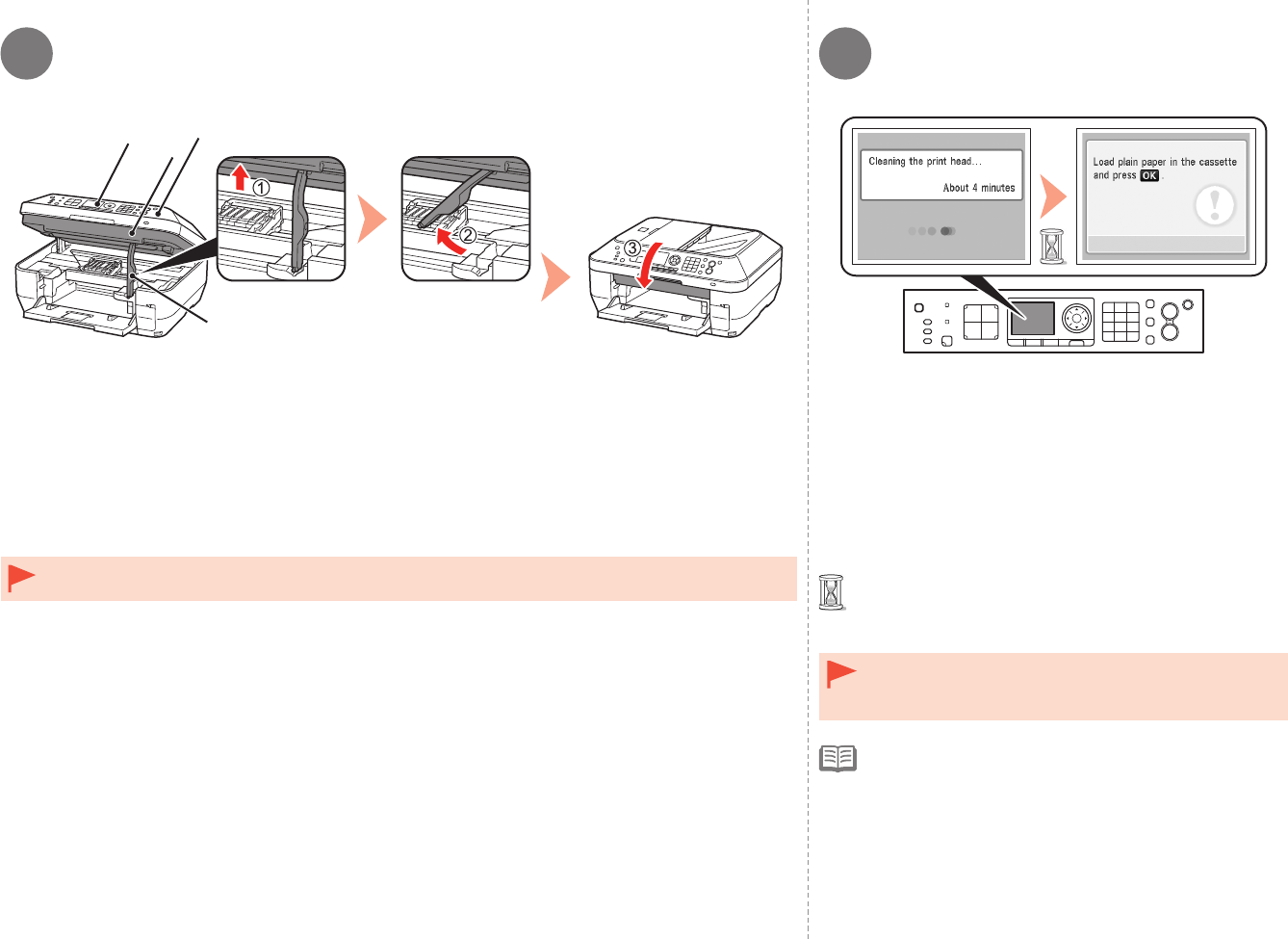
8
E
F
G
7
H
14 5 Install the Ink Tanks
1. Lift the Scanning Unit (Cover) (E) slightly.
2. Fold the Scanning Unit Support (F) towards the left.
3. Close the Scanning Unit (Cover).
Do not touch the buttons or LCD (G) on the Operation Panel (H). May result in unintended operation.•
Make sure that the LCD changes as shown in the
illustration and go to the next step.
It takes about 4 minutes before the LCD changes.
The machine may make some operating noises when
preparing to print. This is normal operation.
•
•
If an error message is displayed on the LCD, make
sure that the Print Head and the ink tanks are correctly
installed.
•
The LCD will turn off if the machine is not operated for
about 5 minutes. To restore the display, press any button
except the ON button.
•
Load plain paper in the Cassette by referring to “6 Load Paper”
on page 15 and press the OK button.
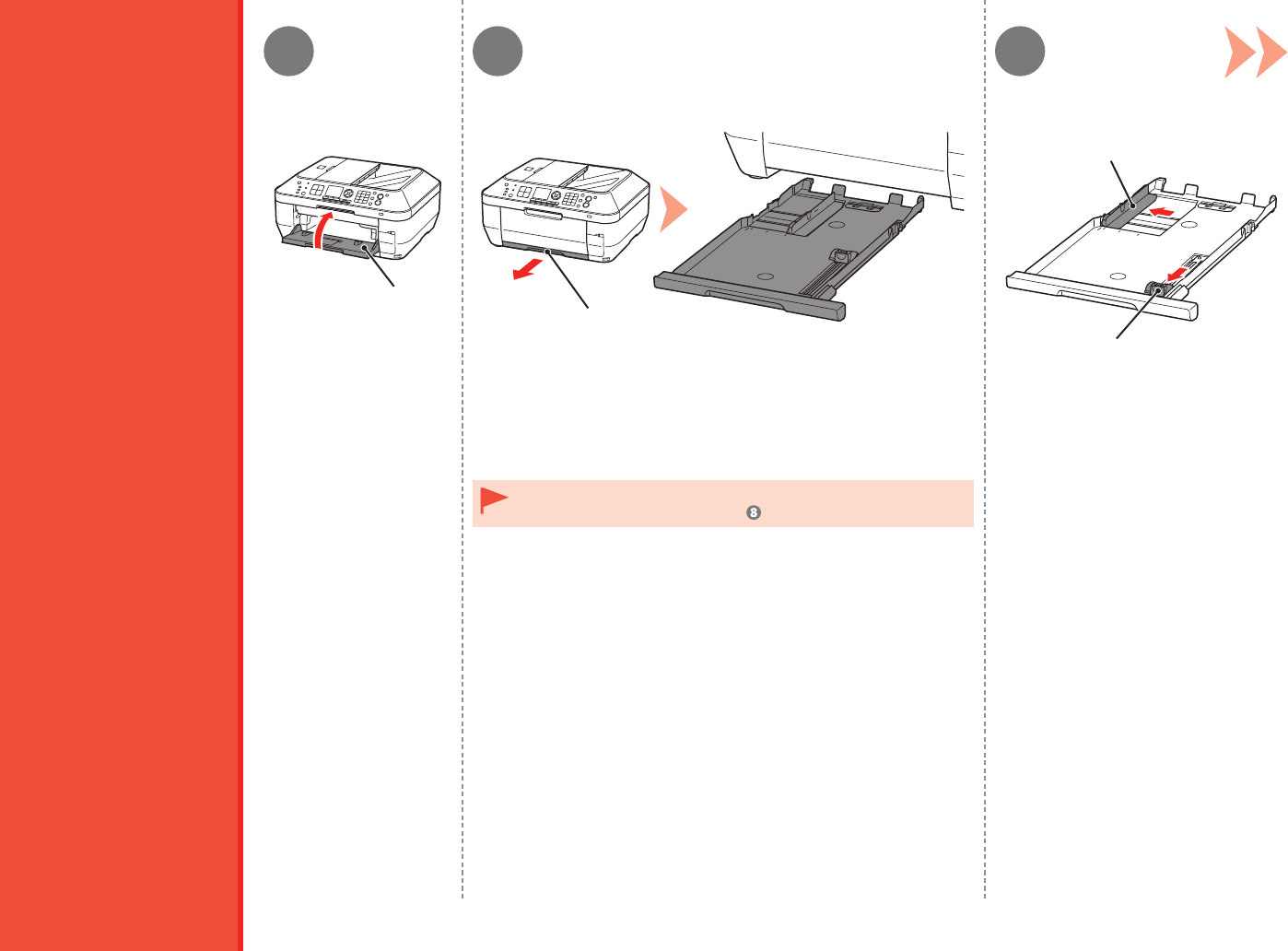
61 32
A
B
C
D
15
Load Paper
Close the Paper Output
Tray (A).
Pull out the Cassette (B). Move the Paper Guides (C) and (D)
to both edges.
The Cassette supports plain paper only. To load specialty paper
including photo paper, refer from on page 17.
•
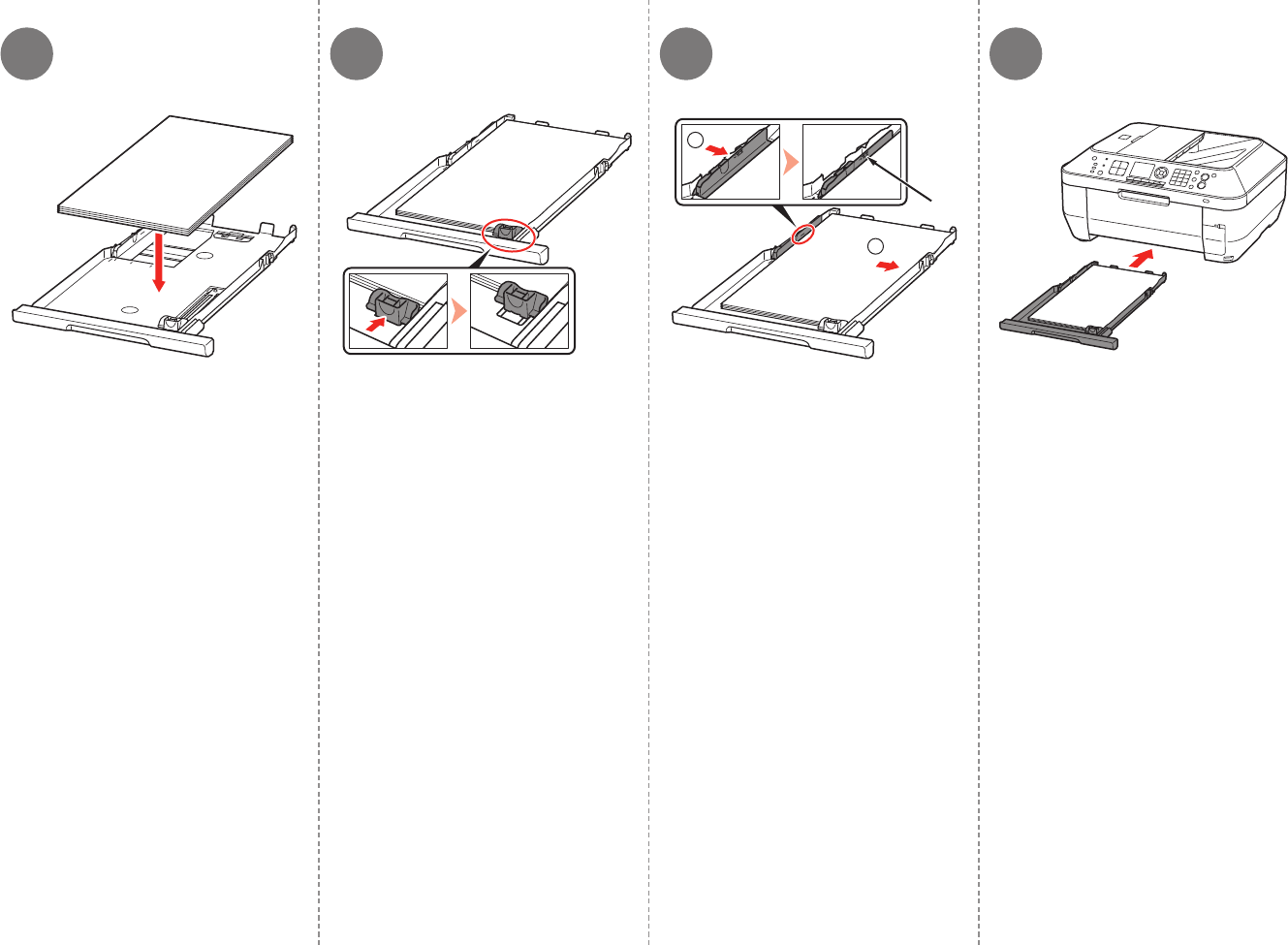
4 65 7
1
2
E
16 6 Load Paper
Load plain paper.
Load paper with the printing side facing
down.
Slide the Paper Guide to align with
the actual size of the paper.
The Paper Guide will click and stop when
it aligns with the corresponding mark of
paper size.
A slight space between the Paper Guide
and the paper stack is acceptable.
Align the paper to the right side of
the Cassette (1), and slide the Paper
Guide against the left edge of the
paper (2).
Make sure that the height of the paper
stack does not exceed the line (E).
Insert the Cassette slowly into the
machine until it clicks into place.
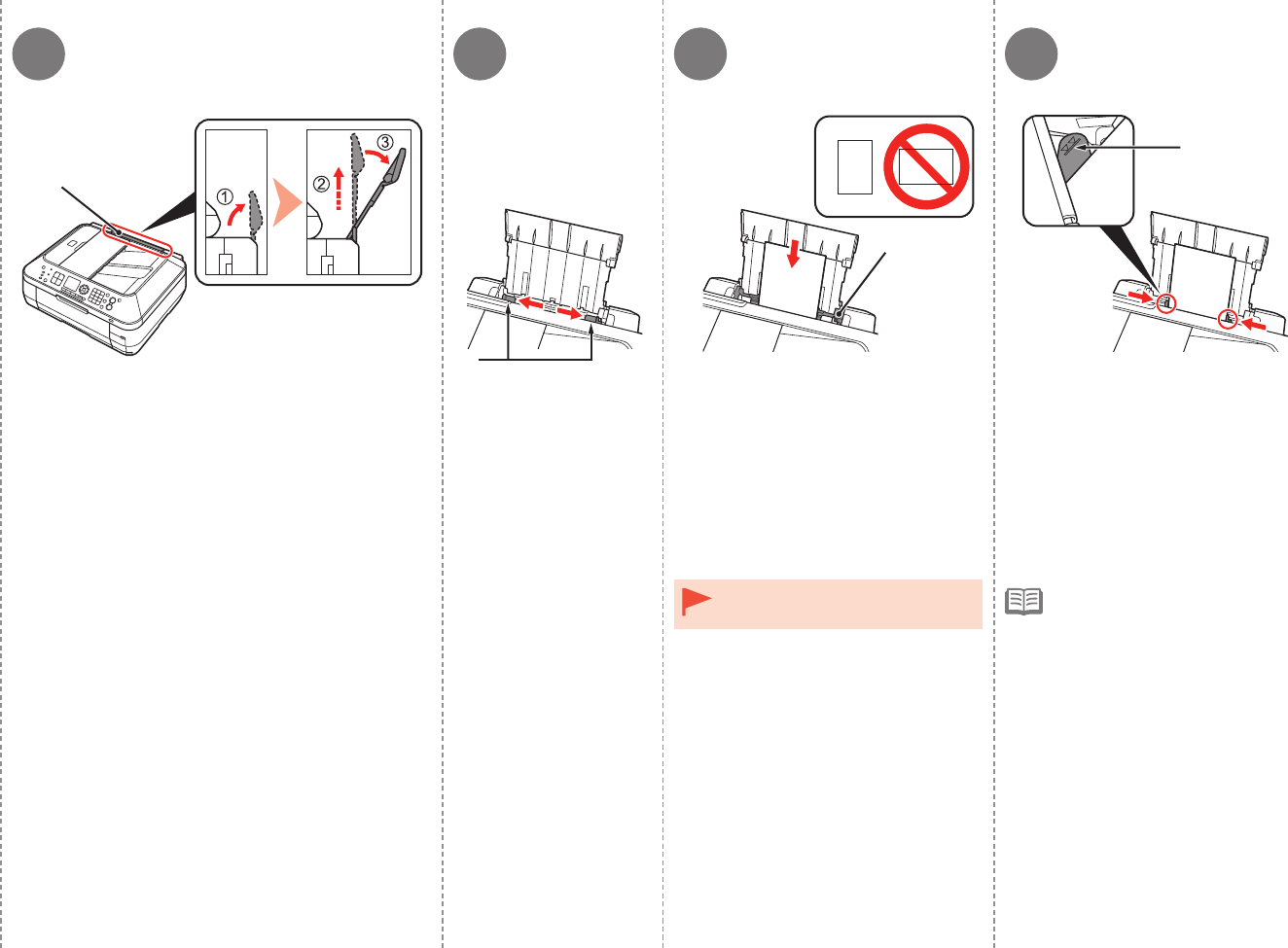
8 9 10 11
F
G
H
I
17
6 Load Paper
Prepare the Paper Support (F).
1. Open it.
2. Withdraw it upwards.
3. Tilt it back.
Move the Paper Guides
(G) to both edges.
Load paper in the center of the Rear
Tray (H).
Load paper in portrait orientation with the
printing side facing up.
Slide the left and right Paper Guides
against both edges of the paper.
Make sure that the height of the paper
stack does not exceed the line (I).
Load specialty paper including
photo paper in the Rear Tray.
•For details on how to handle
paper, refer to “Loading Paper”
in the on-screen manual: Basic
Guide after installation is
complete.
•
7
18
Set Up for Fax Reception
Read this section only when
using the machine as a fax.
If not using the machine as a
fax, go to "8 Select Connection
Method" on page 21.
Intended Use
The following four modes are available for receiving faxes. Select a receive mode according
to your needs. You can change the receive mode any time. Refer to the on-screen manual:
Basic Guide.
Receive Mode
Want to use a dedicated fax
line.
Want to use as a fax only.
•
•
Want to use a telephone line
for voice calls and faxes.
Want to prioritize fax call
reception over voice call
reception because there are
more opportunities to receive
faxes.
•
•
Want to use a telephone line
for voice calls and faxes.
Want to prioritize voice
call reception over fax call
reception because there are
more opportunities to receive
voice calls.
•
•
FAX only mode
TEL priority mode
Voice calls cannot be received unless a
telephone is connected.
FAX priority mode
If you use Distinctive Ring
Pattern Detection (DRPD)
service
•
DRPD
19
7 Set Up for Fax Reception
Even when a
telephone is
connected to
the machine,
the telephone's
ringtone may
not sound for
an incoming call
depending on the
type or settings of
the telephone.
•
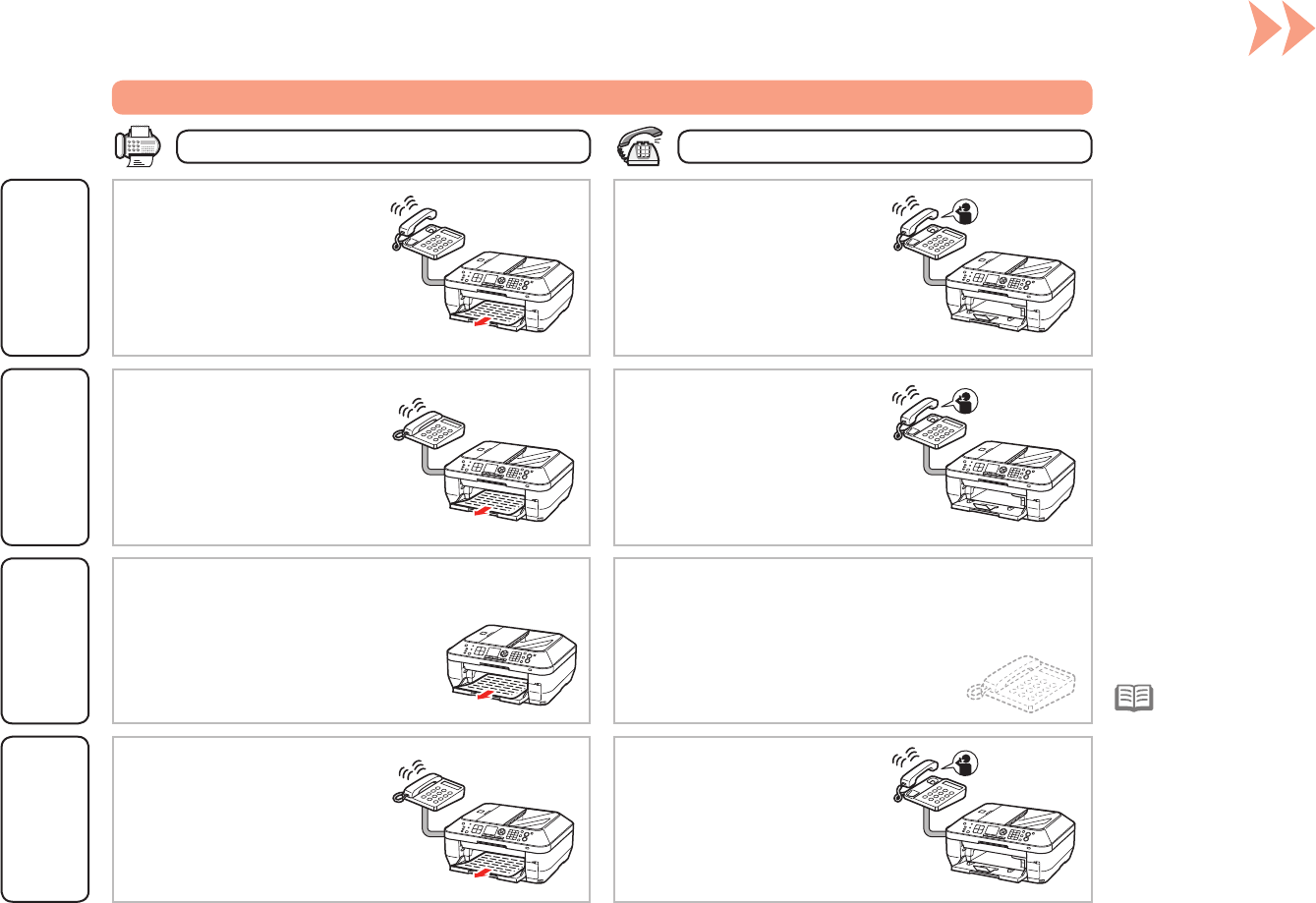
When a voice call arrives:When a fax call arrives:
The fax is received automatically. The call cannot be answered.
The telephone’s ringtone sounds,
then the machine’s ringtone
sounds. Pick up the handset to
answer the call.
The telephone’s ringtone sounds.
The fax is received automatically.
While the telephone's ringtone
sounds, pick up the handset to
answer the call.
While the telephone's ringtone
sounds, pick up the handset. When
the fax reception starts, replace
the handset.
If an answering machine is
connected, the fax is received
automatically.
Responses to Calls in Each Mode
FAX only mode FAX priority mode TEL priority mode
The telephone’s ringtone sounds.
The fax is received automatically
when the machine detects the fax
ring pattern.
DRPD
The telephone continues to ring.
Pick up the handset to answer the
call.
321
AB
C
20 7 Set Up for Fax Reception
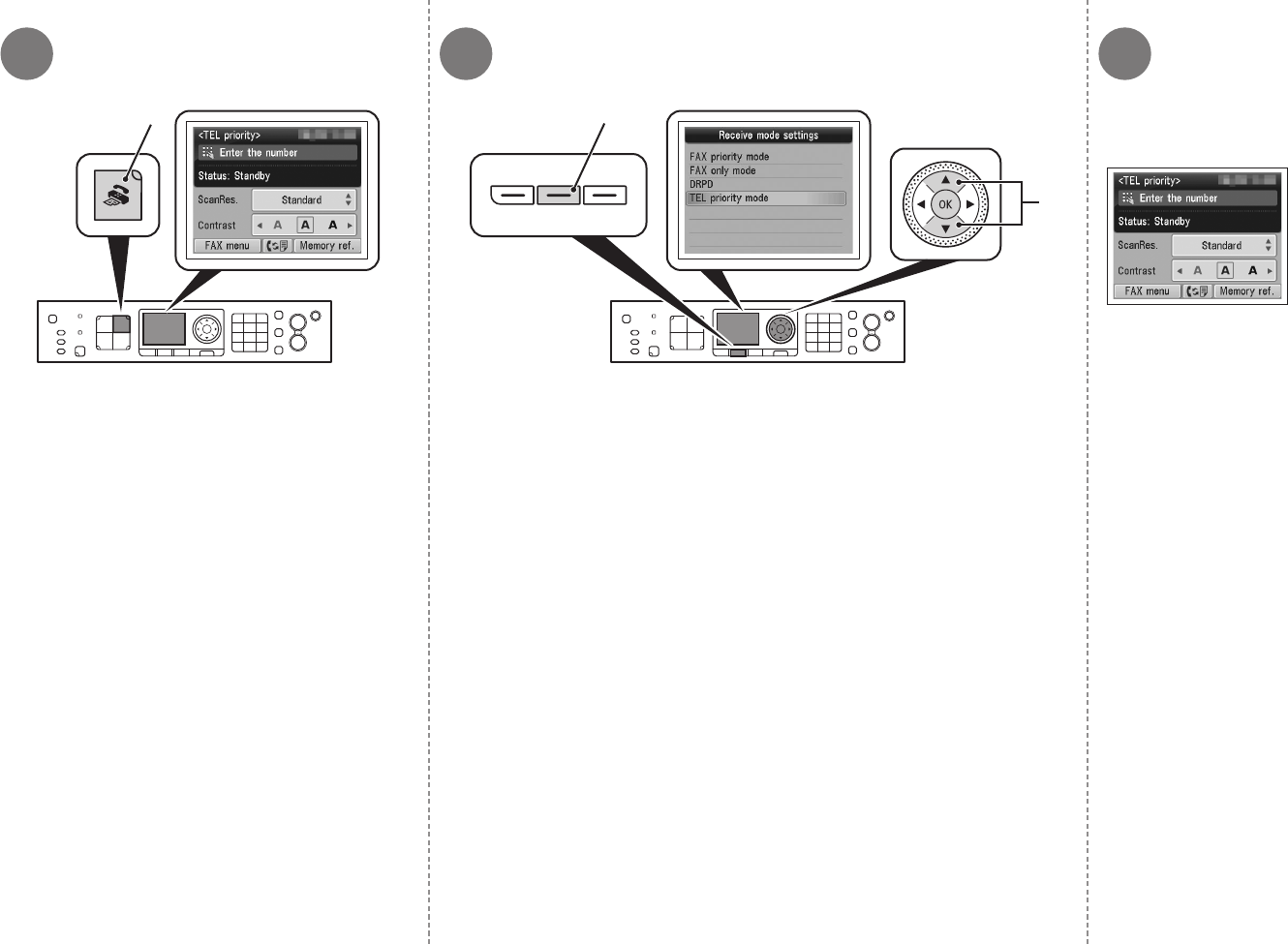
Press the FAX button (A).
The fax standby screen is displayed.
Press the FUNCTION button (B), then use the { or } button (C) to select a
receive mode.
Press the OK button.
The fax standby screen
returns.
8
21
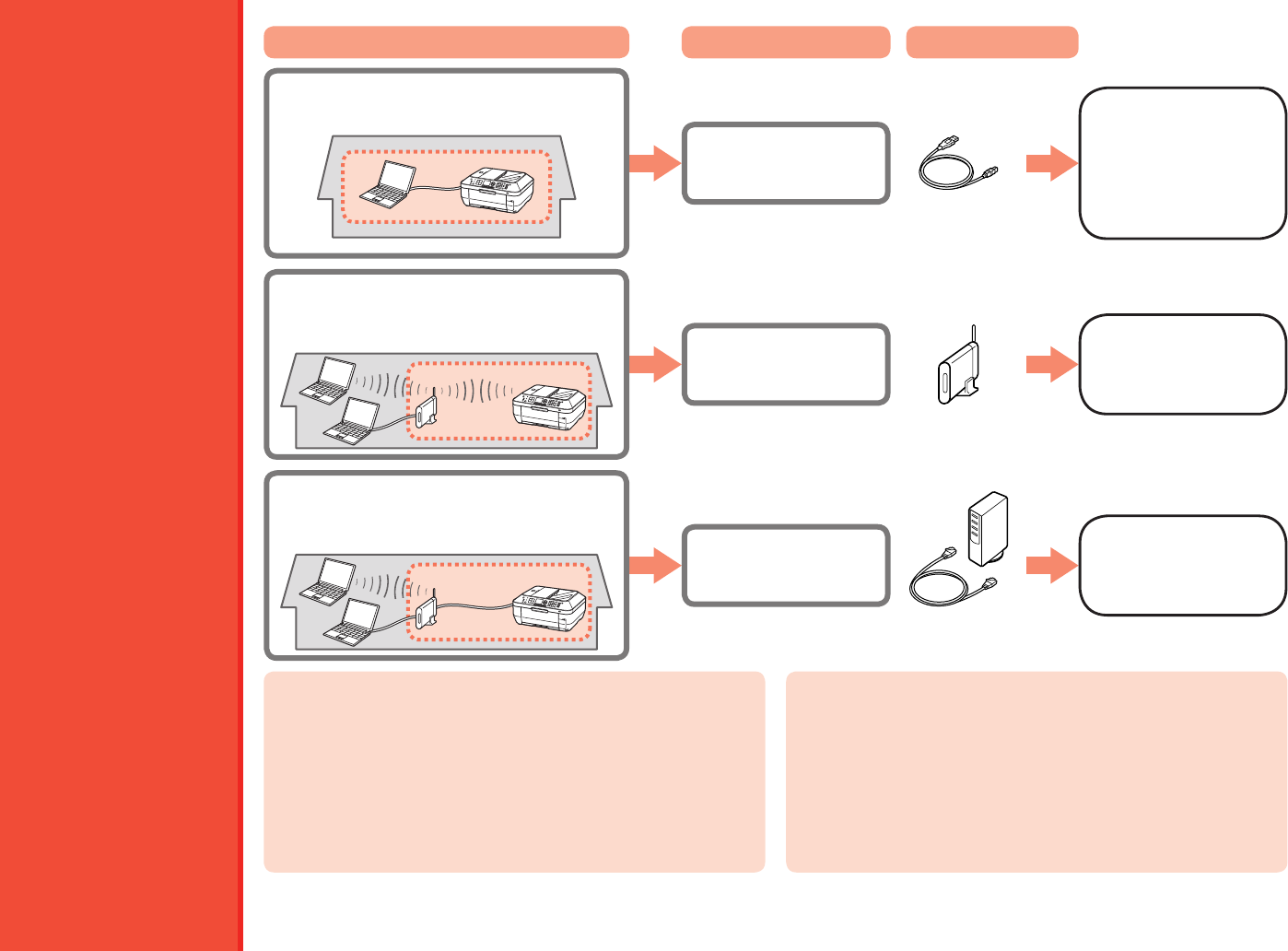
Want to connect to a computer with a
USB cable.
•
Want to connect to computers without
using cables.
Want to use from multiple computers.
•
•Wireless
Connection
USB
Connection
What is LAN (Local Area Network)?
What is Network?
A system to exchange information between computers by connecting
them to each other with cables or via wireless communication. The
Internet and LAN are types of networks.
A type of network that connects computers to each other within a
limited area (room, building, etc.).
Access point or
wireless router
USB cable
Intended Use Connection Method Device Required
Go to "9
Install the
Software (USB
Connection)" on
page 22.
Go to "10
Wireless Setup"
on page 28.
If it is uncertain whether your device (access point, router, etc.) supports
wireless connection or wired connection, refer to the manual supplied
with the device, or contact its manufacturer.
If Your Device Supports Wireless Connection
If Your Device Supports Wired Connection
Want to use from multiple computers.
Want to connect to a computer with an
Ethernet cable.
•
•
Wired
Connection
Ethernet cable,
router, etc.
Go to "11 Wired
Setup" on page
41.
Check if it supports simultaneous connection of multiple computers and
network devices.
Check if it supports IEEE802.11b/g.
Select Connection Method
9
22
Quit all running applications before installation.
Log on as the administrator (or a member of the
Administrators group).
Do not switch users during the installation process.
Internet connection may be required during the installation.
Connection fees may apply. Consult the internet service
provider.
It may be necessary to restart your computer during the
installation process. Follow the on-screen instructions and
do not remove the Setup CD-ROM during restarting.
The installation resumes once your computer has
restarted.
Mac OS 9, Mac OS X Classic environments, or Mac OS X
v.10.4.10 or earlier are not supported.
•
•
•
•
•
•
Do not connect the USB cable
yet.
Install the Software (USB Connection)
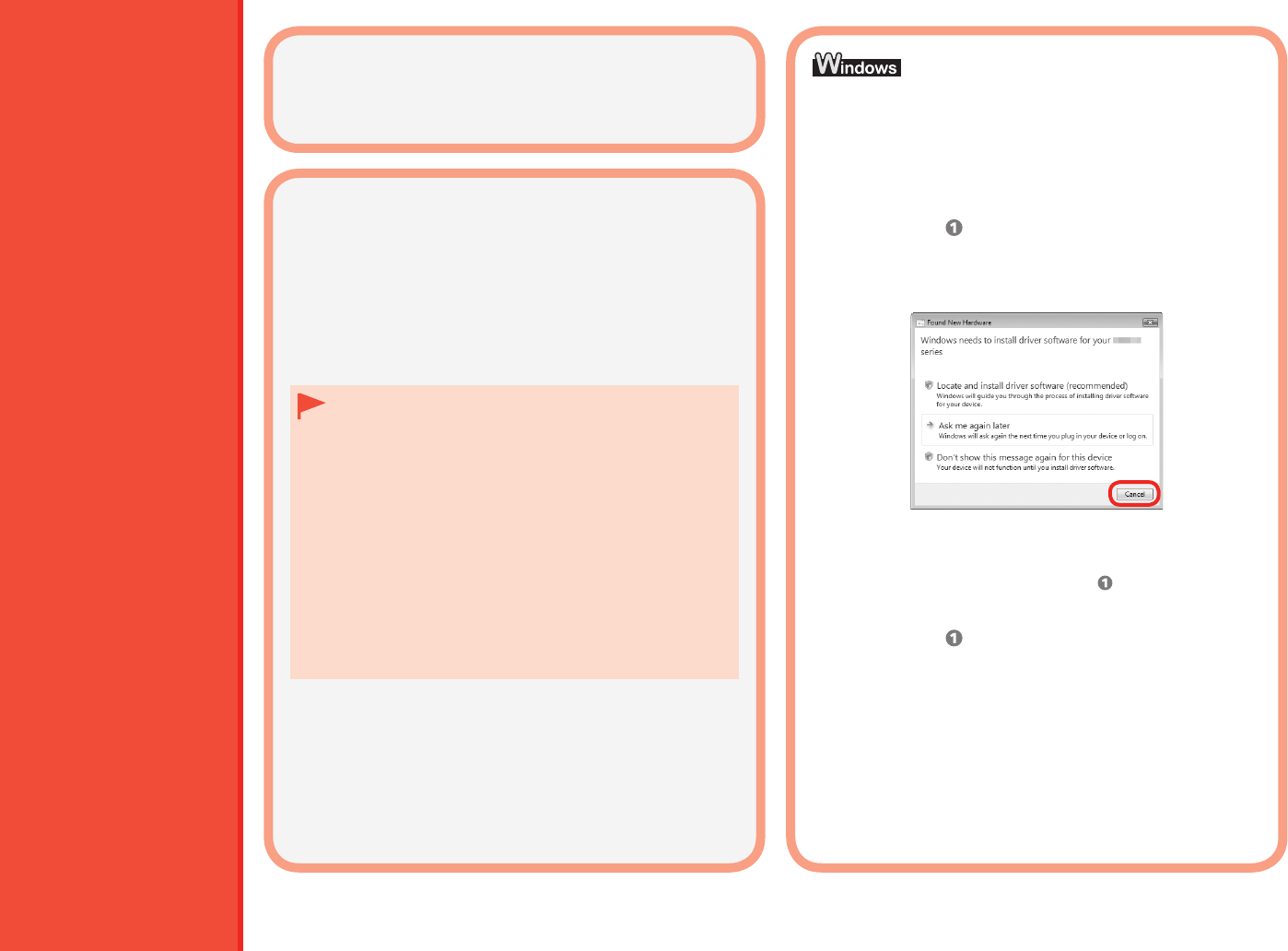
If you connect the machine via USB cable before
installing the software:
□
If the dialog box closes, proceed to on page 23.
2. Click Cancel.
3. Proceed to on page 23.
1. Remove the USB cable connected to your
computer.
Easy-WebPrint EX□
If you are using Internet Explorer 7 or later, you can
use the Web print software Easy-WebPrint EX. An
internet connection is required for installation.
For Windows 7
1. Remove the USB cable connected to your
computer.
2. Proceed to on page 23.
For Windows Vista/Windows XP/Windows 2000
The following dialog box may appear.
To use the machine by connecting it to a computer,
software including the drivers needs to be copied
(installed) to the computer’s hard disk. The installation
process takes about 20 minutes. (The installation time
varies depending on the computer environment or the
number of application software to be installed.)
Screens are based on Windows Vista Ultimate and Mac
OS X v.10.5.x.
•
•
A
21
23
9 Install the Software (USB Connection)
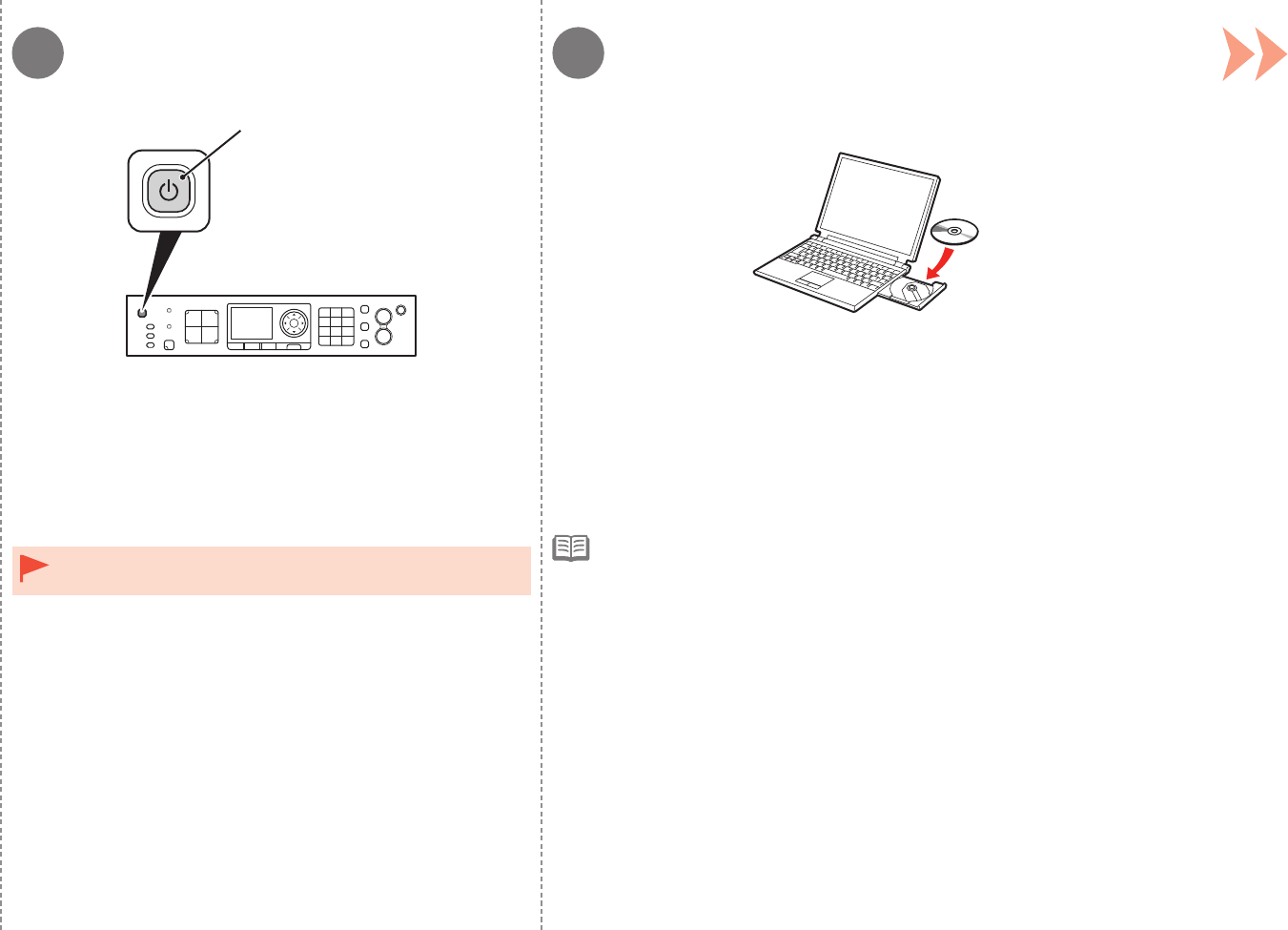
Turn on the computer, then insert the Setup CD-ROM into the CD-ROM drive.
If you are using Windows, the setup program starts automatically.
Press the ON button (A) to TURN OFF THE MACHINE.
Operating noise may continue for up to 30 seconds until the machine
turns off.
For Windows
Do NOT connect the USB cable to the computer and the machine
yet. If you have already connected the cable, disconnect it now.
•If the program does not start automatically, double-click the CD-ROM icon in
Computer or My Computer. When the CD-ROM contents appear, double-click
MSETUP4.EXE.
•
3
3
24 9 Install the Software (USB Connection)
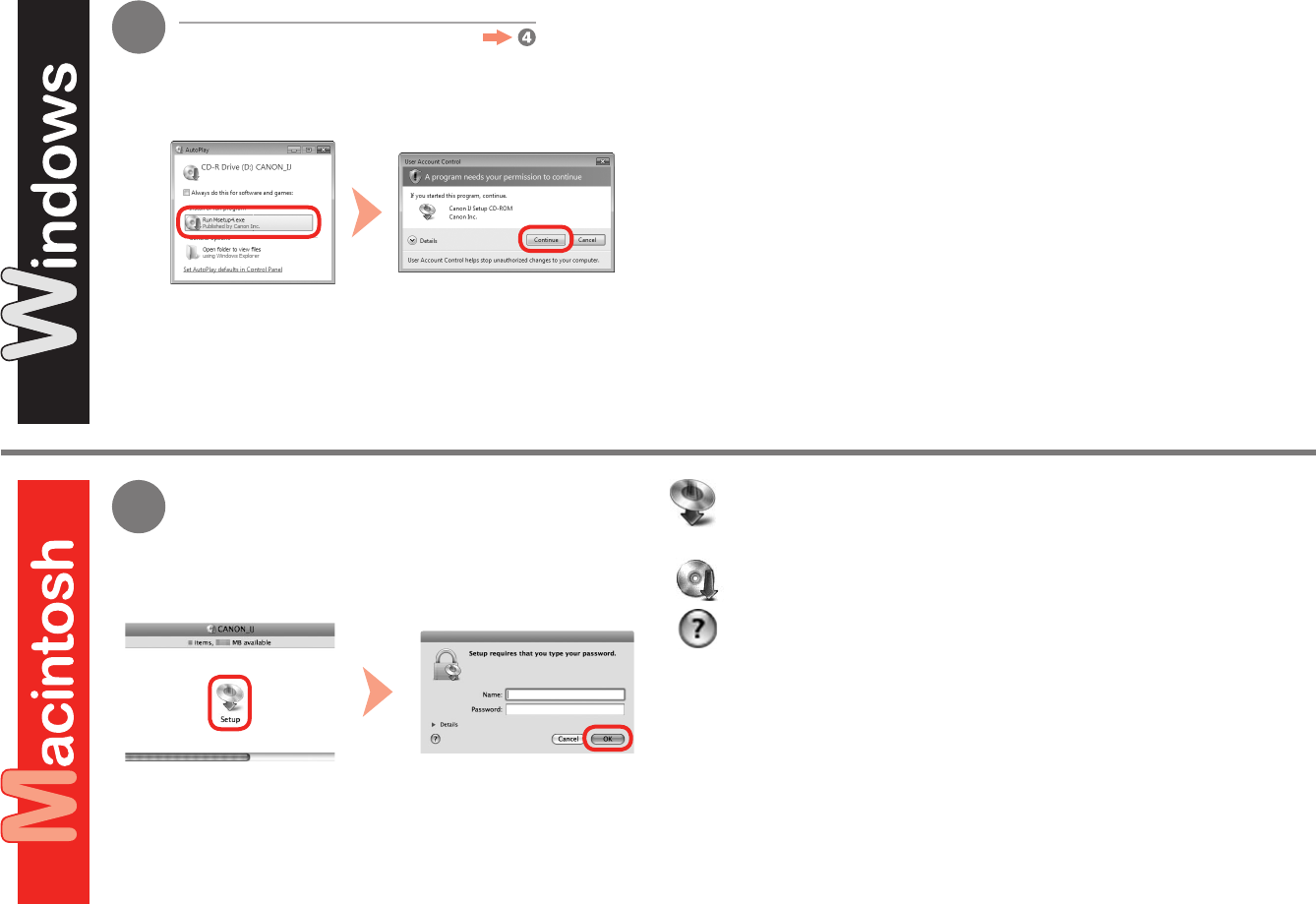
Click Run Msetup4.exe on the AutoPlay screen, then click Continue or Yes
on the User Account Control dialog box.
If the User Account Control dialog box reappears in following steps, click Continue or
Yes.
Double-click the Setup icon of the CD-ROM folder to proceed to the
following screen. Enter your administrator name and password, then
click OK.
If the CD-ROM folder does not open automatically, double-click the CD-ROM
icon on the desktop.
If you do not know your administrator name or password, click the help button,
then follow the on-screen instructions.
Windows 7/Windows Vista
Windows XP/Windows 2000
654
25
9 Install the Software (USB Connection)
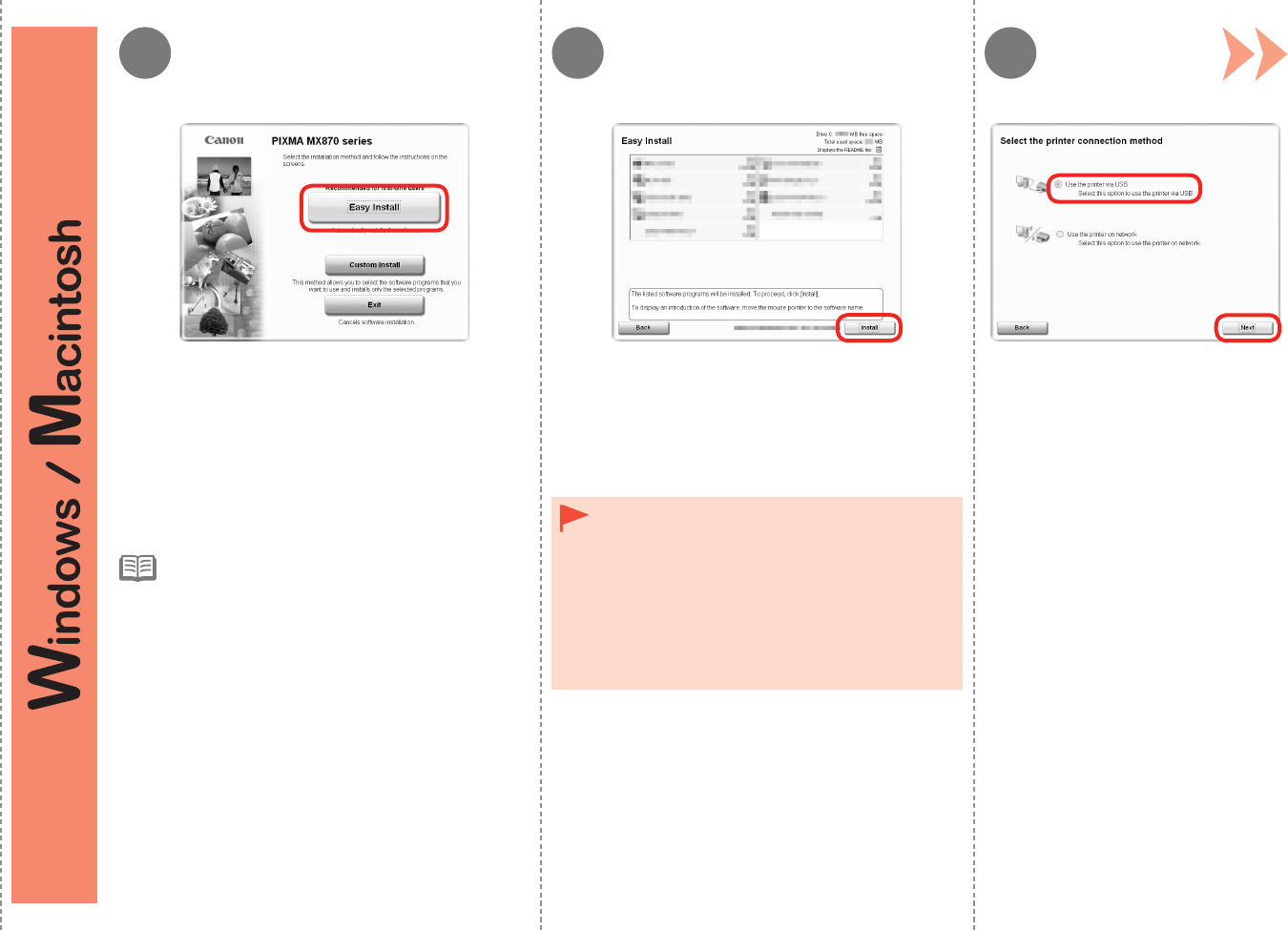
Click Install.Click Easy Install.
The drivers, application software, and on-screen
manuals are installed all together. For Windows
If you want to select particular items to install, click
Custom Install.
•
Follow any on-screen instructions to
proceed with the software installation.
Select Use the printer via USB, then
click Next.
For Windows 7/Windows Vista SP1 or later
You can install the XPS Printer Driver from
Custom Install. When installing the XPS Printer
Driver, select the MP Drivers at the same time.
For details on useful functions of the XPS Printer
Driver, refer to the on-screen manual: Advanced
Guide after installation is complete.
•
•
To install Easy-WebPrint EX, you need to connect
your computer to the internet at this stage.
(Internet Explorer 7 or later is required.)
If an internet connection is not available, it is also
possible to install this software later. For details,
refer to “Useful Software Applications” in the on-
screen manual: Basic Guide after installation is
complete.
•

B
26 9 Install the Software (USB Connection)
Necessary Information for the User
Registration
□ If the Extended Survey
Program screen appears
□
If you can agree to Extended Survey
Program, click Agree.
If you click Do not agree, the
Extended Survey Program will not be
installed. (This has no effect on the
machine's functionality.)
Important Information for the Installation
If the power is on, the Print Head Holder will
move when the Scanning Unit (Cover) (B) is
opened.
•
The product serial number is required when
registering the product. The serial number is located
inside the machine (as shown in the illustration).
USB Port□
When the Printer Connection screen appears,
connect the machine to the computer with a USB
cable.
The USB Port is located on the right side at the back
of the machine. The lower port is for USB.
87
27
9 Install the Software (USB Connection)
If Restart is displayed, follow the instruction to restart the
computer.
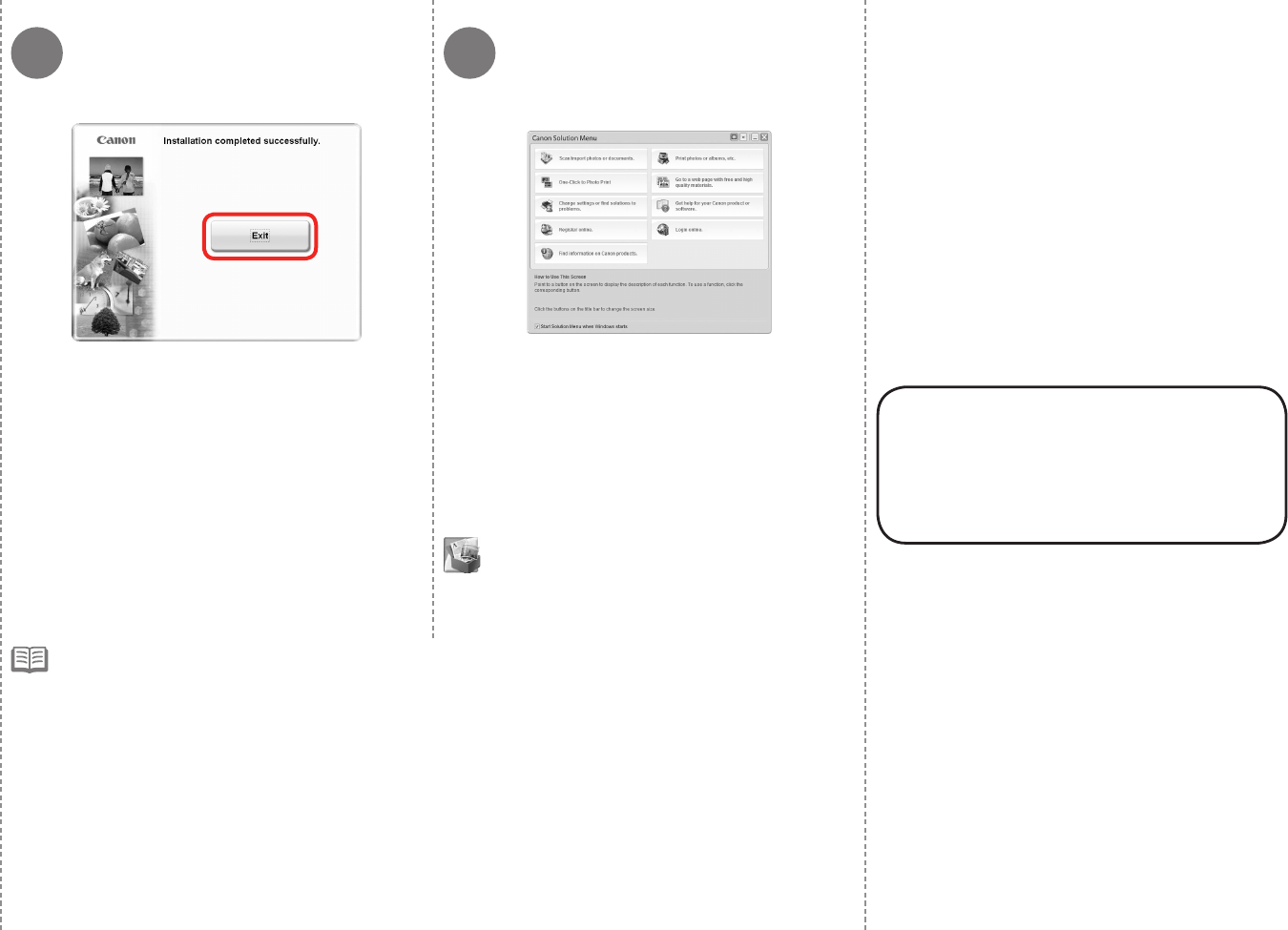
Click Exit to complete the installation.
Congratulations! Setup is complete.
Proceed to page 57 for information
regarding the Solution Menu and the
on-screen manual or page 58 to start
using the machine.
For Macintosh:
It is necessary to restart the computer before scanning
using the Operation Panel on the machine for the rst
time.
Remove the Setup CD-ROM and keep it in a safe place.
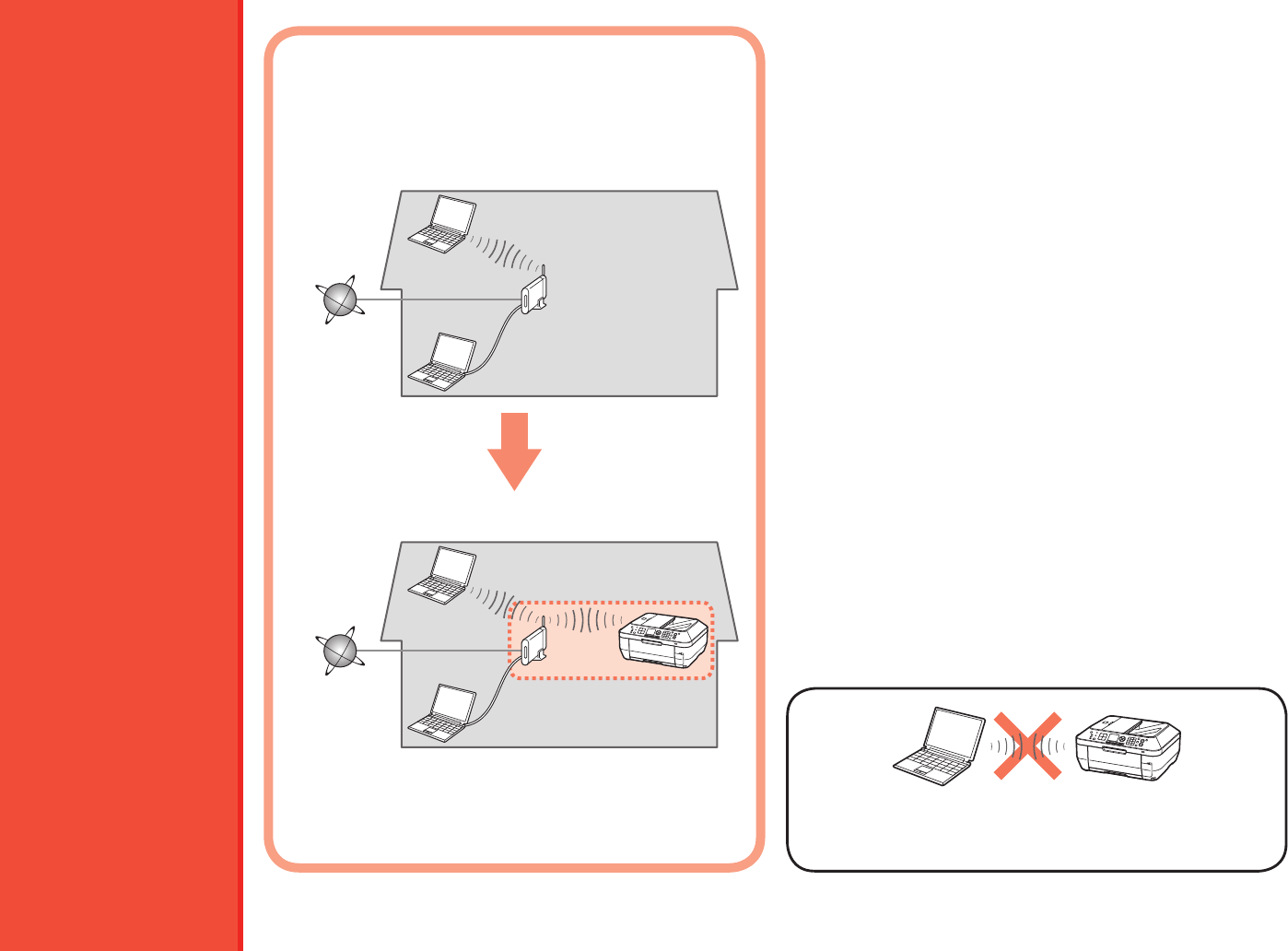
The buttons displayed on Solution Menu may vary depending on the country or region of purchase.
•
•
For Windows:
Solution Menu starts automatically.
For Macintosh:
Click the icon on the Dock to start Solution Menu.
10
28
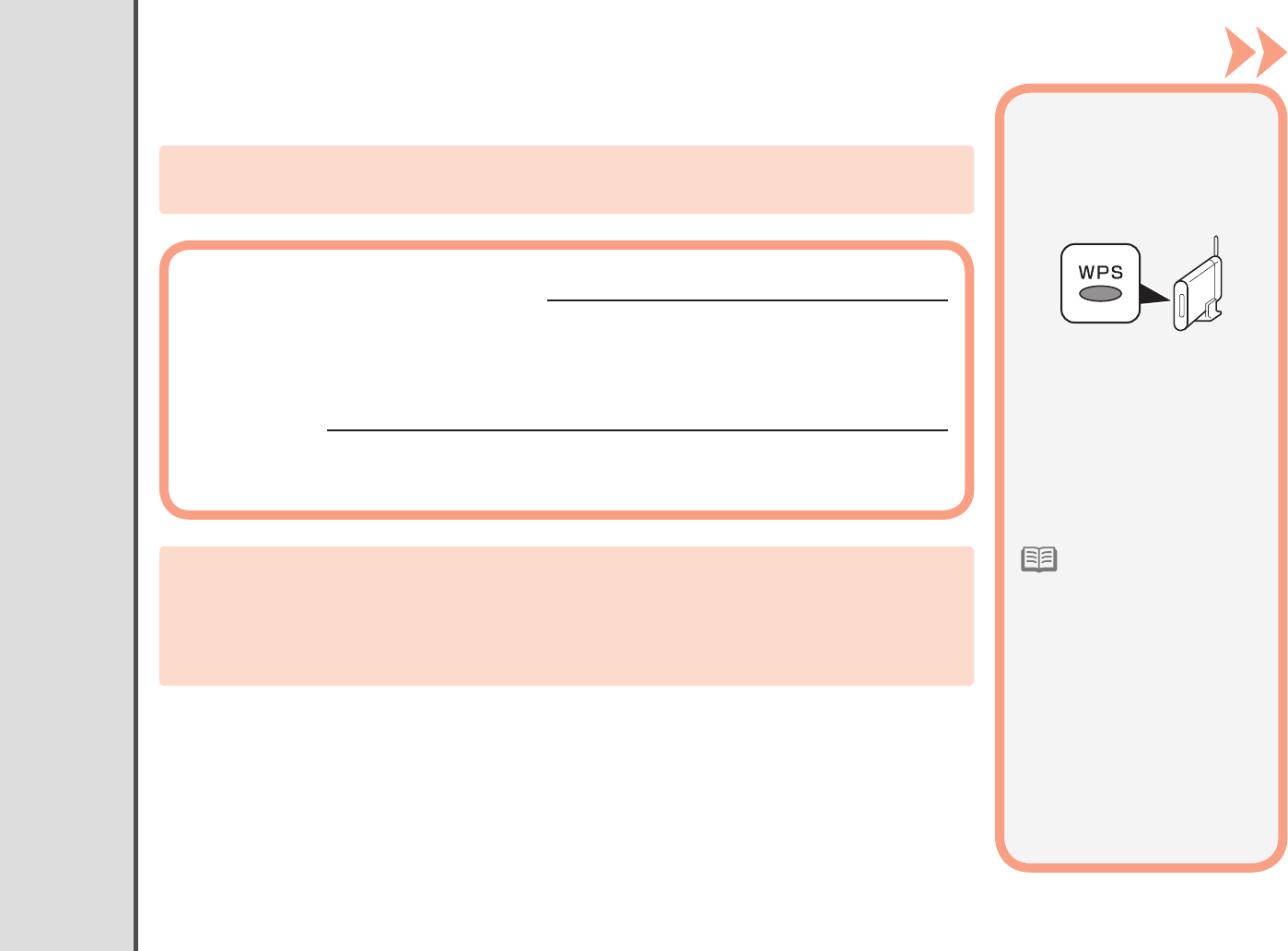
An "Ad-hoc connection," which establishes a direct connection to the
computer over a wireless connection without using an access point, is
not supported. Be sure to prepare an access point.
Notes on Wireless Connection■
The conguration, router functions, setup procedures and
security settings of the network device vary depending on
your system environment. For details, refer to your device's
instruction manual or contact its manufacturer.
In an ofce setup, consult your network administrator.
If you connect to a network that is not protected with security
measures, there is a risk of disclosing data such as your
personal information to a third party.
The machine cannot be used over a wireless and wired
connection at the same time.
If an error message appears or if you have trouble with the
network connection, refer to the printed manual: Network
Setup Troubleshooting.
•
•
•
•
•
Before connecting the machine to the
network, the computer needs to be connected
to the network. Make sure that conguration
of the computer and access point or router is
complete.
Add (connect) the machine to the network.
Internet Access point or
wireless router,
etc.
Wireless Setup
10 Wireless Setup 29
Wireless Setup Using Easy Setup
For details on how to check the following information, refer to the manual of your access point
or router, or contact its manufacturer.
Check the Information for Wireless Connection■
The following information is required to connect to your access point or router.
Check your access point or router for the following information, then write it down.
Access Point Name/Network Name:
Network Key:
* Also referred to as SSID.
An identier to identify the specic access point.
* Also referred to as encryption key, WEP key or WPA/WPA2 passphrase, Pre-Shared key.
A password required to set to prevent unauthorized access to communication.
If your access point or
router supports WPS (Wi-Fi
Protected Setup):
□
A wireless connection can be
set up easily without checking
the information to the left. Go
to "Wireless Setup Using WPS
(Wi-Fi Protected Setup)" on
page 33.
You can retrieve your network key by using the Canon PIXMA Wireless Setup Assistant or the
instructions which can be downloaded from the Canon support webpage (www.usa.canon.
com/downloadlibrary).
If you are unable to retrieve the network key or other settings, refer to the manual of your
access point or router, or contact its manufacturer.
For details on WPS, refer
to the manual of your
access point.
If you are using Windows
7/Windows Vista and have
a USB ash drive, you
can congure wireless
connection settings by
using the WCN (Windows
Connect Now) function
as well. For details, refer
to "Wireless Setup Using
WCN (Windows Connect
Now)" on page 36.
•
•
321
ADB
C
30 10 Wireless Setup
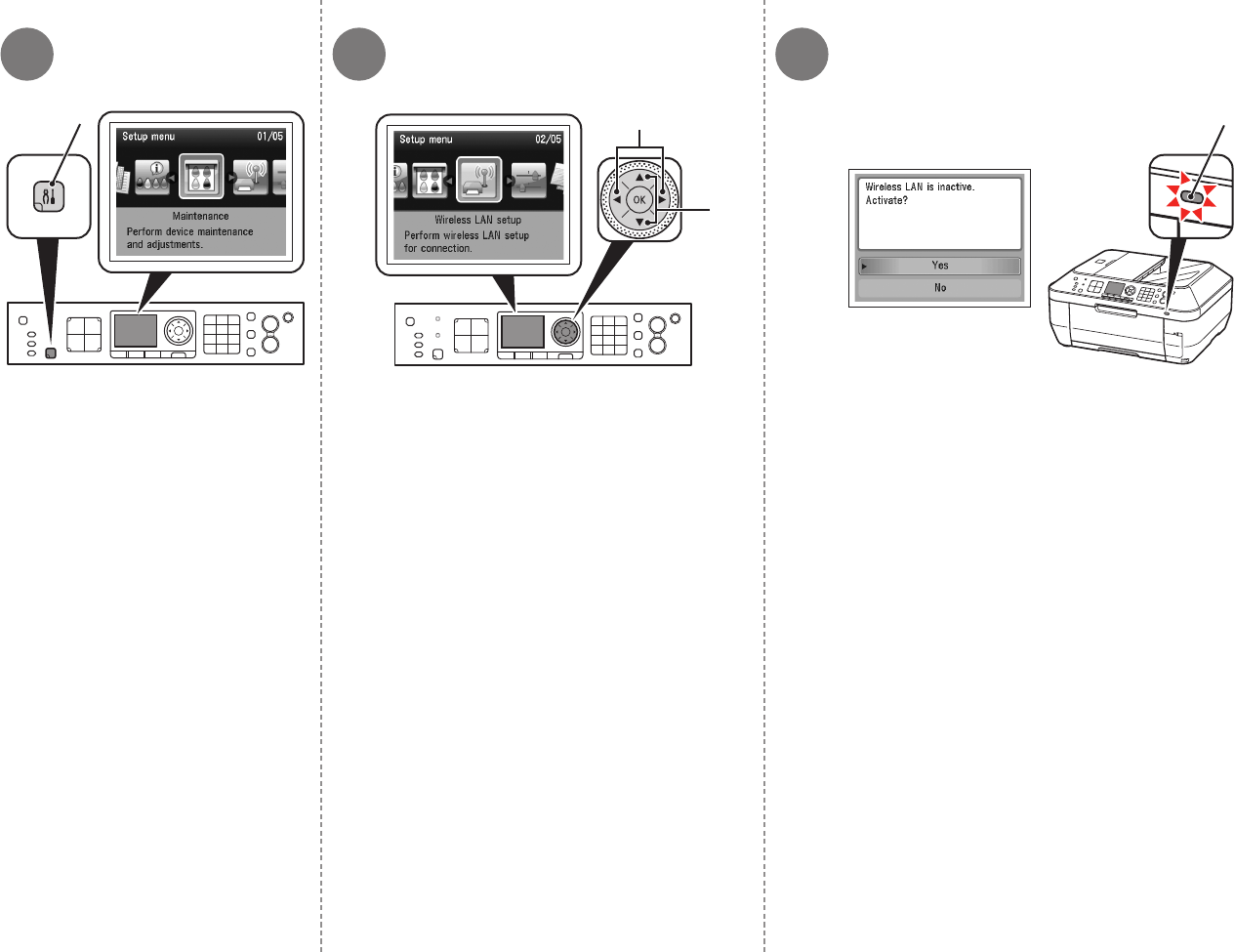
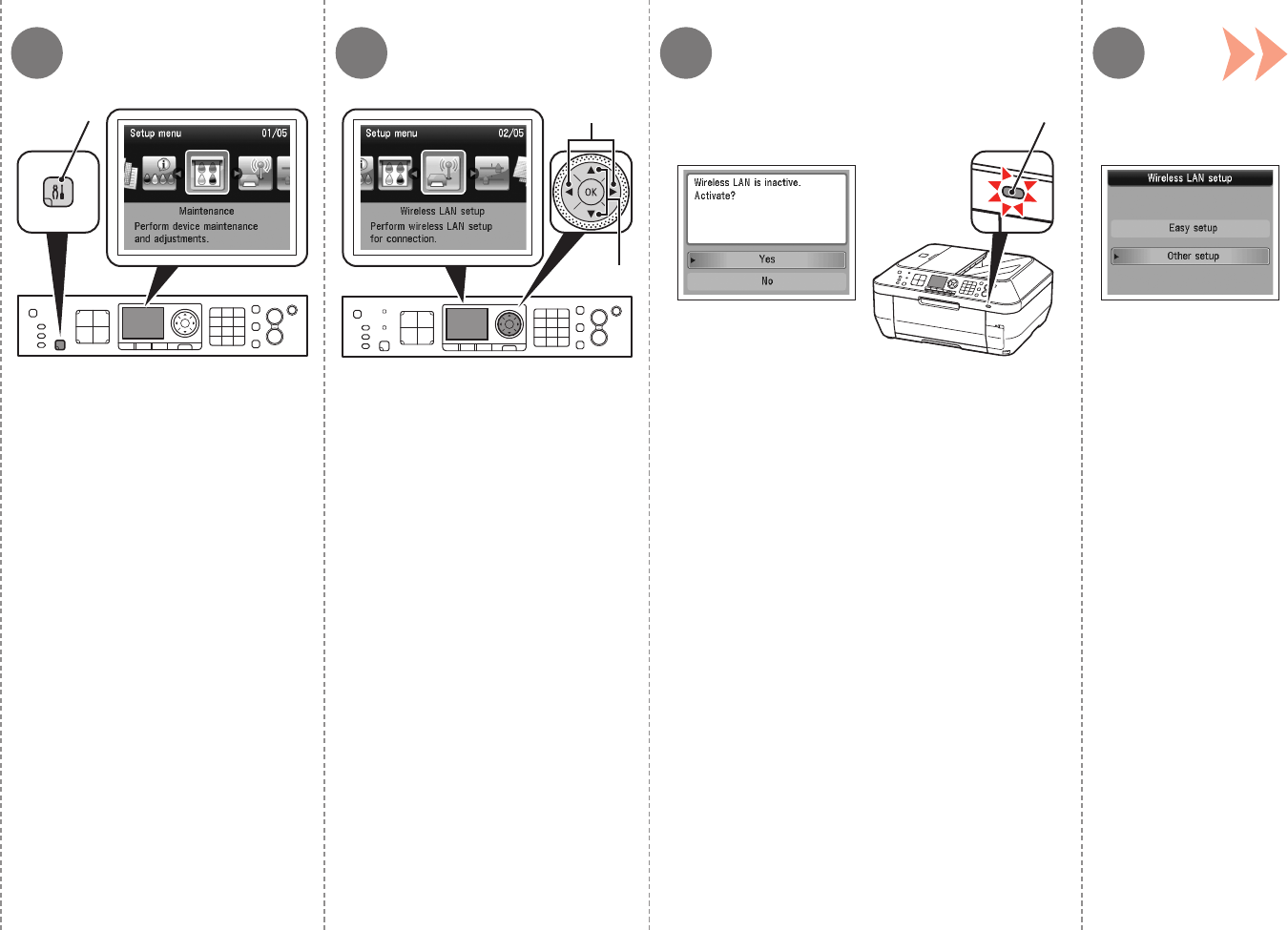
Press the Setup button (A). Use the [ or ] button (B) to select Wireless LAN
setup, then press the OK button.
Use the { or } button (C) to select Yes, then press the OK
button.
When wireless connection is enabled, the Wi-Fi lamp (D) lights blue.
The Setup menu screen is displayed.
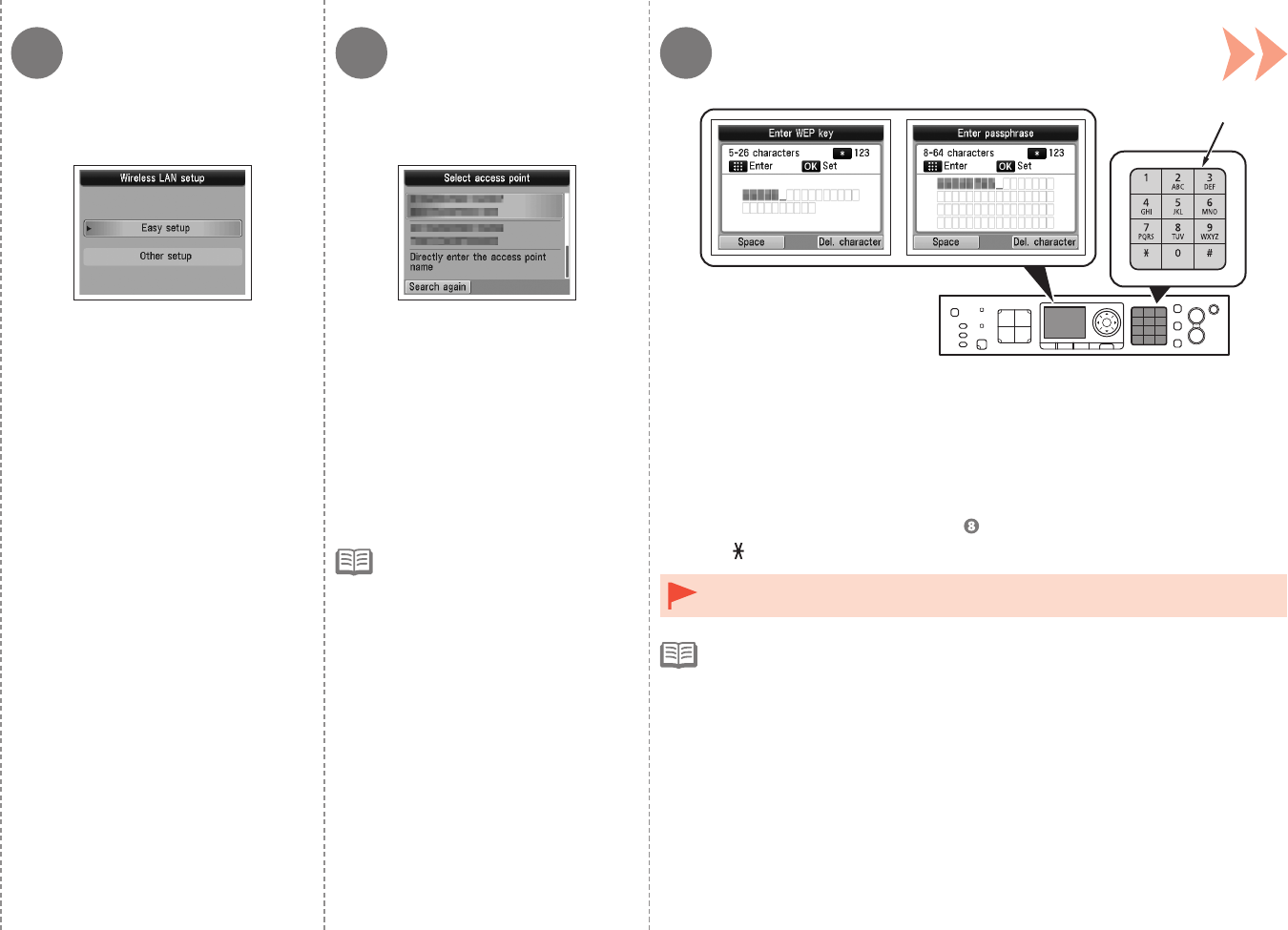
4 5 6
E
31
10 Wireless Setup
Select Easy setup, then press the
OK button.
When one of the above screens is displayed, enter the network key you wrote
down on page 29 using the Numeric buttons (E), then press the OK button.
If the above screen is not displayed, go to .
Press the button to switch character entry modes.
If you are living in an apartment,
nearby access points in use may
be detected.
•
Select the access point name you
wrote down on page 29, then press
the OK button.
Enter upper and lower case letters of the alphabet correctly.•
For details on character entry, refer to the printed manual: Network Setup
Troubleshooting.
•
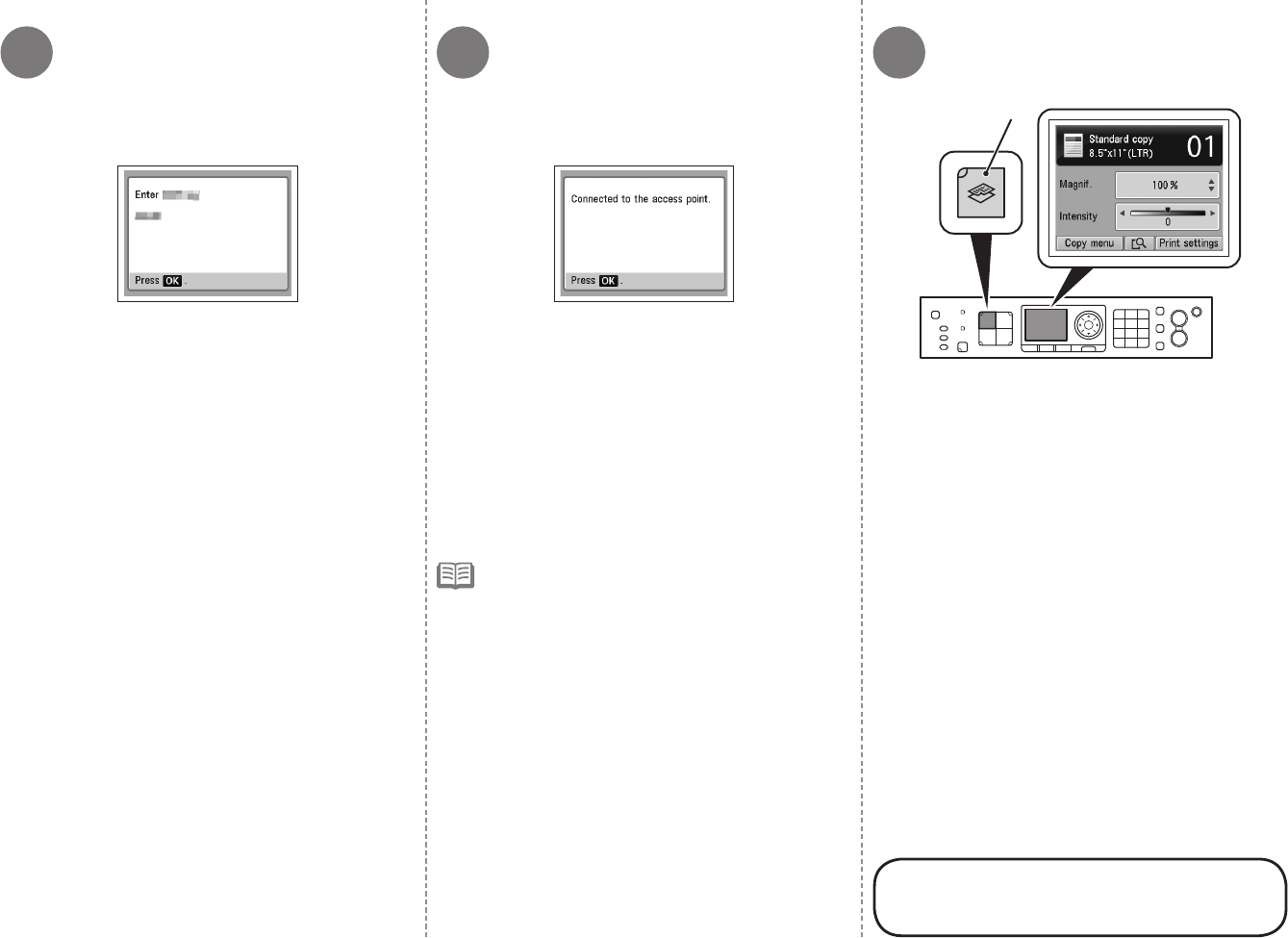
7 8 9
F
32 10 Wireless Setup
Make sure that the network key is correct, then
press the OK button.
Next, read "12 Install the Software
(Network Connection)" on page 45!
Press the COPY button (F).
The copy standby screen is displayed.
When the above screen appears, press the OK
button.
If Failed to connect to the access point.
appears, press the OK button, make sure that
the network key is correct, then enter it again.
If a connection still cannot be established,
refer to the printed manual: Network Setup
Troubleshooting.
•
The Setup menu screen returns.
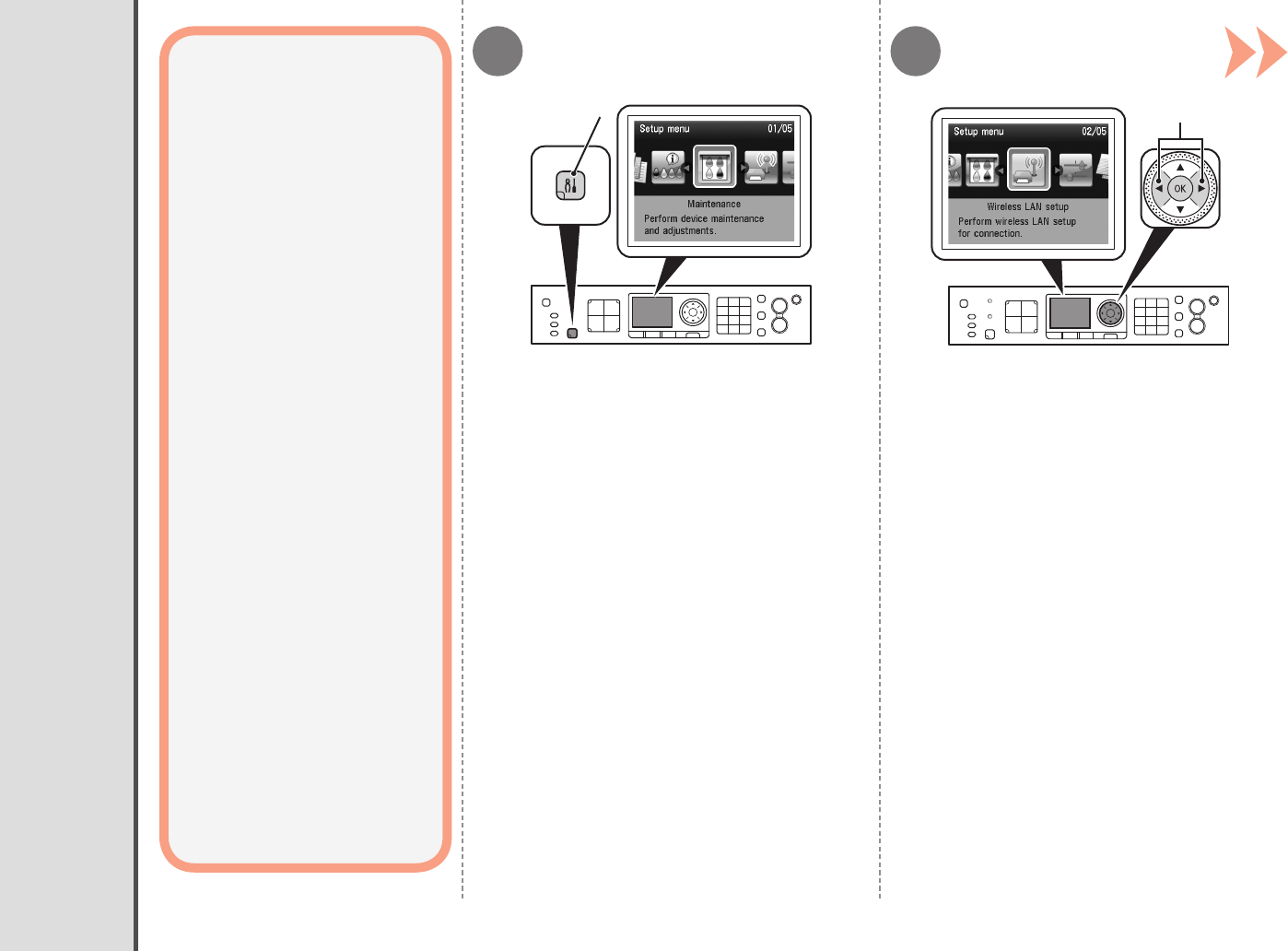
21
AB
10 Wireless Setup 33
Wireless Setup Using WPS (Wi-Fi Protected Setup)
Press the Setup button (A). Use the [ or ] button (B) to select Wireless LAN
setup, then press the OK button.
Read this section only
when setting up a wireless
connection by using the WPS
(Wi-Fi Protected Setup).
If not using WPS, the following
procedure is not necessary.
The Setup menu screen is displayed.
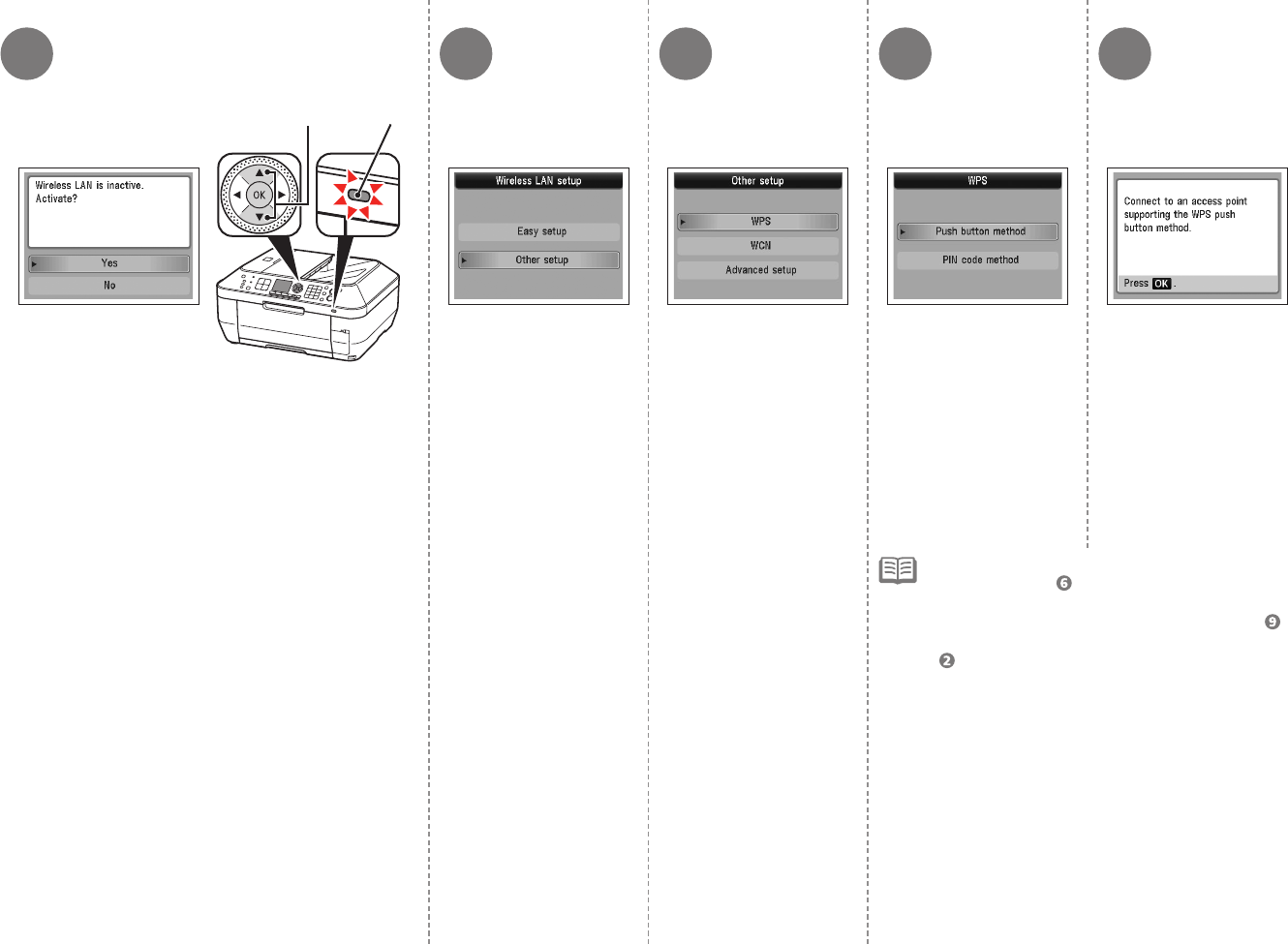
4 5 63 7
D
C
34 10 Wireless Setup
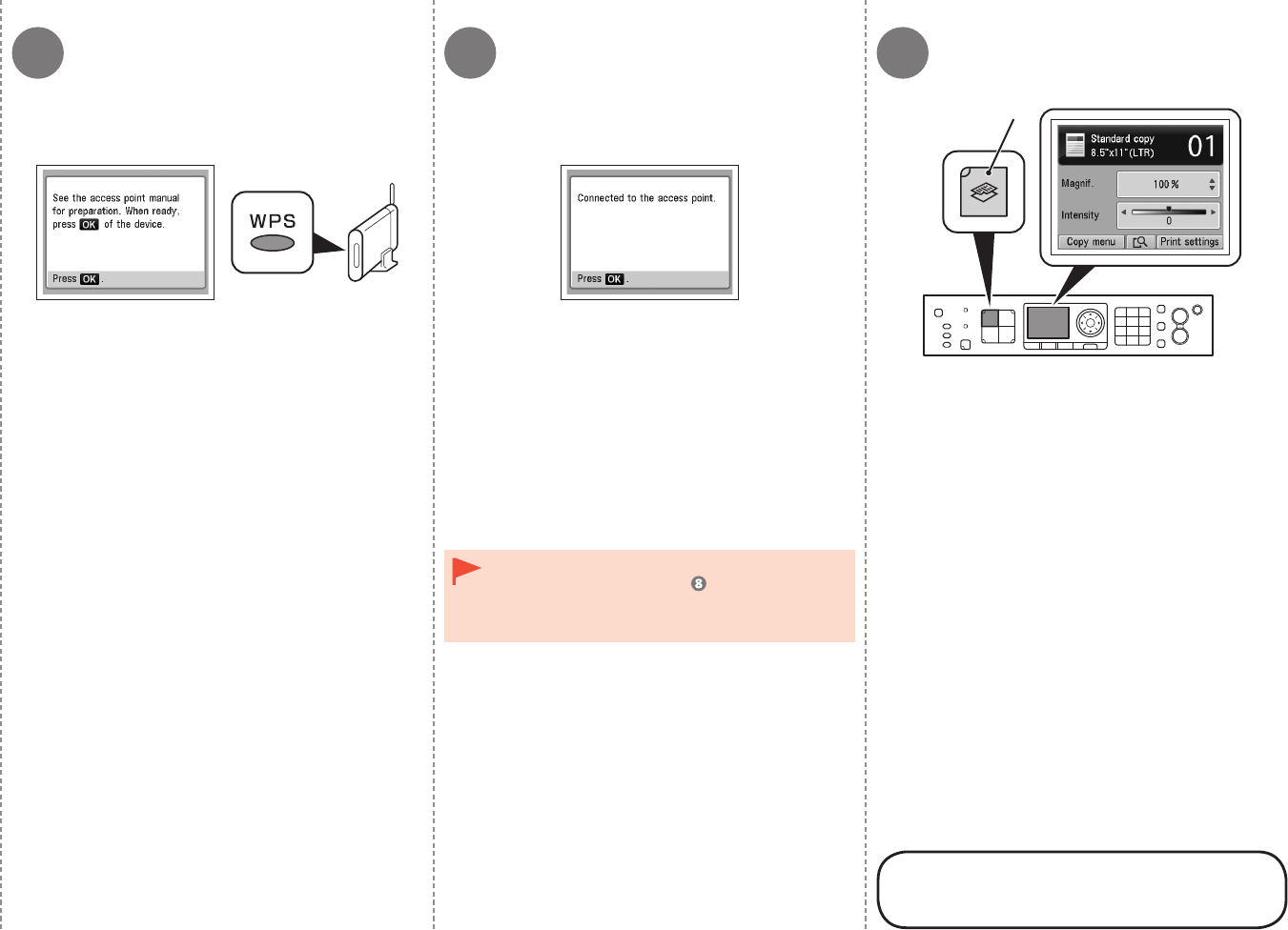
Select Push button
method, then press the
OK button.
Select WPS, then press
the OK button.
To use the PIN code method for setup, select PIN
code method in , then press the OK button.
Follow the on-screen instructions to operate the
machine and access point. When the screen in
appears, press the OK button. When the screen in
returns, press the COPY button to return to the
copy standby screen.
A timeout error occurs if setup is not completed
within 10 minutes. If the timeout error screen
appears, press the OK button, then perform the
setup again and set the new PIN code displayed
on the screen to the access point. If another error
appears, refer to the printed manual: Network
Setup Troubleshooting.
•
Press the OK button.
Use the { or } button (C) to select Yes, then
press the OK button.
When wireless connection is enabled, the Wi-Fi lamp (D)
lights blue.
Select Other setup,
then press the OK
button.
8 9
E
10
35
10 Wireless Setup
Press and hold the WPS button on the access
point (for about 5 seconds), then press the OK
button on the machine within 2 minutes.
For details on the WPS button pressing, refer to the
manual of your access point.
The Wi-Fi lamp (blue) ashes while searching for or
connecting to an access point.
Press the COPY button (E).
The copy standby screen is displayed.
When the above screen appears, press the OK
button.
Next, read "12 Install the Software
(Network Connection)" on page 45!
If the timeout error screen appears, press the OK
button, then start over from .
If another error appears, refer to the printed
manual: Network Setup Troubleshooting.
•
•
The Setup menu screen returns.
1 A
-
1
36 10 Wireless Setup
Wireless Setup Using WCN (Windows Connect Now)
Read this section only when setting up
a wireless connection by using the WCN
(Windows Connect Now) function of
Windows 7/Windows Vista.
If not using WCN, the following procedure is
not necessary.
Proceed with the setup according to your
operating system.
Before setting up by using the WCN,
establish wireless communication between
the computer and the access point.
Canon assumes no responsibility for any
damage or loss of data stored on your
USB ash drive regardless of the cause
even within the warranty period.
If your USB ash drive cannot be attached
to the Direct Print Port of the machine, a
commercial extension cord (for USB ash
drives) may be required.
Operation may not be guaranteed
depending on your USB ash drive.
USB ash drives with security enabled
may not be used.
•
•
•
•
•
The machine supports "WCN-UFD".•
Windows 7
Windows
Vista
Go to - on
page 38.
Go to - .
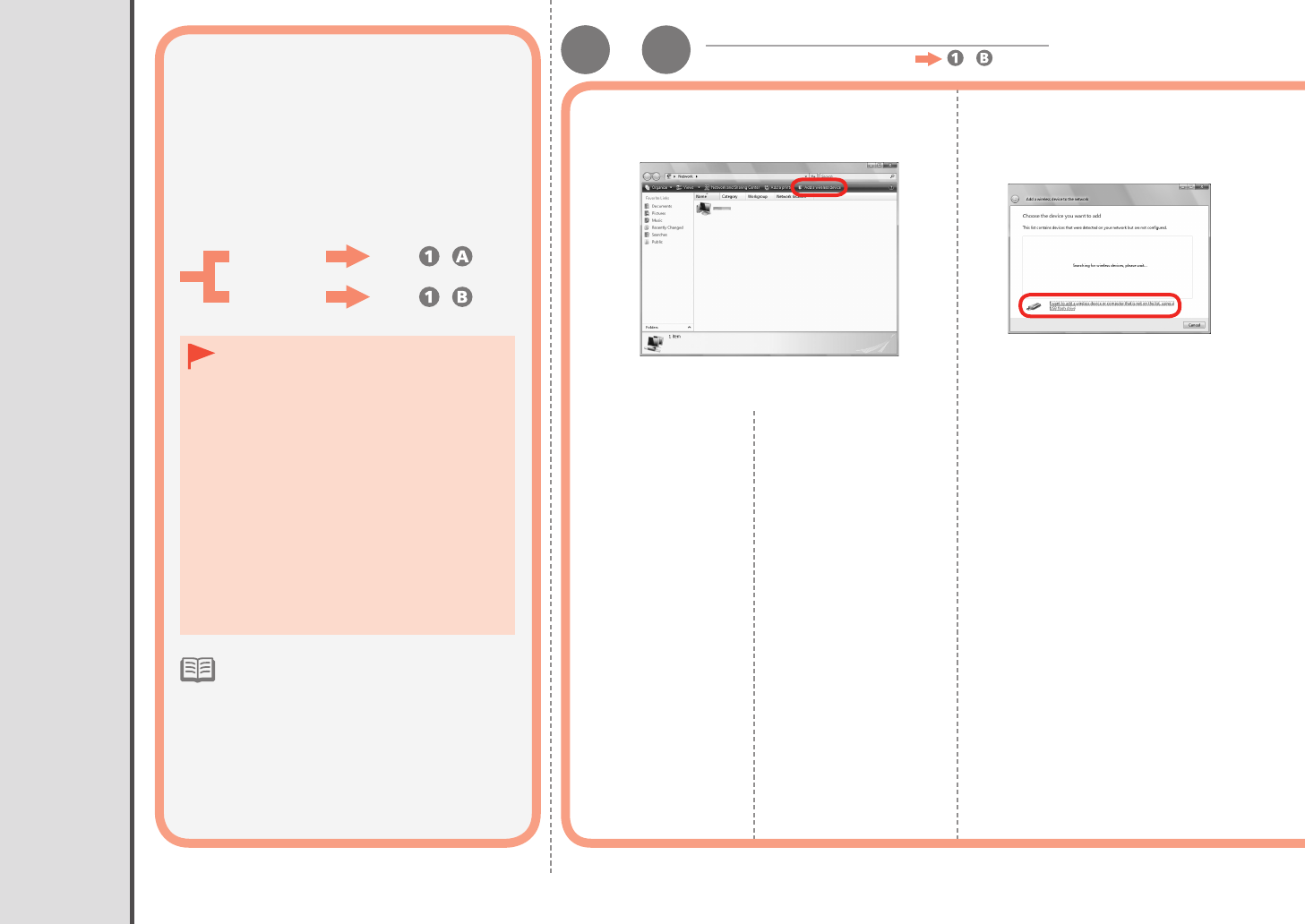
From the Start
menu of the
Windows side, click
Network.
The Network folder
opens.
Click Add a wireless
device on the menu.
The Add a wireless
device to the network
screen will be displayed.
Click I want to add a wireless
device or computer that is not on
the list, using a USB ash drive.
1
Windows Vista
Windows 7 - (P.38)
2 3
37
10 Wireless Setup
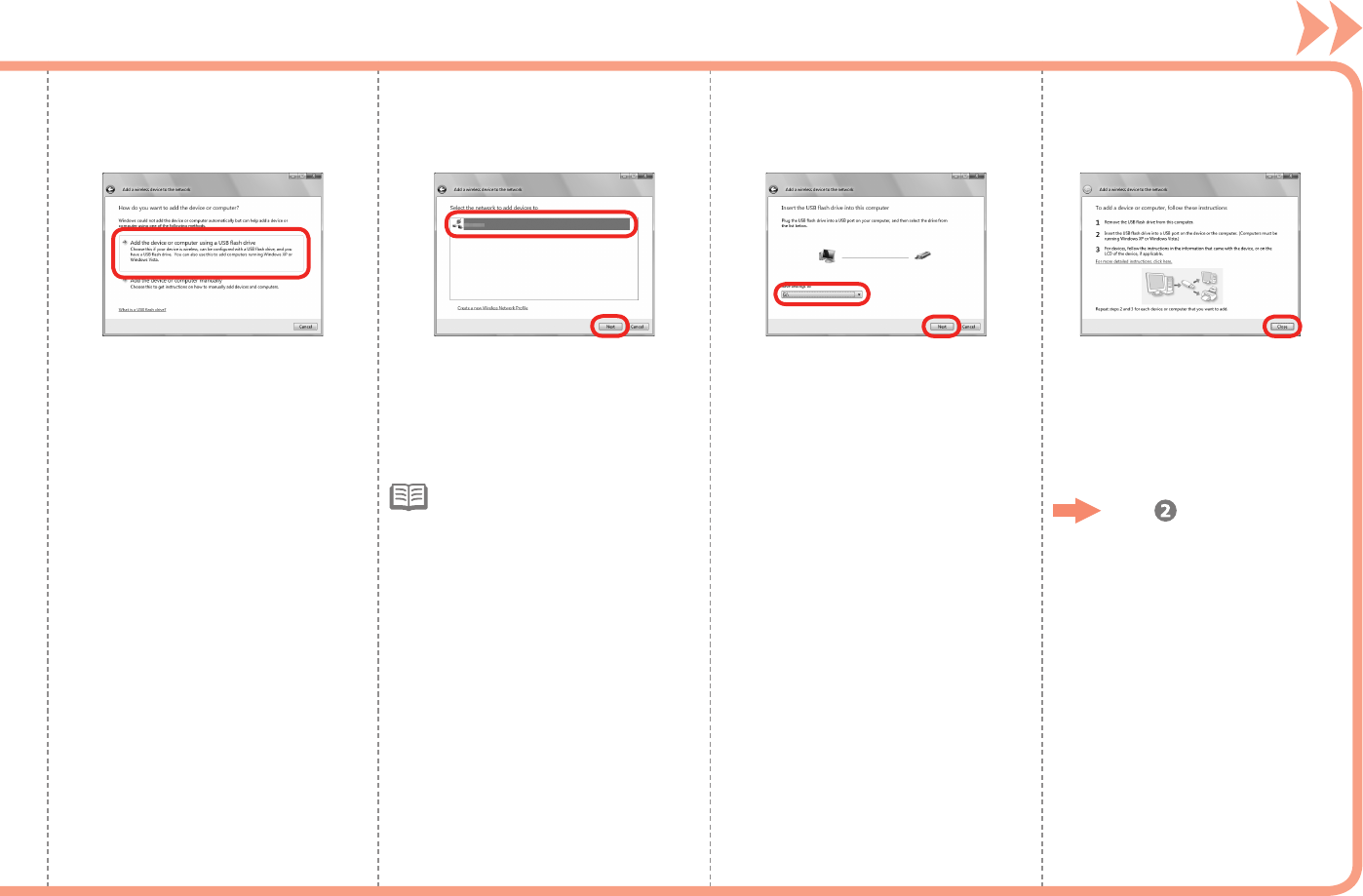
When the above screen appears,
remove the USB ash drive from
the computer, then click Close.
Click Add the device or computer
using a USB ash drive.
From the list, select the network
name (SSID), then click Next.
Connect the USB ash drive to the
computer, make sure that the drive
name is displayed, then click Next.
If the User Account Control
dialog box appears, click
Continue.
If the same dialog box reappears
in subsequent steps, click
Continue.
•
4 5 6 7
Go to on page 39.

1-
1 B
38 10 Wireless Setup
Click Start > Control Panel >
View network status and tasks
> Manage wireless networks.
Select the network name (SSID) from
the list and right-click it, then select
Properties.Follow the on-screen instructions to
connect the USB ash drive to the
computer.
Select Copy this network prole to
a USB ash drive.
1
Windows 7
2 3
When the above screen appears,
remove the USB ash drive from
the computer, then click Close.
4
Go to on page 39.
AD
4 532
C
B
39
10 Wireless Setup
Press the Setup button (A). Use the [ or ] button (B) to select
Wireless LAN setup, then press the
OK button.
Use the { or } button (C) to select Yes, then
press the OK button.
When wireless connection is enabled, the Wi-Fi lamp (D)
lights blue.
Select Other setup,
then press the OK
button.
The Setup menu screen is displayed.

F
E
8 96 7
40 10 Wireless Setup
Select WCN, then press
the OK button.
When the above screen
appears, press the OK
button, then remove the
USB ash drive from
the machine.
Connect the USB ash drive to the Direct Print
Port (USB connector) (E) on the front right of the
machine, then press the OK button.
Next, read "12 Install the Software
(Network Connection)" on page 45!
Press the COPY button (F).
The copy standby screen is displayed.
The Setup menu screen
returns.
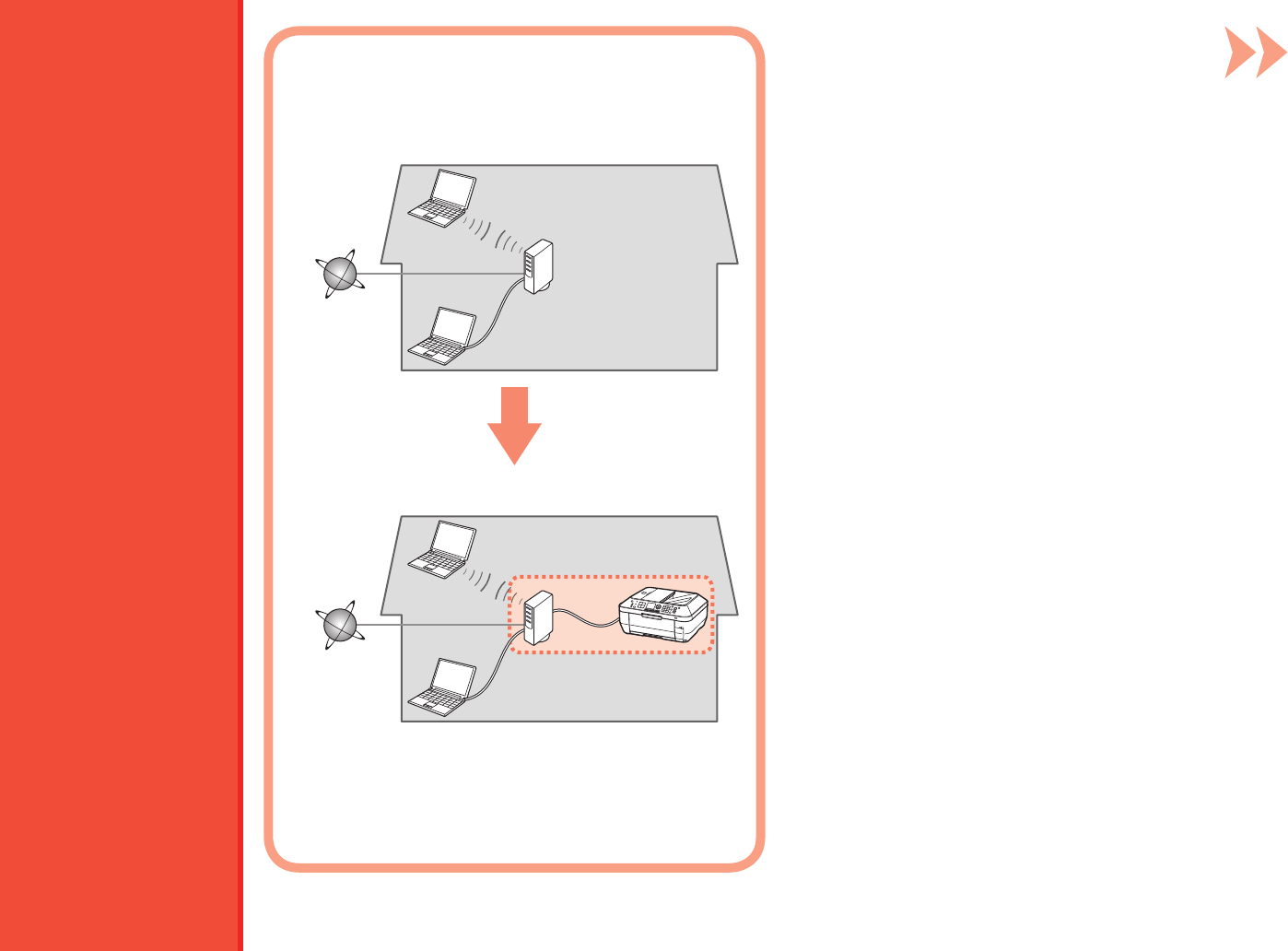
11
41
Notes on Wired Connection■
The conguration, router functions, setup
procedures and security settings of the
network device vary depending on your system
environment. For details, refer to your device's
instruction manual or contact its manufacturer.
In an ofce setup, consult your network
administrator.
If you connect to a network that is not
protected with security measures, there is a
risk of disclosing data such as your personal
information to a third party.
The machine cannot be used over a wireless
and wired connection at the same time.
If an error message appears or if you have
trouble with the network connection, refer
to the printed manual: Network Setup
Troubleshooting.
•
•
•
•
•
Before connecting the machine to the
network, the computer needs to be connected
to the network. Make sure that conguration
of the computer and router is complete.
Add (connect) the machine to the network.
Internet Router, etc.
Wired Setup
AB
1 2
C
42 11 Wired Setup
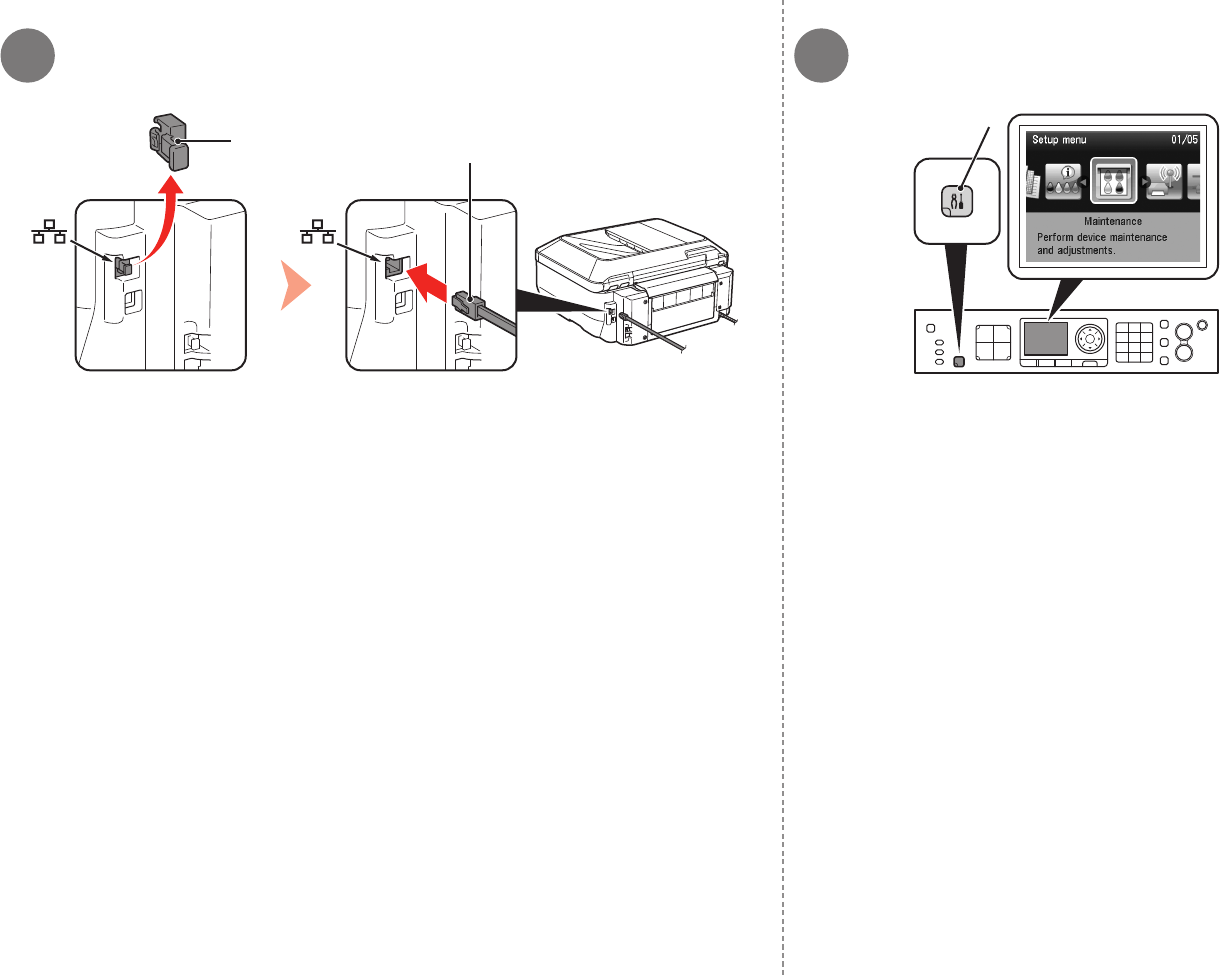
Remove the Cap (A), then connect a network device (router, etc.) with an Ethernet cable
(B).
Press the Setup button (C).
The Setup menu screen is displayed.

543
DD
E
43
11 Wired Setup
Use the [ or ] button (D) to select Device
settings, then press the OK button.
Use the { or } button (E) to select LAN settings,
then press the OK button.
Select Change wireless/wired, then press the OK
button.
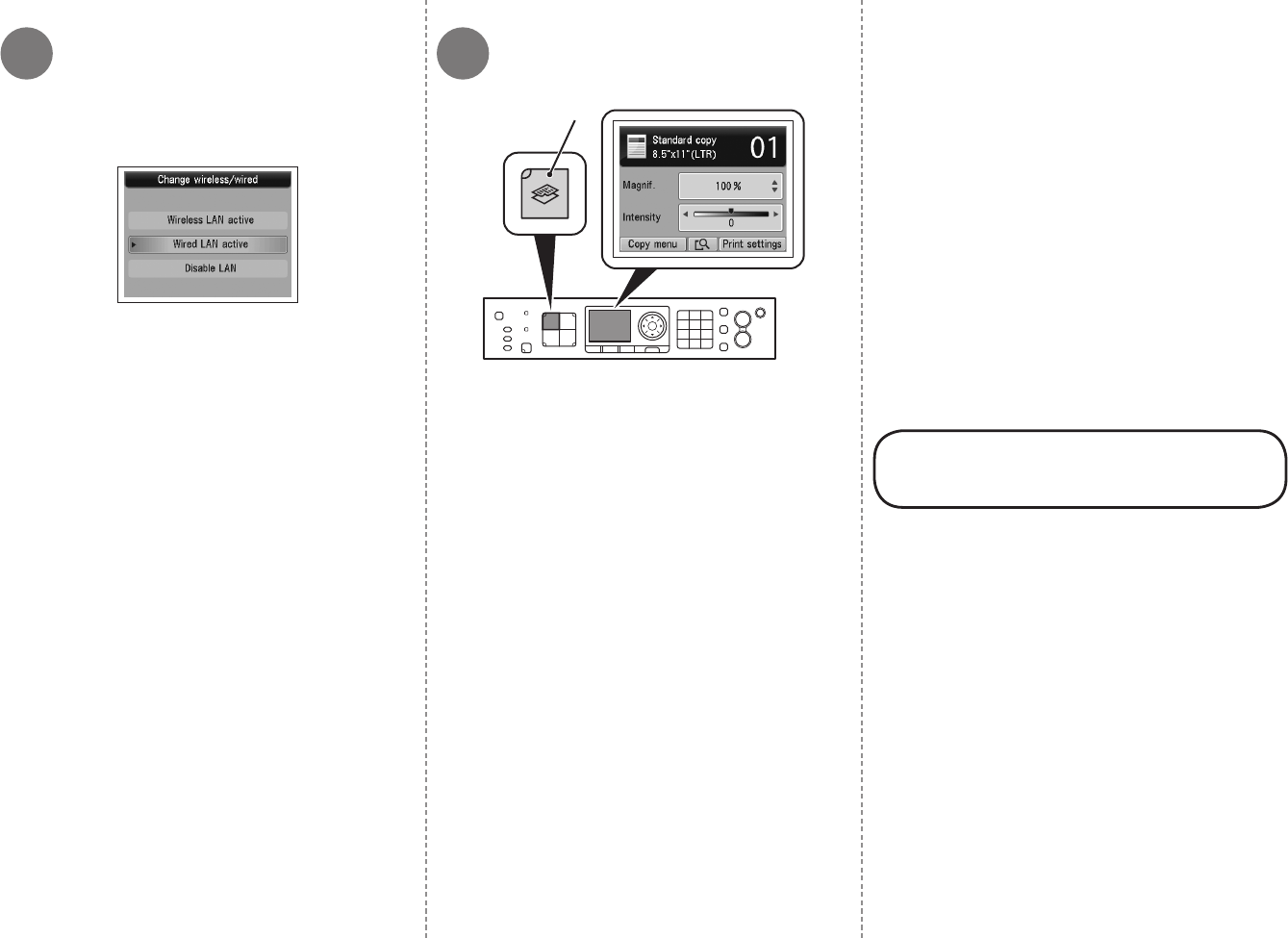
6 7
F
44 11 Wired Setup
Next, read "12 Install the Software
(Network Connection)" on page 45!
Select Wired LAN active, press the OK button. Press the COPY button (F).
The copy standby screen is displayed.The LAN settings screen returns.
12
45
Easy-WebPrint EX□
If you are using Internet Explorer 7
or later, you can use the Web print
software Easy-WebPrint EX. An internet
connection is required for installation.
Install the Software
Install the Software (Network Connection)
Quit all running applications before installation.
Log on as the administrator (or a member of the
Administrators group).
Do not switch users during the installation process.
Internet connection may be required during the installation.
Connection fees may apply. Consult the internet service
provider.
It may be necessary to restart your computer during the
installation process. Follow the on-screen instructions and
do not remove the Setup CD-ROM during restarting.
The installation resumes once your computer has
restarted.
If the rewall function of your security software is turned
on, a warning message may appear that Canon software
is attempting to access the network. If such a warning
message appears, set the security software to always
allow access.
Mac OS 9, Mac OS X Classic environments, or Mac OS X
v.10.4.10 or earlier are not supported.
•
•
•
•
•
•
•
To use the machine by connecting it to a computer,
software including the drivers needs to be copied
(installed) to the computer’s hard disk. The installation
process takes about 20 minutes. (The installation time
varies depending on the computer environment or the
number of application software to be installed.)
Screens are based on Windows Vista Ultimate and Mac
OS X v.10.5.x.
•
•
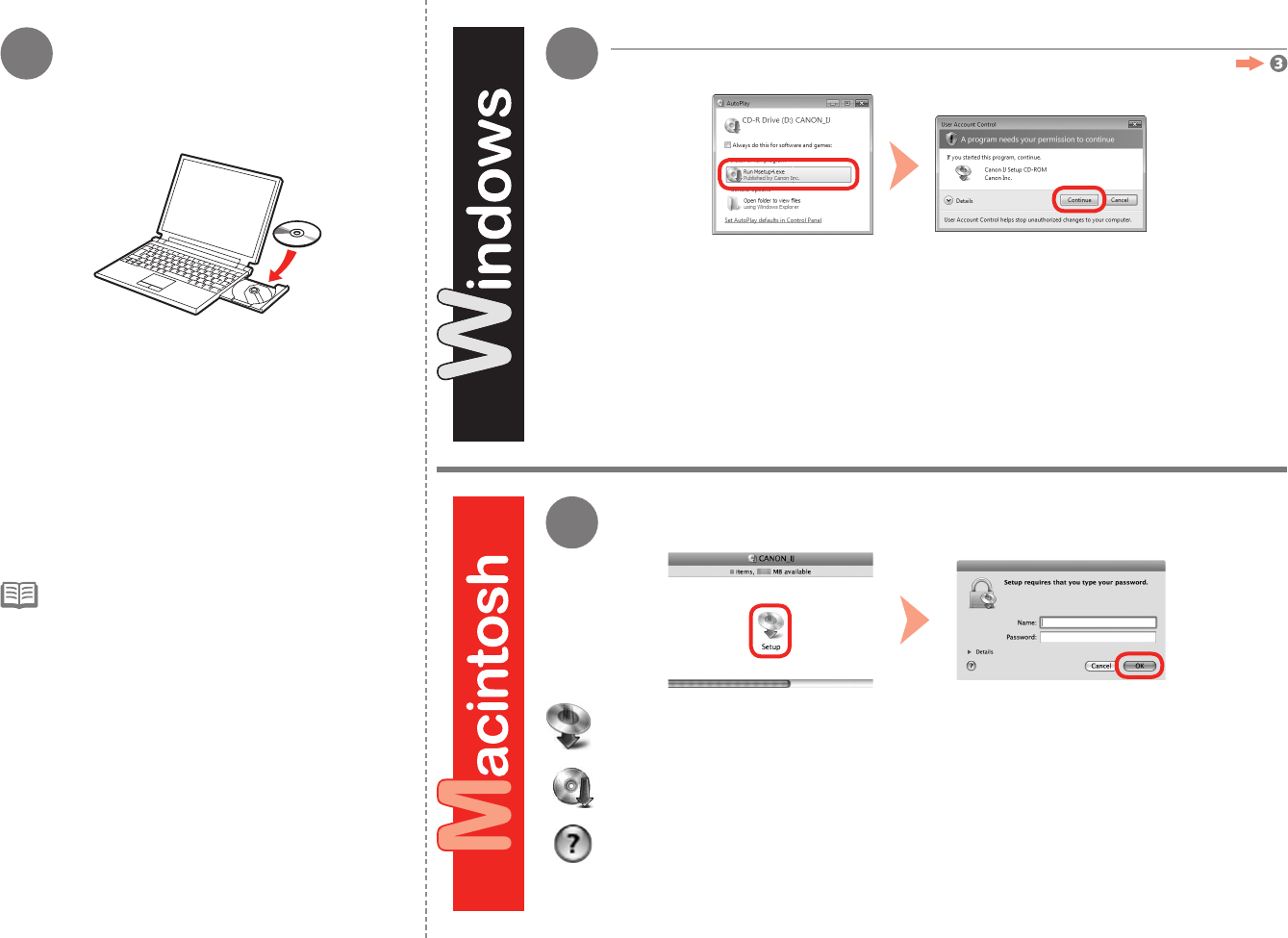
2
2
1
46 12 Install the Software (Network Connection)
Click Run Msetup4.exe on the AutoPlay screen, then click Continue or Yes on the User
Account Control dialog box.
If the User Account Control dialog box reappears in following steps, click Continue or Yes.
Double-click the Setup icon of the CD-ROM folder to proceed to the following
screen. Enter your administrator name and password, then click OK.
Turn on the computer, then insert the Setup CD-
ROM into the CD-ROM drive.
If you are using Windows, the setup program starts
automatically.
For Windows
If the CD-ROM folder does not open automatically, double-click the CD-ROM icon on the
desktop.
If you do not know your administrator name or password, click the help button, then follow the
on-screen instructions.
If the program does not start automatically,
double-click the CD-ROM icon in Computer or My
Computer. When the CD-ROM contents appear,
double-click MSETUP4.EXE.
•
Windows 7/Windows Vista
Windows XP/Windows 2000
3 4
47
12 Install the Software (Network Connection)
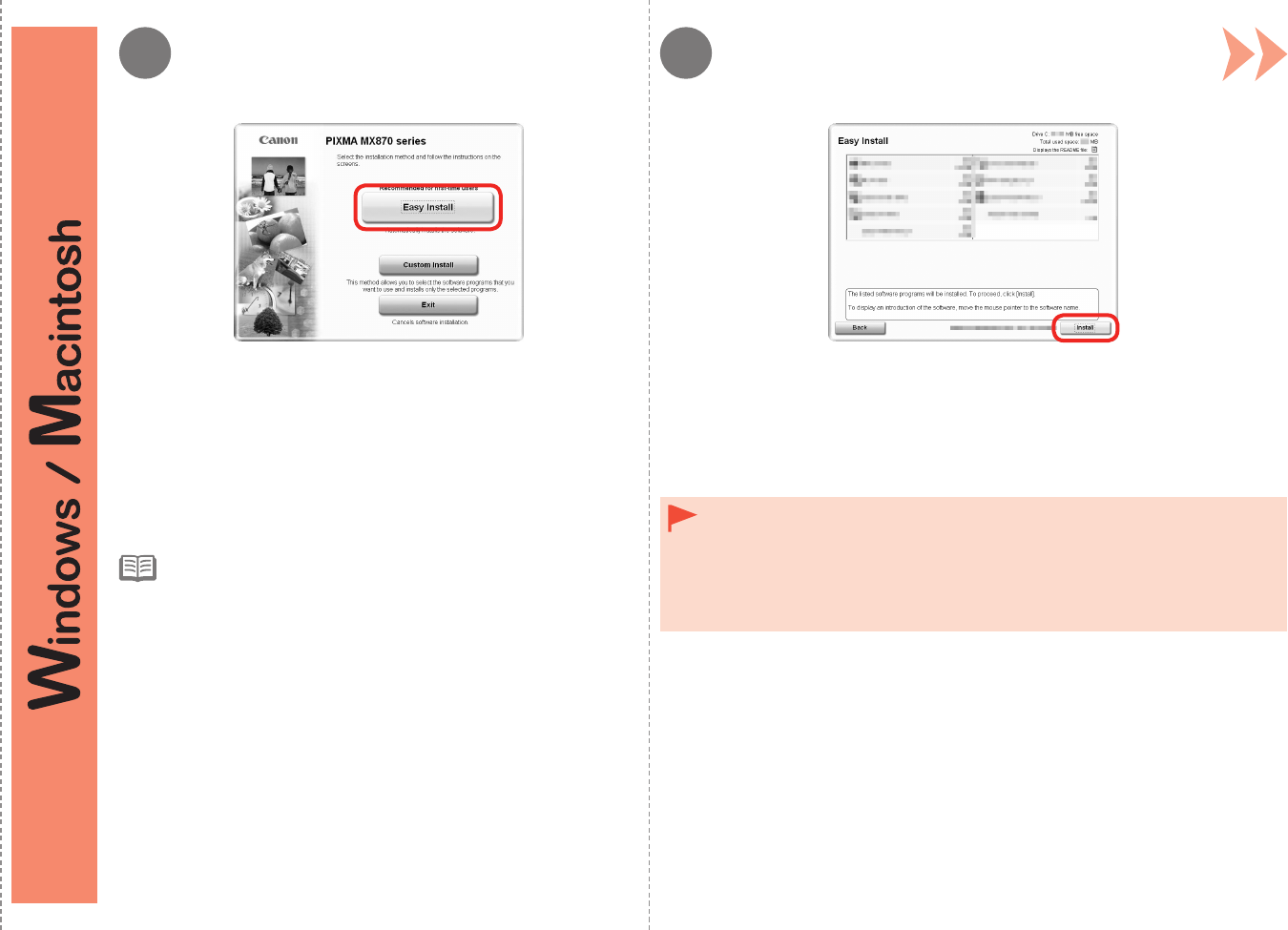
Click Install.Click Easy Install.
The drivers, application software, and on-screen manuals are installed
all together. For Windows
If you want to select particular items to install, click Custom
Install.
•
For Windows 7/Windows Vista SP1 or later
You can install the XPS Printer Driver from Custom Install. When
installing the XPS Printer Driver, select the MP Drivers at the same
time.
For details on useful functions of the XPS Printer Driver, refer
to the on-screen manual: Advanced Guide after installation is
complete.
•
•
To install Easy-WebPrint EX, you need to connect your computer to the internet at
this stage. (Internet Explorer 7 or later is required.)
If an internet connection is not available, it is also possible to install this software
later. For details, refer to “Useful Software Applications” in the on-screen manual:
Basic Guide after installation is complete.
•
5 6
48 12 Install the Software (Network Connection)
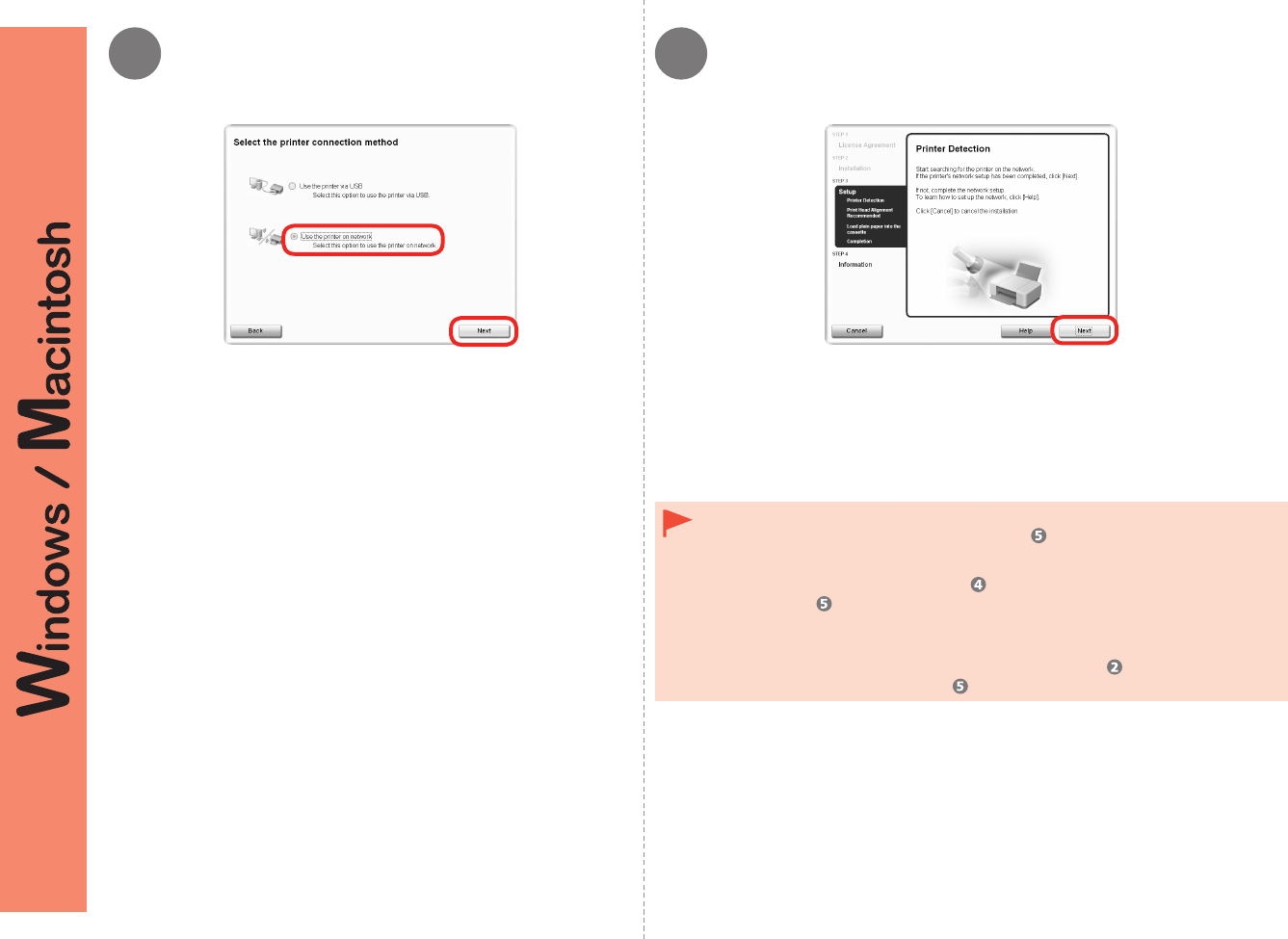
Select Use the printer on network, then click Next.
Follow any on-screen instructions to proceed with the software
installation.
When the Printer Detection screen appears, click Next.
If the Printer Connection screen appears instead of the screen above, the
connection method is not correctly selected in .
•
For Windows
Click Cancel and start again from , then be sure to select Use the printer on
network in .
For Macintosh
Follow on-screen instructions and proceed with the installation. Click Exit on
the installation complete screen, then start again from and be sure to select
Use the printer on network in .
−
−
7
7
49
12 Install the Software (Network Connection)
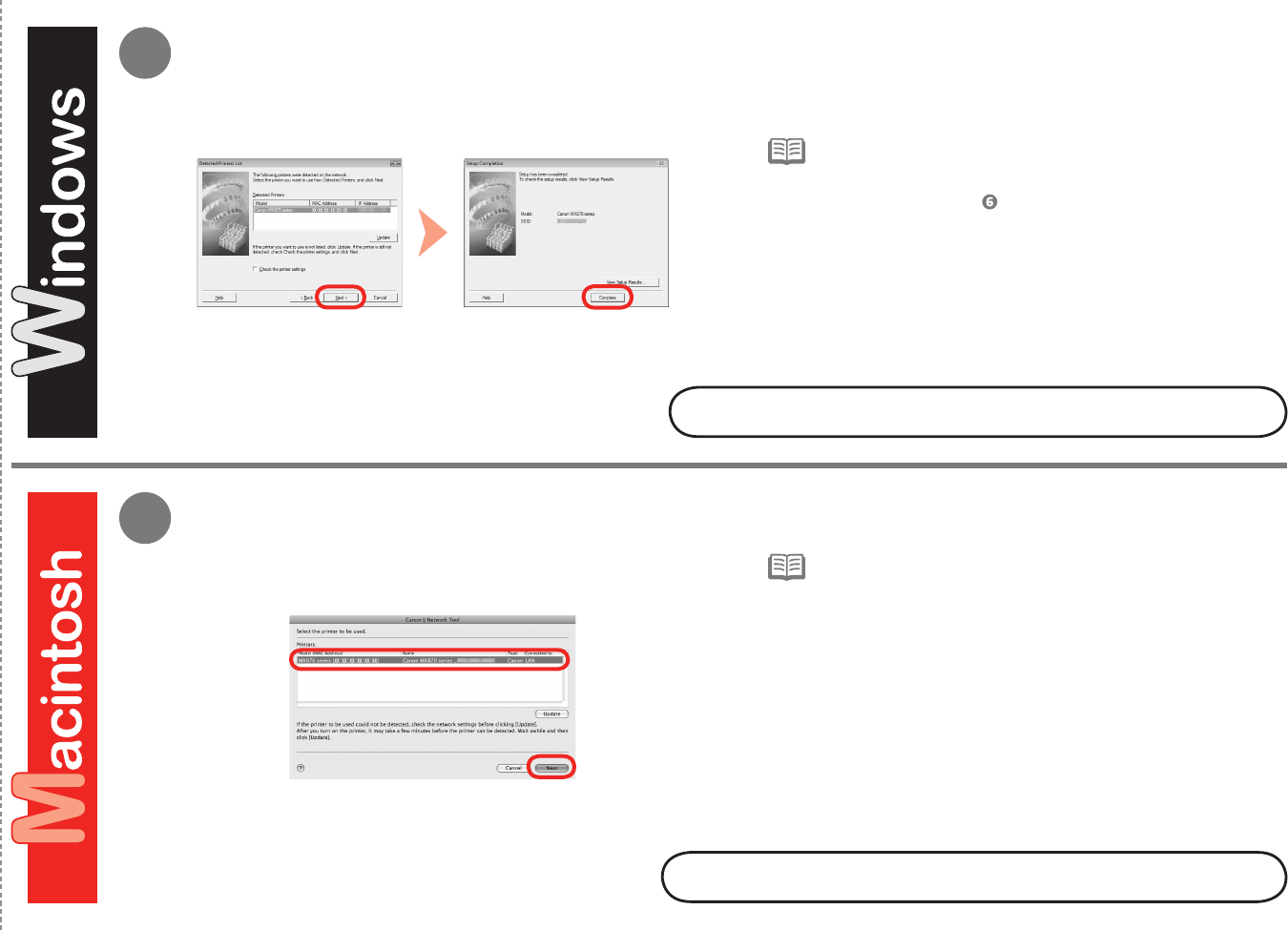
When the Detected Printers List dialog box appears, select
Canon MX870 series, then click Next.
When the Setup Completion dialog box appears, click
Complete.
Next, read "Install the Software (Information)" on page 54!
Next, read "Install the Software (Registration)" on page 50!
If the machine is not detected, Check Printer Settings dialog
box is displayed. Refer to the printed manual: Network Setup
Troubleshooting. Make sure there is no problem, then click Next
again on the screen in .
•
If the machine is not detected, refer to the printed manual:
Network Setup Troubleshooting. Make sure there is no problem,
then click Update.
•
On the Canon IJ Network Tool screen, select MX870 series in
Printers, then click Next.
1
50 12 Install the Software (Network Connection)
This section describes how
to register the machine on a
Macintosh computer.
Windows users: read "Install
the Software (Information)" on
page 54.
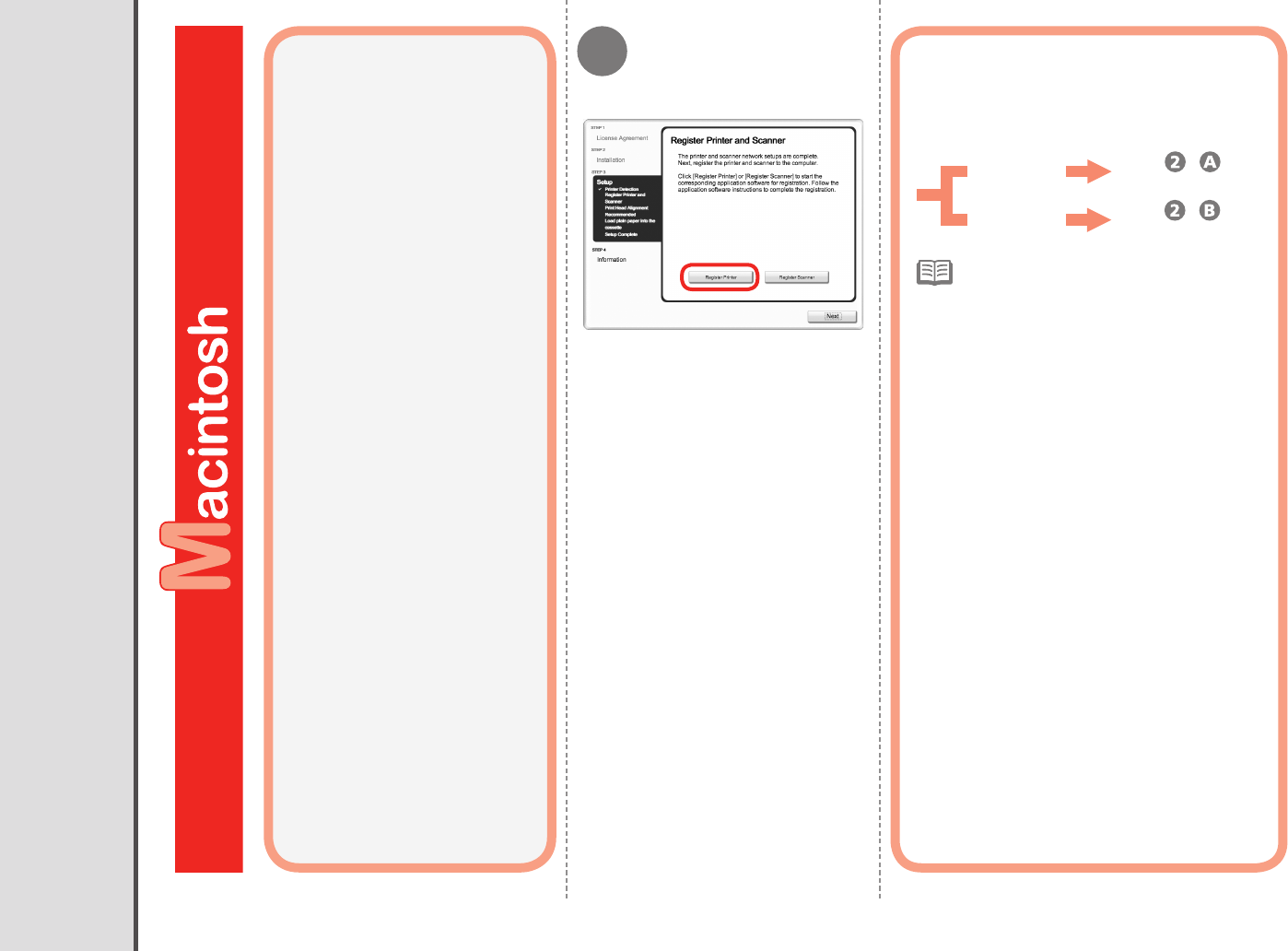
When the Register Printer and
Scanner screen appears, click
Register Printer.
v.10.6.x
v.10.5.x
v.10.4.11
Mac OS X
Go to -
on page 51.
Go to -
on page 51.
Proceed to the section that relates to your
operating system for further installation
instructions.
□
Install the Software (Registration)
The alphanumeric characters after Canon
MX870 series is the machine's Bonjour
service name or MAC address.
If the machine has not been detected,
make sure of the following.
•
•
The machine is turned on.
The rewall function of any security
software is turned off.
Wireless Connection: The computer is
connected to the access point.
Wired Connection: The machine is
connected to the network device with
the Ethernet cable.
−
−
−
−
A
-
2B
-
2
51
12 Install the Software (Network Connection)
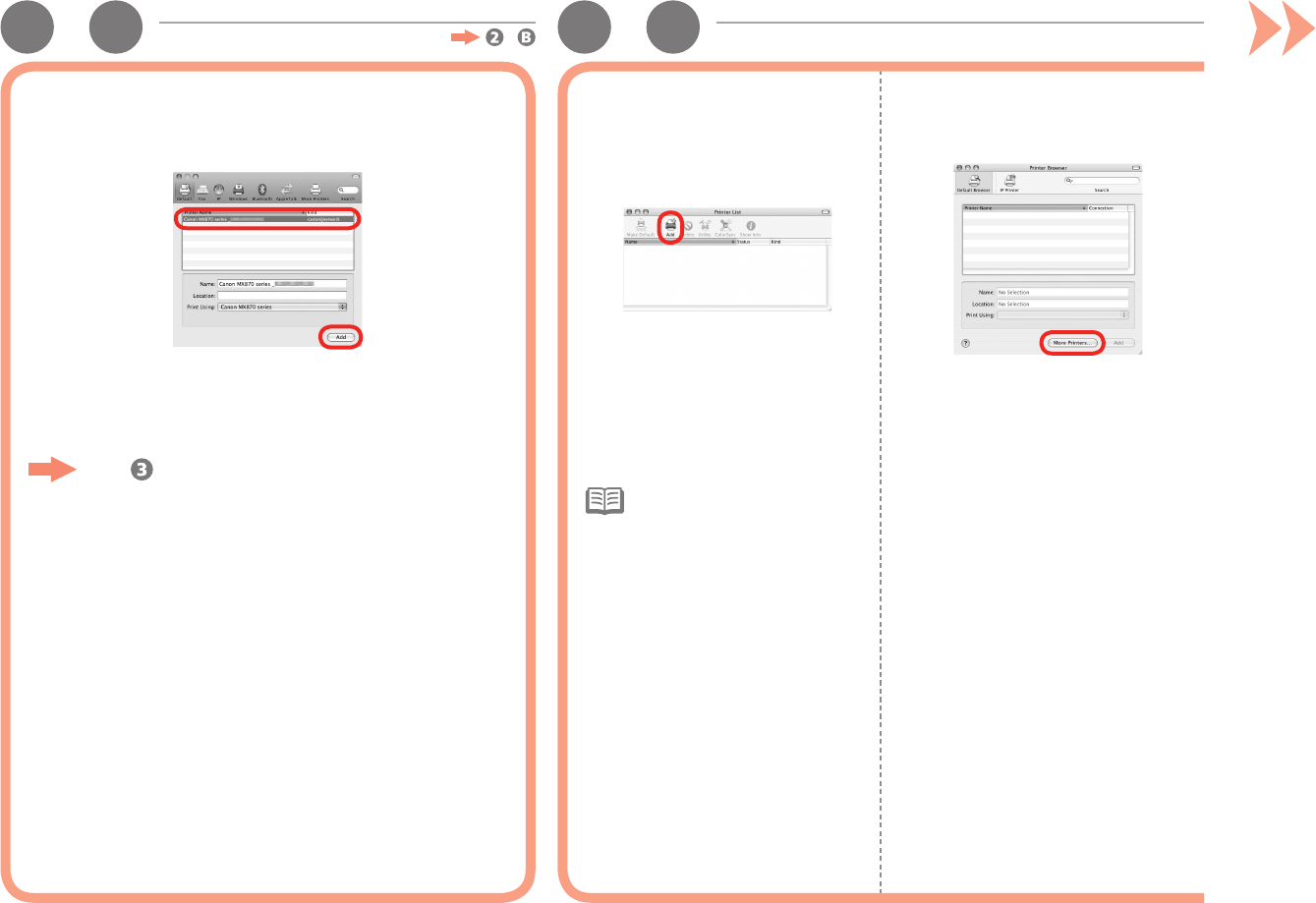
Select Canon MX870 series and click Add.
1
Go to on page 52.
Click More Printers in the Printer
Browser window.
2
When the Printer List window
appears, click Add.
1
When the You have no
printers available. screen
appears, click Add.
•
Mac OS X v.10.4.11Mac OS X v.10.6.x/v.10.5.x
Mac OS X v.10.4.11 -
3
52 12 Install the Software (Network Connection)
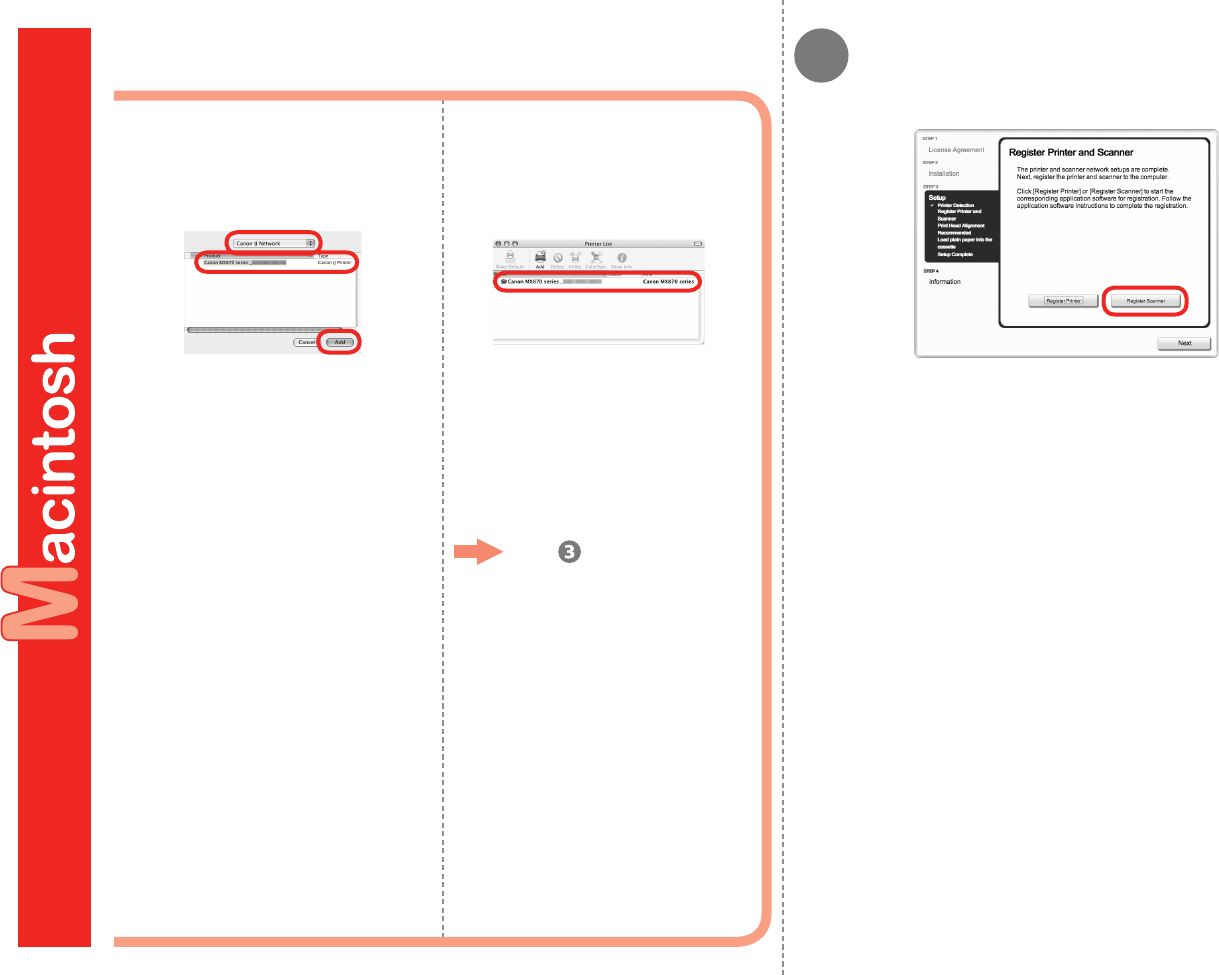
When the Register Printer and Scanner screen appears, click
Register Scanner.
Make sure that Canon MX870
series is added to the list of
printers.
4
Go to .
Select Canon IJ Network in the
pop-up menu, select Canon MX870
series in the list of printers, then click
Add.
3
4 5
53
12 Install the Software (Network Connection)
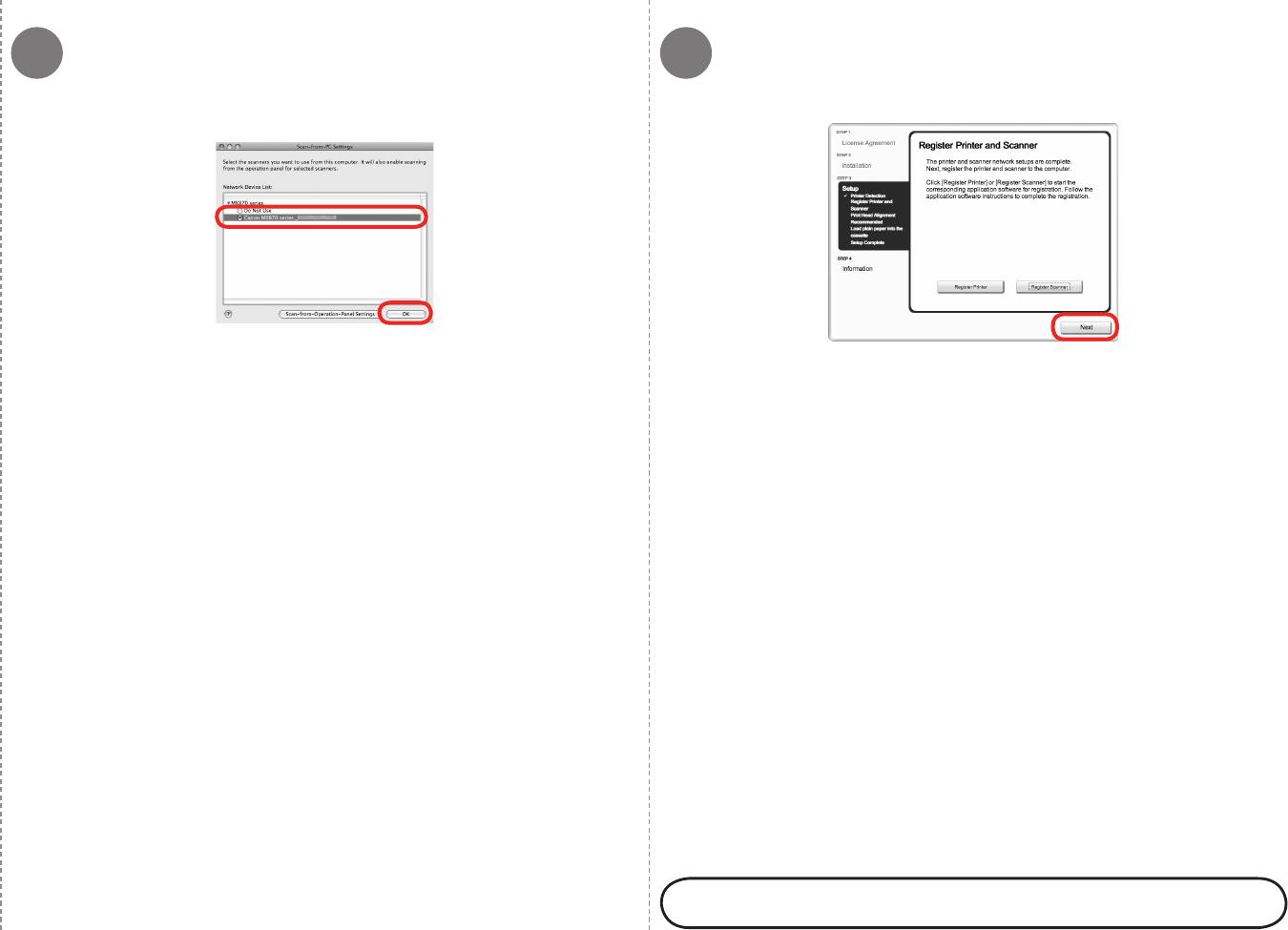
Select Canon MX870 series on the Scan-from-PC Settings screen, then
click OK.
Click Next on the Register Printer and Scanner screen.
Next, read "Install the Software (Information)" on page 54!
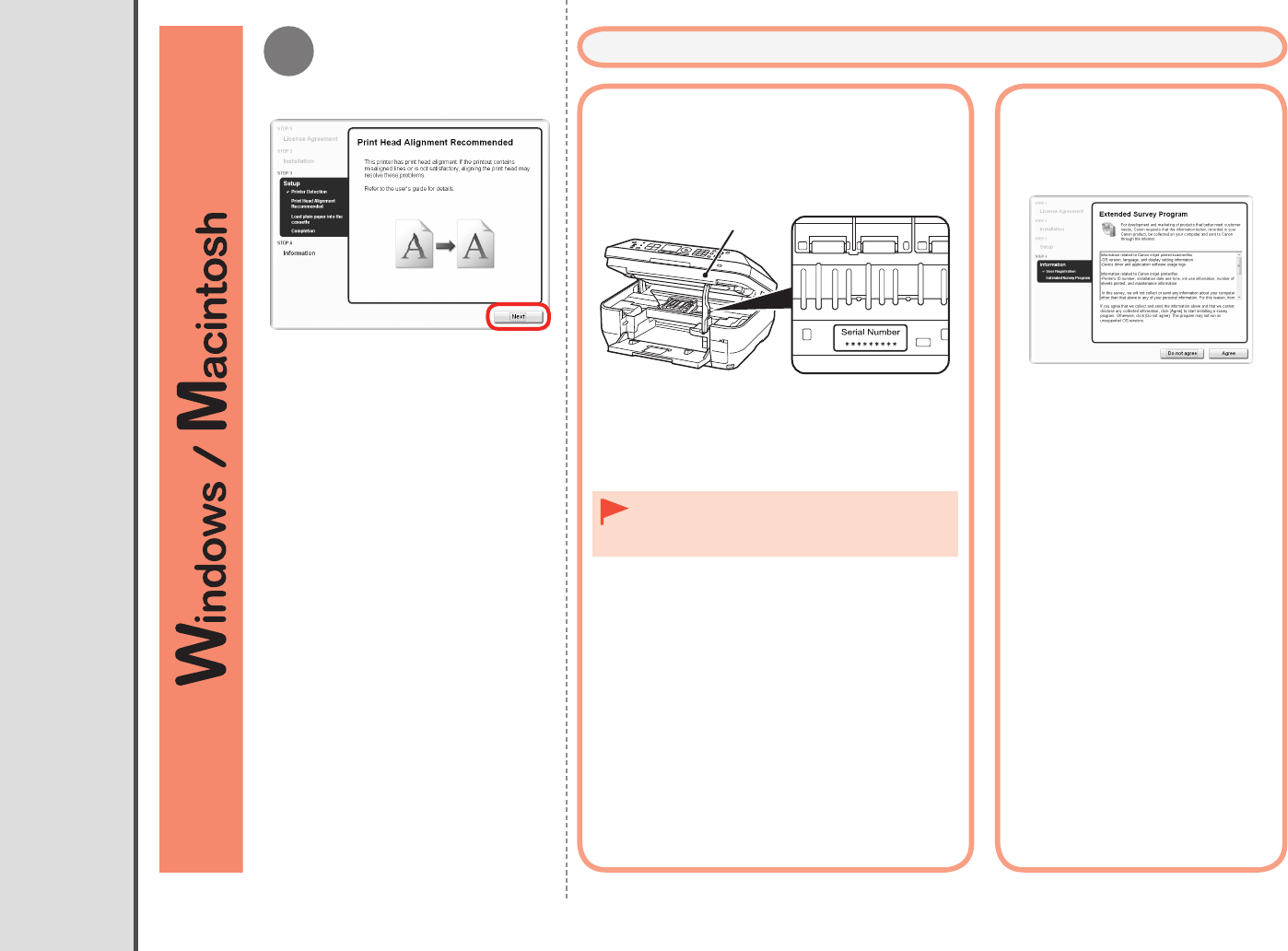
1
A
54 12 Install the Software (Network Connection)
Click Next.
Necessary Information for the User
Registration
□
If you can agree to Extended Survey
Program, click Agree.
If you click Do not agree, the
Extended Survey Program will not be
installed. (This has no effect on the
machine's functionality.)
Important Information for the Installation
Install the Software (Information)
If the Extended Survey
Program screen appears
□
If the power is on, the Print Head Holder will
move when the Scanning Unit (Cover) (A) is
opened.
•
The product serial number is required when
registering the product. The serial number is located
inside the machine (as shown in the illustration).
Follow any on-screen instructions to
proceed with the software installation.
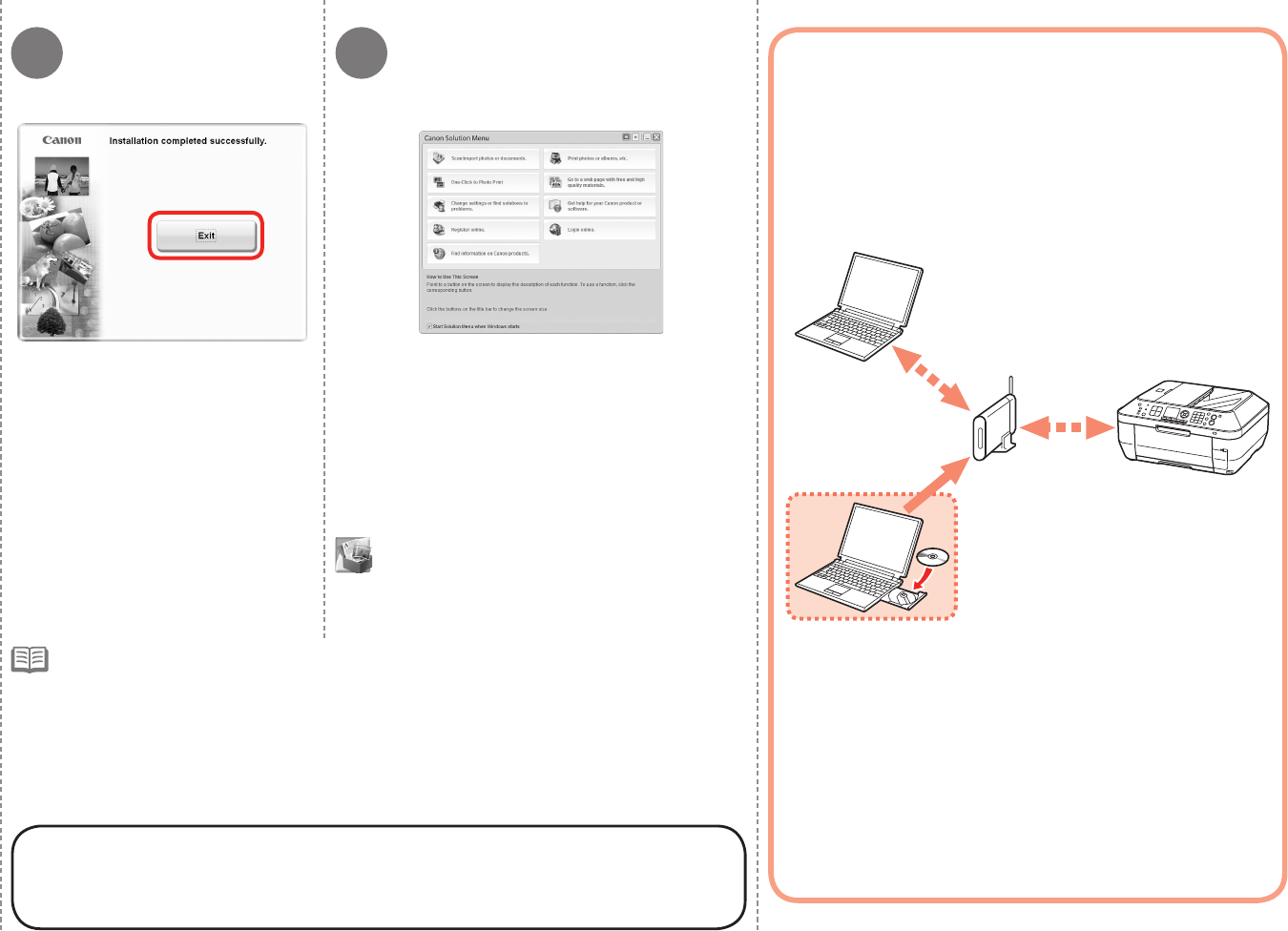
2 3
55
12 Install the Software (Network Connection)
Click Exit to complete the installation.
If Restart is displayed, follow the
instruction to restart the computer.
Congratulations! Setup is complete.
Proceed to page 57 for information regarding the Solution Menu and
the on-screen manual or page 58 to start using the machine.
For Macintosh:
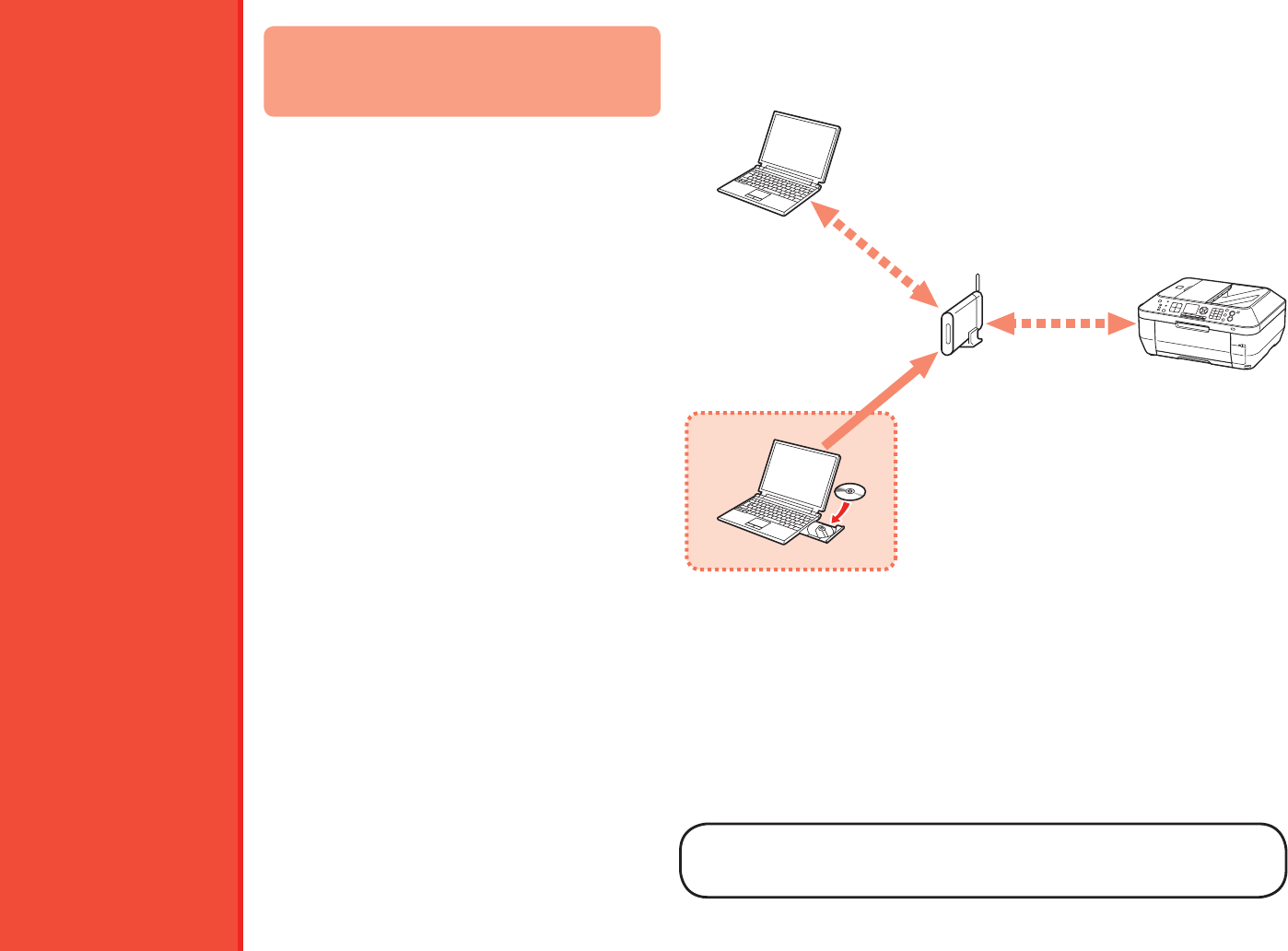
Using the Machine from Additional Computers
Now that the wireless/wired connection of the machine is complete,
it can be used from additional computers on the same network.
Install software including the drivers on the computer from which
you want to use the machine. Other settings are not required.
For the software installation procedure, refer to "12 Install the
Software (Network Connection)" on page 45.
Computer from which
the machine can be
used currently
Additional
computers on the
same network
It is necessary to restart the computer
before scanning using the Operation
Panel on the machine for the rst time.
Remove the Setup CD-ROM and keep it in a safe place.
The buttons displayed on Solution Menu may vary depending on the country or region of purchase.
•
•
For Windows:
Solution Menu starts automatically.
For Macintosh:
Click the icon on the Dock to start Solution Menu.
13
56
If the machine is already connected to a
wireless/wired connection, it can be used from
additional computers on the same network.
For details on the software installation procedure, refer to
"12 Install the Software (Network Connection)" on page 45.
Computer from which
the machine can be
used currently
Additional
computers on the
same network
Use from Additional Computers
To use from additional computers
1
2
Insert the Setup CD-ROM into the computer
from which you want to use the machine.
Follow the on-screen instructions to install
the software.
Other settings are not required.

14
57
Solution Menu is a gateway to functions and information that allow you to make full use of the
machine! For example,
Solution Menu
Use the Operation Panel on the machine to print your own items easily.
Various application software are installed on the computer along with the
drivers. You can print creative items by correcting/enhancing photos using the
application software.
For details on how to use the application software and the machine, refer to
the on-screen manual.
Open the on-screen manual with a single click.
Open various application software with a single click.
•
•
If you have a problem with machine settings, click this button.
How to start Solution Menu
Click this icon on the desktop (Windows) or on the Dock (Macintosh) to start
Solution Menu.
Click this button to open the on-screen manual.
How to open the on-screen manual
Try Using the Machine
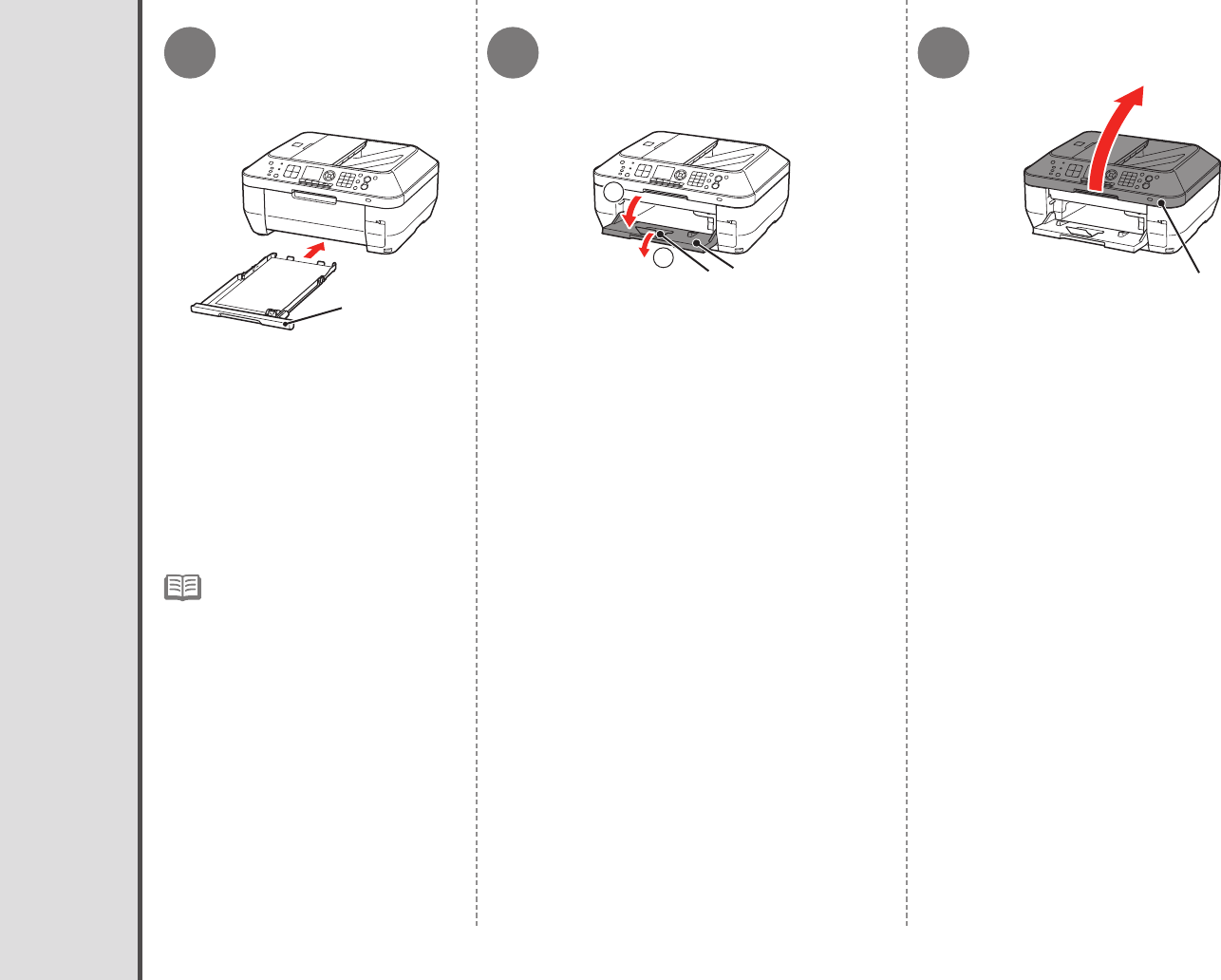
1 2 3
A
1
2
B
CD
58 14 Try Using the Machine
Open the Document Cover (D).
Try Copying
Load A4 or Letter-sized plain paper
into the Cassette (A).
For details, refer to "6 Load Paper"
on page 15.
•
1. Open the Paper Output Tray (B).
2. Open the Output Tray Extension (C).
This section describes how to perform a
standard copy.
4
G
H
I
E
F
5
59
14 Try Using the Machine
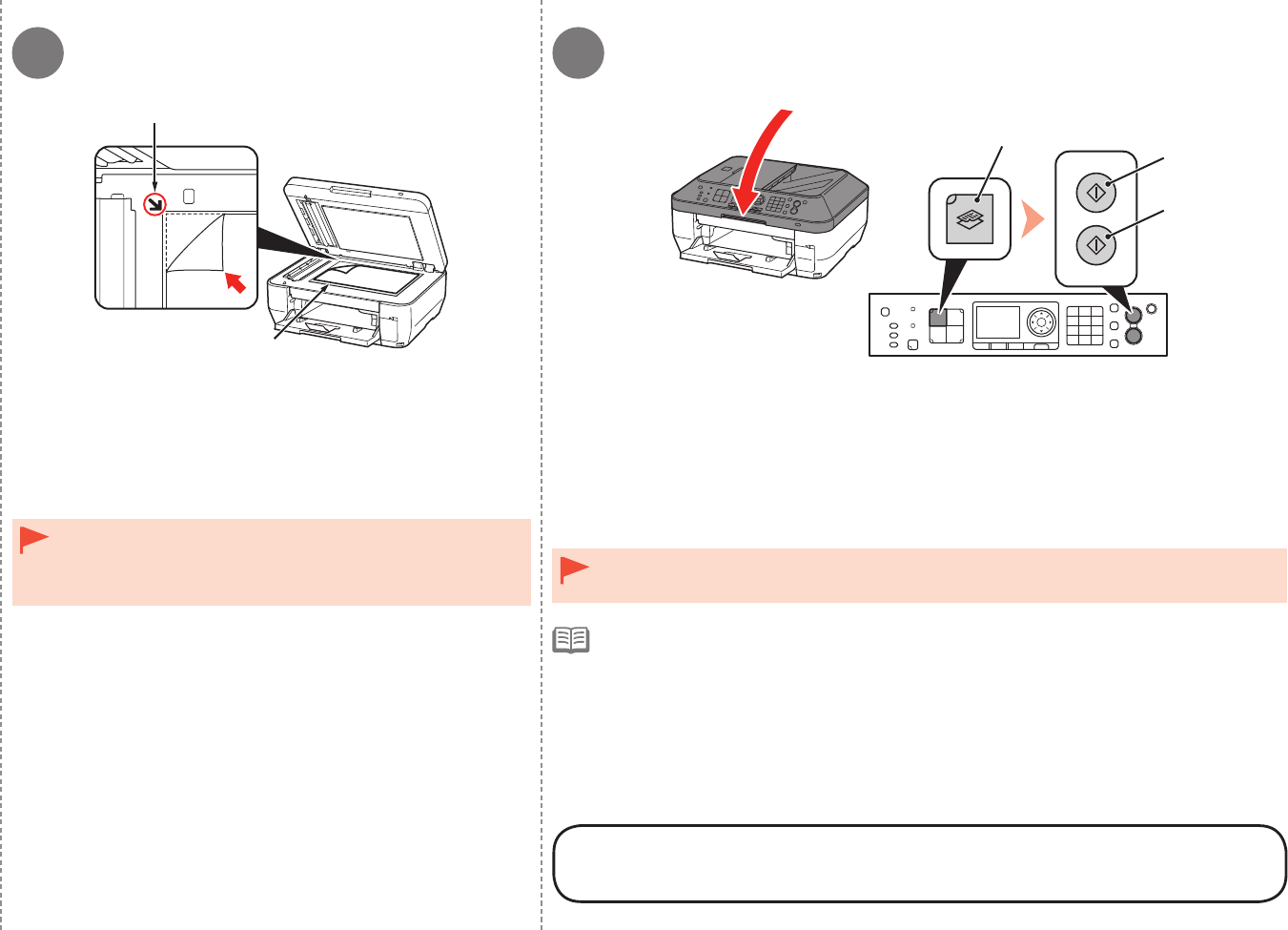
Place the document face-down and align it with the Alignment
Mark (E).
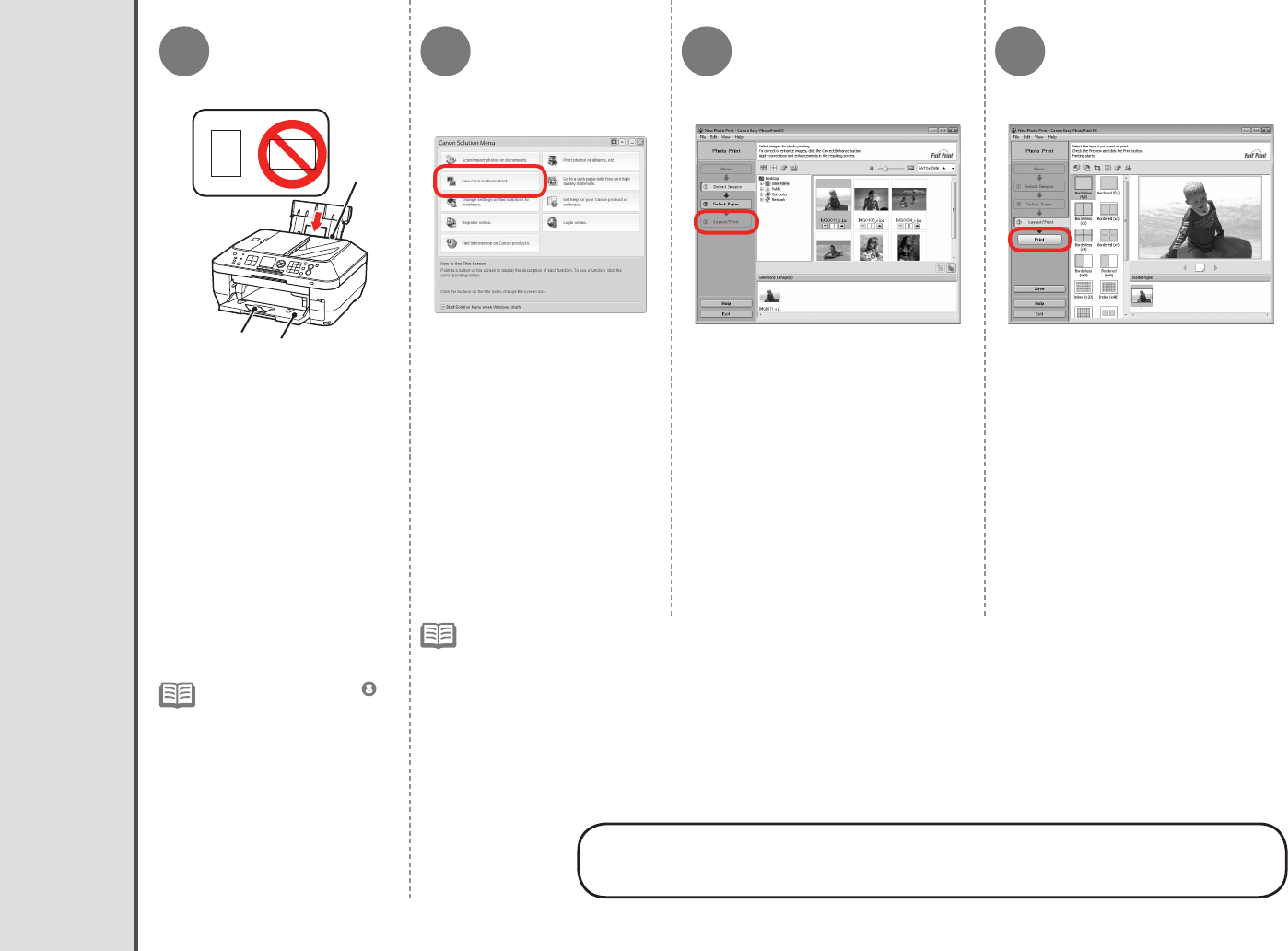
Close the Document Cover, press the COPY button (G), then press the Black button (H) or
the Color button (I).
Copying will start. Remove the document after printing.
Do not place objects weighing 4.4 lb / 2.0 kg or more on the Platen
Glass (F), or do not apply pressure to the document by pressing
on it with a force exceeding 4.4 lb / 2.0 kg.
The scanner may malfunction or the glass may break.
•
For the procedure to copy on paper other than plain paper, refer to
"Copying" in the on-screen manual: Advanced Guide.
Hold the Document Cover rmly when closing it because it is heavy.
Do not open the Document Cover until copying is complete.
•
•
When the machine is ready for copying, the Black button and Color button light up.•
1 2 3 4
A
B
C
60 14 Try Using the Machine
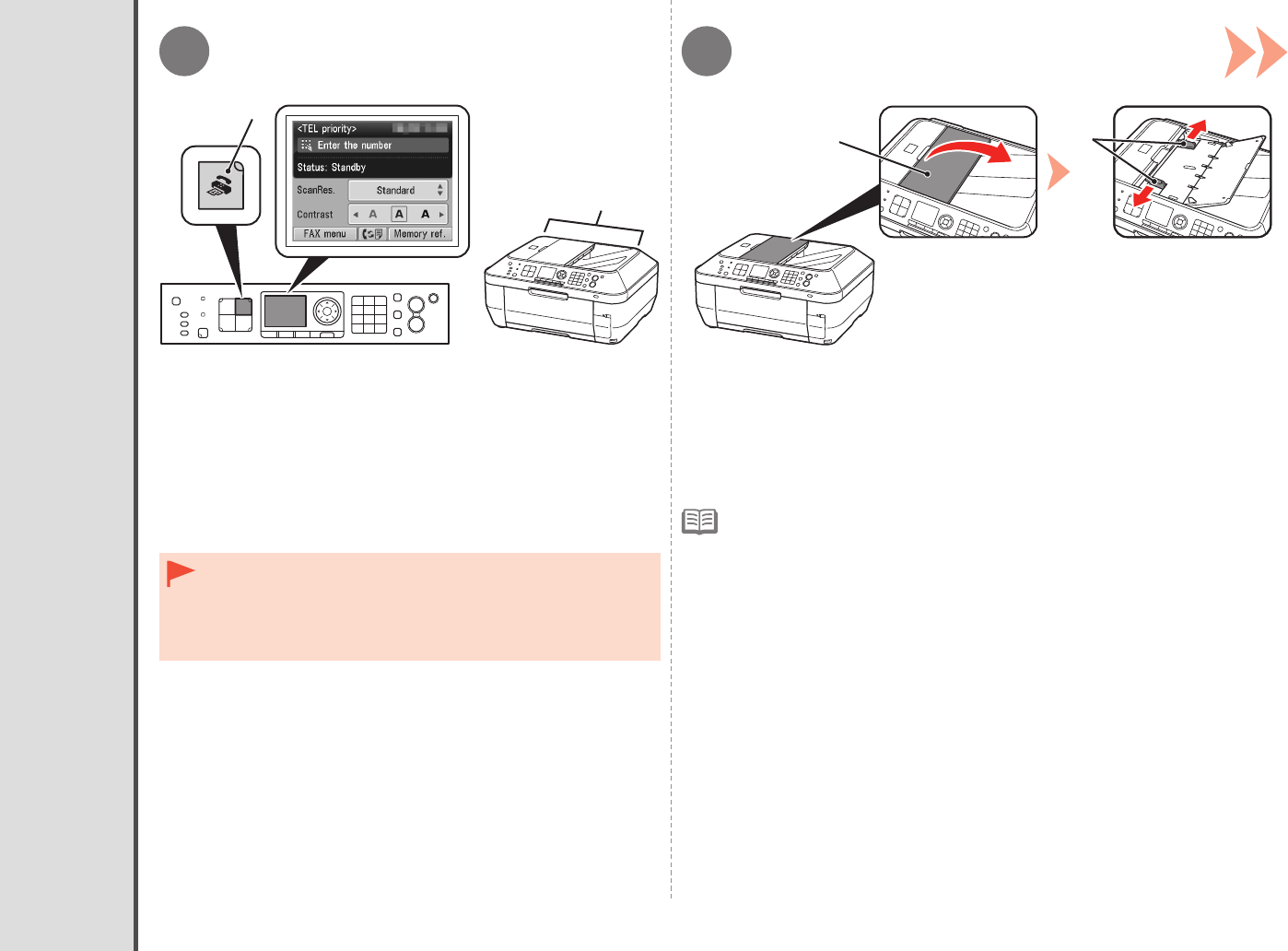
Start Solution Menu from the
Canon Solution Menu icon
on the desktop (Windows)
or on the Dock (Macintosh),
then click One-Click to Photo
Print.
Select the image you want to print,
then click Layout/Print.
Easy-PhotoPrint EX starts.
When a photo is selected, the number of
copies is set to "1".
Load 4" x 6" size photo paper
in the Rear Tray (A) in portrait
orientation with the printing
side facing up.
Click Print.
The screens are based on Windows Vista.
For details on starting Solution Menu, refer to page 57.
•
•
Print Photos from a Computer
For more information, refer to the on-screen manual: Advanced
Guide.
If you are using Windows, printing will
start.
If you are using Macintosh, click Print on
the Print dialog box to start printing.
For details, refer from
in "6 Load Paper" on page
17.
•
Make sure that the Paper Output
Tray (B) and the Output Tray
Extension (C) are open.
This section explains how to print
borderless photos using 4" x 6"
size Photo Paper Plus Glossy II.
2
1
CD
B
A
14 Try Using the Machine 61
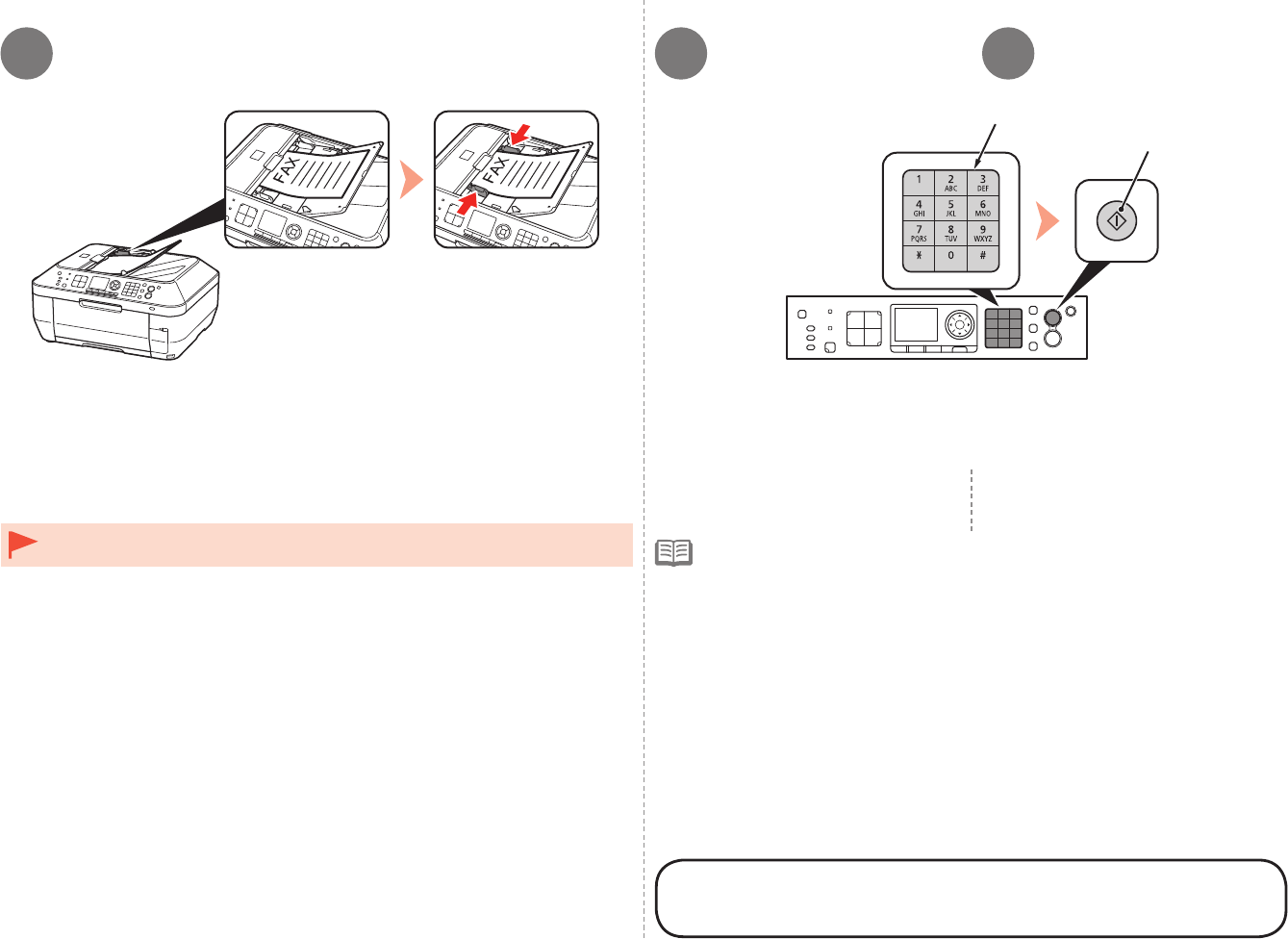
Press the FAX button (A).
The fax standby screen is displayed.
This section explains how to send a fax in black and white from the ADF
(Auto Document Feeder) (B).
Open the Document Tray (C), then move the Document Guides (D) to both
edges.
For details on supported documents and settings for image quality, density
(brightness), etc., refer to the on-screen manual: Basic Guide.
•
Send Faxes
Make sure that the telephone line type is set correctly. For the
setting procedure, refer to “Preparing for Faxing” in the on-screen
manual: Basic Guide.
The setting may not be available depending on the country or
region of your residence.
•
•
5
34
E
F
62 14 Try Using the Machine
Insert the document until a beep sounds, then slide the left and right
Document Guides against both ends of the document.
Use the Numeric buttons (E) to enter
the fax number.
Press the Black button (F).
The fax is sent.
Place the document face-up.•
For other procedures to send faxes, refer to "Faxing" in
the on-screen manual: Basic Guide.
For details on sender information, refer to "Specifying the Basic Settings for
Faxing" in the on-screen manual: Basic Guide.
When the machine is ready for faxing, the Black button and Color button light up.
•
•
15
63
Specifications
General Specications
Printing resolution
(dpi)
9600* (horizontal) X 2400 (vertical)
* Ink droplets can be placed with a pitch of 1/9600 inch at minimum.
Interface USB Port:
Hi-Speed USB *1
Direct Print Port:
PictBridge
Bluetooth v2.0 (Option) *2 *3 *4
USB ash drive
LAN Port:
Wired LAN: 100BASE-TX/10BASE-T
Wireless LAN: IEEE802.11b/IEEE802.11g *5
*1 A computer that complies with Hi-Speed USB standard is required. Since
the Hi-Speed USB interface is fully upwardly compatible with USB 1.1, it
can be used at USB 1.1.
*2 Maximum speed: 1.44 Mbps
*3 JPEG/PNG only
*4 Bluetooth connection is for printing only.
*5 Setup possible through Easy setup, WPS (Wi-Fi Protected Setup) or WCN
(Windows Connect Now).
Print width 8 inches/203.2 mm
(for Borderless Printing: 8.5 inches/216 mm)
Operating
environment
Temperature: 5 to 35°C (41 to 95°F)
Humidity: 10 to 90% RH (no condensation)
Storage environment Temperature: 0 to 40°C (32 to 104°F)
Humidity: 5 to 95% RH (no condensation)
Power supply AC 100-240 V, 50/60 Hz
Power consumption Printing (Copy): Approx. 22W
Standby (minimum): Approx. 3.4W*
OFF: Approx. 0.9W*
* USB connection to PC
External dimensions Approx. 19.4 (W) X 17.3 (D) X 8.9 (H) inches
Approx. 491 (W) X 437 (D) X 226 (H) mm
* With the Paper Support and Paper Output Tray retracted.
Weight Approx. 11.8 kg (Approx. 26.1 lb)
* With the Print Head and ink tanks installed.
Print Head/Ink Total 2,368 nozzles (PgBK 320 nozzles, Y/DyeBK each 256 nozzles, C/M each
768 nozzles)
ADF capacity A4 or Letter size: Max. 35 sheets (20 lb/75 gsm paper), up to 0.20 inches/5
mm in height
Legal size: Max. 30 sheets (20 lb/75 gsm paper), up to 0.16 inches/4 mm in
height
Other sizes: 1 sheet
Copy Specications
Multiple copy Max 99 pages
Intensity adjustment 9 positions, Auto intensity (AE copy)
Reduction/
Enlargement
25% - 400% (1% unit)
Scan Specications
Scanner driver TWAIN/WIA (for Windows 7/Windows Vista/Windows XP)
Maximum scanning
size
A4/Letter, 8.5 X 11.7 inches/216 X 297 mm (Platen Glass)/8.5 x 14.0
inches/216 x 356 mm (ADF)
Scanning resolution Optical resolution (horizontal x vertical) max: 2400 dpi X 4800 dpi
Interpolated resolution max: 19200 dpi X 19200 dpi
Gradation (Input/
Output)
Gray: 16 bit/8 bit
Color: 48 bit/24 bit (RGB each 16 bit/8 bit)
Fax Specications
Applicable line Public Switched Telephone Network (PSTN)
Communication
mode
Super G3, G3
Data compressing
system
Black: MH, MR, MMR
Color: JPEG
Modem speed Max. 33.6 kbps
(Automatic fallback)
Transmission speed Black: Approx. 3 seconds/page at 33.6 kbps
(Based on ITU-T No.1 chart for US specications and Canon FAX Standard
chart No.1 for others, both in standard mode or Canon FAX Standard chart
No.1, standard mode.)
Color: Approx. 1 minute/page at 33.6 kbps
(Based on Canon COLOR FAX TEST SHEET.)
Gradation Black: 256 levels
Color: 24 bit Full Color (RGB each 8 bit)
Density adjustment 3 levels
Memory Transmission/reception: approx. 250 pages
(Based on ITU-T No.1 chart for US specications and Canon FAX Standard
chart No.1 for others, both in standard mode.)
Fax resolution Black Standard: 8 pels/mm x 3.85 lines/mm (203 pels/inch x 98 lines/inch)
Black Fine, Photo: 8 pels/mm x 7.70 lines/mm (203 pels/inch x 196 lines/inch)
Black Extra ne: 300 x 300 dpi
Color: 200 x 200 dpi
Dialing Automatic dialing
One-touch speed dial (max. 3 destinations)
Coded speed dial (max. 100 destinations)
Group dial (max. 102 destinations)
Regular dialing (with Numeric buttons)
Automatic redialing
Manual redialing (with the Redial/Pause button/max. 10 destinations)
Others Activity report (after every 20 transactions)
Sequential broadcasting (max. 104 destinations)
Rejected numbers (Max 10 destinations)
64 15 Specications
Specications are subject to change without notice.
About Consumables
Consumables (ink tanks / FINE Cartridges) are available for 5 years after production has
stopped.
Minimum System Requirements
Conform to the operating system’s requirements when higher than those given here.
Operating System
Processor
RAM
Windows 7
1 GHz or faster 32-bit (x86) or 64-bit (x64)
processor
1 GB (32-bit)/2 GB (64-bit)
Windows Vista, Vista SP1, Vista SP2
1 GHz processor
512 MB
Windows XP SP2, SP3
300 MHz processor
128 MB
Windows 2000 Professional SP4
300 MHz processor
128 MB
Mac OS X v.10.6
Intel processor
1GB
Mac OS X v.10.5
Intel processor, PowerPC G5, PowerPC G4
(867 MHz or faster)
512 MB
Mac OS X v.10.4.11
Intel processor, PowerPC G5,
PowerPC G4, PowerPC G3
256 MB
Browser Internet Explorer 6 or later Safari
Hard Disk Space 650 MB
Note: For bundled software installation.
850 MB
Note: For bundled software installation.
CD-ROM Drive Required Required
Display SVGA 800 x 600 XGA 1024 x 768
Windows: Operation can only be guaranteed on a PC with Windows 7, Windows Vista, Windows XP or Windows 2000
pre-installed.
Windows: Uninstall software bundled with the Canon inkjet printer before upgrading from Windows Vista to Windows 7,
then, install the bundled software again.
Some functions may not be available with Windows Media Center.
Macintosh: Hard Disk must be formatted as Mac OS Extended (Journaled) or Mac OS Extended.
Macintosh: After upgrading from Mac OS X v.10.5 or lower to Mac OS X v.10.6, install software bundled with the Canon
inkjet printer.
Internet Explorer 7 or later is required to install Easy-WebPrint EX.
•
•
•
•
•
•
Additional System Requirements for the On-Screen Manuals
Browser: Easy Guide Viewer
Note: Internet Explorer 6 or later must be installed. The
on-screen manual may not be displayed properly depending
on your operating system or Internet Explorer version. We
recommend that you keep your system up to date with
Windows Update.
Browser: Easy Guide Viewer
Note: The on-screen manual may not be displayed properly
depending on your operating system or Safari version. We
recommend that you keep your system up to date.
Network Specications
Communication
protocol
TCP/IP
Wireless LAN Supported Standards: IEEE802.11g/IEEE802.11b
Transfer speed:
IEEE802.11g: 6/9/12/18/24/36/48/54 Mbps
IEEE802.11b: 1/2/5.5/11 Mbps
Frequency bandwidth *1: 2.412-2.462GHz or 2.412GHz-2.472GHz
Channel *1: 1-11 or 1-13
Communication distance: Indoors 50 m *2
Security: Encryption by WPA-PSK, WPA2-PSK, or WEP (64/128 bits), and access control by passwords
*1 Frequency bandwidth and available channels differ depending on country or region.
*2 Effective range varies depending on the installation environment and location.
Wired LAN Supported Standards: IEEE802.3u (100BASE-TX)/IEEE802.3 (10BASE-T)
Transfer speed: 10 M/100 Mbps (auto switching)

QT5-2885-V01 XXXXXXXX ©CANON INC.2010 PRINTED IN THAILAND
CANON U.S.A. INC.
One Canon Plaza, Lake Success, NY 11042 U.S.A.
www.usa.canon.com
Email Tech Support — www.usa.canon.com/support
Getting Help from Canon
This option provides live telephone technical support, free of service charges,
Monday-Friday (excluding holidays), during the warranty period.
Telephone Device for the Deaf (TDD) support is available at 1-866-251-3752.
Toll-Free Tech Support— 1-800-OK-CANON
Call 1-800-OK-CANON to locate a dealer near you, or visit the Canon online
store at www.shop.usa.canon.com
CLI-221BK
CLI-221M
CLI-221Y
PGI-220BK
CLI-221C
2946B001
2948B001
2949B001
2945B001
2947B001
Order #
Ordering Information
The following ink tanks are compatible with this machine.
