Canon Pixma Pro9000 Mark Ii Photo Printer 3295B002 Users Manual
Canon-Pixma-Pro9000-Mark-Ii-Quick-Start-Guide canon-pixma-pro9000-mark-ii-quick-start-guide
Manual Pro9000MarkII_GS_EN-US_V1 Canon Pixma Pro900 Mark II Getting Started Manual | Manual Device
3295B002 to the manual df7fd8f9-1e12-4b10-8ddc-45856d80cdb3
2015-01-23
: Canon Canon-Pixma-Pro9000-Mark-Ii-Photo-Printer-3295B002-Users-Manual-242091 canon-pixma-pro9000-mark-ii-photo-printer-3295b002-users-manual-242091 canon pdf
Open the PDF directly: View PDF  .
.
Page Count: 36

Make sure to read this manual before using the printer. Please keep it in hand for future reference.
Getting Started
Read Me First
series
Photo Printer
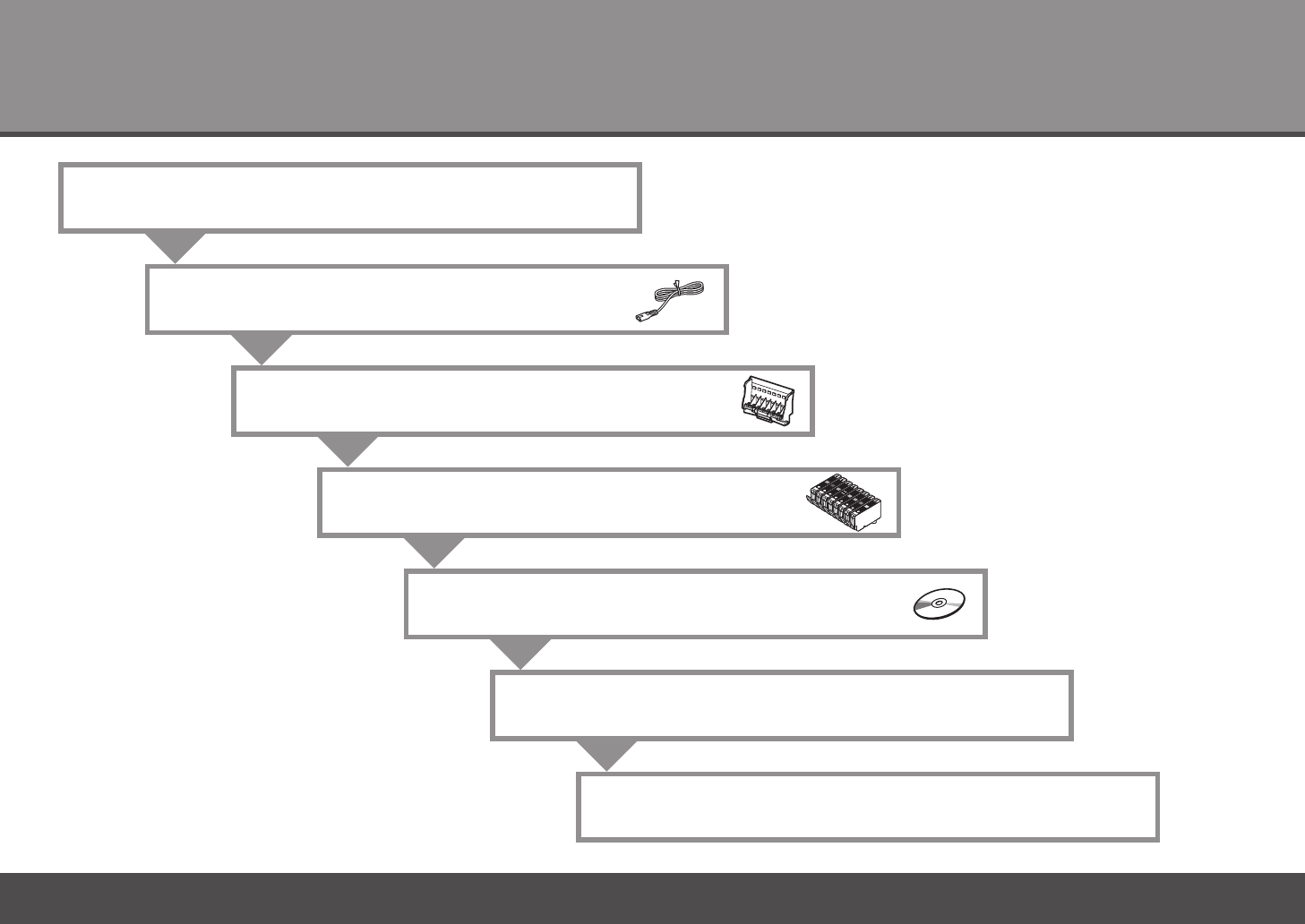
Contents
6
After Installing the Printer
Install the Software
5
Install the Ink Tanks
4
Install the Print Head
3
Turn the Power On
2
Loading Paper
Preparation
1

1
Symbols■
The following symbols are used to mark important instructions. Observe these instructions.
Additional explanations.
Instructions that, if ignored, could result in personal injury or material damage.
Instructions that must be observed for safe operation.
Model Number: K10335 (Pro9000 Mark II)
Macintosh and Mac are trademarks of Apple Inc., registered in the U.S. and other countries.•
Descriptions for operations that take some time to complete.
Microsoft is a registered trademark of Microsoft Corporation.•
Windows is a trademark or registered trademark of Microsoft Corporation in the U.S. and/or other countries.•
Windows Vista is a trademark or registered trademark of Microsoft Corporation in the U.S. and/or other countries.•
Caution
Adobe, Adobe Photoshop, Adobe RGB and Adobe RGB (1998) are either registered trademarks or trademarks of Adobe Systems Incorporated in the United States and or other countries.•
2
1Preparation
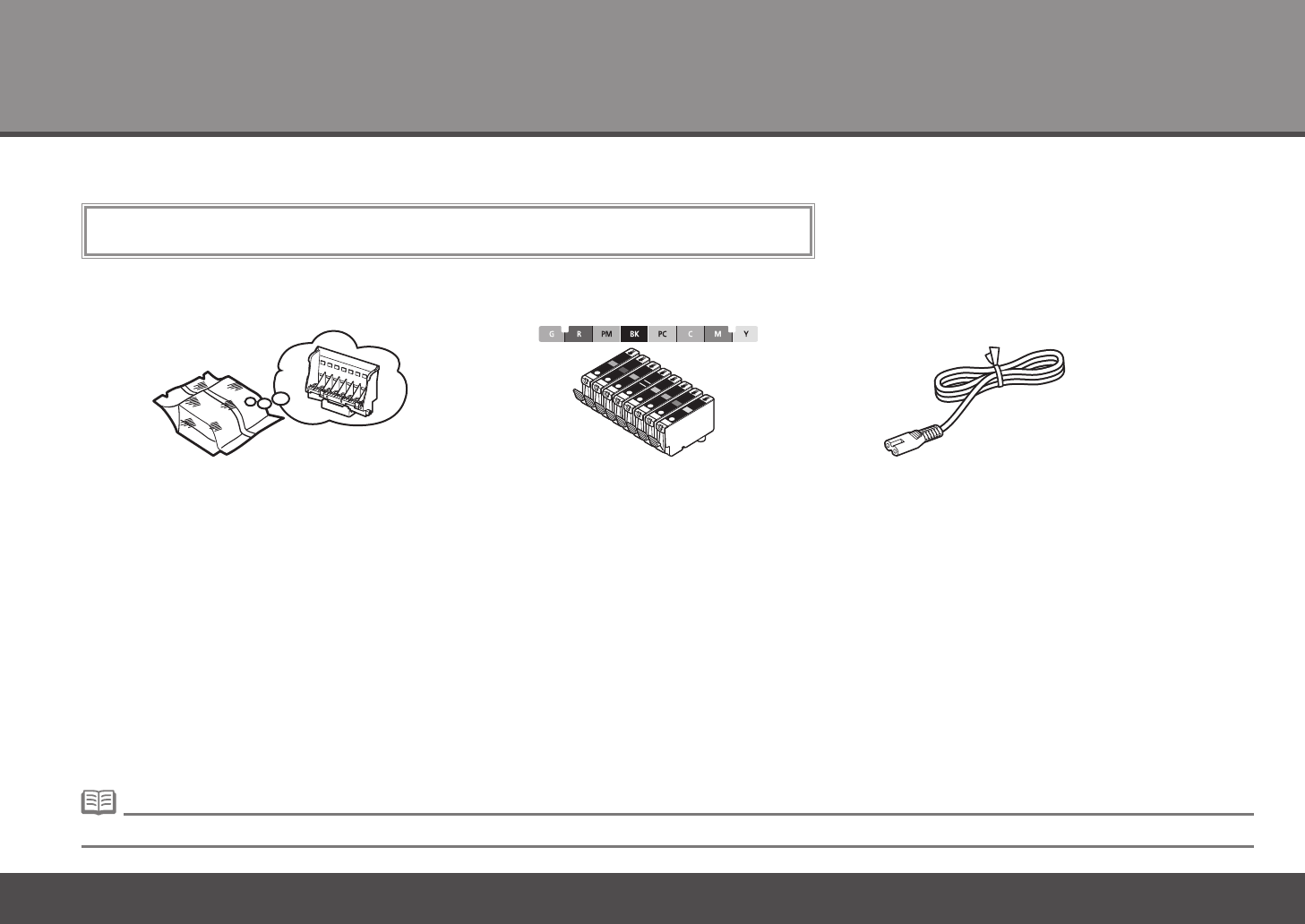
Check the Included Items■
Manuals•
ink tanksPrint Head
Before turning on the printer, remove all the orange tapes and the protective sheets.
Setup CD-ROM (containing the drivers, applications and on-screen manuals)•
Warranty•
power cord
A USB cable is necessary to connect the printer with your computer.•
3
612345
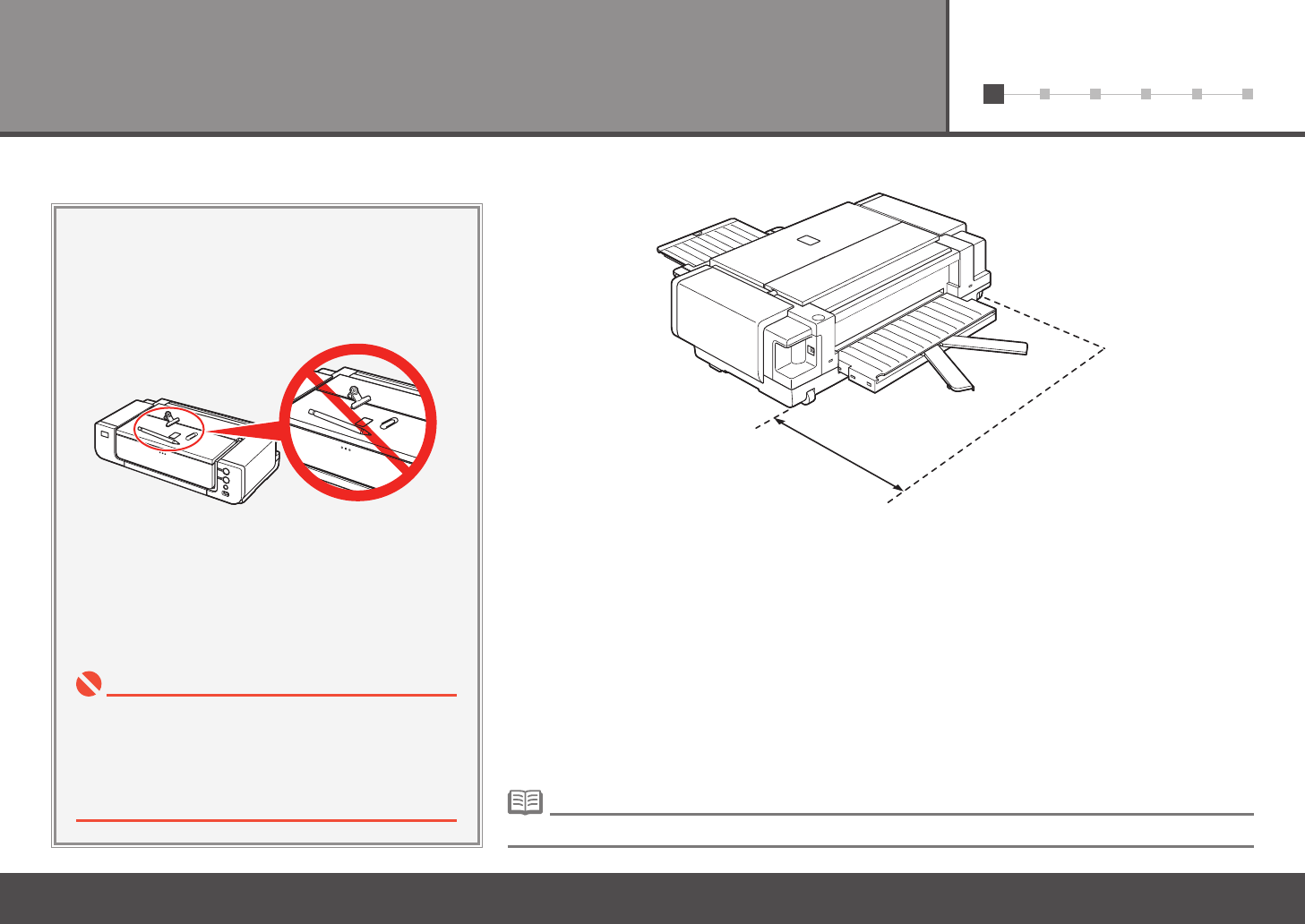
Place the printer on a flat surface.•
Do not place any object in front of the printer.•
You can print on large size paper such as 14" x 17"/355.6 x 431.8 mm or thick paper by loading the
paper in the Front Tray. In that case, keep a space of 15.7"/40 cm behind the printer.
•
Choosing a Location■
Do not install the printer where an object may fall on
it. The object may fall inside the printer, resulting in
malfunction.
•
Do not place any object on top of the printer. It may
fall into the printer when opening covers, resulting in
malfunction.
•
There are wheels on the back corners of the printer. Lift the front of the printer to move it back and forth easily.•
15.7"/40 cm behind the printer
4
612345
2
21 3
1
2
A
B
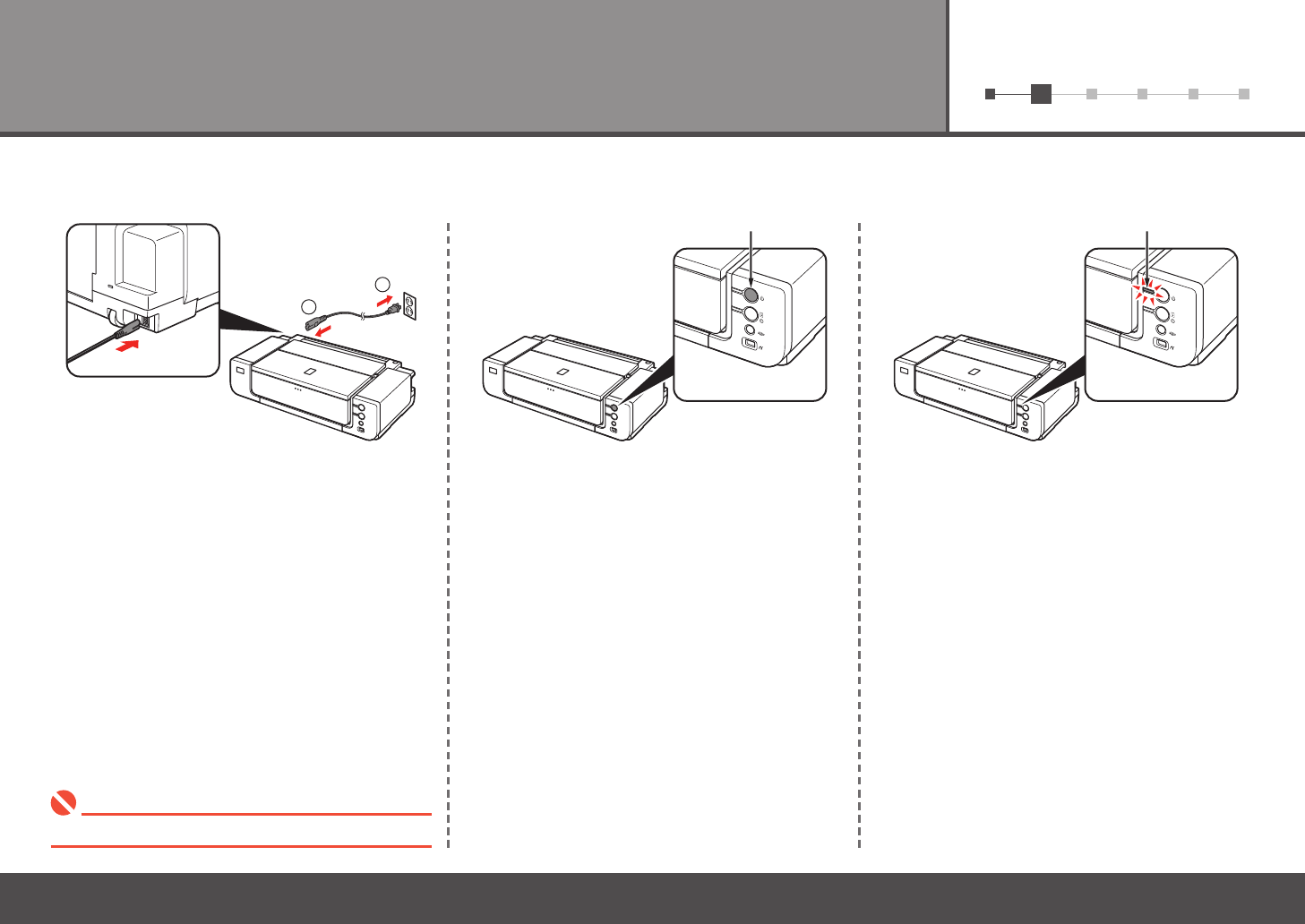
Turn the Power On
Conrm that the POWER lamp (B) lights green.Turn on the printer (A).Plug the power cord into the back left of the
printer, then connect the other end to the wall
outlet.
Do NOT connect the USB cable at this stage.•
5
61 2 34 5
3
1
A
B
C
D
2
Install the Print Head
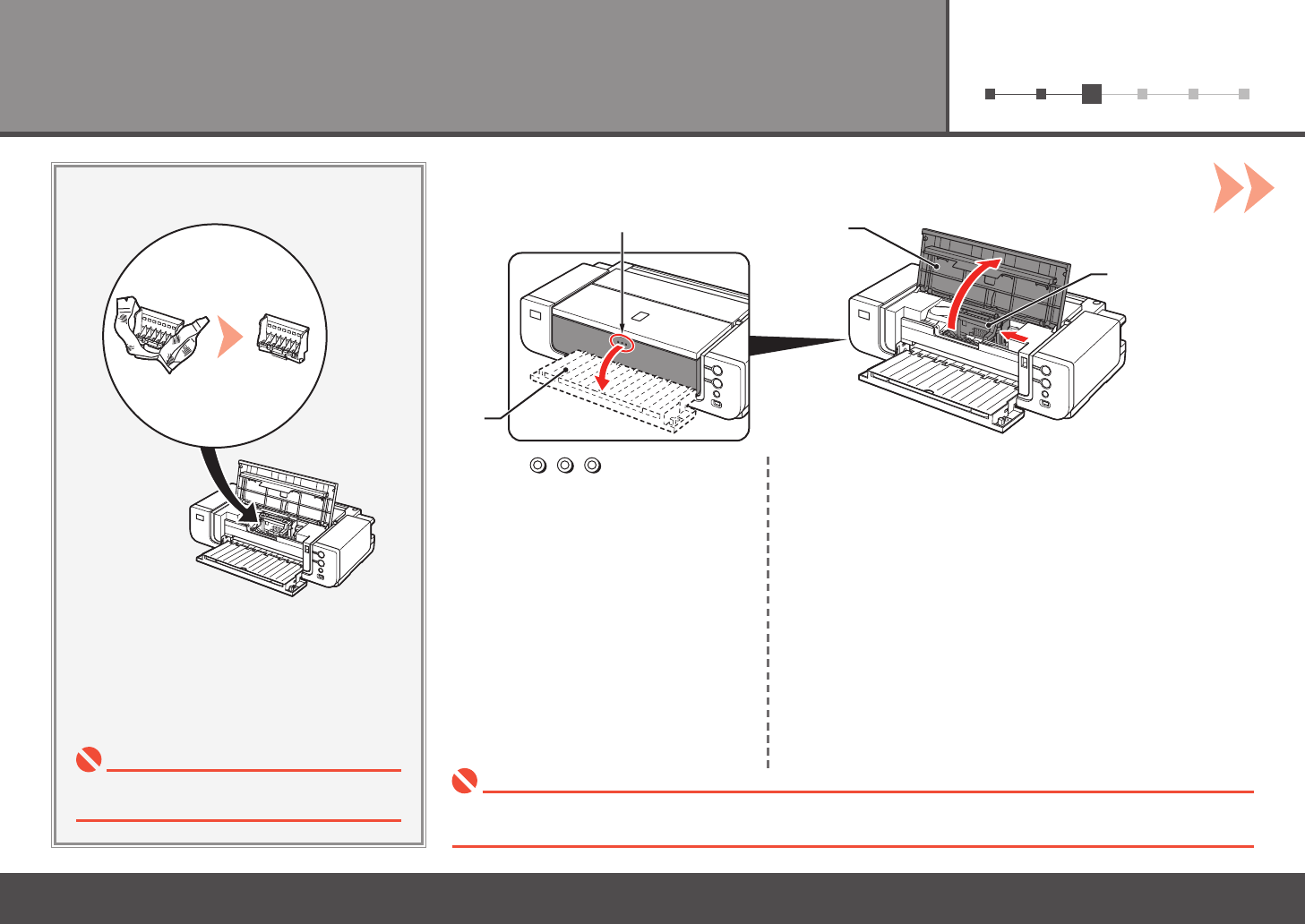
Handle the Print Head carefully. Do not drop or
apply excessive pressure to it.
•
Open the Top Cover (C).
The Print Head Holder (D) comes out. (This is where you install the
Print Head.)
The Print Head Holder makes a noise as it moves. This is normal operation.•
If the Print Head Holder does not move, make sure that the printer is turned on.•
Press the button (A).
The Front Tray (B) opens.
6
3
4 53
E
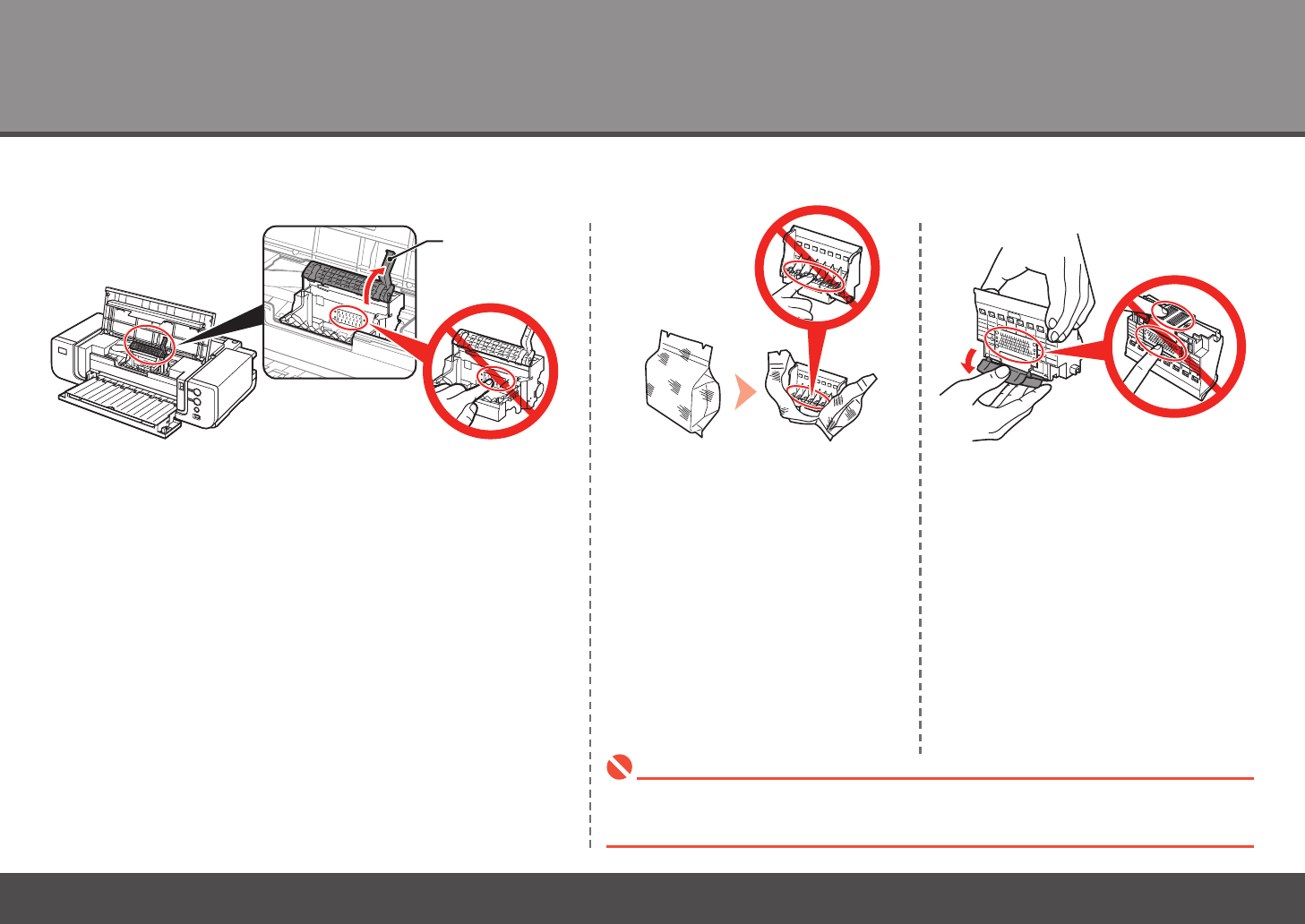
Firmly raise the Print Head Lock Lever (E) until it stops.
There may be some transparent or light blue ink on the inside of the bag the Print Head comes in,
or the inside of the protective cap - this has no effect on print quality. Be careful not to get ink on
yourself when handling these items. Be careful not to stain your hands.
•
Remove the orange protective cap.Remove the Print Head from the silver
package.
7
61 2 34 5
76
E
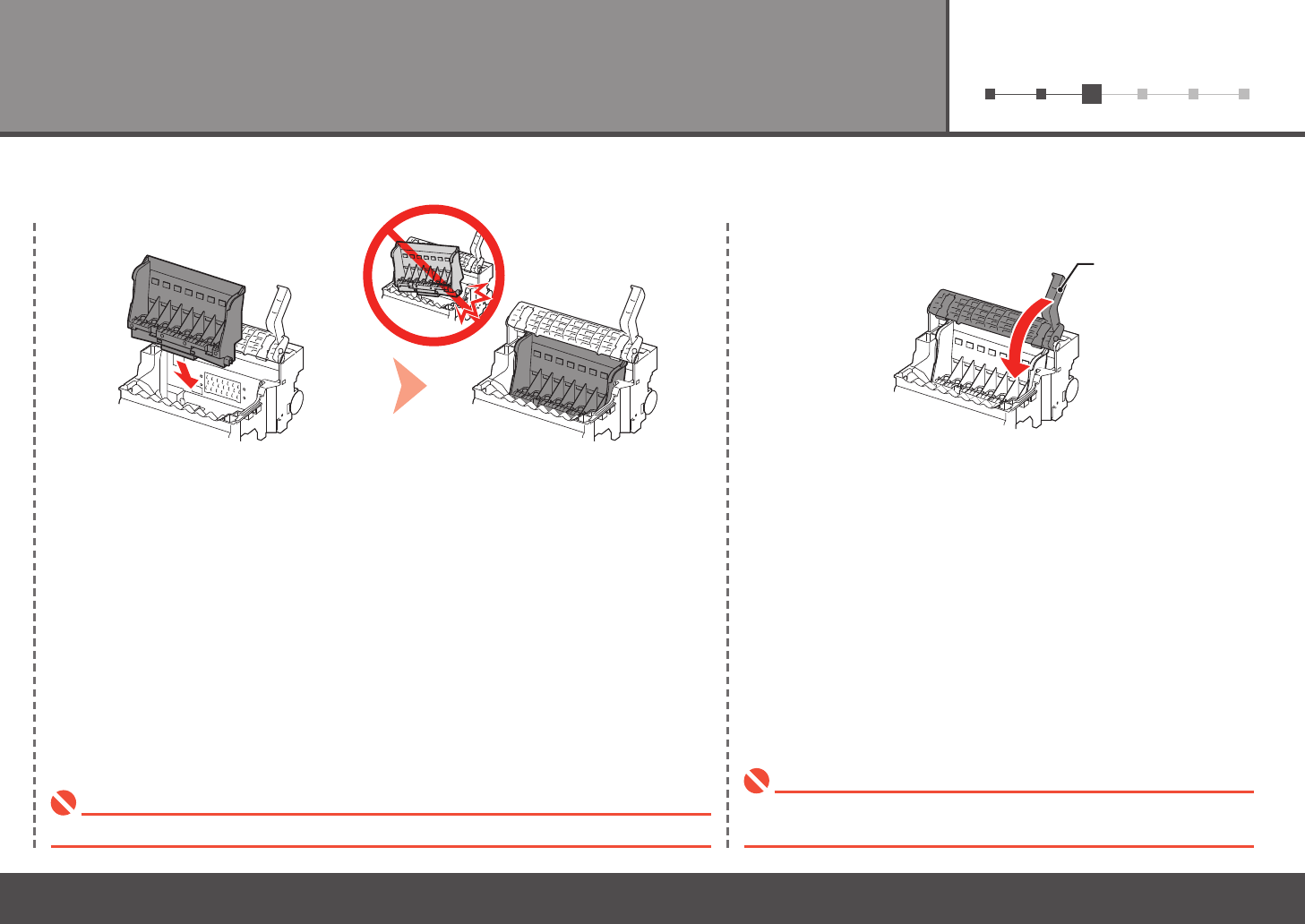
Lower the Print Head Lock Lever (E) completely.Set the Print Head in place.
Pinch the Print Head Lock Lever rmly and lower it gently.•
Do not knock the Print Head against the sides of the holder.• Once you have installed the Print Head, do not remove it unnecessarily.•
8
4
21
1
2
A
Install the Ink Tanks
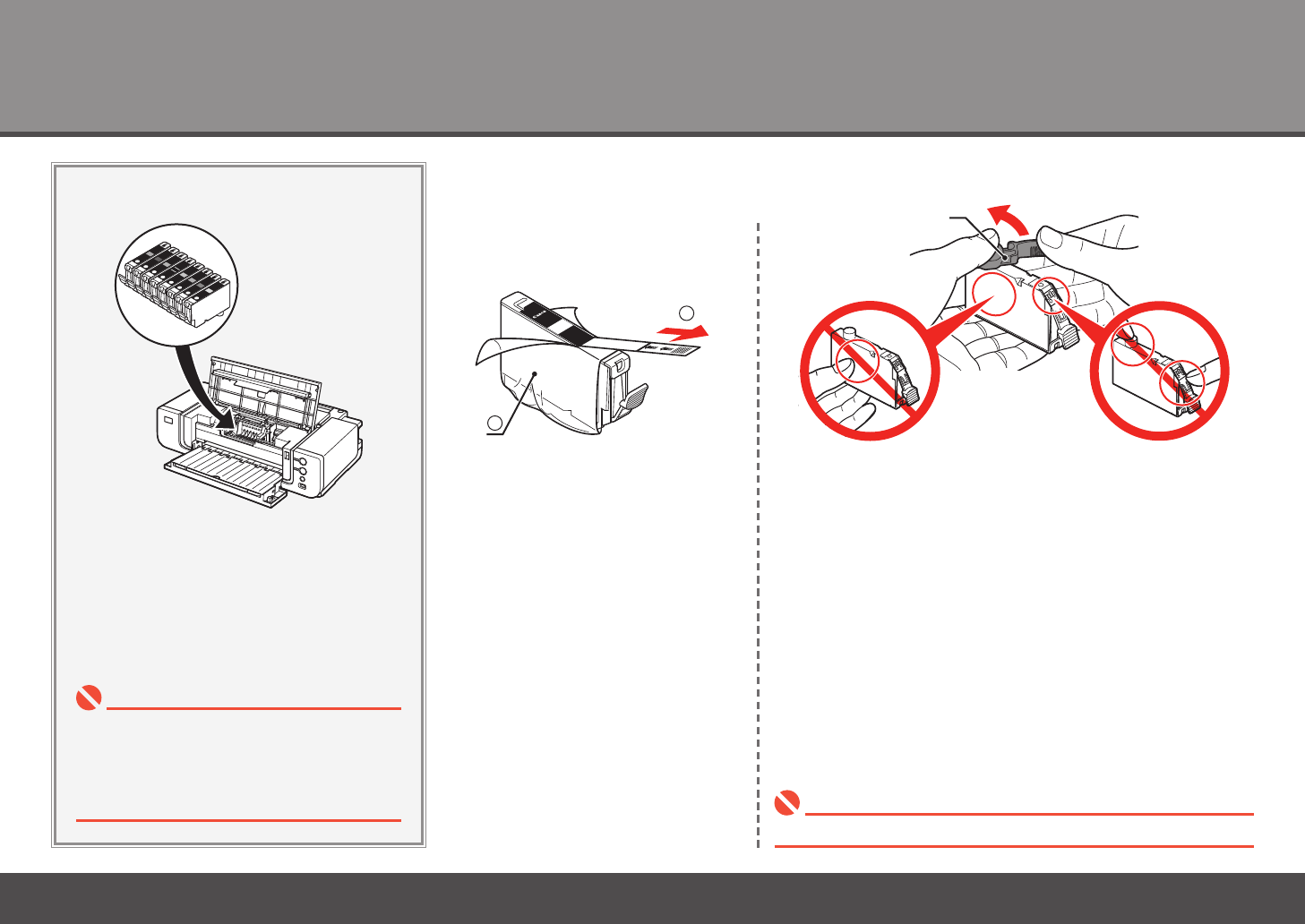
Handle the ink tanks carefully. Do not drop or
apply excessive pressure to them.
•
Pull the orange tape (1) in the
direction of the arrow to peel off the
protective lm and remove the lm (2)
completely.
Do not hold the sides of the ink tank; ink may splash.•
If the Print Head Holder moves to the right, close
and reopen the Top Cover.
•
Be sure to use the supplied ink tanks.•
While pressing down with your left thumb, twist off the orange
protective cap (A) located on the bottom of the ink tank.
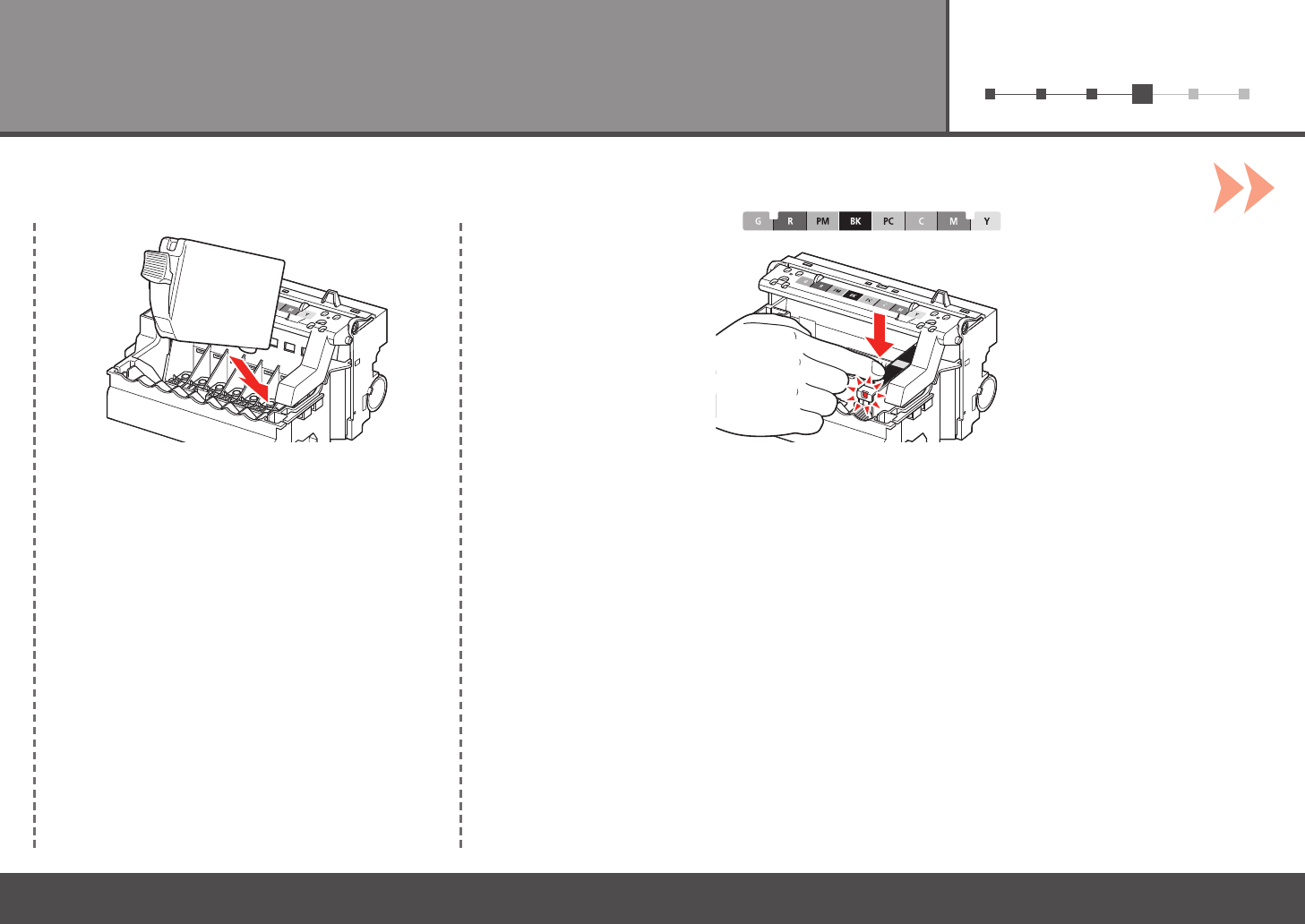
9
612345
3 4
Install the ink tank
Insert the ink tank. Press the PUSH mark on the ink tank until it clicks into place.
Make sure the Ink lamp lights red.
10
612345
4
D
B
C
E
5 6
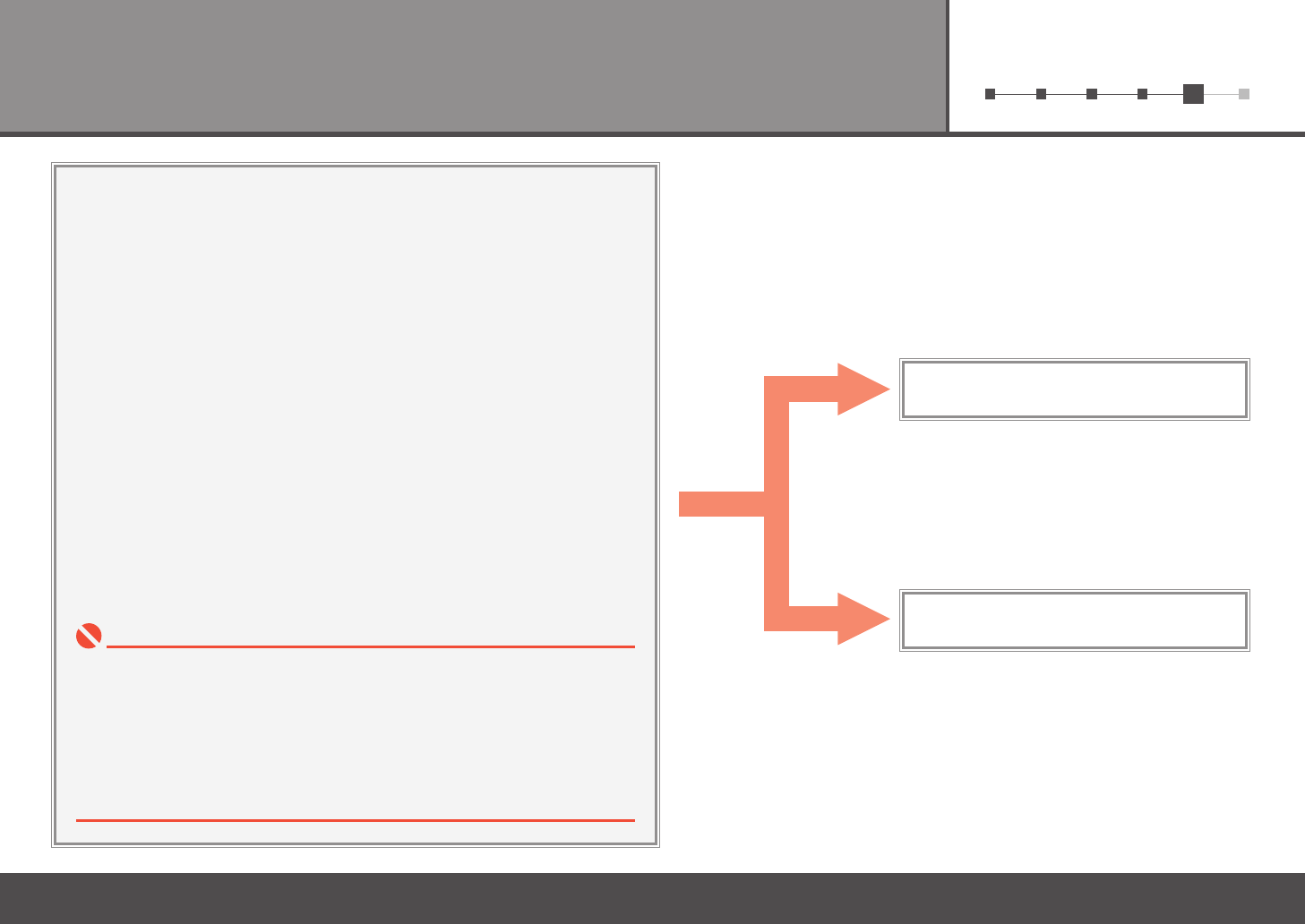
Close the Top Cover (B).
Wait for about 3 minutes until the POWER lamp (green) (C) stops flashing and
stays lit then operating noise stops, and go to the next step.
Do not open the Top Cover while the lamp is flashing.
•
Make sure the Inner Cover (D) is closed.•
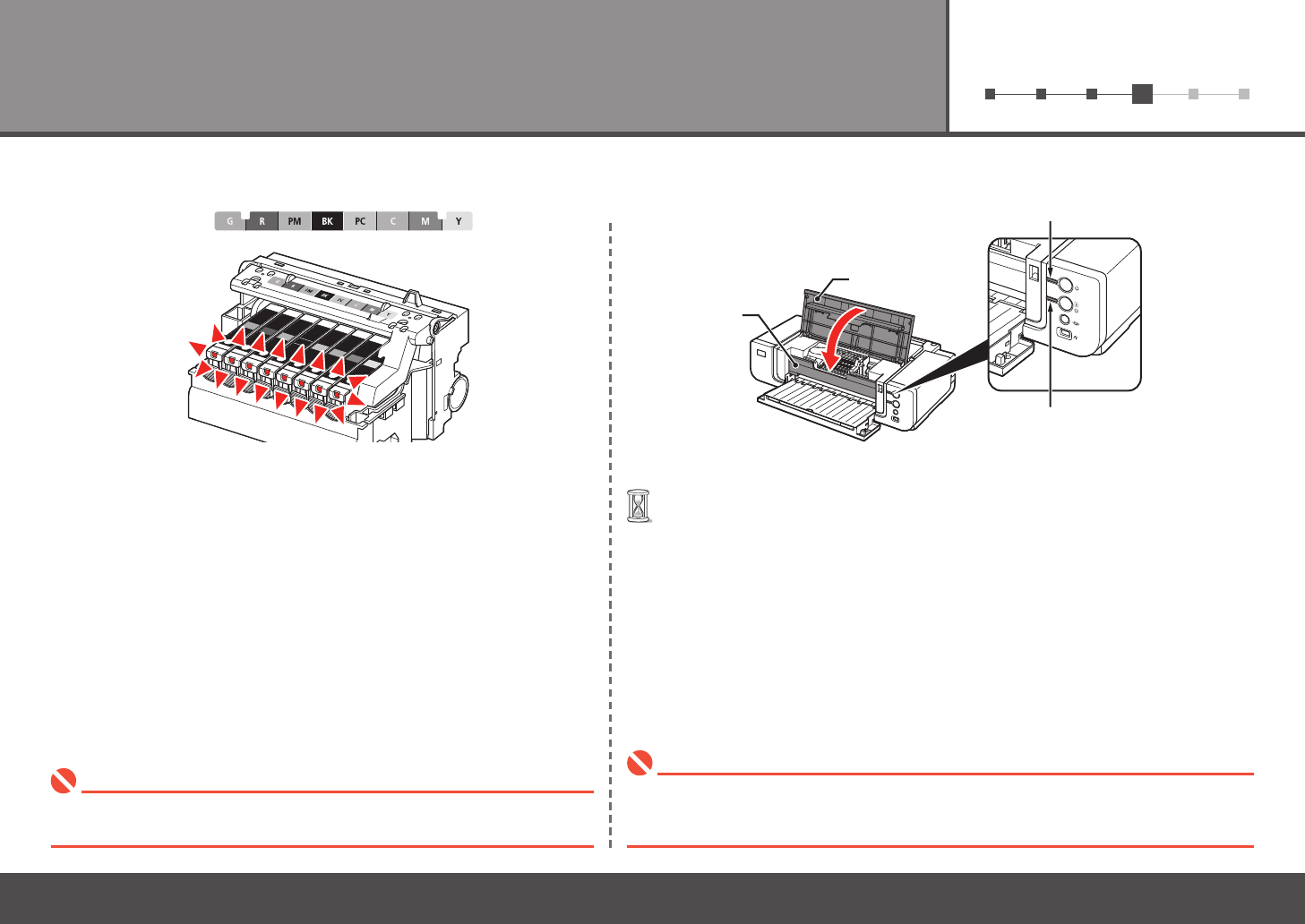
Install all the other ink tanks in the same way.
Install all the ink tanks.
Make sure all the Ink lamps light red.
Match the labels when installing.•
Once you have installed the ink tanks, do not remove them unnecessarily.•
If an Alarm lamp (E) ashes orange, make sure that the Print Head and the ink tanks are
correctly installed.
•
11
612345
5Install the Software
Quit all running applications before installation.•
To use the printer by connecting it to a computer, software including the
drivers needs to be copied (installed) to the computer's hard disk.
The screens below are based on Windows Vista operating system
Ultimate Edition (hereafter referred to as "Windows Vista") and Mac OS X
v.10.5.x.
You need to log on as the administrator (or a member of the Administrators group).•
Do not switch users during the installation process.•
It may be necessary to restart your computer during the installation process. Follow
the on-screen instructions and do not remove the Setup CD-ROM during restarting.
The installation resumes from where it left off when your computer has been restarted.
•
Mac OS 9, Mac OS X Classic environments, or Mac OS X v.10.3.8 or earlier are not
supported.
•
Macintosh (P.21)
Windows (P.12)
12
5
21
A
B
Windows Macintosh
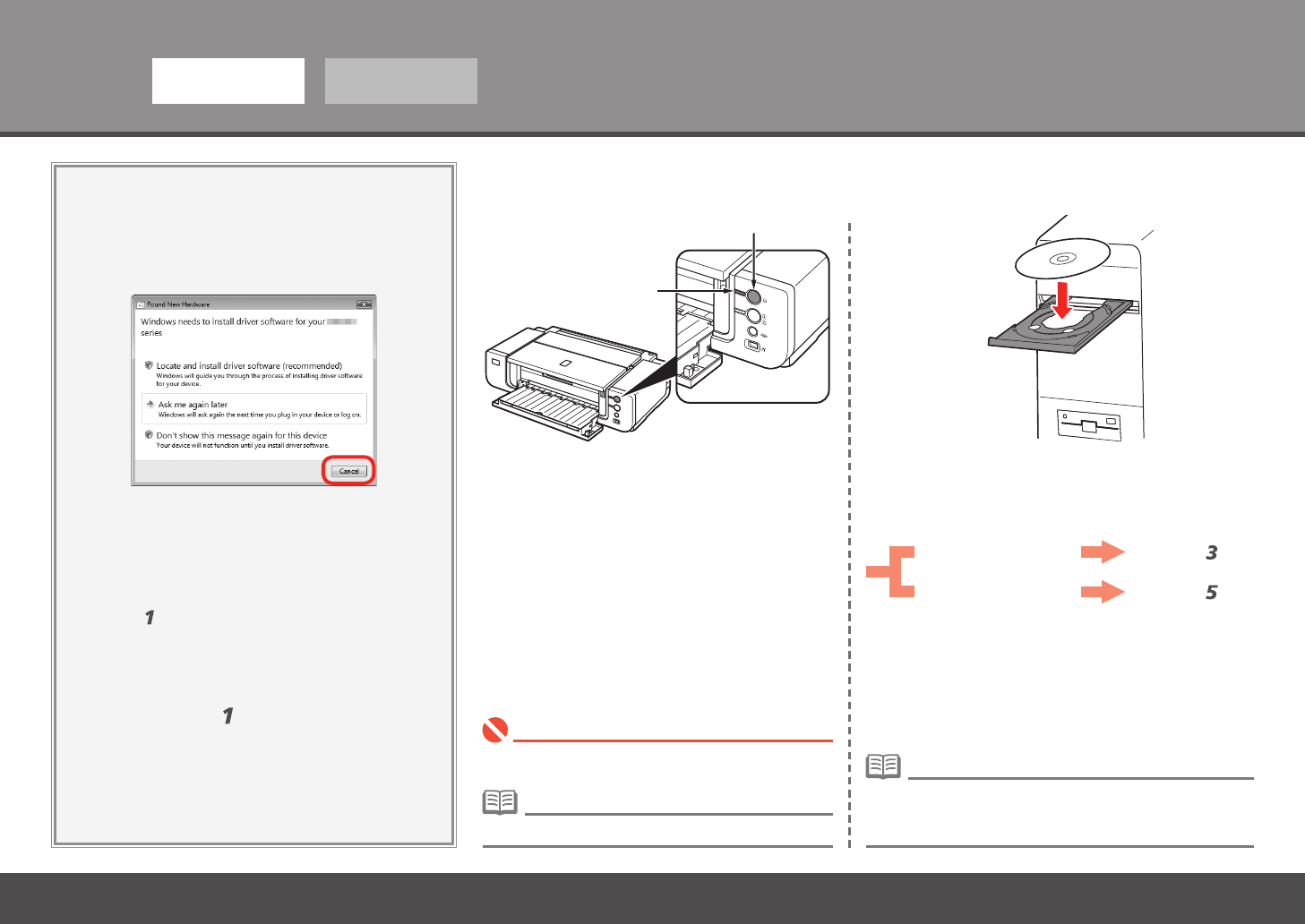
If the Found New Hardware or Found New
Hardware Wizard dialog box appears:
Remove the USB cable connected to
your computer.
TURN OFF THE PRINTER (A). Turn on the computer, then insert the Setup CD-
ROM into the CD-ROM drive.
The setup program should start automatically.
If the program does not start automatically, double-click
the CD-ROM icon on the computer. When the CD-ROM
contents appear, double-click MSETUP4.EXE.
•
Windows Vista
Windows XP/2000
Go to Step .
Go to Step .
The dialog box may close. In this case, proceed
from .
1
Click Cancel to quit the dialog box.
Proceed from .
2
3
Make sure that the POWER lamp (B) has stopped
ashing and is off.
•
It takes about 1 minute until the printer turns off.•
13
612345
3 4
Windows Macintosh
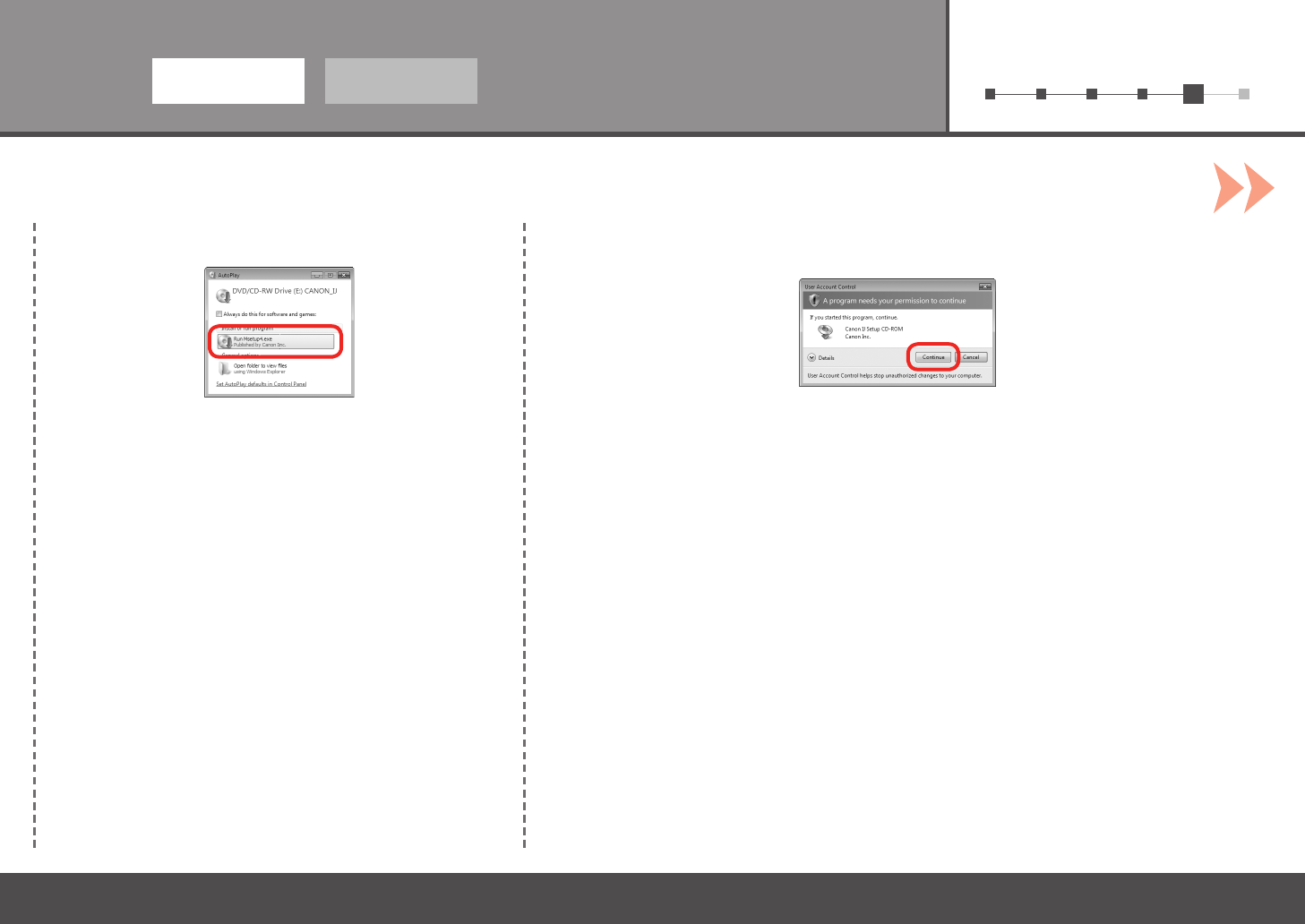
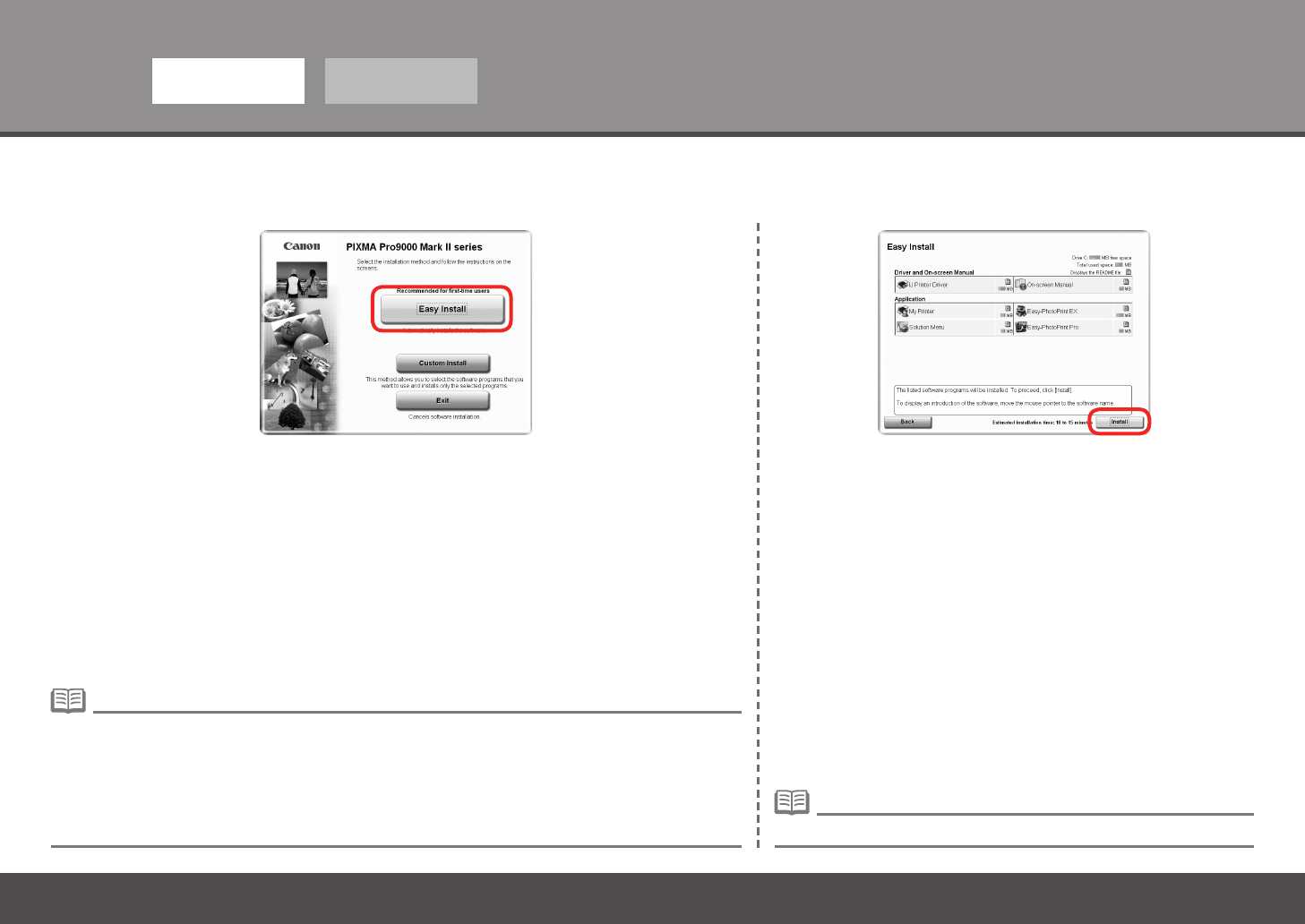
AutoPlay screen appears, click Run Msetup4.exe.User Account Control dialog box appears, click Continue.
If the same dialog box reappears in subsequent steps, click Continue.
Windows Vista Windows Vista
14
5
65
Windows Macintosh
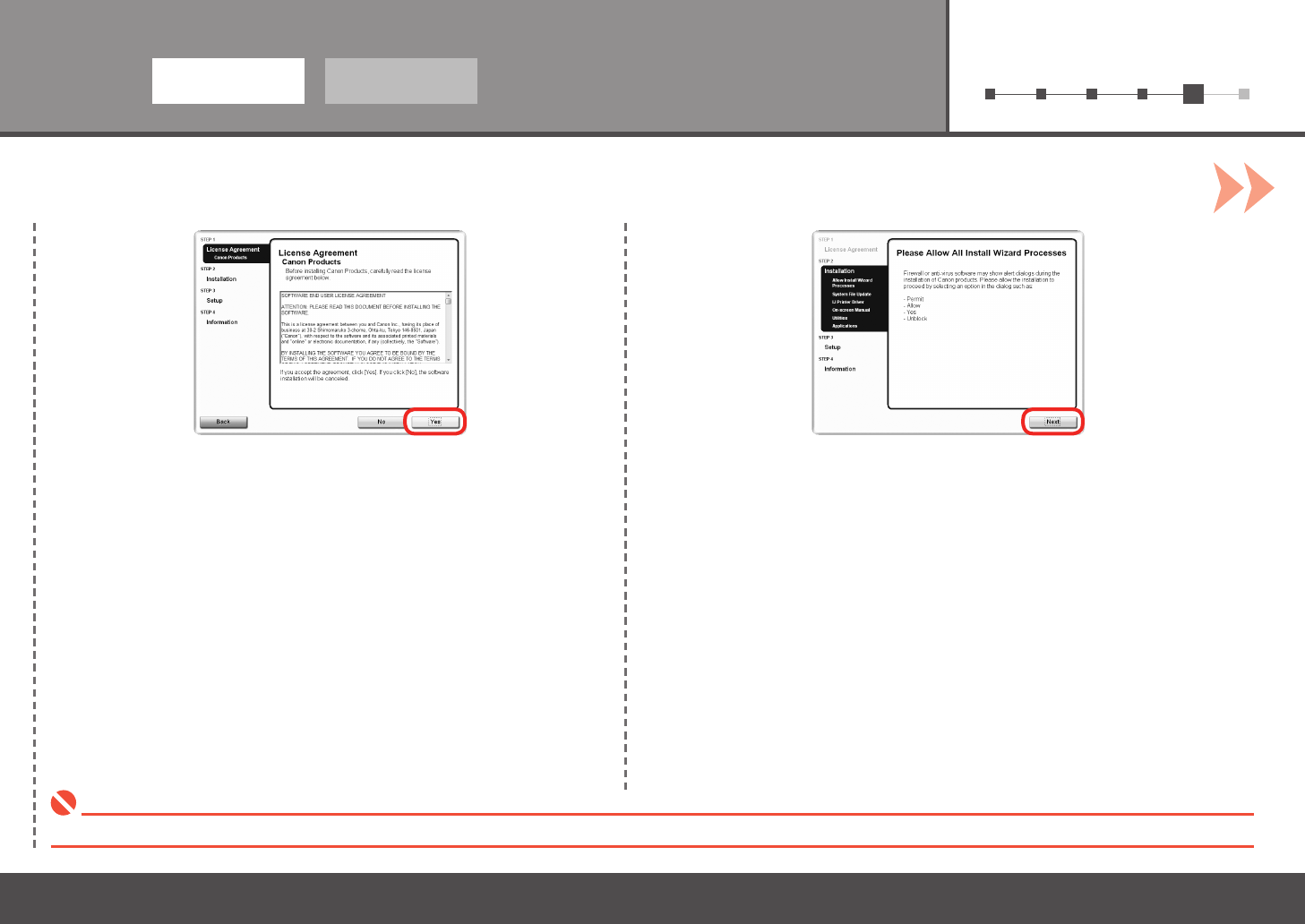
Click Install.
Move the cursor over items to display explanations.•
Click Easy Install.
Drivers, application software, and on-screen manuals are installed automatically.
If you want to select particular items to install, click Custom Install and follow the on-screen instructions to
proceed with the installation.
•
You can install the XPS Printer Driver from Custom Install. (Windows Vista SP1 or later.)•
When installing the XPS Printer Driver, select the IJ Printer Driver at the same time.•
The XPS Printer Driver is a printer driver suitable for printing High Dynamic Range images (full 16-bit
workow) using Easy-PhotoPrint Pro.
•
15
612345
7 8
Windows Macintosh
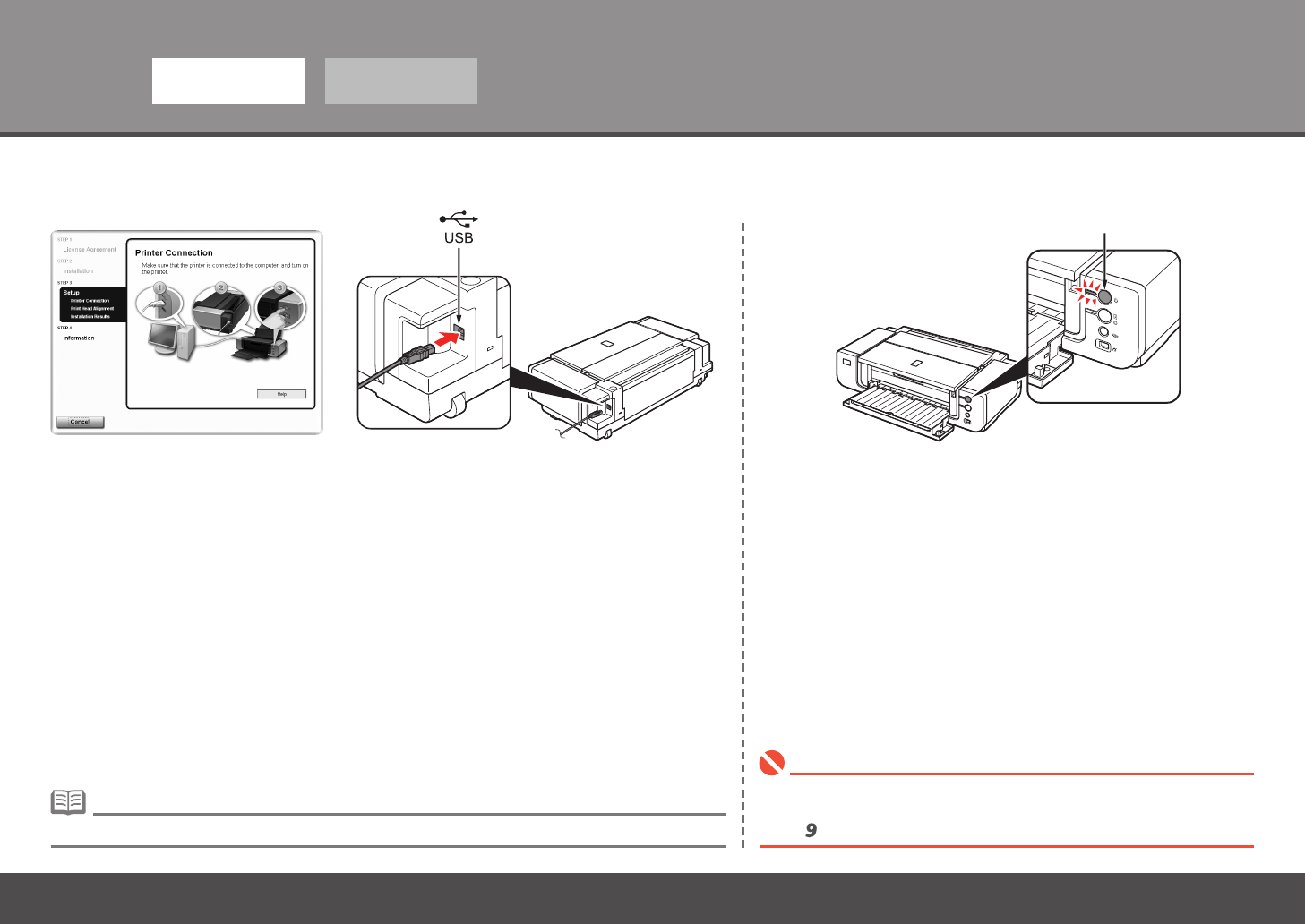
Read the License Agreement screen carefully and click Yes.
During installation, follow any on-screen instructions to install the software.•
When the Please Allow All Install Wizard Processes screen appears, click
Next.
Installation starts.
16
5
9 10
A
Windows Macintosh
When the Printer Connection screen appears, connect the printer to the computer with a
USB cable.
If installation does not continue after 10 minutes, click Help on the screen in
step , then conrm the message.
•
When the printer is recognized by the computer, a message appears on
the screen.
It takes about 30 seconds for the POWER lamp to light green.•
Turn on the printer (A).
The USB port is located on the right side of the printer.•
17
612345
11 12
C
D
Windows Macintosh
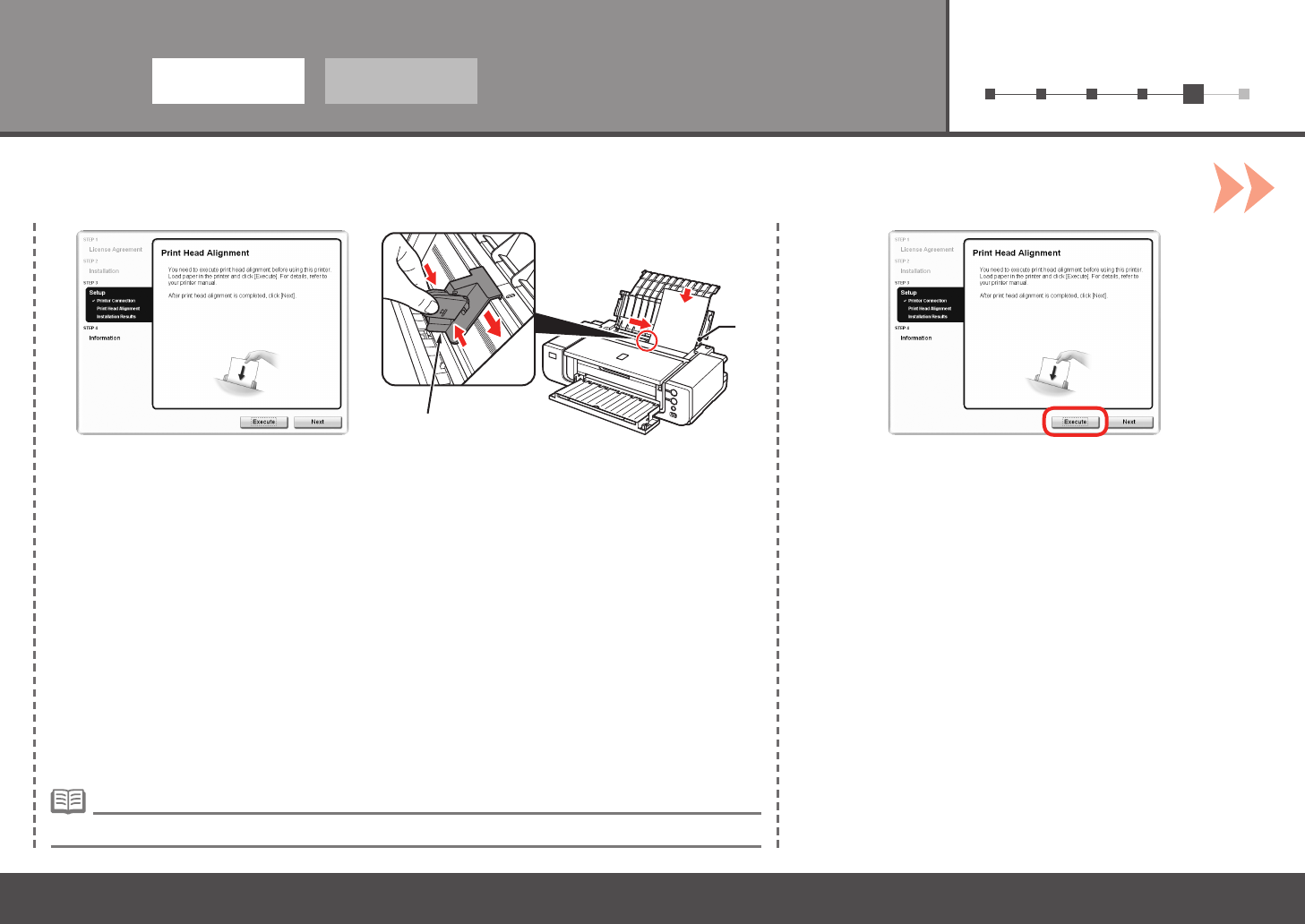
When the Print Head Alignment screen appears, load two sheets of A4 or Letter-sized plain
paper in the Rear Tray (C) as shown.
Align the Print Head
For details, refer to "6 Loading Paper" on page 28.•
Click Execute.
Pinch and slide the Paper Guide (D) against the left edge of the paper.
18
5
1413
F
E
G
Windows Macintosh
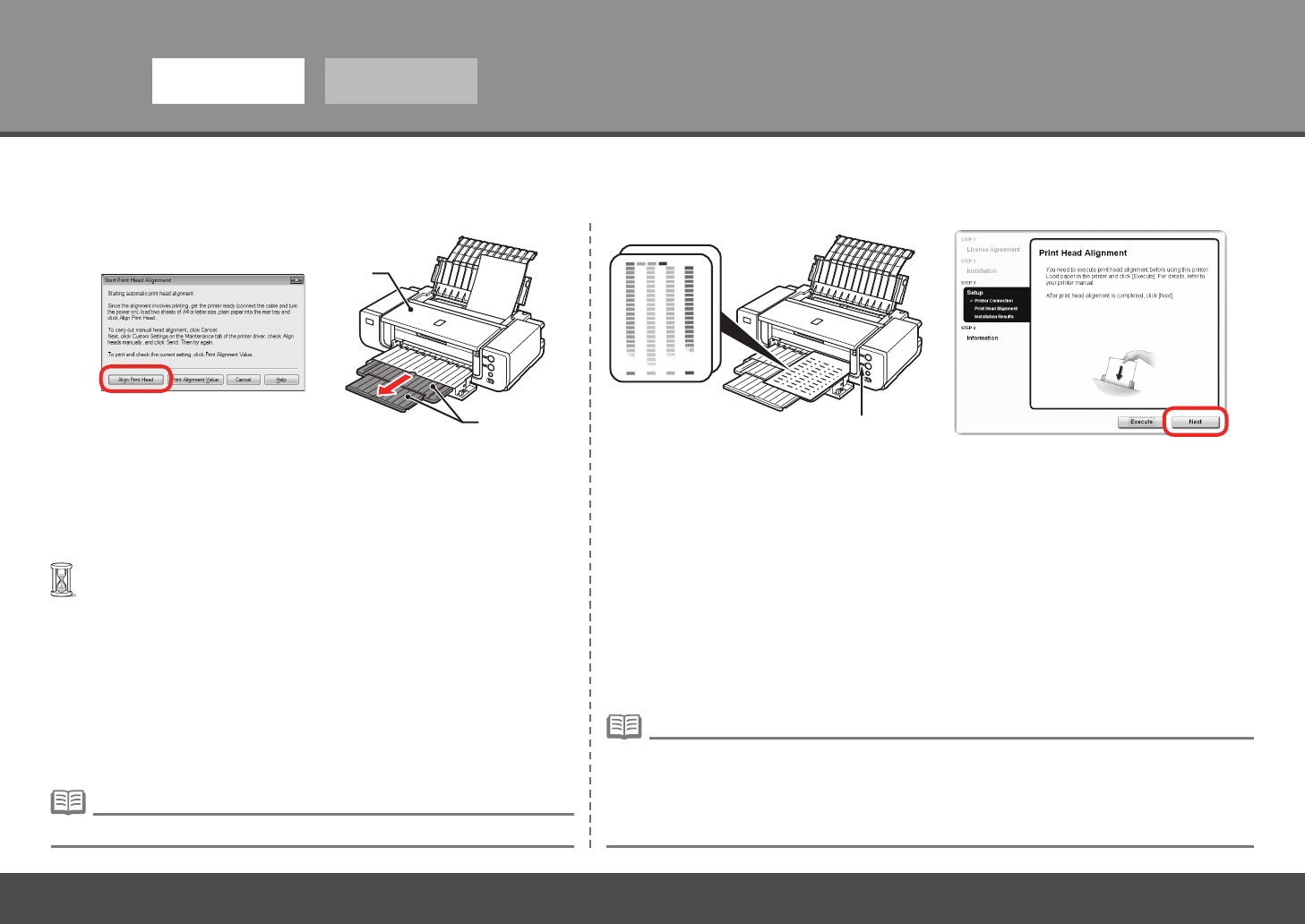
When the Start Print Head Alignment dialog box appears, click
Align Print Head.
Click OK in the subsequent message.
Printing of the pattern starts.
If you align the Print Head automatically again, patterns different from those shown above may be
printed.
•
Make sure that the pattern shown is printed, then click Next on the Print Head
Alignment screen.
Some parts of patterns printed on the rst page are faint.
When Print Head Alignment cannot be executed properly, the Alarm lamp (G) will ash orange 11
times. In this case, refer to "When Printing Becomes Faint or Colors Are Incorrect" in the on-screen
manual: Basic Guide.
•
Pull out the Front Tray Extension (F) beforehand.•
Wait until the pattern printing ends (about 5 minutes), and go to
the next step.
•
Do not open the Top Cover (E) while printing.•
19
612345
1615
Windows Macintosh
To register later, click Cancel. User registration can be started from the Canon Solution Menu icon. For details, refer to
"Solution Menu" on page 31.
•
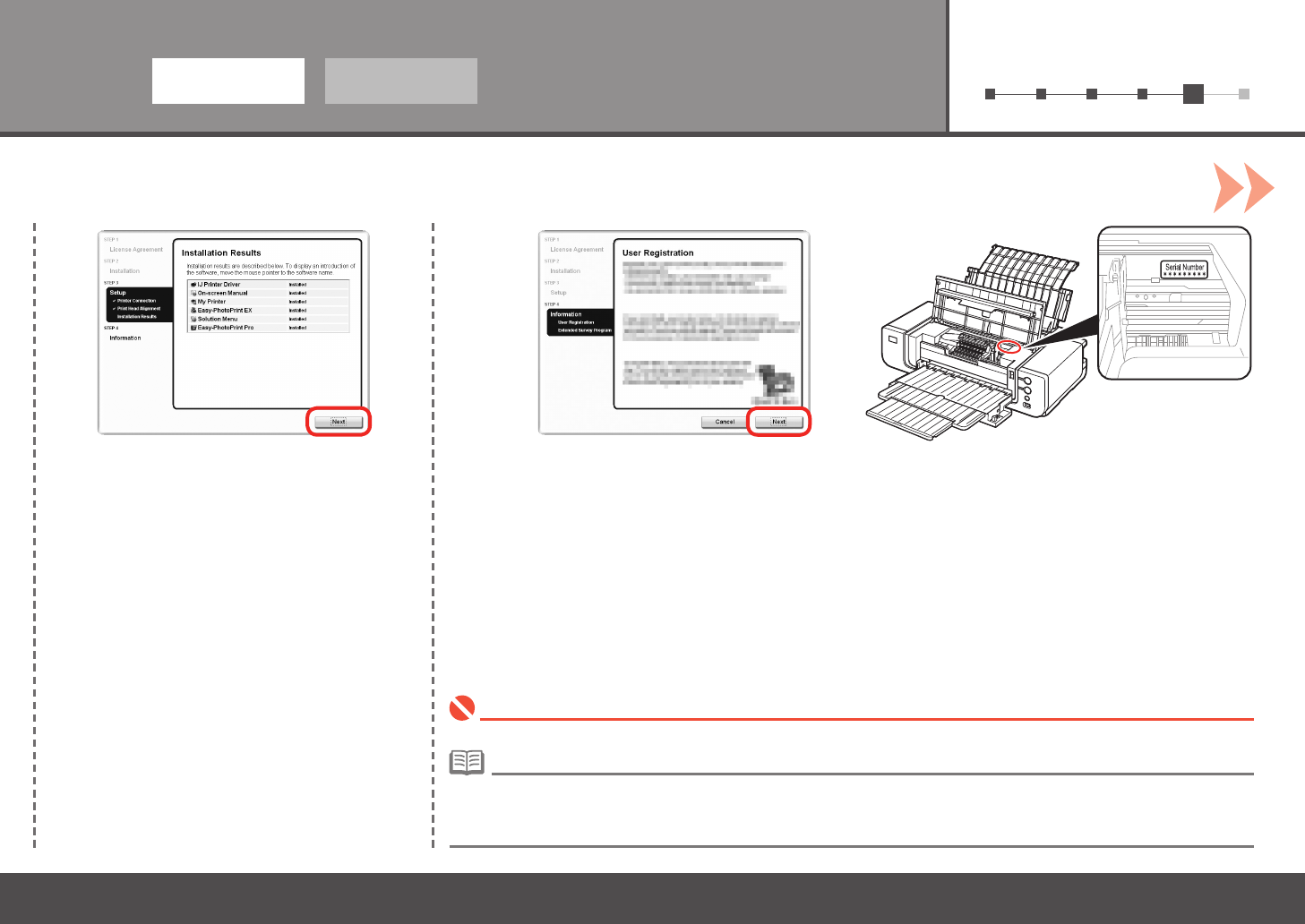
Click Next.
If connected to the Internet, the user registration page appears. Follow the on-screen instructions to register your
printer. You will need your product serial number, which is located on the inside of the printer.
Internet connection is required. (Connection fees apply.)•
It may take a while for the next screen to appear. Click
Next only once.
If you are already registered, the Product Registration screen appears.•
Click Next.
20
5
17 18
Windows Macintosh
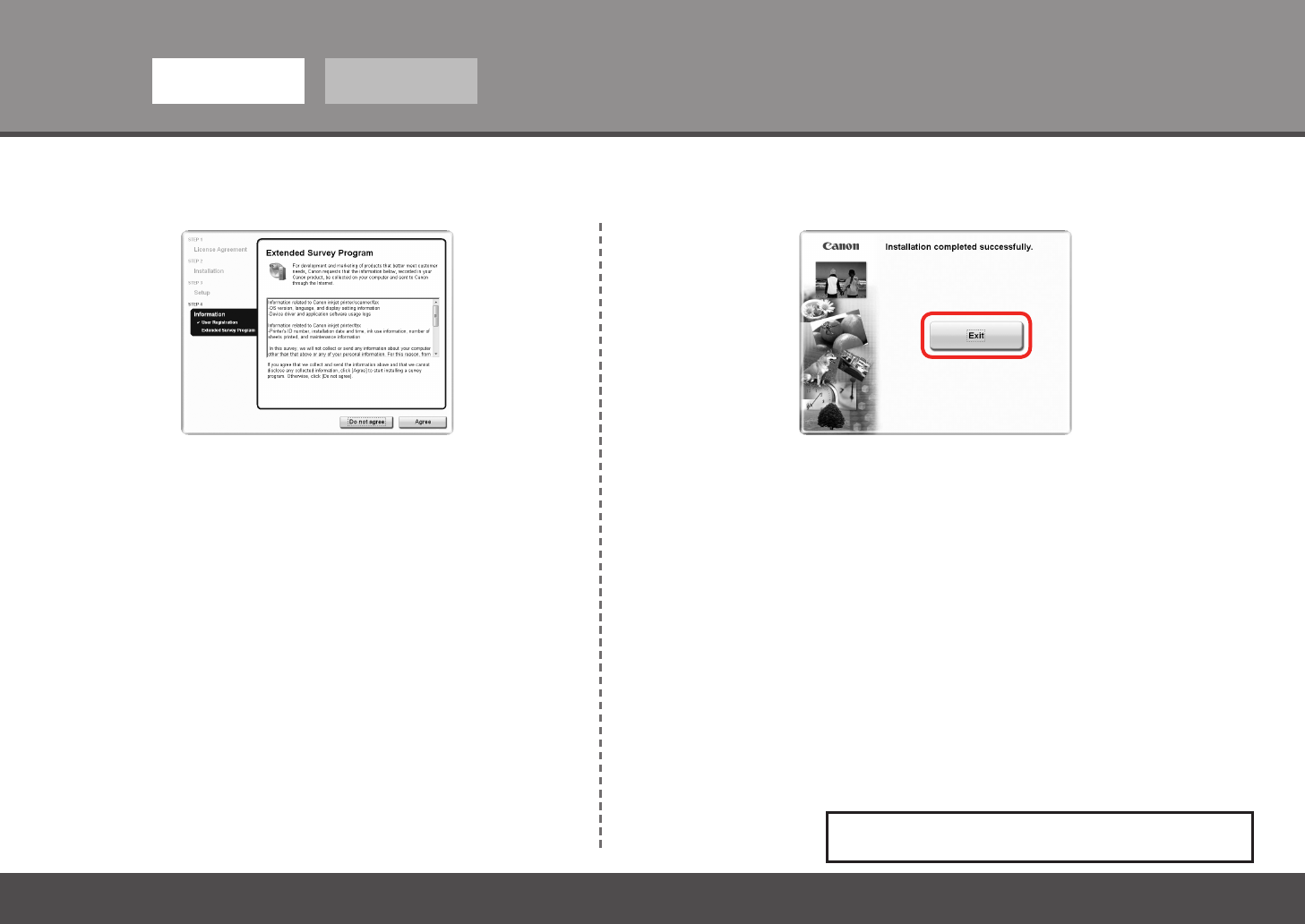
Click Exit.
If Restart is displayed, make sure that the Restart the system now (recommended) check
box is selected, then click Restart.
When the Extended Survey Program screen appears, conrm the
message.
If you can agree, click Agree. If you click Do not agree, the Extended Survey
Program will not be installed.
(This has no effect on the printer's functionality.)
After restarting the computer, remove the Setup CD-ROM and keep it in a safe place.
Next, read "6 Loading Paper" on page 28!
21
612345
321
5Windows Macintosh
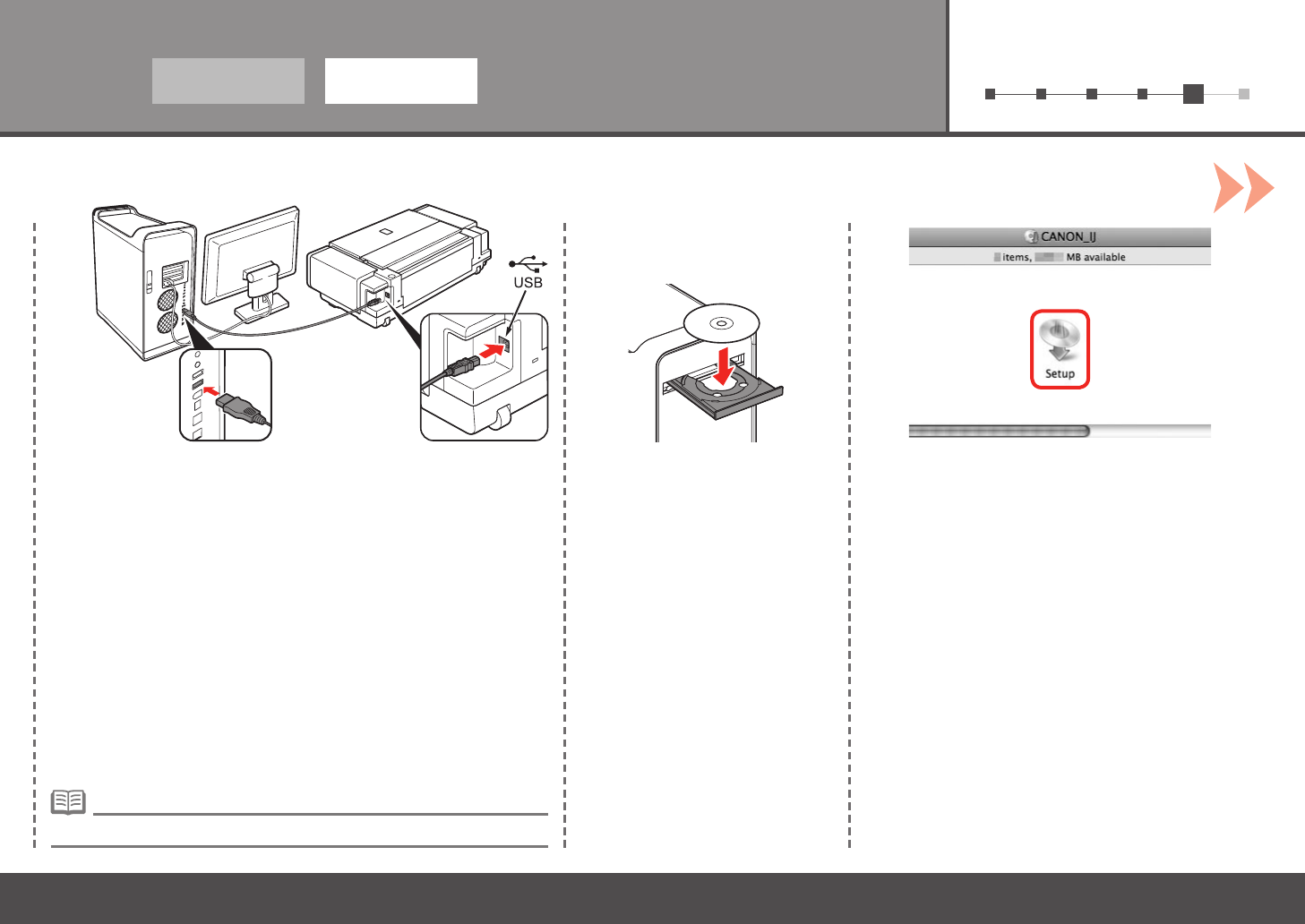
Connect the printer to the computer with a USB cable.
Make sure the printer is turned on.
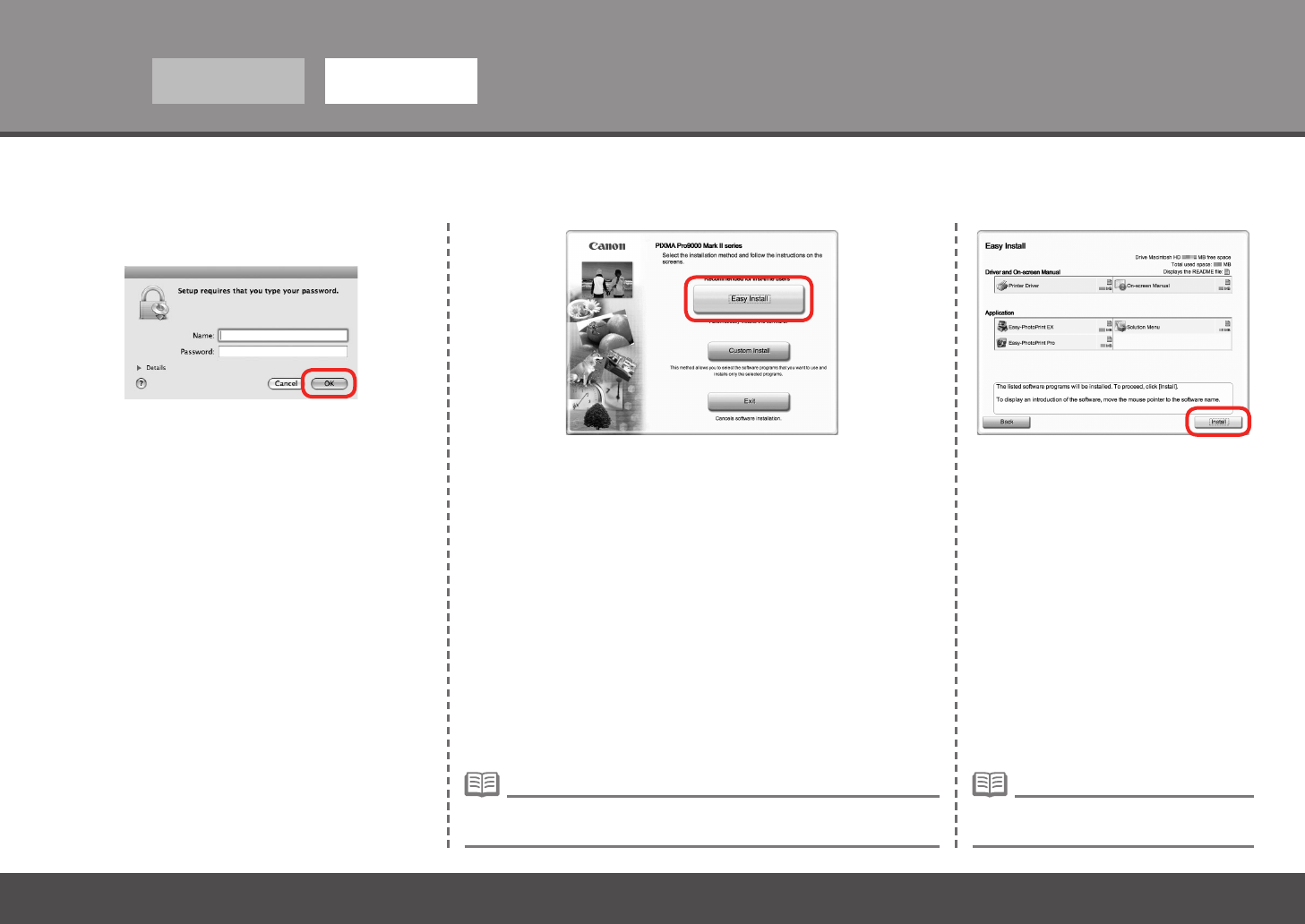
Double-click the Setup icon.Turn on the computer, then insert
the Setup CD-ROM into the CD-
ROM drive. If the CD-ROM folder does not open automatically,
double-click the CANON_IJ icon on the desktop.
The USB port is located on the right side of the printer.•
22
5
64 5
Windows Macintosh
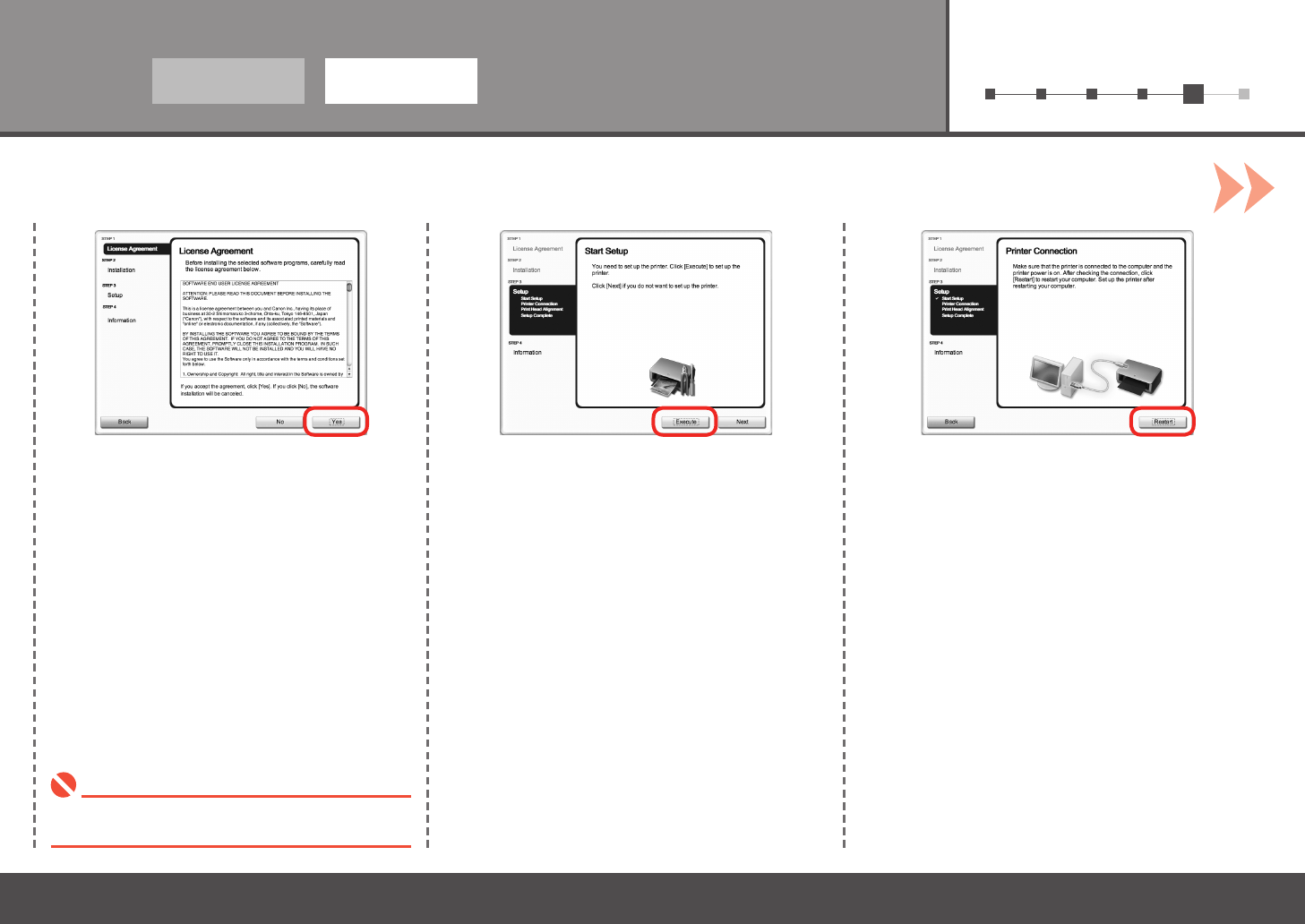
Click Easy Install.
Drivers, application software, and on-screen manuals are installed
automatically.
Click Install.
If you want to select particular items to install, click Custom Install and
follow the on-screen instructions to proceed with the installation.
•
Enter your administrator name and password.
Click OK.
If you do not know your administrator name or password,
click Help, then follow the on-screen instructions.
Move the cursor over items to display
explanations.
•
23
612345
87 9
Windows Macintosh
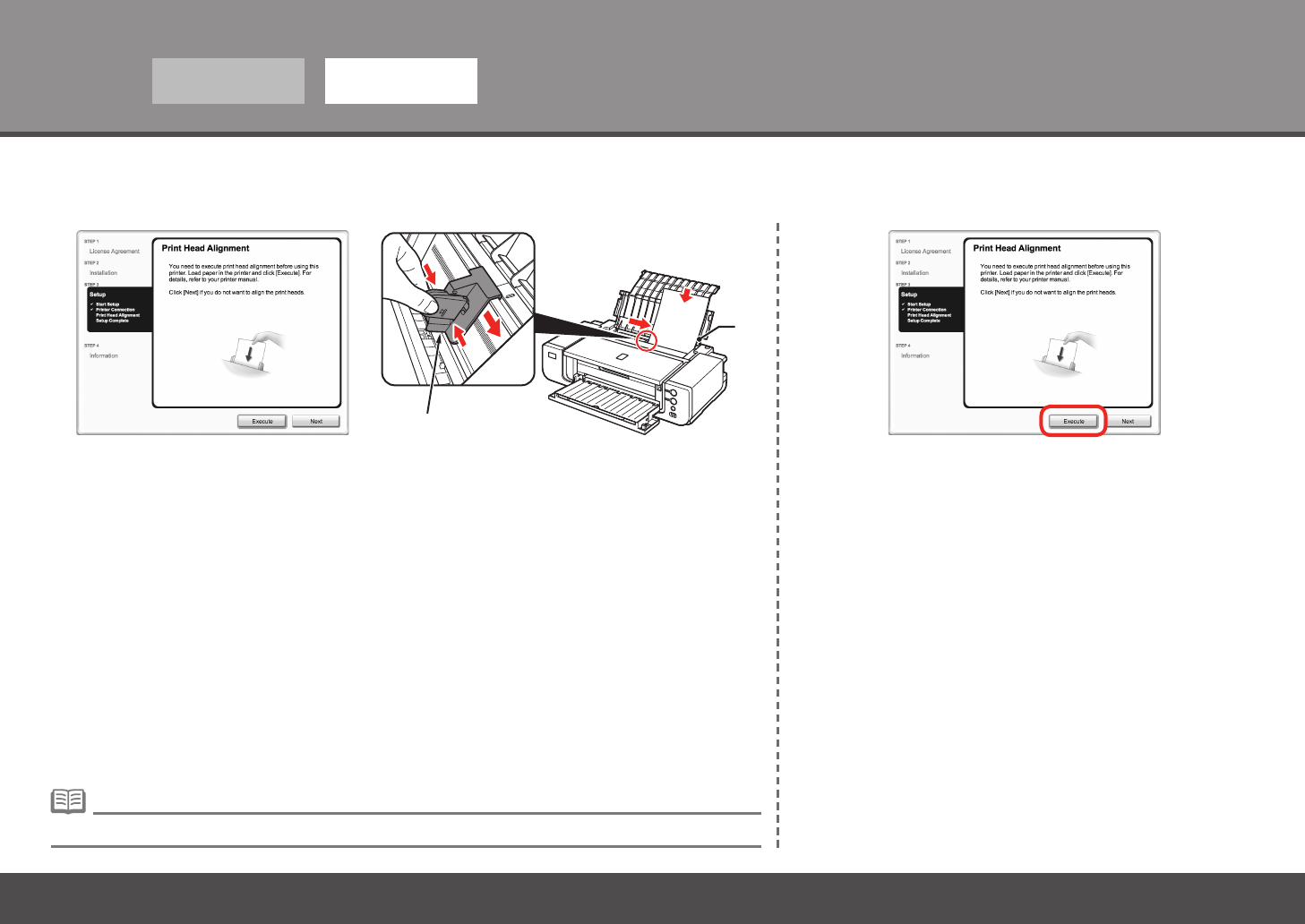
Click Restart.When the Start Setup screen appears, click
Execute.
Read the License Agreement screen carefully
and click Yes.
Installation starts.
During installation, follow any on-screen instructions to
install the software.
•
The Print Head Alignment screen appears after the
computer has been restarted.
24
5
10 11
A
B
Windows Macintosh
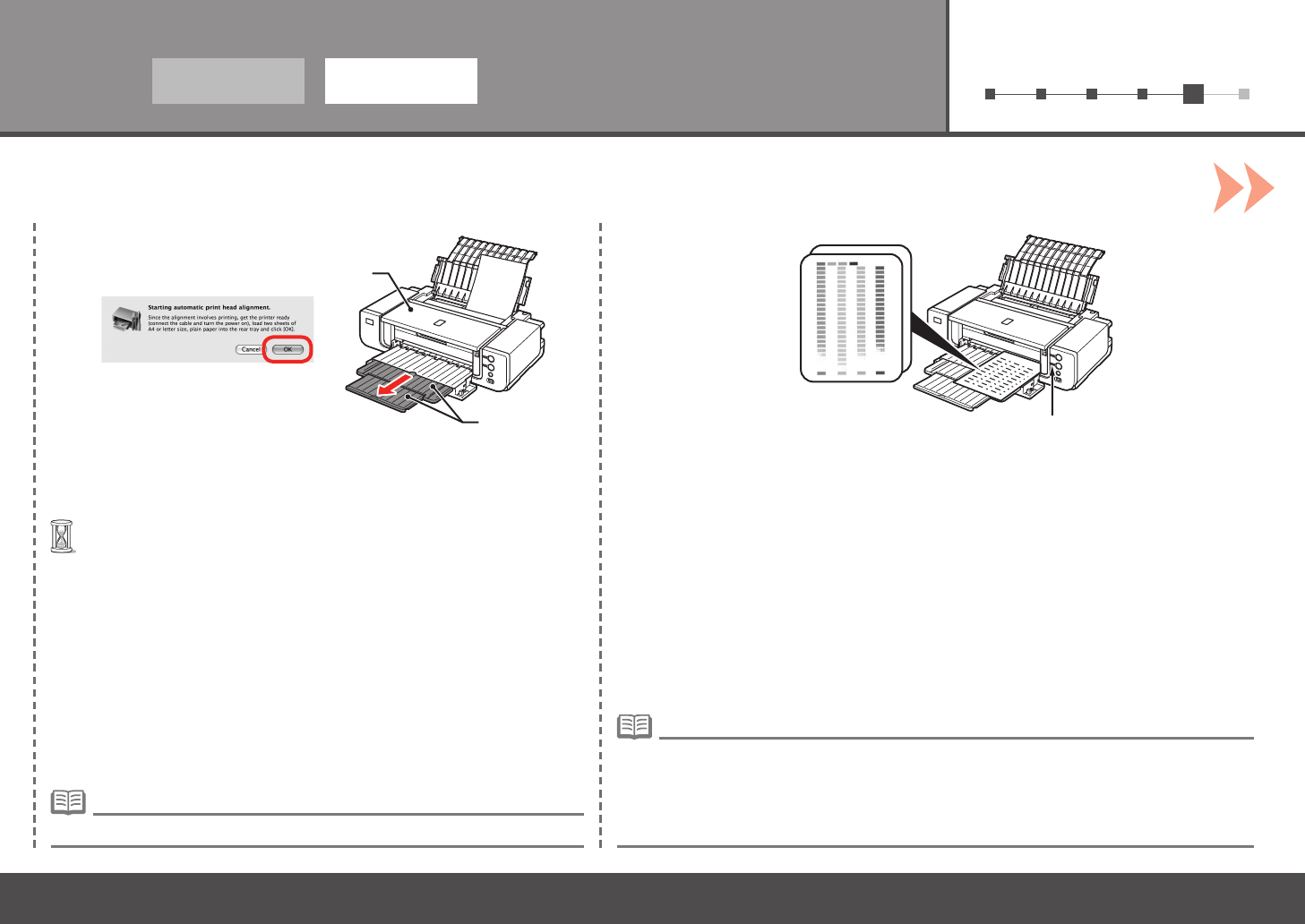
Align the Print Head
Click Execute.When the Print Head Alignment screen appears, load two sheets of A4 or Letter-sized plain
paper in the Rear Tray (A) as shown.
For details, refer to "6 Loading Paper" on page 28.•
Pinch and slide the Paper Guide (B) against the left edge of the paper.
25
612345
1312
D
C
E
Windows Macintosh
When this screen appears, click OK.
Printing of the pattern starts.
Wait until the pattern printing ends (about 5 minutes), and go to the
next step.
•
If you align the Print Head automatically again, patterns different from those shown above may be
printed.
•
Make sure that the pattern shown is printed.
Some parts of patterns printed on the rst page are faint.
When Print Head Alignment cannot be executed properly, the Alarm lamp (E) will ash orange
11 times. In this case, refer to "When Printing Becomes Faint or Colors Are Incorrect" in the on-
screen manual: Basic Guide.
•
Pull out the Front Tray Extension (D) beforehand.•
Do not open the Top Cover (C) while printing.•
26
5
1514
Windows Macintosh
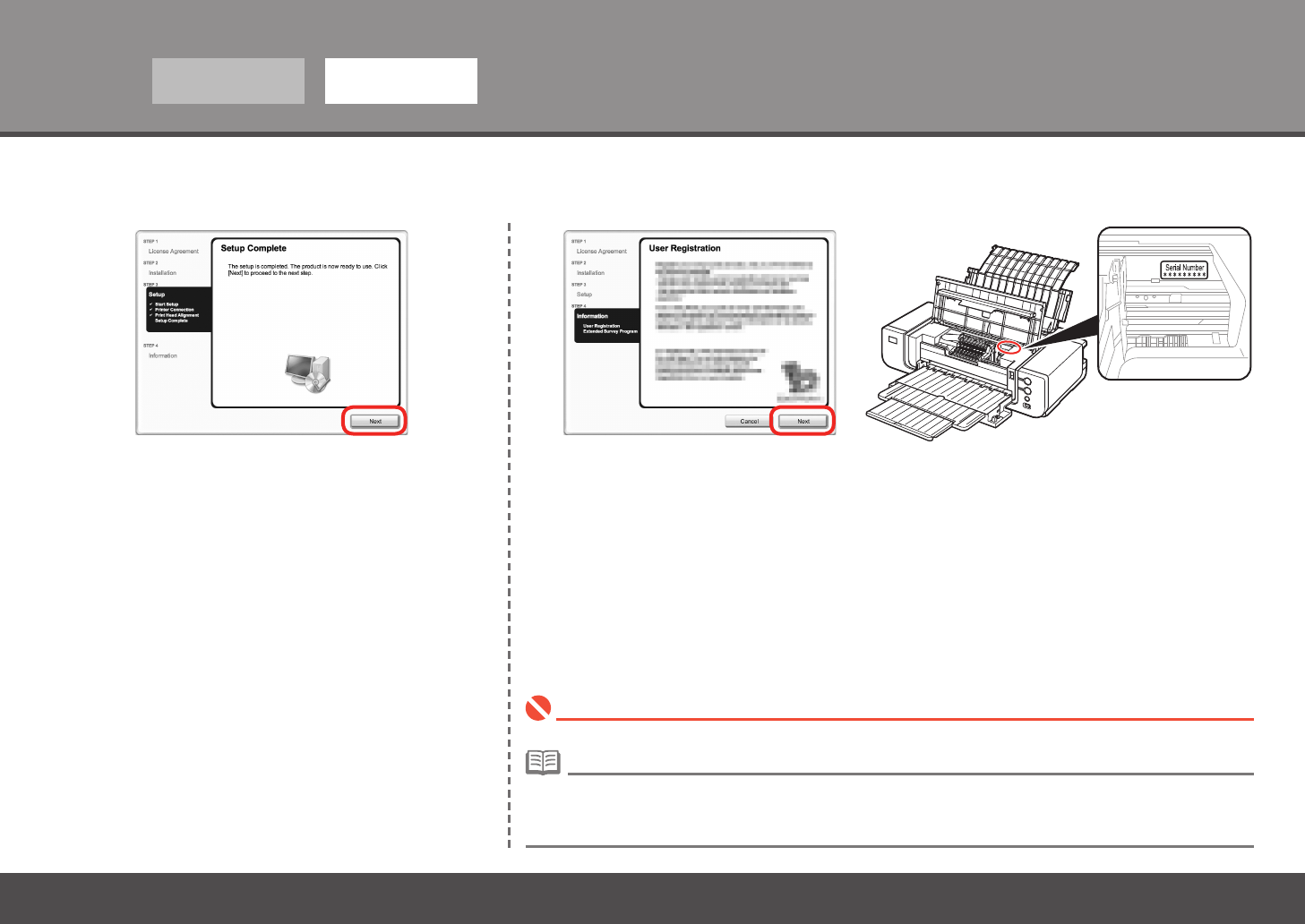
Click Next.
If connected to the Internet, the user registration page appears. Follow the on-screen instructions to register
your printer. You will need your product serial number, which is located on the inside of the printer.
To register later, click Cancel. User registration can be started from the Solution Menu icon. For details, refer to
"Solution Menu" on page 31.
•
Internet connection is required. (Connection fees apply.)•
Click Next.
If you are already registered, the Product Registration screen appears.•
27
612345
1716
Windows Macintosh
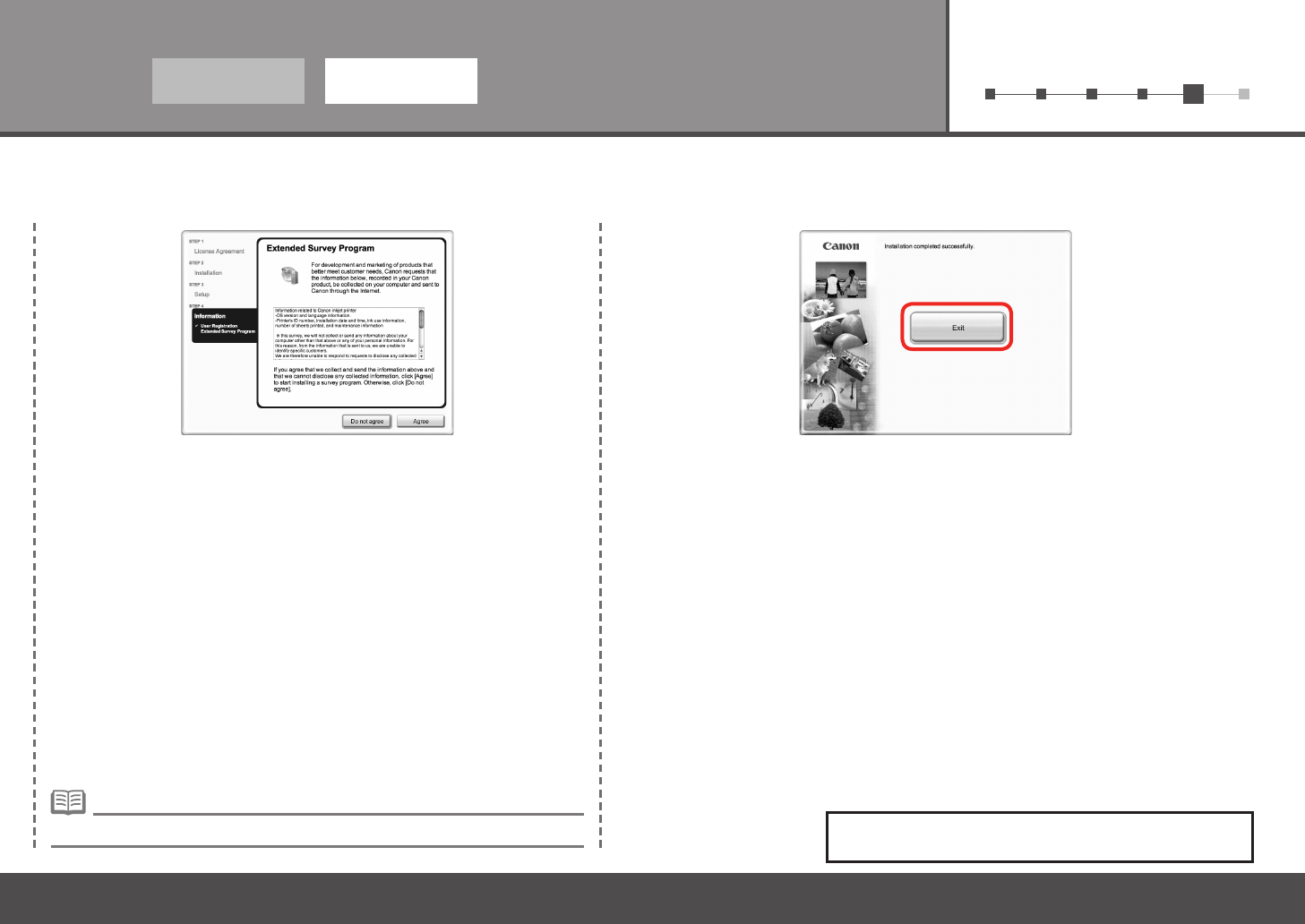
Click Exit.
Remove the Setup CD-ROM and keep it in a safe place.
When the Extended Survey Program screen appears, conrm the
message.
If you can agree, click Agree. If you click Do not agree, the Extended Survey
Program will not be installed.
(This has no effect on the printer's functionality.)
The screen does not appear on Mac OS X v.10.3.9.• Next, read "6 Loading Paper" on page 28!
28
6
1
C
B
A
2 3
ED
Loading Paper
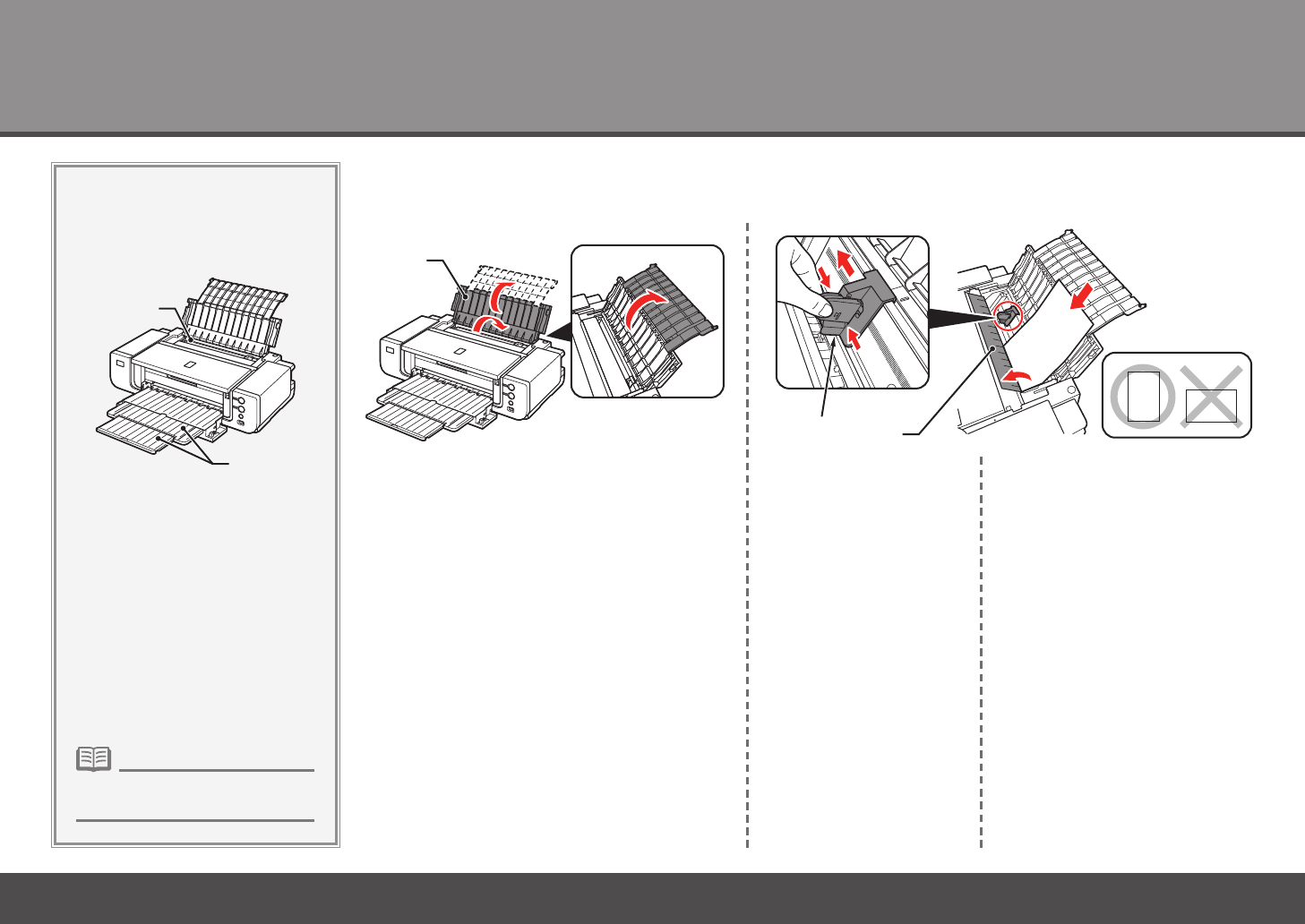
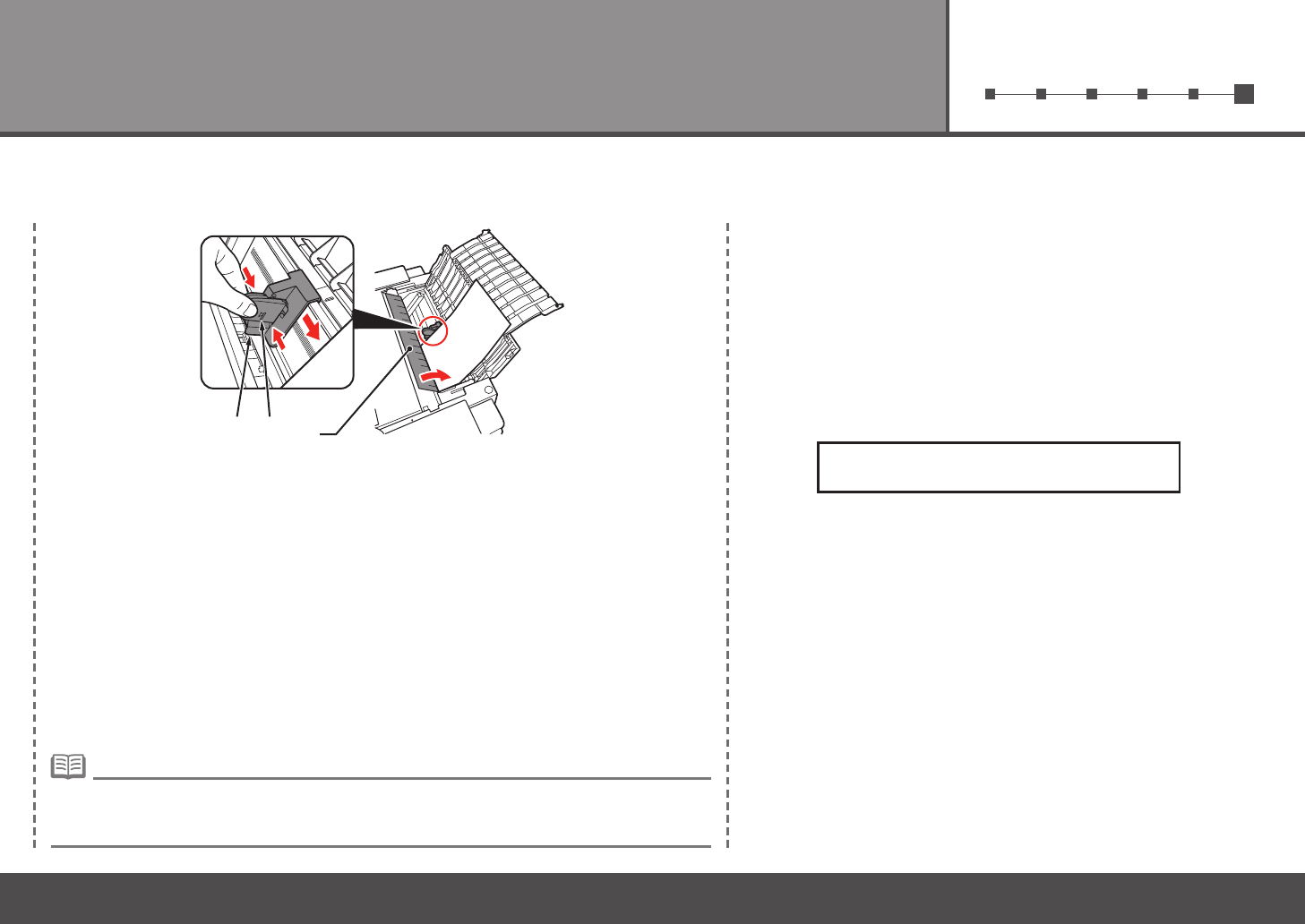
Open the Paper Support (C).
This section explains how to
load paper in the Rear Tray (A).
Pull out the Front Tray Extension
(B) beforehand.
•
Open the Feed Slot Cover
(D), then pinch and slide
the Paper Guide (E).
Load paper straight along the
right edge of the Rear Tray.
Load paper in portrait orientation with
the printing side facing up.
29
123456
4
D
E F
Printer installation is now complete!
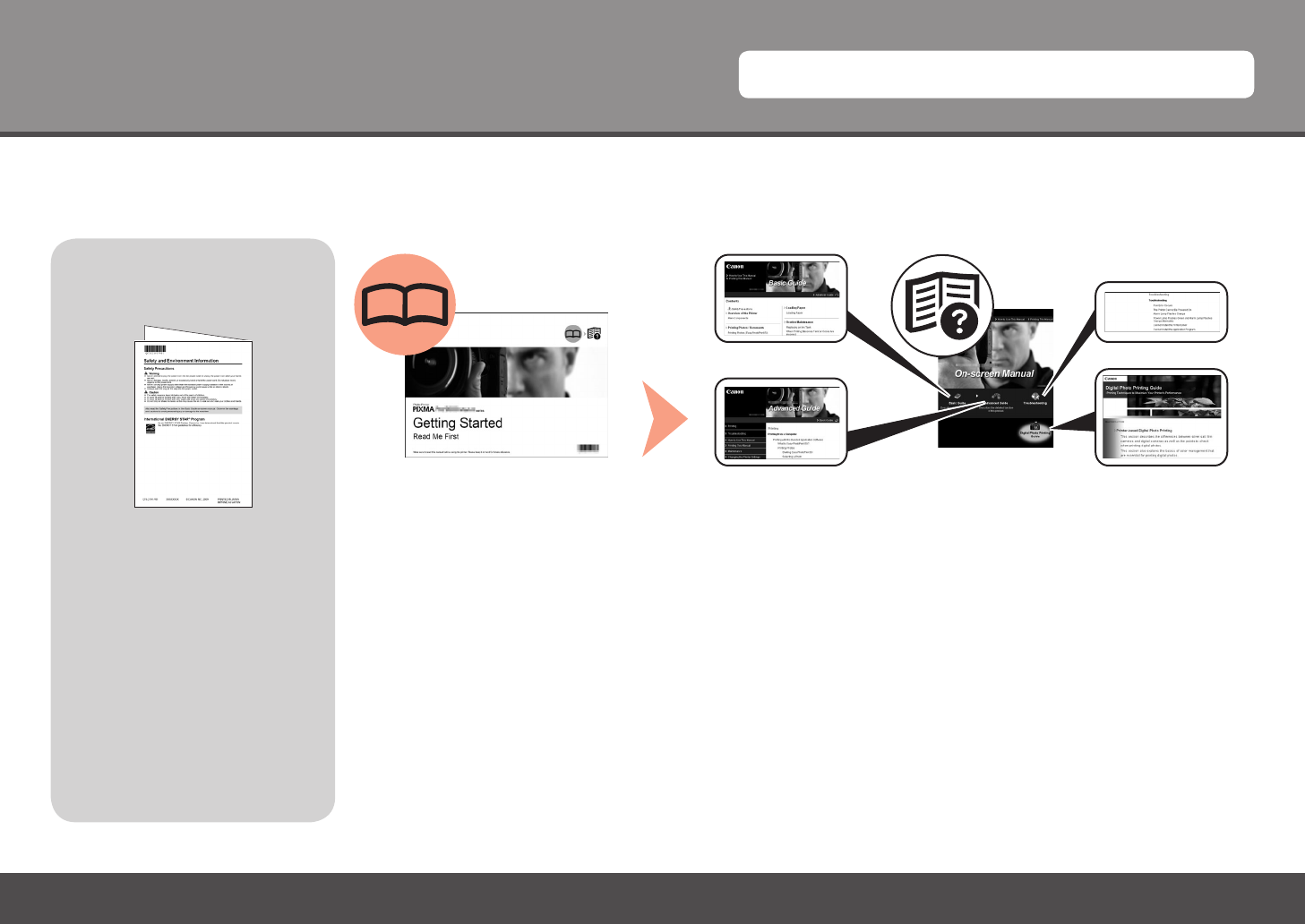
Pinch and slide the Paper Guide (E) against the left edge of the paper, then close the
Feed Slot Cover (D).
You can print on large size paper such as 14" x 17"/355.6 x 431.8 mm or thick paper by loading the
paper in the Front Tray. For details on how to load paper in the Front Tray, refer to "Loading Paper" in
the on-screen manual: Basic Guide.
•
Conrm that the loaded paper does not exceed the line (F).
30
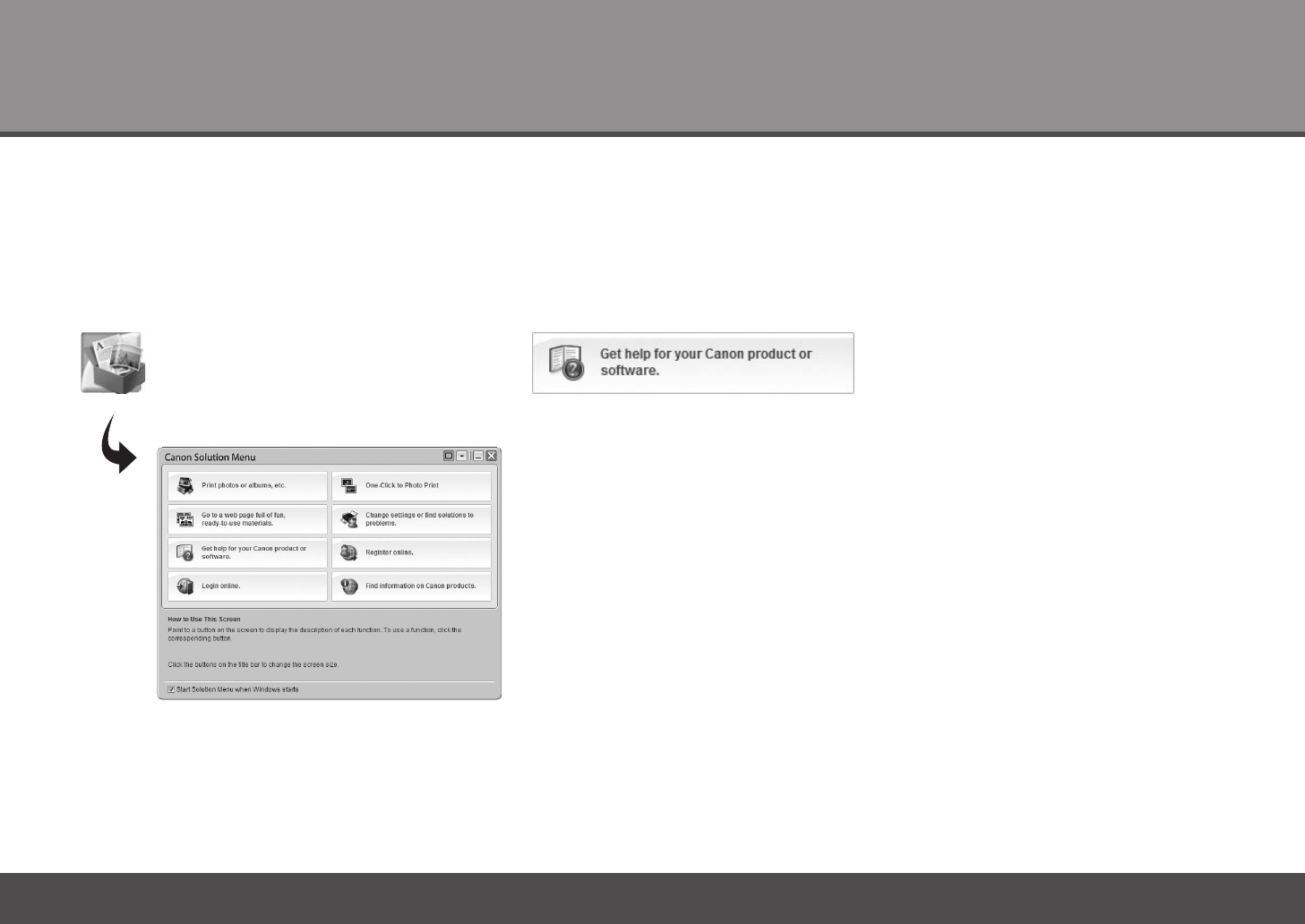
Getting Started
Basic Guide Advanced Guide
Manuals■
Describes how to set up and use
your printer. Introduces the printer
and its functions, the included
manuals and application software.
Describes the basic operations
and gives an introduction to
other functions available.
Describes various operating
procedures to make full use
of printer. Also includes
"Troubleshooting" information for
your printer.
Digital Photo Printing
Guide
(this manual)
After Installing the Printer
Safety Precautions
For proper use, read safety
precautions before using the
printer.
Safety and
Environment
Information
on-screen manuals
For details on opening the on-screen manuals, refer to page 31.
31
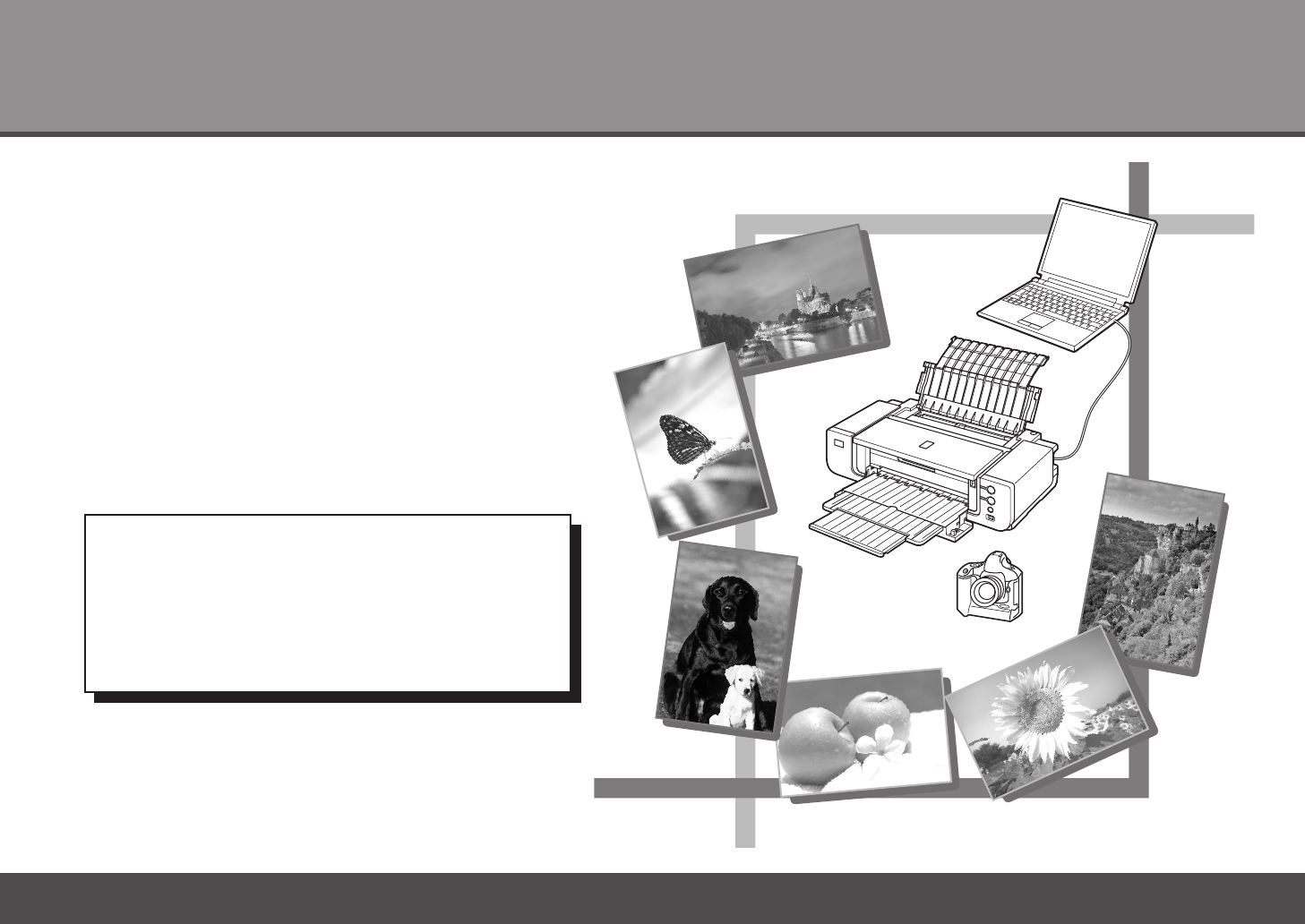
Solution Menu is a gateway to functions and information that allow you to make full use of the printer!
Open various applications and on-screen manuals with a single click.
If you have a problem with printer settings, click the Change settings or nd solutions to
problems. in Solution Menu to open My Printer (Windows only).
Solution Menu■
Example: Windows Vista
You can start Solution Menu from the Canon Solution Menu icon on the desktop (Windows) or
on the Dock (Macintosh).
*The buttons displayed vary depending on the
country or region of purchase.
To open the on-screen manual, click the button
shown to the left in Solution Menu.
32
Utilizing the Printer■
Easy-PhotoPrint Pro is one of the application
software. Easy-PhotoPrint Pro allows you to
print high quality photos easily by utilizing the
digital photo colors.
Since ICC profiles are also available, you can
print photos in colors that are closer to your
ideal colors using color management.
For details on how to use the application
software and the printer, refer to the on-
screen manuals: Basic Guide and Advanced
Guide.
For photo printing and color management,
refer to the on-screen manual: Digital Photo
Printing Guide as well.
33
Specifications
Minimum System Requirements
Conform to the operating system’s requirements when higher than those given here.
Operating System
Processor
RAM
Windows 7
1 GHz or faster 32-bit (x86) or
64-bit (x64) processor
1 GB (32-bit)/2 GB (64-bit)
Windows Vista, Vista SP1, Vista
SP2
1 GHz processor
512 MB
Windows XP SP2, SP3
300 MHz processor
128 MB
Windows 2000 Professional SP4
300 MHz processor
128 MB
Mac OS X v.10.6
Intel processor
1 GB
Mac OS X v.10.5
Intel processor, PowerPC G5,
PowerPC G4
(867 MHz or faster)
512 MB
Mac OS X v.10.4
Intel processor, PowerPC G5,
PowerPC G4, PowerPC G3
256 MB
Mac OS X v.10.3.9
PowerPC G5, PowerPC G4,
PowerPC G3
128 MB
Browser Internet Explorer 6.0 or later Safari
Hard Disk Space 450 MB
Note: For bundled software
installation.
600 MB
Note: For bundled software
installation.
CD-ROM Drive Required
Display SVGA 800 x 600 XGA 1024 x 768
Windows: Operation can only be guaranteed on a PC with Windows 7, Windows Vista,
Windows XP or Windows 2000 pre-installed.
Easy-PhotoPrint Pro is a software plug-in for Canon Digital Photo Professional Ver. 2.1
or later, Adobe Photoshop CS4, CS3, CS2, CS and Adobe Photoshop Elements 6, 7
and 8.
Adobe Photoshop Elements 8: DVD Drive is required for installation.
Windows: Windows XP SP2/SP3, Windows Vista, Windows 7 only
Processor: 1.6 GHz processor
Additonal required hard disk space: 2 GB
RAM: 1 GB
Display: Color monitor with 16-bit color video card
1024 x 576 monitor resolution at 96 dpi or less
Microsoft DirectX 9 compatible display driver
Macintosh: Mac OS X v.10.4.11 - v.10.5.8, v.10.6 only
Processor: Multi-core Intel processor
Additonal required hard disk space: 2 GB
RAM: 512 MB of RAM (1 GB recommended), 64 MB of video RAM
Windows: Uninstall software bundled with the Canon inkjet printer before upgrading
from Windows Vista to Windows 7, then, install the bundled software again.
Macintosh: Hard Disk must be formatted as Mac OS Extended (Journaled) or Mac OS
Extended.
Macintosh: After upgrading from Mac OS X v.10.5 or lower to Mac OS X v.10.6, install
software bundled with the Canon inkjet printer.
•
•
•
•
•
•
General Specications
Printing resolution
(dpi)
4800 (horizontal) x 2400 (vertical)
Interface USB Port:
Hi-Speed USB*
Direct Print Port:
PictBridge
* A computer that complies with Hi-Speed USB
standard is required. Since the Hi-Speed
USB interface is fully upwardly compatible
with USB 1.1, it can be used at USB 1.1.
Print width Rear Tray: 12.7 inches max. (322.2 mm) (for
Borderless Printing: 13 inches/329 mm)
Front Tray: 13.7 inches max. (348.8 mm) (for
Borderless Printing: 14 inches/356 mm)
Acoustic noise level Approx. 42.5 db (A)
* When printing in the standard print quality
mode on Photo Paper Plus Glossy II.
Operating
environment
Temperature: 5 to 35°C (41 to 95°F)
Humidity: 10 to 90% RH (no condensation)
Storage
environment
Temperature: 0 to 40°C (32 to 104°F)
Humidity: 5 to 95% RH (no condensation)
Power supply AC 100-240 V, 50/60 Hz
Power consumption Printing: Approx. 16W
Standby (minimum): Approx. 1.2W
OFF: Approx. 0.9W
External dimensions Approx. 26.0 (W) x 14.0 (D) x 7.6 (H) inches
Approx. 660 (W) x 354 (D) x 192 (H) mm
* With the Paper Support, Front Tray and Front
Feed Support retracted.
Weight Approx. 14.4 kg (Approx. 31.7 lb)
* With the print head and ink tanks installed.
Print Head/Ink Total 6,144 nozzles (G/R/PM/BK/PC/C/M/Y
each 768 nozzles)
Additional System Requirements for the on-screen manuals
Browser: Easy Guide Viewer
Note: Microsoft Internet Explorer 6.0 or
later must be installed. The on-screen
manual may not be displayed properly
depending on your operating system or
Internet Explorer version. We recommend
that you keep your system up to date with
Windows Update.
Browser: Help Viewer
Note: The on-screen manual may not be
displayed properly depending on your
operating system. We recommend that
you keep your system up to date.
Specications are subject to change without notice.
About Consumables
Consumables (ink tanks / FINE Cartridges) are available for
5 years after production has stopped.

QT5-2188-V01 XXXXXXXX ©CANON INC.2009 PRINTED IN JAPAN
Email Tech Support — www.canontechsupport.com
Getting Help from Canon
This option provides live telephone technical support, free of service charges,
Monday-Friday (excluding holidays), during the warranty period.
Telephone Device for the Deaf (TDD) support is available at (1-866-251-3752).
Toll-Free Live Tech Support— (1-800-828-4040) under warranty
The following ink tanks are compatible with this printer.
Ordering Information
Call 1-800-OK-CANON to locate a dealer near you, or visit the Canon eStore at
www.canonestore.com
CLI-8 Black
CLI-8 Cyan
CLI-8 Magenta
CLI-8 Yellow
CLI-8 Photo Cyan
CLI-8 Photo Magenta
CLI-8 Red
CLI-8 Green
0620B002
0621B002
0622B002
0623B002
0624B002
0625B002
0626B002
0627B002
Order #
CANON U.S.A. INC.
One Canon Plaza, Lake Success, NY 11042 U.S.A.
www.usa.canon.com
