Cardinal Health 303 RFIDTAGASSOC 16200 User Manual RFID

Cardinal Health 303, Inc. 16200 RFID

User Manual

Pyxis® SupplyStation RFID v1.0User GuideDecember 2008Part Number: 127623-01Limited Release 1 DRAFT12/8/08
Limited Release 1 DRAFT 12/8/08Pyxis® SupplyStation RFID v1.0 User GuideChanges in equipment, software, or procedures occur periodically; information describing these changes will be included in future editions of the manual.The information in this document is subject to change and does not represent a commitment on the part of Cardinal Health to provide additional services or enhancements.Documentation provided with this product might reference product not present in your facility or not yet available for sale in your area.Authorized European Representative Cardinal HealthThe Crescent, Jays CloseBasingstoke, HampshireUnited Kingdom RG22 4BSInformation to UserCaution: Any changes or modifications not expressly approved by the party responsible for compliance could void the user’s authority to operate the equipment.FCCThis device complies with Part 15 of the FCC Rules. Operation is subject to the following two conditions: (1) this device may not cause harmful interference, and (2) this device must accept any interference received, including interference that may cause undesired operation.Canadian Notice (Avis Canadien)This Class A digital apparatus complies with Canadian ICES-003.Cet appareil numérique de la classe A est conforme à la norme NMB-003 du Canada.December 2008Pyxis® SupplyStation RFID v1.0 User GuidePart Number: 127623-01Pyxis® and the Cardinal Health logo are registered trademarks of Cardinal Health, Inc. or one of its subsidiaries.All other trademarks are the property of their respective owners.Cardinal HealthSan Diego, CA888.876.4287cardinalhealth.com©2008 Cardinal Health, Inc. or one of its subsidiaries.All rights reserved.
Pyxis® SupplyStation RFID v1.0 User Guide iiiLimited Release 1 DRAFT 12/8/08ContentsPreface.................................................................................... vChapter 1—IntroductionFeatures .................................................................................................................. 2System Components............................................................................................... 3Tag Associator................................................................................................ 3SupplyStation RFID Auxiliary Unit............................................................... 3Universal Tag Registry (UTR) ....................................................................... 3Chapter 2—RFID Tag AssociatorWorkflow Overview............................................................................................... 6System Basics......................................................................................................... 7User Interface ................................................................................................. 7Working with the Touch Screen .......................................................... 7Using the Keyboards............................................................................ 7Using the Bar Code Scanner ................................................................ 8Logging On and Off ....................................................................................... 8Main Tag Associator Screen Overview.......................................................... 9Help Menu ...................................................................................................... 9Associating an RFID Tag..................................................................................... 10Management Features........................................................................................... 11Checking the History.................................................................................... 11Changing Your Password ............................................................................. 12
Contentsiv Pyxis® SupplyStation RFID v1.0 User GuideLimited Release 1 DRAFT 12/8/08Adding and Deleting Users .......................................................................... 13Enabling and Disabling Administrator Privileges........................................ 15Checking Site Information ........................................................................... 15Chapter 3—Universal Tag RegistrySystem Basics....................................................................................................... 18Logging On and Off ..................................................................................... 18Main Menu Overview................................................................................... 19Heading Bar ....................................................................................... 19Tool Bar ............................................................................................. 19Feature Menu ..................................................................................... 20Working with Reports .......................................................................................... 21Recall Report ................................................................................................ 21Discrepancy Report ...................................................................................... 22Association Report ....................................................................................... 23Discarded Item Report.................................................................................. 24Item Disposal........................................................................................................ 25Knowledgebase .................................................................................................... 26Glossary ............................................................................... 27Index ..................................................................................... 33
Pyxis® SupplyStation RFID v1.0 User Guide vLimited Release 1 DRAFT 12/8/08PrefaceThis User Guide provides information on how to set up, use, and maintain the Pyxis® SupplyStation RFID v1.0This guide does not cover service and repair procedures. It focuses on the daily use, minor maintenance, and troubleshooting of the system.For information about the product that is not covered in this document, call the Technical Support Center for Pyxis products at 800.727.6102.Defined TermsThe following table identifies the defined terms used throughout this document for certain products and product features:ConventionsThis guide uses the following conventions:• The names of document titles, cross-references, and text that requires emphasis are formatted in italics.Product/Feature Defined TermPyxis® SupplyStation RFID v1.0 SupplyStation RFIDUniversal Tag Registry UTR
Prefacevi Pyxis® SupplyStation RFID v1.0 User GuideLimited Release 1 DRAFT 12/8/08• The names of buttons, menu commands, options, icons, file names, and folders are formatted in bold.• User input is formatted in Courier bold.• Programming code is formatted in Courier fixed width.Overview of This GuideThis guide includes the following information about the station.•Chapter 1, Introduction—Introduces the RFID SupplyStation system, its purpose, and components.•Chapter 2, RFID Tag Associator—Provides general information about the RFID Tag Associator, explains how to use the interface and basic features, and provides procedures for associating an item to an RFID tag.•Chapter 3, Universal Tag Registry—Provides information and procedures for using the Universal Tag Registry.•Glossary—Defines system terminology.•IndexNOTENote text contains supplementary information or emphasizes a point or procedure.CAUTIONCaution indicates a potentially hazardous situation which, if not avoided, could result in minor or moderate injury. Caution is also used to alert against unsafe practices that could result in unpredictable results or data loss.
Pyxis® SupplyStation RFID v1.0 User Guide 1Limited Release 1 DRAFT 12/8/08Chapter 1IntroductionThis section includes information about the following topics:Features..................................................................................................... 2System Components................................................................................... 3
Chapter 1—Introduction2 Pyxis® SupplyStation RFID v1.0 User GuideLimited Release 1 DRAFT 12/8/08FeaturesThe SupplyStation RFID system uses Radio Frequency Identification (RFID) to automate the distribution, management, and control of surgical stents after they leave the supply management area. Individual stents receive an RFID tag that is tracked by the Universal Tag Registry (UTR). The UTR is a registry of all RFID tags created on behalf of Cardinal Health, as well as the attributes of the stents that are associated with those RFID tags.By entering an ID and optional password at RFID-enabled stations in the patient-care area and following the menus, users can obtain stents within a few seconds. All transaction information, including the name of the patient and the description and quantity of stents removed, is automatically recorded at the time of access for accounting, restocking, and billing purposes.The SupplyStation RFID assists with controlling costs and capturing lost charges by creating an electronic transaction record for stents managed by the SupplyStation RFID system. The RFID tag provides a higher level of traceability and improved inventory management. In addition, the UTR keeps detailed product and transaction information for reporting purposes.
System ComponentsPyxis® SupplyStation RFID v1.0 User Guide 3Limited Release 1 DRAFT 12/8/08System ComponentsThe SupplyStation RFID system provides additional functionality to your existing Pyxis SupplyStation® secure inventory management system. This functionality is implemented through the addition of the following SupplyStation RFID components:• Tag Associator• SupplyStation RFID auxiliary unit•UTRTag AssociatorThe Tag Associator consists of a Windows-based, touch-screen computer and RFID tag reader. When placing an RFID-tagged stent box into the Tag Associator, the antenna reads the RFID tag. A bar code reader scans the product bar code and the Tag Associator software application captures the associated product information. If no information is available, such as if it is a new product, the software enables you to enter any missing information using the on-screen keyboard or an optional USB keyboard. An internal camera takes a digital photograph of the product. Finally, the antenna transmits the RFID tag information, the product information, and the digital photograph to the UTR.SupplyStation RFID Auxiliary UnitThe SupplyStation RFID auxiliary unit is similar to the SupplyStation Auxiliary unit. It attaches to the SupplyStation main unit to provide additional storage space. Each door location in the SupplyStation RFID auxiliary unit uses an RFID antenna to read RFID-tagged stent boxes placed inside.Universal Tag Registry (UTR)The UTR is a central repository maintained by Cardinal Health that contains all RFID tag numbers that are associated to stents controlled by the SupplyStation RFID system. Information in the UTR is accessible through the use of the UTR web application, which can be accessed on any computer connected to the Internet. The UTR provides reporting tools for tracking inventory and transactions of RFID-tagged stents.
Chapter 1—Introduction4 Pyxis® SupplyStation RFID v1.0 User GuideLimited Release 1 DRAFT 12/8/08
Pyxis® SupplyStation RFID v1.0 User Guide 5Limited Release 1 DRAFT 12/8/08Chapter 2RFID Tag AssociatorThis section provides information about how to use the RFID Tag Associator.Workflow Overview ................................................................................... 6System Basics ............................................................................................ 7Associating an RFID Tag ........................................................................ 10Management Features..............................................................................11
Chapter 2—RFID Tag Associator6 Pyxis® SupplyStation RFID v1.0 User GuideLimited Release 1 DRAFT 12/8/08Workflow OverviewThe RFID Tag Associator is where the stents first enter the RFID-enabled managed inventory environment. The following procedure illustrates a typical workflow using the RFID Tag Associator.1. Obtain the stent from the supply management area.2. Affix an RFID tag to the appropriate area on the stent box.3. Log in to the RFID Tag Associator software application.4. Slide the stent box into the RFID Tag Associator.5. The RFID Tag Associator reads the RFID tag, takes a digital photograph of the stent box, and populates the product information in the application.6. If any product information is missing, enter the information in the application using the on-screen keyboard.7. Save the tag association.After this process is complete, the information is sent to the UTR and the stent can be restocked in the SupplyStation RFID auxiliary unit.For more detailed procedures for associating an RFID tag with a stent box, see Associating an RFID Tag on page 10.
System BasicsPyxis® SupplyStation RFID v1.0 User Guide 7Limited Release 1 DRAFT 12/8/08System BasicsThis section provides information about the RFID Tag Associator software functionality.•User Interface on page 7•Logging On and Off on page 8•Main Tag Associator Screen Overview on page 9•Help Menu on page 9User InterfaceThis section provides an overview of the user interface at the RFID Tag Associator. There are several ways to make selections and enter information.Working with the Touch Screen on page 7Using the Keyboards on page 7Using the Bar Code Scanner on page 8Working with the Touch ScreenThe RFID Tag Associator has a touch screen. Rather than typing commands, touch your selection on the screen. For example, to select the Brand Name field, touch the field on the screen. The cursor will appear in that field and is ready for input.NOTEA USB mouse can be used to navigate the software application. To use a mouse, plug a USB mouse into one of the available USB ports located on the back of the RFID Tag Associator.Using the KeyboardsSome information, such as product information and your password, is entered using a keyboard. There are two ways to use a keyboard at the RFID Tag Associator.Using the Touch-Screen KeyboardThe touch-screen keyboard is available at all times in the RFID Tag Associator software application. It appears on the Login screen and you can access the touch-screen keyboard from the Tag Associator screen by pressing in an input field. Press the keys on the touch-screen keyboard as you would on a physical keyboard.Using an Optional USB KeyboardTo use a physical keyboard, plug a USB keyboard into one of the available USB ports located on the back of the RFID Tag Associator.
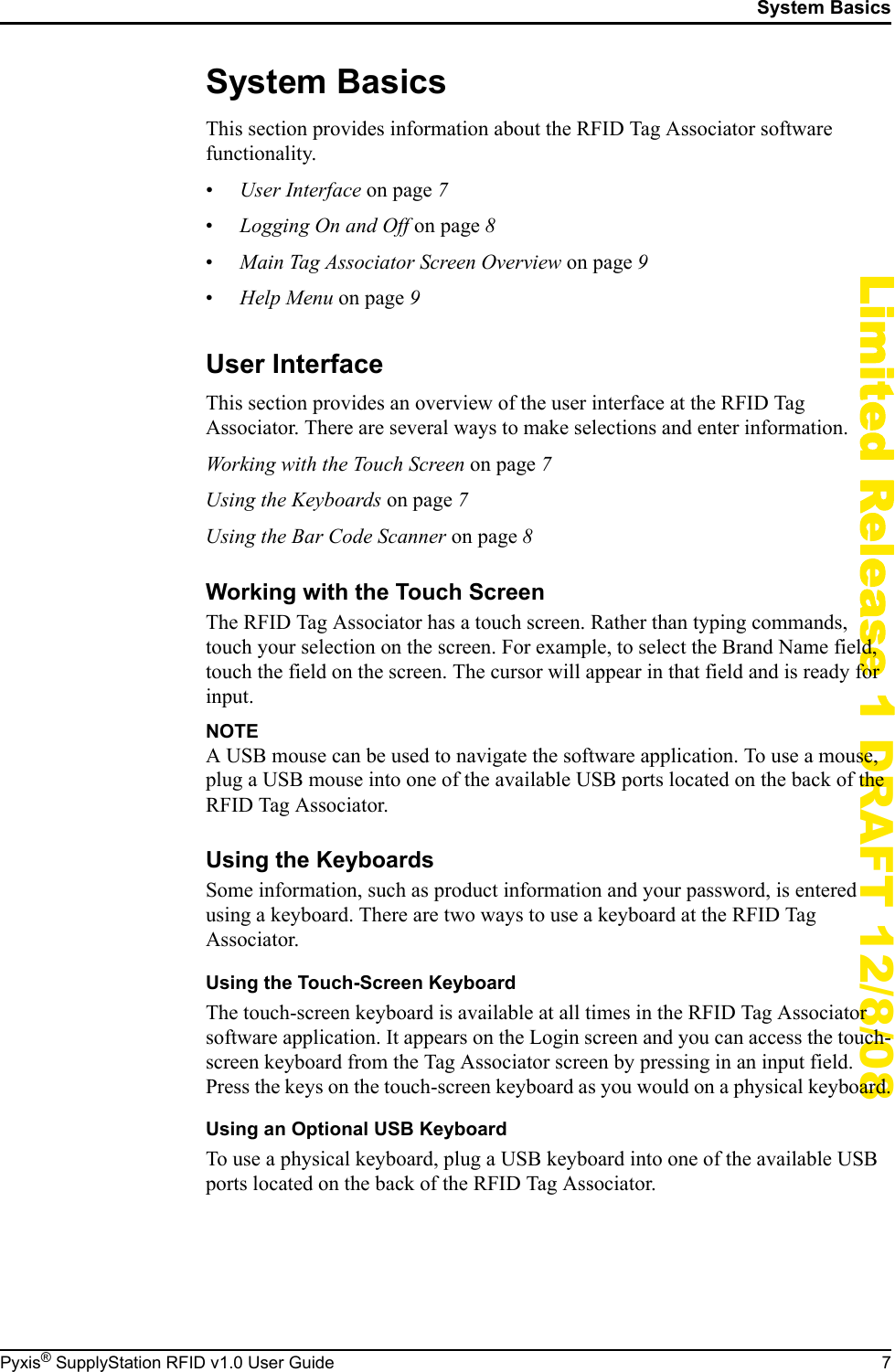
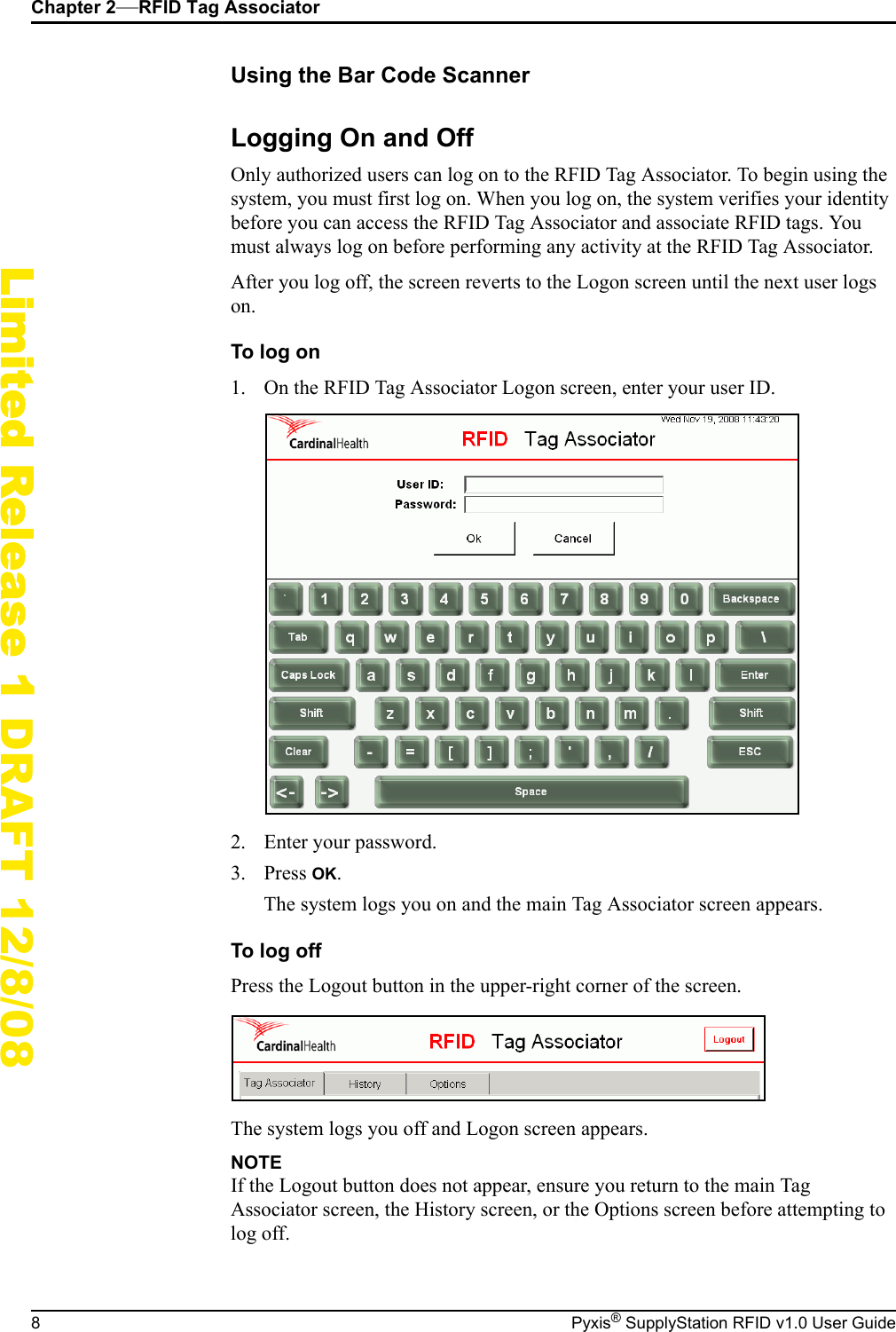
Chapter 2—RFID Tag Associator8 Pyxis® SupplyStation RFID v1.0 User GuideLimited Release 1 DRAFT 12/8/08Using the Bar Code ScannerLogging On and OffOnly authorized users can log on to the RFID Tag Associator. To begin using the system, you must first log on. When you log on, the system verifies your identity before you can access the RFID Tag Associator and associate RFID tags. You must always log on before performing any activity at the RFID Tag Associator.After you log off, the screen reverts to the Logon screen until the next user logs on.To log on1. On the RFID Tag Associator Logon screen, enter your user ID.2. Enter your password.3. Press OK.The system logs you on and the main Tag Associator screen appears.To log offPress the Logout button in the upper-right corner of the screen.The system logs you off and Logon screen appears.NOTEIf the Logout button does not appear, ensure you return to the main Tag Associator screen, the History screen, or the Options screen before attempting to log off.
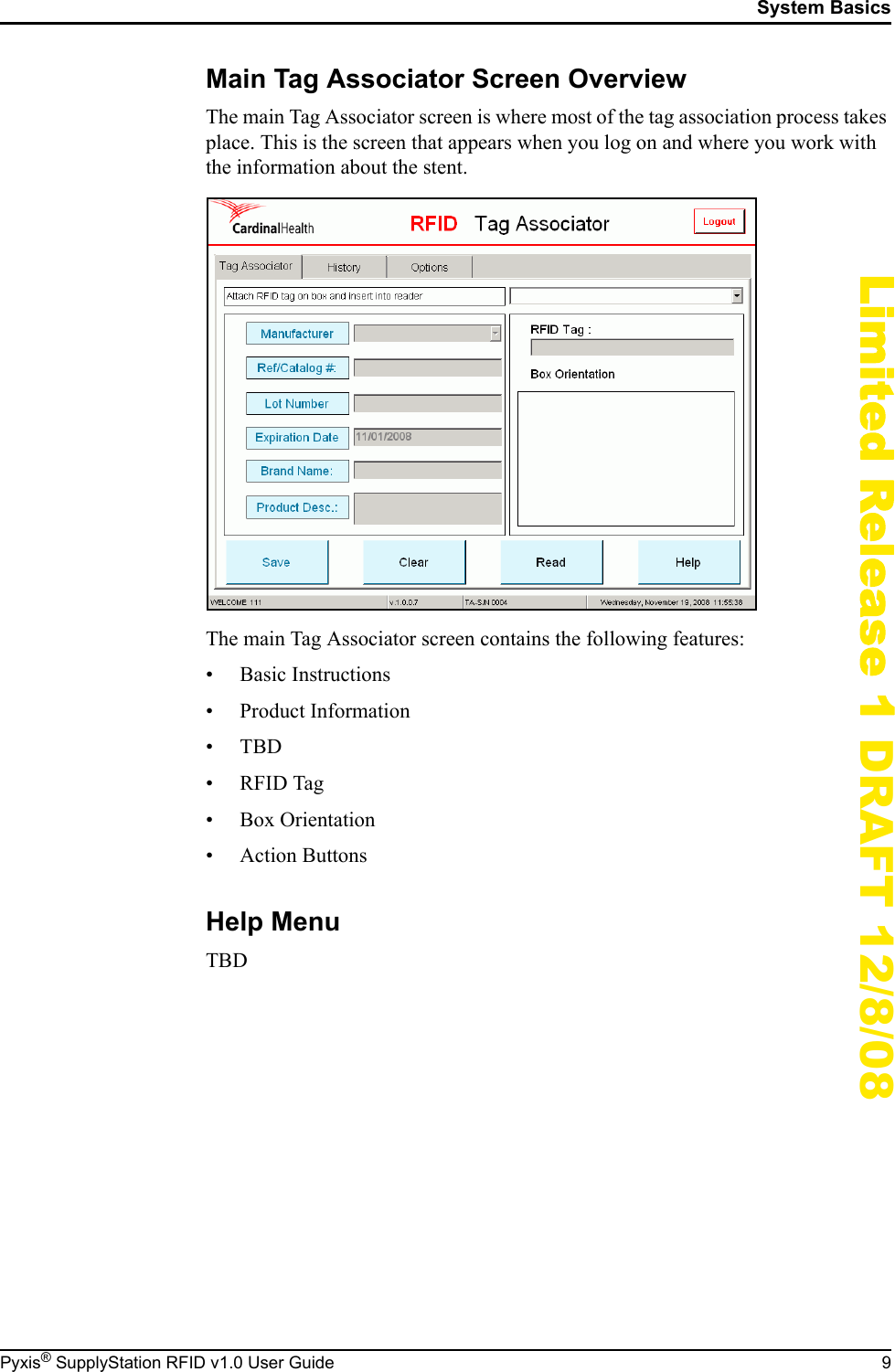
System BasicsPyxis® SupplyStation RFID v1.0 User Guide 9Limited Release 1 DRAFT 12/8/08Main Tag Associator Screen OverviewThe main Tag Associator screen is where most of the tag association process takes place. This is the screen that appears when you log on and where you work with the information about the stent.The main Tag Associator screen contains the following features:• Basic Instructions• Product Information•TBD•RFID Tag• Box Orientation• Action ButtonsHelp MenuTBD
Chapter 2—RFID Tag Associator10 Pyxis® SupplyStation RFID v1.0 User GuideLimited Release 1 DRAFT 12/8/08Associating an RFID TagUse the following procedure to associate an RFID tag to a stent.To associate an RFID tag to a stent1. Adhere a new RFID tag to the stent box, as shown below.NOTEThe RFID tag reader reads the RFID tags most effectively when the tag is pushed to the back of the enclosure. The tag must be adhered to the side of the box to ensure it reaches the appropriate area inside the enclosure for RFID tag recognition.[Line drawing of RFID tag adhering to the stent box.]2. (Optional) Using the bar code scanner, scan the bar codes on the stent box to populate the stent information.3. Slide the stent box, RFID tag first, into the RFID Tag Associator enclosure, as shown below.4. If the RFID tag reader and camera automatically populate the information in the main Tag Associator screen, proceed to the next step. If not, press the Read button.The RFID tag reader detects the RFID tag and enters the RFID tag number the RFID field. The internal camera takes a digital photograph and displays the image in the Box Orientation area.5. If any information is missing, you can attempt to enter the information by removing the stent box from the enclosure and scanning the bar codes using the bar code scanner. Alternately, you can enter the information using the following steps:a. Press the field to enter the information (for example, Lot Number).The touch screen keyboard appears.b. Enter the appropriate information and press Enter.The main Tag Associator screen appears with the new information in the field.c. Repeat these steps for all missing information.NOTETo clear the information in the information fields, press Clear.6. When all information is correctly entered, click Save.The RFID tag is associated to the stent and the information is sent to the UTR.For information on how to restock or load the RFID-tagged stent into the SupplyStation RFID cabinet, see the Pyxis® SupplyStation User Guide.
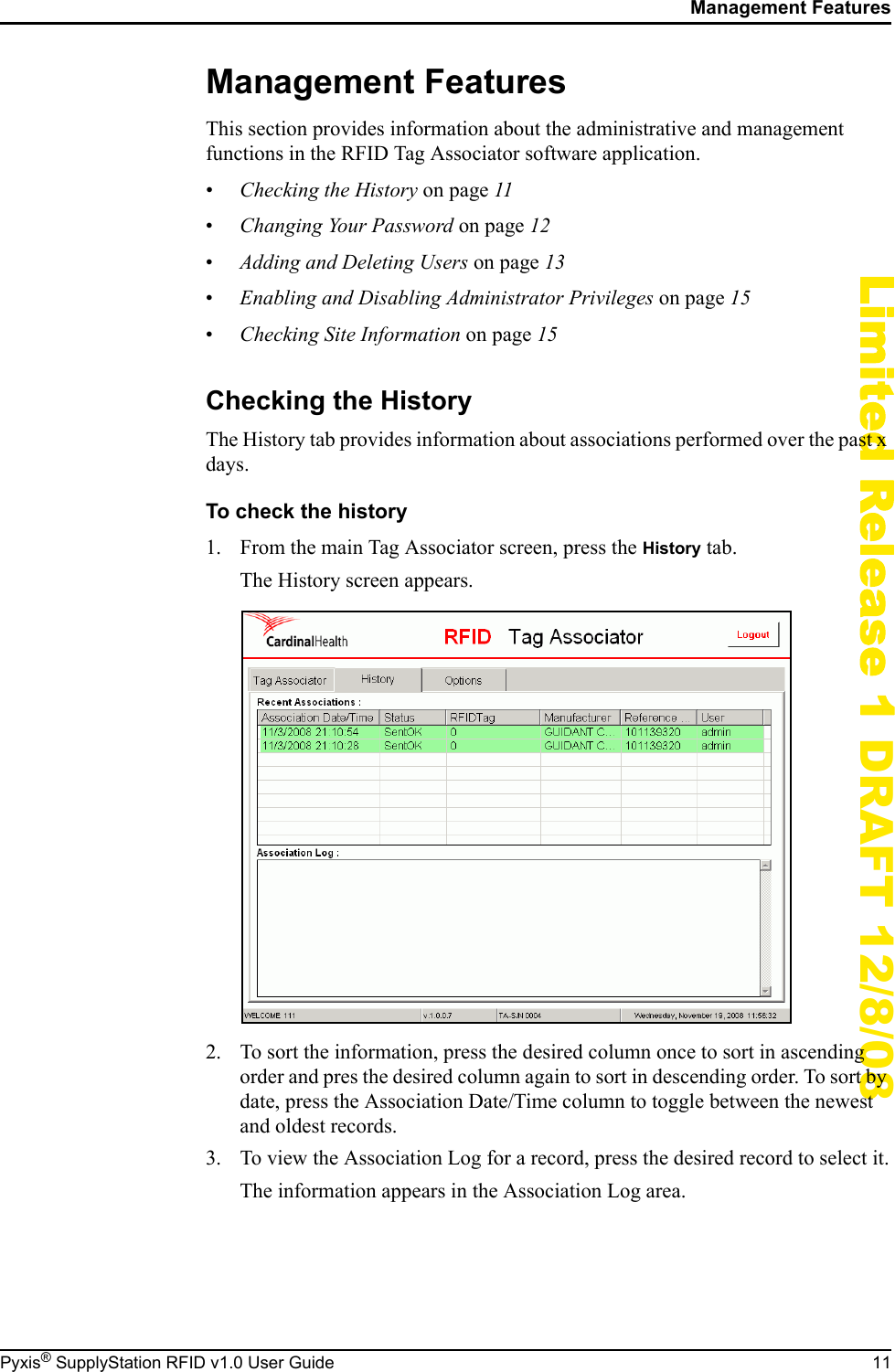
Management FeaturesPyxis® SupplyStation RFID v1.0 User Guide 11Limited Release 1 DRAFT 12/8/08Management FeaturesThis section provides information about the administrative and management functions in the RFID Tag Associator software application.•Checking the History on page 11•Changing Your Password on page 12•Adding and Deleting Users on page 13•Enabling and Disabling Administrator Privileges on page 15•Checking Site Information on page 15Checking the HistoryThe History tab provides information about associations performed over the past x days.To check the history1. From the main Tag Associator screen, press the History tab.The History screen appears.2. To sort the information, press the desired column once to sort in ascending order and pres the desired column again to sort in descending order. To sort by date, press the Association Date/Time column to toggle between the newest and oldest records.3. To view the Association Log for a record, press the desired record to select it.The information appears in the Association Log area.
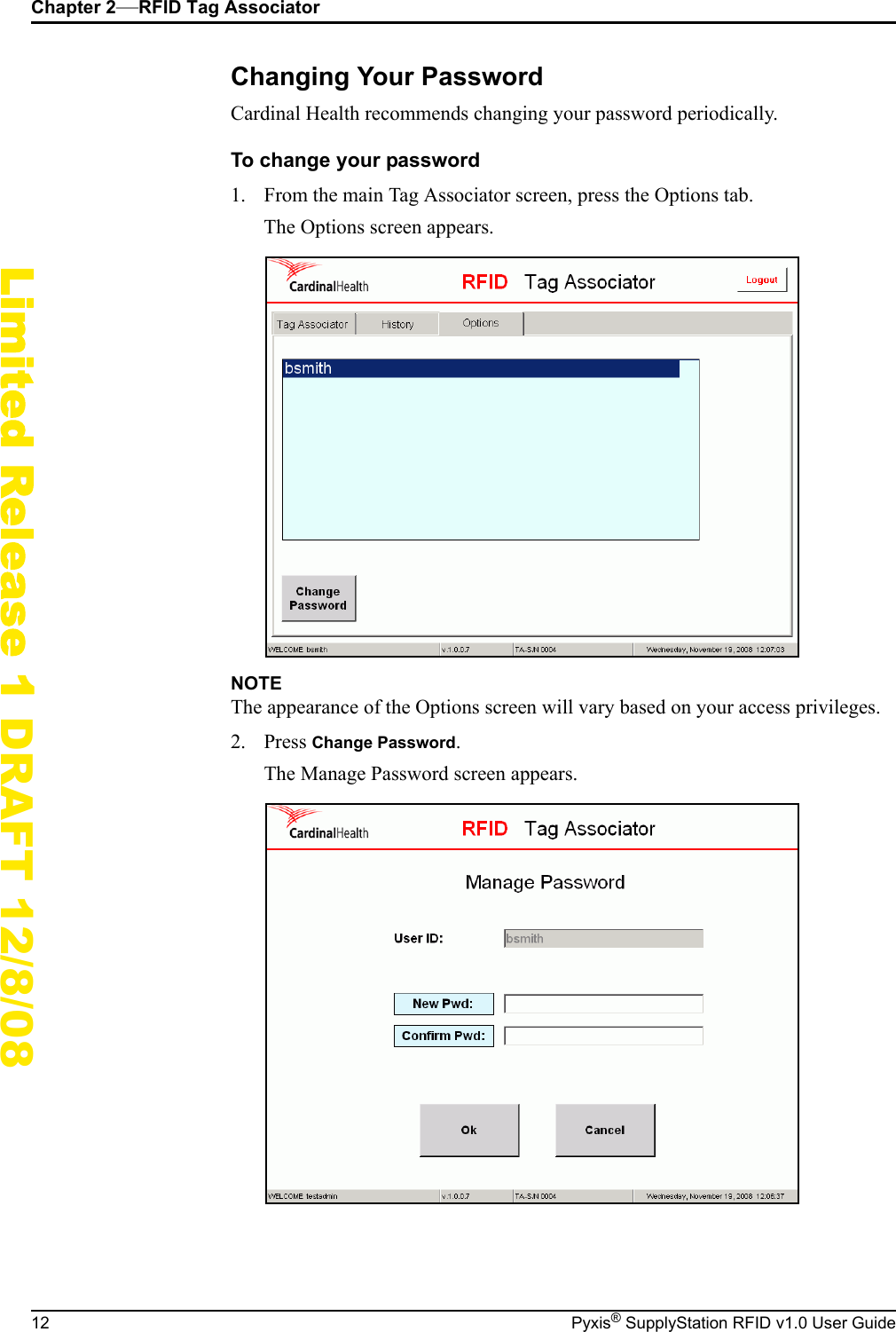
Chapter 2—RFID Tag Associator12 Pyxis® SupplyStation RFID v1.0 User GuideLimited Release 1 DRAFT 12/8/08Changing Your PasswordCardinal Health recommends changing your password periodically.To change your password1. From the main Tag Associator screen, press the Options tab.The Options screen appears.NOTEThe appearance of the Options screen will vary based on your access privileges.2. Press Change Password.The Manage Password screen appears.
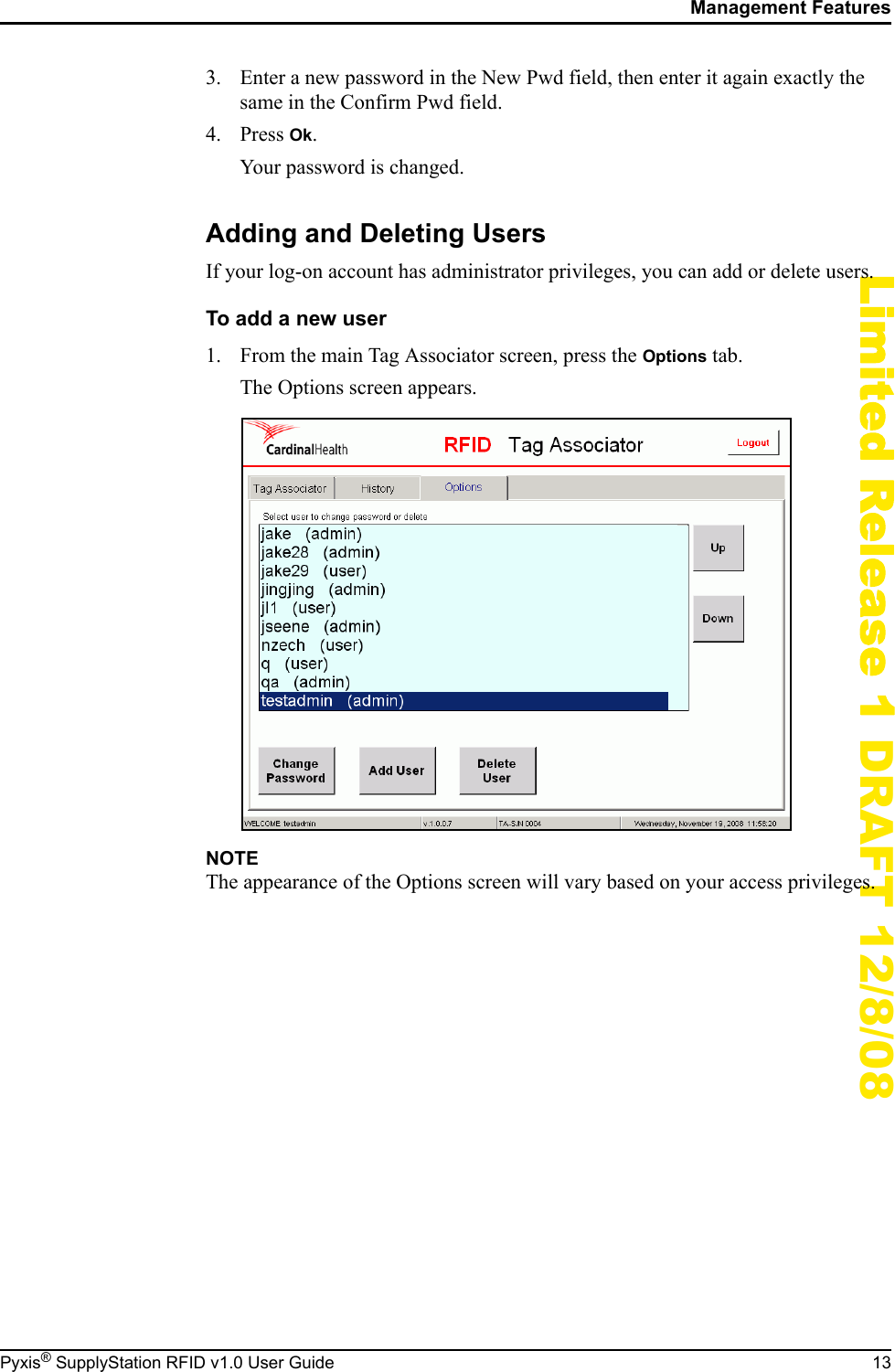
Management FeaturesPyxis® SupplyStation RFID v1.0 User Guide 13Limited Release 1 DRAFT 12/8/083. Enter a new password in the New Pwd field, then enter it again exactly the same in the Confirm Pwd field.4. Press Ok.Your password is changed.Adding and Deleting UsersIf your log-on account has administrator privileges, you can add or delete users.To add a new user1. From the main Tag Associator screen, press the Options tab.The Options screen appears.NOTEThe appearance of the Options screen will vary based on your access privileges.
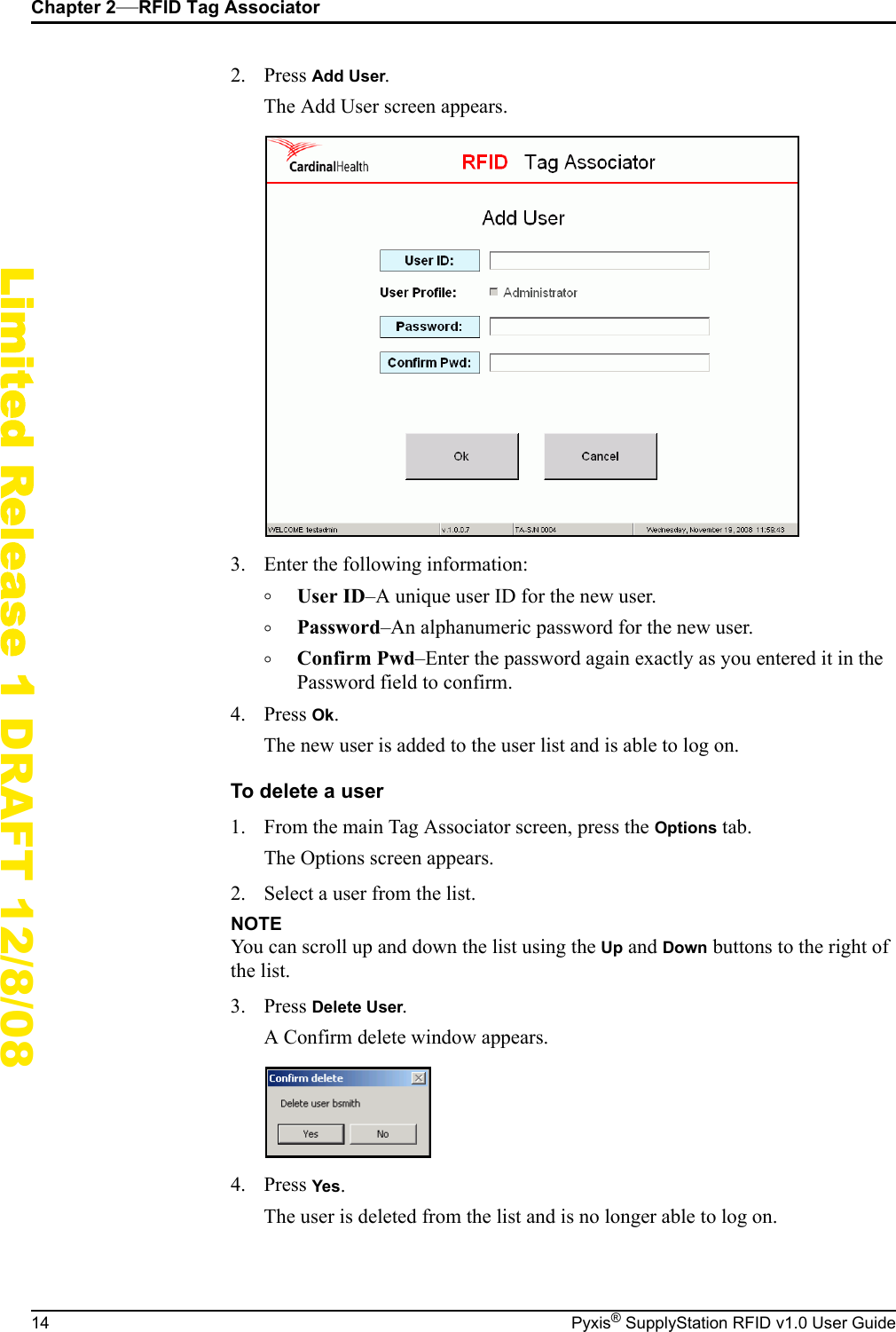
Chapter 2—RFID Tag Associator14 Pyxis® SupplyStation RFID v1.0 User GuideLimited Release 1 DRAFT 12/8/082. Press Add User.The Add User screen appears.3. Enter the following information:°User ID–A unique user ID for the new user.°Password–An alphanumeric password for the new user.°Confirm Pwd–Enter the password again exactly as you entered it in the Password field to confirm.4. Press Ok.The new user is added to the user list and is able to log on.To delete a user1. From the main Tag Associator screen, press the Options tab.The Options screen appears.2. Select a user from the list.NOTEYou can scroll up and down the list using the Up and Down buttons to the right of the list.3. Press Delete User.A Confirm delete window appears.4. Press Yes.The user is deleted from the list and is no longer able to log on.
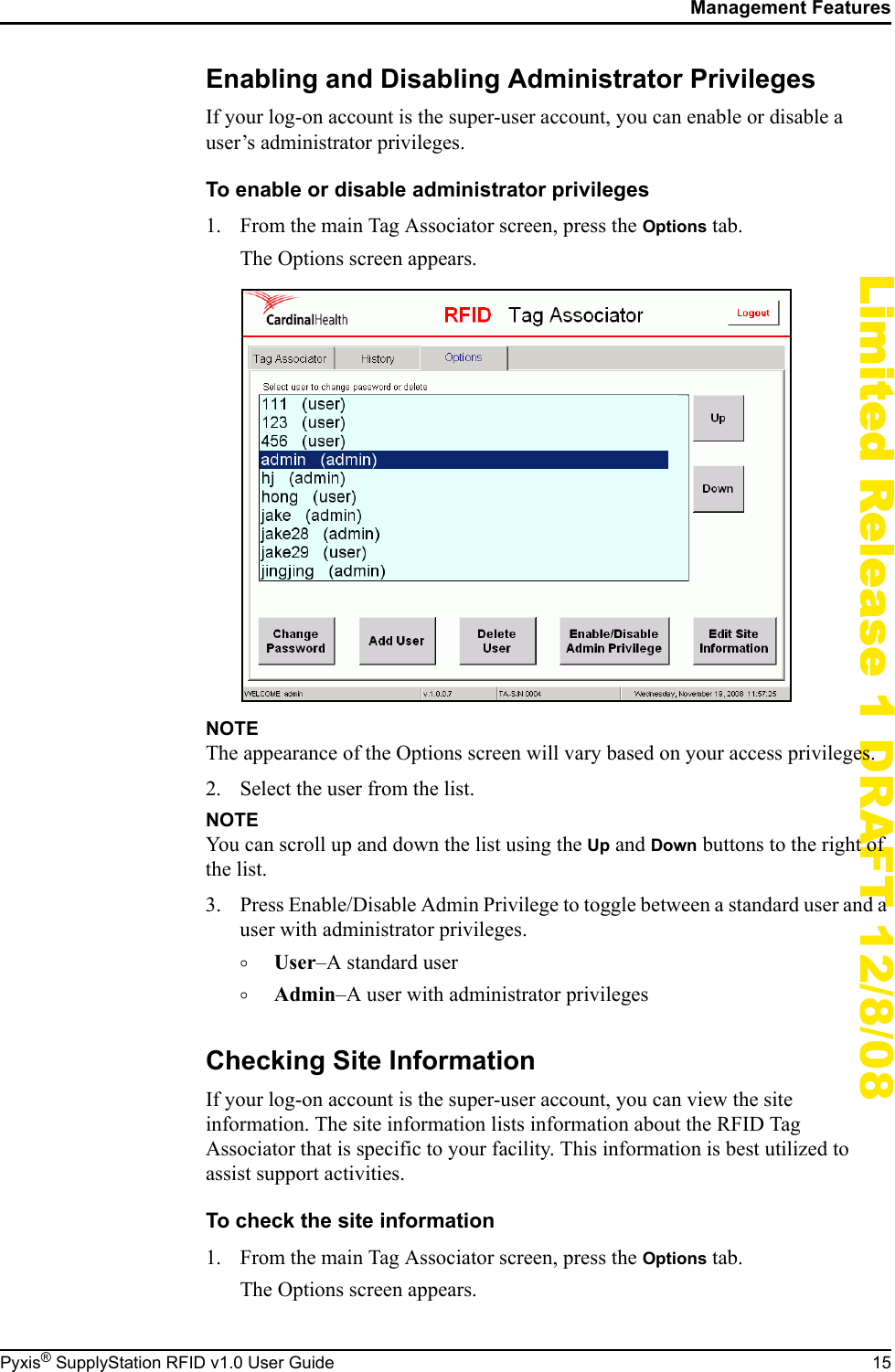
Management FeaturesPyxis® SupplyStation RFID v1.0 User Guide 15Limited Release 1 DRAFT 12/8/08Enabling and Disabling Administrator PrivilegesIf your log-on account is the super-user account, you can enable or disable a user’s administrator privileges.To enable or disable administrator privileges1. From the main Tag Associator screen, press the Options tab.The Options screen appears.NOTEThe appearance of the Options screen will vary based on your access privileges.2. Select the user from the list.NOTEYou can scroll up and down the list using the Up and Down buttons to the right of the list.3. Press Enable/Disable Admin Privilege to toggle between a standard user and a user with administrator privileges.°User–A standard user°Admin–A user with administrator privilegesChecking Site InformationIf your log-on account is the super-user account, you can view the site information. The site information lists information about the RFID Tag Associator that is specific to your facility. This information is best utilized to assist support activities.To check the site information1. From the main Tag Associator screen, press the Options tab.The Options screen appears.
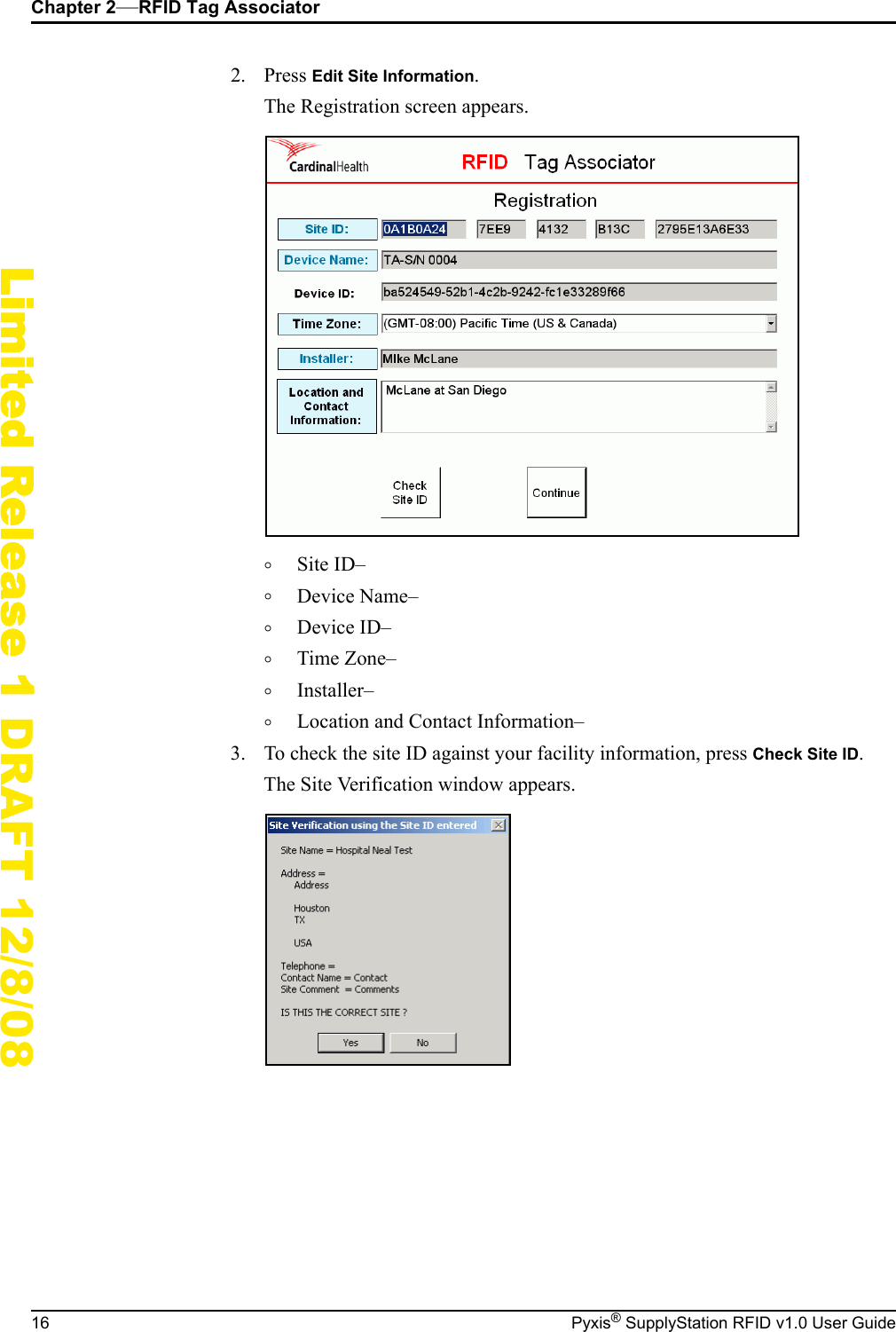
Chapter 2—RFID Tag Associator16 Pyxis® SupplyStation RFID v1.0 User GuideLimited Release 1 DRAFT 12/8/082. Press Edit Site Information.The Registration screen appears.°Site ID–°Device Name–°Device ID–°Time Zone–°Installer–°Location and Contact Information–3. To check the site ID against your facility information, press Check Site ID.The Site Verification window appears.
Pyxis® SupplyStation RFID v1.0 User Guide 17Limited Release 1 DRAFT 12/8/08Chapter 3Universal Tag RegistryThis section includes information about the UTR and how to use the UTR web application.System Basics .......................................................................................... 18Working with Reports.............................................................................. 21Item Disposal .......................................................................................... 25Knowledgebase ....................................................................................... 26
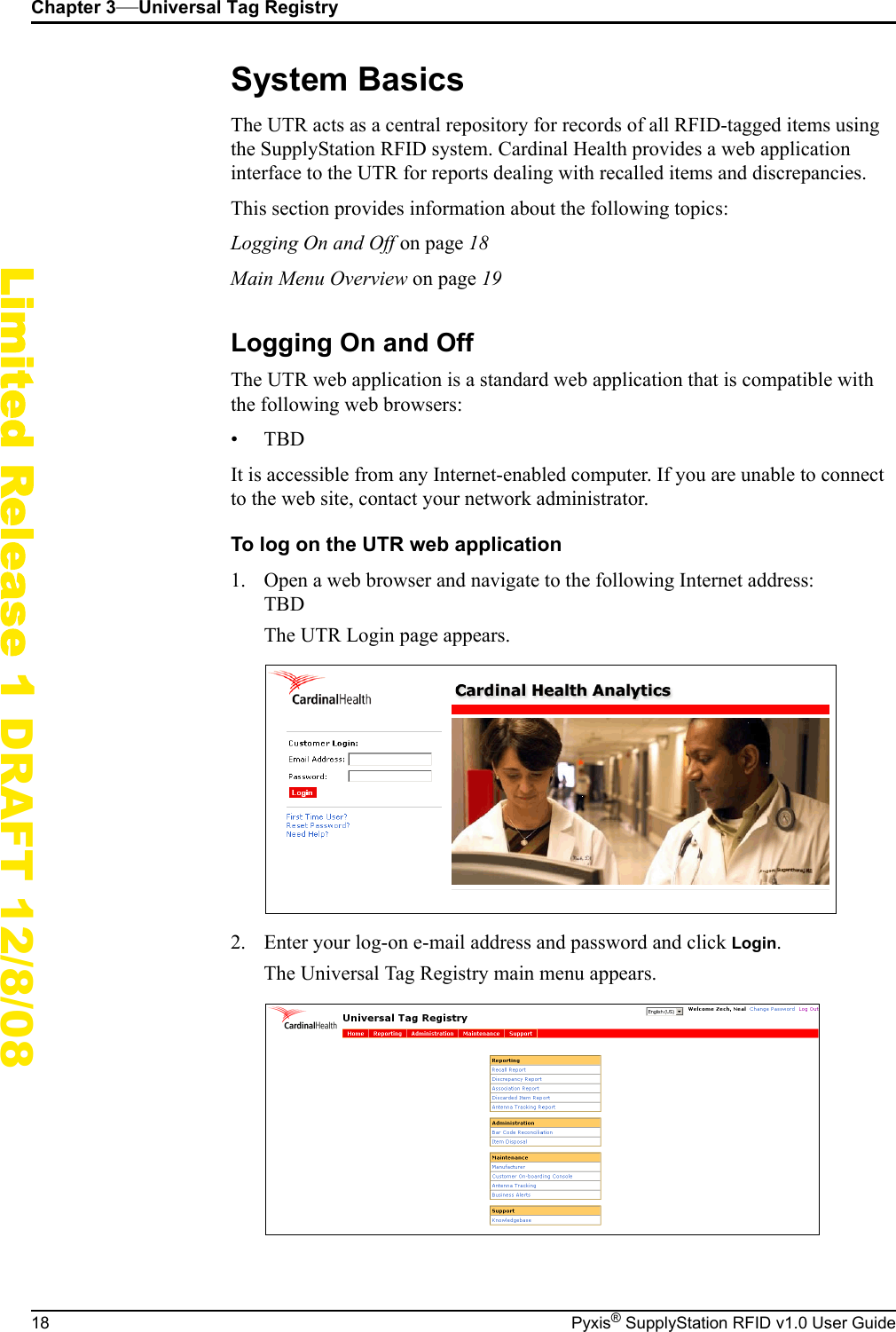
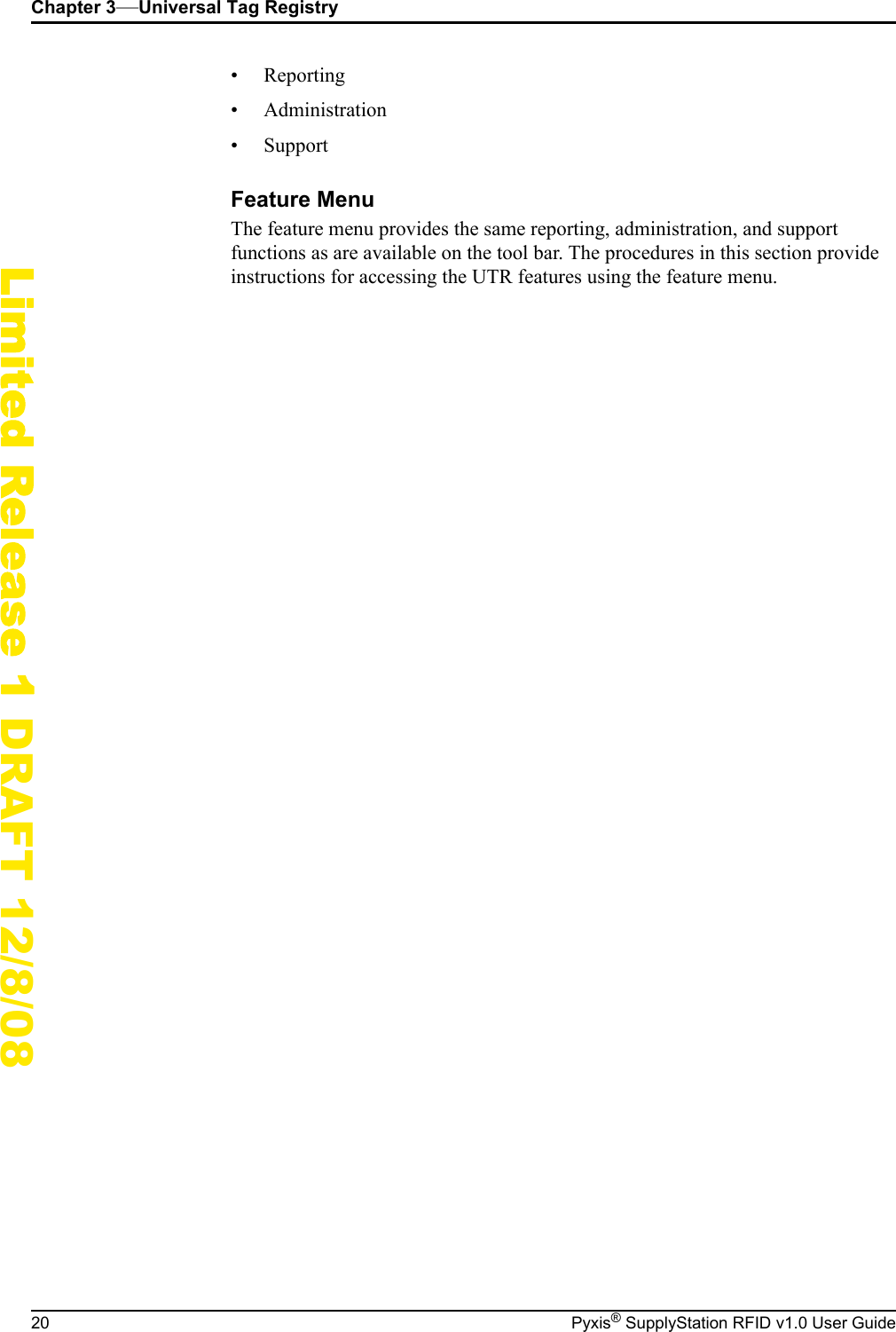
Chapter 3—Universal Tag Registry18 Pyxis® SupplyStation RFID v1.0 User GuideLimited Release 1 DRAFT 12/8/08System BasicsThe UTR acts as a central repository for records of all RFID-tagged items using the SupplyStation RFID system. Cardinal Health provides a web application interface to the UTR for reports dealing with recalled items and discrepancies.This section provides information about the following topics:Logging On and Off on page 18Main Menu Overview on page 19Logging On and OffThe UTR web application is a standard web application that is compatible with the following web browsers:•TBDIt is accessible from any Internet-enabled computer. If you are unable to connect to the web site, contact your network administrator.To log on the UTR web application1. Open a web browser and navigate to the following Internet address:TBDThe UTR Login page appears.2. Enter your log-on e-mail address and password and click Login.The Universal Tag Registry main menu appears.
System BasicsPyxis® SupplyStation RFID v1.0 User Guide 19Limited Release 1 DRAFT 12/8/08To log off the UTR web applicationFrom any page on the UTR web application, click Log Out in the upper right-hand corner.[screenshot of link]The application logs you out and the UTR Login page appears.Main Menu OverviewThe following section provides an overview of the UTR main menu.•Heading Bar•Tool bar•MenuThe UTR application main menu provides links several reports and actions. You can access the various tasks either through the menu in the center of the page or through the tool bar at the top of the page. The tool bar is available from any page in the UTR web interface.Heading BarThe heading bar provides administrative features while logged into the UTR web application. These features are available from any page in the UTR interface.• Language–Enables the UTR interface to change to the desired, supported language.• Change password–Opens the Change Password page where you can change your logon password.• Logout–Logs you off the UTR web application.Tool BarThe tool bar provides access to reports and other administrative functions.Heading barTool barMenu
Chapter 3—Universal Tag Registry20 Pyxis® SupplyStation RFID v1.0 User GuideLimited Release 1 DRAFT 12/8/08• Reporting• Administration• SupportFeature MenuThe feature menu provides the same reporting, administration, and support functions as are available on the tool bar. The procedures in this section provide instructions for accessing the UTR features using the feature menu.
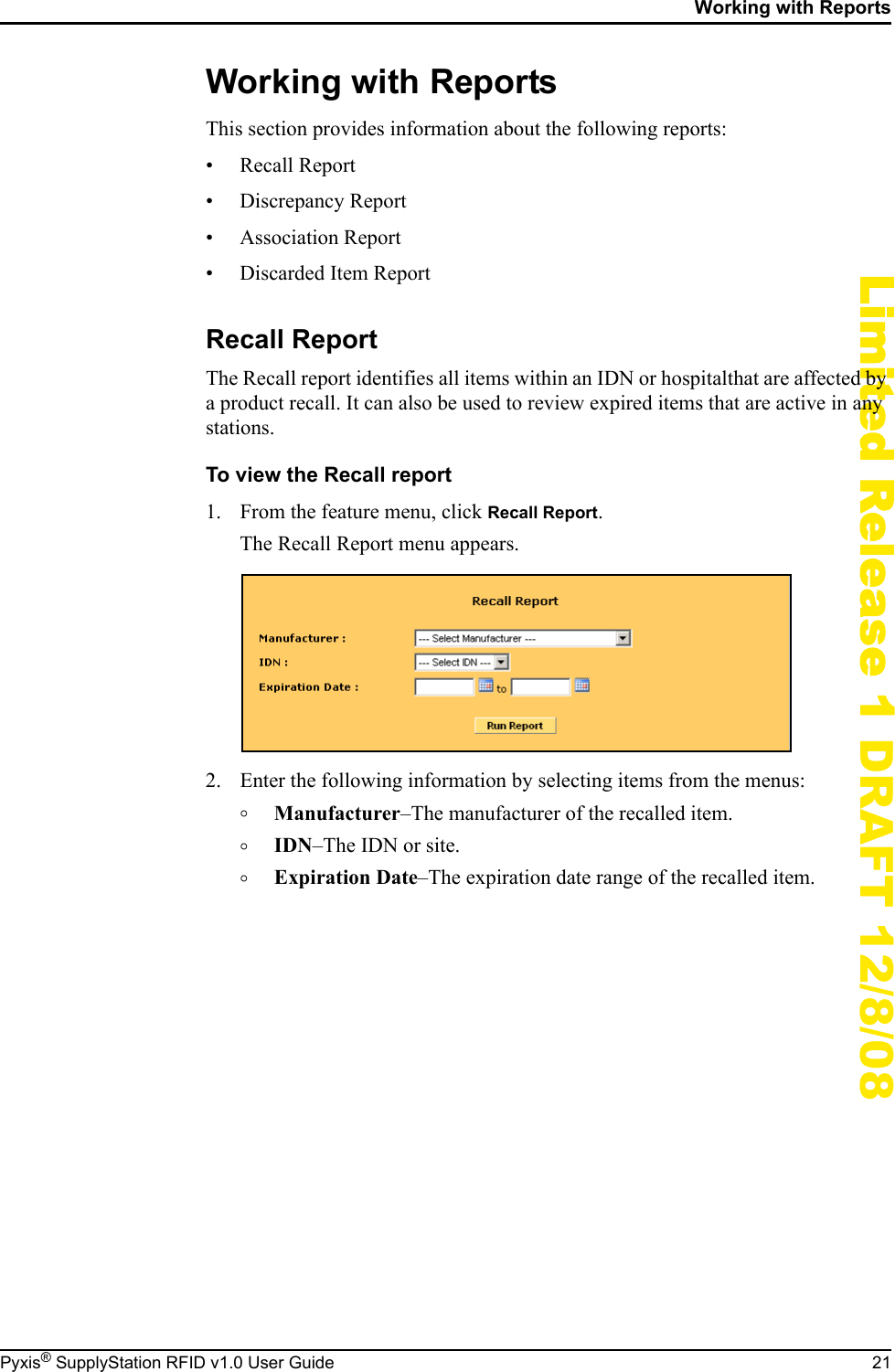
Working with ReportsPyxis® SupplyStation RFID v1.0 User Guide 21Limited Release 1 DRAFT 12/8/08Working with ReportsThis section provides information about the following reports:• Recall Report• Discrepancy Report• Association Report• Discarded Item ReportRecall ReportThe Recall report identifies all items within an IDN or hospitalthat are affected by a product recall. It can also be used to review expired items that are active in any stations.To view the Recall report1. From the feature menu, click Recall Report.The Recall Report menu appears.2. Enter the following information by selecting items from the menus:°Manufacturer–The manufacturer of the recalled item.°IDN–The IDN or site.°Expiration Date–The expiration date range of the recalled item.
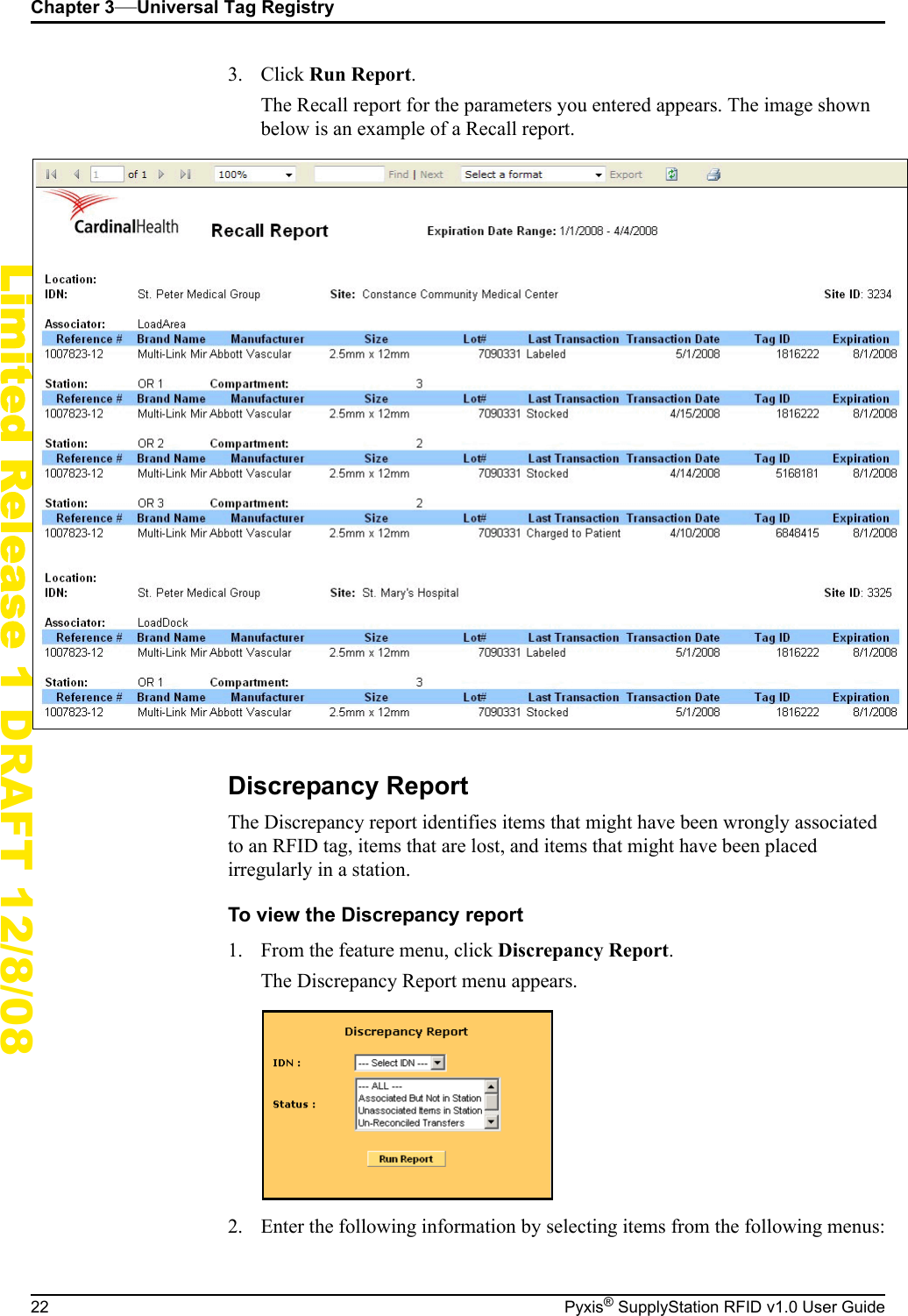
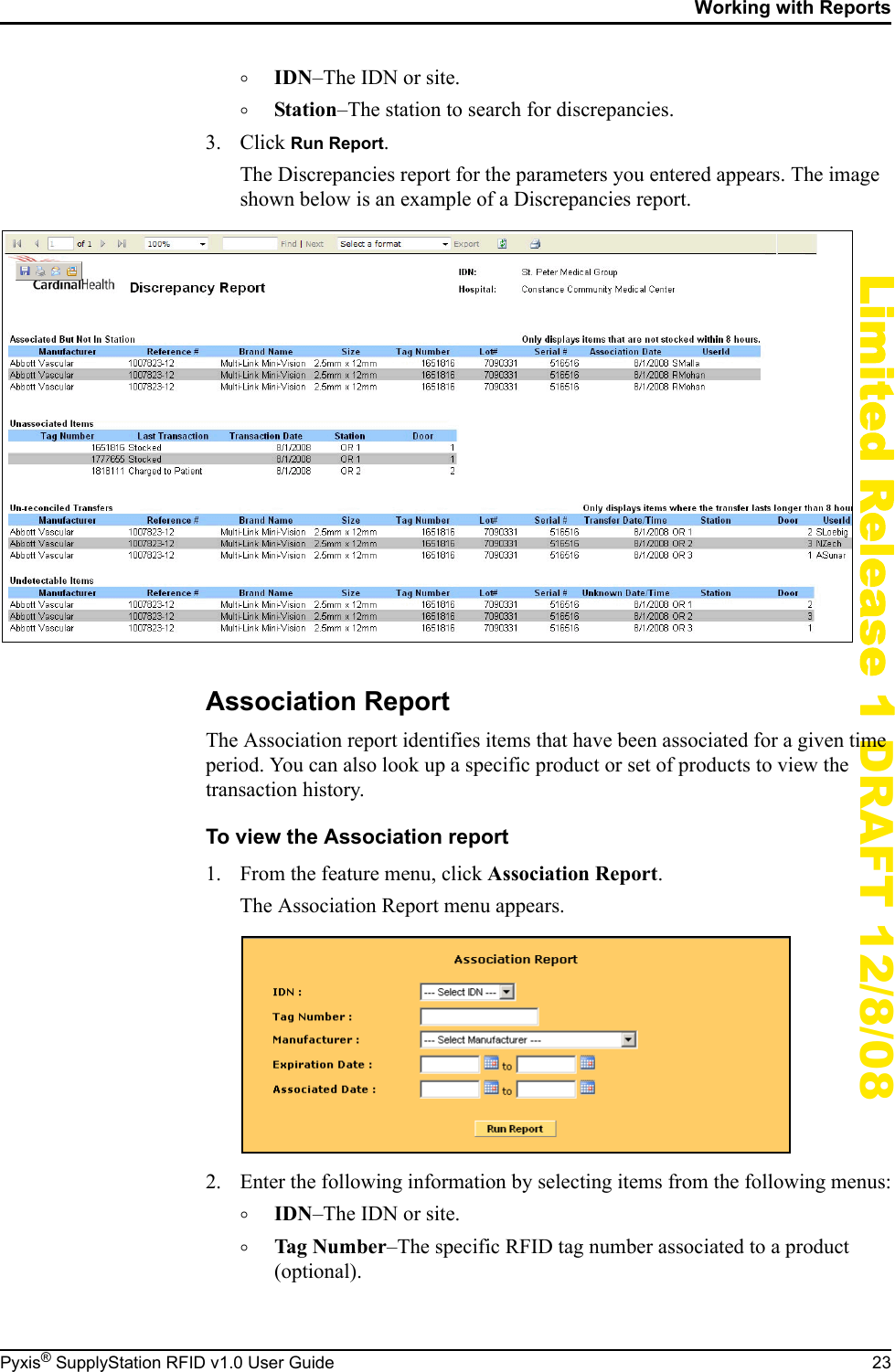
Chapter 3—Universal Tag Registry22 Pyxis® SupplyStation RFID v1.0 User GuideLimited Release 1 DRAFT 12/8/083. Click Run Report.The Recall report for the parameters you entered appears. The image shown below is an example of a Recall report.Discrepancy ReportThe Discrepancy report identifies items that might have been wrongly associated to an RFID tag, items that are lost, and items that might have been placed irregularly in a station.To view the Discrepancy report1. From the feature menu, click Discrepancy Report.The Discrepancy Report menu appears.2. Enter the following information by selecting items from the following menus:
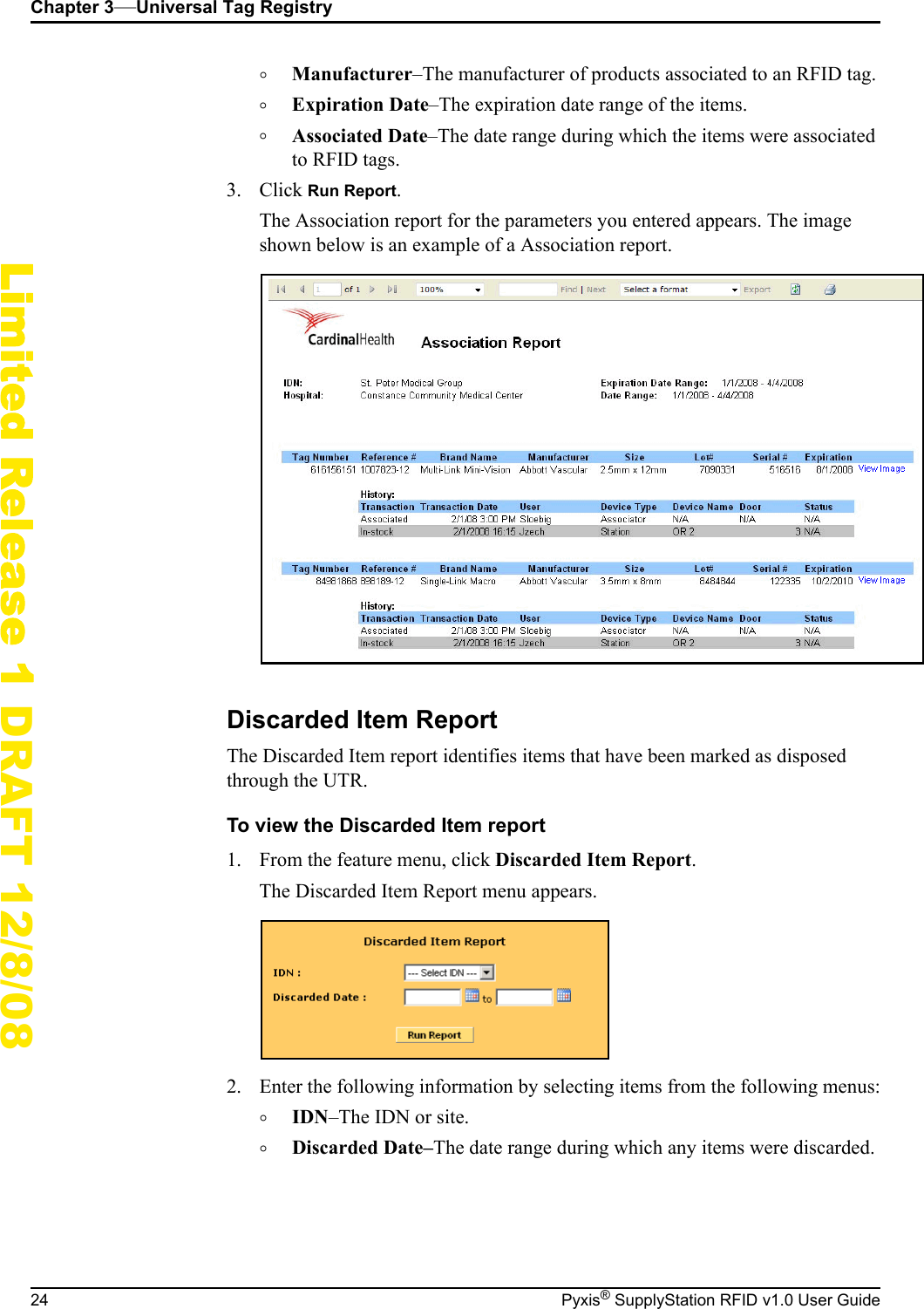
Working with ReportsPyxis® SupplyStation RFID v1.0 User Guide 23Limited Release 1 DRAFT 12/8/08°IDN–The IDN or site.°Station–The station to search for discrepancies.3. Click Run Report.The Discrepancies report for the parameters you entered appears. The image shown below is an example of a Discrepancies report.Association ReportThe Association report identifies items that have been associated for a given time period. You can also look up a specific product or set of products to view the transaction history.To view the Association report1. From the feature menu, click Association Report.The Association Report menu appears.2. Enter the following information by selecting items from the following menus:°IDN–The IDN or site.°Tag Number–The specific RFID tag number associated to a product (optional).
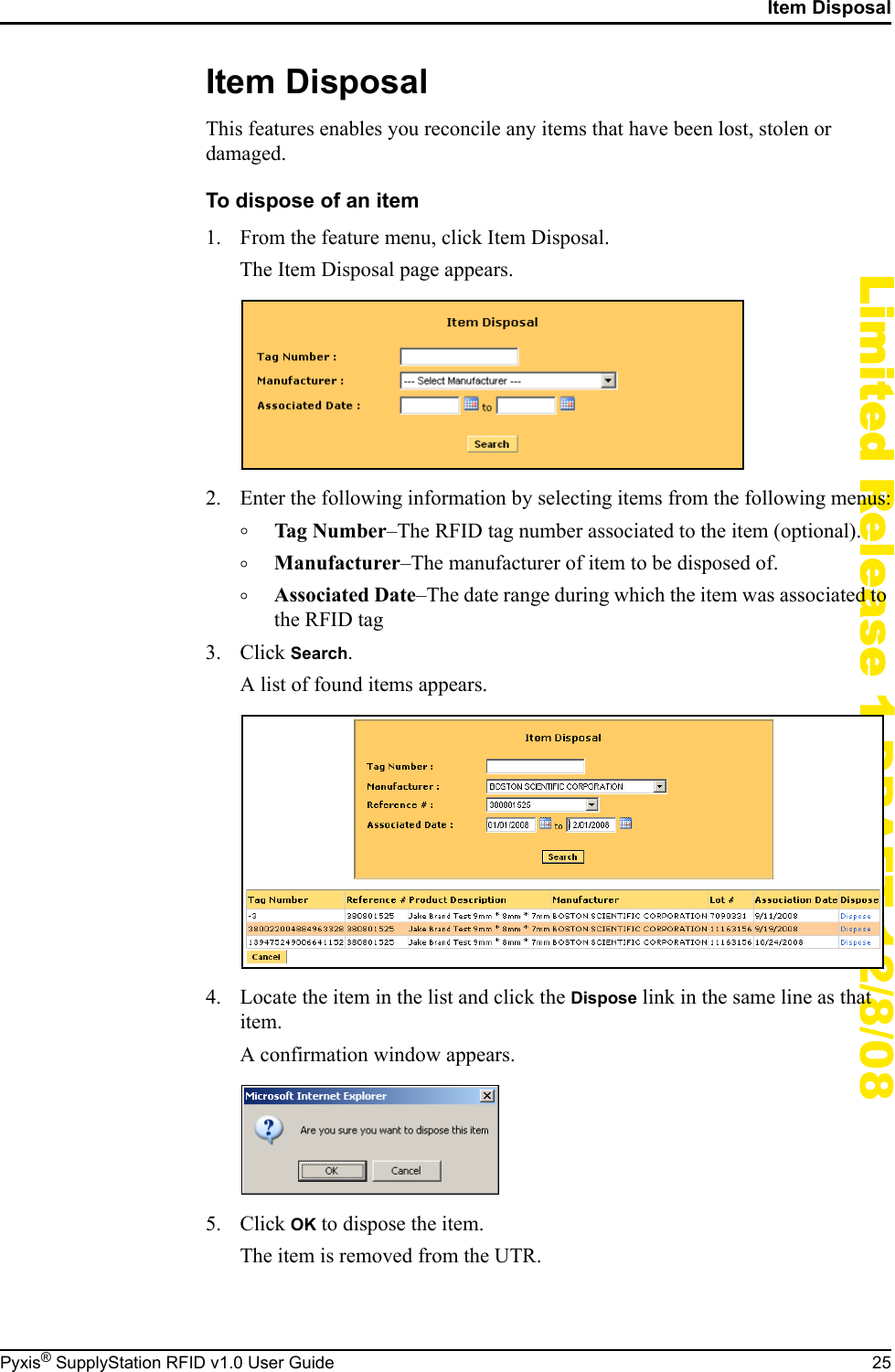
Chapter 3—Universal Tag Registry24 Pyxis® SupplyStation RFID v1.0 User GuideLimited Release 1 DRAFT 12/8/08°Manufacturer–The manufacturer of products associated to an RFID tag.°Expiration Date–The expiration date range of the items.°Associated Date–The date range during which the items were associated to RFID tags.3. Click Run Report.The Association report for the parameters you entered appears. The image shown below is an example of a Association report.Discarded Item ReportThe Discarded Item report identifies items that have been marked as disposed through the UTR.To view the Discarded Item report1. From the feature menu, click Discarded Item Report.The Discarded Item Report menu appears.2. Enter the following information by selecting items from the following menus:°IDN–The IDN or site.°Discarded Date–The date range during which any items were discarded.
Item DisposalPyxis® SupplyStation RFID v1.0 User Guide 25Limited Release 1 DRAFT 12/8/08Item DisposalThis features enables you reconcile any items that have been lost, stolen or damaged.To dispose of an item1. From the feature menu, click Item Disposal.The Item Disposal page appears.2. Enter the following information by selecting items from the following menus:°Tag Number–The RFID tag number associated to the item (optional).°Manufacturer–The manufacturer of item to be disposed of.°Associated Date–The date range during which the item was associated to the RFID tag3. Click Search.A list of found items appears.4. Locate the item in the list and click the Dispose link in the same line as that item.A confirmation window appears.5. Click OK to dispose the item.The item is removed from the UTR.
Chapter 3—Universal Tag Registry26 Pyxis® SupplyStation RFID v1.0 User GuideLimited Release 1 DRAFT 12/8/08KnowledgebaseTBD
Pyxis® SupplyStation RFID v1.0 User Guide 27Limited Release 1 DRAFT 12/8/08GlossaryADTAbbreviation for the Admission, Discharge, and Transfer records for a patient or group of patients. The ADT is sent from the facility’s host system to the console via the Procar interface.Auxiliary UnitA secure storage cabinet connected to a main unit. Auxiliary units contain no screen, printer, or disk drive and are intended for storing additional supplies and, depending on the model, bulky items. The main unit and any attached auxiliary units make up the station, and the station controls access to the auxiliary unit. (Does not apply to the SupplyRoller system.) See also Main Unit.BinThe specific location of a single item within a door or drawer. Each item is assigned to a unique bin within the station. Access to an item is controlled by limiting user access to the door for the item location. A bin may also refer to the physical container in which the item is stored.BioIDA feature that confirms individual user identity by each user’s fingerprint.
Glossary28 Pyxis® SupplyStation RFID v1.0 User GuideLimited Release 1 DRAFT 12/8/08Brain TransplantMetaphor for the procedure of using the console’s up-to-date stored information to restore or correct a station’s unique database.Card SwipeProcess to access the system using bar code or magnetic stripe cards specific to each user.CISClinical Information System. An option interface that works with the next-generation Procar to allow for the transfer of case-management information from the CIS to the console and stations for ProcedureStation system or ProcedureStation EC system, and back to the CIS.CompliancyCalculation based on number of transactions and number of discrepancies to determine system compliance.ConsoleThe central database server, typically located in materials management, which manages and monitors all stations located throughout the hospital. Provides reporting capabilities used to manage inventory, refills, users, and discrepancies, and so on.Critical LowThe level at which an item is considered unacceptably low and urgently needs refill. Triggers an attention warning at the console.DeviceAny component of the station that sends or receives messages: station, console, and Procar.DiscardA process for disposing of a supply.DiscrepancyDuring an item count verification, if the amount you find does not match the amount expected by the system, you create a discrepancy that is recorded at the station after you enter the correct amount.DoorIn stations, items are stored in drawers and doors. All procedures apply to both drawers and doors except where indicated.DrawerSee Door.Fancy FindA feature that dynamically displays the location of an item.
GlossaryPyxis® SupplyStation RFID v1.0 User Guide 29Limited Release 1 DRAFT 12/8/08Global Item FindA feature that allows you to search all stations for a particular item.Global KitA feature that allows you to add a kit that is available at all stations.Global Patient ListA feature at the station that allows you to search all stations for a patient.InterfaceThe means by which information is translated from a hospital’s computer system and the console. Information obtained via the interface includes patient admissions, discharges, transfers, billing data, and the MMIS. (See Procar.)InventorySupplies that are selected to be loaded into stations from the master, or console list of supplies. The inventory process is counting and verifying item counts.Inventory ManagementMonitoring the utilization of supplies to meet the needs of the patient-care areas. Information at the console provides the tools to maintain stock at the stations, monitor usage, and refill stations accordingly.ItemA supply that is stored, dispensed, and managed by the station. Item is used to refer to the name of the supply assigned to a bin.KitA group of supplies defined in a station that are commonly used together for a patient, usually in association with a specific procedure or treatment.LocationThe door, drawer, and bin where the item is placed.LoadThe process of loading supplies into the station. Assigning an item to a specific location (bin) within a station.Main UnitA station that contains a touch screen, keyboard, and computer.MaintenanceA process to purge old data from the station databases, which usually occurs every 24 hours, usually late at night when system use is light.ModemA device that encodes data for transmission over telephone lines.
Glossary30 Pyxis® SupplyStation RFID v1.0 User GuideLimited Release 1 DRAFT 12/8/08Non-Stock ItemItem that is not stored at the site in large quantities and must be ordered as needed (for example, high cost or specialty item).OutdateThe process of removing expired items using the Outdate feature.Par LevelThe optimum number of the item to keep in the bin.Pending ItemSupplies that have been assigned at the console to station bins, but have not yet been physically loaded.Physical Max (Phys Max)Maximum number of items that can be physically loaded in a bin.Pick ListA list of items from which a user can select. Also refers to a tab that is populated by the CIS interface with a list of items required as part of a case and procedure.PollingThe communication process between the console and its stations. The console polls all stations to update transactional information.ProcarA second PC connected to the console. The Procar’s task is to obtain ADT information from the hospital’s computer, which it then translates properly and communicates to the console for distribution to the appropriate stations. The Procar can also be configured to send billing and MMIS information to the hospital’s host system. The interface communications software is developed, configured, and installed by Cardinal Health during the system installation. Cardinal Health considers this communication hardware and software interface proprietary.Quick TakeProcess used to take items for a single patient.Rapid Access DrawerThe drawer immediately above the hideaway keyboard. Used to store high-use items and items requiring immediate access.Receive QueueThe number of messages received by the station but not yet processed.RefillThe procedure to restock loaded inventory in the stations.
GlossaryPyxis® SupplyStation RFID v1.0 User Guide 31Limited Release 1 DRAFT 12/8/08Refill by Request OrderUsed to replenish an item at a station; associated with a purchase order number generated from the console, vendor, or originating station.Refill PointThe standard level at which an item is refilled. If a supply gets at or below the refill point, it appears on material management reports for refill. The refill point can be adjusted to reflect changing patterns of usage and demand.Remote ManagerLocking refrigerator latch that can be installed on a variety of refrigerators (or warming devices) to provide controlled point-of-use access to temperature sensitive supplies stored inside.Remote StockUsed to manage items that do not require high security or are too large to fit in a station cabinet. A remote-stock location can be any location near a station (for example, a supply closet) that is used to store supplies. Items are loaded at the remote-stock location and can be managed by using the Take/Return, Inventory, and Refill functions at the station.ReturnA procedure to return a supply to the station and credit the patient.RQSee Receive Queue.ShelfAn adjustable, heavy-duty wire frame used in the station or auxiliary.StationThe device that stores and dispenses supplies. Station may refer to a SupplyStation system, SupplyStation EC system, ProcedureStation system, ProcedureStation EC system, SupplyRoller system, JITrBUD, ScanAssist system, or StockStation system. For SupplyStation systems, station may also refer to any attached auxiliary units. Each station has an internal computer that tracks access and item usage information and communicates with the console.Stock ItemItem that is stored at the site in large quantities and can be restocked as needed.System ManagerA designated hospital employee responsible to oversee the daily management of the station equipment, to meet the needs and goals of the hospital.Task InterruptA feature that allows a second user to perform a Take/Return transaction during the Refill or Inventory process.
Glossary32 Pyxis® SupplyStation RFID v1.0 User GuideLimited Release 1 DRAFT 12/8/08TransactionAny activity, such as a remove, return, or discard, performed at the station.Transmit QueueThe accumulation of messages waiting to be communicated to the console, station, or Procar.UsersNurses or other personnel in the facility that use the stations.Verify CountAn option that requires the user to confirm the correct count of supplies during the refill process.XQSee Transmit Queue.ZonesA convenient way to group areas and expedite the refill process at the stations. You can distribute inventory and refill tasks and generate reports sorted by and assigned by zone.
Pyxis® SupplyStation RFID v1.0 User Guide 33Limited Release 1 DRAFT 12/8/08IndexAadministrator privilegesenabling and disabling 15auxiliary unit 3Ccomponents 3Hhistory 11Lload 10logging off 8logging on 8Ppasswordchanging 12Rrestock 10RFID 2RFID auxiliary unit 3RFID tagassociating 10RFID tag associator 3workflow 6Ssite information 15Ttag associator 3workflow 6Terminology vUuser interface 7usersadding 13deleting 14UTR 2, 3
Index34 Pyxis® SupplyStation RFID v1.0 User GuideLimited Release 1 DRAFT 12/8/08

Navigation menu