Carrier Infinity Control Home Owners Manual ManualsLib Makes It Easy To Find Manuals Online!
2014-12-12
: Carrier Carrier-Infinity-Control-Home-Owners-Manual-119357 carrier-infinity-control-home-owners-manual-119357 carrier pdf
Open the PDF directly: View PDF  .
.
Page Count: 35

Turn to the Experts7
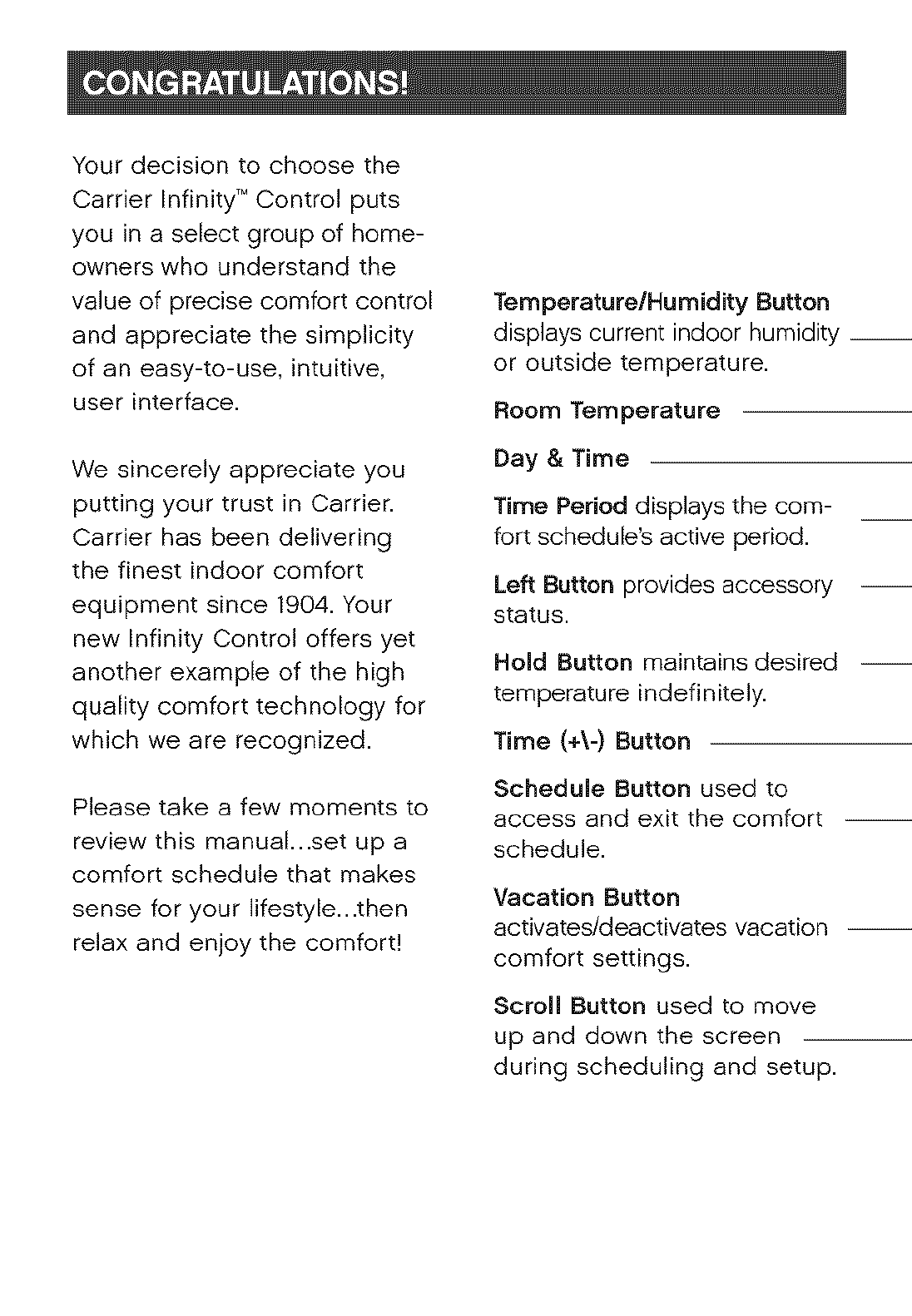
Your decision to choose the
Carrier Infinity TM Control puts
you in a select group of home-
owners who understand the
value of precise comfort control
and appreciate the simplicity
of an easy-to-use, intuitive,
user interface.
We sincerely appreciate you
putting your trust in Carrier.
Carrier has been delivering
the finest indoor comfort
equipment since 1904. Your
new Infinity Control offers yet
another example of the high
quality comfort technology for
which we are recognized.
Please take a few moments to
review this manual...set up a
comfort schedule that makes
sense for your lifestyle...then
relax and enjoy the comfort!
Temperature/Humidity Button
displays current indoor humidity __
or outside temperature.
Room Temperature
Day & Time
Time Period displays the com-
fort schedule's active period.
Left Button provides accessory
status.
Hold Button maintains desired
temperature indefinitely.
Time (+\-) Button
Schedule Button used to
access and exit the comfort
schedule.
Vacation Button
activates/deactivates vacation --
comfort settings.
Scroll Button used to move
up and down the screen
during scheduling and setup.
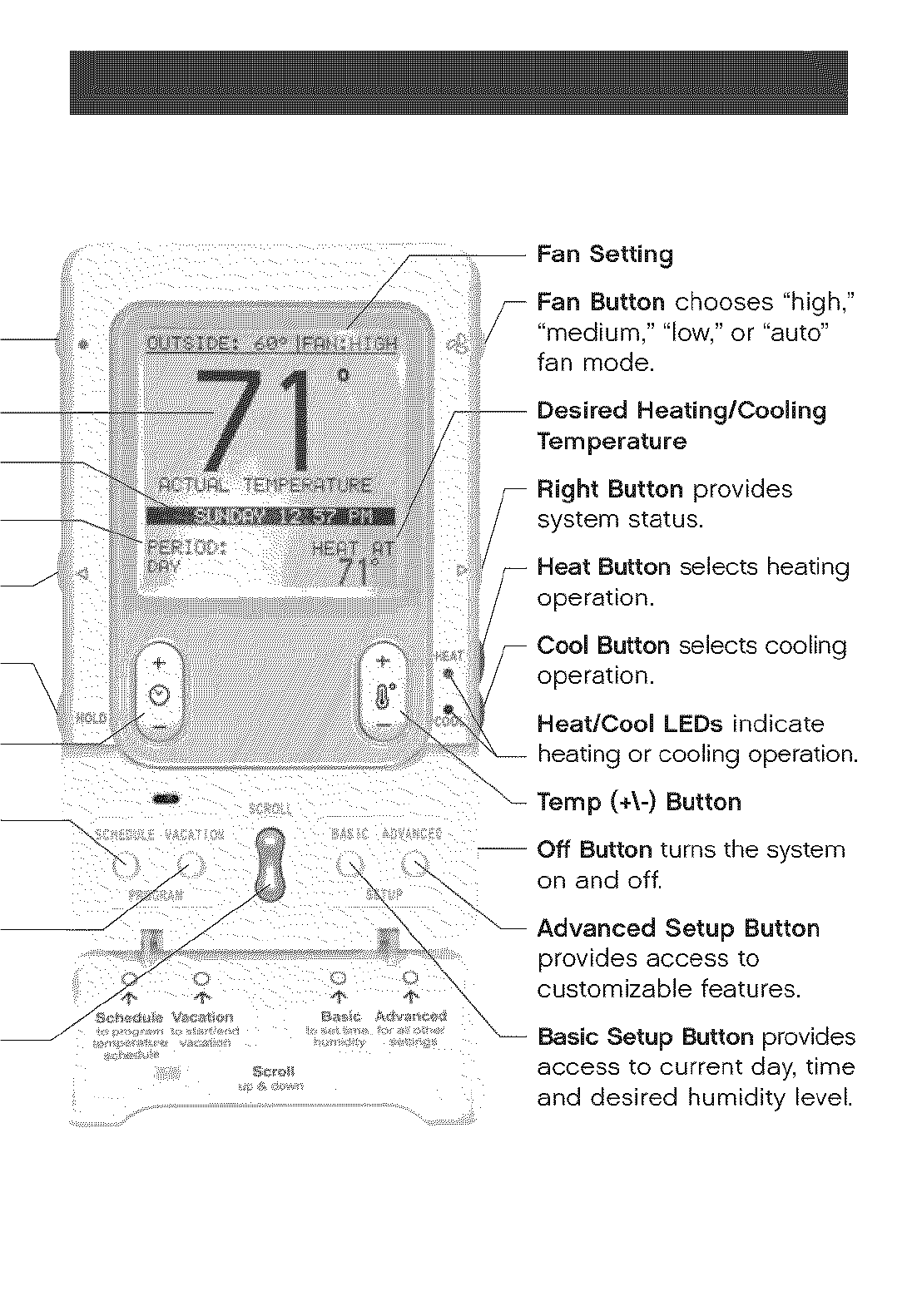
Desired Heating/Cooling
Temperature
Right Button provides
system status.
Heat Button selects heating
operation.
Button selects cooling
operation.
Heat/Cool LEDs indicate
heating or cooling operation.
Temp (+\-) Button
Off Button turns the system
on and off.
Advanced Setup Button
provides access to
customizable features.
Basic Setup Button provides
access to current day, time
and desired humidity level.

QUICKGUIDEINSTRUCTIONS...2
BASIC SETUP .................. 6
Set Day. Time & Humidity ...... 6
NORMAL OPERATION .......... 7
Turn System On/Off ............ 7
Heating ...................... 7
Auxiliary Heat ................. 7
Emergency Heat .............. 7
Cooling ...................... 8
Auto ....................... 9
Adjust Current Temperature ...9
Adjust Heating Temperature .9
Adjust Cooling Temperature 10
Adjust Fan Speed ............ 10
Hold Current Temperature .... 10
Vacation Function & Settings. J1
Check System Status
(Right Button) .................... 12
Accessory Status (Left Button) 12
Resetting Accessory Usage
Indicator ..................... 13
Accessory Maintenance Pop-Up
Messages ...................... 13
Service Pop-Up Messages ..... 14
Keyboard Lock-out ........... 15
PROGRAMMABLE FEATURES,
SETUP & OPERATION .......... 16
Backlighting .................. 16
Determining YourComfort
Schedule ........................ 16
Programming Your Comfort
Schedule ..................... 17
One Schedule for All Days .... 18
Weekdays Schedule .......... 19
Weekend Schedule .......... 20
Daily Schedule ............... 21
Copying a Schedule ......... 22
Programming Fan Speed .... 23
VENTILATION FEATURES,
SETUP & OPERATION .......... 24
Fresh Air Ventilation .......... 24
ADVANCED SETUP ............ 25
Accessory Maintenance
Reminders ................... 25
Lighting ...................... 26
Heating Humidity ............ 27
Cooling Humidity ............ 28
Vacation .................... 29
GLOSSARY ................... 31
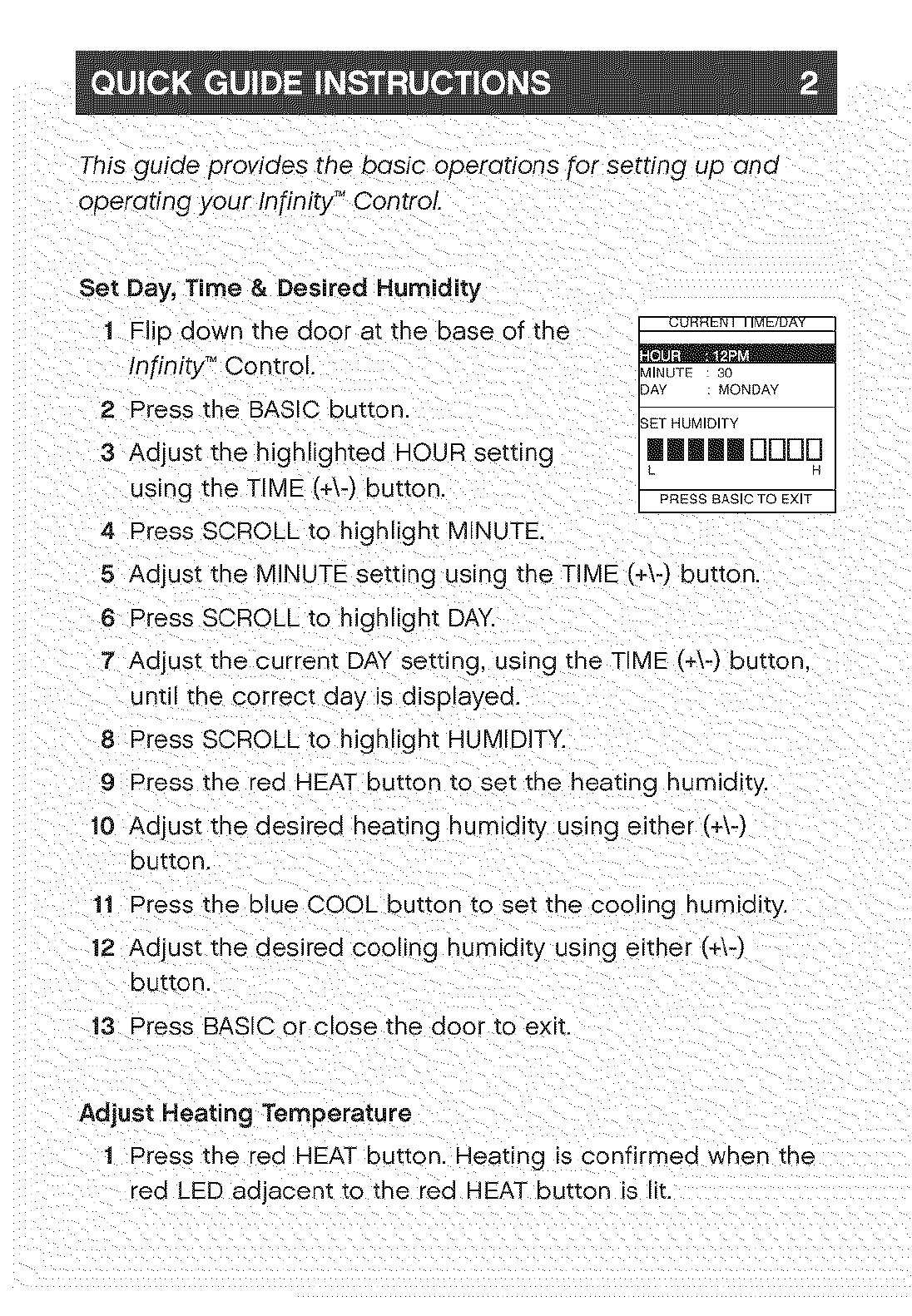
This guide provides the basic operations for setting up and
operating your Infinity TM Control
3 Adjust the highlighted HOUR setting
using the TIME (+b) button.
4 Press SCROLL to highlight MINUTE.
Set Day, Time &Desired Humidity
1 Flip down the door at the base of the __
Infinity TM Control. _INUTE'_a' "30"_
ViONDAY
2 Press the BAS'C button. HUMIDITY
ImmmDDDO
I_RESS BASIC TO EXIT
I
5Adjust the MINUTE setting using the TIME (+\-) button.
6 Press SCROLL to highlight DAY:
7 Adjust the current DAY setting, using the TIME (+\-) button,
unt the correct day is displayed.
8 Press SCROLL to highlight HUMIDITY.
9 Press the red HEAT button to set the heating humidity
10 Adiust the desired heating humidity using either (+\-)
button
11 Press the blue COOL button to set the cooling humidity.
12 Adjust the desired cooling humidity using either (+\-)
button
13 Press BASIC or close the door to exit.
Adjust Heating Temperature
1 Press the red dEAT button. Heating is confirmed when the
red LED adjacent to the red HEAT button is lit.

2 Use the TEMP (+\-) button to select your desired temperature.
which will be displayed on the lower right. An override time will
be displayed on the ower left. Please note an override time will
not appear if programming qas been turned off.
3 You can change the override time in 15-minute increments by
pressing the TIME (+\-) sutton until the desired override time is
selected.
OUTSIDE:55° IFAN:AUTO
- OR -I _o
Press the HOLD button to override the
schedule indefinitely.
Adjust Cooling Temperature I_E_,OD .E_;T
1 Press the blue COOL button. Cooling is confirmed when
the blue LED adjacent to the blue CL button is lit.
2 Use the TEMP (4-) button to select your desired tempera-
ture. which will be displayed on the lower right. An override
_ime will be displayed on the lower left. Please note an
override time will not appear if programming qas been
turned off.
3 You can change the override time to 15-minute increments
by pressing the TIME (+\-) button until the desired override
time is selected.
- OR -
Press the HOLD button to override the schedule indefinitely.
Quick Programming nstructions
These instructions will guide you through creatin 9one comfort
schedule that will repeat every cloy. For more details on pro-
gromming, or to create customized schedules for the week.
weekend,or eoch doy. refer to PROGRAMMABLE FEATURES.
SETUP & OPERATION on pages 16-23 of this monuoL
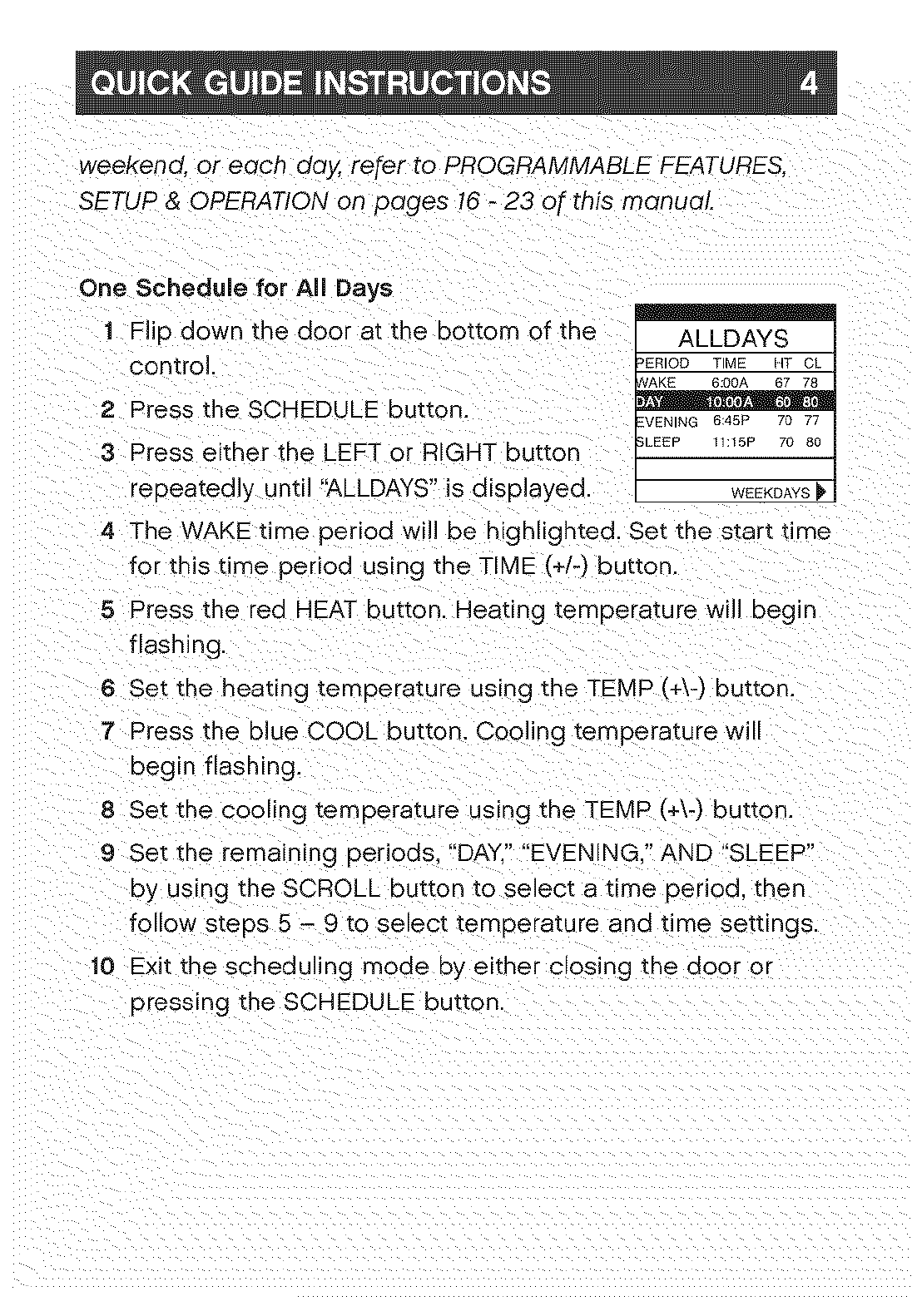
One Schedule for All Days
1 Flip down the door at the bottom of the
control.
2 Press the SCHEDULE button.
3 Press either "(he LEFT or RIGHT button
repeatedly until 'ALLDAYS" is displayed.
ALLDAYS I
ERIOD TIME lIT CL
_VENIpNG 6;155Pp 770 77
WEEKDAYS [_
4 The WAKE time period will be highlighted. Set the start time
for this time period using the TIME (+/-) button
5 Press the red HEAT button. Heating temperature will begin
flashing.
6 Set the heating temperature using the TEMP (+\-) button.
7 Press the blue COOL button. Cooling temperature will
begin flashing.
8 Set the cooling temperature using the TEMP (+\-) button.
9 Set the remaining periods. "DAY." "EVENING." AND "SLEEP"
by using the SCROLL button to select a time period, then
follow steps 5 - 9 to select temperature and time settings.
10 Exit the scheduling mode by either closin 9 the door or
pressing the SCHEDULE button.
Pop-up Messages
Your Infinity TM Control provides important and useful maintenance
and service rerr qders via pop-up messages on the display.
Accessory Maintenance Reminders: An accessory reminder lets
you know when it's time for maintenance of your air filter, humidifier
pad. UV lamp or ventilaton When an accessory reminder pop-up
message appears, perform the accessory maintenance yourself
OR contact your dealer/contractor.
Service Reminders: When a service reminder pop-up message
appears, contact your dealer/contracton
See ACCESSORY MAINTENANCE OR SERVICE POP-UP MESSAGES
on page 13 - 14 in this manual for additional information on service
and maintenance rem nders.
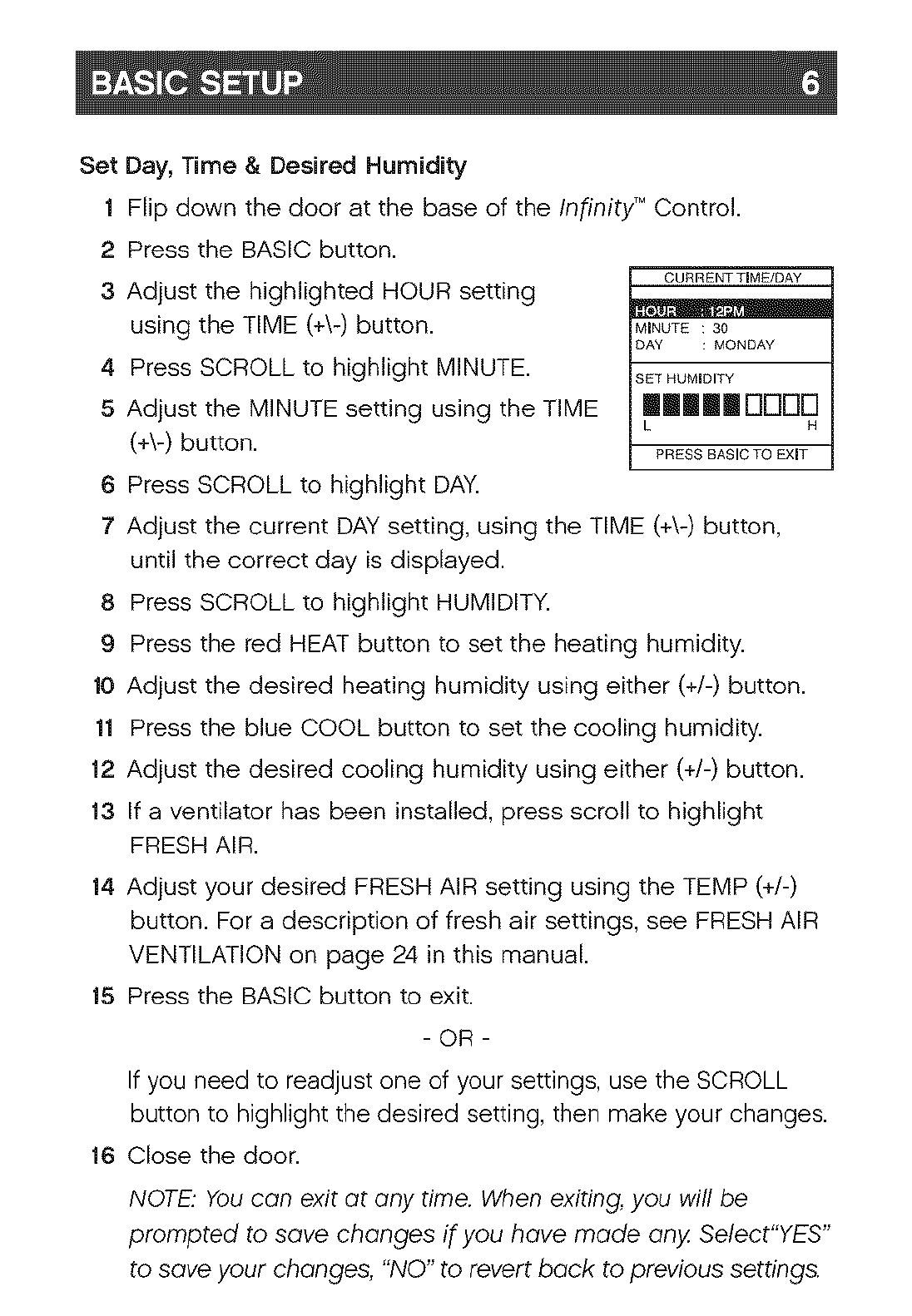
SetDay,Time& DesiredHumidity
1FlipdownthedooratthebaseoftheInfinity TM Control.
2 Press the BASIC button.
CURRENT TIME/DAY
3 Adjust the highlighted HOUR setting ,, _ -,
using the TIME (+\-) button. MINUTE : 30
DAY : MONDAY
4 Press SCROLL to highlight MINUTE. SETHUM_OFY
5 Adjust the MINUTE setting using the TIME IlililililBBBB
L H
(+\-) button, p_EssBASIOTOEXIT
6 Press SCROLL to highlight DAY.
7 Adjust the current DAY setting, using the TIME (+\-) button,
until the correct day is displayed.
8 Press SCROLL to highlight HUMIDITY.
9 Press the red HEAT button to set the heating humidity.
10 Adjust the desired heating humidity using either (+/-) button.
11 Press the blue COOL button to set the cooling humidity.
12 Adjust the desired cooling humidity using either (+/-) button.
13 If a ventilator has been installed, press scroll to highlight
FRESH AIR.
14 Adjust your desired FRESH AIR setting using the TEMP (+/-)
button. For a description of fresh air settings, see FRESH AIR
VENTILATION on page 24 in this manual.
15 Press the BASIC button to exit.
-OR -
If you need to readjust one of your settings, use the SCROLL
button to highlight the desired setting, then make your changes.
16 Close the door.
NOTE: You con exit ot ony time. When exiting, you will be
prompted to sove chonges if you hove mode ony Select"YES"
to sove your chonges, "NO" to revert bock to previous settings.
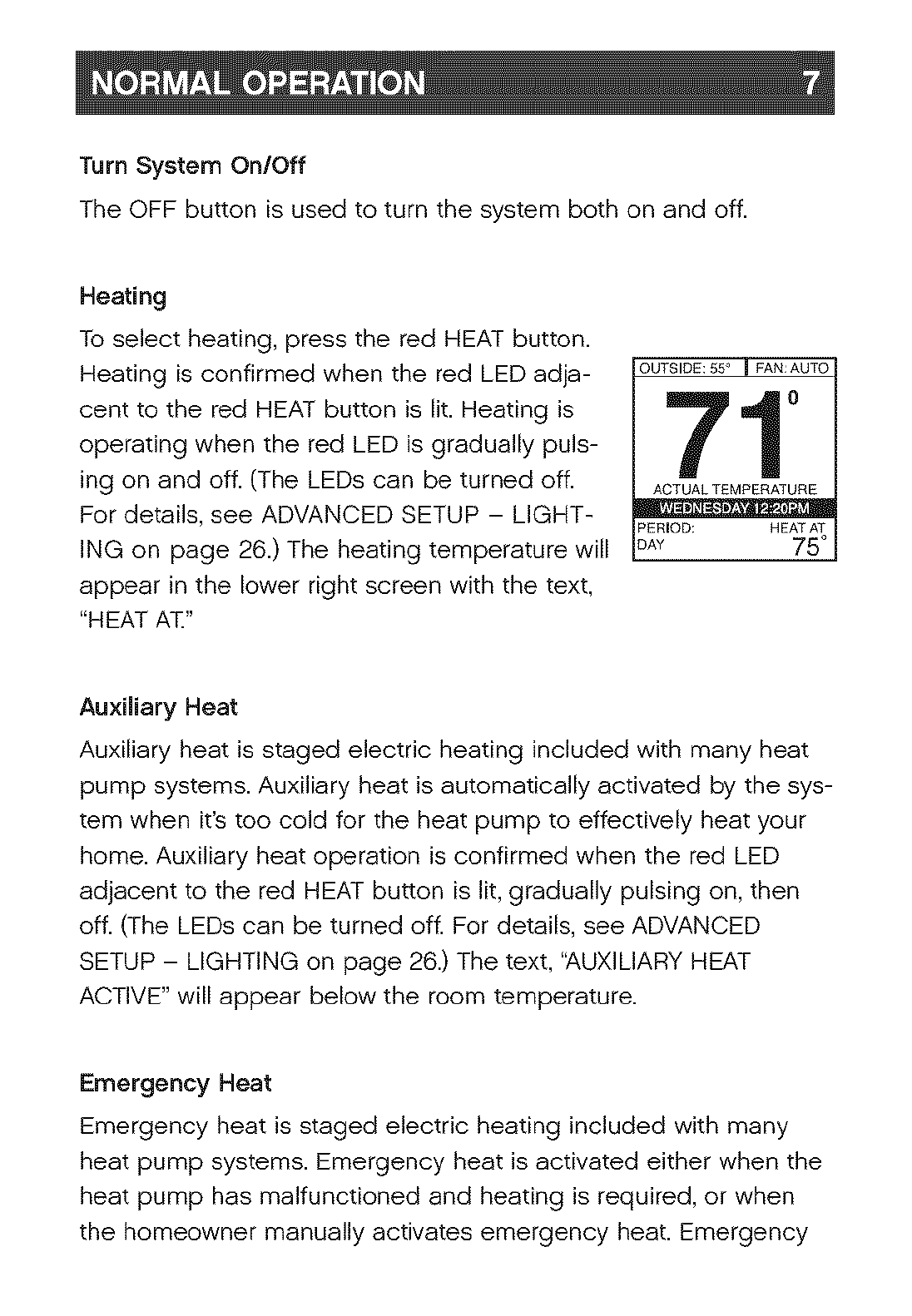
Turn System On/Off
The OFF button is used to turn the system both on and off.
Heating
To select heating, press the red HEAT button.
Heating is confirmed when the red LED adja-
cent to the red HEAT button is lit. Heating is
operating when the red LED is gradually puls-
ing on and off. (The LEDs can be turned off.
For details, see ADVANCED SETUP - LIGHT-
ING on page 26.) The heating temperature will
appear in the lower right screen with the text,
"HEAT AT."
OUTSIDE: 55 _ _ FAN:AUTO
71°
ACTUAL TEMPERATURE
PERIOD; HEAT AT
DAY 75 °
AuxiEary Heat
Auxiliary heat is staged electric heating included with many heat
pump systems. Auxiliary heat is automatically activated by the sys-
tem when it's too cold for the heat pump to effectively heat your
home. Auxiliary heat operation is confirmed when the red LED
adjacent to the red HEAT button is lit, gradually pulsing on, then
off. (The LEDs can be turned off. For details, see ADVANCED
SETUP - LIGHTING on page 26.) The text, "AUXILIARY HEAT
ACTIVE" will appear below the room temperature.
Emergency Heat
Emergency heat is staged electric heating included with many
heat pump systems. Emergency heat is activated either when the
heat pump has malfunctioned and heating is required, or when
the homeowner manually activates emergency heat. Emergency
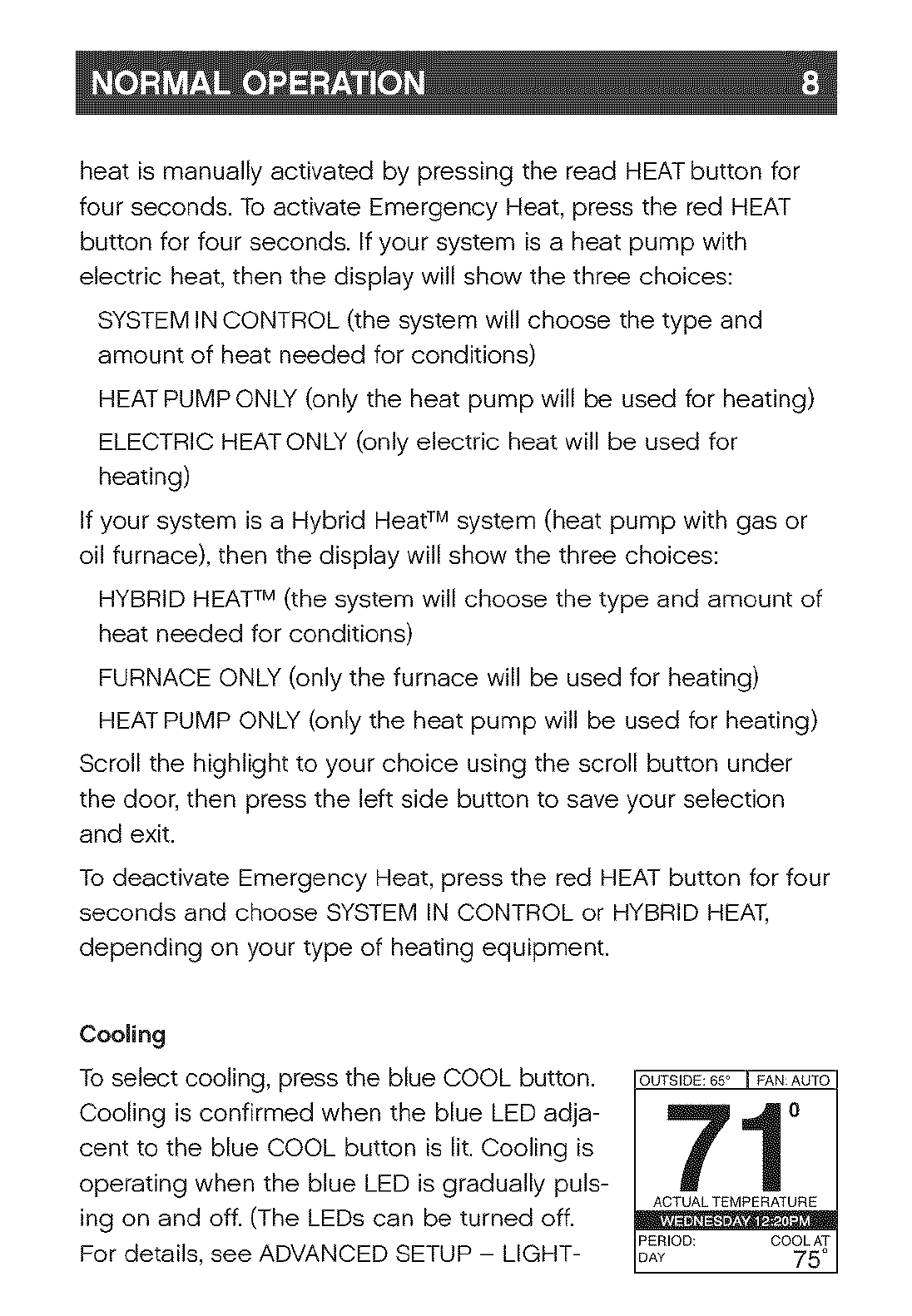
heatismanuallyactivatedbypressingthereadHEATbuttonfor
fourseconds.ToactivateEmergencyHeat,presstheredHEAT
buttonforfourseconds.Ifyoursystemisaheatpumpwith
electricheat,thenthedisplaywillshowthethreechoices:
SYSTEMINCONTROL(thesystemwillchoosethetypeand
amountofheatneededforconditions)
HEATPUMPONLY(onlytheheatpumpwillbeusedforheating)
ELECTRICHEATONLY(onlyelectricheatwillbeusedfor
heating)
IfyoursystemisaHybridHeatTM system (heat pump with gas or
oil furnace), then the display will show the three choices:
HYBRID HEAT TM (the system will choose the type and amount of
heat needed for conditions)
FURNACE ONLY (only the furnace will be used for heating)
HEAT PUMP ONLY (only the heat pump will be used for heating)
Scroll the highlight to your choice using the scroll button under
the door, then press the left side button to save your selection
and exit.
To deactivate Emergency Heat, press the red HEAT button for four
seconds and choose SYSTEM IN CONTROL or HYBRID HEAT,
depending on your type of heating equipment.
Cooling
To select cooling, press the blue COOL button.
Cooling is confirmed when the blue LED adja-
cent to the blue COOL button is lit. Cooling is
operating when the blue LED is gradually puls-
ing on and off. (The LEDs can be turned off.
For details, see ADVANCED SETUP - LIGHT-
OUTSIDE: 65 ° I FAN:AUTO
71°
ACTUAL TEMPERATURE
Dw. _-
PERIOD: COOL AT
DA_ 75 °

ING on page 26.) The programmed cooling temperature will
appear in the lower right screen with the text, "COOL AT."
Auto
The AUTO function allows your Infinity TM Control to
automatically switch between heating and cool-
ing operation to maintain your comfort during
transitional heating and cooling seasons.
To select AUTO operation, press the red HEAT
and blue COOL buttons simultaneously. The red
and blue LEDs will light up, and both heating
and cooling temperatures will be displayed.
OUTSIDE:65° I FAN:AUTO
710
ACTUAL TEMPERATURE
D _* I"
PERIOD: HEATAT COOLAT
DAY 70 ° 70 °
Adjust Heating Temperature
The Infinity TM Control allows you to adjust your indoor temperature at
any time, overriding your programmed settings.
1 Press the red HEAT button. Heating is confirmed when the
red LED adjacent to the red HEAT button is lit.
2 Use the TEMP (+\-) button to select your desired temperature,
which will be displayed on the lower right. An override time will
be displayed on the lower left. Please note an override time will
not appear if programming has been turned off
3 You can change the override time in 15-minute increments by
pressing the TIME (+\-) button until the desired override time is
selected.
- OR -
Press the HOLD button to override the schedule indefinitely.
AdjustCoolingTemperature
1 PresstheblueCOOLbutton.Coolingisconfirmedwhenthe
blueLEDadjacenttotheblueCOOLbuttonislit.
2 UsetheTEMP(+\-)buttontoselectyourdesiredtemperature,
whichwillbedisplayedonthelowerright.Anoverridetime
willbedisplayedonthelowerleft.Pleasenoteanoverride
timewillnotappearif programminghasbeenturnedoff.
3 Youcanchangetheoverridetimein15-minuteincrements
bypressingtheTIME(+\-)buttonuntilthedesiredoverride
timeisselected.
-OR-
PresstheHOLDbuttontooverridethescheduleindefinitely.
AdjustFanSpeed
TheInfinity TM Control offers the benefit of customized fan speeds
during continuous fan operation.
1 Press the FAN button to adjust the fan speed between LOW,
MEDIUM, HIGH or AUTO airflow. OFF is also a selection
when the system has been turned off at the Infinity TM Control.
Hold Current Temperature
Press the HOLD button to override the program and maintain the
current indoor temperature set point(s) indefinitely.
To revert back to your programmed comfort schedule, press the
HOLD button again.
NOTE: HOLD is not ovoiloble if progromming hos been turned off
Vacation Function & Settings
VACATION operation conserves energy while OUTSIDE:5S"I FAN:AUTO
yOU are away and ensures a comfortable home
upon your return.
1 Flip down the door near the base of the
Infinity TM Control. 2 DAYS HEATAT
LEFT 75°
2 Press the VACATION button.
3 Use the TEMP (+\-) button to select the desired temperature
for VACATION operation.
4 Use the TIME (+\-) button to select the number of days for
VACATION operation as seen in lower left corner of screen.
5 Press the VACATION button to start VACATION operation.
6 You will be prompted to start VACATION operation. Press the
RIGHT button for YES or press the LEFT button for NO.
Note: You have up to 15 minutes to make changes to the tem-
perature or duration after VACATION has been activated. Any
changes made alter the 15 minute period will be treated as a
temporary override to vacation settings.
7 The system will automatically revert back to its normal opera-
tion after the selected number of VACATION days has expired.
- OR -
To cancel VACATION operation at any time simply press the
VACATION button. You will be prompted to cancel VACATION
operation. Press the RIGHT button for YES or press the LEFT
button for NO.
Details [:or selecting default temperature, humidity and [:an set-
tings [:or VACATION ore provided in the ADVANCED SETUP section
of this manual, page 29.
Check System Status
The system status function allows you to view detailed information
about the system's status,
1 Press and hold the RIGHT button for two seconds to check:
- Equipment status
- Accessory status
- Current humidity
- Target humidity
2 Press the RIGHT button again to return to the main screen,
- OR -
The status screen will automatically revert back the main
screen after 60 seconds,
Accessory Status
The accessory status screen allows you to check the approximate
usage of your mechanical or electronic air cleaner, humidifier pad,
and UV lamps before routine maintenance is required. The
accessory status screen also shows your servicing dealer's name
and phone number. You may also reset the usage indicators for
your accessories from this screen.
1 Press and hold the LEFT button for two seconds to show the
status of:
- Air filter (FILTER)
- Humidifier pad (HUM. PAD)
- UV Lamps
2 Press the RIGHT button to exit.
ResettingAccessoryUsageindicator
After an air filter, humidifier pad, or UV Lamp has been replaced
or cleaned, you may need to manually reset the percent used
indicator for the respective accessory.
1 Press and hold the LEFT button to access the ACCESSORY
STATUS screen.
2 Use the SCROLL button to highlight the accessory you wish
to reset.
3 Press the RIGHT button to reset the selected accessory.
4 Press the LEFT button to exit.
- OR -
5 Continue to reset accessory usage indicators as desired.
Accessory Maintenance Pop-Up Messages
Accessory Pop-Up messages remind you when it's time
for accessory maintenance. There can be up to five messages,
depending on the accessories installed with your system:
- Replace UV Lamps
- Change Humidifier Pad
- Clean Air Filter - EAC
- Clean or Replace Air Filter
- Clean Ventilator Filter
REMIND LATER: Pressing the LEFT button to select
REMIND LATER will cause the accessory status message to reap-
pear in seven days. The message will not reappear at the end of
the seven-day period if the usage indicator has been reset.
DISMISSNOTICE:PresstheRIGHTbuttontoDISMISSNOTICEand
resettheaccessorymaintenancereminder.Thereminderwill
reappearatthenextmaintenancecycle.
Themaintenancecycleforthehumidifier,UVlampandEACis
basedontimeandmaybesetbyyourinstaller.Thedefaultsare
as follows:
EAC:
Humidifier:
UV Lamp:
Ventilator Filter:
3 months of operation
12 months of operation
12 months of operation
3 months of operation
The maintenance cycle for MEDIA or EAC + MEDIA is based on
actual airflow restriction which is automatically detected by the
system.
Service Pop-Up Messages
Service Pop-Up messages remind you when it's time for routine
equipment maintenance or if the system has malfunctioned.
ROUTINE MAINTENANCE RECOMMENDED: This pop-up appears
when seasonal maintenance should be performed to maintain
optimum performance of your system. Press the RIGHT button to
DISMISS NOTICE and reset the maintenance reminder. The
reminder will not reappear until the routine maintenance timer has
expired (default 12 months). The reminder will not appear if it has
been turned off by the installer.
SYSTEM MALFUNCTION: This pop-up appears when the system
has detected an equipment failure. Press the RIGHT button to
DISMISS NOTICE. The system may continue to operate, however
total system shutdown could occur at any time. It is highly
recommended that you contact your dealer immediately. The pop-
up will reappear in 24 hours if the equipment failure has not been
corrected.
KeyboardLock-Out
YoucanlocktheInfinity TM Control buttons to help avoid inadvertent
changes to your settings.
Keyboard lock-out can ONLY be activated from the main screen.
To do so, simultaneously press the "," and FAN buttons for two
seconds. Keyboard lock-out will be indicated by a graphic lock
on the screen.
To unlock the control, simultaneously press the "," and FAN
buttons for two seconds.
Backlighting
TheInfinity TM backlight feature makes the screen easy to read, even at
night or in low light conditions. High-intensity backlighting is activat-
ed when a button is pushed or the door at the base of the unit is
opened. The backlighting will automatically turn off or revert to a
lower intensity constant backlighting after 10 seconds of no button
activity or 30 seconds after the door is opened. Backlighting will
remain on throughout Programming, Basic Setup, and Advanced
Setup. Constant backlighting can be turned off or adjusted in
ADVANCED SETUR page 26 of this manual.
Determining Your Comfort Schedule
Before you program the Infinity TM Control, take a moment to plan
your comfort schedule. Each day of the week is divided into four
time periods:
- WAKE
- DAY
- EVENING
- SLEEP
You can select a different heating and cooling temperature for each
time period, based on your daily or weekly schedule. Using the chart
provided, enter a start time, heating temperature and cooling temper-
ature. Then you can use this chart when you begin programming.

WAKE DAY EVENING SLEEP
Time /HT" /CL" Time /HT" /CL" Time /HT" /CL" Time /HT ° / OL °
Monday / / / / / / / /
Tuesday / / / / / / / /
Wednesday / / / / / / / /
Thursday / / / / / / / /
Friday / / / / / / / /
Saturday / / / / / / / /
Sunday / / / / / / / /
Programming Your Comfort Schedule
The Infinity TM Control allows you maximum flexibility in creating a comfort
schedule that best matches your lifestyle. You can choose to keep it
simple with the same schedule every day...you can create one schedule
for the work week and one for the weekend...or, you can make every
day different. Instructions for programming this control are detailed on
the pages that follow.
NOTE: You can quit the programming process at any time by simply
pressing the SCHEDULE BUTTON or closing the door at the bottom
of the control. You will be prompted to either save your changes or
to ignore the changes using the RIGHT or LEFT buttons.
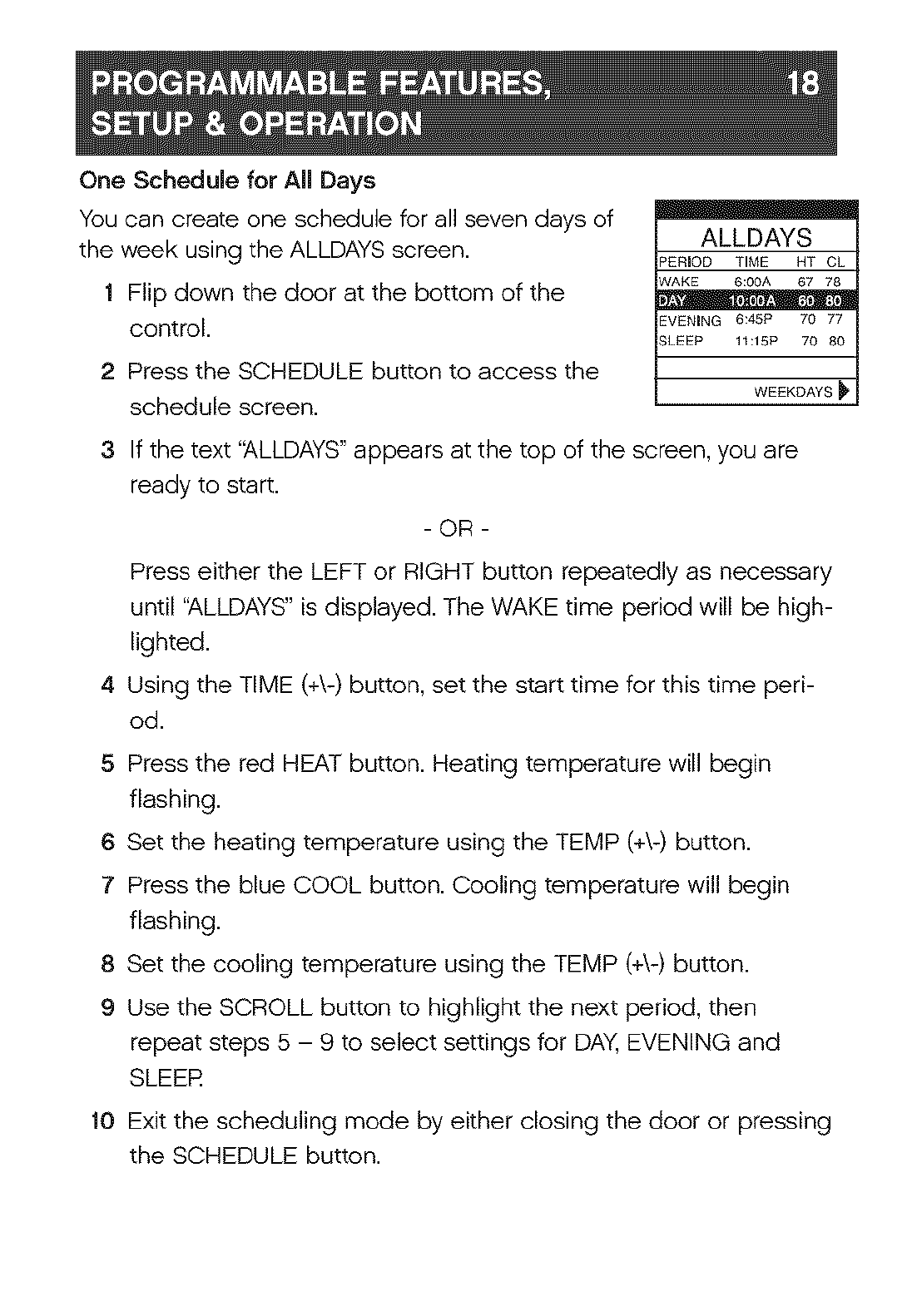
One Schedule for All Days
You can create one schedule for all seven days of
the week using the ALLDAYS screen.
1 Flip down the door at the bottom of the
control.
2 Press the SCHEDULE button to access the
schedule screen.
ALLDAYS
_ERIOD TIME HT CL
NAKE 6:00A 67 78
EVENING 6:45P 70 77
_LEEP 11:15P 70 80
WEEKDAYS
3 If the text '_,LLDAYS" appears at the top of the screen, you are
ready to start.
- OR -
Press either the LEFT or RIGHT button repeatedly as necessary
until "ALLDAYS" is displayed. The WAKE time period will be high-
lighted.
4 Using the TIME (+\-) button, set the start time for this time peri-
od.
5 Press the red HEAT button. Heating temperature will begin
flashing.
6 Set the heating temperature using the TEMP (+\-) button.
7 Press the blue COOL button. Cooling temperature will begin
flashing.
8 Set the cooling temperature using the TEMP (+\-) button.
9 Use the SCROLL button to highlight the next period, then
repeat steps 5 - 9 to select settings for DAY, EVENING and
SLEER
10 Exit the scheduling mode by either closing the door or pressing
the SCHEDULE button.
WeekdaysSchedule
YoucanprogramonescheduleforMondaythroughFridayusingthe
WEEKDAYSscreen.
1 Flipdownthedooratthebottomofthecontrol.
2 PresstheSCHEDULEbuttontoaccesstheschedulescreen.
3 Iftheword"WEEKDAYS"appearsatthetopofthescreen,youare
readytostart.Ifnot,presseithertheLEFTorRIGHTbuttonas
necessaryuntil"WEEKDAYS"isdisplayed.TheWAKEtimeperiod
willbehighlighted.
4 UsingtheTIME(+\-)button,setthestarttimeforthistimeperiod.
5 PresstheredHEATbutton.Heatingtemperaturewillbeginflash-
ing.
6 SettheheatingtemperatureusingtheTEMP(+\-)button.
7 PresstheblueCOOLbutton.Coolingtemperaturewillbegin
flashing.
8 SetthecoolingtemperatureusingtheTEMP(+\-)button.
9 UsetheSCROLLbuttontohighlightthenextperiod,thenrepeat
steps5- 9toselectsettingsforDAY,EVENINGandSLEER
10ExitbypressingtheSCHEDULEbuttonorclosingthedoor.
-OR -
11 Begin entering your WEEKEND schedule by pressing the RIGHT
button and following the Weekend Schedule instructions (the
next section in this manual).

WeekendSchedule
YoucanprogramanidenticalscheduleforSaturdayandSunday
usingtheWEEKENDscreen.
1 Flipdownthedooratthebottomofthecontrol.
2 PresstheSCHEDULEbuttontoaccesstheschedulescreen.
3 Iftheword"WEEKEND"appearsatthetopofthescreen,you
arereadytostart.Ifnot,presseithertheLEFTorRIGHTbutton
asnecessaryuntilWEEKENDisdisplayed.TheWAKEtimeperi-
odwillbehighlighted.
4 UsingtheTIME(+\-)button,setthestarttimeforthisperiod.
5 PresstheredHEATbutton.Heatingtemperaturewillbegin
flashing.
6 SettheheatingtemperatureusingtheTEMP(+\-)button.
7 PresstheblueCOOLbutton.Coolingtemperaturewillbegin
flashing.
8 SetthecoolingtemperatureusingtheTEMP(+\-)button.
9 UsingtheSCROLLbuttontohighlightthenextperiod,repeat
steps5- 9toselectDAY,EVENINGandSLEER
10ExitbypressingtheSCHEDULEbuttonorclosingthedoor.
- OR-
11Beginenteringaseparatescheduleforindividualdaysby
pressingtheRIGHTbuttonandfollowingtheinstructionsinthe
DailySchedule(thenextsectioninthismanual).
DailySchedule
Youcanprogramadifferentscheduleforeachdayoftheweekby
usingtheSUNDAY,MONDAY,TUESDAY,WEDNESDAY,THURSDAY,
FRIDAYandSATURDAYscreens.
1Flipdownthedooratthebottomofthecontrol.
2 PresstheSCHEDULEbuttontoaccesstheschedulescreen.
3 Iftheword"SUNDAY,""MONDAY,""TUESDAY,""WEDNESDAY,"
"THURSDAY,""FRIDAY,"or"SATURDAY"appearsatthetopofthe
screen,youarereadytostart..
4 Ifnot,presseithertheLEFTorRIGHTbuttonrepeatedlyas
necessaryuntilthedayoftheweekyouwanttoselectisdis-
played.TheWAKEperiodwillbehighlighted.
5 UsingtheTIME(+\-)button,setthestarttimeforthistime
period.
6 PresstheredHEATbutton.Heatingtemperaturewillbegin
flashing.
7 SettheheatingtemperatureusingtheTEMP(+\-)button.
8 PresstheblueCOOLbutton.Coolingtemperaturewillbegin
flashing.
9 SetthecoolingtemperatureusingtheTEMP(+\-)button.
10UsingtheSCROLLbutton,highlightthenexttimeperiod,and
repeatsteps5- 9toselectsettingsforDAY,EVENINGand
SLEER
11Repeatsteps5- 11inthissectionforeachdayyouwouldliketo
scheduleorusetheCOPYfunctiontocopyonedaytoanother.
12ExitbypressingtheSCHEDULEbuttonorclosingthedoor.

Copy
1 ToCOPYadailyscheduletoanotherday,usetheSCROLLbut-
tontohighlighttheCOPYfunction.
2 YouwillbepromptedtoselectYEStocontinueorNOtoreturn
totheschedulescreen.PresstheRIGHTbuttontoaccessthe
COPYscreen.
3 UsetheSCROLLbuttontohighlightthefirstdaytowhichyou
wishtocopy.
4 UsetheTEMP(+\-)buttontoselectYEStocopy,orNOtonot
copy.
5 Repeatsteps2&3untilYESappearsforeachdaytowhichyou
wouldliketocopy.
6 PresstheRIGHTbuttontocopyortheLEFTbuttontocancel.
7 Aconfirmationscreenwilllistthedaysyouhaveselected.Ifthe
listiscorrect,presstheRIGHTbuttontoconfirmandreturn
backtotheSCHEDULEfunction.Ifyouwouldliketomakea
change,presstheLEFTbuttontoreturntotheCOPYscreen.
NOTE: You con quit the progromming process ot ony time by
simply pressing the SCHEDULE BUTTON or closing the door ot
the bottom of the control.
ProgrammingFanSpeed
Youcanselectadifferentfanspeedforeachtimeperiodofyour
comfortschedule.Schedulingthefanspeedfollowsthesame
basicstepsasprogrammingtimeandtemperaturesettings.You
cancreateonefanscheduleforALLDAYS,WEEKDAYS,WEEKENDS,
oradifferentscheduleforeachday.
ProgrammablefanisautomaticallydefaultedtoofLYour dealer
will need to turn programmable fan on in the dealer thermostat
setup screens.
1 Flip down the door at the bottom of the control.
2 Press the SCHEDULE button to access the schedule screen.
3 Press the FAN button to access the Fan Speed programming
screen.
4 Press the LEFT or RIGHT button to select the days you wish to
program - ALLDAYS, WEEKDAYS, WEEKEND, or choose a
specific day (MON, TUES, WED, etc.).
5 Using the TIME (+\-) button, select your desired fan speed -
LOW, MED, HIGH or AUTO.
6 Use the SCROLL button to highlight the next period, then
repeat steps 5 and 6 to select settings for DAY, EVENING and
SLEER
7 Press the FAN button to return to the standard scheduling
screen.
-OR -
8 Exit the schedulin 9 mode by either closing the door or
pressing the SCHEDULE button,
Fresh Air Ventilation
A fresh air ventilator is used to exchange stale indoor air for fresh
outdoor air, Fresh air ventilation can be customized with up to four
settings, The setting you choose for heating operation can be differ-
ent from the settin 9 you choose for coolin 9, The indoor fan will
operate while the ventilator operates,
HIGH: The fresh air ventilator will operate at high, This setting is rec-
ommended to help quickly remove unwanted odors,
LOW: The fresh air ventilator will operate at low continuously, This
setting is recommended for continuous operation in mild climates
with low humidity,
AUTO: The system will automatically vary the fresh air ventilator
speed to accommodate outdoor seasonal conditions and desired
indoor humidity and temperature settings, This setting is recom-
mended for cold, northern climates,
DEHUM: The system will operate the fresh air ventilator only if dehu-
midification is necessary, This settin 9 is only available in heatin 9,
Refer to the BASIC SETUP section of this manual to select your
fresh air setting, Please note that a fresh air setting will only appear
if a ventilator has been installed,

Accessory Maintenance Reminders
The Infinity TM Control can remind you when it's time to change the
filter, humidifier pad, UV lamps, and ventilator pre-filter with a pop-
up message. The REMINDERS screen allows you to individually turn
on or off your accessory maintenance reminders depending on
which accessories are installed.
1 Flip down the door near the base of the Infinity Control.
2 Press the ADVANCED setup button.
3 Use the SCROLL button to select the accessory service
reminder you would like to turn ON or OFR
4 Use the TIME (+\-) button to turn the reminder ON or OFR
A pop-up reminder will only appear when it is time for
maintenance if ON is selected.
5 For a detailed description of accessory maintenance
reminders, please see ACCESSORY POP-UP MESSAGES,
page 13 in this manual.
6 Press the LEFT or RIGHT side buttons to select another
ADVANCED feature.
- OR -
7 To exit, push the ADVANCED button or simply close the door.
You may exit at any stage during this setup.
NOTE: You can exit Advanced Setup at any time. When
exiting, you will be prompted to save changes i[ you have
made any Select "YES" to save your changes, "NO" to revert
back to previous settings.
Lighting
You can adjust the backlighting contrast, turn off backlighting alto-
gether, or turn off the HEAT and COOL status lights (LED)s.
1 Flip down the door near the base of the Infinity TM Control.
2 Press the ADVANCED setup button.
3 Press the RIGHT button once to select the LIGHTING screen
(2 of 5).
4 With the BACKLIGHT text highlighted, use the TIME (+\-) button
to turn the screen's constant, low intensity backlighting ON or
OFR
5 Use the SCROLL button to highlight HEAT/COOL LED
INDICATORS text.
6 Use the TIME (+\-) button to turn the HEAT and COOL LEDs
on or of L
7 Use the SCROLL button to highlight CONTRAST.
8 Use the TIME (+\-) button to increase or decrease the screen's
contrast level.
9 Press the LEFT or RIGHT side buttons to select another
ADVANCED feature.
- OR -
10 To exit, push the ADVANCED button or simply close the door.
You may exit at any stage during this setup.
NOTE You con exit Advonce Setup ot ony time. When exiting,
you will be prompted to sove chonges if you hove mode on}<
Select "YES" to sove your chonges, "NO" to revert hock to pre-
vious settings.
HeatingHumidity
Ifyouhaveawholehousehumidifier,heatrecoveryventilator(HRV)
orenergyrecoveryventilator(ERV)asapartofyoursystem,you
canselectyourdesiredheatinghumiditysettingandchangehow
yoursystemcontrolsthehumidifierorfreshairventilation.
1 FlipdownthedoornearthebaseoftheInfinity TM Control.
2 Press the ADVANCED setup button.
3 Press the RIGHT button twice to view the HEATING HUMIDITY
screen (3 of 5).
4 Use the TEMP (+\-) button to select your desired humidity setting.
5 To exit, press ADVANCED or simply close the door.
- OR -
6 If you want to change how your system controls the heating
humidity, scroll to HUMIDIT'_ You will have three options to
choose from:
a. OFF - The system will disable humidification or
ventilator dehumidification.
b. MANUAL - The system will control the relative humidity
in your home based on your desired set point.
c. AUTO - The system will control the relative humidity in
your home based on the setting you have selected and
outside air temperature. The humidity target is lowered
automatically as the outdoor temperature decreases.
7 Use the TEMP (+\-) button to make your selection.
8 If you want to change how your system controls fresh air
ventilation scroll to FRESH AIR. For a description of settings
see FRESH AIR VENTILATION, page 24 in this manual.
9 Use the TEMP (+\-) button to select AUTO, HIGH, LOW OR DEHUM.
10 To exit, press ADVANCED or simply close the door.
NOTE: You con exit Advonced Setup ot ony time. When exiting,
you will be prompted to sove chonges if you hove mode ony
Select "YES" to sove your chonges, "NO" to revert bock to previ-
ous settings.
Cooling Humidity
1 Flip down the door near the base of the Infinity TM Control.
2 Press the ADVANCED setup button.
3 Press the LEFT button three times to view the COOLING
HUMIDITY screen (4 of 5).
4 Use the TEMP (+\-) button to set your desired humidity level.
5 To exit, press ADVANCED or simply close the door.
- OR -
6 If you want to change the way cooling dehumidification is
controlled, scroll to DEHUMIDIFY. You will have two options.
OFF - The system will not activate the cooling equipment to
dehumidify if the cooling temperature has been satisfied.
ON - The system dehumidifies by activating the cooling
equipment - even after the cooling temperature has been
satisfied. The system will not cool to dehumidify below 70 ° F
in order to protect equipment.
Your air conditioning system will provide excellent
humidification control with DEHUMIDIFY set to either ON or OFE
However, you will receive better humidification control with
the ON setting.
7 Use the TEMP (+\-) button to make your selection.
8 To exit, press ADVANCED or simply close the door.
NOTE: You can exit Advanced Setup at any time. When exiting,
you will be prompted to save changes if you have made any
Select "YES" to save your changes, "NO" to revert back to previ-
ous settings.

Vacation Settings
You can pre-select temperature, humidity and fan settings for your
VACATION function. These settings will take effect when you acti-
vate VACATION operation as outlined in the NORMAL OPERATION
section of this manual, pages 7-15.
1 Flip down the door near the base of the Infinity TM Control.
2 Press the ADVANCED setup button.
3 Press the RIGHT button four times to select the VACATION
screen (5 of 5)..
4 Use the TEMP (+\-) button to select the highest temperature the
system will allow during VACATION operation.
5 Press down on the SCROLL button to select MIN TEMPERA-
TURE.
6 Use the TEMP (+\-) button to select the lowest temperature the
system will allow during VACATION operation.
7 Press down on the SCROLL button to select MAX HUMIDIT_
8 Use the TEMP (+\-) button to select the highest humidity the
system will allow during VACATION operation.
g Press down on the SCROLL button to select MIN HUMIDIT_
10 Use the TEMP (+\-) button to select the lowest humidity the sys-
tem will allow during VACATION operation.
11 Press down on the SCROLL button to select FAN.
12 Use the TEMP (+\-) button to select AUTO, LOW, MED or HIGH
fan operation.
13 To exit, press ADVANCED or simply close the door.
NOTE: You can exit at any time. When exiting, you will be
prompted to save changes if you have made any Select "YES"
to save your changes, "NO" to revert back to previous settings.
Accessory Status...pg. 12
This function allows you to check the approximate usage of an air
filter, humidifier pad, UV lamp(s) or ventilator pre-filter.
All Days Schedule...pg. 4 & 18
One comfort schedule that stays the same every day of the week.
Auxiliary Heat.o.pg. 7
A supplemental heating source often found with heat pump sys-
tems that is used to maintain comfort when outdoor temperatures
fall significantly.
Comfort Schedule._pg. 17
A personalized list of temperature and fan settings organized
according to time of day. The Infinity TM Control allows up to four
different periods per day with the flexibility to have a different
schedule every day of the week.
Emergency Heat...pg. 7-8
Typically associated with heat pumps, it is a secondary source of
heating used when outdoor temperatures are too cold to allow the
heat pump to operate effectively, or when the heat pump has mal-
functioned.
Hold...pg. 10
This function allows you to override the programmed temperature
settings indefinitely.

Weekdays Schedule...pg. 19
One comfort schedule that is repeated every weekday, Monday
through Friday.
Weekend Schedule...pg. 20
One comfort schedule that is repeated on Saturday and Sunday.

"Ihrn to the Expertsi"
www.carrier.com 1-800-CARRIER
Amember of the United Technologies Corporation family.
Stock Symbol UTX.
© Carrier Corporation 2007 OMUID-3CA
ManuTac_arerr&_ervestile right ti_ dis_ntinue, orchangeat any time,speciticationsor d&signswithout notice
orw_out incurring obligations.
Printed in China
