CartaSense MSENSOR01 Wireless sensor User Manual

CartaSense Ltd. Wireless sensor

User manual

 CartaSense Ltd.                       Version; 1.3                                                     Nov. 2013  Manual for the Installation, Operation & Maintenance Of the Wireless Sensing Product Family
  i          Legal Notice       Disclaimer and Limitation of Liability CartaSense Ltd. and its affiliates, officers, directors, employees and agents provide the information contained in this Manual on an “as-is” basis and do not make any express or implied warranties or representations with respect to such information including, without limitation, warranties as to non-infringement, reliability, fitness for a particular purpose or application, usefulness, completeness or accuracy.  CartaSense Ltd. shall not in any circumstances be liable to any person for any special, incidental, direct, indirect or consequential damages, including without limitation, damages resulting from use of or reliance on information presented herein, or loss of profits or revenues or costs of replacement goods, even if informed in advance of the possibility of such damages.    The material in this document is the proprietary of CartaSense Ltd. Any unauthorized reproduction, use or disclosure of this material, or any part thereof, is strictly prohibited. This material is meant solely for the use of CartaSense Ltd. employees and authorized CartaSense Ltd. customers
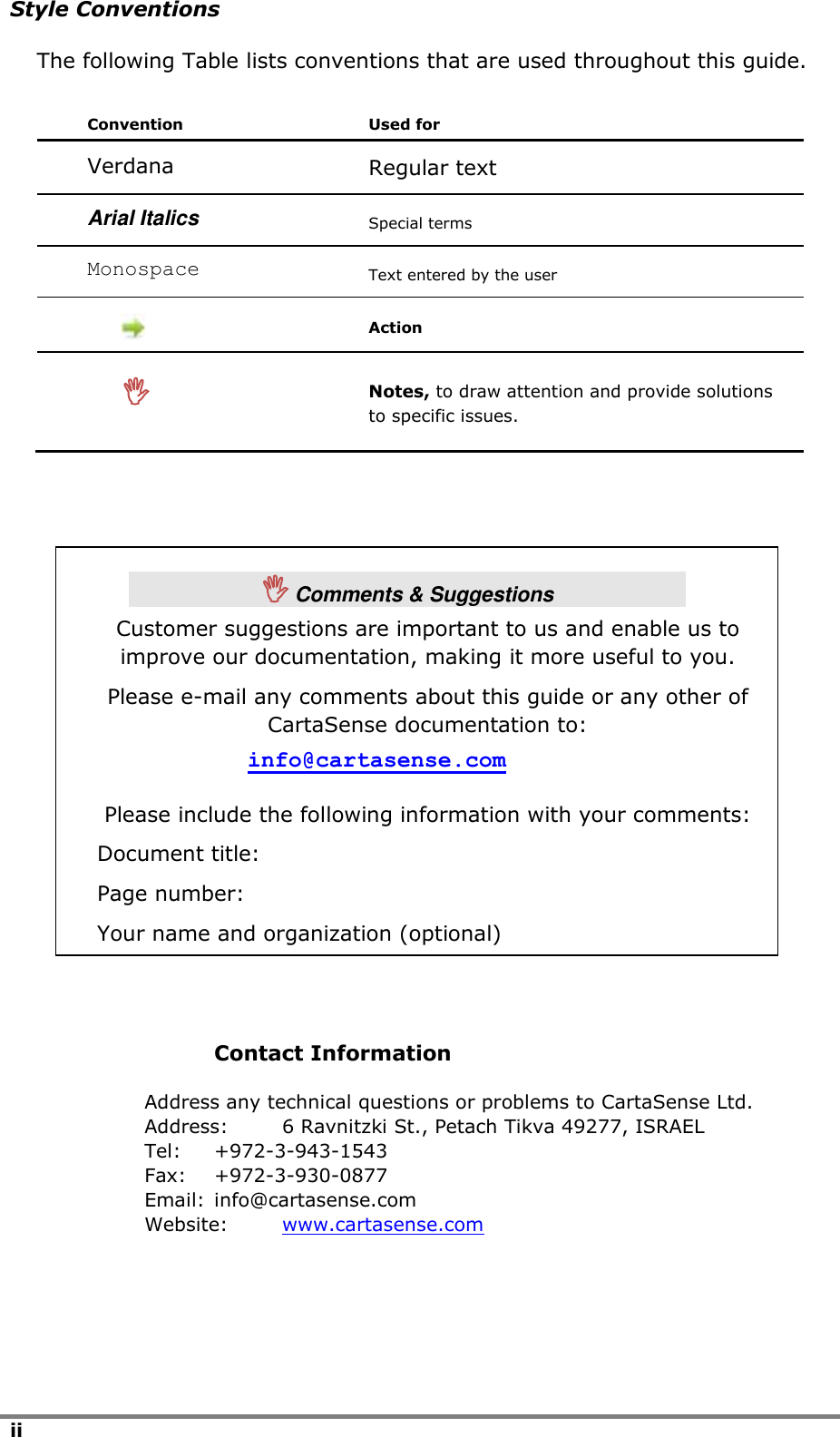
ii  Style Conventions The following Table lists conventions that are used throughout this guide. Convention Used for Verdana Regular text Arial Italics Special terms Monospace Text entered by the user   Action   Notes, to draw attention and provide solutions to specific issues.                Contact Information Address any technical questions or problems to CartaSense Ltd. Address:  6 Ravnitzki St., Petach Tikva 49277, ISRAEL Tel:  +972-3-943-1543 Fax:  +972-3-930-0877 Email:  info@cartasense.com Website:  www.cartasense.com    Comments & Suggestions Customer suggestions are important to us and enable us to improve our documentation, making it more useful to you. Please e-mail any comments about this guide or any other of CartaSense documentation to: info@cartasense.com Please include the following information with your comments: Document title: Page number: Your name and organization (optional)
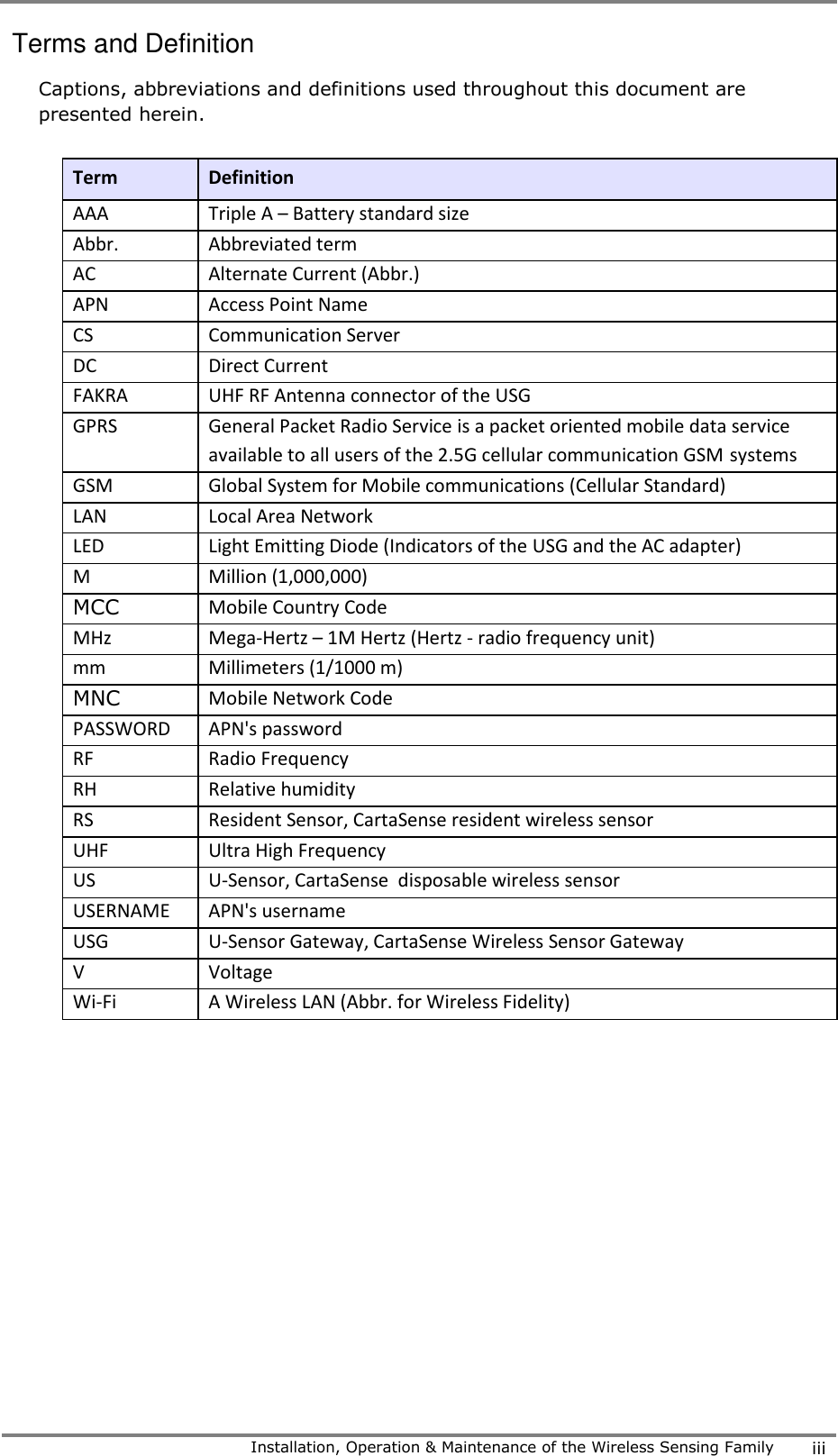
    Installation, Operation & Maintenance of the Wireless Sensing Family iii  Terms and Definition Captions, abbreviations and definitions used throughout this document are presented herein.   Term Definition AAA Triple A – Battery standard size Abbr. Abbreviated term AC Alternate Current (Abbr.) APN Access Point Name CS Communication Server DC Direct Current FAKRA UHF RF Antenna connector of the USG GPRS General Packet Radio Service is a packet oriented mobile data service available to all users of the 2.5G cellular communication GSM systems    GSM Global System for Mobile communications (Cellular Standard) LAN Local Area Network LED Light Emitting Diode (Indicators of the USG and the AC adapter) M Million (1,000,000) MCC Mobile Country Code MHz Mega-Hertz – 1M Hertz (Hertz - radio frequency unit) mm Millimeters (1/1000 m) MNC Mobile Network Code PASSWORD APN's password RF Radio Frequency RH Relative humidity RS Resident Sensor, CartaSense resident wireless sensor UHF Ultra High Frequency US U-Sensor, CartaSense  disposable wireless sensor   USERNAME APN's username USG U-Sensor Gateway, CartaSense Wireless Sensor Gateway V Voltage  Wi-Fi A Wireless LAN (Abbr. for Wireless Fidelity)
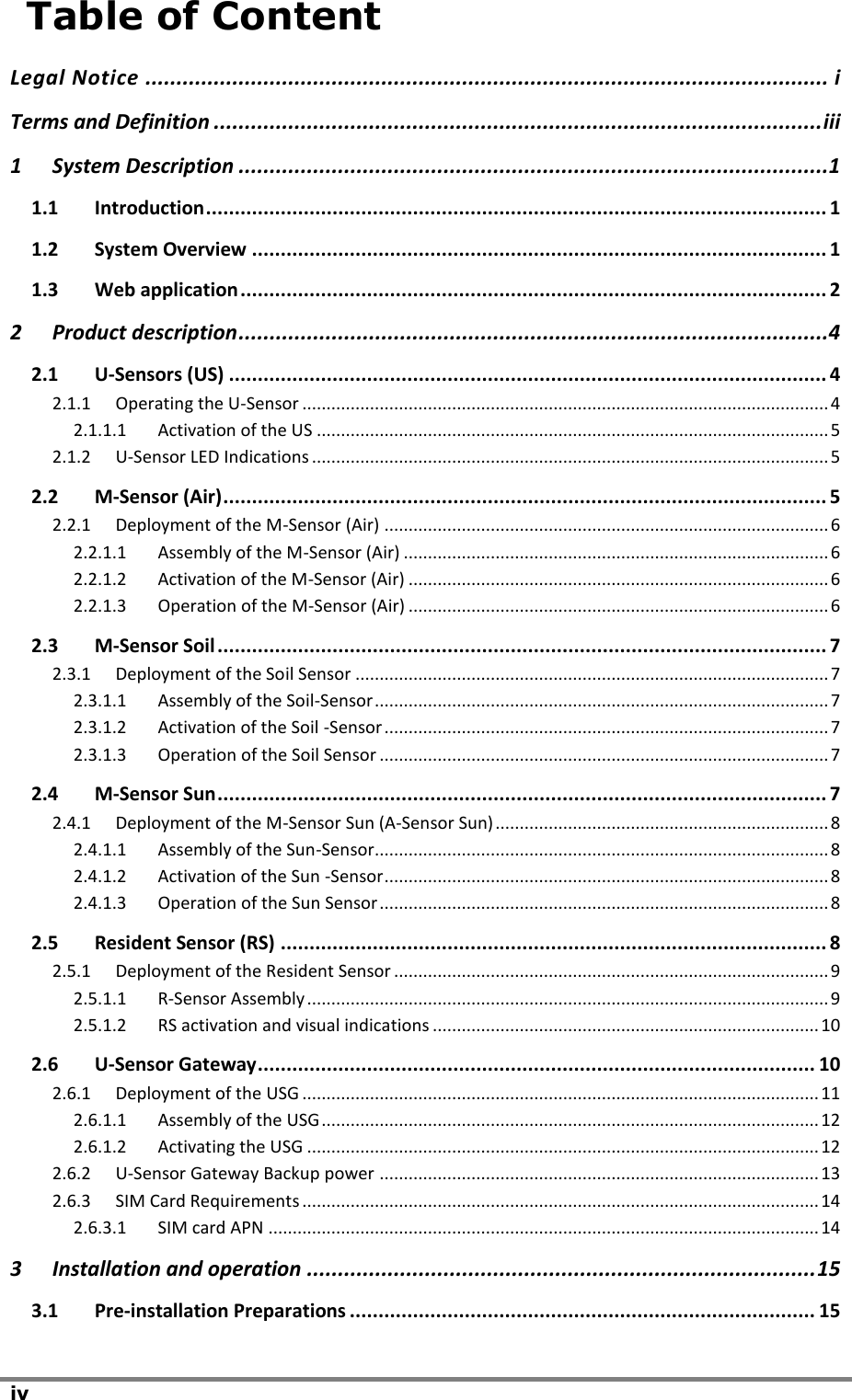
iv    Table of Content Legal Notice .............................................................................................................. i Terms and Definition .................................................................................................. iii 1 System Description ...............................................................................................1 1.1 Introduction ............................................................................................................ 1 1.2 System Overview .................................................................................................... 1 1.3 Web application ...................................................................................................... 2 2 Product description ...............................................................................................4 2.1 U-Sensors (US) ........................................................................................................ 4 2.1.1 Operating the U-Sensor ............................................................................................................. 4 2.1.1.1 Activation of the US .......................................................................................................... 5 2.1.2 U-Sensor LED Indications ........................................................................................................... 5 2.2 M-Sensor (Air) ......................................................................................................... 5 2.2.1 Deployment of the M-Sensor (Air) ............................................................................................ 6 2.2.1.1 Assembly of the M-Sensor (Air) ........................................................................................ 6 2.2.1.2 Activation of the M-Sensor (Air) ....................................................................................... 6 2.2.1.3 Operation of the M-Sensor (Air) ....................................................................................... 6 2.3 M-Sensor Soil .......................................................................................................... 7 2.3.1 Deployment of the Soil Sensor .................................................................................................. 7 2.3.1.1 Assembly of the Soil-Sensor .............................................................................................. 7 2.3.1.2 Activation of the Soil -Sensor ............................................................................................ 7 2.3.1.3 Operation of the Soil Sensor ............................................................................................. 7 2.4 M-Sensor Sun .......................................................................................................... 7 2.4.1 Deployment of the M-Sensor Sun (A-Sensor Sun) ..................................................................... 8 2.4.1.1 Assembly of the Sun-Sensor.............................................................................................. 8 2.4.1.2 Activation of the Sun -Sensor ............................................................................................ 8 2.4.1.3 Operation of the Sun Sensor ............................................................................................. 8 2.5 Resident Sensor (RS) ............................................................................................... 8 2.5.1 Deployment of the Resident Sensor .......................................................................................... 9 2.5.1.1 R-Sensor Assembly ............................................................................................................ 9 2.5.1.2 RS activation and visual indications ................................................................................ 10 2.6 U-Sensor Gateway ................................................................................................. 10 2.6.1 Deployment of the USG ........................................................................................................... 11 2.6.1.1 Assembly of the USG ....................................................................................................... 12 2.6.1.2 Activating the USG .......................................................................................................... 12 2.6.2 U-Sensor Gateway Backup power ........................................................................................... 13 2.6.3 SIM Card Requirements ........................................................................................................... 14 2.6.3.1 SIM card APN .................................................................................................................. 14 3 Installation and operation .................................................................................. 15 3.1 Pre-installation Preparations ................................................................................. 15
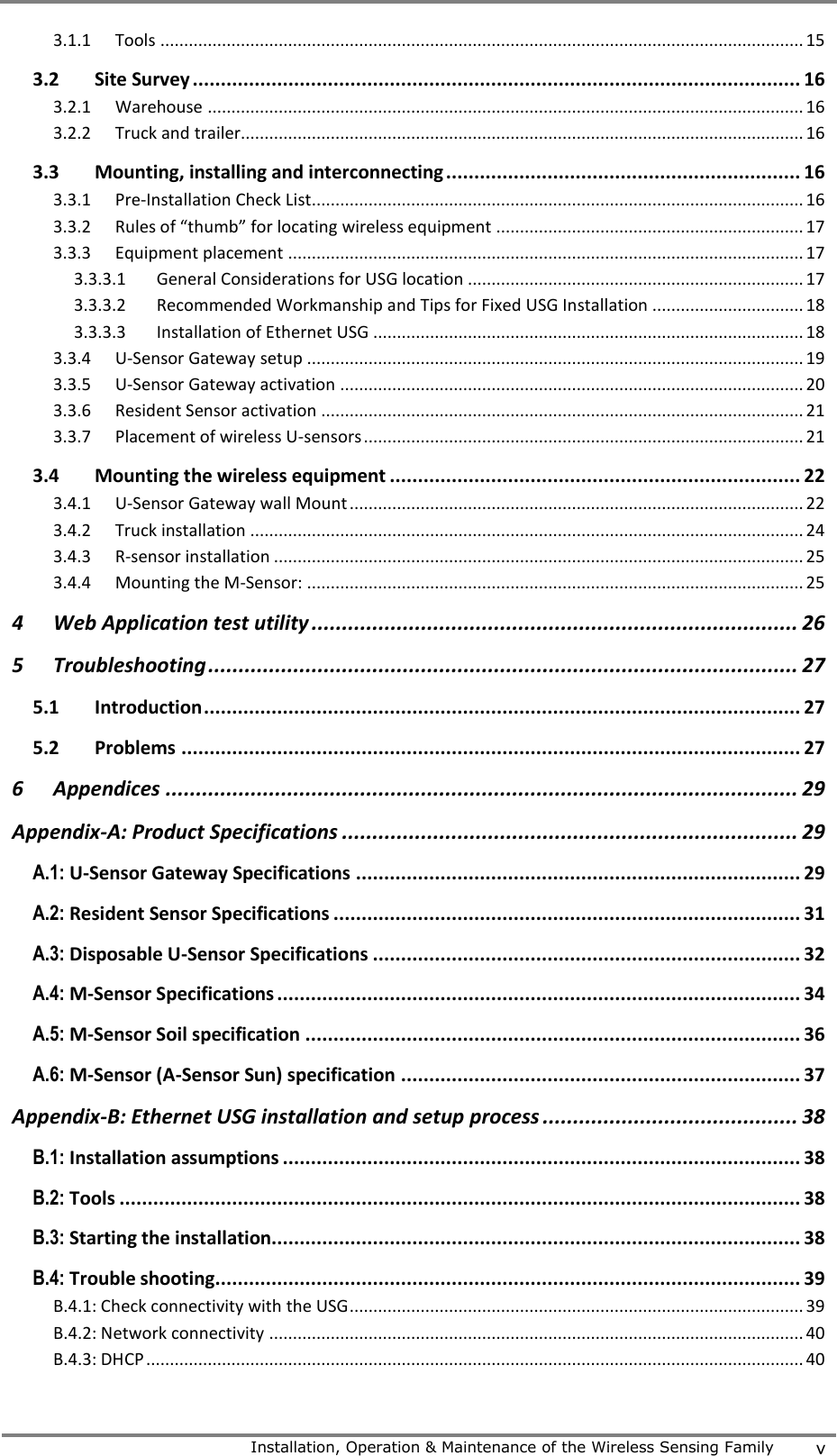
    Installation, Operation & Maintenance of the Wireless Sensing Family v  3.1.1 Tools ........................................................................................................................................ 15 3.2 Site Survey ............................................................................................................ 16 3.2.1 Warehouse .............................................................................................................................. 16 3.2.2 Truck and trailer....................................................................................................................... 16 3.3 Mounting, installing and interconnecting ............................................................... 16 3.3.1 Pre-Installation Check List........................................................................................................ 16 3.3.2 Rules of “thumb” for locating wireless equipment ................................................................. 17 3.3.3 Equipment placement ............................................................................................................. 17 3.3.3.1 General Considerations for USG location ....................................................................... 17 3.3.3.2 Recommended Workmanship and Tips for Fixed USG Installation ................................ 18 3.3.3.3 Installation of Ethernet USG ........................................................................................... 18 3.3.4 U-Sensor Gateway setup ......................................................................................................... 19 3.3.5 U-Sensor Gateway activation .................................................................................................. 20 3.3.6 Resident Sensor activation ...................................................................................................... 21 3.3.7 Placement of wireless U-sensors ............................................................................................. 21 3.4 Mounting the wireless equipment ......................................................................... 22 3.4.1 U-Sensor Gateway wall Mount ................................................................................................ 22 3.4.2 Truck installation ..................................................................................................................... 24 3.4.3 R-sensor installation ................................................................................................................ 25 3.4.4 Mounting the M-Sensor: ......................................................................................................... 25 4 Web Application test utility ................................................................................ 26 5 Troubleshooting ................................................................................................. 27 5.1 Introduction .......................................................................................................... 27 5.2 Problems .............................................................................................................. 27 6 Appendices ........................................................................................................ 29 Appendix-A: Product Specifications ........................................................................... 29 A.1: U-Sensor Gateway Specifications ............................................................................... 29 A.2: Resident Sensor Specifications ................................................................................... 31 A.3: Disposable U-Sensor Specifications ............................................................................ 32 A.4: M-Sensor Specifications ............................................................................................. 34 A.5: M-Sensor Soil specification ........................................................................................ 36 A.6: M-Sensor (A-Sensor Sun) specification ....................................................................... 37 Appendix-B: Ethernet USG installation and setup process .......................................... 38 B.1: Installation assumptions ............................................................................................ 38 B.2: Tools ......................................................................................................................... 38 B.3: Starting the installation.............................................................................................. 38 B.4: Trouble shooting........................................................................................................ 39 B.4.1: Check connectivity with the USG ................................................................................................ 39 B.4.2: Network connectivity ................................................................................................................. 40 B.4.3: DHCP ........................................................................................................................................... 40
vi  B.4.4: Static configuration ..................................................................................................................... 42 B.4.5: Check connectivity with lancusrouter ........................................................................................ 43 Appendix-C: Creating Log Files ................................................................................... 44 Appendix-D: FAQ ....................................................................................................... 50 Appendix-E: Regulatory notices ................................................................................. 53   Table of Figures Figure 1: Typical system architecture ...................................................... 2 Figure 2: U sensor ................................................................................ 4 Figure 3: M-Sensor, Air – front & rear view .............................................. 6 Figure 5: A-sensor soil ........................................................................... 7 Figure 6: M-Sensor Sun ......................................................................... 8 Figure 7: Resident Sensor top & side view ................................................ 9 Figure 8: Resident Sensor - bottom view ................................................. 9 Figure 9: Ethernet U-Sensor Gateway .....................................................11 Figure 10: GPS- GPRS U-Sensor Gateway ...............................................11 Figure 11: Typical equipment allocation in a warehouse ............................19 Figure 12: USG mount drill scheme ........................................................22 Figure 13: Vertical USG installation ........................................................23 Figure 14: Horizontal USG installation ....................................................23 Figure 15: Resident sensor mounting .....................................................24 Figure 16: RS with USG and UHF Antenna  using single mounting ..............24 Figure 17: Dashboard USG unit .............................................................25 Figure 17: M-sensor holder ...................................................................25 Figure 18: Device search status .............................................................39 Figure 19: lancusrouter configuration .....................................................40 Figure 20: Device Status .......................................................................41 Figure 21: Windows IP configuration ......................................................42 Figure 22: Terminal connection test with lancusrouter ..............................43 Figure 23: Device manager screen .........................................................45 Figure 24: USB connection ....................................................................45 Figure 25: Putty software screen ............................................................46 Figure 26: Putty software Session screen ................................................47 Figure 27: Putty software Logging screen ................................................48 Figure 28: Insert log file location ...........................................................48 Figure 29: Opening log data ..................................................................49 Figure 30: Opening log file ....................................................................49
    Installation, Operation & Maintenance of the Wireless Sensing Family vii  List of Tables Table 1: U-Sensor elements .................................................................... 4 Table 2: U-Sensor indicator states, after pressing the pushbutton ............... 5 Table 3: M-sensor elements .................................................................... 6 Table 4: Resident sensor elements .......................................................... 9 Table 5: RS LED indications .................................................................. 10 Table 6: USG indicators & controls ......................................................... 12 Table 7: U-Sensor Gateway LED Indications ............................................ 13 Table 8: SIM requirements for cellular USG ............................................ 14 Table 9: Pre-Installation Check List ........................................................ 16
 System Description   Installation, Operation & Maintenance of the Wireless Sensing Family 1  1 System Description 1.1 Introduction This  manual  describes  the  main  features  of  the  CartaSense  Wireless Sensing  Product  Family  and  defines  procedures  for  the  installation, operation  and  servicing  of  the  system  products  throughout  sites  and locations that require environmental monitoring and control. The CartaSense Wireless Sensing Product family consists of the following:  Single use shipment monitoring: o U-Sensor (US)  Environmental monitoring: o R-Sensor (RS)- Resident Sensor o M- Sensors (MS).  U-Sensor-Gateways (USG).  Web application software management package. The manual describes the system products and provides guidelines for a successful system installation. 1.2 System Overview The CartaSense Wireless Sensing Product Family includes all the elements needed to collect measurements from sensors, transfer them to a central server  and visualize  them,  in a  way that  provides  added  value  business information.  This  business  information  may  be  used  to  take  ad-hoc decisions  or  provide  the  basis  for  business  strategy,  thus  bringing  in significant savings. CartaSense develops and manufactures various types of battery operated sensors and  gateways. The gateways  collect  measurements from all  the sensors and transfer them to a server and a web application to visualize the measurements and generate alerts.  U-sensor (US) is a one-time-use sensor that accompanies controlled temperature shipments.  R-sensor (RS) is a fixed installation sensor, used in warehouses.   M-sensor (MS) is a rugged sensor for outdoor use (E.g. agricultural applications)  U-sensor Gateway (USG) wirelessly collects the measurements from the sensors and sends it to a server.  Fixed USG – is a gateway used in warehouses or trucks, with a GPS option.  Dashboard USG – is a mobile gateway unit, powered from the truck cigarette lighter plug, where fixed installation in the truck is not possible  or not economical.  LAN USG – is a gateway that uses existing LAN infrastructure to connect to the server
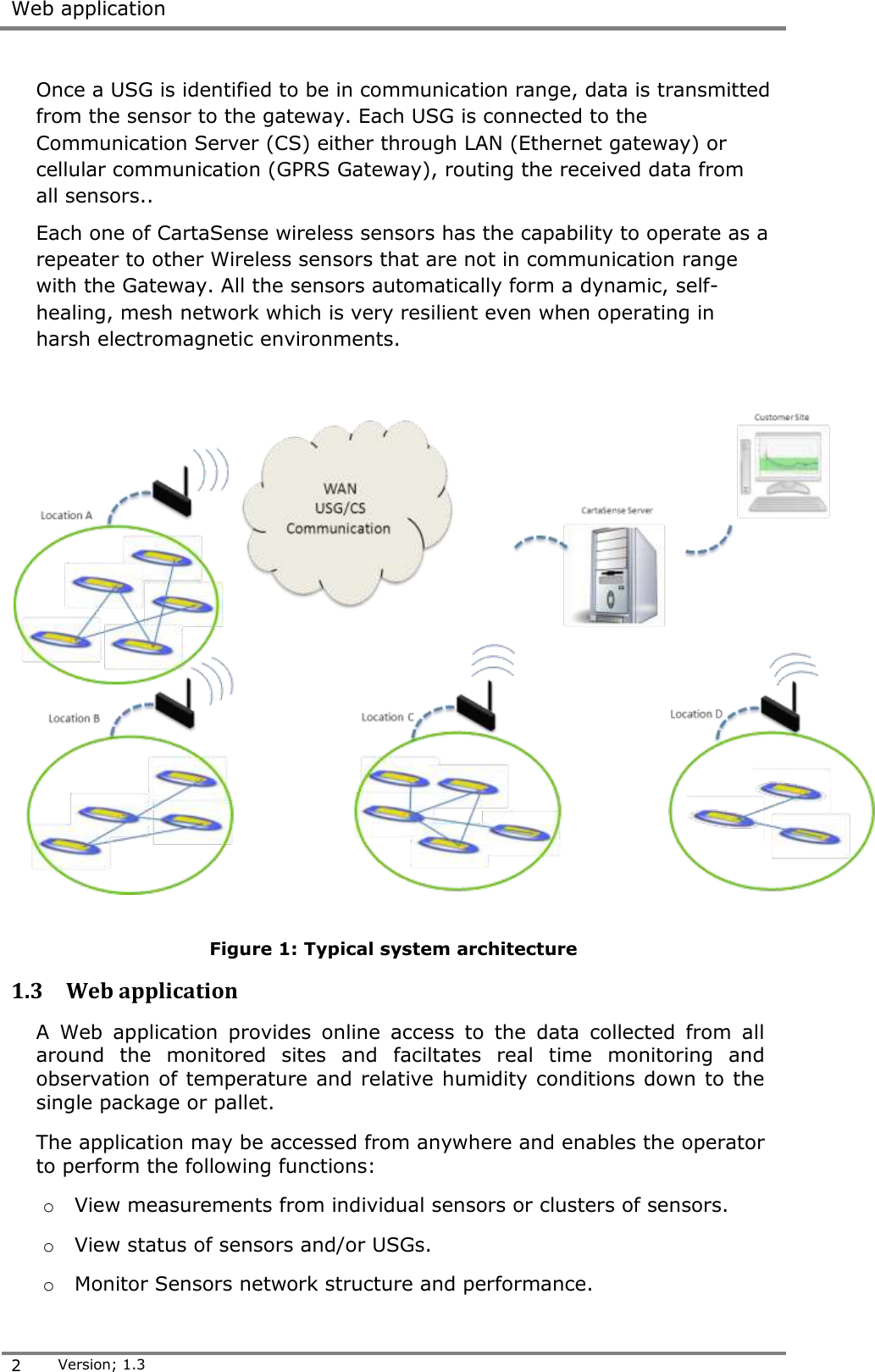
 Web application  2 Version; 1.3  Once a USG is identified to be in communication range, data is transmitted from the sensor to the gateway. Each USG is connected to the Communication Server (CS) either through LAN (Ethernet gateway) or cellular communication (GPRS Gateway), routing the received data from all sensors..   Each one of CartaSense wireless sensors has the capability to operate as a repeater to other Wireless sensors that are not in communication range with the Gateway. All the sensors automatically form a dynamic, self-healing, mesh network which is very resilient even when operating in harsh electromagnetic environments.    Figure 1: Typical system architecture 1.3 Web application A  Web  application  provides  online  access  to  the  data  collected  from  all around  the  monitored  sites  and  faciltates  real  time  monitoring  and observation of temperature and relative humidity conditions down to the single package or pallet.  The application may be accessed from anywhere and enables the operator to perform the following functions: o View measurements from individual sensors or clusters of sensors. o View status of sensors and/or USGs. o Monitor Sensors network structure and performance.
 System Description   Installation, Operation & Maintenance of the Wireless Sensing Family 3  o Provide reports at various levels of system operation. o Generate alarms when preset threshold conditions are exceeded.   A  Web  Application  manual  that  provides  a  detailed  description  of  the application and all its features is available under separate cover.
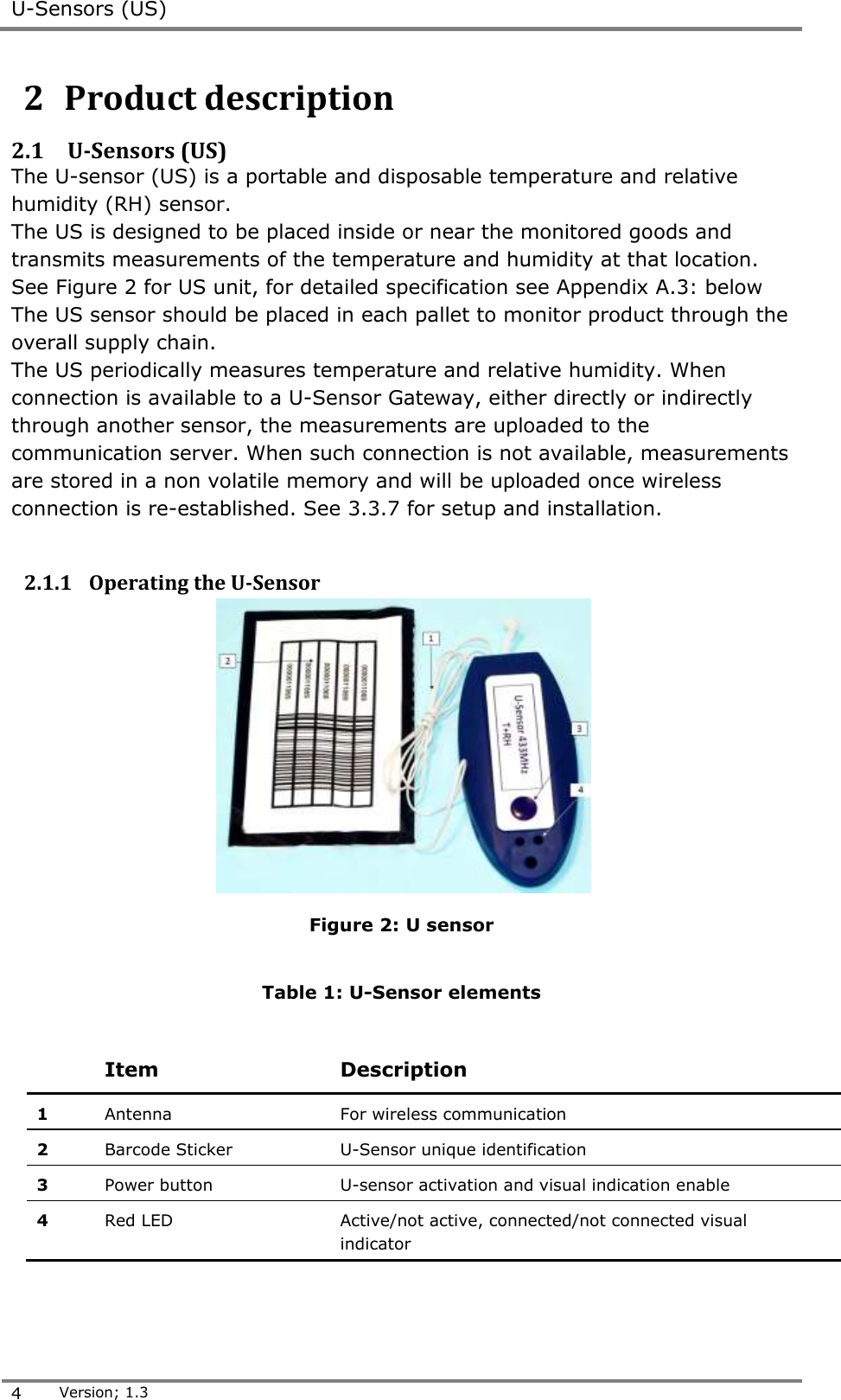
 U-Sensors (US)  4 Version; 1.3  2  Product description 2.1 U-Sensors (US) The U-sensor (US) is a portable and disposable temperature and relative humidity (RH) sensor.  The US is designed to be placed inside or near the monitored goods and transmits measurements of the temperature and humidity at that location. See Figure 2 for US unit, for detailed specification see Appendix A.3: below The US sensor should be placed in each pallet to monitor product through the overall supply chain. The US periodically measures temperature and relative humidity. When connection is available to a U-Sensor Gateway, either directly or indirectly through another sensor, the measurements are uploaded to the communication server. When such connection is not available, measurements are stored in a non volatile memory and will be uploaded once wireless connection is re-established. See 3.3.7 for setup and installation.  2.1.1 Operating the U-Sensor  Figure 2: U sensor  Table 1: U-Sensor elements    Item Description 1 Antenna  For wireless communication 2 Barcode Sticker U-Sensor unique identification  3 Power button U-sensor activation and visual indication enable  4 Red LED Active/not active, connected/not connected visual  indicator
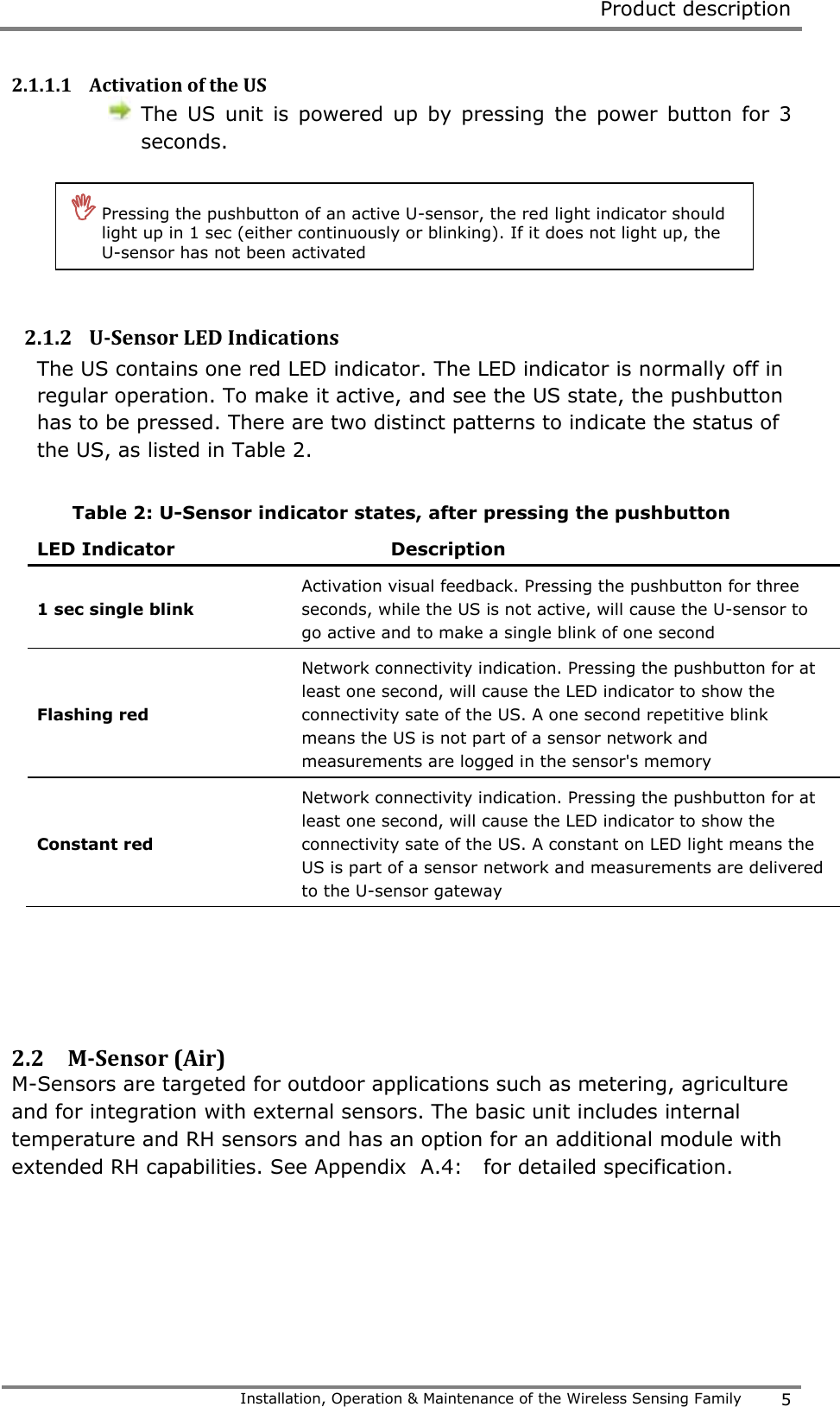
 Product description   Installation, Operation & Maintenance of the Wireless Sensing Family 5  2.1.1.1 Activation of the US  The  US  unit  is  powered  up  by  pressing  the  power  button  for  3 seconds.      2.1.2 U-Sensor LED Indications The US contains one red LED indicator. The LED indicator is normally off in regular operation. To make it active, and see the US state, the pushbutton has to be pressed. There are two distinct patterns to indicate the status of the US, as listed in Table 2.  Table 2: U-Sensor indicator states, after pressing the pushbutton LED Indicator Description 1 sec single blink Activation visual feedback. Pressing the pushbutton for three seconds, while the US is not active, will cause the U-sensor to go active and to make a single blink of one second Flashing red  Network connectivity indication. Pressing the pushbutton for at least one second, will cause the LED indicator to show the connectivity sate of the US. A one second repetitive blink means the US is not part of a sensor network and measurements are logged in the sensor's memory  Constant red  Network connectivity indication. Pressing the pushbutton for at least one second, will cause the LED indicator to show the connectivity sate of the US. A constant on LED light means the US is part of a sensor network and measurements are delivered to the U-sensor gateway    2.2 M-Sensor (Air)  M-Sensors are targeted for outdoor applications such as metering, agriculture and for integration with external sensors. The basic unit includes internal temperature and RH sensors and has an option for an additional module with extended RH capabilities. See Appendix  A.4:   for detailed specification.     Pressing the pushbutton of an active U-sensor, the red light indicator should light up in 1 sec (either continuously or blinking). If it does not light up, the U-sensor has not been activated
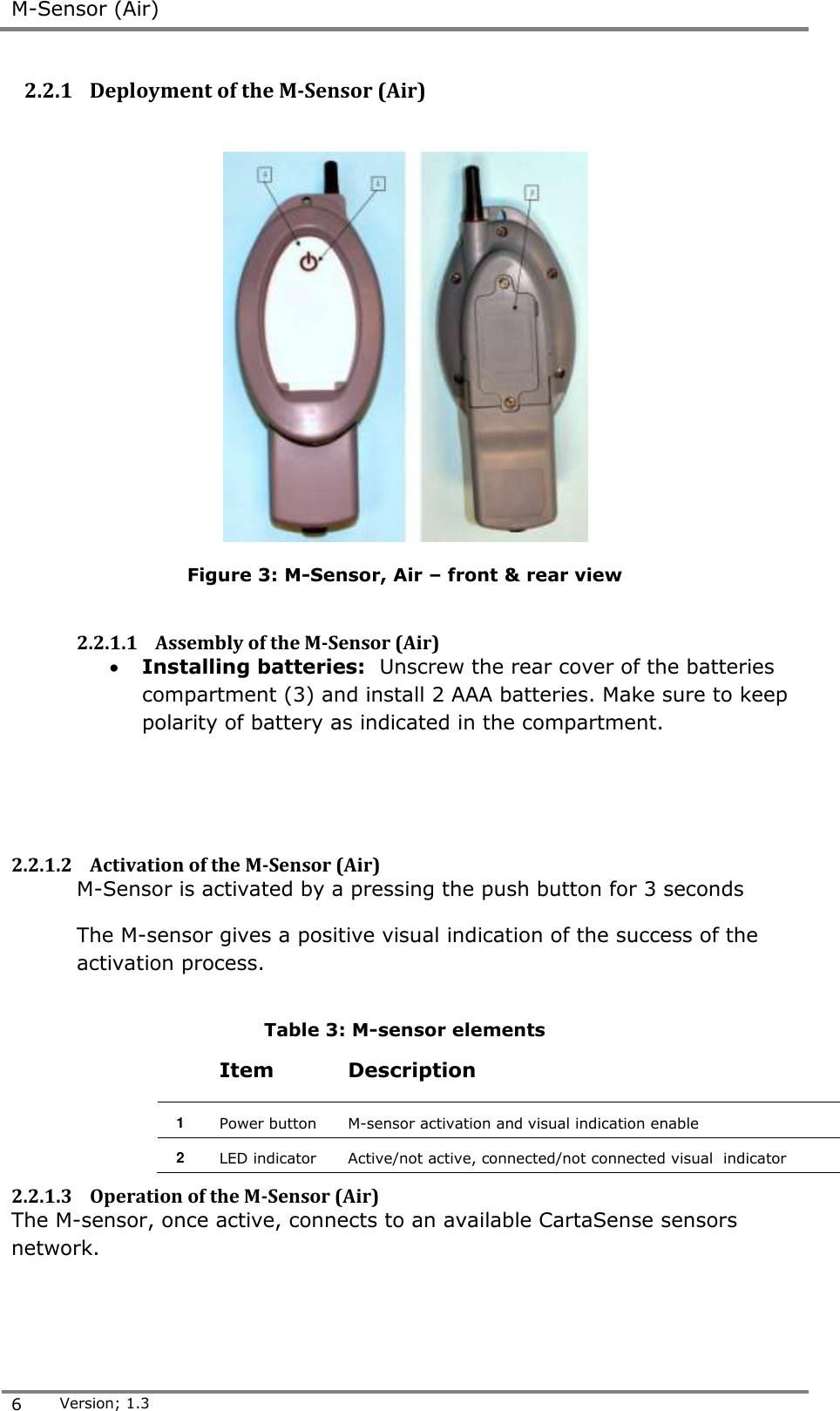
 M-Sensor (Air)  6 Version; 1.3  2.2.1 Deployment of the M-Sensor (Air)    Figure 3: M-Sensor, Air – front & rear view  2.2.1.1 Assembly of the M-Sensor (Air)   Installing batteries:  Unscrew the rear cover of the batteries compartment (3) and install 2 AAA batteries. Make sure to keep polarity of battery as indicated in the compartment.    2.2.1.2 Activation of the M-Sensor (Air)  M-Sensor is activated by a pressing the push button for 3 seconds The M-sensor gives a positive visual indication of the success of the activation process.    Table 3: M-sensor elements   Item Description 1 Power button M-sensor activation and visual indication enable  2 LED indicator Active/not active, connected/not connected visual  indicator  2.2.1.3 Operation of the M-Sensor (Air) The M-sensor, once active, connects to an available CartaSense sensors network.
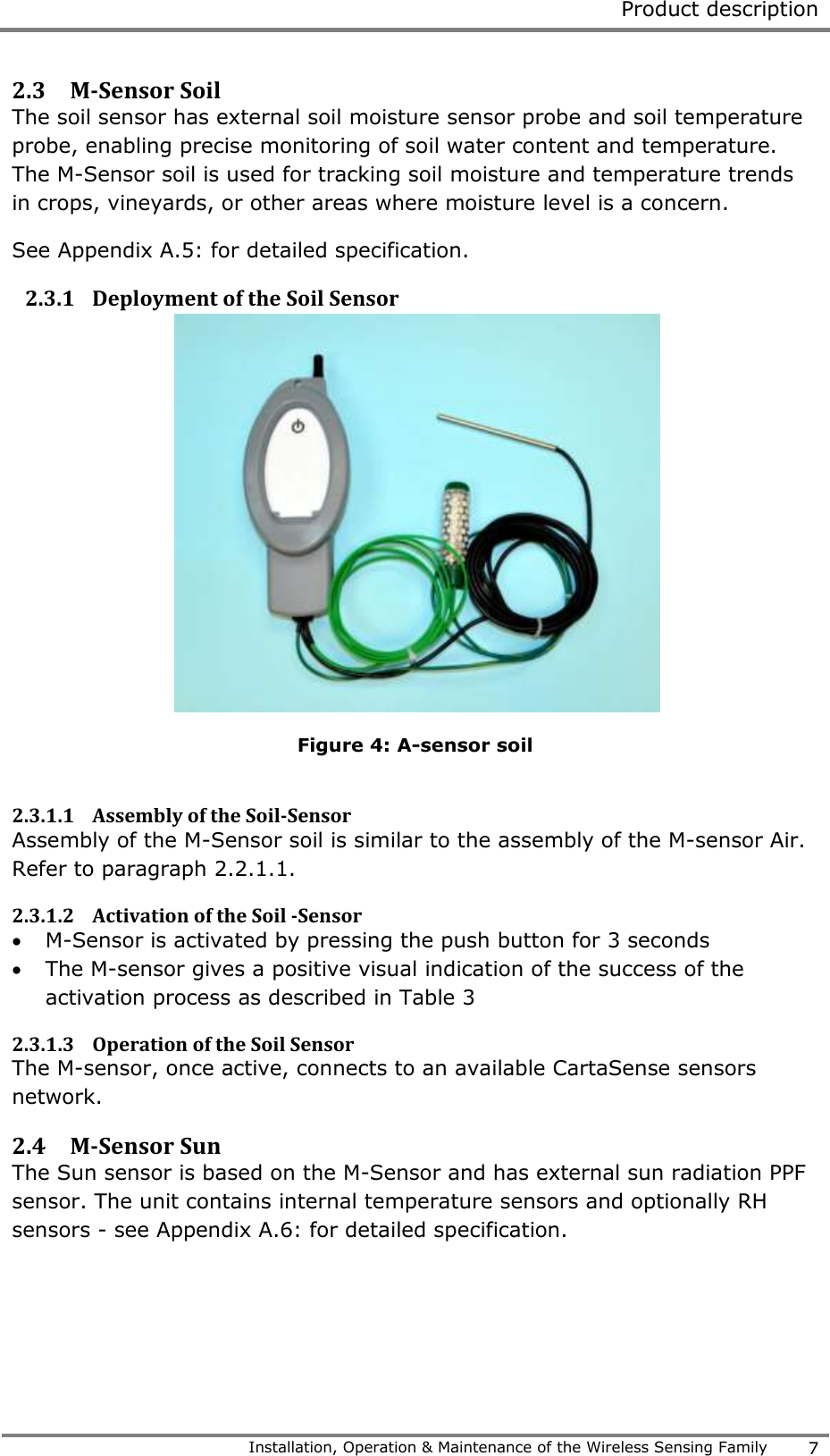
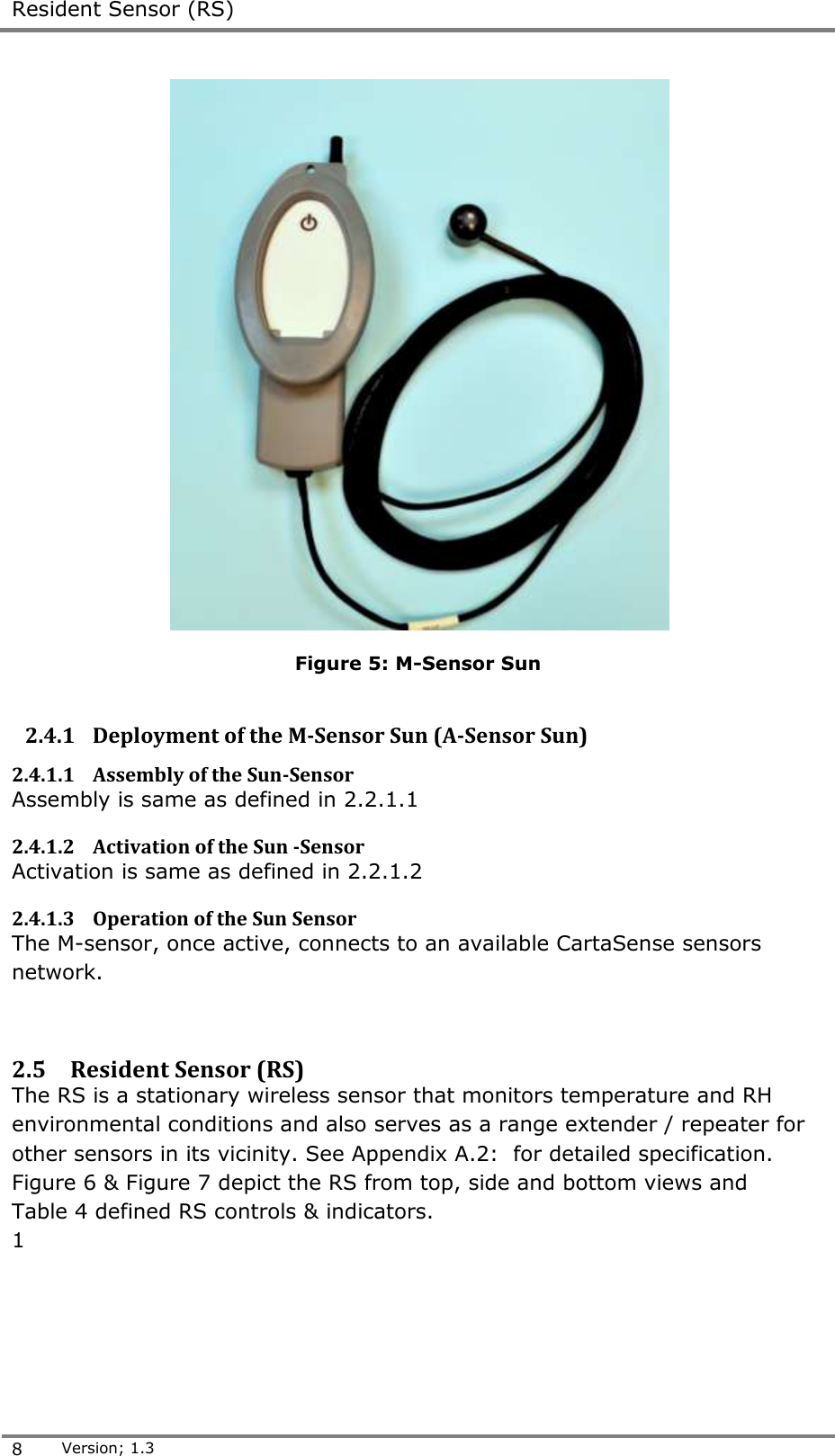
 Product description   Installation, Operation & Maintenance of the Wireless Sensing Family 7  2.3 M-Sensor Soil  The soil sensor has external soil moisture sensor probe and soil temperature probe, enabling precise monitoring of soil water content and temperature. The M-Sensor soil is used for tracking soil moisture and temperature trends in crops, vineyards, or other areas where moisture level is a concern.  See Appendix A.5: for detailed specification. 2.3.1 Deployment of the Soil Sensor  Figure 4: A-sensor soil  2.3.1.1 Assembly of the Soil-Sensor   Assembly of the M-Sensor soil is similar to the assembly of the M-sensor Air. Refer to paragraph 2.2.1.1. 2.3.1.2 Activation of the Soil -Sensor   M-Sensor is activated by pressing the push button for 3 seconds  The M-sensor gives a positive visual indication of the success of the activation process as described in Table 3 2.3.1.3 Operation of the Soil Sensor  The M-sensor, once active, connects to an available CartaSense sensors network.  2.4 M-Sensor Sun   The Sun sensor is based on the M-Sensor and has external sun radiation PPF sensor. The unit contains internal temperature sensors and optionally RH sensors - see Appendix A.6: for detailed specification.
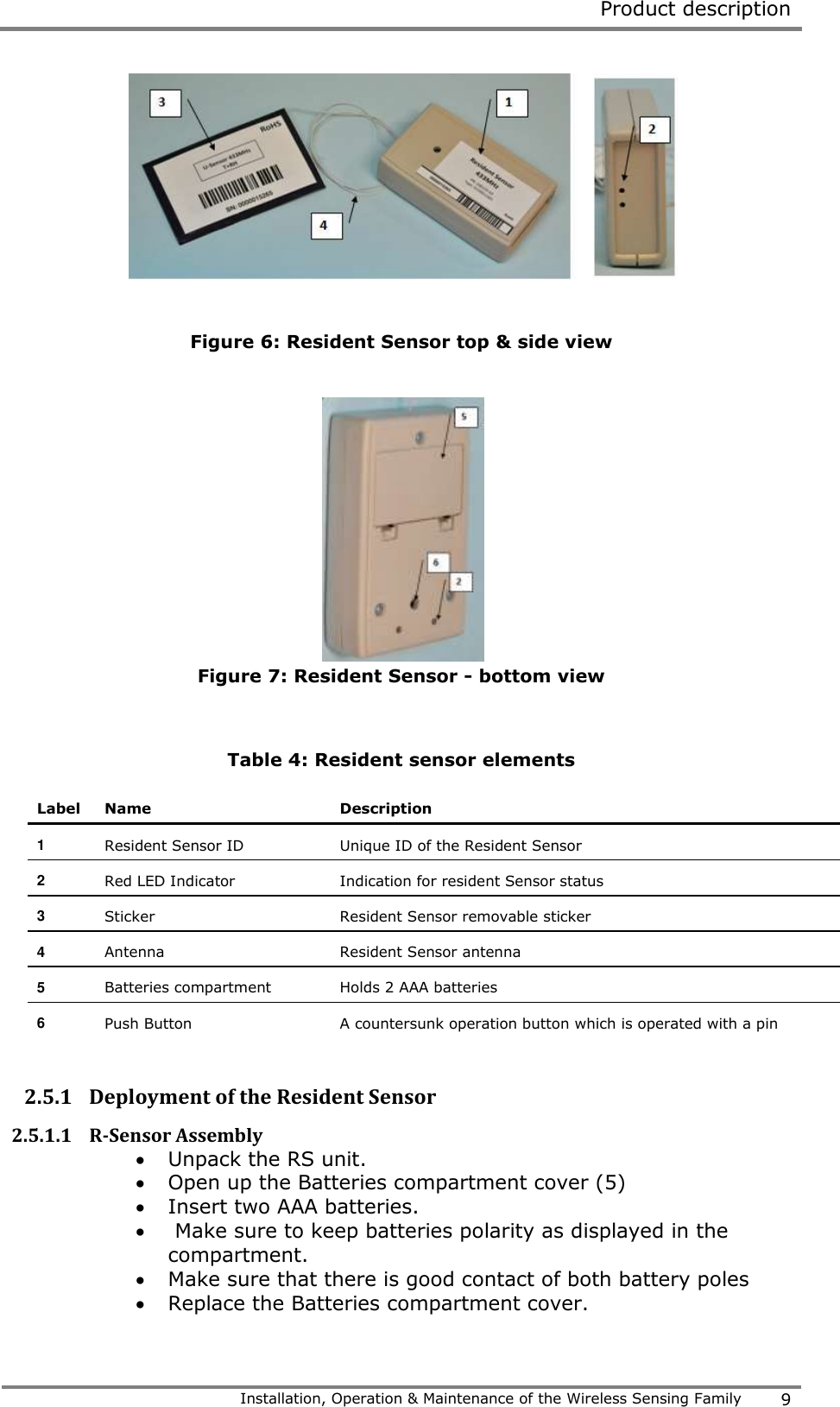
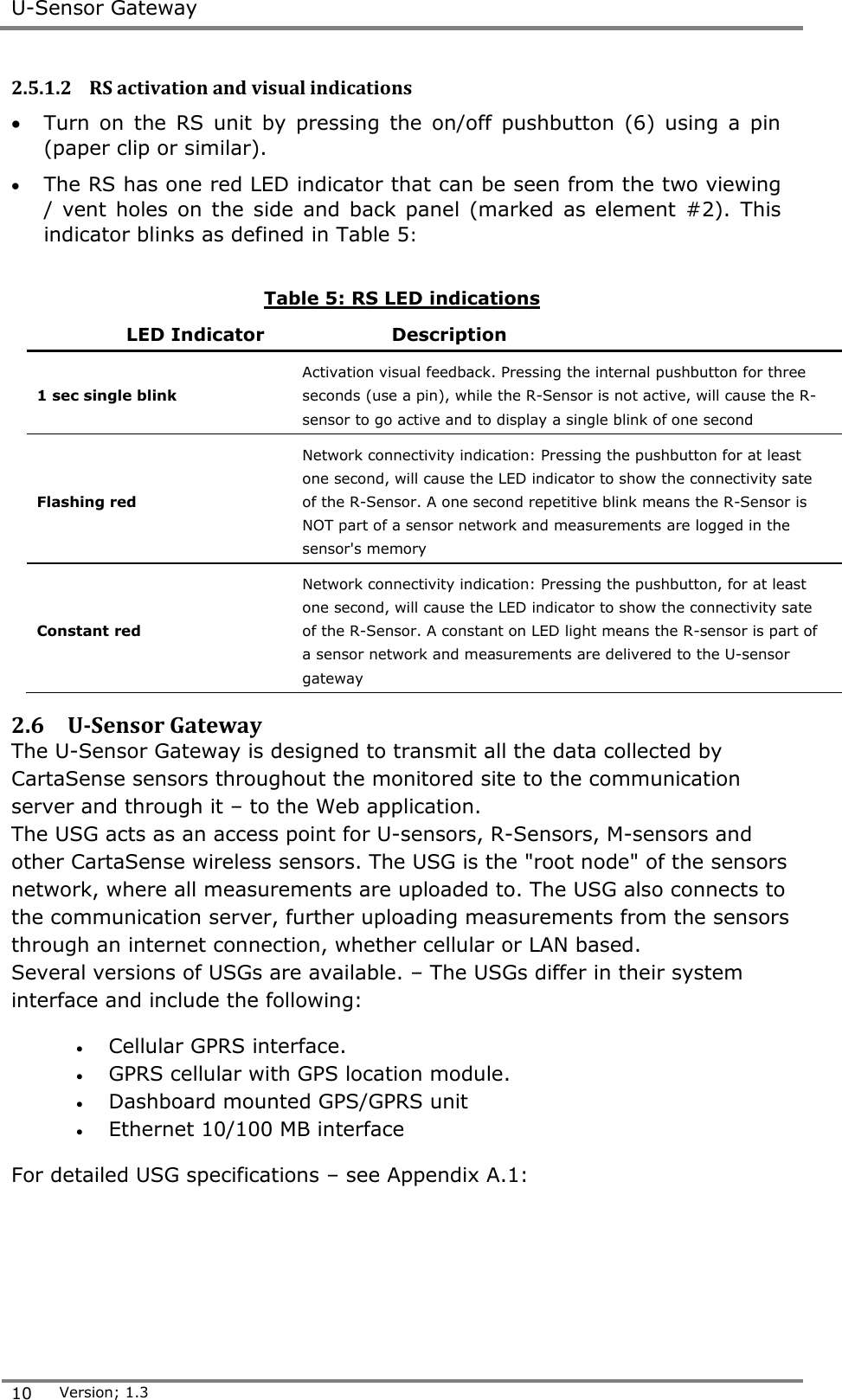
 Resident Sensor (RS)  8 Version; 1.3   Figure 5: M-Sensor Sun  2.4.1 Deployment of the M-Sensor Sun (A-Sensor Sun) 2.4.1.1 Assembly of the Sun-Sensor  Assembly is same as defined in 2.2.1.1 2.4.1.2 Activation of the Sun -Sensor  Activation is same as defined in 2.2.1.2 2.4.1.3 Operation of the Sun Sensor  The M-sensor, once active, connects to an available CartaSense sensors network.   2.5 Resident Sensor (RS) The RS is a stationary wireless sensor that monitors temperature and RH environmental conditions and also serves as a range extender / repeater for other sensors in its vicinity. See Appendix A.2:  for detailed specification. Figure 6 & Figure 7 depict the RS from top, side and bottom views and  Table 4 defined RS controls & indicators. 1
 Product description   Installation, Operation & Maintenance of the Wireless Sensing Family 9    Figure 6: Resident Sensor top & side view   Figure 7: Resident Sensor - bottom view   Table 4: Resident sensor elements Label Name Description 1 Resident Sensor ID Unique ID of the Resident Sensor 2 Red LED Indicator Indication for resident Sensor status  3 Sticker Resident Sensor removable sticker 4 Antenna Resident Sensor antenna  5 Batteries compartment Holds 2 AAA batteries 6 Push Button A countersunk operation button which is operated with a pin  2.5.1 Deployment of the Resident Sensor 2.5.1.1 R-Sensor Assembly  Unpack the RS unit.  Open up the Batteries compartment cover (5)  Insert two AAA batteries.   Make sure to keep batteries polarity as displayed in the compartment.  Make sure that there is good contact of both battery poles  Replace the Batteries compartment cover.
 U-Sensor Gateway  10 Version; 1.3  2.5.1.2 RS activation and visual indications   Turn  on  the  RS  unit  by  pressing  the  on/off  pushbutton (6)  using  a  pin (paper clip or similar).  The RS has one red LED indicator that can be seen from the two viewing / vent  holes  on the  side  and  back panel  (marked as  element  #2).  This indicator blinks as defined in Table 5:  Table 5: RS LED indications LED Indicator Description 1 sec single blink Activation visual feedback. Pressing the internal pushbutton for three seconds (use a pin), while the R-Sensor is not active, will cause the R-sensor to go active and to display a single blink of one second Flashing red  Network connectivity indication: Pressing the pushbutton for at least one second, will cause the LED indicator to show the connectivity sate of the R-Sensor. A one second repetitive blink means the R-Sensor is NOT part of a sensor network and measurements are logged in the sensor's memory  Constant red  Network connectivity indication: Pressing the pushbutton, for at least one second, will cause the LED indicator to show the connectivity sate of the R-Sensor. A constant on LED light means the R-sensor is part of a sensor network and measurements are delivered to the U-sensor gateway 2.6 U-Sensor Gateway The U-Sensor Gateway is designed to transmit all the data collected by CartaSense sensors throughout the monitored site to the communication server and through it – to the Web application.  The USG acts as an access point for U-sensors, R-Sensors, M-sensors and other CartaSense wireless sensors. The USG is the "root node" of the sensors network, where all measurements are uploaded to. The USG also connects to the communication server, further uploading measurements from the sensors through an internet connection, whether cellular or LAN based. Several versions of USGs are available. – The USGs differ in their system interface and include the following:  Cellular GPRS interface.  GPRS cellular with GPS location module.  Dashboard mounted GPS/GPRS unit  Ethernet 10/100 MB interface For detailed USG specifications – see Appendix A.1:
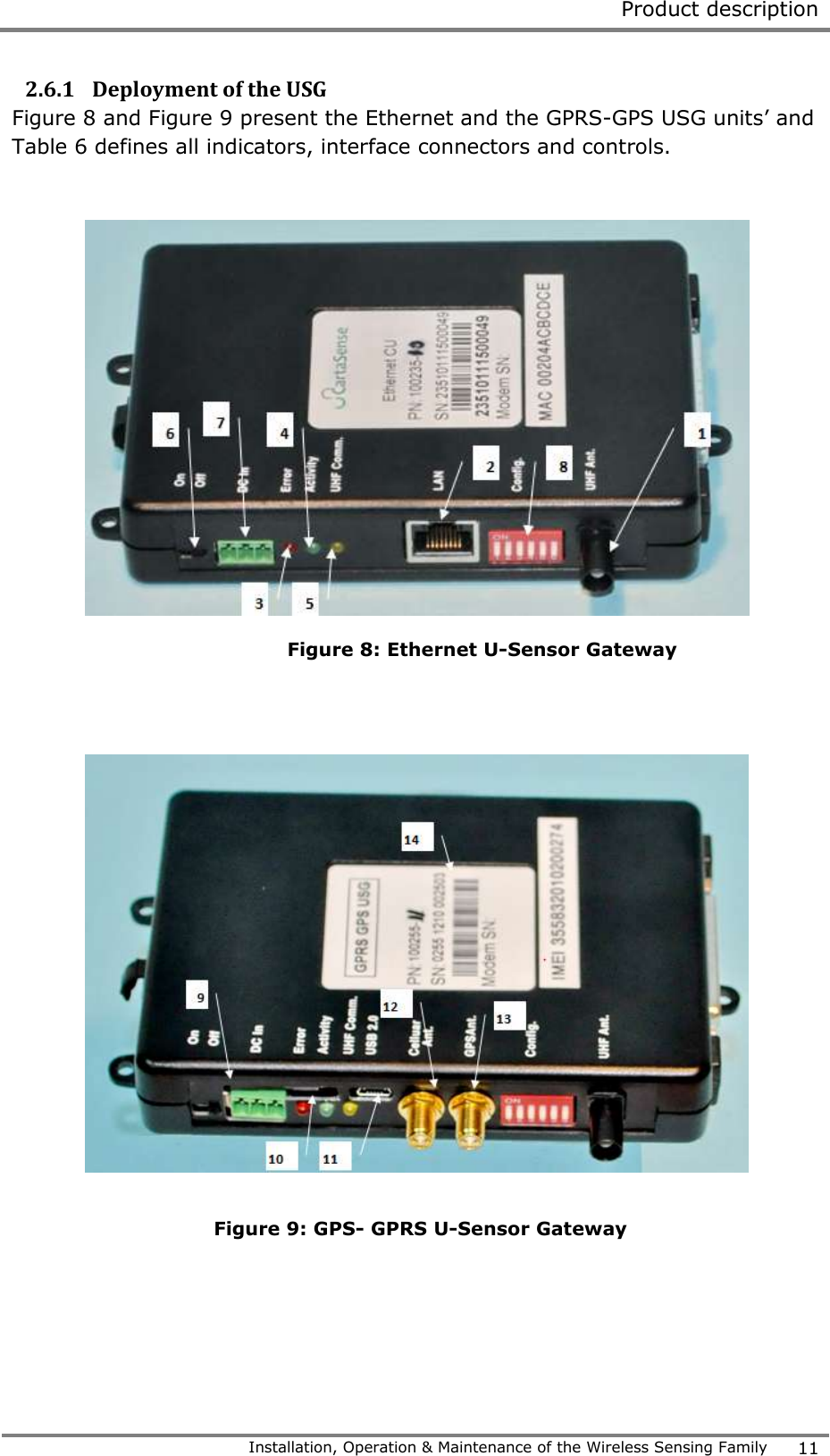
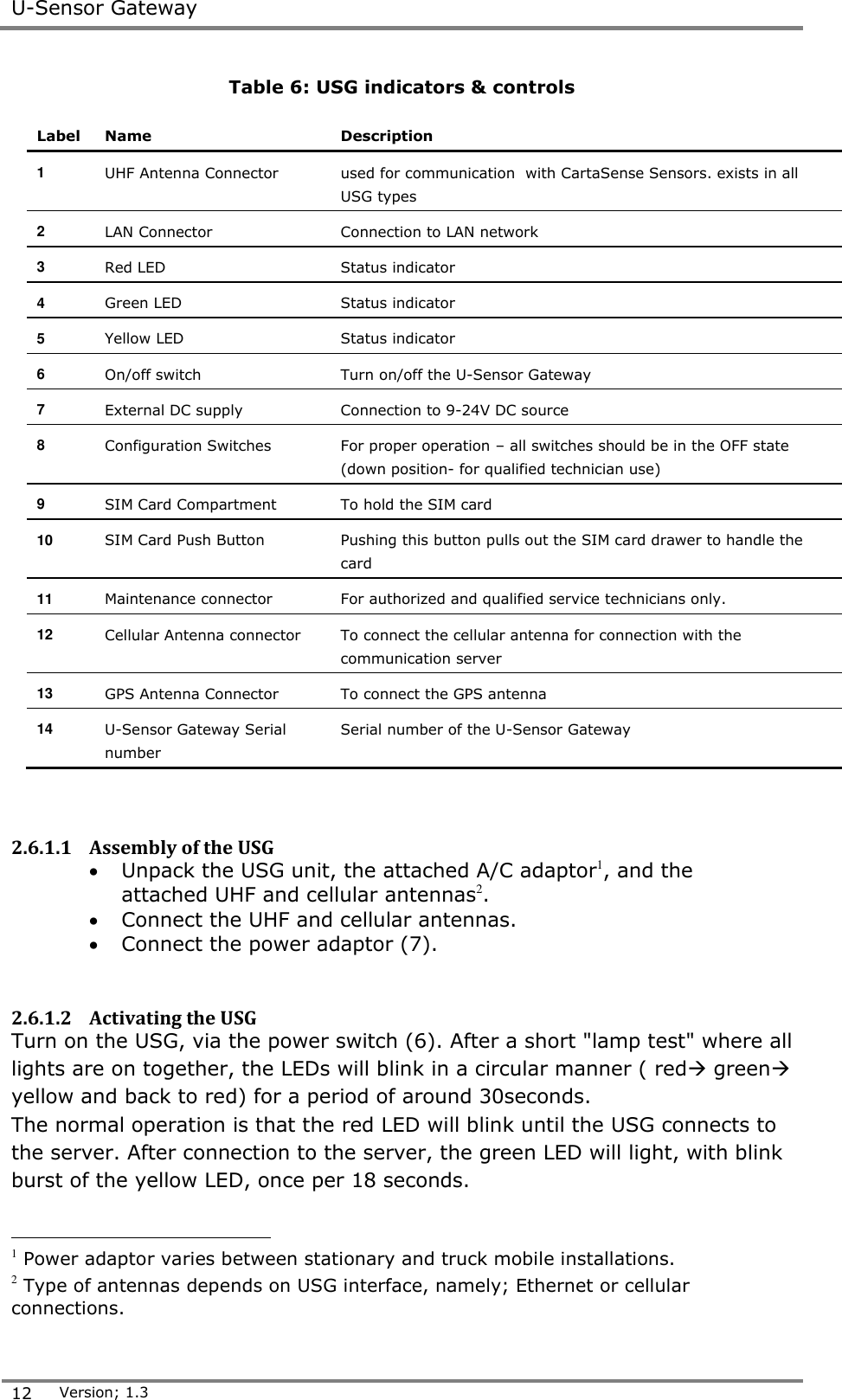
 Product description   Installation, Operation & Maintenance of the Wireless Sensing Family 11  2.6.1 Deployment of the USG Figure 8 and Figure 9 present the Ethernet and the GPRS-GPS USG units’ and Table 6 defines all indicators, interface connectors and controls.    Figure 8: Ethernet U-Sensor Gateway     Figure 9: GPS- GPRS U-Sensor Gateway
 U-Sensor Gateway  12 Version; 1.3  Table 6: USG indicators & controls Label Name Description 1 UHF Antenna Connector used for communication  with CartaSense Sensors. exists in all USG types 2 LAN Connector Connection to LAN network  3 Red LED Status indicator 4 Green LED Status indicator 5 Yellow LED Status indicator 6 On/off switch Turn on/off the U-Sensor Gateway 7 External DC supply Connection to 9-24V DC source 8 Configuration Switches For proper operation – all switches should be in the OFF state (down position- for qualified technician use) 9 SIM Card Compartment To hold the SIM card 10 SIM Card Push Button Pushing this button pulls out the SIM card drawer to handle the card 11 Maintenance connector For authorized and qualified service technicians only. 12 Cellular Antenna connector To connect the cellular antenna for connection with the communication server 13 GPS Antenna Connector To connect the GPS antenna 14 U-Sensor Gateway Serial number Serial number of the U-Sensor Gateway    2.6.1.1 Assembly of the USG  Unpack the USG unit, the attached A/C adaptor1, and the attached UHF and cellular antennas2.  Connect the UHF and cellular antennas.   Connect the power adaptor (7).  2.6.1.2 Activating the USG Turn on the USG, via the power switch (6). After a short "lamp test" where all lights are on together, the LEDs will blink in a circular manner ( red green yellow and back to red) for a period of around 30seconds. The normal operation is that the red LED will blink until the USG connects to the server. After connection to the server, the green LED will light, with blink burst of the yellow LED, once per 18 seconds.                                        1 Power adaptor varies between stationary and truck mobile installations.  2 Type of antennas depends on USG interface, namely; Ethernet or cellular connections.
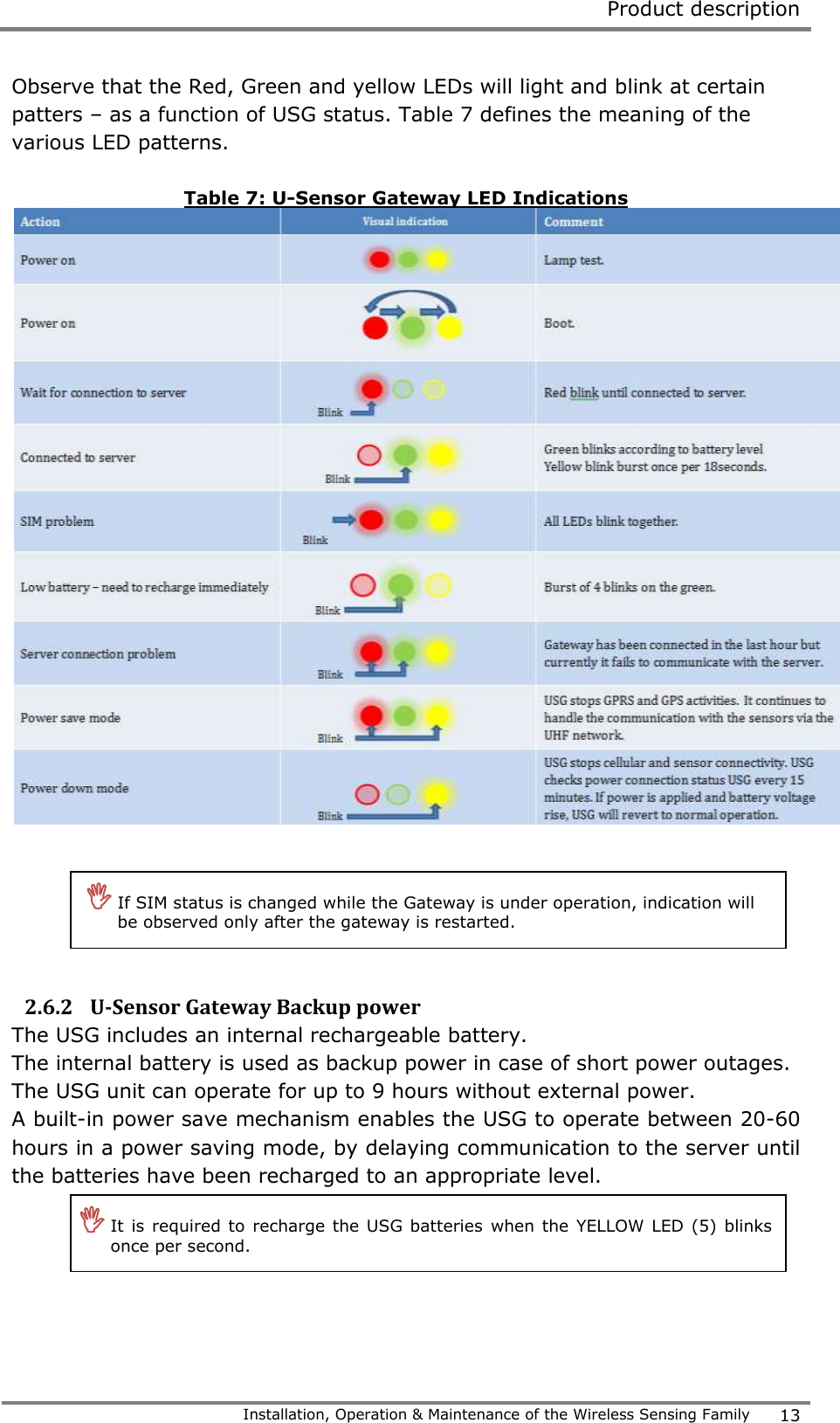
 Product description   Installation, Operation & Maintenance of the Wireless Sensing Family 13  Observe that the Red, Green and yellow LEDs will light and blink at certain patters – as a function of USG status. Table 7 defines the meaning of the various LED patterns.  Table 7: U-Sensor Gateway LED Indications      2.6.2 U-Sensor Gateway Backup power The USG includes an internal rechargeable battery.   The internal battery is used as backup power in case of short power outages. The USG unit can operate for up to 9 hours without external power.  A built-in power save mechanism enables the USG to operate between 20-60 hours in a power saving mode, by delaying communication to the server until the batteries have been recharged to an appropriate level.       If SIM status is changed while the Gateway is under operation, indication will be observed only after the gateway is restarted.    It is required to  recharge the  USG batteries  when the YELLOW LED (5) blinks once per second.
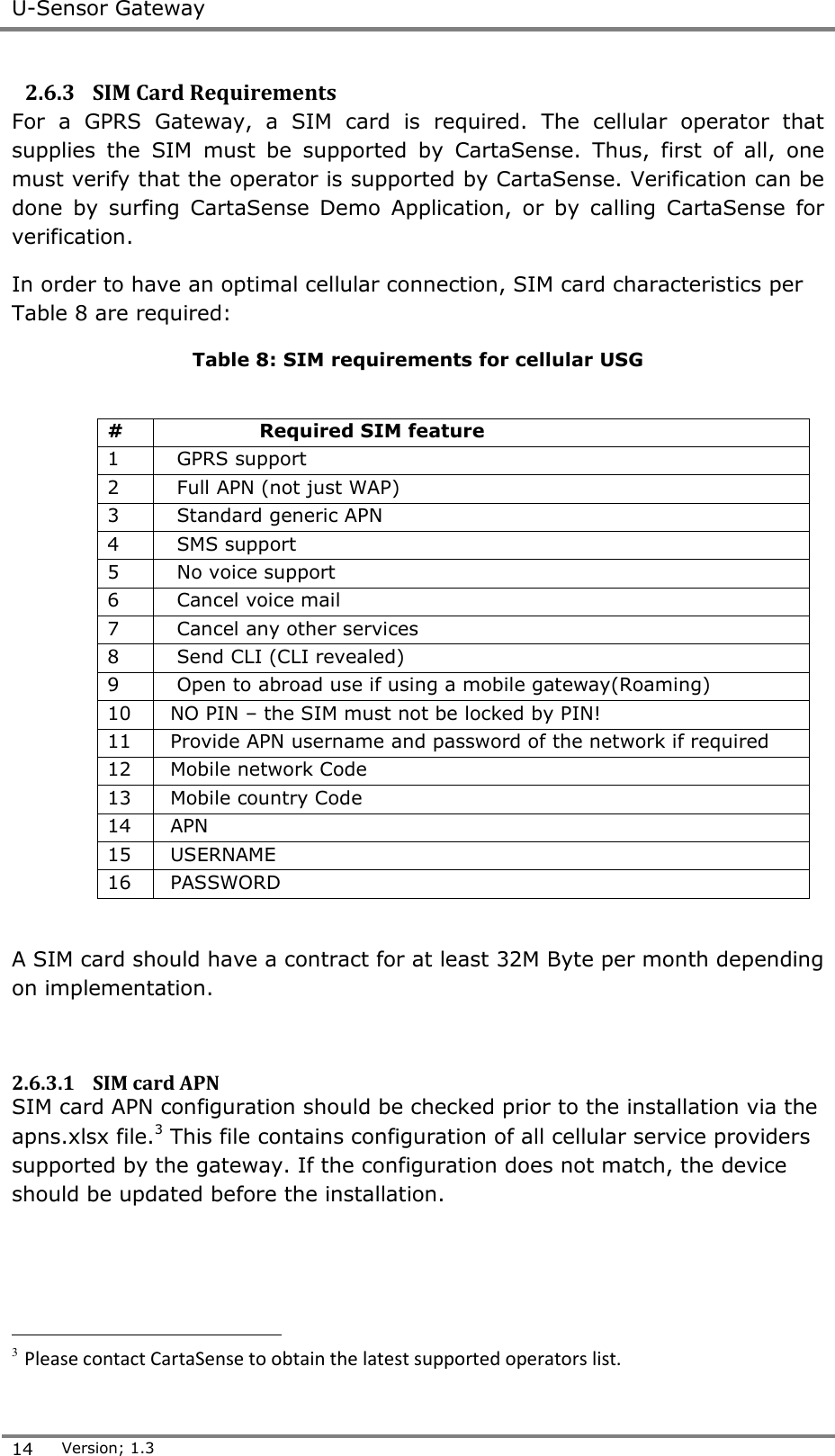
 U-Sensor Gateway  14 Version; 1.3  2.6.3 SIM Card Requirements For  a  GPRS  Gateway,  a  SIM  card  is  required.  The  cellular  operator  that supplies  the  SIM  must  be  supported  by  CartaSense.  Thus,  first  of  all,  one must verify that the operator is supported by CartaSense. Verification can be done  by  surfing  CartaSense  Demo  Application,  or  by  calling  CartaSense  for verification. In order to have an optimal cellular connection, SIM card characteristics per Table 8 are required: Table 8: SIM requirements for cellular USG   # Required SIM feature 1   GPRS support 2   Full APN (not just WAP) 3   Standard generic APN 4   SMS support 5   No voice support 6   Cancel voice mail 7   Cancel any other services 8   Send CLI (CLI revealed) 9   Open to abroad use if using a mobile gateway(Roaming) 10  NO PIN – the SIM must not be locked by PIN! 11  Provide APN username and password of the network if required 12  Mobile network Code 13  Mobile country Code 14  APN 15  USERNAME 16  PASSWORD  A SIM card should have a contract for at least 32M Byte per month depending on implementation.  2.6.3.1 SIM card APN SIM card APN configuration should be checked prior to the installation via the apns.xlsx file.3 This file contains configuration of all cellular service providers supported by the gateway. If the configuration does not match, the device should be updated before the installation.                                             3 Please contact CartaSense to obtain the latest supported operators list.
 Installation and operation   Installation, Operation & Maintenance of the Wireless Sensing Family 15  3 Installation and operation Installation of a system site consists of the following stages;  Planning – pre-installation.  Assembling and mounting of the components..  Acceptance testing of overall system. 3.1 Pre-installation Preparations Pre-installation preparations are crucial for a successful installation of the CartaSense system and must be performed precisely and thoroughly.  The purpose of the pre-installation preparation is: • Identify  the  best  location  for  the  system  components  in  order  to optimize the performance of the system.  • When  using  GPRS  USG  verify  availability  of  good  cellular communication in the area of installation.  • Verify  high  enough  locations  for  mounting  USG  units  to  prevent them from being damaged by forklifts and loads.  • Locate AC outlets - Verify power outlet availability near the USG’s planned location • Check for the best location to place a Resident Sensor, if any. This depends on:  - Size of area to be covered. - Specific needs (special cooling rooms, far dockings…) • Estimate number of RS needed. • Check coverage • Add RS in places with low coverage  3.1.1 Tools The installation team should to be equipped with the following tools:  Cellular phone SIM free with WEB surfing capabilities - a cellular phone that works with any SIM card and is capable of surfing the internet.  Laptop with cellular internet communication.   Safe SIM – A SIM card with all the characteristics, as described in paragraph 2.6.3 should be verified ahead of time that it is suited for operation with the CartaSense system.  Power cord extender.  Thin screw driver – to pull the SIM card compartment out.  Mini USB connector – for debug purposes.
 Site Survey  16 Version; 1.3   3.2 Site Survey 3.2.1 Warehouse For a warehouse installation, make a floor plan of the site that includes the following information:  Location of storage  racks  walls – position and material  AC outlets  Cooling room locations  Doors, docking bays  For a GPRS USG, mark cellular reception levels4 in the vicinity of an AC outlet    (make  sure  the  cellular  phone  is  connected  to  the  same  operator that supplies the SIM card to the USG).  For  Ethernet  USG,  check  for  the  location  of  RJ-45  outlets,  where  the USG can be placed, make sure that the outlets are active and that there is an adjacent AC outlet.   Take pictures of the area near each electricity outlet  Take pictures of the cooling rooms  3.2.2 Truck and trailer.  A dashboard USG model, specifically suited for non-fixed installation in trucks is available.  A simple experiment can verify the communication between the USG in driver’s cabin to the sensors in the trailer.  For fixed installations in trucks and trailers, please contact CartaSense.   3.3 Mounting, installing and interconnecting 3.3.1 Pre-Installation Check List Make sure that all steps in Error! Reference source not found. below are erified before you proceed to the next step: Table 9: Pre-Installation Check List  Operation    All kit items are available   There is a good cellular reception on site   SIM card operates well and able to communicate   You have a site plan and you know where you want to place the equipment    You know how many Resident Sensors you have in order to boost the Gateway   You know how many resident sensors you NEED   There is a secured location for the Gateway    There is a power outlet next to the Gateway                                        4 Levels of cellular reception may be estimated by means of the cell-phone.
 Installation and operation   Installation, Operation & Maintenance of the Wireless Sensing Family 17   Operation    If you are using an Ethernet Gateway, make sure that LAN connection is available. 3.3.2 Rules of “thumb” for locating wireless equipment The following issues should be considered in deciding the location of USG units                  3.3.3 Equipment placement 3.3.3.1 General Considerations for USG location   USG works as a wireless router supporting two types of wireless networks; each one of the networks has different installation requirements:  a. Cellular communication (GPRS USG)  It is recommended to place the USG where a cellular (GSM) phone has good reception.   The  cellular  antenna  can  be  extended  to  a  maximum  of  3m  from the gateway (the maximum cable length), and should be located as high as possible for better reception and for protection from passing forklifts. Checking cellular reception with doors shut and open is a good indication to the doors blocking level b. LAN communication (Ethernet USG)  Verify that an RJ45 Ethernet outlet is available in the vicinity of the USG.  It  is  recommended  to  place  the  equipment  in  its  potential  location  and test it prior to mounting the units. After verification, make the necessary location  adjustments,  if  needed,  and  then  mount  the  equipment  to  its permanent place.   A  Cellular  antenna  should  be  located  at  least  2m  away  from  a  UHF antenna.   General  The  following  impair  cellular  reception  (considered as  transmission blockers and should be avoided-if possible): Walls: Concrete walls, Reinforced Concrete, Metal walls.  Doors: Metal doors.    Liquids: Liquid containers and boxes. Metallic objects: Metal racks, loaded forklifts  U-Sensor  Gateway:  USG  Must  be  installed  in  an  area  with  the  best cellular reception (GPRS USG)
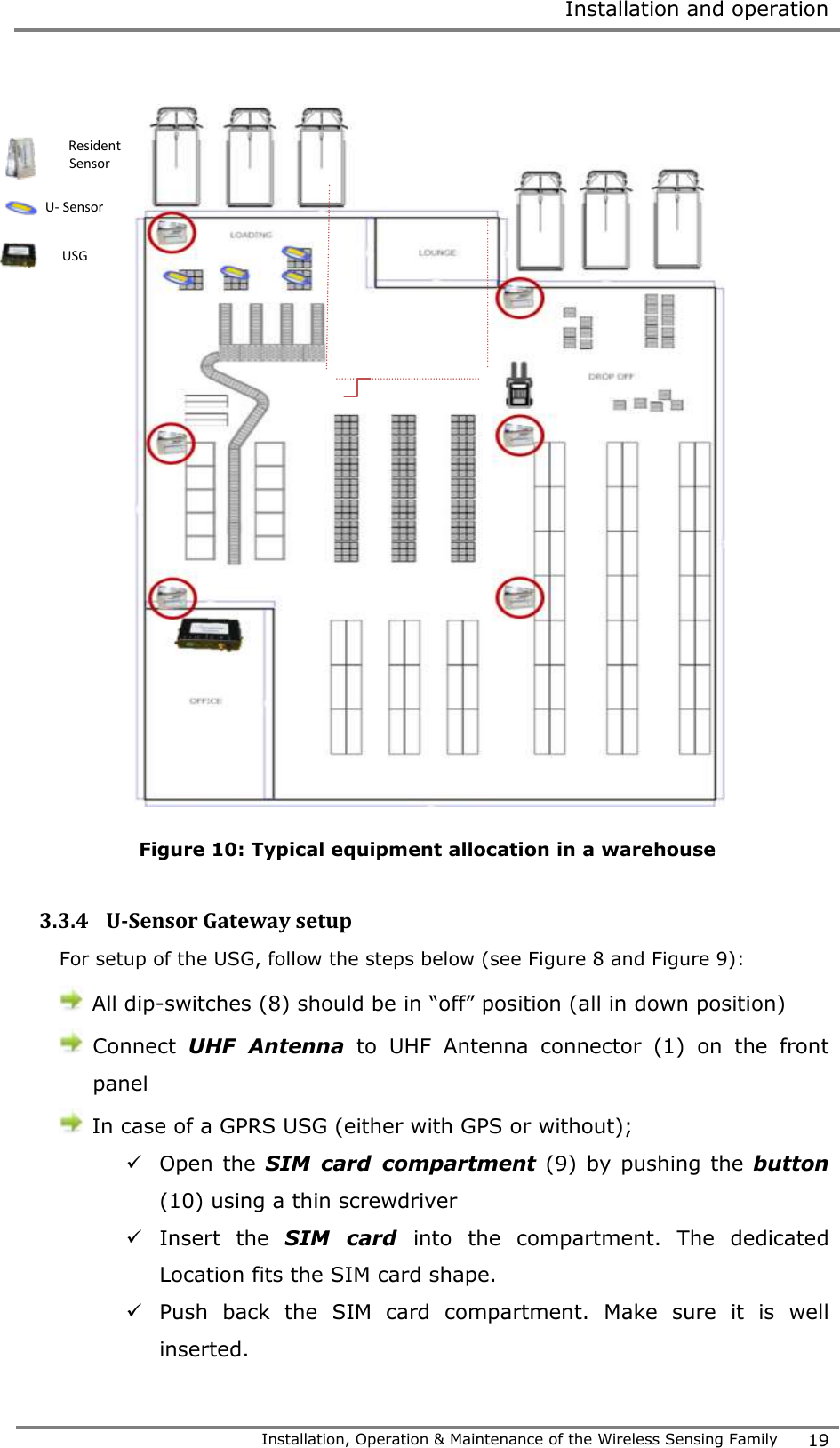
 Mounting, installing and interconnecting  18 Version; 1.3   Lan cable length should not exceed 90 meters5.  3.3.3.2 Recommended Workmanship and Tips for Fixed USG Installation    IMPORTANT: the USG is NOT an outdoor unit.   USG must be kept in temperature between -20 and +60 degrees  DO NOT EXPOSE THE USG TO DIRECT SUNLIGHT.  Make  sure the USG is protected from water and water spray  In case such environment cannot be met, an additional protecting case should be employed.   CartaSense  Fixed  USG  is  usually  installed  in  cold  storage  warehouses  or other facilities.   Make sure there is an electrical outlet within reach for powering the USG.   Consider that the standard USG power cable length  is 1.5m  Use an AC power extension if necessary. Properly install and fasten the power extender. Install a dedicated power outlet if extending is not allowed or not possible   The USG  may be  placed on  a  shelf, on  a  desk  or mounted  on the wall.  The  USG  should  be  placed  in  a  secure  location  however  with  an easy access. If it is positioned in high locations, the LED indicators should be visible.   Position  properly  the  UHF  antenna,  as  high  as  possible  and  as remote as possible from a cellular antenna The UHF antenna should preferably be located within a clear line of sight between it and the Resident Sensors. 3.3.3.3 Installation of Ethernet USG Appendix-B:  defines procedures and solutions for the installation of the Ethernet USG under various LAN circumstances (corporate LAN, firewalls etc.) Figure 10 displays typical warehouse architecture and equipment location.                                                 5 LAN cables should be CAT5 type cables suited for telecom applications  The resident sensors in this example are used to monitor the environment as well as repeaters.  Pay attention to the clear path the resident sensors are located avoiding interference.
 Installation and operation   Installation, Operation & Maintenance of the Wireless Sensing Family 19     Figure 10: Typical equipment allocation in a warehouse  3.3.4 U-Sensor Gateway setup For setup of the USG, follow the steps below (see Figure 8 and Figure 9):  All dip-switches (8) should be in “off” position (all in down position)  Connect  UHF  Antenna to  UHF  Antenna  connector  (1)  on  the  front panel  In case of a GPRS USG (either with GPS or without);  Open the SIM  card  compartment (9) by pushing the button (10) using a thin screwdriver   Insert  the  SIM  card  into  the  compartment.  The  dedicated Location fits the SIM card shape.  Push  back  the  SIM  card  compartment.  Make  sure  it  is  well inserted.    Resident Sensor U- Sensor USG
 Mounting, installing and interconnecting  20 Version; 1.3   Connect Magnetic  cellular  antenna  to connector  (12)  on the front panel       For GPS USGs, connect the Magnetic GPS antenna to connector (13) on the front panel     For Ethernet USG   Connect  LAN  cable  (RJ45)  to  LAN  connector  (2)  on  the  front panel  Connect  the  other  end  of  the  LAN  cable  to  an  available  LAN. Make  sure  that  this  LAN  connection  has  direct  access  to  the internet and it is not firewalled. For thorough technical information, refer to Appendix-B:   Plug adapter AC or DC Power Supply to PWR connector on USG front Panel(7)  AC power supply  - Plug the AC Power Supply to the electrical outlet  DC power supply  - Plug the DC Power Supply to the Cigarette lighter  outlet  (for  any  mobile  gateway  such  as  Dashboard Gateway).     3.3.5 U-Sensor Gateway activation After the U-Sensor Gateway setup is completed, do the following (refer to Figure 9 and Table 7 for USG controls):  Turn on the U-Sensor Gateway via the on/off switch (6).  At first it will undergo  a  sequence  of  LED tests  and  eventually  will  turn  Red.  Make sure that the SIM card you are using fulfills the SIM Card Requirements.  Make sure that the SIM card you are using is supported by CartaSense   In some cases a dual antenna that supports both GPS and Cellular antenna can be used.   A Green LED on the Power Adapter indicates that it provides power feed to the USG.
 Installation and operation   Installation, Operation & Maintenance of the Wireless Sensing Family 21  With  a  GPRS  unit,  the  test  sequence  is  prolonged–until  the  GPRS modem connects.  Once the USG connects to the communication server, the Green LED lights solid. If  it blinks-it indicates that the USG battery is not fully charged – per Table 7.    If other LED indicators are showing, refer to chapter 5  for troubleshooting procedures.  3.3.6 Resident Sensor activation Resident Sensors are usually deployed when: • Stationary environmental monitoring is required. • If the area cannot be covered with a single Gateway, then Resident Sensors can be used as battery operated repeaters / range extenders.  To operate (turn on) the Resident Sensor See 2.5.1 and Table 5.  remove the batteries compartment cover (5)   Insert two AAA batteries.  Activate the RS by pushing the “activation PB” (6)     3.3.7 Placement of wireless U-sensors Locating the wireless sensors in the following places will reduce the system performance (decrease transmission range). o Near a PC. o Near electric motors (like industrial fans, elevators, etc.) o Industrial frequency controllers. o Placing the antenna directly on a metal surface.   The CartaSense Wireless Solution is optimized by placing one sensor per each monitored pallet.  Placing the wireless sensor in the pallet is straight forward and easy: o Power  on  and  put  the  wireless  sensor  anywhere  in  or  on  the pallet.    Assembly and operation stages are successful when power is on and a green led on the USG starts to blink within 5 minutes from power up.   To check whether the resident Sensor is connected to a U-Sensor Gateway, push the operation button. The red LED will blink consecutively if the sensor is connected   The  U-sensor  antenna  should  be  stretched  and  if  possible  the  antenna  wire  should extend outside the package.
 Mounting the wireless equipment  22 Version; 1.3     3.4 Mounting the wireless equipment Available option to mount the U-Sensor Gateway: • U-Sensor Gateway wall Mount • Truck installation 3.4.1 U-Sensor Gateway wall Mount  The U-Sensor Gateway should be affixed to its dedicated location. Figure 11 presents the drilling layout for mounting of the USG.     Figure 11: USG mount drill scheme      Figure 12 and Figure 13 present examples of a wall mount bracket which can be used for:  Use only flat head screws with a washer to mount the USG. NEVER USE CONE HEAD SCREWES, AS IT WILL CAUSE DAMAGE TO THE MOUNTNG EARS
 Installation and operation   Installation, Operation & Maintenance of the Wireless Sensing Family 23   Vertical and horizontal installation of the USG   Installation of cables   Installation of antennas   Figure 12: Vertical USG installation     Figure 13: Horizontal USG installation    Figure 14 and Figure 15 show the USG and the RS using one mounting bracket and also the installation of the RS separated from the USG.
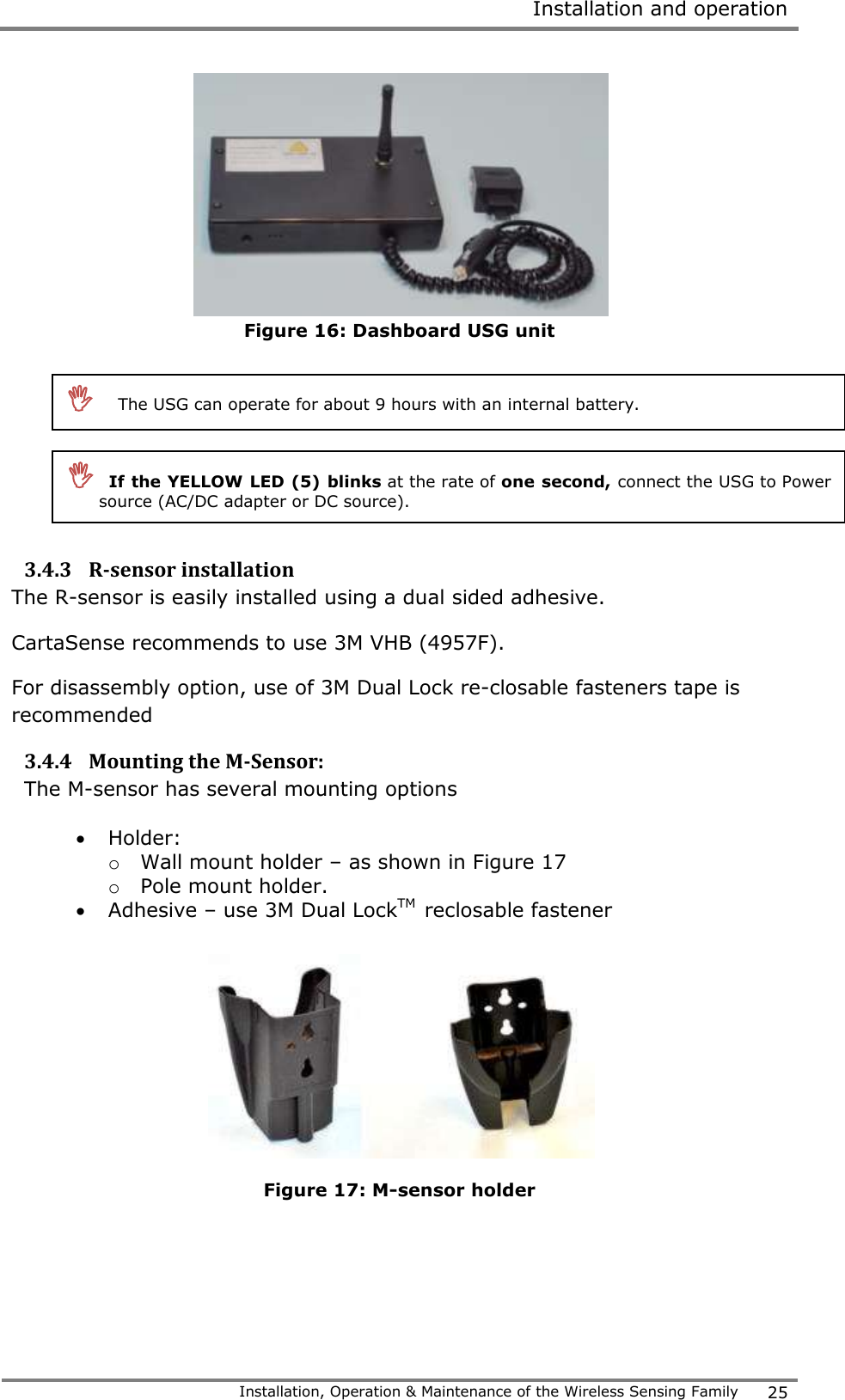
 Mounting the wireless equipment  24 Version; 1.3   Figure 14: Resident sensor mounting    Figure 15: RS with USG and UHF Antenna  using single mounting   3.4.2 Truck installation For a truck installation, there is a dashboard gateway version as depicted in Figure 16. The Dashboard USG is deployed as Portable USG, to provide real-time measurements from sensors in the truck cargo. The unit powered of the truck cigarette lighter. The Dashboard USG may be placed on the dashboard in the cabin. If feasible -  the installation should  be firm enough  so  that  the USG  will not  be  moved accidentally.
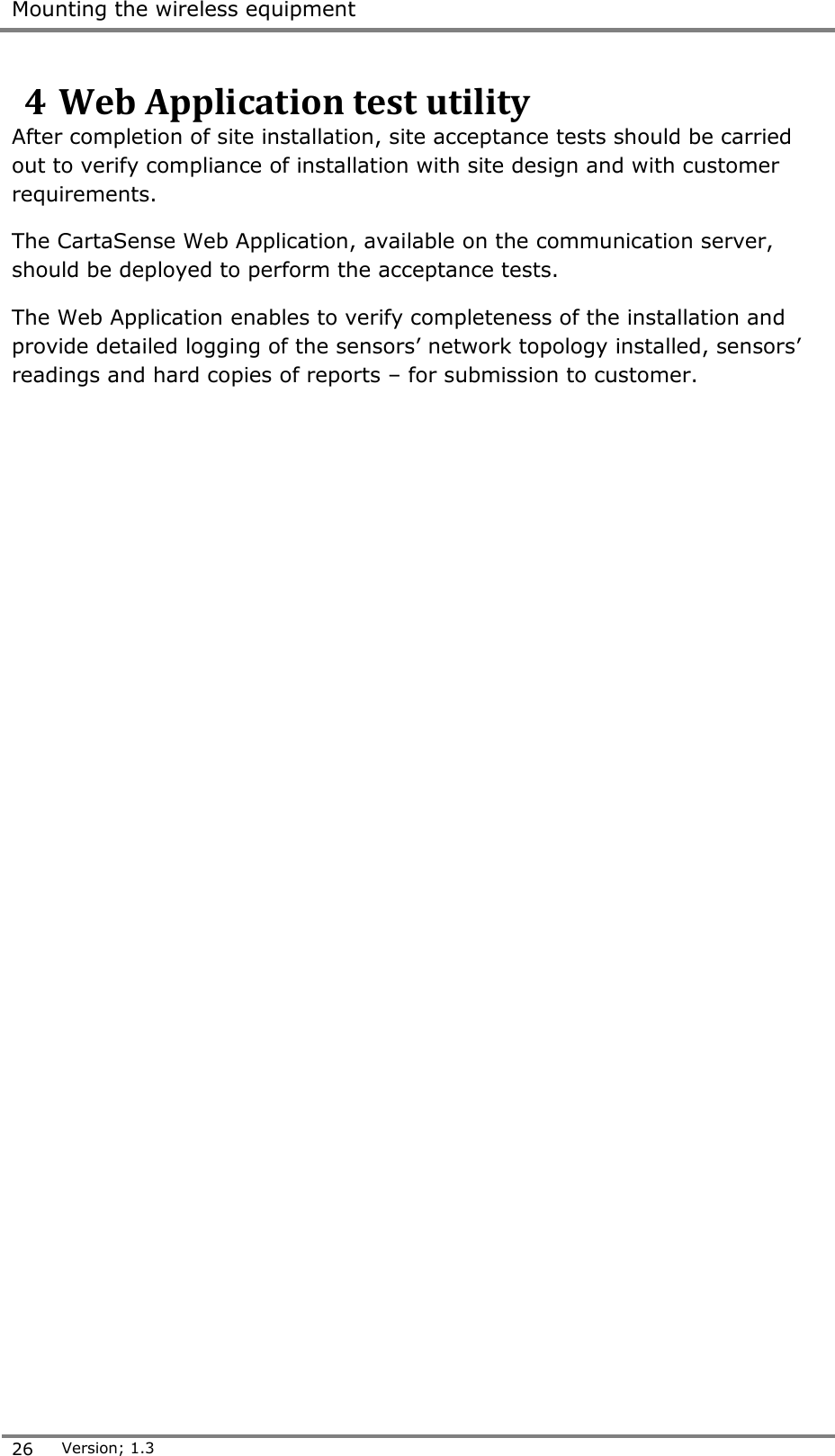
 Installation and operation   Installation, Operation & Maintenance of the Wireless Sensing Family 25   Figure 16: Dashboard USG unit         3.4.3 R-sensor installation The R-sensor is easily installed using a dual sided adhesive.  CartaSense recommends to use 3M VHB (4957F). For disassembly option, use of 3M Dual Lock re-closable fasteners tape is recommended 3.4.4 Mounting the M-Sensor: The M-sensor has several mounting options  Holder: o Wall mount holder – as shown in Figure 17   o Pole mount holder.  Adhesive – use 3M Dual LockTM  reclosable fastener   Figure 17: M-sensor holder         The USG can operate for about 9 hours with an internal battery.    If the YELLOW LED (5) blinks at the rate of one second, connect the USG to Power source (AC/DC adapter or DC source).
 Mounting the wireless equipment  26 Version; 1.3  4 Web Application test utility After completion of site installation, site acceptance tests should be carried out to verify compliance of installation with site design and with customer requirements. The CartaSense Web Application, available on the communication server, should be deployed to perform the acceptance tests. The Web Application enables to verify completeness of the installation and provide detailed logging of the sensors’ network topology installed, sensors’ readings and hard copies of reports – for submission to customer.
 Troubleshooting   Installation, Operation & Maintenance of the Wireless Sensing Family 27  5 Troubleshooting 5.1 Introduction The following practical troubleshooting section is provided as a training resource for individuals learning how to install and use the Wireless Sensing Family products, and as a reference tool for those already familiar with its use and operation. It should be noted that this outline is not all inclusive, and is intended only as a guide. 5.2 Problems Problem  Potential Cause Suggested Action U-Sensor Gateway does not operate The USG is not connected to the power source for more than 9 hours and batteries were depleted. Charge batteries until green LED is on Gateway fails to connect for 15 minutes    Power off the gateway wait a minute and power it on Gateway fails to connect (after resetting the gateway) SIM card is not properly configured  Check the internet connection of the SIM by means of a cellular phone using the same GPRS parameters. Check Gateway connectivity with the safe SIM. Gateway fails to connect (SIM is ok ) Network connectivity problems Call CartaSense administrator to check if the network is operational. Gateway fails to connect (Network ok) Gateway is not configured properly to work with that SIM. Provide log file of the connection that starts since power on and lasts 5 minutes.  For creating the log file - refer to 1.1.1.1.1Appendix-C:   Tree view shows sensors that are no longer connected USG lost cellular communication, therefore it shows the last image  Tree view doesn’t show up.  Status is not updated yet. The tree structure is updated every 30 minutes. Wait at least 45 minutes between the end of installation and the tree view.  R-Sensor doesn't work (no blinking light) Batteries are not install properly  Re-Install batteries. Resident Sensor or U-Sensor doesn’t appear to be connected to the network. Not in range of the USG. Verify that sensor led blinks twice (not connected). Make sure that antenna is open to its full length. Bring it close to the GW to verify that it is working. Add additional R-Sensor to cover the specific area.
 Problems  28 Version; 1.3  Problem  Potential Cause Suggested Action RS or US sensors (with indicators showing that they are connected to the GW), but measurements are not shown in the database USG lost connection to the Communication server.  Restart USG. Verify cellular communication.
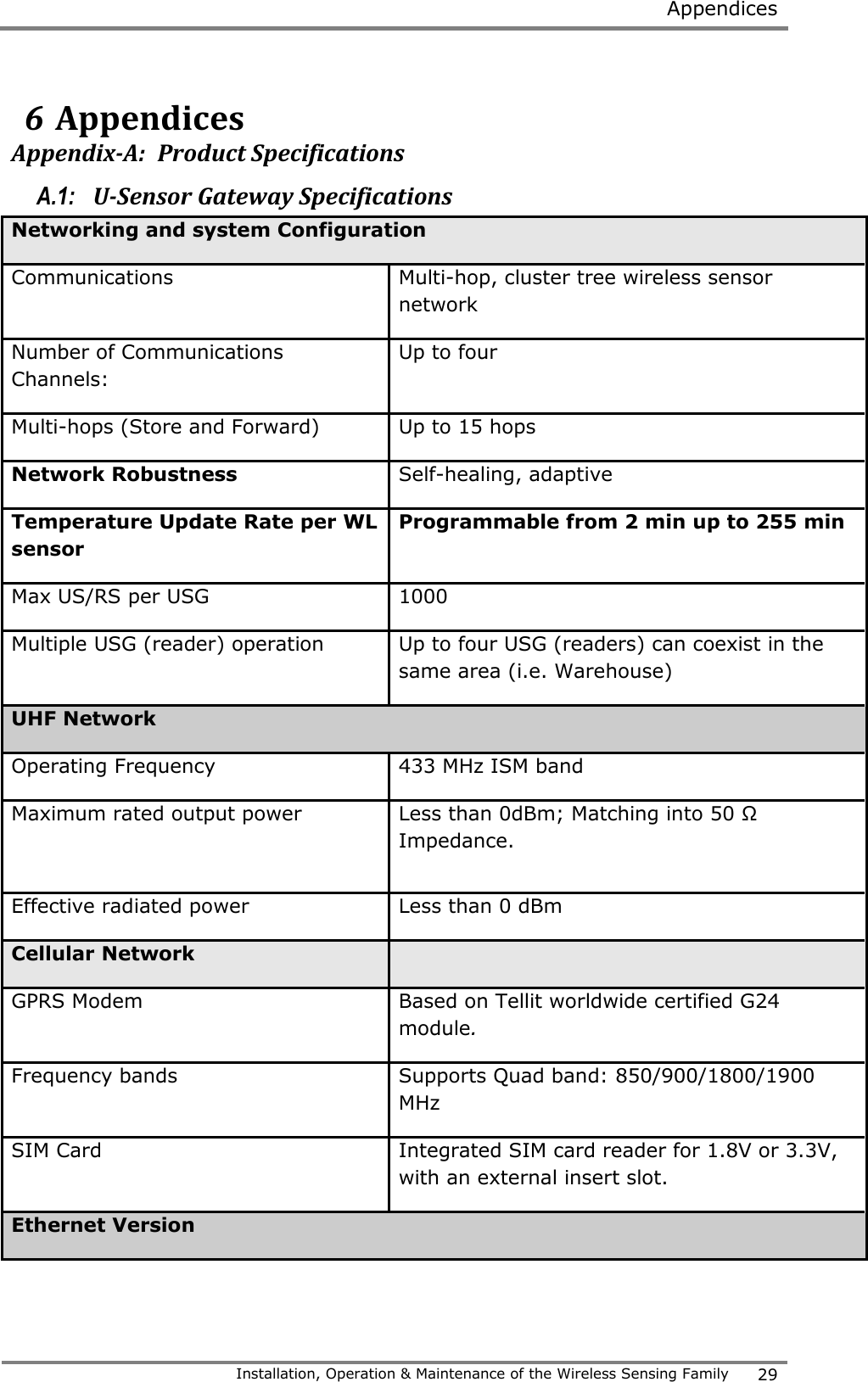
 Appendices   Installation, Operation & Maintenance of the Wireless Sensing Family 29  6 Appendices Appendix-A:  Product Specifications A.1:   U-Sensor Gateway Specifications Networking and system Configuration Communications  Multi-hop, cluster tree wireless sensor network Number of Communications Channels: Up to four Multi-hops (Store and Forward) Up to 15 hops Network Robustness Self-healing, adaptive Temperature Update Rate per WL sensor Programmable from 2 min up to 255 min Max US/RS per USG 1000 Multiple USG (reader) operation  Up to four USG (readers) can coexist in the same area (i.e. Warehouse) UHF Network Operating Frequency 433 MHz ISM band Maximum rated output power  Less than 0dBm; Matching into 50 Ω Impedance.  Effective radiated power Less than 0 dBm Cellular Network  GPRS Modem Based on Tellit worldwide certified G24 module. Frequency bands  Supports Quad band: 850/900/1800/1900 MHz SIM Card Integrated SIM card reader for 1.8V or 3.3V, with an external insert slot. Ethernet Version
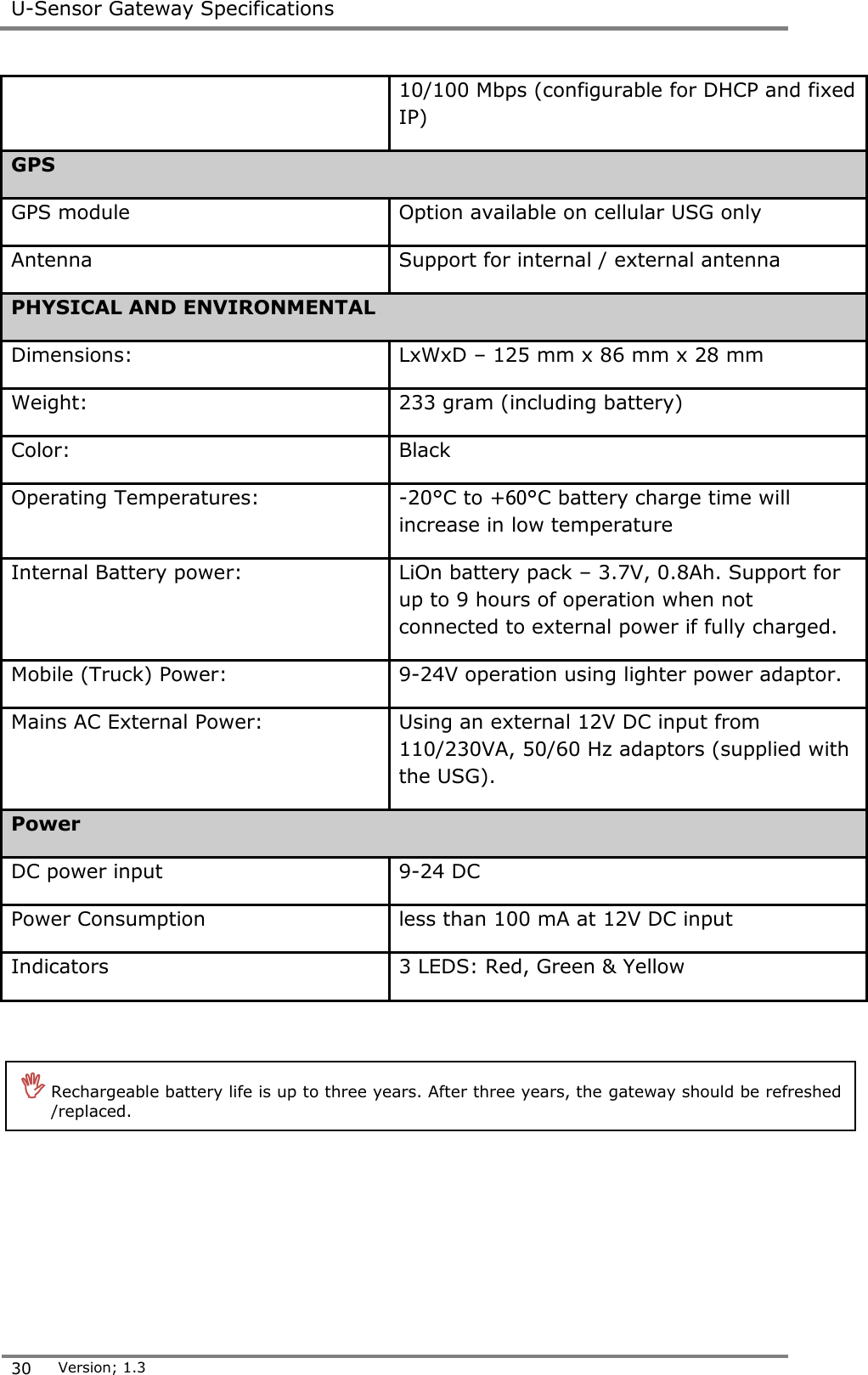
 U-Sensor Gateway Specifications  30 Version; 1.3   10/100 Mbps (configurable for DHCP and fixed IP) GPS   GPS module Option available on cellular USG only Antenna Support for internal / external antenna PHYSICAL AND ENVIRONMENTAL  Dimensions:  LxWxD – 125 mm x 86 mm x 28 mm Weight:  233 gram (including battery) Color:  Black Operating Temperatures:  -20°C to +06°C battery charge time will increase in low temperature Internal Battery power: LiOn battery pack – 3.7V, 0.8Ah. Support for up to 9 hours of operation when not connected to external power if fully charged.  Mobile (Truck) Power:  9-24V operation using lighter power adaptor. Mains AC External Power: Using an external 12V DC input from 110/230VA, 50/60 Hz adaptors (supplied with the USG). Power DC power input 9-24 DC Power Consumption less than 100 mA at 12V DC input Indicators 3 LEDS: Red, Green & Yellow      Rechargeable battery life is up to three years. After three years, the gateway should be refreshed /replaced.
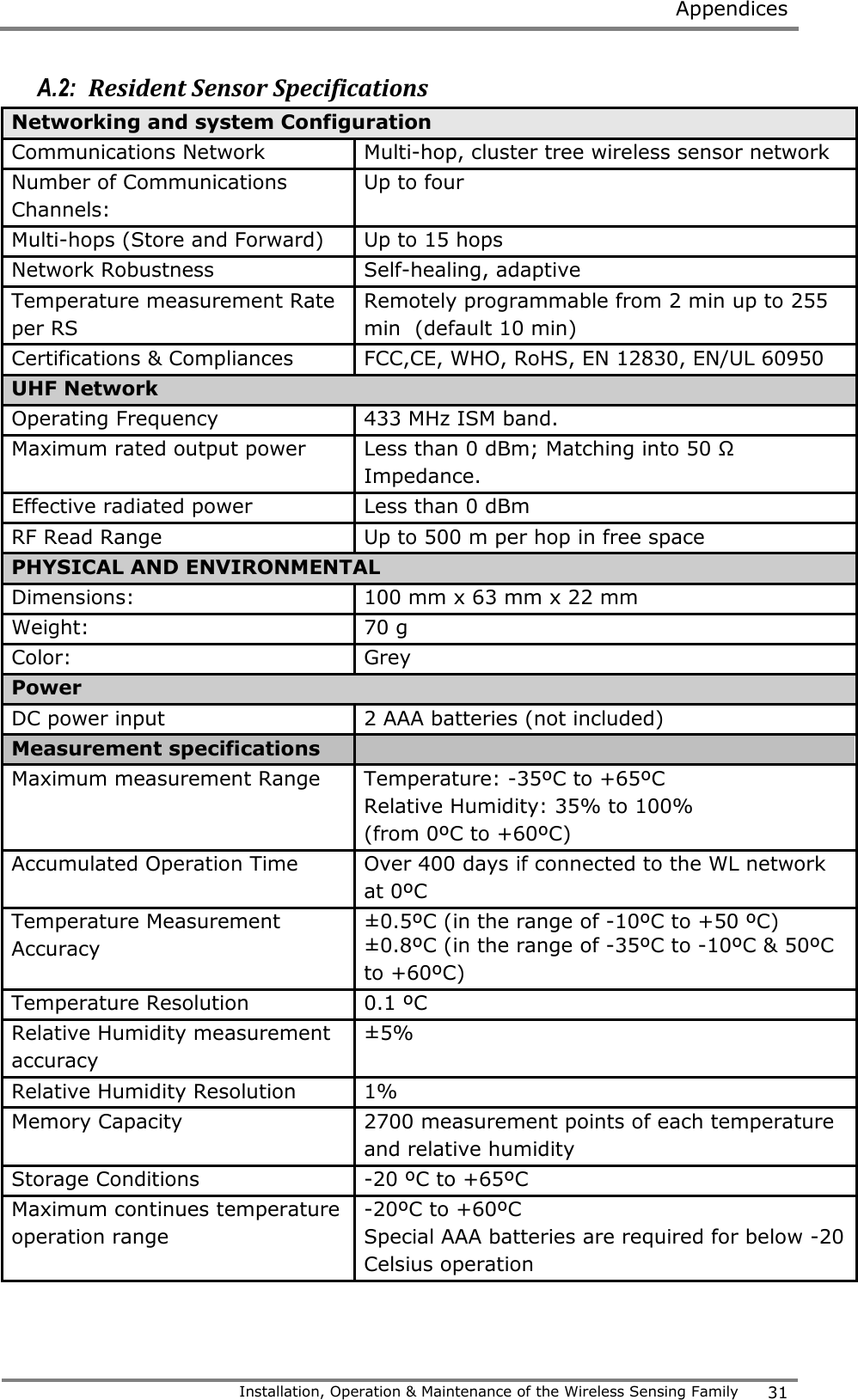
 Appendices   Installation, Operation & Maintenance of the Wireless Sensing Family 31  A.2:  Resident Sensor Specifications Networking and system Configuration Communications Network  Multi-hop, cluster tree wireless sensor network Number of Communications Channels: Up to four Multi-hops (Store and Forward) Up to 15 hops Network Robustness Self-healing, adaptive Temperature measurement Rate per RS Remotely programmable from 2 min up to 255 min  (default 10 min) Certifications & Compliances FCC,CE, WHO, RoHS, EN 12830, EN/UL 60950 UHF Network Operating Frequency 433 MHz ISM band.  Maximum rated output power  Less than 0 dBm; Matching into 50 Ω Impedance.  Effective radiated power Less than 0 dBm RF Read Range Up to 500 m per hop in free space PHYSICAL AND ENVIRONMENTAL  Dimensions:  100 mm x 63 mm x 22 mm Weight:  70 g Color:  Grey Power DC power input 2 AAA batteries (not included) Measurement specifications  Maximum measurement Range Temperature: -35ºC to +65ºC Relative Humidity: 35% to 100%  (from 0ºC to +60ºC) Accumulated Operation Time Over 400 days if connected to the WL network at 0ºC  Temperature Measurement Accuracy ±0.5ºC (in the range of -10ºC to +50 ºC)  ±0.8ºC (in the range of -35ºC to -10ºC & 50ºC to +60ºC) Temperature Resolution 0.1 ºC Relative Humidity measurement accuracy ±5% Relative Humidity Resolution 1% Memory Capacity 2700 measurement points of each temperature and relative humidity Storage Conditions -20 ºC to +65ºC  Maximum continues temperature operation range  -20ºC to +60ºC Special AAA batteries are required for below -20 Celsius operation
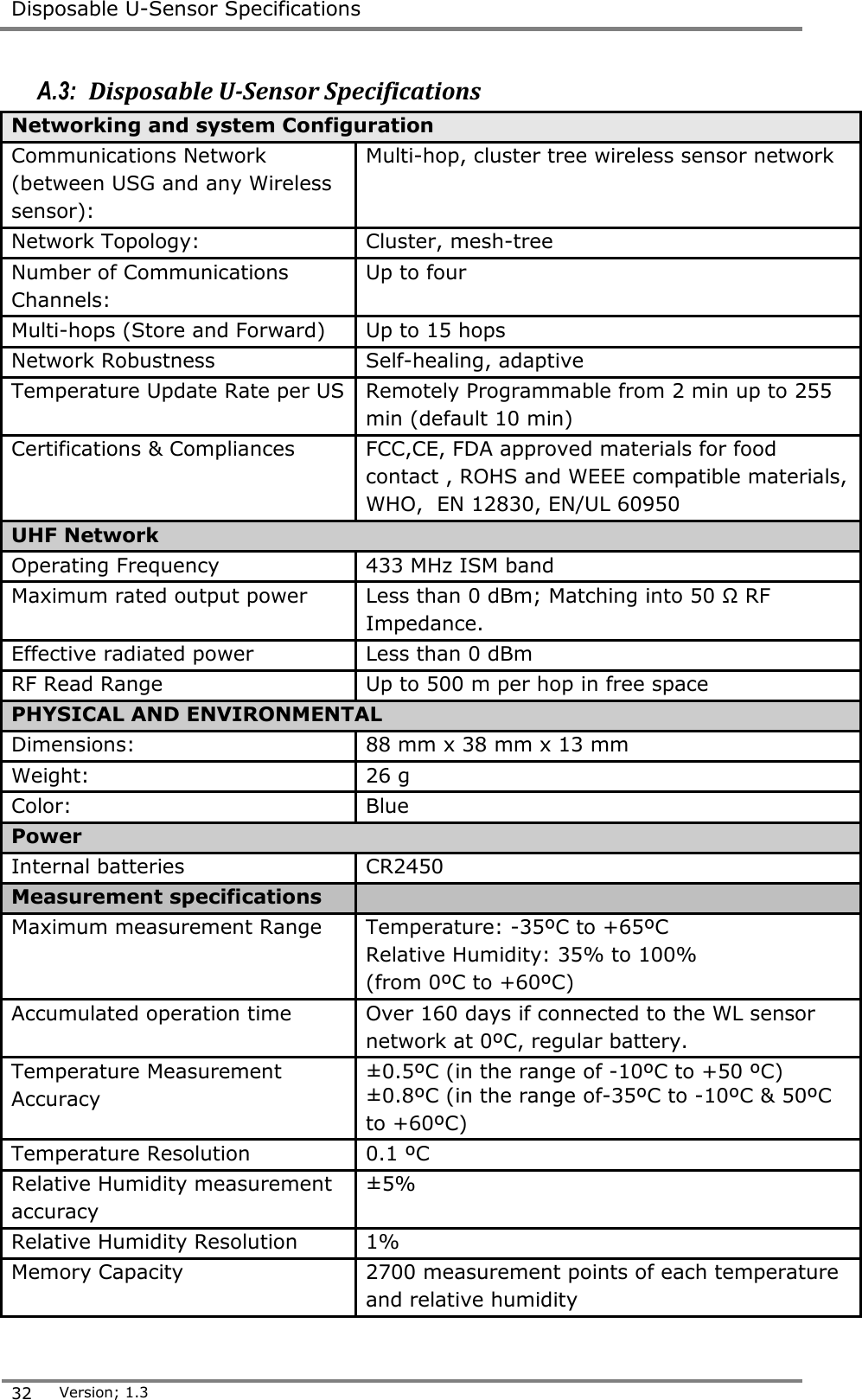
 Disposable U-Sensor Specifications  32 Version; 1.3  A.3:  Disposable U-Sensor Specifications Networking and system Configuration Communications Network (between USG and any Wireless sensor): Multi-hop, cluster tree wireless sensor network Network Topology: Cluster, mesh-tree  Number of Communications Channels: Up to four Multi-hops (Store and Forward) Up to 15 hops Network Robustness Self-healing, adaptive Temperature Update Rate per US Remotely Programmable from 2 min up to 255 min (default 10 min) Certifications & Compliances FCC,CE, FDA approved materials for food contact , ROHS and WEEE compatible materials, WHO,  EN 12830, EN/UL 60950 UHF Network Operating Frequency 433 MHz ISM band Maximum rated output power  Less than 0 dBm; Matching into 50 Ω RF Impedance.  Effective radiated power Less than 0 dBm RF Read Range Up to 500 m per hop in free space PHYSICAL AND ENVIRONMENTAL  Dimensions:  88 mm x 38 mm x 13 mm Weight:  26 g Color:  Blue Power Internal batteries CR2450 Measurement specifications  Maximum measurement Range Temperature: -35ºC to +65ºC Relative Humidity: 35% to 100%  (from 0ºC to +60ºC) Accumulated operation time Over 160 days if connected to the WL sensor network at 0ºC, regular battery. Temperature Measurement Accuracy ±0.5ºC (in the range of -10ºC to +50 ºC)  ±0.8ºC (in the range of-35ºC to -10ºC & 50ºC to +60ºC)  Temperature Resolution 0.1 ºC Relative Humidity measurement accuracy ±5% Relative Humidity Resolution 1% Memory Capacity 2700 measurement points of each temperature and relative humidity
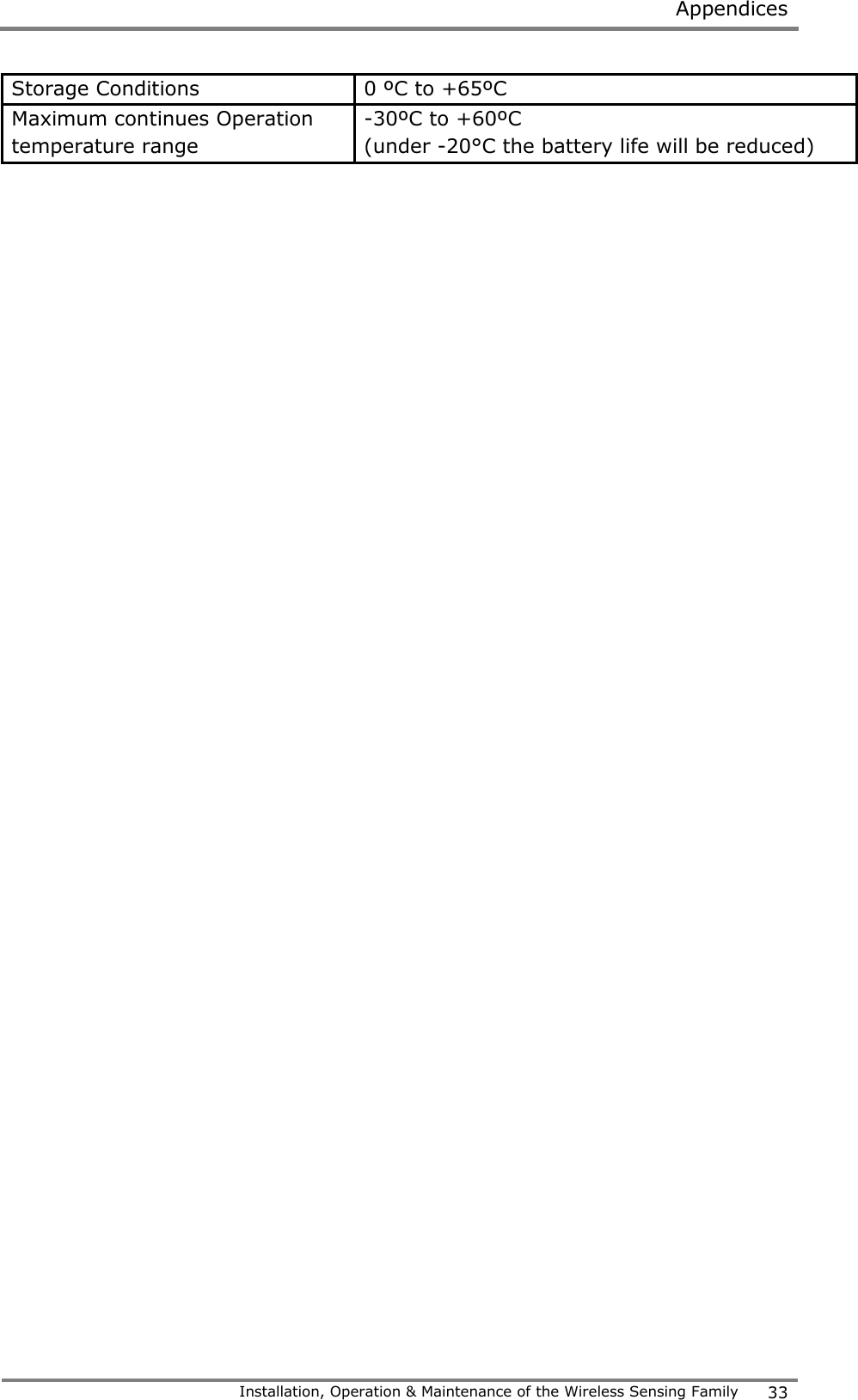
 Appendices   Installation, Operation & Maintenance of the Wireless Sensing Family 33  Storage Conditions 0 ºC to +65ºC Maximum continues Operation temperature range -30ºC to +60ºC (under -20°C the battery life will be reduced)
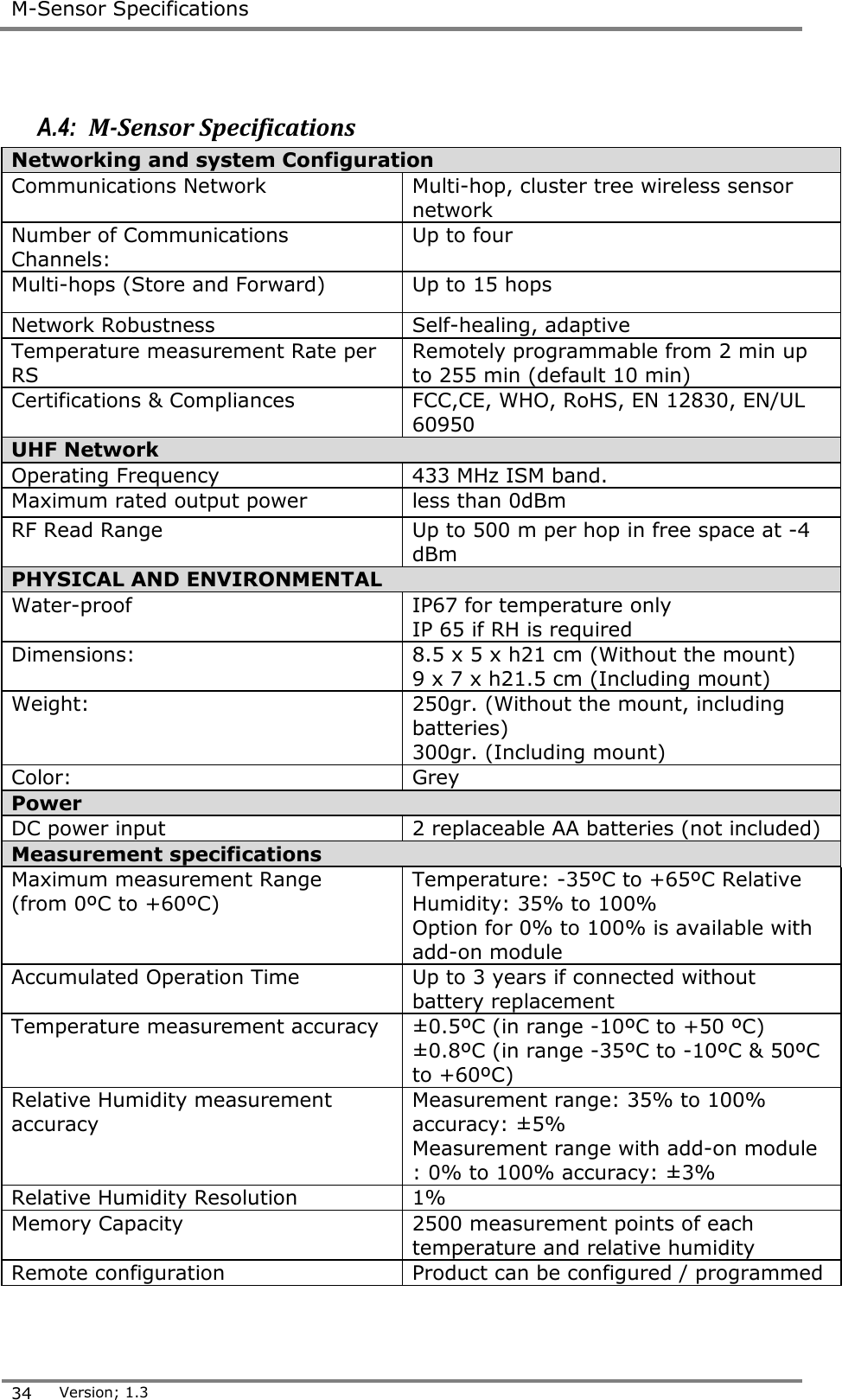
 M-Sensor Specifications  34 Version; 1.3   A.4:  M-Sensor Specifications Networking and system Configuration  Communications Network  Multi-hop, cluster tree wireless sensor network  Number of Communications Channels:  Up to four  Multi-hops (Store and Forward)  Up to 15 hops  Network Robustness  Self-healing, adaptive  Temperature measurement Rate per RS  Remotely programmable from 2 min up to 255 min (default 10 min)  Certifications & Compliances  FCC,CE, WHO, RoHS, EN 12830, EN/UL 60950  UHF Network  Operating Frequency  433 MHz ISM band.  Maximum rated output power  less than 0dBm  RF Read Range  Up to 500 m per hop in free space at -4 dBm  PHYSICAL AND ENVIRONMENTAL  Water-proof  IP67 for temperature only IP 65 if RH is required Dimensions:  8.5 x 5 x h21 cm (Without the mount)  9 x 7 x h21.5 cm (Including mount)  Weight:  250gr. (Without the mount, including batteries)  300gr. (Including mount)  Color:  Grey  Power  DC power input  2 replaceable AA batteries (not included)  Measurement specifications Maximum measurement Range  (from 0ºC to +60ºC)  Temperature: -35ºC to +65ºC Relative Humidity: 35% to 100%  Option for 0% to 100% is available with add-on module  Accumulated Operation Time  Up to 3 years if connected without battery replacement  Temperature measurement accuracy  ±0.5ºC (in range -10ºC to +50 ºC)  ±0.8ºC (in range -35ºC to -10ºC & 50ºC to +60ºC)  Relative Humidity measurement accuracy  Measurement range: 35% to 100% accuracy: ±5%  Measurement range with add-on module : 0% to 100% accuracy: ±3%  Relative Humidity Resolution  1%  Memory Capacity  2500 measurement points of each temperature and relative humidity  Remote configuration  Product can be configured / programmed
 Appendices   Installation, Operation & Maintenance of the Wireless Sensing Family 35  Outdoor package  should withstand direct sunlight and condensation cycles  Storage conditions (without batteries)  -40ºC to +70 ºC  Operating Range (Lithium batteries)  -35ºC to +65 ºC  operation range (Alkaline batteries)  -20ºC to +50ºC
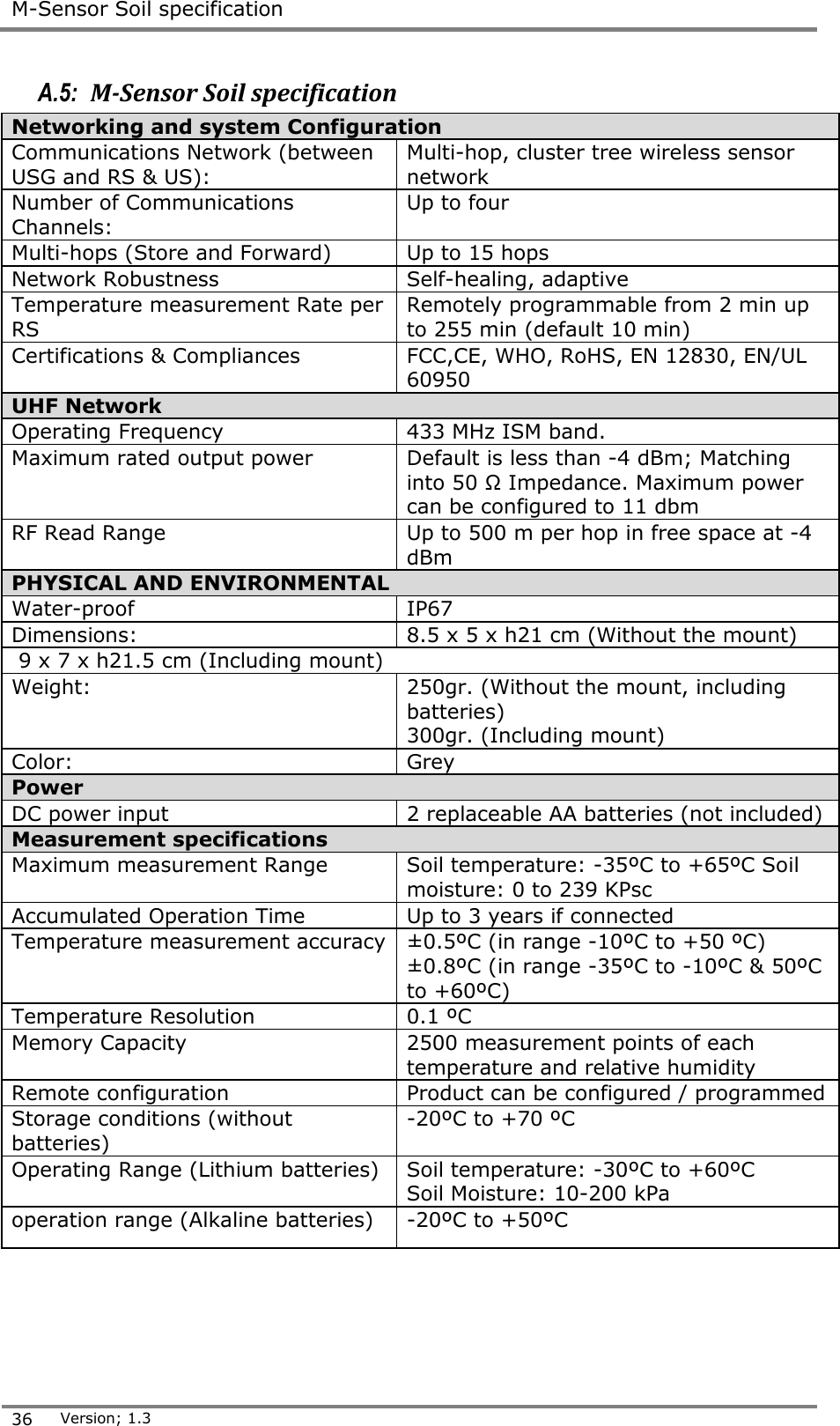
 M-Sensor Soil specification  36 Version; 1.3  A.5:  M-Sensor Soil specification  Networking and system Configuration  Communications Network (between USG and RS & US):  Multi-hop, cluster tree wireless sensor network  Number of Communications Channels:  Up to four  Multi-hops (Store and Forward)  Up to 15 hops  Network Robustness  Self-healing, adaptive  Temperature measurement Rate per RS  Remotely programmable from 2 min up to 255 min (default 10 min)  Certifications & Compliances FCC,CE, WHO, RoHS, EN 12830, EN/UL 60950  UHF Network  Operating Frequency  433 MHz ISM band.  Maximum rated output power  Default is less than -4 dBm; Matching into 50 Ω Impedance. Maximum power can be configured to 11 dbm  RF Read Range  Up to 500 m per hop in free space at -4 dBm  PHYSICAL AND ENVIRONMENTAL  Water-proof  IP67  Dimensions:  8.5 x 5 x h21 cm (Without the mount)   9 x 7 x h21.5 cm (Including mount)  Weight:  250gr. (Without the mount, including batteries)  300gr. (Including mount)  Color:  Grey  Power  DC power input  2 replaceable AA batteries (not included)  Measurement specifications  Maximum measurement Range  Soil temperature: -35ºC to +65ºC Soil moisture: 0 to 239 KPsc  Accumulated Operation Time  Up to 3 years if connected  Temperature measurement accuracy  ±0.5ºC (in range -10ºC to +50 ºC)  ±0.8ºC (in range -35ºC to -10ºC & 50ºC to +60ºC)  Temperature Resolution  0.1 ºC  Memory Capacity  2500 measurement points of each temperature and relative humidity  Remote configuration  Product can be configured / programmed  Storage conditions (without batteries)  -20ºC to +70 ºC  Operating Range (Lithium batteries)  Soil temperature: -30ºC to +60ºC  Soil Moisture: 10-200 kPa  operation range (Alkaline batteries)  -20ºC to +50ºC
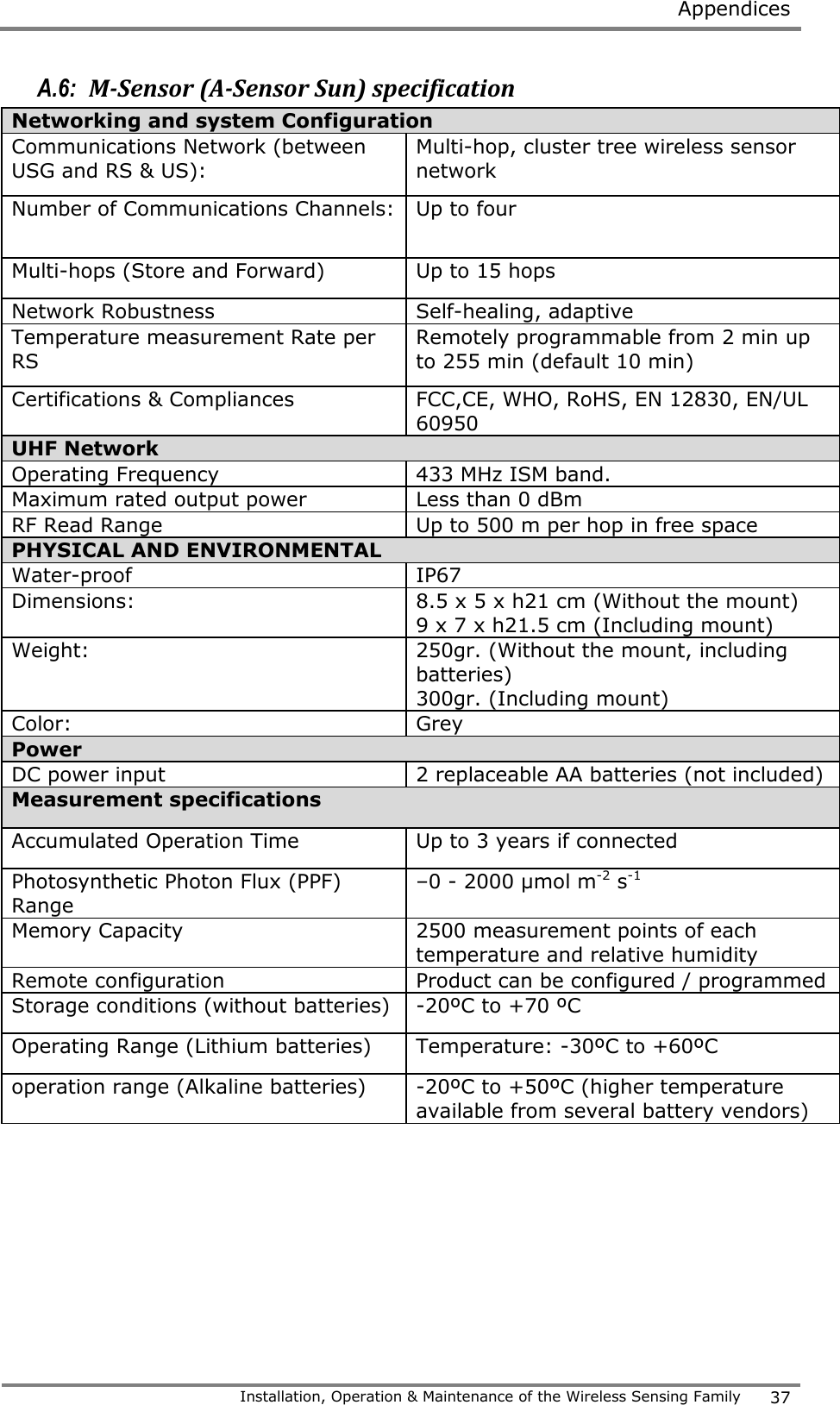
 Appendices   Installation, Operation & Maintenance of the Wireless Sensing Family 37  A.6:  M-Sensor (A-Sensor Sun) specification Networking and system Configuration  Communications Network (between USG and RS & US):  Multi-hop, cluster tree wireless sensor network  Number of Communications Channels:  Up to four  Multi-hops (Store and Forward)  Up to 15 hops  Network Robustness  Self-healing, adaptive  Temperature measurement Rate per RS  Remotely programmable from 2 min up to 255 min (default 10 min)  Certifications & Compliances FCC,CE, WHO, RoHS, EN 12830, EN/UL 60950  UHF Network  Operating Frequency  433 MHz ISM band.  Maximum rated output power  Less than 0 dBm  RF Read Range  Up to 500 m per hop in free space  PHYSICAL AND ENVIRONMENTAL  Water-proof  IP67  Dimensions:  8.5 x 5 x h21 cm (Without the mount)  9 x 7 x h21.5 cm (Including mount)  Weight:  250gr. (Without the mount, including batteries)  300gr. (Including mount)  Color:  Grey  Power  DC power input  2 replaceable AA batteries (not included)  Measurement specifications  Accumulated Operation Time  Up to 3 years if connected  Photosynthetic Photon Flux (PPF) Range  –0 - 2000 μmol m-2 s-1   Memory Capacity  2500 measurement points of each temperature and relative humidity  Remote configuration  Product can be configured / programmed  Storage conditions (without batteries)  -20ºC to +70 ºC  Operating Range (Lithium batteries)  Temperature: -30ºC to +60ºC  operation range (Alkaline batteries)  -20ºC to +50ºC (higher temperature available from several battery vendors)
 Installation assumptions  38 Version; 1.3  Appendix-B:   Ethernet USG installation and setup process The installation process installs XPORT USG at customer premises.  B.1:  Installation assumptions The installation process is based on the assumptions that:  USG is defined in the Amplia server.  Lancusrouter is running at known IP port.   Communication server is running.  There is a network with DHCP server in the site.  B.2:  Tools  The installation process and the trouble shooting require the following tools:  Laptop  Ethernet cable to connect the USG to Laptop directly.  Lantronix DeviceInstaller software installed.  ZOC terminal software6.   B.3:  Starting the installation Connect the USG to the network via the Ethernet cable and power it on. The expected sequence as reflected by the LEDs is: all LEDs are on - means that the USG is has connected to the server and after that the green LED blinks. If this is the case, the installation ends here and the activity of the USG can be monitored by the browser thru the web interface                                          6 See - http://www.emtec.com/zoc/.
 Appendices   Installation, Operation & Maintenance of the Wireless Sensing Family 39  B.4:  Trouble shooting B.4.1:  Check connectivity with the USG  Open Device Installer and search for the USG. If the USG is found the result looks like the following:  Figure 18: Device search status  o If the device is not found, connect the device by the Ethernet cable directly to the laptop and search the USG again.   If connected, then check the network, probably the laptop and the USG are not on the same network. o If not connected, check Ethernet cable and laptop network settings.
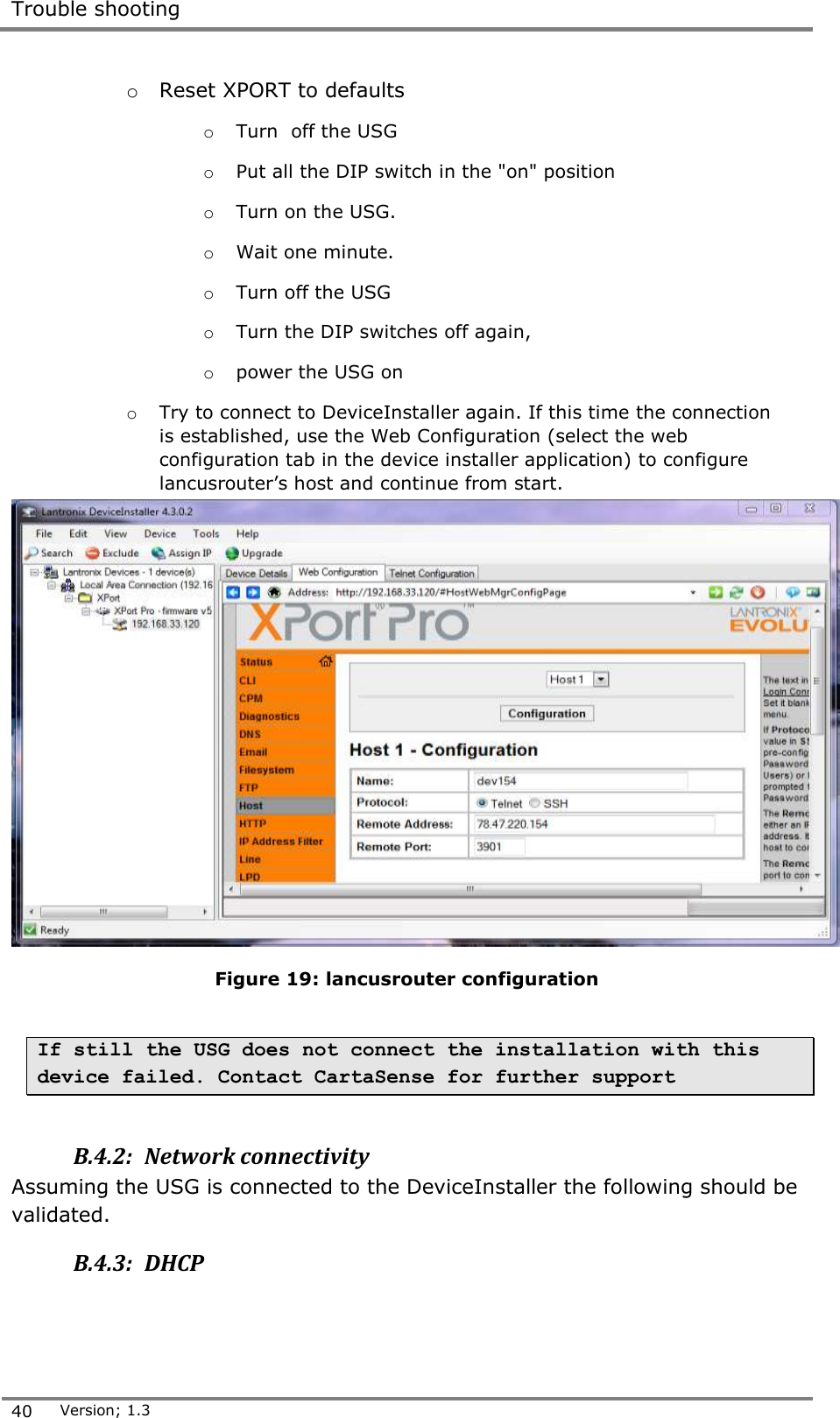
 Trouble shooting  40 Version; 1.3  o Reset XPORT to defaults o Turn  off the USG  o Put all the DIP switch in the "on" position o Turn on the USG.  o Wait one minute.   o Turn off the USG o Turn the DIP switches off again,  o power the USG on o Try to connect to DeviceInstaller again. If this time the connection is established, use the Web Configuration (select the web configuration tab in the device installer application) to configure lancusrouter’s host and continue from start.  Figure 19: lancusrouter configuration  If still the USG does not connect the installation with this device failed. Contact CartaSense for further support  B.4.2:  Network connectivity Assuming the USG is connected to the DeviceInstaller the following should be validated. B.4.3:  DHCP
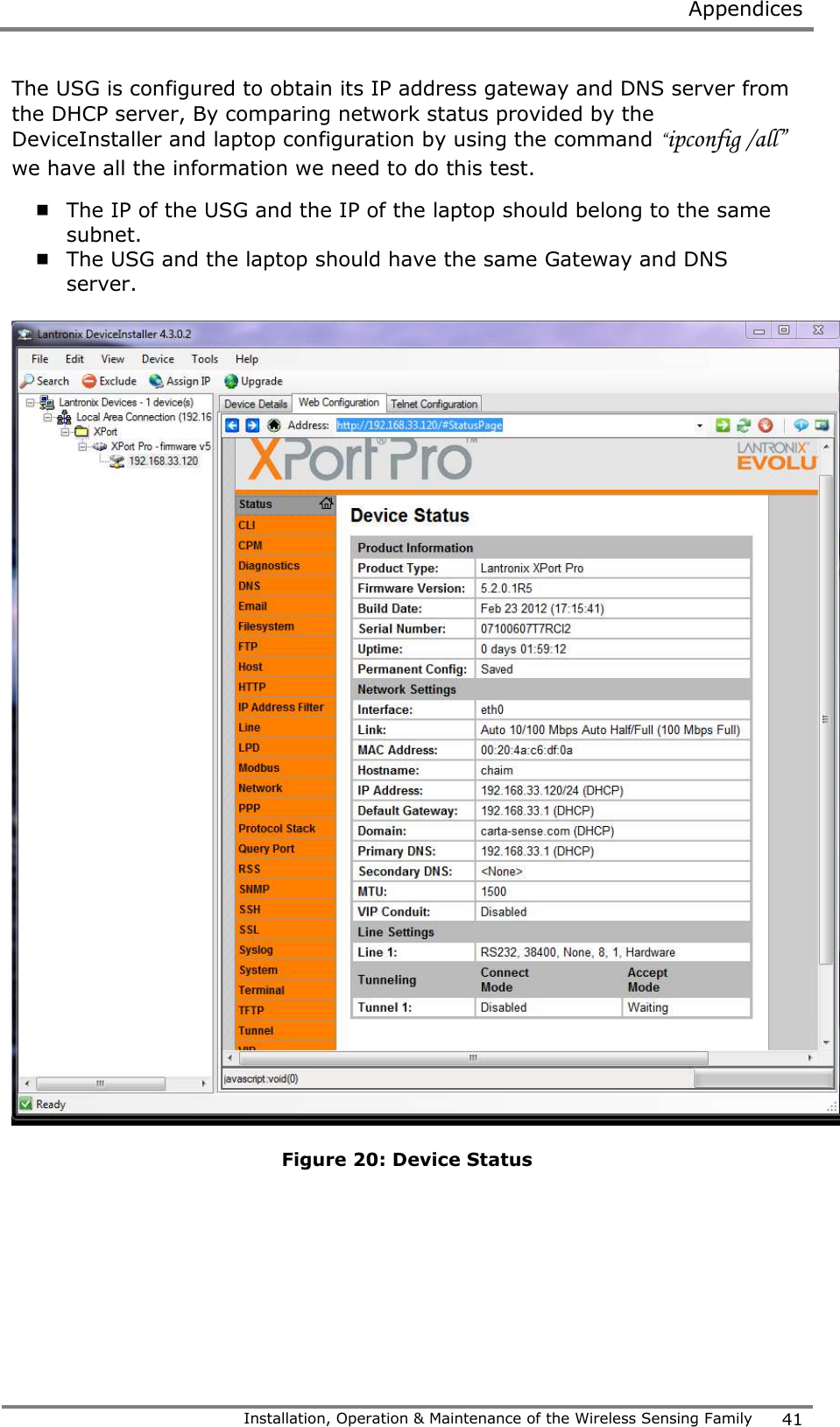
 Appendices   Installation, Operation & Maintenance of the Wireless Sensing Family 41  The USG is configured to obtain its IP address gateway and DNS server from the DHCP server, By comparing network status provided by the DeviceInstaller and laptop configuration by using the command “ipconfig /all” we have all the information we need to do this test.  The IP of the USG and the IP of the laptop should belong to the same subnet.  The USG and the laptop should have the same Gateway and DNS server.    Figure 20: Device Status
 Trouble shooting  42 Version; 1.3  Windows IP Configuration     Host Name . . . . . . . . . . . . : hbelfer-dell    Primary Dns Suffix  . . . . . . . :    Node Type . . . . . . . . . . . . : Hybrid    IP Routing Enabled. . . . . . . . : No    WINS Proxy Enabled. . . . . . . . : No     DNS Suffix Search List. . . . . . : carta-sense.com  Ethernet adapter Local Area Connection:     Connection-specific DNS Suffix  . : carta-sense.com    Description . . . . . . . . . . . : Realtek PCIe FE Family Controller    Physical Address. . . . . . . . . : 24-B6-FD-1F-0A-E8    DHCP Enabled. . . . . . . . . . . : Yes    Autoconfiguration Enabled . . . . : Yes    Link-local IPv6 Address . . . . . : fe80::4c55:30fa:f4d1:d53f%13(Preferred)    IPv4 Address. . . . . . . . . . . : 192.168.33.129(Preferred)    Subnet Mask . . . . . . . . . . . : 255.255.255.0    Lease Obtained. . . . . . . . . . : Tuesday, May 22, 2012 8:21:59 AM    Lease Expires . . . . . . . . . . : Wednesday, May 23, 2012 8:21:59 AM    Default Gateway . . . . . . . . . : 192.168.33.1    DHCP Server . . . . . . . . . . . : 192.168.33.1    DHCPv6 IAID . . . . . . . . . . . : 287618813    DHCPv6 Client DUID. . . . . . . . : 00-01-00-01-16-D0-EB-20-24-B6-FD-1F-0A-E8    DNS Servers . . . . . . . . . . . : 192.168.33.1    Primary WINS Server . . . . . . . : 192.168.33.1    NetBIOS over Tcpip. . . . . . . . : Enabled  Figure 21: Windows IP configuration  In case the DHCP failed to allocate network parameters correctly, static configuration is required. B.4.4:  Static configuration To configure static IP do the following steps: o Select manually IP address which is not owned by any host.  o Select gateway DNS server and subnet mask similar to “ipconfig /all” o Select Assign IP by the DeviceInstaller. o Select “Assign a specific IP address” o Select Next and fill IP address,Subnet mask and Default gateway. o Select  Next and Assign .  Now reboot the USG and see if it connects.
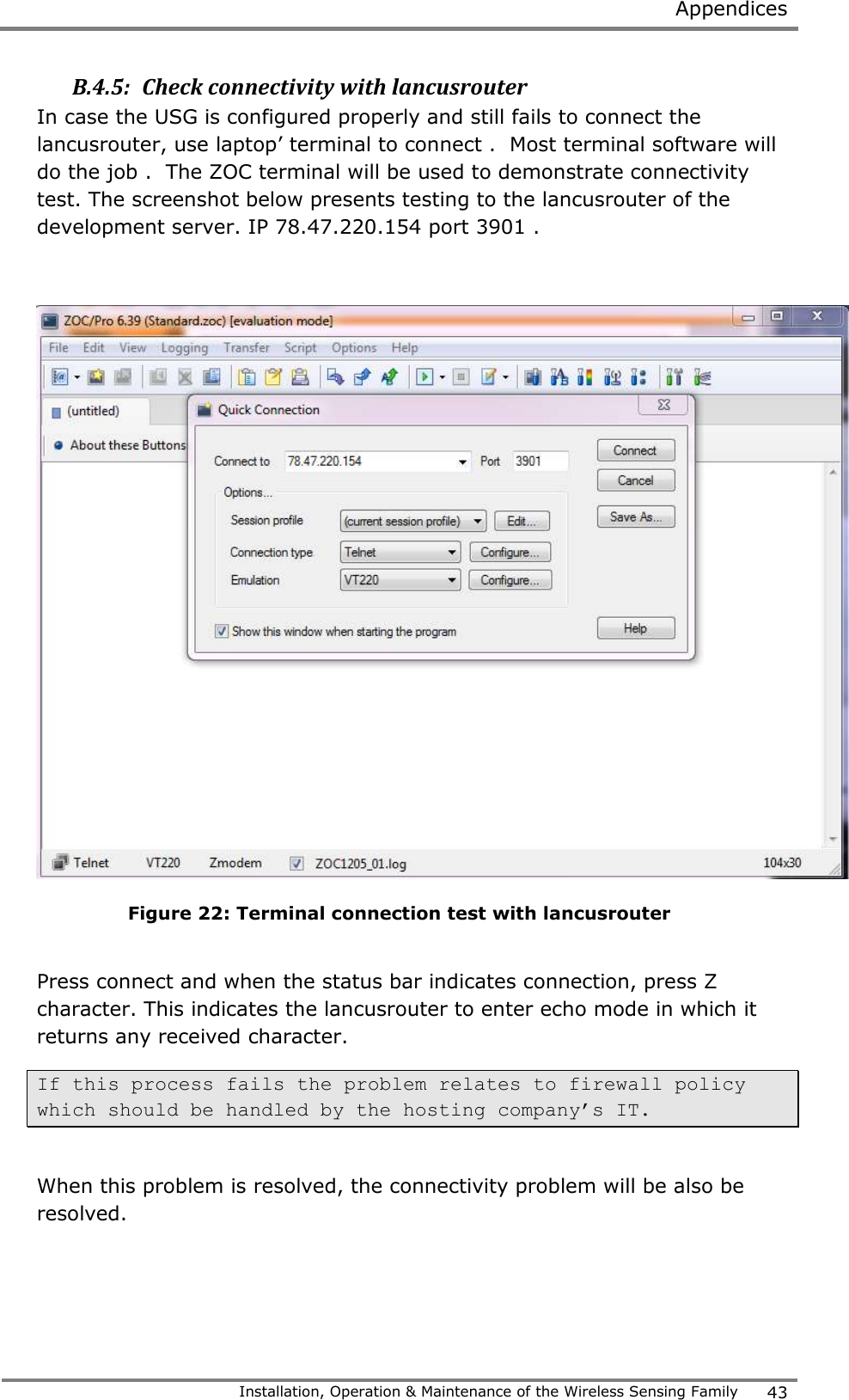
 Appendices   Installation, Operation & Maintenance of the Wireless Sensing Family 43  B.4.5:  Check connectivity with lancusrouter In case the USG is configured properly and still fails to connect the lancusrouter, use laptop’ terminal to connect .  Most terminal software will do the job .  The ZOC terminal will be used to demonstrate connectivity test. The screenshot below presents testing to the lancusrouter of the development server. IP 78.47.220.154 port 3901 .   Figure 22: Terminal connection test with lancusrouter  Press connect and when the status bar indicates connection, press Z character. This indicates the lancusrouter to enter echo mode in which it returns any received character.  If this process fails the problem relates to firewall policy which should be handled by the hosting company’s IT.   When this problem is resolved, the connectivity problem will be also be resolved.
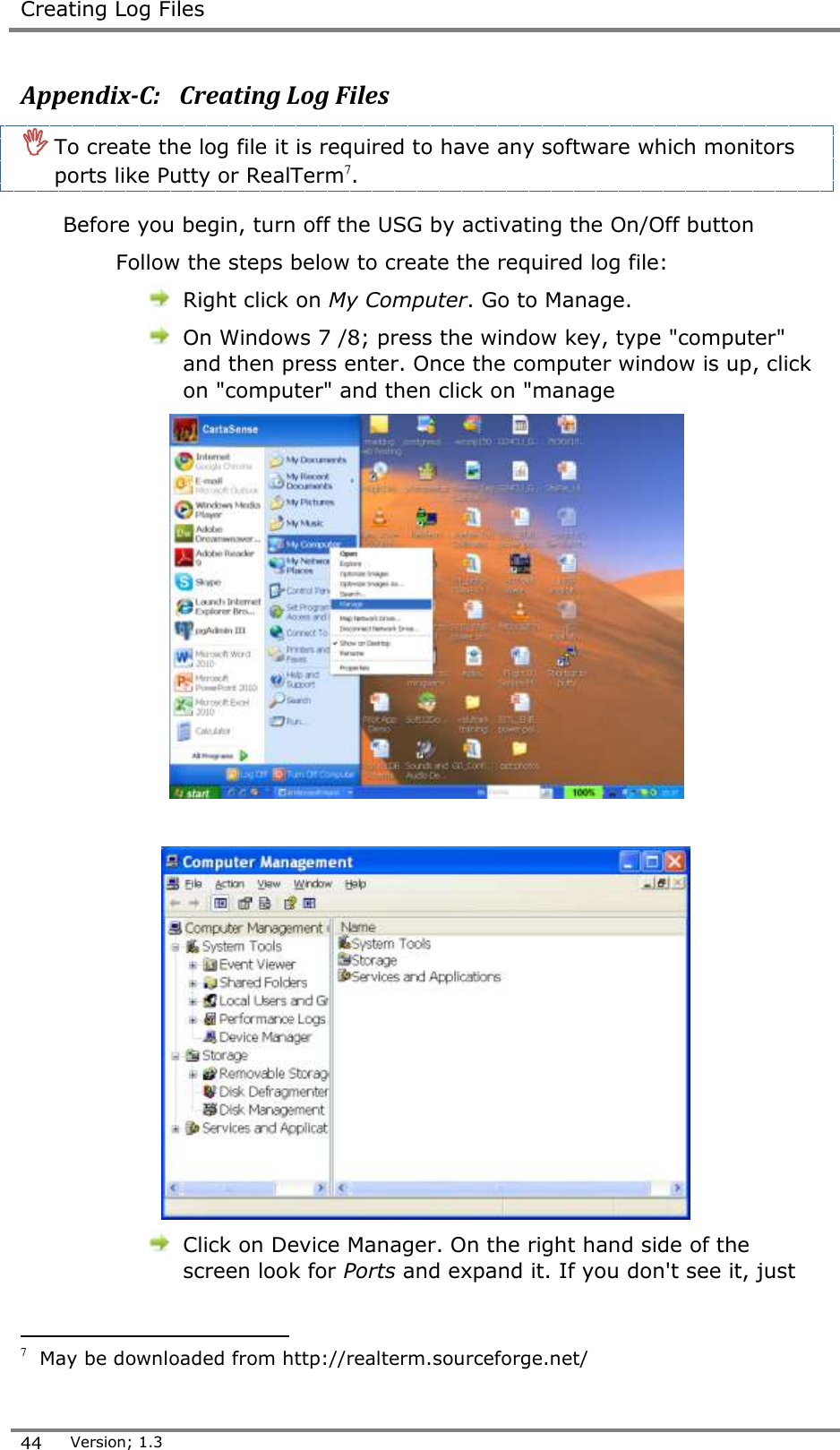
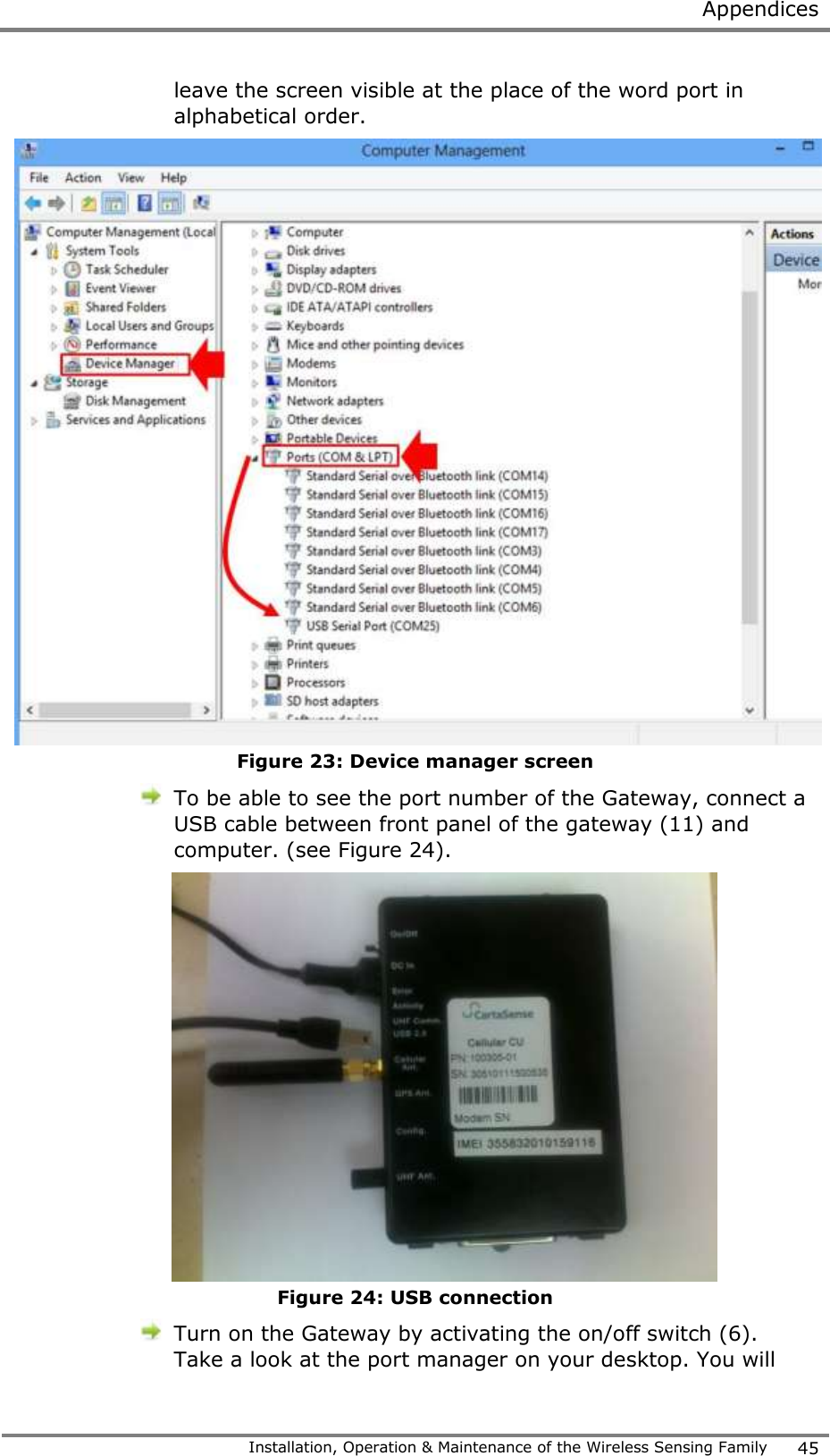
 Creating Log Files  44 Version; 1.3  Appendix-C:   Creating Log Files  To create the log file it is required to have any software which monitors ports like Putty or RealTerm7.   Before you begin, turn off the USG by activating the On/Off button Follow the steps below to create the required log file:  Right click on My Computer. Go to Manage.  On Windows 7 /8; press the window key, type "computer" and then press enter. Once the computer window is up, click on "computer" and then click on "manage     Click on Device Manager. On the right hand side of the screen look for Ports and expand it. If you don't see it, just                                        7  May be downloaded from http://realterm.sourceforge.net/
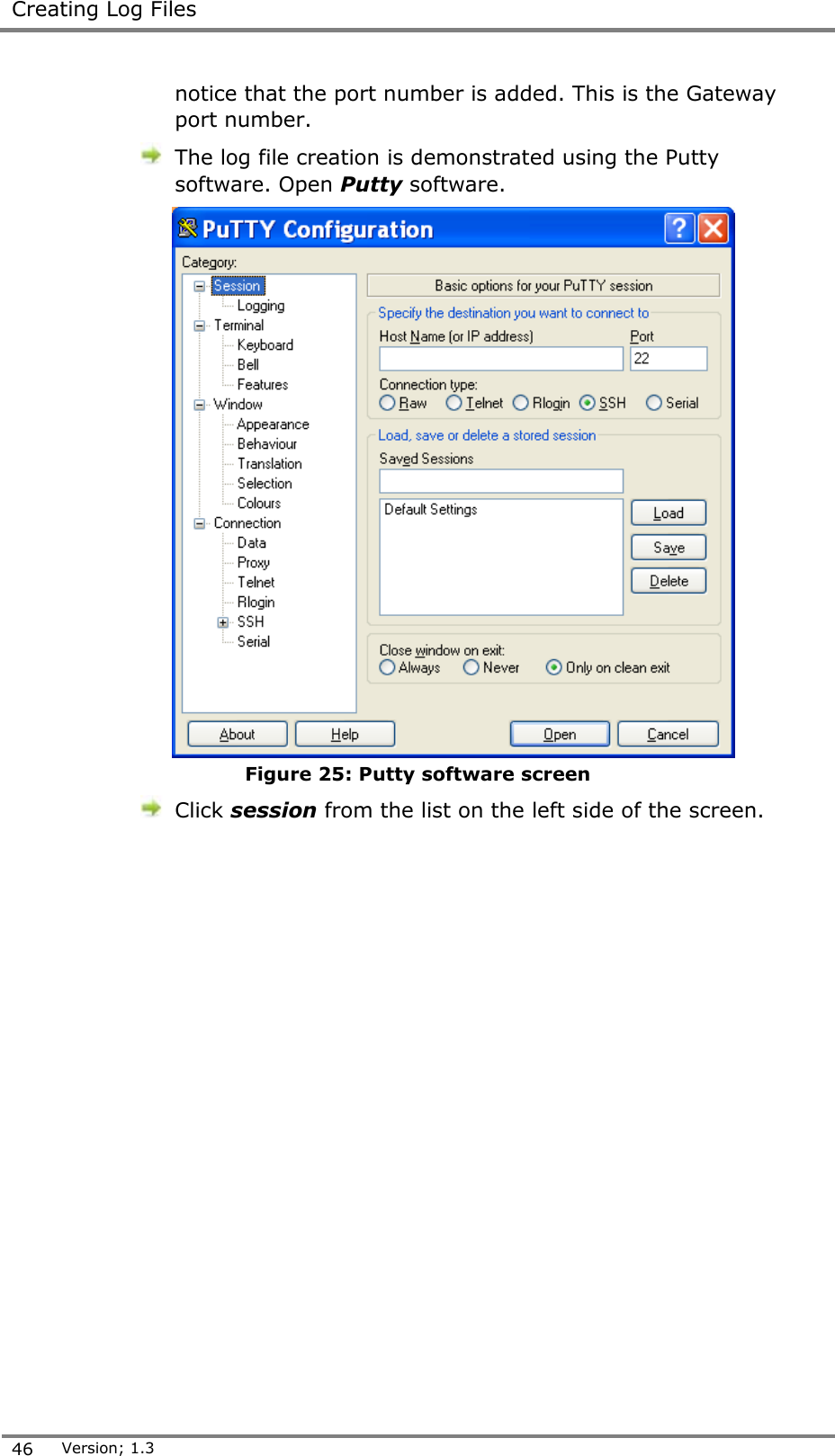
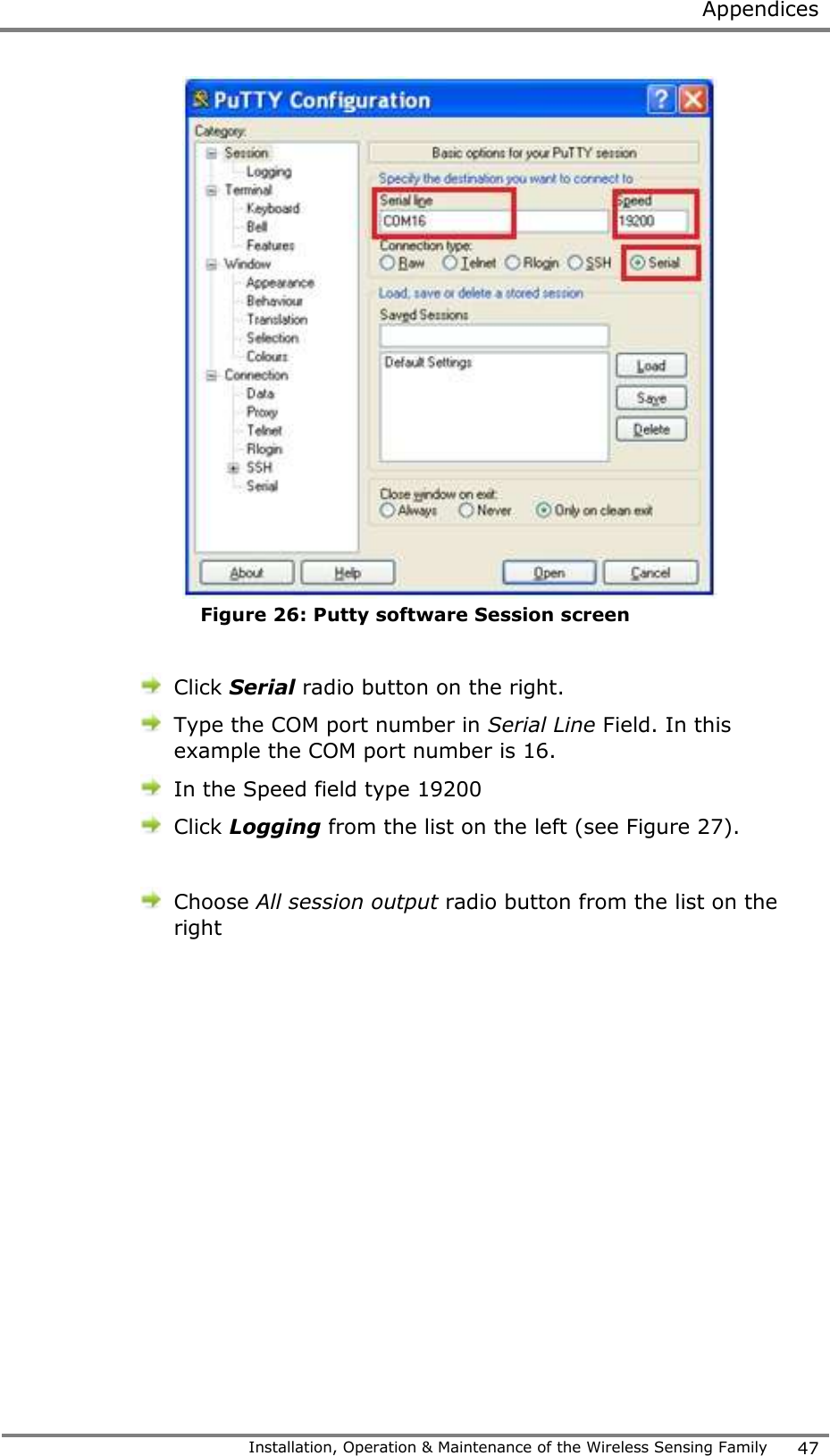
 Appendices   Installation, Operation & Maintenance of the Wireless Sensing Family 45  leave the screen visible at the place of the word port in alphabetical order.  Figure 23: Device manager screen  To be able to see the port number of the Gateway, connect a USB cable between front panel of the gateway (11) and computer. (see Figure 24).  Figure 24: USB connection  Turn on the Gateway by activating the on/off switch (6). Take a look at the port manager on your desktop. You will
 Creating Log Files  46 Version; 1.3  notice that the port number is added. This is the Gateway port number.  The log file creation is demonstrated using the Putty software. Open Putty software.  Figure 25: Putty software screen  Click session from the list on the left side of the screen.
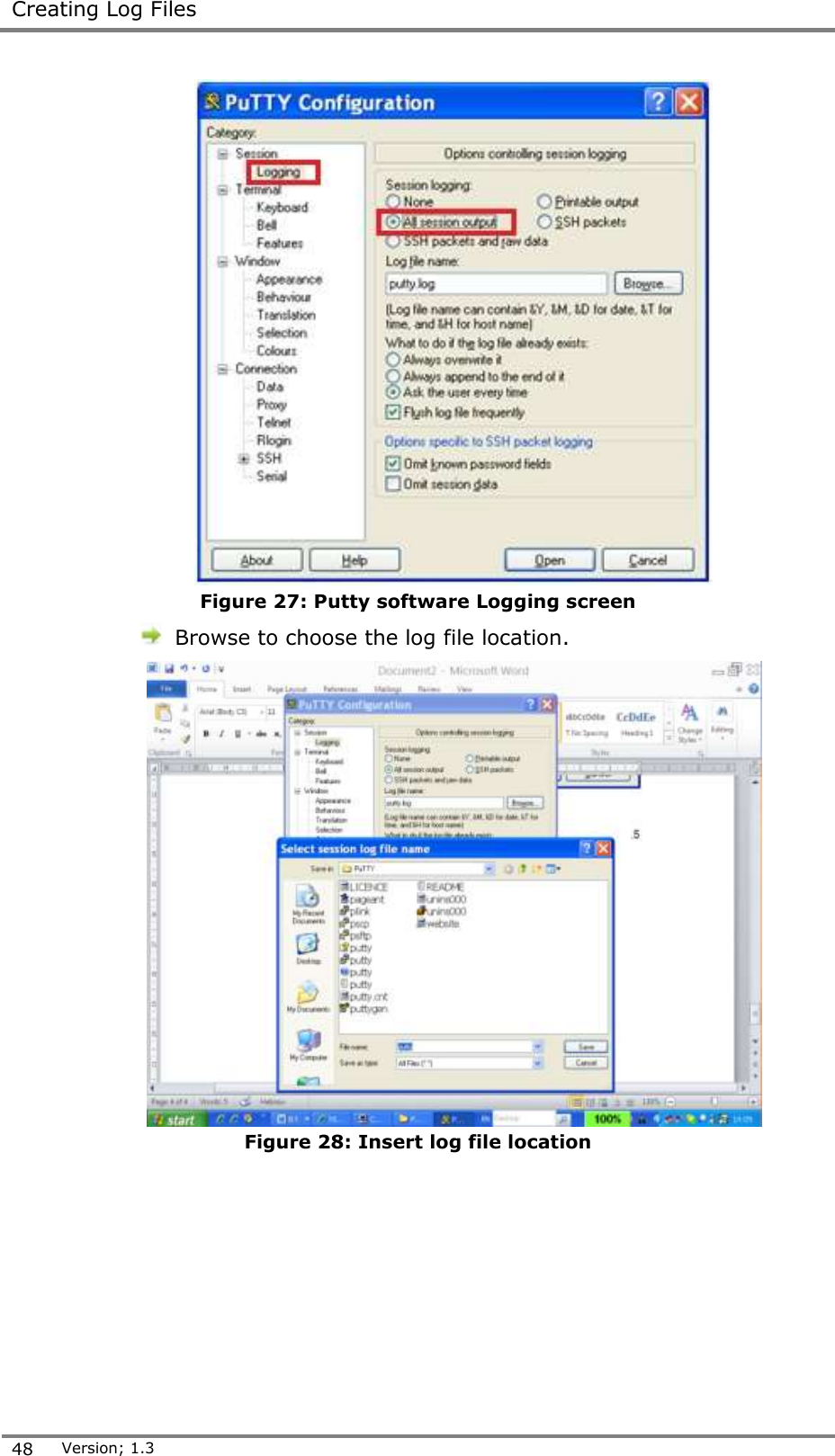
 Appendices   Installation, Operation & Maintenance of the Wireless Sensing Family 47   Figure 26: Putty software Session screen   Click Serial radio button on the right.   Type the COM port number in Serial Line Field. In this example the COM port number is 16.  In the Speed field type 19200  Click Logging from the list on the left (see Figure 27).   Choose All session output radio button from the list on the right
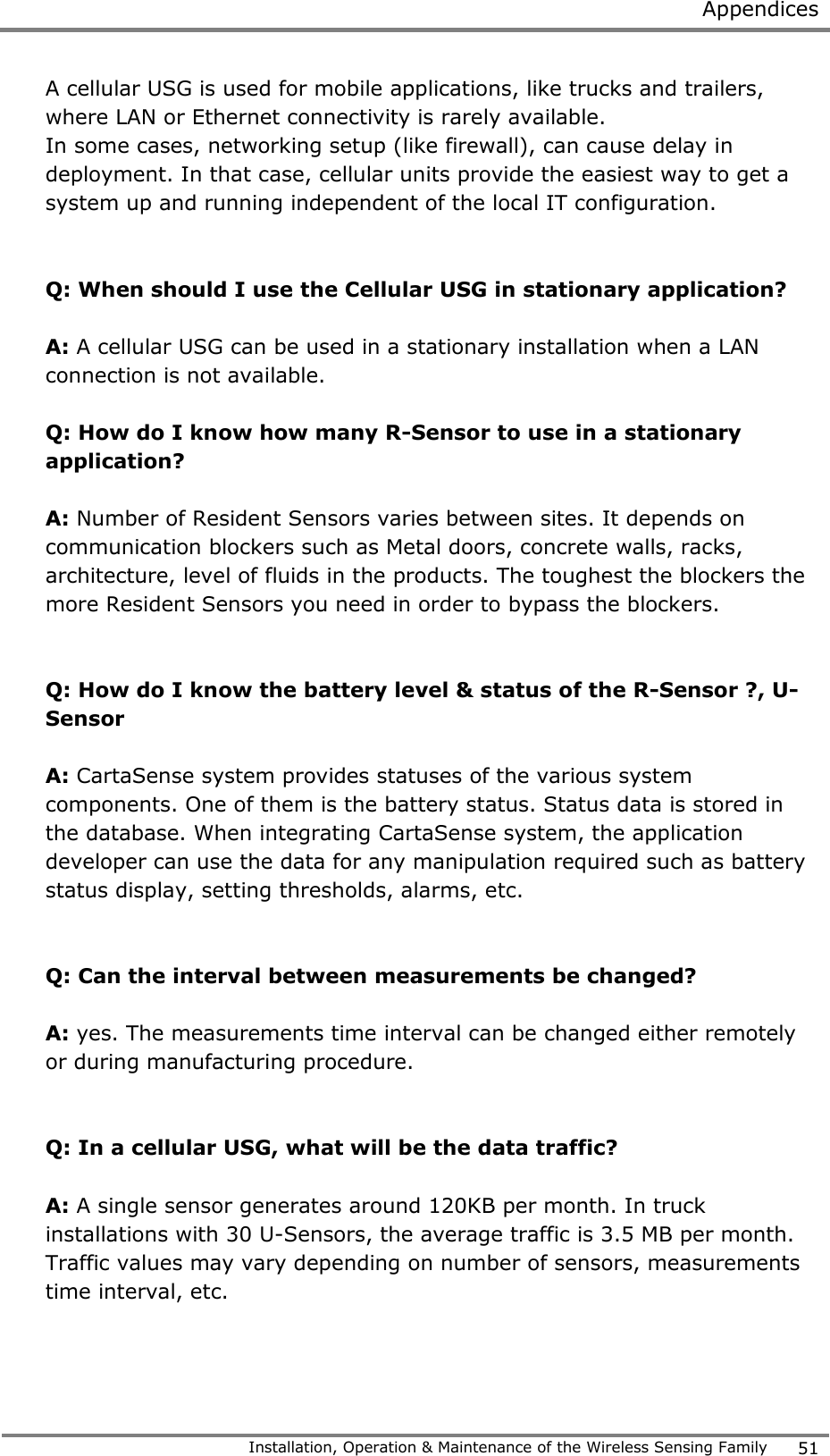
 Creating Log Files  48 Version; 1.3   Figure 27: Putty software Logging screen  Browse to choose the log file location.  Figure 28: Insert log file location
 Appendices   Installation, Operation & Maintenance of the Wireless Sensing Family 49   Figure 29: Opening log data   Click Open button from the bottom of the screen. A black window opens. The log data appear on the screen, but also saved to a file. Search for the file name you created in the place you chose to store it.   Figure 30: Opening log file  This log file should be sent to CartaSense support team
 FAQ  50 Version; 1.3   Appendix-D:   FAQ  Q: What are the differences between U-Sensor and R-Sensor?  A: U-Sensors  U-Sensors are used on each pallet to monitor the product itself. U-Sensors are disposable. The life time of a U-sensor is up to 160 days (at 0ºC).   Resident Sensors Resident Sensors are used for environmental monitoring and as repeaters to boost UGS reception.  Resident  Sensors  are  multiuse.  Each  resident  Sensor  holds  two  AAA batteries which can be replaced. The life time of a Resident Sensor  is up to one year.    Q: When should I use R-Sensor?  A: Resident Sensors are used when:  An environmental monitoring is required.  The area that needs to be covered has blockers. In this case Resident Sensors can be used as repeaters to boost UGS reception.   Q: What happens to the measurements when a USG is not available and sensors are active?  A: As long as there is no connection with a gateway, all data measured by the Wireless Sensors is stored in each sensor's memory. Once the sensors identify a gateway to connect to, all data is transmitted to the gateway.   Q: Can I get an Ethernet USG with GPS option?  A: The GPS option is available only for cellular USG units.  Q: How do I decide if to use Ethernet USG or Cellular USG in my application?  A:  Ethernet USG is used when there is a stationary installation and the USG is not mobile (like in a warehouse) and a LAN connection is available in the monitored site.
 Appendices   Installation, Operation & Maintenance of the Wireless Sensing Family 51  A cellular USG is used for mobile applications, like trucks and trailers, where LAN or Ethernet connectivity is rarely available. In some cases, networking setup (like firewall), can cause delay in deployment. In that case, cellular units provide the easiest way to get a system up and running independent of the local IT configuration.      Q: When should I use the Cellular USG in stationary application?  A: A cellular USG can be used in a stationary installation when a LAN connection is not available.  Q: How do I know how many R-Sensor to use in a stationary application?  A: Number of Resident Sensors varies between sites. It depends on communication blockers such as Metal doors, concrete walls, racks, architecture, level of fluids in the products. The toughest the blockers the more Resident Sensors you need in order to bypass the blockers.   Q: How do I know the battery level & status of the R-Sensor ?, U-Sensor  A: CartaSense system provides statuses of the various system components. One of them is the battery status. Status data is stored in the database. When integrating CartaSense system, the application developer can use the data for any manipulation required such as battery status display, setting thresholds, alarms, etc.   Q: Can the interval between measurements be changed?  A: yes. The measurements time interval can be changed either remotely or during manufacturing procedure.   Q: In a cellular USG, what will be the data traffic?  A: A single sensor generates around 120KB per month. In truck installations with 30 U-Sensors, the average traffic is 3.5 MB per month. Traffic values may vary depending on number of sensors, measurements time interval, etc.
 FAQ  52 Version; 1.3  Q: Does CartaSense offer its own SIM for the cellular USG?  A: Yes. CartaSense offers a SIM card (optional). The user will be charged on a monthly basis.   Q: How do I decide what SIM company to choose?  A: The cellular data market is highly developed and there are offerings from operators and specialized MVNOs and dealers. Specifically, based on the application (static / roaming) the best deal should be sought. It is recommended to purchase a bulk of data and that will be divided among the SIM cards upon use.    Q: Looks like GPS information is not accurate, what can be the cause?  A: It might be a problem with the antenna reception. It is required to make sure that the antenna is located in a place which has an outside connection. Sometimes the antenna might be located in a place with no reception, such as a tunnel or underground parking. There are areas where GPS satellites are not availability.   Q: Can I program the mode of connecting the cellular USG to the network? (Default is always on)   A: Yes. Cellular connection might be either always on (this is the default) or open each time the system  transmits data and then close the connection.
 Appendices   Installation, Operation & Maintenance of the Wireless Sensing Family 53   Appendix-E:  Regulatory notices FCC / Industry Canada This device complies with FCC Rules Part 15 and with Industry Canada license-exempt RSS standard(s). Operation is subject to two conditions: (1) This device may not cause harmful interference, and (2) this device must accept any interference that may be received or that may cause undesired operation.  Industry Canada Le présent appareil est conforme aux CNR d'Industrie Canada applicables aux appareils radio exempts de licence. L'exploitation est autorisée aux deux conditions suivantes : (1) l'appareil ne doit pas produire de brouillage, et (2) l'utilisateur de l'appareil doit accepter tout brouillage radioélectrique subi, même si le brouillage est susceptible d'en compromettre le fonctionnement.   Class B digital device NOTE:    This equipment has been tested and found to comply with the limits for a Class B digital device, pursuant to part 15 of the FCC Rules. These limits are designed to provide reasonable protection against harmful interference in a residential installation. This equipment generates uses and can radiate radio frequency energy and, if not installed and used in accordance with the instructions, may cause harmful interference to radio communications. However, there is no guarantee that interference will not occur in a particular installation. If this equipment does cause harmful interference to radio or television reception, which can be determined by turning the equipment off and on, the user is encouraged to try to correct the interference by one or more of the following measures:  -Reorient or relocate the receiving antenna. -Increase the separation between the equipment and receiver. -Connect the equipment into an outlet on a circuit different from that to which the receiver is connected. -Consult the dealer or an experienced radio/TV technician for help.
 Regulatory notices  54 Version; 1.3  Changes or modifications to this equipment not expressly approved by the party responsible for compliance (CartaSense Ltd.) could void the user’s authority to operate the equipment.

Navigation menu