Casio Keyboard Px 320 Users Manual PX320_e
Px-320-01-E px-320-01-e
keyboard PX-320 px_320_01_e
PX-320 to the manual 0ffa3003-5575-8384-b13c-667177b2ea0f
PX320 PX320_EN PX-320 | Electronic Musical Instruments | Manuals | CASIO
2015-01-21
: Casio Casio-Keyboard-Px-320-Users-Manual-243453 casio-keyboard-px-320-users-manual-243453 casio pdf
Open the PDF directly: View PDF  .
.
Page Count: 62
PX320ES1A
ES
USER’S GUIDE
GUÍA DEL USUARIO
Please keep all information for future reference.
Guarde toda documentación para futuras consultas.
Safety Precautions
Before trying to use the piano, be sure to read
the separate “Safety Precautions”.
Precauciones de seguridad
Antes de intentar usar el piano, asegúrese de
leer las “Precauciones de seguridad” separadas.
TO REDUCE THE RISK OF FIRE OR ELECTRIC SHOCK, REFER SERVICING TO QUALIFIED SERVICE PERSONNEL.
Important!
Please note the following important information before using this product.
• Before using the AD-12 Adaptor to power the product, be sure to check the AC Adaptor for any damage first. Carefully check the power cord
for breakage, cuts, exposed wire and other serious damage. Never let children use an AC adaptor that is seriously damaged.
• The product is not intended for children under 3 years.
• Use only CASIO AD-12 adaptor.
• The AC adaptor is not a toy.
• Be sure to disconnect the AC adaptor before cleaning the product.
IMPORTANT SAFETY INSTRUCTIONS
1. Read these instructions.
2. Keep these instructions.
3. Heed all warnings.
4. Follow all instructions.
5. Do not use this apparatus near water.
6. Clean only with dry cloth.
7. Do not block any ventilation openings. Install in accordance with the manufacturer’s instructions.
8. Do not install near any heat sources such as radiators, heat registers, stoves, or other apparatus (including amplifiers) that produce heat.
9. Do not defeat the safety purpose of the polarized or grounding-type plug. A polarized plug has two blades with one wider than the other.
A grounding type plug has two blades and a third grounding prong. The wide blade or the third prong are provided for your safety. If the
provided plug does not fit into your outlet, consult an electrician for replacement of the obsolete outlet.
10. Protect the power cord from being walked on or pinched particularly at plugs, convenience receptacles, and the point where they exit
from the apparatus.
11. Only use attachments/accessories specified by the manufacturer.
12. Use only with the cart, stand, tripod, bracket, or table specified by the manufacturer, or sold with the
apparatus. When a cart is used, use caution when moving the cart/apparatus combination to avoid injury
from tip-over.
13. Unplug this apparatus during lightning storms or when unused for long periods of time.
14. Refer all servicing to qualified service personnel. Servicing is required when the apparatus has been damaged in any way, such as
power-supply cord or plug is damaged, liquid has been spilled or objects have fallen into the apparatus, the apparatus has been
exposed to rain or moisture, does not operate normally, or has been dropped.
The apparatus shall not be exposed to dripping or splashing and that no objects filled with liquids, such as vases, shall be placed on the apparatus.
The power indicator being unlit does not mean the apparatus is completely disconnected from the MAINS.
When you need to have the apparatus completely disconnected from the MAINS, you must unplug the power cord. For that purpose, locate
the apparatus in a way that secures easy access to the power cord.
Declaration of Conformity
Model Number: PX-320
Trade Name: CASIO COMPUTER CO., LTD.
Responsible party: CASIO AMERICA, INC.
Address: 570 MT. PLEASANT AVENUE, DOVER, NEW JERSEY 07801
Telephone number: 973-361-5400
This device complies with Part 15 of the FCC Rules, Operation is subject to the following two conditions:
(1) This device may not cause harmful interference, and (2) this device must accept any interference received, including interference that
may cause undesired operation.
NOTICE
This equipment has been tested and found to comply with the limits for a Class B digital device, pursuant to Part 15 of the FCC Rules.
These limits are designed to provide reasonable protection against harmful interference in a residential installation. This equipment
generates, uses and can radiate radio frequency energy and, if not installed and used in accordance with the instructions, may cause
harmful interference to radio communications. However, there is no guarantee that interference will not occur in a particular installation. If
this equipment does cause harmful interference to radio or television reception, which can be determined by turning the equipment off and
on, the user is encouraged to try to correct the interference by one or more of the following measures:
• Reorient or relocate the receiving antenna.
• Increase the separation between the equipment and receiver.
• Connect the equipment into an outlet on a circuit different from that to which the receiver is connected.
• Consult the dealer or an experienced radio/TV technician for help.
FCC WARNING
Changes or modifications not expressly approved by the party responsible for compliance could void the user’s authority to operate the
equipment.
Manufacturer:
CASIO COMPUTER CO.,LTD.
6-2, Hon-machi 1-chome, Shibuya-ku, Tokyo 151-8543, Japan
Responsible within the European Union:
CASIO EUROPE GmbH
Bornbarch 10, 22848 Norderstedt, Germany
This mark applies in EU countries only.

E-1
Contents
General Guide...........................E-2
Installing the Music Stand........................................... E-3
TONE, Area Buttons (1 through 12) ........................... E-4
Using the T/NO and S/YES Buttons......................... E-5
Saving Settings and Using Operation Lock ................ E-5
Returning the Digital Piano to Its Factory
Default Settings .......................................................... E-5
Power Outlet .............................E-6
Using an AC Adaptor .................................................. E-6
Connections.............................. E-7
Connecting Headphones ............................................ E-7
Connecting a Pedal .................................................... E-7
Connecting Audio Equipment or an Amplifier ............. E-8
Selecting and
Playing a Tone........................E-10
To select a refined tone ............................................ E-10
To select a VARIOUS tone, GM tone, or drum set ... E-11
To adjust the brilliance of a tone............................... E-11
Layering Two Tones ................................................. E-12
Splitting the Keyboard between Two Tones ............. E-12
Using Effects............................................................. E-13
Using the Metronome ............................................... E-14
Playing a Piano Duet ................................................ E-15
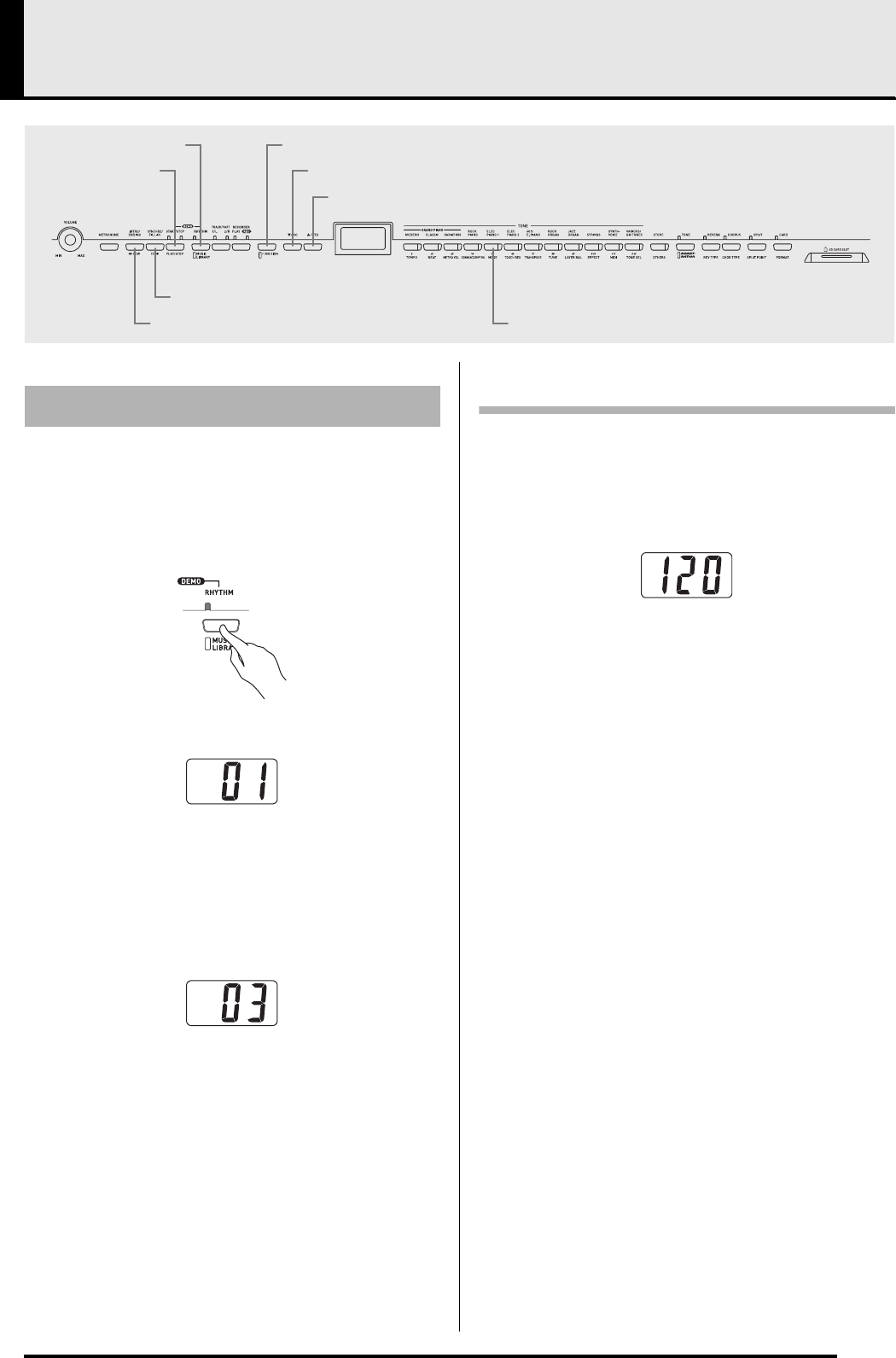
Playing a Rhythm ...................E-17
Selecting a Rhythm................................................... E-17
Using Auto Accompaniment ..................................... E-18
Playing Back Built-in
Songs ......................................E-22
Playing Back All of the Built-in Songs....................... E-22
Playing Back a Specific Music Library Song............. E-23
Practicing with a Music Library Song........................ E-24
Saving Digital Piano Setups
(Registration Memory) ...........E-25
To store a setup in registration memory ................... E-26
To recall a setup from registration memory .............. E-27
Recording and Play Back ......E-28
Songs and Tracks..................................................... E-28
Recording Your Keyboard Play ................................ E-29
To play back from digital piano memory................... E-31
To delete a specific track.......................................... E-31
Other Settings.........................E-32
To configure other settings........................................E-32
Secondary Parameter Reference..............................E-34
Connecting to a Computer ....E-38
Connecting to the MIDI Terminal ..............................E-38
Connecting to the USB Port......................................E-38
USB Mode and MIDI Mode .......................................E-39
Expanding the Selections in the Music Library .........E-40
Using an SD Memory Card ....E-41
Inserting and Removing an SD Memory Card ..........E-42
Formatting an SD Memory Card ...............................E-43
Saving Recorded/Registration Data to an
SD Memory Card ......................................................E-43
Transferring Data from an SD Memory Card to
Digital Piano Memory................................................E-45
Playing Back a File Stored on an
SD Memory Card ......................................................E-47
SD Memory Card Errors............................................E-48
Reference ................................E-49
Troubleshooting ........................................................E-49
Product Specifications............................................... E-51
Operating Precautions ..............................................E-52
Appendix ...................................A-1
Tone List .....................................................................A-1
Drum Assignment List.................................................A-3
Rhythm List .................................................................A-4
Song List ..................................................................... A-5
Fingered Chord Chart .................................................A-6
MIDI Implementation Chart
Company and product names used in this
manual may be registered trademarks of others.
PX320_e.book 1 ページ 2007年8月1日 水曜日 午前9時28分
E-2
General Guide
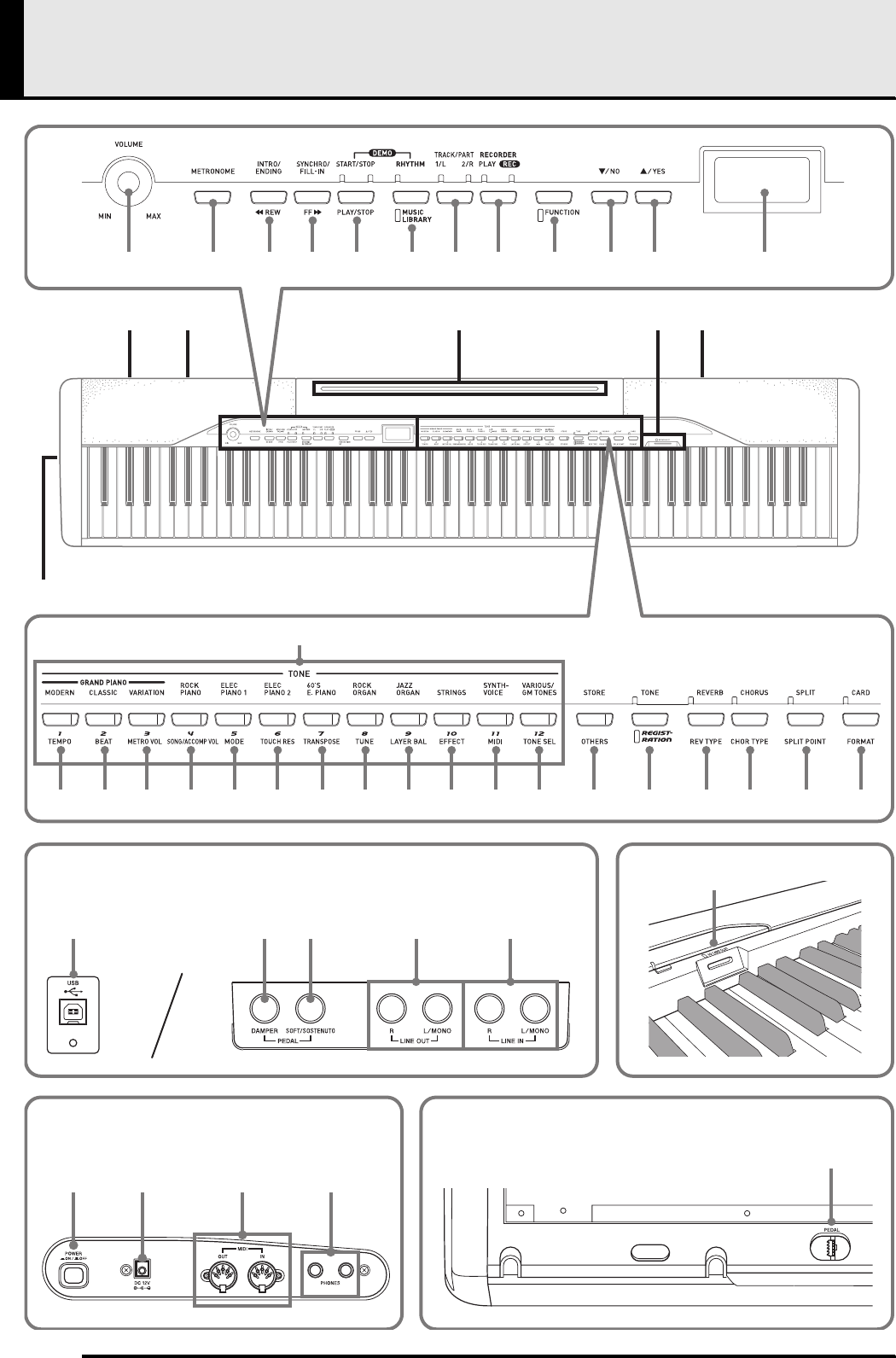
∗4
∗3
∗1-1∗1-2 ∗2∗5
ds
bn
dt ek el
123 4 5 6 7 8 9 bk bl bm
bo bp bq br bs bt ck cl cm cn co cp cq cr cs ct dk dl
dn dodm
em
dp
dr
dq
*3
Left Side
*1-1
Back left *2
*4
Bottom
*1-2
Back right
PX320_e.book 2 ページ 2007年8月1日 水曜日 午前9時28分
General Guide
E-3
NOTE
• The names shown here are always indicated in bold when they appear within the text of this manual.
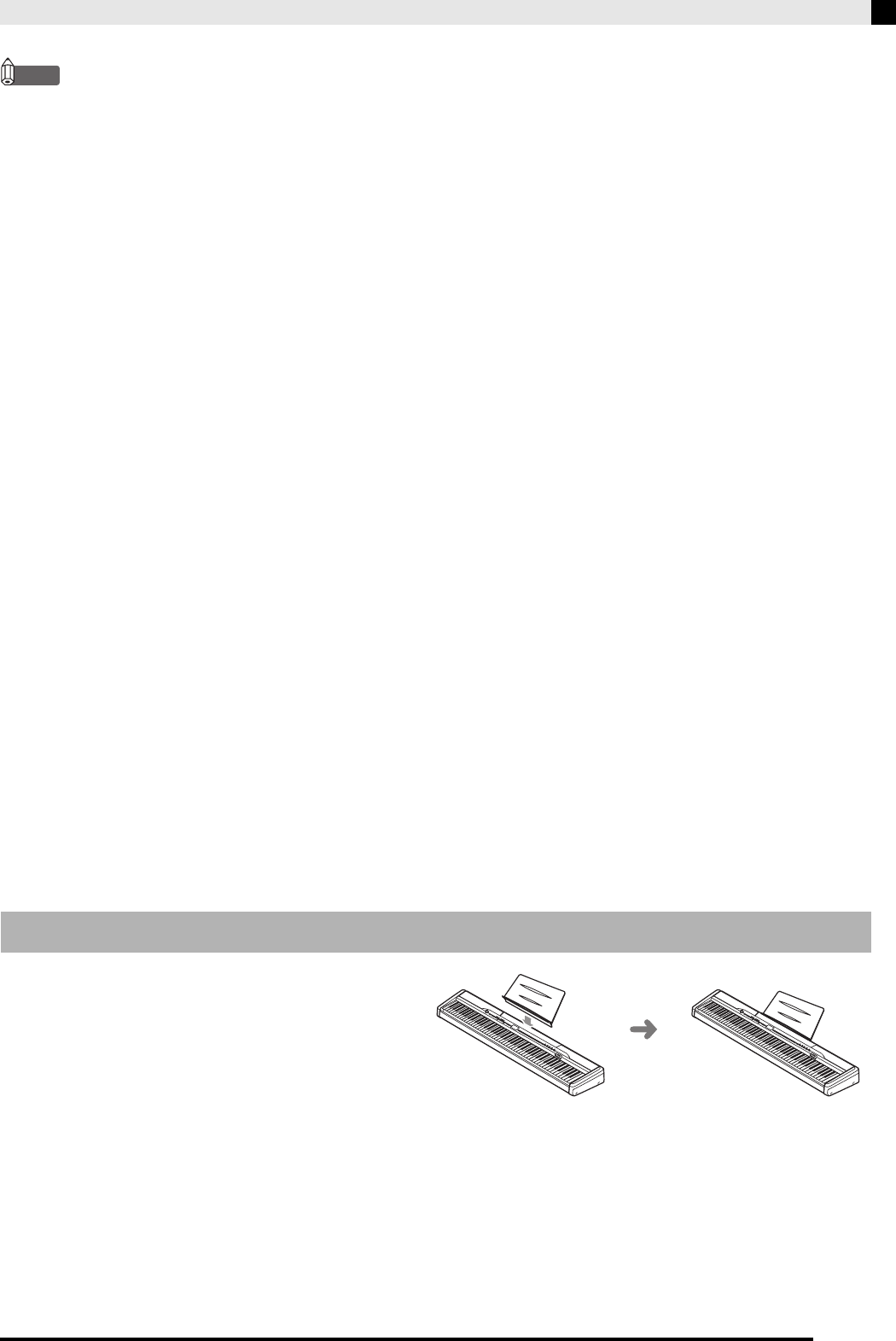
Insert the bottom of the music stand into the
groove on the top of the digital piano’s
console.
1VOLUME controller
2METRONOME button
3INTRO/ENDING, WWREW button
4SYNCHRO/FILL-IN, FFXX button
5START/STOP, PLAY/STOP button
6RHYTHM, MUSIC LIBRARY button
7TRACK/PART button
8RECORDER button
9FUNCTION button
bk T/NO button
bl S/YES button
bm Display
bn TONE, Area buttons (1 through 12)
bo TEMPO button
bp BEAT button
bq METRO VOL button
br SONG/ACCOMP VOL button
bs MODE button
bt TOUCH RES button
ck TRANSPOSE button
cl TUNE button
cm LAYER BAL button
cn EFFECT button
co MIDI button
cp TONE SEL button
cq STORE, OTHERS button
cr TONE/REGISTRATION button
cs REVERB, REV TYPE button
ct CHORUS, CHOR TYPE button
dk SPLIT, SPLIT POINT button
dl CARD, FORMAT button
dm USB port
dn DAMPER PEDAL jack
do SOFT/SOSTENUTO PEDAL jack
dp LINE OUT R, L/MONO jacks
dq LINE IN R, L/MONO jacks
dr SD memory card slot
ds POWER button
dt DC 12V terminal
ek MIDI OUT/IN terminals
el PHONES jack
em Pedal connector
*5 Installing the Music Stand
PX320_e.book 3 ページ 2007年8月1日 水曜日 午前9時28分
E-4
General Guide
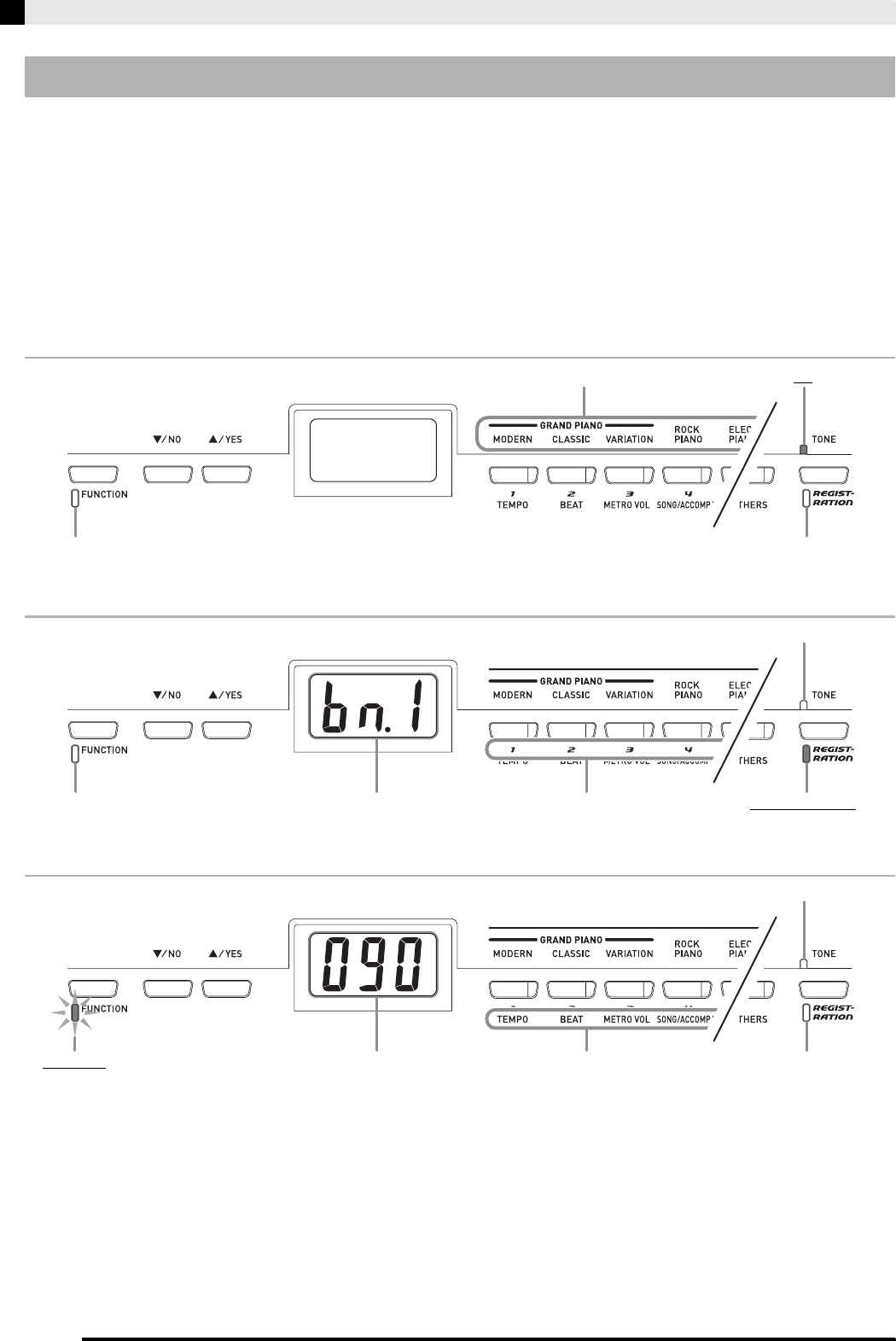
The following three functions are assigned the digital piano’s 12 TONE, Area buttons, depending upon the type of
operation you are performing.
•Tone selection (TONE buttons) (page E-10)
• Registration area selection (Area buttons) (page E-25)
• Other functions (Marked below each button.) (page E-34)
You can find out which function is currently assigned to the TONE, Area buttons by looking at the display contents
and the status of each button’s lamp.
Tone Selection
Registration Area Selection
Other Settings
TONE, Area Buttons (1 through 12)
Tone names
Unlit
Lit
Unlit
Area numbers
Unlit
Unlit
Bank number Lit or Flashing
Setting names Unlit
Unlit
Setting
Flashing
PX320_e.book 4 ページ 2007年8月1日 水曜日 午前9時28分
General Guide
E-5
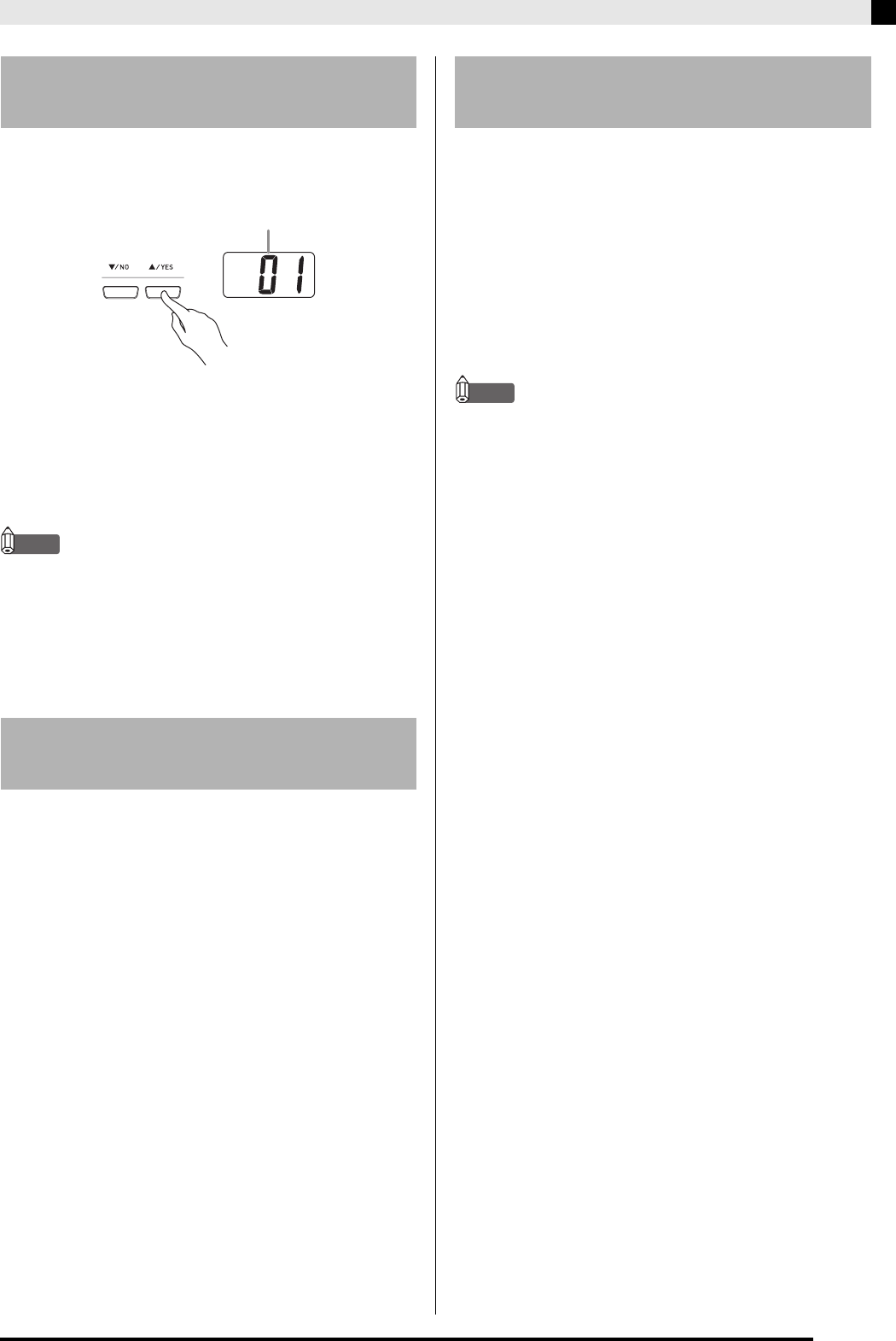
Use the T/NO and S/YES buttons to change the
currently displayed setting as you view the results of
your changes on the display.
• The rhythm number (page E-17) appears first
whenever you turn on the digital piano. See the
applicable pages in this manual for detailed
information about each type of setting.
• Each press of the T/NO and S/YES button will
increase or decrease the displayed value by 1.
NOTE
• Holding down either button will scroll continually
through the available settings.
• To return the displayed setting to its initial default value,
press the T/NO and S/YES buttons at the same time.
The initial default tempo is the recommended tempo
setting for the currently selected rhythm or built-in song.
Your digital piano lets you save its current settings,
and lock its buttons to protect against operation errors.
For details, see “Secondary Parameter Reference” on
page E-34.
Perform the following procedure when you want to
return the digital piano’s stored data and settings to
their initial factory defaults.
1.
While the digital piano is turned off, hold
down the RHYTHM, and FUNCTION buttons
as you press the POWER button to turn on
power.
• This will initialize the digital piano and then perform
system setup.
NOTE
• It will take some time for the digital piano initialization
procedure complete. During that time, the display
contents will be different from those that normally
appear when you turn on power (page E-10).
Using the T/NO and S/YES
Buttons
Saving Settings and Using
Operation Lock
Example: Rhythm number 01
Returning the Digital Piano to
Its Factory Default Settings
PX320_e.book 5 ページ 2007年8月1日 水曜日 午前9時28分
E-6
Power Outlet
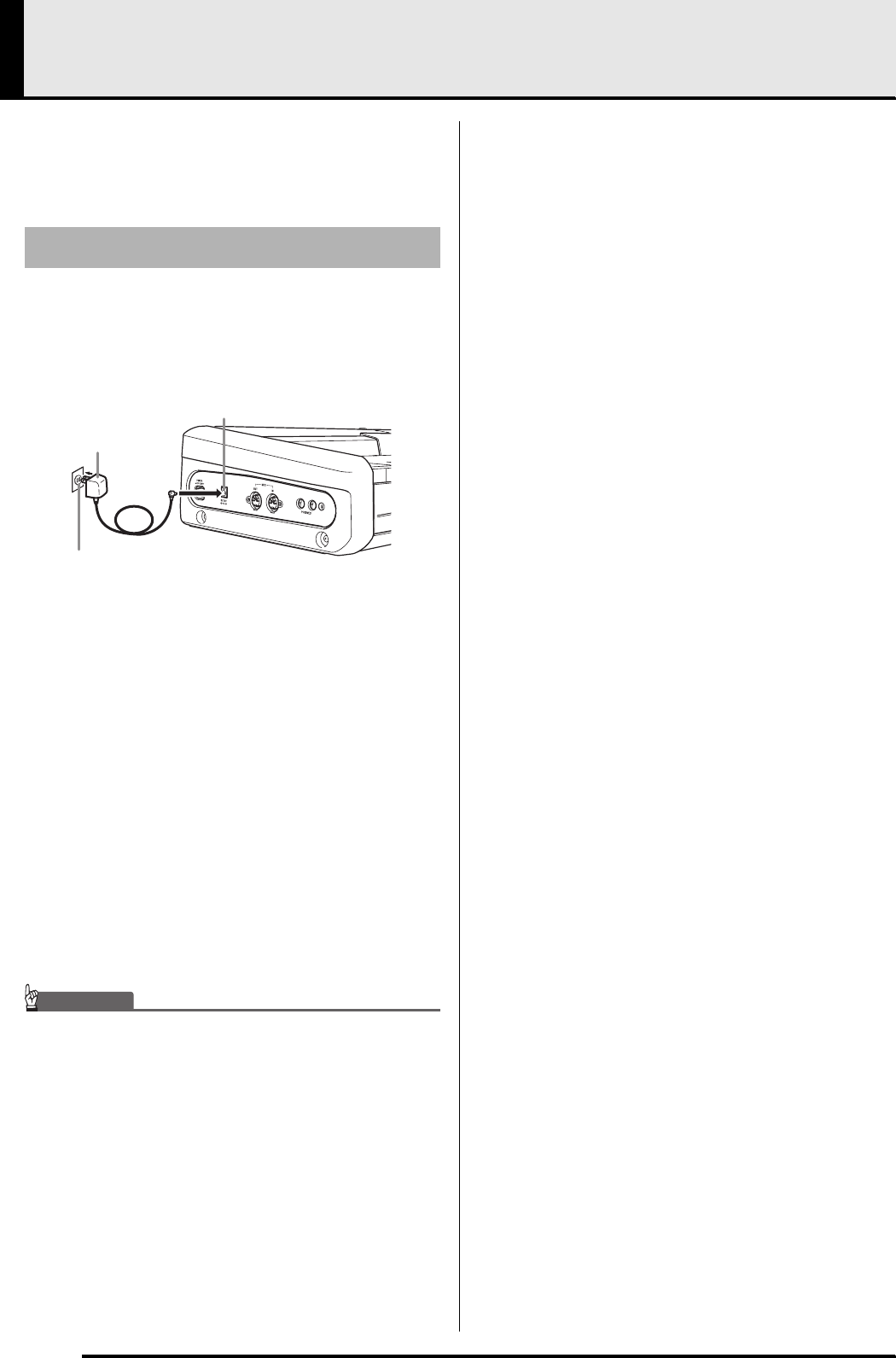
Your digital piano runs on standard household power.
Be sure to turn off power whenever you are not using
the digital piano.
Use only the AC adaptor that is specified for use with
this digital piano.
Specified AC Adaptor: AD-12
Left Side
Note the following important precautions to avoid
damage to the power cord.
During Use
• Never pull on the cord with excessive force.
• Never repeatedly pull on the cord.
• Never twist the cord at the base of the plug or
connector.
• The power cord should not be stretched tight while
it is in use.
During Movement
• Before moving the digital piano, be sure to unplug
the AC adaptor from the power outlet.
During Storage
• Loop and bundle the power cord, but never wind it
around the AC adaptor.
IMPORTANT!
• Make sure the digital piano is turned off before plugging
in or unplugging the AC adaptor.
• The AC adaptor will become warm to the touch after very
long use. This is normal and does not indicate
malfunction.
Using an AC Adaptor
AC adaptor
AD-12
DC 12V terminal
Household power
PX320_e.book 6 ページ 2007年8月1日 水曜日 午前9時28分
E-7
Connections
IMPORTANT!
• Before connecting headphones, be sure to use the digital
piano’s VOLUME controller to turn the volume down to a
low level. After connecting, you can adjust the volume to
the level you want.
• The digital piano automatically adjusts sound output to
optimize for headphones (when headphones are
connected) or the built-in speakers (when headphones
are not connected).
Left Side
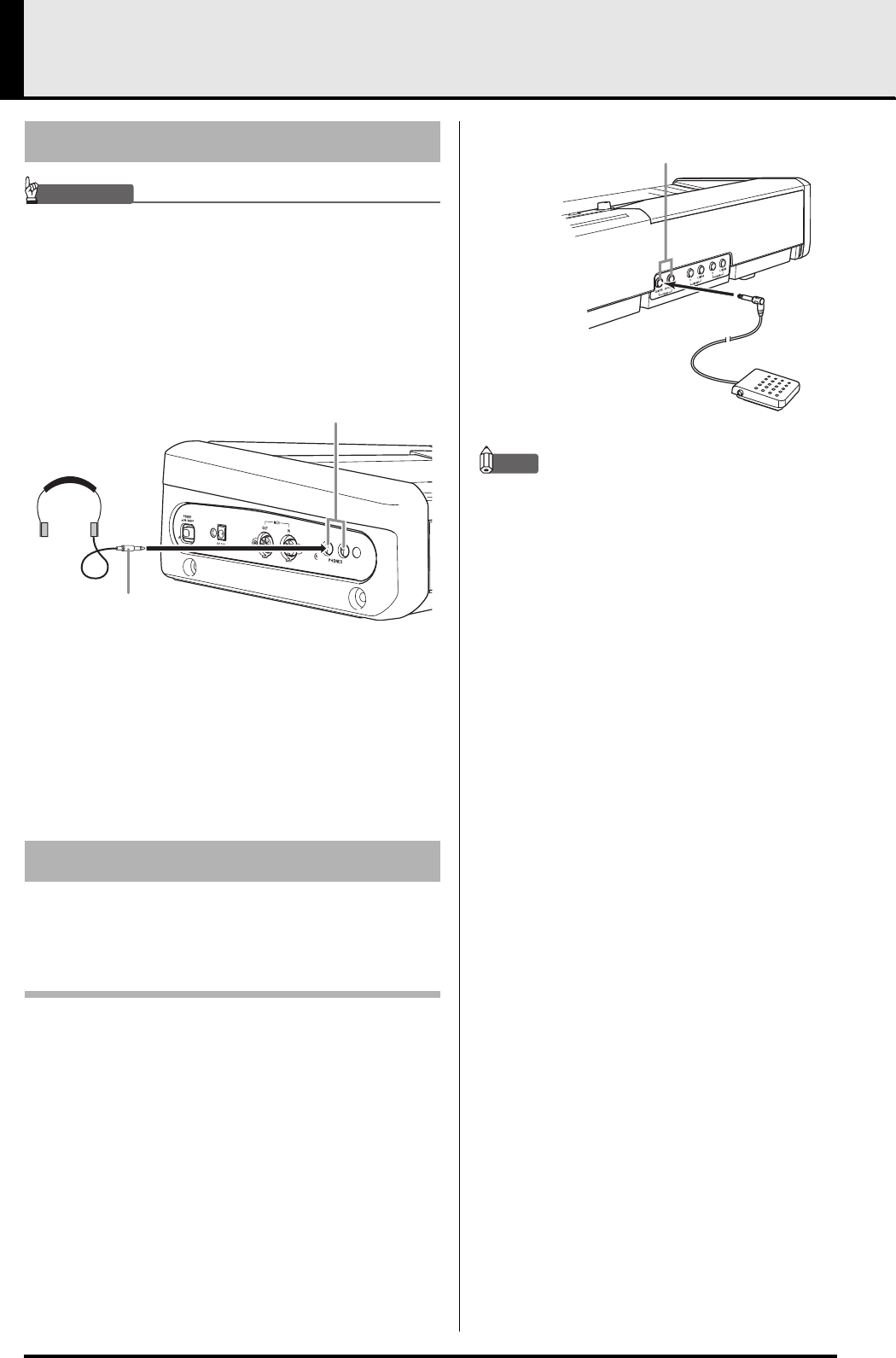
Connect commercially available headphones to the
PHONES jack. Connecting headphones to the
PHONES jack cuts off output to the speakers, which
means you can practice even late at night without
bothering others. To protect your hearing, make sure
that you do not set the volume level too high when
using headphones.
The back of the digital piano has two pedal jacks, one
for a damper pedal and one for a soft/sostenuto pedal.
To connect to the pedal jack
Depending on the type of operation you want the
pedal (SP-3) to perform, connect the pedal’s cable
either to the digital piano’s DAMPER PEDAL jack or
SOFT/SOSTENUTO PEDAL jack. If you want to use
both operations (jack) at the same time, you need to
purchase another optionally available pedal.
Back
NOTE
• You can specify the type of operation that should be
performed by the pedal connected to the SOFT/
SOSTENUTO PEDAL jack. See “Other Settings” on
page E-32 for more information.
Pedal Functions
zDamper Pedal
Pressing the damper pedal while playing will cause
the notes you play to reverberate for a very long
time.
• Whenever a piano tone is selected, pressing this
pedal will activate the digital piano’s Acoustic
Resonance effect, which causes notes to resonate in
the same way as when the damper pedal on an
acoustic piano is pressed.
zSoft Pedal
Pressing this pedal suppresses notes played on the
keyboard after the pedal was pressed, and makes
them sound softer.
zSostenuto Pedal
Only the notes that are played while this pedal are
depressed are sustained until the pedal is released.
Connecting Headphones
Connecting a Pedal
PHONES jack
Commercially available
headphones
Mini plug
PEDAL jacks
SP-3
PX320_e.book 7 ページ 2007年8月1日 水曜日 午前9時28分
E-8
Connections
Pedal Connector
You can connect the optionally available 3-Pedal Unit
(SP-30) to the pedal connector on the bottom of the
digital piano. You can then use the pedals for
expression that is similar to that available on an
acoustic piano.
Bottom
NOTE
• The SP-30 Pedal Unit supports half-pedal operation
(pressing the pedal part way), and you can adjust the
amount of the pedal effect applied when the pedal is
pressed part way. See “Other Settings” on page E-32 for
more information.
• The optional CS-65P or CS-66P stand is required in order
to use the SP-30 Pedal Unit.
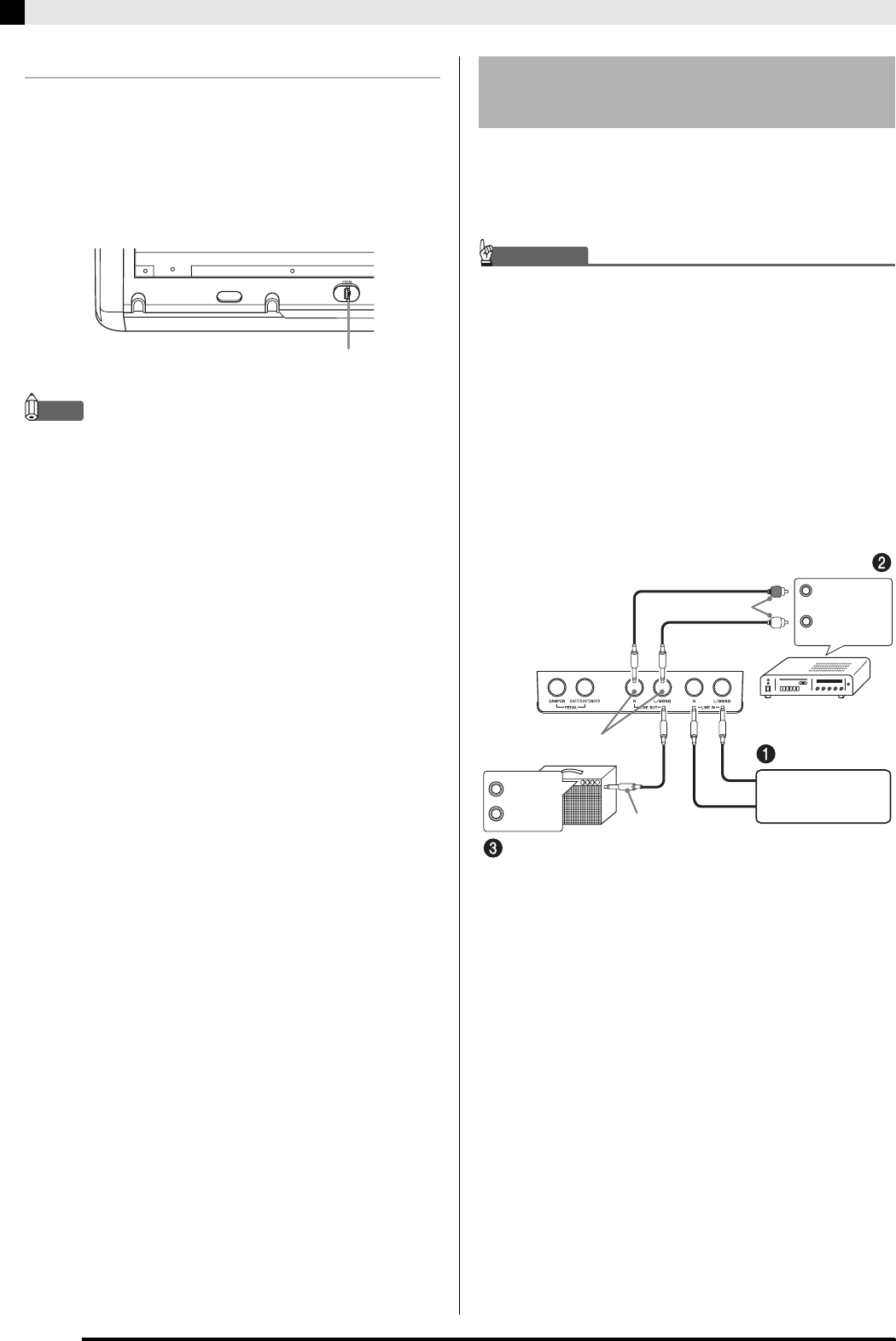
You can connect audio equipment or a music amplifier
to the digital piano and then play through external
speakers for more powerful volume and better sound
quality.
IMPORTANT!
• The digital piano automatically adjusts sound output to
optimize for headphone output (when headphones are
connected) or built-in speaker output (when headphones
are not connected). This also will cause a change in the
output quality from the digital piano’s LINE OUT R and
L/MONO jacks.
• Whenever connecting something to the digital piano, first
use the VOLUME controller to set the volume to a low
level. After connecting, you can adjust the volume to the
level you want.
• Whenever you connect any device to the digital piano, be
sure to read the user documentation that comes with the
device.
Pedal connector
Connecting Audio Equipment
or an Amplifier
INPUT 1
INPUT 2
Audio amplifier AUX IN jack, etc.
Guitar amplifier, keyboard amplifier, etc.
Pin plug
LEFT
(White)
RIGHT
(Red)
Standard jack
Standard plug
Tape recorder,
MIDI sound
source, etc.
PX320_e.book 8 ページ 2007年8月1日 水曜日 午前9時28分

Connections
E-9
Playing Output from External Equipment
through the Piano’s Speakers 1
LINE IN R jack input sounds through the piano’s right
speaker, while LINE IN L/MONO jack input sounds
through the left speaker. Connecting to the LINE IN
L/MONO jack only causes the same output to be
produced from both speakers. It is up to you to
purchase connecting cables that are compatible with
the equipment you are connecting.
Connecting to Audio Equipment 2
Use commercially available cables to connect the
external audio equipment to the piano’s LINE OUT
jacks as shown in Figure 2. LINE OUT R jack output is
right channel sound, while LINE OUT L/MONO jack
output is left channel sound. It is up to you to purchase
connecting cables like the ones shown in the
illustration for connection of audio equipment.
Normally in this configuration you must set the audio
equipment’s input selector to the setting that specifies
the terminal (such as AUX IN) to which the piano is
connected. Use the piano’s VOLUME controller to
adjust the volume level.
Connecting to a Musical Instrument
Amplifier 3
Use commercially available cables to connect the
amplifier to the piano’s LINE OUT jacks as shown in
Figure 3. LINE OUT R jack output is right channel
sound, while LINE OUT L/MONO jack output is left
channel sound. Connecting to the LINE OUT
L/ MONO jack only outputs a mixture of both
channels. It is up to you to purchase connecting cable
like the one shown in the illustration for connection of
the amplifier. Use the piano’s VOLUME controller to
adjust the volume level.
Bundled and Optional Accessories
Use only accessories that are specified for use with this
digital piano. Use of unauthorized accessories creates
the risk of fire, electric shock, and personal injury.
PX320_e.book 9 ページ 2007年8月1日 水曜日 午前9時28分
E-10
Selecting and Playing a Tone
Your digital piano has the following types of tones
built in.
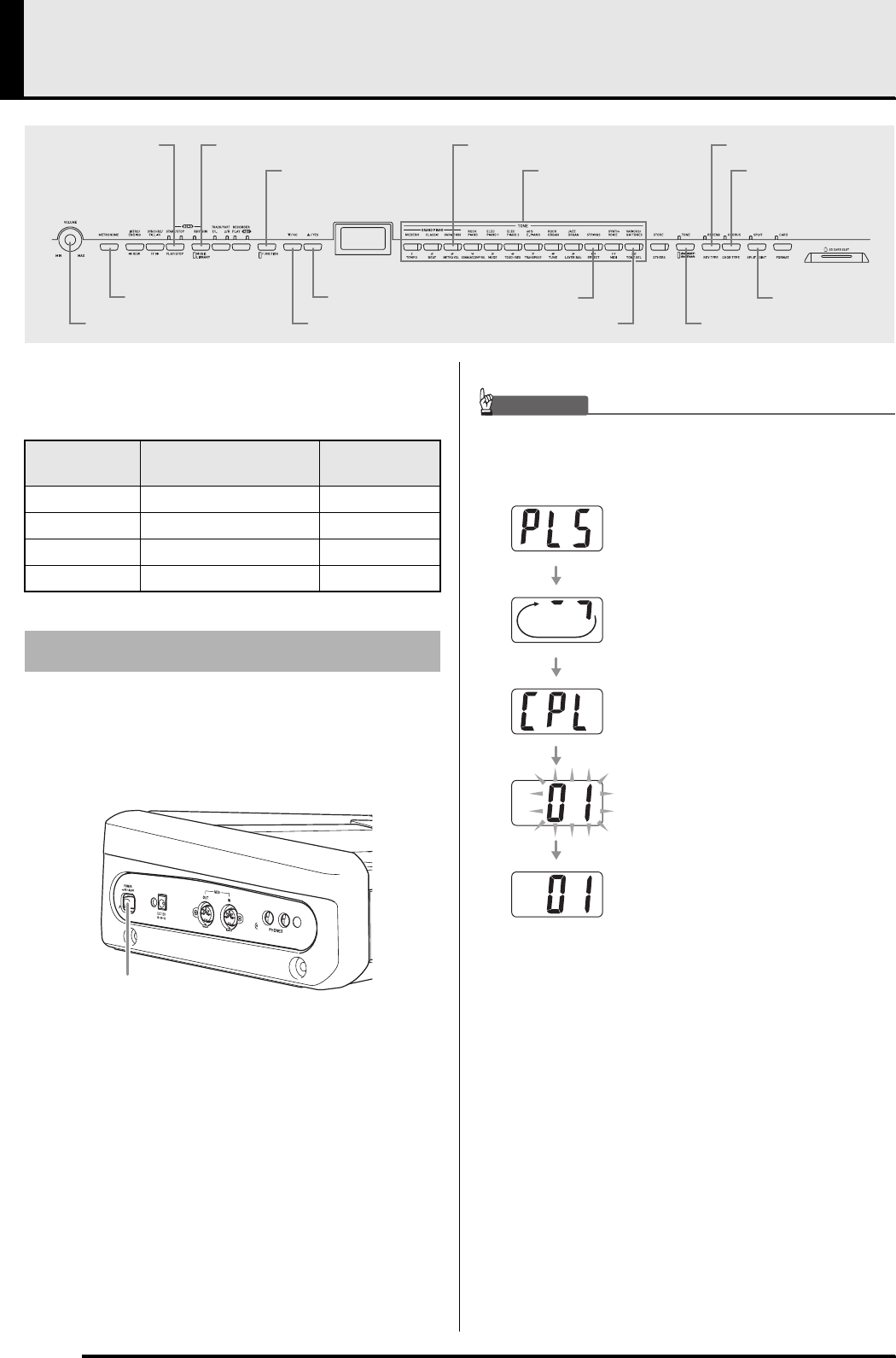
1.
Press the POWER button to turn on the
digital piano.
Left Side
IMPORTANT!
• When you turn on the digital piano, it performs a startup
routine, during which the following messages appears on
the display.
• It takes about six seconds to reach process (4) after you
press the POWER button.
• The amount of time required to perform process (2)
becomes longer and process (4) is skipped if you turn on
power while the digital piano’s setup memory is turned on
(page E-37).
2.
Use the VOLUME controller to adjust the
volume level.
VARIOUS/GM TONES
CHORUS
TONEFUNCTION
VOLUME
SPLITEFFECT
TONE/REGISTRATION
START/STOP MUSIC LIBRARY REVERBMETRO VOL
/NO
/YESMETRONOME
Tone
Numbers Tone Type Number of
Tones
— Refined Tone 11
001 to 061 Various 61
062 to 189 GM (General MIDI) 128
190 to 191 Drum Sets 2 sets
To select a refined tone
POWER button
(2)
(3)
(4)
(5)
(1) : Please wait!
: System startup (Indicated by the “rotary” display
pattern shown here.)
: Complete! (Keyboard and pedal setup
complete.)
: Keyboard and pedal operations are enabled,
but button operations are still not enabled yet.
: System setup complete
• All functions are enabled.
PX320_e.book 10 ページ 2007年8月1日 水曜日 午前9時28分
Selecting and Playing a Tone
E-11
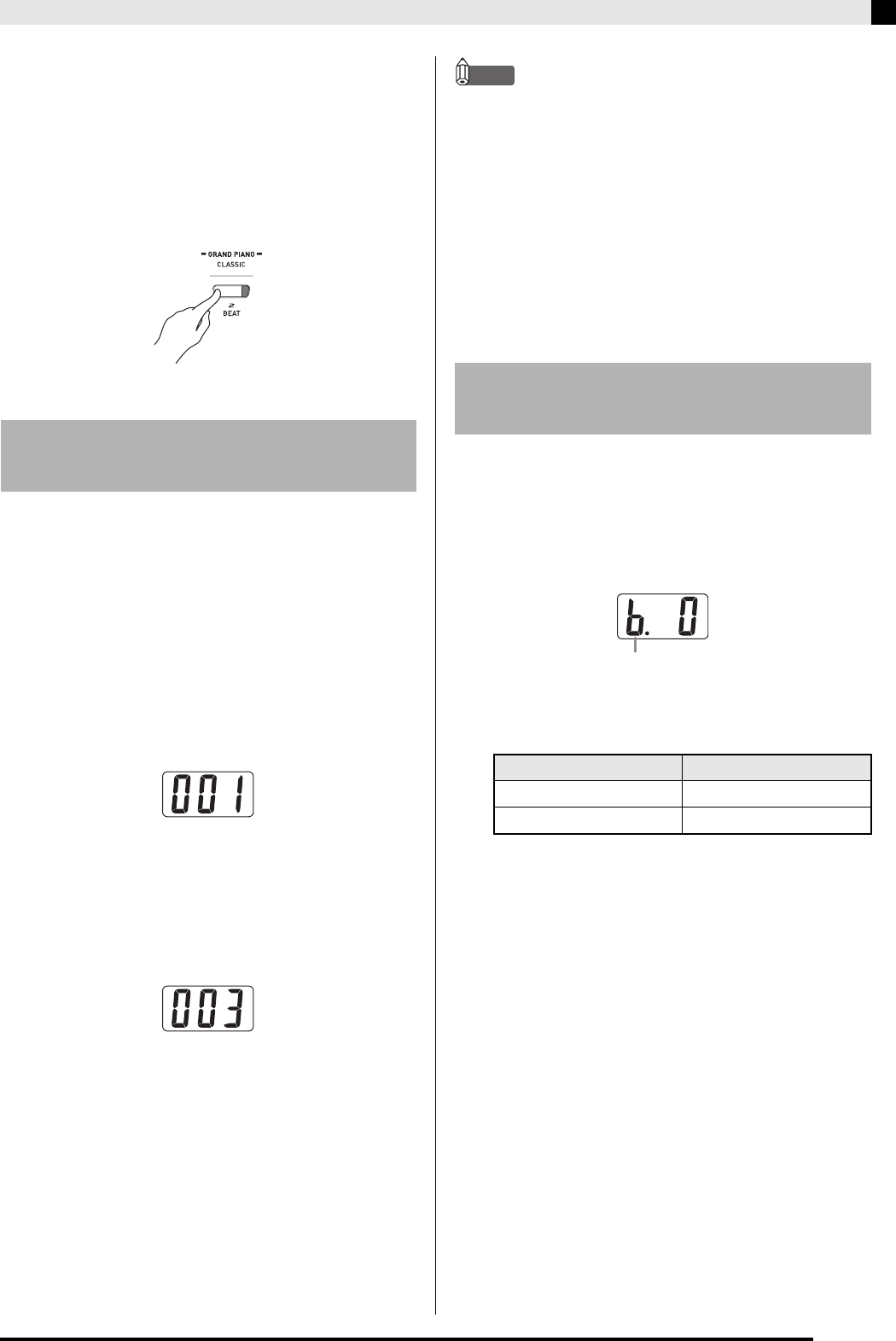
3.
Press one of the TONE buttons (not the
VARIOUS/GM TONES button) to select the
tone you want.
• The names of the refined tones are marked above the
TONE buttons.
• This will cause the lamp of the selected tone’s button
to light.
Example: GRAND PIANO (CLASSIC)
1.
Use the tone list on page A-1 to find the
VARIOUS tone, GM tone, or drum set
number you want.
Example: 003 MODERN PIANO
2.
Press the VARIOUS/GM TONES button.
• The button’s lamp will light indicating that the tone
currently assigned to the button is lit. The tone’s
number will be displayed while the button is
depressed.
Example: 001 LA PIANO
3.
You can change the tone currently assigned
to the
VARIOUS/GM TONES
button by
holding down the button as you use the
T
/NO
and
S
/YES
buttons to select the tone you
want.
NOTE
• See “Other Settings” on page E-32 for information about
another method you can use to assign a tone to the
VARIOUS/GM TONES button.
• The tone you selected in step 3 will remain assigned to
the VARIOUS/GM TONES button until you turn off the
digital piano.
• If a drum set is assigned to the VARIOUS/GM TONES
button, keyboard keys sound drum sounds when you
press them while the lamp above the VARIOUS/GM
TONES button is lit. See page A-3 for information about
the drum sounds that are assigned to each of the
keyboard keys.
1.
Press the FUNCTION button.
• This will cause the button’s lamp to flash.
2.
Press the EFFECT button.
• The EFFECT lamp will flash and the current
brilliance setting will appear on the display.
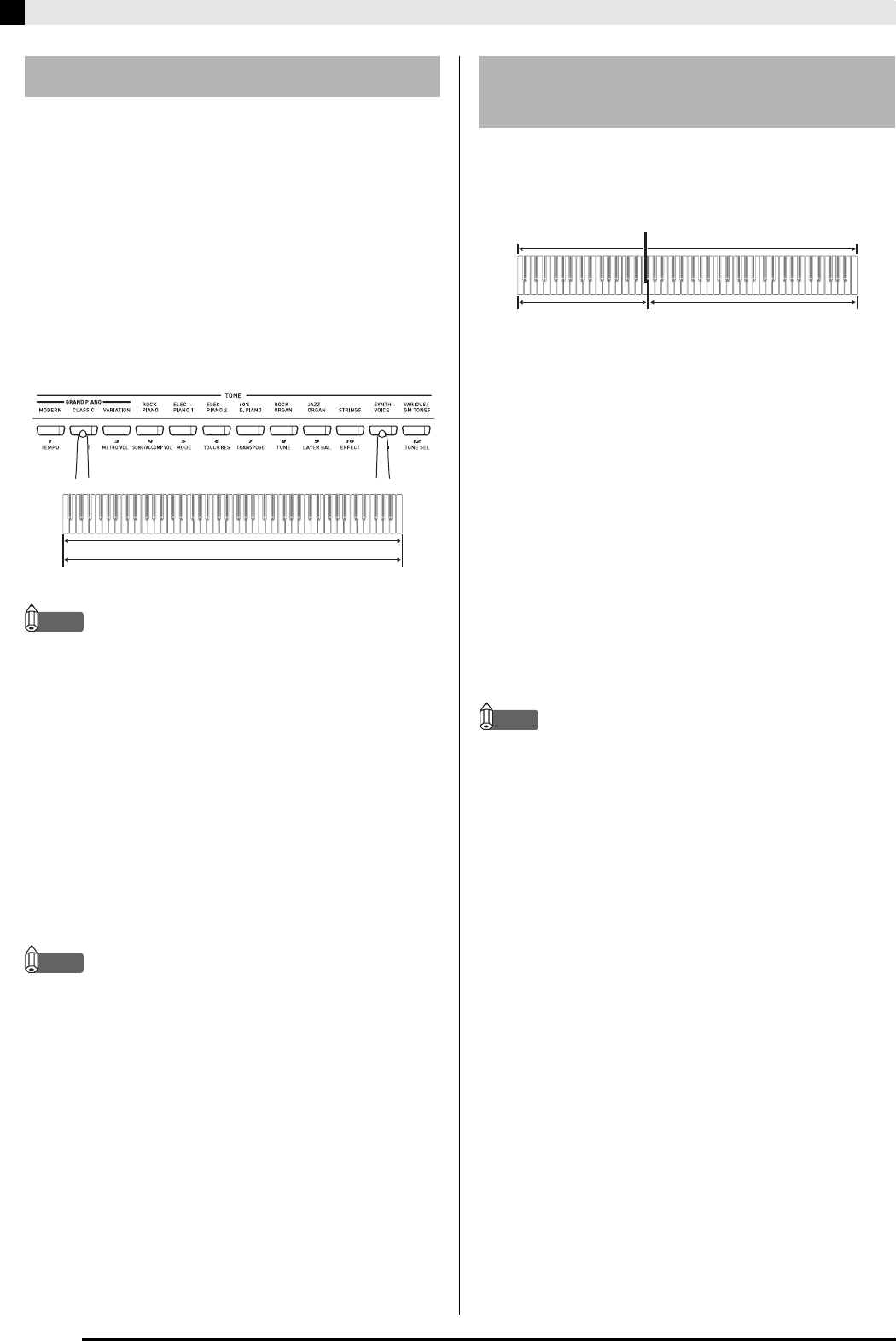
3.
Use the T/NO and S/YES buttons to set the
brilliance level (–3 to 0 to 3).
4.
Press the FUNCTION button again.
• This will cause the lamp below the button to go out.
To select a VARIOUS tone,
GM tone, or drum set
To adjust the brilliance of a
tone
To do this: Press this button:
Make the tone softer T
Make the tone sharper S
b: Brilliance
PX320_e.book 11 ページ 2007年8月1日 水曜日 午前9時28分
E-12
Selecting and Playing a Tone
Use the following procedure to layer two tones, so they
sound at the same time. The tone you specify first is
called the “main tone”, while the tone you specify
second is called the “layered tone”.
1.
While holding down the TONE button of the
tone that corresponds to the main tone, press
the button that corresponds to the layered
tone.
Example: While holding down the GRAND PIANO
(CLASSIC) button, press the SYNTH-VOICE
button.
NOTE
• If you use the VARIOUS/GM TONES button to assign
either of the above tones, the tone currently assigned to
the VARIOUS/GM TONES button will appear on the
display while the button is depressed. Note that a
different tone number appears depending on whether
you press the VARIOUS/GM TONES button first (to
assign it as the main tone) or second (to assign it as the
layered tone).
• While you are holding down the VARIOUS/GM
TONES button and its tone number is displayed, you
can change the currently assigned tone using the T/NO
and S/YES buttons.
2.
To unlayer the keyboard, press any one of
the TONE buttons.
NOTE
• You can adjust the balance between the main tone and
layered tone. See “Other Settings” on page E-32 for more
information.
• You cannot layer the keyboard while in the Duet Mode
or when recording to Track 2 on the digital piano.
You can assign different tones to keys on the left side
(low range) and the right side (high range) of the
keyboard.
1.
Press the TONE button of the tone you want
to select for the high range.
Example: GRAND PIANO (CLASSIC)
2.
Press the SPLIT button.
• This will cause the SPLIT lamp to light.
3.
Press the TONE button of the tone you want
to select for the low range.
Example: STRINGS
4.
After you are finished using the split
keyboard, press the SPLIT button again to
unsplit it.
• This will cause the SPLIT lamp to go out.
NOTE
• You can configure the keyboard so it is layered with two
tones in the high range. To do this, first perform the layer
operation in the left side of this page. After that, split the
keyboard as described above.
• You cannot split the keyboard while in the Duet Mode or
when recording to Track 2 on the digital piano.
Layering Two Tones
GRAND PIANO (CLASSIC)
SYNTH-VOICE
Splitting the Keyboard
between Two Tones
STRINGS GRAND PIANO (CLASSIC)
Low range High range
Split point
PX320_e.book 12 ページ 2007年8月1日 水曜日 午前9時28分
Selecting and Playing a Tone
E-13
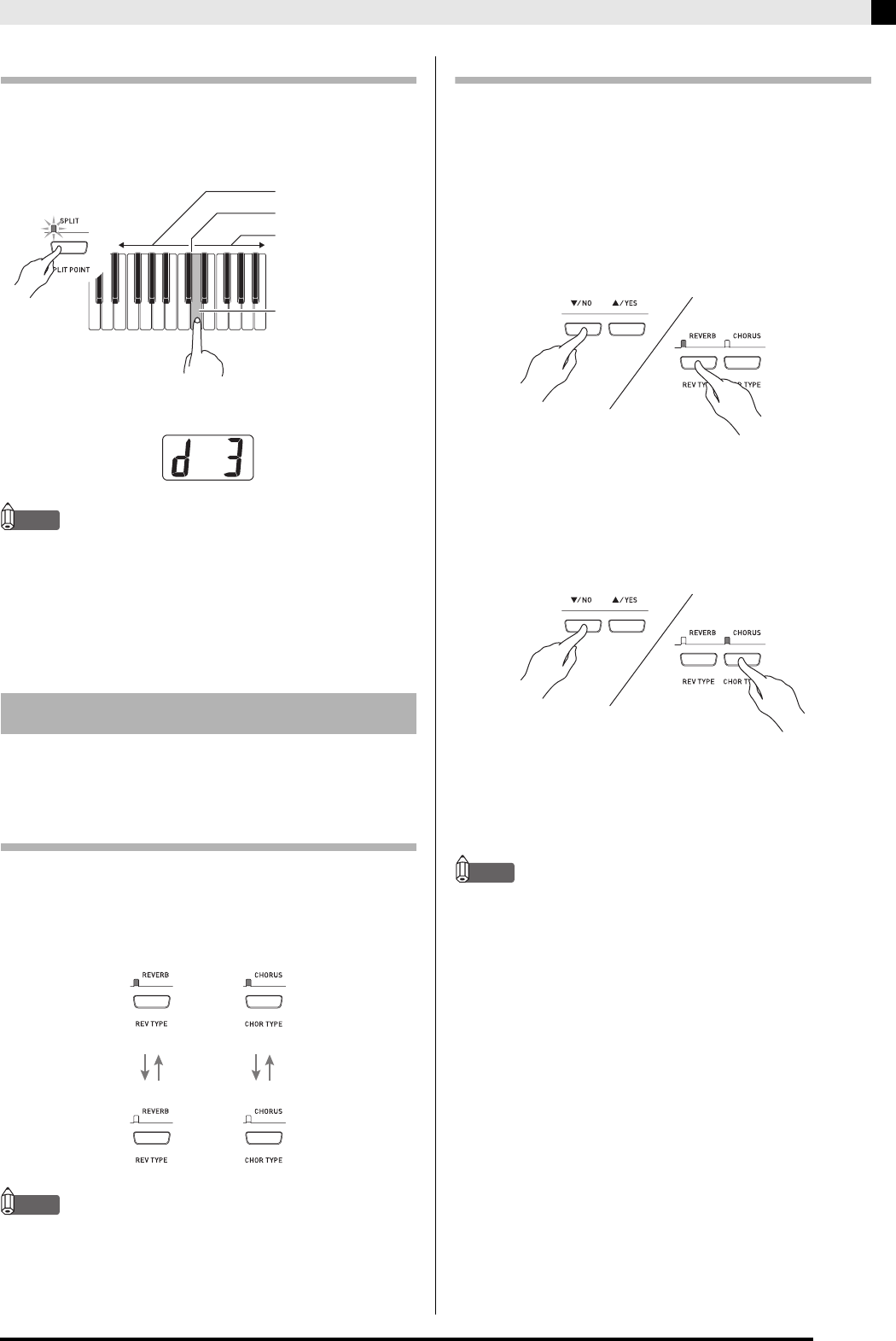
To specify the keyboard split point
1.
While holding down the SPLIT button, press
the keyboard key where you want the left limit
of the high range (right) tone to be.
• This will change the split point and display the name
of keyboard key that you pressed.
NOTE
• The split point also is the boundary between the
accompaniment keyboard range (pages E-18 to E-21) and
the melody keyboard range. Changing the location of the
split point also changes the sizes of the keyboards.
• See “Other Settings” on page E-32 for information about
another method you can use to change the split point.
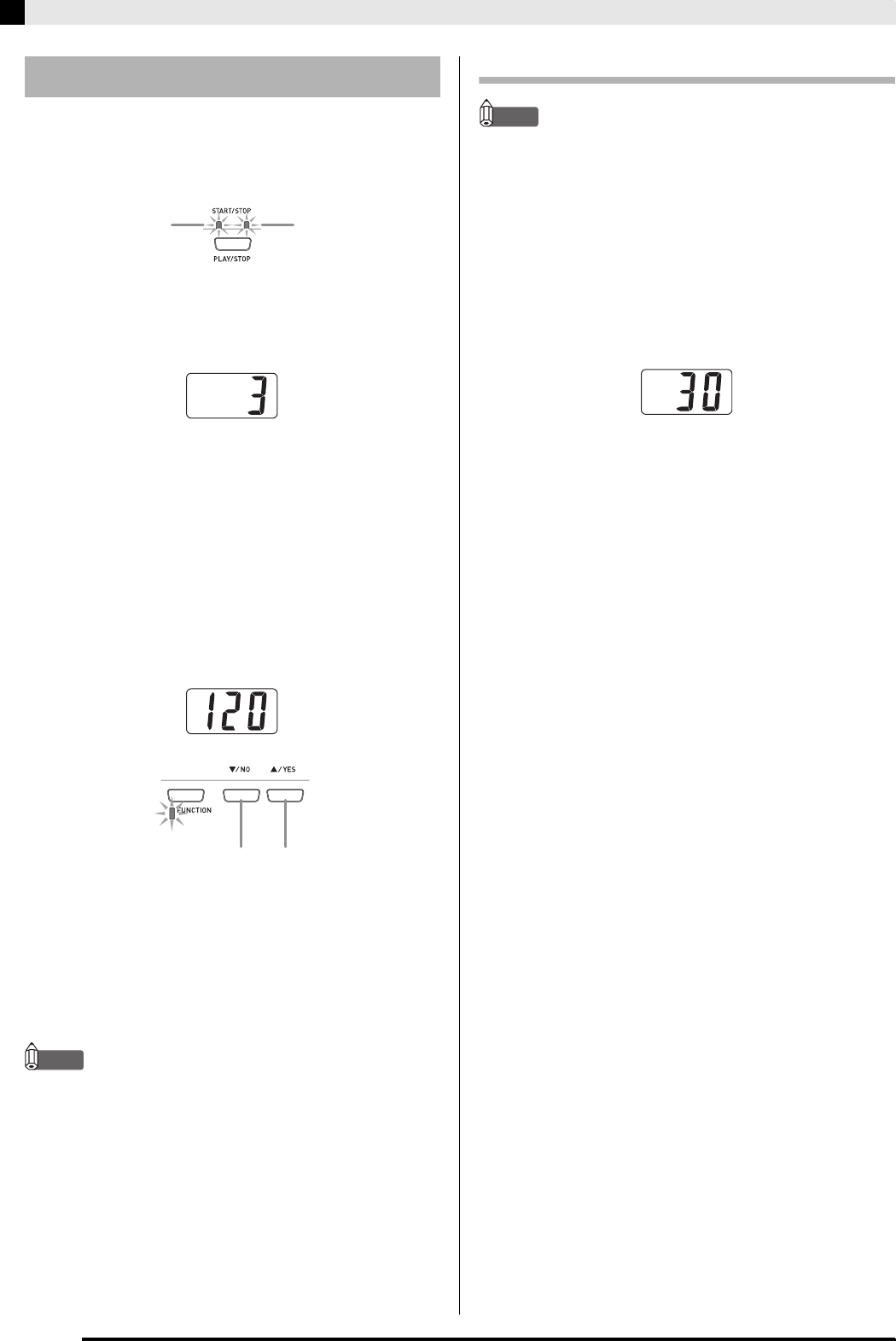
Reverb. . . . . Makes your notes resonate.
Chorus . . . . Adds more breadth to your notes.
To turn effects on and off
1.
Use the REVERB and CHORUS buttons to
turn the effects on and off as shown below.
• The lamps above the buttons show whether the
effects are on or off.
NOTE
• The chorus effect cannot be turned on while the digital
piano is in the Duet Mode.
To change the effect type
1.
Turn on REVERB or CHORUS.
2.
While holding down the effect button
(REVERB or CHORUS), use the T/NO and
S/YES buttons to change the effect type as
described below.
Reverb
• Reverb Settings
1: Room
2: Small Hall
3: Large Hall
4: Stadium
Chorus
• Chorus Settings
1: Light Chorus
2: Medium Chorus
3: Deep Chorus
4: Flanger (Whooshing effect)
NOTE
• While the keyboard is layered, the chorus on/off setting
affects the layered tone only. While the keyboard is split,
the chorus on/off setting affects the low range tone only.
Using Effects
High range
High range leftmost key
Low range
Flashing Split point
Unlit
Off
Lit
On
Off
On
PX320_e.book 13 ページ 2007年8月1日 水曜日 午前9時28分
E-14
Selecting and Playing a Tone
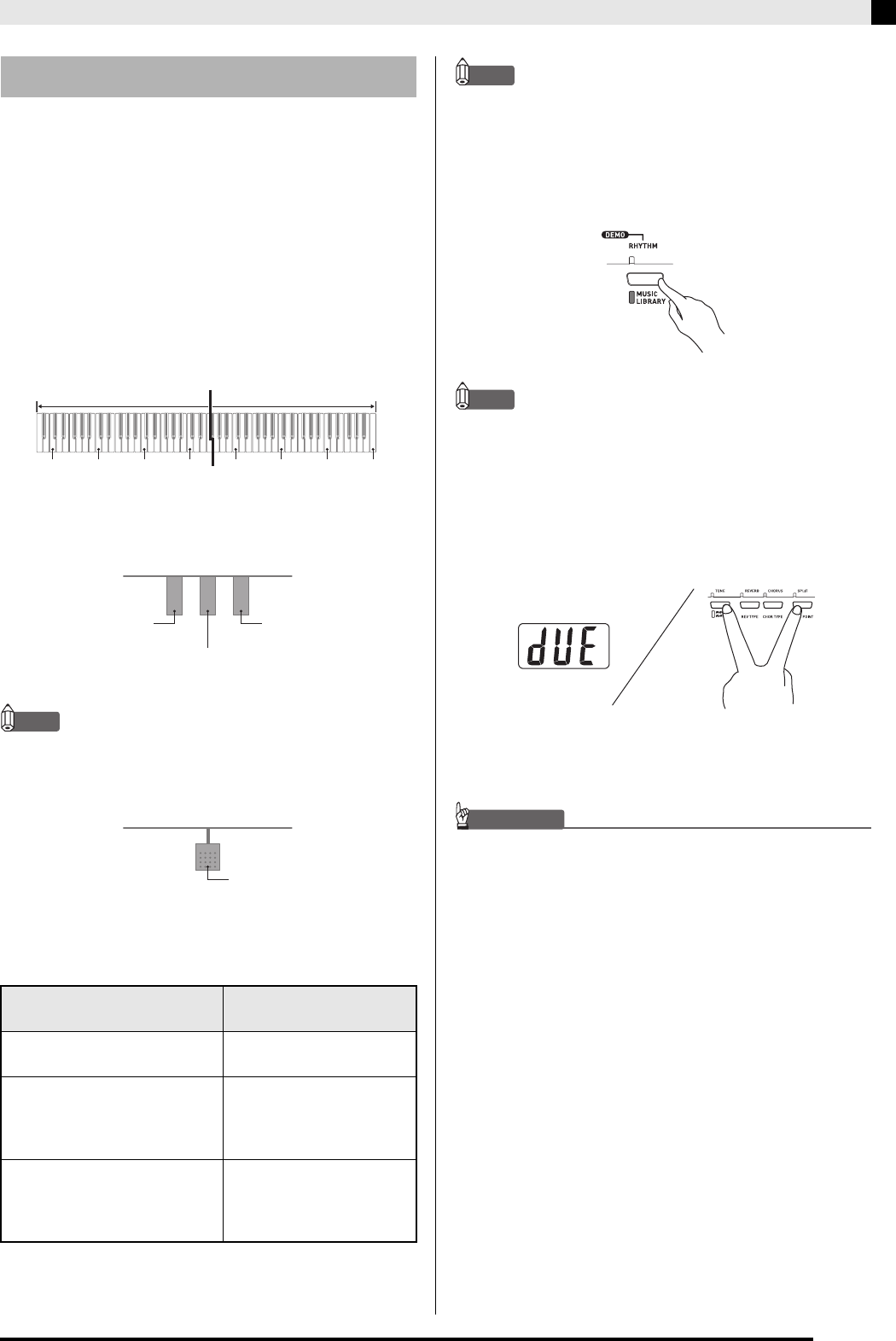
1.
Press the METRONOME button.
• This will start the metronome.
• The two lamps above the START/STOP button will
flash along with the metronome beats.
2.
To change the beats per measure, hold down
the METRONOME button as you press the
T/NO or S/YES button.
• You can select a value in the range of 2 through 6.
A chime sounds as the first beat of each measure, and
the remaining beats sound as clicks. Specifying 0 as
the setting plays a straight click, without any chime.
This setting lets you practice with a steady beat.
3.
Press the FUNCTION button.
• This will cause the button’s lamp to flash.
4.
Use the T/NO and S/YES buttons to adjust
the tempo in a range of 20 to 255 beats per
minute.
5.
Press the FUNCTION button again.
• This will cause the lamp above the button to go out.
6.
To stop the metronome, either press the
METRONOME button again or press the
START/STOP button.
NOTE
• See “Other Settings” on page E-32 for information about
another method you can use to configure the metronome
setting.
To adjust the metronome volume
NOTE
• You can perform the following procedure at any time,
regardless of whether or not the metronome is sounding.
1.
Press the FUNCTION button.
• This will cause the lamp above the button to flash.
2.
Press the METRO VOL button.
• This will cause the lamp above the button to flash.
3.
Use the
T
/NO
and
S
/YES
buttons to change
the metronome volume in the range of 0 to 42.
4.
Press the FUNCTION button again.
• This will cause the lamp above the button to go out.
Using the Metronome
Flashes on the first beat
of each measure.
Flashes on
subsequent beats.
Slower Faster
PX320_e.book 14 ページ 2007年8月1日 水曜日 午前9時28分
Selecting and Playing a Tone
E-15
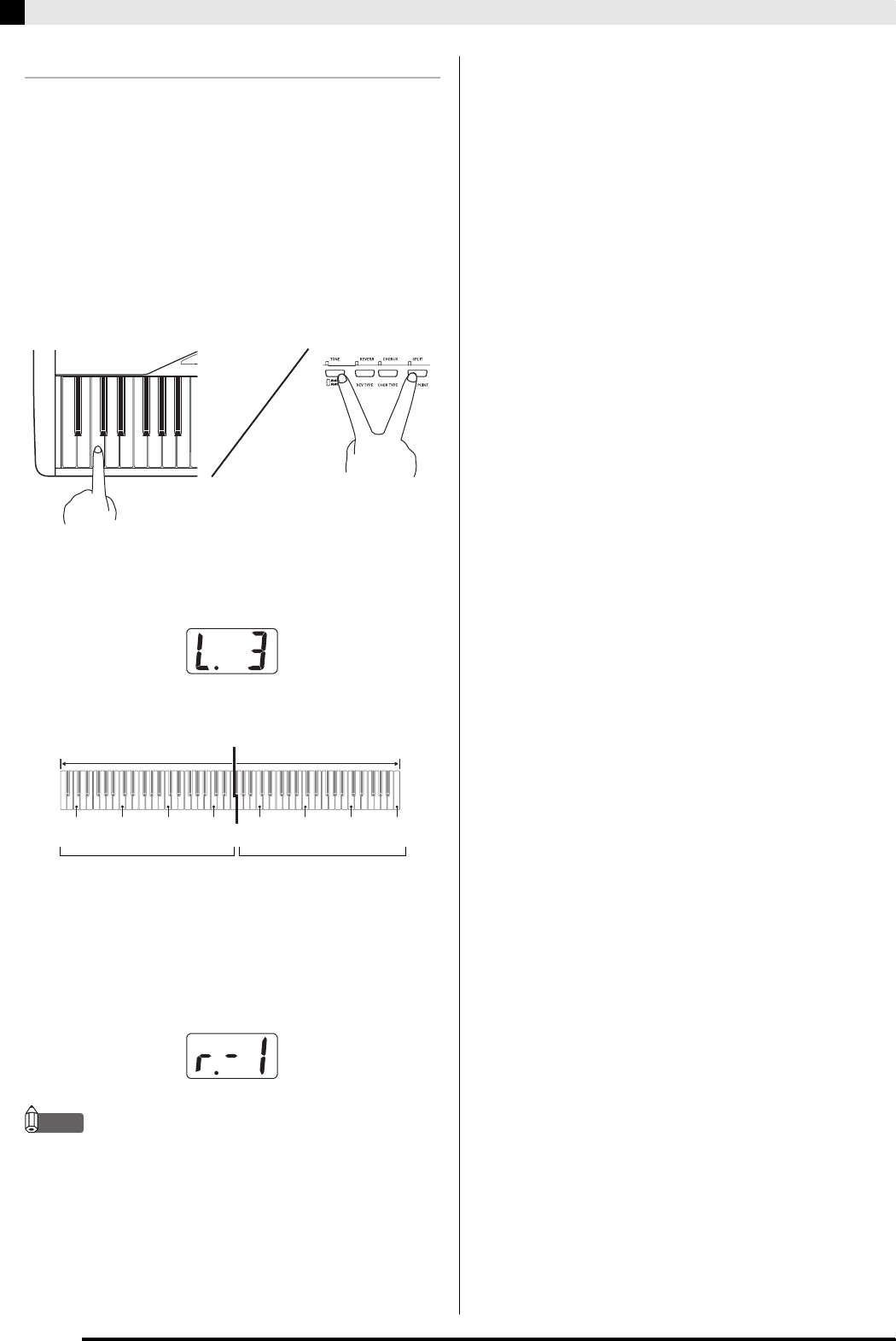
You can use the Duet Mode to split the piano’s
keyboard in the center so two people can play a duet.
The left and right side keyboards have virtually the
same range. If you have the optionally available SP-30
Pedal Unit installed, the left pedal operates as the left
side damper pedal, while the right pedal is the right
side damper pedal.
The Duet Mode is the perfect way to conduct lessons,
with the teacher playing on the left side as the student
plays the same song on the right side.
Keyboard
Pedals
zUsing the Optional SP-30 Pedal Unit
NOTE
• Only the right-side damper pedal supports half-pedal
operation.
zUsing the Optional SP-3 Pedal Unit
*The following are the possible configurations for the
SP-3 Pedal Unit.
NOTE
• The SP-3 Pedal Unit does not support half-pedal
operation.
1.
Press the MUSIC LIBRARY button so the
MUSIC LIBRARY lamp (below the button) is
lit.
NOTE
• In place of step 1 above, you also could press the CARD
button so the lamp above the button is lit, and then
advance to step 2.
2.
While holding down the SPLIT button, press
the TONE/REGISTRATION button.
• This will enter the Duet Mode, which causes “dUE”
(duet) to appear on the display.
3.
To exit the Duet Mode, press the SPLIT
button.
IMPORTANT!
• The following functions are all disabled in the Duet Mode.
• Auto Accompaniment (page E-18)
• Registration (page E-25)
• Recorder (page E-28)
Playing a Piano Duet
In this configuration: The SP-3 Pedal Unit
performs this operation:
SP-3 connected to digital
piano’s DAMPER PEDAL jack Right side damper pedal
SP-3 connected to digital
piano’s SOFT/SOSTENUTO
jack, which is configured for
SOFT (page E-7)
Left side damper pedal
SP-3 connected to digital
piano’s SOFT/SOSTENUTO
jack, which is configured for
SOSTENUTO (page E-7)
Left and right side damper
pedal
C3 C4 C5 C6 C3 C4 C5 C
6
Split point
Left keyboard Right keyboard
(middle C) (middle C)
Left side damper pedal
Left and right side
damper pedal
Right side damper pedal
Either left side or right side
damper pedal, depending on
configuration*
PX320_e.book 15 ページ 2007年8月1日 水曜日 午前9時28分
E-16
Selecting and Playing a Tone
Changing the Octaves of the Keyboards
You can change the ranges of the left and right
keyboards in octave units from their initial default
settings. This comes in handy, for example, if the initial
default range is not enough when one person is
playing the left hand part and another person is
playing the right hand part.
1.
While holding down the SPLIT button and the
TONE/REGISTRATION button, press the
keyboard key of C that you want located at
C4 (middle C) of the left keyboard.
• This changes the octave of the keyboard and displays
the difference between the normal keyboard (when
you are not in the Duet Mode) and the current
setting.
Example: Press the keyboard key of the leftmost C will
assign the range shown below.
2.
While holding down the SPLIT button and the
TONE/REGISTRATION button, press the
keyboard key of C that you want located at
C4 (middle C) of the right keyboard.
NOTE
• You can return the keyboards to their initial default
ranges by exiting and then re-entering the Duet Mode.
C4 C5 C6 C7 C3 C4 C5 C
6
Left keyboard Right keyboard
(Pressed key)
1 octave higher than initial
setting Unchanged
PX320_e.book 16 ページ 2007年8月1日 水曜日 午前9時28分
E-17
Playing a Rhythm
You can select from among 70 built-in rhythms.
1.
Press the RHYTHM button so the lamp above
it is lit.
• Each press of the button toggles between the lamps
above and below the button.
• This will cause the currently selected rhythm number
to appear on the display.
2.
Find the rhythm number of the rhythm you
want to use in the Rhythm List on page A-4.
3.
Use the T/NO and S/YES buttons to scroll
through the rhythm numbers until the one you
want is displayed.
4.
Press the START/STOP button.
• This will start the rhythm.
5.
Press the START/STOP button again to stop
the rhythm.
To adjust playback tempo
1.
Press the FUNCTION button.
• This will cause the button’s lamp to flash.
2.
Use the T/NO and S/YES buttons to change
the tempo in the range of 20 to 255.
3.
Press the FUNCTION button again.
• This will cause the lamp above the button to go out.
START/STOP
SYNCHRO/FILL-IN
INTRO/ENDING MODE
FUNCTIONRHYTHM
/NO
/YES
Selecting a Rhythm
PX320_e.book 17 ページ 2007年8月1日 水曜日 午前9時28分
E-18
Playing a Rhythm
With Auto Accompaniment, the digital piano
automatically plays rhythm, bass, and chord parts in
accordance with chords you select using simplified
keyboard fingerings, or chords you play. Auto
Accompaniment makes it feel like you have your own
private backup group with you all the time.
NOTE
• With the rhythms listed below, make sure that CASIO
CHORD, FINGERED, or FULL RANGE CHORD is
selected as the Auto Accompaniment mode before you
try playing chords. The percussion sounds will sound at
lower volume while no chord is fingered on the
keyboard.
To play with Auto Accompaniment
PREPARATION
• Use the procedures under “Selecting a Rhythm” to select
the rhythm you want to use and adjust the tempo.
1.
Press the FUNCTION button.
• This will cause the button’s lamp to flash.
2.
Press the MODE button.
3.
Use the T/NO and S/YES buttons to select
one of the Auto Accompaniment modes
shown below.
• Here we will select the CASIO CHORD mode.
• See “How to Play Chords” on page E-19 for details
about Auto Accompaniment modes and their chord
fingerings.
4.
Press the FUNCTION button again.
• This will cause the lamp above the button to go out.
5.
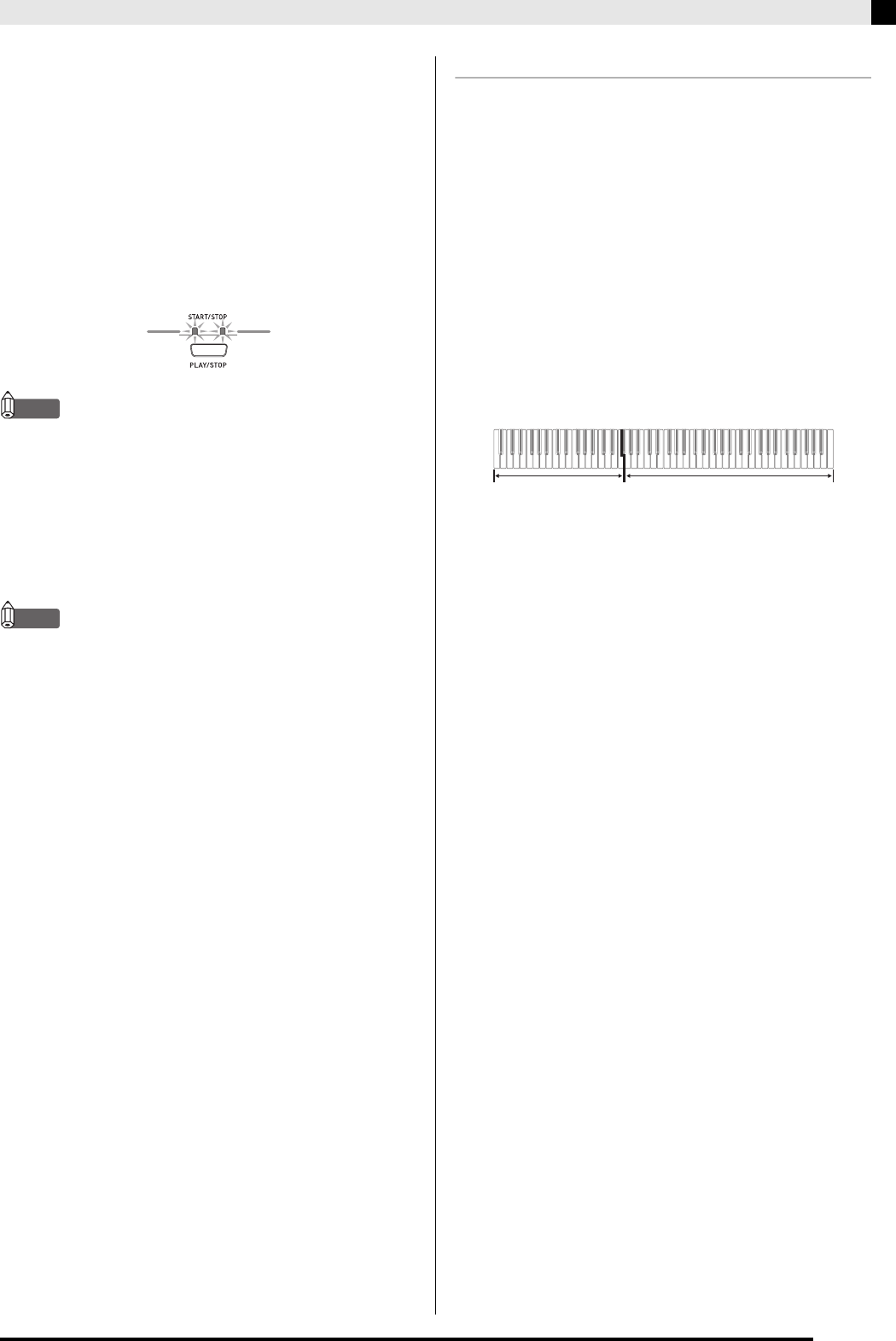
Press the SYNCHRO/FILL-IN button.
• This configures the digital piano so rhythm and
chord accompaniment will start automatically when
you press any keys within the accompaniment
keyboard range.
• This will cause the two lamps above the START/
STOP button to flash.
6.
Press the INTRO/ENDING button.
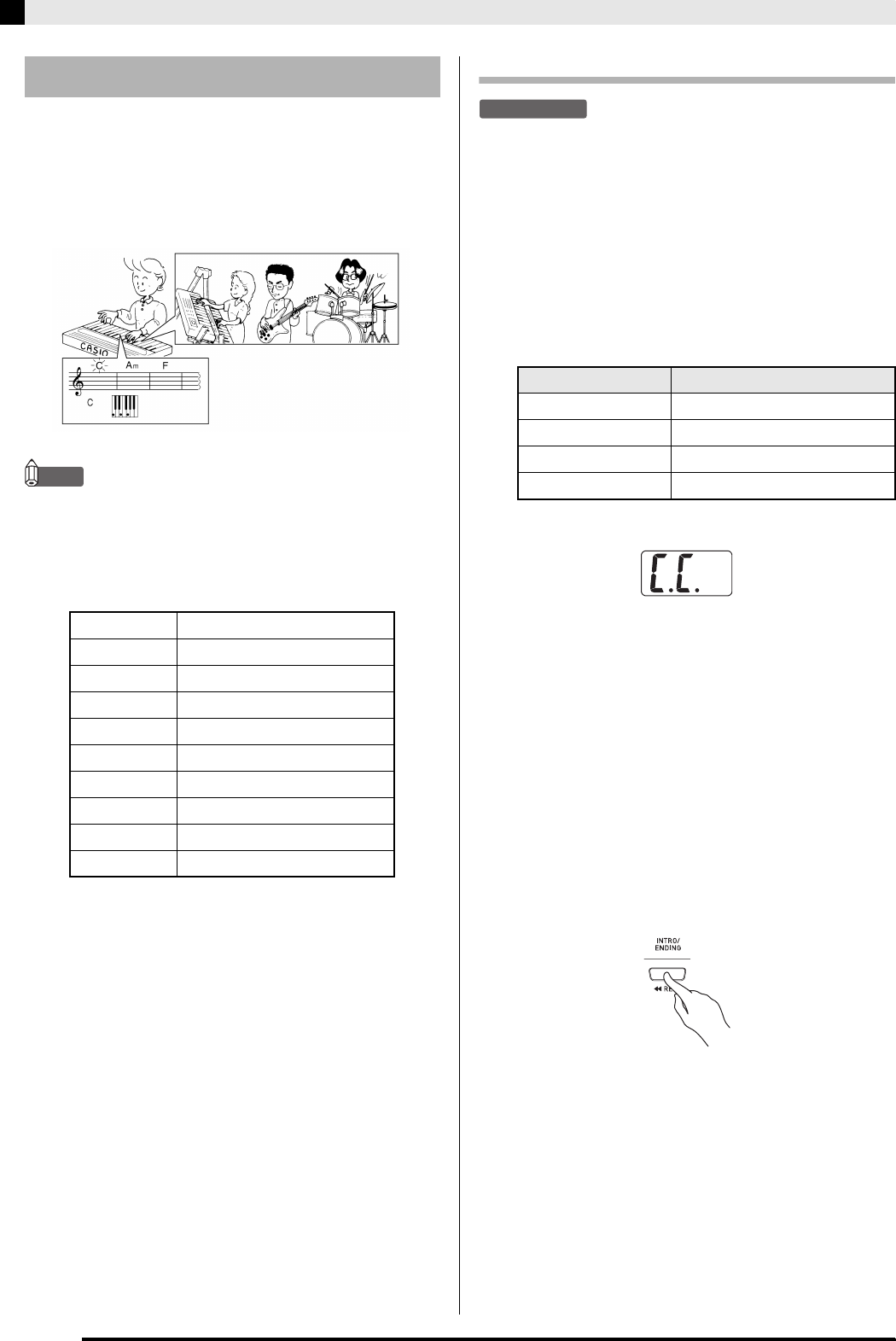
Using Auto Accompaniment
60 PIANO ROCK’N’ROLL
62 ARPEGGIO 1
63 ARPEGGIO 2
64 ARPEGGIO 3
65 MARCH 2
66 MARCH 3
67 STRIDE PIANO
68 WALTZ 2
69 WALTZ 3
70 WALTZ 4
Display Message Meaning
oFF NORMAL
C.C. CASIO CHORD
FnG FINGERED
FUL FULL RANGE CHORD
PX320_e.book 18 ページ 2007年8月1日 水曜日 午前9時28分
Playing a Rhythm
E-19
7.
Finger the first chord within the
accompaniment keyboard range.
• Playing a chord will cause the intro pattern for the
selected rhythm to play, followed by the
accompaniment rhythm and chord pattern.
8.
Finger other chords on the keyboard.
• See “How to Play Chords” on page E-19 for
information about how to finger chords within the
different Auto Accompaniment modes.
• The two lamps above the START/STOP button will
flash along with the beat.
NOTE
• You can insert a fill-in pattern while a rhythm pattern is
playing by pressing the SYNCHRO/FILL-IN button.
A fill-in helps to change the mood of the pattern.
9.
To stop accompaniment, press the INTRO/
ENDING button.
• This will play an ending pattern for the selected
rhythm before stopping Auto Accompaniment play.
NOTE
• You can stop accompaniment play without an intro and
ending pattern by pressing the START/STOP button in
place of steps 6 or 9.
• See “Other Settings” on page E-32 for information about
adjusting accompaniment volume.
How to Play Chords
The way you finger chords depends on the current
Auto Accompaniment mode. If you want to play
without Auto Accompaniment, use the NORMAL
mode.
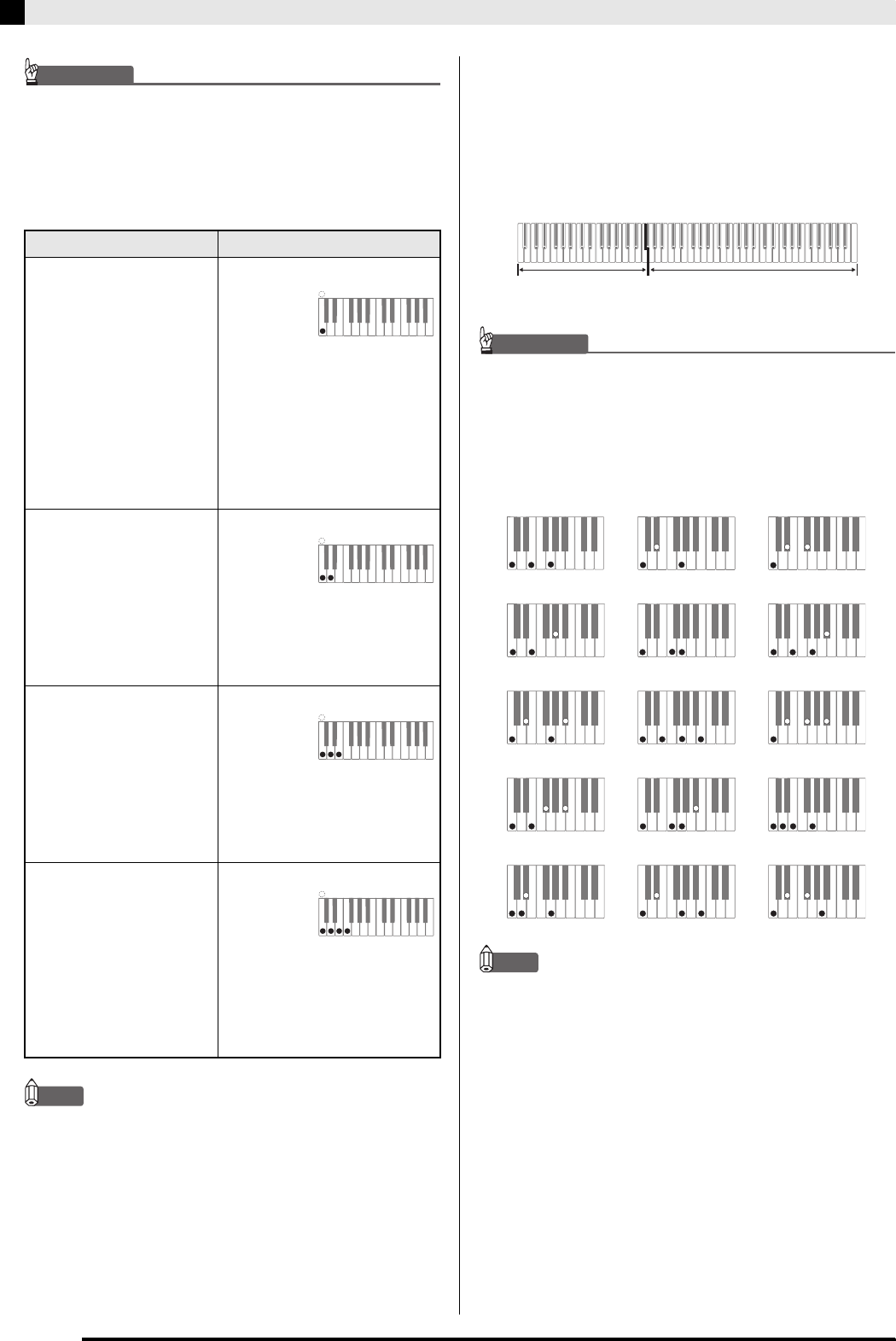
CASIO CHORD
Even if you do not know how to play chords normally,
this mode lets you play four different types of chords
using simplified fingerings in the accompaniment
keyboard range of the keyboard. The following shows
where the accompaniment keyboard range is located,
and explains how to finger chords in the CASIO
CHORD mode.
CASIO CHORD Mode Keyboard
Flashes on the first
beat of the measure. Flashes on
subsequent beats.
Accompaniment
keyboard range Melody keyboard range
PX320_e.book 19 ページ 2007年8月1日 水曜日 午前9時28分
E-20
Playing a Rhythm
IMPORTANT!
• In the CASIO CHORD mode, the keys in the
accompaniment keyboard range of the keyboard operate
as “chord switches” only. You cannot use the keys in this
keyboard range to play notes.
• You can use the split point to change the size of the
accompaniment keyboard range. See “To specify the
keyboard split point” on page E-13 for more information.
NOTE
• When playing a minor, seventh, or minor seventh chord,
it makes no different whether the additional keys you
press are black or white.
FINGERED
In the FINGERED mode, you play standard chord
fingerings in the accompaniment keyboard range to
play chords. To finger a C chord, for example, you
would press the C-E-G keys.
FINGERED Mode Keyboard
IMPORTANT!
• In the FINGERED mode, the keys in the accompaniment
keyboard range of the keyboard operate as “chord
switches” only. You cannot use the keys in this keyboard
range to play notes.
• You can use the split point to change the size of the
accompaniment keyboard range. See “To specify the
keyboard split point” on page E-13 for more information.
NOTE
• See the “Fingered Chord Chart” on page A-6 for
information about fingering chords with other roots in
the accompaniment keyboard range.
*1 Inverted fingerings (see “Fingered Chord Notes” on
page E-21) are not supported for these chords. The
lowest note fingered is used as the root.
*2 For these chords, the same chord is specified even if
the G fifth is not fingered.
Chord Types Example:
Major Chords
Pressing a single
accompaniment keyboard
range key in the CASIO
CHORD mode will play
the major chord whose
name is marked above the
key. All of the
accompaniment keyboard
range keys that are
marked with the same
chord name play exactly
the same chord.
C (C Major)
Minor Chords
To play a minor chord,
press the accompaniment
keyboard range key that
corresponds to the major
chord, while also pressing
one other accompaniment
keyboard range key to the
right.
Cm (C Minor)
Seventh Chords
To play a seventh chord,
press the accompaniment
keyboard range key that
corresponds to the major
chord, while also pressing
two other accompaniment
keyboard range keys to
the right.
C7 (C Seventh)
Minor Seventh Chords
To play a minor seventh
chord, press the
accompaniment keyboard
range key that
corresponds to the major
chord, while also pressing
three other
accompaniment keyboard
range keys to the right.
Cm7 (C Minor Seventh)
CCDE F
#b
EF
#
GA
b
AB
B
b
CCDE F
E
#b
Note names J
CCDE F
#b
EF
#
GA
b
AB
B
b
CCDE F
E
#b
CCDE F
#b
EF
#
GA
b
AB
B
b
CCDE F
E
#b
CCDE F
#b
EF
#
GA
b
AB
B
b
CCDE F
E
#b
Accompaniment
keyboard range Melody keyboard range
C Cm Cdim
Caug *
1
Csus4 C7 *
2
Cm7 *
2
CM7 *
2
Cm7b5
C7sus4 Cadd9
Cm add9 CmM7 *
2
Cdim7 *
1
C7b5 *
1
PX320_e.book 20 ページ 2007年8月1日 水曜日 午前9時28分
Playing a Rhythm
E-21
Fingered Chord Notes
• Except for the chords whose names have *1 after
them in the above examples, you also can use
inverted fingerings. This means that fingering either
E-G-C or G-C-E will produces a C chord.
• Except for the chords whose names have *2 after
them in the above examples, you need to press all of
the indicated keys in order to finger a chord. Failure
to include even a single note may produce a chord
that is different from the one you want.
FULL RANGE CHORD
The FULL RANGE CHORD mode lets you play a total
of 38 different types of chords (the same chords
available in the FINGERED mode plus 23 more). FULL
RANGE CHORD recognizes the pressing of three or
more keyboard keys anywhere on the keyboard as a
chord fingering. Anything else (pressing one or two
keys, or playing any group of notes that does not form
a chord fingering that is recognized by the keyboard) is
treated as melody notes.
FULL RANGE CHORD Mode Keyboard
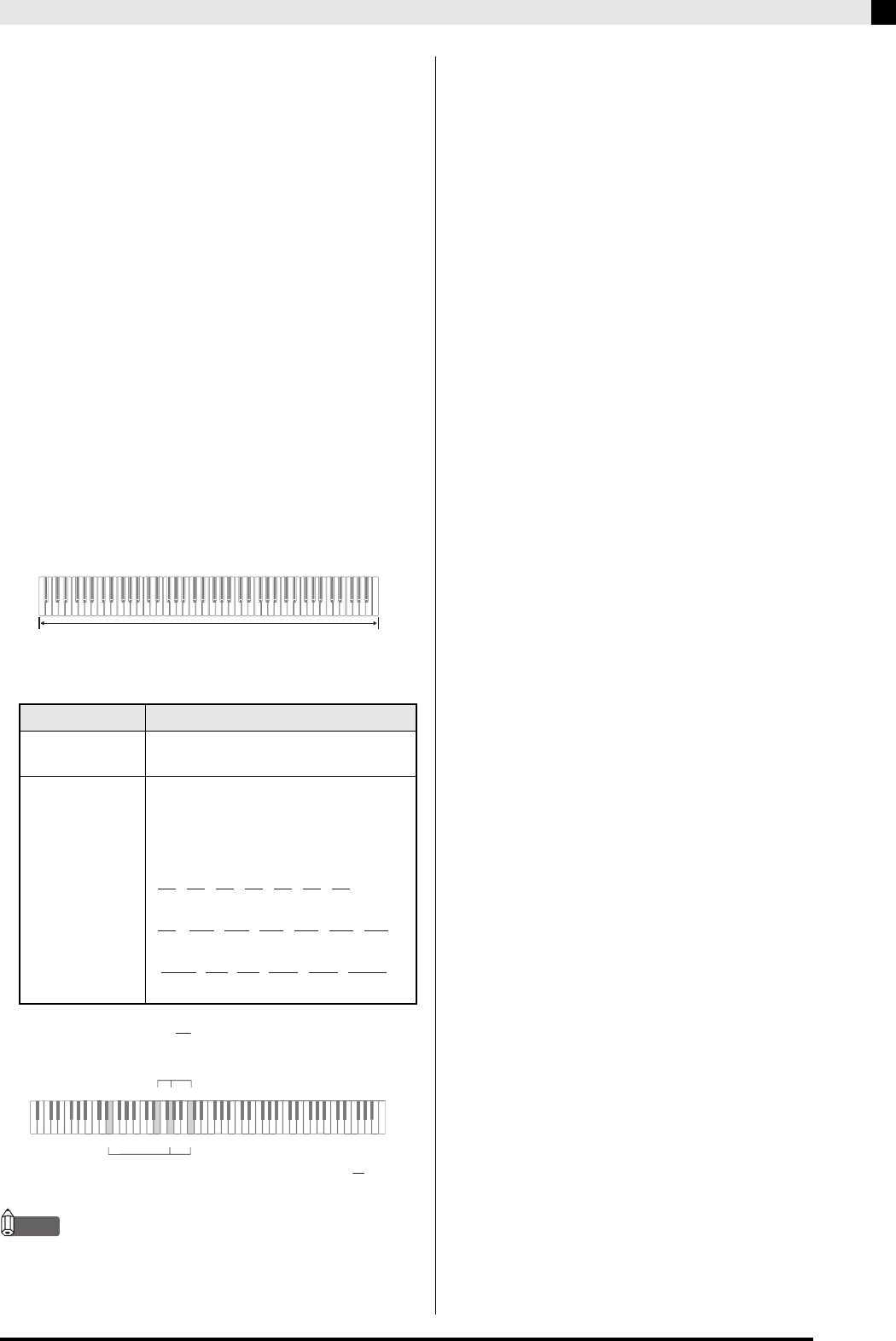
zRecognized Chords
Example: C Major or chord
NOTE
• When there are at least six semitones between the lowest
note and the next note to the right, the lowest note is
assumed to be the bass note.
Type Chord Types
FINGERED
Mode Chords 15 (See “FINGERED” on page E-20.)
Other Chords
23
For example, the following are chords
that have C as the bass note.
Accompaniment Keyboard/Melody Keyboard
Ddim Ab
7
F
7
Fm
7
Gm
7
A
b
add9
C C C C C C
, , , , ,
C
6
, Cm
6
, C
69
Db D E F G Ab B
b
C C C C C C C
, , , , , , ,
B Dbm Dm Fm Gm Am Bbm
C C C C C C C
, , , , , , ,
C
E
E
EG C
GC
2
1
1 . . . . Chord C
2 . . . . Chord C
E
PX320_e.book 21 ページ 2007年8月1日 水曜日 午前9時28分
E-22
Playing Back Built-in Songs
IMPORTANT!
• After you select a built-in song, it can take a number of
seconds for the song data to be loaded. While the data is
being loaded, the song number will flash on the display,
and the keyboard keys and button operations will be
disabled. Selecting a song while playing something on
the keyboard will cause sound output of the keyboard
notes to stop.
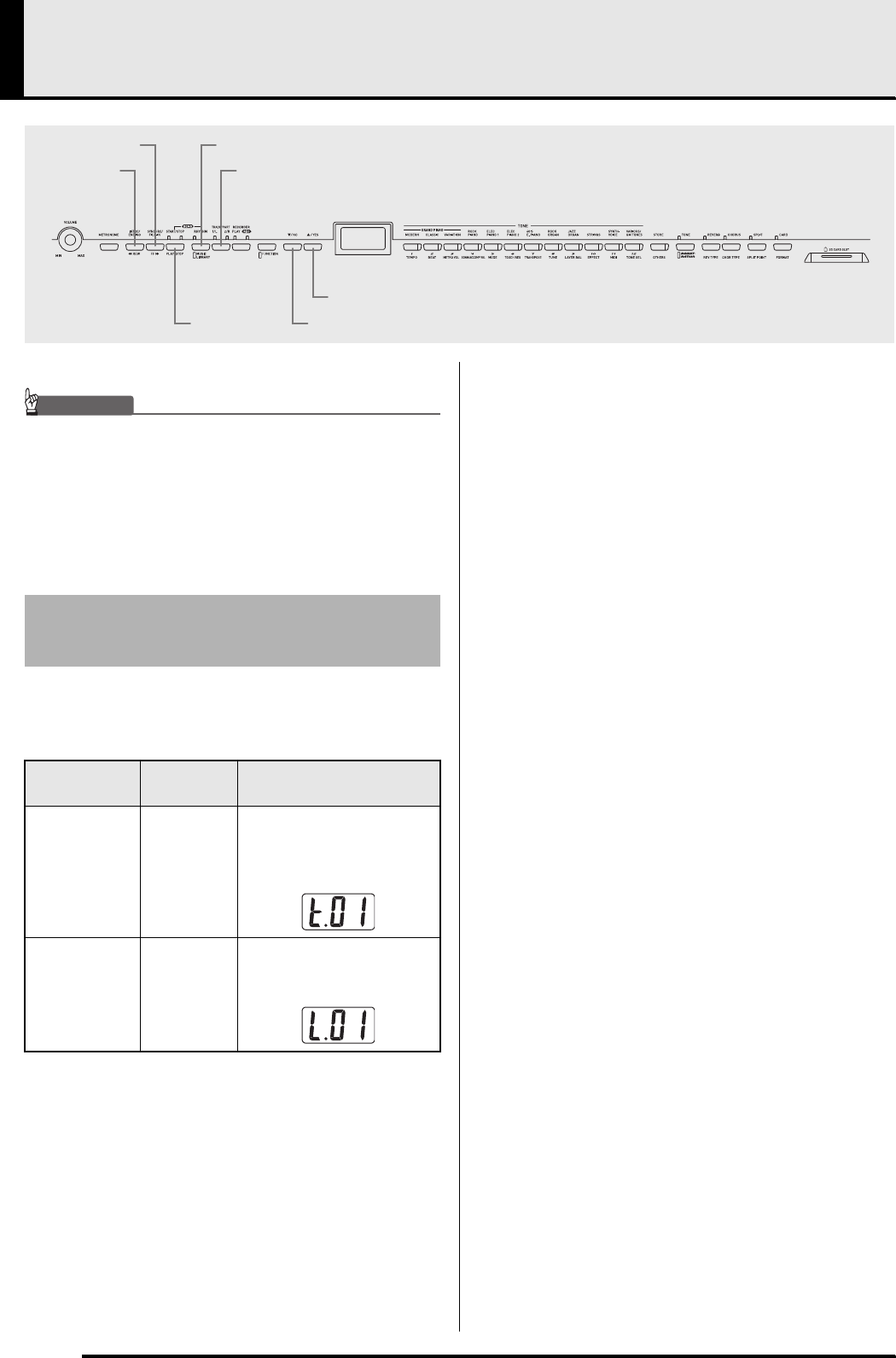
Your digital piano has a total of 71 built-in songs. You
can use the procedure below to play back all of the
songs, one after the other.
1.
While holding down the MUSIC LIBRARY
button, press the PLAY/STOP button.
• This will start playback of the 71 built-in songs in
sequence, from t.01 through L.60.
• You can play along with a song on the keyboard
during all-song playback. The tone assigned to the
keyboard is the one that is preset for the song that is
playing.
• You can use the T/NO and S/YES buttons to skip
sequentially between songs during all-song playback.
•If you press a TONE button, playback will jump to
the demo song that uses that tone. If you press the
MUSIC LIBRARY button during all-song playback,
playback will jump to Music Library song L.01.
2.
Press the PLAY/STOP button to stop all-song
playback.
TRACK/PART
PLAY/STOP
MUSIC LIBRARY
REW
FF
/NO
/YES
Playing Back All of the Built-in
Songs
Type Number of
Songs Indication
Refined Tone
Demo Tune 11
The TONE button of the
refined tone being used
flashes, and the demo song
number is displayed.
Music Library
Song 60
The Music Library lamp
flashes and the song
number is displayed.
PX320_e.book 22 ページ 2007年8月1日 水曜日 午前9時28分
Playing Back Built-in Songs
E-23
The Music Library includes both built-in songs (01 to
60), plus up to 10 songs (61 to 70) that have been saved
to digital piano memory from a computer* or SD
memory card (page E-41). You can use the procedure
below to select one of these songs and play it back.
*You can download music data from the Internet and
then transfer it from your computer to digital piano
memory. See “Expanding the Selections in the Music
Library” on page E-40 for more information.
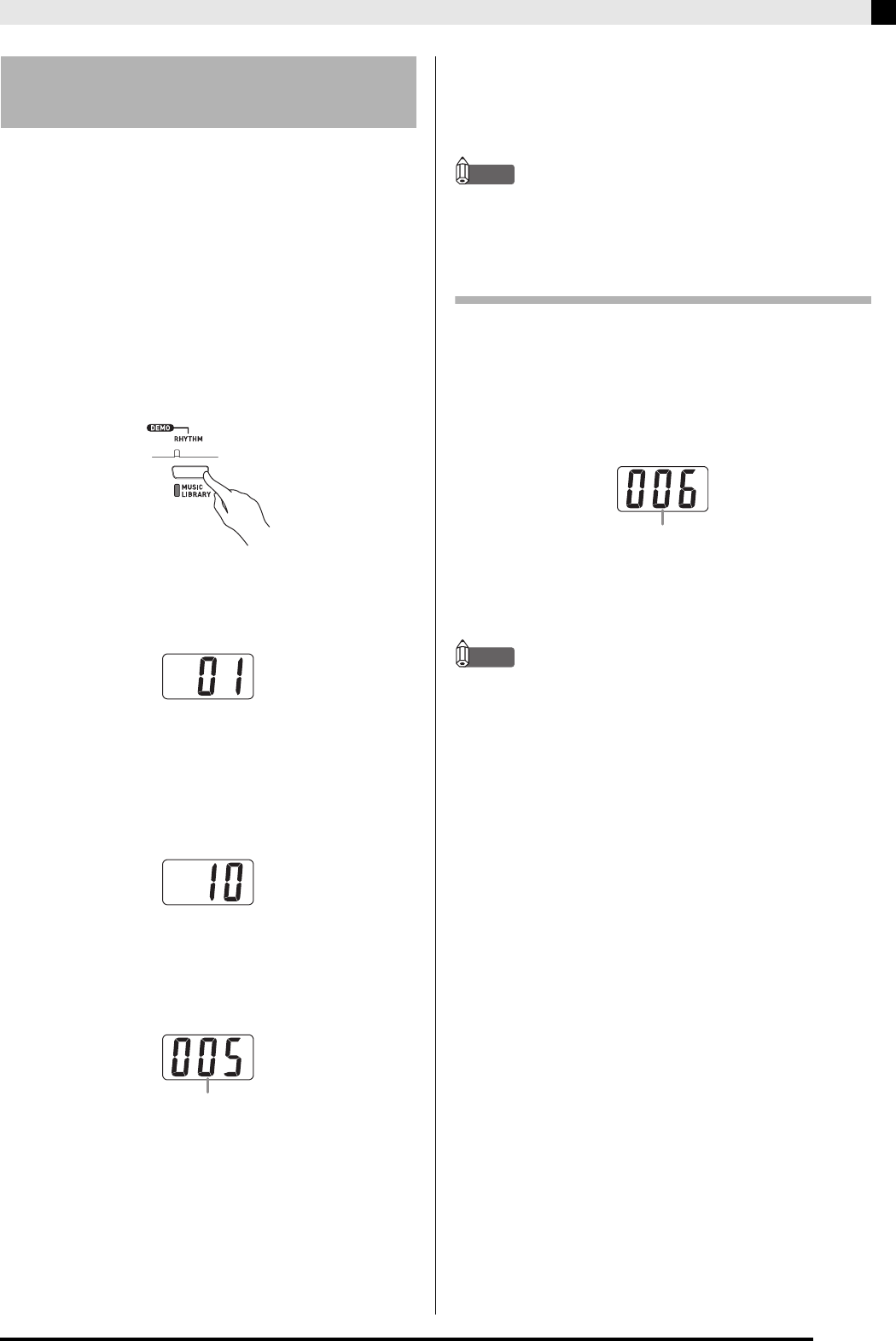
1.
Press the MUSIC LIBRARY button so the
lamp below the button is lit.
• Each press of the button toggles between the upper
lamp and lower lamp.
• This will cause the currently selected song number to
appear on the display.
2.
Find the song number of the song you want to
play in the Song Llist on page A-5.
3.
Use the T/NO and S/YES buttons to select
a song.
4.
Press the PLAY/STOP button.
• This starts the playback of the song.
• The measure number appears on the display during
playback.
• To view the song number during playback, hold
down the MUSIC LIBRARY button.
• While playback is in progress, you can press the
T/NO and S/YES button to change to another song.
5.
Press the PLAY/STOP button again to stop
playback.
• Playback will stop automatically when the end of the
song is reached.
NOTE
• You can change tempo, volume, and pre-count settings
for playback. See “Other Settings” on page E-32 for more
information.
To skip back through a song
1.
While playback is in progress, hold down the
REW button.
• This skips back through the song measure-by-
measure.
• The measure number appears on the display while
you are skipping back.
2.
When you reach the point you want, release
the REW button to resume playback.
NOTE
• Depending on what is being played when you press the
REW button, the skip back operation may not start right
away when you press.
Playing Back a Specific Music
Library Song
Measure number
Measure number
PX320_e.book 23 ページ 2007年8月1日 水曜日 午前9時28分
E-24
Playing Back Built-in Songs
To skip forward through a song
1.
While playback is in progress, hold down the
FF button.
• This skips forward through the song measure-by-
measure.
• The measure number appears on the display while
you are skipping forward.
2.
When you reach the point you want, release
the FF button to resume playback.
You can turn off the left hand part or right hand part of
a Music Library song and play along on the digital
piano.
NOTE
• The Music Library includes duet tunes (song numbers
12, 37, and 45). While a duet is selected, you can turn off
the first piano (Primo) or second piano (Secondo) tone
and play along with the song.
• A number of tunes have tempo changes part way
through in order to produce specific musical effects.
PREPARATION
• Select the Music Library song you want to practice and
adjust the tempo.
1.
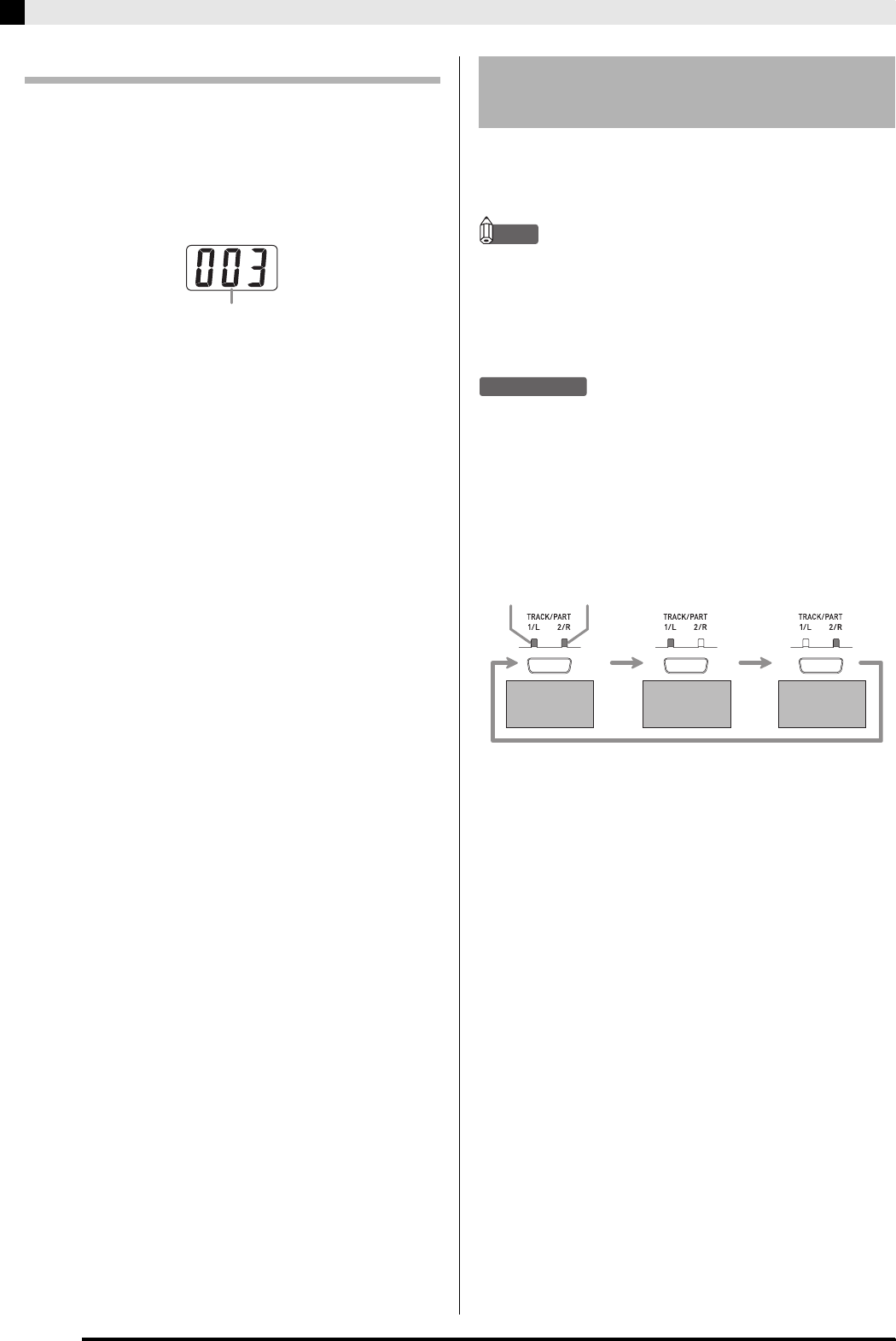
Use the TRACK/PART button to turn off a
part.
• Each press of the TRACK/PART button cycles
through the part settings as shown below. The lamps
above the button show which part is turned off.
2.
Press the PLAY/STOP button.
• This starts playback, without the part you turned off
in step 1.
3.
Play the missing part on the keyboard.
4.
Press the PLAY/STOP button again to stop
playback.
Measure number
Practicing with a Music
Library Song
Left
hand
Right
hand
Both parts on Right hand
part off
Left hand
part off
PX320_e.book 24 ページ 2007年8月1日 水曜日 午前9時28分
E-25
Saving Digital Piano Setups (Registration Memory)
You can save up to 96 digital piano setups in
registration memory, including tone, rhythm, and
tempo settings, for quick and easy recall whenever you
need them.
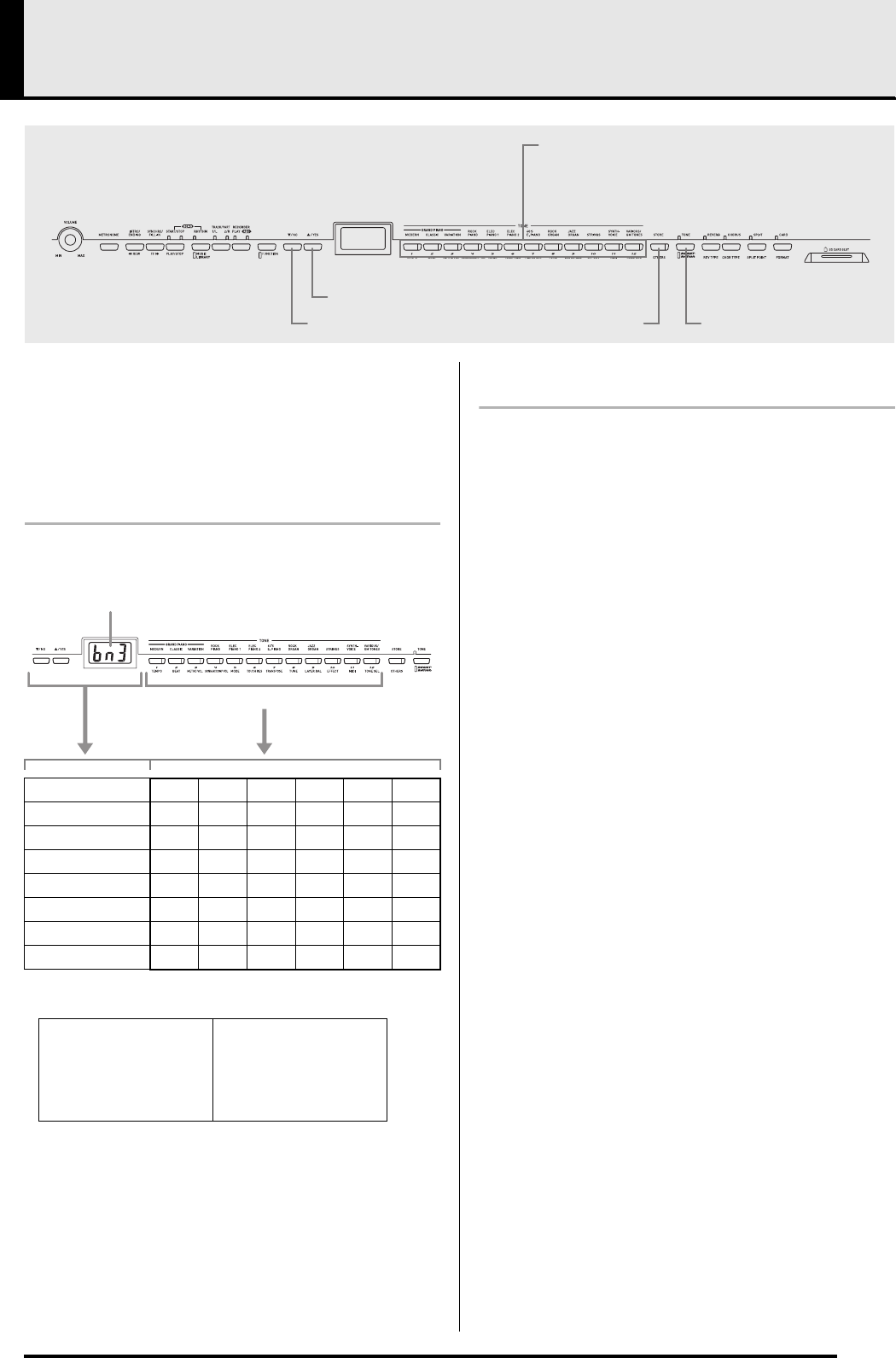
Registration Areas and Banks
Each setup is stored in an “area”. There are a total of 96
areas, which are grouped into eight “banks”.
Example of area data:
Registration Data Contents
• Tone (page E-10)
• Brilliance (page E-11)
• Layer/Split (page E-12)
• Reverb/chorus (page E-13)
•Rhythm* (page E-17)
•Tempo* (page E-17)
•Mode* (page E-18)
•SYNCHRO button on/off* (page E-18)
• Accompaniment volume* (page E-35)
• Keyboard key (page E-35)
• Pedal settings (page E-36)
*These five settings can be recalled only when the
RHYTHM lamp (page E-17) is lit and the registration
filter is turned off (page E-36).
TONE/REGISTRATION
STORE
/NO
/YES
Area buttons (1 through 12)
Bank 1 (bn.1) 1-1 1-2 1-3 — 1-11 1-12
Bank 2 (bn.2) 2-1 2-2 2-3 — 2-11 2-12
Bank 3 (bn.3) 3-1 3-2 3-3 — 3-11 3-12
Bank 4 (bn.4) 4-1 4-2 4-3 — 4-11 4-12
Bank 5 (bn.5) 5-1 5-2 5-3 — 5-11 5-12
Bank 6 (bn.6) 6-1 6-2 6-3 — 6-11 6-12
Bank 7 (bn.7) 7-1 7-2 7-3 — 7-11 7-12
Bank 8 (bn.8) 8-1 8-2 8-3 — 8-11 8-12
Area 5-1
Tone: Strings
Rhythm number: 32
Tempo: 200
:
Area 3-3
Tone: Jazz Organ
Rhythm number: 40
Tempo: 110
:
Bank number
Area buttons (1 through 12)
PX320_e.book 25 ページ 2007年8月1日 水曜日 午前9時28分
E-26
Saving Digital Piano Setups (Registration Memory)
Registration Data Storage Notes
• Registration data is stored even when the digital
piano is turned off.
• Storing new data in an area replaces any data that is
currently in the same area.
• The digital piano is shipped from the factory with
registration data stored in each area. You can restore
this original data by performing the procedure
under “Returning the Digital Piano to Its Factory
Default Settings” on page E-5.
• You can save registration data to an SD memory
card, if you want. See “Using an SD Memory Card”
on page E-41 for more information.
IMPORTANT!
• CASIO COMPUTER CO., LTD. takes no responsibility
for any damages, lost profits, or claims by third parties
arising from the loss of deleted recorded data due to
malfunction, repair, or for any other reason.
1.
On the digital piano, configure the tone,
rhythm, and other settings you want to save
as your setup.
• See “Registration Data Contents” (page E-25) for
more information.
NOTE
• If you use the FUNCTION button to configure a setting,
make sure that the FUNCTION button lamp is unlit
before you advance to step 2. If the lamp is lit, press the
FUNCTION button so it goes out.
2.
While holding down the STORE button, use
the T/NO and S/YES buttons to display the
number of the bank where you want to store
the registration data.
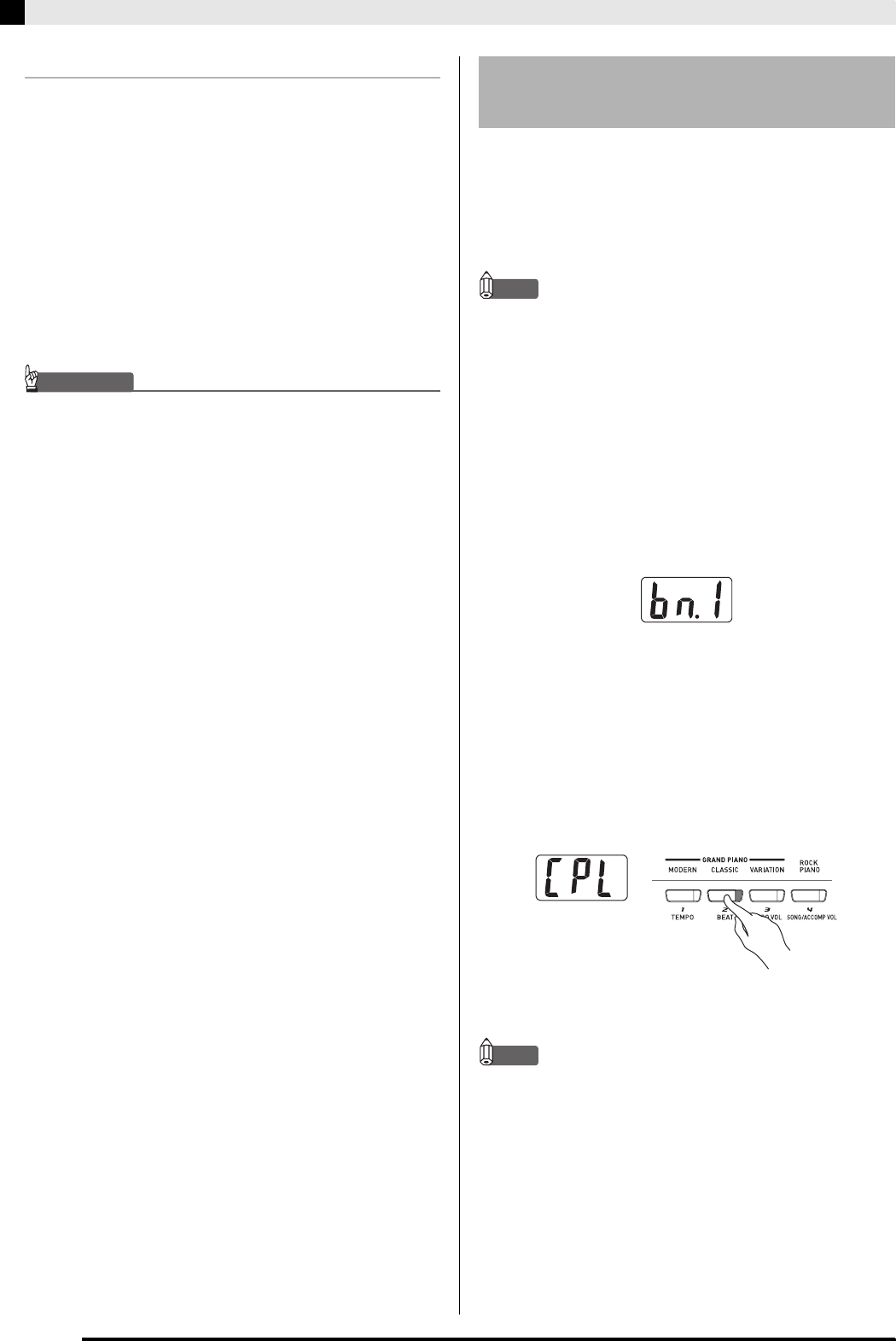
• This will display the bank number and then display
the screen for specifying the area number.
Example: Bank 1 selected
3.
While holding down the STORE button, press
one of the area buttons (1 through 12), to
select the area where you want to save the
registration data.
• The lamp of the applicable area button will light after
registration is complete. Also, the message “CPL”
(complete) will appear on the display.
Example: After data has been saved to area 1-2
4.
Release the STORE button.
NOTE
• Registration data cannot be stored when any one of the
following conditions exists. Eliminate the problem
condition and perform the procedure from step 2.
• The digital piano is in the Duet Mode.
• Song, rhythm, or metronome is playing.
•Two RECORDER button lamps are lit or flashing.
To store a setup in registration
memory
PX320_e.book 26 ページ 2007年8月1日 水曜日 午前9時28分
Saving Digital Piano Setups (Registration Memory)
E-27
1.
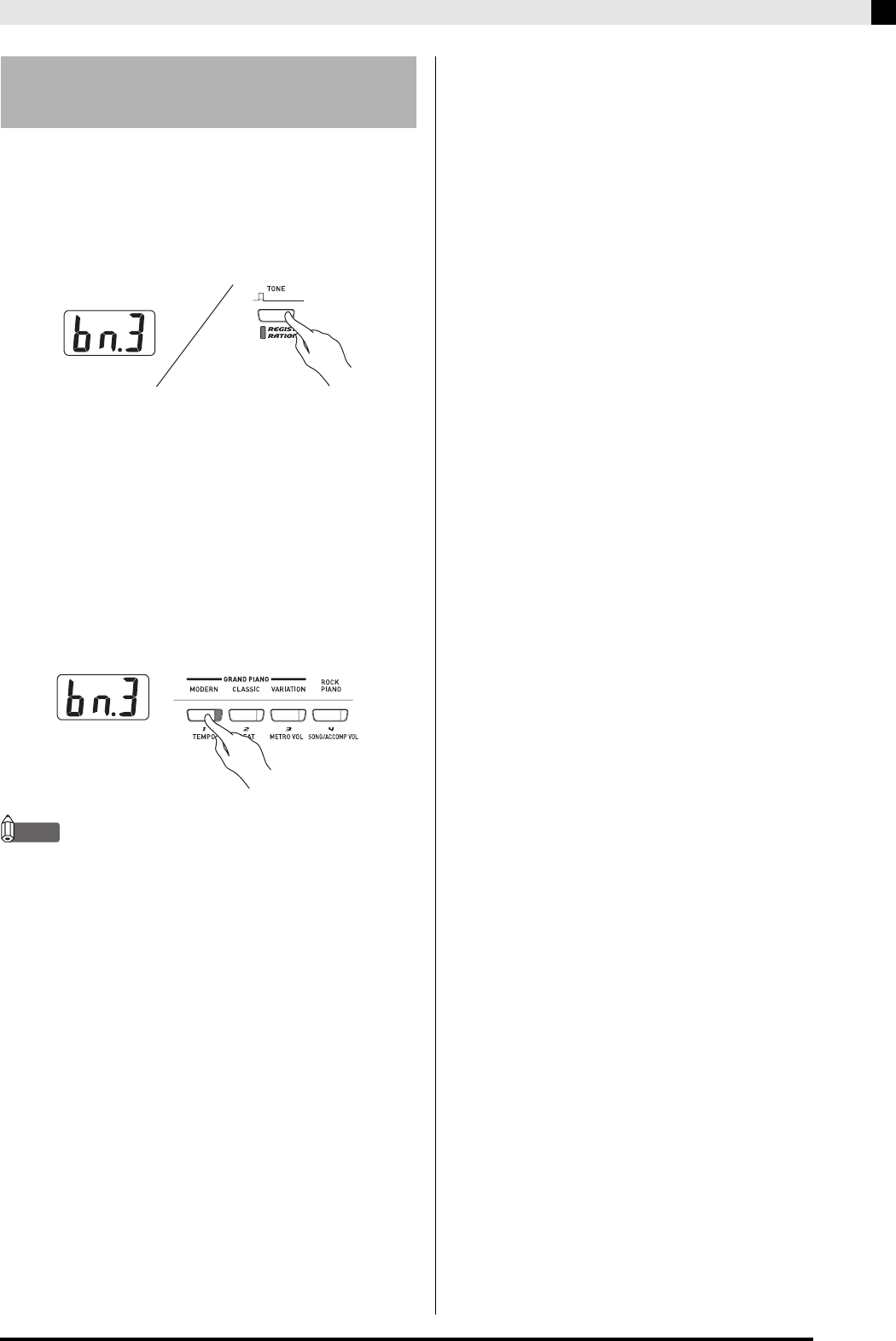
Press the TONE/REGISTRATION button so
the registration lamp is lit.
• This will cause the currently selected bank number to
appear on the display.
• Each press of the button toggles between the upper
lamp and lower lamp.
2.
Use the T/NO and S/YES buttons to display
the number of the bank that contains the area
you want to recall.
3.
Press the area button (1 through 12) for the
area whose registration data you want to
recall.
• The lamp of the applicable area button will light after
recall is complete.
Example: After data has been recalled from area 3-1
NOTE
• Registration data cannot be recalled when any one of the
following conditions exists. Eliminate the problem
condition and perform the procedure from step 1.
• The digital piano is in the Duet Mode.
•RECORDER button PLAY lamp is flashing.
• To check the current selected song or rhythm number
while a bank number is on the display, press the
RHYTHM, MUSIC LIBRARY button or CARD button.
To recall a setup from
registration memory
PX320_e.book 27 ページ 2007年8月1日 水曜日 午前9時28分
E-28
Recording and Play Back
You can store the notes you play in digital piano
memory for later playback. You can have up to five
songs in memory at one time.
A track is a container of recorded data, and each song
consists of two tracks: Track 1 and Track 2. You can
record each track separately and then combine them so
they play back together as a single song.
Memory Capacity
• Digital piano memory can hold about 50,000 notes
total, for five songs. Each song can contain up to
about 10,000 notes.
• When remaining memory capacity is 100 notes or
less, the track lamp flashes at high speed to alert
you.
• Recording will stop automatically and the REC lamp
will go out if the number of notes in memory
exceeds the maximum.
Recorded Data
• Keyboard play
•Tone used
• Pedal operations
• Reverb and chorus settings*
• Tempo setting*
• Layer and split settings*
• Rhythm Patterns*
• Chord fingering*
• Intro, fill-in, ending operations*
*Track 1 only
Recorded Data Storage
• Starting a new recording deletes any data that was
previously recorded in memory.
• Should power fail during recording, all of the data in
the track you are recording will be deleted.
• You can save memory data to external media, if you
want. See “Using an SD Memory Card” on page E-41
for more information.
IMPORTANT!
• CASIO COMPUTER CO., LTD. takes no responsibility
for any damages, lost profits, or claims by third parties
arising from the deletion of recorded data due to
malfunction, repair, or for any other reason.
• After you select a song, it can take a number of seconds
for the song data to be loaded. While the data is being
loaded, the song number will flash on the display, and
keyboard key and button operations will be disabled.
Selecting a song while playing something on the
keyboard will cause sound output of the keyboard notes
to stop.
RECORDER
/NO
TRACK/PARTSTART/STOP
/YES
INTRO/ENDING
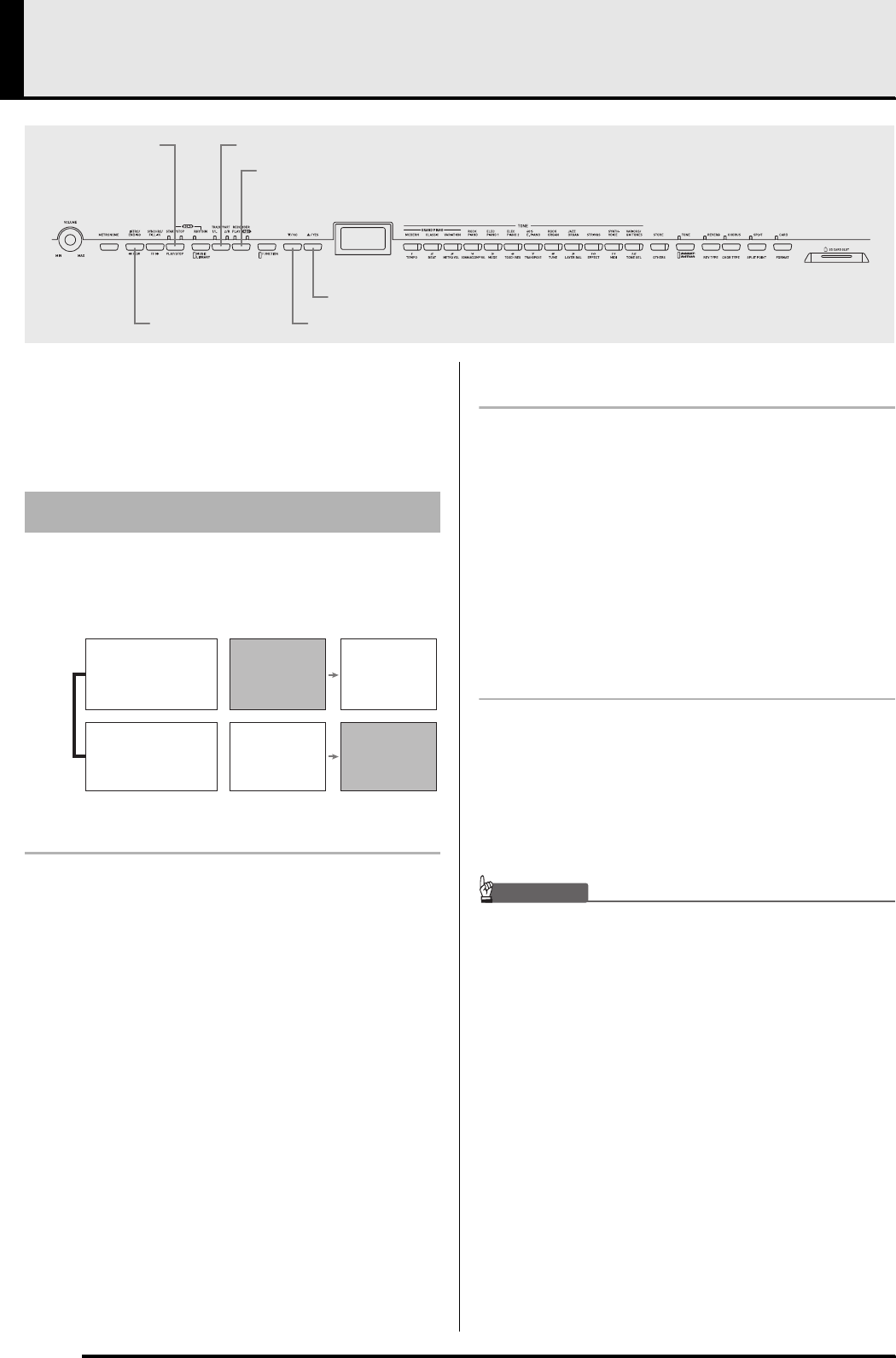
Songs and Tracks
Song
Record
Record
While playing
back. . .
Track 2
Melody
Track 1
Auto Accompaniment
(rhythm, bass, chords),
melody
PX320_e.book 28 ページ 2007年8月1日 水曜日 午前9時28分
Recording and Play Back
E-29
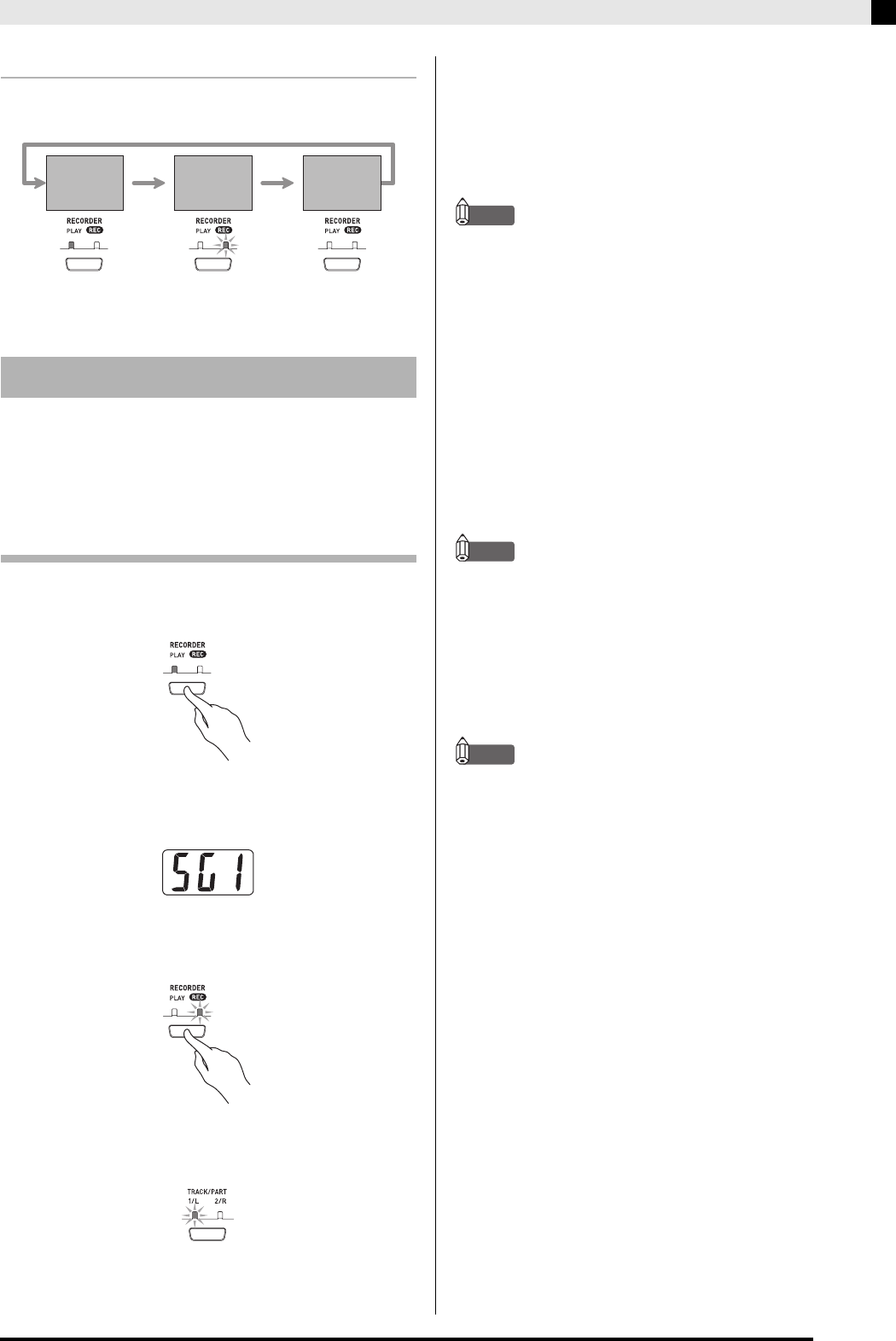
Using the RECORDER Button
Each press of the RECORDER button cycles through
the recording options in the sequence shown below.
After recording to either of the tracks of a song, you can
record to the other track while listening to playback
what you recorded in the first track.
To record to a specific track of a specific
song
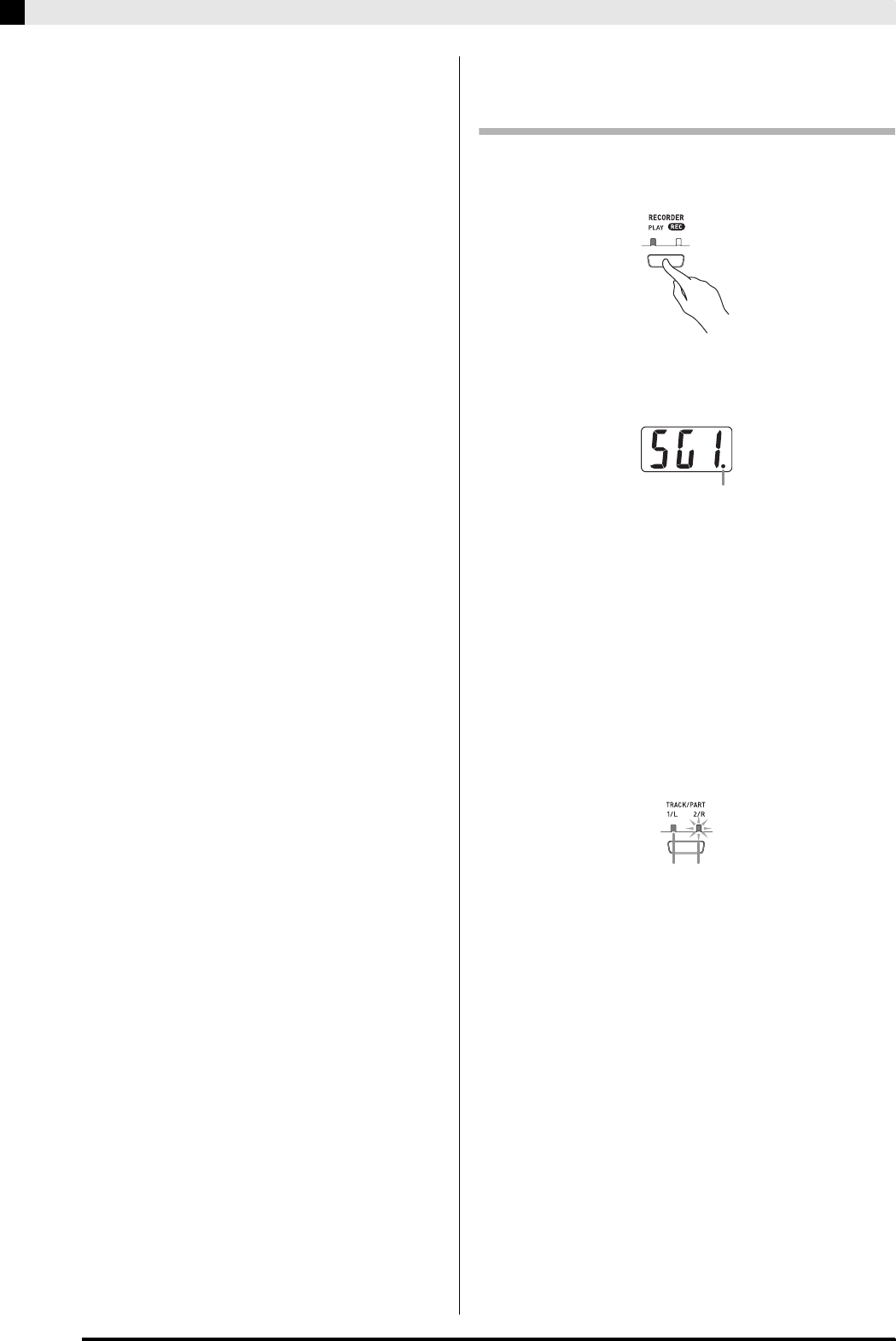
1.
Press the RECORDER button so the PLAY
lamp is lit.
2.
Use the T/NO and S/YES buttons to display
a song number (1 to 5).
3.
Press the RECORDER button so the REC
lamp is flashing.
• At this time the 1/L lamp also will flash to indicate
that the digital piano is standing by for recording to
Track 1.
4.
Use the TRACK/PART button to select the
track to which you want to record.
• Make sure that the lamp for the record track is
flashing.
Track 1: 1/L lamp
Track 2: 2/R lamp
NOTE
• If you want to record with rhythm or Auto
Accompaniment, select Track 1 (1/L lamp flashing).
5.
Select the tone and effects you want to use in
your recording, and set the tempo you want.
If you are recording to Track 1, you also can
select a rhythm and accompaniment mode.
• Tone (page E-10)
Track 1 only
• Reverb and chorus (page E-13)
• Tempo (page E-17)
• Rhythm (page E-17)
• Mode (page E-18)
NOTE
• If you want the metronome to sound while you are
recording, configure the beats per measure and tempo
settings, and then press the METRONOME button. See
“Using the Metronome” on page E-14 for more
information.
6.
Start playing something on the keyboard.
• Recording will start automatically.
NOTE
• When recording to Track 1 with rhythm or Auto
Accompaniment:
Press the START/STOP button to start recording. You
also can start recording by pressing the SYNCHRO/
FILL-IN button and/or the INTRO/ENDING button,
and then play a chord.
• When recording to Track 1 without rhythm or Auto
Accompaniment:
Recording will start as soon as you play anything on the
keyboard.
Recording Your Keyboard Play
Playback
Standby
Record
Standby Normal
Lit Flashing Off
PX320_e.book 29 ページ 2007年8月1日 水曜日 午前9時28分
E-30
Recording and Play Back
7.
When you are finished, press the START/
STOP button to stop recording.
• To stop recording with a rhythm/Auto
Accompaniment ending pattern, press the INTRO/
ENDING button.
• Stopping recording will cause the REC lamp to go out
and the PLAY lamp to light.
• To play back the track you just recorded, press the
START/STOP button again.
8.
After you are finished recording or playing
back, press the RECORDER button so the
PLAY lamp and REC lamp are off.
To record to one track of a song while
listening to the playback of the other
track
1.
Press the RECORDER button so the PLAY
lamp is lit.
2.
Use the T/NO and S/YES buttons to display
a song number (1 to 5).
3.
Press the RECORDER button so the REC
lamp is flashing.
• This will cause the 1/L lamp to flash.
4.
Use the TRACK/PART button to select the
track to which you want to record.
• Make sure that the lamp for the record track is
flashing.
Example: To listen to playback of Track 1 as you record
to Track 2
5.
Select the tone and effects you want to use
for your recording.
6.
Press the START/STOP button or play
something on the keyboard to start
simultaneous playback from Track 1 and
recording to Track 2.
• This will start both playback of the recorded track
and recording to the other track.
7.
When you are finished, press the START/
STOP button again to stop recording.
This indicator appears when the track contains recorded
data already.
Lit: Playback standby Flashing: Record standby
PX320_e.book 30 ページ 2007年8月1日 水曜日 午前9時28分
Recording and Play Back
E-31
1.
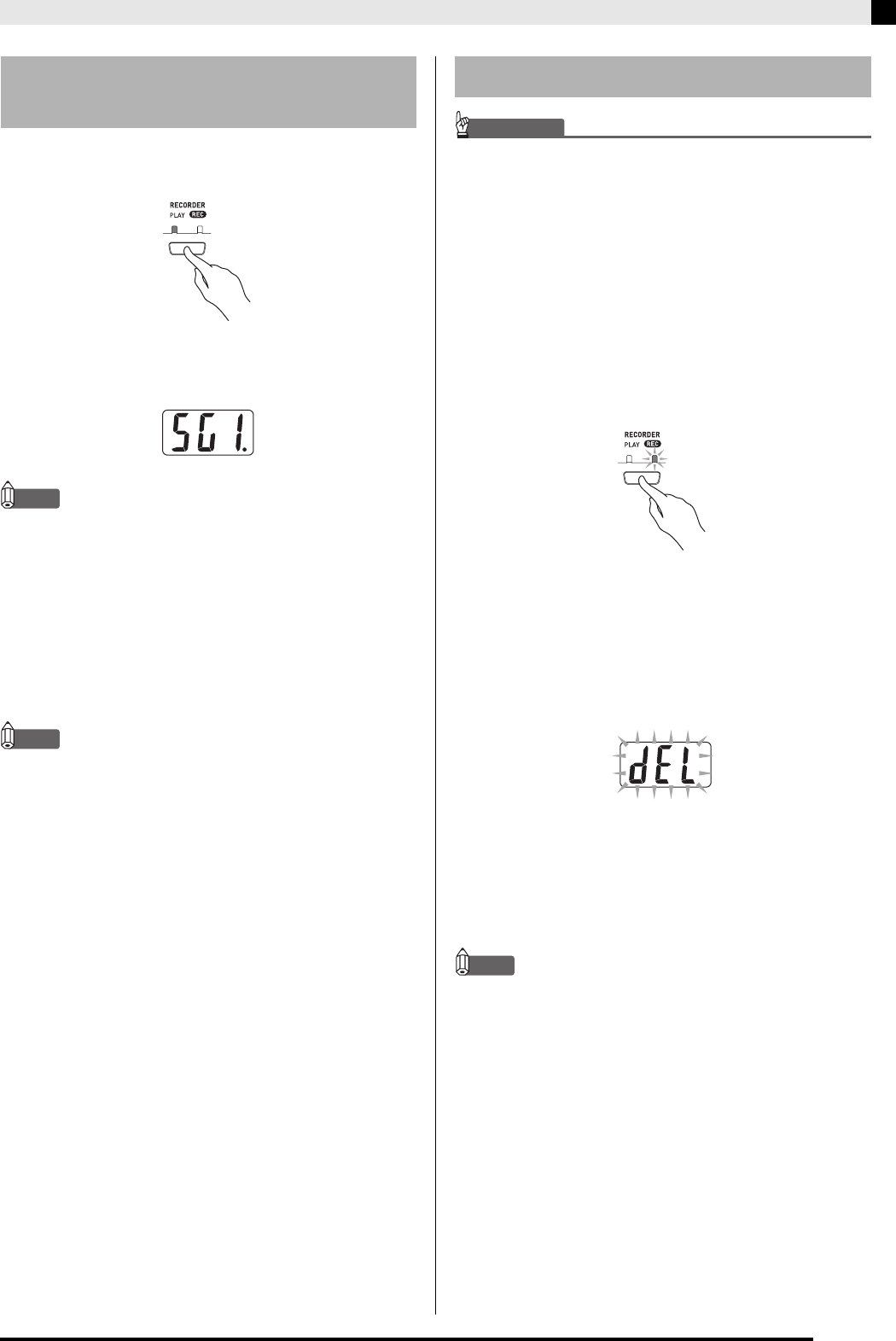
Press the RECORDER button so the PLAY
lamp is lit.
2.
Use the T/NO and S/YES buttons to display
a song number (1 to 5).
NOTE
• When a song has something recorded in both tracks, you
can turn off one track and play back just the other track,
if you want. Whether a track is on or off is indicated by
the lamps above the TRACK/PART button. Each press of
the TRACK/PART button cycles through the different
possible track on/off settings.
3.
Press the START/STOP button.
• This starts playback of the song and/or track you
selected.
NOTE
• You can change the tempo setting as a track is playing.
• You cannot change the tone setting during playback.
•Press the START/STOP button again to stop playback.
IMPORTANT!
• The procedure below deletes all of the data of the
selected song. Note that the delete operation cannot be
undone. Check to make sure you really do not need the
data before you perform the following steps.
1.
Press the RECORDER button so the PLAY
lamp is lit.
2.
Use the T/NO and S/YES buttons to display
a song number (1 to 5).
3.
Press the RECORDER button so the REC
lamp is flashing.
4.
Use the TRACK/PART button to select the
track you want to delete.
• This will cause the lamp of the selected track to flash.
5.
Hold down the RECORDER button until “dEL”
(delete) appears on the display.
6.
Press the S/YES button.
• This will delete the selected track and enter record
standby.
• To cancel the operation, press the T/NO button in
place of the S/YES button.
NOTE
• All digital piano operations except for the RECORDER
button and the T/NO and S/YES buttons are disabled
from step 5 until the delete operation is executed in step 6
of the above procedure.
To play back from digital piano
memory To delete a specific track
PX320_e.book 31 ページ 2007年8月1日 水曜日 午前9時28分
E-32
Other Settings
This section explains how to configure key, touch,
pedal, MIDI, and other settings.
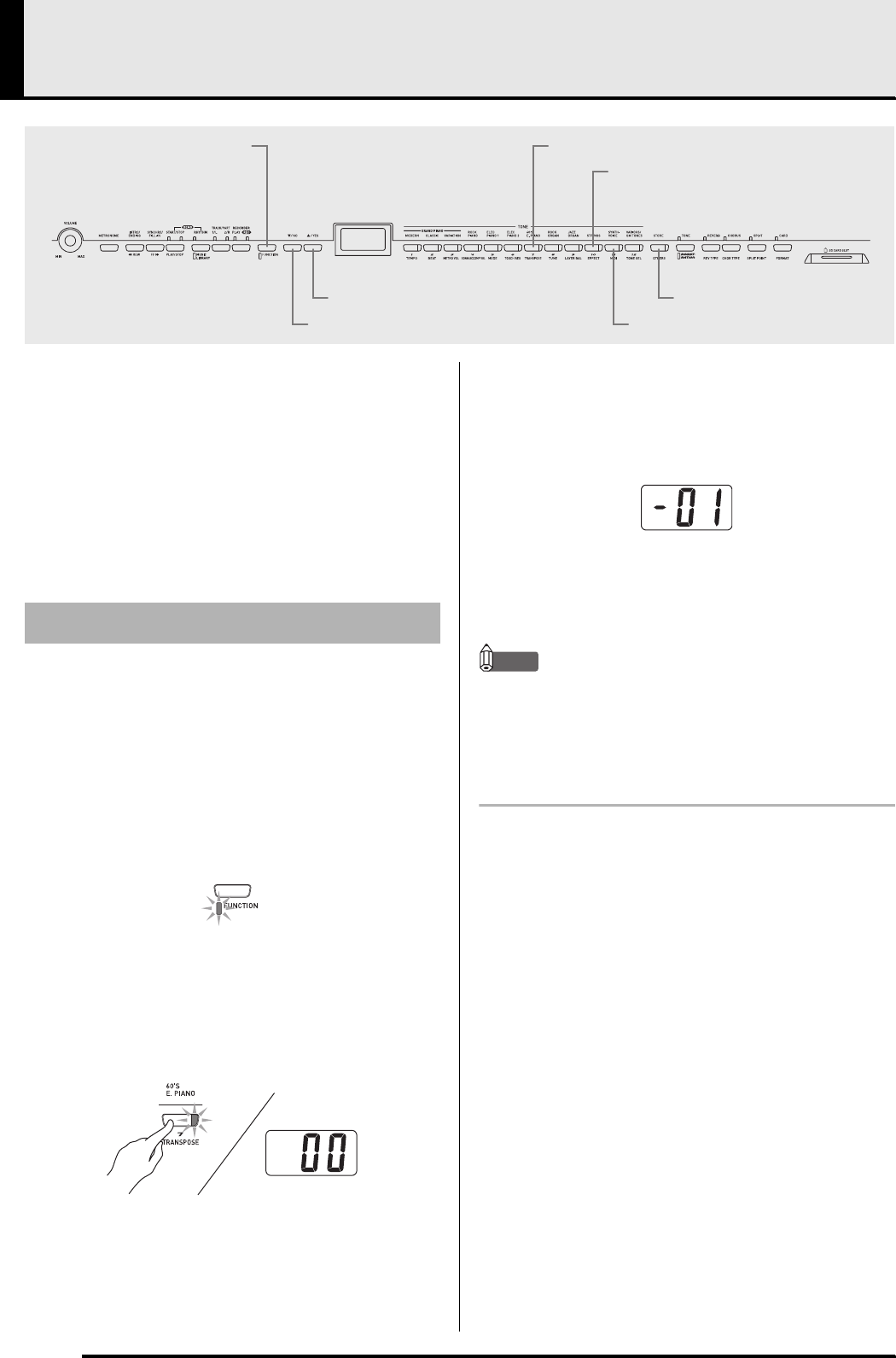
•The basic procedure below is used for configuring
all settings. The only difference is the button that
you press to select a parameter.
•See the “Secondary Parameter Reference” on page
E-34 for details about the settings you can configure
using this procedure.
1.
Use the “Secondary Parameter Reference”
on page E-34 to find the parameter whose
setting you want to configure, and note the
applicable parameter button name.
Example: To change key, you would need to use the
TRANSPOSE button.
2.
Press the FUNCTION button.
•This will cause the button’s lamp to flash.
3.
Press the button you looked up in step 1.
•The button’s lamp will flash and the current setting of
the parameter you are configuring will appear on the
display.
Example: TRANSPOSE button
•If the button has multiple parameters assigned to it,
keep pressing the button to cycle through the
parameters until the parameter you want to configure
is displayed. See “Multiple Parameter Buttons”
below for more information.
4.
Use the T/NO and S/YES buttons to change
the setting of the displayed parameter.
Example: Lower the transpose setting by one semitone
by changing the displayed value to –01.
5.
Press the FUNCTION button to complete the
procedure.
•This will cause the button’s lamp to go out.
NOTE
•Holding down the T/NO and S/YES button will scroll
continually through the available settings.
•To return the displayed setting to its initial default value,
press the T/NO and S/YES buttons at the same time.
Multiple Parameter Buttons
The EFFECT, MIDI, and OTHERS buttons have more
than one parameter assigned to them. Use the
procedures below to select the parameter whose setting
you want to change.
EFFECT
OTHERS
MIDI
TRANSPOSE
FUNCTION
/NO
/YES
To configure other settings
PX320_e.book 32 ページ 2007年8月1日 水曜日 午前9時28分
Other Settings
E-33
To change the setting of one of the
EFFECT button parameters
Press the EFFECT button in step 3 of the “To configure
other settings” procedure to toggle between the two
parameters shown below.
To change the setting of one of the MIDI
button parameters
Press the MIDI button in step 3 of the “To configure
other settings” procedure to cycle between the
parameters shown below.
To change the setting of one of the
OTHERS button parameters
Press the OTHERS button in step 3 of the “To
configure other settings” procedure to cycle between
the parameters shown below.
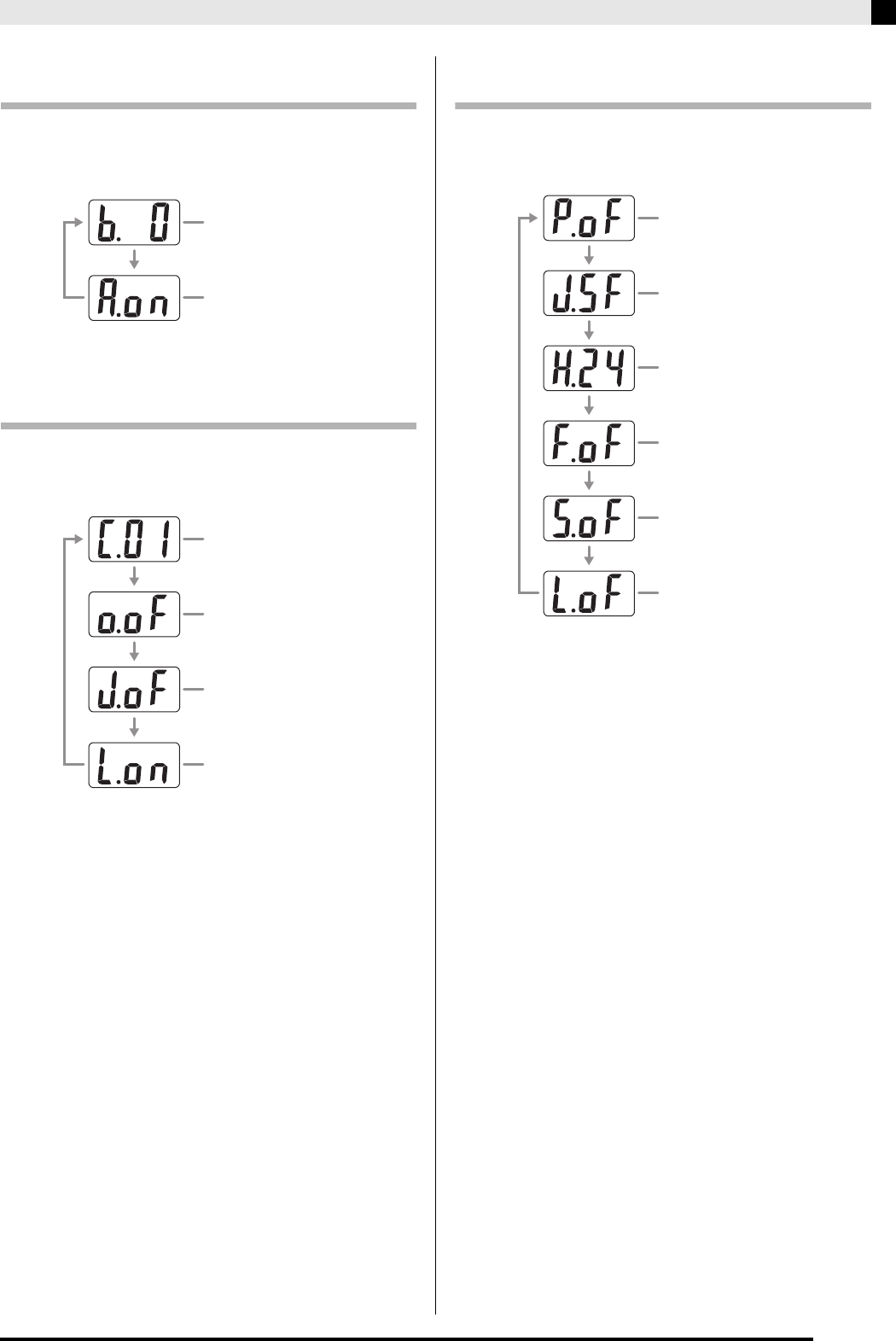
Brilliance parameter
(“b” stands for “brilliance”.)
Acoustic Resonance parameter
(“A” stands for “acoustic”.)
Send Channel setting
(“C” stands for “channel”.)
Accomp MIDI Out setting
(“o” stands for “out”.)
MIDI In Chord Judge setting
(“J” stands for “judge”.)
Local Control setting
(“L” stands for “local”.)
Pre-count setting
(“P” stands for “pre-count”.)
Soft/Sostenuto pedal jack setting
(“J” stands for “jack”.)
Damper pedal adjustment
(half-damper) setting
(“H” stands for “half”.)
Registration Filter setting
(“F” stands for “filter”.)
Setup Memory setting
(“S” stands for “setup”.)
Operation Lock setting
(“L” stands for “lock”.)
PX320_e.book 33 ページ 2007年8月1日 水曜日 午前9時28分
E-34
Other Settings
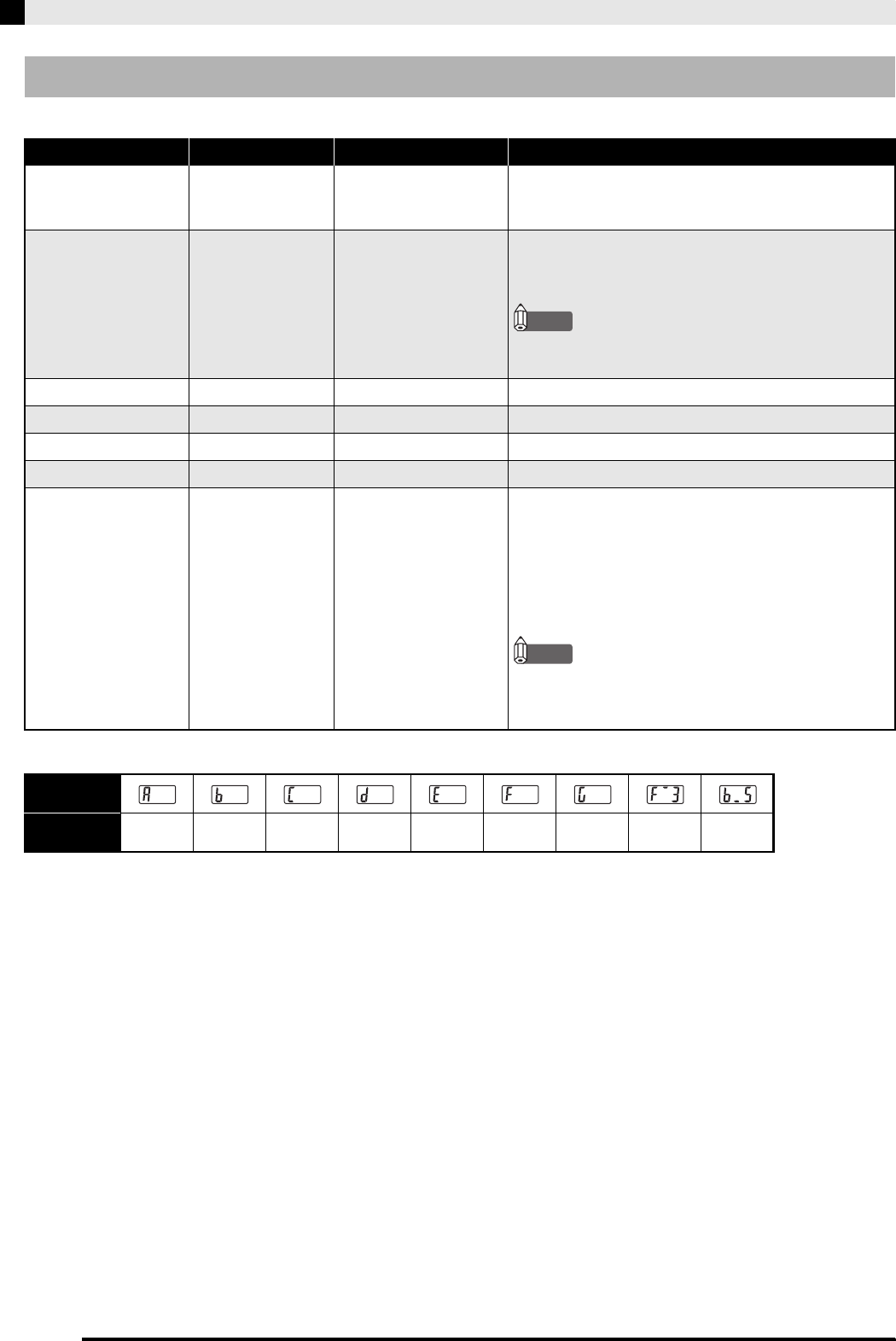
Tones
*Split Point Key Name Display
Secondary Parameter Reference
Setting Parameter Name Settings Description
VARIOUS/GM
TONES button
assignment
TONE SEL See “Tone List” on page
A-1.
Assigns one of the digital piano’s Various tone, GM
tone, or Drum set to the VARIOUS/GM TONES
button.
Tone layering volume
balance
LAYER BAL –24 to 0 to 24 Specifies the volume balance between the main and
layered tones. A lower value reduces the volume level
of the layered tone.
NOTE
•The tone layering volume balance can not be
changed in the Duet Mode.
Split point SPLIT POINT A0 to C8*See page E-12.
Reverb type REV TYPE 1 to 4 See page E-13.
Chorus type CHOR TYPE 1 to 4 See page E-13.
Brilliance level EFFECT b.–3 to b.0 to b.3 See page E-11.
Acoustic Resonance EFFECT A.oF: Off
A.on: On
When the damper pedal is pressed, acoustic resonance
reproduces the harmonic resonance similar to that of a
grand piano. This parameter turns acoustic resonance
on or off. When configuring the setting of this
parameter, use the procedure under “To change the
setting of one of the EFFECT button parameters” on
page E-33.
NOTE
•Whether or not this effect can be applied depends
on the tone. For details, see “Tone List” on page
A-1.
Display
Settings ABCDEFGF
I 3B
i 5
PX320_e.book 34 ページ 2007年8月1日 水曜日 午前9時28分
Other Settings
E-35
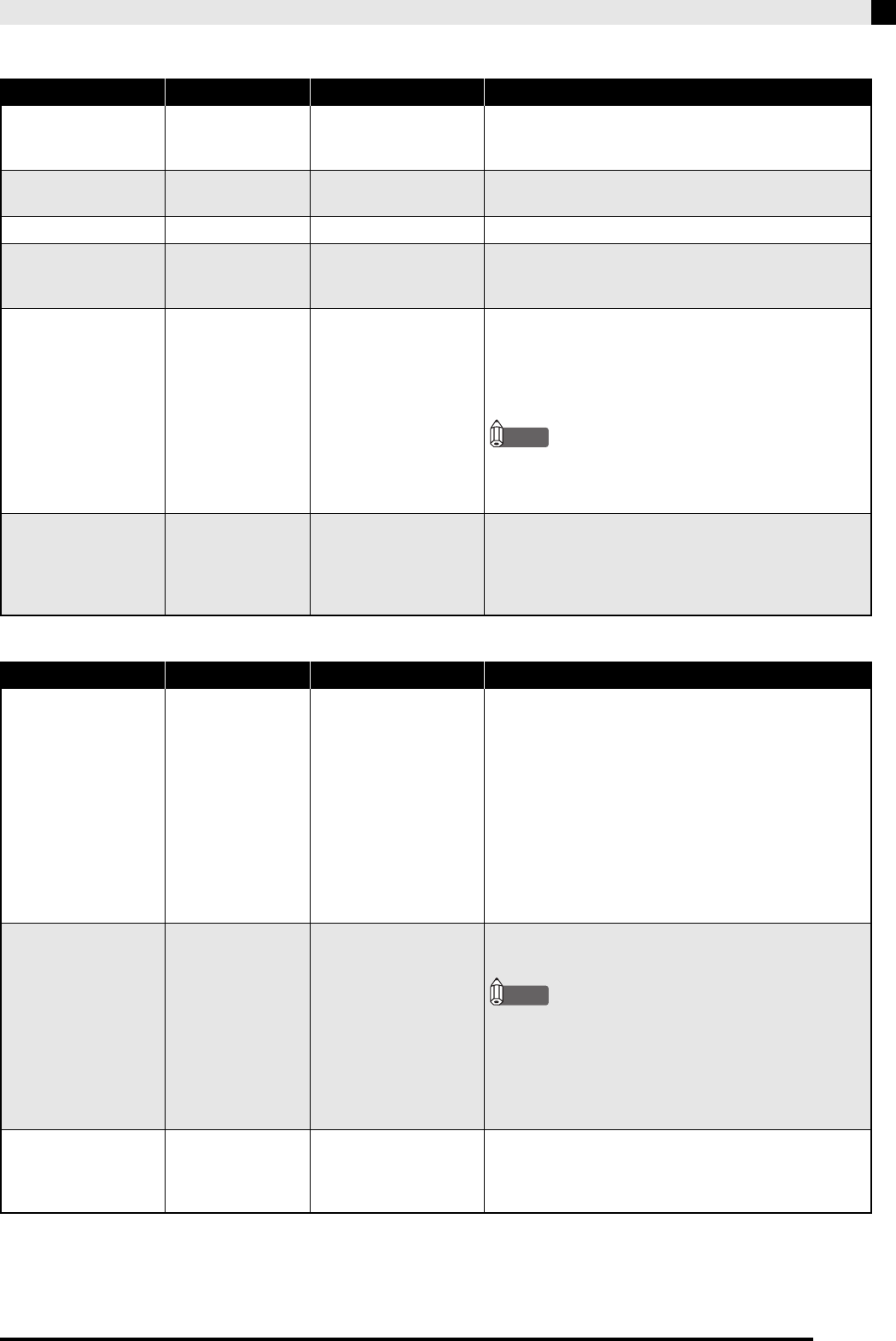
Song, Rhythm, and Metronome
Keyboard
Setting Parameter Name Settings Description
Tempo TEMPO 20 to 255 Specifies the tempo of Music Library songs, the
metronome, Auto Accompaniment playback, recording
and playback, etc.
Metronome beats per
measure
BEAT 0, 2 to 6 Specifies the metronome beat. (page E-14)
Metronome volume METRO VOL 0 to 42 Specifies the metronome volume. (page E-14)
Song, Auto
Accompaniment
volume
SONG/ACCOMP
VOL
0 to 42 Specifies the volume of rhythm and chord
accompaniment and built-in songs, independent of
overall volume control.
Pre-count OTHERS P.oF: Off
P.on: On
Turns the pre-count before playback of a Music Library
song on or off. When configuring the setting of this
parameter, use the procedure under “To change the
setting of one of the OTHERS button parameters” on
page E-33.
NOTE
•When playing a song from the user area or from an
SD memory card, the pre-count may not sound,
even though the pre-count setting is turned on.
Auto Accompaniment
mode
MODE oFF : NORMAL
C.C. : CASIO CHORD
FnG : FINGERED
FUL : FULL RANGE
CHORD
Specifies the Auto Accompaniment mode.
Setting Parameter Name Settings Description
Keyboard touch
response
TOUCH RES oFF : Off
1 : Strong sound is
produced even
when relatively
light pressure is
applied.
2:Normal
3 : Normal sound is
produced even
when relatively
strong pressure is
applied.
Specifies the relative touch of the keyboard keys.
Keyboard Key TRANSPOSE –12 to 0 to 12 Raises or lowers the tuning of the digital piano in
semitone steps.
NOTE
•Using TRANSPOSE to raise the key of the digital
piano can cause notes at the highest range of a tone
to become distorted.
•The transpose setting cannot be configured while
Music Library playback is in progress and in the
Duet Mode.
Keyboard tuning TUNE –99 to 0 to 99 Raises or lowers the overall pitch of the digital piano to
match another instrument. The setting range is plus or
minus 99 cents (100 cents = 1 semitone) from the
standard pitch of A4 = 440.0Hz.
PX320_e.book 35 ページ 2007年8月1日 水曜日 午前9時28分
E-36
Other Settings
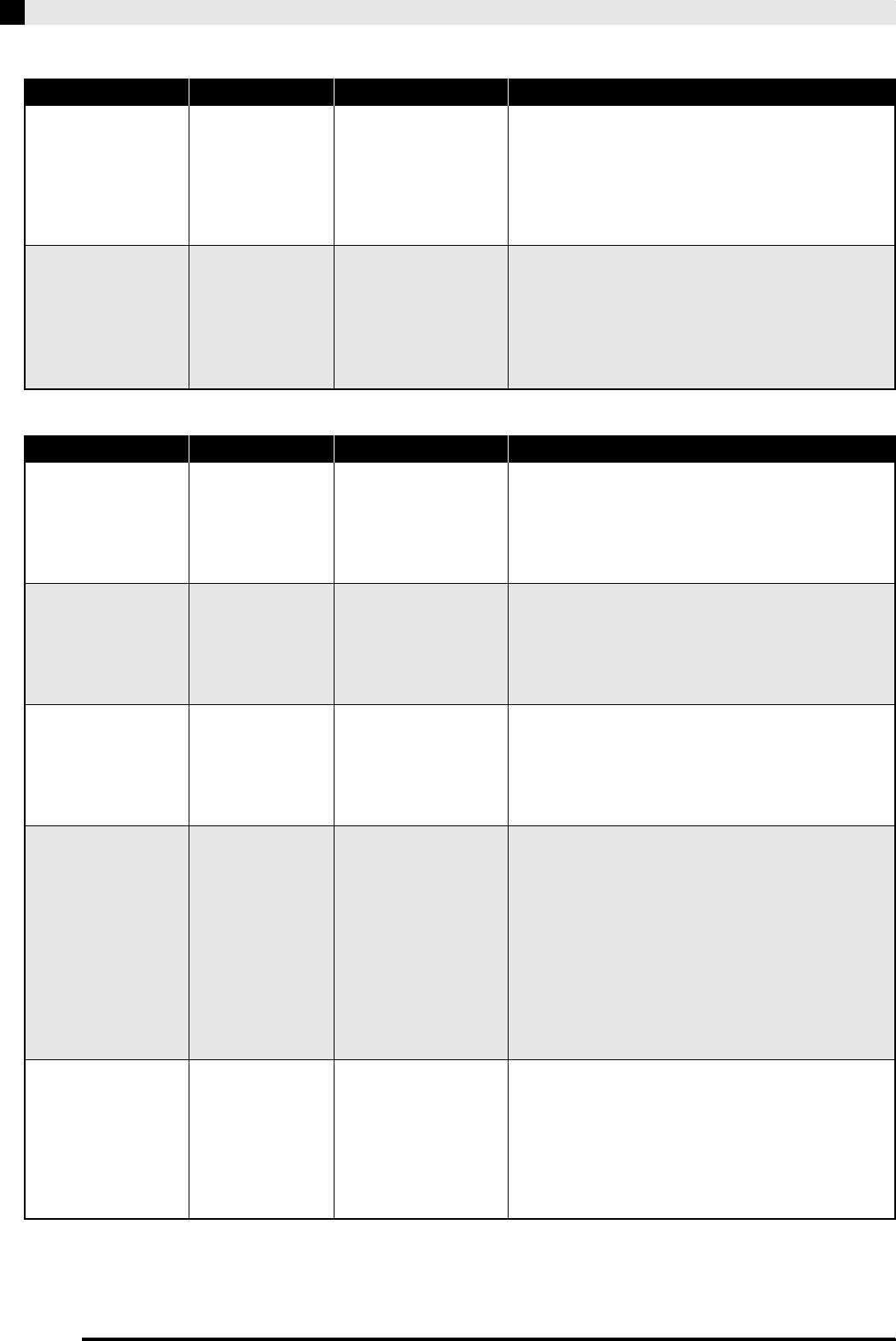
Pedals
MIDI and Other Settings
Setting Parameter Name Settings Description
Soft/Sostenuto pedal
jack setting
OTHERS J.SF: Soft
J.SS: Sostenuto
Soft pedal is the initial power on default setting for a
pedal connected to the digital piano’s SOFT/
SOSTENUTO PEDAL jack. This parameter can be used
to change the pedal to a sostenuto pedal. When
configuring the setting of this parameter, use the
procedure under “To change the setting of one of the
OTHERS button parameters” on page E-33.
Damper pedal
adjustment
(half-damper)
OTHERS H.00 to H.42 With optional SP-30 only
Adjusts the pedal effect applied when the damper pedal
is half-pressed as a value from 0 (no effect) to 42 (same a
full press). When configuring the setting of this
parameter, use the procedure under “To change the
setting of one of the OTHERS button parameters” on
page E-33.
Setting Parameter Name Settings Description
Send channel MIDI C.01 to C.16 Specifies one of the MIDI channels (1 through 16) as the
Send Channel, which is used for sending MIDI
messages to an external device. When configuring the
setting of this parameter, use the procedure under “To
change the setting of one of the MIDI button
parameters” on page E-33.
Accomp MIDI out MIDI o.oF: Off
o.on: On
Specifies whether or not MIDI messages should be sent
in accordance with the digital piano’s Auto
Accompaniment and recording function playback.
When configuring the setting of this parameter, use the
procedure under “To change the setting of one of the
MIDI button parameters” on page E-33.
MIDI In Chord judge MIDI J.oF: Off
J.on: On
Specifies whether chord judge should be performed on
accompaniment range MIDI Note On messages
received from an external device. When configuring the
setting of this parameter, use the procedure under “To
change the setting of one of the MIDI button
parameters” on page E-33.
Local control MIDI L.oF: Off
L.on: On
When Local Control is turned on, pressing the
keyboard’s keys plays the notes using the currently
selected built-in tone, and also sends the applicable
MIDI messages out the MIDI OUT port. Turning off
Local Control cuts off the digital piano’s sound source,
so no sound is produced by the digital piano when keys
are pressed. This capability comes in handy when you
want to turn off the digital piano’s keyboard and play
on an external sequencer or other device.
When configuring the setting of this parameter, use the
procedure under “To change the setting of one of the
MIDI button parameters” on page E-33.
Registration Filter OTHERS F.oF: Off
F.on: On
When Registration Filter is turned on, the rhythm and
Auto Accompaniment related settings are not recalled
when recalling registration data. For details about the
settings that are not recalled, see “Registration Data
Contents” on page E-25.
When configuring the setting of this parameter, use the
procedure under “To change the setting of one of the
OTHERS button parameters” on page E-33.
PX320_e.book 36 ページ 2007年8月1日 水曜日 午前9時28分
Other Settings
E-37
*Setup Memory Data Contents
Tone selection, layer/split on/off, reverb/chorus on/off, rhythm number, SD memory card playback selection,
settings on pages E-34 through E-37 (except VARIOUS/GM TONES button assignment, Accomp MIDI out,
MIDI In Chord judge, Local control, Operation Lock), RHYTHM/MUSIC LIBRARY button setting,
TONE/REGISTRATION button setting, CARD button setting.
Setup Memory OTHERS S.oF: Off
S.on: On
When “On” is selected for this setting, the digital piano
will remember its current settings*, and restore them
when it is turned on again.
When “Off” is selected, settings are reset to their initial
defaults whenever the digital piano is turned on.
When configuring the setting of this parameter, use the
procedure under “To change the setting of one of the
OTHERS button parameters” on page E-33.
NOTE
•To clear current setup memory contents, turn the
Setup Memory setting off and then back on again.
•The setup memory setting cannot be changed while
Music Library playback is in progress, while a
rhythm or the metronome is sounding, in the Duet
Mode, and during recording.
Operation Lock OTHERS L.oF: Off
L.on: On
Selecting “On” for this setting locks the digital piano’s
buttons (except for the POWER button and the buttons
required for unlock), so no operation can be performed.
Turn on operation lock when you want to protect
against unintentional button operations.
When configuring the setting of this parameter, use the
procedure under “To change the setting of one of the
OTHERS button parameters” on page E-33.
NOTE
•The operation lock setting cannot be changed while
Music Library playback is in progress, while a
rhythm or the metronome is sounding, and during
recording.
Setting Parameter Name Settings Description
PX320_e.book 37 ページ 2007年8月1日 水曜日 午前9時28分
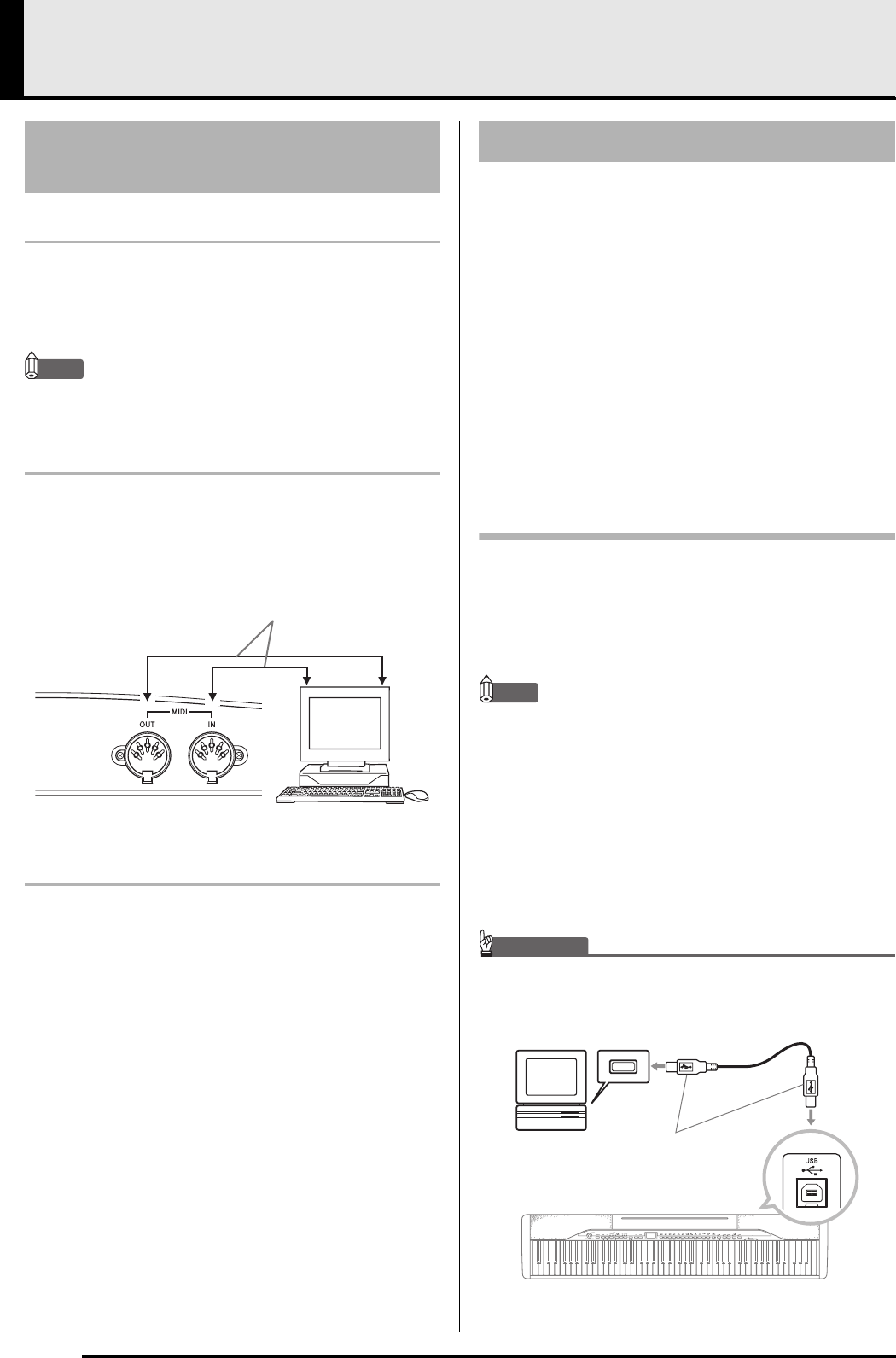
E-38
Connecting to a Computer
What is MIDI?
MIDI is a standard for digital signals and connectors
that allows musical instruments, computers, and other
devices, regardless of manufacturer, to exchange data
with each other.
NOTE
•For details about MIDI implementation, visit:
http://world.casio.com/
MIDI Connections
Connecting your computer or other external MIDI
device to the digital piano’s MIDI OUT/IN terminals
makes it possible for them to exchange MIDI messages.
You also can playback notes you play on the digital
piano on the connected device.
MIDI Settings
You can use the procedure in “Other Settings” (page
E-32) to configure MIDI settings. See page E-34 for a
description of the settings and information about how
to configure them.
The digital piano’s USB port makes it quick and simple
to connect to a computer.
You can install a USB MIDI driver from the CD-ROM
that comes bundled with the digital piano onto a
computer equipped with a USB port. After that, you
can connect the digital piano to your computer and run
commercially available MIDI software on your
computer to exchange MIDI data with the digital
piano. You also can use the USB connection to transfer
files you downloaded from the CASIO MUSIC SITE
from your computer to the digital piano.
You will need a commercially available USB cable to
connect a computer to the digital piano’s USB port.
To connect to a computer using the USB
port
1.
On the computer to which you plan to
connect, install the USB MIDI driver from the
CD-ROM that comes bundled with the digital
piano.
NOTE
•Before installing the USB MIDI driver, be sure to read the
contents of the “readme.txt” file in the “English” folder
on the bundled CD-ROM.
•For details about how to install the USB MIDI driver, see
the “CASIO USB MIDI Driver User’s Guide”
(manual_e.pdf) that also is on the bundled CD-ROM.
2.
Use a commercially available USB cable (A-B
type) to connect the digital piano to the
computer.
IMPORTANT!
• Make sure that the digital piano is turned off before
connecting or disconnecting the USB cable.
Connecting to the MIDI
Terminal
MIDI Cable
MIDI IN
MIDI OUT
Left Side
Connecting to the USB Port
USB connector
Computer
USB port USB cable
(A-B type)
Digital piano USB port
PX320_e.book 38 ページ 2007年8月1日 水曜日 午前9時28分
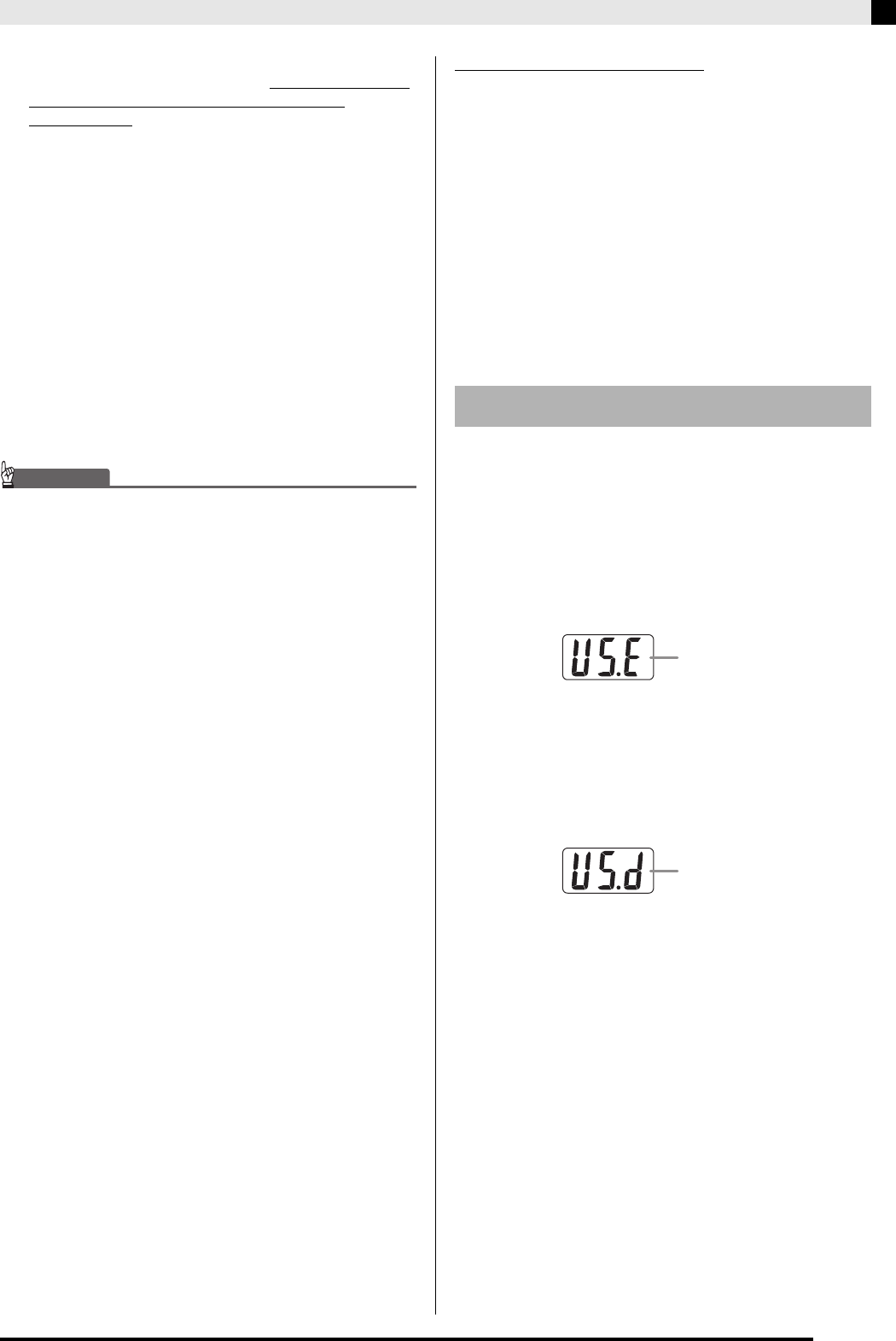
Connecting to a Computer
E-39
• You need to have Adobe Reader or Acrobat Reader
installed on your computer in order to view the contents
of the “CASIO USB MIDI Driver User’s Guide”
(manual_e.pdf). If your computer does not have Adobe
Reader or Acrobat Reader installed already, use the
procedure below to install it.
To install Adobe Reader (Acrobat Reader)
1.
Place the CD-ROM that comes with the
digital piano into your computer’s CD-ROM
drive.
2.
On the CD-ROM, navigate to the “Adobe”/
“English” folder and double-click
“ar601enu.exe” (or “ar505enu.exe”). Follow
the instructions that appear on your computer
screen to install the driver.
IMPORTANT!
• Adobe Reader cannot be installed using the
“ar601enu.exe” file on a computer running Windows 98.
If your computer is running Windows 98, click
“ar505enu.exe” to install Acrobat Reader.
Minimum Computer System Requirements for
the USB MIDI Driver
zUniversal
•Operating System
Windows VistaTM (32-bit), Windows® XP
Professional (32-bit), Windows® XP Home Edition,
Windows® 2000 Professional, Windows® Me,
Windows® 98SE, Windows® 98
•IBM AT or compatible computer
•USB port that provides normal operation under
Windows
•CD-ROM drive (for installation)
•At least 2MB of free hard disk space (not including
space required for Acrobat Reader)
zWindows Vista, Windows XP
•Pentium 300MHz or higher
•128MB minimum memory
zWindows 2000
•Pentium 166MHz or higher
•64MB minimum memory
zWindows Me, Windows 98SE, Windows 98
•Pentium 166MHz or higher
•32MB minimum memory
Attention Windows Vista users!
•If your computer is running Windows Vista, the
MIDI device selection screen of the MIDI application
software you are using may show a MIDI OUT
device name in the menu of MIDI IN items, or a
MIDI IN device name in the menu of MIDI OUT
items. Note that selecting the wrong type of item for
MIDI IN or MIDI OUT will result in a setup error. If
a setup error occurs, reconfigure the MIDI device
settings, taking care to select the proper items for
MIDI IN and MIDI OUT. For details about
configuring settings, see the user documentation
that comes with your MIDI application software.
Your digital piano has two data communication
modes: a USB mode and a MIDI mode.
The digital piano will enter the USB mode
automatically whenever a connection is established
between it and the USB driver running on a connected
computer. If there is no computer connected to the USB
port, the digital piano will enter the MIDI mode.
zUSB Mode
The above message appears for about three seconds
after a USB connection is established. For details about
using the MIDI device functions in the USB mode, see
the “CASIO USB MIDI Driver User’s Guide”
(manual_e.pdf) on the bundled CD-ROM.
zMIDI Mode
The above message appears for about three seconds
after a USB connection terminated. The MIDI mode is
used when sending and receiving data over the digital
piano’s MIDI terminals.
USB Mode and MIDI Mode
USB enabled
USB disabled
PX320_e.book 39 ページ 2007年8月1日 水曜日 午前9時28分
E-40
Connecting to a Computer
You can store up to 10 songs you have downloaded
with your computer as songs 61 through 70 of the
Music Library and practice along with them as they
play, just as you do with the built-in songs.
You also can use the CASIO SMF conversion software
(SMF Converter) to convert SMF data files you have
purchased or created, and transfer them to the digital
piano’s Music Library.
NOTE
•You will not be able to transfer data from a computer to
the digital piano during playback or recording of song
data, during a data save or recall operation, etc. Wait
until the current operation is complete before
transferring data.
To install the SMF conversion software
(SMF Converter)
1.
Place the CD-ROM that comes with the
digital piano into the CD-ROM drive of a
computer that is equipped with a USB port.
2.
Navigate to the CD-ROM and then double-
click the “SMFConv-e.exe” file. Next, follow
the instructions that appear on your computer
screen to install the software.
•Before installing SMF Converter, be sure to read the
contents of the “smfreadme.txt” file. A version of this
file is provided in each language folder on the CD-
ROM.
For information about using SMF Converter, double-
click [index.html] in the [help] folder, which was
created when you installed SMF Converter. You also
can access user documentation from the Windows
[Start] menu by clicking [Programs] – [CASIO] – [SMF
Converter] – [manual].
A browser that supports frames (like Internet Explorer
4 or Netscape Navigator 4.04 or higher) is required to
view the SMF Converter manual.
Minimum Computer System Requirements for
SMF Converter
zOperating System
Windows VistaTM (32-bit), Windows® XP
Professional (32-bit), Windows® XP Home Edition,
Windows® Me, Windows® 98SE
zStorage
At least 10 MB of available disk space
zUSB Interface
You also can download the SMF conversion software
from the CASIO Website.
In addition to the software itself, the CASIO MUSIC
SITE also will provide you with information about its
installation and use. You also can find out the latest
news about your digital piano and other CASIO
musical instruments, and much more.
NOTE
•Your digital piano supports SMF Format 0 and Format 1.
IMPORTANT!
• If your computer is running Windows Vista, note the
precautions under “Attention Windows Vista users!” on
page E-39. If a setup error occurs, perform the following
steps to reconfigure settings.
(1) Restart SMF Converter.
(2) Open any file and display the “Selection” screen.
(3) Click “Setup(S)” to display the “MIDI Device” screen.
(4) Select the proper items and then exit MIDI device
setup.
Expanding the Selections in
the Music Library
SMF Format Data Files
Ð
CASIO SMF conversion software
Ð
Music Library (Songs 61 to 70)
CASIO MUSIC SITE
http://music.casio.com/
PX320_e.book 40 ページ 2007年8月1日 水曜日 午前9時28分
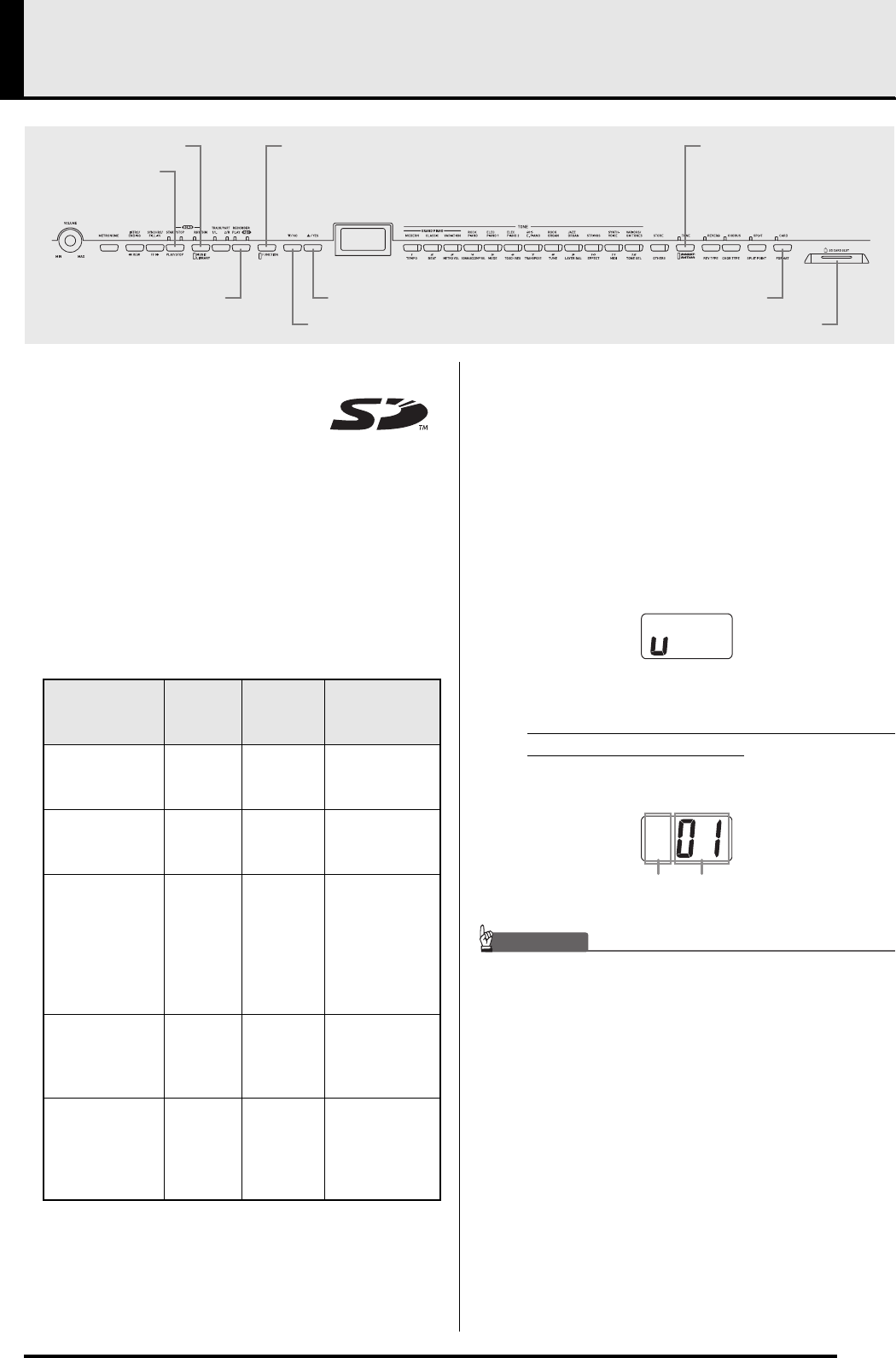
E-41
Using an SD Memory Card
Your digital piano’s SD memory card
slot makes it possible for you to store
song data on a commercially
available SD memory card.
The digital piano also can read SMF song data and
CASIO format song data from an SD memory card.
zSupported SD Memory Cards
The maximum supported SD memory card size is 2 GB.
Use of any SD memory card with greater capacity is
not supported.
zSupported Data File Types and SD Memory Card
Operations
*1 If the first two characters of the filename of song
data is not a two-digit number from 01 to 99, the
corresponding letter (according to data type)
shown in the parentheses will be displayed as
the data type indicator.
The digital piano will no longer be able to access
a registration data file if the file name is changed
to a format that is not allowed.
*2 The display below shows the digital piano
display for “v”.
*3 The digital piano will not be able to correctly
play a file that has more than 17 tracks.
*4 Song data recorded with the digital piano can be
saved as SMF Format 0 data.
zData File Display
IMPORTANT!
• Use only SD memory cards. Operation is not guaranteed
when any other type of memory card is used.
TONE/REGISTRATION
PLAY/STOP
SD CARD SLOT
FUNCTION
RECORDER
MUSIC LIBRARY
/NO
/YES CARD
Data File Type
Display
Indicator
*1
File Name
Extension
Supported SD
Memory Card
Operations
SMF Data
(Format 0) U (v)*2 .MID
Playback,
transfer to user
area
SMF Data
(Format 1)*3 U (v)*2 .MID
Playback,
transfer to user
area
Song data
converted to
CASIO format
using CASIO
SMF conversion
software
(CASIO format)
C (d) .CM2
Playback,
transfer to user
area
Song data
recorded on the
digital piano
(CASIO format)
r (q) .CSR
Save to SD
memory card,*4
recall to
recorder area
Registration
data recorded
on the digital
piano (CASIO
format)
G.CR6
Save to SD
memory card,
recall to
registration
area
Data File Type File Number (01 to 99)
PX320_e.book 41 ページ 2007年8月1日 水曜日 午前9時28分
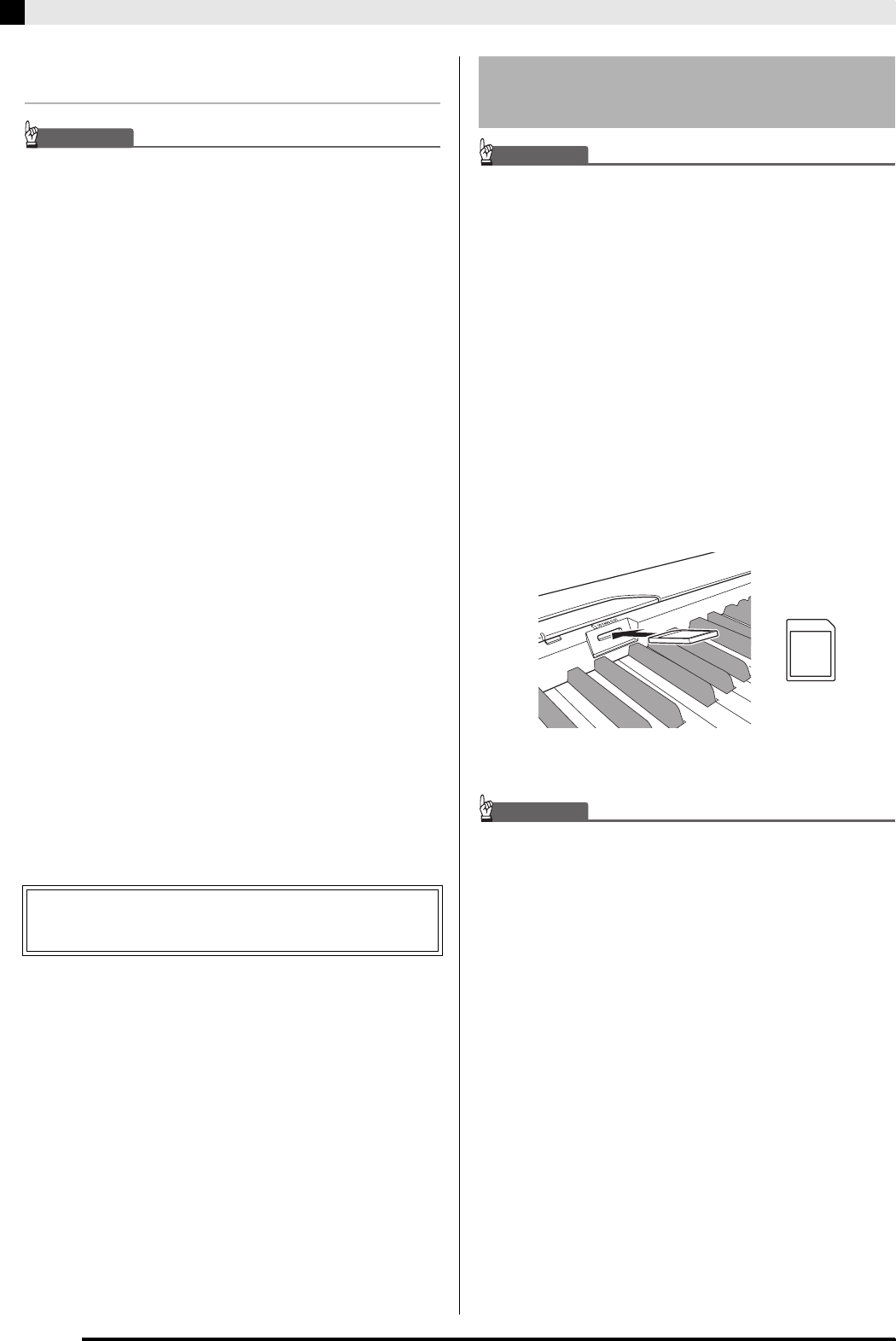
E-42
Using an SD Memory Card
SD Memory Card and SD Memory Card
Slot Precautions
IMPORTANT!
• Whenever handling an SD memory card, be sure to
observe the instructions and precautions in the user
documentation that comes with it.
• SD memory cards have a write-protect switch that
protects against accidental deletion of data.
• Avoid using an SD memory card in the following types of
areas. Such conditions can corrupt data stored on the
memory card.
• Areas subjected to high temperature, high humidity,
and corrosive gas
• Areas subjected to strong electrostatic charge and
digital noise
• Never touch the contacts of an SD memory card when
loading it or when removing it from the digital piano.
• Never remove the SD memory card from the digital piano
or turn off the digital piano while it is reading data from or
writing data to the memory card. Doing so can corrupt the
data on the memory card and damage the SD memory
card slot.
• Exchange of data between the digital piano and an SD
memory card can take anywhere from a few seconds to
as long as a few minutes.
• Never insert anything besides an SD memory card into
the SD memory card slot. Doing so creates the risk of
malfunction.
• Inserting an SD memory card that carries an electrostatic
charge into the SD memory card slot can cause
malfunction of the digital piano. If this happens, turn the
digital piano off and then back on again.
• An SD memory card can become quite warm after very
long use in the SD memory card slot. This is normal and
does not indicate malfunction.
• An SD memory card has a limited service life. After very
long use, you may start to experience problems with
storing data to, or reading or deleting data from the
memory card. When this happens, you need to purchase
a new SD memory card.
IMPORTANT!
• Note that the SD memory card must be oriented correctly
when you insert it into the SD memory card slot. Trying to
force the memory card into the slot can damage the card
and the slot.
• Never remove the SD memory card from the card slot or
turn off the digital piano while any data access operation
(save, recall, format) is being performed. Doing so can
corrupt the data on the memory card and damage the SD
memory card slot.
To insert an SD memory card
1.
With the SD memory card facing upwards as
shown in the illustration, angle the card
downwards as you insert it into the SD
memory card slot.
•Push the card into the slot until you hear it click into
place.
To remove an SD memory card
IMPORTANT!
• Before removing the SD memory card, check to make
sure that the lamp above the CARD button is not lit. If the
lamp is lit or flashing, it means that the card is being
accessed, and that you should not remove it.
1.
Press the memory card into the slot slightly
and then release it.
•This will cause the memory card to disengage and
eject partially.
2.
Pull the memory card out of the slot.
*Note that CASIO COMPUTER CO., LTD. shall not be
held liable for any loss of data stored on an SD memory
card.
Inserting and Removing an SD
Memory Card
Front
PX320_e.book 42 ページ 2007年8月1日 水曜日 午前9時28分
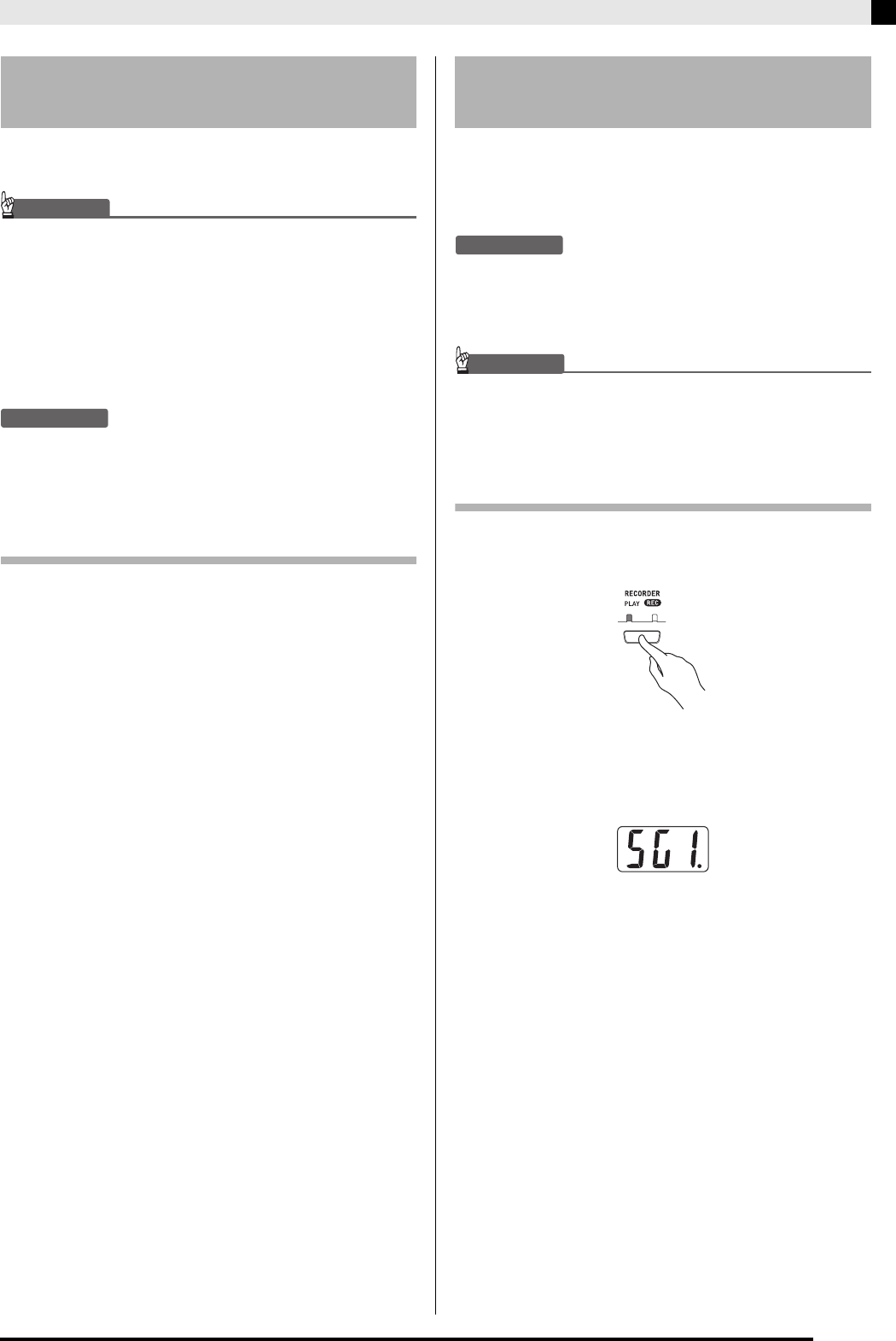
Using an SD Memory Card
E-43
Use the procedures in this section to format an SD
memory card.
IMPORTANT!
• When using an SD Memory card, first be sure to format
the memory card on the digital piano.
• Before performing the procedure below, check to make
sure that the SD memory card does not contain any data
you might need.
• The SD memory card format performed by your digital
piano is a “quick format”. If you want to completely delete
all of the data on the card, format it on you computer or
using some other device.
PREPARATION
•Insert the SD memory card you want to format into the
digital piano’s SD memory card slot. Make sure that the
write-protect switch of the SD memory card is not in the
write-protect position.
To format an SD memory card
1.
Press the FUNCTION button.
•This will cause the button’s lamp to flash.
2.
Press the CARD button.
•This will cause “For” (format) to flash on the display.
3.
Press the S/YES button to start formatting.
•“PLS” (please wait) remains on the display while the
formatting operation is performed. Never try to
perform any other operation on the digital piano
while the memory card is being formatted. The
message “CPL” (complete) will appear on the display
to let you know when the format operation is
complete.
zTo cancel the format operation, press the T/NO
button in place of the S/YES button in step 3.
You can save song data that you recorded in the digital
piano’s recorder area or registration data you saved to
the registration area to an SD memory card. Song data
also can be converted to SMF format 0 for storage.
PREPARATION
•Insert an SD memory card that has been formatted on the
digital piano into the digital piano’s SD memory card
slot. Make sure that the write-protect switch of the SD
memory card is not in the write-protect position.
IMPORTANT!
• Never turn off the digital piano or perform any other
operation while data is being saved to an SD memory
card. Doing so can cause SD memory card data to be
deleted and make impossible to store data to the card.
To save recorder area data
1.
Press the RECORDER button so the PLAY
lamp is lit.
2.
Use the T/NO and S/YES buttons to display
the song number (1 through 5) of the song
you want to save.
3.
Hold down the CARD button until its lamp
starts to flash slowly and “Ldr” (load recorder
area) appears on the display.
4.
Press the CARD button again.
•This will cause the CARD button lamp to flash at a
higher speed and “SvC” (save as CSR file) to appear
on the display. This setting will save song data in
CASIO CSR format.
•If you want to save the song data in SMF Format 0,
press the CARD button again. This will cause “SvS”
(save as SMF0 file) to appear on the display.
Formatting an SD Memory
Card Saving Recorded/Registration
Data to an SD Memory Card
PX320_e.book 43 ページ 2007年8月1日 水曜日 午前9時28分
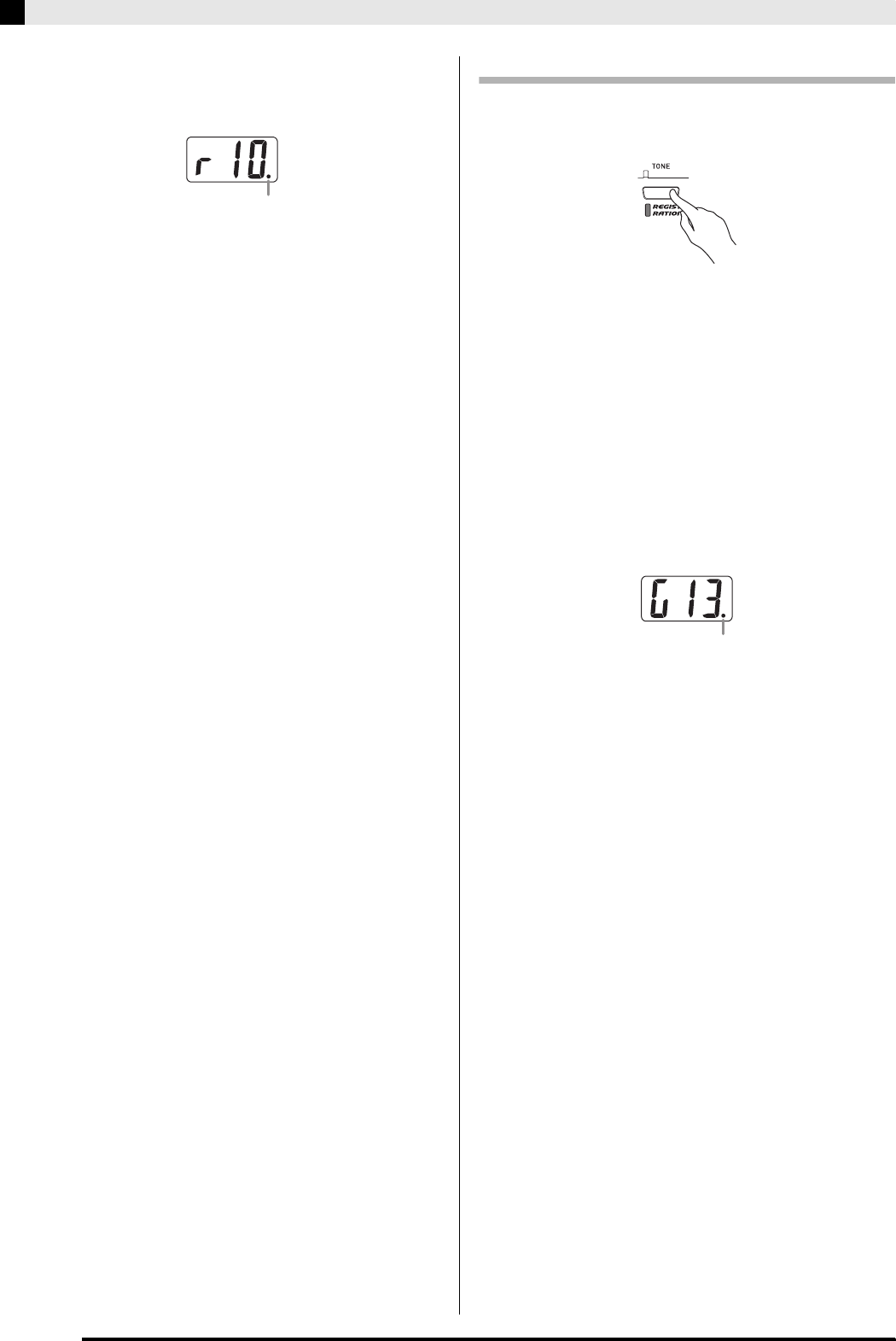
E-44
Using an SD Memory Card
5.
Use the T/NO and S/YES buttons to display
the file number where you want to save the
song data.
6.
When everything is the way you want, press
the FUNCTION button to begin saving data.
•The message “CPL” (complete) will appear on the
display to let you know when the save operation is
complete. After that, the digital piano will return to
playback standby.
zTo cancel the save operation, press the CARD
button.
zIf the SD memory card already contains a data file
with the same file number, pressing the FUNCTION
button in step 6 will display “rEP” (replace) to
confirm that you want to replace the existing file
with the file you are saving. Press the S/YES button
to overwrite the existing data file or the T/NO
button to cancel.
To save registration data
1.
Press the TONE/REGISTRATION button so
the registration lamp is lit.
2.
Hold down the CARD button until its lamp
starts to flash slowly and “LdG” (load
registration area) appears on the display.
3.
Press the CARD button again.
•This will cause the CARD button lamp to flash at a
higher speed and “SvG” (save as CR6 file) to appear
on the display.
4.
Use the T/NO and S/YES buttons to display
the file number where you want to save the
registration memory data.
5.
When everything is the way you want, press
the FUNCTION button to begin saving data.
•The message “CPL” (complete) will appear on the
display to let you know when the save operation is
complete.
zTo cancel the save operation, press the CARD
button.
zIf the SD memory card already contains a data file
with the same file number, pressing the FUNCTION
button in step 5 will display “rEP” (replace) to
confirm that you want to replace the existing file
with the file you are saving. Press the S/YES button
to overwrite the existing data file or the T/NO
button to cancel.
This mark indicates that the currently displayed file
number on the SD memory card has data stored already.
This mark indicates that the currently displayed file
number on the SD memory card has data stored already.
PX320_e.book 44 ページ 2007年8月1日 水曜日 午前9時28分
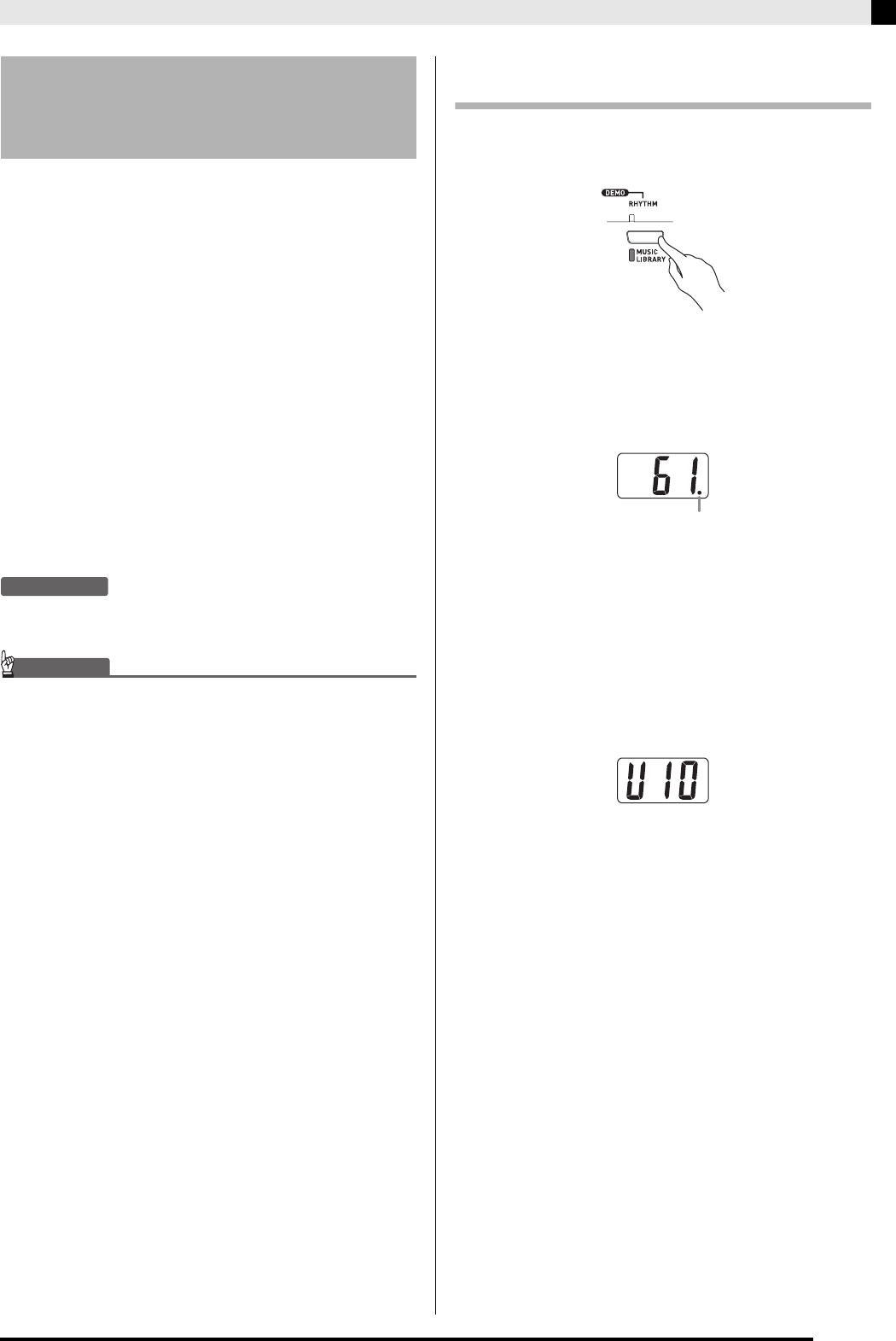
Using an SD Memory Card
E-45
You can use the procedures in this section to transfer
data from an SD memory card to the digital piano user
area,*1 recorder area,*2 or registration area.*3
*1 Music Library Songs 61 to 70
*2 Memory area where songs recorded on the digital
piano are stored.
*3 Memory area where registration data on the piano
is stored.
z Supported Data
User Area.............SMF format data and song data
converted using SMF conversion
software (CASIO CM2 format)
Recorder Area
.......Song data recorded on the digital
piano (CASIO CSR format)
Registration Area
...Registration data saved with the
digital piano (CASIO CR6 format)
PREPARATION
•Insert the SD memory card, which contains the data you
want to transfer, into the piano’s SD memory card slot.
IMPORTANT!
• Never turn off the digital piano or perform any other
operation while data is being recalled from an SD
memory card. Doing so can cause SD memory card data
to be deleted or damaged, making transfer of the data
impossible. It also can cause deletion of data stored in
the area to which you are saving the data.
To transfer song data from an SD memory
card to the digital piano user area
1.
Press the MUSIC LIBRARY button so the
lamp below the button is lit.
2.
Use the T/NO and S/YES buttons to display
the number of the user area song (Music
Library song number 61 through 70) to which
you want to transfer the song data.
3.
Hold down the CARD button until its lamp
starts to flash slowly and “LdU” (load user
area) appears on the display.
4.
Use the T/NO and S/YES buttons to display
the file number of the song data you want to
transfer to digital piano memory.
5.
When everything is the way you want, press
the FUNCTION button to begin data transfer.
•The message “CPL” (complete) will appear on the
display to let you know when data transfer is
complete. After that, the display will change to show
the number of the user area song to which the data
was transferred.
zTo interrupt an ongoing data transfer operation,
press the CARD button.
zIf the user area song number you select contains data
already, pressing the FUNCTION button in step 5
will display “rEP” (replace) to confirm that you want
to replace the existing data with the data you are
transferring. Press the S/YES button to overwrite
the data or the T/NO button to cancel.
Transferring Data from an SD
Memory Card to Digital Piano
Memory
This mark indicates that the currently displayed user area
song number has data stored already.
PX320_e.book 45 ページ 2007年8月1日 水曜日 午前9時28分
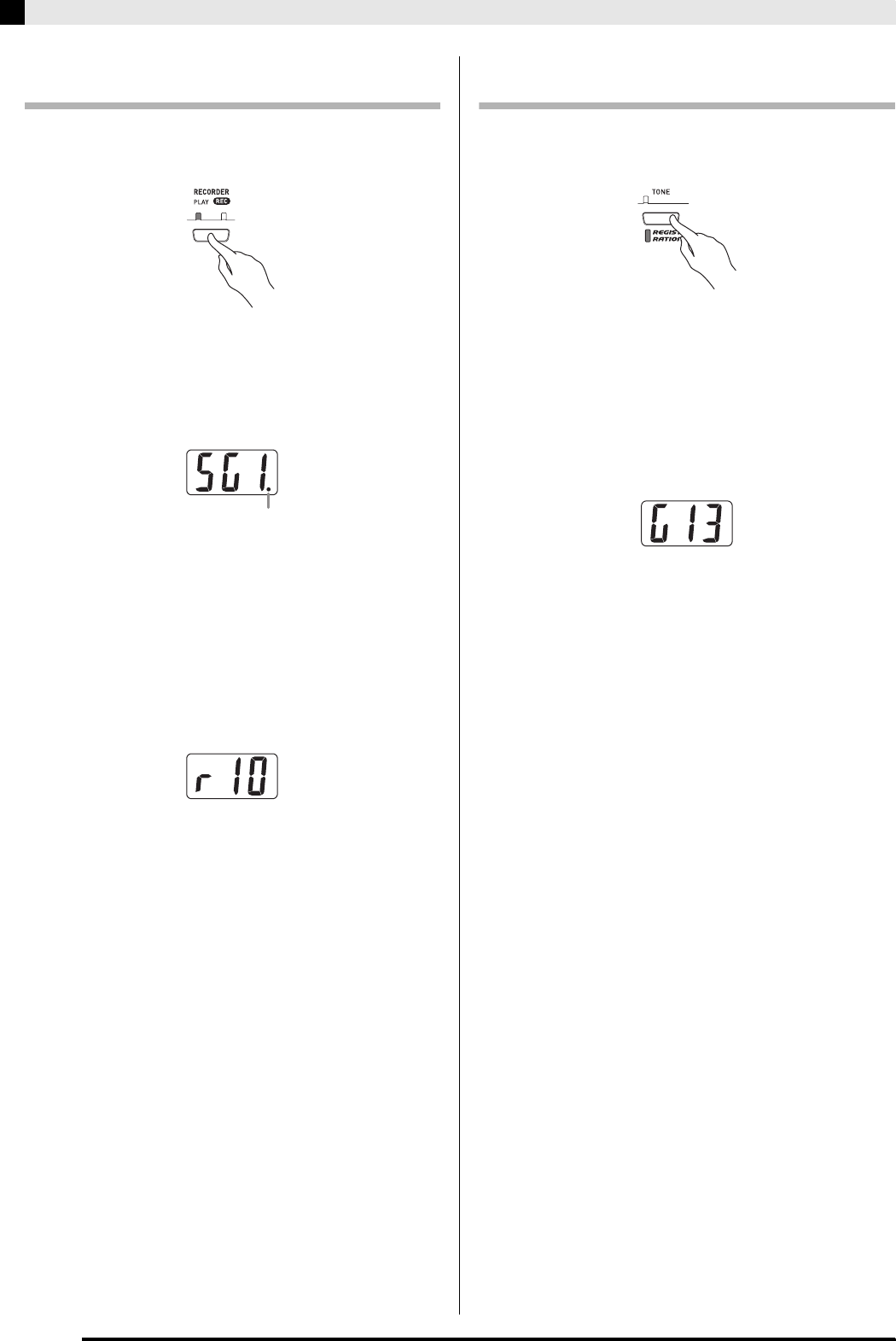
E-46
Using an SD Memory Card
To transfer song data from an SD memory
card to the recorder area
1.
Press the RECORDER button so the PLAY
lamp is lit.
2.
Use the T/NO and S/YES buttons to display
the number of the recorder area song (1
through 5) to which you want to transfer the
song data.
3.
Hold down the CARD button until its lamp
starts to flash slowly and “Ldr” (load recorder
area) appears on the display.
4.
Use the T/NO and S/YES buttons to display
the file number of the song data you want to
transfer to digital piano memory.
5.
When everything is the way you want, press
the FUNCTION button to begin data transfer.
•The message “CPL” (complete) will appear on the
display to let you know when data transfer is
complete. The number of the recorder area song to
which the data was transferred will be shown on the
display.
zTo interrupt an ongoing data transfer operation,
press the CARD button.
zIf the recorder area song number you select contains
data already, pressing the FUNCTION button in
step 5 will display “rEP” (replace) to confirm that
you want to replace the existing data with the data
you are transferring. Press the S/YES button to
overwrite the data or the T/NO button to cancel.
To transfer registration data from an SD
memory card to the registration area
1.
Press the TONE/REGISTRATION button so
the registration lamp is lit.
2.
Hold down the CARD button until its lamp
starts to flash slowly and “LdG” (load
registration area) appears on the display.
3.
Use the T/NO and S/YES buttons to display
the file number of the registration data you
want to transfer to digital piano memory.
4.
When everything is the way you want, press
the FUNCTION button to begin data transfer.
•The message “rEP” (replace) will appear to confirm
that you wish to overwrite existing data. Press the
S/YES button to recall the data. The message “CPL”
(complete) will appear when data transfer is
complete. To cancel the transfer operation, press the
T/NO button.
zYou can cancel the above operation any time before
you press the FUNCTION button by pressing the
CARD button twice.
This mark indicates that the currently displayed song
number has data stored already.
PX320_e.book 46 ページ 2007年8月1日 水曜日 午前9時28分
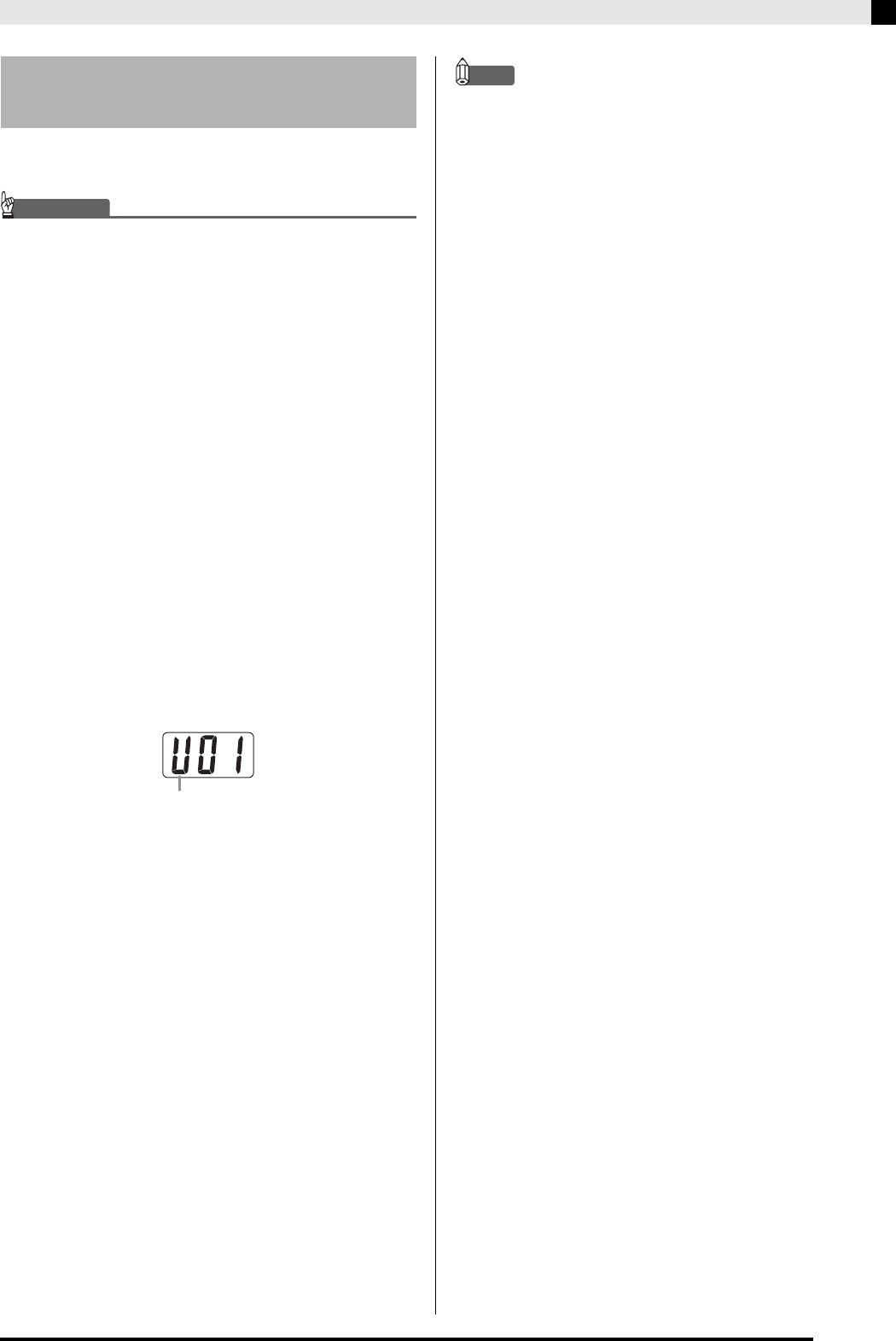
Using an SD Memory Card
E-47
Playback of SMF format data and song data converted
using SMF conversion software to CASIO CM2 format.
IMPORTANT!
• Note the following important precautions whenever
playing back a data file you copied to a memory card with
a computer.
To perform the procedure below, you must have an SD
memory card to which an SMF data file has been copied
from a computer. Insert an SD memory card that has
been formatted on the digital piano into the memory card
slot of your computer, and copy the data file you want to
play back from your computer into the memory card
folder named “MUSICDAT”. Note that you will not be able
to play back the data on the digital piano if it is not
located inside the “MUSICDAT” folder. If you create a
sub-folder inside of the “MUSICDAT” folder, the digital
piano will not be able to load any data file inside the sub-
folder.
• After you select song data, it can take a number of
seconds for it to be loaded. While the data is being
loaded, the song number will flash on the display, and the
keyboard keys and button operations will be disabled.
Selecting a song while playing something on the
keyboard will cause sound output of the keyboard notes
to stop.
1.
Press the CARD button.
•The CARD button lamp will light and a file number
will appear on the display.
2.
Use the T/NO and S/YES buttons to display
the song number of the song you want to
play.
3.
Press the PLAY/STOP button.
•This starts the playback of the song.
•The measure number appears on the display during
playback.
•To view the song number during playback, hold
down the CARD button.
4.
Press the PLAY/STOP button again to stop
playback.
5.
After you are finished playing back files from
the SD memory card, stop playback and then
press the CARD button.
•This will cause the lamp above the button to go out.
NOTE
•You can change tempo, volume, and pre-count settings
for playback. See “Other Settings” on page E-32 for more
information.
Playing Back a File Stored on
an SD Memory Card
CASIO format song
PX320_e.book 47 ページ 2007年8月1日 水曜日 午前9時28分
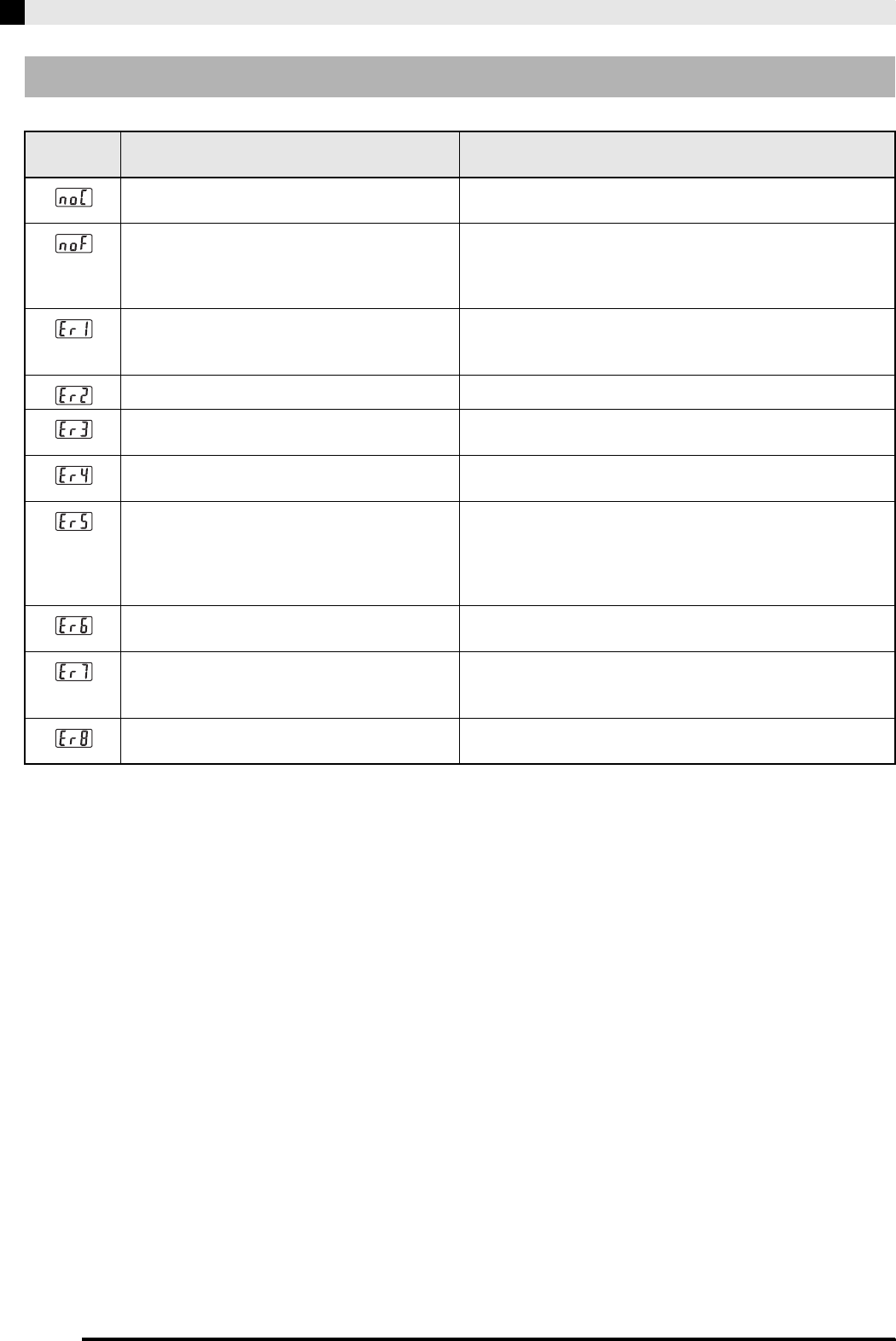
E-48
Using an SD Memory Card
SD Memory Card Errors
Display
Message Cause Action
No SD memory card loaded in the SD memory
card slot or the card is not loaded correctly.
Correctly insert the SD memory card into the SD memory card
slot. (Page E-42)
You are trying to load data from an SD memory
card that does not contain any data that is
supported by this digital piano.
1. Change to an SD memory card that contains data saved by
or supported by this digital piano.
2. When copying data to an SD memory card from a computer,
copy it to the “MUSICDAT” folder. (Page E-47)
The SD memory card is damaged or the card
was removed while it was being accessed.
1. Use an SD memory card that was formatted on the digital
piano. (Page E-43)
2. Use a different SD memory card.
The SD memory card is full. Use a different SD memory card.
An SD memory card was removed while some
operation was in progress.
Never remove a card from the card slot while a card access
operation is in progress.
Attempt to overwrite the song data file that is
read-only.
Save the file to a different SD memory card or under a different
number.
The data file you are trying to transfer to the
digital piano is too large.
When playing back a file stored on an SD memory card or
loading data to the user area, select a data file that is no larger
than about 318 KB.
When loading song data to the recorder area, you can select
only song data that was recorded on this model of digital piano.
You are trying to load SMF (Standard MIDI File)
data that is not Format 0 or Format 1.
Use only Format 0 or Format 1 SMF data.
You are trying to store data to an SD memory
card that is write-protected.
1. Use a different SD memory card.
2. If you want to write to the SD memory card, change the
write-protect switch position to enable writing. (Page E-42)
There is a problem with the SD memory card
data format or the data is corrupted.
Use different data or a different SD memory card.
PX320_e.book 48 ページ 2007年8月1日 水曜日 午前9時28分
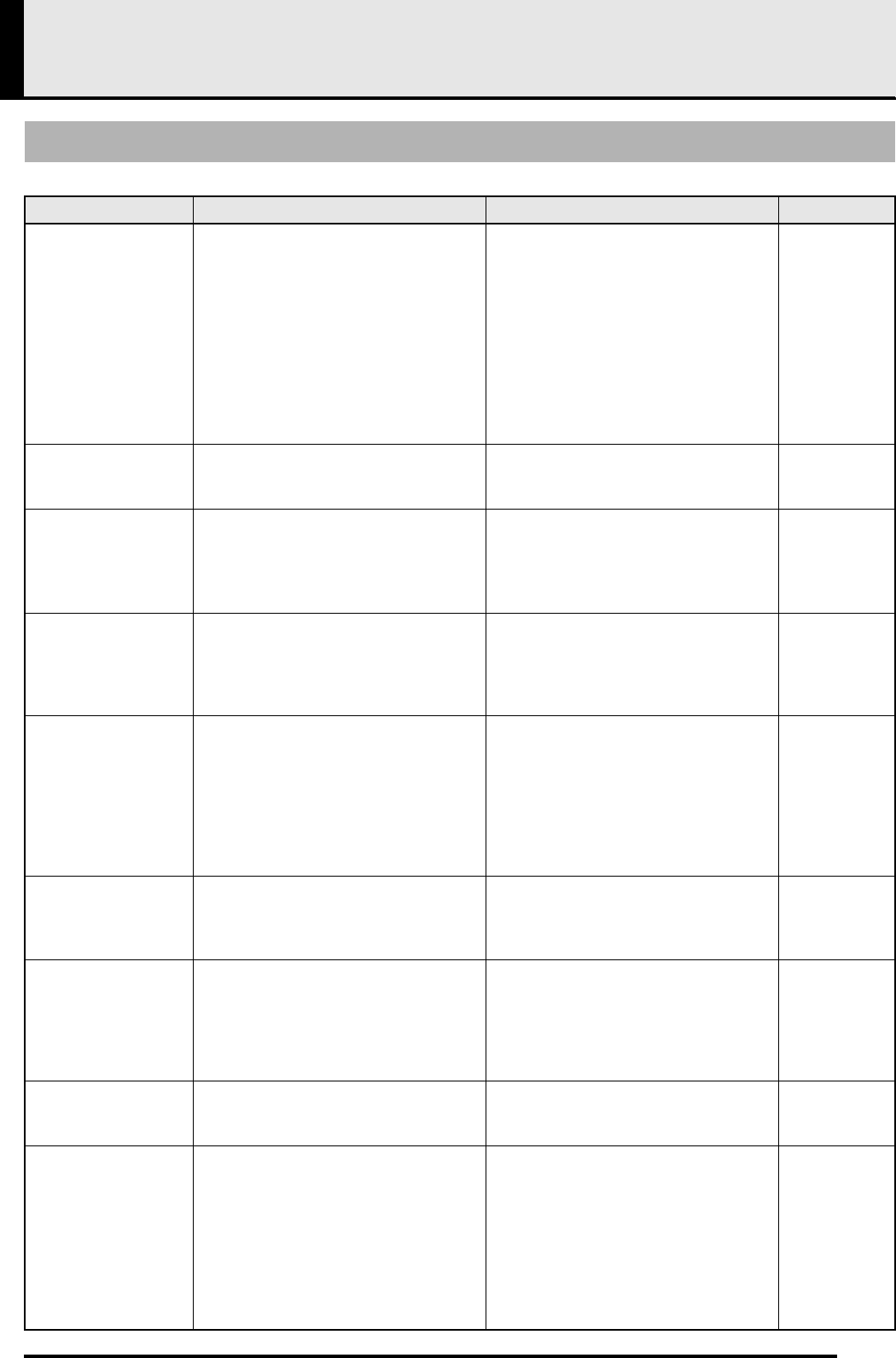
E-49
Reference
Troubleshooting
Problem Cause Action See Page
No sound is
produced when I
press a keyboard key.
1. The VOLUME controller is set to
“MIN”.
2. Headphones are connected to the
digital piano.
3. MIDI Local Control is turned off.
4. Check the current accompaniment
mode setting. Normally, the
accompaniment keyboard range will
not produce any note while CASIO
CHORD or FINGERED is selected as
the Auto Accompaniment mode.
1. Rotate the VOLUME controller more
towards “MAX”.
2. Unplug the headphones from the
digital piano.
3. Turn on the Local Control setting.
4. Change the accompaniment mode to
NORMAL.
) E-10
) E-7
) E-36
) E-18
No rhythm Accompaniment volume is set to 0. Use the FUNCTION button and SONG/
ACCOMP VOL button to increase the
volume.
) E-35
The pitch of the
digital piano is off.
1. The digital piano’s key setting is
something other than “0”.
2. Digital piano tuning is incorrect.
1. Change the key setting to “0”, or turn
digital piano power off and then back
on again.
2. Adjust digital piano tuning, or turn the
piano off and then back on again.
) E-35
) E-35
No sound is
produced when I try
to play back a built-in
song or a recorded
song.
1. The VOLUME controller is set to
“MIN”.
2. Headphones are connected to the
digital piano.
1. Rotate the VOLUME controller more
towards “MAX”.
2. Unplug the headphones from the
digital piano.
) E-10
) E-7
When I play
something on the
digital piano, my
connected external
MIDI sound source
does not sound.
1. The digital piano’s send channel is
different from the send channel of the
external MIDI sound source.
2. The volume or expression setting of
the external sound source is “0”.
1. Change the send channel settings of
the digital piano and/or the external
MIDI sound source so they are the
same.
2. Adjust the volume and expression
settings of the external sound source.
) E-36
)External
sound
source
user’s guide
No sound is
produced when
playing MIDI data
from a computer.
The USB cable is not connected
correctly.
Check to make sure that the USB cable is
connected correctly.
) E-38
When connected to a
computer over a USB
connection, playing
on the keyboard
produces unnatural
sounds.
The computer’s MIDI THRU function is
turned on.
Turn off MIDI THRU on the computer, or
turn off digital piano Local Control.
) E-36
I can’t record chord
accompaniment data
on my computer.
Accomp MIDI out is turned off. Turn on Accomp MIDI out. ) E-36
I can’t store data to
an SD memory card.
1. The SD memory card is write-
protected.
2. The card is not inserted properly into
the SD memory card slot.
3. There is not enough room available on
the SD memory card.
4. The capacity of the SD memory card is
not supported by the digital piano.
5. The SD memory card is damaged.
1. Change the write-protect switch
position to enable writing.
2. Insert the card properly.
3. Use a different SD memory card.
4. Use an SD memory card with a
supported capacity.
5. Use a different SD memory card.
) E-42
) E-42
) E-42
) E-42
PX320_e.book 49 ページ 2007年8月1日 水曜日 午前9時28分
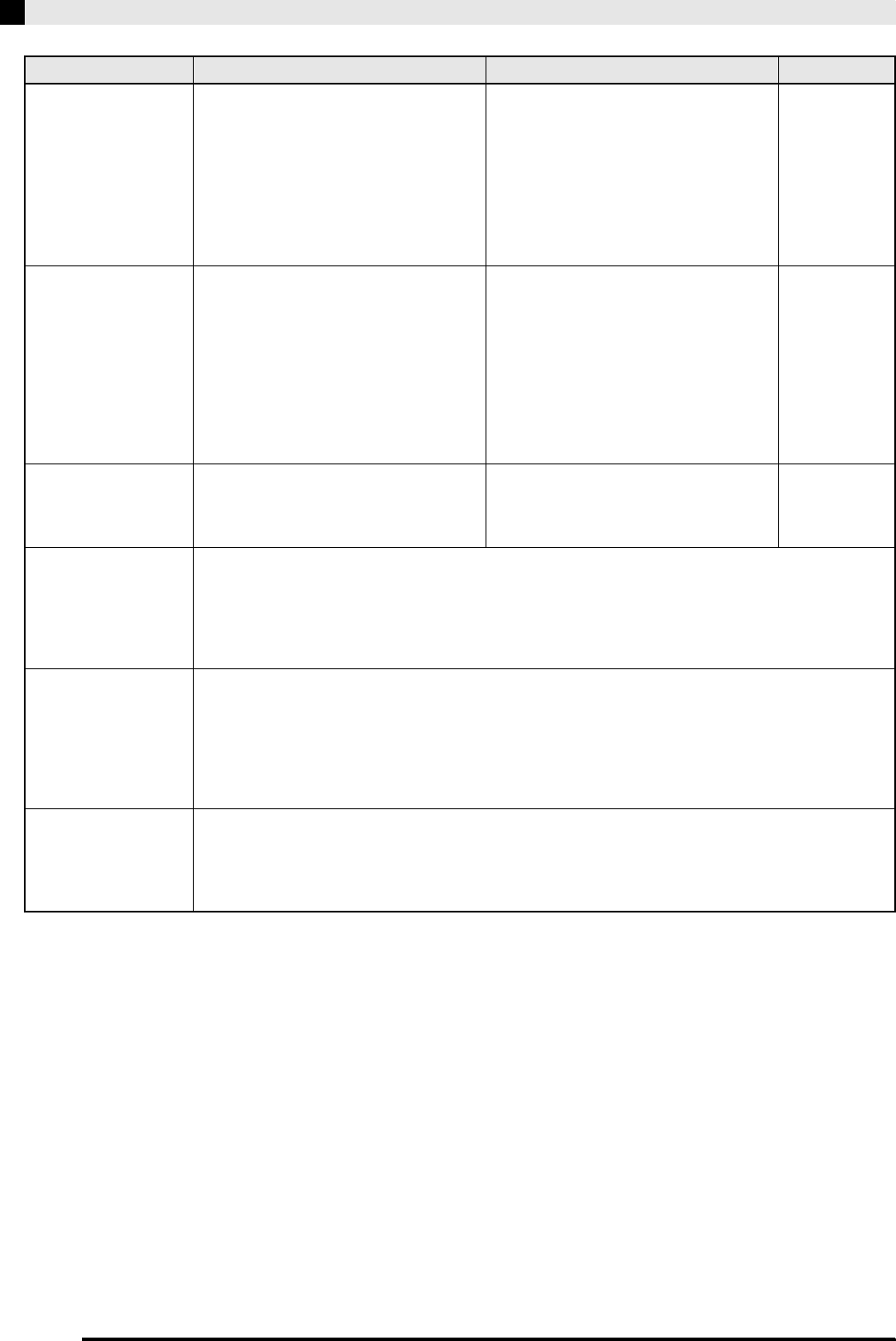
E-50
Reference
I can’t load data from
an SD memory card.
1. The card is not inserted properly into
the SD memory card slot.
2. The capacity of the SD memory card is
not supported by the digital piano.
3. The SD memory card is damaged.
4. When the data was copied to the SD
memory card from a computer, it was
copied to a folder other than
“MUSICDAT”.
1. Insert the card properly.
2. Use an SD memory card with a
supported capacity.
3. Use a different SD memory card.
4. Move the data to the “MUSICDAT”
folder.
) E-42
) E-42
) E-47
Playback stops part
way through while
transferring song
data from my
computer.
Digital noise from the USB cable or power
cord caused data communication your
computer and digital piano to be
interrupted.
Stop song playback, disconnect the USB
cable from the digital piano, and then
reconnect it. Next, try playing back the
song again.
If this does not solve the problem, quit the
MIDI software you are using, disconnect
the USB cable from the digital piano, and
then reconnect it. Next, restart the MIDI
software and then try playing back the
song again.
) E-38
“E-A” appears on the
display immediately
after power is turned
on.
Built-in flash memory is corrupted. Contact your nearest CASIO Service
Center.
—
A tone’s quality and
volume sounds
slightly different
depending where it is
played on the
keyboard.
This is an unavoidable result of the digital sampling process,* and does not indicate malfunction.
*Multiple digital samples are taken for the low range, middle range, and high range of the original
musical instrument. Because of this, there may be a very slight difference in tonal quality and volume
between sample ranges.
When I press a
button, the note that
is sounding cuts out
momentarily or there
is a slight change in
how effects are
applied.
Selecting some tones or functions automatically changes internal effect settings that are unique the
tone being used, which can cause such phenomena. This is due to the limitations of the digital piano’s
system, and does not indicate malfunction.
Even though I play on
different ranges of
the keyboard, the
notes do not change
octaves.
The ranges of certain tones are limited, which means that octaves change normally up to a certain low
note or high note. With such a tone, the notes of the lowest octave will be repeated to the left of the
lowest possible note, and the highest octave will be repeated to the right of the highest possible note.
This is due do limitations in the range of the original musical instrument for each tone, and does not
indicate malfunction of the digital piano.
Problem Cause Action See Page
PX320_e.book 50 ページ 2007年8月1日 水曜日 午前9時28分
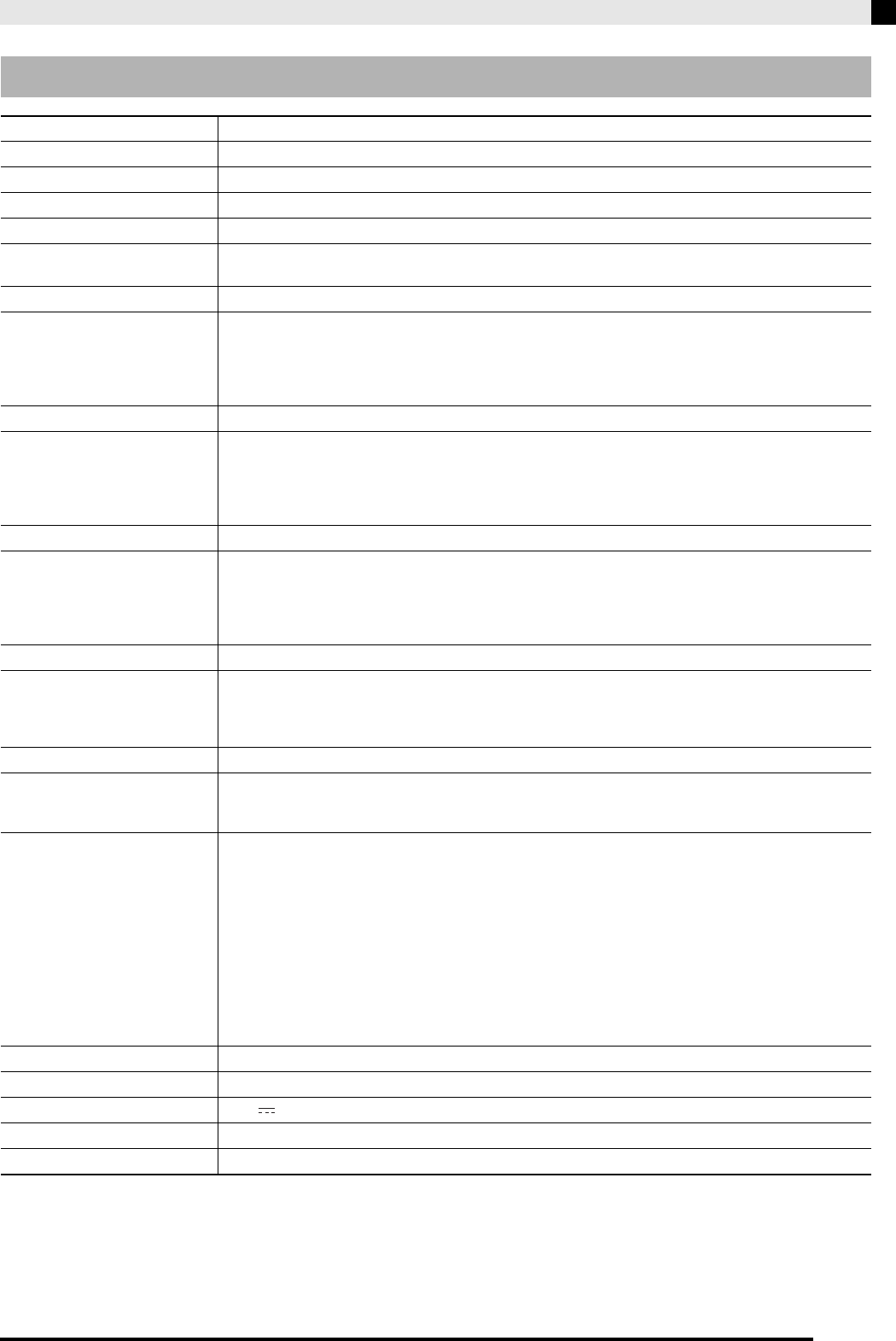
Reference
E-51
•Specifications and designs are subject to change without notice.
Product Specifications
Model PX-320
Keyboard 88-key piano keyboard, with Touch Response
Maximum Polyphony 128 notes
Tones 202 (with Layer and Split)
Effects Reverb (4 types), Chorus (4 types), Brilliance (–3 to 0 to 3), Acoustic Resonance
Metronome • Beats per measure: 0, 2, 3, 4, 5, 6
• Tempo Range: 20 to 255
Duet Adjustable tone range: 0 to 3 octaves for the left keyboard; –4 to –1 octaves for the right keyboard
Auto Accompaniment • Number of Rhythms: 70
• Tempo Range: 20 to 255
• Controllers: START/STOP, INTRO/ENDING, SYNCHRO/FILL-IN
• Auto Accompaniment modes: NORMAL, CASIO CHORD, FINGERED, FULL RANGE CHORD
• Accompaniment Volume Level: Adjustable
Demo Songs 71 (11 tone demo songs; 60 Music Library songs)
Music Library • Built-in Songs: 60
User Songs: Up to 10 (3.1 MB total memory capacity; up to approximately 318 KB per song)*
*Based on 1 KB = 1024 bytes, 1 MB = 10242 bytes.
• Song volume: Adjustable
• Part On/Off: L, R
Registration Number of Areas: 96 (12 sets × 8 banks)
Recorder • Functions: Real-time recording, playback
• Number of Songs: 5
• Number of Tracks: 2
• Capacity: Approximately 50,000 notes total (Up to approximately 10,000 notes per song)
• Recording Media: Built-in flash memory
Pedals Damper, Soft/Sostenuto (switchable)
Other Functions • Touch Select: 3 types, Off
• Transpose: ±1 octave (–12 to 0 to 12)
• Tuning: A4 = 440.0 Hz ±99 cents (variable)
• Operation Lock
MIDI 16-channel multi-timbre receive
SD Memory Card • SD memory card slot
• Supported SD Memory Cards: Up to 2 GB
• Functions: SMF playback, file storage, file recall, card format
Inputs/Outputs • PHONES jack: Stereo mini jacks × 2
• Pedal Jacks: Standard jacks × 2
• AC adaptor terminal: 12V DC
•MIDI OUT/IN terminals
•LINE OUT R, L/MONO jacks: Standard jacks × 2
Output impedance: 2.3KΩ
Output voltage: 1.8V (RMS) MAX
•LINE IN R, L/MONO jacks: Standard jacks × 2
Input impedance: 9.0KΩ
Input voltage: 200mV
•USB port: Type B
• Pedal connector (for optional SP-30 only)
Speakers (12cm × 6cm oval) × 2 +
φ
5cm × 2 (Output: 8.0W + 8.0W)
Power Requirements AD-12 AC adaptor
Power Consumption 12V 18W
Dimensions 132.2 (W) × 27.8 (D) × 13.4 (H) cm (52 1/16 × 10 15/16 × 5 1/4 inch)
Weight Approximately 12.0kg (26.4 lbs)
PX320_e.book 51 ページ 2007年8月1日 水曜日 午前9時28分

E-52
Reference
Be sure to read and observe the following operating
precautions.
Location
Avoid the following locations for this product.
•Areas exposed to direct sunlight and high
humidity
•Areas subjected to temperature extremes
•Near a radio, TV, video deck, or tuner
The above devices will not cause malfunction of
the product, but the product can cause interference
in the audio or video of a nearby device.
User Maintenance
•Never use benzene, alcohol, thinner, or other
chemical agents to clean the product.
•To clean the product or its keyboard, wipe with a
soft cloth moistened in a weak solution of water
and a mild neutral detergent. Wring all excess
moisture from the cloth before wiping.
Included and Optional Accessories
Use only accessories that are specified for use with
this product. Use of unauthorized accessories creates
the risk of fire, electric shock, and personal injury.
Weld Lines
Lines may be visible on the exterior of the product.
These are “weld lines” that result from the plastic
molding process. They are not cracks or scratches.
Musical Instrument Etiquette
Always be aware of others around you whenever
using this product. Be especially careful when
playing late at night to keep the volume at levels that
do not disturb others. Other steps you can take when
playing late at night are closing windows and using
headphones.
•Any reproduction of the contents of this manual,
either in part or its entirety, is prohibited. Except
for your own, personal use, any other use of the
contents of this manual without the consent of
CASIO is prohibited under copyright laws.
•IN NO EVENT SHALL CASIO BE LIABLE FOR
ANY DAMAGES WHATSOEVER (INCLUDING,
WITHOUT LIMITATION, DAMAGES FOR LOSS
OF PROFITS, BUSINESS INTERRUPTION, LOSS
OF INFORMATION) ARISING OUT OF THE USE
OF OR INABILITY TO USE THIS MANUAL OR
PRODUCT, EVEN IF CASIO HAS BEEN
ADVISED OF THE POSSIBILITY OF SUCH
DAMAGES.
•The contents of this manual are subject to change
without notice.
Operating Precautions
PX320_03_e.fm 52 ページ 2007年8月2日 木曜日 午後12時17分
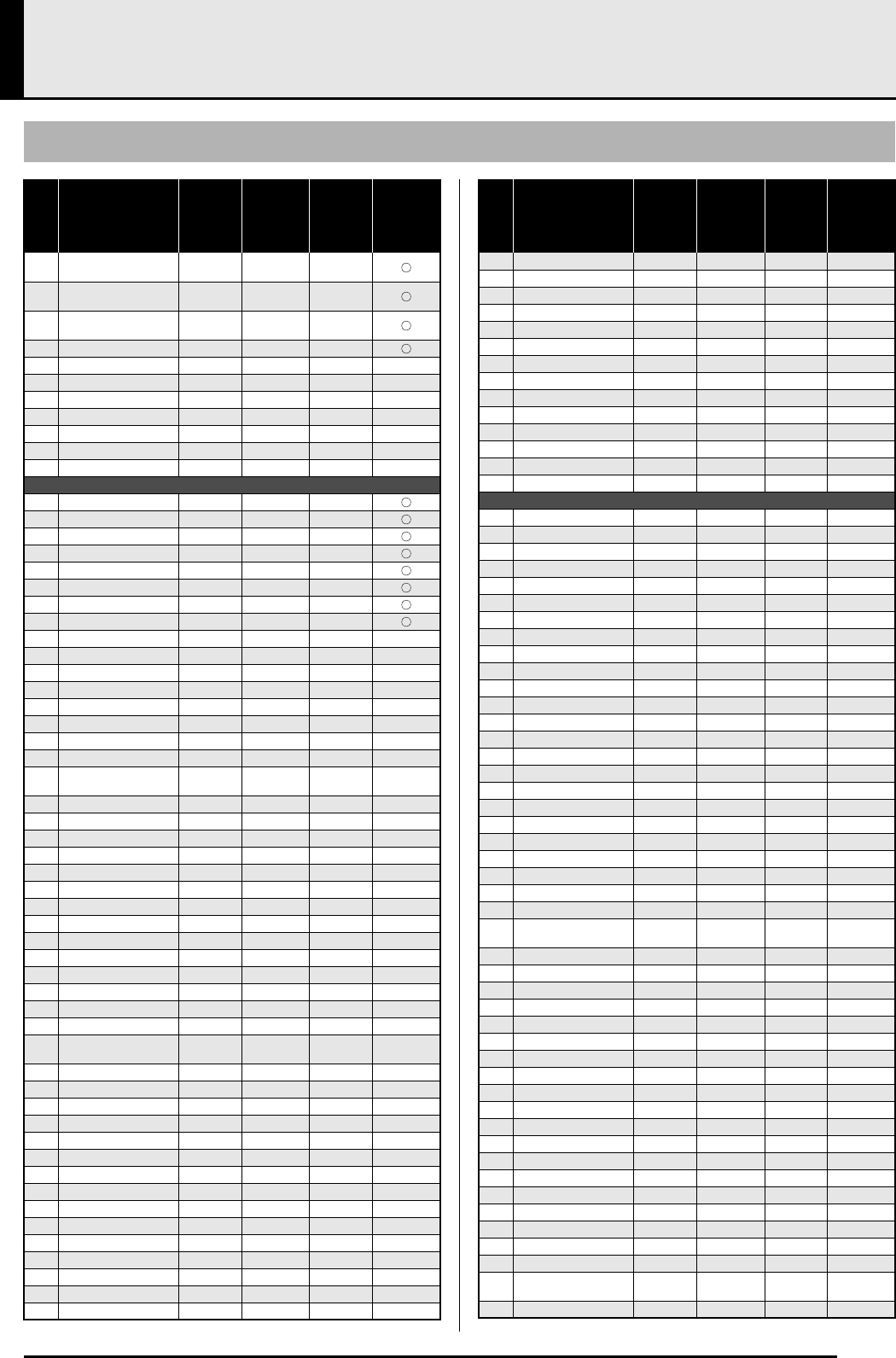
A-1
Appendix/Apéndice
Tone List/Lista de tonos
No./
Nº
Tone Name/
Nombre de tonos
Program
Change/
Cambio de
programa
Bank Select
MSB
/
MSB de
selección
de banco
Maximum
Polyphony/
Polifonía
máxima
Acoustic
Resonance/
Resonancia
acústica
01 GRAND PIANO
MODERN 04864
02 GRAND PIANO
CLASSIC 049 64
03 GRAND PIANO
VARIATION 0 50 128
04 ROCK PIANO 148 64
05 ELEC PIANO 1 4 48 128
06 ELEC PIANO 2 548 64
07 60’S E.PIANO 4 51 128
08 ROCK ORGAN 16 49 128
09 JAZZ ORGAN 17 48 64
10 STRINGS 49 48 128
11 SYNTH-VOICE 54 48 128
Various
001 LA PIANO 1 49 128
002 MELLOW PIANO 051 64
003 MODERN PIANO 1 50 64
004 DANCE PIANO 151 128
005 STRINGS PIANO 0 52 64
006 PIANO PAD 053 64
007 HONKY-TONK 3 48 64
008 OCTAVE PIANO 349 64
009 E.GRAND 80 2 48 128
010 DYNO ELEC.PIANO 449 128
011 FM ELEC.PIANO 5 49 128
012 MELLOW E.PIANO 450 64
013 POP ELEC.PIANO 5 50 64
014 SYNTH-STR E.PIANO 452 64
015 CLAVI 7 48 128
016 HARPSICHORD 648 128
017 COUPLED
HARPSICHORD 64964
018 VIBRAPHONE 11 48 128
019 MARIMBA 12 48 128
020 DRAWBAR ORGAN 16 48 128
021 ROTARY DRAWBAR 16 50 128
022 ROTARY ORGAN 16 51 128
023 PERC.ORGAN 17 49 128
024 70’S ORGAN 17 50 128
025 OVERDRIVE ORGAN 16 52 128
026 TREMOLO ORGAN 16 53 128
027 CHURCH ORGAN 19 48 64
028 CHAPEL ORGAN 19 49 128
029 NYLON STR.GUITAR 24 48 128
030 STEEL STR.GUITAR 25 48 128
031 JAZZ GUITAR 26 48 128
032 CHORUS CLEAN
GUITAR 27 48 128
033 OVERDRIVE GUITAR 29 48 64
034 ACOUSTIC BASS 32 48 128
035 RIDE BASS 32 49 64
036 FINGERED BASS 33 48 128
037 STRING ENSEMBLE 48 48 128
038 SYNTH-STRINGS 50 48 128
039 70’S SYNTH-STR 50 49 128
040 80’S SYNTH-STR 50 50 128
041 CHOIR 52 48 64
042 TRUMPET 56 48 128
043 TROMBONE 57 48 128
044 STEREO BRASS 61 48 128
045 SYNTH-BRASS 62 48 64
046 80’S SYNTH-BRASS 62 49 64
047 BREATHY ALTO SAX 65 49 64
048 BREATHY TENOR SAX 66 49 64
049 ALTO SAX 65 48 128
050 TENOR SAX 66 48 128
051 CLARINET 71 48 128
052 FLUTE 73 48 128
053 SAWTOOTH LEAD 81 48 64
054 MELLOW SAW LEAD 81 49 64
055 SQUARE LEAD 80 48 64
056 SYNTH-PAD 90 48 64
057FANTASY 884864
058 NEW AGE 88 49 64
059 WARM PAD 89 48 128
060 WARM VOX 89 49 64
061 POLYSYNTH PAD 90 49 64
GM
062 GM PIANO 1 0 0 128
063 GM PIANO 2 1 0 128
064 GM PIANO 3 2 0 128
065 GM HONKY-TONK 3 0 64
066 GM E.PIANO 1 4 0 128
067 GM E.PIANO 2 5 0 128
068 GM HARPSICHORD 6 0 128
069 GM CLAVI 7 0 128
070 GM CELESTA 8 0 128
071 GM GLOCKENSPIEL 9 0 128
072 GM MUSIC BOX 10 0 64
073 GM VIBRAPHONE 11 0 128
074 GM MARIMBA 12 0 128
075 GM XYLOPHONE 13 0 128
076 GM TUBULAR BELL 14 0 128
077 GM DULCIMER 15 0 64
078 GM ORGAN 1 16 0 128
079 GM ORGAN 2 17 0 64
080 GM ORGAN 3 18 0 64
081 GM PIPE ORGAN 19 0 64
082 GM REED ORGAN 20 0 128
083 GM ACCORDION 21 0 64
084 GM HARMONICA 22 0 128
085 GM BANDONEON 23 0 64
086 GM NYLON
STR.GUITAR 24 0 128
087 GM STEEL STR.GUITAR 25 0 128
088 GM JAZZ GUITAR 26 0 128
089 GM CLEAN GUITAR 27 0 128
090 GM MUTE GUITAR 28 0 128
091 GM OVERDRIVE GT 29 0 64
092 GM DISTORTION GT 30 0 64
093 GM GT HARMONICS 31 0 128
094 GM ACOUSTIC BASS 32 0 128
095 GM FINGERED BASS 33 0 128
096 GM PICKED BASS 34 0 128
097 GM FRETLESS BASS 35 0 128
098 GM SLAP BASS 1 36 0 128
099 GM SLAP BASS 2 37 0 128
100 GM SYNTH-BASS 1 38 0 64
101 GM SYNTH-BASS 2 39 0 128
102 GM VIOLIN 40 0 128
103 GM VIOLA 41 0 128
104 GM CELLO 42 0 128
105 GM CONTRABASS 43 0 128
106 GM TREMOLO
STRINGS 44 0 128
107 GM PIZZICATO 45 0 128
No./
Nº
Tone Name/
Nombre de tonos
Program
Change/
Cambio de
programa
Bank Select
MSB
/
MSB de
selección
de banco
Maximum
Polyphony/
Polifonía
máxima
Acoustic
Resonance/
Resonancia
acústica
PX320_s.book 1 ページ 2007年8月8日 水曜日 午後8時8分
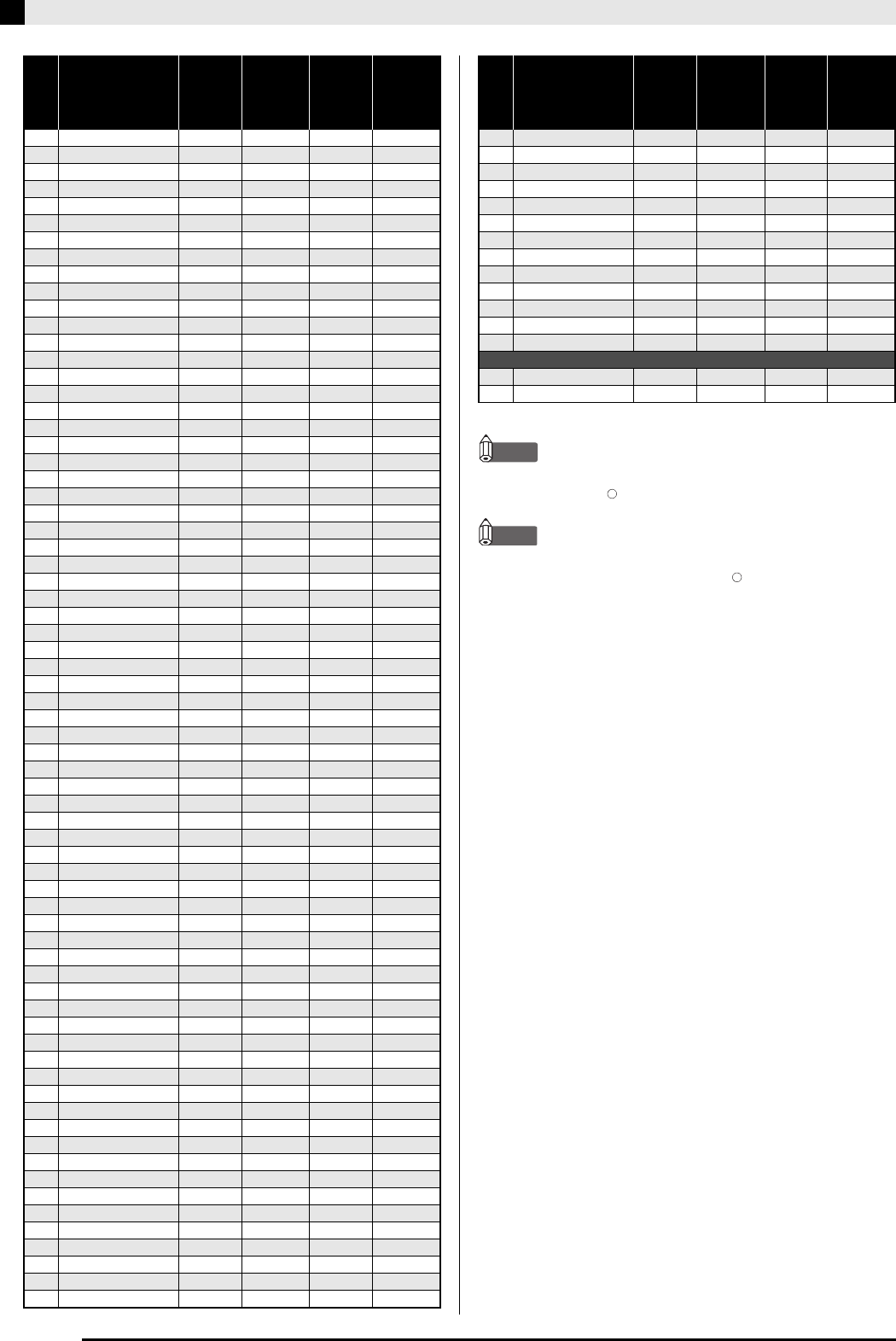
A-2
Appendix/Apéndice
NOTE
•Acoustic resonance (page E-34) is applied only to tones
indicated by “ ”.
NOTA
•La resonancia acústica (página S-34) se aplica solamente
a los tonos indicados mediante “ ”.
108 GM HARP 46 0 128
109 GM TIMPANI 47 0 128
110 GM STRINGS 1 48 0 128
111 GM STRINGS 2 49 0 128
112 GM SYNTH-STRINGS 1 50 0 128
113 GM SYNTH-STRINGS 2 51 0 128
114 GM CHOIR AAHS 52 0 128
115 GM VOICE DOO 53 0 128
116 GM SYNTH-VOICE 54 0 128
117 GM ORCHESTRA HIT 55 0 64
118 GM TRUMPET 56 0 128
119 GM TROMBONE 57 0 128
120 GM TUBA 58 0 128
121 GM MUTE TRUMPET 59 0 128
122 GM FRENCH HORN 60 0 64
123 GM BRASS 61 0 128
124 GM SYNTH-BRASS 1 62 0 64
125 GM SYNTH-BRASS 2 63 0 64
126 GM SOPRANO SAX 64 0 128
127 GM ALTO SAX 65 0 128
128 GM TENOR SAX 66 0 128
129 GM BARITONE SAX 67 0 128
130 GM OBOE 68 0 128
131 GM ENGLISH HORN 69 0 128
132 GM BASSOON 70 0 128
133 GM CLARINET 71 0 128
134 GM PICCOLO 72 0 128
135 GM FLUTE 73 0 128
136 GM RECORDER 74 0 128
137 GM PAN FLUTE 75 0 128
138 GM BOTTLE BLOW 76 0 128
139 GM SHAKUHACHI 77 0 64
140 GM WHISTLE 78 0 128
141 GM OCARINA 79 0 128
142 GM SQUARE LEAD 80 0 64
143 GM SAWTOOTH LEAD 81 0 64
144 GM CALLIOPE 82 0 64
145 GM CHIFF LEAD 83 0 64
146 GM CHARANG 84 0 64
147 GM VOICE LEAD 85 0 64
148 GM FIFTH LEAD 86 0 64
149 GM BASS+LEAD 87 0 64
150 GM FANTASY 88 0 64
151 GM WARM PAD 89 0 128
152 GM POLYSYNTH 90 0 64
153 GM SPACE CHOIR 91 0 64
154 GM BOWED GLASS 92 0 64
155 GM METAL PAD 93 0 64
156 GM HALO PAD 94 0 64
157 GM SWEEP PAD 95 0 128
158 GM RAIN DROP 96 0 64
159 GM SOUND TRACK 97 0 64
160 GM CRYSTAL 98 0 64
161 GM ATMOSPHERE 99 0 64
162 GM BRIGHTNESS 100 0 64
163 GM GOBLINS 101 0 64
164 GM ECHOES 102 0 128
165 GM SF 103 0 64
166 GM SITAR 104 0 128
167 GM BANJO 105 0 128
168 GM SHAMISEN 106 0 128
169 GM KOTO 107 0 128
170 GM THUMB PIANO 108 0 128
171 GM BAGPIPE 109 0 64
172 GM FIDDLE 110 0 128
173 GM SHANAI 111 0 128
174 GM TINKLE BELL 112 0 128
175 GM AGOGO 113 0 128
176 GM STEEL DRUMS 114 0 64
No./
Nº
Tone Name/
Nombre de tonos
Program
Change/
Cambio de
programa
Bank Select
MSB
/
MSB de
selección
de banco
Maximum
Polyphony/
Polifonía
máxima
Acoustic
Resonance/
Resonancia
acústica
177 GM WOOD BLOCK 115 0 128
178 GM TAIKO 116 0 128
179 GM MELODIC TOM 117 0 128
180 GM SYNTH-DRUM 118 0 128
181 GM REVERSE CYMBAL 119 0 128
182 GM GT FRET NOISE 120 0 128
183 GM BREATH NOISE 121 0 128
184 GM SEASHORE 122 0 64
185 GM BIRD 123 0 64
186 GM TELEPHONE 124 0 128
187 GM HELICOPTER 125 0 128
188 GM APPLAUSE 126 0 64
189 GM GUNSHOT 127 0 128
Drum Sets
190 STANDARD SET 0 120 128 —
191 BRUSH SET 40 120 128 —
No./
Nº
Tone Name/
Nombre de tonos
Program
Change/
Cambio de
programa
Bank Select
MSB
/
MSB de
selección
de banco
Maximum
Polyphony/
Polifonía
máxima
Acoustic
Resonance/
Resonancia
acústica
PX320_s.book 2 ページ 2007年8月8日 水曜日 午後8時8分
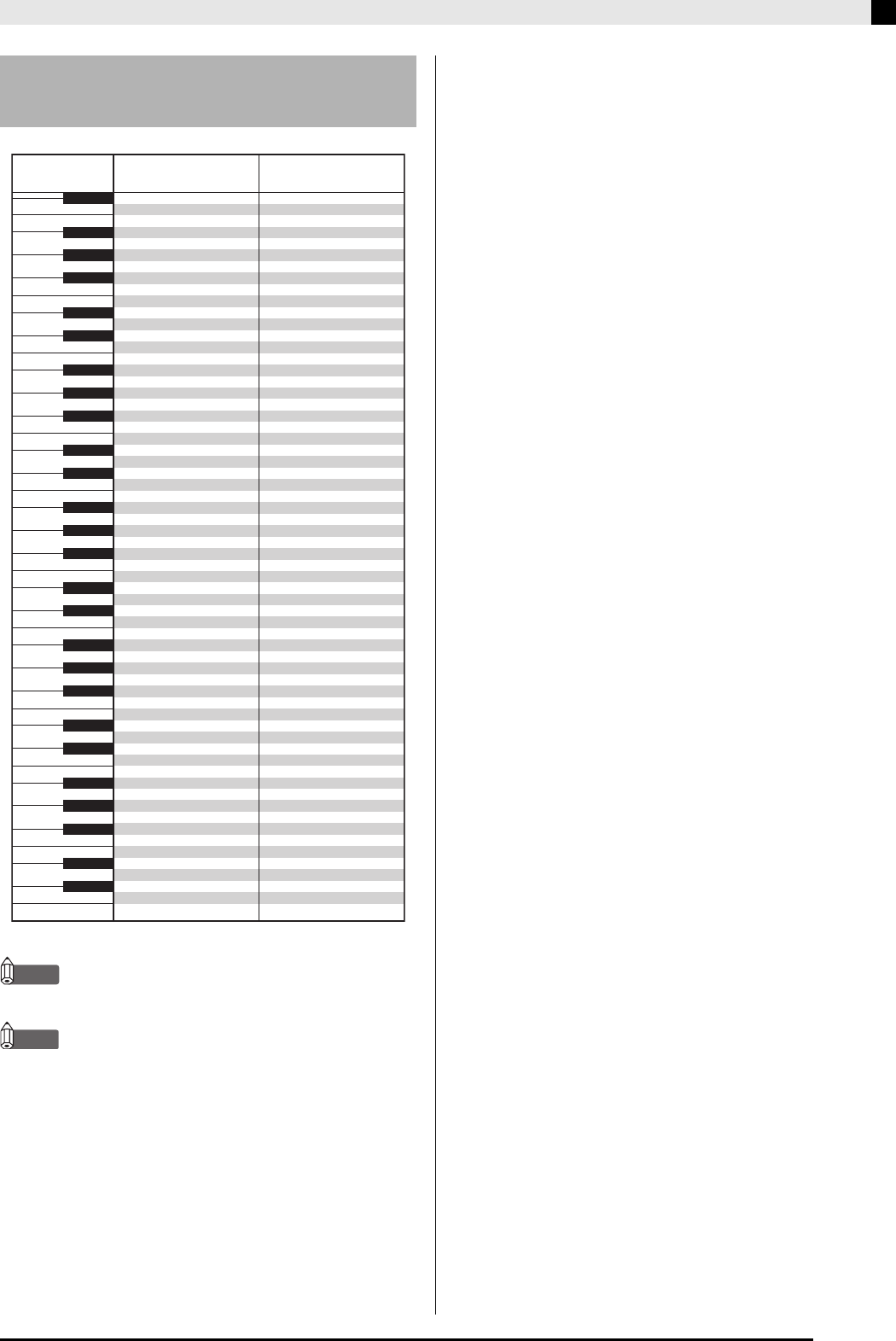
Appendix/Apéndice
A-3
NOTE
•“” : indicates the same sound as STANDARD SET.
NOTA
•“” : indica el mismo sonido que STANDARD SET.
Drum Assignment List/
Lista de sonidos de batería
STANDARD SET BRUSH SET
E1
F1
G1
A1
B1
C2
D2
E2
F2
G2
A2
B2
C3
D3
E3
F3
G3
A3
B3
C4
D4
E4
F4
G4
A4
B4
C5
D5
E5
F5
G5
A5
B5
C6
D6
E6
F6
28
29
31
33
35
36
38
40
41
43
45
47
48
50
52
53
55
57
59
60
62
64
65
67
69
71
72
74
76
77
79
81
83
84
86
88
89
E
b
1
F#1
A
b
1
B
b
1
C#2
E
b
2
F#2
A
b
2
B
b
2
C#3
E
b
3
F#3
A
b
3
B
b
3
C#4
E
b
4
F#4
A
b
4
B
b
4
C#5
E
b
5
F#5
A
b
5
B
b
5
C#6
E
b
6
27
30
32
34
37
39
42
44
46
49
51
54
56
58
61
63
66
68
70
73
75
78
80
82
85
87
HIGH Q
SLAP
SCRATCH PUSH
SCRATCH PULL
STICKS
SQUARE CLICK
METRONOME CLICK
METRONOME BELL
STANDARD 1 KICK 2
STANDARD 1 KICK 1
SIDE STICK
STANDARD 1 SNARE 1
HAND CLAP 1
STANDARD 1 SNARE 2
LOW TOM 2
CLOSED HI-HAT
LOW TOM 1
PEDAL HI-HAT
MID TOM 2
OPEN HI-HAT
MID TOM 1
HIGH TOM 2
CRASH CYMBAL 1
HIGH TOM 1
RIDE CYMBAL 1
CHINESE CYMBAL
RIDE BELL
TAMBOURINE 1
SPLASH CYMBAL
COWBELL
CRASH CYMBAL 2
VIBRA-SLAP
RIDE CYMBAL 2
HIGH BONGO
LOW BONGO
MUTE HIGH CONGA
OPEN HIGH CONGA
LOW CONGA
HIGH TIMBALE
LOW TIMBALE
HIGH AGOGO
LOW AGOGO
CABASA
MARACAS
SHORT HI WHISTLE
LONG LOW WHISTLE
SHORT GUIRO
LONG GUIRO
CLAVES
HIGH WOOD BLOCK
LOW WOOD BLOCK
MUTE CUICA
OPEN CUICA
MUTE TRIANGLE
OPEN TRIANGLE
SHAKER
JINGLE BELL
BELL TREE
CASTANETS
MUTE SURDO
OPEN SURDO
APPLAUSE
APPLAUSE 2
BRUSH KICK 2
BRUSH KICK 1
BRUSH SIDE STICK
BRUSH TAP
BRUSH SLAP
BRUSH SWIRL
BRUSH CRASH CYMBAL 1
BRUSH RIDE CYMBAL 1
BRUSH RIDE BELL
TAMBOURINE 2
BRUSH SPLASH CYMBAL
BRUSH CRASH CYMBAL 2
BRUSH RIDE CYMBAL 2
Key/Note Number
Número de clave/nota
PX320_s.book 3 ページ 2007年8月8日 水曜日 午後8時8分
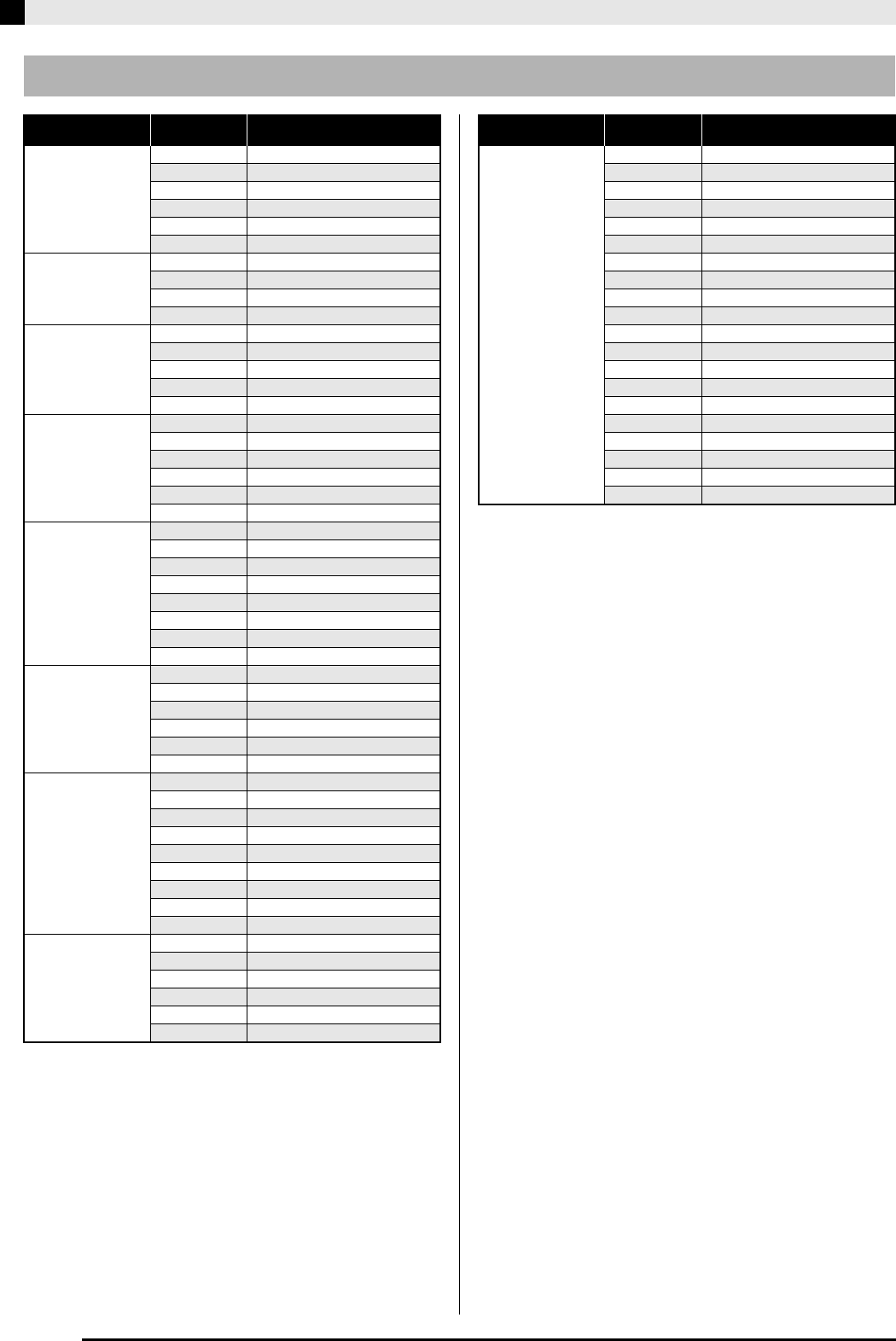
A-4
Appendix/Apéndice
Rhythm List/Lista de ritmos
Category/Categoría No./NºRhythm Name/
Nombre de ritmo
8BEAT/16BEAT 01 STRAIGHT 8 BEAT
02 MELLOW 8 BEAT
03 GUITAR 8 BEAT
04 8 BEAT POP
05 16 BEAT
06 16 BEAT SHUFFLE
BALLAD 07 SLOW BALLAD
08 POP BALLAD
09 6/8 BALLAD
10 ROCK BALLAD
POPS 11 POP
12 POP ROCK
13 FAST SOUL
14 60’S SOUL
15 DISCO SOUL
ROCK 16 SHUFFLE ROCK
17 BLUES
18 SOFT ROCK
19 SLOW ROCK
20 NEW ORLNS R&R
21 ROCK WALTZ
JAZZ 22 SLOW BIG BAND
23 FAST BIG BAND
24 SWING
25 SLOW SWING
26 JAZZ WALTZ
27 FOX TROT
28 QUICKSTEP
29 JAZZ COMBO 1
EUROPEAN 30 POLKA
31 WALTZ 1
32 VIENNESE WALTZ
33 FRENCH WALTZ
34 TANGO
35 MARCH 1
LATIN 36 BOSSA NOVA
37 BEGUINE
38 SAMBA
39 MAMBO
40 RHUMBA
41 CHA-CHA-CHA
42 BOLERO
43 SALSA
44 REGGAE
VARIOUS 45 COUNTRY 8 BEAT
46 COUNTRY BALLAD
47 COUNTRY SHUFFLE
48 FAST GOSPEL
49 SLOW GOSPEL
50 STR QUARTET
FOR PIANO 51 PIANO 8 BEAT
52 PIANO BALLAD 1
53 PIANO BALLAD 2
54 EP BALLAD 1
55 EP BALLAD 2
56 BLUES BALLAD
57 JAZZ COMBO 2
58 JAZZ COMBO 3
59 RAGTIME
60 PIANO ROCK’N’ROLL
61 BOOGIE-WOOGIE
62 ARPEGGIO 1
63 ARPEGGIO 2
64 ARPEGGIO 3
65 MARCH 2
66 MARCH 3
67 STRIDE PIANO
68 WALTZ 2
69 WALTZ 3
70 WALTZ 4
Category/Categoría No./NºRhythm Name/
Nombre de ritmo
PX320_s.book 4 ページ 2007年8月8日 水曜日 午後8時8分
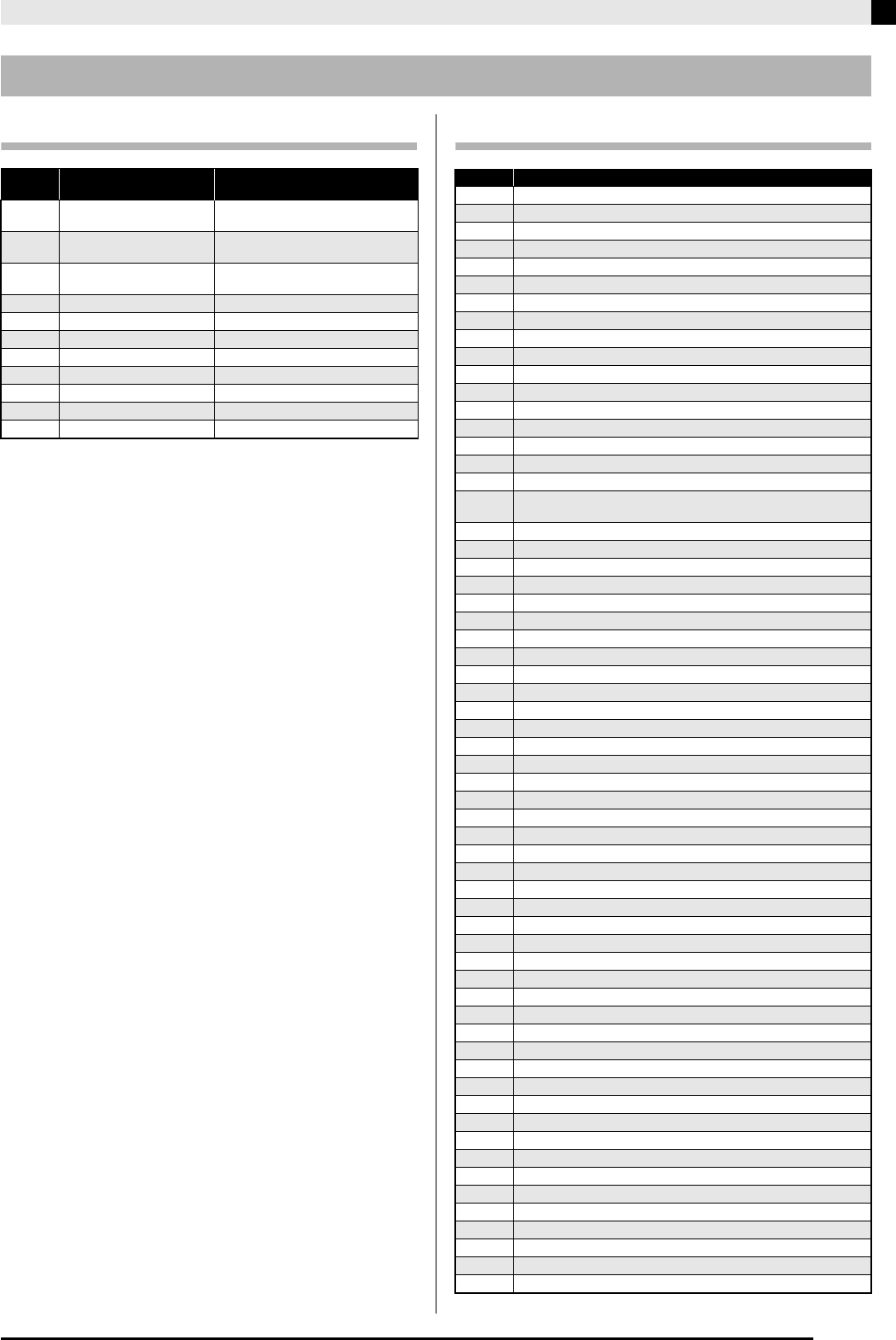
Appendix/Apéndice
A-5
Tone Demo/Demostración de tonos Music Library/Biblioteca musical
Song List/Lista de canciones
No./NºTone Name/
Nombre de tonos
Song Name/
Nombre de canciones
01 GRAND PIANO
(MODERN) Pr_lude [Suite bergamasque]
02 GRAND PIANO
(CLASSIC) 3 Romances Sans Paroles 3
03 GRAND PIANO
(VARIATION) Ungarischer Tanz 5
04 ROCK PIANO Original
05 ELEC PIANO 1 Original
06 ELEC PIANO 2 Original
07 60’s E.PIANO Original
08 ROCK ORGAN Original
09 JAZZ ORGAN Original
10 STRINGS Nessun Dorma [Turandot]
11 SYNTH-VOICE Original
No./NºSong Name/Nombre de canciones
01 Nocturne Op.9-2
02 Fantaisie-Impromptu Op.66
03 Étude Op.10-3 “Chanson de l’adieu”
04 Étude Op.10-5 “Black Keys”
05 Étude Op.10-12 “Revolutionary”
06 Étude Op.25-9 “Butterflies”
07 Prélude Op.28-7
08 Valse Op.64-1 “Petit Chien”
09 Valse Op.64-2
10 Moments Musicaux 3
11 Impromptu Op.90-2
12 Marche Militaire 1 (Duet)
13 Frühlingslied [Lieder Ohne Worte Heft 5]
14 Fröhlicher Landmann [Album für die Jugend]
15 Von fremden Ländern und Menschen [Kinderszenen]
16 Träumerei [Kinderszenen]
17 Tambourin
18 Menuet BWV Anh.114 [Clavierbüchlein der Anna Magdalena
Bach]
19 Inventio 1 BWV 772
20 Inventio 8 BWV 779
21 Inventio 13 BWV 784
22 Praeludium 1 BWV 846 [Das Wohltemperierte Klavier 1]
23 Le Coucou
24 Gavotte
25 Sonatina Op.36-1 1st Mov.
26 Sonatine Op.20-1 1st Mov.
27 Sonate K.545 1st Mov.
28 Sonate K.331 3rd Mov. “Turkish March”
29 Rondo K.485
30 Für Elise
31 Marcia alla Turca
32 Sonate Op.13 “Pathétique” 1st Mov.
33 Sonate Op.13 “Pathétique” 2nd Mov.
34 Sonate Op.13 “Pathétique” 3rd Mov.
35 Sonate Op.27-2 “Moonlight” 1st Mov.
36 Rhapsodie 2
37 Waltz Op.39-15 (Duet)
38 Liebesträume 3
39 Blumenlied
40 La Prière d’une Vierge
41 Csikos Post
42 Humoresque Op.101-7
43 Melodie [Lyrische Stücke Heft 2]
44 Sicilienne Op.78
45 Berceuse [Dolly] (Duet)
46 Arabesque 1
47 La Fille aux Cheveux de Lin [Préludes]
48 Passepied [Suite bergamasque]
49 Gymnopédie 1
50 Je Te Veux
51 Salut d’Amour
52 The Entertainer
53 Maple Leaf Rag
54 L’arabesque [25 Etüden Op.100]
55 La Styrienne [25 Etüden Op.100]
56 Ave Maria [25 Etüden Op.100]
57 Le retour [25 Etüden Op.100]
58 La chevaleresque [25 Etüden Op.100]
59 No.13 [Études de Mécanisme Op.849]
60 No.26 [Études de Mécanisme Op.849]
61-70 User area songs/Canciones del área de usuario
PX320_s.book 5 ページ 2007年8月8日 水曜日 午後8時8分
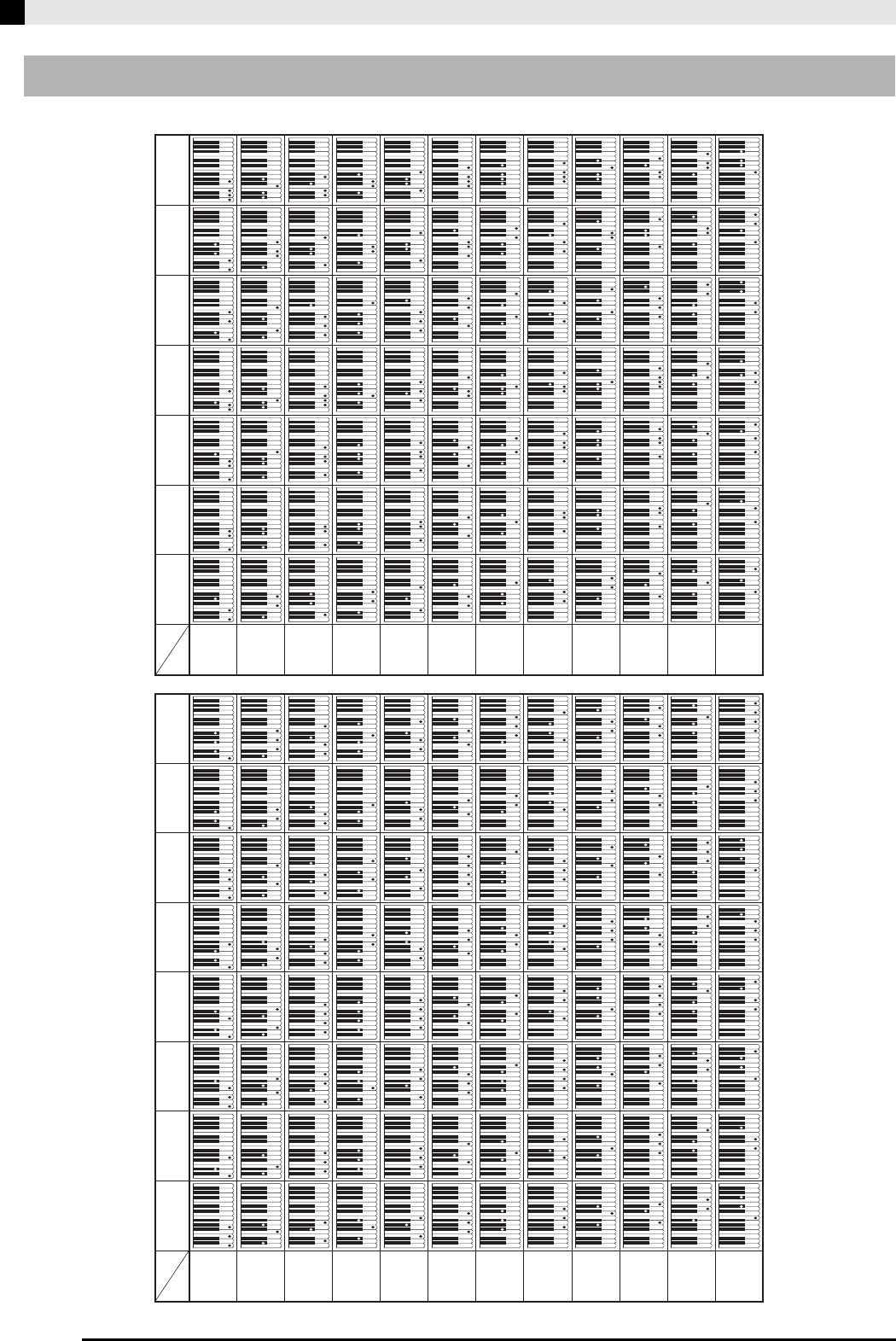
A-6
Appendix/Apéndice
Fingered Chord Chart/Cuadro de acordes digitados (Fingered)
dim m7b5
M7
Mm7m7dim7
Chord
Type
Root
C
D
E
F
G
A
B
C /(D )
b
#
(D )/E
b
#
F /(G )
b
#
(G )/A
b
#
(A )/B
b
#
aug sus4
C
D
E
F
G
A
B
C /(D )
b
#
(D )/E
b
#
F /(G )
b
#
(G )/A
b
#
(A )/B b
#
m add9
7sus4 mM7 7b5add9
Chord
Type
Root
PX320_s.book 6 ページ 2007年8月8日 水曜日 午後8時8分
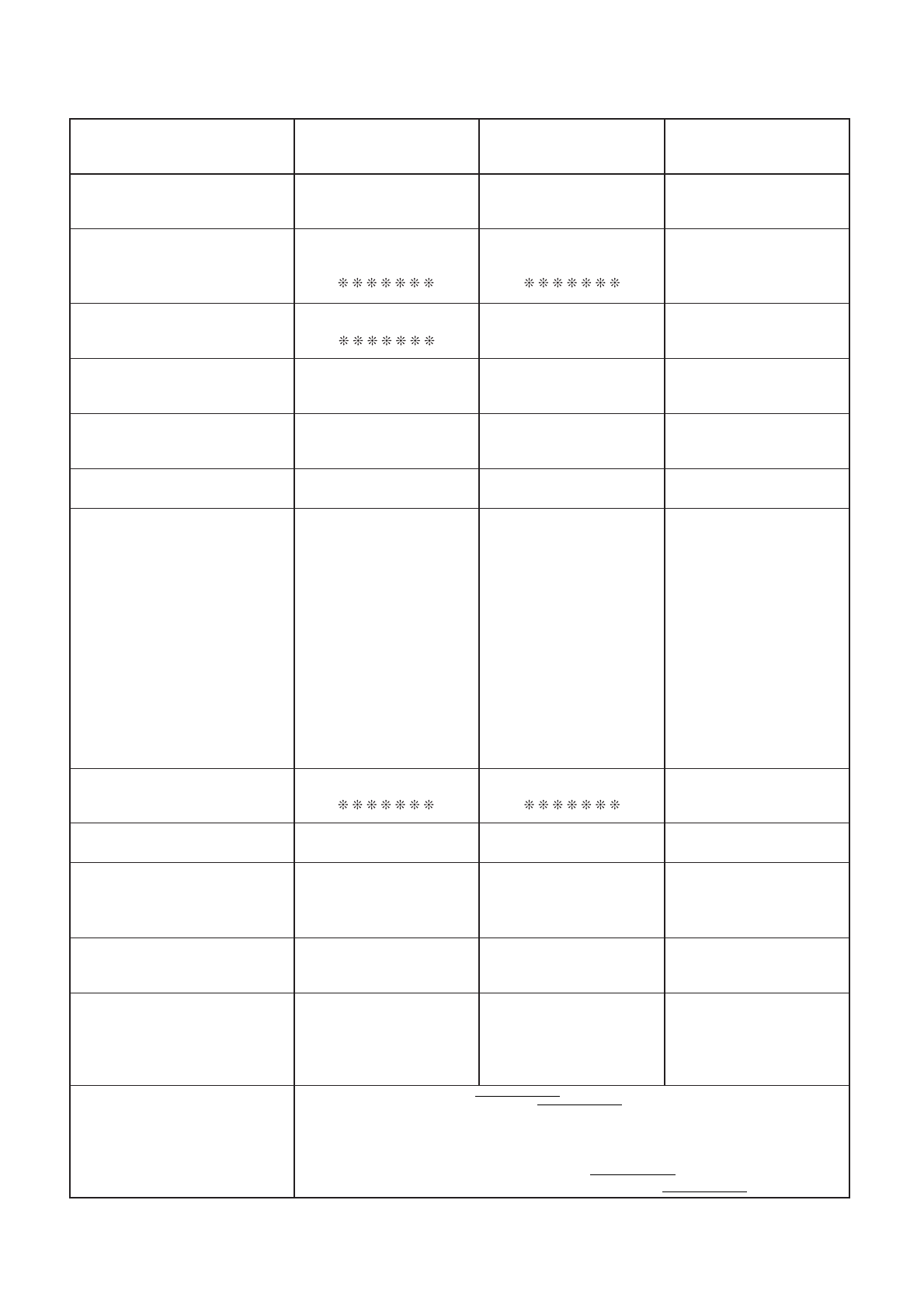
E-1
Function Transmitted Recognized Remarks
Basic
Channel
1 - 16
1 - 16
1 - 16
1 - 16
Default
Changed
Note
Number
21 - 108 0 - 127
0 - 127*1True voice
Program
Change
O
0 - 127
O
0 - 127
:True #
After
Touch
Control
Change
X
X
X
O
Pitch Bender
XO
System Exclusive
OO
Key’s
Ch’s
Velocity
O
9nH v = 1 - 127
X
8nH v = 64
O
9nH v = 1 - 127
X
9nH v = 0.8nH V =**
Note ON
Note OFF
Mode
Mode 3
X
Mode 3
X
Default
Messages
Altered
System
Common
X
X
X
X
X
X
: Song Pos
: Song Sel
: Tune
Aux
Messages
Remarks
X
O
X
X
X
O
O
X
: Local ON/OFF
: All notes OFF
: Active Sense
: Reset
System
Real Time
O
O
X
X
: Clock
: Commands
0,32
1
6, 38
7
10
11
16
17
18
19
64
66
67
76
77
78
80
81
82
83
91
93
100, 101
120
121
Bank select
Modulation
Data entry
Volume
Pan
Expression
DSP Parameter0*2
DSP Parameter1*2
DSP Parameter2*2
DSP Parameter3*2
Damper
Sostenuto
Soft pedal
Vibrato rate
Vibrato depth
Vibrato delay
DSP Parameter4*2
DSP Parameter5*2
DSP Parameter6*2
DSP Parameter7*2
Reverb send
Chorus send
RPN LSB, MSB*3
All sound off
Reset all controller
Model PX-320 Version : 1.0
Mode 1 : OMNI ON, POLY
Mode 3 : OMNI OFF, POLY
Mode 2 : OMNI ON, MONO
Mode 4 : OMNI OFF, MONO
O : Yes
X : No
O
O
O
O
O
O
O
O
O
O
O
O
O
O
O
O
O
O
O
O
O
O
O
O
O
O
X
X
O
X
X
X
X
X
X
O
O
O
X
X
X
X
X
X
X
O
O
X
O
O
*4, *5
MIDI Implementation Chart
*1: Depends on tone
*1: Depende del tono.
**:no relation
**: sin relación
*2 : For details, see MIDI Implementation at http://world.casio.com/.
*2 : Si desea más información, vea Implementación MIDI en http://world.casio.com/.
*3 : Pitch Bend Sensitivity, Fine Tune, Coarse Tune, Modulation Depth, Null
*3 : Sensibilidad de inflexión de tono, afinación precisa, afinación poco precisa, profundidad de modulación, nulo
*4 : Universal Real-time Exclusive Messages: Master Volume, Master Balance, Master Fine Tuning, Master Coarse Tuning, Reverb Parameter,
Chorus Parameter, GM System Message
*4 : Mensajes exclusivos de sistemas universales en tiempo real: Volumen maestro, balance maestro, afinación precisa maestra, afinación
poco precisa maestra, parámetro de reverberación, parámetro de coro, mensaje de sistema GM
*5 : This model’s System Exclusive Message
• For details about footnotes 3 through 5, see MIDI Implementation at http://world.casio.com/.
*5 : Mensaje exclusivo del sistema de este modelo
• Si desea más información sobre los pies de página 3 a 5, vea Implementación MIDI en http://world.casio.com/.
This recycle mark indicates that the packaging conforms to
the environmental protection legislation in Germany.
Esta marca de reciclaje indica que el empaquetado se
ajusta a la legislación de protección ambiental en Alemania.
MA0708-A Printed in China
PX320ES1A
C
