Casio CTX5000_3000_EN Web_CTX3000 ES 1B Web CTX3000 EN
User Manual: Casio Web_CTX3000-ES-1B CT-X5000 | Electronic Musical Instruments | Manuals | CASIO
Open the PDF directly: View PDF  .
.
Page Count: 157 [warning: Documents this large are best viewed by clicking the View PDF Link!]
EN/ES
CTX3000-ES-1B
USER’S GUIDE
Safety Precautions
Before trying to use the Digital Keyboard, be sure to read the separate “Safety Precautions”.
Please keep all information for future reference.
GUÍA DEL USUARIO
Precauciones de seguridad
Antes de intentar usar el teclado digital, asegúrese de leer las “Precauciones de seguridad” separadas.
Guarde toda la información para futuras consultas.
About Music Score data
You can use a computer to download music score data from the CASIO Website. For more information, visit the
URL below.
http://world.casio.com/
Acerca de los datos de partituras
Puede utilizar un PC para descargar los datos de partituras desde el sitio web de CASIO. Para obtener más
información, visite la siguiente URL.
http://world.casio.com/
CT-X5000
CT-X3000
This recycle mark indicates that the packaging conforms to
the environmental protection legislation in Germany.
Esta marca de reciclaje indica que el empaquetado se
ajusta a la legislación de protección ambiental en Alemania.
MA1804-B Printed in China
C
CTX5000_3000_es_Cover1-4.fm 1 ページ 2018年2月15日 木曜日 午後4時59分
English
Important!
Please note the following important information before using this product.
• Before using the AD-E24250LW/AD-A12150LW Adaptor to power the unit, be sure to check the AC Adaptor for any damage
first. Carefully check the power cord for breakage, cuts, exposed wire and other serious damage. Never let children use an AC
adaptor that is seriously damaged.
• The product is not intended for children under 3 years.
• Use only CASIO AD-E24250LW/AD-A12150LW adaptor.
• The AC adaptor is not a toy.
• Be sure to disconnect the AC adaptor before cleaning the product.
CT-X3000 only
• Never attempt to recharge batteries.
• Do not use rechargeable batteries.
• Never mix old batteries with new ones.
• Use recommended batteries or equivalent types.
• Always make sure that positive (+) and negative (–) poles are facing correctly as indicated near the battery compartment.
• Replace batteries as soon as possible after any sign they are getting weak.
• Do not short-circuit the battery terminals.
NOTICE
This equipment has been tested and found to comply with the limits for a Class B digital device, pursuant to Part 15 of the
FCC Rules. These limits are designed to provide reasonable protection against harmful interference in a residential
installation. This equipment generates, uses and can radiate radio frequency energy and, if not installed and used in
accordance with the instructions, may cause harmful interference to radio communications. However, there is no guarantee
that interference will not occur in a particular installation. If this equipment does cause harmful interference to radio or
television reception, which can be determined by turning the equipment off and on, the user is encouraged to try to correct
the interference by one or more of the following measures:
• Reorient or relocate the receiving antenna.
• Increase the separation between the equipment and receiver.
• Connect the equipment into an outlet on a circuit different from that to which the receiver is connected.
• Consult the dealer or an experienced radio/TV technician for help.
FCC CAUTION
Changes or modifications not expressly approved by the party responsible for compliance could void the user’s authority to
operate the equipment.
Declaration of Conformity
Model Number: CT-X5000/CT-X3000
Trade Name: CASIO COMPUTER CO., LTD.
Responsible party: CASIO AMERICA, INC.
Address: 570 MT. PLEASANT AVENUE, DOVER, NEW JERSEY 07801
Telephone number: 973-361-5400
This device complies with Part 15 of the FCC Rules, Operation is subject to the following two conditions:
(1) This device may not cause harmful interference, and (2) this device must accept any interference received, including
interference that may cause undesired operation.
Manufacturer:
CASIO COMPUTER CO., LTD.
6-2, Hon-machi 1-chome, Shibuya-ku, Tokyo 151-8543, Japan
Responsible within the European Union:
Casio Europe GmbH
Casio-Platz 1, 22848 Norderstedt, Germany
www.casio-europe.com
Declaration of Conformity According to EU Directive
• Any reproduction of the contents of this manual, either in part or its entirety, is prohibited. Except for your own, personal
use, any other use of the contents of this manual without the consent of CASIO is prohibited under copyright laws.
• IN NO EVENT SHALL CASIO BE LIABLE FOR ANY DAMAGES WHATSOEVER (INCLUDING, WITHOUT LIMITATION,
DAMAGES FOR LOSS OF PROFITS, BUSINESS INTERRUPTION, LOSS OF INFORMATION) ARISING OUT OF THE
USE OF OR INABILITY TO USE THIS MANUAL OR PRODUCT, EVEN IF CASIO HAS BEEN ADVISED OF THE
POSSIBILITY OF SUCH DAMAGES.
• The contents of this manual are subject to change without notice.
• The actual appearance of the product may be different from that shown in the illustrations in this User’s Guide.
• Company and product names used in this manual may be registered trademarks of others.
EN-1
CTX5000_3000_EN.book 3 ページ 2018年2月26日 月曜日 午後3時56分

EN-2
General Guide EN-4
Preparing the Music Stand . . . . . . . . . . . . . . . . . . . EN-7
Returning the Digital Keyboard to
Its Factory Default Settings . . . . . . . . . . . . . . . . . EN-7
Preparing a Power Supply EN-8
Using the AC Adaptor . . . . . . . . . . . . . . . . . . . . . . . EN-8
CT-X3000: Using Batteries . . . . . . . . . . . . . . . . . . . EN-9
Turning Power On or Off. . . . . . . . . . . . . . . . . . . . . EN-9
Adjusting Display Contrast . . . . . . . . . . . . . . . . . . EN-10
Connecting to Audio Equipment EN-11
Digital Keyboard Audio Output . . . . . . . . . . . . . . . EN-11
Using Headphones . . . . . . . . . . . . . . . . . . . . . . . . EN-11
Outputting Keyboard Notes to
Audio Equipment . . . . . . . . . . . . . . . . . . . . . . . . EN-12
Playing an External Device
from the Digital Keyboard . . . . . . . . . . . . . . . . . EN-13
CT-X5000: Outputting Sound
from a Microphone. . . . . . . . . . . . . . . . . . . . . . . EN-13
Operations Common to All Modes EN-14
About this manual . . . . . . . . . . . . . . . . . . . . . . . . . EN-14
Numeric Input . . . . . . . . . . . . . . . . . . . . . . . . . . . . EN-14
Other Functions of bm Number Keys . . . . . . . . . . EN-14
4 CATEGORY Button. . . . . . . . . . . . . . . . . . . . . EN-15
Text Character Input . . . . . . . . . . . . . . . . . . . . . . . EN-15
FUNCTION Indicator. . . . . . . . . . . . . . . . . . . . . . . EN-16
Listening to Demo Play EN-17
Playing on the Keyboard EN-18
Selecting a Tone . . . . . . . . . . . . . . . . . . . . . . . . . . EN-18
Sounding Multiple Tones (Layer and Split) . . . . . . EN-19
Selecting an Effect for a Tone
(Reverb, Chorus, Delay) . . . . . . . . . . . . . . . . . . EN-22
Using Equalization . . . . . . . . . . . . . . . . . . . . . . . . EN-25
Using the Metronome . . . . . . . . . . . . . . . . . . . . . . EN-27
Sounding Arpeggio Phrases Automatically
(Arpeggiator) . . . . . . . . . . . . . . . . . . . . . . . . . . . EN-27
Changing Keyboard Response to
Touch Pressure (Touch Response). . . . . . . . . . EN-29
Controlling Sounds EN-29
Using a Pedal . . . . . . . . . . . . . . . . . . . . . . . . . . . . EN-29
Sustain . . . . . . . . . . . . . . . . . . . . . . . . . . . . . . . . . EN-32
Sliding Smoothly Between Pitches
(Portamento) . . . . . . . . . . . . . . . . . . . . . . . . . . . EN-32
Using the Pitch Bend Wheel . . . . . . . . . . . . . . . . . EN-33
CT-X5000: dt MODULATION/
ASSIGNABLE button . . . . . . . . . . . . . . . . . . . . . EN-33
Changing the Pitch in Semitone Steps
(Transpose) . . . . . . . . . . . . . . . . . . . . . . . . . . . . EN-35
Changing the Pitch of Each Part in
Octave Units (Octave Shift) . . . . . . . . . . . . . . . . EN-35
Performing Master Digital Keyboard and
Individual Part Pitch Adjustment . . . . . . . . . . . . EN-37
Selecting a Scale . . . . . . . . . . . . . . . . . . . . . . . . . EN-37
Playing a Built-in Song or a Song on a
USB Flash Drive (Song Bank Mode) EN-39
Selecting a Built-in Song for Playback . . . . . . . . . .EN-39
Looping Playback of Specific Song
Measures (A-B Repeat). . . . . . . . . . . . . . . . . . . .EN-40
Playing Back with One Hand’s Part Muted. . . . . . .EN-40
Playing Back a Song from a USB Flash Drive . . . .EN-42
Playing Back an Audio File on a
USB Flash Drive (Audio Mode) EN-42
Using Auto Accompaniment (Rhythm Mode) EN-43
Selecting a Rhythm. . . . . . . . . . . . . . . . . . . . . . . . .EN-43
Using Auto Accompaniment . . . . . . . . . . . . . . . . . .EN-44
Changing Auto Accompaniment Speed (Tempo) . .EN-46
Creating a Song with an Auto Accompaniment
(Accompaniment Pattern) . . . . . . . . . . . . . . . . . .EN-47
Starting and Stopping Auto Accompaniment
with the Accompaniment Keyboard
(Synchro Start, Synchro Stop). . . . . . . . . . . . . . .EN-48
Changing Accompaniment Keyboard Settings . . . .EN-48
Advanced Split Settings . . . . . . . . . . . . . . . . . . . . .EN-50
Using Recommended Tones and Tempos
(One-Touch Presets). . . . . . . . . . . . . . . . . . . . . .EN-52
Adding Harmony to Melody Notes
(Auto Harmonize) . . . . . . . . . . . . . . . . . . . . . . . .EN-52
Using Music Presets EN-53
Using Phrase Pads EN-54
Changing to Another Phrase Set . . . . . . . . . . . . . .EN-54
Starting and Stopping Phrase Playback . . . . . . . . .EN-55
Configuring Phrase Playback Setups . . . . . . . . . . .EN-56
Recording a Phrase . . . . . . . . . . . . . . . . . . . . . . . .EN-57
Configuring Phrase Recording Settings . . . . . . . . .EN-58
Managing Phrase Sets . . . . . . . . . . . . . . . . . . . . . .EN-58
Editing a Phrase . . . . . . . . . . . . . . . . . . . . . . . . . . .EN-59
Muting Specific Parts (Part Mode) EN-62
Turning a Part On or Off . . . . . . . . . . . . . . . . . . . . .EN-62
Part On/Off Function Part Groups . . . . . . . . . . . . .EN-63
Using the Mixer EN-64
Mixer Operation . . . . . . . . . . . . . . . . . . . . . . . . . . .EN-64
List of Parts for Each Mixer Part Group . . . . . . . . .EN-65
Advanced Mixer Settings . . . . . . . . . . . . . . . . . . . .EN-66
Registering and Restoring a Setup
(Registration) EN-67
Registering a Setup . . . . . . . . . . . . . . . . . . . . . . . .EN-68
Recalling a Registered Setup . . . . . . . . . . . . . . . . .EN-69
Using a Pedal to Cycle Through Multiple Setups
(Registration Sequence) . . . . . . . . . . . . . . . . . . .EN-70
Editing a Tone (User Tones) EN-71
Creating a User Tone . . . . . . . . . . . . . . . . . . . . . . .EN-71
Tone Editing Item List. . . . . . . . . . . . . . . . . . . . . . .EN-74
Contents
CTX5000_3000_EN.book 2 ページ 2018年2月26日 月曜日 午後3時56分
EN-3
Contents
Creating an Auto Accompaniment
(User Rhythm) EN-76
Creating and Editing a User Rhythm. . . . . . . . . . . EN-77
User Rhythm Part Playback Settings . . . . . . . . . . EN-86
Operations Affecting All the Accompaniment
Patterns in a Rhythm . . . . . . . . . . . . . . . . . . . . . EN-88
Using the MIDI Recorder to Record EN-90
Starting a Recording . . . . . . . . . . . . . . . . . . . . . . . EN-91
Recording Keyboard Play . . . . . . . . . . . . . . . . . . . EN-92
Re-recording Part of a Recorded Track
(Overdubbing, Punch-in Recording) . . . . . . . . . EN-96
Playing Back a Recorded Song . . . . . . . . . . . . . . EN-97
Copying a Recorded Song, Deleting a
Recorded Song or Track . . . . . . . . . . . . . . . . . . EN-98
Song Editing Mode . . . . . . . . . . . . . . . . . . . . . . . . EN-99
Editing an Entire Song in Measure Units
(Song Editing) . . . . . . . . . . . . . . . . . . . . . . . . . . EN-99
Editing a Recorded Song in Track Units . . . . . . . EN-101
Editing a Track of a Recorded Song in
Measure Units . . . . . . . . . . . . . . . . . . . . . . . . . EN-103
Editing a Recorded Song in Event Units
(Event Editor). . . . . . . . . . . . . . . . . . . . . . . . . . EN-105
Inputting Notes and Chords One-by-one
(Step Input) . . . . . . . . . . . . . . . . . . . . . . . . . . . EN-108
Recorded Song Mixer Settings . . . . . . . . . . . . . . EN-111
Configuring Function Settings EN-112
Examination Mode . . . . . . . . . . . . . . . . . . . . . . . EN-118
Batch Deleting Data from
Digital Keyboard Memory. . . . . . . . . . . . . . . . . EN-118
USB Flash Drive EN-119
Connecting a USB Flash Drive to and
Detaching It from the Digital Keyboard . . . . . . EN-119
Formatting a USB Flash Drive . . . . . . . . . . . . . . EN-120
USB Flash Drive Operations. . . . . . . . . . . . . . . . EN-121
Using a Computer to Copy General Song
Data to a USB Flash Drive. . . . . . . . . . . . . . . . EN-123
Connecting a Computer EN-124
Connecting a Computer . . . . . . . . . . . . . . . . . . . EN-124
MIDI Settings. . . . . . . . . . . . . . . . . . . . . . . . . . . . EN-125
Transferring Data Between
the Digital Keyboard and a Computer . . . . . . . EN-125
Reference EN-126
Troubleshooting . . . . . . . . . . . . . . . . . . . . . . . . . .EN-126
Error Messages . . . . . . . . . . . . . . . . . . . . . . . . . .EN-128
Specifications . . . . . . . . . . . . . . . . . . . . . . . . . . . .EN-130
DSP Effect List . . . . . . . . . . . . . . . . . . . . . . . . . . .EN-132
Digital Keyboard Sound Source Configuration
and MIDI Channel Assignment . . . . . . . . . . . . .EN-144
Operating Precautions . . . . . . . . . . . . . . . . . . . . .EN-146
Appendix A-1
Song List. . . . . . . . . . . . . . . . . . . . . . . . . . . . . . . . . . . A-1
Fingering Guide . . . . . . . . . . . . . . . . . . . . . . . . . . . . . A-2
Chord Example List . . . . . . . . . . . . . . . . . . . . . . . . . . A-4
Block Diagram . . . . . . . . . . . . . . . . . . . . . . . . . . . . . . A-5
MIDI Implementation Chart
Included Accessories
●Music Stand
●Leaflets
• Safety Precautions
• Appendix
• Other (Warranty, etc.)
Items included as accessories are subject to change without notice.
Separately Available Accessories
• You can get information about accessories that
are separately for this product from the CASIO
catalog available from your retailer, and from the
CASIO website at the following URL.
http://world.casio.com/
CTX5000_3000_EN.book 3 ページ 2018年2月26日 月曜日 午後3時56分
EN-4
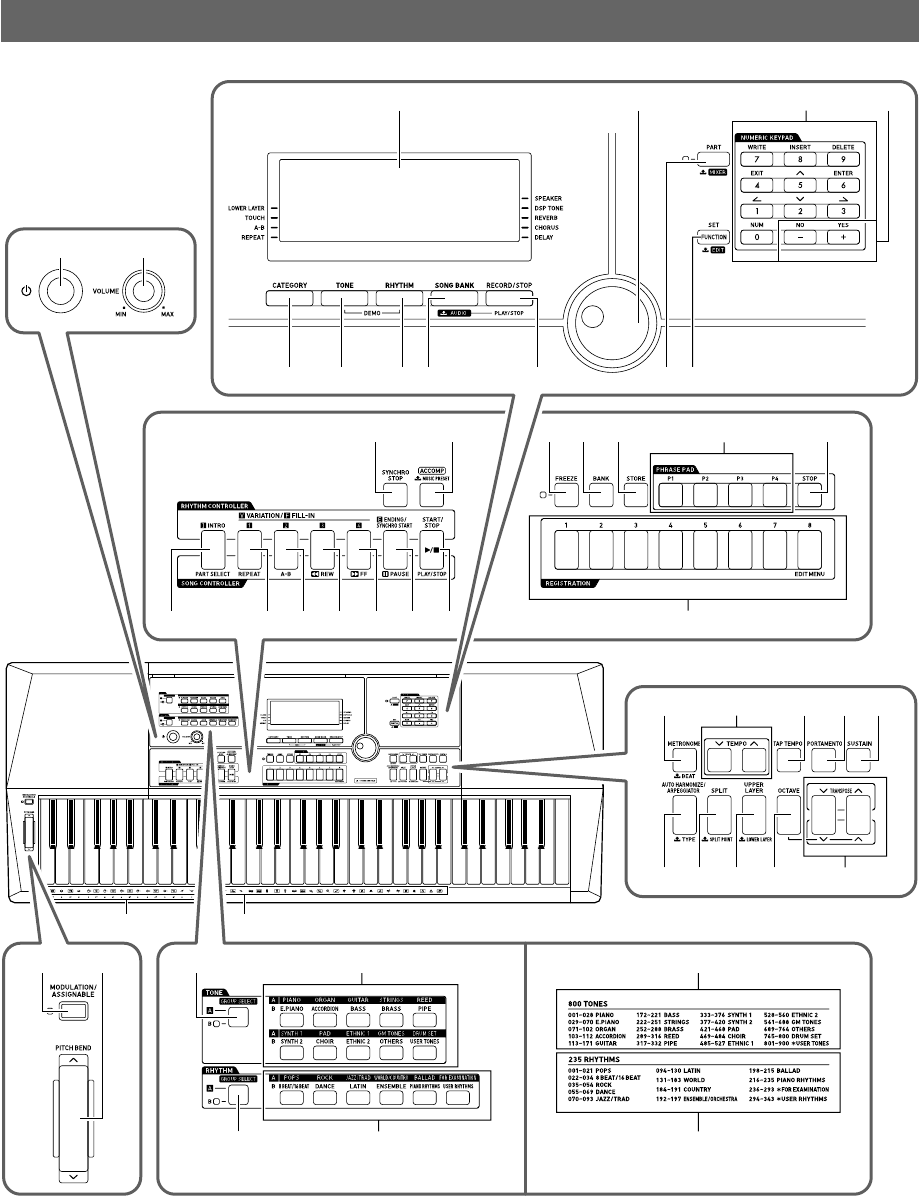
• All of the illustrations in this manual show the CT-X5000.
• Some of the button names shown here include the $ mark. This indicates that you need to long-press the button to perform its
operation.
General Guide
CT-X5000 CT-X3000
1 2
3 bl
4 5 67
bo bp bq br bs bt ck
bk98
bm bn
cq crcm cp
dk dl
dt ek
dm dnct
cocncl
cs
do dp dq dr ds
emel
eo
en
eq
en
eo
ep
CTX5000_3000_EN.book 4 ページ 2018年2月26日 月曜日 午後3時56分

EN-5
General Guide
• This manual uses the numbers and names below to refer to buttons, keys, and controllers.
1P (Power) button
2VOLUME knob
3Display
4CATEGORY button
5TONE button
6RHYTHM button
7SONG BANK, $AUDIO button
8RECORD/STOP, AUDIO PLAY/STOP button
9PART, $MIXER button
bk FUNCTION, SET, $EDIT button
bl Dial
bm Number keys
bn [–], [+] keys
bo INTRO, PART SELECT button
bp VARIATION/FILL-IN 1, REPEAT button
bq VARIATION/FILL-IN 2, A-B button
br VARIATION/FILL-IN 3, sREW button
bs VARIATION/FILL-IN 4, dFF button
bt ENDING/SYNCHRO START, kPAUSE button
ck START/STOP, PLAY/STOP button
cl SYNCHRO STOP button
cm ACCOMP, $MUSIC PRESET button
cn FREEZE button
co BANK button
cp STORE button
cq PHRASE PAD buttons
cr STOP button
cs REGISTRATION buttons
ct METRONOME, $BEAT button
dk TEMPO buttons
dl TAP TEMPO button
dm PORTAMENTO button
dn SUSTAIN button
do AUTO HARMONIZE/ARPEGGIATOR,
$TYPE button
dp SPLIT, $SPLIT POINT button
dq UPPER LAYER, $LOWER LAYER button
dr OCTAVE button
ds TRANSPOSE buttons
dt MODULATION/ASSIGNABLE button
(CT-X5000 only)
ek PITCH BEND wheel
el CHORD root names
em Percussion instrument list
CT-X5000
en TONE GROUP SELECT button
eo TONE Category buttons
ep RHYTHM GROUP SELECT button
eq RHYTHM Category buttons
CT-X3000
en Tone list
eo Rhythm list
CTX5000_3000_EN.book 5 ページ 2018年2月26日 月曜日 午後3時56分
EN-6
General Guide
■Back
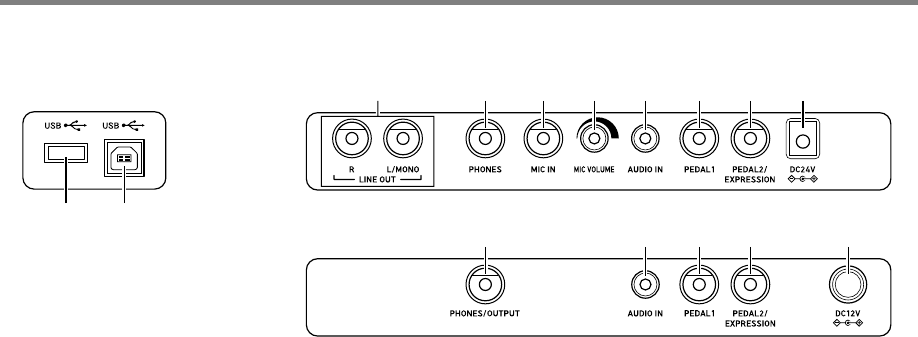
er USB flash drive port
es USB port
et LINE OUT R, L/MONO jacks (CT-X5000 only)
fk CT-X5000: PHONES jack
CT-X3000: PHONES/OUTPUT jack*
fl MIC IN jack (CT-X5000 only)
fm MIC VOLUME knob (CT-X5000 only)
fn AUDIO IN jack
fo PEDAL1 jack
fp PEDAL2/EXPRESSION jack
fq CT-X5000: DC 24V terminal
CT-X3000: DC 12V terminal
*In this manual, this jack is referred to as the fk PHONES jack.
eser
fk fl fm fn fo fp fqet
CT-X5000
fk fn fo fp fq
CT-X3000
CTX5000_3000_EN.book 6 ページ 2018年2月26日 月曜日 午後3時56分
EN-7
General Guide
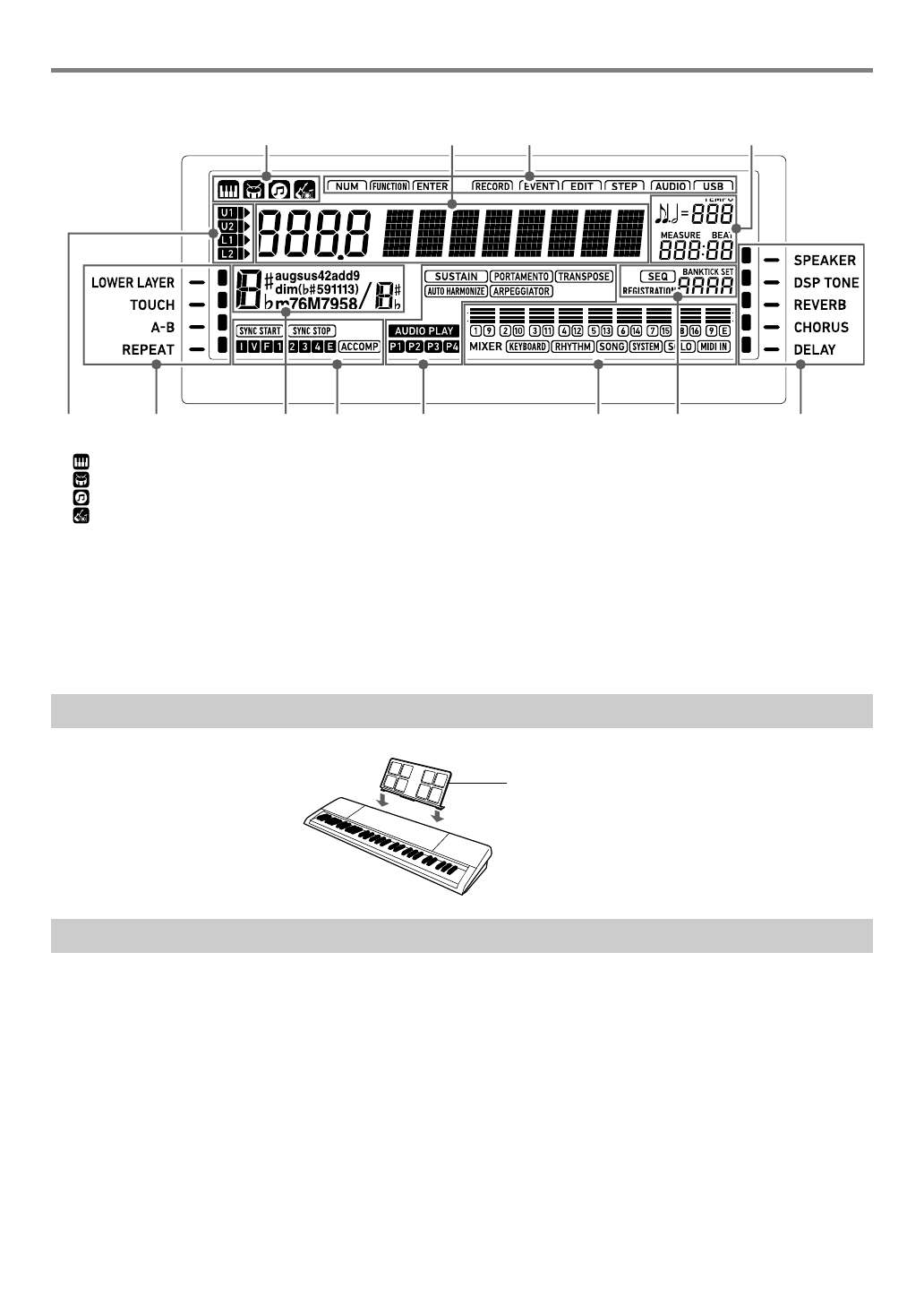
■Display
Tone indicator
Rhythm indicator
Song Bank indicator
Music Preset indicator
Number/setting value display (left), name display (right)
Tempo, measure, beat
Keyboard part indicators
Chord name
Auto Accompaniment indicators
Mixer info display area
Registration display, event edit display
*Other Indicators
There are two ways to reset the Digital Keyboard to its default settings: a “setting reset” that initializes settings only without deleting
data, and a “factory reset” that initializes settings and deletes all data, returning the Digital Keyboard to the state it was in when it
left the factory.
For details, see “Batch Deleting Data from Digital Keyboard Memory” (page EN-118).
Preparing the Music Stand
Returning the Digital Keyboard to Its Factory Default Settings
*
** *
Music stand
CTX5000_3000_EN.book 7 ページ 2018年2月26日 月曜日 午後3時56分
EN-8
Your Digital Keyboard uses an AC adaptor for power.
• Though the CT-X3000 supports battery operation, use of
an AC adaptor is generally recommended.
Make sure that you use only the AC adaptor specified for this
Digital Keyboard. Use of a different type of AC adaptor can
cause malfunction.
• Never connect the AC adaptor (JEITA Standard, with
unified polarity plug) that comes with this Digital
Keyboard to any other device besides this Digital
Keyboard. Doing so creates the risk of malfunction.
• Be sure to turn off Digital Keyboard power before
connecting or disconnecting the AC adaptor.
• The AC adaptor will become warm to the touch after
very long use. This is normal and does not indicate
malfunction.
• Note the following important precautions to avoid
damage to the power cord.
During Use
• Never pull on the cord with excessive force.
• Never repeatedly pull on the cord.
• Never twist the cord at the base of the plug or connector.
During Movement
• Before moving the Digital Keyboard, be sure to unplug
the AC adaptor from the power outlet.
During Storage
• Loop and bundle the power cord, but never wind it
around the AC adaptor.
• Never insert metal, pencils, or any other objects into
the product’s DC24V (CT-X5000) or DC12V (CT-X3000)
terminal. Doing so creates the risk of accident.
• Do not try to use the power cord that comes with the
product with another device.
• Use the AC adaptor so its label surface is pointed
downwards. The AC adaptor becomes prone to
emitting electromagnetic waves when the label surface
is facing upwards.
• Plug the AC adaptor into a power outlet that is close to
the Digital Keyboard. This lets you immediately unplug
from the power outlet should any problem occur.
• The AC adaptor is intended for indoor use only. Do not
leave it in a location where it can become wet. Also, do
not place a vase or any other container of liquid on the
AC adaptor.
• Make sure that the AC adaptor does not become
covered with a newspaper, table cloth, curtain, or any
other type of fabric.
• If you do not plan to use the Digital Keyboard for a long
time, unplug the AC adaptor from the power outlet.
• The AC adaptor cannot be repaired. If your AC adaptor
malfunctions or becomes damaged, you need to
purchase a new one.
• AC Adaptor Usage Environment
Temperature: 0 to 40°C
Humidify: 10% to 90%RH
• Output Polarity: &
Preparing a Power Supply
Using the AC Adaptor
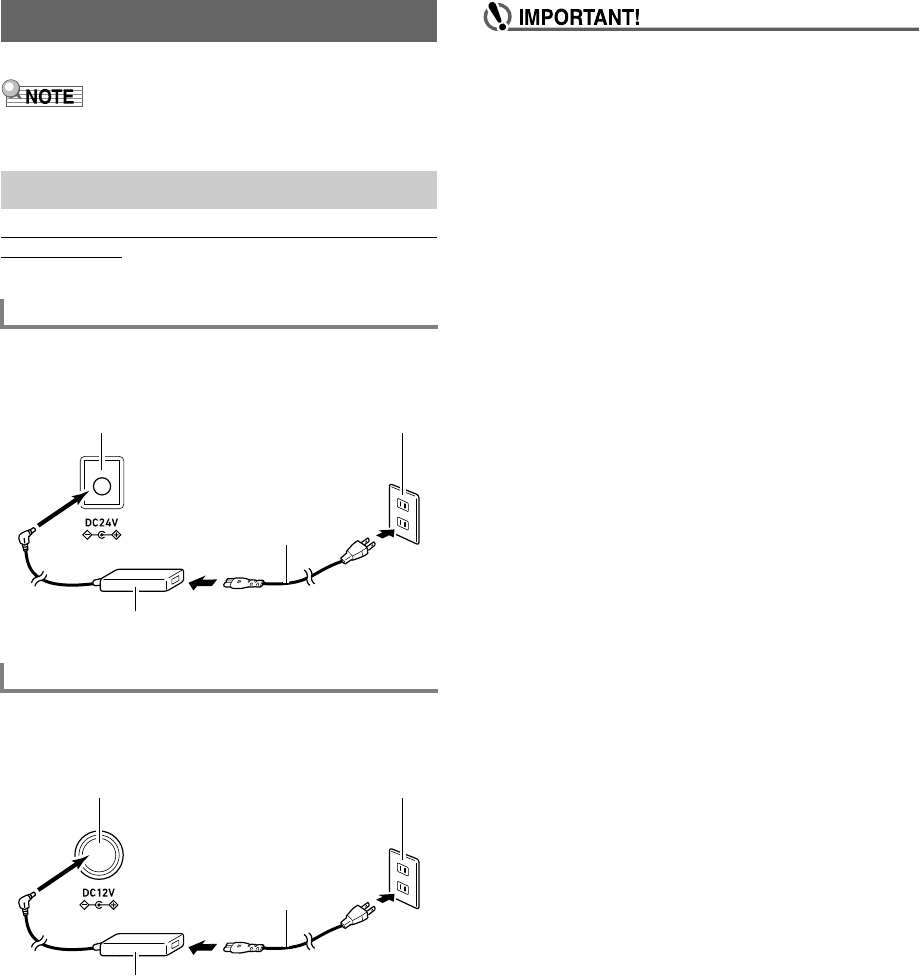
CT-X5000: Connecting the AC Adaptor
Specified AC Adaptor: AD-E24250LW
(JEITA Standard plug)
CT-X3000: Connecting the AC Adaptor
Specified AC Adaptor: AD-A12150LW
(JEITA Standard plug)
Household power outlet
AC adaptor
fq DC 24V
Power cord
Household power outlet
AC adaptor
fq DC 12V
Power cord
CTX5000_3000_EN.book 8 ページ 2018年2月26日 月曜日 午後3時56分
EN-9
Preparing a Power Supply
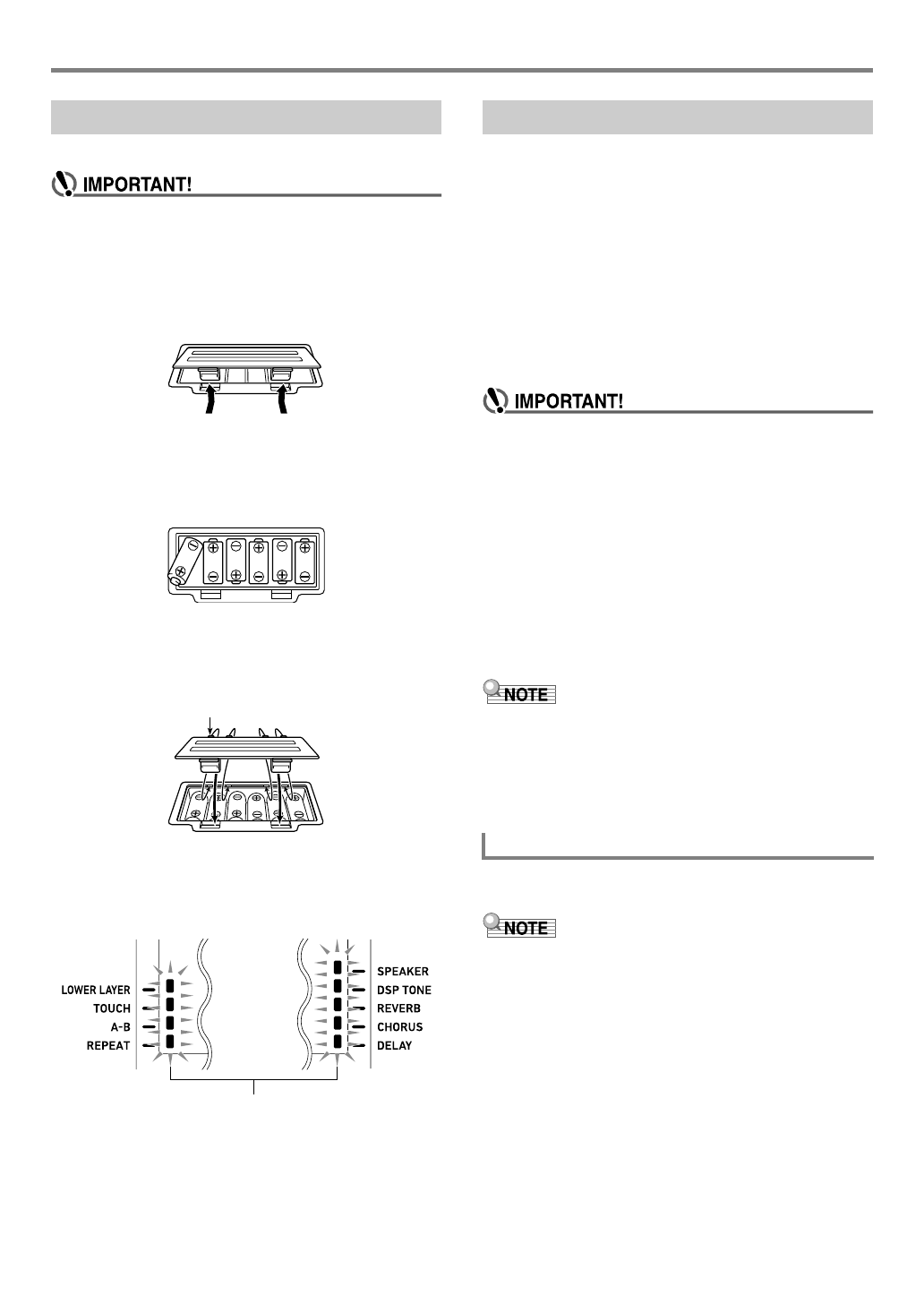
You can use six D-size batteries for power.
• Be sure to turn off power before loading batteries.
• It is up to you to prepare six commercially available
batteries. Do not use oxyride batteries or any other
nickel based batteries.
1.
Open the battery cover on the bottom of the
Digital Keyboard.
2.
Load six D-size batteries into the battery
compartment.
• Make sure the positive + and negative - ends of the
batteries are facing as shown in the illustration.
3.
Insert the tabs of the battery cover into the
holes on the side of the battery compartment,
and close the cover.
■Low Battery Indication
The indicators shown below start to flash to let you know
when battery power is low. Replace the batteries with new
ones.
1.
Connect the Digital Keyboard to a power
supply.
• See “Using the AC Adaptor” (page EN-8) or
“CT-X3000: Using Batteries” (page EN-9).
2.
Press 1P (power) to turn on power.
•Use 2VOLUME to adjust volume.
3.
To turn off power, hold down 1P (power)
again.
The message “Bye” will appear on the display and then
power will turn off.
• If you press 1P (power) only lightly, the display will
light up momentarily but power will not turn on. This
does not indicate malfunction. Press 1P (power)
firmly and completely to turn on power.
• Turning off the Digital Keyboard causes most current
settings to be cleared. While Auto Resume function
(page EN-10) is turned on, most settings are retained
even when power is turned off.
• Never try to perform any operation while the “Wait...”
or “Bye” message is displayed. The “Wait...” or “Bye”
message indicates that an internal data save operation
is being performed. Turning off the Digital Keyboard
can cause Digital Keyboard data to be deleted or
become corrupted.
• Pressing 1P (power) to turn off power actually puts the
Digital Keyboard into a standby state. Minute amounts of
current continue to flow within the Digital Keyboard in the
standby state. If you do not plan to use the Digital Keyboard
for a long time or if there is a lightning storm in your area,
be sure to unplug the AC adaptor from the power outlet.
If you do not perform any operation on the Digital Keyboard
for about 30 minutes, power will turn off automatically.
• You can disable Auto Power Off to ensure that power is not
turned off automatically during a concert, etc.
Perform the procedure under “To configure function
settings with the bk FUNCTION button” (page EN-112)
and disable the following setting: Other (Other) 3 Auto
Power Off (AutoOff) (page EN-117).
CT-X3000: Using Batteries
Tabs
Low battery indicators (flash)
Turning Power On or Off
Auto Power Off
CTX5000_3000_EN.book 9 ページ 2018年2月26日 月曜日 午後3時56分
Preparing a Power Supply
EN-10
While Auto Resume is turned on, the current settings of the
items described below are retained even when power is
turned off (as long as power continues to be supplied to the
Digital Keyboard, and power is turned off normally by pressing
1P (power) or by triggering of Auto Power Off).
●Current settings of the items below
Tone (UPPER 1, LOWER 1, UPPER 2, LOWER 2),
Rhythm, Song number, Music Preset number, Tempo,
Transpose, Octave Shift, [ACCOMP] indicator displayed/
not displayed status
●On/off status of the functions below
Split, Layer, Portamento, Sustain, Auto Harmonize or
Arpeggiator, CT-X5000: Modulation/Assignable*1, Part
Mode
●Function setting*2 (page EN-112) status
●Mixer (page EN-64) setting status
●CT-X5000: Category selection, tone and rhythm
category selection status, last selected tone/rhythm in
each tone/rhythm category
*1 When the setting configured with the following operation is
“2 Toggle”: MODULATION/ASSIGNABLE (Mod/Asgn) 3
Button operation (Btn Act) (page EN-114).
*2 Including Reverb, Chorus, Delay, and other effect settings
included in the function settings.
The next time power is turned on, the Digital Keyboard is
returned to its setup state when power was last turned off.
Perform the procedure under “To configure function settings
with the bk FUNCTION button” (page EN-112) and turn on
Auto Resume: Other (Other) 3 Auto Resume (AtResume)
(page EN-117).
• Regardless of Auto Resume is on or off, the settings of the
items below, which are included in function settings (page
EN-112), are retained even when power is turned off (as
long as power continues to be supplied to the Digital
Keyboard, and power is turned off normally by pressing
1P (power) or by triggering of Auto Power Off).
Equalizer, Tuning, Registration Memory Freeze Target,
Pedal 2 type, Expression pedal calibration, Tap rhythm
start, Examination Mode, Display contrast
• Auto Resume does not restore the status of the setting
items below.
Note value setting, Phrase recording setting, Synchro
standby, Audio Mode file selection and playback state,
Local control setting.
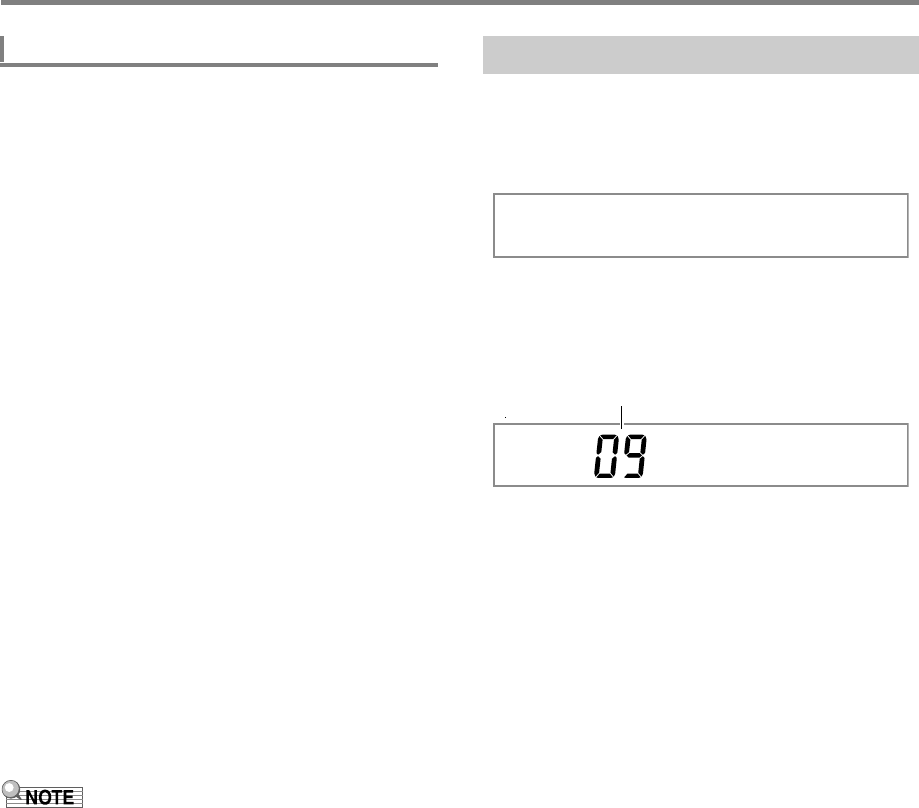
1.
Press bk FUNCTION.
2.
Press the [1] (V) bm number key to display
“Other”.
3.
Press the [6] (ENTER) bm number key.
4.
Use the [1] (V) and [3] (W) bm number keys
to display “Contrast”.
5.
Use bn [–] and [+] or the bl dial to change the
setting value.
6.
When the setting is the way you want, long-
press the [4] (EXIT) bm number key to exit the
setting screen.
Auto Resume Adjusting Display Contrast
Other
Contrast
Current setting value
CTX5000_3000_EN.book 10 ページ 2018年2月26日 月曜日 午後3時56分
EN-11
Your Digital Keyboard outputs audio from its built-in speakers
and/or the PHONES jack. (CT-X5000: Also outputs audio
from the LINE OUT jacks.)
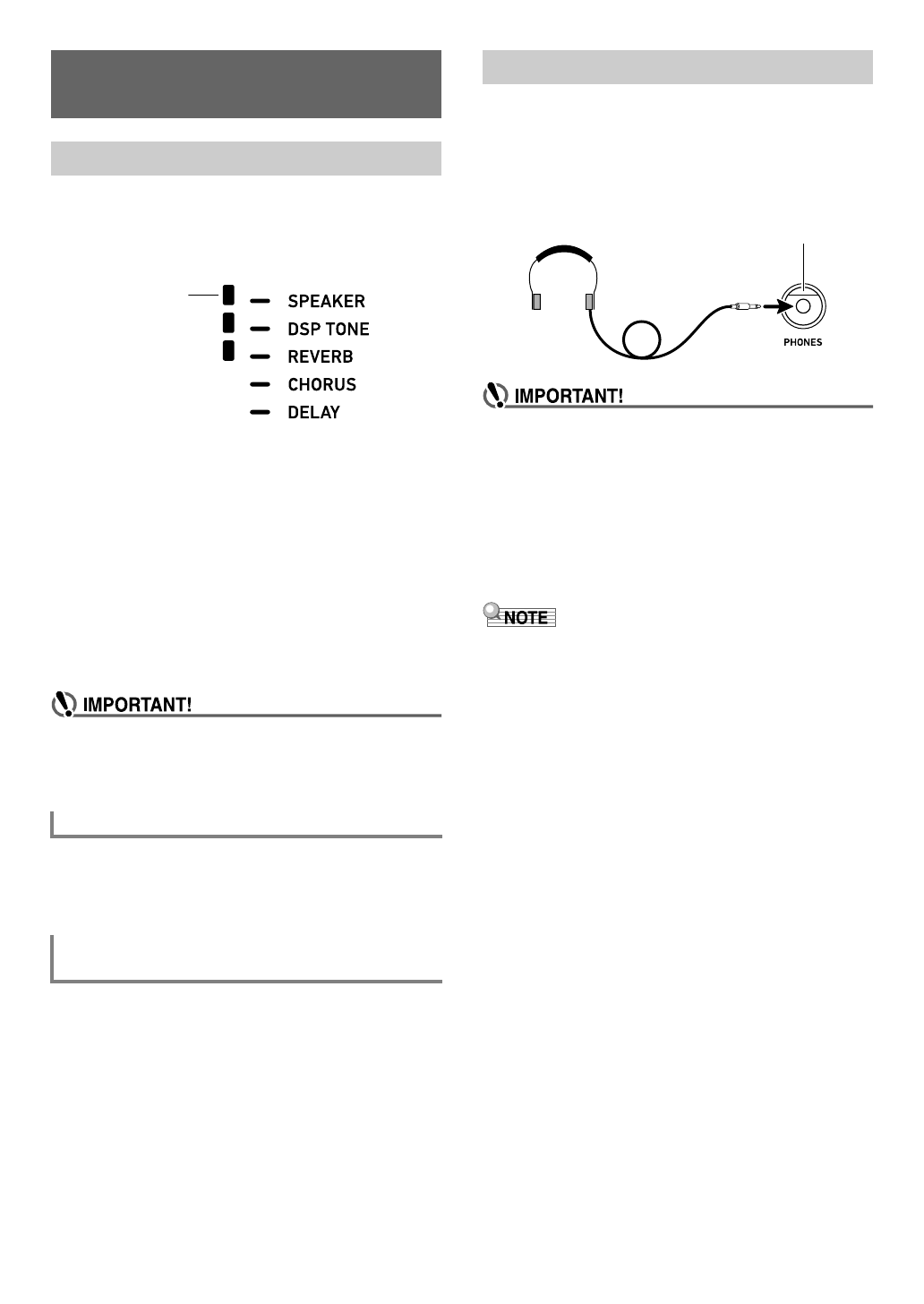
• There will be an indicator mark next to [SPEAKER] while
built-in speaker output is enabled.
• There will be no indicator mark next to [SPEAKER] while
built-in speaker output is disabled.
Built-in speaker output is disabled in the cases described
below.
– When there is a plug in the PHONES jack.*
– When the following setting is disabled (Off): Speakers
(Speaker) 3 Speaker on/off (Enabled) (page EN-117).
• The Digital Keyboard automatically adjusts the sound to
make it suitable for headphones (or, in the case of the CT-
X5000, the LINE OUT jacks) while speaker output is
disabled, and for speakers while speaker output is enabled.
*When the following setting is disabled (Off): Speakers
(Speaker) 3 Enabled when PHONES connected
(PhoneSpk) (page EN-117).
• If there is no sound output even though there is an
indicator mark next to [SPEAKER], check the current
settings of the 2VOLUME knob and/or volume
related settings.
Perform the procedure under “To configure function settings
with the bk FUNCTION button” (page EN-112) and configure
the following setting: Speakers (Speaker) 3 Speaker on/off
(Enabled) (page EN-117).
Perform the procedure under “To configure function settings
with the bk FUNCTION button” (page EN-112) and enable
the following setting: Speakers (Speaker) 3 Enabled when
PHONES connected (PhoneSpk) (page EN-117). This will
leave speaker output enabled even if there is a plug in the
PHONES jack.
Using headphones normally cuts off* output from the built-in
speakers, which means you can practice playing even late at
night without disturbing others.
*When the following setting is disabled (Off): Speakers
(Speaker) 3 Enabled when PHONES connected
(PhoneSpk) (page EN-117).
• Before connecting headphones, be sure to use
2VOLUME to turn the volume down to a low level.
After connecting, you can adjust the volume to the
level you want.
• Do not listen to very high volume output over
headphones for long period. Doing so creates the risk
of hearing damage.
• If you are using headphones that require an adaptor
plug, make sure you do not leave the adaptor plugged
in when removing the headphones.
• Headphones do not come with the Digital Keyboard. Use
commercially available headphones. See page EN-3 for
information about options.
Connecting to Audio
Equipment
Digital Keyboard Audio Output
To enable and disable speaker output
To output from the speakers while
headphones are connected
Lights
Using Headphones
fk PHONES jack
(Stereo standard jack (6.3mm))
CTX5000_3000_EN.book 11 ページ 2018年2月26日 月曜日 午後3時56分
Connecting to Audio Equipment
EN-12
You can connect audio equipment or a music amplifier to the
Digital Keyboard and then play through external speakers for
more powerful volume and better sound quality.
• Turn off the external device when making connections.
After connecting, turn down the Digital Keyboard and
external device volume levels whenever turning power
on or off.
• After connecting, turn on the Digital Keyboard and then
the external device.
• If keyboard notes sound distorted when they are
sounded from external audio equipment, lower the
Digital Keyboard’s volume setting.
Connection requires commercially available connecting cords,
supplied by you.
• The connecting cords should have a stereo standard plug
on one end and a plug that matches the configuration of the
external device on the other end.
Connection requires commercially available connecting cords,
supplied by you.
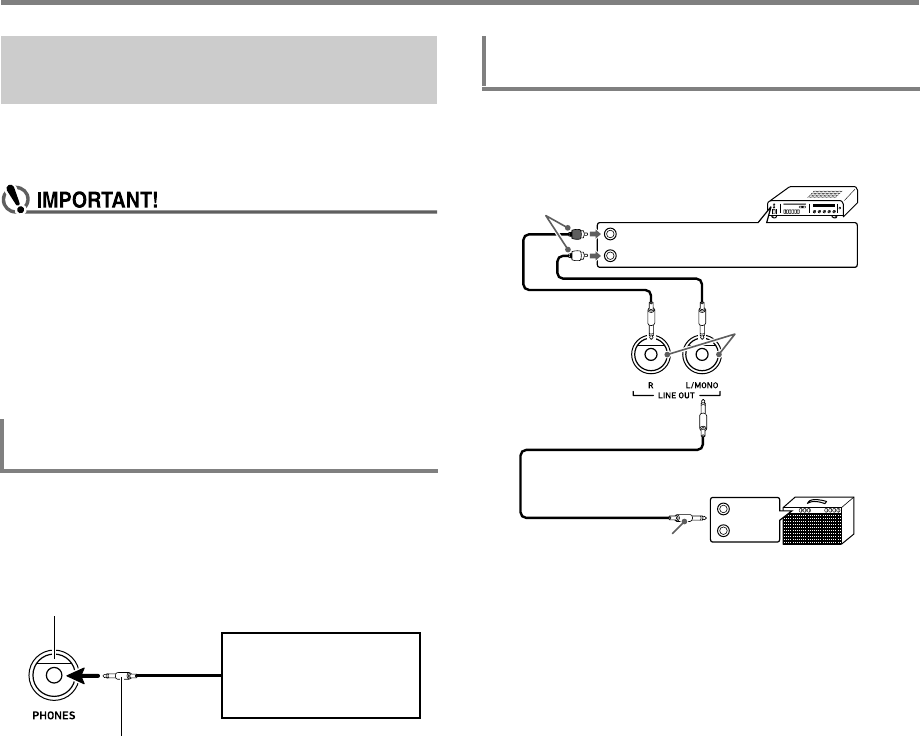
■Connecting to Audio Equipment (Figure )
Use commercially available cables to connect the external
audio equipment to the Digital Keyboard’s LINE OUT jacks as
shown in Figure . LINE OUT R jack output is right channel
sound, while LINE OUT L/MONO jack output is left channel
sound. It is up to you to purchase connecting cables like the
ones shown in the illustration for connection of audio
equipment. Normally in this configuration you must set the
audio equipment’s input selector to the setting that specifies
the terminal (such as AUX IN) to which the Digital Keyboard is
connected.
■Connecting to a Musical Instrument Amplifier
(Figure )
Use commercially available cables to connect the amplifier to
the Digital Keyboard’s LINE OUT jacks as shown in Figure
. LINE OUT R jack output is right channel sound, while
LINE OUT L/MONO jack output is left channel sound.
Connecting to the LINE OUT L/MONO jack only outputs a
mixture of both channels. It is up to you to purchase a
connecting cable like the one shown in the illustration for
connection of the amplifier.
Outputting Keyboard Notes to
Audio Equipment
To connect an external device to the Digital
Keyboard’s PHONES jack
fk PHONES jack (Stereo standard jack (6.3mm))
Stereo standard plug
Audio equipment, amplifier,
etc.
CT-X5000: To connect an external device to
the Digital Keyboard’s LINE OUT jacks
INPUT 1
INPUT 2
Guitar amplifier
Keyboard amplifier, etc.
RIGHT (Red)
LEFT (White)
Pin plugs
Audio amplifier AUX IN jacks, etc.
Standard plug (6.3mm)
et LINE OUT jacks
(Standard jack (6.3mm))
CTX5000_3000_EN.book 12 ページ 2018年2月26日 月曜日 午後3時56分
EN-13
Connecting to Audio Equipment
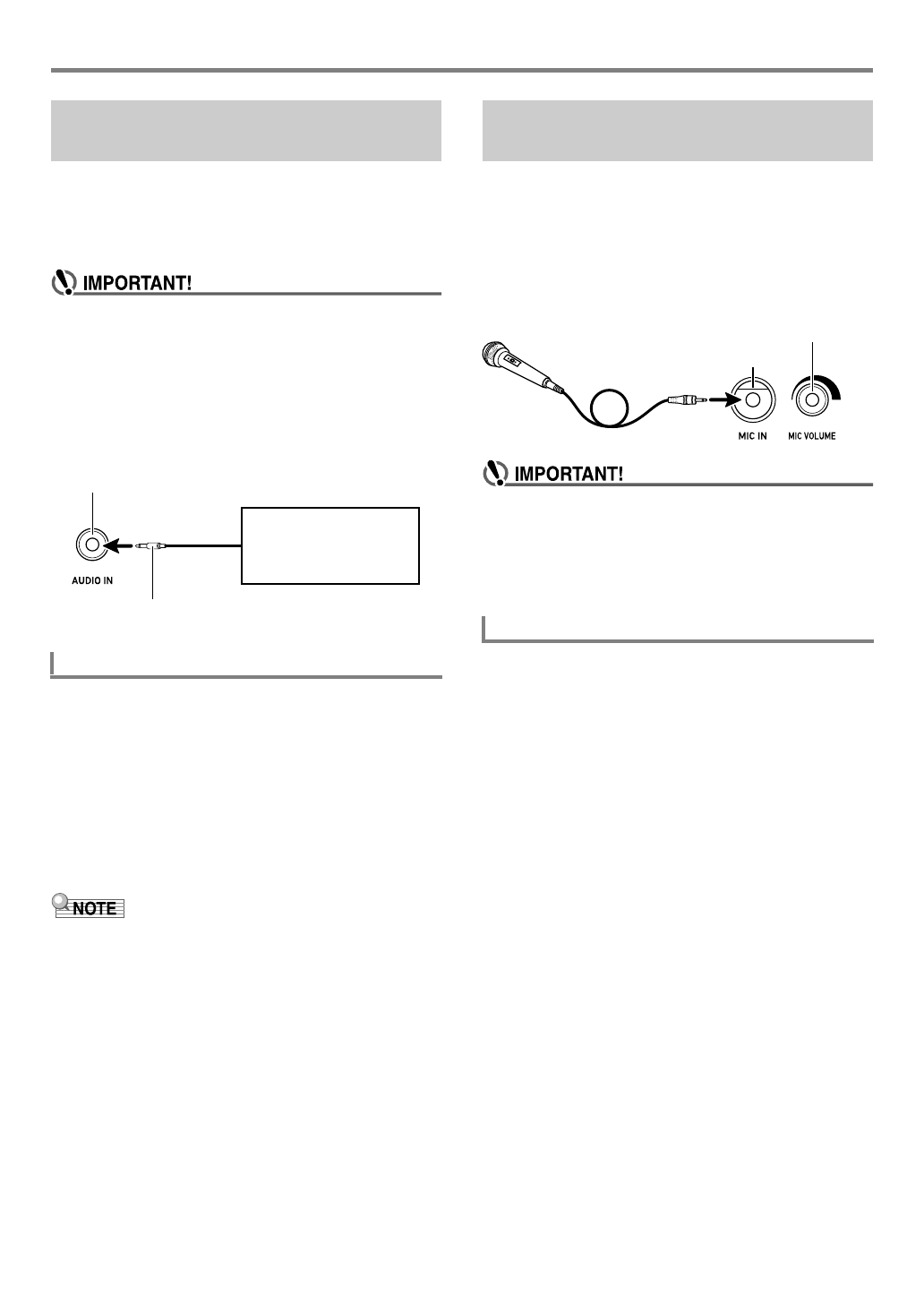
Connection requires commercially available connecting cords,
supplied by you.
• The connecting cords should have a stereo mini plug on
one end and a plug that matches the configuration of the
external device on the other end.
• Turn off the Digital Keyboard when making
connections. After connecting, turn down the Digital
Keyboard and external device volume levels whenever
turning power on or off.
• After connecting, turn on the external device and then
the Digital Keyboard.
• If notes from an external device that are played on the
Digital Keyboard sound distorted, lower the volume
setting of the external device.
Enabling Vocal Cut cuts (mutes or minimizes) the vocal in the
sound being input from the AUDIO IN jack. Note that this
function cancels the sound in the center position of the audio,
which may (depending on how the original audio was mixed)
end up canceling something else other than the vocal part.
How vocal cut is performed depends on the sound being
input.
Perform the procedure under “To configure function settings
with the bk FUNCTION button” (page EN-112) and configure
the following setting: Other (Other) 3 Audio In Center Cancel
(AIn CCan) (page EN-117).
• Digital Keyboard built-in effects (reverb, chorus, delay,
DSP) are not applied to AUDIO IN jack input.
You can connect a commercially available microphone* to the
MIC IN jack and output the sound from the microphone
through the Digital Keyboard’s speakers.
*Use a dynamic microphone.
You can adjust the volume level of microphone input with
fm MIC VOLUME. Microphone volume control is
independent from overall keyboard volume.
• Before connecting a microphone, make sure that the
Digital Keyboard and microphone are turned off.
• Before connecting, set both 2VOLUME and fm MIC
VOLUME to low levels. Adjust volume settings to
appropriate levels after connecting the microphone.
• Microphone input is disabled during demo play.
You can use the Mixer to make individual adjustments to the
reverb, chorus, and delay effects that are applied to
microphone input.
See “Using the Mixer” (page EN-64).
Playing an External Device from
the Digital Keyboard
Center Cancel (Vocal Cut)
Stereo mini plug
fn AUDIO IN jack (Stereo mini jack (3.5mm))
Portable audio player, etc.
CT-X5000: Outputting Sound from
a Microphone
Microphone Settings
fl MIC IN jack (Standard jack (6.3mm))
fm MIC VOLUME knob
CTX5000_3000_EN.book 13 ページ 2018年2月26日 月曜日 午後3時56分
EN-14
Unless otherwise specifically noted, all of the procedures in
this manual assume that the Digital Keyboard is in its initial
power on state (immediately after you turn on power). If you
run into problems with a procedure, turn keyboard power off
and back on, and then try performing the procedure again.
• Note that turning off Digital Keyboard power during a
procedure causes any pending unsaved data to be
deleted.
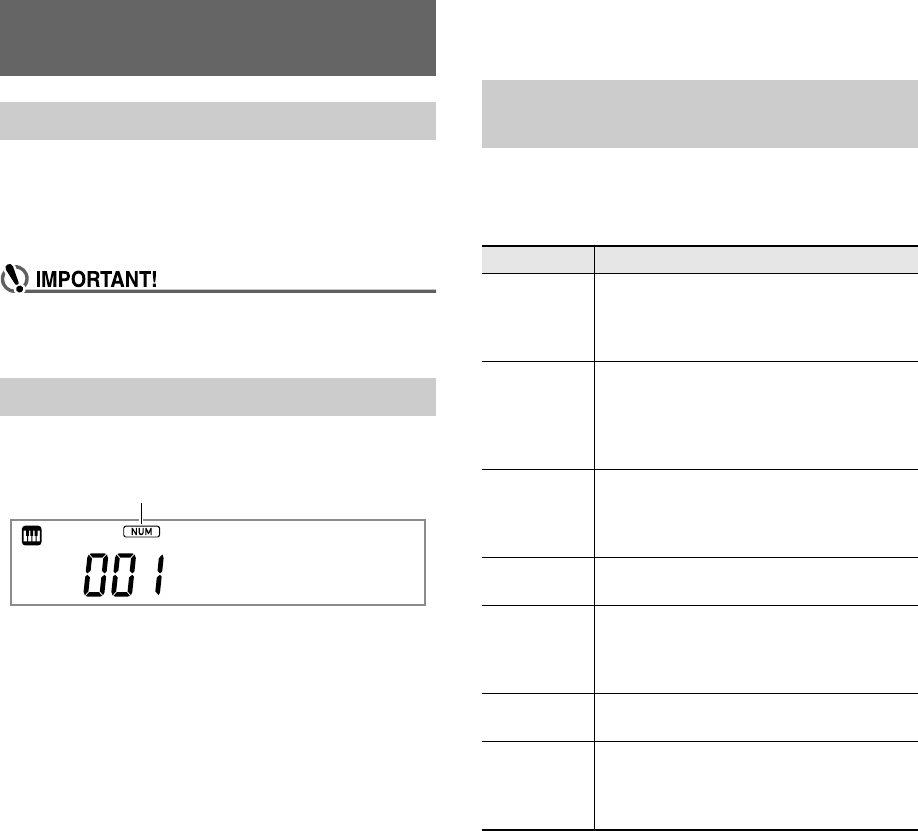
The [NUM] indicator on the display means that numeric input
is enabled.
Use the procedures below to input tone numbers, setting
values, etc.
■Using the bm Number Keys
When entering a number or value, input all the required digits.
The number of digits you need to input depends on what you
are inputting. For example, to input the tone number 015 (all
three digits required), input the following: [0] 3 [1] 3 [5]. In
this case, the numbers being input flash until you input the
final 5. The input value is registered (and 015 is displayed
without flashing) after you input all of the required digits.
• The range of allowable input values depends on what you
are inputting. If you attempt to input a value that is outside
an allowable range, the value will change to the value
within the range that is closest to the one you input.
• To specify a value without inputting a leading zero, enter
the desired value and then press bk FUNCTION. For
example, when inputting a three-digit tone number, the
following operation would result in input of tone number
010: [1] 3 [0] 3 bk FUNCTION.
• To discard input without finalizing it, long-press [4] (EXIT)
bm number key.
■Using the bn [–] and [+] Keys
• Pressing [–] reduces the currently displayed number or
value by one, while [+] increases it by one. Holding down
either button will sequentially increase or decrease the
displayed number or value until you release the button.
Pressing both buttons at the same time will return the
number or value to its initial default or recommended
setting.
• If input of a negative value is allowed, pressing [–] while the
value is flashing on the display will add a minus sign (–) to
the left of the value. Pressing [+] while a value is flashing
changes back to a positive value.
■Using the bl Dial
You can also change a displayed number or value by rotating
the dial.
The table below describes other functions that the bm number
keys perform while the [NUM] indicator is not displayed. Some
keys also perform operations that are specific to certain
functions.
Operations Common to All
Modes
About this manual
Numeric Input
Sta
g
ePno
[NUM] indicator
Other Functions of bm Number
Keys
Key Main Function
[0] (NUM) Pressing this key while a setting item is one
that allows input of a value is displayed will
enable numeric input ([NUM] indicator
displayed).
[1] (V)
[3] (W)
Use these keys while a setting menu is
displayed to switch between menu items.
With some functions, these keys are used to
switch between parts in order to configure
part settings.
[2] (w)
[5] (q)
Use these keys to switch between setting
items in the Mixer Mode (page EN-64) and
when editing MIDI Recorder events (page
EN-105).
[4] (EXIT) With certain functions, pressing this key will
exit the function.
[6] (ENTER) Pressing [6] (ENTER) executes the
currently displayed menu item, and goes to
the applicable sub-menu or executes some
operation.
[7] (WRITE) Press this key to save a user tone (page
EN-71) or user rhythm (page EN-76).
[8] (INSERT)
[9] (DELETE)
Use these keys during text input (page
EN-15) to insert or delete characters.
[9] (DELETE) is also used when editing
MIDI recorder events (page EN-105).
CTX5000_3000_EN.book 14 ページ 2018年2月26日 月曜日 午後3時56分
EN-15
Operations Common to All Modes
The many tones of the Digital Keyboard are divided into 20
categories to help make it possible for you to find a particular
tone quickly and easily. You can use the 4CATEGORY
button to select the last tone you selected in a category.
Under initial default settings, pressing 4CATEGORY will
select the first tone in a category.
• The example below shows how to select a tone using
4CATEGORY. Rhythms, songs, and music presets are
also divided into categories, and you can also use the
4CATEGORY button to scroll between them.
1.
Press 5TONE.
This displays (tone indicator). You can select a tone
while the tone indicator is displayed.
2.
Press 4CATEGORY.
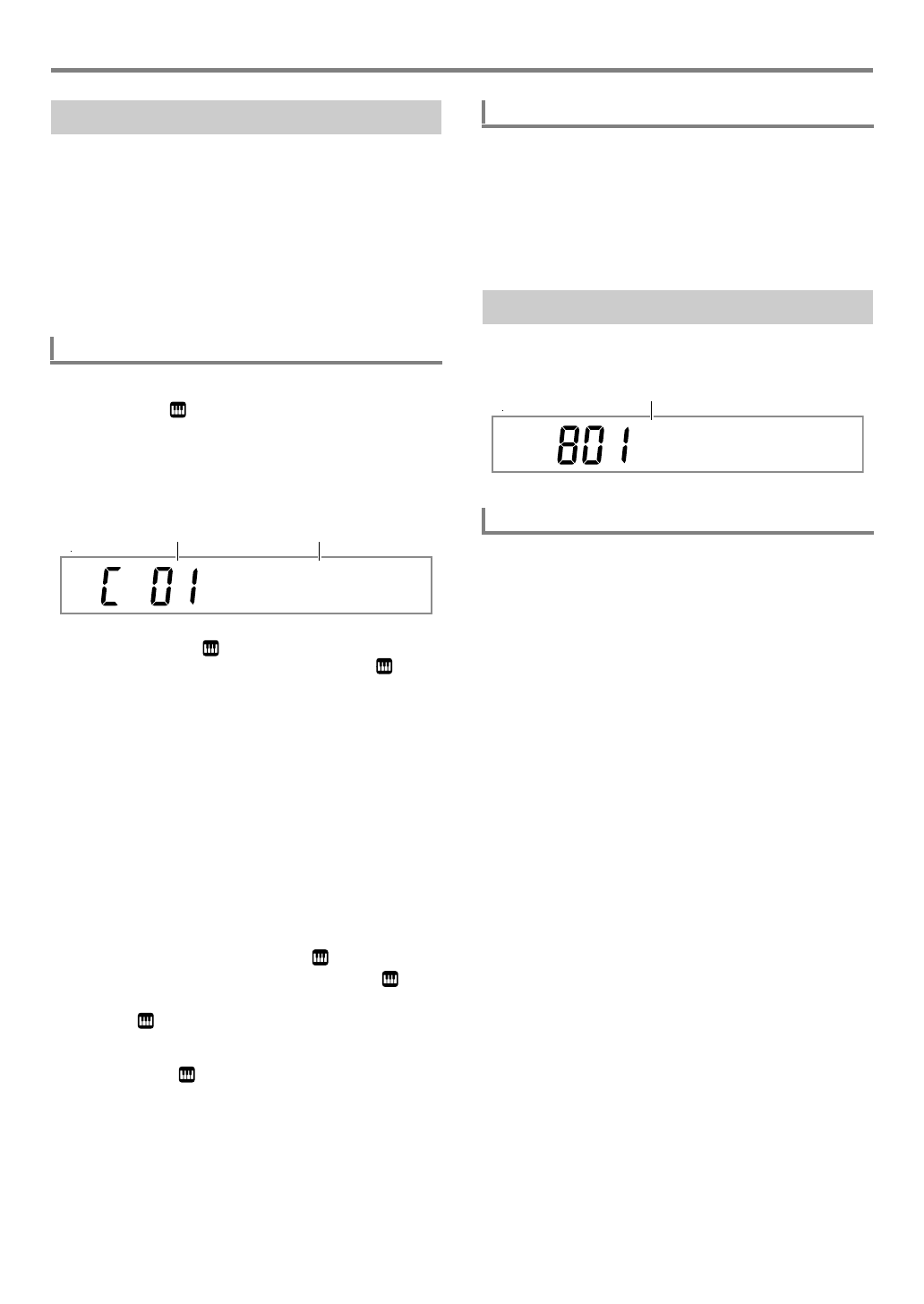
This displays the letter “C”, followed by the currently
selected category number and name for a few seconds.
• After a few seconds, the tone number and tone name
will appear, and will start to flash. You can select
tones only within the current category while is
flashing. (See step 4.)
3.
While “C” is displayed, press 4CATEGORY
to advance to the next category.
This displays the next category number and name.
• The category tone that was last selected when exited a
category (the first category tone under initial default
settings) will be selected first when you re-enter it.
• You can also use bn [–] (back) and [+] (forward) in
place of 4CATEGORY to scroll between categories.
• Pressing bn [–] and [+] at the same time will jump to
Category 1, and select the tone that was selected the
last time you exited Category 1.
4.
To select tones only within the currently
displayed category, wait until starts to
flash, or press bk FUNCTION to make
flash.
• While is flashing, use bn [–] or [+], or the bl dial to
scroll through the tones of currently selected category.
• To select a tone in another category, press 5TONE.
This causes to stop flashing.
1.
Press 5TONE.
2.
While a tone name is displayed, hold down
4CATEGORY as you press bn [–] or [+].
[–] jumps to the first tone in the category before the one
where the displayed tone is located, while [+] jumps to
the first tone in the next category.
Use the procedures below to input user data names and other
text.
1.
Use the [1] (V) and [3] (W) bm number keys
to move the cursor to the position where you
want to insert a character.
2.
Press the [8] (INSERT) bm number key.
• This inserts “A” at the cursor position.
4 CATEGORY Button
To switch between tone categories
Piano
Category number Category name
To navigate between categories
Text Character Input
To insert characters
No Na
me
Cursor (flashing)
CTX5000_3000_EN.book 15 ページ 2018年2月26日 月曜日 午後3時56分
Operations Common to All Modes
EN-16
1.
Use the [1] (V) and [3] (W) bm number keys
to move the cursor to the position of the
character you want to change.
2.
Use bn [–] and [+] to change the character.
• Repeat steps 1 and 2 as required.
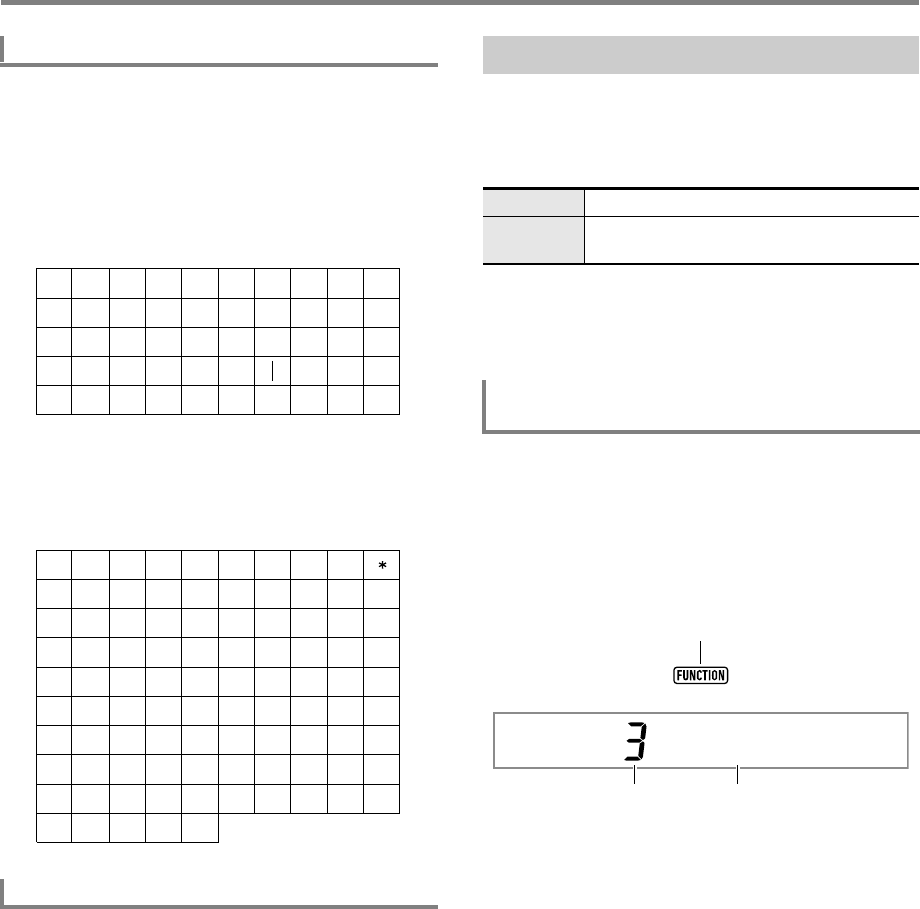
• Input of the characters shown in the table below is
supported when saving a file to a USB flash drive.
• If you input a similarity symbol ( ), it will be displayed
as a right arrow (3).
• Input of the characters shown in the table below is
supported when saving a file to Digital Keyboard
memory.
1.
Use the [1] (V) and [3] (W) bm number keys
to move the cursor to the position of the
character you want to delete.
2.
Press the [9] (DELETE) bm number key.
The [FUNCTION] indicator is displayed or flashes when you
perform a Digital Keyboard function setting (page EN-112) or
other special setting operation. The meanings of the text that
appears along with a displayed or flashing [FUNCTION]
indicator are described below.
*Only while a setting item that is a function setting is
displayed.
The example below shows how the [FUNCTION] indicator is
displayed.
1.
Press bk FUNCTION.
2.
Press the [3] (W) bm number key a number of
times until “Touch” (Touch Response) is
displayed.
“Touch” is a setting item name, so the [FUNCTION]
indicator appears.
To modify characters
To delete characters
9
J
T
'
8
I
S
_
`
7
H
R
&
~
6
G
Q
S
@
5
F
P
Z
}
4
E
O
Y
{
3
D
N
X
^
2
C
M
W
-
1
B
L
V
)
0
A
K
U
(
~
3
=
G
Q
[
e
o
y
)
2
<
F
P
Z
d
n
x
(
1
;
E
O
Y
c
m
w
'
0
:
D
N
X
b
l
v
&
/
9
C
M
W
a
k
u
%
.
8
B
L
V
`
j
t
$
-
7
A
K
U
_
i
s
}
#
6
@
J
T
^
h
r
|
"
5
?
I
S
]
g
q
{
!
+
4
>
H
R
'
f
p
z
FUNCTION Indicator
Displayed Setting item name displayed.*
Flashing Setting of the currently displayed setting item
displayed.
Example: To configure the Touch Response
setting
Displayed
Touch
Setting value number Setting item name
CTX5000_3000_EN.book 16 ページ 2018年2月26日 月曜日 午後3時56分
EN-17
3.
Use bn [–] and [+] or the bl dial to change the
Touch Response setting value.
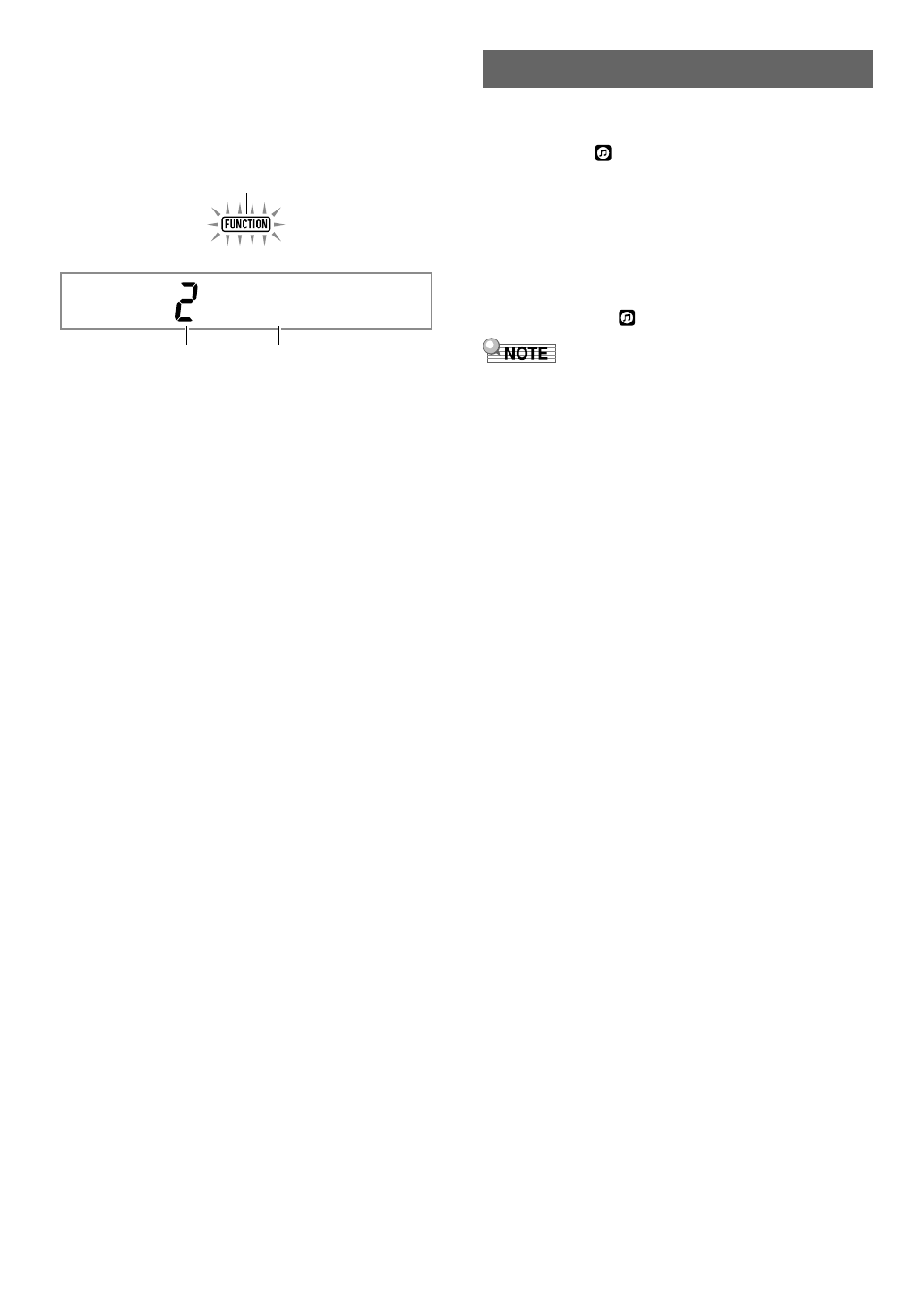
This operation scrolls through the available Touch
Response settings: Off, Light, Normal, and Heavy. Since
these are Touch Response settings, the [FUNCTION]
indicator flashes while they are displayed.
4.
To return to the setting item display, press
bk FUNCTION.
This displays the [FUNCTION] indicator.
5.
When the setting is the way you want, long-
press the [4] (EXIT) bm number key to exit the
setting screen.
This causes the [FUNCTION] indicator to disappear.
1.
Press 5TONE and 6RHYTHM at the same
time.
This causes (song bank indicator) to flash on the
display and start play of the three demo songs.
• During demo play, you can use bn [–] and [+] to jump
to the beginning of the previous or next song.
• Demo song play will repeat until you perform the
operation in step 2 below.
2.
To stop demo play, press ck PLAY/STOP or
5TONE and 6RHYTHM at the same time.
This causes the (song bank indicator) to disappear.
• If Auto Power Off is enabled, power will turn off
automatically after about 30 minutes of non-operation, even
if demo play is being performed. You can disable Auto
Power Off, if you want. Perform the procedure under “To
configure function settings with the bk FUNCTION button”
(page EN-112) and disable the following setting: Other
(Other) 3 Auto Power Off (AutoOff) (page EN-117).
Flashing
Li
g
ht
Setting value number Setting value
Listening to Demo Play
CTX5000_3000_EN.book 17 ページ 2018年2月26日 月曜日 午後3時56分
EN-18
Your Digital Keyboard comes with a large collection of tones.
Select a tone and play something on the keyboard to see
what it sounds like.
1.
Press 5TONE.
This displays (tone indicator). You can select a tone
while the tone indicator is displayed.
2.
Use the bm number keys, bn [–] and [+], or the
bl dial to select the number of the tone you
want to assign to keyboard play.
• See “Numeric Input” (page EN-14) for information
about how to specify a number.
• Tones are divided into categories. You can easily find
the tone you want by going to the piano category,
organ category, etc. For more information, see
“4CATEGORY Button” (page EN-15).
• For details about tone categories and types, refer to
the separate “Appendix”.
3.
Play something on the keyboard to hear what
your selected tone sounds like.
• Selecting a tone that is in a drum set category causes
various percussion instruments to be assigned to keyboard
keys.
■DSP Tones
The Digital Keyboard has a number of “DSP tones”, which are
tones with special effects. There will be an indicator mark next
to [DSP TONE] while a DSP tone is selected.
• You can use the eo TONE Category buttons to quickly and
easily navigate between categories.
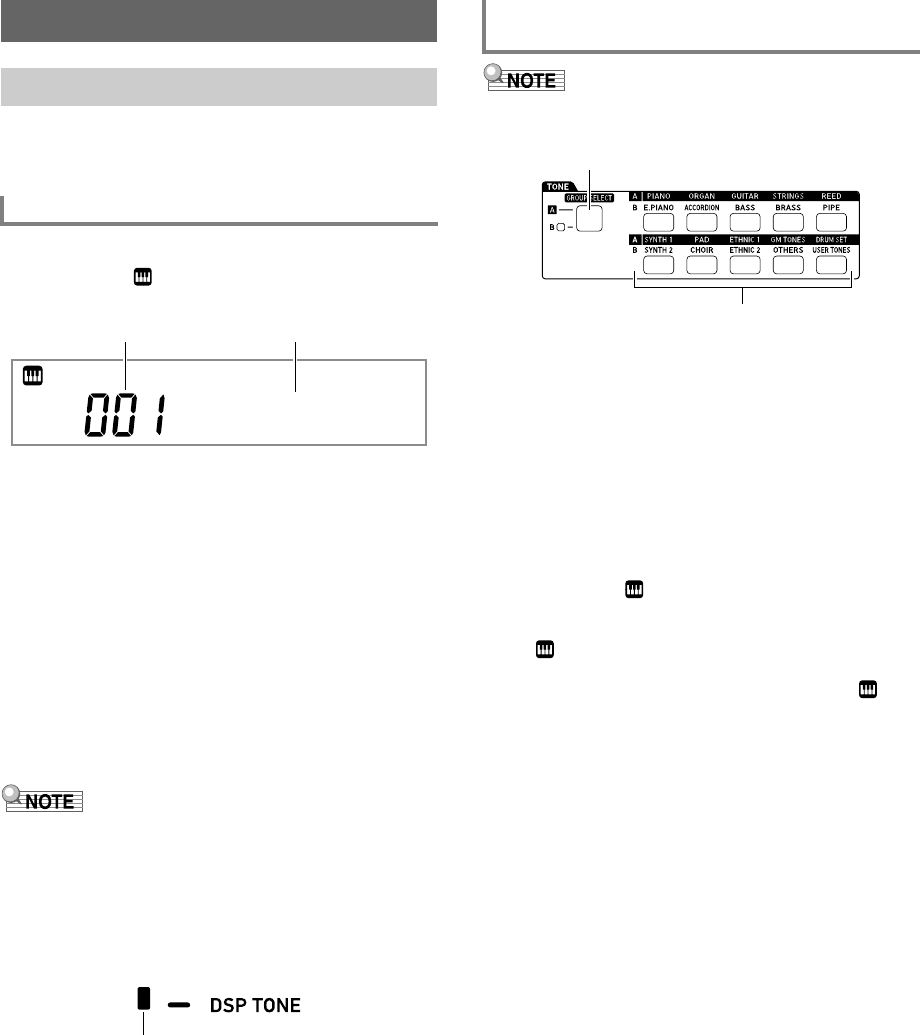
Tone categories are divided between two groups: Group A
(L) and Group B (M). Which category (group) a eo TONE
Category button selects depends on whether or not the
indicator lamp to the left of en TONE GROUP SELECT is lit.
1.
Press the en TONE GROUP SELECT button to
toggle between category Group A (indicator
lamp unlit) and Group B (indicator lamp lit).
2.
To select a category, press its eo TONE
Category button.
• This causes (tone indicator) to flash on the display.
• Pressing a eo TONE Category button will select the
last selected tone in the corresponding category. While
(tone indicator) is flashing, you can select one of
the tones included in the category. To exit category
tone selection, press 5TONE. This causes to
stop flashing.
3.
Use the bm number keys, bn [–] and [+], or the
bl dial to select the number of the tone you
want to assign to keyboard play.
Playing on the Keyboard
Selecting a Tone
To select a tone
Sta
g
ePno
Tone number Tone name
Displayed
CT-X5000: To use the TONE Category
buttons to select a category
en TONE GROUP SELECT button
eo TONE Category buttons
CTX5000_3000_EN.book 18 ページ 2018年2月26日 月曜日 午後3時56分
EN-19
Playing on the Keyboard
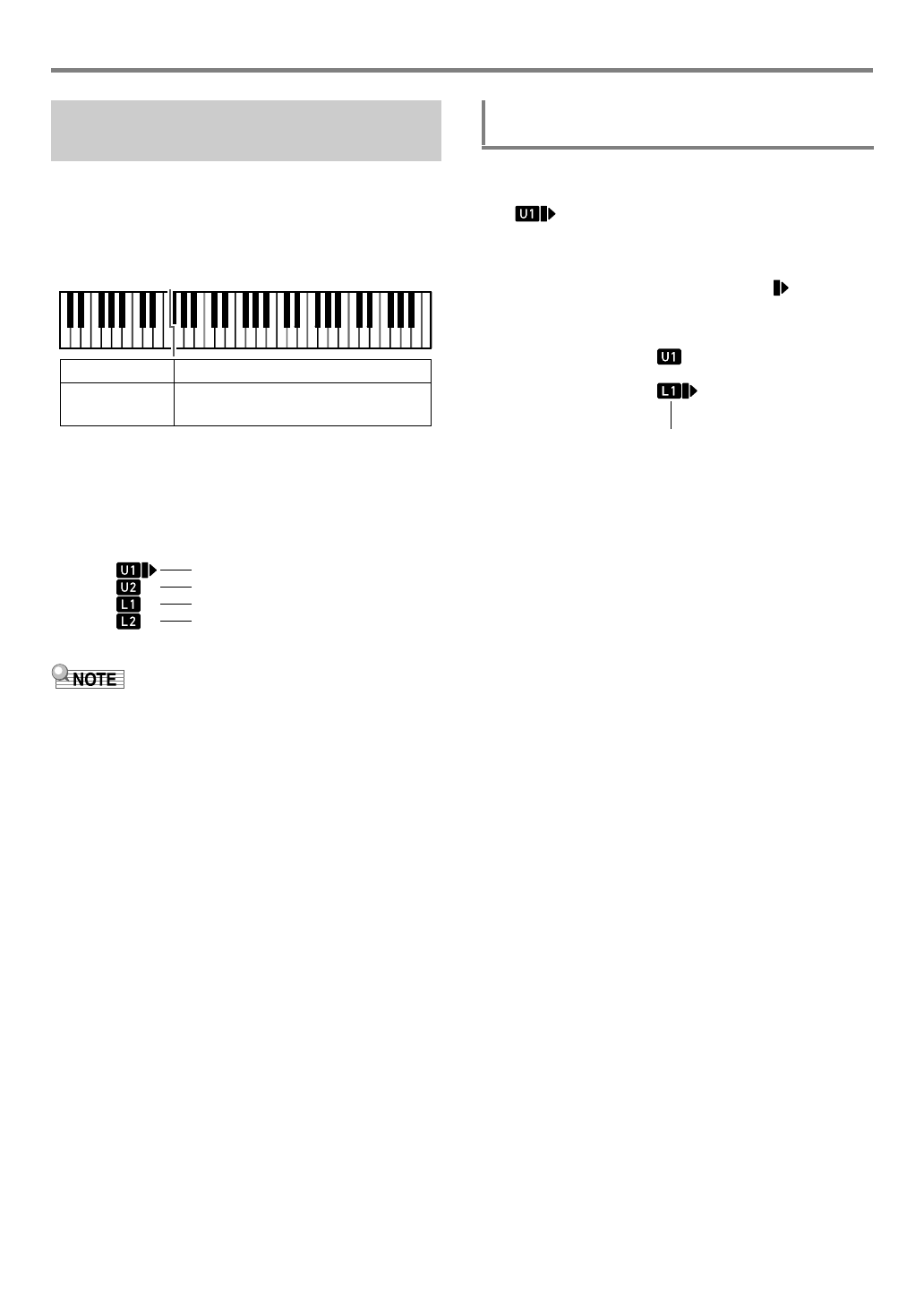
You can split the keyboard into left and right area and assign
different tones to each area, and also layer two tones to play
at the same time. Split and layer can be used at the same
time, which means that you perform with up to four keyboard
parts (UPPER 1, LOWER 1, UPPER 2, LOWER 2) at the
same time as shown in the illustration below.
■Keyboard Part Indicators
You can determine the current split/layer status by checking
the keyboard part indicators in the upper left corner of the
display. The keyboard parts whose indicators are shown will
sound when you play on the keyboard.
• You can adjust the volume level, effect intensity, and other
settings for each part. For details, see “Using the Mixer”
(page EN-64).
• If you use DSP tones for multiple parts, tone effects will be
removed and tone quality may change.
1.
After confirming that the part indicator in the
upper left corner of the display looks like
, select a tone.
• This will be the UPPER 1 part tone.
2.
Press dp SPLIT.
• This will display the [L1] indicator, and will move to
the right of the [L1]. This indicates you can select the
LOWER 1 part tone.
3.
Select the tone you want to assign to
LOWER 1.
4.
Play something on the keyboard.
• For information about how to change the tone
assigned to each part, see “To change the tones
assigned to each split/layer part” (page EN-21).
5.
To cancel a split (return the entire keyboard to
the UPPER 1 part), press dp SPLIT.
This causes the [L1] indicator to disappear.
Sounding Multiple Tones (Layer
and Split)
LOWER 1 UPPER 1
UPPER 2
(UPPER LAYER)
LOWER 2
(LOWER LAYER)
U1 (UPPER 1) indicator
U2 (UPPER 2) indicator
L1 (LOWER 1) indicator
L2 (LOWER 2) indicator
To split the keyboard between two tones
(Split)
Displayed
CTX5000_3000_EN.book 19 ページ 2018年2月26日 月曜日 午後3時56分
Playing on the Keyboard
EN-20
1.
Hold down dp SPLIT until “Split Pt” is
displayed.
2.
Use bn [–] and [+] or the bl dial to specify the
name of the note (the lowest note of the
desired UPPER part) where you want the split
point to be.
• You can also specify the split point by holding down
dp SPLIT and pressing the key where you want the
split point to be.
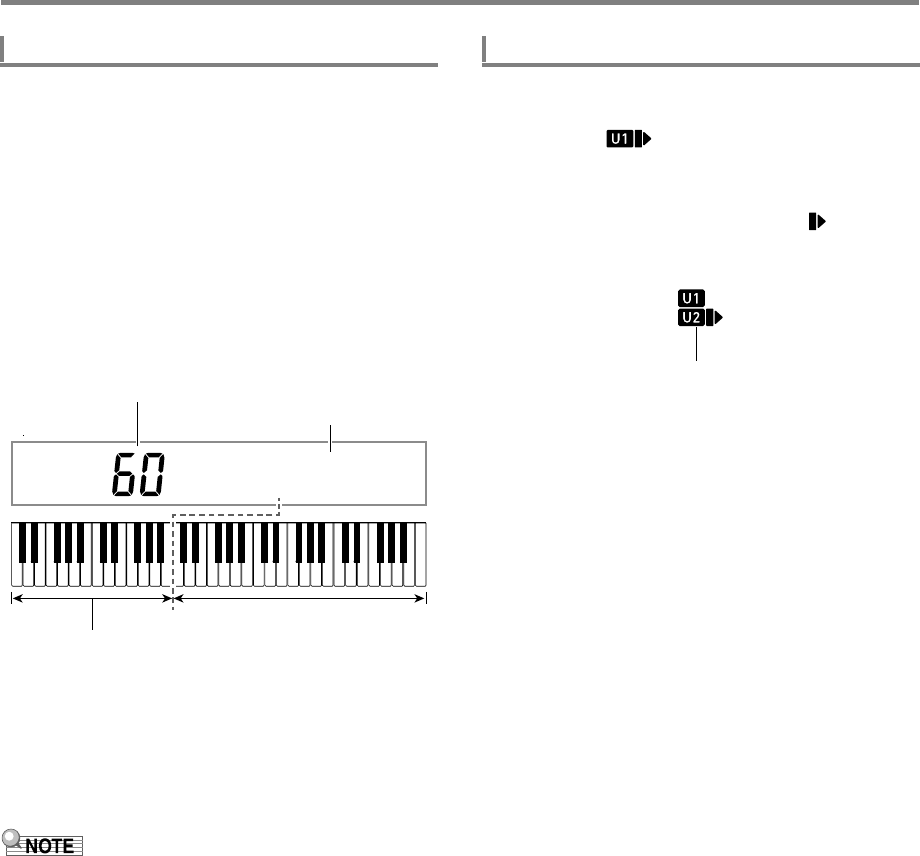
• This displays the specified current split point as shown
below.
Example: After C4 was specified as the split point
• The LOWER part keyboard specified by this operation
is also used as an accompaniment keyboard (page
EN-44).
3.
When the setting is the way you want, long-
press the [4] (EXIT) bm number key to exit the
setting screen.
• Specifying a split point puts the LOWER part keyboard and
the accompaniment keyboard in the same area. You can
also specify different areas for these two keyboards. You
can also configure a setting so the LOWER part tone does
not sound in the area where the LOWER part keyboard and
accompaniment keyboard overlap. For details, see the
“Advanced Split Settings” (page EN-50).
1.
After confirming that the keyboard part
indicator in the upper left corner of the display
looks like , select a tone.
• This will be the UPPER 1 part tone.
2.
Press dq UPPER LAYER.
• This will display the [U2] indicator, and will move to
the right of the [U2]. This indicates you can select the
UPPER 2 part tone.
3.
Select the tone you want to assign to UPPER 2.
4.
Play something on the keyboard.
• For information about how to change the tone
assigned to each part, see “To change the tones
assigned to each split/layer part” (page EN-21).
• Here, pressing dp SPLIT will enable use of the
UPPER 1 and UPPER 2 layered tones, in addition to
the LOWER 1 part created with the keyboard split.
5.
To cancel a layer (return the entire keyboard to
the UPPER 1 part), press dq UPPER LAYER.
This causes the [U2] indicator to disappear.
To move the keyboard split point
B3 I C4
Split point note number
LOWER part keyboard (or accompaniment keyboard)
Split point note name
UPPER part keyboard
To layer two tones
Displayed
CTX5000_3000_EN.book 20 ページ 2018年2月26日 月曜日 午後3時56分
EN-21
Playing on the Keyboard
1.
Perform steps 1 through 3 under “To split the
keyboard between two tones (Split)” (page
EN-19).
2.
Perform the procedure below to layer two
UPPER part tones.
(1) Press dq UPPER LAYER and confirm that the [U2]
indicator is displayed.
(2) Select the tone you want to assign to UPPER 2.
3.
Perform the procedure below to layer two
LOWER part tones.
(1) Long-press dq UPPER LAYER until the [L2]
indicator appears.
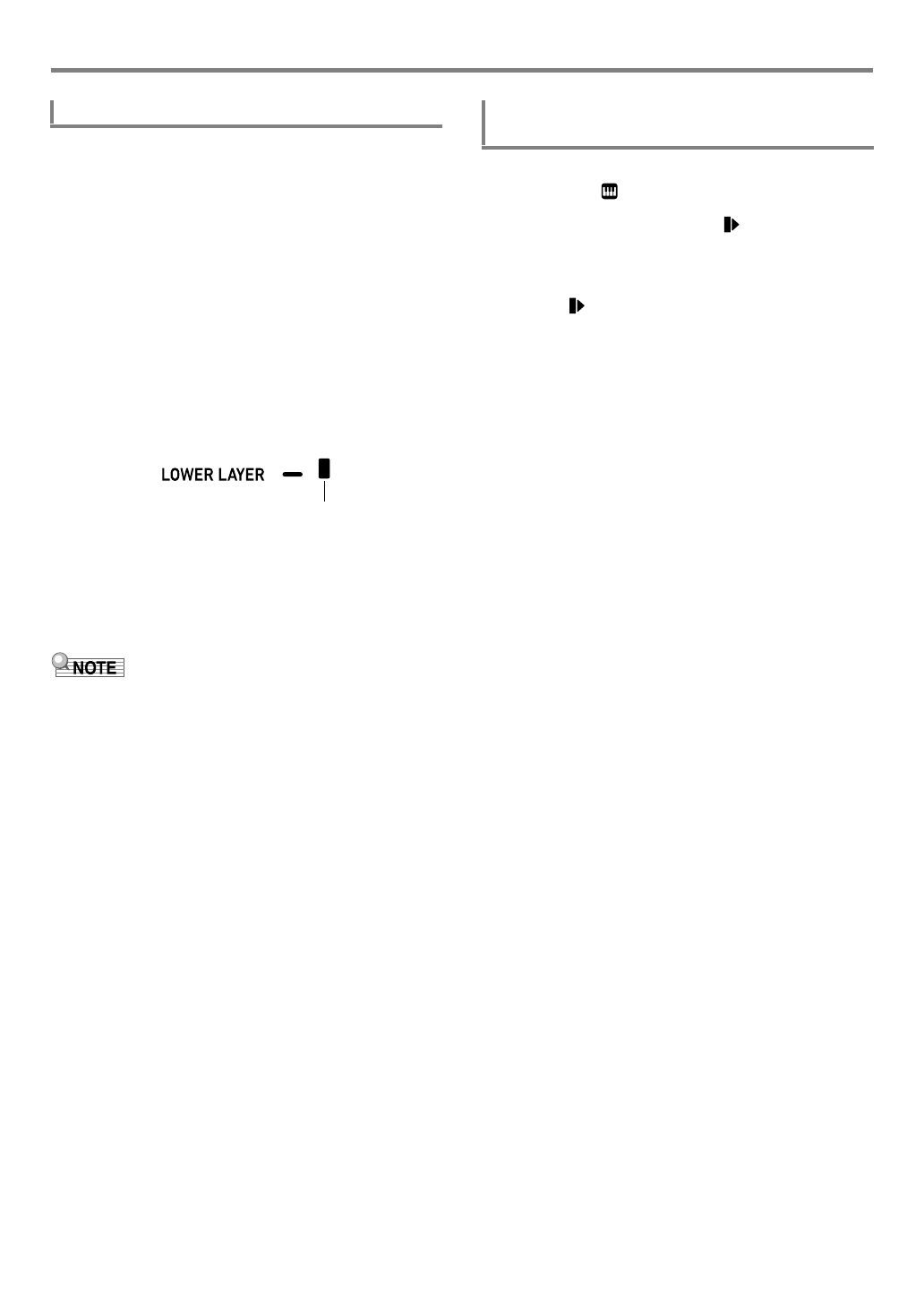
This displays an indicator mark next to [LOWER
LAYER].
(2) Select the tone you want to assign to LOWER 2.
4.
Play something on the keyboard.
• For information about how to change the tone
assigned to each part, see “To change the tones
assigned to each split/layer part” (page EN-21).
• When using split and layer together, the UPPER 2 part is
called the “upper layer”, while the LOWER 2 part is called
the “lower layer”.
• To disable the upper layer only after performing steps 1
through 3 of the procedure above, press dq UPPER
LAYER and confirm that the [U2] indicator is not displayed.
To disable the lower layer only, long-press dq UPPER
LAYER (LOWER LAYER) until the [L2] indicator
disappears ([LOWER LAYER] indicator mark also
disappears).
• There will be an indicator mark next to [LOWER LAYER]
while the lower layer is enabled, regardless of whether the
keyboard is split. The mark disappears when the lower
layer is disabled.
• Pressing dp SPLIT after performing steps 1 through 3
above disables the split, so the [L1] and [L2] indicators
disappear, and the keyboard becomes layered with the
UPPER parts (UPPER 1 and UPPER 2) only.
1.
Press 5TONE.
This displays (tone indicator).
2.
Long-press 5TONE until moves to the
right of the keyboard part indicator (page
EN-19).
• Repeat this operation as many times as required to
move to the right of the keyboard part indicator
(U1, U2, L1, L2) of the part (UPPER 1, LOWER 1,
UPPER 2, LOWER 2) whose tone setting you want to
change.
3.
Change the tone of the keyboard part you
selected in step 2.
• Repeat steps 2 and 3 above for each of the keyboard
parts whose tone setting you want to change.
To use split and layer together
Displayed
To change the tones assigned to each split/
layer part
CTX5000_3000_EN.book 21 ページ 2018年2月26日 月曜日 午後3時56分
Playing on the Keyboard
EN-22
Your Digital Keyboard includes reverb, chorus, and delay
effects, which you can use to enhance the sound of tones.
●Reverb (REVERB)
Reverb simulates ambient spaces, such as a room or hall.
●Chorus (CHORUS)
Chorus adds a rich, shimmering quality to a sound. This digital
keyboard applies a preset chorus setting that is suitable for
each tone.
●Delay (DELAY)
Delay stores a sound and repeats it periodically with a slight
delay before each repeat, which creates an echo effect. Delay
is different from reverb, which creates a reverberation effect.
This digital keyboard applies a preset delay setting that is
suitable for each tone.
• You can determine the current enabled/disabled status of
each effect by checking the indicator marks on the right
side of the display.
• Preset chorus effect and delay effects are applied to each
tone even when there is no indicator mark next to
[CHORUS] and [DELAY].
• You can adjust how tone effects are applied to each part.
For details, see “Using the Mixer” (page EN-64). The
setting items that are used for adjustment correspond to the
following: Reverb Send, Chorus Send, Delay Send (see
“Advanced Mixer Settings” on page EN-66).
• The procedure below explains how to select the reverb
(steps 2 and 3), chorus (4 and 5), and delay (6 and 7)
settings. You can skip any of the steps for any effect whose
settings you don’t need to change.
1.
Press bk FUNCTION.
2.
Use the [1] (V) and [3] (W) bm number keys
to display “Reverb”.
3.
Use bn [–] and [+] or the bl dial to change the
setting value.
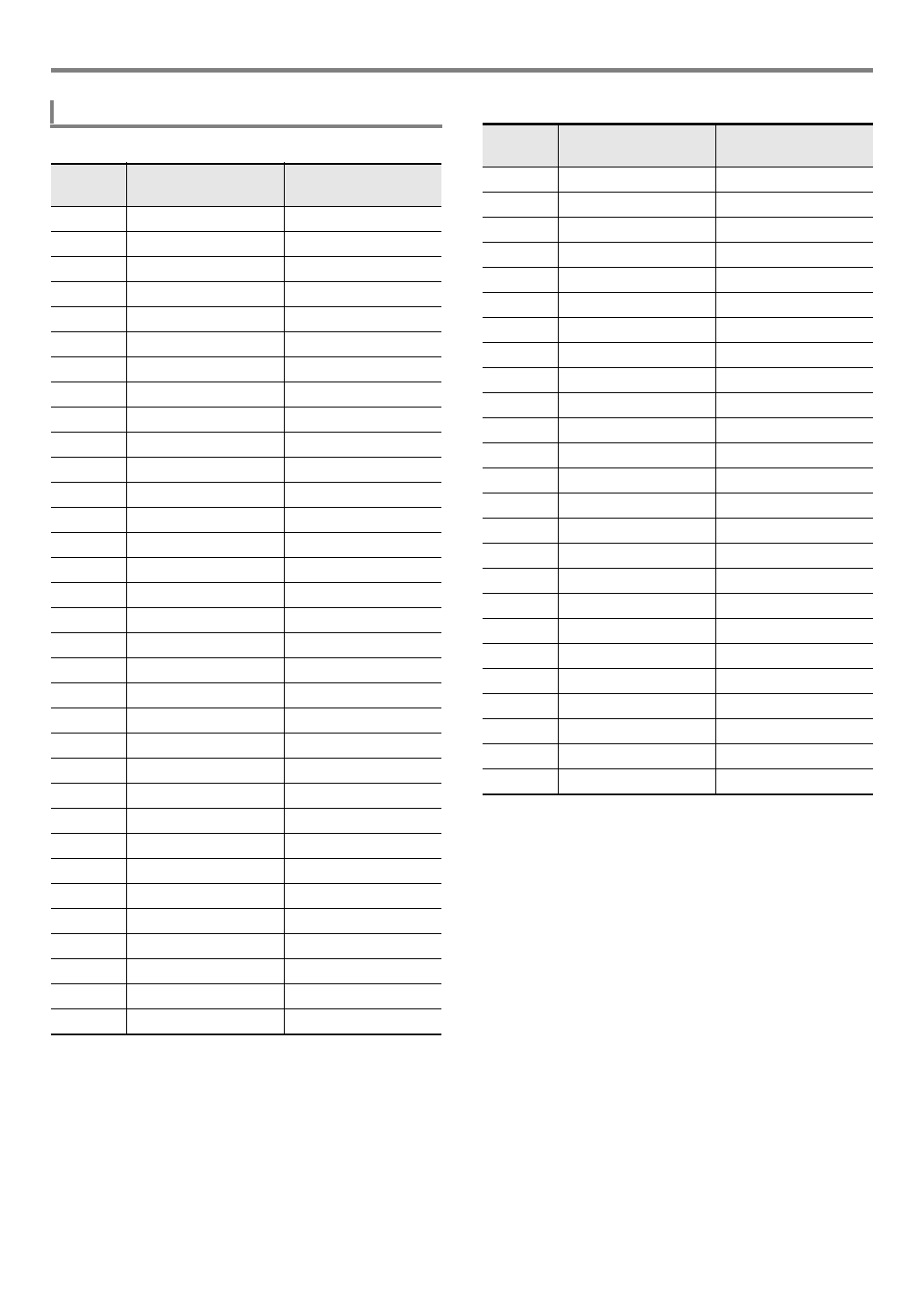
• For information about the reverb types that correspond
to each setting value, see the “Reverb Effect List”
(page EN-23).
4.
Use the [1] (V) and [3] (W) bm number keys
to display “Chorus”.
5.
Use bn [–] and [+] or the bl dial to change the
setting value.
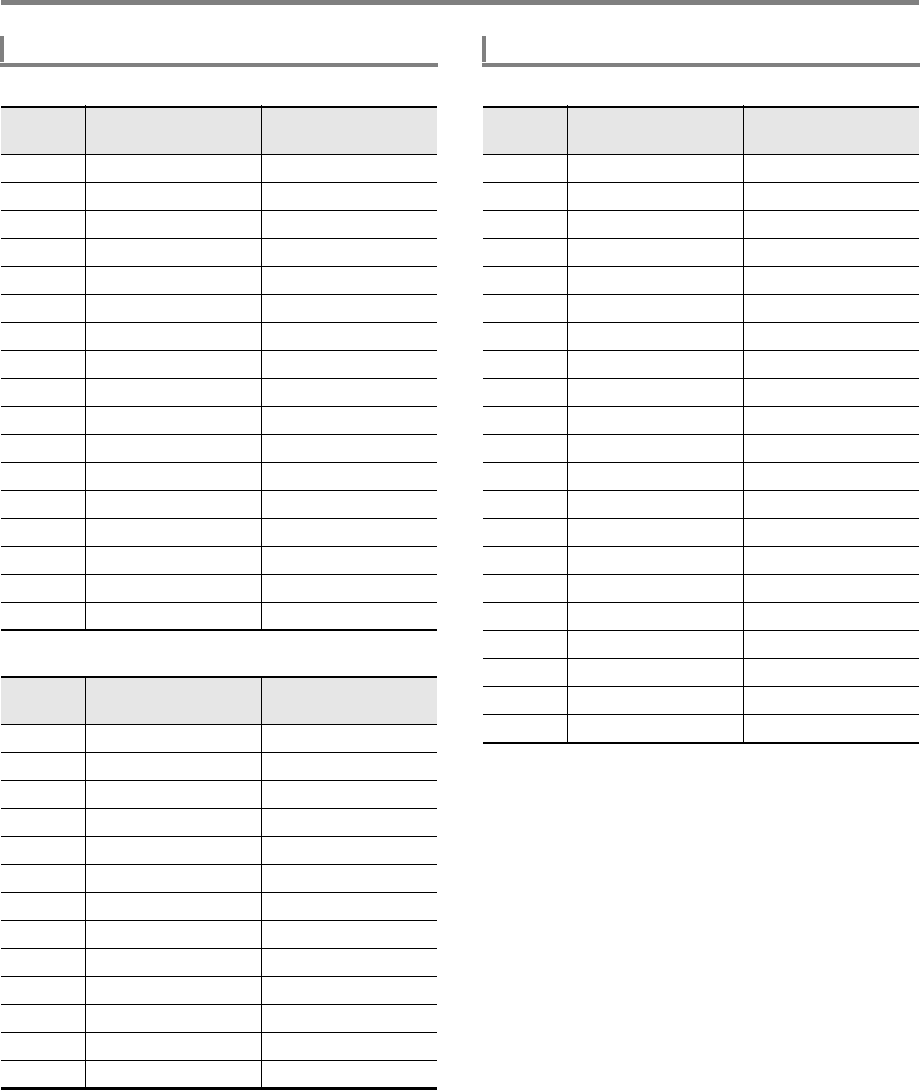
• For information about the chorus types that
correspond to each setting value, see the “Chorus
Effect List” (page EN-24).
6.
Use the [1] (V) and [3] (W) bm number keys
to display “Delay”.
7.
Use bn [–] and [+] or the bl dial to change the
setting value.
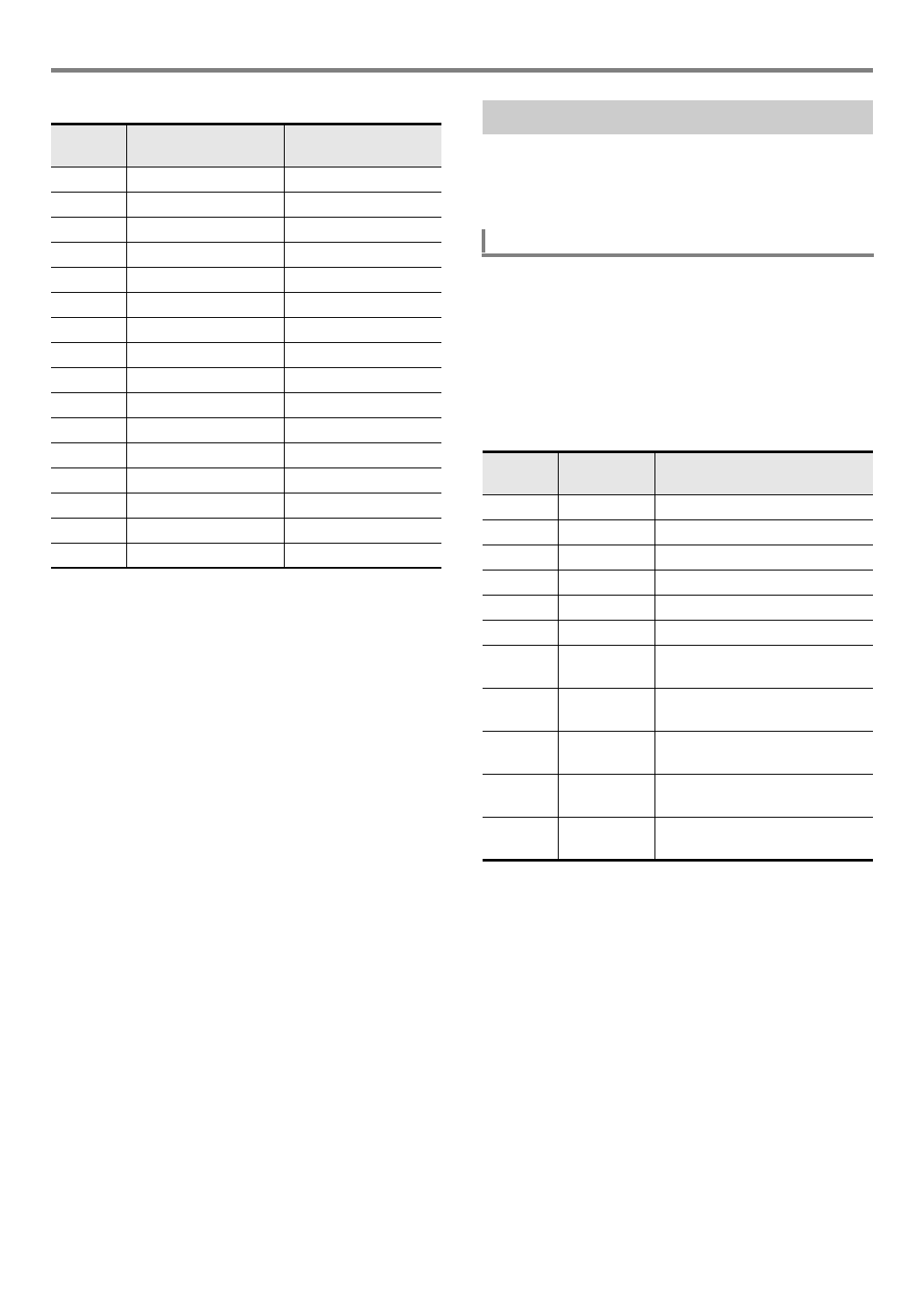
• For information about the delay types that correspond
to each setting value, see the “Delay Effect List”
(EN-24).
8.
When the setting is the way you want, long-
press the [4] (EXIT) bm number key to exit the
setting screen.
Selecting an Effect for a Tone
(Reverb, Chorus, Delay)
To select a digital effect
Reverb
Current setting value
Cho r us
Current setting value
De l a
y
Current setting value
CTX5000_3000_EN.book 22 ページ 2018年2月26日 月曜日 午後3時56分
EN-23
Playing on the Keyboard
■CT-X5000
■CT-X3000
Reverb Effect List
Setting
Value Setting Type Display
1Off Off
2 Room 1 Room 1
3 Room 2 Room 2
4 Room 3 Room 3
5 Room 4 Room 4
6 Room 5 Room 5
7 Room 6 Room 6
8 Room 7 Room 7
9 Room 8 Room 8
10 Room 9 Room 9
11 Large Room 1 L.Room 1
12 Large Room 2 L.Room 2
13 Hall 1 Hall 1
14 Hall 2 Hall 2
15 Hall 3 Hall 3
16 Hall 4 Hall 4
17 Hall 5 Hall 5
18 Hall 6 Hall 6
19 Hall 7 Hall 7
20 Hall 8 Hall 8
21 Hall 9 Hall 9
22 Stadium 1 Stadium1
23 Stadium 2 Stadium2
24 Stadium 3 Stadium3
25 Plate 1 Plate 1
26 Plate 2 Plate 2
27 Plate 3 Plate 3
28 Delay Delay
29 Pan Delay PanDelay
30 Long Delay 1 L.Delay1
31 Long Delay 2 L.Delay2
32 Church Church
33 Cathedral Cathedrl
Setting
Value Setting Type Display
1Off Off
2 Room 1 Room 1
3 Room 2 Room 2
4 Room 3 Room 3
5 Room 4 Room 4
6 Room 5 Room 5
7 Large Room1 L.Room 1
8 Large Room2 L.Room 2
9 Hall 1 Hall 1
10 Hall 2 Hall 2
11 Hall 3 Hall 3
12 Hall 4 Hall 4
13 Hall 5 Hall 5
14 Hall 6 Hall 6
15 Stadium 1 Stadium1
16 Stadium 2 Stadium2
17 Stadium 3 Stadium3
18 Plate 1 Plate 1
19 Plate 2 Plate 2
20 Delay Delay
21 Pan Delay PanDelay
22 Long Delay 1 L.Delay1
23 Long Delay 2 L.Delay2
24 Church Church
25 Cathedral Cathedrl
CTX5000_3000_EN.book 23 ページ 2018年2月26日 月曜日 午後3時56分
Playing on the Keyboard
EN-24
■CT-X5000
■CT-X3000
*Though selecting setting value 1 (Tone) causes the
indicator mark next to [CHORUS] to disappear, preset
chorus effects are applied to each tone.
■CT-X5000
Chorus Effect List
Setting
Value Setting Type Display
1 Tone *Tone
2 Chorus 1 Chorus 1
3 Chorus 2 Chorus 2
4 Chorus 3 Chorus 3
5 Chorus 4 Chorus 4
6 FB Chorus FBChorus
7 Soft Chorus Soft C
8 Bright Chorus Bright C
9 Deep Chorus Deep C
10 Flanger 1 Flanger1
11 Flanger 2 Flanger2
12 Flanger 3 Flanger3
13 Flanger 4 Flanger4
14 Short Delay 1 S.Delay1
15 Short Delay 2 S.Delay2
16 Short Delay 3 S.Delay3
17 Short Delay 4 S.Delay4
Setting
Value Setting Type Display
1 Tone *Tone
2 Chorus 1 Chorus 1
3 Chorus 2 Chorus 2
4 Chorus 3 Chorus 3
5 Chorus 4 Chorus 4
6 FB Chorus FBChorus
7 Deep Chorus Deep C
8 Flanger 1 Flanger1
9 Flanger 2 Flanger2
10 Flanger 3 Flanger3
11 Flanger 4 Flanger4
12 Short Delay 1 S.Delay1
13 Short Delay 2 S.Delay2
Delay Effect List
Setting
Value Setting Type Display
1 Tone *Tone
2 Short 1 Short 1
3 Short 2 Short 2
4Echo Echo
5 Tempo Sync Short TSync S
6 Tempo Sync Middle TSync M
7 Tempo Sync Long TSync L
8 Ambience Ambience
9Mid 1 Mid 1
10 Mid 2 Mid 2
11 Long 1 Long 1
12 Long 2 Long 2
13 Mid Pan Mid Pan
14 Long Pan 1 LongPan1
15 Long Pan 2 LongPan2
16 Long Pan 3 LongPan3
17 Short Single ShrtSngl
18 Mid Single Mid Sngl
19 Long Single LongSngl
20 Long Double Long Dbl
21 Long Triple LongTrpl
CTX5000_3000_EN.book 24 ページ 2018年2月26日 月曜日 午後3時56分
EN-25
Playing on the Keyboard
■CT-X3000
*Though selecting setting value 1 (Tone) causes the
indicator mark next to [DELAY] to disappear, preset delay
effects are applied to each tone.
You can use equalization to select from among presets that
boost or cut specific frequency ranges.
The CT-X5000 also includes a four-band equalizer that allows
user-configured settings (User Equalizer).
1.
Press bk FUNCTION.
2.
Use the [1] (V) and [3] (W) bm number keys
to display “Equalizr”.
3.
Use bn [–] and [+] or the bl dial to change the
setting value.
• The settings that correspond to each of the setting
values are described below.
4.
When the setting is the way you want, long-
press the [4] (EXIT) bm number key to exit the
setting screen.
Setting
Value Setting Type Display
1 Tone *Tone
2 Short 1 Short 1
3 Short 2 Short 2
4Echo Echo
5 Tempo Sync Short TSync S
6 Tempo Sync Middle TSync M
7 Tempo Sync Long TSync L
8 Ambience Ambience
9 Mid 1 Mid 1
10 Mid 2 Mid 2
11 Long 1 Long 1
12 Long 2 Long 2
13 Mid Pan Mid Pan
14 Long Pan 1 LongPan1
15 Long Pan 2 LongPan2
16 Long Pan 3 LongPan3
Using Equalization
To select an equalization setting
Setting
Value Display Description
1 Standard Standard setting
2 Bass + Boosts the low range.
3 Treble + Boosts the high range.
4 Loudness Boosts everything.
5 Mellow Creates a soft feeling.
6 Bright Creates a bright feeling.
7Rock Creates a sound optimized for
rock music.
8 Dance Creates a sound optimized for
dance music.
9Jazz Creates a sound optimized for
jazz music.
10 Classic Creates a sound optimized for
classical music.
11 User CT-X5000: Applies User
Equalizer settings.
CTX5000_3000_EN.book 25 ページ 2018年2月26日 月曜日 午後3時56分
Playing on the Keyboard
EN-26
1.
Press bk FUNCTION.
2.
Use the [1] (V) and [3] (W) bm number keys
to display “User EQ”, and then press [6]
(ENTER).
3.
Configure settings for reach frequency range.
(1) Use the [1] (V) and [3] (W) bm number keys to
display the menu of the range you want to adjust.
(2) Press [6] (ENTER).
• This automatically changes the “Equalizr” setting
to “User”. See “To select an equalization setting”
(page EN-25).
(3) Use the [1] (V) and [3] (W) keys to display “***
Freq” (Center Frequency or Cutoff Frequency) or “***
Gain” (Gain).
What appears in place of “***” in the above menu
items depends on the frequency range being
equalized.
(4) Use bn [–] and [+] or the bl dial to change the
setting value.
For details about setting values and their settings,
see the “User Equalizer Setting List” below.
(5) Press the [4] (EXIT) bm number key.
(6) Repeat steps (1) through (5) as required to configure
the settings of other frequency ranges.
4.
Configure input level and output level settings
as required.
(1) Use the [1] (V) and [3] (W) bm number keys to
display “Input Lv” (Input Level), and then use bn [–]
and [+] or the bl dial to change the setting value.
(2) Use the [1] (V) and [3] (W) keys to display
“OutputLv” (Output Level), and then use bn [–] and
[+] or the bl dial to change the setting value.
5.
When the setting is the way you want, long-
press the [4] (EXIT) bm number key to exit the
setting screen.
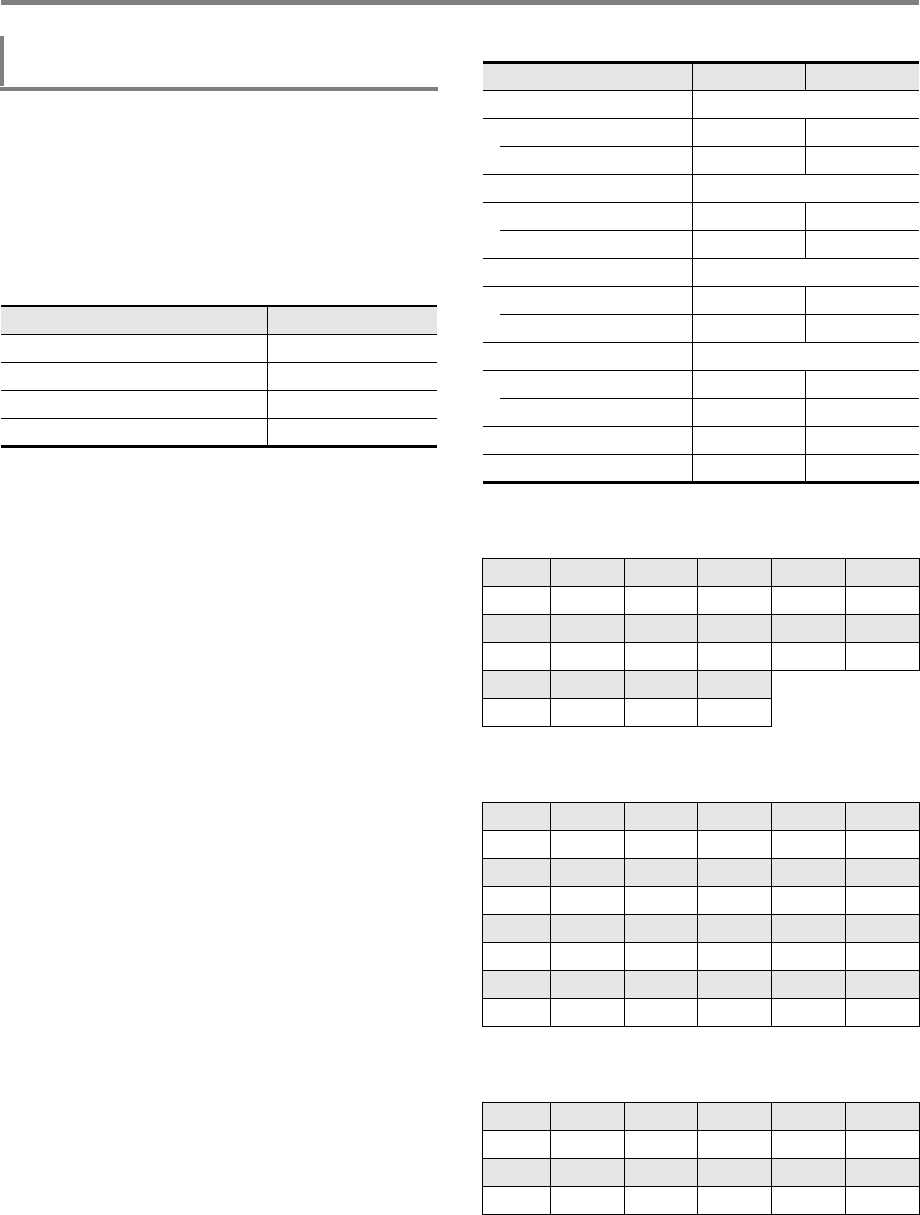
■User Equalizer Setting List
*1 Setting values 1 through 13 (A in the table below)
correspond to cutoff frequencies 50 Hz to 800 Hz (B in the
table below).
*2 Setting values 1 through 20 (A in the table below)
correspond to center frequencies 100Hz to 8.0kHz (B in
the table below).
*3 Setting values 1 through 10 (A in the table below)
correspond to cutoff frequencies 2.0kHz to 16kHz (B in the
table below).
CT-X5000: To configure User Equalizer
settings
To adjust this range: Display this:
Low-range (50 Hz to 800 Hz) EQ Low
Mid-range 1 (100 Hz to 8 kHz) EQ Mid1
Mid-range 2 (100 Hz to 8 kHz) EQ Mid2
High-range (2 kHz to 16 kHz) EQ High
Setting Item Display Settings
Low-range EQ Low
Cutoff Frequency Low Freq 1 to 13 *1
Gain Low Gain –12 to 12
Mid-range 1 EQ Mid1
Center Frequency Mid1Freq 1 to 20 *2
Gain Mid1Gain –12 to 12
Mid-range 2 EQ Mid2
Center Frequency Mid2Freq 1 to 20 *2
Gain Mid2Gain –12 to 12
High-range EQ High
Cutoff Frequency HighFreq 1 to 10 *3
Gain HighGain –12 to 12
Input Level Input Lv 0 to 127
Output Level OutputLv 0 to 127
A12345
B50Hz 63Hz 80Hz 100Hz 125Hz
A6 7 8 9 10
B160Hz 200Hz 250Hz 315Hz 400Hz
A11 12 13
B500Hz 630Hz 800Hz
A12345
B100Hz 125Hz 160Hz 200Hz 250Hz
A6 7 8 9 10
B315Hz 400Hz 500Hz 630Hz 800Hz
A11 12 13 14 15
B1.0kHz 1.3kHz 1.6kHz 2.0kHz 2.5kHz
A16 17 18 19 20
B3.2kHz 4.0kHz 5.0kHz 6.3kHz 8.0kHz
A12345
B2.0kHz 2.5kHz 3.2kHz 4.0kHz 5.0kHz
A6 7 8 9 10
B6.0kHz 8.0kHz 10kHz 13kHz 16kHz
CTX5000_3000_EN.book 26 ページ 2018年2月26日 月曜日 午後3時56分
EN-27
Playing on the Keyboard
The metronome sounds a regular tone to mark time. Use the
metronome when you want to practice playing at a regular
tempo.
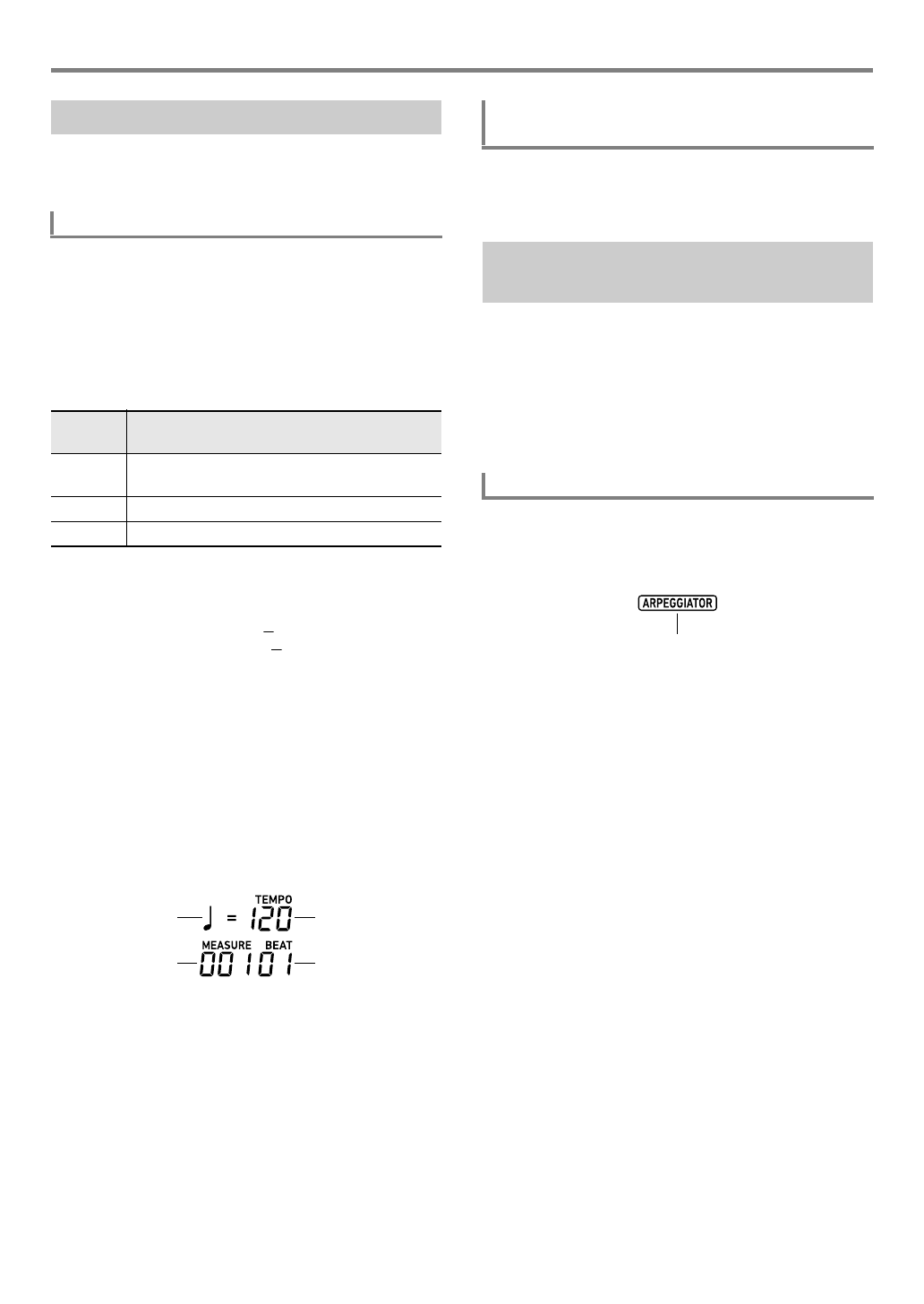
1.
Specify the time signature.
• You can specify a time signature numerator (0 to 16)
and denominator (4 or 8).
(1) Hold down ct METRONOME until “BeatNume” is
displayed.
(2) Use bn [–] and [+] or the bl dial to change the time
signature numerator setting value within the range of
0 to 16 (Default: 4).
(3) Use the [1] (V) and [3] (W) bm number keys to
display “BeatDeno”.
(4) Use bn [–] and [+] to specify the time signature
denominator.
• The setting value 1 is (quarter note beats),
while setting value 2 is (eighth note beats).
(5) Press the [4] (EXIT) bm number key.
2.
Use the dk TEMPO [w] and [q] buttons to
change the tempo setting.
• For information about the tempo setting, see
“Changing Auto Accompaniment Speed (Tempo)”
(page EN-46).
3.
Press ct METRONOME.
This starts the metronome. The number of measures
since the metronome was started is indicated in the
upper right corner of the display.
4.
To stop the metronome, press
ct METRONOME again.
Perform the procedure under “To configure function settings
with the bk FUNCTION button” (page EN-112) and configure
the following setting: Metronome (Metronom) 3 Metronome
Volume (Volume) (page EN-117).
With the arpeggiator, you can play various arpeggios and
other phrases automatically by simply pressing keys on the
keyboard. You can select from a number of different arpeggio
options, including playing arpeggios from a chord, playing
various phrases automatically, and more.
• A single button is used to control the arpeggiator and auto
harmonize (page EN-52). Because of this, auto harmonize
cannot be used while the arpeggiator is in use.
1.
Press do AUTO HARMONIZE/
ARPEGGIATOR and confirm that the
[ARPEGGIATOR] indicator is displayed.
• Playing a chord or single notes on the keyboard will
play back the currently selected arpeggio.
Using the Metronome
To start or stop the metronome
Setting
Value Accent
2 to 16 Specifies numerator from 2 to 16. An accent
sounds on the first beat only.
1 All beats accented.
0 All beats unaccented.
4
*
8
*
Note Value
Measure
Tempo
Beat
To adjust the balance between metronome
and keyboard volume
Sounding Arpeggio Phrases
Automatically (Arpeggiator)
To turn on the arpeggiator
Displayed
CTX5000_3000_EN.book 27 ページ 2018年2月26日 月曜日 午後3時56分
Playing on the Keyboard
EN-28
2.
To turn the arpeggiator off, press do AUTO
HARMONIZE/ARPEGGIATOR.
This causes the [ARPEGGIATOR] indicator to disappear.
• If the [AUTO HARMONIZE] indicator is displayed
instead of the [ARPEGGIATOR] in step 1 of the above
procedure, you will need to change the function
assigned to the button.
Perform the procedure under “To configure function
settings with the bk FUNCTION button” (page EN-112)
and select “2 Arpeg.” for the following setting: Auto
Harmonize/Arpeggiator (AHar/Arp) 3 AUTO
HARMONIZE/ARPEGGIATOR button assignment
(BtnAsign) (page EN-114).
• Use the following procedure when you want an arpeggio
pattern to keep playing after you release the keyboard
keys.
Perform the procedure under “To configure function
settings with the bk FUNCTION button” (page EN-112)
and enable the following setting: Auto Harmonize/
Arpeggiator (AHar/Arp) 3 Arpeggiator Hold (ArpegHld)
(page EN-114).
• While you are using split (page EN-19), you can use the
UPPER 1 part or LOWER 1 part to sound the arpeggiator.
Perform the procedure under “To configure function
settings with the bk FUNCTION button” (page EN-112)
and change the following setting: Auto Harmonize/
Arpeggiator (AHar/Arp) 3 Arpeggiator Part (ArpegPart)
(page EN-114).
1.
Perform the procedure under “To turn on the
arpeggiator” and confirm that the
[ARPEGGIATOR] indicator is displayed.
2.
Long-press do AUTO HARMONIZE/
ARPEGGIATOR until the [FUNCTION] indicator
flashes on the display.
This displays the currently selected arpeggiator type
number and name.
3.
Use bn [–] and [+] or the bl dial to display the
arpeggiator type you want to select.
• While the arpeggiator type is displayed, long-pressing
do AUTO HARMONIZE/ARPEGGIATOR will select
the tone that is recommended for the displayed type.
• For details about arpeggiator types, refer to the
separate “Appendix”.
4.
When the setting is the way you want, long-
press the [4] (EXIT) bm number key to exit the
setting screen.
To select an arpeggiator type
CTX5000_3000_EN.book 28 ページ 2018年2月26日 月曜日 午後3時56分
EN-29
Touch Response alters tone volume in accordance with
keyboard pressure (speed). This provides you some of the
same expressivity you get on an acoustic piano.
1.
Press bk FUNCTION.
2.
Use the [1] (V) and [3] (W) bm number keys
to display “Touch”.
3.
Use bn [–] and [+] or the bl dial to change the
setting value.
• The table below shows setting values and their
corresponding Touch Response sensitivity.
• There is an indicator mark next to [TOUCH] while the
touch setting is something other than off.
4.
When the setting is the way you want, long-
press the [4] (EXIT) bm number key to exit the
setting screen.
Connecting a pedal lets you perform pedal operations that
add various effects during your performances. You can use a
pedal to start and stop Auto Accompaniment and Song Bank
(page EN-39) song play.
• A pedal unit does not come with the Digital Keyboard.
Purchase one separately from your retailer. See page EN-3
for information about options.
• You can also use a pedal to switch the Digital Keyboard
registration setup. For details, see “Using a Pedal to Cycle
Through Multiple Setups (Registration Sequence)” (page
EN-70).
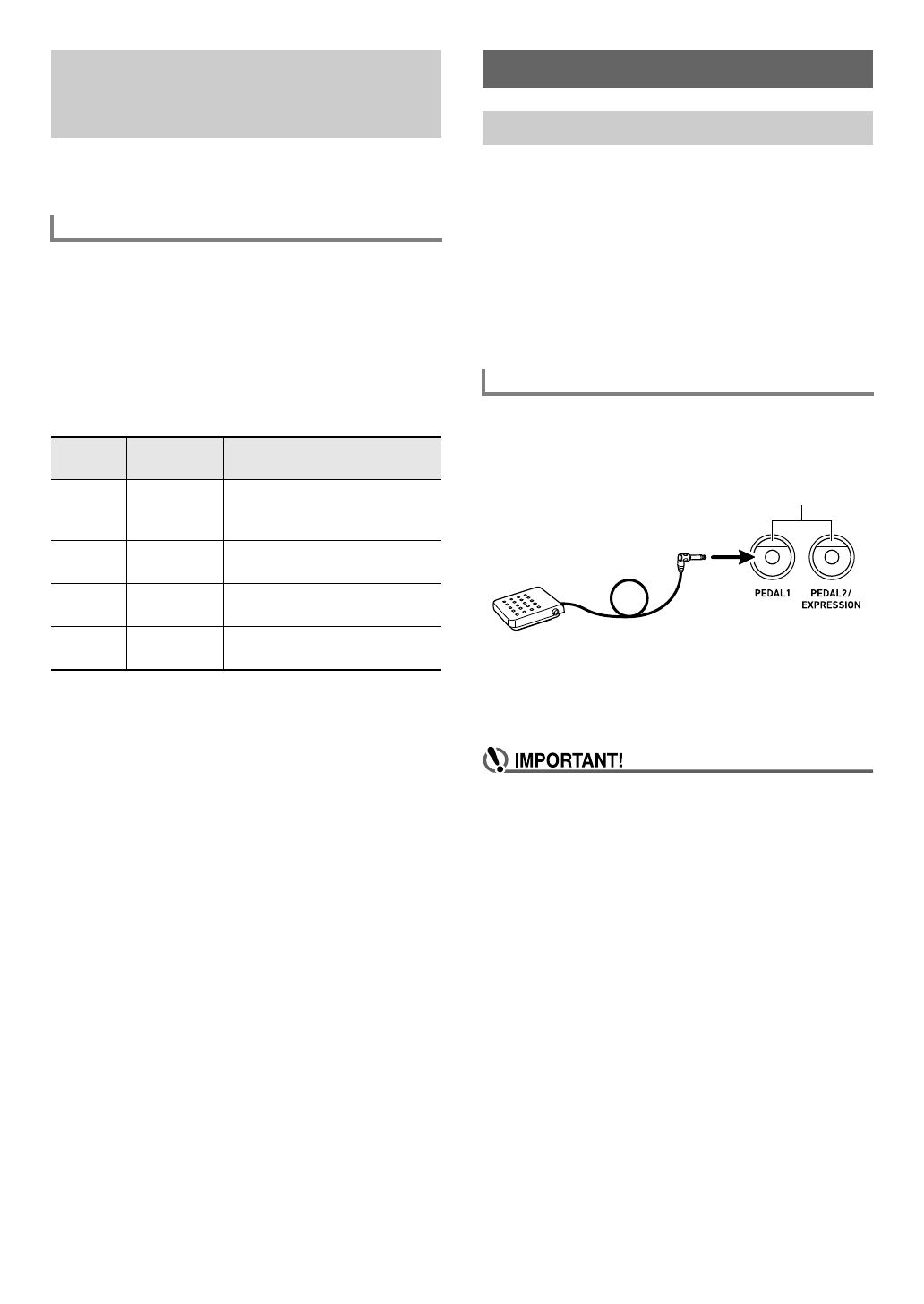
Depending on the type of operation you want the pedal to
perform, connect the pedal’s cable either to the Digital
Keyboard’s fo PEDAL1 jack or fp PEDAL2/
EXPRESSION jack.
• You can connect a CASIO sustain pedal (“Separately
Available Accessories”, page EN-3) to the fo PEDAL1
jack. The fp PEDAL2/EXPRESSION jack can be used to
connect a CASIO sustain pedal or a commercially available
expression pedal.
• If you use the fp PEDAL2/EXPRESSION jack to
connect a commercially available expression pedal,
you will need to specify the polarity type of the pedal
and also calibrate the pedal before you use it.
To do this, perform the procedure under “To connect a
pedal to the fp PEDAL2/EXPRESSION jack” (page
EN-30).
Changing Keyboard Response to
Touch Pressure (Touch
Response)
To change Touch Response sensitivity
Setting
Value
Sensitivity
(Display) Description
01 Off (Off) Touch Response is turned off.
Sound volume is fixed,
regardless of key press speed.
02 Light (Light) Strong sound, even with light
pressure
03 Normal
(Normal)
Normal Touch Response
04 Heavy
(Heavy)
Normal sound, even with strong
pressure
Controlling Sounds
Using a Pedal
Connecting a Pedal
Pedal jacks
CTX5000_3000_EN.book 29 ページ 2018年2月26日 月曜日 午後3時56分
Controlling Sounds
EN-30
1.
Connect a pedal to the fo PEDAL1 jack.
2.
Press bk FUNCTION.
3.
Use the [1] (V) and [3] (W) bm number keys
to display “Cntrller”, and then press [6]
(ENTER).
4.
Use the [1] (V) and [3] (W) keys to display
“Pedal”, and then press [6] (ENTER).
This displays “Pd1Efect”. This is the Pedal 1 function
selection mode.
5.
Use bn [–] and [+] or the bl dial to change the
setting value.
• For details about the function that is assigned by each
setting value, refer to the “Pedal Function List” (page
EN-31).
6.
Turn pedal effects on or off for each keyboard
part* as required.
(1) Use the [1] (V) and [3] (W) bm number keys to
display “Pd1Enabl”.
(2) Press the [6] (ENTER) bm number key.
(3) Use the [1] (V) and [3] (W) keys to display the
part whose setting you want to change.
(4) Use bn [–] and [+] to switch between on and off.
• The pedal effect is applied to parts that are turned
on, and not applied to parts that are turned off.
• The Auto Harmonize (page EN-52) sound
depends on the UPPER 1 part setting.
7.
When the setting is the way you want, long-
press the [4] (EXIT) bm number key to exit the
setting screen.
*See “Sounding Multiple Tones (Layer and Split)” (page
EN-19).
1.
Connect a pedal to the fp PEDAL2/
EXPRESSION jack.
2.
Press bk FUNCTION.
3.
Use the [1] (V) and [3] (W) bm number keys
to display “Cntrller”, and then press [6]
(ENTER).
4.
Use the [1] (V) and [3] (W) keys to display
“Pedal”, and then press [6] (ENTER).
5.
Use the [1] (V) and [3] (W) keys to display
“Pd2 Type”.
6.
Use bn [–] and [+] or the bl dial to change the
setting value.
*For details, see “Connectable Expression Pedals” (page
EN-32).
• If a pedal does not work correctly after configuring
settings, it could mean that the connected pedal is not
compatible with the “Pd2 Type” setting above. Try
changing the “Pd2 Type” to a different setting and see
if this results in correct operation.
To connect a pedal to the fo PEDAL1 jack To connect a pedal to the fp PEDAL2/
EXPRESSION jack
To use this type of pedal: Select this setting:
Foot switch pedal 1 Foot Sw
Expression pedal (Type 1 polarity*) 2 ExpType1
Expression pedal (Type 2 polarity*) 3 ExpType2
CTX5000_3000_EN.book 30 ページ 2018年2月26日 月曜日 午後3時56分
EN-31
Controlling Sounds
7.
Depending on the selected pedal type, perform
one of the operations below.
YFoot Switch Pedal
Select the pedal effect.
(1) Use the [1] (V) and [3] (W) bm number keys to
display “Pd2Efect”.
(2) Use bn [–] and [+] or the bl dial to change the
setting value.
• For details about pedal effects that correspond to
each setting value, see the “Pedal Function List”
(page EN-31).
YExpression Pedal
Selecting “2 ExpType1” or “3 ExpType2” in step 6 of this
procedure automatically causes “5 Exp.” (Expression) to
be selected for “Pd2Efect”. If you connect an expression
pedal to the fp PEDAL2/EXPRESSION jack, use the
procedure below to calibrate the pedal before using it.
(1) Use the [1] (V) and [3] (W) bm number keys to
display “ExPCalib”, and then press [6] (ENTER).
This displays “Sure?”
(2) Press bn [+] (YES) to start adjustment or bn [–] (NO)
to cancel the adjustment operation.
(3) While “Highest” is displayed, depress the pedal and
press [6] (ENTER).
(4) While “Lowest” is displayed, release the pedal and
press [6] (ENTER).
• The message “Complete” will appear when the
operation is complete.
• To have an expression pedal connected to the
fp PEDAL2/EXPRESSION jack perform the
same operation (sustain, etc.) as a foot switch
pedal, perform the operation under “■ Foot Switch
Pedal” above to select a pedal effect.
8.
Turn pedal effects on or off for each keyboard
part as required.
• Perform step 6 under “To connect a pedal to the
fo PEDAL1 jack” (page EN-30). Note, however, that
you should display “Pd2Enabl” in step (1).
9.
When the setting is the way you want, long-
press the [4] (EXIT) bm number key to exit the
setting screen.
■Pedal Function List
Setting
Value
Function
(Display) Description
1Sustain
(Sustain)
Sustains notes played while the
pedal is depressed, even if the
keyboard key is subsequently
released.
Organ and other tones that are
sustained as long as keyboard
key are depressed continue to
sound as long as the pedal is
depressed.
2 Sostenuto
(Sostenut)
Only the notes of the keys that
are depressed when the pedal
is pressed are sustained, even
if the keyboard keys are
released, until the pedal is
released.
3 Soft (Soft) Slightly lowers and softens
notes played while the pedal is
depressed.
4 Rhythm/Song
(Rhy/Song)
Starts or stops Auto
Accompaniment or song
playback.
5 Expression
(Exp.)
This function can be selected
only when “2 ExpType1” or
“3 ExpType2” is selected in step
6 of the procedure under “To
connect a pedal to the
fp PEDAL2/EXPRESSION
jack” (page EN-30).
With this function, the effect is
applied in accordance with how
far the expression pedal
attached to the fp PEDAL2/
EXPRESSION jack is
depressed.
CTX5000_3000_EN.book 31 ページ 2018年2月26日 月曜日 午後3時56分
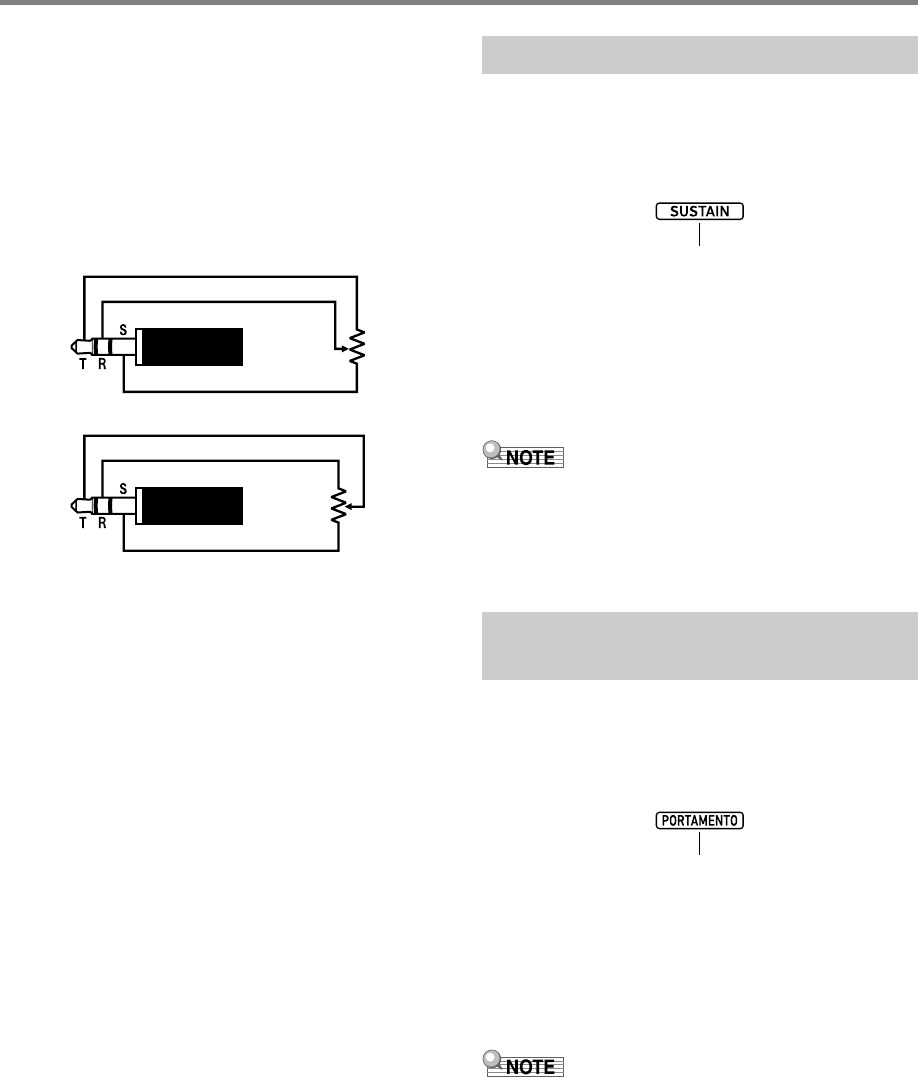
Controlling Sounds
EN-32
■Connectable Expression Pedals
You can connect a commercially available expression pedal
that satisfies the specifications below to the fp PEDAL2/
EXPRESSION jack. Use of a pedal whose operation has
been confirmed (see below) is recommended.
• Maximum resistance value: 10kΩ±20% to 50kΩ±20%
• Note that pedal polarity depends on the manufacturer. To
configure the pedal polarity type setting, perform the
procedure under “To connect a pedal to the fp PEDAL2/
EXPRESSION jack” (page EN-30).
*Operation Confirmed Pedals
Roland EV-5 (Set minimum volume to 0.)
KURZWEIL CC-1
FATAR VP-25, VP-26
Sustain extends the reverberation of a note to produce rich
resonance.
1.
Press dn SUSTAIN.
This displays the [SUSTAIN] indicator.
• The sustain effect (note sustained even after the key is
released) is applied to notes played on the keyboard
while the [SUSTAIN] indicator is displayed.
2.
To disable sustain, press dn SUSTAIN and
confirm that the [SUSTAIN] indicator
disappears.
• You can configure settings for the keyboard tones of each
part that control how the sustain effect is applied. Perform
the procedure under “To configure function settings with the
bk FUNCTION button” (page EN-112) and configure the
following setting: Controller (Cntrller) 3 Sustain (Sustain)
(page EN-113).
Portamento makes it possible to slide smoothly between
notes as is done with string and woodwind instruments.
1.
Press dm PORTAMENTO.
This displays the [PORTAMENTO] indicator.
• While the above indicator is displayed, sequentially
pressing two keyboard keys causes the first pitch to
slide smoothly into the next.
2.
To disable portamento, press
dm PORTAMENTO and confirm that the
[PORTAMENTO] indicator is not displayed.
• You can configure settings for the keyboard tones of each
part that control the speed of the slide between pitches
when dm PORTAMENTO is pressed. Perform the
procedure under “To configure function settings with the
bk FUNCTION button” (page EN-112) and configure the
following setting: Controller (Cntrller) 3 Portamento
(Portamnt) (page EN-113).
Exp. Pedal Type 1
Exp. Pedal Type 2*
Sustain
Sliding Smoothly Between
Pitches (Portamento)
Displayed
Displayed
CTX5000_3000_EN.book 32 ページ 2018年2月26日 月曜日 午後3時56分
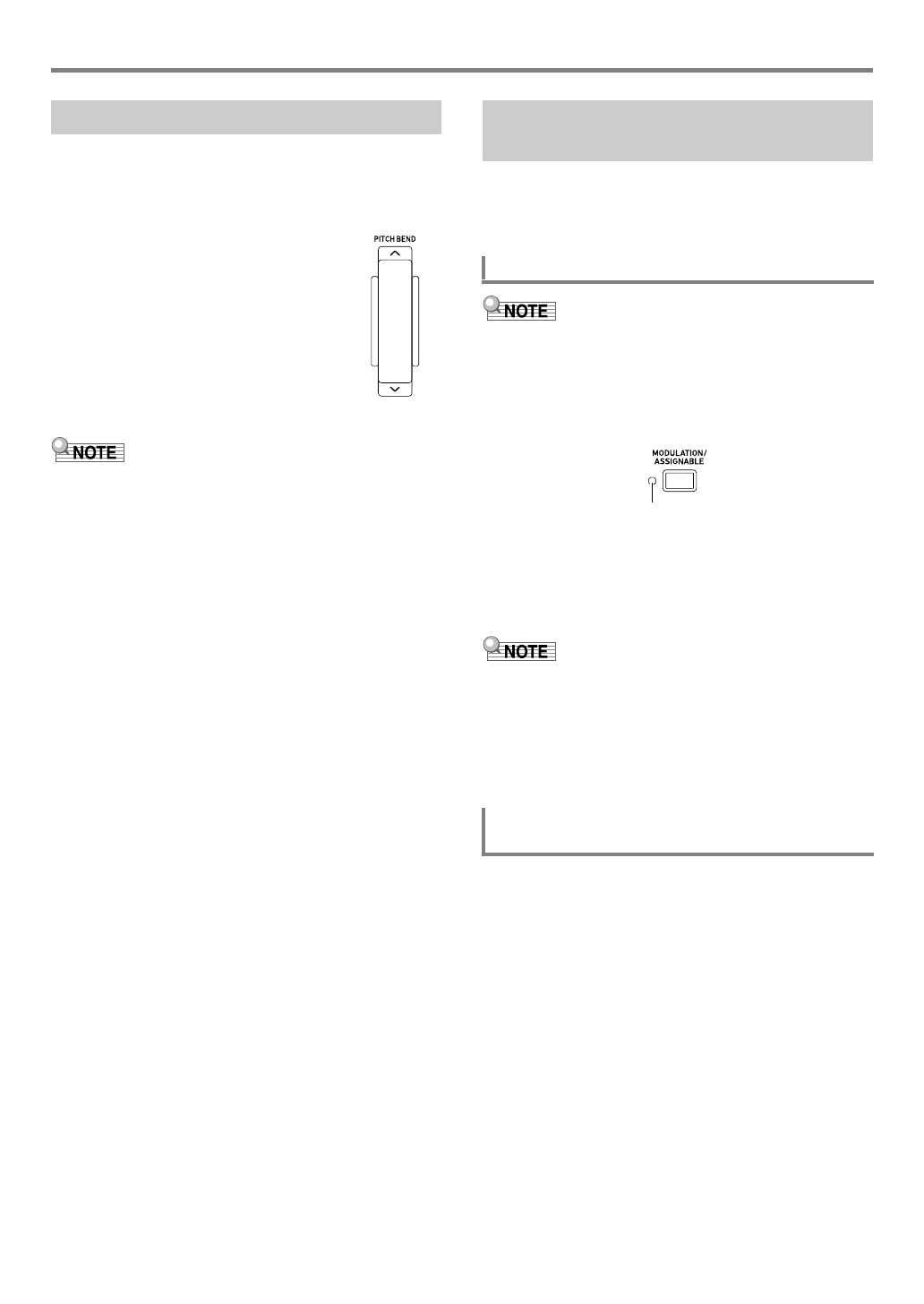
EN-33
Controlling Sounds
You can use the pitch bend wheel to slide the pitch of notes
smoothly upwards and downwards. This capability makes it
possible to reproduce saxophone and electric guitar choking
effects.
1.
While playing a note on the
keyboard, rotate the ek PITCH
BEND wheel on the left of the
keyboard upwards or
downwards.
The amount the note bends depends on
how much you rotate the pitch bend
wheel.
• Do not touch the wheel as you turn on
the keyboard.
• You also can configure pitch bend wheel operation by
specifying the amount of pitch change at maximum rotation
in either direction. Perform the procedure under “To
configure function settings with the bk FUNCTION button”
(page EN-112) and configure the following setting:
Controller (Cntrller) 3 Pitch Bend (PitchBnd) 3 Pitch
Bend Range (Range) (page EN-113).
You can use the dt MODULATION/ASSIGNABLE button
to apply vibrato to notes (default setting). You can also
change the function of the button so it change how DSP
effects are applied to tones.
• The procedure below assumes that the Digital Keyboard is
configured with initial default settings.
1.
Hold down dt MODULATION/ASSIGNABLE.
The button’s indicator lamp remains lit while the button is
depressed.
• Vibrato is applied keyboard plays while the indicator is
lit.
2.
To disable the effect, release the button.
This causes the button’s indicator lamp to go out.
• You can change the intensity of the vibrato effect while the
indicator lamp is lit. Perform the procedure under “To
configure function settings with the bk FUNCTION button”
(page EN-112) and configure the following setting:
Controller (Cntrller) 3 MODULATION/ASSIGNABLE
(Mod/Asgn) 3 Value when modulation is on (ModValue)
(page EN-113).
1.
Press bk FUNCTION.
2.
Use the [1] (V) and [3] (W) bm number keys
to display “Cntrller”, and then press [6]
(ENTER).
3.
Use the [1] (V) and [3] (W) keys to display
“Mod/Asgn”, and then press [6] (ENTER).
This displays “Btn Act”.
Using the Pitch Bend Wheel CT-X5000: dt MODULATION/
ASSIGNABLE button
To apply vibrato to notes
To change the operation performed when
dt MODULATION/ASSIGNABLE is pressed
Lit
CTX5000_3000_EN.book 33 ページ 2018年2月26日 月曜日 午後3時56分
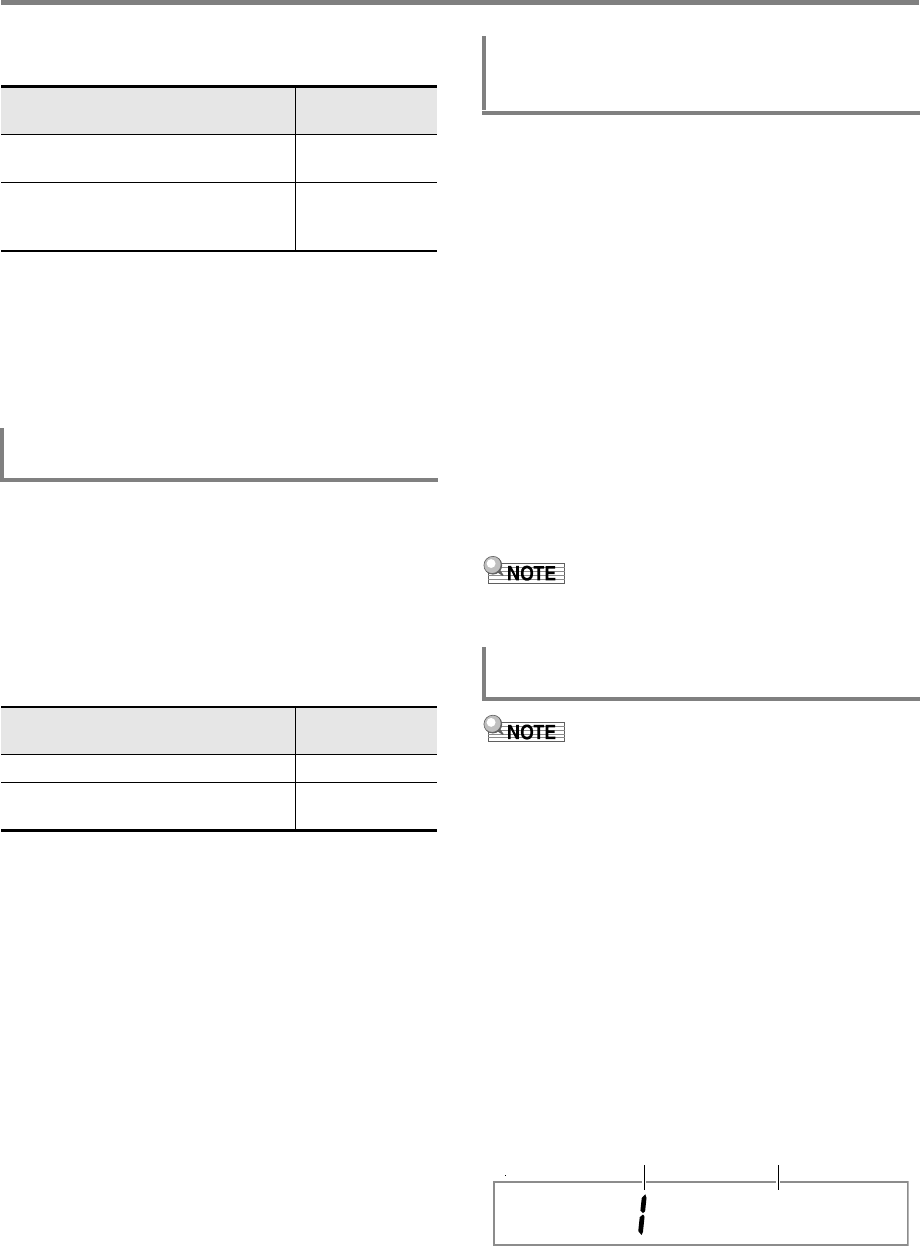
Controlling Sounds
EN-34
4.
Use bn [–] and [+] to select the
dt MODULATION/ASSIGNABLE operation.
• The indicator lamp to the left of the button is lit when
the assigned function is enabled, and unlit when it is
disabled.
5.
When the setting is the way you want, long-
press the [4] (EXIT) bm number key to exit the
setting screen.
1.
Perform steps 1, 2, and 3 under “To change the
operation performed when dt MODULATION/
ASSIGNABLE is pressed” (page EN-33).
2.
Use the [1] (V) and [3] (W) bm number keys
to display “Btn Func”.
3.
Use bn [–] and [+] to change the function
assigned to dt MODULATION/ASSIGNABLE.
*For information about the setting operation see “To change
how DSP effects applied when dt MODULATION/
ASSIGNABLE is pressed” (page EN-34).
4.
When the setting is the way you want, long-
press the [4] (EXIT) bm number key to exit the
setting screen.
1.
Perform steps 1, 2, and 3 under “To change the
operation performed when dt MODULATION/
ASSIGNABLE is pressed” (page EN-33).
2.
Use the [1] (V) and [3] (W) bm number keys
to display “PartEnbl”, and then press [6]
(ENTER).
3.
Use the [1] (V) and [3] (W) keys to display
the part whose setting you want to change.
4.
Use the bn [–] and [+] to switch between on
and off.
• The effect is applied to parts that are turned on, and
not applied to parts that are turned off.
5.
When the setting is the way you want, long-
press the [4] (EXIT) bm number key to exit the
setting screen.
• For details about keyboard parts, see “Sounding Multiple
Tones (Layer and Split)” (page EN-19).
• The DSP module registered with the procedure below are
elements of this Digital Keyboard’s DSP effect. For details
about DSP effect configuration and parameters, see “DSP
Editing” (page EN-72).
1.
Perform steps 1, 2, and 3 under “To change the
operation performed when dt MODULATION/
ASSIGNABLE is pressed” (page EN-33).
2.
Use the [1] (V) and [3] (W) bm number keys
to display “Btn Func”.
3.
Use bn [–] and [+] to change the setting to
“2 DSP”.
4.
Use the [1] (V) and [3] (W) keys to display
“DSPModle” (the target DSP module).
This displays a DSP module name.
To select this operation: Select this
setting value:
Enable the function assigned to the
button only while the button is pressed.
1 Moment
Toggle the function between enabled
and disabled each time the button is
pressed.
2 Toggle
To change the function assigned to
dt MODULATION/ASSIGNABLE
To change to this function: Select this
setting value:
Vibrato 1 Mod
Change how DSP effects are applied to
tones in accordance with user settings.*
2DSP
To specify the keyboard part to which an
effect is applied when dt MODULATION/
ASSIGNABLE is pressed
To change how DSP effects applied when
dt MODULATION/ASSIGNABLE is pressed
M
on1B EQ
Module number DSP module name
CTX5000_3000_EN.book 34 ページ 2018年2月26日 月曜日 午後3時56分
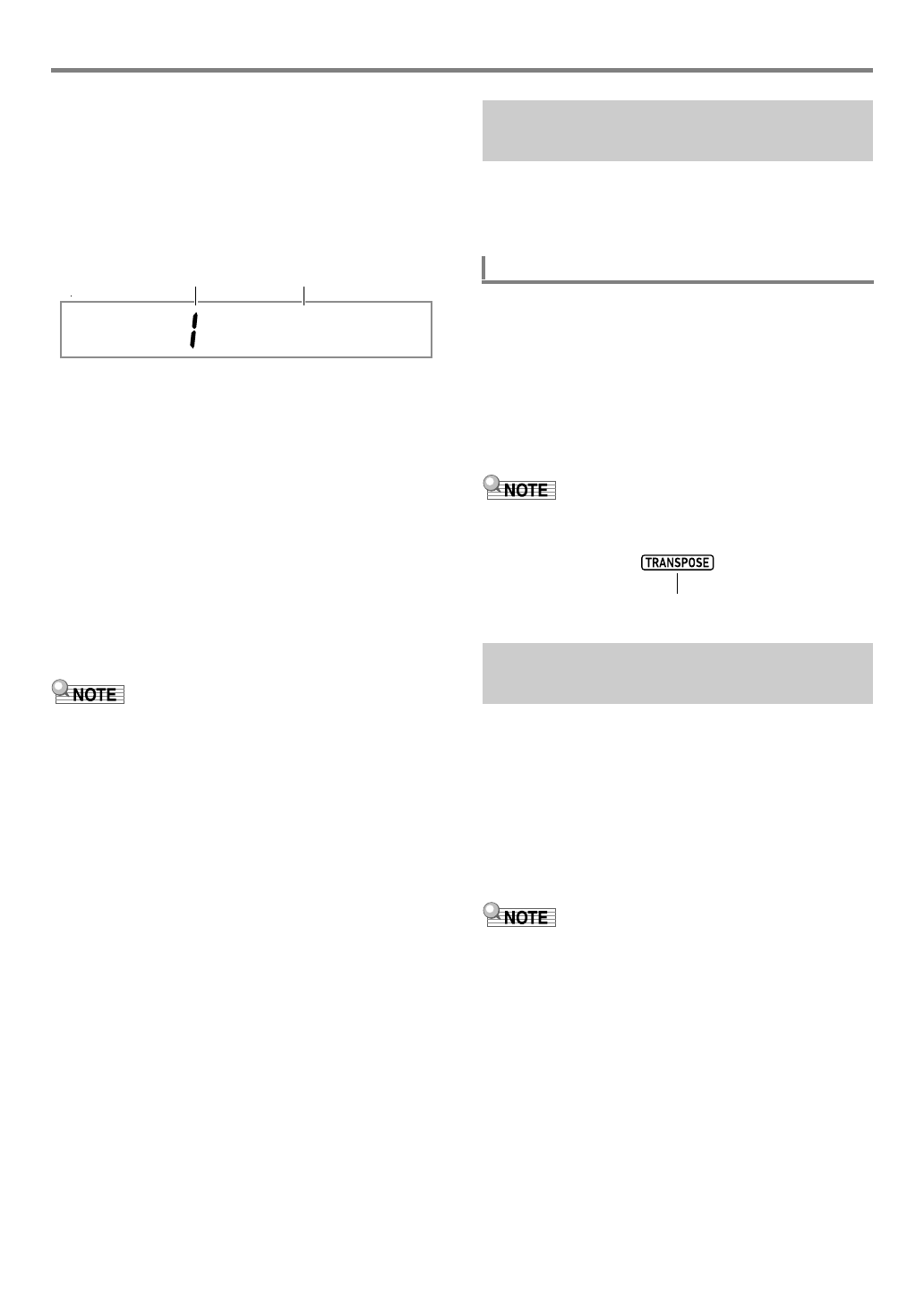
EN-35
Controlling Sounds
5.
Use bn [–] and [+] or the bl dial to specify a
DSP module.
6.
Use the [1] (V) and [3] (W) bm number keys
to display “DSPParam” (the target DSP
parameter).
This displays the name of the first parameter of the DSP
module you selected in step 5.
7.
Use bn [–] and [+] or the bl dial to display the
parameter you want to change when
dt MODULATION/ASSIGNABLE is pressed.
8.
Use the [1] (V) and [3] (W) keys to display
“DSPValue” (value when DSP is turned on).
9.
Use bn [–] and [+] or the bl dial to change the
setting value applied when dt MODULATION/
ASSIGNABLE is pressed.
10.
When the setting is the way you want, long-
press the [4] (EXIT) bm number key to exit the
setting screen.
• The assigned DSP modules depend on the tone. To check
the DSP modules for each tone, perform the procedure
under “To use DSP editing to edit an effect” (page EN-72).
The transpose feature lets you raise or lower the overall pitch
of the Digital Keyboard in semitone steps. You can use this
feature to adjust keyboard pitch to a key that better matches a
vocalist, another musical instrument, etc.
1.
Press the ds TRANSPOSE [w] or [q] button.
This displays “Trans.”
• You can change the pitch of the keyboard within the
range of –12 to 00 to +12.
• While “Trans.” is displayed, you can use the bm
number keys, bn [–] and [+], or the bl dial to change
the setting value.
• Pressing bk FUNCTION or not performing an
operation for some time causes “Trans.” to disappear.
• The [TRANSPOSE] indicator will be displayed while the
transpose setting is something other than 0 (zero).
Octave Shift lets you raise or lower the pitch of the keyboard
in octave units. You can configure individual octave shift
settings for each of the keyboard parts* (UPPER 1,
LOWER 1, UPPER 2, LOWER 2).
• You can also specify the number of octaves to shift for each
part.
• With Quick Octave Shift, you can quickly shift octaves in
accordance with settings that are pre-configured for a part.
*See “Sounding Multiple Tones (Layer and Split)” (page
EN-19).
• The Octave Shift setting changes automatically when some
tones are selected. For details, refer to the “Octave Shift”
column of the tone list in the separate “Appendix”.
• The Auto Harmonize (page EN-52) sound depends on the
UPPER 1 part setting.
EQ Ga i n
Parameter number Parameter name
Changing the Pitch in Semitone
Steps (Transpose)
To change the pitch in semitone units
Changing the Pitch of Each Part
in Octave Units (Octave Shift)
Displayed
CTX5000_3000_EN.book 35 ページ 2018年2月26日 月曜日 午後3時56分
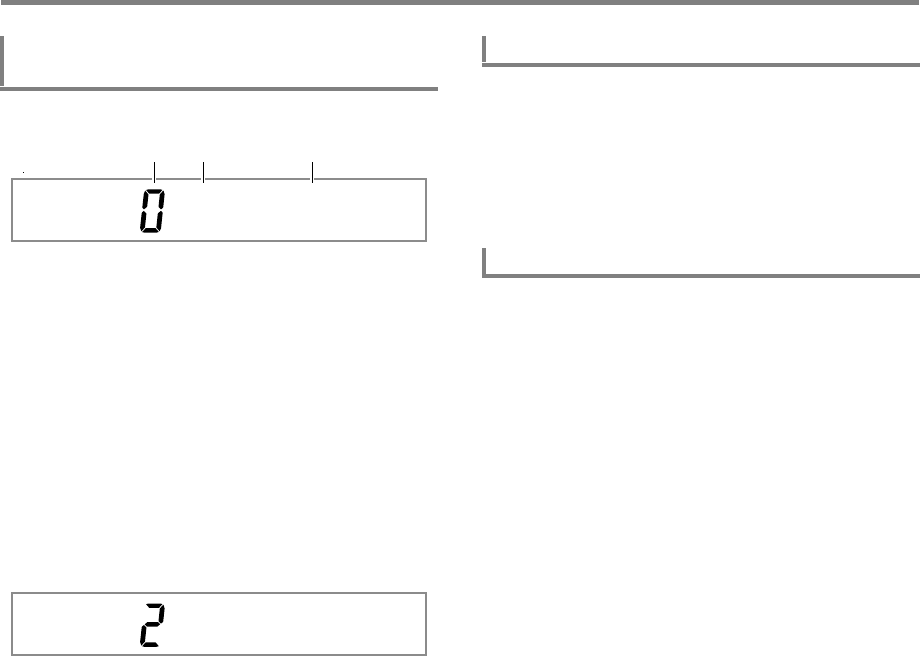
Controlling Sounds
EN-36
1.
Press dr OCTAVE.
Number of octaves shifted. 0 (zero) indicates no
shifting, 1 indicates one octave up, and –1 indicates
one octave down. You can specify a value in the
range of –3 to +3.
Keyboard part. For details about keyboard parts and
how they are indicated, see “Keyboard Part
Indicators” (page EN-19).
Indicates the octave shift setting screen.
2.
Use the [1] (V) and [3] (W) bm number keys
to select the keyboard part you want to octave
shift.
3.
Use bn [–] and [+] to octave shift the keyboard
part you selected in step 2.
4.
Repeat steps 2 and 3 to octave shift other parts
as required.
5.
To exit the procedure and return to the state
the Digital Keyboard was in before step 1 of
this procedure, press dr OCTAVE or the [4]
(EXIT) bm number key.
1.
While holding down dr OCTAVE, press the
ds TRANSPOSE [w] or [q] button.
• Pressing [w] shifts the specified keyboard parts one
octave down, while [q] shifts one octave up.
• Use the Quick Octave Shift keyboard part selection
procedure below to select the parts that are affected
by a Quick Octave Shift operation.
1.
Press dr OCTAVE.
This displays “U1 Oct.”
2.
Use the [1] (V) and [3] (W) bm number keys
to display “Btn Trgt”, and then press [6]
(ENTER).
This displays “U1OctBtn”.
3.
Use the [1] (V) and [3] (W) keys to display
the part whose setting you want to change.
4.
Use the bn [–] and [+] to switch between on
and off.
• Selecting on causes the keyboard part’s octave to be
shifted by the Quick Octave Shift operation under “To
use Quick Octave Shift” (page EN-36).
5.
Repeat steps 3 and 4 as required for other
parts.
6.
When the setting is the way you want, long-
press the [4] (EXIT) bm number key to exit the
setting screen.
To configure the octave shift amount setting
for each part
U1 Oc t .
U2 Oc t .
To use Quick Octave Shift
To select Quick Octave Shift keyboard parts
CTX5000_3000_EN.book 36 ページ 2018年2月26日 月曜日 午後3時56分
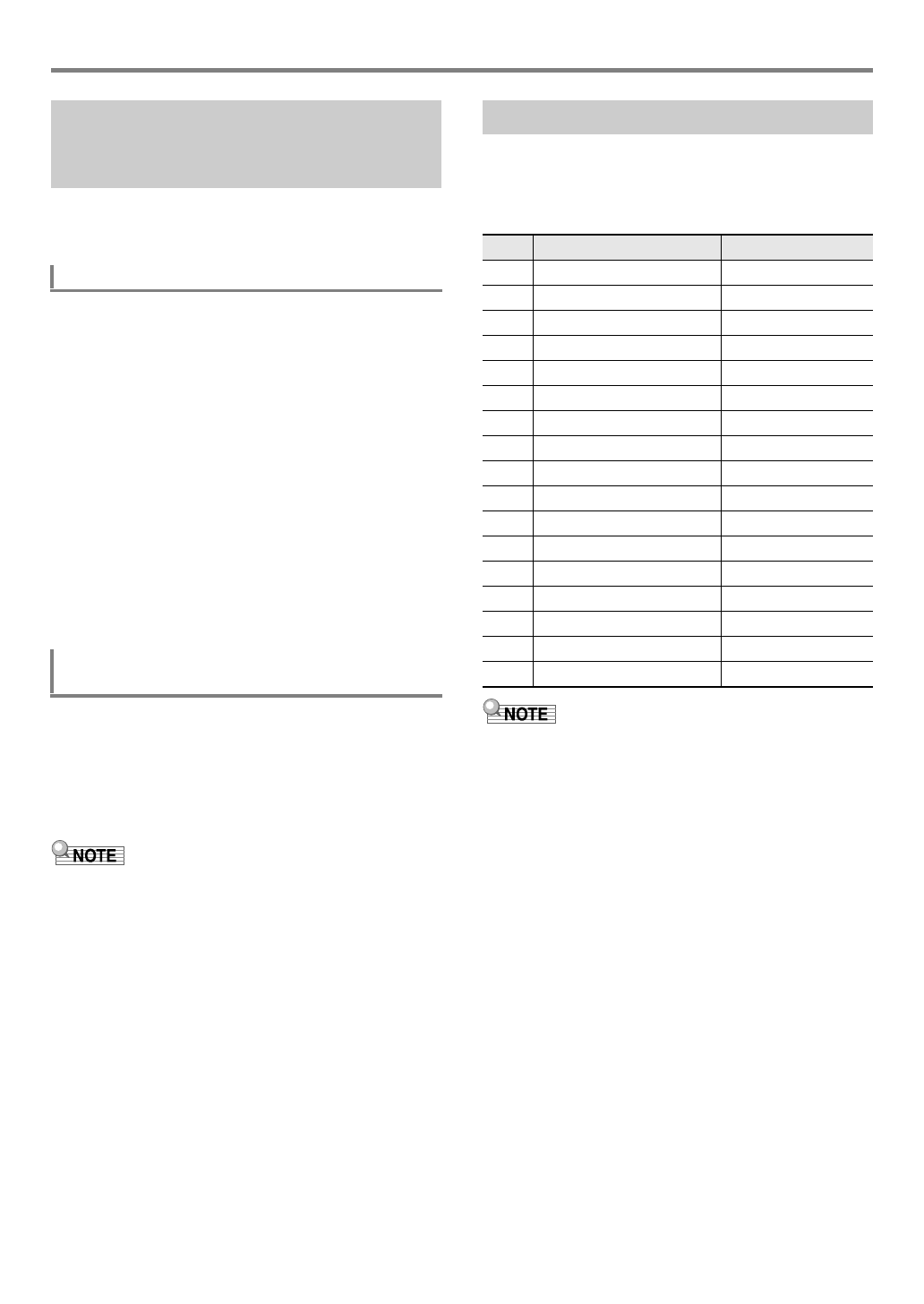
EN-37
Controlling Sounds
Use the procedure below to perform master Digital Keyboard
pitch adjustment. When making adjustments, the A4 note (A
above middle C) is the tuning standard.
1.
Press bk FUNCTION.
2.
Use the [1] (V) and [3] (W) bm number keys
to display “Tune”, and then press [6] (ENTER).
This displays “MstrTune”.
3.
Use the bm number keys, bn [–] and [+], or the
bl dial to change the setting value.
• The setting range is 415.5 to 465.9 Hz (Default: 440.0
Hz).
• Use the bm number keys to input integers.
• You can use bn [–] and [+] or the bl dial to change
the frequency in 0.1Hz steps
4.
When the setting is the way you want, long-
press the [4] (EXIT) bm number key to exit the
setting screen.
When using layer and split, you can individually fine-tune the
pitch of each part (UPPER 1, LOWER 1, UPPER 2,
LOWER 2).
Perform the procedure under “To configure function settings
with the bk FUNCTION button” (page EN-112) and configure
the following settings: Tuning (Tune) 3 Part Coarse Tune
(PrtCoars) and Part Fine Tune (Prt Fine) (page EN-115).
• Part coarse tuning changes the pitch in semitone steps,
while part fine tuning adjusts pitch in cent units.
• The Auto Harmonize (page EN-52) sound depends on the
UPPER 1 part setting.
You can select from among 17 different scales, including
those that a suitable for classical music of specific eras,
Arabian music, etc.
■Scale List
• You can fine tune the pitch of each note of the scale (from
C to B) in one-cent units. After selecting one of the preset
scales, you can modify its tuning as desired. For details,
see “To fine tune a scale (Scale Fine Tuning)” (page
EN-38).
• You can fix the scale of Auto Accompaniment as equal
temperament, regardless of the currently selected scale. To
do so, use the procedure under “To change the scale
setting used for Auto Accompaniments” to turn off the
Accompaniment Scale (AcompScl) setting (page EN-38).
Performing Master Digital
Keyboard and Individual Part
Pitch Adjustment
To fine tune a pitch (Tuning)
To fine tune the pitch of each keyboard part
(Part Coarse Tuning, Part Fine Tuning)
Selecting a Scale
No. Scale name Display
01 Equal Temperament Equal
02 Pure Major PureMajr
03 Pure Minor PureMinr
04 Pythagorean Pythagor
05 Kirnberger 3 Kirnbrg3
06 Werckmeister Wercmeis
07 Mean-Tone MeanTone
08 Rast Rast
09 Bayati Bayati
10 Hijaz Hijaz
11 Saba Saba
12 Dashti Dashti
13 Chahargah Chaharga
14 Segah Segah
15 Gurjari Todi GujrTodi
16 Chandrakauns Cndrkuns
17 Charukeshi Carukesi
CTX5000_3000_EN.book 37 ページ 2018年2月26日 月曜日 午後3時56分
Controlling Sounds
EN-38
1.
Press bk FUNCTION.
2.
Use the [1] (V) and [3] (W) bm number keys
to display “Scale”, and then press [6] (ENTER).
This displays “Type”.
3.
Use bn [–] and [+] or the bl dial to change the
setting value.
• For details about the scales that corresponds to each
setting value, see the “Scale List” (page EN-37).
4.
Press the [3] (W) bm number key to display
“Root”.
5.
Use bn [–] and [+] or the bl dial to select the
root note.
6.
When the setting is the way you want, long-
press the [4] (EXIT) bm number key to exit the
setting screen.
1.
Perform steps 1 and 2 under “To select the
temperament of keyboard play” (page EN-38).
2.
Use the [1] (V) and [3] (W) bm number keys
to display “FineTune”, and then press [6]
(ENTER).
This displays “C Tune”.
3.
You can fine tune the pitch of each individual
note in the scale.
(1) Use the [1] (V) and [3] (W) keys to display the
name of the note (C to B) whose pitch you want to
fine tune.
(2) Use bn [–] and [+] or the bl dial to fine-tune the
pitch of the currently displayed note.
• You can change pitch within a range of –99 to +99
cents.
(3) Repeat steps (1) and (2) as many times as
necessary to fine tune the pitches of the notes you
want.
4.
When the setting is the way you want, long-
press the [4] (EXIT) bm number key to exit the
setting screen.
1.
Perform steps 1 and 2 under “To select the
temperament of keyboard play” (page EN-38).
2.
Use the [1] (V) and [3] (W) bm number keys
to display “AcompScl”.
3.
Use bn [–] and [+] to turn the setting on or off.
On: The scale selected by the procedure under “To
select the temperament of keyboard play” is also applied
to Auto Accompaniment.
Off: The scale of Auto Accompaniment is always equal
temperament.
4.
When the setting is the way you want, long-
press the [4] (EXIT) bm number key to exit the
setting screen.
To select the temperament of keyboard play
To fine tune a scale (Scale Fine Tuning)
To change the scale setting used for Auto
Accompaniments
CTX5000_3000_EN.book 38 ページ 2018年2月26日 月曜日 午後3時56分
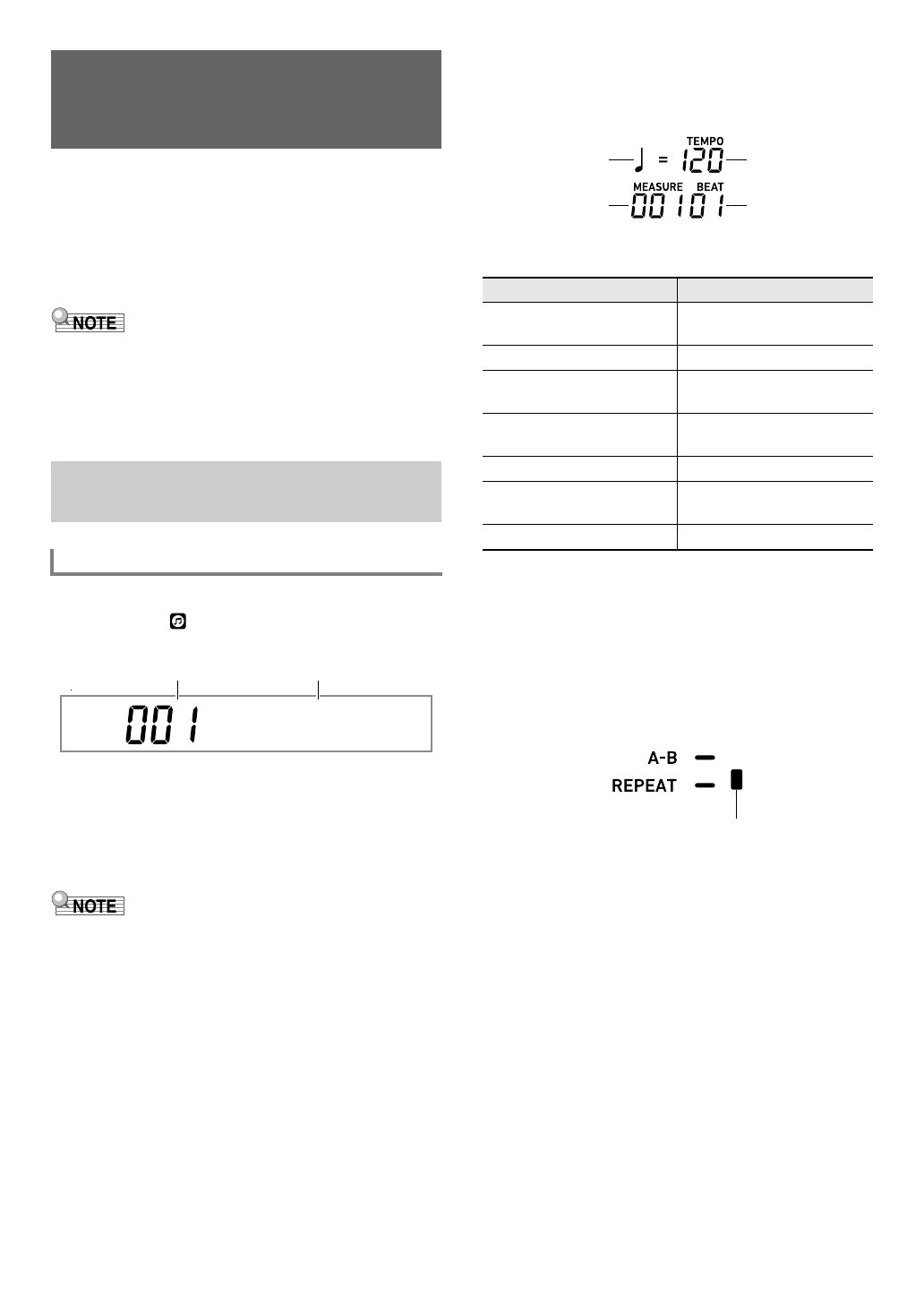
EN-39
Your Digital Keyboard comes with 30 built-in songs.* You can
use built-in songs for listening enjoyment, or you can mute the
part of one hand of the piano part and play along for practice.
You can also connect a USB flash drive to the Digital
Keyboard and use the same operations as those for built-in
songs to play MIDI files (SMF or CMF).
*With this Digital Keyboard, the term “song” is used to refer
to a musical piece.
• The functions and operations below cannot be used while a
built-in song or a CMF format song stored on a USB flash
drive is playing.
– Mixer function (page EN-64)
– Part Mode (page EN-62) part ON/OFF switching (You
can, however, check the currently part selection status.)
1.
Press 7SONG BANK.
This displays (song bank indicator) and enters the
Song Bank Mode.
2.
Use the bm number keys, bn [–] and [+], or the
bl dial to select a song number.
• See “Numeric Input” (page EN-14) for information
about how to specify a number.
• See page A-1 for a list of songs.
• This operation automatically changes the beat setting of the
metronome (page EN-27) to the beat of the selected song.
Even if the beat of a song is outside the allowable setting
range of the metronome, it is still applied as the metronome
setting.
• This operation changes the reverb setting (page EN-22) to
match the currently selected song.
• Selecting some songs will initially cause “Lod” to be
displayed for TEMPO (see the illustration under step 3).
This indicates that data is being loaded.
3.
Press ck PLAY/STOP.
• This starts song playback. The playback tempo,
current measure, and current beat are shown in the
upper right corner of the display.
• The operations below are supported during song
playback.
• While a song is playing back, you can play along on
the keyboard using the tone (including split and layer
tones) that was selected before song playback was
started.
4.
To stop song playback, press ck PLAY/STOP.
• The song plays in a continuous loop (repeat on) until
you press ck PLAY/STOP. To turn off repeat, press
bp REPEAT and confirm that there is no indicator
mark next to [REPEAT].
Playing a Built-in Song or a
Song on a USB Flash Drive
(Song Bank Mode)
Selecting a Built-in Song for
Playback
To select a single built-in song for playback
Sa i n t sGo
Song number Song name
To perform this operation: Do this:
Stop a song part way
through.
Press ck PLAY/STOP.
Pause or unpause a song. Press btkPAUSE.
Change the song playback
speed.
Press the dk TEMPO [w]
or [q] button.
Jump to the beginning of the
next measure.
Press bsdFF.
Fast forward the song Hold down bsdFF.
Jump to the beginning of the
previous measure.
Press brsREW.
Fast reverse the song Hold down brsREW.
Note Value
Measure
Tempo
Beat
Indicator goes out when repeat is turned off.
CTX5000_3000_EN.book 39 ページ 2018年2月26日 月曜日 午後3時56分
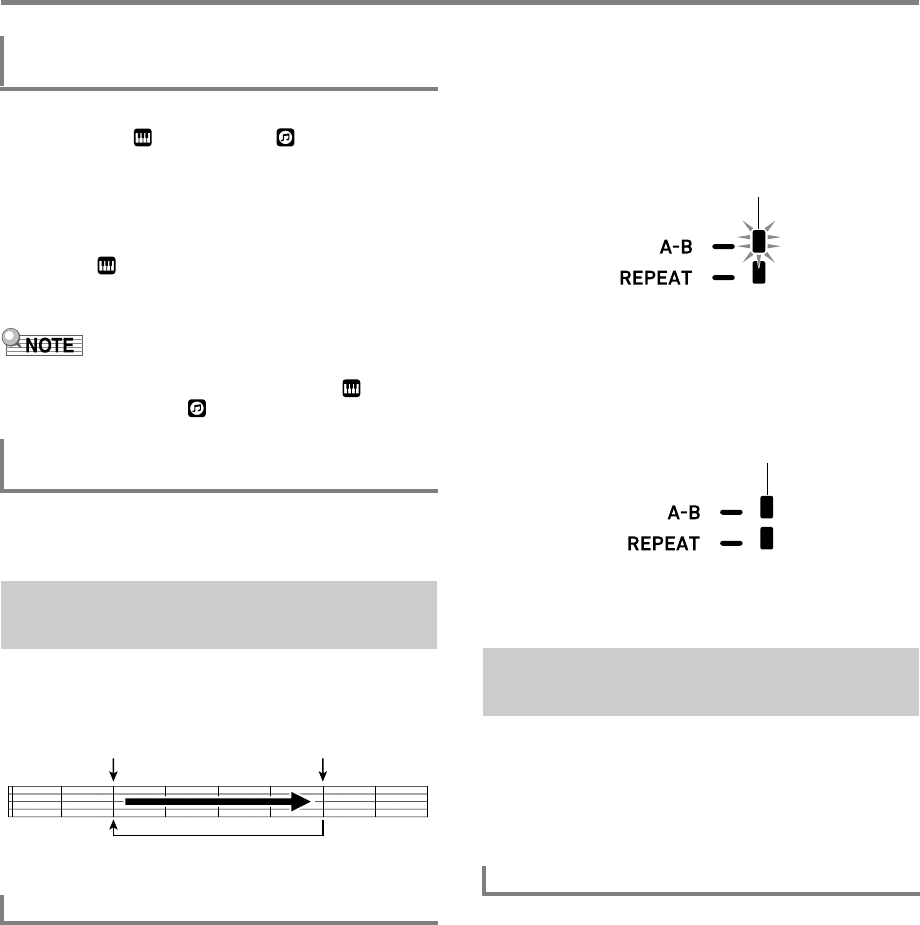
Playing a Built-in Song or a Song on a USB Flash Drive (Song Bank Mode)
EN-40
1.
In the Song Bank mode, press 5TONE.
This displays (tone indicator). (song bank
indicator) will also remain on the display.
2.
Use the bm number keys, bn [–] and [+], or the
bl dial to select the number of the tone you
want to assign to keyboard play.
• While is displayed, you can perform the split and/or
layer tone selection operation. For more information,
see “Selecting a Tone” (page EN-18).
• To change a tone number you selected using the procedure
above, press 7SONG BANK. This causes to
disappear, leaving only displayed.
Perform the procedure under “To configure function settings
with the bk FUNCTION button” (page EN-112) and configure
the following setting: Song Volume (Song Vol) (page EN-115).
To loop a range of measures in a song, you need to specify
the start measure and end measure of the section you want to
repeat.
1.
If there is no indicator mark next to [REPEAT],
press bp REPEAT to display it.
2.
Perform steps 1, 2, and 3 under “To select a
single built-in song for playback” (page EN-39)
to start song playback.
3.
When playback reaches the beginning of the
section you want to loop, press bq A-B.
This will make the beginning of the measure that is
playing when you press bq A-B the beginning of the
loop, and cause the indicator mark next to [A-B] to start
to flash.
4.
When playback reaches the end of the section
you want to repeat, press bq A-B again.
This will make the end of the measure that is playing
when you press bq A-B the end of the loop, and cause
the indicator mark next to [A-B] to stop flashing.
5.
To return to normal playback, press bq A-B.
This causes the indicator mark next to [A-B] to disappear.
You can mute one of the hand parts of a song for playback.
Then you can practice by playing the muted part on the
keyboard. The following types of songs can be used for such
practice: built-in songs,* or CMF format (one type of CASIO
MIDI file) songs* stored on a USB flash drive.
*These songs have part channel information (page EN-41).
1.
Press 7SONG BANK.
2.
Use the bm number keys, bn [–] and [+], or the
bl dial to select a song number.
3.
Press ck PLAY/STOP to start song playback.
To select a tone for keyboard play in the
Song Bank mode
To adjust the balance between song and
keyboard volume
Looping Playback of Specific
Song Measures (A-B Repeat)
To loop a specific phrase
Start End
These measures are repeated.
Playing Back with One Hand’s
Part Muted
To play back with one hand’s part muted
Flashing
Displayed
CTX5000_3000_EN.book 40 ページ 2018年2月26日 月曜日 午後3時56分
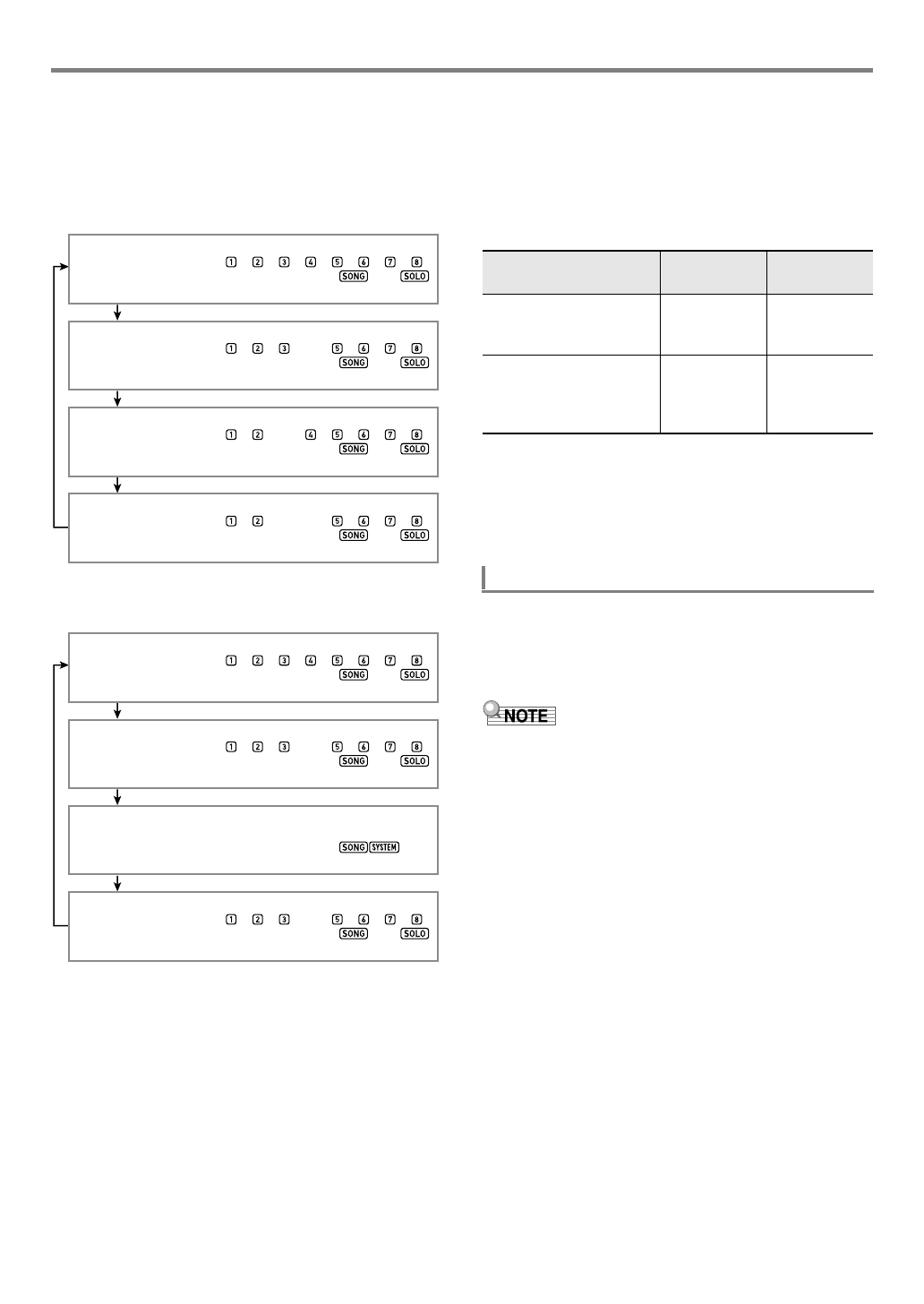
EN-41
Playing a Built-in Song or a Song on a USB Flash Drive (Song Bank Mode)
4.
Use bo PART SELECT to select a part to
practice.
• Each press of bo PART SELECT causes the
indicators below to appear or disappear in accordance
with the type of song that is selected.
YSong with One Left-hand and One Right-hand Part
YSong with Chord Accompaniment on the Left-hand
Side and Melody on the Right-hand Side
*Each press of bo PART SELECT cycles through these
settings, with the current setting appearing momentarily on
the display.
5.
To stop song playback, press ck PLAY/STOP.
■Part Channel Information
In built-in songs and CMF format songs, parts where left-hand
play is recorded and parts where right-hand play is recorded
are separate. These songs have “part channel information”,
which is information that controls to which Digital Keyboard
parts left-hand and right-hand play should be assigned.
The part channel information contained in built-in songs and
general CMF format songs is described below.
Though standard MIDI files (SMF format) stored on a USB
flash drive can also be played back by the Digital Keyboard,
such files do not have part channel information. Use the
procedure below to specify whether the right-hand part or left-
hand part should be muted when bo PART SELECT is
pressed for playback of such a file.
Perform the procedure under “To configure function settings
with the bk FUNCTION button” (page EN-112) and change
the part channel settings: Other (Other) 3 Right Hand
(Melody) Part Channel (PartR Ch), Left Hand Part Channel
(PartL Ch) (page EN-117).
• The above setting is applied only for playback of a song
that does not have part channel information. When a song
has part channel information, this setting is ignored and the
part channel information is given priority.
Both-hand playback
(Off)*
Right hand muted
(Right)*
Left hand muted
(Left)*
Both hands muted
(Both)*
Both-hand playback
(Off)*
Right hand muted
(Right)*
Left hand muted
(Left)*
Both hands muted
(Both)*
Song Type Left Hand
Part:
Right-hand
Part
Normal piano song with
one tone for both hands
Part 3 of
SONG SOLO
Part Group
Part 4 of
SONG SOLO
Part Group
Song with Auto
Accompaniment for the
left-hand part and melody
for the right-hand part
Part 1 through
8 of RHYTHM
Part Group
Part 4 of
SONG SOLO
Part Group
To specify a part channel
CTX5000_3000_EN.book 41 ページ 2018年2月26日 月曜日 午後3時56分
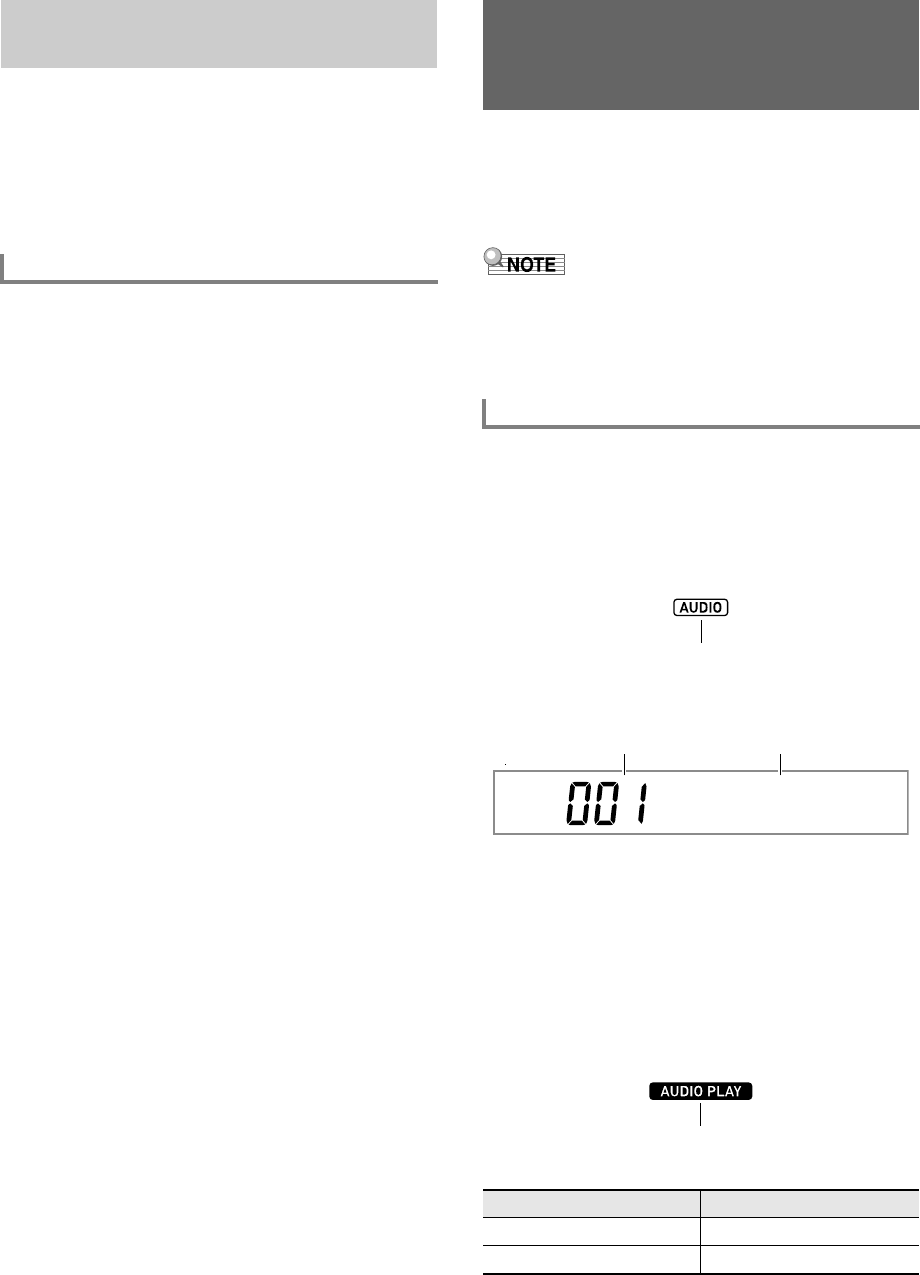
EN-42
You can use the same operations as those for built-in songs
to play back MIDI files* stored in the MUSICDAT folder on a
USB flash drive. For information about the procedure for
saving a MIDI file to a USB flash drive, see “Using a Computer
to Copy General Song Data to a USB Flash Drive” (page
EN-123).
*Standard MIDI files (SMF format 0/1) and CASIO MIDI files
(CMF format)
1.
Insert the USB flash drive into the Digital
Keyboard’s USB flash drive port.
• When you perform a USB flash drive operation or turn
on the Digital Keyboard while a USB flash drive is
plugged in, the Digital Keyboard initially needs to
perform a “mounting” sequence to prepare for data
exchange with the USB flash drive. Digital Keyboard
operations may be momentarily disabled while a
mounting sequence is being performed. The [USB]
indicator will flash on the display while the USB flash
drive is being mounted. It may take up to 10 or 20
seconds or even longer for a USB flash drive to be
mounted. The message “Listing” will be displayed
while the mounting operation is in progress. Do not
attempt to perform any operation on the Digital
Keyboard while a mounting sequence is in progress. A
USB flash drive needs to be mounted each time it is
connected to the Digital Keyboard.
2.
Perform the procedure under “To select a
single built-in song for playback” (page EN-39).
• Song numbers are assigned automatically in
sequence to MIDI files on the USB flash drive. The
files are sorted on their file names, and the first MIDI
file is assigned song number 41.
You can use your Digital Keyboard to play back audio files
(WAV format, 44.1 kHz 16bit) stored in the MUSICDAT folder
on a USB flash drive. For information about the procedure for
saving an audio file to a USB flash drive, see “Using a
Computer to Copy General Song Data to a USB Flash Drive”
(page EN-123).
• While audio file playback is in progress, you can perform
normal keyboard play, and you can use layer, split
operations.
• For information about handling USB flash drives, see “USB
Flash Drive” (page EN-119).
1.
Plug a USB flash drive where a supported
audio file is stored into the Digital Keyboard’s
USB port.
2.
Long-press 7SONG BANK (AUDIO) until the
[AUDIO] indicator appears.
This means that the Digital Keyboard is in the Audio Mode
and is standing by for audio file playback.
• Song numbers are assigned automatically in
sequence to audio files on the USB flash drive.
3.
Use the bm number keys, bn [–] and [+], or the
bl dial to select the number of the audio file
you want to play back.
4.
To start playback, press 8AUDIO PLAY/
STOP.
This displays [AUDIO PLAY] indicator.
• The operations below are supported during playback.
Playing Back a Song from a USB
Flash Drive
To play back a song from a USB flash drive
Playing Back an Audio File
on a USB Flash Drive (Audio
Mode)
To play back an audio file
To perform this operation: Press this button:
Skip to the next file bn [+]
Skip to the previous file bn [–]
Displayed
Abso l u t e
Song number File name
Displayed
CTX5000_3000_EN.book 42 ページ 2018年2月26日 月曜日 午後3時56分
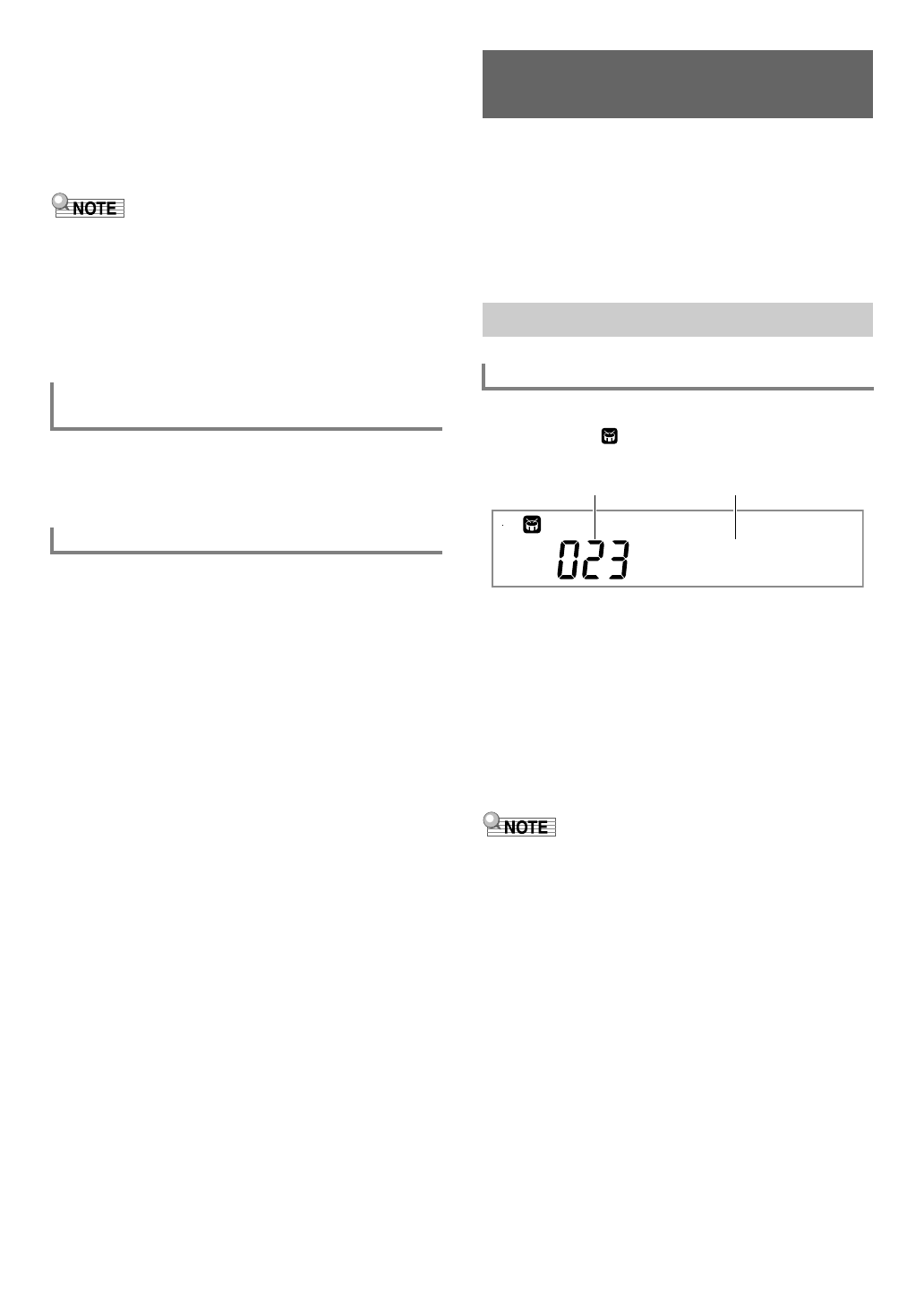
EN-43
5.
To stop playback, press 8AUDIO PLAY/
STOP.
This causes the [AUDIO PLAY] indicator to disappear.
6.
To exit the Audio Mode, press 7SONG BANK
(AUDIO).
This causes the [AUDIO] indicator to disappear.
• Playback of an audio file continues even if you exit the
Audio Mode. In this case as well, press 8AUDIO PLAY/
STOP to stop playback.
• You can loop playback of an audio file. Perform the
procedure under “To configure function settings with the
bk FUNCTION button” (page EN-112) and turn on the
repeat setting: Audio Playback (AudioPly) 3 Audio
playback looping (Repeat) (page EN-116).
Perform the procedure under “To configure function settings
with the bk FUNCTION button” (page EN-112) and change
the volume setting: Audio Playback (AudioPly) 3 Audio
playback volume (Volume) (page EN-116).
Enabling Vocal Cut mutes or minimizes the vocal part in the
audio file playback. Note that this function cancels the sound
in the center position of the audio, which may (depending on
how the original audio was mixed) end up canceling
something else other than the vocal part. How vocal cut is
performed depends on the sound being input.
Perform the procedure under “To configure function settings
with the bk FUNCTION button” (page EN-112) and change
the Center Cancel setting: Audio Playback (AudioPly) 3
Audio playback Center Cancel (C Cancel) (page EN-116).
With Auto Accompaniment, simply select the accompaniment
rhythm you want and the matching accompaniment (bass,
guitar, and other instruments) will sound automatically when
you play a chord with your left hand. It’s like having your own
personal backup group along with you wherever you go.
You can edit built-in rhythms and produce original Auto
Accompaniments (user rhythms) and save them in memory.
For details, see “Creating an Auto Accompaniment (User
Rhythm)” (page EN-76).
1.
Press 6RHYTHM.
This displays (rhythm indicator) and enters the
Rhythm Mode.
2.
Use the bm number keys, bn [–] and [+], or the
bl dial to select a rhythm number.
• See “Numeric Input” (page EN-14) for information
about how to specify a number.
• Rhythms are divided into multiple categories, and are
arranged for quick and easy navigation between
categories. For more information, see
“4CATEGORY Button” (page EN-15).
• For details about rhythm categories and types, refer to
the separate “Appendix”.
• This operation automatically changes the beat setting of the
metronome (page EN-27) to the beat of the selected
rhythm. Even if the beat of a rhythm is outside the allowable
setting range of the metronome, it is still applied as the
metronome setting.
3.
Press ck START/STOP to start play of the
selected rhythm.
• This starts Auto Accompaniment with rhythm (drum
and percussion) only. To stop rhythm play, press
ck START/STOP again.
To adjust the balance between audio file
playback and keyboard volume
Center Cancel (Vocal Cut)
Using Auto Accompaniment
(Rhythm Mode)
Selecting a Rhythm
To select a rhythm
Strt 8Bt
Rhythm number Rhythm name
CTX5000_3000_EN.book 43 ページ 2018年2月26日 月曜日 午後3時56分
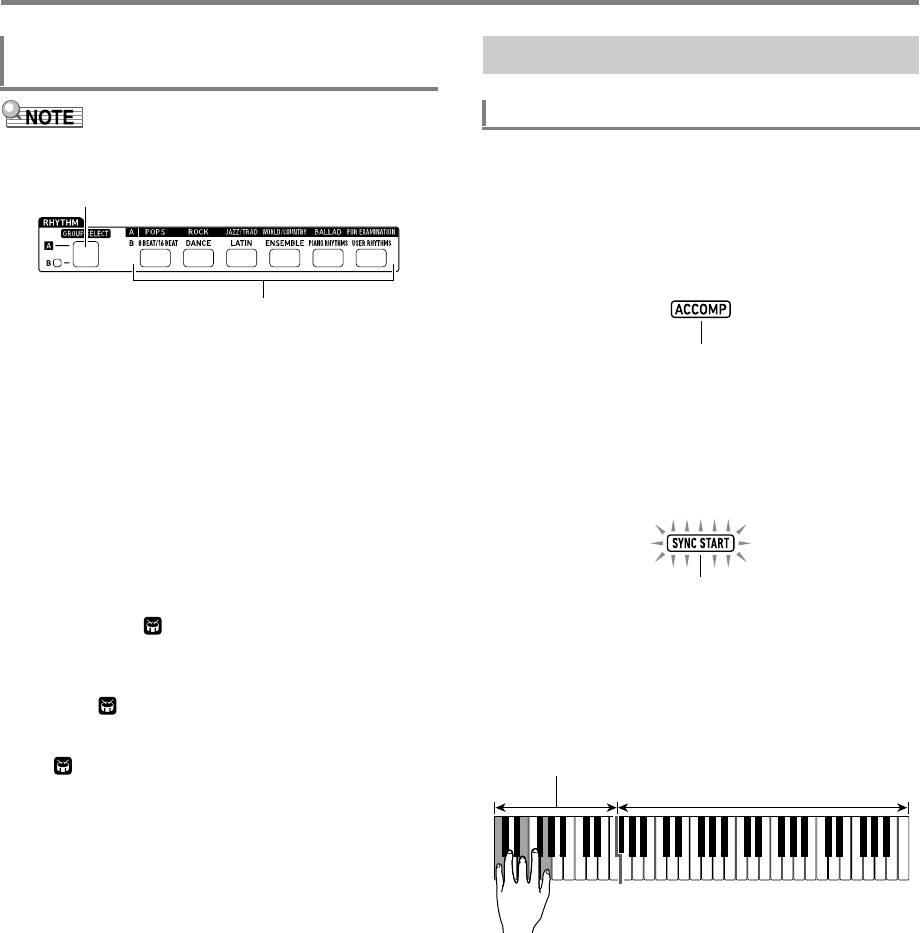
Using Auto Accompaniment (Rhythm Mode)
EN-44
• You can use the eq RHYTHM Category buttons to quickly
and easily navigate between categories.
Rhythm categories are divided between two groups: Group
A (L) and Group B (M). Which category (group) a
eq RHYTHM Category button selects depends on whether
or not the indicator lamp to the left of ep RHYTHM
GROUP SELECT is lit.
1.
Press the ep RHYTHM GROUP SELECT
button to toggle between category Group A
(indicator lamp unlit) and Group B (indicator
lamp lit).
2.
To select a category, press its eq RHYTHM
Category button.
• This causes (rhythm indicator) to flash on the
display.
• Pressing a eq RHYTHM Category button will select
the last selected rhythm in the corresponding category.
While is flashing, you can select one of the
rhythms included in the category. To exit category
rhythm selection, press 6RHYTHM. This causes
to stop flashing.
3.
Use the bm number keys, bn [–] and [+], or the
bl dial to select the number of the rhythm you
want to sound.
1.
Use the procedure under “Selecting a Rhythm”
(page EN-43) to select the rhythm you want to
sound.
2.
Press cm ACCOMP and confirm that the
[ACCOMP] indicator is displayed.
• For details about this indicator, see “Auto
Accompaniment Parts and the ACCOMP Indicator”
(page EN-45).
3.
Press bt ENDING/SYNCHRO START.
• This enters synchro start standby (page EN-48).
4.
Play the chord you want on the
accompaniment keyboard.
Auto Accompaniment will start playing when you play the
chord.
Example: Play a C chord (C-E-G).
CT-X5000: To use the RHYTHM Category
buttons to select a category
ep RHYTHM GROUP SELECT button
eq RHYTHM Category buttons
Using Auto Accompaniment
To play an Auto Accompaniment
Displayed
Flashing
Accompaniment keyboard
UPPER part keyboard
CTX5000_3000_EN.book 44 ページ 2018年2月26日 月曜日 午後3時56分
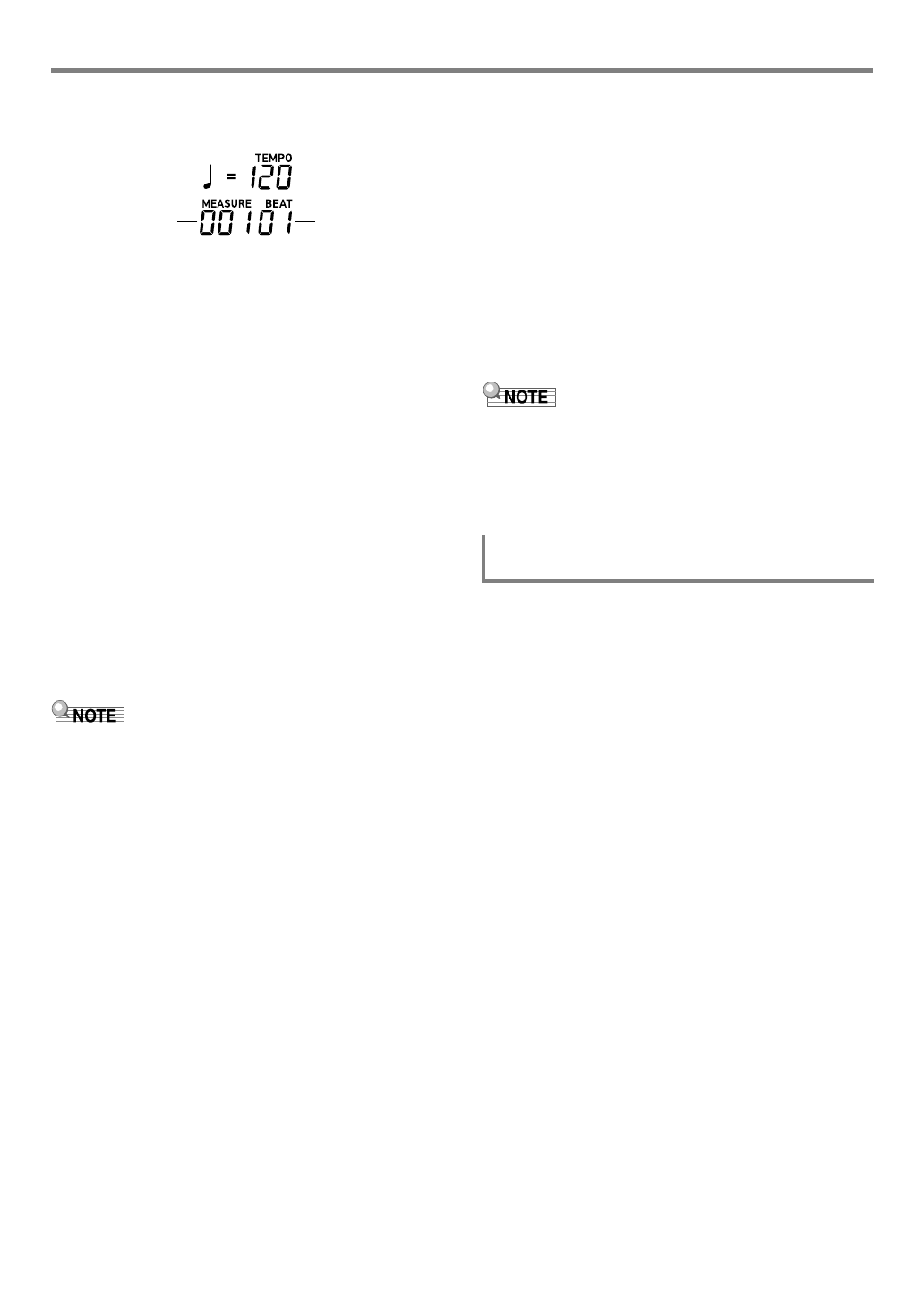
EN-45
Using Auto Accompaniment (Rhythm Mode)
5.
Use the dk TEMPO [w] and [q] buttons to
change the tempo setting.
• You can also configure the tempo setting before
starting Auto Accompaniment.
• For information about the tempo setting, see
“Changing Auto Accompaniment Speed (Tempo)”
(page EN-46).
6.
Play other chords with your left hand as you
play the melody with your right hand.
• You can use “CASIO CHORD” or other simplified
chord fingering modes to play chords. See “To select a
chord fingering mode” (page EN-50).
• You can change the accompaniment using buttons
bp VARIATION/FILL-IN 1 to bs VARIATION/
FILL-IN 4. See “Creating a Song with an Auto
Accompaniment (Accompaniment Pattern)” (page
EN-47).
7.
To stop Auto Accompaniment, press
ck START/STOP.
• Pressing bt ENDING/SYNCHRO START instead of
ck START/STOP will play an ending pattern before
stopping the Auto Accompaniment. See “Creating a
Song with an Auto Accompaniment (Accompaniment
Pattern)” (page EN-47).
• With the above procedure, you finger chords to be played
by the Auto Accompaniment. You also can use music
presets to sound Auto Accompaniment using a chord
progression based on the music genre you want to perform,
without inputting chords. For details, see “Using Music
Presets” (page EN-53).
■Auto Accompaniment Parts and the ACCOMP
Indicator
The Digital Keyboard’s Auto Accompaniment sounds up to
eight parts (Drums, Percussion, Bass, Chords 1 to 5)
simultaneously. The [ACCOMP] indicator indicates whether
only percussion parts (Drums, Percussion) will sound, or all
accompaniment parts will sound. Each press of
cm ACCOMP toggles the [ACCOMP] indicator between
displayed and not displayed.
• When the [ACCOMP] indicator is not displayed, only the
rhythm (drum and percussion) of the accompaniment
pattern sounds.
• When the [ACCOMP] indicator is displayed, bass, chords,
and other parts sound in accordance with the chord played
on the accompaniment keyboard.
• You can use the procedure under “Muting Specific Parts
(Part Mode)” (page EN-62) to quickly and easily mute or
unmute multiple parts.
• You can also make fine-adjustments to the volume, effect
level, and other settings for each part. For details, see
“Using the Mixer” (page EN-64).
Perform the procedure under “To configure function settings
with the bk FUNCTION button” (page EN-112) and configure
the following setting: Auto Accompaniment volume
(AcompVol) (page EN-115).
Measure
Tempo
Beat
To adjust the balance between Auto
Accompaniment and keyboard volume
CTX5000_3000_EN.book 45 ページ 2018年2月26日 月曜日 午後3時56分
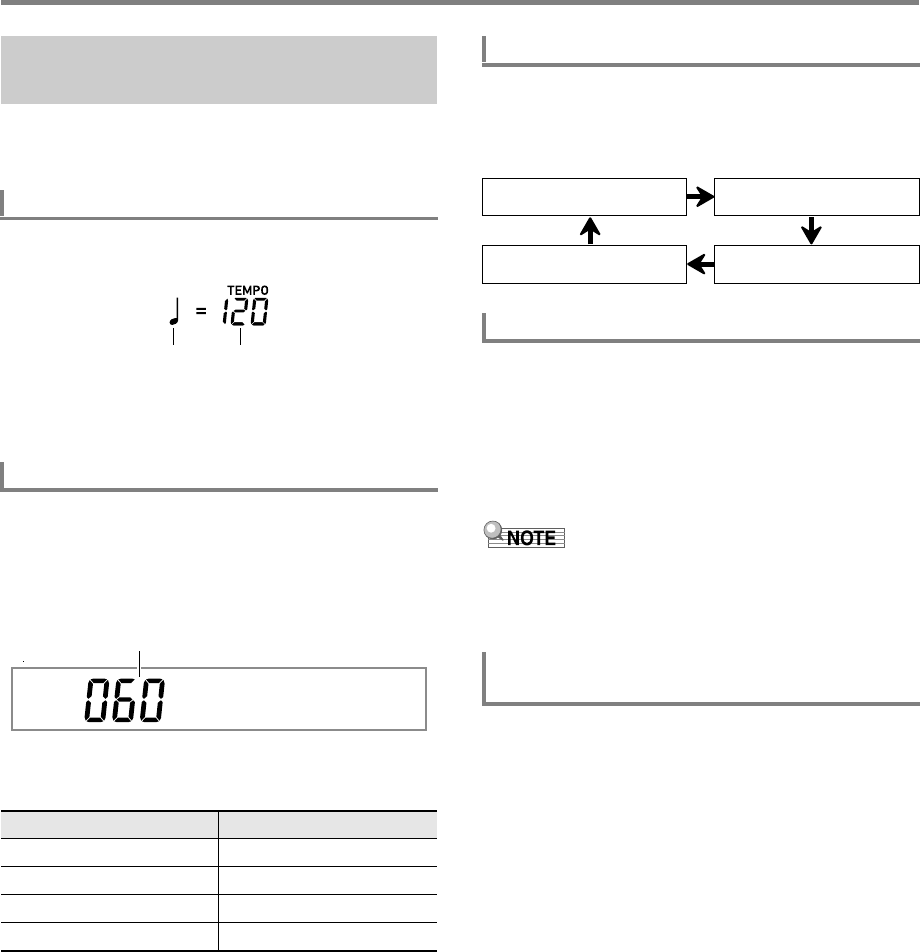
Using Auto Accompaniment (Rhythm Mode)
EN-46
There are two ways to change the tempo.
• Specifying a beats-per-minute value
• Tapping a beat with the dl TAP TEMPO button (tap input)
The current tempo value setting is always displayed in the
upper right corner of the display.
The tempo value is always shown in combination with a note
value. The example above indicates 120 quarter note beats
per minute.
1.
Change the note value as required.
• See “To change the displayed note value” below.
2.
Use the dk TEMPO [w] and [q] buttons to
change the tempo setting.
• The allowable tempo value setting range depends on
the currently displayed note value as shown in the
table below.
• When the note value is a quarter note, the tempo value
corresponds to the actual number of beats per minute.
When the note value is an eighth note the number of
beats per minute is twice that of the tempo value.
When the note value is a half note, the number of
beats is half that of the tempo value.
1.
Long-press dl TAP TEMPO until the
displayed note value changes.
• Each long-press of dl TAP TEMPO cycles through
the note value settings in the sequence shown below.
1.
Tap dl TAP TEMPO multiple times at as
steady a beat as possible.
This will set a tempo that is as close as possible to the
timing of the beat you tap.
• It helps to use this method to specify the approximate
tempo in combination with a procedure like the one
under “To specify a tempo value” (page EN-46).
• A tempo value that is input using this method has no
relation to the currently displayed note value. Depending on
the rhythm selected with the above operation, a quarter
note or eighth note tempo value is input.
You can configure settings to automatically start rhythm play
when you specify a tempo using the procedure under “To set
the tempo by tapping a beat” above.
To do so, perform the procedure under “To configure function
settings with the bk FUNCTION button” (page EN-112) and
enable the following setting: Other (Other) 3 Tap rhythm
start (Tap Rhy) (page EN-117).
Changing Auto Accompaniment
Speed (Tempo)
Note Value Indicator and Tempo Value
To specify a tempo value
Note Value Tempo Value Range
Quarter note (2) 20 to 255
Eighth note (6) 40 to 510
Half note (1) 10 to 128
Dotted quarter note (2.) 13 to 170
Note value Tempo value
TE
M
PO
Current setting value
To change the displayed note value
Quarter note (2) Eighth note (6)
Dotted quarter note (2.) Half note (1)
To set the tempo by tapping a beat
To start rhythm play with the dl TAP
TEMPO button
CTX5000_3000_EN.book 46 ページ 2018年2月26日 月曜日 午後3時56分
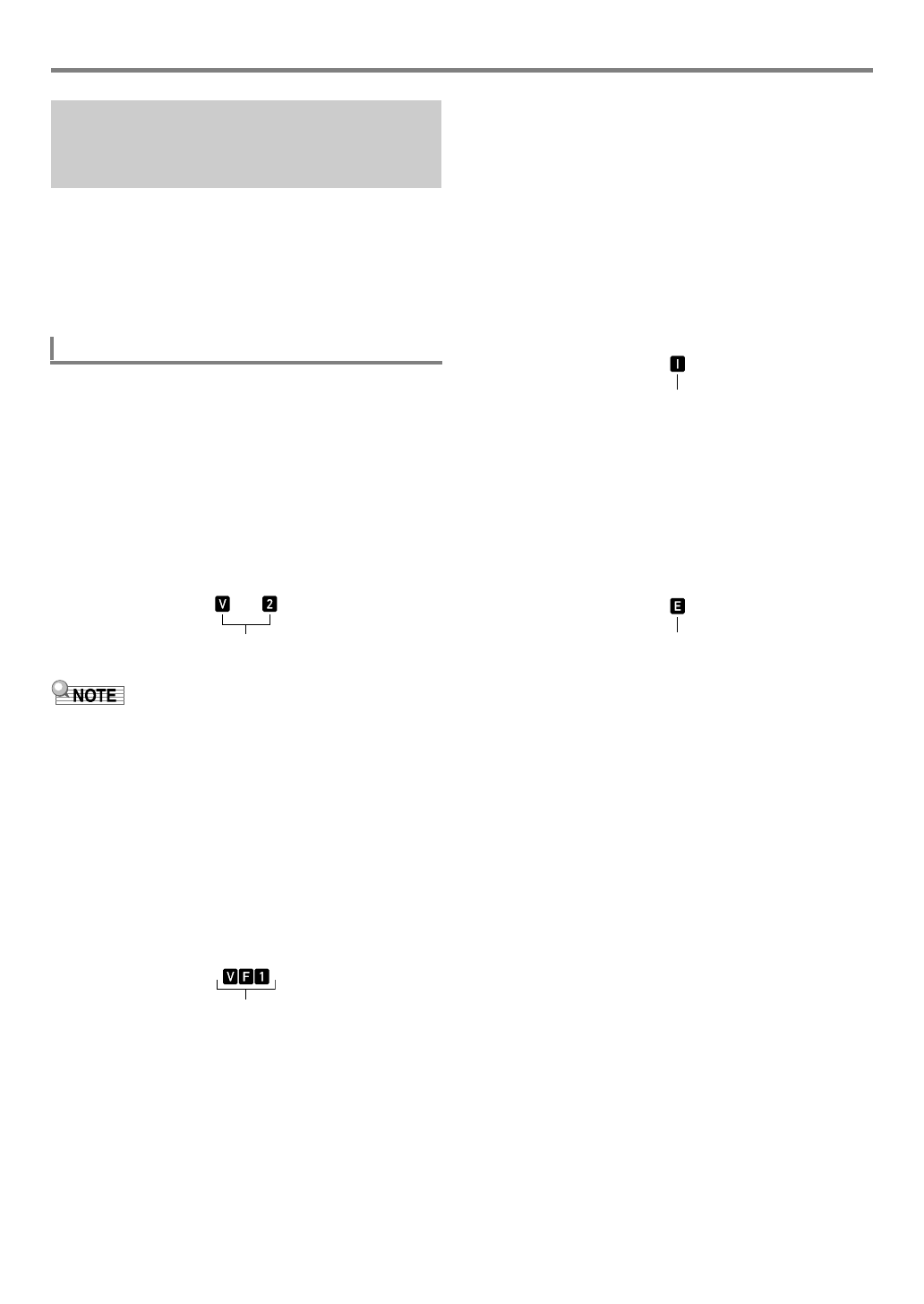
EN-47
Using Auto Accompaniment (Rhythm Mode)
Generally, the progress of a musical piece starts with an intro,
transitions to verses that are interspersed with interludes and
other changes, and then returns to the main theme before
reaching an ending. The Digital Keyboard’s Auto
Accompaniment function provides a selection of
accompaniment patterns that are suited to the progress of a
musical composition.
This section describes the different types of accompaniment
patterns of the Auto Accompaniment function.
■Variations (Four Types)
This is an accompaniment pattern that can be used in the
verse or chorus of a piece. A variation repeats anywhere from
one measure to multiple measures.
To play a variation
Press one of the VARIATION/FILL-IN buttons (bp to bs).
This sounds the variation accompaniment pattern assigned to
the button that is pressed.
• Pressing ck START/STOP sounds the Variation 1
pattern.
■Fill-Ins (Four Types)
These accompaniment patterns are used to insert short one-
or two-measure fill-ins into a piece. When a fill-in button is
pressed, the fill-in will start immediately, or on the first beat
after one measure or two measures, and then return to the
original variation accompaniment pattern.
To play a fill-in
While Variation 1 is sounding, press bp VARIATION/FILL-
IN 1. If a different variation (2, 3, 4) is sounding, press the
button (bq, br, bs) that corresponds to it.
■Intro (One Type)
This is an accompaniment pattern that can be used at the
beginning of a piece. After a multiple-measure intro
accompaniment pattern sounds, accompaniment transition to
Variation 1.
To play an intro
Press bo INTRO.
To change the variation played following the intro
While an intro is sounding, press the button for the variation
you want to sound (bq VARIATION/FILL-IN 2,
br VARIATION/FILL-IN 3, bs VARIATION/FILL-IN 4)
after the intro is complete.
■Ending (One Type)
This is an accompaniment pattern that can be used at the end
of a piece. After a multiple-measure ending sounds, Auto
Accompaniment ends.
To play an ending
While an Auto Accompaniment is sounding, press
bt ENDING/SYNCHRO START.
Creating a Song with an Auto
Accompaniment (Accompaniment
Pattern)
Accompaniment Patterns
Indicator displayed while Variation 2 is sounding
Indicator displayed while Fill-In 1 is sounding
Indicator displayed while Intro is sounding
Indicator displayed while Ending is sounding
CTX5000_3000_EN.book 47 ページ 2018年2月26日 月曜日 午後3時56分
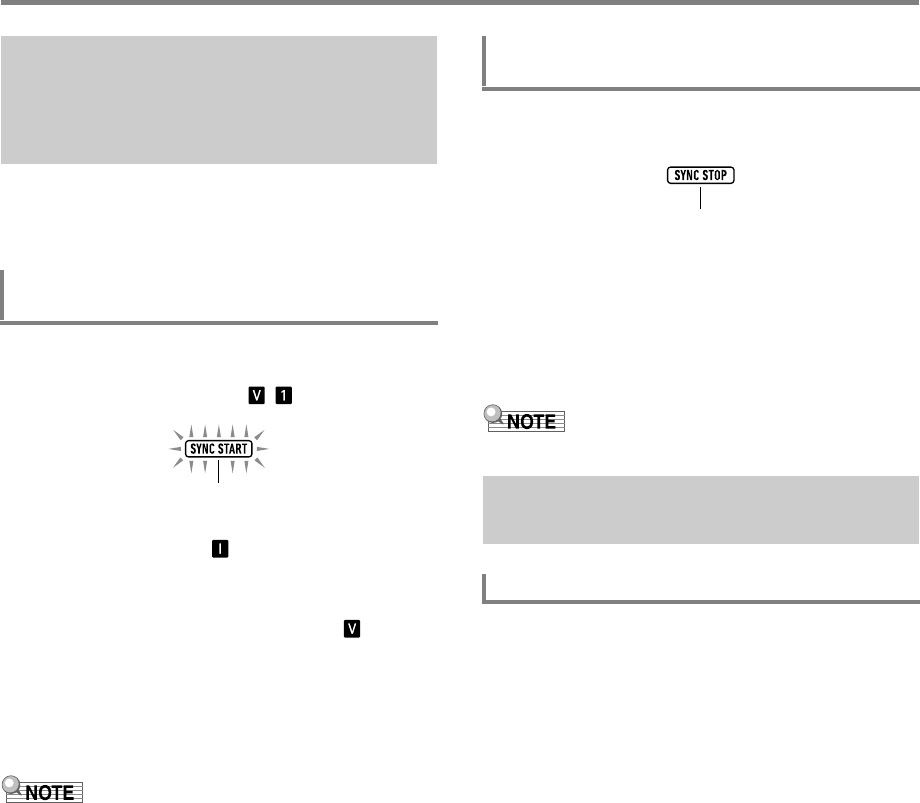
Using Auto Accompaniment (Rhythm Mode)
EN-48
You can configure settings so Auto Accompaniment starts as
soon as you play a chord on the accompaniment keyboard
(synchro start) and stops as soon as you release all of the
keys on the accompaniment keyboard (synchro stop).
1.
Press bt ENDING/SYNCHRO START.
This enters synchro start standby, and causes the
[SYNC START] indicator and indicator to flash.
• If you want to start with an intro, press bo INTRO
here. This causes the indicator to flash.
• If you want to start with a particular variation, press the
button for the variation you want to start with
(bq VARIATION/FILL-IN 2, br VARIATION/FILL-
IN 3, bs VARIATION/FILL-IN 4). The indicator
and a number indicator (1 to 4) that corresponds to the
button you press flash on the display.
2.
Play the chord you want on the
accompaniment keyboard.
This starts Auto Accompaniment.
• To exit synchro start standby, press bt ENDING/
SYNCHRO START.
1.
Press cl SYNCHRO STOP.
This enters synchro stop standby.
2.
While Auto Accompaniment is sounding,
release all of the accompaniment keyboard
keys at the point where you want it to stop.
This stops Auto Accompaniment.
• The Digital Keyboard automatically enters synchro
start standby at this time.
• To exit synchro stop standby, press cl SYNCHRO STOP.
You can select from among the following six chord input
modes.
• CASIO CHORD
•FINGERED1
•FINGERED2
• FINGERED ON BASS
• FINGERED ASSIST
• FULL RANGE CHORD
For details, see “To select a chord fingering mode” (page
EN-50).
Starting and Stopping Auto
Accompaniment with the
Accompaniment Keyboard
(Synchro Start, Synchro Stop)
To use Synchro Start to start Auto
Accompaniment play
Flashing
To use Synchro Stop to stop Auto
Accompaniment play
Changing Accompaniment
Keyboard Settings
Selecting a Chord Input Mode
Displayed
CTX5000_3000_EN.book 48 ページ 2018年2月26日 月曜日 午後3時56分
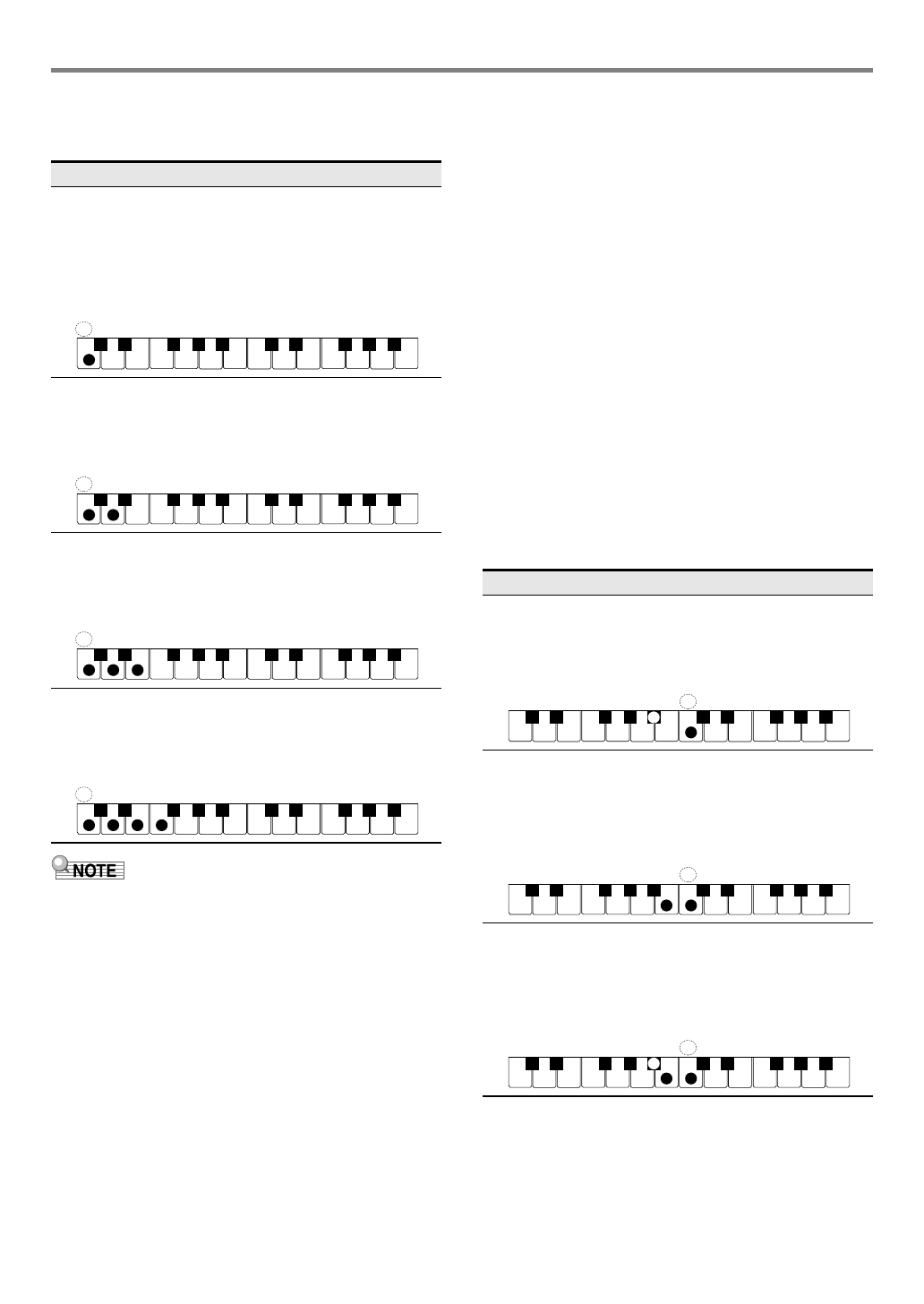
EN-49
Using Auto Accompaniment (Rhythm Mode)
■CASIO CHORD
With CASIO CHORD, you can use simplified fingerings to
play the four types of chords described below.
• When playing a minor, seventh, or minor seventh chord, it
makes no different whether the additional keys you press
are black or white.
■FINGERED
With these input modes, you play chords on the
accompaniment keyboard using their normal chord fingerings.
Some chord forms are abbreviated, and can be fingered with
one or two keys.
See page A-2 for information about chords that are supported
and how they are fingered on the keyboard.
●FINGERED 1
Play the component notes of the chord on the keyboard.
●FINGERED 2
Unlike FINGERED 1, 6th input is not possible. m7 or m7b5 is
input.
●FINGERED ON BASS
Unlike FINGERED 1, allows input of fraction chords with the
lowest keyboard note as the bass note.
●FINGERED ASSIST
Produces an effect that is different from FINGERED 1 when
two or three keys are pressed. Pressing a root key and any
white key to the left of the root key plays a seventh chord,
while a black key plays a minor chord. Pressing both a white
and black key together plays a minor seventh chord.
In addition to FINGERED 1, you can also use the methods
below to play the three types of chords described below.
■FULL RANGE CHORD
With this mode, you can use the full area of the keyboard to
play chords and the melody.
See page A-2 for information about chords that are supported.
Chord Type
Major Chords
Pressing a single accompaniment area key in the CASIO
CHORD mode will play the major chord whose name is
marked above the key. All of the accompaniment area keys
that are marked with the same chord name play exactly the
same chord.
Example: C (C Major)
Minor Chords
To play a minor chord, press the accompaniment area key
that corresponds to the major chord, while also pressing one
other accompaniment area key to the right.
Example: Cm (C Minor)
Seventh Chords
To play a seventh chord, press the accompaniment area key
that corresponds to the major chord, while also pressing two
other accompaniment area keys to the right.
Example: C7 (C Seventh)
Minor Seventh Chords
To play a minor seventh chord, press the accompaniment
area key that corresponds to the major chord, while also
pressing three other accompaniment area keys to the right.
Example: Cm7 (C Minor Seventh)
A
CCDE F F
#
E
#
GAB
BCCDE F
E
#
A
CCDE F F
#
E
#
GAB
BCCDE F
E
#
A
CCDE F F
#
E
#
GAB
BCCDE F
E
#
A
CCDE F F
#
E
#
GAB
BCCDE F
E
#
Chord Type
Minor Chords
To play a minor chord, press the accompaniment keyboard
key that specifies the major chord, while also adding the
closest black key to the left of the major chord key.
Example: Cm (C Minor)
Seventh Chords
To play a seventh chord, press the accompaniment
keyboard key that specifies the major chord, while also
adding the closest white key to the left of the major chord
key.
Example: C7 (C Seventh)
Minor Seventh Chords
To play a minor seventh chord, press the accompaniment
keyboard key that specifies the major chord, while also
adding the closest white and black keys to the left of the
major chord key.
Example: Cm7 (C Minor Seventh)
A
CCDE F F
#
E
#
G
AB
B
CCDE F
E
#
A
CCDE F F
#
E
#
G
AB
B
CCDE F
E
#
A
CCDE F F
#
E
#
G
AB
B
CCDE F
E
#
CTX5000_3000_EN.book 49 ページ 2018年2月26日 月曜日 午後3時56分
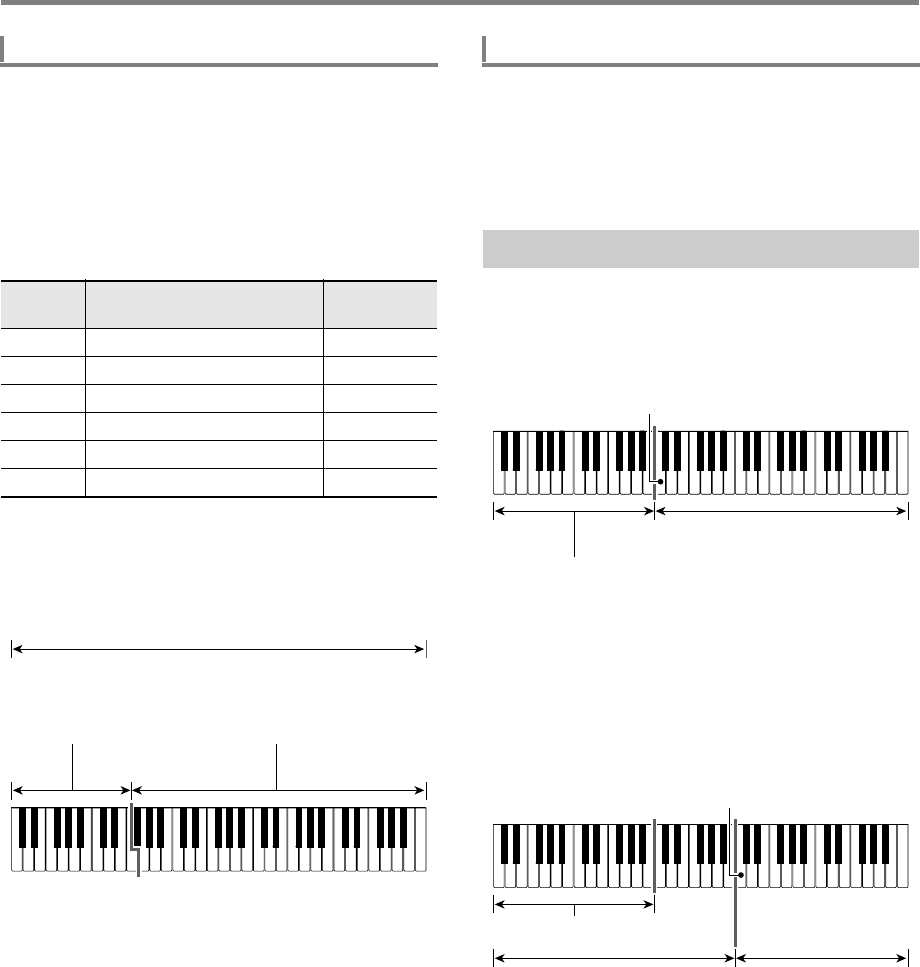
Using Auto Accompaniment (Rhythm Mode)
EN-50
1.
Press bk FUNCTION.
2.
Use the [1] (V) and [3] (W) bm number keys
to display “ChordMod”.
3.
Use bn [–] and [+] or the bl dial to change the
setting value.
• The table below shows the relationship between
setting values and chord fingering modes.
• The accompaniment keyboard ranges for each chord
fingering mode is shown in the illustration below. The
split point (page EN-20) shown in the illustration is the
initial default split point.
YFULL RANGE CHORD
YNot FULL RANGE CHORD
4.
When the setting is the way you want, long-
press the [4] (EXIT) bm number key to exit the
setting screen.
Specifying a split point (page EN-20) puts the LOWER part
keyboard and the accompaniment keyboard in the same area.
You can also specify different areas for each of these two
keyboards. You can also configure a setting so the LOWER
part tone does not sound in the area where the LOWER part
keyboard and accompaniment keyboard overlap. For details,
see the “Advanced Split Settings” (page EN-50).
Your Digital Keyboard can be split into three areas: an
UPPER part keyboard, a LOWER part keyboard, and an
accompaniment keyboard.
You can specify a split point (page EN-20) as shown in the
illustration below.
You can specify a lower point and a chord point, to assign
different areas as a LOWER part keyboard and an
accompaniment keyboard.
●Lower Point
Specifying the lower limit of the UPPER part keyboard results
in a configuration like the one shown below. The
accompaniment keyboard range is not affected in this case.
To select a chord fingering mode
Setting
value Chord Fingering Modes Display
1 CASIO CHORD CASIO Cd
2 FINGERED 1 Fingerd1
3 FINGERED 2 Fingerd2
4 FINGERED ON BASS FgOnBass
5 FINGERED ASSIST FgAssist
6 FULL RANGE CHORD FulRange
Accompaniment keyboard
UPPER part keyboard
Split Point
Accompaniment
keyboard
Accompaniment Keyboard Range Setting
Advanced Split Settings
UPPER part keyboard
Split Point
LOWER part keyboard
UPPER part keyboard
Lower Point
LOWER part keyboard
Accompaniment
keyboard
CTX5000_3000_EN.book 50 ページ 2018年2月26日 月曜日 午後3時56分
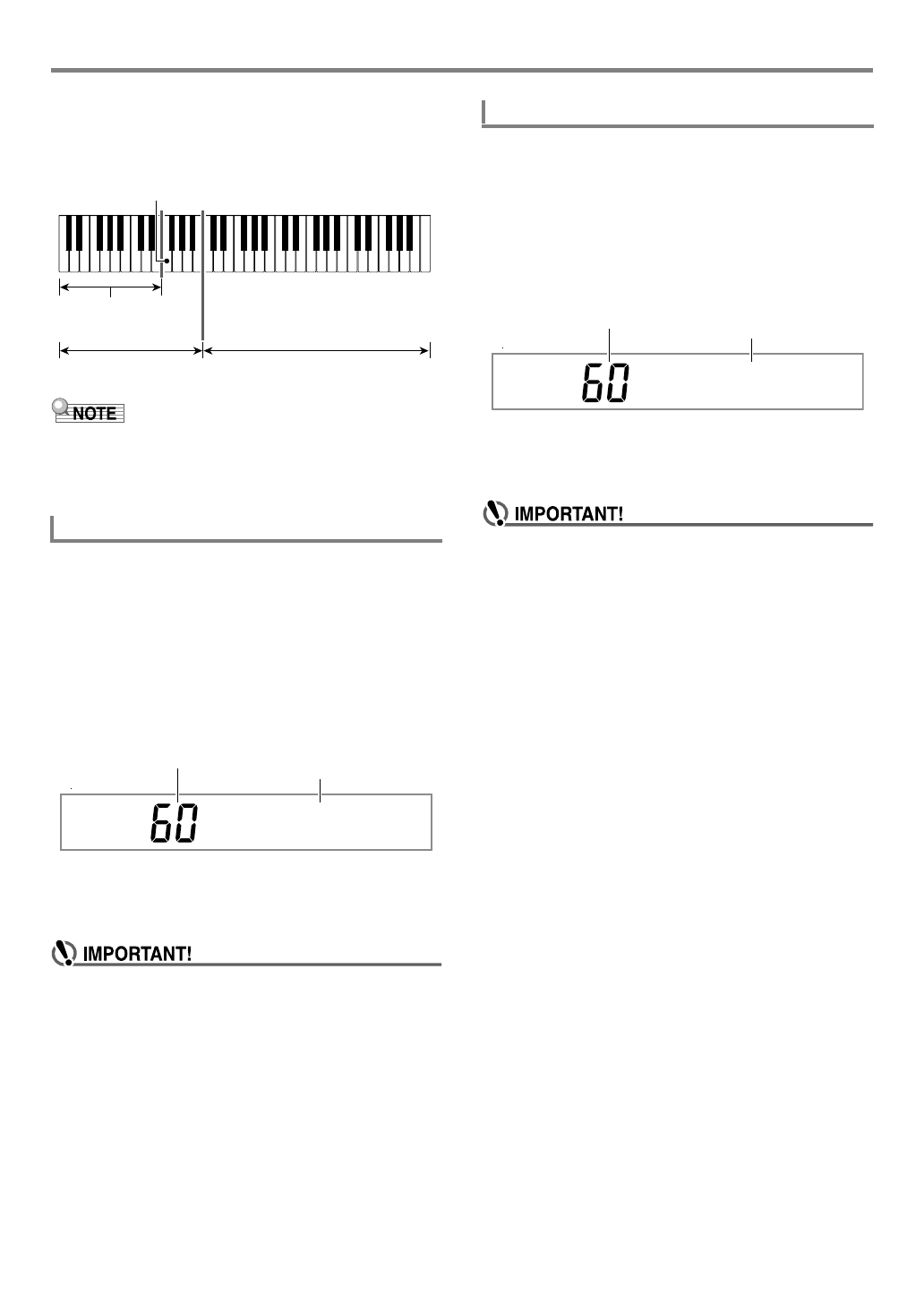
EN-51
Using Auto Accompaniment (Rhythm Mode)
●Chord Point
The illustration below shows a keyboard with a chord point
specified. The LOWER part keyboard range is not affected in
this case.
• While the Chord Input Priority Mode (page EN-52) is turned
on, the LOWER part tone does not sound in the area where
the LOWER part keyboard and accompaniment keyboard
overlap.
1.
Hold down dp SPLIT until “Split Pt” is
displayed.
2.
Use the [1] (V) and [3] (W) bm number keys
to display “Lower Pt”.
3.
Use bn [–] and [+] or the bl dial to specify the
note name of the lower point note (the lower
limit of the UPPER part keyboard).
• You can also specify the lower point by holding down
dp SPLIT and pressing the keyboard key where you
want the lower point to be.
• You cannot specify a lower point that is lower than (to
the left of) the chord point. If you do, the chord point
will be forced to be the same key as the lower point.
4.
When the setting is the way you want, long-
press the [4] (EXIT) bm number key to exit the
setting screen.
1.
Hold down dp SPLIT until “Split Pt” is
displayed.
2.
Use the [1] (V) and [3] (W) bm number keys
to display “Chord Pt”.
3.
Use bn [–] and [+] or the bl dial to specify the
note name of the chord point (page EN-51).
• You can also specify the chord point by holding down
dp SPLIT and pressing the keyboard key where you
want the chord point to be.
• You cannot specify a chord point that is higher than (to
the right of) the chord point. If you do, the lower point
will be forced to be the same key as the chord point.
4.
When the setting is the way you want, long-
press the [4] (EXIT) bm number key to exit the
setting screen.
To specify the lower point
UPPER part keyboard
Chord Point
LOWER part keyboard
Accompaniment
keyboard
B3 I C4
Lower point note number Lower point note name
To specify the chord point
B3 I C4
Chord point note number Chord point note name
CTX5000_3000_EN.book 51 ページ 2018年2月26日 月曜日 午後3時56分
Using Auto Accompaniment (Rhythm Mode)
EN-52
1.
Hold down dp SPLIT until “Split Pt” is
displayed.
2.
Use the [1] (V) and [3] (W) bm number keys
to display “CdPrior”.
3.
Use bn [–] and [+] to switch the Chord Input
Priority Mode between on and off.
• While Chord Input Priority Mode is turned on, the
LOWER part tone does not sound in the area where
the LOWER part keyboard and accompaniment
keyboard overlap.
4.
When the setting is the way you want, long-
press the [4] (EXIT) bm number key to exit the
setting screen.
One-Touch Preset gives you one-touch access to tone and
tempo settings that go well with the currently selected Auto
Accompaniment rhythm pattern.
1.
Hold down 6RHYTHM until the tone name is
displayed.
This automatically applies the One-Touch Preset settings
in accordance with the rhythm pattern that is currently
selected.
2.
Play a chord on the keyboard.
This immediately starts Auto Accompaniment.
Auto Harmonize lets you add harmony to melody notes you
play with your right hand for more melodic depth. You can
select any one of 12 Auto Harmonize types.
• A single button is used to control auto harmonize and the
arpeggiator (page EN-27). Because of this, the arpeggiator
cannot be used while auto harmonize is in use.
1.
Press do AUTO HARMONIZE/
ARPEGGIATOR and confirm that the [AUTO
HARMONIZE] indicator is displayed.
• Fingering a chord on the accompaniment keyboard as
you play the melody on the UPPER part keyboard will
add chords to your melody play.
2.
To turn Auto Harmonize off, press do AUTO
HARMONIZE/ARPEGGIATOR.
This causes the [AUTO HARMONIZE] indicator to
disappear.
• If the [ARPEGGIATOR] indicator is displayed instead of
the [AUTO HARMONIZE] indicator in step 1 of the
above procedure, you will need to change the function
assigned to the button.
Perform the procedure under “To configure function
settings with the bk FUNCTION button” (page EN-112)
and select “1 A.Har.” for the following setting: Auto
Harmonize/Arpeggiator (AHar/Arp) 3 AUTO
HARMONIZE/ARPEGGIATOR button assignment
(BtnAsign) (page EN-114).
1.
Perform the procedure under “To turn on Auto
Harmonize” and confirm that the [AUTO
HARMONIZE] indicator is displayed.
2.
Long-press do AUTO HARMONIZE/
ARPEGGIATOR until the [FUNCTION] indicator
flashes on the display.
This displays the currently selected auto harmonize
number and name.
3.
Use bn [–] and [+] or the bl dial to specify the
auto harmonize type.
• For details about types, see “Auto Harmonize Type
List” (page EN-53).
To turn the Chord Input Priority Mode on or
off
Using Recommended Tones and
Tempos (One-Touch Presets)
Adding Harmony to Melody Notes
(Auto Harmonize)
To turn on Auto Harmonize
To select the Auto Harmonize type
Displayed
CTX5000_3000_EN.book 52 ページ 2018年2月26日 月曜日 午後3時56分
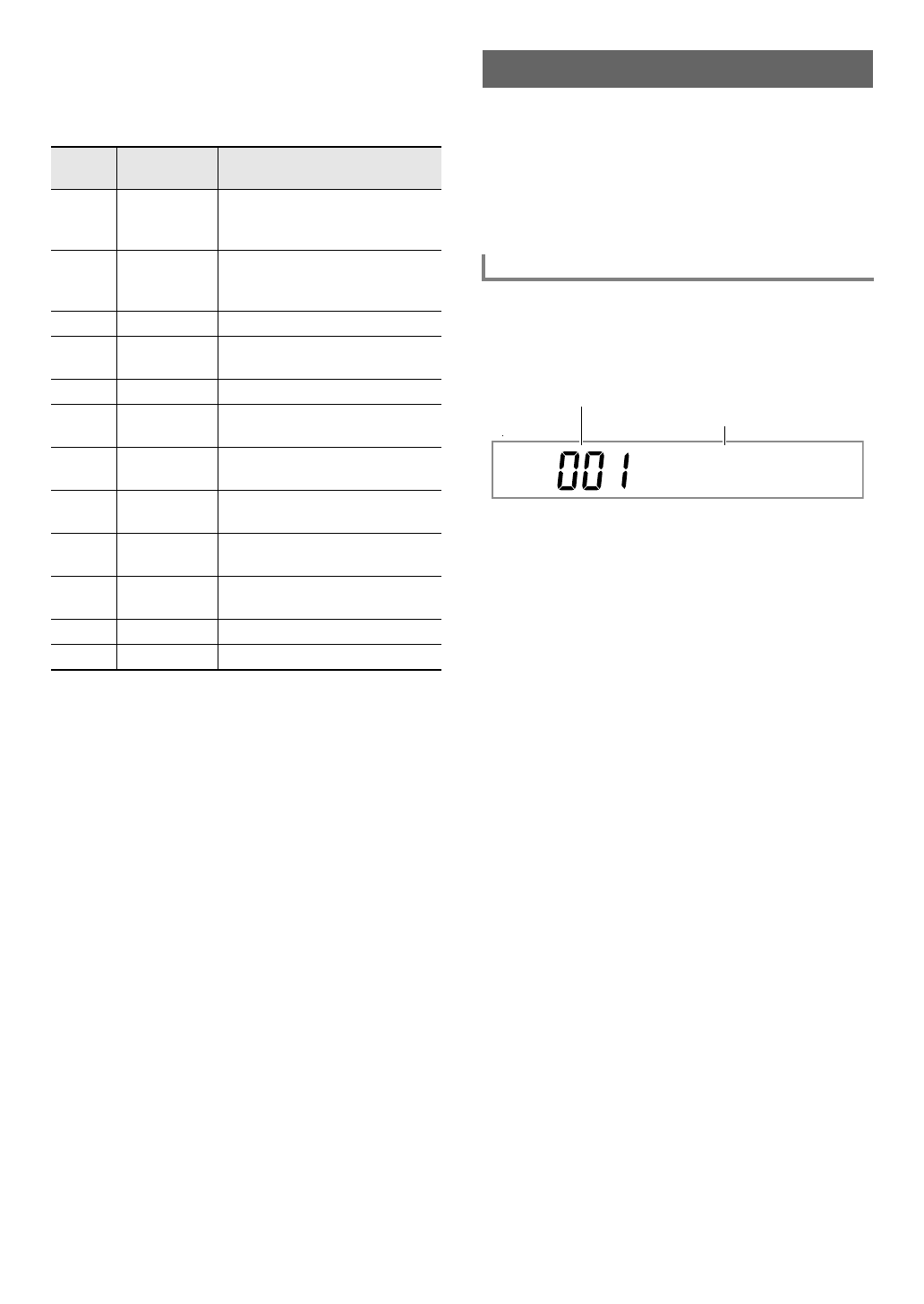
EN-53
4.
When the setting is the way you want, long-
press the [4] (EXIT) bm number key to exit the
setting screen.
■Auto Harmonize Type List
Music Presets are a collection of setups with chord
progression data. With the touch of a button you can recall
one of 310 presets that include tone, rhythm, and other setting
data, along with Auto Accompaniment chord progressions, all
of which are combined to match specific musical genres and
melodies.
For details about music preset categories and types, refer to
the separate “Appendix”.
1.
Press 6RHYTHM.
2.
Long-press cm ACCOMP until the [ACCOMP]
indicator starts to flash.
• The flashing [ACCOMP] indicator indicates that the
Digital Keyboard is in the Music Preset Mode.
3.
Use the bm number keys, bn [–] and [+], or the
bl dial to select a music preset number.
This changes the displayed music preset name. At the
same time, settings are recalled for the tone, rhythm,
chord progression, and data that matches the genre or
melody indicated by the name.
• See “Numeric Input” (page EN-14) for information
about how to specify a number.
• Music presets are divided into nine categories. You
can easily find the music preset you want by going to
the dance category, classic category, etc. For more
information, see “4CATEGORY Button” (page
EN-15).
4.
Press ck START/STOP or bo INTRO.
This starts Auto Accompaniment play in accordance with
the preset chord progression.
5.
Play along on the keyboard with the Auto
Accompaniment.
6.
To stop Auto Accompaniment, press
ck START/STOP or bt ENDING/SYNCHRO
START.
7.
To exit the Music Preset Mode, press
cm ACCOMP.
• At this time the tone and rhythm settings configured by
the Music Preset Mode remain in effect.
Type
number Type Name Description
01 Duet 1 Adds close (separated by 2 to 4
degrees) 1-note harmony below
the melody note.
02 Duet 2 Adds open (separated by more
than 4 to 6 degrees) 1-note
harmony below the melody note.
03 Country Adds country style harmony.
04 Octave Adds the note from the next lower
octave.
05 5th Adds the fifth degree note.
06 3-Way Open Adds 2-note open harmony, for a
total of three notes.
07 3-Way Close Adds 2-note close harmony, for a
total of three notes.
08 Strings Adds harmony that is optimal for
strings.
09 4-Way Open Adds 3-note open harmony, for a
total of four notes.
10 4-Way Close Adds 3-note close harmony, for a
total of four notes.
11 Block Adds block chord notes.
12 Big Band Adds big band style harmony.
Using Music Presets
To perform using a music preset
So f t Po
p
Music preset number
Music preset name
CTX5000_3000_EN.book 53 ページ 2018年2月26日 月曜日 午後3時56分
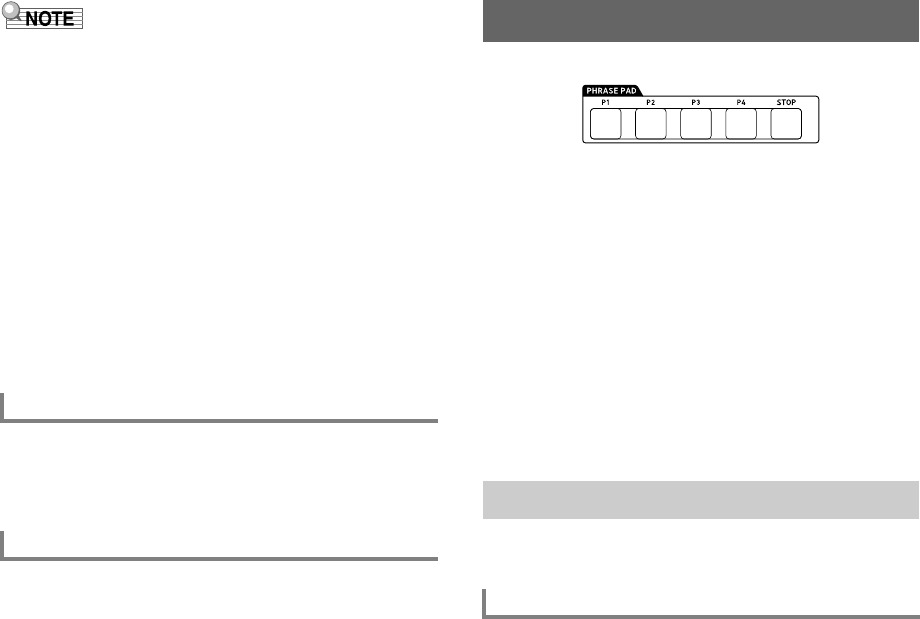
EN-54
• With some music presets, selecting a number in step 3
causes the [SYNC START] indicator to start to flash,
indicating that the Digital Keyboard is in synchro start
standby (page EN-48). If this happens, Auto
Accompaniment can be started by playing something on
the keyboard instead of pressing ck START/STOP. For
information about operations that can be performed while in
synchro start standby, see step 1 under “To use Synchro
Start to start Auto Accompaniment play” (page EN-48).
• The accompaniment pattern operations (page EN-47) can
be used during a performance with a music preset.
• The operations below cannot be used during play that
employs a music preset.
– Rhythm setting change (page EN-43)
– Synchro stop (page EN-48)
– One-Touch Preset (page EN-52)
– Registration (page EN-67)
Perform the procedure under “To configure function settings
with the bk FUNCTION button” (page EN-112) and configure
the following setting: Other (Other) 3 Music preset key
change (MP Key) (page EN-117).
Each selection of a music preset automatically changes the
Digital Keyboard settings below. Changed settings are
maintained even after the Music Preset Mode is exited.
•Tempo
• Layer (on/off)
• Split (on/off)
•do AUTO HARMONIZE/ARPEGGIATOR button
assignment
• Auto Harmonize (on/off, type)
• Arpeggiator (on/off, type)
• Arpeggiator Hold (on/off)
• Tone number (UPPER 1, LOWER 1, UPPER 2, LOWER 2
parts)
• Octave Shift (UPPER 1, LOWER 1, UPPER 2, LOWER 2
parts)
• Reverb, Chorus, Delay (on/off, type)
Short phrases can be recorded and assigned to each of the
four phrase pads. Pressing a pad will loop playback its
recorded phrase. You can sound phrases individually, or you
can sound multiple phrases at the same time.
The explanations in this section refer to phrases assigned to
the phrase pads as Phrase 1 through Phrase 4.
■Phrase Sets and Phrase Storage Locations
A group of four phrases assigned to the four phrase pads are
called a “phrase set”. There are 25 phrase sets numbered 1
through 25, which means that up to 100 phrases (25 phrase
sets with 4 phrases each) can be stored as user phrases.
When you record a phrase, you specify a storage location
using a phrase set number (1 to 25) and a phrase number 1 to
4.
You can use the procedure below to change the phrase set
currently assigned to the phrase pads to another set.
1.
Press bk FUNCTION.
2.
Use the [1] (V) and [3] (W) bm number keys
to display “Phr Pad”, and then press [6]
(ENTER).
This displays “Phr Set”. You can select a phrase set
number at this time.
3.
Use bn [–] and [+] or the bl dial to select a
phrase set number.
4.
When the setting is the way you want, long-
press the [4] (EXIT) bm number key to exit the
setting screen.
To change the key of a chord progression
Settings Changed by Music Preset
Using Phrase Pads
Changing to Another Phrase Set
To change the phrase set
CTX5000_3000_EN.book 54 ページ 2018年2月26日 月曜日 午後3時56分
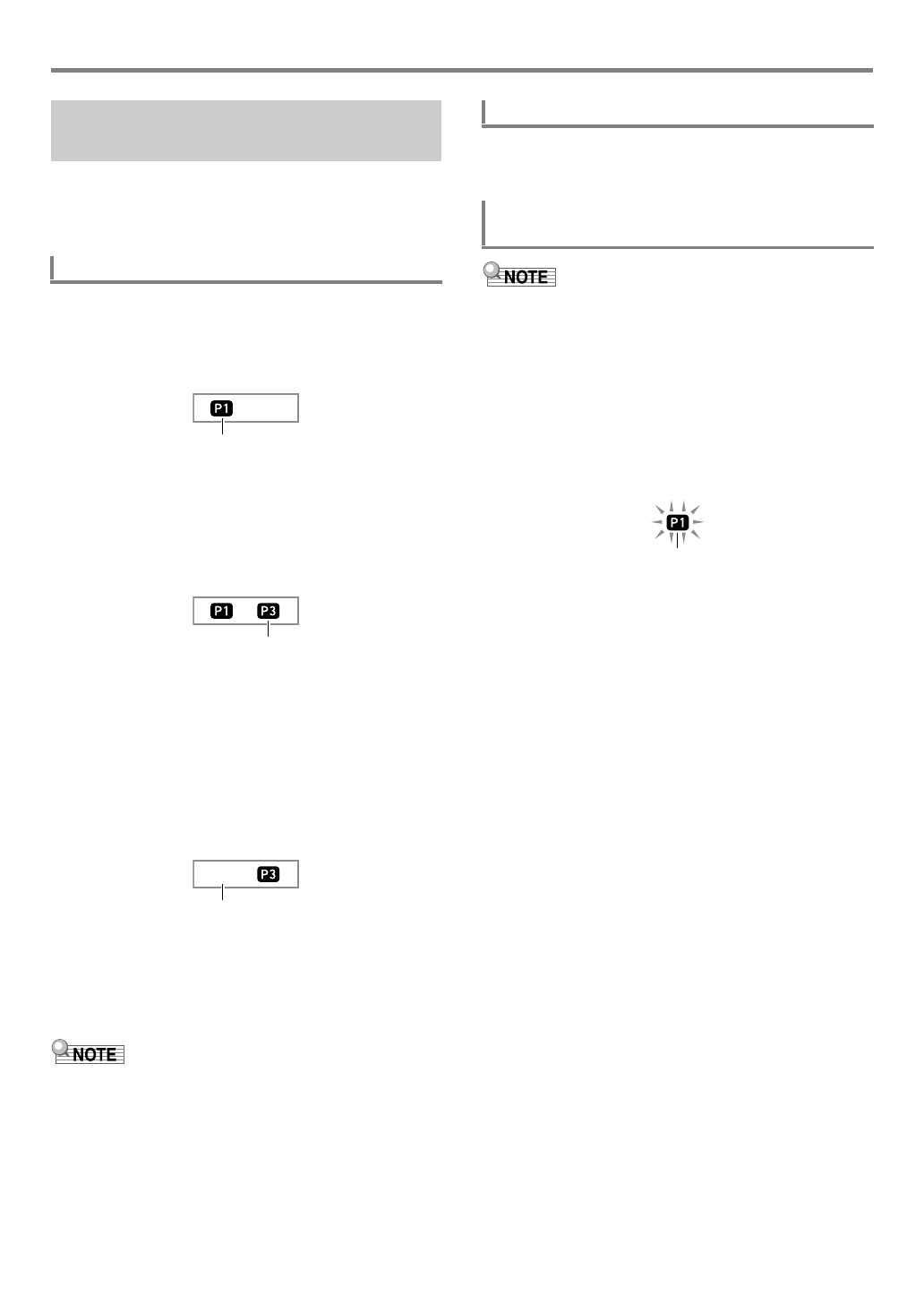
EN-55
Using Phrase Pads
Before playing back a phrase, you must first change to the
phrase set where the phrase is located if it is not already
assigned to the phrase pads. For details, see “Changing to
Another Phrase Set” (page EN-54).
1.
Press one of the phrase pads. For example,
press cq PHRASE PAD [P1].
This starts playback of Phrase 1 and displays the [P1]
indicator.
2.
Press a different phrase pad. For example,
press cq PHRASE PAD [P3].
This starts playback of Phrase 3, and plays Phrase 1 and
Phrase 3 at the same time. In addition to the [P1]
indicator, the [P3] indicator also appears.
3.
To stop playback of only one of the phrases,
hold down cr STOP and press the
cq PHRASE PAD where the phrase you want
to stop is assigned.
For example, holding down cr STOP and pressing
cq PHRASE PAD [P1] will stop playback of Phrase 1
and allow Phrase 3 to continue sounding. The [P1]
indicator disappears at this time.
4.
To stop phrase playback while a single phrase
is playing, press cr STOP.
• You can also stop phrase playback by performing the
same operation as that in step 3.
• Pressing the pad of a phrase that is playing back will restart
the phrase from the beginning.
1.
To stop phrase playback while a multiple
phrases are playing, press cr STOP.
• The procedure below starts phrase playback and, at the
same time, starts Auto Accompaniment in accordance with
the operation (pressing ck START/STOP or bo INTRO,
etc.) performed in step 2.
1.
While holding down bt ENDING/SYNCHRO
START, press the phrase pad (for example,
cq PHRASE PAD [P1]) whose phrase you want
to start playing along with Auto
Accompaniment.
• If you want playback of multiple phrases to start
simultaneously, repeat the above operation for the
other phrases as well.
• To cancel phrase and Auto Accompaniment
simultaneous start standby, hold down bt ENDING/
SYNCHRO START as you press the phrase pad you
want to cancel.
2.
Press ck START/STOP to start Auto
Accompaniment.
This simultaneously starts Auto Accompaniment and
phrase playback.
Starting and Stopping Phrase
Playback
To start and stop phrase playback
Displayed
Displayed
Not displayed
To stop playback of all phrases
To synchronize phrase playback with Auto
Accompaniment
Flashing
CTX5000_3000_EN.book 55 ページ 2018年2月26日 月曜日 午後3時56分
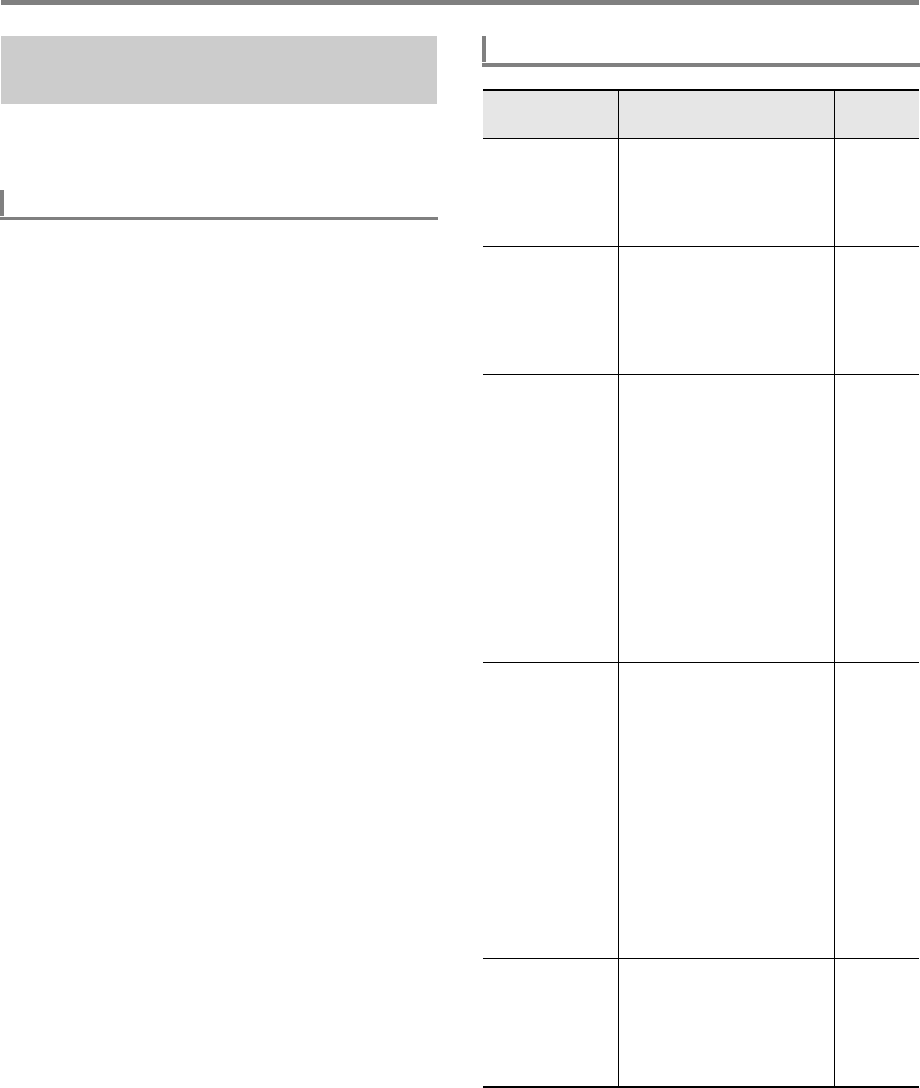
Using Phrase Pads
EN-56
Phrase playback setups control how the phrase assigned to a
phrase pad (1 to 4) plays when you press the pad. The setups
you configure here are recorded to the corresponding pad.
1.
Specify the phrase pad whose playback setup
you want to configure.
(1) Press bk FUNCTION and confirm that the
[FUNCTION] indicator is displayed.
(2) Use the [1] (V) and [3] (W) bm number keys to
display “Phr Pad”, and then press [6] (ENTER). This
displays “Phr Set”.
(3) Use the [1] (V) and [3] (W) keys to specify the
phrase pad (Pad 1 to Pad 4) whose playback setup
you want to configure, and then press [6] (ENTER).
2.
Use the [1] (V) and [3] (W) keys to select the
item whose setting you want to change.
• For information about setting items, see “Phrase
Playback Setup Items” below.
3.
Use bn [–] and [+] or the bl dial to change the
setting.
• Repeat steps 2 and 3 for each of the items whose
setting you want to configure.
4.
When the setup is the way you want, long-
press the [4] (EXIT) bm number key to exit the
setting screen.
Configuring Phrase Playback
Setups
To configure a phrase playback setup
Phrase Playback Setup Items
Setup Item
(Display) Description Settings
Looped playback
(Loop)
Specifies whether or not to
perform loop playback.
Off: Plays the phrase all the
way through and then stops.
On: Loops the phrase.
On, Off
Key shift
(KeyShift)
Changes the playback pitch
in semitone units. A lower
setting value lowers the
playback pitch, while a
higher setting value raises
the pitch.
–24 to 24
Timing Sync
(TimingSy)
Specifies whether playback
timing and speed when a
phrase pad is pressed
should be synced with a
previously playing Auto
Accompaniment, phrase, or
song recorded with the MIDI
recorder.
Off: No syncing.
Beat: Forces correction of
deviation in beat units.
Measure: Forces correction
of deviation in measure
units.
Off, Beat,
Measure
Chord Sync
(ChordSyn)
Enabling this function
automatically adjusts the
pitch of the phrase in
accordance with the chords
of an Auto Accompaniment
that is playing.
Important!
Note that Chord Sync can be
applied to a phrase recorded
in C Major only. Play and
record the phrase in C Major
and assign it to the
applicable pad. Next, turn on
Chord Sync for the pad.
On, Off
Break Point
(Break Pt)
This setting is applied while
Chord Sync is turned on. It
specifies a note key, from C
to B, as the point at which
the phrase notes drop one
octave.
C to B
CTX5000_3000_EN.book 56 ページ 2018年2月26日 月曜日 午後3時56分
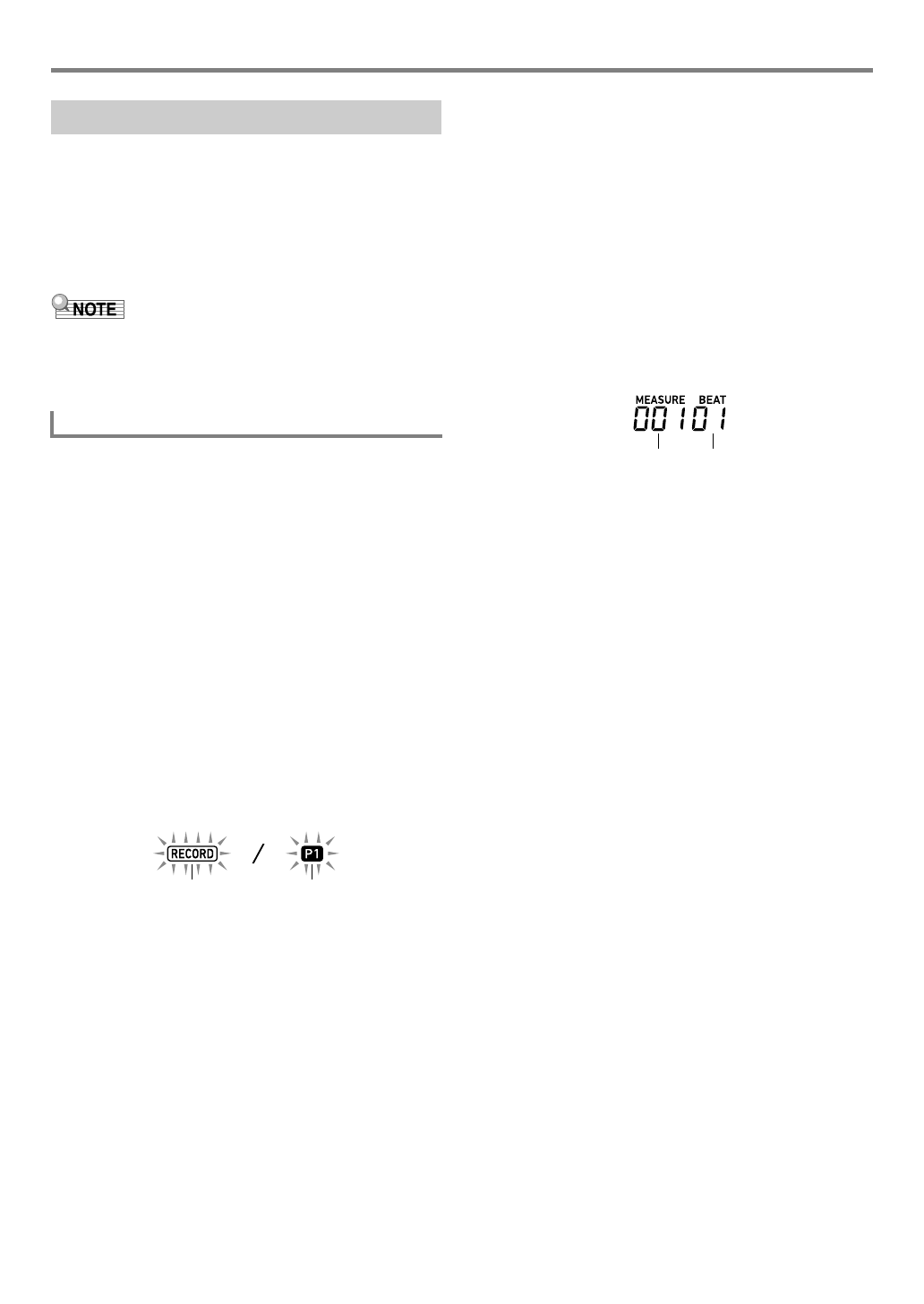
EN-57
Using Phrase Pads
A phrase is created by recording notes played manually on
the keyboard. Up to 16 measures can be specified for the
length of the phrase to be recorded, and up to approximately
1,000 notes can be recorded. As with playback, recording
also loops back to the first measure when the end of the
number of measures specified for the phrase is reached. You
can add notes while listening to playback of previously
recorded content.
• The [RECORD] indicator will start to flash during recording
when the number of remaining note count is 100 or lower.
When there are no more remaining notes, recording stops
automatically and the [RECORD] indicator disappears.
1.
Select the tone you want to use for phrase
recording.
• See “Selecting a Tone” (page EN-18).
• You cannot use layer or split when recording a phrase.
2.
Press bk FUNCTION.
3.
Use the [1] (V) and [3] (W) bm number keys
to display “Phr Pad”, and then press [6]
(ENTER).
This displays “Phr Set”.
4.
Use the bn [–] and [+], or the bl dial to select
the phrase set number you want to use for
phrase recording.
5.
Press 8RECORD/STOP.
This enters record standby and causes the [RECORD]
indicator to flash. Also, the [P1] indicator will be flashing.
• The indicators ([P2] through [P4]) of the phrase pads
that have phrases recorded will appear on the display.
• The [P1] indicator flashes even if there is already a
phrase recorded to the P1 phrase pad. You can
determine whether or not there is a phrase recorded to
the P1 phrase pad by pressing any cq PHRASE PAD
button other than [P1] in step 6. If the [P1] indicator is
displayed, it means there is a phrase recorded. If the
indicator is not displayed, it means nothing is recorded
to the P1 phrase pad.
• If you want to change mixer settings, perform the
procedure under “To configure mixer settings” (page
EN-64). To configure mixer settings of the phrase to be
recorded, configure the mixer settings of the
corresponding part (Part 6 through Part 9) of the
KEYBOARD part group. For example, when recording
to Phrase Pad 1, configure the mixer settings of Part 6
(Phrase Pad 1) of the KEYBOARD part group.
6.
Press a cq PHRASE PAD button ([P1] to [P4])
to specify the phrase number of the recording
destination.
• This causes the indicator of the pad you press (P1 to
P4) to flash on the display.
7.
To start recording, press ck PLAY/STOP or
play something on the keyboard.
Playing on the keyboard automatically starts recording.
This displays the [RECORD] indicator.
• The number of measures and beats are counted up in
the upper right corner of the display. When the final
beat of the length (number of measures)* specified for
the phrase being edited is reached, the count restarts
from 001:01.
*For information about the number of measure setting,
see “Configuring Phrase Recording Settings” below.
8.
Timing in accordance with the MEASURE and
BEAT values on the display, play something on
the keyboard when required.
• What you record will play back when the display
returns to the measure and beat where it was
recorded. You can overdub the recording as many
times as you like while listening to the playback.
• Playback while recording is in progress is sound
produced by the KEYBOARD part group’s Part 6
(Phrase Pad 1) to Part 9 (Phrase Pad 4). If you want to
the change the mixer settings for playback during
phrase recording, select the part of pad currently being
recorded as the target for the operation under “To
configure mixer settings” (page EN-64).
9.
When you are finished recording, press
8RECORD/STOP.
This causes the [RECORD] indicator to disappear.
Recording a Phrase
To record a phrase
Flashing Flashing
Measure Beat
CTX5000_3000_EN.book 57 ページ 2018年2月26日 月曜日 午後3時56分
Using Phrase Pads
EN-58
If you change phrase recording settings, those settings will be
in effect for the subsequent recording operation as well.
Change the recording settings as required when recording a
new phrase.
1.
Press bk FUNCTION.
2.
Use the [1] (V) and [3] (W) bm number keys
to display “Phr Pad”, and then press [6]
(ENTER).
This displays “Phr Set”.
3.
Press 8RECORD/STOP.
This causes the [RECORD] indicator to flash.
4.
Long-press 8RECORD/STOP until “Length”
is displayed.
• This enters the phrase recording setting mode.
5.
Use the [1] (V) and [3] (W) keys to select the
item whose setting you want to change.
• For information about setting items, see “Phrase
Recording Setting Items” (page EN-58).
6.
When all the settings are the way you want,
press 8RECORD/STOP.
This causes the [RECORD] indicator to disappear.
You can use the procedures in this section to copy and delete
phrase sets.
1.
Perform the procedure 1 through 3 under “To
change the phrase set” (page EN-54) to select
the number of the phrase set you want to copy.
2.
Long-press 8RECORD/STOP until “Copy” is
displayed.
3.
Press the [6] (ENTER) bm number key.
This displays “Phr Set” and stands by for selection of the
copy destination.
4.
Use bn [–] and [+] or the bl dial to select the
copy destination phrase set number.
• Be sure to specify an empty area as the copy
destination.
5.
Press [6] (ENTER).
This displays “Sure?”
6.
Press bn [+] (YES) to execute or bn [–] (NO) to
cancel.
• Pressing bn [+] (YES) displays the message “Wait...”
(operation in progress). Do not perform any operation
while this message is displayed. “Complete” appears
after the operation is complete.
7.
To exit the operation, long-press the [4] (EXIT)
bm number key.
Configuring Phrase Recording
Settings
To configure phrase recording settings
Phrase Recording Setting Items
Item Name
(Display) Description Settings
Number of
measures
(Length)
Specifies the length (number of
measures) of the phrase to be
recorded.
1 to 16
Quantize
(Quantize)
Specify either recording of notes
in the timing they are played on
the keyboard or automatic
alignment of notes based on a
note value. Selecting a setting
other than “Off” displays a note
value (4: quarter note, d: dotted
note, t: triplets).
Off, 4, 8,
16, 32,
4d, 8d,
16d, 32d,
4t, 8t, 16t,
32t
Metronome
(Metronom)
Specifies whether or not the
metronome should sound during
recording.
On, Off
Pre-count
(Precount)
Specifies whether or not to
sound a pre-count when
recording.
On, Off
Managing Phrase Sets
To copy a phrase set
CTX5000_3000_EN.book 58 ページ 2018年2月26日 月曜日 午後3時56分
EN-59
Using Phrase Pads
1.
Perform the procedure 1 through 3 under “To
change the phrase set” (page EN-54) to select
the number of the phrase set you want to
delete.
2.
Long-press 8RECORD/STOP until “Copy” is
displayed.
3.
Use the [1] (V) and [3] (W) bm number keys
to display “Clear”, and then press [6] (ENTER).
This displays “Sure?”
4.
Press bn [+] (YES) to delete or bn [–] (NO) to
cancel the delete operation.
• Pressing bn [+] (YES) displays the message “Wait...”
(operation in progress). Do not perform any operation
while this message is displayed. “Complete” is
displayed after the operation is complete.
5.
To exit the operation, long-press the [4] (EXIT)
bm number key.
You can use the procedures in this section to edit individual
phrases. You can delete or copy a phrase, and configure
quantize, key shift, and mixer settings.
• Quantize automatically corrects the timing of recorded
notes to match a note value being used as the quantize
reference.
• Key shift offsets the pitch of recorded sounds in semitone
steps.
To edit a phrase, enter the phrase editing mode.
1.
Press bk FUNCTION.
2.
Use the [1] (V) and [3] (W) bm number keys
to display “Phr Pad”, and then press [6]
(ENTER).
This displays “Phr Set”.
3.
Use bn [–] and [+] or the bl dial to select the
number of the phrase set that includes the
phrase you want to edit.
4.
Long-press bk FUNCTION until the [EDIT]
indicator appears.
• This enters the phrase editing mode. “Clear” will
appear at this time.
1.
Use the procedure under “To enter the Phrase
Editing mode” (page EN-59) to enter the Phrase
Editing mode.
2.
Press the [6] (ENTER) bm number key.
This displays “Phrase” and causes the [P1] indicator to
flash on the display.
3.
Use bn [–] and [+] or the bl dial to select the
number of the phrase you want to delete, and
then press [6] (ENTER).
This displays “Sure?”
4.
Press bn [+] (YES) to execute or bn [–] (NO) to
cancel.
• Pressing bn [+] (YES) displays the message “Wait...”
(operation in progress). Do not perform any operation
while this message is on the display. “Complete” is
displayed after the operation is complete.
5.
To exit the operation, long-press the [4] (EXIT)
bm number key.
To delete a phrase set Editing a Phrase
To enter the Phrase Editing mode
To delete a phrase
Displayed
CTX5000_3000_EN.book 59 ページ 2018年2月26日 月曜日 午後3時56分

Using Phrase Pads
EN-60
1.
Use the procedure under “To enter the Phrase
Editing mode” (page EN-59) to enter the Phrase
Editing mode.
2.
Use the [1] (V) and [3] (W) bm number keys
to display “Copy”, and then press [6] (ENTER).
This displays “Src Set”.
3.
Use bn [–] and [+] or the bl dial to specify the
number of the phrase set that contains copy
source phrase, and then press [6] (ENTER).
This displays “Src Phr” and causes the [P1] indicator to
appear.
4.
Use bn [–] and [+] or the bl dial to specify the
copy source phrase number, and then press [6]
(ENTER).
This displays “Dst Phr” and causes the [P1] indicator to
flash on the display.
5.
Use bn [–] and [+] or the bl dial to select the
copy destination phrase number, and then
press [6] (ENTER).
This displays “Sure?”
6.
Press bn [+] (YES) to execute or bn [–] (NO) to
cancel.
• Pressing bn [+] (YES) displays the message “Wait...”
(operation in progress). Do not perform any operation
while this message is displayed. “Complete” is
displayed after the operation is complete.
7.
To exit the operation, long-press the [4] (EXIT)
bm number key.
1.
Use the procedure under “To enter the Phrase
Editing mode” (page EN-59) to enter the Phrase
Editing mode.
2.
Use the [1] (V) and [3] (W) bm number keys
to display “Other Clr”, and then press [6]
(ENTER).
This displays “Phrase” and causes the [P1] indicator to
flash on the display.
3.
Use bn [–] and [+] or the bl dial to specify the
phrase whose data (except for note events)
you want to delete, and then press [6] (ENTER).
This displays “Sure?”
4.
Press bn [+] (YES) to execute or bn [–] (NO) to
cancel.
• Pressing bn [+] (YES) displays the message “Wait...”
(operation in progress). Do not perform any operation
while this message is displayed. “Complete” is
displayed after the operation is complete.
5.
To exit the operation, long-press the [4] (EXIT)
bm number key.
To copy a phrase To delete all data from a phrase except note
events
CTX5000_3000_EN.book 60 ページ 2018年2月26日 月曜日 午後3時56分
EN-61
Using Phrase Pads
1.
Use the procedure under “To enter the Phrase
Editing mode” (page EN-59) to enter the Phrase
Editing mode.
2.
Use the [1] (V) and [3] (W) bm number keys
to display “Quantize”, and then press [6]
(ENTER).
This displays “Phrase” and causes the [P1] indicator to
flash on the display.
3.
Use bn [–] and [+] or the bl dial to select the
number of the phrase you want to quantize,
and then press [6] (ENTER).
This displays “Value”.
4.
Use bn [–] and [+] or the bl dial to select the
note value to be used as the quantize reference
note.
5.
Press [6] (ENTER).
This displays “Sure?”
6.
Press bn [+] (YES) to execute or bn [–] (NO) to
cancel.
• Pressing bn [+] (YES) displays the message “Wait...”
(operation in progress). Do not perform any operation
while this message is displayed. “Complete” is
displayed after the operation is complete.
7.
To exit the operation, long-press the [4] (EXIT)
bm number key.
1.
Use the procedure under “To enter the Phrase
Editing mode” (page EN-59) to enter the Phrase
Editing mode.
2.
Use the [1] (V) and [3] (W) bm number keys
to display “KeyShift”, and then press [6]
(ENTER).
This displays “Phrase” and causes the [P1] indicator to
flash on the display.
3.
Use bn [–] and [+] or the bl dial to select the
number of the phrase you want to key shift,
and then press [6] (ENTER).
This displays “Value”.
4.
Use bn [–] and [+] or the bl dial to specify the
key shift setting value.
• You can specify a value in the range of –24 to 24.
Lowering the setting value by one lowers the pitch by
one semitone, while raising the value raises the pitch.
5.
Press [6] (ENTER).
This displays “Sure?”
6.
Press bn [+] (YES) to execute or bn [–] (NO) to
cancel.
• Pressing bn [+] (YES) displays the message “Wait...”
(operation in progress). Do not perform any operation
while this message is displayed. “Complete” is
displayed after the operation is complete.
7.
To exit the operation, long-press the [4] (EXIT)
bm number key.
To quantize a phrase
Display Description
4, 8, 16, 32 Quarter note, eighth note, sixteenth note,
thirty-second note
4d, 8d, 16d, 32d Dotted notes
4t, 8t, 16t, 32t Triplet notes
To key shift a phrase
CTX5000_3000_EN.book 61 ページ 2018年2月26日 月曜日 午後3時56分
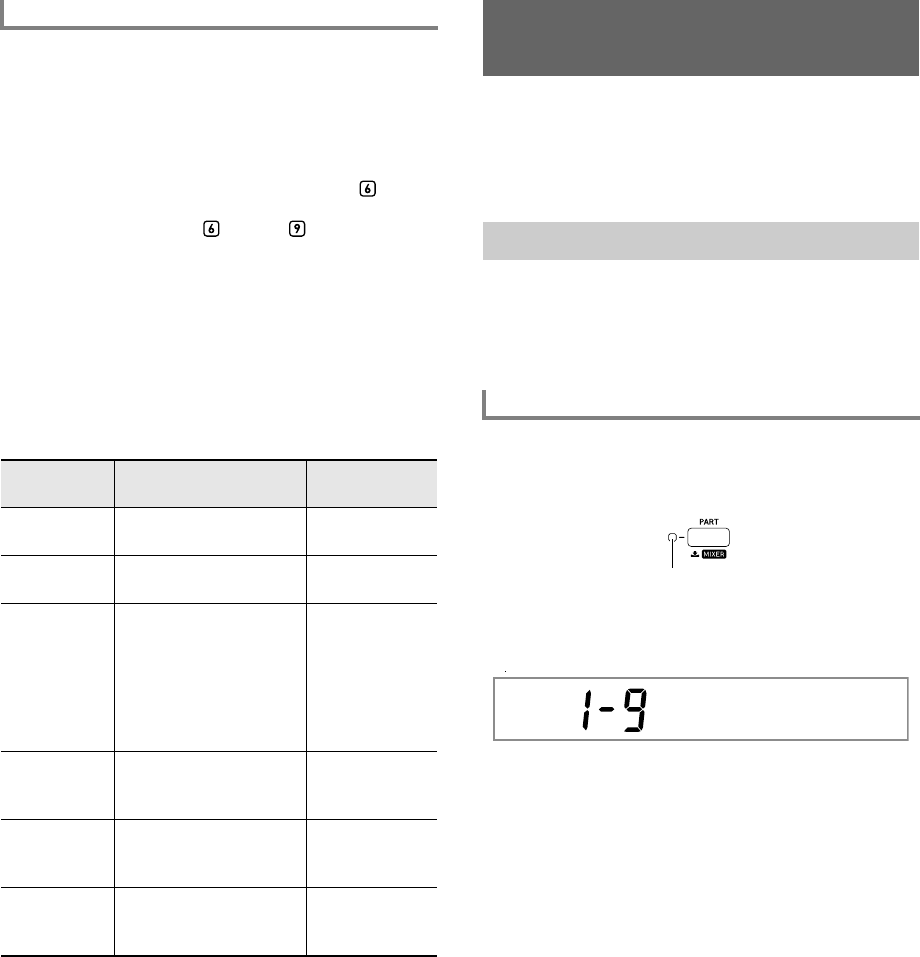
EN-62
1.
Use the procedure under “To enter the Phrase
Editing mode” (page EN-59) to enter the Phrase
Editing mode.
2.
Long-press 9PART (MIXER) until the
[MIXER] indicator appears.
This displays the [KEYBOARD] indicator and mixer
part indicator.
• Mixer part indicators through correspond to
phrase numbers 1 through 4.
3.
Use the [1] (V) and [3] (W) bm number keys
to select the phrase whose mixer settings you
want to configure.
4.
Use the [2] (w) and [5] (q) bm number keys to
display the menu item you want to change.
• Initial default setting values are indicated by an
asterisk (*).
5.
Use bn [–] and [+] or the bl dial to change the
setting value.
6.
To exit the operation, long-press the [4] (EXIT)
bm number key.
Your Digital Keyboard produces Auto Accompaniment and
keyboard play notes using multiple parts. You can use the
part on/off function to easily mute and unmute one or more
parts. For example, you can mute all parts except for the
drum, percussion, and bass parts of the Auto
Accompaniment.
The example below shows how to turn each Auto
Accompaniment part on or off. If you perform this operation
while an Auto Accompaniment is sounding, you can compare
what the accompaniment sounds like with and without the
part.
1.
Press 9PART.
This causes the indicator lamp to the left of the button to
light (Part Mode).
This displays the name of the currently selected part
group.
• For details about part groups, see “Part On/Off
Function Part Groups” (page EN-63).
To configure phrase mixer settings
Item Name
(Display) Description Settings
Tone (Tone) Changes the phrase
tone.
0 to 900
Volume
(Volume)
Adjusts the phrase
volume level.
0 to 100* to 127
Pan (Pan) Adjusts the stereo
position of the phrase. 0
indicates the center,
while a smaller value
shifts to the left and a
larger value shifts to the
right.
–64 to 0* to 63
Reverb Send
(Rev Send)
Specifies how much
reverb is applied to the
selected part.
0 to 40* to 127
Chorus Send
(Cho Send)
Specifies how much
chorus is applied to the
selected part.
0* to 127
Delay Send
(Dly Send)
Specifies how much
delay is applied to the
selected part.
0* to 127
Muting Specific Parts (Part
Mode)
Turning a Part On or Off
To turn each part on or off
Lit
Ke
y
boa rd
CTX5000_3000_EN.book 62 ページ 2018年2月26日 月曜日 午後3時56分
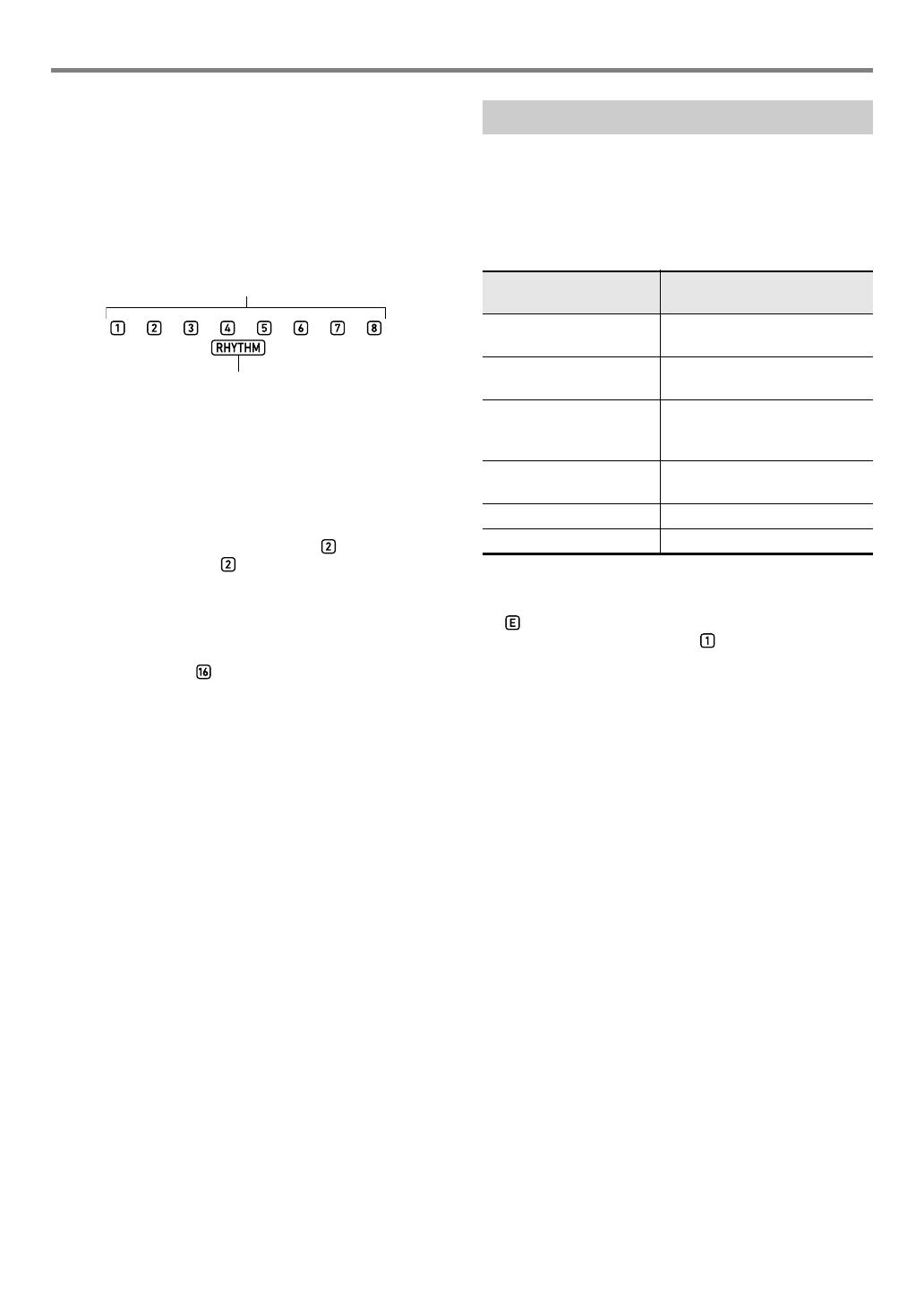
EN-63
Muting Specific Parts (Part Mode)
2.
Use bn [–] and [+] to select the part group of
the part you want to turn on or off.
• For example, display the [RHYTHM] indicator. While
the [RHYTHM] indicator is displayed, you can turn
each Auto Accompaniment part on or off. The mixer
part indicator numbers that correspond to the currently
sounding Auto Accompaniment will be shown on the
display.
• For information about the mixer part indicator numbers
and their parts, see “List of Parts for Each Mixer Part
Group” (page EN-65).
3.
To turn a part on or off, press the bm number
key that corresponds to the part number.
• For example, each press of the [2] bm number key
toggles the drum part between off ( indicator not
displayed) and on ( indicator displayed).
• The SONG SOLO and MIDI IN part groups have 16
parts, and only eight parts (1 to 8, or 9 to 16) are
displayed at a time. While parts 9 through 16 are
displayed, first subtract 8 from the part number. Next,
press the bm number key that corresponds to the
result. For part , for example, press the [8] bm
number key.
4.
To exit the Part mode, press 9PART.
• Part on/off settings are maintained even if you exit the
Part Mode.
Besides the Auto Accompaniment in the explanation above,
the Digital Keyboard also uses other parts in order to generate
sounds for manual keyboard play, song playback, and MIDI
message input from external devices. The part on/off function
divides these parts into multiple part groups.
■Part Group and Indicator List
*1 Since SONG SOLO and MIDI IN use the same sound
source parts, parameters of the same part numbers are
shared.
*2 is displayed on the right end of the mixer part
indicators. Mixer part indicator is displayed while
microphone input is turned on.
• For information about the parts in each part group and their
corresponding mixer part indicator numbers, see “List of
Parts for Each Mixer Part Group” (page EN-65).
Mixer Part Indicators
(Turned on parts displayed.)
[RHYTHM] indicator displayed
Part On/Off Function Part Groups
Part Group Name
(Indicator) Description
Keyboard play
(KEYBOARD)
Hand play, Phrase Pads 1 to 4,
and Auto Harmonize parts
Auto Accompaniment
(RHYTHM)
Auto Accompaniment parts
Song System
(SONG SYSTEM)
MIDI recorder system track
parts (Part configuration same
as KEYBOARD.)
Song Solo
(SONG SOLO)*1
Song bank song and MIDI
recorder solo track parts
MIDI Input (MIDI IN)*1 MIDI IN parts
Microphone input (E*2) Microphone input part
CTX5000_3000_EN.book 63 ページ 2018年2月26日 月曜日 午後3時56分
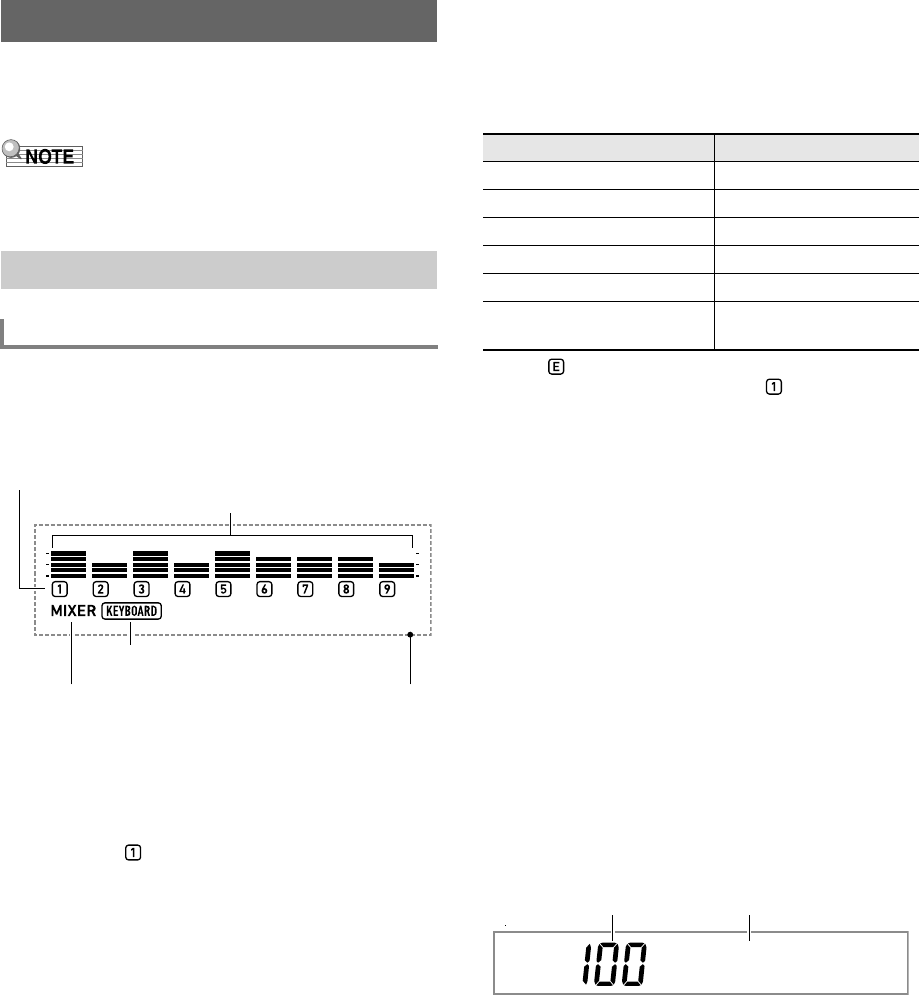
EN-64
Your Digital Keyboard produces Auto Accompaniment and
keyboard play notes using multiple parts. You can use the
mixer function to make fine-adjustments to the volume, effect
level, and other settings for each of these parts.
• You can quickly and easily mute and unmute parts. For
details, see “Muting Specific Parts (Part Mode)” (page
EN-62).
1.
Long press 9PART (MIXER) until the [MIXER]
indicator appears.
This causes the mixer info display area to change as
shown in the example below.
• The [MIXER] indicator on the display indicates that the
Digital Keyboard is in the Mixer Mode.
• The displayed part group indicator ([KEYBOARD] in
this example) indicates the KEYBOARD part group
(hand-played performance part) currently being
affected by mixer operations. The flashing mixer part
indicator ( in this example) indicates the part
(UPPER 1 part in the case of the KEYBOARD part
group) whose setting is currently being configured. For
details about part groups and parts, see “List of Parts
for Each Mixer Part Group” (page EN-65).
2.
Select the part group whose mixer settings you
want to configure.
(1) Press 9PART and confirm that the indicator lamp
to the left of the button is lit.
(2) Use bn [–] and [+] to select the part group whose
settings you want to configure.
*1 is displayed on the right end of the mixer part
indicators. Mixer part indicator is also displayed
at this time.
(3) After selecting a part group, press 9PART and
confirm that the indicator lamp to the left of the button
is unlit.
3.
Use the [1] (V) and [3] (W) bm number keys
to select the part whose settings you want to
configure with the mixer.
• Pressing [3] (W) while the rightmost part is selected
or [1] (V) while the leftmost part is selected will scroll
to another part group.*2
*2 Pressing [3] (W) while Part 8 of the SONG SOLO or
MIDI IN part group is selected changes to display of
parts 9 to 16 of the same part group. Pressing [1]
(V) while Part 9 is selected changes to display of
parts 1 to 8.
• You can use the bm number keys to quickly select
parts. See “To select parts with the bm number keys”
(page EN-65).
4.
Use the [2] (w) and [5] (q) bm number keys to
select the item whose setting you want to
configure.
This displays a level indicator of each part setting value
for the currently selected setting item.
• For details about setting items, see the “Advanced
Mixer Settings” (page EN-66).
5.
Use bn [–] and [+] or the bl dial to change the
setting value.
Using the Mixer
Mixer Operation
To configure mixer settings
Level indicator
Part group indicator (displayed)
Mixer info display area
Mixer part indicator
[MIXER] indicator (displayed)
To select this part group: Displays this indicator:
KEYBOARD Part Group KEYBOARD
RHYTHM Part Group RHYTHM
SONG SYSTEM Part Group SONG and SYSTEM
SONG SOLO Part Group SONG and SOLO
MIDI IN Part Group MIDI IN
External Part Group
(Microphone Input)
E*1
Vo l u
m
e
Current setting value Setting item name
CTX5000_3000_EN.book 64 ページ 2018年2月26日 月曜日 午後3時56分
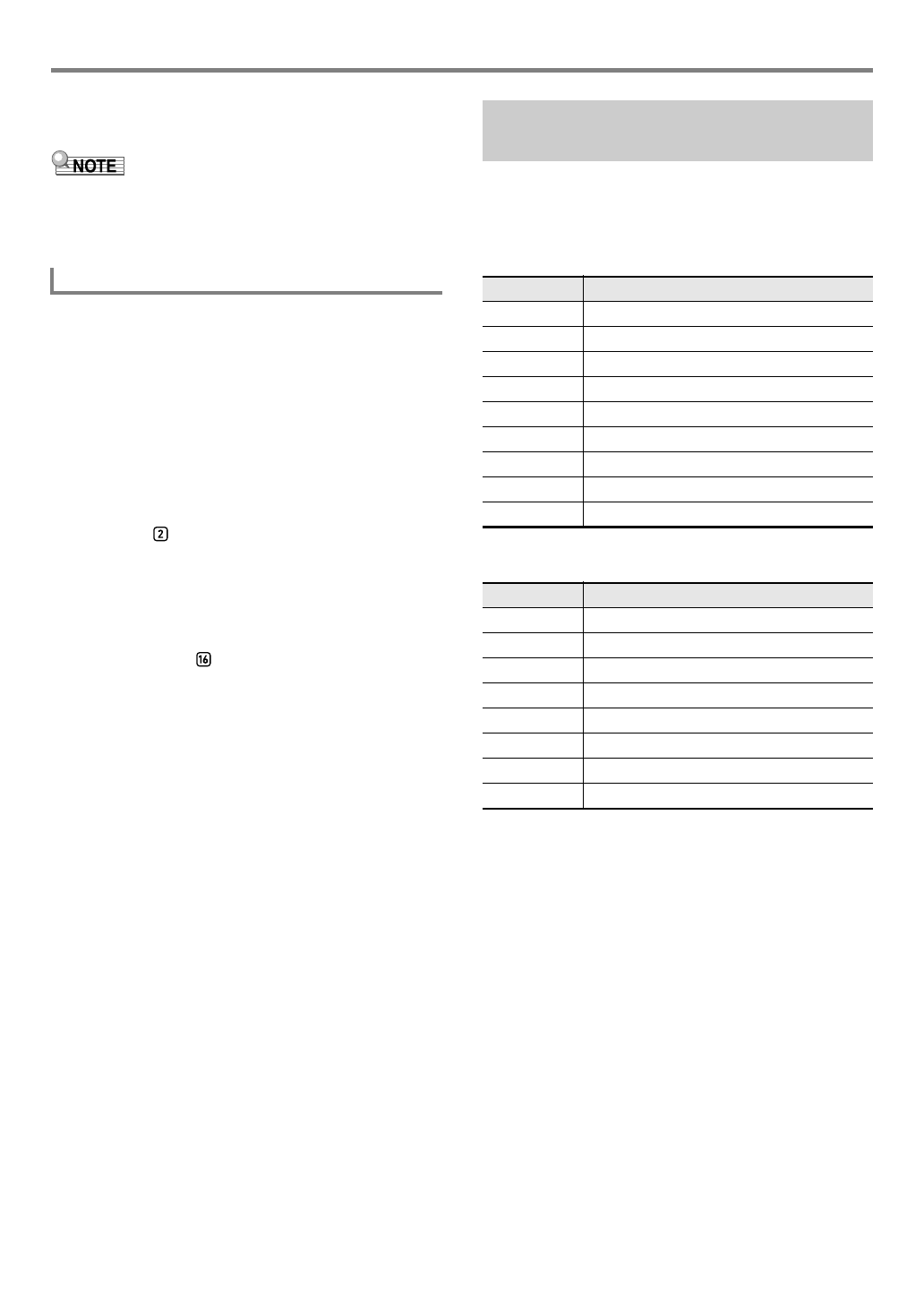
EN-65
Using the Mixer
6.
To exit the Mixer mode, press the [4] (EXIT) bm
number key.
• The displayed, flashing, and not displayed status of mixer
part indicators depends on the part on/off status in the Part
Mode. For details, see “Muting Specific Parts (Part Mode)”
(page EN-62).
1.
Perform steps 1 and 2 under “To configure
mixer settings” (page EN-64) to select the part
group whose mixer settings you want to
configure.
2.
Press 9PART.
This causes the indicator lamp to the left of the button to
light (Part Mode in the Mixer Mode).
3.
To select a part, press the bm number key that
corresponds to the part number.
• For part , for example, press the [2] bm number
key.
• The SONG SOLO and MIDI IN part groups have 16
parts, and only eight parts (1 to 8, or 9 to 16) are
displayed at a time. While parts 9 through 16 are
displayed, first subtract 8 from the part number. Next,
press the bm number key that corresponds to the
result. For part , for example, press the [8] bm
number key.
4.
To exit the Part mode, press 9PART.
This causes the indicator lamp to the left of the button to
go out.
The tables below show Mixer Mode part groups and the parts
included in each group.
●KEYBOARD Part Group
This is the hand-played performance part, and it includes Auto
Harmonize and phrase pads.
●RHYTHM Part Group
Auto Accompaniment parts.
To select parts with the bm number keys
List of Parts for Each Mixer Part
Group
Part Number Corresponding Part
1 UPPER 1
2 UPPER 2
3LOWER1
4LOWER2
5 Auto Harmonize
6 Phrase Pad 1
7 Phrase Pad 2
8 Phrase Pad 3
9 Phrase Pad 4
Part Number Corresponding Part
1 Percussion
2Drums
3Bass
4 Chord 1
5 Chord 2
6 Chord 3
7 Chord 4
8 Chord 5
CTX5000_3000_EN.book 65 ページ 2018年2月26日 月曜日 午後3時56分
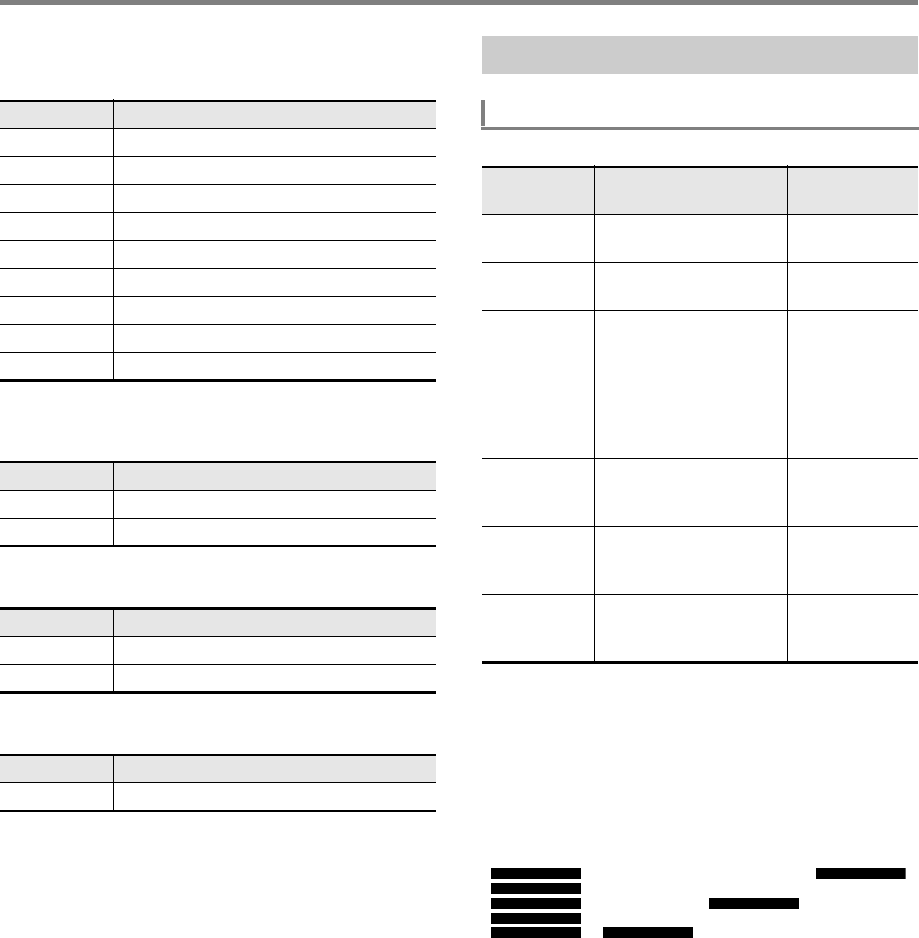
Using the Mixer
EN-66
●SONG SYSTEM Part Group
These are the parts of the system track in songs recorded
with the MIDI recorder.
●SONG SOLO Part Group
These are the parts of song bank songs and the solo track in
songs recorded with the MIDI recorder.
●MIDI IN Part Group
MIDI receive parts.
●External Part Group
Microphone input.
Initial default setting values are indicated by an asterisk (*).
*1 The level indicators of all the parts for which this setting is
turned on are displayed, while all the parts for which it is
turned off are not displayed.
*2 While this setting item is displayed, you can sound only the
selected part, if you want. See “To sound only a selected
part” (page EN-67).
*3 The pan setting status is indicated by the level indicators
as shown below. The indicator on the far left is included to
show all of the segments only.
Part Number Corresponding Part
1 UPPER 1
2 UPPER 2
3LOWER1
4LOWER2
5 Auto Harmonize
6 Phrase Pad 1
7 Phrase Pad 2
8 Phrase Pad 3
9 Phrase Pad 4
Part Number Corresponding Part
1 to 8 Song Part 1 to Part 8
9 to 16 Song Part 9 to Part 16
Part Number Corresponding Part
1 to 8 MIDI Receive Part 1 to Part 8
9 to 16 MIDI Receive Part 9 to Part 16
Part Number Corresponding Part
1 Microphone input
Advanced Mixer Settings
Setting Items for Each Part Group
Item Name
(Display) Description Settings
Part on/off
(Part)*1 *2
Specifies on/off for the
selected part.
On*, Off
Volume
(Volume)
Adjusts the volume level
of the selected part.
0 to 100* to 127
Pan (Pan)*3Specifies the stereo pan
position of each part. 0
indicates the center,
while a smaller value
shifts to the left and a
larger value shifts to the
right.
–64 to 0* to 63
Reverb Send
(Rev Send)
Specifies how much
reverb is applied to the
selected part.
0 to 40* to 127
Chorus Send
(Cho Send)
Specifies how much
chorus is applied to the
selected part.
0* to 127
Delay Send
(Dly Send)
Specifies how much
delay is applied to the
selected part.
0* to 127
(All Segments) Negative Value 0 Positive Value
CTX5000_3000_EN.book 66 ページ 2018年2月26日 月曜日 午後3時56分
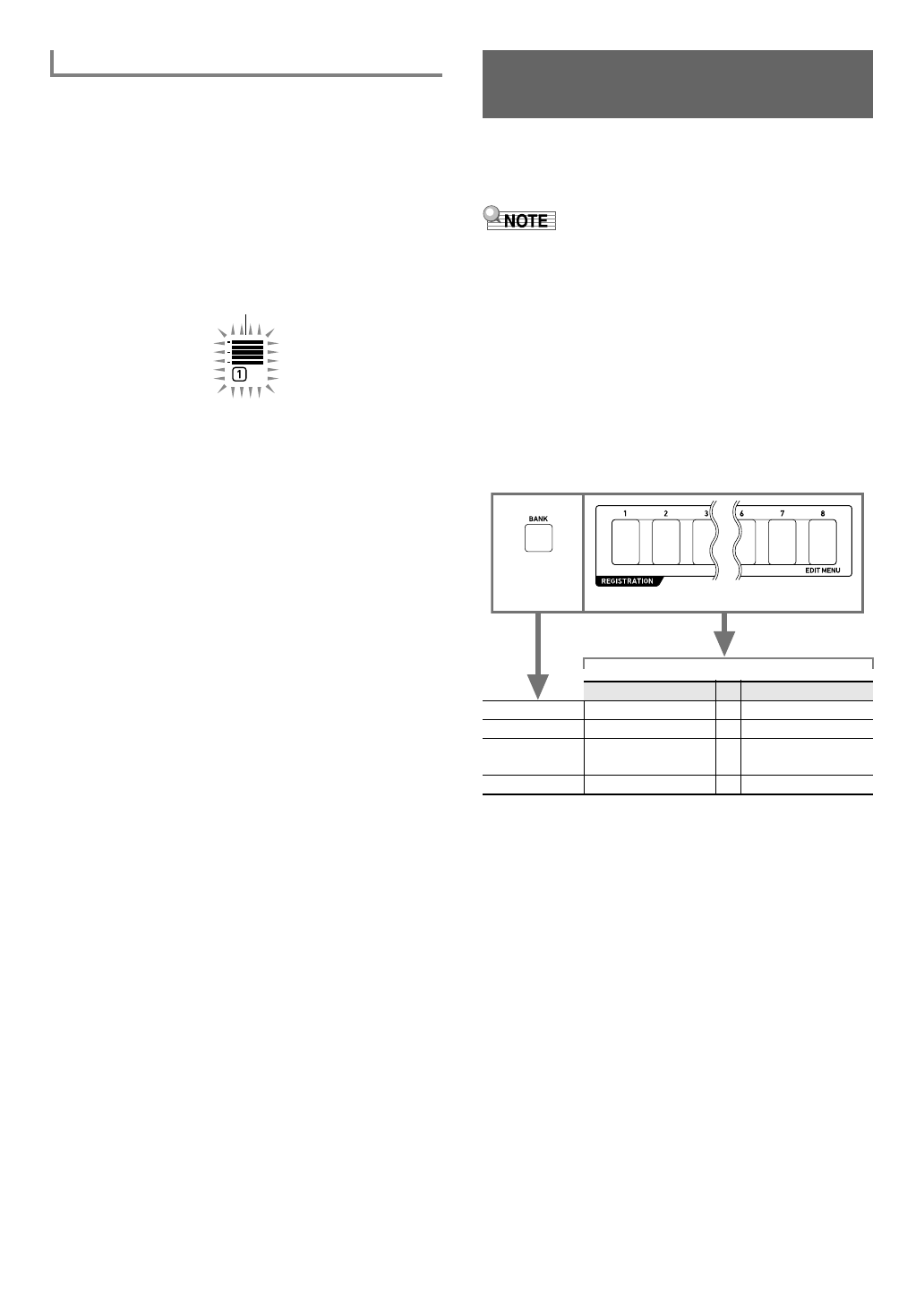
EN-67
1.
Perform steps 1 through 4 under “To configure
mixer settings” (page EN-64).
2.
To sound only the part whose setting is being
configured, press the [6] (ENTER) bm number
key.
This causes the mixer part indicator of the part whose
setting is being configured, the level indicator above it,
and marks to the left and right of the level indicators to
flash.
• This enables sounding of the part whose setting is
being configured, and disables sounding of all other
parts.
3.
To re-enable the other parts, press [6] (ENTER)
again.
• Using the [1] (V) and [3] (W) bm number keys to
change to another part will re-enable the other parts.
You can use the registration function to register the setup of
the Digital Keyboard (tone, rhythm, and other settings). You
can recall a registered setup as required to perform a
particular song, etc.
• Registration can be used in the Rhythm Mode (page
EN-43).
• The registration function cannot be used while in the Song
Bank Mode (page EN-39), during demo play (page EN-17),
or while configuring function settings (page EN-112).
■Setup Storage Locations
Setup registrations are stored in memory locations that are
divided into 16 banks. Each bank has eight storage areas,
which means you can register up to 128 (16 banks × 8 areas)
setups.
• Use the co BANK button to specify a bank.
• Specify an area using the cs REGISTRATION buttons ([1]
to [8]).
To sound only a selected part
Flashing
Registering and Restoring a
Setup (Registration)
Area 1 …Area 8
Bank 1 Setup 1-1 …Setup 1-8
Bank 2 Setup 2-1 …Setup 2-8
.
.
.
.
.
.
Bank 16 Setup 16-1 …Setup 16-8
co
cs
CTX5000_3000_EN.book 67 ページ 2018年2月26日 月曜日 午後3時56分
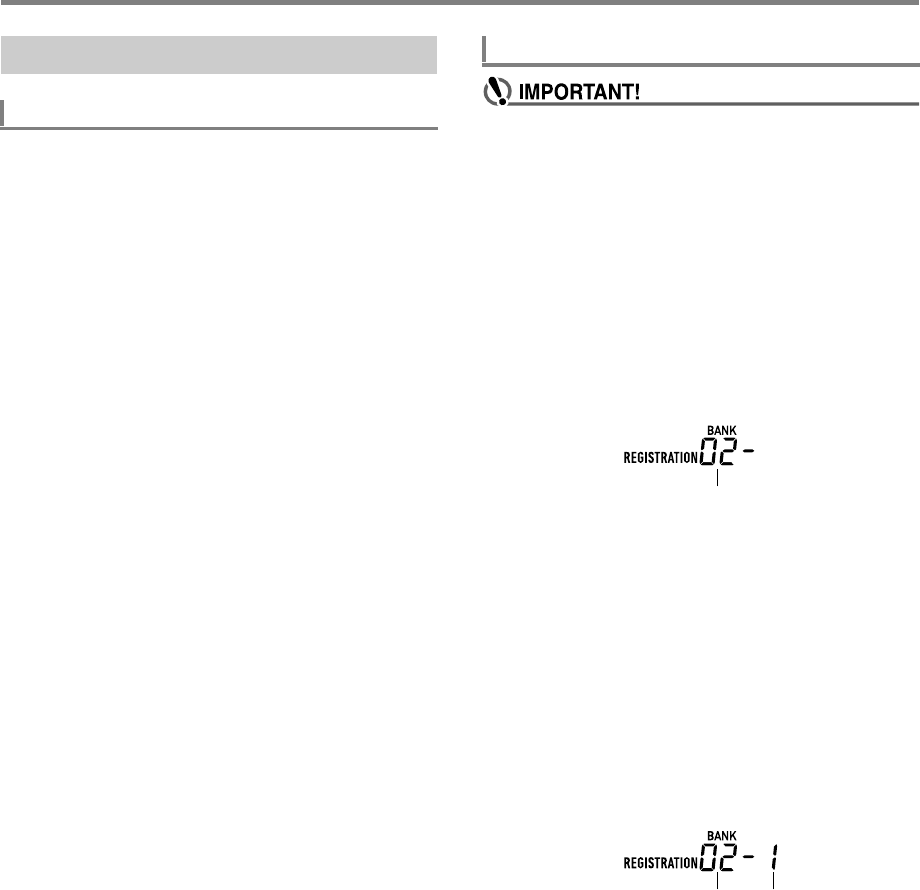
Registering and Restoring a Setup (Registration)
EN-68
Setting items that can be registered are shown below.
●Keyboard Play
• Tone number (UPPER 1, LOWER 1, UPPER 2, LOWER 2
parts)
• Layer (on/off)
• Split (on/off)
• Reverb, Chorus, Delay (on/off, type)
●Note Control
• Transpose
• Octave Shift (UPPER 1, LOWER 1, UPPER 2, LOWER 2
parts)
• Touch Response setting status
• Pedal 1 and Pedal 2 effects (Pedal 2 type is not recorded)
• Scale, scale fine tune, part fine tune, part coarse tune
•dn SUSTAIN button (on/off, setting mode)
•dm PORTAMENTO button (on/off, setting mode)
• CT-X5000: dt MODULATION/ASSIGNABLE button (on/
off, setting mode)
●Split Settings
•Split Point
• Lower Point
• Chord Point
• Chord Input Priority Mode
●Auto Accompaniment
• Rhythm Number
• ACCOMP on/off ([ACCOMP] indicator displayed/not
displayed status)
• Tempo, Note value display setting
• Chord Fingering Mode
• Synchro start
• Auto Accompaniment volume
●AUTO HARMONIZE/ARPEGGIATOR
•do AUTO HARMONIZE/ARPEGGIATOR button
assignment
• Auto Harmonize (on/off, type)
• Arpeggiator (on/off, type)
• Arpeggiator Hold (on/off)
●Phrase Pad
• Phrase set number
• Phrase playback setups
●Mixer
• Part on/off setting
• Volume, Pan, Reverb send, Chorus send, Delay send
settings
• Specifying a bank and area that already has data stored
to it in the procedure below causes the recorded data
to be deleted. For information about banks and areas,
see “Setup Storage Locations” (page EN-67).
1.
Set up the Digital Keyboard with the tone,
rhythm and other settings to suit the song you
will play.
2.
Select the bank where you want to store the
registration.
(1) Press co BANK.
• “Bank” will appear on the display along with the
currently selected bank number.
(2) While “Bank” and the bank number are displayed,
use bn [–] and [+] or the bl dial to select a bank
number.
• While “Bank” and the bank number are displayed,
each press of co BANK cycles through the bank
numbers.
3.
While holding down cp STORE, press one of
the cs REGISTRATION buttons ([1] to [8]) to
select the area you want to specify as the
registration destination.
Pressing the two buttons registers the current Digital
Keyboard setup to the bank and area you specified in
steps 2 and 3.
Registering a Setup
Registration Setting Items
To register a setup
Bank number
Bank number Area number
CTX5000_3000_EN.book 68 ページ 2018年2月26日 月曜日 午後3時56分
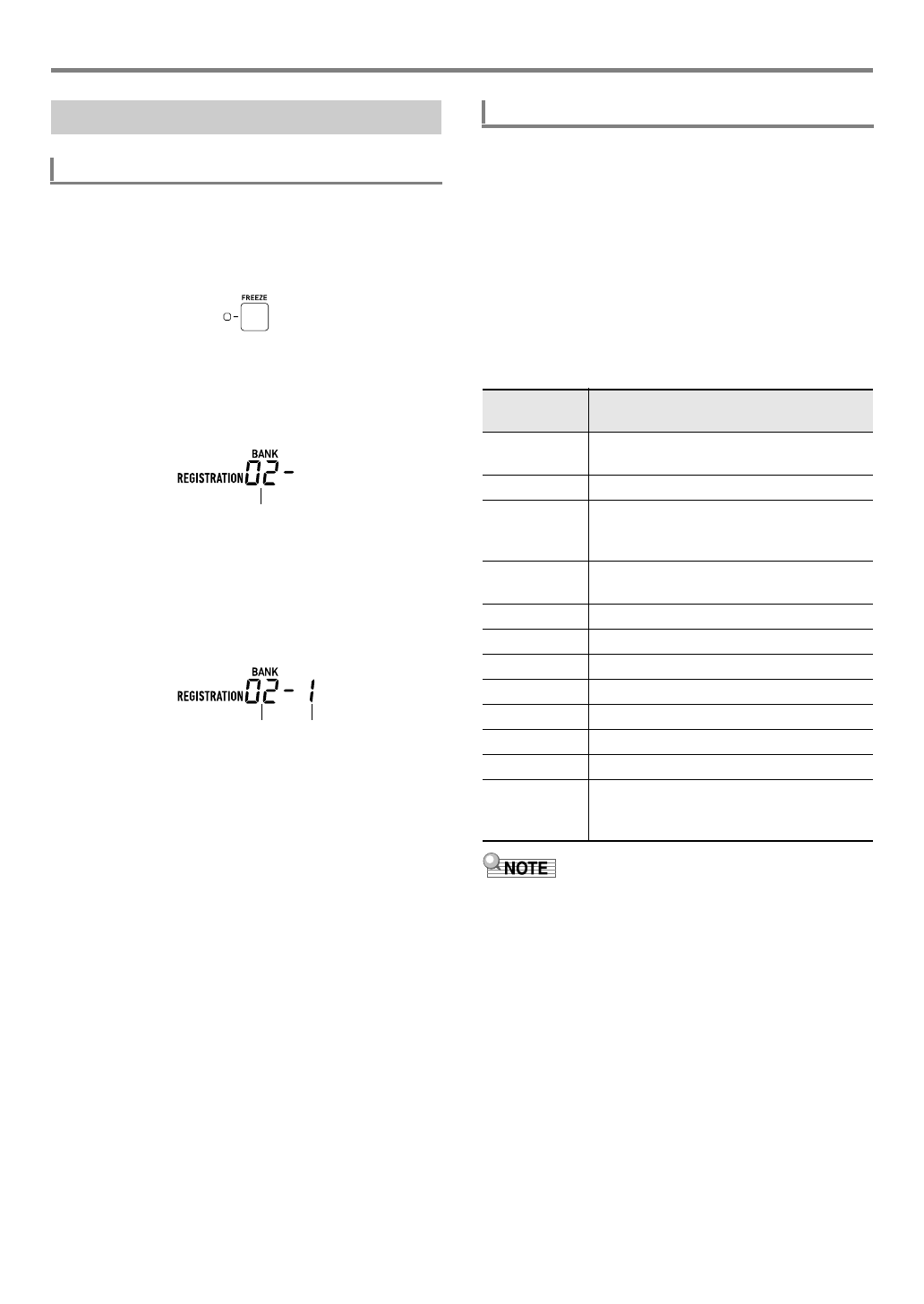
EN-69
Registering and Restoring a Setup (Registration)
1.
As required, press cn FREEZE to toggle the
freeze function between on and off.
• The indicator lamp is lit when the function is on, and
unlit when it is off.
• For details about the freeze function, see “Freeze
Function” below.
2.
Use co BANK to select the bank that contains
the setup you want to recall.
3.
Press one of the cs REGISTRATION buttons
([1] to [8]) to select the area whose setup you
want to recall.
This causes the Digital Keyboard’s settings to change in
accordance with the setup you recalled.
Recalling a registered setup normally overwrites all of the
settings shown under “Registration Setting Items” (page
EN-68).
You can also use the freeze function to specify particular
settings that should not be overwritten when a setup
registration is recalled.
Perform the procedure under “To configure function settings
with the bk FUNCTION button” (page EN-112) and enable or
disable the items on each sub-menu that appears when you
perform the following operation: Registration Memory (Reg
Mem) 3 Registration Memory Freeze Target (RMFrzTgt)
(page EN-116).
Setting items that can be specified are shown below.
• Under initial default settings, Rhythm and Tempo are on
while all other settings are off.
Recalling a Registered Setup
To recall a setup
Bank number
Bank number Area number
Freeze Function
Display Setting that is not changed when a
setup is recalled
Rhythm Rhythm Number, ACCOMP on/off,
Synchro start/stop status
Tempo Tempo
Tone Tone number, Layer (on/off), Split (on/off),
Octave Shift, KEYBOARD part group mixer
settings
Split Pt Split Point, Lower Point, Chord Point,
Chord Input Priority Mode
AHar/Arp Auto Harmonize/Arpeggiator
Trans. Transpose
Scale Scales
Touch Touch Response
Effect Effect type (Reverb, Chorus, Delay on/off)
PartTune Coarse Tune, Fine Tune
Phr Pad Phrase Pad
Cntrller Setting items included under Controller
(Cntrller) in the “Function Setting Item List”
(page EN-113).
CTX5000_3000_EN.book 69 ページ 2018年2月26日 月曜日 午後3時56分
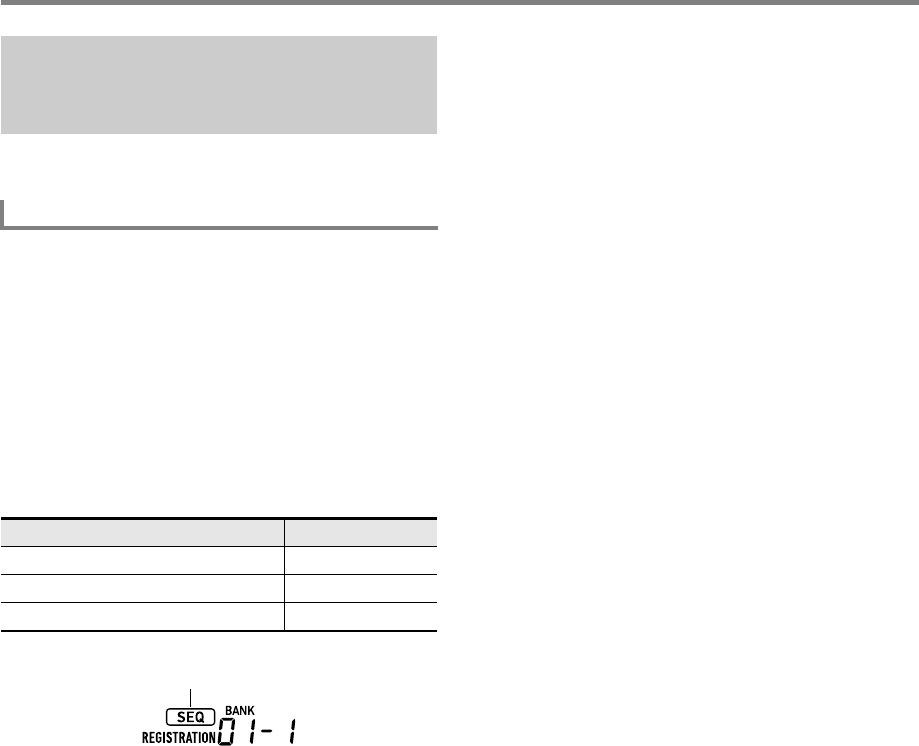
Registering and Restoring a Setup (Registration)
EN-70
Each press of the pedal cycles through the currently selected
bank’s registrations (setups) in area number sequence.
1.
Press bk FUNCTION.
2.
Use the [1] (V) and [3] (W) bm number keys
to display “Reg Mem” (Registration Memory),
and then press [6] (ENTER).
3.
Use the [1] (V) and [3] (W) keys to display
“Reg Seq” (Registration sequence).
4.
Use bn [–] and [+] to select the pedal jack that
will be used for the registration sequence
operation.
• This displays the [SEQ] indicator, which indicates that
the registration sequence function is enabled.
• The purpose of the pedal connected to the jack
selected here is registration setup recall only. Normal
pedal functions (functions assigned to the pedal with
the “Using a Pedal” operation, page EN-29) cannot be
used.
5.
When the setting is the way you want, long-
press the [4] (EXIT) bm number key to exit the
setting screen.
6.
Connect a sustain pedal (see “Separately
Available Accessories”, page EN-3) to the jack
you selected in step 4.
7.
At the point when you want to recall the
registration setup, press the pedal.
• Each press of the pedal cycles through the currently
selected bank’s registration setups in sequence from
Area 1.
• Pressing the pedal while the Area 8 setup is recalled
cycles back to the Area 1 setup.
8.
After you are finished recalling the registration
setups using the pedal, perform steps 1
through 5 to turn off the registration sequence
function.
This causes the [SEQ] indicator to disappear.
Using a Pedal to Cycle Through
Multiple Setups (Registration
Sequence)
To play with a Registration Sequence
To select this pedal jack: Display this:
fo PEDAL1 jack Pedal1
fp PEDAL2/EXPRESSION jack Pedal2
(Turn off registration function) Off
Displayed
CTX5000_3000_EN.book 70 ページ 2018年2月26日 月曜日 午後3時56分
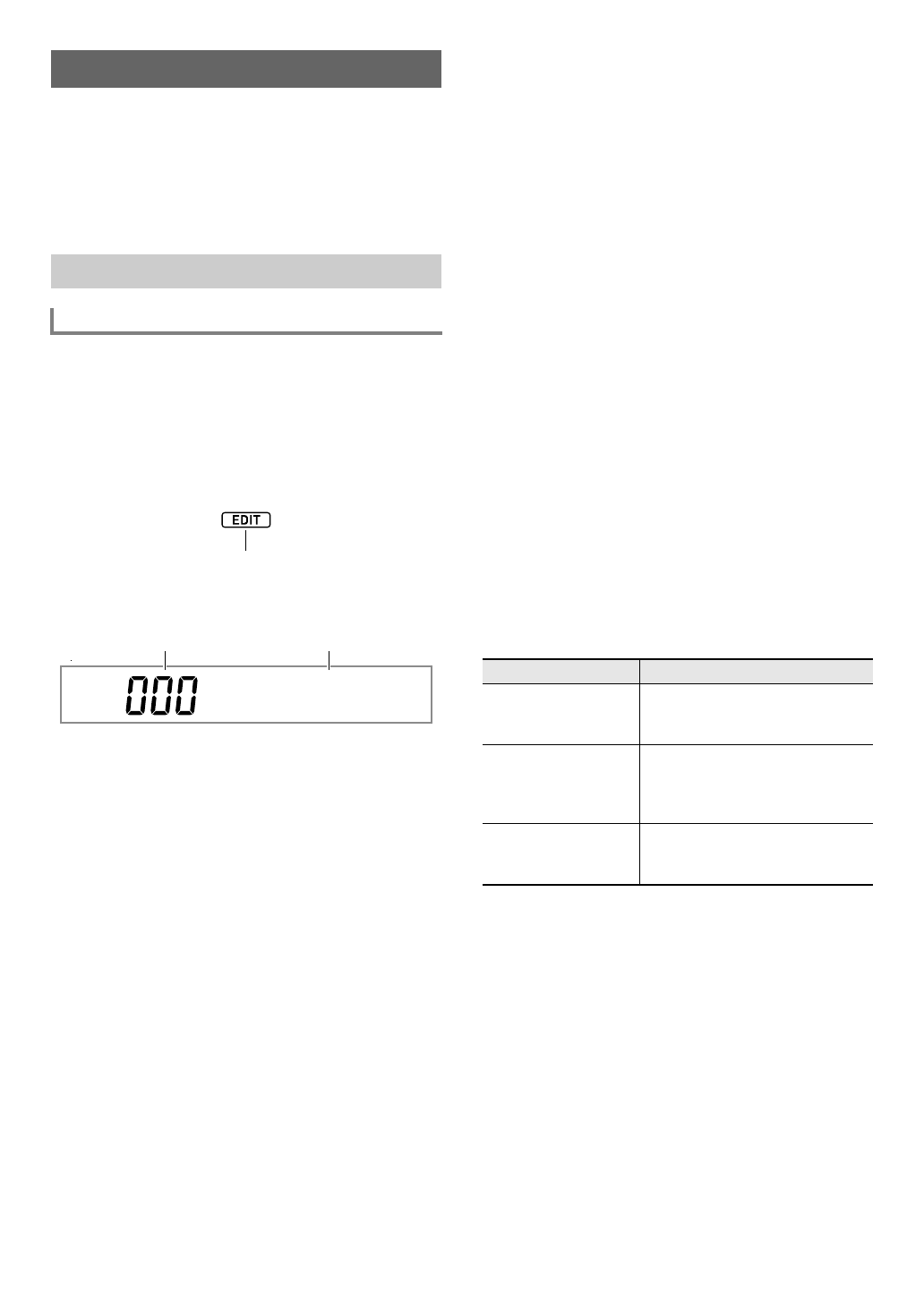
EN-71
You can edit a built-in tone to create a user tone, and save up
to 100 user tones for later recall.
■Saving to an External Device
User tones can be saved to a USB flash drive or a computer.
For details, see “To save Digital Keyboard data to a USB flash
drive” (page EN-121) and “Transferring Data Between the
Digital Keyboard and a Computer” (page EN-125).
1.
Select the tone you want to edit.
• Be sure to select the UPPER 1 part tone (page
EN-19). The UPPER 1 part tone will be the tone being
edited.
• You cannot select a drum set tone for editing.
2.
Long-press bk FUNCTION until the [EDIT]
indicator appears.
• This enters the Tone Editing Mode and displays the
tone editing screen.
• For details about editable parameters, see the “Tone
Editing Item List” (page EN-74).
3.
Use the [1] (V) and [3] (W) bm number keys
to display the editing item you want to modify.
• If the [ENTER] indicator is displayed, press [6]
(ENTER) to enter the sub-menu and then use the [1]
(V) and [3] (W) keys to display the editing item you
want to modify.
• To return to a main menu from a sub-menu, press the
[4] (EXIT) bm number key.
• Using the “DSP Edit” editing item, you can configure
precise DSP effects for a tone using a wide variety of
parameters. For details about the configuration of
Digital Keyboard DSP effects and an overview of DSP
editing, see “DSP Editing” (page EN-72). For details
about the DSP editing operation, see “To use DSP
editing to edit an effect” (page EN-72).
4.
Use bn [–] and [+] or the bl dial to change the
setting value.
5.
Repeat steps 3 and 4 above for each of the
editing items you want to change.
• You can sound the tone you are editing by playing
something on the keyboard. This means you can
immediately check to see how your edits are affecting
the tone.
6.
To save the edited tone, press the [7] (WRITE)
bm number key.
• If the tone you are editing is a user tone, the message
“Replace?” will appear here. Press bn [+] (YES) to
replace the original tone data with the new data, or bn
[–] (NO) to save the new data without replacing the
original data.
• If there are already 100 user tones stored in memory,
the error message “Data Full” will appear when you
press bn [–] (NO) to indicate that you cannot save the
new tone.
• The message “Wait...” remains on the display while
the tone save operation is being performed. Do not
perform any operation while this message is on the
display. “Complete” appears on the display after the
operation is complete.
7.
To exit the Tone Editing Mode, long-press the
[4] (EXIT) bm number key.
• If you did not perform any editing after executing the
operation in step 6, the Tone Editing Mode will be
exited and the [EDIT] indicator will disappear from the
display.
• If you performed any editing after executing the
operation in step 6, the message “Exit?” will be
displayed here. Perform one of the operations below.
Editing a Tone (User Tones)
Creating a User Tone
To edit a tone
Displayed
Atk.Ti
m
e
Current setting value Editing item name
To do this: Perform this operation:
Continue editing
without exiting the
Tone Editing Mode
Press bn [–] (NO).
Save edited data and
exit the Tone Editing
Mode
(1) Press bn [+] (YES).
(2) When “Write?” appears on the
display, press bn [+] (YES)
again.
Discard edited data
and exit the Tone
Editing Mode
(1) Press bn [+] (YES).
(2) When “Write?” appears on the
display, press bn [–] (NO).
CTX5000_3000_EN.book 71 ページ 2018年2月26日 月曜日 午後3時56分
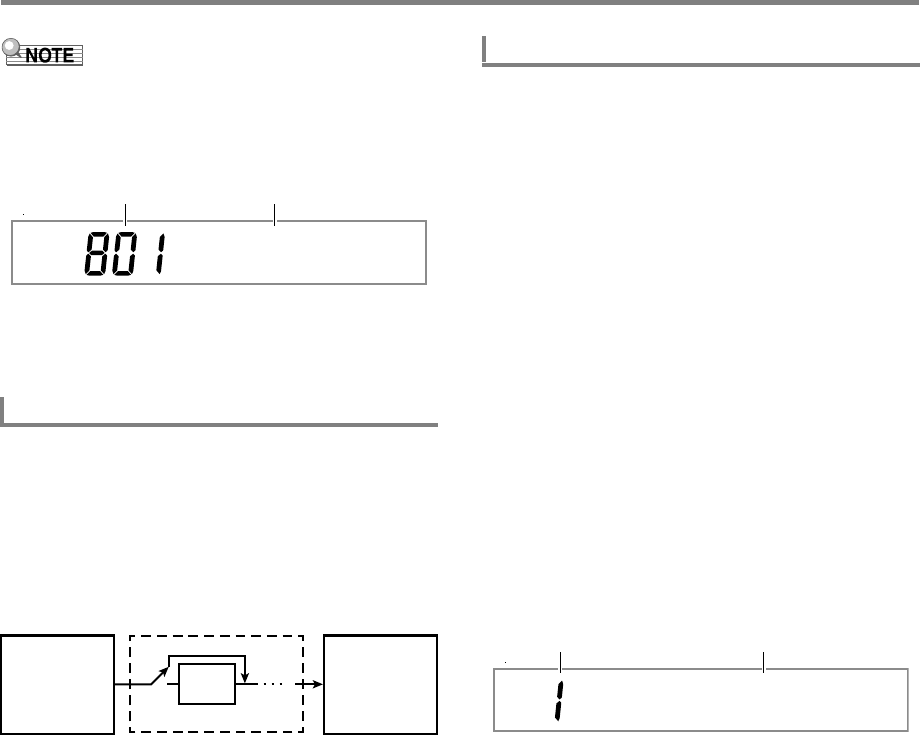
Editing a Tone (User Tones)
EN-72
• If you are saving the data as a new user tone, the save
destination tone number will be the lowest one in memory
that currently does not have any data stored. The newly
saved user tone will be selected after this operation is
complete.
• If there is no data stored for a user tone number, “No Data”
will be displayed for the tone name. If there is data stored,
“No Name” will be displayed. For information about
renaming, see “To rename a user tone” (page EN-73).
A DSP (Digital Signal Processor) is a type of effect that is
connected between the sound source and output. DSP types
are equalizer, tremolo, limiter, wah, etc. Many of the built-in
tones of your Digital Keyboard are preset with DSPs that are
suited for each tone. Such tones are called “DSP tones”.
The tone editing function of the Digital Keyboard includes a
DSP Edit setting item for editing DSPs. The Digital Keyboard
DSPs that can be edited using DSP Edit are configured as
shown below.
• A DSP consists of one or more DSP modules (“Module” in
the above illustration).
• Your Digital Keyboard comes with hundreds of preset
DSPs. For DSP editing, you can start with a preset DSP
that is one assigned to a built-in tone, or a DSP that is
provided especially for DSP editing.
• The number of DSP modules and the type of each module
(equalizer, limiter, wah, etc.) are different for each DSP.
To perform DSP editing, you first select a preset DSP and
then edit its parameters in accordance with the DSP
module(s).
For details about the DSP modules and the parameters of
each DSP module, see “DSP Effect List” (page EN-132).
1.
Perform steps 1 and 2 under “To edit a tone”
(page EN-71).
2.
Use the [1] (V) and [3] (W) bm number keys
to display “DSP Edit”, and then press [6]
(ENTER).
This displays “On/Off”.
3.
If the setting is turned off, press bn [–] or [+] to
turn it on.
4.
Press [3] (W) to display “DSP Num”.
5.
To select the DSP to be edited, use bn [–] and
[+] or the bl dial to specify the DSP number (1
to 900), and then press [6] (ENTER).
• See the “DSP number” item in the “Tone Editing Item
List” (page EN-74).
6.
Use the [1] (V) and [3] (W) bm number keys
to select the DSP module whose parameters
you want to change.
• What appears here is the DSP module name. For
details about DSP modules, see “DSP Module List”
(page EN-132).
• If the DSP you selected in step 5 has one DSP
module, the display will not change if you press [1]
(V) or [3] (W). Check the DSP module name and
then proceed to step 7.
7.
Press the [6] (ENTER) bm number key.
This displays “Bypass”.
8.
Use the [1] (V) and [3] (W) bm number keys
to display the parameter whose setting you
want to change.
• For details about parameters whose settings can be
configured for each DSP module, see “DSP Parameter
List” (page EN-133).
9.
Use bn [–] and [+] or the bl dial to change the
setting value.
10.
Repeat steps 8 and 9 as required to configure
settings of other parameters.
11.
Press the [4] (EXIT) bm number key.
12.
Repeat steps 6 through 11 as required to
configure settings of DSP modules.
DSP Editing
Sound Source Output
DSP
No Na
m
e
Tone number Tone name
Module
Bypass
To use DSP editing to edit an effect
M
ono 3EQ
Module number DSP module name
CTX5000_3000_EN.book 72 ページ 2018年2月26日 月曜日 午後3時56分

EN-73
Editing a Tone (User Tones)
13.
Perform step 6 and 7 under “To edit a tone”
(page EN-71).
1.
Select the user tone you want to rename.
2.
Hold down 8RECORD/STOP until
“ToneName” appears.
3.
Press the [6] (ENTER) bm number key.
This displays the renaming screen.
4.
Input the new name.
• See “Text Character Input” (page EN-15) for
information about how to enter text.
5.
Press [6] (ENTER).
This displays “Sure?”
6.
Press bn [+] (YES) to execute the rename
operation or bn [–] (NO) to cancel.
7.
To exit the operation, press the [4] (EXIT) bm
number key.
1.
Select the user tone you want to copy.
2.
Hold down 8RECORD/STOP until
“ToneName” appears.
3.
Use the [1] (V) and [3] (W) bm number keys
to display “ToneCopy”, and then press [6]
(ENTER).
4.
Use bn [–] and [+], or the bl dial to select the
copy destination tone number and then press
[6] (ENTER).
This displays “Sure?”
• If there is already a user tone stored at the tone
number you specified as the copy destination, the
message “Replace?” will appear.
5.
Press bn [+] (YES) to execute the copy
operation or bn [–] (NO) to cancel.
• The message “Wait...” remains on the display while
the copy operation is being performed. Do not perform
any operation while this message is on the display.
“Complete” appears on the display after the operation
is complete.
6.
To exit the operation, press the [4] (EXIT) bm
number key.
1.
Select the user tone you want to delete.
2.
Hold down 8RECORD/STOP until
“ToneName” appears.
3.
Use the [1] (V) and [3] (W) bm number keys
to display “ToneClr”, and then press [6]
(ENTER).
This displays “Sure?”
4.
Press bn [+] (YES) to delete or bn [–] (NO) to
cancel the delete operation.
5.
To exit the operation, press the [4] (EXIT) bm
number key.
To rename a user tone
To copy a user tone
To delete a user tone
CTX5000_3000_EN.book 73 ページ 2018年2月26日 月曜日 午後3時56分
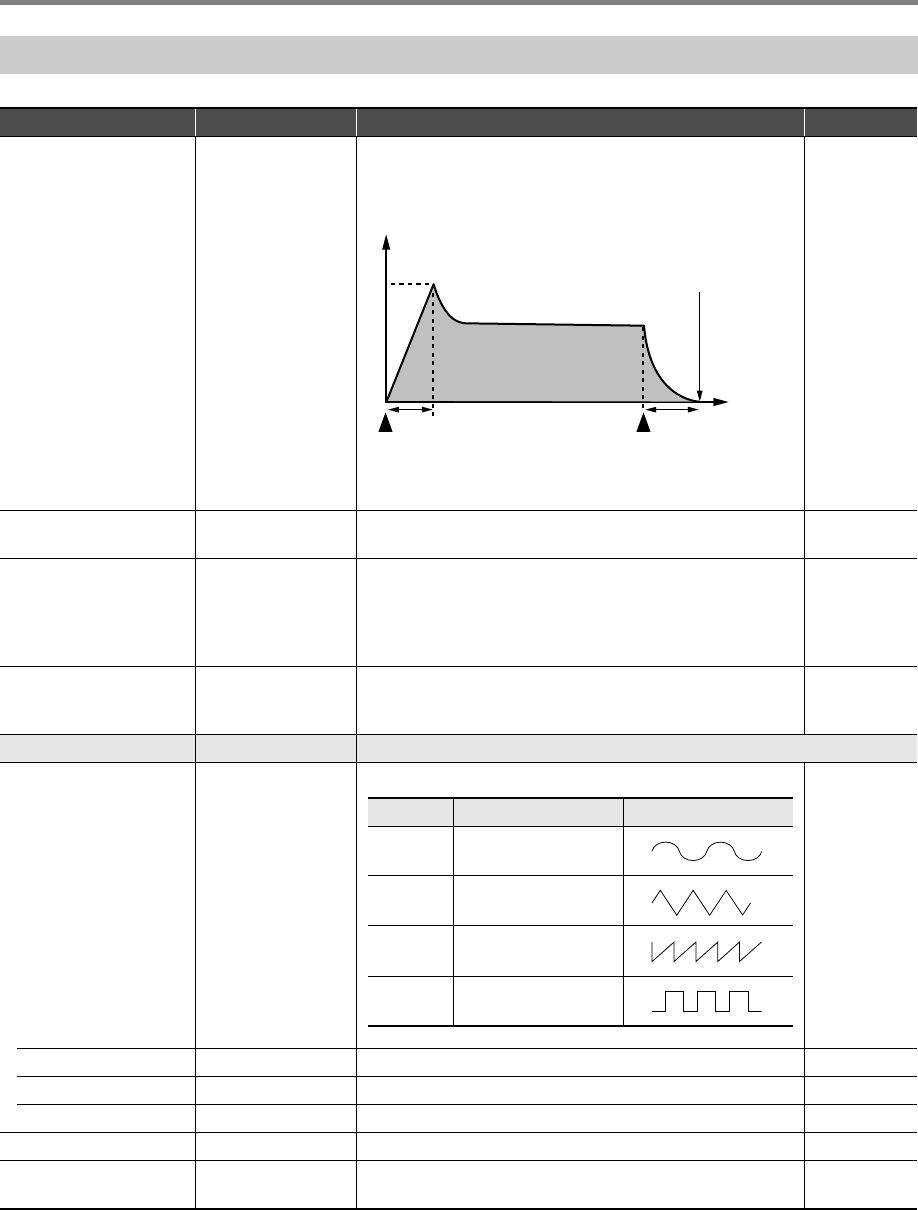
EN-74
Editing a Tone (User Tones)
Tone Editing Item List
Item Name Display Description Settings
Attack Time Atk.Time Adjusts the time after a key is pressed from when the note
starts to sound until it reaches maximum volume. A larger
value specifies a slower attack.
0 to 127
Release Time Rel.Time Adjusts how long notes linger after keyboard keys are
released. A larger values specifies a longer release.
0 to 127
Cutoff Frequency Cutoff F Adjusts timbre by attenuating the components of a note’s
frequency characteristics that are higher than a certain
frequency (cutoff frequency). A larger value specifies a
brighter, harder sound, while a lower value specifies a
mellower, softer sound.
0 to 127
Resonance Resonance Adjusts the gain of harmonic tones in the vicinity of the cutoff
frequency specified above. A larger value creates a more
unusual sound.
0 to 127
Vibrato Vibrato Sub-menu of vibrato setting items.
Vibrato Type Vib.Type Selects the vibrato waveform. Sin, Tri, Saw,
Sqr
Vibrato Depth VibDepth Specifies the depth of vibrato. 0 to 127
Vibrato Rate Vib.Rate Adjusts the speed of vibrato. 0 to 127
Vibrato Delay VibDelay Adjusts the time until vibrato starts after a note is sounded. 0 to 127
Octave Shift OctShift Shifts the pitch upwards or downwards in octave steps. –3 to 0 to 3
Volume Volume Specifies the volume level of a tone. A larger value sets a
higher volume level.
0 to 127
AR
Key pressed Key released
Note ends
Time
A : Attack time
R : Release time
Volume
Setting Description Waveform
Sin Sine wave
Tri Triangle wave
Saw Sawtooth wave
Sqr Square wave
CTX5000_3000_EN.book 74 ページ 2018年2月26日 月曜日 午後3時56分
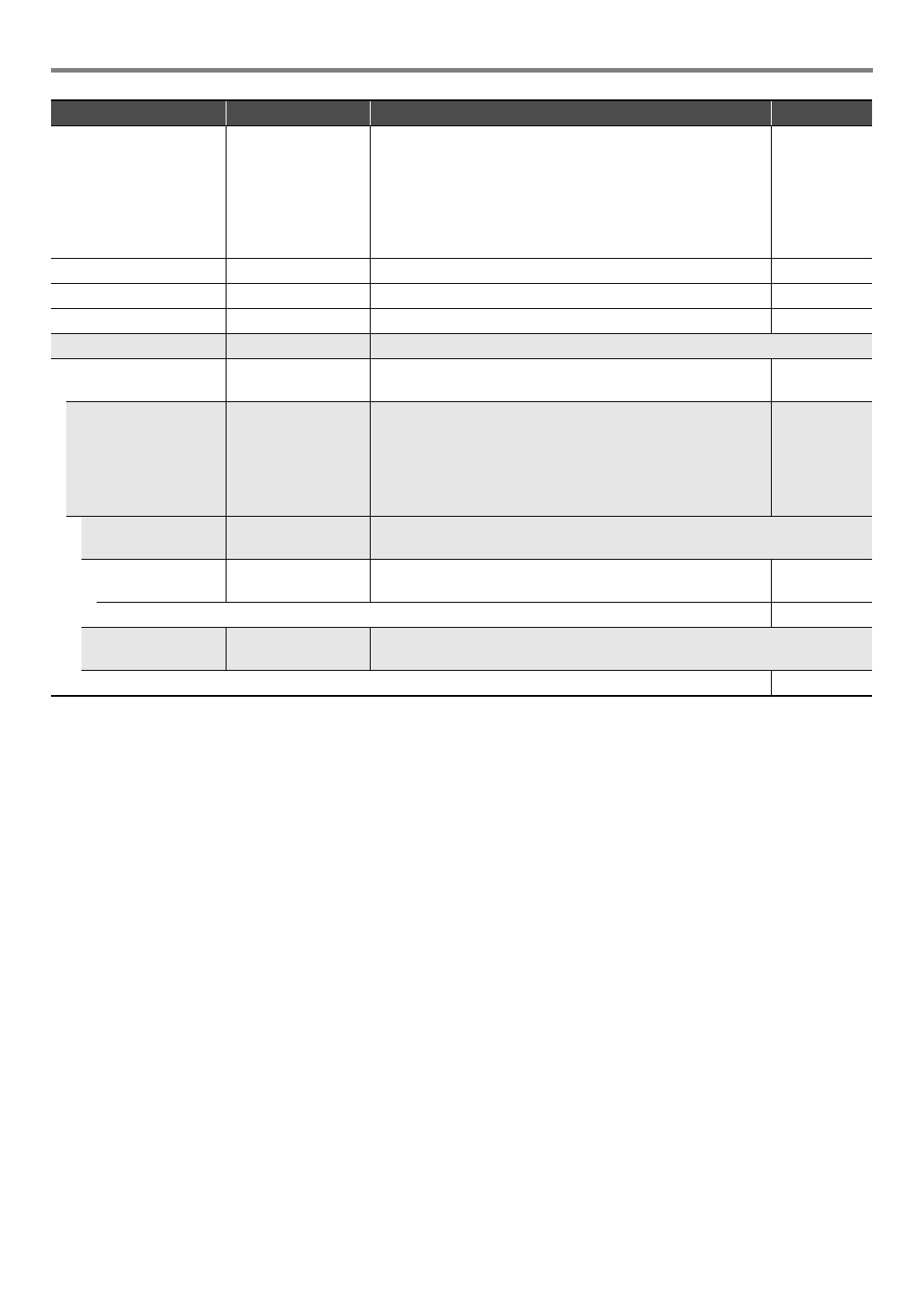
EN-75
Editing a Tone (User Tones)
*1 Shows the name (Compressor, Limiter, Enhancer, etc.) of the DSP module. For details about DSP modules, see “DSP Module
List” (page EN-132).
*2 The number of parameters that can be configured and their details depend on the DSP module. For details, see “DSP
Parameter List” (page EN-133).
*3 Not displayed when the DSP selected for editing has only one DSP module. When there are multiple DSP modules included in
a DSP, a sub-menu will appears for each of them.
Velocity Sense Vel.Sens Specifies how much the tone and/or volume should be
affected by keyboard touch (pressure). A larger positive value
specifies more brightness and greater volume as keyboard
touch becomes stronger. A larger negative value specifies
more softness and less volume as keyboard touch becomes
stronger. A value of 0 specifies no change in accordance with
keyboard touch.
–64 to 0 to 63
Reverb Send Rev.Send Specifies how much reverb is applied to a tone. 0 to 127
Chorus Send Cho.Send Specifies how much chorus is applied to a tone. 0 to 127
Delay Send Dly.Send Specifies how much delay is applied to a tone. 0 to 127
DSP Edit DSP Edit Sub-menu of DSP effect setting items.
On, Off On/Off On: DSP effect applied to the tone.
Off: DSP effect not applied to the tone.
On, Off
DSP number DSP Num Selects a preset DSP when applying a DSP effect.
• Built-in tone numbers 1 through 800 include tones with
DSP (DSP tones). Only a DSP tone can be specified here,
and other (non-DSP) tones cannot be specified.
• Numbers 801 through 900 are for DSP editing only. For
details, refer to the “DSP List” in the separate “Appendix”.
1 to 900
DSP Module 1 *1Sub-menu for configuring setting of DSP modules included in the selected
DSP.
Bypass Bypass On: Bypass this DSP module.
Off: Enable this DSP module.
On, Off
(Depends on the DSP module.*2)
DSP Module 2 and
beyond *3
*1Sub-menu for configuring setting of DSP modules included in the selected
DSP.
(Same as the Module 1 parameters.)
Item Name Display Description Settings
CTX5000_3000_EN.book 75 ページ 2018年2月26日 月曜日 午後3時56分
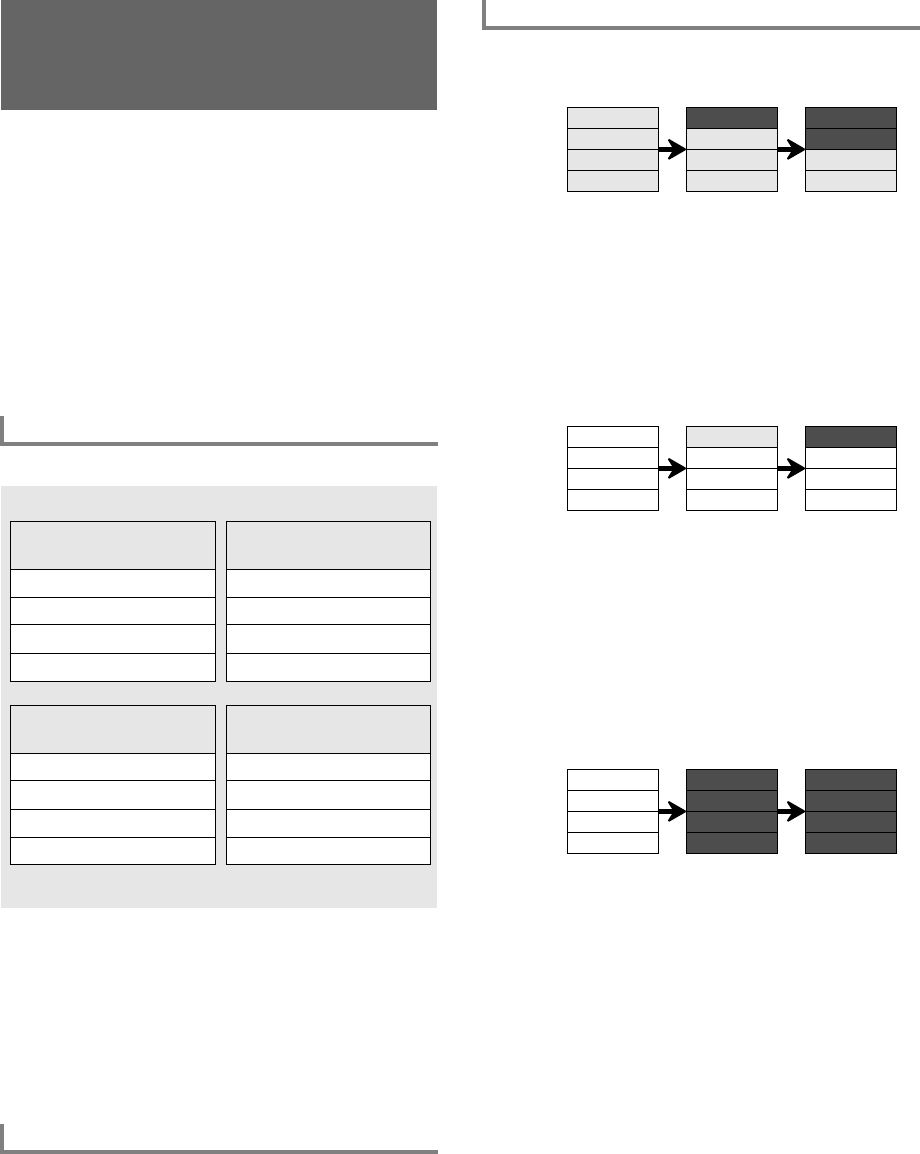
EN-76
You can create accompaniment patterns that sound while
using the Digital Keyboard’s Auto Accompaniment function
and store them as user rhythms.
The storage locations and the number of rhythms that can be
stored depend on the Digital Keyboard model.
CT-X5000: Rhythm numbers 294 to 393 (up to 100 rhythms)
CT-X3000: Rhythm numbers 294 to 343 (up to 50 rhythms)
■Saving to an External Device
User rhythms can be saved to a USB flash drive or a
computer. For details, see “To save Digital Keyboard data to a
USB flash drive” (page EN-121) and “Transferring Data
Between the Digital Keyboard and a Computer” (page
EN-125).
The structure of each rhythm is as shown below.
Each rhythm includes 10 accompaniment patterns, and each
accompaniment pattern is made up of eight parts. To create a
single user rhythm from scratch, you need to record eight
parts of each of the 10 accompaniment patterns. You can also
use a built-in rhythm as a base, and replace parts of it with
new recordings, or you can copy and edit accompaniment
patterns, if you want.
• For details about accompaniment patterns, see
“Accompaniment Patterns” (page EN-47).
You can record keyboard play (note data) and pitch bend
wheel operations to an accompaniment pattern part.
●Creating an Accompaniment with All New Parts
You can record each part of an accompaniment pattern, if you
want.
• The “Empty” blocks in the above illustration are special
memory areas (user areas) for editing, and one is provided
for each part. After you record something to a block, it
becomes “Recorded”.
●Editing an Existing Accompaniment Pattern*1
You can use the accompaniment pattern of an existing rhythm
as a base and add new recordings of keyboard play to empty
parts. Note that this operation is possible for variations and fill-
ins only.*2
• In the above illustration, “Fixed” indicates rhythm data that
must be used as it is. It cannot be edited by you.
*1 Built-in rhythm or previously-saved user rhythm
*2 This operation is not supported for an existing intro or
ending. You can make all parts empty and create a new
pattern from scratch.
●Copying and Editing the Accompaniment Pattern of an
Existing Rhythm
You can copy the accompaniment pattern of an existing
rhythm to a user area and then edit the copied data.
• In the above illustration, “Copy” and “Edited” are both the
same status as “Recorded”.
• You can add notes and delete unwanted notes in real time
while listening to playback of the copied data.
In addition to the operations described above, you can keep
all of the accompaniment pattern parts of an existing rhythm
“Fixed”, change just the mixer settings, and save the result as
a user rhythm.
Creating an Auto
Accompaniment
(User Rhythm)
Rhythm Configurations
Data Recordable to Each Part
Rhythm
[V]: Variation, [F]: Fill-in, [ I ]: Intro, [E]: Ending
Accompaniment Pattern
[V1] to [V4]
Accompaniment Pattern
[F1] to [F4]
Percussion Percussion
Drums Drums
Bass Bass
Chords 1 to 5 Chords 1 to 5
Accompaniment Pattern
[I]
Accompaniment Pattern
[E]
Percussion Percussion
Drums Drums
Bass Bass
Chords 1 to 5 Chords 1 to 5
Creating a User Rhythm
Percussion Empty Recorded Recorded
…
Drums Empty Empty Recorded
Bass Empty Empty Empty
Chord 1 Empty Empty Empty
…
…
…
Percussion Fixed Empty Recorded
…
Drums Fixed Fixed Fixed
Bass Fixed Fixed Fixed
Chord 1 Fixed Fixed Fixed
…
…
…
Percussion Fixed Copy Edited
…
Drums Fixed Copy Copy
Bass Fixed Copy Copy
Chord 1 Fixed Copy Copy
…
…
…
CTX5000_3000_EN.book 76 ページ 2018年2月26日 月曜日 午後3時56分
EN-77
Creating an Auto Accompaniment (User Rhythm)
• For information about the mixer part indicator numbers and
the part of each accompaniment pattern in the procedure
below, see “RHYTHM Part Group” under “List of Parts for
Each Mixer Part Group” (page EN-65).
• You can copy the accompaniment pattern of an existing
rhythm to a user area and then edit (add and delete) notes
recorded in each part. You can copy an entire
accompaniment pattern (step 3 below) or copy a particular
part only (step 5 below). Refer to each of these procedures
as required.
1.
Select a user rhythm where there is no data
stored.
• See “Selecting a Rhythm” (page EN-43).
• “No Data” is displayed for the rhythm name while a
user rhythm where there is no data stored is selected.
2.
Long-press bk FUNCTION until the [EDIT]
indicator appears.
• This enters the Rhythm Editing Mode and displays the
rhythm editing screen.
• indicators will be flashing on the display. This
indicates that Variation 1 of the accompaniment
pattern is selected for editing.
• “Drum” is displayed for the part to be edited.
3.
Select the accompaniment pattern to be edited.
*Each press of the button toggles between Variation and Fill-
in.
• The indicator for the currently selected
accompaniment pattern (page EN-47) will flash.
• At this point, you could copy an existing
accompaniment pattern to a user area. See “To copy
an existing accompaniment pattern for editing” (page
EN-83).
4.
Specify the number of measure and the time
signature of the accompaniment pattern you
want to create.
(1) Press cs REGISTRATION [8] (EDIT MENU).
(2) Use the [1] (V) and [3] (W) bm number keys to
display “Element”, and then press [6] (ENTER).
(3) Use the [1] (V) and [3] (W) keys to display
“Measure”, and then use bn [–] and [+], or the bl
dial to change the setting value.
(4) Use the [1] (V) and [3] (W) keys to display “Beat”
(time signature), and then use bn [–] and [+], or the
bl dial to change the setting value (Setting Ranges:
2/4 to 8/4, 2/8 to 16/8).
(5) Press the [4] (EXIT) bm number key.
Creating and Editing a User
Rhythm
To create a totally new rhythm and save it
Displayed
To select this: Press this button:
Intro bo INTRO
Ending bt ENDING/SYNCHRO START
Variation 1 to 4,
Fill-in 1 to 4
bp VARIATION/FILL-IN 1 to
bs VARIATION/FILL-IN 4*
Accompaniment Pattern Settings
Intro, Ending 01 to 16
Variation 01 to 16
Fill-in 01 to 02
CTX5000_3000_EN.book 77 ページ 2018年2月26日 月曜日 午後3時56分
Creating an Auto Accompaniment (User Rhythm)
EN-78
5.
Select the part to be edited.
(1) Press 9PART and confirm that the lamp to the left
of the button is lit.
(2) Use the bm number keys [1] through [8] to select the
part to be edited.
• This displays the mixer part indicator that
corresponds to the selected part to flash.
(3) Press 9PART and confirm that the lamp to the left
of the button is unlit.
• At this point, you could copy a part in an existing
rhythm to a user area (except when the
accompaniment pattern is an intro or ending). See
“To copy an existing rhythm part for editing” (page
EN-84).
6.
Configure the tone and octave shift settings of
the part, if you want.
(1) Select the tone you want to use for part recording.
See “Selecting a Tone” (page EN-18).
• Only drum set tones can be selected for Drums
and Percussion parts. Drum set sounds cannot be
selected for the bass and the Chord 1 through
Chord 5 parts.
(2) Configure the part’s octave shift setting.
While holding down dr OCTAVE, press the
ds TRANSPOSE [q] or [w] button.
(3) If there are recorded parts (the accompaniment
pattern of an existing rhythm, copied part, or part
recorded by performing the procedure up to step 10
at least once), pressing ck START/STOP here
starts looped playback of all the available recorded
parts. This means you can monitor the effects of your
settings as you configure them.
(4) If there are recorded parts, pressing the [6] (ENTER)
bm number key will play back only the notes of the
part being edited.
• This causes the mixer part indicator of the part
being edited and the level indicator above it to
flash.
• To exit the above state, press [6] (ENTER) again.
7.
Configure playback settings of the part being
edited as desired.
• See “To configure the playback settings of a user
rhythm part” (page EN-86).
8.
Record keyboard play for the part being edited.
• See “To record keyboard play to each part” (page
EN-81).
9.
Configure the mixer settings of the part being
edited as desired.
• See “To configure mixer settings of a part being
edited” (page EN-83).
10.
Perform steps 5 through 9 for all parts.
11.
Perform steps 3 through 10 for all
accompaniment patterns.
12.
Save the edited rhythm using the procedure
under “To save a user rhythm” (page EN-85).
To select this part: Press this number key:
Percussion [1]
Drums [2]
Bass [3]
Chord 1 to Chord 5 [4] to [8]
Flashing
When the part being edited is a drum part
CTX5000_3000_EN.book 78 ページ 2018年2月26日 月曜日 午後3時56分
EN-79
Creating an Auto Accompaniment (User Rhythm)
• When editing the accompaniment pattern of an existing
rhythm, you can perform new recording operations for each
of the following parts: Variations 1 through 4 and Fill-ins 1
through 4. In the case of intro and ending, you need to first
clear all parts and then record new parts.
• You can copy the accompaniment pattern of an existing
rhythm to a user area and then edit (add and delete) notes
recorded in each part. You can copy an entire
accompaniment pattern (step 3 below) or copy a particular
part only (step 5 below). Refer to each of these procedures
as required.
1.
Select the built-in rhythm or previously-saved
user rhythm you want to edit.
• See “Selecting a Rhythm” (page EN-43).
2.
Long-press bk FUNCTION until the [EDIT]
indicator appears.
• This enters the Rhythm Editing Mode and displays the
rhythm editing screen.
• This causes the indicator to flash. This
indicates that Variation 1 of the accompaniment
pattern is selected for editing.
• “Drum” is displayed for the part to be edited.
3.
Select the accompaniment pattern to be edited.
*Each press of the button toggles between Variation and Fill-
in.
• The indicator for the currently selected
accompaniment pattern (page EN-47) will flash.
• At this point, you could copy an existing
accompaniment pattern to a user area. See “To copy
an existing accompaniment pattern for editing” (page
EN-83).
4.
Depending on the accompaniment pattern you
selected, perform one of the operations below.
YIf you selected Variation 1 to 4 or Fill-in 1 to 4
Advance directly to step 5.
YIf you selected Intro or Ending
Clear all the parts of the accompaniment pattern.
(1) Perform steps 2 through 4 under “To batch clear the
recorded data in all parts included in a single
accompaniment pattern” (page EN-85).
(2) Press cs REGISTRATION [8] (EDIT MENU).
(3) Use the [1] (V) and [3] (W) bm number keys to
display “Element”, and then press [6] (ENTER).
(4) Use the [1] (V) and [3] (W) bm number keys to
display “Measure”, and then use bn [–] and [+], or
the bl dial to change the setting value.
(5) Use the [1] (V) and [3] (W) keys to display “Beat”
(time signature), and then use bn [–] and [+], or the
bl dial to change the setting value (Setting Ranges:
2/4 to 8/4, 2/8 to 16/8).
(6) Press the [4] (EXIT) bm number key.
5.
Select the part to be edited
(1) Press 9PART and confirm that the lamp to the left
of the button is lit.
(2) Use the bm number keys [1] through [8] to select the
part to be edited.
• This displays the mixer part indicator that
corresponds to the selected part to flash.
(3) Press 9PART and confirm that the lamp to the left
of the button is unlit.
• At this point, you could copy a part in an existing
rhythm to a user area (except when the
accompaniment pattern is an intro or ending). See
“To copy an existing rhythm part for editing” (page
EN-84).
To edit an existing rhythm and save it
To select this: Press this button:
Intro bo INTRO
Ending bt ENDING/SYNCHRO START
Variation 1 to 4,
Fill-in 1 to 4
bp VARIATION/FILL-IN 1 to
bs VARIATION/FILL-IN 4*
Displayed
Accompaniment Pattern Settings
Intro, Ending 01 to 16
Variation 01 to 16
Fill-in 01 to 02
To select this part: Press this number key:
Percussion [1]
Drums [2]
Bass [3]
Chord 1 to Chord 5 [4] to [8]
CTX5000_3000_EN.book 79 ページ 2018年2月26日 月曜日 午後3時56分
Creating an Auto Accompaniment (User Rhythm)
EN-80
6.
Configure the tone and octave shift settings of
the part, if you want.
(1) Select the tone you want to use for part recording.
See “Selecting a Tone” (page EN-18).
• Only drum set tones can be selected for Drums
and Percussion parts. Drum set sounds cannot be
selected for the bass and the Chord 1 through
Chord 5 parts.
(2) Configure the part’s octave shift setting.
While holding down dr OCTAVE, press the
ds TRANSPOSE [q] or [w] button.
(3) Pressing ck START/STOP here starts looped
playback of all the parts of the accompaniment
pattern you are currently editing. This means you can
monitor the effects of your settings as you configure
them.
(4) If there are recorded parts, pressing the [6] (ENTER)
bm number key will play back only the notes of the
part being edited.
• This causes the mixer part indicator of the part
being edited and the level indicator above it to
flash.
• To exit the above state, press [6] (ENTER) again .
7.
Configure playback settings of the part being
edited as desired.
• See “To configure the playback settings of a user
rhythm part” (page EN-86).
8.
Record keyboard play for the part being edited.
• See “To record keyboard play to each part” (page
EN-81).
9.
Configure the mixer settings of the part being
edited as desired.
• See “To configure mixer settings of a part being
edited” (page EN-83).
10.
Perform steps 5 through 9 for all parts.
11.
Perform steps 3 through 10 for all
accompaniment patterns.
12.
Save the edited rhythm using the procedure
under “To save a user rhythm” (page EN-85).
1.
Select the built-in rhythm or previously-saved
user rhythm you want to edit.
• See “Selecting a Rhythm” (page EN-43).
2.
Long-press bk FUNCTION until the [EDIT]
indicator appears.
3.
Perform step 3 under “To edit an existing
rhythm and save it” (page EN-79).
4.
Perform step 5 under “To edit an existing
rhythm and save it” (page EN-79).
5.
Perform the procedure under “To configure
mixer settings of a part being edited” (page
EN-83).
6.
Perform steps 4 and 5 for all parts whose mixer
settings you want to configure.
7.
Perform steps 3 through 6 for all
accompaniment patterns whose mixer settings
you want to configure.
8.
Save the edited rhythm using the procedure
under “To save a user rhythm” (page EN-85).
Flashing
When the part being edited is a drum part
To configure only the mixer settings of an
existing rhythm and save it
CTX5000_3000_EN.book 80 ページ 2018年2月26日 月曜日 午後3時56分
EN-81
Creating an Auto Accompaniment (User Rhythm)
• The operation shown here is performed as the steps of the
procedures below.
– Step 8 under “To create a totally new rhythm and save it”
(page EN-77)
– Step 8 under “To edit an existing rhythm and save it”
(page EN-79)
1.
Press 8RECORD/STOP.
This enters recording standby and displays “Recorded”
or “Empty”.
If “Fixed” is displayed here, it means that the currently
selected part cannot be recorded. After a few seconds,
the display will return to what was shown before you
pressed 8RECORD/STOP.
• For details about these indicators, see “Part Data
Status Indicators” (page EN-82).
• To exit recording standby, press 8RECORD/STOP.
This causes the [RECORD] indicator to disappear.
2.
Configure recording settings as desired.
• The settings of recording items that you configured in
the past will still be in effect. Items you have not
changed will be configured with their default settings.
For details about setting items, see the “User Rhythm
Recording Settings” (page EN-82).
• To configure settings, perform the steps below.
(1) Long-press 8RECORD/STOP until “Quantize”
appears.
(2) Use the [1] (V) and [3] (W) bm number keys to
display the menu for the changes you want to make.
(3) Use bn [–] and [+] or the bl dial to change the
setting value.
(4) When settings are the way you want, press the
8RECORD/STOP again.
3.
Practice what you will play as required.
• To sound the parts of the accompaniment pattern and
practice what you plan to play on the keyboard before
actually recording it, perform the procedure below.
(1) Long-press cm ACCOMP until the [ACCOMP]
indicator starts to flash.
This enters the Rehearsal Mode.
• The Rehearsal Mode causes the keyboard to
operate the same way as it does during recording,
without recording anything.
(2) Press ck START/STOP.
This plays back data that is already recorded to each
part of the accompaniment pattern.
• The bass part and chord parts 1 through 5 play in
the key of C Major. The key and the chord types
do not change even if you play something on the
accompaniment keyboard.
(3) Play on the keyboard in time with the playback.
Keyboard play will sound using the tone you selected
before entering recording standby.
(4) To exit the Rehearsal Mode, long-press
cm ACCOMP until the [ACCOMP] indicator
disappears from the display.
4.
To start recording, press ck START/STOP.
• The message “Record..” also appears.
• The number of measures and beats are counted up in
the upper right corner of the display. When the final
beat of the length (number of measures) specified for
the accompaniment pattern is reached, the count
restarts from 001:01.
To record keyboard play to each part
Flashing
Displayed
Measure Beat
CTX5000_3000_EN.book 81 ページ 2018年2月26日 月曜日 午後3時56分
Creating an Auto Accompaniment (User Rhythm)
EN-82
5.
Timing in accordance with the “MEASURE”
and “BEAT” values on the display, play
something on the keyboard when required.
•ek PITCH BEND wheel operations are also included
in the recording.
•dt MODULATION/ASSIGNABLE button operations
are also included in the recording (CT-X5000 only).
• What you record will play back when the display
returns to the measure and beat where it was
recorded.
• To delete specific recorded notes, hold down
cs REGISTRATION [2]. When playback reaches the
note you want to delete, press the keyboard key that
corresponds to the note to be deleted. Holding down
cs REGISTRATION [2] along with one or more
keyboard keys while playback is being performed will
delete all of the notes that correspond to the keyboard
keys as they played while the button and keys are held
down.
• Until you perform step 6 below, you can layer
keyboard notes and delete recorded notes as many
times as you like.
6.
When you are finished recording, press
8RECORD/STOP.
This causes the [RECORD] indicator to disappear.
• Pressing ck START/STOP starts looped playback of
recorded data.
• To try normal keyboard play with recorded data as
back up (with the keyboard part tone and not the
recorded part tone), long-press 5TONE. This will
display part indicator in the upper left corner of
the display. This displays the name of the tone
assigned to the keyboard and enables play of that tone
on the keyboard.
■Part Data Status Indicators
The table below explains the status indicators for parts being
edited on the rhythm editing screen.
■User Rhythm Recording Settings
Initial default setting values are indicated by an asterisk (*).
This indicator: Means this:
Fixed (Fixed Data) Data that was recalled from a built-in
rhythm or a previously stored user
rhythm, not user area data. Real-time
recording of keyboard notes is not
allowed. The only editing operation
supported is configuring mixer settings.
Recorded
(Recorded Data)
Already recorded editable user area
data. Mixer settings and real-time
recording of keyboard notes are
possible with this status.
Empty (No Data) User area where nothing is recorded.
Mixer settings and real-time recording
of keyboard notes are possible with
this status.
Item Name
(Display) Description Settings
Quantize
(Quantize)
Specify either recording of notes
in the timing they are played on
the keyboard or automatic
alignment of notes based on a
note value. Selecting a setting
other than “Off” displays a note
value (4: quarter note, d: dotted
note, t: triplets).
Off*, 4, 8,
16, 32, 4d,
8d, 16d,
32d, 4t, 8t,
16t, 32t
Precount
(Precount)
Specifies whether a precount
should sound before recording
starts after ck START/STOP is
pressed in recording standby.
Selecting “1” sounds a one-
measure precount, while “2”
sounds a two-measure precount.
Selecting “Off” turns off the
precount, so recording starts as
soon as ck START/STOP or a
keyboard key is pressed.
Off, 1*, 2
Play Chord
(PlayChrd)
Starting recording of an
accompaniment pattern starts
repeat playback of all the parts of
the pattern, except for the part
being recorded. During such
repeat playback, you can use
this setting to specify the chord
type to be used for playback by
bass and chord parts. Available
settings are “C” (C major), “C7”
(C 7th), and “Cm” (C minor).
Selecting “Off” turns off bass and
chord part notes.
Off, C*,
C7, Cm
Metronome
(Metronom)
Specifies whether or not the
metronome should sound during
recording.
On, Off*
CTX5000_3000_EN.book 82 ページ 2018年2月26日 月曜日 午後3時56分
EN-83
Creating an Auto Accompaniment (User Rhythm)
• The operation shown here is performed as the steps of the
procedures below.
– Step 9 under “To create a totally new rhythm and save it”
(page EN-77)
– Step 9 under “To edit an existing rhythm and save it”
(page EN-79)
– Step 5 under “To configure only the mixer settings of an
existing rhythm and save it” (page EN-80)
1.
Long-press 9PART (MIXER) until the
[MIXER] indicator appears.
This displays the Part On/Off status of the part being
edited.
2.
Use the [2] (w) and [5] (q) bm number keys to
display the menu item you want to change.
• Initial default setting values are indicated by an
asterisk (*).
*1 Only drum set tones can be selected for Drums and
Percussion parts. Drum set sounds cannot be selected for
the bass and the Chord 1 through Chord 5 parts.
3.
Use bn [–] and [+] or the bl dial to change the
setting value.
4.
When mixer settings are the way you want,
press the [4] (EXIT) bm number key.
1.
In the Rhythm Editing Mode, select the copy
destination accompaniment pattern.
• Perform steps 1 to 3 under “To create a totally new
rhythm and save it” (page EN-77), or steps 1 to 3
under “To edit an existing rhythm and save it” (page
EN-79).
2.
Press cs REGISTRATION [1].
This displays “Element”.
3.
Press the [6] (ENTER) bm number key.
This displays the currently selected rhythm number and
rhythm name.
4.
Use bn [–] and [+], or the bl dial to select the
number of the rhythm you want to use as the
source of the accompaniment pattern copy
operation.
5.
Select the accompaniment pattern you want to
use as the copy source.
The indicator for the currently selected accompaniment
pattern (page EN-47) will flash.
*Each press of the button toggles between Variation and Fill-
in.
• Select an intro when the copy destination is an intro, or
an ending when the copy destination is an ending.
• When the copy destination is Variation 1 to 4, select
any one of Variation 1 to 4.
• When the copy destination is Fill-in 1 to 4, select any
one of Fill-in 1 to 4.
• Pressing ck START/STOP here starts looped
playback of the accompaniment pattern you selected
as the copy source.
6.
To execute the copy operation, press [6]
(ENTER).
This displays “Sure?”
7.
Press bn [+] (YES) to execute the copy
operation or bn [–] (NO) to cancel.
• The message “Wait...” remains on the display while
the copy operation is being performed. Do not perform
any operation while this message is on the display.
“Complete” appears on the display after the operation
is complete.
To configure mixer settings of a part being
edited
Item Name
(Display) Description Settings
Part On/Off
(Part)
Specifies on/off for the
selected part.
On*, Off
Part tone
(Tone)
Specifies the tone of the
selected part.
*1
Volume
(Volume)
Adjusts the volume level of
the selected part.
0 to 127*
Pan (Pan) Specifies the stereo pan
position of the selected
part. 0 indicates the center,
while a smaller value shifts
to the left and a larger
value shifts to the right.
–64 to 0* to 63
Reverb Send
(Rev Send)
Specifies how much reverb
is applied to the selected
part.
0 to 40* to 127
Chorus Send
(Cho Send)
Specifies how much
chorus is applied to the
selected part.
0* to 127
Delay Send
(Dly Send)
Specifies how much delay
is applied to the selected
part.
0* to 127
To copy an existing accompaniment pattern
for editing
To select this: Press this button:
Intro bo INTRO
Ending bt ENDING/SYNCHRO START
Variation 1 to 4,
Fill-in 1 to 4
bp VARIATION/FILL-IN 1 to
bs VARIATION/FILL-IN 4*
CTX5000_3000_EN.book 83 ページ 2018年2月26日 月曜日 午後3時56分
Creating an Auto Accompaniment (User Rhythm)
EN-84
• You cannot copy parts included in an intro or an
ending.
1.
In the Rhythm Editing Mode, select the copy
destination part.
• Perform steps 1 to 5 under “To create a totally new
rhythm and save it” (page EN-77), or steps 1 to 5
under “To edit an existing rhythm and save it” (page
EN-79).
2.
Press cs REGISTRATION [1].
This displays “Element”.
3.
Use the [1] (V) and [3] (W) bm number keys
to display “Part”, and then press [6] (ENTER).
This displays the currently selected rhythm number and
rhythm name.
4.
Use bn [–] and [+], or the bl dial to select the
number of the rhythm you want to use as the
source of the accompaniment pattern copy
operation.
5.
Select the accompaniment pattern that
includes the part you want to use as the copy
source.
The indicator for the currently selected accompaniment
pattern (page EN-47) will flash.
*Each press of the button toggles between Variation and Fill-
in.
6.
Select the part you want to use as the copy
source.
(1) Press 9PART and confirm that the lamp to the left
of the button is lit.
(2) Use the bm number keys [1] through [8] to select the
part to be copied.
(3) Press 9PART and confirm that the lamp to the left
of the button is unlit.
• Pressing ck START/STOP here starts looped
playback of only the part you selected as the copy
source.
7.
To execute the copy operation, press [6]
(ENTER).
This displays “Sure?”
8.
Press bn [+] (YES) to execute the copy
operation or bn [–] (NO) to cancel.
• The message “Wait...” remains on the display while
the copy operation is being performed. Do not perform
any operation while this message is on the display.
“Complete” appears on the display after the operation
is complete.
To copy an existing rhythm part for editing
To select this: Press this button:
Variation 1 to 4,
Fill-in 1 to 4
bp VARIATION/FILL-IN 1 to
bs VARIATION/FILL-IN 4*
To select this part: Press this number key:
Percussion [1]
Drums [2]
Bass [3]
Chord 1 to Chord 5 [4] to [8]
CTX5000_3000_EN.book 84 ページ 2018年2月26日 月曜日 午後3時56分
EN-85
Creating an Auto Accompaniment (User Rhythm)
1.
In the Rhythm Editing Mode, select the
accompaniment pattern whose parts you want
to batch clear.
• Perform steps 1 to 3 under “To edit an existing rhythm
and save it” (page EN-79).
2.
Press cs REGISTRATION [2].
This displays “Element”.
3.
Press the [6] (ENTER) bm number key.
This displays “Sure?”
4.
Press bn [+] (YES) to execute the clear
operation or bn [–] (NO) to cancel.
• This clears all the parts in the selected
accompaniment pattern.
• You cannot clear parts of an intro or an ending.
1.
In the Rhythm Editing Mode, select the part you
want to clear.
• Perform steps 1 to 5 under “To edit an existing rhythm
and save it” (page EN-79).
2.
Press cs REGISTRATION [2].
This displays “Element”.
3.
Use the [1] (V) and [3] (W) bm number keys
to display “Part”, and then press [6] (ENTER).
This displays “Sure?”
4.
Press bn [+] (YES) to execute the clear
operation or bn [–] (NO) to cancel.
• This clears the selected part.
• The operation shown here is performed as the steps of the
procedures below.
– Step 12 under “To create a totally new rhythm and save
it” (page EN-77)
– Step 12 under “To edit an existing rhythm and save it”
(page EN-79)
– Step 8 under “To configure only the mixer settings of an
existing rhythm and save it” (page EN-80)
1.
Press the [7] (WRITE) bm number key.
• If the rhythm you are editing is a user rhythm, the
message “Replace?” will appear here. Press bn [+]
(YES) to replace the original rhythm data with the new
rhythm data. To save the data as a new rhythm, press
bn [–] (NO).
• If there are already the maximum number of allowable
user rhythms stored in memory (CT-X5000: 100,
CT-X3000: 50), the error message “Data Full” will
appear when you press bn [–] (NO) to indicate that
you cannot save the new rhythm.
• The message “Wait...” remains on the display while
the rhythm save operation is being performed. Do not
perform any operation while this message is on the
display. “Complete” appears on the display after the
operation is complete.
2.
To exit the Rhythm Editing Mode, long-press
the [4] (EXIT) bm number key.
• If you did not perform any editing after executing the
operation in step 1, the Rhythm Editing Mode will be
exited and the [EDIT] indicator will disappear from the
display.
• If you performed any editing after executing the
operation in step 1, the message “Exit?” will be
displayed here. Perform one of the operations below.
To batch clear the recorded data in all parts
included in a single accompaniment pattern
To clear the recorded data in a particular part
included in a single accompaniment pattern
To save a user rhythm
To do this: Perform this operation:
Continue editing
without exiting the
Rhythm Editing Mode
Press bn [–] (NO).
Save edited data and
exit the Rhythm Editing
Mode
(1) Press bn [+] (YES).
(2) When “Write?” appears on the
display, press bn [+] (YES)
again.
Discard edited data
and exit the Rhythm
Editing Mode
(1) Press bn [+] (YES).
(2) When “Write?” appears on the
display, press bn [–] (NO).
CTX5000_3000_EN.book 85 ページ 2018年2月26日 月曜日 午後3時56分
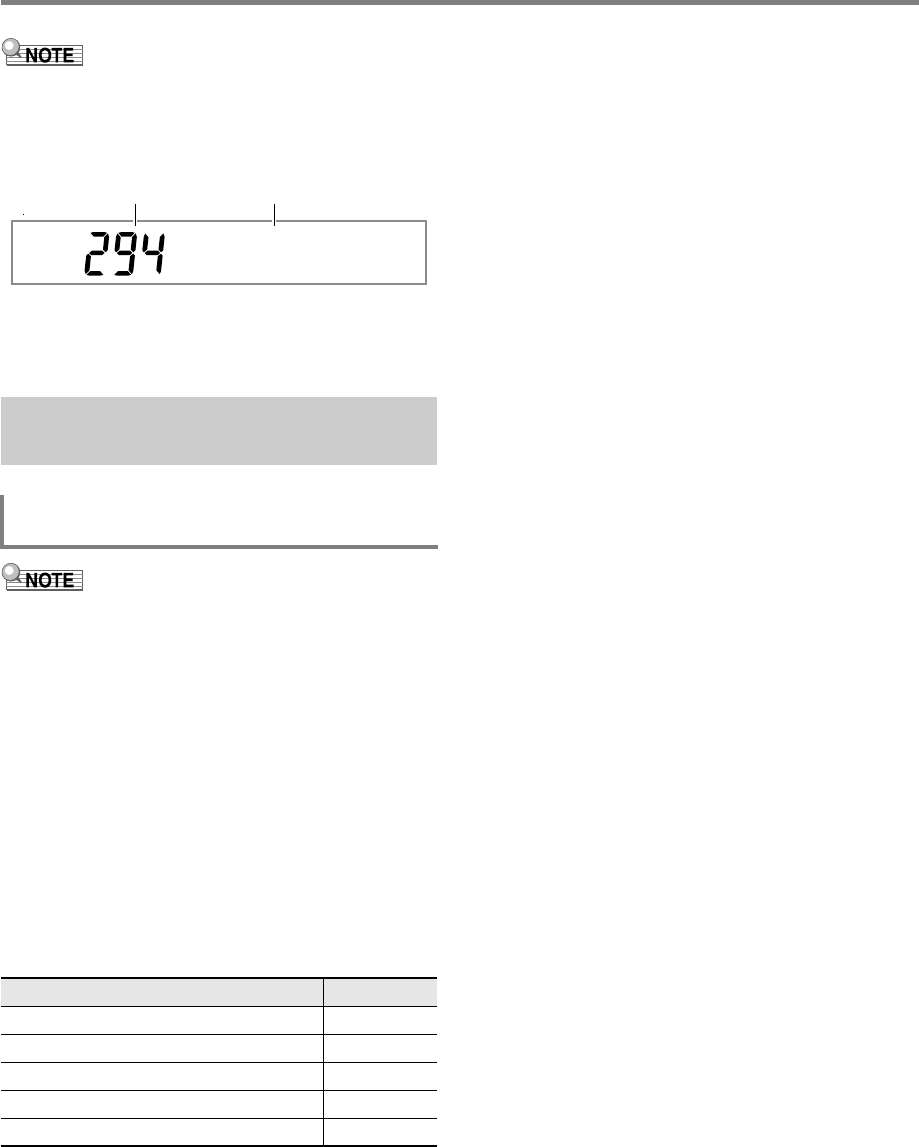
Creating an Auto Accompaniment (User Rhythm)
EN-86
• If you are saving the data as a new user rhythm, the save
destination rhythm number will be the lowest one in
memory that currently does not have any data stored. The
newly saved user rhythm will be selected after this
operation is complete.
• If there is no data stored for a user rhythm number, “No
Data” will be displayed for the rhythm name. If there is data
stored, “No Name” will be displayed. For information about
renaming, see “To rename a user rhythm” (page EN-89).
• The operation shown here is performed as the steps of the
procedures below.
– Step 7 under “To create a totally new rhythm and save it”
(page EN-77)
– Step 7 under “To edit an existing rhythm and save it”
(page EN-79)
1.
Press cs REGISTRATION [8] (EDIT MENU).
2.
Use the [1] (V) and [3] (W) bm number keys
to display “Part”, and then press [6] (ENTER).
3.
Use the [1] (V) and [3] (W) keys to display
the menu item you want to change.
4.
Use bn [–] and [+] or the bl dial to change the
setting value.
• Menu items and setting ranges are shown below.
• For details about each item, see the “User Rhythm
Part Playback Setting Details” (page EN-87).
5.
Press the [4] (EXIT) bm number key.
User Rhythm Part Playback
Settings
To configure the playback settings of a user
rhythm part
Item Name (Display) Settings
Chord Conversion Table (Table) 01 to 19
Break Point (Break Pt) C to B
Invert (Invert) On, Off, 7th
Retrigger (Retrig.) On, Off
Bend Range (BndRng) 00 to 24
No Na
me
Rhythm number Rhythm name
CTX5000_3000_EN.book 86 ページ 2018年2月26日 月曜日 午後3時56分
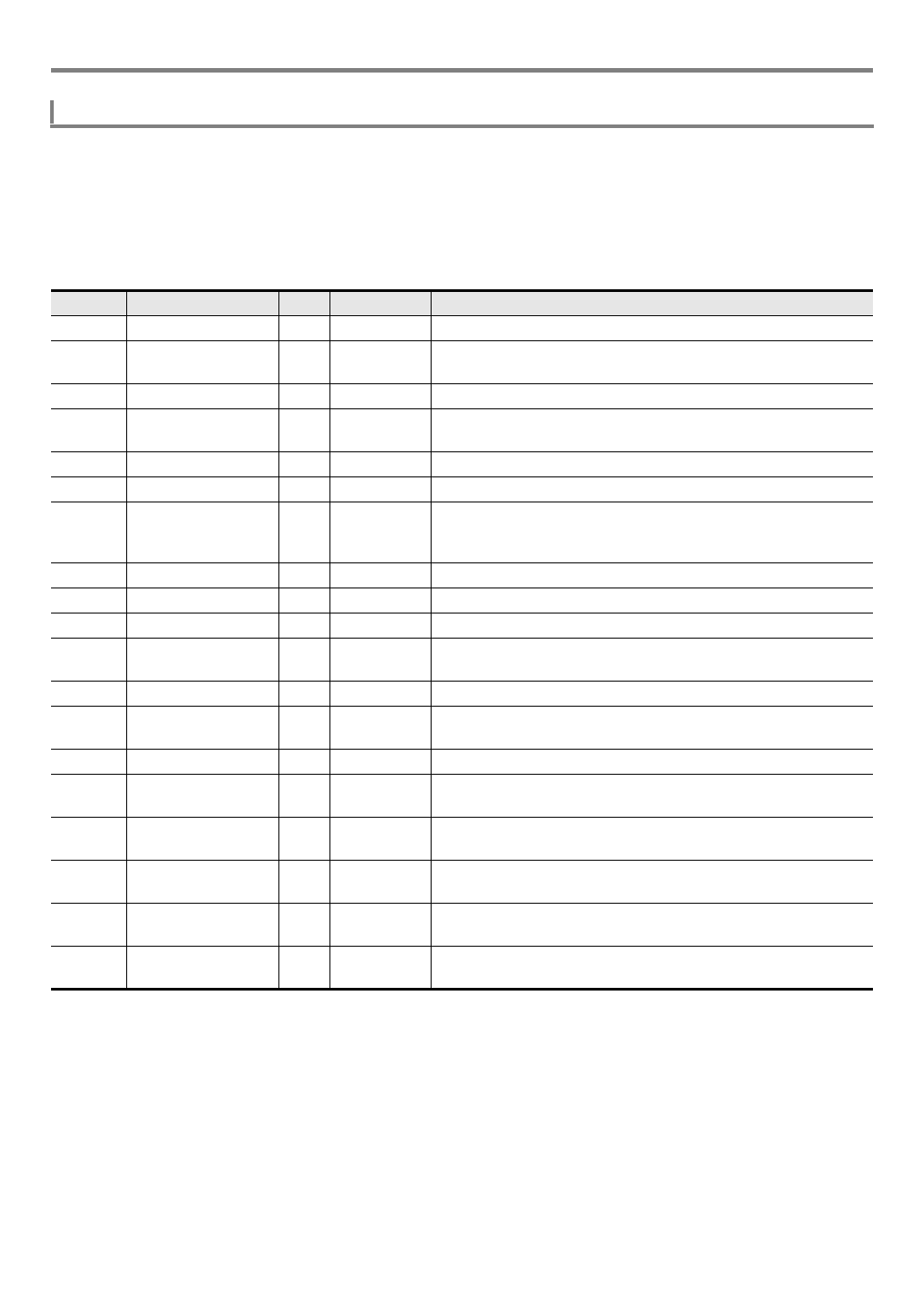
EN-87
Creating an Auto Accompaniment (User Rhythm)
■Chord conversion table (Table)
Recording of each accompaniment pattern is normally performed using C major (root of C, major type). When playing an Auto
Accompaniment, you can use a root other than C and a chord type other than major, if you want. This is accomplished by using a
“chord conversion table” to convert the C major recorded data to another root and/or chord type. Regardless of what root or chord
type you specify, the currently selected chord table is used to make corrections to suit the instrument parts and the type of music
being played in order to ensure musically natural accompaniment.
With this parameter, you can select from among the 19 types of chord conversion tables listed below.
*1 Accompaniment Pattern
*2 For Variation and Fill-in
*3 For Intro and Ending
User Rhythm Part Playback Setting Details
Number Table Name *1Parts Description
01 Bass Basic *2Bass Normally used for a bass part.
02 Bass f-root *2Bass Variation of number 01. Always makes the first note the root note
when changing chords.
03 Bass 7th *2Bass Used for a bass part recorded with a 7th chord.
04 Bass 7th f-root *2Bass Variation of number 03. Always makes the first note the root note
when changing chords.
05 Chord Basic *2Chord Normally used for a chord part.
06 Chord Var2 *2Chord Used for a chord part that has a tension chord.
07 Chord Var3 *2Chord When a 7th chord is specified while playing, the 5th note is
converted to a 7th note. In the case of C7, for example, G becomes
Bb.
08 Chord Var4 *2Chord Variation of number 05 (Chord Basic).
09 Chord 7th *2Chord Used for a chord part recorded with a 7th chord.
10 Chord Minor *2Chord Used for a chord part recorded with a minor chord.
11 Phrase *2Chord Used for the chord part to which a phrase (such as a major scale)
was recorded.
12 Chord Minor *2Bass Used for a bass part recorded with a minor chord.
13 Chord Minor f-root *2Bass Variation of number 12. Always makes the first note the root note
when changing chords.
14 Penta Phrase *2Chord Used for a chord part recorded with a pentatonic scale phrase.
15 Intro n-minor *3Bass/chord When a minor chord is specified while playing, converts to a natural
minor.
16 Intro m-minor *3Bass/chord When a minor chord is specified while playing, converts to a melodic
minor (ascending).
17 Intro h-minor *3Bass/chord When a minor chord is specified while playing, converts to a
harmonic minor.
18 Intro no Change *3Bass/chord Recording of original as-is, with no minor/major conversion in
accordance with chord specified while playing.
19 Intro dorian *3Bass/chord When a minor chord is specified while playing, converts to a dorian
scale.
CTX5000_3000_EN.book 87 ページ 2018年2月26日 月曜日 午後3時56分
Creating an Auto Accompaniment (User Rhythm)
EN-88
■Break Point (Break Pt)
This parameter specifies the key, from C to B, that is the point
at which Auto Accompaniment bass and chord notes drop one
octave.
For example when F is specified as the break point, a C major
chord recorded as C3E3G3 (CEG) becomes D3F#3A3 (DF#A
raised one note each) when D is fingered on the chord
keyboard, E3G#3B3 (EG#B raised one note each) when E is
fingered, and F2A2C3 (FAC dropped one octave) when F is
fingered.
■Inversion (Invert)
This parameter specifies whether or not chords during Auto
Accompaniment play should mirror inverted forms of the
original chord (EGC and GCE for CEG).
For example, let’s say that the original recorded C major
chord is CEG and an F chord is fingered on the chord
keyboard. If “Off” is selected for this setting, the chord will be
directly converted to FAC. If “On” (or “7th”) is selected, the
chord will be converted to CFA, which is the inverted form that
is nearest to CEG. The transition of chord notes during
playback when “On” (or “7th”) is selected is smaller, so
accompaniment sounds more natural.
Note that you should select “7th” in place of “On” only if “C7”
was specified for the “PlayChrd” setting* when recording the
accompaniment pattern and if you selected “09 (Chord 7th)”
for the chord conversion table.
*For information about “PlayChrd”, see the “User Rhythm
Recording Settings” (page EN-82).
• When selecting “On” (or “7th”) for this setting, make sure
that you select “C” for the “Break Point” (Break Pt) setting.
■Retrigger (Retrig.)
This parameter specifies how accompaniment pattern play is
affected by a chord change that occurs part way through a
pattern. When “On” is selected, the pattern “retriggers,” which
causes the currently playing note to change to the
corresponding note of the newly fingered chord. When “Off” is
selected, a chord change causes the currently sounding note
to be cut off, and the next note of the pattern of the newly
fingered chord to be played.
■Bend Range (BndRng)
This parameter specifies the bend range for pitch bend wheel
operation in semitone steps.
1.
While editing a rhythm in the Rhythm Editing
Mode, press cs REGISTRATION [8] (EDIT
MENU).
2.
Use the [1] (V) and [3] (W) bm number keys
to display “Rhythm”, and then press [6]
(ENTER).
This displays “Volume”.
3.
Use the [1] (V) and [3] (W) keys to display
the menu item you want to change.
*1 See “Reverb Effect List” (page EN-23).
*2 See “Chorus Effect List” (page EN-24).
*3 See “Delay Effect List” (page EN-24).
4.
Use bn [–] and [+] or the bl dial to change the
setting value.
5.
Press the [4] (EXIT) bm number key.
Operations Affecting All the
Accompaniment Patterns in a
Rhythm
To configure mixer settings for a rhythm
Item Name
(Display) Description Settings
Volume
(Volume)
Adjusts the overall rhythm
volume.
0 to 127
Reverb Type
(Reverb)
Specifies the reverb type to
be applied to the entire
rhythm.
*1
Chorus Type
(Chorus)
Specifies the chorus type to
be applied to the entire
rhythm.
*2
Delay Type
(Delay)
Specifies the delay type to
be applied to the entire
rhythm.
*3
CTX5000_3000_EN.book 88 ページ 2018年2月26日 月曜日 午後3時56分

EN-89
Creating an Auto Accompaniment (User Rhythm)
1.
Perform steps 1 and 2 under “To configure
mixer settings for a rhythm” (page EN-88).
2.
Use the [1] (V) and [3] (W) bm number keys
to display “All Clear”, and then press [6]
(ENTER).
This displays “Sure?”
3.
Press bn [+] (YES) to execute the batch clear
operation or bn [–] (NO) to cancel.
4.
Press the [4] (EXIT) bm number key.
1.
Select the user rhythm you want to rename.
2.
Hold down 8RECORD/STOP until “Rhy
Name” appears.
3.
Press the [6] (ENTER) bm number key.
This displays the renaming screen.
4.
Input the new name.
• See “Text Character Input” (page EN-15) for
information about how to enter text.
5.
Press [6] (ENTER).
This displays “Sure?”
6.
Press bn [+] (YES) to execute the rename
operation or bn [–] (NO) to cancel.
7.
To exit the operation, press the [4] (EXIT) bm
number key.
1.
Select the user rhythm you want to copy.
2.
Hold down 8RECORD/STOP until “Rhy
Name” appears.
3.
Use the [1] (V) and [3] (W) bm number keys
to display “Rhy Copy”, and then press [6]
(ENTER).
4.
Use bn [–] and [+], or the bl dial to select the
copy destination rhythm number and then
press [6] (ENTER).
This displays “Sure?”
• If there is already a user rhythm stored at the rhythm
number you specified as the copy destination, the
message “Replace?” will appear.
5.
Press bn [+] (YES) to execute the copy
operation or bn [–] (NO) to cancel.
• The message “Wait...” remains on the display while
the copy operation is being performed. Do not perform
any operation while this message is on the display.
“Complete” appears on the display after the operation
is complete.
6.
To exit the operation, press the [4] (EXIT) bm
number key.
1.
Select the user rhythm you want to delete.
2.
Hold down 8RECORD/STOP until “Rhy
Name” appears.
3.
Use the [1] (V) and [3] (W) bm number keys
to display “Rhy Clr”, and then press [6]
(ENTER).
This displays “Sure?”
4.
Press bn [+] (YES) to delete or bn [–] (NO) to
cancel the delete operation.
5.
To exit the operation, press the [4] (EXIT) bm
number key.
To batch clear data recorded in all the
accompaniment patterns of a rhythm
To rename a user rhythm
To copy a user rhythm
To delete a user rhythm
CTX5000_3000_EN.book 89 ページ 2018年2月26日 月曜日 午後3時56分
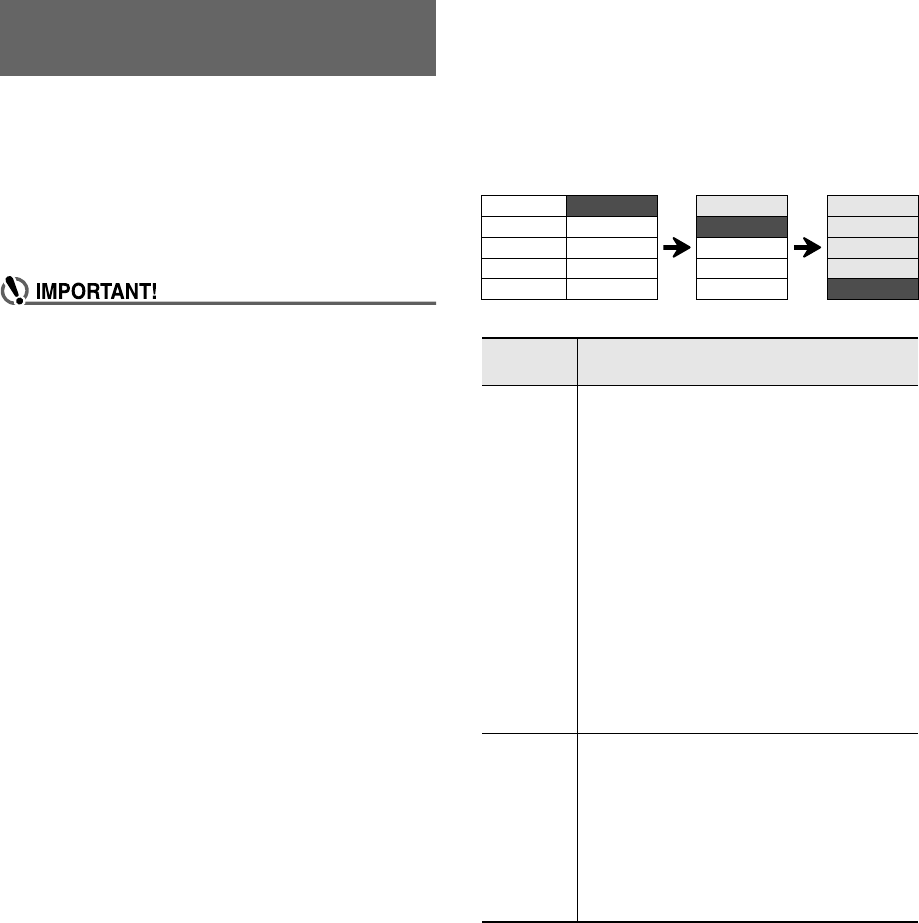
EN-90
You can use the MIDI recorder for real-time recording of your
Digital Keyboard play.
• You can record up to 10 songs in Digital Keyboard memory.
Recorded content is saved in Song Bank song numbers 31
to 40 (user songs).
• One song can have up to 999 measures, or a total of
approximately 40,000 notes in all of its tracks. Recording
stops automatically when either of these limits is reached.
• You can play along with a recorded song on the keyboard.
• CASIO COMPUTER CO., LTD. takes no responsibility
for any damages, lost profits, or claims by third parties
arising from the deletion of recorded data due to
malfunction, repair, or for any other reason.
■MIDI Recorder
Keyboard performance information is recorded as MIDI data*
to a system track or 16 solo tracks (storage areas for
keyboard performance data) in Digital Keyboard memory.
• Keyboard performance information (keyboard keys press/
release, touch pressure, etc.) is recorded as MIDI data.
• The size of MIDI data is much smaller when compared with
audio data, making it easier to edit later on a computer, etc.
• The MIDI recorder sounds the Digital Keyboard’s sound
source based on recorded MIDI data.
* MIDI
MIDI is short for “Musical Instrument Digital Interface”. It is a
universal standard that makes it possible for musical
instruments, computers, and other devices to exchange
performance information (keyboard key press/release, touch
pressure, etc.) regardless of manufacturer. Performance data
in this case is called “MIDI data”.
■Recording Track and Recorded Data
●System Track
Records operations of the various different performance
functions of the Digital Keyboard, including Auto
Accompaniment, phrase pads, layer, split, etc.
●Solo Tracks 1 to 16
Record keyboard play using one tone (UPPER 1).
These tracks can be overdubbed as shown below.
The data recorded to each track is shown below.
■Saving to an External Device
Songs recorded with the MIDI recorder can be saved to a
USB flash drive or a computer. For details, see “To save
Digital Keyboard data to a USB flash drive” (page EN-121)
and “Transferring Data Between the Digital Keyboard and a
Computer” (page EN-125).
Using the MIDI Recorder to
Record
System Recording Recorded Recorded
Solo 1 Empty Recording Recorded
Solo 2 Empty Empty Recorded
…
…
…
…
Solo 16 Empty Empty Recording
This type
of track: Records this:
System
Track
Keyboard play, tone number (UPPER 1,
UPPER 2, LOWER 1, LOWER 2), rhythm
number, tempo, time signature, rhythm
controller operations, chord specification,
phrase pad operations, Auto Accompaniment
volume, effect settings (reverb, chorus, delay),
layer, split, auto harmonize/arpeggiator play,
scale settings (preset scale type and root,
scale fine tune, Auto Accompaniment scale
on/off setting), part fine tune, part coarse tune,
octave shift setting, pedal operations, pitch
bend wheel operations, bend range setting,
mixer settings, PORTAMENT button
operations, SUSTAIN button operations
CT-X5000: MODULATION/ASSIGNABLE
button operations (vibrato, DSP parameter
setting)
Solo Tracks Keyboard play, tone number (UPPER 1),
arpeggiator play, octave shift setting, pedal
operations, pitch bend wheel operations, bend
range setting, part fine tune, part coarse tune,
mixer settings, PORTAMENT button
operations, SUSTAIN button operations
CT-X5000: MODULATION/ASSIGNABLE
button operations (vibrato, DSP parameter
setting)
CTX5000_3000_EN.book 90 ページ 2018年2月26日 月曜日 午後3時56分
EN-91
Using the MIDI Recorder to Record
Recording can be stared from either of the modes below.
●Rhythm Mode
Press 8RECORD/STOP and then play something on the
keyboard to start recording. This makes it quick and easy to
start recording to the system track.
●Song Bank Mode
After first selecting a recording destination song number,
press 8RECORD/STOP to start recording.
Note that what happens when you press 8RECORD/
STOP depends on which of the above modes you are in. Try
performing the operations below before you start to record.
1.
Press 6RHYTHM to enter the Rhythm Mode.
2.
Press 8RECORD/STOP.
This enters recording standby and causes the
[RECORD] indicator to flash.
• You can select a rhythm and tone.
• Recording starts when you play something on the
keyboard. Pressing ck START/STOP starts the
rhythm and recording at the same time.
3.
Long-press 8RECORD/STOP.
This displays the recording setting screen and displays
“RecTrkSy”.
The [RECORD] indicator continues to flash.
• Pressing ck START/STOP starts recording, but does
not start rhythm play. Use this method to start
recording when you want to insert rests at the
beginning.
• On this screen, you can configure recording settings,
such as the recording destination track, etc.
4.
Press 8RECORD/STOP.
This returns to recording standby.
5.
To exit recording standby, press 8RECORD/
STOP.
This causes the [RECORD] indicator to disappear.
• Recording using this operation automatically selects
the lowest song number (31 to 40) that does not have
anything recorded to it yet as the recording
destination.
1.
Press 7SONG BANK to enter the Song Bank
Mode.
2.
Use the bm number keys, bn [–] and [+], or the
bl dial to select a song number from 31 to 40
(user recording).
3.
Press 8RECORD/STOP.
This displays the recording setting screen and displays
“RecTrkSy”.
• This is the same display as the one that appears on
step 3 under “When starting from the Rhythm Mode”
above.
4.
Press 8RECORD/STOP again.
This enters recording standby.
• This is the same display as the one that appears on
step 2 under “When starting from the Rhythm Mode”
above.
• Here, long-press 8RECORD/STOP to return to the
recording setting screen.
5.
To exit recording standby, press 8RECORD/
STOP again.
This causes the [RECORD] indicator to disappear.
Starting a Recording
When starting from the Rhythm Mode
When starting from the Song Bank Mode
CTX5000_3000_EN.book 91 ページ 2018年2月26日 月曜日 午後3時56分
Using the MIDI Recorder to Record
EN-92
• The [RECORD] indicator will start to flash during recording
when the number of remaining note count is 100 or lower.
When there are no more remaining notes, recording stops
automatically and the [RECORD] indicator disappears.
• To make a new recording by selecting the recording
destination song number first, see “To change the recording
destination song number during recording standby” (page
EN-95).
• You can configure settings to sound a pre-count before
recording starts or the metronome while recording is in
progress. See “To sound a pre-count or the metronome”
(page EN-95).
• You can exit recording standby at any time ([RECORD]
indicator flashing) by pressing 8RECORD/STOP once
or twice so the [RECORD] indicator is not displayed.
1.
Press 6RHYTHM.
2.
Specify the tempo to use at the start of
recording.
• See “Changing Auto Accompaniment Speed (Tempo)”
(page EN-46).
3.
Select the rhythm and tone you want to use at
the start of recording.
• See “Selecting a Rhythm” (page EN-43) and
“Selecting a Tone” (page EN-18).
• If you want to change mixer settings of each of the
system track parts, perform the procedure under “To
configure mixer settings” (page EN-64). Configure the
mixer settings of each part of the KEYBOARD part
group.
• Layer and split settings, as well as other settings are
also recorded. For details about recorded data, see
“Recording Track and Recorded Data” (page EN-90).
4.
Press 8RECORD/STOP.
This enters recording standby.
• The [SONG] and [SYSTEM] indicators are also
displayed at this time, and the mixer part indicators
( to ) all start to flash. This indicates that the
system track is the recording target.
5.
Playing on the keyboard automatically starts
recording.
• Pressing ck START/STOP starts the rhythm and
recording at the same time.
• While recording is in progress, the number of
measures since recording started is indicated in the
upper right corner of the display.
6.
When you are finished recording, press
8RECORD/STOP.
This causes the [RECORD] indicator to disappear.
• Pressing ck PLAY/STOP will play back the recorded
data.
• Recording using the above operation automatically selects
the lowest song number (31 to 40) that does not have
anything recorded to it yet as the recording destination.
Recording Keyboard Play
To record a new system track
Flashing
Displayed
Displayed
Measure Beat
CTX5000_3000_EN.book 92 ページ 2018年2月26日 月曜日 午後3時56分
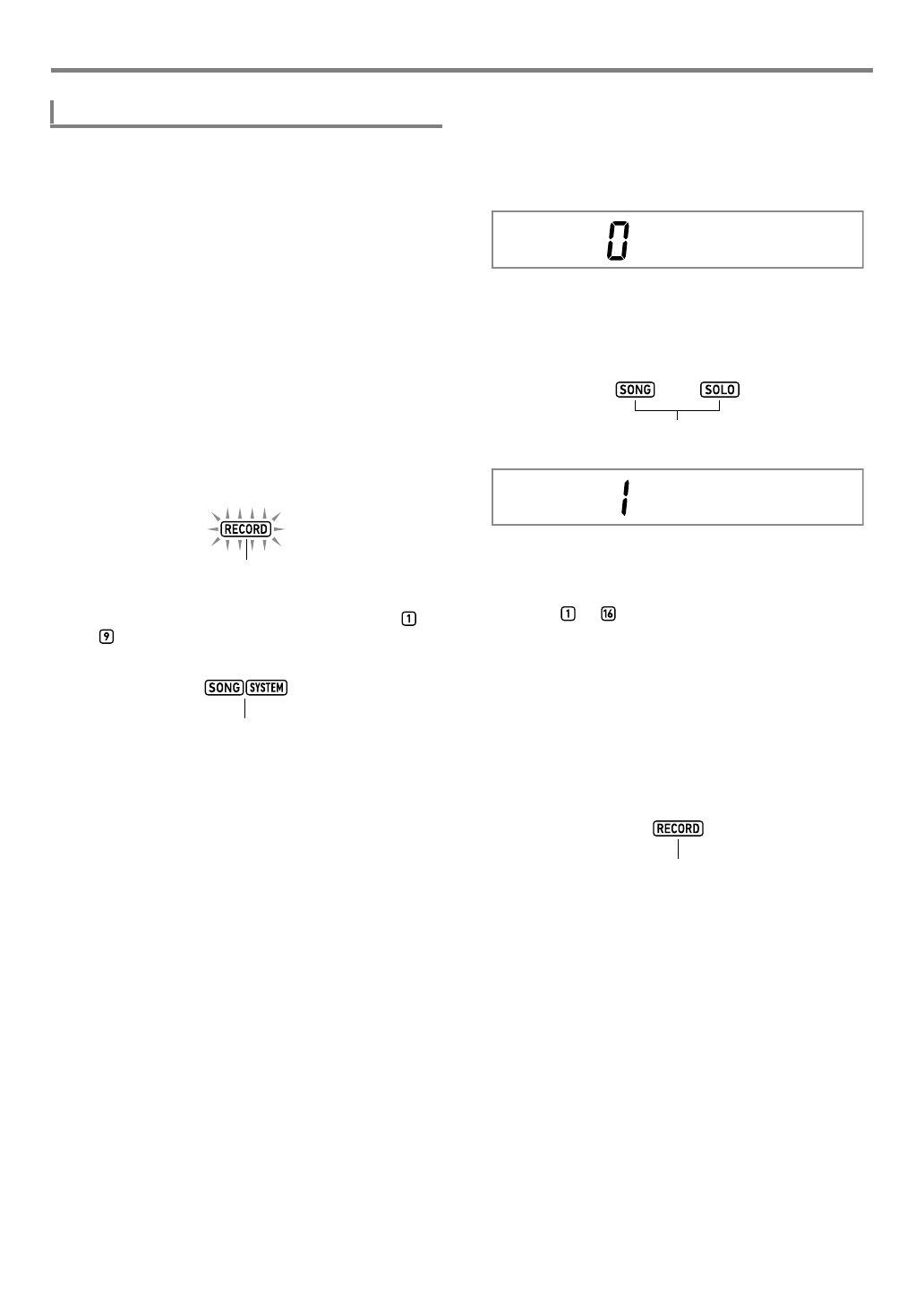
EN-93
Using the MIDI Recorder to Record
1.
Specify the tempo to use at the start of
recording.
• See “Changing Auto Accompaniment Speed (Tempo)”
(page EN-46).
2.
Select the tone you want to use at the start of
recording.
• See “Selecting a Tone” (page EN-18).
• You cannot use layer or split when recording.
• If you want to change mixer settings of solo track being
recorded, perform the procedure under “To configure
mixer settings” (page EN-64). Configure the mixer
settings of the UPPER 1 part of the KEYBOARD part
group.
• For details about data recorded to the solo track, see
“Recording Track and Recorded Data” (page EN-90).
3.
Press 8RECORD/STOP.
This enters recording standby.
• The [SONG] and [SYSTEM] indicators are also
displayed at this time, and mixer part indicators to
all start to flash. This indicates that the system
track is the recording target.
4.
Select the solo track to which you want to
record.
(1) Long-press 8RECORD/STOP.
• This displays the recording setting screen that you
can use to select the recording target track.
• “RecTrkSy” indicates that the current recording
target track is the system track.
(2) Use bn [–] and [+], or the bl dial to display the
[SONG] and [SOLO] indicators, and select the solo
track to which you want to record.
• “RecTrk” indicates that the current recording target
track is a solo track, and the number is the track
number.
• At this time, the corresponding mixer part number
( to ) also flashes.
(3) Press 8RECORD/STOP to return to recording
standby.
• To insert a rest at the beginning of the recording,
press ck START/STOP in place of
8RECORD/STOP. This starts recording and
inserts rests until you play something on the
keyboard.
5.
Playing on the keyboard automatically starts
recording.
6.
When you are finished recording, press
8RECORD/STOP.
This causes the [RECORD] indicator to disappear.
• Pressing ck PLAY/STOP will play back the recorded
data.
To record a new solo track
Flashing
Displayed
RecTr kSy
Displayed
RecTr k 1
Displayed
CTX5000_3000_EN.book 93 ページ 2018年2月26日 月曜日 午後3時56分
Using the MIDI Recorder to Record
EN-94
1.
Press 7SONG BANK.
2.
Use the bm number keys, bn [–] and [+], or the
bl dial to select the number of the song you
want to overdub.
• Select a user recording song that has at least one
track recorded.
3.
Select the tone you want to use at the start of
recording.
(1) Press 5TONE.
(2) Use the bm number keys, bn [–] and [+], or the bl
dial to select the number of the tone.
• You cannot use layer or split when recording.
• For details about data recorded to the solo track,
see “Recording Track and Recorded Data” (page
EN-90).
4.
Press 8RECORD/STOP.
This enters recording standby.
• At this time, “RecTrkSy” is displayed along with the
[SONG] and [SYSTEM] indicators. Also, mixer part
indicators to all start to flash. This indicates
that the system track is the recording target.
5.
Use bn [–] and [+], or the bl dial to display the
[SONG] and [SOLO] indicators, and select the
solo track to which you want to record.
• While the [SONG] and [SOLO] indicators are
displayed, mixer part indicators to indicate the
status of the solo tracks. A displayed indicator means
that a solo track is recorded, while a flashing indicator
means that the solo track is the recording target.
• Selecting a track that is already recorded causes the
current data of that track to be overwritten by the new
recording.
6.
Press 8RECORD/STOP to enter recording
standby.
• To insert a rest at the beginning of the recording, press
ck START/STOP in place of 8RECORD/STOP.
Starting playback of another track that is already
recorded simultaneously starts recording and inserts
rests until you play something on the keyboard.
7.
Playing on the keyboard automatically starts
recording.
Starting playback of a recorded track simultaneously
starts recording to the track you selected in step 5.
8.
When you are finished recording, press
8RECORD/STOP.
This causes the [RECORD] indicator to disappear.
• Pressing ck PLAY/STOP will play back the recorded
data.
9.
Repeat steps 3 through 8 above for each of the
tracks you want to overdub.
To overdub another solo track while playing
back recorded tracks
Flashing
Displayed
CTX5000_3000_EN.book 94 ページ 2018年2月26日 月曜日 午後3時56分
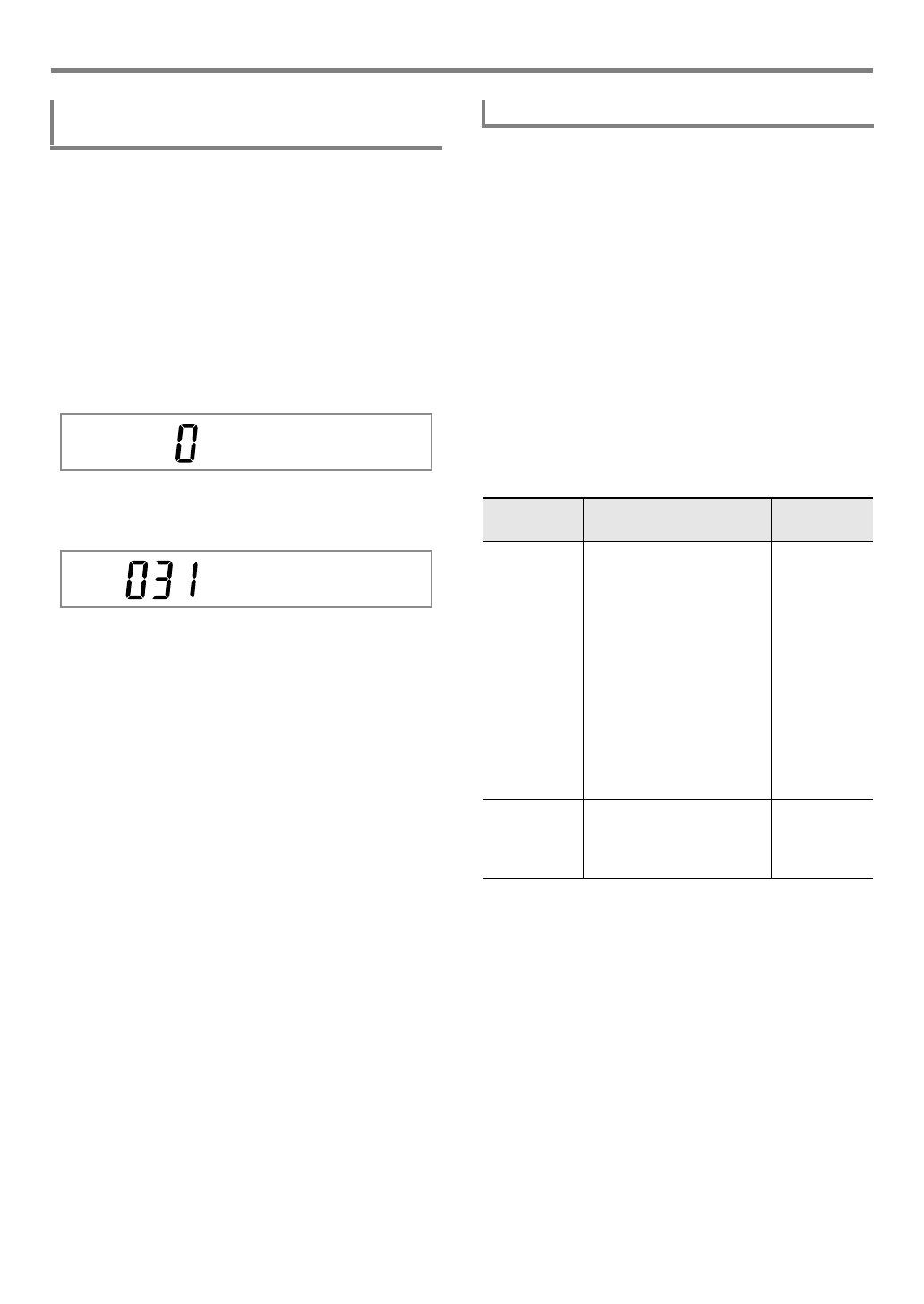
EN-95
Using the MIDI Recorder to Record
1.
Press 8RECORD/STOP.
• If you started the operation from the Rhythm Mode,
this enters recording standby. Advance to step 2.
• If you started the operation from the Song Bank Mode,
the Digital Keyboard will display the recording setting
screen, so step 2 is not necessary. Proceed to step 3.
• For information about the recording standby and
recording setting screen, see “Starting a Recording”
(page EN-91).
2.
Long-press 8RECORD/STOP.
This displays the recording setting screen and displays
“RecTrkSy”.
3.
Use the [1] (V) and [3] (W) bm number keys
to display “MltRec 1”.
4.
Use bn [–] and [+], or the bl dial to select the
number of the song to which you want to
record.
5.
Press 8RECORD/STOP.
This exits the recording setting screen and returns to
recording standby.
1.
Press 8RECORD/STOP.
• If you started the operation from the Rhythm Mode,
this enters recording standby. Advance to step 2.
• If you started the operation from the Song Bank Mode,
the Digital Keyboard will display the recording setting
screen, so step 2 is not necessary. Proceed to step 3.
• For information about the recording standby and
recording setting screen, see “Starting a Recording”
(page EN-91).
2.
Long-press 8RECORD/STOP.
This displays the recording setting screen and displays
“RecTrkSy”.
3.
Use the [1] (V) and [3] (W) bm number keys
to display the menu item whose setting you
want to change.
• Initial default setting values are indicated by an
asterisk (*).
4.
Use bn [–] and [+] to change the setting.
5.
Press 8RECORD/STOP.
This exits recording setting screen and returns to
recording standby.
To change the recording destination song
number during recording standby
RecTr kSy
M
l t R e c 1
To sound a pre-count or the metronome
Item Name
(Display) Description Settings
Precount
(Precount)
Specifies whether or not to
sound a pre-count before
recording starts after you
press ck START/STOP
while the recording setting
screen is displayed.
On: Sounds a one-measure
pre-count.
Off: Recording starts as
soon as you press
ck START/STOP or play
something on the keyboard,
without sounding a pre-
count.
On, Off*
Metronome
(Metronom)
On: Sounds the metronome
while recording.
Off: Disables the
metronome.
On, Off*
CTX5000_3000_EN.book 95 ページ 2018年2月26日 月曜日 午後3時56分
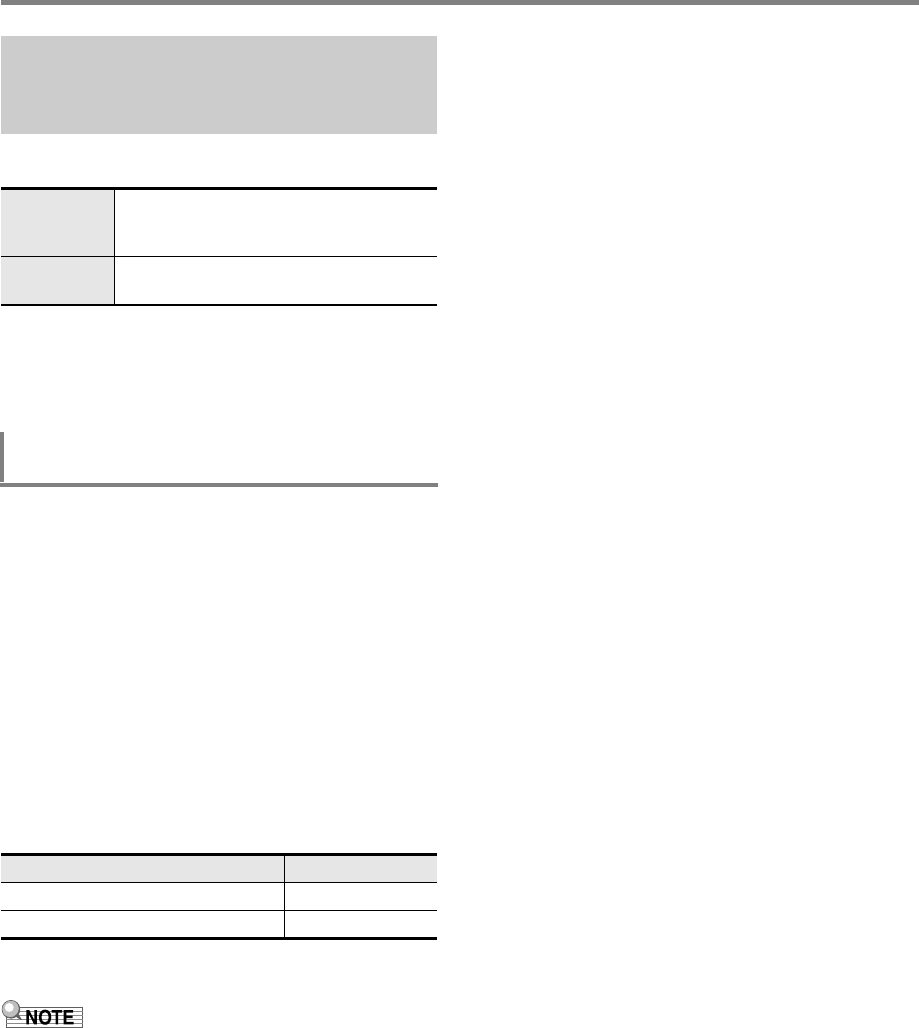
Using the MIDI Recorder to Record
EN-96
The recording operations described in the table below can be
performed on a recorded track.
Use fast forward and fast reverse to navigate to the location
where you want to start overdubbing or punch-in recording,
and then start recording. If you know the start point and end
point of the section you want to re-record, you can also play
back the song and start performing at the desired location.
1.
Press 7SONG BANK.
2.
Use the bm number keys, bn [–] and [+], or the
bl dial to select the number of the song that
contains the track where you want to perform
overdubbing or punch-in recording.
3.
Press 8RECORD/STOP.
This displays the recording setting screen and causes
the [RECORD] indicator to flash.
4.
Use the [1] (V) and [3] (W) bm number keys
to display “Rec Type”.
5.
Use bn [–] and [+] or the bl dial to display
either of the settings below.
This causes “MEASURE” and “BEAT” to flash in the
upper right corner of the display.
• If you want to change mixer settings while recording,
perform the procedure under “To configure mixer settings”
(page EN-64). When recording to the system track,
configure the mixer settings of each part of the SONG
SYSTEM part group. When recording to a solo track,
configure the mixer settings of the corresponding part of the
SONG SOLO part group. (For example, when recording to
Solo Track 3, configure the mixer settings of Part 3 of the
SONG SOLO part group.)
6.
Press ck PLAY/STOP.
This starts song playback.
• Here, you could jump to step 9 of this procedure and
immediately start recording.
• To stop the overdub recording/punch-in recording
operation, press ck PLAY/STOP again. This will
cause the [RECORD] indicator to disappear from the
display.
7.
Use bsdFF and brsREW to navigate to
the location from which you want to start
recording.
•Use btkPAUSE to pause or unpause song
playback.
• After step 8, playing something on the keyboard in
step 9 will start recording. After determining the point
where you want to start recording, navigate to a
location just before it, and then advance to step 9.
8.
Press cm ACCOMP.
This causes “MEASURE” and “BEAT” to flash at high
speed in the upper right corner of the display. If playback
is paused, it becomes unpaused at this time.
• If you are recording to the system track, rhythm
operation buttons become enabled at this time.
9.
Use one of the operations below to start
recording.
• Play something on the keyboard.
• If you are performing punch-in recording, you can also
start recording by pressing cp STORE. In this case,
rests are inserted at the beginning of the song until you
start playing something on the keyboard.
This will cause the “MEASURE” and “BEAT” indicators to
stop flashing. The [RECORD] indicator also appears.
10.
When you are finished recording, press
8RECORD/STOP.
This causes the [RECORD] indicator to disappear.
Re-recording Part of a Recorded
Track (Overdubbing, Punch-in
Recording)
Overdub
Recording
Records by adding performance data to a
recorded track, without deleting the
previously recorded data.
Punch-in
Recording
Used for re-recording of specific parts of a
song to correct errors, etc.
To perform overdubbing or punch-in
recording
To perform this operation: Display this:
Overdub Recording Over Dub
Punch-in Recording Punch In
CTX5000_3000_EN.book 96 ページ 2018年2月26日 月曜日 午後3時56分
EN-97
Using the MIDI Recorder to Record
1.
Perform the procedure under “Looping
Playback of Specific Song Measures (A-B
Repeat)” (page EN-40).
• When performing the procedure, select the number of
the song that contains the track where you want to
perform overdubbing or punch-in recording.
2.
Perform steps 3 to 7 under “To perform
overdubbing or punch-in recording” (page
EN-96).
3.
Press cm ACCOMP.
This causes “MEASURE” and “BEAT” to flash at high
speed in the upper right corner of the display.
4.
Recording will start automatically when
playback reaches the start of the section you
specified in step 1.
This will cause the “MEASURE” and “BEAT” indicators to
stop flashing. The [RECORD] indicator also appears.
• Play the required notes on the keyboard.
5.
When playback reaches the end of the
specified section, the [RECORD] indicator will
disappear and recording will stop
automatically.
1.
Press 7SONG BANK.
2.
Use the bm number keys, bn [–] and [+], or the
bl dial to select the song number of a
recorded song.
• Select the song you want to playback from among
song numbers 31 to 40 (MltRec 1 to MltRec 10).
3.
Press ck PLAY/STOP.
This starts song playback.
• Operations that are supported during playback are
almost the same as those for built-in song playback
(with some exceptions). See “Playing a Built-in Song
or a Song on a USB Flash Drive (Song Bank Mode)”
(page EN-39).
1.
Press 7SONG BANK.
2.
Use the bm number keys, bn [–] and [+], or the
bl dial to select the song number of a
recorded song.
3.
Press bo PART SELECT.
This displays “TrSyMute”.
4.
Use the [1] (V) and [3] (W) bm number keys
to select the track you want to mute.
5.
Use bn [–] or [+] to mute or unmute the track
you selected in step 4.
• Pressing bn [+] mutes the track, while bn [–] unmutes
the track.
6.
Repeat steps 4 and 5 as required for other
tracks.
7.
Press the [4] (EXIT) bm number key.
8.
Press ck PLAY/STOP.
• This starts song playback in accordance with the track
mute/unmute settings you configured.
9.
To stop song playback, press ck PLAY/STOP.
• You can perform overdub recording while some tracks
are muted. After performing the operation above,
perform the procedure starting from step 3 under “To
overdub another solo track while playing back
recorded tracks” (page EN-94).
To specify the recording start point and end
point, and then perform overdubbing or
punch-in recording
Playing Back a Recorded Song
To play back a recorded song
To mute specific tracks
TrS
y
M
ute
Current setting Setting name (Indicates system track)
CTX5000_3000_EN.book 97 ページ 2018年2月26日 月曜日 午後3時56分
Using the MIDI Recorder to Record
EN-98
1.
Press 7SONG BANK.
2.
Use the bm number keys, bn [–] and [+], or the
bl dial to select the number of the song you
want to copy.
3.
Hold down 8RECORD/STOP until “Song
Clr” appears.
4.
Use the [1] (V) and [3] (W) bm number keys
to display “SongCopy”, and then press [6]
(ENTER).
5.
Use bn [–] and [+], or the bl dial to select the
copy destination song number and then press
[6] (ENTER).
This displays “Sure?”
• If there is already a user recording stored at the song
number you specified as the copy destination, the
message “Replace?” will appear.
6.
Press bn [+] (YES) to execute the copy
operation or bn [–] (NO) to cancel.
• The message “Wait...” remains on the display while
the copy operation is being performed. Do not perform
any operation while this message is on the display.
“Complete” appears on the display after the operation
is complete.
7.
To exit the operation, press the [4] (EXIT) bm
number key.
1.
Press 7SONG BANK.
2.
Use the bm number keys, bn [–] and [+], or the
bl dial to select the number of the song you
want to delete.
3.
Hold down 8RECORD/STOP until “Song
Clr” appears.
4.
Press the [6] (ENTER) bm number key.
This displays “Sure?”
5.
Press bn [+] (YES) to delete or bn [–] (NO) to
cancel the delete operation.
6.
To exit the operation, press the [4] (EXIT) bm
number key.
1.
Press 7SONG BANK.
2.
Use the bm number keys, bn [–] and [+], or the
bl dial to select the number of the song that
contains the track you want to delete.
3.
Hold down 8RECORD/STOP until “Song
Clr” appears.
4.
Use the [1] (V) and [3] (W) bm number keys
to display “TrkSyClr”.
5.
Use bn [–] and [+], or the bl dial to select the
track you want to delete.
6.
Press the [6] (ENTER) bm number key.
This displays “Sure?”
7.
Press bn [+] (YES) to delete or bn [–] (NO) to
cancel the delete operation.
8.
Repeat steps 5 through 7 above for each of the
tracks you want to delete.
9.
To exit the operation, press the [4] (EXIT) bm
number key.
Copying a Recorded Song,
Deleting a Recorded Song or
Track
To copy a recorded song
To delete a recorded song
To delete a specific track from a recorded
song
CTX5000_3000_EN.book 98 ページ 2018年2月26日 月曜日 午後3時56分
EN-99
Using the MIDI Recorder to Record
Enter the Song Editing Mode to perform the operations below.
• Editing an entire song in measure units (page EN-99)
• Editing a recorded song in track units (page EN-101)
• Editing a track of a recorded song in measure units (page
EN-103)
• Editing a recorded song in event units (page EN-105)
• Inputting notes and chords one-by-one (page EN-108)
• Recorded song mixer settings (page EN-111)
1.
Press 7SONG BANK.
2.
Use the bm number keys, bn [–] and [+], or the
bl dial to select the number of the song you
want to edit.
3.
Long-press bk FUNCTION until the [EDIT]
indicator appears.
• This enters the Song Editing Mode and “Song”
appears on the display.
• Perform the operation below at the end of Song Editing
Mode operation.
1.
Press bn [+] (YES) to execute the Song Editing
Mode operation, or bn [–] (NO) to cancel.
• Pressing bn [+] (YES) displays the message “Wait...”
(operation in progress). Do not perform any operation
while this message is on the display. “Complete”
appears on the display after the operation is complete.
2.
To exit the Song Editing Mode, long-press the
[4] (EXIT) bm number key.
Use the procedure below to edit an entire song (all of the
tracks included in the song) in measure units.
• In the procedure below, you specify a start measure (Point
A or simply Point), and an end measure (Point B). The
section specified by the procedure under “Looping
Playback of Specific Song Measures (A-B Repeat)” (page
EN-40) is used as the initial default for these settings.
• Performing this operation makes the measures within the
specified range blank measures. It does not affect the total
number of measures in the song.
1.
Perform the procedure under “To enter the
Song Editing Mode” (page EN-99).
2.
Press the [6] (ENTER) bm number key.
This displays “Clear”.
3.
Press [6] (ENTER) again.
This displays “Point A”.
4.
Use bn [–] and [+], or the bl dial to select the
number of the first measure of the range you
want to clear, and then press [6] (ENTER).
This displays “Point B”.
5.
Use bn [–] and [+], or the bl dial to select the
number of the last measure of the range you
want to clear, and then press [6] (ENTER).
This displays “Sure?”
6.
Perform the procedure under “To exit the Song
Editing Mode operation” (page EN-99).
Song Editing Mode
To enter the Song Editing Mode
To exit the Song Editing Mode operation
Displayed
Editing an Entire Song in Measure
Units (Song Editing)
To clear a specific range of measures within
a song
CTX5000_3000_EN.book 99 ページ 2018年2月26日 月曜日 午後3時56分

Using the MIDI Recorder to Record
EN-100
1.
Perform the procedure under “To enter the
Song Editing Mode” (page EN-99).
2.
Press the [6] (ENTER) bm number key.
This displays “Clear”.
3.
Use the [1] (V) and [3] (W) bm number keys
to display “Copy”, and then press [6] (ENTER).
This displays “Point A”.
4.
Use bn [–] and [+], or the bl dial to select the
number of the first measure of the range you
want to copy, and then press [6] (ENTER).
This displays “Point B”.
5.
Use bn [–] and [+], or the bl dial to select the
number of the last measure of the range you
want to copy, and then press [6] (ENTER).
This displays “DstPoint”.
6.
Use bn [–] and [+], or the bl dial to select the
number of the first measure of the copy
destination, and then press [6] (ENTER).
This displays “Sure?”
7.
Perform the procedure under “To exit the Song
Editing Mode operation” (page EN-99).
1.
Perform the procedure under “To enter the
Song Editing Mode” (page EN-99).
2.
Press the [6] (ENTER) bm number key.
This displays “Clear”.
3.
Use the [1] (V) and [3] (W) bm number keys
to display “Insert”, and then press [6] (ENTER).
This displays “Point”.
4.
Use bn [–] and [+], or the bl dial to select the
measure from which you want to insert blank
measures, and then press [6] (ENTER).
This displays “Length”.
5.
Use bn [–] and [+], or the bl dial to specify the
number of blank measures you want to insert,
and then press [6] (ENTER).
This displays “Sure?”
6.
Perform the procedure under “To exit the Song
Editing Mode operation” (page EN-99).
To copy an entire song in measure units and
insert them into a specified location of the
same song
To insert blank measures at a specified
location in a song
CTX5000_3000_EN.book 100 ページ 2018年2月26日 月曜日 午後3時56分

EN-101
Using the MIDI Recorder to Record
• Performing this procedure deletes the measures in the
specified range, shifting the measures following the deleted
range forward to fill in the space that is created. The total
number of measures in the song is reduced by the number
of measures that are deleted.
1.
Perform the procedure under “To enter the
Song Editing Mode” (page EN-99).
2.
Press the [6] (ENTER) bm number key.
This displays “Clear”.
3.
Use the [1] (V) and [3] (W) bm number keys
to display “Delete”, and then press [6]
(ENTER).
This displays “Point A”.
4.
Use bn [–] and [+], or the bl dial to select the
number of the first measure of the range you
want to delete, and then press [6] (ENTER).
This displays “Point B”.
5.
Use bn [–] and [+], or the bl dial to select the
number of the last measure of the range you
want to delete, and then press [6] (ENTER).
This displays “Sure?”
6.
Perform the procedure under “To exit the Song
Editing Mode operation” (page EN-99).
The editing operations in this section affect an entire track in a
recorded song.
1.
Perform the procedure under “To enter the
Song Editing Mode” (page EN-99).
2.
Use the [1] (V) and [3] (W) bm number keys
to display “WholeTrk”, and then press [6]
(ENTER).
This displays “Clear”.
3.
Press [6] (ENTER) again.
This displays “Trk Sy”
4.
Use bn [–] and [+] or the bl dial to specify the
target track, and then press [6] (ENTER).
This displays “Sure?”
5.
Perform the procedure under “To exit the Song
Editing Mode operation” (page EN-99).
To delete a specific range of measures from a
song Editing a Recorded Song in Track
Units
To delete a specified track
CTX5000_3000_EN.book 101 ページ 2018年2月26日 月曜日 午後3時56分
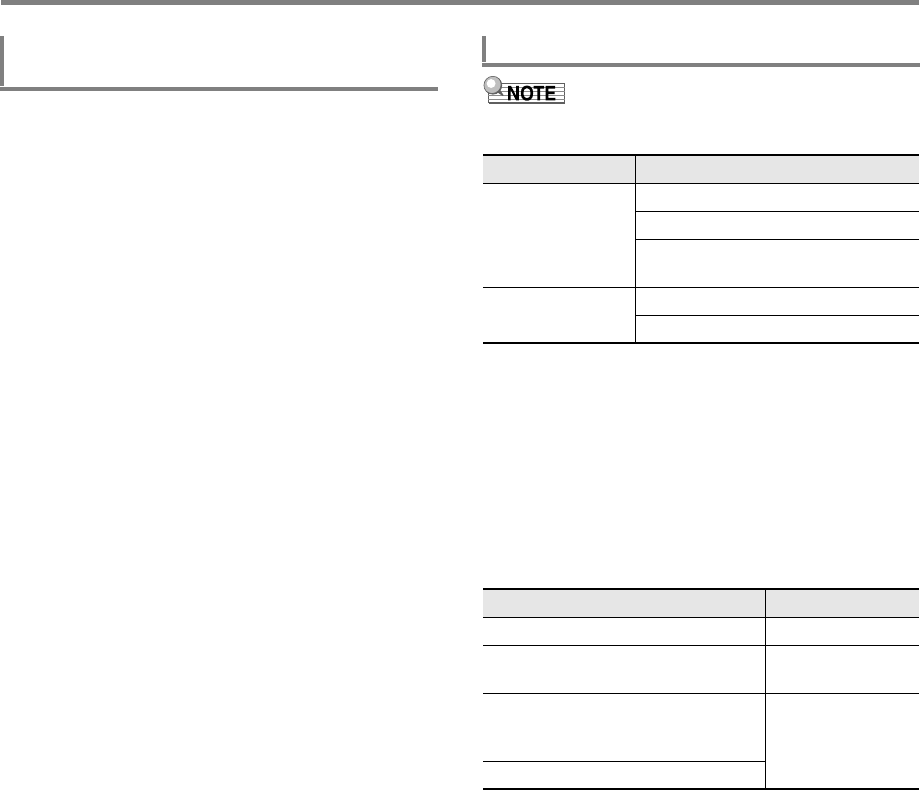
Using the MIDI Recorder to Record
EN-102
1.
Perform the procedure under “To enter the
Song Editing Mode” (page EN-99).
2.
Use the [1] (V) and [3] (W) bm number keys
to display “WholeTrk”, and then press [6]
(ENTER).
This displays “Clear”.
3.
Use the [1] (V) and [3] (W) keys to display
“Copy”, and then press [6] (ENTER).
This displays “SrcTrk 1”.
4.
Use bn [–] and [+] or the bl dial to specify the
source track of the copy operation, and then
press [6] (ENTER).
This displays “DstTrk 1”.
5.
Use bn [–] and [+] or the bl dial to specify the
destination track of the copy operation, and
then press [6] (ENTER).
This displays “Sure?”
6.
Perform the procedure under “To exit the Song
Editing Mode operation” (page EN-99).
• The operation below deletes only the data in the table
below from the specified tracks.
1.
Perform the procedure under “To enter the
Song Editing Mode” (page EN-99).
2.
Use the [1] (V) and [3] (W) bm number keys
to display “WholeTrk”, and then press [6]
(ENTER).
This displays “Clear”.
3.
Use the [1] (V) and [3] (W) keys to select the
data you want to delete.
• If you selected “AcompClr”, advance to step 6. If you
selected anything else, advance to step 4.
4.
Press [6] (ENTER).
This displays “Trk Sy”.
5.
Use bn [–] and [+] or the bl dial to specify the
target track.
6.
Press [6] (ENTER).
This displays “Sure?”
7.
Perform the procedure under “To exit the Song
Editing Mode operation” (page EN-99).
To copy a specified solo track to another
solo track
To delete specific data from a specified track
Target Track Deleted Data
System Track Note events
Accompaniment operation data
All data except accompaniment
operations and note events
Solo track Note events
All data except note events
To delete this: Display this:
Note events Note Clr
System track accompaniment
operation data
AcompClr
All data except system track
accompaniment operations and note
events
OtherClr
All data except solo track note events
CTX5000_3000_EN.book 102 ページ 2018年2月26日 月曜日 午後3時56分
EN-103
Using the MIDI Recorder to Record
You can quantize, key shift, delete, or perform other
operations in measure units for each track included in a
recorded song.
• Quantize automatically corrects the timing of notes
recorded in a track to match a note value being used as the
quantize reference (note event note on timing).
• Key shift offsets the pitch of recorded notes (note events) in
semitone steps.
• In the procedure below, you specify a start measure (Point
A or simply Point), and an end measure (Point B). The
section specified by “Looping Playback of Specific Song
Measures (A-B Repeat)” (page EN-40) is used as the initial
default for this specification.
1.
Perform the procedure under “To enter the
Song Editing Mode” (page EN-99).
2.
Use the [1] (V) and [3] (W) bm number keys
to display “Trk Meas”, and then press [6]
(ENTER).
This displays “Quantize”.
3.
Press [6] (ENTER) again.
This displays “Trk Sy”
4.
Use bn [–] and [+] or the bl dial to specify the
target track, and then press [6] (ENTER).
This displays “Point A”.
5.
Use bn [–] and [+], or the bl dial to select the
number of the first measure of the range you
want to quantize, and then press [6] (ENTER).
This displays “Point B”.
6.
Use bn [–] and [+], or the bl dial to select the
number of the last measure of the range you
want to quantize, and then press [6] (ENTER).
This displays “Value”.
7.
Use bn [–] and [+] or the bl dial to specify the
note value to be used as the quantize reference
note.
8.
Press [6] (ENTER).
This displays “Sure?”
9.
Perform the procedure under “To exit the Song
Editing Mode operation” (page EN-99).
1.
Perform the procedure under “To enter the
Song Editing Mode” (page EN-99).
2.
Use the [1] (V) and [3] (W) bm number keys
to display “Trk Meas”, and then press [6]
(ENTER).
This displays “Quantize”.
3.
Use the [1] (V) and [3] (W) keys to display
“KeyShift”, and then press [6] (ENTER).
This displays “Trk Sy”
4.
Use bn [–] and [+] or the bl dial to specify the
target track, and then press [6] (ENTER).
This displays “Point A”.
5.
Use bn [–] and [+], or the bl dial to select the
number of the first measure of the range you
want to key shift, and then press [6] (ENTER).
This displays “Point B”.
6.
Use bn [–] and [+], or the bl dial to select the
number of the last measure of the range you
want to key shift, and then press [6] (ENTER).
This displays “Value”.
7.
Use bn [–] and [+], or the bl dial to specify the
key shift setting value.
• You can specify a value of the range of –24 to 24.
Lowering the setting value by one lowers the pitch by
one semitone, while raising the value raises the pitch.
8.
Press [6] (ENTER).
This displays “Sure?”
9.
Perform the procedure under “To exit the Song
Editing Mode operation” (page EN-99).
Editing a Track of a Recorded
Song in Measure Units
To quantize a specified track in measure
units
Display Description
4, 8, 16, 32 Quarter note, eighth note, sixteenth
note, thirty-second note
4d, 8d, 16d, 32d Dotted notes
4t, 8t, 16t, 32t Triplet notes
To key shift a specified track in measure
units
CTX5000_3000_EN.book 103 ページ 2018年2月26日 月曜日 午後3時56分

Using the MIDI Recorder to Record
EN-104
1.
Perform the procedure under “To enter the
Song Editing Mode” (page EN-99).
2.
Use the [1] (V) and [3] (W) bm number keys
to display “Trk Meas”, and then press [6]
(ENTER).
This displays “Quantize”.
3.
Use the [1] (V) and [3] (W) keys to display
“Clear”, and then press [6] (ENTER).
This displays “Trk Sy”
4.
Use bn [–] and [+] or the bl dial to specify the
target track, and then press [6] (ENTER).
This displays “Point A”.
5.
Use bn [–] and [+], or the bl dial to select the
number of the first measure of the range you
want to delete, and then press [6] (ENTER).
This displays “Point B”.
6.
Use bn [–] and [+], or the bl dial to select the
number of the last measure of the range you
want to delete, and then press [6] (ENTER).
This displays “Sure?”
7.
Perform the procedure under “To exit the Song
Editing Mode operation” (page EN-99).
1.
Perform the procedure under “To enter the
Song Editing Mode” (page EN-99).
2.
Use the [1] (V) and [3] (W) bm number keys
to display “Trk Meas”, and then press [6]
(ENTER).
This displays “Quantize”.
3.
Use the [1] (V) and [3] (W) keys to display
“Copy”, and then press [6] (ENTER).
This displays “Trk Sy”
4.
Use bn [–] and [+] or the bl dial to specify the
target track, and then press [6] (ENTER).
This displays “Point A”.
5.
Use bn [–] and [+], or the bl dial to select the
number of the first measure of the range you
want to copy, and then press [6] (ENTER).
This displays “Point B”.
6.
Use bn [–] and [+], or the bl dial to select the
number of the last measure of the range you
want to copy, and then press [6] (ENTER).
This displays “DstPoint”.
7.
Use bn [–] and [+], or the bl dial to select the
number of the first measure of the copy
destination, and then press [6] (ENTER).
This displays “Sure?”
8.
Perform the procedure under “To exit the Song
Editing Mode operation” (page EN-99).
To delete a specified track in measure units To copy a specified track in measure units
and insert them into a specified location of
the same track
CTX5000_3000_EN.book 104 ページ 2018年2月26日 月曜日 午後3時56分
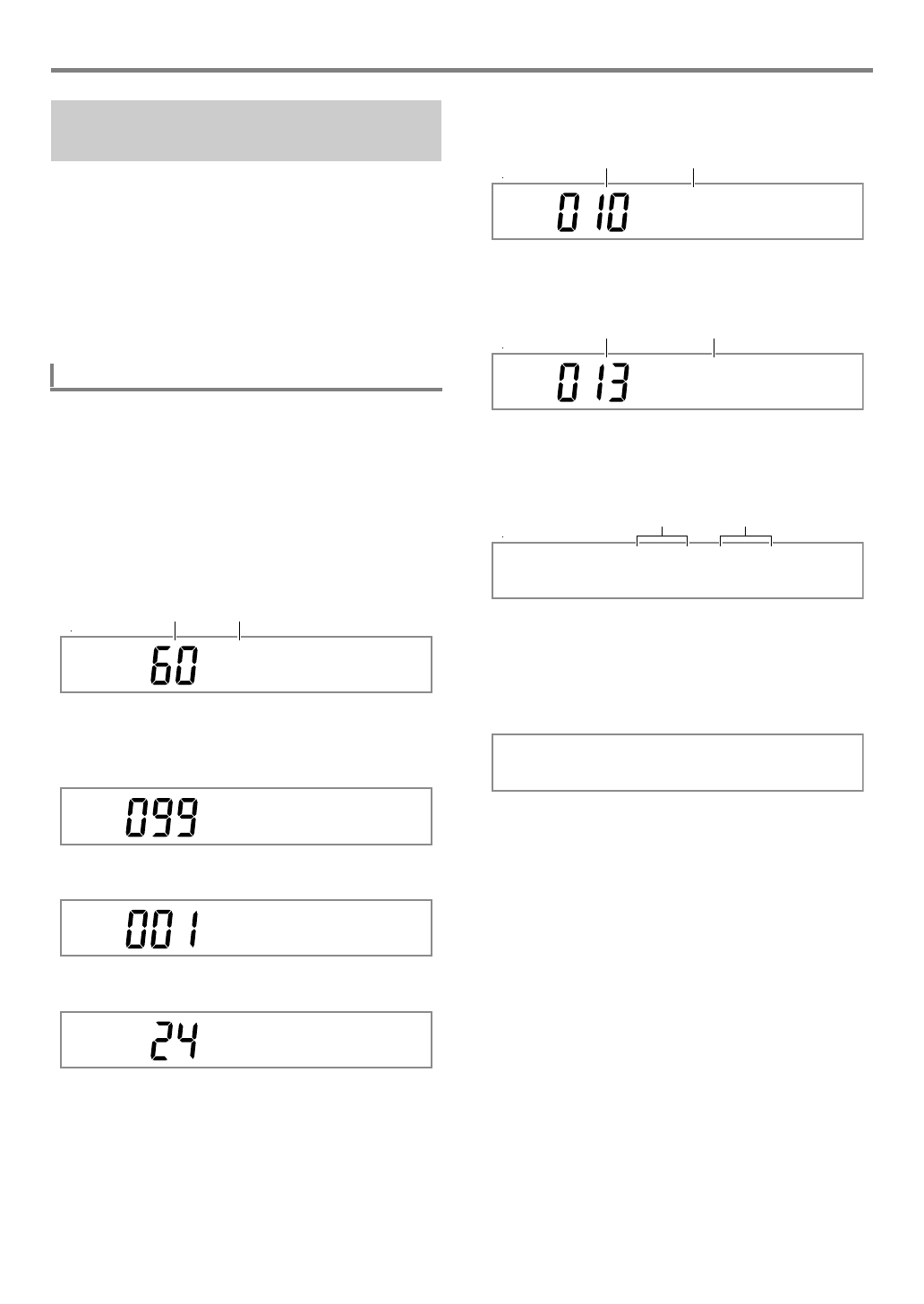
EN-105
Using the MIDI Recorder to Record
The MIDI recorder records operations as data called “events”.
For example, pressing a keyboard key causes multiple events
to be recorded: the timing of the key press, the pressed key
(pitch), press time (note length), and key pressure (note
volume).
Event editing can be used to edit the events below.
• Note events
• Tone number events
• Rhythm number events (system track only)
• Auto Accompaniment chord events (system track only)
During event editing, you can use the [2] (w) or [5] (q) bm
number keys to scroll between individual events. Each event
appears on the display as described below.
■Note Events
With this Digital Keyboard, you can edit the following three
note event parameters: note number, velocity, and gate time.
If a note event is displayed during event editing, the first
parameter that appears is the note number.
●Note Number Display
Each press of the [1] (V) or [3] (W) bm number key
switches the displayed note event to another parameter.
●Velocity Display
●Gate Time (Beat) Display
●Gate Time (Tick) Display
■Tone Number Event
The tone number is displayed by the event name “Tone”.
■Rhythm Number Event
The rhythm number is displayed by the event name “Rhythm”.
■Auto Accompaniment Chord Event
Only the chord root and type of Auto Accompaniment chords
are displayed.
An event named “NonChord” is displayed when a chord is
configured not to sound.
■End of Track
“EOT” (End Of Track) is displayed when the end of the target
track (part) is reached.
Editing a Recorded Song in Event
Units (Event Editor)
Event Display
C4
Note number Note name
V e l o c i t y
GateBeat
GateTi ck
Tone
Tone number Event name
Rhyth
m
Rhythm number Event name
Ab
M
7
Root Type
EOT
CTX5000_3000_EN.book 105 ページ 2018年2月26日 月曜日 午後3時56分
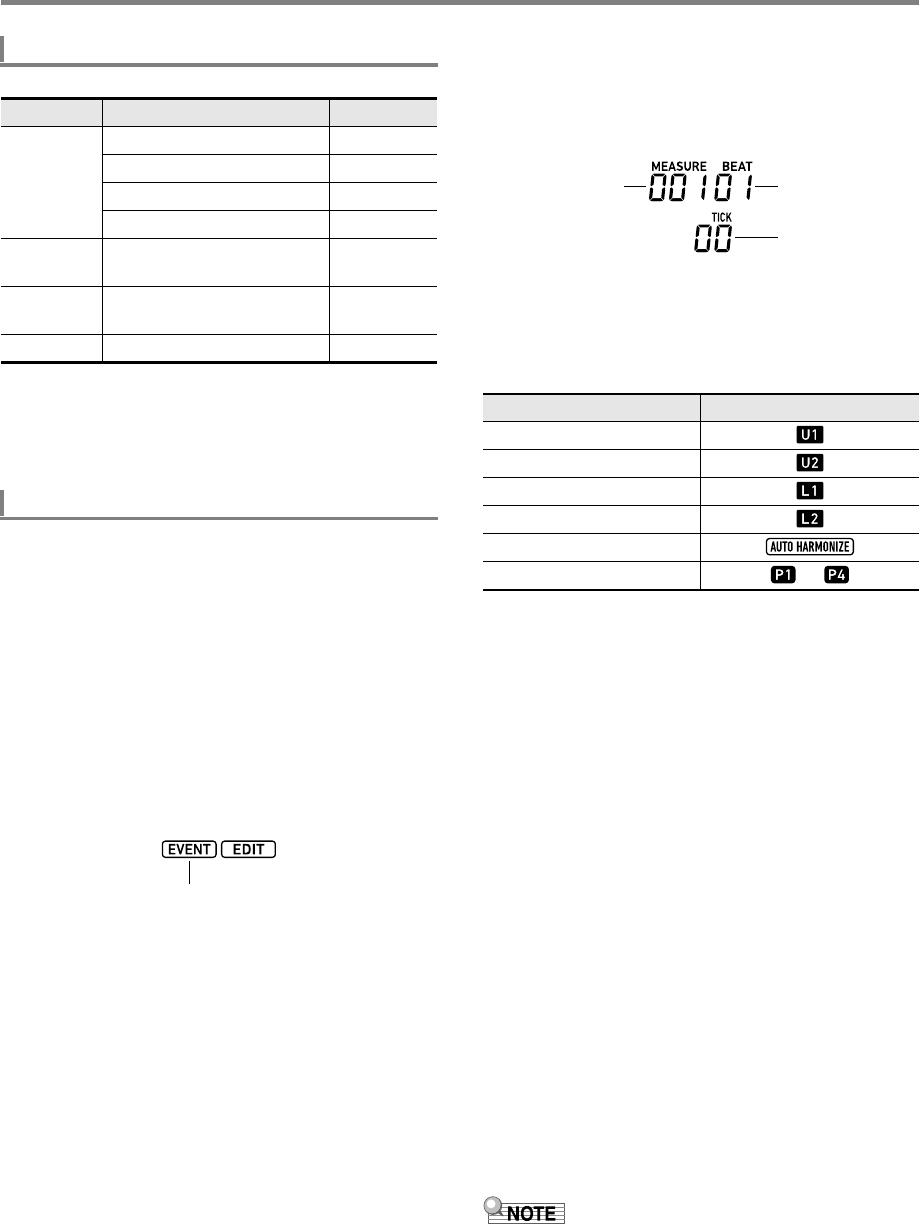
Using the MIDI Recorder to Record
EN-106
The ranges of the event settings are shown in the table below.
*1 CT-X5000: 1 to 393, CT-X3000: 1 to 343
*2 See “Auto Accompaniment Chord Event” (page EN-105).
*3 All chord types that can be fingered on the accompaniment
keyboard or “NonChord”. See “Fingering Guide” (page
A-2).
1.
Perform the procedure under “To enter the
Song Editing Mode” (page EN-99).
2.
Use the [1] (V) and [3] (W) bm number keys
to display “TrkEvent”, and then press [6]
(ENTER).
This displays “Trk Sy”
3.
Use bn [–] and [+] or the bl dial to specify the
event edit target track, and then press [6]
(ENTER).
This displays the [EVENT] indicator to the left of the
[EDIT] indicator.
• This displays the event at the beginning of the track.
4.
Use the [2] (w) and [5] (q) bm number keys to
display the event whose parameters you want
to change.
• Event location information (measure, beat, tick) is
shown on the right side of the display.
• Displaying a note event causes a confirmation tone
(the note of the note event) to sound.
• While editing the system track, one of the indicators
below will be displayed. The displayed indicator
indicates the part where the displayed event is
recorded.
5.
Depending on the event you are editing,
perform one of the procedures below.
• For information about event status indicators and how
to interpret indicators, see “Event Display” (page
EN-105).
• Pressing ck PLAY/STOP while editing an event will
play back the recorded data from the beginning of the
measure that includes the displayed event.
YNote Events
(1) Use the [2] (w) and [5] (q) bm number keys to
display a note event.
(2) Use the [1] (V) and [3] (W) keys to display the
parameter you want to change.
(3) Use bn [–] and [+] or the bl dial to change the
setting value of the displayed parameter.
• You can also use the keyboard to specify note
numbers.
• The gate time beat (GateBeat) can be specified in
the range of 0 to 340 for a song with a time
signature from 2/4 to 8/4, and in the range of 0 to
680 for a song with a time signature from 2/8 to
16/8.
• The gate time tick (GateTick) can be specified in
the range of 0 to 95 for a song with a time
signature from 2/4 to 8/4, and in the range of 0 to
47 for a song with a time signature from 2/8 to
16/8.
(4) Repeat steps (2) and (3) for each of the parameters
you want to change.
• While a note event is displayed, you can use the [2] (w)
and [5] (q) bm number keys to scroll between events. If
the event you scroll to is a note event, the same parameter
remains displayed.
Event Setting Ranges
Event Parameter (Display) Settings
Notes Note Number (C1 to G9) 0 to 127
Velocity (Velocity) 1 to 127
Gate Time Beat (GateBeat) 0 to 340
Gate Time Tick (GateTick) 0 to 95
Tone
Number
Tone Number (Tone) 1 to 900
Rhythm
Number
Rhythm Number (Rhythm) *1
Chord Chord type or “NonChord”*2*3
To edit an event
Displayed
Part Display
UPPER 1
UPPER 2
LOWER 1
LOWER 2
Auto Harmonize
Phrase Pad 1 to 4 to
Measure Beat
Tick
CTX5000_3000_EN.book 106 ページ 2018年2月26日 月曜日 午後3時56分
EN-107
Using the MIDI Recorder to Record
YTone Number Events
(1) Use the [2] (w) and [5] (q) bm number keys to
display “Tone” (Tone Number Event).
(2) If you want to check the name of the tone assigned to
the event, press bk FUNCTION.
• This displays the tone name. If you want to leave
the tone name displayed while changing the tone
number, go to step (3).
•Press bk FUNCTION again to return to the
“Tone” display.
(3) Use bn [–] and [+] or the bl dial to change the tone
number.
• To jump between categories, hold down
4CATEGORY and press bn [–] (first tone in the
previous category) or [+] (first tone in the next
category).
YRhythm Number Event (System Track Only)
(1) Use the [2] (w) and [5] (q) bm number keys to
display “Rhythm” (Rhythm Number Event).
(2) If you want to check the name of the rhythm
assigned to the event, press bk FUNCTION.
• This displays the rhythm name. If you want to
leave the rhythm name displayed while changing
the rhythm number, go to step (3).
•Press bk FUNCTION again to return to the
“Rhythm” display.
(3) Use bn [–] and [+] or the bl dial to change the
rhythm number.
• To jump between categories, hold down
4CATEGORY and press bn [–] (first rhythm in
the previous category) or [+] (first rhythm in the
next category).
YChord Event (System Track Only)
(1) Use the [2] (w) and [5] (q) bm number keys to
display a chord event.
(2) If there is no [ACCOMP] indicator displayed, press
cm ACCOMP to display it.
(3) Play the chord you want on the accompaniment
keyboard.
• This changes the chord type to the chord you play.
• For details about chord fingering modes, see
“Changing Accompaniment Keyboard Settings”
(page EN-48).
6.
To exit the event editing operation, press the
[4] (EXIT) bm number key.
7.
To exit the Song Editing Mode, long-press the
[4] (EXIT) bm number key again.
1.
Perform the procedure under “To enter the
Song Editing Mode” (page EN-99).
2.
Perform steps 2 and 3 under “To edit an event”
(page EN-106).
3.
Use the [2] (w) and [5] (q) bm number keys to
display the event you want to delete.
4.
Press the [9] (DELETE) bm number key.
• This deletes the displayed event.
1.
Perform the procedure under “To enter the
Song Editing Mode” (page EN-99).
2.
Perform steps 2 and 3 under “To edit an event”
(page EN-106).
3.
Press cs REGISTRATION [8] (EDIT MENU).
4.
Use the [1] (V) and [3] (W) bm number keys
to display “KeyShift”, and then press [6]
(ENTER).
5.
Perform steps 5 through 9 under “To key shift
a specified track in measure units” (page
EN-103).
Displayed
To delete an event
To key shift events in measure units
CTX5000_3000_EN.book 107 ページ 2018年2月26日 月曜日 午後3時56分
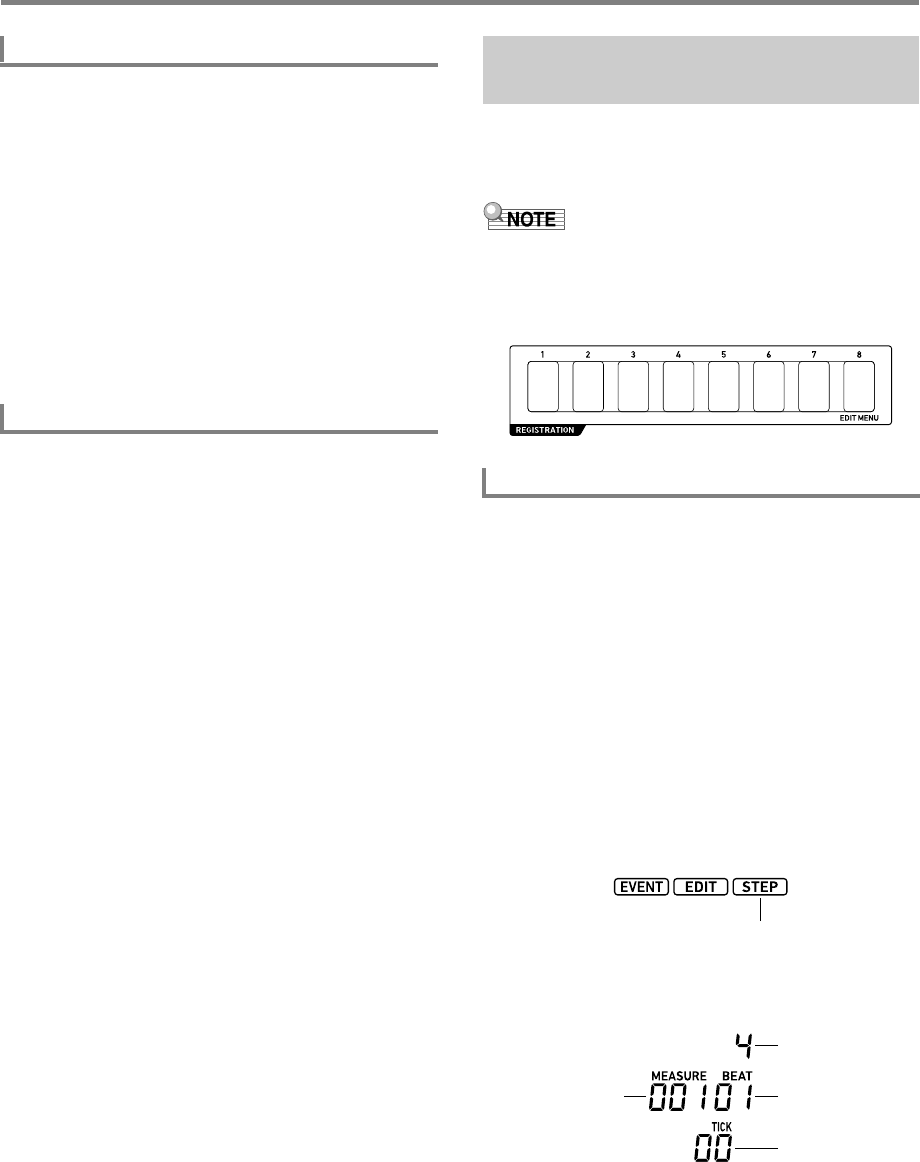
Using the MIDI Recorder to Record
EN-108
1.
Perform the procedure under “To enter the
Song Editing Mode” (page EN-99).
2.
Perform steps 2 and 3 under “To edit an event”
(page EN-106).
3.
Press cs REGISTRATION [8] (EDIT MENU).
4.
Use the [1] (V) and [3] (W) bm number keys
to display “Clear”, and then press [6] (ENTER).
5.
Perform steps 5 through 7 under “To delete a
specified track in measure units” (page
EN-104).
1.
Perform the procedure under “To enter the
Song Editing Mode” (page EN-99).
2.
Perform steps 2 and 3 under “To edit an event”
(page EN-106).
3.
Press cs REGISTRATION [8] (EDIT MENU).
4.
Use the [1] (V) and [3] (W) bm number keys
to display “Copy”, and then press [6] (ENTER).
5.
Perform steps 5 through 8 under “To copy a
specified track in measure units and insert
them into a specified location of the same
track” (page EN-104).
Step input is an event editor function. You can use step input
to specify the length and pitch of each individual note (note
event). In the system track, you also can perform step input of
Auto Accompaniment chords (chord events) as well.
• Performing step input into a track that already contains
recorded data will not delete the existing data. This means
you can use step input to add to existing recorded data.
• During step input, use the cs REGISTRATION buttons to
input notes, rests, etc.
1.
Perform the procedure under “To enter the
Song Editing Mode” (page EN-99).
2.
Perform steps 2 and 3 under “To edit an event”
(page EN-106), and confirm that the [EVENT]
indicator is displayed.
3.
Use the [2] (w) and [5] (q) bm number keys to
display the event within the measure from
which you want to start step input.
• The step input start point is the beginning of the
measure.
4.
Press cs REGISTRATION [1].
This displays the [STEP] indicator and enters the Step
Input Mode.
• During a step input operation, the current input point
(measure, beat, tick) is shown on the right side of the
display.
To delete events in measure units
To copy events in measure units
Inputting Notes and Chords One-
by-one (Step Input)
To input note events using step input
Displayed
Measure
Note Value
Beat
Tick
CTX5000_3000_EN.book 108 ページ 2018年2月26日 月曜日 午後3時56分
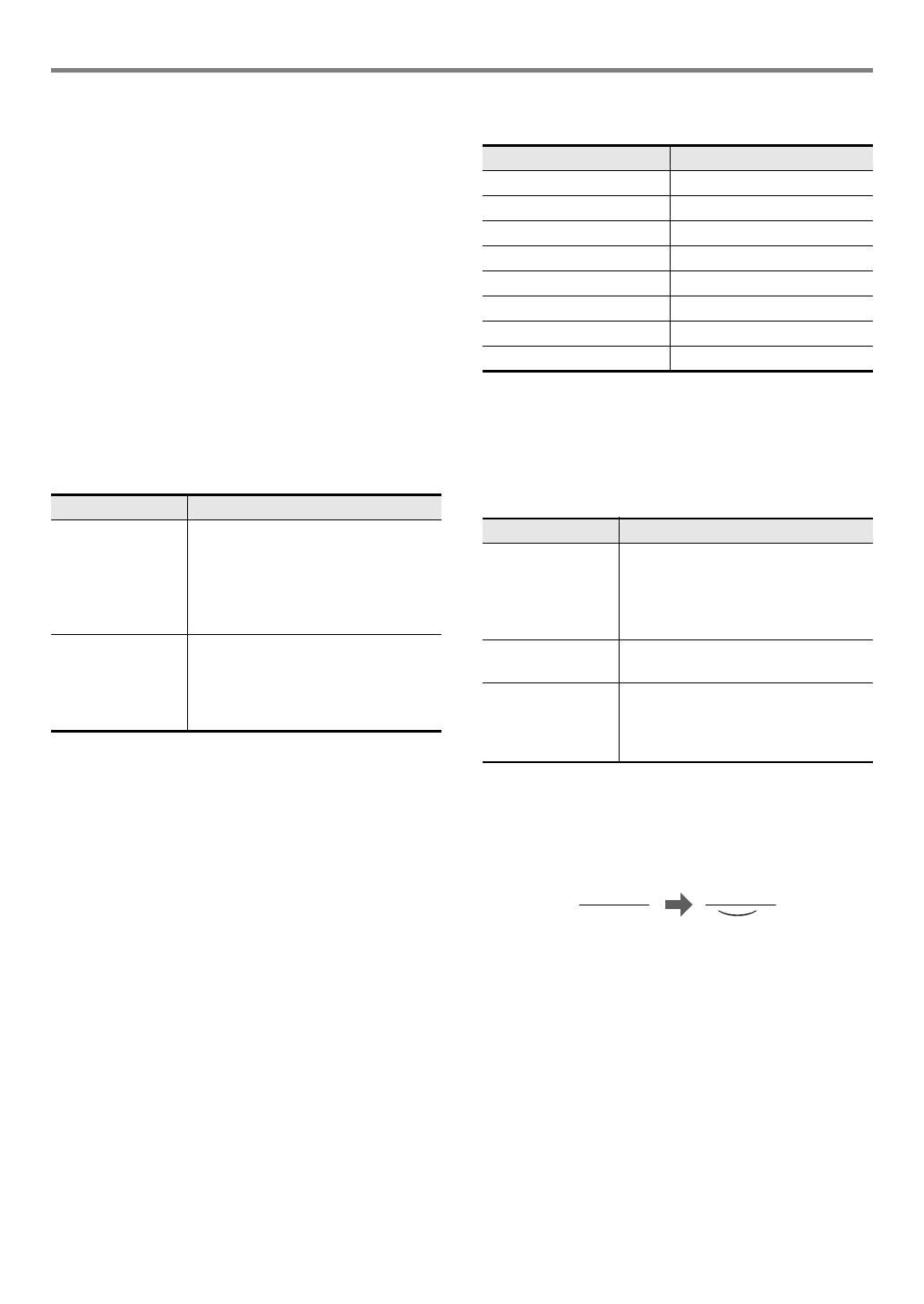
EN-109
Using the MIDI Recorder to Record
5.
When you are editing the system track, you
can specify the event input target part.
• See “Selecting a System Track Part” (page EN-110).
• This step is not necessary when you are editing a solo
track. Proceed to step 6.
6.
If necessary, specify the velocity (keyboard
touch) and gate time rate (actual length) of the
note event you are about to input.
• The velocity and gate time rate settings you specify
here are applied to all of the note events you input until
you change them.
• Velocity can be specified as a value (1 to 127) or by
actually pressing a key (which sets a velocity in
accordance with your key pressure). The initial default
is 100.
• The gate time rate specifies the note length as a
percentage (1 to 100%) of the note value you specify
in step 7. For example, when the gate time rate is 80%
(initial default), a quarter note (96 ticks) becomes 76
ticks (96×0.8=76.8, decimal part cut off).
*When “Key On” is selected, the velocity of the keyboard
press when inputting the note event is reflected in the
velocity value.
7.
Specify the note value (event length) of the
event you are about to input in step 8.
*1 If you want to input a dotted note or triplet note, first press
a key from [1] to [6], and then press [7] or [8]. To input a
dotted quarter note, for example, press [3] and then [7].
• The note value specified in accordance with the key
input will appear on the right side of the display.
8.
Specify the event to be input.
*2 Extends the length of the previously input note event. For
example, if you input a quarter note event and wish to
extend it by an eighth note, perform the following button
operation: bm number key [4] (eighth note) -
cs REGISTRATION [3] (Tie).
• Inputting an event advances the input point by the note
value amount you specified in step 7.
9.
Repeat steps 5 through 8 as required.
• The operation in step 5 is not necessary as long as the
target part remains the same.
10.
To exit the Step Input Mode, press
cs REGISTRATION [1].
This causes the [STEP] indicator to disappear.
To specify this: Perform this operation:
Velocity (1) Press cs REGISTRATION [4].
(2) Use bn [–] and [+], or the bl dial to
specify a value or select “Key
On”.*
(3) Press the [4] (EXIT) bm number
key.
Gate Time Rate (1) Press cs REGISTRATION [5].
(2) Use bn [–] and [+] or the bl dial to
specify a percent value.
(3) Press the [4] (EXIT) bm number
key.
To input this note value: Press this bm number key:
Whole [1]
Half [2]
Quarter [3]
Eighth [4]
Sixteenth [5]
Thirty-second [6]
Dotted note*1[7]
Triplet*1[8]
To input this: Perform this operation:
Note event After specifying a note value in step 7,
press the keyboard key for the note
you want to input. Pressing multiple
keyboard keys at the same time inputs
a chord.
Rest After specifying a note value in step 7,
press cs REGISTRATION [2].
Tie*2After specifying a note value of a note
to tie with the previous note event in
step 7, press cs REGISTRATION
[3].
226
CTX5000_3000_EN.book 109 ページ 2018年2月26日 月曜日 午後3時56分
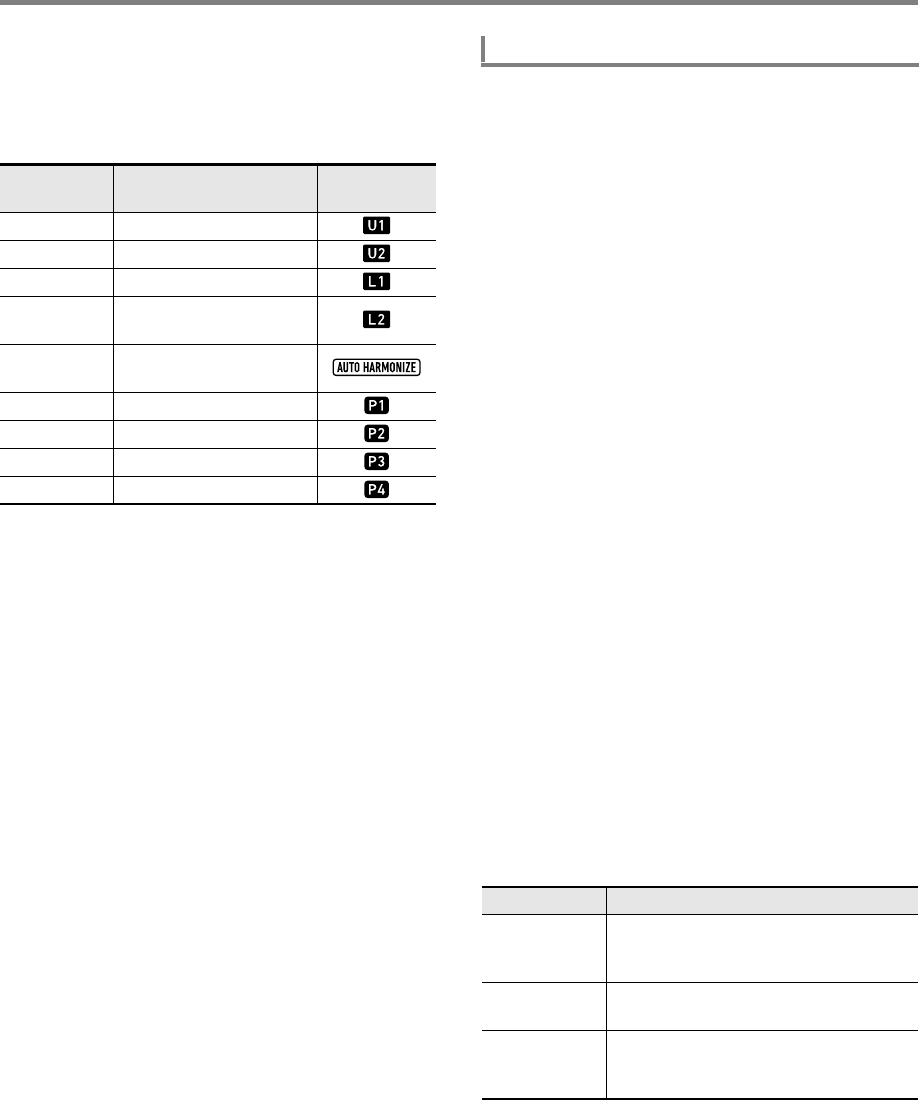
Using the MIDI Recorder to Record
EN-110
■Selecting a System Track Part
When the system track is specified as the event edit target
track, you can use the buttons below to select the part to be
edited. You can find out the selection status of each part by
checking for the indicators shown in the “Display” column of
the table.
• The UPPER 1 and UPPER 2 parts can be selected at the
same time. The LOWER 1 and LOWER 2 parts can be
selected at the same time. Step inputting an event while
two parts are selected will simultaneously input the same
event into both parts.
• Auto harmonize part and the parts of phrase pads 1
through 4 can only be selected individually. Selecting these
parts will cause the indicators of the other parts to
disappear.
1.
Perform the procedure under “To enter the
Song Editing Mode” (page EN-99).
2.
Use the [1] (V) and [3] (W) bm number keys
to display “TrkEvent”, and then press [6]
(ENTER).
This displays “Trk Sy”
3.
Use bn [–] and [+] or the bl dial to specify the
system track, and then press [6] (ENTER).
This displays the [EVENT] indicator.
4.
If there is no [ACCOMP] indicator displayed,
press cm ACCOMP to display it.
5.
Use the [2] (w) and [5] (q) bm number keys to
display the event within the measure from
which you want to start step input.
• The step input start point is the beginning of the
measure.
6.
Press cs REGISTRATION [1].
This displays the [STEP] indicator and enters the Step
Input Mode.
7.
If necessary, specify the chord event velocity
(keyboard touch).
• For information about how to specify the setting, see
step 6 under “To input note events using step input”
(page EN-108).
8.
Specify the event length of the event you will
input in step 9.
• For information about how to specify the setting, see
step 7 under “To input note events using step input”
(page EN-108).
9.
Specify the event to be input.
*1 For details about chord fingering modes, see “Changing
Accompaniment Keyboard Settings” (page EN-48).
*2 For information about how to specify this setting, see step
8 under “To input note events using step input” (page
EN-108).
10.
Repeat steps 7 through 9 as required.
To select this
part: Press this button: Display
UPPER 1 cs REGISTRATION [7]
UPPER 2 dq UPPER LAYER
LOWER 1 dp SPLIT
LOWER 2 dq UPPER LAYER
(Long-press)
Auto
Harmonize do AUTO HARMONIZE
Phrase Pad 1 cq PHRASE PAD [P1]
Phrase Pad 2 cq PHRASE PAD [P2]
Phrase Pad 3 cq PHRASE PAD [P3]
Phrase Pad 4 cq PHRASE PAD [P4]
To input chord events using step input
To input this: Perform this operation:
Chord Event After specifying an event length in step 8,
use the accompaniment keyboard to
specify a chord.*1
Rest
(NonChord)
After specifying an event length in step 8,
press cs REGISTRATION [2].
Tie*2After specifying the event length of a
chord to tie with the previous chord event
in step 8, press cs REGISTRATION [3].
CTX5000_3000_EN.book 110 ページ 2018年2月26日 月曜日 午後3時56分
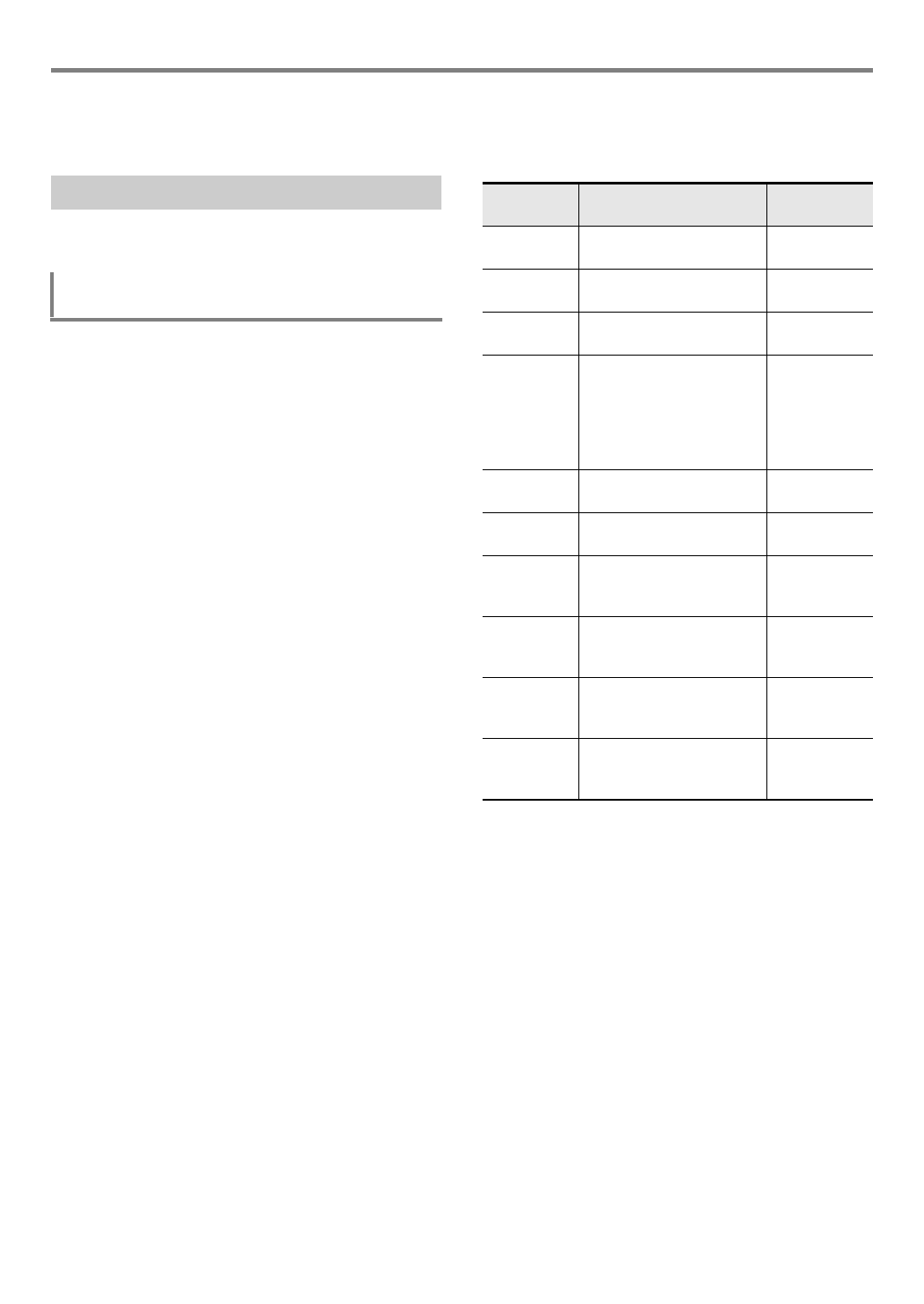
EN-111
Using the MIDI Recorder to Record
11.
To exit the Step Input Mode, press
cs REGISTRATION [1].
This causes the [STEP] indicator to disappear.
You can configure the mixer settings of each part of the
system track and the solo tracks of a recorded song.
1.
Perform the procedure under “To enter the
Song Editing Mode” (page EN-99).
2.
Long-press 9PART (MIXER) until the
[MIXER] indicator appears.
• To configure the mixer settings of the system track,
configure the settings of each part of the SONG
SYSTEM part group. To configure the mixer settings of
a solo track, configure the settings of each part of the
SONG SOLO part group. For information about the
parts within a part group, see “List of Parts for Each
Mixer Part Group” (page EN-65).
3.
Select the part group whose mixer settings you
want to configure.
(1) Press 9PART and confirm that the lamp to the left
of the button is lit.
(2) Use bn [–] and [+] to select the part group (SONG
SYSTEM or SONG SOLO) whose settings you want
to configure.
(3) Press 9PART and confirm that the lamp to the left
of the button is unlit.
4.
Use the [1] (V) and [3] (W) bm number keys
to select the part whose settings you want to
configure with the mixer.
5.
Use the [2] (w) and [5] (q) bm number keys to
display the menu item you want to change.
• Initial default setting values are indicated by an
asterisk (*).
6.
Use bn [–] and [+] or the bl dial to change the
setting value.
7.
When mixer settings are the way you want,
press the [4] (EXIT) bm number key.
Recorded Song Mixer Settings
To configure the mixer settings of a recorded
song
Item Name
(Display) Description Settings
Part On/Off
(Part)
Specifies on/off for the
selected part.
On*, Off
Tone (Tone) Specifies the tone of the
selected part.
1 to 900
Volume
(Volume)
Adjusts the volume level of
the selected part.
0 to 127*
Pan (Pan) Specifies the stereo pan
position of the selected
part. 0 indicates the center,
while a smaller value shifts
to the left and a larger value
shifts to the right.
–64 to 0* to 63
Coarse Tune
(Coarse)
Shifts the pitch of the part in
semitone steps.
–24 to 0* to 24
Fine Tune
(Fine)
Fine tunes the pitch of the
part in cent units.
–99 to 0* to 99
Bend Range
(Bend Rng)
Adjusts how much the
sound changes when the
pitch bend wheel is rotated.
0 to 2* to 24
Reverb Send
(Rev Send)
Specifies how much reverb
is applied to the selected
part.
0 to 40* to 127
Chorus Send
(Cho Send)
Specifies how much chorus
is applied to the selected
part.
0* to 127
Delay Send
(Dly Send)
Specifies how much delay
is applied to the selected
part.
0* to 127
CTX5000_3000_EN.book 111 ページ 2018年2月26日 月曜日 午後3時56分
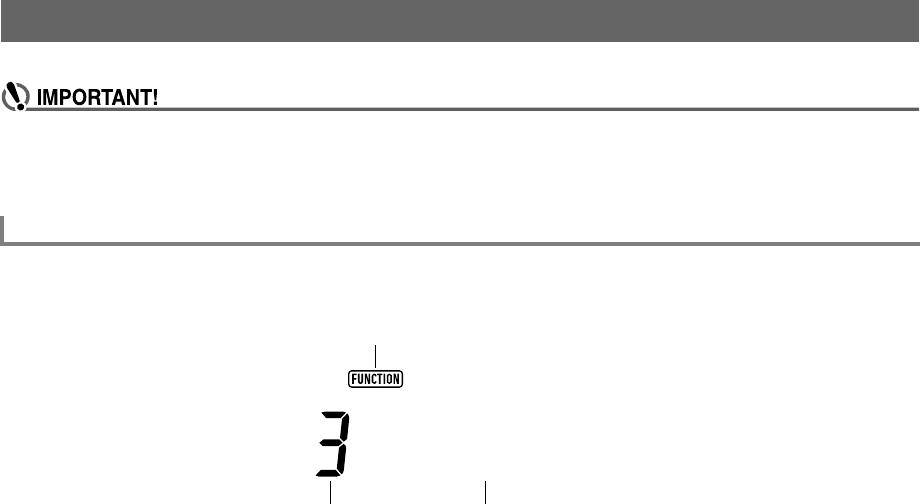
EN-112
Use the procedures in this section to configure master Digital Keyboard settings. The procedure uses the bk FUNCTION button.
• When power is turned off by pressing 1P (power) or by triggering of Auto Power Off (page EN-9) while Auto Resume
(page EN-10) is turned off, all settings, except for those below, are returned to their initial defaults.
Equalizer, Tuning, Registration Memory Freeze Target, Pedal 2 type, Expression pedal calibration, Tap rhythm start,
Examination Mode, Display contrast
1.
Press bk FUNCTION.
This displays the [FUNCTION] indicator and the main menu item.
• The display shown here is one example for explanatory purposes. The actual display that appears when you press
bk FUNCTION is different.
2.
Use the [1] (V) and [3] (W) bm number keys to display the menu item you want to change.
• If the [ENTER] indicator is displayed, execute the steps below. If it is not displayed, advance to step 3.
(1) Press the [6] (ENTER) bm number key. This changes to the sub-menu item display.
(2) Use the [1] (V) and [3] (W) keys to display the sub-menu for the changes you want to make.
• After the sub-menu item appears, advance to step 3.
• To return to a main menu item from a sub-menu item, press the [4] (EXIT) bm number key.
• If the [ENTER] indicator is displayed while a sub-menu item is displayed, it means there is another sub-menu under the
currently displayed one. In this case, repeat steps (1) and (2).
3.
Use bn [–] and [+] or the bl dial to change the setting value.
• Pressing the [0] (NUM) bm number key displays the [NUM] indicator, indicating that numeric input with the bm number keys
is enabled (page EN-14). However, a setting item that inputs a value with a decimal part, only the integer part can be input
using the bm number keys. The decimal part must be specified using bn [–] and [+] or the bl dial.
4.
When the setting is the way you want, long-press the [4] (EXIT) bm number key to exit the setting screen.
This causes the [FUNCTION] indicator to disappear.
Configuring Function Settings
To configure function settings with the bk FUNCTION button
Touch
Displayed
Current setting value (Or setting value number) Main menu item
CTX5000_3000_EN.book 112 ページ 2018年2月26日 月曜日 午後3時56分
EN-113
Configuring Function Settings
Function Setting Item List
Function Name Display Settings See Page
Touch Response Touch 1 to 4 EN-29
Chord Mode ChordMod 1 to 6 EN-50
Phrase Pad Phr Pad – EN-54
Phrase set switching Phr Set 1 to 25 EN-54
Pad 1 Pad 1 –
EN-56
Looped playback Loop On, Off
Key shift KeyShift –24 to 24
Timing sync TimingSy 1 to 3
Chord Sync ChordSyn On, Off
Break point Break Pt 1 to 12
Pad 2*1Pad 2 –
Pad 3*1Pad 3 –
Pad 4*1Pad 4 –
Controllers Cntrller – –
Pedals Pedal –
EN-30
Pedal 1 effect Pd1Efect 1 to 4
Target part for Pedal 1 effect Pd1Enabl –
Pedal 1 effect on/off for tone part UPPER 1 U1Pd1Enb On, Off
Pedal 1 effect on/off for tone part UPPER 2 U2Pd1Enb On, Off
Pedal 1 effect on/off for tone part LOWER 1 L1Pd1Enb On, Off
Pedal 1 effect on/off for tone part LOWER 2 L2Pd1Enb On, Off
Pedal 2 effect Pd2Efect 1 to 4
Target part for Pedal 2 effect Pd2Enabl –
Pedal 2 effect on/off for tone part UPPER 1 U1Pd2Enb On, Off
Pedal 2 effect on/off for tone part UPPER 2 U2Pd2Enb On, Off
Pedal 2 effect on/off for tone part LOWER 1 L1Pd2Enb On, Off
Pedal 2 effect on/off for tone part LOWER 2 L2Pd2Enb On, Off
Pedal 2 type Pd2 Type 1 to 3
Expression pedal calibration ExPCalib –
Pitch Bend PitchBnd –
EN-33
Pitch Bend Range Range 0 to 24
Tone Part UPPER 1 pitch bend on/off U1Enable On, Off
Tone Part UPPER 2 pitch bend on/off U2Enable On, Off
Tone Part LOWER 1 pitch bend on/off L1Enable On, Off
Tone Part LOWER 2 pitch bend on/off L2Enable On, Off
CTX5000_3000_EN.book 113 ページ 2018年2月26日 月曜日 午後3時56分

EN-114
Configuring Function Settings
CT-X5000: MODULATION/ASSIGNABLE Mod/Asgn – EN-33
Button operation Btn Act 1 to 2 EN-33
Button function Btn Func 1 to 2 EN-34
Value when modulation is on ModValue 0 to 127 EN-33
Target DSP module DSPModle 1 to 28
EN-34Target DSP parameter DSPParam *2
Value when DSP is on DSPValue –
Target part for MODULATION/ASSIGNABLE button PartEnbl –
EN-34
Tone part UPPER 1 effect on/off U1Enable On, Off
Tone part UPPER 2 effect on/off U2Enable On, Off
Tone part LOWER 1 effect on/off L1Enable On, Off
Tone part LOWER 2 effect on/off L2Enable On, Off
Portamento Portamento –
EN-32
Tone part UPPER 1 portamento time U1 Port. 0 to 127
Tone part UPPER 2 portamento time U2 Port. 0 to 127
Tone part LOWER 1 portamento time L1 Port. 0 to 127
Tone part LOWER 2 portamento time L2 Port. 0 to 127
Sustain Sustain –
EN-32
Tone part UPPER 1 sustain effect size U1 Sus. 0 to 9
Tone part UPPER 2 sustain effect size U2 Sus. 0 to 9
Tone part LOWER 1 sustain effect size L1 Sus. 0 to 9
Tone part LOWER 2 sustain effect size L2 Sus. 0 to 9
Auto Harmonize/Arpeggiator AHar/Arp – EN-27, 52
AUTO HARMONIZE/ARPEGGIATOR button assignment BtnAsign 1 to 2 EN-27, 52
Auto Harmonize type AHarType 1 to 12 EN-52
Arpeggiator type Arp Type 1 to 150
EN-27Arpeggiator hold ArpegHld On, Off
Arpeggiator part ArpgPart 1 to 2
Octave Shift Octave –
EN-35
Tone Part UPPER 1 Octave Shift U1 Oct. –3 to 3
Tone Part UPPER 2 Octave Shift U2 Oct. –3 to 3
Tone Part LOWER 1 Octave Shift L1 Oct. –3 to 3
Tone Part LOWER 2 Octave Shift L2 Oct. –3 to 3
Octave Shift button corresponding part Btn Trgt –
Tone Part UPPER 1 button part on/off U1OctBtn On, Off
Tone Part UPPER 2 button part on/off U2OctBtn On, Off
Tone Part LOWER 1 button part on/off L1OctBtn On, Off
Tone Part LOWER 2 button part on/off L2OctBtn On, Off
Function Name Display Settings See Page
CTX5000_3000_EN.book 114 ページ 2018年2月26日 月曜日 午後3時56分

EN-115
Configuring Function Settings
Split Split – EN-20, 50
Split Point Split Pt 36 to 96 EN-20
Lower Point Lower Pt 36 to 96 EN-51
Chord Point Chord Pt 36 to 96 EN-51
Chord Input Priority Mode Cd Prior On, Off EN-52
Auto Accompaniment volume AcompVol 0 to 127 EN-45
Song volume Song Vol 0 to 127 EN-40
Tuning Tune – EN-37
Master Digital Keyboard tuning MstrTune 415.5 to 465.9 EN-37
Part coarse tune PrtCoars –
EN-37
Tone part UPPER 1 coarse tune U1CsTune –24 to 24
Tone part UPPER 2 coarse tune U2CsTune –24 to 24
Tone part LOWER 1 coarse tune L1CsTune –24 to 24
Tone part LOWER 2 coarse tune L2CsTune –24 to 24
Part fine tune Prt Fine –
EN-37
Tone part UPPER 1 fine tune U1FnTune –99 to 99
Tone part UPPER 2 fine tune U2FnTune –99 to 99
Tone part LOWER 1 fine tune L1FnTune –99 to 99
Tone part LOWER 2 fine tune L2FnTune –99 to 99
Scales Scale – EN-37
Preset scale type Type 1 to 17 EN-38
Preset scale root Root 1 to 12
Auto Accompaniment scale AcompScl On, Off EN-38
Scale fine tune FineTune –
EN-38
Part fine tune for C notes C Tune –99 to 99
Part fine tune for Db notes DbTune –99 to 99
…
…
…
Part fine tune for B notes B Tune –99 to 99
Reverb Reverb *3EN-22
Chorus Chorus *3EN-22
Delay Delay *3EN-22
Equalizer Equalizr *3EN-25
Function Name Display Settings See Page
CTX5000_3000_EN.book 115 ページ 2018年2月26日 月曜日 午後3時56分

EN-116
Configuring Function Settings
CT-X5000: Equalizer user settings User EQ –
EN-26
Low-range setting EQ Low –
Low-range cutoff frequency Low Freq 1 to 13
Low-range gain Low Gain –12 to 12
Mid-range 1 setting EQ Mid1 –
Mid-range 1 center frequency Mid1Freq 1 to 20
Mid-range 1 gain Mid1Gain –12 to 12
Mid-range 2 setting EQ Mid2 –
Mid-range 2 center frequency Mid2Freq 1 to 20
Mid-range 2 gain Mid2Gain –12 to 12
High-range setting EQ High –
High-range cutoff frequency HighFreq 1 to 10
High-range gain HighGain –12 to 12
Input level Input Lv 0 to 127
Output level OutputLv 0 to 127
Audio Playback AudioPly –
EN-43
Audio playback looping Repeat On, Off
Audio playback volume Volume 0 to 127
Audio playback Center Cancel C Cancel On, Off
Registration Memory Reg Mem – EN-70
Registration Memory Freeze Target RMFrzTgt –
EN-69
Freeze effect for rhythm on/off Rhythm On, Off
Freeze effect for tempo on/off Tempo On, Off
Freeze effect for tone on/off Tone On, Off
Freeze effect on/off for split point Split Pt On, Off
Freeze effect on/off for auto harmonize/arpeggiator AHar/Arp On, Off
Freeze effect for transpose on/off Trans. On, Off
Freeze effect for scale on/off Scale On, Off
Freeze effect for Touch Response on/off Touch On, Off
Freeze effect for effects on/off Effect On, Off
Freeze effect on/off for coarse tune, fine tune PartTune On, Off
Freeze effect for phrase pads on/off Phr Pad On, Off
Freeze effect for controller on/off Cntrller On, Off
Registration sequence Reg Seq 1 to 3 EN-70
Function Name Display Settings See Page
CTX5000_3000_EN.book 116 ページ 2018年2月26日 月曜日 午後3時56分
EN-117
Configuring Function Settings
*1 Includes the same sub-menus as Pad 1.
*2 Depends on the “Target DSP module” (DSPModle) specification.
*3 Setting range depends on the Digital Keyboard model.
*4 Includes sub-menu for USB flash drive operations. For details about the operation, see “USB Flash Drive Operations” (page
EN-121).
Metronome Metronom –
EN-27
Metronome time signature numerator BeatNume 0 to 16
Metronome time signature denominator BeatDeno 1 to 2
Metronome volume Volume 0 to 127
Speakers Speaker –
EN-11Speaker on/off Enabled On, Off
Enabled when PHONES connected PhoneSpk On, Off
MIDI MIDI –
EN-125
Keyboard channel Keybd Ch 1 to 16
Local control Local On, Off
Accomp out AcompOut On, Off
Media*4Media – EN-119
Other Other – –
Tap rhythm start Tap Rhy On, Off EN-46
Right-hand (melody) part channel PartR Ch 1 to 16 EN-41
Left-hand part channel PartL Ch 1 to 16
Music preset key change MP Key –5 to 6 EN-54
Audio In Center Cancel AIn CCan On, Off EN-13
Examination Mode ExamMode On, Off EN-118
Display contrast Contrast 1 to 17 EN-10
Auto Power Off AutoOff On, Off EN-9
Auto resume AtResume On, Off EN-10
Reset Reset –
EN-118Setting reset Setting –
Factory reset Factory –
Function
Name
Settings
CT-X5000 CT-X3000
Reverb 1 to 33 1 to 25
Chorus 1 to 17 1 to 13
Delay 1 to 21 1 to 16
Equalizer 1 to 11 1 to 10
Function Name Display Settings See Page
CTX5000_3000_EN.book 117 ページ 2018年2月26日 月曜日 午後3時56分
Configuring Function Settings
EN-118
The Examination Mode changes the operation of the Digital
Keyboard as described below to provide support for those
taking a musical instrument grade test.
●Accompaniment Pattern Operations
• If the Digital Keyboard is in synchro start standby (page
EN-48) while ACCOMP is off ([ACCOMP] indicator not
displayed), rhythm will start when you play something
anywhere on the keyboard. Synchro start standby is exited
at this time.
• Rhythm will not start even if you press bo INTRO, or
bp VARIATION/FILL-IN 1 to bs VARIATION/FILL-IN
4 while rhythm play is stopped. Instead, each
accompaniment pattern becomes selected and the
corresponding indicators ([ I ], [V1] to [V4]) flash on the
display.
• Pressing bp VARIATION/FILL-IN 1 to bs VARIATION/
FILL-IN 4 while an accompaniment pattern’s intro is
sounding immediately sounds a fill-in (1 to 4) and sounds
the variation that corresponds to the button that was
pressed.
• Pressing bp VARIATION/FILL-IN 1 to bs VARIATION/
FILL-IN 4 while variation 1 to 4 of an accompaniment
pattern is sounding immediately switches to the
accompaniment pattern, even part way through a measure.
• The registration function saves the accompaniment pattern
selection status.
●Split Point Settings
• The correspondence between note numbers and note
names is Note Number 60 = C3. (C4 when Examination
Mode is turned off.)
• For the split point, lower point, and chord point explained
under “Advanced Split Settings” (page EN-50), you press a
keyboard key to specify the upper limit of the LOWER part
keyboard (or accompaniment keyboard) in the Examination
Mode.
1.
Press bk FUNCTION.
2.
Use the [1] (V) and [3] (W) bm number keys
to display “Other”, and then press [6] (ENTER).
3.
Use the [1] (V) and [3] (W) keys to display
“ExamMode”.
4.
Press bn [–] or [+] to turn on the setting.
5.
When the setting is the way you want, long-
press the [4] (EXIT) bm number key to exit the
setting screen.
You can use the procedure below to return the data and
settings to their initial factory defaults.
• The procedure below deletes all of the following data
stored in Digital Keyboard memory: user tones, user
rhythms, registration data, MIDI recorder song data.
Backup of important data to a USB flash drive (page
EN-119) or computer (page EN-125) is recommended.
1.
Press bk FUNCTION.
2.
Use the [1] (V) and [3] (W) bm number keys
to display “Other”, and then press [6] (ENTER).
3.
Use the [1] (V) and [3] (W) keys to display
“Reset”, and then press [6] (ENTER).
4.
Use the [1] (V) and [3] (W) keys to display
“Factory”, and then press [6] (ENTER).
This displays “Sure?”
5.
Press bn [+] (YES) to execute the factory reset
or bn [–] (NO) to cancel.
• To exit the operation, long-press the [4] (EXIT) bm
number key.
You can use bk FUNCTION to return all Digital Keyboard
settings to their initial factory defaults.
Perform the procedure under “To configure function settings
with the bk FUNCTION button” (page EN-112), and perform
the following operation to select setting reset:
Other (Other) 3 Reset (Reset) 3 Setting reset (Setting)
(page EN-117). Next, execute the reset.
Examination Mode
To enter the Digital Keyboard’s Examination
mode
Batch Deleting Data from Digital
Keyboard Memory
To return all Digital Keyboard settings and
data to their initial factory defaults (Factory
Reset)
To return all Digital Keyboard settings to
their initial factory defaults (Setting Reset)
CTX5000_3000_EN.book 118 ページ 2018年2月26日 月曜日 午後3時56分
EN-119
Your Digital Keyboard supports the use of a commercially
available USB flash drive to perform the operations below.
• Formatting the USB flash drive
• Saving user tones, user rhythms, and other data stored in
Digital Keyboard memory to a USB flash drive
• Importing user tones, user rhythms, and other data from a
USB flash drive to Digital Keyboard memory
• Playing back, on the Digital Keyboard, general song data
(MIDI file or WAV format audio file) copied to USB flash
drive using a computer
– For information about the procedure for copying song
data to a USB flash drive, see “Using a Computer to
Copy General Song Data to a USB Flash Drive” (page
EN-123).
– For information about playback procedures, see “Playing
Back a Song from a USB Flash Drive” (page EN-42) and
“Playing Back an Audio File on a USB Flash Drive (Audio
Mode)” (page EN-42).
• Be sure to observe the precautions provided in the
documentation that comes with the USB flash drive.
• Avoid using a USB flash drive under the following
conditions. Such conditions can corrupt data stored on
the USB flash drive.
• Areas subjected to high temperature, high humidity,
or corrosive gas
• Areas subjected to strong electrostatic charge and
digital noise
• Never remove the USB flash drive while data is being
written to or loaded from it. Doing so can corrupt the
data on the USB flash drive and damage the USB flash
drive port.
• Never insert anything besides a USB flash drive into
the USB flash drive port. Doing so creates the risk of
malfunction.
• A USB flash drive can become warm after very long
use. This is normal and does not indicate malfunction.
• Static electricity conducted to the USB flash drive port
from your hand or from a USB flash drive can cause
malfunction of the Digital Keyboard. If this happens,
turn the Digital Keyboard off and then back on again.
• Never plug any other device besides a USB flash drive
into the USB flash drive port.
• When you perform a USB flash drive operation or turn
on the Digital Keyboard while a USB flash drive is
plugged in, the Digital Keyboard initially needs to
perform a “mounting” sequence to prepare for data
exchange with the USB flash drive. Digital Keyboard
operations may be momentarily disabled while a
mounting sequence is being performed. The [USB]
indicator will flash on the display while the USB flash
drive is being mounted. It may take up to 10 or 20
seconds or even longer for a USB flash drive to be
mounted. Do not attempt to perform any operation on
the Digital Keyboard while a mounting sequence is in
progress. A USB flash drive needs to be mounted each
time it is connected to the Digital Keyboard.
USB Flash Drive
USB Flash Drive and USB Flash Drive Port
Handling Precautions
Copyrights
You are allowed to use recordings for your own
personal use. Any reproduction of an audio or music
format file, without the permission of its copyright
holder, is strictly prohibited under copyright laws
and international treaties. Also, making such files
available on the Internet or distributing them to third
parties, regardless of whether such activities are
conducted with or without compensation, is strictly
prohibited under copyright laws and international
treaties. CASIO COMPUTER CO., LTD. shall not be
held in any way liable for any use of this Digital
Keyboard that is illegal under copyright laws.
Connecting a USB Flash Drive to
and Detaching It from the Digital
Keyboard
CTX5000_3000_EN.book 119 ページ 2018年2月26日 月曜日 午後3時56分
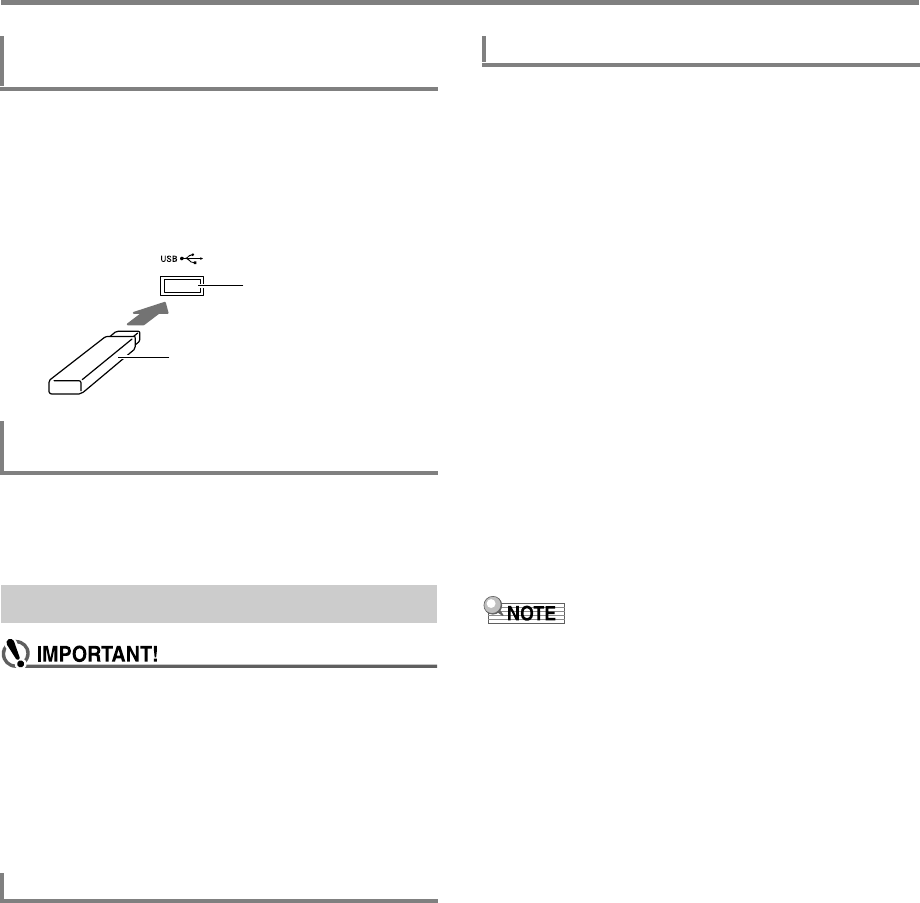
USB Flash Drive
EN-120
1.
As shown in the illustration below, insert the
USB flash drive into the Digital Keyboard’s
USB flash drive port.
• Carefully push the USB flash drive in as far as it will
go. Do not use undue force when inserting the USB
flash drive.
1.
Check to confirm that there is no data
exchange operation being performed, and then
pull the USB flash drive straight out.
• Be sure to format a USB flash drive on the Digital
Keyboard before using it for the first time.
• Formatting a USB flash drive deletes all data currently
stored on it. Before formatting a USB flash drive, make
sure it does not have any valuable data stored on it.
• The format operation performed by this Digital
Keyboard is a “quick format”. If you want to completely
delete all of the data in USB flash drive, format it on
your computer or some other device.
This Digital Keyboard supports USB flash drives formatted to
FAT32. If your USB flash drive is formatted to a different file
system, use the Windows format function to reformat it to
FAT32. Do not use quick format.
1.
Insert the USB flash drive to be formatted into
the Digital Keyboard’s USB flash drive port.
2.
Press bk FUNCTION.
3.
Use the [1] (V) and [3] (W) bm number keys
to display “Media”, and then press [6] (ENTER).
This displays the [USB] indicator.
4.
Use the [1] (V) and [3] (W) keys to display
“Format”, and then press [6] (ENTER).
This displays “Sure?”
5.
Press bn [+] (YES) to execute the format or bn
[–] (NO) to cancel.
• Pressing bn [+] (YES) starts formatting and displays
the message “Wait...” (operation in progress). Do not
perform any operation while this message is displayed.
“Complete” is displayed after the operation is
complete.
6.
To exit the operation, long-press the [4] (EXIT)
bm number key.
This cause the [USB] indicator to disappear.
• Formatting a USB flash drive on the Digital Keyboard will
create a folder named MUSICDAT in its root directory. Use
this folder when exchanging data between the Digital
Keyboard and USB flash drive.
To connect a USB flash drive to the Digital
Keyboard
To remove a USB flash drive from the Digital
Keyboard
Formatting a USB Flash Drive
Supported USB Flash Drives
USB flash drive port
USB flash drive
To format a USB flash drive
CTX5000_3000_EN.book 120 ページ 2018年2月26日 月曜日 午後3時56分
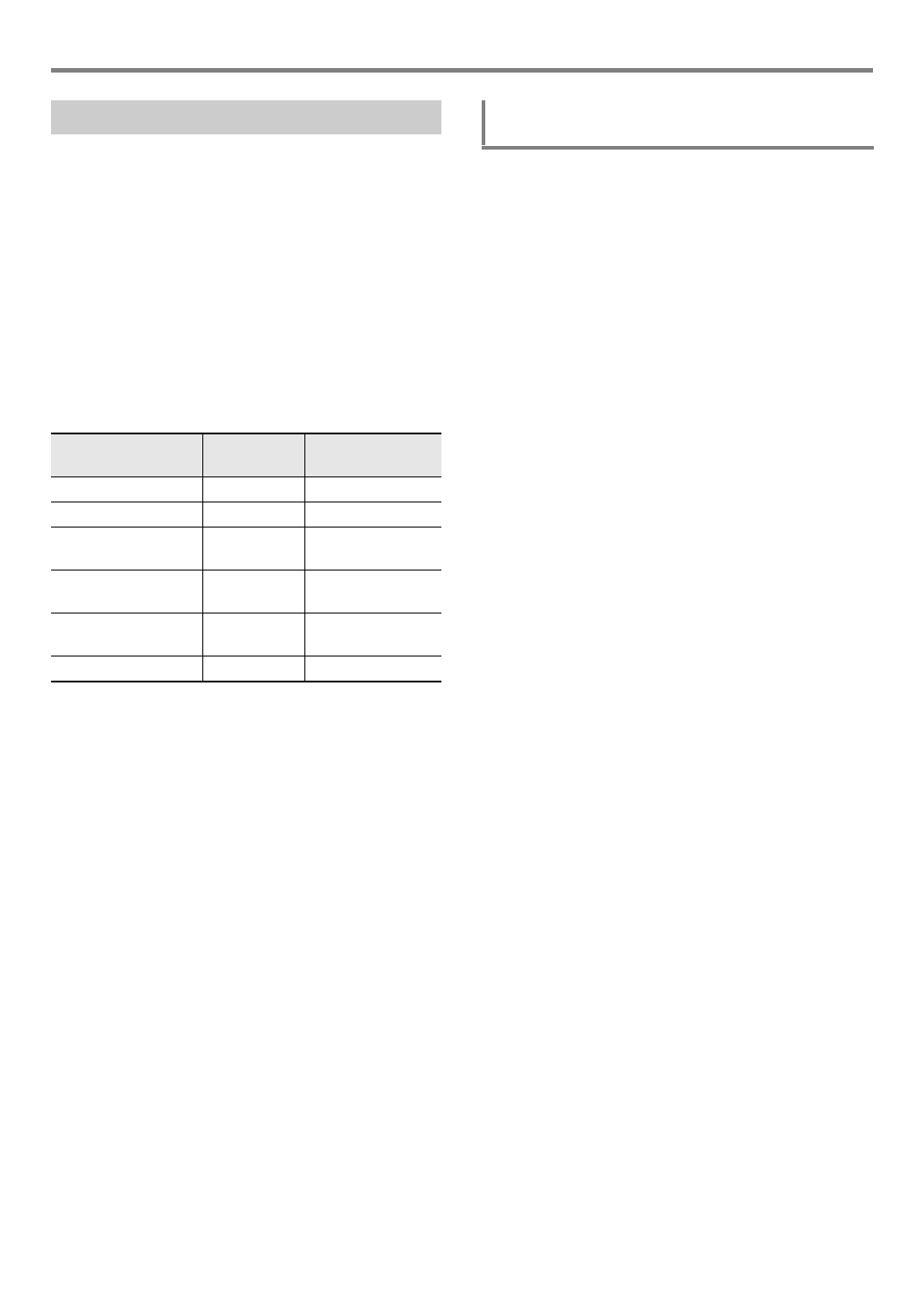
EN-121
USB Flash Drive
You can use Digital Keyboard operations to perform data
storage, data import, data delete, and data renaming
operations for a USB flash drive plugged into the Digital
Keyboard.
These operations can be performed on the data listed below.
• User tones created with the Digital Keyboard
• User rhythms created with the Digital Keyboard
• Songs recorded with the Digital Keyboard’s MIDI recorder
• Setup data registered with the Digital Keyboard’s
registration function
• User phrases recorded to Digital Keyboard phrase pads
■Sub Menu/File Name Extension List
The table below shows the sub-menus that are used for the
operations described in this section, and the file name
extensions for data types.
1.
Insert the USB flash drive into the Digital
Keyboard’s USB flash drive port.
2.
Press bk FUNCTION.
3.
Use the [1] (V) and [3] (W) bm number keys
to display “Media”, and then press [6] (ENTER).
4.
Use the [1] (V) and [3] (W) keys to display
“Save”, and then press [6] (ENTER).
5.
Use the [1] (V) and [3] (W) keys to display a
sub-menu of options that correspond to the
type of data being saved.
• See “Sub Menu/File Name Extension List” (above).
6.
Press [6] (ENTER).
• If “All Data” is selected in step 5, step 7 is not required.
Proceed to step 8.
7.
Use bn [–] and [+] or the bl dial to select the
data to be saved, and then press [6] (ENTER).
8.
Input the file name you want to use.
• See “Text Character Input” (page EN-15) for
information about how to enter text.
9.
Press [6] (ENTER).
This displays “Sure?”
• The message “Replace?” will appear if there is already
data with the same name on the USB flash drive. If this
happens, pressing bn [+] (YES) in step 10 below will
overwrite the existing data with the new data.
10.
Press bn [+] (YES) to save.
• To cancel the operation, press bn [–] (NO).
• Pressing bn [+] (YES) displays “Wait...” (operation in
progress). Do not perform any operation while this
message is displayed. “Complete” is displayed after
the operation is complete.
11.
To exit the operation, long-press the [4] (EXIT)
bm number key.
USB Flash Drive Operations
Data Type Sub Menu File Name
Extension
User Tones Tone TON
User Rhythms Rhythm AC7, CKF, Z00
User Recording MltRec
MltR SMF
MRF
MID (Save only)
Registration
(Bank unit)
RegMemBk RBK
User Phrases
(Phrase set unit)
Phrs Set PHS
All the above data All Data DAL
To save Digital Keyboard data to a USB flash
drive
CTX5000_3000_EN.book 121 ページ 2018年2月26日 月曜日 午後3時56分

USB Flash Drive
EN-122
1.
Perform steps 1, 2, and 3 under “To save
Digital Keyboard data to a USB flash drive”
(page EN-121).
2.
Use the [1] (V) and [3] (W) bm number keys
to display “Load”, and then press [6] (ENTER).
3.
Use the [1] (V) and [3] (W) keys to display a
sub-menu of options that correspond to the
type of data being imported.
• See “Sub Menu/File Name Extension List” (page
EN-121).
4.
Press [6] (ENTER).
This displays a file name of data that can be imported.
5.
Use bn [–] and [+] or the bl dial to select the
data you want to import into Digital Keyboard
memory.
• If “All Data” is selected in step 3, steps 6 and 7 below
are not required. Proceed to step 8.
• Pressing bk FUNCTION at this time will display the
file name extension of the currently selected data file.
(Note that this operation is possible only if the
[FUNCTION] indicator is flashing.) Press
bk FUNCTION again to return to the file name.
6.
Press [6] (ENTER).
7.
Use bn [–] and [+] or the bl dial to specify the
number of the user area where imported data
should be stored.
• Pressing bn [–] and [+] at the same time displays the
lowest numbered empty user area. If there is no empty
user area, the lowest numbered area is displayed.
8.
Press [6] (ENTER).
This displays “Sure?”
• If you displayed “All Data” in step 3 of this procedure or
if the user area you specified in step 7 already
contains data, the message “Replace?” will appear. If
this happens, pressing bn [+] (YES) in step 9 below
will overwrite the existing data in the user area with the
imported data.
9.
Press bn [+] (YES) to import.
• To cancel the operation, press bn [–] (NO).
• Pressing bn [+] (YES) displays “Wait...” (operation in
progress). Do not perform any operation while this
message is displayed. “Complete” is displayed after
the operation is complete.
10.
To exit the operation, long-press the [4] (EXIT)
bm number key.
1.
Perform steps 1, 2, and 3 under “To save
Digital Keyboard data to a USB flash drive”
(page EN-121).
2.
Use the [1] (V) and [3] (W) bm number keys
to display “Delete”, and then press [6]
(ENTER).
3.
Use the [1] (V) and [3] (W) keys to display a
sub-menu of options that correspond to the
type of data being deleted.
• See “Sub Menu/File Name Extension List” (page
EN-121).
4.
Press [6] (ENTER).
5.
Use bn [–] and [+] or the bl dial to select the
data to be deleted, and then press [6] (ENTER).
This displays “Sure?”
6.
To delete the data, press bn [+] (YES).
• To cancel the operation, press bn [–] (NO).
• Pressing bn [+] (YES) displays “Wait...” (operation in
progress). Do not perform any operation while this
message is displayed. “Complete” is displayed after
the operation is complete.
7.
To exit the operation, long-press the [4] (EXIT)
bm number key.
To load data from a USB flash drive to Digital
Keyboard memory
To delete USB flash drive data
CTX5000_3000_EN.book 122 ページ 2018年2月26日 月曜日 午後3時56分

EN-123
USB Flash Drive
1.
Perform steps 1, 2, and 3 under “To save
Digital Keyboard data to a USB flash drive”
(page EN-121).
2.
Use the [1] (V) and [3] (W) bm number keys
to display “Rename”, and then press [6]
(ENTER).
3.
Use the [1] (V) and [3] (W) keys to display a
sub-menu of options that correspond to the
type of data being renamed.
• See “Sub Menu/File Name Extension List” (page
EN-121).
4.
Press [6] (ENTER).
This enables specification of the data to be renamed.
5.
Use bn [–] and [+] or the bl dial to select the
data to be renamed, and then press [6]
(ENTER).
6.
Rename the file.
• See “Text Character Input” (page EN-15) for
information about how to enter text.
7.
Press [6] (ENTER).
This displays “Sure?”
• The message “Replace?” will appear if there is already
data with the same name on the USB flash drive. If this
happens, pressing bn [+] (YES) in step 8 below will
overwrite the existing data with the new data.
8.
To change the name, press bn [+] (YES).
• To cancel the operation, press bn [–] (NO).
• Pressing bn [+] (YES) displays “Wait...” (operation in
progress). Do not perform any operation while this
message is displayed. “Complete” is displayed after
the operation is complete.
9.
To exit the operation, long-press the [4] (EXIT)
bm number key.
You can use the same operations as those for built-in songs
to play back files of the formats below, which are stored in the
MUSICDAT folder.
• Standard MIDI files (SMF format 0/1) or CASIO MIDI files
(CMF format)
• WAV format audio files (16 bit, 44.1 kHz)
1.
Connect the USB flash drive to your computer.
2.
Create a folder named MUSICDAT in the root
directory of the USB flash drive.
• This step is not required is there is already a
MUSICDAT folder in the USB flash drive’s root
directory.
3.
Copy song data you want to play back on the
Digital Keyboard to the MUSICDAT folder.
• For information about playback procedures, see
“Playing Back a Song from a USB Flash Drive” (page
EN-42) and “Playing Back an Audio File on a USB
Flash Drive (Audio Mode)” (page EN-42).
To rename USB flash drive data Using a Computer to Copy
General Song Data to a USB Flash
Drive
CTX5000_3000_EN.book 123 ページ 2018年2月26日 月曜日 午後3時56分
EN-124
You can connect the Digital Keyboard to a computer and
exchange MIDI data between them. You can send play data
from the Digital Keyboard to music software running on your
computer, or you can send MIDI data from your computer to
the Digital Keyboard for playback.
The following shows the minimum computer system
requirements for sending and receiving MIDI data. Check to
make sure that your computer complies with these
requirements before connecting the Digital Keyboard to it.
●Operating System
Windows Vista *1
Windows 7 *2
Windows 8.1 *3
Windows 10 *4
macOS (OS X/Mac OS X) 10.7, 10.8, 10.9, 10.10, 10.11,
10.12
*1 Windows Vista (32-bit)
*2 Windows 7 (32-bit, 64-bit)
*3 Windows 8.1 (32-bit, 64-bit)
*4 Windows 10 (32-bit, 64-bit)
●USB port
• Never connect to a computer that does not conform to
the above requirements. Doing so can cause problems
with your computer.
• For the latest news about supported operating systems,
visit the website at the URL below.
http://world.casio.com/
• Make sure you follow the steps of the procedure below
exactly. Connecting incorrectly can make data send
and receive impossible.
1.
Turn off the Digital Keyboard and then start up
your computer.
• Do not start up the music software on your computer
yet!
2.
After starting up your computer, use a
commercially available USB cable to connect it
to the Digital Keyboard.
• Use a USB 2.0 or 1.1 A-B connector type USB cable.
3.
Turn on the Digital Keyboard.
• If this is the first time you are connecting the Digital
Keyboard to your computer, the driver software
required to send and receive data will be installed on
your computer automatically.
4.
Start up commercially available music software
on your computer.
5.
Configure the music software settings to select
“CASIO USB-MIDI” as the MIDI device.
• For information about how to select the MIDI device,
see the user documentation that comes with the music
software you are using.
• Be sure to turn on the Digital Keyboard first before
starting up your computer’s music software.
• USB send and receive is disabled during playback of a
Song Bank song (page EN-39).
Connecting a Computer
Connecting a Computer
Minimum Computer System Requirements
Connecting the Digital Keyboard to Your
Computer
CTX5000_3000_EN.book 124 ページ 2018年2月26日 月曜日 午後3時56分
EN-125
Connecting a Computer
This parameter specifies the channel to be used when
keyboard performance information is sent from this Digital
Keyboard to a computer.
Perform the procedure under “To configure function settings
with the bk FUNCTION button” (page EN-112) and configure
the following setting: Keyboard Channel (Keybd Ch) (page
EN-117).
This parameter can be used when using an external sound
source to play Digital Keyboard notes to specify that the notes
should not be sounded by the Digital Keyboard.
Perform the procedure under “To configure function settings
with the bk FUNCTION button” (page EN-112) and configure
the following setting: Local Control (Local) (page EN-117).
This parameter specifies whether or not Auto Accompaniment
data should be sent.
Perform the procedure under “To configure function settings
with the bk FUNCTION button” (page EN-112) and configure
the following setting: Accomp Out (AcompOut) (page
EN-117).
You can transfer recorded songs, and other data in Digital
Keyboard memory to a computer for storage. You also can
load Auto Accompaniment data you download from the
CASIO website to the Digital Keyboard, which greatly
expands Auto Accompaniment patterns available to you. A
special Data Manager application is required in order to
transfer data to and from the Digital Keyboard.
You can transfer the types of data listed below between the
Digital Keyboard and a computer.
• User tone data (page EN-71)
• User rhythm data (page EN-76)
• User-recorded songs (page EN-90)
• Registration (bank unit) (page EN-67)
• User Phrase (phrase set unit) (page EN-54)
1.
Go to the CASIO WORLDWIDE site at the
following URL.
http://world.casio.com/
2.
At the site, select a geographic area or country.
3.
After accessing the area site, navigate to the
minimum computer system requirements for
Data Manager for this product.
• You should be able to find a link to Data Manager
information on the product introduction page of this
product. If you cannot find such a link, use the search
form of the area site where you are located to enter the
model name of this product and search for it.
• Note that site contents are subject to change without
notice.
4.
Check if your computer system complies with
the minimum requirements for Data Manager.
5.
Download Data Manager and its user’s guide to
your computer.
6.
Follow the procedure in the user’s guide that
you downloaded in step 5 to install and use
Data Manager.
• You can download accompaniment data from the
Internet Data Expansion system of the CASIO MUSIC
SITE (http://music.casio.com/) and load it into the
memory of this Digital Keyboard. Note that there is not
any accompaniment data intended specifically for this
model, so you should use data for other models.
• Since the accompaniment data is for other models, you
may experience some abnormalities when playing it on this
model.
• For information about accompaniment data compatibility
between models, see the Data Manager user’s guide you
download in step 5 of the above procedure.
MIDI Settings
Keyboard Channel
Local Control
Accomp Out
Transferring Data Between the
Digital Keyboard and a Computer
Data Types Supported for Data Transfer
Downloading Data Manager
CTX5000_3000_EN.book 125 ページ 2018年2月26日 月曜日 午後3時56分
EN-126
Reference
Troubleshooting
Symptom Action
Included Accessories
I can’t find something that should be here. Carefully check inside all of the packing materials.
Power Requirements
Power will not turned on. • Check the AC adaptor (page EN-8).
• CT-X3000: Make sure that the batteries are facing correctly (page
EN-9). Replace the batteries with new ones (page EN-9) or switch
over to AC adaptor power (page EN-8).
The display lights up momentarily but power does
not turn on when I press the 1P (power) button.
Press 1P (power) firmly and completely to turn on power.
The Digital Keyboard outputs a loud sound and then
suddenly powers down.
CT-X3000: Replace the batteries with new ones (page EN-9) or
switch over to AC adaptor power (page EN-8).
The Digital Keyboard suddenly powers down after
about 30 minutes.
This happens when Auto Power Off (page EN-9) is triggered.
Display
The display keeps going out or are flashing. CT-X3000: Replace the batteries with new ones (page EN-9) or
switch over to AC adaptor power (page EN-8).
Screen contents are visible only from straight ahead. This is dues to production limitations. It does not indicate malfunction.
Sound
Nothing happens when I press any keyboard key. • Adjust the volume setting (page EN-11).
• Check if something is plugged into fk on the back of the Digital
Keyboard.
• Turn power off and then back on to initialize all keyboard settings
(page EN-9).
Nothing happens or notes do not play normally when
I play notes on the left side of the keyboard.
Press cm to disable chord input in the accompaniment keyboard area
(page EN-44).
Nothing happens when I start an Auto
Accompaniment.
• With rhythms 226 to 235, nothing will sound until you play a chord
on the keyboard. Try playing a chord (page EN-48).
• Check and adjust the accompaniment volume setting (page
EN-45).
• If there is no user rhythm stored in memory, Auto Accompaniment
will not start when you press ck while a rhythm in the range of 294
to 393 (CT-X5000) / 294 to 343 (CT-X3000) is selected (page
EN-76).
• Turn power off and then back on to initialize all Digital Keyboard
settings (page EN-9).
Nothing happens when I start playback of a built-in
song.
• It takes a little time after you press the button until the song starts to
play. Wait for a moment for the song to start.
• Check and adjust the song volume (page EN-40).
• With song numbers 31 through 40, pressing ck will not start the
song if there is no MIDI recorder data stored to the song (page
EN-90).
• Turn power off and then back on to initialize all Digital Keyboard
settings (page EN-9).
The metronome does not sound. • Check and adjust the metronome volume setting (page EN-27).
• Turn power off and then back on to initialize all Digital Keyboard
settings (page EN-9).
Notes keep sounding, without stopping. • Turn power off and then back on to initialize all Digital Keyboard
settings (page EN-9).
• Change the Sustain setting (page EN-32).
• CT-X3000: Replace the batteries with new ones (page EN-9) or
switch over to AC adaptor power (page EN-8).
CTX5000_3000_EN.book 126 ページ 2018年2月26日 月曜日 午後3時56分
EN-127
Reference
Some notes are cut off while they are playing. Notes are cut off whenever the number of notes being sounded
exceeds the maximum polyphony value of 64 (32 for some tones).
This does not indicate malfunction.
The volume or tone setting I made has changed. • Adjust the volume setting (page EN-11) and the equalizer setting
(page EN-25).
• Turn power off and then back on to initialize all Digital Keyboard
settings (page EN-9).
• CT-X3000: Replace the batteries with new ones (page EN-9) or
switch over to AC adaptor power (page EN-8).
Output volume does not change even though I
change my keyboard touch.
• Change the Touch Response setting (page EN-29).
• Turn power off and then back on to initialize all Digital Keyboard
settings (page EN-9).
In certain keyboard ranges, the volume and tone
quality sound are slightly different from those in other
keyboard ranges.
This is due to system limitations. It does not indicate malfunction.
With some tones, octaves do not change at the far
ends of the keyboard.
This is due to system limitations. It does not indicate malfunction.
The pitch of the notes does not match other
accompanying instruments or sounds strange when
played long with other instruments.
• Check and adjust the transpose (page EN-35), tuning (page
EN-37), part coarse tuning and part fine tuning settings (page
EN-37).
• Turn power off and then back on to initialize all Digital Keyboard
settings (page EN-9).
The reverb of notes seems to change suddenly. • Check and adjust the reverb and delay settings (page EN-22).
• Turn power off and then back on to initialize all Digital Keyboard
settings (page EN-9).
Operation
Tone, rhythm, and other settings revert to their initial
defaults whenever you turn on the Digital Keyboard.
Though Digital Keyboard settings reset when you turn off the Digital
Keyboard (page EN-9), you can save setups to registration memory
for instant recall whenever you need them (page EN-67). If Auto
Resume function (page EN-10) is turned on, most settings are saved
while power is turned off.
Computer Connection
I can’t exchange data between the Digital Keyboard
and a computer.
• Check to make sure that the USB cable is connected to the Digital
Keyboard and computer, and that the device is selected correctly
with your computer’s music software settings (page EN-124).
• Turn off the Digital Keyboard and then exit the music software on
your computer. Next, turn the Digital Keyboard back on and then
restart the music software on your computer.
Symptom Action
CTX5000_3000_EN.book 127 ページ 2018年2月26日 月曜日 午後3時56分
EN-128
Reference
Error Messages
Display Cause Action
Err Limit You are attempting to record more than 999
measures.
Make your recordings up to 999 measures long.
Err Mem Full You are attempting a recording that exceeds the
allowable per-song limit.
Keep song recordings with the allowable per-song
limit.
You are attempting a recording that exceeds the
allowable per-phrase limit.
Keep phrase recordings with the allowable per- phrase
limit.
You are attempting a recording that exceeds the
allowable per-user-rhythm limit.
Keep user rhythm recordings with the allowable per-
user-rhythm limit.
Err DataFull You are attempting to record more than 10 songs. Delete some of the songs in memory.
You are attempting to store user tones that cause the
maximum allowable limit to be exceeded.
Delete unneeded user tones.
You are attempting to store user rhythms that cause
the maximum allowable limit to be exceeded.
Delete unneeded user rhythms.
Err No Media The USB flash drive is not plugged correctly into the
USB flash drive port.
Correctly plug the USB flash drive into the USB flash
drive port.
The USB flash drive was removed while some
operation was in progress.
Do not remove the USB flash drive while any operation
is in progress.
The USB flash drive is write-protected. Write-enable the USB flash drive.
The USB flash drive is protected by anti-virus
software.
Use a USB flash drive that is not protected by anti-
virus software.
Err No File There is no loadable or playable file in the MUSICDAT
folder.
Move the file you want to load into the “MUSICDAT”
folder or the file you want to play into the “MUSICDAT”
folder (page EN-123).
Err No Data You are selecting a user data item that does not have
any data stored to it.
Select a user data item that has data stored to it.
Err ReadOnly A read-only file with the same name you are trying to
use is already stored on USB flash drive.
• Change the name and then save the new data.
• Remove the read-only attribute from the existing
USB flash drive file and overwrite it with the new
data.
• Use a different USB flash drive.
Err MediaFul There is not enough space available on the USB flash
drive.
Delete some of the files on the USB flash drive to
make room for new data or use a different USB flash
drive.
Err ManyFile There are too many files on the USB flash drive. Delete some of the files on the USB flash drive to
make room for new data.
Err NotSMF01 You are attempting to play back SMF Format 2 song
data.
Playback of SMF Format 0 or Format 1 only is
supported.
Err Large Sz The SMF file on the USB flash drive cannot be played
because it is too big
Playback of SMF files up to approximately 320 KB in
size is supported.
The data you are trying to import cannot be imported
because it is too big.
The maximum data size (per data item) when loading
data into Digital Keyboard memory is shown below.
Rhythms: Approximately 64 KB
Phrases: Approximately 8 KB
CTX5000_3000_EN.book 128 ページ 2018年2月26日 月曜日 午後3時56分
EN-129
Reference
Err WrongDat The USB flash drive data is corrupted. –
USB flash drive contains data that is not supported by
this Digital Keyboard.
–
Err Format The USB flash drive format is not compatible with this
Digital Keyboard.
• Use a computer or other device to change the USB
flash drive format to something that is compatible
with the Digital Keyboard (page EN-120).
• Use a different USB flash drive.
USB flash drive memory is corrupted. Use a different USB flash drive.
Display Cause Action
CTX5000_3000_EN.book 129 ページ 2018年2月26日 月曜日 午後3時56分
EN-130
Reference
Specifications
Model CT-X5000 CT-X3000
Keyboard 61 standard size keys
Touch Response Sensitivity: 3 types, Off
Maximum Polyphony 64 notes (32 for certain tones)
Tones
Preset Tones 800
User Tones 100 (See “Tone Editing” item of these specifications.)
Other Layer, split (configurable split point, lower point, chord point settings)
System Effects
Reverb 32 types, Off 24 types, Off
Chorus 16 types, Tones 12 types, Tones
Delay 20 types, Tones 15 types, Tones
DSP 100 types*1, DSP tones 100 types*1, DSP tones
Master Effects Equalizer (10 presets)
4-band User Equalizer
Equalizer (10 presets)
External Input Effects Center cancel (vocal cut) for input from the Audio In jack
Metronome
Beat 0 (accented tone off), 1 to 16
Tempo Tempo value: 20 to 255
Demo Songs 3
Song Bank
Built-in Songs 30
User-recorded Songs 10 (See the “MIDI Recorder” item of these specifications.)
USB Memory Songs Playback of standard MIDI files (SMF format 0/1), CASIO MIDI files (CMF format) on a
USB flash drive is supported.
USB Audio Playback Playback of audio files on a USB flash drive is supported.
Supported File Formats WAV format, 44.1 kHz 16 bit
Other Functions Center Cancel (Vocal Cut)
Auto Accompaniment
Built-in Rhythms 235 235
User Rhythms 100 (See the “Rhythm Editing” item of
these specifications.)
50 (See the “Rhythm Editing” item of these
specifications.)
One Touch Presets 235 235
Music Presets 310 (With chord progressions)
Phrase Pads
Number of Pads 4
User Phrases 100 (4 phrases × 25 pads)
Memory Capacity Approximately 1,000 notes (per phrase)
Editing Mode Copy, delete, phrase editing
Mixer function
Affected Parts Sound source parts, microphone input part
Parameters Part on/off, volume, pan, reverb send, chorus send, delay send
Registration Maximum 128 setups (8 setups × 16 banks), registration sequence
Tone Editing Preset tone editing, DSP editing
Memory for storage of edited tones (up to 100)
Rhythm Editing New rhythm creation, rhythm editing
Memory for storage of created/edited rhythms (CT-X5000: Up to 100, CT-X3000: Up to
50)
CTX5000_3000_EN.book 130 ページ 2018年2月26日 月曜日 午後3時56分
EN-131
Reference
*1 Can be applied to user tones using DSP editing (page EN-72).
• Design and specifications are subject to change without notice.
MIDI Recorder Real-time recording, playback
Keyboard Performance Recording 10 songs, 17 tracks (1 system track, 16 solo tracks)
Memory Capacity Approximately 40,000 notes (per song)
Editing Mode Song editing, track editing, event editing, step input
Other Functions Overdubbing, punch-in recording
Pedals Sustain, sostenuto, soft, rhythm/song, expression
Controllers Pitch bend wheel, SUSTAIN button,
PORTAMENTO button, MODULATION/
ASSIGNABLE button
Pitch bend wheel, SUSTAIN button,
PORTAMENTO button
Other Functions
Transpose ±1 octaves (–12 to 0 to +12 semitones)
Octave Shift Upper 1/Upper 2/Lower 1/Lower 2, ±3 octaves
Tuning A4 = 415.5 to 465.9 Hz (Initial Default: 440.0 Hz)
Part coarse tune For each keyboard part, ±2 octaves (–24 to 0 to +24 semitones)
Part fine tune For each keyboard part, ±99 cents
Scales 17 preset scales, scale fine tuning
Auto Harmonize 12 types
Arpeggiator 150 types
MIDI 16ch multi-timbre received, GM Level 1 standard
Inputs/Outputs
USB Flash Drive Port Type A
USB Port Type B
Pedal 1 Jack Standard jack (6.3 mm)
Pedal 2, Expression Jack Standard jack (6.3 mm)
Headphones Jack Stereo standard jack (6.3 mm)
Audio Input Jack Stereo mini jack (3.5 mm)
Input impedance: 9 kΩ; Input sensitivity; 200 mV
Line Out Jack (CT-X5000) Standard jacks (6.3 mm) × 2
Output impedance: 2.3 kΩ; Output voltage: 1.9 V (RMS) MAX
Microphone Input Jack (CT-X5000) Standard jack (6.3 mm) (Connect a dynamic microphone.)
Input impedance: 3 kΩ; Input sensitivity; 10 mV
Power Jack DC 24V DC 12V
Power Supply AC adaptor only 2-way
AC Adaptor AD-E24250LW AD-A12150LW
Batteries – 6 D-size alkaline batteries
Battery Life – Approximately 10 hours continuous
operation on alkaline batteries
Auto Power Off Approximately 30 minutes after last
operation; Can be disabled.
Approximately 30 minutes after last
operation; Can be disabled.
Speakers 10cm× 2 (Output: 15W + 15W) 10cm× 2 (Output: 6W + 6W)
Power Consumption 24V = 15 W 12V = 8 W
Dimensions 94.8 × 38.4 × 11.6 cm (37 5/16 × 15 1/8 × 4 9/16 inch)
Weight Approximately 7.0 kg (15.4 lbs) Approximately 6.9 kg (15.2 lbs) (without
batteries)
Model CT-X5000 CT-X3000
CTX5000_3000_EN.book 131 ページ 2018年2月26日 月曜日 午後3時56分

EN-132
Reference
DSP Effect List
DSP Module List
Module
Number Module Name Display Description
Mono 1-Band EQ Mono 1EQ This is a single-band monaural equalizer.
Mono 2-Band EQ Mono 2EQ This is a dual-band monaural equalizer.
Mono 3-Band EQ Mono 3EQ This is a three-band monaural equalizer.
Stereo 1-Band EQ Streo1EQ This is a single-band stereo equalizer.
Stereo 2-Band EQ Streo2EQ This is a dual-band stereo equalizer.
Stereo 3-Band EQ Streo3EQ This is a three-band stereo equalizer.
Tone Control ToneCtrl Provides monaural tone control for adjusting low-range, mid-range, and
high-range frequencies.
Tremolo Tremolo Shifts the volume of the input signal using an LFO.
Auto Pan Auto Pan Shifts the continual left-right panning of the input signal using an LFO.
Compressor Compress Compresses the input signal, which can have the effect of suppressing level
variation.
- Limiter Limiter Limits the input signal level so it does not rise above a preset level.
Enhancer Enhancer Enhances the profiles of the low range and high range of the input signal.
Phaser Phaser Produces a distinctive pulsating, broad sound by using an LFO to change
the phase of the input signal and then mixes it with the original input signal.
Chorus Chorus Gives notes depth and breadth.
Flanger Flanger Applies wildly pulsating and metallic reverberation to notes. Selects the LFO
waveform.
Rotary Rotary This effect is a rotary speaker simulator.
Drive Rotary DriveRot This is a rotary speaker simulator that makes overdrive possible.
Pitch Shifter Pitch This effect transforms the pitch of the input signal.
Ring Modulator Ring Mod Multiplies the input signal with an internal oscillator signal to create a metallic
sound.
Reflection Reflect Simulates the initial reflection of reverberation. Applies acoustic ambiance
and presence to notes.
- Delay Delay Delays the input signal and feeds it back to create a repeating effect.
Piano Effect Piano This effect is suited to acoustic piano play.
LFO Wah LFO Wah This is a “wah” effect that can automatically affect the frequency using an
LFO.
Auto Wah Auto Wah This is a “wah” effect that can automatically shift the frequency in
accordance with the level of the input signal.
Modeling Wah ModelWah Simulates various types of wah pedals. This effect can automatically shift
the frequency in accordance with the level of the input signal.
Distortion Distort Distortion, wah, and amp simulator combined into a single effect.
Drive Drive Simulates the drive of a musical instrument amplifier.
Amp Cab Amp Cab Simulates the amp and speaker cabinet without drive and distortion.
CTX5000_3000_EN.book 132 ページ 2018年2月26日 月曜日 午後3時56分
EN-133
Reference
DSP Parameter List
Module Name Description Settings
Display Parameter Data
Mono 1-Band EQ This is a single-band monaural equalizer.
EQ Freq EQ Frequency Adjusts the center frequency of Equalizer. *1
EQ Gain EQ Gain Adjusts the gain of Equalizer. –12 to 00 to 12
In Level Input Level Adjusts the input level. 000 to 127
WetLevel Wet Level Adjusts the level of the effect sound. 000 to 127
DryLevel Dry Level Adjusts the level of the direct sound. 000 to 127
Mono 2-Band EQ This is a dual-band monaural equalizer.
EQ1 Freq EQ1 Frequency Adjusts the center frequency of Equalizer 1. *1
EQ1 Gain EQ1 Gain Adjusts the gain of Equalizer 1. –12 to 00 to 12
EQ2 Freq EQ2 Frequency Adjusts the center frequency of Equalizer 2. *1
EQ2 Gain EQ2 Gain Adjusts the gain of Equalizer 2. –12 to 00 to 12
In Level Input Level Adjusts the input level. 000 to 127
WetLevel Wet Level Adjusts the level of the effect sound. 000 to 127
DryLevel Dry Level Adjusts the level of the direct sound. 000 to 127
Mono 3-Band EQ This is a three-band monaural equalizer.
EQ1 Freq EQ1 Frequency Adjusts the center frequency of Equalizer 1. *1
EQ1 Gain EQ1 Gain Adjusts the gain of Equalizer 1. –12 to 00 to 12
EQ2 Freq EQ2 Frequency Adjusts the center frequency of Equalizer 2. *1
EQ2 Gain EQ2 Gain Adjusts the gain of Equalizer 2. –12 to 00 to 12
EQ3 Freq EQ3 Frequency Adjusts the center frequency of Equalizer 3. *1
EQ3 Gain EQ3 Gain Adjusts the gain of Equalizer 3. –12 to 00 to 12
In Level Input Level Adjusts the input level. 000 to 127
WetLevel Wet Level Adjusts the level of the effect sound. 000 to 127
DryLevel Dry Level Adjusts the level of the direct sound. 000 to 127
Stereo 1-Band EQ This is a single-band stereo equalizer.
EQ Freq EQ Frequency Adjusts the center frequency of Equalizer. *1
EQ Gain EQ Gain Adjusts the gain of Equalizer. –12 to 00 to 12
In Level Input Level Adjusts the input level. 000 to 127
WetLevel Wet Level Adjusts the level of the effect sound. 000 to 127
DryLevel Dry Level Adjusts the level of the direct sound. 000 to 127
CTX5000_3000_EN.book 133 ページ 2018年2月26日 月曜日 午後3時56分
EN-134
Reference
Stereo 2-Band EQ This is a dual-band stereo equalizer.
EQ1 Freq EQ1 Frequency Adjusts the center frequency of Equalizer 1. *1
EQ1 Gain EQ1 Gain Adjusts the gain of Equalizer 1. –12 to 00 to 12
EQ2 Freq EQ2 Frequency Adjusts the center frequency of Equalizer 2. *1
EQ2 Gain EQ2 Gain Adjusts the gain of Equalizer 2. –12 to 00 to 12
In Level Input Level Adjusts the input level. 000 to 127
WetLevel Wet Level Adjusts the level of the effect sound. 000 to 127
DryLevel Dry Level Adjusts the level of the direct sound. 000 to 127
Stereo 3-Band EQ This is a three-band stereo equalizer.
EQ1 Freq EQ1 Frequency Adjusts the center frequency of Equalizer 1. *1
EQ1 Gain EQ1 Gain Adjusts the gain of Equalizer 1. –12 to 00 to 12
EQ2 Freq EQ2 Frequency Adjusts the center frequency of Equalizer 2. *1
EQ2 Gain EQ2 Gain Adjusts the gain of Equalizer 2. –12 to 00 to 12
EQ3 Freq EQ3 Frequency Adjusts the center frequency of Equalizer 3. *1
EQ3 Gain EQ3 Gain Adjusts the gain of Equalizer 3. –12 to 00 to 12
In Level Input Level Adjusts the input level. 000 to 127
WetLevel Wet Level Adjusts the level of the effect sound. 000 to 127
DryLevel Dry Level Adjusts the level of the direct sound. 000 to 127
Tone Control Provides monaural tone control for adjusting low-range, mid-range, and high-range
frequencies.
Low Freq Low Frequency Adjusts the cutoff frequency of Low-range *2
Low Gain Low Gain Adjusts the Low-range gain. –12 to 00 to 12
Mid Freq Mid Frequency Adjusts the center frequency of Mid-range. *1
Mid Gain Mid Gain Adjusts the Mid-range gain. –12 to 00 to 12
HighFreq High Frequency Adjusts the cutoff frequency of High-range *3
HighGain High Gain Adjusts the High-range gain. –12 to 00 to 12
In Level Input Level Adjusts the input level. 000 to 127
WetLevel Wet Level Adjusts the level of the effect sound. 000 to 127
DryLevel Dry Level Adjusts the level of the direct sound. 000 to 127
Module Name Description Settings
Display Parameter Data
CTX5000_3000_EN.book 134 ページ 2018年2月26日 月曜日 午後3時56分
EN-135
Reference
Tremolo Shifts the volume of the input signal using an LFO.
Rate LFO Rate Adjusts the LFO rate. 000 to 127
Depth LFO Depth Adjusts the LFO depth. 000 to 127
Waveform LFO Waveform Selects the LFO waveform. Sine, Triangle,
Trapzoid
WetLevel Wet Level Adjusts the level of the effect sound. 000 to 127
DryLevel Dry Level Adjusts the level of the direct sound. 000 to 127
Auto Pan Shifts the continual left-right panning of the input signal using an LFO.
Rate LFO Rate Adjusts the LFO rate. 000 to 127
Depth LFO Depth Adjusts the LFO depth. 000 to 127
Waveform LFO Waveform Selects the LFO waveform. Sine, Triangle,
Trapzoid
Manual Manual Adjusts the pan (stereo position). –64 is full left, 0 is center, and
+63 is full right.
–64 to 00 to 63
WetLevel Wet Level Adjusts the level of the effect sound. 000 to 127
DryLevel Dry Level Adjusts the level of the direct sound. 000 to 127
Compressor Compresses the input signal, which can have the effect of suppressing level variation.
Attack Attack Adjusts the time until compression goes into effect. A smaller
value causes prompt compressor operation, which suppresses
the attack of the input signal. A larger values delays compressor
operation, which causes the attack of the input signal to be
output as-is.
000 to 127
Release Release Adjusts the time until compression is released after the input
signal drops below a prescribed level. When an attack feeling is
desired (no compression at the onset of the sound), set this
parameter to as low a value as possible. To have compression
applied at all times, set a high value.
000 to 127
Ratio Ratio Adjusts the compression ratio of the audio signal. 1:1, 2:1, 4:1, 8:1,
16:1, 32:1, Inf:1
WetLevel Wet Level Adjusts the level of the effect sound. Output volume changes in
accordance with the Ratio setting and the characteristics of the
input tone.
000 to 127
DryLevel Dry Level Adjusts the level of the direct sound. 000 to 127
Module Name Description Settings
Display Parameter Data
CTX5000_3000_EN.book 135 ページ 2018年2月26日 月曜日 午後3時56分
EN-136
Reference
- Limiter Limits the input signal level so it does not rise above a preset level.
Limit Limit Adjusts the volume level of the limit at which limiting is applied. 000 to 127
Attack Attack Adjusts the time until the compression effect starts. A smaller
value causes prompt limiter operation, which suppresses the
attack of the input signal. A larger values delays limiter operation,
which causes the attack of the input signal to be output as-is.
000 to 127
Release Release Adjusts the time until compression is released after the input
signal drops below a prescribed level.
000 to 127
WetLevel Wet Level Adjusts the level of the effect sound. Output volume changes in
accordance with the Limit setting and the characteristics of the
input tone. Use this parameter to correct for such changes.
000 to 127
DryLevel Dry Level Adjusts the level of the direct sound. 000 to 127
Enhancer Enhances the profiles of the low range and high range of the input signal.
Low Freq Low Frequency Adjusts the low range enhancer frequency. 000 to 127
Low Gain Low Gain Adjusts the low range enhancer gain. 000 to 127
HighFreq High Frequency Adjusts the high range enhancer frequency. 000 to 127
HighGain High Gain Adjusts the high range enhancer gain. 000 to 127
In Level Input Level Adjusts the input level. 000 to 127
WetLevel Wet Level Adjusts the level of the effect sound. 000 to 127
DryLevel Dry Level Adjusts the level of the direct sound. 000 to 127
Phaser Produces a distinctive pulsating, broad sound by using an LFO to change the phase of
the input signal and then mixes it with the original input signal.
Resonanc Resonance Adjusts the strength of feedback 000 to 127
Manual Manual Adjusts the reference phaser shift amount. –64 to 00 to 63
Rate LFO Rate Adjusts the LFO rate. 000 to 127
Depth LFO Depth Adjusts the LFO depth. 000 to 127
Waveform LFO Waveform Selects the LFO waveform. Sine, Triangle,
Random
In Level Input Level Adjusts the input level. 000 to 127
WetLevel Wet Level Adjusts the level of the effect sound. 000 to 127
DryLevel Dry Level Adjusts the level of the direct sound. 000 to 127
Module Name Description Settings
Display Parameter Data
CTX5000_3000_EN.book 136 ページ 2018年2月26日 月曜日 午後3時56分
EN-137
Reference
Chorus Gives notes depth and breadth.
Rate LFO Rate Adjusts the LFO rate. 000 to 127
Depth LFO Depth Adjusts the LFO depth. 000 to 127
Waveform LFO Waveform Selects the LFO waveform. Sine, Triangle
Feedback Feedback Adjusts the strength of feedback –64 to 00 to 63
WetLevel Wet Level Adjusts the level of the effect sound. 000 to 127
Polarity Polarity Inverts the LFO of one channel. Negative, Positive
In Level Input Level Adjusts the input level. 000 to 127
DryLevel Dry Level Adjusts the level of the direct sound. 000 to 127
Flanger Applies wildly pulsating and metallic reverberation to notes. Selects the LFO waveform.
Rate LFO Rate Adjusts the LFO rate. 000 to 127
Depth LFO Depth Adjusts the LFO depth. 000 to 127
Waveform LFO Waveform Selects the LFO waveform. Sine, Triangle,
Random
Feedback Feedback Adjusts the strength of feedback –64 to 00 to 63
WetLevel Wet Level Adjusts the level of the effect sound. 000 to 127
In Level Input Level Adjusts the input level. 000 to 127
DryLevel Dry Level Adjusts the level of the direct sound. 000 to 127
Rotary This effect is a rotary speaker simulator.
Type Type Selects the rotary speaker type. 0 to 3
Speed Speed Switches the speed mode between fast and slow. Slow, Fast
Brake Brake Stops speaker rotation. Rotate, Stop
FallAcel Fall Accel Adjusts acceleration when the speed mode is switched from fast
to slow.
000 to 127
RiseAcel Rise Accel Adjusts acceleration when the speed mode is switched from slow
to fast.
000 to 127
SlowRate Slow Rate Adjusts the speaker rotation speed in the slow speed mode. 000 to 127
FastRate Fast Rate Adjusts the speaker rotation speed in the fast speed mode. 000 to 127
Vib/Cho Vibrato/Chorus Selects the vibrato and the chorus type. Off, Vibrato1,
Chorus 1, Vibrato2,
Chorus 2, Vibrato3,
Chorus 3
WetLevel Wet Level Adjusts the level of the effect sound. 000 to 127
DryLevel Dry Level Adjusts the level of the direct sound. 000 to 127
Module Name Description Settings
Display Parameter Data
CTX5000_3000_EN.book 137 ページ 2018年2月26日 月曜日 午後3時56分
EN-138
Reference
Drive Rotary This is a rotary speaker simulator that makes overdrive possible.
Type Type Selects the rotary speaker type. 0 to 3
OD Gain Overdrive Gain Adjusts overdrive gain. 000 to 127
OD Level Overdrive Level Adjusts the overdrive output level. 000 to 127
Speed Speed Switches the speed mode between fast and slow. Slow, Fast
Brake Brake Stops speaker rotation. Rotate, Stop
FallAcel Fall Accel Adjusts acceleration when the speed mode is switched from fast
to slow.
000 to 127
RiseAcel Rise Accel Adjusts acceleration when the speed mode is switched from slow
to fast.
000 to 127
SlowRate Slow Rate Adjusts the speaker rotation speed in the slow speed mode. 000 to 127
FastRate Fast Rate Adjusts the speaker rotation speed in the fast speed mode. 000 to 127
Vib/Cho Vibrato/Chorus Selects the vibrato and the chorus type. Off, Vibrato1,
Chorus 1, Vibrato2,
Chorus 2, Vibrato3,
Chorus 3
WetLevel Wet Level Adjusts the level of the effect sound. 000 to 127
DryLevel Dry Level Adjusts the level of the direct sound. 000 to 127
Pitch Shifter This effect transforms the pitch of the input signal.
Pitch Pitch Adjusts the pitch shift amount in quarter tone steps. –24 to 00 to 24
HighDamp High Damp Adjusts the high-range damp. A smaller number increases
damping.
000 to 127
Feedback Feedback Adjusts the feedback amount. 000 to 127
In Level Input Level Adjusts the input level. 000 to 127
WetLevel Wet Level Adjusts the level of the effect sound. 000 to 127
DryLevel Dry Level Adjusts the level of the direct sound. 000 to 127
Fine Fine Adjusts the pitch shift amount. –50 is a quarter note decrease,
while +50 is a quarter note increase.
–50 to 00 to 50
Ring Modulator Multiplies the input signal with an internal oscillator signal to create a metallic sound.
OSC Freq OSC Frequency Sets the reference frequency of the internal oscillator. 000 to 127
Rate LFO Rate Adjusts the LFO rate. 000 to 127
Depth LFO Depth Adjusts the LFO depth. 000 to 127
Tone Tone Adjusts the timbre of the ring modulator input sound. 000 to 127
WetLevel Wet Level Adjusts the level of the effect sound. 000 to 127
DryLevel Dry Level Adjusts the level of the direct sound. 000 to 127
Module Name Description Settings
Display Parameter Data
CTX5000_3000_EN.book 138 ページ 2018年2月26日 月曜日 午後3時56分
EN-139
Reference
Reflection Simulates the initial reflection of reverberation. Applies acoustic presence to notes.
WetLevel Wet Level Adjusts the level of the effect sound. 000 to 127
Feedback Feedback Adjusts the repeat of the reflected sound. 000 to 127
Tone Tone Adjusts the tone of the reflected sound. 000 to 127
In Level Input Level Adjusts the input level. 000 to 127
DryLevel Dry Level Adjusts the level of the direct sound. 000 to 127
- Delay Delays the input signal and feeds it back to create a repeating effect.
Time Delay Time Adjusts the total delay time in 1 ms units. 0001 to 1099
TmRatioL Delay Ratio L Adjusts the ratio of the left channel relative to the total delay time. 000 to 127
TmRatioR Delay Ratio R Adjusts the ratio of the right channel relative to the total delay
time.
000 to 127
Level L Delay Level L Adjusts the level of the left channel. 000 to 127
Level R Delay Level R Adjusts the level of the right channel. 000 to 127
FdbkType Feedback Type Selects the feedback type.
Stereo: Stereo feedback
Cross: Cross feedback
Stereo, Cross
Fdbk Lvl Feedback Adjusts the feedback amount. 000 to 127
Hi Damp High Damp Adjusts the high-range damp. A smaller number increases
damping.
000 to 127
TmpoSync Delay Tempo
Sync
Specifies how the actual total delay time is synced with tempo.
Off: Uses Delay Time value.
1/4 to 1: Uses value in accordance with number of beats.
Off, 1/4, 1/3, 3/8, 1/2,
2/3, 3/4, 1
In Level Input Level Adjusts the input level. 000 to 127
DryLevel Dry Level Adjusts the level of the direct sound. 000 to 127
WetLevel Wet Level Adjusts the level of the effect sound. 000 to 127
Piano Effect This effect is suited to acoustic piano play.
Lid Type Lid Type Adjusts how sound resonates in accordance with the opening
state of a piano lid.
Closed, SemiOpen,
FullOpen
RefLevel Reflection Level Adjusts the level of the initial reflection. 000 to 127
In Level Input Level Adjusts the input level. 000 to 127
WetLevel Wet Level Adjusts the level of the effect sound. 000 to 127
DryLevel Dry Level Adjusts the level of the direct sound. 000 to 127
Module Name Description Settings
Display Parameter Data
CTX5000_3000_EN.book 139 ページ 2018年2月26日 月曜日 午後3時56分
EN-140
Reference
LFO Wah This is a “wah” effect that can automatically affect the frequency using an LFO.
In Level Input Level Adjusts the input level. The input signal can become distorted
when the level of the sound being input, the number of chords, or
the Resonance value is large. Adjust this parameter to eliminate
such distortion.
000 to 127
Resonanc Resonance Adjusts the strength of feedback 000 to 127
Manual Manual Adjusts the wah filter reference frequency. 000 to 127
Rate LFO Rate Adjusts the LFO rate. 000 to 127
Depth LFO Depth Adjusts the LFO depth. 000 to 127
Waveform LFO Waveform Selects the LFO waveform. Sine, Triangle,
Random
WetLevel Wet Level Adjusts the level of the effect sound. 000 to 127
DryLevel Dry Level Adjusts the level of the direct sound. 000 to 127
Auto Wah This is a “wah” effect that can automatically shift the frequency in accordance with the
level of the input signal.
In Level Input Level Adjusts the input level. The input signal can become distorted
when the level of the sound being input, the number of chords, or
the Resonance value is large. Adjust this parameter to eliminate
such distortion.
000 to 127
Resonanc Resonance Adjusts the strength of feedback 000 to 127
Manual Manual Adjusts the wah filter reference frequency. 000 to 127
Depth Depth Adjusts the depth of the wah in accordance with the level of the
input signal. Setting a positive value causes the wah filter to open
in direct proportion with the size of the input signal, producing a
bright sound. Setting a negative value causes the wah filter to
close in direct proportion with the size of the input signal,
producing a dark sound.
–64 to 00 to 63
WetLevel Wet Level Adjusts the level of the effect sound. 000 to 127
DryLevel Dry Level Adjusts the level of the direct sound. 000 to 127
Module Name Description Settings
Display Parameter Data
CTX5000_3000_EN.book 140 ページ 2018年2月26日 月曜日 午後3時56分
EN-141
Reference
Modeling Wah Simulates various types of wah pedals. This effect can automatically shift the frequency
in accordance with the level of the input signal.
OutLevel Level Adjusts the wah level. 000 to 127
Type Type Selects the wah type. 1 to 8
Manual Manual Adjusts the wah filter reference frequency. 000 to 127
Depth Depth Adjusts the depth of the wah in accordance with the level of the
input signal. Setting a positive value causes the wah filter to open
in direct proportion with the size of the input signal, producing a
bright sound. Setting a negative value causes the wah filter to
close in direct proportion with the size of the input signal,
producing a dark sound.
–64 to 00 to 63
WetLevel Wet Level Adjusts the level of the effect sound. 000 to 127
DryLevel Dry Level Adjusts the level of the direct sound. 000 to 127
Distortion Distortion, wah, and amp simulator combined into a single effect.
DistGain Dist Gain Adjusts the distortion input signal gain. 000 to 127
Dist Lvl Dist Level Adjusts the distortion output level. 000 to 127
Dist Low Dist Low Adjusts the distortion low-range gain. 000 to 127
DistHigh Dist High Adjusts the distortion high-range gain. 000 to 127
Wah Type Wah Type Specifies the wah type. 1 to 6
WahDepth Wah Depth Adjusts the depth of the wah in accordance with the level of the
input signal.
–64 to 00 to 63
Wah Manu Wah Manual Adjusts the wah filter reference frequency. 000 to 127
Routing Routing Specifies the distortion and wah connection. Dist, Wah, Wah-Dist,
Dist-Wah
Amp Amp Specifies the amp type. 0 to 16
WetLevel Wet Level Adjusts the level of the effect sound. 000 to 127
DryLevel Dry Level Adjusts the level of the direct sound. 000 to 127
Module Name Description Settings
Display Parameter Data
1 CAE 3 IBZ 5 FAT 7 7STR
2 CRY 4 VO 6 LIGHT 8 RESO
1 LPF 3 V-Wah 5 L-Wah
2 C-Wah 4 F-Wah 6 H-Wah
0 Bypass 5 FD-DXRV 10 FD-TWRV2 15 FD-BMAN
1 FD-PRNST 6 VX-AC3 11 SL-SLO 16 BASS-STK
2 FD-TWRV1 7 ML-DC3 12 MB-RCTF
3 RL-J12 8 MB-MK1 13 PV-51-SK
4 FD-TWD 9 MS-STK 14 BASS-CMB
CTX5000_3000_EN.book 141 ページ 2018年2月26日 月曜日 午後3時56分
EN-142
Reference
*1 100Hz, 125Hz, 160Hz, 200Hz, 250Hz, 315Hz, 400Hz, 500Hz, 630Hz, 800Hz, 1.0kHz, 1.3kHz, 1.6kHz, 2.0kHz, 2.5kHz, 3.2kHz,
4.0kHz, 5.0kHz, 6.3kHz, 8.0kHz
*2 50Hz, 63Hz, 80Hz, 100Hz, 125Hz, 160Hz, 200Hz, 250Hz, 315Hz, 400Hz, 500Hz, 630Hz, 800Hz
*3 2.0kHz, 2.5kHz, 3.2kHz, 4.0kHz, 5.0kHz, 6.0kHz, 8.0kHz, 10kHz, 13kHz, 16kHz
*4
Drive Simulates the drive of a musical instrument amplifier.
Type Drive Type Selects the drive type.*41 to 20
Gain Gain Adjusts the driver input signal gain. 000 to 127
OutLevel Level Adjusts the drive output level. 000 to 127
WetLevel Wet Level Adjusts the level of the effect sound. 000 to 127
DryLevel Dry Level Adjusts the level of the direct sound. 000 to 127
Amp Cab Simulates the amp and speaker cabinet without drive and distortion.
Type Type Selects the amp cabinet type.*51 to 92
Vari Variation Selects a variation that changes the setup of the currently
selected amp. The number of variations*5 depends on the amp
type.
1 to 4
WetLevel Wet Level Adjusts the level of the effect sound. 000 to 127
DryLevel Dry Level Adjusts the level of the direct sound. 000 to 127
Settings Drive Type Display Description
1 to 4 Clean1 to 4 Clean1 to 4 Simulates a clean sound with little distortion.
5 to 8 Crunch1 to 4 Crunch1 to 4 Simulates a crisp crunch sound with little distortion.
9 to 12 Overdrive1 to 4 Overdrv1 to 4 Simulates an overdrive sound with mellow distortion.
13 to 16 Distortion1 to 4 Distort1 to 4 Simulates a hard, straight distortion sound.
17 to 20 Metal1 to 4 Metal1 to 4 Simulates an extreme and weighty distortion sound that is suitable for
heavy metal music.
Module Name Description Settings
Display Parameter Data
CTX5000_3000_EN.book 142 ページ 2018年2月26日 月曜日 午後3時56分
EN-143
Reference
*5 (V: Number of variations)
Settings VDisplay
11FD-PRNST
21FD-TWRV1
31RL-J12
41FD-TWD
51FD-DXRV
6 1 VX-AC3
7 1 ML-DC3
81MB-MK1
91MS-STK
10 1 FD-TWRV2
11 1 SL-SLO
12 1 MB-RCTF
13 1 PV-51-SK
14 1 BASS-CMB
15 1 FD-BMAN
16 1 BASS-STK
17 3 65-MQ
18 3 AD-MP+CA
19 2 BC-HC30
20 3 BN-SHV
21 3 BN-ECS
22 3 BN-UBR
23 3 CV-LG3
24 2 DR-MZ38
25 2 DZ-V4
26 2 DZ-HA
27 4 EG-TWK
28 3 EG-VEN
29 2 EN-G15
30 1 EN-INV
31 1 EN-BM
32 2 EN-53+DI
33 4 EV-51III
34 3 FD-CHMP
35 3 FD-TWN
36 3 FD-TWRV3
37 2 FU-OD
38 2 GB-LANC
39 3 HK-TM18
40 3 HK-SBL
41 2 KH-STDT
42 3 KR-RV
43 4 LY-IRST
44 3 MB-MK3
45 3 MB-F3+DI
46 1 MB-D5
47 4 MB-DRCT
48 1 MB-TX+.5
Settings VDisplay
49 4 MB-TX+DI
50 4 MS-VS80
51 4 MS-J800
52 2 MS-J2401
53 3 MS-J2000
54 2 MS-J2+MB
55 3 MS-PLX
56 2 MS-J1+DI
57 4 MT-CFT
58 4 OR-O15
59 2 PN-P7
60 3 PR-SE3
61 4 PV-51II
62 4 PV-65MH
63 3 RA-NBK
64 2 RL-J20
65 2 RL-J120
66 2 RV-30
67 4 SA-PS1
68 2 SL-X8
69 2 SL-X9
70 3 SP-1624
71 3 SP-1695
72 3 SU-BGR3
Settings VDisplay
73 2 VH-SP6
74 3 VX-A15
75 2 VX-A15TB
76 3 VX-A30
77 3 VX-A30TB
78 4 YM-DG8
79 2 AC-360
80 2 AP-SV4DI
81 2 EB-C450
82 2 FD-BMNtw
83 2 FD-BMNsv
84 2 FD-BMNbk
85 2 FD-STBAS
86 3 GK-150
87 3 MK-T501
88 3 SW-PB20
89 3 SW-SM50
90 1 RL-CBKB
91 1 LY-3C-AC
92 4 AC-SIM
Settings VDisplay
CTX5000_3000_EN.book 143 ページ 2018年2月26日 月曜日 午後3時56分
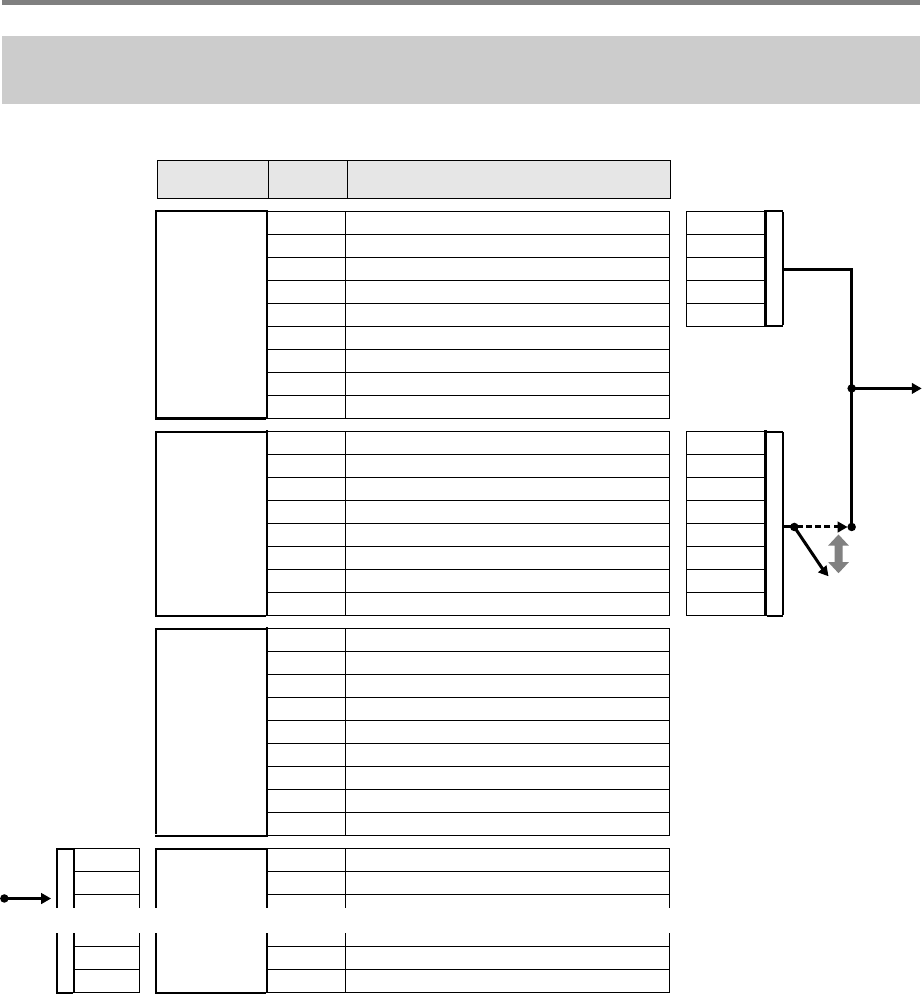
EN-144
Reference
The sound source of the Digital Keyboard is divided among four part groups: KEYBOARD, RHYTHM, SONG SYSTEM, SONG
SOLO. The roles assigned to each part of the part groups are a shown in the “Part” column of the table below.
■Sounding of the Digital Keyboard Sound Source by Digital Keyboard Operations or by MIDI IN Input
• Sounds generated during a performance on the keyboard are assigned to parts 1 through 5 of the KEYBOARD part group.
Phrase pads are assigned to parts 6 through 9 of the KEYBOARD part group.
• Sounds generated by Auto Accompaniment are assigned to the parts of the RHYTHM part group.
• Sounds generated by the system track and phrase pads during song playback (Song Bank Mode) are assigned to the parts of
the SONG SYSTEM part group.
• Sounds generated by the solo tracks sounded during song playback (Song Bank Mode) and sounds generated by messages
input from MIDI IN are assigned to the parts of the SONG SOLO part group.
Digital Keyboard Sound Source Configuration and MIDI Channel
Assignment
Part Group Part
Number Part MIDI OUT
Channel*1
…
…
…
…
MIDI IN
MIDI OUT
On
Off
KEYBOARD
n1 reppU draobyeK1
1 + n2 reppU draobyeK2
2 + n1 rewoL draobyeK3
3 + n2 rewoL draobyeK4
4 + nezinomraH otuA5
6 Phrase PAD 1
7 Phrase PAD 2
8 Phrase PAD 3
9 Phrase PAD 4
RHYTHM
9noissucreP pmoccA1
01murD pmoccA2
11ssaB pmoccA3
211 drohC pmoccA4
312 drohC pmoccA5
413 drohC pmoccA6
514 drohC pmoccA7
615 drohC pmoccA8
SONG
SYSTEM
1 MIDI Recorder System Track Upper 1
2 MIDI Recorder System Track Upper 2
3 MIDI Recorder System Track Lower 1
4 MIDI Recorder System Track Lower 2
5 MIDI Recorder System Track Auto Harmonize
6 MIDI Recorder Phrase PAD 1
7 MIDI Recorder Phrase PAD 2
8 MIDI Recorder Phrase PAD 3
9 MIDI Recorder Phrase PAD 4
1SONG
SOLO
1 MIDI Recorder Solo Track 1 / MIDI In 1ch
hc2 nI IDIM / 2 kcarT oloS redroceR IDIM22
hc51 nI IDIM / 51 kcarT oloS redroceR IDIM5151
hc61 nI IDIM / 61 kcarT oloS redroceR IDIM6161
*1 See “External MIDI Device
Operations by the Digital
Keyboard” below.
Accomp Out*1
MIDI OUT
Channel*1
MIDI IN
Channel
CTX5000_3000_EN.book 144 ページ 2018年2月26日 月曜日 午後3時56分

EN-145
Reference
■External MIDI Device Operations by the Digital Keyboard
• For the MIDI OUT channel of keyboard performance data output, the n-value specified by “Keyboard Channel” (page EN-125) is
applied to the Upper 1 part. MIDI OUT channels for the following are based on the MIDI OUT channel of the Upper 1 part: Upper
2 = n+1, Lower 1 = n+2, Lower 2 = n+3, and Auto Harmonize = n+4.
• While the “Accomp Out” (page EN-125) setting is turned on, the performance data of the Auto Accompaniment parts is output to
MIDI OUT channels CH9 through CH16.
AC Adaptor Handling Precautions
Model: AD-E24250LW/AD-A12150LW
1. Read these instructions.
2. Keep these instructions on hand.
3. Heed all warnings.
4. Follow all instructions.
5. Do not use this product near water.
6. Clean only with a dry cloth.
7. Do not install near radiators, heat registers, stoves, or any other source of heat (including amplifiers).
8. Use only attachments and accessories specified by the manufacturer.
9. Refer all servicing to qualified service personnel. Servicing is required after any of the following occurs: when the product
is damaged, when the power supply cord or plug is damaged, when liquid is spilled into the product, when a foreign
object falls into the product, when the product is exposed to rain or moisture, when the product does not operate
normally, when the product is dropped.
10. Do not allow the product to be exposed to dripping or splashing liquid. Do not place any object containing liquid on the
product.
11. Do not allow the electrical load output to exceed the label rating.
12. Make sure the surrounding area is dry before plugging into a power source.
13. Make sure the product is oriented correctly.
14. Unplug the product during lightning storms or when you do not plan to use it for a long time.
15. Do not allow product ventilation openings to become blocked. Install the product in accordance with the manufacturer’s
instructions.
16. Take care the power cord is located where it will not be stepped upon or bent severely, particularly in locations close to
plugs and convenience receptacles, and in locations where it exits from the product.
17. The AC adaptor should be plugged into a power outlet as close to the product as possible to allow immediate
disconnection of the plug in case of emergency.
The symbol below is an alert indicating un-insulated hazardous voltage inside the product’s enclosure, which may be
sufficient to constitute the risk of electric shock to users.
’
The symbol below is an alert indicating the presence of important operating and maintenance (servicing) instructions in the
documentation that accompanies the product.
*
CTX5000_3000_EN.book 145 ページ 2018年2月26日 月曜日 午後3時56分

EN-146
Reference
Be sure to read and observe the following operating precautions.
■Location
Avoid the following locations for this product.
• Areas exposed to direct sunlight and high humidity
• Areas subjected to temperature extremes
• Near a radio, TV, video deck, or tuner
The above devices will not cause malfunction of the product, but interference from the product can cause audio or video
interference of a nearby device.
■User Maintenance
• Never use benzine, alcohol, thinner, or other chemical agents to clean the product.
• To clean the product or its keyboard, wipe with a soft cloth moistened in a weak solution of water and a mild neutral detergent.
Wring all excess moisture from the cloth before wiping.
■Included and Optional Accessories
Use only accessories that are specified for use with this product. Use of unauthorized accessories creates the risk of fire, electric
shock, and personal injury.
■Weld Lines
Lines may be visible on the exterior of the product. These are “weld lines” that result from the plastic molding process. They are not
cracks or scratches.
■Musical Instrument Etiquette
Always be aware of others around you whenever using this product. Be especially careful when playing late at night to keep the
volume at levels that do not disturb others. Other steps you can take when playing late at night are closing the window and using
headphones.
Operating Precautions
CTX5000_3000_EN.book 146 ページ 2018年2月26日 月曜日 午後3時56分
A-1
Appendix/Apéndice
Song List/Lista de canciones
No./Nº Title/Título
WORLD (CATEGORY : 01)
001 WHEN THE SAINTS GO MARCHING IN
002 AMAZING GRACE
003 HOME ON THE RANGE
004 SANTA LUCIA
005 WALTZING MATILDA
006 CAMPTOWN RACES
PIANO/CLASSICS (CATEGORY : 02)
007 JE TE VEUX
008 SONATA op.13 “PATHÉTIQUE” 2nd Mov.
009 HABANERA FROM “CARMEN”
010 MINUET IN G MAJOR
011 ODE TO JOY
012 GYMNOPÉDIES no.1
013 FÜR ELISE
014 TURKISH MARCH (MOZART)
015 ETUDE op.10 no.3 “CHANSON DE L’ADIEU”
016 THE ENTERTAINER
017 FRÖHLICHER LANDMANN
018 LA CHEVALERESQUE
019 SONATA K.545 1st Mov.
020 LA PRIÈRE D’UNE VIERGE
021 VALSE op.64 no.1 “PETIT CHIEN”
022 LIEBESTRÄUME no.3
023 JESUS BLEIBET MEINE FREUDE
024 CANON (PACHELBEL)
025 SERENADE FROM “EINE KLEINE NACHTMUSIK”
026 MARCH FROM “THE NUTCRACKER”
027 LA FILLE AUX CHEVEUX DE LIN
028 HUMORESKE (DVOŘÁK)
029 TRÄUMEREI
030 NOCTURNE op.9 no.2 (CHOPIN)
USER RECORDS (CATEGORY : 03)
031 - 040 USER RECORD 1 - 10
CTX5000_3000_ES.book 1 ページ 2018年3月26日 月曜日 午後6時18分
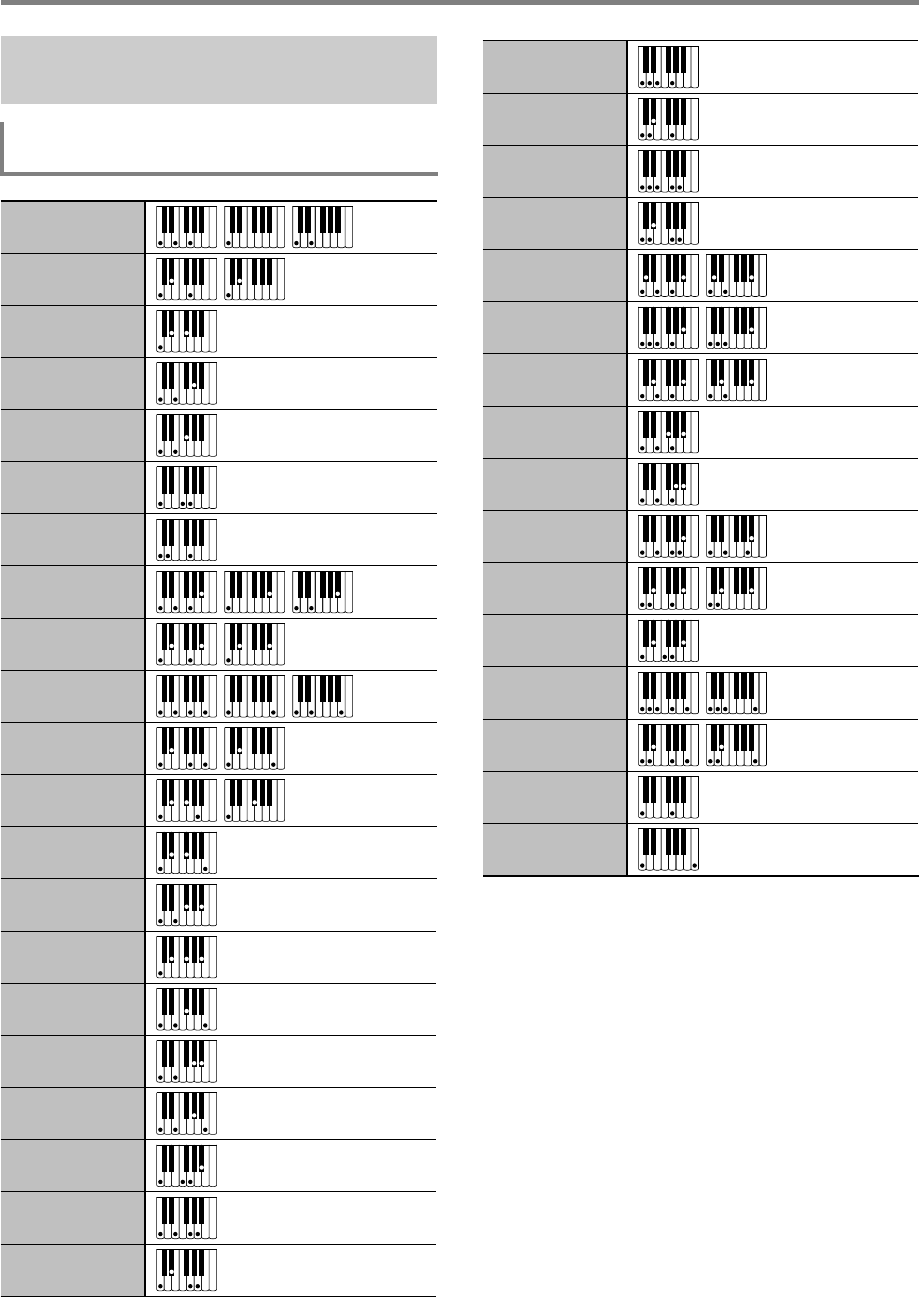
Appendix/Apéndice
A-2
*1 With FINGERED 2, interpreted as Am7.
*2 With FINGERED 2, interpreted as Am7b5.
*3 Inverted form not supported in some cases.
*4 Chord consisting of root and 5th only.
*5 Not a standard chord, but used when you want Auto
Accompaniment with the root note only, or the root with an
octave added.
*1 Con FINGERED 2, se interpreta como Am7.
*2 Con FINGERED 2, se interpreta como Am7b5.
*3 En algunos casos no se puede usar la forma invertida.
*4 Acorde formado por la nota fundamental y 5ª solamente.
*5 No es un acorde estándar, pero se utiliza para el
acompañamiento automático con la nota fundamental
solamente, o la nota fundamental con una octava añadida.
Fingering Guide/
Guía de digitación
FINGERED 1, FINGERED 2 Chords/
Acordes FINGERED 1, FINGERED 2
C
Cm
Cdim
Caug *3
C5
Csus4 *3
Csus2 *3
C7
CmM7
Cdim7 *3
C6 *1 *3
Cm6 *2 *3
CaugM7
CdimM7
Caug7
Cm7 *3
CM7
Cm75 *3
CM75
C7sus4
C75 *3
Cmadd9
C69 *3
Cm7(9)
Cm69 *3
Cadd9
C7(9)
C7(#9)
C7(#11)
CM7(9)
Cm7(11) *3
CmM7(9)
C7(13)
C7(13)
C8 *5
C7(9)
C5 *4
CTX5000_3000_ES.book 2 ページ 2018年3月26日 月曜日 午後6時18分
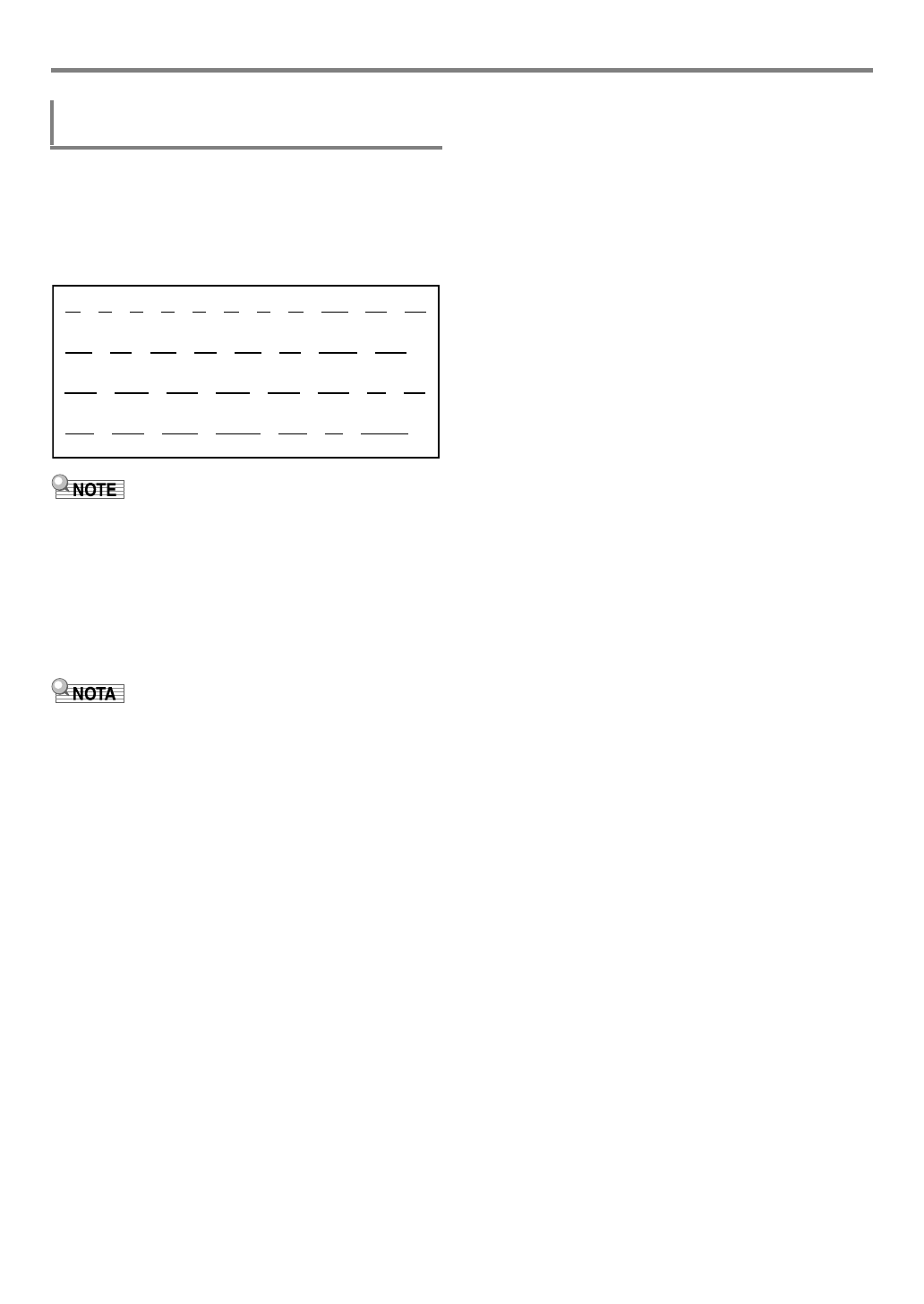
A-3
Appendix/Apéndice
In addition to the chords that can be fingered with
FINGERED 1 and FINGERED 2, the following chords also are
recognized.
Además de los acordes que se pueden digital con
FINGERED 1 y FINGERED 2, también se pueden reconocer
los siguientes acordes.
• With FINGERED ON BASS, the lowest note fingered is
interpreted as the base note. Inverted forms are not
supported.
• With FULL RANGE CHORD, when the lowest note fingered
is a certain distance from the neighboring note, the chord is
interpreted as a fraction chord.
• Unlike FINGERED 1, 2, and FINGERED ON BASS, FULL
RANGE CHORD requires pressing of at least three keys to
form a chord.
• Con FINGERED ON BASS, la nota más baja digitada se
interpreta como nota base. No se pueden usar formas
invertidas.
• Con FULL RANGE CHORD, cuando la nota más baja
digitada se encuentre a cierta distancia de la nota
adyacente, el acorde se interpreta como un acorde
fraccional.
• A diferencia de FINGERED 1, 2 y FINGERED ON BASS,
FULL RANGE CHORD se requiere la pulsación de tres
teclas como mínimo para formar un acorde.
FINGERED ON BASS, FULL RANGE CHORD/
FINGERED ON BASS, FULL RANGE CHORD
C
C
D
C
F
C
F
C
G
C
A
C
A
C
Gm
C
Am
C
B
m
C
Ddim
C
Fdim
C
FM7
C
A
M7
C
F
m7
5
C
Gdim
C
Adim
C
Bdim
C
A
7
C
F7
C
Fm7
C
B
C
C
m
C
Dm
C
Fm
C
zzzzz zz z z z
Bm
C
zz zz zz z
A
m
C
F
m
C
zzzzz zz
Gm7
C
A
add9
C
zz z z
G7
C
zz
C
dim
C
F
dim
C
A
dim
C
CTX5000_3000_ES.book 3 ページ 2018年3月26日 月曜日 午後6時18分
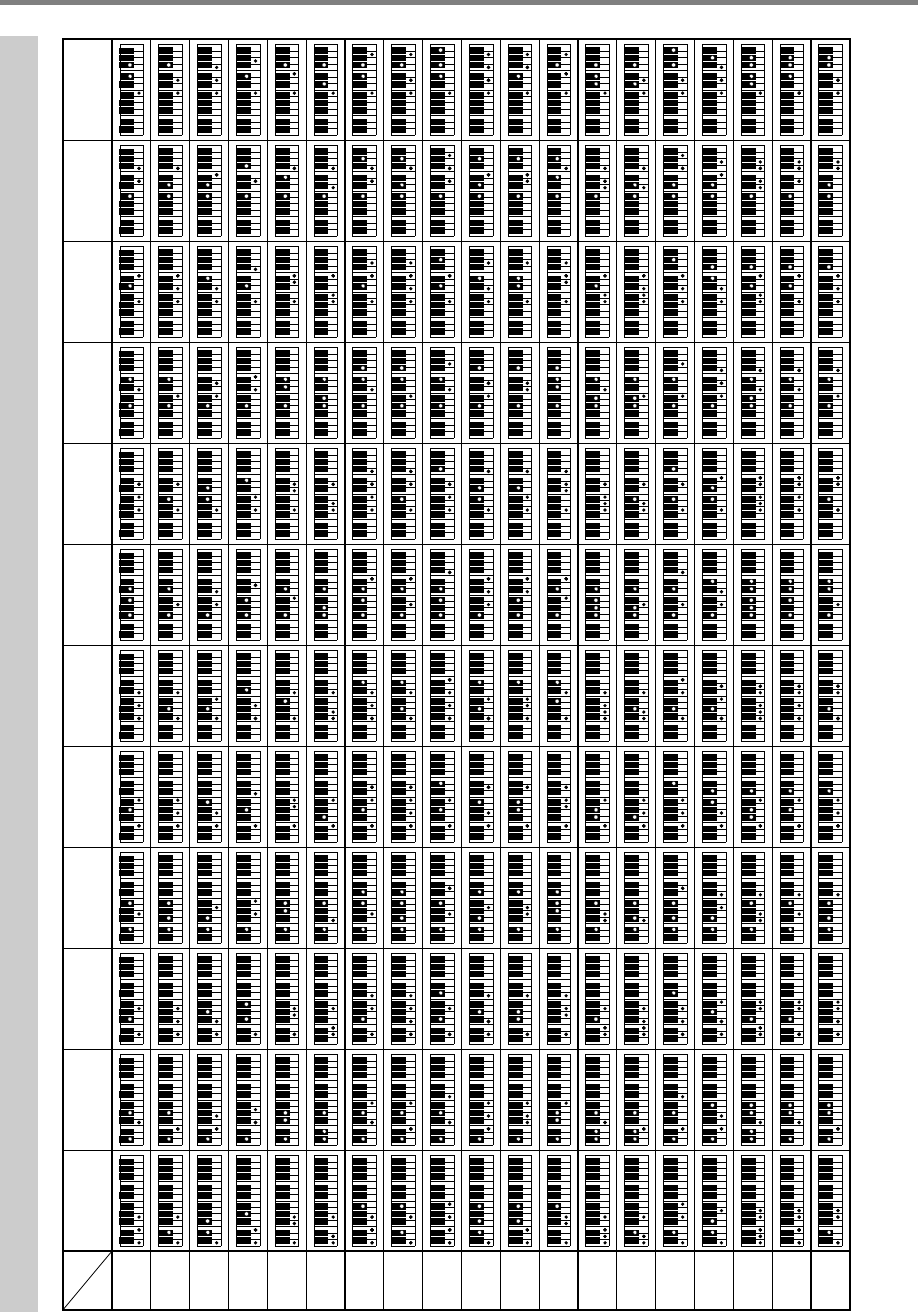
A-4
Appendix/Apéndice
Chord Example List/Lista de ejemplos de acordes
M
m
dim
aug
sus4
sus2
7
m7
M7
m7b
5
7b
5
7sus4
add9
madd9
mM7
dim7
69
6
m6
(A#)/BbBF#/(Gb)G(G#)/AbAFCC
#/(Db)D(D#)/EbE
*2
*1
• You can use the split point to change the size of the accompaniment keyboard range (page EN-20, 50). *1 Root *2 Chord Type
• Puede usar el punto de división para cambiar el tamaño del rango del teclado de acompañamiento (página EN-20, 50). *1 Raíz *2 Tipo de acorde
CTX5000_3000_ES.book 4 ページ 2018年3月26日 月曜日 午後6時18分
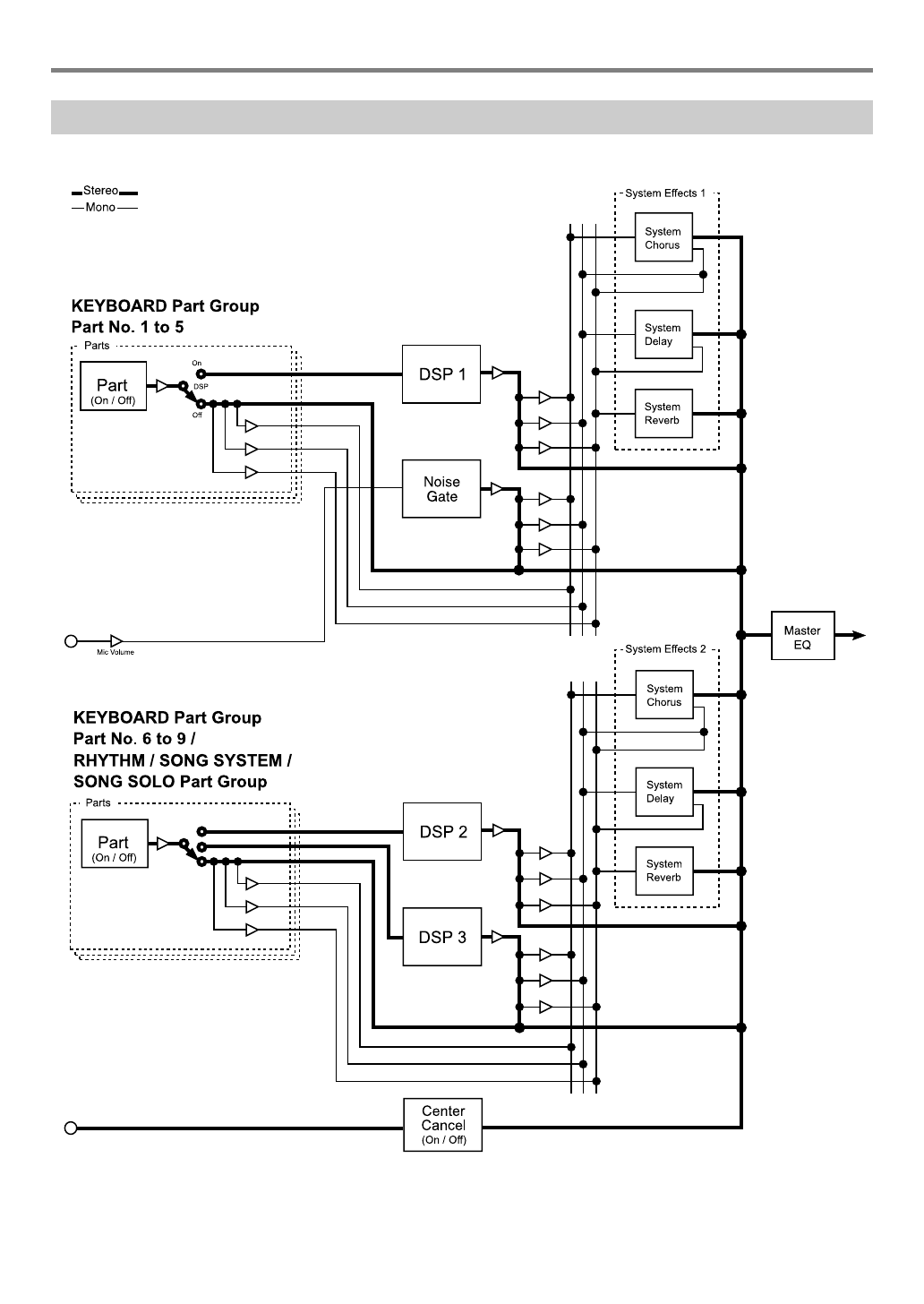
A-5
Appendix/Apéndice
Block Diagram/Diagrama de bloques
*1 Volume/Pan
*2 Chorus Send
*3 Delay Send
*4 Reverb Send
*1
*2
*3
*4
*1
*2
*3
*4
*1
*2
*3
*4
MIC IN (CT-X5000)
AUDIO IN
SPEAKER
PHONES
LINE OUT*5
*5 CT-X5000
*1
*2
*3
*4
*1
*2
*3
*4
*1
*2
*3
*4
*1
*2
*3
*4
CTX5000_3000_ES.book 5 ページ 2018年3月26日 月曜日 午後6時18分
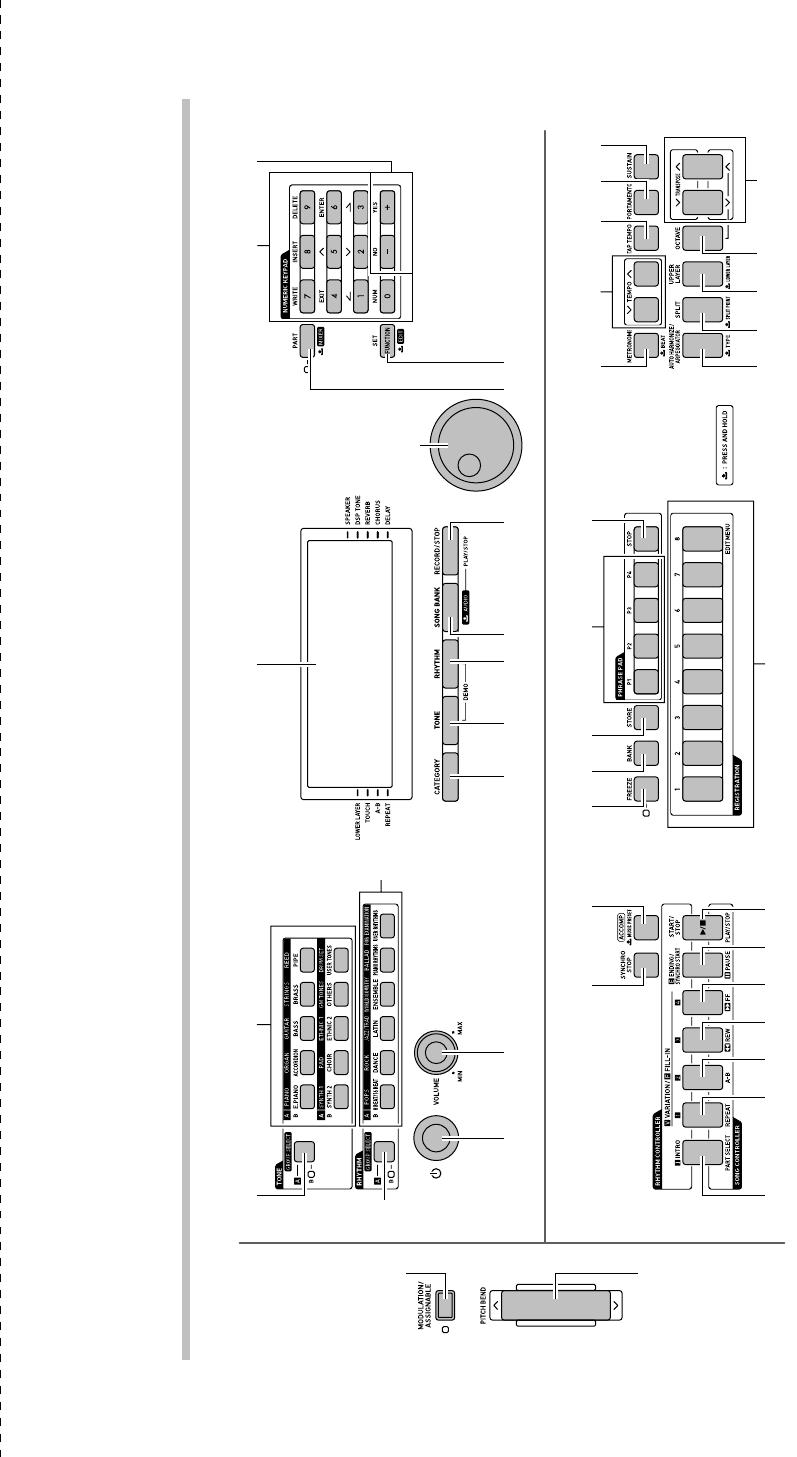
1 2
bo bp bq br bs bt ck
bk9
bm bn
cq crcm cp dk dl
dt
ek
dm dnct
cocncl
cs do dp dq dr ds
eo
en
eq
ep
4 5 67 8
bl
3
CT-X5000
• Cut this page along the dashed line so you can have it on hand as you read the contents of the manual.
• Recorte esta página por la línea de puntos para tenerla a mano mientras continúa leyendo este manual.
CTX5000_3000_ES.book 6 ページ 2017年12月26日 火曜日 午後6時32分
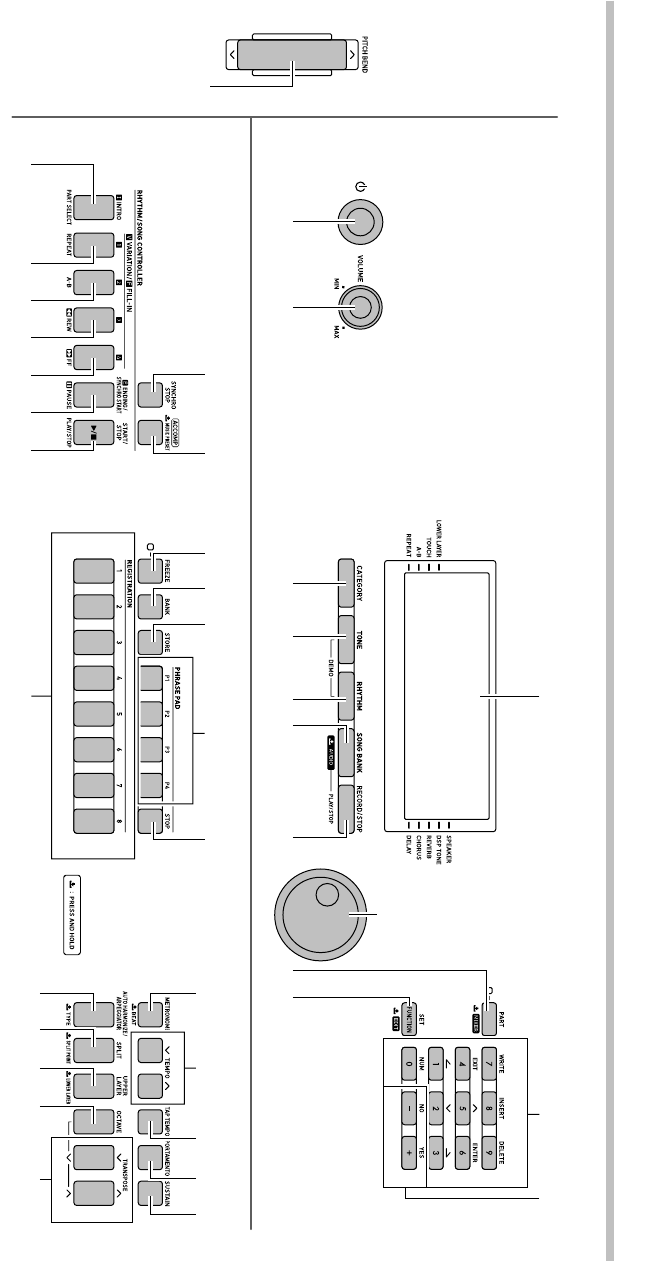
1 2
bo bp bq br bs bt ck
bk9
bm bn
cq crcm cp dk dl
ek dm dnct
cocncl
cs do dp dq dr ds
4 5 67 8
bl
3
CT-X3000
CTX5000_3000_ES.book 7 ページ 2017年12月26日 火曜日 午後6時32分
Function Transmitted Recognized Remarks
Basic
Channel
1
1 - 16
1 - 16
1 - 16
Default
Changed
Note
Number
0 - 127
0 - 127 *1
12 - 120
True voice
After
Touch
Control
Change
X
X
O
X
O
Pitch Bender
O
Key’s
Ch’s
Velocity
O
9nH v = 1 - 127
O
8nH v = 0 - 127, 9nH v = 0
O
9nH v = 1 - 127
O
8nH v = 0 - 127
Note ON
Note OFF
Mode
Mode 3
X
Mode 3
X
Default
Messages
Altered
0
1
5
6, 38
7
10
11
64
65
66
67
71
72
73
74
76
77
Bank select
Modulation
Portamento Time
Data entry LSB, MSB
Volume
Pan
Expression
Hold 1
Portamento Switch
Sostenuto
Soft pedal
Filter resonance
Release time
Attack time
Filter cutoff
Vibrato rate
Vibrato depth
Models: CT-X5000 / CT-X3000 Version : 1.0
O
CT-X5000:
O
, CT-X3000:
X
X
O
O
O
O
O
O
O
O
X
O
X
X
X
X
*2
*3
*3
*3
*3
*4
*4
*4
*4
*4
O
O
O
O
O
O
O
O
O
O
O
O
O
O
O
O
O
*2
MIDI Implementation Chart
CTX5000_3000_ES.book 6 ページ 2018年3月26日 月曜日 午後6時18分
Function Transmitted Recognized Remarks
Basic
Channel
1
1 - 16
1 - 16
1 - 16
Default
Changed
Note
Number
0 - 127
0 - 127 *1
12 - 120
True voice
Program
Change
O
0 - 127
O
0 - 127
:True #
After
Touch
Control
Change
X
X
O
X
O
Pitch Bender
O
System Exclusive
O
Key’s
Ch’s
Velocity
O
9nH v = 1 - 127
O
8nH v = 0 - 127, 9nH v = 0
O
9nH v = 1 - 127
O
8nH v = 0 - 127
Note ON
Note OFF
Mode
Mode 3
X
Mode 3
X
Default
Messages
Altered
System
Common
X
X
X
X
X
X
: Song Pos
: Song Sel
: Tune
Aux
Messages
Remarks
X
X
X
X
O
X
*4
*4
O
O
X
O
O
X
: All sound off
:
Reset all controller
: Local ON/OFF
: All notes OFF
: Active Sense
: Reset
System
Real Time
X
X
X
X
: Clock
: Commands
0
1
5
6, 38
7
10
11
64
65
66
67
71
72
73
74
76
77
78
84
91
93
94
100, 101
Bank select
Modulation
Portamento Time
Data entry LSB, MSB
Volume
Pan
Expression
Hold 1
Portamento Switch
Sostenuto
Soft pedal
Filter resonance
Release time
Attack time
Filter cutoff
Vibrato rate
Vibrato depth
Vibrato delay
Portamento Control
Reverb send level
Chorus send level
Delay send level
RPN LSB, MSB
Models: CT-X5000 / CT-X3000 Version : 1.0
Mode 1 : OMNI ON, POLY
Mode 3 : OMNI OFF, POLY
Mode 2 : OMNI ON, MONO
Mode 4 : OMNI OFF, MONO
O : Yes
X : No
O
CT-X5000:
O
, CT-X3000:
X
X
O
O
O
O
O
O
O
O
X
O
X
X
X
X
X
X
O
O
O
O
*2
*3
*3
*3
*3
*4
*4
*4
*4
*4
*4
*2
O
O
O
O
O
O
O
O
O
O
O
O
O
O
O
O
O
O
O
O
O
O
O
*2
*2
*2
O
*2
*1: Depends on tone.
*2: For details about RPN and system exclusive
messages, see MIDI Implementation at
http://world.casio.com/.
*3: In accordance with pedal effect setting.
*4: Output along with certain operations.
*1: Depende del tono.
*2: Para obtener información acerca de RPN y los
mensajes exclusivos del sistema, consulte
Implementación MIDI en
http://world.casio.com/.
*3: De acuerdo con el ajuste de efecto de pedal.
*4: Se genera junto con determinadas operaciones.
CTX5000_3000_es_Cover1-4.fm 2 ページ 2018年2月15日 木曜日 午後4時59分
EN/ES
CTX3000-ES-1B
USER’S GUIDE
Safety Precautions
Before trying to use the Digital Keyboard, be sure to read the separate “Safety Precautions”.
Please keep all information for future reference.
GUÍA DEL USUARIO
Precauciones de seguridad
Antes de intentar usar el teclado digital, asegúrese de leer las “Precauciones de seguridad” separadas.
Guarde toda la información para futuras consultas.
About Music Score data
You can use a computer to download music score data from the CASIO Website. For more information, visit the
URL below.
http://world.casio.com/
Acerca de los datos de partituras
Puede utilizar un PC para descargar los datos de partituras desde el sitio web de CASIO. Para obtener más
información, visite la siguiente URL.
http://world.casio.com/
CT-X5000
CT-X3000
This recycle mark indicates that the packaging conforms to
the environmental protection legislation in Germany.
Esta marca de reciclaje indica que el empaquetado se
ajusta a la legislación de protección ambiental en Alemania.
MA1804-B Printed in China
C
CTX5000_3000_es_Cover1-4.fm 1 ページ 2018年2月15日 木曜日 午後4時59分
