Casio Fx CG Manager PLUS_EN CG_Manager_PLUS PLUS EN
User Manual: Casio fx-CG_Manager_PLUS fx-CG Manager PLUS | Calculators | Manuals | CASIO
Open the PDF directly: View PDF  .
.
Page Count: 44
- Getting Started
- Contents
- 1. Installing, Uninstalling or Updating the Software
- 2. Screen Configuration
- 3. Emulator Mode and Key-Log Editor Mode
- 4. Emulating Calculator Operation
- 5. Using the Emulator Key-Log
- 6. Configuring Options Dialog Box Setting
- 7. Other Functions
- 8. File Types Supported by the Application
- 9. Differences between Calculator and Emulator Functions
- 10. Error Message Table


EN-1
Getting Started
k About fx-CG Manager PLUS
• fx-CG Manager PLUS is an emulator that lets you perform fx-CG10/fx-CG20/fx-CG20 CN*
operations on your computer.
* Windows only
• You can record key operations you perform on the emulator as “Key-Log records”, and edit Key-
Log records as required.
• The keys on the Key-Log editor screen as well as the emulator LCD screen contents can be
pasted into other applications. This means that emulator data can be used to create assignments,
tests, and other materials.
• A presentation feature lets you play back saved Key-Log records.
k Using This Manual
• For details about operation of the fx-CG Series Graphic Scientific Calculator, see the user
documentation that comes with the calculator.
• The procedures in this manual assume that you are already familiar with the following standard
computer operations.
- Menu operations using the mouse, including: clicking, double-clicking, dragging, etc.
- Text input using the keyboard
- Icon operations, general window operations, etc.
- If you are not familiar with these types of operations, refer to the user documentation for your
computer.
• The explanations in this manual cover both Windows and Mac OS. Most of the screen shots are
from Windows 8, but operational procedures are virtually identical for both Windows and Mac OS.
• Note that the actual appearance of the screen that appears when using this software depends on
your computer system setup and on the operating system you are using.
• Screen shots shown in this User’s Guide are intended for illustrative purposes only. The actual
text and values that appear on display may differ from the examples shown in this User’s Guide.

%.
k System Requirements
Windows
/PERATING3YSTEMS
7INDOWS80(OME%DITION7INDOWS800ROFESSIONALBIT7INDOWS6ISTA®
BIT7INDOWSBITBIT7INDOWSBITBIT7INDOWSBITBIT
9OURHARDWARECONFIGURATIONNEEDSHIGHERTHANFUNCTIONALITIESTHATOPERATINGSYSTEM
recommends.
Computer: #OMPUTERWITHONEOFTHE7INDOWSOPERATINGSYSTEMSPREINSTALLED%XCLUDING
COMPUTERSWITHANUPGRADEDOPERATINGSYSTEMANDSELFBUILTCOMPUTERS
$ISK3PACE -"FORINSTALLATIONANDUNINSTALL
Note: !CTUALREQUIREMENTSANDPRODUCTFUNCTIONALITYMAYVARYBASEDONYOURSYSTEM
CONFIGURATIONANDOPERATINGSYSTEM
Other: 6IDEOADAPTERANDDISPLAYMUSTSUPPORTRESOLUTIONOF8'!§ORHIGHER
BITORHIGHERSYSTEMCOLOR
)NTERNET%XPLORER®ORLATER
#$2/-DRIVE
Adobe®2EADER®ORLATER
-ICROSOFT®%XCEL®-ICROSOFT%XCEL-ICROSOFT%XCELOR-ICROSOFT%XCEL
Mac OS
/PERATING3YSTEMS
-AC/38-AC/38-AC/38-AC/38
9OURHARDWARECONFIGURATIONNEEDSHIGHERTHANFUNCTIONALITIESTHATOPERATINGSYSTEM
recommends.
Computer: Intel®0ROCESSER
#OMPUTERWITHONEOFTHE-ACINTOSHOPERATINGSYSTEMSPREINSTALLED%XCLUDING
COMPUTERSWITHANUPGRADEDOPERATINGSYSTEMANDSELFBUILTCOMPUTERS
$ISK3PACE -"FORINSTALLATIONANDUNINSTALL
Note: !CTUALREQUIREMENTSANDPRODUCTFUNCTIONALITYMAYVARYBASEDONYOURSYSTEM
CONFIGURATIONANDOPERATINGSYSTEM
Other: 6IDEOADAPTERANDDISPLAYMUSTSUPPORTRESOLUTIONOF8'!§ORHIGHER
&OR2ETINADISPLAYUSEOFTHE,OW2ESOLUTIONMODEISRECOMMENDED
3AFARIORLATER
#$2/-DRIVE
!DOBE2EADERORLATER
Note
s&ORTHELATESTINFORMATIONABOUTSYSTEMREQUIREMENTSVISITTHEWEBSITEATTHE52,BELOW
http://world.casio.com/support/os_support/
s-ICROSOFT7INDOWS7INDOWS6ISTAAND%XCELAREREGISTEREDTRADEMARKSORTRADEMARKSOF
-ICROSOFT#ORPORATIONINTHE5NITED3TATESANDOROTHERCOUNTRIES
s-AC-AC/3-ACINTOSHAND3AFARIAREREGISTEREDTRADEMARKSORTRADEMARKSOF!PPLE)NCINTHE
5NITED3TATESANDOROTHERCOUNTRIES
s)NTELISAREGISTEREDTRADEMARKORTRADEMARKOF)NTEL#ORPORATIONINTHE5NITED3TATESANDOROTHER
countries.
s!DOBEAND2EADERAREEITHERREGISTEREDTRADEMARKSORTRADEMARKSOF!DOBE3YSTEMS
)NCORPORATEDINTHE5NITED3TATESANDOROTHERCOUNTRIES
s#OMPANYANDPRODUCTNAMESUSEDHEREINARETRADEMARKSOFTHEIRRESPECTIVEOWNERS
s.OTETHATTRADEMARKANDREGISTEREDTRADEMARK®ARENOTUSEDWITHINTHETEXTOFTHISUSERSGUIDE

EN-3
Contents
1. Installing, Uninstalling or Updating the Software .............................EN-4
Auto Notification of Update .......................................................................................... EN-5
2. Screen Configuration ...........................................................................EN-7
Menu Bar ...................................................................................................................... EN-8
Toolbar ....................................................................................................................... EN-11
Status Bar .................................................................................................................. EN-12
3. Emulator Mode and Key-Log Editor Mode .......................................EN-13
4. Emulating Calculator Operation .......................................................EN-14
5. Using the Emulator Key-Log .............................................................EN-18
6. Configuring Options Dialog Box Setting .........................................EN-24
7. Other Functions ..................................................................................EN-26
Printing ....................................................................................................................... EN-26
Shortcut Menu ............................................................................................................ EN-28
8. File Types Supported by the Application .........................................EN-29
9. Differences between Calculator and Emulator Functions ..............EN-30
10. Error Message Table ..........................................................................EN-40
EN-4
1. Installing, Uninstalling or Updating the
Software
The installation procedure is slightly different for Windows and Mac OS. Perform installation in
accordance with the instructions that appear on your computer screen.
To install the software
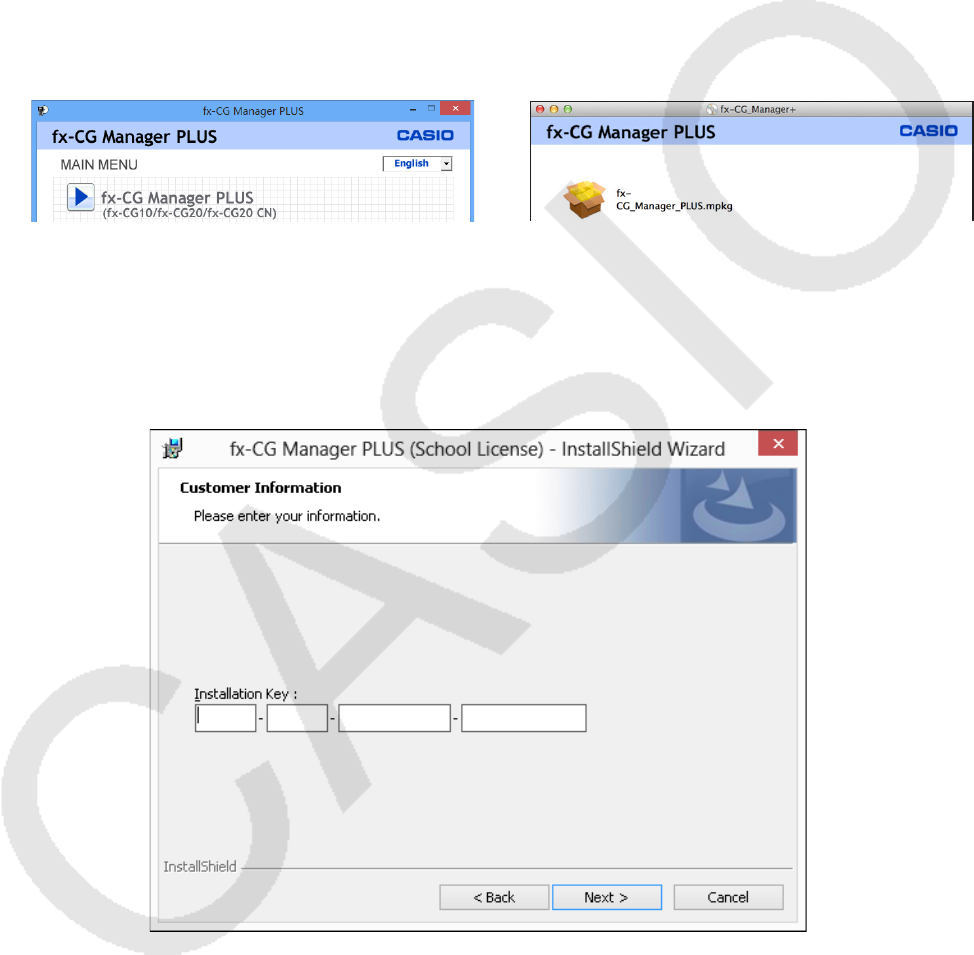
1. Place the CD-ROM into your computer’s CD-ROM drive.
• After a short while, the fx-CG Manager PLUS screen will appear on the display.
Windows Mac OS
2. Click “fx-CG Manager PLUS”, and then click “Install”.
3. Perform operations as instructed by the text that appears on the screen.
• On the next screen that appears, enter the alphanumeric key that is located on the software’s
Installkey sticker for “Installation Key”.
Note
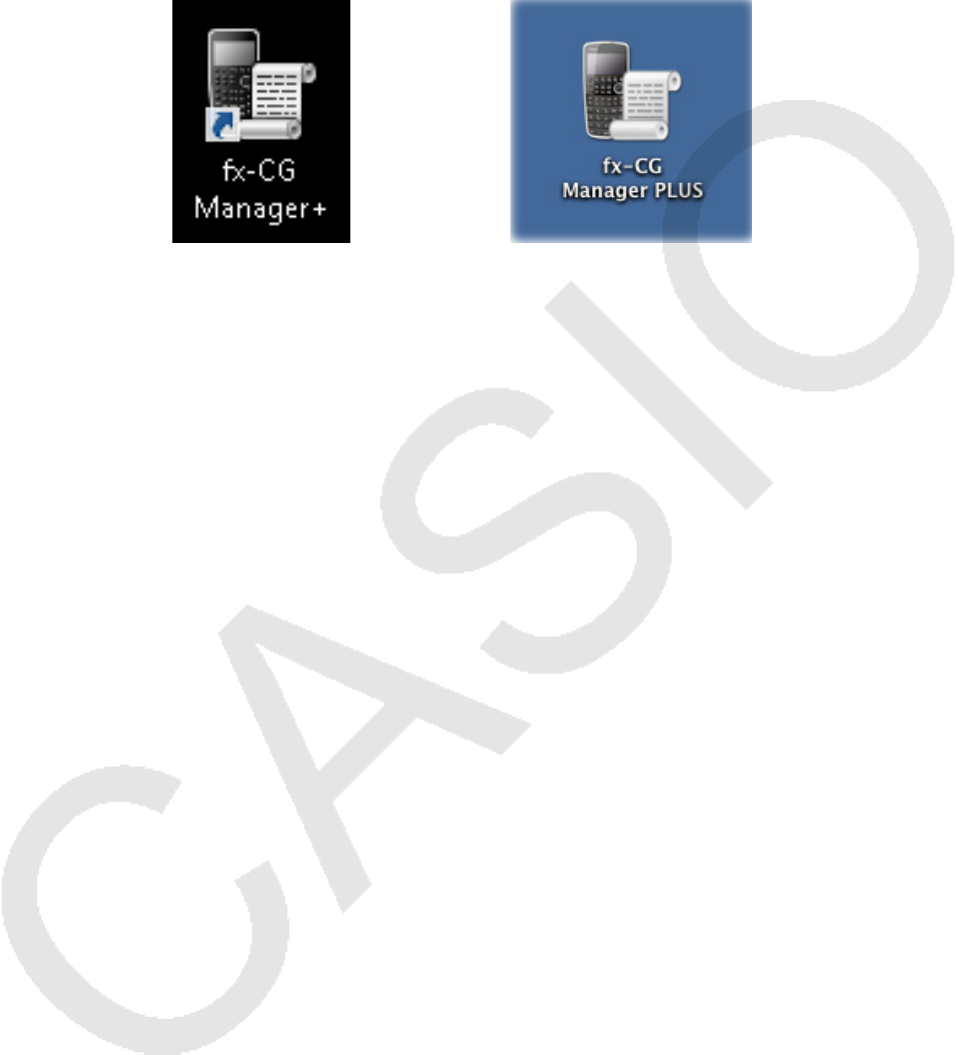
• Windows: Installing the software will put a “fx-CG Manager+” shortcut icon on your desktop.
EN-5
To uninstall the software
Windows
1. Display the Windows Control Panel.
2. Click [Programs and Features].
3. On the list of applications that appears, select “fx-CG Manager PLUS (Single, School, or
Updater)”.
4. Click [Uninstall].
• This will display the program maintenance wizard.
5. Click the [Yes] button.
• This completes the uninstall operation.
Mac OS
1. Move fx-CG Manager PLUS(.app) to the Trash folder.
2. From the menu, select [Finder] and then [Empty Trash].
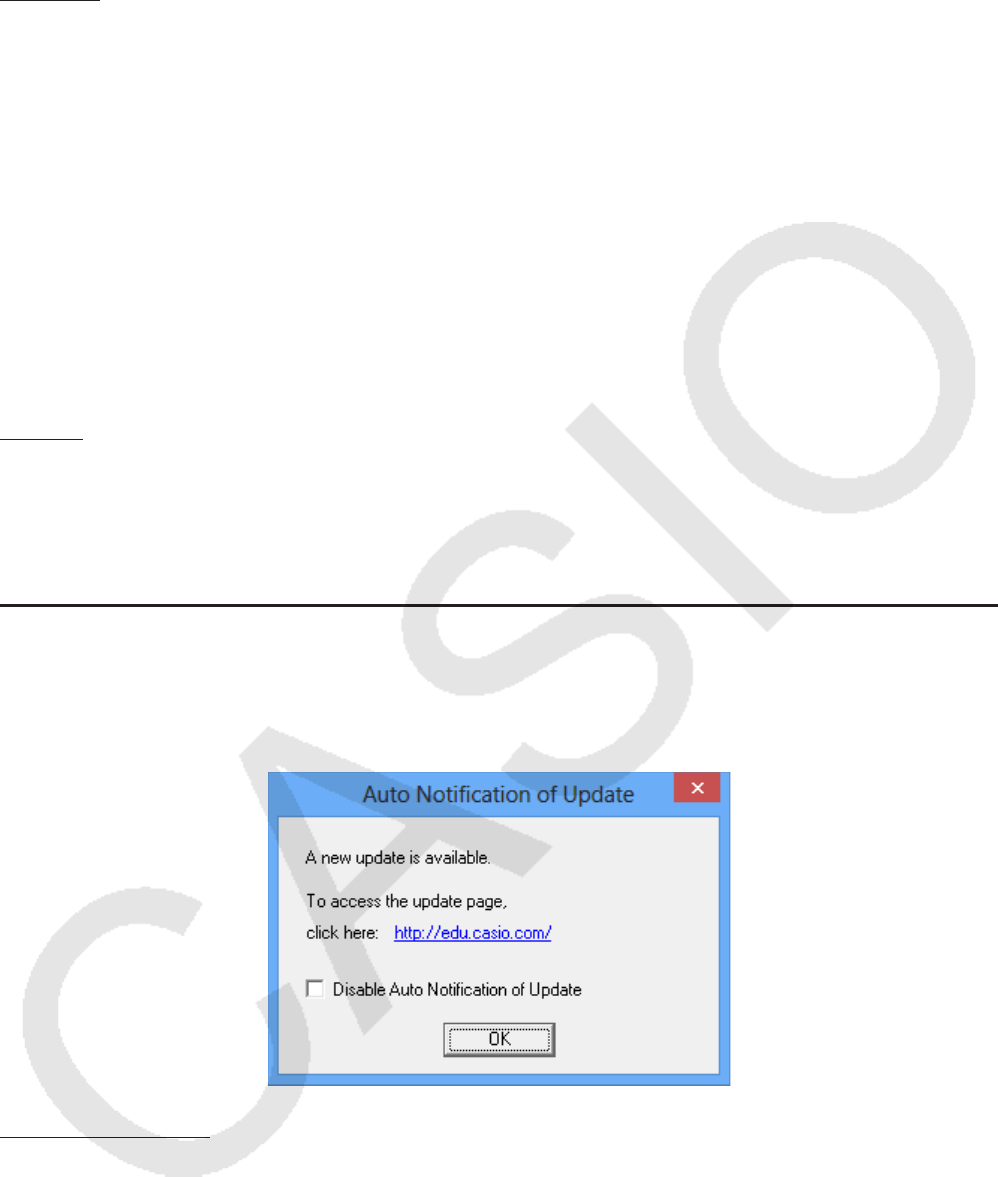
Auto Notification of Update
If your computer is connected to the Internet, the application will connect to the CASIO server
whenever you start it up. When there is an update file for this application on the CASIO server, a
dialog box will appear to let you know.
http://edu.casio.com/: Clicking this link will start up your browser and go to the CASIO website.
Clicking [OK] will close the dialog box.
You can disable further auto-notification of updates by selecting the check box next to “Disable
Auto Notification of Update” before clicking [OK]. To re-enable auto-notification of updates, select
“Auto Notification of Update” on the Help menu.
EN-6
To start up the software
1. Windows: On your computer’s desktop, double-click the “fx-CG Manager+” icon.
Mac OS: In the “Applications” - “CASIO” folder, double-click “fx-CG Manager PLUS”.
Windows Mac OS
• Windows: Starting up this application for the first time will display a dialog box for selecting a
calculator model. Select a calculator model and then click [OK].
EN-7
2. Screen Configuration
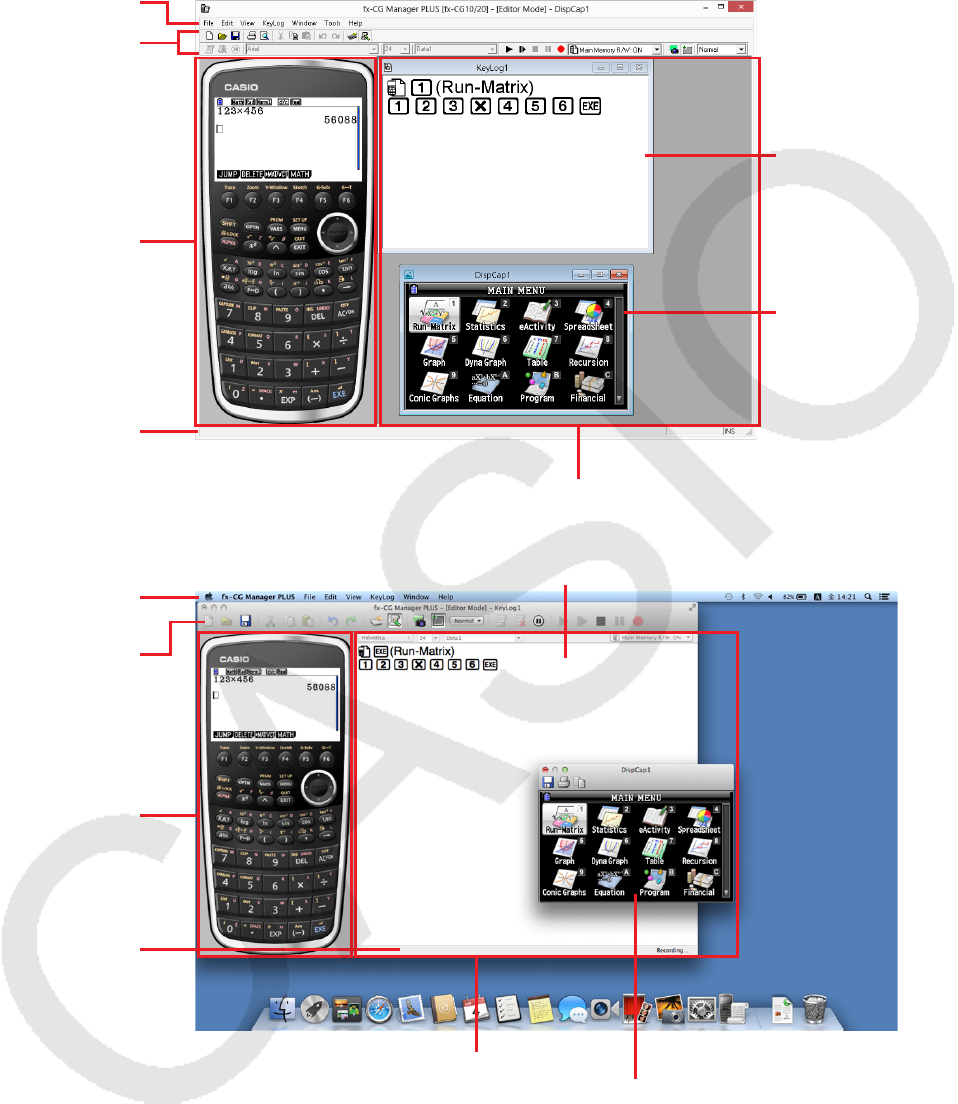
The following shows the fx-CG Manager PLUS screen.
Menu Bar
Toolbar
Emulator
Status Bar
Windows
Key Log window
Bitmap File
window (a capture
of the emulator
LCD screen)
File Display Area
Menu Bar
Toolbar
Emulator
Status Bar
Mac OS
Key Log window
File Display Area
Bitmap File window (a capture of the
emulator LCD screen)
* When you have both the emulator window and Key-Log (or bitmap file) window open on the
display, the emulator window always will be displayed on top.
EN-8
Menu Bar
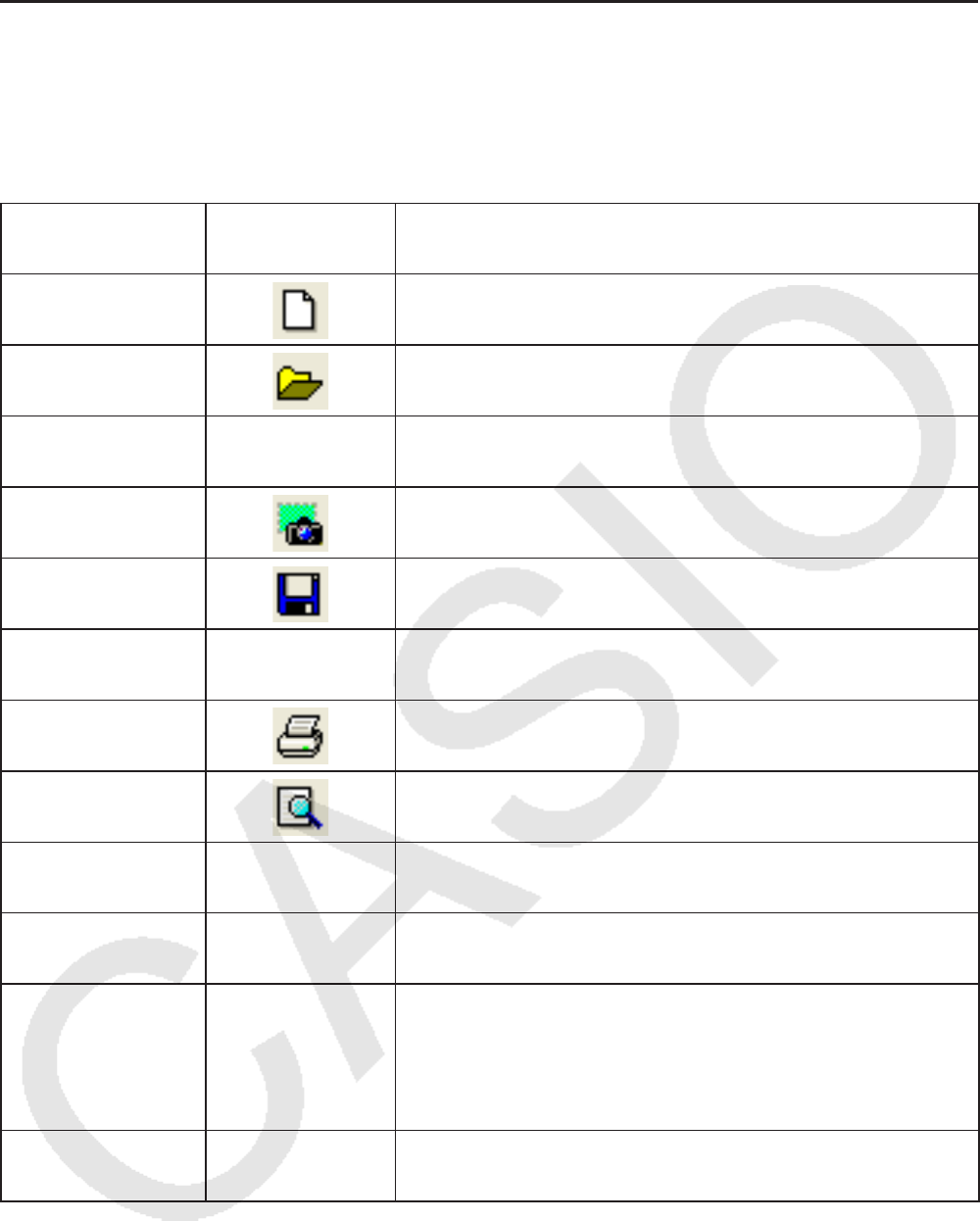
• If a menu command can also be executed by clicking a toolbar button, the applicable toolbar
button is also provided.
k File Menu
Menu Toolbar
Button Description
New Creates a new Key-Log file.
Open Opens an existing file.
Close Closes the currently open file.
Capture Screen Captures the emulator screen.
Save Saves the current work file, overwriting the previous
(unedited) version.
Save As Saves the current work file under a new name.
Print Prints the currently displayed bitmap file.
Print Preview*1Displays a preview of the print image.
Print Setup Displays the print setup dialog box.
(File History) Shows up to four of the last files you worked on.
Change
Calculator Model
and Exit...*1
Displays a dialog box for selecting a calculator model
to be emulated. Clicking [Save and Exit] will exit this
application. The next time you start up this application,
the emulator that was selected when you clicked [Save
and Exit] will appear on the display.
Exit*2Exits this application.
*1 Windows only
*2 Mac OS: On the [fx-CG Manager PLUS] menu, selected [Quit fx-CG Manager PLUS].
EN-9
k Edit Menu
Menu Toolbar
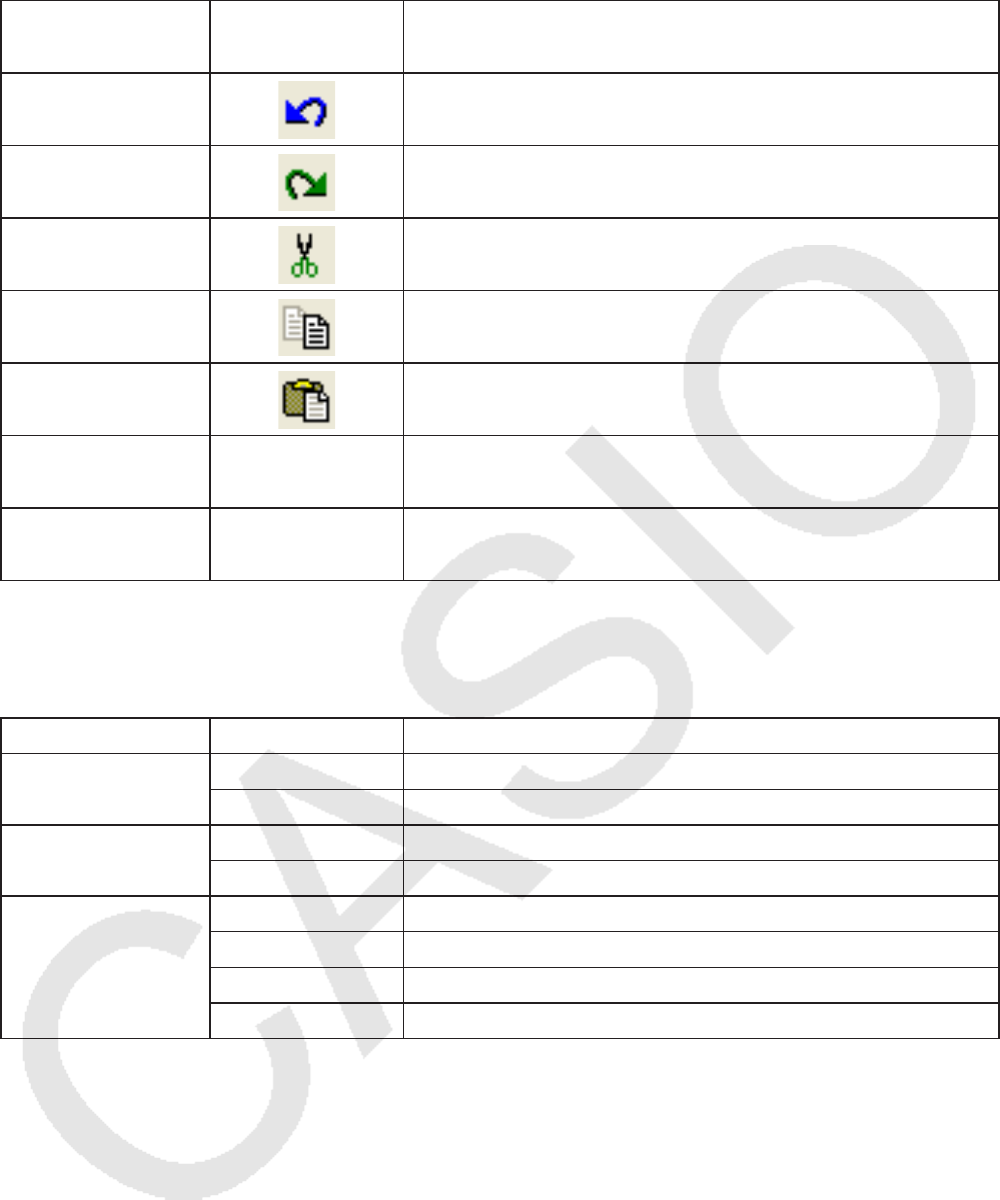
Button Description
Undo Undoes the last operation.
Redo Redoes the last undone operation.
Cut Cuts the currently selected screen area and places it
onto the clipboard.
Copy Copies the currently selected screen area to the
clipboard.
Paste Pastes the clipboard contents.
Clear Deletes the currently selected area.
Select All Selects all Key-Log records.
* The Edit menu is disabled during emulator operation.
k View Menu
Menu Submenu Description
Calc Key Small Selects small-size calculator keys.
Normal Selects normal-size calculator keys.
Calc Screen Small Selects small-size display.
Normal Selects normal-size display.
Toolbar
Standard Toggles display of the standard toolbar on and off.
Log Toggles display of the log toolbar on and off.
Edit Toggles display of the edit toolbar on and off.
Bitmap Toggles display of the bitmap toolbar on and off.
EN-10
k Key-Log Menu
Menu Toolbar
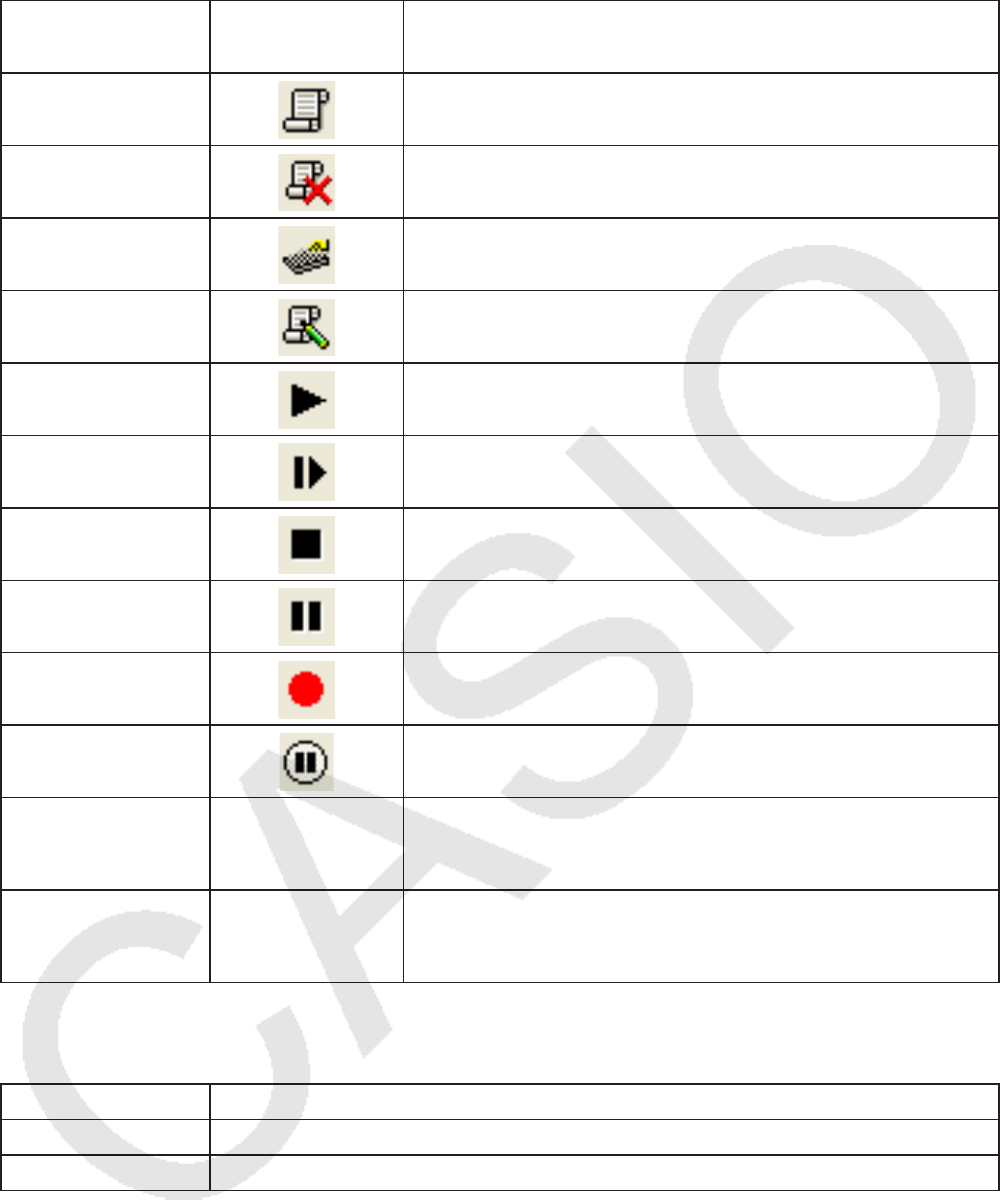
Button Description
Add Adds a new Key-Log record (Key-Log editor mode
only).
Delete Deletes the currently displayed Key-Log record
(Key-Log editor mode only).
Emulator Enters the emulator mode.
Editor Enters the Key-Log editor mode.
Auto Play Starts Key-Log auto playback.
Step Play Starts Key-Log manual playback.
Stop Stops Key-Log playback or recording.
Pause Pauses Key-Log playback.
Record Starts Key-Log record operation.
Insert Pause During Key-Log editing, inserts a pause character into
Key-Log playback (Key-Log editor mode only).
Main Memory
R/W: ON
When Key-Log is recorded, saves current Main Memory
contents. When Key-Log is played back, reads the
Memory Character.
Main Memory
R/W: OFF
When Key-Log is recorded, does not save current
Main Memory contents. When Key-Log is played back,
ignores the Memory Character.
k Window Menu
Menu Description
Tiled*1Displays all windows in a tiled configuration.
Horizontal*2Displays all windows in a horizontal line.
*1 Mac OS: Cascade - Displays all windows in a cascade configuration.
*2 Windows only
• The Window menu also shows the names of files that you have open. When you have multiple
files open, the file name at the top of the list is the one you are currently working with the active
file.
EN-11
k Tools Menu (Windows only)
Menu Description
Options*1Displays a dialog box for configuring optional settings.
*1 Mac OS: On the [fx-CG Manager PLUS] menu, selected [Preferences...].
k Help Menu
Menu Submenu Description
Manual Calculator Links to http://world.casio.com/manual/calc/. Download
the Calculator User’s Guide there.
Manager PLUS Displays the Manager PLUS User’s Guide.
Auto Notification
of Update
Toggles Auto Notification of Update between enabled
and disabled. Auto Notification of Update is enabled
when this menu item has a check box next to it.
License Displays the end user license agreement.
About*1Displays version information.
*1 Mac OS: On the [fx-CG Manager PLUS] menu, selected [About fx-CG Manager PLUS].
Toolbar
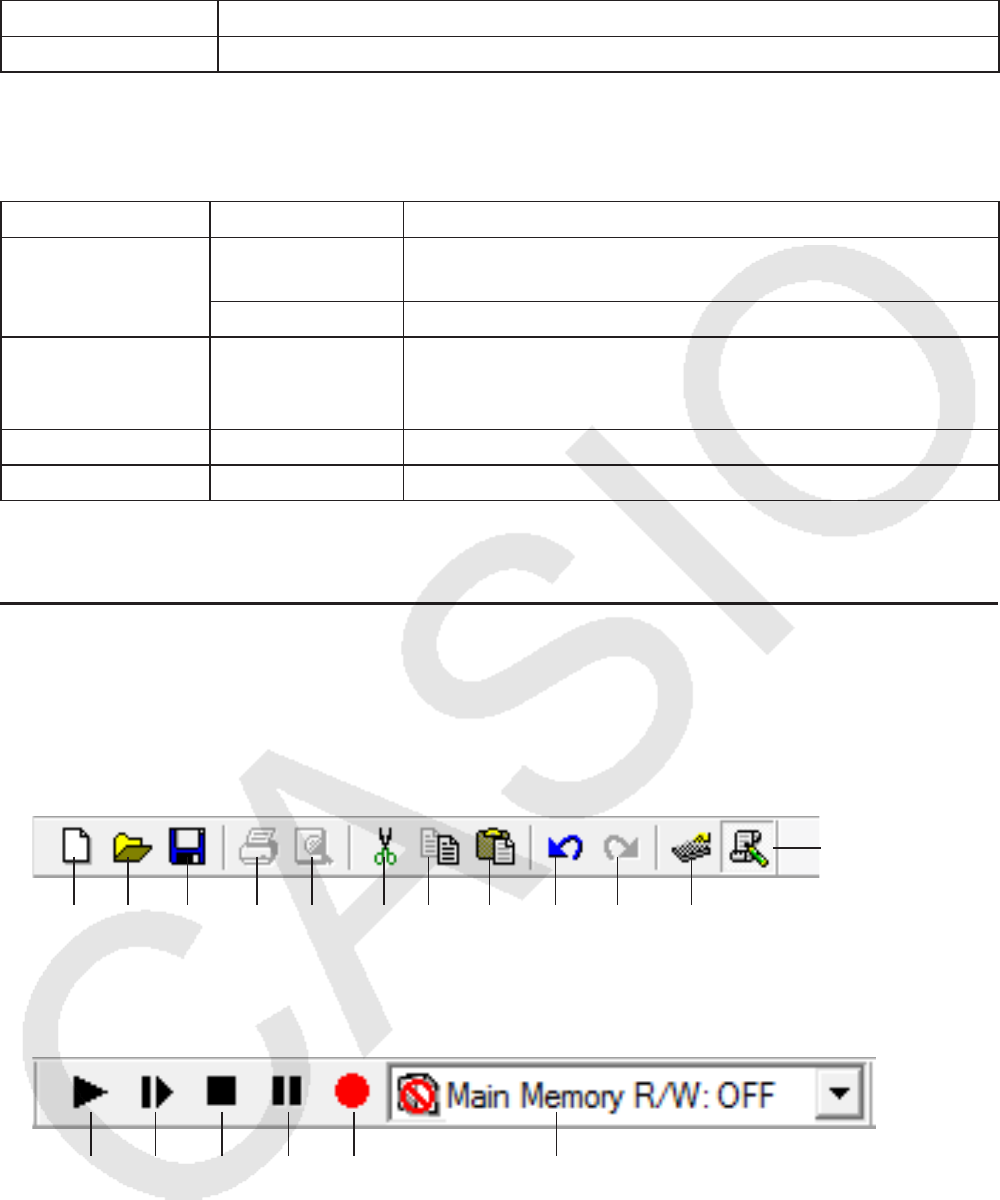
• The toolbar buttons correspond to menu bar commands. See the section of this manual that
explains the menu bar for details about each button’s function.
k Standard Toolbar
Editor
New Open Save Print Print Cut Copy Paste Undo Redo Emulator
Preview
k Log Toolbar
Play Step Stop Pause Record Main Memory R/W: ON / Main Memory R/W: OFF
EN-12
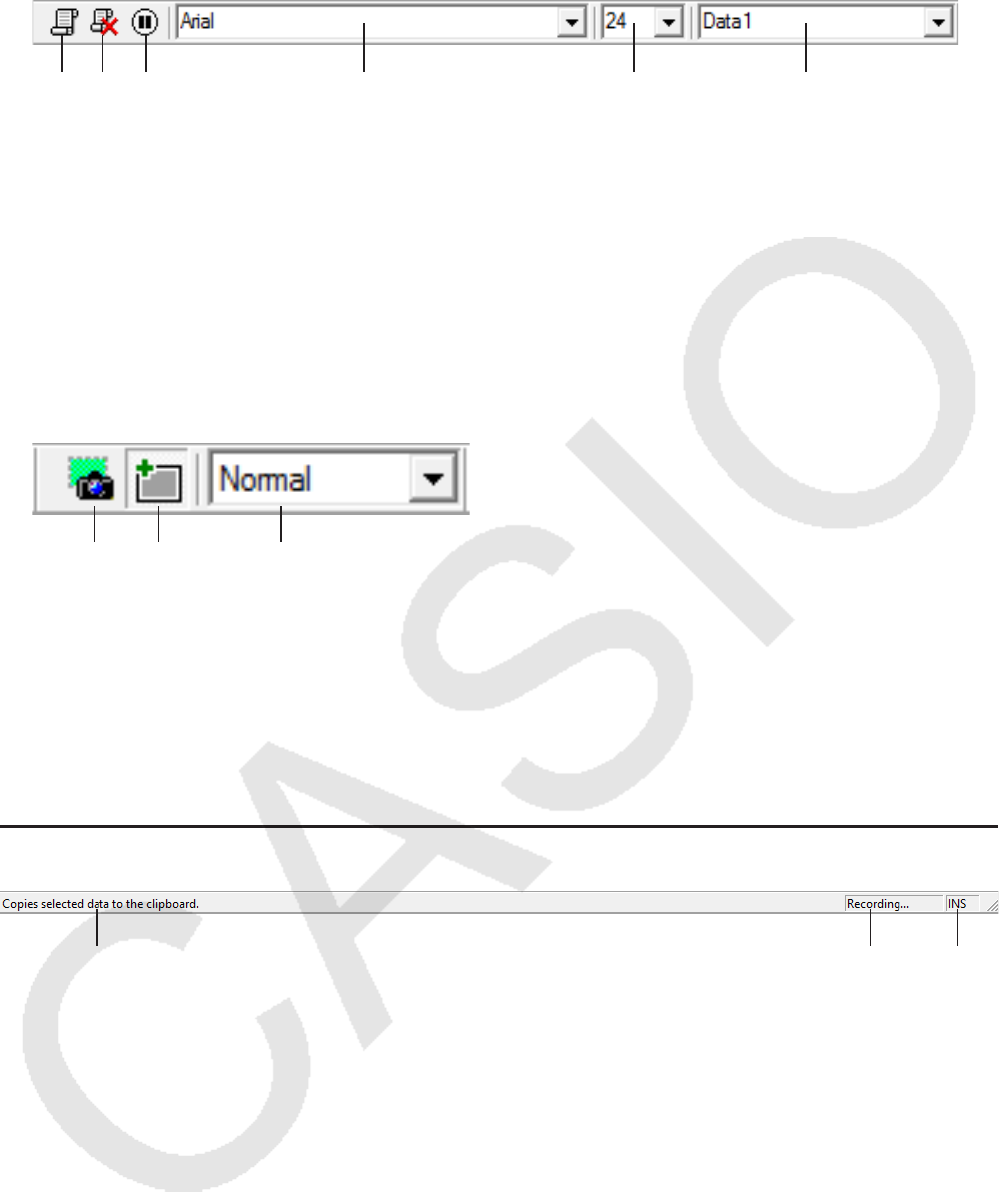
k Edit Toolbar
1 2 3 4 5 6
1 Add
2 Delete
3 Insert Pause
4 Font ... Specifies the font of input text.
5 Font Size ... Specifies the font size of input text.
6 Key-Log Record ... Selects the Key-Log record to be played back or edited.
k Bitmap Toolbar
1 2 3
1 Capture Screen
2 Outer Frame
Specifies an outer frame for screen captures.
3 Bitmap Size
Specifies the bitmap size. Supported sizes are Small, Normal, ×2 and ×3.
Status Bar
1 2 3
1 Help text is displayed here (Windows only).
2 Displays the process currently being performed.
3 Toggles between the insert and overwrite modes.
Clicking here while in the Key-Log editor mode toggles between the insert mode and overwrite
mode (Windows only).

EN-13
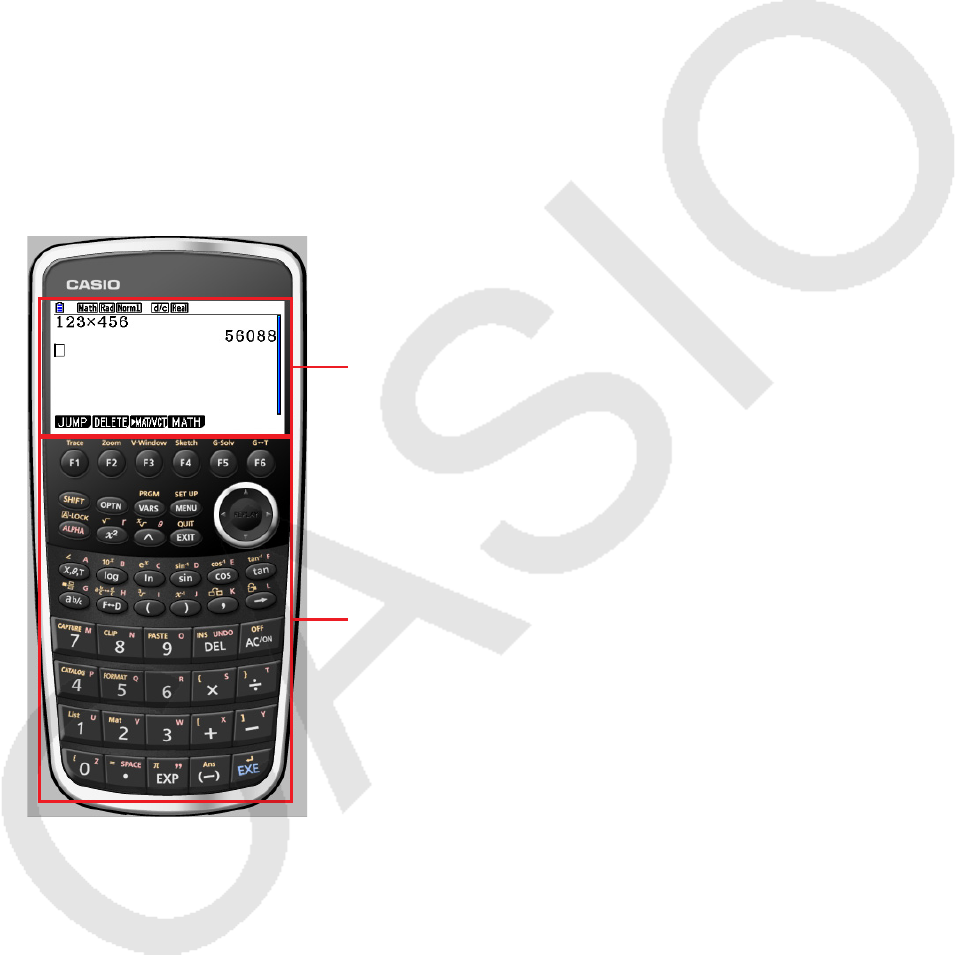
3. Emulator Mode and Key-Log Editor Mode
This application has two modes.
You can use either of the following to operations to select the mode you want.
• On the [KeyLog] menu, select either [Emulator] or [Editor].
• On the standard toolbar, click or .
Emulator Mode
Use this mode when you want to perform mainly emulator operations.
Key-Log Editor Mode
Use this mode when you want to perform mainly Key-Log data operations.
EN-14
4. Emulating Calculator Operation
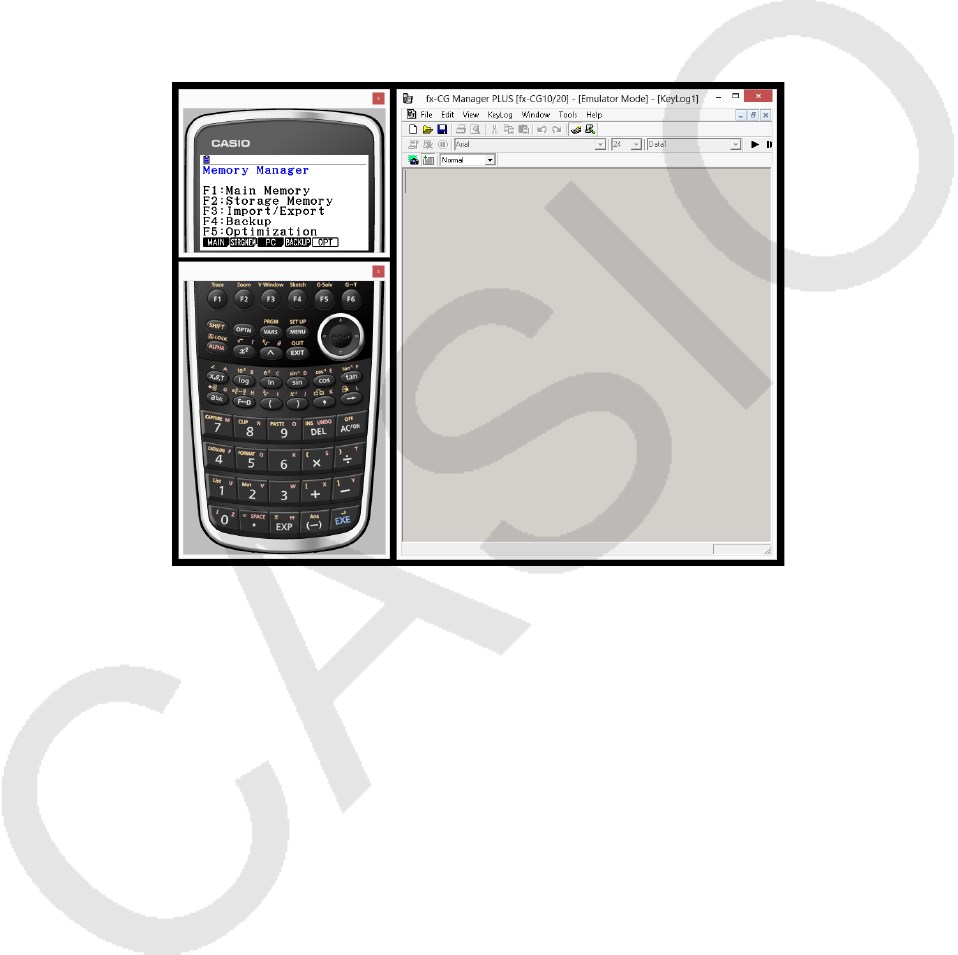
• The emulator makes it possible to mimic calculator operation using your computer’s mouse and
keyboard.
• For details about emulator operations, see the Calculator User’s Guide. You can view the User’s
Guide by selecting [Manual] - [Calculator] on the Help menu.
• Note that some emulator functions are different from the calculator functions. For details, see “9.
Differences between Calculator and Emulator Functions” (page EN-30).
Note
• Image files (g3b/g3p) created with this application and eActivity files that contain image data
created with the this application cannot be opened with the fx-CG10 calculator.
k Using the Emulator
• Key operations are identical to those you perform on the calculator.
• Operation results appear on the LCD screen.
LCD Screen
Keypad

EN-15
In the Emulator Mode, you use your computer keyboard to operate the emulator. The following
explains the keyboard keys you should use to perform each emulator key operation.
(1) Computer keyboard keys that have the same key markings as the emulator keys
a—j, ., +, -, (, ), ,, M, 1—6, f, c, d, e
(2) Computer keyboard keys that have different key markings as the emulator keys
Computer Key
(Windows)
Computer Key
(Mac OS) Emulator Key
[Tab] [tab] A
[Insert] [control]+[s] !
[Home] [fn]+[←] or [home] K
[Page Up] [fn]+[↑] or [page up] J
[Page Down] [fn]+[↓] or [page down] m
[End] [fn]+[→] or [end] a
[Esc] [esc] J
[Delete] [delete] D
[Back Space] – D
[Enter] [return] or [enter] w
[*] [*] *
[/] [/] /
k Changing the Size of the Emulator
The emulator’s keypad and LCD screen each can be toggled between two sizes: small and normal.
To specify the size of the keypad
1. On the [View] menu, select [Calc Key].
2. From the submenu that appears, select the keypad size you want.
To specify the size of the LCD screen
1. On the [View] menu, select [Calc Screen].
2. From the submenu that appears, select the LCD screen size you want.
Note
• If the LCD screen or keypad is displayed as a floating window (page EN-16), you also can resize
the window by dragging the one side of the window frame upwards, downwards, left, or right.
Resizing by dragging the window frame lets make the floating window larger than the normal size
selectable on the submenu above.
• Use of the “Normal” LCD screen size setting is recommended.
EN-16
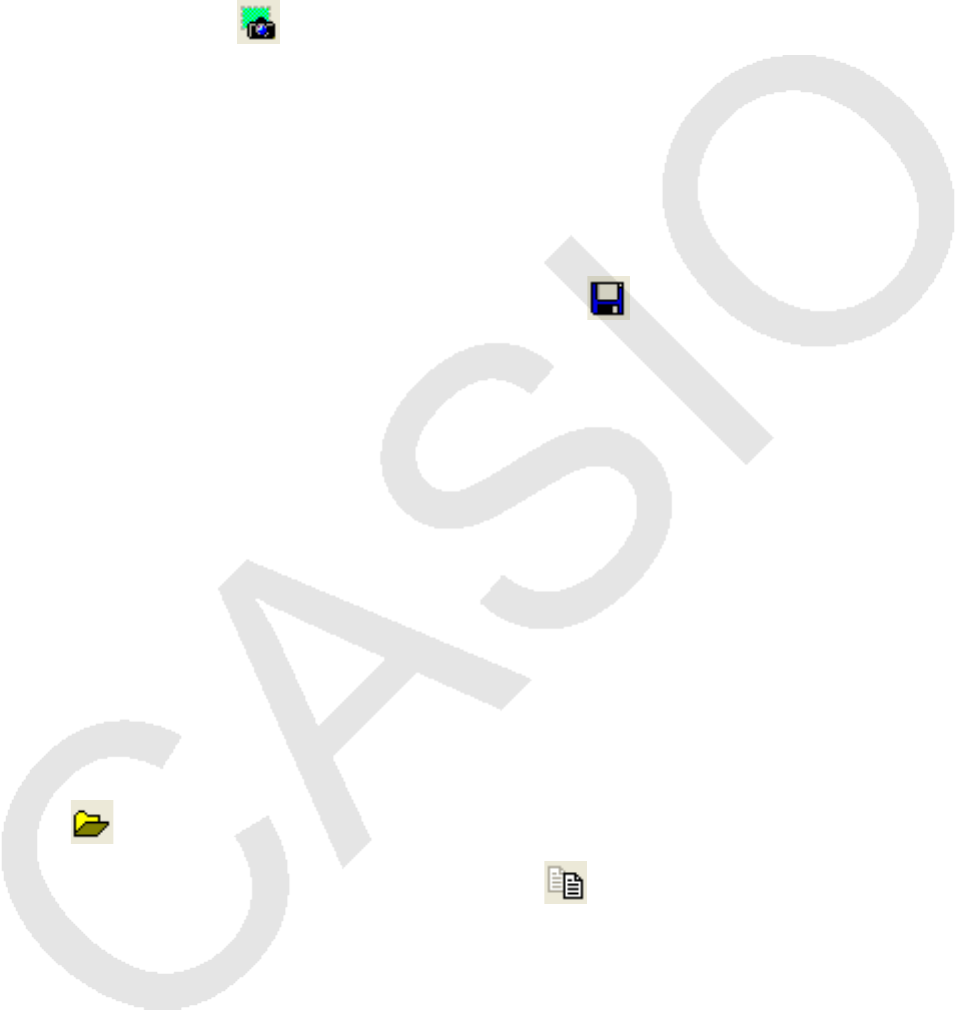
k Using the Floating Emulator Feature
• You can drag the LCD screen and the keypad to any location you want on your computer screen.
• You can display the emulator LCD screen and its keypad in their own windows that are separate
from the main window.
To make the LCD screen and/or keypad a floating window
1. Double-click the LCD screen and/or keypad.
2. Drag the LCD screen and/or keypad to the left so it is outside of the main window, and drop it
there.
k Moving the LCD Screen and Keypad Back into the Main Window
• Perform the following steps to move the LCD screen and/or keypad back into the main window
from independent floating windows.
- Double-click the floating LCD screen and/or keypad.
- Drag the LCD screen and/or keypad back to the left side of the main window.
Important!
• You can return an independent floating window to the main window by dragging the floating
window to the left side of the main window only. Dragging top, bottom, or right side of the main
window will not work.
EN-17
k Capturing the Emulator LCD Screen Image
• You can use the following procedure to capture an image of the emulator LCD screen.
To capture the emulator LCD screen image
1. On the [File] menu, select [Capture Screen] to display a capture of the emulator LCD screen
(page EN-7).
• You could also click on the bitmap toolbar.
• You can also add a frame to the captured image or change the image zoom factor, if you
want. For details, see “Bitmap Toolbar” (page EN-12) and “LCD Screen Capture Settings”
(page EN-24).
• Windows: If either a window containing of a captured image or the Key-Log screen is currently
maximized (using the Windows maximize command) on your computer display, any window
produced by the capture operation will also be maximized. This is true regardless of the size
setting specified for screen capture on the Options dialog box (page EN-24).
2. Select the captured screen image window and then click to save it to a file.
* You can save a screen capture as either of the two following file formats.
• Bitmap format
• JPEG format
This application uses libraries by the Independent JPEG Group.
k Opening a Saved LCD Screen Image
• You can open a saved LCD screen image and display it on your computer. You can have multiple
screen images open at the same time.
• LCD screen images can be copied and pasted into other applications in order to create operation
example handouts, assignments, etc.
* Only bitmap files can be opened using this procedure. Opening of JPEG files is not supported.
To copy an LCD screen image and paste it into another application
1. Click and then open the file that contains the LCD screen image you want to copy.
2. Select the LCD screen image window and then click to copy it to the clipboard.
3. Open the other application and then paste the contents of the clipboard.
EN-18
5. Using the Emulator Key-Log
This section explains how to use the Key-Log, which is a log of the emulator’s key operations. It
also covers playback of recorded key operations and editing of Key-Log records.
All of the operations in this section are performed using toolbar buttons.
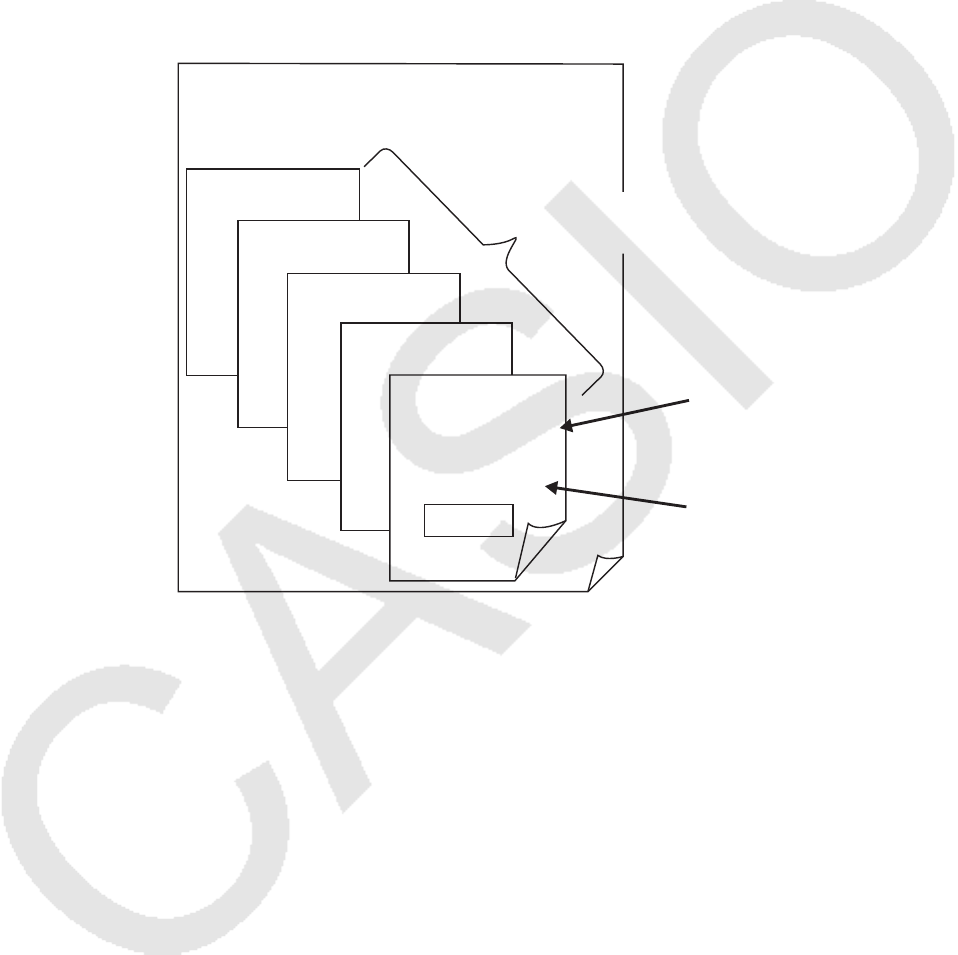
k Key-Log File Structure
A Key-Log file can contain multiple Key-Log records.
Key-Log records can contain recorded key operations, text and Main Memory data.
The following shows the Key-Log file structure.
Mathematics
Key-Log File
Key-Log Records
Key
Text Data
b
w
Memory
• You can assign names (up to 20 single-byte characters) to Key-Log records.
Important!
• Key-Log data processing can take a long time when there is a lot of data. This is normal and does
not indicate malfunction.
• A key operation may not be stored to a Key-Log if you click it while an emulator calculation
operation is in progress.
Note
• Storage Memory data is not stored in Key-Log records.
• Opening the Storage Memory file during Key-Log playback can produce different results from
those recorded to the Key-Log.
EN-19
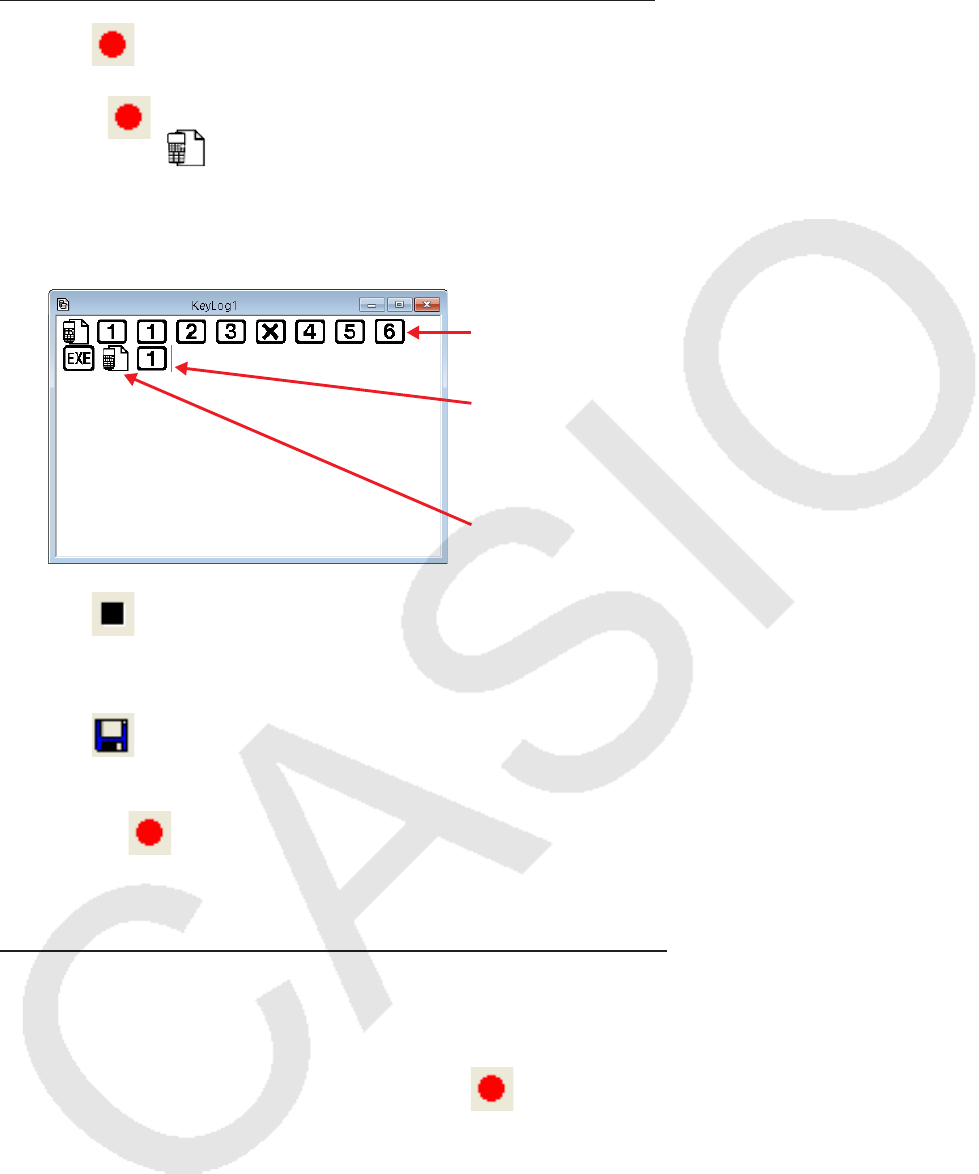
To record emulator key operations using Key-Log
When [Main Memory R/W: ON] is selected on the [KeyLog] menu
1. Click to start Key-Log recording.
• The Main Menu will appear with the Run-Matrix mode icon already highlighted.
• Click to save the calculator’s current Main Memory contents and insert a Memory
Character ( ) at the current cursor location on the emulator screen. The Memory Character
tells your computer to look up the memory contents saved at that location for use in the
calculation.
2. Perform operations on the emulator.
Keys appear in the sequence you press them.
Cursor Position
Memory Character
3. Click to stop Key-Log recording.
4. Repeat steps 1 through 3 as required.
5. Click to save the Key-Log file.
Note
• If you click while an fx-Manager PLUS Key-Log file is open, memory contents are not saved
(and a Memory Character is not inserted).
When [Main Memory R/W: OFF] is selected on the [KeyLog] menu
Operation is the same as that when [Main Memory R/W: ON] is selected on the [KeyLog] menu,
except for the following points.
- The Main Menu does not appear when Key-Log recording is started.
- Main Memory contents are not saved when is clicked. (Memory Character cannot be
inserted at cursor position.)
EN-20
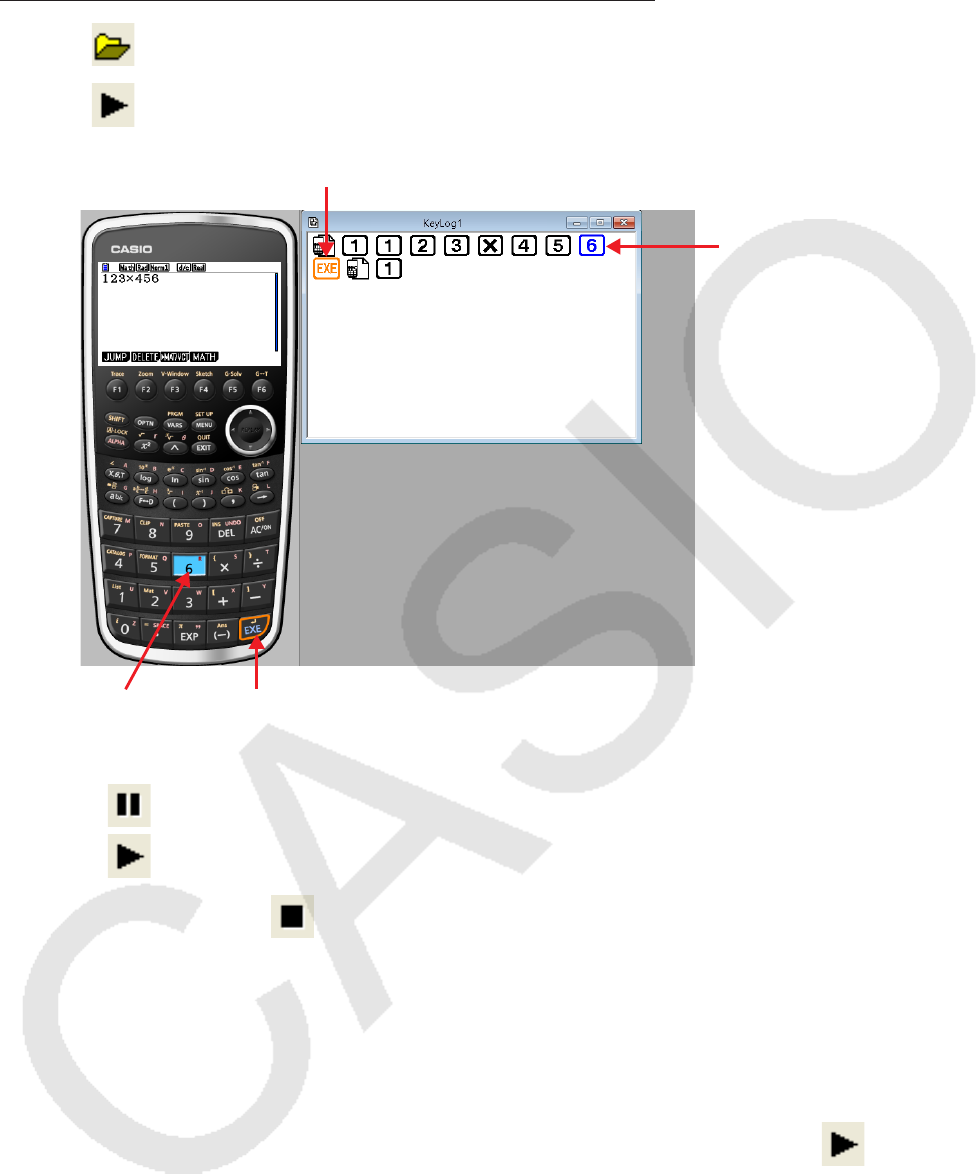
To perform Key-Log auto play of a recorded key operation
When [Main Memory R/W: ON] is selected on the [KeyLog] menu
1. Click and then open the Key-Log file you want to play.
2. Click to start playback.
The next key to be played
back is orange.
Played key operations are
blue.
The last played key
is blue.
The next key to be played is framed in orange.
• Click to pause playback.
Click to restart playback after pausing it.
3. To stop playback, click . Stopping playback causes all keys to return to their original colors.
Note
• Playback starts from the current cursor position.
• Each time playback comes to a Memory Character, the Main Memory contents that were stored
for that location are looked up, and playback then proceeds to the next operation using the looked
up contents.
• Current Main Memory contents are automatically backed up whenever you click to start a
new Key-Log playback operation. This will allow you later to restore memory contents to what
they were before you started playback (if you want).
• Closing a Key-Log file causes the message “Backed up memory contents will be restored.” to
appear. You can specify whether you want Main Memory to be restored to the contents that were
automatically backed up when you started playback of the Key-Log file (see above).
• You can use the optional settings dialog box (page EN-24) to configure playback settings like the
key playback interval following a pause, the color of playback keys, etc.
EN-21
• Simultaneous playback of multiple Key-Log files is not supported. If you try to open a Key-Log file
while another Key-Log file is already open, the currently open file will close automatically. If the
currently open file has been edited, a message “At least one file has unsaved edits. Save edits?”
will appear asking if you want to save it before closing.
When [Main Memory R/W: OFF] is selected on the [KeyLog] menu
Operation is the same as that when [Main Memory R/W: ON] is selected on the [KeyLog] menu,
except for the following points.
- When Key-Log is played back, current Main Memory contents are not backed up.
- Memory Character is ignored. (Main Memory contents are not played back.)
Note
• Current Main Memory contents are backed up, even if you start Key-Log playback by selecting
[Main Memory R/W: ON] on the [KeyLog] menu and then change to [Main Memory R/W: OFF].
To playback a Key-Log record manually (STEP playback)
1. Click and then open the Key-Log file you want to play.
2. Click to play the first key operation in the Key-Log.
3. Keep pressing to play Key-Log contents one step at a time.
4. To stop playback, click .
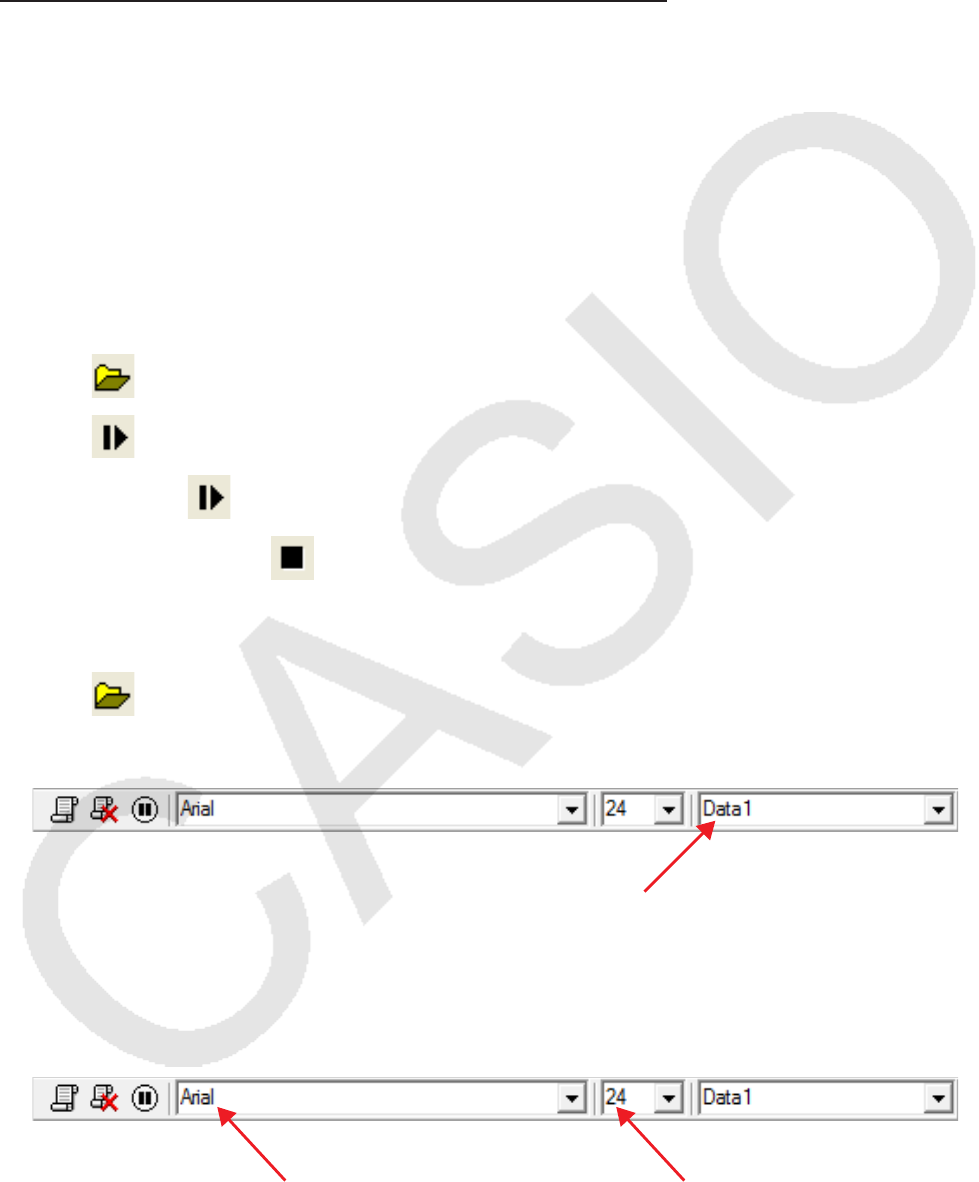
To edit a Key-Log record
1. Click and then open the Key-Log file you want to edit.
2. Select the Key-Log record you want to edit.
Select the Key-Log record from this menu.
3. Edit the key operations and text of the Key-Log record.
• You can use normal text input and editing operations to edit the keys in a Key-Log record.
• When inputting text, you can specify the font and font size you want to use.
Font Font Size
Note
• Copying and pasting of Memory Characters is supported. Pasting a Memory Character to a
different location causes the Main Memory contents that were saved at the original Memory
Character location to be referenced at the new (pasted) location.
EN-22
4. Click to save the Key-Log file.
To add a Key-Log record to the currently open Key-Log file
After opening the Key-Log file to which you want to add the record, click .
This automatically assigns the Key-Log record a name (Example: “Data1”) and displays it in the
menu.
To rename a Key-Log record
1. Select the Key-Log record you want to rename from the menu.
2. Click the name of the Key-Log record and then change it.
3. Press the [Enter] key.
To delete a Key-Log record
1. Select the Key-Log record you want to delete from the menu.
2. Click to delete the selected Key-Log record and display the next one.
Note
• There must be at least one Key-Log record in memory. You will not be able to delete a Key-Log
record if it is the only one left in memory.
k Inputting a Pause Character
A pause character causes Key-Log playback to pause automatically when it reaches the character.
To input a pause character, click .

EN-23
k Copying Keys or Text and Pasting It into Another Application
Keys and text can be copied and pasted into other applications in order to create operation
example handouts, assignments, etc.
To copy keys or text and paste it into another application
1. Drag the cursor across the keys or text you want to copy.
2. Click to copy the selected keys or text to the clipboard.
3. Open the other application and then paste the contents of the clipboard.
Note
• A Memory Character also can be copied into another application. A Memory Character that has
been pasted into another application can be copied and pasted into the application. When a
Memory Character that has been pasted into the application is played back, it reproduces the
applicable memory contents. Note, however, that this is true only when the number of Memory
Characters that were initially copied from a calculation in the application is the same as the
number of Memory Characters that were pasted from the other application.
EN-24
6. Configuring Options Dialog Box Setting
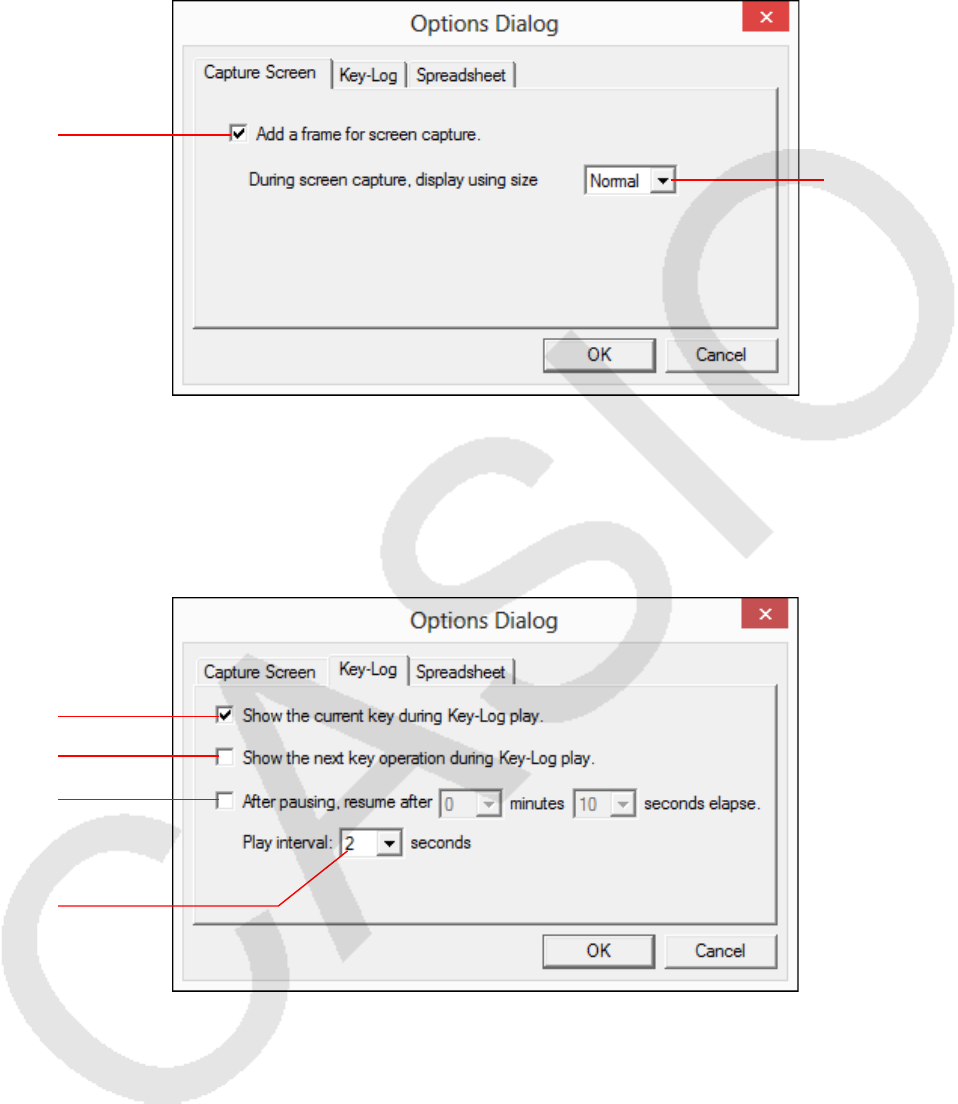
k LCD Screen Capture Settings
1
2
1 Select this option to add a frame to an LCD screen capture.
2 Specifies the screen size during LCD screen capture. Supported sizes are Small, Normal, ×2
and ×3.
k Key-Log Playback
1
2
3
4
1 Select this option to highlight the current key in blue.
2 Select this option to frame the next key in orange.
3 Specifies how much time should be allowed to elapse to resume paused playback. You can set
an interval in the range of 10 seconds to 10 minutes in 10-second steps.
4 Specifies the key playback interval during auto play. You can set an interval of 0.1 second, or
any interval in the range of 0.5 to 5 seconds, in 0.5-second steps.
EN-25
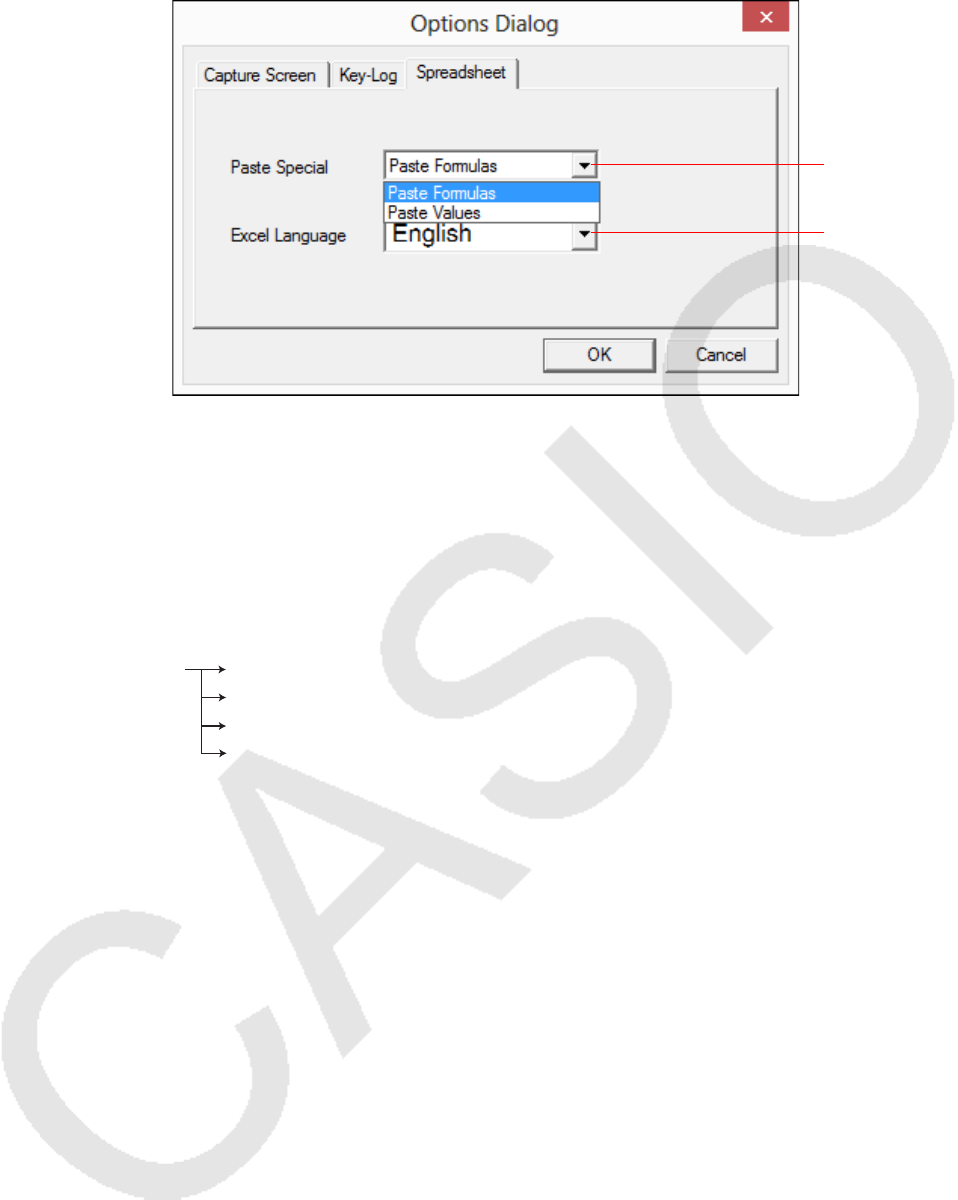
k Spreadsheet Setting (Windows only)
1
2
1 You can configure Copy & Paste so either values or Excel formulas are pasted into a
spreadsheet.
Paste Formulas ... Pastes formulas.
Paste Values ... Pastes values only.
2 You also can specify the language to be used when pasting to Microsoft Excel.
Whenever you copy from Spreadsheet and paste to an Excel formula, the formula will be
converted to the selected language.
Example: CellIf( IF( : English
SI( : Spanish
SI( : French
WENN( : German
When using the following language versions of Excel, configure the Excel Language setting as
shown below.
Arabic: English2
Slovenian: English3
Portuguese (European): PortugueseEu
Portuguese (Brazilian): PortugueseBr
• For details about copying and pasting Excel formulas, see page EN-34.
EN-26
7. Other Functions
Printing
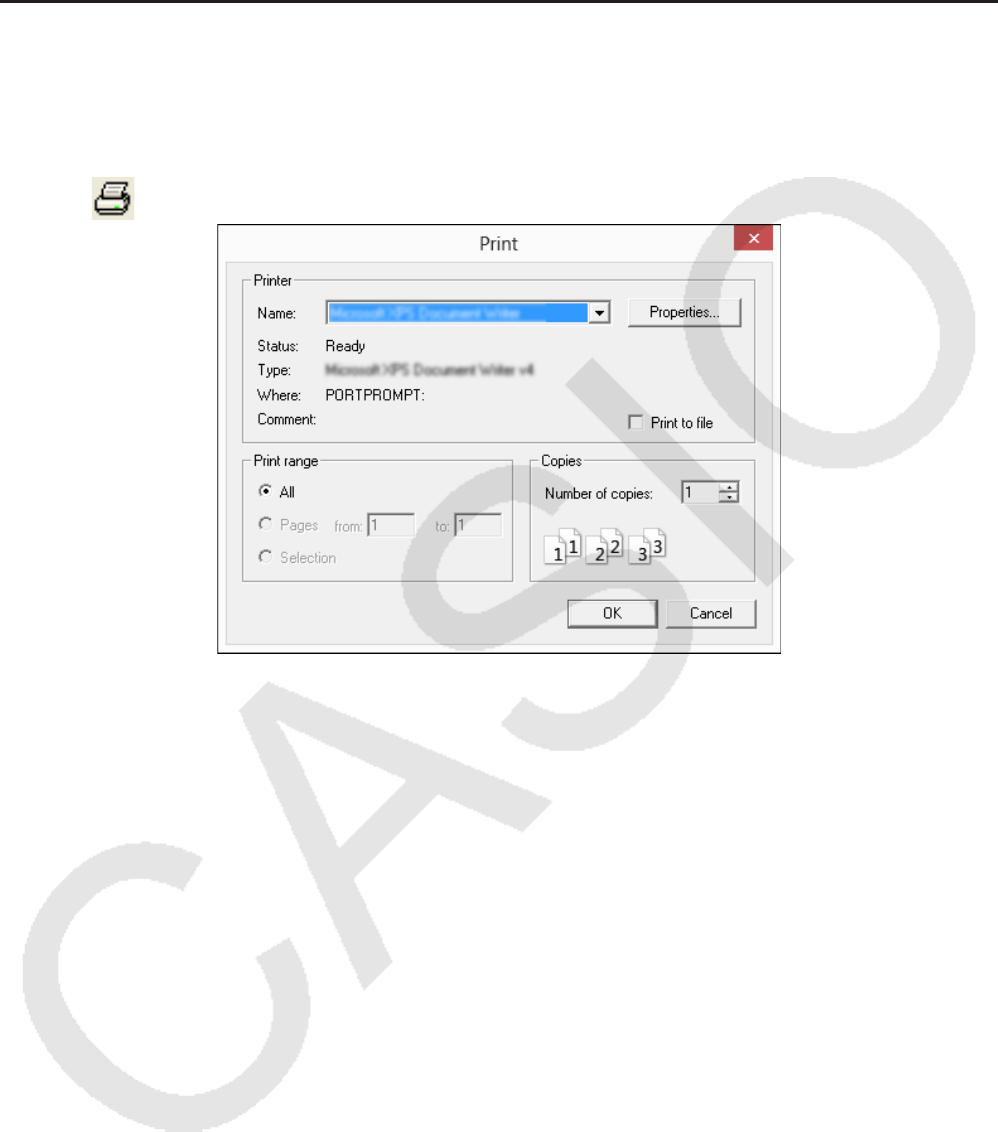
• You can use the following procedure to print LCD screen captures.
1. Click the window of the LCD screen capture that you want to print to select it.
2. Click . This will display the Print dialog box.
3. Click [OK] to start printing.
Important!
• Each screen image is printed on a separate page.
• Images are printed in accordance with width setting of the paper size selected on the Print dialog
box.
• If you are printing a bitmap image that was created using another application and does not fit
within the preview area, only the part within the preview area will be visible. Also, only that part
will be printed.
EN-27
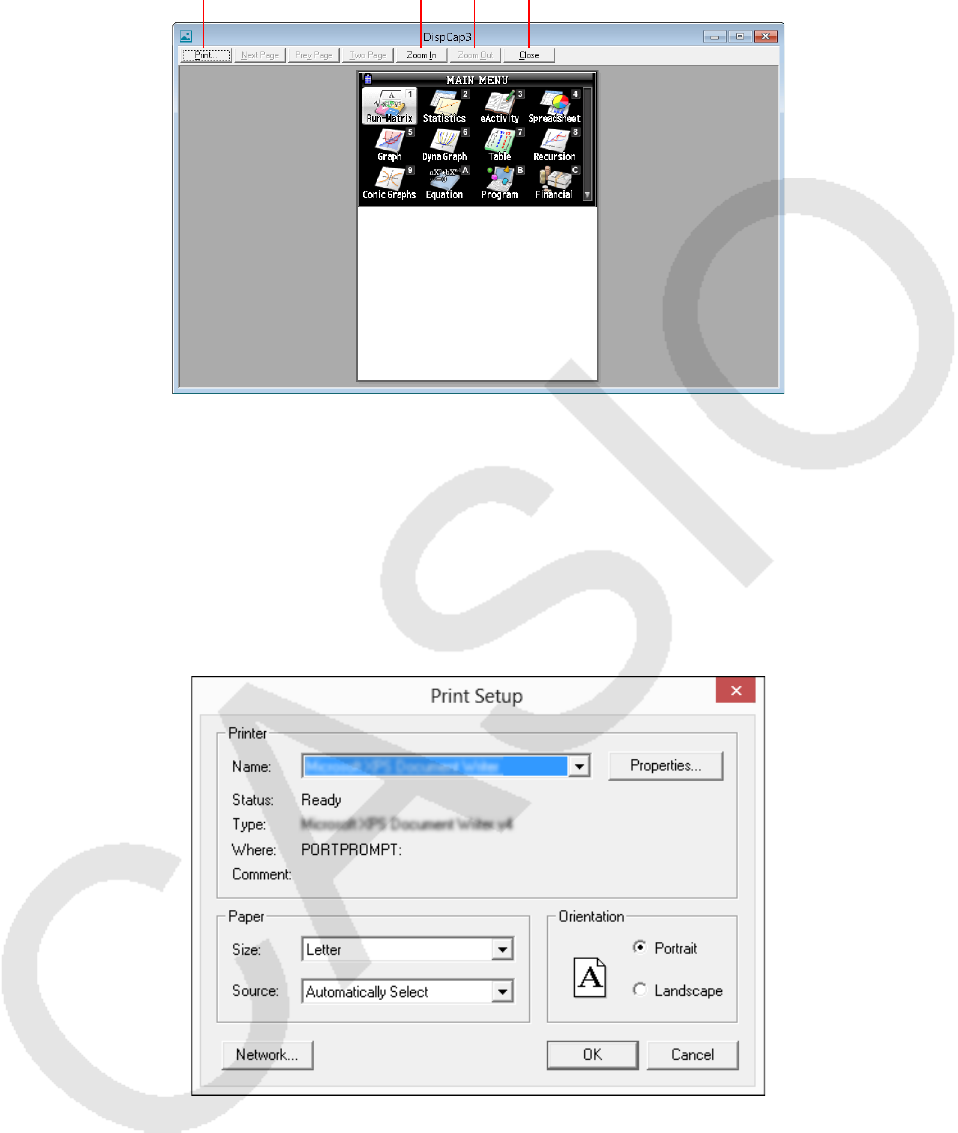
k Print Preview (Windows only)
• Selecting [Print Preview] on the [File] menu displays the print preview image.
1 2 3 4
1 Displays the Print dialog box.
2 Enlarges the preview image.
3 Reduces the size of the preview image.
4 Closes the print preview window image.
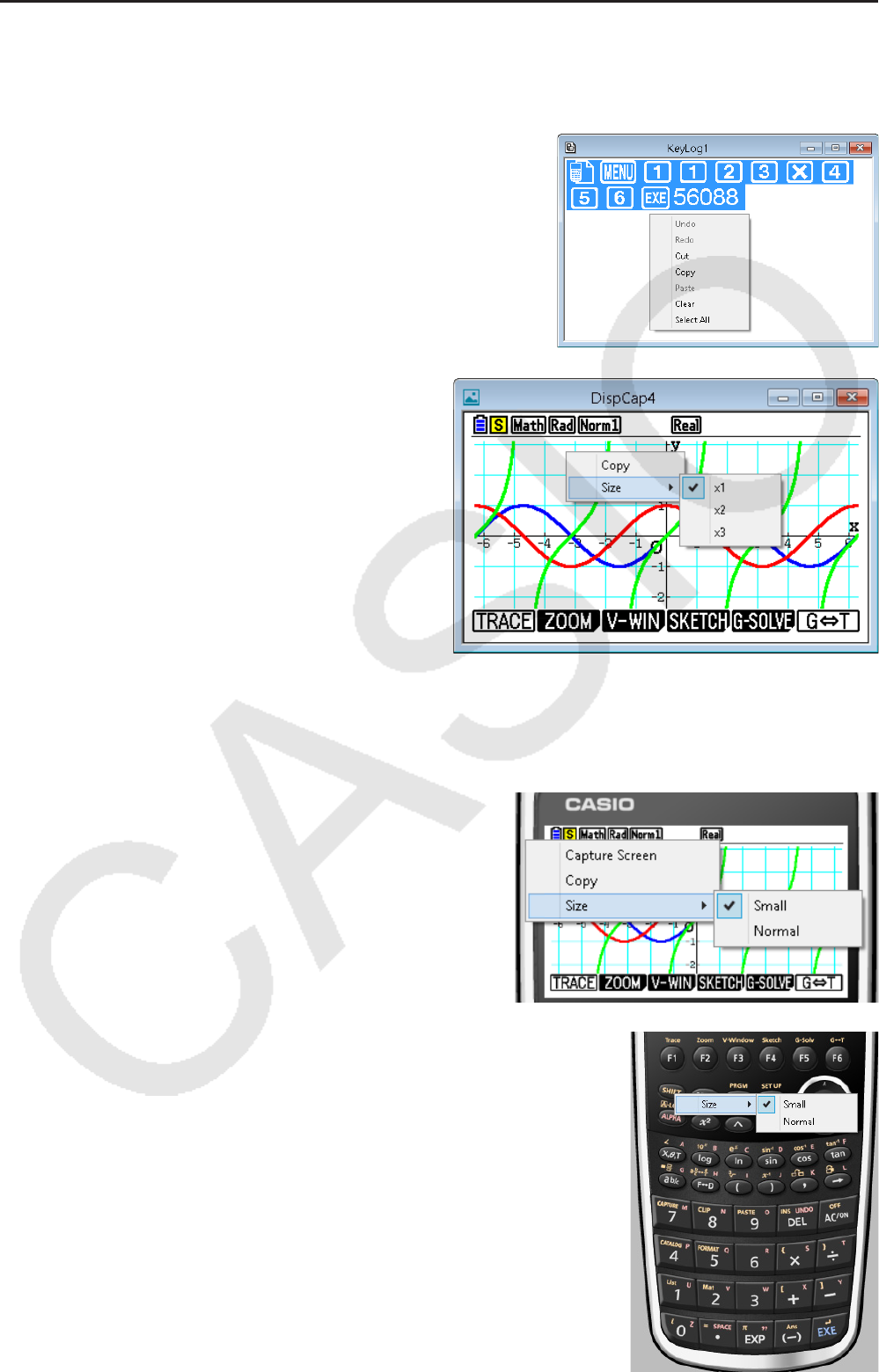
k Print Setup Dialog Box
• Selecting [Print Setup] on the [File] menu displays the Print Setup dialog box.
EN-28
Shortcut Menu
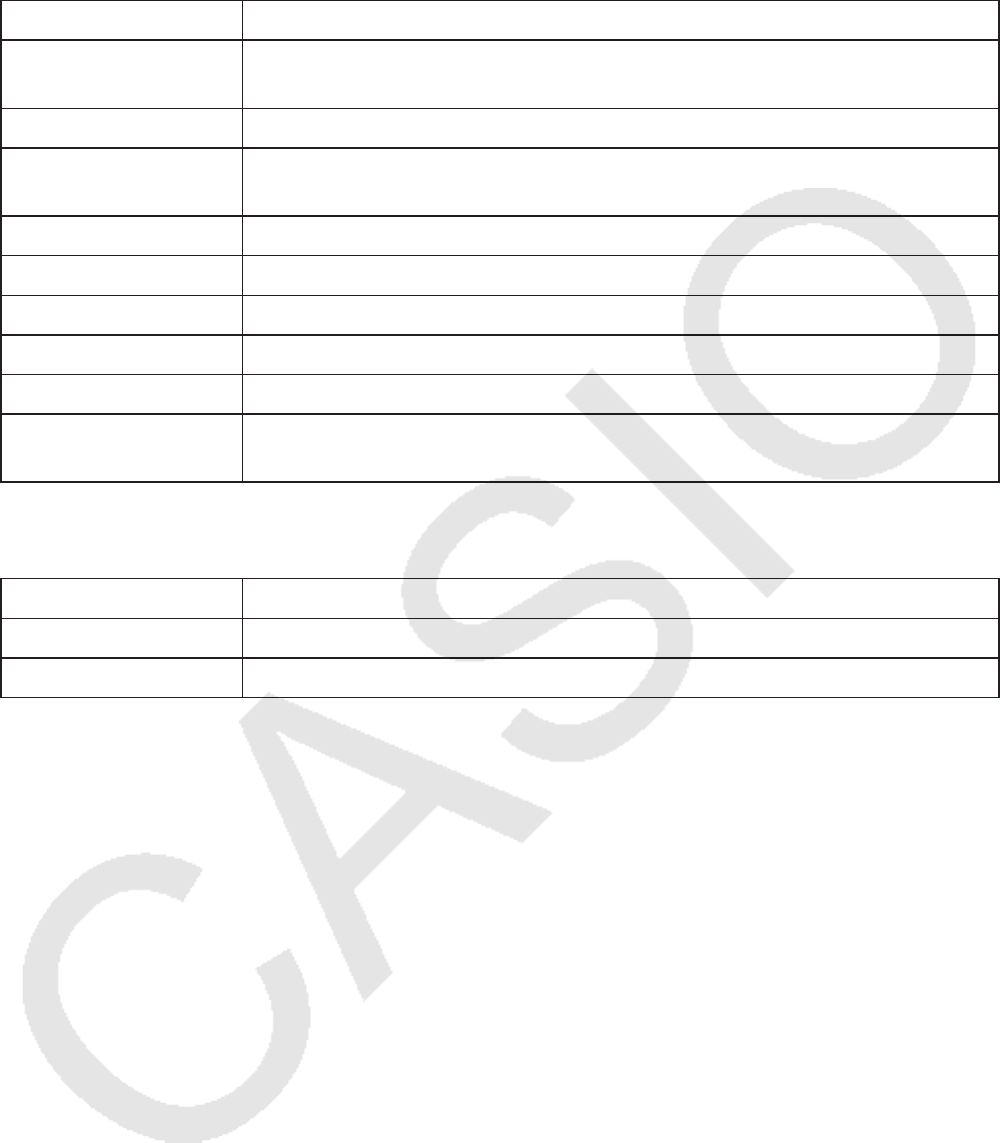
• Right-clicking your mouse (Windows) or performing a control+click (Mac OS) will display one of
the shortcut menus shown below.
• During Key-Log Editing
• During Bitmap Display of the Calculator Screen
A screen zoom operation affects only the screen
where you display the shortcut menu. If you have
multiple screens on the display, the other screens
are not affected by the zoom operation.
• When Using the Emulator
Note
Select [Copy] to copy the screen to the clipboard.
• On the Emulator Keypad
EN-29
8. File Types Supported by the Application
• The following are the file name extensions that are supported by the Memory application.
File Extension Description
.g1m, .g2m, .g3m,
.g1r, or .g2r
Data items listed in the Main Memory information screen that has been
copied to Storage Memory.
.g1e, .g2e, or .g3e eActivity files
.g3a, .g3l .g3a: Add-in applications
.g3l: Add-in languages and add-in menus
.g3p Picture files
.g3b Flipbook files
.bmp Bitmap files
.txt Text files
.csv CSV files
Other file name
extensions These files are not supported by this calculator.
• The following are the file name extensions that are supported by the [File] menu’s [Open]
command.
File Extension Description
.g1k fx-Manager PLUS Key-Log file
.g3k fx-CG Manager PLUS Key-Log file
Note
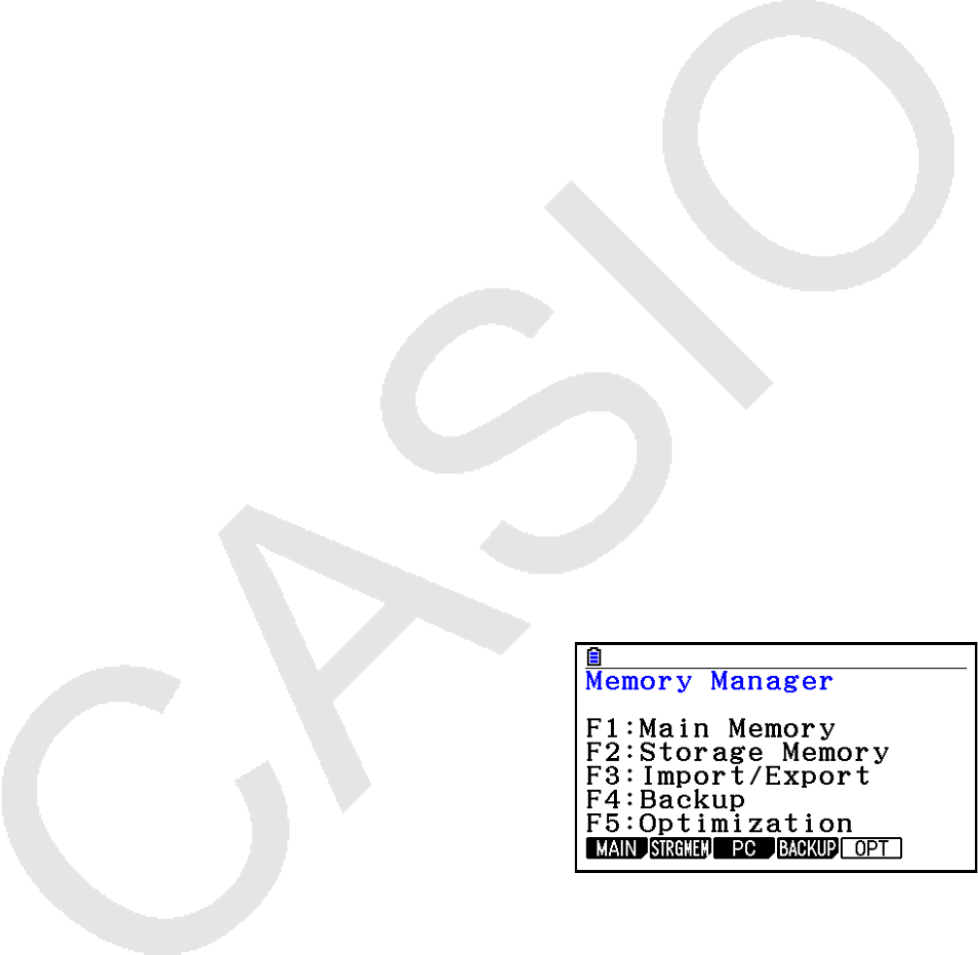
• You can use the Memory application to import all file types (except g1k and g3k) into the
emulator.
• Files with the extension g1k/g3k can be used in Key-Log files.
EN-30
9. Differences between Calculator and
Emulator Functions
k Link Application
Calculator: Data transfer execution supported.
Emulator: Data send/receive, and configuring cable, and wakeup are not supported. Attempting to
perform any of these operations causes an error.
k System Applications (Display Settings, Power Properties Settings,
Battery Settings, User Name, OS Update)
Calculator: Display Settings, Power Properties Settings, Battery Settings, User Name and OS
Update supported.
Emulator: Display Settings, Power Properties Settings, Battery Settings, User Name and OS
Update not supported. Attempting to perform any of these operations causes an error.
k Program Application
Calculator: Stores created text files in Main Memory Program folder.
Emulator: Stores created text files in Storage Memory Program folder.
k Importing and Exporting Files
You can perform the following operations on the emulator to import and export files.
To import a file
1. From the Main Menu, enter the Memory mode.
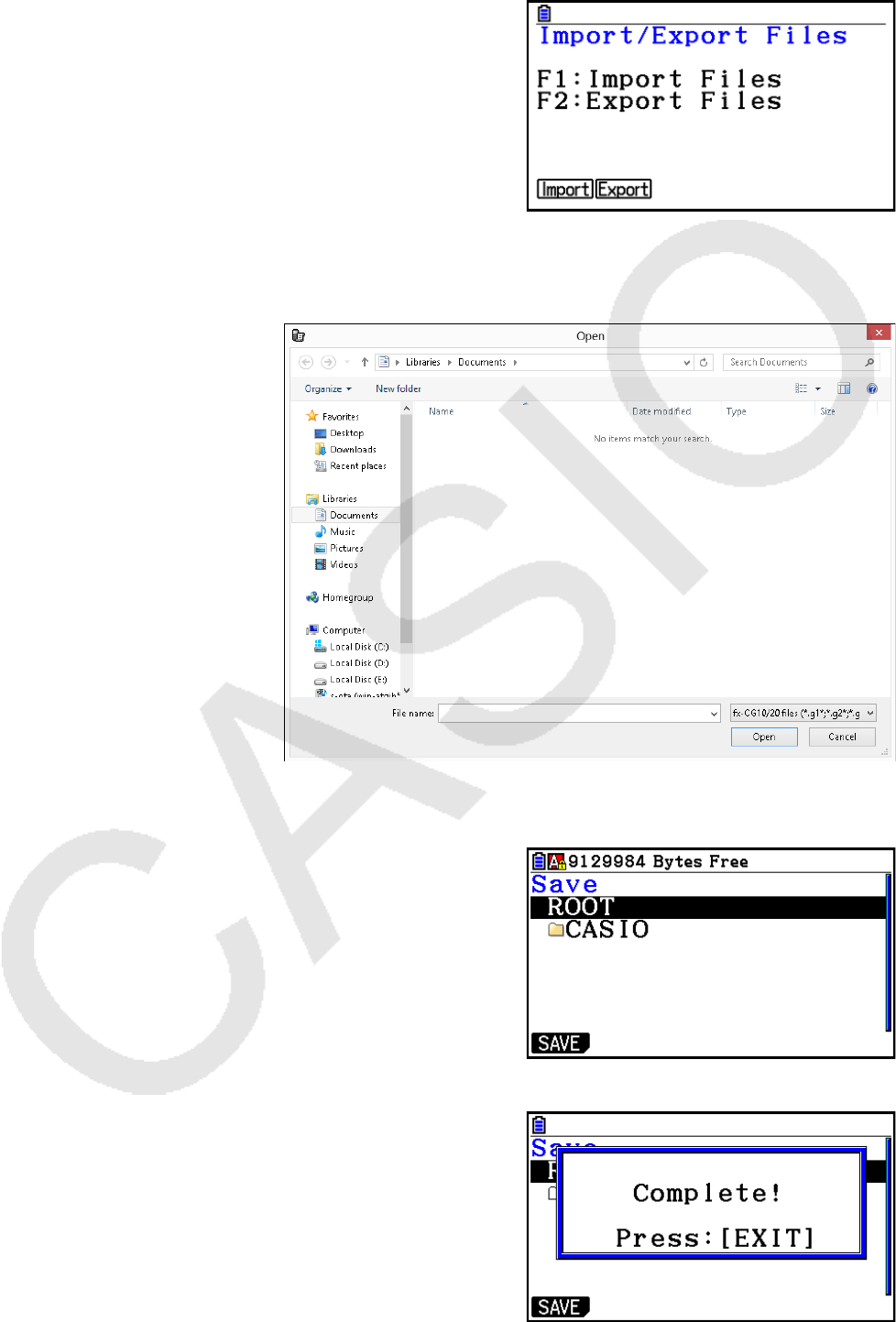
EN-31
2. Click 3(PC).
3. Click 1(Import).
• This displays a dialog box for opening a file.
4. Select the file you want to import, and then click [Open].
5. Select the folder where you want to import the file and then click 1(SAVE).
6. Click J.
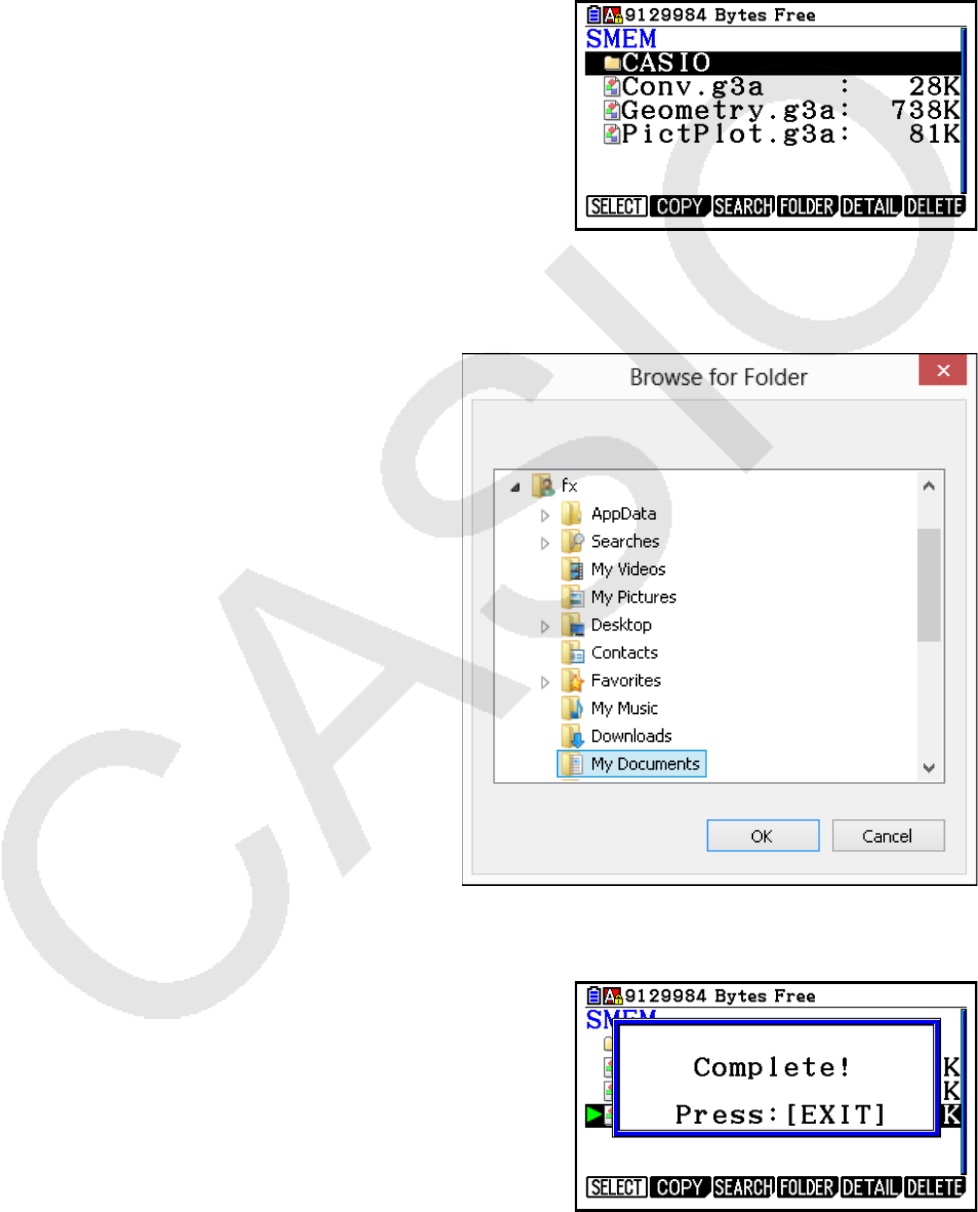
EN-32
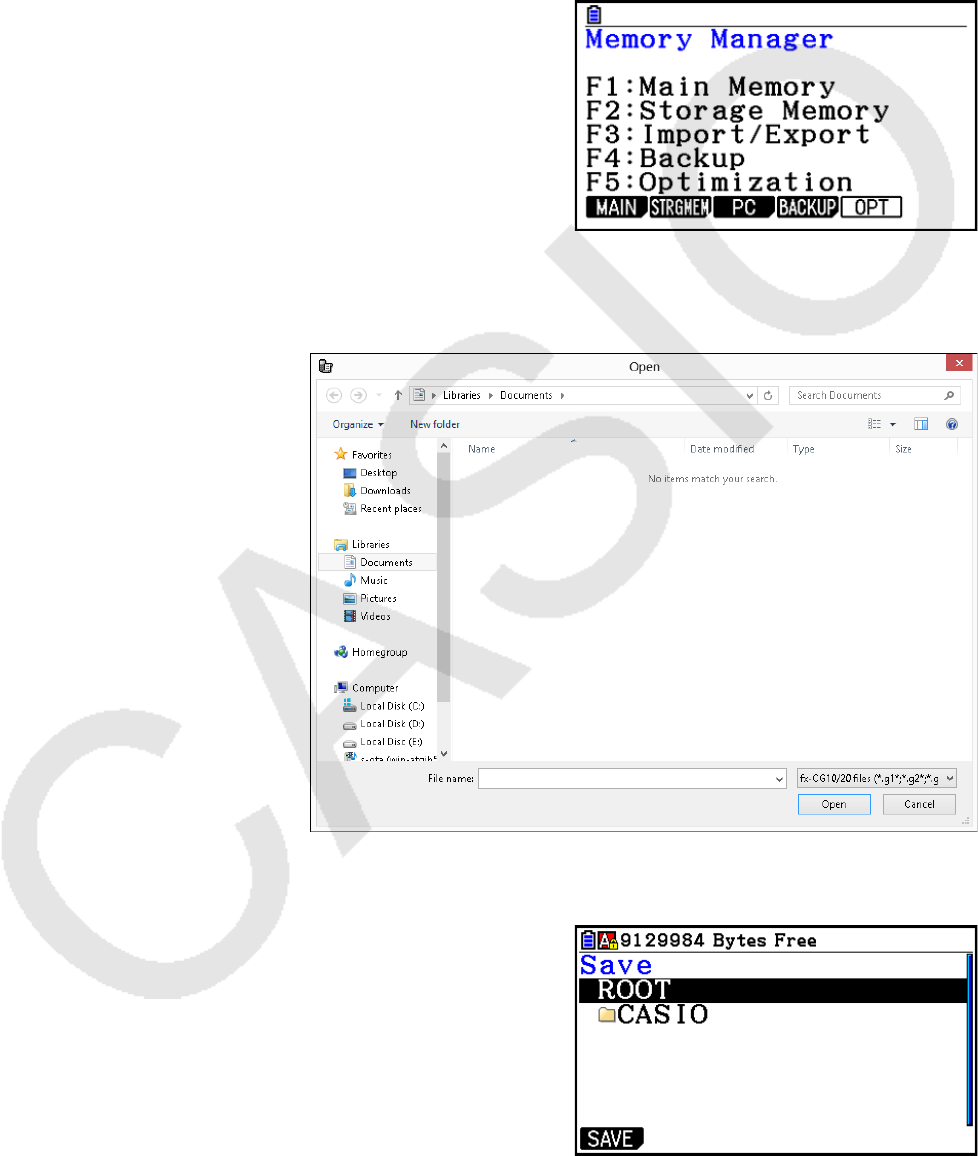
To export a file
1. From the Main Menu, enter the Memory mode.
2. Click 3(PC).
3. Click 2(Export).
4. Highlight the file you want to export. Next, click 1(SELECT) and then 2(Copy).
• This displays a dialog box for selecting the destination folder of the exported file.
5. Select the destination folder you want and then click [OK].
6. Click J.
EN-33
k Installing an Add-In
You can perform the following procedure on the emulator to install an Add-In application or Add-In
language.
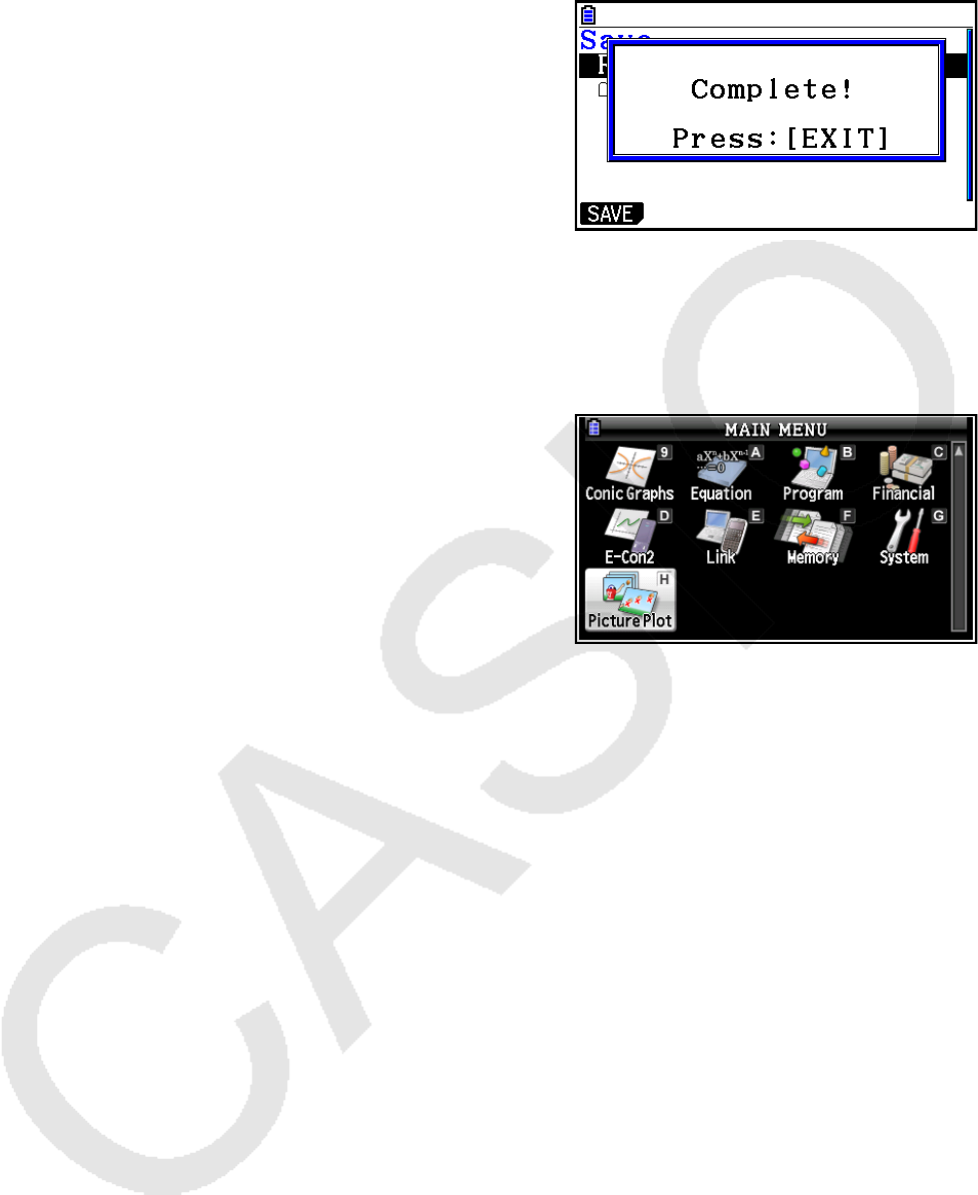
To install an Add-In application
1. From the Main Menu, enter the Memory mode.
2. Click 3(PC)1(Import).
• This displays a dialog box for opening a file.
3. Select the Add-In file you want and then click [Open].
EN-34
4. Select the folder where you want to save the Add-In file and then click 1(SAVE).
5. Click J.
6. Click m.
• The icon of the application you just installed should be visible on the Main Menu.
• Some Add-In applications may act differently on the calculator than they do on the emulator.
k OFF (! + A)
Calculator: Turns off power.
Emulator: Does not turn off the emulator. (! + A does not perform any operation.)
k COPY & PASTE
Calculator: COPY & PASTE supported on the calculator.
Emulator: COPY & PASTE supported on the calculator, and between the calculator and other
applications running on the computer.
Copy and paste of calculator-specific input codes between this application and other applications is
not supported in some cases.
Supports copy and paste between an emulator spreadsheet and an Excel spreadsheet running on
your computer (Windows only).
• Copy and paste of the following formulas is supported between an emulator spreadsheet and an
Excel spreadsheet running on your computer.
+, –, `, /, ^, =, <>, >, <, >=, <=, $, :
IF, MIN, MAX, AVERAGE, MEDIAN, SUM, PRODUCT
LOG, FACT, POWER, SQRT, LOG10, LN, PI
SIN, COS, TAN, ASIN, ACOS, ATAN, SINH, COSH, TANH, ASINH, ACOSH, ATANH
ABS, GCD, LCM, MOD, TRUNC, INT, ROUND, PERMUT, COMBIN, RAND, NOT, AND, OR

EN-35
The table below shows how some formulas may be modified automatically when a paste operation
is performed.
Modified Formulas
Spreadsheet Paste Operation* Excel
⫻⇔`
⫼⇔/
≠⇔
<>
>⇔>=
<⇔<=
Omitted multiplication sign →`
CellIf( ⇔IF(
CellMin( ⇔MIN(
CellMax( ⇔MAX(
CellMean( ⇔AVERAGE(
CellMedian( ⇔MEDIAN(
CellSum( ⇔SUM(
CellProd( ⇔PRODUCT(
logab(#1,#2 ⇔LOG(#2,#1
#12→#1^2
#1–1 →#1^–1
#1! ⇔FACT(#1)
#1X'#2 →#2^(1/#1)
#1{#2 →#1/#2
'#1 ⇔SQRT(#1)
3'#1 →#1^(1/3)
log #1 ⇔LOG10(#1)
ln #1 ⇔LN(#1)
e^#1 ⇔EXP(#1)
10#1 →10^#1
π⇔
PI()
E#n1 →10^#n1
#n1E#n2 →#n1`10^#n2
#1^#2 ←POWER(#1, #2)
sin #1 ⇔SIN(#1)
cos #1 ⇔COS(#1)
tan #1 ⇔TAN(#1)
sin–1 #1 ⇔ASIN(#1)
cos–1 #1 ⇔ACOS(#1)
tan–1 #1 ⇔ATAN(#1)
sinh #1 ⇔SINH(#1)
cosh #1 ⇔COSH(#1)
tanh #1 ⇔TANH(#1)

EN-36
Spreadsheet Paste Operation* Excel
sinh–1 #1 ⇔ASINH(#1)
cosh–1 #1 ⇔ACOSH(#1)
tanh–1 #1 ⇔ATANH(#1)
Abs #1 ⇔ABS(#1)
GCD( ⇔GCD(
LCM( ⇔LCM(
MOD( ⇔MOD(
Int #1 ⇔TRUNC(#1)
Intg #1 ⇔INT(#1)
RndFix( ⇔ROUND(
#1P#2 ⇔PERMUT(#1,#2)
#1C#2 ⇔COMBIN(#1,#2)
P( ⇔NORMSDIST(
Ran# ⇔RAND()
Not #1 ⇔NOT(#1)
#1 And #2 ⇔AND(#1,#2)
#1 Or #2 ⇔OR(#1,#2)
* The following are the meanings of the symbols in the “Paste Operation” column of the above
table.
⇔: Either way
→: From emulator spreadsheet to Excel
←: From Excel to emulator spreadsheet
• For information about how formulas are modified when using a non-English version of Excel, see
the Formula List (page EN-37).
• If a paste operation includes an unsupported formula or an operation whose value causes an
error, only the final value will pasted without the formula.
• If a formula being pasted into an emulator spreadsheet exceeds 255 bytes after being modified
as described in the table above, only the final value will be pasted without the formula.
• An error will occur if the argument of a formula is outside the argument range of the location
where it is being pasted.
• When pasting a formula with a relative cell reference (such as: =A1+1) from Spreadsheet to
Excel, make sure you paste it into the cell with the same name as the cell you copied it from.
Copying it into a different cell will cause an incorrect cell reference.

EN-37
Calculator English French German Spanish Portuguese
(European) Czech Danish Dutch Finnish Calculator
CellIF IF SI WENN SI SE KDYŽ HVIS ALS JOS CellIF
CellMin MIN MIN MIN MIN MÍNIMO MIN MIN MIN MIN CellMin
CellMax MAX MAX MAX MAX MÁXIMO MAX MAKS MAX MAKS CellMax
CellMean AVERAGE MOYENNE MITTELWERT PROMEDIO MÉDIA PRMR MIDDEL GEMIDDELDE KESKIARVO CellMean
CellMedian MEDIAN MEDIANE MEDIAN MEDIANA MED MEDIAN MEDIAN MEDIAAN MEDIAANI CellMedian
CellSum SUM SOMME SUMME SUMA SOMA SUMA SUM SOM SUMMA CellSum
CellProd PRODUCT PRODUIT PRODUKT PRODUCTO PRODUTO SOUIN PRODUKT PRODUCT TULO CellProd
RndFix ROUND ARRONDI RUNDEN REDONDEAR ARRED ZAOKROUHLIT AFRUND AFRONDEN PYÖRISTÄ RndFix
GCD GCD PGCD GGT M.C.D MDC GCD STØRSTE.FÆLLES.DIVISOR GGD SUURIN.YHT.TEKIJÄ GCD
LCM LCM PPCM KGV M.C.M MMC LCM MINDSTE.FÆLLES.MULTIPLUM KGV PIENIN.YHT.JAETTAVA LCM
MOD MOD MOD REST RESIDUO RESTO MOD REST REST JAKOJ MOD
P NORMSDIST LOI.NORMALE.STANDARD STANDNORMVERT DISTR.NORM.ESTAND DIST.NORMP NORMSDIST STANDARDNORMFORDELING STAND.NORM.VERD NORM.JAKAUMA.NORMIT P
PIPI PI PI PIPIPI PI PII
Ran# RAND ALEA ZUFALLSZAHL ALEATORIO ALEATÓRIO NÁHÍSLO SLUMP ASELECT SATUNNAISLUKU Ran#
^ POWER PUISSANCE POTENZ POTENCIA POTÊNCIA POWER POTENS MACHT POTENSSI ^
log LOG LOG LOG LOG LOG LOGZ LOG LOG LOG log
! FACT FACT FAKULTÄT FACT FACTORIAL FAKTORIÁL FAKULTET FACULTEIT KERTOMA !
㺕SQRT RACINE WURZEL RAIZ RAIZQ ODMOCNINA KVROD WORTEL NELIÖJUURI 㺕
log10 LOG10 LOG10 LOG10 LOG10 LOG10 LOG LOG10 LOG10 LOG10 log10
ln LN LN LN LN LN LN LN LN LUONNLOG ln
10^ EXP EXP EXP EXP EXP EXP EKSP EXP EKSPONENTTI 10^
sin SIN SIN SIN SENO SEN SIN SIN SIN SIN sin
cos COS COS COS COS COS COS COS COS COS cos
tan TAN TAN TAN TAN TAN TG TAN TAN TAN tan
sin-1 ASIN ASIN ARCSIN ASENO ASEN ARCSIN ARCSIN BOOGSIN ASIN sin-1
cos-1 ACOS ACOS ARCCOS ACOS ACOS ARCCOS ARCCOS BOOGCOS ACOS cos-1
tan-1 ATAN ATAN ARCTAN ATAN ATAN ARCTG ARCTAN BOOGTAN ATAN tan-1
sinh SINH SINH SINHYP SENOH SENH SINH SINH SINH SINH sinh
cosh COSH COSH COSHYP COSH COSH COSH COSH COSH COSH cosh
tanh TANH TANH TANHYP TANH TANH TGH TANH TANH TANH tanh
sinh-1 ASINH ASINH ARCSINHYP ASENOH ASENH ARCSINH ARCSINH BOOGSINH ASINH sinh-1
cosh-1 ACOSH ACOSH ARCCOSHYP ACOSH ACOSH ARCCOSH ARCCOSH BOOGCOSH ACOSH cosh-1
tanh-1 ATANH ATANH ARCTANHYP ATANH ATANH ARCTGH ARCTANH BOOGTANH ATANH tanh-1
Not NOT NON NICHT NO NÃO NE IKKE NIET EI Not
Abs ABS ABS ABS ABS ABS ABS ABS ABS ITSEISARVO Abs
Int TRUNC TRONQUE KÜRZEN TRUNCAR TRUNCAR USEKNOUT AFKORT GEHEEL KATKAISE Int
Intg INT ENT GANZZAHL ENTERO INT CELÁ.ÁST HELTAL INTEGER KOKONAISLUKU Intg
nPr PERMUT PERMUTATION VARIATIONEN PERMUTACIONES PERMUTAR PERMUTACE PERMUT PERMUTATIES PERMUTAATIO nPr
nCr COMBIN COMBIN KOMBINATIONEN COMBINAT COMBIN KOMBINACE KOMBIN COMBINATIES KOMBINAATIO nCr
And AND ET UND Y E A OG EN JA And
Or OR OU ODER O OU NEBO ELLER OF TAI Or
Formula List

EN-38
Calculator Hungarian Italian Norwegian Polish *2) Portuguese
(Brazilian) Swedish Russian Turkish *3) Arabic *3) Slovenian Calculator
CellIF HA SE HVIS JEELI SE OM EER IF IF CellIF
CellMin MIN MIN MIN MIN MÍNIMO MIN MN MIN MIN CellMin
CellMax MAX MAX STØRST MAX MÁXIMO MAX MAK MAX MAX CellMax
CellMean ÁTLAG MEDIA GJENNOMSNITT REDNIA MÉDIA MEDEL ORTALAMA AVERAGE AVERAGE CellMean
CellMedian MEDIÁN MEDIANA MEDIAN MEDIANA MED MEDIAN ORTANCA MEDIAN MEDIAN CellMedian
CellSum SZUM SOMMA SUMMER SUMA SOMA SUMMA TOPLA SUM SUM CellSum
CellProd SZORZAT PRODOTTO PRODUKT ILOCZYN MULT PRODUKT ÇARPIM PRODUCT PRODUCT CellProd
RndFix *1) KEREKÍTÉS ARROTONDA AVRUND ZAOKR ARRED AVRUNDA YUVARLA ROUND ROUND RndFix
GCD GCD MCD SFF GCD MDC SGD OBEB GCD GCD GCD
LCM LCM MCM MFM LCM MMC MGM OKEK LCM LCM LCM
MOD MARADÉK RESTO REST MOD MOD REST MOD MOD MOD MOD
P STNORMELOSZL DISTRIB.NORM.ST NORMSFORDELING ROZKAD.NORMALNY.S DIST.NORMP NORMSFÖRD NORMSDA NORMSDIST NORMSDIST P
PI PI.GRECO PI PI PI PI P PI PI
Ran# VÉL CASUALE TILFELDIG LOS ALEATÓRIO SLUMP S_SAYI_ÜRET RAND RAND Ran#
^ HATVÁNY POTENZA OPPHØYD.I POTGA POTÊNCIA UPPHÖJT.TILL KUVVET POWER POWER ^
log LOG LOG LOG LOG LOG LOG LOG LOG LOG LOG log
! FAKT FATTORIALE FAKULTET SILNIA FATORIAL FAKULTET ÇARPINIM FACT FACT !
㺕GYÖK RADQ ROT PIERWIASTEK RAIZ ROT KAREKÖK SQRT SQRT 㺕
log10 LOG10 LOG10 LOG10 LOG10 LOG10 LOG10 LOG10 LOG10 LOG10 LOG10 log10
ln LN LN LN LN LN LN LN LN LN LN ln
10^ KITEV EXP EKSP EXP EXP EXP EXP ÜS EXP EXP 10^
sin SIN SEN SIN SIN SEN SIN SIN SN SIN SIN sin
cos COS COS COS COS COS COS COS COS COS COS cos
tan TAN TAN TAN TAN TAN TAN TAN TAN TAN TAN tan
sin-1 ARCSIN ARCSEN ARCSIN ASIN ASEN ARCSIN ASIN ASN ASIN ASIN sin-1
cos-1 ARCCOS ARCCOS ARCCOS ACOS ACOS ARCCOS ACOS ACOS ACOS ACOS cos-1
tan-1 ARCTAN ARCTAN ARCTAN ATAN ATAN ARCTAN ATAN ATAN ATAN ATAN tan-1
sinh SINH SENH SINH SINH SENH SINH SINH SNH SINH SINH sinh
cosh COSH COSH COSH COSH COSH COSH COSH COSH COSH COSH cosh
tanh TANH TANH TANH TANH TANH TANH TANH TANH TANH TANH tanh
sinh-1 ASINH ARCSENH ARCSINH ASINH ASENH ARCSINH ASINH ASNH ASINH ASINH sinh-1
cosh-1 ACOSH ARCCOSH ARCCOSH ACOSH ACOSH ARCCOSH ACOSH ACOSH ACOSH ACOSH cosh-1
tanh-1 ATANH ARCTANH ARCTANH ATANH ATANH ARCTANH ATANH ATANH ATANH ATANH tanh-1
Not NEM NON IKKE NIE NÃO ICKE DEL NOT NOT Not
Abs ABS ASS ABS MODU.LICZBY ABS ABS ABS MUTLAK ABS ABS Abs
Int CSONK TRONCA AVKORT LICZBA.CAK TRUNCAR AVKORTA NSAT TRUNC TRUNC Int
Intg INT INT HELTALL ZAOKR.DO.CAK INT HELTAL TAMSAYI INT INT Intg
nPr VARIÁCIÓK PERMUTAZIONE PERMUTER PERMUTACJE PERMUT PERMUT PERMÜTASYONPERMUT PERMUT nPr
nCr KOMBINÁCIÓK COMBINAZIONE KOMBINASJON KOMBINACJE COMBIN KOMBIN KOMBNASYON COMBIN COMBIN nCr
And ÉS E OG ORAZ E OCH VE AND AND And
Or VAGY O ELLER LUB OU ELLER YADA OR OR Or
*3) Pretvori samo decimalni simbol in loilo. . (3*
*2) Atualiza o conversor em português incorporado.
*1) Magyar Excel 2000 felhasználóknál az RndFix függvény az Emulátorban történ másolásakor és az Excelbe való beillesztéskor a =KEREKÍTÉS jelenik meg. (Módosítsa a „KEREKÍTÉS” nevet „KEREK”
névre a helyes mködéshez.)

EN-39
Note
Some mathematical functions do not copy and paste correctly between Microsoft Excel 2010 and
the Emulator Spreadsheet. Change the functions below in Excel to the proper function names.
Pasted Function Name Correct Function Name
(Rename as shown below.)
Czech NE NENÍ
Danish MIDDEL GENNEMSNIT
STØRSTE.FÆLLES.DIVISOR FÆLLES.DIVISOR
HELTAL HEL
Hungarian GCD LKO
LCM LKT
Dutch AFRONDEN AFRONDING
WORTEL VWORTEL
Norwegian STØRST MAKS
Polish LCM NAJW.WSP.DZIEL
MOD NAJMN.WSP.WIEL
Portuguese
(Brazilian)
MÍNIMO MÍN
MULT PRODUTO
DIST.NORMP DISTNORMP
FATORIAL FATO
TRUNCAR TRUNC
Turkish TOPLA TOPLAM

EN-40
10. Error Message Table
Message Description Required Action
An error occurred while reading
the file <file name>. The file
may be corrupted.
Wrong file format. Check the file to see if it is
corrupted.
There is no more playable
data.
There are no playable keys to
the right of the input cursor.
Move the input cursor to the
left of the keys you want to
play back, and perform the
play operation.
You cannot delete all Key- Log
records at once.
Before deleting the selected
record, first add new record.
You are trying to delete all
Key-Log records, which is not
allowed.
To delete all of the current
records, first add a different
record. At least one Key-Log
record must be remaining in
memory.
<file name>
This file is read-only.
Use a different file name.
You are trying to save a read-
only Key-Log file after editing
or recording to it.
Save the Key-Log file under a
different file name.
A problem occurred while
adding a Key-Log record.
After confirming there is
enough memory capacity to
store the record, try again.
Some problem occurred while
adding a Key-Log record.
Make sure there is enough free
memory remaining to complete
the operation and try again.
A problem occurred while
writing to the file <file name>
because not enough disk
space is available.
Check the remaining capacity
of your disk and try again.
There is not enough disk space
available to save the file.
Make sure there is enough
free memory available and try
again.
This application cannot be
started up because the DLL
version is wrong.
This may be due to a problem
during installation.
Re-install the application.
Your computer has the wrong
DLL version.
Installation may have failed, so
re-install the application.
A problem occurred while
reading file <file name>.
The disk being read from may
be damaged or may not exist.
Check the disk and try again.
A problem occurred while
reading from a disk.
Check the disk for data
corruption and confirm that the
disk exists. Then try again.
A problem occurred while
writing file <file name>.
The disk being written to may
be damaged or may not exist.
Check the disk and try again.
A problem occurred while
writing to a disk.
Check the disk for data
corruption and confirm that the
disk exists. Then try again.
A problem occurred while
reading file <file name>.
The file may have been moved
or deleted.
A problem occurred when you
tried opening a file from the list
of previously opened files on
the File menu.
Check to see if the file has
been moved or deleted.

EN-41
Message Description Required Action
There is not enough memory.
Increase memory capacity and
try again.
There is not enough memory to
perform the operation.
Increase memory capacity and
try again.
A problem occurred while
launching the emulator.
Try re-starting the application.
If you still cannot launch, it
could mean that the emulator is
damaged. Update the emulator
or reinstall it.
A problem occurred during
emulator startup.
Try restarting the application.
If this does not work, it could
mean that the emulator is
damaged. Update the emulator
or reinstall it.
A problem occurred while
launching the manual (***.pdf)
viewer.
Download the viewer from
the site below and reinstall it.
http://get.adobe.com/reader/
otherversions/
A problem occurred during
manual viewer startup.
Download and install a new
viewer from
http://get.adobe.com/reader/
otherversions/.
The following characters
cannot be used in a Key-Log
record name.
:\/?*[]
The Key-Log record name you
are trying to use contains an
illegal character.
The following characters are
not allowed in Key-Log record
names.
:\/?*[]
A system error has occurred.
(1) Shut down all other
applications that you are not
currently using.
(2) Check how much free
space is available on your
computer’s hard disk.
(3) Exit the emulator and
restart it.
If this does not correct the
problem, it could be the emulator
files have been corrupted.
Please reinstall the emulator.
—
Follow the steps that are
shown on the display and try
again.
The path and/or filename
exceeds the maximum length
allowed by your Windows*
operating system.
The number of letters in the
path or file name you specified
exceeds the allowable limit.
Shorten the specified path or
file name.
A problem occurred while
importing <file name>.
Note that import of a file
created on another model is
not supported.
Some problem occurred while
importing the file.
Make sure that the file was
created using a calculator with
the same model name as this
calculator.
A Key-Log file cannot be
created or opened while Key-
Log data is being played back
or recorded.
Stop playback or recording and
try again.
You are trying to create a
new Key-Log file or open an
existing Key-Log file while Key-
Log data is being played back
or recorded on the calculator.
Stop playback or recording and
try again.

EN-42
Message Description Required Action
File Extension Error The file you selected has an
invalid file name extension.
Make sure that the extension
of the file you are selecting is
bmp or jpg.
<path> Invalid Extension The file path you selected has
an invalid file name extension.
Make sure that the extension of
the file path you are selecting
is bmp or jpg.
A problem occurred while
accessing the registry.
Check to make sure that the
emulator is installed correctly.
Some problem occurred during
registry access.
Re-installation of the emulator
is recommended.
A system error has occurred.
Exit the emulator and restart it.
If this does not correct the
problem, it could mean that
the emulator file is damaged.
Reinstall the emulator.
A system error occurred. Re-installation of the emulator
is recommended.
Invalid File Name You specified an invalid file
name.
Make sure that you are
specifying the file name
correctly.
Invalid Folder Name You specified an invalid folder
name.
Make sure that you are
specifying the folder name
correctly.
Too Many Files Selected The number of files you
selected exceeds the allowable
limit.
Reduce the number of selected
files.
This data was created with
<model name> <version>.
Because of this, some key
names may be wrong. Though
the Key-Log will play back,
some operations may not be
performed correctly.
You are attempting to open
a Key-Log file (g1k) created
using software that is different
from the software you are
currently running.
Open the Key-Log file with the
same software used to create
it.
This data was created using an
old version of <model name>.
Because of this, some key
names may be wrong.
Though the Key-Log will play
back, some operations may not
be performed correctly.
You are attempting to open
a Key-Log file (g1k) whose
version is older than that of
the software you are currently
running. Note that operations
may not match the operations
in the Key-Log file.
—
* Mac OS: Macintosh

CASIO COMPUTER CO., LTD.
6-2, Hon-machi 1-chome
Shibuya-ku, Tokyo 151-8543, Japan
SA1311-B
© 2013 CASIO COMPUTER CO., LTD.
