Chainway ITS CW-601-3G OBD Telematics Dongle User Manual 3G Terminal User Guide

Shenzhen Chainway ITS Co., Ltd. OBD Telematics Dongle 3G Terminal User Guide

User Manual

                    CHAINWAY Aftermarket IoV Solution 3G Terminal User Guide         01  2016-11-15
  3G Terminal User Guide  Contents  Issue 01 (2016-07-015)  ii           Contents     1 Product Introduction ...................................................................................................................... 1 1.1 Product Overview............................................................................................................................................. 1 1.2 Product Features ............................................................................................................................................... 1 1.3 Appearance characteristics ............................................................................................................................... 1 1.4 Instructions of use ............................................................................................................................................ 2 1.5 Device Installation ........................................................................................................................................... 3  2 APN Setting...................................................................................................................................... 5  3 Matters need attention .................................................................................................................... 7  4 FCC Caution.................................................................................................................................... 8
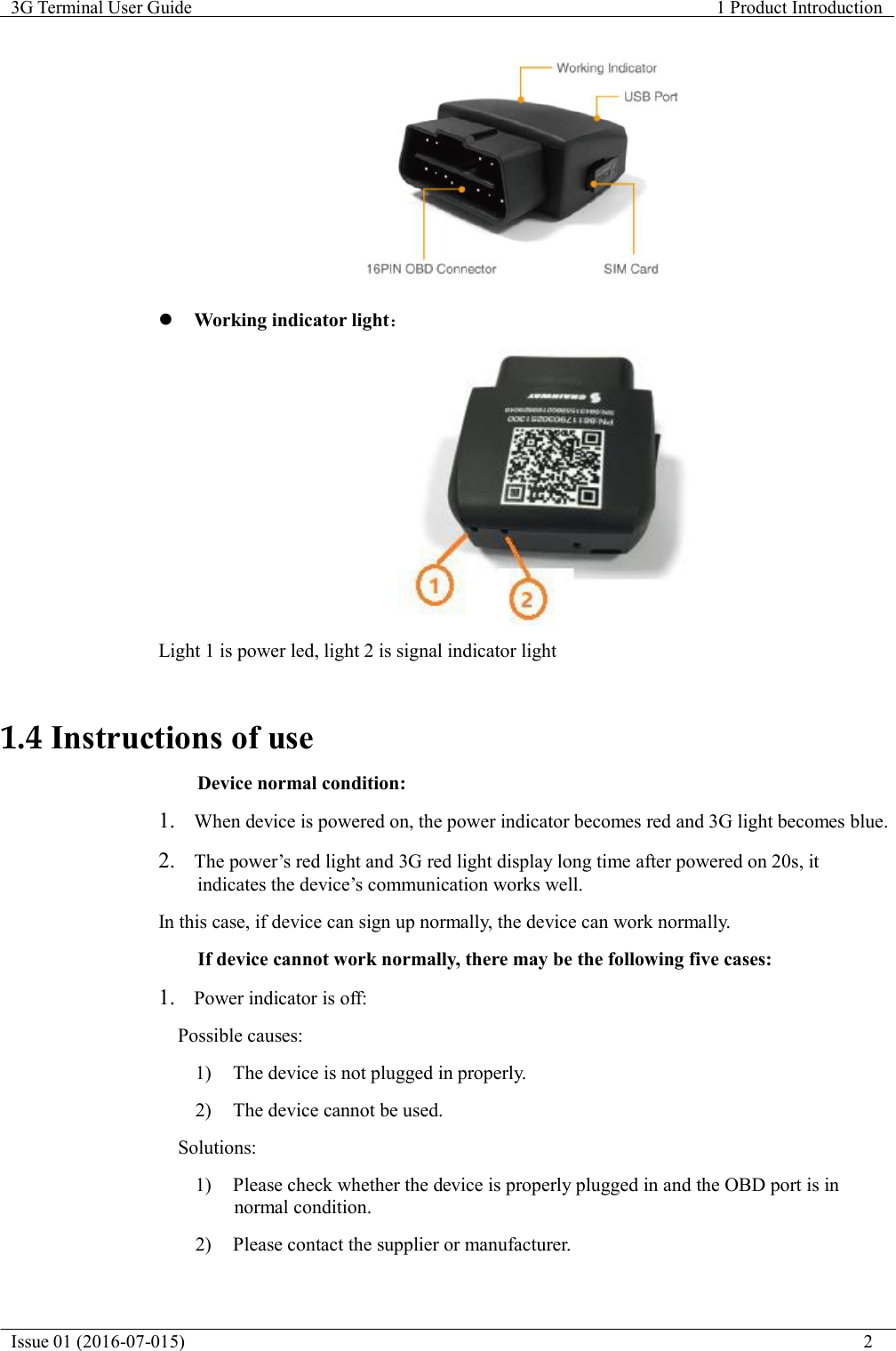
  3G Terminal User Guide  1 Product Introduction  Issue 01 (2016-07-015)                                                                           1               1 Product Introduction    1.1 Product Overview  CW-601-3G is a type of powerful and small-sized plug-and-play satellite-positioning tracker with OBDII port. It uses SIM card, and support 3G function, WCDMA and Wifi hotpot. GPS, A-GPS, GPRS, SMS, TCP, UDP and OTA can be supported in this product. It adapts advanced power management solution, and supports low power consumption and auto-sleep, so it can continue working for some time even if disconnected from automotive power.  It supports various automotive data communication protocol, therefore, it can be used for many vehicle types. Because of simple and easy installation, user can save much time and cost compared to traditional vehicle GPS monitoring device. Terminal has been used widely in logistic, enterprise fleet, insurance, passenger transport, automotive mortgage and rental, 4S dealers and automotive manufacturers etc.    1.2 Product Features  Specification Value Dimension 58 mm*46 mm*22mm Rated Voltage 12VTemperature -20℃-55℃Humidity 5%~95%   1.3 Appearance characteristics  16PIN connector:connect to OBDII port of vehicle
  3G Terminal User Guide  1 Product Introduction  Issue 01 (2016-07-015)                                                                                                                           2      Working indicator light:    Light 1 is power led, light 2 is signal indicator light    1.4 Instructions of use  Device normal condition:  1.  When device is powered on, the power indicator becomes red and 3G light becomes blue.  2.  The power’s red light and 3G red light display long time after powered on 20s, it indicates the device’s communication works well.  In this case, if device can sign up normally, the device can work normally.  If device cannot work normally, there may be the following five cases:  1.   Power indicator is off: Possible causes: 1)  The device is not plugged in properly.  2)  The device cannot be used. Solutions: 1)  Please check whether the device is properly plugged in and the OBD port is in normal condition.  2)  Please contact the supplier or manufacturer.
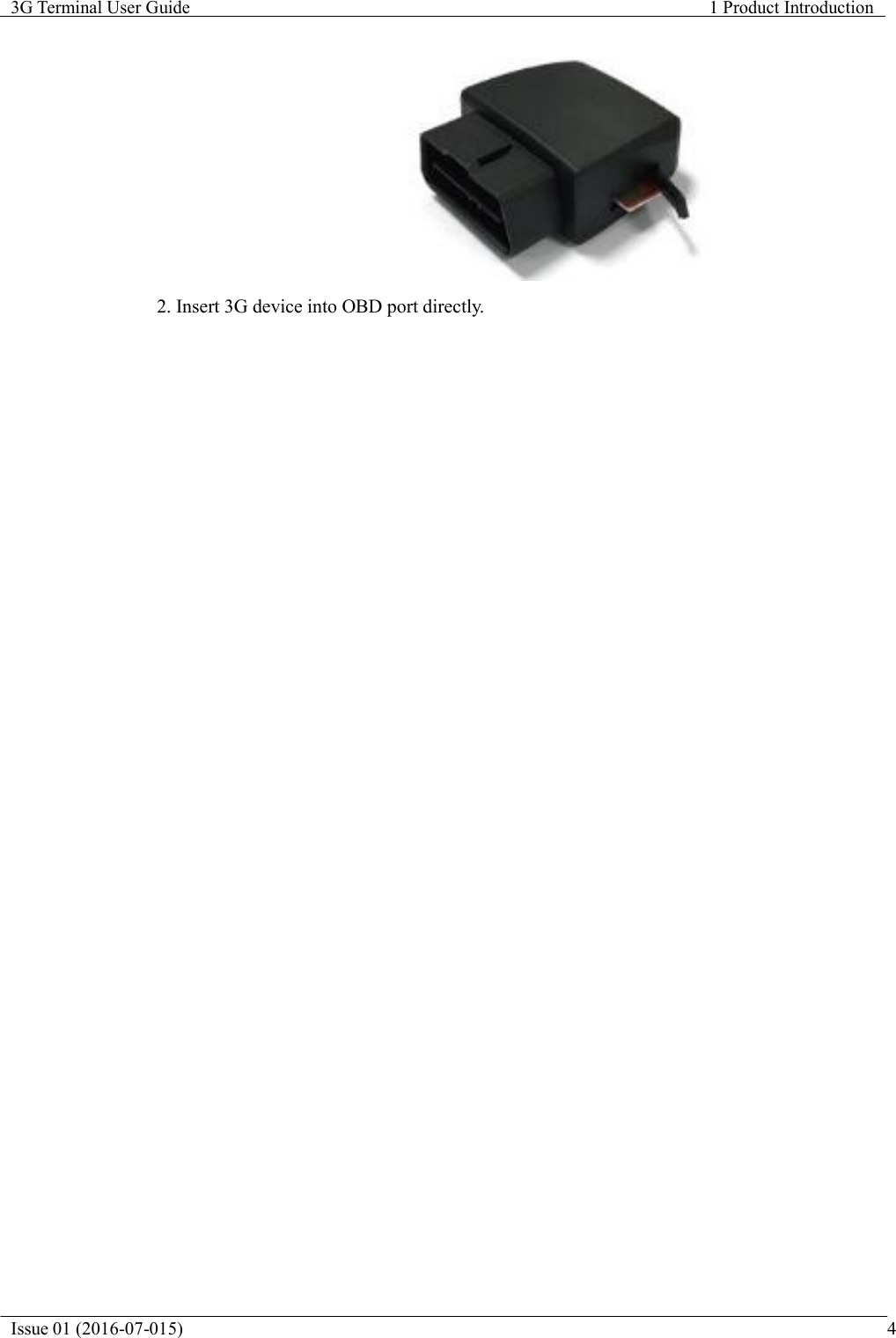
  3G Terminal User Guide  1 Product Introduction  Issue 01 (2016-07-015)                                                                                                                         3   2.  The power indicator is red, and the 3G indicator light is off.  Possible causes: Device sleeps. Solution: Please wake up the device. 3.  The power indicator is red, and the 3G indicator light flashes.  Possible causes:  1)  Poor communication of device  2) Device APN configuration is incorrect. Solutions: 1)  Please choose a well communicated place to use the device.  2)  Please check if the APN setting is normal.  4.  The power indicator is red, and the 3G indicator light is red and blue.  Possible causes:  1)  Poor communication of device  2)  Device cannot identify the SIM card.  3)  SIM card arrears. Solutions: 1)  Please choose a well communicated place to use the device.  2)  Please check whether the SIM card is properly plugged in and right installation.  3)  Please check SIM card arrears by accessing to Internet through device’s Wifi.  5.  Power light red and 3G indicator light red, and the platform and APP can not display normally.  Possible causes:  1)  The device platform is not registered;  2)  SIM card arrears. Solutions: 1)  Please check whether the device is registered normally.  2)  Please check SIM card arrears by accessing to Internet through device’s Wifi. Note: The above time is related to the local network, please use the actual time.   1.5 Device Installation  1.Insert the SIM Card in to the 3G device.
  3G Terminal User Guide  1 Product Introduction  Issue 01 (2016-07-015)                                                                                                                                4     2. Insert 3G device into OBD port directly.
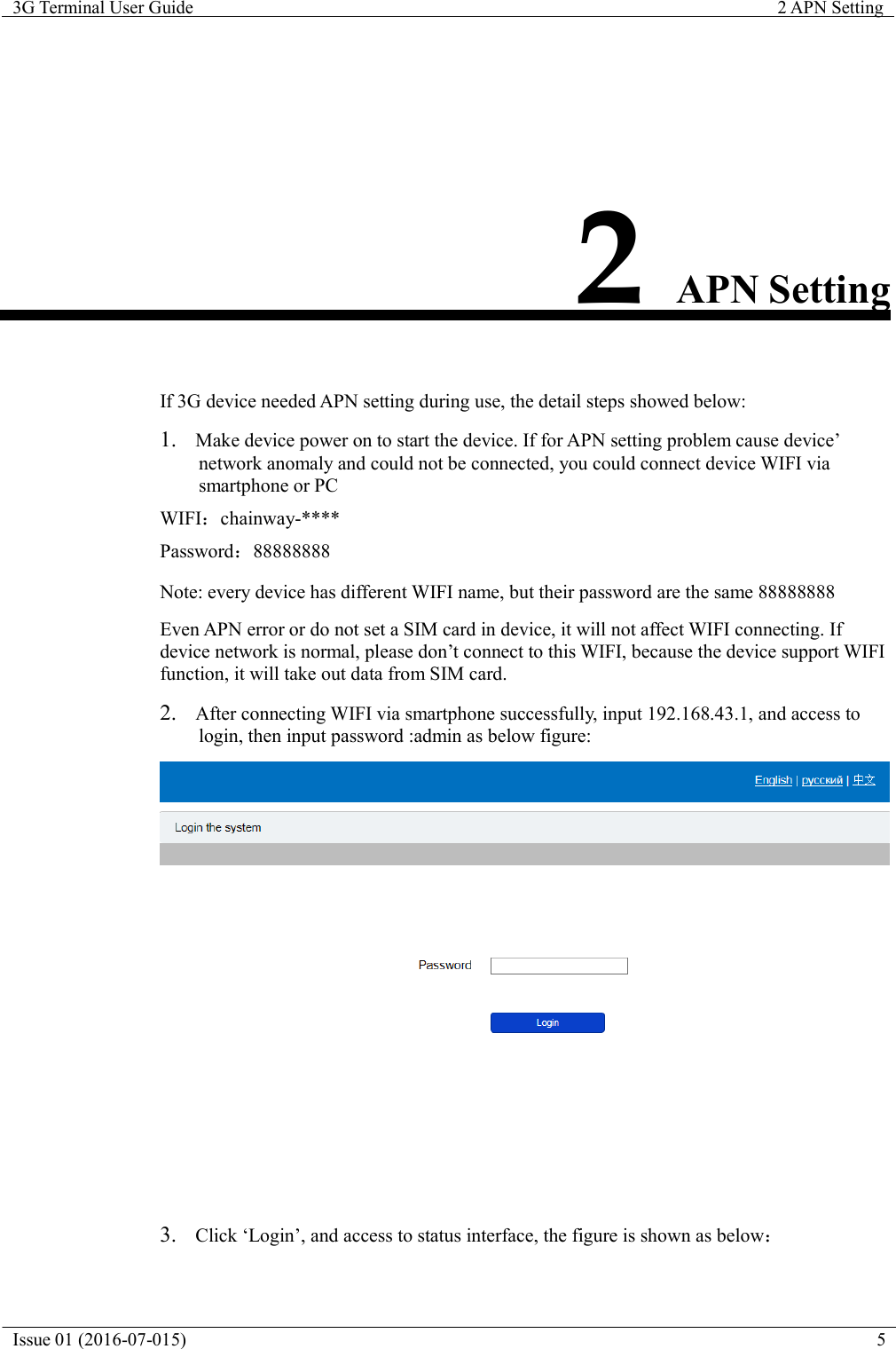
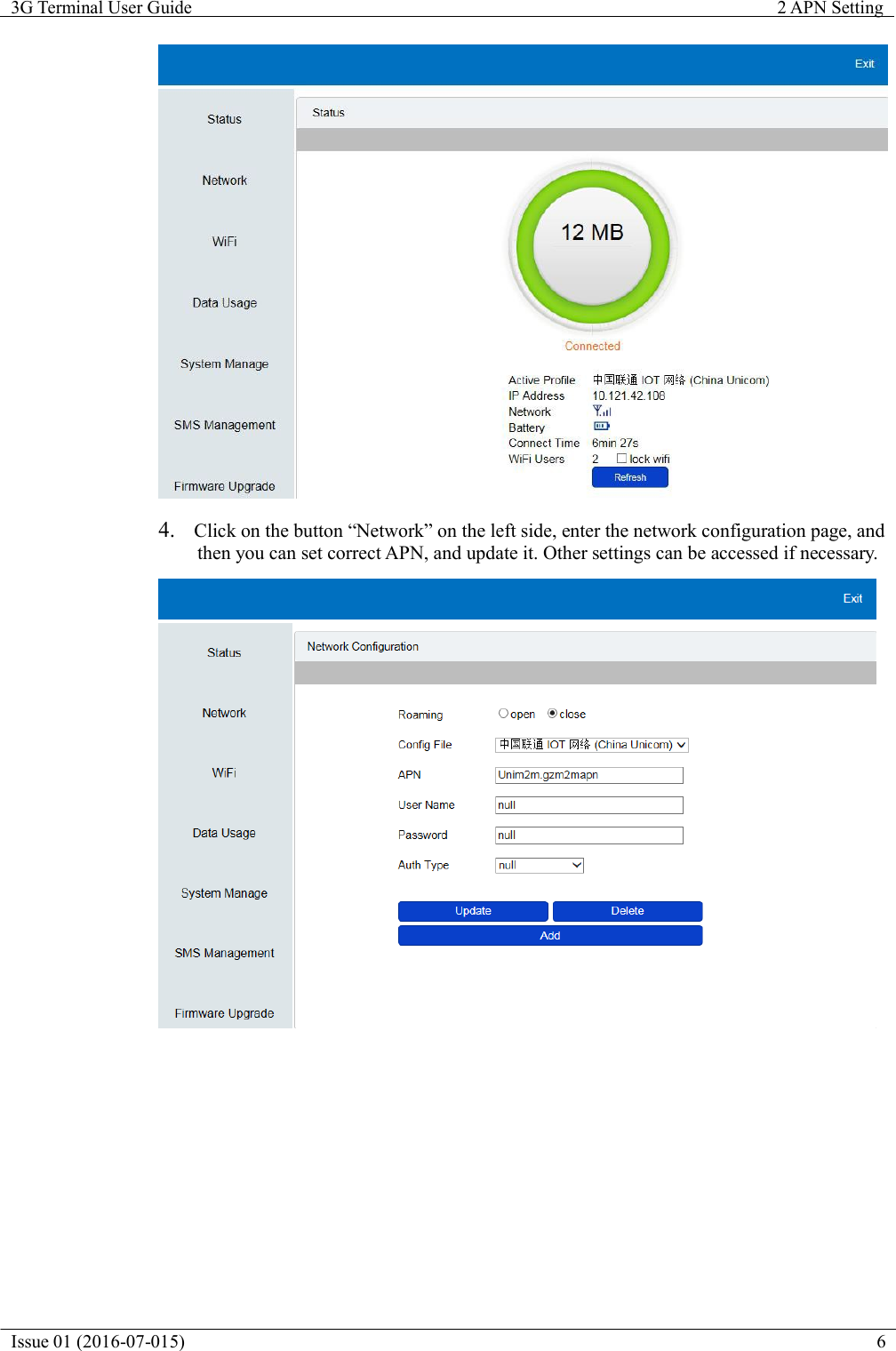
  3G Terminal User Guide  2 APN Setting  Issue 01 (2016-07-015)  5               2 APN Setting    If 3G device needed APN setting during use, the detail steps showed below:  1.  Make device power on to start the device. If for APN setting problem cause device’ network anomaly and could not be connected, you could connect device WIFI via smartphone or PC WIFI:chainway-**** Password:88888888 Note: every device has different WIFI name, but their password are the same 88888888  Even APN error or do not set a SIM card in device, it will not affect WIFI connecting. If device network is normal, please don’t connect to this WIFI, because the device support WIFI function, it will take out data from SIM card.  2.  After connecting WIFI via smartphone successfully, input 192.168.43.1, and access to login, then input password :admin as below figure:   3.  Click ‘Login’, and access to status interface, the figure is shown as below:
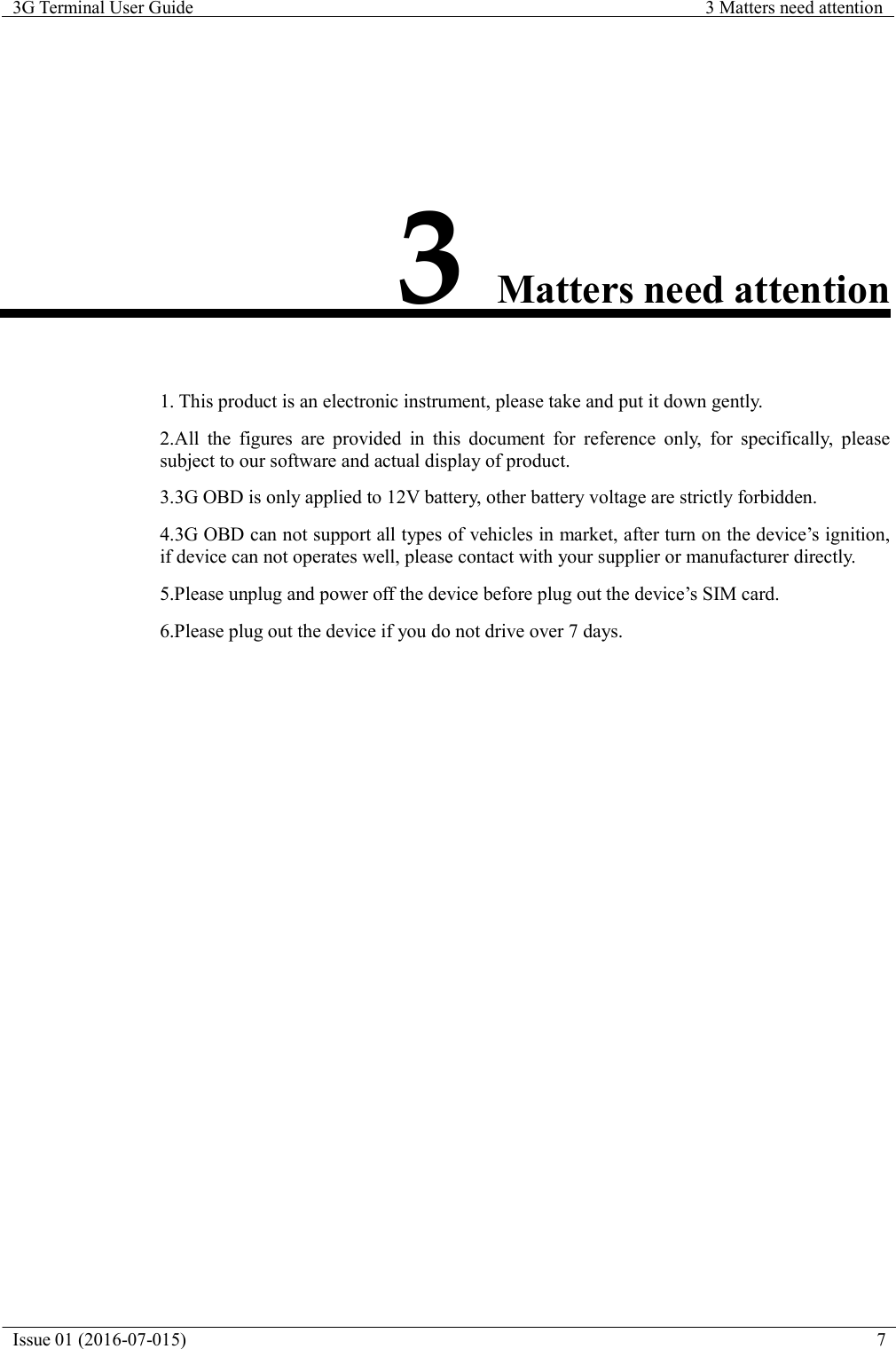
  3G Terminal User Guide  2 APN Setting  Issue 01 (2016-07-015)  6     4.  Click on the button “Network” on the left side, enter the network configuration page, and then you can set correct APN, and update it. Other settings can be accessed if necessary.
Issue 01 (2016-07-015)  7  3G Terminal User Guide  3 Matters need attention                 3 Matters need attention    1. This product is an electronic instrument, please take and put it down gently.  2.All the figures are provided in this document for reference only, for specifically, please subject to our software and actual display of product.  3.3G OBD is only applied to 12V battery, other battery voltage are strictly forbidden.  4.3G OBD can not support all types of vehicles in market, after turn on the device’s ignition, if device can not operates well, please contact with your supplier or manufacturer directly.  5.Please unplug and power off the device before plug out the device’s SIM card.  6.Please plug out the device if you do not drive over 7 days.
Issue 01 (2016-07-015)  8  3G Terminal User Guide  3 Matters need attention      4 FCC Caution                  This device complies with part 15 of the FCC Rules. Operation is subject to the following two conditions: (1) This device may not cause harmful interference, and (2) this device must accept any interference received, including interference that may cause undesired operation.  Note: This equipment has been tested and found to comply with the limits for a Class B digital device, pursuant to part 15 of the FCC Rules. These limits are designed to provide reasonable protection against harmful interference in a residential installation. This equipment generates uses and can radiate radio frequency energy and, if not installed and used in accordance with the instructions, may cause harmful interference to radio communications. However, there is no guarantee that interference will not occur in a particular installation. If this equipment does cause harmful interference to radio or television reception, which can be determined by turning the equipment off and on, the user is encouraged to try to correct the interference by one or more of the following measures: -Reorient or relocate the receiving antenna. -Increase the separation between the equipment and receiver. -Connect the equipment into an outlet on a circuit different from that to which the receiver is connected. -Consult the dealer or an experienced radio/TV technician for help.  Any Changes or modifications not expressly approved by the party responsible for compliance could void the user's authority to operate the equipment.  This equipment complies with FCC radiation exposure limits set forth for an uncontrolled environment. This equipment should be installed and operated withminimum  distance 20cm between the radiator & your body.

Navigation menu