Chester Creek Technologies KBBT3023 BigBlu KinderBoard User Manual 01
Chester Creek Technologies, Inc. BigBlu KinderBoard 01
Manual

User's
User's
User's
User's Manual
Manual
Manual
Manual
BigBlu
BigBlu
BigBlu
BigBlu VisionBoard
VisionBoard
VisionBoard
VisionBoard /
/
/
/ BigBlu
BigBlu
BigBlu
BigBlu KinderBoard
KinderBoard
KinderBoard
KinderBoard
To
use this device properly, please read this manual before installation.
System
System
System
System requirements:
requirements:
requirements:
requirements:
PC running Windows 2000/XP/VISTA/7/8
Will operate on an Apple computer running OS 10 or newer
Bluetooth:
Bluetooth:
Bluetooth:
Bluetooth:
�Bluetooth 3.0+EDR compliant
�Bluetooth compatible with V3.0, V2.1, V2.0, V1.2, V1.1 standard
�Operation scope <10 meters
�Bluetooth profile support : HID
HID
HID
HID
�Frequency range: 2.401-2.408 GHz (2.4GHz ISM segment)
�Power consumption: working : 5mA , standby : 0.03mA
Additional
Additional
Additional
Additional information:
information:
information:
information:
1. Operational distance can be affected by the work environment.
2. Typical usagewill provide you with 60 – 90 days of battery life. The
batteries willhave a longer or shorter life depending on your keyboard use.
3. If the keyboard stops functioning, replace the batteries.
4. Dispose of batteries properly.
This device complies with part 15 of the FCC rules.
Operation is subject to the following two conditions: (1) This device may not
cause harmful interference and (2) This device must accept any interference
received including interference that may cause undesired operation.
Chester Creek Technologies, Inc.
Arrowhead Place
205 West 2nd Street, Suite 130
Duluth, MN 55802
218-722-1837
www.chestercreek.com
FCC Caution:
Changes or modifications not expressly approved by the part responsible
for compliance could void the user's authority to operate the equipment.
Installing
Installing
Installing
Installing batteries
batteries
batteries
batteries in
in
in
in the
the
the
the keyboard:
keyboard:
keyboard:
keyboard:
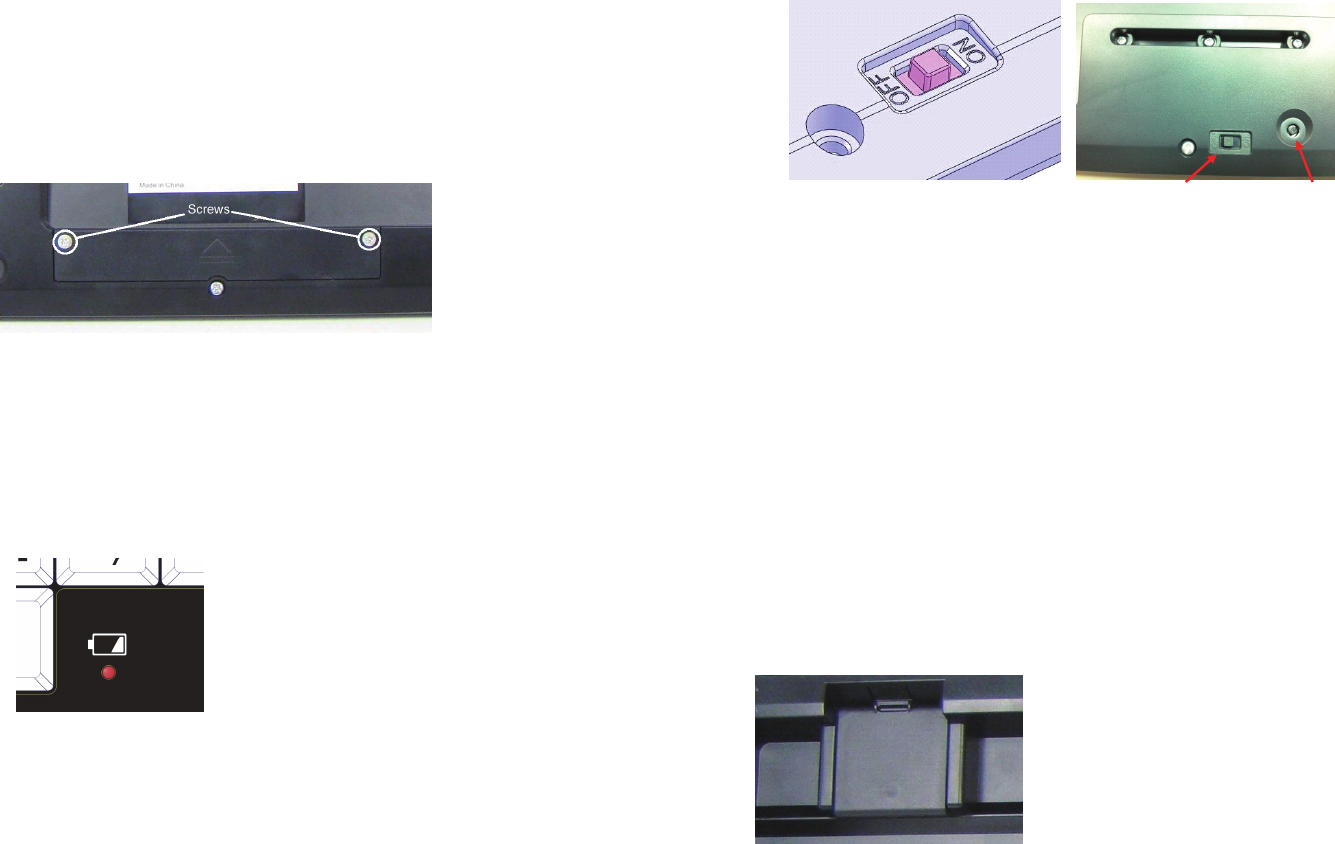
The BigBlu VisionBoard / BigBlu KinderBoard use two AAA size batteries.
For best performance, use alkaline batteries.
1. Remove the two phillips-head retaining screws and set aside.
2. Remove the battery compartment cover by sliding it in the direction
indicated by the arrow.
3. Insert two newAAA sized batteries. Correct battery placement is
indicated in the battery compartment.
4. After the batteries are installed, carefully replace the battery cover and
secure in place with the two screws.
Low
Low
Low
Low battery
battery
battery
battery alert:
alert:
alert:
alert:
When the indicator lightnext to the space barbegins to flash (Red light), it is
time to replace the keyboard's batteries.
Pair
Pair
Pair
Pair the
the
the
the Bluetooth
Bluetooth
Bluetooth
Bluetooth Keyboard:
Keyboard:
Keyboard:
Keyboard:
1. Turn the power on. The power switch is located underneath the keyboard.
The Blue LEDlightnext to the Space Bar will blink once when you switch
on the keyboard.
2. Press the pair button located next to the power switch to put the keyboard
into “pairing status”. The Blue LEDlight will blink until the keyboard is
paired. If pairing is unsuccessful, the Blue LEDlight will go out after 2
minutes, press the pairing button again to return to “pairing status”.
3. Turn on the Bluetooth service on your iPad, iPhone, Notebook, or other
Bluetooth enabled device (refer to yourdevice user manual). After your
device discovers “
“
“
“KB08-BT”, it will ask you to key-in an authorization
code; the code will be shown on screen. Enter the code using your Chester
Creek Bluetooth keyboard.
4. The Blue LEDlight will stop blinking after completing the pairing procedure.
5. Your Chester Creek Bluetooth Keyboard is now ready to use.
Pairing
Pairing
Pairing
Pairing with
with
with
with another
another
another
another device:
device:
device:
device:
�Disconnect from the current Bluetooth device (refer to yourdevice user
manual).
�
To
connect to another iPad/iPhone/Notebook , follow the instructions
above.
Adjusting
Adjusting
Adjusting
Adjusting the
the
the
the angle
angle
angle
angle of
of
of
of your
your
your
your keyboard:
keyboard:
keyboard:
keyboard:
There are two feet on the bottom of the keyboard that can be flipped up or
down to give you the most comfortable position for keyboard use.
Power Switch Pair Button
Power Switch detail