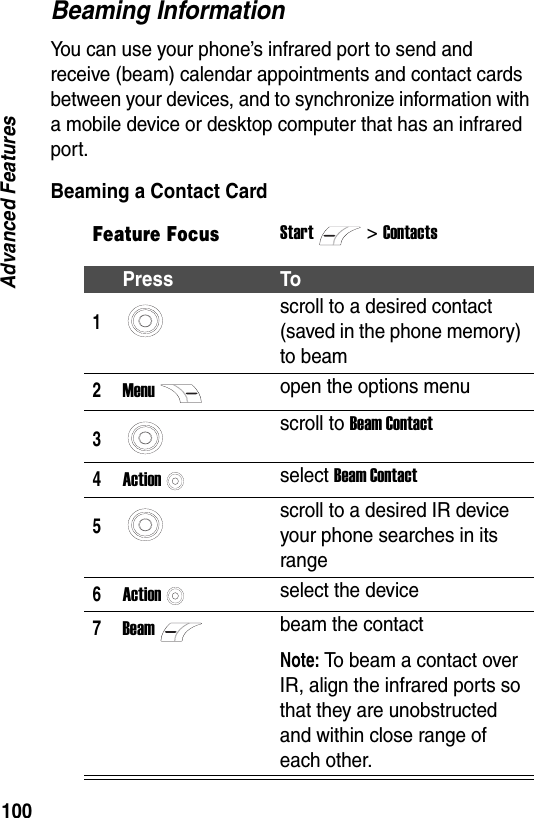
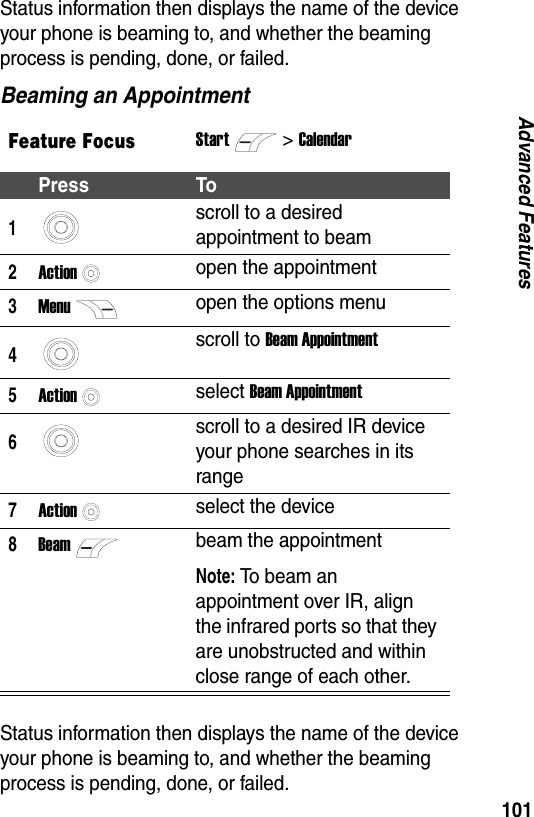
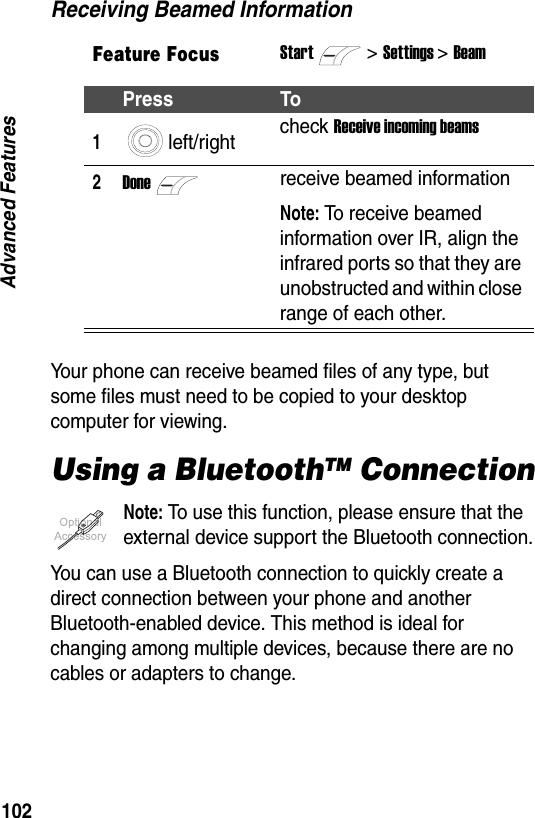
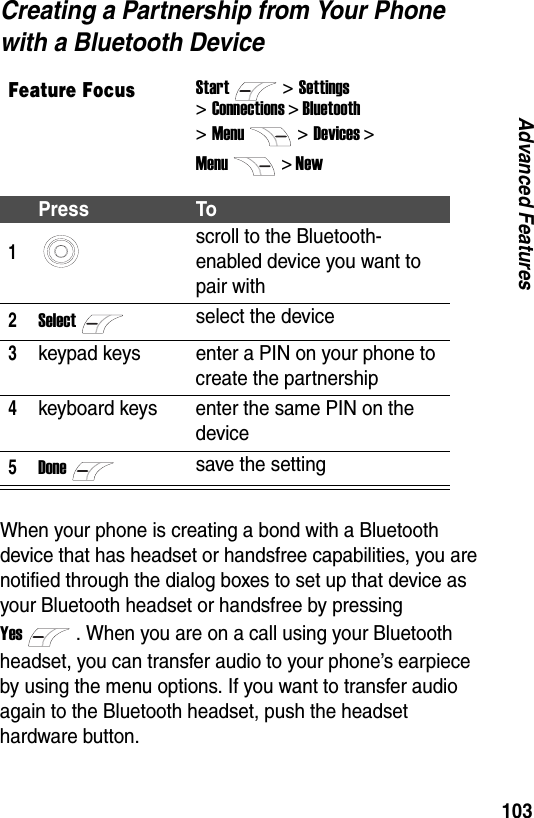
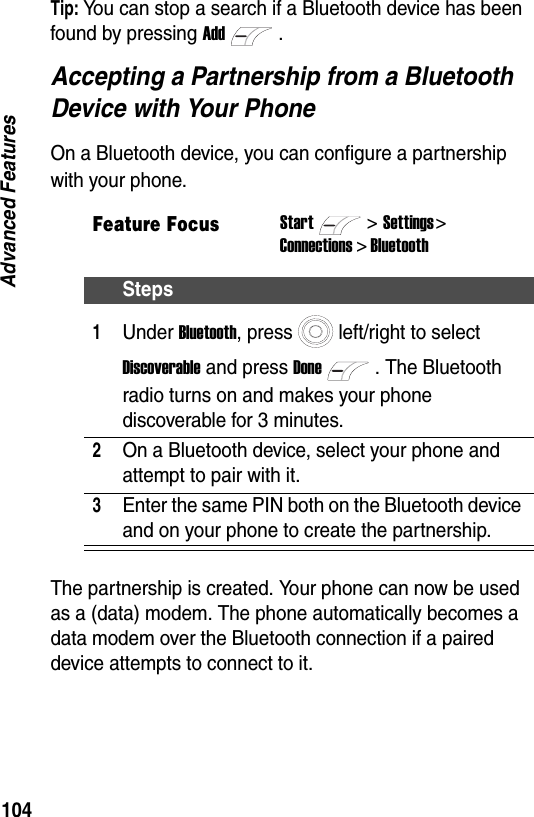
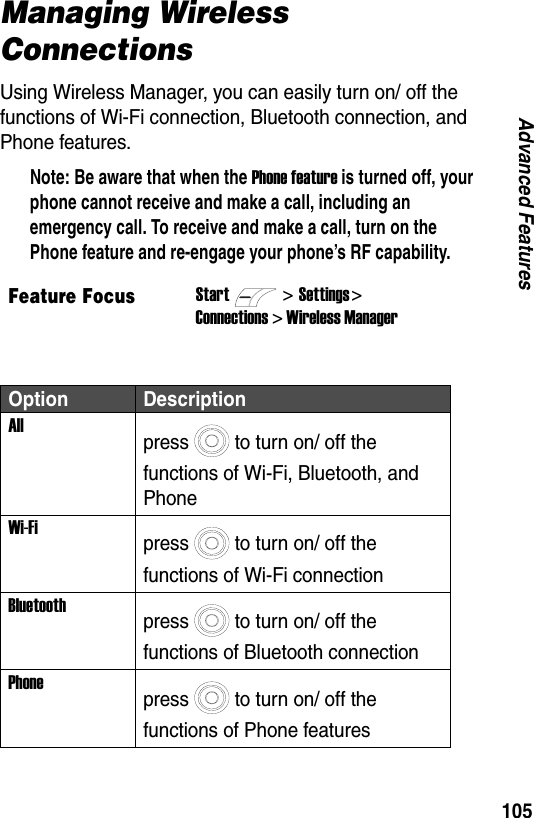
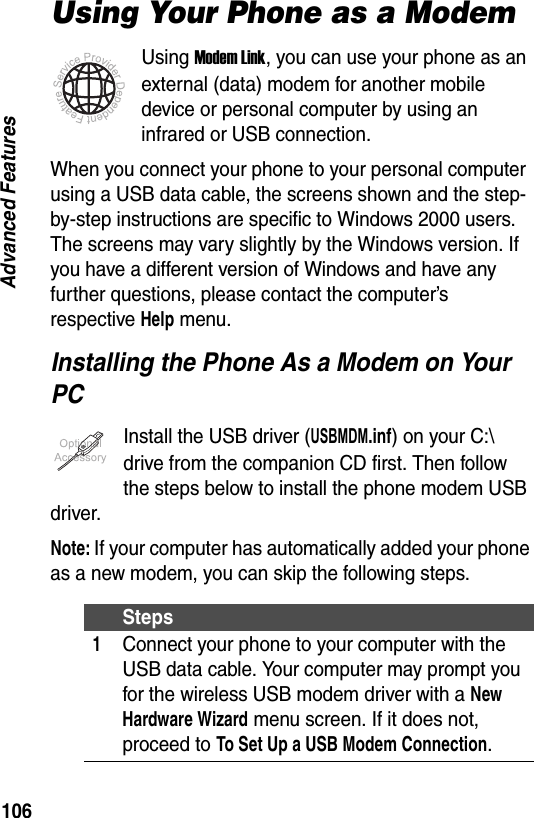
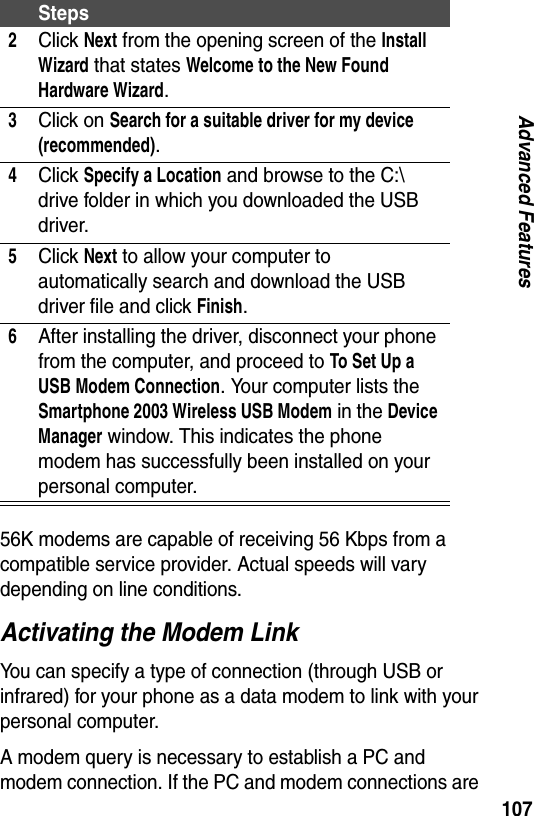
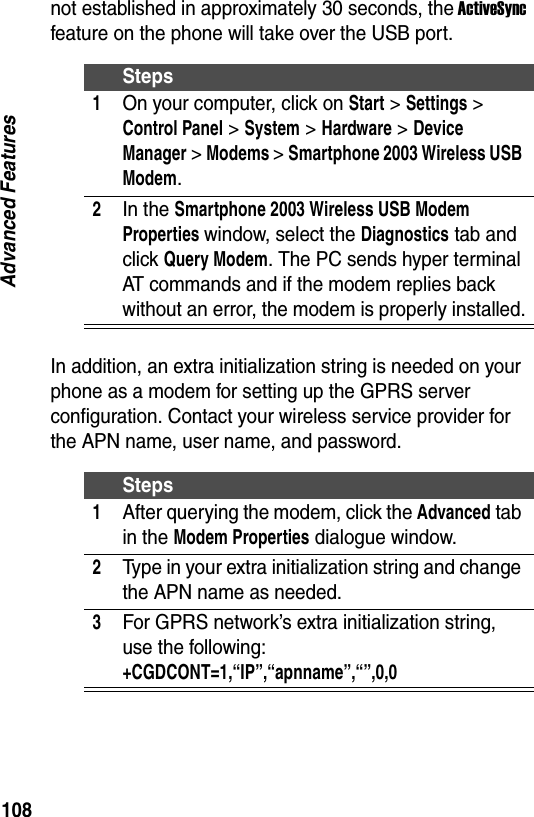
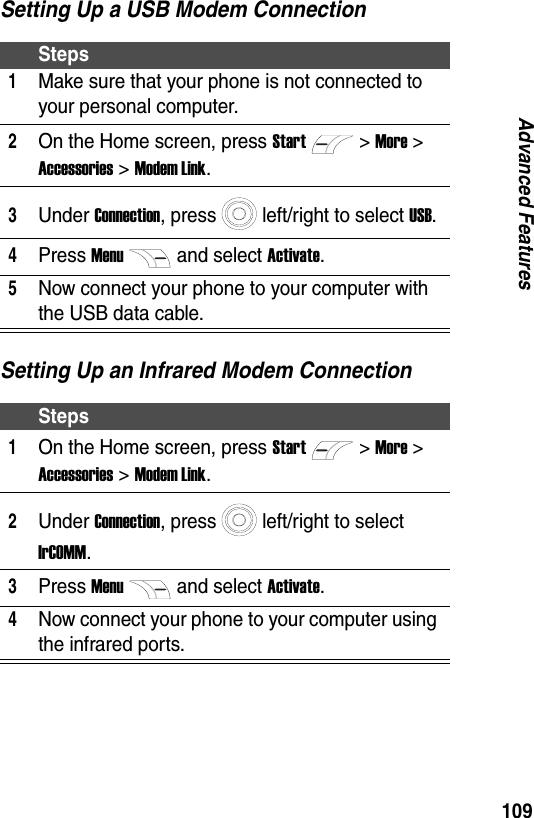
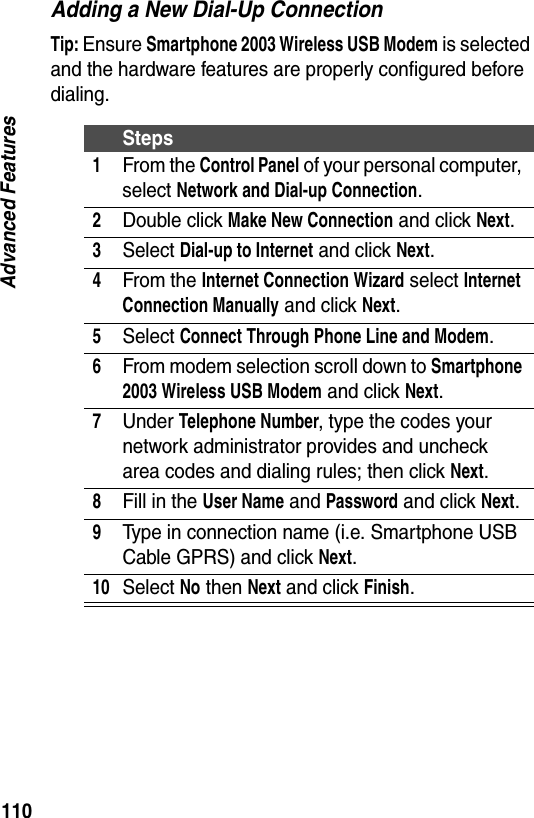
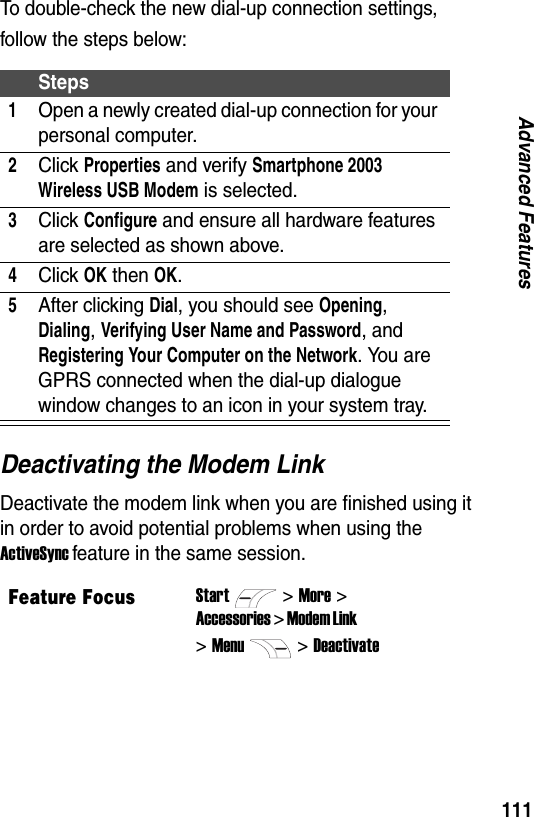
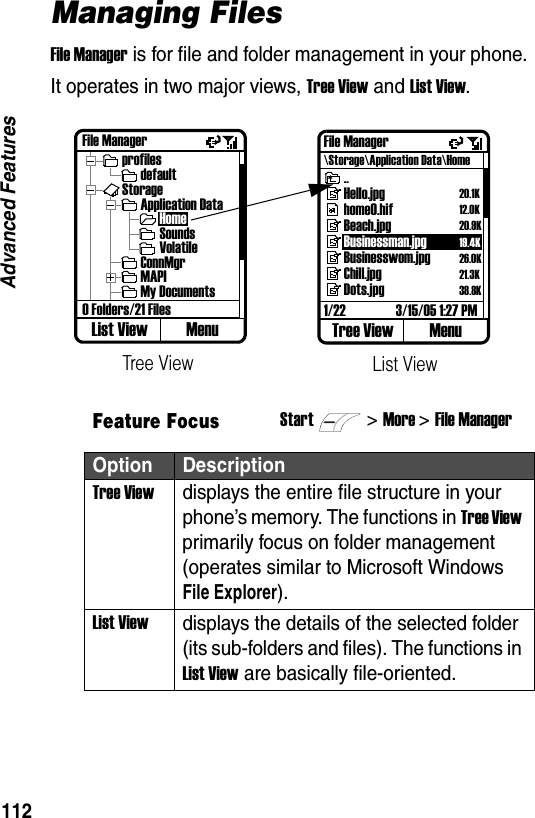
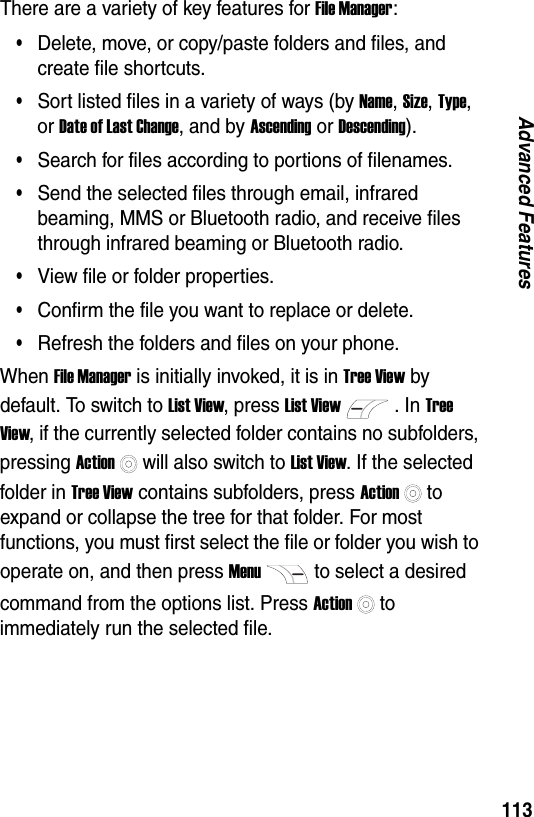
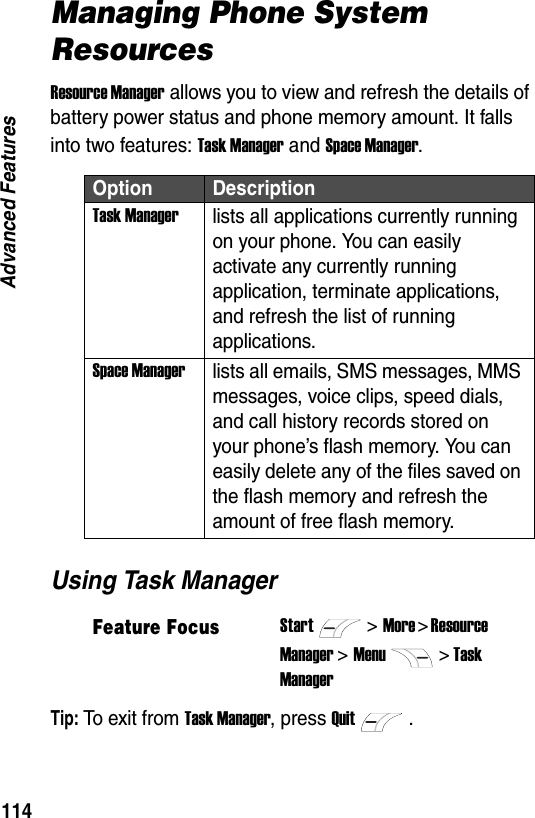
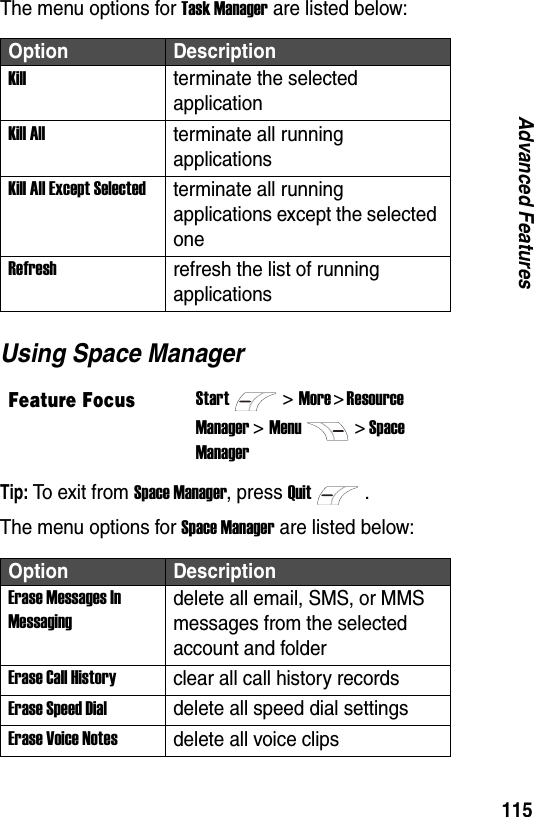
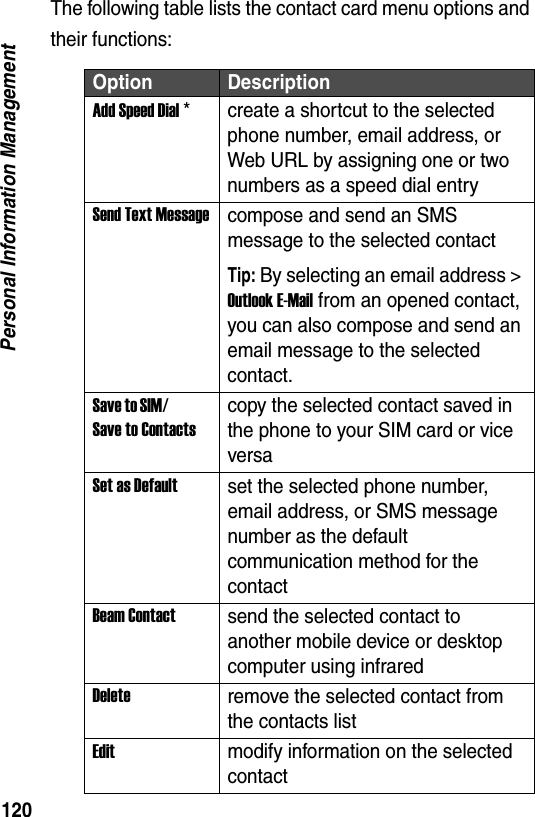
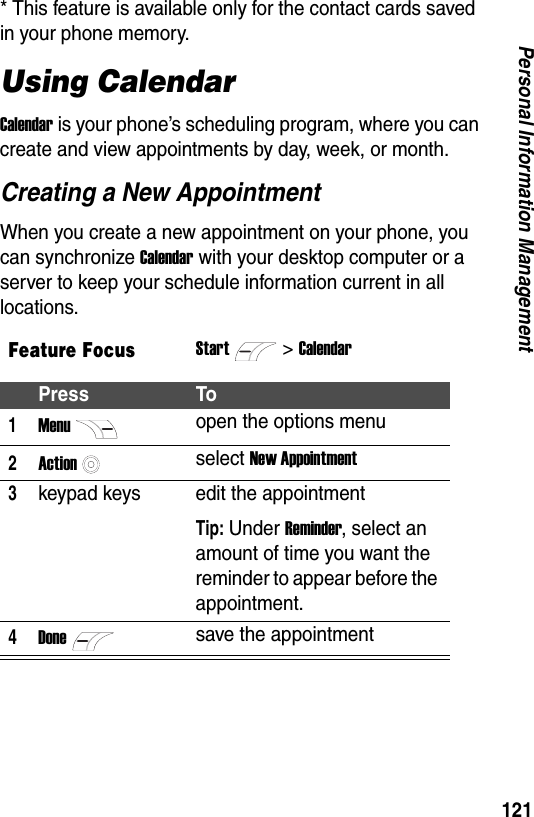
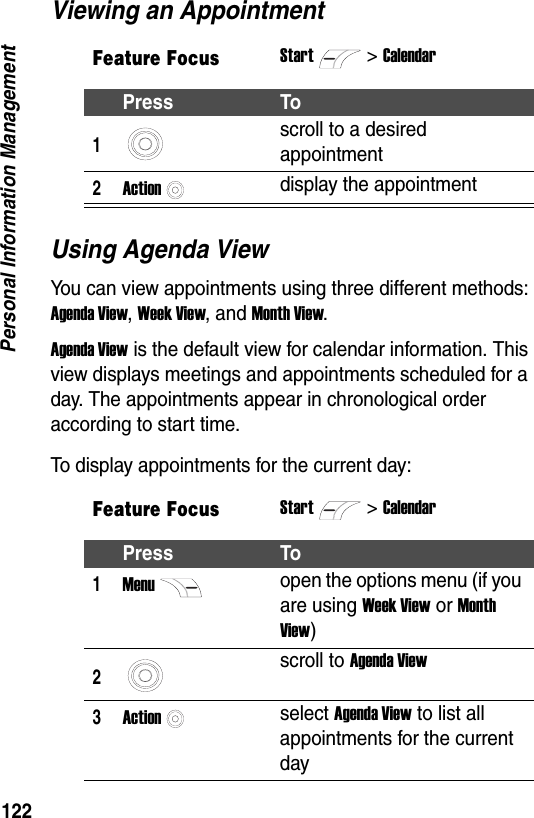
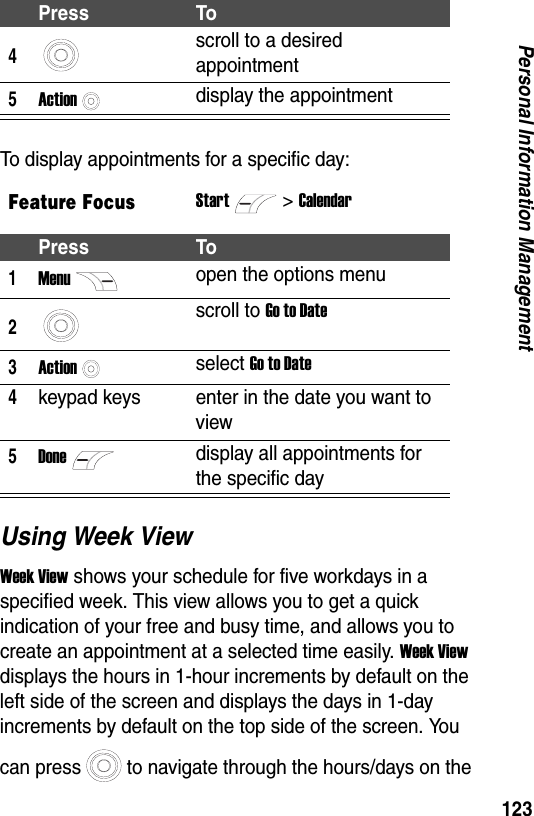
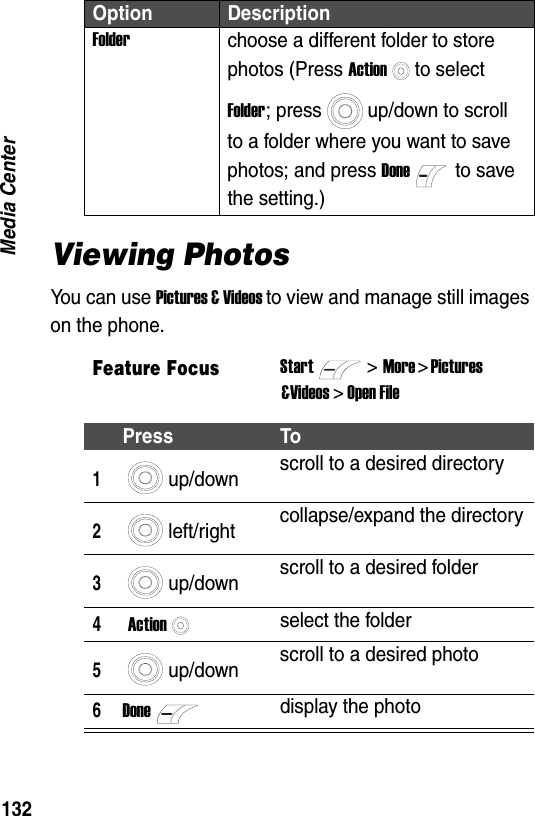
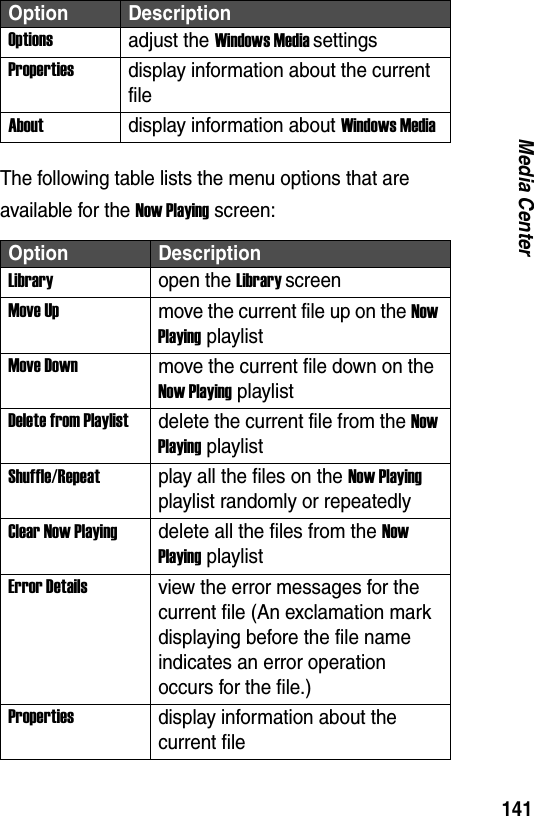
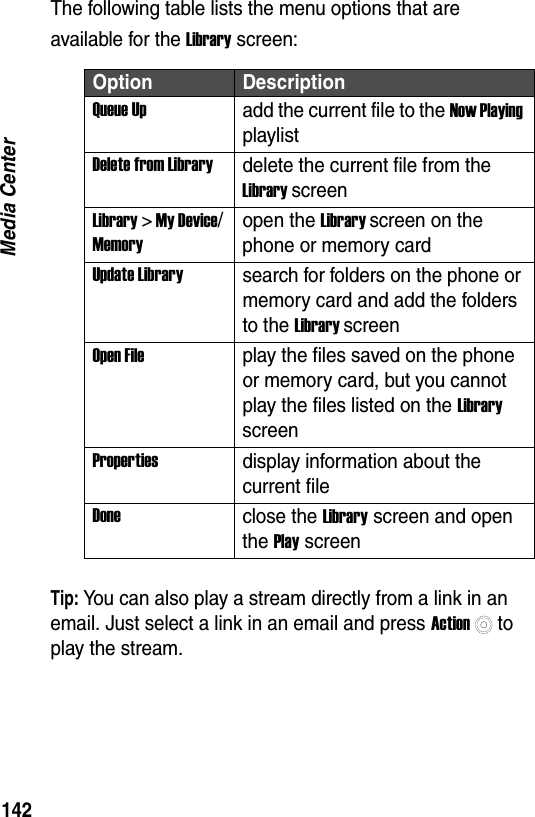
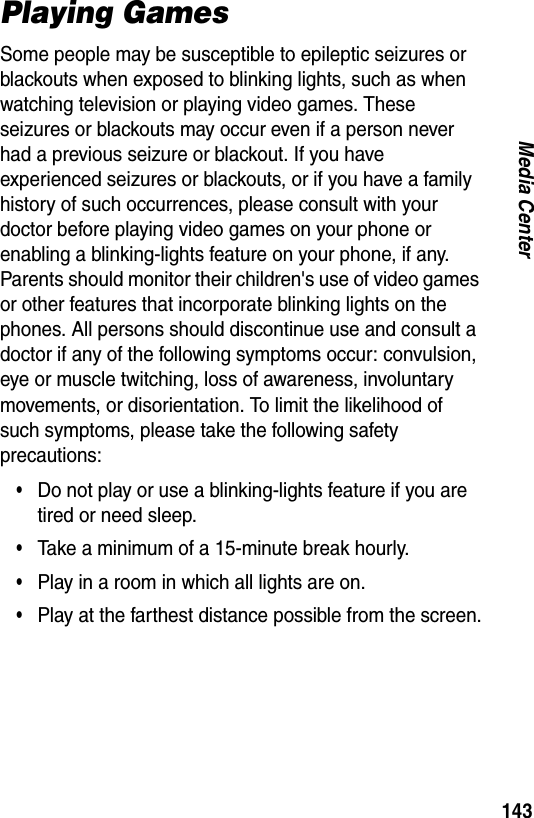
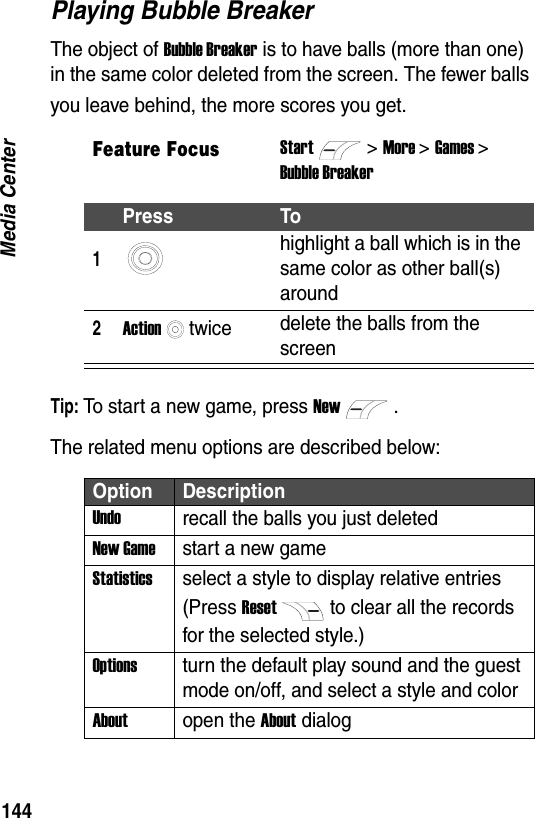
Chi Mei Communication Systems 0602DBS01 Smart Phone User Manual Debussy

Chi Mei Communication Systems, Inc. Smart Phone Debussy

Contents

Manual

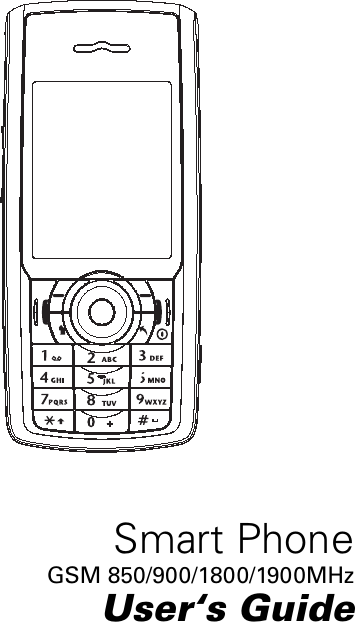
Smart PhoneGSM 850/900/1800/1900MHzUser‘s Guide
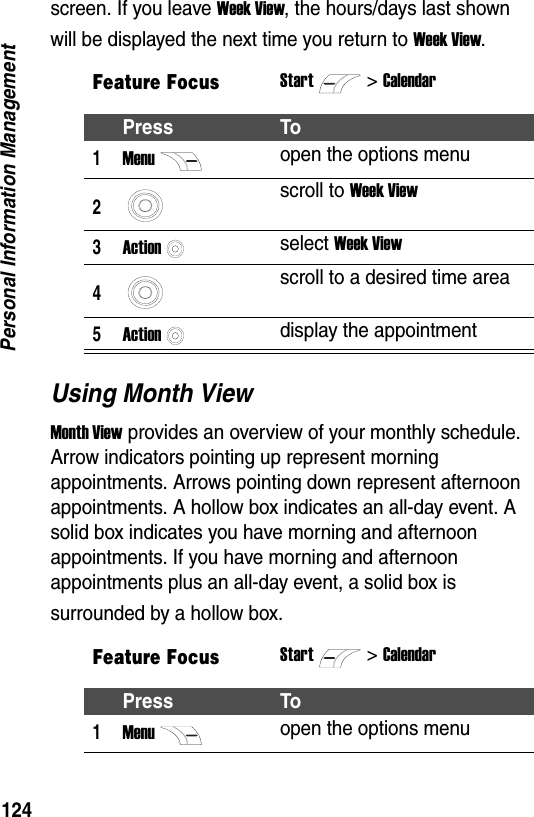
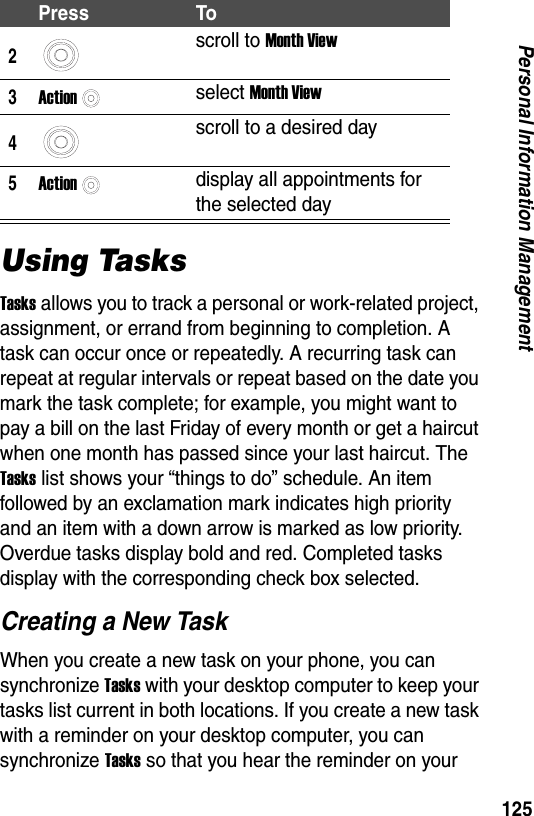
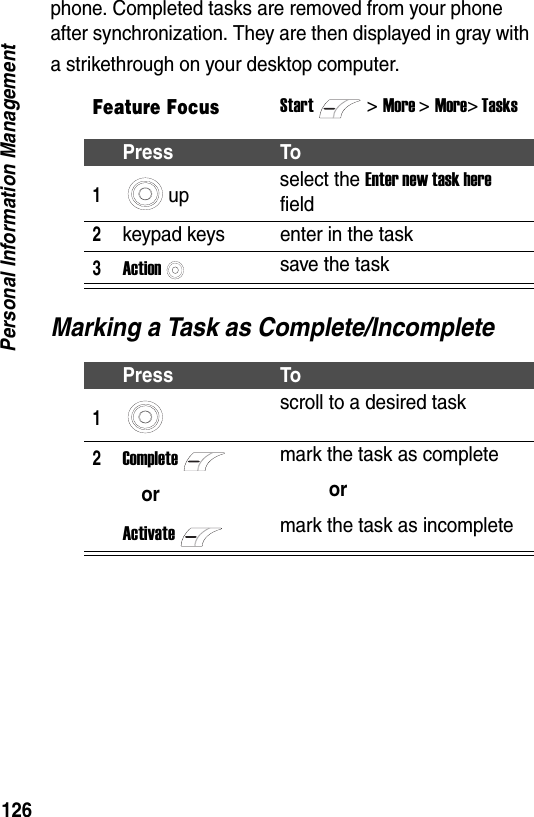
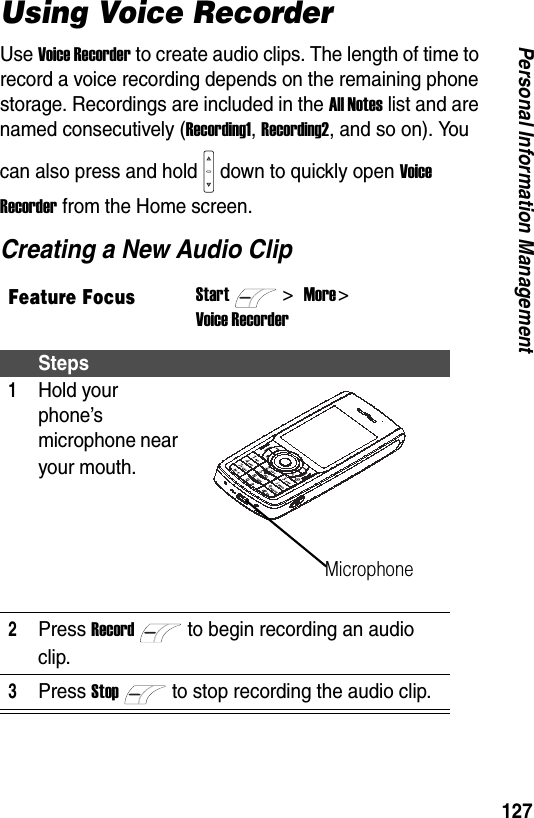
 ContentsPhone Overview . . . . . . . . . . . . . . . . . . . . . . . . . . . . . . . . . 1Menu Options . . . . . . . . . . . . . . . . . . . . . . . . . . . . . . . . . . . 3Important Safety Precautions . . . . . . . . . . . . . . . . . . . . . . 5Getting Started . . . . . . . . . . . . . . . . . . . . . . . . . . . . . . . . . . 9Package Checklist  . . . . . . . . . . . . . . . . . . . . . . . . . . . . . . 9About This Manual . . . . . . . . . . . . . . . . . . . . . . . . . . . . . . 9Installing the SIM Card . . . . . . . . . . . . . . . . . . . . . . . . . . 10Installing the Battery . . . . . . . . . . . . . . . . . . . . . . . . . . . . 11Charging the Battery. . . . . . . . . . . . . . . . . . . . . . . . . . . . 12Battery Usage. . . . . . . . . . . . . . . . . . . . . . . . . . . . . . . . . 13Turning Your Phone On/Off. . . . . . . . . . . . . . . . . . . . . . . 15Adjusting Volume  . . . . . . . . . . . . . . . . . . . . . . . . . . . . . . 15Making a Call  . . . . . . . . . . . . . . . . . . . . . . . . . . . . . . . . . 16Answering a Call. . . . . . . . . . . . . . . . . . . . . . . . . . . . . . . 18Basic Operation . . . . . . . . . . . . . . . . . . . . . . . . . . . . . . . . 19Using the Display . . . . . . . . . . . . . . . . . . . . . . . . . . . . . . 19Using the Home Key . . . . . . . . . . . . . . . . . . . . . . . . . . . . 21Using the 4-Way Navigation Key. . . . . . . . . . . . . . . . . . . 22Using the Action Button  . . . . . . . . . . . . . . . . . . . . . . . . . 23Using the Soft Keys  . . . . . . . . . . . . . . . . . . . . . . . . . . . . 23Using the Back Key. . . . . . . . . . . . . . . . . . . . . . . . . . . . . 24Using Menus. . . . . . . . . . . . . . . . . . . . . . . . . . . . . . . . . . 25Entering Text and Numbers  . . . . . . . . . . . . . . . . . . . . . . 26Viewing Phone Information. . . . . . . . . . . . . . . . . . . . . . . 32Locking and Unlocking the Keypad. . . . . . . . . . . . . . . . . 32Locking and Unlocking Your Phone  . . . . . . . . . . . . . . . . 33Locking and Unlocking Your SIM Card . . . . . . . . . . . . . . 35
 Customizing Your Phone . . . . . . . . . . . . . . . . . . . . . . . .   36Using Phone Settings . . . . . . . . . . . . . . . . . . . . . . . . . .   38Using Sound Settings . . . . . . . . . . . . . . . . . . . . . . . . . .   39Using Profiles  . . . . . . . . . . . . . . . . . . . . . . . . . . . . . . . .   40Changing the Home Screen . . . . . . . . . . . . . . . . . . . . .   44Changing Regional Settings . . . . . . . . . . . . . . . . . . . . .   45Setting Time-Out, Alert Volume, and Search Contacts Text Mode . . . . . . . . . . . . . . . . . . . . . . . . . . . . . . . . . . . . . . .   45Adjusting Date and Time. . . . . . . . . . . . . . . . . . . . . . . .   46Entering Owner Information  . . . . . . . . . . . . . . . . . . . . .   46Configuring Power Management. . . . . . . . . . . . . . . . . .   46Calling Features . . . . . . . . . . . . . . . . . . . . . . . . . . . . . . .   47Redialing a Number  . . . . . . . . . . . . . . . . . . . . . . . . . . .   47Calling a Contacts Entry . . . . . . . . . . . . . . . . . . . . . . . .   47Making a Call from the Call History List  . . . . . . . . . . . .   54Calling a Number in a Message  . . . . . . . . . . . . . . . . . .   56Calling an Emergency Number . . . . . . . . . . . . . . . . . . .   57Calling with Speed Dial . . . . . . . . . . . . . . . . . . . . . . . . .   58Using Voicemail. . . . . . . . . . . . . . . . . . . . . . . . . . . . . . .   59Using Call Waiting. . . . . . . . . . . . . . . . . . . . . . . . . . . . .   59Putting a Call on Hold . . . . . . . . . . . . . . . . . . . . . . . . . .   60Muting a Call . . . . . . . . . . . . . . . . . . . . . . . . . . . . . . . . .   61Using the Handsfree Function. . . . . . . . . . . . . . . . . . . .   61Making a Conference Call. . . . . . . . . . . . . . . . . . . . . . .   62Forwarding Calls . . . . . . . . . . . . . . . . . . . . . . . . . . . . . .   64Barring Calls . . . . . . . . . . . . . . . . . . . . . . . . . . . . . . . . .   64Monitoring Phone Use. . . . . . . . . . . . . . . . . . . . . . . . . .   64Making Data Calls . . . . . . . . . . . . . . . . . . . . . . . . . . . . .   65Messages and Online Chat  . . . . . . . . . . . . . . . . . . . . . .   73Configuring an Email Account. . . . . . . . . . . . . . . . . . . .   80Receiving Email from the Internet. . . . . . . . . . . . . . . . .   82
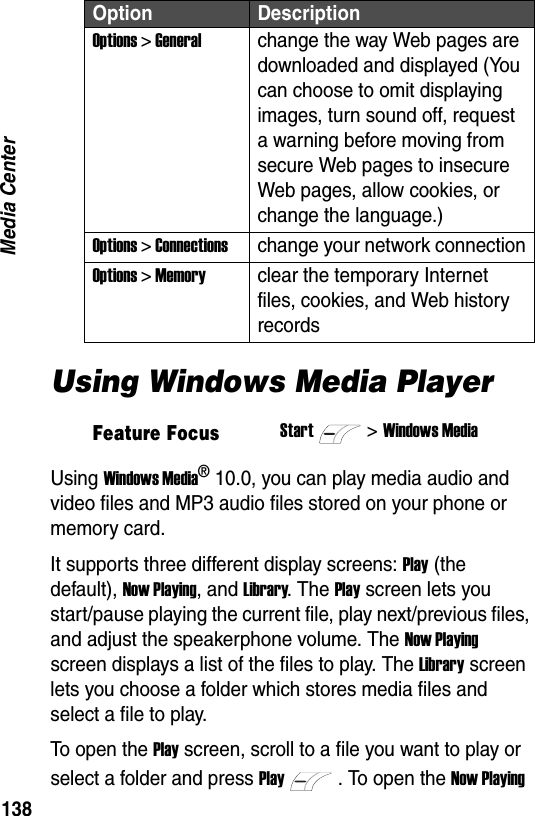
 Composing and Sending an Email or SMS Message. . . 85Viewing Email/SMS Messages . . . . . . . . . . . . . . . . . . . . 89Communicating with MSN® Messenger. . . . . . . . . . . . . 95Advanced Features  . . . . . . . . . . . . . . . . . . . . . . . . . . . . 100Opening Applications with Speed Dial . . . . . . . . . . . . . 100Synchronizing Information among Devices. . . . . . . . . . 104Using a BluetoothTM Connection . . . . . . . . . . . . . . . . . 116Using Your Phone as a Modem  . . . . . . . . . . . . . . . . . . 119Managing Files . . . . . . . . . . . . . . . . . . . . . . . . . . . . . . . 125Managing Phone System Resources . . . . . . . . . . . . . . 127Removing Programs . . . . . . . . . . . . . . . . . . . . . . . . . . . 129Personal Information Management. . . . . . . . . . . . . . . . 130Using the Contacts . . . . . . . . . . . . . . . . . . . . . . . . . . . . 130Using Calendar . . . . . . . . . . . . . . . . . . . . . . . . . . . . . . . 134Using Tasks  . . . . . . . . . . . . . . . . . . . . . . . . . . . . . . . . . 138Using Voice Recorder . . . . . . . . . . . . . . . . . . . . . . . . . . 140Using Calculator . . . . . . . . . . . . . . . . . . . . . . . . . . . . . . 141Media Center. . . . . . . . . . . . . . . . . . . . . . . . . . . . . . . . . . 143Taking Photos . . . . . . . . . . . . . . . . . . . . . . . . . . . . . . . . 143Viewing Photos . . . . . . . . . . . . . . . . . . . . . . . . . . . . . . . 147Creating Picture Folder. . . . . . . . . . . . . . . . . . . . . . . . . 149Playing Video Clips . . . . . . . . . . . . . . . . . . . . . . . . . . . . 152Managing Media Files. . . . . . . . . . . . . . . . . . . . . . . . . . 152Using Internet Explorer®  . . . . . . . . . . . . . . . . . . . . . . . 154Using Windows Media Player . . . . . . . . . . . . . . . . . . . . 157Playing Games . . . . . . . . . . . . . . . . . . . . . . . . . . . . . . . 162Managing Java® . . . . . . . . . . . . . . . . . . . . . . . . . . . . . . 165Q & A . . . . . . . . . . . . . . . . . . . . . . . . . . . . . . . . . . . . . . . . 168Care and Maintenance . . . . . . . . . . . . . . . . . . . . . . . . . . 173Microsoft® End User License Agreement . . . . . . . . . . 176
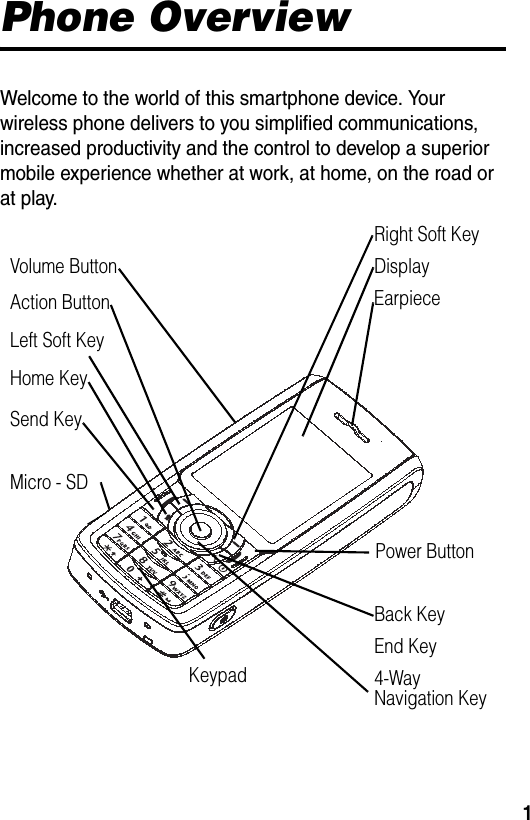
1Phone OverviewWelcome to the world of this smartphone device. Your wireless phone delivers to you simplified communications, increased productivity and the control to develop a superior mobile experience whether at work, at home, on the road or at play.Power ButtonKeypadEarpieceDisplayAction ButtonRight Soft KeyBack KeyEnd KeyVolume ButtonHome KeySend Key4-Way Navigation KeyMicro - SD Left Soft Key
2Company Name  Company Address  Company Phone Number  Company Website (Company Located Country)Product Name is the registered trademark of Company Name Inc. in Company Located Country and other countries. JVM is provided by iaSolution. Java and all other Java-based marks are trademarks or registered trademarks of Sun Microsystems, Inc. in the U.S. and other countries. Bluetooth is the proprietary trademark and licensed to Company Name. Microsoft, Windows, ActiveSync, and Windows Media are the registered trademarks of Microsoft Inc. and Windows XP and Windows Mobile are the trademarks of Microsoft Inc. All other product or service names are the property of their respective owners.© Company Name, Inc. 2005.Software Copyright NoticeThe products described in this manual may include copyrighted Company Name and third-party software stored in semiconductor memories or other media. Laws in Company Located Country and other countries preserve for Company Name and third-party software providers certain exclusive rights for copyrighted software, such as the exclusive rights to distribute or reproduce the copyrighted software. Accordingly, any copyrighted software contained in the products may not be modified, reverse-engineered, distributed, or reproduced in any manner to the extent allowed by law. Furthermore, the purchase of the products shall not be deemed to grant either directly or by implication, estoppel, or otherwise, any license under the copyrights, patents, or patent applications of Company Name or any third-party software provider, except for the normal, non-exclusive, royalty-free license to use that arises by operation of law in the sale of a product.
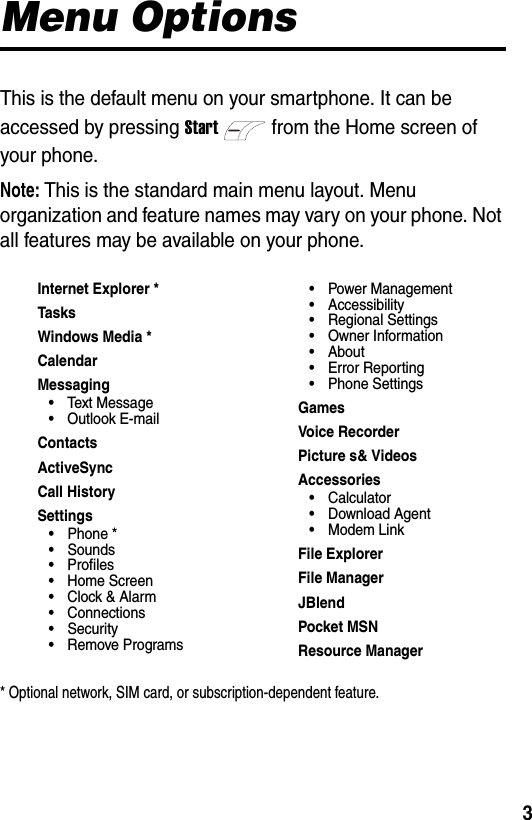
3Menu OptionsThis is the default menu on your smartphone. It can be accessed by pressing Startfrom the Home screen of your phone.Note: This is the standard main menu layout. Menu organization and feature names may vary on your phone. Not all features may be available on your phone.* Optional network, SIM card, or subscription-dependent feature.Internet Explorer *TasksWindows Media *CalendarMessaging• Text Message• Outlook E-mailContactsActiveSyncCall HistorySettings• Phone *• Sounds• Profiles• Home Screen• Clock & Alarm• Connections• Security• Remove Programs• Power Management• Accessibility• Regional Settings•Owner Information• About• Error Reporting• Phone SettingsGamesVoice RecorderPicture s& VideosAccessories•Calculator• Download Agent• Modem LinkFile ExplorerFile ManagerJBlendPocket MSNResource Manager
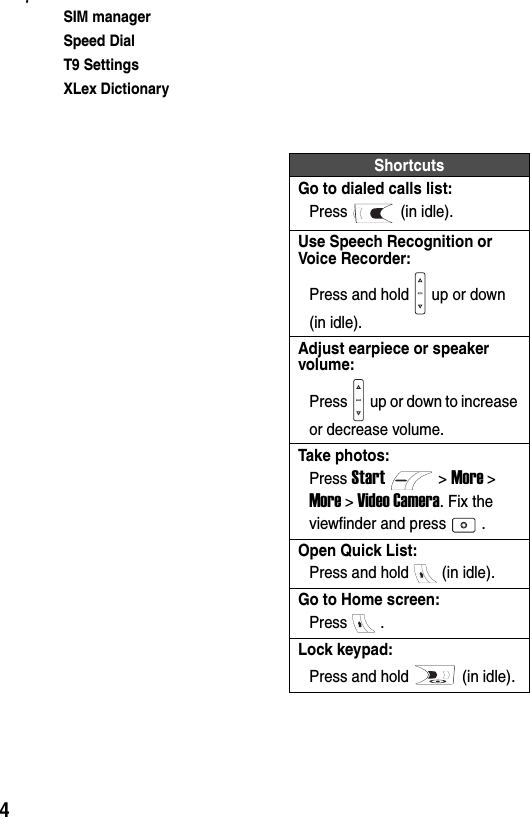
4#SIM managerSpeed DialT9 SettingsXLex DictionaryShortcutsGo to dialed calls list:Press (in idle).Use Speech Recognition or Voice Recorder:Press and hold up or down (in idle).Adjust earpiece or speaker volume:Press up or down to increase or decrease volume.Take photos:Press Start> More > More > Video Camera. Fix the viewfinder and press .Open Quick List:Press and hold (in idle).Go to Home screen:Press .Lock keypad:Press and hold (in idle).
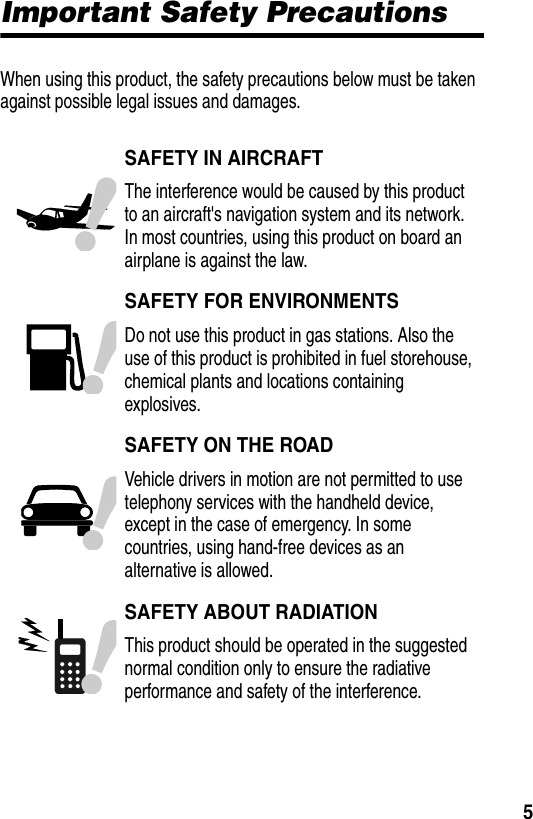
 5Important Safety PrecautionsWhen using this product, the safety precautions below must be taken against possible legal issues and damages.SAFETY IN AIRCRAFTThe interference would be caused by this product to an aircraft's navigation system and its network. In most countries, using this product on board an airplane is against the law.SAFETY FOR ENVIRONMENTSDo not use this product in gas stations. Also the use of this product is prohibited in fuel storehouse, chemical plants and locations containing explosives.SAFETY ON THE ROADVehicle drivers in motion are not permitted to use telephony services with the handheld device, except in the case of emergency. In some countries, using hand-free devices as an alternative is allowed.SAFETY ABOUT RADIATIONThis product should be operated in the suggested normal condition only to ensure the radiative performance and safety of the interference.
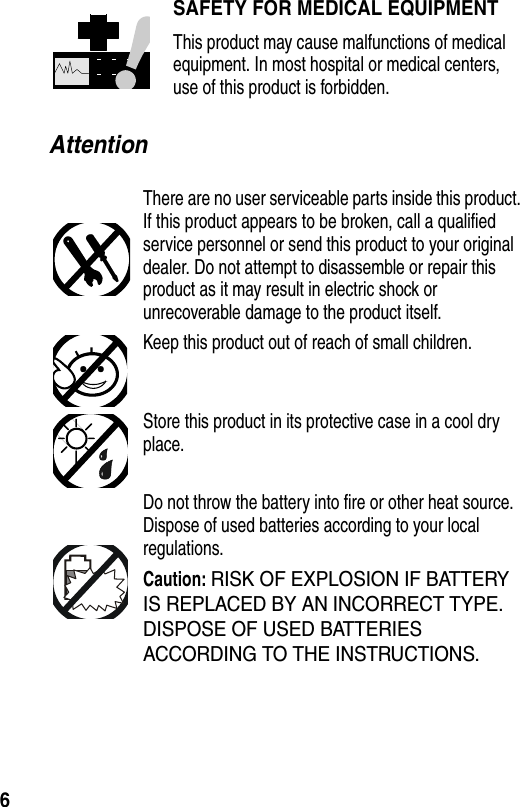
 6AttentionSAFETY FOR MEDICAL EQUIPMENTThis product may cause malfunctions of medical equipment. In most hospital or medical centers, use of this product is forbidden.There are no user serviceable parts inside this product. If this product appears to be broken, call a qualified service personnel or send this product to your original dealer. Do not attempt to disassemble or repair this product as it may result in electric shock or unrecoverable damage to the product itself.Keep this product out of reach of small children.Store this product in its protective case in a cool dry place.Do not throw the battery into fire or other heat source. Dispose of used batteries according to your local regulations.Caution: RISK OF EXPLOSION IF BATTERY IS REPLACED BY AN INCORRECT TYPE. DISPOSE OF USED BATTERIES ACCORDING TO THE INSTRUCTIONS.
 7Tips When Using•Avoid using the product near metal structures (for example, large metal furniture or steel frames of a building). The transmission and reception of signal can be effected by these objects.•Avoid using the product near strong electromagnetic sources, such as microwave ovens, sound speakers, TV and radio.•Avoid using the product right after dramatic change of temperature.
8European Union Directives Conformance StatementHereby, Company Name declares that this product is in compliance with•The essential requirements and other relevant provisions of Directive 1999/5/EC•All other relevant EU Directives
9Getting StartedGetting StartedPackage ChecklistYour mobile phone comes with a battery, travel charger, USB data cable, mono headset, companion CD, user’s guide, and product user data. You can purchase other accessories to customize your phone for maximum performance and portability.To purchase original accessories, contact the local customer service centers, agencies or retailers.About This ManualThis user’s guide describes how to use your phone to its maximum potential.Note: In this user’s guide, “Feature Focus” always indicates the feature's position from the Home screen.Optional FeaturesThis label identifies an optional network, SIM card, or subscription-dependent feature that may not be offered by all service providers in all geographical areas. Contact your service provider for more information.Optional AccessoriesThis label identifies a feature that requires an optional original accessory.
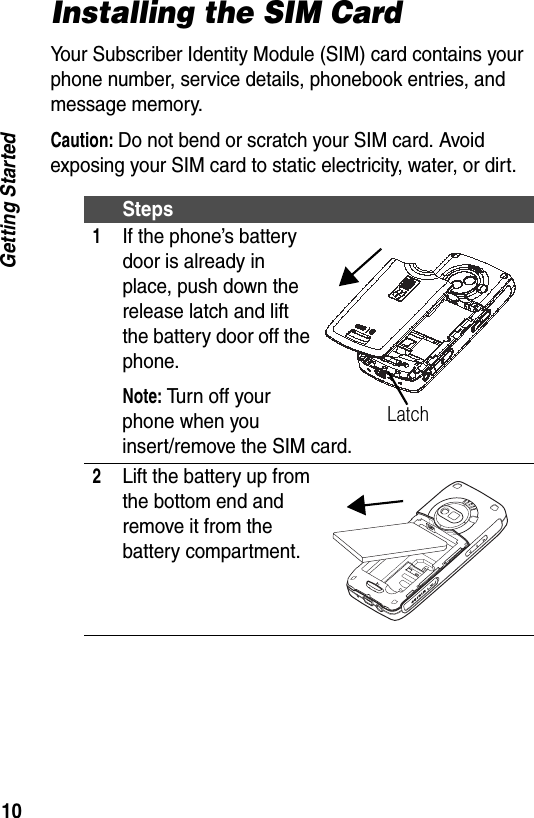
10Getting StartedInstalling the SIM CardYour Subscriber Identity Module (SIM) card contains your phone number, service details, phonebook entries, and message memory.Caution: Do not bend or scratch your SIM card. Avoid exposing your SIM card to static electricity, water, or dirt.Steps1If the phone’s battery door is already in place, push down the release latch and lift the battery door off the phone.Note: Turn off your phone when you insert/remove the SIM card.2Lift the battery up from the bottom end and remove it from the battery compartment.Latch
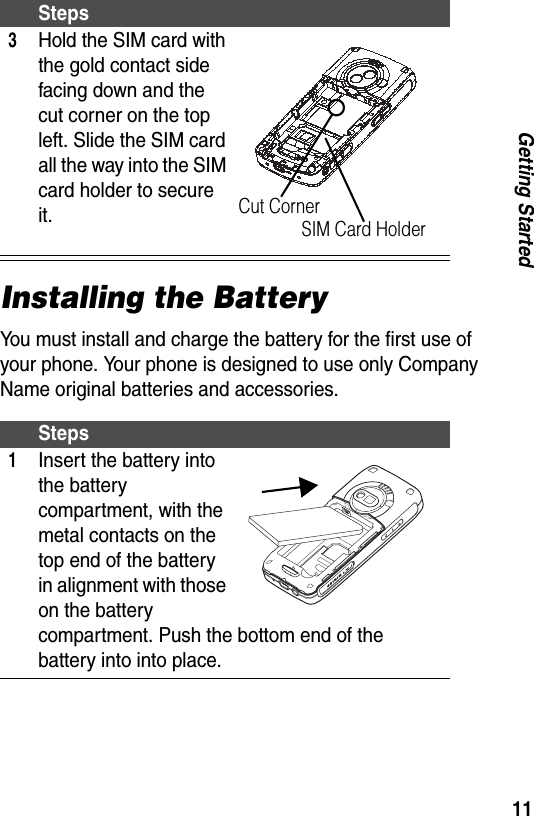
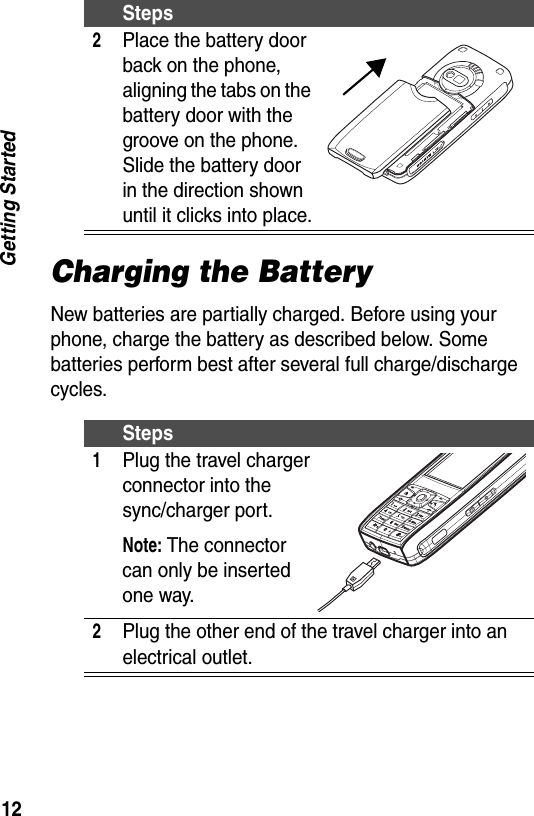
11Getting StartedInstalling the BatteryYou must install and charge the battery for the first use of your phone. Your phone is designed to use only Company Name original batteries and accessories.3Hold the SIM card with the gold contact side facing down and the cut corner on the top left. Slide the SIM card all the way into the SIM card holder to secure it.Steps1Insert the battery into the battery compartment, with the metal contacts on the top end of the battery in alignment with those on the battery compartment. Push the bottom end of the battery into into place.StepsSIM Card HolderCut Corner
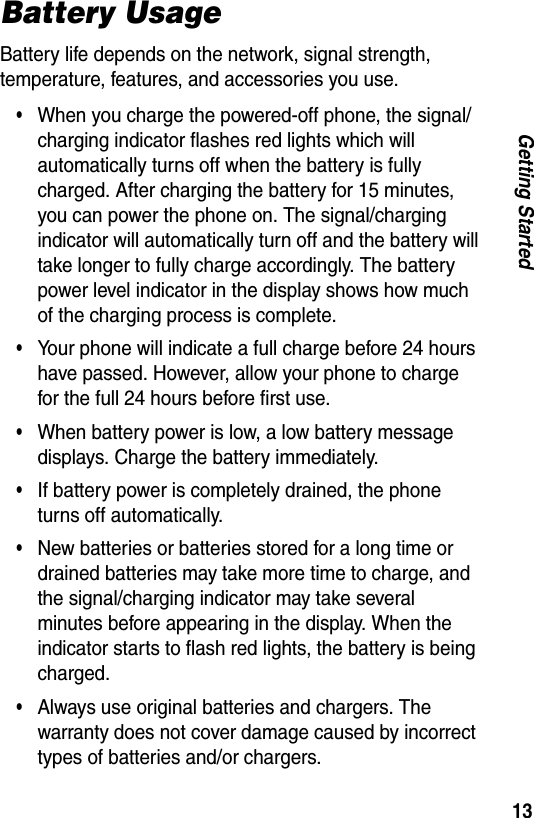
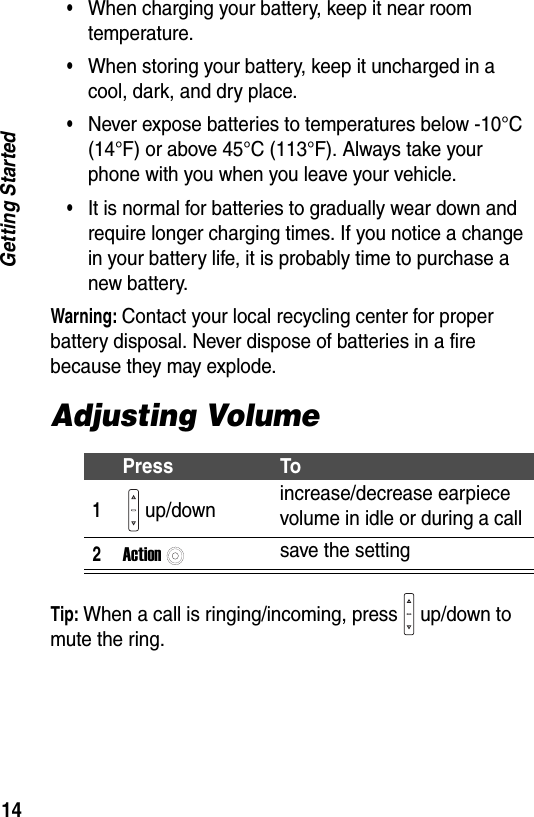
12Getting StartedCharging the BatteryNew batteries are partially charged. Before using your phone, charge the battery as described below. Some batteries perform best after several full charge/discharge cycles.2Place the battery door back on the phone, aligning the tabs on the battery door with the groove on the phone. Slide the battery door in the direction shown until it clicks into place.Steps1Plug the travel charger connector into the sync/charger port.Note: The connector can only be inserted one way.2Plug the other end of the travel charger into an electrical outlet. Steps
13Getting StartedBattery UsageBattery life depends on the network, signal strength, temperature, features, and accessories you use.•When you charge the powered-off phone, the signal/charging indicator flashes red lights which will automatically turns off when the battery is fully charged. After charging the battery for 15 minutes, you can power the phone on. The signal/charging indicator will automatically turn off and the battery will take longer to fully charge accordingly. The battery power level indicator in the display shows how much of the charging process is complete.•Your phone will indicate a full charge before 24 hours have passed. However, allow your phone to charge for the full 24 hours before first use.•When battery power is low, a low battery message displays. Charge the battery immediately.•If battery power is completely drained, the phone turns off automatically.•New batteries or batteries stored for a long time or drained batteries may take more time to charge, and the signal/charging indicator may take several minutes before appearing in the display. When the indicator starts to flash red lights, the battery is being charged.•Always use original batteries and chargers. The warranty does not cover damage caused by incorrect types of batteries and/or chargers.
14Getting Started•When charging your battery, keep it near room temperature.•When storing your battery, keep it uncharged in a cool, dark, and dry place.•Never expose batteries to temperatures below -10°C (14°F) or above 45°C (113°F). Always take your phone with you when you leave your vehicle.•It is normal for batteries to gradually wear down and require longer charging times. If you notice a change in your battery life, it is probably time to purchase a new battery.Warning: Contact your local recycling center for proper battery disposal. Never dispose of batteries in a fire because they may explode.Adjusting VolumeTip: When a call is ringing/incoming, press up/down to mute the ring.Press To1up/down increase/decrease earpiece volume in idle or during a call2Actionsave the setting
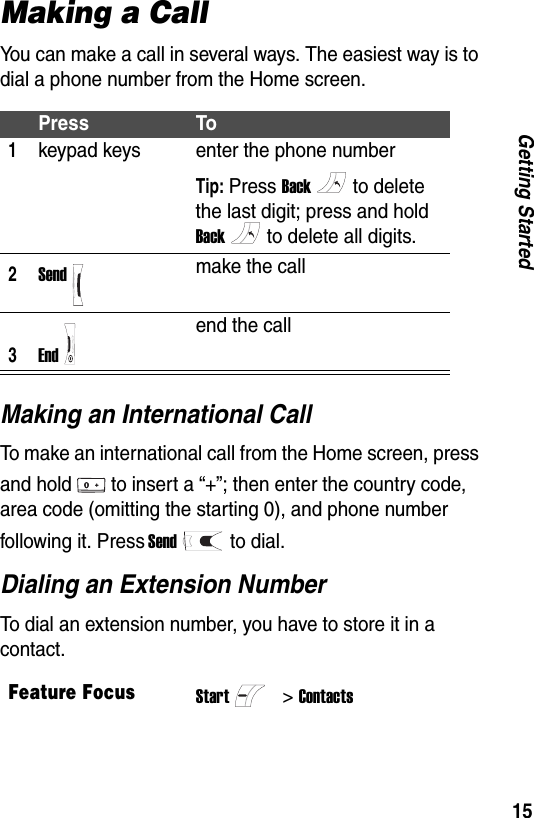
15Getting StartedMaking a CallYou can make a call in several ways. The easiest way is to dial a phone number from the Home screen.Making an International CallTo make an international call from the Home screen, press and hold to insert a “+”; then enter the country code, area code (omitting the starting 0), and phone number following it. Press Sendto dial.Dialing an Extension NumberTo dial an extension number, you have to store it in a contact.Press To1keypad keys enter the phone numberTip: Press Backto delete the last digit; press and hold Backto delete all digits.2Sendmake the call3Endend the callFeature FocusStart>Contacts
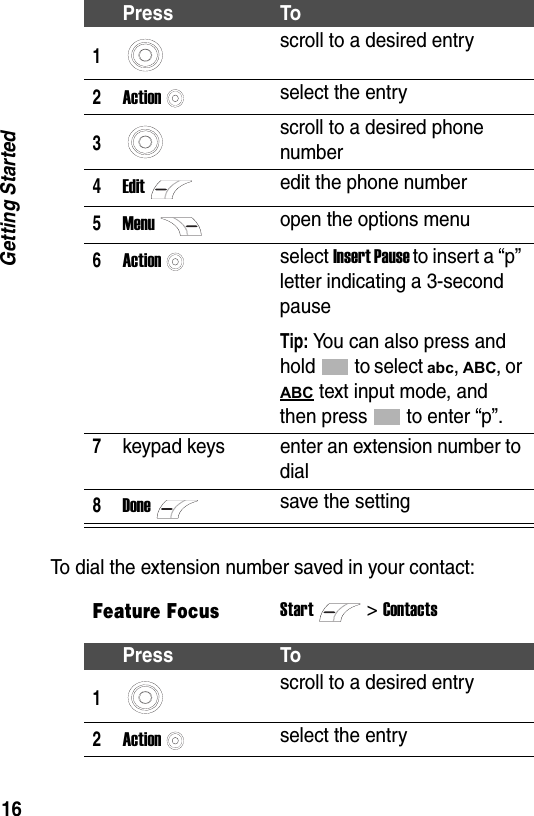
16Getting StartedTo dial the extension number saved in your contact:Press To1scroll to a desired entry2Actionselect the entry3scroll to a desired phone number4Editedit the phone number5Menuopen the options menu6Actionselect Insert Pause to insert a “p” letter indicating a 3-second pauseTip: You can also press and hold to select abc, ABC, or ABC text input mode, and then press to enter “p”.7keypad keys enter an extension number to dial8Donesave the settingFeature FocusStart>ContactsPress To1scroll to a desired entry2Actionselect the entry
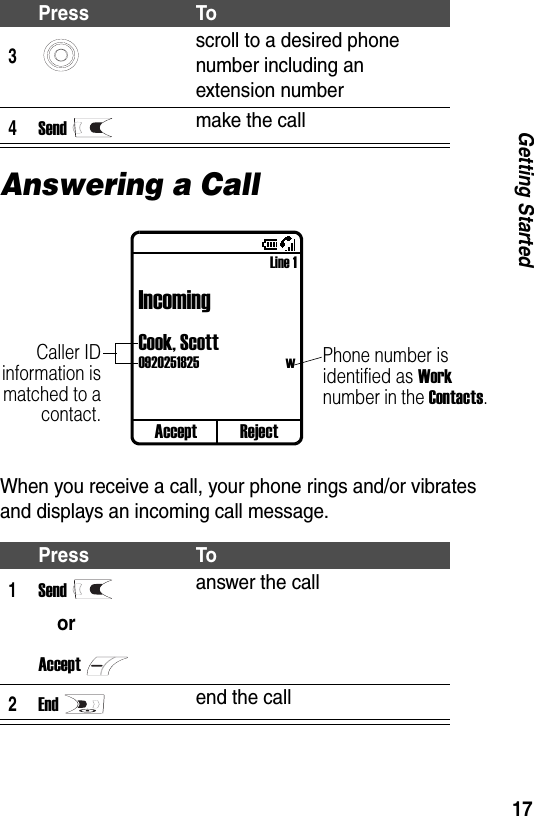
17Getting StartedAnswering a CallWhen you receive a call, your phone rings and/or vibrates and displays an incoming call message.3scroll to a desired phone number including an extension number4Sendmake the callPress To1SendorAcceptanswer the call2Endend the callPress ToAccept RejectLine 1IncomingCook, Scott0920251825  wCaller IDinformation ismatched to acontact.Phone number is identified as Work number in the Contacts.
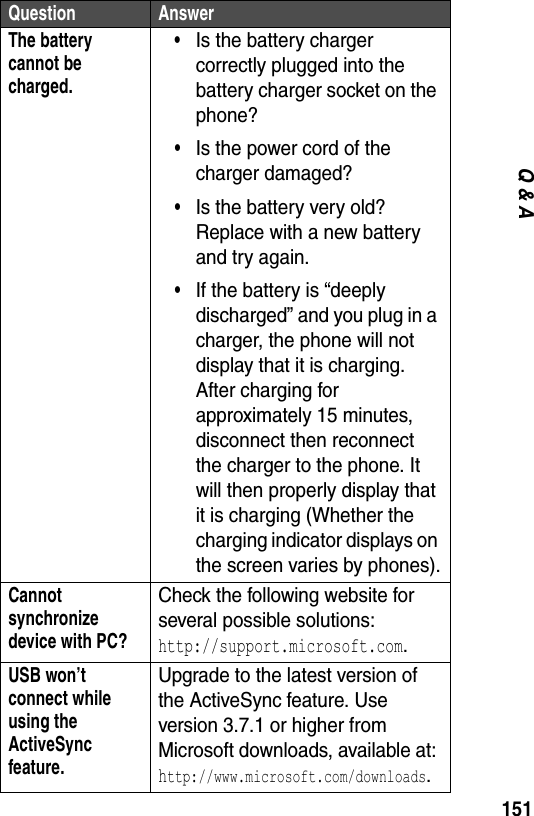
18Getting StartedTip: When Any key answer is active, press any of the keys except Endto answer the call. To activate, see “Call Options” on page 38.
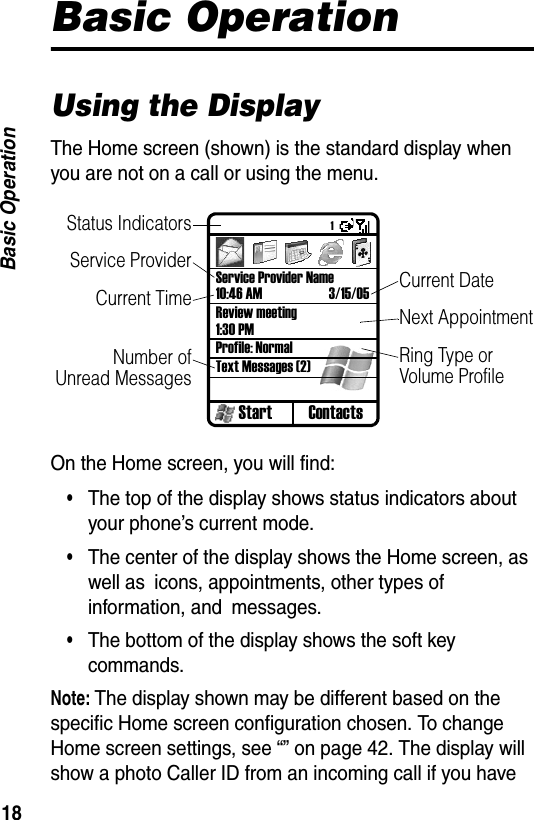
18Basic OperationBasic OperationUsing the DisplayThe Home screen (shown) is the standard display when you are not on a call or using the menu.On the Home screen, you will find:•The top of the display shows status indicators about your phone’s current mode.•The center of the display shows the Home screen, as well as icons, appointments, other types of information, and messages.•The bottom of the display shows the soft key commands.Note: The display shown may be different based on the specific Home screen configuration chosen. To change Home screen settings, see “” on page 42. The display will show a photo Caller ID from an incoming call if you have Start ContactsService Provider Name10:46 AM 3/15/05Review meeting1:30 PMProfile: NormalText Messages (2)Status IndicatorsService ProviderCurrent TimeNumber ofUnread MessagesCurrent DateNext AppointmentRing Type or Volume Profile1
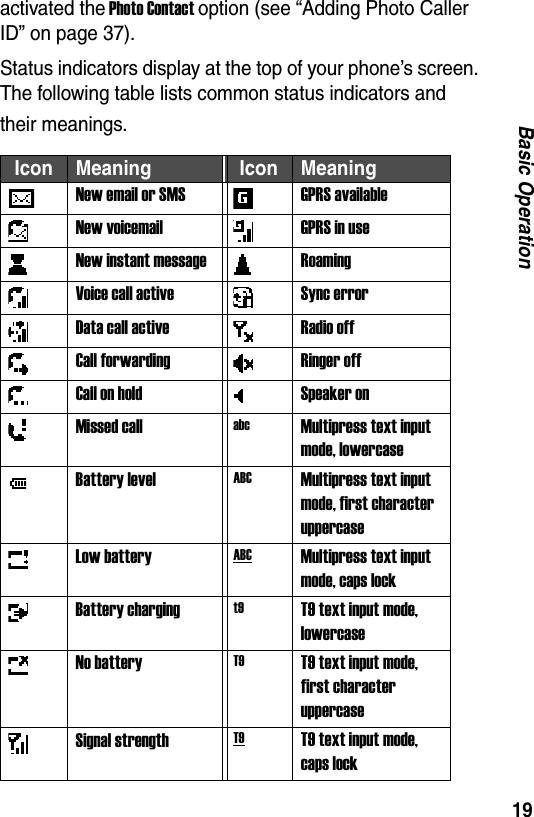
19Basic Operationactivated the Photo Contact option (see “Adding Photo Caller ID” on page 37).Status indicators display at the top of your phone’s screen. The following table lists common status indicators and their meanings.Icon Meaning Icon MeaningNew email or SMS GPRS availableNew voicemail GPRS in useNew instant message RoamingVoice call active Sync errorData call active Radio offCall forwarding Ringer offCall on hold Speaker onMissed call abc Multipress text input mode, lowercaseBattery level ABC Multipress text input mode, first character uppercaseLow battery ABC Multipress text input mode, caps lockBattery charging t9 T9 text input mode, lowercaseNo battery T9 T9 text input mode, first character uppercaseSignal strength T9 T9 text input mode, caps lock
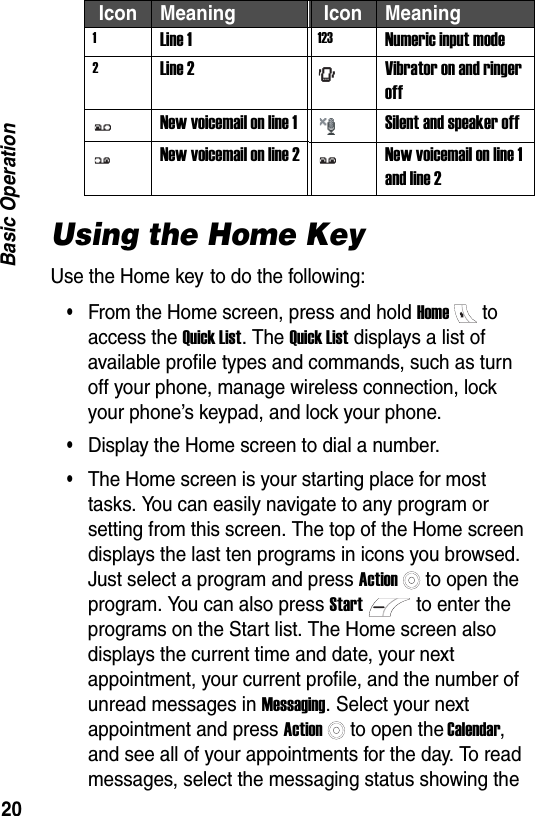
20Basic OperationUsing the Home KeyUse the Home key to do the following:•From the Home screen, press and hold Hometo access the Quick List. The Quick List displays a list of available profile types and commands, such as turn off your phone, manage wireless connection, lock your phone’s keypad, and lock your phone.•Display the Home screen to dial a number.•The Home screen is your starting place for most tasks. You can easily navigate to any program or setting from this screen. The top of the Home screen displays the last ten programs in icons you browsed. Just select a program and press Actionto open the program. You can also press Startto enter the programs on the Start list. The Home screen also displays the current time and date, your next appointment, your current profile, and the number of unread messages in Messaging. Select your next appointment and press Actionto open the Calendar, and see all of your appointments for the day. To read messages, select the messaging status showing the 1Line 1 123 Numeric input mode2Line 2 Vibrator on and ringer offNew voicemail on line 1 Silent and speaker offNew voicemail on line 2 New voicemail on line 1 and line 2Icon Meaning Icon Meaning
21Basic Operationnumber of unread messages, and press Action. To view phonebook entries, press Contacts.•The Home screen automatically displays when you turn on the phone or leave the phone idle, but you can navigate to it at any time by pressing Home.Using the 4-Way Navigation KeyUse the 4-Way Navigation key to navigate the menu system, change feature settings, and play games.Tip: Down and up are your primary movements within menus and navigation through the contacts. Move left and right to change feature settings and edit text.From the Home screen, press to do the following:•Select a program in icon at the top of the screen, and then press Actionto open the program.•Select an item in the center of the Home screen, such as your next appointment, your profile type, or your messaging information, and then press Actionto access the settings associated with the item selected.Using the Action ButtonThe Action button confirms your selection. Pressing  Actionis similar to pressing “Enter” on a keyboard. In some cases, confirming your selection accesses a program or setting. You can also press Actionto check or uncheck a feature.
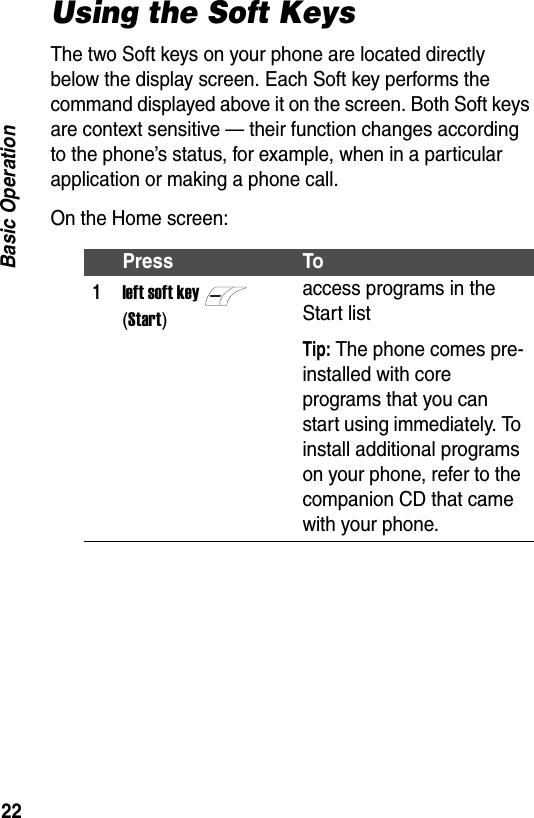
22Basic OperationUsing the Soft KeysThe two Soft keys on your phone are located directly below the display screen. Each Soft key performs the command displayed above it on the screen. Both Soft keys are context sensitive — their function changes according to the phone’s status, for example, when in a particular application or making a phone call.On the Home screen:Press To1left soft key (Start)access programs in the Start listTip: The phone comes pre-installed with core programs that you can start using immediately. To install additional programs on your phone, refer to the companion CD that came with your phone.
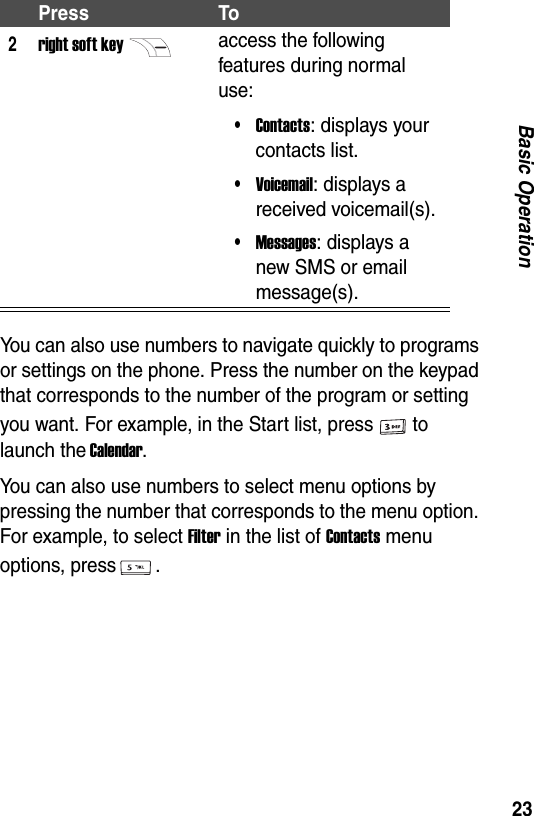
23Basic OperationYou can also use numbers to navigate quickly to programs or settings on the phone. Press the number on the keypad that corresponds to the number of the program or setting you want. For example, in the Start list, press to launch the Calendar.You can also use numbers to select menu options by pressing the number that corresponds to the menu option. For example, to select Filter in the list of Contacts menu options, press .2right soft keyaccess the following features during normal use:•Contacts: displays your contacts list.•Voicemail: displays a received voicemail(s).•Messages: displays a new SMS or email message(s).Press To
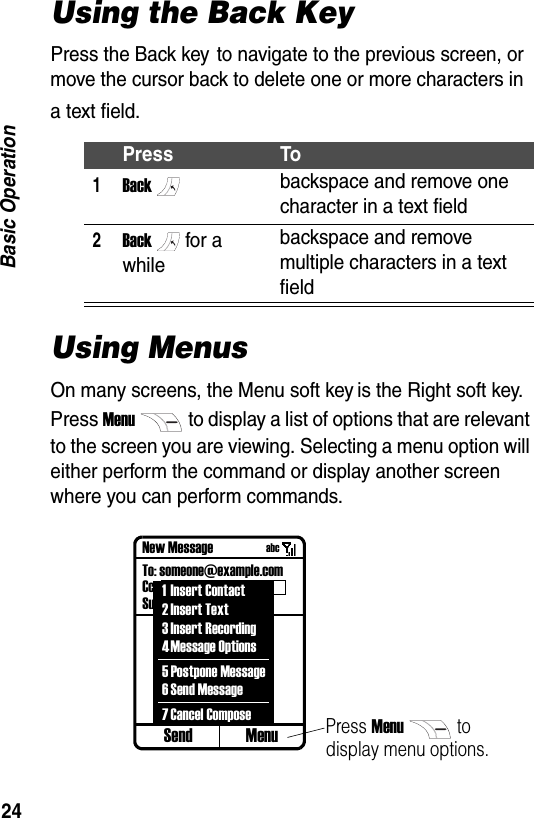
24Basic OperationUsing the Back KeyPress the Back key to navigate to the previous screen, or move the cursor back to delete one or more characters in a text field.Using MenusOn many screens, the Menu soft key is the Right soft key. Press Menuto display a list of options that are relevant to the screen you are viewing. Selecting a menu option will either perform the command or display another screen where you can perform commands.Press To1Backbackspace and remove one character in a text field2Backfor a whilebackspace and remove multiple characters in a text fieldSend MenuNew MessageTo: someone@example.comCc.:Subj.:Press Menuto display menu options.1 Insert Contact2Insert Text3 Insert Recording4Message Options5 Postpone Message6Send Message7Cancel Composeabc
25Basic OperationTip: Press up to move to the bottom of the menu.Entering Text and NumbersYou can enter text and numbers on the phone using the keypad. The phone supports three input modes for entering text and numbers: Multipress, T9, and Numeric. The Multipress and T9 modes are used for entering text, and the Numeric mode is used for entering numbers. When you select a field that requires text or a numeric entry, the phone automatically defaults to the appropriate input mode. The status indicator on the top of the display shows the input mode you are currently using.Changing Input ModesThe following table shows the complete list of input mode status indicators.StepsPress and hold until the status indicator for the input mode you want is shown at the top of the display. To change options in Multipress or T9, for example, changes from abc to ABC, or from T9 to t9, press and release.Indicator Modeabc Multipress text input mode, lowercaseABC Multipress text input mode, initial capital lettersABC Multipress text input mode, uppercase
26Basic OperationTip: In Multipress or T9 text input mode, the first letter of a sentence is automatically capitalized.Entering Text in Multipress ModeYou can enter a letter in Multipress mode by pressing the number key on which the letter appears. To enter the first letter on the number key, press the key once. To enter the second letter, press the key twice, and so on. The letter entered remains underlined until you complete the keypresses and the cursor moves to the next position. For example:When you enter letters that are on the same number key, wait until the underline disappears before entering the next letter so that your phone can process the first letter. This pause is called the Multipress time out, and you can adjust the length of the pause between keypresses.t9 T9 text input mode, lowercaseT9 T9 text input mode, initial capital lettersT9 T9 text input mode, uppercase123 Numeric input modePress To1enter the letter s2enter the word hatIndicator Mode
27Basic OperationTo change the Multipress time out:Entering Text in T9 ModeT9 is a predictive text entry mode that lets you enter a word using 1 keypress per letter.Entering Common WordsYou can enter common words embedded in the T9 software.Feature FocusStart>Settings > AccessibilityPress To1left/right select the time interval you want for the pause between keypresses under Multipress time out2Donesave the settingPress To1keypad key 1 timeenter the 1st letter of a word2keypad keys (1 per letter)enter the rest of a wordTip: Alternative words and letter combinations are shown at the bottom of the display. The word choices update with each keypress.
28Basic OperationFor example, to spell the word “phone,” press . The display shows phone. Entering Novel WordsYou can coin words T9 does not recognize.3up/down/left/righthighlight the word you want4Actionenter the word at flashing cursor locationTip: T9 automatically inserts a space after each word.Steps1Press Backone or more times to delete letters until a letter combination matches the start of a word.2Press up/down/left/right to highlight the desired letter or letter combination.3Press Actionto select the letter or letter combination.4Press left to move cursor to the left and “lock” the selected word portion.5Continue to enter letters and highlight the letter combinations you want to spell a word.Press To
29Basic OperationYour phone stores the unrecognized word and includes it in the list of alternative word choices. When memory space for unrecognized words is filled, your phone deletes the oldest words as it adds new words.Entering Numbers in Numeric ModeWhen in Numeric mode, press the number(s) you want to enter on the keypad. If a field permits a numerical entry only, such as the Work phone field in the Contacts, the input mode will automatically default to Numeric mode. To enter an asterisk (*) or a hash sign (#), press the corresponding key on the keypad. You can also press to select and enter a symbol.Entering Punctuation/SymbolIn Multipress and T9 modes, there are two ways to enter punctuation/symbol.Option 1:Option 2:Press Torepetitively scroll through common punctuation/symbol (. ? ! , @ ' - : ; ( ) & " ~ 1 0 ¿)Press To1for a while open the Pick a symbol list2scroll to a desired punctuation/symbol
30Basic OperationIn Numeric mode, refer to the following steps to enter punctuation/symbol:Using Special Key FunctionsIn Multipress and T9 modes:In Multipress, T9, and Numeric modes:3OKselect and enter the punctuation/symbolPress To1for a while open the Pick a symbol list2scroll to a desired punctuation/symbol3OKselect and enter the punctuation/symbolPress Toenter a spacePress ToActionstart a new linePress To
31Basic OperationViewing Phone InformationUse About settings to display information about your phone’s operating system, including version numbers, copyright information and available storage.Locking and Unlocking the KeypadThe keypad lock turns off the keypad function to prevent accidental keypresses.Locking the KeypadOn the Home screen:Press To(for a while) change to or from lowercase, initial capital letters, uppercase, or numbersFeature FocusStart>Settings > More >AboutStepsPress and hold End. The left soft key displays Unlock, indicating that the keypad is locked.
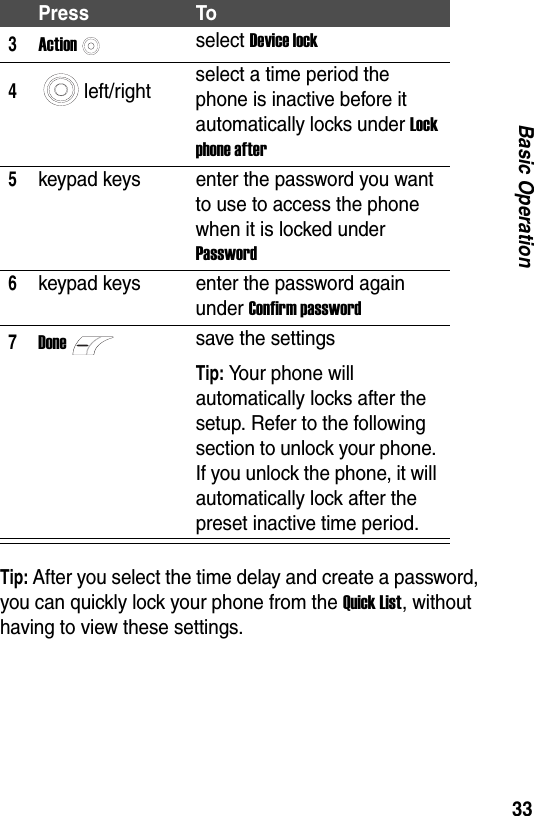
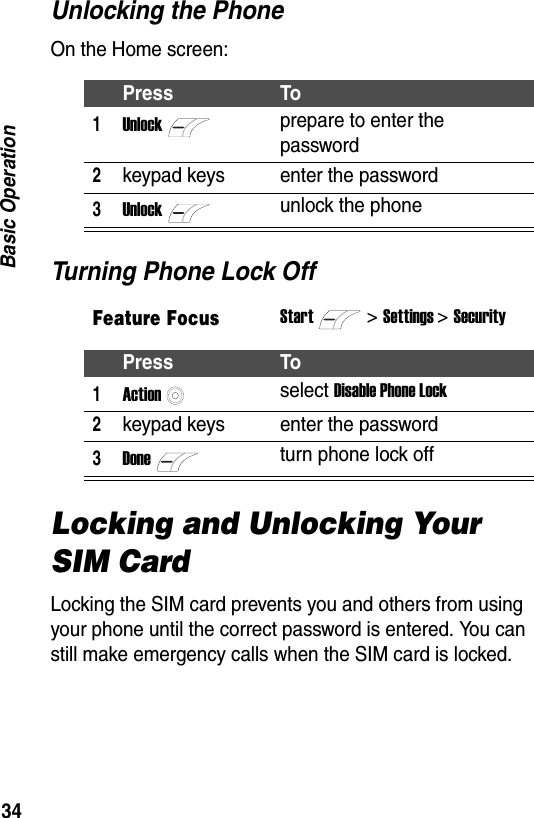
32Basic OperationUnlocking the KeypadOn the Home screen:Tip: You can still receive calls and make emergency calls when the keypad is locked.Locking and Unlocking Your PhoneLocking the phone prevents access to personal data. When you turn on this feature, the phone automatically locks after a specified time of inactivity. A screen displays requiring your phone lock password before access is granted.Tip: You can still receive calls and make emergency calls when the phone is locked.Locking the PhoneOn the Home screen:Press To1Unlockprepare to unlock the keypad2unlock the keypadPress To1Homefor a whileopen the Quick List2scroll to Device lock
33Basic OperationTip: After you select the time delay and create a password, you can quickly lock your phone from the Quick List, without having to view these settings.3Actionselect Device lock4left/right select a time period the phone is inactive before it automatically locks under Lock phone after5keypad keys enter the password you want to use to access the phone when it is locked under Password6keypad keys enter the password again under Confirm password7Donesave the settingsTip: Your phone will automatically locks after the setup. Refer to the following section to unlock your phone. If you unlock the phone, it will automatically lock after the preset inactive time period.Press To
34Basic OperationUnlocking the PhoneOn the Home screen:Turning Phone Lock OffLocking and Unlocking Your SIM CardLocking the SIM card prevents you and others from using your phone until the correct password is entered. You can still make emergency calls when the SIM card is locked.Press To1Unlockprepare to enter the password2keypad keys enter the password3Unlockunlock the phoneFeature FocusStart>Settings > SecurityPress To1Actionselect Disable Phone Lock2keypad keys enter the password3Doneturn phone lock off
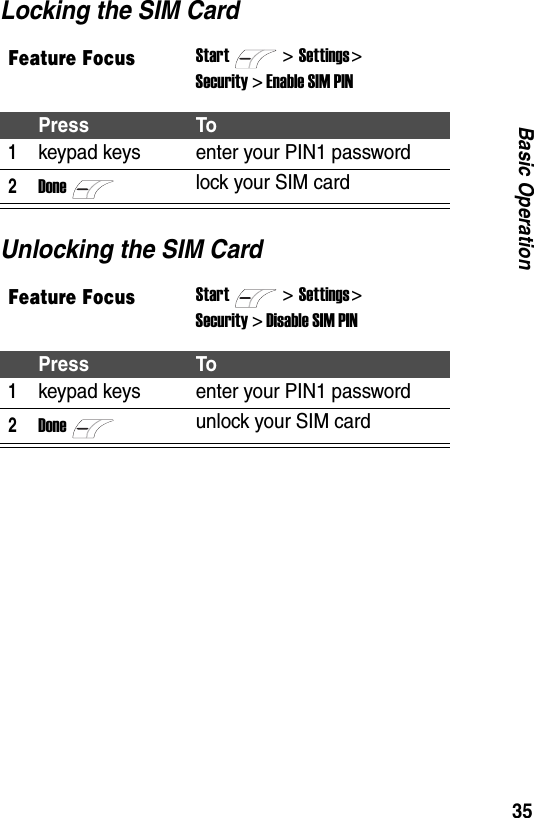
35Basic OperationLocking the SIM CardUnlocking the SIM CardFeature FocusStart>Settings > Security > Enable SIM PINPress To1keypad keys enter your PIN1 password2Donelock your SIM cardFeature FocusStart>Settings > Security > Disable SIM PINPress To1keypad keys enter your PIN1 password2Doneunlock your SIM card
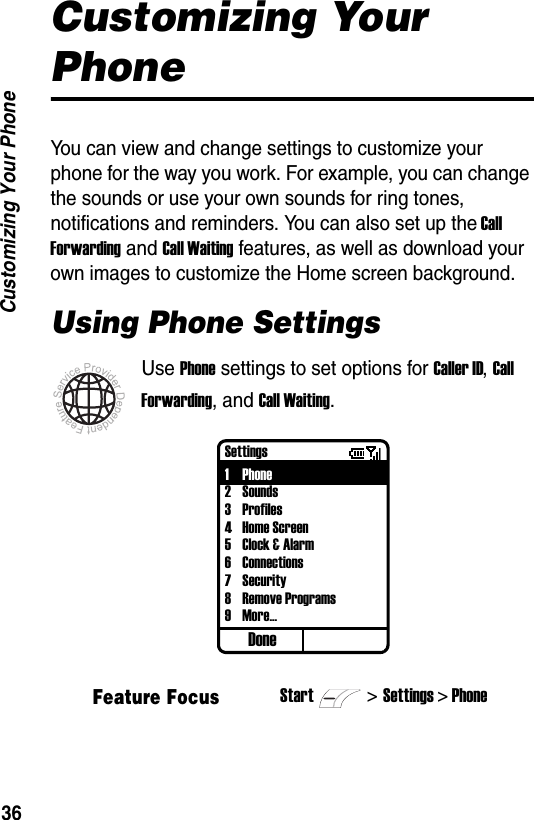
36Customizing Your PhoneCustomizing Your PhoneYou can view and change settings to customize your phone for the way you work. For example, you can change the sounds or use your own sounds for ring tones, notifications and reminders. You can also set up the Call Forwarding and Call Waiting features, as well as download your own images to customize the Home screen background.Using Phone SettingsUse Phone settings to set options for Caller ID, Call Forwarding, and Call Waiting.Feature FocusStart>Settings > PhoneDoneSettings1Phone2Sounds3Profiles4Home Screen5Clock & Alarm6 Connections7 Security8 Remove Programs9More...
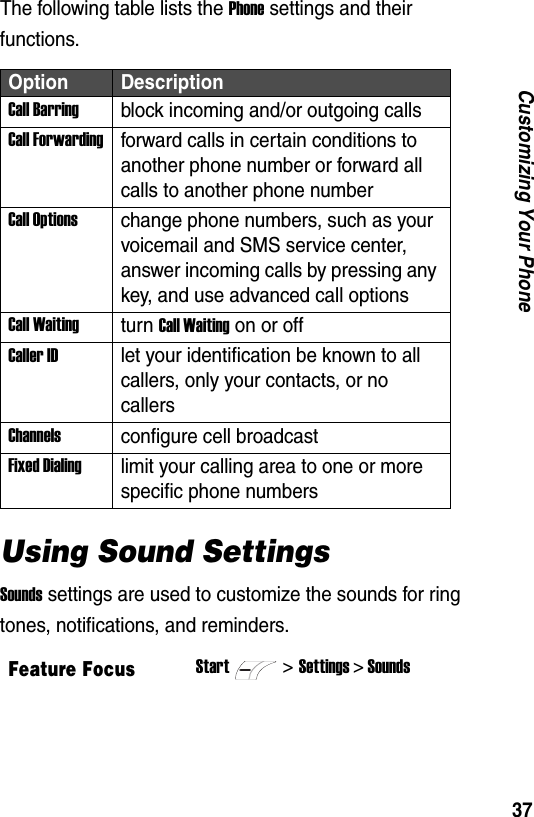
37Customizing Your PhoneThe following table lists the Phone settings and their functions.Using Sound SettingsSounds settings are used to customize the sounds for ring tones, notifications, and reminders.Option DescriptionCall Barringblock incoming and/or outgoing callsCall Forwardingforward calls in certain conditions to another phone number or forward all calls to another phone numberCall Optionschange phone numbers, such as your voicemail and SMS service center, answer incoming calls by pressing any key, and use advanced call optionsCall Waitingturn Call Waiting on or offCaller IDlet your identification be known to all callers, only your contacts, or no callersChannelsconfigure cell broadcastFixed Dialinglimit your calling area to one or more specific phone numbersFeature FocusStart>Settings > Sounds
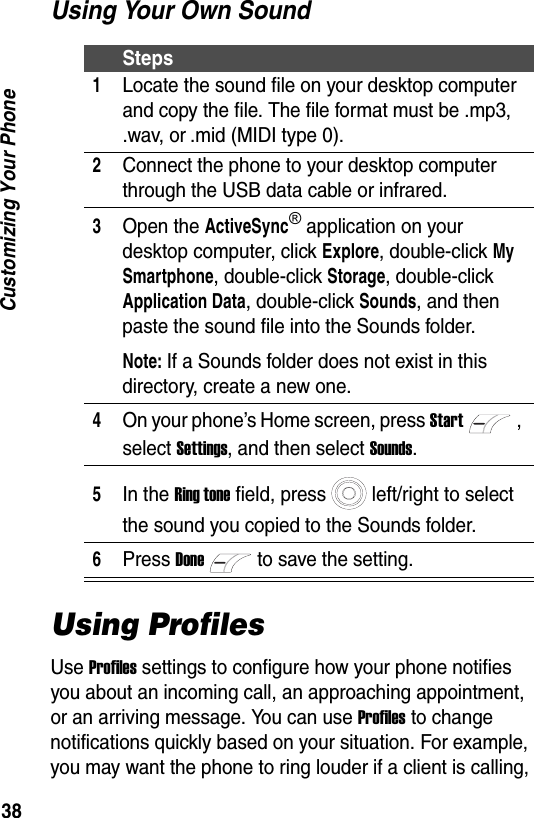
38Customizing Your PhoneUsing Your Own SoundUsing ProfilesUse Profiles settings to configure how your phone notifies you about an incoming call, an approaching appointment, or an arriving message. You can use Profiles to change notifications quickly based on your situation. For example, you may want the phone to ring louder if a client is calling, Steps1Locate the sound file on your desktop computer and copy the file. The file format must be .mp3, .wav, or .mid (MIDI type 0).2Connect the phone to your desktop computer through the USB data cable or infrared.3Open the ActiveSync® application on your desktop computer, click Explore, double-click My Smartphone, double-click Storage, double-click Application Data, double-click Sounds, and then paste the sound file into the Sounds folder.Note: If a Sounds folder does not exist in this directory, create a new one.4On your phone’s Home screen, press Start, select Settings, and then select Sounds.5In the Ring tone field, press left/right to select the sound you copied to the Sounds folder.6Press Doneto save the setting.
39Customizing Your Phoneor you may not want the phone to ring at all, but want to hear calendar reminders. The default profile used with your phone is the Normal profile. The name of the current profile displays on the Home screen.Tip: You can either assign Profiles settings by selecting Profile: [Type] from the Home screen, or select a different profile using the Quick List by quickly pressing and releasing Poweror holding down Homefrom the Home screen.Note: When a headset is plugged into the phone, the Headset profile is activated automatically.Modifying a ProfileFeature FocusStart>Settings > ProfilesFeature FocusStart>Settings > ProfilesPress To1scroll to a desired profileDoneIndicates your current profile.Profiles1Normal2Silent3Meeting4 Outdoor5Automatic6 Headset7Car8SpeakerphoneMenu
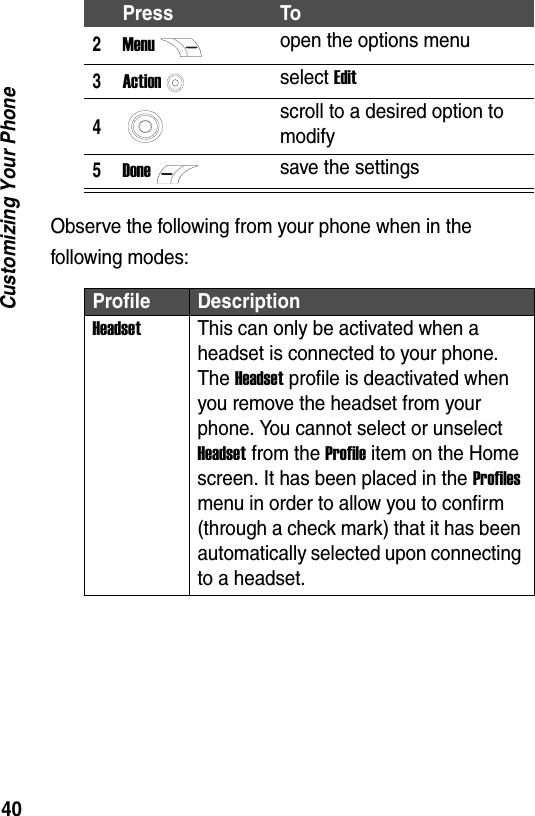
40Customizing Your PhoneObserve the following from your phone when in the following modes:2Menuopen the options menu3Actionselect Edit4scroll to a desired option to modify5Donesave the settingsProfile DescriptionHeadsetThis can only be activated when a headset is connected to your phone. The Headset profile is deactivated when you remove the headset from your phone. You cannot select or unselect Headset from the Profile item on the Home screen. It has been placed in the Profiles menu in order to allow you to confirm (through a check mark) that it has been automatically selected upon connecting to a headset.Press To
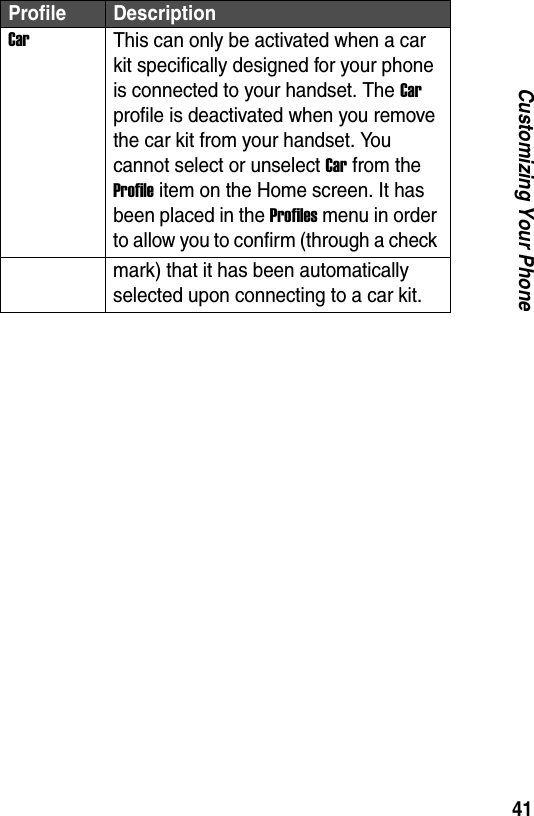
41Customizing Your PhoneCarThis can only be activated when a car kit specifically designed for your phone is connected to your handset. The Car profile is deactivated when you remove the car kit from your handset. You cannot select or unselect Car from the Profile item on the Home screen. It has been placed in the Profiles menu in order to allow you to confirm (through a check mark) that it has been automatically selected upon connecting to a car kit.Profile Description
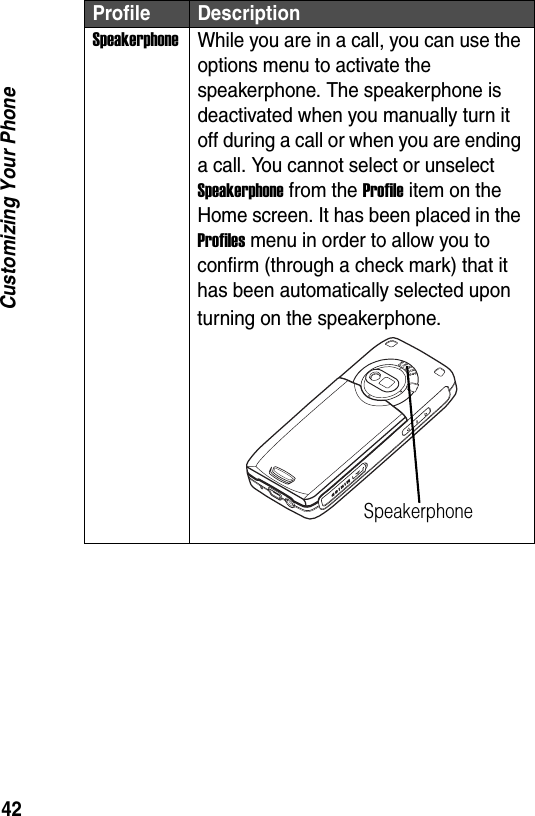
42Customizing Your PhoneSpeakerphoneWhile you are in a call, you can use the options menu to activate the speakerphone. The speakerphone is deactivated when you manually turn it off during a call or when you are ending a call. You cannot select or unselect Speakerphone from the Profile item on the Home screen. It has been placed in the Profiles menu in order to allow you to confirm (through a check mark) that it has been automatically selected upon turning on the speakerphone.Profile DescriptionSpeakerphone
43Customizing Your PhoneChanging the Home ScreenUse Home Screen settings to change the Home screen layout, the color scheme, the background image, and the time delay in the idle display.Customizing the Home Screen with Your Own ImageFeature FocusStart>Settings > Home ScreenSteps1Locate your image file on your desktop computer and copy the image file. The file format must be .gif, .jpg, or .bmp.Tip: For best results, use images with a 176 x 220 screen resolution to fit on your phone’s Home screen.2Connect the phone to your desktop computer through the USB data cable or infrared.3Open the ActiveSync application on your desktop computer, click Explore, double-click My Smartphone, double-click Storage, double-click Application Data, double-click Home, and then paste the image file into the Home folder.Note: If a Home folder does not exist in this directory, create a new one.4On your phone’s Home screen, press Start, select Settings, and then select Home Screen.
44Customizing Your PhoneChanging Regional SettingsUse Regional Settings to change the language, date, and time style of the phone, as well as number and currency formatting options.Setting Time-Out, Alert Volume, and Search Contacts Text ModeUse Accessibility to configure the Multipress as well as the confirmation time-outs, the in-call alert volume, and the default text input mode to search your contacts list.5Under Background image, press left/right to select the image you copied to the Home folder.6Press Doneto save the setting.Feature FocusStart>Settings > More >Regional SettingsFeature FocusStart>Settings > More >AccessibilitySteps
45Customizing Your PhoneAdjusting Date and TimeUse Date and Time settings to change the local time zone and current date and time, and to set the alarm.Entering Owner InformationUse Owner Information settings to enter and display personal information, such as your name, phone number, and email address. If you lose your phone and it is found, you may be contacted.Configuring Power ManagementUse Power Management settings to adjust the backlight and display time-outs, and to check the battery power level.Feature FocusStart>Settings > Clock & Alarm > Date and TimeFeature FocusStart>Settings > More > Owner InformationFeature FocusStart>Settings > More > Power Management
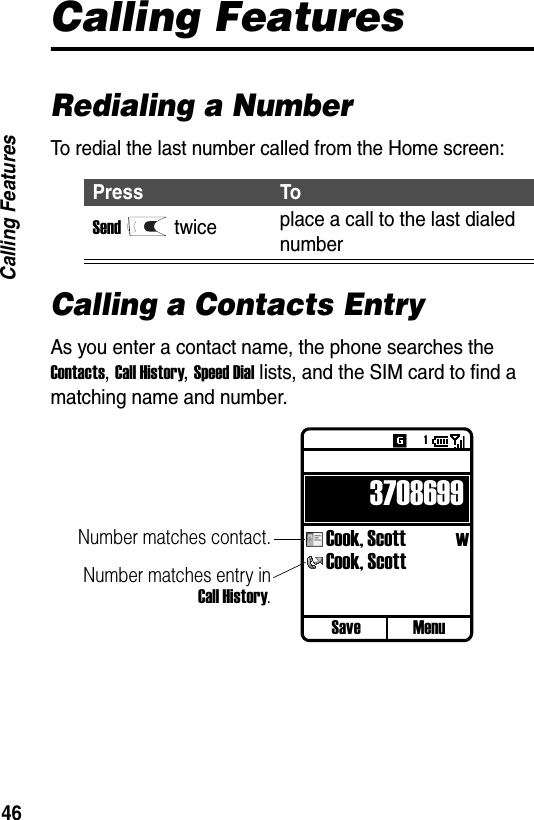
46Calling FeaturesCalling FeaturesRedialing a NumberTo redial the last number called from the Home screen:Calling a Contacts EntryAs you enter a contact name, the phone searches the Contacts, Call History, Speed Dial lists, and the SIM card to find a matching name and number.Press ToSendtwice place a call to the last dialed numberSave Menu3708699Cook, Scott  wCook, ScottNumber matches contact.Number matches entry inCall History.1
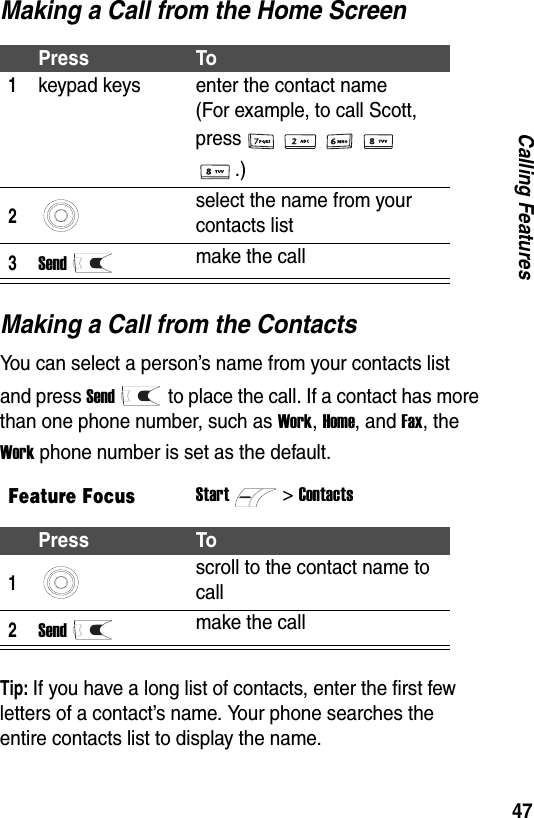
47Calling FeaturesMaking a Call from the Home ScreenMaking a Call from the ContactsYou can select a person’s name from your contacts list and press Sendto place the call. If a contact has more than one phone number, such as Work, Home, and Fax, the Work phone number is set as the default.Tip: If you have a long list of contacts, enter the first few letters of a contact’s name. Your phone searches the entire contacts list to display the name.Press To1keypad keys enter the contact name  (For example, to call Scott, press.)2select the name from your contacts list3Sendmake the callFeature FocusStart>ContactsPress To1scroll to the contact name to call2Sendmake the call
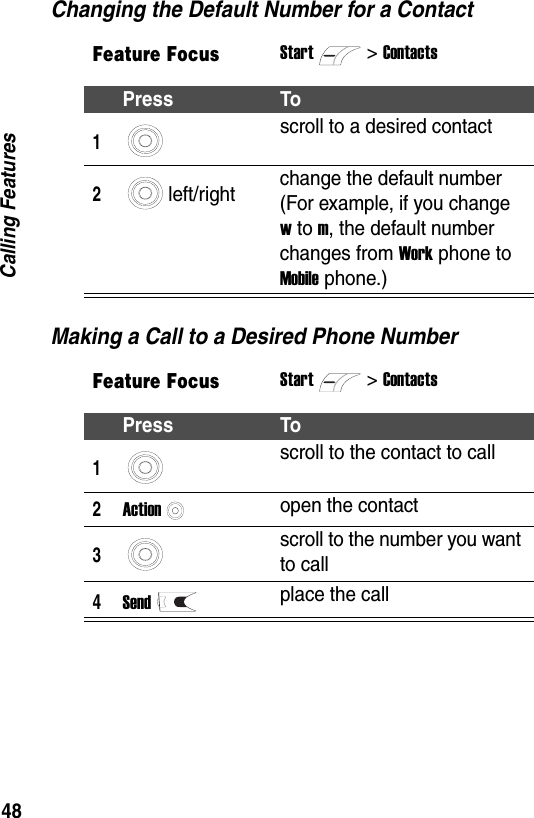
48Calling FeaturesChanging the Default Number for a ContactMaking a Call to a Desired Phone NumberFeature FocusStart>ContactsPress To1scroll to a desired contact2left/right change the default number (For example, if you change w to m, the default number changes from Work phone to Mobile phone.)Feature FocusStart>ContactsPress To1scroll to the contact to call2Actionopen the contact3scroll to the number you want to call4Sendplace the call
49Calling FeaturesMaking a Call from the Call History ListThe Call History list displays the last several calls you made, received, or missed. Choose a name or number to call from the list.Managing Call HistoryCall History displays the last several calls you have made, received, and missed. Each entry in Call History contains the start time of the call, the duration, the date, the caller’s name (if saved in your contacts list), and the caller’s number. The oldest calls are automatically deleted from the list to make room for new calls.Tip: You can filter Missed Calls, Incoming Calls, and Outgoing Calls by pressing Menu, selecting Filter, and selecting the filter you want.Sending an Email from Call HistoryFeature FocusStart>Call HistoryPress To1scroll to the number or entry to call2Sendplace the callFeature FocusStart>Call HistoryFeature FocusStart>Call History
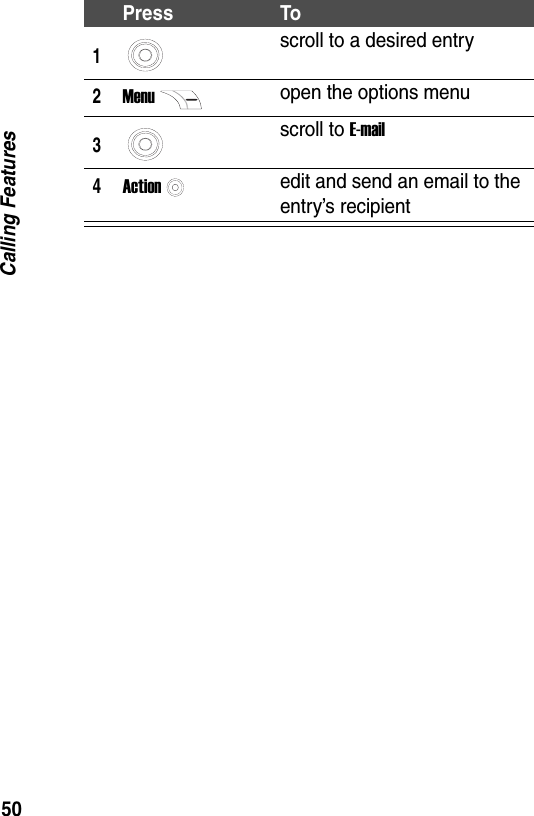
50Calling FeaturesPress To1scroll to a desired entry2Menuopen the options menu3scroll to E-mail4Actionedit and send an email to the entry’s recipient
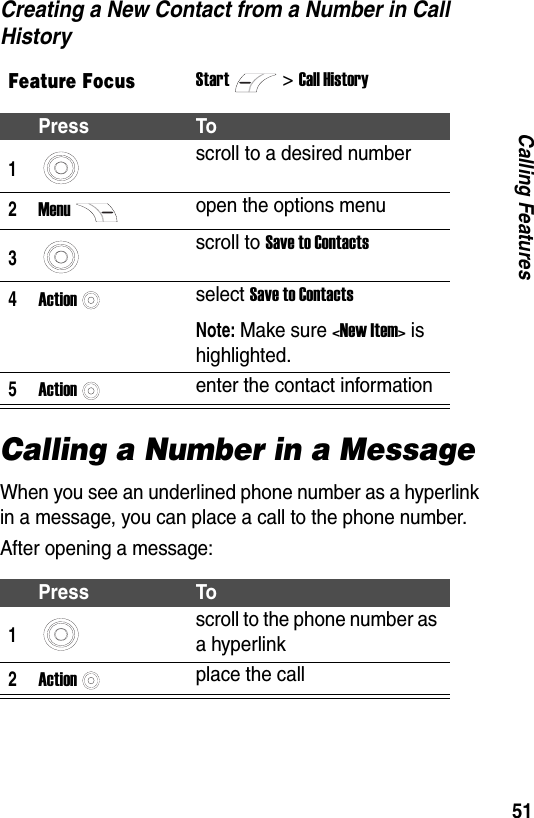
51Calling FeaturesCreating a New Contact from a Number in Call HistoryCalling a Number in a MessageWhen you see an underlined phone number as a hyperlink in a message, you can place a call to the phone number. After opening a message:Feature FocusStart>Call HistoryPress To1scroll to a desired number2Menuopen the options menu3scroll to Save to Contacts4Actionselect Save to ContactsNote: Make sure <New Item> is highlighted.5Actionenter the contact informationPress To1scroll to the phone number as a hyperlink2Actionplace the call
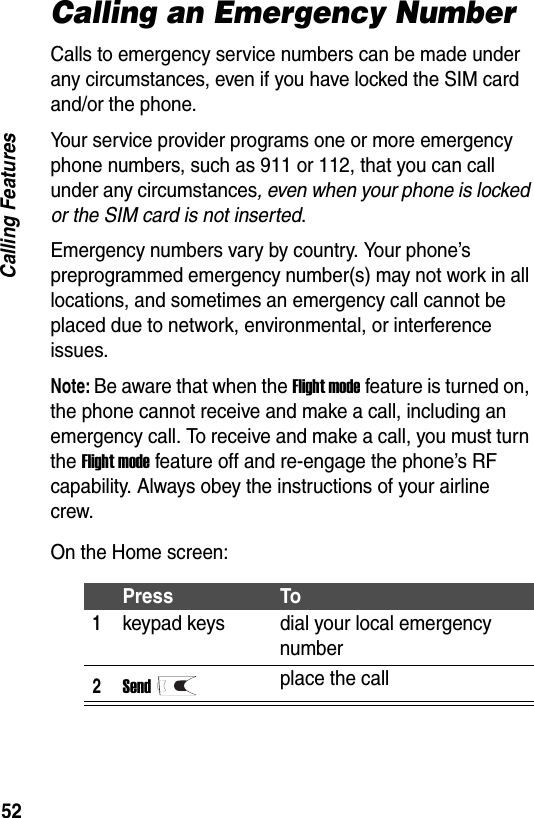
52Calling FeaturesCalling an Emergency NumberCalls to emergency service numbers can be made under any circumstances, even if you have locked the SIM card and/or the phone.Your service provider programs one or more emergency phone numbers, such as 911 or 112, that you can call under any circumstances, even when your phone is locked or the SIM card is not inserted.Emergency numbers vary by country. Your phone’s preprogrammed emergency number(s) may not work in all locations, and sometimes an emergency call cannot be placed due to network, environmental, or interference issues.Note: Be aware that when the Flight mode feature is turned on, the phone cannot receive and make a call, including an emergency call. To receive and make a call, you must turn the Flight mode feature off and re-engage the phone’s RF capability. Always obey the instructions of your airline crew.On the Home screen:Press To1keypad keys dial your local emergency number2Sendplace the call
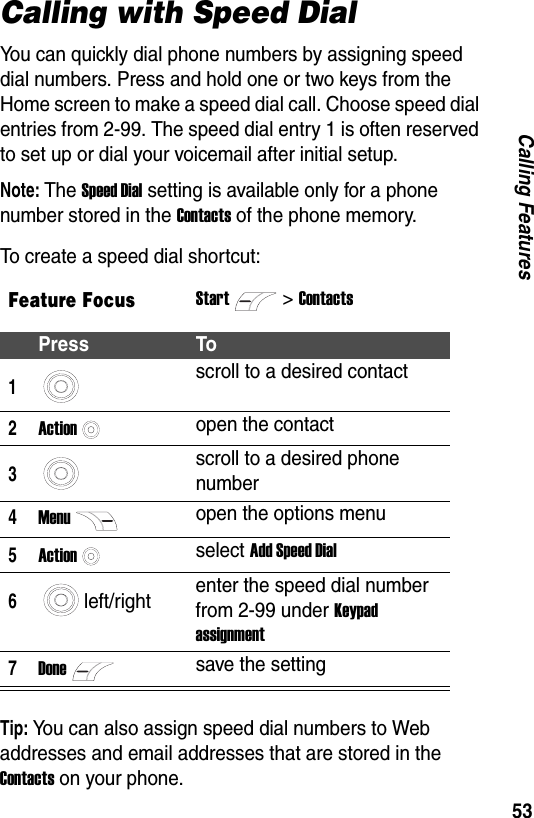
53Calling FeaturesCalling with Speed DialYou can quickly dial phone numbers by assigning speed dial numbers. Press and hold one or two keys from the Home screen to make a speed dial call. Choose speed dial entries from 2-99. The speed dial entry 1 is often reserved to set up or dial your voicemail after initial setup.Note: The Speed Dial setting is available only for a phone number stored in the Contacts of the phone memory.To create a speed dial shortcut:Tip: You can also assign speed dial numbers to Web addresses and email addresses that are stored in the Contacts on your phone.Feature FocusStart>ContactsPress To1scroll to a desired contact2Actionopen the contact3scroll to a desired phone number4Menuopen the options menu5Actionselect Add Speed Dial6left/right enter the speed dial number from 2-99 under Keypad assignment7Donesave the setting
54Calling FeaturesTo make a speed dial call from the Home screen:Using VoicemailOn the Home screen:Using Call WaitingTo answer the incoming call when you are talking on the phone:StepsPress and hold the keypad number that you have assigned as a speed dial number. If the keypad assignment has two digits, press the first digit, then press and hold the second digit.StepsPress and hold to automatically call voicemail after initial setup.Press ToAcceptorSendplace the first call on hold, and answer the second callTip: Press Sendto make it active the first call or the second call. If the second call
55Calling FeaturesTo end the first call before answering the incoming call:To reject the incoming call when you are talking on the phone:Putting a Call on HoldWhile a call is in progress, you can hold the call and then reconnect it.Tip: already hangs up, press Menu> Unhold to continue the first call.Press To1Endend the first call2AcceptorSendanswer the second callPress ToRejectreject the second call and continue the first callPress To1Menuopen the options menuPress To
56Calling FeaturesMuting a CallYou can mute the microphone for the active call. The other party will not hear anything you say, but you can still hear the other party.Using the Handsfree FunctionYou can turn the speaker on during a call to use the handsfree mobile phone.2scroll to Hold3Actionplace the active call on holdTip: Select Unhold to activate the call on hold.Press To1Menuopen the options menu2scroll to MuteTip: Select Unmute to turn the microphone back on for the active call.3Actionmute the active callPress To1Menuopen the options menuPress To
57Calling FeaturesTip: During an incoming or outgoing call, you can toggle between the earpiece and speakerphone by holding down Send.Making a Conference CallYou can join together all existing calls to make a conference call, if you have subscribed to this service.On the Home screen:2scroll to SpeakerphoneTip: Select Speakerphone Off to turn the speaker off and the earpiece back on for the active call.3Actionturn the speaker on and the earpiece offPress To1keypad keys enter a phone number for the first call2Sendcall the number3keypad keys enter a phone number for the second callPress To
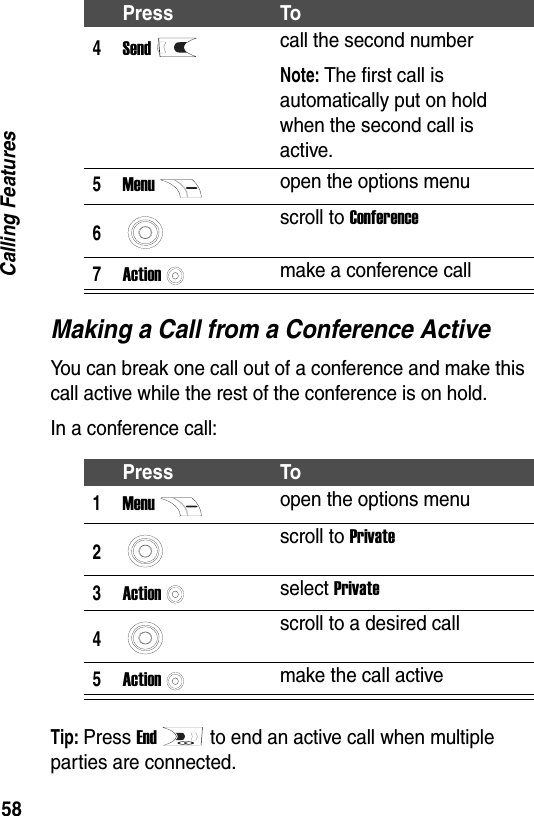
58Calling FeaturesMaking a Call from a Conference ActiveYou can break one call out of a conference and make this call active while the rest of the conference is on hold.In a conference call:Tip: Press Endto end an active call when multiple parties are connected.4Sendcall the second numberNote: The first call is automatically put on hold when the second call is active.5Menuopen the options menu6scroll to Conference7Actionmake a conference callPress To1Menuopen the options menu2scroll to Private3Actionselect Private4scroll to a desired call5Actionmake the call activePress To
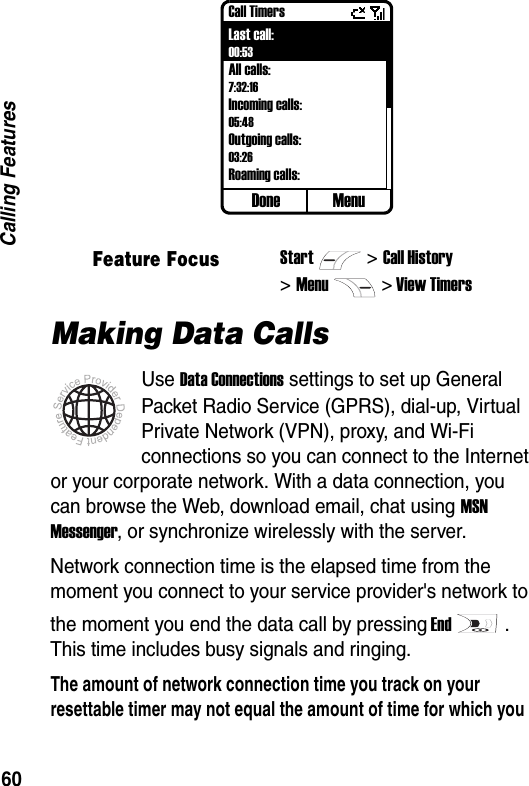
59Calling FeaturesForwarding CallsYou can forward all or selected calls to another number.Barring CallsYou can block incoming and/or outgoing calls.Monitoring Phone UseCall Timers contains the length of your last call, the total number of calls made and received, calls by type (Incoming, Outgoing, Roaming, and Data), and a lifetime counter. You can use Call Timers to keep track of your calling patterns, to help you choose a calling plan or estimate your monthly billing.Feature FocusStart>Settings >Phone >Call ForwardingFeature FocusStart>Settings >Phone >Call Barring
60Calling FeaturesMaking Data CallsUse Data Connections settings to set up General Packet Radio Service (GPRS), dial-up, Virtual Private Network (VPN), proxy, and Wi-Fi connections so you can connect to the Internet or your corporate network. With a data connection, you can browse the Web, download email, chat using MSN Messenger, or synchronize wirelessly with the server.Network connection time is the elapsed time from the moment you connect to your service provider's network to the moment you end the data call by pressing End. This time includes busy signals and ringing.The amount of network connection time you track on your resettable timer may not equal the amount of time for which you Feature FocusStart>Call History>Menu> View TimersDone MenuCall TimersLast call:00:53All calls:7:32:16Incoming calls:05:48Outgoing calls:03:26Roaming calls:
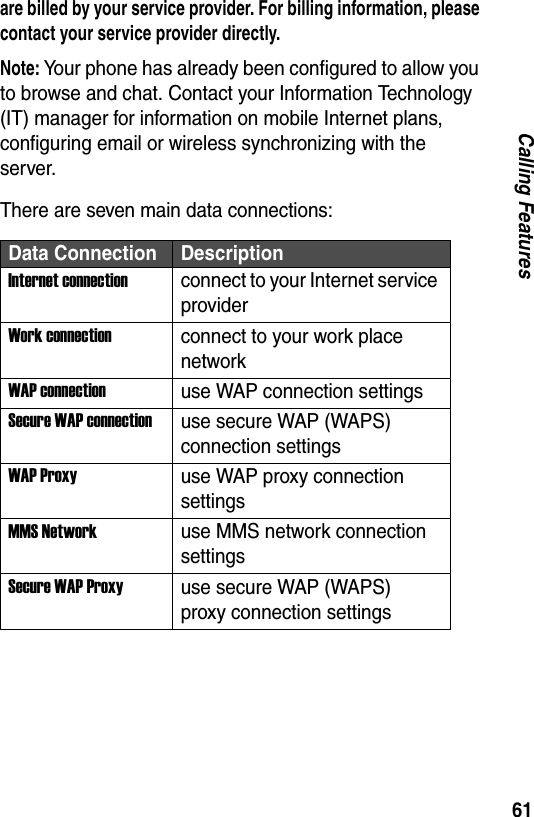
61Calling Featuresare billed by your service provider. For billing information, please contact your service provider directly.Note: Your phone has already been configured to allow you to browse and chat. Contact your Information Technology (IT) manager for information on mobile Internet plans, configuring email or wireless synchronizing with the server.There are seven main data connections:Data Connection DescriptionInternet connectionconnect to your Internet service providerWork connectionconnect to your work place networkWAP connectionuse WAP connection settingsSecure WAP connectionuse secure WAP (WAPS) connection settingsWAP Proxyuse WAP proxy connection settingsMMS Networkuse MMS network connection settingsSecure WAP Proxyuse secure WAP (WAPS) proxy connection settings
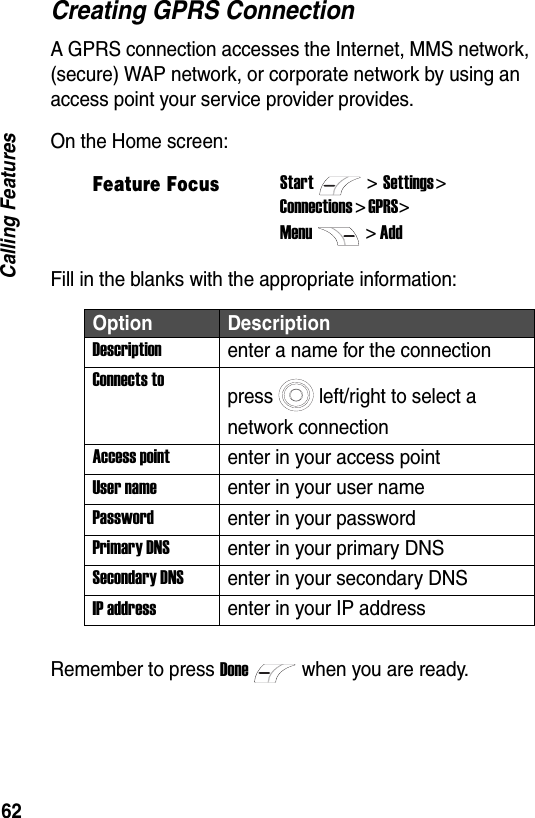
62Calling FeaturesCreating GPRS ConnectionA GPRS connection accesses the Internet, MMS network, (secure) WAP network, or corporate network by using an access point your service provider provides.On the Home screen:Fill in the blanks with the appropriate information:Remember to press Donewhen you are ready.Feature FocusStart>Settings > Connections > GPRS> Menu> AddOption DescriptionDescriptionenter a name for the connectionConnects topress left/right to select a network connectionAccess pointenter in your access pointUser nameenter in your user namePasswordenter in your passwordPrimary DNSenter in your primary DNSSecondary DNSenter in your secondary DNSIP addressenter in your IP address
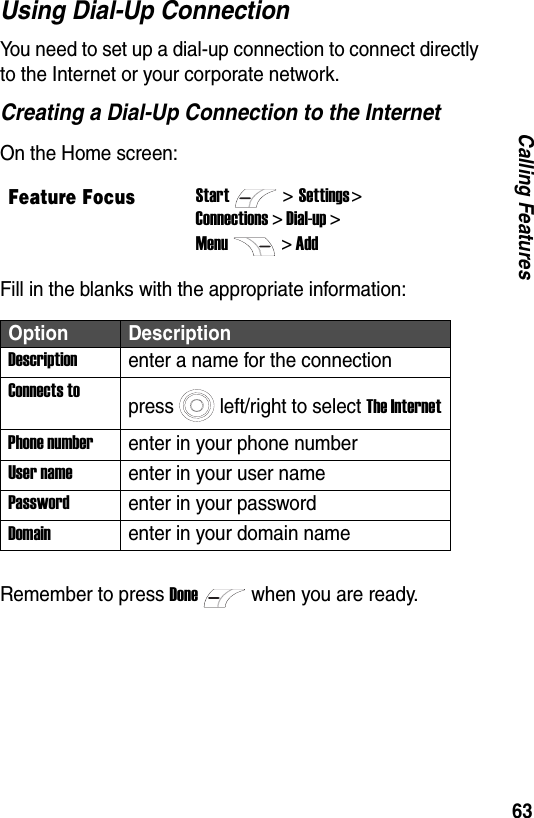
63Calling FeaturesUsing Dial-Up ConnectionYou need to set up a dial-up connection to connect directly to the Internet or your corporate network.Creating a Dial-Up Connection to the InternetOn the Home screen:Fill in the blanks with the appropriate information:Remember to press Donewhen you are ready.Feature FocusStart>Settings > Connections > Dial-up >Menu> AddOption DescriptionDescriptionenter a name for the connectionConnects topress left/right to select The InternetPhone numberenter in your phone numberUser nameenter in your user namePasswordenter in your passwordDomainenter in your domain name
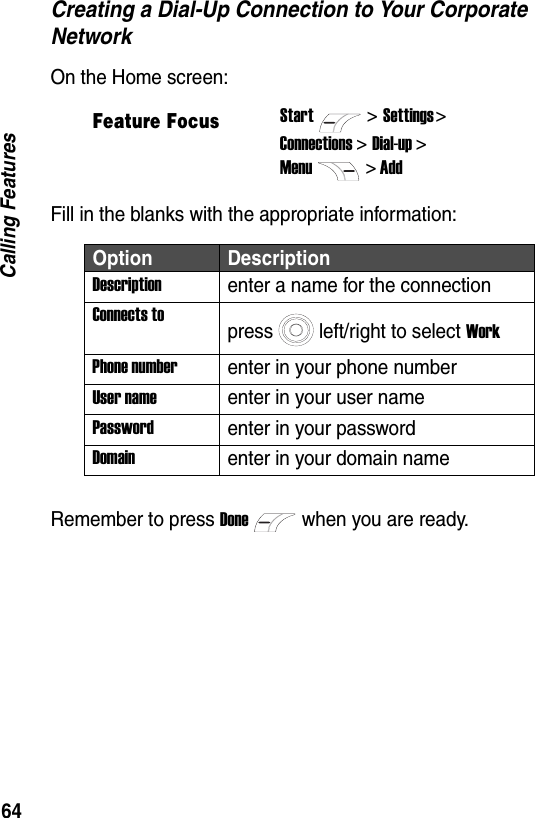
64Calling FeaturesCreating a Dial-Up Connection to Your Corporate NetworkOn the Home screen:Fill in the blanks with the appropriate information:Remember to press Donewhen you are ready.Feature FocusStart>Settings > Connections > Dial-up >Menu> AddOption DescriptionDescriptionenter a name for the connectionConnects topress left/right to select WorkPhone numberenter in your phone numberUser nameenter in your user namePasswordenter in your passwordDomainenter in your domain name
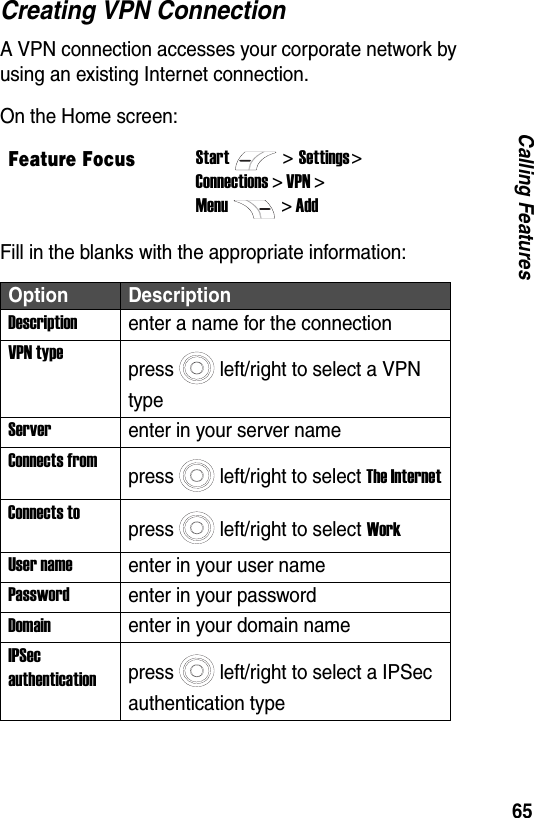
65Calling FeaturesCreating VPN ConnectionA VPN connection accesses your corporate network by using an existing Internet connection.On the Home screen:Fill in the blanks with the appropriate information:Feature FocusStart>Settings > Connections > VPN >Menu> AddOption DescriptionDescriptionenter a name for the connectionVPN typepress left/right to select a VPN typeServerenter in your server nameConnects frompress left/right to select The InternetConnects topress left/right to select WorkUser nameenter in your user namePasswordenter in your passwordDomainenter in your domain nameIPSec authenticationpress left/right to select a IPSec authentication type
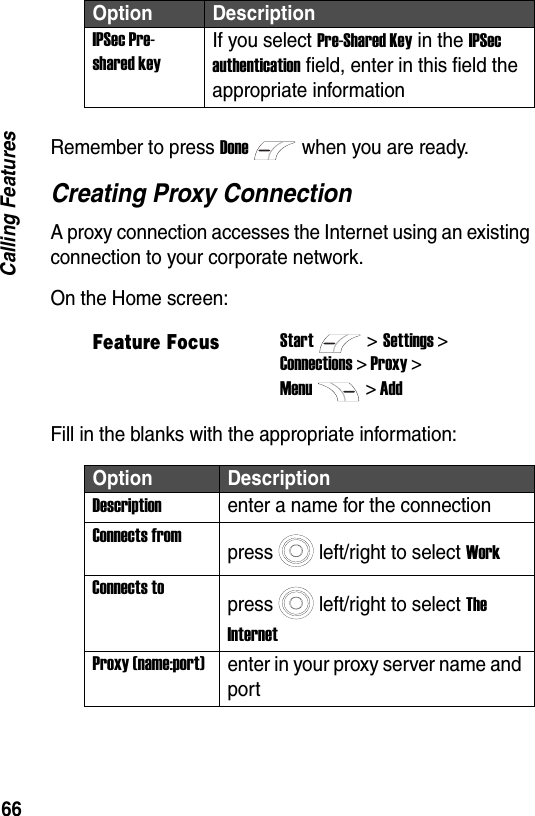
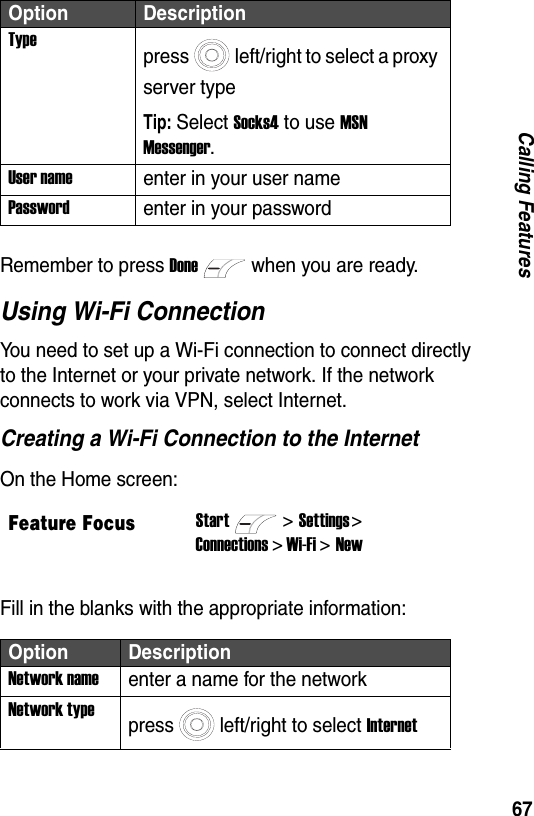
66Calling FeaturesRemember to press Donewhen you are ready.Creating Proxy ConnectionA proxy connection accesses the Internet using an existing connection to your corporate network.On the Home screen:Fill in the blanks with the appropriate information:IPSec Pre-shared keyIf you select Pre-Shared Key in the IPSec authentication field, enter in this field the appropriate informationFeature FocusStart>Settings >Connections > Proxy >Menu> AddOption DescriptionDescriptionenter a name for the connectionConnects frompress left/right to select WorkConnects topress left/right to select The InternetProxy (name:port)enter in your proxy server name and portOption Description
67Calling FeaturesRemember to press Donewhen you are ready.Using Wi-Fi ConnectionYou need to set up a Wi-Fi connection to connect directly to the Internet or your private network. If the network connects to work via VPN, select Internet.Creating a Wi-Fi Connection to the InternetOn the Home screen:Fill in the blanks with the appropriate information:Typepress left/right to select a proxy server typeTip: Select Socks4 to use MSN Messenger.User nameenter in your user namePasswordenter in your passwordFeature FocusStart>Settings > Connections > Wi-Fi > NewOption DescriptionNetwork nameenter a name for the networkNetwork typepress left/right to select InternetOption Description
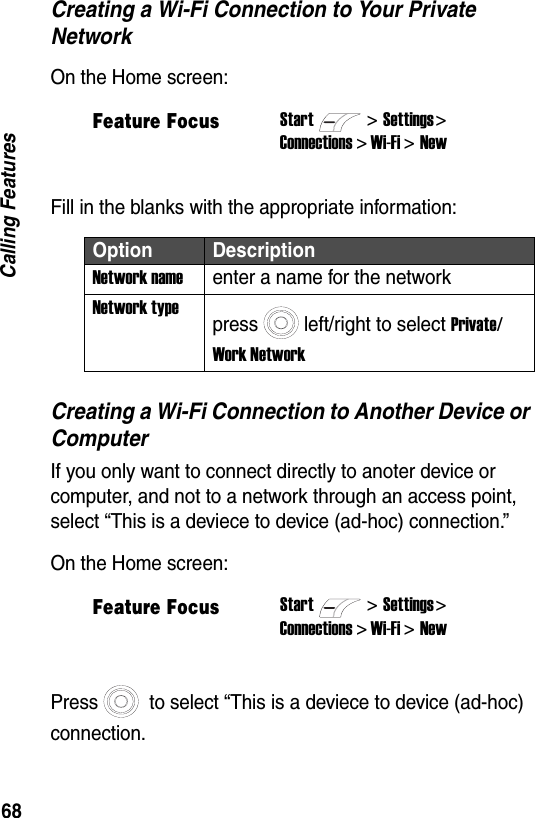
68Calling FeaturesCreating a Wi-Fi Connection to Your Private NetworkOn the Home screen:Fill in the blanks with the appropriate information:Creating a Wi-Fi Connection to Another Device or ComputerIf you only want to connect directly to anoter device or computer, and not to a network through an access point, select “This is a deviece to device (ad-hoc) connection.”On the Home screen:Press  to select “This is a deviece to device (ad-hoc) connection.Feature FocusStart>Settings > Connections > Wi-Fi > NewOption DescriptionNetwork nameenter a name for the networkNetwork typepress left/right to select Private/ Work NetworkFeature FocusStart>Settings > Connections > Wi-Fi > New
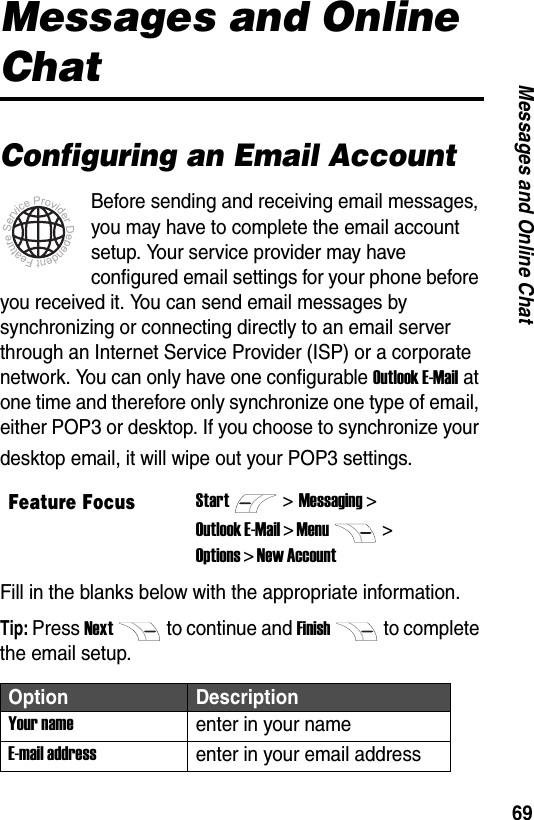
69Messages and Online ChatMessages and Online ChatConfiguring an Email AccountBefore sending and receiving email messages, you may have to complete the email account setup. Your service provider may have configured email settings for your phone before you received it. You can send email messages by synchronizing or connecting directly to an email server through an Internet Service Provider (ISP) or a corporate network. You can only have one configurable Outlook E-Mail at one time and therefore only synchronize one type of email, either POP3 or desktop. If you choose to synchronize your desktop email, it will wipe out your POP3 settings.Fill in the blanks below with the appropriate information.Tip: Press Nextto continue and Finishto complete the email setup.Feature FocusStart>Messaging >Outlook E-Mail > Menu> Options > New Account Option DescriptionYour nameenter in your nameE-mail addressenter in your email address
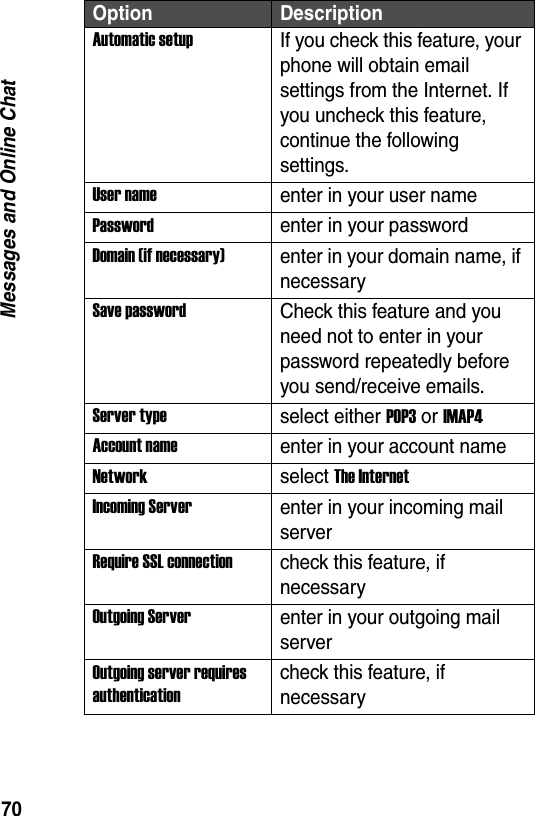
70Messages and Online ChatAutomatic setupIf you check this feature, your phone will obtain email settings from the Internet. If you uncheck this feature, continue the following settings.User nameenter in your user namePasswordenter in your passwordDomain (if necessary)enter in your domain name, if necessarySave passwordCheck this feature and you need not to enter in your password repeatedly before you send/receive emails.Server typeselect either POP3 or IMAP4Account nameenter in your account nameNetworkselect The InternetIncoming Serverenter in your incoming mail serverRequire SSL connectioncheck this feature, if necessaryOutgoing Serverenter in your outgoing mail serverOutgoing server requires authenticationcheck this feature, if necessaryOption Description
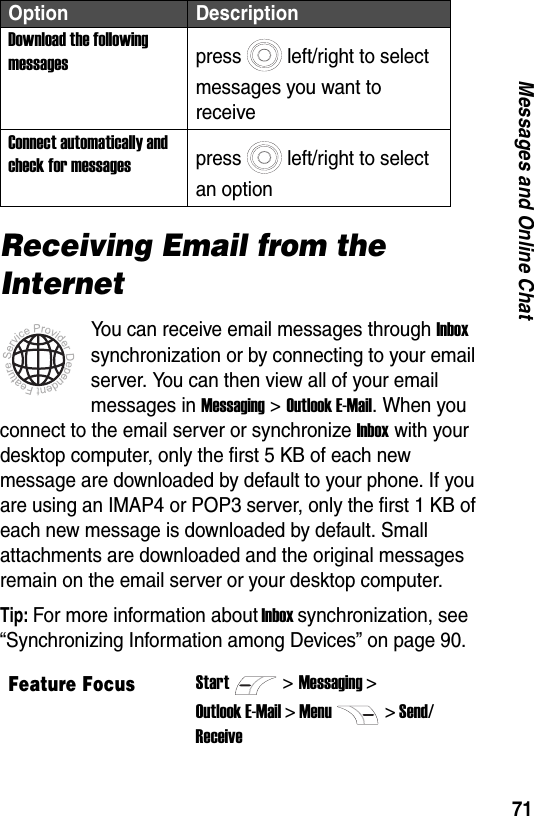
71Messages and Online ChatReceiving Email from the InternetYou can receive email messages through Inbox synchronization or by connecting to your email server. You can then view all of your email messages in Messaging > Outlook E-Mail. When you connect to the email server or synchronize Inbox with your desktop computer, only the first 5 KB of each new message are downloaded by default to your phone. If you are using an IMAP4 or POP3 server, only the first 1 KB of each new message is downloaded by default. Small attachments are downloaded and the original messages remain on the email server or your desktop computer.Tip: For more information about Inbox synchronization, see “Synchronizing Information among Devices” on page 90.Download the following messagespress left/right to select messages you want to receiveConnect automatically and check for messagespress left/right to select an optionFeature FocusStart>Messaging >Outlook E-Mail > Menu> Send/ReceiveOption Description
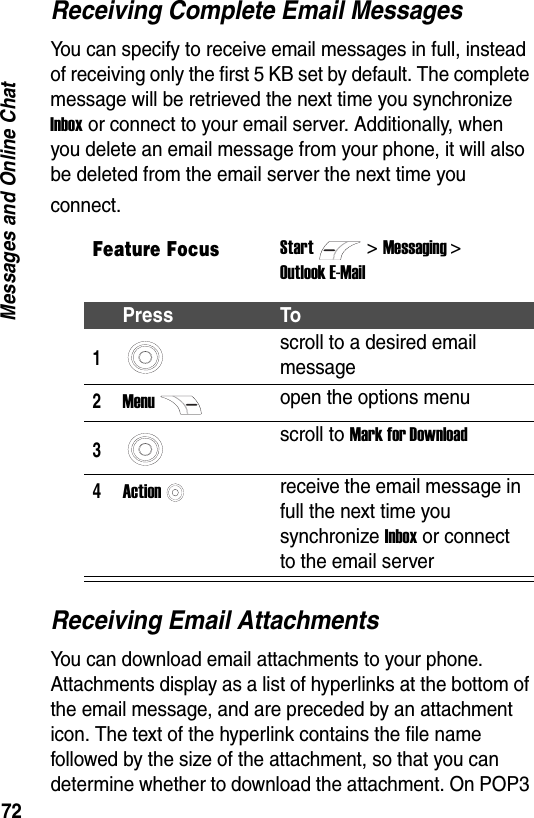
72Messages and Online ChatReceiving Complete Email MessagesYou can specify to receive email messages in full, instead of receiving only the first 5 KB set by default. The complete message will be retrieved the next time you synchronize Inbox or connect to your email server. Additionally, when you delete an email message from your phone, it will also be deleted from the email server the next time you connect.Receiving Email AttachmentsYou can download email attachments to your phone. Attachments display as a list of hyperlinks at the bottom of the email message, and are preceded by an attachment icon. The text of the hyperlink contains the file name followed by the size of the attachment, so that you can determine whether to download the attachment. On POP3 Feature FocusStart>Messaging >Outlook E-MailPress To1scroll to a desired email message2Menuopen the options menu3scroll to Mark for Download4Actionreceive the email message in full the next time you synchronize Inbox or connect to the email server
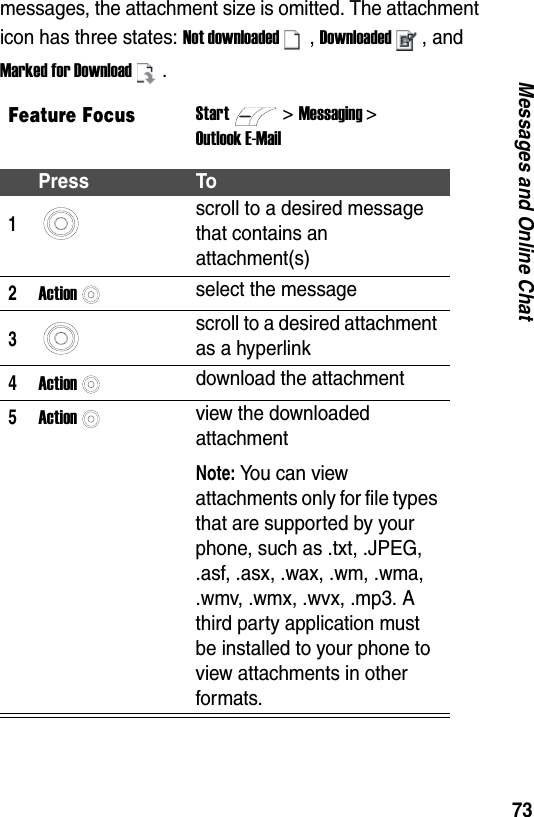
73Messages and Online Chatmessages, the attachment size is omitted. The attachment icon has three states: Not downloaded, Downloaded, and Marked for Download.Feature FocusStart>Messaging >Outlook E-MailPress To1scroll to a desired message that contains an attachment(s)2Actionselect the message3scroll to a desired attachment as a hyperlink4Actiondownload the attachment5Actionview the downloaded attachmentNote: You can view attachments only for file types that are supported by your phone, such as .txt, .JPEG, .asf, .asx, .wax, .wm, .wma, .wmv, .wmx, .wvx, .mp3. A third party application must be installed to your phone to view attachments in other formats.
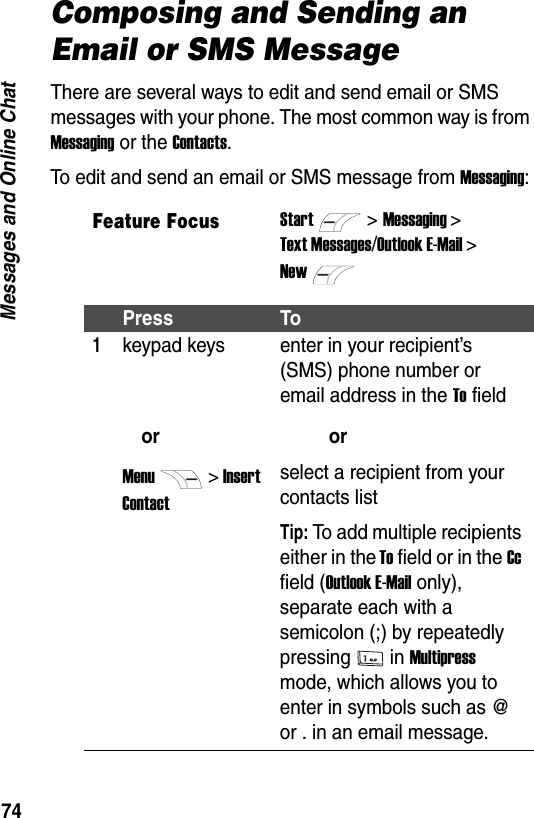
74Messages and Online ChatComposing and Sending an Email or SMS MessageThere are several ways to edit and send email or SMS messages with your phone. The most common way is from Messaging or the Contacts.To edit and send an email or SMS message from Messaging:Feature FocusStart>Messaging >Text Messages/Outlook E-Mail >NewPress To1keypad keysorMenu> Insert Contactenter in your recipient’s (SMS) phone number or email address in the To fieldorselect a recipient from your contacts listTip: To add multiple recipients either in the To field or in the Cc field (Outlook E-Mail only), separate each with a semicolon (;) by repeatedly pressing in Multipress mode, which allows you to enter in symbols such as @ or . in an email message.
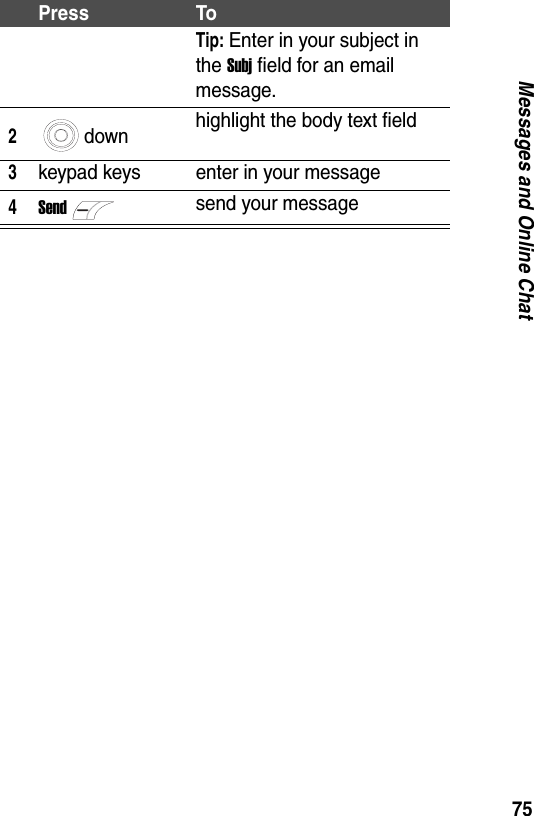
75Messages and Online ChatTip: Enter in your subject in the Subj field for an email message.2down highlight the body text field3keypad keys enter in your message4Sendsend your messagePress To
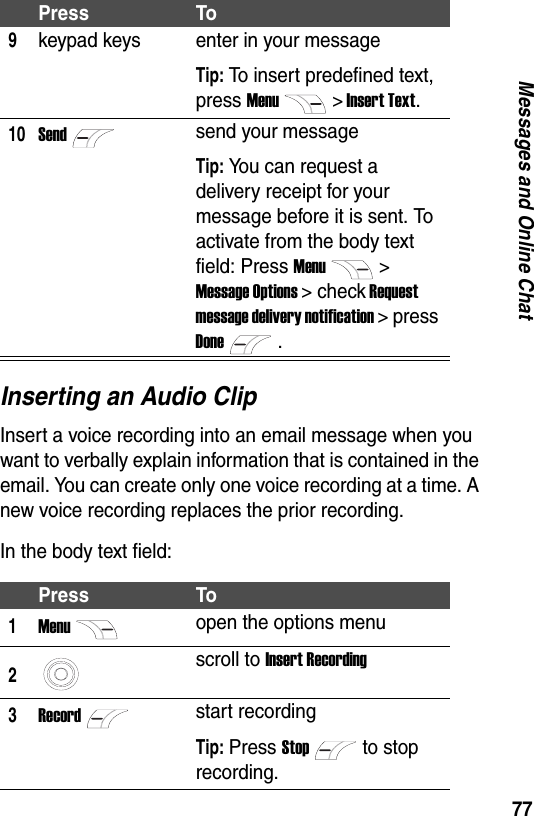
76Messages and Online ChatTo edit and send an email or SMS message from the Contacts:Feature FocusStart> ContactsPress To1scroll to a desired contact2Actionselect the contact3scroll to a desired email address or (SMS) phone number4Actionselect the email address or (SMS) phone numberTip: If an email address is selected, continue the following steps. If a (SMS) phone number is selected, refer to steps 9-10.5scroll to Text Messages or Outlook E-Mail for your email message6Actionselect Text Messages or Outlook E-Mail7keypad keys enter in your subject in the Subj fieldTip: To insert predefined text, press Menu> Insert Text.8down highlight the body text field
77Messages and Online ChatInserting an Audio ClipInsert a voice recording into an email message when you want to verbally explain information that is contained in the email. You can create only one voice recording at a time. A new voice recording replaces the prior recording.In the body text field:9keypad keys enter in your messageTip: To insert predefined text, press Menu> Insert Text.10Sendsend your messageTip: You can request a delivery receipt for your message before it is sent. To activate from the body text field: Press Menu> Message Options > check Request message delivery notification > press Done.Press To1Menuopen the options menu2scroll to Insert Recording3Recordstart recordingTip: Press Stopto stop recording.Press To
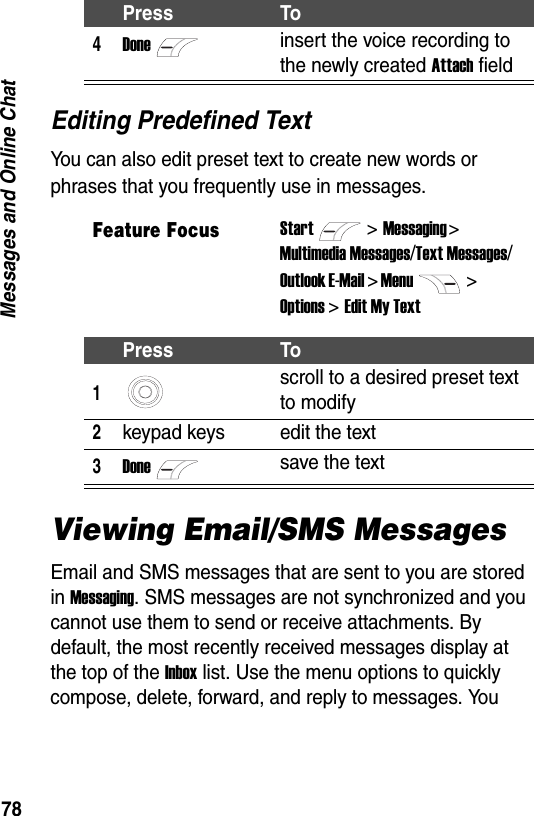
78Messages and Online ChatEditing Predefined TextYou can also edit preset text to create new words or phrases that you frequently use in messages.Viewing Email/SMS MessagesEmail and SMS messages that are sent to you are stored in Messaging. SMS messages are not synchronized and you cannot use them to send or receive attachments. By default, the most recently received messages display at the top of the Inbox list. Use the menu options to quickly compose, delete, forward, and reply to messages. You 4Doneinsert the voice recording to the newly created Attach fieldFeature FocusStart>Messaging > Multimedia Messages/Text Messages/Outlook E-Mail > Menu> Options >Edit My TextPress To1scroll to a desired preset text to modify2keypad keys edit the text3Donesave the textPress To
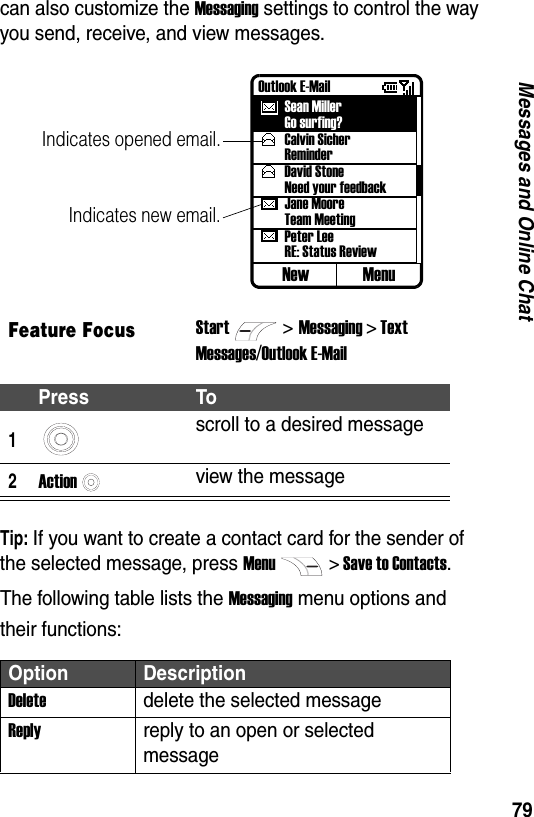
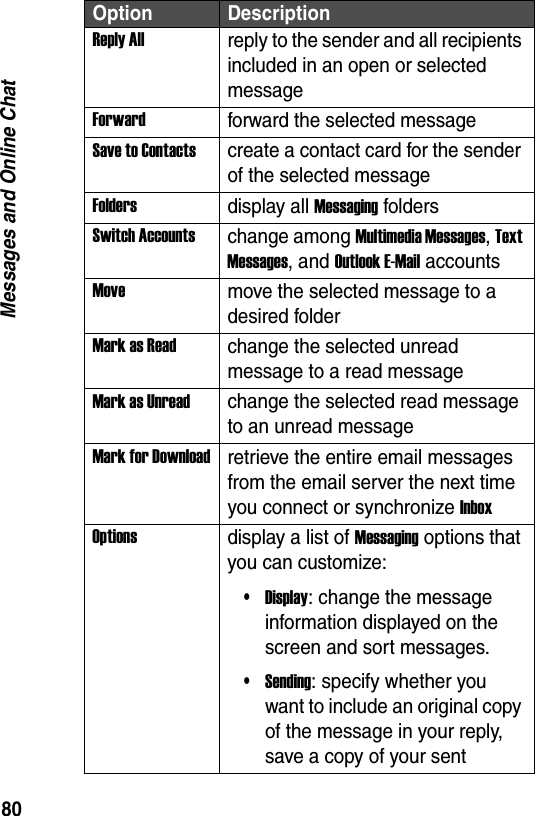
79Messages and Online Chatcan also customize the Messaging settings to control the way you send, receive, and view messages.Tip: If you want to create a contact card for the sender of the selected message, press Menu> Save to Contacts.The following table lists the Messaging menu options and their functions:Feature FocusStart>Messaging > TextMessages/Outlook E-MailPress To1scroll to a desired message2Actionview the messageOption DescriptionDeletedelete the selected messageReplyreply to an open or selected messageOutlook E-MailSean MillerGo surfing?Calvin SicherReminderDavid StoneNeed your feedbackJane MooreTeam MeetingPeter LeeRE: Status ReviewNew MenuIndicates opened email.Indicates new email.
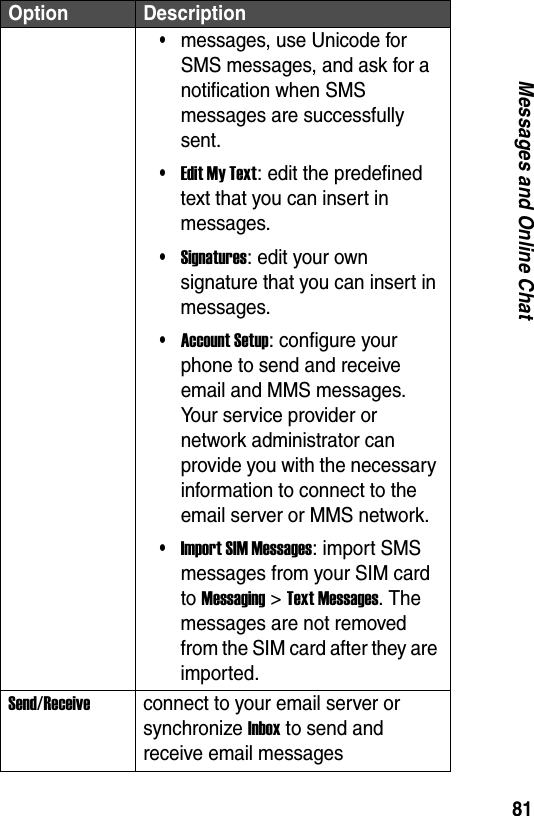
80Messages and Online ChatReply Allreply to the sender and all recipients included in an open or selected messageForwardforward the selected messageSave to Contactscreate a contact card for the sender of the selected messageFoldersdisplay all Messaging foldersSwitch Accountschange among Multimedia Messages, Text Messages, and Outlook E-Mail accountsMovemove the selected message to a desired folderMark as Readchange the selected unread message to a read messageMark as Unreadchange the selected read message to an unread messageMark for Downloadretrieve the entire email messages from the email server the next time you connect or synchronize InboxOptionsdisplay a list of Messaging options that you can customize:•Display: change the message information displayed on the screen and sort messages.•Sending: specify whether you want to include an original copy of the message in your reply, save a copy of your sent Option Description
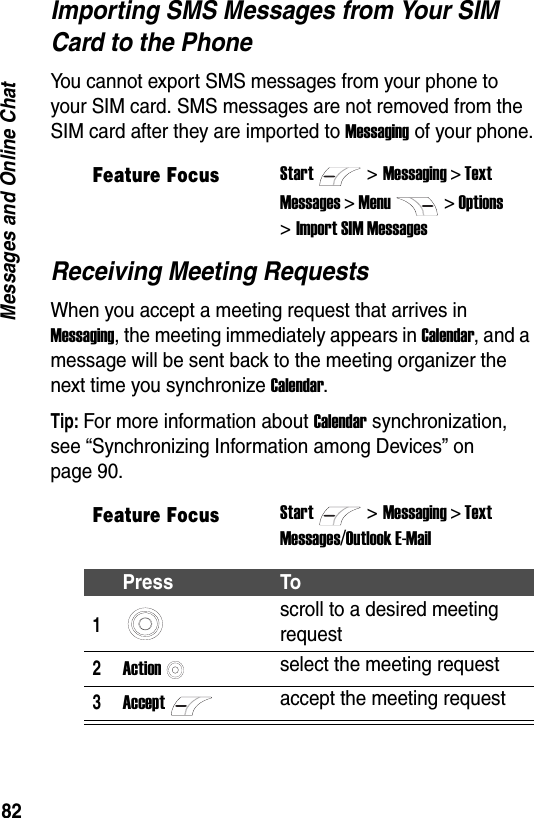
81Messages and Online Chat•messages, use Unicode for SMS messages, and ask for a notification when SMS messages are successfully sent.•Edit My Text: edit the predefined text that you can insert in messages.•Signatures: edit your own signature that you can insert in messages.•Account Setup: configure your phone to send and receive email and MMS messages. Your service provider or network administrator can provide you with the necessary information to connect to the email server or MMS network.•Import SIM Messages: import SMS messages from your SIM card to Messaging > Text Messages. The messages are not removed from the SIM card after they are imported.Send/Receiveconnect to your email server or synchronize Inbox to send and receive email messagesOption Description
82Messages and Online ChatImporting SMS Messages from Your SIM Card to the PhoneYou cannot export SMS messages from your phone to your SIM card. SMS messages are not removed from the SIM card after they are imported to Messaging of your phone.Receiving Meeting RequestsWhen you accept a meeting request that arrives in Messaging, the meeting immediately appears in Calendar, and a message will be sent back to the meeting organizer the next time you synchronize Calendar.Tip: For more information about Calendar synchronization, see “Synchronizing Information among Devices” on page 90.Feature FocusStart>Messaging > TextMessages > Menu> Options>Import SIM MessagesFeature FocusStart>Messaging > TextMessages/Outlook E-MailPress To1scroll to a desired meeting request2Actionselect the meeting request3Acceptaccept the meeting request
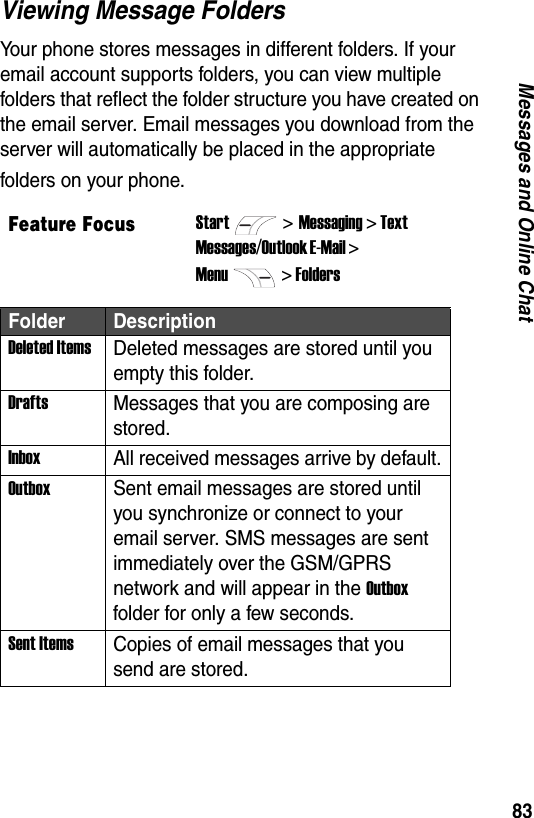
83Messages and Online ChatViewing Message FoldersYour phone stores messages in different folders. If your email account supports folders, you can view multiple folders that reflect the folder structure you have created on the email server. Email messages you download from the server will automatically be placed in the appropriate folders on your phone.Feature FocusStart>Messaging > TextMessages/Outlook E-Mail > Menu> FoldersFolder DescriptionDeleted ItemsDeleted messages are stored until you empty this folder.DraftsMessages that you are composing are stored.InboxAll received messages arrive by default.OutboxSent email messages are stored until you synchronize or connect to your email server. SMS messages are sent immediately over the GSM/GPRS network and will appear in the Outbox folder for only a few seconds.Sent ItemsCopies of email messages that you send are stored.
84Messages and Online ChatUsing Message NotificationsYour phone makes a sound to alert you new messages arrive. The number of unopened messages displays on the Home screen, depending on the Home screen settings. You are notified in different ways for the types of messages you receive. A closed envelope icon   is shown on the top of the display for new email or SMS messages. You can read new email or SMS messages in Messaging > Outlook E-Mail or Text Messages. Additionally, an icon  is shown on the top of the display for voicemail messages. To listen to new voicemail messages, press Voicemailor press and hold from the Home screen to dial your voicemail service number.To modify sound alerts for message notifications, press Start>Settings > Sounds from the Home screen.Communicating with MSN® MessengerYou can use MSN Messenger on your phone to send instant messages. MSN Messenger provides the same chat environment as MSN Messenger on your desktop computer. With the MSN Messenger feature you can:•Send and receive Instant Messages (IMs).•View the status of others in your messenger contacts list or change your own status.•Invite others to a chat conversation.
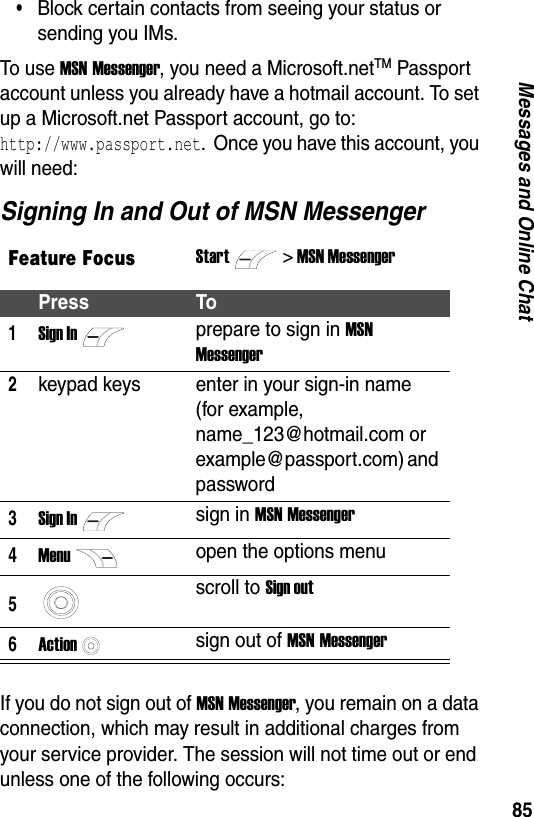
85Messages and Online Chat•Block certain contacts from seeing your status or sending you IMs.To use MSN Messenger, you need a Microsoft.netTM Passport account unless you already have a hotmail account. To set up a Microsoft.net Passport account, go to:  http://www.passport.net. Once you have this account, you will need:Signing In and Out of MSN MessengerIf you do not sign out of MSN Messenger, you remain on a data connection, which may result in additional charges from your service provider. The session will not time out or end unless one of the following occurs:Feature FocusStart> MSN MessengerPress To1Sign Inprepare to sign in MSN Messenger2keypad keys enter in your sign-in name (for example,   name_123@hotmail.com or example@passport.com) and password3Sign Insign in MSN Messenger4Menuopen the options menu5scroll to Sign out6Actionsign out of MSN Messenger
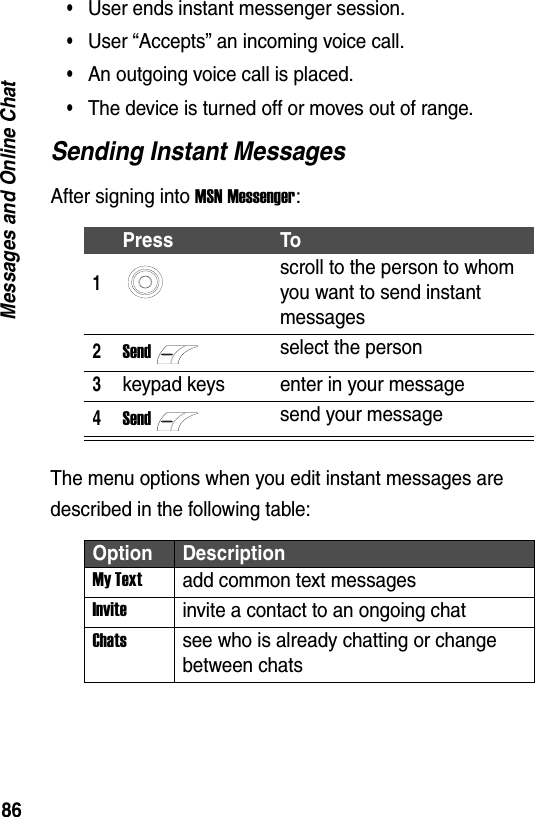
86Messages and Online Chat•User ends instant messenger session.•User “Accepts” an incoming voice call.•An outgoing voice call is placed.•The device is turned off or moves out of range.Sending Instant MessagesAfter signing into MSN Messenger:The menu options when you edit instant messages are described in the following table:Press To1scroll to the person to whom you want to send instant messages2Sendselect the person3keypad keys enter in your message4Sendsend your messageOption DescriptionMy Textadd common text messagesInviteinvite a contact to an ongoing chatChatssee who is already chatting or change between chats
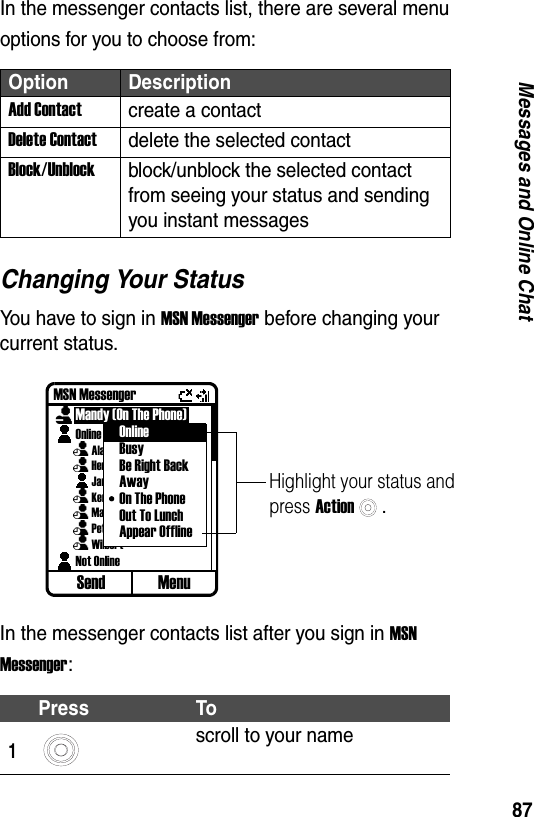
87Messages and Online ChatIn the messenger contacts list, there are several menu options for you to choose from:Changing Your StatusYou have to sign in MSN Messenger before changing your current status.In the messenger contacts list after you sign in MSN Messenger:Option DescriptionAdd Contactcreate a contactDelete Contactdelete the selected contactBlock/Unblockblock/unblock the selected contact from seeing your status and sending you instant messagesPress To1scroll to your nameMSN MessengerMandy (On The Phone)OnlineAlanHenryJaneKenMarvinPeterWilbertNot OnlineSend MenuHighlight your status and press Action.OnlineBusyBe Right BackAwayOn The PhoneOut To LunchAppear Offline
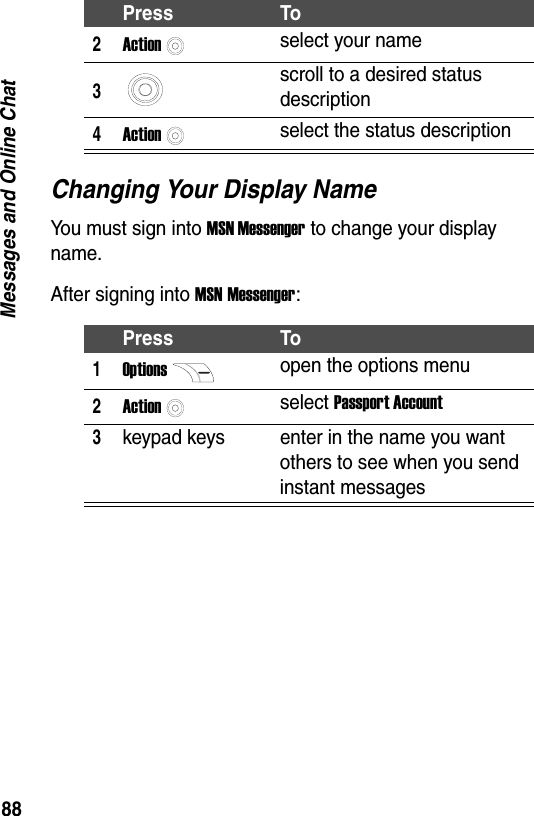
88Messages and Online ChatChanging Your Display NameYou must sign into MSN Messenger to change your display name.After signing into MSN Messenger:2Actionselect your name3scroll to a desired status description4Actionselect the status descriptionPress To1Optionsopen the options menu2Actionselect Passport Account3keypad keys enter in the name you want others to see when you send instant messagesPress To
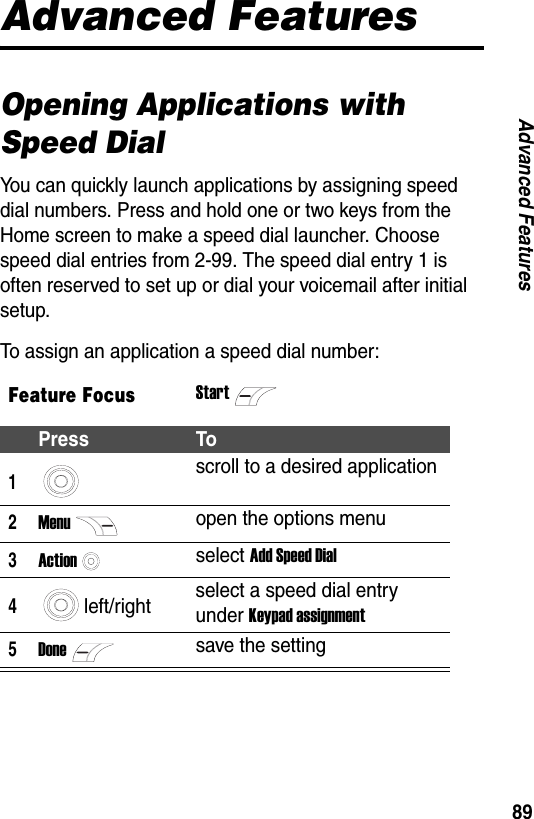
89Advanced FeaturesAdvanced FeaturesOpening Applications with Speed DialYou can quickly launch applications by assigning speed dial numbers. Press and hold one or two keys from the Home screen to make a speed dial launcher. Choose speed dial entries from 2-99. The speed dial entry 1 is often reserved to set up or dial your voicemail after initial setup.To assign an application a speed dial number:Feature FocusStartPress To1scroll to a desired application2Menuopen the options menu3Actionselect Add Speed Dial4left/right select a speed dial entry under Keypad assignment5Donesave the setting
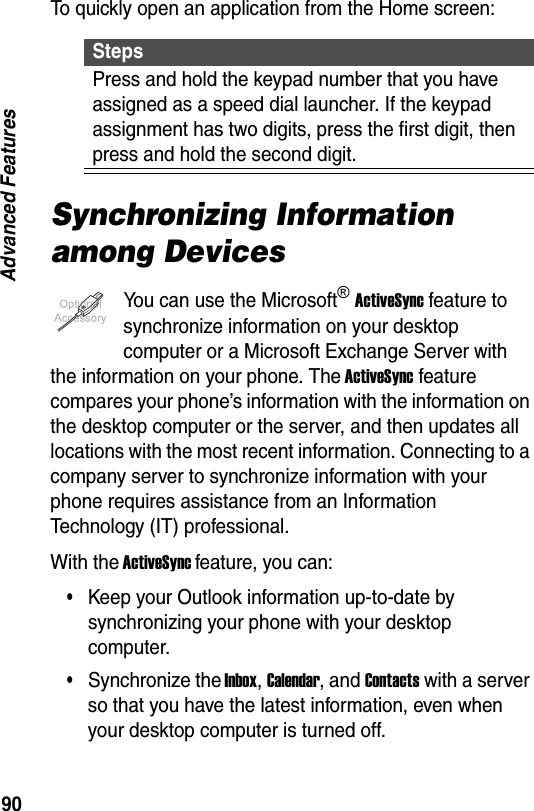
90Advanced FeaturesTo quickly open an application from the Home screen:Synchronizing Information among DevicesYou can use the Microsoft® ActiveSync feature to synchronize information on your desktop computer or a Microsoft Exchange Server with the information on your phone. The ActiveSync feature compares your phone’s information with the information on the desktop computer or the server, and then updates all locations with the most recent information. Connecting to a company server to synchronize information with your phone requires assistance from an Information Technology (IT) professional.With the ActiveSync feature, you can:•Keep your Outlook information up-to-date by synchronizing your phone with your desktop computer.•Synchronize the Inbox, Calendar, and Contacts with a server so that you have the latest information, even when your desktop computer is turned off.StepsPress and hold the keypad number that you have assigned as a speed dial launcher. If the keypad assignment has two digits, press the first digit, then press and hold the second digit.
91Advanced Features•Copy (rather than synchronize) files between your phone and your desktop computer.•Control when synchronization automatically occurs by selecting a synchronization schedule.•Select which information types are synchronized and control how much information is synchronized. For example, you can choose how many weeks of past appointments to synchronize.Tip: Using the ActiveSync feature, you can synchronize information directly with a Microsoft Exchange Server if your computer is running Microsoft Mobile Information Server 2003 or later. For more information about the ActiveSync feature, see the ActiveSync feature Help on your desktop computer.Installing the ActiveSync Feature on Your PCThe ActiveSync feature is already installed on your phone. To install the ActiveSync feature (3.7.1 or later) on your personal computer, use the companion CD included in your box or download from the Microsoft website  (http://www.microsoft.com) by entering the word ActiveSync in the search dialogue box.Creating a PartnershipAfter the installation is complete, the New Partnership Wizard helps you set up a partnership between your phone and your desktop computer or a server so that you can start synchronizing information and customizing your synchronization settings. Your first synchronization
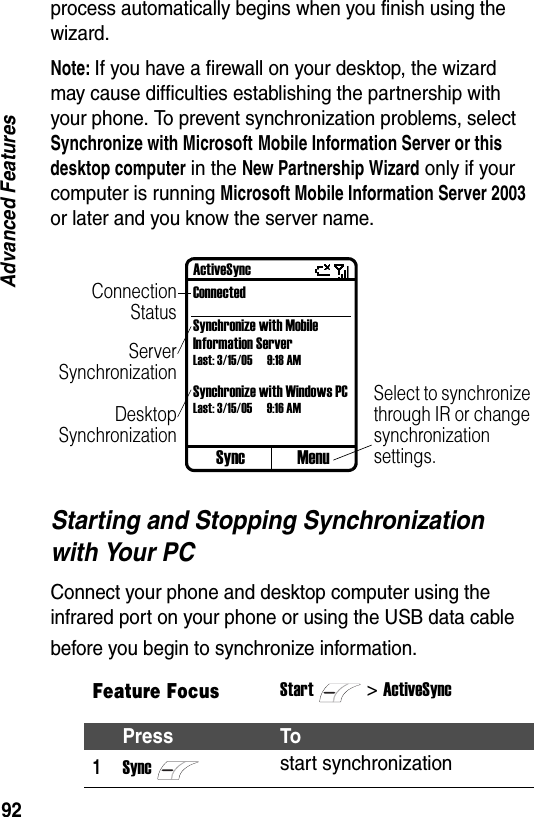
92Advanced Featuresprocess automatically begins when you finish using the wizard.Note: If you have a firewall on your desktop, the wizard may cause difficulties establishing the partnership with your phone. To prevent synchronization problems, select Synchronize with Microsoft Mobile Information Server or this desktop computer in the New Partnership Wizard only if your computer is running Microsoft Mobile Information Server 2003 or later and you know the server name.Starting and Stopping Synchronization with Your PCConnect your phone and desktop computer using the infrared port on your phone or using the USB data cable before you begin to synchronize information.Feature FocusStart>ActiveSyncPress To1Syncstart synchronizationSync MenuActiveSyncConnectedSynchronize with Mobile Information ServerLast: 3/15/05 9:18 AMSynchronize with Windows PCLast: 3/15/05 9:16 AMConnectionStatusServerSynchronizationSelect to synchronize through IR or change synchronization settings.DesktopSynchronization
93Advanced FeaturesRegarding the infrared port, you can use an infrared connection to quickly create a direct connection between your phone and another desktop computer or mobile device. This method is ideal for changing between multiple devices, because there are no cables or adapters to change. For more information about synchronizing using an infrared connection, see the ActiveSync feature Help on your desktop computer.Tip: To use this function, please ensure that the external device support the infrared connection. Align your phone to your personal computer or mobile device when using an infrared connection to synchronize information.Whenever the ActiveSync feature cannot successfully synchronize your information, an error displays on your phone. Press Actionto display more information about the error that occurred.Note: Some types of errors can interfere with automatic synchronization. If you suspect that a scheduled automatic synchronization has not occurred, you should attempt to manually synchronize your information. Successfully completing manual synchronization resets automatic synchronization.Setting Up the Server ActiveSync FeatureBefore you can synchronize information with a server, you may need to request server configuration information, 2Stopstop synchronizationPress To
94Advanced Featuressuch as your user name, password, and the name of the Microsoft Mobile Information Server, either from your service provider or network administrator. This configuration information may have already been set up on your phone.Fill in the blanks with the appropriate information:Feature FocusStart>ActiveSyncPress To1Menuopen the options menu2Actionselect Options3scroll to Server Settings4Actionselect Server Settings5scroll to Connection6Actionselect ConnectionOption DescriptionUser nameenter in your Microsoft Exchange user namePasswordenter in your Microsoft Exchange passwordDomainenter in your Microsoft Exchange Server domain name (if required)
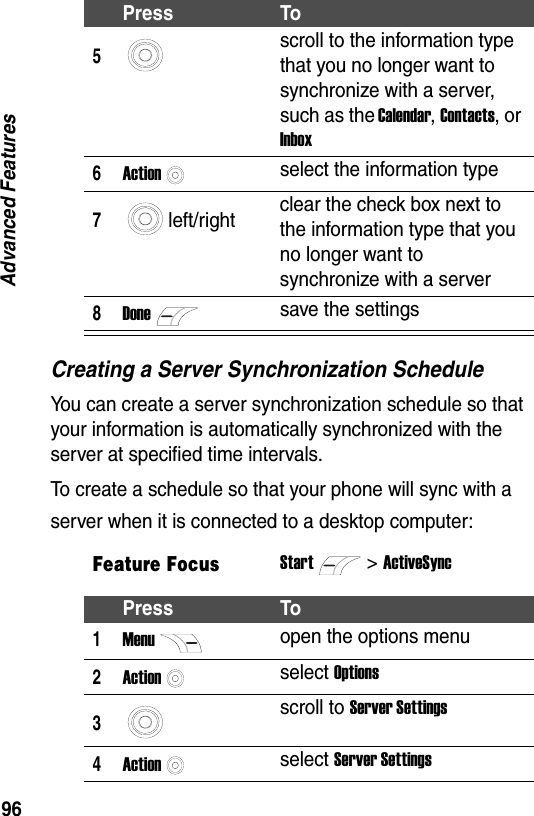
95Advanced FeaturesRemember to press Donewhen you are ready.Stopping Synchronizing an Information Type with a ServerYou can stop your phone synchronizing an information type with a server. For more information about synchronization, see the ActiveSync feature Help on the desktop computer.Save passwordpress left/right to check this feature so that you need not enter it repeatedlyServer Nameenter in your Microsoft Mobile Information Server nameFeature FocusStart>ActiveSyncPress To1Menuopen the options menu2Actionselect Options3scroll to Server Settings4Actionselect Server SettingsOption Description
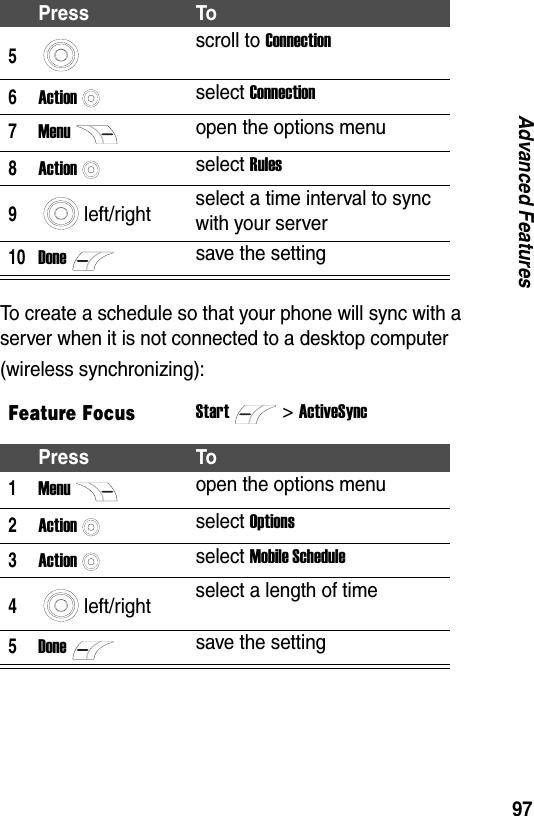
96Advanced FeaturesCreating a Server Synchronization ScheduleYou can create a server synchronization schedule so that your information is automatically synchronized with the server at specified time intervals.To create a schedule so that your phone will sync with a server when it is connected to a desktop computer:5scroll to the information type that you no longer want to synchronize with a server, such as the Calendar, Contacts, or Inbox6Actionselect the information type7left/right clear the check box next to the information type that you no longer want to synchronize with a server8Donesave the settingsFeature FocusStart>ActiveSyncPress To1Menuopen the options menu2Actionselect Options3scroll to Server Settings4Actionselect Server SettingsPress To
97Advanced FeaturesTo create a schedule so that your phone will sync with a server when it is not connected to a desktop computer (wireless synchronizing):5scroll to Connection6Actionselect Connection7Menuopen the options menu8Actionselect Rules9left/right select a time interval to sync with your server10Donesave the settingFeature FocusStart>ActiveSyncPress To1Menuopen the options menu2Actionselect Options3Actionselect Mobile Schedule4left/right select a length of time5Donesave the settingPress To
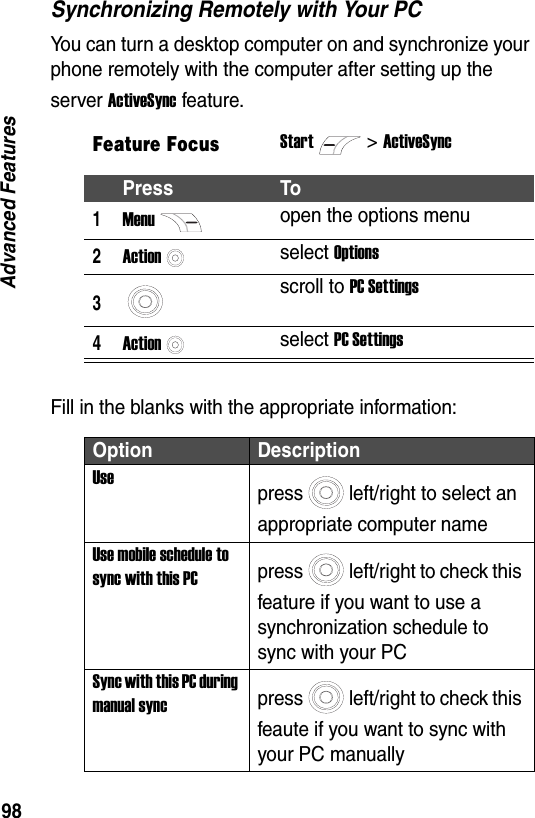
98Advanced FeaturesSynchronizing Remotely with Your PCYou can turn a desktop computer on and synchronize your phone remotely with the computer after setting up the server ActiveSync feature.Fill in the blanks with the appropriate information:Feature FocusStart>ActiveSyncPress To1Menuopen the options menu2Actionselect Options3scroll to PC Settings4Actionselect PC SettingsOption DescriptionUsepress left/right to select an appropriate computer nameUse mobile schedule to sync with this PCpress left/right to check this feature if you want to use a synchronization schedule to sync with your PCSync with this PC during manual syncpress left/right to check this feaute if you want to sync with your PC manually
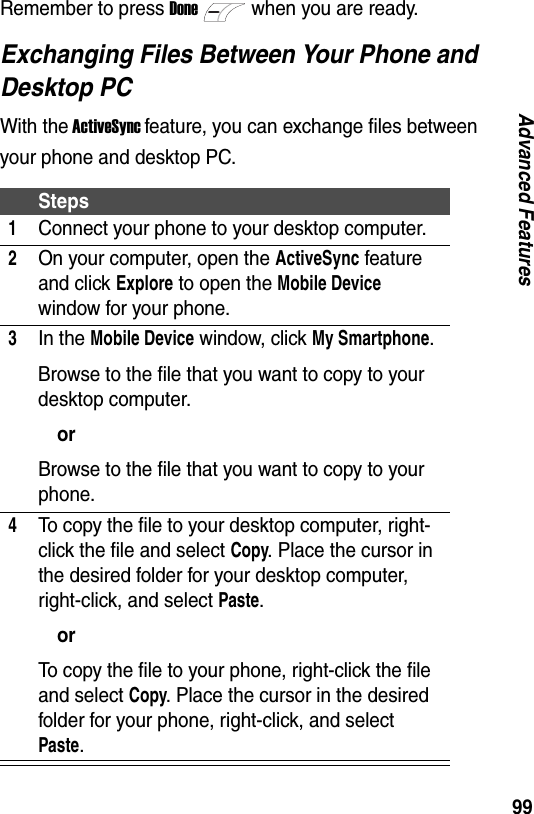
99Advanced FeaturesRemember to press Donewhen you are ready.Exchanging Files Between Your Phone and Desktop PCWith the ActiveSync feature, you can exchange files between your phone and desktop PC.Steps1Connect your phone to your desktop computer.2On your computer, open the ActiveSync feature and click Explore to open the Mobile Device window for your phone.3In the Mobile Device window, click My Smartphone.Browse to the file that you want to copy to your desktop computer.orBrowse to the file that you want to copy to your phone.4To copy the file to your desktop computer, right-click the file and select Copy. Place the cursor in the desired folder for your desktop computer, right-click, and select Paste.orTo copy the file to your phone, right-click the file and select Copy. Place the cursor in the desired folder for your phone, right-click, and select Paste.
100Advanced FeaturesBeaming InformationYou can use your phone’s infrared port to send and receive (beam) calendar appointments and contact cards between your devices, and to synchronize information with a mobile device or desktop computer that has an infrared port.Beaming a Contact CardFeature FocusStart>ContactsPress To1scroll to a desired contact (saved in the phone memory) to beam2Menuopen the options menu3scroll to Beam Contact4Actionselect Beam Contact5scroll to a desired IR device your phone searches in its range6Actionselect the device7Beambeam the contactNote: To beam a contact over IR, align the infrared ports so that they are unobstructed and within close range of each other.
101Advanced FeaturesStatus information then displays the name of the device your phone is beaming to, and whether the beaming process is pending, done, or failed.Beaming an AppointmentStatus information then displays the name of the device your phone is beaming to, and whether the beaming process is pending, done, or failed.Feature FocusStart>CalendarPress To1scroll to a desired appointment to beam2Actionopen the appointment3Menuopen the options menu4scroll to Beam Appointment5Actionselect Beam Appointment6scroll to a desired IR device your phone searches in its range7Actionselect the device8Beambeam the appointmentNote: To beam an appointment over IR, align the infrared ports so that they are unobstructed and within close range of each other.
102Advanced FeaturesReceiving Beamed InformationYour phone can receive beamed files of any type, but some files must need to be copied to your desktop computer for viewing.Using a BluetoothTM ConnectionNote: To use this function, please ensure that the external device support the Bluetooth connection.You can use a Bluetooth connection to quickly create a direct connection between your phone and another Bluetooth-enabled device. This method is ideal for changing among multiple devices, because there are no cables or adapters to change.Feature FocusStart>Settings >BeamPress To1left/right check Receive incoming beams2Donereceive beamed informationNote: To receive beamed information over IR, align the infrared ports so that they are unobstructed and within close range of each other.
103Advanced FeaturesCreating a Partnership from Your Phone with a Bluetooth DeviceWhen your phone is creating a bond with a Bluetooth device that has headset or handsfree capabilities, you are notified through the dialog boxes to set up that device as your Bluetooth headset or handsfree by pressing Yes. When you are on a call using your Bluetooth headset, you can transfer audio to your phone’s earpiece by using the menu options. If you want to transfer audio again to the Bluetooth headset, push the headset hardware button.Feature FocusStart>Settings >Connections > Bluetooth>Menu>Devices >Menu> NewPress To1scroll to the Bluetooth-enabled device you want to pair with2Selectselect the device3keypad keys enter a PIN on your phone to create the partnership4keyboard keys enter the same PIN on the device5Donesave the setting
104Advanced FeaturesTip: You can stop a search if a Bluetooth device has been found by pressing Add.Accepting a Partnership from a Bluetooth Device with Your PhoneOn a Bluetooth device, you can configure a partnership with your phone.The partnership is created. Your phone can now be used as a (data) modem. The phone automatically becomes a data modem over the Bluetooth connection if a paired device attempts to connect to it.Feature FocusStart>Settings > Connections > BluetoothSteps1Under Bluetooth, press left/right to select Discoverable and press Done. The Bluetooth radio turns on and makes your phone discoverable for 3 minutes.2On a Bluetooth device, select your phone and attempt to pair with it.3Enter the same PIN both on the Bluetooth device and on your phone to create the partnership.
105Advanced FeaturesManaging Wireless Connections Using Wireless Manager, you can easily turn on/ off the functions of Wi-Fi connection, Bluetooth connection, and Phone features.Note: Be aware that when the Phone feature is turned off, your phone cannot receive and make a call, including an emergency call. To receive and make a call, turn on the Phone feature and re-engage your phone’s RF capability.Feature FocusStart>Settings > Connections > Wireless ManagerOption DescriptionAllpress to turn on/ off the functions of Wi-Fi, Bluetooth, and PhoneWi-Fipress to turn on/ off the functions of Wi-Fi connectionBluetoothpress to turn on/ off the functions of Bluetooth connectionPhonepress to turn on/ off the functions of Phone features
106Advanced FeaturesUsing Your Phone as a ModemUsing Modem Link, you can use your phone as an external (data) modem for another mobile device or personal computer by using an infrared or USB connection.When you connect your phone to your personal computer using a USB data cable, the screens shown and the step-by-step instructions are specific to Windows 2000 users. The screens may vary slightly by the Windows version. If you have a different version of Windows and have any further questions, please contact the computer’s respective Help menu.Installing the Phone As a Modem on Your PCInstall the USB driver (USBMDM.inf) on your C:\ drive from the companion CD first. Then follow the steps below to install the phone modem USB driver.Note: If your computer has automatically added your phone as a new modem, you can skip the following steps.Steps1Connect your phone to your computer with the USB data cable. Your computer may prompt you for the wireless USB modem driver with a New Hardware Wizard menu screen. If it does not, proceed to To Set Up a USB Modem Connection.
107Advanced Features56K modems are capable of receiving 56 Kbps from a compatible service provider. Actual speeds will vary depending on line conditions.Activating the Modem LinkYou can specify a type of connection (through USB or infrared) for your phone as a data modem to link with your personal computer.A modem query is necessary to establish a PC and modem connection. If the PC and modem connections are 2Click Next from the opening screen of the Install Wizard that states Welcome to the New Found Hardware Wizard.3Click on Search for a suitable driver for my device (recommended).4Click Specify a Location and browse to the C:\ drive folder in which you downloaded the USB driver.5Click Next to allow your computer to automatically search and download the USB driver file and click Finish.6After installing the driver, disconnect your phone from the computer, and proceed to To Set Up a USB Modem Connection. Your computer lists the Smartphone 2003 Wireless USB Modem in the Device Manager window. This indicates the phone modem has successfully been installed on your personal computer.Steps
108Advanced Featuresnot established in approximately 30 seconds, the ActiveSync feature on the phone will take over the USB port.In addition, an extra initialization string is needed on your phone as a modem for setting up the GPRS server configuration. Contact your wireless service provider for the APN name, user name, and password.Steps1On your computer, click on Start > Settings > Control Panel > System > Hardware > Device Manager > Modems > Smartphone 2003 Wireless USB Modem.2In the Smartphone 2003 Wireless USB Modem Properties window, select the Diagnostics tab and click Query Modem. The PC sends hyper terminal AT commands and if the modem replies back without an error, the modem is properly installed.Steps1After querying the modem, click the Advanced tab in the Modem Properties dialogue window.2Type in your extra initialization string and change the APN name as needed.3For GPRS network’s extra initialization string, use the following: +CGDCONT=1,“IP”,“apnname”,“”,0,0
109Advanced FeaturesSetting Up a USB Modem ConnectionSetting Up an Infrared Modem ConnectionSteps1Make sure that your phone is not connected to your personal computer.2On the Home screen, press Start> More > Accessories > Modem Link.3Under Connection, press left/right to select USB.4Press Menuand select Activate.5Now connect your phone to your computer with the USB data cable.Steps1On the Home screen, press Start> More > Accessories > Modem Link.2Under Connection, press left/right to select IrCOMM.3Press Menuand select Activate.4Now connect your phone to your computer using the infrared ports.
110Advanced FeaturesAdding a New Dial-Up ConnectionTip: Ensure Smartphone 2003 Wireless USB Modem is selected and the hardware features are properly configured before dialing.Steps1From the Control Panel of your personal computer, select Network and Dial-up Connection.2Double click Make New Connection and click Next.3Select Dial-up to Internet and click Next.4From the Internet Connection Wizard select Internet Connection Manually and click Next.5Select Connect Through Phone Line and Modem.6From modem selection scroll down to Smartphone 2003 Wireless USB Modem and click Next.7Under Telephone Number, type the codes your network administrator provides and uncheck area codes and dialing rules; then click Next.8Fill in the User Name and Password and click Next.9Type in connection name (i.e. Smartphone USB Cable GPRS) and click Next.10Select No then Next and click Finish.
111Advanced FeaturesTo double-check the new dial-up connection settings, follow the steps below:Deactivating the Modem LinkDeactivate the modem link when you are finished using it in order to avoid potential problems when using the ActiveSync feature in the same session.Steps1Open a newly created dial-up connection for your personal computer.2Click Properties and verify Smartphone 2003 Wireless USB Modem is selected.3Click Configure and ensure all hardware features are selected as shown above.4Click OK then OK.5After clicking Dial, you should see Opening, Dialing, Verifying User Name and Password, and Registering Your Computer on the Network. You are GPRS connected when the dial-up dialogue window changes to an icon in your system tray.Feature FocusStart>More >Accessories > Modem Link >Menu>Deactivate
112Advanced FeaturesManaging FilesFile Manager is for file and folder management in your phone. It operates in two major views, Tree View and List View.Feature FocusStart>More >File ManagerOption DescriptionTree Viewdisplays the entire file structure in your phone’s memory. The functions in Tree View primarily focus on folder management (operates similar to Microsoft Windows File Explorer).List Viewdisplays the details of the selected folder (its sub-folders and files). The functions in List View are basically file-oriented.File ManagerprofilesdefaultStorageApplication DataHomeSoundsVolatileConnMgrMAPIMy Documents0 Folders/21 FilesList View MenuTree ViewFile Manager\Storage\Application Data\Home..Hello.jpghome0.hifBeach.jpgBusinessman.jpgBusinesswom.jpgChill.jpgDots.jpg1/22 3/15/05 1:27 PMTree View MenuList View20.1K12.0K20.9K19.4K26.0K21.3K38.8K
113Advanced FeaturesThere are a variety of key features for File Manager:•Delete, move, or copy/paste folders and files, and create file shortcuts.•Sort listed files in a variety of ways (by Name, Size, Type, or Date of Last Change, and by Ascending or Descending).•Search for files according to portions of filenames.•Send the selected files through email, infrared beaming, MMS or Bluetooth radio, and receive files through infrared beaming or Bluetooth radio.•View file or folder properties.•Confirm the file you want to replace or delete.•Refresh the folders and files on your phone.When File Manager is initially invoked, it is in Tree View by default. To switch to List View, press List View. In Tree View, if the currently selected folder contains no subfolders, pressing Actionwill also switch to List View. If the selected folder in Tree View contains subfolders, press Actionto expand or collapse the tree for that folder. For most functions, you must first select the file or folder you wish to operate on, and then press Menuto select a desired command from the options list. Press Actionto immediately run the selected file.
114Advanced FeaturesManaging Phone System ResourcesResource Manager allows you to view and refresh the details of battery power status and phone memory amount. It falls into two features: Task Manager and Space Manager.Using Task ManagerTip: To  ex i t  f r o m  Task Manager, press Quit.Option DescriptionTask Managerlists all applications currently running on your phone. You can easily activate any currently running application, terminate applications, and refresh the list of running applications.Space Managerlists all emails, SMS messages, MMS messages, voice clips, speed dials, and call history records stored on your phone’s flash memory. You can easily delete any of the files saved on the flash memory and refresh the amount of free flash memory.Feature FocusStart>More > Resource Manager >Menu> Task Manager
115Advanced FeaturesThe menu options for Task Manager are listed below:Using Space ManagerTip: To  ex i t  f r o m  Space Manager, press Quit.The menu options for Space Manager are listed below:Option DescriptionKillterminate the selected applicationKill Allterminate all running applicationsKill All Except Selectedterminate all running applications except the selected oneRefreshrefresh the list of running applicationsFeature FocusStart>More > Resource Manager >Menu> Space ManagerOption DescriptionErase Messages In Messagingdelete all email, SMS, or MMS messages from the selected account and folderErase Call Historyclear all call history recordsErase Speed Dialdelete all speed dial settingsErase Voice Notesdelete all voice clips
116Advanced FeaturesRemoving ProgramsThe Remove Programs feature lets you remove programs installed on your phone, with the exception of core programs that came with the phone, such as the Contacts, Calendar, and Internet Explorer. If you accidentally remove a program from the device, you can find it on the companion CD to reinstall.Erase Alldelete all messages, call history records, speed dials, and voice clipsRefreshrefresh the free flash memory amountFeature FocusStart>Settings >Remove ProgramsOption Description
117Personal Information ManagementPersonal Information ManagementUsing the ContactsYou can think of the Contacts as an address book, where you store information about people and businesses you communicate with in contact cards. For example, you can store multiple phone numbers, emails, and street addresses, Web pages, and other information on such as a birthday or anniversary date. You can use the Contacts to dial phone numbers and compose email and SMS messages directly from a contact card.The contacts list displays the names of your contact cards alphabetically, along with an abbreviation for the default Feature FocusContacts ContactsArthur, Bob wAshton, John wBacon, Tom mBaker, Julia wCampbell, Jack wChen, Henry wCook, Nelson hDavidov, Alfred wDuffy, Sean wNew Menu
118Personal Information Managementcommunication method, such as the person’s work phone number (w) or home phone number (h).Note: If the contact card includes a work phone number, your phone will automatically set it as the default number. The contact cards along with the icon are the entries stored on your SIM card.The following table shows possible abbreviations and their meanings that might display in your contacts list:Abbreviation Descriptionwwork phonew2second work phonehhome phoneh2second home phonemmobile phonepgrpagercarcar phonewfxwork faxhfxhome faxeemail addresse2second email addresse3third email addresstxtSMS address (SMS phone number)Web page
119Personal Information ManagementCreating a New ContactWhen you create a new contact card on your phone, you can synchronize the Contacts with your desktop computer or a server to keep your contact information current in all locations.Viewing a ContactPress To1Newopen an empty contact card2keypad keys enter in the appropriate information3Donesave the contact cardPress To1scroll to a desired contact card2Actionview the contact cardContactCook, Scott370-8699 w370-7399 msomeone@example.com e370-7399 txtEdit MenuNumber with ablack dot denotesdefault number.Work NumberMobile NumberEmail AddressSMS Message Number
120Personal Information ManagementThe following table lists the contact card menu options and their functions:Option DescriptionAdd Speed Dial * create a shortcut to the selected phone number, email address, or Web URL by assigning one or two numbers as a speed dial entrySend Text Messagecompose and send an SMS message to the selected contactTip: By selecting an email address > Outlook E-Mail from an opened contact, you can also compose and send an email message to the selected contact.Save to SIM/  Save to Contactscopy the selected contact saved in the phone to your SIM card or vice versaSet as Defaultset the selected phone number, email address, or SMS message number as the default communication method for the contactBeam Contactsend the selected contact to another mobile device or desktop computer using infraredDeleteremove the selected contact from the contacts listEditmodify information on the selected contact
121Personal Information Management* This feature is available only for the contact cards saved in your phone memory.Using CalendarCalendar is your phone’s scheduling program, where you can create and view appointments by day, week, or month.Creating a New AppointmentWhen you create a new appointment on your phone, you can synchronize Calendar with your desktop computer or a server to keep your schedule information current in all locations.Feature FocusStart>CalendarPress To1Menuopen the options menu2Actionselect New Appointment3keypad keys edit the appointmentTip: Under Reminder, select an amount of time you want the reminder to appear before the appointment.4Donesave the appointment
122Personal Information ManagementViewing an AppointmentUsing Agenda ViewYou can view appointments using three different methods: Agenda View, Week View, and Month View.Agenda View is the default view for calendar information. This view displays meetings and appointments scheduled for a day. The appointments appear in chronological order according to start time.To display appointments for the current day:Feature FocusStart>CalendarPress To1scroll to a desired appointment2Actiondisplay the appointmentFeature FocusStart>CalendarPress To1Menuopen the options menu (if you are using Week View or Month View)2scroll to Agenda View3Actionselect Agenda View to list all appointments for the current day
123Personal Information ManagementTo display appointments for a specific day:Using Week ViewWeek View shows your schedule for five workdays in a specified week. This view allows you to get a quick indication of your free and busy time, and allows you to create an appointment at a selected time easily. Week View displays the hours in 1-hour increments by default on the left side of the screen and displays the days in 1-day increments by default on the top side of the screen. You can press to navigate through the hours/days on the 4scroll to a desired appointment5Actiondisplay the appointmentFeature FocusStart>CalendarPress To1Menuopen the options menu2scroll to Go to Date3Actionselect Go to Date4keypad keys enter in the date you want to view5Donedisplay all appointments for the specific dayPress To
124Personal Information Managementscreen. If you leave Week View, the hours/days last shown will be displayed the next time you return to Week View.Using Month ViewMonth View provides an overview of your monthly schedule. Arrow indicators pointing up represent morning appointments. Arrows pointing down represent afternoon appointments. A hollow box indicates an all-day event. A solid box indicates you have morning and afternoon appointments. If you have morning and afternoon appointments plus an all-day event, a solid box is surrounded by a hollow box.Feature FocusStart>CalendarPress To1Menuopen the options menu2scroll to Week View3Actionselect Week View4scroll to a desired time area5Actiondisplay the appointmentFeature FocusStart>CalendarPress To1Menuopen the options menu
125Personal Information ManagementUsing TasksTasks allows you to track a personal or work-related project, assignment, or errand from beginning to completion. A task can occur once or repeatedly. A recurring task can repeat at regular intervals or repeat based on the date you mark the task complete; for example, you might want to pay a bill on the last Friday of every month or get a haircut when one month has passed since your last haircut. The Tasks list shows your “things to do” schedule. An item followed by an exclamation mark indicates high priority and an item with a down arrow is marked as low priority. Overdue tasks display bold and red. Completed tasks display with the corresponding check box selected.Creating a New TaskWhen you create a new task on your phone, you can synchronize Tasks with your desktop computer to keep your tasks list current in both locations. If you create a new task with a reminder on your desktop computer, you can synchronize Tasks so that you hear the reminder on your 2scroll to Month View3Actionselect Month View4scroll to a desired day5Actiondisplay all appointments for the selected dayPress To
126Personal Information Managementphone. Completed tasks are removed from your phone after synchronization. They are then displayed in gray with a strikethrough on your desktop computer.Marking a Task as Complete/IncompleteFeature FocusStart>More >More> TasksPress To1up select the Enter new task here field2keypad keys enter in the task3Actionsave the taskPress To1scroll to a desired task2CompleteorActivatemark the task as completeormark the task as incomplete
127Personal Information ManagementUsing Voice RecorderUse Voice Recorder to create audio clips. The length of time to record a voice recording depends on the remaining phone storage. Recordings are included in the All Notes list and are named consecutively (Recording1, Recording2, and so on). You can also press and hold down to quickly open Voice Recorder from the Home screen.Creating a New Audio ClipFeature FocusStart>More > Voice RecorderSteps1Hold your phone’s microphone near your mouth.2Press Recordto begin recording an audio clip.3Press Stopto stop recording the audio clip.Microphone
128Personal Information ManagementPlaying an Audio ClipUsing CalculatorYou can use Calculator to perform any of the standard operations for which you would normally use a handheld calculator. Calculator performs basic arithmetic, such as addition, subtraction, multiplication, and division.Feature FocusStart>More >More >Voice RecorderPress To1scroll to a desired audio clip2Actionplay the audio clipFeature FocusStart>More > Accessories >CalculatorPress To1number keys enter numbers2select a mathematical symbol3enter a decimal point4ClearorBackdelete the last input5Actionperform the calculation
129Personal Information ManagementTip: You can also press to display the available mathematical symbols. Press Up for the plus sign (+), Down for the minus sign (-), Left for the division sign (/), and Right for the multiplication sign (x).
130Media CenterMedia CenterTaking PhotosYou can capture images and store them in your phone or memory card. Feature FocusStart>More >Pictures & Videos > CameraPress To1up/down zoom in/out2left/right decrease/increase brightness3Actiontake a photo and save the photo automatically in Smartphone > Storage > My Documents > MyPhotos and return to previewCamera Lens
131Media CenterThe following table lists the menu options for the Camera mode. The icon shown on the right/down side of the screen indicates pressing right soft key to open the Camera options menu from the below screen. To change among menu options, press left/right; to specify a configuration for the selected menu option, press up/down; and to exit from options menu and return to preview, press Back.Option DescriptionResolutionselect the resolution of captured photos (The higher the resolution, the more space required to store photos on the phone.)White Balancechoose from a variety of presets depending on your shooting conditionsBrightnessadjust the brightness of the imageZoomzoom in/outMode >Timerset the duration of timer for use in taking delayed photosMode >Burstset the maximum number of photos that can be taken at a time
132Media CenterViewing PhotosYou can use Pictures & Videos to view and manage still images on the phone.Folderchoose a different folder to store photos (Press Actionto select Folder; press up/down to scroll to a folder where you want to save photos; and press Doneto save the setting.)Feature FocusStart>More > Pictures &Videos > Open FilePress To1up/down scroll to a desired directory2left/right collapse/expand the directory3up/down scroll to a desired folder4 Actionselect the folder5up/down scroll to a desired photo6Donedisplay the photoOption Description
133Media CenterThe opened photo displays in the fit to screen view by default. You can press Actiononce to display the photo in the full screen view or press Actiontwice to display the photo in the actual image view. In the actual image view, press Actiononce to return to the fit to screen view.When you are in any of the three image size views, press different keys to do the following:•Press left/right to display previous/next photos in the current folder.•Press up/down to magnify/minify the photo.The following table lists the menu options when you launch Pictures & Videos:Option DescriptionOpen Filedisplay an image file from the selected directorySendsend the current image to a contact via text messages or outlook e-mailBeambeam the current image to other devices using Bluetooth or InfraredSave to contactadd the current image to a contact saved in the phone memory
134Media CenterSlide Showplay a slide show of all the images in the current locationTip: When viewing a slide show, you can also press left/right to display previous/next images in the current folder. Press Menuand select an option to play/pause/stop a slide show viewing, to turn the full screen mode off and then view images in the fit to screen mode, to display images sequentially from the first file to the last file or vice versa, or to display images on slide from left to right or right to left.Editdisplay the current image in the actual size view or fit to screen view and rotate the image 90 degrees to the left, right, or horizontalUse as Home Screenpaste the current image on the Home screen Propertiessee the properties of the current image or change the image’s nameOption Description
135Media CenterCreating Picure FolderYou can create new picture folders for managing different kinds of pictures.Playing Video ClipsUse Windows Media to play video clips, audio captures, and music files directly from your phone or memory card (see “Using Windows Media Player” on page 138). For best results and performance, store video clips in your storage card instead of the phone memory.Using Internet Explorer®Using Internet Explorer, you can browse the Web on the phone. Internet Explorer supports Wireless Application Protocol (WAP), Hypertext Markup Language (HTML), and compact Hypertext Markup Language (cHTML). It also supports images and sounds, but does not support frames on a Web page. With Internet Explorer, the Favorites list is displayed as the main screen instead of a home page. You can add your own URLs as favorites to this list for quick access to websites you frequently visit. While you are connected to the Internet, press Hometo change between Internet Explorer Feature FocusStart>More >Pictures & Videos> Menu  > Edit >New Folder
136Media Centerand other programs on your phone. This will not close your Internet connection.Viewing a FavoriteDisplaying the Previous Web PageDisconnecting from the InternetFeature FocusStart>Internet ExplorerPress To1scroll to a desired link on the Favorites list2Goconnect to the linkPress ToBackdisplay the previous Web page in the same sessionPress ToEndterminate the Internet connection
137Media CenterLaunch Internet Explorer and use the menu options to do the following:Option DescriptionAddress Baredit a Web address and link to it by pressing Go. Scroll down to View History and press Goto view a list of the most recently-visited Web pagesRefreshupdate the Web pages you visitedAdd Favoriteadd a Web page to your Favorites list (Enter a name for the website as you want it to appear on the Favorites list and press Addwhen done.)Favoritesopen the Favorites listLayoutspecify how Web pages are displayedPropertiesview the Web page infoAdd Foldercreate a new folder on your Favorites listEditedit the current favorite/folder on the Favorites listDeletedelete the current favorite/folder from the Favorites list
138Media CenterUsing Windows Media PlayerUsing Windows Media® 10.0, you can play media audio and video files and MP3 audio files stored on your phone or memory card.It supports three different display screens: Play (the default), Now Playing, and Library. The Play screen lets you start/pause playing the current file, play next/previous files, and adjust the speakerphone volume. The Now Playing screen displays a list of the files to play. The Library screen lets you choose a folder which stores media files and select a file to play.To open the Play screen, scroll to a file you want to play or select a folder and press Play. To open the Now Playing Options > Generalchange the way Web pages are downloaded and displayed (You can choose to omit displaying images, turn sound off, request a warning before moving from secure Web pages to insecure Web pages, allow cookies, or change the language.)Options > Connectionschange your network connectionOptions > Memoryclear the temporary Internet files, cookies, and Web history recordsFeature FocusStart>Windows MediaOption Description
139Media Centerscreen, press Now Playingfrom the Play screen. To open the Library screen from the Play or Now Playing screen, press Menu> Library > Back(one or several times), or press Menu> Library > Menu> Library > My Device (the smartphone) or Memory.Playing a Media File on Your PhoneOn the Play screen:On the Now Playing or Library screen:Press To1Actionplay/pause the file2left skip to the beginning of the current file3left twice skip to the previous file4right skip to the next file5up/downorup/downincrease/decrease the speaker volumePress To1scroll to a desired file or folder
140Media CenterThe following table lists the menu options that are available for the Play screen:2Playplay the file or all the files in the folder3left skip to the beginning of the current file4left twice skip to the previous file5right skip to the next file6up/downorup/downincrease/decrease the speaker volumeOption DescriptionPlay/Pauseresume/pause the current fileStopstop the current fileShuffle/Repeatplay all the files on the Now Playing playlist randomly or repeatedlyFull Screenplay the current video file in full screenLibraryopen the Library screenOpen URLlink to an edited URL and play a streaming media file on networkPress To
141Media CenterThe following table lists the menu options that are available for the Now Playing screen:Optionsadjust the Windows Media settingsPropertiesdisplay information about the current fileAboutdisplay information about Windows MediaOption DescriptionLibraryopen the Library screenMove Upmove the current file up on the Now Playing playlistMove Downmove the current file down on the Now Playing playlistDelete from Playlistdelete the current file from the Now Playing playlistShuffle/Repeatplay all the files on the Now Playing playlist randomly or repeatedlyClear Now Playingdelete all the files from the Now Playing playlistError Detailsview the error messages for the current file (An exclamation mark displaying before the file name indicates an error operation occurs for the file.)Propertiesdisplay information about the current fileOption Description
142Media CenterThe following table lists the menu options that are available for the Library screen:Tip: You can also play a stream directly from a link in an email. Just select a link in an email and press Actionto play the stream.Option DescriptionQueue Upadd the current file to the Now Playing playlistDelete from Librarydelete the current file from the Library screenLibrary > My Device/Memoryopen the Library screen on the phone or memory cardUpdate Librarysearch for folders on the phone or memory card and add the folders to the Library screenOpen Fileplay the files saved on the phone or memory card, but you cannot play the files listed on the Library screenPropertiesdisplay information about the current fileDoneclose the Library screen and open the Play screen
143Media CenterPlaying GamesSome people may be susceptible to epileptic seizures or blackouts when exposed to blinking lights, such as when watching television or playing video games. These seizures or blackouts may occur even if a person never had a previous seizure or blackout. If you have experienced seizures or blackouts, or if you have a family history of such occurrences, please consult with your doctor before playing video games on your phone or enabling a blinking-lights feature on your phone, if any. Parents should monitor their children's use of video games or other features that incorporate blinking lights on the phones. All persons should discontinue use and consult a doctor if any of the following symptoms occur: convulsion, eye or muscle twitching, loss of awareness, involuntary movements, or disorientation. To limit the likelihood of such symptoms, please take the following safety precautions:•Do not play or use a blinking-lights feature if you are tired or need sleep.•Take a minimum of a 15-minute break hourly.•Play in a room in which all lights are on.•Play at the farthest distance possible from the screen.
144Media CenterPlaying Bubble BreakerThe object of Bubble Breaker is to have balls (more than one) in the same color deleted from the screen. The fewer balls you leave behind, the more scores you get.Tip: To start a new game, press New.The related menu options are described below:Feature FocusStart>More >Games >Bubble BreakerPress To1highlight a ball which is in the same color as other ball(s) around2Actiontwice delete the balls from the screenOption DescriptionUndorecall the balls you just deletedNew Gamestart a new gameStatisticsselect a style to display relative entries (Press Resetto clear all the records for the selected style.)Optionsturn the default play sound and the guest mode on/off, and select a style and colorAboutopen the About dialog
145Media CenterPlaying SolitaireThe object of Solitaire is to use all the cards in the deck to build up four suit stacks in ascending order, beginning with the aces. You win the game when all cards are on the suit stacks.Feature FocusStart>More >Games > SolitaireSteps1Press the number or character above the card stack displaying the card you want to move, and press the number or character above the card stack to which you want to move the card.2Move any aces on the seven stacks to the four card spaces at the top of the screen, and then make any other available plays.Tip: Press up to move a card to one of the four card stacks on the upper right corner of the screen if it belongs there. For example, if you have an ace displayed in one of the seven stacks, press the number above the ace, and then press up. The card that is faced up on the deck is always available for play.3When you have made all available plays, press Drawto turn over cards.
146Media CenterManaging Java®You can download Java games on your phone. In addition, you can configure the Java settings.Downloading a Java GameYou can download Java games from the Internet.orFeature FocusStart>More > JBlendPress ToDownloadinstall Java games on your phoneFeature FocusStart>Internet ExplorerPress To1orMenu> Address Barscroll to a desired linkorenter a Web address2Goconnect to the link3scroll to a desired Java game
147Media CenterThe menu options for a chosen Java game are described below:4Installinstall the Java game on your phoneTip: After the complete installation, press Actionto start the Java game. To terminate, press End.Option DescriptionRemovedelete the Java game except the presetsRenamerename the Java gameUpdateupdate the Java game using the stored information, such as the URL addressOptionsselect required settings for a Mobile Information Device application (MIDlet) of the Java game (Changes to permission settings for a MIDlet in a multi-MIDlet suite will affect the settings for the whole suite.)Infodisplay the size, version number, vendor, domain and URL of the downloaded Java gamePress To
148Media CenterJava Infodisplay the following information:•Connected Limited Device Configuration (CLDC) version number•Mobile Information Device Profile (MIDP) version number•Heapsize•SD Card free space•Phone storage free space•JSRsNote: The heapsize does not reflect the memory installed, but the actual Jbed FastDAC heapsize setting.Java Settingssort all the Java games by a specified type and turn the backlight on/offExitexit from Java ApplicationOption Description
154Care and MaintenanceCare and MaintenanceIt is recommended that you observe the cautions below to prevent possible damage to your phone and to keep your phone in good condition.When using your phone•Avoid using your phone in dusty, extremely high or low temperature environments.•Your phone does not provide water-proof capability. Do not spill water onto the phone or use it in the water or rain.•Avoid removing the battery without turning off the phone in advance. If you want to remove the battery, turn phone power off 1st.•Do not apply strong force or shock to the phone.•Keep the phone and its accessories away from small children.•Do not insert metal objects into the battery charger socket of the phone. This can short-circuit the battery and result in danger.•Back up your Phonebook data regularly onto the SIM card.When cleaning your phone•Use soft, clean and slightly moistened cloth to clean your phone. Do not let water come into any openings
155Care and Maintenance(such as earpiece and microphone) or remain on metal surface (such as the metal contacts).•Do not wipe your phone with any corrosive liquid or coarse objects. This can damage the outer case of your phone.When carrying or storing your phone•Do not leave your phone in hot enclosed places (such as in a car under direct sunlight).•Avoid pressing and shaking the phone when you carry it.•Remove the battery from phone if it is not going to be used for a long period of time. Keep the phone and battery in a cool and dry place.When using the accessories•Use only approved batteries and accessories. Use of non-approved accessories can cause damage to your phone or even yourself.•Do not use the battery and charger for other purposes.When using your phone in public areasUse the phone with manner. Turn it off or make it silent when you are asked to.When the phone appears to be brokenDo not attempt to disassemble or fix the phone by yourself. Seek your original dealer for help.
149Q & AQ & AProblem with your phone? If you have questions or need help, please contact the local Customer Support Center.Question AnswerCannot turn on the phone?•Is the battery empty?•Is the battery properly installed?•Are the contacts on battery and phone clean? If the contacts appear to be soiled, contact your dealer to clean them.Your voice cannot be heard.Have you already turned on the in-call Mute function? Turn it off if necessary.Cannot use certain call functions?To use certain advanced call functions (such as Call Forwarding and Call Barring), you may need to subscribe these services to your operator first.There are noises during a phone call.Avoid using the phone near a microwave oven, speaker or TV. Their interference has adverse effect to call quality.
150Q & AUnable to make/receive calls?•Is the reception of network signal in good condition? Move to an open space, or a place closer to window.•Is network setup properly? If necessary, try to select your network manually.•Have you already activated the Fixed Dialing, Call Forwarding, and Call Barring functions? If yes, deactivate them temporarily.•Are you using your phone with other SIM cards when the Enable SIM PIN function has been activated? Deactivate the function if necessary.•Check to make sure Flight mode is off.Cannot connect to the Internet?•Have you subscribed the Internet (WAP) service to your operator?•Did you enter correct setting parameters (such as APN and IP addresses) in WAP profile setup?Question Answer
151Q & AThe battery cannot be charged.•Is the battery charger correctly plugged into the battery charger socket on the phone?•Is the power cord of the charger damaged?•Is the battery very old? Replace with a new battery and try again.•If the battery is “deeply discharged” and you plug in a charger, the phone will not display that it is charging. After charging for approximately 15 minutes, disconnect then reconnect the charger to the phone. It will then properly display that it is charging (Whether the charging indicator displays on the screen varies by phones).Cannot synchronize device with PC?Check the following website for several possible solutions:  http://support.microsoft.com.USB won’t connect while using the ActiveSync feature.Upgrade to the latest version of the ActiveSync feature. Use version 3.7.1 or higher from Microsoft downloads, available at: http://www.microsoft.com/downloads.Question Answer
152Q & AThe standby and talk time is apparently shorter than ever.•Your phone consumes more power when signal reception is poor. Try to move to a better location when you use the phone.•Are you using a new battery? It takes several charge and discharge cycles for the battery to reach its original capacity.•Is the battery very old? Replace it with a new one.•Are you using the phone in very high or low temperature environment? The efficiency of a battery can be effected by ambient temperature. Phone appears to operate slowly.Check the free memory. Go to Start> Settings > About from the Home screen. It is recommended to have at least 1.5 to 2 MB of free memory storage on your phone. Remember to delete or transfer (to micro-SD or computer) old messages and pictures.Question Answer
153Q & AHome Screen Layout error message appears.If the Home screen appears white or another color, the Home screen layout may not be selected. An error message Cannot find Home Screen Layout may also appear. To correct this, you need to reselect the Home screen. Go to Start> Settings > Home Screen from the Home screen and select a Home screen layout.I’m having issues with my email or I can’t connect to the GPRS/WAP server.•Check your GPRS data connection settings (see “Creating GPRS Connection” on page 62).•Try browsing the Web or your service provider’s website.•Check your email settings: user name, password, server name, and server type (see “Configuring an Email Account” on page 69).•Try connecting to your email server.Question Answer
176Microsoft® End User License AgreementYou have acquired a device (“DEVICE”) that includes software licensed by this company from Microsoft Licensing Inc. or its affiliates (“Microsoft”), for use in connection with wireless network services provided under separate agreement between you and a wireless telecommunications provider (“Mobile Operator”). Those installed software products of Microsoft origin, as well as associated media, printed materials, and “online” or electronic documentation (“SOFTWARE”) are protected by international intellectual property laws and treaties. SOFTWARE includes software already installed on the DEVICE (“DEVICE Software”) and Microsoft software contained on any CD-ROM disk accompanying the DEVICE (“Desktop Software”).The SOFTWARE is licensed, not sold. All rights reserved.IF YOU DO NOT AGREE TO THIS END USER LICENSE AGREEMENT (“EULA”), DO NOT USE THE DEVICE OR COPY THE SOFTWARE. INSTEAD, PROMPTLY CONTACT THIS COMPANY FOR INSTRUCTIONS ON RETURN OF THE UNUSED DEVICE(S) FOR A REFUND. ANY USE OF THE SOFTWARE, INCLUDING BUT NOT LIMITED TO USE ON THE DEVICE, WILL CONSTITUTE YOUR AGREEMENT TO THIS EULA (OR RATIFICATION OF ANY PREVIOUS CONSENT).1. GRANT OF SOFTWARE LICENSE. This EULA grants you the following license:1.1. DEVICE Software. You may use the DEVICE Software as installed on the DEVICE (including as installed on removable media installed in the DEVICE). All or certain portions of the DEVICE Software may be inoperable if a proper account is not established or maintained with an appropriate Mobile Operator, or if the Mobile Operator’s network facilities are not operating or configured to operate with the DEVICE software.
1771.2. Desktop Software. Desktop Software is included with your DEVICE, and you may install and use the Microsoft ActiveSync® 3.7.1 component on one (1) or more computers to exchange information with one (1) or more computing devices that contain a compatible version of the Microsoft Windows® for Smartphone 2003 Software. For other software component(s) contained in the Desktop Software, you may install and use such components only in accordance with the terms of the printed or online end user license agreement(s) provided with such component(s). In the absence of an end user license agreement for particular component(s) of the Desktop Software, you may install and use only one (1) copy of such component(s) on the DEVICE or a single computer with which you use the DEVICE.1.3. Back-up Copy. If this company has not included a back-up copy of the DEVICE Software with the DEVICE, you may make a single back-up copy of the DEVICE Software. You may use the back-up copy solely for archival purposes.1.4. Microsoft Windows® 2003. If Microsoft Outlook® 2002 is included with your Device, the following terms apply to your use of Microsoft Outlook® 2002: (i) regardless of the information contained in “Software Installation and Use” section of the online EULA you may install one (1) copy of Microsoft Outlook® 2002 on one (1) computer to use, exchange data, share data, access and interact with the DEVICE, and (ii) the EULA for Microsoft Outlook® 2002 is between this company and the end user - not between the PC manufacturer and end user.2. Speech/Handwriting Recognition. If the Software includes speech and or handwriting recognition component(s), you should understand that speech and handwriting recognition are inherently statistical processes; that recognition errors are inherent in the processes; that it is your responsibility to provide for handling such errors and to monitor the recognition processes and correct any errors. Neither this company nor its suppliers shall be liable for any damages arising out of errors in the speech and handwriting recognition processes.
1783. Limitations on Reverse Engineering, Decompilation and Disassembly. You may not reverse engineer, decompile, or disassemble the SOFTWARE, except and only to the extent that such activity is expressly permitted by applicable law notwithstanding this limitation.4. Single DEVICE. The Device Software is licensed with the DEVICE as a single integrated product. The DEVICE Software may only be used as part of the DEVICE, notwithstanding any installation of the DEVICE Software on removable media.5. Single EULA. The package for the DEVICE may contain multiple versions of this EULA, such as multiple translations and/or multiple media versions (e.g., in the user documentation and in the software). Even if you receive multiple versions of the EULA, you are licensed to use only one (1) copy of the DEVICE Software.6. Rental. You may not rent or lease the SOFTWARE.7. Software Transfer. You may not permanently transfer any of your rights under this EULA with regard to the DEVICE Software or Desktop Software, except as permitted by the applicable Mobile Operator. In the event that the Mobile Operator permits such transfer, you may permanently transfer all of your rights under this EULA only as part of a sale or transfer of the DEVICE, provided you retain no copies, you transfer all of the SOFTWARE (including all component parts, the media and printed materials, any upgrades or backup copies, this EULA and, if applicable, the Certificate(s) of Authenticity), and the recipient agrees to the terms of this EULA. If the Software is an upgrade, any transfer must include all prior versions of the SOFTWARE.8. Termination. Without prejudice to any other rights, this company or Microsoft may terminate this EULA if you fail to comply with the terms and conditions of this EULA. In such event, you must destroy all copies of the SOFTWARE and all of its component parts.9. Security Updates. The SOFTWARE may include digital rights management technology. If SOFTWARE does contain digital rights management technology, content providers are using the digital rights
179management technology (“Microsoft DRM”) contained in the SOFTWARE to protect the integrity of their content (“Secure Content”) so that their intellectual property, including copyright, in such content is not misappropriated. Owners of such Secure Content (“Secure Content Owners”) may, from time to time, request Microsoft, Microsoft Corporation or their subsidiaries to provide security related updates to the Microsoft DRM components of the SOFTWARE (“Security Updates”) that may affect your ability to copy, display and/or play Secure Content through Microsoft software or third party applications that utilize Microsoft DRM. You therefore agree that, if you elect to download a license from the Internet which enables your use of Secure Content, Microsoft Corporation or their subsidiaries may, in conjunction with such license, also download onto your DEVICE such Security Updates that a Secure Content Owner has requested that Microsoft, Microsoft Corporation or their subsidiaries distribute. Microsoft, Microsoft Corporation or their subsidiaries will not retrieve any personally identifiable information, or any other information, from your DEVICE by downloading such Security Updates.10. Consent to Use of Data. You agree that Microsoft, Microsoft Corporation and their affiliates may collect and use technical information gathered in any manner as part of product support services related to the SOFTWARE. Microsoft, Microsoft Corporation and their affiliates may use this information solely to improve their products or to provide customized services or technologies to you. Microsoft, Microsoft Corporation and their affiliates may disclose this information to others, but not in a form that personally identifies you.11. Internet Gaming/Update Features. If the SOFTWARE provides, and you choose to utilize, the Internet gaming or update features within the SOFTWARE, it is necessary to use certain computer system, hardware, and software information to implement the features. By using these features, you explicitly authorize Microsoft, Microsoft Corporation and/or their designated agent to use this information solely to improve their products or to provide customized services or technologies to you. Microsoft or Microsoft Corporation may disclose this information to others, but not in a form that personally identifies you.
18012. Internet-Based Services Components. The SOFTWARE may contain components that enable and facilitate the use of certain Internet-based services. You acknowledge and agree that Microsoft Corporation or their affiliates may automatically check the version of the SOFTWARE and/or its components that you are utilizing and my provide upgrades or supplements to the SOFTWARE that may be automatically downloaded to your Device.13. Links to Third Party Sites. The SOFTWARE may provide you with the ability to link to third party sites through the use of the SOFTWARE. The third party sites are NOT under the control of this company, Microsoft, Microsoft Corporation or their affiliates. Neither this company, Microsoft nor Microsoft Corporation nor their affiliates are responsible for (i) the contents of any third party sites, any links contained in third sites, or any changes or updates to third party sites, or (ii) webcasting or any other form of transmission received from any third party sites. If the SOFTWARE provides links to third party sites, those links are provided to you only as a convenience, and the inclusion of any link does not imply an endorsement of the third party site by this company, Microsoft, Microsoft Corporation or their affiliates.14. Additional Software/Services. The SOFTWARE may permit this company, Microsoft, Microsoft Corporation or their affiliates to provide or make available to you SOFTWARE updates, supplements, add-on components, or Internet-based services components of the SOFTWARE after the date you obtain your initial copy of the SOFTWARE (“Supplemental Components”).14.1.If this company provides or makes available to you Supplemental Components and no other EULA terms are provided along with the Supplemental Components, then the terms of this EULA shall apply.14.2.If Microsoft, Microsoft Corporation or their affiliates make available Supplemental Components, and no other EULA terms are provided, then the terms of this EULA shall apply, except that the Microsoft, Microsoft Corporation or affiliate entity providing the Supplemental Component(s) shall be the licensor of the Supplemental Component(s).
18114.3.This company, Microsoft, Microsoft Corporation and their affiliates reserve the right to discontinue any Internet-based services provided to you or made available to you through the use of the SOFTWARE.15. UPGRADES AND RECOVERY MEDIA.15.1.DEVICE Software. If the DEVICE Software is provided by this company separate from the DEVICE on media such as a ROM chip, CD ROM disk(s) or via web download or other means, and is labeled “For Upgrade Purposes Only” or “For Recovery Purposes Only”, you may install one copy of such DEVICE Software on the DEVICE as a replacement copy for the existing DEVICE Software and use it in accordance with the Grant of Software License section of this EULA. 15.2.Desktop Software. If any Desktop Software component(s) is provided by this company separate from the DEVICE on CD ROM disk(s) or via web download or other means, and labeled “For Upgrade Purposes Only” or “For Recovery Purposes Only”, you may (i) install and use one copy of such component(s) on the computer(s) you use to exchange data with the DEVICE as a replacement copy for the existing Desktop Software component(s).16. COPYRIGHT. All title and intellectual property rights in and to the SOFTWARE (including but not limited to any images, photographs, animations, video, audio, music, text and “applets”, incorporated into the SOFTWARE), the accompanying printed materials, and any copies of the SOFTWARE, are owned by Microsoft or its suppliers (including Microsoft Corporation). You may not copy the printed materials accompanying the SOFTWARE. All title and intellectual property rights in and to the content which may be accessed through use of the SOFTWARE is the property of the respective content owner and may be protected by applicable copyright or other intellectual property laws and treaties. This EULA grants you no rights to use such content. All rights not specifically granted under this EULA are reserved by Microsoft and its suppliers (including Microsoft Corporation).17. EXPORT RESTRICTIONS. You acknowledge that SOFTWARE is subject to U.S. export jurisdiction. You agree to comply with all applicable
182international and national laws that apply to the SOFTWARE, including the U.S. Export Administration Regulations, as well as end-user, end-use and destination restrictions issued by U.S. and other governments. For additional information, see http://www.microsoft.com/ exporting/.18. PRODUCT SUPPORT. Product support for the SOFTWARE is NOT provided by Microsoft, its parent corporation, Microsoft Corporation, or their affiliates or subsidiaries.19. NO LIABILITY FOR CERTAIN DAMAGES. EXCEPT AS PROHIBITED BY LAW, MICROSOFT SHALL HAVE NO LIABILTIY FOR ANY INDIRECT, SPECIAL, CONSEQUENTIAL OR INCIDENTAL DAMAGES ARISING FROM OR IN CONNECTION WITH THE USE OR PERFORMANCE OF THE SOFTWARE. THIS LIMITATION SHALL APPLY EVEN IF ANY REMEDY FAILS OF ITS ESSENTIAL PURPOSE.20. FOR APPLICABLE LIMITED WARRANTIES AND SPECIAL PROVISIONS PERTAINING TO YOUR PARTICULAR JURISDICTION, PLEASE REFER TO YOUR WARRANTY BOOKLET INCLUDED WITH THIS PACKAGE OR PROVIDED WITH THE SOFTWARE PRINTED MATERIALS.
183Federal Communications Commission RegulationsThis device complies with part 15 of FCC Rules. Operation is subject to the folllowing two conditions: (1) This device may not cause harmful interference, and (2) this device must accept any interference received including interference that may cause undesired operation.This mobile phone has been tested and found to comply with the limits for Class B digital device, pursuant to Part 15 of the FCC Rules. These limits are designed to provide reasonable protection against harmful interference in a residential installation. This mobile phone generates, uses, and can radiate radio frequency energy, and if not installed and used in accordance with the instructions, may cause harmful interference to radio communications. However, there is no gurantee that inferference will not occur in a particular installation. If this mobile phone dose cause harmful interference to radio or TV reception, which can be determined by turning the mobile phone on and off. The user is encouraged to try to correct the interference by one or more of the following measures.--Reorient or relocate the receiving antenna.--Increase the seperation between the equipment and the receiver.--Connect the equipment into an outlet on a circuit different from to which that the receiver is connected.--Consult to the dealer of experienced radio/ TV technician for help.Changes and modification not expressly approved by the party responsible for compliance could void the user’s authority to operate the mobile phone.Max. SAR value- 1.11 W/kg for GSM head, 1.42 W/kg for GSM body,       0.576 W/kg for PCS head, 1.08 W/kg for PCS body      Max. SAR value of WLAN - 0.427 W/kg for head and 0.063 W/kg body

Navigation menu