Chi Mei Communication Systems F902 SMART PHONE User Manual F Series 902 QSG EN
Chi Mei Communication Systems, Inc. SMART PHONE F Series 902 QSG EN
Users Manual
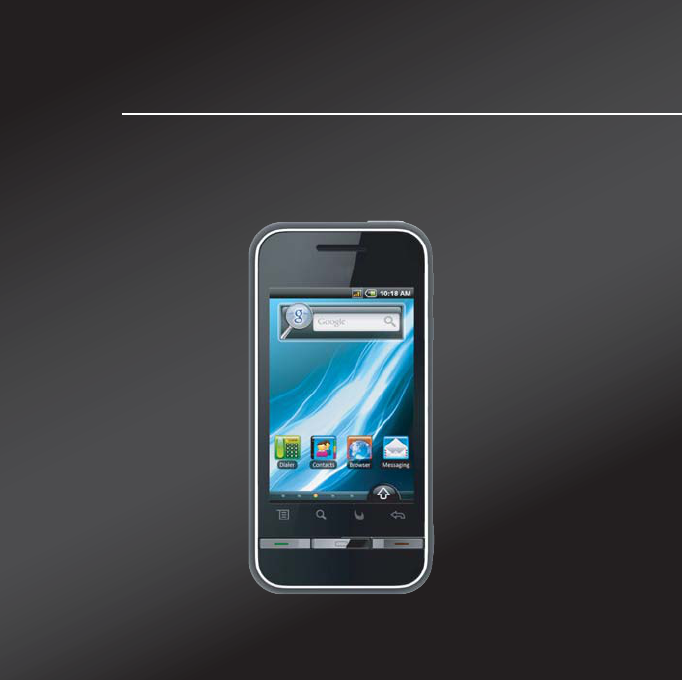
Quick Start Guide
F902
CMCS F902_125
Quick Start Guide

Table of Contents
Table of Contents
What’s in the Box? ............................................................................. 1
Your Phone ........................................................................................ 2
Installing SIM Card, Battery and Memory Card.................................. 3
Charging Battery ................................................................................ 4
First Start Up...................................................................................... 6
Home Screen ..................................................................................... 6
Making Your First Call........................................................................ 7
Entering Information........................................................................... 8
Contacts............................................................................................. 9
Sending Text Messages..................................................................... 10
Sending Multimedia Messages .......................................................... 10
Sending Voice MMS........................................................................... 11
Setting up Wi-Fi.................................................................................. 11
Setting up Email Account................................................................... 12
Sending and Receiving Emails .......................................................... 13
Using Browser.................................................................................... 14
Using Bluetooth.................................................................................. 15
Taking Photos and Videos ................................................................. 16
Viewing Photos and Videos ............................................................... 17
Changing Basic Phone Settings......................................................... 18
Quick Start Guide
1
Congratulations on your purchase. This Quick Start Guide will help you go
through the basic features of your phone to get you started.
For more detailed information, please refer to the User Manual at your carrier
web site or www.commtiva.com.
What’s in the Box?
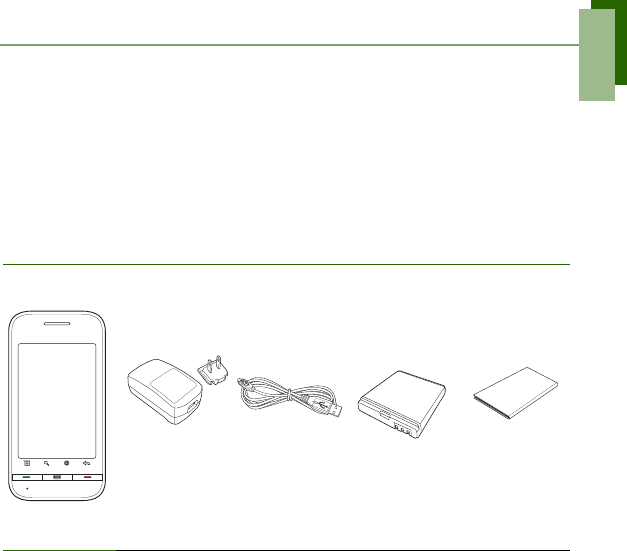
Your package comes with the following items. If any of them is missing, please
contact your retailer.
Phone
AC Adapter USB cable Li-Ion battery
Quick Start
Guide
Quick Start Guide
2
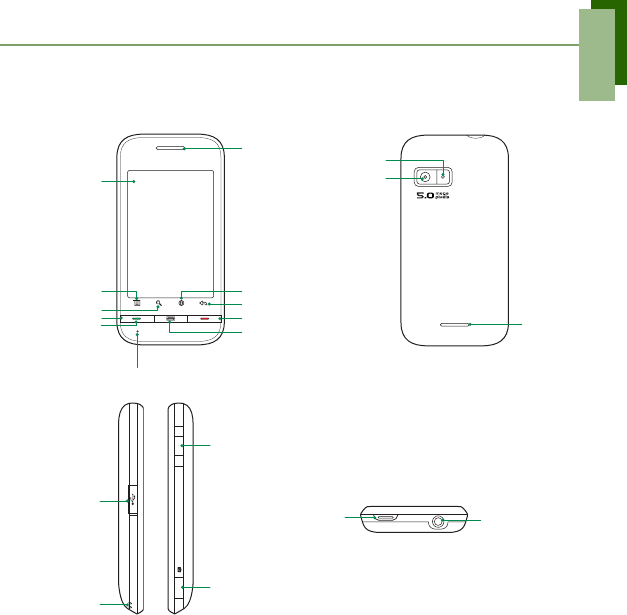
Your Phone
Home
Talk / Send Menu
Flash LED
5.0 Megapixels
camera
Volume:
Press up or
down to
increase or
decrease
volume.
Camera key
Power
Speake
r
MIC
End
Return
Touch screen
Earpiece
Micro USB
connector Headset jack
Strap holes
Search Browser
Quick Start Guide
3
Installing SIM Card, Battery and Memory Card
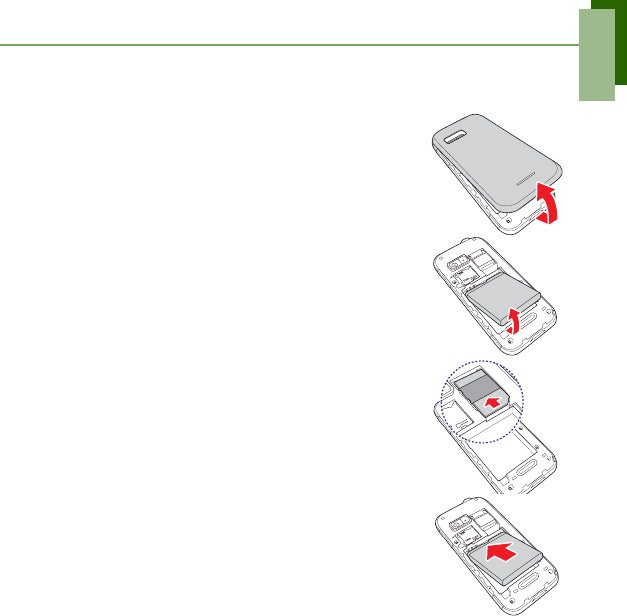
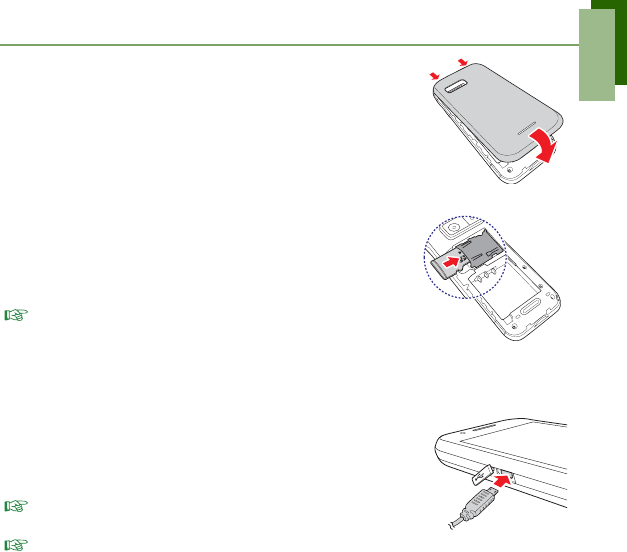
To install SIM card and battery
1. Open back cover.
2. If battery is inserted, lift and remove battery to the
direction of the arrow.
3. Insert SIM card. Make sure the gold contacts are
facing down and the cut-off corner facing towards
the battery slot.
4. Insert battery. Make sure the contacts of the battery
are aligned with the connectors on the battery slot.
Quick Start Guide
4
5. Secure the hooks on the back cover with designated
holes on the phone and close the back cover.
To install the memory card
1. Open back cover.
2. Insert memory card with the gold contacts facing
down.
3. Push memory card until it clicks into place.
NOTE: To remove the memory card, push it down to
eject it from the slot.
Charging Battery
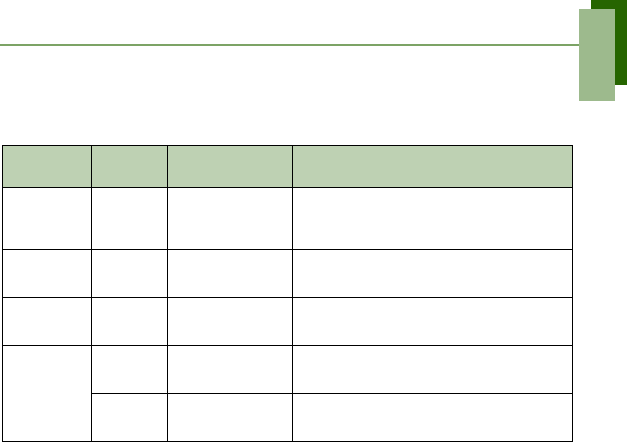
1. Open Micro USB connector cover.
2. Plug battery charger as shown in the diagram.
3. Plug AC adapter to wall outlet to start charging.
NOTE: To fully charge battery, charge it for 2 hours. Battery
life may vary depending on the usage.
NOTE: Battery can also be charged when you connect your
phone to computer using USB cable.
Quick Start Guide
5
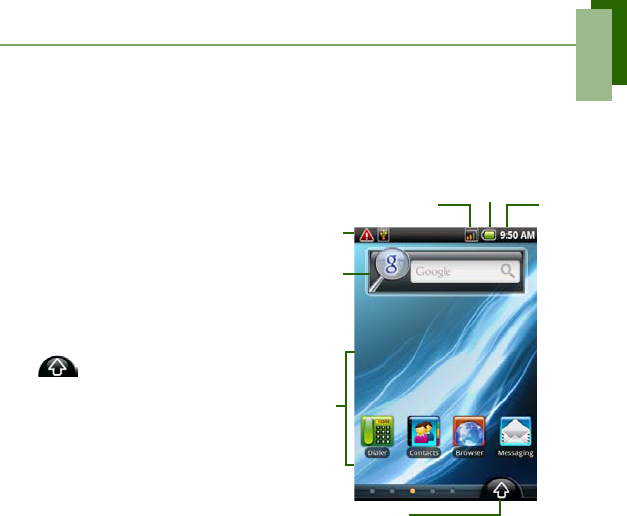
LED Indicators
Your device has three LED indicators: green, white, and red.
Blinking Cycle Time: 2 seconds
All hard key LED will be lighted up while the user presses either hard keys.
Location LED System State Indication
Send
Button Green
(solid) Suspend &
Working Mode Battery is fully charged.
End
Button Red
(solid) Suspend &
Working Mode Battery is charged.
Battery Low indication.
Home
Button White
(solid) Press button Home Button is active.
Power
Button
Green
(solid) Suspend Phone (WAN) standby.
Red
(solid) Suspend &
Working Mode Missed Call or New Message.
Quick Start Guide
6
First Start Up
After installing SIM card and charging battery, you are now ready to turn on the
phone.
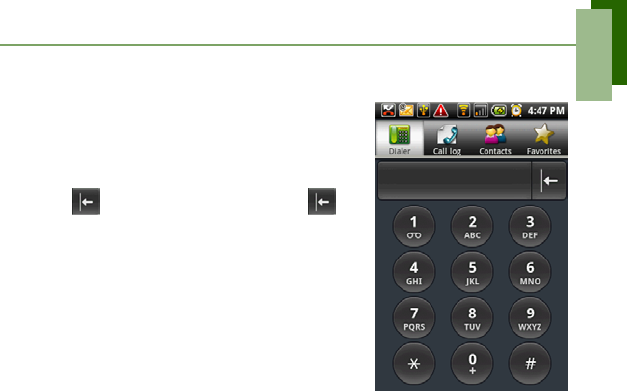
Home Screen
From Home screen, you can
quickly access common features
and view notifications of missed
calls, received messages and
connection status.
Tap an icon to start the application.
Tap to access all the
programs and settings of the
device.
For more information about Home
screen, please refer to User
Manual.
Signal strength Battery status
Notification
Application Drawer
Tap an icon
to start the
applications.
Google
Search box
Time
Quick Start Guide
7
Making Your First Call
On Home screen, tap Dialer.
To make a voice call
1. Tap phone number on the keypad.
2. Tap to backspace. Tap and hold to
erase the entire number.
3. After entering the number, press Send button
or tap the number to dial.
4. To end the call, press End button.
To answer a call
To answer a call, press Send button.
Quick Start Guide
8
Entering Information
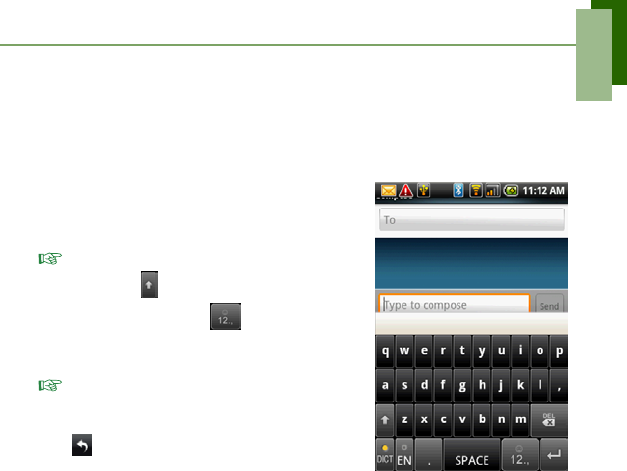
Regardless of the application, you can enter information using on-screen
keyboard.
To use on-screen keyboard
When an application requires text input, tap the
input box to display on-screen keyboard.
1. Tap input box to display on-screen keyboard.
NOTE: To toggle between big and small caps
display, tap . To display numeric and
symbols keyboard, tap .
2. Tap the keys on the keyboard to enter the
characters.
NOTE: If word completion is activated, the
screen displays a list of suggested words as you
type the characters.
3. Tap to switch to alphabet keyboard.
Quick Start Guide
9
Contacts
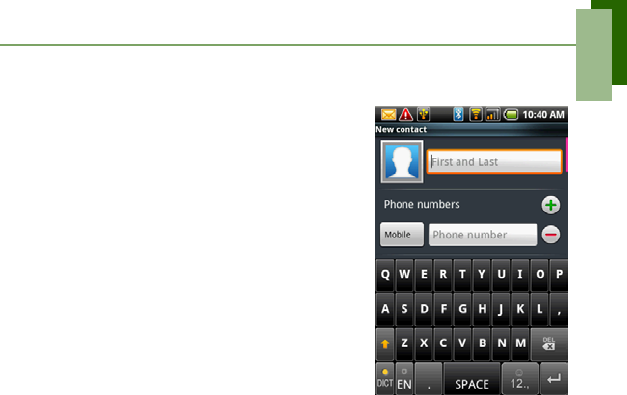
To add a Contact
1. On Home screen, tap Contacts.
2. Tap Menu > New contact.
3. Enter contact information such as name,
phone number, email address etc. Tap Done
to save the contact or tap Revert to exit
without saving any changes.
To copy contacts from SIM card
1. On Home screen, tap Contacts.
2. Tap Menu > Import to import contacts from SIM card.
3. Select contacts to import or tap Menu again to select Import all.
Quick Start Guide
10
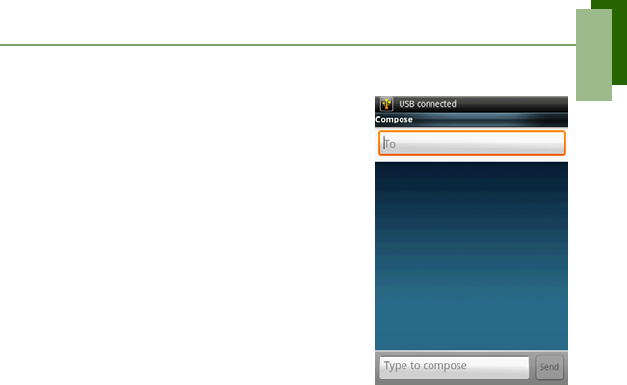
Sending Text Messages
1. On Home screen, tap Messaging.
2. Tap New message.
3. In To field, enter mobile phone number to
send the text message.
4. Type your message in the box below and
then tap Send.
Sending Multimedia
Messages
A multimedia message (MMS) can contain graphic
and audio files.
1. On Home screen, tap Messaging.
2. Tap New message > Menu > Add subject.
3. Message will automatically convert to a multimedia message.
4. Enter mobile phone number or e-mail address of the recipient in To field
then type Subject.
5. To add components, tap Menu > Attach to attach pictures or videos.
6. Tap Send.
Quick Start Guide
11
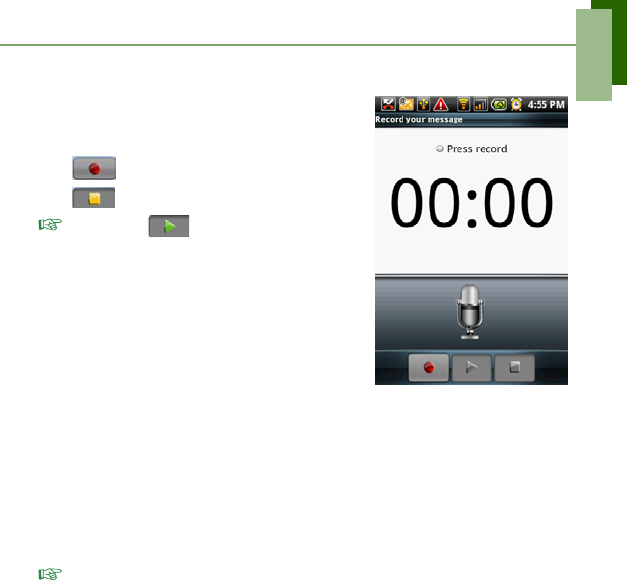
Sending Voice MMS
1. Tap Application Drawer > Messaging.
2. Tap New Message > Menu > Attach >
Record audio.
3. Tap to record your message.
4. Tap to stop recording.
NOTE: Tap to play voice and then tap
Use this recording to view other options such
as: replace with other files or remove the voice
file from the message.
5. Enter mobile phone number in To field. You
can to send up to 20 recipients per voice
message.
6. Tap to enter your text message in the box and
tap Send.
Setting up Wi-Fi
Connect to a wireless network to browse the Internet.
1. On Home screen, tap Application Drawer > Settings.
2. Tap Wireless Controls.
3. Tap Wi-Fi to activate. Detected networks are displayed below.
4. Tap a network connection and then tap OK.
NOTE: Connecting to a secured network will prompt you for the password. Enter
the password then tap Connect.
Quick Start Guide
12
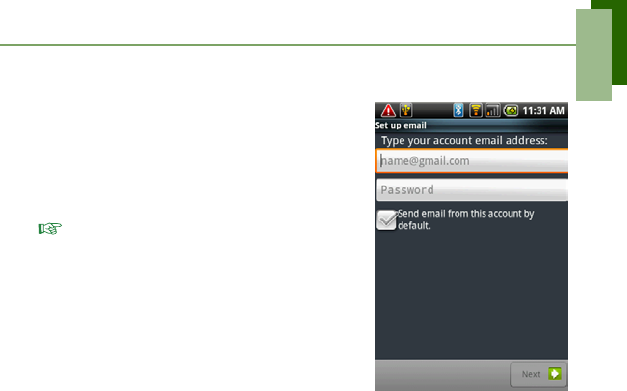
Setting up Email Account
1. Tap Application Drawer > Email > Set up
email.
2. Enter your E-mail address and Password.
Check Save Password option, then tap Next.
3. The phone will automatically retrieve the e-
mail settings.
NOTE: If e-mail settings are pre-configured,
the E-mail setup wizard displays a successful
message, tap Next. If e-mail settings are not
found, tap Manual setup.
4. Enter Your Name and the Account display
name, then tap Next.
5. Tap Done.
Quick Start Guide
13
Sending and Receiving Emails
Composing and sending E-mails
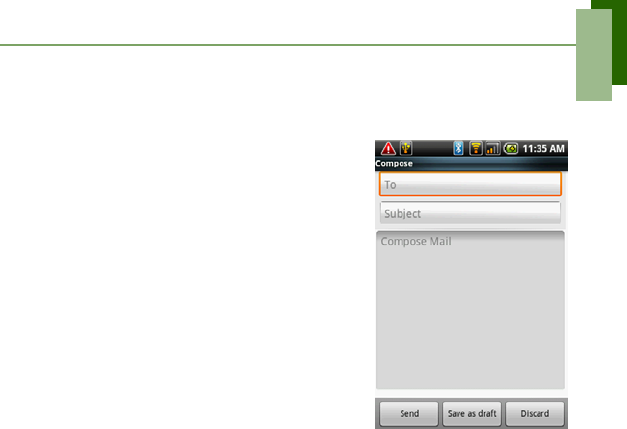
1. Tap Application Drawer > Email, then tap
an e-mail account.
2. Tap Menu > Compose.
3. In To field, enter recipient’s e-mail address.
TIP: To add recipients from Contacts, tap To or tap
Menu > Add Recipient, then select the names.
4. Enter Subject.
5. Compose your email.
6. Tap Send.
Adding attachments to an e-mail mes-
sage
1. Tap Menu > Attach.
2. Select items to attach.
Receiving e-mails
E-mails are automatically received in your Inbox when phone connects to
wireless network.
1. Tap Application Drawer > Email, then tap an e-mail account.
2. Tap Menu > Send/Receive.
Quick Start Guide
14
Using Browser
To open a web page
1. Tap Start > Browser.
2. Tap Menu > Go.
3. Tap address bar.
4. Tap the URL and tap Go.
Tap Menu to access more functions.
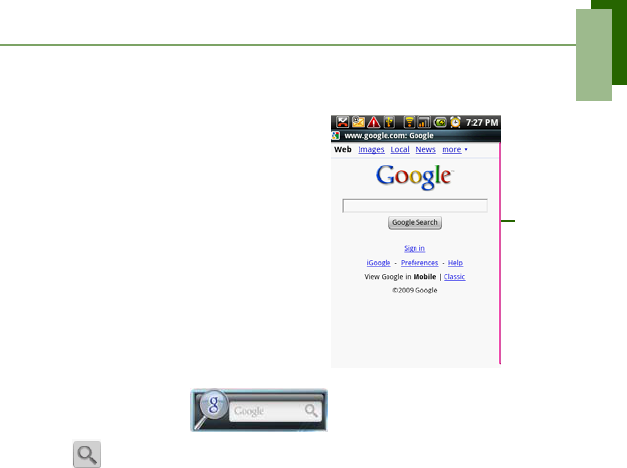
To quickly browse Internet from
Home Screen
From Home screen, you can browse the
Internet right away with Google Search.
1. Tap Google Search bar, then type text to search.
2. Tap .
Use the
scroll bar
to scroll
the page.
Quick Start Guide
15
Using Bluetooth
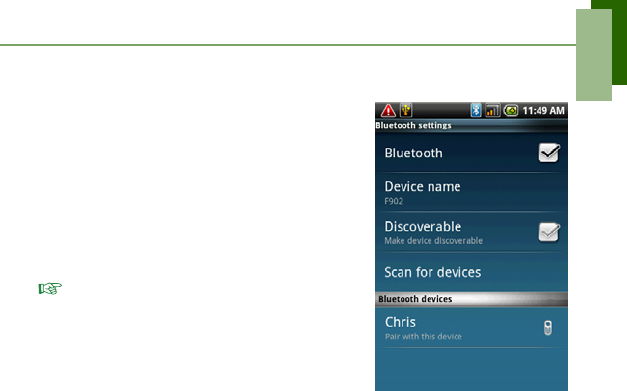
1. On Home screen, tap Application Drawer >
Settings.
2. Tap Wireless Controls.
3. Tap Bluetooth to activate.
4. To search for a new device, tap Bluetooth
Settings > Scan for devices.
5. Tap the detected device to connect.
6. To start pairing, enter Passcode, then tap
OK.
NOTE: The passcode you enter on your phone
must be the same passcode to be entered on
the other bluetooth device.
7. The paired bluetooth device name is
displayed.
8. Tap Done.
Quick Start Guide
16
Taking Photos and Videos
Your phone is equipped with a 5.0 megapixels camera to take photos and record
videos.
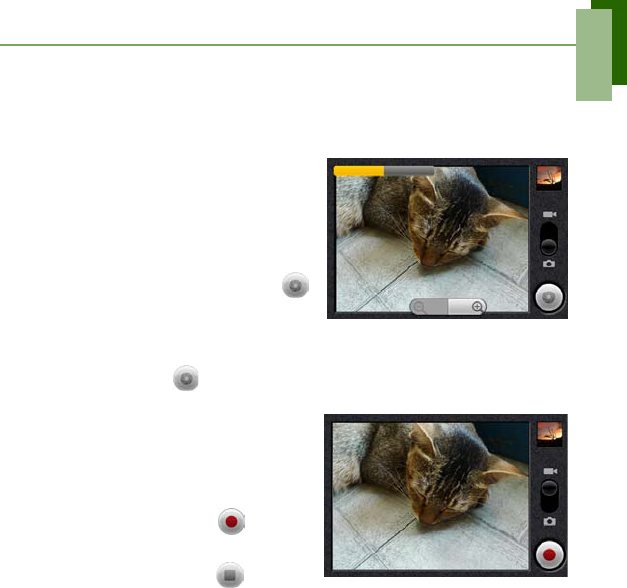
To take a photo
1. Tap Application Drawer > Camera.
The screen will automatically switch to
landscape view.
2. Aim the phone at the subject, then half
press camera key or tap and hold
to focus.
3. The focus frame turns green to
indicate focus is set, fully press
camera key or tap to take the shot.
To record a video
1. Tap Application Drawer >
Camcorder.
2. Aim the phone at the subject.
3. Press camera key or tap to start
recording.
4. Press camera key or tap again to
stop.
Quick Start Guide
17
NOTE: When in camcorder or camera mode, tap Menu > Settings to adjust
camcorder or camera settings.
Viewing Photos and Videos
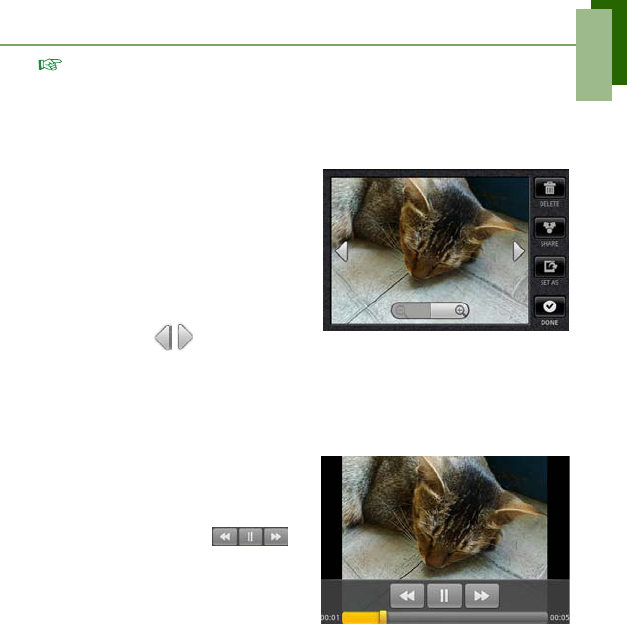
To view photos
1. Tap Application Drawer > Gallery >
Camera pictures.
2. Tap an image to view.
3. To view an image in landscape mode,
hold the phone horizontally.
4. To view previous/next image, tap
screen then tap .
5. To play slideshow, tap Menu > Slide
Show.
6. To share or edit an image such as
rotating, cropping, deleting etc, and
tap Menu to show these options.
To play back videos
1. Tap Application Drawer > Videos.
2. Tap a video to play. Tap to
rewind/pause/fast forward the video
clip.
Quick Start Guide
18
Changing Basic Phone Settings
To change ringtone
1. Tap Application Drawer > Settings > Sound & display > Phone
ringtone.
2. Select your preferred ringtones from the list.
3. Tap OK to confirm.
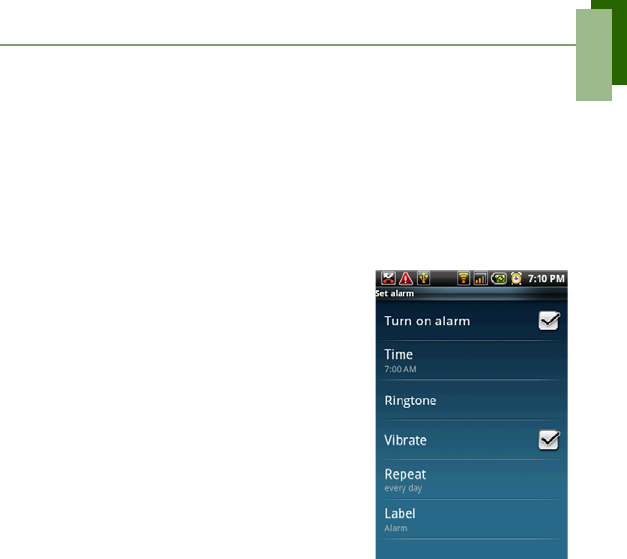
To set alarm
1. Tap Application Drawer > Alarm Clock.
2. Tap a checkbox to activate an alarm or tap an
alarm to enter settings menu.
3. On settings menu, tap an option to change
any setting.
4. Tap Label to enter an alarm description.
5. Tap the checkbox of Turn on alarm to
activate the alarm.
6. Tap Return to exit.

Important Information
i
Please read before proceeding
SAFETY INFORMATION
• Use only the batteries and power adapter provided by the manufacturer. The use of unauthorized
accessories may void your warranty.
• Do not remove the battery while the phone is charging.
• Avoid using the phone near electromagnetic sources such as TVs, radios, and microwave ovens.
• Unplug the power adapter from the wall outlet during lightning storms to avoid electric shock or fire.
• Do not expose the phone or the battery to direct sunlight.
• Do not store your phone in temperatures higher than 60ºC or 140ºF.
• Do not use harsh chemicals or detergents to clean your phone.
• Do not handle the phone with wet hands while it is being charged. This may cause an electric shock or
serious damage to the phone.
SAFETY PRECAUTIONS FOR BATTERY USE
• Use only an approved battery.
• Keep the battery dry and away from any liquid since this may cause a short circuit.
• Keep the battery away from metal objects since this may cause a short circuit.
• Do not use damaged or deformed batteries.
• If the battery emits a foul odor, discontinue use.
• Keep the battery away from babies and small children.
• If the battery leaks:
• Do not allow the leaking fluid to come in contact with your skin, eyes or clothing. If already in contact,
rinse with clean water immediately and seek medical advice.
• Keep the battery away from fire since this may cause the battery to explode.
• Do not attempt to open or service the battery yourself.
• Do not dispose battery in fire or water.
• Recycle or dispose used batteries according to the local regulations.
ROAD AND ENVIRONMENTAL SAFETY
• Turn off the phone in areas with a potentially explosive atmosphere or where flammable objects exist
such as gas stations, fuel depots, and chemical plants among others. Sparks from these areas could
cause explosion or fire and result in injury or even death.
• Do not use hand-held phones while driving a vehicle. Use hands-free devices as an alternative.
SAFETY IN AIRCRAFT
Do not use the phone on board an aircraft. The phone’s network signals may cause interference to the
navigation system. As a safety measurement, it is against the law in most countries to use the phone on
board an aircraft.

Important Information
ii
Copyright © 2009. All Rights Reserved.
Android is a trademark of Google Inc. Use of this trademark is subject to Google Permissions.
Bluetooth and the Bluetooth logo are trademarks owned by Bluetooth SIG, Inc.
Java, JME and all other Java-based marks are trademarks or registered trademarks of Sun Microsystems,
Inc. in the United States and other countries.
The prediction engine of the input method is TouchPal, provided by COOTEK.
FCC Regulations
This device complies with part 15 of the FCC Rules. Operation is subject to the following two conditions: (1)
This device may not cause harmful interference, and (2) this device must accept any interference received,
including interference that may cause undesired operation.
This device has been tested and found to comply with the limits for a Class B digital device, pursuant to Part
15 of the FCC Rules. These limits are designed to provide reasonable protection against harmful
interference in a residential installation. This equipment generates, uses and can radiated radio frequency
energy and, if not installed and used in accordance with the instructions, may cause harmful interference to
radio communications. However, there is no guarantee that interference will not occur in a particular
installation If this equipment does cause harmful interference to radio or television reception, which can be
determined by turning the equipment off and on, the user is encouraged to try to correct the interference by
one or more of the following measures:
• Reorient or relocate the receiving antenna.
• Increase the separation between the equipment and receiver.
• Connect the equipment into an outlet on a circuit different from that to which the receiver is connected.
• Consult the dealer or an experienced radio/TV technician for help.
Changes or modifications not expressly approved by the party responsible for compliance could void the
user’s authority to operate the equipment.
The antenna(s) used for this transmitter must not be co-located or operating in conjunction with any other
antenna or transmitter.
RF Exposure Information (SAR)
This model phone meets the government’s requirements for exposure to radio waves.
This phone is designed and manufactured not to exceed the emission limits for exposure to radio frequency
(RF) energy set by the Federal Communications Commission of the U.S. Government.
The exposure standard for wireless devices employs a unit of measurement known as the Specific
Absorption Rate, or SAR. The SAR limit set by the FCC is 1.6W/kg. *Tests for SAR are conducted using
standard operating positions accepted by the FCC with the phone transmitting at its highest certified power

Important Information
iii
level in all tested frequency bands. Although the SAR is determined at the highest certified power level, the
actual SAR level of the phone while operating can be well below the maximum value. This is because the
phone is designed to operate at multiple power levels so as to use only the poser required to reach the
network. In general, the closer you are to a wireless base station antenna, the lower the power output.
The highest SAR value for the model phone as reported to the FCC when tested for use at the ear is 1.02
W/kg and when worn on the body, as described in this user guide, is 0.717 W/kg (Body-worn
measurements differ among phone models, depending upon available enhancements and FCC
requirements.)
While there may be differences between the SAR levels of various phones and at various positions, they all
meet the government requirement.
The FCC has granted an Equipment Authorization for this model phone with all reported SAR levels
evaluated as in compliance with the FCC RF exposure guidelines. SAR information on this model phone is
on file with the FCC and can be found under the Display Grant section of http://www.fcc.gov/oet/fccid after
searching on FCC ID: QDJ-F902.
This device is compliance with SAR for general population /uncontrolled exposure limits in ANSI/IEEE
C95.1-1999 and had been tested in accordance with the measurement methods and procedures specified
in OET Bulletin 65 Supplement C.
For body worn operation, this phone has been tested and meets the FCC RF exposure guidelines for use
with an accessory that contains no metal and the positions the handset a minimum of 1.5 cm from the body.
Use of other enhancements may not ensure compliance with FCC RF exposure guidelines. If you do not
use a body-worn accessory and are not holding the phone at the ear, position the handset a minimum of 1.5
cm from your body when the phone is switched on.
WEEE Notice
The WEEE logo on the product or on its box indicates that this product must not be disposed of or dumped
with your other household waste. You are liable to dispose of all your electronic or electrical waste
equipment by relocating over to the specified collection point for recycling of such hazardous waste.
Isolated collection and proper recovery of your electronic and electrical waste equipment at the time of
disposal will allow us to help conserve natural resources. Moreover, proper recycling of the electronic and
electrical waste equipment will ensure safety of human health and environment. For more information about
electronic and electrical waste equipment disposal, recovery, and collection points, please contact your
local city center, household waste disposal service, shop from where you purchased the equipment, or
manufacturer of the equipment.
Important Information
iv
RoHS Compliance
This product is in compliance with Directive 2002/95/EC of the European Parliament and of the Council of
27 January 2003, on the restriction of the use of certain hazardous substances in electrical and electronic
equipment (RoHS) and its amendments.
European Union Regulatory Conformance
The equipment complies with the RF Exposure Requirement 1999/519/EC, Council Recommendation of 12
July 1999 on the limitation of exposure of the general public to electromagnetic fields (0–300 GHz). This
equipment meets the following conformance standards: EN 300 328, EN 301489-1, EN 301489-7, EN
301489-17, EN 301489-24, EN 301 511, EN 301 908-1/2, EN 62209-1, EN50332-1/-2, EN 300440.
Changes or modifications to this product not authorized by the manufacturer could void the EMC
compliance and negate your authority to operate the product. This product has demonstrated EMC
compliance under conditions that included the use of compliant peripheral devices and shielded cables
between system components. It is important that you use compliant peripheral devices and shielded cables
between system components to reduce the possibility of causing interference to radios, televisions, and
other electronic devices.
We, hereby, declare that this cellular, Wi-Fi, & Bluetooth radio is in compliance with the essential
requirements and other relevant provisions of Directive 1999/5/EC.
Europe SAR Information
THIS MOBILE DEVICE MEETS GUIDELINES FOR EXPOSURE TO RADIO WAVES. Your mobile device
is a radio transmitter and receiver. It is designed not to exceed the limits for exposure to radio waves
recommended by international guidelines. These guidelines were developed by the independent scientific
organization ICNIRP and include safety margins designed to assure the protection of all persons,
regardless of age and health.
The exposure guidelines for mobile devices employ a unit of measurement known as the Specific
Absorption Rate or SAR. The SAR limit stated in the ICNIRP guidelines is 2.0 W/kg averaged over 10
grams of tissue. Tests for SAR are conducted using standard operating positions with the device
transmitting at its highest certified power level in all tested frequency bands. The actual SAR level of an
operating device can be below the maximum value because the device is designed to use only the power
required to reach the network. That amount changes depending on a number of factors such as how close
0682

Important Information
v
you are to a network base station. The highest SAR value under the ICNIRP guidelines for use of the device
at the ear is 0.976 W/kg. Use of device accessories and enhancements may result in different SAR values.
SAR values may vary depending on national reporting and testing requirements and the network band.
Additional SAR information can be found on the Cellular Telecommunications Industry Association (CTIA)
website at www.wow-com.com.